Mimeo.co.ukMimeo.co.uk
A4 4-ring bindersA4 4-ring binders
Spine TemplatesSpine Templates
Version 2Version 2
5-21-20105-21-2010
www.mimeo.co.uk/ 0808.208.4260
If you do not already have the SI (Special
Instruction) to have a spine created and inserted
into your binder, please contact Mimeo.co.uk
Customer Care at:
0808.208.4260, or customercare@mimeo.co.uk
to have the option added to your account.
– For spine only, ask for SI: MIM-D-0325
– For spine and back cover: MIM-D-0327
• Edit the page which corresponds to the size of the
binder for which you are creating a spine.
• Change the text and graphics on the slide to your
desired configuration.
• Any combination of text and graphics is
acceptable, but Mimeo will cut your spine at the
crop marks. Any text or graphics outside of the
crop marks will be lost.
• Print your customized slide to Mimeo. Please do
not print all slides. (Ignore any warnings
regarding the printable area; we have scaled your
spines to fit perfectly in the selected binder size)
• When building your document in the Mimeo
website, add your spine as the last page of your
document.
• After choosing your binder option, click on
“Special Instructions” and THE “Ad Special
Instructions”.
• Select your SI (MIM-D-0325 or MIM-D-0327).
Click “Apply” and continue processing your order.
• Important: please make sure your printer is not
set to scale your print pages. This will cause you
spine to be resized and not correctly fit into the
which you have chosen.
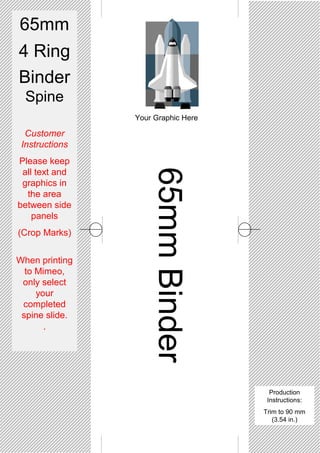
65mm
4 Ring
Binder
Spine
Customer
Instructions
Please keep
all text and
graphics in
the area
between side
panels
(Crop Marks)
When printing
to Mimeo,
only select
your
completed
spine slide.
.
65mmBinder
Production
Instructions:
Trim to 90 mm
(3.54 in.)
Your Graphic Here
50mmBinder
50mm
4 Ring
Binder
Spine
Customer
Instructions
Please keep all
text and
graphics in the
area between
side panels
(Crop Marks)
When printing
to Mimeo, only
select your
completed
spine slide.
Production
Instructions:
Trim to 62 mm
(2.44 in)
Your Graphic Here
40mmBinder
Your
Graphic
Here
40mm
4 Ring
Binder
Spine
Customer
Instructions
Please keep all
text and
graphics in the
area between
side panels
(Crop Marks)
When
printing to
Mimeo, only
select your
completed
spine slide.
Production
Instructions:
Trim to 40 mm
(1.57 in)
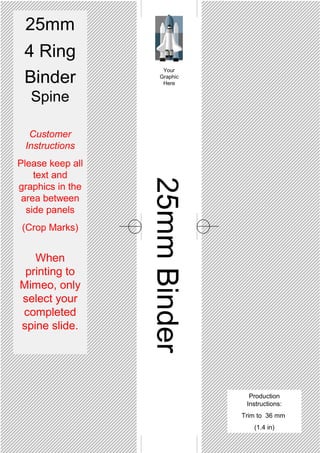
25mmBinder
Your
Graphic
Here
25mm
4 Ring
Binder
Spine
Customer
Instructions
Please keep all
text and
graphics in the
area between
side panels
(Crop Marks)
When
printing to
Mimeo, only
select your
completed
spine slide.
Production
Instructions:
Trim to 36 mm
(1.4 in)
15mmInchBinder
Your
Graphic
Here
15mm
4 Ring
Binder
Spine
Customer
Instructions
Please keep all
text and
graphics in the
area between
side panels
(Crop Marks)
When
printing to
Mimeo only
select your
completed
spine slide.
Production
Instructions:
Trim to 18 mm
(0.7 in)

Spine Templates for your 4 Ring Binders

  • 1.
    Mimeo.co.ukMimeo.co.uk A4 4-ring bindersA44-ring binders Spine TemplatesSpine Templates Version 2Version 2 5-21-20105-21-2010 www.mimeo.co.uk/ 0808.208.4260
  • 2.
    If you donot already have the SI (Special Instruction) to have a spine created and inserted into your binder, please contact Mimeo.co.uk Customer Care at: 0808.208.4260, or customercare@mimeo.co.uk to have the option added to your account. – For spine only, ask for SI: MIM-D-0325 – For spine and back cover: MIM-D-0327 • Edit the page which corresponds to the size of the binder for which you are creating a spine. • Change the text and graphics on the slide to your desired configuration. • Any combination of text and graphics is acceptable, but Mimeo will cut your spine at the crop marks. Any text or graphics outside of the crop marks will be lost. • Print your customized slide to Mimeo. Please do not print all slides. (Ignore any warnings regarding the printable area; we have scaled your spines to fit perfectly in the selected binder size) • When building your document in the Mimeo website, add your spine as the last page of your document. • After choosing your binder option, click on “Special Instructions” and THE “Ad Special Instructions”. • Select your SI (MIM-D-0325 or MIM-D-0327). Click “Apply” and continue processing your order. • Important: please make sure your printer is not set to scale your print pages. This will cause you spine to be resized and not correctly fit into the which you have chosen.
  • 3.
    65mm 4 Ring Binder Spine Customer Instructions Please keep alltext and graphics in the area between side panels (Crop Marks) When printing to Mimeo, only select your completed spine slide. . 65mmBinder Production Instructions: Trim to 90 mm (3.54 in.) Your Graphic Here
  • 4.
    50mmBinder 50mm 4 Ring Binder Spine Customer Instructions Please keepall text and graphics in the area between side panels (Crop Marks) When printing to Mimeo, only select your completed spine slide. Production Instructions: Trim to 62 mm (2.44 in) Your Graphic Here
  • 5.
    40mmBinder Your Graphic Here 40mm 4 Ring Binder Spine Customer Instructions Please keepall text and graphics in the area between side panels (Crop Marks) When printing to Mimeo, only select your completed spine slide. Production Instructions: Trim to 40 mm (1.57 in)
  • 6.
    25mmBinder Your Graphic Here 25mm 4 Ring Binder Spine Customer Instructions Please keepall text and graphics in the area between side panels (Crop Marks) When printing to Mimeo, only select your completed spine slide. Production Instructions: Trim to 36 mm (1.4 in)
  • 7.
    15mmInchBinder Your Graphic Here 15mm 4 Ring Binder Spine Customer Instructions Please keepall text and graphics in the area between side panels (Crop Marks) When printing to Mimeo only select your completed spine slide. Production Instructions: Trim to 18 mm (0.7 in)