Sistem Jaringan 1 Program Studi Informatika Sesi 2 Basic Switch and End Device Configuration
1.
Sistem Jaringan 1
ProgramStudi Informatika
Sesi 2 – Basic Switch and End Device
Configuration
Muhammad Ikhwani Saputra
2.
Session 2 Objectives
SessionTitle: Basic Switch and End Device Configuration
Session Objective: Implement initial settings including passwords, IP addressing, and default
gateway parameters on a network switch and end devices.
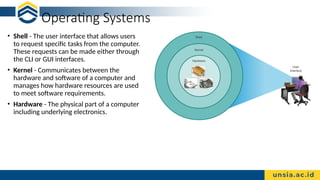
Operating Systems
• Shell- The user interface that allows users
to request specific tasks from the computer.
These requests can be made either through
the CLI or GUI interfaces.
• Kernel - Communicates between the
hardware and software of a computer and
manages how hardware resources are used
to meet software requirements.
• Hardware - The physical part of a computer
including underlying electronics.
5.
GUI
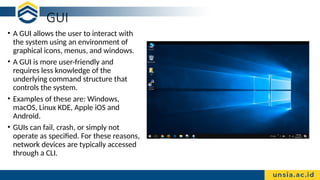
• A GUIallows the user to interact with
the system using an environment of
graphical icons, menus, and windows.
• A GUI is more user-friendly and
requires less knowledge of the
underlying command structure that
controls the system.
• Examples of these are: Windows,
macOS, Linux KDE, Apple iOS and
Android.
• GUIs can fail, crash, or simply not
operate as specified. For these reasons,
network devices are typically accessed
through a CLI.
6.
Cisco IOS Access
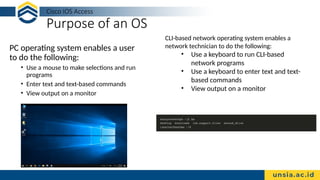
Purposeof an OS
PC operating system enables a user
to do the following:
• Use a mouse to make selections and run
programs
• Enter text and text-based commands
• View output on a monitor
CLI-based network operating system enables a
network technician to do the following:
• Use a keyboard to run CLI-based
network programs
• Use a keyboard to enter text and text-
based commands
• View output on a monitor
7.
Cisco IOS Access
AccessMethods
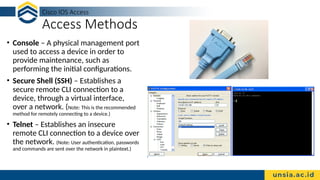
• Console – A physical management port
used to access a device in order to
provide maintenance, such as
performing the initial configurations.
• Secure Shell (SSH) – Establishes a
secure remote CLI connection to a
device, through a virtual interface,
over a network. (Note: This is the recommended
method for remotely connecting to a device.)
• Telnet – Establishes an insecure
remote CLI connection to a device over
the network. (Note: User authentication, passwords
and commands are sent over the network in plaintext.)
8.
Cisco IOS Access
TerminalEmulation Programs
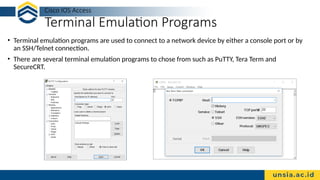
• Terminal emulation programs are used to connect to a network device by either a console port or by
an SSH/Telnet connection.
• There are several terminal emulation programs to chose from such as PuTTY, Tera Term and
SecureCRT.
IOS Navigation
Primary CommandModes
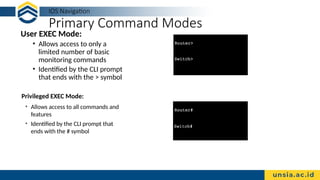
User EXEC Mode:
• Allows access to only a
limited number of basic
monitoring commands
• Identified by the CLI prompt
that ends with the > symbol
Privileged EXEC Mode:
• Allows access to all commands and
features
• Identified by the CLI prompt that
ends with the # symbol
11.
IOS Navigation
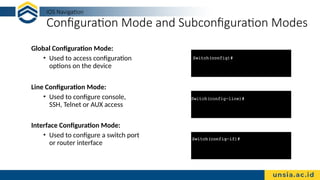
Configuration Modeand Subconfiguration Modes
Global Configuration Mode:
• Used to access configuration
options on the device
Line Configuration Mode:
• Used to configure console,
SSH, Telnet or AUX access
Interface Configuration Mode:
• Used to configure a switch port
or router interface
The Command Structure
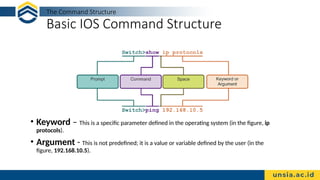
BasicIOS Command Structure
• Keyword – This is a specific parameter defined in the operating system (in the figure, ip
protocols).
• Argument - This is not predefined; it is a value or variable defined by the user (in the
figure, 192.168.10.5).
14.
The Command Structure
IOSCommand Syntax Check
A command might require one or more arguments. To determine the keywords and
arguments required for a command, refer to the command syntax.
• Boldface text indicates commands and keywords that are entered as shown.
• Italic text indicates an argument for which the user provides the value.
Convention Description
boldface Boldface text indicates commands and keywords that you enter literally as shown.
italics Italic text indicates arguments for which you supply values.
[x] Square brackets indicate an optional element (keyword or argument).
{x} Braces indicate a required element (keyword or argument).
[x {y | z }]
Braces and vertical lines within square brackets indicate a required choice within an
optional element. Spaces are used to clearly delineate parts of the command.
15.
The Command Structure
IOSCommand Syntax Check (Cont.)
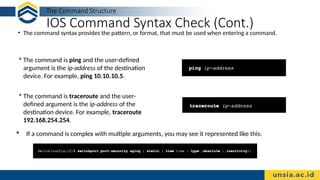
• The command syntax provides the pattern, or format, that must be used when entering a command.
The command is ping and the user-defined
argument is the ip-address of the destination
device. For example, ping 10.10.10.5.
The command is traceroute and the user-
defined argument is the ip-address of the
destination device. For example, traceroute
192.168.254.254.
If a command is complex with multiple arguments, you may see it represented like this:
16.
The Command Structure
IOSHelp Features
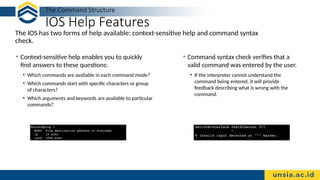
The IOS has two forms of help available: context-sensitive help and command syntax
check.
• Context-sensitive help enables you to quickly
find answers to these questions:
• Which commands are available in each command mode?
• Which commands start with specific characters or group
of characters?
• Which arguments and keywords are available to particular
commands?
• Command syntax check verifies that a
valid command was entered by the user.
• If the interpreter cannot understand the
command being entered, it will provide
feedback describing what is wrong with the
command.
17.
The Command Structure
HotKeys and Shortcuts
• The IOS CLI provides hot keys and shortcuts that make configuring, monitoring, and
troubleshooting easier.
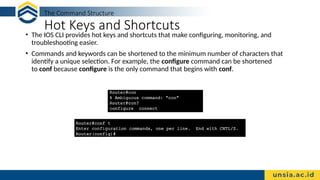
• Commands and keywords can be shortened to the minimum number of characters that
identify a unique selection. For example, the configure command can be shortened
to conf because configure is the only command that begins with conf.
18.
The Command Structure
HotKeys and Shortcuts (Cont.)
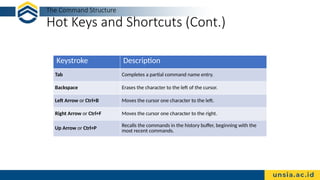
Keystroke Description
Tab Completes a partial command name entry.
Backspace Erases the character to the left of the cursor.
Left Arrow or Ctrl+B Moves the cursor one character to the left.
Right Arrow or Ctrl+F Moves the cursor one character to the right.
Up Arrow or Ctrl+P
Recalls the commands in the history buffer, beginning with the
most recent commands.
19.
The Command Structure
HotKeys and Shortcuts (Cont.)
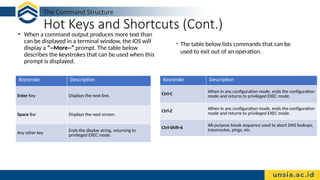
• When a command output produces more text than
can be displayed in a terminal window, the IOS will
display a “--More--” prompt. The table below
describes the keystrokes that can be used when this
prompt is displayed.
• The table below lists commands that can be
used to exit out of an operation.
Keystroke Description
Ctrl-C
When in any configuration mode, ends the configuration
mode and returns to privileged EXEC mode.
Ctrl-Z
When in any configuration mode, ends the configuration
mode and returns to privileged EXEC mode.
Ctrl-Shift-6 All-purpose break sequence used to abort DNS lookups,
traceroutes, pings, etc.
Keystroke Description
Enter Key Displays the next line.
Space Bar Displays the next screen.
Any other key
Ends the display string, returning to
privileged EXEC mode.
Basic Device Configuration
DeviceNames
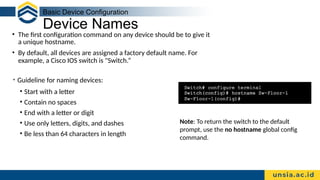
• The first configuration command on any device should be to give it
a unique hostname.
• By default, all devices are assigned a factory default name. For
example, a Cisco IOS switch is "Switch.”
• Guideline for naming devices:
• Start with a letter
• Contain no spaces
• End with a letter or digit
• Use only letters, digits, and dashes
• Be less than 64 characters in length
Note: To return the switch to the default
prompt, use the no hostname global config
command.
22.
Basic Device Configuration
PasswordGuidelines
• The use of weak or easily guessed passwords are a security concern.
• All networking devices should limit administrative access by securing privileged EXEC, user EXEC,
and remote Telnet access with passwords. In addition, all passwords should be encrypted and legal
notifications provided.
• Password Guidelines:
• Use passwords that are more than eight characters
in length.
• Use a combination of upper and lowercase letters,
numbers, special characters, and/or numeric
sequences.
• Avoid using the same password for all devices.
• Do not use common words because they are easily
guessed.
Note: Most of the labs in this course use
simple passwords such as cisco or class.
These passwords are considered weak and
easily guessable and should be avoided in
production environments.
Ports and Addresses
IPAddresses
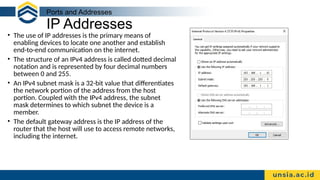
• The use of IP addresses is the primary means of
enabling devices to locate one another and establish
end-to-end communication on the internet.
• The structure of an IPv4 address is called dotted decimal
notation and is represented by four decimal numbers
between 0 and 255.
• An IPv4 subnet mask is a 32-bit value that differentiates
the network portion of the address from the host
portion. Coupled with the IPv4 address, the subnet
mask determines to which subnet the device is a
member.
• The default gateway address is the IP address of the
router that the host will use to access remote networks,
including the internet.
25.
Ports and Addresses
IPAddresses (Cont.)
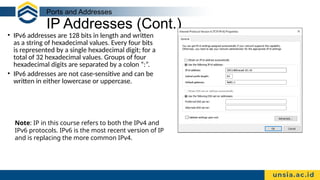
• IPv6 addresses are 128 bits in length and written
as a string of hexadecimal values. Every four bits
is represented by a single hexadecimal digit; for a
total of 32 hexadecimal values. Groups of four
hexadecimal digits are separated by a colon “:”.
• IPv6 addresses are not case-sensitive and can be
written in either lowercase or uppercase.
Note: IP in this course refers to both the IPv4 and
IPv6 protocols. IPv6 is the most recent version of IP
and is replacing the more common IPv4.
26.
Ports and Addresses
Interfacesand Ports
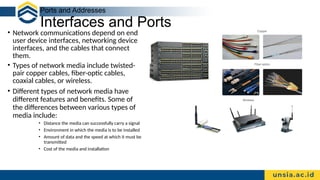
• Network communications depend on end
user device interfaces, networking device
interfaces, and the cables that connect
them.
• Types of network media include twisted-
pair copper cables, fiber-optic cables,
coaxial cables, or wireless.
• Different types of network media have
different features and benefits. Some of
the differences between various types of
media include:
• Distance the media can successfully carry a signal
• Environment in which the media is to be installed
• Amount of data and the speed at which it must be
transmitted
• Cost of the media and installation
Configure IP Addressing
ManualIP Address Configuration for End Devices
• End devices on the network need an IP address in
order to communicate with other devices on the
network.
• IPv4 address information can be entered into end
devices manually, or automatically using Dynamic
Host Configuration Protocol (DHCP).
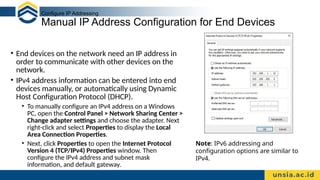
• To manually configure an IPv4 address on a Windows
PC, open the Control Panel > Network Sharing Center >
Change adapter settings and choose the adapter. Next
right-click and select Properties to display the Local
Area Connection Properties.
• Next, click Properties to open the Internet Protocol
Version 4 (TCP/IPv4) Properties window. Then
configure the IPv4 address and subnet mask
information, and default gateway.
Note: IPv6 addressing and
configuration options are similar to
IPv4.
29.
Configure IP Addressing
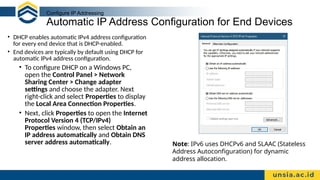
AutomaticIP Address Configuration for End Devices
• DHCP enables automatic IPv4 address configuration
for every end device that is DHCP-enabled.
• End devices are typically by default using DHCP for
automatic IPv4 address configuration.
• To configure DHCP on a Windows PC,
open the Control Panel > Network
Sharing Center > Change adapter
settings and choose the adapter. Next
right-click and select Properties to display
the Local Area Connection Properties.
• Next, click Properties to open the Internet
Protocol Version 4 (TCP/IPv4)
Properties window, then select Obtain an
IP address automatically and Obtain DNS
server address automatically. Note: IPv6 uses DHCPv6 and SLAAC (Stateless
Address Autoconfiguration) for dynamic
address allocation.
Editor's Notes
#2 2 – Basic Switch and End Device Configuration
2.0.2 – What will I learn to do in the module?
#4 2 – Basic Switch and End Device Configuration
2.1 – Cisco IOS Access
2.1.1 – Operating Systems
#5 2 – Basic Switch and End Device Configuration
2.1 – Cisco IOS Access
2.1.2 – GUI
#6 2 – Basic Switch and End Device Configuration
2.1 – Cisco IOS Access
2.1.3 – Purpose of an OS
#7 2 – Basic Switch and End Device Configuration
2.1 – Cisco IOS Access
2.1.4 – Access Methods
#8 2 – Basic Switch and End Device Configuration
2.1 – Cisco IOS Access
2.1.5 – Terminal Emulation Programs
2.1.6 – Check Your Understanding - Cisco IOS Access
#10 2 – Basic Switch and End Device Configuration
2.2 – IOS Navigation
2.2.1 – Primary Command Modes
#11 2 – Basic Switch and End Device Configuration
2.2 – IOS Navigation
2.2.2 – Configuration Mode and Subconfiguration Modes
#13 2 – Basic Switch and End Device Configuration
2.3 – The Command Structure
2.3.1 – Basic IOS Command Structure
#14 2 – Basic Switch and End Device Configuration
2.3 – The Command Structure
2.3.2 – IOS Command Syntax Check
#15 2 – Basic Switch and End Device Configuration
2.3 – The Command Structure
2.3.2 – IOS Command Syntax Check
#16 2 – Basic Switch and End Device Configuration
2.3 – The Command Structure
2.3.3 – IOS Help Features
#17 2 – Basic Switch and End Device Configuration
2.3 – The Command Structure
2.3.5 – Hot Keys and Shortcuts
#18 2 – Basic Switch and End Device Configuration
2.3 – The Command Structure
2.3.5 – Hot Keys and Shortcuts
#19 2 – Basic Switch and End Device Configuration
2.3 – The Command Structure
2.3.5 – Hot Keys and Shortcuts
#21 2 – Basic Switch and End Device Configuration
2.4 – Basic Device Configuration
2.4.1 – Device Names
#22 2 – Basic Switch and End Device Configuration
2.4 – Basic Device Configuration
2.4.2 – Password Guidelines
#24 2 – Basic Switch and End Device Configuration
2.6 – Ports and Addresses
2.6.1 – IP Addresses
#25 2 – Basic Switch and End Device Configuration
2.6 – Ports and Addresses
2.6.1 – IP Addresses
#26 2 – Basic Switch and End Device Configuration
2.6 – Ports and Addresses
2.6.2 – Interfaces and Ports
2.6.3 – Check Your Understanding - Ports and Addresses
#28 2 – Basic Switch and End Device Configuration
2.7 – Configure IP Addressing
2.7.1 – Manual IP Address Configuration for End Devices
#29 2 – Basic Switch and End Device Configuration
2.7 – Configure IP Addressing
2.7.2 – Automatic IP Address Configuration for End Devices
2.7.3 – Syntax Checker – Verify Windows PC IP Configuration



![The Command Structure
IOS Command Syntax Check
A command might require one or more arguments. To determine the keywords and
arguments required for a command, refer to the command syntax.
• Boldface text indicates commands and keywords that are entered as shown.
• Italic text indicates an argument for which the user provides the value.
Convention Description
boldface Boldface text indicates commands and keywords that you enter literally as shown.
italics Italic text indicates arguments for which you supply values.
[x] Square brackets indicate an optional element (keyword or argument).
{x} Braces indicate a required element (keyword or argument).
[x {y | z }]
Braces and vertical lines within square brackets indicate a required choice within an
optional element. Spaces are used to clearly delineate parts of the command.](https://image.slidesharecdn.com/sisjarpertemuan2-250525131551-cde76301/85/Sistem-Jaringan-1-Program-Studi-Informatika-Sesi-2-Basic-Switch-and-End-Device-Configuration-14-320.jpg)



![Ccna lab manual[1]](https://cdn.slidesharecdn.com/ss_thumbnails/ccnalabmanual1-120706013431-phpapp02-thumbnail.jpg?width=640&height=640&fit=bounds)


