INTRODUCTION TO COMPUTERS
Mukesh N. Tekwani
2019
Email: mukeshnt@yahoo.com
B. Voc. – Computer Skills Course
Prof Mukesh N Tekwani, 2019 1
Session 2 Objectives:
1. Various Parts of a Computer
2. Peripheral Devices
3. Commonly Used Computer Terms
Prof Mukesh N Tekwani, 2019 2
Various Parts of a Computer
1. Hardware
a) Physical parts
b) Can be touched and felt.
2. Software
a) Programs or instructions given to
hardware
b) Cannot be touched / feltProf Mukesh N Tekwani, 2019 3
Various Parts of a Computer
1. Hardware
a) TV set, mobile phone
b) Computer / laptop
2. Software
a) Programmes we watch on TV
b) Programmes we run on computers or
mobile phoneProf Mukesh N Tekwani, 2019 4
Various Parts of a Computer
1. Hardware and software cannot work
independently of each other.
2. You may have a TV but without
programmes, no fun !
3. Programmes may be telecast, but if you
have no hardware (TV/set-top box), no fun!Prof Mukesh N Tekwani, 2019 5
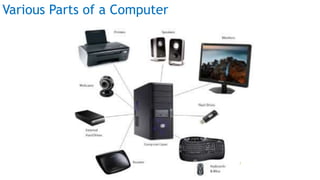
Various Parts of a Computer
1. Hardware is the electronic circuits of a
computer.
2. Various components and devices like hard
disk, monitor, mouse, keyboard….
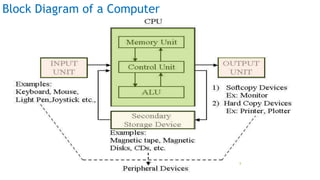
3. Every computer :
1. Central Processing Unit + Secondary
Storage Devices + Peripheral Devices
Prof Mukesh N Tekwani, 2019 6
Various Parts of a Computer
Prof Mukesh N Tekwani, 2019 7
Block Diagram of a Computer
Prof Mukesh N Tekwani, 2019 8
The CPU
CPU is the brain of a computer.
All tasks such as calculations, decision-making, controlling other
devices carried out by the CPU
Parts of A CPU:
1. Control Unit
2. ALU – Arithmetic and Logic Unit
3. Registers
4. Cache memory
5. Primary & Temporary Memory RAM- Random Access Memory
6. Primary & Permanent Memory ROM-Read Only Memory
Prof Mukesh N Tekwani, 2019 9
Control Unit (C.U.)
1. Manage resources of a computer.
2. Controls the working of the entire computer system.
3. Contains the firmware – i.e. instructions for execution of
programs
4. Stores all operations that can be carried out by a computer
5. This list of operations that a CU can perform is called its
Instruction Set.
6. The CU directs the flow of data around the CPU and around
the computer
Prof Mukesh N Tekwani, 2019 10
Arithmetic and Logic Unit (ALU)
1. All arithmetic operations like +, -, x and /
2. Logic operations such as comparison like <, <=, >, >= , AND, .
3. Registers are included in the ALU. They work under the
directions of the CU. These registers store the data that is
being processed.
4. Registers are like memory cells but have high speed (~1 ns)
5. Registers can store data or instructions – so there are 2 types
of registers – Data Register and Instruction Register
6. Registers are the smallest, high-speed storage area in the
CPU.
Prof Mukesh N Tekwani, 2019 11
Primary Memory
1. Consists of RAM and ROM
2. RAM – Random Access Memory (Temporary)
3. ROM – Read Only Memory (Permanent)
Prof Mukesh N Tekwani, 2019 12
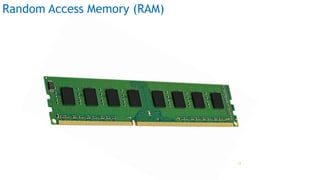
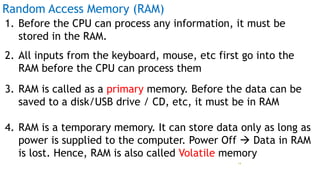
Random Access Memory (RAM)
Prof Mukesh N Tekwani, 2019 13
Random Access Memory (RAM)
1. Before the CPU can process any information, it must be
stored in the RAM.
2. All inputs from the keyboard, mouse, etc first go into the
RAM before the CPU can process them
3. RAM is called as a primary memory. Before the data can be
saved to a disk/USB drive / CD, etc, it must be in RAM
4. RAM is a temporary memory. It can store data only as long as
power is supplied to the computer. Power Off  Data in RAM
is lost. Hence, RAM is also called Volatile memory
Prof Mukesh N Tekwani, 2019 14
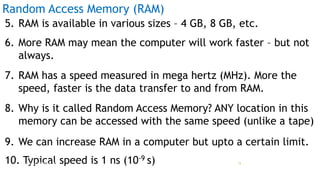
Random Access Memory (RAM)
5. RAM is available in various sizes – 4 GB, 8 GB, etc.
6. More RAM may mean the computer will work faster – but not
always.
7. RAM has a speed measured in mega hertz (MHz). More the
speed, faster is the data transfer to and from RAM.
8. Why is it called Random Access Memory? ANY location in this
memory can be accessed with the same speed (unlike a tape)
9. We can increase RAM in a computer but upto a certain limit.
10. Typical speed is 1 ns (10-9 s)Prof Mukesh N Tekwani, 2019 15
Types of RAM
1. Dynamic RAM (DRAM) - This memory must be constantly
refreshed or reenergised otherwise all contents are lost.
Cheaper comparatively.
2. Static RAM (SRAM) – faster, requires less power but is more
expensive. Need not be refreshed like DRAM.
3. Synchronous Dynamic RAM (SDRAM) – This can run at very
high clock speeds. This is the most common primary memory
now. DDR5, DDR4, DDR3, etc are different versions of SDRAM.
4. DDR – Double Data Rate Synchronous Random Access MmeoryProf Mukesh N Tekwani, 2019 16
Read Only Memory (ROM)
Prof Mukesh N Tekwani, 2019 17
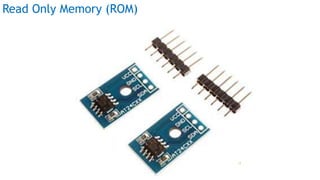
Read Only Memory (ROM)
1. ROM is built onto the motherboard
2. Data and instructions stored in ROM cannot be changed by
user.
3. User can READ the data and instructions in ROM but cannot
modify it.
4. Why does a computer need ROM ? When a computer is
switched on it must perform certain tasks on its own. These
instructions are stored in the ROM.
Prof Mukesh N Tekwani, 2019 18
Read Only Memory (ROM)
5. Instructions stored in the ROM are – search for devices
connected to the computer, search for keyboard, mouse,
check the RAM, etc. This process is called the BOOTUP
process.
6. The ROM also looks for the Operating System (Windows) on
the hard disk.
7. This memory is NOT LOST when power is switched off. Hence
it is called permanent or non-volatile memory.
Prof Mukesh N Tekwani, 2019 19
Types of ROM
1. Programmable ROM – Programmable Read Only Memory. Store
instructions once only.
2. Erasable Programmable Read Only Memory (EPROM) – store
instructions but they can be erased only by exposing the
memory to ultraviolet light
3. Electrically Erasable Programmable Read Only Memory
(EEPROM) – store and delete instructions on a special circuit
boardProf Mukesh N Tekwani, 2019 20
Cache Memory
1. This is a type of memory that keeps copies of frequently used
data.
2. Cache supplies data to the registers whenever CPU wants to
perform some calculation.
3. Cache is much faster than RAM (typical access time is 5 ns)
4. Cache is physically closer to the processor.
5. CPU will first check for data in the cache before it searches
for the same data in RAM.
6. Hard disk and CD-ROM also have their own cache memoryProf Mukesh N Tekwani, 2019 21
Secondary Storage (Permanent Storage)
1. Data and programs (software) must be saved permanently so
that they can be used again.
2. This permanent storage is the hard disk.
3. Other permanent storage devices are : USB/pen drive,
CDROM, DVDROM, magnetic tape, solid state disk
4. Hard disk, magnetic tape are sensitive to magnetic fields –
keep away from strong magnets, TV sets, powerful speakers.
Prof Mukesh N Tekwani, 2019 22
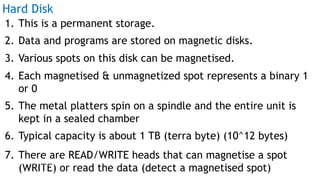
1. This is a permanent storage.
2. Data and programs are stored on magnetic disks.
3. Various spots on this disk can be magnetised.
4. Each magnetised & unmagnetized spot represents a binary 1
or 0
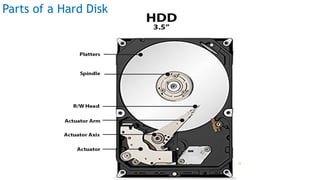
5. The metal platters spin on a spindle and the entire unit is
kept in a sealed chamber
6. Typical capacity is about 1 TB (terra byte) (10^12 bytes)
7. There are READ/WRITE heads that can magnetise a spot
(WRITE) or read the data (detect a magnetised spot)
Hard Disk
Prof Mukesh N Tekwani, 2019 23
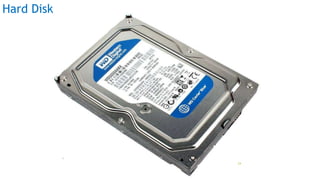
Hard Disk
Prof Mukesh N Tekwani, 2019 24
Parts of a Hard Disk
Prof Mukesh N Tekwani, 2019 25
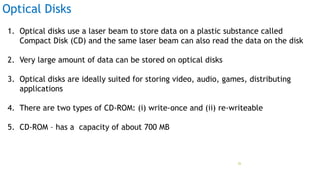
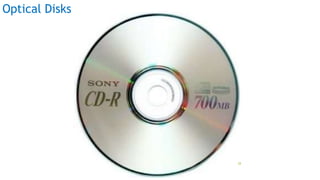
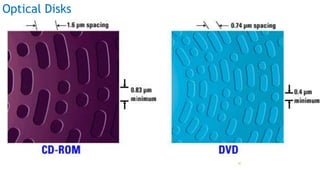
Optical Disks
1. Optical disks use a laser beam to store data on a plastic substance called
Compact Disk (CD) and the same laser beam can also read the data on the disk
2. Very large amount of data can be stored on optical disks
3. Optical disks are ideally suited for storing video, audio, games, distributing
applications
4. There are two types of CD-ROM: (i) write-once and (ii) re-writeable
5. CD-ROM – has a capacity of about 700 MB
Prof Mukesh N Tekwani, 2019 26
Pros and Cons of CD-ROM
Advantages of CD-ROM:
a. It is a very cheap medium of data storage. A 700 MB CD-ROM will cost around
Rs 10 – 20
b. CD-ROM is durable and data can be stored for a very long time.
c. Data is not affected by magnetic fields
Disadvantages of CD-ROM:
a. Once data is stored, it cannot be edited on the same disk.
b. Data storage and retrieval is a slow process compared to hard disk
Prof Mukesh N Tekwani, 2019 27
Optical Disks
Prof Mukesh N Tekwani, 2019 28
Digital Video Disk (DVD)
1. DVD is similar to a CD-ROM.
2. It uses a laser beam to write and read data
3. Data is stored in pits and lands
4. It has a greater storage capacity compared to a CD-ROM
5. DVD can store upto 17 GB of data
6. DVD can store data once (DVD-R)
7. DVD-RW can store data many times
Prof Mukesh N Tekwani, 2019 29
Optical Disks
Prof Mukesh N Tekwani, 2019 30
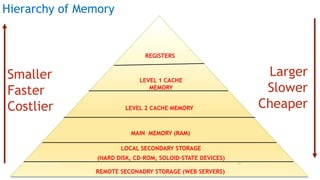
Hierarchy of Memory
REGISTERS
LEVEL 1 CACHE
MEMORY
LEVEL 2 CACHE MEMORY
MAIN MEMORY (RAM)
LOCAL SECONDARY STORAGE
(HARD DISK, CD-ROM, SOLOID-STATE DEVICES)
REMOTE SECONADRY STORAGE (WEB SERVERS)
Smaller
Faster
Costlier
Larger
Slower
Cheaper
Prof Mukesh N Tekwani, 2019 31
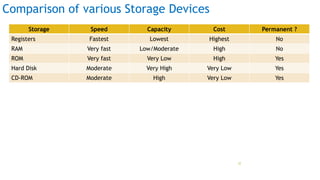
Comparison of various Storage Devices
Storage Speed Capacity Cost Permanent ?
Registers Fastest Lowest Highest No
RAM Very fast Low/Moderate High No
ROM Very fast Very Low High Yes
Hard Disk Moderate Very High Very Low Yes
CD-ROM Moderate High Very Low Yes
Prof Mukesh N Tekwani, 2019 32
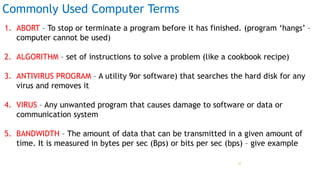
Commonly Used Computer Terms
1. ABORT – To stop or terminate a program before it has finished. (program ‘hangs’ –
computer cannot be used)
2. ALGORITHM – set of instructions to solve a problem (like a cookbook recipe)
3. ANTIVIRUS PROGRAM – A utility 9or software) that searches the hard disk for any
virus and removes it
4. VIRUS – Any unwanted program that causes damage to software or data or
communication system
5. BANDWIDTH – The amount of data that can be transmitted in a given amount of
time. It is measured in bytes per sec (Bps) or bits per sec (bps) – give example
Prof Mukesh N Tekwani, 2019 33
Commonly Used Computer Terms
6. BIT – smallest unit of information. Abbreviation of Binary Digit. It can be a 0 or a 1.
7. BYTE – a group of 8 bits is called a Byte. Each character requires 1 byte of storage
8. BOOT – the process of starting a computer. The BOOT program is stored in the
computer’s ROM
9. CACHE – An area of memory where frequently used data is stored so that it can be
given to the CPU quickly
10.CHARACTER – A number, alphabet, or symbol is called a character (‘A’, ‘+’, 5, etc)
11.COMPATIBLE – The ability of one hardware or software to work with another
hardware or software.
Prof Mukesh N Tekwani, 2019 34
Commonly Used Computer Terms
12.ICON – A graphical element on the screen which executes a program when it is
selected and clicked
13.MOTHER BOARD – The main circuit board in a computer which has the processor,
RAM, cache, ROM and which carries electrical signals and data from one part of
computer to another
14.NUMERIC KEYPAD – This is usually found on the right side of a keyboard and
contains keys for entering numeric data, keys for +, -, * and / and arrow keys for
navigation. Useful for fast data entry.
Prof Mukesh N Tekwani, 2019 35
Prof Mukesh N Tekwani, 2019 36

Session 2 Introduction to Computers

  • 1.
    INTRODUCTION TO COMPUTERS MukeshN. Tekwani 2019 Email: mukeshnt@yahoo.com B. Voc. – Computer Skills Course Prof Mukesh N Tekwani, 2019 1
  • 2.
    Session 2 Objectives: 1.Various Parts of a Computer 2. Peripheral Devices 3. Commonly Used Computer Terms Prof Mukesh N Tekwani, 2019 2
  • 3.
    Various Parts ofa Computer 1. Hardware a) Physical parts b) Can be touched and felt. 2. Software a) Programs or instructions given to hardware b) Cannot be touched / feltProf Mukesh N Tekwani, 2019 3
  • 4.
    Various Parts ofa Computer 1. Hardware a) TV set, mobile phone b) Computer / laptop 2. Software a) Programmes we watch on TV b) Programmes we run on computers or mobile phoneProf Mukesh N Tekwani, 2019 4
  • 5.
    Various Parts ofa Computer 1. Hardware and software cannot work independently of each other. 2. You may have a TV but without programmes, no fun ! 3. Programmes may be telecast, but if you have no hardware (TV/set-top box), no fun!Prof Mukesh N Tekwani, 2019 5
  • 6.
    Various Parts ofa Computer 1. Hardware is the electronic circuits of a computer. 2. Various components and devices like hard disk, monitor, mouse, keyboard…. 3. Every computer : 1. Central Processing Unit + Secondary Storage Devices + Peripheral Devices Prof Mukesh N Tekwani, 2019 6
  • 7.
    Various Parts ofa Computer Prof Mukesh N Tekwani, 2019 7
  • 8.
    Block Diagram ofa Computer Prof Mukesh N Tekwani, 2019 8
  • 9.
    The CPU CPU isthe brain of a computer. All tasks such as calculations, decision-making, controlling other devices carried out by the CPU Parts of A CPU: 1. Control Unit 2. ALU – Arithmetic and Logic Unit 3. Registers 4. Cache memory 5. Primary & Temporary Memory RAM- Random Access Memory 6. Primary & Permanent Memory ROM-Read Only Memory Prof Mukesh N Tekwani, 2019 9
  • 10.
    Control Unit (C.U.) 1.Manage resources of a computer. 2. Controls the working of the entire computer system. 3. Contains the firmware – i.e. instructions for execution of programs 4. Stores all operations that can be carried out by a computer 5. This list of operations that a CU can perform is called its Instruction Set. 6. The CU directs the flow of data around the CPU and around the computer Prof Mukesh N Tekwani, 2019 10
  • 11.
    Arithmetic and LogicUnit (ALU) 1. All arithmetic operations like +, -, x and / 2. Logic operations such as comparison like <, <=, >, >= , AND, . 3. Registers are included in the ALU. They work under the directions of the CU. These registers store the data that is being processed. 4. Registers are like memory cells but have high speed (~1 ns) 5. Registers can store data or instructions – so there are 2 types of registers – Data Register and Instruction Register 6. Registers are the smallest, high-speed storage area in the CPU. Prof Mukesh N Tekwani, 2019 11
  • 12.
    Primary Memory 1. Consistsof RAM and ROM 2. RAM – Random Access Memory (Temporary) 3. ROM – Read Only Memory (Permanent) Prof Mukesh N Tekwani, 2019 12
  • 13.
    Random Access Memory(RAM) Prof Mukesh N Tekwani, 2019 13
  • 14.
    Random Access Memory(RAM) 1. Before the CPU can process any information, it must be stored in the RAM. 2. All inputs from the keyboard, mouse, etc first go into the RAM before the CPU can process them 3. RAM is called as a primary memory. Before the data can be saved to a disk/USB drive / CD, etc, it must be in RAM 4. RAM is a temporary memory. It can store data only as long as power is supplied to the computer. Power Off  Data in RAM is lost. Hence, RAM is also called Volatile memory Prof Mukesh N Tekwani, 2019 14
  • 15.
    Random Access Memory(RAM) 5. RAM is available in various sizes – 4 GB, 8 GB, etc. 6. More RAM may mean the computer will work faster – but not always. 7. RAM has a speed measured in mega hertz (MHz). More the speed, faster is the data transfer to and from RAM. 8. Why is it called Random Access Memory? ANY location in this memory can be accessed with the same speed (unlike a tape) 9. We can increase RAM in a computer but upto a certain limit. 10. Typical speed is 1 ns (10-9 s)Prof Mukesh N Tekwani, 2019 15
  • 16.
    Types of RAM 1.Dynamic RAM (DRAM) - This memory must be constantly refreshed or reenergised otherwise all contents are lost. Cheaper comparatively. 2. Static RAM (SRAM) – faster, requires less power but is more expensive. Need not be refreshed like DRAM. 3. Synchronous Dynamic RAM (SDRAM) – This can run at very high clock speeds. This is the most common primary memory now. DDR5, DDR4, DDR3, etc are different versions of SDRAM. 4. DDR – Double Data Rate Synchronous Random Access MmeoryProf Mukesh N Tekwani, 2019 16
  • 17.
    Read Only Memory(ROM) Prof Mukesh N Tekwani, 2019 17
  • 18.
    Read Only Memory(ROM) 1. ROM is built onto the motherboard 2. Data and instructions stored in ROM cannot be changed by user. 3. User can READ the data and instructions in ROM but cannot modify it. 4. Why does a computer need ROM ? When a computer is switched on it must perform certain tasks on its own. These instructions are stored in the ROM. Prof Mukesh N Tekwani, 2019 18
  • 19.
    Read Only Memory(ROM) 5. Instructions stored in the ROM are – search for devices connected to the computer, search for keyboard, mouse, check the RAM, etc. This process is called the BOOTUP process. 6. The ROM also looks for the Operating System (Windows) on the hard disk. 7. This memory is NOT LOST when power is switched off. Hence it is called permanent or non-volatile memory. Prof Mukesh N Tekwani, 2019 19
  • 20.
    Types of ROM 1.Programmable ROM – Programmable Read Only Memory. Store instructions once only. 2. Erasable Programmable Read Only Memory (EPROM) – store instructions but they can be erased only by exposing the memory to ultraviolet light 3. Electrically Erasable Programmable Read Only Memory (EEPROM) – store and delete instructions on a special circuit boardProf Mukesh N Tekwani, 2019 20
  • 21.
    Cache Memory 1. Thisis a type of memory that keeps copies of frequently used data. 2. Cache supplies data to the registers whenever CPU wants to perform some calculation. 3. Cache is much faster than RAM (typical access time is 5 ns) 4. Cache is physically closer to the processor. 5. CPU will first check for data in the cache before it searches for the same data in RAM. 6. Hard disk and CD-ROM also have their own cache memoryProf Mukesh N Tekwani, 2019 21
  • 22.
    Secondary Storage (PermanentStorage) 1. Data and programs (software) must be saved permanently so that they can be used again. 2. This permanent storage is the hard disk. 3. Other permanent storage devices are : USB/pen drive, CDROM, DVDROM, magnetic tape, solid state disk 4. Hard disk, magnetic tape are sensitive to magnetic fields – keep away from strong magnets, TV sets, powerful speakers. Prof Mukesh N Tekwani, 2019 22
  • 23.
    1. This isa permanent storage. 2. Data and programs are stored on magnetic disks. 3. Various spots on this disk can be magnetised. 4. Each magnetised & unmagnetized spot represents a binary 1 or 0 5. The metal platters spin on a spindle and the entire unit is kept in a sealed chamber 6. Typical capacity is about 1 TB (terra byte) (10^12 bytes) 7. There are READ/WRITE heads that can magnetise a spot (WRITE) or read the data (detect a magnetised spot) Hard Disk Prof Mukesh N Tekwani, 2019 23
  • 24.
    Hard Disk Prof MukeshN Tekwani, 2019 24
  • 25.
    Parts of aHard Disk Prof Mukesh N Tekwani, 2019 25
  • 26.
    Optical Disks 1. Opticaldisks use a laser beam to store data on a plastic substance called Compact Disk (CD) and the same laser beam can also read the data on the disk 2. Very large amount of data can be stored on optical disks 3. Optical disks are ideally suited for storing video, audio, games, distributing applications 4. There are two types of CD-ROM: (i) write-once and (ii) re-writeable 5. CD-ROM – has a capacity of about 700 MB Prof Mukesh N Tekwani, 2019 26
  • 27.
    Pros and Consof CD-ROM Advantages of CD-ROM: a. It is a very cheap medium of data storage. A 700 MB CD-ROM will cost around Rs 10 – 20 b. CD-ROM is durable and data can be stored for a very long time. c. Data is not affected by magnetic fields Disadvantages of CD-ROM: a. Once data is stored, it cannot be edited on the same disk. b. Data storage and retrieval is a slow process compared to hard disk Prof Mukesh N Tekwani, 2019 27
  • 28.
    Optical Disks Prof MukeshN Tekwani, 2019 28
  • 29.
    Digital Video Disk(DVD) 1. DVD is similar to a CD-ROM. 2. It uses a laser beam to write and read data 3. Data is stored in pits and lands 4. It has a greater storage capacity compared to a CD-ROM 5. DVD can store upto 17 GB of data 6. DVD can store data once (DVD-R) 7. DVD-RW can store data many times Prof Mukesh N Tekwani, 2019 29
  • 30.
    Optical Disks Prof MukeshN Tekwani, 2019 30
  • 31.
    Hierarchy of Memory REGISTERS LEVEL1 CACHE MEMORY LEVEL 2 CACHE MEMORY MAIN MEMORY (RAM) LOCAL SECONDARY STORAGE (HARD DISK, CD-ROM, SOLOID-STATE DEVICES) REMOTE SECONADRY STORAGE (WEB SERVERS) Smaller Faster Costlier Larger Slower Cheaper Prof Mukesh N Tekwani, 2019 31
  • 32.
    Comparison of variousStorage Devices Storage Speed Capacity Cost Permanent ? Registers Fastest Lowest Highest No RAM Very fast Low/Moderate High No ROM Very fast Very Low High Yes Hard Disk Moderate Very High Very Low Yes CD-ROM Moderate High Very Low Yes Prof Mukesh N Tekwani, 2019 32
  • 33.
    Commonly Used ComputerTerms 1. ABORT – To stop or terminate a program before it has finished. (program ‘hangs’ – computer cannot be used) 2. ALGORITHM – set of instructions to solve a problem (like a cookbook recipe) 3. ANTIVIRUS PROGRAM – A utility 9or software) that searches the hard disk for any virus and removes it 4. VIRUS – Any unwanted program that causes damage to software or data or communication system 5. BANDWIDTH – The amount of data that can be transmitted in a given amount of time. It is measured in bytes per sec (Bps) or bits per sec (bps) – give example Prof Mukesh N Tekwani, 2019 33
  • 34.
    Commonly Used ComputerTerms 6. BIT – smallest unit of information. Abbreviation of Binary Digit. It can be a 0 or a 1. 7. BYTE – a group of 8 bits is called a Byte. Each character requires 1 byte of storage 8. BOOT – the process of starting a computer. The BOOT program is stored in the computer’s ROM 9. CACHE – An area of memory where frequently used data is stored so that it can be given to the CPU quickly 10.CHARACTER – A number, alphabet, or symbol is called a character (‘A’, ‘+’, 5, etc) 11.COMPATIBLE – The ability of one hardware or software to work with another hardware or software. Prof Mukesh N Tekwani, 2019 34
  • 35.
    Commonly Used ComputerTerms 12.ICON – A graphical element on the screen which executes a program when it is selected and clicked 13.MOTHER BOARD – The main circuit board in a computer which has the processor, RAM, cache, ROM and which carries electrical signals and data from one part of computer to another 14.NUMERIC KEYPAD – This is usually found on the right side of a keyboard and contains keys for entering numeric data, keys for +, -, * and / and arrow keys for navigation. Useful for fast data entry. Prof Mukesh N Tekwani, 2019 35
  • 36.
    Prof Mukesh NTekwani, 2019 36