Learning the Computer Basics
         Lesson One
Lesson Objectives:

At the end of this lesson, the student should be able to:
• Designate five things you can do with a
  computer
• Compare and contrast the five different
  types of a computer
• Designate six main computer parts
• Differentiate hardware from software
• Differentiate internal and external hardware
• Differentiate application and system
  software
5 Ways to Use a
       Computer
• Create documents (e.g.
  letters, memos, and reports)
• Store data (e.g. recipes, CDs, contact
  information)
• Budgeting & Saving
• Research (e.g. travel
  plans, genealogy, product
  reviews, homework)
5 Different Computer
        Types
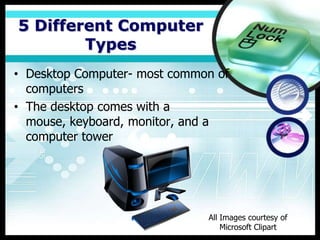
• Desktop Computer- most common of
  computers
• The desktop comes with a
  mouse, keyboard, monitor, and a
  computer tower


                              All Images courtesy of
                                  Microsoft Clipart
5 Different Computer
        Types
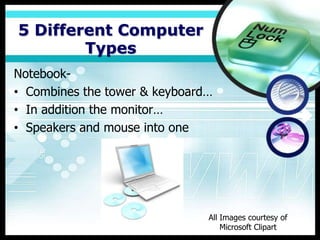
Notebook-
• Combines the tower & keyboard…
• In addition the monitor…
• Speakers and mouse into one


                               All Images courtesy of
                                   Microsoft Clipart
5 Different Computer
        Types
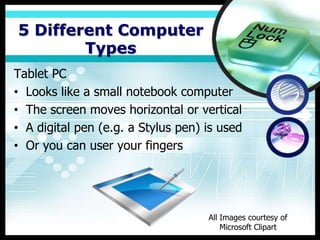
Tablet PC
• Looks like a small notebook computer
• The screen moves horizontal or vertical
• A digital pen (e.g. a Stylus pen) is used
• Or you can user your fingers


                                    All Images courtesy of
                                        Microsoft Clipart
5 Different Computer
        Types
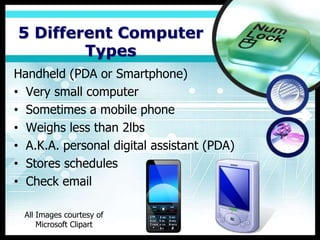
Handheld (PDA or Smartphone)
• Very small computer
• Sometimes a mobile phone
• Weighs less than 2lbs
• A.K.A. personal digital assistant (PDA)
• Stores schedules
• Check email

 All Images courtesy of
     Microsoft Clipart
5 Different Computer
        Types
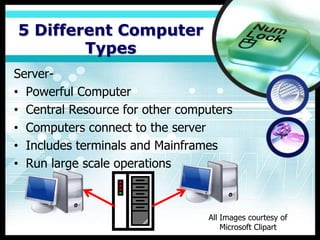
Server-
• Powerful Computer
• Central Resource for other computers
• Computers connect to the server
• Includes terminals and Mainframes
• Run large scale operations


                                 All Images courtesy of
                                     Microsoft Clipart
6 Main Computer
        Parts
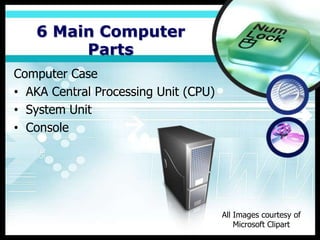
Computer Case
• AKA Central Processing Unit (CPU)
• System Unit
• Console


                                      All Images courtesy of
                                          Microsoft Clipart
6 Main Computer
         Parts
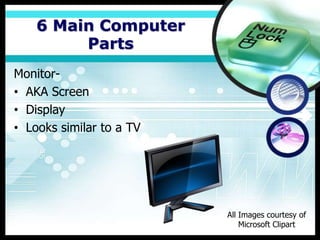
Monitor-
• AKA Screen
• Display
• Looks similar to a TV


                          All Images courtesy of
                              Microsoft Clipart
6 Main Computer
         Parts
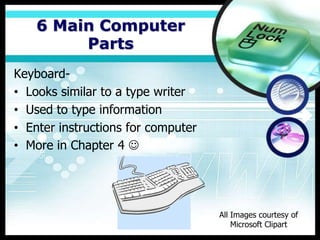
Keyboard-
• Looks similar to a type writer
• Used to type information
• Enter instructions for computer
• More in Chapter 4 


                                    All Images courtesy of
                                        Microsoft Clipart
6 Main Computer
        Parts
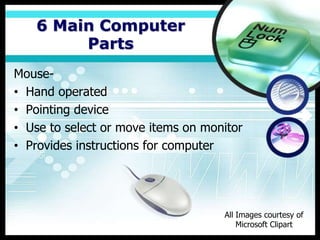
Mouse-
• Hand operated
• Pointing device
• Use to select or move items on monitor
• Provides instructions for computer


                                    All Images courtesy of
                                        Microsoft Clipart
6 Main Computer
         Parts
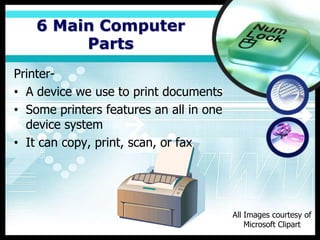
Printer-
• A device we use to print documents
• Some printers features an all in one
  device system
• It can copy, print, scan, or fax


                                         All Images courtesy of
                                             Microsoft Clipart
6 Main Computer
        Parts
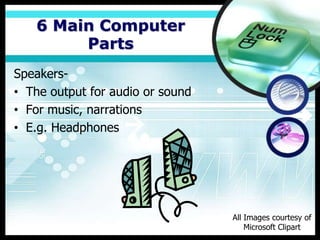
Speakers-
• The output for audio or sound
• For music, narrations
• E.g. Headphones


                                  All Images courtesy of
                                      Microsoft Clipart
Hardware vs.
        Software
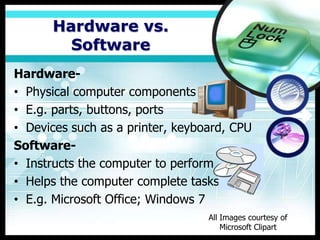
Hardware-
• Physical computer components
• E.g. parts, buttons, ports
• Devices such as a printer, keyboard, CPU
Software-
• Instructs the computer to perform
• Helps the computer complete tasks
• E.g. Microsoft Office; Windows 7
                                  All Images courtesy of
                                      Microsoft Clipart
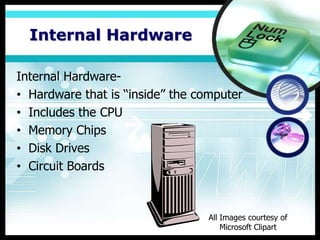
Internal Hardware

Internal Hardware-
• Hardware that is “inside” the computer
• Includes the CPU
• Memory Chips
• Disk Drives
• Circuit Boards


                                 All Images courtesy of
                                     Microsoft Clipart
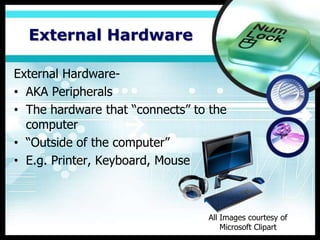
External Hardware

External Hardware-
• AKA Peripherals
• The hardware that “connects” to the
  computer
• “Outside of the computer”
• E.g. Printer, Keyboard, Mouse


                                 All Images courtesy of
                                     Microsoft Clipart
Application Software

Application Software-
• Programs we interact with
• E.g. Microsoft Word/ Office
• E.g. Adobe Dreamweaver (Web design
  software)


                All Images courtesy of
                    Microsoft Clipart
System Software

System Software-
• The software that operates “behind the
  scenes”
• Helps your computer to run smoothly
• E.g. Operating System
• E.g. Windows XP, Vista, & Windows 7


                                  All Images courtesy of
                                      Microsoft Clipart
Resources

McFedries, P. (2007). Chapter 1: Getting Familiar with
  Computer Basics. In Simplified Computers. (7th ed.). (pp.
  4-17). Hoboken, NJ: Wiley Publishing, Inc.


                                   Image courtesy of Wiley
                                       Publishing Inc.

Lesson One: Learning the Computer Basics

  • 1.
    Learning the ComputerBasics Lesson One
  • 2.
    Lesson Objectives: At theend of this lesson, the student should be able to: • Designate five things you can do with a computer • Compare and contrast the five different types of a computer • Designate six main computer parts • Differentiate hardware from software • Differentiate internal and external hardware • Differentiate application and system software
  • 3.
    5 Ways toUse a Computer • Create documents (e.g. letters, memos, and reports) • Store data (e.g. recipes, CDs, contact information) • Budgeting & Saving • Research (e.g. travel plans, genealogy, product reviews, homework)
  • 4.
    5 Different Computer Types • Desktop Computer- most common of computers • The desktop comes with a mouse, keyboard, monitor, and a computer tower All Images courtesy of Microsoft Clipart
  • 5.
    5 Different Computer Types Notebook- • Combines the tower & keyboard… • In addition the monitor… • Speakers and mouse into one All Images courtesy of Microsoft Clipart
  • 6.
    5 Different Computer Types Tablet PC • Looks like a small notebook computer • The screen moves horizontal or vertical • A digital pen (e.g. a Stylus pen) is used • Or you can user your fingers All Images courtesy of Microsoft Clipart
  • 7.
    5 Different Computer Types Handheld (PDA or Smartphone) • Very small computer • Sometimes a mobile phone • Weighs less than 2lbs • A.K.A. personal digital assistant (PDA) • Stores schedules • Check email All Images courtesy of Microsoft Clipart
  • 8.
    5 Different Computer Types Server- • Powerful Computer • Central Resource for other computers • Computers connect to the server • Includes terminals and Mainframes • Run large scale operations All Images courtesy of Microsoft Clipart
  • 9.
    6 Main Computer Parts Computer Case • AKA Central Processing Unit (CPU) • System Unit • Console All Images courtesy of Microsoft Clipart
  • 10.
    6 Main Computer Parts Monitor- • AKA Screen • Display • Looks similar to a TV All Images courtesy of Microsoft Clipart
  • 11.
    6 Main Computer Parts Keyboard- • Looks similar to a type writer • Used to type information • Enter instructions for computer • More in Chapter 4  All Images courtesy of Microsoft Clipart
  • 12.
    6 Main Computer Parts Mouse- • Hand operated • Pointing device • Use to select or move items on monitor • Provides instructions for computer All Images courtesy of Microsoft Clipart
  • 13.
    6 Main Computer Parts Printer- • A device we use to print documents • Some printers features an all in one device system • It can copy, print, scan, or fax All Images courtesy of Microsoft Clipart
  • 14.
    6 Main Computer Parts Speakers- • The output for audio or sound • For music, narrations • E.g. Headphones All Images courtesy of Microsoft Clipart
  • 15.
    Hardware vs. Software Hardware- • Physical computer components • E.g. parts, buttons, ports • Devices such as a printer, keyboard, CPU Software- • Instructs the computer to perform • Helps the computer complete tasks • E.g. Microsoft Office; Windows 7 All Images courtesy of Microsoft Clipart
  • 16.
    Internal Hardware Internal Hardware- •Hardware that is “inside” the computer • Includes the CPU • Memory Chips • Disk Drives • Circuit Boards All Images courtesy of Microsoft Clipart
  • 17.
    External Hardware External Hardware- •AKA Peripherals • The hardware that “connects” to the computer • “Outside of the computer” • E.g. Printer, Keyboard, Mouse All Images courtesy of Microsoft Clipart
  • 18.
    Application Software Application Software- •Programs we interact with • E.g. Microsoft Word/ Office • E.g. Adobe Dreamweaver (Web design software) All Images courtesy of Microsoft Clipart
  • 19.
    System Software System Software- •The software that operates “behind the scenes” • Helps your computer to run smoothly • E.g. Operating System • E.g. Windows XP, Vista, & Windows 7 All Images courtesy of Microsoft Clipart
  • 20.
    Resources McFedries, P. (2007).Chapter 1: Getting Familiar with Computer Basics. In Simplified Computers. (7th ed.). (pp. 4-17). Hoboken, NJ: Wiley Publishing, Inc. Image courtesy of Wiley Publishing Inc.