Selenium Training
Suresh Arora
suresh_arora@hotmail.com
Course contents
 Web Application Testing checklist
 Web UI Automation
 Web UI Automation tools
 Introduction to Selenium
 Selenium Components
 Selenium IDE
 Selenium Webdriver
 Environment Setup
 Locating Elements
 Waits
 Using Unittest framework with Selenium
 Cross Browser tests
Course contents… cont
 Selenium Grid
 Integration with Jenkins
Web Application Testing checklist
 Functional testing
 Usability testing
 Interface testing
 Database testing
 Compatibility testing
 Performance testing
 Security testing
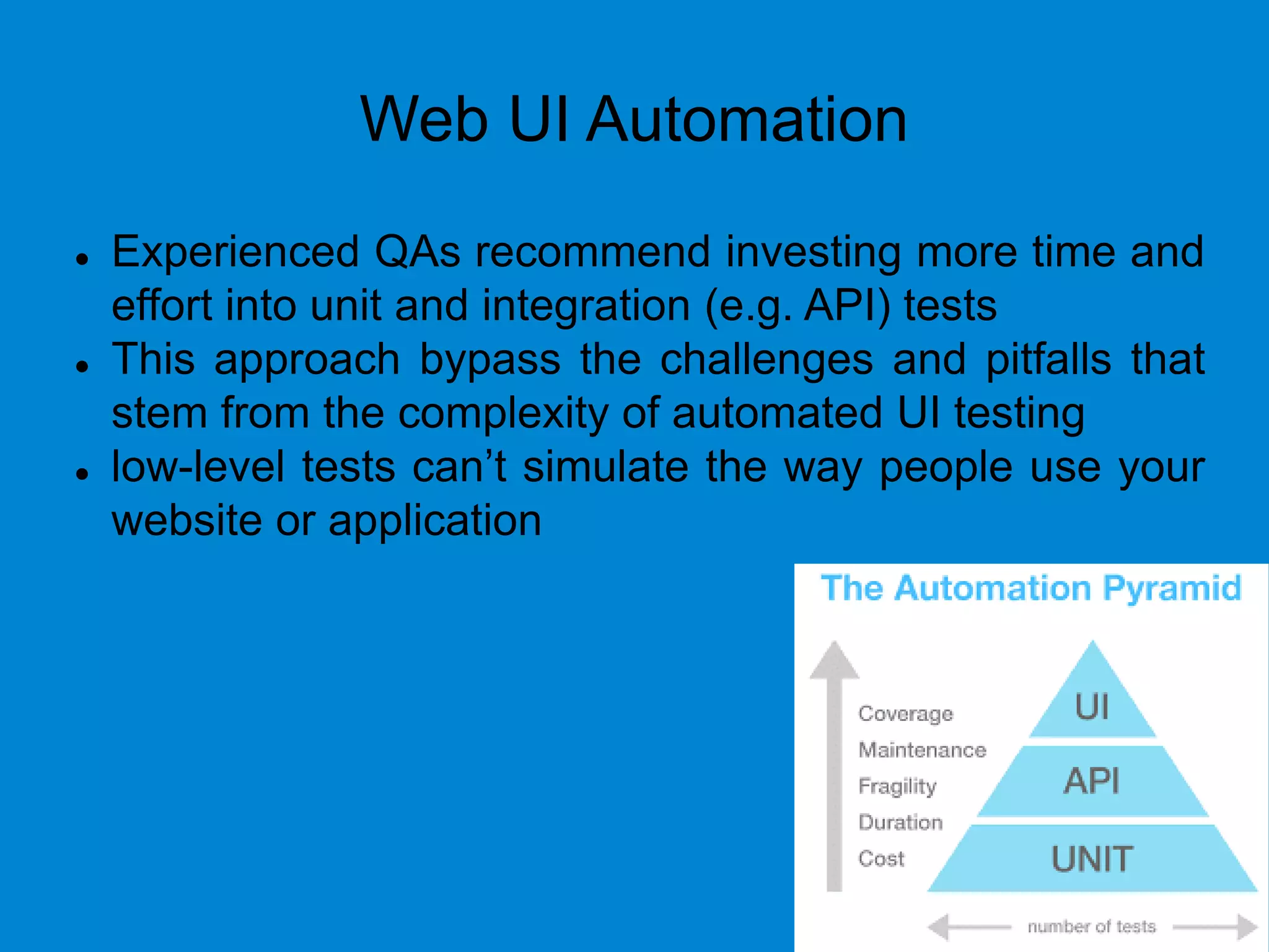
Web UI Automation
 Experienced QAs recommend investing more time and
effort into unit and integration (e.g. API) tests
 This approach bypass the challenges and pitfalls that
stem from the complexity of automated UI testing
 low-level tests can’t simulate the way people use your
website or application
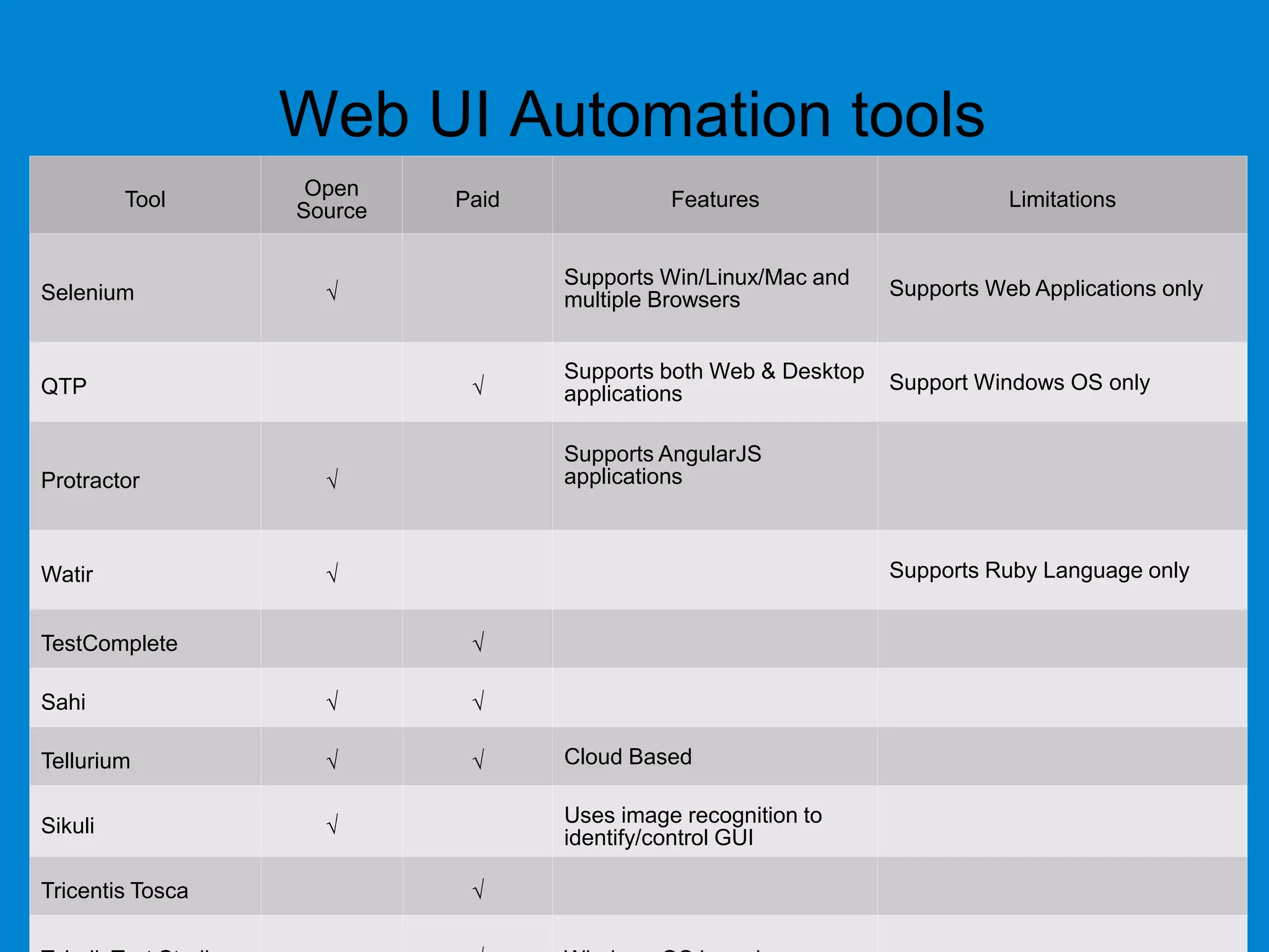
Web UI Automation tools
Tool Open
Source
Paid Features Limitations
Selenium √
Supports Win/Linux/Mac and
multiple Browsers
Supports Web Applications only
QTP √
Supports both Web & Desktop
applications
Support Windows OS only
Protractor √
Supports AngularJS
applications
Watir √ Supports Ruby Language only
TestComplete √
Sahi √ √
Tellurium √ √ Cloud Based
Sikuli √ Uses image recognition to
identify/control GUI
Tricentis Tosca √
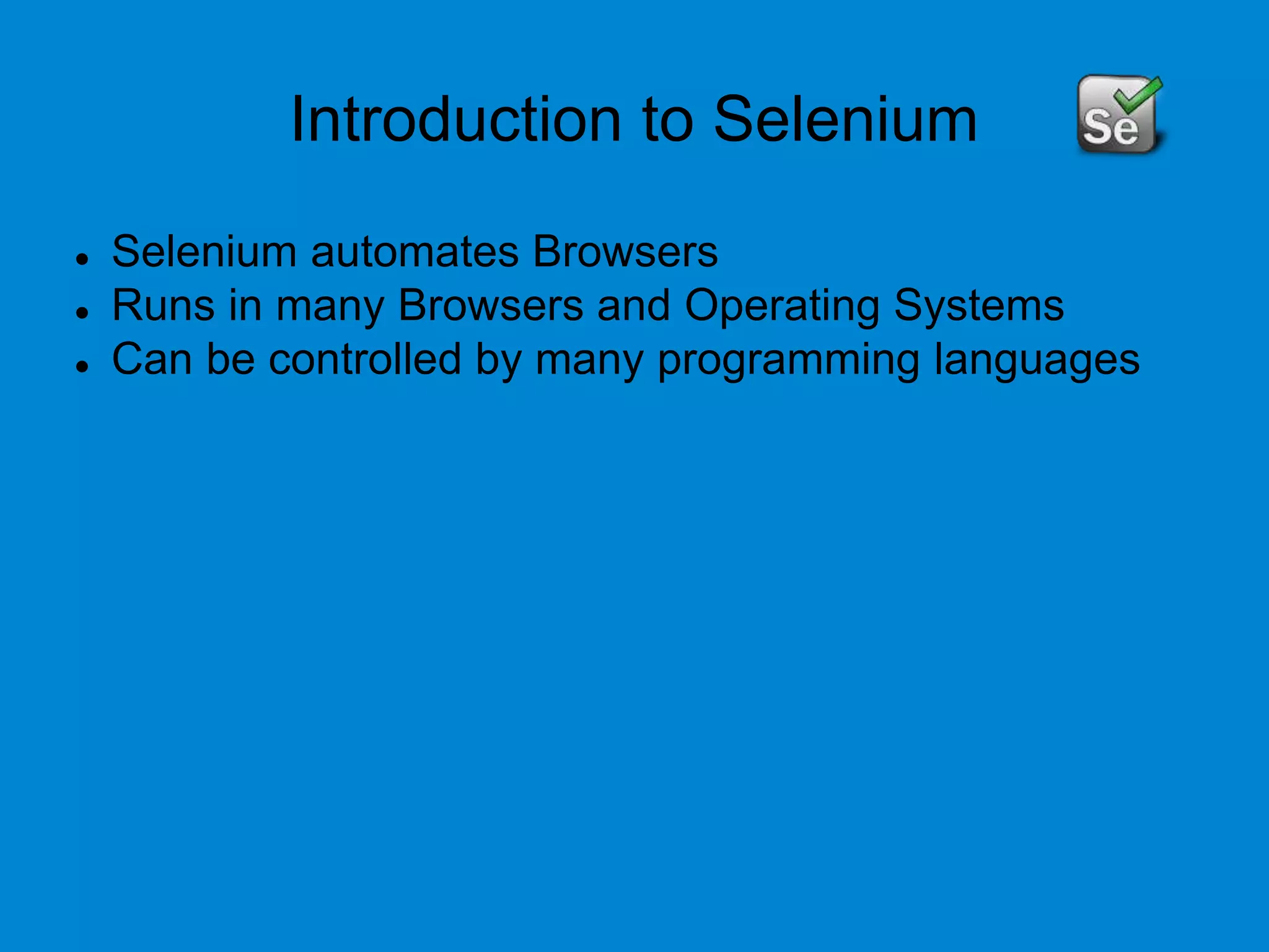
Introduction to Selenium
 Selenium automates Browsers
 Runs in many Browsers and Operating Systems
 Can be controlled by many programming languages
Selenium Components
 Selenium IDE
 Selenium-WebDriver
 Selenium Grid
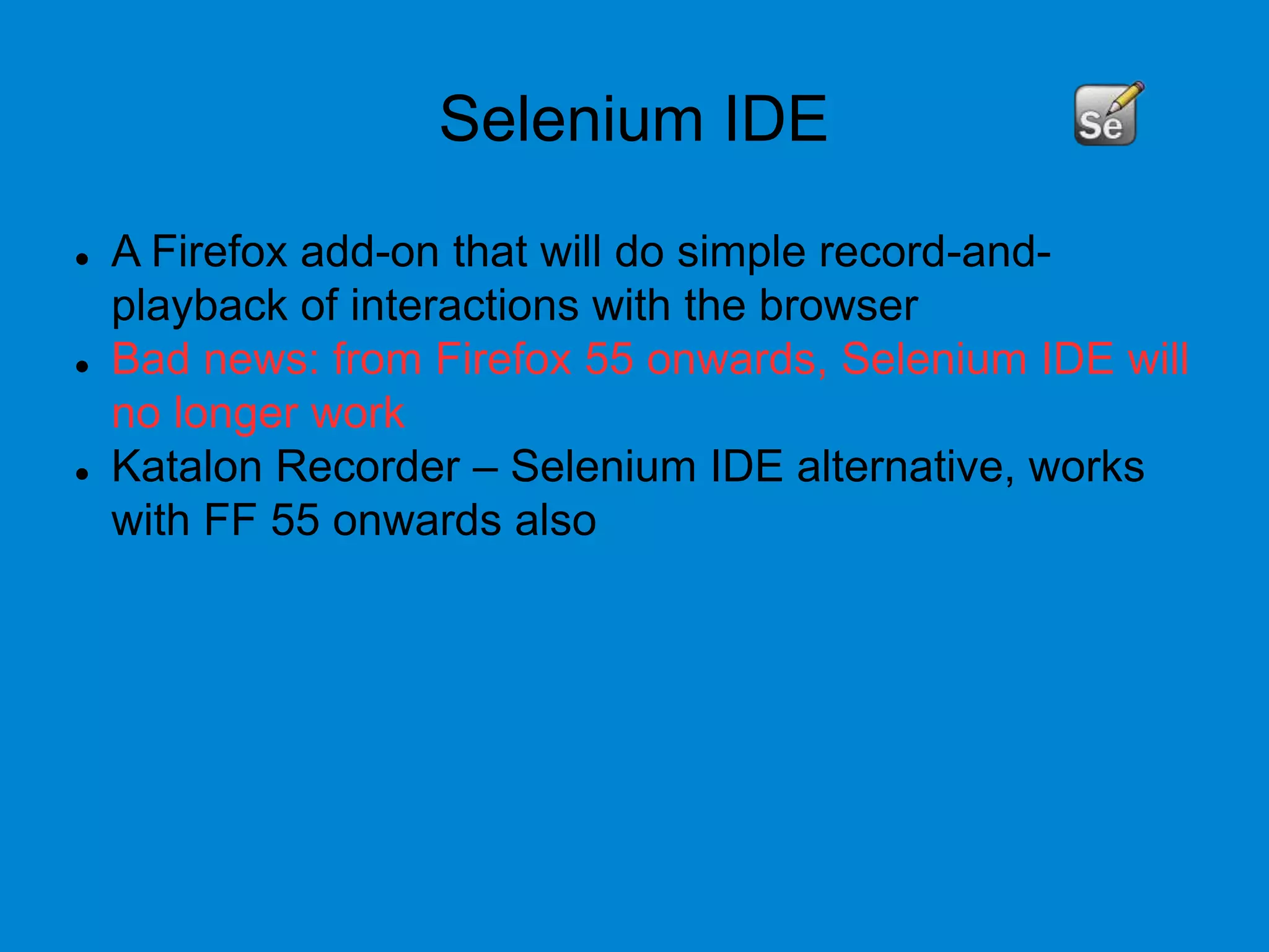
Selenium IDE
 A Firefox add-on that will do simple record-and-
playback of interactions with the browser
 Bad news: from Firefox 55 onwards, Selenium IDE will
no longer work
 Katalon Recorder – Selenium IDE alternative, works
with FF 55 onwards also
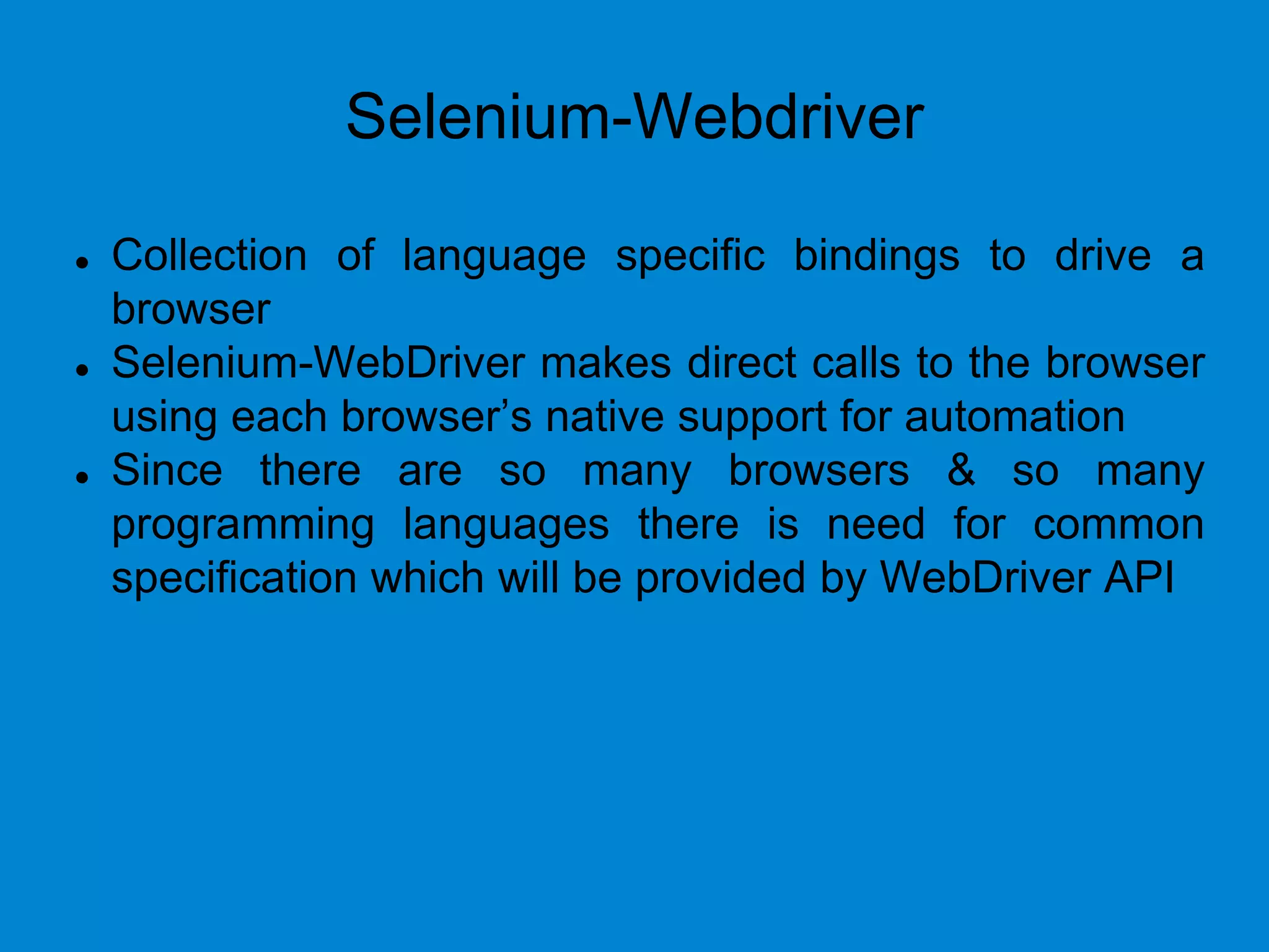
Selenium-Webdriver
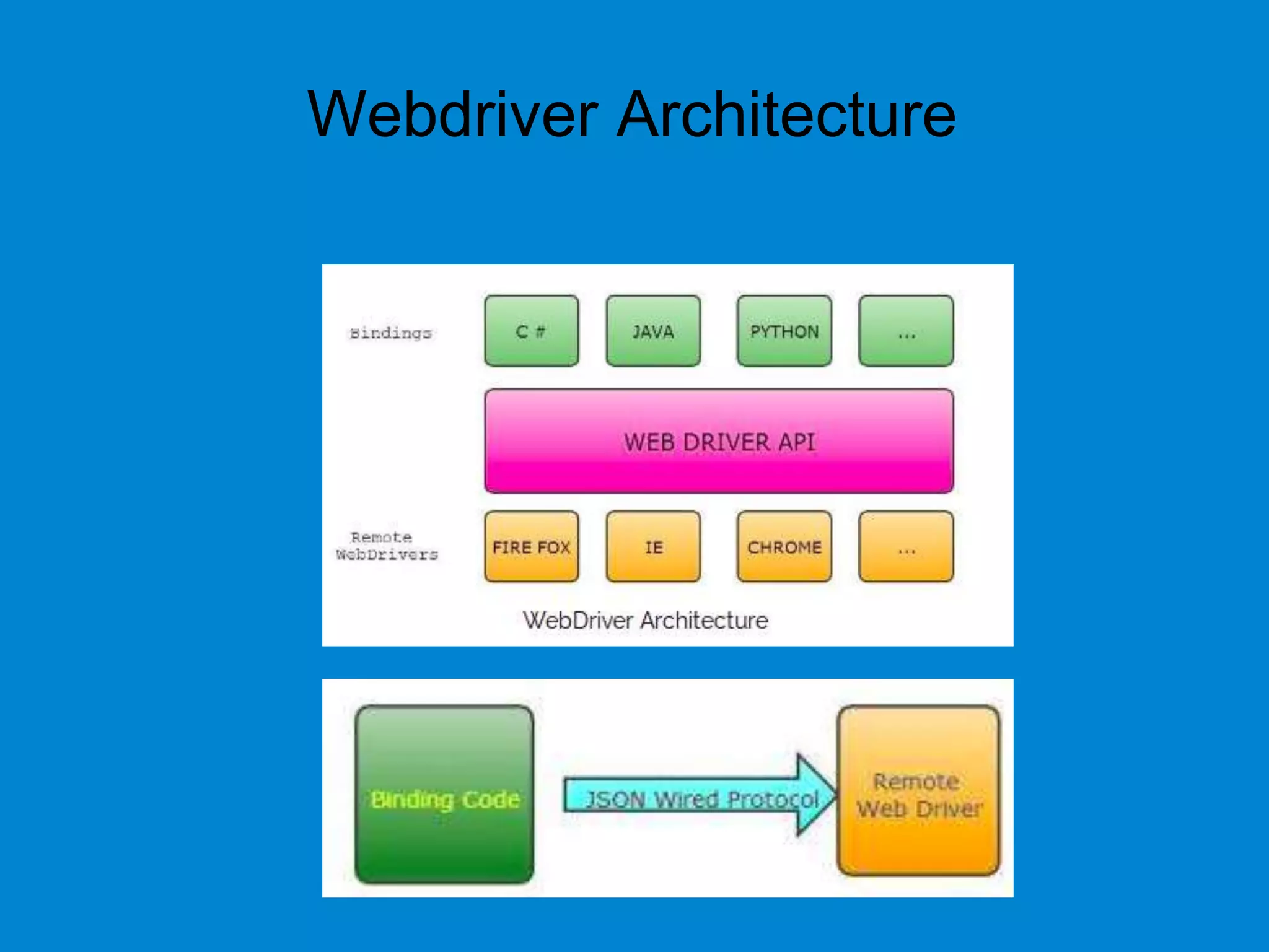
 Collection of language specific bindings to drive a
browser
 Selenium-WebDriver makes direct calls to the browser
using each browser’s native support for automation
 Since there are so many browsers & so many
programming languages there is need for common
specification which will be provided by WebDriver API
Webdriver Architecture
There are four components of Selenium Webdriver
Architecture:
 Selenium Client Library
 JSON Wire Protocol over HTTP
 Browser Drivers
 Browsers
Webdriver Architecture
Environment Setup – Python Binding
 To add Selenium to your Python environment run the
following command from a command-line
pip install selenium
 For script development, IDE can be used e.g.,
PyCharm Community Edition (free, open-source)
 Use virtual environment for working across different
versions of python
pip install virtualenv
Sample Script -Python
from selenium import webdriver
driver = webdriver.Firefox()
driver.get("http://www.google.com")
elem = driver.find_element_by_name("q")
elem.send_keys("Hello WebDriver!")
elem.submit()
print(driver.title)
Locating Elements
Locator Example
ID
find_element_by_id(“user”)
Name find_element_by_name("username")
Link Text find_element_by_link_text("Login")
Partial Link Text find_element_by_partial_link_text("Next")
XPath find_element_by_xpath("//div[@id="login"]/input")
Tag Name find_element_by_tag_name("body")
Waits
Selenium Webdriver provides two types of waits:
 Explicit wait - WebDriver wait for a certain condition to
occur before proceeding further with execution
 Implicit wait -WebDriver poll the DOM for a certain
amount of time when trying to locate an element. The
default setting is 0
Implicit Wait - example
from selenium import webdriver
driver = webdriver.Firefox()
driver.get("http://www.google.com")
driver.implicitly_wait(30) #seconds
elem = driver.find_element_by_name("q1")
elem.send_keys("Hello WebDriver!")
elem.submit()
print(driver.title)
driver.quit()
Error message after 30 seconds
selenium.common.exceptions.NoSuchElementException: Message: Unable to locate
element: [name="q1"]
Explicit Wait - example
import unittest
import time
from selenium import webdriver
from selenium.webdriver.common.by import By
from selenium.webdriver.support import expected_conditions
from selenium.webdriver.common.keys import Keys
from selenium.webdriver.support.ui import WebDriverWait
from selenium.webdriver.support import expected_conditions as EC
from selenium.webdriver.common.action_chains import ActionChains
class FacebookTests(unittest.TestCase):
@classmethod
def setUpClass(self):
self.driver = webdriver.Chrome()
self.driver.get("http://www.facebook.com")
def test_EmailLogin(self):
driver = self.driver
loginemail = driver.find_element_by_xpath("//input[@id='email']")
loginemail.send_keys("xxx@xxx.com")
time.sleep(5)
loginpassword = driver.find_element_by_xpath("//input[@id='pass']")
loginpassword.send_keys("yyy")
time.sleep(5)
element = WebDriverWait(driver, 30).until(
EC.invisibility_of_element_located((By.XPATH,
"//label[@id='loginbutton']/input"))
Timeout exception after 30 seconds
raise TimeoutException(message, screen, stacktrace)
TimeoutException: Message:
Using Unittest framework with Selenium
 The unittest test framework is python’s xUnit style
framework
 It is a standard module that you already have if you’ve
got python version 2.1 or greater
 The standard workflow is:
You define your own class derived from
unittest.TestCase.
Then you fill it with functions that start with ‘test_’.
You run the tests by placing unittest.main() in your
file, usually at the bottom
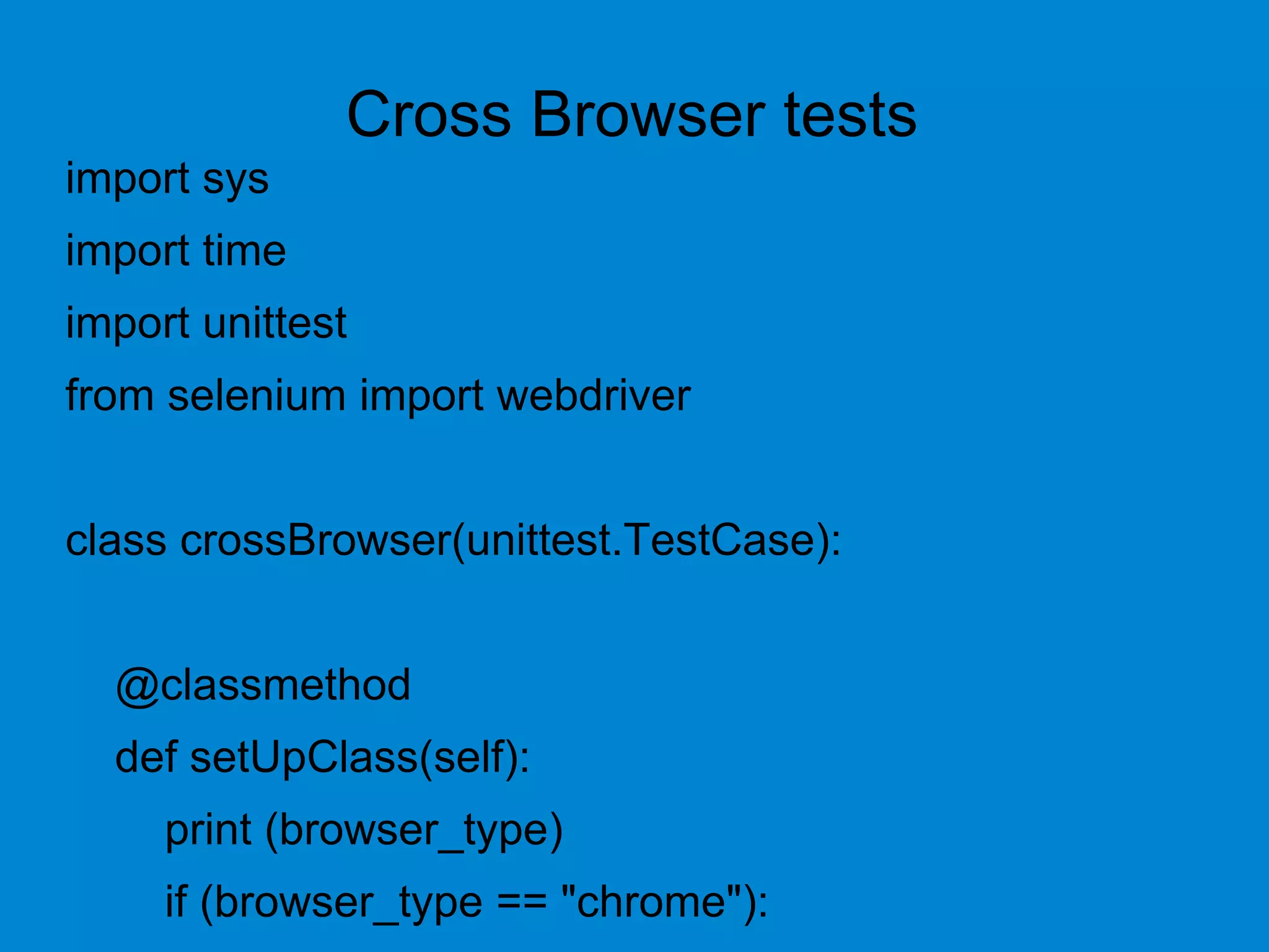
import sys
import time
import unittest
from selenium import webdriver
class crossBrowser(unittest.TestCase):
@classmethod
def setUpClass(self):
print (browser_type)
if (browser_type == "chrome"):
Cross Browser tests
Selenium Grid - Overview
 Selenium-Grid allows running tests in a distributed test
execution environment
 When to use Selenium Grid
To run your tests against multiple browsers, multiple
versions of browser, and browsers running on
different operating systems
To reduce the time it takes for the test suite to
complete a test pass
 A grid consists of a single hub, and one or more nodes
 Both are started using the selenium-server.jar
executable
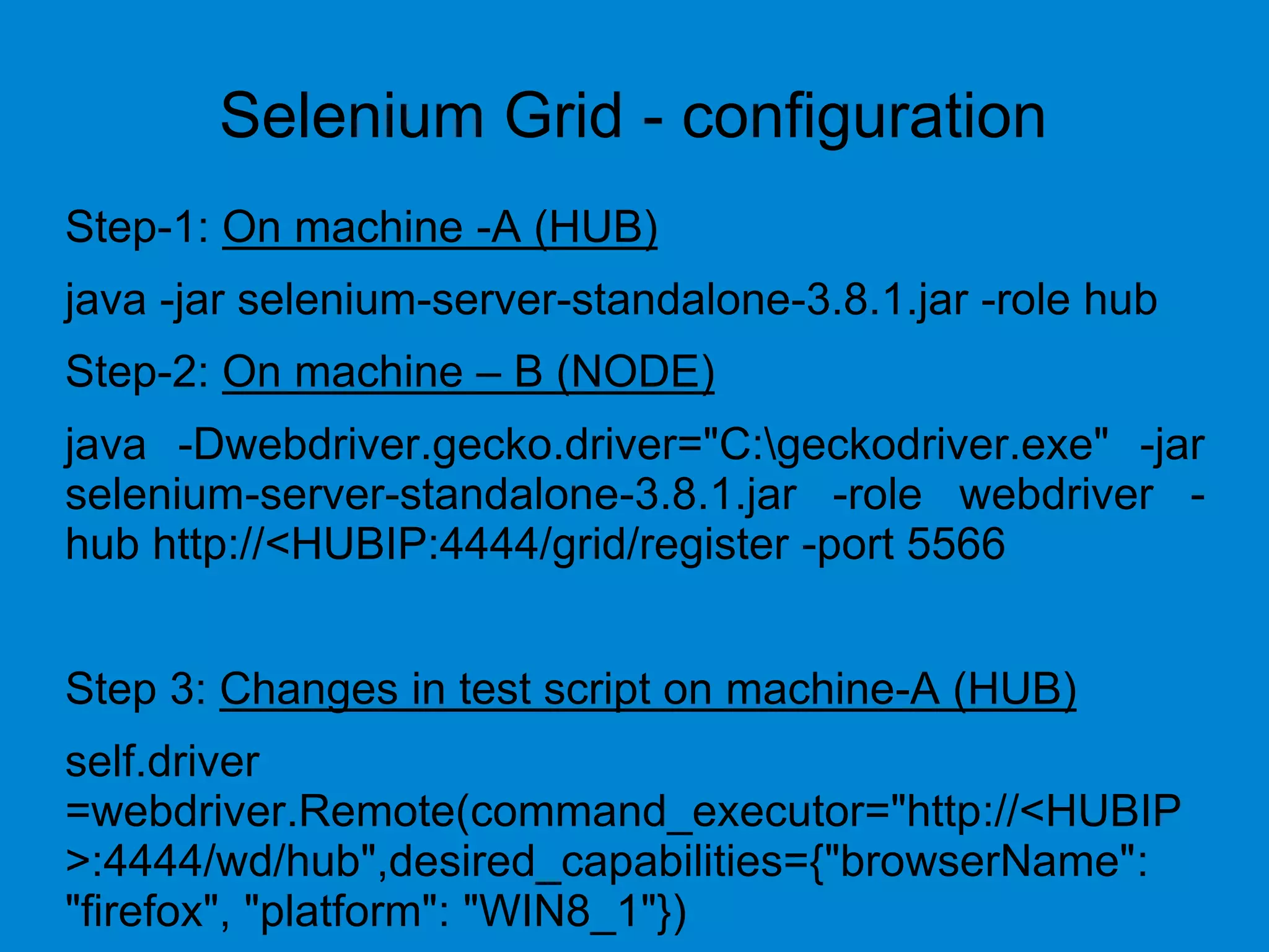
Selenium Grid - configuration
Step-1: On machine -A (HUB)
java -jar selenium-server-standalone-3.8.1.jar -role hub
Step-2: On machine – B (NODE)
java -Dwebdriver.gecko.driver="C:geckodriver.exe" -jar
selenium-server-standalone-3.8.1.jar -role webdriver -
hub http://<HUBIP:4444/grid/register -port 5566
Step 3: Changes in test script on machine-A (HUB)
self.driver
=webdriver.Remote(command_executor="http://<HUBIP
>:4444/wd/hub",desired_capabilities={"browserName":
"firefox", "platform": "WIN8_1"})
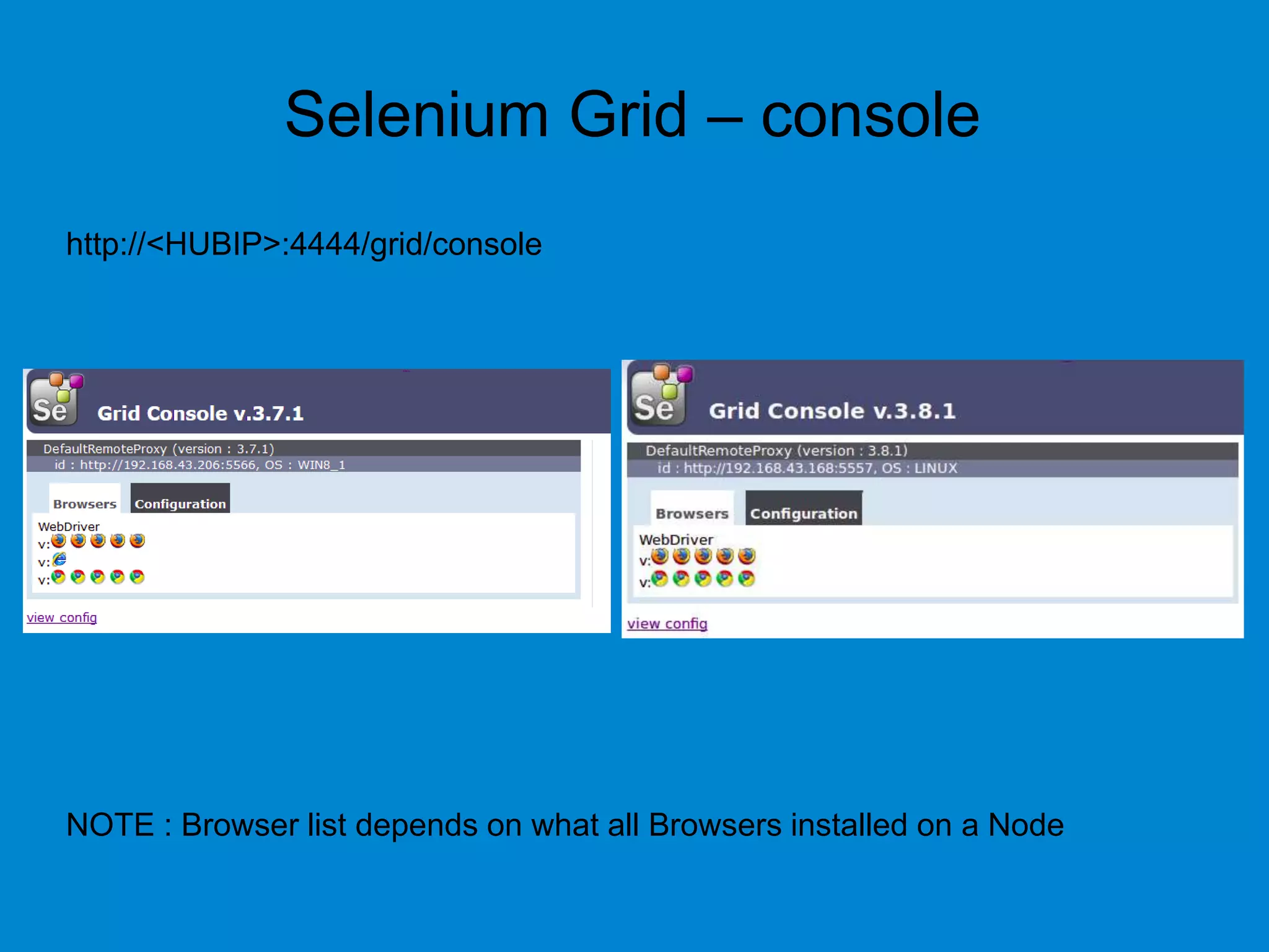
Selenium Grid – console
http://<HUBIP>:4444/grid/console
NOTE : Browser list depends on what all Browsers installed on a Node
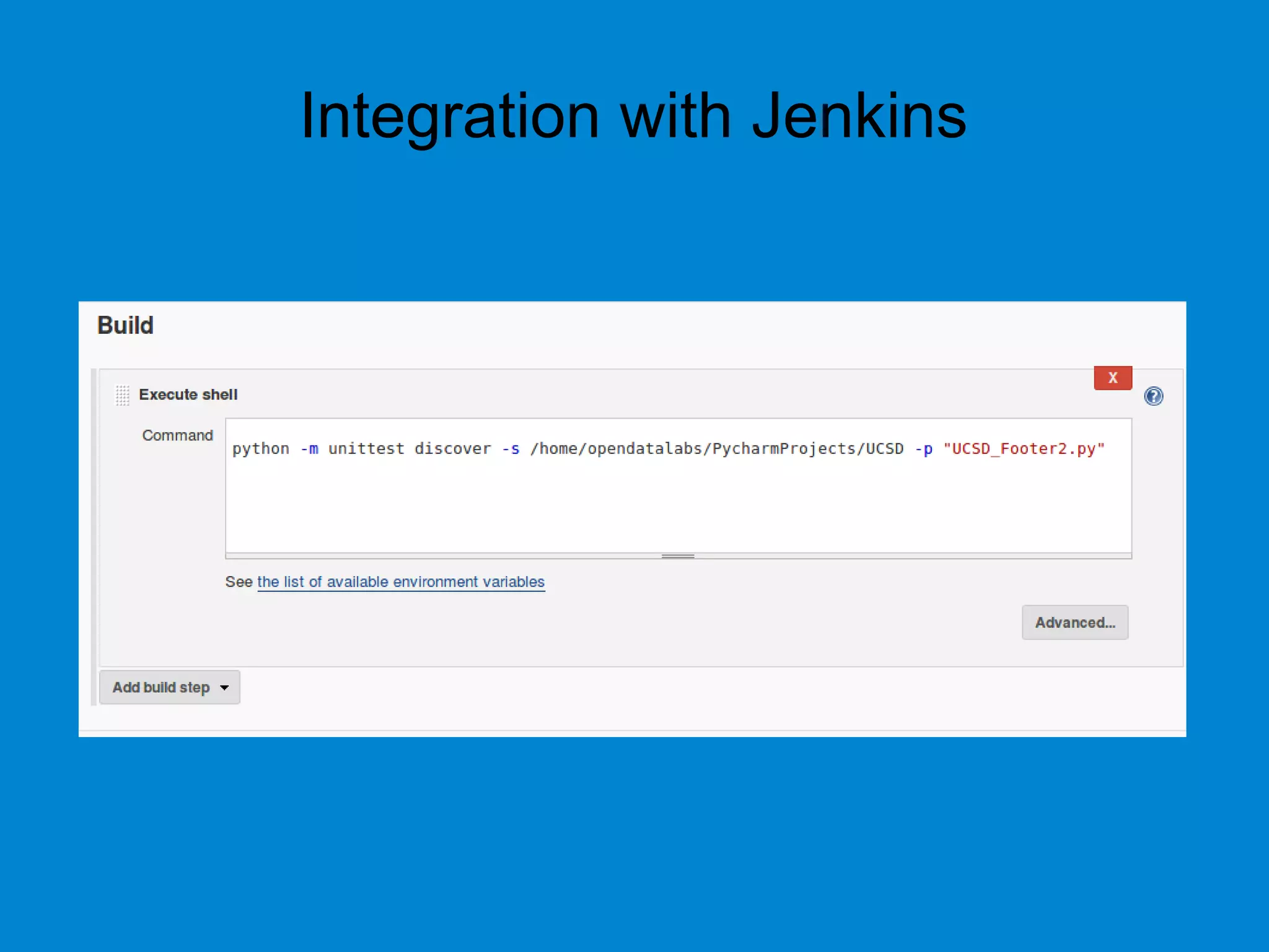
Integration with Jenkins

Selenium training

  • 1.
  • 2.
    Course contents  WebApplication Testing checklist  Web UI Automation  Web UI Automation tools  Introduction to Selenium  Selenium Components  Selenium IDE  Selenium Webdriver  Environment Setup  Locating Elements  Waits  Using Unittest framework with Selenium  Cross Browser tests
  • 3.
    Course contents… cont Selenium Grid  Integration with Jenkins
  • 4.
    Web Application Testingchecklist  Functional testing  Usability testing  Interface testing  Database testing  Compatibility testing  Performance testing  Security testing
  • 5.
    Web UI Automation Experienced QAs recommend investing more time and effort into unit and integration (e.g. API) tests  This approach bypass the challenges and pitfalls that stem from the complexity of automated UI testing  low-level tests can’t simulate the way people use your website or application
  • 6.
    Web UI Automationtools Tool Open Source Paid Features Limitations Selenium √ Supports Win/Linux/Mac and multiple Browsers Supports Web Applications only QTP √ Supports both Web & Desktop applications Support Windows OS only Protractor √ Supports AngularJS applications Watir √ Supports Ruby Language only TestComplete √ Sahi √ √ Tellurium √ √ Cloud Based Sikuli √ Uses image recognition to identify/control GUI Tricentis Tosca √
  • 7.
    Introduction to Selenium Selenium automates Browsers  Runs in many Browsers and Operating Systems  Can be controlled by many programming languages
  • 8.
    Selenium Components  SeleniumIDE  Selenium-WebDriver  Selenium Grid
  • 9.
    Selenium IDE  AFirefox add-on that will do simple record-and- playback of interactions with the browser  Bad news: from Firefox 55 onwards, Selenium IDE will no longer work  Katalon Recorder – Selenium IDE alternative, works with FF 55 onwards also
  • 10.
    Selenium-Webdriver  Collection oflanguage specific bindings to drive a browser  Selenium-WebDriver makes direct calls to the browser using each browser’s native support for automation  Since there are so many browsers & so many programming languages there is need for common specification which will be provided by WebDriver API
  • 11.
    Webdriver Architecture There arefour components of Selenium Webdriver Architecture:  Selenium Client Library  JSON Wire Protocol over HTTP  Browser Drivers  Browsers
  • 12.
  • 13.
    Environment Setup –Python Binding  To add Selenium to your Python environment run the following command from a command-line pip install selenium  For script development, IDE can be used e.g., PyCharm Community Edition (free, open-source)  Use virtual environment for working across different versions of python pip install virtualenv
  • 14.
    Sample Script -Python fromselenium import webdriver driver = webdriver.Firefox() driver.get("http://www.google.com") elem = driver.find_element_by_name("q") elem.send_keys("Hello WebDriver!") elem.submit() print(driver.title)
  • 15.
    Locating Elements Locator Example ID find_element_by_id(“user”) Namefind_element_by_name("username") Link Text find_element_by_link_text("Login") Partial Link Text find_element_by_partial_link_text("Next") XPath find_element_by_xpath("//div[@id="login"]/input") Tag Name find_element_by_tag_name("body")
  • 16.
    Waits Selenium Webdriver providestwo types of waits:  Explicit wait - WebDriver wait for a certain condition to occur before proceeding further with execution  Implicit wait -WebDriver poll the DOM for a certain amount of time when trying to locate an element. The default setting is 0
  • 17.
    Implicit Wait -example from selenium import webdriver driver = webdriver.Firefox() driver.get("http://www.google.com") driver.implicitly_wait(30) #seconds elem = driver.find_element_by_name("q1") elem.send_keys("Hello WebDriver!") elem.submit() print(driver.title) driver.quit() Error message after 30 seconds selenium.common.exceptions.NoSuchElementException: Message: Unable to locate element: [name="q1"]
  • 18.
    Explicit Wait -example import unittest import time from selenium import webdriver from selenium.webdriver.common.by import By from selenium.webdriver.support import expected_conditions from selenium.webdriver.common.keys import Keys from selenium.webdriver.support.ui import WebDriverWait from selenium.webdriver.support import expected_conditions as EC from selenium.webdriver.common.action_chains import ActionChains class FacebookTests(unittest.TestCase): @classmethod def setUpClass(self): self.driver = webdriver.Chrome() self.driver.get("http://www.facebook.com") def test_EmailLogin(self): driver = self.driver loginemail = driver.find_element_by_xpath("//input[@id='email']") loginemail.send_keys("xxx@xxx.com") time.sleep(5) loginpassword = driver.find_element_by_xpath("//input[@id='pass']") loginpassword.send_keys("yyy") time.sleep(5) element = WebDriverWait(driver, 30).until( EC.invisibility_of_element_located((By.XPATH, "//label[@id='loginbutton']/input")) Timeout exception after 30 seconds raise TimeoutException(message, screen, stacktrace) TimeoutException: Message:
  • 19.
    Using Unittest frameworkwith Selenium  The unittest test framework is python’s xUnit style framework  It is a standard module that you already have if you’ve got python version 2.1 or greater  The standard workflow is: You define your own class derived from unittest.TestCase. Then you fill it with functions that start with ‘test_’. You run the tests by placing unittest.main() in your file, usually at the bottom
  • 20.
    import sys import time importunittest from selenium import webdriver class crossBrowser(unittest.TestCase): @classmethod def setUpClass(self): print (browser_type) if (browser_type == "chrome"): Cross Browser tests
  • 21.
    Selenium Grid -Overview  Selenium-Grid allows running tests in a distributed test execution environment  When to use Selenium Grid To run your tests against multiple browsers, multiple versions of browser, and browsers running on different operating systems To reduce the time it takes for the test suite to complete a test pass  A grid consists of a single hub, and one or more nodes  Both are started using the selenium-server.jar executable
  • 22.
    Selenium Grid -configuration Step-1: On machine -A (HUB) java -jar selenium-server-standalone-3.8.1.jar -role hub Step-2: On machine – B (NODE) java -Dwebdriver.gecko.driver="C:geckodriver.exe" -jar selenium-server-standalone-3.8.1.jar -role webdriver - hub http://<HUBIP:4444/grid/register -port 5566 Step 3: Changes in test script on machine-A (HUB) self.driver =webdriver.Remote(command_executor="http://<HUBIP >:4444/wd/hub",desired_capabilities={"browserName": "firefox", "platform": "WIN8_1"})
  • 23.
    Selenium Grid –console http://<HUBIP>:4444/grid/console NOTE : Browser list depends on what all Browsers installed on a Node
  • 24.