Samsung GALAXY S III
Software update guide - Jellybean V4.1.2
In order to update your Samsung GALAXY S III to the latest version of software (Jellybean V4.1.2) please
follow the following steps:
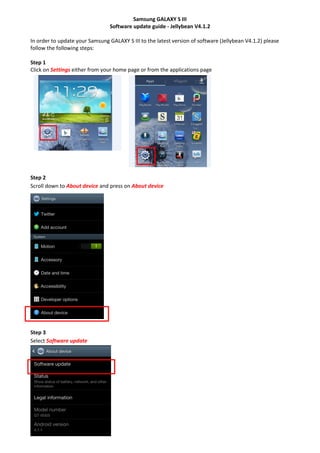
Step 1
Click on Settings either from your home page or from the applications page
Step 2
Scroll down to About device and press on About device
Step 3
Select Software update
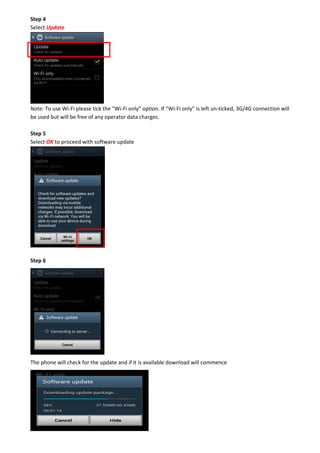
Step 4
Select Update
Note: To use Wi-Fi please tick the “Wi-Fi only” option. If “Wi-Fi only” is left un-ticked, 3G/4G connection will
be used but will be free of any operator data charges.
Step 5
Select OK to proceed with software update
Step 6
The phone will check for the update and if it is available download will commence
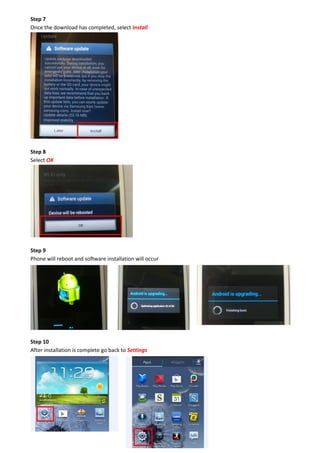
Step 7
Once the download has completed, select Install
Step 8
Select OK
Step 9
Phone will reboot and software installation will occur
Step 10
After installation is complete go back to Settings
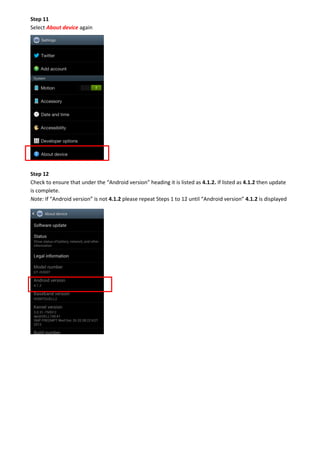
Step 11
Select About device again
Step 12
Check to ensure that under the “Android version” heading it is listed as 4.1.2. If listed as 4.1.2 then update
is complete.
Note: If “Android version” is not 4.1.2 please repeat Steps 1 to 12 until “Android version” 4.1.2 is displayed

Samsung Galaxy S3 Pre production draft

  • 1.
    Samsung GALAXY SIII Software update guide - Jellybean V4.1.2 In order to update your Samsung GALAXY S III to the latest version of software (Jellybean V4.1.2) please follow the following steps: Step 1 Click on Settings either from your home page or from the applications page Step 2 Scroll down to About device and press on About device Step 3 Select Software update
  • 2.
    Step 4 Select Update Note:To use Wi-Fi please tick the “Wi-Fi only” option. If “Wi-Fi only” is left un-ticked, 3G/4G connection will be used but will be free of any operator data charges. Step 5 Select OK to proceed with software update Step 6 The phone will check for the update and if it is available download will commence
  • 3.
    Step 7 Once thedownload has completed, select Install Step 8 Select OK Step 9 Phone will reboot and software installation will occur Step 10 After installation is complete go back to Settings
  • 4.
    Step 11 Select Aboutdevice again Step 12 Check to ensure that under the “Android version” heading it is listed as 4.1.2. If listed as 4.1.2 then update is complete. Note: If “Android version” is not 4.1.2 please repeat Steps 1 to 12 until “Android version” 4.1.2 is displayed