Training Guide
Refund Mask
Ticketing - Host
Software Version 2010
Document Edition 1.0 (02 2019)
This documentation is the confidential and proprietary intellectual
property of the Sabre Airline Solutions® business. Any unauthorized
use, reproduction, preparation of derivative works, performance or
display of this document or software represented by this document,
without the express written permission of Sabre Airline Solutions is
strictly prohibited.
Sabre®, the Sabre logo, Sabre Airline Solutions, the Sabre Airline
Solutions logo, Sabre Travel Network®, the Sabre Travel Network
logo, AirCentre®, AirVision®, SabreSonic®CSS are trademarks
and/or service marks of an affiliate of Sabre Inc. All other
trademarks, service marks and trade names are the property of
their respective owners.
© 2019 Sabre Inc. All rights reserved.
Table of Contents
1 R e f u n d M a s k
1.1 Transportation Vouchers 1
1.1.1 Access Refund Main Menu 1
1.1.1.1 Bypass Refund Menu 1
1.1.1.2 Bypass Refund Menu - Multiple Names 1
1.1.2 Voucher Main Menu 2
1.1.3 Compensation Voucher 2
1.1.3.1 Multiple Voucher Screen 3
1.1.3.2 Residual / Reissue Voucher Screen 3
1.1.4 Print Voucher Document 4
1.2 Transportation Voucher Document 4
2 Q u i c k R e f e r e n c e o f E n t r i e s
Table of Contents
Training Guide iii Confidential and Proprietary Sabre Airline Solutions
Document Revisions
Date Section Description
08 Mar 2013 All Brought lesson to new template
27 Apr 2016 All Converted to Flare
15 Feb 2019 All Remove all process flows to electronic refunds to cash and credit
card. Only left Manual paper compensation vouchers using Refund
Mask to certain Host carriers.
Table of Contents
Training Guide iv Confidential and Proprietary Sabre Airline Solutions
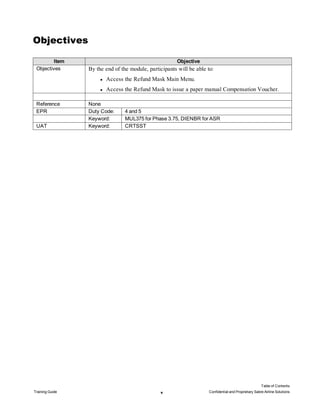
Objectives
Item Objective
Objectives By the end of the module, participants will be able to:
l Access the Refund Mask Main Menu.
l Access the Refund Mask to issue a paper manual Compensation Voucher.
Reference None
EPR Duty Code: 4 and 5
Keyword: MUL375 for Phase 3.75, DIENBR for ASR
UAT Keyword: CRTSST
Table of Contents
Training Guide v Confidential and Proprietary Sabre Airline Solutions
Table of Contents
Training Guide vi Confidential and Proprietary Sabre Airline Solutions
Refund Mask
1
Note Sabre has sunset code that supported legacy cash and credit card refunds. All carriers have migrated to
the Automated Exchange and Refund (AER) product. The RFND entry will be allow with an active
PNR for those airlines that still issue paper compensation vouchers with correct agent credentials.
1.1 Transportation Vouchers
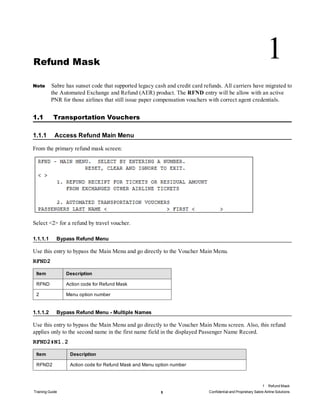
1.1.1 Access Refund Main Menu
From the primary refund mask screen:
Select <2> for a refund by travel voucher.
1.1.1.1 Bypass Refund Menu
Use this entry to bypass the Main Menu and go directly to the Voucher Main Menu.
RFND2
Item Description
RFND Action code for Refund Mask
2 Menu option number
1.1.1.2 Bypass Refund Menu - Multiple Names
Use this entry to bypass the Main Menu and go directly to the Voucher Main Menu screen. Also, this refund
applies only to the second name in the first name field in the displayed Passenger Name Record.
RFND2‡N1.2
Item Description
RFND2 Action code for Refund Mask and Menu option number
1 Refund Mask
Training Guide 1 Confidential and Proprietary Sabre Airline Solutions
Item Description
‡ Cross of Lorraine (separator)
N1.2 Secondary action code for name selection and name number
Note The Passenger Name Record must be in the agent's work area in order to use name number
association.
1.1.2 Voucher Main Menu
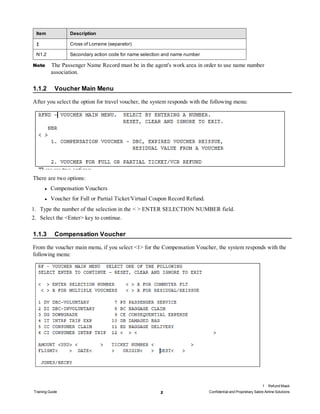
After you select the option for travel voucher, the system responds with the following menu:
There are two options:
l Compensation Vouchers
l Voucher for Full or Partial Ticket/Virtual Coupon Record Refund.
1. Type the number of the selection in the < > ENTER SELECTION NUMBER field.
2. Select the <Enter> key to continue.
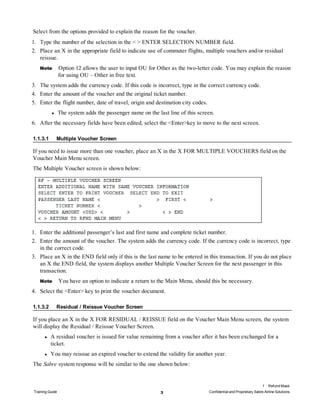
1.1.3 Compensation Voucher
From the voucher main menu, if you select <1> for the Compensation Voucher, the system responds with the
following menu:
1 Refund Mask
Training Guide 2 Confidential and Proprietary Sabre Airline Solutions
Select from the options provided to explain the reason for the voucher.
1. Type the number of the selection in the < > ENTER SELECTION NUMBER field.
2. Place an X in the appropriate field to indicate use of commuter flights, multiple vouchers and/or residual
reissue.
Note Option 12 allows the user to input OU for Other as the two-letter code. You may explain the reason
for using OU – Other in free text.
3. The system adds the currency code. If this code is incorrect, type in the correct currency code.
4. Enter the amount of the voucher and the original ticket number.
5. Enter the flight number, date of travel, origin and destination city codes.
l The system adds the passenger name on the last line of this screen.
6. After the necessary fields have been edited, select the <Enter>key to move to the next screen.
1.1.3.1 Multiple Voucher Screen
If you need to issue more than one voucher, place an X in the X FOR MULTIPLE VOUCHERS field on the
Voucher Main Menu screen.
The Multiple Voucher screen is shown below:
1. Enter the additional passenger’s last and first name and complete ticket number.
2. Enter the amount of the voucher. The system adds the currency code. If the currency code is incorrect, type
in the correct code.
3. Place an X in the END field only if this is the last name to be entered in this transaction. If you do not place
an X the END field, the system displays another Multiple Voucher Screen for the next passenger in this
transaction.
Note You have an option to indicate a return to the Main Menu, should this be necessary.
4. Select the <Enter> key to print the voucher document.
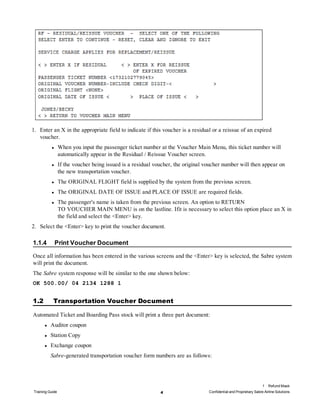
1.1.3.2 Residual / Reissue Voucher Screen
If you place an X in the X FOR RESIDUAL / REISSUE field on the Voucher Main Menu screen, the system
will display the Residual / Reissue Voucher Screen.
l A residual voucher is issued for value remaining from a voucher after it has been exchanged for a
ticket.
l You may reissue an expired voucher to extend the validity for another year.
The Sabre system response will be similar to the one shown below:
1 Refund Mask
Training Guide 3 Confidential and Proprietary Sabre Airline Solutions
1. Enter an X in the appropriate field to indicate if this voucher is a residual or a reissue of an expired
voucher.
l When you input the passenger ticket number at the Voucher Main Menu, this ticket number will
automatically appear in the Residual / Reissue Voucher screen.
l If the voucher being issued is a residual voucher, the original voucher number will then appear on
the new transportation voucher.
l The ORIGINAL FLIGHT field is supplied by the system from the previous screen.
l The ORIGINAL DATE OF ISSUE and PLACE OF ISSUE are required fields.
l The passenger's name is taken from the previous screen. An option to RETURN
TO VOUCHER MAIN MENU is on the lastline. Ifit is necessary to select this option place an X in
the field and select the <Enter> key.
2. Select the <Enter> key to print the voucher document.
1.1.4 Print Voucher Document
Once all information has been entered in the various screens and the <Enter> key is selected, the Sabre system
will print the document.
The Sabre system response will be similar to the one shown below:
OK 500.00/ 04 2134 1288 1
1.2 Transportation Voucher Document
Automated Ticket and Boarding Pass stock will print a three part document:
l Auditor coupon
l Station Copy
l Exchange coupon
Sabre-generated transportation voucher form numbers are as follows:
1 Refund Mask
Training Guide 4 Confidential and Proprietary Sabre Airline Solutions
Item Description
042 Automated Ticket and Boarding Pass 21 stock.
043 Carbonized 24 ticket stock.
1 Refund Mask
Training Guide 5 Confidential and Proprietary Sabre Airline Solutions
1 Refund Mask
Training Guide 6 Confidential and Proprietary Sabre Airline Solutions
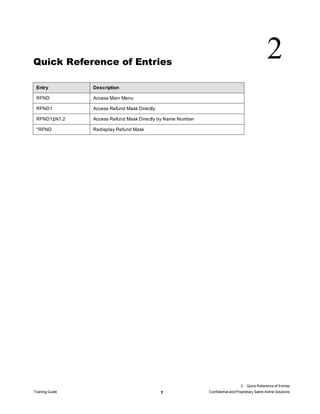
Quick Reference of Entries
2
Entry Description
RFND Access Main Menu
RFND1 Access Refund Mask Directly
RFND1‡N1.2 Access Refund Mask Directly by Name Number
*RFND Redisplay Refund Mask
2 Quick Reference of Entries
Training Guide 7 Confidential and Proprietary Sabre Airline Solutions

Sabre GDS Reservation system and ticketing 7

  • 1.
  • 2.
    Software Version 2010 DocumentEdition 1.0 (02 2019) This documentation is the confidential and proprietary intellectual property of the Sabre Airline Solutions® business. Any unauthorized use, reproduction, preparation of derivative works, performance or display of this document or software represented by this document, without the express written permission of Sabre Airline Solutions is strictly prohibited. Sabre®, the Sabre logo, Sabre Airline Solutions, the Sabre Airline Solutions logo, Sabre Travel Network®, the Sabre Travel Network logo, AirCentre®, AirVision®, SabreSonic®CSS are trademarks and/or service marks of an affiliate of Sabre Inc. All other trademarks, service marks and trade names are the property of their respective owners. © 2019 Sabre Inc. All rights reserved.
  • 3.
    Table of Contents 1R e f u n d M a s k 1.1 Transportation Vouchers 1 1.1.1 Access Refund Main Menu 1 1.1.1.1 Bypass Refund Menu 1 1.1.1.2 Bypass Refund Menu - Multiple Names 1 1.1.2 Voucher Main Menu 2 1.1.3 Compensation Voucher 2 1.1.3.1 Multiple Voucher Screen 3 1.1.3.2 Residual / Reissue Voucher Screen 3 1.1.4 Print Voucher Document 4 1.2 Transportation Voucher Document 4 2 Q u i c k R e f e r e n c e o f E n t r i e s Table of Contents Training Guide iii Confidential and Proprietary Sabre Airline Solutions
  • 4.
    Document Revisions Date SectionDescription 08 Mar 2013 All Brought lesson to new template 27 Apr 2016 All Converted to Flare 15 Feb 2019 All Remove all process flows to electronic refunds to cash and credit card. Only left Manual paper compensation vouchers using Refund Mask to certain Host carriers. Table of Contents Training Guide iv Confidential and Proprietary Sabre Airline Solutions
  • 5.
    Objectives Item Objective Objectives Bythe end of the module, participants will be able to: l Access the Refund Mask Main Menu. l Access the Refund Mask to issue a paper manual Compensation Voucher. Reference None EPR Duty Code: 4 and 5 Keyword: MUL375 for Phase 3.75, DIENBR for ASR UAT Keyword: CRTSST Table of Contents Training Guide v Confidential and Proprietary Sabre Airline Solutions
  • 6.
    Table of Contents TrainingGuide vi Confidential and Proprietary Sabre Airline Solutions
  • 7.
    Refund Mask 1 Note Sabrehas sunset code that supported legacy cash and credit card refunds. All carriers have migrated to the Automated Exchange and Refund (AER) product. The RFND entry will be allow with an active PNR for those airlines that still issue paper compensation vouchers with correct agent credentials. 1.1 Transportation Vouchers 1.1.1 Access Refund Main Menu From the primary refund mask screen: Select <2> for a refund by travel voucher. 1.1.1.1 Bypass Refund Menu Use this entry to bypass the Main Menu and go directly to the Voucher Main Menu. RFND2 Item Description RFND Action code for Refund Mask 2 Menu option number 1.1.1.2 Bypass Refund Menu - Multiple Names Use this entry to bypass the Main Menu and go directly to the Voucher Main Menu screen. Also, this refund applies only to the second name in the first name field in the displayed Passenger Name Record. RFND2‡N1.2 Item Description RFND2 Action code for Refund Mask and Menu option number 1 Refund Mask Training Guide 1 Confidential and Proprietary Sabre Airline Solutions
  • 8.
    Item Description ‡ Crossof Lorraine (separator) N1.2 Secondary action code for name selection and name number Note The Passenger Name Record must be in the agent's work area in order to use name number association. 1.1.2 Voucher Main Menu After you select the option for travel voucher, the system responds with the following menu: There are two options: l Compensation Vouchers l Voucher for Full or Partial Ticket/Virtual Coupon Record Refund. 1. Type the number of the selection in the < > ENTER SELECTION NUMBER field. 2. Select the <Enter> key to continue. 1.1.3 Compensation Voucher From the voucher main menu, if you select <1> for the Compensation Voucher, the system responds with the following menu: 1 Refund Mask Training Guide 2 Confidential and Proprietary Sabre Airline Solutions
  • 9.
    Select from theoptions provided to explain the reason for the voucher. 1. Type the number of the selection in the < > ENTER SELECTION NUMBER field. 2. Place an X in the appropriate field to indicate use of commuter flights, multiple vouchers and/or residual reissue. Note Option 12 allows the user to input OU for Other as the two-letter code. You may explain the reason for using OU – Other in free text. 3. The system adds the currency code. If this code is incorrect, type in the correct currency code. 4. Enter the amount of the voucher and the original ticket number. 5. Enter the flight number, date of travel, origin and destination city codes. l The system adds the passenger name on the last line of this screen. 6. After the necessary fields have been edited, select the <Enter>key to move to the next screen. 1.1.3.1 Multiple Voucher Screen If you need to issue more than one voucher, place an X in the X FOR MULTIPLE VOUCHERS field on the Voucher Main Menu screen. The Multiple Voucher screen is shown below: 1. Enter the additional passenger’s last and first name and complete ticket number. 2. Enter the amount of the voucher. The system adds the currency code. If the currency code is incorrect, type in the correct code. 3. Place an X in the END field only if this is the last name to be entered in this transaction. If you do not place an X the END field, the system displays another Multiple Voucher Screen for the next passenger in this transaction. Note You have an option to indicate a return to the Main Menu, should this be necessary. 4. Select the <Enter> key to print the voucher document. 1.1.3.2 Residual / Reissue Voucher Screen If you place an X in the X FOR RESIDUAL / REISSUE field on the Voucher Main Menu screen, the system will display the Residual / Reissue Voucher Screen. l A residual voucher is issued for value remaining from a voucher after it has been exchanged for a ticket. l You may reissue an expired voucher to extend the validity for another year. The Sabre system response will be similar to the one shown below: 1 Refund Mask Training Guide 3 Confidential and Proprietary Sabre Airline Solutions
  • 10.
    1. Enter anX in the appropriate field to indicate if this voucher is a residual or a reissue of an expired voucher. l When you input the passenger ticket number at the Voucher Main Menu, this ticket number will automatically appear in the Residual / Reissue Voucher screen. l If the voucher being issued is a residual voucher, the original voucher number will then appear on the new transportation voucher. l The ORIGINAL FLIGHT field is supplied by the system from the previous screen. l The ORIGINAL DATE OF ISSUE and PLACE OF ISSUE are required fields. l The passenger's name is taken from the previous screen. An option to RETURN TO VOUCHER MAIN MENU is on the lastline. Ifit is necessary to select this option place an X in the field and select the <Enter> key. 2. Select the <Enter> key to print the voucher document. 1.1.4 Print Voucher Document Once all information has been entered in the various screens and the <Enter> key is selected, the Sabre system will print the document. The Sabre system response will be similar to the one shown below: OK 500.00/ 04 2134 1288 1 1.2 Transportation Voucher Document Automated Ticket and Boarding Pass stock will print a three part document: l Auditor coupon l Station Copy l Exchange coupon Sabre-generated transportation voucher form numbers are as follows: 1 Refund Mask Training Guide 4 Confidential and Proprietary Sabre Airline Solutions
  • 11.
    Item Description 042 AutomatedTicket and Boarding Pass 21 stock. 043 Carbonized 24 ticket stock. 1 Refund Mask Training Guide 5 Confidential and Proprietary Sabre Airline Solutions
  • 12.
    1 Refund Mask TrainingGuide 6 Confidential and Proprietary Sabre Airline Solutions
  • 13.
    Quick Reference ofEntries 2 Entry Description RFND Access Main Menu RFND1 Access Refund Mask Directly RFND1‡N1.2 Access Refund Mask Directly by Name Number *RFND Redisplay Refund Mask 2 Quick Reference of Entries Training Guide 7 Confidential and Proprietary Sabre Airline Solutions