Rally Plus
overview v0.1.60
What is it?
● Rally Plus is a Google Chrome extension
● It runs locally on the browser side
● It consumes Rally APIs to display its content, and even more…
2
Why this extension?
● First, for the FUN! (a playground to learn)
● It answers to missing or poorly adapted Rally features
● It helps sufficient people to motivate me.
3
What is your business model?
I am still studying it…
4
I am kidding…
5
Again, this is just for FUN, really! No plan!
Finally… who is working on it?
● Here is the full list of team members:
● Velocity = 1 man/spare time
6
● It means that you should never
hesitate to express improvement
requests but you have to expect
uncertain delivery schedule
Let’s go for the show
Instructions for install
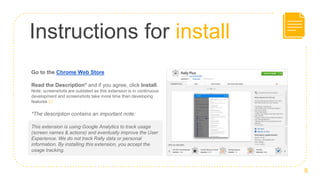
Go to the Chrome Web Store
Read the Description* and if you agree, click Install.
Note: screenshots are outdated as this extension is in continuous
development and screenshots take more time than developing
features 😉
*The description contains an important note:
8
This extension is using Google Analytics to track usage
(screen names & actions) and eventually improve the User
Experience. We do not track Rally data or personal
information. By installing this extension, you accept the
usage tracking.
When installed
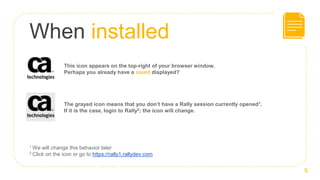
This icon appears on the top-right of your browser window.
Perhaps you already have a count displayed?
9
The grayed icon means that you don’t have a Rally session currently opened1.
If it is the case, login to Rally2; the icon will change.
1 We will change this behavior later
2 Click on the icon or go to https://rally1.rallydev.com
Query view screen
10
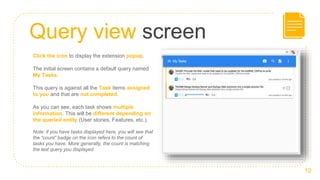
Click the icon to display the extension popup.
The initial screen contains a default query named
My Tasks.
This query is against all the Task items assigned
to you and that are not completed.
As you can see, each task shows multiple
information. This will be different depending on
the queried entity (User stories, Features, etc.).
Note: if you have tasks displayed here, you will see that
the “count” badge on the icon refers to the count of
tasks you have. More generally, the count is matching
the last query you displayed.
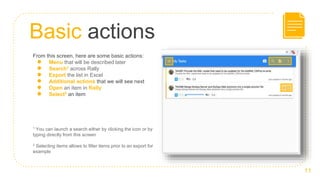
Basic actions
11
From this screen, here are some basic actions:
● Menu that will be described later
● Search1 across Rally
● Export the list in Excel
● Additional actions that we will see next
● Open an item in Rally
● Select2 an item
1 You can launch a search either by clicking the icon or by
typing directly from this screen
2 Selecting items allows to filter items prior to an export for
example
Additional actions
12
● Release Notes – Changelog across versions
● Yammer – GE only feature to access the Yammer group dedicated to
Rally Plus
● Notifications1 – All the notifications that have been managed by the
extension – it allows to focus on the current query notifications
● Open Rally, popup in a tab/window – self explanatory
● Options – Access to the extension options
1 I know, we haven’t see the Notifications yet… [spoil detected]
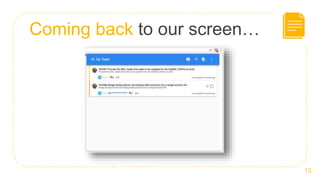
Coming back to our screen…
13
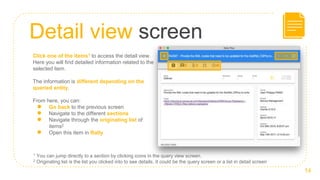
Detail view screen
14
Click one of the items1 to access the detail view.
Here you will find detailed information related to the
selected item.
The information is different depending on the
queried entity.
From here, you can:
● Go back to the previous screen
● Navigate to the different sections
● Navigate through the originating list of
items2
● Open this item in Rally
1 You can jump directly to a section by clicking icons in the query view screen.
2 Originating list is the list you clicked into to see details. It could be the query screen or a list in detail screen
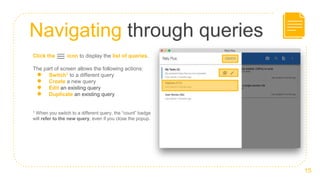
Navigating through queries
15
Click the icon to display the list of queries.
The part of screen allows the following actions:
● Switch1 to a different query
● Create a new query
● Edit an existing query
● Duplicate an existing query
1 When you switch to a different query, the “count” badge
will refer to the new query, even if you close the popup.
How to…
16
Create a
query
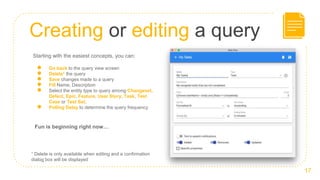
Creating or editing a query
17
Starting with the easiest concepts, you can:
● Go back to the query view screen
● Delete1 the query
● Save changes made to a query
● Fill Name, Description
● Select the entity type to query among Changeset,
Defect, Epic, Feature, User Story, Task, Test
Case or Test Set.
● Polling Delay to determine the query frequency
Fun is beginning right now…
1 Delete is only available when editing and a confirmation
dialog box will be displayed
Query filter
18
● Filter determines the items that you want to retrieve, limited to 200
results
● Based on the entity attributes
● Follows the syntax of the Rally Query API1 but simplifies usage of
parenthesis
● Based on the Rally Object Model2
● Sort By and Sort Order
● {me} refers to yourself
● Access the available properties by clicking the icon next to the
field ”Type”
1 General Query Examples (from Rally) and My Examples
2 Web Services Conceptual Object Model (from Rally)
Query filter
19
I know, this is the most complex concept in the extension right now and the previous slide is very dry…
one day, this will be resolved… one day… stay tuned
Awaiting this wonderful day, do not hesitate to ask me.
Query results grouping
20
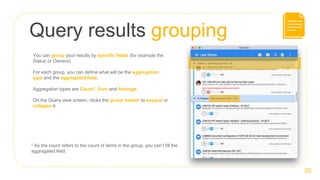
You can group your results by specific fields (for example the
Status or Owners)
For each group, you can define what will be the aggregation
type and the aggregated field.
Aggregation types are Count1, Sum and Average.
On the Query view screen, clicks the group header to expand or
collapse it.
1 As the count refers to the count of items in the group, you can’t fill the
aggregated field.
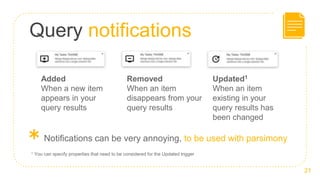
Query notifications
21
Added
When a new item
appears in your
query results
Removed
When an item
disappears from your
query results
Updated1
When an item
existing in your
query results has
been changed
1 You can specify properties that need to be considered for the Updated trigger
*Notifications can be very annoying, to be used with parsimony
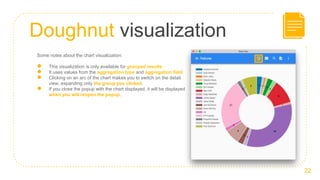
Doughnut visualization
22
Some notes about the chart visualization:
● This visualization is only available for grouped results
● It uses values from the aggregation type and aggregation field
● Clicking on an arc of the chart makes you to switch on the detail
view, expanding only the group you clicked.
● If you close the popup with the chart displayed, it will be displayed
when you will reopen the popup.
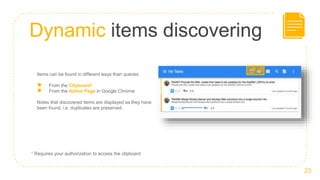
Dynamic items discovering
23
Items can be found in different ways than queries
● From the Clipboard1
● From the Active Page in Google Chrome
Notes that discovered items are displayed as they have
been found; i.e. duplicates are preserved.
1 Requires your authorization to access the clipboard
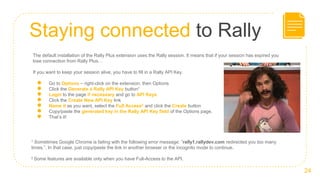
Staying connected to Rally
24
The default installation of the Rally Plus extension uses the Rally session. It means that if your session has expired you
lose connection from Rally Plus…
If you want to keep your session alive, you have to fill in a Rally API Key.
● Go to Options – right-click on the extension, then Options
● Click the Generate a Rally API Key button1
● Login to the page if necessary and go to API Keys
● Click the Create New API Key link
● Name it as you want, select the Full Access2 and click the Create button
● Copy/paste the generated key in the Rally API Key field of the Options page.
● That’s it!
1 Sometimes Google Chrome is failing with the following error message: ”rally1.rallydev.com redirected you too many
times.”. In that case, just copy/paste the link in another browser or the incognito mode to continue.
2 Some features are available only when you have Full-Access to the API.
Last words, the roadmap
25
The roadmap is not really fixed for now.
I manage some requests emitted by people in GE (mainly from by team but also from GE Aviation guys). Even if I make
some write operations, I tend to limit them (so far).
What I have in mind:
● A full test suite1 environment as Rally is very limited here (in progress, but a lot of work)
● Different charting proposition (e.g. Stacked bar chart)
● More write operations like Notes, Status changes (minor impacts)
● Sprint Retrospective, which replays events that happened during a sprint.
● Adding more fun, like animations the last day of a sprint.
● Rethink the query filter definition. Definitely the worse user experience in the extension, but I am a little bit dry of
ideas here.
● Etc. more to come…
And, your ideas/needs of course!
1 I haven’t demonstrated the “camera” icon, this will be integrated to the Test suite. For the moment, nobody cares ;-)
26
Thanks!
You’re now ready to use Rally Plus
Any questions?

Rally Plus - v0.1.60 - Overview

  • 1.
  • 2.
    What is it? ●Rally Plus is a Google Chrome extension ● It runs locally on the browser side ● It consumes Rally APIs to display its content, and even more… 2
  • 3.
    Why this extension? ●First, for the FUN! (a playground to learn) ● It answers to missing or poorly adapted Rally features ● It helps sufficient people to motivate me. 3
  • 4.
    What is yourbusiness model? I am still studying it… 4
  • 5.
    I am kidding… 5 Again,this is just for FUN, really! No plan!
  • 6.
    Finally… who isworking on it? ● Here is the full list of team members: ● Velocity = 1 man/spare time 6 ● It means that you should never hesitate to express improvement requests but you have to expect uncertain delivery schedule
  • 7.
  • 8.
    Instructions for install Goto the Chrome Web Store Read the Description* and if you agree, click Install. Note: screenshots are outdated as this extension is in continuous development and screenshots take more time than developing features 😉 *The description contains an important note: 8 This extension is using Google Analytics to track usage (screen names & actions) and eventually improve the User Experience. We do not track Rally data or personal information. By installing this extension, you accept the usage tracking.
  • 9.
    When installed This iconappears on the top-right of your browser window. Perhaps you already have a count displayed? 9 The grayed icon means that you don’t have a Rally session currently opened1. If it is the case, login to Rally2; the icon will change. 1 We will change this behavior later 2 Click on the icon or go to https://rally1.rallydev.com
  • 10.
    Query view screen 10 Clickthe icon to display the extension popup. The initial screen contains a default query named My Tasks. This query is against all the Task items assigned to you and that are not completed. As you can see, each task shows multiple information. This will be different depending on the queried entity (User stories, Features, etc.). Note: if you have tasks displayed here, you will see that the “count” badge on the icon refers to the count of tasks you have. More generally, the count is matching the last query you displayed.
  • 11.
    Basic actions 11 From thisscreen, here are some basic actions: ● Menu that will be described later ● Search1 across Rally ● Export the list in Excel ● Additional actions that we will see next ● Open an item in Rally ● Select2 an item 1 You can launch a search either by clicking the icon or by typing directly from this screen 2 Selecting items allows to filter items prior to an export for example
  • 12.
    Additional actions 12 ● ReleaseNotes – Changelog across versions ● Yammer – GE only feature to access the Yammer group dedicated to Rally Plus ● Notifications1 – All the notifications that have been managed by the extension – it allows to focus on the current query notifications ● Open Rally, popup in a tab/window – self explanatory ● Options – Access to the extension options 1 I know, we haven’t see the Notifications yet… [spoil detected]
  • 13.
    Coming back toour screen… 13
  • 14.
    Detail view screen 14 Clickone of the items1 to access the detail view. Here you will find detailed information related to the selected item. The information is different depending on the queried entity. From here, you can: ● Go back to the previous screen ● Navigate to the different sections ● Navigate through the originating list of items2 ● Open this item in Rally 1 You can jump directly to a section by clicking icons in the query view screen. 2 Originating list is the list you clicked into to see details. It could be the query screen or a list in detail screen
  • 15.
    Navigating through queries 15 Clickthe icon to display the list of queries. The part of screen allows the following actions: ● Switch1 to a different query ● Create a new query ● Edit an existing query ● Duplicate an existing query 1 When you switch to a different query, the “count” badge will refer to the new query, even if you close the popup.
  • 16.
  • 17.
    Creating or editinga query 17 Starting with the easiest concepts, you can: ● Go back to the query view screen ● Delete1 the query ● Save changes made to a query ● Fill Name, Description ● Select the entity type to query among Changeset, Defect, Epic, Feature, User Story, Task, Test Case or Test Set. ● Polling Delay to determine the query frequency Fun is beginning right now… 1 Delete is only available when editing and a confirmation dialog box will be displayed
  • 18.
    Query filter 18 ● Filterdetermines the items that you want to retrieve, limited to 200 results ● Based on the entity attributes ● Follows the syntax of the Rally Query API1 but simplifies usage of parenthesis ● Based on the Rally Object Model2 ● Sort By and Sort Order ● {me} refers to yourself ● Access the available properties by clicking the icon next to the field ”Type” 1 General Query Examples (from Rally) and My Examples 2 Web Services Conceptual Object Model (from Rally)
  • 19.
    Query filter 19 I know,this is the most complex concept in the extension right now and the previous slide is very dry… one day, this will be resolved… one day… stay tuned Awaiting this wonderful day, do not hesitate to ask me.
  • 20.
    Query results grouping 20 Youcan group your results by specific fields (for example the Status or Owners) For each group, you can define what will be the aggregation type and the aggregated field. Aggregation types are Count1, Sum and Average. On the Query view screen, clicks the group header to expand or collapse it. 1 As the count refers to the count of items in the group, you can’t fill the aggregated field.
  • 21.
    Query notifications 21 Added When anew item appears in your query results Removed When an item disappears from your query results Updated1 When an item existing in your query results has been changed 1 You can specify properties that need to be considered for the Updated trigger *Notifications can be very annoying, to be used with parsimony
  • 22.
    Doughnut visualization 22 Some notesabout the chart visualization: ● This visualization is only available for grouped results ● It uses values from the aggregation type and aggregation field ● Clicking on an arc of the chart makes you to switch on the detail view, expanding only the group you clicked. ● If you close the popup with the chart displayed, it will be displayed when you will reopen the popup.
  • 23.
    Dynamic items discovering 23 Itemscan be found in different ways than queries ● From the Clipboard1 ● From the Active Page in Google Chrome Notes that discovered items are displayed as they have been found; i.e. duplicates are preserved. 1 Requires your authorization to access the clipboard
  • 24.
    Staying connected toRally 24 The default installation of the Rally Plus extension uses the Rally session. It means that if your session has expired you lose connection from Rally Plus… If you want to keep your session alive, you have to fill in a Rally API Key. ● Go to Options – right-click on the extension, then Options ● Click the Generate a Rally API Key button1 ● Login to the page if necessary and go to API Keys ● Click the Create New API Key link ● Name it as you want, select the Full Access2 and click the Create button ● Copy/paste the generated key in the Rally API Key field of the Options page. ● That’s it! 1 Sometimes Google Chrome is failing with the following error message: ”rally1.rallydev.com redirected you too many times.”. In that case, just copy/paste the link in another browser or the incognito mode to continue. 2 Some features are available only when you have Full-Access to the API.
  • 25.
    Last words, theroadmap 25 The roadmap is not really fixed for now. I manage some requests emitted by people in GE (mainly from by team but also from GE Aviation guys). Even if I make some write operations, I tend to limit them (so far). What I have in mind: ● A full test suite1 environment as Rally is very limited here (in progress, but a lot of work) ● Different charting proposition (e.g. Stacked bar chart) ● More write operations like Notes, Status changes (minor impacts) ● Sprint Retrospective, which replays events that happened during a sprint. ● Adding more fun, like animations the last day of a sprint. ● Rethink the query filter definition. Definitely the worse user experience in the extension, but I am a little bit dry of ideas here. ● Etc. more to come… And, your ideas/needs of course! 1 I haven’t demonstrated the “camera” icon, this will be integrated to the Test suite. For the moment, nobody cares ;-)
  • 26.
    26 Thanks! You’re now readyto use Rally Plus Any questions?