Installing Python on
Windows OS
David Hsu
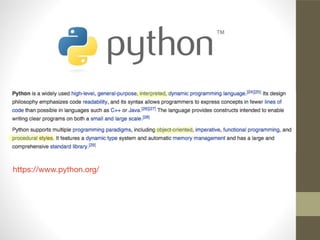
https://www.python.org/
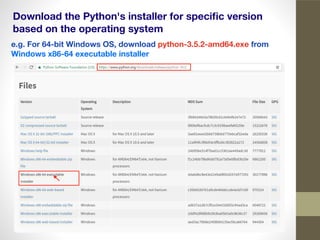
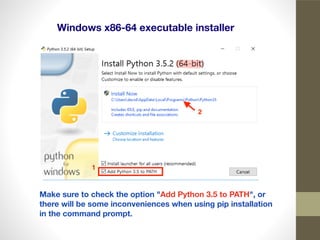
Download the Python's installer for specific version
based on the operating system
e.g. For 64-bit Windows OS, download python-3.5.2-amd64.exe from
Windows x86-64 executable installer
Make sure to check the option "Add Python 3.5 to PATH", or
there will be some inconveniences when using pip installation
in the command prompt.
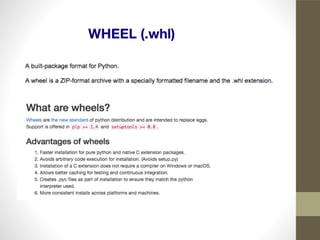
WHEEL (.whl)
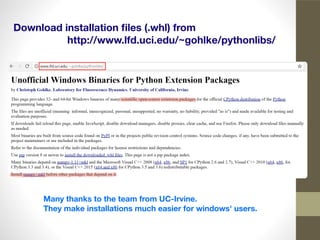
Download installation files (.whl) from
http://www.lfd.uci.edu/~gohlke/pythonlibs/
Many thanks to the team from UC-Irvine.
They make installations much easier for windows' users.
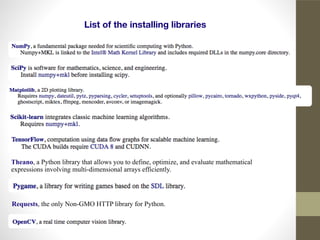
List of the installing libraries
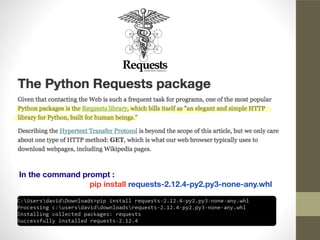
Requests, the only Non-GMO HTTP library for Python.
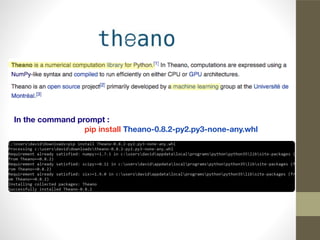
Theano, a Python library that allows you to define, optimize, and evaluate mathematical
expressions involving multi-dimensional arrays efficiently.
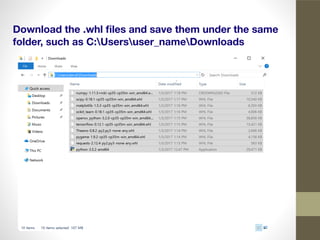
Download the .whl files and save them under the same
folder, such as C:Usersuser_nameDownloads
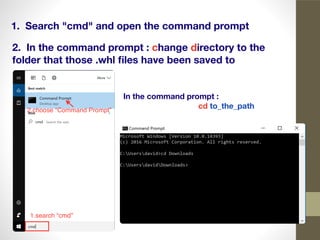
2. In the command prompt : change directory to the
folder that those .whl files have been saved to
1. Search "cmd" and open the command prompt
In the command prompt :
cd to_the_path
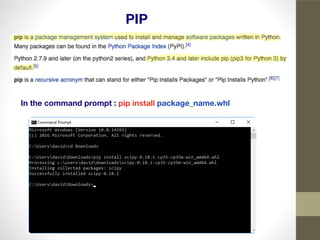
PIP
In the command prompt : pip install package_name.whl
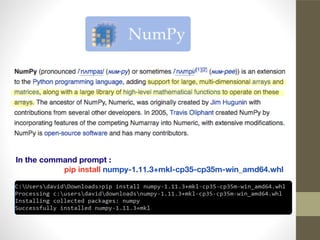
In the command prompt :
pip install numpy-1.11.3+mkl-cp35-cp35m-win_amd64.whl
In the command prompt :
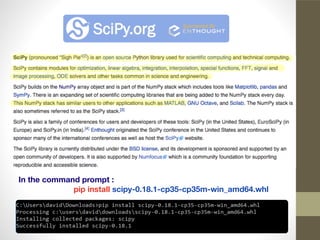
pip install scipy-0.18.1-cp35-cp35m-win_amd64.whl
In the command prompt :
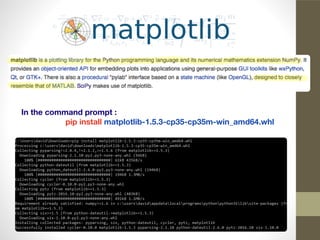
pip install matplotlib-1.5.3-cp35-cp35m-win_amd64.whl
In the command prompt :
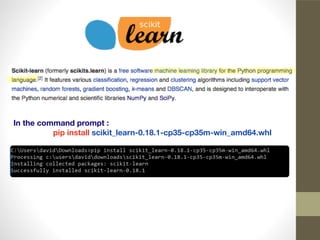
pip install scikit_learn-0.18.1-cp35-cp35m-win_amd64.whl
In the command prompt :
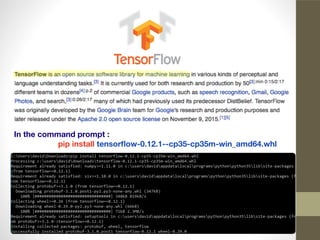
pip install tensorflow-0.12.1--cp35-cp35m-win_amd64.whl
In the command prompt :
pip install Theano-0.8.2-py2.py3-none-any.whl
In the command prompt :
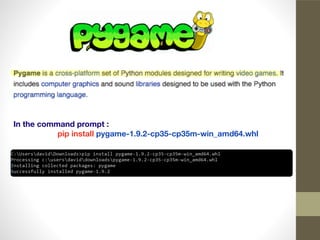
pip install pygame-1.9.2-cp35-cp35m-win_amd64.whl
In the command prompt :
pip install requests-2.12.4-py2.py3-none-any.whl
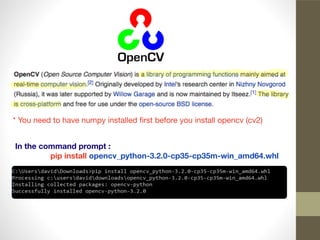
* You need to have numpy installed first before you install opencv (cv2)
In the command prompt :
pip install opencv_python-3.2.0-cp35-cp35m-win_amd64.whl
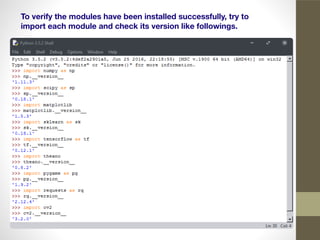
To verify the modules have been installed successfully, try to
import each module and check its version like followings.
Congrats, you can start up your python code now!
Appendix
If the option "Add Python 3.5 to PATH" was not
checked while installing ...
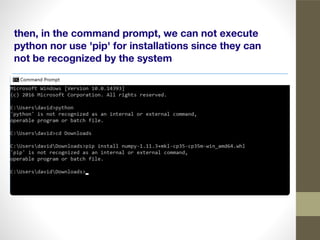
then, in the command prompt, we can not execute
python nor use 'pip' for installations since they can
not be recognized by the system
[solution 1] Adding those paths to the system
environmental variable "PATH" temporarily
To show the current PATH value in the command prompt :
echo %PATH%
To append a new path to the PATH value in the command prompt :
set PATH=%PATH%;the_new_path
Then use echo %PATH% to print out the PATH value again to confirm
the new path has been added successfully by using set
PATH=%PATH%;the_new_path
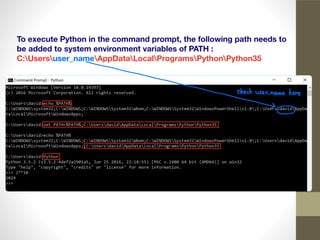
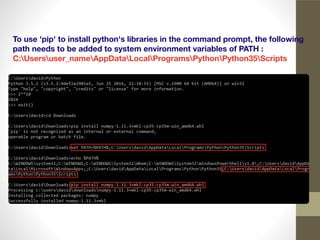
To execute Python in the command prompt, the following path needs to
be added to system environment variables of PATH :
C:Usersuser_nameAppDataLocalProgramsPythonPython35
To use 'pip' to install python's libraries in the command prompt, the following
path needs to be added to system environment variables of PATH :
C:Usersuser_nameAppDataLocalProgramsPythonPython35Scripts
[solution 2] Adding those paths to the system
environmental variable "PATH" permanently
select System from Control Panel and click Advanced system settings
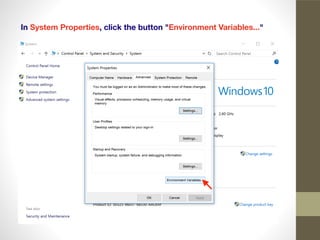
In System Properties, click the button "Environment Variables..."
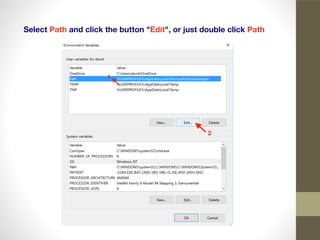
Select Path and click the button "Edit", or just double click Path
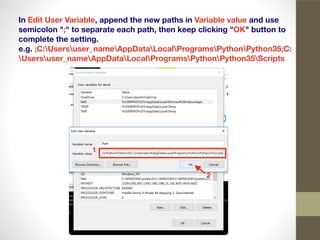
In Edit User Variable, append the new paths in Variable value and use
semicolon ";" to separate each path, then keep clicking "OK" button to
complete the setting.
e.g. ;C:Usersuser_nameAppDataLocalProgramsPythonPython35;C:
Usersuser_nameAppDataLocalProgramsPythonPython35Scripts
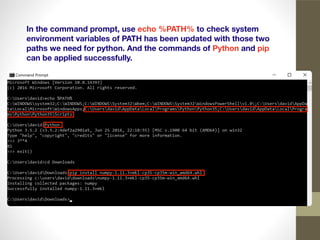
In the command prompt, use echo %PATH% to check system
environment variables of PATH has been updated with those two
paths we need for python. And the commands of Python and pip
can be applied successfully.
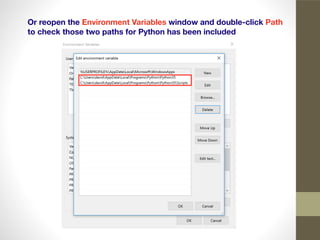
Or reopen the Environment Variables window and double-click Path
to check those two paths for Python has been included
Remarks
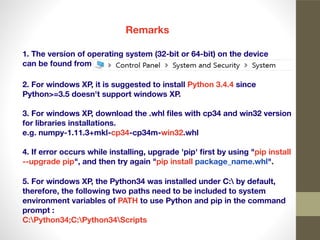
1. The version of operating system (32-bit or 64-bit) on the device
can be found from
2. For windows XP, it is suggested to install Python 3.4.4 since
Python>=3.5 doesn't support windows XP.
3. For windows XP, download the .whl files with cp34 and win32 version
for libraries installations.
e.g. numpy-1.11.3+mkl-cp34-cp34m-win32.whl
4. If error occurs while installing, upgrade 'pip' first by using "pip install
--upgrade pip", and then try again "pip install package_name.whl".
5. For windows XP, the Python34 was installed under C: by default,
therefore, the following two paths need to be included to system
environment variables of PATH to use Python and pip in the command
prompt :
C:Python34;C:Python34Scripts
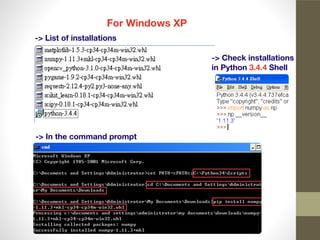
For Windows XP
-> List of installations
-> In the command prompt
-> Check installations
in Python 3.4.4 Shell
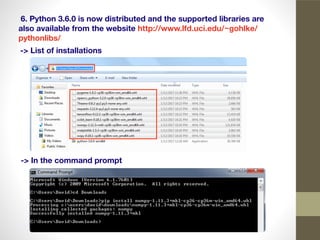
-> List of installations
-> In the command prompt
 6. Python 3.6.0 is now distributed and the supported libraries are
also available from the website http://www.lfd.uci.edu/~gohlke/
pythonlibs/
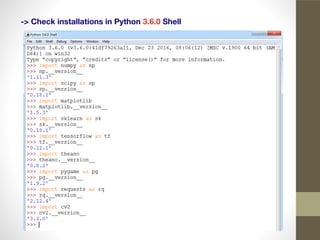
-> Check installations in Python 3.6.0 Shell

Installing Python on Windows OS

  • 1.
  • 2.
  • 3.
    Download the Python'sinstaller for specific version based on the operating system e.g. For 64-bit Windows OS, download python-3.5.2-amd64.exe from Windows x86-64 executable installer
  • 4.
    Windows x86-64 executableinstaller Make sure to check the option "Add Python 3.5 to PATH", or there will be some inconveniences when using pip installation in the command prompt.
  • 5.
  • 6.
    Download installation files(.whl) from http://www.lfd.uci.edu/~gohlke/pythonlibs/ Many thanks to the team from UC-Irvine. They make installations much easier for windows' users.
  • 7.
    List of theinstalling libraries Requests, the only Non-GMO HTTP library for Python. Theano, a Python library that allows you to define, optimize, and evaluate mathematical expressions involving multi-dimensional arrays efficiently.
  • 8.
    Download the .whlfiles and save them under the same folder, such as C:Usersuser_nameDownloads
  • 9.
    2. In thecommand prompt : change directory to the folder that those .whl files have been saved to 1. Search "cmd" and open the command prompt In the command prompt : cd to_the_path
  • 10.
    PIP In the commandprompt : pip install package_name.whl
  • 11.
    In the commandprompt : pip install numpy-1.11.3+mkl-cp35-cp35m-win_amd64.whl
  • 12.
    In the commandprompt : pip install scipy-0.18.1-cp35-cp35m-win_amd64.whl
  • 13.
    In the commandprompt : pip install matplotlib-1.5.3-cp35-cp35m-win_amd64.whl
  • 14.
    In the commandprompt : pip install scikit_learn-0.18.1-cp35-cp35m-win_amd64.whl
  • 15.
    In the commandprompt : pip install tensorflow-0.12.1--cp35-cp35m-win_amd64.whl
  • 16.
    In the commandprompt : pip install Theano-0.8.2-py2.py3-none-any.whl
  • 17.
    In the commandprompt : pip install pygame-1.9.2-cp35-cp35m-win_amd64.whl
  • 18.
    In the commandprompt : pip install requests-2.12.4-py2.py3-none-any.whl
  • 19.
    * You needto have numpy installed first before you install opencv (cv2) In the command prompt : pip install opencv_python-3.2.0-cp35-cp35m-win_amd64.whl
  • 20.
    To verify themodules have been installed successfully, try to import each module and check its version like followings.
  • 21.
    Congrats, you canstart up your python code now!
  • 22.
    Appendix If the option"Add Python 3.5 to PATH" was not checked while installing ...
  • 23.
    then, in thecommand prompt, we can not execute python nor use 'pip' for installations since they can not be recognized by the system
  • 24.
    [solution 1] Addingthose paths to the system environmental variable "PATH" temporarily To show the current PATH value in the command prompt : echo %PATH% To append a new path to the PATH value in the command prompt : set PATH=%PATH%;the_new_path Then use echo %PATH% to print out the PATH value again to confirm the new path has been added successfully by using set PATH=%PATH%;the_new_path
  • 25.
    To execute Pythonin the command prompt, the following path needs to be added to system environment variables of PATH : C:Usersuser_nameAppDataLocalProgramsPythonPython35
  • 26.
    To use 'pip'to install python's libraries in the command prompt, the following path needs to be added to system environment variables of PATH : C:Usersuser_nameAppDataLocalProgramsPythonPython35Scripts
  • 27.
    [solution 2] Addingthose paths to the system environmental variable "PATH" permanently select System from Control Panel and click Advanced system settings
  • 28.
    In System Properties,click the button "Environment Variables..."
  • 29.
    Select Path andclick the button "Edit", or just double click Path
  • 30.
    In Edit UserVariable, append the new paths in Variable value and use semicolon ";" to separate each path, then keep clicking "OK" button to complete the setting. e.g. ;C:Usersuser_nameAppDataLocalProgramsPythonPython35;C: Usersuser_nameAppDataLocalProgramsPythonPython35Scripts
  • 31.
    In the commandprompt, use echo %PATH% to check system environment variables of PATH has been updated with those two paths we need for python. And the commands of Python and pip can be applied successfully.
  • 32.
    Or reopen theEnvironment Variables window and double-click Path to check those two paths for Python has been included
  • 33.
    Remarks 1. The versionof operating system (32-bit or 64-bit) on the device can be found from 2. For windows XP, it is suggested to install Python 3.4.4 since Python>=3.5 doesn't support windows XP. 3. For windows XP, download the .whl files with cp34 and win32 version for libraries installations. e.g. numpy-1.11.3+mkl-cp34-cp34m-win32.whl 4. If error occurs while installing, upgrade 'pip' first by using "pip install --upgrade pip", and then try again "pip install package_name.whl". 5. For windows XP, the Python34 was installed under C: by default, therefore, the following two paths need to be included to system environment variables of PATH to use Python and pip in the command prompt : C:Python34;C:Python34Scripts
  • 34.
    For Windows XP ->List of installations -> In the command prompt -> Check installations in Python 3.4.4 Shell
  • 35.
    -> List ofinstallations -> In the command prompt  6. Python 3.6.0 is now distributed and the supported libraries are also available from the website http://www.lfd.uci.edu/~gohlke/ pythonlibs/
  • 36.
    -> Check installationsin Python 3.6.0 Shell