Project Names
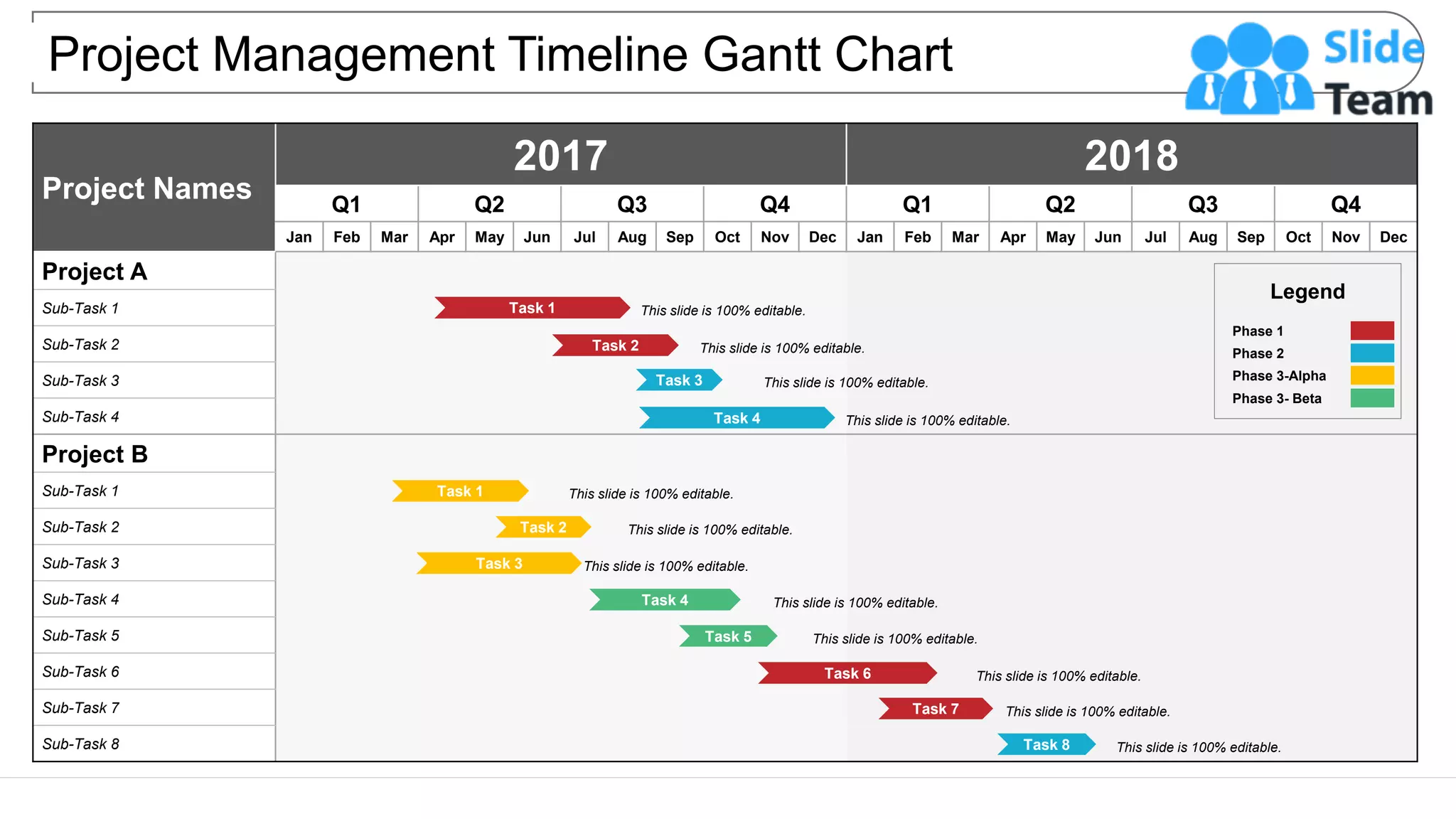
2017 2018
Q1 Q2 Q3 Q4 Q1 Q2 Q3 Q4
Jan Feb Mar Apr May Jun Jul Aug Sep Oct Nov Dec Jan Feb Mar Apr May Jun Jul Aug Sep Oct Nov Dec
Project A
Sub-Task 1
Sub-Task 2
Sub-Task 3
Sub-Task 4
Project B
Sub-Task 1
Sub-Task 2
Sub-Task 3
Sub-Task 4
Sub-Task 5
Sub-Task 6
Sub-Task 7
Sub-Task 8
Project Management Timeline Gantt Chart
This slide is 100% editable.
Legend
Phase 1
Phase 2
Phase 3-Alpha
Phase 3- Beta
Task 8
Task 1 This slide is 100% editable.
Task 2 This slide is 100% editable.
Task 3 This slide is 100% editable.
Task 4 This slide is 100% editable.
Task 5 This slide is 100% editable.
Task 6 This slide is 100% editable.
Task 7 This slide is 100% editable.
Task 1 This slide is 100% editable.
Task 2 This slide is 100% editable.
Task 3 This slide is 100% editable.
Task 4 This slide is 100% editable.
This slide is 100% editable. Adapt it to your needs and capture your audience's attention.
Instructions To Edit This Slide
This slide has been made in PowerPoint using basic PowerPoint shapes, and all graphics are 100%
editable in PowerPoint.
You can change color, size and orientation of any element to your liking, and add/edit any piece of text
anywhere.
Resize Any Shape And Edit Color
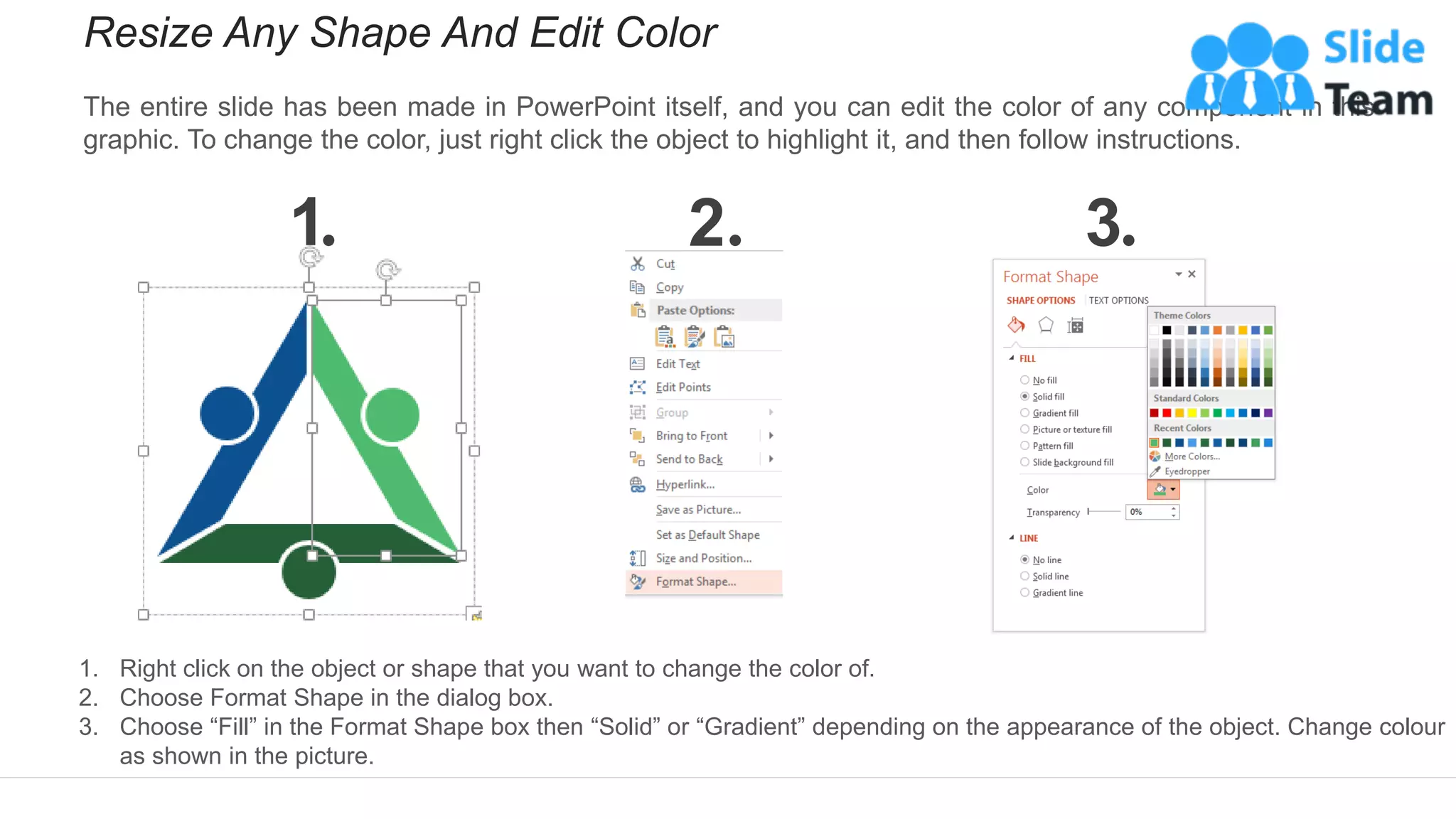
The entire slide has been made in PowerPoint itself, and you can edit the color of any component in this
graphic. To change the color, just right click the object to highlight it, and then follow instructions.
1 2 3
1. Right click on the object or shape that you want to change the color of.
2. Choose Format Shape in the dialog box.
3. Choose “Fill” in the Format Shape box then “Solid” or “Gradient” depending on the appearance of the object. Change colour
as shown in the picture.
Use Your Own Icons In Any Slide
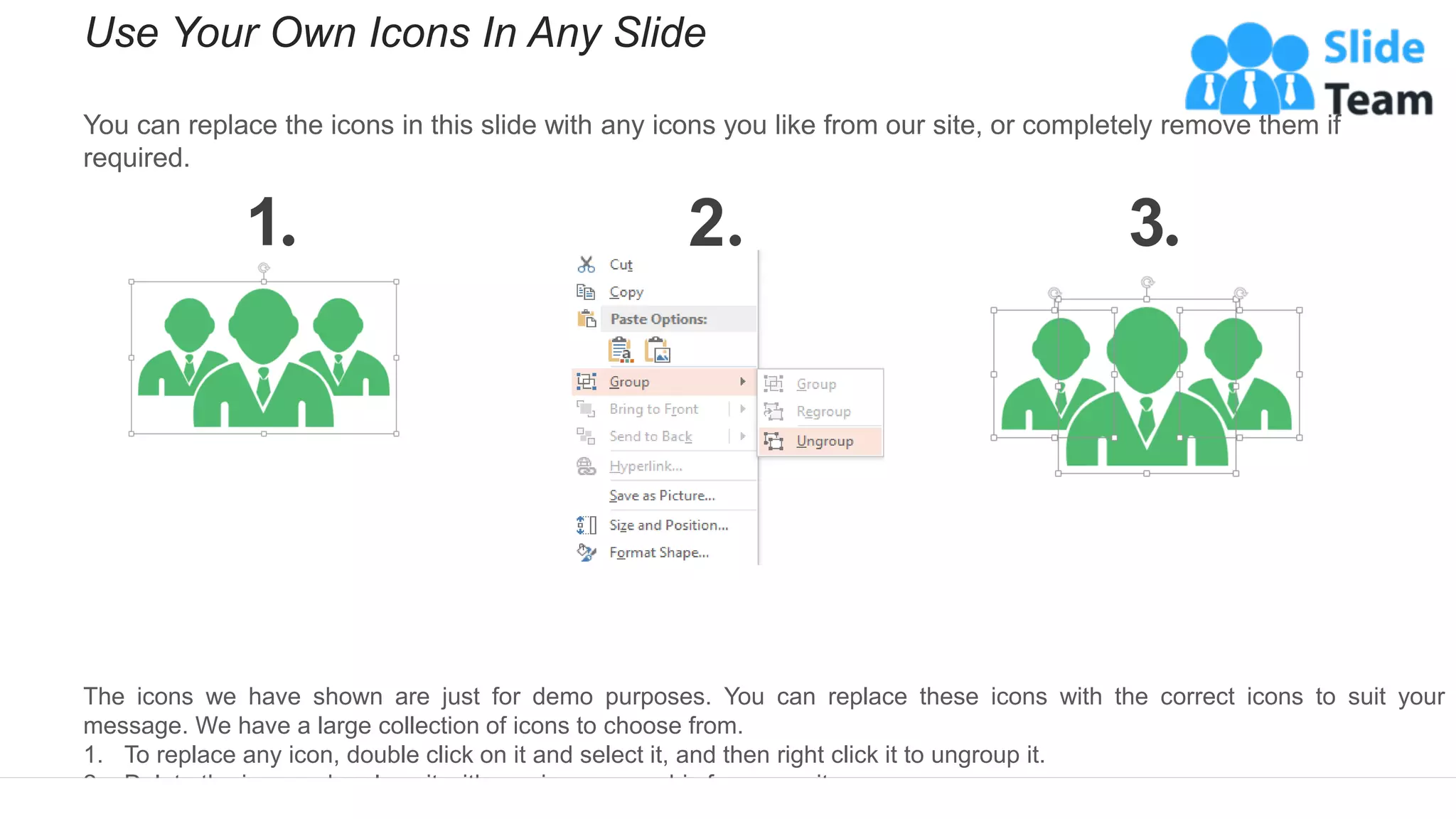
You can replace the icons in this slide with any icons you like from our site, or completely remove them if
required.
1 2 3
The icons we have shown are just for demo purposes. You can replace these icons with the correct icons to suit your
message. We have a large collection of icons to choose from.
1. To replace any icon, double click on it and select it, and then right click it to ungroup it.
2. Delete the icon and replace it with any icon or graphic from our site.
Select From Thousands Of Editable Icons On Every Topic
These icons are available at the Icons section on www.slideteam.net

Project Management Timeline Gantt Chart

  • 1.
    Project Names 2017 2018 Q1Q2 Q3 Q4 Q1 Q2 Q3 Q4 Jan Feb Mar Apr May Jun Jul Aug Sep Oct Nov Dec Jan Feb Mar Apr May Jun Jul Aug Sep Oct Nov Dec Project A Sub-Task 1 Sub-Task 2 Sub-Task 3 Sub-Task 4 Project B Sub-Task 1 Sub-Task 2 Sub-Task 3 Sub-Task 4 Sub-Task 5 Sub-Task 6 Sub-Task 7 Sub-Task 8 Project Management Timeline Gantt Chart This slide is 100% editable. Legend Phase 1 Phase 2 Phase 3-Alpha Phase 3- Beta Task 8 Task 1 This slide is 100% editable. Task 2 This slide is 100% editable. Task 3 This slide is 100% editable. Task 4 This slide is 100% editable. Task 5 This slide is 100% editable. Task 6 This slide is 100% editable. Task 7 This slide is 100% editable. Task 1 This slide is 100% editable. Task 2 This slide is 100% editable. Task 3 This slide is 100% editable. Task 4 This slide is 100% editable. This slide is 100% editable. Adapt it to your needs and capture your audience's attention.
  • 2.
    Instructions To EditThis Slide This slide has been made in PowerPoint using basic PowerPoint shapes, and all graphics are 100% editable in PowerPoint. You can change color, size and orientation of any element to your liking, and add/edit any piece of text anywhere.
  • 3.
    Resize Any ShapeAnd Edit Color The entire slide has been made in PowerPoint itself, and you can edit the color of any component in this graphic. To change the color, just right click the object to highlight it, and then follow instructions. 1 2 3 1. Right click on the object or shape that you want to change the color of. 2. Choose Format Shape in the dialog box. 3. Choose “Fill” in the Format Shape box then “Solid” or “Gradient” depending on the appearance of the object. Change colour as shown in the picture.
  • 4.
    Use Your OwnIcons In Any Slide You can replace the icons in this slide with any icons you like from our site, or completely remove them if required. 1 2 3 The icons we have shown are just for demo purposes. You can replace these icons with the correct icons to suit your message. We have a large collection of icons to choose from. 1. To replace any icon, double click on it and select it, and then right click it to ungroup it. 2. Delete the icon and replace it with any icon or graphic from our site.
  • 5.
    Select From ThousandsOf Editable Icons On Every Topic These icons are available at the Icons section on www.slideteam.net