Hubbard


FroshCore
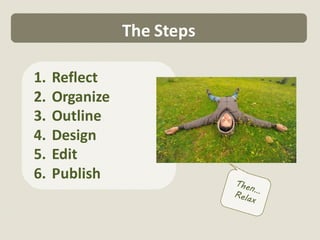
The Steps

1.   Reflect
2.   Organize
3.   Outline
4.   Design
5.   Edit
6.   Publish
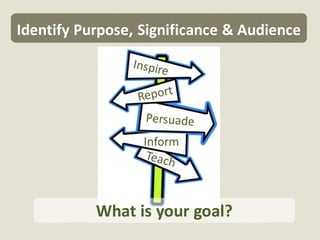
Identify Purpose, Significance & Audience


           What is your goal?
What is your subject and why does it
          matter to you?
Who is your audience?
Peers, colleagues, superiors, customers, allies…
Organize Your Ideas


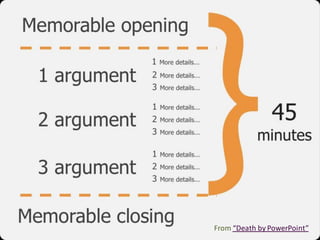
Identify 3 main points
 Design a memorable
  opening & closing
From “Death by PowerPoint”
Write Outline


   A rough draft of your presentation
   Include text and ideas for graphics
Memorable Opening


Gets the audience’s attention
 Could be a quote, question,
interesting fact, or anecdote…
3 Main Points

   Address your purpose
   Include 3-4 supporting details
    for each main point
Supporting Details
Data, statistics, expert opinions, facts
Sources for this Project
            Survey data
             – www.surveymonkey.com
            At least one credible
             online source
             – an expert in your topic
             – a government or
               educational institution
Cite Your Sources
   Help your audience find your
    source
   List website name, publisher,
    date accessed, and link
Memorable Closing
                     Leave an
                    impression
Design

   Content is KING!
   Create presentation design last
   Ensure design complements content
Create a Custom Design
   Do not use a template for this project
   Experiment and have fun!
   Customize background, colors, fonts, and
    effects
   Design should reflect purpose, significance,
    and audience
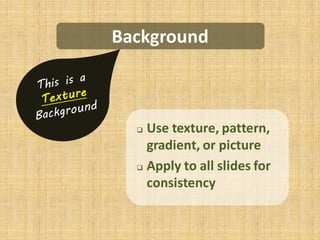
Background


   Use texture, pattern,
    gradient, or picture
   Apply to all slides for

    consistency
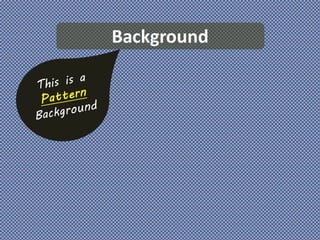
Background
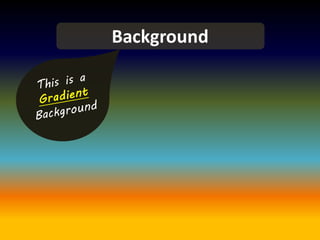
Background
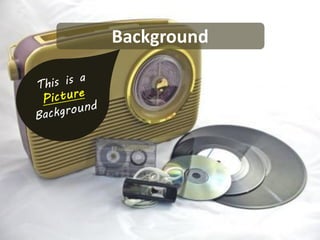
Background
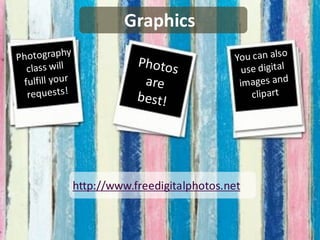
Graphics


http://www.freedigitalphotos.net
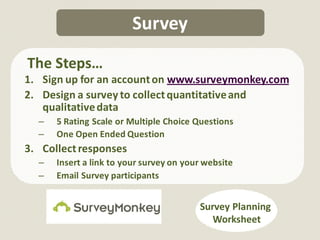
Survey
The Steps…
1. Sign up for an account on www.surveymonkey.com
2. Design a survey to collect quantitative and
   qualitative data
  –   5 Rating Scale or Multiple Choice Questions
  –   One Open Ended Question
3. Collect responses
  –   Insert a link to your survey on your website
  –   Email Survey participants


                                         Survey Planning
                                            Worksheet
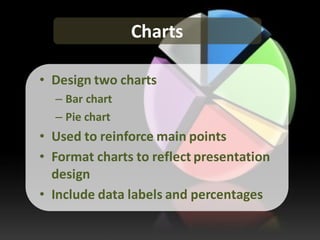
Charts

• Design two charts
  – Bar chart
  – Pie chart
• Used to reinforce main points
• Format charts to reflect presentation
  design
• Include data labels and percentages
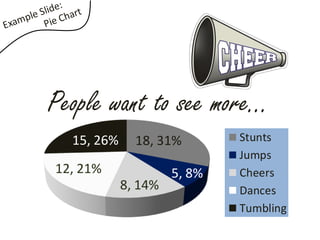
People want to see more…
  15, 26%     18, 31%        Stunts
                             Jumps
12, 21%              5, 8%   Cheers
            8, 14%           Dances
                             Tumbling
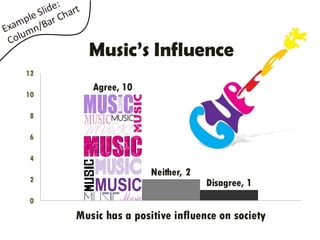
Music’s Influence
12
        Agree, 10
10

8

6

4
                     Neither, 2
2                                 Disagree, 1
0
     Music has a positive influence on society
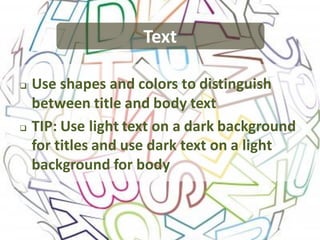
Text

   Use shapes and colors to distinguish
    between title and body text
   TIP: Use light text on a dark background
    for titles and use dark text on a light
    background for body
Links
   Your website
   Class website and School
    Website
   Online sources
   Ctrl+K to insert
   Check before publishing
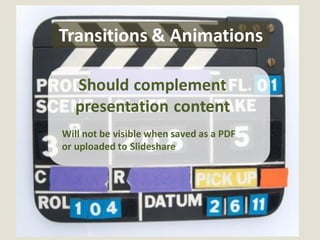
Transitions & Animations

   Should complement
   presentation content
Will not be visible when saved as a PDF
or uploaded to Slideshare
Formatting Tips
Click to view handout
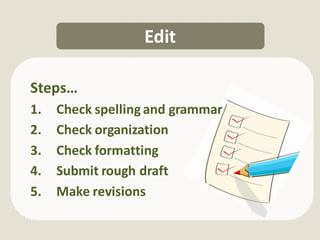
Edit

Steps…
1.   Check spelling and grammar
2.   Check organization
3.   Check formatting
4.   Submit rough draft
5.   Make revisions
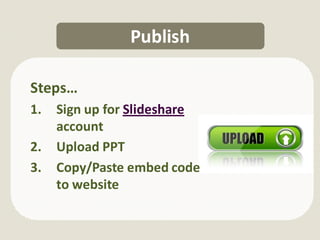
Publish

Steps…
1.   Sign up for Slideshare
     account
2.   Upload PPT
3.   Copy/Paste embed code
     to website
Opportunity


Create an amazing presentation
  Learn PowerPoint and Excel
     Gain valuable skills
Any Questions?
Alright… Get Started

   Use your time wisely
   Class time + 30 minutes/day
    homework
   Don’t procrastinate!

PPT Presentation

  • 1.
  • 3.
    The Steps 1. Reflect 2. Organize 3. Outline 4. Design 5. Edit 6. Publish
  • 4.
    Identify Purpose, Significance& Audience What is your goal?
  • 5.
    What is yoursubject and why does it matter to you?
  • 6.
    Who is youraudience? Peers, colleagues, superiors, customers, allies…
  • 7.
    Organize Your Ideas Identify3 main points Design a memorable opening & closing
  • 8.
    From “Death byPowerPoint”
  • 9.
    Write Outline  A rough draft of your presentation  Include text and ideas for graphics
  • 10.
    Memorable Opening Gets theaudience’s attention Could be a quote, question, interesting fact, or anecdote…
  • 11.
    3 Main Points  Address your purpose  Include 3-4 supporting details for each main point
  • 12.
  • 13.
    Sources for thisProject  Survey data – www.surveymonkey.com  At least one credible online source – an expert in your topic – a government or educational institution
  • 14.
    Cite Your Sources  Help your audience find your source  List website name, publisher, date accessed, and link
  • 15.
    Memorable Closing Leave an impression
  • 16.
    Design  Content is KING!  Create presentation design last  Ensure design complements content
  • 17.
    Create a CustomDesign  Do not use a template for this project  Experiment and have fun!  Customize background, colors, fonts, and effects  Design should reflect purpose, significance, and audience
  • 18.
    Background Use texture, pattern, gradient, or picture  Apply to all slides for consistency
  • 19.
  • 20.
  • 21.
  • 23.
  • 24.
    Survey The Steps… 1. Signup for an account on www.surveymonkey.com 2. Design a survey to collect quantitative and qualitative data – 5 Rating Scale or Multiple Choice Questions – One Open Ended Question 3. Collect responses – Insert a link to your survey on your website – Email Survey participants Survey Planning Worksheet
  • 25.
    Charts • Design twocharts – Bar chart – Pie chart • Used to reinforce main points • Format charts to reflect presentation design • Include data labels and percentages
  • 26.
    People want tosee more… 15, 26% 18, 31% Stunts Jumps 12, 21% 5, 8% Cheers 8, 14% Dances Tumbling
  • 27.
    Music’s Influence 12 Agree, 10 10 8 6 4 Neither, 2 2 Disagree, 1 0 Music has a positive influence on society
  • 28.
    Text  Use shapes and colors to distinguish between title and body text  TIP: Use light text on a dark background for titles and use dark text on a light background for body
  • 29.
    Links  Your website  Class website and School Website  Online sources  Ctrl+K to insert  Check before publishing
  • 30.
    Transitions & Animations Should complement presentation content Will not be visible when saved as a PDF or uploaded to Slideshare
  • 31.
  • 32.
    Edit Steps… 1. Check spelling and grammar 2. Check organization 3. Check formatting 4. Submit rough draft 5. Make revisions
  • 33.
    Publish Steps… 1. Sign up for Slideshare account 2. Upload PPT 3. Copy/Paste embed code to website
  • 34.
    Opportunity Create an amazingpresentation Learn PowerPoint and Excel Gain valuable skills
  • 35.
  • 36.
    Alright… Get Started  Use your time wisely  Class time + 30 minutes/day homework  Don’t procrastinate!