Power Editor
Basics
Power Editor
is an advanced tool that helps
businesses efficiently manage
multiple campaigns
and ads on Facebook.
You can create, edit, manage and
optimize ads, campaigns, and
Page posts in bulk, across a
large number of different ad
accounts and Pages.
Set up
Power Editor
Where can I find
Power Editor?
To get to Power Editor,
use a Google Chrome browser
Go to:
www.facebook.com/ads/manage/
powereditor
or
by clicking Power Editor on the
left side of your ads manager.
Once you're in Power Editor
Click Download on the top right
to download the accounts you
want to access.
Remember
Keep in mind that Power Editor
is only supported in the Google
Chrome browser.
How to navigate
in Power Editor
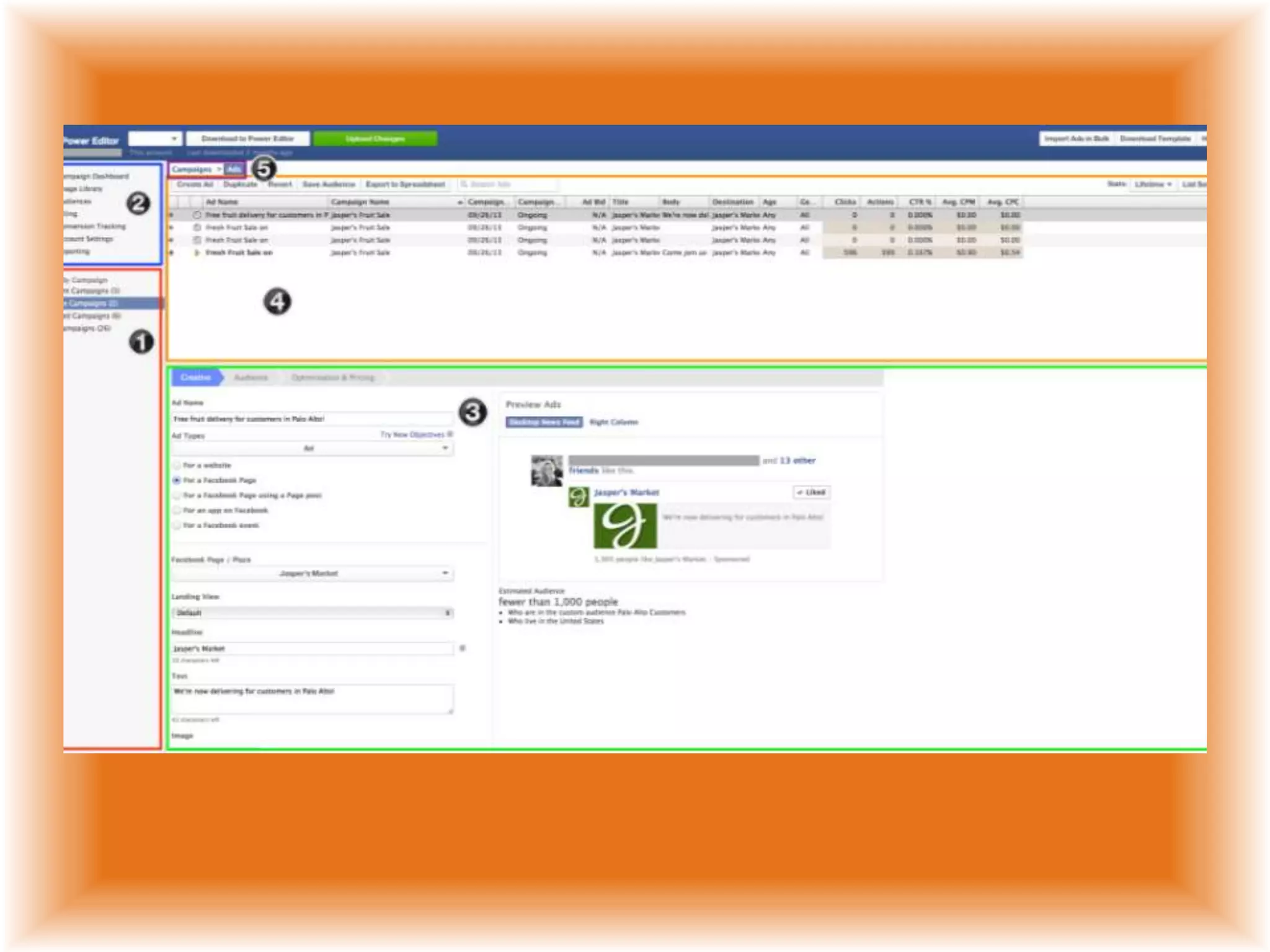
1.Left Pane
- contains all your accounts and
campaigns.
- Selecting an account in the
drop-down in the left pane will
allow you to view ads in the
list view, filtered by campaign
2. Tabs
You can navigate between the
campaign dashboard, image
library, billing
summary, audience pane, and
conversion tracking section by
selecting each component on the
left side.
3. Work Space
The work space displays editable
fields about ads or campaigns.
Clicking on one of the ads or
campaigns in the list view will
automatically open up this ad or
campaign’s details in the work
space.
If you select multiple ads or
campaigns, you can use the
work space to make changes to
several ads or campaigns at
once.
4. List View
In the ads view, the list view will
display all ads for the campaigns
and accounts selected in the left
pane. In the campaigns view, it
will display all campaigns for the
accounts selected in the left
pane.
You can select multiple ads at
the same time by using the Shift
key for items that are next to
each other, and the Control or
Command keys for items that are
further apart.
5. Switch View
Switch between looking
at your ads and
your campaigns
Remember
Keep in mind that when selecting
multiple ads or campaigns in the
list view, the work space will
only show values for a given
field if all of the selected ads or
campaigns have the same value.
Reference Link
https://www.facebook.com/help/
www/162528860609436/
created by:

Power editor basics

  • 1.
  • 2.
    Power Editor is anadvanced tool that helps businesses efficiently manage multiple campaigns and ads on Facebook.
  • 3.
    You can create,edit, manage and optimize ads, campaigns, and Page posts in bulk, across a large number of different ad accounts and Pages.
  • 4.
  • 5.
    Where can Ifind Power Editor?
  • 6.
    To get toPower Editor, use a Google Chrome browser
  • 7.
    Go to: www.facebook.com/ads/manage/ powereditor or by clickingPower Editor on the left side of your ads manager.
  • 8.
    Once you're inPower Editor
  • 9.
    Click Download onthe top right to download the accounts you want to access.
  • 10.
    Remember Keep in mindthat Power Editor is only supported in the Google Chrome browser.
  • 11.
    How to navigate inPower Editor
  • 13.
    1.Left Pane - containsall your accounts and campaigns. - Selecting an account in the drop-down in the left pane will allow you to view ads in the list view, filtered by campaign
  • 14.
    2. Tabs You cannavigate between the campaign dashboard, image library, billing summary, audience pane, and conversion tracking section by selecting each component on the left side.
  • 15.
    3. Work Space Thework space displays editable fields about ads or campaigns. Clicking on one of the ads or campaigns in the list view will automatically open up this ad or campaign’s details in the work space.
  • 16.
    If you selectmultiple ads or campaigns, you can use the work space to make changes to several ads or campaigns at once.
  • 17.
    4. List View Inthe ads view, the list view will display all ads for the campaigns and accounts selected in the left pane. In the campaigns view, it will display all campaigns for the accounts selected in the left pane.
  • 18.
    You can selectmultiple ads at the same time by using the Shift key for items that are next to each other, and the Control or Command keys for items that are further apart.
  • 19.
    5. Switch View Switchbetween looking at your ads and your campaigns
  • 20.
    Remember Keep in mindthat when selecting multiple ads or campaigns in the list view, the work space will only show values for a given field if all of the selected ads or campaigns have the same value.
  • 21.
  • 22.