 Introduction to Tally and its features
 Gateway of Tally
 Procedure for creating new company
 Creation, Display, Alter of groups, ledgers
 Procedure to display Trial Balance, P & L A/c, Balance
Sheet
 Vouchers in Tally (Contra, Payment, Receipt, Sales, etc.)
 Procedure to display day book
 Procedure to alter, Delete Journal Entry (Voucher Entry)
 Creation of Purchase, Sales order
 Creation of Sales Invoice
 Tally is an accounting package
which is used for maintaining book
of accounts electronically.
 Tally is user friendly accounting
software.
 It provides full control over every
aspects of business accounting.
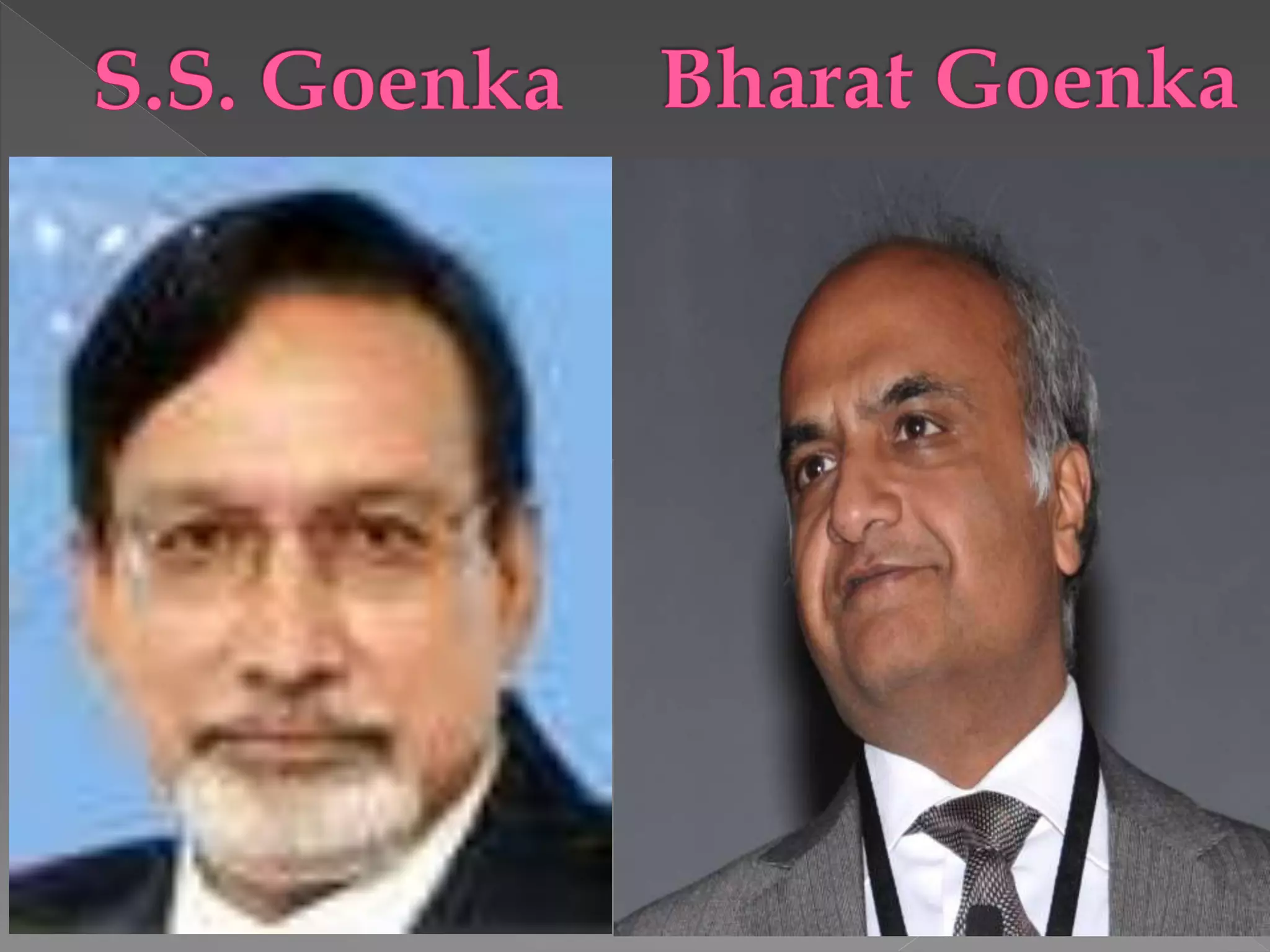
S. S. Goenka was the founding chairperson of
Tally Solutions Private Limited in
1986. Bharat Goenka is the Co-Founder &
Managing Director of Tally Solutions Private
Limited. He has been awarded the Lifetime
Achievement Award by NASSCOM, and a
Lifetime Achievement Award by CellIT, a IT
channel magazine.
 Tally maintains all the primary books of
accounts, like cashbook and bankbook.
 Tally maintains all registers like purchase
register, sales register, journal register and
ledger register.
 Tally maintains all the statement of accounts
like trial balance, profit & loss, balance sheet,
cash flow & fund flow statement.
 Tally maintains “Outstanding Reports.”
 Tally can provide a report for a particular date
or report for any range of dates.
 Tally can provide the facility of bank
reconciliation.
 Tally also supports various fonts and languages
like Hindi, Marathi, Tamil, Telugu, Kannada,
Punjabi, Gujarati, Bengali and Malayalam.
 It is highly secured against data tampering. It has
powerful audit facility. Different levels of
security like Tally vault and user password
security.
 It has interactive online help to solve any
problem related to Tally.
 It has features like inventory control & VAT
calculation.
The opening screen of Tally is divided into six
sections (Fig 7.1)
 Title Bar
 Horizontal Button Bar
 Bottom pane
 Gateway of Tally
 Left portion
 Right portion
 Button Panel
 Calculator
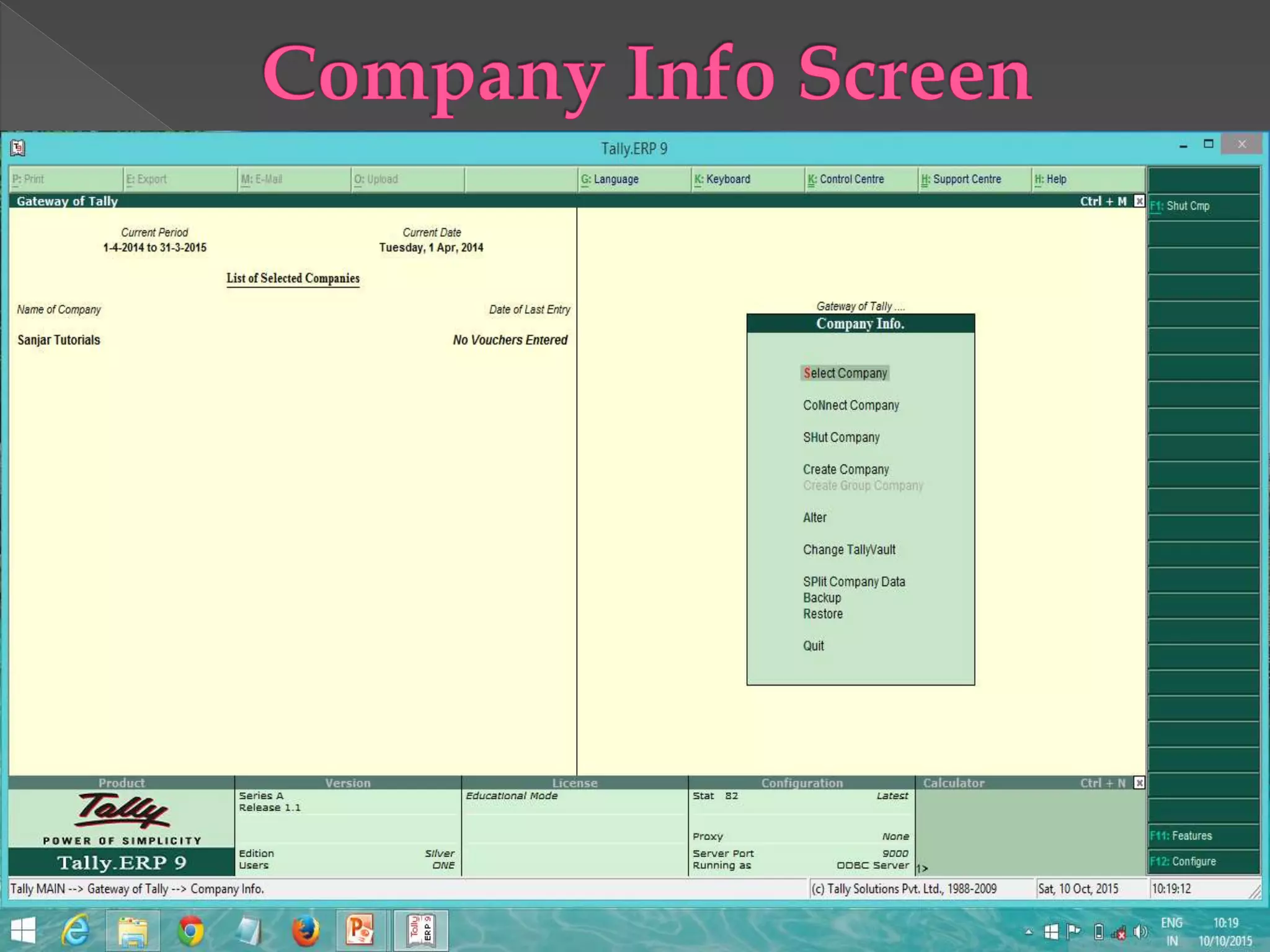
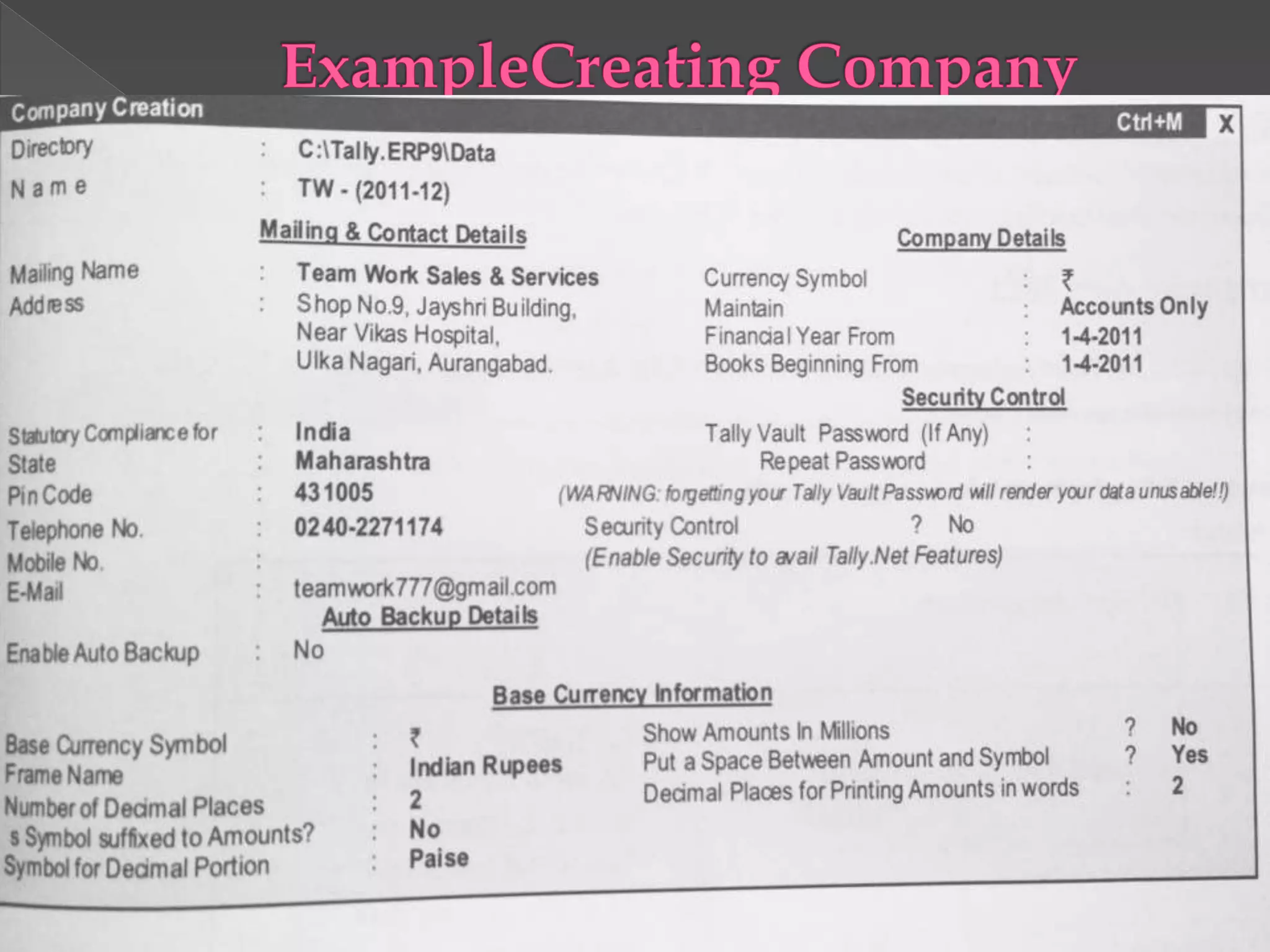
 First step to create company, click on company
Info or press Alt + F3 key.
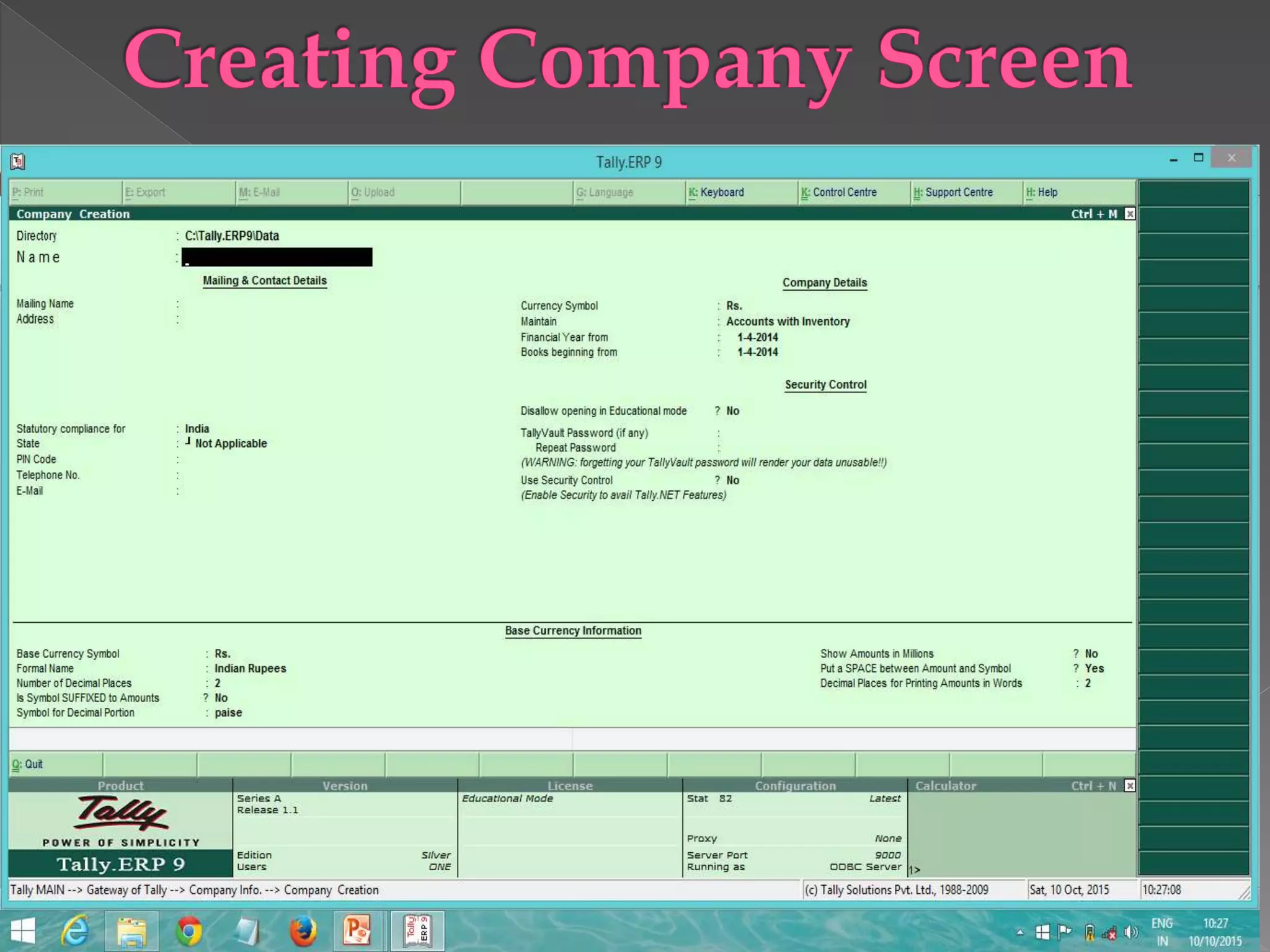
 Select Create company option from company
Info. Now you have company creation screen
 Directory
 Name
 Mailing Name
 Address
 Statutory Compliance for
 State
 Pin code
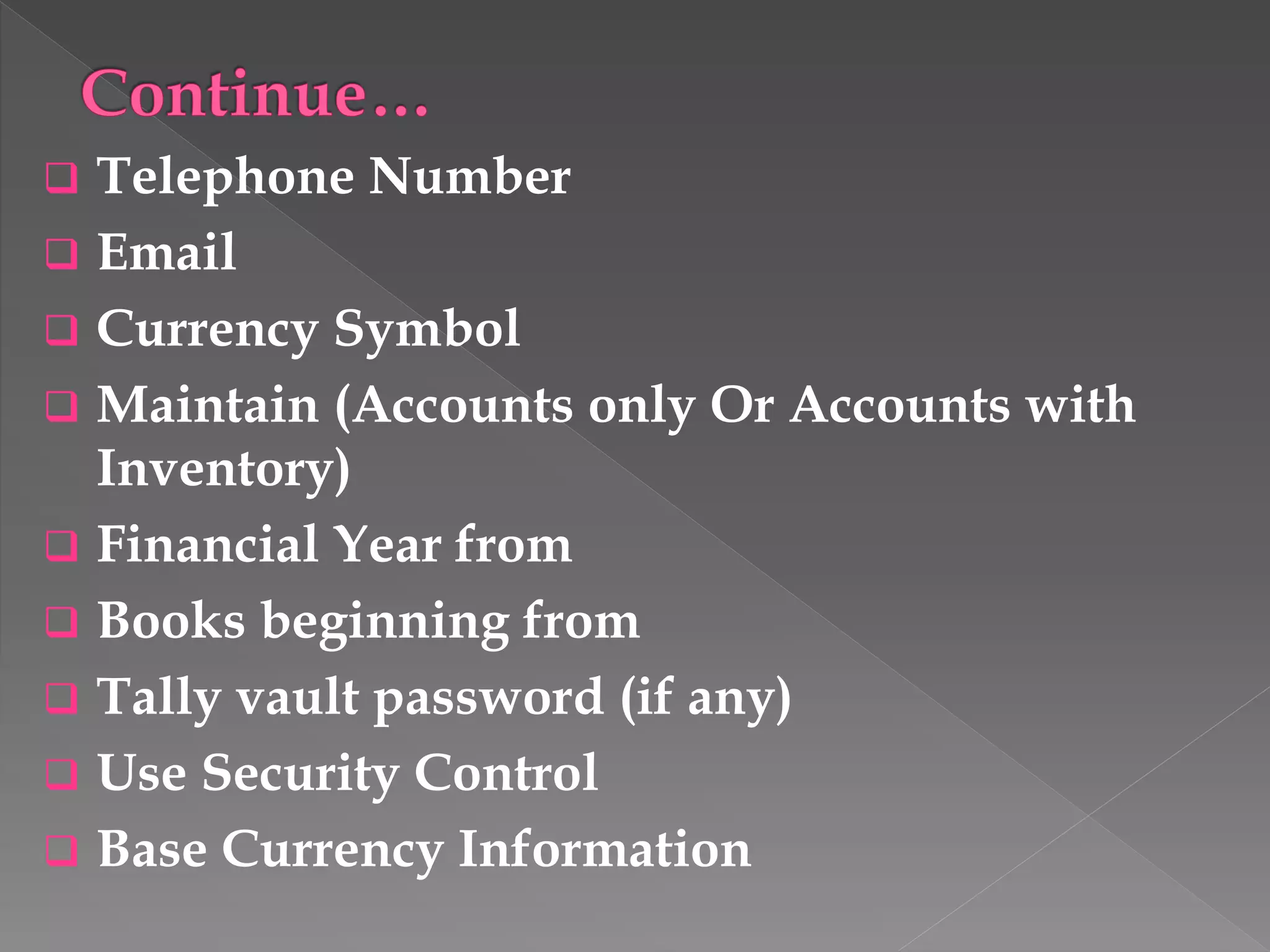
 Telephone Number
 Email
 Currency Symbol
 Maintain (Accounts only Or Accounts with
Inventory)
 Financial Year from
 Books beginning from
 Tally vault password (if any)
 Use Security Control
 Base Currency Information
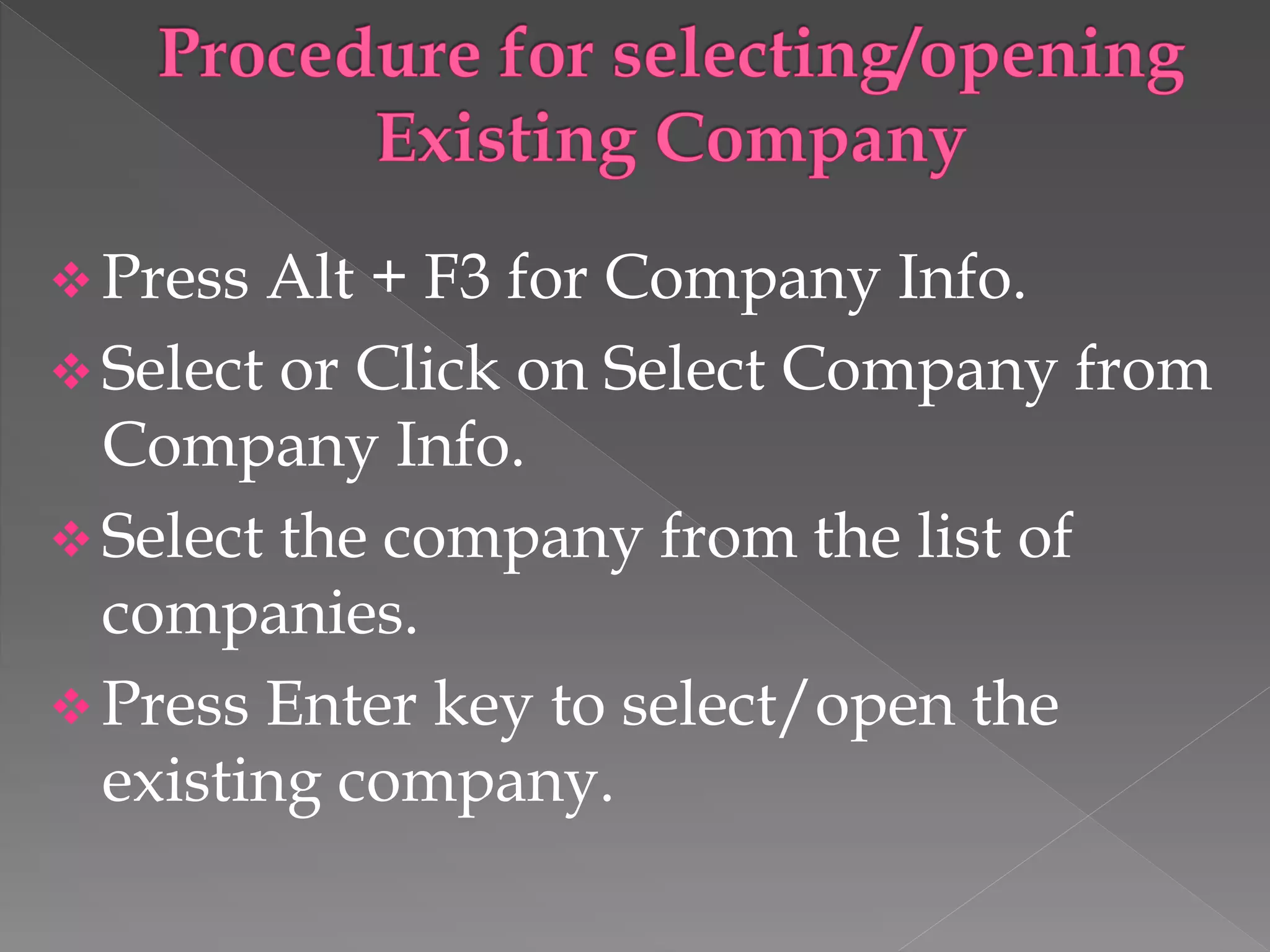
 Press Alt + F3 for Company Info.
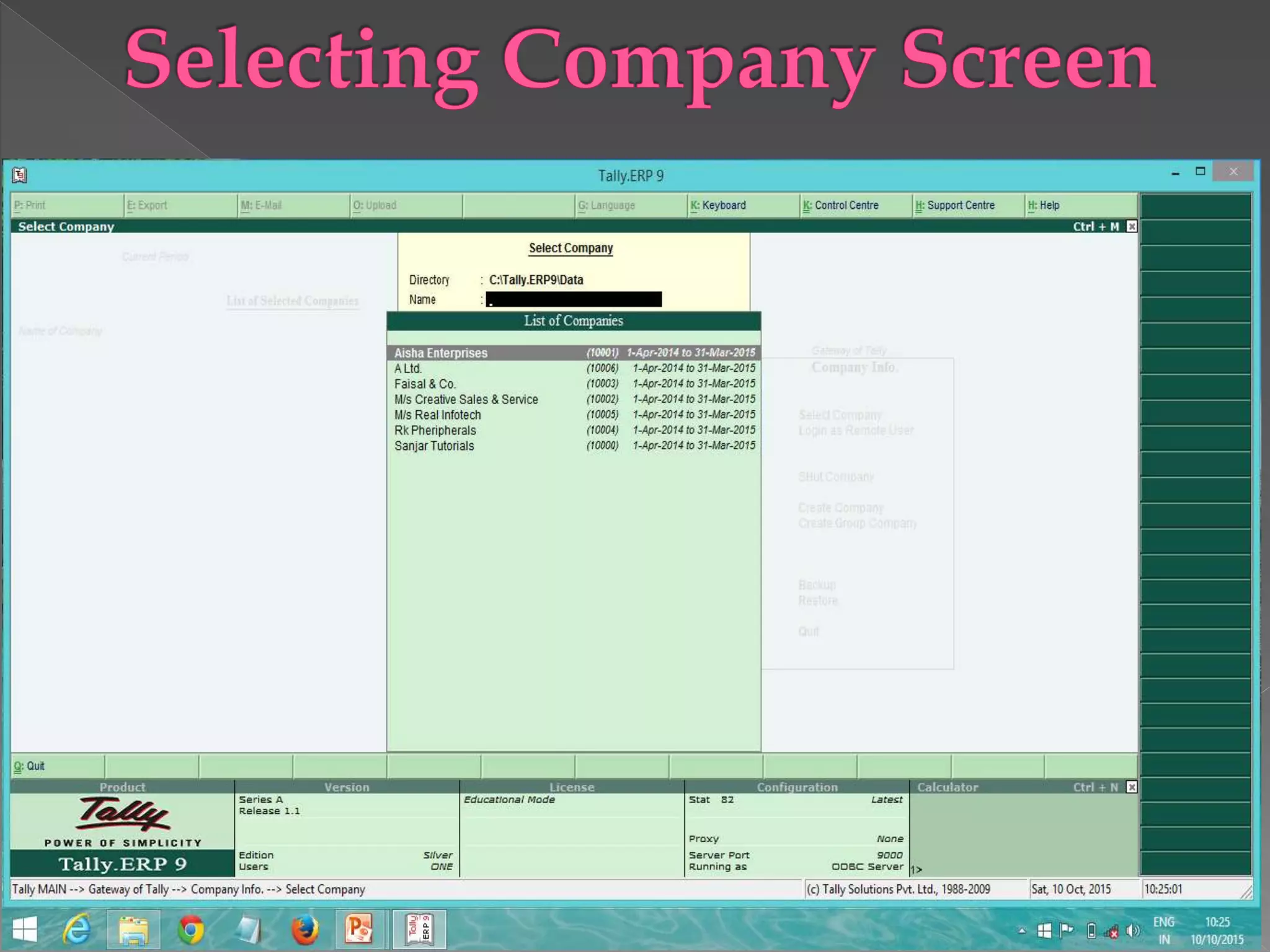
 Select or Click on Select Company from
Company Info.
 Select the company from the list of
companies.
 Press Enter key to select/open the
existing company.
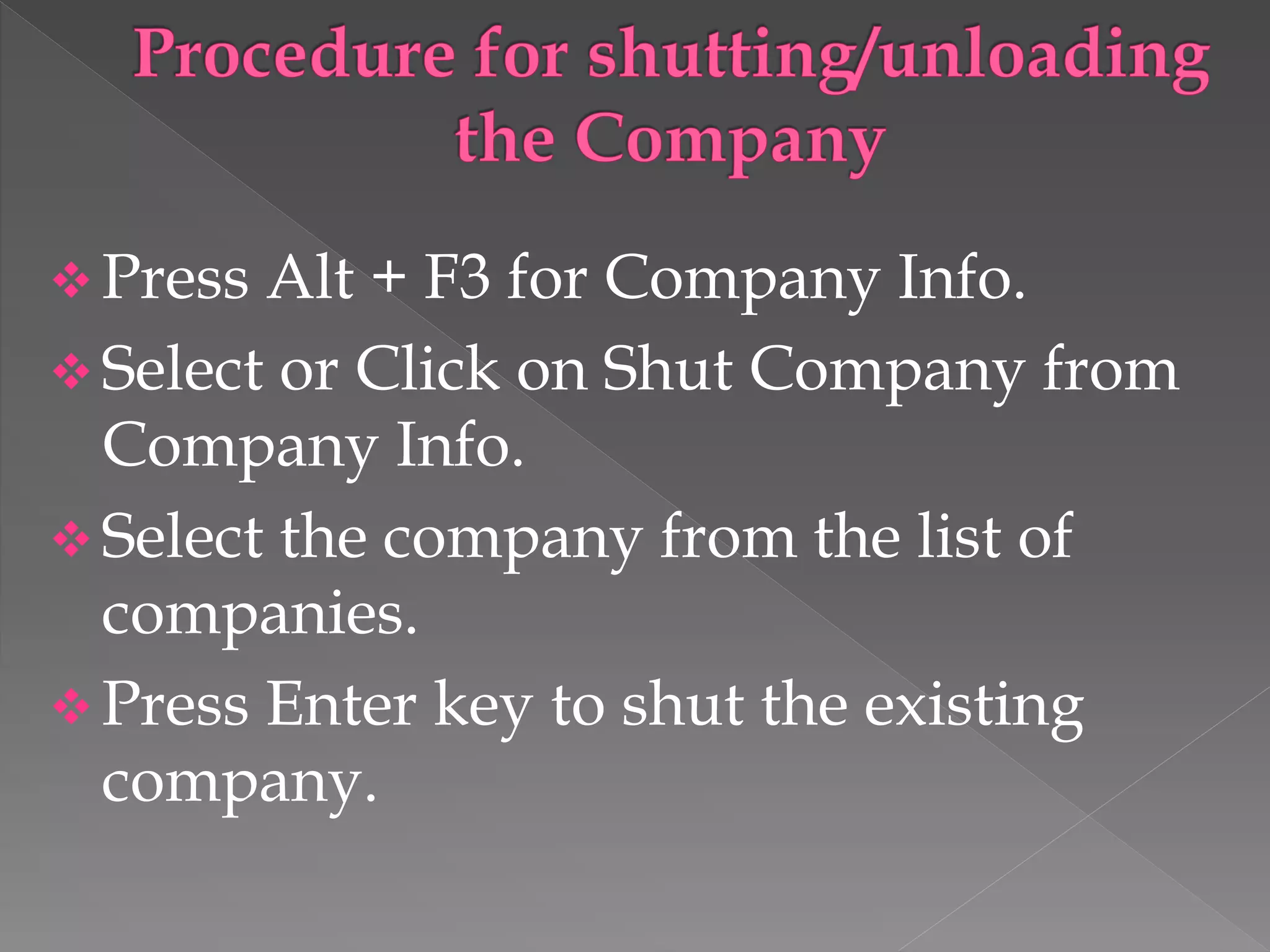
 Press Alt + F3 for Company Info.
 Select or Click on Shut Company from
Company Info.
 Select the company from the list of
companies.
 Press Enter key to shut the existing
company.
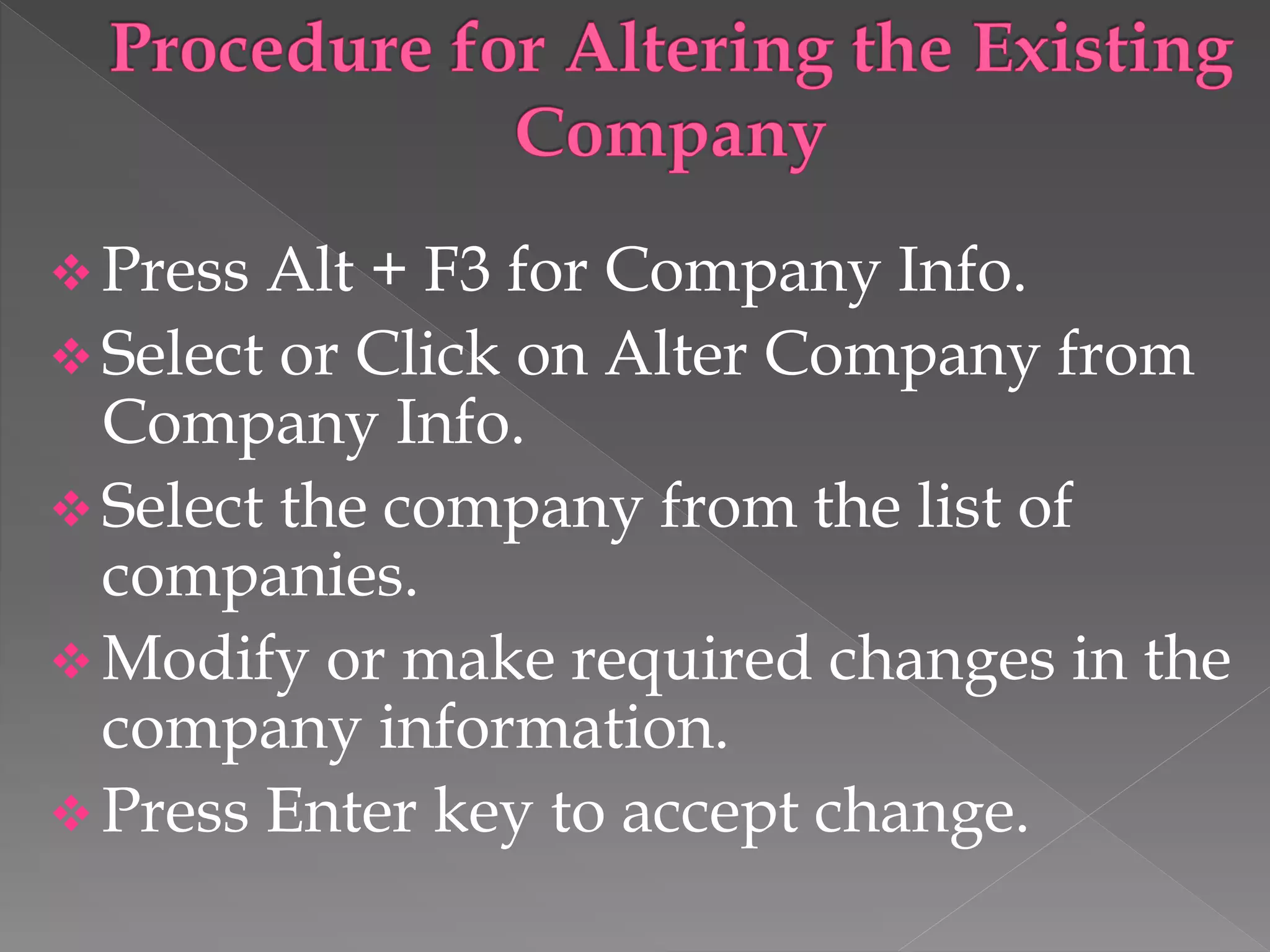
 Press Alt + F3 for Company Info.
 Select or Click on Alter Company from
Company Info.
 Select the company from the list of
companies.
 Modify or make required changes in the
company information.
 Press Enter key to accept change.
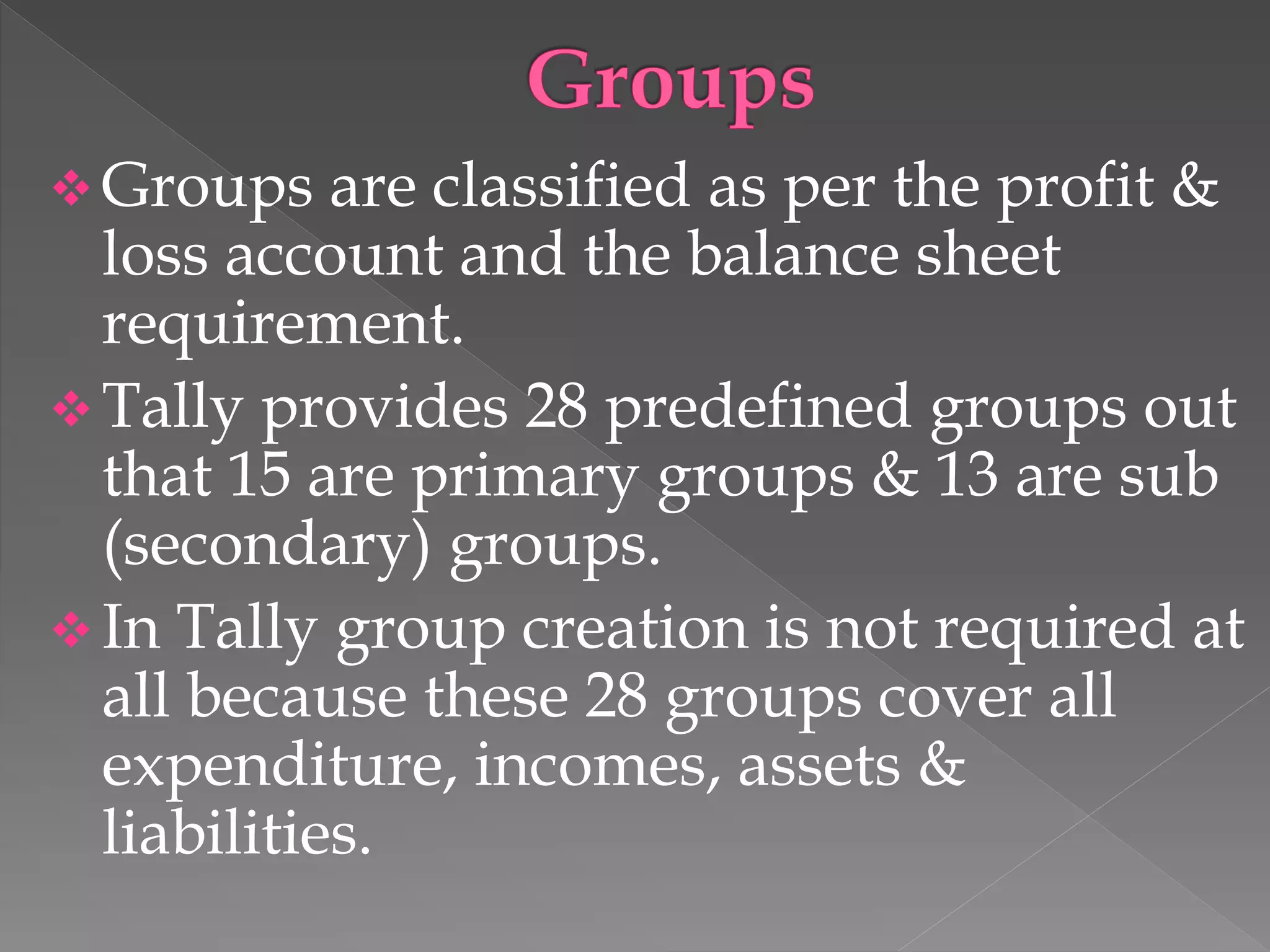
 Groups are classified as per the profit &
loss account and the balance sheet
requirement.
 Tally provides 28 predefined groups out
that 15 are primary groups & 13 are sub
(secondary) groups.
 In Tally group creation is not required at
all because these 28 groups cover all
expenditure, incomes, assets &
liabilities.
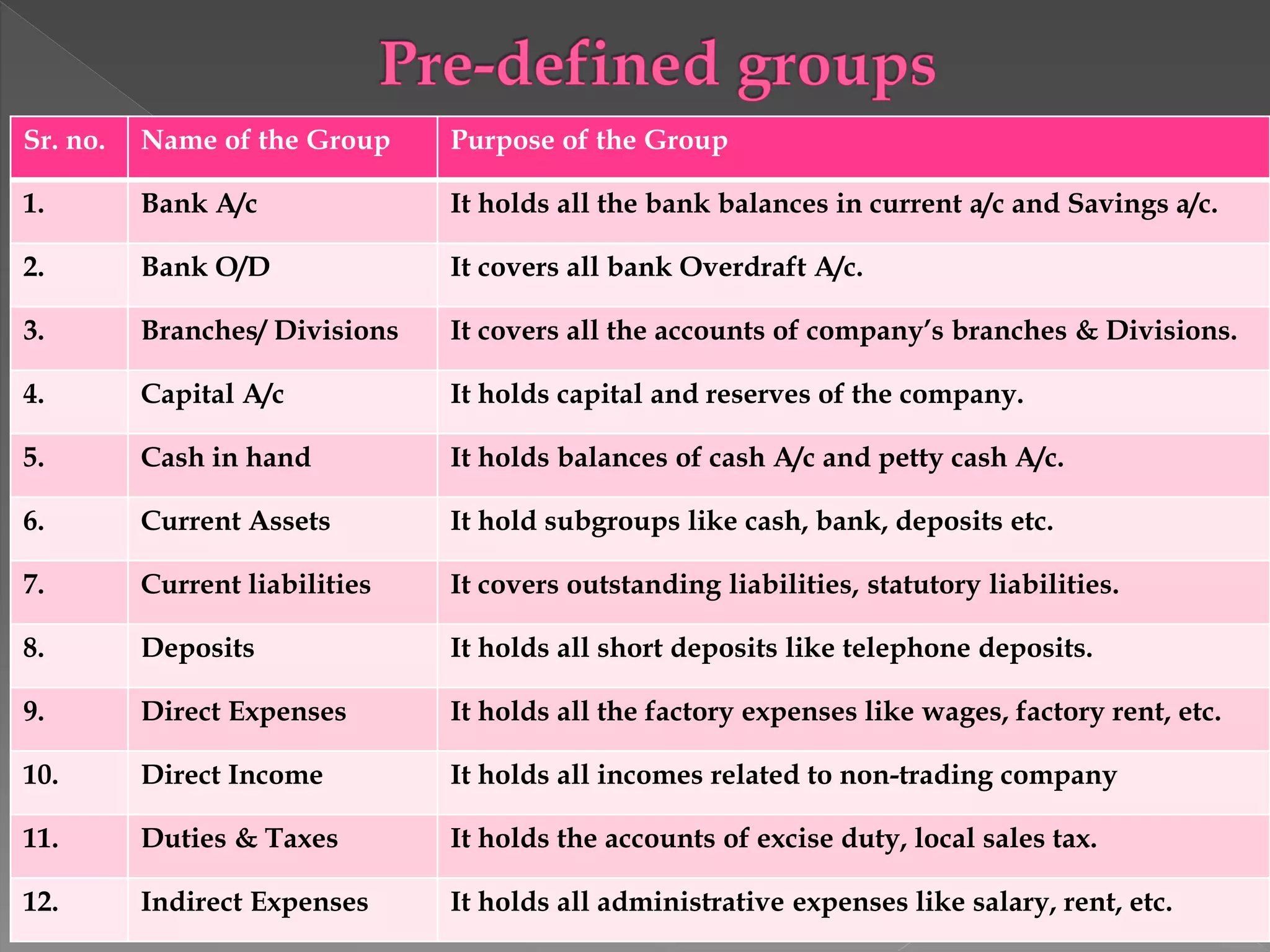
Sr. no. Name of the Group Purpose of the Group
1. Bank A/c It holds all the bank balances in current a/c and Savings a/c.
2. Bank O/D It covers all bank Overdraft A/c.
3. Branches/ Divisions It covers all the accounts of company’s branches & Divisions.
4. Capital A/c It holds capital and reserves of the company.
5. Cash in hand It holds balances of cash A/c and petty cash A/c.
6. Current Assets It hold subgroups like cash, bank, deposits etc.
7. Current liabilities It covers outstanding liabilities, statutory liabilities.
8. Deposits It holds all short deposits like telephone deposits.
9. Direct Expenses It holds all the factory expenses like wages, factory rent, etc.
10. Direct Income It holds all incomes related to non-trading company
11. Duties & Taxes It holds the accounts of excise duty, local sales tax.
12. Indirect Expenses It holds all administrative expenses like salary, rent, etc.
Sr. no. Name of the Group Purpose of the Group
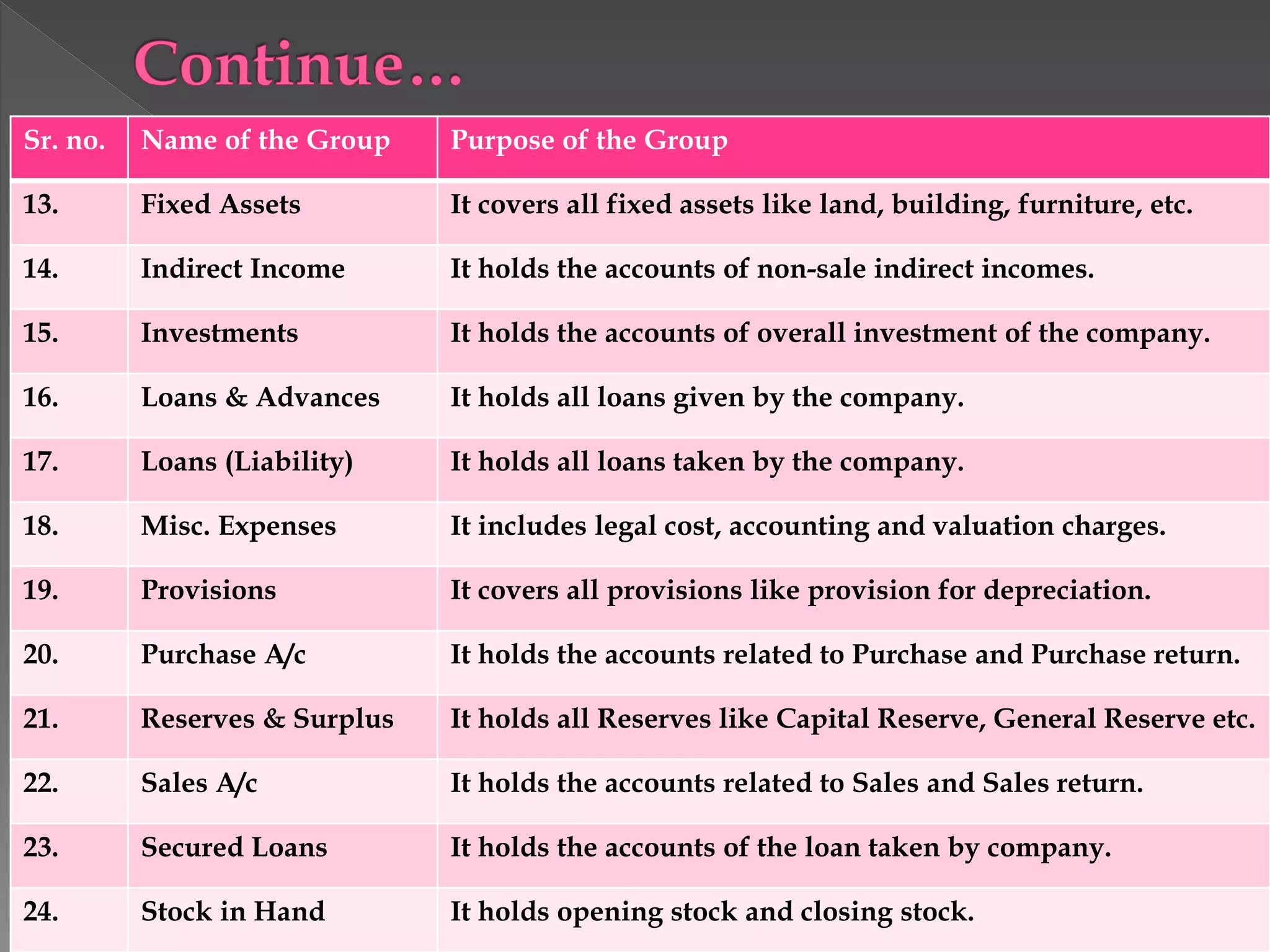
13. Fixed Assets It covers all fixed assets like land, building, furniture, etc.
14. Indirect Income It holds the accounts of non-sale indirect incomes.
15. Investments It holds the accounts of overall investment of the company.
16. Loans & Advances It holds all loans given by the company.
17. Loans (Liability) It holds all loans taken by the company.
18. Misc. Expenses It includes legal cost, accounting and valuation charges.
19. Provisions It covers all provisions like provision for depreciation.
20. Purchase A/c It holds the accounts related to Purchase and Purchase return.
21. Reserves & Surplus It holds all Reserves like Capital Reserve, General Reserve etc.
22. Sales A/c It holds the accounts related to Sales and Sales return.
23. Secured Loans It holds the accounts of the loan taken by company.
24. Stock in Hand It holds opening stock and closing stock.
Sr. no. Name of the Group Purpose of the Group
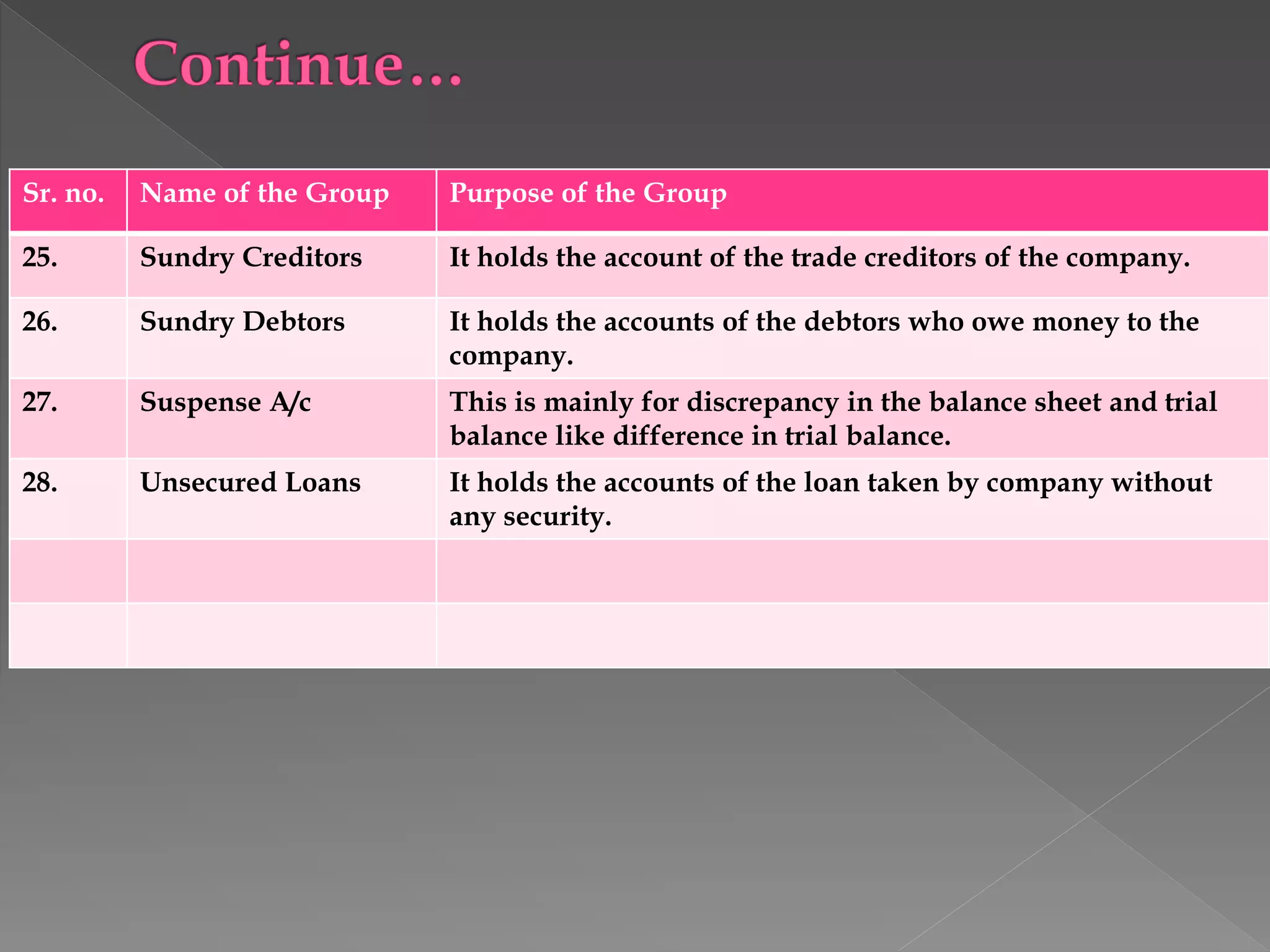
25. Sundry Creditors It holds the account of the trade creditors of the company.
26. Sundry Debtors It holds the accounts of the debtors who owe money to the
company.
27. Suspense A/c This is mainly for discrepancy in the balance sheet and trial
balance like difference in trial balance.
28. Unsecured Loans It holds the accounts of the loan taken by company without
any security.
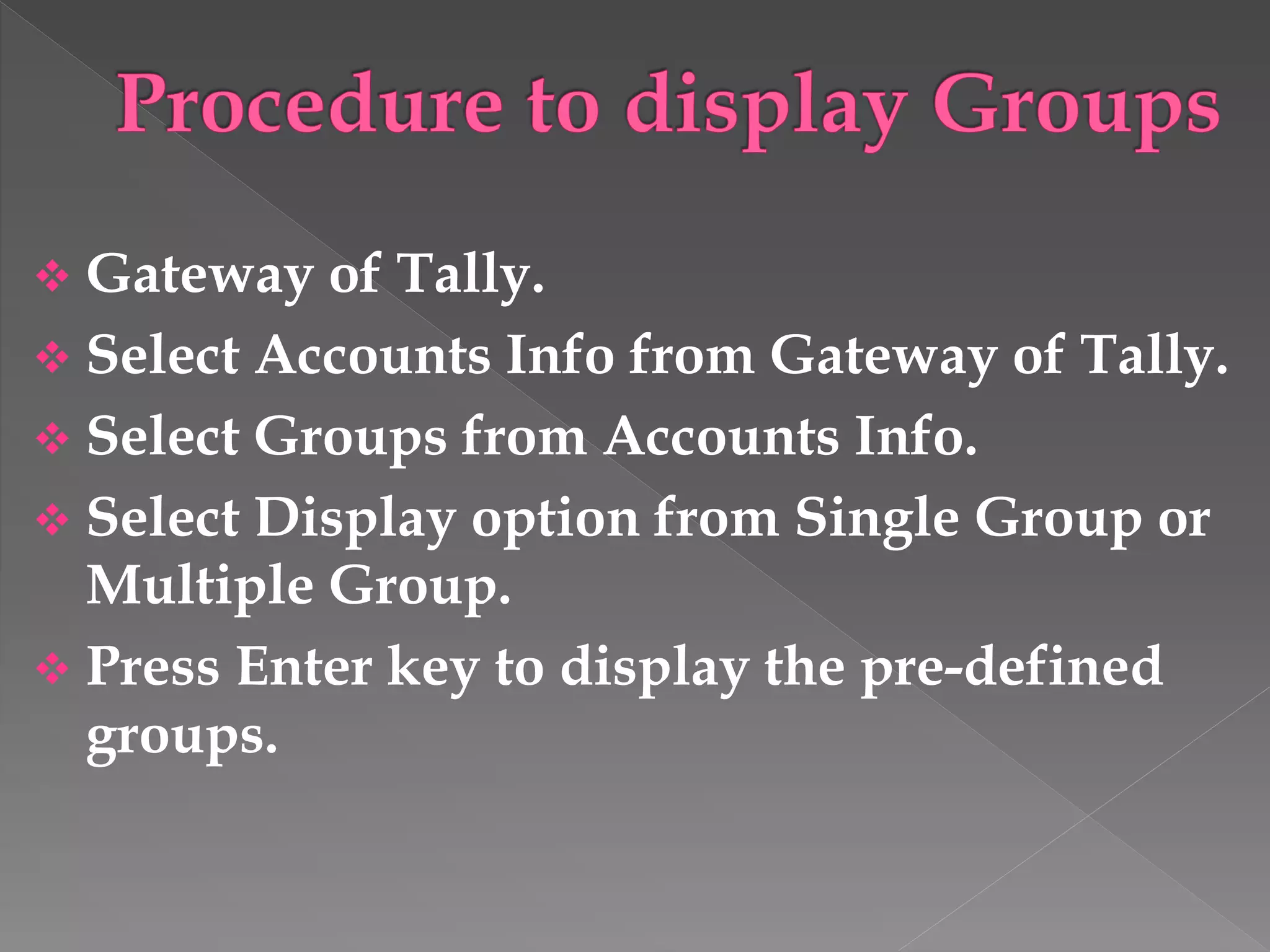
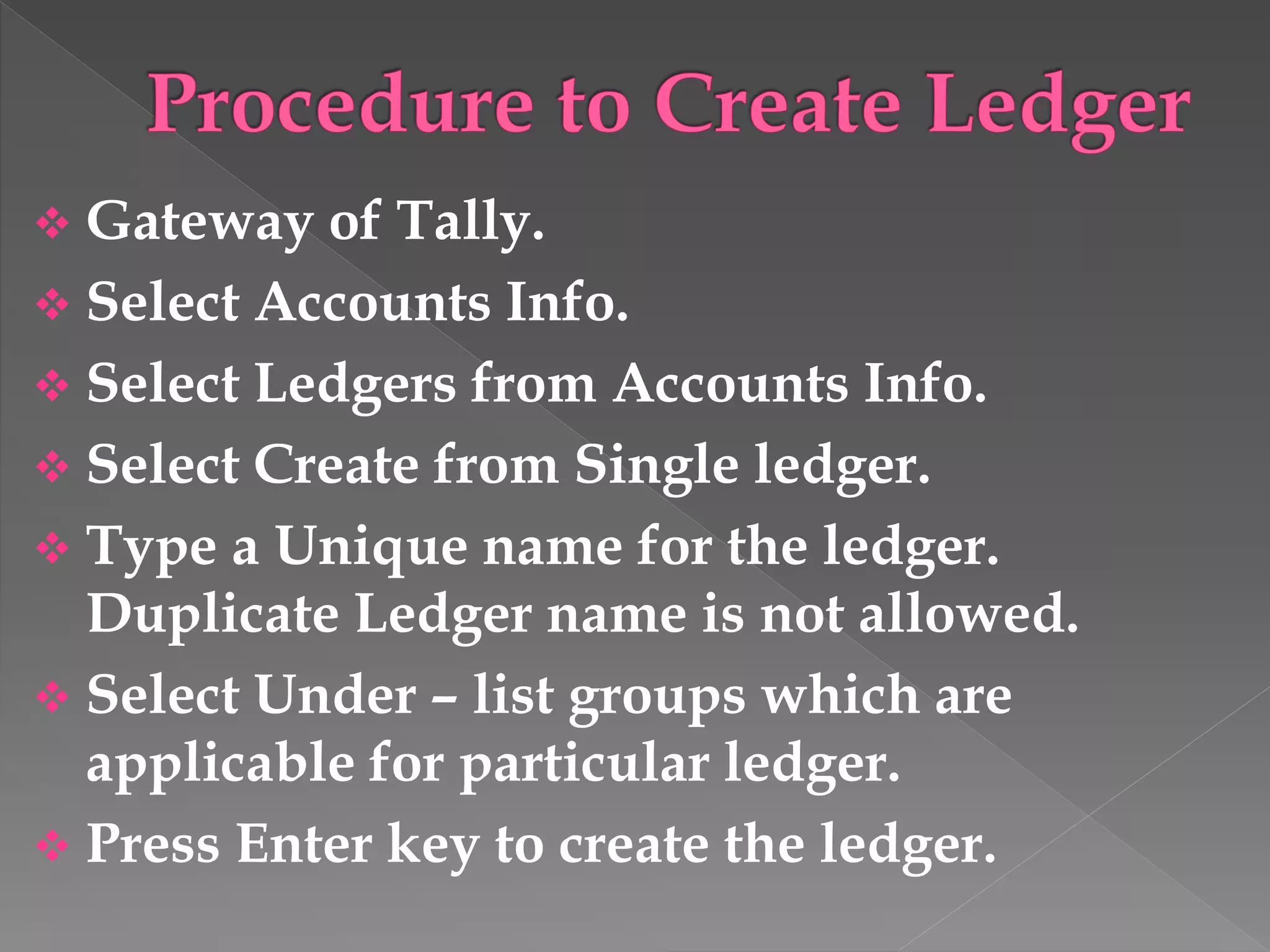
 Gateway of Tally.
 Select Accounts Info from Gateway of Tally.
 Select Groups from Accounts Info.
 Select Display option from Single Group or
Multiple Group.
 Press Enter key to display the pre-defined
groups.
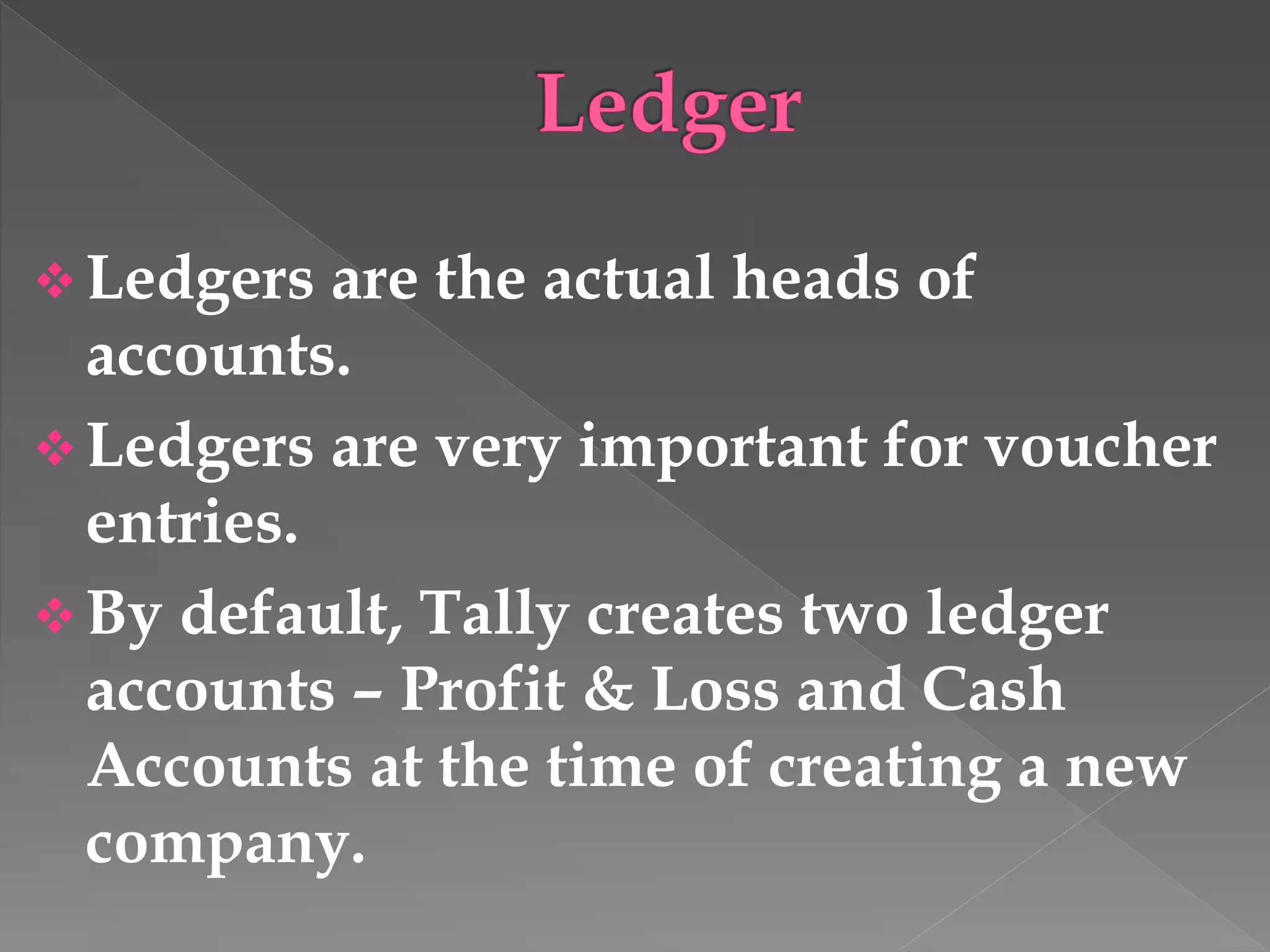
 Ledgers are the actual heads of
accounts.
 Ledgers are very important for voucher
entries.
 By default, Tally creates two ledger
accounts – Profit & Loss and Cash
Accounts at the time of creating a new
company.
 Gateway of Tally.
 Select Accounts Info.
 Select Ledgers from Accounts Info.
 Select Create from Single ledger.
 Type a Unique name for the ledger.
Duplicate Ledger name is not allowed.
 Select Under – list groups which are
applicable for particular ledger.
 Press Enter key to create the ledger.
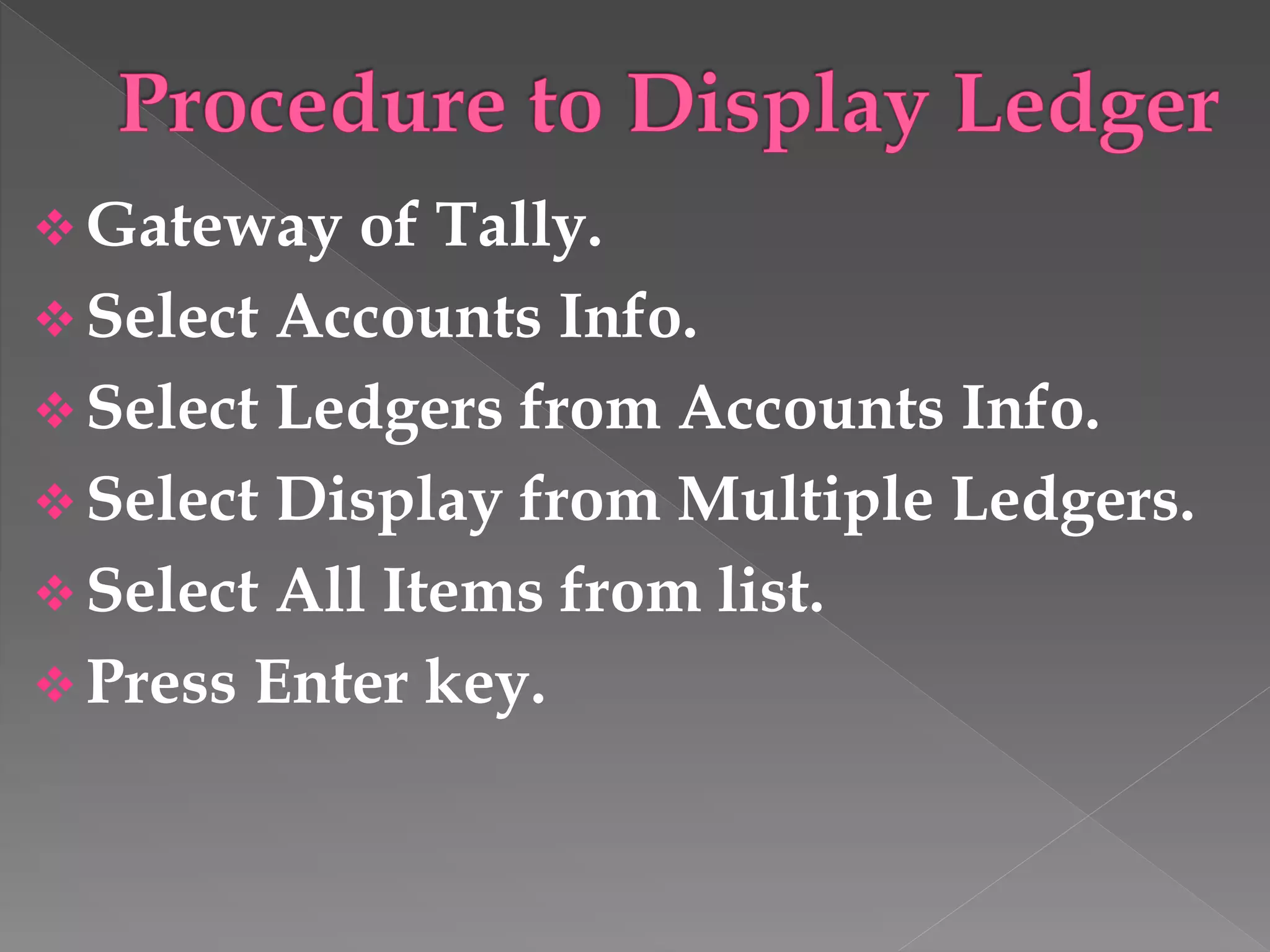
 Gateway of Tally.
 Select Accounts Info.
 Select Ledgers from Accounts Info.
 Select Display from Multiple Ledgers.
 Select All Items from list.
 Press Enter key.
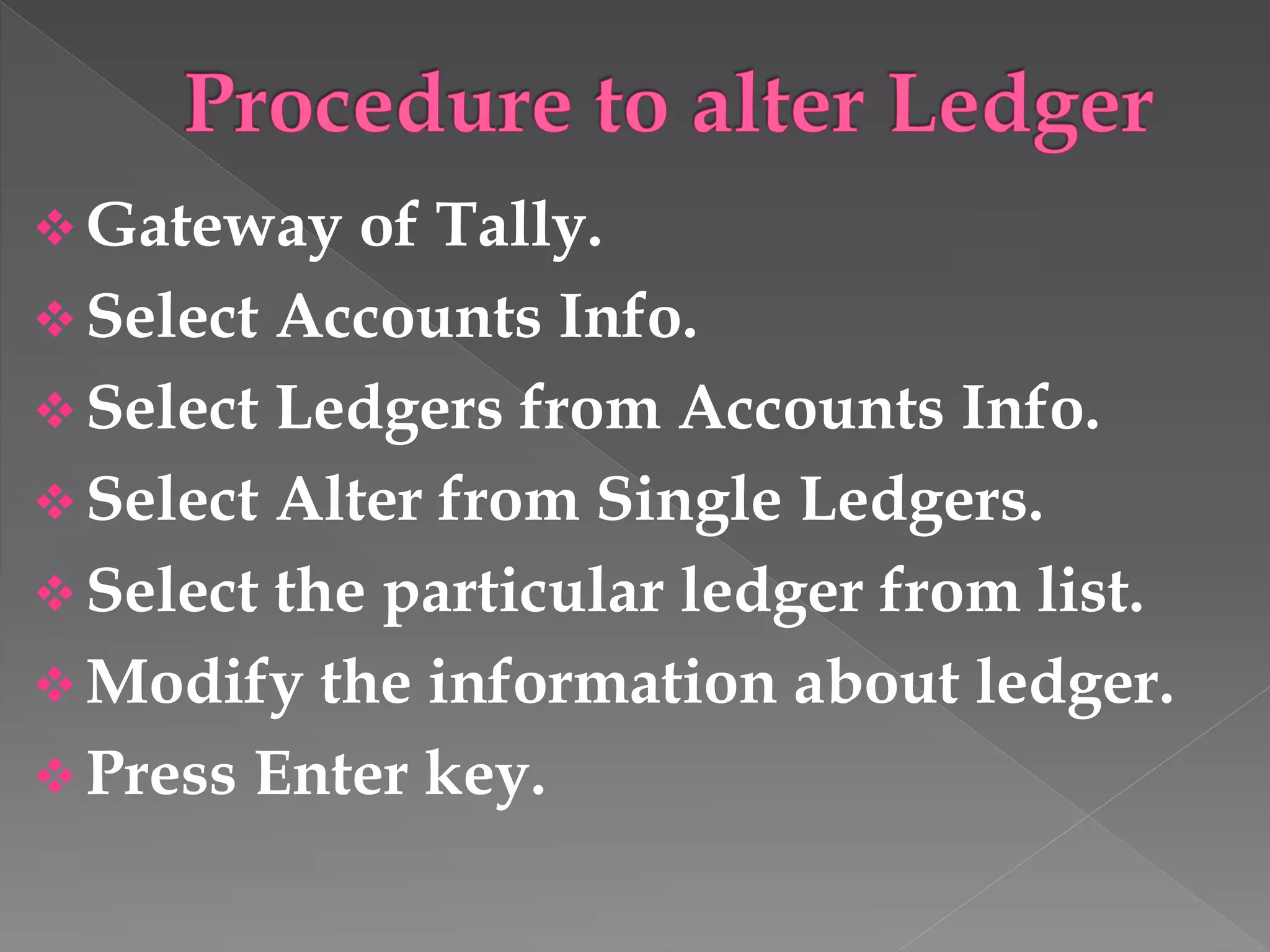
 Gateway of Tally.
 Select Accounts Info.
 Select Ledgers from Accounts Info.
 Select Alter from Single Ledgers.
 Select the particular ledger from list.
 Modify the information about ledger.
 Press Enter key.
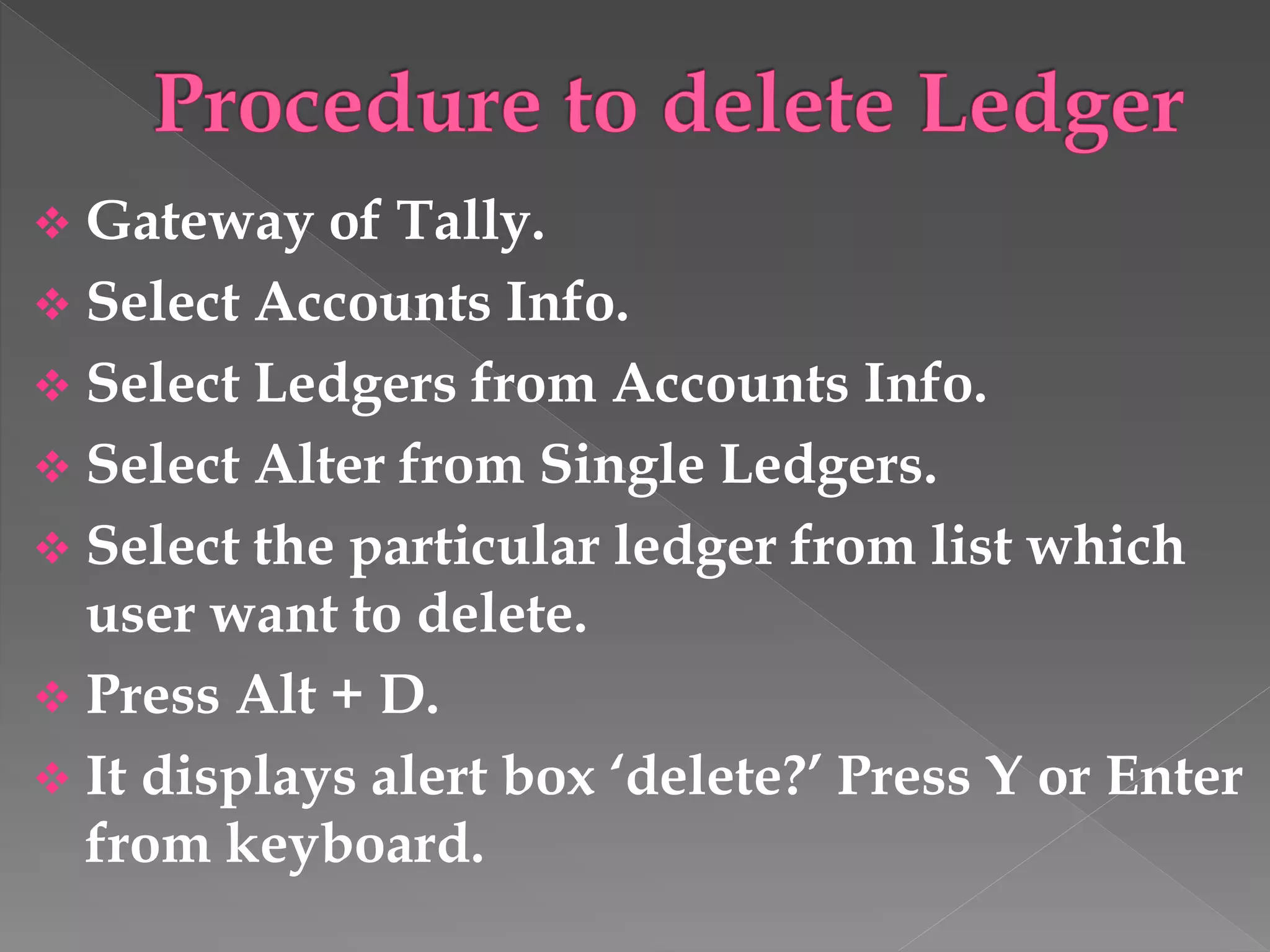
 Gateway of Tally.
 Select Accounts Info.
 Select Ledgers from Accounts Info.
 Select Alter from Single Ledgers.
 Select the particular ledger from list which
user want to delete.
 Press Alt + D.
 It displays alert box ‘delete?’ Press Y or Enter
from keyboard.
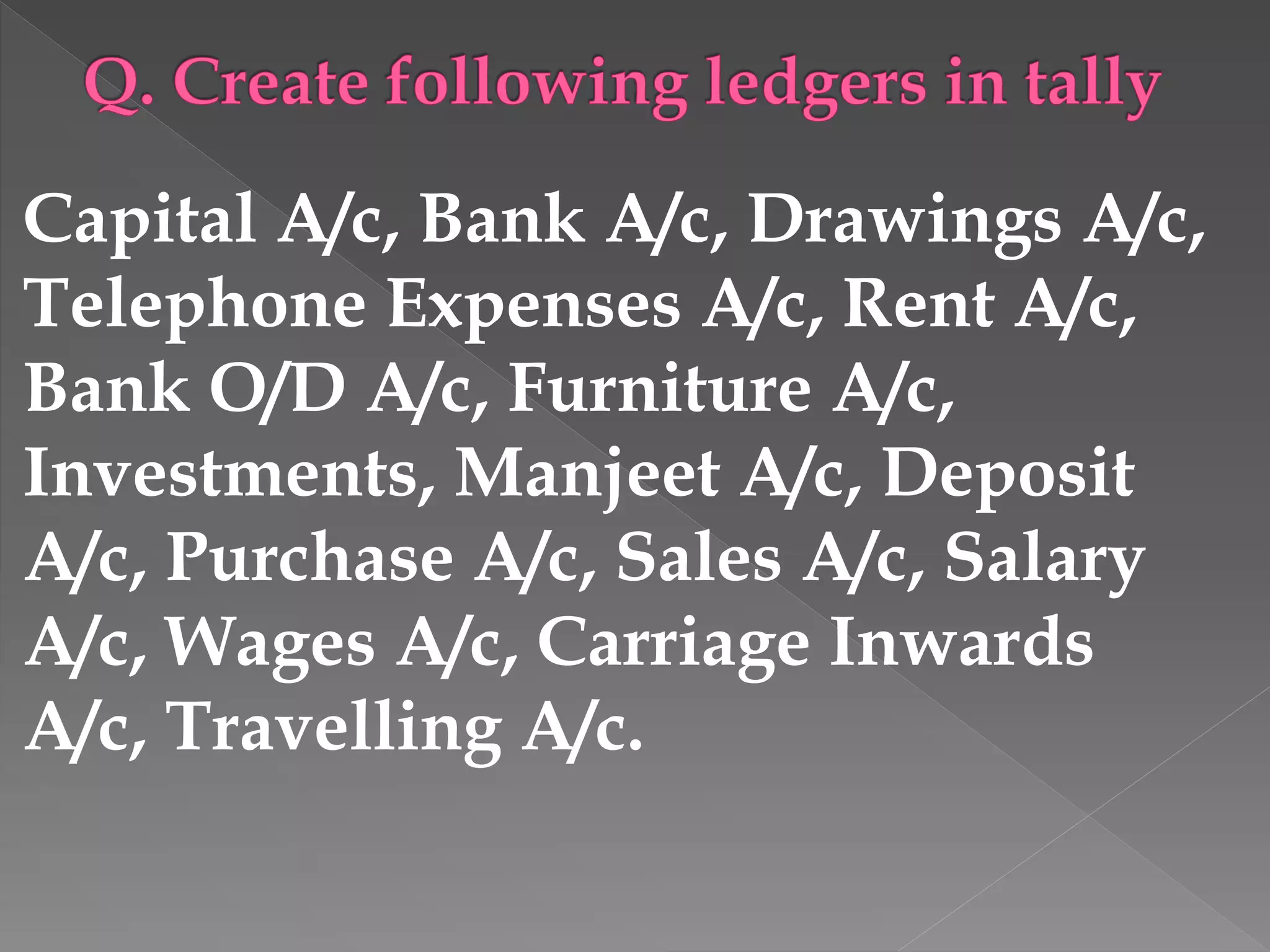
Capital A/c, Bank A/c, Drawings A/c,
Telephone Expenses A/c, Rent A/c,
Bank O/D A/c, Furniture A/c,
Investments, Manjeet A/c, Deposit
A/c, Purchase A/c, Sales A/c, Salary
A/c, Wages A/c, Carriage Inwards
A/c, Travelling A/c.
 Vouchers are used for recording day to day
transactions.
 Tally provides several pre-defined vouchers
with different formats, for different types of
transactions.
 Tally also provides the facility to modify the
vouchers as per business need.
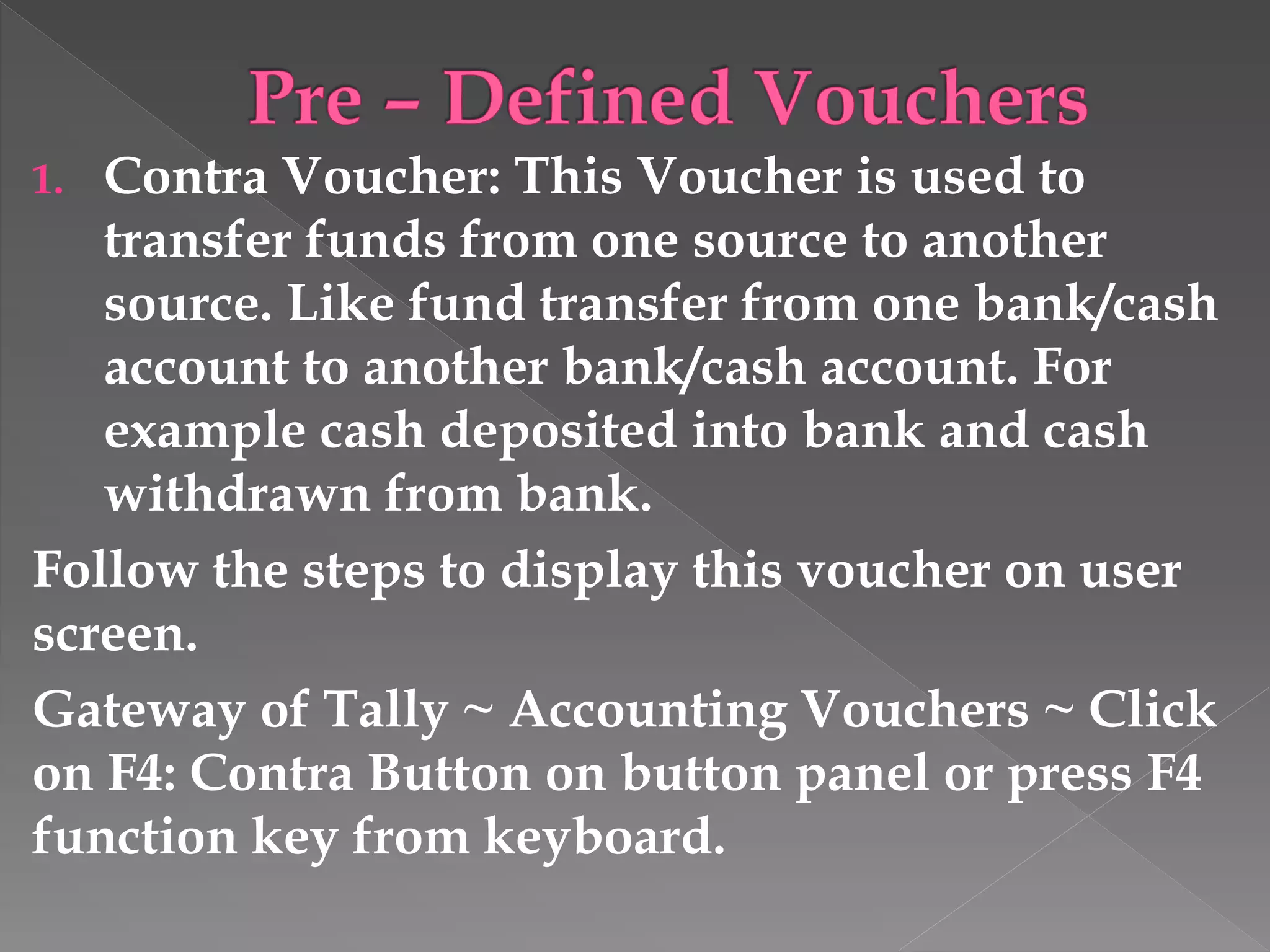
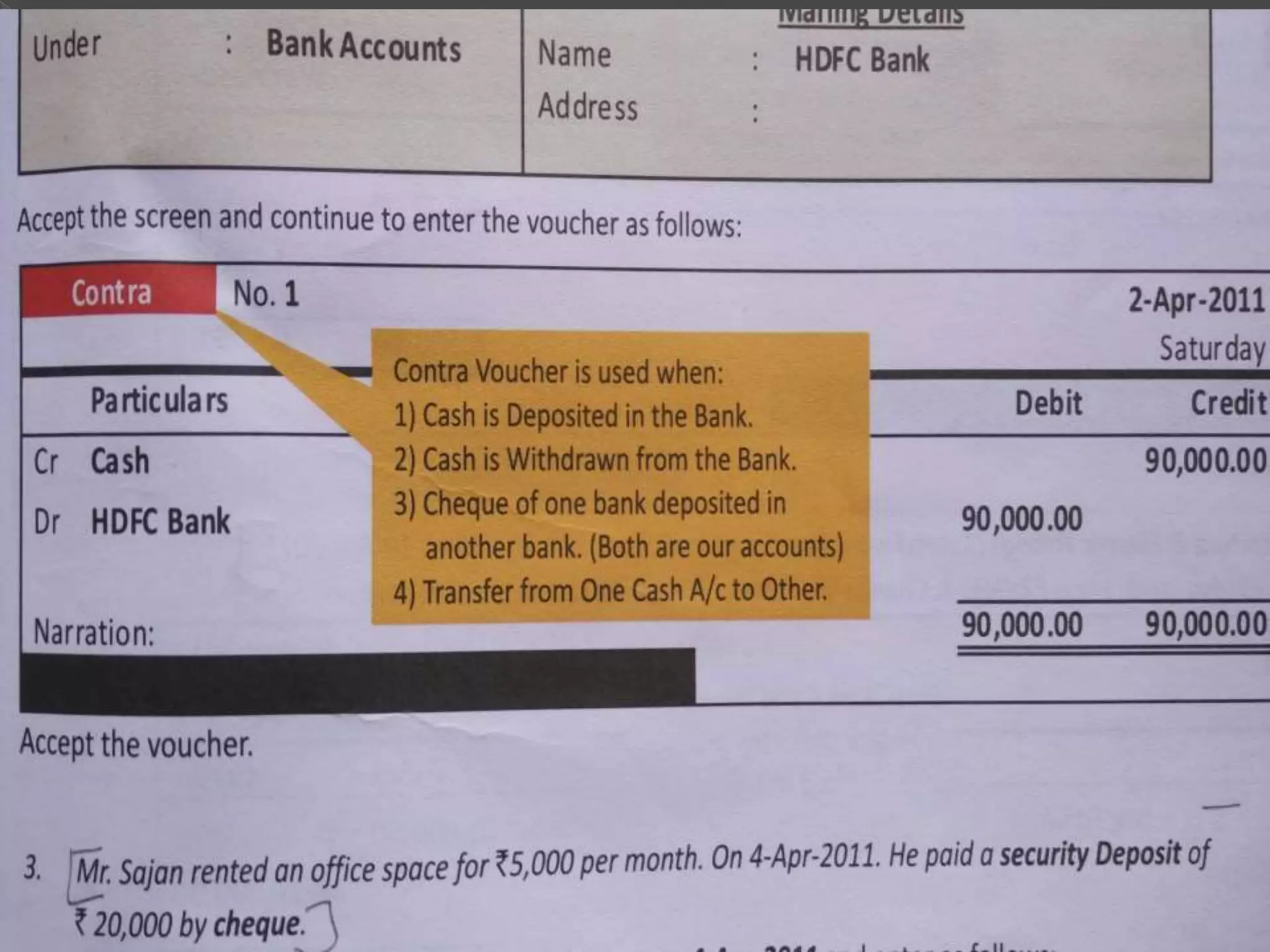
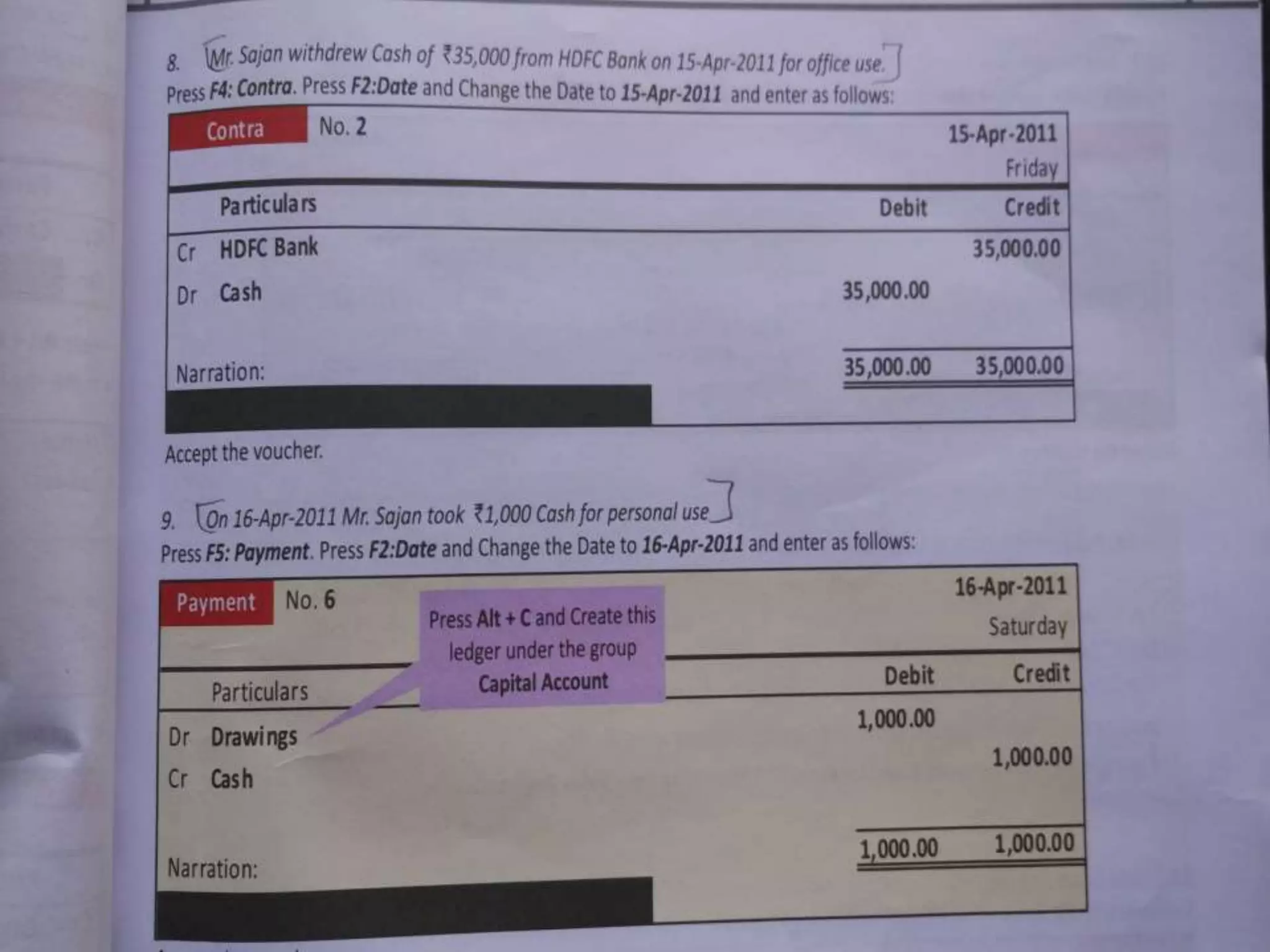
1. Contra Voucher: This Voucher is used to
transfer funds from one source to another
source. Like fund transfer from one bank/cash
account to another bank/cash account. For
example cash deposited into bank and cash
withdrawn from bank.
Follow the steps to display this voucher on user
screen.
Gateway of Tally ~ Accounting Vouchers ~ Click
on F4: Contra Button on button panel or press F4
function key from keyboard.
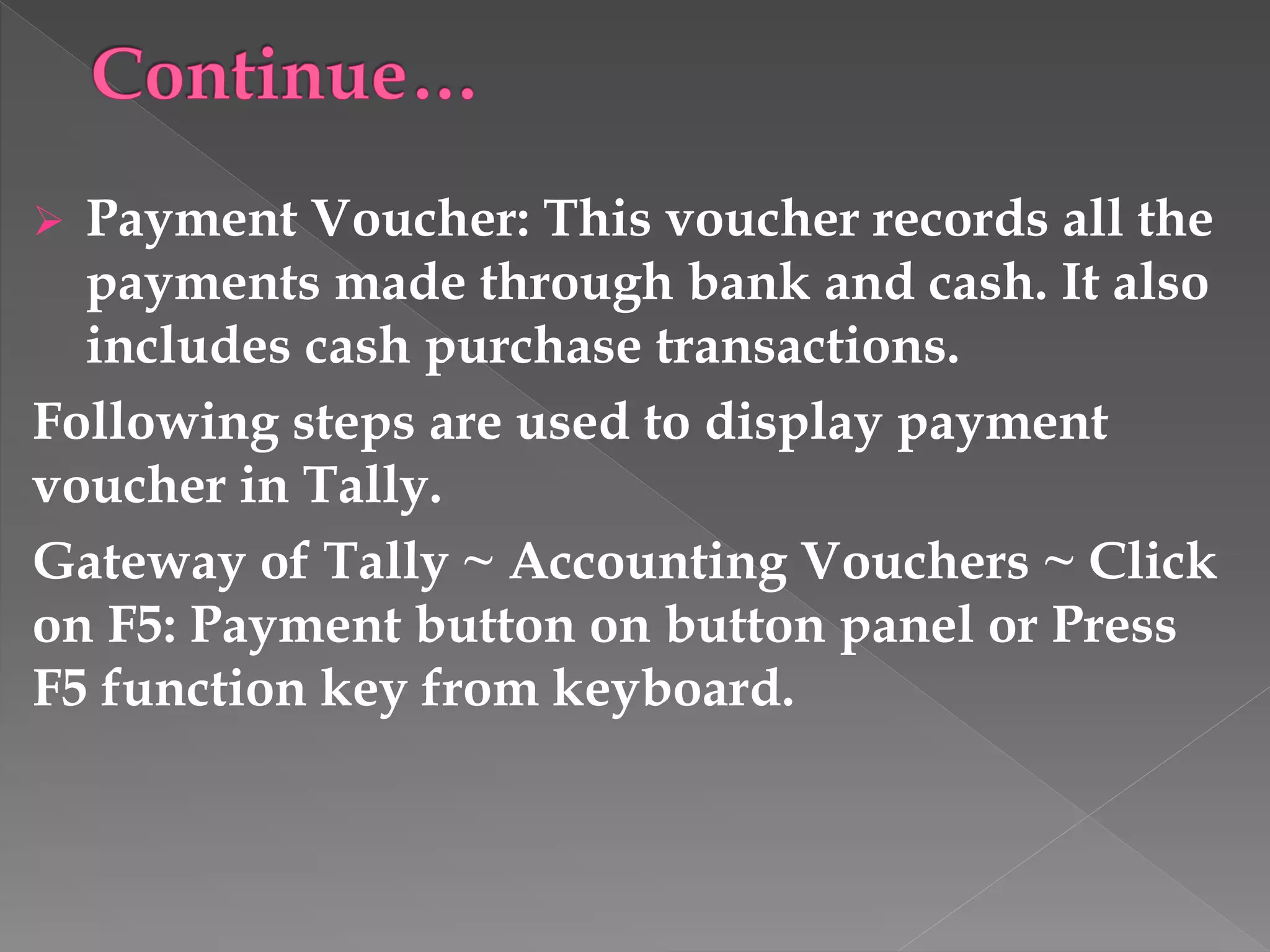
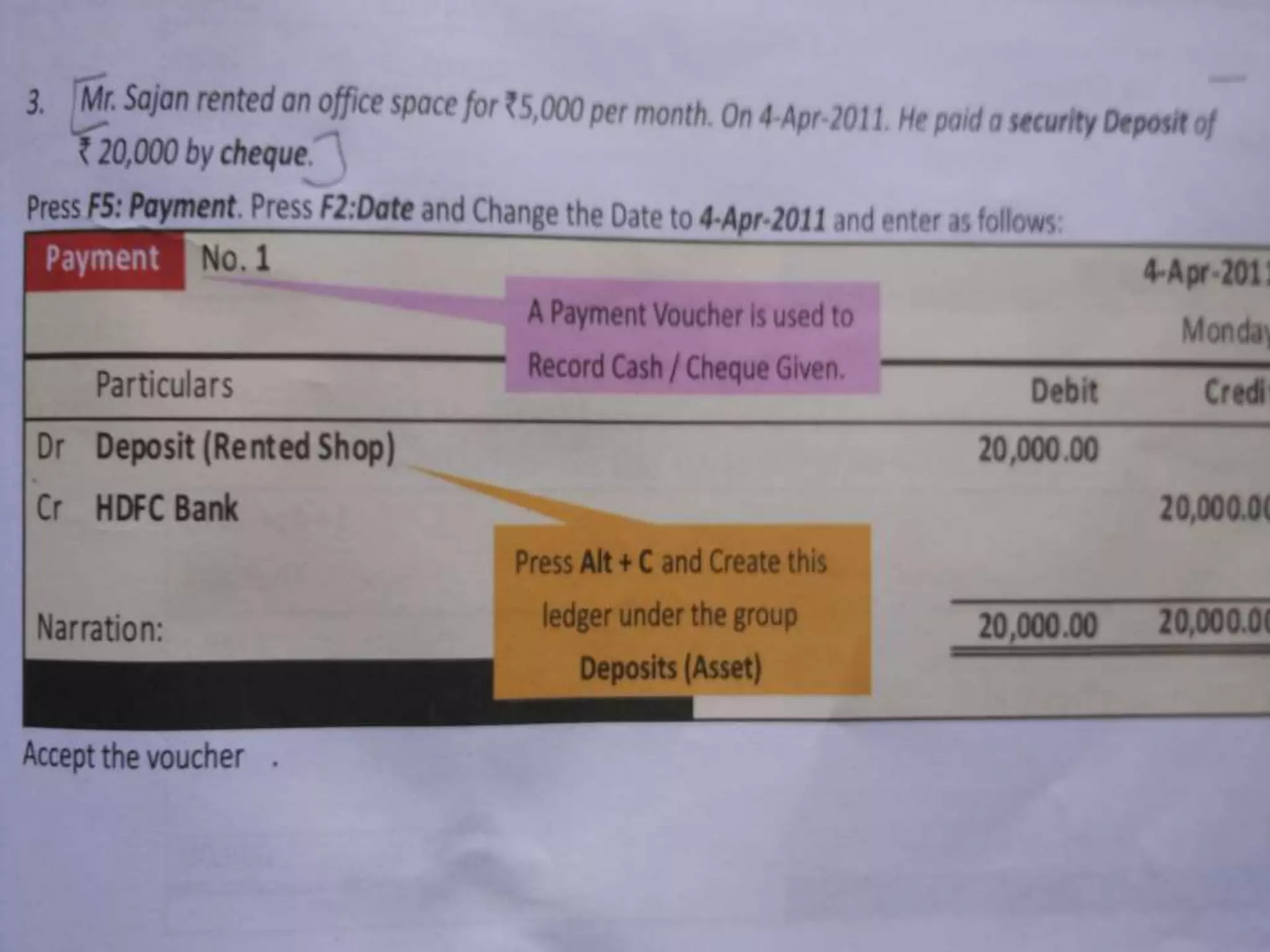
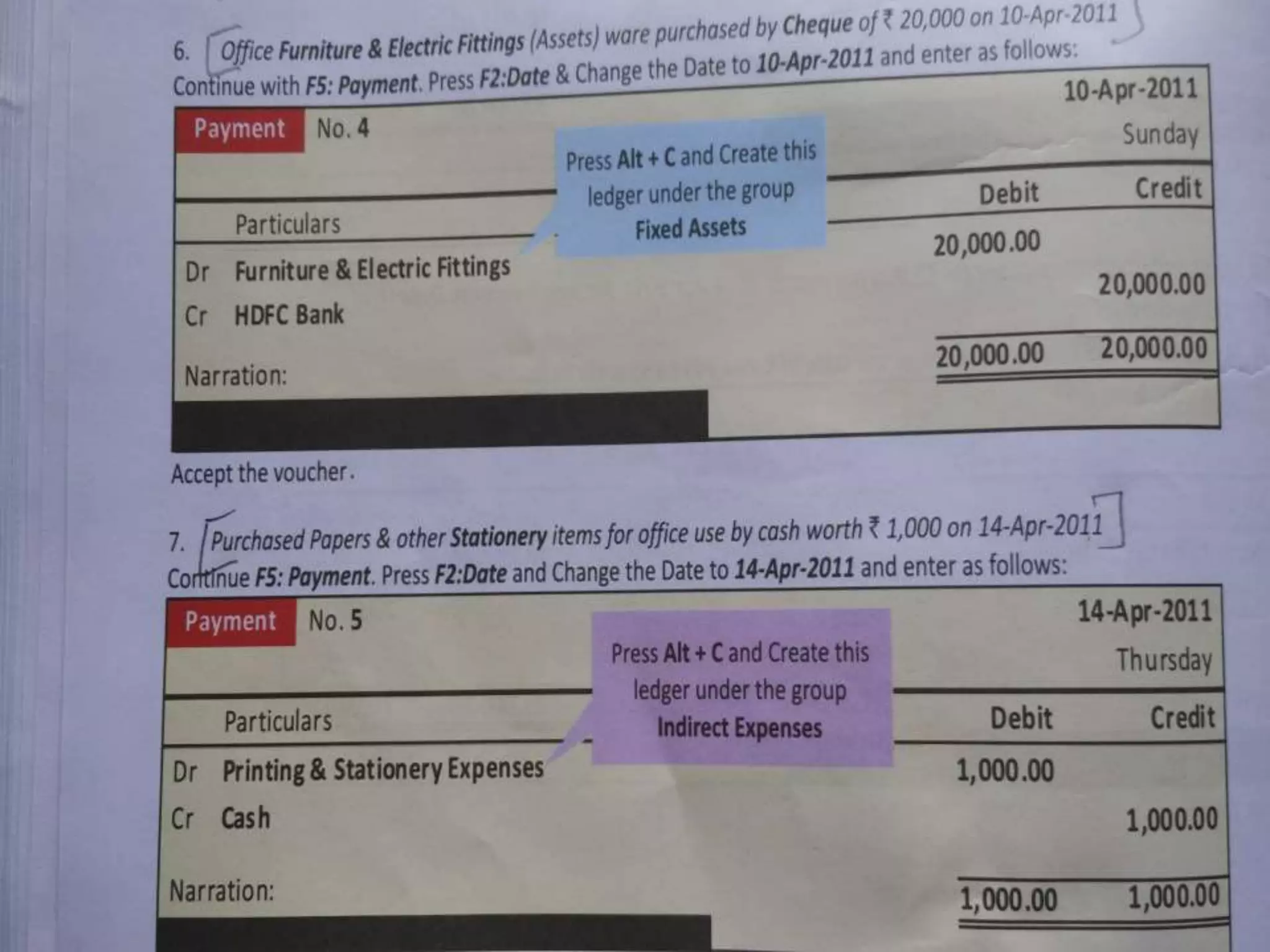
 Payment Voucher: This voucher records all the
payments made through bank and cash. It also
includes cash purchase transactions.
Following steps are used to display payment
voucher in Tally.
Gateway of Tally ~ Accounting Vouchers ~ Click
on F5: Payment button on button panel or Press
F5 function key from keyboard.
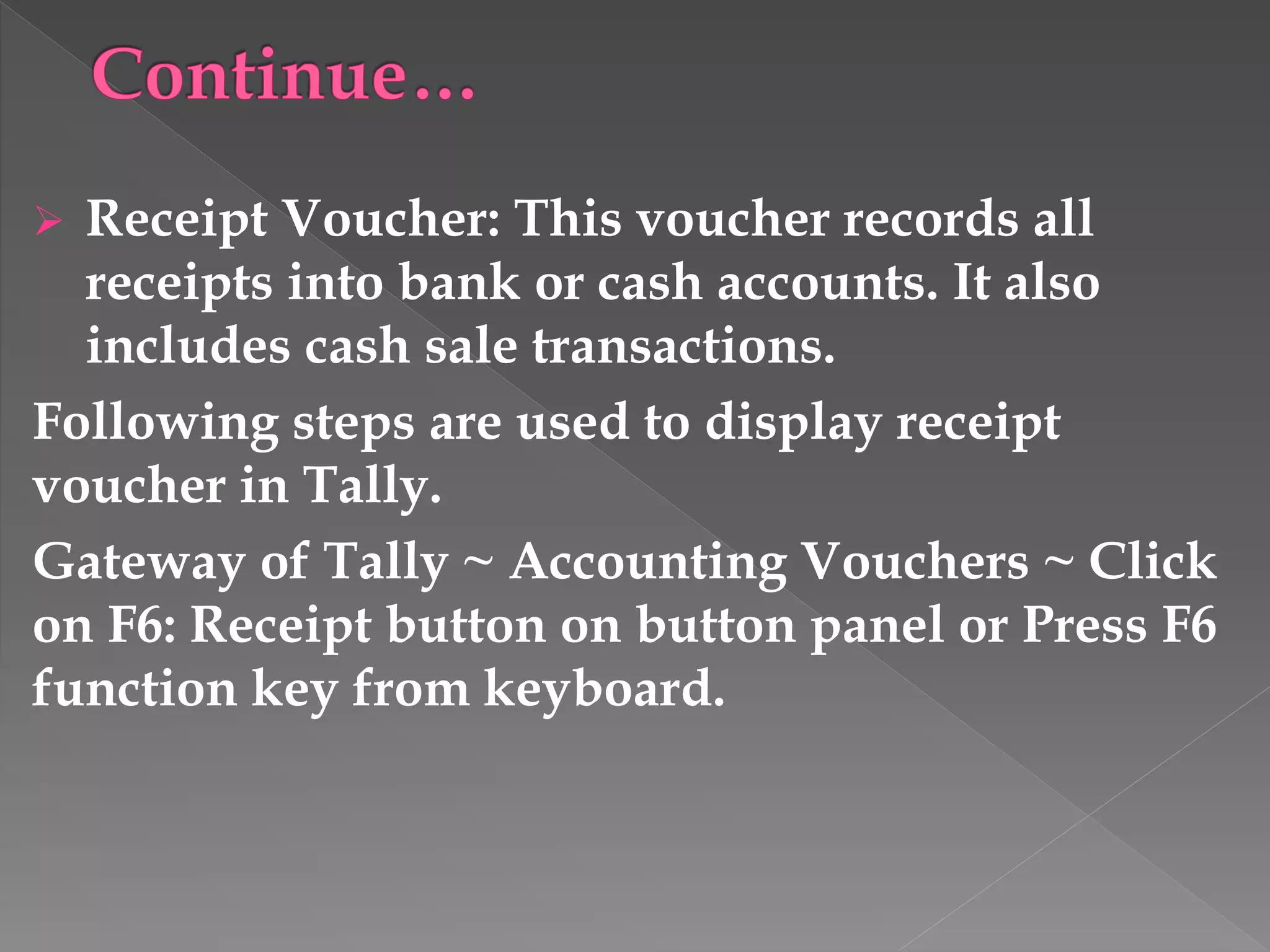
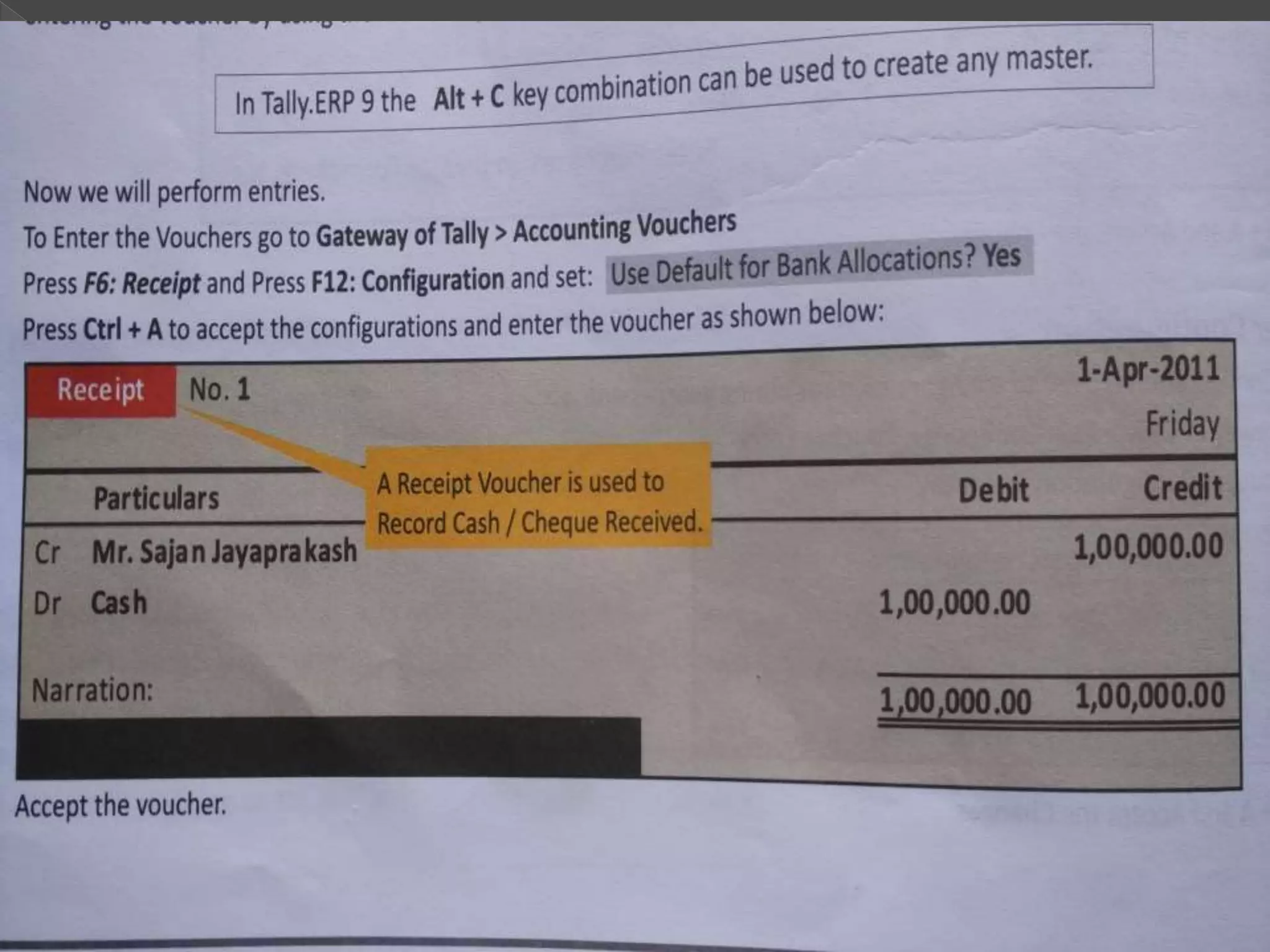
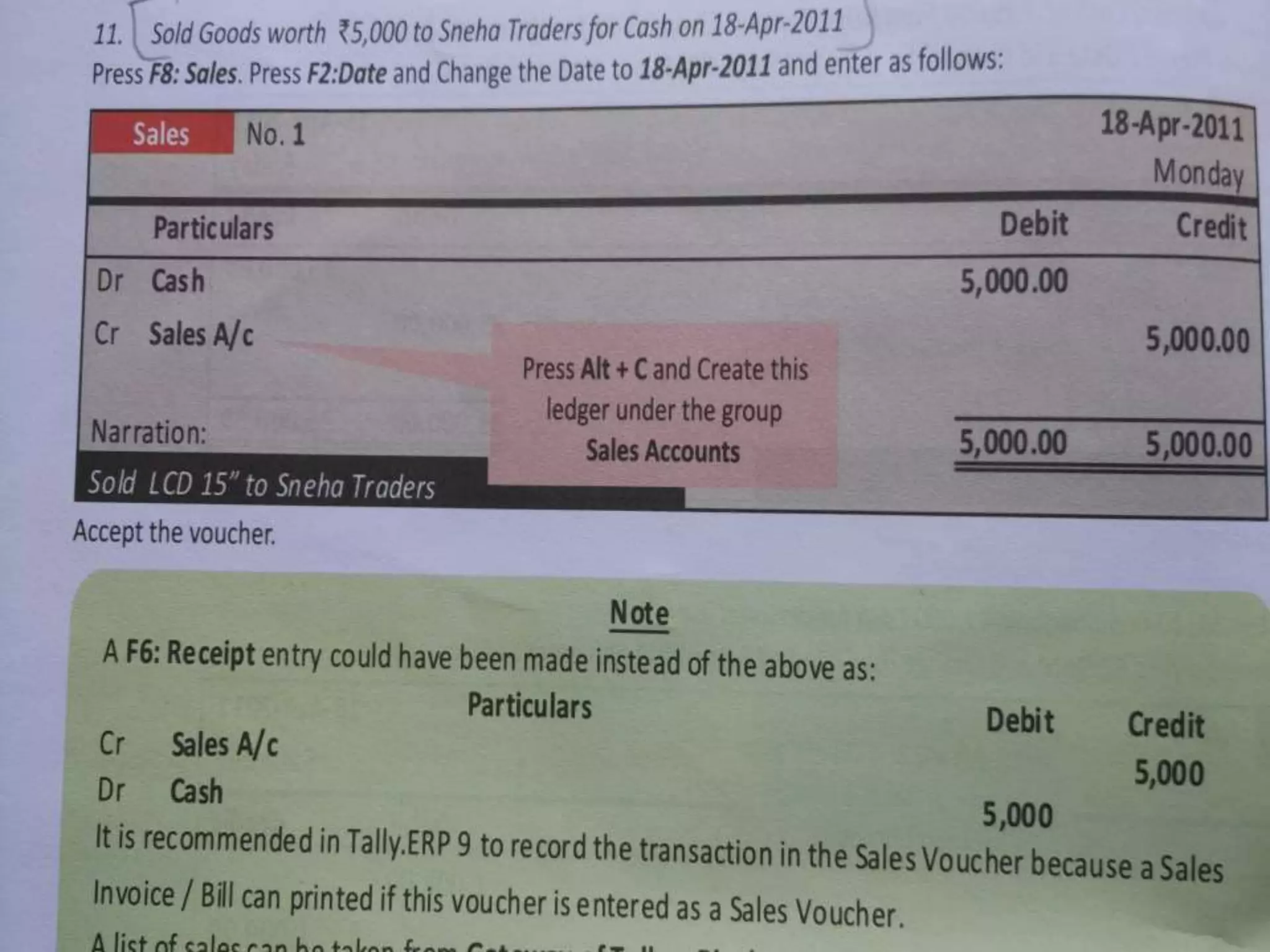
 Receipt Voucher: This voucher records all
receipts into bank or cash accounts. It also
includes cash sale transactions.
Following steps are used to display receipt
voucher in Tally.
Gateway of Tally ~ Accounting Vouchers ~ Click
on F6: Receipt button on button panel or Press F6
function key from keyboard.
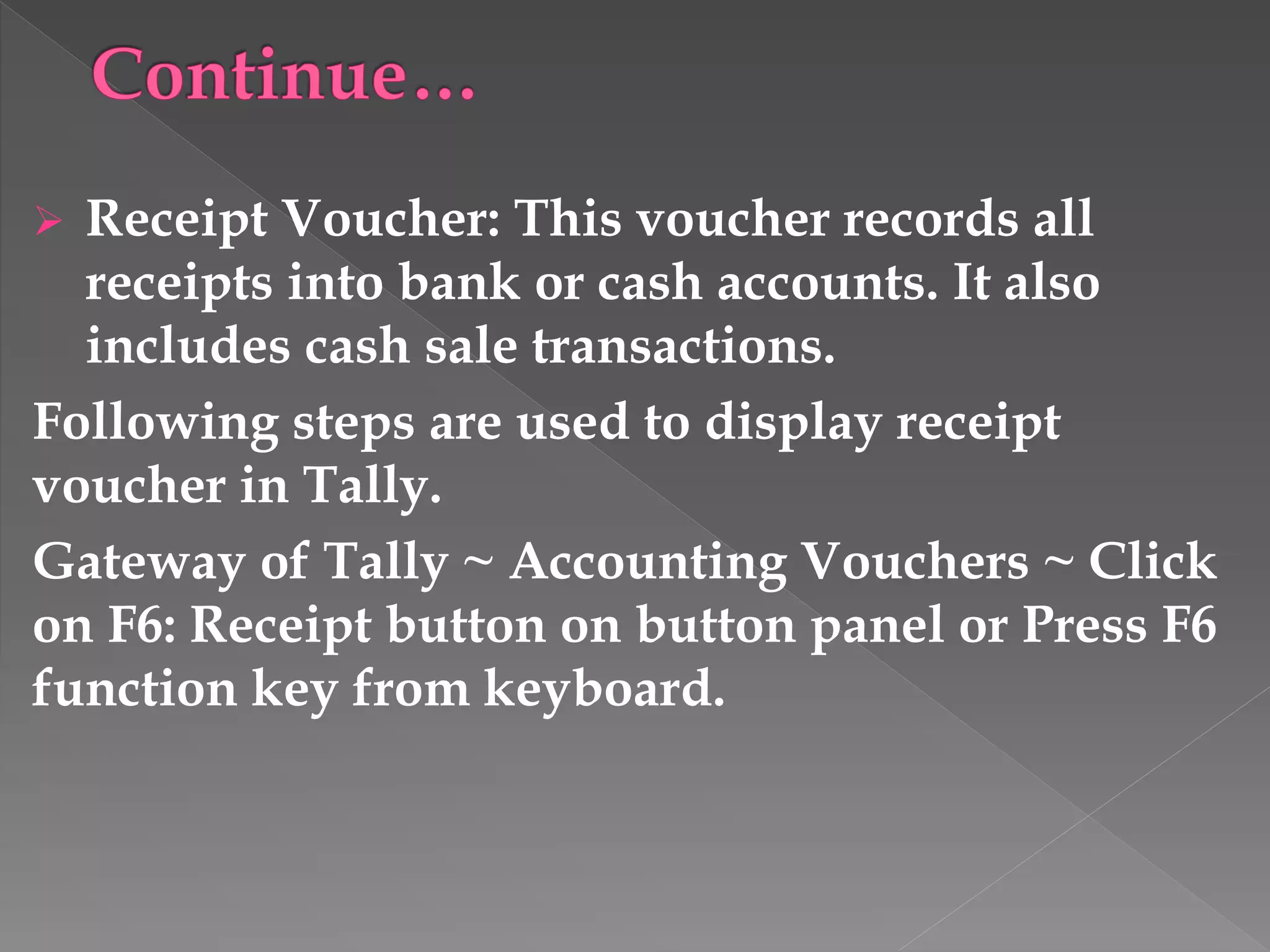
 Receipt Voucher: This voucher records all
receipts into bank or cash accounts. It also
includes cash sale transactions.
Following steps are used to display receipt
voucher in Tally.
Gateway of Tally ~ Accounting Vouchers ~ Click
on F6: Receipt button on button panel or Press F6
function key from keyboard.
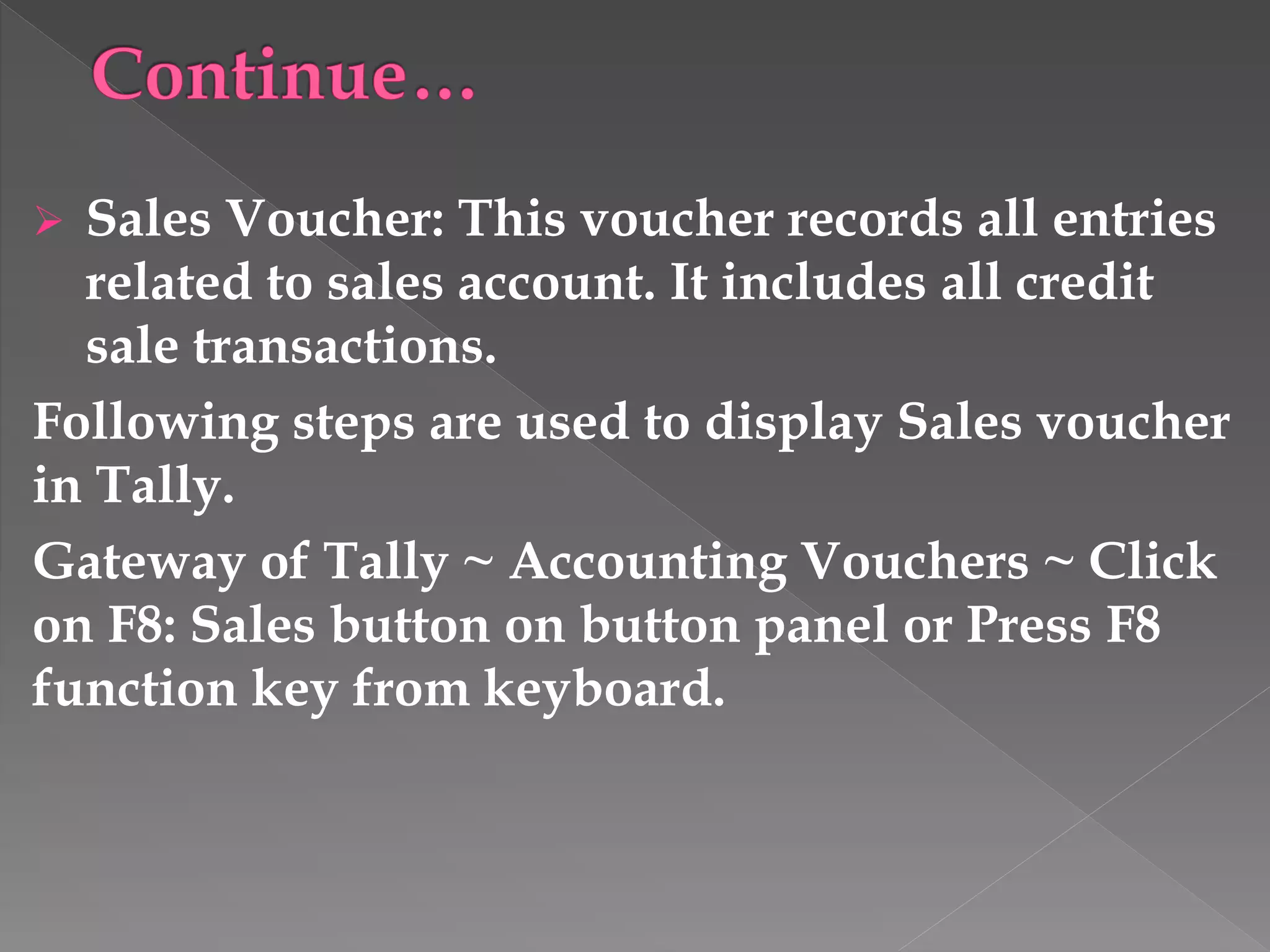
 Sales Voucher: This voucher records all entries
related to sales account. It includes all credit
sale transactions.
Following steps are used to display Sales voucher
in Tally.
Gateway of Tally ~ Accounting Vouchers ~ Click
on F8: Sales button on button panel or Press F8
function key from keyboard.
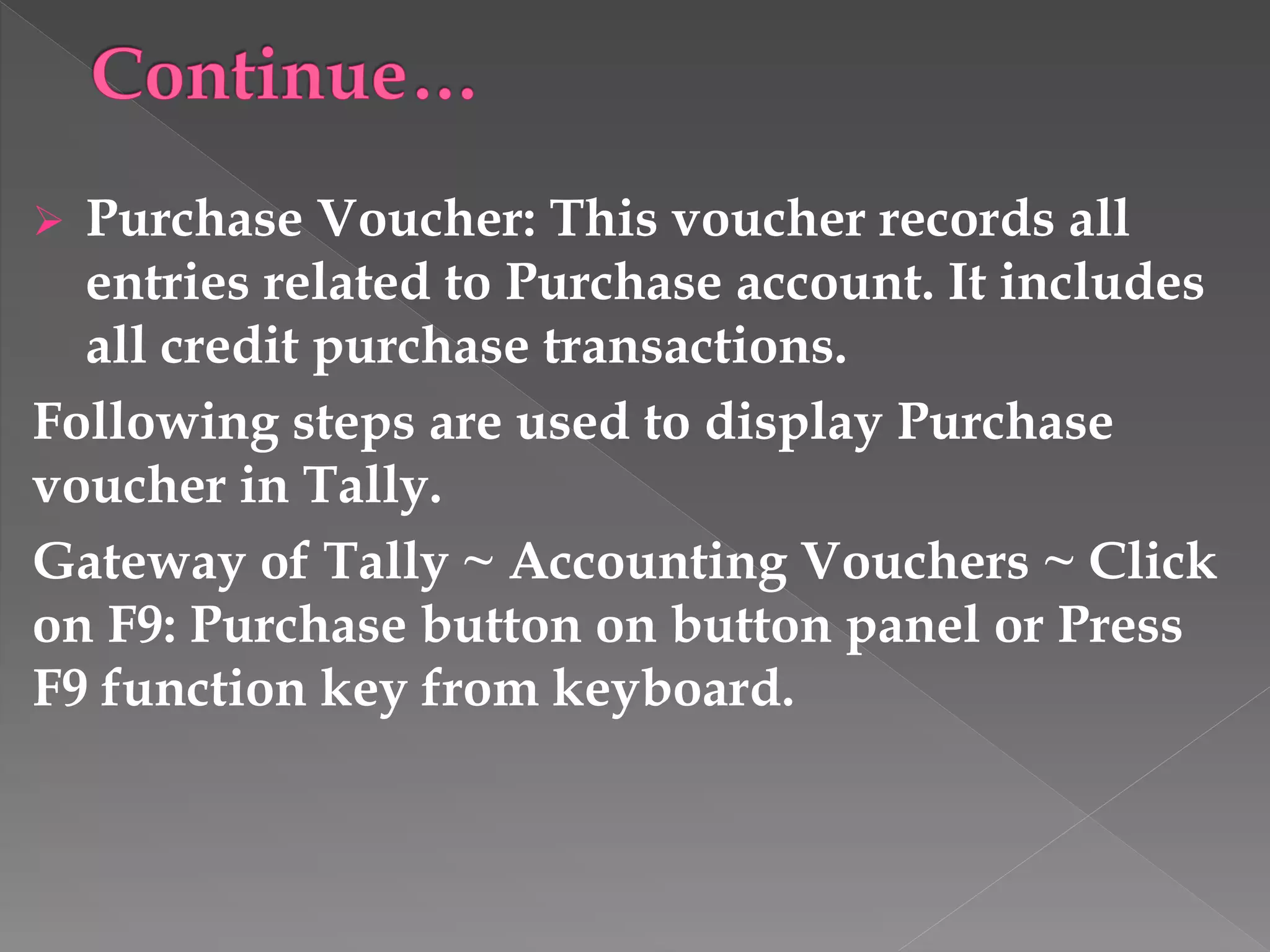
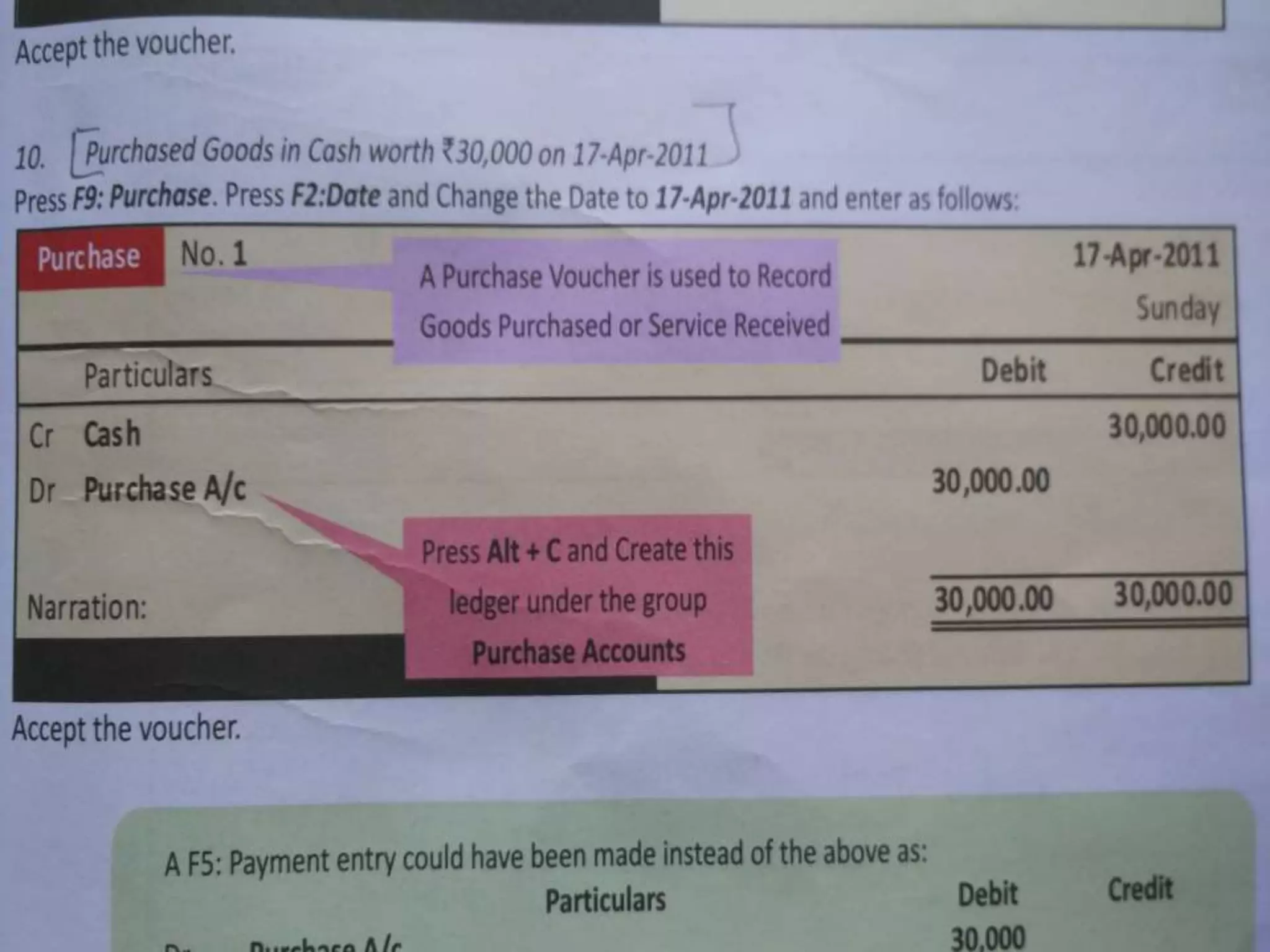
 Purchase Voucher: This voucher records all
entries related to Purchase account. It includes
all credit purchase transactions.
Following steps are used to display Purchase
voucher in Tally.
Gateway of Tally ~ Accounting Vouchers ~ Click
on F9: Purchase button on button panel or Press
F9 function key from keyboard.
 Journal Voucher : This voucher is used for
rectification/adjustment entries.
Three types of journal vouchers
1. Journal
2. Credit Note Voucher
3. Debit Note Voucher.
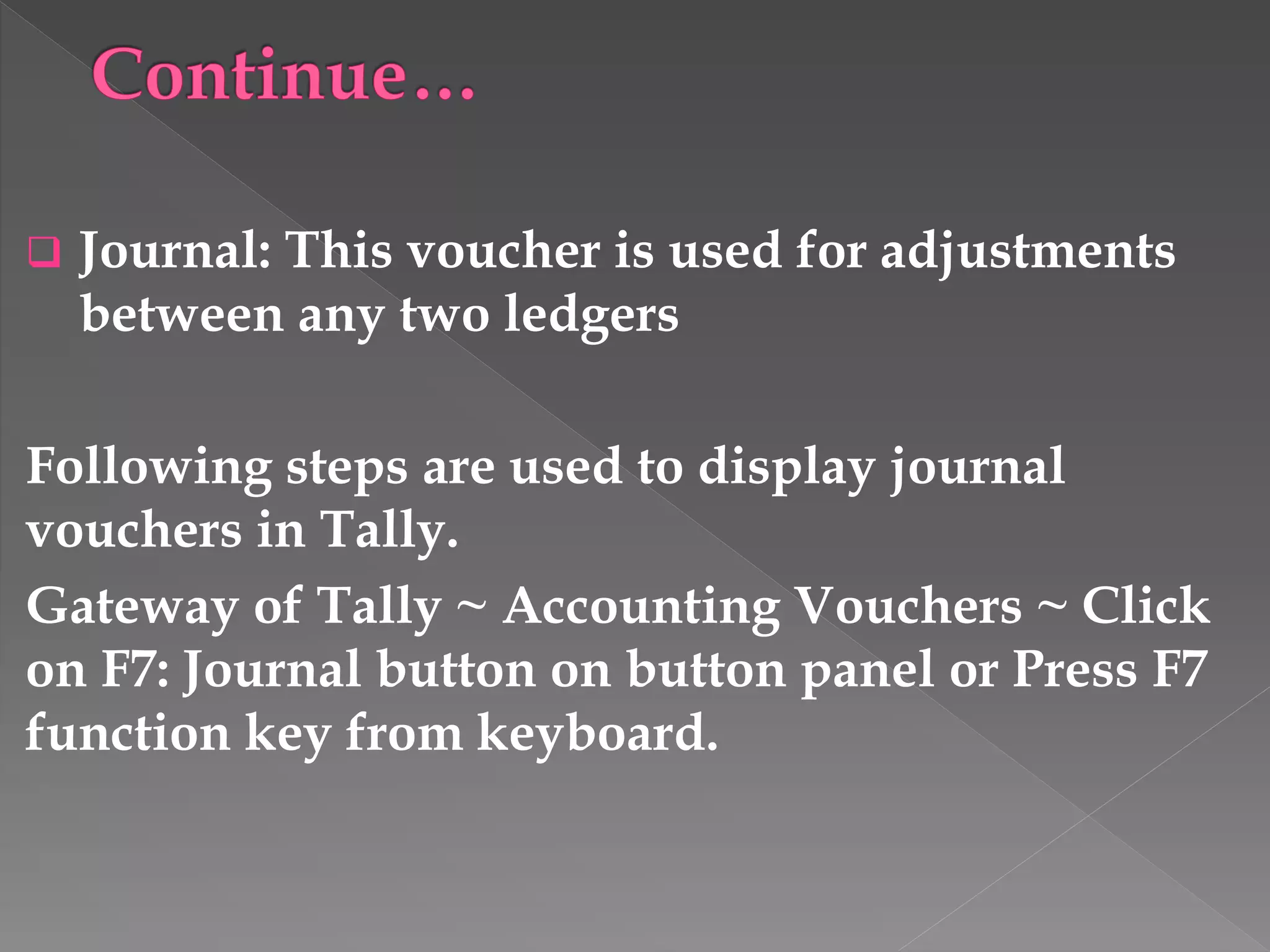
 Journal: This voucher is used for adjustments
between any two ledgers
Following steps are used to display journal
vouchers in Tally.
Gateway of Tally ~ Accounting Vouchers ~ Click
on F7: Journal button on button panel or Press F7
function key from keyboard.
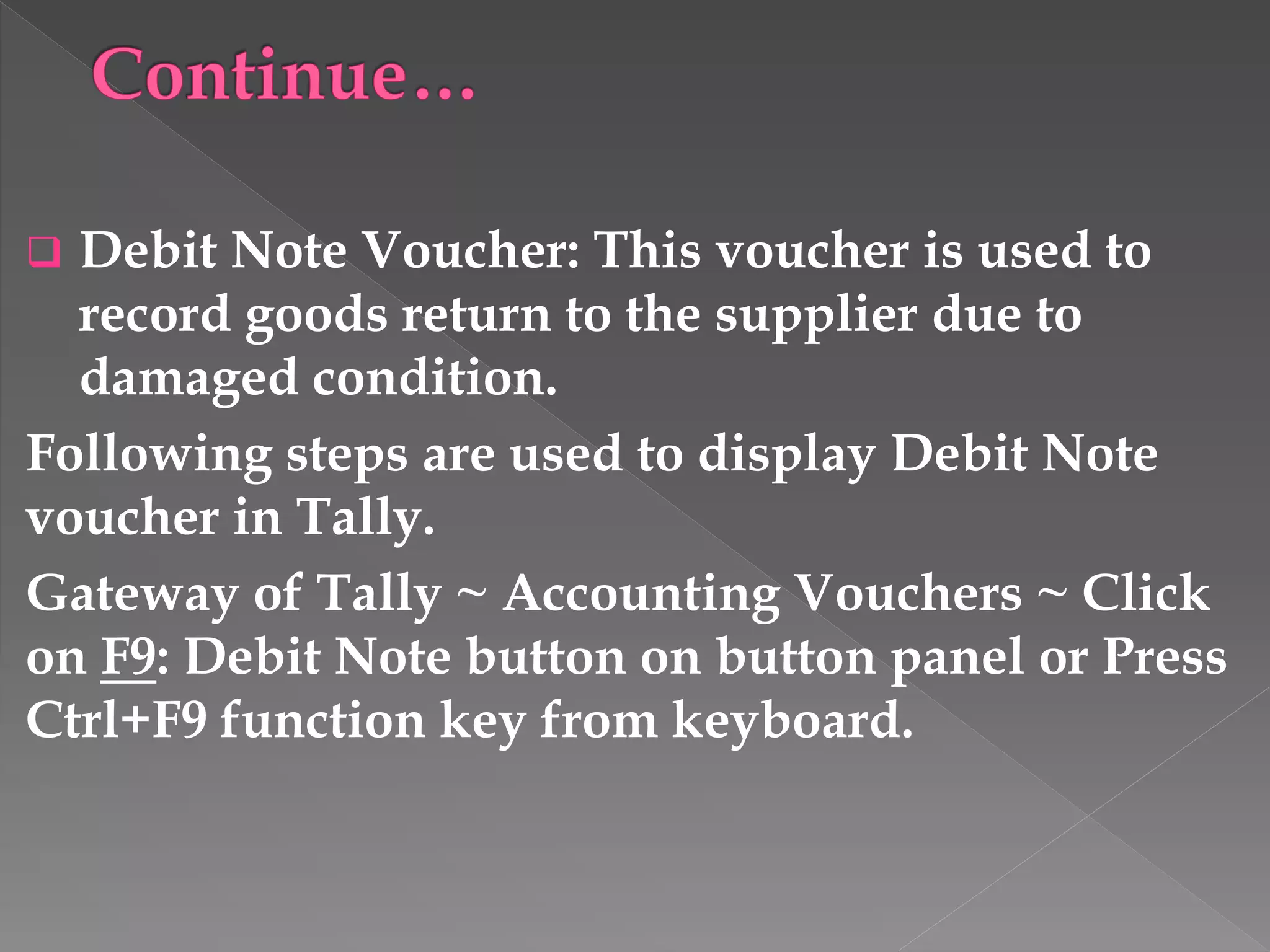
 Debit Note Voucher: This voucher is used to
record goods return to the supplier due to
damaged condition.
Following steps are used to display Debit Note
voucher in Tally.
Gateway of Tally ~ Accounting Vouchers ~ Click
on F9: Debit Note button on button panel or Press
Ctrl+F9 function key from keyboard.
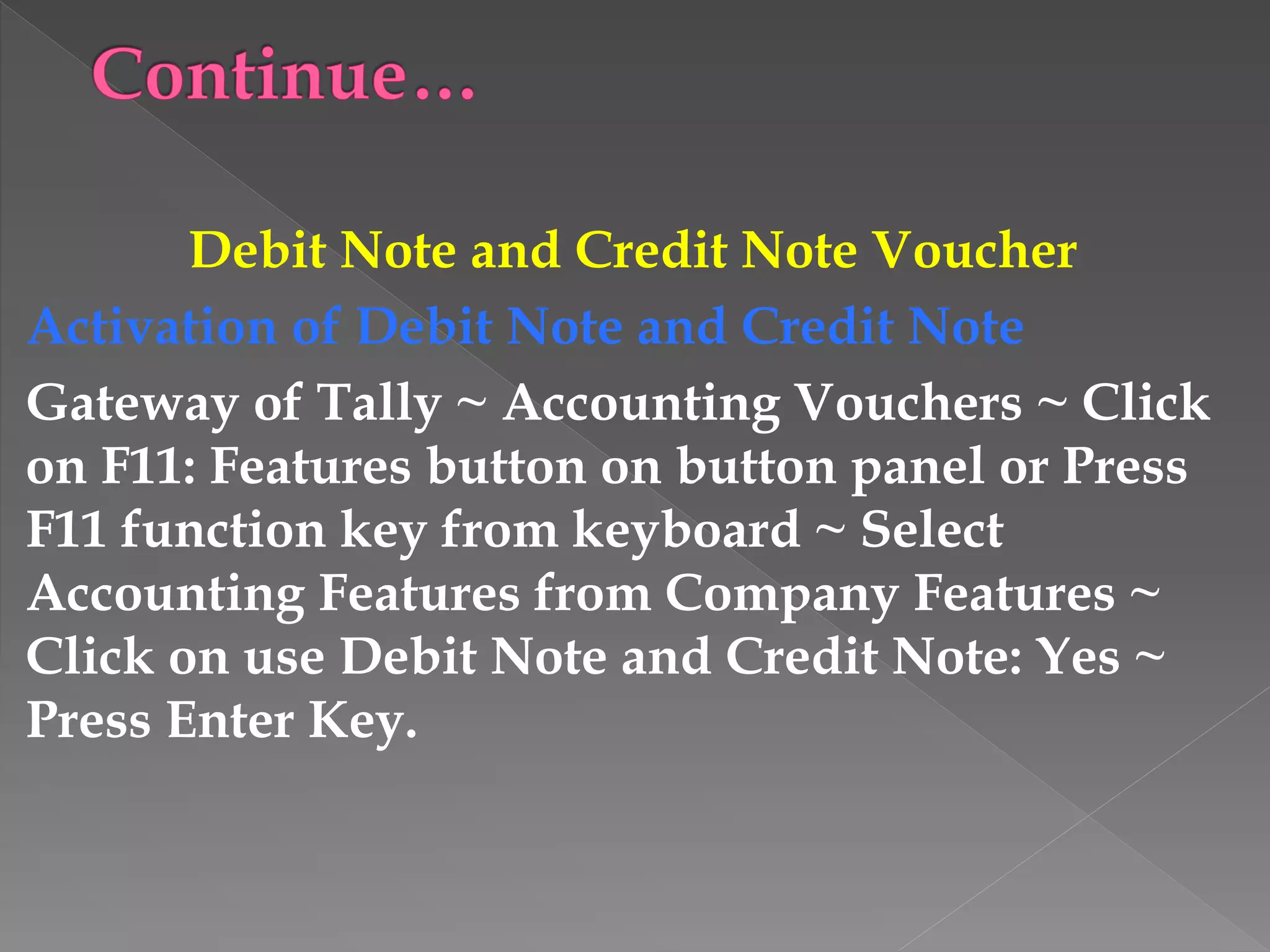
Debit Note and Credit Note Voucher
Activation of Debit Note and Credit Note
Gateway of Tally ~ Accounting Vouchers ~ Click
on F11: Features button on button panel or Press
F11 function key from keyboard ~ Select
Accounting Features from Company Features ~
Click on use Debit Note and Credit Note: Yes ~
Press Enter Key.
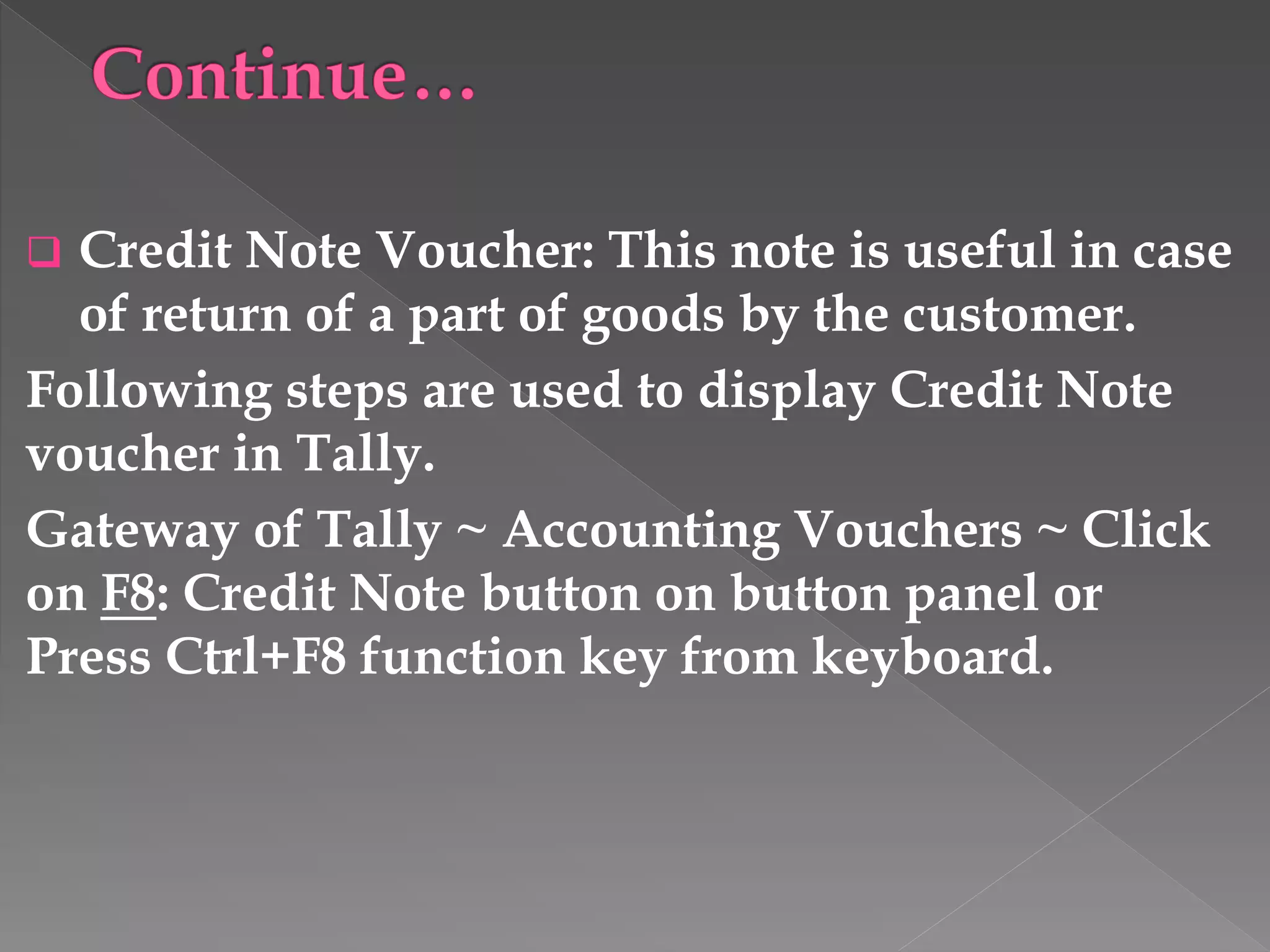
 Credit Note Voucher: This note is useful in case
of return of a part of goods by the customer.
Following steps are used to display Credit Note
voucher in Tally.
Gateway of Tally ~ Accounting Vouchers ~ Click
on F8: Credit Note button on button panel or
Press Ctrl+F8 function key from keyboard.
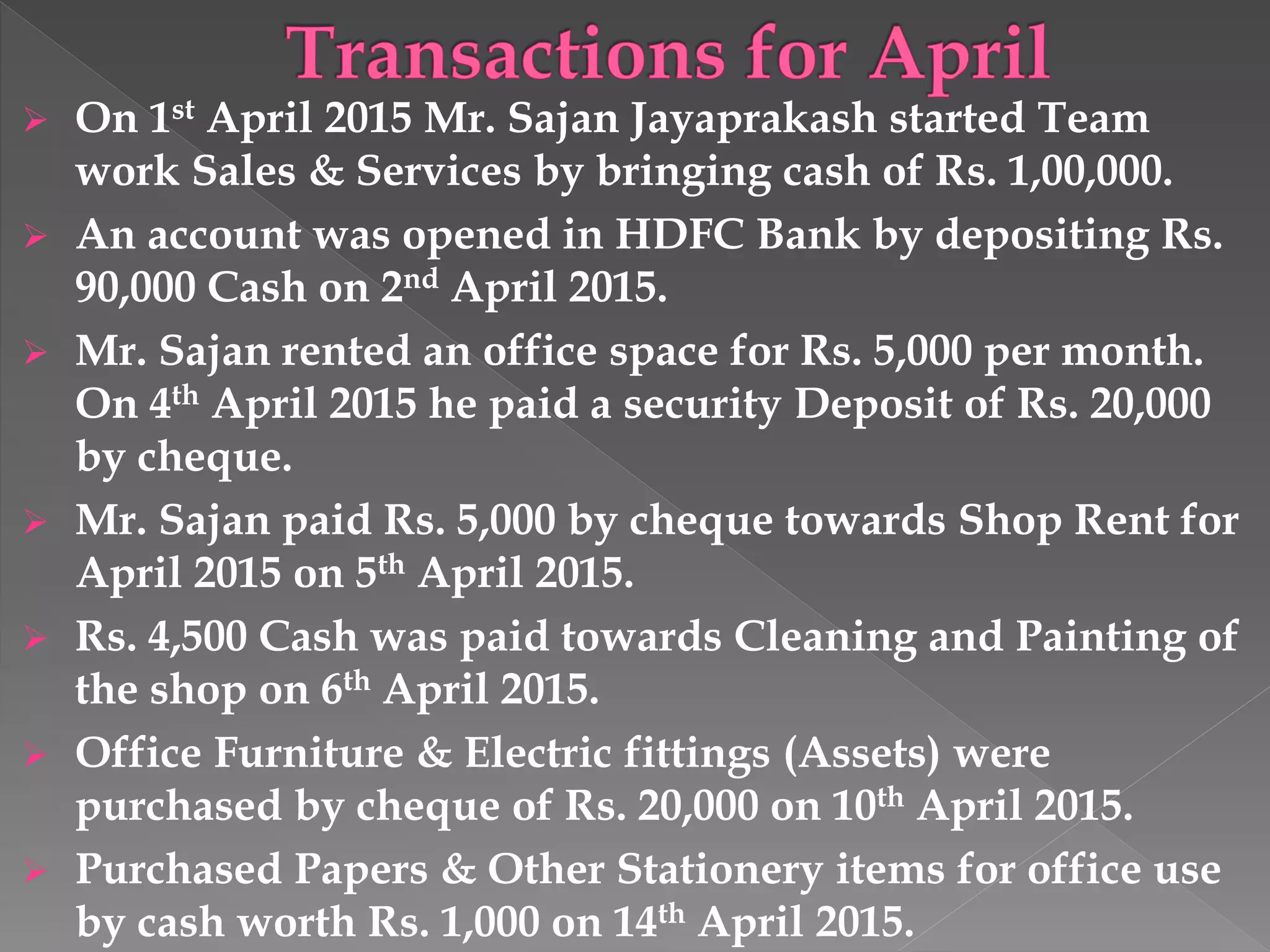
 On 1st April 2015 Mr. Sajan Jayaprakash started Team
work Sales & Services by bringing cash of Rs. 1,00,000.
 An account was opened in HDFC Bank by depositing Rs.
90,000 Cash on 2nd April 2015.
 Mr. Sajan rented an office space for Rs. 5,000 per month.
On 4th April 2015 he paid a security Deposit of Rs. 20,000
by cheque.
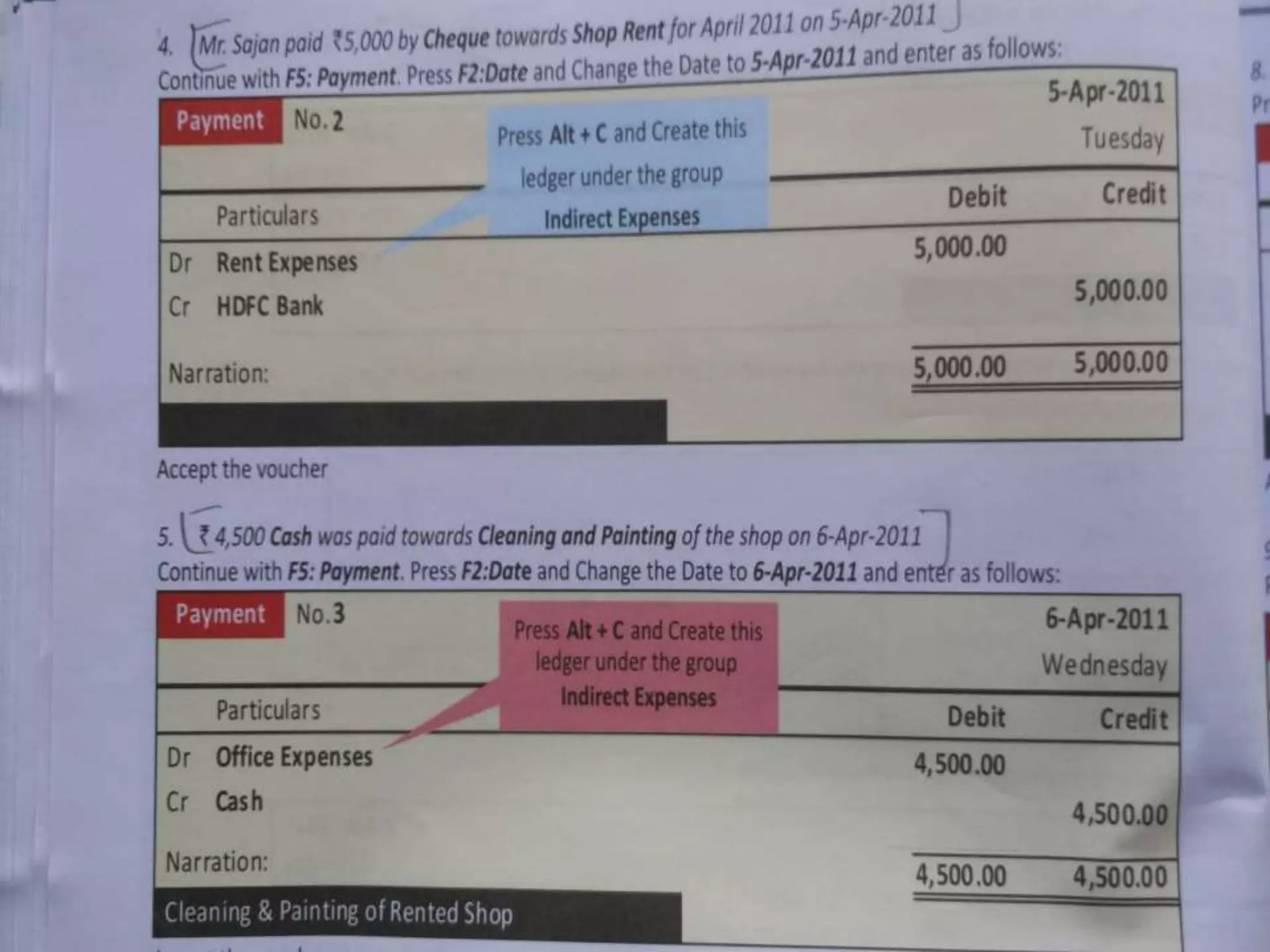
 Mr. Sajan paid Rs. 5,000 by cheque towards Shop Rent for
April 2015 on 5th April 2015.
 Rs. 4,500 Cash was paid towards Cleaning and Painting of
the shop on 6th April 2015.
 Office Furniture & Electric fittings (Assets) were
purchased by cheque of Rs. 20,000 on 10th April 2015.
 Purchased Papers & Other Stationery items for office use
by cash worth Rs. 1,000 on 14th April 2015.
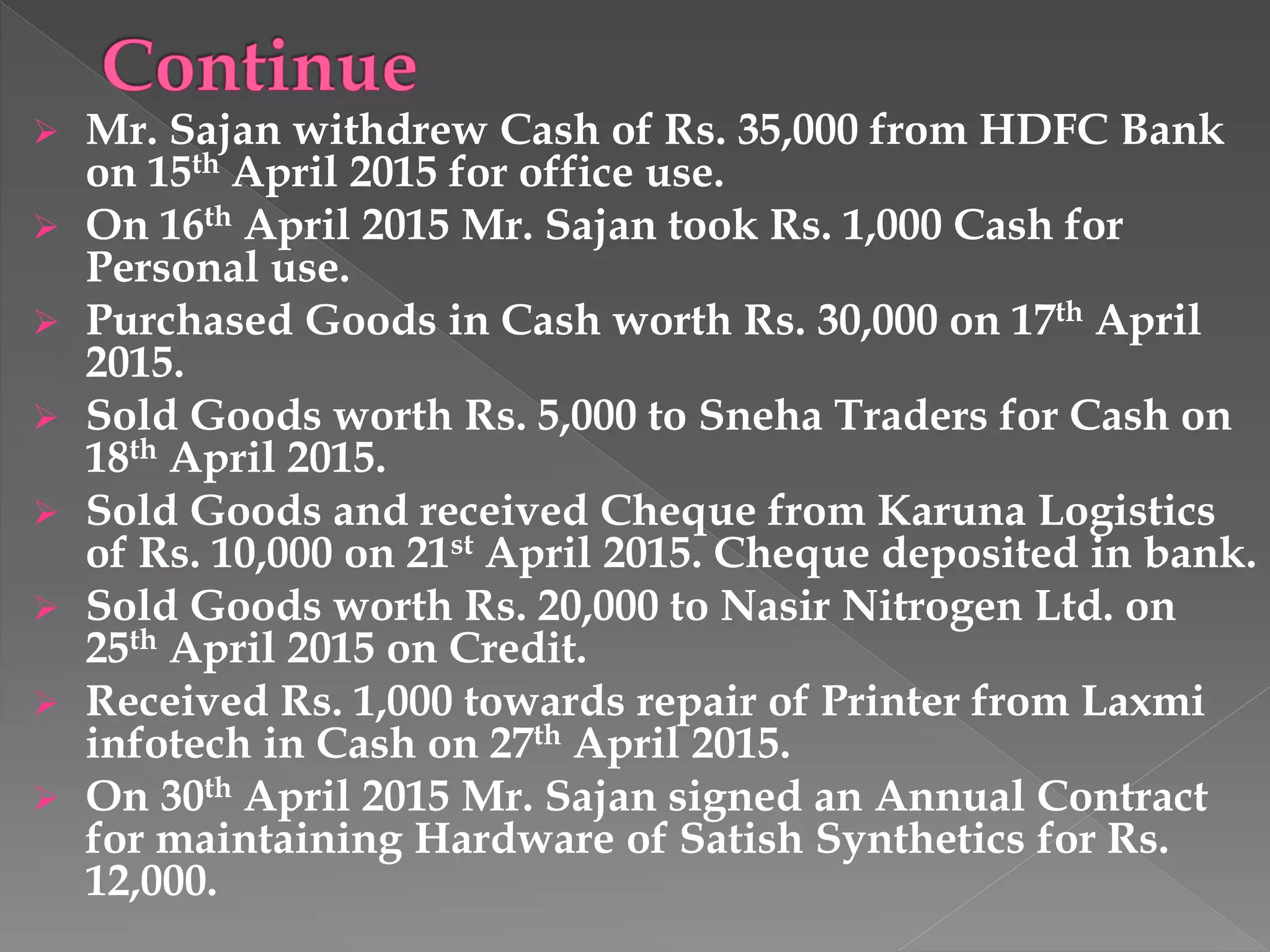
 Mr. Sajan withdrew Cash of Rs. 35,000 from HDFC Bank
on 15th April 2015 for office use.
 On 16th April 2015 Mr. Sajan took Rs. 1,000 Cash for
Personal use.
 Purchased Goods in Cash worth Rs. 30,000 on 17th April
2015.
 Sold Goods worth Rs. 5,000 to Sneha Traders for Cash on
18th April 2015.
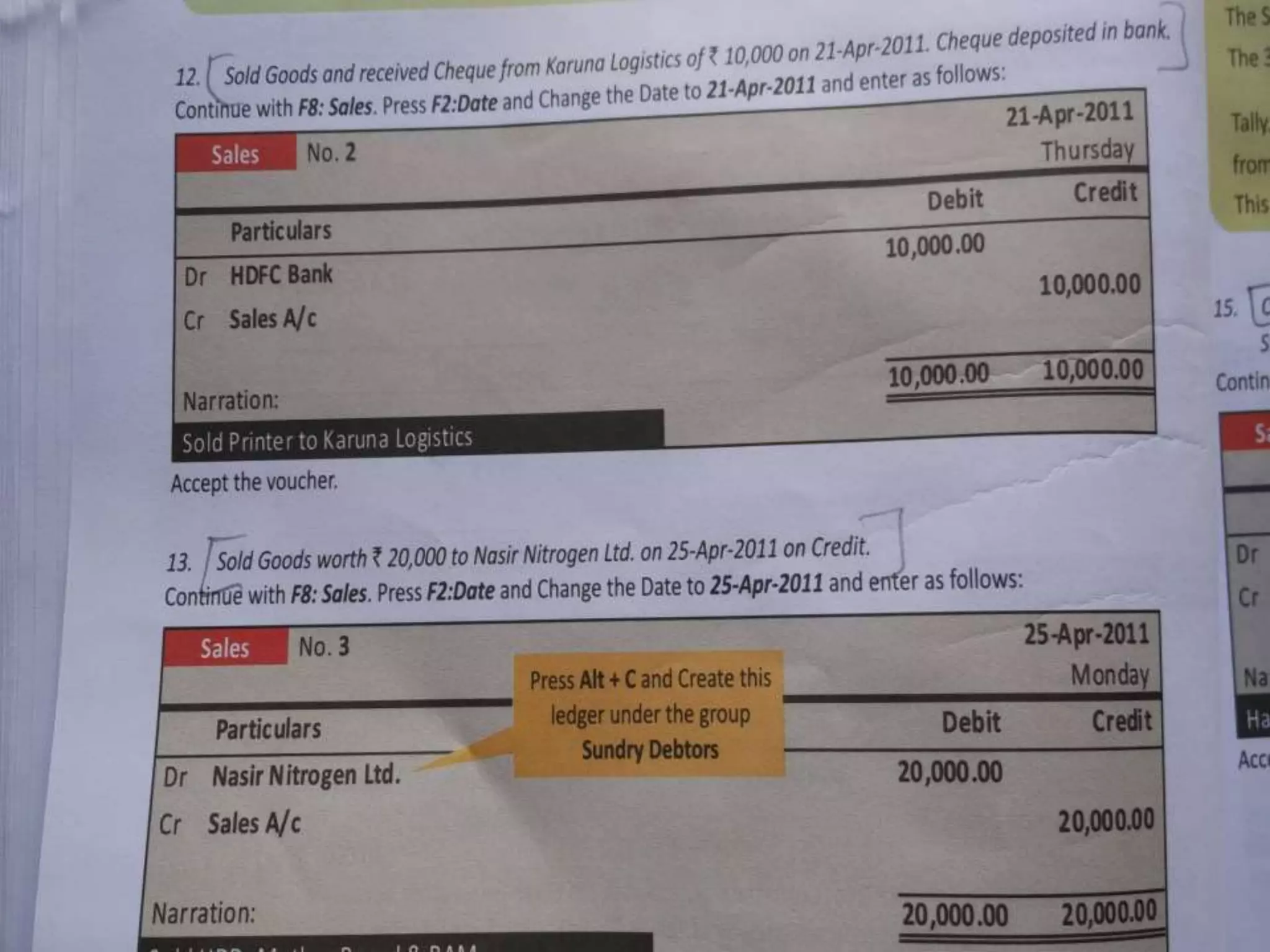
 Sold Goods and received Cheque from Karuna Logistics
of Rs. 10,000 on 21st April 2015. Cheque deposited in bank.
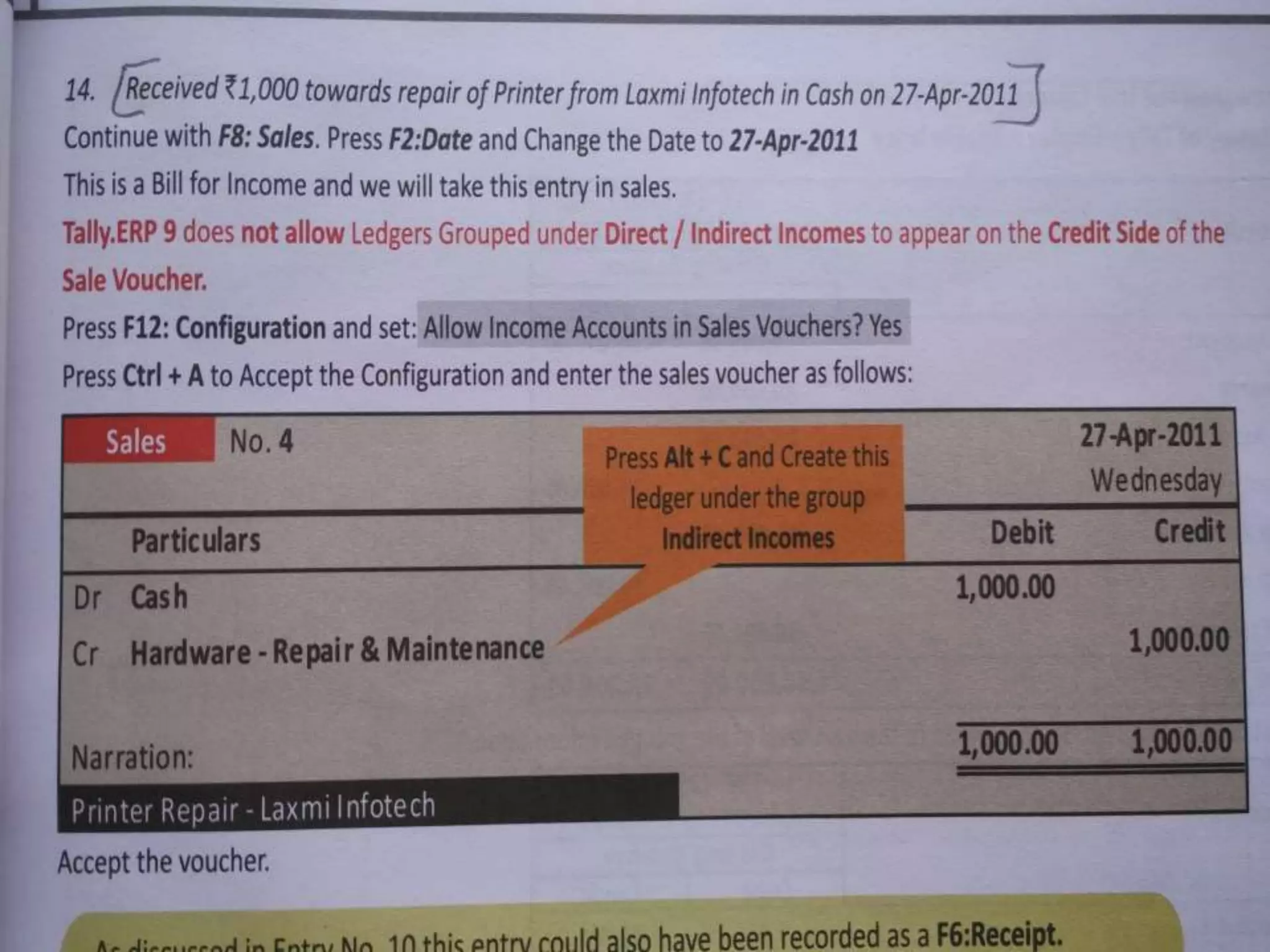
 Sold Goods worth Rs. 20,000 to Nasir Nitrogen Ltd. on
25th April 2015 on Credit.
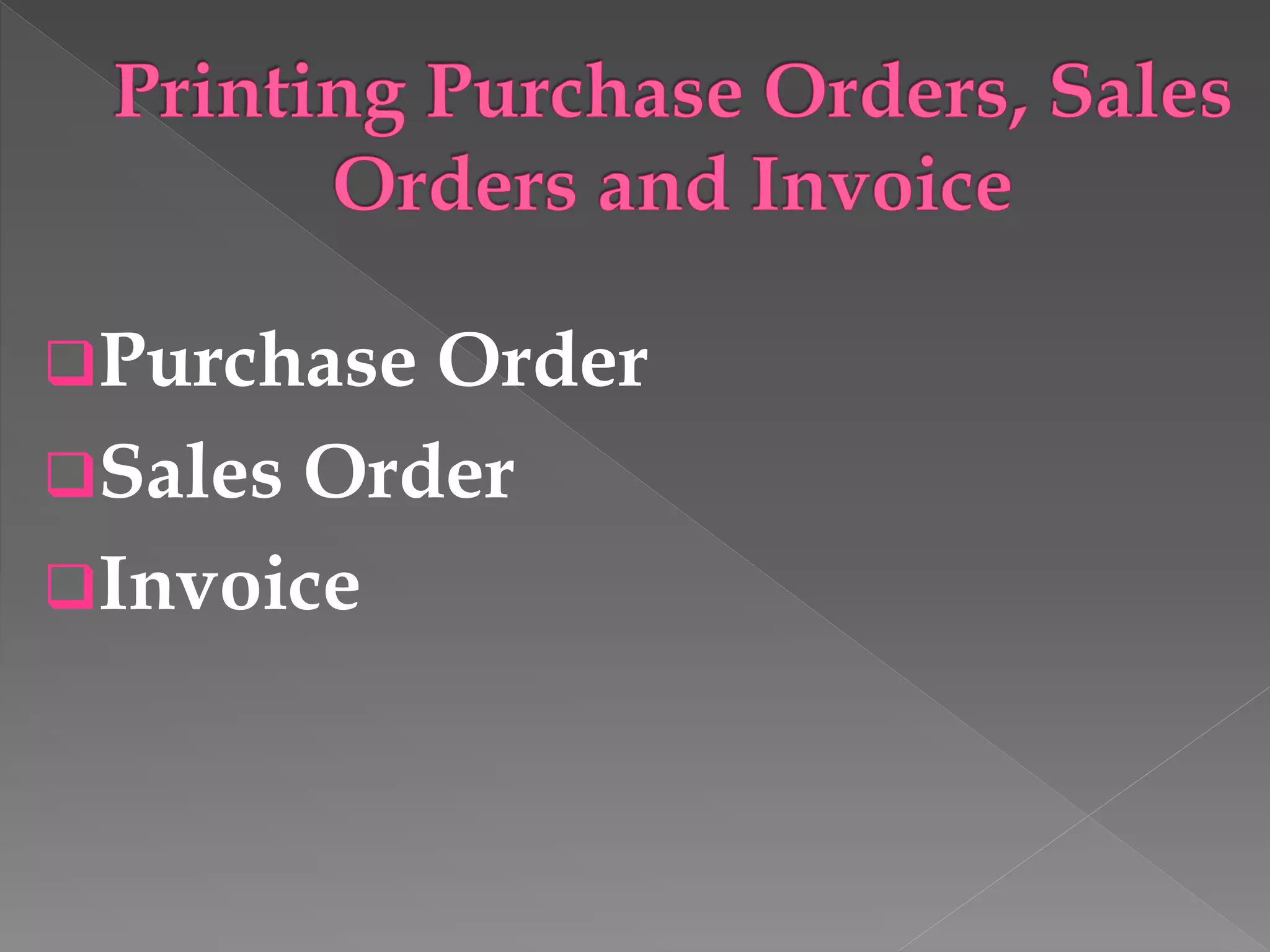
 Received Rs. 1,000 towards repair of Printer from Laxmi
infotech in Cash on 27th April 2015.
 On 30th April 2015 Mr. Sajan signed an Annual Contract
for maintaining Hardware of Satish Synthetics for Rs.
12,000.
Purchase Order
Sales Order
Invoice
A Purchase order can be easily generated by
Tally and same can be sent to the supplier.
Purchase order is Non-accounting inventory
voucher. Purchase order is the first document
in inventory control.
Creating a Purchase Order
Gateway of Tally ~ Inventory Vouchers ~
Click on F4: Purchase order button on button
panel or Press Alt + F4 key from keyboard.
A Sales order can easily generated by Tally.
Sales order is also Non-accounting inventory
voucher.
Creating a Sales Order
Gateway of Tally ~ Inventory Vouchers ~
Click on F5: Sales order button on button
panel or Press Alt + F5 key from keyboard.
Invoice is also known as Sales Invoice. The
difference between an Invoice and Voucher is
that in invoice the stock is primary important
and accounting information is secondary. In
Sales invoice allows automatic calculations of
taxes and duties on Items.
Gateway of Tally ~ Accounting Vouchers ~ Click
on F8 : Sales button on button panel or Press F8
function key from keyboard ~ Now Click on V:
As Invoice button on button panel or Press Ctrl +
V key from keyboard.
 Trial Balance
Gateway of Tally ~ Display ~ Trial Balance
 Balance Sheet
Gateway of Tally ~ Display ~ Balance Sheet
 Profit & Loss A/c
Gateway of Tally ~ Display ~ Profit & Loss
A/c
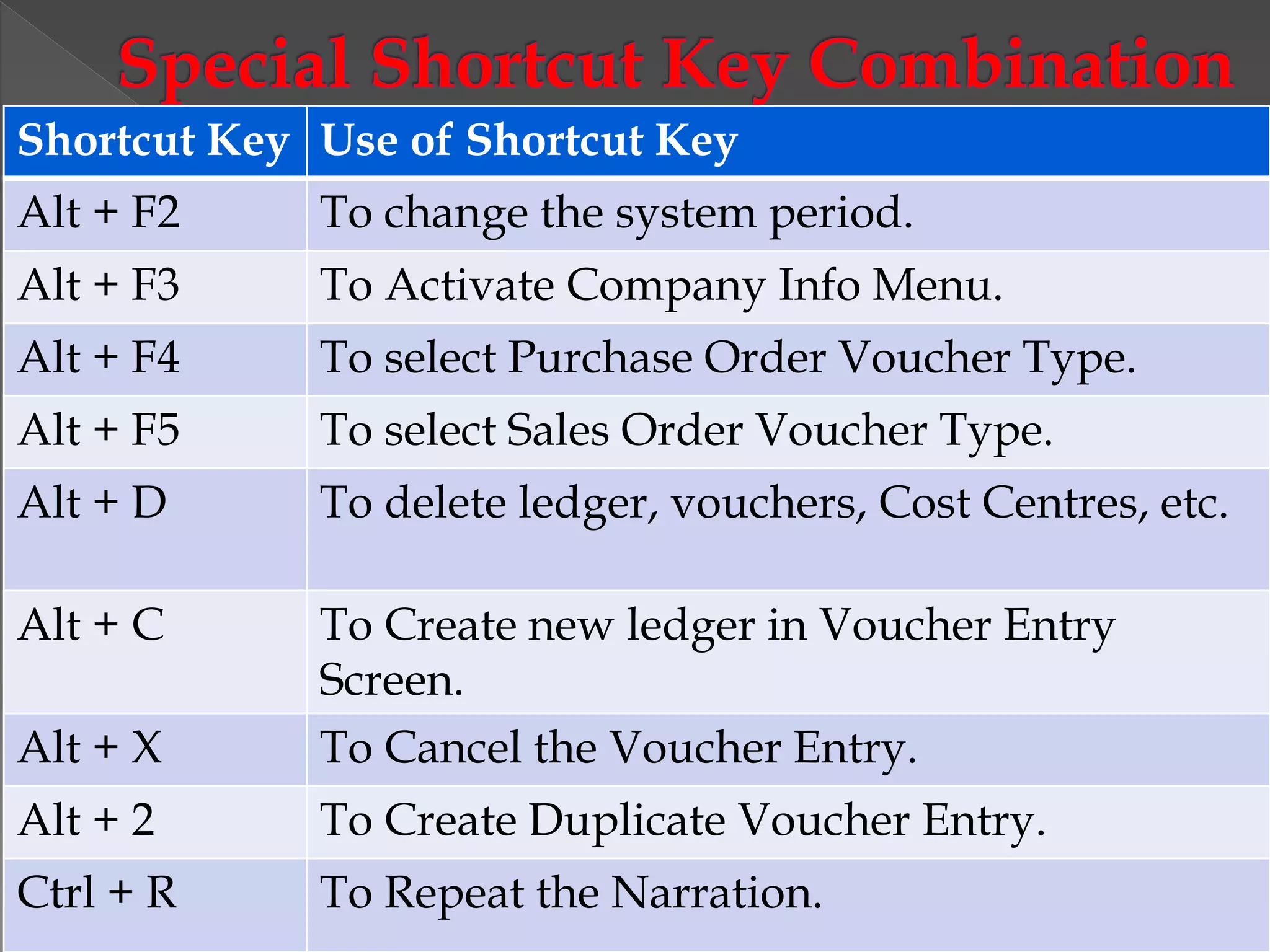
Shortcut Key Use of Shortcut Key
Alt + F2 To change the system period.
Alt + F3 To Activate Company Info Menu.
Alt + F4 To select Purchase Order Voucher Type.
Alt + F5 To select Sales Order Voucher Type.
Alt + D To delete ledger, vouchers, Cost Centres, etc.
Alt + C To Create new ledger in Voucher Entry
Screen.
Alt + X To Cancel the Voucher Entry.
Alt + 2 To Create Duplicate Voucher Entry.
Ctrl + R To Repeat the Narration.
Overview of Tally presentation

Overview of Tally presentation

  • 2.
     Introduction toTally and its features  Gateway of Tally  Procedure for creating new company  Creation, Display, Alter of groups, ledgers  Procedure to display Trial Balance, P & L A/c, Balance Sheet  Vouchers in Tally (Contra, Payment, Receipt, Sales, etc.)  Procedure to display day book  Procedure to alter, Delete Journal Entry (Voucher Entry)  Creation of Purchase, Sales order  Creation of Sales Invoice
  • 3.
     Tally isan accounting package which is used for maintaining book of accounts electronically.  Tally is user friendly accounting software.  It provides full control over every aspects of business accounting.
  • 4.
    S. S. Goenkawas the founding chairperson of Tally Solutions Private Limited in 1986. Bharat Goenka is the Co-Founder & Managing Director of Tally Solutions Private Limited. He has been awarded the Lifetime Achievement Award by NASSCOM, and a Lifetime Achievement Award by CellIT, a IT channel magazine.
  • 6.
     Tally maintainsall the primary books of accounts, like cashbook and bankbook.  Tally maintains all registers like purchase register, sales register, journal register and ledger register.  Tally maintains all the statement of accounts like trial balance, profit & loss, balance sheet, cash flow & fund flow statement.  Tally maintains “Outstanding Reports.”  Tally can provide a report for a particular date or report for any range of dates.
  • 7.
     Tally canprovide the facility of bank reconciliation.  Tally also supports various fonts and languages like Hindi, Marathi, Tamil, Telugu, Kannada, Punjabi, Gujarati, Bengali and Malayalam.  It is highly secured against data tampering. It has powerful audit facility. Different levels of security like Tally vault and user password security.  It has interactive online help to solve any problem related to Tally.  It has features like inventory control & VAT calculation.
  • 8.
    The opening screenof Tally is divided into six sections (Fig 7.1)  Title Bar  Horizontal Button Bar  Bottom pane  Gateway of Tally  Left portion  Right portion  Button Panel  Calculator
  • 10.
     First stepto create company, click on company Info or press Alt + F3 key.  Select Create company option from company Info. Now you have company creation screen  Directory  Name  Mailing Name  Address  Statutory Compliance for  State  Pin code
  • 11.
     Telephone Number Email  Currency Symbol  Maintain (Accounts only Or Accounts with Inventory)  Financial Year from  Books beginning from  Tally vault password (if any)  Use Security Control  Base Currency Information
  • 14.
     Press Alt+ F3 for Company Info.  Select or Click on Select Company from Company Info.  Select the company from the list of companies.  Press Enter key to select/open the existing company.
  • 15.
     Press Alt+ F3 for Company Info.  Select or Click on Shut Company from Company Info.  Select the company from the list of companies.  Press Enter key to shut the existing company.
  • 16.
     Press Alt+ F3 for Company Info.  Select or Click on Alter Company from Company Info.  Select the company from the list of companies.  Modify or make required changes in the company information.  Press Enter key to accept change.
  • 17.
     Groups areclassified as per the profit & loss account and the balance sheet requirement.  Tally provides 28 predefined groups out that 15 are primary groups & 13 are sub (secondary) groups.  In Tally group creation is not required at all because these 28 groups cover all expenditure, incomes, assets & liabilities.
  • 18.
    Sr. no. Nameof the Group Purpose of the Group 1. Bank A/c It holds all the bank balances in current a/c and Savings a/c. 2. Bank O/D It covers all bank Overdraft A/c. 3. Branches/ Divisions It covers all the accounts of company’s branches & Divisions. 4. Capital A/c It holds capital and reserves of the company. 5. Cash in hand It holds balances of cash A/c and petty cash A/c. 6. Current Assets It hold subgroups like cash, bank, deposits etc. 7. Current liabilities It covers outstanding liabilities, statutory liabilities. 8. Deposits It holds all short deposits like telephone deposits. 9. Direct Expenses It holds all the factory expenses like wages, factory rent, etc. 10. Direct Income It holds all incomes related to non-trading company 11. Duties & Taxes It holds the accounts of excise duty, local sales tax. 12. Indirect Expenses It holds all administrative expenses like salary, rent, etc.
  • 19.
    Sr. no. Nameof the Group Purpose of the Group 13. Fixed Assets It covers all fixed assets like land, building, furniture, etc. 14. Indirect Income It holds the accounts of non-sale indirect incomes. 15. Investments It holds the accounts of overall investment of the company. 16. Loans & Advances It holds all loans given by the company. 17. Loans (Liability) It holds all loans taken by the company. 18. Misc. Expenses It includes legal cost, accounting and valuation charges. 19. Provisions It covers all provisions like provision for depreciation. 20. Purchase A/c It holds the accounts related to Purchase and Purchase return. 21. Reserves & Surplus It holds all Reserves like Capital Reserve, General Reserve etc. 22. Sales A/c It holds the accounts related to Sales and Sales return. 23. Secured Loans It holds the accounts of the loan taken by company. 24. Stock in Hand It holds opening stock and closing stock.
  • 20.
    Sr. no. Nameof the Group Purpose of the Group 25. Sundry Creditors It holds the account of the trade creditors of the company. 26. Sundry Debtors It holds the accounts of the debtors who owe money to the company. 27. Suspense A/c This is mainly for discrepancy in the balance sheet and trial balance like difference in trial balance. 28. Unsecured Loans It holds the accounts of the loan taken by company without any security.
  • 21.
     Gateway ofTally.  Select Accounts Info from Gateway of Tally.  Select Groups from Accounts Info.  Select Display option from Single Group or Multiple Group.  Press Enter key to display the pre-defined groups.
  • 22.
     Ledgers arethe actual heads of accounts.  Ledgers are very important for voucher entries.  By default, Tally creates two ledger accounts – Profit & Loss and Cash Accounts at the time of creating a new company.
  • 23.
     Gateway ofTally.  Select Accounts Info.  Select Ledgers from Accounts Info.  Select Create from Single ledger.  Type a Unique name for the ledger. Duplicate Ledger name is not allowed.  Select Under – list groups which are applicable for particular ledger.  Press Enter key to create the ledger.
  • 24.
     Gateway ofTally.  Select Accounts Info.  Select Ledgers from Accounts Info.  Select Display from Multiple Ledgers.  Select All Items from list.  Press Enter key.
  • 25.
     Gateway ofTally.  Select Accounts Info.  Select Ledgers from Accounts Info.  Select Alter from Single Ledgers.  Select the particular ledger from list.  Modify the information about ledger.  Press Enter key.
  • 26.
     Gateway ofTally.  Select Accounts Info.  Select Ledgers from Accounts Info.  Select Alter from Single Ledgers.  Select the particular ledger from list which user want to delete.  Press Alt + D.  It displays alert box ‘delete?’ Press Y or Enter from keyboard.
  • 27.
    Capital A/c, BankA/c, Drawings A/c, Telephone Expenses A/c, Rent A/c, Bank O/D A/c, Furniture A/c, Investments, Manjeet A/c, Deposit A/c, Purchase A/c, Sales A/c, Salary A/c, Wages A/c, Carriage Inwards A/c, Travelling A/c.
  • 28.
     Vouchers areused for recording day to day transactions.  Tally provides several pre-defined vouchers with different formats, for different types of transactions.  Tally also provides the facility to modify the vouchers as per business need.
  • 29.
    1. Contra Voucher:This Voucher is used to transfer funds from one source to another source. Like fund transfer from one bank/cash account to another bank/cash account. For example cash deposited into bank and cash withdrawn from bank. Follow the steps to display this voucher on user screen. Gateway of Tally ~ Accounting Vouchers ~ Click on F4: Contra Button on button panel or press F4 function key from keyboard.
  • 30.
     Payment Voucher:This voucher records all the payments made through bank and cash. It also includes cash purchase transactions. Following steps are used to display payment voucher in Tally. Gateway of Tally ~ Accounting Vouchers ~ Click on F5: Payment button on button panel or Press F5 function key from keyboard.
  • 31.
     Receipt Voucher:This voucher records all receipts into bank or cash accounts. It also includes cash sale transactions. Following steps are used to display receipt voucher in Tally. Gateway of Tally ~ Accounting Vouchers ~ Click on F6: Receipt button on button panel or Press F6 function key from keyboard.
  • 32.
     Receipt Voucher:This voucher records all receipts into bank or cash accounts. It also includes cash sale transactions. Following steps are used to display receipt voucher in Tally. Gateway of Tally ~ Accounting Vouchers ~ Click on F6: Receipt button on button panel or Press F6 function key from keyboard.
  • 33.
     Sales Voucher:This voucher records all entries related to sales account. It includes all credit sale transactions. Following steps are used to display Sales voucher in Tally. Gateway of Tally ~ Accounting Vouchers ~ Click on F8: Sales button on button panel or Press F8 function key from keyboard.
  • 34.
     Purchase Voucher:This voucher records all entries related to Purchase account. It includes all credit purchase transactions. Following steps are used to display Purchase voucher in Tally. Gateway of Tally ~ Accounting Vouchers ~ Click on F9: Purchase button on button panel or Press F9 function key from keyboard.
  • 35.
     Journal Voucher: This voucher is used for rectification/adjustment entries. Three types of journal vouchers 1. Journal 2. Credit Note Voucher 3. Debit Note Voucher.
  • 36.
     Journal: Thisvoucher is used for adjustments between any two ledgers Following steps are used to display journal vouchers in Tally. Gateway of Tally ~ Accounting Vouchers ~ Click on F7: Journal button on button panel or Press F7 function key from keyboard.
  • 37.
     Debit NoteVoucher: This voucher is used to record goods return to the supplier due to damaged condition. Following steps are used to display Debit Note voucher in Tally. Gateway of Tally ~ Accounting Vouchers ~ Click on F9: Debit Note button on button panel or Press Ctrl+F9 function key from keyboard.
  • 38.
    Debit Note andCredit Note Voucher Activation of Debit Note and Credit Note Gateway of Tally ~ Accounting Vouchers ~ Click on F11: Features button on button panel or Press F11 function key from keyboard ~ Select Accounting Features from Company Features ~ Click on use Debit Note and Credit Note: Yes ~ Press Enter Key.
  • 39.
     Credit NoteVoucher: This note is useful in case of return of a part of goods by the customer. Following steps are used to display Credit Note voucher in Tally. Gateway of Tally ~ Accounting Vouchers ~ Click on F8: Credit Note button on button panel or Press Ctrl+F8 function key from keyboard.
  • 41.
     On 1stApril 2015 Mr. Sajan Jayaprakash started Team work Sales & Services by bringing cash of Rs. 1,00,000.  An account was opened in HDFC Bank by depositing Rs. 90,000 Cash on 2nd April 2015.  Mr. Sajan rented an office space for Rs. 5,000 per month. On 4th April 2015 he paid a security Deposit of Rs. 20,000 by cheque.  Mr. Sajan paid Rs. 5,000 by cheque towards Shop Rent for April 2015 on 5th April 2015.  Rs. 4,500 Cash was paid towards Cleaning and Painting of the shop on 6th April 2015.  Office Furniture & Electric fittings (Assets) were purchased by cheque of Rs. 20,000 on 10th April 2015.  Purchased Papers & Other Stationery items for office use by cash worth Rs. 1,000 on 14th April 2015.
  • 42.
     Mr. Sajanwithdrew Cash of Rs. 35,000 from HDFC Bank on 15th April 2015 for office use.  On 16th April 2015 Mr. Sajan took Rs. 1,000 Cash for Personal use.  Purchased Goods in Cash worth Rs. 30,000 on 17th April 2015.  Sold Goods worth Rs. 5,000 to Sneha Traders for Cash on 18th April 2015.  Sold Goods and received Cheque from Karuna Logistics of Rs. 10,000 on 21st April 2015. Cheque deposited in bank.  Sold Goods worth Rs. 20,000 to Nasir Nitrogen Ltd. on 25th April 2015 on Credit.  Received Rs. 1,000 towards repair of Printer from Laxmi infotech in Cash on 27th April 2015.  On 30th April 2015 Mr. Sajan signed an Annual Contract for maintaining Hardware of Satish Synthetics for Rs. 12,000.
  • 54.
  • 55.
    A Purchase ordercan be easily generated by Tally and same can be sent to the supplier. Purchase order is Non-accounting inventory voucher. Purchase order is the first document in inventory control. Creating a Purchase Order Gateway of Tally ~ Inventory Vouchers ~ Click on F4: Purchase order button on button panel or Press Alt + F4 key from keyboard.
  • 56.
    A Sales ordercan easily generated by Tally. Sales order is also Non-accounting inventory voucher. Creating a Sales Order Gateway of Tally ~ Inventory Vouchers ~ Click on F5: Sales order button on button panel or Press Alt + F5 key from keyboard.
  • 57.
    Invoice is alsoknown as Sales Invoice. The difference between an Invoice and Voucher is that in invoice the stock is primary important and accounting information is secondary. In Sales invoice allows automatic calculations of taxes and duties on Items. Gateway of Tally ~ Accounting Vouchers ~ Click on F8 : Sales button on button panel or Press F8 function key from keyboard ~ Now Click on V: As Invoice button on button panel or Press Ctrl + V key from keyboard.
  • 58.
     Trial Balance Gatewayof Tally ~ Display ~ Trial Balance  Balance Sheet Gateway of Tally ~ Display ~ Balance Sheet  Profit & Loss A/c Gateway of Tally ~ Display ~ Profit & Loss A/c
  • 59.
    Shortcut Key Useof Shortcut Key Alt + F2 To change the system period. Alt + F3 To Activate Company Info Menu. Alt + F4 To select Purchase Order Voucher Type. Alt + F5 To select Sales Order Voucher Type. Alt + D To delete ledger, vouchers, Cost Centres, etc. Alt + C To Create new ledger in Voucher Entry Screen. Alt + X To Cancel the Voucher Entry. Alt + 2 To Create Duplicate Voucher Entry. Ctrl + R To Repeat the Narration.