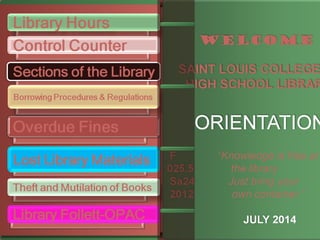
All bags, briefcase, umbrella, folders,
etc. should be placed at the baggage area upon
entering the reading area. However, all valuable
things (calculator,purse, etc.) can be taken inside
solely under the responsibility of the owner.
Signing in on the log book
allotted on your respective
year should be done upon
entering the library.
DEWEY DECIMAL SYSTEM
10 MAIN CLASSES;
000-099 Generalities
100-199 Philosophy and Psychology
200-299 Bible
300-399 Social Sciences
400-499 Language
500-599 Science
600-699 Applied Science
700-799 Music, Arts, Painting
800-899 Literature
900-999 History
.
houses
encyclopedias,
dictionaries, and ready
reference materials, to
suit the intellectual
needs of the clientele.
R
030
As31
2010
F
025.5
Sa24
2012
CALL
NO.
808
P918a
2010
FIRST
FLOO
R
4. HOME
READING/
FICTION
SECTION
HR
M575
2008
- Houses current and
back issues of serials.
i.e. newspapers, magazines,
journals, bulletins, vertical
clippings, and bound
periodicals.
Indexes are also available
PR
300.05
R227
2011
NP
912.9
M123
2012It contains collection of
multimedia materials like
DVD’s, CD’s, slides,
transparencies, maps,
globes, etc.
FIRST FLOOR
CIRCULATION DESK
It is where
transactions, like
borrowing and
returning of
books took place
with the
circulation
librarian.
MEZZANINE FLOOR
TEACHERS’ REFERENCE
PAMPHLET
RESEARCH PROJECTS
MEZZANINE FLOOR
TEACHERS’ REFERENCE
PAMPHLET
RESEARCH PROJECTS
TR
372.07
H234
2012
CAL
L
NO.
PA
800
As123
2012
RP
As123
2012
TECHNICAL
SECTION
(RESTRICTED AREA)
MEZZANINE
FLOOR
MEZZANINE
FLOOR
Contains achievements of
students such plaque of recognition,
trophies and yearbooks. And where
pictures of the past and the present
president of SLC high school
Contains achievements of
students such plaque of recognition,
trophies and yearbooks. And where
pictures of the past and the present
president of SLC high school
MEZZANINE FLOOR
LEARNING
RESOURCES CENTER
Contains selected submitted
projects of students per subject
areas
1. No I.D. No
Book
2. Copy the author,
title & call no. of
the needed materials
through the catalog
cards or through the
Online Public Access
Catalog (OPAC).
3.Proceed to the stack area and
look for the book. Consult other
alternative references if the main
text is not available.
4. Present the book to
the student library
assistant at the
circulation desk and
have the book be
properly charged out
for home use, for
one-hour
loan/photocopy/room
use, with your ID.
Borrowing Procedures &
Regulations
purposes only.
Reserved
Books
Dictionaries,
encyclopedias
Research
Projects
magazines,
newspapers,
1. General reference
materials and reserved books
are not allowed to be brought
out from the library for
overnight use but could be
taken out for photocopying
purposes only.
purposes only.
2. Fiction books may
be borrowed for
one (1) week and it is
renewable for
another week unless
needed by another
user.
2. Fiction books may
be borrowed for
one (1) week and it is
renewable for
another week unless
needed by another
user.
purposes only.
3.The issuance of the
general circulation
books (Filipiniana, Main
/ Foreign books) for
overnight use begins at
4:00 p.m. until the
closing hour of the
library.
purposes only.
two (2)
fiction/
home
reading
books.
purposes only.
Overdue Fines
The date of loan period will
automatically indicated after
checking out the book. When the
loan period expires, call slips will
be sent to remind the students
concerned to return such books
immediately to avoid penalty. It
is the responsibility of each
student to check or update their
book loans in the OPAC.
All
borrower
s who
keep a
book
beyond
the loan
period
are
subject
to a fine
of:
P10.00/day
for
Homereadig
/Fiction
Books
except
non-
School
days.
P5.00/hour
for
textbook
/non
reserve
A student with
overdue books
and unpaid
overdue fines
shall not be
allowed to
borrow any
library
materials, unless
he has returned
the books and
paid the overdue
fines. A student
who does not
return such
overdue book
shall lose
temporarily, his
library privilege.
1. First Call (first day after
due date)
- fines
2. Second Call (second day
after the first call)
- fines and warning
3. Third Call (third day after
the second call) - fines and
suspension of library privilege
for one (1) month.
A borrower who loses
library materials is
obliged to replace
the lost material/s
with the latest
edition and pay the
processing fee
P100.00 plus
any
accumulated
overdue
fines.
A borrower who
damaged(beyond
repair)
/ lost a book
replace/pay 3
times the amount
or price of the
book plus P100.00
plus any
accumulated
overdue fines.
purposes only.
Anyone found guilty of stealing any library
materials shall be liable for grave disciplinary
action, depending on the gravity of the
offenses, in addition, he will be made to pay
a fine of P150.00, plus the current cost of
acquiring a new replacement plus processing
fee.
Anyone found guilty of mutilating (deface
mark, tear/cut) any library materials will be
liable for grave disciplinary action depending
on the gravity of the offense, in addition,
he will be made to pay a fine of P100.00
plus the current cost of acquiring a new
replacement and processing fee.
purposes only.
purposes only.
Ms. Jonalyn Linmayog
Librarian
Mr. Michael John
Batuang
Librarian

Orientation2012

  • 2.
    All bags, briefcase,umbrella, folders, etc. should be placed at the baggage area upon entering the reading area. However, all valuable things (calculator,purse, etc.) can be taken inside solely under the responsibility of the owner. Signing in on the log book allotted on your respective year should be done upon entering the library.
  • 3.
    DEWEY DECIMAL SYSTEM 10MAIN CLASSES; 000-099 Generalities 100-199 Philosophy and Psychology 200-299 Bible 300-399 Social Sciences 400-499 Language 500-599 Science 600-699 Applied Science 700-799 Music, Arts, Painting 800-899 Literature 900-999 History
  • 4.
    . houses encyclopedias, dictionaries, and ready referencematerials, to suit the intellectual needs of the clientele. R 030 As31 2010
  • 5.
  • 6.
  • 7.
  • 8.
    - Houses currentand back issues of serials. i.e. newspapers, magazines, journals, bulletins, vertical clippings, and bound periodicals. Indexes are also available PR 300.05 R227 2011
  • 9.
    NP 912.9 M123 2012It contains collectionof multimedia materials like DVD’s, CD’s, slides, transparencies, maps, globes, etc.
  • 10.
    FIRST FLOOR CIRCULATION DESK Itis where transactions, like borrowing and returning of books took place with the circulation librarian.
  • 11.
    MEZZANINE FLOOR TEACHERS’ REFERENCE PAMPHLET RESEARCHPROJECTS MEZZANINE FLOOR TEACHERS’ REFERENCE PAMPHLET RESEARCH PROJECTS TR 372.07 H234 2012 CAL L NO. PA 800 As123 2012 RP As123 2012
  • 12.
  • 13.
    MEZZANINE FLOOR Contains achievements of studentssuch plaque of recognition, trophies and yearbooks. And where pictures of the past and the present president of SLC high school Contains achievements of students such plaque of recognition, trophies and yearbooks. And where pictures of the past and the present president of SLC high school
  • 14.
    MEZZANINE FLOOR LEARNING RESOURCES CENTER Containsselected submitted projects of students per subject areas
  • 18.
    1. No I.D.No Book 2. Copy the author, title & call no. of the needed materials through the catalog cards or through the Online Public Access Catalog (OPAC). 3.Proceed to the stack area and look for the book. Consult other alternative references if the main text is not available. 4. Present the book to the student library assistant at the circulation desk and have the book be properly charged out for home use, for one-hour loan/photocopy/room use, with your ID. Borrowing Procedures & Regulations
  • 19.
    purposes only. Reserved Books Dictionaries, encyclopedias Research Projects magazines, newspapers, 1. Generalreference materials and reserved books are not allowed to be brought out from the library for overnight use but could be taken out for photocopying purposes only.
  • 20.
    purposes only. 2. Fictionbooks may be borrowed for one (1) week and it is renewable for another week unless needed by another user. 2. Fiction books may be borrowed for one (1) week and it is renewable for another week unless needed by another user.
  • 21.
    purposes only. 3.The issuanceof the general circulation books (Filipiniana, Main / Foreign books) for overnight use begins at 4:00 p.m. until the closing hour of the library.
  • 22.
  • 23.
    purposes only. Overdue Fines Thedate of loan period will automatically indicated after checking out the book. When the loan period expires, call slips will be sent to remind the students concerned to return such books immediately to avoid penalty. It is the responsibility of each student to check or update their book loans in the OPAC.
  • 24.
    All borrower s who keep a book beyond theloan period are subject to a fine of: P10.00/day for Homereadig /Fiction Books except non- School days. P5.00/hour for textbook /non reserve A student with overdue books and unpaid overdue fines shall not be allowed to borrow any library materials, unless he has returned the books and paid the overdue fines. A student who does not return such overdue book shall lose temporarily, his library privilege.
  • 25.
    1. First Call(first day after due date) - fines 2. Second Call (second day after the first call) - fines and warning 3. Third Call (third day after the second call) - fines and suspension of library privilege for one (1) month.
  • 26.
    A borrower wholoses library materials is obliged to replace the lost material/s with the latest edition and pay the processing fee P100.00 plus any accumulated overdue fines. A borrower who damaged(beyond repair) / lost a book replace/pay 3 times the amount or price of the book plus P100.00 plus any accumulated overdue fines.
  • 27.
    purposes only. Anyone foundguilty of stealing any library materials shall be liable for grave disciplinary action, depending on the gravity of the offenses, in addition, he will be made to pay a fine of P150.00, plus the current cost of acquiring a new replacement plus processing fee. Anyone found guilty of mutilating (deface mark, tear/cut) any library materials will be liable for grave disciplinary action depending on the gravity of the offense, in addition, he will be made to pay a fine of P100.00 plus the current cost of acquiring a new replacement and processing fee.
  • 28.
  • 29.
    purposes only. Ms. JonalynLinmayog Librarian Mr. Michael John Batuang Librarian

Editor's Notes

  • #2 Animated open book effect (Difficult) Tip: You will need to use drawing guides and the ruler to position the objects on this slide. To display the drawing guides and the ruler, do the following: On the Home tab, in the Slides group, click Layout, and then click Blank. Right-click the slide background area, and then click Grid and Guides. In the Grid and Guides dialog box, under Guide settings, select Display drawing guides on screen. (Note: One horizontal and one vertical guide will display on the slide at 0.00, the default position. The spine of the book will be aligned to the vertical drawing guide.) On the View tab, in the Show/Hide group, select Ruler. To reproduce the first shape in the Book cover group on this slide, do the following: On the Home tab, in the Drawing group, click Shapes, and then under Rectangles click Rounded Rectangle (second option from the left). On the slide, drag to draw a rounded rectangle. Select the rounded rectangle. Under Drawing Tools, on the Format tab, in the Size group, do the following: In the Shape Height box, enter 4.5”. In the Shape Width box, enter 3.33”. On the rounded rectangle, drag the yellow diamond adjustment handle to the left to decrease the amount of rounding on the corners. On the Home tab, in the bottom right corner of the Drawing group, click the Format Shape dialog box launcher. In the Format Shape dialog box, click Fill in the left pane, select Gradient fill in the Fill pane, and then do the following: In the Type list, select Linear. Click the button next to Direction, and then click Linear Right (first row, fourth option from the left). In the Angle box, enter 0°. Under Gradient stops, click Add gradient stops or Remove gradient stops until two stops appear in the slider. Also under Gradient stops, customize the gradient stops that you added as follows: Select the first stop in the slider, and then do the following: In the Position box, enter 0%. Click the button next to Color, and then under Theme Colors, click Red, Accent 2, Darker 50% (sixth row, sixth option from the left). Select the second stop in the slider, and then do the following: In the Position box, enter 100%. Click the button next to Color, and then under Theme Colors, click Red, Accent 2, Darker 25% (fifth row, sixth option from the left). Also in the Format Shape dialog box, click Line Color in the left pane. In the Line Color pane, select No line. Also in the Format Shape dialog box, click 3-D Format in the left pane, and then in the 3-D Format pane, do the following: Under Bevel, click the button next to Top, and then under Bevel click Circle (first row, first option from the left). Next to Top, in the Width box, enter 4 pt, and in the Height box, enter 4 pt. Under Surface, click the button next to Material, and then under Standard click Warm Matte (second option from the left). Also under Surface, click the button next to Lighting, and then under Neutral, click Three Point (first row, first option from the left). On the slide, drag the rounded rectangle until the left edge is against the vertical drawing guide. On the Home tab, in the Drawing group, click Arrange, point to Align, and then do the following: Click Align to Slide. Click Align Middle. To reproduce the second shape in the Book cover group on this slide, do the following: On the Home tab, in the Clipboard group, click the arrow under Paste, and then click Duplicate. On the slide, drag the duplicate rectangle until the left edge is against the vertical drawing guide. On the Home tab, in the Drawing group, click Arrange, point to Align, and then do the following: Click Align to Slide. Click Align Middle. Under Drawing Tools, on the Format tab, in the Size group, in the Shape Width box, enter 0.73”. On the Home tab, in the bottom right corner of the Drawing group, click the Format Shape dialog box launcher. In the Format Shape dialog box, click Fill in the left pane, select Gradient fill in the Fill pane, and then do the following: In the Type list, select Linear. Click the button next to Direction, and then click Linear Left (first row, fifth option from the left). In the Angle box, enter 180°. Under Gradient stops, click Add gradient stops or Remove gradient stops until two stops appear in the slider. Also under Gradient stops, customize the gradient stops that you added as follows: Select the first stop in the slider, and then do the following: In the Position box, enter 0%. Click the button next to Color, and then under Theme Colors, click Black, Text 1 (first row, second option from the left). In the Transparency box, enter 50%. Select the second stop in the slider, and then do the following: In the Position box, enter 100%. Click the button next to Color, and then under Theme Colors, click Black, Text 1 (first row, second option from the left). In the Transparency box, enter 100%. Also in the Format Shape dialog box, click 3-D Format in the left pane. In the 3-D Format pane, under Bevel, click the button next to Top, and then under No Bevel, click None. To reproduce the third shape (first small rectangle on the book spine) in the Book cover group on this slide, do the following: Select the first, larger rectangle on the slide. On the Home tab, in the Clipboard group, click the arrow to the right of Copy, and then click Duplicate. Select the third, duplicate rectangle. Under Drawing tools, on the Format tab, in the Size group, do the following: In the Shape Height box, enter 0.08”. In the Shape Width box, enter 0.73”. On the Home tab, in the bottom right corner of the Drawing group, click the Format Shape dialog box launcher. In the Format Shape dialog box, click Fill in the left pane, select Gradient fill in the Fill pane, and then do the following: In the Type list, select Linear. Click the button next to Direction, and then click Linear Diagonal (first row, third option from the left). In the Angle box, enter 135°. Also in the Format Shape dialog box, click 3-D Format in the left pane, and then in the 3-D Format pane, do the following: Under Bevel, next to Top, in the Width box, enter 3 pt, and in the Height box, enter 3 pt. Under Surface, click the button next to Lighting, and then under Neutral click Soft (first row, third option from the left). To reproduce the rest of the shapes (other small rectangles on the book spine) in the Book cover group on this slide, do the following: Select the third, smaller rectangle. On the Home tab, in the Clipboard group, click the arrow to the right of Copy, and then click Duplicate. Repeat this process for a total of four thin, rounded rectangles. To position the four thin, rounded rectangles on the book spine, do the following: Drag the first rectangle 1.75” above the horizontal drawing guide, with the left edge touching the vertical drawing guide. Drag the second rectangle 0.75” above the horizontal drawing guide, with the left edge touching the vertical drawing guide. Drag the third rectangle 0.75” below the horizontal drawing guide, with the left edge touching the vertical drawing guide. Drag the fourth rectangle 1.75” below the horizontal drawing guide, with the left edge touching the vertical drawing guide. On the Home tab, in the Editing group, click Select, and then click Select All. On the Home tab, in the Drawing group, click Arrange, and then click Group. On the Home tab, in the Editing group, click Select, and then click Selection Pane. On the Selection and Visibility pane, double-click the group to edit the name, and then enter Book cover.   To reproduce the first shape in the Inside-left pages group on this slide, do the following: On the Home tab, in the Drawing group, click Shapes, and then under Rectangles click Rounded Rectangle (second option from the left). On the slide, drag to draw a rounded rectangle. Under Drawing Tools, on the Format tab, in the Size group, do the following: In the Shape Height box, enter 4.5”. In the Shape Width box, enter 3.33”. On the rounded rectangle, drag the yellow diamond adjustment handle to the left to decrease the amount of rounding on the corners. On the Home tab, in the bottom right corner of the Drawing group, click the Format Shape dialog box launcher. In the Format Shape dialog box, click Fill in the left pane, select Gradient fill in the Fill pane, and then do the following: In the Type list, select Linear. Click the button next to Direction, and then click Linear Left (first row, fifth option from the left). In the Angle box, enter 180°. Under Gradient stops, click Add gradient stops or Remove gradient stops until two stops appear in the slider. Also under Gradient stops, customize the gradient stops that you added as follows: Select the first stop in the slider, and then do the following: In the Position box, enter 0%. Click the button next to Color, and then under Theme Colors, click Red, Accent 2, Darker 50% (sixth row, sixth option from the left). Select the second stop in the slider, and then do the following: In the Position box, enter 100%. Click the button next to Color, and then under Theme Colors, click Red Accent 2, Darker 25% (fifth row, sixth option from the left). Also in the Format Shape dialog box, click Line Color in the left pane, and then in the Line Color pane, select No line. On the slide, drag the rectangle until the right edge is against the vertical guideline. On the Home, tab, in the Drawing group, click Arrange, point to Align, and then do the following: Click Align to Slide. Click Align Middle. To reproduce the second shape in the Inside-left pages group on this slide, do the following: On the Home tab, in the Drawing group, click Shapes, and then under Rectangles click Rectangle (first option from the left). On the slide, drag to draw a rectangle. Under Drawing Tools, on the Format tab, in the Size group, do the following: In the Shape Height box, enter 4.33”. In the Shape Width box, enter 3.15”. On the Home tab, in the bottom right corner of the Drawing group, click the Format Shape dialog box launcher. In the Format Shape dialog box, click Fill in the left pane, select Gradient fill in the Fill pane, and then do the following: In the Type list, select Linear. Click the button next to Direction, and then click Linear Left (first row, fifth option from the left). In the Angle box, enter 180°. Under Gradient stops, click Add gradient stops or Remove gradient stops until five stops appear in the slider. Also under Gradient stops, customize the gradient stops that you added as follows: Select the first stop in the slider, and then do the following: In the Position box, enter 0%. Click the button next to Color, and then under Theme Colors, click White, Background 1, Darker 35% (fifth row, first option from the left). Select the second stop in the slider, and then do the following: In the Position box, enter 5%. Click the button next to Color, and then under Theme Colors, click White, Background 1 (first row, first option from the left). Select the third stop in the slider, and then do the following: In the Position box, enter 18%. Click the button next to Color, and then under Theme Colors, click White, Background 1, Darker 5% (second row, first option from the left). Select the fourth stop in the slider, and then do the following: In the Position box, enter 38%. Click the button next to Color, and then under Theme Colors, click White, Background 1 (first row, first option from the left). Select the fifth stop in the slider, and then do the following: In the Position box, enter 93%. Click the button next to Color, and then under Theme Color,s click White, Background 1 (first row, first option from the left). Also in the Format Shape dialog box, click Line Color in the left pane, and then in the Line Color pane, select No line. Also in the Format Shape dialog box, click Shadow in the left pane. In the Shadow pane, click the button next to Presets, under Outer click Offset Right (second row, first option from the left), and then do the following: In the Transparency box, enter 60%. In the Size box, enter 100%. In the Blur box, enter 4 pt. In the Angle box, enter 0°. In the Distance box, enter 3 pt. On the slide, drag the rectangle until the right edge touches the vertical drawing guide. On the Home tab, in the Drawing group, click Arrange, point to Align, and then do the following: Click Align to Slide. Click Align Middle. Press and hold CTRL, and then in the Selection and Visibility task pane, select the rectangle and the rounded rectangle to the left of the vertical drawing guide. On the Home tab, in the Drawing group, click Arrange, and then click Group. In the Selection and Visibility task pane, double-click the new group to edit the name, and then enter Inside-left pages. To reproduce the first shape in the Inside-right pages with text group, do the following: In the Selection and Visibility task pane, select the Inside-left pages group. On the Home tab, in the Clipboard group, click the arrow to the right of Copy, and then click Duplicate. On the Home tab, in the Drawing group, click Arrange, point to Rotate, and then click More Rotation Options. In the Size and Position dialog box, on the Size tab, under Size and rotation, in the Rotation box, enter 180°. In the Selection and Visibility task pane, double-click the new group to edit the name, and then enter Inside-right pages. On the slide, drag the rectangle until the left edge is against the vertical drawing guide. On the Home, tab, in the Drawing group, click Arrange, point to Align, and then do the following: Click Align to Slide. Click Align Middle.   To reproduce the text effects in the Inside-right pages with text group, do the following: On the Insert tab, in the Text group, click Text Box, and then on the slide, drag to draw a text box. Enter text in the text box, and then select the text. (Note: To reproduce the example above, enter Introduction.) On the Home tab, in the Font group, do the following: In the Font list, select Vivaldi. In the Font Size list, select 18. On the Home tab, in the Paragraph group, click Center to center the text in the text box. On the slide, drag the text box until the left edge of the text is 1” to the right of the vertical drawing guide and the bottom edge of the text is 0.5” above the horizontal drawing guide. To reproduce the page edges in the Inside-right pages with text group, do the following: On the Home tab, in the Drawing group, click Shapes, and then under Lines click Line (first option from the left). On the slide, press and hold SHIFT, and then drag to draw a straight, vertical line. Select the line. Under Drawing Tools, on the Format tab, in the Size group, in the Shape Width box, enter 4.32”. Under Drawing Tools, on the Format tab, in the Shape Styles group, click the arrow next to Shape Outline, and then under Theme Colors, click White, Background 1, Darker 15% (third row, first option from the left). On the Home tab, in the Clipboard group, click the arrow to the right of Copy, and then click Duplicate. Repeat this process for a total of six lines. On the slide, drag the six lines until they are bunched together in a dense group, no wider than 0.5”. In the Selection and Visibility task pane, press and hold CTRL, and then select all six straight connectors (lines). On the Home tab, in the Drawing group, click Arrange, point to Align, and then do the following: Point to Align, and then click Align Selected Objects. Point to Align, and then click Distribute Horizontally. Point to Align, and then click Align Middle. Click Group. On the slide, drag the group of lines until the right edge of the group of lines is touching the right edge of the white rectangle to the right of the vertical drawing guide. On the Home tab, in the Drawing group, click Arrange, point to Align, and then do the following: Click Align to Slide. Click Align Middle. In the Selection and Visibility task pane, press and hold CTRL, and then select the group of lines, the text box, and the Inside-right pages group. On the Home tab, in the Drawing group, click the arrow under Arrange, and then click Group. In the Selection and Visibility task pane, double-click the new group to edit the name, and then enter Inside-right pages with text. To reproduce the animation effects on this slide, do the following: In the Selection and Visibility pane, select the Book cover group. On the Home tab, in the Drawing group, click Arrange, and then click Bring to Front. In the Selection and Visibility pane, select the Inside-left pages group. On the Home tab, in the Drawing group, click Arrange, and then click Bring Forward. In the Selection and Visibility pane, select the Book cover group. On the Animations tab, in the Advanced Animation group, click Add Animation, point to Exit, and then click More Exit Effects. In the Add Exit Effect dialog box, under Basic, click Wipe. On the Animations tab, in the Timing group, do the following: In the Start list, select With Previous. In the Duration box, enter 1.00 second. Also on the Animations tab, in the Animation group, click Effect Options, and then click From Right. In the Selection and Visibility pane, select the Inside-left pages group. On the Animations tab, in the Advanced Animation group, lick Add Animation, point to Entrance, and then click More Entrance Effects. In the Add Entrance Effect dialog box, under Basic, click Wipe. On the Animations tab, in the Timing group, do the following: In the Start list, select After Previous. In the Duration box, select 1.00 seconds. Also on the Animations tab, in the Animation group, click Effect Options, and then click From Right. To reproduce the background effects on this slide, do the following: Right-click the slide background area, and then click Format Background. In the Format Background dialog box, click Fill in the left pane, select Gradient fill in the Fill pane, and then do the following: In the Type list, select Linear. Click the button next to Direction, and then click Linear Down (first row, second option from the left). Under Gradient stops, click Add gradient stops or Remove gradient stops until two stops appear in the slider. Also under Gradient stops, customize the gradient stops that you added as follows: Select the first stop in the slider, and then do the following: In the Position box, enter 63%. Click the button next to Color, and then under Theme Colors, click Black, Text 1 (first row, second option from the left). Select the second stop in the slider, and then do the following: In the Position box, enter 100%. Click the button next to Color list, and then under Theme Colors, click Black, Text 1, Lighter 50% (second row, second option from the left).
  • #3 Animated pages turn in open book (Difficult) Tip: You will need to use drawing guides and the ruler to position the objects on this slide. For instructions on animating an opening book cover, refer to the previous slide (Custom animation effects: open book) for instructions. To display the drawing guides and the ruler, do the following: On the Home tab, in the Slides group, click Layout, and then click Blank. Right-click the slide background area, and then click Grid and Guides. In the Grid and Guides dialog box, under Guide settings, select Display drawing guides on screen. (Note: One horizontal and one vertical guide will display on the slide at 0.00, the default position. The spine of the book will be aligned to the vertical drawing guide.) On the View tab, in the Show/Hide group, select Ruler. To reproduce the first shape in the Inside-left page 1 group on this slide, do the following: On the Home tab, in the Drawing group, click Shapes, and then under Rectangles, click Rounded Rectangle (second option from the left). On the slide, drag to draw a rounded rectangle. Select the rounded rectangle. Under Drawing Tools, on the Format tab, in the Size group, do the following: In the Shape Height box, enter 4.5”. In the Shape Width box, enter 3.33”. On the rounded rectangle, drag the yellow diamond adjustment handle to the left to reduce the amount of rounding on the corners. On the Home tab, in the bottom right corner of the Drawing group, click the Format Shape dialog box launcher. In the Format Shape dialog box, click Fill in the left pane, select Gradient fill in the Fill pane, and then do the following: In the Type list, select Linear. Click the button next to Direction, and then click Linear Left (first row, fifth option from the left). In the Angle box, enter 180°. Under Gradient stops, click Add gradient stops or Remove gradient stops until two stops appear in the drop-down list. Also under Gradient stops, customize the gradient stops that you added as follows: Select the first stop in the slider, and then do the following: In the Position box, enter 0%. Click the button next to Color, and then under Theme Colors click Red, Accent 2, Darker 50% (sixth row, sixth option from the left). Select the second stop in the slider, and then do the following: In the Stop position box, enter 100%. Click the button next to Color, and then under Theme Colors click Red Accent 2, Darker 25% (fifth row, sixth option from the left). Also in the Format Shape dialog box, click Line Color in the left pane. In the Line Color pane, select No line. On the slide, drag the rectangle until the right edge is against the vertical drawing guide. On the Home, tab, in the Drawing group, click the arrow under Arrange, point to Align, and then do the following: Click Align to Slide. Click Align Middle. To reproduce the second shape in the Inside-left page 1 group on this slide, do the following: On the Home tab, in the Drawing group, click Shapes, and then under Rectangles click Rectangle (first option from the left). On the slide, drag to draw a rectangle. Select the rectangle. Under Drawing Tools, on the Format tab, in the Size group, do the following: In the Shape Height box, enter 4.33”. In the Shape Width box, enter 3.15”. On the Home tab, in the bottom right corner of the Drawing group, click the Format Shape dialog box launcher. In the Format Shape dialog box, click Fill in the left pane, select Gradient fill in the Fill pane, and then do the following: In the Type list, select Linear. Click the button next to Direction, and then click Linear Left (first row, fifth option from the left). In the Angle box, enter 180°. Under Gradient stops, click Add gradient stops or Remove gradient stops until five stops appear in the drop-down list. Also under Gradient stops, customize the gradient stops that you added as follows: Select the first stop in the slider, and then do the following: In the Position box, enter 0%. Click the button next to Color, and then under Theme Colors click White, Background 1, Darker 35% (fifth row, the first option from the left). Select the second stop in the slider, and then do the following: In the Position box, enter 5%. Click the button next to Color, and then under Theme Colors click White, Background 1 (first row, first option from the left). Select the third stop in the slider, and then do the following: In the Position box, enter 18%. Click the button next to Color, and then under Theme Colors click White, Background 1, Darker 5% (second row, first option from the left). Select the fourth stop in the slider, and then do the following: In the Position box, enter 38%. Click the button next to Color, and then under Theme Colors click White, Background 1 (first row, first option from the left). Select the fifth stop in the slider, and then do the following: In the Position box, enter 93%. Click the button next to Color, and then under Theme Colors click White, Background 1 (first row, first option from the left). Also in the Format Shape dialog box, click Line Color in the left pane. In the Line Color pane, select No line. Also in the Format Shape dialog box, click Shadow in the left pane. In the Shadow pane, click the button next to Presets, under Outer click Offset Right (second row, first option from the left), and then do the following: In the Transparency box, enter 60%. In the Size box, enter 100%. In the Blur box, enter 4 pt. In the Angle box, enter 0°. In the Distance box, enter 3 pt. On the slide, drag the rectangle until the right edge is against the vertical drawing guide. On the Home tab, in the Drawing group, click Arrange, point to Align, and then do the following: Click Align to Slide. Click Align Middle. On the Home tab, in the Editing group, click Select and then click Select All. On the Home tab, in the Drawing group, click Arrange, and then click Group. On the Home tab, in the Editing group, click Select, and then click Selection Pane. In the Selection and Visibility pane, double-click the group to edit the name, and then enter Inside-left page 1.   To reproduce the first shape in the Inside-right page 3 group on this slide, do the following: On the Selection and Visibility pane, select the Inside-left page 1 group. On the Home tab, in the Clipboard group, click the arrow to the right of Copy, and then click Duplicate. On the Home tab, in the Drawing group, click Arrange, point to Rotate, and then click More Rotation Options. In the Format Shape dialog box, click Size in the left pane, in the Size pane, under Size and rotation, in the Rotation box, enter 180°. On the Selection and Visibility pane, double-click the duplicate group to edit the name, and then enter Inside-right. On the slide, drag the Inside-right group until the left edge is against the vertical drawing guide. On the Home tab, in the Drawing group, click Arrange, point to Align, and then do the following: Click Align to Slide. Click Align Middle. To reproduce the text box in the Inside-right page 3 group on this slide, do the following: On the Insert tab, in the Text group, click Text Box. On the slide, drag to draw the text box. Enter text in the text box, and then select the text. On the Home tab, in the Font group, do the following: In the Font list, select Bodoni MT Condensed. In the Font Size list, select 16. Drag the text box onto the right-side page to the right of the vertical drawing guide. If the text is wider than the page, drag the adjustment handles on the text box to decrease the width, and then repeat the previous step to reposition. To reproduce the page edges in the Inside-right page 3 group on this slide, do the following: On the Home tab, in the Drawing group, click Shapes, and then under Lines click Line (first option from the left). On the slide, press and hold SHIFT, and then drag to draw a straight, vertical line. Select the vertical line. Under Drawing Tools, on the Format tab, in the Size group, in the Shape Width box, enter 4.32”. Under Drawing Tools, on the Format tab, in the Shape Styles group, click the arrow to the right of Shape Outline, and then under Theme Colors click White, Background 1, Darker 15% (third row, first option from the left). On the Home tab, in the Clipboard group, click the arrow to the right of Copy, and then click Duplicate. Repeat this process until there is a total of six lines. On the slide, drag the lines until they are bunched together in a dense group, no wider than 0.5”. In the Selection and Visibility pane, press and hold CTRL, and then select the six straight connectors (lines). On the Home tab, in the Drawing group, click Arrange, and then do the following: Point to Align, and then click Align Selected Objects. Point to Align, and then click Distribute Horizontally. Point to Align, and then click Align Middle. Click Group. On the slide, drag the group of lines until the right edge is touching the right edge of the white rectangle to the right of the vertical drawing guide. On the Home tab, in the Drawing group, click Arrange, point to Align, and then do the following: Click Align to Slide. Click Align Middle. In the Selection and Visibility pane, press and hold CTRL, and then select the group of lines, the text box, and the Inside-right group. On the Home tab, in the Drawing group, click Arrange, and then click Group. In the Selection and Visibility pane, double-click the new group to edit the name, and then enter Inside-right page 3. To reproduce the first shape in the Inside-left page 2 group on this slide, do the following: On the Home tab, in the Drawing group, click Shapes, and then under Rectangles click Rectangle (first option from the left). On the slide, drag to draw a rectangle. Under Drawing Tools, on the Format tab, in the Size group, do the following: In the Shape Height box, enter 4.33”. In the Shape Width box, enter 3.15”. On the Home tab, in the bottom right corner of the Drawing group, click the Format Shape dialog box launcher. In the Format Shape dialog box, click Fill in the left pane, select Gradient fill in the Fill pane, and then do the following: In the Type list, select Linear. Click the button next to Direction, and then click Linear Left (first row, fifth option from the left). In the Angle box, enter 180°. Under Gradient stops, click Add gradient stops or Remove gradient stops until five stops appear in the drop-down list. Also under Gradient stops, customize the gradient stops that you added as follows: Select the first stop in the slider, and then do the following: In the Position box, enter 0%. Click the button next to Color, and then under Theme Colors click White, Background 1, Darker 35% (fifth row, first option from the left). Select the second stop in the slider, and then do the following: In the Position box, enter 5%. Click the button next to Color, and then under Theme Colors click White, Background 1 (first row, first option from the left). Select the third stop in the slider, and then do the following: In the Position box, enter 18%. Click the button next to Color, and then under Theme Colors click White, Background 1, Darker 5% (second row, first option from the left). Select the fourth stop in the slider, and then do the following: In the Position box, enter 38%. Click the button next to Color, and then under Theme Colors click White, Background 1 (first row, first option from the left). Select the fifth stop in the slider, and then do the following: In the Position box, enter 93%. Click the button next to Color, and then under Theme Colors click White, Background 1 (first row, first option from the left). Also in the Format Shape dialog box, click Line Color in the left pane. In the Line Color pane, select No line. Also in the Format Shape dialog box, click Shadow in the left pane. In the Shadow pane, click the button next to Presets, under Outer click Offset Right (second row, first option from the left), and then do the following: In the Transparency box, enter 60%. In the Size box, enter 100%. In the Blur box, enter 4 pt. In the Angle box, enter 0°. In the Distance box, enter 3 pt. On the slide, drag the rectangle until the right edge is against the vertical drawing guide. On the Home tab, in the Drawing group, click the arrow under Arrange, point to Align, and then do the following: Click Align to Slide. Click Align Middle. To reproduce the page edge in the Inside-left page 2 group on this slide, do the following: On the Home tab, in the Drawing group, click Shapes, and then under Lines click Line (first option from the left). On the slide, press and hold SHIFT, and then drag to draw a straight, vertical line. Select the vertical line. Under Drawing Tools, on the Format tab, in the Size group, in the Shape Width box, enter 4.32”. Under Drawing Tools, on the Format tab, in the Shape Styles group, click the arrow next to Shape Outline, and then under Theme Colors click White, Background 1, Darker 15% (third row, first option from the left). On the slide, drag the line near the edge of the left-side page (white rectangle to the left of the vertical drawing guide). On the Home tab, in the Drawing group, click Arrange, point to Align, and then do the following: Click Align to Slide. Click Align Middle. In the Selection and Visibility pane, press and hold CTRL, and then select the rectangle and the straight connector (line). On the Home tab, in the Drawing group, click the arrow under Arrange, and then click Group. In the Selection and Visibility pane, double-click the new group to edit the name, and then enter Inside-left page 2. To reproduce the first shape in the Inside-right page 2 group on this slide, do the following: In the Selection and Visibility pane, select the Inside-left page 2 group. On the Home tab, in the Clipboard group, click the arrow to the right of Copy, and then click Duplicate. With the duplicate group still selected, on the Home tab, in the Drawing group, click Arrange, point to Rotate, and then click More Rotation Options. In the Format Shape dialog box, click Size in the left pane, in the Size pane, under Size and rotation, in the Rotation box, enter 180°. In the Selection and Visibility pane, double-click the duplicate group to edit the name, and then enter Inside-right. In the Selection and Visibility pane, select the new Inside-right group. On the slide, drag the selected group until the left edge is against the vertical drawing guide. On the Home, tab, in the Drawing group, click Arrange, point to Align, and then do the following: Click Align to Slide. Click Align Middle. On the Insert tab, in the Images group, click Picture. In the Insert Picture dialog box, select a picture, and then click Insert. Select the picture. Under Picture Tools, on the Format tab, in the bottom right corner of the Size group, click the Size and Position dialog box launcher. In the Format Picture dialog box, resize or crop the image so that the height is set to 1.4” and the width is set to 2.1”. To crop the picture, click Crop in the left pane, and in the right pane, under Crop position, enter values into the Height, Width, Left, and Top boxes. To resize the picture, click Size in the left pane, and in the right pane, under Size and rotate, enter values into the Height and Width boxes. To reproduce the text box in the Inside-right page 2 group on this slide, do the following: On the Insert tab, in the Text group, click Text Box. On the slide, drag to draw the text box. Enter text in the text box, and then select the text. On the Home tab, in the Font group, do the following: In the Font list, select Bodoni MT Condensed. In the Font Size list, select 16. On the slide, drag the text box until the left edge of the text is 0.5” to the right of the vertical drawing guide and the top edge of the text is against the horizontal drawing guide. If the text is too wide for the page, drag the adjustment handles on the text box to adjust the width, and then repeat the previous step to reposition. To reproduce the page edges in the Inside-right page 2 group on this slide, do the following: In the Selection and Visibility pane, select the Inside-right group you just created. On the Home tab, in the Drawing group, click Arrange, and then click Ungroup. In the Selection and Visibility pane, select the straight connector (line) that you just ungrouped from the page. On the Home tab, in the Clipboard group, click the arrow to the right of Copy, and then click Duplicate. Repeat this process for a total of six lines. On the slide, drag the six lines until they are bunched together in a dense group, no wider than 0.5”. In the Selection and Visibility pane, press and hold CTRL, and then select the six straight connectors (lines). On the Home tab, in the Drawing group, click Arrange, point to Align, and then do the following: Click Align Selected Objects. Click Distribute Horizontally. Click Align Middle. With the group of lines still selected, on the Home tab, in the Drawing group, click Arrange, and then click Group. On the slide, drag the group until the right edge of the group of lines is touching the right edge of the page. On the Home tab, in the Drawing group, click Arrange, point to Align, and then do the following: Click Align to Slide. Click Align Middle. In the Selection and Visibility pane, press and hold CTRL, and then select the new group of lines and the rectangle. On the Home tab, in the Drawing group, click the arrow under Arrange, and then click Group. Also in the Selection and Visibility pane, double-click the new group to edit the name, and then enter Inside-right. Also in the Selection and Visibility pane, press and hold CTRL, and then select the Inside-right group, the text box, and the picture. On the Home tab, in the Drawing group, click Arrange, and then click Group. In the Selection and Visibility pane, double-click the new group to edit the name, and then enter Inside-right page 2. To reproduce the first shape in the Inside-left page 3 group, do the following: In the Selection and Visibility pane, select the Inside-left page 2 group. On the Home tab, in the Clipboard group, click the arrow to the right of Copy, and then click Duplicate. In the Selection and Visibility pane, double-click the duplicate group to edit the name, and then enter Inside-left. On the slide, drag the rectangle until the right edge is against the vertical drawing guide. On the Home, tab, in the Drawing group, click Arrange, point to Align, and then do the following: Click Align to Slide. Click Align Middle. To reproduce the picture in the Inside-left page 3 group, do the following: On the Insert tab, in the Images group, click Picture. In the Insert Picture dialog box, select a picture, and then click Insert. On the slide, select the picture. Under Picture Tools, on the Format tab, in the Size group, click the Size and Position dialog box launcher. In the Format Picture dialog box, resize or crop the image so that the height is set to 1.4” and the width is set to 2.1”. To crop the picture, click Crop in the left pane, and in the right pane, under Crop position, enter values into the Height, Width, Left, and Top boxes. To resize the picture, click Size in the left pane, and in the right pane, under Size and rotate, enter values into the Height and Width boxes. On the slide, drag the picture until the left edge is 0.5” to the right of the vertical drawing guide and the top edge is 0.25” below the horizontal drawing guide. To reproduce the text box in the Inside-left page 3 group, do the following: On the Insert tab, in the Text group, click Text Box, and then on the slide, drag to draw the text box. Enter text in the text box, and then select the text. On the Home tab, in the Font group, do the following: In the Font list, select Bodoni MT Condensed. In the Font Size list, select 16. On the slide, drag the text box until the right edge of the text is 0.5” to the left of the vertical drawing guide and the bottom edge of the text is 0.25” above the horizontal drawing guide. If the text is too wide for the page, drag the adjustment handles on the text box to decrease the width, and then repeat the previous step to reposition. To reproduce the page edges in the Inside-left page 3 group, do the following: In the Selection and Visibility pane, select the Inside-left group you just created. On the Home tab, in the Drawing group, click Arrange, and then click Ungroup. In the Selection and Visibility pane, select the straight connector (line) that you just ungrouped from the page. On the Home tab, in the Clipboard group, click the arrow to the right of Copy, and then click Duplicate. On the slide, drag the duplicate line until it is very close to the original line. In the Selection and Visibility pane, press and hold CTRL, and then select the two straight connectors (lines). On the Home tab, in the Drawing group, click Arrange, point to Align, and then do the following: Click Align Selected Objects. Click Align Middle. With the group of lines still selected, on the Home tab, in the Drawing group, click Arrange, and then click Group. On the slide, drag the group until the left edge of the group of lines is touching the left edge of the rectangle. On the Home tab, in the Drawing group, click Arrange, point to Align, and then do the following: Click Align to Slide. Click Align Middle. In the Selection and Visibility pane, press and hold CTRL, and then select the new group of lines, the rectangle, the text box, and the picture. On the Home tab, in the Drawing group, click the arrow under Arrange, and then click Group. Also in the Selection and Visibility pane, double-click the new group to edit the name, and then enter Inside-left page 3. To reproduce the first shape in the Inside-right page 1 group on this slide, do the following: In the Selection and Visibility pane, select the Inside-left page 2 group. On the Home tab, in the Clipboard group, click the arrow to the right of Copy, and then click Duplicate. In the Selection and Visibility pane, double-click the new group to edit the name, and then enter Inside-right. In the Selection and Visibility pane, select the Inside-right group. On the Home tab, in the Drawing group, click Arrange, point to Rotate, and then click More Rotation Options. In the Format Shape dialog box, click Size in the left pane, in the Size tab, under Size and rotation, in the Rotation box, enter 180°. On the slide, drag the group until the left edge is against the vertical drawing guide. On the Home tab, in the Drawing group, click Arrange, point to Align, and then do the following: Click Align to Slide. Click Align Middle. To reproduce the text box in the Inside-right page 1 group on this slide, do the following: On the Insert tab, in the Text group, click Text Box. Drag to draw a text box on the slide. Enter text in the text box (“Introduction” in the example above), and then select the text. On the Home tab, in the Font group, do the following: In the Font list, select Vivaldi. In the Font Size list, select 18. On the Home tab, in the Paragraph group, click Center to center the text in the text box. On the slide, drag the text box until the left edge of the text is 0.75” to the right of the vertical drawing guide and the bottom edge of the text is 0.5” above the horizontal drawing guide. If the text is too wide for the page, drag the adjustment handles on the text box to decrease the width, and then repeat the previous step to reposition. To reproduce the page edges in the Inside-right page 1 group on this slide, do the following: In the Selection and Visibility pane, select the Inside-right group you just created. On the Home tab, in the Drawing group, click Arrange, and then click Ungroup. In the Selection and Visibility pane, select the straight connector (line) that you just ungrouped from the page. On the Home tab, in the Clipboard group, click the arrow to the right of Copy, and then click Duplicate. Repeat this process for a total of six lines. On the slide, drag the six lines until they are bunched together in a dense group, no wider than 0.5”. In the Selection and Visibility pane, press and hold CTRL, and then select the six straight connectors (lines). On the Home tab, in the Drawing group, click Arrange, point to Align, and then do the following: Click Align Selected Objects. Click Distribute Horizontally. Click Align Middle. With the group of lines still selected, on the Home tab, in the Drawing group, click Arrange, and then click Group. On the slide, drag the group until the right edge of the group of lines is touching the right edge of the page. On the Home tab, in the Drawing group, click Arrange, point to Align, and then do the following: Click Align to Slide. Click Align Middle. In the Selection and Visibility pane, press and hold CTRL, and then select the new group of lines, the rectangle, and the text box. On the Home tab, in the Drawing group, click the arrow under Arrange, and then click Group. Also in the Selection and Visibility pane, press and hold CTRL, double-click the new group to edit the name, and then enter Inside-right page 1. Right-click the slide background area, and then click Grid and Guides. In the Grid and Guides dialog box, under Guide settings, clear Display drawing guides on screen. On the View tab, in the Show/Hide group, clear Ruler. In the Selection and Visibility pane, the final arrangement of the six groups of objects should be the following (from top to bottom): Inside-right page 1 Inside-left page 3 Inside-right page 2 Inside-left page 2 Inside-right page 3 Inside-left page 1 To move a group of objects up in the Selection and Visibility pane, do the following: In the Selection and Visibility pane, select the group of objects. On the Home tab, in the Drawing group, click Arrange, and then click Bring Forward. To move a group of objects down in the Selection and Visibility pane, do the following: In the Selection and Visibility pane, select the group of objects. On the Home tab, in the Drawing group, click Arrange, and then click Send Backward. To reproduce the animation effects on this slide, do the following: In the Selection and Visibility pane, select the Inside-right page 1 group. On the Animations tab, in the Advanced Animation group, click Add Animation, task pane, click Add Effect, and then click More Exit Effects. In the Add Exit Effect dialog box, under Basic, click Wipe. Also on the Animations tab, in the Timing group, do the following: In the Start list, select With Previous. In the Duration box, enter 1.00 seconds. Also on the Animations tab, in the Animation group, click Effect Options, and then click From Right. In the Selection and Visibility pane, select the Inside-left page 2 group. On the Animations tab, in the Advanced Animation group, click Add Animation, and then click More Entrance Effects. In the Add Entrance Effect dialog box, under Basic, click Wipe. Also on the Animations tab, in the Timing group, do the following: In the Start list, select After Previous. In the Duration box, enter 1.00 seconds. Also on the Animations tab, in the Animation group, click Effect Options, and then click From Right. In the Selection and Visibility pane, select the Inside-right page 2 group. On the Animations tab, in the Advanced Animation group, click Add Animation, and then click More Exit Effects. In the Add Exit Effect dialog box, under Basic, click Wipe. Also on the Animations tab, in the Timing group, do the following: In the Start list, select On Click. In the Duration box, enter 1.00 seconds. Also on the Animations tab, in the Animation group, click Effect Options, and then click From Right. In the Selection and Visibility pane, select the Inside-left page 3 group. On the Animations tab, in the Advanced Animation group, click Add Animation, then click More Entrance Effects. In the Add Entrance Effect dialog box, under Basic, click Wipe. Also on the Animations tab, in the Timing group, do the following: In the Start list, select After Previous. In the Duration box, enter 1.00 seconds. Also on the Animations tab, in the Animation group, click Effect Options, and then click From Right. To reproduce the background effects on this slide, do the following: Right-click the slide background area, and then click Format Background. In the Format Background dialog box, click Fill in the left pane, select Gradient fill in the Fill pane, and then do the following: In the Type list, select Linear. Click the button next to Direction, and then click Linear Down (first row, second option from the left). Under Gradient stops, click Add gradient stops or Remove gradient stops until two stops appear in the drop-down list. Also under Gradient stops, customize the gradient stops that you added as follows: Select the first stop in the slider, and then do the following: In the Position box, enter 63%. Click the button next to Color, and then under Theme Colors click Black, Text 1 (first row, second option from the left). Select the second stop in the slider, and then do the following: In the Position box, enter 100%. Click the button next to Color, and then under Theme Colors click Black, Text 1, Lighter 50% (second row, fifth option from the left).
  • #5 Animated pages turn in open book (Difficult) Tip: You will need to use drawing guides and the ruler to position the objects on this slide. For instructions on animating an opening book cover, refer to the previous slide (Custom animation effects: open book) for instructions. To display the drawing guides and the ruler, do the following: On the Home tab, in the Slides group, click Layout, and then click Blank. Right-click the slide background area, and then click Grid and Guides. In the Grid and Guides dialog box, under Guide settings, select Display drawing guides on screen. (Note: One horizontal and one vertical guide will display on the slide at 0.00, the default position. The spine of the book will be aligned to the vertical drawing guide.) On the View tab, in the Show/Hide group, select Ruler. To reproduce the first shape in the Inside-left page 1 group on this slide, do the following: On the Home tab, in the Drawing group, click Shapes, and then under Rectangles, click Rounded Rectangle (second option from the left). On the slide, drag to draw a rounded rectangle. Select the rounded rectangle. Under Drawing Tools, on the Format tab, in the Size group, do the following: In the Shape Height box, enter 4.5”. In the Shape Width box, enter 3.33”. On the rounded rectangle, drag the yellow diamond adjustment handle to the left to reduce the amount of rounding on the corners. On the Home tab, in the bottom right corner of the Drawing group, click the Format Shape dialog box launcher. In the Format Shape dialog box, click Fill in the left pane, select Gradient fill in the Fill pane, and then do the following: In the Type list, select Linear. Click the button next to Direction, and then click Linear Left (first row, fifth option from the left). In the Angle box, enter 180°. Under Gradient stops, click Add gradient stops or Remove gradient stops until two stops appear in the drop-down list. Also under Gradient stops, customize the gradient stops that you added as follows: Select the first stop in the slider, and then do the following: In the Position box, enter 0%. Click the button next to Color, and then under Theme Colors click Red, Accent 2, Darker 50% (sixth row, sixth option from the left). Select the second stop in the slider, and then do the following: In the Stop position box, enter 100%. Click the button next to Color, and then under Theme Colors click Red Accent 2, Darker 25% (fifth row, sixth option from the left). Also in the Format Shape dialog box, click Line Color in the left pane. In the Line Color pane, select No line. On the slide, drag the rectangle until the right edge is against the vertical drawing guide. On the Home, tab, in the Drawing group, click the arrow under Arrange, point to Align, and then do the following: Click Align to Slide. Click Align Middle. To reproduce the second shape in the Inside-left page 1 group on this slide, do the following: On the Home tab, in the Drawing group, click Shapes, and then under Rectangles click Rectangle (first option from the left). On the slide, drag to draw a rectangle. Select the rectangle. Under Drawing Tools, on the Format tab, in the Size group, do the following: In the Shape Height box, enter 4.33”. In the Shape Width box, enter 3.15”. On the Home tab, in the bottom right corner of the Drawing group, click the Format Shape dialog box launcher. In the Format Shape dialog box, click Fill in the left pane, select Gradient fill in the Fill pane, and then do the following: In the Type list, select Linear. Click the button next to Direction, and then click Linear Left (first row, fifth option from the left). In the Angle box, enter 180°. Under Gradient stops, click Add gradient stops or Remove gradient stops until five stops appear in the drop-down list. Also under Gradient stops, customize the gradient stops that you added as follows: Select the first stop in the slider, and then do the following: In the Position box, enter 0%. Click the button next to Color, and then under Theme Colors click White, Background 1, Darker 35% (fifth row, the first option from the left). Select the second stop in the slider, and then do the following: In the Position box, enter 5%. Click the button next to Color, and then under Theme Colors click White, Background 1 (first row, first option from the left). Select the third stop in the slider, and then do the following: In the Position box, enter 18%. Click the button next to Color, and then under Theme Colors click White, Background 1, Darker 5% (second row, first option from the left). Select the fourth stop in the slider, and then do the following: In the Position box, enter 38%. Click the button next to Color, and then under Theme Colors click White, Background 1 (first row, first option from the left). Select the fifth stop in the slider, and then do the following: In the Position box, enter 93%. Click the button next to Color, and then under Theme Colors click White, Background 1 (first row, first option from the left). Also in the Format Shape dialog box, click Line Color in the left pane. In the Line Color pane, select No line. Also in the Format Shape dialog box, click Shadow in the left pane. In the Shadow pane, click the button next to Presets, under Outer click Offset Right (second row, first option from the left), and then do the following: In the Transparency box, enter 60%. In the Size box, enter 100%. In the Blur box, enter 4 pt. In the Angle box, enter 0°. In the Distance box, enter 3 pt. On the slide, drag the rectangle until the right edge is against the vertical drawing guide. On the Home tab, in the Drawing group, click Arrange, point to Align, and then do the following: Click Align to Slide. Click Align Middle. On the Home tab, in the Editing group, click Select and then click Select All. On the Home tab, in the Drawing group, click Arrange, and then click Group. On the Home tab, in the Editing group, click Select, and then click Selection Pane. In the Selection and Visibility pane, double-click the group to edit the name, and then enter Inside-left page 1.   To reproduce the first shape in the Inside-right page 3 group on this slide, do the following: On the Selection and Visibility pane, select the Inside-left page 1 group. On the Home tab, in the Clipboard group, click the arrow to the right of Copy, and then click Duplicate. On the Home tab, in the Drawing group, click Arrange, point to Rotate, and then click More Rotation Options. In the Format Shape dialog box, click Size in the left pane, in the Size pane, under Size and rotation, in the Rotation box, enter 180°. On the Selection and Visibility pane, double-click the duplicate group to edit the name, and then enter Inside-right. On the slide, drag the Inside-right group until the left edge is against the vertical drawing guide. On the Home tab, in the Drawing group, click Arrange, point to Align, and then do the following: Click Align to Slide. Click Align Middle. To reproduce the text box in the Inside-right page 3 group on this slide, do the following: On the Insert tab, in the Text group, click Text Box. On the slide, drag to draw the text box. Enter text in the text box, and then select the text. On the Home tab, in the Font group, do the following: In the Font list, select Bodoni MT Condensed. In the Font Size list, select 16. Drag the text box onto the right-side page to the right of the vertical drawing guide. If the text is wider than the page, drag the adjustment handles on the text box to decrease the width, and then repeat the previous step to reposition. To reproduce the page edges in the Inside-right page 3 group on this slide, do the following: On the Home tab, in the Drawing group, click Shapes, and then under Lines click Line (first option from the left). On the slide, press and hold SHIFT, and then drag to draw a straight, vertical line. Select the vertical line. Under Drawing Tools, on the Format tab, in the Size group, in the Shape Width box, enter 4.32”. Under Drawing Tools, on the Format tab, in the Shape Styles group, click the arrow to the right of Shape Outline, and then under Theme Colors click White, Background 1, Darker 15% (third row, first option from the left). On the Home tab, in the Clipboard group, click the arrow to the right of Copy, and then click Duplicate. Repeat this process until there is a total of six lines. On the slide, drag the lines until they are bunched together in a dense group, no wider than 0.5”. In the Selection and Visibility pane, press and hold CTRL, and then select the six straight connectors (lines). On the Home tab, in the Drawing group, click Arrange, and then do the following: Point to Align, and then click Align Selected Objects. Point to Align, and then click Distribute Horizontally. Point to Align, and then click Align Middle. Click Group. On the slide, drag the group of lines until the right edge is touching the right edge of the white rectangle to the right of the vertical drawing guide. On the Home tab, in the Drawing group, click Arrange, point to Align, and then do the following: Click Align to Slide. Click Align Middle. In the Selection and Visibility pane, press and hold CTRL, and then select the group of lines, the text box, and the Inside-right group. On the Home tab, in the Drawing group, click Arrange, and then click Group. In the Selection and Visibility pane, double-click the new group to edit the name, and then enter Inside-right page 3. To reproduce the first shape in the Inside-left page 2 group on this slide, do the following: On the Home tab, in the Drawing group, click Shapes, and then under Rectangles click Rectangle (first option from the left). On the slide, drag to draw a rectangle. Under Drawing Tools, on the Format tab, in the Size group, do the following: In the Shape Height box, enter 4.33”. In the Shape Width box, enter 3.15”. On the Home tab, in the bottom right corner of the Drawing group, click the Format Shape dialog box launcher. In the Format Shape dialog box, click Fill in the left pane, select Gradient fill in the Fill pane, and then do the following: In the Type list, select Linear. Click the button next to Direction, and then click Linear Left (first row, fifth option from the left). In the Angle box, enter 180°. Under Gradient stops, click Add gradient stops or Remove gradient stops until five stops appear in the drop-down list. Also under Gradient stops, customize the gradient stops that you added as follows: Select the first stop in the slider, and then do the following: In the Position box, enter 0%. Click the button next to Color, and then under Theme Colors click White, Background 1, Darker 35% (fifth row, first option from the left). Select the second stop in the slider, and then do the following: In the Position box, enter 5%. Click the button next to Color, and then under Theme Colors click White, Background 1 (first row, first option from the left). Select the third stop in the slider, and then do the following: In the Position box, enter 18%. Click the button next to Color, and then under Theme Colors click White, Background 1, Darker 5% (second row, first option from the left). Select the fourth stop in the slider, and then do the following: In the Position box, enter 38%. Click the button next to Color, and then under Theme Colors click White, Background 1 (first row, first option from the left). Select the fifth stop in the slider, and then do the following: In the Position box, enter 93%. Click the button next to Color, and then under Theme Colors click White, Background 1 (first row, first option from the left). Also in the Format Shape dialog box, click Line Color in the left pane. In the Line Color pane, select No line. Also in the Format Shape dialog box, click Shadow in the left pane. In the Shadow pane, click the button next to Presets, under Outer click Offset Right (second row, first option from the left), and then do the following: In the Transparency box, enter 60%. In the Size box, enter 100%. In the Blur box, enter 4 pt. In the Angle box, enter 0°. In the Distance box, enter 3 pt. On the slide, drag the rectangle until the right edge is against the vertical drawing guide. On the Home tab, in the Drawing group, click the arrow under Arrange, point to Align, and then do the following: Click Align to Slide. Click Align Middle. To reproduce the page edge in the Inside-left page 2 group on this slide, do the following: On the Home tab, in the Drawing group, click Shapes, and then under Lines click Line (first option from the left). On the slide, press and hold SHIFT, and then drag to draw a straight, vertical line. Select the vertical line. Under Drawing Tools, on the Format tab, in the Size group, in the Shape Width box, enter 4.32”. Under Drawing Tools, on the Format tab, in the Shape Styles group, click the arrow next to Shape Outline, and then under Theme Colors click White, Background 1, Darker 15% (third row, first option from the left). On the slide, drag the line near the edge of the left-side page (white rectangle to the left of the vertical drawing guide). On the Home tab, in the Drawing group, click Arrange, point to Align, and then do the following: Click Align to Slide. Click Align Middle. In the Selection and Visibility pane, press and hold CTRL, and then select the rectangle and the straight connector (line). On the Home tab, in the Drawing group, click the arrow under Arrange, and then click Group. In the Selection and Visibility pane, double-click the new group to edit the name, and then enter Inside-left page 2. To reproduce the first shape in the Inside-right page 2 group on this slide, do the following: In the Selection and Visibility pane, select the Inside-left page 2 group. On the Home tab, in the Clipboard group, click the arrow to the right of Copy, and then click Duplicate. With the duplicate group still selected, on the Home tab, in the Drawing group, click Arrange, point to Rotate, and then click More Rotation Options. In the Format Shape dialog box, click Size in the left pane, in the Size pane, under Size and rotation, in the Rotation box, enter 180°. In the Selection and Visibility pane, double-click the duplicate group to edit the name, and then enter Inside-right. In the Selection and Visibility pane, select the new Inside-right group. On the slide, drag the selected group until the left edge is against the vertical drawing guide. On the Home, tab, in the Drawing group, click Arrange, point to Align, and then do the following: Click Align to Slide. Click Align Middle. On the Insert tab, in the Images group, click Picture. In the Insert Picture dialog box, select a picture, and then click Insert. Select the picture. Under Picture Tools, on the Format tab, in the bottom right corner of the Size group, click the Size and Position dialog box launcher. In the Format Picture dialog box, resize or crop the image so that the height is set to 1.4” and the width is set to 2.1”. To crop the picture, click Crop in the left pane, and in the right pane, under Crop position, enter values into the Height, Width, Left, and Top boxes. To resize the picture, click Size in the left pane, and in the right pane, under Size and rotate, enter values into the Height and Width boxes. To reproduce the text box in the Inside-right page 2 group on this slide, do the following: On the Insert tab, in the Text group, click Text Box. On the slide, drag to draw the text box. Enter text in the text box, and then select the text. On the Home tab, in the Font group, do the following: In the Font list, select Bodoni MT Condensed. In the Font Size list, select 16. On the slide, drag the text box until the left edge of the text is 0.5” to the right of the vertical drawing guide and the top edge of the text is against the horizontal drawing guide. If the text is too wide for the page, drag the adjustment handles on the text box to adjust the width, and then repeat the previous step to reposition. To reproduce the page edges in the Inside-right page 2 group on this slide, do the following: In the Selection and Visibility pane, select the Inside-right group you just created. On the Home tab, in the Drawing group, click Arrange, and then click Ungroup. In the Selection and Visibility pane, select the straight connector (line) that you just ungrouped from the page. On the Home tab, in the Clipboard group, click the arrow to the right of Copy, and then click Duplicate. Repeat this process for a total of six lines. On the slide, drag the six lines until they are bunched together in a dense group, no wider than 0.5”. In the Selection and Visibility pane, press and hold CTRL, and then select the six straight connectors (lines). On the Home tab, in the Drawing group, click Arrange, point to Align, and then do the following: Click Align Selected Objects. Click Distribute Horizontally. Click Align Middle. With the group of lines still selected, on the Home tab, in the Drawing group, click Arrange, and then click Group. On the slide, drag the group until the right edge of the group of lines is touching the right edge of the page. On the Home tab, in the Drawing group, click Arrange, point to Align, and then do the following: Click Align to Slide. Click Align Middle. In the Selection and Visibility pane, press and hold CTRL, and then select the new group of lines and the rectangle. On the Home tab, in the Drawing group, click the arrow under Arrange, and then click Group. Also in the Selection and Visibility pane, double-click the new group to edit the name, and then enter Inside-right. Also in the Selection and Visibility pane, press and hold CTRL, and then select the Inside-right group, the text box, and the picture. On the Home tab, in the Drawing group, click Arrange, and then click Group. In the Selection and Visibility pane, double-click the new group to edit the name, and then enter Inside-right page 2. To reproduce the first shape in the Inside-left page 3 group, do the following: In the Selection and Visibility pane, select the Inside-left page 2 group. On the Home tab, in the Clipboard group, click the arrow to the right of Copy, and then click Duplicate. In the Selection and Visibility pane, double-click the duplicate group to edit the name, and then enter Inside-left. On the slide, drag the rectangle until the right edge is against the vertical drawing guide. On the Home, tab, in the Drawing group, click Arrange, point to Align, and then do the following: Click Align to Slide. Click Align Middle. To reproduce the picture in the Inside-left page 3 group, do the following: On the Insert tab, in the Images group, click Picture. In the Insert Picture dialog box, select a picture, and then click Insert. On the slide, select the picture. Under Picture Tools, on the Format tab, in the Size group, click the Size and Position dialog box launcher. In the Format Picture dialog box, resize or crop the image so that the height is set to 1.4” and the width is set to 2.1”. To crop the picture, click Crop in the left pane, and in the right pane, under Crop position, enter values into the Height, Width, Left, and Top boxes. To resize the picture, click Size in the left pane, and in the right pane, under Size and rotate, enter values into the Height and Width boxes. On the slide, drag the picture until the left edge is 0.5” to the right of the vertical drawing guide and the top edge is 0.25” below the horizontal drawing guide. To reproduce the text box in the Inside-left page 3 group, do the following: On the Insert tab, in the Text group, click Text Box, and then on the slide, drag to draw the text box. Enter text in the text box, and then select the text. On the Home tab, in the Font group, do the following: In the Font list, select Bodoni MT Condensed. In the Font Size list, select 16. On the slide, drag the text box until the right edge of the text is 0.5” to the left of the vertical drawing guide and the bottom edge of the text is 0.25” above the horizontal drawing guide. If the text is too wide for the page, drag the adjustment handles on the text box to decrease the width, and then repeat the previous step to reposition. To reproduce the page edges in the Inside-left page 3 group, do the following: In the Selection and Visibility pane, select the Inside-left group you just created. On the Home tab, in the Drawing group, click Arrange, and then click Ungroup. In the Selection and Visibility pane, select the straight connector (line) that you just ungrouped from the page. On the Home tab, in the Clipboard group, click the arrow to the right of Copy, and then click Duplicate. On the slide, drag the duplicate line until it is very close to the original line. In the Selection and Visibility pane, press and hold CTRL, and then select the two straight connectors (lines). On the Home tab, in the Drawing group, click Arrange, point to Align, and then do the following: Click Align Selected Objects. Click Align Middle. With the group of lines still selected, on the Home tab, in the Drawing group, click Arrange, and then click Group. On the slide, drag the group until the left edge of the group of lines is touching the left edge of the rectangle. On the Home tab, in the Drawing group, click Arrange, point to Align, and then do the following: Click Align to Slide. Click Align Middle. In the Selection and Visibility pane, press and hold CTRL, and then select the new group of lines, the rectangle, the text box, and the picture. On the Home tab, in the Drawing group, click the arrow under Arrange, and then click Group. Also in the Selection and Visibility pane, double-click the new group to edit the name, and then enter Inside-left page 3. To reproduce the first shape in the Inside-right page 1 group on this slide, do the following: In the Selection and Visibility pane, select the Inside-left page 2 group. On the Home tab, in the Clipboard group, click the arrow to the right of Copy, and then click Duplicate. In the Selection and Visibility pane, double-click the new group to edit the name, and then enter Inside-right. In the Selection and Visibility pane, select the Inside-right group. On the Home tab, in the Drawing group, click Arrange, point to Rotate, and then click More Rotation Options. In the Format Shape dialog box, click Size in the left pane, in the Size tab, under Size and rotation, in the Rotation box, enter 180°. On the slide, drag the group until the left edge is against the vertical drawing guide. On the Home tab, in the Drawing group, click Arrange, point to Align, and then do the following: Click Align to Slide. Click Align Middle. To reproduce the text box in the Inside-right page 1 group on this slide, do the following: On the Insert tab, in the Text group, click Text Box. Drag to draw a text box on the slide. Enter text in the text box (“Introduction” in the example above), and then select the text. On the Home tab, in the Font group, do the following: In the Font list, select Vivaldi. In the Font Size list, select 18. On the Home tab, in the Paragraph group, click Center to center the text in the text box. On the slide, drag the text box until the left edge of the text is 0.75” to the right of the vertical drawing guide and the bottom edge of the text is 0.5” above the horizontal drawing guide. If the text is too wide for the page, drag the adjustment handles on the text box to decrease the width, and then repeat the previous step to reposition. To reproduce the page edges in the Inside-right page 1 group on this slide, do the following: In the Selection and Visibility pane, select the Inside-right group you just created. On the Home tab, in the Drawing group, click Arrange, and then click Ungroup. In the Selection and Visibility pane, select the straight connector (line) that you just ungrouped from the page. On the Home tab, in the Clipboard group, click the arrow to the right of Copy, and then click Duplicate. Repeat this process for a total of six lines. On the slide, drag the six lines until they are bunched together in a dense group, no wider than 0.5”. In the Selection and Visibility pane, press and hold CTRL, and then select the six straight connectors (lines). On the Home tab, in the Drawing group, click Arrange, point to Align, and then do the following: Click Align Selected Objects. Click Distribute Horizontally. Click Align Middle. With the group of lines still selected, on the Home tab, in the Drawing group, click Arrange, and then click Group. On the slide, drag the group until the right edge of the group of lines is touching the right edge of the page. On the Home tab, in the Drawing group, click Arrange, point to Align, and then do the following: Click Align to Slide. Click Align Middle. In the Selection and Visibility pane, press and hold CTRL, and then select the new group of lines, the rectangle, and the text box. On the Home tab, in the Drawing group, click the arrow under Arrange, and then click Group. Also in the Selection and Visibility pane, press and hold CTRL, double-click the new group to edit the name, and then enter Inside-right page 1. Right-click the slide background area, and then click Grid and Guides. In the Grid and Guides dialog box, under Guide settings, clear Display drawing guides on screen. On the View tab, in the Show/Hide group, clear Ruler. In the Selection and Visibility pane, the final arrangement of the six groups of objects should be the following (from top to bottom): Inside-right page 1 Inside-left page 3 Inside-right page 2 Inside-left page 2 Inside-right page 3 Inside-left page 1 To move a group of objects up in the Selection and Visibility pane, do the following: In the Selection and Visibility pane, select the group of objects. On the Home tab, in the Drawing group, click Arrange, and then click Bring Forward. To move a group of objects down in the Selection and Visibility pane, do the following: In the Selection and Visibility pane, select the group of objects. On the Home tab, in the Drawing group, click Arrange, and then click Send Backward. To reproduce the animation effects on this slide, do the following: In the Selection and Visibility pane, select the Inside-right page 1 group. On the Animations tab, in the Advanced Animation group, click Add Animation, task pane, click Add Effect, and then click More Exit Effects. In the Add Exit Effect dialog box, under Basic, click Wipe. Also on the Animations tab, in the Timing group, do the following: In the Start list, select With Previous. In the Duration box, enter 1.00 seconds. Also on the Animations tab, in the Animation group, click Effect Options, and then click From Right. In the Selection and Visibility pane, select the Inside-left page 2 group. On the Animations tab, in the Advanced Animation group, click Add Animation, and then click More Entrance Effects. In the Add Entrance Effect dialog box, under Basic, click Wipe. Also on the Animations tab, in the Timing group, do the following: In the Start list, select After Previous. In the Duration box, enter 1.00 seconds. Also on the Animations tab, in the Animation group, click Effect Options, and then click From Right. In the Selection and Visibility pane, select the Inside-right page 2 group. On the Animations tab, in the Advanced Animation group, click Add Animation, and then click More Exit Effects. In the Add Exit Effect dialog box, under Basic, click Wipe. Also on the Animations tab, in the Timing group, do the following: In the Start list, select On Click. In the Duration box, enter 1.00 seconds. Also on the Animations tab, in the Animation group, click Effect Options, and then click From Right. In the Selection and Visibility pane, select the Inside-left page 3 group. On the Animations tab, in the Advanced Animation group, click Add Animation, then click More Entrance Effects. In the Add Entrance Effect dialog box, under Basic, click Wipe. Also on the Animations tab, in the Timing group, do the following: In the Start list, select After Previous. In the Duration box, enter 1.00 seconds. Also on the Animations tab, in the Animation group, click Effect Options, and then click From Right. To reproduce the background effects on this slide, do the following: Right-click the slide background area, and then click Format Background. In the Format Background dialog box, click Fill in the left pane, select Gradient fill in the Fill pane, and then do the following: In the Type list, select Linear. Click the button next to Direction, and then click Linear Down (first row, second option from the left). Under Gradient stops, click Add gradient stops or Remove gradient stops until two stops appear in the drop-down list. Also under Gradient stops, customize the gradient stops that you added as follows: Select the first stop in the slider, and then do the following: In the Position box, enter 63%. Click the button next to Color, and then under Theme Colors click Black, Text 1 (first row, second option from the left). Select the second stop in the slider, and then do the following: In the Position box, enter 100%. Click the button next to Color, and then under Theme Colors click Black, Text 1, Lighter 50% (second row, fifth option from the left).
  • #6 Animated pages turn in open book (Difficult) Tip: You will need to use drawing guides and the ruler to position the objects on this slide. For instructions on animating an opening book cover, refer to the previous slide (Custom animation effects: open book) for instructions. To display the drawing guides and the ruler, do the following: On the Home tab, in the Slides group, click Layout, and then click Blank. Right-click the slide background area, and then click Grid and Guides. In the Grid and Guides dialog box, under Guide settings, select Display drawing guides on screen. (Note: One horizontal and one vertical guide will display on the slide at 0.00, the default position. The spine of the book will be aligned to the vertical drawing guide.) On the View tab, in the Show/Hide group, select Ruler. To reproduce the first shape in the Inside-left page 1 group on this slide, do the following: On the Home tab, in the Drawing group, click Shapes, and then under Rectangles, click Rounded Rectangle (second option from the left). On the slide, drag to draw a rounded rectangle. Select the rounded rectangle. Under Drawing Tools, on the Format tab, in the Size group, do the following: In the Shape Height box, enter 4.5”. In the Shape Width box, enter 3.33”. On the rounded rectangle, drag the yellow diamond adjustment handle to the left to reduce the amount of rounding on the corners. On the Home tab, in the bottom right corner of the Drawing group, click the Format Shape dialog box launcher. In the Format Shape dialog box, click Fill in the left pane, select Gradient fill in the Fill pane, and then do the following: In the Type list, select Linear. Click the button next to Direction, and then click Linear Left (first row, fifth option from the left). In the Angle box, enter 180°. Under Gradient stops, click Add gradient stops or Remove gradient stops until two stops appear in the drop-down list. Also under Gradient stops, customize the gradient stops that you added as follows: Select the first stop in the slider, and then do the following: In the Position box, enter 0%. Click the button next to Color, and then under Theme Colors click Red, Accent 2, Darker 50% (sixth row, sixth option from the left). Select the second stop in the slider, and then do the following: In the Stop position box, enter 100%. Click the button next to Color, and then under Theme Colors click Red Accent 2, Darker 25% (fifth row, sixth option from the left). Also in the Format Shape dialog box, click Line Color in the left pane. In the Line Color pane, select No line. On the slide, drag the rectangle until the right edge is against the vertical drawing guide. On the Home, tab, in the Drawing group, click the arrow under Arrange, point to Align, and then do the following: Click Align to Slide. Click Align Middle. To reproduce the second shape in the Inside-left page 1 group on this slide, do the following: On the Home tab, in the Drawing group, click Shapes, and then under Rectangles click Rectangle (first option from the left). On the slide, drag to draw a rectangle. Select the rectangle. Under Drawing Tools, on the Format tab, in the Size group, do the following: In the Shape Height box, enter 4.33”. In the Shape Width box, enter 3.15”. On the Home tab, in the bottom right corner of the Drawing group, click the Format Shape dialog box launcher. In the Format Shape dialog box, click Fill in the left pane, select Gradient fill in the Fill pane, and then do the following: In the Type list, select Linear. Click the button next to Direction, and then click Linear Left (first row, fifth option from the left). In the Angle box, enter 180°. Under Gradient stops, click Add gradient stops or Remove gradient stops until five stops appear in the drop-down list. Also under Gradient stops, customize the gradient stops that you added as follows: Select the first stop in the slider, and then do the following: In the Position box, enter 0%. Click the button next to Color, and then under Theme Colors click White, Background 1, Darker 35% (fifth row, the first option from the left). Select the second stop in the slider, and then do the following: In the Position box, enter 5%. Click the button next to Color, and then under Theme Colors click White, Background 1 (first row, first option from the left). Select the third stop in the slider, and then do the following: In the Position box, enter 18%. Click the button next to Color, and then under Theme Colors click White, Background 1, Darker 5% (second row, first option from the left). Select the fourth stop in the slider, and then do the following: In the Position box, enter 38%. Click the button next to Color, and then under Theme Colors click White, Background 1 (first row, first option from the left). Select the fifth stop in the slider, and then do the following: In the Position box, enter 93%. Click the button next to Color, and then under Theme Colors click White, Background 1 (first row, first option from the left). Also in the Format Shape dialog box, click Line Color in the left pane. In the Line Color pane, select No line. Also in the Format Shape dialog box, click Shadow in the left pane. In the Shadow pane, click the button next to Presets, under Outer click Offset Right (second row, first option from the left), and then do the following: In the Transparency box, enter 60%. In the Size box, enter 100%. In the Blur box, enter 4 pt. In the Angle box, enter 0°. In the Distance box, enter 3 pt. On the slide, drag the rectangle until the right edge is against the vertical drawing guide. On the Home tab, in the Drawing group, click Arrange, point to Align, and then do the following: Click Align to Slide. Click Align Middle. On the Home tab, in the Editing group, click Select and then click Select All. On the Home tab, in the Drawing group, click Arrange, and then click Group. On the Home tab, in the Editing group, click Select, and then click Selection Pane. In the Selection and Visibility pane, double-click the group to edit the name, and then enter Inside-left page 1.   To reproduce the first shape in the Inside-right page 3 group on this slide, do the following: On the Selection and Visibility pane, select the Inside-left page 1 group. On the Home tab, in the Clipboard group, click the arrow to the right of Copy, and then click Duplicate. On the Home tab, in the Drawing group, click Arrange, point to Rotate, and then click More Rotation Options. In the Format Shape dialog box, click Size in the left pane, in the Size pane, under Size and rotation, in the Rotation box, enter 180°. On the Selection and Visibility pane, double-click the duplicate group to edit the name, and then enter Inside-right. On the slide, drag the Inside-right group until the left edge is against the vertical drawing guide. On the Home tab, in the Drawing group, click Arrange, point to Align, and then do the following: Click Align to Slide. Click Align Middle. To reproduce the text box in the Inside-right page 3 group on this slide, do the following: On the Insert tab, in the Text group, click Text Box. On the slide, drag to draw the text box. Enter text in the text box, and then select the text. On the Home tab, in the Font group, do the following: In the Font list, select Bodoni MT Condensed. In the Font Size list, select 16. Drag the text box onto the right-side page to the right of the vertical drawing guide. If the text is wider than the page, drag the adjustment handles on the text box to decrease the width, and then repeat the previous step to reposition. To reproduce the page edges in the Inside-right page 3 group on this slide, do the following: On the Home tab, in the Drawing group, click Shapes, and then under Lines click Line (first option from the left). On the slide, press and hold SHIFT, and then drag to draw a straight, vertical line. Select the vertical line. Under Drawing Tools, on the Format tab, in the Size group, in the Shape Width box, enter 4.32”. Under Drawing Tools, on the Format tab, in the Shape Styles group, click the arrow to the right of Shape Outline, and then under Theme Colors click White, Background 1, Darker 15% (third row, first option from the left). On the Home tab, in the Clipboard group, click the arrow to the right of Copy, and then click Duplicate. Repeat this process until there is a total of six lines. On the slide, drag the lines until they are bunched together in a dense group, no wider than 0.5”. In the Selection and Visibility pane, press and hold CTRL, and then select the six straight connectors (lines). On the Home tab, in the Drawing group, click Arrange, and then do the following: Point to Align, and then click Align Selected Objects. Point to Align, and then click Distribute Horizontally. Point to Align, and then click Align Middle. Click Group. On the slide, drag the group of lines until the right edge is touching the right edge of the white rectangle to the right of the vertical drawing guide. On the Home tab, in the Drawing group, click Arrange, point to Align, and then do the following: Click Align to Slide. Click Align Middle. In the Selection and Visibility pane, press and hold CTRL, and then select the group of lines, the text box, and the Inside-right group. On the Home tab, in the Drawing group, click Arrange, and then click Group. In the Selection and Visibility pane, double-click the new group to edit the name, and then enter Inside-right page 3. To reproduce the first shape in the Inside-left page 2 group on this slide, do the following: On the Home tab, in the Drawing group, click Shapes, and then under Rectangles click Rectangle (first option from the left). On the slide, drag to draw a rectangle. Under Drawing Tools, on the Format tab, in the Size group, do the following: In the Shape Height box, enter 4.33”. In the Shape Width box, enter 3.15”. On the Home tab, in the bottom right corner of the Drawing group, click the Format Shape dialog box launcher. In the Format Shape dialog box, click Fill in the left pane, select Gradient fill in the Fill pane, and then do the following: In the Type list, select Linear. Click the button next to Direction, and then click Linear Left (first row, fifth option from the left). In the Angle box, enter 180°. Under Gradient stops, click Add gradient stops or Remove gradient stops until five stops appear in the drop-down list. Also under Gradient stops, customize the gradient stops that you added as follows: Select the first stop in the slider, and then do the following: In the Position box, enter 0%. Click the button next to Color, and then under Theme Colors click White, Background 1, Darker 35% (fifth row, first option from the left). Select the second stop in the slider, and then do the following: In the Position box, enter 5%. Click the button next to Color, and then under Theme Colors click White, Background 1 (first row, first option from the left). Select the third stop in the slider, and then do the following: In the Position box, enter 18%. Click the button next to Color, and then under Theme Colors click White, Background 1, Darker 5% (second row, first option from the left). Select the fourth stop in the slider, and then do the following: In the Position box, enter 38%. Click the button next to Color, and then under Theme Colors click White, Background 1 (first row, first option from the left). Select the fifth stop in the slider, and then do the following: In the Position box, enter 93%. Click the button next to Color, and then under Theme Colors click White, Background 1 (first row, first option from the left). Also in the Format Shape dialog box, click Line Color in the left pane. In the Line Color pane, select No line. Also in the Format Shape dialog box, click Shadow in the left pane. In the Shadow pane, click the button next to Presets, under Outer click Offset Right (second row, first option from the left), and then do the following: In the Transparency box, enter 60%. In the Size box, enter 100%. In the Blur box, enter 4 pt. In the Angle box, enter 0°. In the Distance box, enter 3 pt. On the slide, drag the rectangle until the right edge is against the vertical drawing guide. On the Home tab, in the Drawing group, click the arrow under Arrange, point to Align, and then do the following: Click Align to Slide. Click Align Middle. To reproduce the page edge in the Inside-left page 2 group on this slide, do the following: On the Home tab, in the Drawing group, click Shapes, and then under Lines click Line (first option from the left). On the slide, press and hold SHIFT, and then drag to draw a straight, vertical line. Select the vertical line. Under Drawing Tools, on the Format tab, in the Size group, in the Shape Width box, enter 4.32”. Under Drawing Tools, on the Format tab, in the Shape Styles group, click the arrow next to Shape Outline, and then under Theme Colors click White, Background 1, Darker 15% (third row, first option from the left). On the slide, drag the line near the edge of the left-side page (white rectangle to the left of the vertical drawing guide). On the Home tab, in the Drawing group, click Arrange, point to Align, and then do the following: Click Align to Slide. Click Align Middle. In the Selection and Visibility pane, press and hold CTRL, and then select the rectangle and the straight connector (line). On the Home tab, in the Drawing group, click the arrow under Arrange, and then click Group. In the Selection and Visibility pane, double-click the new group to edit the name, and then enter Inside-left page 2. To reproduce the first shape in the Inside-right page 2 group on this slide, do the following: In the Selection and Visibility pane, select the Inside-left page 2 group. On the Home tab, in the Clipboard group, click the arrow to the right of Copy, and then click Duplicate. With the duplicate group still selected, on the Home tab, in the Drawing group, click Arrange, point to Rotate, and then click More Rotation Options. In the Format Shape dialog box, click Size in the left pane, in the Size pane, under Size and rotation, in the Rotation box, enter 180°. In the Selection and Visibility pane, double-click the duplicate group to edit the name, and then enter Inside-right. In the Selection and Visibility pane, select the new Inside-right group. On the slide, drag the selected group until the left edge is against the vertical drawing guide. On the Home, tab, in the Drawing group, click Arrange, point to Align, and then do the following: Click Align to Slide. Click Align Middle. On the Insert tab, in the Images group, click Picture. In the Insert Picture dialog box, select a picture, and then click Insert. Select the picture. Under Picture Tools, on the Format tab, in the bottom right corner of the Size group, click the Size and Position dialog box launcher. In the Format Picture dialog box, resize or crop the image so that the height is set to 1.4” and the width is set to 2.1”. To crop the picture, click Crop in the left pane, and in the right pane, under Crop position, enter values into the Height, Width, Left, and Top boxes. To resize the picture, click Size in the left pane, and in the right pane, under Size and rotate, enter values into the Height and Width boxes. To reproduce the text box in the Inside-right page 2 group on this slide, do the following: On the Insert tab, in the Text group, click Text Box. On the slide, drag to draw the text box. Enter text in the text box, and then select the text. On the Home tab, in the Font group, do the following: In the Font list, select Bodoni MT Condensed. In the Font Size list, select 16. On the slide, drag the text box until the left edge of the text is 0.5” to the right of the vertical drawing guide and the top edge of the text is against the horizontal drawing guide. If the text is too wide for the page, drag the adjustment handles on the text box to adjust the width, and then repeat the previous step to reposition. To reproduce the page edges in the Inside-right page 2 group on this slide, do the following: In the Selection and Visibility pane, select the Inside-right group you just created. On the Home tab, in the Drawing group, click Arrange, and then click Ungroup. In the Selection and Visibility pane, select the straight connector (line) that you just ungrouped from the page. On the Home tab, in the Clipboard group, click the arrow to the right of Copy, and then click Duplicate. Repeat this process for a total of six lines. On the slide, drag the six lines until they are bunched together in a dense group, no wider than 0.5”. In the Selection and Visibility pane, press and hold CTRL, and then select the six straight connectors (lines). On the Home tab, in the Drawing group, click Arrange, point to Align, and then do the following: Click Align Selected Objects. Click Distribute Horizontally. Click Align Middle. With the group of lines still selected, on the Home tab, in the Drawing group, click Arrange, and then click Group. On the slide, drag the group until the right edge of the group of lines is touching the right edge of the page. On the Home tab, in the Drawing group, click Arrange, point to Align, and then do the following: Click Align to Slide. Click Align Middle. In the Selection and Visibility pane, press and hold CTRL, and then select the new group of lines and the rectangle. On the Home tab, in the Drawing group, click the arrow under Arrange, and then click Group. Also in the Selection and Visibility pane, double-click the new group to edit the name, and then enter Inside-right. Also in the Selection and Visibility pane, press and hold CTRL, and then select the Inside-right group, the text box, and the picture. On the Home tab, in the Drawing group, click Arrange, and then click Group. In the Selection and Visibility pane, double-click the new group to edit the name, and then enter Inside-right page 2. To reproduce the first shape in the Inside-left page 3 group, do the following: In the Selection and Visibility pane, select the Inside-left page 2 group. On the Home tab, in the Clipboard group, click the arrow to the right of Copy, and then click Duplicate. In the Selection and Visibility pane, double-click the duplicate group to edit the name, and then enter Inside-left. On the slide, drag the rectangle until the right edge is against the vertical drawing guide. On the Home, tab, in the Drawing group, click Arrange, point to Align, and then do the following: Click Align to Slide. Click Align Middle. To reproduce the picture in the Inside-left page 3 group, do the following: On the Insert tab, in the Images group, click Picture. In the Insert Picture dialog box, select a picture, and then click Insert. On the slide, select the picture. Under Picture Tools, on the Format tab, in the Size group, click the Size and Position dialog box launcher. In the Format Picture dialog box, resize or crop the image so that the height is set to 1.4” and the width is set to 2.1”. To crop the picture, click Crop in the left pane, and in the right pane, under Crop position, enter values into the Height, Width, Left, and Top boxes. To resize the picture, click Size in the left pane, and in the right pane, under Size and rotate, enter values into the Height and Width boxes. On the slide, drag the picture until the left edge is 0.5” to the right of the vertical drawing guide and the top edge is 0.25” below the horizontal drawing guide. To reproduce the text box in the Inside-left page 3 group, do the following: On the Insert tab, in the Text group, click Text Box, and then on the slide, drag to draw the text box. Enter text in the text box, and then select the text. On the Home tab, in the Font group, do the following: In the Font list, select Bodoni MT Condensed. In the Font Size list, select 16. On the slide, drag the text box until the right edge of the text is 0.5” to the left of the vertical drawing guide and the bottom edge of the text is 0.25” above the horizontal drawing guide. If the text is too wide for the page, drag the adjustment handles on the text box to decrease the width, and then repeat the previous step to reposition. To reproduce the page edges in the Inside-left page 3 group, do the following: In the Selection and Visibility pane, select the Inside-left group you just created. On the Home tab, in the Drawing group, click Arrange, and then click Ungroup. In the Selection and Visibility pane, select the straight connector (line) that you just ungrouped from the page. On the Home tab, in the Clipboard group, click the arrow to the right of Copy, and then click Duplicate. On the slide, drag the duplicate line until it is very close to the original line. In the Selection and Visibility pane, press and hold CTRL, and then select the two straight connectors (lines). On the Home tab, in the Drawing group, click Arrange, point to Align, and then do the following: Click Align Selected Objects. Click Align Middle. With the group of lines still selected, on the Home tab, in the Drawing group, click Arrange, and then click Group. On the slide, drag the group until the left edge of the group of lines is touching the left edge of the rectangle. On the Home tab, in the Drawing group, click Arrange, point to Align, and then do the following: Click Align to Slide. Click Align Middle. In the Selection and Visibility pane, press and hold CTRL, and then select the new group of lines, the rectangle, the text box, and the picture. On the Home tab, in the Drawing group, click the arrow under Arrange, and then click Group. Also in the Selection and Visibility pane, double-click the new group to edit the name, and then enter Inside-left page 3. To reproduce the first shape in the Inside-right page 1 group on this slide, do the following: In the Selection and Visibility pane, select the Inside-left page 2 group. On the Home tab, in the Clipboard group, click the arrow to the right of Copy, and then click Duplicate. In the Selection and Visibility pane, double-click the new group to edit the name, and then enter Inside-right. In the Selection and Visibility pane, select the Inside-right group. On the Home tab, in the Drawing group, click Arrange, point to Rotate, and then click More Rotation Options. In the Format Shape dialog box, click Size in the left pane, in the Size tab, under Size and rotation, in the Rotation box, enter 180°. On the slide, drag the group until the left edge is against the vertical drawing guide. On the Home tab, in the Drawing group, click Arrange, point to Align, and then do the following: Click Align to Slide. Click Align Middle. To reproduce the text box in the Inside-right page 1 group on this slide, do the following: On the Insert tab, in the Text group, click Text Box. Drag to draw a text box on the slide. Enter text in the text box (“Introduction” in the example above), and then select the text. On the Home tab, in the Font group, do the following: In the Font list, select Vivaldi. In the Font Size list, select 18. On the Home tab, in the Paragraph group, click Center to center the text in the text box. On the slide, drag the text box until the left edge of the text is 0.75” to the right of the vertical drawing guide and the bottom edge of the text is 0.5” above the horizontal drawing guide. If the text is too wide for the page, drag the adjustment handles on the text box to decrease the width, and then repeat the previous step to reposition. To reproduce the page edges in the Inside-right page 1 group on this slide, do the following: In the Selection and Visibility pane, select the Inside-right group you just created. On the Home tab, in the Drawing group, click Arrange, and then click Ungroup. In the Selection and Visibility pane, select the straight connector (line) that you just ungrouped from the page. On the Home tab, in the Clipboard group, click the arrow to the right of Copy, and then click Duplicate. Repeat this process for a total of six lines. On the slide, drag the six lines until they are bunched together in a dense group, no wider than 0.5”. In the Selection and Visibility pane, press and hold CTRL, and then select the six straight connectors (lines). On the Home tab, in the Drawing group, click Arrange, point to Align, and then do the following: Click Align Selected Objects. Click Distribute Horizontally. Click Align Middle. With the group of lines still selected, on the Home tab, in the Drawing group, click Arrange, and then click Group. On the slide, drag the group until the right edge of the group of lines is touching the right edge of the page. On the Home tab, in the Drawing group, click Arrange, point to Align, and then do the following: Click Align to Slide. Click Align Middle. In the Selection and Visibility pane, press and hold CTRL, and then select the new group of lines, the rectangle, and the text box. On the Home tab, in the Drawing group, click the arrow under Arrange, and then click Group. Also in the Selection and Visibility pane, press and hold CTRL, double-click the new group to edit the name, and then enter Inside-right page 1. Right-click the slide background area, and then click Grid and Guides. In the Grid and Guides dialog box, under Guide settings, clear Display drawing guides on screen. On the View tab, in the Show/Hide group, clear Ruler. In the Selection and Visibility pane, the final arrangement of the six groups of objects should be the following (from top to bottom): Inside-right page 1 Inside-left page 3 Inside-right page 2 Inside-left page 2 Inside-right page 3 Inside-left page 1 To move a group of objects up in the Selection and Visibility pane, do the following: In the Selection and Visibility pane, select the group of objects. On the Home tab, in the Drawing group, click Arrange, and then click Bring Forward. To move a group of objects down in the Selection and Visibility pane, do the following: In the Selection and Visibility pane, select the group of objects. On the Home tab, in the Drawing group, click Arrange, and then click Send Backward. To reproduce the animation effects on this slide, do the following: In the Selection and Visibility pane, select the Inside-right page 1 group. On the Animations tab, in the Advanced Animation group, click Add Animation, task pane, click Add Effect, and then click More Exit Effects. In the Add Exit Effect dialog box, under Basic, click Wipe. Also on the Animations tab, in the Timing group, do the following: In the Start list, select With Previous. In the Duration box, enter 1.00 seconds. Also on the Animations tab, in the Animation group, click Effect Options, and then click From Right. In the Selection and Visibility pane, select the Inside-left page 2 group. On the Animations tab, in the Advanced Animation group, click Add Animation, and then click More Entrance Effects. In the Add Entrance Effect dialog box, under Basic, click Wipe. Also on the Animations tab, in the Timing group, do the following: In the Start list, select After Previous. In the Duration box, enter 1.00 seconds. Also on the Animations tab, in the Animation group, click Effect Options, and then click From Right. In the Selection and Visibility pane, select the Inside-right page 2 group. On the Animations tab, in the Advanced Animation group, click Add Animation, and then click More Exit Effects. In the Add Exit Effect dialog box, under Basic, click Wipe. Also on the Animations tab, in the Timing group, do the following: In the Start list, select On Click. In the Duration box, enter 1.00 seconds. Also on the Animations tab, in the Animation group, click Effect Options, and then click From Right. In the Selection and Visibility pane, select the Inside-left page 3 group. On the Animations tab, in the Advanced Animation group, click Add Animation, then click More Entrance Effects. In the Add Entrance Effect dialog box, under Basic, click Wipe. Also on the Animations tab, in the Timing group, do the following: In the Start list, select After Previous. In the Duration box, enter 1.00 seconds. Also on the Animations tab, in the Animation group, click Effect Options, and then click From Right. To reproduce the background effects on this slide, do the following: Right-click the slide background area, and then click Format Background. In the Format Background dialog box, click Fill in the left pane, select Gradient fill in the Fill pane, and then do the following: In the Type list, select Linear. Click the button next to Direction, and then click Linear Down (first row, second option from the left). Under Gradient stops, click Add gradient stops or Remove gradient stops until two stops appear in the drop-down list. Also under Gradient stops, customize the gradient stops that you added as follows: Select the first stop in the slider, and then do the following: In the Position box, enter 63%. Click the button next to Color, and then under Theme Colors click Black, Text 1 (first row, second option from the left). Select the second stop in the slider, and then do the following: In the Position box, enter 100%. Click the button next to Color, and then under Theme Colors click Black, Text 1, Lighter 50% (second row, fifth option from the left).
  • #7 Animated pages turn in open book (Difficult) Tip: You will need to use drawing guides and the ruler to position the objects on this slide. For instructions on animating an opening book cover, refer to the previous slide (Custom animation effects: open book) for instructions. To display the drawing guides and the ruler, do the following: On the Home tab, in the Slides group, click Layout, and then click Blank. Right-click the slide background area, and then click Grid and Guides. In the Grid and Guides dialog box, under Guide settings, select Display drawing guides on screen. (Note: One horizontal and one vertical guide will display on the slide at 0.00, the default position. The spine of the book will be aligned to the vertical drawing guide.) On the View tab, in the Show/Hide group, select Ruler. To reproduce the first shape in the Inside-left page 1 group on this slide, do the following: On the Home tab, in the Drawing group, click Shapes, and then under Rectangles, click Rounded Rectangle (second option from the left). On the slide, drag to draw a rounded rectangle. Select the rounded rectangle. Under Drawing Tools, on the Format tab, in the Size group, do the following: In the Shape Height box, enter 4.5”. In the Shape Width box, enter 3.33”. On the rounded rectangle, drag the yellow diamond adjustment handle to the left to reduce the amount of rounding on the corners. On the Home tab, in the bottom right corner of the Drawing group, click the Format Shape dialog box launcher. In the Format Shape dialog box, click Fill in the left pane, select Gradient fill in the Fill pane, and then do the following: In the Type list, select Linear. Click the button next to Direction, and then click Linear Left (first row, fifth option from the left). In the Angle box, enter 180°. Under Gradient stops, click Add gradient stops or Remove gradient stops until two stops appear in the drop-down list. Also under Gradient stops, customize the gradient stops that you added as follows: Select the first stop in the slider, and then do the following: In the Position box, enter 0%. Click the button next to Color, and then under Theme Colors click Red, Accent 2, Darker 50% (sixth row, sixth option from the left). Select the second stop in the slider, and then do the following: In the Stop position box, enter 100%. Click the button next to Color, and then under Theme Colors click Red Accent 2, Darker 25% (fifth row, sixth option from the left). Also in the Format Shape dialog box, click Line Color in the left pane. In the Line Color pane, select No line. On the slide, drag the rectangle until the right edge is against the vertical drawing guide. On the Home, tab, in the Drawing group, click the arrow under Arrange, point to Align, and then do the following: Click Align to Slide. Click Align Middle. To reproduce the second shape in the Inside-left page 1 group on this slide, do the following: On the Home tab, in the Drawing group, click Shapes, and then under Rectangles click Rectangle (first option from the left). On the slide, drag to draw a rectangle. Select the rectangle. Under Drawing Tools, on the Format tab, in the Size group, do the following: In the Shape Height box, enter 4.33”. In the Shape Width box, enter 3.15”. On the Home tab, in the bottom right corner of the Drawing group, click the Format Shape dialog box launcher. In the Format Shape dialog box, click Fill in the left pane, select Gradient fill in the Fill pane, and then do the following: In the Type list, select Linear. Click the button next to Direction, and then click Linear Left (first row, fifth option from the left). In the Angle box, enter 180°. Under Gradient stops, click Add gradient stops or Remove gradient stops until five stops appear in the drop-down list. Also under Gradient stops, customize the gradient stops that you added as follows: Select the first stop in the slider, and then do the following: In the Position box, enter 0%. Click the button next to Color, and then under Theme Colors click White, Background 1, Darker 35% (fifth row, the first option from the left). Select the second stop in the slider, and then do the following: In the Position box, enter 5%. Click the button next to Color, and then under Theme Colors click White, Background 1 (first row, first option from the left). Select the third stop in the slider, and then do the following: In the Position box, enter 18%. Click the button next to Color, and then under Theme Colors click White, Background 1, Darker 5% (second row, first option from the left). Select the fourth stop in the slider, and then do the following: In the Position box, enter 38%. Click the button next to Color, and then under Theme Colors click White, Background 1 (first row, first option from the left). Select the fifth stop in the slider, and then do the following: In the Position box, enter 93%. Click the button next to Color, and then under Theme Colors click White, Background 1 (first row, first option from the left). Also in the Format Shape dialog box, click Line Color in the left pane. In the Line Color pane, select No line. Also in the Format Shape dialog box, click Shadow in the left pane. In the Shadow pane, click the button next to Presets, under Outer click Offset Right (second row, first option from the left), and then do the following: In the Transparency box, enter 60%. In the Size box, enter 100%. In the Blur box, enter 4 pt. In the Angle box, enter 0°. In the Distance box, enter 3 pt. On the slide, drag the rectangle until the right edge is against the vertical drawing guide. On the Home tab, in the Drawing group, click Arrange, point to Align, and then do the following: Click Align to Slide. Click Align Middle. On the Home tab, in the Editing group, click Select and then click Select All. On the Home tab, in the Drawing group, click Arrange, and then click Group. On the Home tab, in the Editing group, click Select, and then click Selection Pane. In the Selection and Visibility pane, double-click the group to edit the name, and then enter Inside-left page 1.   To reproduce the first shape in the Inside-right page 3 group on this slide, do the following: On the Selection and Visibility pane, select the Inside-left page 1 group. On the Home tab, in the Clipboard group, click the arrow to the right of Copy, and then click Duplicate. On the Home tab, in the Drawing group, click Arrange, point to Rotate, and then click More Rotation Options. In the Format Shape dialog box, click Size in the left pane, in the Size pane, under Size and rotation, in the Rotation box, enter 180°. On the Selection and Visibility pane, double-click the duplicate group to edit the name, and then enter Inside-right. On the slide, drag the Inside-right group until the left edge is against the vertical drawing guide. On the Home tab, in the Drawing group, click Arrange, point to Align, and then do the following: Click Align to Slide. Click Align Middle. To reproduce the text box in the Inside-right page 3 group on this slide, do the following: On the Insert tab, in the Text group, click Text Box. On the slide, drag to draw the text box. Enter text in the text box, and then select the text. On the Home tab, in the Font group, do the following: In the Font list, select Bodoni MT Condensed. In the Font Size list, select 16. Drag the text box onto the right-side page to the right of the vertical drawing guide. If the text is wider than the page, drag the adjustment handles on the text box to decrease the width, and then repeat the previous step to reposition. To reproduce the page edges in the Inside-right page 3 group on this slide, do the following: On the Home tab, in the Drawing group, click Shapes, and then under Lines click Line (first option from the left). On the slide, press and hold SHIFT, and then drag to draw a straight, vertical line. Select the vertical line. Under Drawing Tools, on the Format tab, in the Size group, in the Shape Width box, enter 4.32”. Under Drawing Tools, on the Format tab, in the Shape Styles group, click the arrow to the right of Shape Outline, and then under Theme Colors click White, Background 1, Darker 15% (third row, first option from the left). On the Home tab, in the Clipboard group, click the arrow to the right of Copy, and then click Duplicate. Repeat this process until there is a total of six lines. On the slide, drag the lines until they are bunched together in a dense group, no wider than 0.5”. In the Selection and Visibility pane, press and hold CTRL, and then select the six straight connectors (lines). On the Home tab, in the Drawing group, click Arrange, and then do the following: Point to Align, and then click Align Selected Objects. Point to Align, and then click Distribute Horizontally. Point to Align, and then click Align Middle. Click Group. On the slide, drag the group of lines until the right edge is touching the right edge of the white rectangle to the right of the vertical drawing guide. On the Home tab, in the Drawing group, click Arrange, point to Align, and then do the following: Click Align to Slide. Click Align Middle. In the Selection and Visibility pane, press and hold CTRL, and then select the group of lines, the text box, and the Inside-right group. On the Home tab, in the Drawing group, click Arrange, and then click Group. In the Selection and Visibility pane, double-click the new group to edit the name, and then enter Inside-right page 3. To reproduce the first shape in the Inside-left page 2 group on this slide, do the following: On the Home tab, in the Drawing group, click Shapes, and then under Rectangles click Rectangle (first option from the left). On the slide, drag to draw a rectangle. Under Drawing Tools, on the Format tab, in the Size group, do the following: In the Shape Height box, enter 4.33”. In the Shape Width box, enter 3.15”. On the Home tab, in the bottom right corner of the Drawing group, click the Format Shape dialog box launcher. In the Format Shape dialog box, click Fill in the left pane, select Gradient fill in the Fill pane, and then do the following: In the Type list, select Linear. Click the button next to Direction, and then click Linear Left (first row, fifth option from the left). In the Angle box, enter 180°. Under Gradient stops, click Add gradient stops or Remove gradient stops until five stops appear in the drop-down list. Also under Gradient stops, customize the gradient stops that you added as follows: Select the first stop in the slider, and then do the following: In the Position box, enter 0%. Click the button next to Color, and then under Theme Colors click White, Background 1, Darker 35% (fifth row, first option from the left). Select the second stop in the slider, and then do the following: In the Position box, enter 5%. Click the button next to Color, and then under Theme Colors click White, Background 1 (first row, first option from the left). Select the third stop in the slider, and then do the following: In the Position box, enter 18%. Click the button next to Color, and then under Theme Colors click White, Background 1, Darker 5% (second row, first option from the left). Select the fourth stop in the slider, and then do the following: In the Position box, enter 38%. Click the button next to Color, and then under Theme Colors click White, Background 1 (first row, first option from the left). Select the fifth stop in the slider, and then do the following: In the Position box, enter 93%. Click the button next to Color, and then under Theme Colors click White, Background 1 (first row, first option from the left). Also in the Format Shape dialog box, click Line Color in the left pane. In the Line Color pane, select No line. Also in the Format Shape dialog box, click Shadow in the left pane. In the Shadow pane, click the button next to Presets, under Outer click Offset Right (second row, first option from the left), and then do the following: In the Transparency box, enter 60%. In the Size box, enter 100%. In the Blur box, enter 4 pt. In the Angle box, enter 0°. In the Distance box, enter 3 pt. On the slide, drag the rectangle until the right edge is against the vertical drawing guide. On the Home tab, in the Drawing group, click the arrow under Arrange, point to Align, and then do the following: Click Align to Slide. Click Align Middle. To reproduce the page edge in the Inside-left page 2 group on this slide, do the following: On the Home tab, in the Drawing group, click Shapes, and then under Lines click Line (first option from the left). On the slide, press and hold SHIFT, and then drag to draw a straight, vertical line. Select the vertical line. Under Drawing Tools, on the Format tab, in the Size group, in the Shape Width box, enter 4.32”. Under Drawing Tools, on the Format tab, in the Shape Styles group, click the arrow next to Shape Outline, and then under Theme Colors click White, Background 1, Darker 15% (third row, first option from the left). On the slide, drag the line near the edge of the left-side page (white rectangle to the left of the vertical drawing guide). On the Home tab, in the Drawing group, click Arrange, point to Align, and then do the following: Click Align to Slide. Click Align Middle. In the Selection and Visibility pane, press and hold CTRL, and then select the rectangle and the straight connector (line). On the Home tab, in the Drawing group, click the arrow under Arrange, and then click Group. In the Selection and Visibility pane, double-click the new group to edit the name, and then enter Inside-left page 2. To reproduce the first shape in the Inside-right page 2 group on this slide, do the following: In the Selection and Visibility pane, select the Inside-left page 2 group. On the Home tab, in the Clipboard group, click the arrow to the right of Copy, and then click Duplicate. With the duplicate group still selected, on the Home tab, in the Drawing group, click Arrange, point to Rotate, and then click More Rotation Options. In the Format Shape dialog box, click Size in the left pane, in the Size pane, under Size and rotation, in the Rotation box, enter 180°. In the Selection and Visibility pane, double-click the duplicate group to edit the name, and then enter Inside-right. In the Selection and Visibility pane, select the new Inside-right group. On the slide, drag the selected group until the left edge is against the vertical drawing guide. On the Home, tab, in the Drawing group, click Arrange, point to Align, and then do the following: Click Align to Slide. Click Align Middle. On the Insert tab, in the Images group, click Picture. In the Insert Picture dialog box, select a picture, and then click Insert. Select the picture. Under Picture Tools, on the Format tab, in the bottom right corner of the Size group, click the Size and Position dialog box launcher. In the Format Picture dialog box, resize or crop the image so that the height is set to 1.4” and the width is set to 2.1”. To crop the picture, click Crop in the left pane, and in the right pane, under Crop position, enter values into the Height, Width, Left, and Top boxes. To resize the picture, click Size in the left pane, and in the right pane, under Size and rotate, enter values into the Height and Width boxes. To reproduce the text box in the Inside-right page 2 group on this slide, do the following: On the Insert tab, in the Text group, click Text Box. On the slide, drag to draw the text box. Enter text in the text box, and then select the text. On the Home tab, in the Font group, do the following: In the Font list, select Bodoni MT Condensed. In the Font Size list, select 16. On the slide, drag the text box until the left edge of the text is 0.5” to the right of the vertical drawing guide and the top edge of the text is against the horizontal drawing guide. If the text is too wide for the page, drag the adjustment handles on the text box to adjust the width, and then repeat the previous step to reposition. To reproduce the page edges in the Inside-right page 2 group on this slide, do the following: In the Selection and Visibility pane, select the Inside-right group you just created. On the Home tab, in the Drawing group, click Arrange, and then click Ungroup. In the Selection and Visibility pane, select the straight connector (line) that you just ungrouped from the page. On the Home tab, in the Clipboard group, click the arrow to the right of Copy, and then click Duplicate. Repeat this process for a total of six lines. On the slide, drag the six lines until they are bunched together in a dense group, no wider than 0.5”. In the Selection and Visibility pane, press and hold CTRL, and then select the six straight connectors (lines). On the Home tab, in the Drawing group, click Arrange, point to Align, and then do the following: Click Align Selected Objects. Click Distribute Horizontally. Click Align Middle. With the group of lines still selected, on the Home tab, in the Drawing group, click Arrange, and then click Group. On the slide, drag the group until the right edge of the group of lines is touching the right edge of the page. On the Home tab, in the Drawing group, click Arrange, point to Align, and then do the following: Click Align to Slide. Click Align Middle. In the Selection and Visibility pane, press and hold CTRL, and then select the new group of lines and the rectangle. On the Home tab, in the Drawing group, click the arrow under Arrange, and then click Group. Also in the Selection and Visibility pane, double-click the new group to edit the name, and then enter Inside-right. Also in the Selection and Visibility pane, press and hold CTRL, and then select the Inside-right group, the text box, and the picture. On the Home tab, in the Drawing group, click Arrange, and then click Group. In the Selection and Visibility pane, double-click the new group to edit the name, and then enter Inside-right page 2. To reproduce the first shape in the Inside-left page 3 group, do the following: In the Selection and Visibility pane, select the Inside-left page 2 group. On the Home tab, in the Clipboard group, click the arrow to the right of Copy, and then click Duplicate. In the Selection and Visibility pane, double-click the duplicate group to edit the name, and then enter Inside-left. On the slide, drag the rectangle until the right edge is against the vertical drawing guide. On the Home, tab, in the Drawing group, click Arrange, point to Align, and then do the following: Click Align to Slide. Click Align Middle. To reproduce the picture in the Inside-left page 3 group, do the following: On the Insert tab, in the Images group, click Picture. In the Insert Picture dialog box, select a picture, and then click Insert. On the slide, select the picture. Under Picture Tools, on the Format tab, in the Size group, click the Size and Position dialog box launcher. In the Format Picture dialog box, resize or crop the image so that the height is set to 1.4” and the width is set to 2.1”. To crop the picture, click Crop in the left pane, and in the right pane, under Crop position, enter values into the Height, Width, Left, and Top boxes. To resize the picture, click Size in the left pane, and in the right pane, under Size and rotate, enter values into the Height and Width boxes. On the slide, drag the picture until the left edge is 0.5” to the right of the vertical drawing guide and the top edge is 0.25” below the horizontal drawing guide. To reproduce the text box in the Inside-left page 3 group, do the following: On the Insert tab, in the Text group, click Text Box, and then on the slide, drag to draw the text box. Enter text in the text box, and then select the text. On the Home tab, in the Font group, do the following: In the Font list, select Bodoni MT Condensed. In the Font Size list, select 16. On the slide, drag the text box until the right edge of the text is 0.5” to the left of the vertical drawing guide and the bottom edge of the text is 0.25” above the horizontal drawing guide. If the text is too wide for the page, drag the adjustment handles on the text box to decrease the width, and then repeat the previous step to reposition. To reproduce the page edges in the Inside-left page 3 group, do the following: In the Selection and Visibility pane, select the Inside-left group you just created. On the Home tab, in the Drawing group, click Arrange, and then click Ungroup. In the Selection and Visibility pane, select the straight connector (line) that you just ungrouped from the page. On the Home tab, in the Clipboard group, click the arrow to the right of Copy, and then click Duplicate. On the slide, drag the duplicate line until it is very close to the original line. In the Selection and Visibility pane, press and hold CTRL, and then select the two straight connectors (lines). On the Home tab, in the Drawing group, click Arrange, point to Align, and then do the following: Click Align Selected Objects. Click Align Middle. With the group of lines still selected, on the Home tab, in the Drawing group, click Arrange, and then click Group. On the slide, drag the group until the left edge of the group of lines is touching the left edge of the rectangle. On the Home tab, in the Drawing group, click Arrange, point to Align, and then do the following: Click Align to Slide. Click Align Middle. In the Selection and Visibility pane, press and hold CTRL, and then select the new group of lines, the rectangle, the text box, and the picture. On the Home tab, in the Drawing group, click the arrow under Arrange, and then click Group. Also in the Selection and Visibility pane, double-click the new group to edit the name, and then enter Inside-left page 3. To reproduce the first shape in the Inside-right page 1 group on this slide, do the following: In the Selection and Visibility pane, select the Inside-left page 2 group. On the Home tab, in the Clipboard group, click the arrow to the right of Copy, and then click Duplicate. In the Selection and Visibility pane, double-click the new group to edit the name, and then enter Inside-right. In the Selection and Visibility pane, select the Inside-right group. On the Home tab, in the Drawing group, click Arrange, point to Rotate, and then click More Rotation Options. In the Format Shape dialog box, click Size in the left pane, in the Size tab, under Size and rotation, in the Rotation box, enter 180°. On the slide, drag the group until the left edge is against the vertical drawing guide. On the Home tab, in the Drawing group, click Arrange, point to Align, and then do the following: Click Align to Slide. Click Align Middle. To reproduce the text box in the Inside-right page 1 group on this slide, do the following: On the Insert tab, in the Text group, click Text Box. Drag to draw a text box on the slide. Enter text in the text box (“Introduction” in the example above), and then select the text. On the Home tab, in the Font group, do the following: In the Font list, select Vivaldi. In the Font Size list, select 18. On the Home tab, in the Paragraph group, click Center to center the text in the text box. On the slide, drag the text box until the left edge of the text is 0.75” to the right of the vertical drawing guide and the bottom edge of the text is 0.5” above the horizontal drawing guide. If the text is too wide for the page, drag the adjustment handles on the text box to decrease the width, and then repeat the previous step to reposition. To reproduce the page edges in the Inside-right page 1 group on this slide, do the following: In the Selection and Visibility pane, select the Inside-right group you just created. On the Home tab, in the Drawing group, click Arrange, and then click Ungroup. In the Selection and Visibility pane, select the straight connector (line) that you just ungrouped from the page. On the Home tab, in the Clipboard group, click the arrow to the right of Copy, and then click Duplicate. Repeat this process for a total of six lines. On the slide, drag the six lines until they are bunched together in a dense group, no wider than 0.5”. In the Selection and Visibility pane, press and hold CTRL, and then select the six straight connectors (lines). On the Home tab, in the Drawing group, click Arrange, point to Align, and then do the following: Click Align Selected Objects. Click Distribute Horizontally. Click Align Middle. With the group of lines still selected, on the Home tab, in the Drawing group, click Arrange, and then click Group. On the slide, drag the group until the right edge of the group of lines is touching the right edge of the page. On the Home tab, in the Drawing group, click Arrange, point to Align, and then do the following: Click Align to Slide. Click Align Middle. In the Selection and Visibility pane, press and hold CTRL, and then select the new group of lines, the rectangle, and the text box. On the Home tab, in the Drawing group, click the arrow under Arrange, and then click Group. Also in the Selection and Visibility pane, press and hold CTRL, double-click the new group to edit the name, and then enter Inside-right page 1. Right-click the slide background area, and then click Grid and Guides. In the Grid and Guides dialog box, under Guide settings, clear Display drawing guides on screen. On the View tab, in the Show/Hide group, clear Ruler. In the Selection and Visibility pane, the final arrangement of the six groups of objects should be the following (from top to bottom): Inside-right page 1 Inside-left page 3 Inside-right page 2 Inside-left page 2 Inside-right page 3 Inside-left page 1 To move a group of objects up in the Selection and Visibility pane, do the following: In the Selection and Visibility pane, select the group of objects. On the Home tab, in the Drawing group, click Arrange, and then click Bring Forward. To move a group of objects down in the Selection and Visibility pane, do the following: In the Selection and Visibility pane, select the group of objects. On the Home tab, in the Drawing group, click Arrange, and then click Send Backward. To reproduce the animation effects on this slide, do the following: In the Selection and Visibility pane, select the Inside-right page 1 group. On the Animations tab, in the Advanced Animation group, click Add Animation, task pane, click Add Effect, and then click More Exit Effects. In the Add Exit Effect dialog box, under Basic, click Wipe. Also on the Animations tab, in the Timing group, do the following: In the Start list, select With Previous. In the Duration box, enter 1.00 seconds. Also on the Animations tab, in the Animation group, click Effect Options, and then click From Right. In the Selection and Visibility pane, select the Inside-left page 2 group. On the Animations tab, in the Advanced Animation group, click Add Animation, and then click More Entrance Effects. In the Add Entrance Effect dialog box, under Basic, click Wipe. Also on the Animations tab, in the Timing group, do the following: In the Start list, select After Previous. In the Duration box, enter 1.00 seconds. Also on the Animations tab, in the Animation group, click Effect Options, and then click From Right. In the Selection and Visibility pane, select the Inside-right page 2 group. On the Animations tab, in the Advanced Animation group, click Add Animation, and then click More Exit Effects. In the Add Exit Effect dialog box, under Basic, click Wipe. Also on the Animations tab, in the Timing group, do the following: In the Start list, select On Click. In the Duration box, enter 1.00 seconds. Also on the Animations tab, in the Animation group, click Effect Options, and then click From Right. In the Selection and Visibility pane, select the Inside-left page 3 group. On the Animations tab, in the Advanced Animation group, click Add Animation, then click More Entrance Effects. In the Add Entrance Effect dialog box, under Basic, click Wipe. Also on the Animations tab, in the Timing group, do the following: In the Start list, select After Previous. In the Duration box, enter 1.00 seconds. Also on the Animations tab, in the Animation group, click Effect Options, and then click From Right. To reproduce the background effects on this slide, do the following: Right-click the slide background area, and then click Format Background. In the Format Background dialog box, click Fill in the left pane, select Gradient fill in the Fill pane, and then do the following: In the Type list, select Linear. Click the button next to Direction, and then click Linear Down (first row, second option from the left). Under Gradient stops, click Add gradient stops or Remove gradient stops until two stops appear in the drop-down list. Also under Gradient stops, customize the gradient stops that you added as follows: Select the first stop in the slider, and then do the following: In the Position box, enter 63%. Click the button next to Color, and then under Theme Colors click Black, Text 1 (first row, second option from the left). Select the second stop in the slider, and then do the following: In the Position box, enter 100%. Click the button next to Color, and then under Theme Colors click Black, Text 1, Lighter 50% (second row, fifth option from the left).
  • #8 Animated pages turn in open book (Difficult) Tip: You will need to use drawing guides and the ruler to position the objects on this slide. For instructions on animating an opening book cover, refer to the previous slide (Custom animation effects: open book) for instructions. To display the drawing guides and the ruler, do the following: On the Home tab, in the Slides group, click Layout, and then click Blank. Right-click the slide background area, and then click Grid and Guides. In the Grid and Guides dialog box, under Guide settings, select Display drawing guides on screen. (Note: One horizontal and one vertical guide will display on the slide at 0.00, the default position. The spine of the book will be aligned to the vertical drawing guide.) On the View tab, in the Show/Hide group, select Ruler. To reproduce the first shape in the Inside-left page 1 group on this slide, do the following: On the Home tab, in the Drawing group, click Shapes, and then under Rectangles, click Rounded Rectangle (second option from the left). On the slide, drag to draw a rounded rectangle. Select the rounded rectangle. Under Drawing Tools, on the Format tab, in the Size group, do the following: In the Shape Height box, enter 4.5”. In the Shape Width box, enter 3.33”. On the rounded rectangle, drag the yellow diamond adjustment handle to the left to reduce the amount of rounding on the corners. On the Home tab, in the bottom right corner of the Drawing group, click the Format Shape dialog box launcher. In the Format Shape dialog box, click Fill in the left pane, select Gradient fill in the Fill pane, and then do the following: In the Type list, select Linear. Click the button next to Direction, and then click Linear Left (first row, fifth option from the left). In the Angle box, enter 180°. Under Gradient stops, click Add gradient stops or Remove gradient stops until two stops appear in the drop-down list. Also under Gradient stops, customize the gradient stops that you added as follows: Select the first stop in the slider, and then do the following: In the Position box, enter 0%. Click the button next to Color, and then under Theme Colors click Red, Accent 2, Darker 50% (sixth row, sixth option from the left). Select the second stop in the slider, and then do the following: In the Stop position box, enter 100%. Click the button next to Color, and then under Theme Colors click Red Accent 2, Darker 25% (fifth row, sixth option from the left). Also in the Format Shape dialog box, click Line Color in the left pane. In the Line Color pane, select No line. On the slide, drag the rectangle until the right edge is against the vertical drawing guide. On the Home, tab, in the Drawing group, click the arrow under Arrange, point to Align, and then do the following: Click Align to Slide. Click Align Middle. To reproduce the second shape in the Inside-left page 1 group on this slide, do the following: On the Home tab, in the Drawing group, click Shapes, and then under Rectangles click Rectangle (first option from the left). On the slide, drag to draw a rectangle. Select the rectangle. Under Drawing Tools, on the Format tab, in the Size group, do the following: In the Shape Height box, enter 4.33”. In the Shape Width box, enter 3.15”. On the Home tab, in the bottom right corner of the Drawing group, click the Format Shape dialog box launcher. In the Format Shape dialog box, click Fill in the left pane, select Gradient fill in the Fill pane, and then do the following: In the Type list, select Linear. Click the button next to Direction, and then click Linear Left (first row, fifth option from the left). In the Angle box, enter 180°. Under Gradient stops, click Add gradient stops or Remove gradient stops until five stops appear in the drop-down list. Also under Gradient stops, customize the gradient stops that you added as follows: Select the first stop in the slider, and then do the following: In the Position box, enter 0%. Click the button next to Color, and then under Theme Colors click White, Background 1, Darker 35% (fifth row, the first option from the left). Select the second stop in the slider, and then do the following: In the Position box, enter 5%. Click the button next to Color, and then under Theme Colors click White, Background 1 (first row, first option from the left). Select the third stop in the slider, and then do the following: In the Position box, enter 18%. Click the button next to Color, and then under Theme Colors click White, Background 1, Darker 5% (second row, first option from the left). Select the fourth stop in the slider, and then do the following: In the Position box, enter 38%. Click the button next to Color, and then under Theme Colors click White, Background 1 (first row, first option from the left). Select the fifth stop in the slider, and then do the following: In the Position box, enter 93%. Click the button next to Color, and then under Theme Colors click White, Background 1 (first row, first option from the left). Also in the Format Shape dialog box, click Line Color in the left pane. In the Line Color pane, select No line. Also in the Format Shape dialog box, click Shadow in the left pane. In the Shadow pane, click the button next to Presets, under Outer click Offset Right (second row, first option from the left), and then do the following: In the Transparency box, enter 60%. In the Size box, enter 100%. In the Blur box, enter 4 pt. In the Angle box, enter 0°. In the Distance box, enter 3 pt. On the slide, drag the rectangle until the right edge is against the vertical drawing guide. On the Home tab, in the Drawing group, click Arrange, point to Align, and then do the following: Click Align to Slide. Click Align Middle. On the Home tab, in the Editing group, click Select and then click Select All. On the Home tab, in the Drawing group, click Arrange, and then click Group. On the Home tab, in the Editing group, click Select, and then click Selection Pane. In the Selection and Visibility pane, double-click the group to edit the name, and then enter Inside-left page 1.   To reproduce the first shape in the Inside-right page 3 group on this slide, do the following: On the Selection and Visibility pane, select the Inside-left page 1 group. On the Home tab, in the Clipboard group, click the arrow to the right of Copy, and then click Duplicate. On the Home tab, in the Drawing group, click Arrange, point to Rotate, and then click More Rotation Options. In the Format Shape dialog box, click Size in the left pane, in the Size pane, under Size and rotation, in the Rotation box, enter 180°. On the Selection and Visibility pane, double-click the duplicate group to edit the name, and then enter Inside-right. On the slide, drag the Inside-right group until the left edge is against the vertical drawing guide. On the Home tab, in the Drawing group, click Arrange, point to Align, and then do the following: Click Align to Slide. Click Align Middle. To reproduce the text box in the Inside-right page 3 group on this slide, do the following: On the Insert tab, in the Text group, click Text Box. On the slide, drag to draw the text box. Enter text in the text box, and then select the text. On the Home tab, in the Font group, do the following: In the Font list, select Bodoni MT Condensed. In the Font Size list, select 16. Drag the text box onto the right-side page to the right of the vertical drawing guide. If the text is wider than the page, drag the adjustment handles on the text box to decrease the width, and then repeat the previous step to reposition. To reproduce the page edges in the Inside-right page 3 group on this slide, do the following: On the Home tab, in the Drawing group, click Shapes, and then under Lines click Line (first option from the left). On the slide, press and hold SHIFT, and then drag to draw a straight, vertical line. Select the vertical line. Under Drawing Tools, on the Format tab, in the Size group, in the Shape Width box, enter 4.32”. Under Drawing Tools, on the Format tab, in the Shape Styles group, click the arrow to the right of Shape Outline, and then under Theme Colors click White, Background 1, Darker 15% (third row, first option from the left). On the Home tab, in the Clipboard group, click the arrow to the right of Copy, and then click Duplicate. Repeat this process until there is a total of six lines. On the slide, drag the lines until they are bunched together in a dense group, no wider than 0.5”. In the Selection and Visibility pane, press and hold CTRL, and then select the six straight connectors (lines). On the Home tab, in the Drawing group, click Arrange, and then do the following: Point to Align, and then click Align Selected Objects. Point to Align, and then click Distribute Horizontally. Point to Align, and then click Align Middle. Click Group. On the slide, drag the group of lines until the right edge is touching the right edge of the white rectangle to the right of the vertical drawing guide. On the Home tab, in the Drawing group, click Arrange, point to Align, and then do the following: Click Align to Slide. Click Align Middle. In the Selection and Visibility pane, press and hold CTRL, and then select the group of lines, the text box, and the Inside-right group. On the Home tab, in the Drawing group, click Arrange, and then click Group. In the Selection and Visibility pane, double-click the new group to edit the name, and then enter Inside-right page 3. To reproduce the first shape in the Inside-left page 2 group on this slide, do the following: On the Home tab, in the Drawing group, click Shapes, and then under Rectangles click Rectangle (first option from the left). On the slide, drag to draw a rectangle. Under Drawing Tools, on the Format tab, in the Size group, do the following: In the Shape Height box, enter 4.33”. In the Shape Width box, enter 3.15”. On the Home tab, in the bottom right corner of the Drawing group, click the Format Shape dialog box launcher. In the Format Shape dialog box, click Fill in the left pane, select Gradient fill in the Fill pane, and then do the following: In the Type list, select Linear. Click the button next to Direction, and then click Linear Left (first row, fifth option from the left). In the Angle box, enter 180°. Under Gradient stops, click Add gradient stops or Remove gradient stops until five stops appear in the drop-down list. Also under Gradient stops, customize the gradient stops that you added as follows: Select the first stop in the slider, and then do the following: In the Position box, enter 0%. Click the button next to Color, and then under Theme Colors click White, Background 1, Darker 35% (fifth row, first option from the left). Select the second stop in the slider, and then do the following: In the Position box, enter 5%. Click the button next to Color, and then under Theme Colors click White, Background 1 (first row, first option from the left). Select the third stop in the slider, and then do the following: In the Position box, enter 18%. Click the button next to Color, and then under Theme Colors click White, Background 1, Darker 5% (second row, first option from the left). Select the fourth stop in the slider, and then do the following: In the Position box, enter 38%. Click the button next to Color, and then under Theme Colors click White, Background 1 (first row, first option from the left). Select the fifth stop in the slider, and then do the following: In the Position box, enter 93%. Click the button next to Color, and then under Theme Colors click White, Background 1 (first row, first option from the left). Also in the Format Shape dialog box, click Line Color in the left pane. In the Line Color pane, select No line. Also in the Format Shape dialog box, click Shadow in the left pane. In the Shadow pane, click the button next to Presets, under Outer click Offset Right (second row, first option from the left), and then do the following: In the Transparency box, enter 60%. In the Size box, enter 100%. In the Blur box, enter 4 pt. In the Angle box, enter 0°. In the Distance box, enter 3 pt. On the slide, drag the rectangle until the right edge is against the vertical drawing guide. On the Home tab, in the Drawing group, click the arrow under Arrange, point to Align, and then do the following: Click Align to Slide. Click Align Middle. To reproduce the page edge in the Inside-left page 2 group on this slide, do the following: On the Home tab, in the Drawing group, click Shapes, and then under Lines click Line (first option from the left). On the slide, press and hold SHIFT, and then drag to draw a straight, vertical line. Select the vertical line. Under Drawing Tools, on the Format tab, in the Size group, in the Shape Width box, enter 4.32”. Under Drawing Tools, on the Format tab, in the Shape Styles group, click the arrow next to Shape Outline, and then under Theme Colors click White, Background 1, Darker 15% (third row, first option from the left). On the slide, drag the line near the edge of the left-side page (white rectangle to the left of the vertical drawing guide). On the Home tab, in the Drawing group, click Arrange, point to Align, and then do the following: Click Align to Slide. Click Align Middle. In the Selection and Visibility pane, press and hold CTRL, and then select the rectangle and the straight connector (line). On the Home tab, in the Drawing group, click the arrow under Arrange, and then click Group. In the Selection and Visibility pane, double-click the new group to edit the name, and then enter Inside-left page 2. To reproduce the first shape in the Inside-right page 2 group on this slide, do the following: In the Selection and Visibility pane, select the Inside-left page 2 group. On the Home tab, in the Clipboard group, click the arrow to the right of Copy, and then click Duplicate. With the duplicate group still selected, on the Home tab, in the Drawing group, click Arrange, point to Rotate, and then click More Rotation Options. In the Format Shape dialog box, click Size in the left pane, in the Size pane, under Size and rotation, in the Rotation box, enter 180°. In the Selection and Visibility pane, double-click the duplicate group to edit the name, and then enter Inside-right. In the Selection and Visibility pane, select the new Inside-right group. On the slide, drag the selected group until the left edge is against the vertical drawing guide. On the Home, tab, in the Drawing group, click Arrange, point to Align, and then do the following: Click Align to Slide. Click Align Middle. On the Insert tab, in the Images group, click Picture. In the Insert Picture dialog box, select a picture, and then click Insert. Select the picture. Under Picture Tools, on the Format tab, in the bottom right corner of the Size group, click the Size and Position dialog box launcher. In the Format Picture dialog box, resize or crop the image so that the height is set to 1.4” and the width is set to 2.1”. To crop the picture, click Crop in the left pane, and in the right pane, under Crop position, enter values into the Height, Width, Left, and Top boxes. To resize the picture, click Size in the left pane, and in the right pane, under Size and rotate, enter values into the Height and Width boxes. To reproduce the text box in the Inside-right page 2 group on this slide, do the following: On the Insert tab, in the Text group, click Text Box. On the slide, drag to draw the text box. Enter text in the text box, and then select the text. On the Home tab, in the Font group, do the following: In the Font list, select Bodoni MT Condensed. In the Font Size list, select 16. On the slide, drag the text box until the left edge of the text is 0.5” to the right of the vertical drawing guide and the top edge of the text is against the horizontal drawing guide. If the text is too wide for the page, drag the adjustment handles on the text box to adjust the width, and then repeat the previous step to reposition. To reproduce the page edges in the Inside-right page 2 group on this slide, do the following: In the Selection and Visibility pane, select the Inside-right group you just created. On the Home tab, in the Drawing group, click Arrange, and then click Ungroup. In the Selection and Visibility pane, select the straight connector (line) that you just ungrouped from the page. On the Home tab, in the Clipboard group, click the arrow to the right of Copy, and then click Duplicate. Repeat this process for a total of six lines. On the slide, drag the six lines until they are bunched together in a dense group, no wider than 0.5”. In the Selection and Visibility pane, press and hold CTRL, and then select the six straight connectors (lines). On the Home tab, in the Drawing group, click Arrange, point to Align, and then do the following: Click Align Selected Objects. Click Distribute Horizontally. Click Align Middle. With the group of lines still selected, on the Home tab, in the Drawing group, click Arrange, and then click Group. On the slide, drag the group until the right edge of the group of lines is touching the right edge of the page. On the Home tab, in the Drawing group, click Arrange, point to Align, and then do the following: Click Align to Slide. Click Align Middle. In the Selection and Visibility pane, press and hold CTRL, and then select the new group of lines and the rectangle. On the Home tab, in the Drawing group, click the arrow under Arrange, and then click Group. Also in the Selection and Visibility pane, double-click the new group to edit the name, and then enter Inside-right. Also in the Selection and Visibility pane, press and hold CTRL, and then select the Inside-right group, the text box, and the picture. On the Home tab, in the Drawing group, click Arrange, and then click Group. In the Selection and Visibility pane, double-click the new group to edit the name, and then enter Inside-right page 2. To reproduce the first shape in the Inside-left page 3 group, do the following: In the Selection and Visibility pane, select the Inside-left page 2 group. On the Home tab, in the Clipboard group, click the arrow to the right of Copy, and then click Duplicate. In the Selection and Visibility pane, double-click the duplicate group to edit the name, and then enter Inside-left. On the slide, drag the rectangle until the right edge is against the vertical drawing guide. On the Home, tab, in the Drawing group, click Arrange, point to Align, and then do the following: Click Align to Slide. Click Align Middle. To reproduce the picture in the Inside-left page 3 group, do the following: On the Insert tab, in the Images group, click Picture. In the Insert Picture dialog box, select a picture, and then click Insert. On the slide, select the picture. Under Picture Tools, on the Format tab, in the Size group, click the Size and Position dialog box launcher. In the Format Picture dialog box, resize or crop the image so that the height is set to 1.4” and the width is set to 2.1”. To crop the picture, click Crop in the left pane, and in the right pane, under Crop position, enter values into the Height, Width, Left, and Top boxes. To resize the picture, click Size in the left pane, and in the right pane, under Size and rotate, enter values into the Height and Width boxes. On the slide, drag the picture until the left edge is 0.5” to the right of the vertical drawing guide and the top edge is 0.25” below the horizontal drawing guide. To reproduce the text box in the Inside-left page 3 group, do the following: On the Insert tab, in the Text group, click Text Box, and then on the slide, drag to draw the text box. Enter text in the text box, and then select the text. On the Home tab, in the Font group, do the following: In the Font list, select Bodoni MT Condensed. In the Font Size list, select 16. On the slide, drag the text box until the right edge of the text is 0.5” to the left of the vertical drawing guide and the bottom edge of the text is 0.25” above the horizontal drawing guide. If the text is too wide for the page, drag the adjustment handles on the text box to decrease the width, and then repeat the previous step to reposition. To reproduce the page edges in the Inside-left page 3 group, do the following: In the Selection and Visibility pane, select the Inside-left group you just created. On the Home tab, in the Drawing group, click Arrange, and then click Ungroup. In the Selection and Visibility pane, select the straight connector (line) that you just ungrouped from the page. On the Home tab, in the Clipboard group, click the arrow to the right of Copy, and then click Duplicate. On the slide, drag the duplicate line until it is very close to the original line. In the Selection and Visibility pane, press and hold CTRL, and then select the two straight connectors (lines). On the Home tab, in the Drawing group, click Arrange, point to Align, and then do the following: Click Align Selected Objects. Click Align Middle. With the group of lines still selected, on the Home tab, in the Drawing group, click Arrange, and then click Group. On the slide, drag the group until the left edge of the group of lines is touching the left edge of the rectangle. On the Home tab, in the Drawing group, click Arrange, point to Align, and then do the following: Click Align to Slide. Click Align Middle. In the Selection and Visibility pane, press and hold CTRL, and then select the new group of lines, the rectangle, the text box, and the picture. On the Home tab, in the Drawing group, click the arrow under Arrange, and then click Group. Also in the Selection and Visibility pane, double-click the new group to edit the name, and then enter Inside-left page 3. To reproduce the first shape in the Inside-right page 1 group on this slide, do the following: In the Selection and Visibility pane, select the Inside-left page 2 group. On the Home tab, in the Clipboard group, click the arrow to the right of Copy, and then click Duplicate. In the Selection and Visibility pane, double-click the new group to edit the name, and then enter Inside-right. In the Selection and Visibility pane, select the Inside-right group. On the Home tab, in the Drawing group, click Arrange, point to Rotate, and then click More Rotation Options. In the Format Shape dialog box, click Size in the left pane, in the Size tab, under Size and rotation, in the Rotation box, enter 180°. On the slide, drag the group until the left edge is against the vertical drawing guide. On the Home tab, in the Drawing group, click Arrange, point to Align, and then do the following: Click Align to Slide. Click Align Middle. To reproduce the text box in the Inside-right page 1 group on this slide, do the following: On the Insert tab, in the Text group, click Text Box. Drag to draw a text box on the slide. Enter text in the text box (“Introduction” in the example above), and then select the text. On the Home tab, in the Font group, do the following: In the Font list, select Vivaldi. In the Font Size list, select 18. On the Home tab, in the Paragraph group, click Center to center the text in the text box. On the slide, drag the text box until the left edge of the text is 0.75” to the right of the vertical drawing guide and the bottom edge of the text is 0.5” above the horizontal drawing guide. If the text is too wide for the page, drag the adjustment handles on the text box to decrease the width, and then repeat the previous step to reposition. To reproduce the page edges in the Inside-right page 1 group on this slide, do the following: In the Selection and Visibility pane, select the Inside-right group you just created. On the Home tab, in the Drawing group, click Arrange, and then click Ungroup. In the Selection and Visibility pane, select the straight connector (line) that you just ungrouped from the page. On the Home tab, in the Clipboard group, click the arrow to the right of Copy, and then click Duplicate. Repeat this process for a total of six lines. On the slide, drag the six lines until they are bunched together in a dense group, no wider than 0.5”. In the Selection and Visibility pane, press and hold CTRL, and then select the six straight connectors (lines). On the Home tab, in the Drawing group, click Arrange, point to Align, and then do the following: Click Align Selected Objects. Click Distribute Horizontally. Click Align Middle. With the group of lines still selected, on the Home tab, in the Drawing group, click Arrange, and then click Group. On the slide, drag the group until the right edge of the group of lines is touching the right edge of the page. On the Home tab, in the Drawing group, click Arrange, point to Align, and then do the following: Click Align to Slide. Click Align Middle. In the Selection and Visibility pane, press and hold CTRL, and then select the new group of lines, the rectangle, and the text box. On the Home tab, in the Drawing group, click the arrow under Arrange, and then click Group. Also in the Selection and Visibility pane, press and hold CTRL, double-click the new group to edit the name, and then enter Inside-right page 1. Right-click the slide background area, and then click Grid and Guides. In the Grid and Guides dialog box, under Guide settings, clear Display drawing guides on screen. On the View tab, in the Show/Hide group, clear Ruler. In the Selection and Visibility pane, the final arrangement of the six groups of objects should be the following (from top to bottom): Inside-right page 1 Inside-left page 3 Inside-right page 2 Inside-left page 2 Inside-right page 3 Inside-left page 1 To move a group of objects up in the Selection and Visibility pane, do the following: In the Selection and Visibility pane, select the group of objects. On the Home tab, in the Drawing group, click Arrange, and then click Bring Forward. To move a group of objects down in the Selection and Visibility pane, do the following: In the Selection and Visibility pane, select the group of objects. On the Home tab, in the Drawing group, click Arrange, and then click Send Backward. To reproduce the animation effects on this slide, do the following: In the Selection and Visibility pane, select the Inside-right page 1 group. On the Animations tab, in the Advanced Animation group, click Add Animation, task pane, click Add Effect, and then click More Exit Effects. In the Add Exit Effect dialog box, under Basic, click Wipe. Also on the Animations tab, in the Timing group, do the following: In the Start list, select With Previous. In the Duration box, enter 1.00 seconds. Also on the Animations tab, in the Animation group, click Effect Options, and then click From Right. In the Selection and Visibility pane, select the Inside-left page 2 group. On the Animations tab, in the Advanced Animation group, click Add Animation, and then click More Entrance Effects. In the Add Entrance Effect dialog box, under Basic, click Wipe. Also on the Animations tab, in the Timing group, do the following: In the Start list, select After Previous. In the Duration box, enter 1.00 seconds. Also on the Animations tab, in the Animation group, click Effect Options, and then click From Right. In the Selection and Visibility pane, select the Inside-right page 2 group. On the Animations tab, in the Advanced Animation group, click Add Animation, and then click More Exit Effects. In the Add Exit Effect dialog box, under Basic, click Wipe. Also on the Animations tab, in the Timing group, do the following: In the Start list, select On Click. In the Duration box, enter 1.00 seconds. Also on the Animations tab, in the Animation group, click Effect Options, and then click From Right. In the Selection and Visibility pane, select the Inside-left page 3 group. On the Animations tab, in the Advanced Animation group, click Add Animation, then click More Entrance Effects. In the Add Entrance Effect dialog box, under Basic, click Wipe. Also on the Animations tab, in the Timing group, do the following: In the Start list, select After Previous. In the Duration box, enter 1.00 seconds. Also on the Animations tab, in the Animation group, click Effect Options, and then click From Right. To reproduce the background effects on this slide, do the following: Right-click the slide background area, and then click Format Background. In the Format Background dialog box, click Fill in the left pane, select Gradient fill in the Fill pane, and then do the following: In the Type list, select Linear. Click the button next to Direction, and then click Linear Down (first row, second option from the left). Under Gradient stops, click Add gradient stops or Remove gradient stops until two stops appear in the drop-down list. Also under Gradient stops, customize the gradient stops that you added as follows: Select the first stop in the slider, and then do the following: In the Position box, enter 63%. Click the button next to Color, and then under Theme Colors click Black, Text 1 (first row, second option from the left). Select the second stop in the slider, and then do the following: In the Position box, enter 100%. Click the button next to Color, and then under Theme Colors click Black, Text 1, Lighter 50% (second row, fifth option from the left).
  • #9 Animated pages turn in open book (Difficult) Tip: You will need to use drawing guides and the ruler to position the objects on this slide. For instructions on animating an opening book cover, refer to the previous slide (Custom animation effects: open book) for instructions. To display the drawing guides and the ruler, do the following: On the Home tab, in the Slides group, click Layout, and then click Blank. Right-click the slide background area, and then click Grid and Guides. In the Grid and Guides dialog box, under Guide settings, select Display drawing guides on screen. (Note: One horizontal and one vertical guide will display on the slide at 0.00, the default position. The spine of the book will be aligned to the vertical drawing guide.) On the View tab, in the Show/Hide group, select Ruler. To reproduce the first shape in the Inside-left page 1 group on this slide, do the following: On the Home tab, in the Drawing group, click Shapes, and then under Rectangles, click Rounded Rectangle (second option from the left). On the slide, drag to draw a rounded rectangle. Select the rounded rectangle. Under Drawing Tools, on the Format tab, in the Size group, do the following: In the Shape Height box, enter 4.5”. In the Shape Width box, enter 3.33”. On the rounded rectangle, drag the yellow diamond adjustment handle to the left to reduce the amount of rounding on the corners. On the Home tab, in the bottom right corner of the Drawing group, click the Format Shape dialog box launcher. In the Format Shape dialog box, click Fill in the left pane, select Gradient fill in the Fill pane, and then do the following: In the Type list, select Linear. Click the button next to Direction, and then click Linear Left (first row, fifth option from the left). In the Angle box, enter 180°. Under Gradient stops, click Add gradient stops or Remove gradient stops until two stops appear in the drop-down list. Also under Gradient stops, customize the gradient stops that you added as follows: Select the first stop in the slider, and then do the following: In the Position box, enter 0%. Click the button next to Color, and then under Theme Colors click Red, Accent 2, Darker 50% (sixth row, sixth option from the left). Select the second stop in the slider, and then do the following: In the Stop position box, enter 100%. Click the button next to Color, and then under Theme Colors click Red Accent 2, Darker 25% (fifth row, sixth option from the left). Also in the Format Shape dialog box, click Line Color in the left pane. In the Line Color pane, select No line. On the slide, drag the rectangle until the right edge is against the vertical drawing guide. On the Home, tab, in the Drawing group, click the arrow under Arrange, point to Align, and then do the following: Click Align to Slide. Click Align Middle. To reproduce the second shape in the Inside-left page 1 group on this slide, do the following: On the Home tab, in the Drawing group, click Shapes, and then under Rectangles click Rectangle (first option from the left). On the slide, drag to draw a rectangle. Select the rectangle. Under Drawing Tools, on the Format tab, in the Size group, do the following: In the Shape Height box, enter 4.33”. In the Shape Width box, enter 3.15”. On the Home tab, in the bottom right corner of the Drawing group, click the Format Shape dialog box launcher. In the Format Shape dialog box, click Fill in the left pane, select Gradient fill in the Fill pane, and then do the following: In the Type list, select Linear. Click the button next to Direction, and then click Linear Left (first row, fifth option from the left). In the Angle box, enter 180°. Under Gradient stops, click Add gradient stops or Remove gradient stops until five stops appear in the drop-down list. Also under Gradient stops, customize the gradient stops that you added as follows: Select the first stop in the slider, and then do the following: In the Position box, enter 0%. Click the button next to Color, and then under Theme Colors click White, Background 1, Darker 35% (fifth row, the first option from the left). Select the second stop in the slider, and then do the following: In the Position box, enter 5%. Click the button next to Color, and then under Theme Colors click White, Background 1 (first row, first option from the left). Select the third stop in the slider, and then do the following: In the Position box, enter 18%. Click the button next to Color, and then under Theme Colors click White, Background 1, Darker 5% (second row, first option from the left). Select the fourth stop in the slider, and then do the following: In the Position box, enter 38%. Click the button next to Color, and then under Theme Colors click White, Background 1 (first row, first option from the left). Select the fifth stop in the slider, and then do the following: In the Position box, enter 93%. Click the button next to Color, and then under Theme Colors click White, Background 1 (first row, first option from the left). Also in the Format Shape dialog box, click Line Color in the left pane. In the Line Color pane, select No line. Also in the Format Shape dialog box, click Shadow in the left pane. In the Shadow pane, click the button next to Presets, under Outer click Offset Right (second row, first option from the left), and then do the following: In the Transparency box, enter 60%. In the Size box, enter 100%. In the Blur box, enter 4 pt. In the Angle box, enter 0°. In the Distance box, enter 3 pt. On the slide, drag the rectangle until the right edge is against the vertical drawing guide. On the Home tab, in the Drawing group, click Arrange, point to Align, and then do the following: Click Align to Slide. Click Align Middle. On the Home tab, in the Editing group, click Select and then click Select All. On the Home tab, in the Drawing group, click Arrange, and then click Group. On the Home tab, in the Editing group, click Select, and then click Selection Pane. In the Selection and Visibility pane, double-click the group to edit the name, and then enter Inside-left page 1.   To reproduce the first shape in the Inside-right page 3 group on this slide, do the following: On the Selection and Visibility pane, select the Inside-left page 1 group. On the Home tab, in the Clipboard group, click the arrow to the right of Copy, and then click Duplicate. On the Home tab, in the Drawing group, click Arrange, point to Rotate, and then click More Rotation Options. In the Format Shape dialog box, click Size in the left pane, in the Size pane, under Size and rotation, in the Rotation box, enter 180°. On the Selection and Visibility pane, double-click the duplicate group to edit the name, and then enter Inside-right. On the slide, drag the Inside-right group until the left edge is against the vertical drawing guide. On the Home tab, in the Drawing group, click Arrange, point to Align, and then do the following: Click Align to Slide. Click Align Middle. To reproduce the text box in the Inside-right page 3 group on this slide, do the following: On the Insert tab, in the Text group, click Text Box. On the slide, drag to draw the text box. Enter text in the text box, and then select the text. On the Home tab, in the Font group, do the following: In the Font list, select Bodoni MT Condensed. In the Font Size list, select 16. Drag the text box onto the right-side page to the right of the vertical drawing guide. If the text is wider than the page, drag the adjustment handles on the text box to decrease the width, and then repeat the previous step to reposition. To reproduce the page edges in the Inside-right page 3 group on this slide, do the following: On the Home tab, in the Drawing group, click Shapes, and then under Lines click Line (first option from the left). On the slide, press and hold SHIFT, and then drag to draw a straight, vertical line. Select the vertical line. Under Drawing Tools, on the Format tab, in the Size group, in the Shape Width box, enter 4.32”. Under Drawing Tools, on the Format tab, in the Shape Styles group, click the arrow to the right of Shape Outline, and then under Theme Colors click White, Background 1, Darker 15% (third row, first option from the left). On the Home tab, in the Clipboard group, click the arrow to the right of Copy, and then click Duplicate. Repeat this process until there is a total of six lines. On the slide, drag the lines until they are bunched together in a dense group, no wider than 0.5”. In the Selection and Visibility pane, press and hold CTRL, and then select the six straight connectors (lines). On the Home tab, in the Drawing group, click Arrange, and then do the following: Point to Align, and then click Align Selected Objects. Point to Align, and then click Distribute Horizontally. Point to Align, and then click Align Middle. Click Group. On the slide, drag the group of lines until the right edge is touching the right edge of the white rectangle to the right of the vertical drawing guide. On the Home tab, in the Drawing group, click Arrange, point to Align, and then do the following: Click Align to Slide. Click Align Middle. In the Selection and Visibility pane, press and hold CTRL, and then select the group of lines, the text box, and the Inside-right group. On the Home tab, in the Drawing group, click Arrange, and then click Group. In the Selection and Visibility pane, double-click the new group to edit the name, and then enter Inside-right page 3. To reproduce the first shape in the Inside-left page 2 group on this slide, do the following: On the Home tab, in the Drawing group, click Shapes, and then under Rectangles click Rectangle (first option from the left). On the slide, drag to draw a rectangle. Under Drawing Tools, on the Format tab, in the Size group, do the following: In the Shape Height box, enter 4.33”. In the Shape Width box, enter 3.15”. On the Home tab, in the bottom right corner of the Drawing group, click the Format Shape dialog box launcher. In the Format Shape dialog box, click Fill in the left pane, select Gradient fill in the Fill pane, and then do the following: In the Type list, select Linear. Click the button next to Direction, and then click Linear Left (first row, fifth option from the left). In the Angle box, enter 180°. Under Gradient stops, click Add gradient stops or Remove gradient stops until five stops appear in the drop-down list. Also under Gradient stops, customize the gradient stops that you added as follows: Select the first stop in the slider, and then do the following: In the Position box, enter 0%. Click the button next to Color, and then under Theme Colors click White, Background 1, Darker 35% (fifth row, first option from the left). Select the second stop in the slider, and then do the following: In the Position box, enter 5%. Click the button next to Color, and then under Theme Colors click White, Background 1 (first row, first option from the left). Select the third stop in the slider, and then do the following: In the Position box, enter 18%. Click the button next to Color, and then under Theme Colors click White, Background 1, Darker 5% (second row, first option from the left). Select the fourth stop in the slider, and then do the following: In the Position box, enter 38%. Click the button next to Color, and then under Theme Colors click White, Background 1 (first row, first option from the left). Select the fifth stop in the slider, and then do the following: In the Position box, enter 93%. Click the button next to Color, and then under Theme Colors click White, Background 1 (first row, first option from the left). Also in the Format Shape dialog box, click Line Color in the left pane. In the Line Color pane, select No line. Also in the Format Shape dialog box, click Shadow in the left pane. In the Shadow pane, click the button next to Presets, under Outer click Offset Right (second row, first option from the left), and then do the following: In the Transparency box, enter 60%. In the Size box, enter 100%. In the Blur box, enter 4 pt. In the Angle box, enter 0°. In the Distance box, enter 3 pt. On the slide, drag the rectangle until the right edge is against the vertical drawing guide. On the Home tab, in the Drawing group, click the arrow under Arrange, point to Align, and then do the following: Click Align to Slide. Click Align Middle. To reproduce the page edge in the Inside-left page 2 group on this slide, do the following: On the Home tab, in the Drawing group, click Shapes, and then under Lines click Line (first option from the left). On the slide, press and hold SHIFT, and then drag to draw a straight, vertical line. Select the vertical line. Under Drawing Tools, on the Format tab, in the Size group, in the Shape Width box, enter 4.32”. Under Drawing Tools, on the Format tab, in the Shape Styles group, click the arrow next to Shape Outline, and then under Theme Colors click White, Background 1, Darker 15% (third row, first option from the left). On the slide, drag the line near the edge of the left-side page (white rectangle to the left of the vertical drawing guide). On the Home tab, in the Drawing group, click Arrange, point to Align, and then do the following: Click Align to Slide. Click Align Middle. In the Selection and Visibility pane, press and hold CTRL, and then select the rectangle and the straight connector (line). On the Home tab, in the Drawing group, click the arrow under Arrange, and then click Group. In the Selection and Visibility pane, double-click the new group to edit the name, and then enter Inside-left page 2. To reproduce the first shape in the Inside-right page 2 group on this slide, do the following: In the Selection and Visibility pane, select the Inside-left page 2 group. On the Home tab, in the Clipboard group, click the arrow to the right of Copy, and then click Duplicate. With the duplicate group still selected, on the Home tab, in the Drawing group, click Arrange, point to Rotate, and then click More Rotation Options. In the Format Shape dialog box, click Size in the left pane, in the Size pane, under Size and rotation, in the Rotation box, enter 180°. In the Selection and Visibility pane, double-click the duplicate group to edit the name, and then enter Inside-right. In the Selection and Visibility pane, select the new Inside-right group. On the slide, drag the selected group until the left edge is against the vertical drawing guide. On the Home, tab, in the Drawing group, click Arrange, point to Align, and then do the following: Click Align to Slide. Click Align Middle. On the Insert tab, in the Images group, click Picture. In the Insert Picture dialog box, select a picture, and then click Insert. Select the picture. Under Picture Tools, on the Format tab, in the bottom right corner of the Size group, click the Size and Position dialog box launcher. In the Format Picture dialog box, resize or crop the image so that the height is set to 1.4” and the width is set to 2.1”. To crop the picture, click Crop in the left pane, and in the right pane, under Crop position, enter values into the Height, Width, Left, and Top boxes. To resize the picture, click Size in the left pane, and in the right pane, under Size and rotate, enter values into the Height and Width boxes. To reproduce the text box in the Inside-right page 2 group on this slide, do the following: On the Insert tab, in the Text group, click Text Box. On the slide, drag to draw the text box. Enter text in the text box, and then select the text. On the Home tab, in the Font group, do the following: In the Font list, select Bodoni MT Condensed. In the Font Size list, select 16. On the slide, drag the text box until the left edge of the text is 0.5” to the right of the vertical drawing guide and the top edge of the text is against the horizontal drawing guide. If the text is too wide for the page, drag the adjustment handles on the text box to adjust the width, and then repeat the previous step to reposition. To reproduce the page edges in the Inside-right page 2 group on this slide, do the following: In the Selection and Visibility pane, select the Inside-right group you just created. On the Home tab, in the Drawing group, click Arrange, and then click Ungroup. In the Selection and Visibility pane, select the straight connector (line) that you just ungrouped from the page. On the Home tab, in the Clipboard group, click the arrow to the right of Copy, and then click Duplicate. Repeat this process for a total of six lines. On the slide, drag the six lines until they are bunched together in a dense group, no wider than 0.5”. In the Selection and Visibility pane, press and hold CTRL, and then select the six straight connectors (lines). On the Home tab, in the Drawing group, click Arrange, point to Align, and then do the following: Click Align Selected Objects. Click Distribute Horizontally. Click Align Middle. With the group of lines still selected, on the Home tab, in the Drawing group, click Arrange, and then click Group. On the slide, drag the group until the right edge of the group of lines is touching the right edge of the page. On the Home tab, in the Drawing group, click Arrange, point to Align, and then do the following: Click Align to Slide. Click Align Middle. In the Selection and Visibility pane, press and hold CTRL, and then select the new group of lines and the rectangle. On the Home tab, in the Drawing group, click the arrow under Arrange, and then click Group. Also in the Selection and Visibility pane, double-click the new group to edit the name, and then enter Inside-right. Also in the Selection and Visibility pane, press and hold CTRL, and then select the Inside-right group, the text box, and the picture. On the Home tab, in the Drawing group, click Arrange, and then click Group. In the Selection and Visibility pane, double-click the new group to edit the name, and then enter Inside-right page 2. To reproduce the first shape in the Inside-left page 3 group, do the following: In the Selection and Visibility pane, select the Inside-left page 2 group. On the Home tab, in the Clipboard group, click the arrow to the right of Copy, and then click Duplicate. In the Selection and Visibility pane, double-click the duplicate group to edit the name, and then enter Inside-left. On the slide, drag the rectangle until the right edge is against the vertical drawing guide. On the Home, tab, in the Drawing group, click Arrange, point to Align, and then do the following: Click Align to Slide. Click Align Middle. To reproduce the picture in the Inside-left page 3 group, do the following: On the Insert tab, in the Images group, click Picture. In the Insert Picture dialog box, select a picture, and then click Insert. On the slide, select the picture. Under Picture Tools, on the Format tab, in the Size group, click the Size and Position dialog box launcher. In the Format Picture dialog box, resize or crop the image so that the height is set to 1.4” and the width is set to 2.1”. To crop the picture, click Crop in the left pane, and in the right pane, under Crop position, enter values into the Height, Width, Left, and Top boxes. To resize the picture, click Size in the left pane, and in the right pane, under Size and rotate, enter values into the Height and Width boxes. On the slide, drag the picture until the left edge is 0.5” to the right of the vertical drawing guide and the top edge is 0.25” below the horizontal drawing guide. To reproduce the text box in the Inside-left page 3 group, do the following: On the Insert tab, in the Text group, click Text Box, and then on the slide, drag to draw the text box. Enter text in the text box, and then select the text. On the Home tab, in the Font group, do the following: In the Font list, select Bodoni MT Condensed. In the Font Size list, select 16. On the slide, drag the text box until the right edge of the text is 0.5” to the left of the vertical drawing guide and the bottom edge of the text is 0.25” above the horizontal drawing guide. If the text is too wide for the page, drag the adjustment handles on the text box to decrease the width, and then repeat the previous step to reposition. To reproduce the page edges in the Inside-left page 3 group, do the following: In the Selection and Visibility pane, select the Inside-left group you just created. On the Home tab, in the Drawing group, click Arrange, and then click Ungroup. In the Selection and Visibility pane, select the straight connector (line) that you just ungrouped from the page. On the Home tab, in the Clipboard group, click the arrow to the right of Copy, and then click Duplicate. On the slide, drag the duplicate line until it is very close to the original line. In the Selection and Visibility pane, press and hold CTRL, and then select the two straight connectors (lines). On the Home tab, in the Drawing group, click Arrange, point to Align, and then do the following: Click Align Selected Objects. Click Align Middle. With the group of lines still selected, on the Home tab, in the Drawing group, click Arrange, and then click Group. On the slide, drag the group until the left edge of the group of lines is touching the left edge of the rectangle. On the Home tab, in the Drawing group, click Arrange, point to Align, and then do the following: Click Align to Slide. Click Align Middle. In the Selection and Visibility pane, press and hold CTRL, and then select the new group of lines, the rectangle, the text box, and the picture. On the Home tab, in the Drawing group, click the arrow under Arrange, and then click Group. Also in the Selection and Visibility pane, double-click the new group to edit the name, and then enter Inside-left page 3. To reproduce the first shape in the Inside-right page 1 group on this slide, do the following: In the Selection and Visibility pane, select the Inside-left page 2 group. On the Home tab, in the Clipboard group, click the arrow to the right of Copy, and then click Duplicate. In the Selection and Visibility pane, double-click the new group to edit the name, and then enter Inside-right. In the Selection and Visibility pane, select the Inside-right group. On the Home tab, in the Drawing group, click Arrange, point to Rotate, and then click More Rotation Options. In the Format Shape dialog box, click Size in the left pane, in the Size tab, under Size and rotation, in the Rotation box, enter 180°. On the slide, drag the group until the left edge is against the vertical drawing guide. On the Home tab, in the Drawing group, click Arrange, point to Align, and then do the following: Click Align to Slide. Click Align Middle. To reproduce the text box in the Inside-right page 1 group on this slide, do the following: On the Insert tab, in the Text group, click Text Box. Drag to draw a text box on the slide. Enter text in the text box (“Introduction” in the example above), and then select the text. On the Home tab, in the Font group, do the following: In the Font list, select Vivaldi. In the Font Size list, select 18. On the Home tab, in the Paragraph group, click Center to center the text in the text box. On the slide, drag the text box until the left edge of the text is 0.75” to the right of the vertical drawing guide and the bottom edge of the text is 0.5” above the horizontal drawing guide. If the text is too wide for the page, drag the adjustment handles on the text box to decrease the width, and then repeat the previous step to reposition. To reproduce the page edges in the Inside-right page 1 group on this slide, do the following: In the Selection and Visibility pane, select the Inside-right group you just created. On the Home tab, in the Drawing group, click Arrange, and then click Ungroup. In the Selection and Visibility pane, select the straight connector (line) that you just ungrouped from the page. On the Home tab, in the Clipboard group, click the arrow to the right of Copy, and then click Duplicate. Repeat this process for a total of six lines. On the slide, drag the six lines until they are bunched together in a dense group, no wider than 0.5”. In the Selection and Visibility pane, press and hold CTRL, and then select the six straight connectors (lines). On the Home tab, in the Drawing group, click Arrange, point to Align, and then do the following: Click Align Selected Objects. Click Distribute Horizontally. Click Align Middle. With the group of lines still selected, on the Home tab, in the Drawing group, click Arrange, and then click Group. On the slide, drag the group until the right edge of the group of lines is touching the right edge of the page. On the Home tab, in the Drawing group, click Arrange, point to Align, and then do the following: Click Align to Slide. Click Align Middle. In the Selection and Visibility pane, press and hold CTRL, and then select the new group of lines, the rectangle, and the text box. On the Home tab, in the Drawing group, click the arrow under Arrange, and then click Group. Also in the Selection and Visibility pane, press and hold CTRL, double-click the new group to edit the name, and then enter Inside-right page 1. Right-click the slide background area, and then click Grid and Guides. In the Grid and Guides dialog box, under Guide settings, clear Display drawing guides on screen. On the View tab, in the Show/Hide group, clear Ruler. In the Selection and Visibility pane, the final arrangement of the six groups of objects should be the following (from top to bottom): Inside-right page 1 Inside-left page 3 Inside-right page 2 Inside-left page 2 Inside-right page 3 Inside-left page 1 To move a group of objects up in the Selection and Visibility pane, do the following: In the Selection and Visibility pane, select the group of objects. On the Home tab, in the Drawing group, click Arrange, and then click Bring Forward. To move a group of objects down in the Selection and Visibility pane, do the following: In the Selection and Visibility pane, select the group of objects. On the Home tab, in the Drawing group, click Arrange, and then click Send Backward. To reproduce the animation effects on this slide, do the following: In the Selection and Visibility pane, select the Inside-right page 1 group. On the Animations tab, in the Advanced Animation group, click Add Animation, task pane, click Add Effect, and then click More Exit Effects. In the Add Exit Effect dialog box, under Basic, click Wipe. Also on the Animations tab, in the Timing group, do the following: In the Start list, select With Previous. In the Duration box, enter 1.00 seconds. Also on the Animations tab, in the Animation group, click Effect Options, and then click From Right. In the Selection and Visibility pane, select the Inside-left page 2 group. On the Animations tab, in the Advanced Animation group, click Add Animation, and then click More Entrance Effects. In the Add Entrance Effect dialog box, under Basic, click Wipe. Also on the Animations tab, in the Timing group, do the following: In the Start list, select After Previous. In the Duration box, enter 1.00 seconds. Also on the Animations tab, in the Animation group, click Effect Options, and then click From Right. In the Selection and Visibility pane, select the Inside-right page 2 group. On the Animations tab, in the Advanced Animation group, click Add Animation, and then click More Exit Effects. In the Add Exit Effect dialog box, under Basic, click Wipe. Also on the Animations tab, in the Timing group, do the following: In the Start list, select On Click. In the Duration box, enter 1.00 seconds. Also on the Animations tab, in the Animation group, click Effect Options, and then click From Right. In the Selection and Visibility pane, select the Inside-left page 3 group. On the Animations tab, in the Advanced Animation group, click Add Animation, then click More Entrance Effects. In the Add Entrance Effect dialog box, under Basic, click Wipe. Also on the Animations tab, in the Timing group, do the following: In the Start list, select After Previous. In the Duration box, enter 1.00 seconds. Also on the Animations tab, in the Animation group, click Effect Options, and then click From Right. To reproduce the background effects on this slide, do the following: Right-click the slide background area, and then click Format Background. In the Format Background dialog box, click Fill in the left pane, select Gradient fill in the Fill pane, and then do the following: In the Type list, select Linear. Click the button next to Direction, and then click Linear Down (first row, second option from the left). Under Gradient stops, click Add gradient stops or Remove gradient stops until two stops appear in the drop-down list. Also under Gradient stops, customize the gradient stops that you added as follows: Select the first stop in the slider, and then do the following: In the Position box, enter 63%. Click the button next to Color, and then under Theme Colors click Black, Text 1 (first row, second option from the left). Select the second stop in the slider, and then do the following: In the Position box, enter 100%. Click the button next to Color, and then under Theme Colors click Black, Text 1, Lighter 50% (second row, fifth option from the left).
  • #10 Animated pages turn in open book (Difficult) Tip: You will need to use drawing guides and the ruler to position the objects on this slide. For instructions on animating an opening book cover, refer to the previous slide (Custom animation effects: open book) for instructions. To display the drawing guides and the ruler, do the following: On the Home tab, in the Slides group, click Layout, and then click Blank. Right-click the slide background area, and then click Grid and Guides. In the Grid and Guides dialog box, under Guide settings, select Display drawing guides on screen. (Note: One horizontal and one vertical guide will display on the slide at 0.00, the default position. The spine of the book will be aligned to the vertical drawing guide.) On the View tab, in the Show/Hide group, select Ruler. To reproduce the first shape in the Inside-left page 1 group on this slide, do the following: On the Home tab, in the Drawing group, click Shapes, and then under Rectangles, click Rounded Rectangle (second option from the left). On the slide, drag to draw a rounded rectangle. Select the rounded rectangle. Under Drawing Tools, on the Format tab, in the Size group, do the following: In the Shape Height box, enter 4.5”. In the Shape Width box, enter 3.33”. On the rounded rectangle, drag the yellow diamond adjustment handle to the left to reduce the amount of rounding on the corners. On the Home tab, in the bottom right corner of the Drawing group, click the Format Shape dialog box launcher. In the Format Shape dialog box, click Fill in the left pane, select Gradient fill in the Fill pane, and then do the following: In the Type list, select Linear. Click the button next to Direction, and then click Linear Left (first row, fifth option from the left). In the Angle box, enter 180°. Under Gradient stops, click Add gradient stops or Remove gradient stops until two stops appear in the drop-down list. Also under Gradient stops, customize the gradient stops that you added as follows: Select the first stop in the slider, and then do the following: In the Position box, enter 0%. Click the button next to Color, and then under Theme Colors click Red, Accent 2, Darker 50% (sixth row, sixth option from the left). Select the second stop in the slider, and then do the following: In the Stop position box, enter 100%. Click the button next to Color, and then under Theme Colors click Red Accent 2, Darker 25% (fifth row, sixth option from the left). Also in the Format Shape dialog box, click Line Color in the left pane. In the Line Color pane, select No line. On the slide, drag the rectangle until the right edge is against the vertical drawing guide. On the Home, tab, in the Drawing group, click the arrow under Arrange, point to Align, and then do the following: Click Align to Slide. Click Align Middle. To reproduce the second shape in the Inside-left page 1 group on this slide, do the following: On the Home tab, in the Drawing group, click Shapes, and then under Rectangles click Rectangle (first option from the left). On the slide, drag to draw a rectangle. Select the rectangle. Under Drawing Tools, on the Format tab, in the Size group, do the following: In the Shape Height box, enter 4.33”. In the Shape Width box, enter 3.15”. On the Home tab, in the bottom right corner of the Drawing group, click the Format Shape dialog box launcher. In the Format Shape dialog box, click Fill in the left pane, select Gradient fill in the Fill pane, and then do the following: In the Type list, select Linear. Click the button next to Direction, and then click Linear Left (first row, fifth option from the left). In the Angle box, enter 180°. Under Gradient stops, click Add gradient stops or Remove gradient stops until five stops appear in the drop-down list. Also under Gradient stops, customize the gradient stops that you added as follows: Select the first stop in the slider, and then do the following: In the Position box, enter 0%. Click the button next to Color, and then under Theme Colors click White, Background 1, Darker 35% (fifth row, the first option from the left). Select the second stop in the slider, and then do the following: In the Position box, enter 5%. Click the button next to Color, and then under Theme Colors click White, Background 1 (first row, first option from the left). Select the third stop in the slider, and then do the following: In the Position box, enter 18%. Click the button next to Color, and then under Theme Colors click White, Background 1, Darker 5% (second row, first option from the left). Select the fourth stop in the slider, and then do the following: In the Position box, enter 38%. Click the button next to Color, and then under Theme Colors click White, Background 1 (first row, first option from the left). Select the fifth stop in the slider, and then do the following: In the Position box, enter 93%. Click the button next to Color, and then under Theme Colors click White, Background 1 (first row, first option from the left). Also in the Format Shape dialog box, click Line Color in the left pane. In the Line Color pane, select No line. Also in the Format Shape dialog box, click Shadow in the left pane. In the Shadow pane, click the button next to Presets, under Outer click Offset Right (second row, first option from the left), and then do the following: In the Transparency box, enter 60%. In the Size box, enter 100%. In the Blur box, enter 4 pt. In the Angle box, enter 0°. In the Distance box, enter 3 pt. On the slide, drag the rectangle until the right edge is against the vertical drawing guide. On the Home tab, in the Drawing group, click Arrange, point to Align, and then do the following: Click Align to Slide. Click Align Middle. On the Home tab, in the Editing group, click Select and then click Select All. On the Home tab, in the Drawing group, click Arrange, and then click Group. On the Home tab, in the Editing group, click Select, and then click Selection Pane. In the Selection and Visibility pane, double-click the group to edit the name, and then enter Inside-left page 1.   To reproduce the first shape in the Inside-right page 3 group on this slide, do the following: On the Selection and Visibility pane, select the Inside-left page 1 group. On the Home tab, in the Clipboard group, click the arrow to the right of Copy, and then click Duplicate. On the Home tab, in the Drawing group, click Arrange, point to Rotate, and then click More Rotation Options. In the Format Shape dialog box, click Size in the left pane, in the Size pane, under Size and rotation, in the Rotation box, enter 180°. On the Selection and Visibility pane, double-click the duplicate group to edit the name, and then enter Inside-right. On the slide, drag the Inside-right group until the left edge is against the vertical drawing guide. On the Home tab, in the Drawing group, click Arrange, point to Align, and then do the following: Click Align to Slide. Click Align Middle. To reproduce the text box in the Inside-right page 3 group on this slide, do the following: On the Insert tab, in the Text group, click Text Box. On the slide, drag to draw the text box. Enter text in the text box, and then select the text. On the Home tab, in the Font group, do the following: In the Font list, select Bodoni MT Condensed. In the Font Size list, select 16. Drag the text box onto the right-side page to the right of the vertical drawing guide. If the text is wider than the page, drag the adjustment handles on the text box to decrease the width, and then repeat the previous step to reposition. To reproduce the page edges in the Inside-right page 3 group on this slide, do the following: On the Home tab, in the Drawing group, click Shapes, and then under Lines click Line (first option from the left). On the slide, press and hold SHIFT, and then drag to draw a straight, vertical line. Select the vertical line. Under Drawing Tools, on the Format tab, in the Size group, in the Shape Width box, enter 4.32”. Under Drawing Tools, on the Format tab, in the Shape Styles group, click the arrow to the right of Shape Outline, and then under Theme Colors click White, Background 1, Darker 15% (third row, first option from the left). On the Home tab, in the Clipboard group, click the arrow to the right of Copy, and then click Duplicate. Repeat this process until there is a total of six lines. On the slide, drag the lines until they are bunched together in a dense group, no wider than 0.5”. In the Selection and Visibility pane, press and hold CTRL, and then select the six straight connectors (lines). On the Home tab, in the Drawing group, click Arrange, and then do the following: Point to Align, and then click Align Selected Objects. Point to Align, and then click Distribute Horizontally. Point to Align, and then click Align Middle. Click Group. On the slide, drag the group of lines until the right edge is touching the right edge of the white rectangle to the right of the vertical drawing guide. On the Home tab, in the Drawing group, click Arrange, point to Align, and then do the following: Click Align to Slide. Click Align Middle. In the Selection and Visibility pane, press and hold CTRL, and then select the group of lines, the text box, and the Inside-right group. On the Home tab, in the Drawing group, click Arrange, and then click Group. In the Selection and Visibility pane, double-click the new group to edit the name, and then enter Inside-right page 3. To reproduce the first shape in the Inside-left page 2 group on this slide, do the following: On the Home tab, in the Drawing group, click Shapes, and then under Rectangles click Rectangle (first option from the left). On the slide, drag to draw a rectangle. Under Drawing Tools, on the Format tab, in the Size group, do the following: In the Shape Height box, enter 4.33”. In the Shape Width box, enter 3.15”. On the Home tab, in the bottom right corner of the Drawing group, click the Format Shape dialog box launcher. In the Format Shape dialog box, click Fill in the left pane, select Gradient fill in the Fill pane, and then do the following: In the Type list, select Linear. Click the button next to Direction, and then click Linear Left (first row, fifth option from the left). In the Angle box, enter 180°. Under Gradient stops, click Add gradient stops or Remove gradient stops until five stops appear in the drop-down list. Also under Gradient stops, customize the gradient stops that you added as follows: Select the first stop in the slider, and then do the following: In the Position box, enter 0%. Click the button next to Color, and then under Theme Colors click White, Background 1, Darker 35% (fifth row, first option from the left). Select the second stop in the slider, and then do the following: In the Position box, enter 5%. Click the button next to Color, and then under Theme Colors click White, Background 1 (first row, first option from the left). Select the third stop in the slider, and then do the following: In the Position box, enter 18%. Click the button next to Color, and then under Theme Colors click White, Background 1, Darker 5% (second row, first option from the left). Select the fourth stop in the slider, and then do the following: In the Position box, enter 38%. Click the button next to Color, and then under Theme Colors click White, Background 1 (first row, first option from the left). Select the fifth stop in the slider, and then do the following: In the Position box, enter 93%. Click the button next to Color, and then under Theme Colors click White, Background 1 (first row, first option from the left). Also in the Format Shape dialog box, click Line Color in the left pane. In the Line Color pane, select No line. Also in the Format Shape dialog box, click Shadow in the left pane. In the Shadow pane, click the button next to Presets, under Outer click Offset Right (second row, first option from the left), and then do the following: In the Transparency box, enter 60%. In the Size box, enter 100%. In the Blur box, enter 4 pt. In the Angle box, enter 0°. In the Distance box, enter 3 pt. On the slide, drag the rectangle until the right edge is against the vertical drawing guide. On the Home tab, in the Drawing group, click the arrow under Arrange, point to Align, and then do the following: Click Align to Slide. Click Align Middle. To reproduce the page edge in the Inside-left page 2 group on this slide, do the following: On the Home tab, in the Drawing group, click Shapes, and then under Lines click Line (first option from the left). On the slide, press and hold SHIFT, and then drag to draw a straight, vertical line. Select the vertical line. Under Drawing Tools, on the Format tab, in the Size group, in the Shape Width box, enter 4.32”. Under Drawing Tools, on the Format tab, in the Shape Styles group, click the arrow next to Shape Outline, and then under Theme Colors click White, Background 1, Darker 15% (third row, first option from the left). On the slide, drag the line near the edge of the left-side page (white rectangle to the left of the vertical drawing guide). On the Home tab, in the Drawing group, click Arrange, point to Align, and then do the following: Click Align to Slide. Click Align Middle. In the Selection and Visibility pane, press and hold CTRL, and then select the rectangle and the straight connector (line). On the Home tab, in the Drawing group, click the arrow under Arrange, and then click Group. In the Selection and Visibility pane, double-click the new group to edit the name, and then enter Inside-left page 2. To reproduce the first shape in the Inside-right page 2 group on this slide, do the following: In the Selection and Visibility pane, select the Inside-left page 2 group. On the Home tab, in the Clipboard group, click the arrow to the right of Copy, and then click Duplicate. With the duplicate group still selected, on the Home tab, in the Drawing group, click Arrange, point to Rotate, and then click More Rotation Options. In the Format Shape dialog box, click Size in the left pane, in the Size pane, under Size and rotation, in the Rotation box, enter 180°. In the Selection and Visibility pane, double-click the duplicate group to edit the name, and then enter Inside-right. In the Selection and Visibility pane, select the new Inside-right group. On the slide, drag the selected group until the left edge is against the vertical drawing guide. On the Home, tab, in the Drawing group, click Arrange, point to Align, and then do the following: Click Align to Slide. Click Align Middle. On the Insert tab, in the Images group, click Picture. In the Insert Picture dialog box, select a picture, and then click Insert. Select the picture. Under Picture Tools, on the Format tab, in the bottom right corner of the Size group, click the Size and Position dialog box launcher. In the Format Picture dialog box, resize or crop the image so that the height is set to 1.4” and the width is set to 2.1”. To crop the picture, click Crop in the left pane, and in the right pane, under Crop position, enter values into the Height, Width, Left, and Top boxes. To resize the picture, click Size in the left pane, and in the right pane, under Size and rotate, enter values into the Height and Width boxes. To reproduce the text box in the Inside-right page 2 group on this slide, do the following: On the Insert tab, in the Text group, click Text Box. On the slide, drag to draw the text box. Enter text in the text box, and then select the text. On the Home tab, in the Font group, do the following: In the Font list, select Bodoni MT Condensed. In the Font Size list, select 16. On the slide, drag the text box until the left edge of the text is 0.5” to the right of the vertical drawing guide and the top edge of the text is against the horizontal drawing guide. If the text is too wide for the page, drag the adjustment handles on the text box to adjust the width, and then repeat the previous step to reposition. To reproduce the page edges in the Inside-right page 2 group on this slide, do the following: In the Selection and Visibility pane, select the Inside-right group you just created. On the Home tab, in the Drawing group, click Arrange, and then click Ungroup. In the Selection and Visibility pane, select the straight connector (line) that you just ungrouped from the page. On the Home tab, in the Clipboard group, click the arrow to the right of Copy, and then click Duplicate. Repeat this process for a total of six lines. On the slide, drag the six lines until they are bunched together in a dense group, no wider than 0.5”. In the Selection and Visibility pane, press and hold CTRL, and then select the six straight connectors (lines). On the Home tab, in the Drawing group, click Arrange, point to Align, and then do the following: Click Align Selected Objects. Click Distribute Horizontally. Click Align Middle. With the group of lines still selected, on the Home tab, in the Drawing group, click Arrange, and then click Group. On the slide, drag the group until the right edge of the group of lines is touching the right edge of the page. On the Home tab, in the Drawing group, click Arrange, point to Align, and then do the following: Click Align to Slide. Click Align Middle. In the Selection and Visibility pane, press and hold CTRL, and then select the new group of lines and the rectangle. On the Home tab, in the Drawing group, click the arrow under Arrange, and then click Group. Also in the Selection and Visibility pane, double-click the new group to edit the name, and then enter Inside-right. Also in the Selection and Visibility pane, press and hold CTRL, and then select the Inside-right group, the text box, and the picture. On the Home tab, in the Drawing group, click Arrange, and then click Group. In the Selection and Visibility pane, double-click the new group to edit the name, and then enter Inside-right page 2. To reproduce the first shape in the Inside-left page 3 group, do the following: In the Selection and Visibility pane, select the Inside-left page 2 group. On the Home tab, in the Clipboard group, click the arrow to the right of Copy, and then click Duplicate. In the Selection and Visibility pane, double-click the duplicate group to edit the name, and then enter Inside-left. On the slide, drag the rectangle until the right edge is against the vertical drawing guide. On the Home, tab, in the Drawing group, click Arrange, point to Align, and then do the following: Click Align to Slide. Click Align Middle. To reproduce the picture in the Inside-left page 3 group, do the following: On the Insert tab, in the Images group, click Picture. In the Insert Picture dialog box, select a picture, and then click Insert. On the slide, select the picture. Under Picture Tools, on the Format tab, in the Size group, click the Size and Position dialog box launcher. In the Format Picture dialog box, resize or crop the image so that the height is set to 1.4” and the width is set to 2.1”. To crop the picture, click Crop in the left pane, and in the right pane, under Crop position, enter values into the Height, Width, Left, and Top boxes. To resize the picture, click Size in the left pane, and in the right pane, under Size and rotate, enter values into the Height and Width boxes. On the slide, drag the picture until the left edge is 0.5” to the right of the vertical drawing guide and the top edge is 0.25” below the horizontal drawing guide. To reproduce the text box in the Inside-left page 3 group, do the following: On the Insert tab, in the Text group, click Text Box, and then on the slide, drag to draw the text box. Enter text in the text box, and then select the text. On the Home tab, in the Font group, do the following: In the Font list, select Bodoni MT Condensed. In the Font Size list, select 16. On the slide, drag the text box until the right edge of the text is 0.5” to the left of the vertical drawing guide and the bottom edge of the text is 0.25” above the horizontal drawing guide. If the text is too wide for the page, drag the adjustment handles on the text box to decrease the width, and then repeat the previous step to reposition. To reproduce the page edges in the Inside-left page 3 group, do the following: In the Selection and Visibility pane, select the Inside-left group you just created. On the Home tab, in the Drawing group, click Arrange, and then click Ungroup. In the Selection and Visibility pane, select the straight connector (line) that you just ungrouped from the page. On the Home tab, in the Clipboard group, click the arrow to the right of Copy, and then click Duplicate. On the slide, drag the duplicate line until it is very close to the original line. In the Selection and Visibility pane, press and hold CTRL, and then select the two straight connectors (lines). On the Home tab, in the Drawing group, click Arrange, point to Align, and then do the following: Click Align Selected Objects. Click Align Middle. With the group of lines still selected, on the Home tab, in the Drawing group, click Arrange, and then click Group. On the slide, drag the group until the left edge of the group of lines is touching the left edge of the rectangle. On the Home tab, in the Drawing group, click Arrange, point to Align, and then do the following: Click Align to Slide. Click Align Middle. In the Selection and Visibility pane, press and hold CTRL, and then select the new group of lines, the rectangle, the text box, and the picture. On the Home tab, in the Drawing group, click the arrow under Arrange, and then click Group. Also in the Selection and Visibility pane, double-click the new group to edit the name, and then enter Inside-left page 3. To reproduce the first shape in the Inside-right page 1 group on this slide, do the following: In the Selection and Visibility pane, select the Inside-left page 2 group. On the Home tab, in the Clipboard group, click the arrow to the right of Copy, and then click Duplicate. In the Selection and Visibility pane, double-click the new group to edit the name, and then enter Inside-right. In the Selection and Visibility pane, select the Inside-right group. On the Home tab, in the Drawing group, click Arrange, point to Rotate, and then click More Rotation Options. In the Format Shape dialog box, click Size in the left pane, in the Size tab, under Size and rotation, in the Rotation box, enter 180°. On the slide, drag the group until the left edge is against the vertical drawing guide. On the Home tab, in the Drawing group, click Arrange, point to Align, and then do the following: Click Align to Slide. Click Align Middle. To reproduce the text box in the Inside-right page 1 group on this slide, do the following: On the Insert tab, in the Text group, click Text Box. Drag to draw a text box on the slide. Enter text in the text box (“Introduction” in the example above), and then select the text. On the Home tab, in the Font group, do the following: In the Font list, select Vivaldi. In the Font Size list, select 18. On the Home tab, in the Paragraph group, click Center to center the text in the text box. On the slide, drag the text box until the left edge of the text is 0.75” to the right of the vertical drawing guide and the bottom edge of the text is 0.5” above the horizontal drawing guide. If the text is too wide for the page, drag the adjustment handles on the text box to decrease the width, and then repeat the previous step to reposition. To reproduce the page edges in the Inside-right page 1 group on this slide, do the following: In the Selection and Visibility pane, select the Inside-right group you just created. On the Home tab, in the Drawing group, click Arrange, and then click Ungroup. In the Selection and Visibility pane, select the straight connector (line) that you just ungrouped from the page. On the Home tab, in the Clipboard group, click the arrow to the right of Copy, and then click Duplicate. Repeat this process for a total of six lines. On the slide, drag the six lines until they are bunched together in a dense group, no wider than 0.5”. In the Selection and Visibility pane, press and hold CTRL, and then select the six straight connectors (lines). On the Home tab, in the Drawing group, click Arrange, point to Align, and then do the following: Click Align Selected Objects. Click Distribute Horizontally. Click Align Middle. With the group of lines still selected, on the Home tab, in the Drawing group, click Arrange, and then click Group. On the slide, drag the group until the right edge of the group of lines is touching the right edge of the page. On the Home tab, in the Drawing group, click Arrange, point to Align, and then do the following: Click Align to Slide. Click Align Middle. In the Selection and Visibility pane, press and hold CTRL, and then select the new group of lines, the rectangle, and the text box. On the Home tab, in the Drawing group, click the arrow under Arrange, and then click Group. Also in the Selection and Visibility pane, press and hold CTRL, double-click the new group to edit the name, and then enter Inside-right page 1. Right-click the slide background area, and then click Grid and Guides. In the Grid and Guides dialog box, under Guide settings, clear Display drawing guides on screen. On the View tab, in the Show/Hide group, clear Ruler. In the Selection and Visibility pane, the final arrangement of the six groups of objects should be the following (from top to bottom): Inside-right page 1 Inside-left page 3 Inside-right page 2 Inside-left page 2 Inside-right page 3 Inside-left page 1 To move a group of objects up in the Selection and Visibility pane, do the following: In the Selection and Visibility pane, select the group of objects. On the Home tab, in the Drawing group, click Arrange, and then click Bring Forward. To move a group of objects down in the Selection and Visibility pane, do the following: In the Selection and Visibility pane, select the group of objects. On the Home tab, in the Drawing group, click Arrange, and then click Send Backward. To reproduce the animation effects on this slide, do the following: In the Selection and Visibility pane, select the Inside-right page 1 group. On the Animations tab, in the Advanced Animation group, click Add Animation, task pane, click Add Effect, and then click More Exit Effects. In the Add Exit Effect dialog box, under Basic, click Wipe. Also on the Animations tab, in the Timing group, do the following: In the Start list, select With Previous. In the Duration box, enter 1.00 seconds. Also on the Animations tab, in the Animation group, click Effect Options, and then click From Right. In the Selection and Visibility pane, select the Inside-left page 2 group. On the Animations tab, in the Advanced Animation group, click Add Animation, and then click More Entrance Effects. In the Add Entrance Effect dialog box, under Basic, click Wipe. Also on the Animations tab, in the Timing group, do the following: In the Start list, select After Previous. In the Duration box, enter 1.00 seconds. Also on the Animations tab, in the Animation group, click Effect Options, and then click From Right. In the Selection and Visibility pane, select the Inside-right page 2 group. On the Animations tab, in the Advanced Animation group, click Add Animation, and then click More Exit Effects. In the Add Exit Effect dialog box, under Basic, click Wipe. Also on the Animations tab, in the Timing group, do the following: In the Start list, select On Click. In the Duration box, enter 1.00 seconds. Also on the Animations tab, in the Animation group, click Effect Options, and then click From Right. In the Selection and Visibility pane, select the Inside-left page 3 group. On the Animations tab, in the Advanced Animation group, click Add Animation, then click More Entrance Effects. In the Add Entrance Effect dialog box, under Basic, click Wipe. Also on the Animations tab, in the Timing group, do the following: In the Start list, select After Previous. In the Duration box, enter 1.00 seconds. Also on the Animations tab, in the Animation group, click Effect Options, and then click From Right. To reproduce the background effects on this slide, do the following: Right-click the slide background area, and then click Format Background. In the Format Background dialog box, click Fill in the left pane, select Gradient fill in the Fill pane, and then do the following: In the Type list, select Linear. Click the button next to Direction, and then click Linear Down (first row, second option from the left). Under Gradient stops, click Add gradient stops or Remove gradient stops until two stops appear in the drop-down list. Also under Gradient stops, customize the gradient stops that you added as follows: Select the first stop in the slider, and then do the following: In the Position box, enter 63%. Click the button next to Color, and then under Theme Colors click Black, Text 1 (first row, second option from the left). Select the second stop in the slider, and then do the following: In the Position box, enter 100%. Click the button next to Color, and then under Theme Colors click Black, Text 1, Lighter 50% (second row, fifth option from the left).
  • #11 Animated pages turn in open book (Difficult) Tip: You will need to use drawing guides and the ruler to position the objects on this slide. For instructions on animating an opening book cover, refer to the previous slide (Custom animation effects: open book) for instructions. To display the drawing guides and the ruler, do the following: On the Home tab, in the Slides group, click Layout, and then click Blank. Right-click the slide background area, and then click Grid and Guides. In the Grid and Guides dialog box, under Guide settings, select Display drawing guides on screen. (Note: One horizontal and one vertical guide will display on the slide at 0.00, the default position. The spine of the book will be aligned to the vertical drawing guide.) On the View tab, in the Show/Hide group, select Ruler. To reproduce the first shape in the Inside-left page 1 group on this slide, do the following: On the Home tab, in the Drawing group, click Shapes, and then under Rectangles, click Rounded Rectangle (second option from the left). On the slide, drag to draw a rounded rectangle. Select the rounded rectangle. Under Drawing Tools, on the Format tab, in the Size group, do the following: In the Shape Height box, enter 4.5”. In the Shape Width box, enter 3.33”. On the rounded rectangle, drag the yellow diamond adjustment handle to the left to reduce the amount of rounding on the corners. On the Home tab, in the bottom right corner of the Drawing group, click the Format Shape dialog box launcher. In the Format Shape dialog box, click Fill in the left pane, select Gradient fill in the Fill pane, and then do the following: In the Type list, select Linear. Click the button next to Direction, and then click Linear Left (first row, fifth option from the left). In the Angle box, enter 180°. Under Gradient stops, click Add gradient stops or Remove gradient stops until two stops appear in the drop-down list. Also under Gradient stops, customize the gradient stops that you added as follows: Select the first stop in the slider, and then do the following: In the Position box, enter 0%. Click the button next to Color, and then under Theme Colors click Red, Accent 2, Darker 50% (sixth row, sixth option from the left). Select the second stop in the slider, and then do the following: In the Stop position box, enter 100%. Click the button next to Color, and then under Theme Colors click Red Accent 2, Darker 25% (fifth row, sixth option from the left). Also in the Format Shape dialog box, click Line Color in the left pane. In the Line Color pane, select No line. On the slide, drag the rectangle until the right edge is against the vertical drawing guide. On the Home, tab, in the Drawing group, click the arrow under Arrange, point to Align, and then do the following: Click Align to Slide. Click Align Middle. To reproduce the second shape in the Inside-left page 1 group on this slide, do the following: On the Home tab, in the Drawing group, click Shapes, and then under Rectangles click Rectangle (first option from the left). On the slide, drag to draw a rectangle. Select the rectangle. Under Drawing Tools, on the Format tab, in the Size group, do the following: In the Shape Height box, enter 4.33”. In the Shape Width box, enter 3.15”. On the Home tab, in the bottom right corner of the Drawing group, click the Format Shape dialog box launcher. In the Format Shape dialog box, click Fill in the left pane, select Gradient fill in the Fill pane, and then do the following: In the Type list, select Linear. Click the button next to Direction, and then click Linear Left (first row, fifth option from the left). In the Angle box, enter 180°. Under Gradient stops, click Add gradient stops or Remove gradient stops until five stops appear in the drop-down list. Also under Gradient stops, customize the gradient stops that you added as follows: Select the first stop in the slider, and then do the following: In the Position box, enter 0%. Click the button next to Color, and then under Theme Colors click White, Background 1, Darker 35% (fifth row, the first option from the left). Select the second stop in the slider, and then do the following: In the Position box, enter 5%. Click the button next to Color, and then under Theme Colors click White, Background 1 (first row, first option from the left). Select the third stop in the slider, and then do the following: In the Position box, enter 18%. Click the button next to Color, and then under Theme Colors click White, Background 1, Darker 5% (second row, first option from the left). Select the fourth stop in the slider, and then do the following: In the Position box, enter 38%. Click the button next to Color, and then under Theme Colors click White, Background 1 (first row, first option from the left). Select the fifth stop in the slider, and then do the following: In the Position box, enter 93%. Click the button next to Color, and then under Theme Colors click White, Background 1 (first row, first option from the left). Also in the Format Shape dialog box, click Line Color in the left pane. In the Line Color pane, select No line. Also in the Format Shape dialog box, click Shadow in the left pane. In the Shadow pane, click the button next to Presets, under Outer click Offset Right (second row, first option from the left), and then do the following: In the Transparency box, enter 60%. In the Size box, enter 100%. In the Blur box, enter 4 pt. In the Angle box, enter 0°. In the Distance box, enter 3 pt. On the slide, drag the rectangle until the right edge is against the vertical drawing guide. On the Home tab, in the Drawing group, click Arrange, point to Align, and then do the following: Click Align to Slide. Click Align Middle. On the Home tab, in the Editing group, click Select and then click Select All. On the Home tab, in the Drawing group, click Arrange, and then click Group. On the Home tab, in the Editing group, click Select, and then click Selection Pane. In the Selection and Visibility pane, double-click the group to edit the name, and then enter Inside-left page 1.   To reproduce the first shape in the Inside-right page 3 group on this slide, do the following: On the Selection and Visibility pane, select the Inside-left page 1 group. On the Home tab, in the Clipboard group, click the arrow to the right of Copy, and then click Duplicate. On the Home tab, in the Drawing group, click Arrange, point to Rotate, and then click More Rotation Options. In the Format Shape dialog box, click Size in the left pane, in the Size pane, under Size and rotation, in the Rotation box, enter 180°. On the Selection and Visibility pane, double-click the duplicate group to edit the name, and then enter Inside-right. On the slide, drag the Inside-right group until the left edge is against the vertical drawing guide. On the Home tab, in the Drawing group, click Arrange, point to Align, and then do the following: Click Align to Slide. Click Align Middle. To reproduce the text box in the Inside-right page 3 group on this slide, do the following: On the Insert tab, in the Text group, click Text Box. On the slide, drag to draw the text box. Enter text in the text box, and then select the text. On the Home tab, in the Font group, do the following: In the Font list, select Bodoni MT Condensed. In the Font Size list, select 16. Drag the text box onto the right-side page to the right of the vertical drawing guide. If the text is wider than the page, drag the adjustment handles on the text box to decrease the width, and then repeat the previous step to reposition. To reproduce the page edges in the Inside-right page 3 group on this slide, do the following: On the Home tab, in the Drawing group, click Shapes, and then under Lines click Line (first option from the left). On the slide, press and hold SHIFT, and then drag to draw a straight, vertical line. Select the vertical line. Under Drawing Tools, on the Format tab, in the Size group, in the Shape Width box, enter 4.32”. Under Drawing Tools, on the Format tab, in the Shape Styles group, click the arrow to the right of Shape Outline, and then under Theme Colors click White, Background 1, Darker 15% (third row, first option from the left). On the Home tab, in the Clipboard group, click the arrow to the right of Copy, and then click Duplicate. Repeat this process until there is a total of six lines. On the slide, drag the lines until they are bunched together in a dense group, no wider than 0.5”. In the Selection and Visibility pane, press and hold CTRL, and then select the six straight connectors (lines). On the Home tab, in the Drawing group, click Arrange, and then do the following: Point to Align, and then click Align Selected Objects. Point to Align, and then click Distribute Horizontally. Point to Align, and then click Align Middle. Click Group. On the slide, drag the group of lines until the right edge is touching the right edge of the white rectangle to the right of the vertical drawing guide. On the Home tab, in the Drawing group, click Arrange, point to Align, and then do the following: Click Align to Slide. Click Align Middle. In the Selection and Visibility pane, press and hold CTRL, and then select the group of lines, the text box, and the Inside-right group. On the Home tab, in the Drawing group, click Arrange, and then click Group. In the Selection and Visibility pane, double-click the new group to edit the name, and then enter Inside-right page 3. To reproduce the first shape in the Inside-left page 2 group on this slide, do the following: On the Home tab, in the Drawing group, click Shapes, and then under Rectangles click Rectangle (first option from the left). On the slide, drag to draw a rectangle. Under Drawing Tools, on the Format tab, in the Size group, do the following: In the Shape Height box, enter 4.33”. In the Shape Width box, enter 3.15”. On the Home tab, in the bottom right corner of the Drawing group, click the Format Shape dialog box launcher. In the Format Shape dialog box, click Fill in the left pane, select Gradient fill in the Fill pane, and then do the following: In the Type list, select Linear. Click the button next to Direction, and then click Linear Left (first row, fifth option from the left). In the Angle box, enter 180°. Under Gradient stops, click Add gradient stops or Remove gradient stops until five stops appear in the drop-down list. Also under Gradient stops, customize the gradient stops that you added as follows: Select the first stop in the slider, and then do the following: In the Position box, enter 0%. Click the button next to Color, and then under Theme Colors click White, Background 1, Darker 35% (fifth row, first option from the left). Select the second stop in the slider, and then do the following: In the Position box, enter 5%. Click the button next to Color, and then under Theme Colors click White, Background 1 (first row, first option from the left). Select the third stop in the slider, and then do the following: In the Position box, enter 18%. Click the button next to Color, and then under Theme Colors click White, Background 1, Darker 5% (second row, first option from the left). Select the fourth stop in the slider, and then do the following: In the Position box, enter 38%. Click the button next to Color, and then under Theme Colors click White, Background 1 (first row, first option from the left). Select the fifth stop in the slider, and then do the following: In the Position box, enter 93%. Click the button next to Color, and then under Theme Colors click White, Background 1 (first row, first option from the left). Also in the Format Shape dialog box, click Line Color in the left pane. In the Line Color pane, select No line. Also in the Format Shape dialog box, click Shadow in the left pane. In the Shadow pane, click the button next to Presets, under Outer click Offset Right (second row, first option from the left), and then do the following: In the Transparency box, enter 60%. In the Size box, enter 100%. In the Blur box, enter 4 pt. In the Angle box, enter 0°. In the Distance box, enter 3 pt. On the slide, drag the rectangle until the right edge is against the vertical drawing guide. On the Home tab, in the Drawing group, click the arrow under Arrange, point to Align, and then do the following: Click Align to Slide. Click Align Middle. To reproduce the page edge in the Inside-left page 2 group on this slide, do the following: On the Home tab, in the Drawing group, click Shapes, and then under Lines click Line (first option from the left). On the slide, press and hold SHIFT, and then drag to draw a straight, vertical line. Select the vertical line. Under Drawing Tools, on the Format tab, in the Size group, in the Shape Width box, enter 4.32”. Under Drawing Tools, on the Format tab, in the Shape Styles group, click the arrow next to Shape Outline, and then under Theme Colors click White, Background 1, Darker 15% (third row, first option from the left). On the slide, drag the line near the edge of the left-side page (white rectangle to the left of the vertical drawing guide). On the Home tab, in the Drawing group, click Arrange, point to Align, and then do the following: Click Align to Slide. Click Align Middle. In the Selection and Visibility pane, press and hold CTRL, and then select the rectangle and the straight connector (line). On the Home tab, in the Drawing group, click the arrow under Arrange, and then click Group. In the Selection and Visibility pane, double-click the new group to edit the name, and then enter Inside-left page 2. To reproduce the first shape in the Inside-right page 2 group on this slide, do the following: In the Selection and Visibility pane, select the Inside-left page 2 group. On the Home tab, in the Clipboard group, click the arrow to the right of Copy, and then click Duplicate. With the duplicate group still selected, on the Home tab, in the Drawing group, click Arrange, point to Rotate, and then click More Rotation Options. In the Format Shape dialog box, click Size in the left pane, in the Size pane, under Size and rotation, in the Rotation box, enter 180°. In the Selection and Visibility pane, double-click the duplicate group to edit the name, and then enter Inside-right. In the Selection and Visibility pane, select the new Inside-right group. On the slide, drag the selected group until the left edge is against the vertical drawing guide. On the Home, tab, in the Drawing group, click Arrange, point to Align, and then do the following: Click Align to Slide. Click Align Middle. On the Insert tab, in the Images group, click Picture. In the Insert Picture dialog box, select a picture, and then click Insert. Select the picture. Under Picture Tools, on the Format tab, in the bottom right corner of the Size group, click the Size and Position dialog box launcher. In the Format Picture dialog box, resize or crop the image so that the height is set to 1.4” and the width is set to 2.1”. To crop the picture, click Crop in the left pane, and in the right pane, under Crop position, enter values into the Height, Width, Left, and Top boxes. To resize the picture, click Size in the left pane, and in the right pane, under Size and rotate, enter values into the Height and Width boxes. To reproduce the text box in the Inside-right page 2 group on this slide, do the following: On the Insert tab, in the Text group, click Text Box. On the slide, drag to draw the text box. Enter text in the text box, and then select the text. On the Home tab, in the Font group, do the following: In the Font list, select Bodoni MT Condensed. In the Font Size list, select 16. On the slide, drag the text box until the left edge of the text is 0.5” to the right of the vertical drawing guide and the top edge of the text is against the horizontal drawing guide. If the text is too wide for the page, drag the adjustment handles on the text box to adjust the width, and then repeat the previous step to reposition. To reproduce the page edges in the Inside-right page 2 group on this slide, do the following: In the Selection and Visibility pane, select the Inside-right group you just created. On the Home tab, in the Drawing group, click Arrange, and then click Ungroup. In the Selection and Visibility pane, select the straight connector (line) that you just ungrouped from the page. On the Home tab, in the Clipboard group, click the arrow to the right of Copy, and then click Duplicate. Repeat this process for a total of six lines. On the slide, drag the six lines until they are bunched together in a dense group, no wider than 0.5”. In the Selection and Visibility pane, press and hold CTRL, and then select the six straight connectors (lines). On the Home tab, in the Drawing group, click Arrange, point to Align, and then do the following: Click Align Selected Objects. Click Distribute Horizontally. Click Align Middle. With the group of lines still selected, on the Home tab, in the Drawing group, click Arrange, and then click Group. On the slide, drag the group until the right edge of the group of lines is touching the right edge of the page. On the Home tab, in the Drawing group, click Arrange, point to Align, and then do the following: Click Align to Slide. Click Align Middle. In the Selection and Visibility pane, press and hold CTRL, and then select the new group of lines and the rectangle. On the Home tab, in the Drawing group, click the arrow under Arrange, and then click Group. Also in the Selection and Visibility pane, double-click the new group to edit the name, and then enter Inside-right. Also in the Selection and Visibility pane, press and hold CTRL, and then select the Inside-right group, the text box, and the picture. On the Home tab, in the Drawing group, click Arrange, and then click Group. In the Selection and Visibility pane, double-click the new group to edit the name, and then enter Inside-right page 2. To reproduce the first shape in the Inside-left page 3 group, do the following: In the Selection and Visibility pane, select the Inside-left page 2 group. On the Home tab, in the Clipboard group, click the arrow to the right of Copy, and then click Duplicate. In the Selection and Visibility pane, double-click the duplicate group to edit the name, and then enter Inside-left. On the slide, drag the rectangle until the right edge is against the vertical drawing guide. On the Home, tab, in the Drawing group, click Arrange, point to Align, and then do the following: Click Align to Slide. Click Align Middle. To reproduce the picture in the Inside-left page 3 group, do the following: On the Insert tab, in the Images group, click Picture. In the Insert Picture dialog box, select a picture, and then click Insert. On the slide, select the picture. Under Picture Tools, on the Format tab, in the Size group, click the Size and Position dialog box launcher. In the Format Picture dialog box, resize or crop the image so that the height is set to 1.4” and the width is set to 2.1”. To crop the picture, click Crop in the left pane, and in the right pane, under Crop position, enter values into the Height, Width, Left, and Top boxes. To resize the picture, click Size in the left pane, and in the right pane, under Size and rotate, enter values into the Height and Width boxes. On the slide, drag the picture until the left edge is 0.5” to the right of the vertical drawing guide and the top edge is 0.25” below the horizontal drawing guide. To reproduce the text box in the Inside-left page 3 group, do the following: On the Insert tab, in the Text group, click Text Box, and then on the slide, drag to draw the text box. Enter text in the text box, and then select the text. On the Home tab, in the Font group, do the following: In the Font list, select Bodoni MT Condensed. In the Font Size list, select 16. On the slide, drag the text box until the right edge of the text is 0.5” to the left of the vertical drawing guide and the bottom edge of the text is 0.25” above the horizontal drawing guide. If the text is too wide for the page, drag the adjustment handles on the text box to decrease the width, and then repeat the previous step to reposition. To reproduce the page edges in the Inside-left page 3 group, do the following: In the Selection and Visibility pane, select the Inside-left group you just created. On the Home tab, in the Drawing group, click Arrange, and then click Ungroup. In the Selection and Visibility pane, select the straight connector (line) that you just ungrouped from the page. On the Home tab, in the Clipboard group, click the arrow to the right of Copy, and then click Duplicate. On the slide, drag the duplicate line until it is very close to the original line. In the Selection and Visibility pane, press and hold CTRL, and then select the two straight connectors (lines). On the Home tab, in the Drawing group, click Arrange, point to Align, and then do the following: Click Align Selected Objects. Click Align Middle. With the group of lines still selected, on the Home tab, in the Drawing group, click Arrange, and then click Group. On the slide, drag the group until the left edge of the group of lines is touching the left edge of the rectangle. On the Home tab, in the Drawing group, click Arrange, point to Align, and then do the following: Click Align to Slide. Click Align Middle. In the Selection and Visibility pane, press and hold CTRL, and then select the new group of lines, the rectangle, the text box, and the picture. On the Home tab, in the Drawing group, click the arrow under Arrange, and then click Group. Also in the Selection and Visibility pane, double-click the new group to edit the name, and then enter Inside-left page 3. To reproduce the first shape in the Inside-right page 1 group on this slide, do the following: In the Selection and Visibility pane, select the Inside-left page 2 group. On the Home tab, in the Clipboard group, click the arrow to the right of Copy, and then click Duplicate. In the Selection and Visibility pane, double-click the new group to edit the name, and then enter Inside-right. In the Selection and Visibility pane, select the Inside-right group. On the Home tab, in the Drawing group, click Arrange, point to Rotate, and then click More Rotation Options. In the Format Shape dialog box, click Size in the left pane, in the Size tab, under Size and rotation, in the Rotation box, enter 180°. On the slide, drag the group until the left edge is against the vertical drawing guide. On the Home tab, in the Drawing group, click Arrange, point to Align, and then do the following: Click Align to Slide. Click Align Middle. To reproduce the text box in the Inside-right page 1 group on this slide, do the following: On the Insert tab, in the Text group, click Text Box. Drag to draw a text box on the slide. Enter text in the text box (“Introduction” in the example above), and then select the text. On the Home tab, in the Font group, do the following: In the Font list, select Vivaldi. In the Font Size list, select 18. On the Home tab, in the Paragraph group, click Center to center the text in the text box. On the slide, drag the text box until the left edge of the text is 0.75” to the right of the vertical drawing guide and the bottom edge of the text is 0.5” above the horizontal drawing guide. If the text is too wide for the page, drag the adjustment handles on the text box to decrease the width, and then repeat the previous step to reposition. To reproduce the page edges in the Inside-right page 1 group on this slide, do the following: In the Selection and Visibility pane, select the Inside-right group you just created. On the Home tab, in the Drawing group, click Arrange, and then click Ungroup. In the Selection and Visibility pane, select the straight connector (line) that you just ungrouped from the page. On the Home tab, in the Clipboard group, click the arrow to the right of Copy, and then click Duplicate. Repeat this process for a total of six lines. On the slide, drag the six lines until they are bunched together in a dense group, no wider than 0.5”. In the Selection and Visibility pane, press and hold CTRL, and then select the six straight connectors (lines). On the Home tab, in the Drawing group, click Arrange, point to Align, and then do the following: Click Align Selected Objects. Click Distribute Horizontally. Click Align Middle. With the group of lines still selected, on the Home tab, in the Drawing group, click Arrange, and then click Group. On the slide, drag the group until the right edge of the group of lines is touching the right edge of the page. On the Home tab, in the Drawing group, click Arrange, point to Align, and then do the following: Click Align to Slide. Click Align Middle. In the Selection and Visibility pane, press and hold CTRL, and then select the new group of lines, the rectangle, and the text box. On the Home tab, in the Drawing group, click the arrow under Arrange, and then click Group. Also in the Selection and Visibility pane, press and hold CTRL, double-click the new group to edit the name, and then enter Inside-right page 1. Right-click the slide background area, and then click Grid and Guides. In the Grid and Guides dialog box, under Guide settings, clear Display drawing guides on screen. On the View tab, in the Show/Hide group, clear Ruler. In the Selection and Visibility pane, the final arrangement of the six groups of objects should be the following (from top to bottom): Inside-right page 1 Inside-left page 3 Inside-right page 2 Inside-left page 2 Inside-right page 3 Inside-left page 1 To move a group of objects up in the Selection and Visibility pane, do the following: In the Selection and Visibility pane, select the group of objects. On the Home tab, in the Drawing group, click Arrange, and then click Bring Forward. To move a group of objects down in the Selection and Visibility pane, do the following: In the Selection and Visibility pane, select the group of objects. On the Home tab, in the Drawing group, click Arrange, and then click Send Backward. To reproduce the animation effects on this slide, do the following: In the Selection and Visibility pane, select the Inside-right page 1 group. On the Animations tab, in the Advanced Animation group, click Add Animation, task pane, click Add Effect, and then click More Exit Effects. In the Add Exit Effect dialog box, under Basic, click Wipe. Also on the Animations tab, in the Timing group, do the following: In the Start list, select With Previous. In the Duration box, enter 1.00 seconds. Also on the Animations tab, in the Animation group, click Effect Options, and then click From Right. In the Selection and Visibility pane, select the Inside-left page 2 group. On the Animations tab, in the Advanced Animation group, click Add Animation, and then click More Entrance Effects. In the Add Entrance Effect dialog box, under Basic, click Wipe. Also on the Animations tab, in the Timing group, do the following: In the Start list, select After Previous. In the Duration box, enter 1.00 seconds. Also on the Animations tab, in the Animation group, click Effect Options, and then click From Right. In the Selection and Visibility pane, select the Inside-right page 2 group. On the Animations tab, in the Advanced Animation group, click Add Animation, and then click More Exit Effects. In the Add Exit Effect dialog box, under Basic, click Wipe. Also on the Animations tab, in the Timing group, do the following: In the Start list, select On Click. In the Duration box, enter 1.00 seconds. Also on the Animations tab, in the Animation group, click Effect Options, and then click From Right. In the Selection and Visibility pane, select the Inside-left page 3 group. On the Animations tab, in the Advanced Animation group, click Add Animation, then click More Entrance Effects. In the Add Entrance Effect dialog box, under Basic, click Wipe. Also on the Animations tab, in the Timing group, do the following: In the Start list, select After Previous. In the Duration box, enter 1.00 seconds. Also on the Animations tab, in the Animation group, click Effect Options, and then click From Right. To reproduce the background effects on this slide, do the following: Right-click the slide background area, and then click Format Background. In the Format Background dialog box, click Fill in the left pane, select Gradient fill in the Fill pane, and then do the following: In the Type list, select Linear. Click the button next to Direction, and then click Linear Down (first row, second option from the left). Under Gradient stops, click Add gradient stops or Remove gradient stops until two stops appear in the drop-down list. Also under Gradient stops, customize the gradient stops that you added as follows: Select the first stop in the slider, and then do the following: In the Position box, enter 63%. Click the button next to Color, and then under Theme Colors click Black, Text 1 (first row, second option from the left). Select the second stop in the slider, and then do the following: In the Position box, enter 100%. Click the button next to Color, and then under Theme Colors click Black, Text 1, Lighter 50% (second row, fifth option from the left).
  • #12 Animated pages turn in open book (Difficult) Tip: You will need to use drawing guides and the ruler to position the objects on this slide. For instructions on animating an opening book cover, refer to the previous slide (Custom animation effects: open book) for instructions. To display the drawing guides and the ruler, do the following: On the Home tab, in the Slides group, click Layout, and then click Blank. Right-click the slide background area, and then click Grid and Guides. In the Grid and Guides dialog box, under Guide settings, select Display drawing guides on screen. (Note: One horizontal and one vertical guide will display on the slide at 0.00, the default position. The spine of the book will be aligned to the vertical drawing guide.) On the View tab, in the Show/Hide group, select Ruler. To reproduce the first shape in the Inside-left page 1 group on this slide, do the following: On the Home tab, in the Drawing group, click Shapes, and then under Rectangles, click Rounded Rectangle (second option from the left). On the slide, drag to draw a rounded rectangle. Select the rounded rectangle. Under Drawing Tools, on the Format tab, in the Size group, do the following: In the Shape Height box, enter 4.5”. In the Shape Width box, enter 3.33”. On the rounded rectangle, drag the yellow diamond adjustment handle to the left to reduce the amount of rounding on the corners. On the Home tab, in the bottom right corner of the Drawing group, click the Format Shape dialog box launcher. In the Format Shape dialog box, click Fill in the left pane, select Gradient fill in the Fill pane, and then do the following: In the Type list, select Linear. Click the button next to Direction, and then click Linear Left (first row, fifth option from the left). In the Angle box, enter 180°. Under Gradient stops, click Add gradient stops or Remove gradient stops until two stops appear in the drop-down list. Also under Gradient stops, customize the gradient stops that you added as follows: Select the first stop in the slider, and then do the following: In the Position box, enter 0%. Click the button next to Color, and then under Theme Colors click Red, Accent 2, Darker 50% (sixth row, sixth option from the left). Select the second stop in the slider, and then do the following: In the Stop position box, enter 100%. Click the button next to Color, and then under Theme Colors click Red Accent 2, Darker 25% (fifth row, sixth option from the left). Also in the Format Shape dialog box, click Line Color in the left pane. In the Line Color pane, select No line. On the slide, drag the rectangle until the right edge is against the vertical drawing guide. On the Home, tab, in the Drawing group, click the arrow under Arrange, point to Align, and then do the following: Click Align to Slide. Click Align Middle. To reproduce the second shape in the Inside-left page 1 group on this slide, do the following: On the Home tab, in the Drawing group, click Shapes, and then under Rectangles click Rectangle (first option from the left). On the slide, drag to draw a rectangle. Select the rectangle. Under Drawing Tools, on the Format tab, in the Size group, do the following: In the Shape Height box, enter 4.33”. In the Shape Width box, enter 3.15”. On the Home tab, in the bottom right corner of the Drawing group, click the Format Shape dialog box launcher. In the Format Shape dialog box, click Fill in the left pane, select Gradient fill in the Fill pane, and then do the following: In the Type list, select Linear. Click the button next to Direction, and then click Linear Left (first row, fifth option from the left). In the Angle box, enter 180°. Under Gradient stops, click Add gradient stops or Remove gradient stops until five stops appear in the drop-down list. Also under Gradient stops, customize the gradient stops that you added as follows: Select the first stop in the slider, and then do the following: In the Position box, enter 0%. Click the button next to Color, and then under Theme Colors click White, Background 1, Darker 35% (fifth row, the first option from the left). Select the second stop in the slider, and then do the following: In the Position box, enter 5%. Click the button next to Color, and then under Theme Colors click White, Background 1 (first row, first option from the left). Select the third stop in the slider, and then do the following: In the Position box, enter 18%. Click the button next to Color, and then under Theme Colors click White, Background 1, Darker 5% (second row, first option from the left). Select the fourth stop in the slider, and then do the following: In the Position box, enter 38%. Click the button next to Color, and then under Theme Colors click White, Background 1 (first row, first option from the left). Select the fifth stop in the slider, and then do the following: In the Position box, enter 93%. Click the button next to Color, and then under Theme Colors click White, Background 1 (first row, first option from the left). Also in the Format Shape dialog box, click Line Color in the left pane. In the Line Color pane, select No line. Also in the Format Shape dialog box, click Shadow in the left pane. In the Shadow pane, click the button next to Presets, under Outer click Offset Right (second row, first option from the left), and then do the following: In the Transparency box, enter 60%. In the Size box, enter 100%. In the Blur box, enter 4 pt. In the Angle box, enter 0°. In the Distance box, enter 3 pt. On the slide, drag the rectangle until the right edge is against the vertical drawing guide. On the Home tab, in the Drawing group, click Arrange, point to Align, and then do the following: Click Align to Slide. Click Align Middle. On the Home tab, in the Editing group, click Select and then click Select All. On the Home tab, in the Drawing group, click Arrange, and then click Group. On the Home tab, in the Editing group, click Select, and then click Selection Pane. In the Selection and Visibility pane, double-click the group to edit the name, and then enter Inside-left page 1.   To reproduce the first shape in the Inside-right page 3 group on this slide, do the following: On the Selection and Visibility pane, select the Inside-left page 1 group. On the Home tab, in the Clipboard group, click the arrow to the right of Copy, and then click Duplicate. On the Home tab, in the Drawing group, click Arrange, point to Rotate, and then click More Rotation Options. In the Format Shape dialog box, click Size in the left pane, in the Size pane, under Size and rotation, in the Rotation box, enter 180°. On the Selection and Visibility pane, double-click the duplicate group to edit the name, and then enter Inside-right. On the slide, drag the Inside-right group until the left edge is against the vertical drawing guide. On the Home tab, in the Drawing group, click Arrange, point to Align, and then do the following: Click Align to Slide. Click Align Middle. To reproduce the text box in the Inside-right page 3 group on this slide, do the following: On the Insert tab, in the Text group, click Text Box. On the slide, drag to draw the text box. Enter text in the text box, and then select the text. On the Home tab, in the Font group, do the following: In the Font list, select Bodoni MT Condensed. In the Font Size list, select 16. Drag the text box onto the right-side page to the right of the vertical drawing guide. If the text is wider than the page, drag the adjustment handles on the text box to decrease the width, and then repeat the previous step to reposition. To reproduce the page edges in the Inside-right page 3 group on this slide, do the following: On the Home tab, in the Drawing group, click Shapes, and then under Lines click Line (first option from the left). On the slide, press and hold SHIFT, and then drag to draw a straight, vertical line. Select the vertical line. Under Drawing Tools, on the Format tab, in the Size group, in the Shape Width box, enter 4.32”. Under Drawing Tools, on the Format tab, in the Shape Styles group, click the arrow to the right of Shape Outline, and then under Theme Colors click White, Background 1, Darker 15% (third row, first option from the left). On the Home tab, in the Clipboard group, click the arrow to the right of Copy, and then click Duplicate. Repeat this process until there is a total of six lines. On the slide, drag the lines until they are bunched together in a dense group, no wider than 0.5”. In the Selection and Visibility pane, press and hold CTRL, and then select the six straight connectors (lines). On the Home tab, in the Drawing group, click Arrange, and then do the following: Point to Align, and then click Align Selected Objects. Point to Align, and then click Distribute Horizontally. Point to Align, and then click Align Middle. Click Group. On the slide, drag the group of lines until the right edge is touching the right edge of the white rectangle to the right of the vertical drawing guide. On the Home tab, in the Drawing group, click Arrange, point to Align, and then do the following: Click Align to Slide. Click Align Middle. In the Selection and Visibility pane, press and hold CTRL, and then select the group of lines, the text box, and the Inside-right group. On the Home tab, in the Drawing group, click Arrange, and then click Group. In the Selection and Visibility pane, double-click the new group to edit the name, and then enter Inside-right page 3. To reproduce the first shape in the Inside-left page 2 group on this slide, do the following: On the Home tab, in the Drawing group, click Shapes, and then under Rectangles click Rectangle (first option from the left). On the slide, drag to draw a rectangle. Under Drawing Tools, on the Format tab, in the Size group, do the following: In the Shape Height box, enter 4.33”. In the Shape Width box, enter 3.15”. On the Home tab, in the bottom right corner of the Drawing group, click the Format Shape dialog box launcher. In the Format Shape dialog box, click Fill in the left pane, select Gradient fill in the Fill pane, and then do the following: In the Type list, select Linear. Click the button next to Direction, and then click Linear Left (first row, fifth option from the left). In the Angle box, enter 180°. Under Gradient stops, click Add gradient stops or Remove gradient stops until five stops appear in the drop-down list. Also under Gradient stops, customize the gradient stops that you added as follows: Select the first stop in the slider, and then do the following: In the Position box, enter 0%. Click the button next to Color, and then under Theme Colors click White, Background 1, Darker 35% (fifth row, first option from the left). Select the second stop in the slider, and then do the following: In the Position box, enter 5%. Click the button next to Color, and then under Theme Colors click White, Background 1 (first row, first option from the left). Select the third stop in the slider, and then do the following: In the Position box, enter 18%. Click the button next to Color, and then under Theme Colors click White, Background 1, Darker 5% (second row, first option from the left). Select the fourth stop in the slider, and then do the following: In the Position box, enter 38%. Click the button next to Color, and then under Theme Colors click White, Background 1 (first row, first option from the left). Select the fifth stop in the slider, and then do the following: In the Position box, enter 93%. Click the button next to Color, and then under Theme Colors click White, Background 1 (first row, first option from the left). Also in the Format Shape dialog box, click Line Color in the left pane. In the Line Color pane, select No line. Also in the Format Shape dialog box, click Shadow in the left pane. In the Shadow pane, click the button next to Presets, under Outer click Offset Right (second row, first option from the left), and then do the following: In the Transparency box, enter 60%. In the Size box, enter 100%. In the Blur box, enter 4 pt. In the Angle box, enter 0°. In the Distance box, enter 3 pt. On the slide, drag the rectangle until the right edge is against the vertical drawing guide. On the Home tab, in the Drawing group, click the arrow under Arrange, point to Align, and then do the following: Click Align to Slide. Click Align Middle. To reproduce the page edge in the Inside-left page 2 group on this slide, do the following: On the Home tab, in the Drawing group, click Shapes, and then under Lines click Line (first option from the left). On the slide, press and hold SHIFT, and then drag to draw a straight, vertical line. Select the vertical line. Under Drawing Tools, on the Format tab, in the Size group, in the Shape Width box, enter 4.32”. Under Drawing Tools, on the Format tab, in the Shape Styles group, click the arrow next to Shape Outline, and then under Theme Colors click White, Background 1, Darker 15% (third row, first option from the left). On the slide, drag the line near the edge of the left-side page (white rectangle to the left of the vertical drawing guide). On the Home tab, in the Drawing group, click Arrange, point to Align, and then do the following: Click Align to Slide. Click Align Middle. In the Selection and Visibility pane, press and hold CTRL, and then select the rectangle and the straight connector (line). On the Home tab, in the Drawing group, click the arrow under Arrange, and then click Group. In the Selection and Visibility pane, double-click the new group to edit the name, and then enter Inside-left page 2. To reproduce the first shape in the Inside-right page 2 group on this slide, do the following: In the Selection and Visibility pane, select the Inside-left page 2 group. On the Home tab, in the Clipboard group, click the arrow to the right of Copy, and then click Duplicate. With the duplicate group still selected, on the Home tab, in the Drawing group, click Arrange, point to Rotate, and then click More Rotation Options. In the Format Shape dialog box, click Size in the left pane, in the Size pane, under Size and rotation, in the Rotation box, enter 180°. In the Selection and Visibility pane, double-click the duplicate group to edit the name, and then enter Inside-right. In the Selection and Visibility pane, select the new Inside-right group. On the slide, drag the selected group until the left edge is against the vertical drawing guide. On the Home, tab, in the Drawing group, click Arrange, point to Align, and then do the following: Click Align to Slide. Click Align Middle. On the Insert tab, in the Images group, click Picture. In the Insert Picture dialog box, select a picture, and then click Insert. Select the picture. Under Picture Tools, on the Format tab, in the bottom right corner of the Size group, click the Size and Position dialog box launcher. In the Format Picture dialog box, resize or crop the image so that the height is set to 1.4” and the width is set to 2.1”. To crop the picture, click Crop in the left pane, and in the right pane, under Crop position, enter values into the Height, Width, Left, and Top boxes. To resize the picture, click Size in the left pane, and in the right pane, under Size and rotate, enter values into the Height and Width boxes. To reproduce the text box in the Inside-right page 2 group on this slide, do the following: On the Insert tab, in the Text group, click Text Box. On the slide, drag to draw the text box. Enter text in the text box, and then select the text. On the Home tab, in the Font group, do the following: In the Font list, select Bodoni MT Condensed. In the Font Size list, select 16. On the slide, drag the text box until the left edge of the text is 0.5” to the right of the vertical drawing guide and the top edge of the text is against the horizontal drawing guide. If the text is too wide for the page, drag the adjustment handles on the text box to adjust the width, and then repeat the previous step to reposition. To reproduce the page edges in the Inside-right page 2 group on this slide, do the following: In the Selection and Visibility pane, select the Inside-right group you just created. On the Home tab, in the Drawing group, click Arrange, and then click Ungroup. In the Selection and Visibility pane, select the straight connector (line) that you just ungrouped from the page. On the Home tab, in the Clipboard group, click the arrow to the right of Copy, and then click Duplicate. Repeat this process for a total of six lines. On the slide, drag the six lines until they are bunched together in a dense group, no wider than 0.5”. In the Selection and Visibility pane, press and hold CTRL, and then select the six straight connectors (lines). On the Home tab, in the Drawing group, click Arrange, point to Align, and then do the following: Click Align Selected Objects. Click Distribute Horizontally. Click Align Middle. With the group of lines still selected, on the Home tab, in the Drawing group, click Arrange, and then click Group. On the slide, drag the group until the right edge of the group of lines is touching the right edge of the page. On the Home tab, in the Drawing group, click Arrange, point to Align, and then do the following: Click Align to Slide. Click Align Middle. In the Selection and Visibility pane, press and hold CTRL, and then select the new group of lines and the rectangle. On the Home tab, in the Drawing group, click the arrow under Arrange, and then click Group. Also in the Selection and Visibility pane, double-click the new group to edit the name, and then enter Inside-right. Also in the Selection and Visibility pane, press and hold CTRL, and then select the Inside-right group, the text box, and the picture. On the Home tab, in the Drawing group, click Arrange, and then click Group. In the Selection and Visibility pane, double-click the new group to edit the name, and then enter Inside-right page 2. To reproduce the first shape in the Inside-left page 3 group, do the following: In the Selection and Visibility pane, select the Inside-left page 2 group. On the Home tab, in the Clipboard group, click the arrow to the right of Copy, and then click Duplicate. In the Selection and Visibility pane, double-click the duplicate group to edit the name, and then enter Inside-left. On the slide, drag the rectangle until the right edge is against the vertical drawing guide. On the Home, tab, in the Drawing group, click Arrange, point to Align, and then do the following: Click Align to Slide. Click Align Middle. To reproduce the picture in the Inside-left page 3 group, do the following: On the Insert tab, in the Images group, click Picture. In the Insert Picture dialog box, select a picture, and then click Insert. On the slide, select the picture. Under Picture Tools, on the Format tab, in the Size group, click the Size and Position dialog box launcher. In the Format Picture dialog box, resize or crop the image so that the height is set to 1.4” and the width is set to 2.1”. To crop the picture, click Crop in the left pane, and in the right pane, under Crop position, enter values into the Height, Width, Left, and Top boxes. To resize the picture, click Size in the left pane, and in the right pane, under Size and rotate, enter values into the Height and Width boxes. On the slide, drag the picture until the left edge is 0.5” to the right of the vertical drawing guide and the top edge is 0.25” below the horizontal drawing guide. To reproduce the text box in the Inside-left page 3 group, do the following: On the Insert tab, in the Text group, click Text Box, and then on the slide, drag to draw the text box. Enter text in the text box, and then select the text. On the Home tab, in the Font group, do the following: In the Font list, select Bodoni MT Condensed. In the Font Size list, select 16. On the slide, drag the text box until the right edge of the text is 0.5” to the left of the vertical drawing guide and the bottom edge of the text is 0.25” above the horizontal drawing guide. If the text is too wide for the page, drag the adjustment handles on the text box to decrease the width, and then repeat the previous step to reposition. To reproduce the page edges in the Inside-left page 3 group, do the following: In the Selection and Visibility pane, select the Inside-left group you just created. On the Home tab, in the Drawing group, click Arrange, and then click Ungroup. In the Selection and Visibility pane, select the straight connector (line) that you just ungrouped from the page. On the Home tab, in the Clipboard group, click the arrow to the right of Copy, and then click Duplicate. On the slide, drag the duplicate line until it is very close to the original line. In the Selection and Visibility pane, press and hold CTRL, and then select the two straight connectors (lines). On the Home tab, in the Drawing group, click Arrange, point to Align, and then do the following: Click Align Selected Objects. Click Align Middle. With the group of lines still selected, on the Home tab, in the Drawing group, click Arrange, and then click Group. On the slide, drag the group until the left edge of the group of lines is touching the left edge of the rectangle. On the Home tab, in the Drawing group, click Arrange, point to Align, and then do the following: Click Align to Slide. Click Align Middle. In the Selection and Visibility pane, press and hold CTRL, and then select the new group of lines, the rectangle, the text box, and the picture. On the Home tab, in the Drawing group, click the arrow under Arrange, and then click Group. Also in the Selection and Visibility pane, double-click the new group to edit the name, and then enter Inside-left page 3. To reproduce the first shape in the Inside-right page 1 group on this slide, do the following: In the Selection and Visibility pane, select the Inside-left page 2 group. On the Home tab, in the Clipboard group, click the arrow to the right of Copy, and then click Duplicate. In the Selection and Visibility pane, double-click the new group to edit the name, and then enter Inside-right. In the Selection and Visibility pane, select the Inside-right group. On the Home tab, in the Drawing group, click Arrange, point to Rotate, and then click More Rotation Options. In the Format Shape dialog box, click Size in the left pane, in the Size tab, under Size and rotation, in the Rotation box, enter 180°. On the slide, drag the group until the left edge is against the vertical drawing guide. On the Home tab, in the Drawing group, click Arrange, point to Align, and then do the following: Click Align to Slide. Click Align Middle. To reproduce the text box in the Inside-right page 1 group on this slide, do the following: On the Insert tab, in the Text group, click Text Box. Drag to draw a text box on the slide. Enter text in the text box (“Introduction” in the example above), and then select the text. On the Home tab, in the Font group, do the following: In the Font list, select Vivaldi. In the Font Size list, select 18. On the Home tab, in the Paragraph group, click Center to center the text in the text box. On the slide, drag the text box until the left edge of the text is 0.75” to the right of the vertical drawing guide and the bottom edge of the text is 0.5” above the horizontal drawing guide. If the text is too wide for the page, drag the adjustment handles on the text box to decrease the width, and then repeat the previous step to reposition. To reproduce the page edges in the Inside-right page 1 group on this slide, do the following: In the Selection and Visibility pane, select the Inside-right group you just created. On the Home tab, in the Drawing group, click Arrange, and then click Ungroup. In the Selection and Visibility pane, select the straight connector (line) that you just ungrouped from the page. On the Home tab, in the Clipboard group, click the arrow to the right of Copy, and then click Duplicate. Repeat this process for a total of six lines. On the slide, drag the six lines until they are bunched together in a dense group, no wider than 0.5”. In the Selection and Visibility pane, press and hold CTRL, and then select the six straight connectors (lines). On the Home tab, in the Drawing group, click Arrange, point to Align, and then do the following: Click Align Selected Objects. Click Distribute Horizontally. Click Align Middle. With the group of lines still selected, on the Home tab, in the Drawing group, click Arrange, and then click Group. On the slide, drag the group until the right edge of the group of lines is touching the right edge of the page. On the Home tab, in the Drawing group, click Arrange, point to Align, and then do the following: Click Align to Slide. Click Align Middle. In the Selection and Visibility pane, press and hold CTRL, and then select the new group of lines, the rectangle, and the text box. On the Home tab, in the Drawing group, click the arrow under Arrange, and then click Group. Also in the Selection and Visibility pane, press and hold CTRL, double-click the new group to edit the name, and then enter Inside-right page 1. Right-click the slide background area, and then click Grid and Guides. In the Grid and Guides dialog box, under Guide settings, clear Display drawing guides on screen. On the View tab, in the Show/Hide group, clear Ruler. In the Selection and Visibility pane, the final arrangement of the six groups of objects should be the following (from top to bottom): Inside-right page 1 Inside-left page 3 Inside-right page 2 Inside-left page 2 Inside-right page 3 Inside-left page 1 To move a group of objects up in the Selection and Visibility pane, do the following: In the Selection and Visibility pane, select the group of objects. On the Home tab, in the Drawing group, click Arrange, and then click Bring Forward. To move a group of objects down in the Selection and Visibility pane, do the following: In the Selection and Visibility pane, select the group of objects. On the Home tab, in the Drawing group, click Arrange, and then click Send Backward. To reproduce the animation effects on this slide, do the following: In the Selection and Visibility pane, select the Inside-right page 1 group. On the Animations tab, in the Advanced Animation group, click Add Animation, task pane, click Add Effect, and then click More Exit Effects. In the Add Exit Effect dialog box, under Basic, click Wipe. Also on the Animations tab, in the Timing group, do the following: In the Start list, select With Previous. In the Duration box, enter 1.00 seconds. Also on the Animations tab, in the Animation group, click Effect Options, and then click From Right. In the Selection and Visibility pane, select the Inside-left page 2 group. On the Animations tab, in the Advanced Animation group, click Add Animation, and then click More Entrance Effects. In the Add Entrance Effect dialog box, under Basic, click Wipe. Also on the Animations tab, in the Timing group, do the following: In the Start list, select After Previous. In the Duration box, enter 1.00 seconds. Also on the Animations tab, in the Animation group, click Effect Options, and then click From Right. In the Selection and Visibility pane, select the Inside-right page 2 group. On the Animations tab, in the Advanced Animation group, click Add Animation, and then click More Exit Effects. In the Add Exit Effect dialog box, under Basic, click Wipe. Also on the Animations tab, in the Timing group, do the following: In the Start list, select On Click. In the Duration box, enter 1.00 seconds. Also on the Animations tab, in the Animation group, click Effect Options, and then click From Right. In the Selection and Visibility pane, select the Inside-left page 3 group. On the Animations tab, in the Advanced Animation group, click Add Animation, then click More Entrance Effects. In the Add Entrance Effect dialog box, under Basic, click Wipe. Also on the Animations tab, in the Timing group, do the following: In the Start list, select After Previous. In the Duration box, enter 1.00 seconds. Also on the Animations tab, in the Animation group, click Effect Options, and then click From Right. To reproduce the background effects on this slide, do the following: Right-click the slide background area, and then click Format Background. In the Format Background dialog box, click Fill in the left pane, select Gradient fill in the Fill pane, and then do the following: In the Type list, select Linear. Click the button next to Direction, and then click Linear Down (first row, second option from the left). Under Gradient stops, click Add gradient stops or Remove gradient stops until two stops appear in the drop-down list. Also under Gradient stops, customize the gradient stops that you added as follows: Select the first stop in the slider, and then do the following: In the Position box, enter 63%. Click the button next to Color, and then under Theme Colors click Black, Text 1 (first row, second option from the left). Select the second stop in the slider, and then do the following: In the Position box, enter 100%. Click the button next to Color, and then under Theme Colors click Black, Text 1, Lighter 50% (second row, fifth option from the left).
  • #13 Animated pages turn in open book (Difficult) Tip: You will need to use drawing guides and the ruler to position the objects on this slide. For instructions on animating an opening book cover, refer to the previous slide (Custom animation effects: open book) for instructions. To display the drawing guides and the ruler, do the following: On the Home tab, in the Slides group, click Layout, and then click Blank. Right-click the slide background area, and then click Grid and Guides. In the Grid and Guides dialog box, under Guide settings, select Display drawing guides on screen. (Note: One horizontal and one vertical guide will display on the slide at 0.00, the default position. The spine of the book will be aligned to the vertical drawing guide.) On the View tab, in the Show/Hide group, select Ruler. To reproduce the first shape in the Inside-left page 1 group on this slide, do the following: On the Home tab, in the Drawing group, click Shapes, and then under Rectangles, click Rounded Rectangle (second option from the left). On the slide, drag to draw a rounded rectangle. Select the rounded rectangle. Under Drawing Tools, on the Format tab, in the Size group, do the following: In the Shape Height box, enter 4.5”. In the Shape Width box, enter 3.33”. On the rounded rectangle, drag the yellow diamond adjustment handle to the left to reduce the amount of rounding on the corners. On the Home tab, in the bottom right corner of the Drawing group, click the Format Shape dialog box launcher. In the Format Shape dialog box, click Fill in the left pane, select Gradient fill in the Fill pane, and then do the following: In the Type list, select Linear. Click the button next to Direction, and then click Linear Left (first row, fifth option from the left). In the Angle box, enter 180°. Under Gradient stops, click Add gradient stops or Remove gradient stops until two stops appear in the drop-down list. Also under Gradient stops, customize the gradient stops that you added as follows: Select the first stop in the slider, and then do the following: In the Position box, enter 0%. Click the button next to Color, and then under Theme Colors click Red, Accent 2, Darker 50% (sixth row, sixth option from the left). Select the second stop in the slider, and then do the following: In the Stop position box, enter 100%. Click the button next to Color, and then under Theme Colors click Red Accent 2, Darker 25% (fifth row, sixth option from the left). Also in the Format Shape dialog box, click Line Color in the left pane. In the Line Color pane, select No line. On the slide, drag the rectangle until the right edge is against the vertical drawing guide. On the Home, tab, in the Drawing group, click the arrow under Arrange, point to Align, and then do the following: Click Align to Slide. Click Align Middle. To reproduce the second shape in the Inside-left page 1 group on this slide, do the following: On the Home tab, in the Drawing group, click Shapes, and then under Rectangles click Rectangle (first option from the left). On the slide, drag to draw a rectangle. Select the rectangle. Under Drawing Tools, on the Format tab, in the Size group, do the following: In the Shape Height box, enter 4.33”. In the Shape Width box, enter 3.15”. On the Home tab, in the bottom right corner of the Drawing group, click the Format Shape dialog box launcher. In the Format Shape dialog box, click Fill in the left pane, select Gradient fill in the Fill pane, and then do the following: In the Type list, select Linear. Click the button next to Direction, and then click Linear Left (first row, fifth option from the left). In the Angle box, enter 180°. Under Gradient stops, click Add gradient stops or Remove gradient stops until five stops appear in the drop-down list. Also under Gradient stops, customize the gradient stops that you added as follows: Select the first stop in the slider, and then do the following: In the Position box, enter 0%. Click the button next to Color, and then under Theme Colors click White, Background 1, Darker 35% (fifth row, the first option from the left). Select the second stop in the slider, and then do the following: In the Position box, enter 5%. Click the button next to Color, and then under Theme Colors click White, Background 1 (first row, first option from the left). Select the third stop in the slider, and then do the following: In the Position box, enter 18%. Click the button next to Color, and then under Theme Colors click White, Background 1, Darker 5% (second row, first option from the left). Select the fourth stop in the slider, and then do the following: In the Position box, enter 38%. Click the button next to Color, and then under Theme Colors click White, Background 1 (first row, first option from the left). Select the fifth stop in the slider, and then do the following: In the Position box, enter 93%. Click the button next to Color, and then under Theme Colors click White, Background 1 (first row, first option from the left). Also in the Format Shape dialog box, click Line Color in the left pane. In the Line Color pane, select No line. Also in the Format Shape dialog box, click Shadow in the left pane. In the Shadow pane, click the button next to Presets, under Outer click Offset Right (second row, first option from the left), and then do the following: In the Transparency box, enter 60%. In the Size box, enter 100%. In the Blur box, enter 4 pt. In the Angle box, enter 0°. In the Distance box, enter 3 pt. On the slide, drag the rectangle until the right edge is against the vertical drawing guide. On the Home tab, in the Drawing group, click Arrange, point to Align, and then do the following: Click Align to Slide. Click Align Middle. On the Home tab, in the Editing group, click Select and then click Select All. On the Home tab, in the Drawing group, click Arrange, and then click Group. On the Home tab, in the Editing group, click Select, and then click Selection Pane. In the Selection and Visibility pane, double-click the group to edit the name, and then enter Inside-left page 1.   To reproduce the first shape in the Inside-right page 3 group on this slide, do the following: On the Selection and Visibility pane, select the Inside-left page 1 group. On the Home tab, in the Clipboard group, click the arrow to the right of Copy, and then click Duplicate. On the Home tab, in the Drawing group, click Arrange, point to Rotate, and then click More Rotation Options. In the Format Shape dialog box, click Size in the left pane, in the Size pane, under Size and rotation, in the Rotation box, enter 180°. On the Selection and Visibility pane, double-click the duplicate group to edit the name, and then enter Inside-right. On the slide, drag the Inside-right group until the left edge is against the vertical drawing guide. On the Home tab, in the Drawing group, click Arrange, point to Align, and then do the following: Click Align to Slide. Click Align Middle. To reproduce the text box in the Inside-right page 3 group on this slide, do the following: On the Insert tab, in the Text group, click Text Box. On the slide, drag to draw the text box. Enter text in the text box, and then select the text. On the Home tab, in the Font group, do the following: In the Font list, select Bodoni MT Condensed. In the Font Size list, select 16. Drag the text box onto the right-side page to the right of the vertical drawing guide. If the text is wider than the page, drag the adjustment handles on the text box to decrease the width, and then repeat the previous step to reposition. To reproduce the page edges in the Inside-right page 3 group on this slide, do the following: On the Home tab, in the Drawing group, click Shapes, and then under Lines click Line (first option from the left). On the slide, press and hold SHIFT, and then drag to draw a straight, vertical line. Select the vertical line. Under Drawing Tools, on the Format tab, in the Size group, in the Shape Width box, enter 4.32”. Under Drawing Tools, on the Format tab, in the Shape Styles group, click the arrow to the right of Shape Outline, and then under Theme Colors click White, Background 1, Darker 15% (third row, first option from the left). On the Home tab, in the Clipboard group, click the arrow to the right of Copy, and then click Duplicate. Repeat this process until there is a total of six lines. On the slide, drag the lines until they are bunched together in a dense group, no wider than 0.5”. In the Selection and Visibility pane, press and hold CTRL, and then select the six straight connectors (lines). On the Home tab, in the Drawing group, click Arrange, and then do the following: Point to Align, and then click Align Selected Objects. Point to Align, and then click Distribute Horizontally. Point to Align, and then click Align Middle. Click Group. On the slide, drag the group of lines until the right edge is touching the right edge of the white rectangle to the right of the vertical drawing guide. On the Home tab, in the Drawing group, click Arrange, point to Align, and then do the following: Click Align to Slide. Click Align Middle. In the Selection and Visibility pane, press and hold CTRL, and then select the group of lines, the text box, and the Inside-right group. On the Home tab, in the Drawing group, click Arrange, and then click Group. In the Selection and Visibility pane, double-click the new group to edit the name, and then enter Inside-right page 3. To reproduce the first shape in the Inside-left page 2 group on this slide, do the following: On the Home tab, in the Drawing group, click Shapes, and then under Rectangles click Rectangle (first option from the left). On the slide, drag to draw a rectangle. Under Drawing Tools, on the Format tab, in the Size group, do the following: In the Shape Height box, enter 4.33”. In the Shape Width box, enter 3.15”. On the Home tab, in the bottom right corner of the Drawing group, click the Format Shape dialog box launcher. In the Format Shape dialog box, click Fill in the left pane, select Gradient fill in the Fill pane, and then do the following: In the Type list, select Linear. Click the button next to Direction, and then click Linear Left (first row, fifth option from the left). In the Angle box, enter 180°. Under Gradient stops, click Add gradient stops or Remove gradient stops until five stops appear in the drop-down list. Also under Gradient stops, customize the gradient stops that you added as follows: Select the first stop in the slider, and then do the following: In the Position box, enter 0%. Click the button next to Color, and then under Theme Colors click White, Background 1, Darker 35% (fifth row, first option from the left). Select the second stop in the slider, and then do the following: In the Position box, enter 5%. Click the button next to Color, and then under Theme Colors click White, Background 1 (first row, first option from the left). Select the third stop in the slider, and then do the following: In the Position box, enter 18%. Click the button next to Color, and then under Theme Colors click White, Background 1, Darker 5% (second row, first option from the left). Select the fourth stop in the slider, and then do the following: In the Position box, enter 38%. Click the button next to Color, and then under Theme Colors click White, Background 1 (first row, first option from the left). Select the fifth stop in the slider, and then do the following: In the Position box, enter 93%. Click the button next to Color, and then under Theme Colors click White, Background 1 (first row, first option from the left). Also in the Format Shape dialog box, click Line Color in the left pane. In the Line Color pane, select No line. Also in the Format Shape dialog box, click Shadow in the left pane. In the Shadow pane, click the button next to Presets, under Outer click Offset Right (second row, first option from the left), and then do the following: In the Transparency box, enter 60%. In the Size box, enter 100%. In the Blur box, enter 4 pt. In the Angle box, enter 0°. In the Distance box, enter 3 pt. On the slide, drag the rectangle until the right edge is against the vertical drawing guide. On the Home tab, in the Drawing group, click the arrow under Arrange, point to Align, and then do the following: Click Align to Slide. Click Align Middle. To reproduce the page edge in the Inside-left page 2 group on this slide, do the following: On the Home tab, in the Drawing group, click Shapes, and then under Lines click Line (first option from the left). On the slide, press and hold SHIFT, and then drag to draw a straight, vertical line. Select the vertical line. Under Drawing Tools, on the Format tab, in the Size group, in the Shape Width box, enter 4.32”. Under Drawing Tools, on the Format tab, in the Shape Styles group, click the arrow next to Shape Outline, and then under Theme Colors click White, Background 1, Darker 15% (third row, first option from the left). On the slide, drag the line near the edge of the left-side page (white rectangle to the left of the vertical drawing guide). On the Home tab, in the Drawing group, click Arrange, point to Align, and then do the following: Click Align to Slide. Click Align Middle. In the Selection and Visibility pane, press and hold CTRL, and then select the rectangle and the straight connector (line). On the Home tab, in the Drawing group, click the arrow under Arrange, and then click Group. In the Selection and Visibility pane, double-click the new group to edit the name, and then enter Inside-left page 2. To reproduce the first shape in the Inside-right page 2 group on this slide, do the following: In the Selection and Visibility pane, select the Inside-left page 2 group. On the Home tab, in the Clipboard group, click the arrow to the right of Copy, and then click Duplicate. With the duplicate group still selected, on the Home tab, in the Drawing group, click Arrange, point to Rotate, and then click More Rotation Options. In the Format Shape dialog box, click Size in the left pane, in the Size pane, under Size and rotation, in the Rotation box, enter 180°. In the Selection and Visibility pane, double-click the duplicate group to edit the name, and then enter Inside-right. In the Selection and Visibility pane, select the new Inside-right group. On the slide, drag the selected group until the left edge is against the vertical drawing guide. On the Home, tab, in the Drawing group, click Arrange, point to Align, and then do the following: Click Align to Slide. Click Align Middle. On the Insert tab, in the Images group, click Picture. In the Insert Picture dialog box, select a picture, and then click Insert. Select the picture. Under Picture Tools, on the Format tab, in the bottom right corner of the Size group, click the Size and Position dialog box launcher. In the Format Picture dialog box, resize or crop the image so that the height is set to 1.4” and the width is set to 2.1”. To crop the picture, click Crop in the left pane, and in the right pane, under Crop position, enter values into the Height, Width, Left, and Top boxes. To resize the picture, click Size in the left pane, and in the right pane, under Size and rotate, enter values into the Height and Width boxes. To reproduce the text box in the Inside-right page 2 group on this slide, do the following: On the Insert tab, in the Text group, click Text Box. On the slide, drag to draw the text box. Enter text in the text box, and then select the text. On the Home tab, in the Font group, do the following: In the Font list, select Bodoni MT Condensed. In the Font Size list, select 16. On the slide, drag the text box until the left edge of the text is 0.5” to the right of the vertical drawing guide and the top edge of the text is against the horizontal drawing guide. If the text is too wide for the page, drag the adjustment handles on the text box to adjust the width, and then repeat the previous step to reposition. To reproduce the page edges in the Inside-right page 2 group on this slide, do the following: In the Selection and Visibility pane, select the Inside-right group you just created. On the Home tab, in the Drawing group, click Arrange, and then click Ungroup. In the Selection and Visibility pane, select the straight connector (line) that you just ungrouped from the page. On the Home tab, in the Clipboard group, click the arrow to the right of Copy, and then click Duplicate. Repeat this process for a total of six lines. On the slide, drag the six lines until they are bunched together in a dense group, no wider than 0.5”. In the Selection and Visibility pane, press and hold CTRL, and then select the six straight connectors (lines). On the Home tab, in the Drawing group, click Arrange, point to Align, and then do the following: Click Align Selected Objects. Click Distribute Horizontally. Click Align Middle. With the group of lines still selected, on the Home tab, in the Drawing group, click Arrange, and then click Group. On the slide, drag the group until the right edge of the group of lines is touching the right edge of the page. On the Home tab, in the Drawing group, click Arrange, point to Align, and then do the following: Click Align to Slide. Click Align Middle. In the Selection and Visibility pane, press and hold CTRL, and then select the new group of lines and the rectangle. On the Home tab, in the Drawing group, click the arrow under Arrange, and then click Group. Also in the Selection and Visibility pane, double-click the new group to edit the name, and then enter Inside-right. Also in the Selection and Visibility pane, press and hold CTRL, and then select the Inside-right group, the text box, and the picture. On the Home tab, in the Drawing group, click Arrange, and then click Group. In the Selection and Visibility pane, double-click the new group to edit the name, and then enter Inside-right page 2. To reproduce the first shape in the Inside-left page 3 group, do the following: In the Selection and Visibility pane, select the Inside-left page 2 group. On the Home tab, in the Clipboard group, click the arrow to the right of Copy, and then click Duplicate. In the Selection and Visibility pane, double-click the duplicate group to edit the name, and then enter Inside-left. On the slide, drag the rectangle until the right edge is against the vertical drawing guide. On the Home, tab, in the Drawing group, click Arrange, point to Align, and then do the following: Click Align to Slide. Click Align Middle. To reproduce the picture in the Inside-left page 3 group, do the following: On the Insert tab, in the Images group, click Picture. In the Insert Picture dialog box, select a picture, and then click Insert. On the slide, select the picture. Under Picture Tools, on the Format tab, in the Size group, click the Size and Position dialog box launcher. In the Format Picture dialog box, resize or crop the image so that the height is set to 1.4” and the width is set to 2.1”. To crop the picture, click Crop in the left pane, and in the right pane, under Crop position, enter values into the Height, Width, Left, and Top boxes. To resize the picture, click Size in the left pane, and in the right pane, under Size and rotate, enter values into the Height and Width boxes. On the slide, drag the picture until the left edge is 0.5” to the right of the vertical drawing guide and the top edge is 0.25” below the horizontal drawing guide. To reproduce the text box in the Inside-left page 3 group, do the following: On the Insert tab, in the Text group, click Text Box, and then on the slide, drag to draw the text box. Enter text in the text box, and then select the text. On the Home tab, in the Font group, do the following: In the Font list, select Bodoni MT Condensed. In the Font Size list, select 16. On the slide, drag the text box until the right edge of the text is 0.5” to the left of the vertical drawing guide and the bottom edge of the text is 0.25” above the horizontal drawing guide. If the text is too wide for the page, drag the adjustment handles on the text box to decrease the width, and then repeat the previous step to reposition. To reproduce the page edges in the Inside-left page 3 group, do the following: In the Selection and Visibility pane, select the Inside-left group you just created. On the Home tab, in the Drawing group, click Arrange, and then click Ungroup. In the Selection and Visibility pane, select the straight connector (line) that you just ungrouped from the page. On the Home tab, in the Clipboard group, click the arrow to the right of Copy, and then click Duplicate. On the slide, drag the duplicate line until it is very close to the original line. In the Selection and Visibility pane, press and hold CTRL, and then select the two straight connectors (lines). On the Home tab, in the Drawing group, click Arrange, point to Align, and then do the following: Click Align Selected Objects. Click Align Middle. With the group of lines still selected, on the Home tab, in the Drawing group, click Arrange, and then click Group. On the slide, drag the group until the left edge of the group of lines is touching the left edge of the rectangle. On the Home tab, in the Drawing group, click Arrange, point to Align, and then do the following: Click Align to Slide. Click Align Middle. In the Selection and Visibility pane, press and hold CTRL, and then select the new group of lines, the rectangle, the text box, and the picture. On the Home tab, in the Drawing group, click the arrow under Arrange, and then click Group. Also in the Selection and Visibility pane, double-click the new group to edit the name, and then enter Inside-left page 3. To reproduce the first shape in the Inside-right page 1 group on this slide, do the following: In the Selection and Visibility pane, select the Inside-left page 2 group. On the Home tab, in the Clipboard group, click the arrow to the right of Copy, and then click Duplicate. In the Selection and Visibility pane, double-click the new group to edit the name, and then enter Inside-right. In the Selection and Visibility pane, select the Inside-right group. On the Home tab, in the Drawing group, click Arrange, point to Rotate, and then click More Rotation Options. In the Format Shape dialog box, click Size in the left pane, in the Size tab, under Size and rotation, in the Rotation box, enter 180°. On the slide, drag the group until the left edge is against the vertical drawing guide. On the Home tab, in the Drawing group, click Arrange, point to Align, and then do the following: Click Align to Slide. Click Align Middle. To reproduce the text box in the Inside-right page 1 group on this slide, do the following: On the Insert tab, in the Text group, click Text Box. Drag to draw a text box on the slide. Enter text in the text box (“Introduction” in the example above), and then select the text. On the Home tab, in the Font group, do the following: In the Font list, select Vivaldi. In the Font Size list, select 18. On the Home tab, in the Paragraph group, click Center to center the text in the text box. On the slide, drag the text box until the left edge of the text is 0.75” to the right of the vertical drawing guide and the bottom edge of the text is 0.5” above the horizontal drawing guide. If the text is too wide for the page, drag the adjustment handles on the text box to decrease the width, and then repeat the previous step to reposition. To reproduce the page edges in the Inside-right page 1 group on this slide, do the following: In the Selection and Visibility pane, select the Inside-right group you just created. On the Home tab, in the Drawing group, click Arrange, and then click Ungroup. In the Selection and Visibility pane, select the straight connector (line) that you just ungrouped from the page. On the Home tab, in the Clipboard group, click the arrow to the right of Copy, and then click Duplicate. Repeat this process for a total of six lines. On the slide, drag the six lines until they are bunched together in a dense group, no wider than 0.5”. In the Selection and Visibility pane, press and hold CTRL, and then select the six straight connectors (lines). On the Home tab, in the Drawing group, click Arrange, point to Align, and then do the following: Click Align Selected Objects. Click Distribute Horizontally. Click Align Middle. With the group of lines still selected, on the Home tab, in the Drawing group, click Arrange, and then click Group. On the slide, drag the group until the right edge of the group of lines is touching the right edge of the page. On the Home tab, in the Drawing group, click Arrange, point to Align, and then do the following: Click Align to Slide. Click Align Middle. In the Selection and Visibility pane, press and hold CTRL, and then select the new group of lines, the rectangle, and the text box. On the Home tab, in the Drawing group, click the arrow under Arrange, and then click Group. Also in the Selection and Visibility pane, press and hold CTRL, double-click the new group to edit the name, and then enter Inside-right page 1. Right-click the slide background area, and then click Grid and Guides. In the Grid and Guides dialog box, under Guide settings, clear Display drawing guides on screen. On the View tab, in the Show/Hide group, clear Ruler. In the Selection and Visibility pane, the final arrangement of the six groups of objects should be the following (from top to bottom): Inside-right page 1 Inside-left page 3 Inside-right page 2 Inside-left page 2 Inside-right page 3 Inside-left page 1 To move a group of objects up in the Selection and Visibility pane, do the following: In the Selection and Visibility pane, select the group of objects. On the Home tab, in the Drawing group, click Arrange, and then click Bring Forward. To move a group of objects down in the Selection and Visibility pane, do the following: In the Selection and Visibility pane, select the group of objects. On the Home tab, in the Drawing group, click Arrange, and then click Send Backward. To reproduce the animation effects on this slide, do the following: In the Selection and Visibility pane, select the Inside-right page 1 group. On the Animations tab, in the Advanced Animation group, click Add Animation, task pane, click Add Effect, and then click More Exit Effects. In the Add Exit Effect dialog box, under Basic, click Wipe. Also on the Animations tab, in the Timing group, do the following: In the Start list, select With Previous. In the Duration box, enter 1.00 seconds. Also on the Animations tab, in the Animation group, click Effect Options, and then click From Right. In the Selection and Visibility pane, select the Inside-left page 2 group. On the Animations tab, in the Advanced Animation group, click Add Animation, and then click More Entrance Effects. In the Add Entrance Effect dialog box, under Basic, click Wipe. Also on the Animations tab, in the Timing group, do the following: In the Start list, select After Previous. In the Duration box, enter 1.00 seconds. Also on the Animations tab, in the Animation group, click Effect Options, and then click From Right. In the Selection and Visibility pane, select the Inside-right page 2 group. On the Animations tab, in the Advanced Animation group, click Add Animation, and then click More Exit Effects. In the Add Exit Effect dialog box, under Basic, click Wipe. Also on the Animations tab, in the Timing group, do the following: In the Start list, select On Click. In the Duration box, enter 1.00 seconds. Also on the Animations tab, in the Animation group, click Effect Options, and then click From Right. In the Selection and Visibility pane, select the Inside-left page 3 group. On the Animations tab, in the Advanced Animation group, click Add Animation, then click More Entrance Effects. In the Add Entrance Effect dialog box, under Basic, click Wipe. Also on the Animations tab, in the Timing group, do the following: In the Start list, select After Previous. In the Duration box, enter 1.00 seconds. Also on the Animations tab, in the Animation group, click Effect Options, and then click From Right. To reproduce the background effects on this slide, do the following: Right-click the slide background area, and then click Format Background. In the Format Background dialog box, click Fill in the left pane, select Gradient fill in the Fill pane, and then do the following: In the Type list, select Linear. Click the button next to Direction, and then click Linear Down (first row, second option from the left). Under Gradient stops, click Add gradient stops or Remove gradient stops until two stops appear in the drop-down list. Also under Gradient stops, customize the gradient stops that you added as follows: Select the first stop in the slider, and then do the following: In the Position box, enter 63%. Click the button next to Color, and then under Theme Colors click Black, Text 1 (first row, second option from the left). Select the second stop in the slider, and then do the following: In the Position box, enter 100%. Click the button next to Color, and then under Theme Colors click Black, Text 1, Lighter 50% (second row, fifth option from the left).
  • #14 Animated pages turn in open book (Difficult) Tip: You will need to use drawing guides and the ruler to position the objects on this slide. For instructions on animating an opening book cover, refer to the previous slide (Custom animation effects: open book) for instructions. To display the drawing guides and the ruler, do the following: On the Home tab, in the Slides group, click Layout, and then click Blank. Right-click the slide background area, and then click Grid and Guides. In the Grid and Guides dialog box, under Guide settings, select Display drawing guides on screen. (Note: One horizontal and one vertical guide will display on the slide at 0.00, the default position. The spine of the book will be aligned to the vertical drawing guide.) On the View tab, in the Show/Hide group, select Ruler. To reproduce the first shape in the Inside-left page 1 group on this slide, do the following: On the Home tab, in the Drawing group, click Shapes, and then under Rectangles, click Rounded Rectangle (second option from the left). On the slide, drag to draw a rounded rectangle. Select the rounded rectangle. Under Drawing Tools, on the Format tab, in the Size group, do the following: In the Shape Height box, enter 4.5”. In the Shape Width box, enter 3.33”. On the rounded rectangle, drag the yellow diamond adjustment handle to the left to reduce the amount of rounding on the corners. On the Home tab, in the bottom right corner of the Drawing group, click the Format Shape dialog box launcher. In the Format Shape dialog box, click Fill in the left pane, select Gradient fill in the Fill pane, and then do the following: In the Type list, select Linear. Click the button next to Direction, and then click Linear Left (first row, fifth option from the left). In the Angle box, enter 180°. Under Gradient stops, click Add gradient stops or Remove gradient stops until two stops appear in the drop-down list. Also under Gradient stops, customize the gradient stops that you added as follows: Select the first stop in the slider, and then do the following: In the Position box, enter 0%. Click the button next to Color, and then under Theme Colors click Red, Accent 2, Darker 50% (sixth row, sixth option from the left). Select the second stop in the slider, and then do the following: In the Stop position box, enter 100%. Click the button next to Color, and then under Theme Colors click Red Accent 2, Darker 25% (fifth row, sixth option from the left). Also in the Format Shape dialog box, click Line Color in the left pane. In the Line Color pane, select No line. On the slide, drag the rectangle until the right edge is against the vertical drawing guide. On the Home, tab, in the Drawing group, click the arrow under Arrange, point to Align, and then do the following: Click Align to Slide. Click Align Middle. To reproduce the second shape in the Inside-left page 1 group on this slide, do the following: On the Home tab, in the Drawing group, click Shapes, and then under Rectangles click Rectangle (first option from the left). On the slide, drag to draw a rectangle. Select the rectangle. Under Drawing Tools, on the Format tab, in the Size group, do the following: In the Shape Height box, enter 4.33”. In the Shape Width box, enter 3.15”. On the Home tab, in the bottom right corner of the Drawing group, click the Format Shape dialog box launcher. In the Format Shape dialog box, click Fill in the left pane, select Gradient fill in the Fill pane, and then do the following: In the Type list, select Linear. Click the button next to Direction, and then click Linear Left (first row, fifth option from the left). In the Angle box, enter 180°. Under Gradient stops, click Add gradient stops or Remove gradient stops until five stops appear in the drop-down list. Also under Gradient stops, customize the gradient stops that you added as follows: Select the first stop in the slider, and then do the following: In the Position box, enter 0%. Click the button next to Color, and then under Theme Colors click White, Background 1, Darker 35% (fifth row, the first option from the left). Select the second stop in the slider, and then do the following: In the Position box, enter 5%. Click the button next to Color, and then under Theme Colors click White, Background 1 (first row, first option from the left). Select the third stop in the slider, and then do the following: In the Position box, enter 18%. Click the button next to Color, and then under Theme Colors click White, Background 1, Darker 5% (second row, first option from the left). Select the fourth stop in the slider, and then do the following: In the Position box, enter 38%. Click the button next to Color, and then under Theme Colors click White, Background 1 (first row, first option from the left). Select the fifth stop in the slider, and then do the following: In the Position box, enter 93%. Click the button next to Color, and then under Theme Colors click White, Background 1 (first row, first option from the left). Also in the Format Shape dialog box, click Line Color in the left pane. In the Line Color pane, select No line. Also in the Format Shape dialog box, click Shadow in the left pane. In the Shadow pane, click the button next to Presets, under Outer click Offset Right (second row, first option from the left), and then do the following: In the Transparency box, enter 60%. In the Size box, enter 100%. In the Blur box, enter 4 pt. In the Angle box, enter 0°. In the Distance box, enter 3 pt. On the slide, drag the rectangle until the right edge is against the vertical drawing guide. On the Home tab, in the Drawing group, click Arrange, point to Align, and then do the following: Click Align to Slide. Click Align Middle. On the Home tab, in the Editing group, click Select and then click Select All. On the Home tab, in the Drawing group, click Arrange, and then click Group. On the Home tab, in the Editing group, click Select, and then click Selection Pane. In the Selection and Visibility pane, double-click the group to edit the name, and then enter Inside-left page 1.   To reproduce the first shape in the Inside-right page 3 group on this slide, do the following: On the Selection and Visibility pane, select the Inside-left page 1 group. On the Home tab, in the Clipboard group, click the arrow to the right of Copy, and then click Duplicate. On the Home tab, in the Drawing group, click Arrange, point to Rotate, and then click More Rotation Options. In the Format Shape dialog box, click Size in the left pane, in the Size pane, under Size and rotation, in the Rotation box, enter 180°. On the Selection and Visibility pane, double-click the duplicate group to edit the name, and then enter Inside-right. On the slide, drag the Inside-right group until the left edge is against the vertical drawing guide. On the Home tab, in the Drawing group, click Arrange, point to Align, and then do the following: Click Align to Slide. Click Align Middle. To reproduce the text box in the Inside-right page 3 group on this slide, do the following: On the Insert tab, in the Text group, click Text Box. On the slide, drag to draw the text box. Enter text in the text box, and then select the text. On the Home tab, in the Font group, do the following: In the Font list, select Bodoni MT Condensed. In the Font Size list, select 16. Drag the text box onto the right-side page to the right of the vertical drawing guide. If the text is wider than the page, drag the adjustment handles on the text box to decrease the width, and then repeat the previous step to reposition. To reproduce the page edges in the Inside-right page 3 group on this slide, do the following: On the Home tab, in the Drawing group, click Shapes, and then under Lines click Line (first option from the left). On the slide, press and hold SHIFT, and then drag to draw a straight, vertical line. Select the vertical line. Under Drawing Tools, on the Format tab, in the Size group, in the Shape Width box, enter 4.32”. Under Drawing Tools, on the Format tab, in the Shape Styles group, click the arrow to the right of Shape Outline, and then under Theme Colors click White, Background 1, Darker 15% (third row, first option from the left). On the Home tab, in the Clipboard group, click the arrow to the right of Copy, and then click Duplicate. Repeat this process until there is a total of six lines. On the slide, drag the lines until they are bunched together in a dense group, no wider than 0.5”. In the Selection and Visibility pane, press and hold CTRL, and then select the six straight connectors (lines). On the Home tab, in the Drawing group, click Arrange, and then do the following: Point to Align, and then click Align Selected Objects. Point to Align, and then click Distribute Horizontally. Point to Align, and then click Align Middle. Click Group. On the slide, drag the group of lines until the right edge is touching the right edge of the white rectangle to the right of the vertical drawing guide. On the Home tab, in the Drawing group, click Arrange, point to Align, and then do the following: Click Align to Slide. Click Align Middle. In the Selection and Visibility pane, press and hold CTRL, and then select the group of lines, the text box, and the Inside-right group. On the Home tab, in the Drawing group, click Arrange, and then click Group. In the Selection and Visibility pane, double-click the new group to edit the name, and then enter Inside-right page 3. To reproduce the first shape in the Inside-left page 2 group on this slide, do the following: On the Home tab, in the Drawing group, click Shapes, and then under Rectangles click Rectangle (first option from the left). On the slide, drag to draw a rectangle. Under Drawing Tools, on the Format tab, in the Size group, do the following: In the Shape Height box, enter 4.33”. In the Shape Width box, enter 3.15”. On the Home tab, in the bottom right corner of the Drawing group, click the Format Shape dialog box launcher. In the Format Shape dialog box, click Fill in the left pane, select Gradient fill in the Fill pane, and then do the following: In the Type list, select Linear. Click the button next to Direction, and then click Linear Left (first row, fifth option from the left). In the Angle box, enter 180°. Under Gradient stops, click Add gradient stops or Remove gradient stops until five stops appear in the drop-down list. Also under Gradient stops, customize the gradient stops that you added as follows: Select the first stop in the slider, and then do the following: In the Position box, enter 0%. Click the button next to Color, and then under Theme Colors click White, Background 1, Darker 35% (fifth row, first option from the left). Select the second stop in the slider, and then do the following: In the Position box, enter 5%. Click the button next to Color, and then under Theme Colors click White, Background 1 (first row, first option from the left). Select the third stop in the slider, and then do the following: In the Position box, enter 18%. Click the button next to Color, and then under Theme Colors click White, Background 1, Darker 5% (second row, first option from the left). Select the fourth stop in the slider, and then do the following: In the Position box, enter 38%. Click the button next to Color, and then under Theme Colors click White, Background 1 (first row, first option from the left). Select the fifth stop in the slider, and then do the following: In the Position box, enter 93%. Click the button next to Color, and then under Theme Colors click White, Background 1 (first row, first option from the left). Also in the Format Shape dialog box, click Line Color in the left pane. In the Line Color pane, select No line. Also in the Format Shape dialog box, click Shadow in the left pane. In the Shadow pane, click the button next to Presets, under Outer click Offset Right (second row, first option from the left), and then do the following: In the Transparency box, enter 60%. In the Size box, enter 100%. In the Blur box, enter 4 pt. In the Angle box, enter 0°. In the Distance box, enter 3 pt. On the slide, drag the rectangle until the right edge is against the vertical drawing guide. On the Home tab, in the Drawing group, click the arrow under Arrange, point to Align, and then do the following: Click Align to Slide. Click Align Middle. To reproduce the page edge in the Inside-left page 2 group on this slide, do the following: On the Home tab, in the Drawing group, click Shapes, and then under Lines click Line (first option from the left). On the slide, press and hold SHIFT, and then drag to draw a straight, vertical line. Select the vertical line. Under Drawing Tools, on the Format tab, in the Size group, in the Shape Width box, enter 4.32”. Under Drawing Tools, on the Format tab, in the Shape Styles group, click the arrow next to Shape Outline, and then under Theme Colors click White, Background 1, Darker 15% (third row, first option from the left). On the slide, drag the line near the edge of the left-side page (white rectangle to the left of the vertical drawing guide). On the Home tab, in the Drawing group, click Arrange, point to Align, and then do the following: Click Align to Slide. Click Align Middle. In the Selection and Visibility pane, press and hold CTRL, and then select the rectangle and the straight connector (line). On the Home tab, in the Drawing group, click the arrow under Arrange, and then click Group. In the Selection and Visibility pane, double-click the new group to edit the name, and then enter Inside-left page 2. To reproduce the first shape in the Inside-right page 2 group on this slide, do the following: In the Selection and Visibility pane, select the Inside-left page 2 group. On the Home tab, in the Clipboard group, click the arrow to the right of Copy, and then click Duplicate. With the duplicate group still selected, on the Home tab, in the Drawing group, click Arrange, point to Rotate, and then click More Rotation Options. In the Format Shape dialog box, click Size in the left pane, in the Size pane, under Size and rotation, in the Rotation box, enter 180°. In the Selection and Visibility pane, double-click the duplicate group to edit the name, and then enter Inside-right. In the Selection and Visibility pane, select the new Inside-right group. On the slide, drag the selected group until the left edge is against the vertical drawing guide. On the Home, tab, in the Drawing group, click Arrange, point to Align, and then do the following: Click Align to Slide. Click Align Middle. On the Insert tab, in the Images group, click Picture. In the Insert Picture dialog box, select a picture, and then click Insert. Select the picture. Under Picture Tools, on the Format tab, in the bottom right corner of the Size group, click the Size and Position dialog box launcher. In the Format Picture dialog box, resize or crop the image so that the height is set to 1.4” and the width is set to 2.1”. To crop the picture, click Crop in the left pane, and in the right pane, under Crop position, enter values into the Height, Width, Left, and Top boxes. To resize the picture, click Size in the left pane, and in the right pane, under Size and rotate, enter values into the Height and Width boxes. To reproduce the text box in the Inside-right page 2 group on this slide, do the following: On the Insert tab, in the Text group, click Text Box. On the slide, drag to draw the text box. Enter text in the text box, and then select the text. On the Home tab, in the Font group, do the following: In the Font list, select Bodoni MT Condensed. In the Font Size list, select 16. On the slide, drag the text box until the left edge of the text is 0.5” to the right of the vertical drawing guide and the top edge of the text is against the horizontal drawing guide. If the text is too wide for the page, drag the adjustment handles on the text box to adjust the width, and then repeat the previous step to reposition. To reproduce the page edges in the Inside-right page 2 group on this slide, do the following: In the Selection and Visibility pane, select the Inside-right group you just created. On the Home tab, in the Drawing group, click Arrange, and then click Ungroup. In the Selection and Visibility pane, select the straight connector (line) that you just ungrouped from the page. On the Home tab, in the Clipboard group, click the arrow to the right of Copy, and then click Duplicate. Repeat this process for a total of six lines. On the slide, drag the six lines until they are bunched together in a dense group, no wider than 0.5”. In the Selection and Visibility pane, press and hold CTRL, and then select the six straight connectors (lines). On the Home tab, in the Drawing group, click Arrange, point to Align, and then do the following: Click Align Selected Objects. Click Distribute Horizontally. Click Align Middle. With the group of lines still selected, on the Home tab, in the Drawing group, click Arrange, and then click Group. On the slide, drag the group until the right edge of the group of lines is touching the right edge of the page. On the Home tab, in the Drawing group, click Arrange, point to Align, and then do the following: Click Align to Slide. Click Align Middle. In the Selection and Visibility pane, press and hold CTRL, and then select the new group of lines and the rectangle. On the Home tab, in the Drawing group, click the arrow under Arrange, and then click Group. Also in the Selection and Visibility pane, double-click the new group to edit the name, and then enter Inside-right. Also in the Selection and Visibility pane, press and hold CTRL, and then select the Inside-right group, the text box, and the picture. On the Home tab, in the Drawing group, click Arrange, and then click Group. In the Selection and Visibility pane, double-click the new group to edit the name, and then enter Inside-right page 2. To reproduce the first shape in the Inside-left page 3 group, do the following: In the Selection and Visibility pane, select the Inside-left page 2 group. On the Home tab, in the Clipboard group, click the arrow to the right of Copy, and then click Duplicate. In the Selection and Visibility pane, double-click the duplicate group to edit the name, and then enter Inside-left. On the slide, drag the rectangle until the right edge is against the vertical drawing guide. On the Home, tab, in the Drawing group, click Arrange, point to Align, and then do the following: Click Align to Slide. Click Align Middle. To reproduce the picture in the Inside-left page 3 group, do the following: On the Insert tab, in the Images group, click Picture. In the Insert Picture dialog box, select a picture, and then click Insert. On the slide, select the picture. Under Picture Tools, on the Format tab, in the Size group, click the Size and Position dialog box launcher. In the Format Picture dialog box, resize or crop the image so that the height is set to 1.4” and the width is set to 2.1”. To crop the picture, click Crop in the left pane, and in the right pane, under Crop position, enter values into the Height, Width, Left, and Top boxes. To resize the picture, click Size in the left pane, and in the right pane, under Size and rotate, enter values into the Height and Width boxes. On the slide, drag the picture until the left edge is 0.5” to the right of the vertical drawing guide and the top edge is 0.25” below the horizontal drawing guide. To reproduce the text box in the Inside-left page 3 group, do the following: On the Insert tab, in the Text group, click Text Box, and then on the slide, drag to draw the text box. Enter text in the text box, and then select the text. On the Home tab, in the Font group, do the following: In the Font list, select Bodoni MT Condensed. In the Font Size list, select 16. On the slide, drag the text box until the right edge of the text is 0.5” to the left of the vertical drawing guide and the bottom edge of the text is 0.25” above the horizontal drawing guide. If the text is too wide for the page, drag the adjustment handles on the text box to decrease the width, and then repeat the previous step to reposition. To reproduce the page edges in the Inside-left page 3 group, do the following: In the Selection and Visibility pane, select the Inside-left group you just created. On the Home tab, in the Drawing group, click Arrange, and then click Ungroup. In the Selection and Visibility pane, select the straight connector (line) that you just ungrouped from the page. On the Home tab, in the Clipboard group, click the arrow to the right of Copy, and then click Duplicate. On the slide, drag the duplicate line until it is very close to the original line. In the Selection and Visibility pane, press and hold CTRL, and then select the two straight connectors (lines). On the Home tab, in the Drawing group, click Arrange, point to Align, and then do the following: Click Align Selected Objects. Click Align Middle. With the group of lines still selected, on the Home tab, in the Drawing group, click Arrange, and then click Group. On the slide, drag the group until the left edge of the group of lines is touching the left edge of the rectangle. On the Home tab, in the Drawing group, click Arrange, point to Align, and then do the following: Click Align to Slide. Click Align Middle. In the Selection and Visibility pane, press and hold CTRL, and then select the new group of lines, the rectangle, the text box, and the picture. On the Home tab, in the Drawing group, click the arrow under Arrange, and then click Group. Also in the Selection and Visibility pane, double-click the new group to edit the name, and then enter Inside-left page 3. To reproduce the first shape in the Inside-right page 1 group on this slide, do the following: In the Selection and Visibility pane, select the Inside-left page 2 group. On the Home tab, in the Clipboard group, click the arrow to the right of Copy, and then click Duplicate. In the Selection and Visibility pane, double-click the new group to edit the name, and then enter Inside-right. In the Selection and Visibility pane, select the Inside-right group. On the Home tab, in the Drawing group, click Arrange, point to Rotate, and then click More Rotation Options. In the Format Shape dialog box, click Size in the left pane, in the Size tab, under Size and rotation, in the Rotation box, enter 180°. On the slide, drag the group until the left edge is against the vertical drawing guide. On the Home tab, in the Drawing group, click Arrange, point to Align, and then do the following: Click Align to Slide. Click Align Middle. To reproduce the text box in the Inside-right page 1 group on this slide, do the following: On the Insert tab, in the Text group, click Text Box. Drag to draw a text box on the slide. Enter text in the text box (“Introduction” in the example above), and then select the text. On the Home tab, in the Font group, do the following: In the Font list, select Vivaldi. In the Font Size list, select 18. On the Home tab, in the Paragraph group, click Center to center the text in the text box. On the slide, drag the text box until the left edge of the text is 0.75” to the right of the vertical drawing guide and the bottom edge of the text is 0.5” above the horizontal drawing guide. If the text is too wide for the page, drag the adjustment handles on the text box to decrease the width, and then repeat the previous step to reposition. To reproduce the page edges in the Inside-right page 1 group on this slide, do the following: In the Selection and Visibility pane, select the Inside-right group you just created. On the Home tab, in the Drawing group, click Arrange, and then click Ungroup. In the Selection and Visibility pane, select the straight connector (line) that you just ungrouped from the page. On the Home tab, in the Clipboard group, click the arrow to the right of Copy, and then click Duplicate. Repeat this process for a total of six lines. On the slide, drag the six lines until they are bunched together in a dense group, no wider than 0.5”. In the Selection and Visibility pane, press and hold CTRL, and then select the six straight connectors (lines). On the Home tab, in the Drawing group, click Arrange, point to Align, and then do the following: Click Align Selected Objects. Click Distribute Horizontally. Click Align Middle. With the group of lines still selected, on the Home tab, in the Drawing group, click Arrange, and then click Group. On the slide, drag the group until the right edge of the group of lines is touching the right edge of the page. On the Home tab, in the Drawing group, click Arrange, point to Align, and then do the following: Click Align to Slide. Click Align Middle. In the Selection and Visibility pane, press and hold CTRL, and then select the new group of lines, the rectangle, and the text box. On the Home tab, in the Drawing group, click the arrow under Arrange, and then click Group. Also in the Selection and Visibility pane, press and hold CTRL, double-click the new group to edit the name, and then enter Inside-right page 1. Right-click the slide background area, and then click Grid and Guides. In the Grid and Guides dialog box, under Guide settings, clear Display drawing guides on screen. On the View tab, in the Show/Hide group, clear Ruler. In the Selection and Visibility pane, the final arrangement of the six groups of objects should be the following (from top to bottom): Inside-right page 1 Inside-left page 3 Inside-right page 2 Inside-left page 2 Inside-right page 3 Inside-left page 1 To move a group of objects up in the Selection and Visibility pane, do the following: In the Selection and Visibility pane, select the group of objects. On the Home tab, in the Drawing group, click Arrange, and then click Bring Forward. To move a group of objects down in the Selection and Visibility pane, do the following: In the Selection and Visibility pane, select the group of objects. On the Home tab, in the Drawing group, click Arrange, and then click Send Backward. To reproduce the animation effects on this slide, do the following: In the Selection and Visibility pane, select the Inside-right page 1 group. On the Animations tab, in the Advanced Animation group, click Add Animation, task pane, click Add Effect, and then click More Exit Effects. In the Add Exit Effect dialog box, under Basic, click Wipe. Also on the Animations tab, in the Timing group, do the following: In the Start list, select With Previous. In the Duration box, enter 1.00 seconds. Also on the Animations tab, in the Animation group, click Effect Options, and then click From Right. In the Selection and Visibility pane, select the Inside-left page 2 group. On the Animations tab, in the Advanced Animation group, click Add Animation, and then click More Entrance Effects. In the Add Entrance Effect dialog box, under Basic, click Wipe. Also on the Animations tab, in the Timing group, do the following: In the Start list, select After Previous. In the Duration box, enter 1.00 seconds. Also on the Animations tab, in the Animation group, click Effect Options, and then click From Right. In the Selection and Visibility pane, select the Inside-right page 2 group. On the Animations tab, in the Advanced Animation group, click Add Animation, and then click More Exit Effects. In the Add Exit Effect dialog box, under Basic, click Wipe. Also on the Animations tab, in the Timing group, do the following: In the Start list, select On Click. In the Duration box, enter 1.00 seconds. Also on the Animations tab, in the Animation group, click Effect Options, and then click From Right. In the Selection and Visibility pane, select the Inside-left page 3 group. On the Animations tab, in the Advanced Animation group, click Add Animation, then click More Entrance Effects. In the Add Entrance Effect dialog box, under Basic, click Wipe. Also on the Animations tab, in the Timing group, do the following: In the Start list, select After Previous. In the Duration box, enter 1.00 seconds. Also on the Animations tab, in the Animation group, click Effect Options, and then click From Right. To reproduce the background effects on this slide, do the following: Right-click the slide background area, and then click Format Background. In the Format Background dialog box, click Fill in the left pane, select Gradient fill in the Fill pane, and then do the following: In the Type list, select Linear. Click the button next to Direction, and then click Linear Down (first row, second option from the left). Under Gradient stops, click Add gradient stops or Remove gradient stops until two stops appear in the drop-down list. Also under Gradient stops, customize the gradient stops that you added as follows: Select the first stop in the slider, and then do the following: In the Position box, enter 63%. Click the button next to Color, and then under Theme Colors click Black, Text 1 (first row, second option from the left). Select the second stop in the slider, and then do the following: In the Position box, enter 100%. Click the button next to Color, and then under Theme Colors click Black, Text 1, Lighter 50% (second row, fifth option from the left).
  • #15 Animated pages turn in open book (Difficult) Tip: You will need to use drawing guides and the ruler to position the objects on this slide. For instructions on animating an opening book cover, refer to the previous slide (Custom animation effects: open book) for instructions. To display the drawing guides and the ruler, do the following: On the Home tab, in the Slides group, click Layout, and then click Blank. Right-click the slide background area, and then click Grid and Guides. In the Grid and Guides dialog box, under Guide settings, select Display drawing guides on screen. (Note: One horizontal and one vertical guide will display on the slide at 0.00, the default position. The spine of the book will be aligned to the vertical drawing guide.) On the View tab, in the Show/Hide group, select Ruler. To reproduce the first shape in the Inside-left page 1 group on this slide, do the following: On the Home tab, in the Drawing group, click Shapes, and then under Rectangles, click Rounded Rectangle (second option from the left). On the slide, drag to draw a rounded rectangle. Select the rounded rectangle. Under Drawing Tools, on the Format tab, in the Size group, do the following: In the Shape Height box, enter 4.5”. In the Shape Width box, enter 3.33”. On the rounded rectangle, drag the yellow diamond adjustment handle to the left to reduce the amount of rounding on the corners. On the Home tab, in the bottom right corner of the Drawing group, click the Format Shape dialog box launcher. In the Format Shape dialog box, click Fill in the left pane, select Gradient fill in the Fill pane, and then do the following: In the Type list, select Linear. Click the button next to Direction, and then click Linear Left (first row, fifth option from the left). In the Angle box, enter 180°. Under Gradient stops, click Add gradient stops or Remove gradient stops until two stops appear in the drop-down list. Also under Gradient stops, customize the gradient stops that you added as follows: Select the first stop in the slider, and then do the following: In the Position box, enter 0%. Click the button next to Color, and then under Theme Colors click Red, Accent 2, Darker 50% (sixth row, sixth option from the left). Select the second stop in the slider, and then do the following: In the Stop position box, enter 100%. Click the button next to Color, and then under Theme Colors click Red Accent 2, Darker 25% (fifth row, sixth option from the left). Also in the Format Shape dialog box, click Line Color in the left pane. In the Line Color pane, select No line. On the slide, drag the rectangle until the right edge is against the vertical drawing guide. On the Home, tab, in the Drawing group, click the arrow under Arrange, point to Align, and then do the following: Click Align to Slide. Click Align Middle. To reproduce the second shape in the Inside-left page 1 group on this slide, do the following: On the Home tab, in the Drawing group, click Shapes, and then under Rectangles click Rectangle (first option from the left). On the slide, drag to draw a rectangle. Select the rectangle. Under Drawing Tools, on the Format tab, in the Size group, do the following: In the Shape Height box, enter 4.33”. In the Shape Width box, enter 3.15”. On the Home tab, in the bottom right corner of the Drawing group, click the Format Shape dialog box launcher. In the Format Shape dialog box, click Fill in the left pane, select Gradient fill in the Fill pane, and then do the following: In the Type list, select Linear. Click the button next to Direction, and then click Linear Left (first row, fifth option from the left). In the Angle box, enter 180°. Under Gradient stops, click Add gradient stops or Remove gradient stops until five stops appear in the drop-down list. Also under Gradient stops, customize the gradient stops that you added as follows: Select the first stop in the slider, and then do the following: In the Position box, enter 0%. Click the button next to Color, and then under Theme Colors click White, Background 1, Darker 35% (fifth row, the first option from the left). Select the second stop in the slider, and then do the following: In the Position box, enter 5%. Click the button next to Color, and then under Theme Colors click White, Background 1 (first row, first option from the left). Select the third stop in the slider, and then do the following: In the Position box, enter 18%. Click the button next to Color, and then under Theme Colors click White, Background 1, Darker 5% (second row, first option from the left). Select the fourth stop in the slider, and then do the following: In the Position box, enter 38%. Click the button next to Color, and then under Theme Colors click White, Background 1 (first row, first option from the left). Select the fifth stop in the slider, and then do the following: In the Position box, enter 93%. Click the button next to Color, and then under Theme Colors click White, Background 1 (first row, first option from the left). Also in the Format Shape dialog box, click Line Color in the left pane. In the Line Color pane, select No line. Also in the Format Shape dialog box, click Shadow in the left pane. In the Shadow pane, click the button next to Presets, under Outer click Offset Right (second row, first option from the left), and then do the following: In the Transparency box, enter 60%. In the Size box, enter 100%. In the Blur box, enter 4 pt. In the Angle box, enter 0°. In the Distance box, enter 3 pt. On the slide, drag the rectangle until the right edge is against the vertical drawing guide. On the Home tab, in the Drawing group, click Arrange, point to Align, and then do the following: Click Align to Slide. Click Align Middle. On the Home tab, in the Editing group, click Select and then click Select All. On the Home tab, in the Drawing group, click Arrange, and then click Group. On the Home tab, in the Editing group, click Select, and then click Selection Pane. In the Selection and Visibility pane, double-click the group to edit the name, and then enter Inside-left page 1.   To reproduce the first shape in the Inside-right page 3 group on this slide, do the following: On the Selection and Visibility pane, select the Inside-left page 1 group. On the Home tab, in the Clipboard group, click the arrow to the right of Copy, and then click Duplicate. On the Home tab, in the Drawing group, click Arrange, point to Rotate, and then click More Rotation Options. In the Format Shape dialog box, click Size in the left pane, in the Size pane, under Size and rotation, in the Rotation box, enter 180°. On the Selection and Visibility pane, double-click the duplicate group to edit the name, and then enter Inside-right. On the slide, drag the Inside-right group until the left edge is against the vertical drawing guide. On the Home tab, in the Drawing group, click Arrange, point to Align, and then do the following: Click Align to Slide. Click Align Middle. To reproduce the text box in the Inside-right page 3 group on this slide, do the following: On the Insert tab, in the Text group, click Text Box. On the slide, drag to draw the text box. Enter text in the text box, and then select the text. On the Home tab, in the Font group, do the following: In the Font list, select Bodoni MT Condensed. In the Font Size list, select 16. Drag the text box onto the right-side page to the right of the vertical drawing guide. If the text is wider than the page, drag the adjustment handles on the text box to decrease the width, and then repeat the previous step to reposition. To reproduce the page edges in the Inside-right page 3 group on this slide, do the following: On the Home tab, in the Drawing group, click Shapes, and then under Lines click Line (first option from the left). On the slide, press and hold SHIFT, and then drag to draw a straight, vertical line. Select the vertical line. Under Drawing Tools, on the Format tab, in the Size group, in the Shape Width box, enter 4.32”. Under Drawing Tools, on the Format tab, in the Shape Styles group, click the arrow to the right of Shape Outline, and then under Theme Colors click White, Background 1, Darker 15% (third row, first option from the left). On the Home tab, in the Clipboard group, click the arrow to the right of Copy, and then click Duplicate. Repeat this process until there is a total of six lines. On the slide, drag the lines until they are bunched together in a dense group, no wider than 0.5”. In the Selection and Visibility pane, press and hold CTRL, and then select the six straight connectors (lines). On the Home tab, in the Drawing group, click Arrange, and then do the following: Point to Align, and then click Align Selected Objects. Point to Align, and then click Distribute Horizontally. Point to Align, and then click Align Middle. Click Group. On the slide, drag the group of lines until the right edge is touching the right edge of the white rectangle to the right of the vertical drawing guide. On the Home tab, in the Drawing group, click Arrange, point to Align, and then do the following: Click Align to Slide. Click Align Middle. In the Selection and Visibility pane, press and hold CTRL, and then select the group of lines, the text box, and the Inside-right group. On the Home tab, in the Drawing group, click Arrange, and then click Group. In the Selection and Visibility pane, double-click the new group to edit the name, and then enter Inside-right page 3. To reproduce the first shape in the Inside-left page 2 group on this slide, do the following: On the Home tab, in the Drawing group, click Shapes, and then under Rectangles click Rectangle (first option from the left). On the slide, drag to draw a rectangle. Under Drawing Tools, on the Format tab, in the Size group, do the following: In the Shape Height box, enter 4.33”. In the Shape Width box, enter 3.15”. On the Home tab, in the bottom right corner of the Drawing group, click the Format Shape dialog box launcher. In the Format Shape dialog box, click Fill in the left pane, select Gradient fill in the Fill pane, and then do the following: In the Type list, select Linear. Click the button next to Direction, and then click Linear Left (first row, fifth option from the left). In the Angle box, enter 180°. Under Gradient stops, click Add gradient stops or Remove gradient stops until five stops appear in the drop-down list. Also under Gradient stops, customize the gradient stops that you added as follows: Select the first stop in the slider, and then do the following: In the Position box, enter 0%. Click the button next to Color, and then under Theme Colors click White, Background 1, Darker 35% (fifth row, first option from the left). Select the second stop in the slider, and then do the following: In the Position box, enter 5%. Click the button next to Color, and then under Theme Colors click White, Background 1 (first row, first option from the left). Select the third stop in the slider, and then do the following: In the Position box, enter 18%. Click the button next to Color, and then under Theme Colors click White, Background 1, Darker 5% (second row, first option from the left). Select the fourth stop in the slider, and then do the following: In the Position box, enter 38%. Click the button next to Color, and then under Theme Colors click White, Background 1 (first row, first option from the left). Select the fifth stop in the slider, and then do the following: In the Position box, enter 93%. Click the button next to Color, and then under Theme Colors click White, Background 1 (first row, first option from the left). Also in the Format Shape dialog box, click Line Color in the left pane. In the Line Color pane, select No line. Also in the Format Shape dialog box, click Shadow in the left pane. In the Shadow pane, click the button next to Presets, under Outer click Offset Right (second row, first option from the left), and then do the following: In the Transparency box, enter 60%. In the Size box, enter 100%. In the Blur box, enter 4 pt. In the Angle box, enter 0°. In the Distance box, enter 3 pt. On the slide, drag the rectangle until the right edge is against the vertical drawing guide. On the Home tab, in the Drawing group, click the arrow under Arrange, point to Align, and then do the following: Click Align to Slide. Click Align Middle. To reproduce the page edge in the Inside-left page 2 group on this slide, do the following: On the Home tab, in the Drawing group, click Shapes, and then under Lines click Line (first option from the left). On the slide, press and hold SHIFT, and then drag to draw a straight, vertical line. Select the vertical line. Under Drawing Tools, on the Format tab, in the Size group, in the Shape Width box, enter 4.32”. Under Drawing Tools, on the Format tab, in the Shape Styles group, click the arrow next to Shape Outline, and then under Theme Colors click White, Background 1, Darker 15% (third row, first option from the left). On the slide, drag the line near the edge of the left-side page (white rectangle to the left of the vertical drawing guide). On the Home tab, in the Drawing group, click Arrange, point to Align, and then do the following: Click Align to Slide. Click Align Middle. In the Selection and Visibility pane, press and hold CTRL, and then select the rectangle and the straight connector (line). On the Home tab, in the Drawing group, click the arrow under Arrange, and then click Group. In the Selection and Visibility pane, double-click the new group to edit the name, and then enter Inside-left page 2. To reproduce the first shape in the Inside-right page 2 group on this slide, do the following: In the Selection and Visibility pane, select the Inside-left page 2 group. On the Home tab, in the Clipboard group, click the arrow to the right of Copy, and then click Duplicate. With the duplicate group still selected, on the Home tab, in the Drawing group, click Arrange, point to Rotate, and then click More Rotation Options. In the Format Shape dialog box, click Size in the left pane, in the Size pane, under Size and rotation, in the Rotation box, enter 180°. In the Selection and Visibility pane, double-click the duplicate group to edit the name, and then enter Inside-right. In the Selection and Visibility pane, select the new Inside-right group. On the slide, drag the selected group until the left edge is against the vertical drawing guide. On the Home, tab, in the Drawing group, click Arrange, point to Align, and then do the following: Click Align to Slide. Click Align Middle. On the Insert tab, in the Images group, click Picture. In the Insert Picture dialog box, select a picture, and then click Insert. Select the picture. Under Picture Tools, on the Format tab, in the bottom right corner of the Size group, click the Size and Position dialog box launcher. In the Format Picture dialog box, resize or crop the image so that the height is set to 1.4” and the width is set to 2.1”. To crop the picture, click Crop in the left pane, and in the right pane, under Crop position, enter values into the Height, Width, Left, and Top boxes. To resize the picture, click Size in the left pane, and in the right pane, under Size and rotate, enter values into the Height and Width boxes. To reproduce the text box in the Inside-right page 2 group on this slide, do the following: On the Insert tab, in the Text group, click Text Box. On the slide, drag to draw the text box. Enter text in the text box, and then select the text. On the Home tab, in the Font group, do the following: In the Font list, select Bodoni MT Condensed. In the Font Size list, select 16. On the slide, drag the text box until the left edge of the text is 0.5” to the right of the vertical drawing guide and the top edge of the text is against the horizontal drawing guide. If the text is too wide for the page, drag the adjustment handles on the text box to adjust the width, and then repeat the previous step to reposition. To reproduce the page edges in the Inside-right page 2 group on this slide, do the following: In the Selection and Visibility pane, select the Inside-right group you just created. On the Home tab, in the Drawing group, click Arrange, and then click Ungroup. In the Selection and Visibility pane, select the straight connector (line) that you just ungrouped from the page. On the Home tab, in the Clipboard group, click the arrow to the right of Copy, and then click Duplicate. Repeat this process for a total of six lines. On the slide, drag the six lines until they are bunched together in a dense group, no wider than 0.5”. In the Selection and Visibility pane, press and hold CTRL, and then select the six straight connectors (lines). On the Home tab, in the Drawing group, click Arrange, point to Align, and then do the following: Click Align Selected Objects. Click Distribute Horizontally. Click Align Middle. With the group of lines still selected, on the Home tab, in the Drawing group, click Arrange, and then click Group. On the slide, drag the group until the right edge of the group of lines is touching the right edge of the page. On the Home tab, in the Drawing group, click Arrange, point to Align, and then do the following: Click Align to Slide. Click Align Middle. In the Selection and Visibility pane, press and hold CTRL, and then select the new group of lines and the rectangle. On the Home tab, in the Drawing group, click the arrow under Arrange, and then click Group. Also in the Selection and Visibility pane, double-click the new group to edit the name, and then enter Inside-right. Also in the Selection and Visibility pane, press and hold CTRL, and then select the Inside-right group, the text box, and the picture. On the Home tab, in the Drawing group, click Arrange, and then click Group. In the Selection and Visibility pane, double-click the new group to edit the name, and then enter Inside-right page 2. To reproduce the first shape in the Inside-left page 3 group, do the following: In the Selection and Visibility pane, select the Inside-left page 2 group. On the Home tab, in the Clipboard group, click the arrow to the right of Copy, and then click Duplicate. In the Selection and Visibility pane, double-click the duplicate group to edit the name, and then enter Inside-left. On the slide, drag the rectangle until the right edge is against the vertical drawing guide. On the Home, tab, in the Drawing group, click Arrange, point to Align, and then do the following: Click Align to Slide. Click Align Middle. To reproduce the picture in the Inside-left page 3 group, do the following: On the Insert tab, in the Images group, click Picture. In the Insert Picture dialog box, select a picture, and then click Insert. On the slide, select the picture. Under Picture Tools, on the Format tab, in the Size group, click the Size and Position dialog box launcher. In the Format Picture dialog box, resize or crop the image so that the height is set to 1.4” and the width is set to 2.1”. To crop the picture, click Crop in the left pane, and in the right pane, under Crop position, enter values into the Height, Width, Left, and Top boxes. To resize the picture, click Size in the left pane, and in the right pane, under Size and rotate, enter values into the Height and Width boxes. On the slide, drag the picture until the left edge is 0.5” to the right of the vertical drawing guide and the top edge is 0.25” below the horizontal drawing guide. To reproduce the text box in the Inside-left page 3 group, do the following: On the Insert tab, in the Text group, click Text Box, and then on the slide, drag to draw the text box. Enter text in the text box, and then select the text. On the Home tab, in the Font group, do the following: In the Font list, select Bodoni MT Condensed. In the Font Size list, select 16. On the slide, drag the text box until the right edge of the text is 0.5” to the left of the vertical drawing guide and the bottom edge of the text is 0.25” above the horizontal drawing guide. If the text is too wide for the page, drag the adjustment handles on the text box to decrease the width, and then repeat the previous step to reposition. To reproduce the page edges in the Inside-left page 3 group, do the following: In the Selection and Visibility pane, select the Inside-left group you just created. On the Home tab, in the Drawing group, click Arrange, and then click Ungroup. In the Selection and Visibility pane, select the straight connector (line) that you just ungrouped from the page. On the Home tab, in the Clipboard group, click the arrow to the right of Copy, and then click Duplicate. On the slide, drag the duplicate line until it is very close to the original line. In the Selection and Visibility pane, press and hold CTRL, and then select the two straight connectors (lines). On the Home tab, in the Drawing group, click Arrange, point to Align, and then do the following: Click Align Selected Objects. Click Align Middle. With the group of lines still selected, on the Home tab, in the Drawing group, click Arrange, and then click Group. On the slide, drag the group until the left edge of the group of lines is touching the left edge of the rectangle. On the Home tab, in the Drawing group, click Arrange, point to Align, and then do the following: Click Align to Slide. Click Align Middle. In the Selection and Visibility pane, press and hold CTRL, and then select the new group of lines, the rectangle, the text box, and the picture. On the Home tab, in the Drawing group, click the arrow under Arrange, and then click Group. Also in the Selection and Visibility pane, double-click the new group to edit the name, and then enter Inside-left page 3. To reproduce the first shape in the Inside-right page 1 group on this slide, do the following: In the Selection and Visibility pane, select the Inside-left page 2 group. On the Home tab, in the Clipboard group, click the arrow to the right of Copy, and then click Duplicate. In the Selection and Visibility pane, double-click the new group to edit the name, and then enter Inside-right. In the Selection and Visibility pane, select the Inside-right group. On the Home tab, in the Drawing group, click Arrange, point to Rotate, and then click More Rotation Options. In the Format Shape dialog box, click Size in the left pane, in the Size tab, under Size and rotation, in the Rotation box, enter 180°. On the slide, drag the group until the left edge is against the vertical drawing guide. On the Home tab, in the Drawing group, click Arrange, point to Align, and then do the following: Click Align to Slide. Click Align Middle. To reproduce the text box in the Inside-right page 1 group on this slide, do the following: On the Insert tab, in the Text group, click Text Box. Drag to draw a text box on the slide. Enter text in the text box (“Introduction” in the example above), and then select the text. On the Home tab, in the Font group, do the following: In the Font list, select Vivaldi. In the Font Size list, select 18. On the Home tab, in the Paragraph group, click Center to center the text in the text box. On the slide, drag the text box until the left edge of the text is 0.75” to the right of the vertical drawing guide and the bottom edge of the text is 0.5” above the horizontal drawing guide. If the text is too wide for the page, drag the adjustment handles on the text box to decrease the width, and then repeat the previous step to reposition. To reproduce the page edges in the Inside-right page 1 group on this slide, do the following: In the Selection and Visibility pane, select the Inside-right group you just created. On the Home tab, in the Drawing group, click Arrange, and then click Ungroup. In the Selection and Visibility pane, select the straight connector (line) that you just ungrouped from the page. On the Home tab, in the Clipboard group, click the arrow to the right of Copy, and then click Duplicate. Repeat this process for a total of six lines. On the slide, drag the six lines until they are bunched together in a dense group, no wider than 0.5”. In the Selection and Visibility pane, press and hold CTRL, and then select the six straight connectors (lines). On the Home tab, in the Drawing group, click Arrange, point to Align, and then do the following: Click Align Selected Objects. Click Distribute Horizontally. Click Align Middle. With the group of lines still selected, on the Home tab, in the Drawing group, click Arrange, and then click Group. On the slide, drag the group until the right edge of the group of lines is touching the right edge of the page. On the Home tab, in the Drawing group, click Arrange, point to Align, and then do the following: Click Align to Slide. Click Align Middle. In the Selection and Visibility pane, press and hold CTRL, and then select the new group of lines, the rectangle, and the text box. On the Home tab, in the Drawing group, click the arrow under Arrange, and then click Group. Also in the Selection and Visibility pane, press and hold CTRL, double-click the new group to edit the name, and then enter Inside-right page 1. Right-click the slide background area, and then click Grid and Guides. In the Grid and Guides dialog box, under Guide settings, clear Display drawing guides on screen. On the View tab, in the Show/Hide group, clear Ruler. In the Selection and Visibility pane, the final arrangement of the six groups of objects should be the following (from top to bottom): Inside-right page 1 Inside-left page 3 Inside-right page 2 Inside-left page 2 Inside-right page 3 Inside-left page 1 To move a group of objects up in the Selection and Visibility pane, do the following: In the Selection and Visibility pane, select the group of objects. On the Home tab, in the Drawing group, click Arrange, and then click Bring Forward. To move a group of objects down in the Selection and Visibility pane, do the following: In the Selection and Visibility pane, select the group of objects. On the Home tab, in the Drawing group, click Arrange, and then click Send Backward. To reproduce the animation effects on this slide, do the following: In the Selection and Visibility pane, select the Inside-right page 1 group. On the Animations tab, in the Advanced Animation group, click Add Animation, task pane, click Add Effect, and then click More Exit Effects. In the Add Exit Effect dialog box, under Basic, click Wipe. Also on the Animations tab, in the Timing group, do the following: In the Start list, select With Previous. In the Duration box, enter 1.00 seconds. Also on the Animations tab, in the Animation group, click Effect Options, and then click From Right. In the Selection and Visibility pane, select the Inside-left page 2 group. On the Animations tab, in the Advanced Animation group, click Add Animation, and then click More Entrance Effects. In the Add Entrance Effect dialog box, under Basic, click Wipe. Also on the Animations tab, in the Timing group, do the following: In the Start list, select After Previous. In the Duration box, enter 1.00 seconds. Also on the Animations tab, in the Animation group, click Effect Options, and then click From Right. In the Selection and Visibility pane, select the Inside-right page 2 group. On the Animations tab, in the Advanced Animation group, click Add Animation, and then click More Exit Effects. In the Add Exit Effect dialog box, under Basic, click Wipe. Also on the Animations tab, in the Timing group, do the following: In the Start list, select On Click. In the Duration box, enter 1.00 seconds. Also on the Animations tab, in the Animation group, click Effect Options, and then click From Right. In the Selection and Visibility pane, select the Inside-left page 3 group. On the Animations tab, in the Advanced Animation group, click Add Animation, then click More Entrance Effects. In the Add Entrance Effect dialog box, under Basic, click Wipe. Also on the Animations tab, in the Timing group, do the following: In the Start list, select After Previous. In the Duration box, enter 1.00 seconds. Also on the Animations tab, in the Animation group, click Effect Options, and then click From Right. To reproduce the background effects on this slide, do the following: Right-click the slide background area, and then click Format Background. In the Format Background dialog box, click Fill in the left pane, select Gradient fill in the Fill pane, and then do the following: In the Type list, select Linear. Click the button next to Direction, and then click Linear Down (first row, second option from the left). Under Gradient stops, click Add gradient stops or Remove gradient stops until two stops appear in the drop-down list. Also under Gradient stops, customize the gradient stops that you added as follows: Select the first stop in the slider, and then do the following: In the Position box, enter 63%. Click the button next to Color, and then under Theme Colors click Black, Text 1 (first row, second option from the left). Select the second stop in the slider, and then do the following: In the Position box, enter 100%. Click the button next to Color, and then under Theme Colors click Black, Text 1, Lighter 50% (second row, fifth option from the left).
  • #16 Animated pages turn in open book (Difficult) Tip: You will need to use drawing guides and the ruler to position the objects on this slide. For instructions on animating an opening book cover, refer to the previous slide (Custom animation effects: open book) for instructions. To display the drawing guides and the ruler, do the following: On the Home tab, in the Slides group, click Layout, and then click Blank. Right-click the slide background area, and then click Grid and Guides. In the Grid and Guides dialog box, under Guide settings, select Display drawing guides on screen. (Note: One horizontal and one vertical guide will display on the slide at 0.00, the default position. The spine of the book will be aligned to the vertical drawing guide.) On the View tab, in the Show/Hide group, select Ruler. To reproduce the first shape in the Inside-left page 1 group on this slide, do the following: On the Home tab, in the Drawing group, click Shapes, and then under Rectangles, click Rounded Rectangle (second option from the left). On the slide, drag to draw a rounded rectangle. Select the rounded rectangle. Under Drawing Tools, on the Format tab, in the Size group, do the following: In the Shape Height box, enter 4.5”. In the Shape Width box, enter 3.33”. On the rounded rectangle, drag the yellow diamond adjustment handle to the left to reduce the amount of rounding on the corners. On the Home tab, in the bottom right corner of the Drawing group, click the Format Shape dialog box launcher. In the Format Shape dialog box, click Fill in the left pane, select Gradient fill in the Fill pane, and then do the following: In the Type list, select Linear. Click the button next to Direction, and then click Linear Left (first row, fifth option from the left). In the Angle box, enter 180°. Under Gradient stops, click Add gradient stops or Remove gradient stops until two stops appear in the drop-down list. Also under Gradient stops, customize the gradient stops that you added as follows: Select the first stop in the slider, and then do the following: In the Position box, enter 0%. Click the button next to Color, and then under Theme Colors click Red, Accent 2, Darker 50% (sixth row, sixth option from the left). Select the second stop in the slider, and then do the following: In the Stop position box, enter 100%. Click the button next to Color, and then under Theme Colors click Red Accent 2, Darker 25% (fifth row, sixth option from the left). Also in the Format Shape dialog box, click Line Color in the left pane. In the Line Color pane, select No line. On the slide, drag the rectangle until the right edge is against the vertical drawing guide. On the Home, tab, in the Drawing group, click the arrow under Arrange, point to Align, and then do the following: Click Align to Slide. Click Align Middle. To reproduce the second shape in the Inside-left page 1 group on this slide, do the following: On the Home tab, in the Drawing group, click Shapes, and then under Rectangles click Rectangle (first option from the left). On the slide, drag to draw a rectangle. Select the rectangle. Under Drawing Tools, on the Format tab, in the Size group, do the following: In the Shape Height box, enter 4.33”. In the Shape Width box, enter 3.15”. On the Home tab, in the bottom right corner of the Drawing group, click the Format Shape dialog box launcher. In the Format Shape dialog box, click Fill in the left pane, select Gradient fill in the Fill pane, and then do the following: In the Type list, select Linear. Click the button next to Direction, and then click Linear Left (first row, fifth option from the left). In the Angle box, enter 180°. Under Gradient stops, click Add gradient stops or Remove gradient stops until five stops appear in the drop-down list. Also under Gradient stops, customize the gradient stops that you added as follows: Select the first stop in the slider, and then do the following: In the Position box, enter 0%. Click the button next to Color, and then under Theme Colors click White, Background 1, Darker 35% (fifth row, the first option from the left). Select the second stop in the slider, and then do the following: In the Position box, enter 5%. Click the button next to Color, and then under Theme Colors click White, Background 1 (first row, first option from the left). Select the third stop in the slider, and then do the following: In the Position box, enter 18%. Click the button next to Color, and then under Theme Colors click White, Background 1, Darker 5% (second row, first option from the left). Select the fourth stop in the slider, and then do the following: In the Position box, enter 38%. Click the button next to Color, and then under Theme Colors click White, Background 1 (first row, first option from the left). Select the fifth stop in the slider, and then do the following: In the Position box, enter 93%. Click the button next to Color, and then under Theme Colors click White, Background 1 (first row, first option from the left). Also in the Format Shape dialog box, click Line Color in the left pane. In the Line Color pane, select No line. Also in the Format Shape dialog box, click Shadow in the left pane. In the Shadow pane, click the button next to Presets, under Outer click Offset Right (second row, first option from the left), and then do the following: In the Transparency box, enter 60%. In the Size box, enter 100%. In the Blur box, enter 4 pt. In the Angle box, enter 0°. In the Distance box, enter 3 pt. On the slide, drag the rectangle until the right edge is against the vertical drawing guide. On the Home tab, in the Drawing group, click Arrange, point to Align, and then do the following: Click Align to Slide. Click Align Middle. On the Home tab, in the Editing group, click Select and then click Select All. On the Home tab, in the Drawing group, click Arrange, and then click Group. On the Home tab, in the Editing group, click Select, and then click Selection Pane. In the Selection and Visibility pane, double-click the group to edit the name, and then enter Inside-left page 1.   To reproduce the first shape in the Inside-right page 3 group on this slide, do the following: On the Selection and Visibility pane, select the Inside-left page 1 group. On the Home tab, in the Clipboard group, click the arrow to the right of Copy, and then click Duplicate. On the Home tab, in the Drawing group, click Arrange, point to Rotate, and then click More Rotation Options. In the Format Shape dialog box, click Size in the left pane, in the Size pane, under Size and rotation, in the Rotation box, enter 180°. On the Selection and Visibility pane, double-click the duplicate group to edit the name, and then enter Inside-right. On the slide, drag the Inside-right group until the left edge is against the vertical drawing guide. On the Home tab, in the Drawing group, click Arrange, point to Align, and then do the following: Click Align to Slide. Click Align Middle. To reproduce the text box in the Inside-right page 3 group on this slide, do the following: On the Insert tab, in the Text group, click Text Box. On the slide, drag to draw the text box. Enter text in the text box, and then select the text. On the Home tab, in the Font group, do the following: In the Font list, select Bodoni MT Condensed. In the Font Size list, select 16. Drag the text box onto the right-side page to the right of the vertical drawing guide. If the text is wider than the page, drag the adjustment handles on the text box to decrease the width, and then repeat the previous step to reposition. To reproduce the page edges in the Inside-right page 3 group on this slide, do the following: On the Home tab, in the Drawing group, click Shapes, and then under Lines click Line (first option from the left). On the slide, press and hold SHIFT, and then drag to draw a straight, vertical line. Select the vertical line. Under Drawing Tools, on the Format tab, in the Size group, in the Shape Width box, enter 4.32”. Under Drawing Tools, on the Format tab, in the Shape Styles group, click the arrow to the right of Shape Outline, and then under Theme Colors click White, Background 1, Darker 15% (third row, first option from the left). On the Home tab, in the Clipboard group, click the arrow to the right of Copy, and then click Duplicate. Repeat this process until there is a total of six lines. On the slide, drag the lines until they are bunched together in a dense group, no wider than 0.5”. In the Selection and Visibility pane, press and hold CTRL, and then select the six straight connectors (lines). On the Home tab, in the Drawing group, click Arrange, and then do the following: Point to Align, and then click Align Selected Objects. Point to Align, and then click Distribute Horizontally. Point to Align, and then click Align Middle. Click Group. On the slide, drag the group of lines until the right edge is touching the right edge of the white rectangle to the right of the vertical drawing guide. On the Home tab, in the Drawing group, click Arrange, point to Align, and then do the following: Click Align to Slide. Click Align Middle. In the Selection and Visibility pane, press and hold CTRL, and then select the group of lines, the text box, and the Inside-right group. On the Home tab, in the Drawing group, click Arrange, and then click Group. In the Selection and Visibility pane, double-click the new group to edit the name, and then enter Inside-right page 3. To reproduce the first shape in the Inside-left page 2 group on this slide, do the following: On the Home tab, in the Drawing group, click Shapes, and then under Rectangles click Rectangle (first option from the left). On the slide, drag to draw a rectangle. Under Drawing Tools, on the Format tab, in the Size group, do the following: In the Shape Height box, enter 4.33”. In the Shape Width box, enter 3.15”. On the Home tab, in the bottom right corner of the Drawing group, click the Format Shape dialog box launcher. In the Format Shape dialog box, click Fill in the left pane, select Gradient fill in the Fill pane, and then do the following: In the Type list, select Linear. Click the button next to Direction, and then click Linear Left (first row, fifth option from the left). In the Angle box, enter 180°. Under Gradient stops, click Add gradient stops or Remove gradient stops until five stops appear in the drop-down list. Also under Gradient stops, customize the gradient stops that you added as follows: Select the first stop in the slider, and then do the following: In the Position box, enter 0%. Click the button next to Color, and then under Theme Colors click White, Background 1, Darker 35% (fifth row, first option from the left). Select the second stop in the slider, and then do the following: In the Position box, enter 5%. Click the button next to Color, and then under Theme Colors click White, Background 1 (first row, first option from the left). Select the third stop in the slider, and then do the following: In the Position box, enter 18%. Click the button next to Color, and then under Theme Colors click White, Background 1, Darker 5% (second row, first option from the left). Select the fourth stop in the slider, and then do the following: In the Position box, enter 38%. Click the button next to Color, and then under Theme Colors click White, Background 1 (first row, first option from the left). Select the fifth stop in the slider, and then do the following: In the Position box, enter 93%. Click the button next to Color, and then under Theme Colors click White, Background 1 (first row, first option from the left). Also in the Format Shape dialog box, click Line Color in the left pane. In the Line Color pane, select No line. Also in the Format Shape dialog box, click Shadow in the left pane. In the Shadow pane, click the button next to Presets, under Outer click Offset Right (second row, first option from the left), and then do the following: In the Transparency box, enter 60%. In the Size box, enter 100%. In the Blur box, enter 4 pt. In the Angle box, enter 0°. In the Distance box, enter 3 pt. On the slide, drag the rectangle until the right edge is against the vertical drawing guide. On the Home tab, in the Drawing group, click the arrow under Arrange, point to Align, and then do the following: Click Align to Slide. Click Align Middle. To reproduce the page edge in the Inside-left page 2 group on this slide, do the following: On the Home tab, in the Drawing group, click Shapes, and then under Lines click Line (first option from the left). On the slide, press and hold SHIFT, and then drag to draw a straight, vertical line. Select the vertical line. Under Drawing Tools, on the Format tab, in the Size group, in the Shape Width box, enter 4.32”. Under Drawing Tools, on the Format tab, in the Shape Styles group, click the arrow next to Shape Outline, and then under Theme Colors click White, Background 1, Darker 15% (third row, first option from the left). On the slide, drag the line near the edge of the left-side page (white rectangle to the left of the vertical drawing guide). On the Home tab, in the Drawing group, click Arrange, point to Align, and then do the following: Click Align to Slide. Click Align Middle. In the Selection and Visibility pane, press and hold CTRL, and then select the rectangle and the straight connector (line). On the Home tab, in the Drawing group, click the arrow under Arrange, and then click Group. In the Selection and Visibility pane, double-click the new group to edit the name, and then enter Inside-left page 2. To reproduce the first shape in the Inside-right page 2 group on this slide, do the following: In the Selection and Visibility pane, select the Inside-left page 2 group. On the Home tab, in the Clipboard group, click the arrow to the right of Copy, and then click Duplicate. With the duplicate group still selected, on the Home tab, in the Drawing group, click Arrange, point to Rotate, and then click More Rotation Options. In the Format Shape dialog box, click Size in the left pane, in the Size pane, under Size and rotation, in the Rotation box, enter 180°. In the Selection and Visibility pane, double-click the duplicate group to edit the name, and then enter Inside-right. In the Selection and Visibility pane, select the new Inside-right group. On the slide, drag the selected group until the left edge is against the vertical drawing guide. On the Home, tab, in the Drawing group, click Arrange, point to Align, and then do the following: Click Align to Slide. Click Align Middle. On the Insert tab, in the Images group, click Picture. In the Insert Picture dialog box, select a picture, and then click Insert. Select the picture. Under Picture Tools, on the Format tab, in the bottom right corner of the Size group, click the Size and Position dialog box launcher. In the Format Picture dialog box, resize or crop the image so that the height is set to 1.4” and the width is set to 2.1”. To crop the picture, click Crop in the left pane, and in the right pane, under Crop position, enter values into the Height, Width, Left, and Top boxes. To resize the picture, click Size in the left pane, and in the right pane, under Size and rotate, enter values into the Height and Width boxes. To reproduce the text box in the Inside-right page 2 group on this slide, do the following: On the Insert tab, in the Text group, click Text Box. On the slide, drag to draw the text box. Enter text in the text box, and then select the text. On the Home tab, in the Font group, do the following: In the Font list, select Bodoni MT Condensed. In the Font Size list, select 16. On the slide, drag the text box until the left edge of the text is 0.5” to the right of the vertical drawing guide and the top edge of the text is against the horizontal drawing guide. If the text is too wide for the page, drag the adjustment handles on the text box to adjust the width, and then repeat the previous step to reposition. To reproduce the page edges in the Inside-right page 2 group on this slide, do the following: In the Selection and Visibility pane, select the Inside-right group you just created. On the Home tab, in the Drawing group, click Arrange, and then click Ungroup. In the Selection and Visibility pane, select the straight connector (line) that you just ungrouped from the page. On the Home tab, in the Clipboard group, click the arrow to the right of Copy, and then click Duplicate. Repeat this process for a total of six lines. On the slide, drag the six lines until they are bunched together in a dense group, no wider than 0.5”. In the Selection and Visibility pane, press and hold CTRL, and then select the six straight connectors (lines). On the Home tab, in the Drawing group, click Arrange, point to Align, and then do the following: Click Align Selected Objects. Click Distribute Horizontally. Click Align Middle. With the group of lines still selected, on the Home tab, in the Drawing group, click Arrange, and then click Group. On the slide, drag the group until the right edge of the group of lines is touching the right edge of the page. On the Home tab, in the Drawing group, click Arrange, point to Align, and then do the following: Click Align to Slide. Click Align Middle. In the Selection and Visibility pane, press and hold CTRL, and then select the new group of lines and the rectangle. On the Home tab, in the Drawing group, click the arrow under Arrange, and then click Group. Also in the Selection and Visibility pane, double-click the new group to edit the name, and then enter Inside-right. Also in the Selection and Visibility pane, press and hold CTRL, and then select the Inside-right group, the text box, and the picture. On the Home tab, in the Drawing group, click Arrange, and then click Group. In the Selection and Visibility pane, double-click the new group to edit the name, and then enter Inside-right page 2. To reproduce the first shape in the Inside-left page 3 group, do the following: In the Selection and Visibility pane, select the Inside-left page 2 group. On the Home tab, in the Clipboard group, click the arrow to the right of Copy, and then click Duplicate. In the Selection and Visibility pane, double-click the duplicate group to edit the name, and then enter Inside-left. On the slide, drag the rectangle until the right edge is against the vertical drawing guide. On the Home, tab, in the Drawing group, click Arrange, point to Align, and then do the following: Click Align to Slide. Click Align Middle. To reproduce the picture in the Inside-left page 3 group, do the following: On the Insert tab, in the Images group, click Picture. In the Insert Picture dialog box, select a picture, and then click Insert. On the slide, select the picture. Under Picture Tools, on the Format tab, in the Size group, click the Size and Position dialog box launcher. In the Format Picture dialog box, resize or crop the image so that the height is set to 1.4” and the width is set to 2.1”. To crop the picture, click Crop in the left pane, and in the right pane, under Crop position, enter values into the Height, Width, Left, and Top boxes. To resize the picture, click Size in the left pane, and in the right pane, under Size and rotate, enter values into the Height and Width boxes. On the slide, drag the picture until the left edge is 0.5” to the right of the vertical drawing guide and the top edge is 0.25” below the horizontal drawing guide. To reproduce the text box in the Inside-left page 3 group, do the following: On the Insert tab, in the Text group, click Text Box, and then on the slide, drag to draw the text box. Enter text in the text box, and then select the text. On the Home tab, in the Font group, do the following: In the Font list, select Bodoni MT Condensed. In the Font Size list, select 16. On the slide, drag the text box until the right edge of the text is 0.5” to the left of the vertical drawing guide and the bottom edge of the text is 0.25” above the horizontal drawing guide. If the text is too wide for the page, drag the adjustment handles on the text box to decrease the width, and then repeat the previous step to reposition. To reproduce the page edges in the Inside-left page 3 group, do the following: In the Selection and Visibility pane, select the Inside-left group you just created. On the Home tab, in the Drawing group, click Arrange, and then click Ungroup. In the Selection and Visibility pane, select the straight connector (line) that you just ungrouped from the page. On the Home tab, in the Clipboard group, click the arrow to the right of Copy, and then click Duplicate. On the slide, drag the duplicate line until it is very close to the original line. In the Selection and Visibility pane, press and hold CTRL, and then select the two straight connectors (lines). On the Home tab, in the Drawing group, click Arrange, point to Align, and then do the following: Click Align Selected Objects. Click Align Middle. With the group of lines still selected, on the Home tab, in the Drawing group, click Arrange, and then click Group. On the slide, drag the group until the left edge of the group of lines is touching the left edge of the rectangle. On the Home tab, in the Drawing group, click Arrange, point to Align, and then do the following: Click Align to Slide. Click Align Middle. In the Selection and Visibility pane, press and hold CTRL, and then select the new group of lines, the rectangle, the text box, and the picture. On the Home tab, in the Drawing group, click the arrow under Arrange, and then click Group. Also in the Selection and Visibility pane, double-click the new group to edit the name, and then enter Inside-left page 3. To reproduce the first shape in the Inside-right page 1 group on this slide, do the following: In the Selection and Visibility pane, select the Inside-left page 2 group. On the Home tab, in the Clipboard group, click the arrow to the right of Copy, and then click Duplicate. In the Selection and Visibility pane, double-click the new group to edit the name, and then enter Inside-right. In the Selection and Visibility pane, select the Inside-right group. On the Home tab, in the Drawing group, click Arrange, point to Rotate, and then click More Rotation Options. In the Format Shape dialog box, click Size in the left pane, in the Size tab, under Size and rotation, in the Rotation box, enter 180°. On the slide, drag the group until the left edge is against the vertical drawing guide. On the Home tab, in the Drawing group, click Arrange, point to Align, and then do the following: Click Align to Slide. Click Align Middle. To reproduce the text box in the Inside-right page 1 group on this slide, do the following: On the Insert tab, in the Text group, click Text Box. Drag to draw a text box on the slide. Enter text in the text box (“Introduction” in the example above), and then select the text. On the Home tab, in the Font group, do the following: In the Font list, select Vivaldi. In the Font Size list, select 18. On the Home tab, in the Paragraph group, click Center to center the text in the text box. On the slide, drag the text box until the left edge of the text is 0.75” to the right of the vertical drawing guide and the bottom edge of the text is 0.5” above the horizontal drawing guide. If the text is too wide for the page, drag the adjustment handles on the text box to decrease the width, and then repeat the previous step to reposition. To reproduce the page edges in the Inside-right page 1 group on this slide, do the following: In the Selection and Visibility pane, select the Inside-right group you just created. On the Home tab, in the Drawing group, click Arrange, and then click Ungroup. In the Selection and Visibility pane, select the straight connector (line) that you just ungrouped from the page. On the Home tab, in the Clipboard group, click the arrow to the right of Copy, and then click Duplicate. Repeat this process for a total of six lines. On the slide, drag the six lines until they are bunched together in a dense group, no wider than 0.5”. In the Selection and Visibility pane, press and hold CTRL, and then select the six straight connectors (lines). On the Home tab, in the Drawing group, click Arrange, point to Align, and then do the following: Click Align Selected Objects. Click Distribute Horizontally. Click Align Middle. With the group of lines still selected, on the Home tab, in the Drawing group, click Arrange, and then click Group. On the slide, drag the group until the right edge of the group of lines is touching the right edge of the page. On the Home tab, in the Drawing group, click Arrange, point to Align, and then do the following: Click Align to Slide. Click Align Middle. In the Selection and Visibility pane, press and hold CTRL, and then select the new group of lines, the rectangle, and the text box. On the Home tab, in the Drawing group, click the arrow under Arrange, and then click Group. Also in the Selection and Visibility pane, press and hold CTRL, double-click the new group to edit the name, and then enter Inside-right page 1. Right-click the slide background area, and then click Grid and Guides. In the Grid and Guides dialog box, under Guide settings, clear Display drawing guides on screen. On the View tab, in the Show/Hide group, clear Ruler. In the Selection and Visibility pane, the final arrangement of the six groups of objects should be the following (from top to bottom): Inside-right page 1 Inside-left page 3 Inside-right page 2 Inside-left page 2 Inside-right page 3 Inside-left page 1 To move a group of objects up in the Selection and Visibility pane, do the following: In the Selection and Visibility pane, select the group of objects. On the Home tab, in the Drawing group, click Arrange, and then click Bring Forward. To move a group of objects down in the Selection and Visibility pane, do the following: In the Selection and Visibility pane, select the group of objects. On the Home tab, in the Drawing group, click Arrange, and then click Send Backward. To reproduce the animation effects on this slide, do the following: In the Selection and Visibility pane, select the Inside-right page 1 group. On the Animations tab, in the Advanced Animation group, click Add Animation, task pane, click Add Effect, and then click More Exit Effects. In the Add Exit Effect dialog box, under Basic, click Wipe. Also on the Animations tab, in the Timing group, do the following: In the Start list, select With Previous. In the Duration box, enter 1.00 seconds. Also on the Animations tab, in the Animation group, click Effect Options, and then click From Right. In the Selection and Visibility pane, select the Inside-left page 2 group. On the Animations tab, in the Advanced Animation group, click Add Animation, and then click More Entrance Effects. In the Add Entrance Effect dialog box, under Basic, click Wipe. Also on the Animations tab, in the Timing group, do the following: In the Start list, select After Previous. In the Duration box, enter 1.00 seconds. Also on the Animations tab, in the Animation group, click Effect Options, and then click From Right. In the Selection and Visibility pane, select the Inside-right page 2 group. On the Animations tab, in the Advanced Animation group, click Add Animation, and then click More Exit Effects. In the Add Exit Effect dialog box, under Basic, click Wipe. Also on the Animations tab, in the Timing group, do the following: In the Start list, select On Click. In the Duration box, enter 1.00 seconds. Also on the Animations tab, in the Animation group, click Effect Options, and then click From Right. In the Selection and Visibility pane, select the Inside-left page 3 group. On the Animations tab, in the Advanced Animation group, click Add Animation, then click More Entrance Effects. In the Add Entrance Effect dialog box, under Basic, click Wipe. Also on the Animations tab, in the Timing group, do the following: In the Start list, select After Previous. In the Duration box, enter 1.00 seconds. Also on the Animations tab, in the Animation group, click Effect Options, and then click From Right. To reproduce the background effects on this slide, do the following: Right-click the slide background area, and then click Format Background. In the Format Background dialog box, click Fill in the left pane, select Gradient fill in the Fill pane, and then do the following: In the Type list, select Linear. Click the button next to Direction, and then click Linear Down (first row, second option from the left). Under Gradient stops, click Add gradient stops or Remove gradient stops until two stops appear in the drop-down list. Also under Gradient stops, customize the gradient stops that you added as follows: Select the first stop in the slider, and then do the following: In the Position box, enter 63%. Click the button next to Color, and then under Theme Colors click Black, Text 1 (first row, second option from the left). Select the second stop in the slider, and then do the following: In the Position box, enter 100%. Click the button next to Color, and then under Theme Colors click Black, Text 1, Lighter 50% (second row, fifth option from the left).
  • #17 Animated pages turn in open book (Difficult) Tip: You will need to use drawing guides and the ruler to position the objects on this slide. For instructions on animating an opening book cover, refer to the previous slide (Custom animation effects: open book) for instructions. To display the drawing guides and the ruler, do the following: On the Home tab, in the Slides group, click Layout, and then click Blank. Right-click the slide background area, and then click Grid and Guides. In the Grid and Guides dialog box, under Guide settings, select Display drawing guides on screen. (Note: One horizontal and one vertical guide will display on the slide at 0.00, the default position. The spine of the book will be aligned to the vertical drawing guide.) On the View tab, in the Show/Hide group, select Ruler. To reproduce the first shape in the Inside-left page 1 group on this slide, do the following: On the Home tab, in the Drawing group, click Shapes, and then under Rectangles, click Rounded Rectangle (second option from the left). On the slide, drag to draw a rounded rectangle. Select the rounded rectangle. Under Drawing Tools, on the Format tab, in the Size group, do the following: In the Shape Height box, enter 4.5”. In the Shape Width box, enter 3.33”. On the rounded rectangle, drag the yellow diamond adjustment handle to the left to reduce the amount of rounding on the corners. On the Home tab, in the bottom right corner of the Drawing group, click the Format Shape dialog box launcher. In the Format Shape dialog box, click Fill in the left pane, select Gradient fill in the Fill pane, and then do the following: In the Type list, select Linear. Click the button next to Direction, and then click Linear Left (first row, fifth option from the left). In the Angle box, enter 180°. Under Gradient stops, click Add gradient stops or Remove gradient stops until two stops appear in the drop-down list. Also under Gradient stops, customize the gradient stops that you added as follows: Select the first stop in the slider, and then do the following: In the Position box, enter 0%. Click the button next to Color, and then under Theme Colors click Red, Accent 2, Darker 50% (sixth row, sixth option from the left). Select the second stop in the slider, and then do the following: In the Stop position box, enter 100%. Click the button next to Color, and then under Theme Colors click Red Accent 2, Darker 25% (fifth row, sixth option from the left). Also in the Format Shape dialog box, click Line Color in the left pane. In the Line Color pane, select No line. On the slide, drag the rectangle until the right edge is against the vertical drawing guide. On the Home, tab, in the Drawing group, click the arrow under Arrange, point to Align, and then do the following: Click Align to Slide. Click Align Middle. To reproduce the second shape in the Inside-left page 1 group on this slide, do the following: On the Home tab, in the Drawing group, click Shapes, and then under Rectangles click Rectangle (first option from the left). On the slide, drag to draw a rectangle. Select the rectangle. Under Drawing Tools, on the Format tab, in the Size group, do the following: In the Shape Height box, enter 4.33”. In the Shape Width box, enter 3.15”. On the Home tab, in the bottom right corner of the Drawing group, click the Format Shape dialog box launcher. In the Format Shape dialog box, click Fill in the left pane, select Gradient fill in the Fill pane, and then do the following: In the Type list, select Linear. Click the button next to Direction, and then click Linear Left (first row, fifth option from the left). In the Angle box, enter 180°. Under Gradient stops, click Add gradient stops or Remove gradient stops until five stops appear in the drop-down list. Also under Gradient stops, customize the gradient stops that you added as follows: Select the first stop in the slider, and then do the following: In the Position box, enter 0%. Click the button next to Color, and then under Theme Colors click White, Background 1, Darker 35% (fifth row, the first option from the left). Select the second stop in the slider, and then do the following: In the Position box, enter 5%. Click the button next to Color, and then under Theme Colors click White, Background 1 (first row, first option from the left). Select the third stop in the slider, and then do the following: In the Position box, enter 18%. Click the button next to Color, and then under Theme Colors click White, Background 1, Darker 5% (second row, first option from the left). Select the fourth stop in the slider, and then do the following: In the Position box, enter 38%. Click the button next to Color, and then under Theme Colors click White, Background 1 (first row, first option from the left). Select the fifth stop in the slider, and then do the following: In the Position box, enter 93%. Click the button next to Color, and then under Theme Colors click White, Background 1 (first row, first option from the left). Also in the Format Shape dialog box, click Line Color in the left pane. In the Line Color pane, select No line. Also in the Format Shape dialog box, click Shadow in the left pane. In the Shadow pane, click the button next to Presets, under Outer click Offset Right (second row, first option from the left), and then do the following: In the Transparency box, enter 60%. In the Size box, enter 100%. In the Blur box, enter 4 pt. In the Angle box, enter 0°. In the Distance box, enter 3 pt. On the slide, drag the rectangle until the right edge is against the vertical drawing guide. On the Home tab, in the Drawing group, click Arrange, point to Align, and then do the following: Click Align to Slide. Click Align Middle. On the Home tab, in the Editing group, click Select and then click Select All. On the Home tab, in the Drawing group, click Arrange, and then click Group. On the Home tab, in the Editing group, click Select, and then click Selection Pane. In the Selection and Visibility pane, double-click the group to edit the name, and then enter Inside-left page 1.   To reproduce the first shape in the Inside-right page 3 group on this slide, do the following: On the Selection and Visibility pane, select the Inside-left page 1 group. On the Home tab, in the Clipboard group, click the arrow to the right of Copy, and then click Duplicate. On the Home tab, in the Drawing group, click Arrange, point to Rotate, and then click More Rotation Options. In the Format Shape dialog box, click Size in the left pane, in the Size pane, under Size and rotation, in the Rotation box, enter 180°. On the Selection and Visibility pane, double-click the duplicate group to edit the name, and then enter Inside-right. On the slide, drag the Inside-right group until the left edge is against the vertical drawing guide. On the Home tab, in the Drawing group, click Arrange, point to Align, and then do the following: Click Align to Slide. Click Align Middle. To reproduce the text box in the Inside-right page 3 group on this slide, do the following: On the Insert tab, in the Text group, click Text Box. On the slide, drag to draw the text box. Enter text in the text box, and then select the text. On the Home tab, in the Font group, do the following: In the Font list, select Bodoni MT Condensed. In the Font Size list, select 16. Drag the text box onto the right-side page to the right of the vertical drawing guide. If the text is wider than the page, drag the adjustment handles on the text box to decrease the width, and then repeat the previous step to reposition. To reproduce the page edges in the Inside-right page 3 group on this slide, do the following: On the Home tab, in the Drawing group, click Shapes, and then under Lines click Line (first option from the left). On the slide, press and hold SHIFT, and then drag to draw a straight, vertical line. Select the vertical line. Under Drawing Tools, on the Format tab, in the Size group, in the Shape Width box, enter 4.32”. Under Drawing Tools, on the Format tab, in the Shape Styles group, click the arrow to the right of Shape Outline, and then under Theme Colors click White, Background 1, Darker 15% (third row, first option from the left). On the Home tab, in the Clipboard group, click the arrow to the right of Copy, and then click Duplicate. Repeat this process until there is a total of six lines. On the slide, drag the lines until they are bunched together in a dense group, no wider than 0.5”. In the Selection and Visibility pane, press and hold CTRL, and then select the six straight connectors (lines). On the Home tab, in the Drawing group, click Arrange, and then do the following: Point to Align, and then click Align Selected Objects. Point to Align, and then click Distribute Horizontally. Point to Align, and then click Align Middle. Click Group. On the slide, drag the group of lines until the right edge is touching the right edge of the white rectangle to the right of the vertical drawing guide. On the Home tab, in the Drawing group, click Arrange, point to Align, and then do the following: Click Align to Slide. Click Align Middle. In the Selection and Visibility pane, press and hold CTRL, and then select the group of lines, the text box, and the Inside-right group. On the Home tab, in the Drawing group, click Arrange, and then click Group. In the Selection and Visibility pane, double-click the new group to edit the name, and then enter Inside-right page 3. To reproduce the first shape in the Inside-left page 2 group on this slide, do the following: On the Home tab, in the Drawing group, click Shapes, and then under Rectangles click Rectangle (first option from the left). On the slide, drag to draw a rectangle. Under Drawing Tools, on the Format tab, in the Size group, do the following: In the Shape Height box, enter 4.33”. In the Shape Width box, enter 3.15”. On the Home tab, in the bottom right corner of the Drawing group, click the Format Shape dialog box launcher. In the Format Shape dialog box, click Fill in the left pane, select Gradient fill in the Fill pane, and then do the following: In the Type list, select Linear. Click the button next to Direction, and then click Linear Left (first row, fifth option from the left). In the Angle box, enter 180°. Under Gradient stops, click Add gradient stops or Remove gradient stops until five stops appear in the drop-down list. Also under Gradient stops, customize the gradient stops that you added as follows: Select the first stop in the slider, and then do the following: In the Position box, enter 0%. Click the button next to Color, and then under Theme Colors click White, Background 1, Darker 35% (fifth row, first option from the left). Select the second stop in the slider, and then do the following: In the Position box, enter 5%. Click the button next to Color, and then under Theme Colors click White, Background 1 (first row, first option from the left). Select the third stop in the slider, and then do the following: In the Position box, enter 18%. Click the button next to Color, and then under Theme Colors click White, Background 1, Darker 5% (second row, first option from the left). Select the fourth stop in the slider, and then do the following: In the Position box, enter 38%. Click the button next to Color, and then under Theme Colors click White, Background 1 (first row, first option from the left). Select the fifth stop in the slider, and then do the following: In the Position box, enter 93%. Click the button next to Color, and then under Theme Colors click White, Background 1 (first row, first option from the left). Also in the Format Shape dialog box, click Line Color in the left pane. In the Line Color pane, select No line. Also in the Format Shape dialog box, click Shadow in the left pane. In the Shadow pane, click the button next to Presets, under Outer click Offset Right (second row, first option from the left), and then do the following: In the Transparency box, enter 60%. In the Size box, enter 100%. In the Blur box, enter 4 pt. In the Angle box, enter 0°. In the Distance box, enter 3 pt. On the slide, drag the rectangle until the right edge is against the vertical drawing guide. On the Home tab, in the Drawing group, click the arrow under Arrange, point to Align, and then do the following: Click Align to Slide. Click Align Middle. To reproduce the page edge in the Inside-left page 2 group on this slide, do the following: On the Home tab, in the Drawing group, click Shapes, and then under Lines click Line (first option from the left). On the slide, press and hold SHIFT, and then drag to draw a straight, vertical line. Select the vertical line. Under Drawing Tools, on the Format tab, in the Size group, in the Shape Width box, enter 4.32”. Under Drawing Tools, on the Format tab, in the Shape Styles group, click the arrow next to Shape Outline, and then under Theme Colors click White, Background 1, Darker 15% (third row, first option from the left). On the slide, drag the line near the edge of the left-side page (white rectangle to the left of the vertical drawing guide). On the Home tab, in the Drawing group, click Arrange, point to Align, and then do the following: Click Align to Slide. Click Align Middle. In the Selection and Visibility pane, press and hold CTRL, and then select the rectangle and the straight connector (line). On the Home tab, in the Drawing group, click the arrow under Arrange, and then click Group. In the Selection and Visibility pane, double-click the new group to edit the name, and then enter Inside-left page 2. To reproduce the first shape in the Inside-right page 2 group on this slide, do the following: In the Selection and Visibility pane, select the Inside-left page 2 group. On the Home tab, in the Clipboard group, click the arrow to the right of Copy, and then click Duplicate. With the duplicate group still selected, on the Home tab, in the Drawing group, click Arrange, point to Rotate, and then click More Rotation Options. In the Format Shape dialog box, click Size in the left pane, in the Size pane, under Size and rotation, in the Rotation box, enter 180°. In the Selection and Visibility pane, double-click the duplicate group to edit the name, and then enter Inside-right. In the Selection and Visibility pane, select the new Inside-right group. On the slide, drag the selected group until the left edge is against the vertical drawing guide. On the Home, tab, in the Drawing group, click Arrange, point to Align, and then do the following: Click Align to Slide. Click Align Middle. On the Insert tab, in the Images group, click Picture. In the Insert Picture dialog box, select a picture, and then click Insert. Select the picture. Under Picture Tools, on the Format tab, in the bottom right corner of the Size group, click the Size and Position dialog box launcher. In the Format Picture dialog box, resize or crop the image so that the height is set to 1.4” and the width is set to 2.1”. To crop the picture, click Crop in the left pane, and in the right pane, under Crop position, enter values into the Height, Width, Left, and Top boxes. To resize the picture, click Size in the left pane, and in the right pane, under Size and rotate, enter values into the Height and Width boxes. To reproduce the text box in the Inside-right page 2 group on this slide, do the following: On the Insert tab, in the Text group, click Text Box. On the slide, drag to draw the text box. Enter text in the text box, and then select the text. On the Home tab, in the Font group, do the following: In the Font list, select Bodoni MT Condensed. In the Font Size list, select 16. On the slide, drag the text box until the left edge of the text is 0.5” to the right of the vertical drawing guide and the top edge of the text is against the horizontal drawing guide. If the text is too wide for the page, drag the adjustment handles on the text box to adjust the width, and then repeat the previous step to reposition. To reproduce the page edges in the Inside-right page 2 group on this slide, do the following: In the Selection and Visibility pane, select the Inside-right group you just created. On the Home tab, in the Drawing group, click Arrange, and then click Ungroup. In the Selection and Visibility pane, select the straight connector (line) that you just ungrouped from the page. On the Home tab, in the Clipboard group, click the arrow to the right of Copy, and then click Duplicate. Repeat this process for a total of six lines. On the slide, drag the six lines until they are bunched together in a dense group, no wider than 0.5”. In the Selection and Visibility pane, press and hold CTRL, and then select the six straight connectors (lines). On the Home tab, in the Drawing group, click Arrange, point to Align, and then do the following: Click Align Selected Objects. Click Distribute Horizontally. Click Align Middle. With the group of lines still selected, on the Home tab, in the Drawing group, click Arrange, and then click Group. On the slide, drag the group until the right edge of the group of lines is touching the right edge of the page. On the Home tab, in the Drawing group, click Arrange, point to Align, and then do the following: Click Align to Slide. Click Align Middle. In the Selection and Visibility pane, press and hold CTRL, and then select the new group of lines and the rectangle. On the Home tab, in the Drawing group, click the arrow under Arrange, and then click Group. Also in the Selection and Visibility pane, double-click the new group to edit the name, and then enter Inside-right. Also in the Selection and Visibility pane, press and hold CTRL, and then select the Inside-right group, the text box, and the picture. On the Home tab, in the Drawing group, click Arrange, and then click Group. In the Selection and Visibility pane, double-click the new group to edit the name, and then enter Inside-right page 2. To reproduce the first shape in the Inside-left page 3 group, do the following: In the Selection and Visibility pane, select the Inside-left page 2 group. On the Home tab, in the Clipboard group, click the arrow to the right of Copy, and then click Duplicate. In the Selection and Visibility pane, double-click the duplicate group to edit the name, and then enter Inside-left. On the slide, drag the rectangle until the right edge is against the vertical drawing guide. On the Home, tab, in the Drawing group, click Arrange, point to Align, and then do the following: Click Align to Slide. Click Align Middle. To reproduce the picture in the Inside-left page 3 group, do the following: On the Insert tab, in the Images group, click Picture. In the Insert Picture dialog box, select a picture, and then click Insert. On the slide, select the picture. Under Picture Tools, on the Format tab, in the Size group, click the Size and Position dialog box launcher. In the Format Picture dialog box, resize or crop the image so that the height is set to 1.4” and the width is set to 2.1”. To crop the picture, click Crop in the left pane, and in the right pane, under Crop position, enter values into the Height, Width, Left, and Top boxes. To resize the picture, click Size in the left pane, and in the right pane, under Size and rotate, enter values into the Height and Width boxes. On the slide, drag the picture until the left edge is 0.5” to the right of the vertical drawing guide and the top edge is 0.25” below the horizontal drawing guide. To reproduce the text box in the Inside-left page 3 group, do the following: On the Insert tab, in the Text group, click Text Box, and then on the slide, drag to draw the text box. Enter text in the text box, and then select the text. On the Home tab, in the Font group, do the following: In the Font list, select Bodoni MT Condensed. In the Font Size list, select 16. On the slide, drag the text box until the right edge of the text is 0.5” to the left of the vertical drawing guide and the bottom edge of the text is 0.25” above the horizontal drawing guide. If the text is too wide for the page, drag the adjustment handles on the text box to decrease the width, and then repeat the previous step to reposition. To reproduce the page edges in the Inside-left page 3 group, do the following: In the Selection and Visibility pane, select the Inside-left group you just created. On the Home tab, in the Drawing group, click Arrange, and then click Ungroup. In the Selection and Visibility pane, select the straight connector (line) that you just ungrouped from the page. On the Home tab, in the Clipboard group, click the arrow to the right of Copy, and then click Duplicate. On the slide, drag the duplicate line until it is very close to the original line. In the Selection and Visibility pane, press and hold CTRL, and then select the two straight connectors (lines). On the Home tab, in the Drawing group, click Arrange, point to Align, and then do the following: Click Align Selected Objects. Click Align Middle. With the group of lines still selected, on the Home tab, in the Drawing group, click Arrange, and then click Group. On the slide, drag the group until the left edge of the group of lines is touching the left edge of the rectangle. On the Home tab, in the Drawing group, click Arrange, point to Align, and then do the following: Click Align to Slide. Click Align Middle. In the Selection and Visibility pane, press and hold CTRL, and then select the new group of lines, the rectangle, the text box, and the picture. On the Home tab, in the Drawing group, click the arrow under Arrange, and then click Group. Also in the Selection and Visibility pane, double-click the new group to edit the name, and then enter Inside-left page 3. To reproduce the first shape in the Inside-right page 1 group on this slide, do the following: In the Selection and Visibility pane, select the Inside-left page 2 group. On the Home tab, in the Clipboard group, click the arrow to the right of Copy, and then click Duplicate. In the Selection and Visibility pane, double-click the new group to edit the name, and then enter Inside-right. In the Selection and Visibility pane, select the Inside-right group. On the Home tab, in the Drawing group, click Arrange, point to Rotate, and then click More Rotation Options. In the Format Shape dialog box, click Size in the left pane, in the Size tab, under Size and rotation, in the Rotation box, enter 180°. On the slide, drag the group until the left edge is against the vertical drawing guide. On the Home tab, in the Drawing group, click Arrange, point to Align, and then do the following: Click Align to Slide. Click Align Middle. To reproduce the text box in the Inside-right page 1 group on this slide, do the following: On the Insert tab, in the Text group, click Text Box. Drag to draw a text box on the slide. Enter text in the text box (“Introduction” in the example above), and then select the text. On the Home tab, in the Font group, do the following: In the Font list, select Vivaldi. In the Font Size list, select 18. On the Home tab, in the Paragraph group, click Center to center the text in the text box. On the slide, drag the text box until the left edge of the text is 0.75” to the right of the vertical drawing guide and the bottom edge of the text is 0.5” above the horizontal drawing guide. If the text is too wide for the page, drag the adjustment handles on the text box to decrease the width, and then repeat the previous step to reposition. To reproduce the page edges in the Inside-right page 1 group on this slide, do the following: In the Selection and Visibility pane, select the Inside-right group you just created. On the Home tab, in the Drawing group, click Arrange, and then click Ungroup. In the Selection and Visibility pane, select the straight connector (line) that you just ungrouped from the page. On the Home tab, in the Clipboard group, click the arrow to the right of Copy, and then click Duplicate. Repeat this process for a total of six lines. On the slide, drag the six lines until they are bunched together in a dense group, no wider than 0.5”. In the Selection and Visibility pane, press and hold CTRL, and then select the six straight connectors (lines). On the Home tab, in the Drawing group, click Arrange, point to Align, and then do the following: Click Align Selected Objects. Click Distribute Horizontally. Click Align Middle. With the group of lines still selected, on the Home tab, in the Drawing group, click Arrange, and then click Group. On the slide, drag the group until the right edge of the group of lines is touching the right edge of the page. On the Home tab, in the Drawing group, click Arrange, point to Align, and then do the following: Click Align to Slide. Click Align Middle. In the Selection and Visibility pane, press and hold CTRL, and then select the new group of lines, the rectangle, and the text box. On the Home tab, in the Drawing group, click the arrow under Arrange, and then click Group. Also in the Selection and Visibility pane, press and hold CTRL, double-click the new group to edit the name, and then enter Inside-right page 1. Right-click the slide background area, and then click Grid and Guides. In the Grid and Guides dialog box, under Guide settings, clear Display drawing guides on screen. On the View tab, in the Show/Hide group, clear Ruler. In the Selection and Visibility pane, the final arrangement of the six groups of objects should be the following (from top to bottom): Inside-right page 1 Inside-left page 3 Inside-right page 2 Inside-left page 2 Inside-right page 3 Inside-left page 1 To move a group of objects up in the Selection and Visibility pane, do the following: In the Selection and Visibility pane, select the group of objects. On the Home tab, in the Drawing group, click Arrange, and then click Bring Forward. To move a group of objects down in the Selection and Visibility pane, do the following: In the Selection and Visibility pane, select the group of objects. On the Home tab, in the Drawing group, click Arrange, and then click Send Backward. To reproduce the animation effects on this slide, do the following: In the Selection and Visibility pane, select the Inside-right page 1 group. On the Animations tab, in the Advanced Animation group, click Add Animation, task pane, click Add Effect, and then click More Exit Effects. In the Add Exit Effect dialog box, under Basic, click Wipe. Also on the Animations tab, in the Timing group, do the following: In the Start list, select With Previous. In the Duration box, enter 1.00 seconds. Also on the Animations tab, in the Animation group, click Effect Options, and then click From Right. In the Selection and Visibility pane, select the Inside-left page 2 group. On the Animations tab, in the Advanced Animation group, click Add Animation, and then click More Entrance Effects. In the Add Entrance Effect dialog box, under Basic, click Wipe. Also on the Animations tab, in the Timing group, do the following: In the Start list, select After Previous. In the Duration box, enter 1.00 seconds. Also on the Animations tab, in the Animation group, click Effect Options, and then click From Right. In the Selection and Visibility pane, select the Inside-right page 2 group. On the Animations tab, in the Advanced Animation group, click Add Animation, and then click More Exit Effects. In the Add Exit Effect dialog box, under Basic, click Wipe. Also on the Animations tab, in the Timing group, do the following: In the Start list, select On Click. In the Duration box, enter 1.00 seconds. Also on the Animations tab, in the Animation group, click Effect Options, and then click From Right. In the Selection and Visibility pane, select the Inside-left page 3 group. On the Animations tab, in the Advanced Animation group, click Add Animation, then click More Entrance Effects. In the Add Entrance Effect dialog box, under Basic, click Wipe. Also on the Animations tab, in the Timing group, do the following: In the Start list, select After Previous. In the Duration box, enter 1.00 seconds. Also on the Animations tab, in the Animation group, click Effect Options, and then click From Right. To reproduce the background effects on this slide, do the following: Right-click the slide background area, and then click Format Background. In the Format Background dialog box, click Fill in the left pane, select Gradient fill in the Fill pane, and then do the following: In the Type list, select Linear. Click the button next to Direction, and then click Linear Down (first row, second option from the left). Under Gradient stops, click Add gradient stops or Remove gradient stops until two stops appear in the drop-down list. Also under Gradient stops, customize the gradient stops that you added as follows: Select the first stop in the slider, and then do the following: In the Position box, enter 63%. Click the button next to Color, and then under Theme Colors click Black, Text 1 (first row, second option from the left). Select the second stop in the slider, and then do the following: In the Position box, enter 100%. Click the button next to Color, and then under Theme Colors click Black, Text 1, Lighter 50% (second row, fifth option from the left).
  • #18 Animated pages turn in open book (Difficult) Tip: You will need to use drawing guides and the ruler to position the objects on this slide. For instructions on animating an opening book cover, refer to the previous slide (Custom animation effects: open book) for instructions. To display the drawing guides and the ruler, do the following: On the Home tab, in the Slides group, click Layout, and then click Blank. Right-click the slide background area, and then click Grid and Guides. In the Grid and Guides dialog box, under Guide settings, select Display drawing guides on screen. (Note: One horizontal and one vertical guide will display on the slide at 0.00, the default position. The spine of the book will be aligned to the vertical drawing guide.) On the View tab, in the Show/Hide group, select Ruler. To reproduce the first shape in the Inside-left page 1 group on this slide, do the following: On the Home tab, in the Drawing group, click Shapes, and then under Rectangles, click Rounded Rectangle (second option from the left). On the slide, drag to draw a rounded rectangle. Select the rounded rectangle. Under Drawing Tools, on the Format tab, in the Size group, do the following: In the Shape Height box, enter 4.5”. In the Shape Width box, enter 3.33”. On the rounded rectangle, drag the yellow diamond adjustment handle to the left to reduce the amount of rounding on the corners. On the Home tab, in the bottom right corner of the Drawing group, click the Format Shape dialog box launcher. In the Format Shape dialog box, click Fill in the left pane, select Gradient fill in the Fill pane, and then do the following: In the Type list, select Linear. Click the button next to Direction, and then click Linear Left (first row, fifth option from the left). In the Angle box, enter 180°. Under Gradient stops, click Add gradient stops or Remove gradient stops until two stops appear in the drop-down list. Also under Gradient stops, customize the gradient stops that you added as follows: Select the first stop in the slider, and then do the following: In the Position box, enter 0%. Click the button next to Color, and then under Theme Colors click Red, Accent 2, Darker 50% (sixth row, sixth option from the left). Select the second stop in the slider, and then do the following: In the Stop position box, enter 100%. Click the button next to Color, and then under Theme Colors click Red Accent 2, Darker 25% (fifth row, sixth option from the left). Also in the Format Shape dialog box, click Line Color in the left pane. In the Line Color pane, select No line. On the slide, drag the rectangle until the right edge is against the vertical drawing guide. On the Home, tab, in the Drawing group, click the arrow under Arrange, point to Align, and then do the following: Click Align to Slide. Click Align Middle. To reproduce the second shape in the Inside-left page 1 group on this slide, do the following: On the Home tab, in the Drawing group, click Shapes, and then under Rectangles click Rectangle (first option from the left). On the slide, drag to draw a rectangle. Select the rectangle. Under Drawing Tools, on the Format tab, in the Size group, do the following: In the Shape Height box, enter 4.33”. In the Shape Width box, enter 3.15”. On the Home tab, in the bottom right corner of the Drawing group, click the Format Shape dialog box launcher. In the Format Shape dialog box, click Fill in the left pane, select Gradient fill in the Fill pane, and then do the following: In the Type list, select Linear. Click the button next to Direction, and then click Linear Left (first row, fifth option from the left). In the Angle box, enter 180°. Under Gradient stops, click Add gradient stops or Remove gradient stops until five stops appear in the drop-down list. Also under Gradient stops, customize the gradient stops that you added as follows: Select the first stop in the slider, and then do the following: In the Position box, enter 0%. Click the button next to Color, and then under Theme Colors click White, Background 1, Darker 35% (fifth row, the first option from the left). Select the second stop in the slider, and then do the following: In the Position box, enter 5%. Click the button next to Color, and then under Theme Colors click White, Background 1 (first row, first option from the left). Select the third stop in the slider, and then do the following: In the Position box, enter 18%. Click the button next to Color, and then under Theme Colors click White, Background 1, Darker 5% (second row, first option from the left). Select the fourth stop in the slider, and then do the following: In the Position box, enter 38%. Click the button next to Color, and then under Theme Colors click White, Background 1 (first row, first option from the left). Select the fifth stop in the slider, and then do the following: In the Position box, enter 93%. Click the button next to Color, and then under Theme Colors click White, Background 1 (first row, first option from the left). Also in the Format Shape dialog box, click Line Color in the left pane. In the Line Color pane, select No line. Also in the Format Shape dialog box, click Shadow in the left pane. In the Shadow pane, click the button next to Presets, under Outer click Offset Right (second row, first option from the left), and then do the following: In the Transparency box, enter 60%. In the Size box, enter 100%. In the Blur box, enter 4 pt. In the Angle box, enter 0°. In the Distance box, enter 3 pt. On the slide, drag the rectangle until the right edge is against the vertical drawing guide. On the Home tab, in the Drawing group, click Arrange, point to Align, and then do the following: Click Align to Slide. Click Align Middle. On the Home tab, in the Editing group, click Select and then click Select All. On the Home tab, in the Drawing group, click Arrange, and then click Group. On the Home tab, in the Editing group, click Select, and then click Selection Pane. In the Selection and Visibility pane, double-click the group to edit the name, and then enter Inside-left page 1.   To reproduce the first shape in the Inside-right page 3 group on this slide, do the following: On the Selection and Visibility pane, select the Inside-left page 1 group. On the Home tab, in the Clipboard group, click the arrow to the right of Copy, and then click Duplicate. On the Home tab, in the Drawing group, click Arrange, point to Rotate, and then click More Rotation Options. In the Format Shape dialog box, click Size in the left pane, in the Size pane, under Size and rotation, in the Rotation box, enter 180°. On the Selection and Visibility pane, double-click the duplicate group to edit the name, and then enter Inside-right. On the slide, drag the Inside-right group until the left edge is against the vertical drawing guide. On the Home tab, in the Drawing group, click Arrange, point to Align, and then do the following: Click Align to Slide. Click Align Middle. To reproduce the text box in the Inside-right page 3 group on this slide, do the following: On the Insert tab, in the Text group, click Text Box. On the slide, drag to draw the text box. Enter text in the text box, and then select the text. On the Home tab, in the Font group, do the following: In the Font list, select Bodoni MT Condensed. In the Font Size list, select 16. Drag the text box onto the right-side page to the right of the vertical drawing guide. If the text is wider than the page, drag the adjustment handles on the text box to decrease the width, and then repeat the previous step to reposition. To reproduce the page edges in the Inside-right page 3 group on this slide, do the following: On the Home tab, in the Drawing group, click Shapes, and then under Lines click Line (first option from the left). On the slide, press and hold SHIFT, and then drag to draw a straight, vertical line. Select the vertical line. Under Drawing Tools, on the Format tab, in the Size group, in the Shape Width box, enter 4.32”. Under Drawing Tools, on the Format tab, in the Shape Styles group, click the arrow to the right of Shape Outline, and then under Theme Colors click White, Background 1, Darker 15% (third row, first option from the left). On the Home tab, in the Clipboard group, click the arrow to the right of Copy, and then click Duplicate. Repeat this process until there is a total of six lines. On the slide, drag the lines until they are bunched together in a dense group, no wider than 0.5”. In the Selection and Visibility pane, press and hold CTRL, and then select the six straight connectors (lines). On the Home tab, in the Drawing group, click Arrange, and then do the following: Point to Align, and then click Align Selected Objects. Point to Align, and then click Distribute Horizontally. Point to Align, and then click Align Middle. Click Group. On the slide, drag the group of lines until the right edge is touching the right edge of the white rectangle to the right of the vertical drawing guide. On the Home tab, in the Drawing group, click Arrange, point to Align, and then do the following: Click Align to Slide. Click Align Middle. In the Selection and Visibility pane, press and hold CTRL, and then select the group of lines, the text box, and the Inside-right group. On the Home tab, in the Drawing group, click Arrange, and then click Group. In the Selection and Visibility pane, double-click the new group to edit the name, and then enter Inside-right page 3. To reproduce the first shape in the Inside-left page 2 group on this slide, do the following: On the Home tab, in the Drawing group, click Shapes, and then under Rectangles click Rectangle (first option from the left). On the slide, drag to draw a rectangle. Under Drawing Tools, on the Format tab, in the Size group, do the following: In the Shape Height box, enter 4.33”. In the Shape Width box, enter 3.15”. On the Home tab, in the bottom right corner of the Drawing group, click the Format Shape dialog box launcher. In the Format Shape dialog box, click Fill in the left pane, select Gradient fill in the Fill pane, and then do the following: In the Type list, select Linear. Click the button next to Direction, and then click Linear Left (first row, fifth option from the left). In the Angle box, enter 180°. Under Gradient stops, click Add gradient stops or Remove gradient stops until five stops appear in the drop-down list. Also under Gradient stops, customize the gradient stops that you added as follows: Select the first stop in the slider, and then do the following: In the Position box, enter 0%. Click the button next to Color, and then under Theme Colors click White, Background 1, Darker 35% (fifth row, first option from the left). Select the second stop in the slider, and then do the following: In the Position box, enter 5%. Click the button next to Color, and then under Theme Colors click White, Background 1 (first row, first option from the left). Select the third stop in the slider, and then do the following: In the Position box, enter 18%. Click the button next to Color, and then under Theme Colors click White, Background 1, Darker 5% (second row, first option from the left). Select the fourth stop in the slider, and then do the following: In the Position box, enter 38%. Click the button next to Color, and then under Theme Colors click White, Background 1 (first row, first option from the left). Select the fifth stop in the slider, and then do the following: In the Position box, enter 93%. Click the button next to Color, and then under Theme Colors click White, Background 1 (first row, first option from the left). Also in the Format Shape dialog box, click Line Color in the left pane. In the Line Color pane, select No line. Also in the Format Shape dialog box, click Shadow in the left pane. In the Shadow pane, click the button next to Presets, under Outer click Offset Right (second row, first option from the left), and then do the following: In the Transparency box, enter 60%. In the Size box, enter 100%. In the Blur box, enter 4 pt. In the Angle box, enter 0°. In the Distance box, enter 3 pt. On the slide, drag the rectangle until the right edge is against the vertical drawing guide. On the Home tab, in the Drawing group, click the arrow under Arrange, point to Align, and then do the following: Click Align to Slide. Click Align Middle. To reproduce the page edge in the Inside-left page 2 group on this slide, do the following: On the Home tab, in the Drawing group, click Shapes, and then under Lines click Line (first option from the left). On the slide, press and hold SHIFT, and then drag to draw a straight, vertical line. Select the vertical line. Under Drawing Tools, on the Format tab, in the Size group, in the Shape Width box, enter 4.32”. Under Drawing Tools, on the Format tab, in the Shape Styles group, click the arrow next to Shape Outline, and then under Theme Colors click White, Background 1, Darker 15% (third row, first option from the left). On the slide, drag the line near the edge of the left-side page (white rectangle to the left of the vertical drawing guide). On the Home tab, in the Drawing group, click Arrange, point to Align, and then do the following: Click Align to Slide. Click Align Middle. In the Selection and Visibility pane, press and hold CTRL, and then select the rectangle and the straight connector (line). On the Home tab, in the Drawing group, click the arrow under Arrange, and then click Group. In the Selection and Visibility pane, double-click the new group to edit the name, and then enter Inside-left page 2. To reproduce the first shape in the Inside-right page 2 group on this slide, do the following: In the Selection and Visibility pane, select the Inside-left page 2 group. On the Home tab, in the Clipboard group, click the arrow to the right of Copy, and then click Duplicate. With the duplicate group still selected, on the Home tab, in the Drawing group, click Arrange, point to Rotate, and then click More Rotation Options. In the Format Shape dialog box, click Size in the left pane, in the Size pane, under Size and rotation, in the Rotation box, enter 180°. In the Selection and Visibility pane, double-click the duplicate group to edit the name, and then enter Inside-right. In the Selection and Visibility pane, select the new Inside-right group. On the slide, drag the selected group until the left edge is against the vertical drawing guide. On the Home, tab, in the Drawing group, click Arrange, point to Align, and then do the following: Click Align to Slide. Click Align Middle. On the Insert tab, in the Images group, click Picture. In the Insert Picture dialog box, select a picture, and then click Insert. Select the picture. Under Picture Tools, on the Format tab, in the bottom right corner of the Size group, click the Size and Position dialog box launcher. In the Format Picture dialog box, resize or crop the image so that the height is set to 1.4” and the width is set to 2.1”. To crop the picture, click Crop in the left pane, and in the right pane, under Crop position, enter values into the Height, Width, Left, and Top boxes. To resize the picture, click Size in the left pane, and in the right pane, under Size and rotate, enter values into the Height and Width boxes. To reproduce the text box in the Inside-right page 2 group on this slide, do the following: On the Insert tab, in the Text group, click Text Box. On the slide, drag to draw the text box. Enter text in the text box, and then select the text. On the Home tab, in the Font group, do the following: In the Font list, select Bodoni MT Condensed. In the Font Size list, select 16. On the slide, drag the text box until the left edge of the text is 0.5” to the right of the vertical drawing guide and the top edge of the text is against the horizontal drawing guide. If the text is too wide for the page, drag the adjustment handles on the text box to adjust the width, and then repeat the previous step to reposition. To reproduce the page edges in the Inside-right page 2 group on this slide, do the following: In the Selection and Visibility pane, select the Inside-right group you just created. On the Home tab, in the Drawing group, click Arrange, and then click Ungroup. In the Selection and Visibility pane, select the straight connector (line) that you just ungrouped from the page. On the Home tab, in the Clipboard group, click the arrow to the right of Copy, and then click Duplicate. Repeat this process for a total of six lines. On the slide, drag the six lines until they are bunched together in a dense group, no wider than 0.5”. In the Selection and Visibility pane, press and hold CTRL, and then select the six straight connectors (lines). On the Home tab, in the Drawing group, click Arrange, point to Align, and then do the following: Click Align Selected Objects. Click Distribute Horizontally. Click Align Middle. With the group of lines still selected, on the Home tab, in the Drawing group, click Arrange, and then click Group. On the slide, drag the group until the right edge of the group of lines is touching the right edge of the page. On the Home tab, in the Drawing group, click Arrange, point to Align, and then do the following: Click Align to Slide. Click Align Middle. In the Selection and Visibility pane, press and hold CTRL, and then select the new group of lines and the rectangle. On the Home tab, in the Drawing group, click the arrow under Arrange, and then click Group. Also in the Selection and Visibility pane, double-click the new group to edit the name, and then enter Inside-right. Also in the Selection and Visibility pane, press and hold CTRL, and then select the Inside-right group, the text box, and the picture. On the Home tab, in the Drawing group, click Arrange, and then click Group. In the Selection and Visibility pane, double-click the new group to edit the name, and then enter Inside-right page 2. To reproduce the first shape in the Inside-left page 3 group, do the following: In the Selection and Visibility pane, select the Inside-left page 2 group. On the Home tab, in the Clipboard group, click the arrow to the right of Copy, and then click Duplicate. In the Selection and Visibility pane, double-click the duplicate group to edit the name, and then enter Inside-left. On the slide, drag the rectangle until the right edge is against the vertical drawing guide. On the Home, tab, in the Drawing group, click Arrange, point to Align, and then do the following: Click Align to Slide. Click Align Middle. To reproduce the picture in the Inside-left page 3 group, do the following: On the Insert tab, in the Images group, click Picture. In the Insert Picture dialog box, select a picture, and then click Insert. On the slide, select the picture. Under Picture Tools, on the Format tab, in the Size group, click the Size and Position dialog box launcher. In the Format Picture dialog box, resize or crop the image so that the height is set to 1.4” and the width is set to 2.1”. To crop the picture, click Crop in the left pane, and in the right pane, under Crop position, enter values into the Height, Width, Left, and Top boxes. To resize the picture, click Size in the left pane, and in the right pane, under Size and rotate, enter values into the Height and Width boxes. On the slide, drag the picture until the left edge is 0.5” to the right of the vertical drawing guide and the top edge is 0.25” below the horizontal drawing guide. To reproduce the text box in the Inside-left page 3 group, do the following: On the Insert tab, in the Text group, click Text Box, and then on the slide, drag to draw the text box. Enter text in the text box, and then select the text. On the Home tab, in the Font group, do the following: In the Font list, select Bodoni MT Condensed. In the Font Size list, select 16. On the slide, drag the text box until the right edge of the text is 0.5” to the left of the vertical drawing guide and the bottom edge of the text is 0.25” above the horizontal drawing guide. If the text is too wide for the page, drag the adjustment handles on the text box to decrease the width, and then repeat the previous step to reposition. To reproduce the page edges in the Inside-left page 3 group, do the following: In the Selection and Visibility pane, select the Inside-left group you just created. On the Home tab, in the Drawing group, click Arrange, and then click Ungroup. In the Selection and Visibility pane, select the straight connector (line) that you just ungrouped from the page. On the Home tab, in the Clipboard group, click the arrow to the right of Copy, and then click Duplicate. On the slide, drag the duplicate line until it is very close to the original line. In the Selection and Visibility pane, press and hold CTRL, and then select the two straight connectors (lines). On the Home tab, in the Drawing group, click Arrange, point to Align, and then do the following: Click Align Selected Objects. Click Align Middle. With the group of lines still selected, on the Home tab, in the Drawing group, click Arrange, and then click Group. On the slide, drag the group until the left edge of the group of lines is touching the left edge of the rectangle. On the Home tab, in the Drawing group, click Arrange, point to Align, and then do the following: Click Align to Slide. Click Align Middle. In the Selection and Visibility pane, press and hold CTRL, and then select the new group of lines, the rectangle, the text box, and the picture. On the Home tab, in the Drawing group, click the arrow under Arrange, and then click Group. Also in the Selection and Visibility pane, double-click the new group to edit the name, and then enter Inside-left page 3. To reproduce the first shape in the Inside-right page 1 group on this slide, do the following: In the Selection and Visibility pane, select the Inside-left page 2 group. On the Home tab, in the Clipboard group, click the arrow to the right of Copy, and then click Duplicate. In the Selection and Visibility pane, double-click the new group to edit the name, and then enter Inside-right. In the Selection and Visibility pane, select the Inside-right group. On the Home tab, in the Drawing group, click Arrange, point to Rotate, and then click More Rotation Options. In the Format Shape dialog box, click Size in the left pane, in the Size tab, under Size and rotation, in the Rotation box, enter 180°. On the slide, drag the group until the left edge is against the vertical drawing guide. On the Home tab, in the Drawing group, click Arrange, point to Align, and then do the following: Click Align to Slide. Click Align Middle. To reproduce the text box in the Inside-right page 1 group on this slide, do the following: On the Insert tab, in the Text group, click Text Box. Drag to draw a text box on the slide. Enter text in the text box (“Introduction” in the example above), and then select the text. On the Home tab, in the Font group, do the following: In the Font list, select Vivaldi. In the Font Size list, select 18. On the Home tab, in the Paragraph group, click Center to center the text in the text box. On the slide, drag the text box until the left edge of the text is 0.75” to the right of the vertical drawing guide and the bottom edge of the text is 0.5” above the horizontal drawing guide. If the text is too wide for the page, drag the adjustment handles on the text box to decrease the width, and then repeat the previous step to reposition. To reproduce the page edges in the Inside-right page 1 group on this slide, do the following: In the Selection and Visibility pane, select the Inside-right group you just created. On the Home tab, in the Drawing group, click Arrange, and then click Ungroup. In the Selection and Visibility pane, select the straight connector (line) that you just ungrouped from the page. On the Home tab, in the Clipboard group, click the arrow to the right of Copy, and then click Duplicate. Repeat this process for a total of six lines. On the slide, drag the six lines until they are bunched together in a dense group, no wider than 0.5”. In the Selection and Visibility pane, press and hold CTRL, and then select the six straight connectors (lines). On the Home tab, in the Drawing group, click Arrange, point to Align, and then do the following: Click Align Selected Objects. Click Distribute Horizontally. Click Align Middle. With the group of lines still selected, on the Home tab, in the Drawing group, click Arrange, and then click Group. On the slide, drag the group until the right edge of the group of lines is touching the right edge of the page. On the Home tab, in the Drawing group, click Arrange, point to Align, and then do the following: Click Align to Slide. Click Align Middle. In the Selection and Visibility pane, press and hold CTRL, and then select the new group of lines, the rectangle, and the text box. On the Home tab, in the Drawing group, click the arrow under Arrange, and then click Group. Also in the Selection and Visibility pane, press and hold CTRL, double-click the new group to edit the name, and then enter Inside-right page 1. Right-click the slide background area, and then click Grid and Guides. In the Grid and Guides dialog box, under Guide settings, clear Display drawing guides on screen. On the View tab, in the Show/Hide group, clear Ruler. In the Selection and Visibility pane, the final arrangement of the six groups of objects should be the following (from top to bottom): Inside-right page 1 Inside-left page 3 Inside-right page 2 Inside-left page 2 Inside-right page 3 Inside-left page 1 To move a group of objects up in the Selection and Visibility pane, do the following: In the Selection and Visibility pane, select the group of objects. On the Home tab, in the Drawing group, click Arrange, and then click Bring Forward. To move a group of objects down in the Selection and Visibility pane, do the following: In the Selection and Visibility pane, select the group of objects. On the Home tab, in the Drawing group, click Arrange, and then click Send Backward. To reproduce the animation effects on this slide, do the following: In the Selection and Visibility pane, select the Inside-right page 1 group. On the Animations tab, in the Advanced Animation group, click Add Animation, task pane, click Add Effect, and then click More Exit Effects. In the Add Exit Effect dialog box, under Basic, click Wipe. Also on the Animations tab, in the Timing group, do the following: In the Start list, select With Previous. In the Duration box, enter 1.00 seconds. Also on the Animations tab, in the Animation group, click Effect Options, and then click From Right. In the Selection and Visibility pane, select the Inside-left page 2 group. On the Animations tab, in the Advanced Animation group, click Add Animation, and then click More Entrance Effects. In the Add Entrance Effect dialog box, under Basic, click Wipe. Also on the Animations tab, in the Timing group, do the following: In the Start list, select After Previous. In the Duration box, enter 1.00 seconds. Also on the Animations tab, in the Animation group, click Effect Options, and then click From Right. In the Selection and Visibility pane, select the Inside-right page 2 group. On the Animations tab, in the Advanced Animation group, click Add Animation, and then click More Exit Effects. In the Add Exit Effect dialog box, under Basic, click Wipe. Also on the Animations tab, in the Timing group, do the following: In the Start list, select On Click. In the Duration box, enter 1.00 seconds. Also on the Animations tab, in the Animation group, click Effect Options, and then click From Right. In the Selection and Visibility pane, select the Inside-left page 3 group. On the Animations tab, in the Advanced Animation group, click Add Animation, then click More Entrance Effects. In the Add Entrance Effect dialog box, under Basic, click Wipe. Also on the Animations tab, in the Timing group, do the following: In the Start list, select After Previous. In the Duration box, enter 1.00 seconds. Also on the Animations tab, in the Animation group, click Effect Options, and then click From Right. To reproduce the background effects on this slide, do the following: Right-click the slide background area, and then click Format Background. In the Format Background dialog box, click Fill in the left pane, select Gradient fill in the Fill pane, and then do the following: In the Type list, select Linear. Click the button next to Direction, and then click Linear Down (first row, second option from the left). Under Gradient stops, click Add gradient stops or Remove gradient stops until two stops appear in the drop-down list. Also under Gradient stops, customize the gradient stops that you added as follows: Select the first stop in the slider, and then do the following: In the Position box, enter 63%. Click the button next to Color, and then under Theme Colors click Black, Text 1 (first row, second option from the left). Select the second stop in the slider, and then do the following: In the Position box, enter 100%. Click the button next to Color, and then under Theme Colors click Black, Text 1, Lighter 50% (second row, fifth option from the left).
  • #19 Animated pages turn in open book (Difficult) Tip: You will need to use drawing guides and the ruler to position the objects on this slide. For instructions on animating an opening book cover, refer to the previous slide (Custom animation effects: open book) for instructions. To display the drawing guides and the ruler, do the following: On the Home tab, in the Slides group, click Layout, and then click Blank. Right-click the slide background area, and then click Grid and Guides. In the Grid and Guides dialog box, under Guide settings, select Display drawing guides on screen. (Note: One horizontal and one vertical guide will display on the slide at 0.00, the default position. The spine of the book will be aligned to the vertical drawing guide.) On the View tab, in the Show/Hide group, select Ruler. To reproduce the first shape in the Inside-left page 1 group on this slide, do the following: On the Home tab, in the Drawing group, click Shapes, and then under Rectangles, click Rounded Rectangle (second option from the left). On the slide, drag to draw a rounded rectangle. Select the rounded rectangle. Under Drawing Tools, on the Format tab, in the Size group, do the following: In the Shape Height box, enter 4.5”. In the Shape Width box, enter 3.33”. On the rounded rectangle, drag the yellow diamond adjustment handle to the left to reduce the amount of rounding on the corners. On the Home tab, in the bottom right corner of the Drawing group, click the Format Shape dialog box launcher. In the Format Shape dialog box, click Fill in the left pane, select Gradient fill in the Fill pane, and then do the following: In the Type list, select Linear. Click the button next to Direction, and then click Linear Left (first row, fifth option from the left). In the Angle box, enter 180°. Under Gradient stops, click Add gradient stops or Remove gradient stops until two stops appear in the drop-down list. Also under Gradient stops, customize the gradient stops that you added as follows: Select the first stop in the slider, and then do the following: In the Position box, enter 0%. Click the button next to Color, and then under Theme Colors click Red, Accent 2, Darker 50% (sixth row, sixth option from the left). Select the second stop in the slider, and then do the following: In the Stop position box, enter 100%. Click the button next to Color, and then under Theme Colors click Red Accent 2, Darker 25% (fifth row, sixth option from the left). Also in the Format Shape dialog box, click Line Color in the left pane. In the Line Color pane, select No line. On the slide, drag the rectangle until the right edge is against the vertical drawing guide. On the Home, tab, in the Drawing group, click the arrow under Arrange, point to Align, and then do the following: Click Align to Slide. Click Align Middle. To reproduce the second shape in the Inside-left page 1 group on this slide, do the following: On the Home tab, in the Drawing group, click Shapes, and then under Rectangles click Rectangle (first option from the left). On the slide, drag to draw a rectangle. Select the rectangle. Under Drawing Tools, on the Format tab, in the Size group, do the following: In the Shape Height box, enter 4.33”. In the Shape Width box, enter 3.15”. On the Home tab, in the bottom right corner of the Drawing group, click the Format Shape dialog box launcher. In the Format Shape dialog box, click Fill in the left pane, select Gradient fill in the Fill pane, and then do the following: In the Type list, select Linear. Click the button next to Direction, and then click Linear Left (first row, fifth option from the left). In the Angle box, enter 180°. Under Gradient stops, click Add gradient stops or Remove gradient stops until five stops appear in the drop-down list. Also under Gradient stops, customize the gradient stops that you added as follows: Select the first stop in the slider, and then do the following: In the Position box, enter 0%. Click the button next to Color, and then under Theme Colors click White, Background 1, Darker 35% (fifth row, the first option from the left). Select the second stop in the slider, and then do the following: In the Position box, enter 5%. Click the button next to Color, and then under Theme Colors click White, Background 1 (first row, first option from the left). Select the third stop in the slider, and then do the following: In the Position box, enter 18%. Click the button next to Color, and then under Theme Colors click White, Background 1, Darker 5% (second row, first option from the left). Select the fourth stop in the slider, and then do the following: In the Position box, enter 38%. Click the button next to Color, and then under Theme Colors click White, Background 1 (first row, first option from the left). Select the fifth stop in the slider, and then do the following: In the Position box, enter 93%. Click the button next to Color, and then under Theme Colors click White, Background 1 (first row, first option from the left). Also in the Format Shape dialog box, click Line Color in the left pane. In the Line Color pane, select No line. Also in the Format Shape dialog box, click Shadow in the left pane. In the Shadow pane, click the button next to Presets, under Outer click Offset Right (second row, first option from the left), and then do the following: In the Transparency box, enter 60%. In the Size box, enter 100%. In the Blur box, enter 4 pt. In the Angle box, enter 0°. In the Distance box, enter 3 pt. On the slide, drag the rectangle until the right edge is against the vertical drawing guide. On the Home tab, in the Drawing group, click Arrange, point to Align, and then do the following: Click Align to Slide. Click Align Middle. On the Home tab, in the Editing group, click Select and then click Select All. On the Home tab, in the Drawing group, click Arrange, and then click Group. On the Home tab, in the Editing group, click Select, and then click Selection Pane. In the Selection and Visibility pane, double-click the group to edit the name, and then enter Inside-left page 1.   To reproduce the first shape in the Inside-right page 3 group on this slide, do the following: On the Selection and Visibility pane, select the Inside-left page 1 group. On the Home tab, in the Clipboard group, click the arrow to the right of Copy, and then click Duplicate. On the Home tab, in the Drawing group, click Arrange, point to Rotate, and then click More Rotation Options. In the Format Shape dialog box, click Size in the left pane, in the Size pane, under Size and rotation, in the Rotation box, enter 180°. On the Selection and Visibility pane, double-click the duplicate group to edit the name, and then enter Inside-right. On the slide, drag the Inside-right group until the left edge is against the vertical drawing guide. On the Home tab, in the Drawing group, click Arrange, point to Align, and then do the following: Click Align to Slide. Click Align Middle. To reproduce the text box in the Inside-right page 3 group on this slide, do the following: On the Insert tab, in the Text group, click Text Box. On the slide, drag to draw the text box. Enter text in the text box, and then select the text. On the Home tab, in the Font group, do the following: In the Font list, select Bodoni MT Condensed. In the Font Size list, select 16. Drag the text box onto the right-side page to the right of the vertical drawing guide. If the text is wider than the page, drag the adjustment handles on the text box to decrease the width, and then repeat the previous step to reposition. To reproduce the page edges in the Inside-right page 3 group on this slide, do the following: On the Home tab, in the Drawing group, click Shapes, and then under Lines click Line (first option from the left). On the slide, press and hold SHIFT, and then drag to draw a straight, vertical line. Select the vertical line. Under Drawing Tools, on the Format tab, in the Size group, in the Shape Width box, enter 4.32”. Under Drawing Tools, on the Format tab, in the Shape Styles group, click the arrow to the right of Shape Outline, and then under Theme Colors click White, Background 1, Darker 15% (third row, first option from the left). On the Home tab, in the Clipboard group, click the arrow to the right of Copy, and then click Duplicate. Repeat this process until there is a total of six lines. On the slide, drag the lines until they are bunched together in a dense group, no wider than 0.5”. In the Selection and Visibility pane, press and hold CTRL, and then select the six straight connectors (lines). On the Home tab, in the Drawing group, click Arrange, and then do the following: Point to Align, and then click Align Selected Objects. Point to Align, and then click Distribute Horizontally. Point to Align, and then click Align Middle. Click Group. On the slide, drag the group of lines until the right edge is touching the right edge of the white rectangle to the right of the vertical drawing guide. On the Home tab, in the Drawing group, click Arrange, point to Align, and then do the following: Click Align to Slide. Click Align Middle. In the Selection and Visibility pane, press and hold CTRL, and then select the group of lines, the text box, and the Inside-right group. On the Home tab, in the Drawing group, click Arrange, and then click Group. In the Selection and Visibility pane, double-click the new group to edit the name, and then enter Inside-right page 3. To reproduce the first shape in the Inside-left page 2 group on this slide, do the following: On the Home tab, in the Drawing group, click Shapes, and then under Rectangles click Rectangle (first option from the left). On the slide, drag to draw a rectangle. Under Drawing Tools, on the Format tab, in the Size group, do the following: In the Shape Height box, enter 4.33”. In the Shape Width box, enter 3.15”. On the Home tab, in the bottom right corner of the Drawing group, click the Format Shape dialog box launcher. In the Format Shape dialog box, click Fill in the left pane, select Gradient fill in the Fill pane, and then do the following: In the Type list, select Linear. Click the button next to Direction, and then click Linear Left (first row, fifth option from the left). In the Angle box, enter 180°. Under Gradient stops, click Add gradient stops or Remove gradient stops until five stops appear in the drop-down list. Also under Gradient stops, customize the gradient stops that you added as follows: Select the first stop in the slider, and then do the following: In the Position box, enter 0%. Click the button next to Color, and then under Theme Colors click White, Background 1, Darker 35% (fifth row, first option from the left). Select the second stop in the slider, and then do the following: In the Position box, enter 5%. Click the button next to Color, and then under Theme Colors click White, Background 1 (first row, first option from the left). Select the third stop in the slider, and then do the following: In the Position box, enter 18%. Click the button next to Color, and then under Theme Colors click White, Background 1, Darker 5% (second row, first option from the left). Select the fourth stop in the slider, and then do the following: In the Position box, enter 38%. Click the button next to Color, and then under Theme Colors click White, Background 1 (first row, first option from the left). Select the fifth stop in the slider, and then do the following: In the Position box, enter 93%. Click the button next to Color, and then under Theme Colors click White, Background 1 (first row, first option from the left). Also in the Format Shape dialog box, click Line Color in the left pane. In the Line Color pane, select No line. Also in the Format Shape dialog box, click Shadow in the left pane. In the Shadow pane, click the button next to Presets, under Outer click Offset Right (second row, first option from the left), and then do the following: In the Transparency box, enter 60%. In the Size box, enter 100%. In the Blur box, enter 4 pt. In the Angle box, enter 0°. In the Distance box, enter 3 pt. On the slide, drag the rectangle until the right edge is against the vertical drawing guide. On the Home tab, in the Drawing group, click the arrow under Arrange, point to Align, and then do the following: Click Align to Slide. Click Align Middle. To reproduce the page edge in the Inside-left page 2 group on this slide, do the following: On the Home tab, in the Drawing group, click Shapes, and then under Lines click Line (first option from the left). On the slide, press and hold SHIFT, and then drag to draw a straight, vertical line. Select the vertical line. Under Drawing Tools, on the Format tab, in the Size group, in the Shape Width box, enter 4.32”. Under Drawing Tools, on the Format tab, in the Shape Styles group, click the arrow next to Shape Outline, and then under Theme Colors click White, Background 1, Darker 15% (third row, first option from the left). On the slide, drag the line near the edge of the left-side page (white rectangle to the left of the vertical drawing guide). On the Home tab, in the Drawing group, click Arrange, point to Align, and then do the following: Click Align to Slide. Click Align Middle. In the Selection and Visibility pane, press and hold CTRL, and then select the rectangle and the straight connector (line). On the Home tab, in the Drawing group, click the arrow under Arrange, and then click Group. In the Selection and Visibility pane, double-click the new group to edit the name, and then enter Inside-left page 2. To reproduce the first shape in the Inside-right page 2 group on this slide, do the following: In the Selection and Visibility pane, select the Inside-left page 2 group. On the Home tab, in the Clipboard group, click the arrow to the right of Copy, and then click Duplicate. With the duplicate group still selected, on the Home tab, in the Drawing group, click Arrange, point to Rotate, and then click More Rotation Options. In the Format Shape dialog box, click Size in the left pane, in the Size pane, under Size and rotation, in the Rotation box, enter 180°. In the Selection and Visibility pane, double-click the duplicate group to edit the name, and then enter Inside-right. In the Selection and Visibility pane, select the new Inside-right group. On the slide, drag the selected group until the left edge is against the vertical drawing guide. On the Home, tab, in the Drawing group, click Arrange, point to Align, and then do the following: Click Align to Slide. Click Align Middle. On the Insert tab, in the Images group, click Picture. In the Insert Picture dialog box, select a picture, and then click Insert. Select the picture. Under Picture Tools, on the Format tab, in the bottom right corner of the Size group, click the Size and Position dialog box launcher. In the Format Picture dialog box, resize or crop the image so that the height is set to 1.4” and the width is set to 2.1”. To crop the picture, click Crop in the left pane, and in the right pane, under Crop position, enter values into the Height, Width, Left, and Top boxes. To resize the picture, click Size in the left pane, and in the right pane, under Size and rotate, enter values into the Height and Width boxes. To reproduce the text box in the Inside-right page 2 group on this slide, do the following: On the Insert tab, in the Text group, click Text Box. On the slide, drag to draw the text box. Enter text in the text box, and then select the text. On the Home tab, in the Font group, do the following: In the Font list, select Bodoni MT Condensed. In the Font Size list, select 16. On the slide, drag the text box until the left edge of the text is 0.5” to the right of the vertical drawing guide and the top edge of the text is against the horizontal drawing guide. If the text is too wide for the page, drag the adjustment handles on the text box to adjust the width, and then repeat the previous step to reposition. To reproduce the page edges in the Inside-right page 2 group on this slide, do the following: In the Selection and Visibility pane, select the Inside-right group you just created. On the Home tab, in the Drawing group, click Arrange, and then click Ungroup. In the Selection and Visibility pane, select the straight connector (line) that you just ungrouped from the page. On the Home tab, in the Clipboard group, click the arrow to the right of Copy, and then click Duplicate. Repeat this process for a total of six lines. On the slide, drag the six lines until they are bunched together in a dense group, no wider than 0.5”. In the Selection and Visibility pane, press and hold CTRL, and then select the six straight connectors (lines). On the Home tab, in the Drawing group, click Arrange, point to Align, and then do the following: Click Align Selected Objects. Click Distribute Horizontally. Click Align Middle. With the group of lines still selected, on the Home tab, in the Drawing group, click Arrange, and then click Group. On the slide, drag the group until the right edge of the group of lines is touching the right edge of the page. On the Home tab, in the Drawing group, click Arrange, point to Align, and then do the following: Click Align to Slide. Click Align Middle. In the Selection and Visibility pane, press and hold CTRL, and then select the new group of lines and the rectangle. On the Home tab, in the Drawing group, click the arrow under Arrange, and then click Group. Also in the Selection and Visibility pane, double-click the new group to edit the name, and then enter Inside-right. Also in the Selection and Visibility pane, press and hold CTRL, and then select the Inside-right group, the text box, and the picture. On the Home tab, in the Drawing group, click Arrange, and then click Group. In the Selection and Visibility pane, double-click the new group to edit the name, and then enter Inside-right page 2. To reproduce the first shape in the Inside-left page 3 group, do the following: In the Selection and Visibility pane, select the Inside-left page 2 group. On the Home tab, in the Clipboard group, click the arrow to the right of Copy, and then click Duplicate. In the Selection and Visibility pane, double-click the duplicate group to edit the name, and then enter Inside-left. On the slide, drag the rectangle until the right edge is against the vertical drawing guide. On the Home, tab, in the Drawing group, click Arrange, point to Align, and then do the following: Click Align to Slide. Click Align Middle. To reproduce the picture in the Inside-left page 3 group, do the following: On the Insert tab, in the Images group, click Picture. In the Insert Picture dialog box, select a picture, and then click Insert. On the slide, select the picture. Under Picture Tools, on the Format tab, in the Size group, click the Size and Position dialog box launcher. In the Format Picture dialog box, resize or crop the image so that the height is set to 1.4” and the width is set to 2.1”. To crop the picture, click Crop in the left pane, and in the right pane, under Crop position, enter values into the Height, Width, Left, and Top boxes. To resize the picture, click Size in the left pane, and in the right pane, under Size and rotate, enter values into the Height and Width boxes. On the slide, drag the picture until the left edge is 0.5” to the right of the vertical drawing guide and the top edge is 0.25” below the horizontal drawing guide. To reproduce the text box in the Inside-left page 3 group, do the following: On the Insert tab, in the Text group, click Text Box, and then on the slide, drag to draw the text box. Enter text in the text box, and then select the text. On the Home tab, in the Font group, do the following: In the Font list, select Bodoni MT Condensed. In the Font Size list, select 16. On the slide, drag the text box until the right edge of the text is 0.5” to the left of the vertical drawing guide and the bottom edge of the text is 0.25” above the horizontal drawing guide. If the text is too wide for the page, drag the adjustment handles on the text box to decrease the width, and then repeat the previous step to reposition. To reproduce the page edges in the Inside-left page 3 group, do the following: In the Selection and Visibility pane, select the Inside-left group you just created. On the Home tab, in the Drawing group, click Arrange, and then click Ungroup. In the Selection and Visibility pane, select the straight connector (line) that you just ungrouped from the page. On the Home tab, in the Clipboard group, click the arrow to the right of Copy, and then click Duplicate. On the slide, drag the duplicate line until it is very close to the original line. In the Selection and Visibility pane, press and hold CTRL, and then select the two straight connectors (lines). On the Home tab, in the Drawing group, click Arrange, point to Align, and then do the following: Click Align Selected Objects. Click Align Middle. With the group of lines still selected, on the Home tab, in the Drawing group, click Arrange, and then click Group. On the slide, drag the group until the left edge of the group of lines is touching the left edge of the rectangle. On the Home tab, in the Drawing group, click Arrange, point to Align, and then do the following: Click Align to Slide. Click Align Middle. In the Selection and Visibility pane, press and hold CTRL, and then select the new group of lines, the rectangle, the text box, and the picture. On the Home tab, in the Drawing group, click the arrow under Arrange, and then click Group. Also in the Selection and Visibility pane, double-click the new group to edit the name, and then enter Inside-left page 3. To reproduce the first shape in the Inside-right page 1 group on this slide, do the following: In the Selection and Visibility pane, select the Inside-left page 2 group. On the Home tab, in the Clipboard group, click the arrow to the right of Copy, and then click Duplicate. In the Selection and Visibility pane, double-click the new group to edit the name, and then enter Inside-right. In the Selection and Visibility pane, select the Inside-right group. On the Home tab, in the Drawing group, click Arrange, point to Rotate, and then click More Rotation Options. In the Format Shape dialog box, click Size in the left pane, in the Size tab, under Size and rotation, in the Rotation box, enter 180°. On the slide, drag the group until the left edge is against the vertical drawing guide. On the Home tab, in the Drawing group, click Arrange, point to Align, and then do the following: Click Align to Slide. Click Align Middle. To reproduce the text box in the Inside-right page 1 group on this slide, do the following: On the Insert tab, in the Text group, click Text Box. Drag to draw a text box on the slide. Enter text in the text box (“Introduction” in the example above), and then select the text. On the Home tab, in the Font group, do the following: In the Font list, select Vivaldi. In the Font Size list, select 18. On the Home tab, in the Paragraph group, click Center to center the text in the text box. On the slide, drag the text box until the left edge of the text is 0.75” to the right of the vertical drawing guide and the bottom edge of the text is 0.5” above the horizontal drawing guide. If the text is too wide for the page, drag the adjustment handles on the text box to decrease the width, and then repeat the previous step to reposition. To reproduce the page edges in the Inside-right page 1 group on this slide, do the following: In the Selection and Visibility pane, select the Inside-right group you just created. On the Home tab, in the Drawing group, click Arrange, and then click Ungroup. In the Selection and Visibility pane, select the straight connector (line) that you just ungrouped from the page. On the Home tab, in the Clipboard group, click the arrow to the right of Copy, and then click Duplicate. Repeat this process for a total of six lines. On the slide, drag the six lines until they are bunched together in a dense group, no wider than 0.5”. In the Selection and Visibility pane, press and hold CTRL, and then select the six straight connectors (lines). On the Home tab, in the Drawing group, click Arrange, point to Align, and then do the following: Click Align Selected Objects. Click Distribute Horizontally. Click Align Middle. With the group of lines still selected, on the Home tab, in the Drawing group, click Arrange, and then click Group. On the slide, drag the group until the right edge of the group of lines is touching the right edge of the page. On the Home tab, in the Drawing group, click Arrange, point to Align, and then do the following: Click Align to Slide. Click Align Middle. In the Selection and Visibility pane, press and hold CTRL, and then select the new group of lines, the rectangle, and the text box. On the Home tab, in the Drawing group, click the arrow under Arrange, and then click Group. Also in the Selection and Visibility pane, press and hold CTRL, double-click the new group to edit the name, and then enter Inside-right page 1. Right-click the slide background area, and then click Grid and Guides. In the Grid and Guides dialog box, under Guide settings, clear Display drawing guides on screen. On the View tab, in the Show/Hide group, clear Ruler. In the Selection and Visibility pane, the final arrangement of the six groups of objects should be the following (from top to bottom): Inside-right page 1 Inside-left page 3 Inside-right page 2 Inside-left page 2 Inside-right page 3 Inside-left page 1 To move a group of objects up in the Selection and Visibility pane, do the following: In the Selection and Visibility pane, select the group of objects. On the Home tab, in the Drawing group, click Arrange, and then click Bring Forward. To move a group of objects down in the Selection and Visibility pane, do the following: In the Selection and Visibility pane, select the group of objects. On the Home tab, in the Drawing group, click Arrange, and then click Send Backward. To reproduce the animation effects on this slide, do the following: In the Selection and Visibility pane, select the Inside-right page 1 group. On the Animations tab, in the Advanced Animation group, click Add Animation, task pane, click Add Effect, and then click More Exit Effects. In the Add Exit Effect dialog box, under Basic, click Wipe. Also on the Animations tab, in the Timing group, do the following: In the Start list, select With Previous. In the Duration box, enter 1.00 seconds. Also on the Animations tab, in the Animation group, click Effect Options, and then click From Right. In the Selection and Visibility pane, select the Inside-left page 2 group. On the Animations tab, in the Advanced Animation group, click Add Animation, and then click More Entrance Effects. In the Add Entrance Effect dialog box, under Basic, click Wipe. Also on the Animations tab, in the Timing group, do the following: In the Start list, select After Previous. In the Duration box, enter 1.00 seconds. Also on the Animations tab, in the Animation group, click Effect Options, and then click From Right. In the Selection and Visibility pane, select the Inside-right page 2 group. On the Animations tab, in the Advanced Animation group, click Add Animation, and then click More Exit Effects. In the Add Exit Effect dialog box, under Basic, click Wipe. Also on the Animations tab, in the Timing group, do the following: In the Start list, select On Click. In the Duration box, enter 1.00 seconds. Also on the Animations tab, in the Animation group, click Effect Options, and then click From Right. In the Selection and Visibility pane, select the Inside-left page 3 group. On the Animations tab, in the Advanced Animation group, click Add Animation, then click More Entrance Effects. In the Add Entrance Effect dialog box, under Basic, click Wipe. Also on the Animations tab, in the Timing group, do the following: In the Start list, select After Previous. In the Duration box, enter 1.00 seconds. Also on the Animations tab, in the Animation group, click Effect Options, and then click From Right. To reproduce the background effects on this slide, do the following: Right-click the slide background area, and then click Format Background. In the Format Background dialog box, click Fill in the left pane, select Gradient fill in the Fill pane, and then do the following: In the Type list, select Linear. Click the button next to Direction, and then click Linear Down (first row, second option from the left). Under Gradient stops, click Add gradient stops or Remove gradient stops until two stops appear in the drop-down list. Also under Gradient stops, customize the gradient stops that you added as follows: Select the first stop in the slider, and then do the following: In the Position box, enter 63%. Click the button next to Color, and then under Theme Colors click Black, Text 1 (first row, second option from the left). Select the second stop in the slider, and then do the following: In the Position box, enter 100%. Click the button next to Color, and then under Theme Colors click Black, Text 1, Lighter 50% (second row, fifth option from the left).
  • #20 Animated pages turn in open book (Difficult) Tip: You will need to use drawing guides and the ruler to position the objects on this slide. For instructions on animating an opening book cover, refer to the previous slide (Custom animation effects: open book) for instructions. To display the drawing guides and the ruler, do the following: On the Home tab, in the Slides group, click Layout, and then click Blank. Right-click the slide background area, and then click Grid and Guides. In the Grid and Guides dialog box, under Guide settings, select Display drawing guides on screen. (Note: One horizontal and one vertical guide will display on the slide at 0.00, the default position. The spine of the book will be aligned to the vertical drawing guide.) On the View tab, in the Show/Hide group, select Ruler. To reproduce the first shape in the Inside-left page 1 group on this slide, do the following: On the Home tab, in the Drawing group, click Shapes, and then under Rectangles, click Rounded Rectangle (second option from the left). On the slide, drag to draw a rounded rectangle. Select the rounded rectangle. Under Drawing Tools, on the Format tab, in the Size group, do the following: In the Shape Height box, enter 4.5”. In the Shape Width box, enter 3.33”. On the rounded rectangle, drag the yellow diamond adjustment handle to the left to reduce the amount of rounding on the corners. On the Home tab, in the bottom right corner of the Drawing group, click the Format Shape dialog box launcher. In the Format Shape dialog box, click Fill in the left pane, select Gradient fill in the Fill pane, and then do the following: In the Type list, select Linear. Click the button next to Direction, and then click Linear Left (first row, fifth option from the left). In the Angle box, enter 180°. Under Gradient stops, click Add gradient stops or Remove gradient stops until two stops appear in the drop-down list. Also under Gradient stops, customize the gradient stops that you added as follows: Select the first stop in the slider, and then do the following: In the Position box, enter 0%. Click the button next to Color, and then under Theme Colors click Red, Accent 2, Darker 50% (sixth row, sixth option from the left). Select the second stop in the slider, and then do the following: In the Stop position box, enter 100%. Click the button next to Color, and then under Theme Colors click Red Accent 2, Darker 25% (fifth row, sixth option from the left). Also in the Format Shape dialog box, click Line Color in the left pane. In the Line Color pane, select No line. On the slide, drag the rectangle until the right edge is against the vertical drawing guide. On the Home, tab, in the Drawing group, click the arrow under Arrange, point to Align, and then do the following: Click Align to Slide. Click Align Middle. To reproduce the second shape in the Inside-left page 1 group on this slide, do the following: On the Home tab, in the Drawing group, click Shapes, and then under Rectangles click Rectangle (first option from the left). On the slide, drag to draw a rectangle. Select the rectangle. Under Drawing Tools, on the Format tab, in the Size group, do the following: In the Shape Height box, enter 4.33”. In the Shape Width box, enter 3.15”. On the Home tab, in the bottom right corner of the Drawing group, click the Format Shape dialog box launcher. In the Format Shape dialog box, click Fill in the left pane, select Gradient fill in the Fill pane, and then do the following: In the Type list, select Linear. Click the button next to Direction, and then click Linear Left (first row, fifth option from the left). In the Angle box, enter 180°. Under Gradient stops, click Add gradient stops or Remove gradient stops until five stops appear in the drop-down list. Also under Gradient stops, customize the gradient stops that you added as follows: Select the first stop in the slider, and then do the following: In the Position box, enter 0%. Click the button next to Color, and then under Theme Colors click White, Background 1, Darker 35% (fifth row, the first option from the left). Select the second stop in the slider, and then do the following: In the Position box, enter 5%. Click the button next to Color, and then under Theme Colors click White, Background 1 (first row, first option from the left). Select the third stop in the slider, and then do the following: In the Position box, enter 18%. Click the button next to Color, and then under Theme Colors click White, Background 1, Darker 5% (second row, first option from the left). Select the fourth stop in the slider, and then do the following: In the Position box, enter 38%. Click the button next to Color, and then under Theme Colors click White, Background 1 (first row, first option from the left). Select the fifth stop in the slider, and then do the following: In the Position box, enter 93%. Click the button next to Color, and then under Theme Colors click White, Background 1 (first row, first option from the left). Also in the Format Shape dialog box, click Line Color in the left pane. In the Line Color pane, select No line. Also in the Format Shape dialog box, click Shadow in the left pane. In the Shadow pane, click the button next to Presets, under Outer click Offset Right (second row, first option from the left), and then do the following: In the Transparency box, enter 60%. In the Size box, enter 100%. In the Blur box, enter 4 pt. In the Angle box, enter 0°. In the Distance box, enter 3 pt. On the slide, drag the rectangle until the right edge is against the vertical drawing guide. On the Home tab, in the Drawing group, click Arrange, point to Align, and then do the following: Click Align to Slide. Click Align Middle. On the Home tab, in the Editing group, click Select and then click Select All. On the Home tab, in the Drawing group, click Arrange, and then click Group. On the Home tab, in the Editing group, click Select, and then click Selection Pane. In the Selection and Visibility pane, double-click the group to edit the name, and then enter Inside-left page 1.   To reproduce the first shape in the Inside-right page 3 group on this slide, do the following: On the Selection and Visibility pane, select the Inside-left page 1 group. On the Home tab, in the Clipboard group, click the arrow to the right of Copy, and then click Duplicate. On the Home tab, in the Drawing group, click Arrange, point to Rotate, and then click More Rotation Options. In the Format Shape dialog box, click Size in the left pane, in the Size pane, under Size and rotation, in the Rotation box, enter 180°. On the Selection and Visibility pane, double-click the duplicate group to edit the name, and then enter Inside-right. On the slide, drag the Inside-right group until the left edge is against the vertical drawing guide. On the Home tab, in the Drawing group, click Arrange, point to Align, and then do the following: Click Align to Slide. Click Align Middle. To reproduce the text box in the Inside-right page 3 group on this slide, do the following: On the Insert tab, in the Text group, click Text Box. On the slide, drag to draw the text box. Enter text in the text box, and then select the text. On the Home tab, in the Font group, do the following: In the Font list, select Bodoni MT Condensed. In the Font Size list, select 16. Drag the text box onto the right-side page to the right of the vertical drawing guide. If the text is wider than the page, drag the adjustment handles on the text box to decrease the width, and then repeat the previous step to reposition. To reproduce the page edges in the Inside-right page 3 group on this slide, do the following: On the Home tab, in the Drawing group, click Shapes, and then under Lines click Line (first option from the left). On the slide, press and hold SHIFT, and then drag to draw a straight, vertical line. Select the vertical line. Under Drawing Tools, on the Format tab, in the Size group, in the Shape Width box, enter 4.32”. Under Drawing Tools, on the Format tab, in the Shape Styles group, click the arrow to the right of Shape Outline, and then under Theme Colors click White, Background 1, Darker 15% (third row, first option from the left). On the Home tab, in the Clipboard group, click the arrow to the right of Copy, and then click Duplicate. Repeat this process until there is a total of six lines. On the slide, drag the lines until they are bunched together in a dense group, no wider than 0.5”. In the Selection and Visibility pane, press and hold CTRL, and then select the six straight connectors (lines). On the Home tab, in the Drawing group, click Arrange, and then do the following: Point to Align, and then click Align Selected Objects. Point to Align, and then click Distribute Horizontally. Point to Align, and then click Align Middle. Click Group. On the slide, drag the group of lines until the right edge is touching the right edge of the white rectangle to the right of the vertical drawing guide. On the Home tab, in the Drawing group, click Arrange, point to Align, and then do the following: Click Align to Slide. Click Align Middle. In the Selection and Visibility pane, press and hold CTRL, and then select the group of lines, the text box, and the Inside-right group. On the Home tab, in the Drawing group, click Arrange, and then click Group. In the Selection and Visibility pane, double-click the new group to edit the name, and then enter Inside-right page 3. To reproduce the first shape in the Inside-left page 2 group on this slide, do the following: On the Home tab, in the Drawing group, click Shapes, and then under Rectangles click Rectangle (first option from the left). On the slide, drag to draw a rectangle. Under Drawing Tools, on the Format tab, in the Size group, do the following: In the Shape Height box, enter 4.33”. In the Shape Width box, enter 3.15”. On the Home tab, in the bottom right corner of the Drawing group, click the Format Shape dialog box launcher. In the Format Shape dialog box, click Fill in the left pane, select Gradient fill in the Fill pane, and then do the following: In the Type list, select Linear. Click the button next to Direction, and then click Linear Left (first row, fifth option from the left). In the Angle box, enter 180°. Under Gradient stops, click Add gradient stops or Remove gradient stops until five stops appear in the drop-down list. Also under Gradient stops, customize the gradient stops that you added as follows: Select the first stop in the slider, and then do the following: In the Position box, enter 0%. Click the button next to Color, and then under Theme Colors click White, Background 1, Darker 35% (fifth row, first option from the left). Select the second stop in the slider, and then do the following: In the Position box, enter 5%. Click the button next to Color, and then under Theme Colors click White, Background 1 (first row, first option from the left). Select the third stop in the slider, and then do the following: In the Position box, enter 18%. Click the button next to Color, and then under Theme Colors click White, Background 1, Darker 5% (second row, first option from the left). Select the fourth stop in the slider, and then do the following: In the Position box, enter 38%. Click the button next to Color, and then under Theme Colors click White, Background 1 (first row, first option from the left). Select the fifth stop in the slider, and then do the following: In the Position box, enter 93%. Click the button next to Color, and then under Theme Colors click White, Background 1 (first row, first option from the left). Also in the Format Shape dialog box, click Line Color in the left pane. In the Line Color pane, select No line. Also in the Format Shape dialog box, click Shadow in the left pane. In the Shadow pane, click the button next to Presets, under Outer click Offset Right (second row, first option from the left), and then do the following: In the Transparency box, enter 60%. In the Size box, enter 100%. In the Blur box, enter 4 pt. In the Angle box, enter 0°. In the Distance box, enter 3 pt. On the slide, drag the rectangle until the right edge is against the vertical drawing guide. On the Home tab, in the Drawing group, click the arrow under Arrange, point to Align, and then do the following: Click Align to Slide. Click Align Middle. To reproduce the page edge in the Inside-left page 2 group on this slide, do the following: On the Home tab, in the Drawing group, click Shapes, and then under Lines click Line (first option from the left). On the slide, press and hold SHIFT, and then drag to draw a straight, vertical line. Select the vertical line. Under Drawing Tools, on the Format tab, in the Size group, in the Shape Width box, enter 4.32”. Under Drawing Tools, on the Format tab, in the Shape Styles group, click the arrow next to Shape Outline, and then under Theme Colors click White, Background 1, Darker 15% (third row, first option from the left). On the slide, drag the line near the edge of the left-side page (white rectangle to the left of the vertical drawing guide). On the Home tab, in the Drawing group, click Arrange, point to Align, and then do the following: Click Align to Slide. Click Align Middle. In the Selection and Visibility pane, press and hold CTRL, and then select the rectangle and the straight connector (line). On the Home tab, in the Drawing group, click the arrow under Arrange, and then click Group. In the Selection and Visibility pane, double-click the new group to edit the name, and then enter Inside-left page 2. To reproduce the first shape in the Inside-right page 2 group on this slide, do the following: In the Selection and Visibility pane, select the Inside-left page 2 group. On the Home tab, in the Clipboard group, click the arrow to the right of Copy, and then click Duplicate. With the duplicate group still selected, on the Home tab, in the Drawing group, click Arrange, point to Rotate, and then click More Rotation Options. In the Format Shape dialog box, click Size in the left pane, in the Size pane, under Size and rotation, in the Rotation box, enter 180°. In the Selection and Visibility pane, double-click the duplicate group to edit the name, and then enter Inside-right. In the Selection and Visibility pane, select the new Inside-right group. On the slide, drag the selected group until the left edge is against the vertical drawing guide. On the Home, tab, in the Drawing group, click Arrange, point to Align, and then do the following: Click Align to Slide. Click Align Middle. On the Insert tab, in the Images group, click Picture. In the Insert Picture dialog box, select a picture, and then click Insert. Select the picture. Under Picture Tools, on the Format tab, in the bottom right corner of the Size group, click the Size and Position dialog box launcher. In the Format Picture dialog box, resize or crop the image so that the height is set to 1.4” and the width is set to 2.1”. To crop the picture, click Crop in the left pane, and in the right pane, under Crop position, enter values into the Height, Width, Left, and Top boxes. To resize the picture, click Size in the left pane, and in the right pane, under Size and rotate, enter values into the Height and Width boxes. To reproduce the text box in the Inside-right page 2 group on this slide, do the following: On the Insert tab, in the Text group, click Text Box. On the slide, drag to draw the text box. Enter text in the text box, and then select the text. On the Home tab, in the Font group, do the following: In the Font list, select Bodoni MT Condensed. In the Font Size list, select 16. On the slide, drag the text box until the left edge of the text is 0.5” to the right of the vertical drawing guide and the top edge of the text is against the horizontal drawing guide. If the text is too wide for the page, drag the adjustment handles on the text box to adjust the width, and then repeat the previous step to reposition. To reproduce the page edges in the Inside-right page 2 group on this slide, do the following: In the Selection and Visibility pane, select the Inside-right group you just created. On the Home tab, in the Drawing group, click Arrange, and then click Ungroup. In the Selection and Visibility pane, select the straight connector (line) that you just ungrouped from the page. On the Home tab, in the Clipboard group, click the arrow to the right of Copy, and then click Duplicate. Repeat this process for a total of six lines. On the slide, drag the six lines until they are bunched together in a dense group, no wider than 0.5”. In the Selection and Visibility pane, press and hold CTRL, and then select the six straight connectors (lines). On the Home tab, in the Drawing group, click Arrange, point to Align, and then do the following: Click Align Selected Objects. Click Distribute Horizontally. Click Align Middle. With the group of lines still selected, on the Home tab, in the Drawing group, click Arrange, and then click Group. On the slide, drag the group until the right edge of the group of lines is touching the right edge of the page. On the Home tab, in the Drawing group, click Arrange, point to Align, and then do the following: Click Align to Slide. Click Align Middle. In the Selection and Visibility pane, press and hold CTRL, and then select the new group of lines and the rectangle. On the Home tab, in the Drawing group, click the arrow under Arrange, and then click Group. Also in the Selection and Visibility pane, double-click the new group to edit the name, and then enter Inside-right. Also in the Selection and Visibility pane, press and hold CTRL, and then select the Inside-right group, the text box, and the picture. On the Home tab, in the Drawing group, click Arrange, and then click Group. In the Selection and Visibility pane, double-click the new group to edit the name, and then enter Inside-right page 2. To reproduce the first shape in the Inside-left page 3 group, do the following: In the Selection and Visibility pane, select the Inside-left page 2 group. On the Home tab, in the Clipboard group, click the arrow to the right of Copy, and then click Duplicate. In the Selection and Visibility pane, double-click the duplicate group to edit the name, and then enter Inside-left. On the slide, drag the rectangle until the right edge is against the vertical drawing guide. On the Home, tab, in the Drawing group, click Arrange, point to Align, and then do the following: Click Align to Slide. Click Align Middle. To reproduce the picture in the Inside-left page 3 group, do the following: On the Insert tab, in the Images group, click Picture. In the Insert Picture dialog box, select a picture, and then click Insert. On the slide, select the picture. Under Picture Tools, on the Format tab, in the Size group, click the Size and Position dialog box launcher. In the Format Picture dialog box, resize or crop the image so that the height is set to 1.4” and the width is set to 2.1”. To crop the picture, click Crop in the left pane, and in the right pane, under Crop position, enter values into the Height, Width, Left, and Top boxes. To resize the picture, click Size in the left pane, and in the right pane, under Size and rotate, enter values into the Height and Width boxes. On the slide, drag the picture until the left edge is 0.5” to the right of the vertical drawing guide and the top edge is 0.25” below the horizontal drawing guide. To reproduce the text box in the Inside-left page 3 group, do the following: On the Insert tab, in the Text group, click Text Box, and then on the slide, drag to draw the text box. Enter text in the text box, and then select the text. On the Home tab, in the Font group, do the following: In the Font list, select Bodoni MT Condensed. In the Font Size list, select 16. On the slide, drag the text box until the right edge of the text is 0.5” to the left of the vertical drawing guide and the bottom edge of the text is 0.25” above the horizontal drawing guide. If the text is too wide for the page, drag the adjustment handles on the text box to decrease the width, and then repeat the previous step to reposition. To reproduce the page edges in the Inside-left page 3 group, do the following: In the Selection and Visibility pane, select the Inside-left group you just created. On the Home tab, in the Drawing group, click Arrange, and then click Ungroup. In the Selection and Visibility pane, select the straight connector (line) that you just ungrouped from the page. On the Home tab, in the Clipboard group, click the arrow to the right of Copy, and then click Duplicate. On the slide, drag the duplicate line until it is very close to the original line. In the Selection and Visibility pane, press and hold CTRL, and then select the two straight connectors (lines). On the Home tab, in the Drawing group, click Arrange, point to Align, and then do the following: Click Align Selected Objects. Click Align Middle. With the group of lines still selected, on the Home tab, in the Drawing group, click Arrange, and then click Group. On the slide, drag the group until the left edge of the group of lines is touching the left edge of the rectangle. On the Home tab, in the Drawing group, click Arrange, point to Align, and then do the following: Click Align to Slide. Click Align Middle. In the Selection and Visibility pane, press and hold CTRL, and then select the new group of lines, the rectangle, the text box, and the picture. On the Home tab, in the Drawing group, click the arrow under Arrange, and then click Group. Also in the Selection and Visibility pane, double-click the new group to edit the name, and then enter Inside-left page 3. To reproduce the first shape in the Inside-right page 1 group on this slide, do the following: In the Selection and Visibility pane, select the Inside-left page 2 group. On the Home tab, in the Clipboard group, click the arrow to the right of Copy, and then click Duplicate. In the Selection and Visibility pane, double-click the new group to edit the name, and then enter Inside-right. In the Selection and Visibility pane, select the Inside-right group. On the Home tab, in the Drawing group, click Arrange, point to Rotate, and then click More Rotation Options. In the Format Shape dialog box, click Size in the left pane, in the Size tab, under Size and rotation, in the Rotation box, enter 180°. On the slide, drag the group until the left edge is against the vertical drawing guide. On the Home tab, in the Drawing group, click Arrange, point to Align, and then do the following: Click Align to Slide. Click Align Middle. To reproduce the text box in the Inside-right page 1 group on this slide, do the following: On the Insert tab, in the Text group, click Text Box. Drag to draw a text box on the slide. Enter text in the text box (“Introduction” in the example above), and then select the text. On the Home tab, in the Font group, do the following: In the Font list, select Vivaldi. In the Font Size list, select 18. On the Home tab, in the Paragraph group, click Center to center the text in the text box. On the slide, drag the text box until the left edge of the text is 0.75” to the right of the vertical drawing guide and the bottom edge of the text is 0.5” above the horizontal drawing guide. If the text is too wide for the page, drag the adjustment handles on the text box to decrease the width, and then repeat the previous step to reposition. To reproduce the page edges in the Inside-right page 1 group on this slide, do the following: In the Selection and Visibility pane, select the Inside-right group you just created. On the Home tab, in the Drawing group, click Arrange, and then click Ungroup. In the Selection and Visibility pane, select the straight connector (line) that you just ungrouped from the page. On the Home tab, in the Clipboard group, click the arrow to the right of Copy, and then click Duplicate. Repeat this process for a total of six lines. On the slide, drag the six lines until they are bunched together in a dense group, no wider than 0.5”. In the Selection and Visibility pane, press and hold CTRL, and then select the six straight connectors (lines). On the Home tab, in the Drawing group, click Arrange, point to Align, and then do the following: Click Align Selected Objects. Click Distribute Horizontally. Click Align Middle. With the group of lines still selected, on the Home tab, in the Drawing group, click Arrange, and then click Group. On the slide, drag the group until the right edge of the group of lines is touching the right edge of the page. On the Home tab, in the Drawing group, click Arrange, point to Align, and then do the following: Click Align to Slide. Click Align Middle. In the Selection and Visibility pane, press and hold CTRL, and then select the new group of lines, the rectangle, and the text box. On the Home tab, in the Drawing group, click the arrow under Arrange, and then click Group. Also in the Selection and Visibility pane, press and hold CTRL, double-click the new group to edit the name, and then enter Inside-right page 1. Right-click the slide background area, and then click Grid and Guides. In the Grid and Guides dialog box, under Guide settings, clear Display drawing guides on screen. On the View tab, in the Show/Hide group, clear Ruler. In the Selection and Visibility pane, the final arrangement of the six groups of objects should be the following (from top to bottom): Inside-right page 1 Inside-left page 3 Inside-right page 2 Inside-left page 2 Inside-right page 3 Inside-left page 1 To move a group of objects up in the Selection and Visibility pane, do the following: In the Selection and Visibility pane, select the group of objects. On the Home tab, in the Drawing group, click Arrange, and then click Bring Forward. To move a group of objects down in the Selection and Visibility pane, do the following: In the Selection and Visibility pane, select the group of objects. On the Home tab, in the Drawing group, click Arrange, and then click Send Backward. To reproduce the animation effects on this slide, do the following: In the Selection and Visibility pane, select the Inside-right page 1 group. On the Animations tab, in the Advanced Animation group, click Add Animation, task pane, click Add Effect, and then click More Exit Effects. In the Add Exit Effect dialog box, under Basic, click Wipe. Also on the Animations tab, in the Timing group, do the following: In the Start list, select With Previous. In the Duration box, enter 1.00 seconds. Also on the Animations tab, in the Animation group, click Effect Options, and then click From Right. In the Selection and Visibility pane, select the Inside-left page 2 group. On the Animations tab, in the Advanced Animation group, click Add Animation, and then click More Entrance Effects. In the Add Entrance Effect dialog box, under Basic, click Wipe. Also on the Animations tab, in the Timing group, do the following: In the Start list, select After Previous. In the Duration box, enter 1.00 seconds. Also on the Animations tab, in the Animation group, click Effect Options, and then click From Right. In the Selection and Visibility pane, select the Inside-right page 2 group. On the Animations tab, in the Advanced Animation group, click Add Animation, and then click More Exit Effects. In the Add Exit Effect dialog box, under Basic, click Wipe. Also on the Animations tab, in the Timing group, do the following: In the Start list, select On Click. In the Duration box, enter 1.00 seconds. Also on the Animations tab, in the Animation group, click Effect Options, and then click From Right. In the Selection and Visibility pane, select the Inside-left page 3 group. On the Animations tab, in the Advanced Animation group, click Add Animation, then click More Entrance Effects. In the Add Entrance Effect dialog box, under Basic, click Wipe. Also on the Animations tab, in the Timing group, do the following: In the Start list, select After Previous. In the Duration box, enter 1.00 seconds. Also on the Animations tab, in the Animation group, click Effect Options, and then click From Right. To reproduce the background effects on this slide, do the following: Right-click the slide background area, and then click Format Background. In the Format Background dialog box, click Fill in the left pane, select Gradient fill in the Fill pane, and then do the following: In the Type list, select Linear. Click the button next to Direction, and then click Linear Down (first row, second option from the left). Under Gradient stops, click Add gradient stops or Remove gradient stops until two stops appear in the drop-down list. Also under Gradient stops, customize the gradient stops that you added as follows: Select the first stop in the slider, and then do the following: In the Position box, enter 63%. Click the button next to Color, and then under Theme Colors click Black, Text 1 (first row, second option from the left). Select the second stop in the slider, and then do the following: In the Position box, enter 100%. Click the button next to Color, and then under Theme Colors click Black, Text 1, Lighter 50% (second row, fifth option from the left).
  • #21 Animated pages turn in open book (Difficult) Tip: You will need to use drawing guides and the ruler to position the objects on this slide. For instructions on animating an opening book cover, refer to the previous slide (Custom animation effects: open book) for instructions. To display the drawing guides and the ruler, do the following: On the Home tab, in the Slides group, click Layout, and then click Blank. Right-click the slide background area, and then click Grid and Guides. In the Grid and Guides dialog box, under Guide settings, select Display drawing guides on screen. (Note: One horizontal and one vertical guide will display on the slide at 0.00, the default position. The spine of the book will be aligned to the vertical drawing guide.) On the View tab, in the Show/Hide group, select Ruler. To reproduce the first shape in the Inside-left page 1 group on this slide, do the following: On the Home tab, in the Drawing group, click Shapes, and then under Rectangles, click Rounded Rectangle (second option from the left). On the slide, drag to draw a rounded rectangle. Select the rounded rectangle. Under Drawing Tools, on the Format tab, in the Size group, do the following: In the Shape Height box, enter 4.5”. In the Shape Width box, enter 3.33”. On the rounded rectangle, drag the yellow diamond adjustment handle to the left to reduce the amount of rounding on the corners. On the Home tab, in the bottom right corner of the Drawing group, click the Format Shape dialog box launcher. In the Format Shape dialog box, click Fill in the left pane, select Gradient fill in the Fill pane, and then do the following: In the Type list, select Linear. Click the button next to Direction, and then click Linear Left (first row, fifth option from the left). In the Angle box, enter 180°. Under Gradient stops, click Add gradient stops or Remove gradient stops until two stops appear in the drop-down list. Also under Gradient stops, customize the gradient stops that you added as follows: Select the first stop in the slider, and then do the following: In the Position box, enter 0%. Click the button next to Color, and then under Theme Colors click Red, Accent 2, Darker 50% (sixth row, sixth option from the left). Select the second stop in the slider, and then do the following: In the Stop position box, enter 100%. Click the button next to Color, and then under Theme Colors click Red Accent 2, Darker 25% (fifth row, sixth option from the left). Also in the Format Shape dialog box, click Line Color in the left pane. In the Line Color pane, select No line. On the slide, drag the rectangle until the right edge is against the vertical drawing guide. On the Home, tab, in the Drawing group, click the arrow under Arrange, point to Align, and then do the following: Click Align to Slide. Click Align Middle. To reproduce the second shape in the Inside-left page 1 group on this slide, do the following: On the Home tab, in the Drawing group, click Shapes, and then under Rectangles click Rectangle (first option from the left). On the slide, drag to draw a rectangle. Select the rectangle. Under Drawing Tools, on the Format tab, in the Size group, do the following: In the Shape Height box, enter 4.33”. In the Shape Width box, enter 3.15”. On the Home tab, in the bottom right corner of the Drawing group, click the Format Shape dialog box launcher. In the Format Shape dialog box, click Fill in the left pane, select Gradient fill in the Fill pane, and then do the following: In the Type list, select Linear. Click the button next to Direction, and then click Linear Left (first row, fifth option from the left). In the Angle box, enter 180°. Under Gradient stops, click Add gradient stops or Remove gradient stops until five stops appear in the drop-down list. Also under Gradient stops, customize the gradient stops that you added as follows: Select the first stop in the slider, and then do the following: In the Position box, enter 0%. Click the button next to Color, and then under Theme Colors click White, Background 1, Darker 35% (fifth row, the first option from the left). Select the second stop in the slider, and then do the following: In the Position box, enter 5%. Click the button next to Color, and then under Theme Colors click White, Background 1 (first row, first option from the left). Select the third stop in the slider, and then do the following: In the Position box, enter 18%. Click the button next to Color, and then under Theme Colors click White, Background 1, Darker 5% (second row, first option from the left). Select the fourth stop in the slider, and then do the following: In the Position box, enter 38%. Click the button next to Color, and then under Theme Colors click White, Background 1 (first row, first option from the left). Select the fifth stop in the slider, and then do the following: In the Position box, enter 93%. Click the button next to Color, and then under Theme Colors click White, Background 1 (first row, first option from the left). Also in the Format Shape dialog box, click Line Color in the left pane. In the Line Color pane, select No line. Also in the Format Shape dialog box, click Shadow in the left pane. In the Shadow pane, click the button next to Presets, under Outer click Offset Right (second row, first option from the left), and then do the following: In the Transparency box, enter 60%. In the Size box, enter 100%. In the Blur box, enter 4 pt. In the Angle box, enter 0°. In the Distance box, enter 3 pt. On the slide, drag the rectangle until the right edge is against the vertical drawing guide. On the Home tab, in the Drawing group, click Arrange, point to Align, and then do the following: Click Align to Slide. Click Align Middle. On the Home tab, in the Editing group, click Select and then click Select All. On the Home tab, in the Drawing group, click Arrange, and then click Group. On the Home tab, in the Editing group, click Select, and then click Selection Pane. In the Selection and Visibility pane, double-click the group to edit the name, and then enter Inside-left page 1.   To reproduce the first shape in the Inside-right page 3 group on this slide, do the following: On the Selection and Visibility pane, select the Inside-left page 1 group. On the Home tab, in the Clipboard group, click the arrow to the right of Copy, and then click Duplicate. On the Home tab, in the Drawing group, click Arrange, point to Rotate, and then click More Rotation Options. In the Format Shape dialog box, click Size in the left pane, in the Size pane, under Size and rotation, in the Rotation box, enter 180°. On the Selection and Visibility pane, double-click the duplicate group to edit the name, and then enter Inside-right. On the slide, drag the Inside-right group until the left edge is against the vertical drawing guide. On the Home tab, in the Drawing group, click Arrange, point to Align, and then do the following: Click Align to Slide. Click Align Middle. To reproduce the text box in the Inside-right page 3 group on this slide, do the following: On the Insert tab, in the Text group, click Text Box. On the slide, drag to draw the text box. Enter text in the text box, and then select the text. On the Home tab, in the Font group, do the following: In the Font list, select Bodoni MT Condensed. In the Font Size list, select 16. Drag the text box onto the right-side page to the right of the vertical drawing guide. If the text is wider than the page, drag the adjustment handles on the text box to decrease the width, and then repeat the previous step to reposition. To reproduce the page edges in the Inside-right page 3 group on this slide, do the following: On the Home tab, in the Drawing group, click Shapes, and then under Lines click Line (first option from the left). On the slide, press and hold SHIFT, and then drag to draw a straight, vertical line. Select the vertical line. Under Drawing Tools, on the Format tab, in the Size group, in the Shape Width box, enter 4.32”. Under Drawing Tools, on the Format tab, in the Shape Styles group, click the arrow to the right of Shape Outline, and then under Theme Colors click White, Background 1, Darker 15% (third row, first option from the left). On the Home tab, in the Clipboard group, click the arrow to the right of Copy, and then click Duplicate. Repeat this process until there is a total of six lines. On the slide, drag the lines until they are bunched together in a dense group, no wider than 0.5”. In the Selection and Visibility pane, press and hold CTRL, and then select the six straight connectors (lines). On the Home tab, in the Drawing group, click Arrange, and then do the following: Point to Align, and then click Align Selected Objects. Point to Align, and then click Distribute Horizontally. Point to Align, and then click Align Middle. Click Group. On the slide, drag the group of lines until the right edge is touching the right edge of the white rectangle to the right of the vertical drawing guide. On the Home tab, in the Drawing group, click Arrange, point to Align, and then do the following: Click Align to Slide. Click Align Middle. In the Selection and Visibility pane, press and hold CTRL, and then select the group of lines, the text box, and the Inside-right group. On the Home tab, in the Drawing group, click Arrange, and then click Group. In the Selection and Visibility pane, double-click the new group to edit the name, and then enter Inside-right page 3. To reproduce the first shape in the Inside-left page 2 group on this slide, do the following: On the Home tab, in the Drawing group, click Shapes, and then under Rectangles click Rectangle (first option from the left). On the slide, drag to draw a rectangle. Under Drawing Tools, on the Format tab, in the Size group, do the following: In the Shape Height box, enter 4.33”. In the Shape Width box, enter 3.15”. On the Home tab, in the bottom right corner of the Drawing group, click the Format Shape dialog box launcher. In the Format Shape dialog box, click Fill in the left pane, select Gradient fill in the Fill pane, and then do the following: In the Type list, select Linear. Click the button next to Direction, and then click Linear Left (first row, fifth option from the left). In the Angle box, enter 180°. Under Gradient stops, click Add gradient stops or Remove gradient stops until five stops appear in the drop-down list. Also under Gradient stops, customize the gradient stops that you added as follows: Select the first stop in the slider, and then do the following: In the Position box, enter 0%. Click the button next to Color, and then under Theme Colors click White, Background 1, Darker 35% (fifth row, first option from the left). Select the second stop in the slider, and then do the following: In the Position box, enter 5%. Click the button next to Color, and then under Theme Colors click White, Background 1 (first row, first option from the left). Select the third stop in the slider, and then do the following: In the Position box, enter 18%. Click the button next to Color, and then under Theme Colors click White, Background 1, Darker 5% (second row, first option from the left). Select the fourth stop in the slider, and then do the following: In the Position box, enter 38%. Click the button next to Color, and then under Theme Colors click White, Background 1 (first row, first option from the left). Select the fifth stop in the slider, and then do the following: In the Position box, enter 93%. Click the button next to Color, and then under Theme Colors click White, Background 1 (first row, first option from the left). Also in the Format Shape dialog box, click Line Color in the left pane. In the Line Color pane, select No line. Also in the Format Shape dialog box, click Shadow in the left pane. In the Shadow pane, click the button next to Presets, under Outer click Offset Right (second row, first option from the left), and then do the following: In the Transparency box, enter 60%. In the Size box, enter 100%. In the Blur box, enter 4 pt. In the Angle box, enter 0°. In the Distance box, enter 3 pt. On the slide, drag the rectangle until the right edge is against the vertical drawing guide. On the Home tab, in the Drawing group, click the arrow under Arrange, point to Align, and then do the following: Click Align to Slide. Click Align Middle. To reproduce the page edge in the Inside-left page 2 group on this slide, do the following: On the Home tab, in the Drawing group, click Shapes, and then under Lines click Line (first option from the left). On the slide, press and hold SHIFT, and then drag to draw a straight, vertical line. Select the vertical line. Under Drawing Tools, on the Format tab, in the Size group, in the Shape Width box, enter 4.32”. Under Drawing Tools, on the Format tab, in the Shape Styles group, click the arrow next to Shape Outline, and then under Theme Colors click White, Background 1, Darker 15% (third row, first option from the left). On the slide, drag the line near the edge of the left-side page (white rectangle to the left of the vertical drawing guide). On the Home tab, in the Drawing group, click Arrange, point to Align, and then do the following: Click Align to Slide. Click Align Middle. In the Selection and Visibility pane, press and hold CTRL, and then select the rectangle and the straight connector (line). On the Home tab, in the Drawing group, click the arrow under Arrange, and then click Group. In the Selection and Visibility pane, double-click the new group to edit the name, and then enter Inside-left page 2. To reproduce the first shape in the Inside-right page 2 group on this slide, do the following: In the Selection and Visibility pane, select the Inside-left page 2 group. On the Home tab, in the Clipboard group, click the arrow to the right of Copy, and then click Duplicate. With the duplicate group still selected, on the Home tab, in the Drawing group, click Arrange, point to Rotate, and then click More Rotation Options. In the Format Shape dialog box, click Size in the left pane, in the Size pane, under Size and rotation, in the Rotation box, enter 180°. In the Selection and Visibility pane, double-click the duplicate group to edit the name, and then enter Inside-right. In the Selection and Visibility pane, select the new Inside-right group. On the slide, drag the selected group until the left edge is against the vertical drawing guide. On the Home, tab, in the Drawing group, click Arrange, point to Align, and then do the following: Click Align to Slide. Click Align Middle. On the Insert tab, in the Images group, click Picture. In the Insert Picture dialog box, select a picture, and then click Insert. Select the picture. Under Picture Tools, on the Format tab, in the bottom right corner of the Size group, click the Size and Position dialog box launcher. In the Format Picture dialog box, resize or crop the image so that the height is set to 1.4” and the width is set to 2.1”. To crop the picture, click Crop in the left pane, and in the right pane, under Crop position, enter values into the Height, Width, Left, and Top boxes. To resize the picture, click Size in the left pane, and in the right pane, under Size and rotate, enter values into the Height and Width boxes. To reproduce the text box in the Inside-right page 2 group on this slide, do the following: On the Insert tab, in the Text group, click Text Box. On the slide, drag to draw the text box. Enter text in the text box, and then select the text. On the Home tab, in the Font group, do the following: In the Font list, select Bodoni MT Condensed. In the Font Size list, select 16. On the slide, drag the text box until the left edge of the text is 0.5” to the right of the vertical drawing guide and the top edge of the text is against the horizontal drawing guide. If the text is too wide for the page, drag the adjustment handles on the text box to adjust the width, and then repeat the previous step to reposition. To reproduce the page edges in the Inside-right page 2 group on this slide, do the following: In the Selection and Visibility pane, select the Inside-right group you just created. On the Home tab, in the Drawing group, click Arrange, and then click Ungroup. In the Selection and Visibility pane, select the straight connector (line) that you just ungrouped from the page. On the Home tab, in the Clipboard group, click the arrow to the right of Copy, and then click Duplicate. Repeat this process for a total of six lines. On the slide, drag the six lines until they are bunched together in a dense group, no wider than 0.5”. In the Selection and Visibility pane, press and hold CTRL, and then select the six straight connectors (lines). On the Home tab, in the Drawing group, click Arrange, point to Align, and then do the following: Click Align Selected Objects. Click Distribute Horizontally. Click Align Middle. With the group of lines still selected, on the Home tab, in the Drawing group, click Arrange, and then click Group. On the slide, drag the group until the right edge of the group of lines is touching the right edge of the page. On the Home tab, in the Drawing group, click Arrange, point to Align, and then do the following: Click Align to Slide. Click Align Middle. In the Selection and Visibility pane, press and hold CTRL, and then select the new group of lines and the rectangle. On the Home tab, in the Drawing group, click the arrow under Arrange, and then click Group. Also in the Selection and Visibility pane, double-click the new group to edit the name, and then enter Inside-right. Also in the Selection and Visibility pane, press and hold CTRL, and then select the Inside-right group, the text box, and the picture. On the Home tab, in the Drawing group, click Arrange, and then click Group. In the Selection and Visibility pane, double-click the new group to edit the name, and then enter Inside-right page 2. To reproduce the first shape in the Inside-left page 3 group, do the following: In the Selection and Visibility pane, select the Inside-left page 2 group. On the Home tab, in the Clipboard group, click the arrow to the right of Copy, and then click Duplicate. In the Selection and Visibility pane, double-click the duplicate group to edit the name, and then enter Inside-left. On the slide, drag the rectangle until the right edge is against the vertical drawing guide. On the Home, tab, in the Drawing group, click Arrange, point to Align, and then do the following: Click Align to Slide. Click Align Middle. To reproduce the picture in the Inside-left page 3 group, do the following: On the Insert tab, in the Images group, click Picture. In the Insert Picture dialog box, select a picture, and then click Insert. On the slide, select the picture. Under Picture Tools, on the Format tab, in the Size group, click the Size and Position dialog box launcher. In the Format Picture dialog box, resize or crop the image so that the height is set to 1.4” and the width is set to 2.1”. To crop the picture, click Crop in the left pane, and in the right pane, under Crop position, enter values into the Height, Width, Left, and Top boxes. To resize the picture, click Size in the left pane, and in the right pane, under Size and rotate, enter values into the Height and Width boxes. On the slide, drag the picture until the left edge is 0.5” to the right of the vertical drawing guide and the top edge is 0.25” below the horizontal drawing guide. To reproduce the text box in the Inside-left page 3 group, do the following: On the Insert tab, in the Text group, click Text Box, and then on the slide, drag to draw the text box. Enter text in the text box, and then select the text. On the Home tab, in the Font group, do the following: In the Font list, select Bodoni MT Condensed. In the Font Size list, select 16. On the slide, drag the text box until the right edge of the text is 0.5” to the left of the vertical drawing guide and the bottom edge of the text is 0.25” above the horizontal drawing guide. If the text is too wide for the page, drag the adjustment handles on the text box to decrease the width, and then repeat the previous step to reposition. To reproduce the page edges in the Inside-left page 3 group, do the following: In the Selection and Visibility pane, select the Inside-left group you just created. On the Home tab, in the Drawing group, click Arrange, and then click Ungroup. In the Selection and Visibility pane, select the straight connector (line) that you just ungrouped from the page. On the Home tab, in the Clipboard group, click the arrow to the right of Copy, and then click Duplicate. On the slide, drag the duplicate line until it is very close to the original line. In the Selection and Visibility pane, press and hold CTRL, and then select the two straight connectors (lines). On the Home tab, in the Drawing group, click Arrange, point to Align, and then do the following: Click Align Selected Objects. Click Align Middle. With the group of lines still selected, on the Home tab, in the Drawing group, click Arrange, and then click Group. On the slide, drag the group until the left edge of the group of lines is touching the left edge of the rectangle. On the Home tab, in the Drawing group, click Arrange, point to Align, and then do the following: Click Align to Slide. Click Align Middle. In the Selection and Visibility pane, press and hold CTRL, and then select the new group of lines, the rectangle, the text box, and the picture. On the Home tab, in the Drawing group, click the arrow under Arrange, and then click Group. Also in the Selection and Visibility pane, double-click the new group to edit the name, and then enter Inside-left page 3. To reproduce the first shape in the Inside-right page 1 group on this slide, do the following: In the Selection and Visibility pane, select the Inside-left page 2 group. On the Home tab, in the Clipboard group, click the arrow to the right of Copy, and then click Duplicate. In the Selection and Visibility pane, double-click the new group to edit the name, and then enter Inside-right. In the Selection and Visibility pane, select the Inside-right group. On the Home tab, in the Drawing group, click Arrange, point to Rotate, and then click More Rotation Options. In the Format Shape dialog box, click Size in the left pane, in the Size tab, under Size and rotation, in the Rotation box, enter 180°. On the slide, drag the group until the left edge is against the vertical drawing guide. On the Home tab, in the Drawing group, click Arrange, point to Align, and then do the following: Click Align to Slide. Click Align Middle. To reproduce the text box in the Inside-right page 1 group on this slide, do the following: On the Insert tab, in the Text group, click Text Box. Drag to draw a text box on the slide. Enter text in the text box (“Introduction” in the example above), and then select the text. On the Home tab, in the Font group, do the following: In the Font list, select Vivaldi. In the Font Size list, select 18. On the Home tab, in the Paragraph group, click Center to center the text in the text box. On the slide, drag the text box until the left edge of the text is 0.75” to the right of the vertical drawing guide and the bottom edge of the text is 0.5” above the horizontal drawing guide. If the text is too wide for the page, drag the adjustment handles on the text box to decrease the width, and then repeat the previous step to reposition. To reproduce the page edges in the Inside-right page 1 group on this slide, do the following: In the Selection and Visibility pane, select the Inside-right group you just created. On the Home tab, in the Drawing group, click Arrange, and then click Ungroup. In the Selection and Visibility pane, select the straight connector (line) that you just ungrouped from the page. On the Home tab, in the Clipboard group, click the arrow to the right of Copy, and then click Duplicate. Repeat this process for a total of six lines. On the slide, drag the six lines until they are bunched together in a dense group, no wider than 0.5”. In the Selection and Visibility pane, press and hold CTRL, and then select the six straight connectors (lines). On the Home tab, in the Drawing group, click Arrange, point to Align, and then do the following: Click Align Selected Objects. Click Distribute Horizontally. Click Align Middle. With the group of lines still selected, on the Home tab, in the Drawing group, click Arrange, and then click Group. On the slide, drag the group until the right edge of the group of lines is touching the right edge of the page. On the Home tab, in the Drawing group, click Arrange, point to Align, and then do the following: Click Align to Slide. Click Align Middle. In the Selection and Visibility pane, press and hold CTRL, and then select the new group of lines, the rectangle, and the text box. On the Home tab, in the Drawing group, click the arrow under Arrange, and then click Group. Also in the Selection and Visibility pane, press and hold CTRL, double-click the new group to edit the name, and then enter Inside-right page 1. Right-click the slide background area, and then click Grid and Guides. In the Grid and Guides dialog box, under Guide settings, clear Display drawing guides on screen. On the View tab, in the Show/Hide group, clear Ruler. In the Selection and Visibility pane, the final arrangement of the six groups of objects should be the following (from top to bottom): Inside-right page 1 Inside-left page 3 Inside-right page 2 Inside-left page 2 Inside-right page 3 Inside-left page 1 To move a group of objects up in the Selection and Visibility pane, do the following: In the Selection and Visibility pane, select the group of objects. On the Home tab, in the Drawing group, click Arrange, and then click Bring Forward. To move a group of objects down in the Selection and Visibility pane, do the following: In the Selection and Visibility pane, select the group of objects. On the Home tab, in the Drawing group, click Arrange, and then click Send Backward. To reproduce the animation effects on this slide, do the following: In the Selection and Visibility pane, select the Inside-right page 1 group. On the Animations tab, in the Advanced Animation group, click Add Animation, task pane, click Add Effect, and then click More Exit Effects. In the Add Exit Effect dialog box, under Basic, click Wipe. Also on the Animations tab, in the Timing group, do the following: In the Start list, select With Previous. In the Duration box, enter 1.00 seconds. Also on the Animations tab, in the Animation group, click Effect Options, and then click From Right. In the Selection and Visibility pane, select the Inside-left page 2 group. On the Animations tab, in the Advanced Animation group, click Add Animation, and then click More Entrance Effects. In the Add Entrance Effect dialog box, under Basic, click Wipe. Also on the Animations tab, in the Timing group, do the following: In the Start list, select After Previous. In the Duration box, enter 1.00 seconds. Also on the Animations tab, in the Animation group, click Effect Options, and then click From Right. In the Selection and Visibility pane, select the Inside-right page 2 group. On the Animations tab, in the Advanced Animation group, click Add Animation, and then click More Exit Effects. In the Add Exit Effect dialog box, under Basic, click Wipe. Also on the Animations tab, in the Timing group, do the following: In the Start list, select On Click. In the Duration box, enter 1.00 seconds. Also on the Animations tab, in the Animation group, click Effect Options, and then click From Right. In the Selection and Visibility pane, select the Inside-left page 3 group. On the Animations tab, in the Advanced Animation group, click Add Animation, then click More Entrance Effects. In the Add Entrance Effect dialog box, under Basic, click Wipe. Also on the Animations tab, in the Timing group, do the following: In the Start list, select After Previous. In the Duration box, enter 1.00 seconds. Also on the Animations tab, in the Animation group, click Effect Options, and then click From Right. To reproduce the background effects on this slide, do the following: Right-click the slide background area, and then click Format Background. In the Format Background dialog box, click Fill in the left pane, select Gradient fill in the Fill pane, and then do the following: In the Type list, select Linear. Click the button next to Direction, and then click Linear Down (first row, second option from the left). Under Gradient stops, click Add gradient stops or Remove gradient stops until two stops appear in the drop-down list. Also under Gradient stops, customize the gradient stops that you added as follows: Select the first stop in the slider, and then do the following: In the Position box, enter 63%. Click the button next to Color, and then under Theme Colors click Black, Text 1 (first row, second option from the left). Select the second stop in the slider, and then do the following: In the Position box, enter 100%. Click the button next to Color, and then under Theme Colors click Black, Text 1, Lighter 50% (second row, fifth option from the left).
  • #22 Animated pages turn in open book (Difficult) Tip: You will need to use drawing guides and the ruler to position the objects on this slide. For instructions on animating an opening book cover, refer to the previous slide (Custom animation effects: open book) for instructions. To display the drawing guides and the ruler, do the following: On the Home tab, in the Slides group, click Layout, and then click Blank. Right-click the slide background area, and then click Grid and Guides. In the Grid and Guides dialog box, under Guide settings, select Display drawing guides on screen. (Note: One horizontal and one vertical guide will display on the slide at 0.00, the default position. The spine of the book will be aligned to the vertical drawing guide.) On the View tab, in the Show/Hide group, select Ruler. To reproduce the first shape in the Inside-left page 1 group on this slide, do the following: On the Home tab, in the Drawing group, click Shapes, and then under Rectangles, click Rounded Rectangle (second option from the left). On the slide, drag to draw a rounded rectangle. Select the rounded rectangle. Under Drawing Tools, on the Format tab, in the Size group, do the following: In the Shape Height box, enter 4.5”. In the Shape Width box, enter 3.33”. On the rounded rectangle, drag the yellow diamond adjustment handle to the left to reduce the amount of rounding on the corners. On the Home tab, in the bottom right corner of the Drawing group, click the Format Shape dialog box launcher. In the Format Shape dialog box, click Fill in the left pane, select Gradient fill in the Fill pane, and then do the following: In the Type list, select Linear. Click the button next to Direction, and then click Linear Left (first row, fifth option from the left). In the Angle box, enter 180°. Under Gradient stops, click Add gradient stops or Remove gradient stops until two stops appear in the drop-down list. Also under Gradient stops, customize the gradient stops that you added as follows: Select the first stop in the slider, and then do the following: In the Position box, enter 0%. Click the button next to Color, and then under Theme Colors click Red, Accent 2, Darker 50% (sixth row, sixth option from the left). Select the second stop in the slider, and then do the following: In the Stop position box, enter 100%. Click the button next to Color, and then under Theme Colors click Red Accent 2, Darker 25% (fifth row, sixth option from the left). Also in the Format Shape dialog box, click Line Color in the left pane. In the Line Color pane, select No line. On the slide, drag the rectangle until the right edge is against the vertical drawing guide. On the Home, tab, in the Drawing group, click the arrow under Arrange, point to Align, and then do the following: Click Align to Slide. Click Align Middle. To reproduce the second shape in the Inside-left page 1 group on this slide, do the following: On the Home tab, in the Drawing group, click Shapes, and then under Rectangles click Rectangle (first option from the left). On the slide, drag to draw a rectangle. Select the rectangle. Under Drawing Tools, on the Format tab, in the Size group, do the following: In the Shape Height box, enter 4.33”. In the Shape Width box, enter 3.15”. On the Home tab, in the bottom right corner of the Drawing group, click the Format Shape dialog box launcher. In the Format Shape dialog box, click Fill in the left pane, select Gradient fill in the Fill pane, and then do the following: In the Type list, select Linear. Click the button next to Direction, and then click Linear Left (first row, fifth option from the left). In the Angle box, enter 180°. Under Gradient stops, click Add gradient stops or Remove gradient stops until five stops appear in the drop-down list. Also under Gradient stops, customize the gradient stops that you added as follows: Select the first stop in the slider, and then do the following: In the Position box, enter 0%. Click the button next to Color, and then under Theme Colors click White, Background 1, Darker 35% (fifth row, the first option from the left). Select the second stop in the slider, and then do the following: In the Position box, enter 5%. Click the button next to Color, and then under Theme Colors click White, Background 1 (first row, first option from the left). Select the third stop in the slider, and then do the following: In the Position box, enter 18%. Click the button next to Color, and then under Theme Colors click White, Background 1, Darker 5% (second row, first option from the left). Select the fourth stop in the slider, and then do the following: In the Position box, enter 38%. Click the button next to Color, and then under Theme Colors click White, Background 1 (first row, first option from the left). Select the fifth stop in the slider, and then do the following: In the Position box, enter 93%. Click the button next to Color, and then under Theme Colors click White, Background 1 (first row, first option from the left). Also in the Format Shape dialog box, click Line Color in the left pane. In the Line Color pane, select No line. Also in the Format Shape dialog box, click Shadow in the left pane. In the Shadow pane, click the button next to Presets, under Outer click Offset Right (second row, first option from the left), and then do the following: In the Transparency box, enter 60%. In the Size box, enter 100%. In the Blur box, enter 4 pt. In the Angle box, enter 0°. In the Distance box, enter 3 pt. On the slide, drag the rectangle until the right edge is against the vertical drawing guide. On the Home tab, in the Drawing group, click Arrange, point to Align, and then do the following: Click Align to Slide. Click Align Middle. On the Home tab, in the Editing group, click Select and then click Select All. On the Home tab, in the Drawing group, click Arrange, and then click Group. On the Home tab, in the Editing group, click Select, and then click Selection Pane. In the Selection and Visibility pane, double-click the group to edit the name, and then enter Inside-left page 1.   To reproduce the first shape in the Inside-right page 3 group on this slide, do the following: On the Selection and Visibility pane, select the Inside-left page 1 group. On the Home tab, in the Clipboard group, click the arrow to the right of Copy, and then click Duplicate. On the Home tab, in the Drawing group, click Arrange, point to Rotate, and then click More Rotation Options. In the Format Shape dialog box, click Size in the left pane, in the Size pane, under Size and rotation, in the Rotation box, enter 180°. On the Selection and Visibility pane, double-click the duplicate group to edit the name, and then enter Inside-right. On the slide, drag the Inside-right group until the left edge is against the vertical drawing guide. On the Home tab, in the Drawing group, click Arrange, point to Align, and then do the following: Click Align to Slide. Click Align Middle. To reproduce the text box in the Inside-right page 3 group on this slide, do the following: On the Insert tab, in the Text group, click Text Box. On the slide, drag to draw the text box. Enter text in the text box, and then select the text. On the Home tab, in the Font group, do the following: In the Font list, select Bodoni MT Condensed. In the Font Size list, select 16. Drag the text box onto the right-side page to the right of the vertical drawing guide. If the text is wider than the page, drag the adjustment handles on the text box to decrease the width, and then repeat the previous step to reposition. To reproduce the page edges in the Inside-right page 3 group on this slide, do the following: On the Home tab, in the Drawing group, click Shapes, and then under Lines click Line (first option from the left). On the slide, press and hold SHIFT, and then drag to draw a straight, vertical line. Select the vertical line. Under Drawing Tools, on the Format tab, in the Size group, in the Shape Width box, enter 4.32”. Under Drawing Tools, on the Format tab, in the Shape Styles group, click the arrow to the right of Shape Outline, and then under Theme Colors click White, Background 1, Darker 15% (third row, first option from the left). On the Home tab, in the Clipboard group, click the arrow to the right of Copy, and then click Duplicate. Repeat this process until there is a total of six lines. On the slide, drag the lines until they are bunched together in a dense group, no wider than 0.5”. In the Selection and Visibility pane, press and hold CTRL, and then select the six straight connectors (lines). On the Home tab, in the Drawing group, click Arrange, and then do the following: Point to Align, and then click Align Selected Objects. Point to Align, and then click Distribute Horizontally. Point to Align, and then click Align Middle. Click Group. On the slide, drag the group of lines until the right edge is touching the right edge of the white rectangle to the right of the vertical drawing guide. On the Home tab, in the Drawing group, click Arrange, point to Align, and then do the following: Click Align to Slide. Click Align Middle. In the Selection and Visibility pane, press and hold CTRL, and then select the group of lines, the text box, and the Inside-right group. On the Home tab, in the Drawing group, click Arrange, and then click Group. In the Selection and Visibility pane, double-click the new group to edit the name, and then enter Inside-right page 3. To reproduce the first shape in the Inside-left page 2 group on this slide, do the following: On the Home tab, in the Drawing group, click Shapes, and then under Rectangles click Rectangle (first option from the left). On the slide, drag to draw a rectangle. Under Drawing Tools, on the Format tab, in the Size group, do the following: In the Shape Height box, enter 4.33”. In the Shape Width box, enter 3.15”. On the Home tab, in the bottom right corner of the Drawing group, click the Format Shape dialog box launcher. In the Format Shape dialog box, click Fill in the left pane, select Gradient fill in the Fill pane, and then do the following: In the Type list, select Linear. Click the button next to Direction, and then click Linear Left (first row, fifth option from the left). In the Angle box, enter 180°. Under Gradient stops, click Add gradient stops or Remove gradient stops until five stops appear in the drop-down list. Also under Gradient stops, customize the gradient stops that you added as follows: Select the first stop in the slider, and then do the following: In the Position box, enter 0%. Click the button next to Color, and then under Theme Colors click White, Background 1, Darker 35% (fifth row, first option from the left). Select the second stop in the slider, and then do the following: In the Position box, enter 5%. Click the button next to Color, and then under Theme Colors click White, Background 1 (first row, first option from the left). Select the third stop in the slider, and then do the following: In the Position box, enter 18%. Click the button next to Color, and then under Theme Colors click White, Background 1, Darker 5% (second row, first option from the left). Select the fourth stop in the slider, and then do the following: In the Position box, enter 38%. Click the button next to Color, and then under Theme Colors click White, Background 1 (first row, first option from the left). Select the fifth stop in the slider, and then do the following: In the Position box, enter 93%. Click the button next to Color, and then under Theme Colors click White, Background 1 (first row, first option from the left). Also in the Format Shape dialog box, click Line Color in the left pane. In the Line Color pane, select No line. Also in the Format Shape dialog box, click Shadow in the left pane. In the Shadow pane, click the button next to Presets, under Outer click Offset Right (second row, first option from the left), and then do the following: In the Transparency box, enter 60%. In the Size box, enter 100%. In the Blur box, enter 4 pt. In the Angle box, enter 0°. In the Distance box, enter 3 pt. On the slide, drag the rectangle until the right edge is against the vertical drawing guide. On the Home tab, in the Drawing group, click the arrow under Arrange, point to Align, and then do the following: Click Align to Slide. Click Align Middle. To reproduce the page edge in the Inside-left page 2 group on this slide, do the following: On the Home tab, in the Drawing group, click Shapes, and then under Lines click Line (first option from the left). On the slide, press and hold SHIFT, and then drag to draw a straight, vertical line. Select the vertical line. Under Drawing Tools, on the Format tab, in the Size group, in the Shape Width box, enter 4.32”. Under Drawing Tools, on the Format tab, in the Shape Styles group, click the arrow next to Shape Outline, and then under Theme Colors click White, Background 1, Darker 15% (third row, first option from the left). On the slide, drag the line near the edge of the left-side page (white rectangle to the left of the vertical drawing guide). On the Home tab, in the Drawing group, click Arrange, point to Align, and then do the following: Click Align to Slide. Click Align Middle. In the Selection and Visibility pane, press and hold CTRL, and then select the rectangle and the straight connector (line). On the Home tab, in the Drawing group, click the arrow under Arrange, and then click Group. In the Selection and Visibility pane, double-click the new group to edit the name, and then enter Inside-left page 2. To reproduce the first shape in the Inside-right page 2 group on this slide, do the following: In the Selection and Visibility pane, select the Inside-left page 2 group. On the Home tab, in the Clipboard group, click the arrow to the right of Copy, and then click Duplicate. With the duplicate group still selected, on the Home tab, in the Drawing group, click Arrange, point to Rotate, and then click More Rotation Options. In the Format Shape dialog box, click Size in the left pane, in the Size pane, under Size and rotation, in the Rotation box, enter 180°. In the Selection and Visibility pane, double-click the duplicate group to edit the name, and then enter Inside-right. In the Selection and Visibility pane, select the new Inside-right group. On the slide, drag the selected group until the left edge is against the vertical drawing guide. On the Home, tab, in the Drawing group, click Arrange, point to Align, and then do the following: Click Align to Slide. Click Align Middle. On the Insert tab, in the Images group, click Picture. In the Insert Picture dialog box, select a picture, and then click Insert. Select the picture. Under Picture Tools, on the Format tab, in the bottom right corner of the Size group, click the Size and Position dialog box launcher. In the Format Picture dialog box, resize or crop the image so that the height is set to 1.4” and the width is set to 2.1”. To crop the picture, click Crop in the left pane, and in the right pane, under Crop position, enter values into the Height, Width, Left, and Top boxes. To resize the picture, click Size in the left pane, and in the right pane, under Size and rotate, enter values into the Height and Width boxes. To reproduce the text box in the Inside-right page 2 group on this slide, do the following: On the Insert tab, in the Text group, click Text Box. On the slide, drag to draw the text box. Enter text in the text box, and then select the text. On the Home tab, in the Font group, do the following: In the Font list, select Bodoni MT Condensed. In the Font Size list, select 16. On the slide, drag the text box until the left edge of the text is 0.5” to the right of the vertical drawing guide and the top edge of the text is against the horizontal drawing guide. If the text is too wide for the page, drag the adjustment handles on the text box to adjust the width, and then repeat the previous step to reposition. To reproduce the page edges in the Inside-right page 2 group on this slide, do the following: In the Selection and Visibility pane, select the Inside-right group you just created. On the Home tab, in the Drawing group, click Arrange, and then click Ungroup. In the Selection and Visibility pane, select the straight connector (line) that you just ungrouped from the page. On the Home tab, in the Clipboard group, click the arrow to the right of Copy, and then click Duplicate. Repeat this process for a total of six lines. On the slide, drag the six lines until they are bunched together in a dense group, no wider than 0.5”. In the Selection and Visibility pane, press and hold CTRL, and then select the six straight connectors (lines). On the Home tab, in the Drawing group, click Arrange, point to Align, and then do the following: Click Align Selected Objects. Click Distribute Horizontally. Click Align Middle. With the group of lines still selected, on the Home tab, in the Drawing group, click Arrange, and then click Group. On the slide, drag the group until the right edge of the group of lines is touching the right edge of the page. On the Home tab, in the Drawing group, click Arrange, point to Align, and then do the following: Click Align to Slide. Click Align Middle. In the Selection and Visibility pane, press and hold CTRL, and then select the new group of lines and the rectangle. On the Home tab, in the Drawing group, click the arrow under Arrange, and then click Group. Also in the Selection and Visibility pane, double-click the new group to edit the name, and then enter Inside-right. Also in the Selection and Visibility pane, press and hold CTRL, and then select the Inside-right group, the text box, and the picture. On the Home tab, in the Drawing group, click Arrange, and then click Group. In the Selection and Visibility pane, double-click the new group to edit the name, and then enter Inside-right page 2. To reproduce the first shape in the Inside-left page 3 group, do the following: In the Selection and Visibility pane, select the Inside-left page 2 group. On the Home tab, in the Clipboard group, click the arrow to the right of Copy, and then click Duplicate. In the Selection and Visibility pane, double-click the duplicate group to edit the name, and then enter Inside-left. On the slide, drag the rectangle until the right edge is against the vertical drawing guide. On the Home, tab, in the Drawing group, click Arrange, point to Align, and then do the following: Click Align to Slide. Click Align Middle. To reproduce the picture in the Inside-left page 3 group, do the following: On the Insert tab, in the Images group, click Picture. In the Insert Picture dialog box, select a picture, and then click Insert. On the slide, select the picture. Under Picture Tools, on the Format tab, in the Size group, click the Size and Position dialog box launcher. In the Format Picture dialog box, resize or crop the image so that the height is set to 1.4” and the width is set to 2.1”. To crop the picture, click Crop in the left pane, and in the right pane, under Crop position, enter values into the Height, Width, Left, and Top boxes. To resize the picture, click Size in the left pane, and in the right pane, under Size and rotate, enter values into the Height and Width boxes. On the slide, drag the picture until the left edge is 0.5” to the right of the vertical drawing guide and the top edge is 0.25” below the horizontal drawing guide. To reproduce the text box in the Inside-left page 3 group, do the following: On the Insert tab, in the Text group, click Text Box, and then on the slide, drag to draw the text box. Enter text in the text box, and then select the text. On the Home tab, in the Font group, do the following: In the Font list, select Bodoni MT Condensed. In the Font Size list, select 16. On the slide, drag the text box until the right edge of the text is 0.5” to the left of the vertical drawing guide and the bottom edge of the text is 0.25” above the horizontal drawing guide. If the text is too wide for the page, drag the adjustment handles on the text box to decrease the width, and then repeat the previous step to reposition. To reproduce the page edges in the Inside-left page 3 group, do the following: In the Selection and Visibility pane, select the Inside-left group you just created. On the Home tab, in the Drawing group, click Arrange, and then click Ungroup. In the Selection and Visibility pane, select the straight connector (line) that you just ungrouped from the page. On the Home tab, in the Clipboard group, click the arrow to the right of Copy, and then click Duplicate. On the slide, drag the duplicate line until it is very close to the original line. In the Selection and Visibility pane, press and hold CTRL, and then select the two straight connectors (lines). On the Home tab, in the Drawing group, click Arrange, point to Align, and then do the following: Click Align Selected Objects. Click Align Middle. With the group of lines still selected, on the Home tab, in the Drawing group, click Arrange, and then click Group. On the slide, drag the group until the left edge of the group of lines is touching the left edge of the rectangle. On the Home tab, in the Drawing group, click Arrange, point to Align, and then do the following: Click Align to Slide. Click Align Middle. In the Selection and Visibility pane, press and hold CTRL, and then select the new group of lines, the rectangle, the text box, and the picture. On the Home tab, in the Drawing group, click the arrow under Arrange, and then click Group. Also in the Selection and Visibility pane, double-click the new group to edit the name, and then enter Inside-left page 3. To reproduce the first shape in the Inside-right page 1 group on this slide, do the following: In the Selection and Visibility pane, select the Inside-left page 2 group. On the Home tab, in the Clipboard group, click the arrow to the right of Copy, and then click Duplicate. In the Selection and Visibility pane, double-click the new group to edit the name, and then enter Inside-right. In the Selection and Visibility pane, select the Inside-right group. On the Home tab, in the Drawing group, click Arrange, point to Rotate, and then click More Rotation Options. In the Format Shape dialog box, click Size in the left pane, in the Size tab, under Size and rotation, in the Rotation box, enter 180°. On the slide, drag the group until the left edge is against the vertical drawing guide. On the Home tab, in the Drawing group, click Arrange, point to Align, and then do the following: Click Align to Slide. Click Align Middle. To reproduce the text box in the Inside-right page 1 group on this slide, do the following: On the Insert tab, in the Text group, click Text Box. Drag to draw a text box on the slide. Enter text in the text box (“Introduction” in the example above), and then select the text. On the Home tab, in the Font group, do the following: In the Font list, select Vivaldi. In the Font Size list, select 18. On the Home tab, in the Paragraph group, click Center to center the text in the text box. On the slide, drag the text box until the left edge of the text is 0.75” to the right of the vertical drawing guide and the bottom edge of the text is 0.5” above the horizontal drawing guide. If the text is too wide for the page, drag the adjustment handles on the text box to decrease the width, and then repeat the previous step to reposition. To reproduce the page edges in the Inside-right page 1 group on this slide, do the following: In the Selection and Visibility pane, select the Inside-right group you just created. On the Home tab, in the Drawing group, click Arrange, and then click Ungroup. In the Selection and Visibility pane, select the straight connector (line) that you just ungrouped from the page. On the Home tab, in the Clipboard group, click the arrow to the right of Copy, and then click Duplicate. Repeat this process for a total of six lines. On the slide, drag the six lines until they are bunched together in a dense group, no wider than 0.5”. In the Selection and Visibility pane, press and hold CTRL, and then select the six straight connectors (lines). On the Home tab, in the Drawing group, click Arrange, point to Align, and then do the following: Click Align Selected Objects. Click Distribute Horizontally. Click Align Middle. With the group of lines still selected, on the Home tab, in the Drawing group, click Arrange, and then click Group. On the slide, drag the group until the right edge of the group of lines is touching the right edge of the page. On the Home tab, in the Drawing group, click Arrange, point to Align, and then do the following: Click Align to Slide. Click Align Middle. In the Selection and Visibility pane, press and hold CTRL, and then select the new group of lines, the rectangle, and the text box. On the Home tab, in the Drawing group, click the arrow under Arrange, and then click Group. Also in the Selection and Visibility pane, press and hold CTRL, double-click the new group to edit the name, and then enter Inside-right page 1. Right-click the slide background area, and then click Grid and Guides. In the Grid and Guides dialog box, under Guide settings, clear Display drawing guides on screen. On the View tab, in the Show/Hide group, clear Ruler. In the Selection and Visibility pane, the final arrangement of the six groups of objects should be the following (from top to bottom): Inside-right page 1 Inside-left page 3 Inside-right page 2 Inside-left page 2 Inside-right page 3 Inside-left page 1 To move a group of objects up in the Selection and Visibility pane, do the following: In the Selection and Visibility pane, select the group of objects. On the Home tab, in the Drawing group, click Arrange, and then click Bring Forward. To move a group of objects down in the Selection and Visibility pane, do the following: In the Selection and Visibility pane, select the group of objects. On the Home tab, in the Drawing group, click Arrange, and then click Send Backward. To reproduce the animation effects on this slide, do the following: In the Selection and Visibility pane, select the Inside-right page 1 group. On the Animations tab, in the Advanced Animation group, click Add Animation, task pane, click Add Effect, and then click More Exit Effects. In the Add Exit Effect dialog box, under Basic, click Wipe. Also on the Animations tab, in the Timing group, do the following: In the Start list, select With Previous. In the Duration box, enter 1.00 seconds. Also on the Animations tab, in the Animation group, click Effect Options, and then click From Right. In the Selection and Visibility pane, select the Inside-left page 2 group. On the Animations tab, in the Advanced Animation group, click Add Animation, and then click More Entrance Effects. In the Add Entrance Effect dialog box, under Basic, click Wipe. Also on the Animations tab, in the Timing group, do the following: In the Start list, select After Previous. In the Duration box, enter 1.00 seconds. Also on the Animations tab, in the Animation group, click Effect Options, and then click From Right. In the Selection and Visibility pane, select the Inside-right page 2 group. On the Animations tab, in the Advanced Animation group, click Add Animation, and then click More Exit Effects. In the Add Exit Effect dialog box, under Basic, click Wipe. Also on the Animations tab, in the Timing group, do the following: In the Start list, select On Click. In the Duration box, enter 1.00 seconds. Also on the Animations tab, in the Animation group, click Effect Options, and then click From Right. In the Selection and Visibility pane, select the Inside-left page 3 group. On the Animations tab, in the Advanced Animation group, click Add Animation, then click More Entrance Effects. In the Add Entrance Effect dialog box, under Basic, click Wipe. Also on the Animations tab, in the Timing group, do the following: In the Start list, select After Previous. In the Duration box, enter 1.00 seconds. Also on the Animations tab, in the Animation group, click Effect Options, and then click From Right. To reproduce the background effects on this slide, do the following: Right-click the slide background area, and then click Format Background. In the Format Background dialog box, click Fill in the left pane, select Gradient fill in the Fill pane, and then do the following: In the Type list, select Linear. Click the button next to Direction, and then click Linear Down (first row, second option from the left). Under Gradient stops, click Add gradient stops or Remove gradient stops until two stops appear in the drop-down list. Also under Gradient stops, customize the gradient stops that you added as follows: Select the first stop in the slider, and then do the following: In the Position box, enter 63%. Click the button next to Color, and then under Theme Colors click Black, Text 1 (first row, second option from the left). Select the second stop in the slider, and then do the following: In the Position box, enter 100%. Click the button next to Color, and then under Theme Colors click Black, Text 1, Lighter 50% (second row, fifth option from the left).
  • #23 Animated pages turn in open book (Difficult) Tip: You will need to use drawing guides and the ruler to position the objects on this slide. For instructions on animating an opening book cover, refer to the previous slide (Custom animation effects: open book) for instructions. To display the drawing guides and the ruler, do the following: On the Home tab, in the Slides group, click Layout, and then click Blank. Right-click the slide background area, and then click Grid and Guides. In the Grid and Guides dialog box, under Guide settings, select Display drawing guides on screen. (Note: One horizontal and one vertical guide will display on the slide at 0.00, the default position. The spine of the book will be aligned to the vertical drawing guide.) On the View tab, in the Show/Hide group, select Ruler. To reproduce the first shape in the Inside-left page 1 group on this slide, do the following: On the Home tab, in the Drawing group, click Shapes, and then under Rectangles, click Rounded Rectangle (second option from the left). On the slide, drag to draw a rounded rectangle. Select the rounded rectangle. Under Drawing Tools, on the Format tab, in the Size group, do the following: In the Shape Height box, enter 4.5”. In the Shape Width box, enter 3.33”. On the rounded rectangle, drag the yellow diamond adjustment handle to the left to reduce the amount of rounding on the corners. On the Home tab, in the bottom right corner of the Drawing group, click the Format Shape dialog box launcher. In the Format Shape dialog box, click Fill in the left pane, select Gradient fill in the Fill pane, and then do the following: In the Type list, select Linear. Click the button next to Direction, and then click Linear Left (first row, fifth option from the left). In the Angle box, enter 180°. Under Gradient stops, click Add gradient stops or Remove gradient stops until two stops appear in the drop-down list. Also under Gradient stops, customize the gradient stops that you added as follows: Select the first stop in the slider, and then do the following: In the Position box, enter 0%. Click the button next to Color, and then under Theme Colors click Red, Accent 2, Darker 50% (sixth row, sixth option from the left). Select the second stop in the slider, and then do the following: In the Stop position box, enter 100%. Click the button next to Color, and then under Theme Colors click Red Accent 2, Darker 25% (fifth row, sixth option from the left). Also in the Format Shape dialog box, click Line Color in the left pane. In the Line Color pane, select No line. On the slide, drag the rectangle until the right edge is against the vertical drawing guide. On the Home, tab, in the Drawing group, click the arrow under Arrange, point to Align, and then do the following: Click Align to Slide. Click Align Middle. To reproduce the second shape in the Inside-left page 1 group on this slide, do the following: On the Home tab, in the Drawing group, click Shapes, and then under Rectangles click Rectangle (first option from the left). On the slide, drag to draw a rectangle. Select the rectangle. Under Drawing Tools, on the Format tab, in the Size group, do the following: In the Shape Height box, enter 4.33”. In the Shape Width box, enter 3.15”. On the Home tab, in the bottom right corner of the Drawing group, click the Format Shape dialog box launcher. In the Format Shape dialog box, click Fill in the left pane, select Gradient fill in the Fill pane, and then do the following: In the Type list, select Linear. Click the button next to Direction, and then click Linear Left (first row, fifth option from the left). In the Angle box, enter 180°. Under Gradient stops, click Add gradient stops or Remove gradient stops until five stops appear in the drop-down list. Also under Gradient stops, customize the gradient stops that you added as follows: Select the first stop in the slider, and then do the following: In the Position box, enter 0%. Click the button next to Color, and then under Theme Colors click White, Background 1, Darker 35% (fifth row, the first option from the left). Select the second stop in the slider, and then do the following: In the Position box, enter 5%. Click the button next to Color, and then under Theme Colors click White, Background 1 (first row, first option from the left). Select the third stop in the slider, and then do the following: In the Position box, enter 18%. Click the button next to Color, and then under Theme Colors click White, Background 1, Darker 5% (second row, first option from the left). Select the fourth stop in the slider, and then do the following: In the Position box, enter 38%. Click the button next to Color, and then under Theme Colors click White, Background 1 (first row, first option from the left). Select the fifth stop in the slider, and then do the following: In the Position box, enter 93%. Click the button next to Color, and then under Theme Colors click White, Background 1 (first row, first option from the left). Also in the Format Shape dialog box, click Line Color in the left pane. In the Line Color pane, select No line. Also in the Format Shape dialog box, click Shadow in the left pane. In the Shadow pane, click the button next to Presets, under Outer click Offset Right (second row, first option from the left), and then do the following: In the Transparency box, enter 60%. In the Size box, enter 100%. In the Blur box, enter 4 pt. In the Angle box, enter 0°. In the Distance box, enter 3 pt. On the slide, drag the rectangle until the right edge is against the vertical drawing guide. On the Home tab, in the Drawing group, click Arrange, point to Align, and then do the following: Click Align to Slide. Click Align Middle. On the Home tab, in the Editing group, click Select and then click Select All. On the Home tab, in the Drawing group, click Arrange, and then click Group. On the Home tab, in the Editing group, click Select, and then click Selection Pane. In the Selection and Visibility pane, double-click the group to edit the name, and then enter Inside-left page 1.   To reproduce the first shape in the Inside-right page 3 group on this slide, do the following: On the Selection and Visibility pane, select the Inside-left page 1 group. On the Home tab, in the Clipboard group, click the arrow to the right of Copy, and then click Duplicate. On the Home tab, in the Drawing group, click Arrange, point to Rotate, and then click More Rotation Options. In the Format Shape dialog box, click Size in the left pane, in the Size pane, under Size and rotation, in the Rotation box, enter 180°. On the Selection and Visibility pane, double-click the duplicate group to edit the name, and then enter Inside-right. On the slide, drag the Inside-right group until the left edge is against the vertical drawing guide. On the Home tab, in the Drawing group, click Arrange, point to Align, and then do the following: Click Align to Slide. Click Align Middle. To reproduce the text box in the Inside-right page 3 group on this slide, do the following: On the Insert tab, in the Text group, click Text Box. On the slide, drag to draw the text box. Enter text in the text box, and then select the text. On the Home tab, in the Font group, do the following: In the Font list, select Bodoni MT Condensed. In the Font Size list, select 16. Drag the text box onto the right-side page to the right of the vertical drawing guide. If the text is wider than the page, drag the adjustment handles on the text box to decrease the width, and then repeat the previous step to reposition. To reproduce the page edges in the Inside-right page 3 group on this slide, do the following: On the Home tab, in the Drawing group, click Shapes, and then under Lines click Line (first option from the left). On the slide, press and hold SHIFT, and then drag to draw a straight, vertical line. Select the vertical line. Under Drawing Tools, on the Format tab, in the Size group, in the Shape Width box, enter 4.32”. Under Drawing Tools, on the Format tab, in the Shape Styles group, click the arrow to the right of Shape Outline, and then under Theme Colors click White, Background 1, Darker 15% (third row, first option from the left). On the Home tab, in the Clipboard group, click the arrow to the right of Copy, and then click Duplicate. Repeat this process until there is a total of six lines. On the slide, drag the lines until they are bunched together in a dense group, no wider than 0.5”. In the Selection and Visibility pane, press and hold CTRL, and then select the six straight connectors (lines). On the Home tab, in the Drawing group, click Arrange, and then do the following: Point to Align, and then click Align Selected Objects. Point to Align, and then click Distribute Horizontally. Point to Align, and then click Align Middle. Click Group. On the slide, drag the group of lines until the right edge is touching the right edge of the white rectangle to the right of the vertical drawing guide. On the Home tab, in the Drawing group, click Arrange, point to Align, and then do the following: Click Align to Slide. Click Align Middle. In the Selection and Visibility pane, press and hold CTRL, and then select the group of lines, the text box, and the Inside-right group. On the Home tab, in the Drawing group, click Arrange, and then click Group. In the Selection and Visibility pane, double-click the new group to edit the name, and then enter Inside-right page 3. To reproduce the first shape in the Inside-left page 2 group on this slide, do the following: On the Home tab, in the Drawing group, click Shapes, and then under Rectangles click Rectangle (first option from the left). On the slide, drag to draw a rectangle. Under Drawing Tools, on the Format tab, in the Size group, do the following: In the Shape Height box, enter 4.33”. In the Shape Width box, enter 3.15”. On the Home tab, in the bottom right corner of the Drawing group, click the Format Shape dialog box launcher. In the Format Shape dialog box, click Fill in the left pane, select Gradient fill in the Fill pane, and then do the following: In the Type list, select Linear. Click the button next to Direction, and then click Linear Left (first row, fifth option from the left). In the Angle box, enter 180°. Under Gradient stops, click Add gradient stops or Remove gradient stops until five stops appear in the drop-down list. Also under Gradient stops, customize the gradient stops that you added as follows: Select the first stop in the slider, and then do the following: In the Position box, enter 0%. Click the button next to Color, and then under Theme Colors click White, Background 1, Darker 35% (fifth row, first option from the left). Select the second stop in the slider, and then do the following: In the Position box, enter 5%. Click the button next to Color, and then under Theme Colors click White, Background 1 (first row, first option from the left). Select the third stop in the slider, and then do the following: In the Position box, enter 18%. Click the button next to Color, and then under Theme Colors click White, Background 1, Darker 5% (second row, first option from the left). Select the fourth stop in the slider, and then do the following: In the Position box, enter 38%. Click the button next to Color, and then under Theme Colors click White, Background 1 (first row, first option from the left). Select the fifth stop in the slider, and then do the following: In the Position box, enter 93%. Click the button next to Color, and then under Theme Colors click White, Background 1 (first row, first option from the left). Also in the Format Shape dialog box, click Line Color in the left pane. In the Line Color pane, select No line. Also in the Format Shape dialog box, click Shadow in the left pane. In the Shadow pane, click the button next to Presets, under Outer click Offset Right (second row, first option from the left), and then do the following: In the Transparency box, enter 60%. In the Size box, enter 100%. In the Blur box, enter 4 pt. In the Angle box, enter 0°. In the Distance box, enter 3 pt. On the slide, drag the rectangle until the right edge is against the vertical drawing guide. On the Home tab, in the Drawing group, click the arrow under Arrange, point to Align, and then do the following: Click Align to Slide. Click Align Middle. To reproduce the page edge in the Inside-left page 2 group on this slide, do the following: On the Home tab, in the Drawing group, click Shapes, and then under Lines click Line (first option from the left). On the slide, press and hold SHIFT, and then drag to draw a straight, vertical line. Select the vertical line. Under Drawing Tools, on the Format tab, in the Size group, in the Shape Width box, enter 4.32”. Under Drawing Tools, on the Format tab, in the Shape Styles group, click the arrow next to Shape Outline, and then under Theme Colors click White, Background 1, Darker 15% (third row, first option from the left). On the slide, drag the line near the edge of the left-side page (white rectangle to the left of the vertical drawing guide). On the Home tab, in the Drawing group, click Arrange, point to Align, and then do the following: Click Align to Slide. Click Align Middle. In the Selection and Visibility pane, press and hold CTRL, and then select the rectangle and the straight connector (line). On the Home tab, in the Drawing group, click the arrow under Arrange, and then click Group. In the Selection and Visibility pane, double-click the new group to edit the name, and then enter Inside-left page 2. To reproduce the first shape in the Inside-right page 2 group on this slide, do the following: In the Selection and Visibility pane, select the Inside-left page 2 group. On the Home tab, in the Clipboard group, click the arrow to the right of Copy, and then click Duplicate. With the duplicate group still selected, on the Home tab, in the Drawing group, click Arrange, point to Rotate, and then click More Rotation Options. In the Format Shape dialog box, click Size in the left pane, in the Size pane, under Size and rotation, in the Rotation box, enter 180°. In the Selection and Visibility pane, double-click the duplicate group to edit the name, and then enter Inside-right. In the Selection and Visibility pane, select the new Inside-right group. On the slide, drag the selected group until the left edge is against the vertical drawing guide. On the Home, tab, in the Drawing group, click Arrange, point to Align, and then do the following: Click Align to Slide. Click Align Middle. On the Insert tab, in the Images group, click Picture. In the Insert Picture dialog box, select a picture, and then click Insert. Select the picture. Under Picture Tools, on the Format tab, in the bottom right corner of the Size group, click the Size and Position dialog box launcher. In the Format Picture dialog box, resize or crop the image so that the height is set to 1.4” and the width is set to 2.1”. To crop the picture, click Crop in the left pane, and in the right pane, under Crop position, enter values into the Height, Width, Left, and Top boxes. To resize the picture, click Size in the left pane, and in the right pane, under Size and rotate, enter values into the Height and Width boxes. To reproduce the text box in the Inside-right page 2 group on this slide, do the following: On the Insert tab, in the Text group, click Text Box. On the slide, drag to draw the text box. Enter text in the text box, and then select the text. On the Home tab, in the Font group, do the following: In the Font list, select Bodoni MT Condensed. In the Font Size list, select 16. On the slide, drag the text box until the left edge of the text is 0.5” to the right of the vertical drawing guide and the top edge of the text is against the horizontal drawing guide. If the text is too wide for the page, drag the adjustment handles on the text box to adjust the width, and then repeat the previous step to reposition. To reproduce the page edges in the Inside-right page 2 group on this slide, do the following: In the Selection and Visibility pane, select the Inside-right group you just created. On the Home tab, in the Drawing group, click Arrange, and then click Ungroup. In the Selection and Visibility pane, select the straight connector (line) that you just ungrouped from the page. On the Home tab, in the Clipboard group, click the arrow to the right of Copy, and then click Duplicate. Repeat this process for a total of six lines. On the slide, drag the six lines until they are bunched together in a dense group, no wider than 0.5”. In the Selection and Visibility pane, press and hold CTRL, and then select the six straight connectors (lines). On the Home tab, in the Drawing group, click Arrange, point to Align, and then do the following: Click Align Selected Objects. Click Distribute Horizontally. Click Align Middle. With the group of lines still selected, on the Home tab, in the Drawing group, click Arrange, and then click Group. On the slide, drag the group until the right edge of the group of lines is touching the right edge of the page. On the Home tab, in the Drawing group, click Arrange, point to Align, and then do the following: Click Align to Slide. Click Align Middle. In the Selection and Visibility pane, press and hold CTRL, and then select the new group of lines and the rectangle. On the Home tab, in the Drawing group, click the arrow under Arrange, and then click Group. Also in the Selection and Visibility pane, double-click the new group to edit the name, and then enter Inside-right. Also in the Selection and Visibility pane, press and hold CTRL, and then select the Inside-right group, the text box, and the picture. On the Home tab, in the Drawing group, click Arrange, and then click Group. In the Selection and Visibility pane, double-click the new group to edit the name, and then enter Inside-right page 2. To reproduce the first shape in the Inside-left page 3 group, do the following: In the Selection and Visibility pane, select the Inside-left page 2 group. On the Home tab, in the Clipboard group, click the arrow to the right of Copy, and then click Duplicate. In the Selection and Visibility pane, double-click the duplicate group to edit the name, and then enter Inside-left. On the slide, drag the rectangle until the right edge is against the vertical drawing guide. On the Home, tab, in the Drawing group, click Arrange, point to Align, and then do the following: Click Align to Slide. Click Align Middle. To reproduce the picture in the Inside-left page 3 group, do the following: On the Insert tab, in the Images group, click Picture. In the Insert Picture dialog box, select a picture, and then click Insert. On the slide, select the picture. Under Picture Tools, on the Format tab, in the Size group, click the Size and Position dialog box launcher. In the Format Picture dialog box, resize or crop the image so that the height is set to 1.4” and the width is set to 2.1”. To crop the picture, click Crop in the left pane, and in the right pane, under Crop position, enter values into the Height, Width, Left, and Top boxes. To resize the picture, click Size in the left pane, and in the right pane, under Size and rotate, enter values into the Height and Width boxes. On the slide, drag the picture until the left edge is 0.5” to the right of the vertical drawing guide and the top edge is 0.25” below the horizontal drawing guide. To reproduce the text box in the Inside-left page 3 group, do the following: On the Insert tab, in the Text group, click Text Box, and then on the slide, drag to draw the text box. Enter text in the text box, and then select the text. On the Home tab, in the Font group, do the following: In the Font list, select Bodoni MT Condensed. In the Font Size list, select 16. On the slide, drag the text box until the right edge of the text is 0.5” to the left of the vertical drawing guide and the bottom edge of the text is 0.25” above the horizontal drawing guide. If the text is too wide for the page, drag the adjustment handles on the text box to decrease the width, and then repeat the previous step to reposition. To reproduce the page edges in the Inside-left page 3 group, do the following: In the Selection and Visibility pane, select the Inside-left group you just created. On the Home tab, in the Drawing group, click Arrange, and then click Ungroup. In the Selection and Visibility pane, select the straight connector (line) that you just ungrouped from the page. On the Home tab, in the Clipboard group, click the arrow to the right of Copy, and then click Duplicate. On the slide, drag the duplicate line until it is very close to the original line. In the Selection and Visibility pane, press and hold CTRL, and then select the two straight connectors (lines). On the Home tab, in the Drawing group, click Arrange, point to Align, and then do the following: Click Align Selected Objects. Click Align Middle. With the group of lines still selected, on the Home tab, in the Drawing group, click Arrange, and then click Group. On the slide, drag the group until the left edge of the group of lines is touching the left edge of the rectangle. On the Home tab, in the Drawing group, click Arrange, point to Align, and then do the following: Click Align to Slide. Click Align Middle. In the Selection and Visibility pane, press and hold CTRL, and then select the new group of lines, the rectangle, the text box, and the picture. On the Home tab, in the Drawing group, click the arrow under Arrange, and then click Group. Also in the Selection and Visibility pane, double-click the new group to edit the name, and then enter Inside-left page 3. To reproduce the first shape in the Inside-right page 1 group on this slide, do the following: In the Selection and Visibility pane, select the Inside-left page 2 group. On the Home tab, in the Clipboard group, click the arrow to the right of Copy, and then click Duplicate. In the Selection and Visibility pane, double-click the new group to edit the name, and then enter Inside-right. In the Selection and Visibility pane, select the Inside-right group. On the Home tab, in the Drawing group, click Arrange, point to Rotate, and then click More Rotation Options. In the Format Shape dialog box, click Size in the left pane, in the Size tab, under Size and rotation, in the Rotation box, enter 180°. On the slide, drag the group until the left edge is against the vertical drawing guide. On the Home tab, in the Drawing group, click Arrange, point to Align, and then do the following: Click Align to Slide. Click Align Middle. To reproduce the text box in the Inside-right page 1 group on this slide, do the following: On the Insert tab, in the Text group, click Text Box. Drag to draw a text box on the slide. Enter text in the text box (“Introduction” in the example above), and then select the text. On the Home tab, in the Font group, do the following: In the Font list, select Vivaldi. In the Font Size list, select 18. On the Home tab, in the Paragraph group, click Center to center the text in the text box. On the slide, drag the text box until the left edge of the text is 0.75” to the right of the vertical drawing guide and the bottom edge of the text is 0.5” above the horizontal drawing guide. If the text is too wide for the page, drag the adjustment handles on the text box to decrease the width, and then repeat the previous step to reposition. To reproduce the page edges in the Inside-right page 1 group on this slide, do the following: In the Selection and Visibility pane, select the Inside-right group you just created. On the Home tab, in the Drawing group, click Arrange, and then click Ungroup. In the Selection and Visibility pane, select the straight connector (line) that you just ungrouped from the page. On the Home tab, in the Clipboard group, click the arrow to the right of Copy, and then click Duplicate. Repeat this process for a total of six lines. On the slide, drag the six lines until they are bunched together in a dense group, no wider than 0.5”. In the Selection and Visibility pane, press and hold CTRL, and then select the six straight connectors (lines). On the Home tab, in the Drawing group, click Arrange, point to Align, and then do the following: Click Align Selected Objects. Click Distribute Horizontally. Click Align Middle. With the group of lines still selected, on the Home tab, in the Drawing group, click Arrange, and then click Group. On the slide, drag the group until the right edge of the group of lines is touching the right edge of the page. On the Home tab, in the Drawing group, click Arrange, point to Align, and then do the following: Click Align to Slide. Click Align Middle. In the Selection and Visibility pane, press and hold CTRL, and then select the new group of lines, the rectangle, and the text box. On the Home tab, in the Drawing group, click the arrow under Arrange, and then click Group. Also in the Selection and Visibility pane, press and hold CTRL, double-click the new group to edit the name, and then enter Inside-right page 1. Right-click the slide background area, and then click Grid and Guides. In the Grid and Guides dialog box, under Guide settings, clear Display drawing guides on screen. On the View tab, in the Show/Hide group, clear Ruler. In the Selection and Visibility pane, the final arrangement of the six groups of objects should be the following (from top to bottom): Inside-right page 1 Inside-left page 3 Inside-right page 2 Inside-left page 2 Inside-right page 3 Inside-left page 1 To move a group of objects up in the Selection and Visibility pane, do the following: In the Selection and Visibility pane, select the group of objects. On the Home tab, in the Drawing group, click Arrange, and then click Bring Forward. To move a group of objects down in the Selection and Visibility pane, do the following: In the Selection and Visibility pane, select the group of objects. On the Home tab, in the Drawing group, click Arrange, and then click Send Backward. To reproduce the animation effects on this slide, do the following: In the Selection and Visibility pane, select the Inside-right page 1 group. On the Animations tab, in the Advanced Animation group, click Add Animation, task pane, click Add Effect, and then click More Exit Effects. In the Add Exit Effect dialog box, under Basic, click Wipe. Also on the Animations tab, in the Timing group, do the following: In the Start list, select With Previous. In the Duration box, enter 1.00 seconds. Also on the Animations tab, in the Animation group, click Effect Options, and then click From Right. In the Selection and Visibility pane, select the Inside-left page 2 group. On the Animations tab, in the Advanced Animation group, click Add Animation, and then click More Entrance Effects. In the Add Entrance Effect dialog box, under Basic, click Wipe. Also on the Animations tab, in the Timing group, do the following: In the Start list, select After Previous. In the Duration box, enter 1.00 seconds. Also on the Animations tab, in the Animation group, click Effect Options, and then click From Right. In the Selection and Visibility pane, select the Inside-right page 2 group. On the Animations tab, in the Advanced Animation group, click Add Animation, and then click More Exit Effects. In the Add Exit Effect dialog box, under Basic, click Wipe. Also on the Animations tab, in the Timing group, do the following: In the Start list, select On Click. In the Duration box, enter 1.00 seconds. Also on the Animations tab, in the Animation group, click Effect Options, and then click From Right. In the Selection and Visibility pane, select the Inside-left page 3 group. On the Animations tab, in the Advanced Animation group, click Add Animation, then click More Entrance Effects. In the Add Entrance Effect dialog box, under Basic, click Wipe. Also on the Animations tab, in the Timing group, do the following: In the Start list, select After Previous. In the Duration box, enter 1.00 seconds. Also on the Animations tab, in the Animation group, click Effect Options, and then click From Right. To reproduce the background effects on this slide, do the following: Right-click the slide background area, and then click Format Background. In the Format Background dialog box, click Fill in the left pane, select Gradient fill in the Fill pane, and then do the following: In the Type list, select Linear. Click the button next to Direction, and then click Linear Down (first row, second option from the left). Under Gradient stops, click Add gradient stops or Remove gradient stops until two stops appear in the drop-down list. Also under Gradient stops, customize the gradient stops that you added as follows: Select the first stop in the slider, and then do the following: In the Position box, enter 63%. Click the button next to Color, and then under Theme Colors click Black, Text 1 (first row, second option from the left). Select the second stop in the slider, and then do the following: In the Position box, enter 100%. Click the button next to Color, and then under Theme Colors click Black, Text 1, Lighter 50% (second row, fifth option from the left).
  • #24 Animated pages turn in open book (Difficult) Tip: You will need to use drawing guides and the ruler to position the objects on this slide. For instructions on animating an opening book cover, refer to the previous slide (Custom animation effects: open book) for instructions. To display the drawing guides and the ruler, do the following: On the Home tab, in the Slides group, click Layout, and then click Blank. Right-click the slide background area, and then click Grid and Guides. In the Grid and Guides dialog box, under Guide settings, select Display drawing guides on screen. (Note: One horizontal and one vertical guide will display on the slide at 0.00, the default position. The spine of the book will be aligned to the vertical drawing guide.) On the View tab, in the Show/Hide group, select Ruler. To reproduce the first shape in the Inside-left page 1 group on this slide, do the following: On the Home tab, in the Drawing group, click Shapes, and then under Rectangles, click Rounded Rectangle (second option from the left). On the slide, drag to draw a rounded rectangle. Select the rounded rectangle. Under Drawing Tools, on the Format tab, in the Size group, do the following: In the Shape Height box, enter 4.5”. In the Shape Width box, enter 3.33”. On the rounded rectangle, drag the yellow diamond adjustment handle to the left to reduce the amount of rounding on the corners. On the Home tab, in the bottom right corner of the Drawing group, click the Format Shape dialog box launcher. In the Format Shape dialog box, click Fill in the left pane, select Gradient fill in the Fill pane, and then do the following: In the Type list, select Linear. Click the button next to Direction, and then click Linear Left (first row, fifth option from the left). In the Angle box, enter 180°. Under Gradient stops, click Add gradient stops or Remove gradient stops until two stops appear in the drop-down list. Also under Gradient stops, customize the gradient stops that you added as follows: Select the first stop in the slider, and then do the following: In the Position box, enter 0%. Click the button next to Color, and then under Theme Colors click Red, Accent 2, Darker 50% (sixth row, sixth option from the left). Select the second stop in the slider, and then do the following: In the Stop position box, enter 100%. Click the button next to Color, and then under Theme Colors click Red Accent 2, Darker 25% (fifth row, sixth option from the left). Also in the Format Shape dialog box, click Line Color in the left pane. In the Line Color pane, select No line. On the slide, drag the rectangle until the right edge is against the vertical drawing guide. On the Home, tab, in the Drawing group, click the arrow under Arrange, point to Align, and then do the following: Click Align to Slide. Click Align Middle. To reproduce the second shape in the Inside-left page 1 group on this slide, do the following: On the Home tab, in the Drawing group, click Shapes, and then under Rectangles click Rectangle (first option from the left). On the slide, drag to draw a rectangle. Select the rectangle. Under Drawing Tools, on the Format tab, in the Size group, do the following: In the Shape Height box, enter 4.33”. In the Shape Width box, enter 3.15”. On the Home tab, in the bottom right corner of the Drawing group, click the Format Shape dialog box launcher. In the Format Shape dialog box, click Fill in the left pane, select Gradient fill in the Fill pane, and then do the following: In the Type list, select Linear. Click the button next to Direction, and then click Linear Left (first row, fifth option from the left). In the Angle box, enter 180°. Under Gradient stops, click Add gradient stops or Remove gradient stops until five stops appear in the drop-down list. Also under Gradient stops, customize the gradient stops that you added as follows: Select the first stop in the slider, and then do the following: In the Position box, enter 0%. Click the button next to Color, and then under Theme Colors click White, Background 1, Darker 35% (fifth row, the first option from the left). Select the second stop in the slider, and then do the following: In the Position box, enter 5%. Click the button next to Color, and then under Theme Colors click White, Background 1 (first row, first option from the left). Select the third stop in the slider, and then do the following: In the Position box, enter 18%. Click the button next to Color, and then under Theme Colors click White, Background 1, Darker 5% (second row, first option from the left). Select the fourth stop in the slider, and then do the following: In the Position box, enter 38%. Click the button next to Color, and then under Theme Colors click White, Background 1 (first row, first option from the left). Select the fifth stop in the slider, and then do the following: In the Position box, enter 93%. Click the button next to Color, and then under Theme Colors click White, Background 1 (first row, first option from the left). Also in the Format Shape dialog box, click Line Color in the left pane. In the Line Color pane, select No line. Also in the Format Shape dialog box, click Shadow in the left pane. In the Shadow pane, click the button next to Presets, under Outer click Offset Right (second row, first option from the left), and then do the following: In the Transparency box, enter 60%. In the Size box, enter 100%. In the Blur box, enter 4 pt. In the Angle box, enter 0°. In the Distance box, enter 3 pt. On the slide, drag the rectangle until the right edge is against the vertical drawing guide. On the Home tab, in the Drawing group, click Arrange, point to Align, and then do the following: Click Align to Slide. Click Align Middle. On the Home tab, in the Editing group, click Select and then click Select All. On the Home tab, in the Drawing group, click Arrange, and then click Group. On the Home tab, in the Editing group, click Select, and then click Selection Pane. In the Selection and Visibility pane, double-click the group to edit the name, and then enter Inside-left page 1.   To reproduce the first shape in the Inside-right page 3 group on this slide, do the following: On the Selection and Visibility pane, select the Inside-left page 1 group. On the Home tab, in the Clipboard group, click the arrow to the right of Copy, and then click Duplicate. On the Home tab, in the Drawing group, click Arrange, point to Rotate, and then click More Rotation Options. In the Format Shape dialog box, click Size in the left pane, in the Size pane, under Size and rotation, in the Rotation box, enter 180°. On the Selection and Visibility pane, double-click the duplicate group to edit the name, and then enter Inside-right. On the slide, drag the Inside-right group until the left edge is against the vertical drawing guide. On the Home tab, in the Drawing group, click Arrange, point to Align, and then do the following: Click Align to Slide. Click Align Middle. To reproduce the text box in the Inside-right page 3 group on this slide, do the following: On the Insert tab, in the Text group, click Text Box. On the slide, drag to draw the text box. Enter text in the text box, and then select the text. On the Home tab, in the Font group, do the following: In the Font list, select Bodoni MT Condensed. In the Font Size list, select 16. Drag the text box onto the right-side page to the right of the vertical drawing guide. If the text is wider than the page, drag the adjustment handles on the text box to decrease the width, and then repeat the previous step to reposition. To reproduce the page edges in the Inside-right page 3 group on this slide, do the following: On the Home tab, in the Drawing group, click Shapes, and then under Lines click Line (first option from the left). On the slide, press and hold SHIFT, and then drag to draw a straight, vertical line. Select the vertical line. Under Drawing Tools, on the Format tab, in the Size group, in the Shape Width box, enter 4.32”. Under Drawing Tools, on the Format tab, in the Shape Styles group, click the arrow to the right of Shape Outline, and then under Theme Colors click White, Background 1, Darker 15% (third row, first option from the left). On the Home tab, in the Clipboard group, click the arrow to the right of Copy, and then click Duplicate. Repeat this process until there is a total of six lines. On the slide, drag the lines until they are bunched together in a dense group, no wider than 0.5”. In the Selection and Visibility pane, press and hold CTRL, and then select the six straight connectors (lines). On the Home tab, in the Drawing group, click Arrange, and then do the following: Point to Align, and then click Align Selected Objects. Point to Align, and then click Distribute Horizontally. Point to Align, and then click Align Middle. Click Group. On the slide, drag the group of lines until the right edge is touching the right edge of the white rectangle to the right of the vertical drawing guide. On the Home tab, in the Drawing group, click Arrange, point to Align, and then do the following: Click Align to Slide. Click Align Middle. In the Selection and Visibility pane, press and hold CTRL, and then select the group of lines, the text box, and the Inside-right group. On the Home tab, in the Drawing group, click Arrange, and then click Group. In the Selection and Visibility pane, double-click the new group to edit the name, and then enter Inside-right page 3. To reproduce the first shape in the Inside-left page 2 group on this slide, do the following: On the Home tab, in the Drawing group, click Shapes, and then under Rectangles click Rectangle (first option from the left). On the slide, drag to draw a rectangle. Under Drawing Tools, on the Format tab, in the Size group, do the following: In the Shape Height box, enter 4.33”. In the Shape Width box, enter 3.15”. On the Home tab, in the bottom right corner of the Drawing group, click the Format Shape dialog box launcher. In the Format Shape dialog box, click Fill in the left pane, select Gradient fill in the Fill pane, and then do the following: In the Type list, select Linear. Click the button next to Direction, and then click Linear Left (first row, fifth option from the left). In the Angle box, enter 180°. Under Gradient stops, click Add gradient stops or Remove gradient stops until five stops appear in the drop-down list. Also under Gradient stops, customize the gradient stops that you added as follows: Select the first stop in the slider, and then do the following: In the Position box, enter 0%. Click the button next to Color, and then under Theme Colors click White, Background 1, Darker 35% (fifth row, first option from the left). Select the second stop in the slider, and then do the following: In the Position box, enter 5%. Click the button next to Color, and then under Theme Colors click White, Background 1 (first row, first option from the left). Select the third stop in the slider, and then do the following: In the Position box, enter 18%. Click the button next to Color, and then under Theme Colors click White, Background 1, Darker 5% (second row, first option from the left). Select the fourth stop in the slider, and then do the following: In the Position box, enter 38%. Click the button next to Color, and then under Theme Colors click White, Background 1 (first row, first option from the left). Select the fifth stop in the slider, and then do the following: In the Position box, enter 93%. Click the button next to Color, and then under Theme Colors click White, Background 1 (first row, first option from the left). Also in the Format Shape dialog box, click Line Color in the left pane. In the Line Color pane, select No line. Also in the Format Shape dialog box, click Shadow in the left pane. In the Shadow pane, click the button next to Presets, under Outer click Offset Right (second row, first option from the left), and then do the following: In the Transparency box, enter 60%. In the Size box, enter 100%. In the Blur box, enter 4 pt. In the Angle box, enter 0°. In the Distance box, enter 3 pt. On the slide, drag the rectangle until the right edge is against the vertical drawing guide. On the Home tab, in the Drawing group, click the arrow under Arrange, point to Align, and then do the following: Click Align to Slide. Click Align Middle. To reproduce the page edge in the Inside-left page 2 group on this slide, do the following: On the Home tab, in the Drawing group, click Shapes, and then under Lines click Line (first option from the left). On the slide, press and hold SHIFT, and then drag to draw a straight, vertical line. Select the vertical line. Under Drawing Tools, on the Format tab, in the Size group, in the Shape Width box, enter 4.32”. Under Drawing Tools, on the Format tab, in the Shape Styles group, click the arrow next to Shape Outline, and then under Theme Colors click White, Background 1, Darker 15% (third row, first option from the left). On the slide, drag the line near the edge of the left-side page (white rectangle to the left of the vertical drawing guide). On the Home tab, in the Drawing group, click Arrange, point to Align, and then do the following: Click Align to Slide. Click Align Middle. In the Selection and Visibility pane, press and hold CTRL, and then select the rectangle and the straight connector (line). On the Home tab, in the Drawing group, click the arrow under Arrange, and then click Group. In the Selection and Visibility pane, double-click the new group to edit the name, and then enter Inside-left page 2. To reproduce the first shape in the Inside-right page 2 group on this slide, do the following: In the Selection and Visibility pane, select the Inside-left page 2 group. On the Home tab, in the Clipboard group, click the arrow to the right of Copy, and then click Duplicate. With the duplicate group still selected, on the Home tab, in the Drawing group, click Arrange, point to Rotate, and then click More Rotation Options. In the Format Shape dialog box, click Size in the left pane, in the Size pane, under Size and rotation, in the Rotation box, enter 180°. In the Selection and Visibility pane, double-click the duplicate group to edit the name, and then enter Inside-right. In the Selection and Visibility pane, select the new Inside-right group. On the slide, drag the selected group until the left edge is against the vertical drawing guide. On the Home, tab, in the Drawing group, click Arrange, point to Align, and then do the following: Click Align to Slide. Click Align Middle. On the Insert tab, in the Images group, click Picture. In the Insert Picture dialog box, select a picture, and then click Insert. Select the picture. Under Picture Tools, on the Format tab, in the bottom right corner of the Size group, click the Size and Position dialog box launcher. In the Format Picture dialog box, resize or crop the image so that the height is set to 1.4” and the width is set to 2.1”. To crop the picture, click Crop in the left pane, and in the right pane, under Crop position, enter values into the Height, Width, Left, and Top boxes. To resize the picture, click Size in the left pane, and in the right pane, under Size and rotate, enter values into the Height and Width boxes. To reproduce the text box in the Inside-right page 2 group on this slide, do the following: On the Insert tab, in the Text group, click Text Box. On the slide, drag to draw the text box. Enter text in the text box, and then select the text. On the Home tab, in the Font group, do the following: In the Font list, select Bodoni MT Condensed. In the Font Size list, select 16. On the slide, drag the text box until the left edge of the text is 0.5” to the right of the vertical drawing guide and the top edge of the text is against the horizontal drawing guide. If the text is too wide for the page, drag the adjustment handles on the text box to adjust the width, and then repeat the previous step to reposition. To reproduce the page edges in the Inside-right page 2 group on this slide, do the following: In the Selection and Visibility pane, select the Inside-right group you just created. On the Home tab, in the Drawing group, click Arrange, and then click Ungroup. In the Selection and Visibility pane, select the straight connector (line) that you just ungrouped from the page. On the Home tab, in the Clipboard group, click the arrow to the right of Copy, and then click Duplicate. Repeat this process for a total of six lines. On the slide, drag the six lines until they are bunched together in a dense group, no wider than 0.5”. In the Selection and Visibility pane, press and hold CTRL, and then select the six straight connectors (lines). On the Home tab, in the Drawing group, click Arrange, point to Align, and then do the following: Click Align Selected Objects. Click Distribute Horizontally. Click Align Middle. With the group of lines still selected, on the Home tab, in the Drawing group, click Arrange, and then click Group. On the slide, drag the group until the right edge of the group of lines is touching the right edge of the page. On the Home tab, in the Drawing group, click Arrange, point to Align, and then do the following: Click Align to Slide. Click Align Middle. In the Selection and Visibility pane, press and hold CTRL, and then select the new group of lines and the rectangle. On the Home tab, in the Drawing group, click the arrow under Arrange, and then click Group. Also in the Selection and Visibility pane, double-click the new group to edit the name, and then enter Inside-right. Also in the Selection and Visibility pane, press and hold CTRL, and then select the Inside-right group, the text box, and the picture. On the Home tab, in the Drawing group, click Arrange, and then click Group. In the Selection and Visibility pane, double-click the new group to edit the name, and then enter Inside-right page 2. To reproduce the first shape in the Inside-left page 3 group, do the following: In the Selection and Visibility pane, select the Inside-left page 2 group. On the Home tab, in the Clipboard group, click the arrow to the right of Copy, and then click Duplicate. In the Selection and Visibility pane, double-click the duplicate group to edit the name, and then enter Inside-left. On the slide, drag the rectangle until the right edge is against the vertical drawing guide. On the Home, tab, in the Drawing group, click Arrange, point to Align, and then do the following: Click Align to Slide. Click Align Middle. To reproduce the picture in the Inside-left page 3 group, do the following: On the Insert tab, in the Images group, click Picture. In the Insert Picture dialog box, select a picture, and then click Insert. On the slide, select the picture. Under Picture Tools, on the Format tab, in the Size group, click the Size and Position dialog box launcher. In the Format Picture dialog box, resize or crop the image so that the height is set to 1.4” and the width is set to 2.1”. To crop the picture, click Crop in the left pane, and in the right pane, under Crop position, enter values into the Height, Width, Left, and Top boxes. To resize the picture, click Size in the left pane, and in the right pane, under Size and rotate, enter values into the Height and Width boxes. On the slide, drag the picture until the left edge is 0.5” to the right of the vertical drawing guide and the top edge is 0.25” below the horizontal drawing guide. To reproduce the text box in the Inside-left page 3 group, do the following: On the Insert tab, in the Text group, click Text Box, and then on the slide, drag to draw the text box. Enter text in the text box, and then select the text. On the Home tab, in the Font group, do the following: In the Font list, select Bodoni MT Condensed. In the Font Size list, select 16. On the slide, drag the text box until the right edge of the text is 0.5” to the left of the vertical drawing guide and the bottom edge of the text is 0.25” above the horizontal drawing guide. If the text is too wide for the page, drag the adjustment handles on the text box to decrease the width, and then repeat the previous step to reposition. To reproduce the page edges in the Inside-left page 3 group, do the following: In the Selection and Visibility pane, select the Inside-left group you just created. On the Home tab, in the Drawing group, click Arrange, and then click Ungroup. In the Selection and Visibility pane, select the straight connector (line) that you just ungrouped from the page. On the Home tab, in the Clipboard group, click the arrow to the right of Copy, and then click Duplicate. On the slide, drag the duplicate line until it is very close to the original line. In the Selection and Visibility pane, press and hold CTRL, and then select the two straight connectors (lines). On the Home tab, in the Drawing group, click Arrange, point to Align, and then do the following: Click Align Selected Objects. Click Align Middle. With the group of lines still selected, on the Home tab, in the Drawing group, click Arrange, and then click Group. On the slide, drag the group until the left edge of the group of lines is touching the left edge of the rectangle. On the Home tab, in the Drawing group, click Arrange, point to Align, and then do the following: Click Align to Slide. Click Align Middle. In the Selection and Visibility pane, press and hold CTRL, and then select the new group of lines, the rectangle, the text box, and the picture. On the Home tab, in the Drawing group, click the arrow under Arrange, and then click Group. Also in the Selection and Visibility pane, double-click the new group to edit the name, and then enter Inside-left page 3. To reproduce the first shape in the Inside-right page 1 group on this slide, do the following: In the Selection and Visibility pane, select the Inside-left page 2 group. On the Home tab, in the Clipboard group, click the arrow to the right of Copy, and then click Duplicate. In the Selection and Visibility pane, double-click the new group to edit the name, and then enter Inside-right. In the Selection and Visibility pane, select the Inside-right group. On the Home tab, in the Drawing group, click Arrange, point to Rotate, and then click More Rotation Options. In the Format Shape dialog box, click Size in the left pane, in the Size tab, under Size and rotation, in the Rotation box, enter 180°. On the slide, drag the group until the left edge is against the vertical drawing guide. On the Home tab, in the Drawing group, click Arrange, point to Align, and then do the following: Click Align to Slide. Click Align Middle. To reproduce the text box in the Inside-right page 1 group on this slide, do the following: On the Insert tab, in the Text group, click Text Box. Drag to draw a text box on the slide. Enter text in the text box (“Introduction” in the example above), and then select the text. On the Home tab, in the Font group, do the following: In the Font list, select Vivaldi. In the Font Size list, select 18. On the Home tab, in the Paragraph group, click Center to center the text in the text box. On the slide, drag the text box until the left edge of the text is 0.75” to the right of the vertical drawing guide and the bottom edge of the text is 0.5” above the horizontal drawing guide. If the text is too wide for the page, drag the adjustment handles on the text box to decrease the width, and then repeat the previous step to reposition. To reproduce the page edges in the Inside-right page 1 group on this slide, do the following: In the Selection and Visibility pane, select the Inside-right group you just created. On the Home tab, in the Drawing group, click Arrange, and then click Ungroup. In the Selection and Visibility pane, select the straight connector (line) that you just ungrouped from the page. On the Home tab, in the Clipboard group, click the arrow to the right of Copy, and then click Duplicate. Repeat this process for a total of six lines. On the slide, drag the six lines until they are bunched together in a dense group, no wider than 0.5”. In the Selection and Visibility pane, press and hold CTRL, and then select the six straight connectors (lines). On the Home tab, in the Drawing group, click Arrange, point to Align, and then do the following: Click Align Selected Objects. Click Distribute Horizontally. Click Align Middle. With the group of lines still selected, on the Home tab, in the Drawing group, click Arrange, and then click Group. On the slide, drag the group until the right edge of the group of lines is touching the right edge of the page. On the Home tab, in the Drawing group, click Arrange, point to Align, and then do the following: Click Align to Slide. Click Align Middle. In the Selection and Visibility pane, press and hold CTRL, and then select the new group of lines, the rectangle, and the text box. On the Home tab, in the Drawing group, click the arrow under Arrange, and then click Group. Also in the Selection and Visibility pane, press and hold CTRL, double-click the new group to edit the name, and then enter Inside-right page 1. Right-click the slide background area, and then click Grid and Guides. In the Grid and Guides dialog box, under Guide settings, clear Display drawing guides on screen. On the View tab, in the Show/Hide group, clear Ruler. In the Selection and Visibility pane, the final arrangement of the six groups of objects should be the following (from top to bottom): Inside-right page 1 Inside-left page 3 Inside-right page 2 Inside-left page 2 Inside-right page 3 Inside-left page 1 To move a group of objects up in the Selection and Visibility pane, do the following: In the Selection and Visibility pane, select the group of objects. On the Home tab, in the Drawing group, click Arrange, and then click Bring Forward. To move a group of objects down in the Selection and Visibility pane, do the following: In the Selection and Visibility pane, select the group of objects. On the Home tab, in the Drawing group, click Arrange, and then click Send Backward. To reproduce the animation effects on this slide, do the following: In the Selection and Visibility pane, select the Inside-right page 1 group. On the Animations tab, in the Advanced Animation group, click Add Animation, task pane, click Add Effect, and then click More Exit Effects. In the Add Exit Effect dialog box, under Basic, click Wipe. Also on the Animations tab, in the Timing group, do the following: In the Start list, select With Previous. In the Duration box, enter 1.00 seconds. Also on the Animations tab, in the Animation group, click Effect Options, and then click From Right. In the Selection and Visibility pane, select the Inside-left page 2 group. On the Animations tab, in the Advanced Animation group, click Add Animation, and then click More Entrance Effects. In the Add Entrance Effect dialog box, under Basic, click Wipe. Also on the Animations tab, in the Timing group, do the following: In the Start list, select After Previous. In the Duration box, enter 1.00 seconds. Also on the Animations tab, in the Animation group, click Effect Options, and then click From Right. In the Selection and Visibility pane, select the Inside-right page 2 group. On the Animations tab, in the Advanced Animation group, click Add Animation, and then click More Exit Effects. In the Add Exit Effect dialog box, under Basic, click Wipe. Also on the Animations tab, in the Timing group, do the following: In the Start list, select On Click. In the Duration box, enter 1.00 seconds. Also on the Animations tab, in the Animation group, click Effect Options, and then click From Right. In the Selection and Visibility pane, select the Inside-left page 3 group. On the Animations tab, in the Advanced Animation group, click Add Animation, then click More Entrance Effects. In the Add Entrance Effect dialog box, under Basic, click Wipe. Also on the Animations tab, in the Timing group, do the following: In the Start list, select After Previous. In the Duration box, enter 1.00 seconds. Also on the Animations tab, in the Animation group, click Effect Options, and then click From Right. To reproduce the background effects on this slide, do the following: Right-click the slide background area, and then click Format Background. In the Format Background dialog box, click Fill in the left pane, select Gradient fill in the Fill pane, and then do the following: In the Type list, select Linear. Click the button next to Direction, and then click Linear Down (first row, second option from the left). Under Gradient stops, click Add gradient stops or Remove gradient stops until two stops appear in the drop-down list. Also under Gradient stops, customize the gradient stops that you added as follows: Select the first stop in the slider, and then do the following: In the Position box, enter 63%. Click the button next to Color, and then under Theme Colors click Black, Text 1 (first row, second option from the left). Select the second stop in the slider, and then do the following: In the Position box, enter 100%. Click the button next to Color, and then under Theme Colors click Black, Text 1, Lighter 50% (second row, fifth option from the left).
  • #25 Animated pages turn in open book (Difficult) Tip: You will need to use drawing guides and the ruler to position the objects on this slide. For instructions on animating an opening book cover, refer to the previous slide (Custom animation effects: open book) for instructions. To display the drawing guides and the ruler, do the following: On the Home tab, in the Slides group, click Layout, and then click Blank. Right-click the slide background area, and then click Grid and Guides. In the Grid and Guides dialog box, under Guide settings, select Display drawing guides on screen. (Note: One horizontal and one vertical guide will display on the slide at 0.00, the default position. The spine of the book will be aligned to the vertical drawing guide.) On the View tab, in the Show/Hide group, select Ruler. To reproduce the first shape in the Inside-left page 1 group on this slide, do the following: On the Home tab, in the Drawing group, click Shapes, and then under Rectangles, click Rounded Rectangle (second option from the left). On the slide, drag to draw a rounded rectangle. Select the rounded rectangle. Under Drawing Tools, on the Format tab, in the Size group, do the following: In the Shape Height box, enter 4.5”. In the Shape Width box, enter 3.33”. On the rounded rectangle, drag the yellow diamond adjustment handle to the left to reduce the amount of rounding on the corners. On the Home tab, in the bottom right corner of the Drawing group, click the Format Shape dialog box launcher. In the Format Shape dialog box, click Fill in the left pane, select Gradient fill in the Fill pane, and then do the following: In the Type list, select Linear. Click the button next to Direction, and then click Linear Left (first row, fifth option from the left). In the Angle box, enter 180°. Under Gradient stops, click Add gradient stops or Remove gradient stops until two stops appear in the drop-down list. Also under Gradient stops, customize the gradient stops that you added as follows: Select the first stop in the slider, and then do the following: In the Position box, enter 0%. Click the button next to Color, and then under Theme Colors click Red, Accent 2, Darker 50% (sixth row, sixth option from the left). Select the second stop in the slider, and then do the following: In the Stop position box, enter 100%. Click the button next to Color, and then under Theme Colors click Red Accent 2, Darker 25% (fifth row, sixth option from the left). Also in the Format Shape dialog box, click Line Color in the left pane. In the Line Color pane, select No line. On the slide, drag the rectangle until the right edge is against the vertical drawing guide. On the Home, tab, in the Drawing group, click the arrow under Arrange, point to Align, and then do the following: Click Align to Slide. Click Align Middle. To reproduce the second shape in the Inside-left page 1 group on this slide, do the following: On the Home tab, in the Drawing group, click Shapes, and then under Rectangles click Rectangle (first option from the left). On the slide, drag to draw a rectangle. Select the rectangle. Under Drawing Tools, on the Format tab, in the Size group, do the following: In the Shape Height box, enter 4.33”. In the Shape Width box, enter 3.15”. On the Home tab, in the bottom right corner of the Drawing group, click the Format Shape dialog box launcher. In the Format Shape dialog box, click Fill in the left pane, select Gradient fill in the Fill pane, and then do the following: In the Type list, select Linear. Click the button next to Direction, and then click Linear Left (first row, fifth option from the left). In the Angle box, enter 180°. Under Gradient stops, click Add gradient stops or Remove gradient stops until five stops appear in the drop-down list. Also under Gradient stops, customize the gradient stops that you added as follows: Select the first stop in the slider, and then do the following: In the Position box, enter 0%. Click the button next to Color, and then under Theme Colors click White, Background 1, Darker 35% (fifth row, the first option from the left). Select the second stop in the slider, and then do the following: In the Position box, enter 5%. Click the button next to Color, and then under Theme Colors click White, Background 1 (first row, first option from the left). Select the third stop in the slider, and then do the following: In the Position box, enter 18%. Click the button next to Color, and then under Theme Colors click White, Background 1, Darker 5% (second row, first option from the left). Select the fourth stop in the slider, and then do the following: In the Position box, enter 38%. Click the button next to Color, and then under Theme Colors click White, Background 1 (first row, first option from the left). Select the fifth stop in the slider, and then do the following: In the Position box, enter 93%. Click the button next to Color, and then under Theme Colors click White, Background 1 (first row, first option from the left). Also in the Format Shape dialog box, click Line Color in the left pane. In the Line Color pane, select No line. Also in the Format Shape dialog box, click Shadow in the left pane. In the Shadow pane, click the button next to Presets, under Outer click Offset Right (second row, first option from the left), and then do the following: In the Transparency box, enter 60%. In the Size box, enter 100%. In the Blur box, enter 4 pt. In the Angle box, enter 0°. In the Distance box, enter 3 pt. On the slide, drag the rectangle until the right edge is against the vertical drawing guide. On the Home tab, in the Drawing group, click Arrange, point to Align, and then do the following: Click Align to Slide. Click Align Middle. On the Home tab, in the Editing group, click Select and then click Select All. On the Home tab, in the Drawing group, click Arrange, and then click Group. On the Home tab, in the Editing group, click Select, and then click Selection Pane. In the Selection and Visibility pane, double-click the group to edit the name, and then enter Inside-left page 1.   To reproduce the first shape in the Inside-right page 3 group on this slide, do the following: On the Selection and Visibility pane, select the Inside-left page 1 group. On the Home tab, in the Clipboard group, click the arrow to the right of Copy, and then click Duplicate. On the Home tab, in the Drawing group, click Arrange, point to Rotate, and then click More Rotation Options. In the Format Shape dialog box, click Size in the left pane, in the Size pane, under Size and rotation, in the Rotation box, enter 180°. On the Selection and Visibility pane, double-click the duplicate group to edit the name, and then enter Inside-right. On the slide, drag the Inside-right group until the left edge is against the vertical drawing guide. On the Home tab, in the Drawing group, click Arrange, point to Align, and then do the following: Click Align to Slide. Click Align Middle. To reproduce the text box in the Inside-right page 3 group on this slide, do the following: On the Insert tab, in the Text group, click Text Box. On the slide, drag to draw the text box. Enter text in the text box, and then select the text. On the Home tab, in the Font group, do the following: In the Font list, select Bodoni MT Condensed. In the Font Size list, select 16. Drag the text box onto the right-side page to the right of the vertical drawing guide. If the text is wider than the page, drag the adjustment handles on the text box to decrease the width, and then repeat the previous step to reposition. To reproduce the page edges in the Inside-right page 3 group on this slide, do the following: On the Home tab, in the Drawing group, click Shapes, and then under Lines click Line (first option from the left). On the slide, press and hold SHIFT, and then drag to draw a straight, vertical line. Select the vertical line. Under Drawing Tools, on the Format tab, in the Size group, in the Shape Width box, enter 4.32”. Under Drawing Tools, on the Format tab, in the Shape Styles group, click the arrow to the right of Shape Outline, and then under Theme Colors click White, Background 1, Darker 15% (third row, first option from the left). On the Home tab, in the Clipboard group, click the arrow to the right of Copy, and then click Duplicate. Repeat this process until there is a total of six lines. On the slide, drag the lines until they are bunched together in a dense group, no wider than 0.5”. In the Selection and Visibility pane, press and hold CTRL, and then select the six straight connectors (lines). On the Home tab, in the Drawing group, click Arrange, and then do the following: Point to Align, and then click Align Selected Objects. Point to Align, and then click Distribute Horizontally. Point to Align, and then click Align Middle. Click Group. On the slide, drag the group of lines until the right edge is touching the right edge of the white rectangle to the right of the vertical drawing guide. On the Home tab, in the Drawing group, click Arrange, point to Align, and then do the following: Click Align to Slide. Click Align Middle. In the Selection and Visibility pane, press and hold CTRL, and then select the group of lines, the text box, and the Inside-right group. On the Home tab, in the Drawing group, click Arrange, and then click Group. In the Selection and Visibility pane, double-click the new group to edit the name, and then enter Inside-right page 3. To reproduce the first shape in the Inside-left page 2 group on this slide, do the following: On the Home tab, in the Drawing group, click Shapes, and then under Rectangles click Rectangle (first option from the left). On the slide, drag to draw a rectangle. Under Drawing Tools, on the Format tab, in the Size group, do the following: In the Shape Height box, enter 4.33”. In the Shape Width box, enter 3.15”. On the Home tab, in the bottom right corner of the Drawing group, click the Format Shape dialog box launcher. In the Format Shape dialog box, click Fill in the left pane, select Gradient fill in the Fill pane, and then do the following: In the Type list, select Linear. Click the button next to Direction, and then click Linear Left (first row, fifth option from the left). In the Angle box, enter 180°. Under Gradient stops, click Add gradient stops or Remove gradient stops until five stops appear in the drop-down list. Also under Gradient stops, customize the gradient stops that you added as follows: Select the first stop in the slider, and then do the following: In the Position box, enter 0%. Click the button next to Color, and then under Theme Colors click White, Background 1, Darker 35% (fifth row, first option from the left). Select the second stop in the slider, and then do the following: In the Position box, enter 5%. Click the button next to Color, and then under Theme Colors click White, Background 1 (first row, first option from the left). Select the third stop in the slider, and then do the following: In the Position box, enter 18%. Click the button next to Color, and then under Theme Colors click White, Background 1, Darker 5% (second row, first option from the left). Select the fourth stop in the slider, and then do the following: In the Position box, enter 38%. Click the button next to Color, and then under Theme Colors click White, Background 1 (first row, first option from the left). Select the fifth stop in the slider, and then do the following: In the Position box, enter 93%. Click the button next to Color, and then under Theme Colors click White, Background 1 (first row, first option from the left). Also in the Format Shape dialog box, click Line Color in the left pane. In the Line Color pane, select No line. Also in the Format Shape dialog box, click Shadow in the left pane. In the Shadow pane, click the button next to Presets, under Outer click Offset Right (second row, first option from the left), and then do the following: In the Transparency box, enter 60%. In the Size box, enter 100%. In the Blur box, enter 4 pt. In the Angle box, enter 0°. In the Distance box, enter 3 pt. On the slide, drag the rectangle until the right edge is against the vertical drawing guide. On the Home tab, in the Drawing group, click the arrow under Arrange, point to Align, and then do the following: Click Align to Slide. Click Align Middle. To reproduce the page edge in the Inside-left page 2 group on this slide, do the following: On the Home tab, in the Drawing group, click Shapes, and then under Lines click Line (first option from the left). On the slide, press and hold SHIFT, and then drag to draw a straight, vertical line. Select the vertical line. Under Drawing Tools, on the Format tab, in the Size group, in the Shape Width box, enter 4.32”. Under Drawing Tools, on the Format tab, in the Shape Styles group, click the arrow next to Shape Outline, and then under Theme Colors click White, Background 1, Darker 15% (third row, first option from the left). On the slide, drag the line near the edge of the left-side page (white rectangle to the left of the vertical drawing guide). On the Home tab, in the Drawing group, click Arrange, point to Align, and then do the following: Click Align to Slide. Click Align Middle. In the Selection and Visibility pane, press and hold CTRL, and then select the rectangle and the straight connector (line). On the Home tab, in the Drawing group, click the arrow under Arrange, and then click Group. In the Selection and Visibility pane, double-click the new group to edit the name, and then enter Inside-left page 2. To reproduce the first shape in the Inside-right page 2 group on this slide, do the following: In the Selection and Visibility pane, select the Inside-left page 2 group. On the Home tab, in the Clipboard group, click the arrow to the right of Copy, and then click Duplicate. With the duplicate group still selected, on the Home tab, in the Drawing group, click Arrange, point to Rotate, and then click More Rotation Options. In the Format Shape dialog box, click Size in the left pane, in the Size pane, under Size and rotation, in the Rotation box, enter 180°. In the Selection and Visibility pane, double-click the duplicate group to edit the name, and then enter Inside-right. In the Selection and Visibility pane, select the new Inside-right group. On the slide, drag the selected group until the left edge is against the vertical drawing guide. On the Home, tab, in the Drawing group, click Arrange, point to Align, and then do the following: Click Align to Slide. Click Align Middle. On the Insert tab, in the Images group, click Picture. In the Insert Picture dialog box, select a picture, and then click Insert. Select the picture. Under Picture Tools, on the Format tab, in the bottom right corner of the Size group, click the Size and Position dialog box launcher. In the Format Picture dialog box, resize or crop the image so that the height is set to 1.4” and the width is set to 2.1”. To crop the picture, click Crop in the left pane, and in the right pane, under Crop position, enter values into the Height, Width, Left, and Top boxes. To resize the picture, click Size in the left pane, and in the right pane, under Size and rotate, enter values into the Height and Width boxes. To reproduce the text box in the Inside-right page 2 group on this slide, do the following: On the Insert tab, in the Text group, click Text Box. On the slide, drag to draw the text box. Enter text in the text box, and then select the text. On the Home tab, in the Font group, do the following: In the Font list, select Bodoni MT Condensed. In the Font Size list, select 16. On the slide, drag the text box until the left edge of the text is 0.5” to the right of the vertical drawing guide and the top edge of the text is against the horizontal drawing guide. If the text is too wide for the page, drag the adjustment handles on the text box to adjust the width, and then repeat the previous step to reposition. To reproduce the page edges in the Inside-right page 2 group on this slide, do the following: In the Selection and Visibility pane, select the Inside-right group you just created. On the Home tab, in the Drawing group, click Arrange, and then click Ungroup. In the Selection and Visibility pane, select the straight connector (line) that you just ungrouped from the page. On the Home tab, in the Clipboard group, click the arrow to the right of Copy, and then click Duplicate. Repeat this process for a total of six lines. On the slide, drag the six lines until they are bunched together in a dense group, no wider than 0.5”. In the Selection and Visibility pane, press and hold CTRL, and then select the six straight connectors (lines). On the Home tab, in the Drawing group, click Arrange, point to Align, and then do the following: Click Align Selected Objects. Click Distribute Horizontally. Click Align Middle. With the group of lines still selected, on the Home tab, in the Drawing group, click Arrange, and then click Group. On the slide, drag the group until the right edge of the group of lines is touching the right edge of the page. On the Home tab, in the Drawing group, click Arrange, point to Align, and then do the following: Click Align to Slide. Click Align Middle. In the Selection and Visibility pane, press and hold CTRL, and then select the new group of lines and the rectangle. On the Home tab, in the Drawing group, click the arrow under Arrange, and then click Group. Also in the Selection and Visibility pane, double-click the new group to edit the name, and then enter Inside-right. Also in the Selection and Visibility pane, press and hold CTRL, and then select the Inside-right group, the text box, and the picture. On the Home tab, in the Drawing group, click Arrange, and then click Group. In the Selection and Visibility pane, double-click the new group to edit the name, and then enter Inside-right page 2. To reproduce the first shape in the Inside-left page 3 group, do the following: In the Selection and Visibility pane, select the Inside-left page 2 group. On the Home tab, in the Clipboard group, click the arrow to the right of Copy, and then click Duplicate. In the Selection and Visibility pane, double-click the duplicate group to edit the name, and then enter Inside-left. On the slide, drag the rectangle until the right edge is against the vertical drawing guide. On the Home, tab, in the Drawing group, click Arrange, point to Align, and then do the following: Click Align to Slide. Click Align Middle. To reproduce the picture in the Inside-left page 3 group, do the following: On the Insert tab, in the Images group, click Picture. In the Insert Picture dialog box, select a picture, and then click Insert. On the slide, select the picture. Under Picture Tools, on the Format tab, in the Size group, click the Size and Position dialog box launcher. In the Format Picture dialog box, resize or crop the image so that the height is set to 1.4” and the width is set to 2.1”. To crop the picture, click Crop in the left pane, and in the right pane, under Crop position, enter values into the Height, Width, Left, and Top boxes. To resize the picture, click Size in the left pane, and in the right pane, under Size and rotate, enter values into the Height and Width boxes. On the slide, drag the picture until the left edge is 0.5” to the right of the vertical drawing guide and the top edge is 0.25” below the horizontal drawing guide. To reproduce the text box in the Inside-left page 3 group, do the following: On the Insert tab, in the Text group, click Text Box, and then on the slide, drag to draw the text box. Enter text in the text box, and then select the text. On the Home tab, in the Font group, do the following: In the Font list, select Bodoni MT Condensed. In the Font Size list, select 16. On the slide, drag the text box until the right edge of the text is 0.5” to the left of the vertical drawing guide and the bottom edge of the text is 0.25” above the horizontal drawing guide. If the text is too wide for the page, drag the adjustment handles on the text box to decrease the width, and then repeat the previous step to reposition. To reproduce the page edges in the Inside-left page 3 group, do the following: In the Selection and Visibility pane, select the Inside-left group you just created. On the Home tab, in the Drawing group, click Arrange, and then click Ungroup. In the Selection and Visibility pane, select the straight connector (line) that you just ungrouped from the page. On the Home tab, in the Clipboard group, click the arrow to the right of Copy, and then click Duplicate. On the slide, drag the duplicate line until it is very close to the original line. In the Selection and Visibility pane, press and hold CTRL, and then select the two straight connectors (lines). On the Home tab, in the Drawing group, click Arrange, point to Align, and then do the following: Click Align Selected Objects. Click Align Middle. With the group of lines still selected, on the Home tab, in the Drawing group, click Arrange, and then click Group. On the slide, drag the group until the left edge of the group of lines is touching the left edge of the rectangle. On the Home tab, in the Drawing group, click Arrange, point to Align, and then do the following: Click Align to Slide. Click Align Middle. In the Selection and Visibility pane, press and hold CTRL, and then select the new group of lines, the rectangle, the text box, and the picture. On the Home tab, in the Drawing group, click the arrow under Arrange, and then click Group. Also in the Selection and Visibility pane, double-click the new group to edit the name, and then enter Inside-left page 3. To reproduce the first shape in the Inside-right page 1 group on this slide, do the following: In the Selection and Visibility pane, select the Inside-left page 2 group. On the Home tab, in the Clipboard group, click the arrow to the right of Copy, and then click Duplicate. In the Selection and Visibility pane, double-click the new group to edit the name, and then enter Inside-right. In the Selection and Visibility pane, select the Inside-right group. On the Home tab, in the Drawing group, click Arrange, point to Rotate, and then click More Rotation Options. In the Format Shape dialog box, click Size in the left pane, in the Size tab, under Size and rotation, in the Rotation box, enter 180°. On the slide, drag the group until the left edge is against the vertical drawing guide. On the Home tab, in the Drawing group, click Arrange, point to Align, and then do the following: Click Align to Slide. Click Align Middle. To reproduce the text box in the Inside-right page 1 group on this slide, do the following: On the Insert tab, in the Text group, click Text Box. Drag to draw a text box on the slide. Enter text in the text box (“Introduction” in the example above), and then select the text. On the Home tab, in the Font group, do the following: In the Font list, select Vivaldi. In the Font Size list, select 18. On the Home tab, in the Paragraph group, click Center to center the text in the text box. On the slide, drag the text box until the left edge of the text is 0.75” to the right of the vertical drawing guide and the bottom edge of the text is 0.5” above the horizontal drawing guide. If the text is too wide for the page, drag the adjustment handles on the text box to decrease the width, and then repeat the previous step to reposition. To reproduce the page edges in the Inside-right page 1 group on this slide, do the following: In the Selection and Visibility pane, select the Inside-right group you just created. On the Home tab, in the Drawing group, click Arrange, and then click Ungroup. In the Selection and Visibility pane, select the straight connector (line) that you just ungrouped from the page. On the Home tab, in the Clipboard group, click the arrow to the right of Copy, and then click Duplicate. Repeat this process for a total of six lines. On the slide, drag the six lines until they are bunched together in a dense group, no wider than 0.5”. In the Selection and Visibility pane, press and hold CTRL, and then select the six straight connectors (lines). On the Home tab, in the Drawing group, click Arrange, point to Align, and then do the following: Click Align Selected Objects. Click Distribute Horizontally. Click Align Middle. With the group of lines still selected, on the Home tab, in the Drawing group, click Arrange, and then click Group. On the slide, drag the group until the right edge of the group of lines is touching the right edge of the page. On the Home tab, in the Drawing group, click Arrange, point to Align, and then do the following: Click Align to Slide. Click Align Middle. In the Selection and Visibility pane, press and hold CTRL, and then select the new group of lines, the rectangle, and the text box. On the Home tab, in the Drawing group, click the arrow under Arrange, and then click Group. Also in the Selection and Visibility pane, press and hold CTRL, double-click the new group to edit the name, and then enter Inside-right page 1. Right-click the slide background area, and then click Grid and Guides. In the Grid and Guides dialog box, under Guide settings, clear Display drawing guides on screen. On the View tab, in the Show/Hide group, clear Ruler. In the Selection and Visibility pane, the final arrangement of the six groups of objects should be the following (from top to bottom): Inside-right page 1 Inside-left page 3 Inside-right page 2 Inside-left page 2 Inside-right page 3 Inside-left page 1 To move a group of objects up in the Selection and Visibility pane, do the following: In the Selection and Visibility pane, select the group of objects. On the Home tab, in the Drawing group, click Arrange, and then click Bring Forward. To move a group of objects down in the Selection and Visibility pane, do the following: In the Selection and Visibility pane, select the group of objects. On the Home tab, in the Drawing group, click Arrange, and then click Send Backward. To reproduce the animation effects on this slide, do the following: In the Selection and Visibility pane, select the Inside-right page 1 group. On the Animations tab, in the Advanced Animation group, click Add Animation, task pane, click Add Effect, and then click More Exit Effects. In the Add Exit Effect dialog box, under Basic, click Wipe. Also on the Animations tab, in the Timing group, do the following: In the Start list, select With Previous. In the Duration box, enter 1.00 seconds. Also on the Animations tab, in the Animation group, click Effect Options, and then click From Right. In the Selection and Visibility pane, select the Inside-left page 2 group. On the Animations tab, in the Advanced Animation group, click Add Animation, and then click More Entrance Effects. In the Add Entrance Effect dialog box, under Basic, click Wipe. Also on the Animations tab, in the Timing group, do the following: In the Start list, select After Previous. In the Duration box, enter 1.00 seconds. Also on the Animations tab, in the Animation group, click Effect Options, and then click From Right. In the Selection and Visibility pane, select the Inside-right page 2 group. On the Animations tab, in the Advanced Animation group, click Add Animation, and then click More Exit Effects. In the Add Exit Effect dialog box, under Basic, click Wipe. Also on the Animations tab, in the Timing group, do the following: In the Start list, select On Click. In the Duration box, enter 1.00 seconds. Also on the Animations tab, in the Animation group, click Effect Options, and then click From Right. In the Selection and Visibility pane, select the Inside-left page 3 group. On the Animations tab, in the Advanced Animation group, click Add Animation, then click More Entrance Effects. In the Add Entrance Effect dialog box, under Basic, click Wipe. Also on the Animations tab, in the Timing group, do the following: In the Start list, select After Previous. In the Duration box, enter 1.00 seconds. Also on the Animations tab, in the Animation group, click Effect Options, and then click From Right. To reproduce the background effects on this slide, do the following: Right-click the slide background area, and then click Format Background. In the Format Background dialog box, click Fill in the left pane, select Gradient fill in the Fill pane, and then do the following: In the Type list, select Linear. Click the button next to Direction, and then click Linear Down (first row, second option from the left). Under Gradient stops, click Add gradient stops or Remove gradient stops until two stops appear in the drop-down list. Also under Gradient stops, customize the gradient stops that you added as follows: Select the first stop in the slider, and then do the following: In the Position box, enter 63%. Click the button next to Color, and then under Theme Colors click Black, Text 1 (first row, second option from the left). Select the second stop in the slider, and then do the following: In the Position box, enter 100%. Click the button next to Color, and then under Theme Colors click Black, Text 1, Lighter 50% (second row, fifth option from the left).
  • #26 Animated pages turn in open book (Difficult) Tip: You will need to use drawing guides and the ruler to position the objects on this slide. For instructions on animating an opening book cover, refer to the previous slide (Custom animation effects: open book) for instructions. To display the drawing guides and the ruler, do the following: On the Home tab, in the Slides group, click Layout, and then click Blank. Right-click the slide background area, and then click Grid and Guides. In the Grid and Guides dialog box, under Guide settings, select Display drawing guides on screen. (Note: One horizontal and one vertical guide will display on the slide at 0.00, the default position. The spine of the book will be aligned to the vertical drawing guide.) On the View tab, in the Show/Hide group, select Ruler. To reproduce the first shape in the Inside-left page 1 group on this slide, do the following: On the Home tab, in the Drawing group, click Shapes, and then under Rectangles, click Rounded Rectangle (second option from the left). On the slide, drag to draw a rounded rectangle. Select the rounded rectangle. Under Drawing Tools, on the Format tab, in the Size group, do the following: In the Shape Height box, enter 4.5”. In the Shape Width box, enter 3.33”. On the rounded rectangle, drag the yellow diamond adjustment handle to the left to reduce the amount of rounding on the corners. On the Home tab, in the bottom right corner of the Drawing group, click the Format Shape dialog box launcher. In the Format Shape dialog box, click Fill in the left pane, select Gradient fill in the Fill pane, and then do the following: In the Type list, select Linear. Click the button next to Direction, and then click Linear Left (first row, fifth option from the left). In the Angle box, enter 180°. Under Gradient stops, click Add gradient stops or Remove gradient stops until two stops appear in the drop-down list. Also under Gradient stops, customize the gradient stops that you added as follows: Select the first stop in the slider, and then do the following: In the Position box, enter 0%. Click the button next to Color, and then under Theme Colors click Red, Accent 2, Darker 50% (sixth row, sixth option from the left). Select the second stop in the slider, and then do the following: In the Stop position box, enter 100%. Click the button next to Color, and then under Theme Colors click Red Accent 2, Darker 25% (fifth row, sixth option from the left). Also in the Format Shape dialog box, click Line Color in the left pane. In the Line Color pane, select No line. On the slide, drag the rectangle until the right edge is against the vertical drawing guide. On the Home, tab, in the Drawing group, click the arrow under Arrange, point to Align, and then do the following: Click Align to Slide. Click Align Middle. To reproduce the second shape in the Inside-left page 1 group on this slide, do the following: On the Home tab, in the Drawing group, click Shapes, and then under Rectangles click Rectangle (first option from the left). On the slide, drag to draw a rectangle. Select the rectangle. Under Drawing Tools, on the Format tab, in the Size group, do the following: In the Shape Height box, enter 4.33”. In the Shape Width box, enter 3.15”. On the Home tab, in the bottom right corner of the Drawing group, click the Format Shape dialog box launcher. In the Format Shape dialog box, click Fill in the left pane, select Gradient fill in the Fill pane, and then do the following: In the Type list, select Linear. Click the button next to Direction, and then click Linear Left (first row, fifth option from the left). In the Angle box, enter 180°. Under Gradient stops, click Add gradient stops or Remove gradient stops until five stops appear in the drop-down list. Also under Gradient stops, customize the gradient stops that you added as follows: Select the first stop in the slider, and then do the following: In the Position box, enter 0%. Click the button next to Color, and then under Theme Colors click White, Background 1, Darker 35% (fifth row, the first option from the left). Select the second stop in the slider, and then do the following: In the Position box, enter 5%. Click the button next to Color, and then under Theme Colors click White, Background 1 (first row, first option from the left). Select the third stop in the slider, and then do the following: In the Position box, enter 18%. Click the button next to Color, and then under Theme Colors click White, Background 1, Darker 5% (second row, first option from the left). Select the fourth stop in the slider, and then do the following: In the Position box, enter 38%. Click the button next to Color, and then under Theme Colors click White, Background 1 (first row, first option from the left). Select the fifth stop in the slider, and then do the following: In the Position box, enter 93%. Click the button next to Color, and then under Theme Colors click White, Background 1 (first row, first option from the left). Also in the Format Shape dialog box, click Line Color in the left pane. In the Line Color pane, select No line. Also in the Format Shape dialog box, click Shadow in the left pane. In the Shadow pane, click the button next to Presets, under Outer click Offset Right (second row, first option from the left), and then do the following: In the Transparency box, enter 60%. In the Size box, enter 100%. In the Blur box, enter 4 pt. In the Angle box, enter 0°. In the Distance box, enter 3 pt. On the slide, drag the rectangle until the right edge is against the vertical drawing guide. On the Home tab, in the Drawing group, click Arrange, point to Align, and then do the following: Click Align to Slide. Click Align Middle. On the Home tab, in the Editing group, click Select and then click Select All. On the Home tab, in the Drawing group, click Arrange, and then click Group. On the Home tab, in the Editing group, click Select, and then click Selection Pane. In the Selection and Visibility pane, double-click the group to edit the name, and then enter Inside-left page 1.   To reproduce the first shape in the Inside-right page 3 group on this slide, do the following: On the Selection and Visibility pane, select the Inside-left page 1 group. On the Home tab, in the Clipboard group, click the arrow to the right of Copy, and then click Duplicate. On the Home tab, in the Drawing group, click Arrange, point to Rotate, and then click More Rotation Options. In the Format Shape dialog box, click Size in the left pane, in the Size pane, under Size and rotation, in the Rotation box, enter 180°. On the Selection and Visibility pane, double-click the duplicate group to edit the name, and then enter Inside-right. On the slide, drag the Inside-right group until the left edge is against the vertical drawing guide. On the Home tab, in the Drawing group, click Arrange, point to Align, and then do the following: Click Align to Slide. Click Align Middle. To reproduce the text box in the Inside-right page 3 group on this slide, do the following: On the Insert tab, in the Text group, click Text Box. On the slide, drag to draw the text box. Enter text in the text box, and then select the text. On the Home tab, in the Font group, do the following: In the Font list, select Bodoni MT Condensed. In the Font Size list, select 16. Drag the text box onto the right-side page to the right of the vertical drawing guide. If the text is wider than the page, drag the adjustment handles on the text box to decrease the width, and then repeat the previous step to reposition. To reproduce the page edges in the Inside-right page 3 group on this slide, do the following: On the Home tab, in the Drawing group, click Shapes, and then under Lines click Line (first option from the left). On the slide, press and hold SHIFT, and then drag to draw a straight, vertical line. Select the vertical line. Under Drawing Tools, on the Format tab, in the Size group, in the Shape Width box, enter 4.32”. Under Drawing Tools, on the Format tab, in the Shape Styles group, click the arrow to the right of Shape Outline, and then under Theme Colors click White, Background 1, Darker 15% (third row, first option from the left). On the Home tab, in the Clipboard group, click the arrow to the right of Copy, and then click Duplicate. Repeat this process until there is a total of six lines. On the slide, drag the lines until they are bunched together in a dense group, no wider than 0.5”. In the Selection and Visibility pane, press and hold CTRL, and then select the six straight connectors (lines). On the Home tab, in the Drawing group, click Arrange, and then do the following: Point to Align, and then click Align Selected Objects. Point to Align, and then click Distribute Horizontally. Point to Align, and then click Align Middle. Click Group. On the slide, drag the group of lines until the right edge is touching the right edge of the white rectangle to the right of the vertical drawing guide. On the Home tab, in the Drawing group, click Arrange, point to Align, and then do the following: Click Align to Slide. Click Align Middle. In the Selection and Visibility pane, press and hold CTRL, and then select the group of lines, the text box, and the Inside-right group. On the Home tab, in the Drawing group, click Arrange, and then click Group. In the Selection and Visibility pane, double-click the new group to edit the name, and then enter Inside-right page 3. To reproduce the first shape in the Inside-left page 2 group on this slide, do the following: On the Home tab, in the Drawing group, click Shapes, and then under Rectangles click Rectangle (first option from the left). On the slide, drag to draw a rectangle. Under Drawing Tools, on the Format tab, in the Size group, do the following: In the Shape Height box, enter 4.33”. In the Shape Width box, enter 3.15”. On the Home tab, in the bottom right corner of the Drawing group, click the Format Shape dialog box launcher. In the Format Shape dialog box, click Fill in the left pane, select Gradient fill in the Fill pane, and then do the following: In the Type list, select Linear. Click the button next to Direction, and then click Linear Left (first row, fifth option from the left). In the Angle box, enter 180°. Under Gradient stops, click Add gradient stops or Remove gradient stops until five stops appear in the drop-down list. Also under Gradient stops, customize the gradient stops that you added as follows: Select the first stop in the slider, and then do the following: In the Position box, enter 0%. Click the button next to Color, and then under Theme Colors click White, Background 1, Darker 35% (fifth row, first option from the left). Select the second stop in the slider, and then do the following: In the Position box, enter 5%. Click the button next to Color, and then under Theme Colors click White, Background 1 (first row, first option from the left). Select the third stop in the slider, and then do the following: In the Position box, enter 18%. Click the button next to Color, and then under Theme Colors click White, Background 1, Darker 5% (second row, first option from the left). Select the fourth stop in the slider, and then do the following: In the Position box, enter 38%. Click the button next to Color, and then under Theme Colors click White, Background 1 (first row, first option from the left). Select the fifth stop in the slider, and then do the following: In the Position box, enter 93%. Click the button next to Color, and then under Theme Colors click White, Background 1 (first row, first option from the left). Also in the Format Shape dialog box, click Line Color in the left pane. In the Line Color pane, select No line. Also in the Format Shape dialog box, click Shadow in the left pane. In the Shadow pane, click the button next to Presets, under Outer click Offset Right (second row, first option from the left), and then do the following: In the Transparency box, enter 60%. In the Size box, enter 100%. In the Blur box, enter 4 pt. In the Angle box, enter 0°. In the Distance box, enter 3 pt. On the slide, drag the rectangle until the right edge is against the vertical drawing guide. On the Home tab, in the Drawing group, click the arrow under Arrange, point to Align, and then do the following: Click Align to Slide. Click Align Middle. To reproduce the page edge in the Inside-left page 2 group on this slide, do the following: On the Home tab, in the Drawing group, click Shapes, and then under Lines click Line (first option from the left). On the slide, press and hold SHIFT, and then drag to draw a straight, vertical line. Select the vertical line. Under Drawing Tools, on the Format tab, in the Size group, in the Shape Width box, enter 4.32”. Under Drawing Tools, on the Format tab, in the Shape Styles group, click the arrow next to Shape Outline, and then under Theme Colors click White, Background 1, Darker 15% (third row, first option from the left). On the slide, drag the line near the edge of the left-side page (white rectangle to the left of the vertical drawing guide). On the Home tab, in the Drawing group, click Arrange, point to Align, and then do the following: Click Align to Slide. Click Align Middle. In the Selection and Visibility pane, press and hold CTRL, and then select the rectangle and the straight connector (line). On the Home tab, in the Drawing group, click the arrow under Arrange, and then click Group. In the Selection and Visibility pane, double-click the new group to edit the name, and then enter Inside-left page 2. To reproduce the first shape in the Inside-right page 2 group on this slide, do the following: In the Selection and Visibility pane, select the Inside-left page 2 group. On the Home tab, in the Clipboard group, click the arrow to the right of Copy, and then click Duplicate. With the duplicate group still selected, on the Home tab, in the Drawing group, click Arrange, point to Rotate, and then click More Rotation Options. In the Format Shape dialog box, click Size in the left pane, in the Size pane, under Size and rotation, in the Rotation box, enter 180°. In the Selection and Visibility pane, double-click the duplicate group to edit the name, and then enter Inside-right. In the Selection and Visibility pane, select the new Inside-right group. On the slide, drag the selected group until the left edge is against the vertical drawing guide. On the Home, tab, in the Drawing group, click Arrange, point to Align, and then do the following: Click Align to Slide. Click Align Middle. On the Insert tab, in the Images group, click Picture. In the Insert Picture dialog box, select a picture, and then click Insert. Select the picture. Under Picture Tools, on the Format tab, in the bottom right corner of the Size group, click the Size and Position dialog box launcher. In the Format Picture dialog box, resize or crop the image so that the height is set to 1.4” and the width is set to 2.1”. To crop the picture, click Crop in the left pane, and in the right pane, under Crop position, enter values into the Height, Width, Left, and Top boxes. To resize the picture, click Size in the left pane, and in the right pane, under Size and rotate, enter values into the Height and Width boxes. To reproduce the text box in the Inside-right page 2 group on this slide, do the following: On the Insert tab, in the Text group, click Text Box. On the slide, drag to draw the text box. Enter text in the text box, and then select the text. On the Home tab, in the Font group, do the following: In the Font list, select Bodoni MT Condensed. In the Font Size list, select 16. On the slide, drag the text box until the left edge of the text is 0.5” to the right of the vertical drawing guide and the top edge of the text is against the horizontal drawing guide. If the text is too wide for the page, drag the adjustment handles on the text box to adjust the width, and then repeat the previous step to reposition. To reproduce the page edges in the Inside-right page 2 group on this slide, do the following: In the Selection and Visibility pane, select the Inside-right group you just created. On the Home tab, in the Drawing group, click Arrange, and then click Ungroup. In the Selection and Visibility pane, select the straight connector (line) that you just ungrouped from the page. On the Home tab, in the Clipboard group, click the arrow to the right of Copy, and then click Duplicate. Repeat this process for a total of six lines. On the slide, drag the six lines until they are bunched together in a dense group, no wider than 0.5”. In the Selection and Visibility pane, press and hold CTRL, and then select the six straight connectors (lines). On the Home tab, in the Drawing group, click Arrange, point to Align, and then do the following: Click Align Selected Objects. Click Distribute Horizontally. Click Align Middle. With the group of lines still selected, on the Home tab, in the Drawing group, click Arrange, and then click Group. On the slide, drag the group until the right edge of the group of lines is touching the right edge of the page. On the Home tab, in the Drawing group, click Arrange, point to Align, and then do the following: Click Align to Slide. Click Align Middle. In the Selection and Visibility pane, press and hold CTRL, and then select the new group of lines and the rectangle. On the Home tab, in the Drawing group, click the arrow under Arrange, and then click Group. Also in the Selection and Visibility pane, double-click the new group to edit the name, and then enter Inside-right. Also in the Selection and Visibility pane, press and hold CTRL, and then select the Inside-right group, the text box, and the picture. On the Home tab, in the Drawing group, click Arrange, and then click Group. In the Selection and Visibility pane, double-click the new group to edit the name, and then enter Inside-right page 2. To reproduce the first shape in the Inside-left page 3 group, do the following: In the Selection and Visibility pane, select the Inside-left page 2 group. On the Home tab, in the Clipboard group, click the arrow to the right of Copy, and then click Duplicate. In the Selection and Visibility pane, double-click the duplicate group to edit the name, and then enter Inside-left. On the slide, drag the rectangle until the right edge is against the vertical drawing guide. On the Home, tab, in the Drawing group, click Arrange, point to Align, and then do the following: Click Align to Slide. Click Align Middle. To reproduce the picture in the Inside-left page 3 group, do the following: On the Insert tab, in the Images group, click Picture. In the Insert Picture dialog box, select a picture, and then click Insert. On the slide, select the picture. Under Picture Tools, on the Format tab, in the Size group, click the Size and Position dialog box launcher. In the Format Picture dialog box, resize or crop the image so that the height is set to 1.4” and the width is set to 2.1”. To crop the picture, click Crop in the left pane, and in the right pane, under Crop position, enter values into the Height, Width, Left, and Top boxes. To resize the picture, click Size in the left pane, and in the right pane, under Size and rotate, enter values into the Height and Width boxes. On the slide, drag the picture until the left edge is 0.5” to the right of the vertical drawing guide and the top edge is 0.25” below the horizontal drawing guide. To reproduce the text box in the Inside-left page 3 group, do the following: On the Insert tab, in the Text group, click Text Box, and then on the slide, drag to draw the text box. Enter text in the text box, and then select the text. On the Home tab, in the Font group, do the following: In the Font list, select Bodoni MT Condensed. In the Font Size list, select 16. On the slide, drag the text box until the right edge of the text is 0.5” to the left of the vertical drawing guide and the bottom edge of the text is 0.25” above the horizontal drawing guide. If the text is too wide for the page, drag the adjustment handles on the text box to decrease the width, and then repeat the previous step to reposition. To reproduce the page edges in the Inside-left page 3 group, do the following: In the Selection and Visibility pane, select the Inside-left group you just created. On the Home tab, in the Drawing group, click Arrange, and then click Ungroup. In the Selection and Visibility pane, select the straight connector (line) that you just ungrouped from the page. On the Home tab, in the Clipboard group, click the arrow to the right of Copy, and then click Duplicate. On the slide, drag the duplicate line until it is very close to the original line. In the Selection and Visibility pane, press and hold CTRL, and then select the two straight connectors (lines). On the Home tab, in the Drawing group, click Arrange, point to Align, and then do the following: Click Align Selected Objects. Click Align Middle. With the group of lines still selected, on the Home tab, in the Drawing group, click Arrange, and then click Group. On the slide, drag the group until the left edge of the group of lines is touching the left edge of the rectangle. On the Home tab, in the Drawing group, click Arrange, point to Align, and then do the following: Click Align to Slide. Click Align Middle. In the Selection and Visibility pane, press and hold CTRL, and then select the new group of lines, the rectangle, the text box, and the picture. On the Home tab, in the Drawing group, click the arrow under Arrange, and then click Group. Also in the Selection and Visibility pane, double-click the new group to edit the name, and then enter Inside-left page 3. To reproduce the first shape in the Inside-right page 1 group on this slide, do the following: In the Selection and Visibility pane, select the Inside-left page 2 group. On the Home tab, in the Clipboard group, click the arrow to the right of Copy, and then click Duplicate. In the Selection and Visibility pane, double-click the new group to edit the name, and then enter Inside-right. In the Selection and Visibility pane, select the Inside-right group. On the Home tab, in the Drawing group, click Arrange, point to Rotate, and then click More Rotation Options. In the Format Shape dialog box, click Size in the left pane, in the Size tab, under Size and rotation, in the Rotation box, enter 180°. On the slide, drag the group until the left edge is against the vertical drawing guide. On the Home tab, in the Drawing group, click Arrange, point to Align, and then do the following: Click Align to Slide. Click Align Middle. To reproduce the text box in the Inside-right page 1 group on this slide, do the following: On the Insert tab, in the Text group, click Text Box. Drag to draw a text box on the slide. Enter text in the text box (“Introduction” in the example above), and then select the text. On the Home tab, in the Font group, do the following: In the Font list, select Vivaldi. In the Font Size list, select 18. On the Home tab, in the Paragraph group, click Center to center the text in the text box. On the slide, drag the text box until the left edge of the text is 0.75” to the right of the vertical drawing guide and the bottom edge of the text is 0.5” above the horizontal drawing guide. If the text is too wide for the page, drag the adjustment handles on the text box to decrease the width, and then repeat the previous step to reposition. To reproduce the page edges in the Inside-right page 1 group on this slide, do the following: In the Selection and Visibility pane, select the Inside-right group you just created. On the Home tab, in the Drawing group, click Arrange, and then click Ungroup. In the Selection and Visibility pane, select the straight connector (line) that you just ungrouped from the page. On the Home tab, in the Clipboard group, click the arrow to the right of Copy, and then click Duplicate. Repeat this process for a total of six lines. On the slide, drag the six lines until they are bunched together in a dense group, no wider than 0.5”. In the Selection and Visibility pane, press and hold CTRL, and then select the six straight connectors (lines). On the Home tab, in the Drawing group, click Arrange, point to Align, and then do the following: Click Align Selected Objects. Click Distribute Horizontally. Click Align Middle. With the group of lines still selected, on the Home tab, in the Drawing group, click Arrange, and then click Group. On the slide, drag the group until the right edge of the group of lines is touching the right edge of the page. On the Home tab, in the Drawing group, click Arrange, point to Align, and then do the following: Click Align to Slide. Click Align Middle. In the Selection and Visibility pane, press and hold CTRL, and then select the new group of lines, the rectangle, and the text box. On the Home tab, in the Drawing group, click the arrow under Arrange, and then click Group. Also in the Selection and Visibility pane, press and hold CTRL, double-click the new group to edit the name, and then enter Inside-right page 1. Right-click the slide background area, and then click Grid and Guides. In the Grid and Guides dialog box, under Guide settings, clear Display drawing guides on screen. On the View tab, in the Show/Hide group, clear Ruler. In the Selection and Visibility pane, the final arrangement of the six groups of objects should be the following (from top to bottom): Inside-right page 1 Inside-left page 3 Inside-right page 2 Inside-left page 2 Inside-right page 3 Inside-left page 1 To move a group of objects up in the Selection and Visibility pane, do the following: In the Selection and Visibility pane, select the group of objects. On the Home tab, in the Drawing group, click Arrange, and then click Bring Forward. To move a group of objects down in the Selection and Visibility pane, do the following: In the Selection and Visibility pane, select the group of objects. On the Home tab, in the Drawing group, click Arrange, and then click Send Backward. To reproduce the animation effects on this slide, do the following: In the Selection and Visibility pane, select the Inside-right page 1 group. On the Animations tab, in the Advanced Animation group, click Add Animation, task pane, click Add Effect, and then click More Exit Effects. In the Add Exit Effect dialog box, under Basic, click Wipe. Also on the Animations tab, in the Timing group, do the following: In the Start list, select With Previous. In the Duration box, enter 1.00 seconds. Also on the Animations tab, in the Animation group, click Effect Options, and then click From Right. In the Selection and Visibility pane, select the Inside-left page 2 group. On the Animations tab, in the Advanced Animation group, click Add Animation, and then click More Entrance Effects. In the Add Entrance Effect dialog box, under Basic, click Wipe. Also on the Animations tab, in the Timing group, do the following: In the Start list, select After Previous. In the Duration box, enter 1.00 seconds. Also on the Animations tab, in the Animation group, click Effect Options, and then click From Right. In the Selection and Visibility pane, select the Inside-right page 2 group. On the Animations tab, in the Advanced Animation group, click Add Animation, and then click More Exit Effects. In the Add Exit Effect dialog box, under Basic, click Wipe. Also on the Animations tab, in the Timing group, do the following: In the Start list, select On Click. In the Duration box, enter 1.00 seconds. Also on the Animations tab, in the Animation group, click Effect Options, and then click From Right. In the Selection and Visibility pane, select the Inside-left page 3 group. On the Animations tab, in the Advanced Animation group, click Add Animation, then click More Entrance Effects. In the Add Entrance Effect dialog box, under Basic, click Wipe. Also on the Animations tab, in the Timing group, do the following: In the Start list, select After Previous. In the Duration box, enter 1.00 seconds. Also on the Animations tab, in the Animation group, click Effect Options, and then click From Right. To reproduce the background effects on this slide, do the following: Right-click the slide background area, and then click Format Background. In the Format Background dialog box, click Fill in the left pane, select Gradient fill in the Fill pane, and then do the following: In the Type list, select Linear. Click the button next to Direction, and then click Linear Down (first row, second option from the left). Under Gradient stops, click Add gradient stops or Remove gradient stops until two stops appear in the drop-down list. Also under Gradient stops, customize the gradient stops that you added as follows: Select the first stop in the slider, and then do the following: In the Position box, enter 63%. Click the button next to Color, and then under Theme Colors click Black, Text 1 (first row, second option from the left). Select the second stop in the slider, and then do the following: In the Position box, enter 100%. Click the button next to Color, and then under Theme Colors click Black, Text 1, Lighter 50% (second row, fifth option from the left).
  • #27 Animated pages turn in open book (Difficult) Tip: You will need to use drawing guides and the ruler to position the objects on this slide. For instructions on animating an opening book cover, refer to the previous slide (Custom animation effects: open book) for instructions. To display the drawing guides and the ruler, do the following: On the Home tab, in the Slides group, click Layout, and then click Blank. Right-click the slide background area, and then click Grid and Guides. In the Grid and Guides dialog box, under Guide settings, select Display drawing guides on screen. (Note: One horizontal and one vertical guide will display on the slide at 0.00, the default position. The spine of the book will be aligned to the vertical drawing guide.) On the View tab, in the Show/Hide group, select Ruler. To reproduce the first shape in the Inside-left page 1 group on this slide, do the following: On the Home tab, in the Drawing group, click Shapes, and then under Rectangles, click Rounded Rectangle (second option from the left). On the slide, drag to draw a rounded rectangle. Select the rounded rectangle. Under Drawing Tools, on the Format tab, in the Size group, do the following: In the Shape Height box, enter 4.5”. In the Shape Width box, enter 3.33”. On the rounded rectangle, drag the yellow diamond adjustment handle to the left to reduce the amount of rounding on the corners. On the Home tab, in the bottom right corner of the Drawing group, click the Format Shape dialog box launcher. In the Format Shape dialog box, click Fill in the left pane, select Gradient fill in the Fill pane, and then do the following: In the Type list, select Linear. Click the button next to Direction, and then click Linear Left (first row, fifth option from the left). In the Angle box, enter 180°. Under Gradient stops, click Add gradient stops or Remove gradient stops until two stops appear in the drop-down list. Also under Gradient stops, customize the gradient stops that you added as follows: Select the first stop in the slider, and then do the following: In the Position box, enter 0%. Click the button next to Color, and then under Theme Colors click Red, Accent 2, Darker 50% (sixth row, sixth option from the left). Select the second stop in the slider, and then do the following: In the Stop position box, enter 100%. Click the button next to Color, and then under Theme Colors click Red Accent 2, Darker 25% (fifth row, sixth option from the left). Also in the Format Shape dialog box, click Line Color in the left pane. In the Line Color pane, select No line. On the slide, drag the rectangle until the right edge is against the vertical drawing guide. On the Home, tab, in the Drawing group, click the arrow under Arrange, point to Align, and then do the following: Click Align to Slide. Click Align Middle. To reproduce the second shape in the Inside-left page 1 group on this slide, do the following: On the Home tab, in the Drawing group, click Shapes, and then under Rectangles click Rectangle (first option from the left). On the slide, drag to draw a rectangle. Select the rectangle. Under Drawing Tools, on the Format tab, in the Size group, do the following: In the Shape Height box, enter 4.33”. In the Shape Width box, enter 3.15”. On the Home tab, in the bottom right corner of the Drawing group, click the Format Shape dialog box launcher. In the Format Shape dialog box, click Fill in the left pane, select Gradient fill in the Fill pane, and then do the following: In the Type list, select Linear. Click the button next to Direction, and then click Linear Left (first row, fifth option from the left). In the Angle box, enter 180°. Under Gradient stops, click Add gradient stops or Remove gradient stops until five stops appear in the drop-down list. Also under Gradient stops, customize the gradient stops that you added as follows: Select the first stop in the slider, and then do the following: In the Position box, enter 0%. Click the button next to Color, and then under Theme Colors click White, Background 1, Darker 35% (fifth row, the first option from the left). Select the second stop in the slider, and then do the following: In the Position box, enter 5%. Click the button next to Color, and then under Theme Colors click White, Background 1 (first row, first option from the left). Select the third stop in the slider, and then do the following: In the Position box, enter 18%. Click the button next to Color, and then under Theme Colors click White, Background 1, Darker 5% (second row, first option from the left). Select the fourth stop in the slider, and then do the following: In the Position box, enter 38%. Click the button next to Color, and then under Theme Colors click White, Background 1 (first row, first option from the left). Select the fifth stop in the slider, and then do the following: In the Position box, enter 93%. Click the button next to Color, and then under Theme Colors click White, Background 1 (first row, first option from the left). Also in the Format Shape dialog box, click Line Color in the left pane. In the Line Color pane, select No line. Also in the Format Shape dialog box, click Shadow in the left pane. In the Shadow pane, click the button next to Presets, under Outer click Offset Right (second row, first option from the left), and then do the following: In the Transparency box, enter 60%. In the Size box, enter 100%. In the Blur box, enter 4 pt. In the Angle box, enter 0°. In the Distance box, enter 3 pt. On the slide, drag the rectangle until the right edge is against the vertical drawing guide. On the Home tab, in the Drawing group, click Arrange, point to Align, and then do the following: Click Align to Slide. Click Align Middle. On the Home tab, in the Editing group, click Select and then click Select All. On the Home tab, in the Drawing group, click Arrange, and then click Group. On the Home tab, in the Editing group, click Select, and then click Selection Pane. In the Selection and Visibility pane, double-click the group to edit the name, and then enter Inside-left page 1.   To reproduce the first shape in the Inside-right page 3 group on this slide, do the following: On the Selection and Visibility pane, select the Inside-left page 1 group. On the Home tab, in the Clipboard group, click the arrow to the right of Copy, and then click Duplicate. On the Home tab, in the Drawing group, click Arrange, point to Rotate, and then click More Rotation Options. In the Format Shape dialog box, click Size in the left pane, in the Size pane, under Size and rotation, in the Rotation box, enter 180°. On the Selection and Visibility pane, double-click the duplicate group to edit the name, and then enter Inside-right. On the slide, drag the Inside-right group until the left edge is against the vertical drawing guide. On the Home tab, in the Drawing group, click Arrange, point to Align, and then do the following: Click Align to Slide. Click Align Middle. To reproduce the text box in the Inside-right page 3 group on this slide, do the following: On the Insert tab, in the Text group, click Text Box. On the slide, drag to draw the text box. Enter text in the text box, and then select the text. On the Home tab, in the Font group, do the following: In the Font list, select Bodoni MT Condensed. In the Font Size list, select 16. Drag the text box onto the right-side page to the right of the vertical drawing guide. If the text is wider than the page, drag the adjustment handles on the text box to decrease the width, and then repeat the previous step to reposition. To reproduce the page edges in the Inside-right page 3 group on this slide, do the following: On the Home tab, in the Drawing group, click Shapes, and then under Lines click Line (first option from the left). On the slide, press and hold SHIFT, and then drag to draw a straight, vertical line. Select the vertical line. Under Drawing Tools, on the Format tab, in the Size group, in the Shape Width box, enter 4.32”. Under Drawing Tools, on the Format tab, in the Shape Styles group, click the arrow to the right of Shape Outline, and then under Theme Colors click White, Background 1, Darker 15% (third row, first option from the left). On the Home tab, in the Clipboard group, click the arrow to the right of Copy, and then click Duplicate. Repeat this process until there is a total of six lines. On the slide, drag the lines until they are bunched together in a dense group, no wider than 0.5”. In the Selection and Visibility pane, press and hold CTRL, and then select the six straight connectors (lines). On the Home tab, in the Drawing group, click Arrange, and then do the following: Point to Align, and then click Align Selected Objects. Point to Align, and then click Distribute Horizontally. Point to Align, and then click Align Middle. Click Group. On the slide, drag the group of lines until the right edge is touching the right edge of the white rectangle to the right of the vertical drawing guide. On the Home tab, in the Drawing group, click Arrange, point to Align, and then do the following: Click Align to Slide. Click Align Middle. In the Selection and Visibility pane, press and hold CTRL, and then select the group of lines, the text box, and the Inside-right group. On the Home tab, in the Drawing group, click Arrange, and then click Group. In the Selection and Visibility pane, double-click the new group to edit the name, and then enter Inside-right page 3. To reproduce the first shape in the Inside-left page 2 group on this slide, do the following: On the Home tab, in the Drawing group, click Shapes, and then under Rectangles click Rectangle (first option from the left). On the slide, drag to draw a rectangle. Under Drawing Tools, on the Format tab, in the Size group, do the following: In the Shape Height box, enter 4.33”. In the Shape Width box, enter 3.15”. On the Home tab, in the bottom right corner of the Drawing group, click the Format Shape dialog box launcher. In the Format Shape dialog box, click Fill in the left pane, select Gradient fill in the Fill pane, and then do the following: In the Type list, select Linear. Click the button next to Direction, and then click Linear Left (first row, fifth option from the left). In the Angle box, enter 180°. Under Gradient stops, click Add gradient stops or Remove gradient stops until five stops appear in the drop-down list. Also under Gradient stops, customize the gradient stops that you added as follows: Select the first stop in the slider, and then do the following: In the Position box, enter 0%. Click the button next to Color, and then under Theme Colors click White, Background 1, Darker 35% (fifth row, first option from the left). Select the second stop in the slider, and then do the following: In the Position box, enter 5%. Click the button next to Color, and then under Theme Colors click White, Background 1 (first row, first option from the left). Select the third stop in the slider, and then do the following: In the Position box, enter 18%. Click the button next to Color, and then under Theme Colors click White, Background 1, Darker 5% (second row, first option from the left). Select the fourth stop in the slider, and then do the following: In the Position box, enter 38%. Click the button next to Color, and then under Theme Colors click White, Background 1 (first row, first option from the left). Select the fifth stop in the slider, and then do the following: In the Position box, enter 93%. Click the button next to Color, and then under Theme Colors click White, Background 1 (first row, first option from the left). Also in the Format Shape dialog box, click Line Color in the left pane. In the Line Color pane, select No line. Also in the Format Shape dialog box, click Shadow in the left pane. In the Shadow pane, click the button next to Presets, under Outer click Offset Right (second row, first option from the left), and then do the following: In the Transparency box, enter 60%. In the Size box, enter 100%. In the Blur box, enter 4 pt. In the Angle box, enter 0°. In the Distance box, enter 3 pt. On the slide, drag the rectangle until the right edge is against the vertical drawing guide. On the Home tab, in the Drawing group, click the arrow under Arrange, point to Align, and then do the following: Click Align to Slide. Click Align Middle. To reproduce the page edge in the Inside-left page 2 group on this slide, do the following: On the Home tab, in the Drawing group, click Shapes, and then under Lines click Line (first option from the left). On the slide, press and hold SHIFT, and then drag to draw a straight, vertical line. Select the vertical line. Under Drawing Tools, on the Format tab, in the Size group, in the Shape Width box, enter 4.32”. Under Drawing Tools, on the Format tab, in the Shape Styles group, click the arrow next to Shape Outline, and then under Theme Colors click White, Background 1, Darker 15% (third row, first option from the left). On the slide, drag the line near the edge of the left-side page (white rectangle to the left of the vertical drawing guide). On the Home tab, in the Drawing group, click Arrange, point to Align, and then do the following: Click Align to Slide. Click Align Middle. In the Selection and Visibility pane, press and hold CTRL, and then select the rectangle and the straight connector (line). On the Home tab, in the Drawing group, click the arrow under Arrange, and then click Group. In the Selection and Visibility pane, double-click the new group to edit the name, and then enter Inside-left page 2. To reproduce the first shape in the Inside-right page 2 group on this slide, do the following: In the Selection and Visibility pane, select the Inside-left page 2 group. On the Home tab, in the Clipboard group, click the arrow to the right of Copy, and then click Duplicate. With the duplicate group still selected, on the Home tab, in the Drawing group, click Arrange, point to Rotate, and then click More Rotation Options. In the Format Shape dialog box, click Size in the left pane, in the Size pane, under Size and rotation, in the Rotation box, enter 180°. In the Selection and Visibility pane, double-click the duplicate group to edit the name, and then enter Inside-right. In the Selection and Visibility pane, select the new Inside-right group. On the slide, drag the selected group until the left edge is against the vertical drawing guide. On the Home, tab, in the Drawing group, click Arrange, point to Align, and then do the following: Click Align to Slide. Click Align Middle. On the Insert tab, in the Images group, click Picture. In the Insert Picture dialog box, select a picture, and then click Insert. Select the picture. Under Picture Tools, on the Format tab, in the bottom right corner of the Size group, click the Size and Position dialog box launcher. In the Format Picture dialog box, resize or crop the image so that the height is set to 1.4” and the width is set to 2.1”. To crop the picture, click Crop in the left pane, and in the right pane, under Crop position, enter values into the Height, Width, Left, and Top boxes. To resize the picture, click Size in the left pane, and in the right pane, under Size and rotate, enter values into the Height and Width boxes. To reproduce the text box in the Inside-right page 2 group on this slide, do the following: On the Insert tab, in the Text group, click Text Box. On the slide, drag to draw the text box. Enter text in the text box, and then select the text. On the Home tab, in the Font group, do the following: In the Font list, select Bodoni MT Condensed. In the Font Size list, select 16. On the slide, drag the text box until the left edge of the text is 0.5” to the right of the vertical drawing guide and the top edge of the text is against the horizontal drawing guide. If the text is too wide for the page, drag the adjustment handles on the text box to adjust the width, and then repeat the previous step to reposition. To reproduce the page edges in the Inside-right page 2 group on this slide, do the following: In the Selection and Visibility pane, select the Inside-right group you just created. On the Home tab, in the Drawing group, click Arrange, and then click Ungroup. In the Selection and Visibility pane, select the straight connector (line) that you just ungrouped from the page. On the Home tab, in the Clipboard group, click the arrow to the right of Copy, and then click Duplicate. Repeat this process for a total of six lines. On the slide, drag the six lines until they are bunched together in a dense group, no wider than 0.5”. In the Selection and Visibility pane, press and hold CTRL, and then select the six straight connectors (lines). On the Home tab, in the Drawing group, click Arrange, point to Align, and then do the following: Click Align Selected Objects. Click Distribute Horizontally. Click Align Middle. With the group of lines still selected, on the Home tab, in the Drawing group, click Arrange, and then click Group. On the slide, drag the group until the right edge of the group of lines is touching the right edge of the page. On the Home tab, in the Drawing group, click Arrange, point to Align, and then do the following: Click Align to Slide. Click Align Middle. In the Selection and Visibility pane, press and hold CTRL, and then select the new group of lines and the rectangle. On the Home tab, in the Drawing group, click the arrow under Arrange, and then click Group. Also in the Selection and Visibility pane, double-click the new group to edit the name, and then enter Inside-right. Also in the Selection and Visibility pane, press and hold CTRL, and then select the Inside-right group, the text box, and the picture. On the Home tab, in the Drawing group, click Arrange, and then click Group. In the Selection and Visibility pane, double-click the new group to edit the name, and then enter Inside-right page 2. To reproduce the first shape in the Inside-left page 3 group, do the following: In the Selection and Visibility pane, select the Inside-left page 2 group. On the Home tab, in the Clipboard group, click the arrow to the right of Copy, and then click Duplicate. In the Selection and Visibility pane, double-click the duplicate group to edit the name, and then enter Inside-left. On the slide, drag the rectangle until the right edge is against the vertical drawing guide. On the Home, tab, in the Drawing group, click Arrange, point to Align, and then do the following: Click Align to Slide. Click Align Middle. To reproduce the picture in the Inside-left page 3 group, do the following: On the Insert tab, in the Images group, click Picture. In the Insert Picture dialog box, select a picture, and then click Insert. On the slide, select the picture. Under Picture Tools, on the Format tab, in the Size group, click the Size and Position dialog box launcher. In the Format Picture dialog box, resize or crop the image so that the height is set to 1.4” and the width is set to 2.1”. To crop the picture, click Crop in the left pane, and in the right pane, under Crop position, enter values into the Height, Width, Left, and Top boxes. To resize the picture, click Size in the left pane, and in the right pane, under Size and rotate, enter values into the Height and Width boxes. On the slide, drag the picture until the left edge is 0.5” to the right of the vertical drawing guide and the top edge is 0.25” below the horizontal drawing guide. To reproduce the text box in the Inside-left page 3 group, do the following: On the Insert tab, in the Text group, click Text Box, and then on the slide, drag to draw the text box. Enter text in the text box, and then select the text. On the Home tab, in the Font group, do the following: In the Font list, select Bodoni MT Condensed. In the Font Size list, select 16. On the slide, drag the text box until the right edge of the text is 0.5” to the left of the vertical drawing guide and the bottom edge of the text is 0.25” above the horizontal drawing guide. If the text is too wide for the page, drag the adjustment handles on the text box to decrease the width, and then repeat the previous step to reposition. To reproduce the page edges in the Inside-left page 3 group, do the following: In the Selection and Visibility pane, select the Inside-left group you just created. On the Home tab, in the Drawing group, click Arrange, and then click Ungroup. In the Selection and Visibility pane, select the straight connector (line) that you just ungrouped from the page. On the Home tab, in the Clipboard group, click the arrow to the right of Copy, and then click Duplicate. On the slide, drag the duplicate line until it is very close to the original line. In the Selection and Visibility pane, press and hold CTRL, and then select the two straight connectors (lines). On the Home tab, in the Drawing group, click Arrange, point to Align, and then do the following: Click Align Selected Objects. Click Align Middle. With the group of lines still selected, on the Home tab, in the Drawing group, click Arrange, and then click Group. On the slide, drag the group until the left edge of the group of lines is touching the left edge of the rectangle. On the Home tab, in the Drawing group, click Arrange, point to Align, and then do the following: Click Align to Slide. Click Align Middle. In the Selection and Visibility pane, press and hold CTRL, and then select the new group of lines, the rectangle, the text box, and the picture. On the Home tab, in the Drawing group, click the arrow under Arrange, and then click Group. Also in the Selection and Visibility pane, double-click the new group to edit the name, and then enter Inside-left page 3. To reproduce the first shape in the Inside-right page 1 group on this slide, do the following: In the Selection and Visibility pane, select the Inside-left page 2 group. On the Home tab, in the Clipboard group, click the arrow to the right of Copy, and then click Duplicate. In the Selection and Visibility pane, double-click the new group to edit the name, and then enter Inside-right. In the Selection and Visibility pane, select the Inside-right group. On the Home tab, in the Drawing group, click Arrange, point to Rotate, and then click More Rotation Options. In the Format Shape dialog box, click Size in the left pane, in the Size tab, under Size and rotation, in the Rotation box, enter 180°. On the slide, drag the group until the left edge is against the vertical drawing guide. On the Home tab, in the Drawing group, click Arrange, point to Align, and then do the following: Click Align to Slide. Click Align Middle. To reproduce the text box in the Inside-right page 1 group on this slide, do the following: On the Insert tab, in the Text group, click Text Box. Drag to draw a text box on the slide. Enter text in the text box (“Introduction” in the example above), and then select the text. On the Home tab, in the Font group, do the following: In the Font list, select Vivaldi. In the Font Size list, select 18. On the Home tab, in the Paragraph group, click Center to center the text in the text box. On the slide, drag the text box until the left edge of the text is 0.75” to the right of the vertical drawing guide and the bottom edge of the text is 0.5” above the horizontal drawing guide. If the text is too wide for the page, drag the adjustment handles on the text box to decrease the width, and then repeat the previous step to reposition. To reproduce the page edges in the Inside-right page 1 group on this slide, do the following: In the Selection and Visibility pane, select the Inside-right group you just created. On the Home tab, in the Drawing group, click Arrange, and then click Ungroup. In the Selection and Visibility pane, select the straight connector (line) that you just ungrouped from the page. On the Home tab, in the Clipboard group, click the arrow to the right of Copy, and then click Duplicate. Repeat this process for a total of six lines. On the slide, drag the six lines until they are bunched together in a dense group, no wider than 0.5”. In the Selection and Visibility pane, press and hold CTRL, and then select the six straight connectors (lines). On the Home tab, in the Drawing group, click Arrange, point to Align, and then do the following: Click Align Selected Objects. Click Distribute Horizontally. Click Align Middle. With the group of lines still selected, on the Home tab, in the Drawing group, click Arrange, and then click Group. On the slide, drag the group until the right edge of the group of lines is touching the right edge of the page. On the Home tab, in the Drawing group, click Arrange, point to Align, and then do the following: Click Align to Slide. Click Align Middle. In the Selection and Visibility pane, press and hold CTRL, and then select the new group of lines, the rectangle, and the text box. On the Home tab, in the Drawing group, click the arrow under Arrange, and then click Group. Also in the Selection and Visibility pane, press and hold CTRL, double-click the new group to edit the name, and then enter Inside-right page 1. Right-click the slide background area, and then click Grid and Guides. In the Grid and Guides dialog box, under Guide settings, clear Display drawing guides on screen. On the View tab, in the Show/Hide group, clear Ruler. In the Selection and Visibility pane, the final arrangement of the six groups of objects should be the following (from top to bottom): Inside-right page 1 Inside-left page 3 Inside-right page 2 Inside-left page 2 Inside-right page 3 Inside-left page 1 To move a group of objects up in the Selection and Visibility pane, do the following: In the Selection and Visibility pane, select the group of objects. On the Home tab, in the Drawing group, click Arrange, and then click Bring Forward. To move a group of objects down in the Selection and Visibility pane, do the following: In the Selection and Visibility pane, select the group of objects. On the Home tab, in the Drawing group, click Arrange, and then click Send Backward. To reproduce the animation effects on this slide, do the following: In the Selection and Visibility pane, select the Inside-right page 1 group. On the Animations tab, in the Advanced Animation group, click Add Animation, task pane, click Add Effect, and then click More Exit Effects. In the Add Exit Effect dialog box, under Basic, click Wipe. Also on the Animations tab, in the Timing group, do the following: In the Start list, select With Previous. In the Duration box, enter 1.00 seconds. Also on the Animations tab, in the Animation group, click Effect Options, and then click From Right. In the Selection and Visibility pane, select the Inside-left page 2 group. On the Animations tab, in the Advanced Animation group, click Add Animation, and then click More Entrance Effects. In the Add Entrance Effect dialog box, under Basic, click Wipe. Also on the Animations tab, in the Timing group, do the following: In the Start list, select After Previous. In the Duration box, enter 1.00 seconds. Also on the Animations tab, in the Animation group, click Effect Options, and then click From Right. In the Selection and Visibility pane, select the Inside-right page 2 group. On the Animations tab, in the Advanced Animation group, click Add Animation, and then click More Exit Effects. In the Add Exit Effect dialog box, under Basic, click Wipe. Also on the Animations tab, in the Timing group, do the following: In the Start list, select On Click. In the Duration box, enter 1.00 seconds. Also on the Animations tab, in the Animation group, click Effect Options, and then click From Right. In the Selection and Visibility pane, select the Inside-left page 3 group. On the Animations tab, in the Advanced Animation group, click Add Animation, then click More Entrance Effects. In the Add Entrance Effect dialog box, under Basic, click Wipe. Also on the Animations tab, in the Timing group, do the following: In the Start list, select After Previous. In the Duration box, enter 1.00 seconds. Also on the Animations tab, in the Animation group, click Effect Options, and then click From Right. To reproduce the background effects on this slide, do the following: Right-click the slide background area, and then click Format Background. In the Format Background dialog box, click Fill in the left pane, select Gradient fill in the Fill pane, and then do the following: In the Type list, select Linear. Click the button next to Direction, and then click Linear Down (first row, second option from the left). Under Gradient stops, click Add gradient stops or Remove gradient stops until two stops appear in the drop-down list. Also under Gradient stops, customize the gradient stops that you added as follows: Select the first stop in the slider, and then do the following: In the Position box, enter 63%. Click the button next to Color, and then under Theme Colors click Black, Text 1 (first row, second option from the left). Select the second stop in the slider, and then do the following: In the Position box, enter 100%. Click the button next to Color, and then under Theme Colors click Black, Text 1, Lighter 50% (second row, fifth option from the left).
  • #28 Animated pages turn in open book (Difficult) Tip: You will need to use drawing guides and the ruler to position the objects on this slide. For instructions on animating an opening book cover, refer to the previous slide (Custom animation effects: open book) for instructions. To display the drawing guides and the ruler, do the following: On the Home tab, in the Slides group, click Layout, and then click Blank. Right-click the slide background area, and then click Grid and Guides. In the Grid and Guides dialog box, under Guide settings, select Display drawing guides on screen. (Note: One horizontal and one vertical guide will display on the slide at 0.00, the default position. The spine of the book will be aligned to the vertical drawing guide.) On the View tab, in the Show/Hide group, select Ruler. To reproduce the first shape in the Inside-left page 1 group on this slide, do the following: On the Home tab, in the Drawing group, click Shapes, and then under Rectangles, click Rounded Rectangle (second option from the left). On the slide, drag to draw a rounded rectangle. Select the rounded rectangle. Under Drawing Tools, on the Format tab, in the Size group, do the following: In the Shape Height box, enter 4.5”. In the Shape Width box, enter 3.33”. On the rounded rectangle, drag the yellow diamond adjustment handle to the left to reduce the amount of rounding on the corners. On the Home tab, in the bottom right corner of the Drawing group, click the Format Shape dialog box launcher. In the Format Shape dialog box, click Fill in the left pane, select Gradient fill in the Fill pane, and then do the following: In the Type list, select Linear. Click the button next to Direction, and then click Linear Left (first row, fifth option from the left). In the Angle box, enter 180°. Under Gradient stops, click Add gradient stops or Remove gradient stops until two stops appear in the drop-down list. Also under Gradient stops, customize the gradient stops that you added as follows: Select the first stop in the slider, and then do the following: In the Position box, enter 0%. Click the button next to Color, and then under Theme Colors click Red, Accent 2, Darker 50% (sixth row, sixth option from the left). Select the second stop in the slider, and then do the following: In the Stop position box, enter 100%. Click the button next to Color, and then under Theme Colors click Red Accent 2, Darker 25% (fifth row, sixth option from the left). Also in the Format Shape dialog box, click Line Color in the left pane. In the Line Color pane, select No line. On the slide, drag the rectangle until the right edge is against the vertical drawing guide. On the Home, tab, in the Drawing group, click the arrow under Arrange, point to Align, and then do the following: Click Align to Slide. Click Align Middle. To reproduce the second shape in the Inside-left page 1 group on this slide, do the following: On the Home tab, in the Drawing group, click Shapes, and then under Rectangles click Rectangle (first option from the left). On the slide, drag to draw a rectangle. Select the rectangle. Under Drawing Tools, on the Format tab, in the Size group, do the following: In the Shape Height box, enter 4.33”. In the Shape Width box, enter 3.15”. On the Home tab, in the bottom right corner of the Drawing group, click the Format Shape dialog box launcher. In the Format Shape dialog box, click Fill in the left pane, select Gradient fill in the Fill pane, and then do the following: In the Type list, select Linear. Click the button next to Direction, and then click Linear Left (first row, fifth option from the left). In the Angle box, enter 180°. Under Gradient stops, click Add gradient stops or Remove gradient stops until five stops appear in the drop-down list. Also under Gradient stops, customize the gradient stops that you added as follows: Select the first stop in the slider, and then do the following: In the Position box, enter 0%. Click the button next to Color, and then under Theme Colors click White, Background 1, Darker 35% (fifth row, the first option from the left). Select the second stop in the slider, and then do the following: In the Position box, enter 5%. Click the button next to Color, and then under Theme Colors click White, Background 1 (first row, first option from the left). Select the third stop in the slider, and then do the following: In the Position box, enter 18%. Click the button next to Color, and then under Theme Colors click White, Background 1, Darker 5% (second row, first option from the left). Select the fourth stop in the slider, and then do the following: In the Position box, enter 38%. Click the button next to Color, and then under Theme Colors click White, Background 1 (first row, first option from the left). Select the fifth stop in the slider, and then do the following: In the Position box, enter 93%. Click the button next to Color, and then under Theme Colors click White, Background 1 (first row, first option from the left). Also in the Format Shape dialog box, click Line Color in the left pane. In the Line Color pane, select No line. Also in the Format Shape dialog box, click Shadow in the left pane. In the Shadow pane, click the button next to Presets, under Outer click Offset Right (second row, first option from the left), and then do the following: In the Transparency box, enter 60%. In the Size box, enter 100%. In the Blur box, enter 4 pt. In the Angle box, enter 0°. In the Distance box, enter 3 pt. On the slide, drag the rectangle until the right edge is against the vertical drawing guide. On the Home tab, in the Drawing group, click Arrange, point to Align, and then do the following: Click Align to Slide. Click Align Middle. On the Home tab, in the Editing group, click Select and then click Select All. On the Home tab, in the Drawing group, click Arrange, and then click Group. On the Home tab, in the Editing group, click Select, and then click Selection Pane. In the Selection and Visibility pane, double-click the group to edit the name, and then enter Inside-left page 1.   To reproduce the first shape in the Inside-right page 3 group on this slide, do the following: On the Selection and Visibility pane, select the Inside-left page 1 group. On the Home tab, in the Clipboard group, click the arrow to the right of Copy, and then click Duplicate. On the Home tab, in the Drawing group, click Arrange, point to Rotate, and then click More Rotation Options. In the Format Shape dialog box, click Size in the left pane, in the Size pane, under Size and rotation, in the Rotation box, enter 180°. On the Selection and Visibility pane, double-click the duplicate group to edit the name, and then enter Inside-right. On the slide, drag the Inside-right group until the left edge is against the vertical drawing guide. On the Home tab, in the Drawing group, click Arrange, point to Align, and then do the following: Click Align to Slide. Click Align Middle. To reproduce the text box in the Inside-right page 3 group on this slide, do the following: On the Insert tab, in the Text group, click Text Box. On the slide, drag to draw the text box. Enter text in the text box, and then select the text. On the Home tab, in the Font group, do the following: In the Font list, select Bodoni MT Condensed. In the Font Size list, select 16. Drag the text box onto the right-side page to the right of the vertical drawing guide. If the text is wider than the page, drag the adjustment handles on the text box to decrease the width, and then repeat the previous step to reposition. To reproduce the page edges in the Inside-right page 3 group on this slide, do the following: On the Home tab, in the Drawing group, click Shapes, and then under Lines click Line (first option from the left). On the slide, press and hold SHIFT, and then drag to draw a straight, vertical line. Select the vertical line. Under Drawing Tools, on the Format tab, in the Size group, in the Shape Width box, enter 4.32”. Under Drawing Tools, on the Format tab, in the Shape Styles group, click the arrow to the right of Shape Outline, and then under Theme Colors click White, Background 1, Darker 15% (third row, first option from the left). On the Home tab, in the Clipboard group, click the arrow to the right of Copy, and then click Duplicate. Repeat this process until there is a total of six lines. On the slide, drag the lines until they are bunched together in a dense group, no wider than 0.5”. In the Selection and Visibility pane, press and hold CTRL, and then select the six straight connectors (lines). On the Home tab, in the Drawing group, click Arrange, and then do the following: Point to Align, and then click Align Selected Objects. Point to Align, and then click Distribute Horizontally. Point to Align, and then click Align Middle. Click Group. On the slide, drag the group of lines until the right edge is touching the right edge of the white rectangle to the right of the vertical drawing guide. On the Home tab, in the Drawing group, click Arrange, point to Align, and then do the following: Click Align to Slide. Click Align Middle. In the Selection and Visibility pane, press and hold CTRL, and then select the group of lines, the text box, and the Inside-right group. On the Home tab, in the Drawing group, click Arrange, and then click Group. In the Selection and Visibility pane, double-click the new group to edit the name, and then enter Inside-right page 3. To reproduce the first shape in the Inside-left page 2 group on this slide, do the following: On the Home tab, in the Drawing group, click Shapes, and then under Rectangles click Rectangle (first option from the left). On the slide, drag to draw a rectangle. Under Drawing Tools, on the Format tab, in the Size group, do the following: In the Shape Height box, enter 4.33”. In the Shape Width box, enter 3.15”. On the Home tab, in the bottom right corner of the Drawing group, click the Format Shape dialog box launcher. In the Format Shape dialog box, click Fill in the left pane, select Gradient fill in the Fill pane, and then do the following: In the Type list, select Linear. Click the button next to Direction, and then click Linear Left (first row, fifth option from the left). In the Angle box, enter 180°. Under Gradient stops, click Add gradient stops or Remove gradient stops until five stops appear in the drop-down list. Also under Gradient stops, customize the gradient stops that you added as follows: Select the first stop in the slider, and then do the following: In the Position box, enter 0%. Click the button next to Color, and then under Theme Colors click White, Background 1, Darker 35% (fifth row, first option from the left). Select the second stop in the slider, and then do the following: In the Position box, enter 5%. Click the button next to Color, and then under Theme Colors click White, Background 1 (first row, first option from the left). Select the third stop in the slider, and then do the following: In the Position box, enter 18%. Click the button next to Color, and then under Theme Colors click White, Background 1, Darker 5% (second row, first option from the left). Select the fourth stop in the slider, and then do the following: In the Position box, enter 38%. Click the button next to Color, and then under Theme Colors click White, Background 1 (first row, first option from the left). Select the fifth stop in the slider, and then do the following: In the Position box, enter 93%. Click the button next to Color, and then under Theme Colors click White, Background 1 (first row, first option from the left). Also in the Format Shape dialog box, click Line Color in the left pane. In the Line Color pane, select No line. Also in the Format Shape dialog box, click Shadow in the left pane. In the Shadow pane, click the button next to Presets, under Outer click Offset Right (second row, first option from the left), and then do the following: In the Transparency box, enter 60%. In the Size box, enter 100%. In the Blur box, enter 4 pt. In the Angle box, enter 0°. In the Distance box, enter 3 pt. On the slide, drag the rectangle until the right edge is against the vertical drawing guide. On the Home tab, in the Drawing group, click the arrow under Arrange, point to Align, and then do the following: Click Align to Slide. Click Align Middle. To reproduce the page edge in the Inside-left page 2 group on this slide, do the following: On the Home tab, in the Drawing group, click Shapes, and then under Lines click Line (first option from the left). On the slide, press and hold SHIFT, and then drag to draw a straight, vertical line. Select the vertical line. Under Drawing Tools, on the Format tab, in the Size group, in the Shape Width box, enter 4.32”. Under Drawing Tools, on the Format tab, in the Shape Styles group, click the arrow next to Shape Outline, and then under Theme Colors click White, Background 1, Darker 15% (third row, first option from the left). On the slide, drag the line near the edge of the left-side page (white rectangle to the left of the vertical drawing guide). On the Home tab, in the Drawing group, click Arrange, point to Align, and then do the following: Click Align to Slide. Click Align Middle. In the Selection and Visibility pane, press and hold CTRL, and then select the rectangle and the straight connector (line). On the Home tab, in the Drawing group, click the arrow under Arrange, and then click Group. In the Selection and Visibility pane, double-click the new group to edit the name, and then enter Inside-left page 2. To reproduce the first shape in the Inside-right page 2 group on this slide, do the following: In the Selection and Visibility pane, select the Inside-left page 2 group. On the Home tab, in the Clipboard group, click the arrow to the right of Copy, and then click Duplicate. With the duplicate group still selected, on the Home tab, in the Drawing group, click Arrange, point to Rotate, and then click More Rotation Options. In the Format Shape dialog box, click Size in the left pane, in the Size pane, under Size and rotation, in the Rotation box, enter 180°. In the Selection and Visibility pane, double-click the duplicate group to edit the name, and then enter Inside-right. In the Selection and Visibility pane, select the new Inside-right group. On the slide, drag the selected group until the left edge is against the vertical drawing guide. On the Home, tab, in the Drawing group, click Arrange, point to Align, and then do the following: Click Align to Slide. Click Align Middle. On the Insert tab, in the Images group, click Picture. In the Insert Picture dialog box, select a picture, and then click Insert. Select the picture. Under Picture Tools, on the Format tab, in the bottom right corner of the Size group, click the Size and Position dialog box launcher. In the Format Picture dialog box, resize or crop the image so that the height is set to 1.4” and the width is set to 2.1”. To crop the picture, click Crop in the left pane, and in the right pane, under Crop position, enter values into the Height, Width, Left, and Top boxes. To resize the picture, click Size in the left pane, and in the right pane, under Size and rotate, enter values into the Height and Width boxes. To reproduce the text box in the Inside-right page 2 group on this slide, do the following: On the Insert tab, in the Text group, click Text Box. On the slide, drag to draw the text box. Enter text in the text box, and then select the text. On the Home tab, in the Font group, do the following: In the Font list, select Bodoni MT Condensed. In the Font Size list, select 16. On the slide, drag the text box until the left edge of the text is 0.5” to the right of the vertical drawing guide and the top edge of the text is against the horizontal drawing guide. If the text is too wide for the page, drag the adjustment handles on the text box to adjust the width, and then repeat the previous step to reposition. To reproduce the page edges in the Inside-right page 2 group on this slide, do the following: In the Selection and Visibility pane, select the Inside-right group you just created. On the Home tab, in the Drawing group, click Arrange, and then click Ungroup. In the Selection and Visibility pane, select the straight connector (line) that you just ungrouped from the page. On the Home tab, in the Clipboard group, click the arrow to the right of Copy, and then click Duplicate. Repeat this process for a total of six lines. On the slide, drag the six lines until they are bunched together in a dense group, no wider than 0.5”. In the Selection and Visibility pane, press and hold CTRL, and then select the six straight connectors (lines). On the Home tab, in the Drawing group, click Arrange, point to Align, and then do the following: Click Align Selected Objects. Click Distribute Horizontally. Click Align Middle. With the group of lines still selected, on the Home tab, in the Drawing group, click Arrange, and then click Group. On the slide, drag the group until the right edge of the group of lines is touching the right edge of the page. On the Home tab, in the Drawing group, click Arrange, point to Align, and then do the following: Click Align to Slide. Click Align Middle. In the Selection and Visibility pane, press and hold CTRL, and then select the new group of lines and the rectangle. On the Home tab, in the Drawing group, click the arrow under Arrange, and then click Group. Also in the Selection and Visibility pane, double-click the new group to edit the name, and then enter Inside-right. Also in the Selection and Visibility pane, press and hold CTRL, and then select the Inside-right group, the text box, and the picture. On the Home tab, in the Drawing group, click Arrange, and then click Group. In the Selection and Visibility pane, double-click the new group to edit the name, and then enter Inside-right page 2. To reproduce the first shape in the Inside-left page 3 group, do the following: In the Selection and Visibility pane, select the Inside-left page 2 group. On the Home tab, in the Clipboard group, click the arrow to the right of Copy, and then click Duplicate. In the Selection and Visibility pane, double-click the duplicate group to edit the name, and then enter Inside-left. On the slide, drag the rectangle until the right edge is against the vertical drawing guide. On the Home, tab, in the Drawing group, click Arrange, point to Align, and then do the following: Click Align to Slide. Click Align Middle. To reproduce the picture in the Inside-left page 3 group, do the following: On the Insert tab, in the Images group, click Picture. In the Insert Picture dialog box, select a picture, and then click Insert. On the slide, select the picture. Under Picture Tools, on the Format tab, in the Size group, click the Size and Position dialog box launcher. In the Format Picture dialog box, resize or crop the image so that the height is set to 1.4” and the width is set to 2.1”. To crop the picture, click Crop in the left pane, and in the right pane, under Crop position, enter values into the Height, Width, Left, and Top boxes. To resize the picture, click Size in the left pane, and in the right pane, under Size and rotate, enter values into the Height and Width boxes. On the slide, drag the picture until the left edge is 0.5” to the right of the vertical drawing guide and the top edge is 0.25” below the horizontal drawing guide. To reproduce the text box in the Inside-left page 3 group, do the following: On the Insert tab, in the Text group, click Text Box, and then on the slide, drag to draw the text box. Enter text in the text box, and then select the text. On the Home tab, in the Font group, do the following: In the Font list, select Bodoni MT Condensed. In the Font Size list, select 16. On the slide, drag the text box until the right edge of the text is 0.5” to the left of the vertical drawing guide and the bottom edge of the text is 0.25” above the horizontal drawing guide. If the text is too wide for the page, drag the adjustment handles on the text box to decrease the width, and then repeat the previous step to reposition. To reproduce the page edges in the Inside-left page 3 group, do the following: In the Selection and Visibility pane, select the Inside-left group you just created. On the Home tab, in the Drawing group, click Arrange, and then click Ungroup. In the Selection and Visibility pane, select the straight connector (line) that you just ungrouped from the page. On the Home tab, in the Clipboard group, click the arrow to the right of Copy, and then click Duplicate. On the slide, drag the duplicate line until it is very close to the original line. In the Selection and Visibility pane, press and hold CTRL, and then select the two straight connectors (lines). On the Home tab, in the Drawing group, click Arrange, point to Align, and then do the following: Click Align Selected Objects. Click Align Middle. With the group of lines still selected, on the Home tab, in the Drawing group, click Arrange, and then click Group. On the slide, drag the group until the left edge of the group of lines is touching the left edge of the rectangle. On the Home tab, in the Drawing group, click Arrange, point to Align, and then do the following: Click Align to Slide. Click Align Middle. In the Selection and Visibility pane, press and hold CTRL, and then select the new group of lines, the rectangle, the text box, and the picture. On the Home tab, in the Drawing group, click the arrow under Arrange, and then click Group. Also in the Selection and Visibility pane, double-click the new group to edit the name, and then enter Inside-left page 3. To reproduce the first shape in the Inside-right page 1 group on this slide, do the following: In the Selection and Visibility pane, select the Inside-left page 2 group. On the Home tab, in the Clipboard group, click the arrow to the right of Copy, and then click Duplicate. In the Selection and Visibility pane, double-click the new group to edit the name, and then enter Inside-right. In the Selection and Visibility pane, select the Inside-right group. On the Home tab, in the Drawing group, click Arrange, point to Rotate, and then click More Rotation Options. In the Format Shape dialog box, click Size in the left pane, in the Size tab, under Size and rotation, in the Rotation box, enter 180°. On the slide, drag the group until the left edge is against the vertical drawing guide. On the Home tab, in the Drawing group, click Arrange, point to Align, and then do the following: Click Align to Slide. Click Align Middle. To reproduce the text box in the Inside-right page 1 group on this slide, do the following: On the Insert tab, in the Text group, click Text Box. Drag to draw a text box on the slide. Enter text in the text box (“Introduction” in the example above), and then select the text. On the Home tab, in the Font group, do the following: In the Font list, select Vivaldi. In the Font Size list, select 18. On the Home tab, in the Paragraph group, click Center to center the text in the text box. On the slide, drag the text box until the left edge of the text is 0.75” to the right of the vertical drawing guide and the bottom edge of the text is 0.5” above the horizontal drawing guide. If the text is too wide for the page, drag the adjustment handles on the text box to decrease the width, and then repeat the previous step to reposition. To reproduce the page edges in the Inside-right page 1 group on this slide, do the following: In the Selection and Visibility pane, select the Inside-right group you just created. On the Home tab, in the Drawing group, click Arrange, and then click Ungroup. In the Selection and Visibility pane, select the straight connector (line) that you just ungrouped from the page. On the Home tab, in the Clipboard group, click the arrow to the right of Copy, and then click Duplicate. Repeat this process for a total of six lines. On the slide, drag the six lines until they are bunched together in a dense group, no wider than 0.5”. In the Selection and Visibility pane, press and hold CTRL, and then select the six straight connectors (lines). On the Home tab, in the Drawing group, click Arrange, point to Align, and then do the following: Click Align Selected Objects. Click Distribute Horizontally. Click Align Middle. With the group of lines still selected, on the Home tab, in the Drawing group, click Arrange, and then click Group. On the slide, drag the group until the right edge of the group of lines is touching the right edge of the page. On the Home tab, in the Drawing group, click Arrange, point to Align, and then do the following: Click Align to Slide. Click Align Middle. In the Selection and Visibility pane, press and hold CTRL, and then select the new group of lines, the rectangle, and the text box. On the Home tab, in the Drawing group, click the arrow under Arrange, and then click Group. Also in the Selection and Visibility pane, press and hold CTRL, double-click the new group to edit the name, and then enter Inside-right page 1. Right-click the slide background area, and then click Grid and Guides. In the Grid and Guides dialog box, under Guide settings, clear Display drawing guides on screen. On the View tab, in the Show/Hide group, clear Ruler. In the Selection and Visibility pane, the final arrangement of the six groups of objects should be the following (from top to bottom): Inside-right page 1 Inside-left page 3 Inside-right page 2 Inside-left page 2 Inside-right page 3 Inside-left page 1 To move a group of objects up in the Selection and Visibility pane, do the following: In the Selection and Visibility pane, select the group of objects. On the Home tab, in the Drawing group, click Arrange, and then click Bring Forward. To move a group of objects down in the Selection and Visibility pane, do the following: In the Selection and Visibility pane, select the group of objects. On the Home tab, in the Drawing group, click Arrange, and then click Send Backward. To reproduce the animation effects on this slide, do the following: In the Selection and Visibility pane, select the Inside-right page 1 group. On the Animations tab, in the Advanced Animation group, click Add Animation, task pane, click Add Effect, and then click More Exit Effects. In the Add Exit Effect dialog box, under Basic, click Wipe. Also on the Animations tab, in the Timing group, do the following: In the Start list, select With Previous. In the Duration box, enter 1.00 seconds. Also on the Animations tab, in the Animation group, click Effect Options, and then click From Right. In the Selection and Visibility pane, select the Inside-left page 2 group. On the Animations tab, in the Advanced Animation group, click Add Animation, and then click More Entrance Effects. In the Add Entrance Effect dialog box, under Basic, click Wipe. Also on the Animations tab, in the Timing group, do the following: In the Start list, select After Previous. In the Duration box, enter 1.00 seconds. Also on the Animations tab, in the Animation group, click Effect Options, and then click From Right. In the Selection and Visibility pane, select the Inside-right page 2 group. On the Animations tab, in the Advanced Animation group, click Add Animation, and then click More Exit Effects. In the Add Exit Effect dialog box, under Basic, click Wipe. Also on the Animations tab, in the Timing group, do the following: In the Start list, select On Click. In the Duration box, enter 1.00 seconds. Also on the Animations tab, in the Animation group, click Effect Options, and then click From Right. In the Selection and Visibility pane, select the Inside-left page 3 group. On the Animations tab, in the Advanced Animation group, click Add Animation, then click More Entrance Effects. In the Add Entrance Effect dialog box, under Basic, click Wipe. Also on the Animations tab, in the Timing group, do the following: In the Start list, select After Previous. In the Duration box, enter 1.00 seconds. Also on the Animations tab, in the Animation group, click Effect Options, and then click From Right. To reproduce the background effects on this slide, do the following: Right-click the slide background area, and then click Format Background. In the Format Background dialog box, click Fill in the left pane, select Gradient fill in the Fill pane, and then do the following: In the Type list, select Linear. Click the button next to Direction, and then click Linear Down (first row, second option from the left). Under Gradient stops, click Add gradient stops or Remove gradient stops until two stops appear in the drop-down list. Also under Gradient stops, customize the gradient stops that you added as follows: Select the first stop in the slider, and then do the following: In the Position box, enter 63%. Click the button next to Color, and then under Theme Colors click Black, Text 1 (first row, second option from the left). Select the second stop in the slider, and then do the following: In the Position box, enter 100%. Click the button next to Color, and then under Theme Colors click Black, Text 1, Lighter 50% (second row, fifth option from the left).
  • #29 Animated pages turn in open book (Difficult) Tip: You will need to use drawing guides and the ruler to position the objects on this slide. For instructions on animating an opening book cover, refer to the previous slide (Custom animation effects: open book) for instructions. To display the drawing guides and the ruler, do the following: On the Home tab, in the Slides group, click Layout, and then click Blank. Right-click the slide background area, and then click Grid and Guides. In the Grid and Guides dialog box, under Guide settings, select Display drawing guides on screen. (Note: One horizontal and one vertical guide will display on the slide at 0.00, the default position. The spine of the book will be aligned to the vertical drawing guide.) On the View tab, in the Show/Hide group, select Ruler. To reproduce the first shape in the Inside-left page 1 group on this slide, do the following: On the Home tab, in the Drawing group, click Shapes, and then under Rectangles, click Rounded Rectangle (second option from the left). On the slide, drag to draw a rounded rectangle. Select the rounded rectangle. Under Drawing Tools, on the Format tab, in the Size group, do the following: In the Shape Height box, enter 4.5”. In the Shape Width box, enter 3.33”. On the rounded rectangle, drag the yellow diamond adjustment handle to the left to reduce the amount of rounding on the corners. On the Home tab, in the bottom right corner of the Drawing group, click the Format Shape dialog box launcher. In the Format Shape dialog box, click Fill in the left pane, select Gradient fill in the Fill pane, and then do the following: In the Type list, select Linear. Click the button next to Direction, and then click Linear Left (first row, fifth option from the left). In the Angle box, enter 180°. Under Gradient stops, click Add gradient stops or Remove gradient stops until two stops appear in the drop-down list. Also under Gradient stops, customize the gradient stops that you added as follows: Select the first stop in the slider, and then do the following: In the Position box, enter 0%. Click the button next to Color, and then under Theme Colors click Red, Accent 2, Darker 50% (sixth row, sixth option from the left). Select the second stop in the slider, and then do the following: In the Stop position box, enter 100%. Click the button next to Color, and then under Theme Colors click Red Accent 2, Darker 25% (fifth row, sixth option from the left). Also in the Format Shape dialog box, click Line Color in the left pane. In the Line Color pane, select No line. On the slide, drag the rectangle until the right edge is against the vertical drawing guide. On the Home, tab, in the Drawing group, click the arrow under Arrange, point to Align, and then do the following: Click Align to Slide. Click Align Middle. To reproduce the second shape in the Inside-left page 1 group on this slide, do the following: On the Home tab, in the Drawing group, click Shapes, and then under Rectangles click Rectangle (first option from the left). On the slide, drag to draw a rectangle. Select the rectangle. Under Drawing Tools, on the Format tab, in the Size group, do the following: In the Shape Height box, enter 4.33”. In the Shape Width box, enter 3.15”. On the Home tab, in the bottom right corner of the Drawing group, click the Format Shape dialog box launcher. In the Format Shape dialog box, click Fill in the left pane, select Gradient fill in the Fill pane, and then do the following: In the Type list, select Linear. Click the button next to Direction, and then click Linear Left (first row, fifth option from the left). In the Angle box, enter 180°. Under Gradient stops, click Add gradient stops or Remove gradient stops until five stops appear in the drop-down list. Also under Gradient stops, customize the gradient stops that you added as follows: Select the first stop in the slider, and then do the following: In the Position box, enter 0%. Click the button next to Color, and then under Theme Colors click White, Background 1, Darker 35% (fifth row, the first option from the left). Select the second stop in the slider, and then do the following: In the Position box, enter 5%. Click the button next to Color, and then under Theme Colors click White, Background 1 (first row, first option from the left). Select the third stop in the slider, and then do the following: In the Position box, enter 18%. Click the button next to Color, and then under Theme Colors click White, Background 1, Darker 5% (second row, first option from the left). Select the fourth stop in the slider, and then do the following: In the Position box, enter 38%. Click the button next to Color, and then under Theme Colors click White, Background 1 (first row, first option from the left). Select the fifth stop in the slider, and then do the following: In the Position box, enter 93%. Click the button next to Color, and then under Theme Colors click White, Background 1 (first row, first option from the left). Also in the Format Shape dialog box, click Line Color in the left pane. In the Line Color pane, select No line. Also in the Format Shape dialog box, click Shadow in the left pane. In the Shadow pane, click the button next to Presets, under Outer click Offset Right (second row, first option from the left), and then do the following: In the Transparency box, enter 60%. In the Size box, enter 100%. In the Blur box, enter 4 pt. In the Angle box, enter 0°. In the Distance box, enter 3 pt. On the slide, drag the rectangle until the right edge is against the vertical drawing guide. On the Home tab, in the Drawing group, click Arrange, point to Align, and then do the following: Click Align to Slide. Click Align Middle. On the Home tab, in the Editing group, click Select and then click Select All. On the Home tab, in the Drawing group, click Arrange, and then click Group. On the Home tab, in the Editing group, click Select, and then click Selection Pane. In the Selection and Visibility pane, double-click the group to edit the name, and then enter Inside-left page 1.   To reproduce the first shape in the Inside-right page 3 group on this slide, do the following: On the Selection and Visibility pane, select the Inside-left page 1 group. On the Home tab, in the Clipboard group, click the arrow to the right of Copy, and then click Duplicate. On the Home tab, in the Drawing group, click Arrange, point to Rotate, and then click More Rotation Options. In the Format Shape dialog box, click Size in the left pane, in the Size pane, under Size and rotation, in the Rotation box, enter 180°. On the Selection and Visibility pane, double-click the duplicate group to edit the name, and then enter Inside-right. On the slide, drag the Inside-right group until the left edge is against the vertical drawing guide. On the Home tab, in the Drawing group, click Arrange, point to Align, and then do the following: Click Align to Slide. Click Align Middle. To reproduce the text box in the Inside-right page 3 group on this slide, do the following: On the Insert tab, in the Text group, click Text Box. On the slide, drag to draw the text box. Enter text in the text box, and then select the text. On the Home tab, in the Font group, do the following: In the Font list, select Bodoni MT Condensed. In the Font Size list, select 16. Drag the text box onto the right-side page to the right of the vertical drawing guide. If the text is wider than the page, drag the adjustment handles on the text box to decrease the width, and then repeat the previous step to reposition. To reproduce the page edges in the Inside-right page 3 group on this slide, do the following: On the Home tab, in the Drawing group, click Shapes, and then under Lines click Line (first option from the left). On the slide, press and hold SHIFT, and then drag to draw a straight, vertical line. Select the vertical line. Under Drawing Tools, on the Format tab, in the Size group, in the Shape Width box, enter 4.32”. Under Drawing Tools, on the Format tab, in the Shape Styles group, click the arrow to the right of Shape Outline, and then under Theme Colors click White, Background 1, Darker 15% (third row, first option from the left). On the Home tab, in the Clipboard group, click the arrow to the right of Copy, and then click Duplicate. Repeat this process until there is a total of six lines. On the slide, drag the lines until they are bunched together in a dense group, no wider than 0.5”. In the Selection and Visibility pane, press and hold CTRL, and then select the six straight connectors (lines). On the Home tab, in the Drawing group, click Arrange, and then do the following: Point to Align, and then click Align Selected Objects. Point to Align, and then click Distribute Horizontally. Point to Align, and then click Align Middle. Click Group. On the slide, drag the group of lines until the right edge is touching the right edge of the white rectangle to the right of the vertical drawing guide. On the Home tab, in the Drawing group, click Arrange, point to Align, and then do the following: Click Align to Slide. Click Align Middle. In the Selection and Visibility pane, press and hold CTRL, and then select the group of lines, the text box, and the Inside-right group. On the Home tab, in the Drawing group, click Arrange, and then click Group. In the Selection and Visibility pane, double-click the new group to edit the name, and then enter Inside-right page 3. To reproduce the first shape in the Inside-left page 2 group on this slide, do the following: On the Home tab, in the Drawing group, click Shapes, and then under Rectangles click Rectangle (first option from the left). On the slide, drag to draw a rectangle. Under Drawing Tools, on the Format tab, in the Size group, do the following: In the Shape Height box, enter 4.33”. In the Shape Width box, enter 3.15”. On the Home tab, in the bottom right corner of the Drawing group, click the Format Shape dialog box launcher. In the Format Shape dialog box, click Fill in the left pane, select Gradient fill in the Fill pane, and then do the following: In the Type list, select Linear. Click the button next to Direction, and then click Linear Left (first row, fifth option from the left). In the Angle box, enter 180°. Under Gradient stops, click Add gradient stops or Remove gradient stops until five stops appear in the drop-down list. Also under Gradient stops, customize the gradient stops that you added as follows: Select the first stop in the slider, and then do the following: In the Position box, enter 0%. Click the button next to Color, and then under Theme Colors click White, Background 1, Darker 35% (fifth row, first option from the left). Select the second stop in the slider, and then do the following: In the Position box, enter 5%. Click the button next to Color, and then under Theme Colors click White, Background 1 (first row, first option from the left). Select the third stop in the slider, and then do the following: In the Position box, enter 18%. Click the button next to Color, and then under Theme Colors click White, Background 1, Darker 5% (second row, first option from the left). Select the fourth stop in the slider, and then do the following: In the Position box, enter 38%. Click the button next to Color, and then under Theme Colors click White, Background 1 (first row, first option from the left). Select the fifth stop in the slider, and then do the following: In the Position box, enter 93%. Click the button next to Color, and then under Theme Colors click White, Background 1 (first row, first option from the left). Also in the Format Shape dialog box, click Line Color in the left pane. In the Line Color pane, select No line. Also in the Format Shape dialog box, click Shadow in the left pane. In the Shadow pane, click the button next to Presets, under Outer click Offset Right (second row, first option from the left), and then do the following: In the Transparency box, enter 60%. In the Size box, enter 100%. In the Blur box, enter 4 pt. In the Angle box, enter 0°. In the Distance box, enter 3 pt. On the slide, drag the rectangle until the right edge is against the vertical drawing guide. On the Home tab, in the Drawing group, click the arrow under Arrange, point to Align, and then do the following: Click Align to Slide. Click Align Middle. To reproduce the page edge in the Inside-left page 2 group on this slide, do the following: On the Home tab, in the Drawing group, click Shapes, and then under Lines click Line (first option from the left). On the slide, press and hold SHIFT, and then drag to draw a straight, vertical line. Select the vertical line. Under Drawing Tools, on the Format tab, in the Size group, in the Shape Width box, enter 4.32”. Under Drawing Tools, on the Format tab, in the Shape Styles group, click the arrow next to Shape Outline, and then under Theme Colors click White, Background 1, Darker 15% (third row, first option from the left). On the slide, drag the line near the edge of the left-side page (white rectangle to the left of the vertical drawing guide). On the Home tab, in the Drawing group, click Arrange, point to Align, and then do the following: Click Align to Slide. Click Align Middle. In the Selection and Visibility pane, press and hold CTRL, and then select the rectangle and the straight connector (line). On the Home tab, in the Drawing group, click the arrow under Arrange, and then click Group. In the Selection and Visibility pane, double-click the new group to edit the name, and then enter Inside-left page 2. To reproduce the first shape in the Inside-right page 2 group on this slide, do the following: In the Selection and Visibility pane, select the Inside-left page 2 group. On the Home tab, in the Clipboard group, click the arrow to the right of Copy, and then click Duplicate. With the duplicate group still selected, on the Home tab, in the Drawing group, click Arrange, point to Rotate, and then click More Rotation Options. In the Format Shape dialog box, click Size in the left pane, in the Size pane, under Size and rotation, in the Rotation box, enter 180°. In the Selection and Visibility pane, double-click the duplicate group to edit the name, and then enter Inside-right. In the Selection and Visibility pane, select the new Inside-right group. On the slide, drag the selected group until the left edge is against the vertical drawing guide. On the Home, tab, in the Drawing group, click Arrange, point to Align, and then do the following: Click Align to Slide. Click Align Middle. On the Insert tab, in the Images group, click Picture. In the Insert Picture dialog box, select a picture, and then click Insert. Select the picture. Under Picture Tools, on the Format tab, in the bottom right corner of the Size group, click the Size and Position dialog box launcher. In the Format Picture dialog box, resize or crop the image so that the height is set to 1.4” and the width is set to 2.1”. To crop the picture, click Crop in the left pane, and in the right pane, under Crop position, enter values into the Height, Width, Left, and Top boxes. To resize the picture, click Size in the left pane, and in the right pane, under Size and rotate, enter values into the Height and Width boxes. To reproduce the text box in the Inside-right page 2 group on this slide, do the following: On the Insert tab, in the Text group, click Text Box. On the slide, drag to draw the text box. Enter text in the text box, and then select the text. On the Home tab, in the Font group, do the following: In the Font list, select Bodoni MT Condensed. In the Font Size list, select 16. On the slide, drag the text box until the left edge of the text is 0.5” to the right of the vertical drawing guide and the top edge of the text is against the horizontal drawing guide. If the text is too wide for the page, drag the adjustment handles on the text box to adjust the width, and then repeat the previous step to reposition. To reproduce the page edges in the Inside-right page 2 group on this slide, do the following: In the Selection and Visibility pane, select the Inside-right group you just created. On the Home tab, in the Drawing group, click Arrange, and then click Ungroup. In the Selection and Visibility pane, select the straight connector (line) that you just ungrouped from the page. On the Home tab, in the Clipboard group, click the arrow to the right of Copy, and then click Duplicate. Repeat this process for a total of six lines. On the slide, drag the six lines until they are bunched together in a dense group, no wider than 0.5”. In the Selection and Visibility pane, press and hold CTRL, and then select the six straight connectors (lines). On the Home tab, in the Drawing group, click Arrange, point to Align, and then do the following: Click Align Selected Objects. Click Distribute Horizontally. Click Align Middle. With the group of lines still selected, on the Home tab, in the Drawing group, click Arrange, and then click Group. On the slide, drag the group until the right edge of the group of lines is touching the right edge of the page. On the Home tab, in the Drawing group, click Arrange, point to Align, and then do the following: Click Align to Slide. Click Align Middle. In the Selection and Visibility pane, press and hold CTRL, and then select the new group of lines and the rectangle. On the Home tab, in the Drawing group, click the arrow under Arrange, and then click Group. Also in the Selection and Visibility pane, double-click the new group to edit the name, and then enter Inside-right. Also in the Selection and Visibility pane, press and hold CTRL, and then select the Inside-right group, the text box, and the picture. On the Home tab, in the Drawing group, click Arrange, and then click Group. In the Selection and Visibility pane, double-click the new group to edit the name, and then enter Inside-right page 2. To reproduce the first shape in the Inside-left page 3 group, do the following: In the Selection and Visibility pane, select the Inside-left page 2 group. On the Home tab, in the Clipboard group, click the arrow to the right of Copy, and then click Duplicate. In the Selection and Visibility pane, double-click the duplicate group to edit the name, and then enter Inside-left. On the slide, drag the rectangle until the right edge is against the vertical drawing guide. On the Home, tab, in the Drawing group, click Arrange, point to Align, and then do the following: Click Align to Slide. Click Align Middle. To reproduce the picture in the Inside-left page 3 group, do the following: On the Insert tab, in the Images group, click Picture. In the Insert Picture dialog box, select a picture, and then click Insert. On the slide, select the picture. Under Picture Tools, on the Format tab, in the Size group, click the Size and Position dialog box launcher. In the Format Picture dialog box, resize or crop the image so that the height is set to 1.4” and the width is set to 2.1”. To crop the picture, click Crop in the left pane, and in the right pane, under Crop position, enter values into the Height, Width, Left, and Top boxes. To resize the picture, click Size in the left pane, and in the right pane, under Size and rotate, enter values into the Height and Width boxes. On the slide, drag the picture until the left edge is 0.5” to the right of the vertical drawing guide and the top edge is 0.25” below the horizontal drawing guide. To reproduce the text box in the Inside-left page 3 group, do the following: On the Insert tab, in the Text group, click Text Box, and then on the slide, drag to draw the text box. Enter text in the text box, and then select the text. On the Home tab, in the Font group, do the following: In the Font list, select Bodoni MT Condensed. In the Font Size list, select 16. On the slide, drag the text box until the right edge of the text is 0.5” to the left of the vertical drawing guide and the bottom edge of the text is 0.25” above the horizontal drawing guide. If the text is too wide for the page, drag the adjustment handles on the text box to decrease the width, and then repeat the previous step to reposition. To reproduce the page edges in the Inside-left page 3 group, do the following: In the Selection and Visibility pane, select the Inside-left group you just created. On the Home tab, in the Drawing group, click Arrange, and then click Ungroup. In the Selection and Visibility pane, select the straight connector (line) that you just ungrouped from the page. On the Home tab, in the Clipboard group, click the arrow to the right of Copy, and then click Duplicate. On the slide, drag the duplicate line until it is very close to the original line. In the Selection and Visibility pane, press and hold CTRL, and then select the two straight connectors (lines). On the Home tab, in the Drawing group, click Arrange, point to Align, and then do the following: Click Align Selected Objects. Click Align Middle. With the group of lines still selected, on the Home tab, in the Drawing group, click Arrange, and then click Group. On the slide, drag the group until the left edge of the group of lines is touching the left edge of the rectangle. On the Home tab, in the Drawing group, click Arrange, point to Align, and then do the following: Click Align to Slide. Click Align Middle. In the Selection and Visibility pane, press and hold CTRL, and then select the new group of lines, the rectangle, the text box, and the picture. On the Home tab, in the Drawing group, click the arrow under Arrange, and then click Group. Also in the Selection and Visibility pane, double-click the new group to edit the name, and then enter Inside-left page 3. To reproduce the first shape in the Inside-right page 1 group on this slide, do the following: In the Selection and Visibility pane, select the Inside-left page 2 group. On the Home tab, in the Clipboard group, click the arrow to the right of Copy, and then click Duplicate. In the Selection and Visibility pane, double-click the new group to edit the name, and then enter Inside-right. In the Selection and Visibility pane, select the Inside-right group. On the Home tab, in the Drawing group, click Arrange, point to Rotate, and then click More Rotation Options. In the Format Shape dialog box, click Size in the left pane, in the Size tab, under Size and rotation, in the Rotation box, enter 180°. On the slide, drag the group until the left edge is against the vertical drawing guide. On the Home tab, in the Drawing group, click Arrange, point to Align, and then do the following: Click Align to Slide. Click Align Middle. To reproduce the text box in the Inside-right page 1 group on this slide, do the following: On the Insert tab, in the Text group, click Text Box. Drag to draw a text box on the slide. Enter text in the text box (“Introduction” in the example above), and then select the text. On the Home tab, in the Font group, do the following: In the Font list, select Vivaldi. In the Font Size list, select 18. On the Home tab, in the Paragraph group, click Center to center the text in the text box. On the slide, drag the text box until the left edge of the text is 0.75” to the right of the vertical drawing guide and the bottom edge of the text is 0.5” above the horizontal drawing guide. If the text is too wide for the page, drag the adjustment handles on the text box to decrease the width, and then repeat the previous step to reposition. To reproduce the page edges in the Inside-right page 1 group on this slide, do the following: In the Selection and Visibility pane, select the Inside-right group you just created. On the Home tab, in the Drawing group, click Arrange, and then click Ungroup. In the Selection and Visibility pane, select the straight connector (line) that you just ungrouped from the page. On the Home tab, in the Clipboard group, click the arrow to the right of Copy, and then click Duplicate. Repeat this process for a total of six lines. On the slide, drag the six lines until they are bunched together in a dense group, no wider than 0.5”. In the Selection and Visibility pane, press and hold CTRL, and then select the six straight connectors (lines). On the Home tab, in the Drawing group, click Arrange, point to Align, and then do the following: Click Align Selected Objects. Click Distribute Horizontally. Click Align Middle. With the group of lines still selected, on the Home tab, in the Drawing group, click Arrange, and then click Group. On the slide, drag the group until the right edge of the group of lines is touching the right edge of the page. On the Home tab, in the Drawing group, click Arrange, point to Align, and then do the following: Click Align to Slide. Click Align Middle. In the Selection and Visibility pane, press and hold CTRL, and then select the new group of lines, the rectangle, and the text box. On the Home tab, in the Drawing group, click the arrow under Arrange, and then click Group. Also in the Selection and Visibility pane, press and hold CTRL, double-click the new group to edit the name, and then enter Inside-right page 1. Right-click the slide background area, and then click Grid and Guides. In the Grid and Guides dialog box, under Guide settings, clear Display drawing guides on screen. On the View tab, in the Show/Hide group, clear Ruler. In the Selection and Visibility pane, the final arrangement of the six groups of objects should be the following (from top to bottom): Inside-right page 1 Inside-left page 3 Inside-right page 2 Inside-left page 2 Inside-right page 3 Inside-left page 1 To move a group of objects up in the Selection and Visibility pane, do the following: In the Selection and Visibility pane, select the group of objects. On the Home tab, in the Drawing group, click Arrange, and then click Bring Forward. To move a group of objects down in the Selection and Visibility pane, do the following: In the Selection and Visibility pane, select the group of objects. On the Home tab, in the Drawing group, click Arrange, and then click Send Backward. To reproduce the animation effects on this slide, do the following: In the Selection and Visibility pane, select the Inside-right page 1 group. On the Animations tab, in the Advanced Animation group, click Add Animation, task pane, click Add Effect, and then click More Exit Effects. In the Add Exit Effect dialog box, under Basic, click Wipe. Also on the Animations tab, in the Timing group, do the following: In the Start list, select With Previous. In the Duration box, enter 1.00 seconds. Also on the Animations tab, in the Animation group, click Effect Options, and then click From Right. In the Selection and Visibility pane, select the Inside-left page 2 group. On the Animations tab, in the Advanced Animation group, click Add Animation, and then click More Entrance Effects. In the Add Entrance Effect dialog box, under Basic, click Wipe. Also on the Animations tab, in the Timing group, do the following: In the Start list, select After Previous. In the Duration box, enter 1.00 seconds. Also on the Animations tab, in the Animation group, click Effect Options, and then click From Right. In the Selection and Visibility pane, select the Inside-right page 2 group. On the Animations tab, in the Advanced Animation group, click Add Animation, and then click More Exit Effects. In the Add Exit Effect dialog box, under Basic, click Wipe. Also on the Animations tab, in the Timing group, do the following: In the Start list, select On Click. In the Duration box, enter 1.00 seconds. Also on the Animations tab, in the Animation group, click Effect Options, and then click From Right. In the Selection and Visibility pane, select the Inside-left page 3 group. On the Animations tab, in the Advanced Animation group, click Add Animation, then click More Entrance Effects. In the Add Entrance Effect dialog box, under Basic, click Wipe. Also on the Animations tab, in the Timing group, do the following: In the Start list, select After Previous. In the Duration box, enter 1.00 seconds. Also on the Animations tab, in the Animation group, click Effect Options, and then click From Right. To reproduce the background effects on this slide, do the following: Right-click the slide background area, and then click Format Background. In the Format Background dialog box, click Fill in the left pane, select Gradient fill in the Fill pane, and then do the following: In the Type list, select Linear. Click the button next to Direction, and then click Linear Down (first row, second option from the left). Under Gradient stops, click Add gradient stops or Remove gradient stops until two stops appear in the drop-down list. Also under Gradient stops, customize the gradient stops that you added as follows: Select the first stop in the slider, and then do the following: In the Position box, enter 63%. Click the button next to Color, and then under Theme Colors click Black, Text 1 (first row, second option from the left). Select the second stop in the slider, and then do the following: In the Position box, enter 100%. Click the button next to Color, and then under Theme Colors click Black, Text 1, Lighter 50% (second row, fifth option from the left).
  • #30 Animated pages turn in open book (Difficult) Tip: You will need to use drawing guides and the ruler to position the objects on this slide. For instructions on animating an opening book cover, refer to the previous slide (Custom animation effects: open book) for instructions. To display the drawing guides and the ruler, do the following: On the Home tab, in the Slides group, click Layout, and then click Blank. Right-click the slide background area, and then click Grid and Guides. In the Grid and Guides dialog box, under Guide settings, select Display drawing guides on screen. (Note: One horizontal and one vertical guide will display on the slide at 0.00, the default position. The spine of the book will be aligned to the vertical drawing guide.) On the View tab, in the Show/Hide group, select Ruler. To reproduce the first shape in the Inside-left page 1 group on this slide, do the following: On the Home tab, in the Drawing group, click Shapes, and then under Rectangles, click Rounded Rectangle (second option from the left). On the slide, drag to draw a rounded rectangle. Select the rounded rectangle. Under Drawing Tools, on the Format tab, in the Size group, do the following: In the Shape Height box, enter 4.5”. In the Shape Width box, enter 3.33”. On the rounded rectangle, drag the yellow diamond adjustment handle to the left to reduce the amount of rounding on the corners. On the Home tab, in the bottom right corner of the Drawing group, click the Format Shape dialog box launcher. In the Format Shape dialog box, click Fill in the left pane, select Gradient fill in the Fill pane, and then do the following: In the Type list, select Linear. Click the button next to Direction, and then click Linear Left (first row, fifth option from the left). In the Angle box, enter 180°. Under Gradient stops, click Add gradient stops or Remove gradient stops until two stops appear in the drop-down list. Also under Gradient stops, customize the gradient stops that you added as follows: Select the first stop in the slider, and then do the following: In the Position box, enter 0%. Click the button next to Color, and then under Theme Colors click Red, Accent 2, Darker 50% (sixth row, sixth option from the left). Select the second stop in the slider, and then do the following: In the Stop position box, enter 100%. Click the button next to Color, and then under Theme Colors click Red Accent 2, Darker 25% (fifth row, sixth option from the left). Also in the Format Shape dialog box, click Line Color in the left pane. In the Line Color pane, select No line. On the slide, drag the rectangle until the right edge is against the vertical drawing guide. On the Home, tab, in the Drawing group, click the arrow under Arrange, point to Align, and then do the following: Click Align to Slide. Click Align Middle. To reproduce the second shape in the Inside-left page 1 group on this slide, do the following: On the Home tab, in the Drawing group, click Shapes, and then under Rectangles click Rectangle (first option from the left). On the slide, drag to draw a rectangle. Select the rectangle. Under Drawing Tools, on the Format tab, in the Size group, do the following: In the Shape Height box, enter 4.33”. In the Shape Width box, enter 3.15”. On the Home tab, in the bottom right corner of the Drawing group, click the Format Shape dialog box launcher. In the Format Shape dialog box, click Fill in the left pane, select Gradient fill in the Fill pane, and then do the following: In the Type list, select Linear. Click the button next to Direction, and then click Linear Left (first row, fifth option from the left). In the Angle box, enter 180°. Under Gradient stops, click Add gradient stops or Remove gradient stops until five stops appear in the drop-down list. Also under Gradient stops, customize the gradient stops that you added as follows: Select the first stop in the slider, and then do the following: In the Position box, enter 0%. Click the button next to Color, and then under Theme Colors click White, Background 1, Darker 35% (fifth row, the first option from the left). Select the second stop in the slider, and then do the following: In the Position box, enter 5%. Click the button next to Color, and then under Theme Colors click White, Background 1 (first row, first option from the left). Select the third stop in the slider, and then do the following: In the Position box, enter 18%. Click the button next to Color, and then under Theme Colors click White, Background 1, Darker 5% (second row, first option from the left). Select the fourth stop in the slider, and then do the following: In the Position box, enter 38%. Click the button next to Color, and then under Theme Colors click White, Background 1 (first row, first option from the left). Select the fifth stop in the slider, and then do the following: In the Position box, enter 93%. Click the button next to Color, and then under Theme Colors click White, Background 1 (first row, first option from the left). Also in the Format Shape dialog box, click Line Color in the left pane. In the Line Color pane, select No line. Also in the Format Shape dialog box, click Shadow in the left pane. In the Shadow pane, click the button next to Presets, under Outer click Offset Right (second row, first option from the left), and then do the following: In the Transparency box, enter 60%. In the Size box, enter 100%. In the Blur box, enter 4 pt. In the Angle box, enter 0°. In the Distance box, enter 3 pt. On the slide, drag the rectangle until the right edge is against the vertical drawing guide. On the Home tab, in the Drawing group, click Arrange, point to Align, and then do the following: Click Align to Slide. Click Align Middle. On the Home tab, in the Editing group, click Select and then click Select All. On the Home tab, in the Drawing group, click Arrange, and then click Group. On the Home tab, in the Editing group, click Select, and then click Selection Pane. In the Selection and Visibility pane, double-click the group to edit the name, and then enter Inside-left page 1.   To reproduce the first shape in the Inside-right page 3 group on this slide, do the following: On the Selection and Visibility pane, select the Inside-left page 1 group. On the Home tab, in the Clipboard group, click the arrow to the right of Copy, and then click Duplicate. On the Home tab, in the Drawing group, click Arrange, point to Rotate, and then click More Rotation Options. In the Format Shape dialog box, click Size in the left pane, in the Size pane, under Size and rotation, in the Rotation box, enter 180°. On the Selection and Visibility pane, double-click the duplicate group to edit the name, and then enter Inside-right. On the slide, drag the Inside-right group until the left edge is against the vertical drawing guide. On the Home tab, in the Drawing group, click Arrange, point to Align, and then do the following: Click Align to Slide. Click Align Middle. To reproduce the text box in the Inside-right page 3 group on this slide, do the following: On the Insert tab, in the Text group, click Text Box. On the slide, drag to draw the text box. Enter text in the text box, and then select the text. On the Home tab, in the Font group, do the following: In the Font list, select Bodoni MT Condensed. In the Font Size list, select 16. Drag the text box onto the right-side page to the right of the vertical drawing guide. If the text is wider than the page, drag the adjustment handles on the text box to decrease the width, and then repeat the previous step to reposition. To reproduce the page edges in the Inside-right page 3 group on this slide, do the following: On the Home tab, in the Drawing group, click Shapes, and then under Lines click Line (first option from the left). On the slide, press and hold SHIFT, and then drag to draw a straight, vertical line. Select the vertical line. Under Drawing Tools, on the Format tab, in the Size group, in the Shape Width box, enter 4.32”. Under Drawing Tools, on the Format tab, in the Shape Styles group, click the arrow to the right of Shape Outline, and then under Theme Colors click White, Background 1, Darker 15% (third row, first option from the left). On the Home tab, in the Clipboard group, click the arrow to the right of Copy, and then click Duplicate. Repeat this process until there is a total of six lines. On the slide, drag the lines until they are bunched together in a dense group, no wider than 0.5”. In the Selection and Visibility pane, press and hold CTRL, and then select the six straight connectors (lines). On the Home tab, in the Drawing group, click Arrange, and then do the following: Point to Align, and then click Align Selected Objects. Point to Align, and then click Distribute Horizontally. Point to Align, and then click Align Middle. Click Group. On the slide, drag the group of lines until the right edge is touching the right edge of the white rectangle to the right of the vertical drawing guide. On the Home tab, in the Drawing group, click Arrange, point to Align, and then do the following: Click Align to Slide. Click Align Middle. In the Selection and Visibility pane, press and hold CTRL, and then select the group of lines, the text box, and the Inside-right group. On the Home tab, in the Drawing group, click Arrange, and then click Group. In the Selection and Visibility pane, double-click the new group to edit the name, and then enter Inside-right page 3. To reproduce the first shape in the Inside-left page 2 group on this slide, do the following: On the Home tab, in the Drawing group, click Shapes, and then under Rectangles click Rectangle (first option from the left). On the slide, drag to draw a rectangle. Under Drawing Tools, on the Format tab, in the Size group, do the following: In the Shape Height box, enter 4.33”. In the Shape Width box, enter 3.15”. On the Home tab, in the bottom right corner of the Drawing group, click the Format Shape dialog box launcher. In the Format Shape dialog box, click Fill in the left pane, select Gradient fill in the Fill pane, and then do the following: In the Type list, select Linear. Click the button next to Direction, and then click Linear Left (first row, fifth option from the left). In the Angle box, enter 180°. Under Gradient stops, click Add gradient stops or Remove gradient stops until five stops appear in the drop-down list. Also under Gradient stops, customize the gradient stops that you added as follows: Select the first stop in the slider, and then do the following: In the Position box, enter 0%. Click the button next to Color, and then under Theme Colors click White, Background 1, Darker 35% (fifth row, first option from the left). Select the second stop in the slider, and then do the following: In the Position box, enter 5%. Click the button next to Color, and then under Theme Colors click White, Background 1 (first row, first option from the left). Select the third stop in the slider, and then do the following: In the Position box, enter 18%. Click the button next to Color, and then under Theme Colors click White, Background 1, Darker 5% (second row, first option from the left). Select the fourth stop in the slider, and then do the following: In the Position box, enter 38%. Click the button next to Color, and then under Theme Colors click White, Background 1 (first row, first option from the left). Select the fifth stop in the slider, and then do the following: In the Position box, enter 93%. Click the button next to Color, and then under Theme Colors click White, Background 1 (first row, first option from the left). Also in the Format Shape dialog box, click Line Color in the left pane. In the Line Color pane, select No line. Also in the Format Shape dialog box, click Shadow in the left pane. In the Shadow pane, click the button next to Presets, under Outer click Offset Right (second row, first option from the left), and then do the following: In the Transparency box, enter 60%. In the Size box, enter 100%. In the Blur box, enter 4 pt. In the Angle box, enter 0°. In the Distance box, enter 3 pt. On the slide, drag the rectangle until the right edge is against the vertical drawing guide. On the Home tab, in the Drawing group, click the arrow under Arrange, point to Align, and then do the following: Click Align to Slide. Click Align Middle. To reproduce the page edge in the Inside-left page 2 group on this slide, do the following: On the Home tab, in the Drawing group, click Shapes, and then under Lines click Line (first option from the left). On the slide, press and hold SHIFT, and then drag to draw a straight, vertical line. Select the vertical line. Under Drawing Tools, on the Format tab, in the Size group, in the Shape Width box, enter 4.32”. Under Drawing Tools, on the Format tab, in the Shape Styles group, click the arrow next to Shape Outline, and then under Theme Colors click White, Background 1, Darker 15% (third row, first option from the left). On the slide, drag the line near the edge of the left-side page (white rectangle to the left of the vertical drawing guide). On the Home tab, in the Drawing group, click Arrange, point to Align, and then do the following: Click Align to Slide. Click Align Middle. In the Selection and Visibility pane, press and hold CTRL, and then select the rectangle and the straight connector (line). On the Home tab, in the Drawing group, click the arrow under Arrange, and then click Group. In the Selection and Visibility pane, double-click the new group to edit the name, and then enter Inside-left page 2. To reproduce the first shape in the Inside-right page 2 group on this slide, do the following: In the Selection and Visibility pane, select the Inside-left page 2 group. On the Home tab, in the Clipboard group, click the arrow to the right of Copy, and then click Duplicate. With the duplicate group still selected, on the Home tab, in the Drawing group, click Arrange, point to Rotate, and then click More Rotation Options. In the Format Shape dialog box, click Size in the left pane, in the Size pane, under Size and rotation, in the Rotation box, enter 180°. In the Selection and Visibility pane, double-click the duplicate group to edit the name, and then enter Inside-right. In the Selection and Visibility pane, select the new Inside-right group. On the slide, drag the selected group until the left edge is against the vertical drawing guide. On the Home, tab, in the Drawing group, click Arrange, point to Align, and then do the following: Click Align to Slide. Click Align Middle. On the Insert tab, in the Images group, click Picture. In the Insert Picture dialog box, select a picture, and then click Insert. Select the picture. Under Picture Tools, on the Format tab, in the bottom right corner of the Size group, click the Size and Position dialog box launcher. In the Format Picture dialog box, resize or crop the image so that the height is set to 1.4” and the width is set to 2.1”. To crop the picture, click Crop in the left pane, and in the right pane, under Crop position, enter values into the Height, Width, Left, and Top boxes. To resize the picture, click Size in the left pane, and in the right pane, under Size and rotate, enter values into the Height and Width boxes. To reproduce the text box in the Inside-right page 2 group on this slide, do the following: On the Insert tab, in the Text group, click Text Box. On the slide, drag to draw the text box. Enter text in the text box, and then select the text. On the Home tab, in the Font group, do the following: In the Font list, select Bodoni MT Condensed. In the Font Size list, select 16. On the slide, drag the text box until the left edge of the text is 0.5” to the right of the vertical drawing guide and the top edge of the text is against the horizontal drawing guide. If the text is too wide for the page, drag the adjustment handles on the text box to adjust the width, and then repeat the previous step to reposition. To reproduce the page edges in the Inside-right page 2 group on this slide, do the following: In the Selection and Visibility pane, select the Inside-right group you just created. On the Home tab, in the Drawing group, click Arrange, and then click Ungroup. In the Selection and Visibility pane, select the straight connector (line) that you just ungrouped from the page. On the Home tab, in the Clipboard group, click the arrow to the right of Copy, and then click Duplicate. Repeat this process for a total of six lines. On the slide, drag the six lines until they are bunched together in a dense group, no wider than 0.5”. In the Selection and Visibility pane, press and hold CTRL, and then select the six straight connectors (lines). On the Home tab, in the Drawing group, click Arrange, point to Align, and then do the following: Click Align Selected Objects. Click Distribute Horizontally. Click Align Middle. With the group of lines still selected, on the Home tab, in the Drawing group, click Arrange, and then click Group. On the slide, drag the group until the right edge of the group of lines is touching the right edge of the page. On the Home tab, in the Drawing group, click Arrange, point to Align, and then do the following: Click Align to Slide. Click Align Middle. In the Selection and Visibility pane, press and hold CTRL, and then select the new group of lines and the rectangle. On the Home tab, in the Drawing group, click the arrow under Arrange, and then click Group. Also in the Selection and Visibility pane, double-click the new group to edit the name, and then enter Inside-right. Also in the Selection and Visibility pane, press and hold CTRL, and then select the Inside-right group, the text box, and the picture. On the Home tab, in the Drawing group, click Arrange, and then click Group. In the Selection and Visibility pane, double-click the new group to edit the name, and then enter Inside-right page 2. To reproduce the first shape in the Inside-left page 3 group, do the following: In the Selection and Visibility pane, select the Inside-left page 2 group. On the Home tab, in the Clipboard group, click the arrow to the right of Copy, and then click Duplicate. In the Selection and Visibility pane, double-click the duplicate group to edit the name, and then enter Inside-left. On the slide, drag the rectangle until the right edge is against the vertical drawing guide. On the Home, tab, in the Drawing group, click Arrange, point to Align, and then do the following: Click Align to Slide. Click Align Middle. To reproduce the picture in the Inside-left page 3 group, do the following: On the Insert tab, in the Images group, click Picture. In the Insert Picture dialog box, select a picture, and then click Insert. On the slide, select the picture. Under Picture Tools, on the Format tab, in the Size group, click the Size and Position dialog box launcher. In the Format Picture dialog box, resize or crop the image so that the height is set to 1.4” and the width is set to 2.1”. To crop the picture, click Crop in the left pane, and in the right pane, under Crop position, enter values into the Height, Width, Left, and Top boxes. To resize the picture, click Size in the left pane, and in the right pane, under Size and rotate, enter values into the Height and Width boxes. On the slide, drag the picture until the left edge is 0.5” to the right of the vertical drawing guide and the top edge is 0.25” below the horizontal drawing guide. To reproduce the text box in the Inside-left page 3 group, do the following: On the Insert tab, in the Text group, click Text Box, and then on the slide, drag to draw the text box. Enter text in the text box, and then select the text. On the Home tab, in the Font group, do the following: In the Font list, select Bodoni MT Condensed. In the Font Size list, select 16. On the slide, drag the text box until the right edge of the text is 0.5” to the left of the vertical drawing guide and the bottom edge of the text is 0.25” above the horizontal drawing guide. If the text is too wide for the page, drag the adjustment handles on the text box to decrease the width, and then repeat the previous step to reposition. To reproduce the page edges in the Inside-left page 3 group, do the following: In the Selection and Visibility pane, select the Inside-left group you just created. On the Home tab, in the Drawing group, click Arrange, and then click Ungroup. In the Selection and Visibility pane, select the straight connector (line) that you just ungrouped from the page. On the Home tab, in the Clipboard group, click the arrow to the right of Copy, and then click Duplicate. On the slide, drag the duplicate line until it is very close to the original line. In the Selection and Visibility pane, press and hold CTRL, and then select the two straight connectors (lines). On the Home tab, in the Drawing group, click Arrange, point to Align, and then do the following: Click Align Selected Objects. Click Align Middle. With the group of lines still selected, on the Home tab, in the Drawing group, click Arrange, and then click Group. On the slide, drag the group until the left edge of the group of lines is touching the left edge of the rectangle. On the Home tab, in the Drawing group, click Arrange, point to Align, and then do the following: Click Align to Slide. Click Align Middle. In the Selection and Visibility pane, press and hold CTRL, and then select the new group of lines, the rectangle, the text box, and the picture. On the Home tab, in the Drawing group, click the arrow under Arrange, and then click Group. Also in the Selection and Visibility pane, double-click the new group to edit the name, and then enter Inside-left page 3. To reproduce the first shape in the Inside-right page 1 group on this slide, do the following: In the Selection and Visibility pane, select the Inside-left page 2 group. On the Home tab, in the Clipboard group, click the arrow to the right of Copy, and then click Duplicate. In the Selection and Visibility pane, double-click the new group to edit the name, and then enter Inside-right. In the Selection and Visibility pane, select the Inside-right group. On the Home tab, in the Drawing group, click Arrange, point to Rotate, and then click More Rotation Options. In the Format Shape dialog box, click Size in the left pane, in the Size tab, under Size and rotation, in the Rotation box, enter 180°. On the slide, drag the group until the left edge is against the vertical drawing guide. On the Home tab, in the Drawing group, click Arrange, point to Align, and then do the following: Click Align to Slide. Click Align Middle. To reproduce the text box in the Inside-right page 1 group on this slide, do the following: On the Insert tab, in the Text group, click Text Box. Drag to draw a text box on the slide. Enter text in the text box (“Introduction” in the example above), and then select the text. On the Home tab, in the Font group, do the following: In the Font list, select Vivaldi. In the Font Size list, select 18. On the Home tab, in the Paragraph group, click Center to center the text in the text box. On the slide, drag the text box until the left edge of the text is 0.75” to the right of the vertical drawing guide and the bottom edge of the text is 0.5” above the horizontal drawing guide. If the text is too wide for the page, drag the adjustment handles on the text box to decrease the width, and then repeat the previous step to reposition. To reproduce the page edges in the Inside-right page 1 group on this slide, do the following: In the Selection and Visibility pane, select the Inside-right group you just created. On the Home tab, in the Drawing group, click Arrange, and then click Ungroup. In the Selection and Visibility pane, select the straight connector (line) that you just ungrouped from the page. On the Home tab, in the Clipboard group, click the arrow to the right of Copy, and then click Duplicate. Repeat this process for a total of six lines. On the slide, drag the six lines until they are bunched together in a dense group, no wider than 0.5”. In the Selection and Visibility pane, press and hold CTRL, and then select the six straight connectors (lines). On the Home tab, in the Drawing group, click Arrange, point to Align, and then do the following: Click Align Selected Objects. Click Distribute Horizontally. Click Align Middle. With the group of lines still selected, on the Home tab, in the Drawing group, click Arrange, and then click Group. On the slide, drag the group until the right edge of the group of lines is touching the right edge of the page. On the Home tab, in the Drawing group, click Arrange, point to Align, and then do the following: Click Align to Slide. Click Align Middle. In the Selection and Visibility pane, press and hold CTRL, and then select the new group of lines, the rectangle, and the text box. On the Home tab, in the Drawing group, click the arrow under Arrange, and then click Group. Also in the Selection and Visibility pane, press and hold CTRL, double-click the new group to edit the name, and then enter Inside-right page 1. Right-click the slide background area, and then click Grid and Guides. In the Grid and Guides dialog box, under Guide settings, clear Display drawing guides on screen. On the View tab, in the Show/Hide group, clear Ruler. In the Selection and Visibility pane, the final arrangement of the six groups of objects should be the following (from top to bottom): Inside-right page 1 Inside-left page 3 Inside-right page 2 Inside-left page 2 Inside-right page 3 Inside-left page 1 To move a group of objects up in the Selection and Visibility pane, do the following: In the Selection and Visibility pane, select the group of objects. On the Home tab, in the Drawing group, click Arrange, and then click Bring Forward. To move a group of objects down in the Selection and Visibility pane, do the following: In the Selection and Visibility pane, select the group of objects. On the Home tab, in the Drawing group, click Arrange, and then click Send Backward. To reproduce the animation effects on this slide, do the following: In the Selection and Visibility pane, select the Inside-right page 1 group. On the Animations tab, in the Advanced Animation group, click Add Animation, task pane, click Add Effect, and then click More Exit Effects. In the Add Exit Effect dialog box, under Basic, click Wipe. Also on the Animations tab, in the Timing group, do the following: In the Start list, select With Previous. In the Duration box, enter 1.00 seconds. Also on the Animations tab, in the Animation group, click Effect Options, and then click From Right. In the Selection and Visibility pane, select the Inside-left page 2 group. On the Animations tab, in the Advanced Animation group, click Add Animation, and then click More Entrance Effects. In the Add Entrance Effect dialog box, under Basic, click Wipe. Also on the Animations tab, in the Timing group, do the following: In the Start list, select After Previous. In the Duration box, enter 1.00 seconds. Also on the Animations tab, in the Animation group, click Effect Options, and then click From Right. In the Selection and Visibility pane, select the Inside-right page 2 group. On the Animations tab, in the Advanced Animation group, click Add Animation, and then click More Exit Effects. In the Add Exit Effect dialog box, under Basic, click Wipe. Also on the Animations tab, in the Timing group, do the following: In the Start list, select On Click. In the Duration box, enter 1.00 seconds. Also on the Animations tab, in the Animation group, click Effect Options, and then click From Right. In the Selection and Visibility pane, select the Inside-left page 3 group. On the Animations tab, in the Advanced Animation group, click Add Animation, then click More Entrance Effects. In the Add Entrance Effect dialog box, under Basic, click Wipe. Also on the Animations tab, in the Timing group, do the following: In the Start list, select After Previous. In the Duration box, enter 1.00 seconds. Also on the Animations tab, in the Animation group, click Effect Options, and then click From Right. To reproduce the background effects on this slide, do the following: Right-click the slide background area, and then click Format Background. In the Format Background dialog box, click Fill in the left pane, select Gradient fill in the Fill pane, and then do the following: In the Type list, select Linear. Click the button next to Direction, and then click Linear Down (first row, second option from the left). Under Gradient stops, click Add gradient stops or Remove gradient stops until two stops appear in the drop-down list. Also under Gradient stops, customize the gradient stops that you added as follows: Select the first stop in the slider, and then do the following: In the Position box, enter 63%. Click the button next to Color, and then under Theme Colors click Black, Text 1 (first row, second option from the left). Select the second stop in the slider, and then do the following: In the Position box, enter 100%. Click the button next to Color, and then under Theme Colors click Black, Text 1, Lighter 50% (second row, fifth option from the left).