UNIT OF COMPETENCY
Configure and Administer Server
• L01:Confirm server specification
• LO2:Verify server compatibility and inter-
operability
• LO3:Configure and test server
Network Configuration
• In general, all networks have certain components, functions,
and features in common, these include:
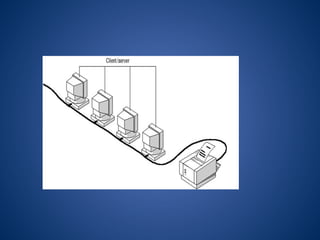
• Servers—Computers that provide shared resources to network
users.
• Clients—Computers that access shared network resources
provided by a server.
• Media—the wires that make the physical connections.
• Shared data—Files provided to clients by servers across the
network.
• Shared printers and other peripherals—Additional resources
provided by servers.
• Resources—any service or device, such as files, printers, or
other items, made available for use by members of the network.
Networks are classified into two principal
groups based on how they share information:
• Server-based networks.
• peer-to-peer networks
In selecting one of these network types, the following
issues should be considered
– What is the size of the organization?
– How much security does the organization require?
– What software or hardware does the resource require?
– How much administration does it need?
– How much will it cost?
– Will this resource meet the needs of the organization
today and in the future?
– Will additional training be needed?
1. Server-Based Networks
• In an environment with more than 10 users.
• Therefore, most networks have dedicated servers. A
dedicated server is one that functions only as a server and
is not used as a client or workstation. Servers are
described as "dedicated" because they are not themselves
clients, and because they are optimized to service
requests from network clients quickly and to ensure the
security of files and directories.
• Server-based networks have become the standard models
for networking
• Server-based networks divide processing tasks between
clients and servers
Advantages include
– Strong central security
– Central file storage which allows all users to work
from the same set of data and provides easy backup
of critical data
– Ability of servers to pool available hardware and
software, lowering overall costs
– Ability to share expensive equipment
– Optimized dedicated servers, which are faster than
peers at sharing resources on the network
– Easy manageability of a large number of users
Disadvantages include
– Expensive dedicated hardware server computer
– Expensive network operating system software and
client licenses
– A dedicated network administrator
2. Peer-to-Peer Networks
• In a peer-to-peer network, there are no dedicated
servers.
• All the computers are equal and therefore are known as
peers.
• Each computer functions as both a client and a server,
and there is no administrator responsible for the entire
network.
• The user at each computer determines what data on
that computer is shared on the network
• Peer-to-peer networks are relatively simple
Where a Peer-to-Peer Network Is Appropriate
Peer-to-peer networks are good choices for
environments where:
• Where are 10 users or fewer?
• Users share resources, such as files and
printers, but no specialized servers exist.
• Security is not an issue.
• The organization and the network will
experience only limited growth within the
foreseeable
Advantages of peer networks include
• No extra investment in server hardware or
software
• Easy setup
• Little network administration required
• Ability of users to control resource sharing
• No reliance on other computers for their
operation
• Lower cost for small networks
Disadvantages of peer networks
• Additional load on computers because of resource
sharing
• Inability of peers to handle as many network
connections as servers
• Lack of central organization, which can make data hard
to find
• No central point of storage for file archiving
• Requirement that users administer their own computers
• Weak and intrusive security
• Lack o f central management, which makes large peer
networks difficult to work with future.
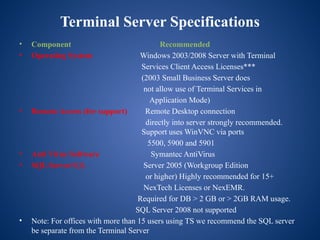
Terminal Server Specifications
• Component Recommended
• Operating System Windows 2003/2008 Server with Terminal
Services Client Access Licenses***
(2003 Small Business Server does
not allow use of Terminal Services in
Application Mode)
• Remote Access (for support) Remote Desktop connection
directly into server strongly recommended.
Support uses WinVNC via ports
5500, 5900 and 5901
• Anti Virus Software Symantec AntiVirus
• SQL ServerSQL Server 2005 (Workgroup Edition
or higher) Highly recommended for 15+
NexTech Licenses or NexEMR.
Required for DB > 2 GB or > 2GB RAM usage.
SQL Server 2008 not supported
• Note: For offices with more than 15 users using TS we recommend the SQL server
be separate from the Terminal Server
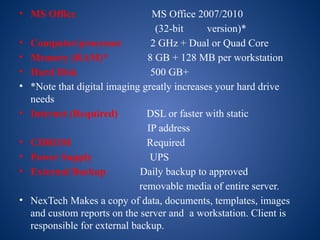
• MS Office MS Office 2007/2010
(32-bit version)*
• Computer/processor 2 GHz + Dual or Quad Core
• Memory (RAM)* 8 GB + 128 MB per workstation
• Hard Disk 500 GB+
• *Note that digital imaging greatly increases your hard drive
needs
• Internet (Required) DSL or faster with static
IP address
• CDROM Required
• Power Supply UPS
• External Backup Daily backup to approved
removable media of entire server.
• NexTech Makes a copy of data, documents, templates, images
and custom reports on the server and a workstation. Client is
responsible for external backup.
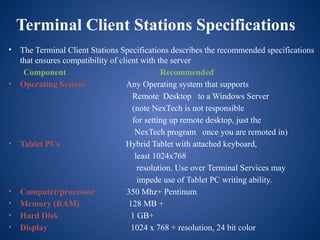
Terminal Client Stations Specifications
• The Terminal Client Stations Specifications describes the recommended specifications
that ensures compatibility of client with the server
Component Recommended
• Operating System Any Operating system that supports
Remote Desktop to a Windows Server
(note NexTech is not responsible
for setting up remote desktop, just the
NexTech program once you are remoted in)
• Tablet PCs Hybrid Tablet with attached keyboard,
least 1024x768
resolution. Use over Terminal Services may
impede use of Tablet PC writing ability.
• Computer/processor 350 Mhz+ Pentinum
• Memory (RAM) 128 MB +
• Hard Disk 1 GB+
• Display 1024 x 768 + resolution, 24 bit color
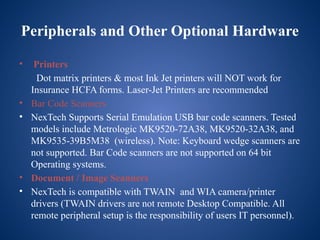
Peripherals and Other Optional Hardware
• Printers
Dot matrix printers & most Ink Jet printers will NOT work for
Insurance HCFA forms. Laser-Jet Printers are recommended
• Bar Code Scanners
• NexTech Supports Serial Emulation USB bar code scanners. Tested
models include Metrologic MK9520-72A38, MK9520-32A38, and
MK9535-39B5M38 (wireless). Note: Keyboard wedge scanners are
not supported. Bar Code scanners are not supported on 64 bit
Operating systems.
• Document / Image Scanners
• NexTech is compatible with TWAIN and WIA camera/printer
drivers (TWAIN drivers are not remote Desktop Compatible. All
remote peripheral setup is the responsibility of users IT personnel).
• Voice Dictation
• Dragon Naturally Speaking Medical Edition required
for voice dictation.
• Magnetic Strip Readers/Cash Drawers/Reciept
Printers
• Cash Drawers, MSR readers and Receipt Printers must
have OPOS Drivers-
(If using 64 bit OS, make sure hardware is 64 bit
compatible) NexTech is not responsible for installation
of OPOS drivers)tested models – MSR - ID Tech Mini
Mag Model Number IDMB-355133B (64-bit
compatible) Cash Drawer – APG T237A-BL616
Reciept Printer – Citizen CTS2000
• Hardware specifications are subject to change without
notice.
• ***In order to properly run Terminal Services you are
required by Microsoft to purchase CAL’s(Client
Access Licensing) for both Terminal Services and
basic Windows 2000/2003 server connectivity. The
number of CAL’s needed varies depending on the
number of terminals/ workstations on your local
network. (Questions regarding CALs, please refer to
Microsoft’s web page or contact your local computer
consultant.)
• ****64-bit version of MS Office 2010 is not
supported.
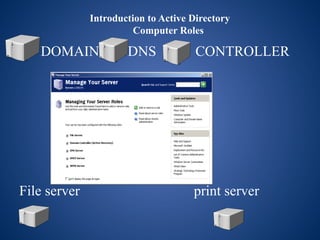
Introduction to Active Directory
Computer Roles
DOMAIN DNS CONTROLLER
File server print server
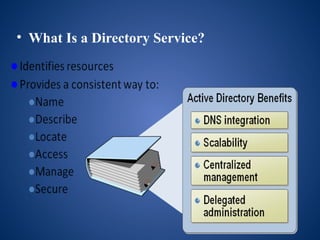
• What Is a Directory Service?
Active Directory Objects
• Objects
• Attributes that represents a network resource
• Object name: Computers
• Attributes: computer 1, computer 2, computer 3,
etc.
• Object: Users
• Attributes: First name, last name, logon name,
etc.
Active Directory Schema
• Defines objects that can be stored in Active
Directory (See schema administration in Active
Directory Users and Computers)
• Types of schema objects (metadata)
• Schema class objects - Template for creating new
objects (e.g. computer, Group, User, etc.)
• Schema attribute objects – Define or describes the
schema class object with which they are associated even
though they may be used in many schema classes
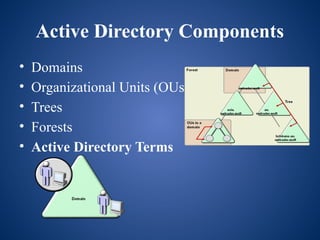
Active Directory Components
• Domains
• Organizational Units (OUs)
• Trees
• Forests
• Active Directory Terms
Domains
• Core unit of logical structures
• Can Stores millions of objects
• A security boundary
• Access to objects is governed by access control
lists (ACLs), which contain permissions for each
object (files, folders, shares, printers, etc.). Those
permissions control which users can gain access
to an object and what type of access they can
gain.
Organizational Units (OUs)
• Organizes objects within a domain into logical administrative
groups
• Nesting when an OU is added within another OU (like a
subdirectory). This creates a hierarchical structure
• Trees
• A group or hierarchy of domains created by adding child
domain to a parent
• Forests
• A group or hierarchy of independent domain trees
• Forest functional level provides a way to enable forest-wide
Active Directory features
• Physical Structures
• Sites
• Domains controllers
• Sites
• One or more connected IP subnets
• Usually has the same performance boundaries
• Contain only computer and connection objects
• Domain Controllers
• Authenticates users and maintains domain security policy
• Stores a replica of the domain portion of Active Directory
• Replication
• Ensures that changes in one domain controller are
represented in all other domain controllers in the domain
What Information is Replicated
• Active Directory is partitioned into four units:
– Schema partition – describes objects and attributes that can be created in a
directory. This data is common to all domains in a forest and is replicated
– Configuration partition – describes domain structure and replication layout.
This data is common to all domains in a forest and is replicated
– Domain Partition – Describes all domain objects. This is domain specific
and is not replicated, but data is replicated to every domain controller in the
domain
– Application Directory partition – Stores dynamic application-specific data
and can contain any type of object except security type. Can be set for
replication if desired
• The Domain Name System, or DNS, is used to resolve human-
readable hostnames, such as www.dyndns.com, into machine-readable
IP addresses, such as 63.208.196.66. DNS also provides other
information about domain names, such as mail services.
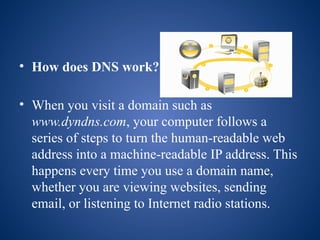
• How does DNS work?
• When you visit a domain such as
www.dyndns.com, your computer follows a
series of steps to turn the human-readable web
address into a machine-readable IP address. This
happens every time you use a domain name,
whether you are viewing websites, sending
email, or listening to Internet radio stations.
• Step 1: Request information
• The process begins when you ask your computer to resolve a
hostname, such as visiting http://www.dyndns.com. The first
place your computer looks is its local DNS cache, which stores
information that your computer has recently retrieved. If your
computer doesn't already know the answer, it needs to perform a
DNS query to find out.
• Step 2: Ask the recursive DNS servers
• If the information is not stored locally, your computer queries
(contacts) your ISP's recursive DNS servers. These specialized
computers perform the legwork of a DNS query on your behalf.
Recursive servers have their own caches, so the process usually
ends here, and the information is returned to the user.
• Step 3: Ask the root nameservers
• If the recursive servers don't have the answer, they query the root
nameservers. A nameserver is a computer that answers questions about
domain names, such as IP addresses. The thirteen root nameservers acting
as a kind of telephone switchboard for DNS; they don't know the answer,
but they can direct our query to someone that knows where to find it.
• Step 4: Ask the TLD nameservers
• The root nameservers will look at the first part of our request, reading
from right to left — www.dyndns.com — and direct our query to the Top-
Level Domain (TLD) nameservers for .com. Each TLD, such
as .com, .org, and .us, have their own set of nameservers, which act like a
receptionist for each TLD. These servers don't have the information we
need, but they can refer us directly to the servers that do have the
information.
• Step 5: Ask the authoritative DNS servers
• The TLD nameservers review the next part of our request —
www.dyndns.com — and direct our query to the nameservers
responsible for this specific domain. These authoritative
nameservers are responsible for knowing all the information about a
specific domain, which are stored in DNS records. There are many
types of records, which each contain a different kind of information.
In this example, we want to know the IP address for
www.dyndns.com, so we ask the authoritative nameserver for the
Address Record (A).
• Check out DNSCog.com our ultimate DNS diagnostic report tool that
inspects your domain name or zone for common errors in
nameserver configuration, mailservers, and DNSSEC configuration.
• Step 6: Retrieve the record
• The recursive server retrieves the A record for
www.dyndns.com from the authoritative nameservers,
and stores the record in its local cache. If anyone else
requests the host record for www.dyndns.com, the
recursive servers will already have the answer, and
will not need to go through the lookup process again.
All records have a time-to-live value, which is like
an expiration date; after a while, the recursive server
will need to ask for a new copy of the record to make
sure the information doesn't become out-of-date.
• Step 7: Receive the answer
• Armed with the answer, recursive server returns
the A record back to your computer. Your
computer stores the record in its cache, reads the
IP address from the record, then passes this
information to your browser. The browser then
opens a connection to the webserver and
receives the website.
• This entire process, from start to finish, takes
only milliseconds to complete.

operating system server presentation.pptx

  • 1.
    UNIT OF COMPETENCY Configureand Administer Server • L01:Confirm server specification • LO2:Verify server compatibility and inter- operability • LO3:Configure and test server
  • 2.
    Network Configuration • Ingeneral, all networks have certain components, functions, and features in common, these include: • Servers—Computers that provide shared resources to network users. • Clients—Computers that access shared network resources provided by a server. • Media—the wires that make the physical connections. • Shared data—Files provided to clients by servers across the network. • Shared printers and other peripherals—Additional resources provided by servers. • Resources—any service or device, such as files, printers, or other items, made available for use by members of the network.
  • 3.
    Networks are classifiedinto two principal groups based on how they share information: • Server-based networks. • peer-to-peer networks
  • 4.
    In selecting oneof these network types, the following issues should be considered – What is the size of the organization? – How much security does the organization require? – What software or hardware does the resource require? – How much administration does it need? – How much will it cost? – Will this resource meet the needs of the organization today and in the future? – Will additional training be needed?
  • 5.
    1. Server-Based Networks •In an environment with more than 10 users. • Therefore, most networks have dedicated servers. A dedicated server is one that functions only as a server and is not used as a client or workstation. Servers are described as "dedicated" because they are not themselves clients, and because they are optimized to service requests from network clients quickly and to ensure the security of files and directories. • Server-based networks have become the standard models for networking • Server-based networks divide processing tasks between clients and servers
  • 6.
    Advantages include – Strongcentral security – Central file storage which allows all users to work from the same set of data and provides easy backup of critical data – Ability of servers to pool available hardware and software, lowering overall costs – Ability to share expensive equipment – Optimized dedicated servers, which are faster than peers at sharing resources on the network – Easy manageability of a large number of users
  • 7.
    Disadvantages include – Expensivededicated hardware server computer – Expensive network operating system software and client licenses – A dedicated network administrator
  • 8.
    2. Peer-to-Peer Networks •In a peer-to-peer network, there are no dedicated servers. • All the computers are equal and therefore are known as peers. • Each computer functions as both a client and a server, and there is no administrator responsible for the entire network. • The user at each computer determines what data on that computer is shared on the network • Peer-to-peer networks are relatively simple
  • 10.
    Where a Peer-to-PeerNetwork Is Appropriate Peer-to-peer networks are good choices for environments where: • Where are 10 users or fewer? • Users share resources, such as files and printers, but no specialized servers exist. • Security is not an issue. • The organization and the network will experience only limited growth within the foreseeable
  • 11.
    Advantages of peernetworks include • No extra investment in server hardware or software • Easy setup • Little network administration required • Ability of users to control resource sharing • No reliance on other computers for their operation • Lower cost for small networks
  • 12.
    Disadvantages of peernetworks • Additional load on computers because of resource sharing • Inability of peers to handle as many network connections as servers • Lack of central organization, which can make data hard to find • No central point of storage for file archiving • Requirement that users administer their own computers • Weak and intrusive security • Lack o f central management, which makes large peer networks difficult to work with future.
  • 13.
    Terminal Server Specifications •Component Recommended • Operating System Windows 2003/2008 Server with Terminal Services Client Access Licenses*** (2003 Small Business Server does not allow use of Terminal Services in Application Mode) • Remote Access (for support) Remote Desktop connection directly into server strongly recommended. Support uses WinVNC via ports 5500, 5900 and 5901 • Anti Virus Software Symantec AntiVirus • SQL ServerSQL Server 2005 (Workgroup Edition or higher) Highly recommended for 15+ NexTech Licenses or NexEMR. Required for DB > 2 GB or > 2GB RAM usage. SQL Server 2008 not supported • Note: For offices with more than 15 users using TS we recommend the SQL server be separate from the Terminal Server
  • 14.
    • MS OfficeMS Office 2007/2010 (32-bit version)* • Computer/processor 2 GHz + Dual or Quad Core • Memory (RAM)* 8 GB + 128 MB per workstation • Hard Disk 500 GB+ • *Note that digital imaging greatly increases your hard drive needs • Internet (Required) DSL or faster with static IP address • CDROM Required • Power Supply UPS • External Backup Daily backup to approved removable media of entire server. • NexTech Makes a copy of data, documents, templates, images and custom reports on the server and a workstation. Client is responsible for external backup.
  • 15.
    Terminal Client StationsSpecifications • The Terminal Client Stations Specifications describes the recommended specifications that ensures compatibility of client with the server Component Recommended • Operating System Any Operating system that supports Remote Desktop to a Windows Server (note NexTech is not responsible for setting up remote desktop, just the NexTech program once you are remoted in) • Tablet PCs Hybrid Tablet with attached keyboard, least 1024x768 resolution. Use over Terminal Services may impede use of Tablet PC writing ability. • Computer/processor 350 Mhz+ Pentinum • Memory (RAM) 128 MB + • Hard Disk 1 GB+ • Display 1024 x 768 + resolution, 24 bit color
  • 16.
    Peripherals and OtherOptional Hardware • Printers Dot matrix printers & most Ink Jet printers will NOT work for Insurance HCFA forms. Laser-Jet Printers are recommended • Bar Code Scanners • NexTech Supports Serial Emulation USB bar code scanners. Tested models include Metrologic MK9520-72A38, MK9520-32A38, and MK9535-39B5M38 (wireless). Note: Keyboard wedge scanners are not supported. Bar Code scanners are not supported on 64 bit Operating systems. • Document / Image Scanners • NexTech is compatible with TWAIN and WIA camera/printer drivers (TWAIN drivers are not remote Desktop Compatible. All remote peripheral setup is the responsibility of users IT personnel).
  • 17.
    • Voice Dictation •Dragon Naturally Speaking Medical Edition required for voice dictation. • Magnetic Strip Readers/Cash Drawers/Reciept Printers • Cash Drawers, MSR readers and Receipt Printers must have OPOS Drivers- (If using 64 bit OS, make sure hardware is 64 bit compatible) NexTech is not responsible for installation of OPOS drivers)tested models – MSR - ID Tech Mini Mag Model Number IDMB-355133B (64-bit compatible) Cash Drawer – APG T237A-BL616 Reciept Printer – Citizen CTS2000
  • 18.
    • Hardware specificationsare subject to change without notice. • ***In order to properly run Terminal Services you are required by Microsoft to purchase CAL’s(Client Access Licensing) for both Terminal Services and basic Windows 2000/2003 server connectivity. The number of CAL’s needed varies depending on the number of terminals/ workstations on your local network. (Questions regarding CALs, please refer to Microsoft’s web page or contact your local computer consultant.) • ****64-bit version of MS Office 2010 is not supported.
  • 19.
    Introduction to ActiveDirectory Computer Roles DOMAIN DNS CONTROLLER File server print server
  • 20.
    • What Isa Directory Service?
  • 21.
    Active Directory Objects •Objects • Attributes that represents a network resource • Object name: Computers • Attributes: computer 1, computer 2, computer 3, etc. • Object: Users • Attributes: First name, last name, logon name, etc.
  • 22.
    Active Directory Schema •Defines objects that can be stored in Active Directory (See schema administration in Active Directory Users and Computers) • Types of schema objects (metadata) • Schema class objects - Template for creating new objects (e.g. computer, Group, User, etc.) • Schema attribute objects – Define or describes the schema class object with which they are associated even though they may be used in many schema classes
  • 23.
    Active Directory Components •Domains • Organizational Units (OUs) • Trees • Forests • Active Directory Terms
  • 24.
    Domains • Core unitof logical structures • Can Stores millions of objects • A security boundary • Access to objects is governed by access control lists (ACLs), which contain permissions for each object (files, folders, shares, printers, etc.). Those permissions control which users can gain access to an object and what type of access they can gain.
  • 25.
    Organizational Units (OUs) •Organizes objects within a domain into logical administrative groups • Nesting when an OU is added within another OU (like a subdirectory). This creates a hierarchical structure • Trees • A group or hierarchy of domains created by adding child domain to a parent • Forests • A group or hierarchy of independent domain trees • Forest functional level provides a way to enable forest-wide Active Directory features
  • 26.
    • Physical Structures •Sites • Domains controllers • Sites • One or more connected IP subnets • Usually has the same performance boundaries • Contain only computer and connection objects • Domain Controllers • Authenticates users and maintains domain security policy • Stores a replica of the domain portion of Active Directory • Replication • Ensures that changes in one domain controller are represented in all other domain controllers in the domain
  • 27.
    What Information isReplicated • Active Directory is partitioned into four units: – Schema partition – describes objects and attributes that can be created in a directory. This data is common to all domains in a forest and is replicated – Configuration partition – describes domain structure and replication layout. This data is common to all domains in a forest and is replicated – Domain Partition – Describes all domain objects. This is domain specific and is not replicated, but data is replicated to every domain controller in the domain – Application Directory partition – Stores dynamic application-specific data and can contain any type of object except security type. Can be set for replication if desired • The Domain Name System, or DNS, is used to resolve human- readable hostnames, such as www.dyndns.com, into machine-readable IP addresses, such as 63.208.196.66. DNS also provides other information about domain names, such as mail services.
  • 28.
    • How doesDNS work? • When you visit a domain such as www.dyndns.com, your computer follows a series of steps to turn the human-readable web address into a machine-readable IP address. This happens every time you use a domain name, whether you are viewing websites, sending email, or listening to Internet radio stations.
  • 29.
    • Step 1:Request information • The process begins when you ask your computer to resolve a hostname, such as visiting http://www.dyndns.com. The first place your computer looks is its local DNS cache, which stores information that your computer has recently retrieved. If your computer doesn't already know the answer, it needs to perform a DNS query to find out. • Step 2: Ask the recursive DNS servers • If the information is not stored locally, your computer queries (contacts) your ISP's recursive DNS servers. These specialized computers perform the legwork of a DNS query on your behalf. Recursive servers have their own caches, so the process usually ends here, and the information is returned to the user.
  • 30.
    • Step 3:Ask the root nameservers • If the recursive servers don't have the answer, they query the root nameservers. A nameserver is a computer that answers questions about domain names, such as IP addresses. The thirteen root nameservers acting as a kind of telephone switchboard for DNS; they don't know the answer, but they can direct our query to someone that knows where to find it. • Step 4: Ask the TLD nameservers • The root nameservers will look at the first part of our request, reading from right to left — www.dyndns.com — and direct our query to the Top- Level Domain (TLD) nameservers for .com. Each TLD, such as .com, .org, and .us, have their own set of nameservers, which act like a receptionist for each TLD. These servers don't have the information we need, but they can refer us directly to the servers that do have the information.
  • 31.
    • Step 5:Ask the authoritative DNS servers • The TLD nameservers review the next part of our request — www.dyndns.com — and direct our query to the nameservers responsible for this specific domain. These authoritative nameservers are responsible for knowing all the information about a specific domain, which are stored in DNS records. There are many types of records, which each contain a different kind of information. In this example, we want to know the IP address for www.dyndns.com, so we ask the authoritative nameserver for the Address Record (A). • Check out DNSCog.com our ultimate DNS diagnostic report tool that inspects your domain name or zone for common errors in nameserver configuration, mailservers, and DNSSEC configuration.
  • 32.
    • Step 6:Retrieve the record • The recursive server retrieves the A record for www.dyndns.com from the authoritative nameservers, and stores the record in its local cache. If anyone else requests the host record for www.dyndns.com, the recursive servers will already have the answer, and will not need to go through the lookup process again. All records have a time-to-live value, which is like an expiration date; after a while, the recursive server will need to ask for a new copy of the record to make sure the information doesn't become out-of-date.
  • 33.
    • Step 7:Receive the answer • Armed with the answer, recursive server returns the A record back to your computer. Your computer stores the record in its cache, reads the IP address from the record, then passes this information to your browser. The browser then opens a connection to the webserver and receives the website. • This entire process, from start to finish, takes only milliseconds to complete.