operating system features,types,Unit 2 [Autosaved].pptx
1.
by Gargi Mukherjee
OperatingSystem Fundamentals
1. Components of an OS
2. Functions of an OS
3. Types of OS
4. Command-line tools
2.
by Gargi Mukherjee
OperatingSystem
• It is a system software which acts as an intermediary or
interface by which the application software is able to
interact with the hardware.
• GUI (Graphical user Interface)And CUI(Command
User Interface)
• Graphical-Icons(display) the type of the file or the
folder.E.g Windows,Linux,MAc
• CUI(Command User Interface)-remember the
commands,type the commands to make the system
work. E.g. MSDos,Unix,Linux
3.
by Gargi Mukherjee
TheThree Elements of an OS
• User Interface – The part of the OS that you interface with.
• Kernel – The core of the OS. Interacts with the BIOS (Basic
Input and Output System)(at one end), and the UI (at the other
end).hardware
• File Management System – Organizes and manages files.
hardware
kernel
O.S
Application
Software
users
4.
by Gargi Mukherjee
OperatingSystem Functions
• File Management-File operations e.g creating a file write /read
operations ,deleting ,copying ,moving,renaming, converting, close.
• Application Management(Process Management)-Process create,process
waiting,process endup.
• Built-in Utility Programs-E,g Antivirus ,device drivers
• Control of Computer Hardware(device management)-O. S manages the
requests which comes for the various devices and builds a queue.
• Security-Managing different accounts and giving the privileges
accordingly.
• Memory Management-O.S manages the memory(main memory)
memory allocation and the de-allocation.
5.
by Gargi Mukherjee
OperatingSystem Types
• Batch processing-processes requiring same type of resource(I/O)s
were batched together and were executed. CPU it was idle.
• Multi programming-maximum utilization of cpu.
• Multiuser – Two or more users work with the computer at the same
time.
• Multitasking – extension of multiprogramming, Two or more
processes running at the same time.
• Multithreading – Two or more parts of the same process running at
the same time.
• Multiprocessing-multiple processors are working together to give the
desired output.
• Real time O.S(RTOS)-Response time is very less
by Gargi Mukherjee
MSWindows Versions
• Home (Non-Professional) Versions
• Windows 95
• Windows 98
• Windows Me
• Professional (Business) Versions
• Windows NT
• Windows 2000
• The Two Lines Came Together in Windows XP (2001)
8.
by Gargi Mukherjee
DiskOperating System
( DOS )
• The first PC Operating System (1981)
• Not a Multitasking OS, only one program could run at a
time
• A command-line interface, no GUI.
• Early versions of Windows sat on top of DOS and used it
to communicate with the BIOS.
• Windows XP communicates directly with the BIOS, but
allows commands to be entered via a command prompt.
9.
by Gargi Mukherjee
FileSystem
• A file is a collection of bytes of information treated as a single
unit.
• It is given a name to make it easy to find and use later.
• The file system keeps track of where a file is actually resident on a
disk.(destination)
• A disk (hard disk, floppy, optical disk) is subdivided into directories
or folders.
10.
by Gargi Mukherjee
FileSystem (continued)
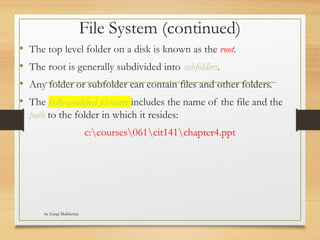
• The top level folder on a disk is known as the root.
• The root is generally subdivided into subfolders.
• Any folder or subfolder can contain files and other folders.
• The fully-qualified filename includes the name of the file and the
path to the folder in which it resides:
c:courses061cit141chapter4.ppt
11.
by Gargi Mukherjee
WindowsRegistered File Types
• A particular file extension can be registered and
associated with a particular program.
• .docx files are associated with MS Word
• .xlsx files are associated with MS Excel
• .txt files are associated with Notepad
• .html files are associated with IE
• This is how Windows knows what to do when you
double-click a file in My Computer.
12.
by Gargi Mukherjee
FileAttributes
• Each file has four attributes which can be viewed or set.
• Read Only – File may be viewed, copied, executed (if appropriate), but
not changed. It can be deleted.
• Hidden – File will not be displayed in normal list of files.
• System – File is identified to belong to system, should not be messed
with.(.sys)
• Archive – File is (or is not) a candidate for backup.
13.
by Gargi Mukherjee
DOSCommands
• Two types – Internal and External
• Internal commands are resident in the main kernel file: command.com
(or cmd.exe)
• External commands are separate little programs.
• It's important to learn DOS commands because you can write
scripts to execute a set of commands automatically.
14.
by Gargi Mukherjee
TheCommand Prompt
By default, it reminds you
of the current drive and the
current directory.
15.
by Gargi Mukherjee
ThreeParts of a DOS Command
xcopy /m/e c:temp d:temp
Command
Name
Switches Parameters
16.
by Gargi Mukherjee
DOSWildcard Characters
• The characters ? and * can be used to affect multiple files with a
single command.
• The ? means any single character.
copy c:tempnotes??.doc d:temp
means copy any Word file that begins with the word "notes" with exactly
two other characters, like "notes01.doc", "notesAB.doc", etc.
17.
by Gargi Mukherjee
DOSWildcard Characters
• The "*" wildcard replaces any number of characters.
copy c:tempnotes.* d:temp
(copy all files with the name "notes" and any extension.)
copy *.doc c:temp
(copy all files with a "doc" extension in the current
directory.)
18.
by Gargi Mukherjee
Atthe Command Prompt
• A drive letter and a ":" (e.g. "f:") makes that your current drive.
• CD (Change Directory)
• cd (with no parameters) reminds you what the current directory is.
• cd .. moves you to the parent of the current directory (up one level).
• cd moves you to the root of the current drive.
• cd <some directory> makes that your current directory.
19.
by Gargi Mukherjee
DOSCommands
• MD – Make directory.
• RD – Remove a directory or an entire directory tree.
• DIR – Display the contents of a directory.
• DEL (or ERASE) – Deletes one or more files.
• COPY – Places a copy of file(s) in a different folder.
• XCOPY – Flexible copy command used for copying
large groups of files, commonly used for file backup.
20.
by Gargi Mukherjee
MoreDOS Commands
• MOVE – Moves file(s) from one folder to another.
• REN(AME) – Renames file(s).
• ATTRIB – Displays or sets file attributes.
• FORMAT – Formats a disk.
• CHKDSK – Tests the file system on a disk, and
reports status.
by Gargi Mukherjee
NewFeatures
• Start Menu
• One Windows for all devices
• Cortana
• New Native Apps and Apps Store
• Microsoft Edge Browser
• Improved Multitasking
• Snap assist
• universal apps can be windowed
• Action Center
• Continuum
23.
by Gargi Mukherjee
StartMenu
• when click on the Start button at
the bottom left of the screen, you
get two panels side by side, with
the left column showing pinned,
recently added and most-used
apps.
• The right column features a selection of live tiles that you can
customize, resize and reorganize.
• We can have the Start Menu expand to full screen whenever we want.
24.
by Gargi Mukherjee
OneWindow for all Devices
• Windows 10 is meant to unify desktop PCs, Windows tablets
and Windows smartphones with one interface, one way of operating
and one account.
• Microsoft is using Windows
10 to attempt to unify its
various software platforms
across different devices under
one Windows brand.
25.
by Gargi Mukherjee
Cortana
•We will be able to search your hard drive for specific folders and files.
• Cortana is able to send emails while you’re working on a spreadsheet,
making multi-tasking much easier.
• Windows 10 will bring Microsoft’s
voice-controlled digital
assistant Cortana, to make it
easier for you to interact with your
device without lifting a finger.
26.
by Gargi Mukherjee
XboxApp
• The new operating system will support Xbox game streaming, with
improved speed and graphics performance by DirectX 12 support.
• The app also lets you to record, edit and share your activities in the game.
• You’ll also be able to join your friends and see your friends’ activity via
Xbox.
• You will soon be able to play any
Xbox One game on your PC or
tablet, with the Xbox app for
windows 10.
27.
by Gargi Mukherjee
EdgeBrowser
• New features include PDF support, a reading mode that improves the layout
of long articles, and a new note taking feature.
• Edge lets you scribble on any page and share your comments with your friends
through social networks.
• Edge Browser will feature Cortana support within the browser, so she can pull
contextual information from the sites
• Internet Explorer will co-exist
with the Microsoft Edge
Browser
28.
by Gargi Mukherjee
ImprovedMulti Tasking
• Instead of having multiple windows open on top of each other on one
desktop, you can set up a whole other virtual desktop for those
programs to reside in.
• A new Multiple Desktops
feature lets you run another
set of windows as if on
another screen.
29.
by Gargi Mukherjee
SnapAssist
• Microsoft also updated its Snap View multitasking feature to let
you windows to the four corners of your screen.
30.
by Gargi Mukherjee
Universalapps can be Windowed
• Universal apps, which previously only operated in full-screen mode, can
now be used in traditional windows on the desktop.
31.
by Gargi Mukherjee
ActionSettings
• It collects alerts from your device from all your apps, similar to the
notifications drawers like in our smartphones.
• Windows 10 will provide a
new way to look at all your
notifications in one place.
32.
by Gargi Mukherjee
Continuum
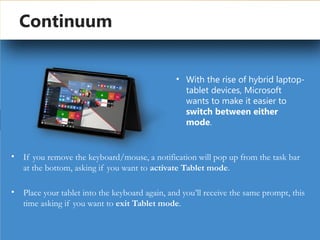
•If you remove the keyboard/mouse, a notification will pop up from the task bar
at the bottom, asking if you want to activate Tablet mode.
• Place your tablet into the keyboard again, and you’ll receive the same prompt, this
time asking if you want to exit Tablet mode.
• With the rise of hybrid laptop-
tablet devices, Microsoft
wants to make it easier to
switch between either
mode.
33.
by Gargi Mukherjee
SystemRequirements
• Processor : 1 gigahertz (GHz) or faster
• RAM : 1 GB (32-bit) or 2 GB (64-bit)
• Free hard disk space : 16 GB
• Graphics card : Microsoft DirectX 9 graphics device
by Gargi Mukherjee
Whywindows 10?
• Windows 10 is the latest Microsoft Operating
System.
• Is replacing Windows 7 on campus
• Much more friendly than Windows 8
• More Secure (wannacry virus)
• Runs better (uses fewer resources)
37.
by Gargi Mukherjee
What’sNew in windows 10?
• A few feature
highlights
• • Start menu
• • Using tiles
• • How to search
• • Task view
• • Virtual desktops
• • Snap enhancements
• • Quick access tools
Personalization and Settings
• A new look
• Personalize your lock screen
• Themes
• Desktop and Colors
by Gargi Mukherjee
Startmenu: Using tiles
In the right pane of the Start menu, you’ll find tiles for some common apps.
To move a tile, just drag it to another position. You can rearrange them within the pane. You can also drag apps
between the tile view and the app list view.
41.
by Gargi Mukherjee
How-toSearch
• Windows 10 Start menu comes with a great Search tool.
• Search apps
• Search files
• Search the web
• Use Cortana
42.
by Gargi Mukherjee
TaskView
• One of the best parts of windows.
• Separate all apps into a spread out view to find the window you
are looking for.
• Great for organization!
• Also “Windows + TAB”
43.
by Gargi Mukherjee
VirtualDesktops
• Windows 10 adds support for virtual desktops, so you can keep your open apps better organized.
• For example, if you need to work with spreadsheets, you could create a second virtual desktop that contains the apps/data you’re using.
• Also can use “CTRL + Windows + arrow keys” to move between them.
44.
by Gargi Mukherjee
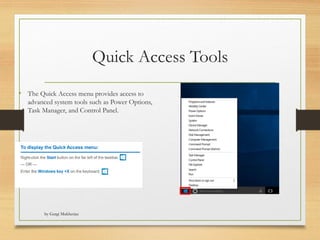
QuickAccess Tools
• The Quick Access menu provides access to
advanced system tools such as Power Options,
Task Manager, and Control Panel.
45.
by Gargi Mukherjee
Personalizationand Settings:
• Settings gets a new “modern” look.
• Basically, a condensed “control panel”
• FYI, control panel is still available.
by Gargi Mukherjee
Settingsfor System
• Settings here change system
configurations (Display
resolution/monitors, default
apps, power, etc.)
48.
by Gargi Mukherjee
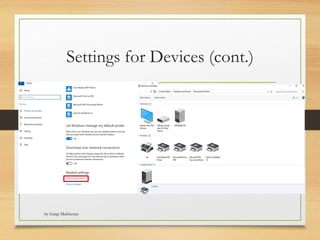
Settingsfor devices
• Manage settings for external
devices (printers, mice, scanners)
• 95% of time it’s printers
• 95% of time, use old view.
by Gargi Mukherjee
PersonalizationSettings
• Tweak your lock screen to your liking. Change the background to a favorite photo or slide show, or
show upcoming calendar events, social network updates, and other app and system notifications.
51.
by Gargi Mukherjee
Personalizationsettings (cont.)
• Choose a picture worthy of gracing your desktop background, and to change the accent color for Start, the
taskbar, and other items. The preview window gives you a sneak peek of your changes as you make them.
52.
by Gargi Mukherjee
Whereis “My Computer”?
• Right-click the start button > Select File Explorer
• Click “This PC” to get to your drives.
53.
by Gargi Mukherjee
Howdo I “logout”?
• Click the start button
• Click the user icon
• Select sign out.
54.
by Gargi Mukherjee
Howdo I “switch users”?
• Common when you need to login on someone else’s
PC.
• Select “other user” on login screen.
• Sign in with AD information.
55.
by Gargi Mukherjee
AddingShortcuts to desktop
• Click the Start button
• Scroll to the app you want
• Hold down the left mouse button
• Drag the app to the desktop
56.
by Gargi Mukherjee
Files
•When you use an application to do work - e.g., write a
paper, make a spreadsheet, or draw a picture, the work is
stored in RAM first
• It is in danger of being lost if the power goes off (RAM is
volatile!)
• When you save it, it is copied to a secondary storage device
like the hard drive
• It is saved as a FILE with a name, extension, time, date,
size
57.
by Gargi Mukherjee
FileNames and Extensions
• You must adhere to file-naming conventions when saving files
• Case sensitivity – upper and lower case are different
• True in Linux and Unix variations, not in Windows
• Maximum length (Windows 260 characters)
• Spaces allowed
• Digits allowed
• / : * ? " < > | not allowed
• File names not allowed (con, nul, prn)
• File extensions provide clues to the file contents
58.
Filename Extensions
• Filename
extensions:
•Used by
programs
• Indicate the file
format
Extension Type of Document Application
.doc
or .docx
Word processing
document
Microsoft Word;
Corel WordPerfect
.xls or .xlsx Workbook Microsoft Excel
.ppt
or .pptx
PowerPoint
presentation
Microsoft
PowerPoint
.mdb
or .accdb
Database Microsoft Access
.bmp Bitmap image Windows
.zip Compressed file WinZip
.pdf Portable Document
Format
Adobe Acrobat
.htm
or .html
Web page Hypertext Markup
Language
by Gargi Mukherjee
59.
by Gargi Mukherjee
Howto Make Extensions Visible
in Windows
• Windows default is NOT to show the common extensions of filenames
but we want to SEE them!
• Open a Windows Explorer window
• Choose Organize tab
• Choose Folder and search options
• Choose View tab
• UNcheck the box that says “Hide extensions for known file types”
• Choose “Apply to Folders”
• (Win 10) https://www.thewindowsclub.com/show-file-extensions-in-
windows
60.
by Gargi Mukherjee
FileDirectories and Folders
• Every storage device has a directory containing a list of its files
• Root directory (like “C:”)
• Subdirectory
• Depicted as folders
• A computer’s file location is defined by a file specification, or path
• Examples: D: is the root of the D drive
• Examples: C:NotesCS 101Week 1notes.txt
• Examples: F:1999MusicCDsPrince
61.
File Explorer
• FileExplorer (also known as Windows
Explorer) helps you manipulate files and folders
in the following ways:
• Rename
• Copy
• Move
• Delete
• Windows offers a set of preconfigured personal
folders, such as My Documents and My Music,
for storing your personal data files
by Gargi Mukherjee
62.
by Gargi Mukherjee
WindowsExplorer
• NOT the same as Internet Explorer! Windows
Explorer is a file manager
• Shows files in different views
• Shows files’ information: name, date modified, type,
size and others you can set (Turn menu bar on, then
View then menu choice Choose Details)
• Uses Graphical User Interface to let you move files
around, copy them, erase them
63.
by Gargi Mukherjee
FileSizes and Dates
• A file contains data, stored as a group of bits
• File size is usually measured in bytes, kilobytes, or megabytes
• The file date indicates the date that a file was created or last modified
64.
by Gargi Mukherjee
FileProperties
• In Windows, right click on a file icon and you see a menu of things you
can do to the file
• Last choice on menu is Properties
• Look at the Security Tab
• Shows the groups or users who can access the file
• Shows “permissions” = Modify, Read & execute, Read, Write
• Modify = change an existing file
• Read = see what’s inside
• Read & execute = see what’s inside and run it if executable
• Write = create new files, modify existing files
Editor's Notes
#7 Home – No security between users of the computer
Professional – Users could allow others to view or change their files, or completely block files from view
Windows XP – Two versions: Professional ($200) and Home ($100), then two other versions were added: Media Center Edition and Tablet Edition
#14 Access the command prompt by typing "cmd" in the Run box, or, in the menu: Start, Programs, Accessories, Command Prompt.
#19 “DOS” is a misnomer. DOS really doesn’t exist anymore. It’s a command prompt.