
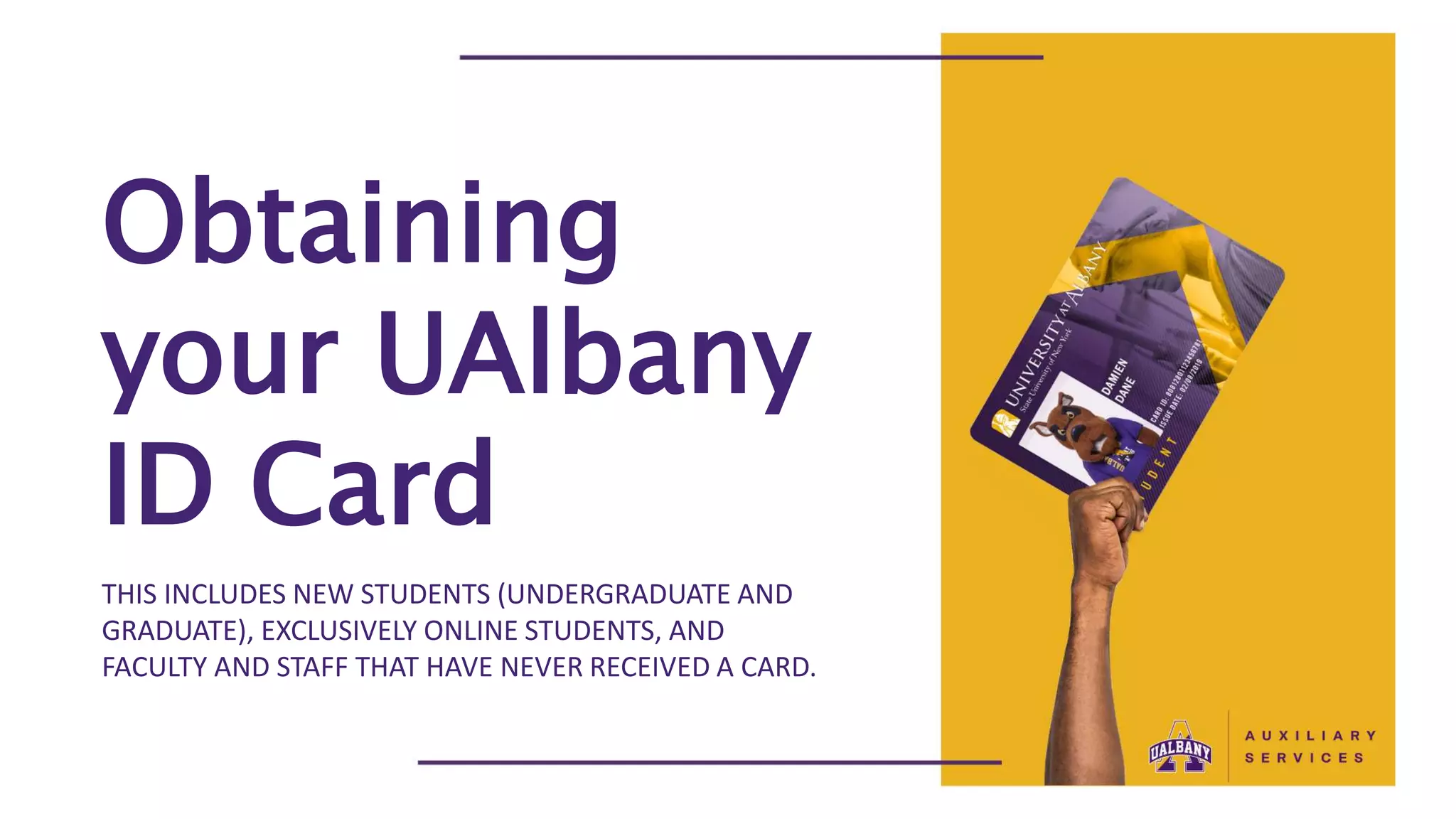
THIS INCLUDES NEW STUDENTS (UNDERGRADUATE AND
GRADUATE), EXCLUSIVELY ONLINE STUDENTS, AND
FACULTY AND STAFF THAT HAVE NEVER RECEIVED A CARD.
Obtaining
your UAlbany
ID Card
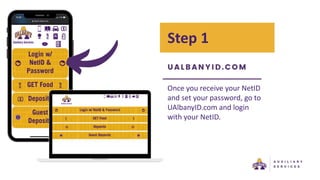
Step 1
Once you receive your NetID
and set your password, go to
UAlbanyID.com and login
with your NetID.
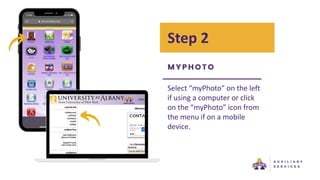
Step 2
Select “myPhoto” on the left
if using a computer or click
on the “myPhoto” icon from
the menu if on a mobile
device.
Step 3
Follow instructions to upload
a current photo and your
official form of photo
identification (e.g. driver’s
license or passport).
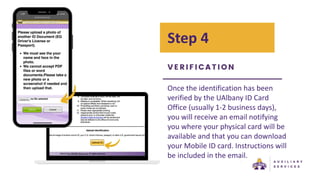
Step 4
Once the identification has been
verified by the UAlbany ID Card
Office (usually 1-2 business days),
you will receive an email notifying
you where your physical card will be
available and that you can download
your Mobile ID card. Instructions will
be included in the email.

Obtaining your ID card

  • 1.
    THIS INCLUDES NEWSTUDENTS (UNDERGRADUATE AND GRADUATE), EXCLUSIVELY ONLINE STUDENTS, AND FACULTY AND STAFF THAT HAVE NEVER RECEIVED A CARD. Obtaining your UAlbany ID Card
  • 2.
    Step 1 Once youreceive your NetID and set your password, go to UAlbanyID.com and login with your NetID.
  • 3.
    Step 2 Select “myPhoto”on the left if using a computer or click on the “myPhoto” icon from the menu if on a mobile device.
  • 4.
    Step 3 Follow instructionsto upload a current photo and your official form of photo identification (e.g. driver’s license or passport).
  • 5.
    Step 4 Once theidentification has been verified by the UAlbany ID Card Office (usually 1-2 business days), you will receive an email notifying you where your physical card will be available and that you can download your Mobile ID card. Instructions will be included in the email.