EndNote X.4
Chalon, Patrice
Hourlay, LucNICC, 2012-11-27
Reference Management Software
• Reference Management Software (RMS)
• KCE and EndNote
• EndNote Tour
• EndNote Preference
Introduction
Get references
Manage references
Get full text
Use references
2
REFERENCE MANAGEMENT
SOFTWARE (RMS)
3
Why RMS ?
 Find references
 Get references
 Manage references
 Get full text
 Use references
4
5
Bibliographical DataBase
(Online)
Reference Management Software (RMS)
Direct
Export
Import
[Tagged text
file]
Connection
[file]
Manual
Encoding
Format
[Output
style]
Document
Report
(Word)
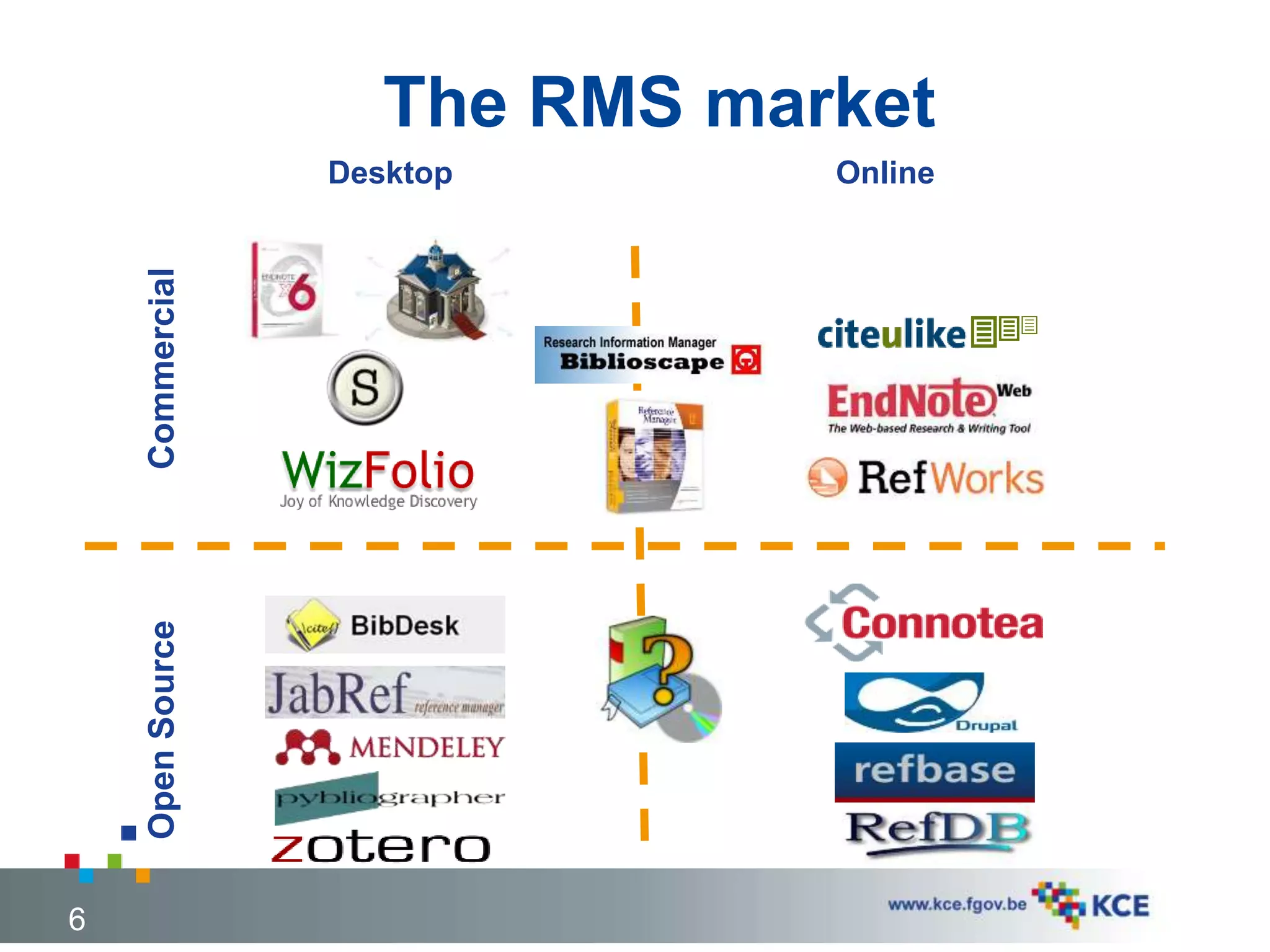
The RMS market
6
CommercialOpenSource Desktop Online
The RMS market
7
Source: http://en.wikipedia.org/wiki/Comparison_of_reference_management_software
RMS@KCE
8
KCE AND ENDNOTE
KCE Master Plan
Use of EndNote
9
KCE Master Plan
 Process 4 : Searching evidence
 Process 7 : Synthesis
10
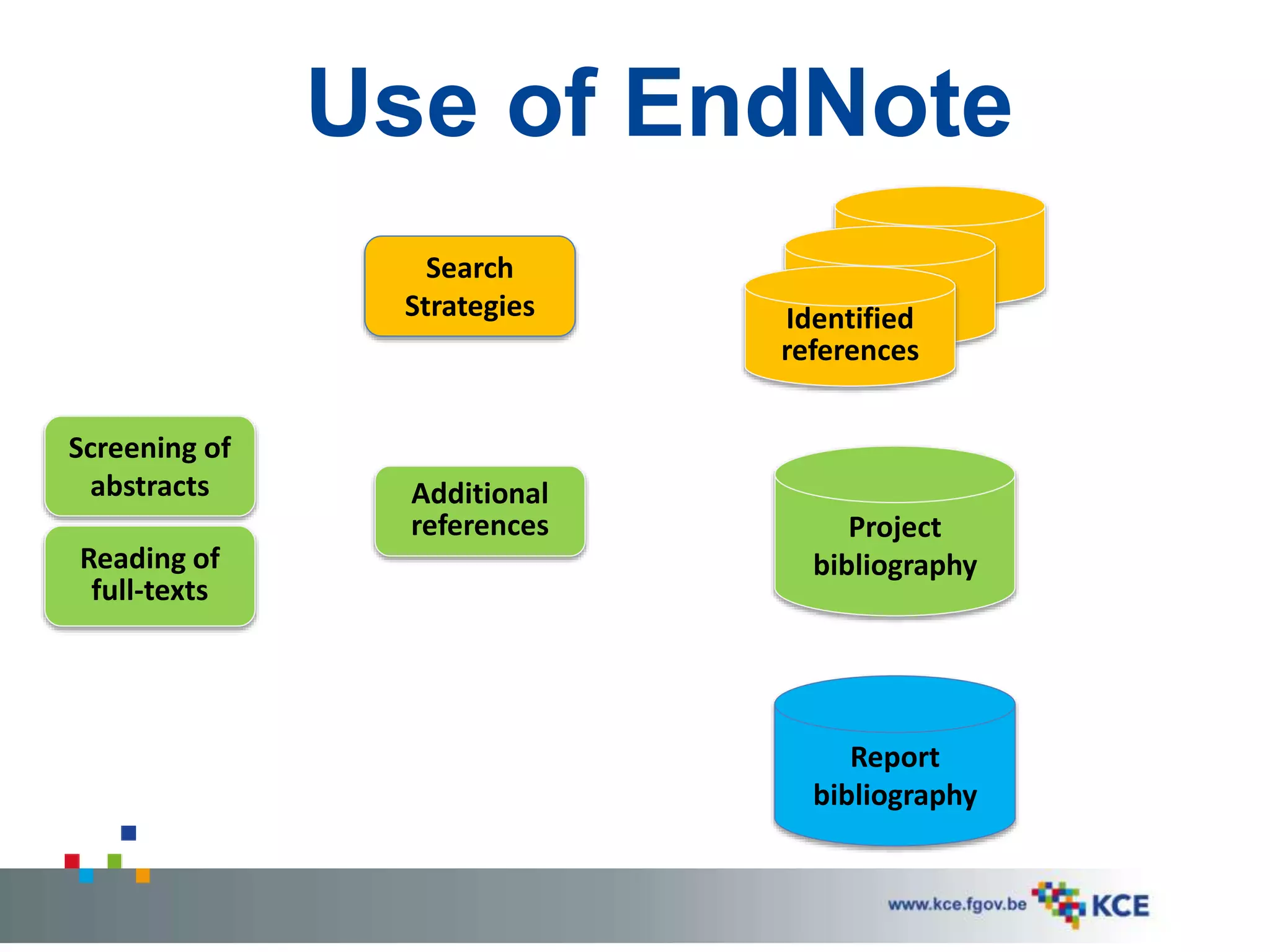
Use of EndNote
Search
Strategies
Screening of
abstracts
Reading of
full-texts
Additional
references
Identified
references
Project
bibliography
Report
bibliography
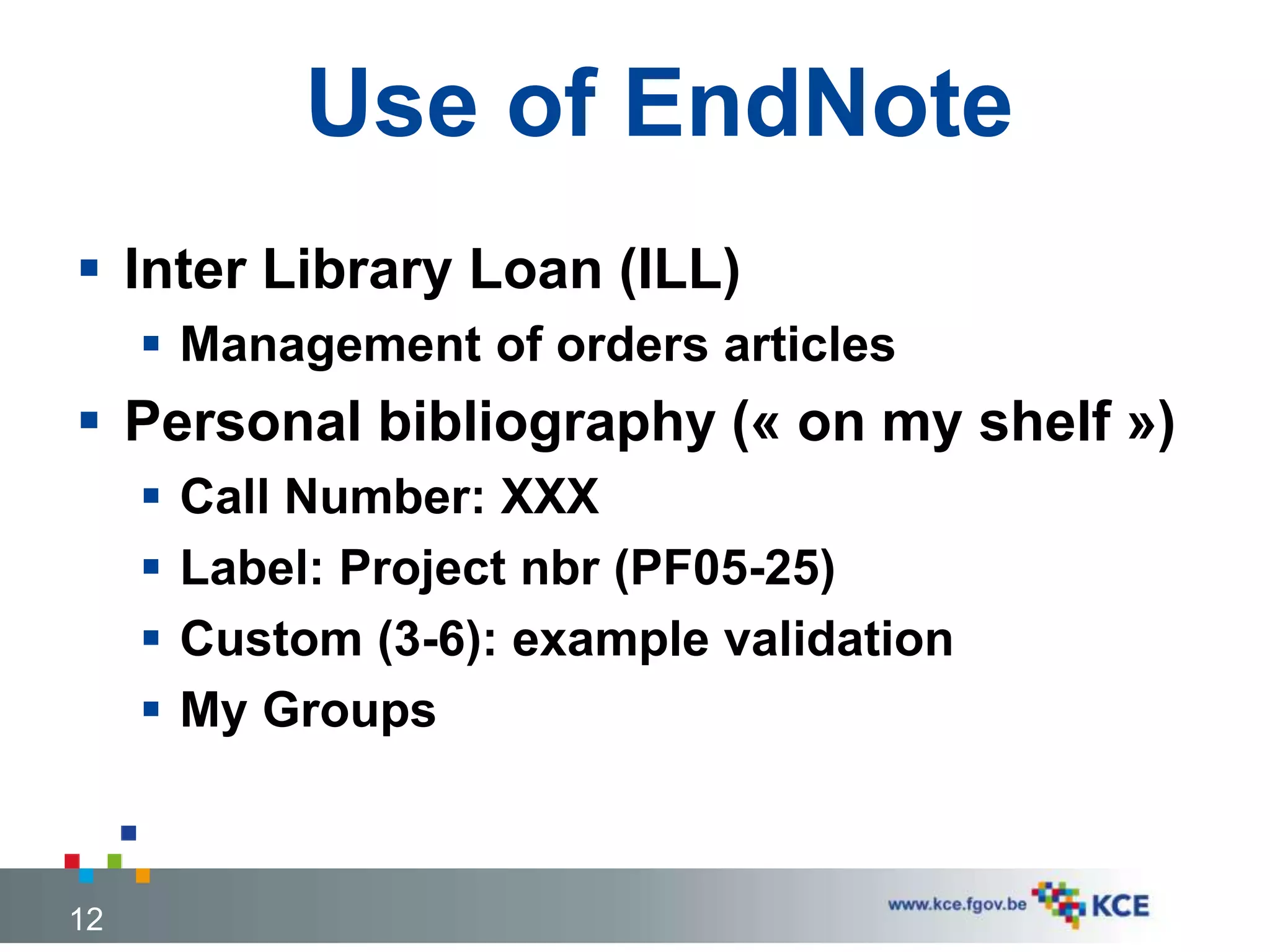
Use of EndNote
 Inter Library Loan (ILL)
 Management of orders articles
 Personal bibliography (« on my shelf »)
 Call Number: XXX
 Label: Project nbr (PF05-25)
 Custom (3-6): example validation
 My Groups
12
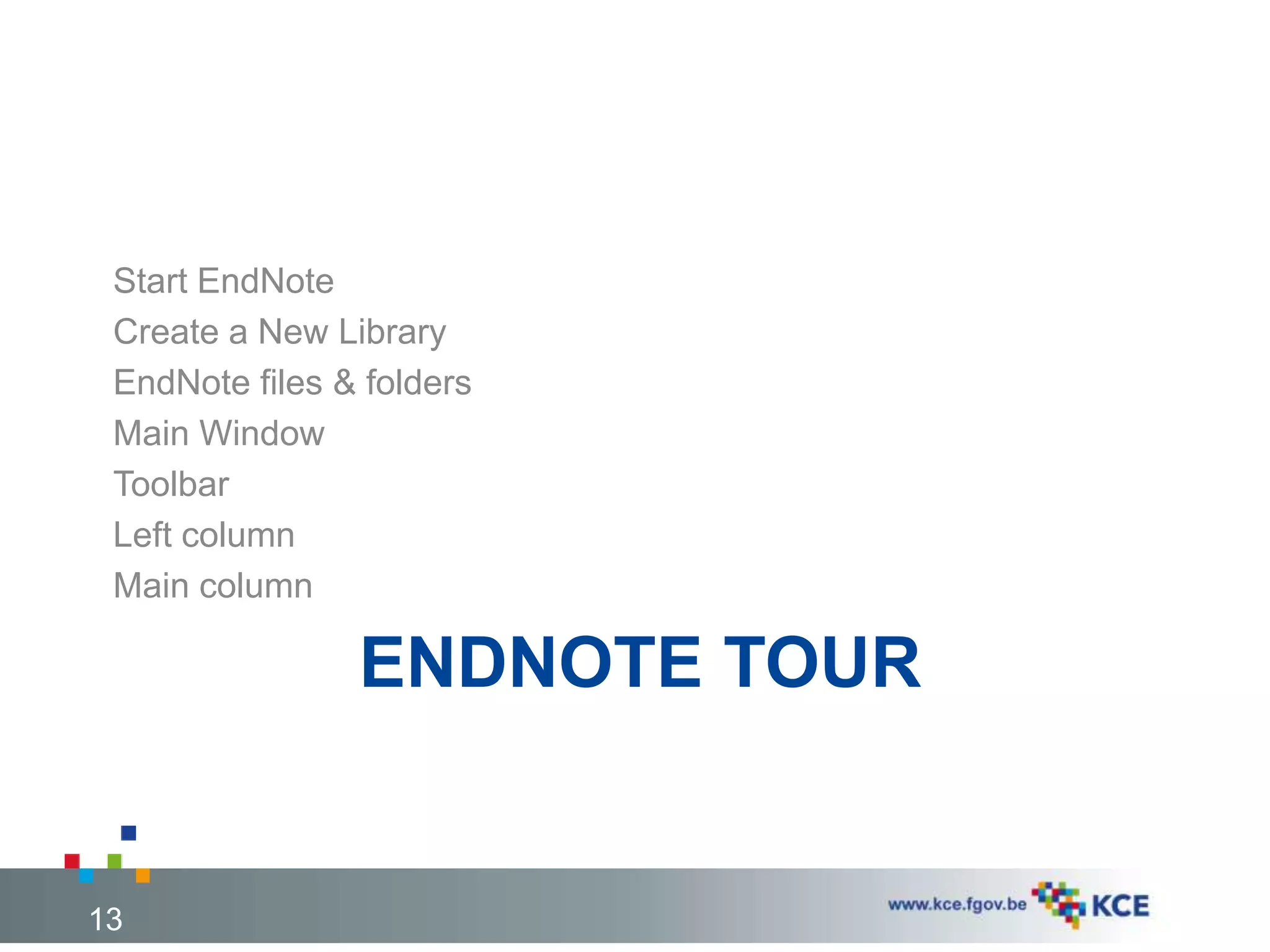
ENDNOTE TOUR
Start EndNote
Create a New Library
EndNote files & folders
Main Window
Toolbar
Left column
Main column
13
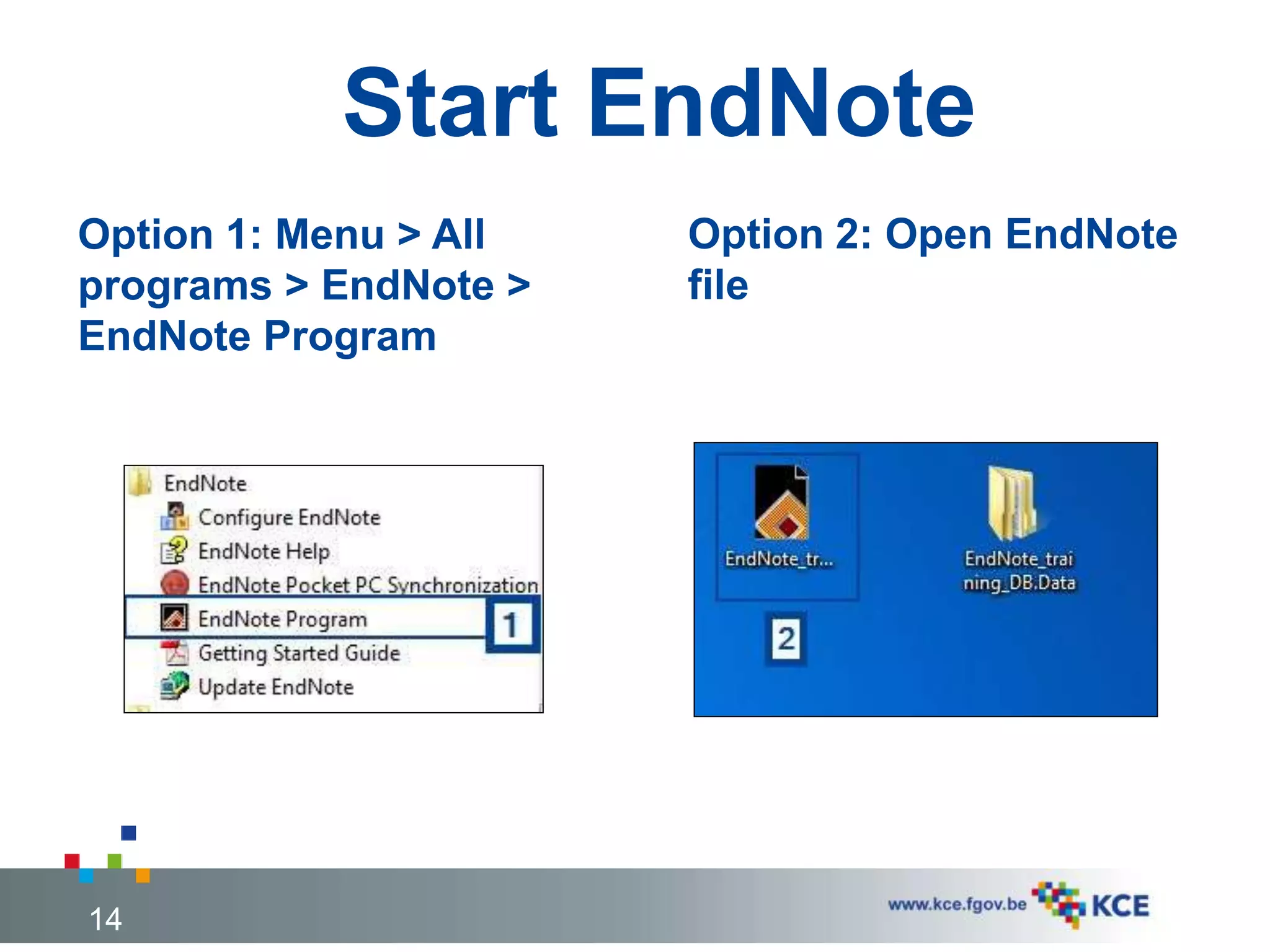
Start EndNote
Option 1: Menu > All
programs > EndNote >
EndNote Program
Option 2: Open EndNote
file
14
Create a new library
15
1. File > New
2. Select where to save the library
3. Give a name
4. Click on [Save]
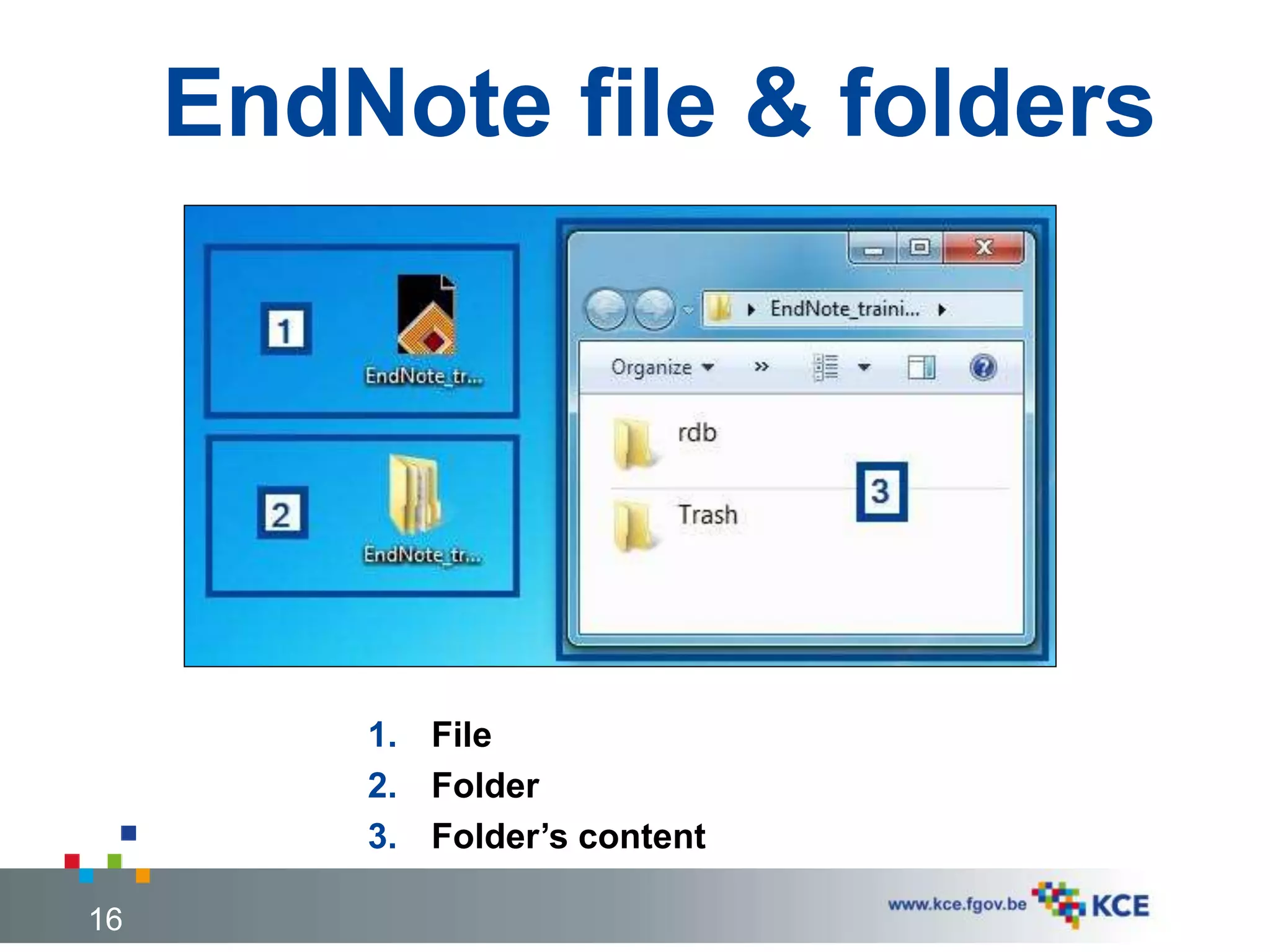
EndNote file & folders
16
1. File
2. Folder
3. Folder’s content
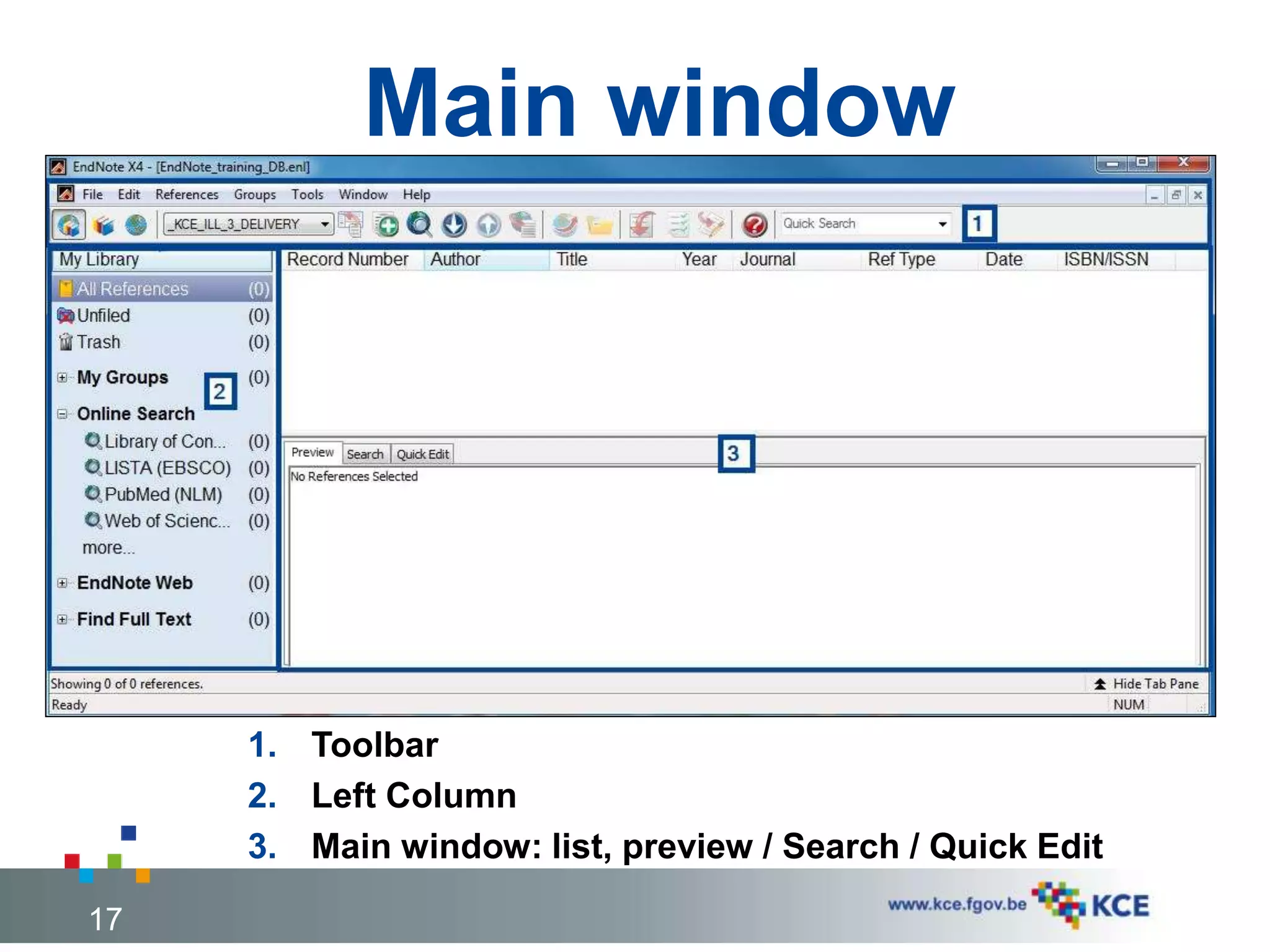
Main window
17
1. Toolbar
2. Left Column
3. Main window: list, preview / Search / Quick Edit
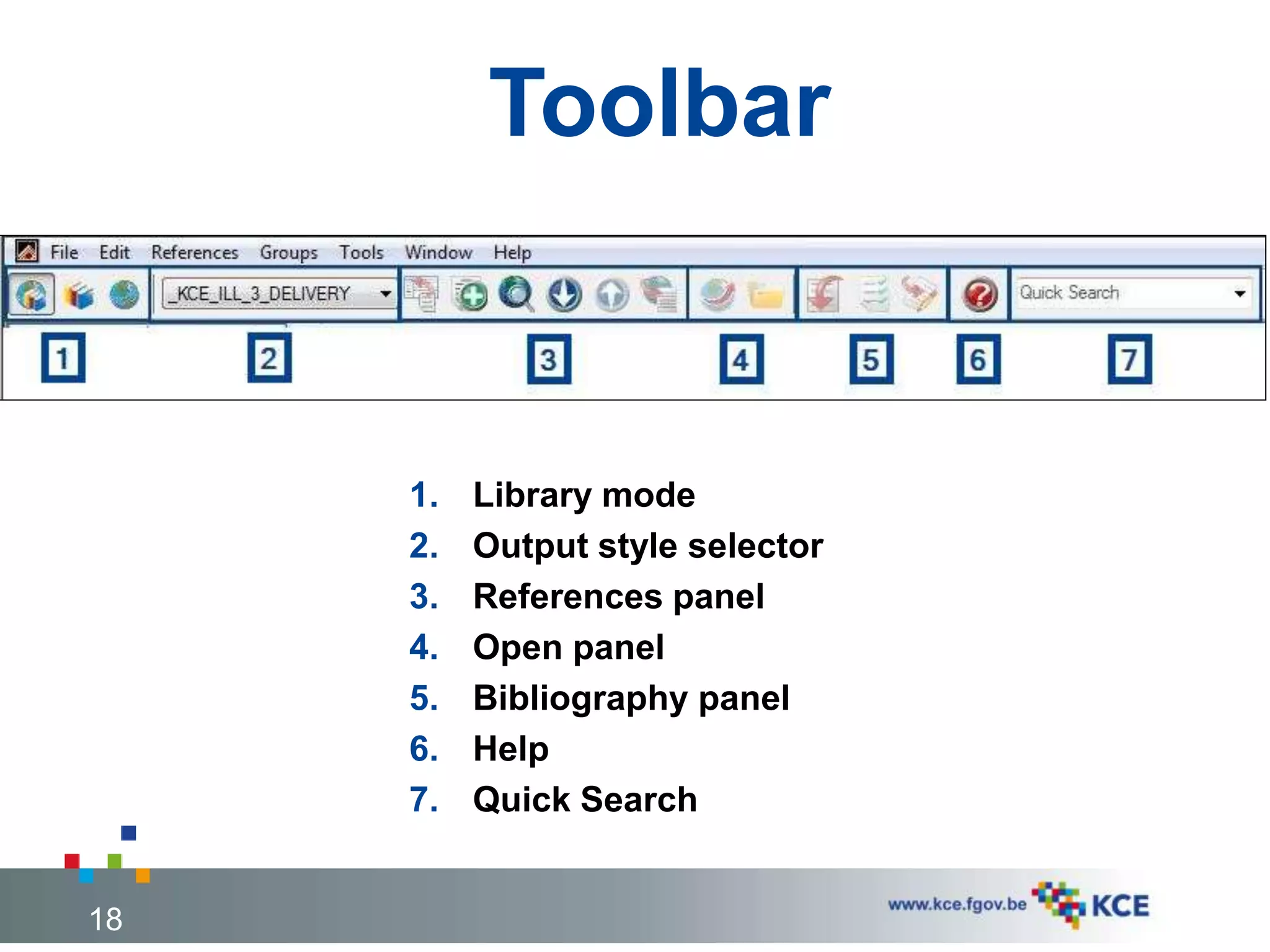
Toolbar
18
1. Library mode
2. Output style selector
3. References panel
4. Open panel
5. Bibliography panel
6. Help
7. Quick Search
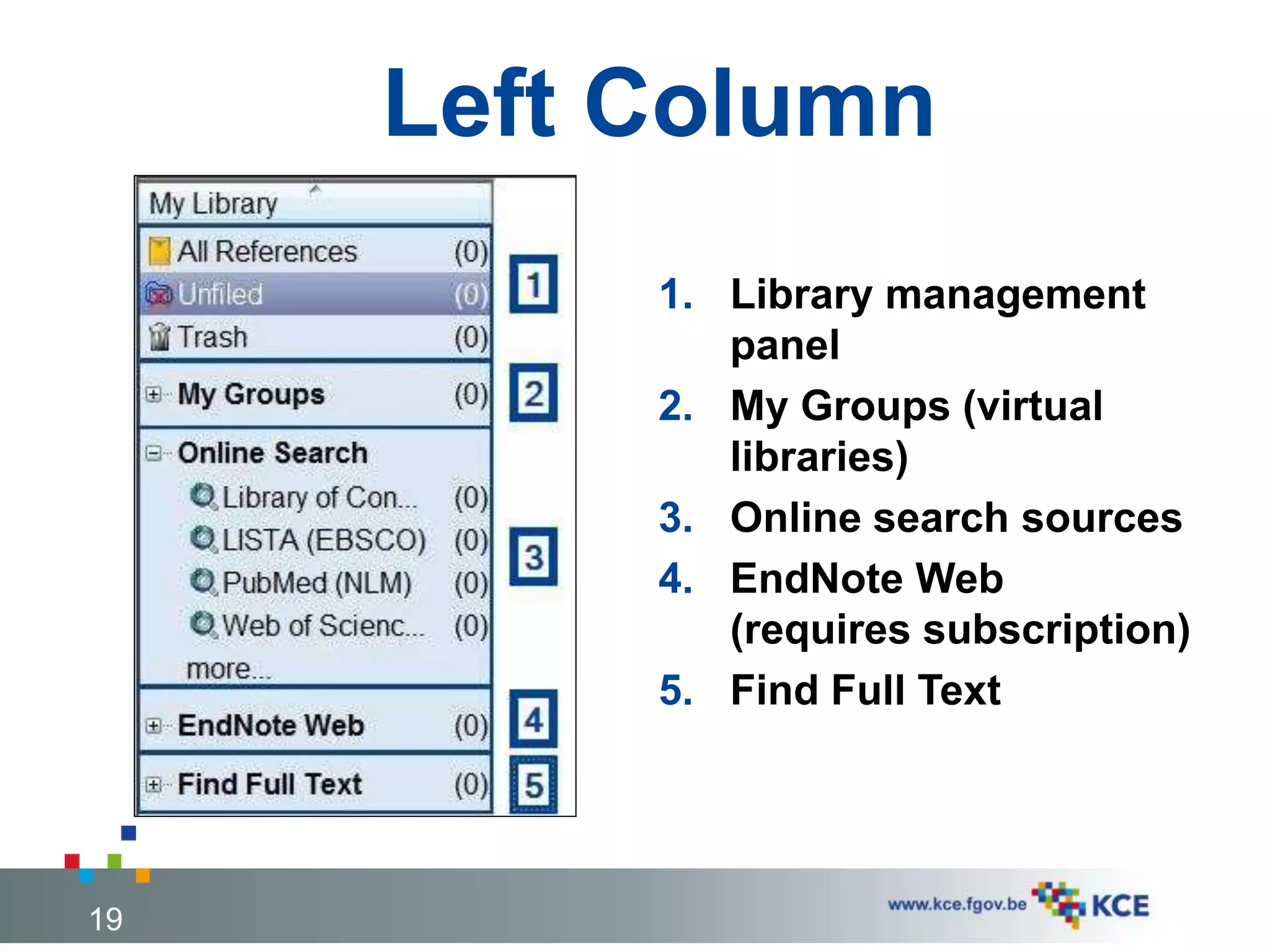
Left Column
1. Library management
panel
2. My Groups (virtual
libraries)
3. Online search sources
4. EndNote Web
(requires subscription)
5. Find Full Text
19
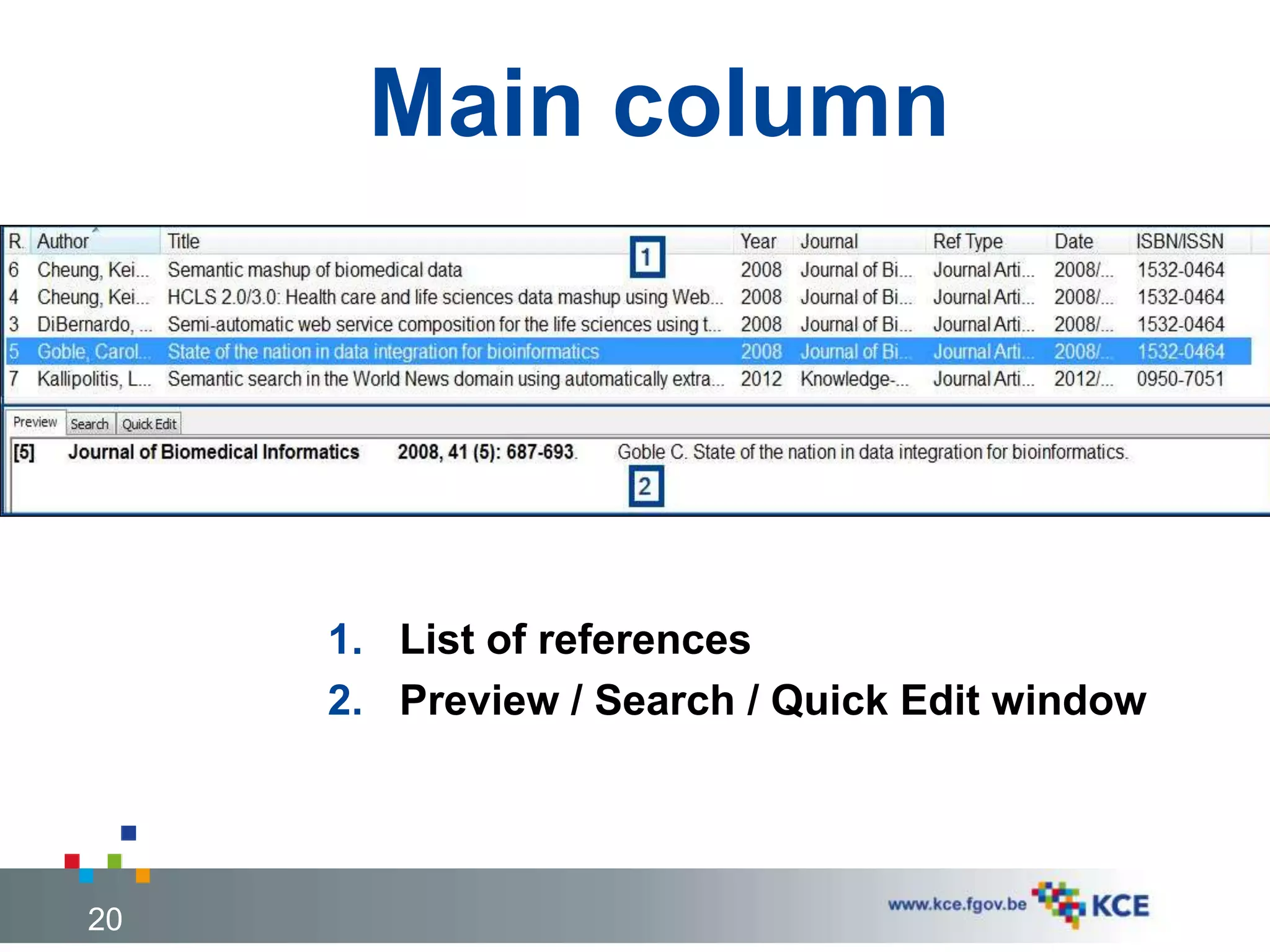
Main column
20
1. List of references
2. Preview / Search / Quick Edit window
ENDNOTE PREFERENCES
Customize display fields
Customize find full text
Customize folders location
Customize reference types
21
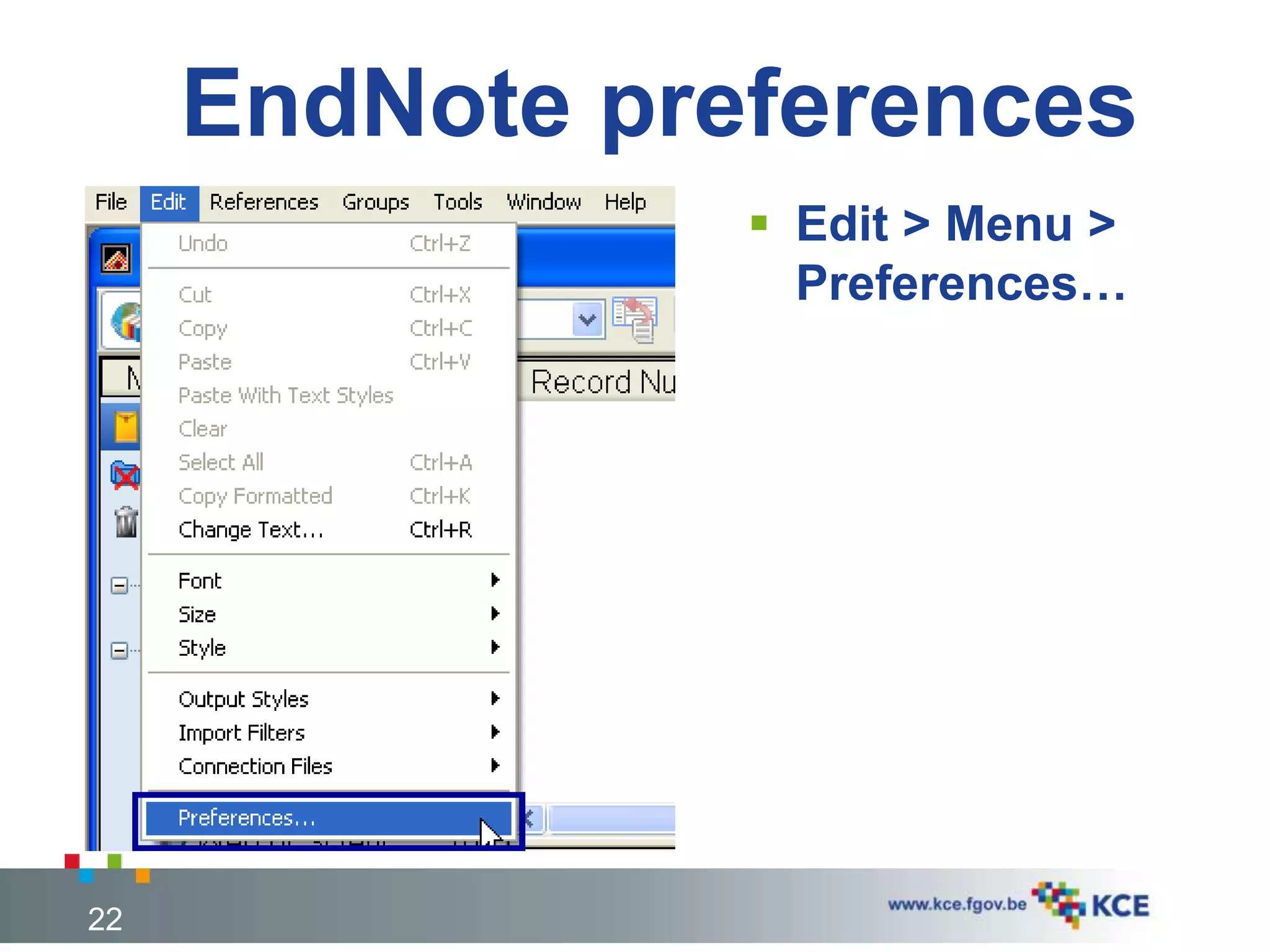
EndNote preferences
 Edit > Menu >
Preferences…
22
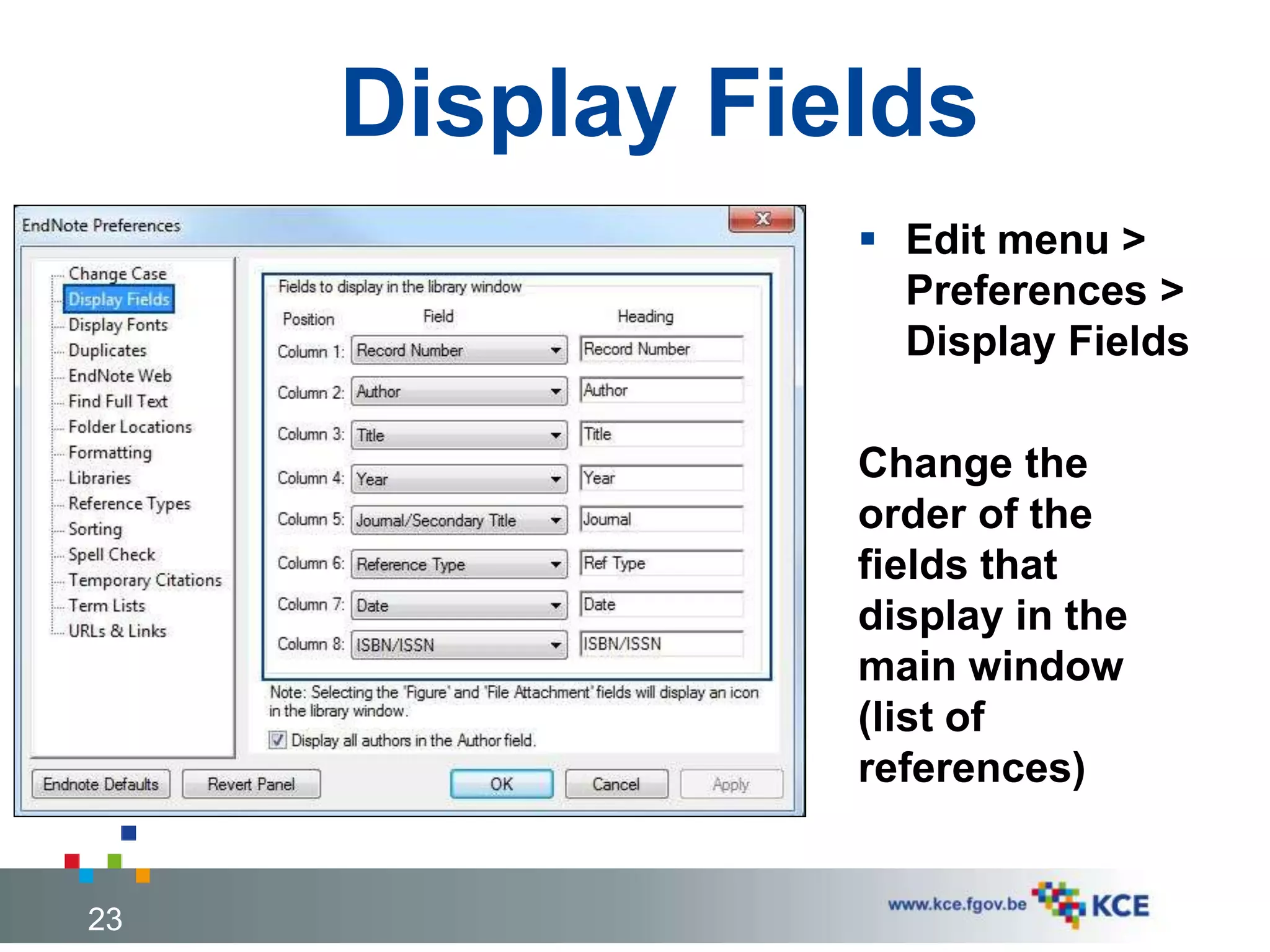
Display Fields
 Edit menu >
Preferences >
Display Fields
Change the
order of the
fields that
display in the
main window
(list of
references)
23
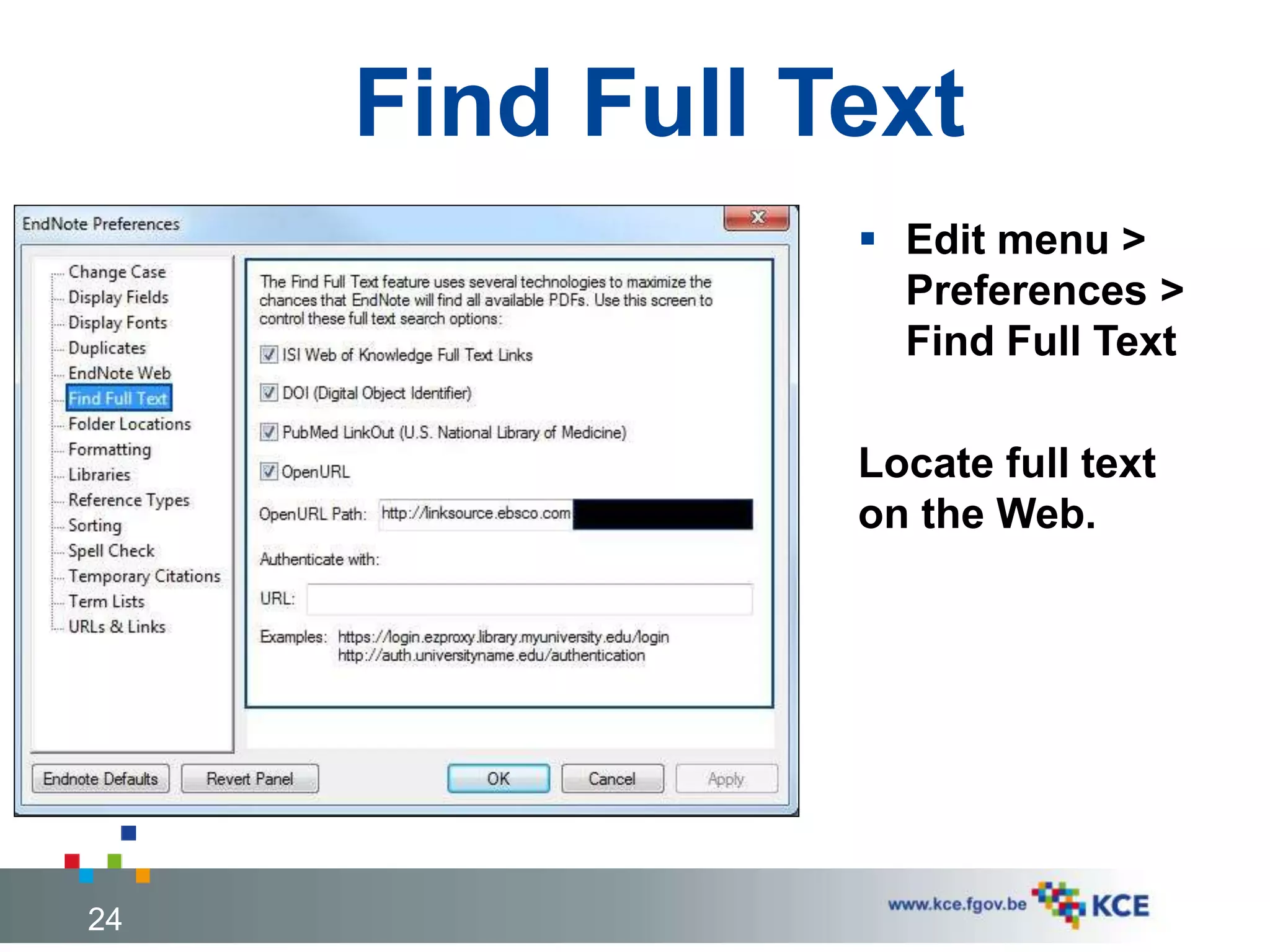
Find Full Text
 Edit menu >
Preferences >
Find Full Text
Locate full text
on the Web.
24
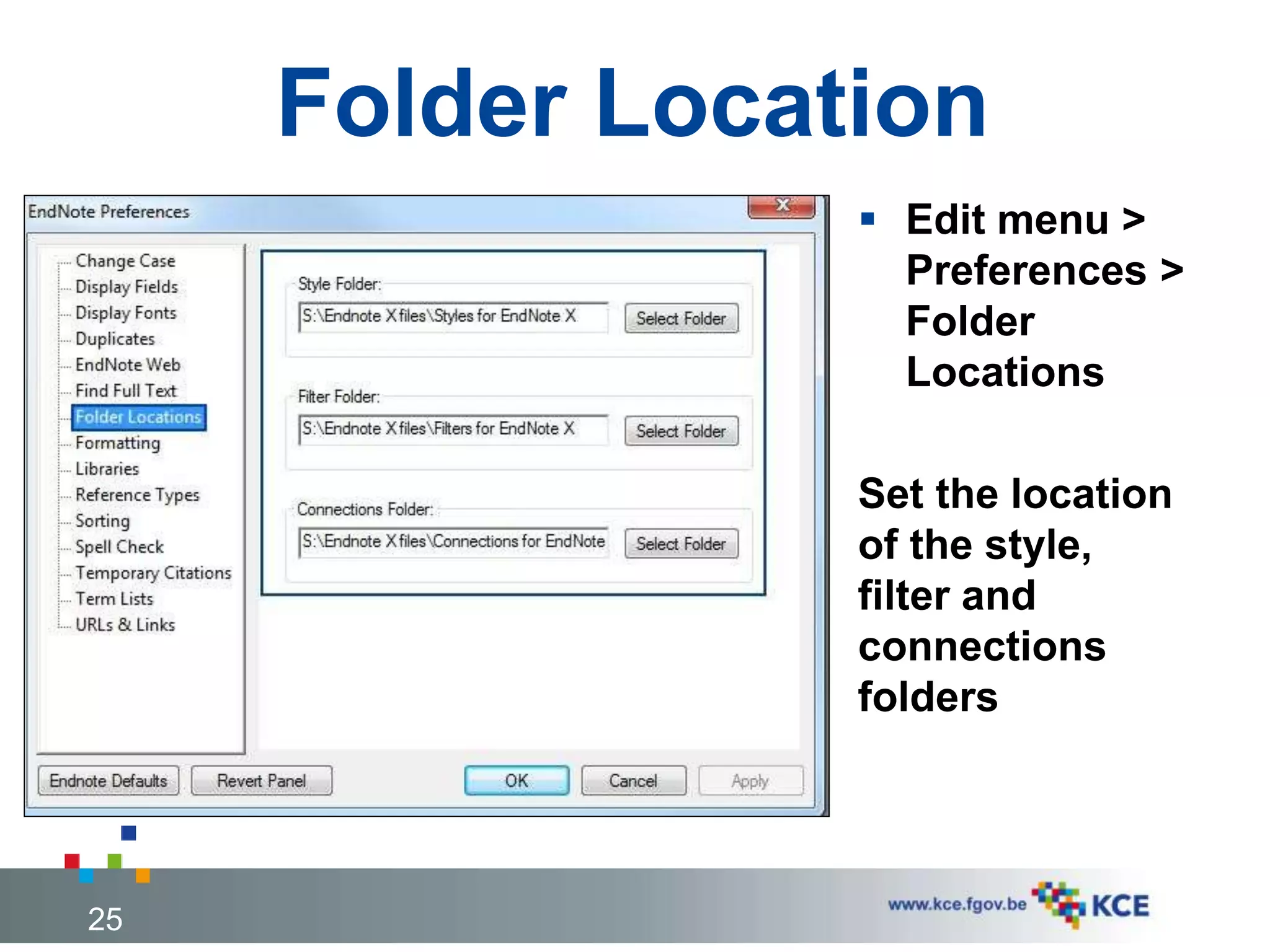
Folder Location
 Edit menu >
Preferences >
Folder
Locations
Set the location
of the style,
filter and
connections
folders
25
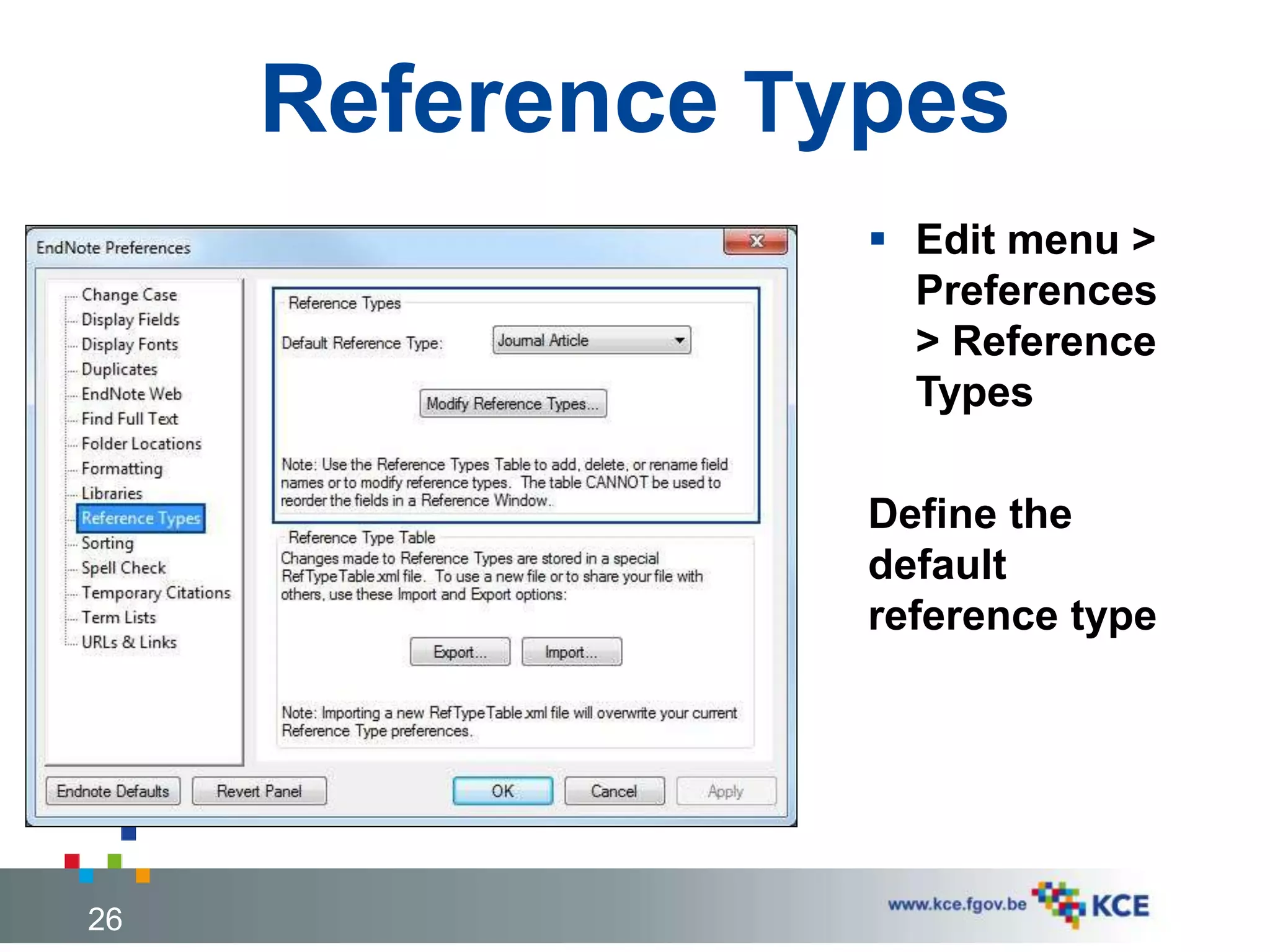
Reference Types
 Edit menu >
Preferences
> Reference
Types
Define the
default
reference type
26
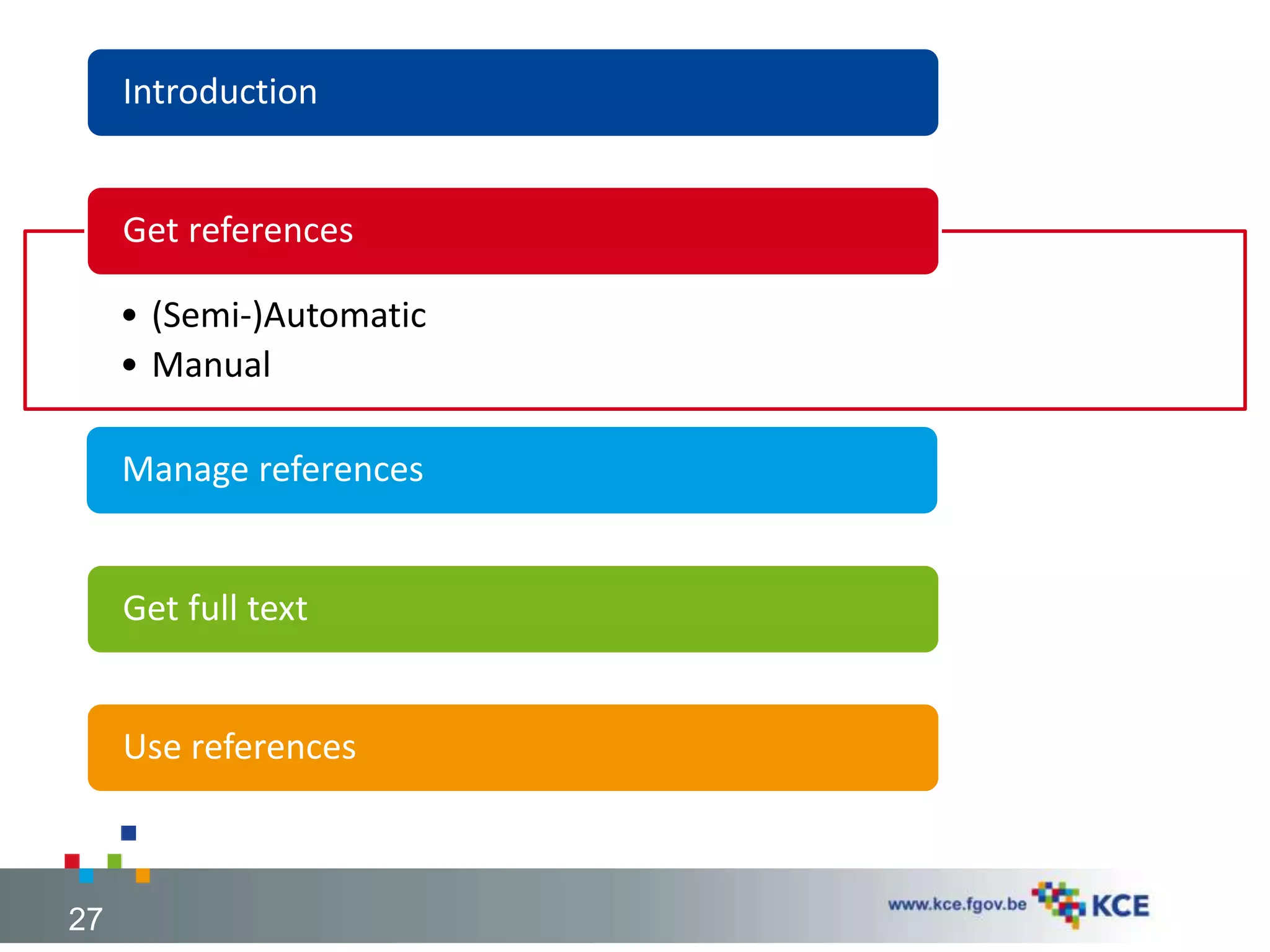
Introduction
• (Semi-)Automatic
• Manual
Get references
Manage references
Get full text
Use references
27
(SEMI-)AUTOMATIC
Direct Export from online database
Import a text file
Connect to an online database
28
DIRECT EXPORT
(e.g. PubMed, Embase.com, Science Direct, Scopus, BioMed
Central, Eric, ...)
29
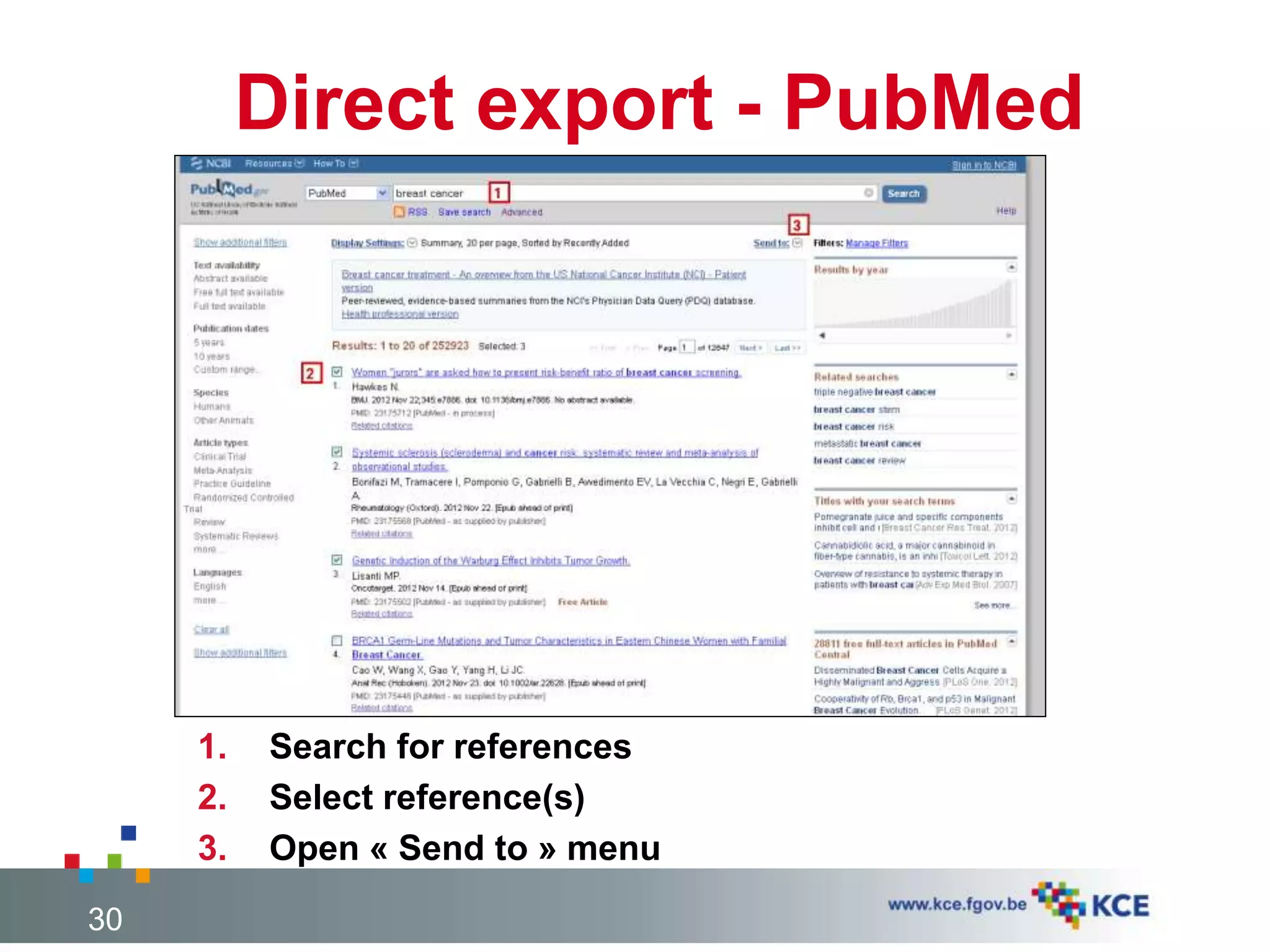
Direct export - PubMed
1. Search for references
2. Select reference(s)
3. Open « Send to » menu
30
Direct export – PubMed (2)
4. Select « Citation
manager »
5. Click on [Create File]
6. Select EndNote
7. Click on [OK]
31
Direct export – PubMed (3)
8. Select the
appropriate Import
Filter
9. Click on [Choose]
32
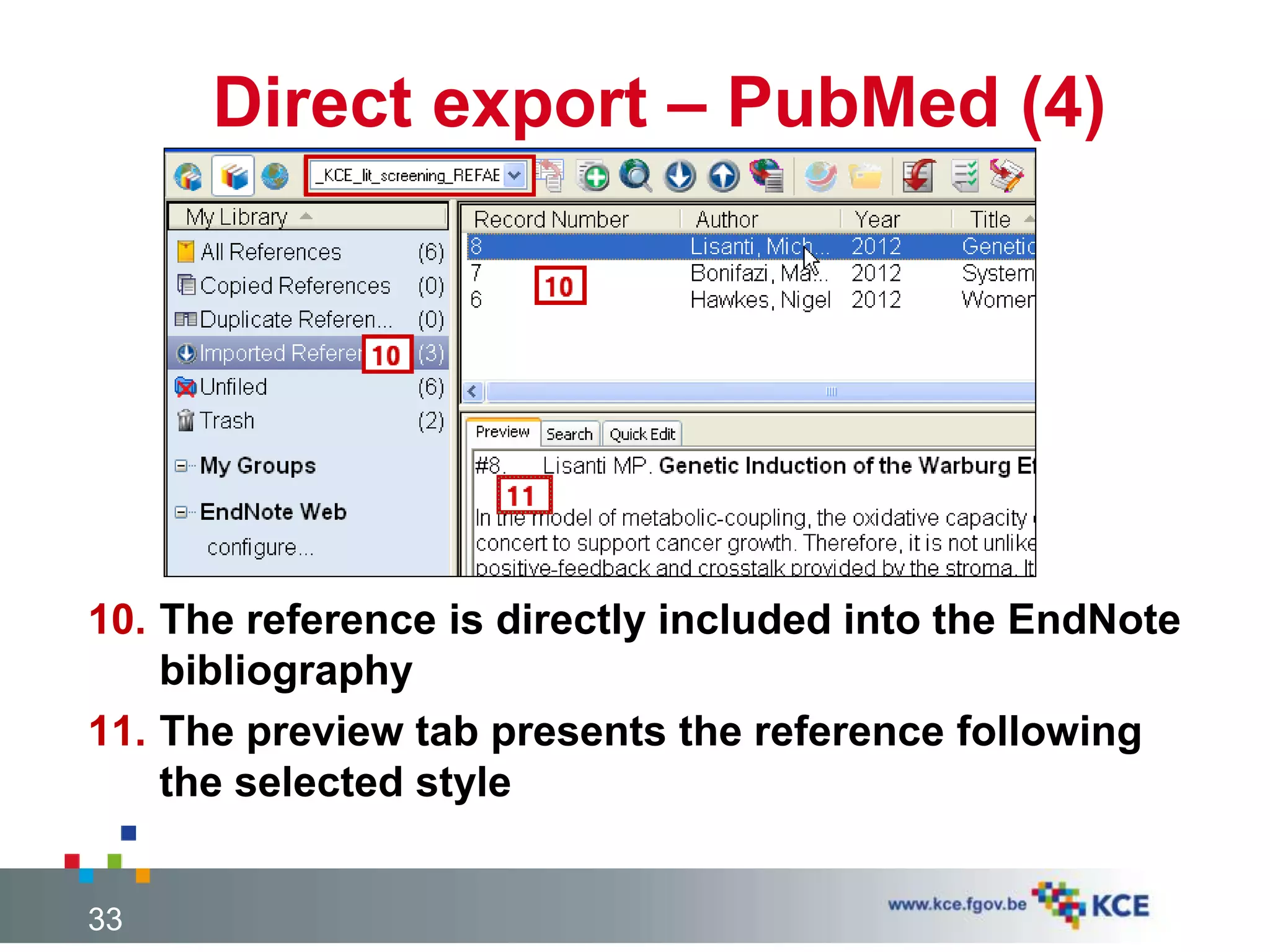
Direct export – PubMed (4)
10. The reference is directly included into the EndNote
bibliography
11. The preview tab presents the reference following
the selected style
33
IMPORT A TEXT FILE
(e.g. PubMed, OVID Medline, Embase.com, Illumina Sociological
Abstacts, Ebscohost CINAHL, Science Direct,, ...)
34
Import File – PubMed
35
4. Select «File »
5. Select Format (here, MEDLINE)
6. Select sort options
7. Click on [Create file]
8. Select « Save File »
9. Click on [OK]
Import File – PubMed (2)
36
10.Select folder
11.Chose file
name, ADD
« .txt »
12.Click on
[Save]
Import File – PubMed (3)
13. File > Import > File…
14. Select text file to import
15. Select Import filter
16. Select duplicates option
17. Click on [Import]
37
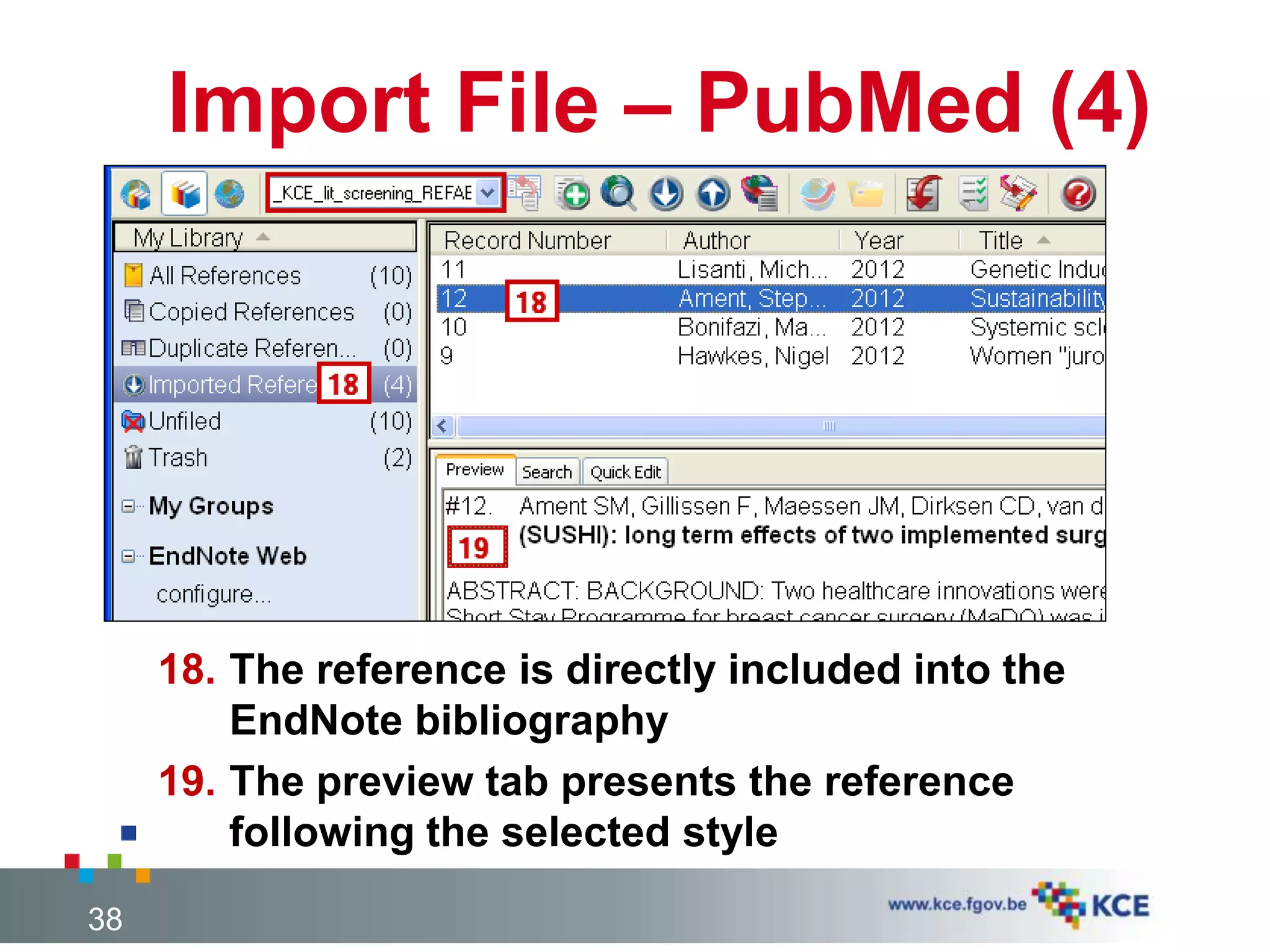
Import File – PubMed (4)
18. The reference is directly included into the
EndNote bibliography
19. The preview tab presents the reference
following the selected style
38
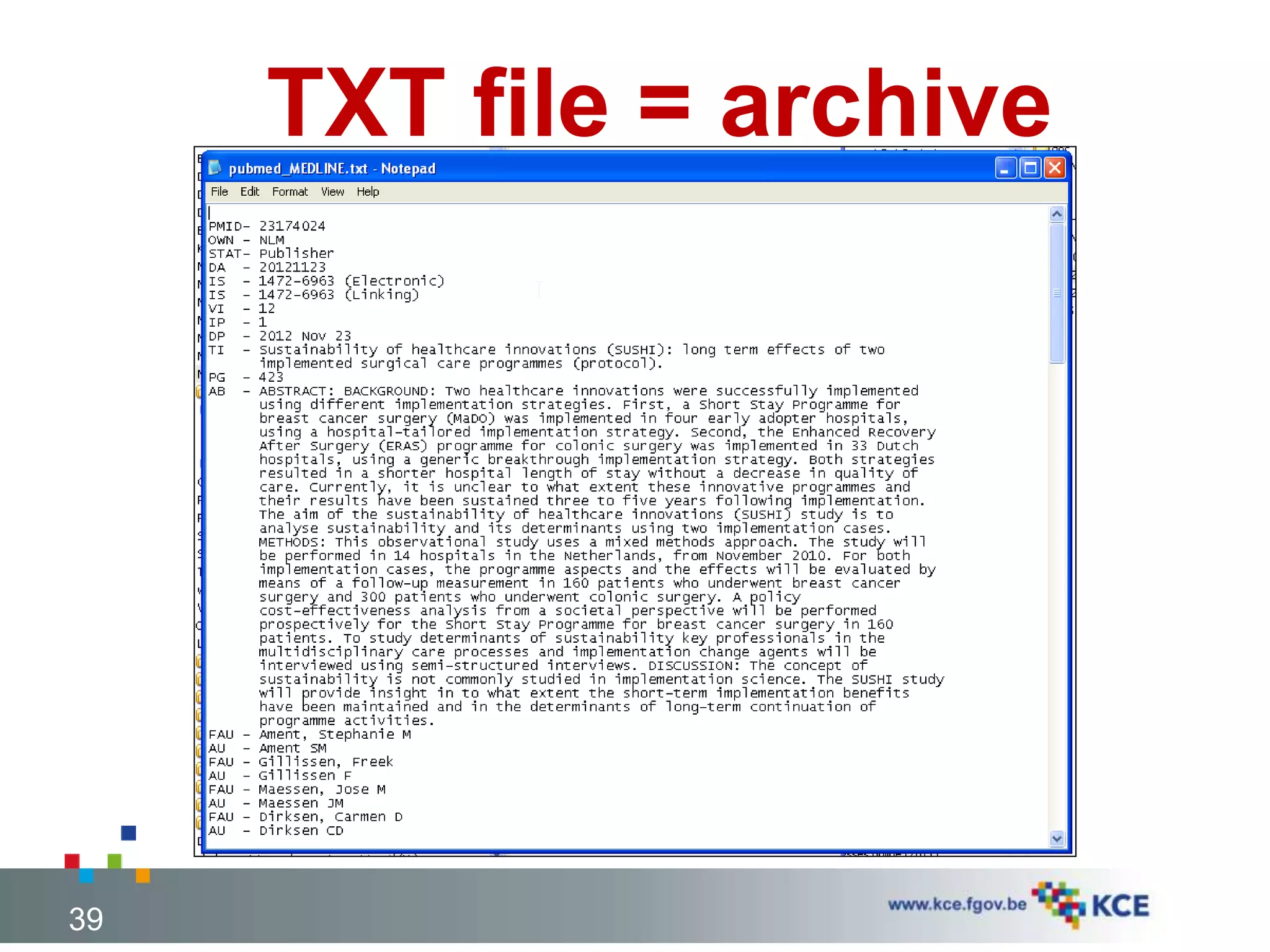
TXT file = archive
39
CONNECT TO ONLINE
DATABASE
PubMed, Library catalogues,…
40
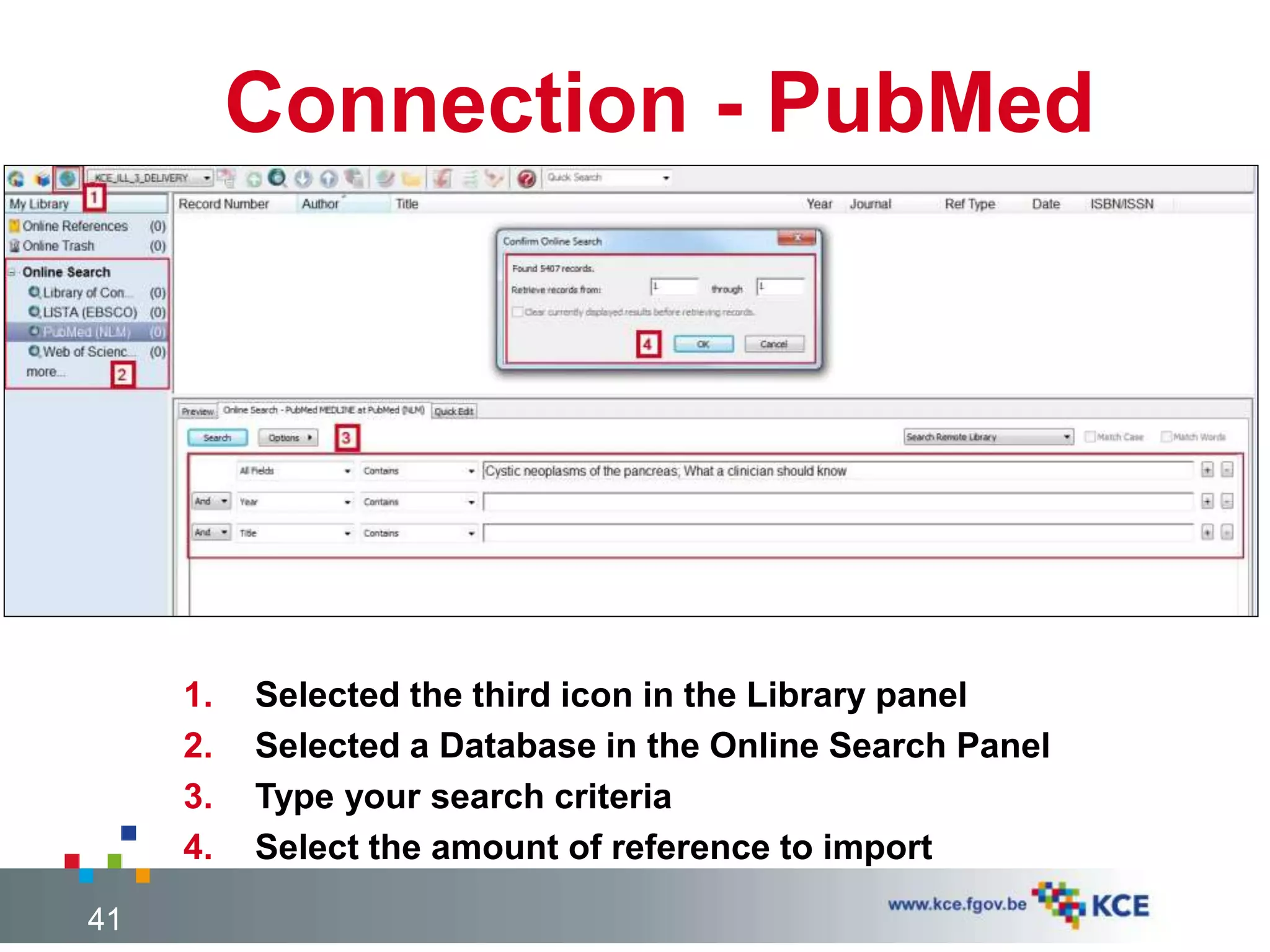
Connection - PubMed
41
1. Selected the third icon in the Library panel
2. Selected a Database in the Online Search Panel
3. Type your search criteria
4. Select the amount of reference to import
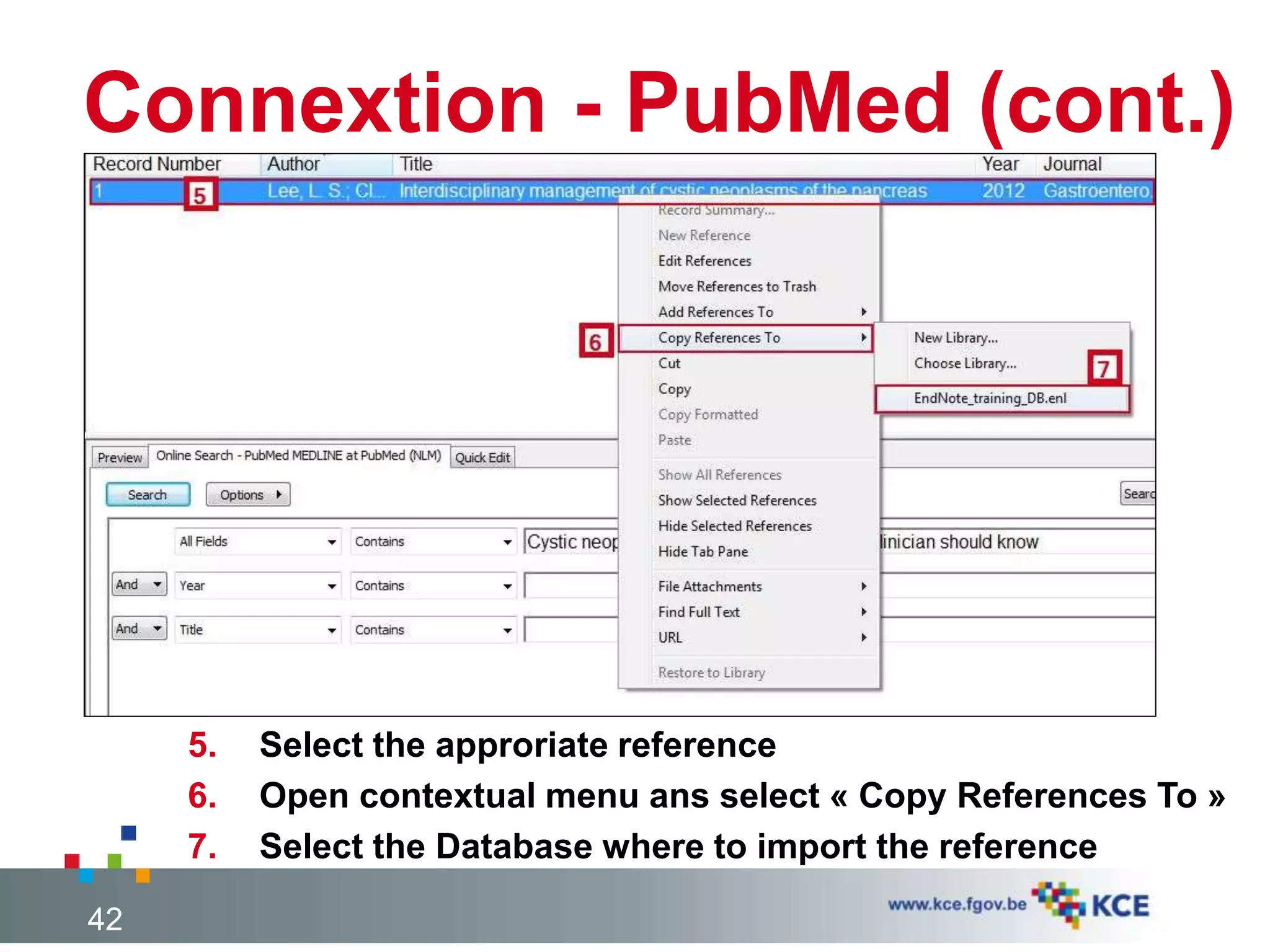
Connextion - PubMed (cont.)
42
5. Select the approriate reference
6. Open contextual menu ans select « Copy References To »
7. Select the Database where to import the reference
MANUAL ENCODING
43
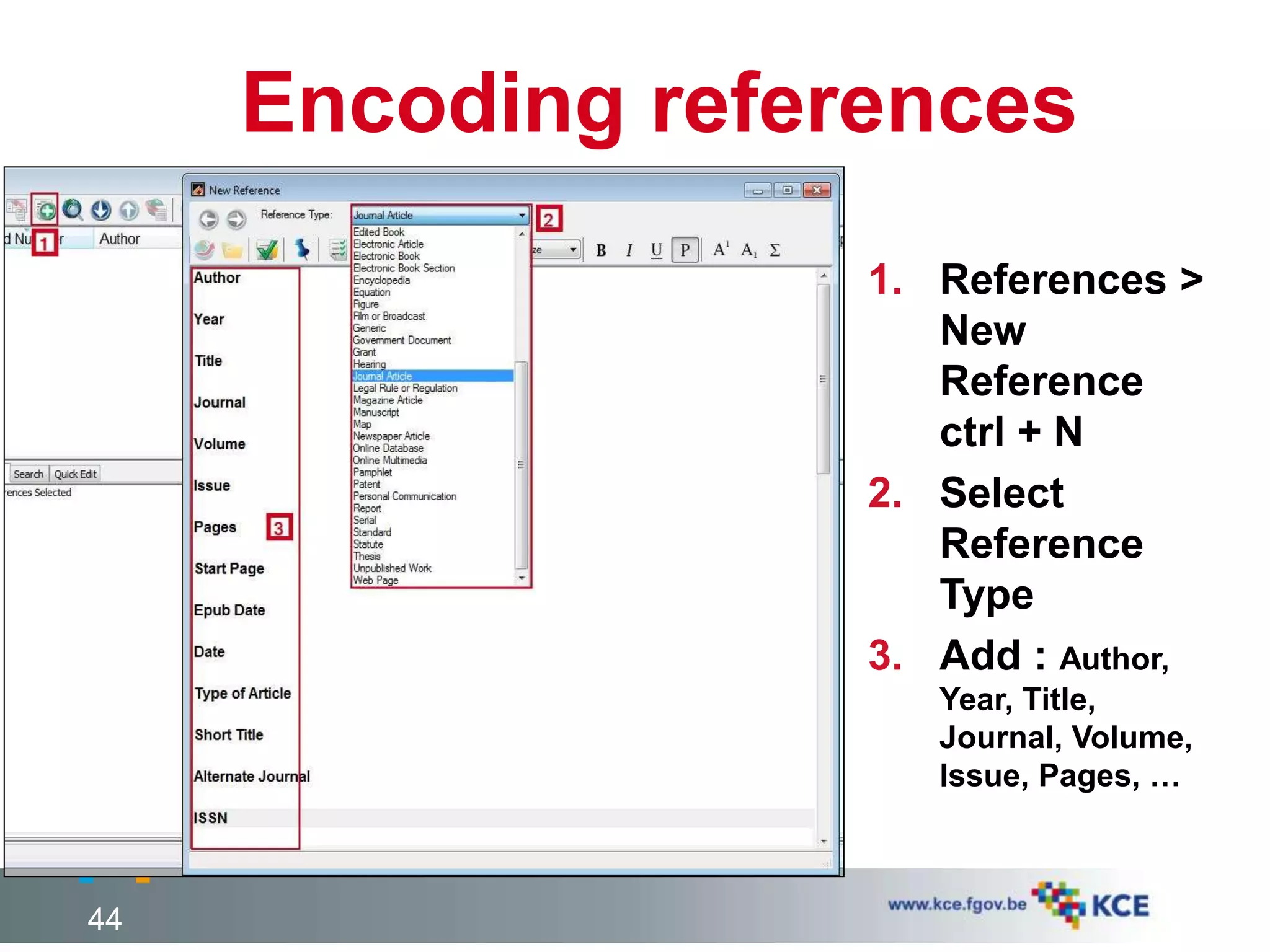
Encoding references
1. References >
New
Reference
ctrl + N
2. Select
Reference
Type
3. Add : Author,
Year, Title,
Journal, Volume,
Issue, Pages, …
44
Introduction
Get references
• Showing & hiding
• My groups
• Export
• Changing text / Change & move fields
• Searching for references
• Finding duplicates
• Sorting library
• Linking reference to file / opening reference
Manage references
Get full text
Use references
45
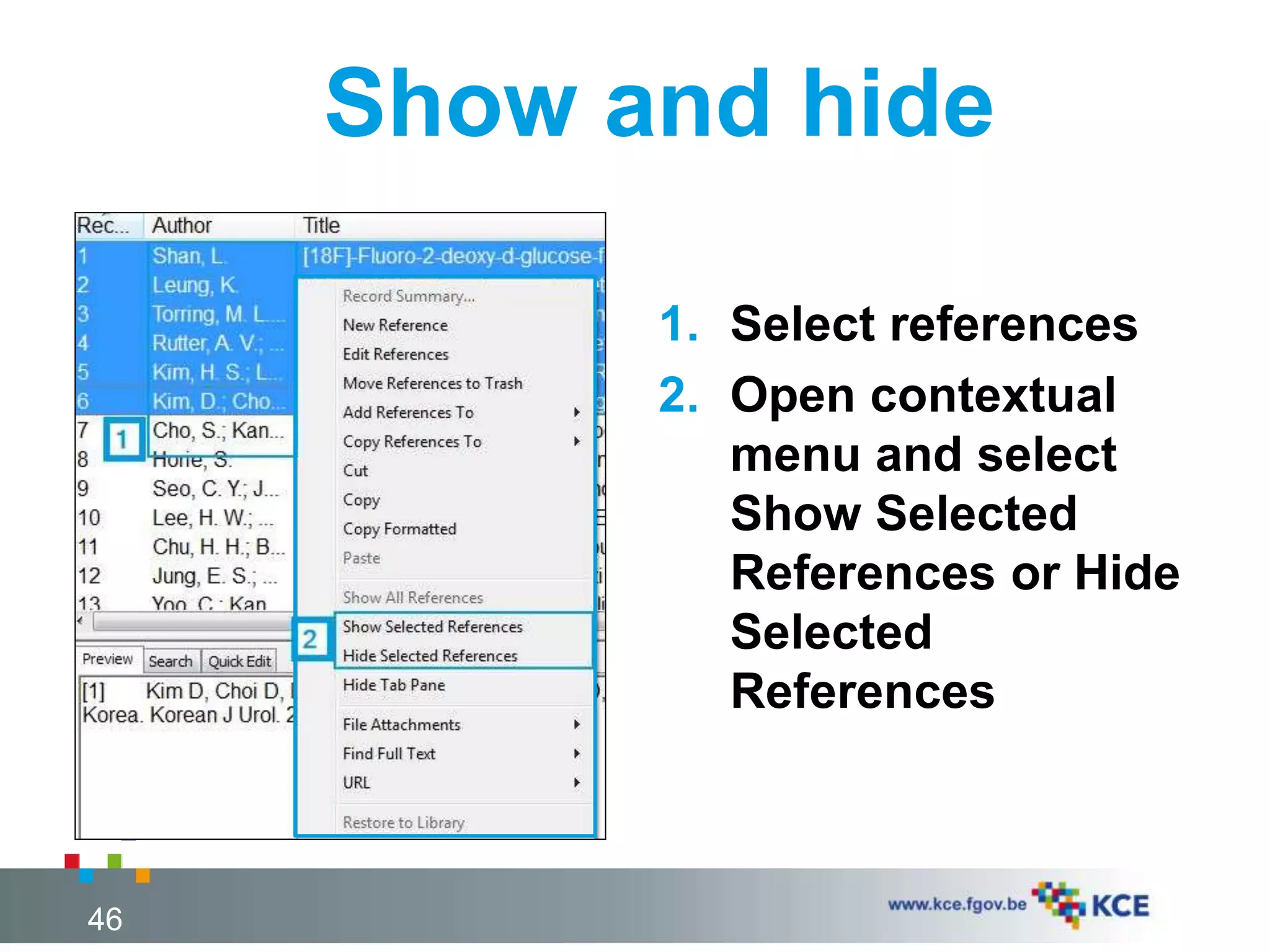
Show and hide
1. Select references
2. Open contextual
menu and select
Show Selected
References or Hide
Selected
References
46
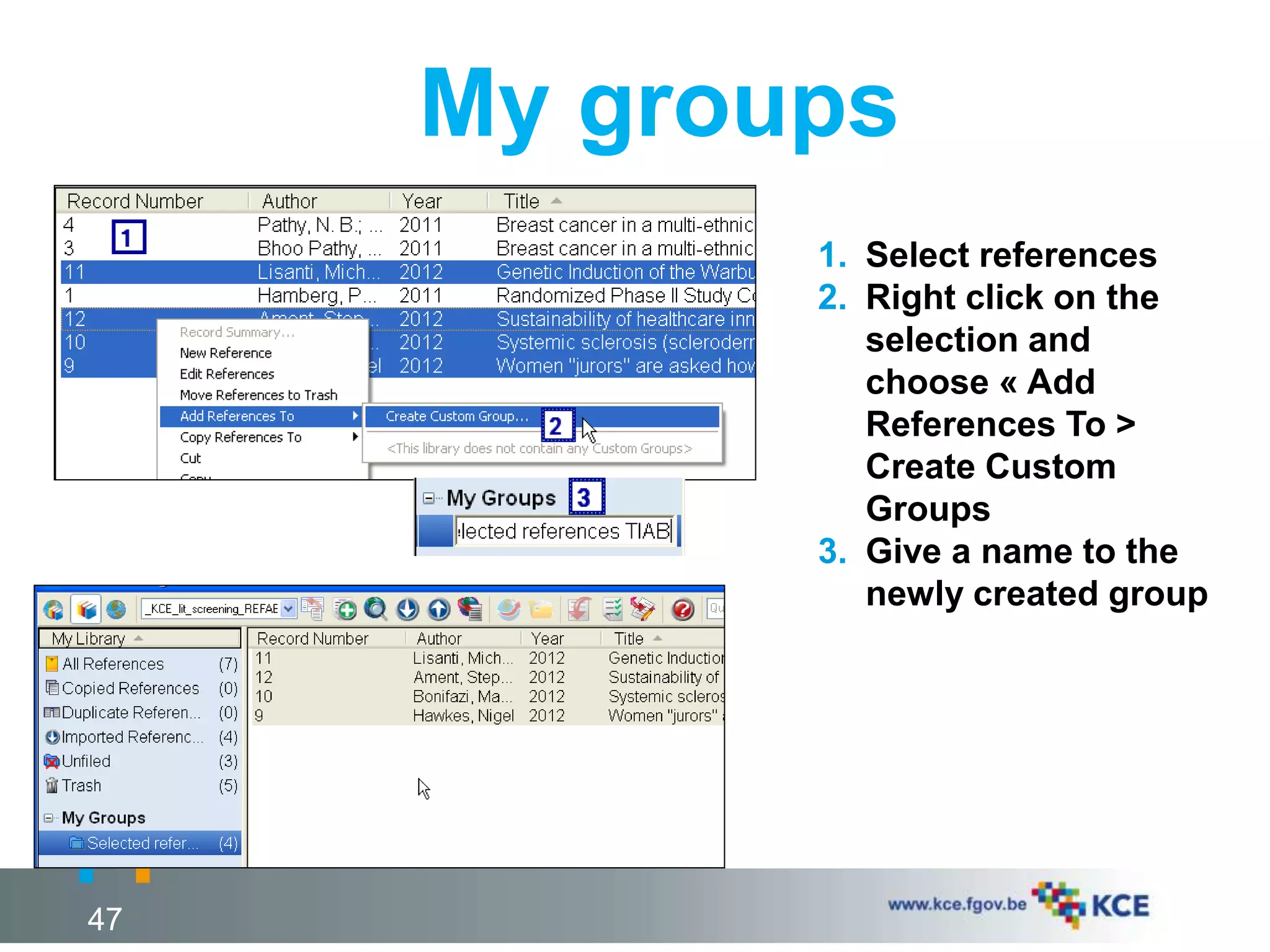
My groups
47
1. Select references
2. Right click on the
selection and
choose « Add
References To >
Create Custom
Groups
3. Give a name to the
newly created group
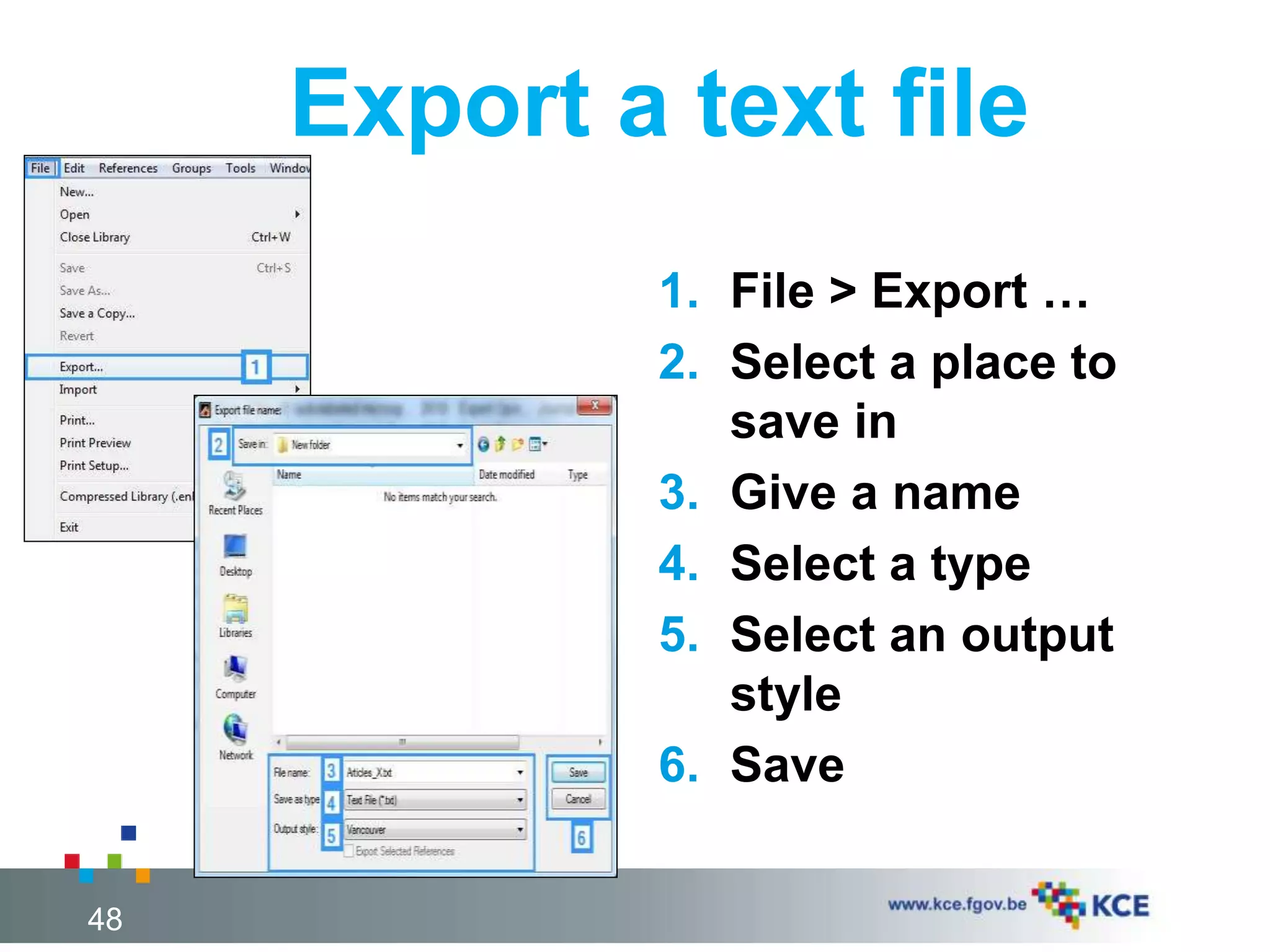
Export a text file
48
1. File > Export …
2. Select a place to
save in
3. Give a name
4. Select a type
5. Select an output
style
6. Save
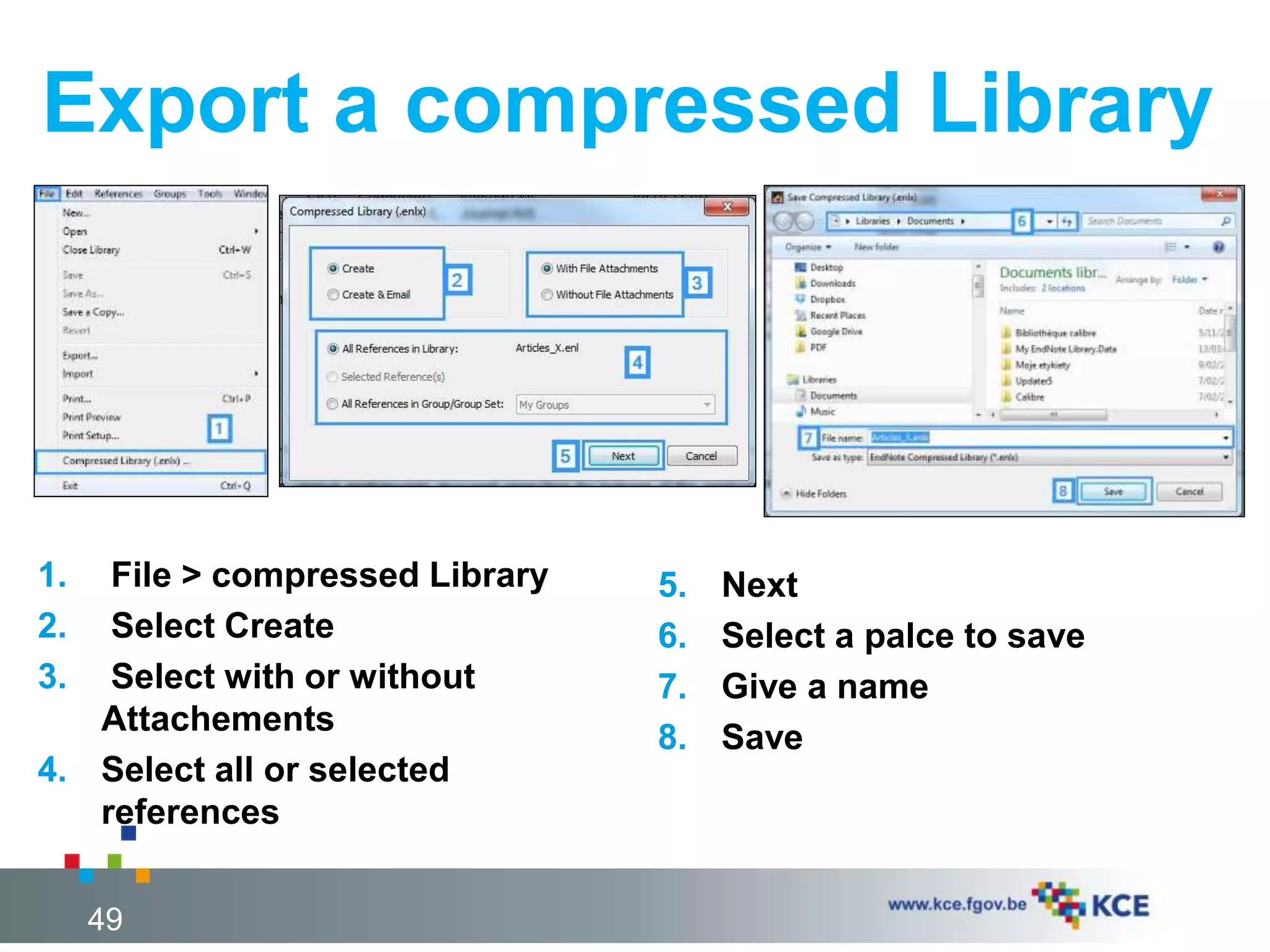
Export a compressed Library
49
1. File > compressed Library
2. Select Create
3. Select with or without
Attachements
4. Select all or selected
references
5. Next
6. Select a palce to save
7. Give a name
8. Save
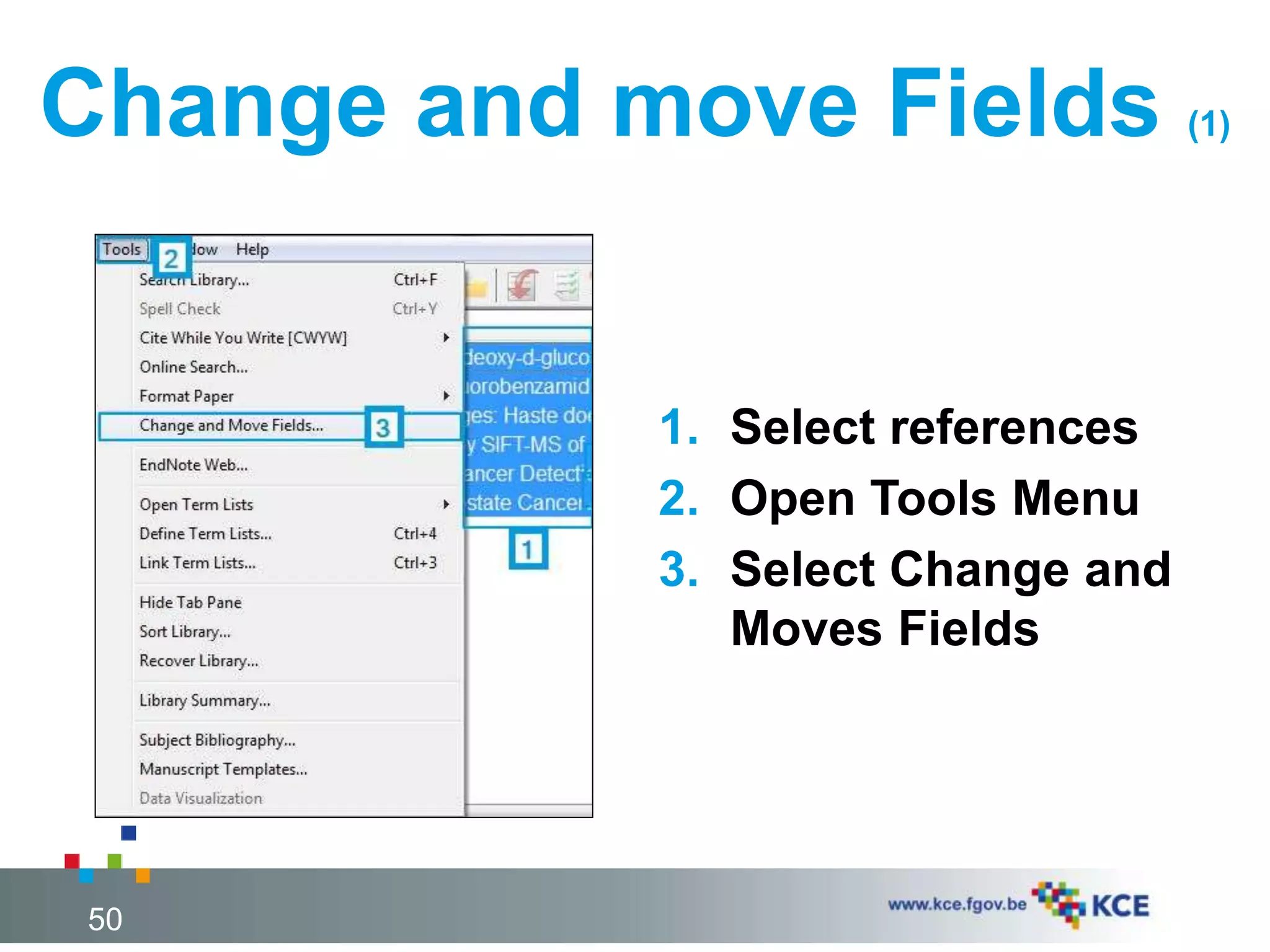
Change and move Fields (1)
1. Select references
2. Open Tools Menu
3. Select Change and
Moves Fields
50
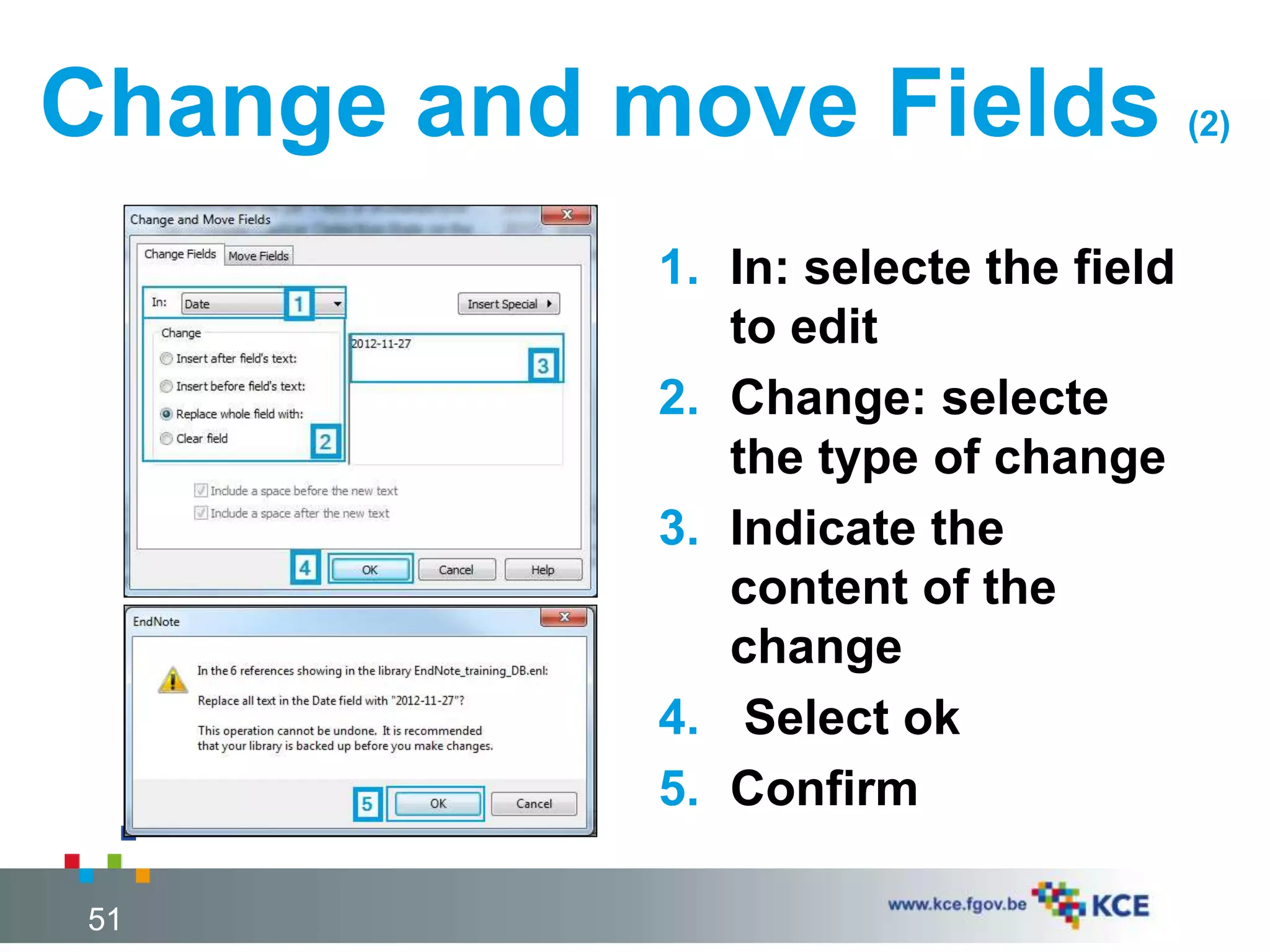
Change and move Fields (2)
1. In: selecte the field
to edit
2. Change: selecte
the type of change
3. Indicate the
content of the
change
4. Select ok
5. Confirm
51
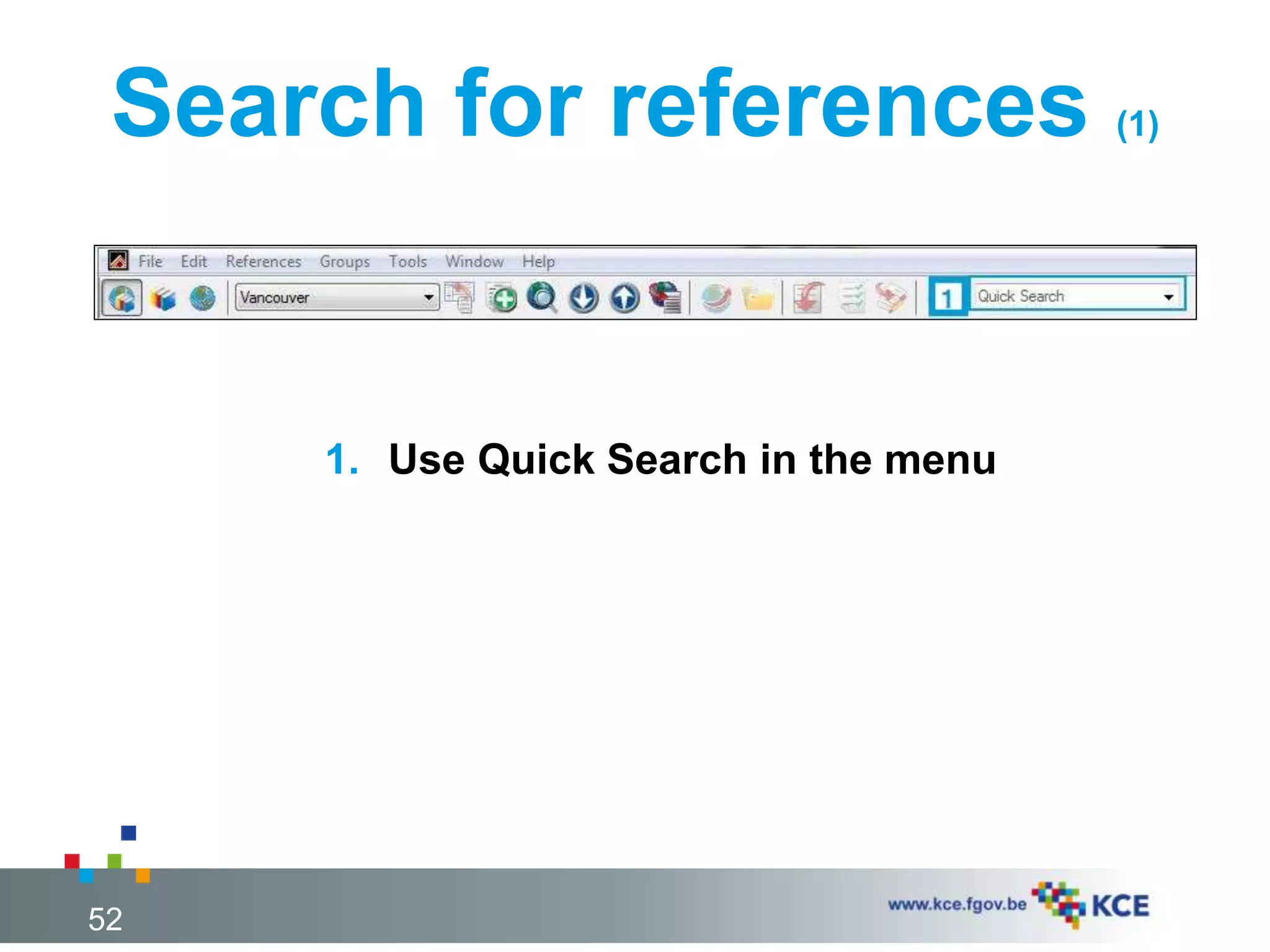
Search for references (1)
52
1. Use Quick Search in the menu
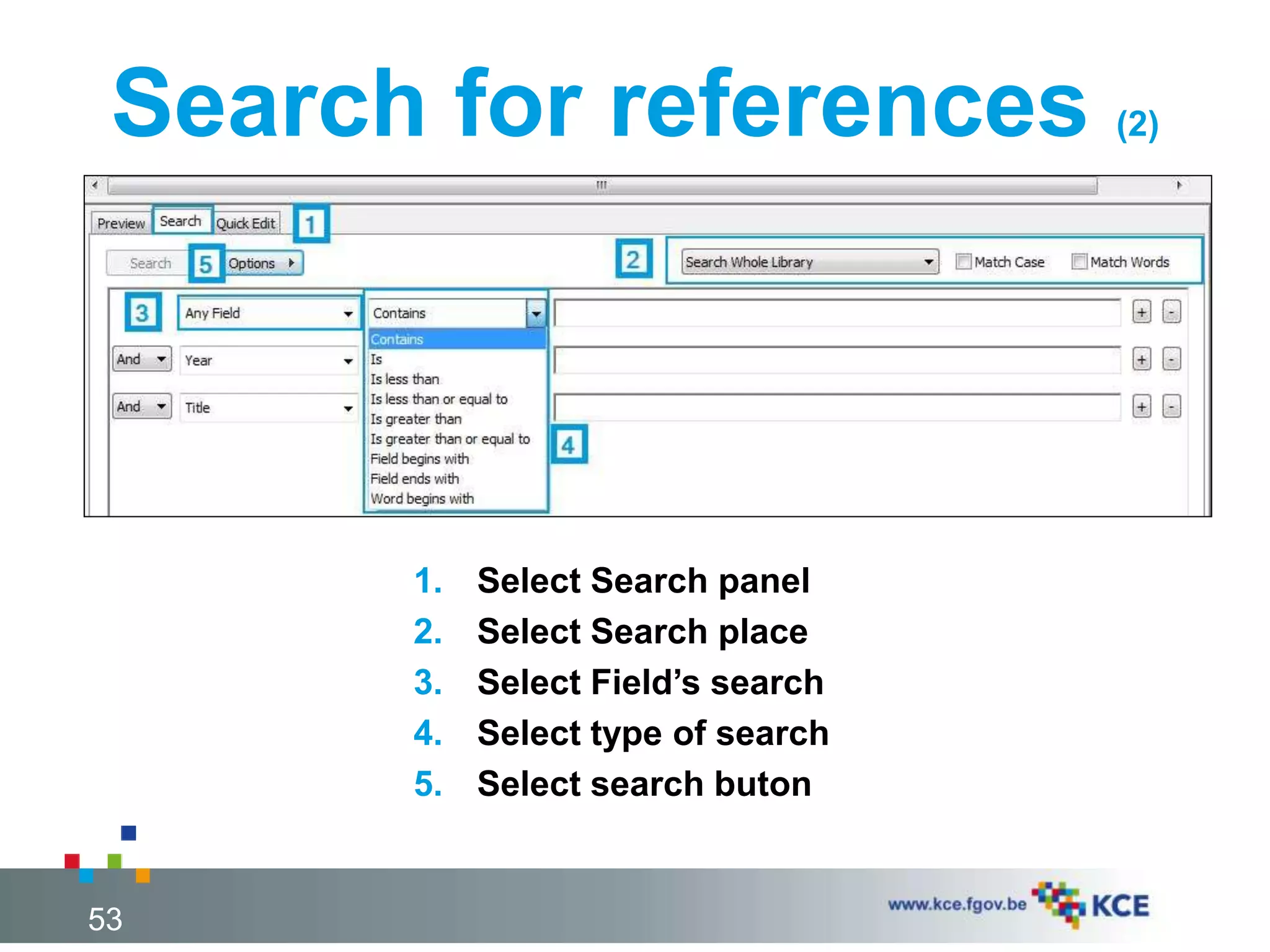
Search for references (2)
53
1. Select Search panel
2. Select Search place
3. Select Field’s search
4. Select type of search
5. Select search buton
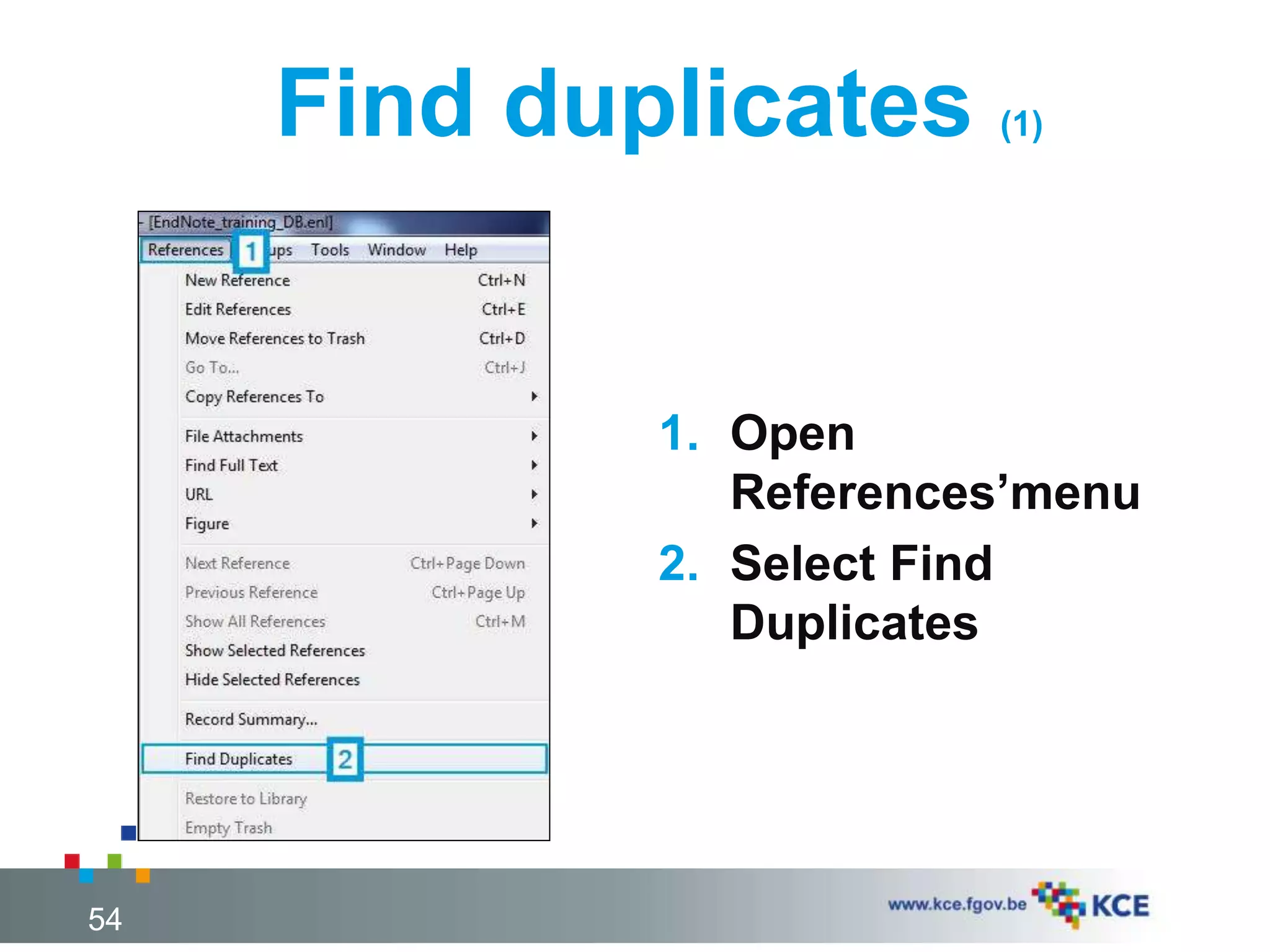
Find duplicates (1)
1. Open
References’menu
2. Select Find
Duplicates
54
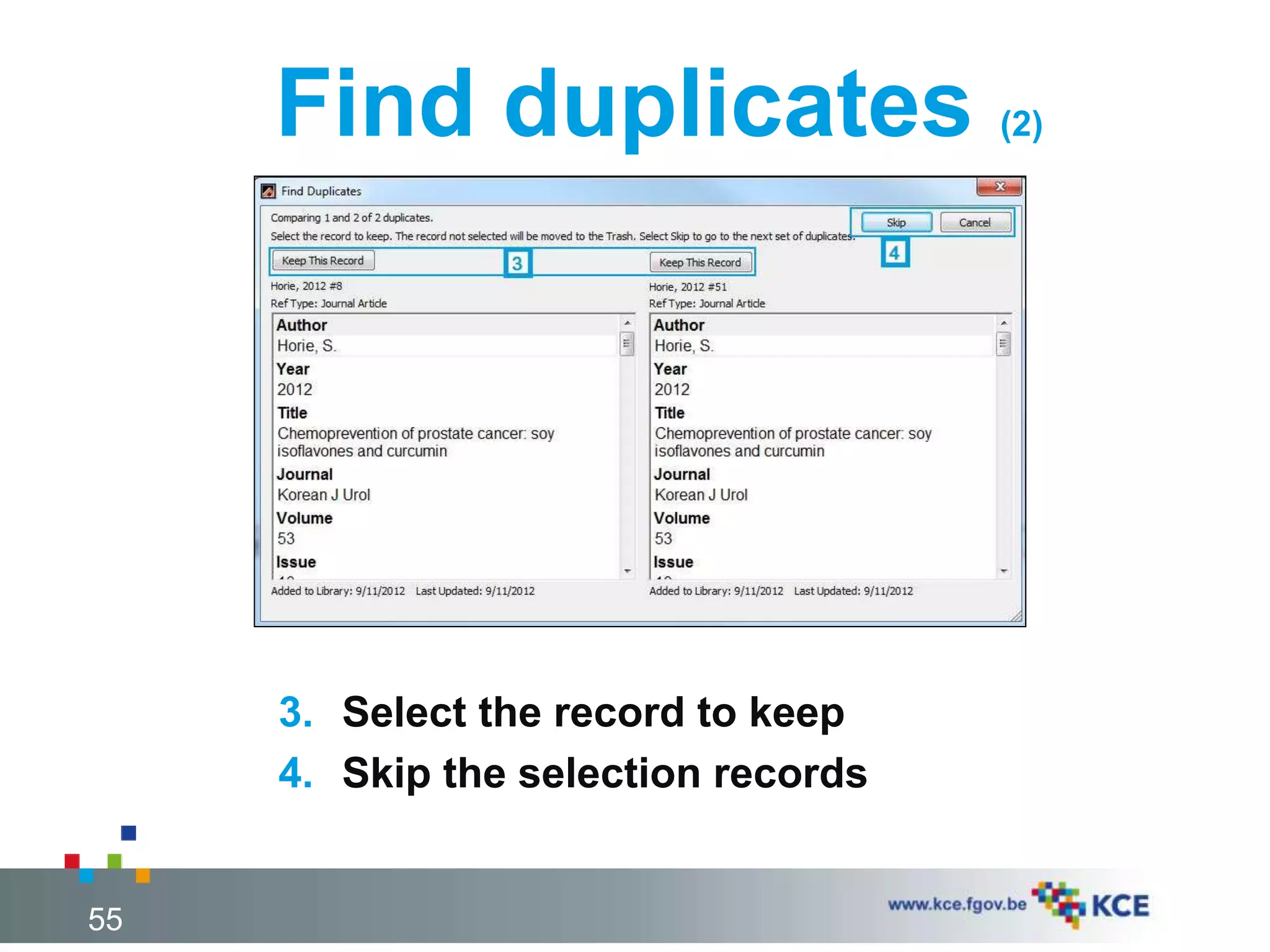
Find duplicates (2)
55
3. Select the record to keep
4. Skip the selection records
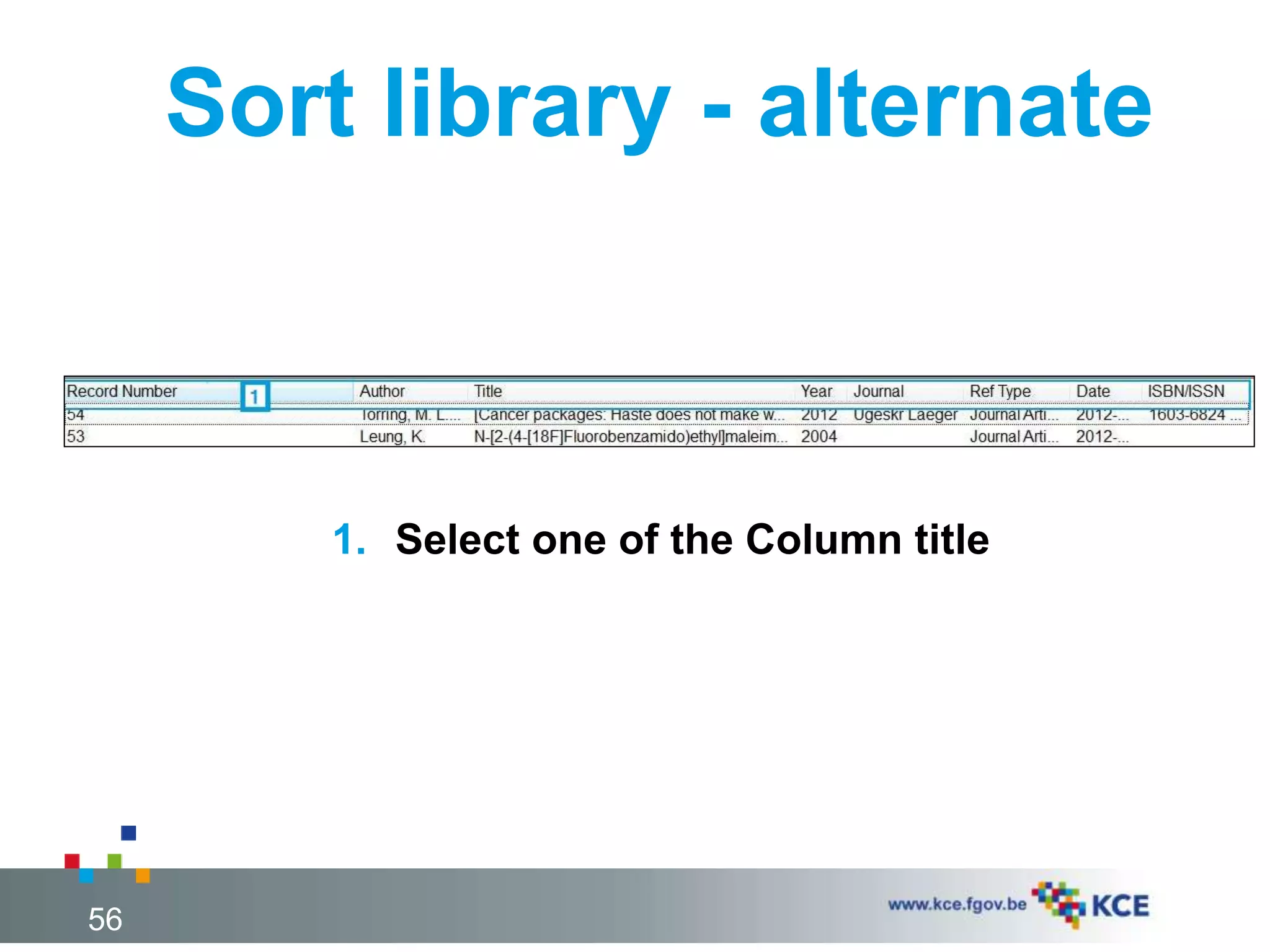
Sort library - alternate
56
1. Select one of the Column title
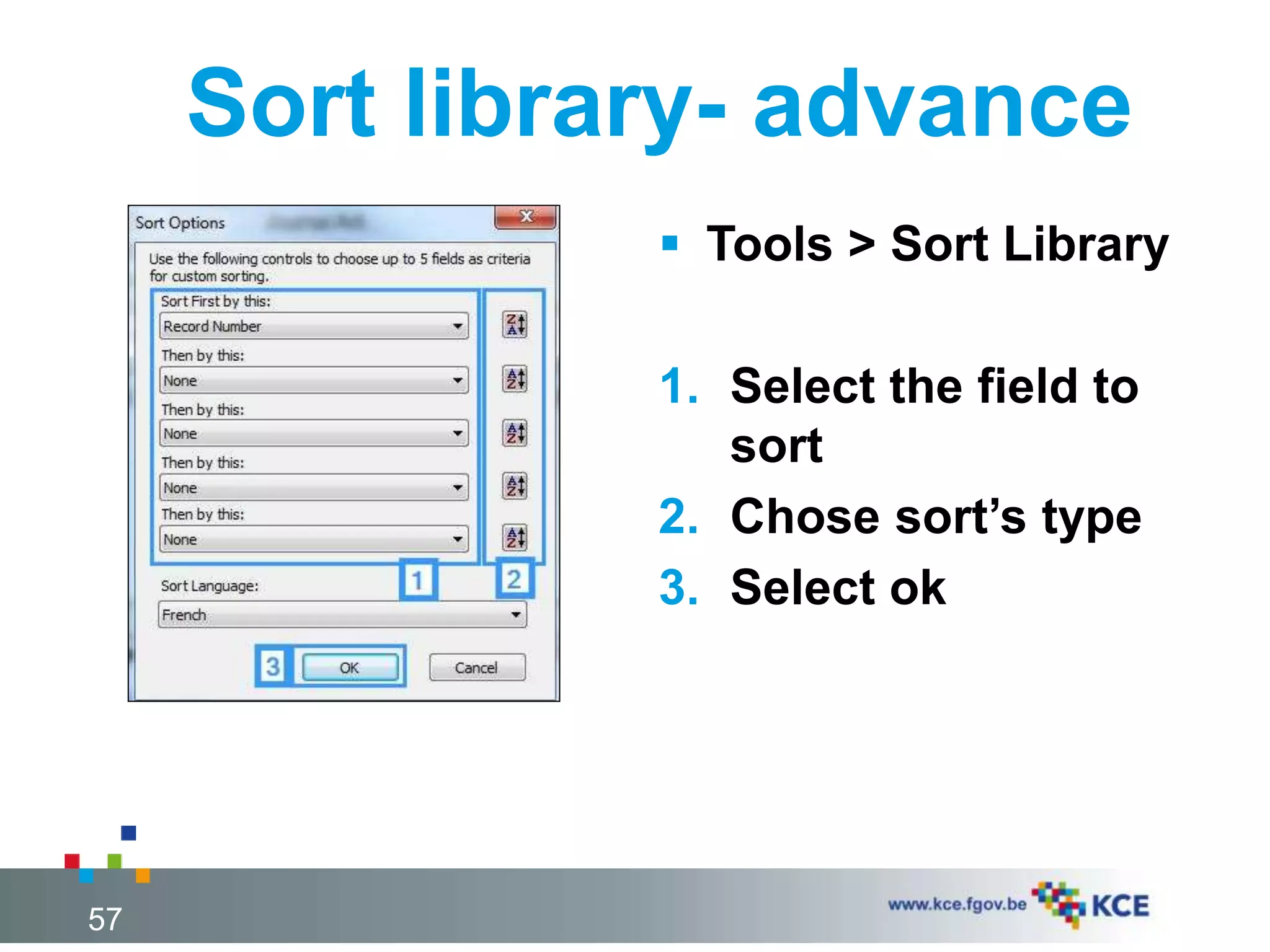
Sort library- advance
 Tools > Sort Library
1. Select the field to
sort
2. Chose sort’s type
3. Select ok
57
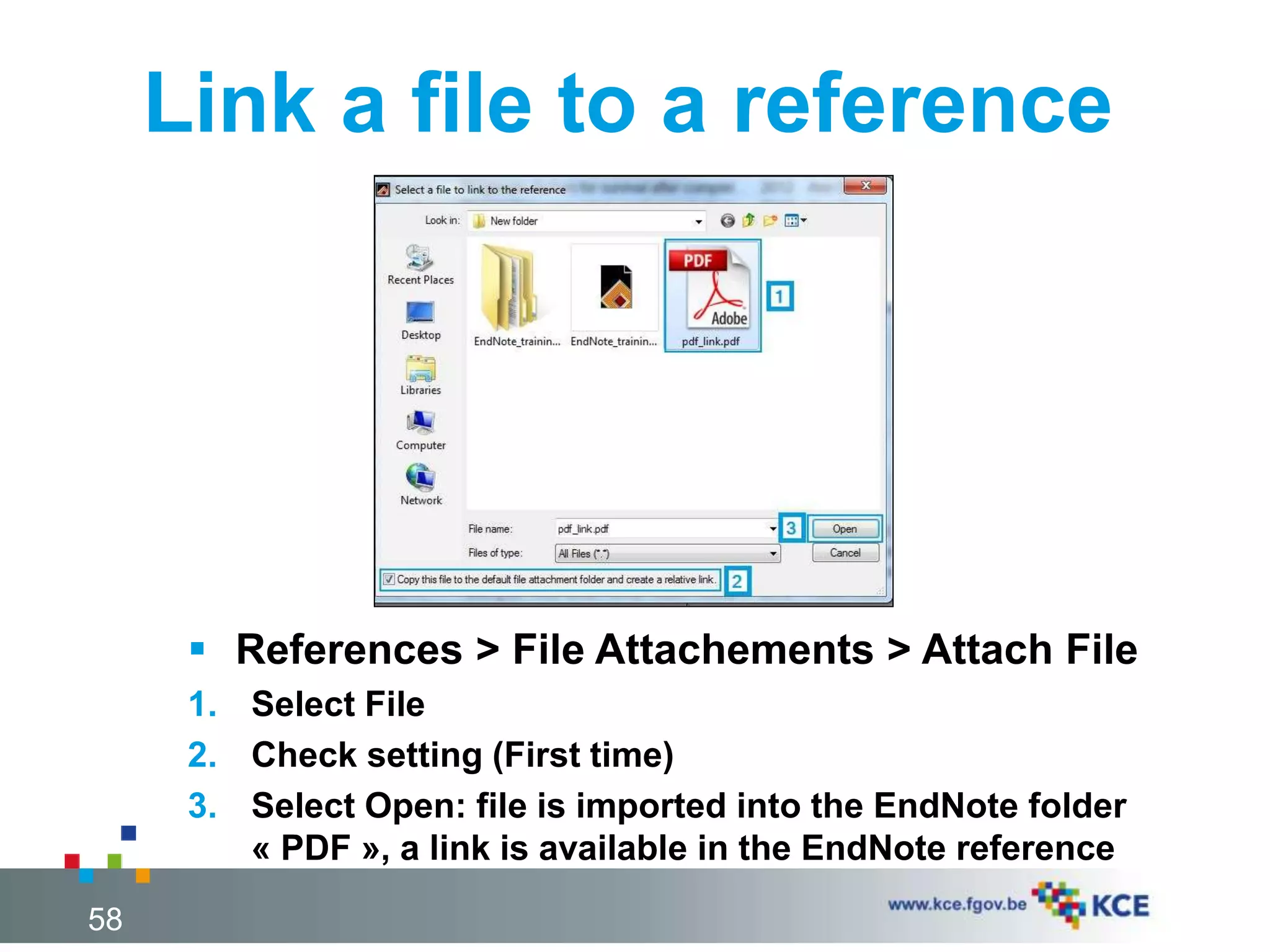
Link a file to a reference
58
 References > File Attachements > Attach File
1. Select File
2. Check setting (First time)
3. Select Open: file is imported into the EndNote folder
« PDF », a link is available in the EndNote reference
Introduction
Get references
Manage references
• General settings
• Import PDF
• Files localisation
Get full text
Use references
59
FIND FULL TEXT
General Settings
Import PDF Files
Files localisation
60
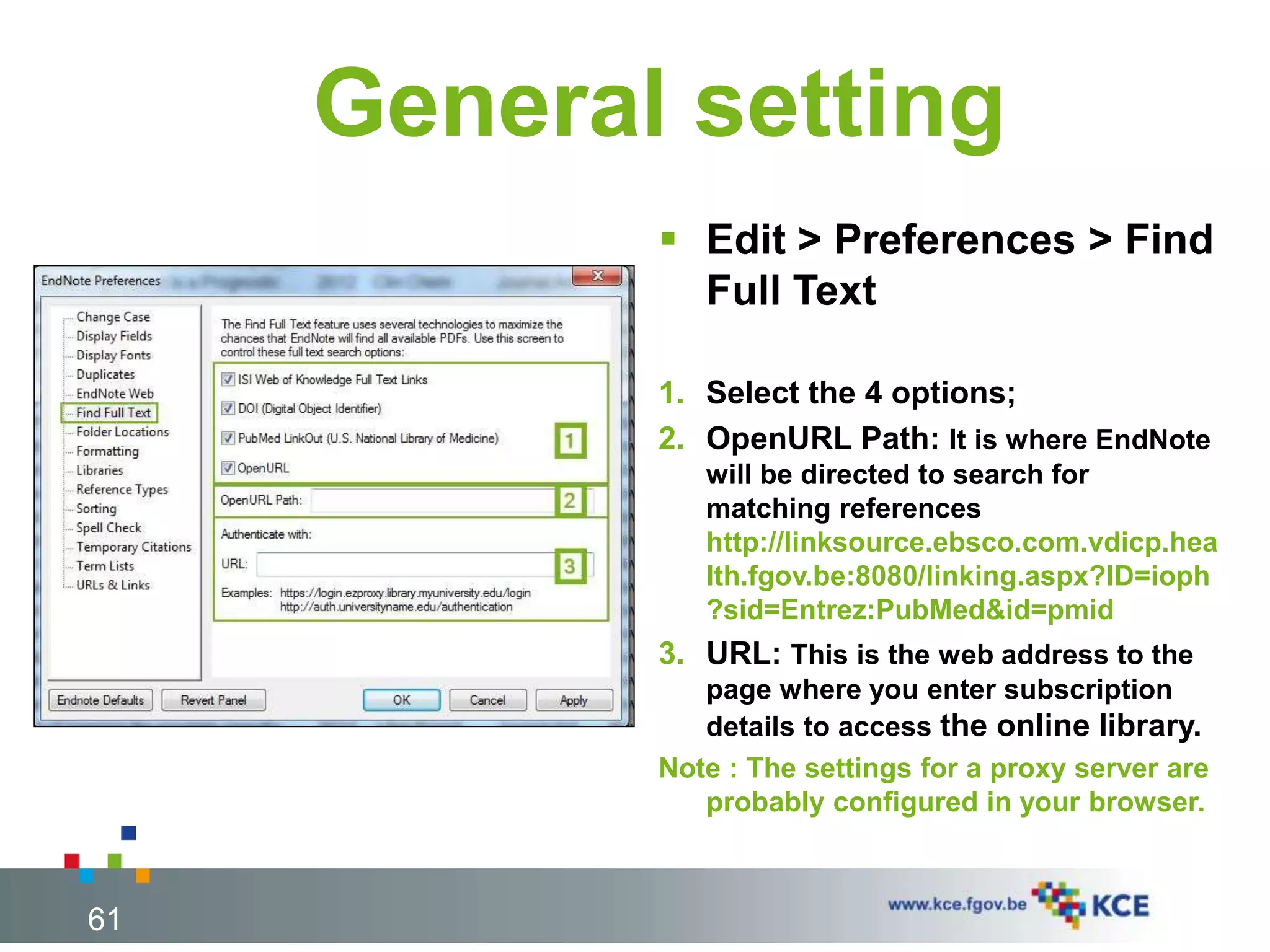
General setting
 Edit > Preferences > Find
Full Text
1. Select the 4 options;
2. OpenURL Path: It is where EndNote
will be directed to search for
matching references
http://linksource.ebsco.com.vdicp.hea
lth.fgov.be:8080/linking.aspx?ID=ioph
?sid=Entrez:PubMed&id=pmid
3. URL: This is the web address to the
page where you enter subscription
details to access the online library.
Note : The settings for a proxy server are
probably configured in your browser.
61
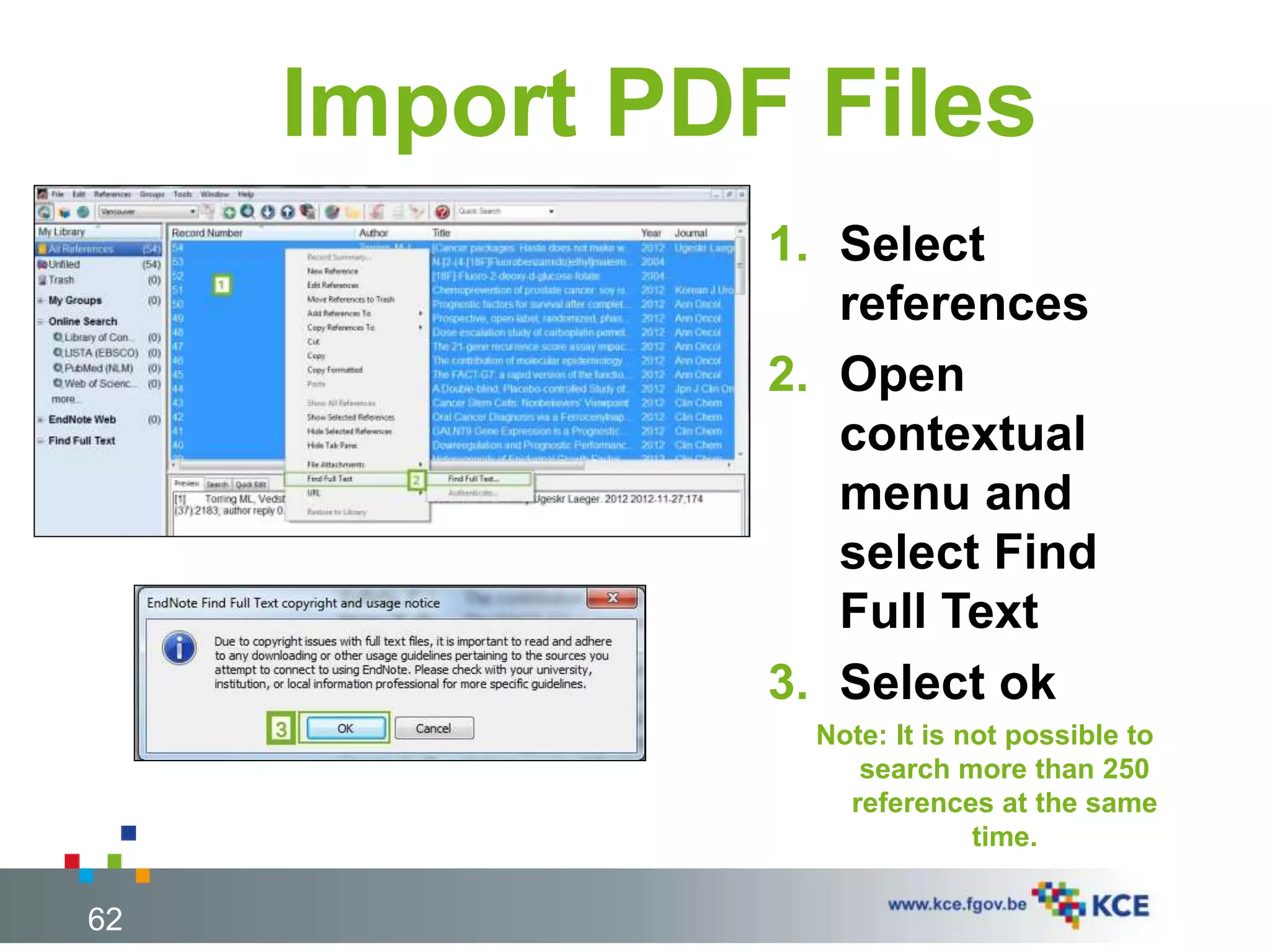
Import PDF Files
1. Select
references
2. Open
contextual
menu and
select Find
Full Text
3. Select ok
Note: It is not possible to
search more than 250
references at the same
time.
62
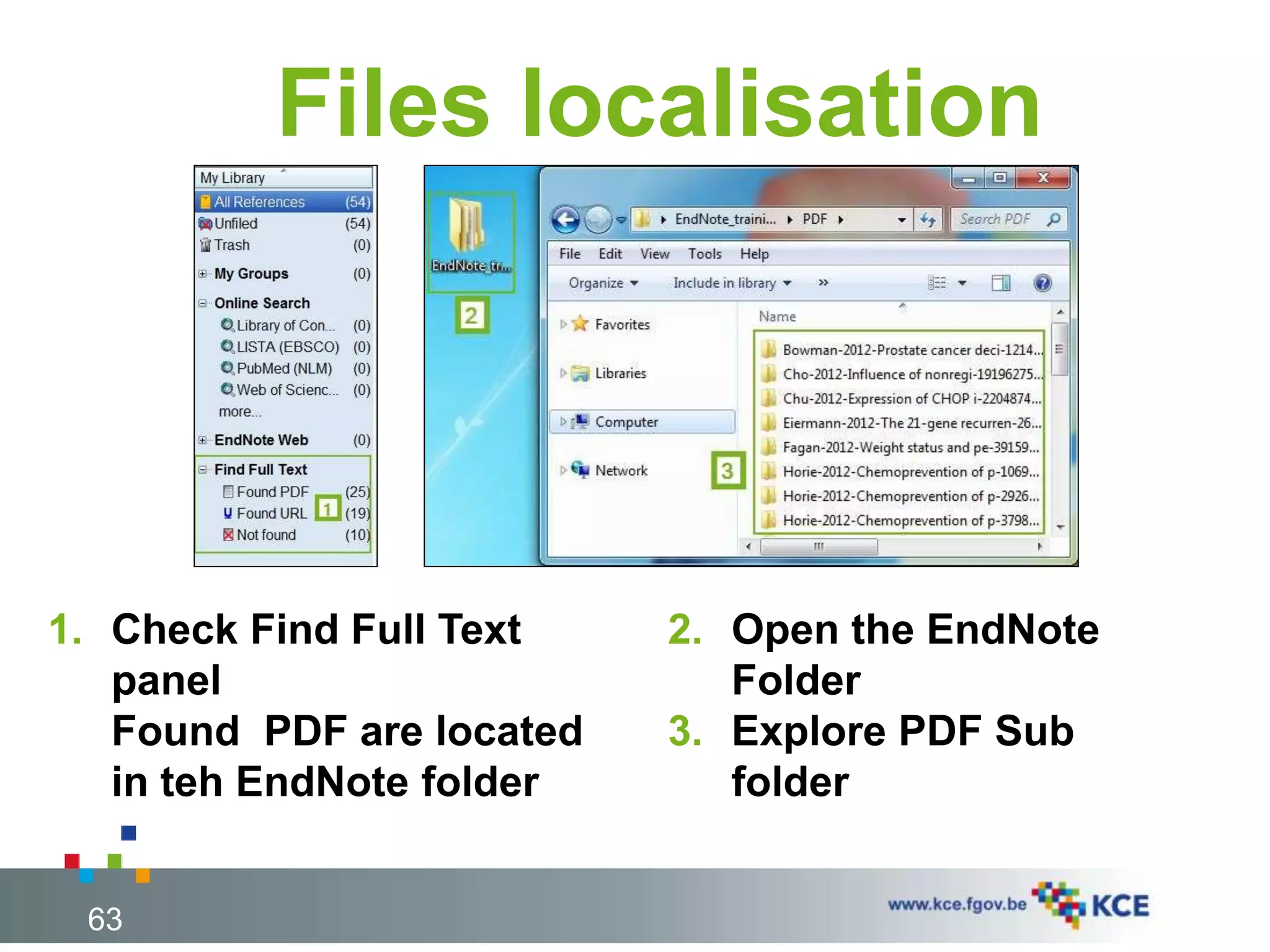
Files localisation
63
1. Check Find Full Text
panel
Found PDF are located
in teh EndNote folder
2. Open the EndNote
Folder
3. Explore PDF Sub
folder
Introduction
Get references
Manage references
Get full text
• With Microsoft Word
Use references
64
USE REFERENCES WITH
MICROSOFT WORD
Insert citations
Format Bibliography
65
INSERT CITATION
Find Citation(s)
Insert Selected Citation(s)
Copy/Paste
66
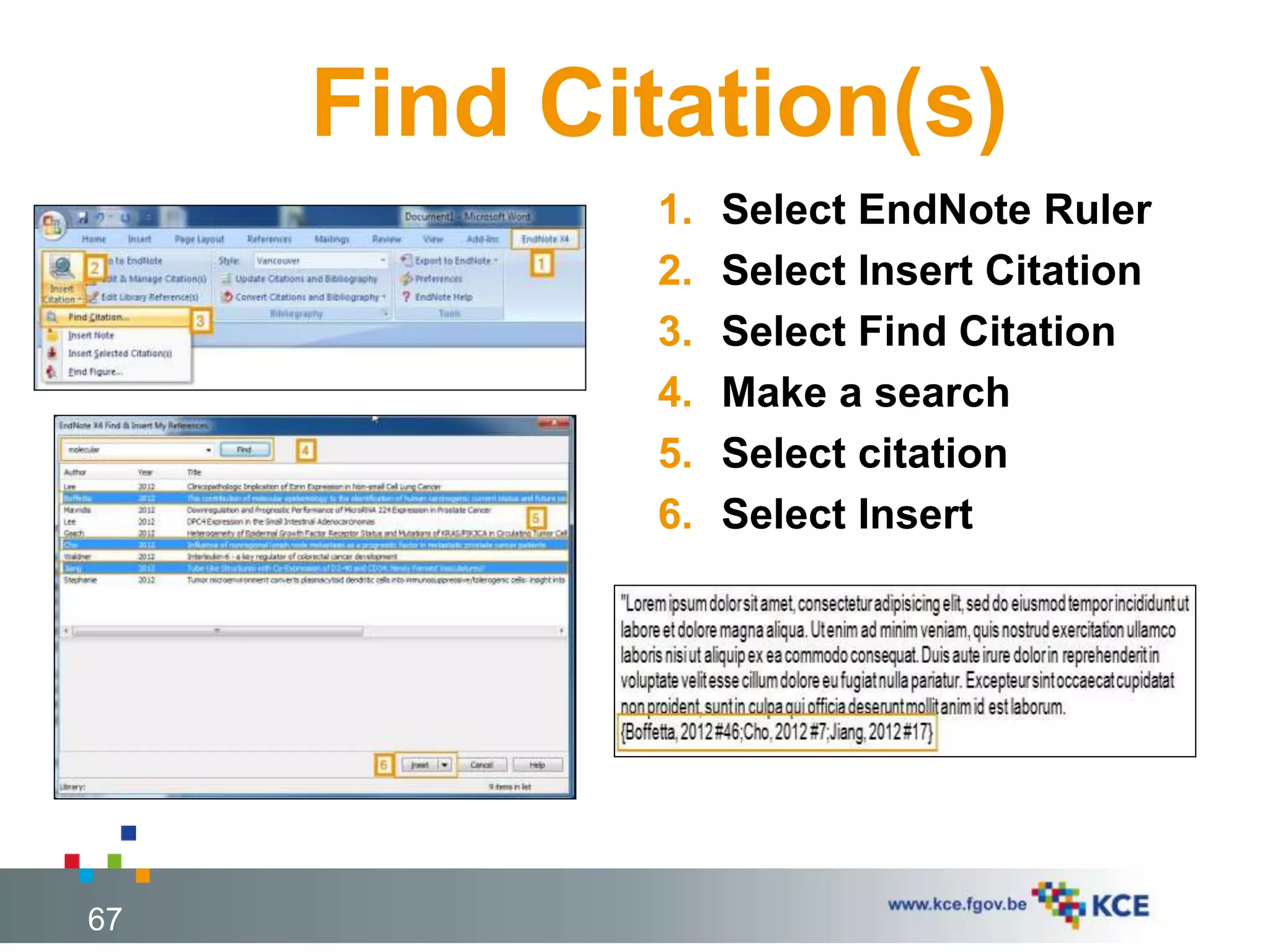
Find Citation(s)
67
1. Select EndNote Ruler
2. Select Insert Citation
3. Select Find Citation
4. Make a search
5. Select citation
6. Select Insert
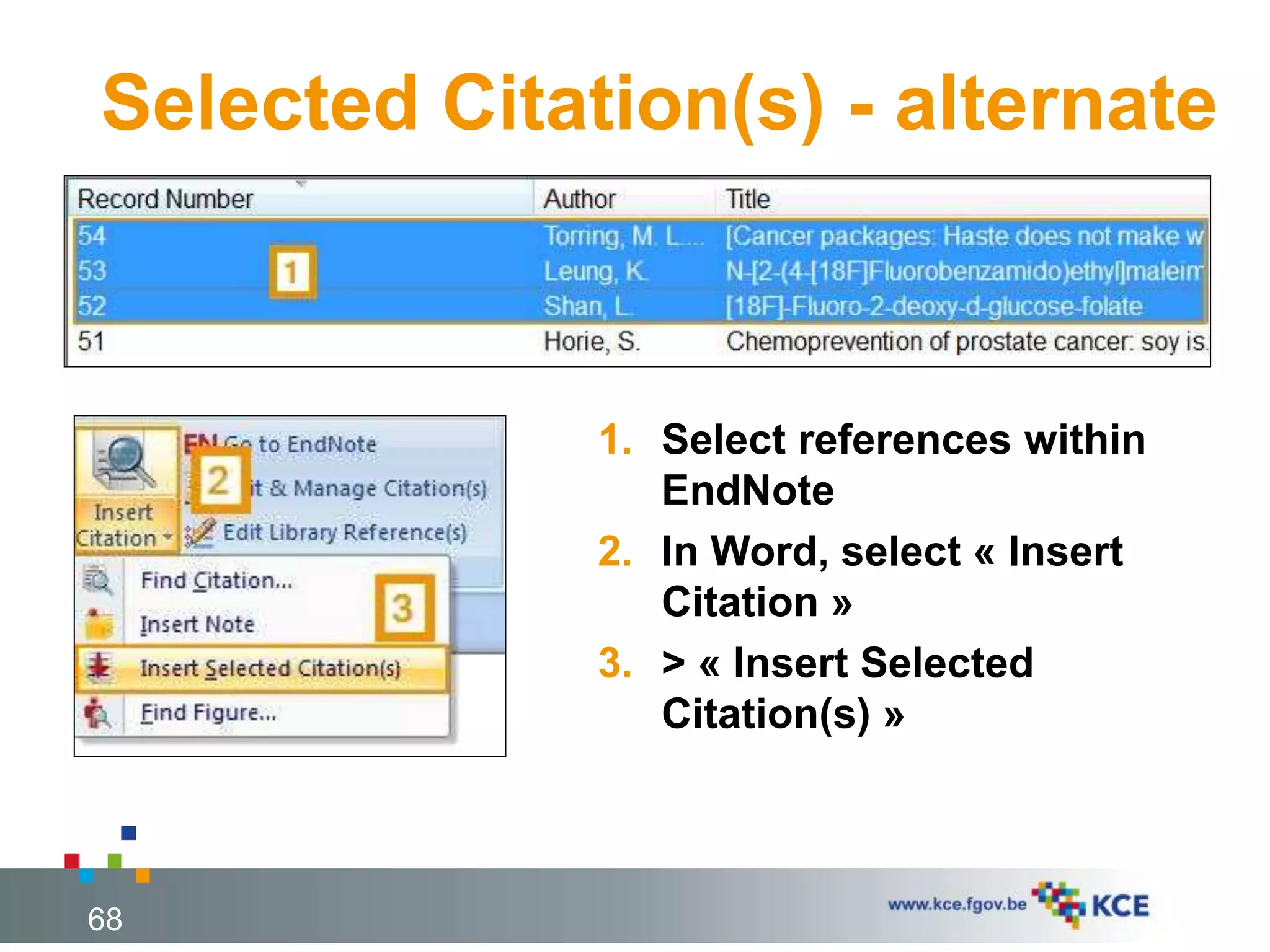
Selected Citation(s) - alternate
68
1. Select references within
EndNote
2. In Word, select « Insert
Citation »
3. > « Insert Selected
Citation(s) »
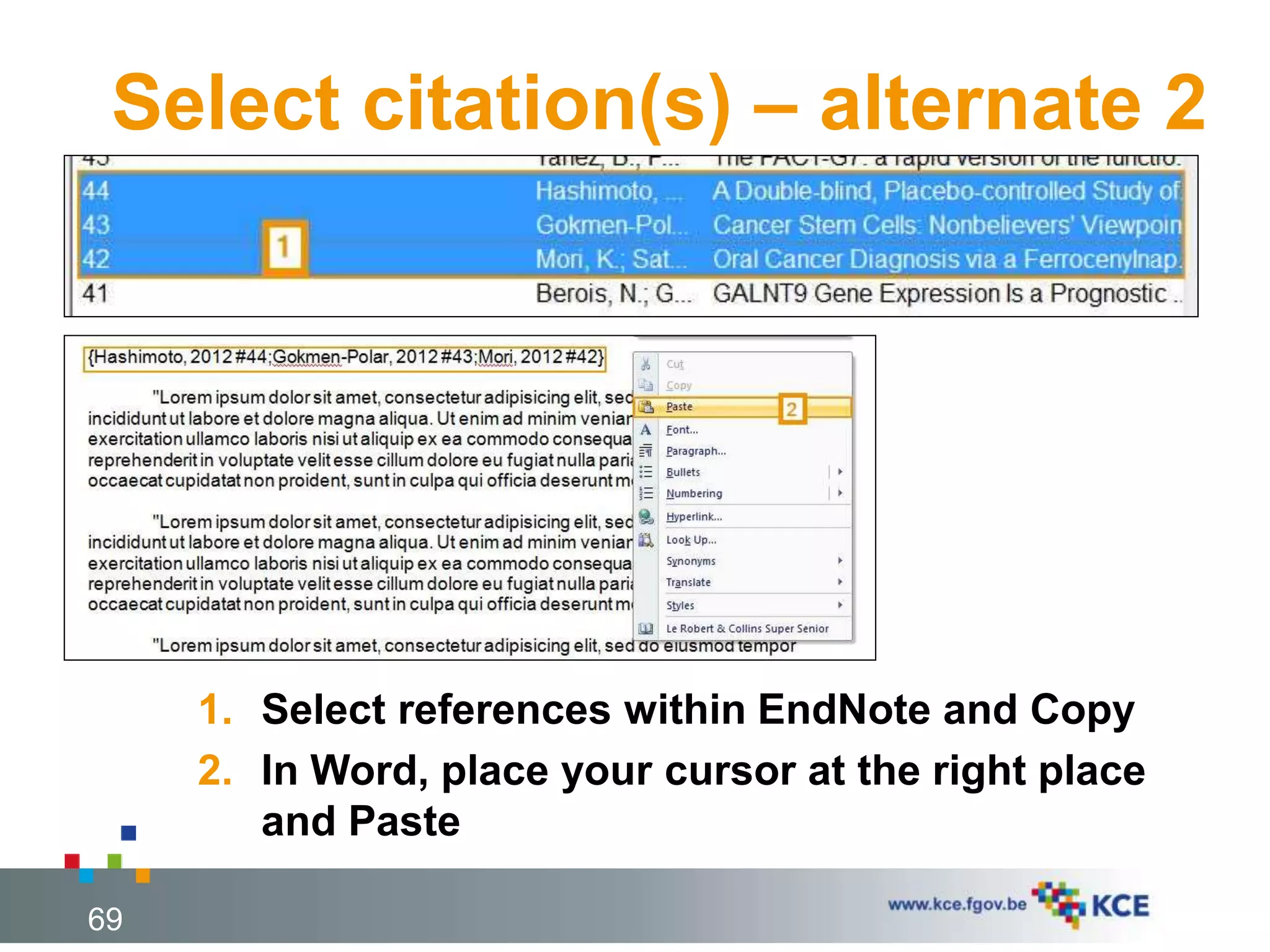
Select citation(s) – alternate 2
69
1. Select references within EndNote and Copy
2. In Word, place your cursor at the right place
and Paste
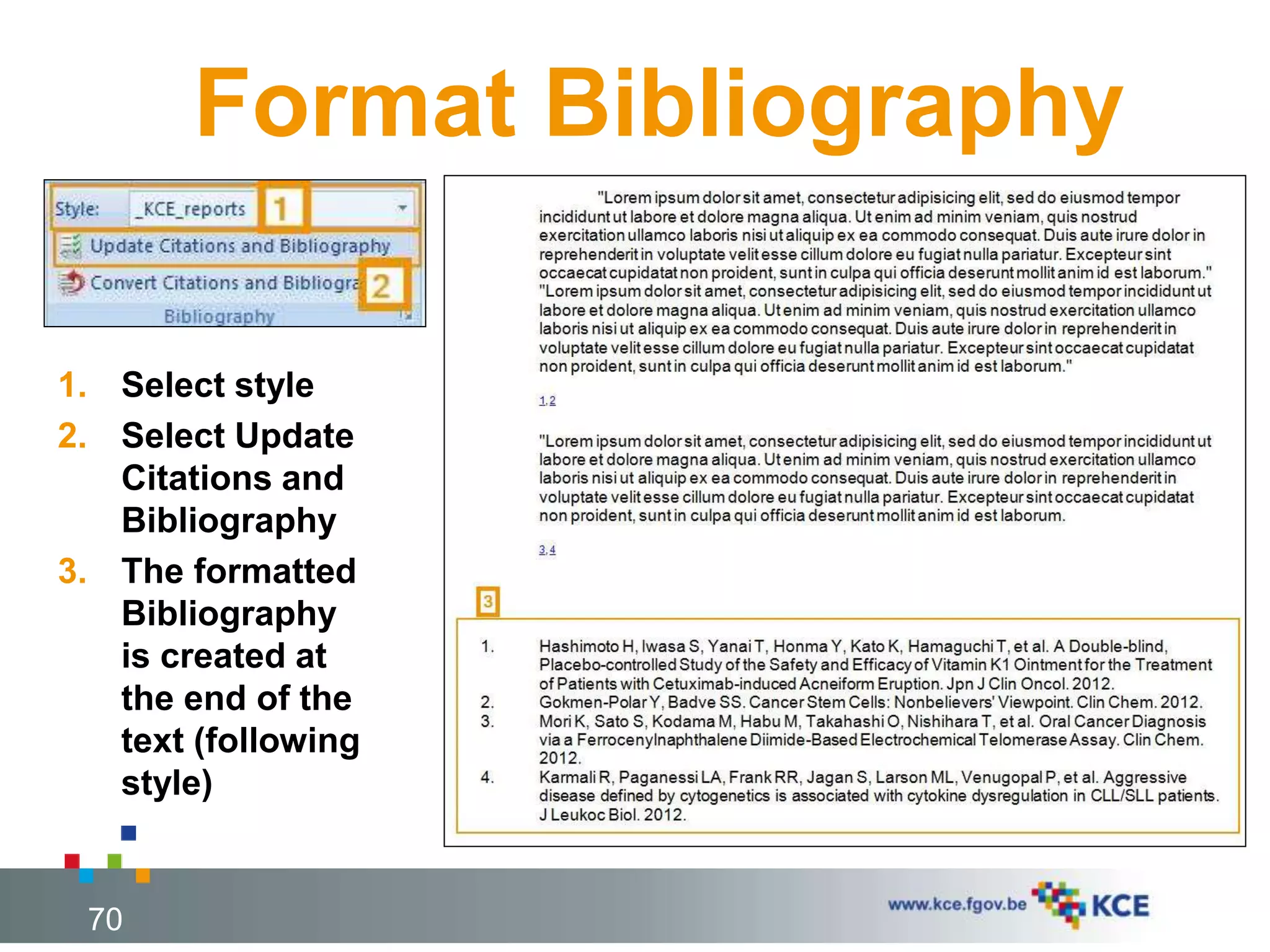
Format Bibliography
1. Select style
2. Select Update
Citations and
Bibliography
3. The formatted
Bibliography
is created at
the end of the
text (following
style)
70
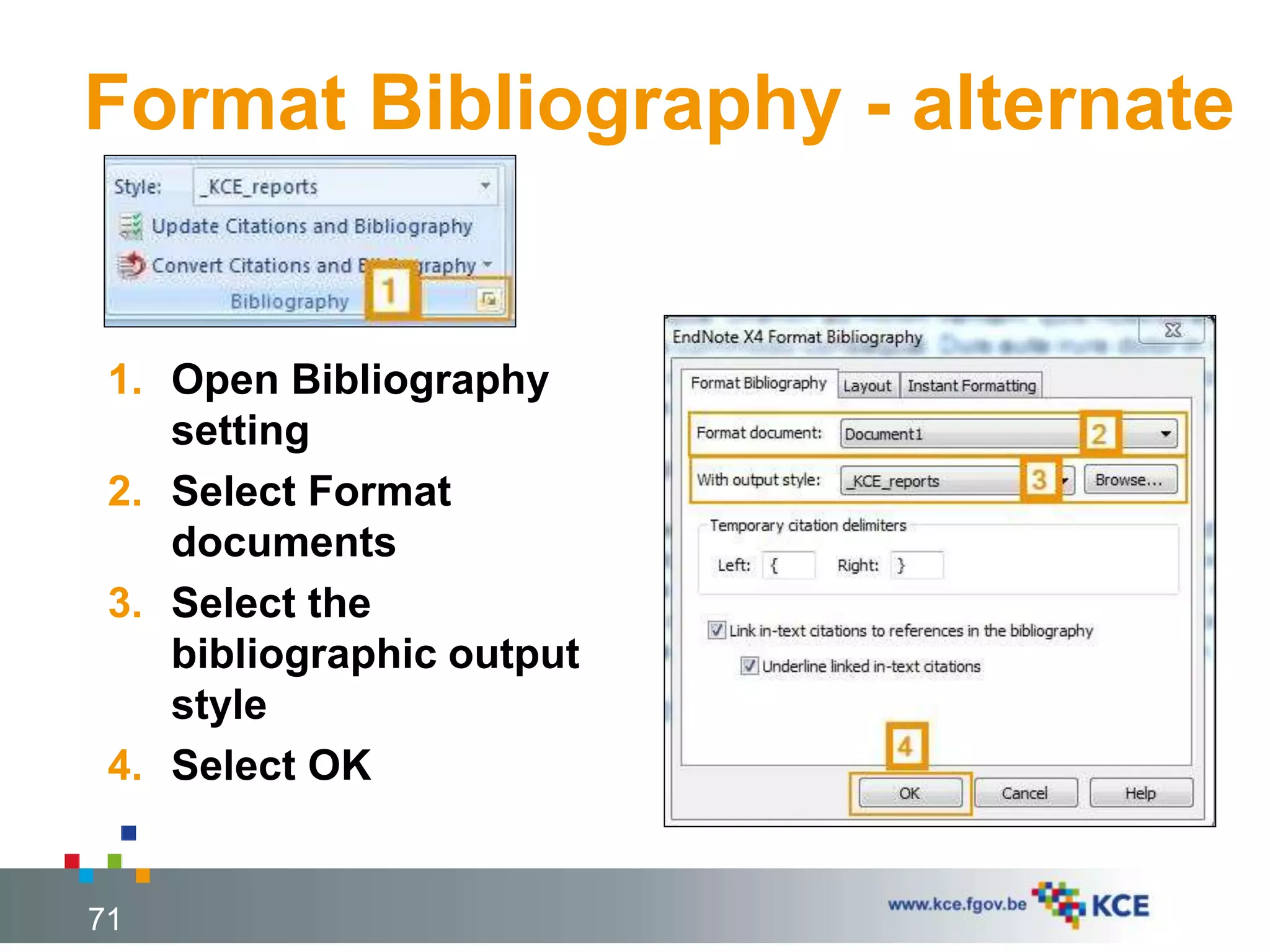
Format Bibliography - alternate
1. Open Bibliography
setting
2. Select Format
documents
3. Select the
bibliographic output
style
4. Select OK
71
Introduction
Get references
Manage references
Get full text
Use references
72
73
THANK YOU!

NICC - EndNote X.4 Reference Management Software

  • 1.
    EndNote X.4 Chalon, Patrice Hourlay,LucNICC, 2012-11-27 Reference Management Software
  • 2.
    • Reference ManagementSoftware (RMS) • KCE and EndNote • EndNote Tour • EndNote Preference Introduction Get references Manage references Get full text Use references 2
  • 3.
  • 4.
    Why RMS ? Find references  Get references  Manage references  Get full text  Use references 4
  • 5.
    5 Bibliographical DataBase (Online) Reference ManagementSoftware (RMS) Direct Export Import [Tagged text file] Connection [file] Manual Encoding Format [Output style] Document Report (Word)
  • 6.
  • 7.
    The RMS market 7 Source:http://en.wikipedia.org/wiki/Comparison_of_reference_management_software
  • 8.
  • 9.
    KCE AND ENDNOTE KCEMaster Plan Use of EndNote 9
  • 10.
    KCE Master Plan Process 4 : Searching evidence  Process 7 : Synthesis 10
  • 11.
    Use of EndNote Search Strategies Screeningof abstracts Reading of full-texts Additional references Identified references Project bibliography Report bibliography
  • 12.
    Use of EndNote Inter Library Loan (ILL)  Management of orders articles  Personal bibliography (« on my shelf »)  Call Number: XXX  Label: Project nbr (PF05-25)  Custom (3-6): example validation  My Groups 12
  • 13.
    ENDNOTE TOUR Start EndNote Createa New Library EndNote files & folders Main Window Toolbar Left column Main column 13
  • 14.
    Start EndNote Option 1:Menu > All programs > EndNote > EndNote Program Option 2: Open EndNote file 14
  • 15.
    Create a newlibrary 15 1. File > New 2. Select where to save the library 3. Give a name 4. Click on [Save]
  • 16.
    EndNote file &folders 16 1. File 2. Folder 3. Folder’s content
  • 17.
    Main window 17 1. Toolbar 2.Left Column 3. Main window: list, preview / Search / Quick Edit
  • 18.
    Toolbar 18 1. Library mode 2.Output style selector 3. References panel 4. Open panel 5. Bibliography panel 6. Help 7. Quick Search
  • 19.
    Left Column 1. Librarymanagement panel 2. My Groups (virtual libraries) 3. Online search sources 4. EndNote Web (requires subscription) 5. Find Full Text 19
  • 20.
    Main column 20 1. Listof references 2. Preview / Search / Quick Edit window
  • 21.
    ENDNOTE PREFERENCES Customize displayfields Customize find full text Customize folders location Customize reference types 21
  • 22.
    EndNote preferences  Edit> Menu > Preferences… 22
  • 23.
    Display Fields  Editmenu > Preferences > Display Fields Change the order of the fields that display in the main window (list of references) 23
  • 24.
    Find Full Text Edit menu > Preferences > Find Full Text Locate full text on the Web. 24
  • 25.
    Folder Location  Editmenu > Preferences > Folder Locations Set the location of the style, filter and connections folders 25
  • 26.
    Reference Types  Editmenu > Preferences > Reference Types Define the default reference type 26
  • 27.
    Introduction • (Semi-)Automatic • Manual Getreferences Manage references Get full text Use references 27
  • 28.
    (SEMI-)AUTOMATIC Direct Export fromonline database Import a text file Connect to an online database 28
  • 29.
    DIRECT EXPORT (e.g. PubMed,Embase.com, Science Direct, Scopus, BioMed Central, Eric, ...) 29
  • 30.
    Direct export -PubMed 1. Search for references 2. Select reference(s) 3. Open « Send to » menu 30
  • 31.
    Direct export –PubMed (2) 4. Select « Citation manager » 5. Click on [Create File] 6. Select EndNote 7. Click on [OK] 31
  • 32.
    Direct export –PubMed (3) 8. Select the appropriate Import Filter 9. Click on [Choose] 32
  • 33.
    Direct export –PubMed (4) 10. The reference is directly included into the EndNote bibliography 11. The preview tab presents the reference following the selected style 33
  • 34.
    IMPORT A TEXTFILE (e.g. PubMed, OVID Medline, Embase.com, Illumina Sociological Abstacts, Ebscohost CINAHL, Science Direct,, ...) 34
  • 35.
    Import File –PubMed 35 4. Select «File » 5. Select Format (here, MEDLINE) 6. Select sort options 7. Click on [Create file] 8. Select « Save File » 9. Click on [OK]
  • 36.
    Import File –PubMed (2) 36 10.Select folder 11.Chose file name, ADD « .txt » 12.Click on [Save]
  • 37.
    Import File –PubMed (3) 13. File > Import > File… 14. Select text file to import 15. Select Import filter 16. Select duplicates option 17. Click on [Import] 37
  • 38.
    Import File –PubMed (4) 18. The reference is directly included into the EndNote bibliography 19. The preview tab presents the reference following the selected style 38
  • 39.
    TXT file =archive 39
  • 40.
    CONNECT TO ONLINE DATABASE PubMed,Library catalogues,… 40
  • 41.
    Connection - PubMed 41 1.Selected the third icon in the Library panel 2. Selected a Database in the Online Search Panel 3. Type your search criteria 4. Select the amount of reference to import
  • 42.
    Connextion - PubMed(cont.) 42 5. Select the approriate reference 6. Open contextual menu ans select « Copy References To » 7. Select the Database where to import the reference
  • 43.
  • 44.
    Encoding references 1. References> New Reference ctrl + N 2. Select Reference Type 3. Add : Author, Year, Title, Journal, Volume, Issue, Pages, … 44
  • 45.
    Introduction Get references • Showing& hiding • My groups • Export • Changing text / Change & move fields • Searching for references • Finding duplicates • Sorting library • Linking reference to file / opening reference Manage references Get full text Use references 45
  • 46.
    Show and hide 1.Select references 2. Open contextual menu and select Show Selected References or Hide Selected References 46
  • 47.
    My groups 47 1. Selectreferences 2. Right click on the selection and choose « Add References To > Create Custom Groups 3. Give a name to the newly created group
  • 48.
    Export a textfile 48 1. File > Export … 2. Select a place to save in 3. Give a name 4. Select a type 5. Select an output style 6. Save
  • 49.
    Export a compressedLibrary 49 1. File > compressed Library 2. Select Create 3. Select with or without Attachements 4. Select all or selected references 5. Next 6. Select a palce to save 7. Give a name 8. Save
  • 50.
    Change and moveFields (1) 1. Select references 2. Open Tools Menu 3. Select Change and Moves Fields 50
  • 51.
    Change and moveFields (2) 1. In: selecte the field to edit 2. Change: selecte the type of change 3. Indicate the content of the change 4. Select ok 5. Confirm 51
  • 52.
    Search for references(1) 52 1. Use Quick Search in the menu
  • 53.
    Search for references(2) 53 1. Select Search panel 2. Select Search place 3. Select Field’s search 4. Select type of search 5. Select search buton
  • 54.
    Find duplicates (1) 1.Open References’menu 2. Select Find Duplicates 54
  • 55.
    Find duplicates (2) 55 3.Select the record to keep 4. Skip the selection records
  • 56.
    Sort library -alternate 56 1. Select one of the Column title
  • 57.
    Sort library- advance Tools > Sort Library 1. Select the field to sort 2. Chose sort’s type 3. Select ok 57
  • 58.
    Link a fileto a reference 58  References > File Attachements > Attach File 1. Select File 2. Check setting (First time) 3. Select Open: file is imported into the EndNote folder « PDF », a link is available in the EndNote reference
  • 59.
    Introduction Get references Manage references •General settings • Import PDF • Files localisation Get full text Use references 59
  • 60.
    FIND FULL TEXT GeneralSettings Import PDF Files Files localisation 60
  • 61.
    General setting  Edit> Preferences > Find Full Text 1. Select the 4 options; 2. OpenURL Path: It is where EndNote will be directed to search for matching references http://linksource.ebsco.com.vdicp.hea lth.fgov.be:8080/linking.aspx?ID=ioph ?sid=Entrez:PubMed&id=pmid 3. URL: This is the web address to the page where you enter subscription details to access the online library. Note : The settings for a proxy server are probably configured in your browser. 61
  • 62.
    Import PDF Files 1.Select references 2. Open contextual menu and select Find Full Text 3. Select ok Note: It is not possible to search more than 250 references at the same time. 62
  • 63.
    Files localisation 63 1. CheckFind Full Text panel Found PDF are located in teh EndNote folder 2. Open the EndNote Folder 3. Explore PDF Sub folder
  • 64.
    Introduction Get references Manage references Getfull text • With Microsoft Word Use references 64
  • 65.
    USE REFERENCES WITH MICROSOFTWORD Insert citations Format Bibliography 65
  • 66.
    INSERT CITATION Find Citation(s) InsertSelected Citation(s) Copy/Paste 66
  • 67.
    Find Citation(s) 67 1. SelectEndNote Ruler 2. Select Insert Citation 3. Select Find Citation 4. Make a search 5. Select citation 6. Select Insert
  • 68.
    Selected Citation(s) -alternate 68 1. Select references within EndNote 2. In Word, select « Insert Citation » 3. > « Insert Selected Citation(s) »
  • 69.
    Select citation(s) –alternate 2 69 1. Select references within EndNote and Copy 2. In Word, place your cursor at the right place and Paste
  • 70.
    Format Bibliography 1. Selectstyle 2. Select Update Citations and Bibliography 3. The formatted Bibliography is created at the end of the text (following style) 70
  • 71.
    Format Bibliography -alternate 1. Open Bibliography setting 2. Select Format documents 3. Select the bibliographic output style 4. Select OK 71
  • 72.
  • 73.