Prepared by:
Razni Shauna bte Abdul Razak (P65509)
March 2014


Bibliographic management software, designed to
allow researchers to record, organize, and use
references found when searching literature for
information
Create a database (library) of references for a
specific topic
 Download references from library catalogs or
other electronic databases
 Link references into word processed documents
 Generate bibliographies in specific styles,
especially for publication

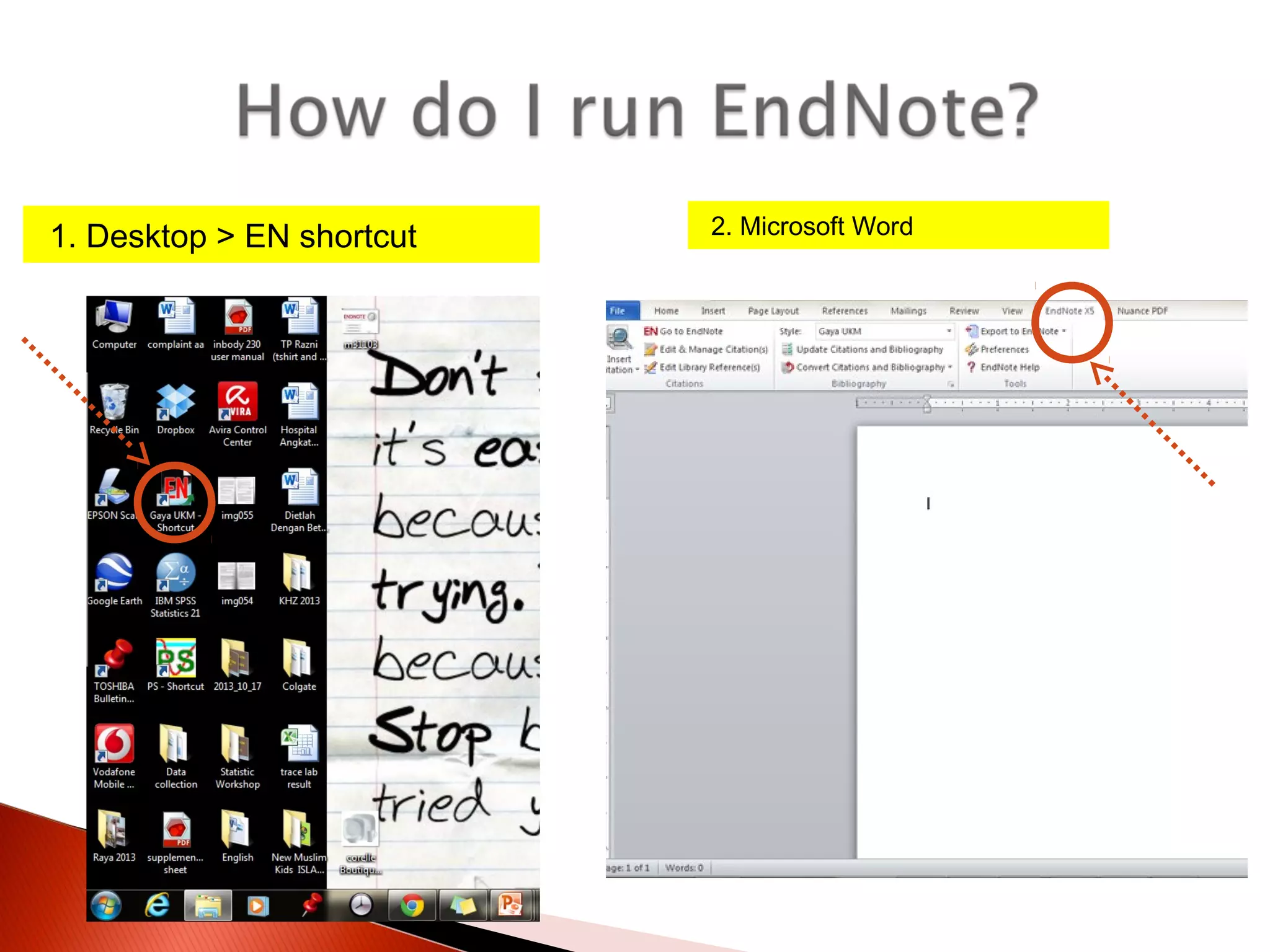
1. Desktop > EN shortcut

2. Microsoft Word
1.

Creating new references manually


1.

For those publications / web pages / technical reports that
cannot be downloaded directly into EndNote

Importing references directly from databases


Instructions for importing may differ between databases
1.

References
> New Reference

2.

Choose Reference
Type and add
information into
relevant fields

3.

To save:
File > Close
Reference
Preview
formatted
references
Delete references

Edit references
1.
2.
3.
4.
5.

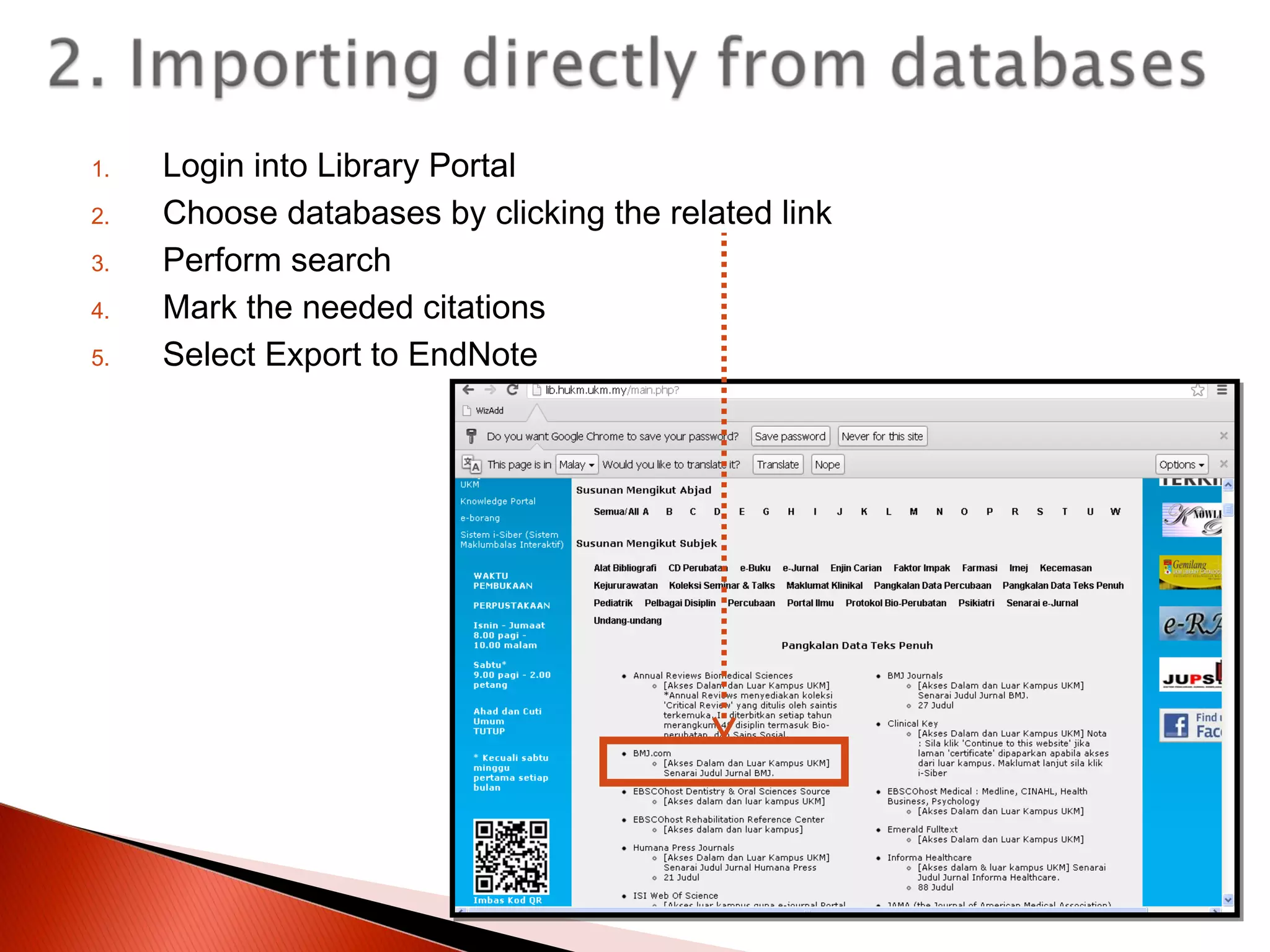
Login into Library Portal
Choose databases by clicking the related link
Perform search
Mark the needed citations
Select Export to EndNote
1. Conduct search

2. Click on check box to select for
related articles (can be more than 1)

3. Click on Export Citations
4. Choose
content format

5. Select RIS
format
6. Click Export
7. Click OK

8. References will be
available in the Imported
References
1. Conduct
search

4. Click
Continue

5. Then
choose Open

2. Click on check box to select
for related articles (can be more
than 1)

3. Click Export / Save.
Choose EndNote

6. The selected
records should now
appear in Imported
References
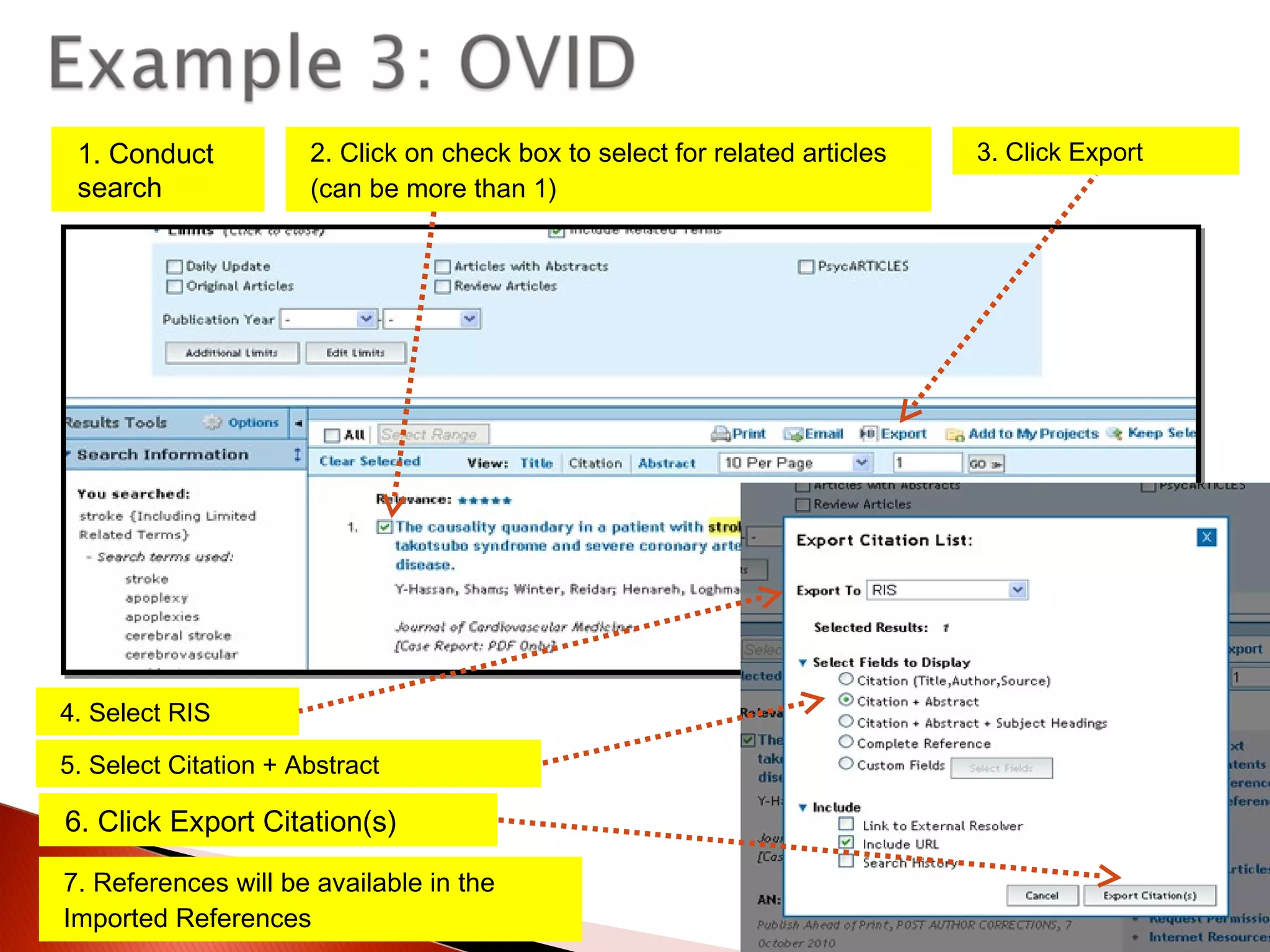
1. Conduct
search

2. Click on check box to select for related articles
(can be more than 1)

4. Select RIS
5. Select Citation + Abstract

6. Click Export Citation(s)
7. References will be available in the
Imported References

3. Click Export
1. Go to scholar.google.com.my
2. Click on Settings
3. At the Bibliography manager:
 Click on Show links to import
citations into
 Select EndNote
 Click Save
4. Conduct Search in Google Scholar
5. Each record displayed will have an Import
into EndNote link

6. Click on Import
into EndNote on the
selected article and
the reference will
be available in the
EndNote Library
To attach PDF within references in your
EndNote Library

1. Highlight Reference
2. Click References menu
◦ Select File Attachments
◦ Select Attach File
3. Select a file

4. Click Open

5. PDF attached to
the reference
1.

Adding Group Set
◦ A Group Set contains Groups

1. Groups > Create Group Set

2. Enter New Group Set name
2.

Adding Group

◦ A Group contains references
1. Groups > Create Group

2. Enter New Group name
3.

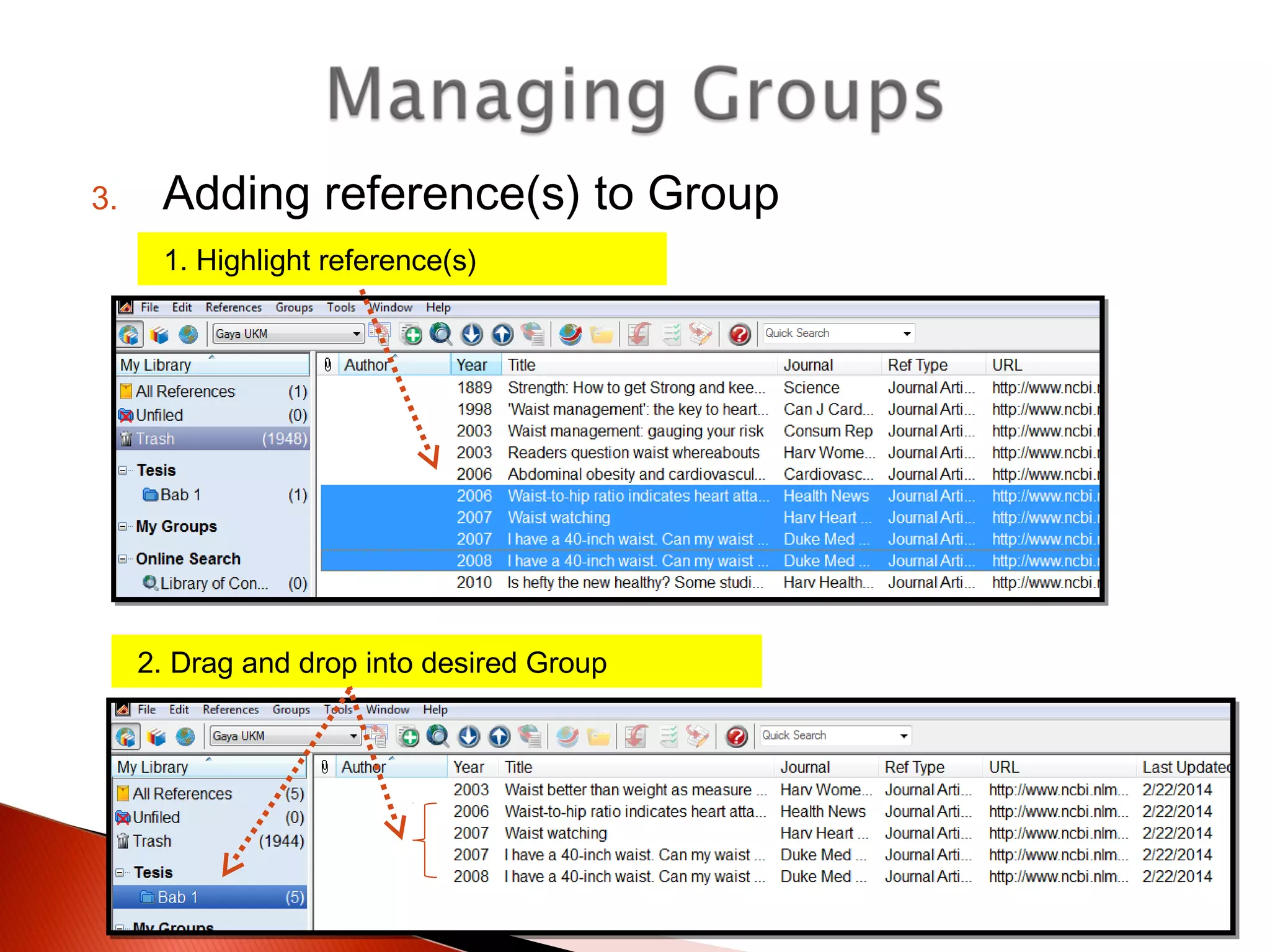
Adding reference(s) to Group
1. Highlight reference(s)

2. Drag and drop into desired Group







Key feature of EndNote
Allows you to access EndNote from within Microsoft
Word
To insert citations into your Word documents, anytime
during your writing process
Automatically builds a bibliography from the citations you
insert

Citation

A reference that appears in the text of your document
Example: (Hume 1996)

Bibliograph
y

A list of references (at the end of the paper) that provide complete
publication or access information on all cited works
Example: Hume, R. 1966. Prediction of lean body mass fom height and weight. J Clin Path
19:389
1. EndNote > Highlight reference(s)

2. Word document
> Position the cursor where
the citation is to be inserted
> Select Insert Citation
> Click on Insert Selected
Citation(s)
3. Citation(s) will appear both
in-text and at the end to create
bibliography
1. Word document

2. Click on Tools

> Edit & Manage Citation(s)

> Select Format Bibliography
3. Click on With Output Style
> Select preferred style

4. Preferred style will appear both in-text
and at bibliography
EndNote Manual
http://www.lib.uts.edu.au/information/endnote/help.html

The official EndNote web site
http://www.endnote.com

EndNote Technical Support

http://www.endnote.com/support/ensupport.asp

EndNote Users’ Mailing List http://www.endnote.com/support/eninterest.asp

Endnote Gaya UKM

  • 1.
    Prepared by: Razni Shaunabte Abdul Razak (P65509) March 2014
  • 2.
     Bibliographic management software,designed to allow researchers to record, organize, and use references found when searching literature for information
  • 3.
    Create a database(library) of references for a specific topic  Download references from library catalogs or other electronic databases  Link references into word processed documents  Generate bibliographies in specific styles, especially for publication 
  • 4.
    1. Desktop >EN shortcut 2. Microsoft Word
  • 6.
    1. Creating new referencesmanually  1. For those publications / web pages / technical reports that cannot be downloaded directly into EndNote Importing references directly from databases  Instructions for importing may differ between databases
  • 7.
    1. References > New Reference 2. ChooseReference Type and add information into relevant fields 3. To save: File > Close Reference
  • 8.
  • 9.
  • 10.
    1. 2. 3. 4. 5. Login into LibraryPortal Choose databases by clicking the related link Perform search Mark the needed citations Select Export to EndNote
  • 11.
    1. Conduct search 2.Click on check box to select for related articles (can be more than 1) 3. Click on Export Citations
  • 12.
    4. Choose content format 5.Select RIS format 6. Click Export 7. Click OK 8. References will be available in the Imported References
  • 13.
    1. Conduct search 4. Click Continue 5.Then choose Open 2. Click on check box to select for related articles (can be more than 1) 3. Click Export / Save. Choose EndNote 6. The selected records should now appear in Imported References
  • 14.
    1. Conduct search 2. Clickon check box to select for related articles (can be more than 1) 4. Select RIS 5. Select Citation + Abstract 6. Click Export Citation(s) 7. References will be available in the Imported References 3. Click Export
  • 15.
    1. Go toscholar.google.com.my 2. Click on Settings 3. At the Bibliography manager:  Click on Show links to import citations into  Select EndNote  Click Save 4. Conduct Search in Google Scholar 5. Each record displayed will have an Import into EndNote link 6. Click on Import into EndNote on the selected article and the reference will be available in the EndNote Library
  • 16.
    To attach PDFwithin references in your EndNote Library 1. Highlight Reference 2. Click References menu ◦ Select File Attachments ◦ Select Attach File 3. Select a file 4. Click Open 5. PDF attached to the reference
  • 18.
    1. Adding Group Set ◦A Group Set contains Groups 1. Groups > Create Group Set 2. Enter New Group Set name
  • 19.
    2. Adding Group ◦ AGroup contains references 1. Groups > Create Group 2. Enter New Group name
  • 20.
    3. Adding reference(s) toGroup 1. Highlight reference(s) 2. Drag and drop into desired Group
  • 21.
        Key feature ofEndNote Allows you to access EndNote from within Microsoft Word To insert citations into your Word documents, anytime during your writing process Automatically builds a bibliography from the citations you insert Citation A reference that appears in the text of your document Example: (Hume 1996) Bibliograph y A list of references (at the end of the paper) that provide complete publication or access information on all cited works Example: Hume, R. 1966. Prediction of lean body mass fom height and weight. J Clin Path 19:389
  • 22.
    1. EndNote >Highlight reference(s) 2. Word document > Position the cursor where the citation is to be inserted > Select Insert Citation > Click on Insert Selected Citation(s) 3. Citation(s) will appear both in-text and at the end to create bibliography
  • 23.
    1. Word document 2.Click on Tools > Edit & Manage Citation(s) > Select Format Bibliography 3. Click on With Output Style > Select preferred style 4. Preferred style will appear both in-text and at bibliography
  • 24.
    EndNote Manual http://www.lib.uts.edu.au/information/endnote/help.html The officialEndNote web site http://www.endnote.com EndNote Technical Support http://www.endnote.com/support/ensupport.asp EndNote Users’ Mailing List http://www.endnote.com/support/eninterest.asp

Editor's Notes

  • #17 PDF=portable document file
  • #18 PDF=portable document file