监控 Windows 服务器
1. 监控内容

windows 服务器的内部参数包括以下

a. 内存使用状况

b. CPU 负载

c. 磁盘使用状况

d. 服务状态

e. 运行的进程


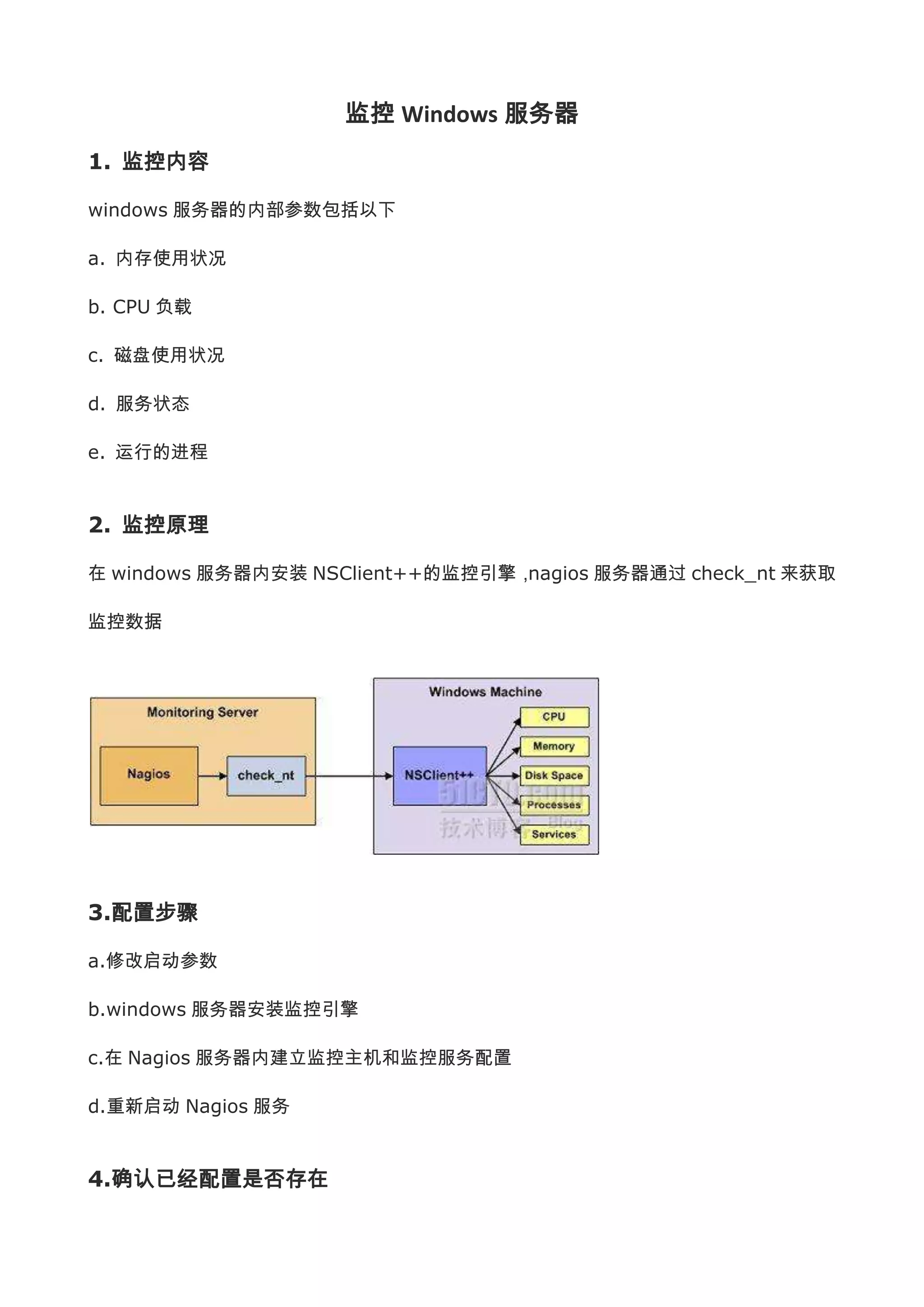
2. 监控原理

在 windows 服务器内安装 NSClient++的监控引擎,nagios 服务器通过 check_nt 来获取

监控数据


3.配置步骤

a.修改启动参数

b.windows 服务器安装监控引擎

c.在 Nagios 服务器内建立监控主机和监控服务配置

d.重新启动 Nagios 服务


4.确认已经配置是否存在
在/usr/local/nagios/etc/objects/commands.cfg 中是否有以下内容(允许使用

check_nt 来监控 windows 服务)


    1. # 'check_nt' command definition
    2. define command{
    3.           command_name       check_nt
    4.           command_line       $USER1$/check_nt -H $HOSTADDRESS$ -p 12489 -v $ARG1$ $AR
          G2$
    5.           }


在/usr/local/nagios/etc/object/templates.cfg 中是否有以下内容(这个用于未来添加新

主机的时候的范例)


    1. define host{
    2.           name                          windows-server     ; The name of this host template


    3.           use                           generic-host       ; Inherit default values from th
          e generic-host template
    4.           check_period                  24x7               ; By default, Windows servers ar
          e monitored round the clock
    5.           check_interval                5                  ; Actively check the server ever
          y 5 minutes
    6.           retry_interval                1                  ; Schedule host check retries at
           1 minute intervals
    7.           max_check_attempts            10                 ; Check each server 10 times (ma
          x)
    8.           check_command                 check-host-alive          ; Default command to che
          ck if servers are "alive"
    9.           notification_period           24x7               ; Send notification out at any t
          ime - day or night
    10.          notification_interval         30                 ; Resend notifications every 30
           minutes
    11.          notification_options          d,r                ; Only send notifications for s
          pecific host states
    12.          contact_groups                admins             ; Notifications get sent to the
           admins by default
    13.          hostgroups                    windows-servers ; Host groups that Windows serv
          ers should be a member of
    14.          register                      0                  ; DONT REGISTER THIS - ITS JUST
           A TEMPLATE
    15.          }
5.nagios 在第一次监控 windows 所必须修改的内容

修改/usr/local/nagios/etc/nagios.cfg

查找
#cfg_file=/usr/local/nagios/etc/objects/windows.cfg
改为
cfg_file=/usr/local/nagios/etc/objects/windows.cfg
保存文件。

/usr/local/nagios/etc/objects/windows.cfg 内包含了一些样例的主机、主机群和服务的

定义模式。可以通过修改这些案例来测试监控对象。


6.安装 windows 监控引擎

下载 NSClient++的安装包,注意根据实际的 32/64CPU 来下载

下载地址 http://sourceforge.net/projects/nscplus

安装方式,解压缩到 C:NSClient++

在指令模式下,在该目录下面运行以下命令,注册 NSCient++的服务
nsclient++ /install
将 NSCient++作为启动进程
nsclient++ SysTray
在服务列表中找到 NSClientpp 的服务。双击打开该服务的配置窗口则在登录分页中将“允许

服务与桌面交互”勾选上。

编辑 NSC.INI,做以下更改

  在[Module]部分,除了 CheckWMI.dll 和 RemoteConfiguration.dll 这两行的注释不要去掉,

  其他 DLL 的注释都去掉。

  在[Setting]部分的 password 设定一个密码,并把前面的注释去掉。

password=secret-password 改为 password=123456
在[Setting]部分的 allowed_hosts 部分设定 Nagios 的服务器 IP 或者设定一个 IP 段,并把

  前面的注释去掉。
allowed_hosts=192.168.1.205/32
  在[NSClient]部分将 port 前的注释去掉,确认 port 的端口号是 12489

启动 nsclient++服务

在电脑属性——>管理——>服务——>NSClientpp 的服务中点击启动即可启动

nsclient++服务

当右下角出现了一个蓝色十字的 ICON 这表示


7.配置 Nagios

建立需要监控的 windows 主机和服务对象

编辑文件 windows.cfg
/usr/local/nagios/etc/objects/windows.cfg
在 host 的定义部分,可以修改实例中的 host_name,alias,address 三个部分来的参数。第

一个参数 use 则是继承了 template.cfg 中对 Windows 的监控参数


     1. # 'check_nt' command definition
     2. define command{
     3.               command_name    check_nt
     4.               command_line    $USER1$/check_nt -H $HOSTADDRESS$ -p 12489 -v $ARG1$ $AR
          G2$
     5.               }


在 Service 定义部分

首先需要设定以下内容,用于确认监控对象的 NSClient++的版本是否正确


     1. define service{
     2.         use           generic-service
     3.         host_name             winserver
     4.         service_description NSClient++ Version
5.   check_command      check_nt!CLIENTVERSION
     6.   }


然后是定义监控对象的正常运行时间
check_command             check_nt!UPTIME
随后是定义 CPU 的负载状况,下面的定义表示在 5 分钟内的平均负载超过 80%则发出警告

WARNING,而超过 90%则是危机报警 CRITICAL alert
check_command             check_nt!CPULOAD!-l 5,80,90
定义内存负载状况,当内存使用率达到 80 则 warning 90%则 CRITICAL alert
check_command check_nt!MEMUSE!-w 80 -c 90
监控 C 盘空间,使用率达到 80 则 warning 90%则 CRITICAL alert
check_command check_nt!USEDDISKSPACE!-l c -w 80 -c 90
监控服务状态的格式,当服务停止了则发送 CRITICAL alert
check_command check_nt!SERVICESTATE!-d SHOWALL -l W3SVC
监控系统进程,当进程处于非运行状态时,则发送 CRITICAL alert
check_command check_nt!PROCSTATE!-d SHOWALL -l Explorer.exe


8.密码设定

编辑/usr/local/nagios/etc/objects/commands.cfg 在 check_nt 部分中,

command_line 后面添加一个参数-s "NSClient 主机的密码"
command_line $USER1$/check_nt -H $HOSTADDRESS$ -p 12489 -s PASSWORD
-v $ARG1$ $ARG2$
可以通过以下指令测试设备响应是否正常

/usr/local/nagios/libexec/check_nt -H 主机 IP -p 12489 -s 密码 -v UPTIME

如果反馈的信息是 System Uptime - 0 day(s) 8 hour(s) 44 minute(s) 则表示连接正

常。

如果显示为 could not fetch information from server,则有以下可能

密码不正确(最傻的可能,也是经常发生的可能)

服务器上有防火墙,需要开放 12489 端口。
在 windows 上的 NSC.INI 上的 allow_hosts 没有添加正确的 nagios IP、


9.重新启动 Nagios 服务

在修改 nagios 配置文件之后,则可以运行/usr/local/nagios/bin/nagios -v
/usr/local/nagios/etc/nagios.cfg
来验证配置文件是否正确。
service nagios restart
看看 nagios 的管理页面,被监控的 windows 服务器是否显示

Nagios监控window配置过程

  • 1.
    监控 Windows 服务器 1.监控内容 windows 服务器的内部参数包括以下 a. 内存使用状况 b. CPU 负载 c. 磁盘使用状况 d. 服务状态 e. 运行的进程 2. 监控原理 在 windows 服务器内安装 NSClient++的监控引擎,nagios 服务器通过 check_nt 来获取 监控数据 3.配置步骤 a.修改启动参数 b.windows 服务器安装监控引擎 c.在 Nagios 服务器内建立监控主机和监控服务配置 d.重新启动 Nagios 服务 4.确认已经配置是否存在
  • 2.
    在/usr/local/nagios/etc/objects/commands.cfg 中是否有以下内容(允许使用 check_nt 来监控windows 服务) 1. # 'check_nt' command definition 2. define command{ 3. command_name check_nt 4. command_line $USER1$/check_nt -H $HOSTADDRESS$ -p 12489 -v $ARG1$ $AR G2$ 5. } 在/usr/local/nagios/etc/object/templates.cfg 中是否有以下内容(这个用于未来添加新 主机的时候的范例) 1. define host{ 2. name windows-server ; The name of this host template 3. use generic-host ; Inherit default values from th e generic-host template 4. check_period 24x7 ; By default, Windows servers ar e monitored round the clock 5. check_interval 5 ; Actively check the server ever y 5 minutes 6. retry_interval 1 ; Schedule host check retries at 1 minute intervals 7. max_check_attempts 10 ; Check each server 10 times (ma x) 8. check_command check-host-alive ; Default command to che ck if servers are "alive" 9. notification_period 24x7 ; Send notification out at any t ime - day or night 10. notification_interval 30 ; Resend notifications every 30 minutes 11. notification_options d,r ; Only send notifications for s pecific host states 12. contact_groups admins ; Notifications get sent to the admins by default 13. hostgroups windows-servers ; Host groups that Windows serv ers should be a member of 14. register 0 ; DONT REGISTER THIS - ITS JUST A TEMPLATE 15. }
  • 3.
    5.nagios 在第一次监控 windows所必须修改的内容 修改/usr/local/nagios/etc/nagios.cfg 查找 #cfg_file=/usr/local/nagios/etc/objects/windows.cfg 改为 cfg_file=/usr/local/nagios/etc/objects/windows.cfg 保存文件。 /usr/local/nagios/etc/objects/windows.cfg 内包含了一些样例的主机、主机群和服务的 定义模式。可以通过修改这些案例来测试监控对象。 6.安装 windows 监控引擎 下载 NSClient++的安装包,注意根据实际的 32/64CPU 来下载 下载地址 http://sourceforge.net/projects/nscplus 安装方式,解压缩到 C:NSClient++ 在指令模式下,在该目录下面运行以下命令,注册 NSCient++的服务 nsclient++ /install 将 NSCient++作为启动进程 nsclient++ SysTray 在服务列表中找到 NSClientpp 的服务。双击打开该服务的配置窗口则在登录分页中将“允许 服务与桌面交互”勾选上。 编辑 NSC.INI,做以下更改 在[Module]部分,除了 CheckWMI.dll 和 RemoteConfiguration.dll 这两行的注释不要去掉, 其他 DLL 的注释都去掉。 在[Setting]部分的 password 设定一个密码,并把前面的注释去掉。 password=secret-password 改为 password=123456
  • 4.
    在[Setting]部分的 allowed_hosts 部分设定Nagios 的服务器 IP 或者设定一个 IP 段,并把 前面的注释去掉。 allowed_hosts=192.168.1.205/32 在[NSClient]部分将 port 前的注释去掉,确认 port 的端口号是 12489 启动 nsclient++服务 在电脑属性——>管理——>服务——>NSClientpp 的服务中点击启动即可启动 nsclient++服务 当右下角出现了一个蓝色十字的 ICON 这表示 7.配置 Nagios 建立需要监控的 windows 主机和服务对象 编辑文件 windows.cfg /usr/local/nagios/etc/objects/windows.cfg 在 host 的定义部分,可以修改实例中的 host_name,alias,address 三个部分来的参数。第 一个参数 use 则是继承了 template.cfg 中对 Windows 的监控参数 1. # 'check_nt' command definition 2. define command{ 3. command_name check_nt 4. command_line $USER1$/check_nt -H $HOSTADDRESS$ -p 12489 -v $ARG1$ $AR G2$ 5. } 在 Service 定义部分 首先需要设定以下内容,用于确认监控对象的 NSClient++的版本是否正确 1. define service{ 2. use generic-service 3. host_name winserver 4. service_description NSClient++ Version
  • 5.
    5. check_command check_nt!CLIENTVERSION 6. } 然后是定义监控对象的正常运行时间 check_command check_nt!UPTIME 随后是定义 CPU 的负载状况,下面的定义表示在 5 分钟内的平均负载超过 80%则发出警告 WARNING,而超过 90%则是危机报警 CRITICAL alert check_command check_nt!CPULOAD!-l 5,80,90 定义内存负载状况,当内存使用率达到 80 则 warning 90%则 CRITICAL alert check_command check_nt!MEMUSE!-w 80 -c 90 监控 C 盘空间,使用率达到 80 则 warning 90%则 CRITICAL alert check_command check_nt!USEDDISKSPACE!-l c -w 80 -c 90 监控服务状态的格式,当服务停止了则发送 CRITICAL alert check_command check_nt!SERVICESTATE!-d SHOWALL -l W3SVC 监控系统进程,当进程处于非运行状态时,则发送 CRITICAL alert check_command check_nt!PROCSTATE!-d SHOWALL -l Explorer.exe 8.密码设定 编辑/usr/local/nagios/etc/objects/commands.cfg 在 check_nt 部分中, command_line 后面添加一个参数-s "NSClient 主机的密码" command_line $USER1$/check_nt -H $HOSTADDRESS$ -p 12489 -s PASSWORD -v $ARG1$ $ARG2$ 可以通过以下指令测试设备响应是否正常 /usr/local/nagios/libexec/check_nt -H 主机 IP -p 12489 -s 密码 -v UPTIME 如果反馈的信息是 System Uptime - 0 day(s) 8 hour(s) 44 minute(s) 则表示连接正 常。 如果显示为 could not fetch information from server,则有以下可能 密码不正确(最傻的可能,也是经常发生的可能) 服务器上有防火墙,需要开放 12489 端口。
  • 6.
    在 windows 上的NSC.INI 上的 allow_hosts 没有添加正确的 nagios IP、 9.重新启动 Nagios 服务 在修改 nagios 配置文件之后,则可以运行/usr/local/nagios/bin/nagios -v /usr/local/nagios/etc/nagios.cfg 来验证配置文件是否正确。 service nagios restart 看看 nagios 的管理页面,被监控的 windows 服务器是否显示