Mule Mangement Console Installation Steps
By,
Harish
● MMC is a platform for managing Mule applications
deployed on premises.
● To Download MMC:
following link: https://www.mulesoft.com/dl/mmc
● Extract the downloaded zip file.
● To start MMC and Mule ESB, follow these steps:
Open a command line or a terminal, and cd to the unzipped
directory where the scripts reside.
Contd..
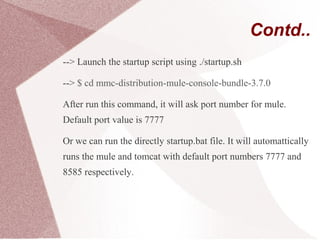
--> Launch the startup script using ./startup.sh
--> $ cd mmc-distribution-mule-console-bundle-3.7.0
After run this command, it will ask port number for mule.
Default port value is 7777
Or we can run the directly startup.bat file. It will automattically
runs the mule and tomcat with default port numbers 7777 and
8585 respectively.
Contd..
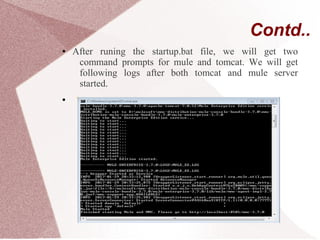
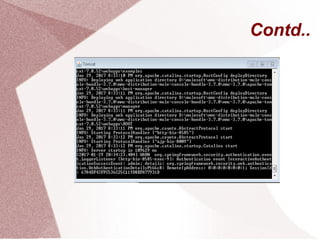
● After runing the startup.bat file, we will get two
command prompts for mule and tomcat. We will get
following logs after both tomcat and mule server
started.
●
Contd..
Contd..
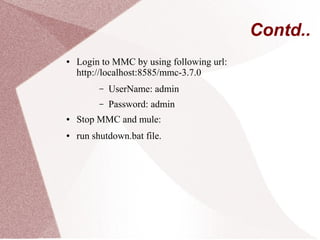
● Login to MMC by using following url:
http://localhost:8585/mmc-3.7.0
– UserName: admin
– Password: admin
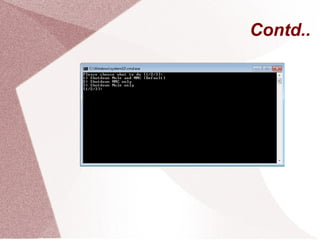
● Stop MMC and mule:
● run shutdown.bat file.
Contd..
Contd..
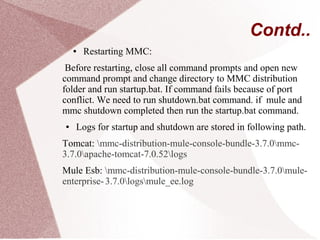
● Restarting MMC:
Before restarting, close all command prompts and open new
command prompt and change directory to MMC distribution
folder and run startup.bat. If command fails because of port
conflict. We need to run shutdown.bat command. if mule and
mmc shutdown completed then run the startup.bat command.
● Logs for startup and shutdown are stored in following path.
Tomcat: mmc-distribution-mule-console-bundle-3.7.0mmc-
3.7.0apache-tomcat-7.0.52logs
Mule Esb: mmc-distribution-mule-console-bundle-3.7.0mule-
enterprise-3.7.0logsmule_ee.log
Thank You !!
Thank You !!

Mule management console installation steps

  • 1.
    Mule Mangement ConsoleInstallation Steps By, Harish
  • 2.
    ● MMC isa platform for managing Mule applications deployed on premises. ● To Download MMC: following link: https://www.mulesoft.com/dl/mmc ● Extract the downloaded zip file. ● To start MMC and Mule ESB, follow these steps: Open a command line or a terminal, and cd to the unzipped directory where the scripts reside.
  • 3.
    Contd.. --> Launch thestartup script using ./startup.sh --> $ cd mmc-distribution-mule-console-bundle-3.7.0 After run this command, it will ask port number for mule. Default port value is 7777 Or we can run the directly startup.bat file. It will automattically runs the mule and tomcat with default port numbers 7777 and 8585 respectively.
  • 4.
    Contd.. ● After runingthe startup.bat file, we will get two command prompts for mule and tomcat. We will get following logs after both tomcat and mule server started. ●
  • 5.
  • 6.
    Contd.. ● Login toMMC by using following url: http://localhost:8585/mmc-3.7.0 – UserName: admin – Password: admin ● Stop MMC and mule: ● run shutdown.bat file.
  • 7.
  • 8.
    Contd.. ● Restarting MMC: Beforerestarting, close all command prompts and open new command prompt and change directory to MMC distribution folder and run startup.bat. If command fails because of port conflict. We need to run shutdown.bat command. if mule and mmc shutdown completed then run the startup.bat command. ● Logs for startup and shutdown are stored in following path. Tomcat: mmc-distribution-mule-console-bundle-3.7.0mmc- 3.7.0apache-tomcat-7.0.52logs Mule Esb: mmc-distribution-mule-console-bundle-3.7.0mule- enterprise-3.7.0logsmule_ee.log
  • 9.
  • 10.