Ronald Godfrey
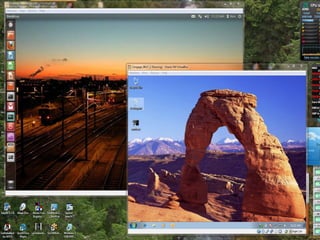
   Common in today’s computing environment
   Allow the user to run multiple, self contained
    operating systems on one hardware host
    machine
   The virtual machine utilizes the host
    machine’s resources (RAM, network
    interface, etc)
   Data can be transferred between the host
    and the virtual machine
   Microsoft Virtual PC – typically has a “*.vhd” hard
    drive extension
   Microsoft XP Mode - typically has a “*.vhd” hard
    drive extension
   Oracle Virtualbox - typically has a “*.vdi” hard drive
    extension
   VMWare - typically has a “*.vhd” or “vmdk” hard
    drive extension
   Virtual hard drive files are typically large in
    size.
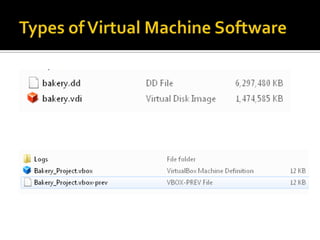
   Usually two files are associated with the
    virtual machine
     Virtual hard drive file – contains the O/S and data
     Virtual machine settings file – provides the virtual
     machine’s configuration settings when used on
     the host machine
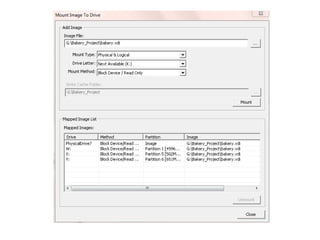
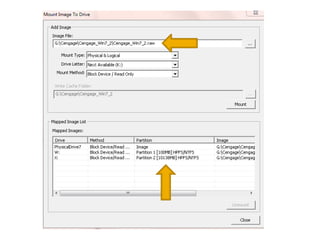
   FTK Imager 3.0 and newer versions have the
    ability to mount forensic images and virtual
    hard drives.
   Images can be mounted as mapped drives on
    the computer
   Physical virtual hard drives and their logical
    partitions can be mounted.
   Mounted by using the “FileImage Mounting”
    within FTK Imager
   Images can be mounted as “read only”
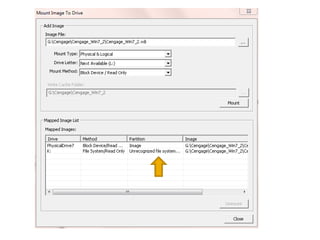
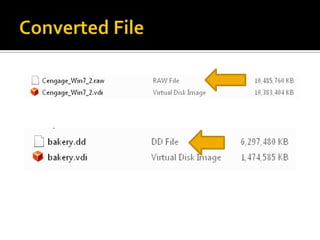
   If you mount the virtual hard drive and you
    see the “unrecognized file system”, use
    Virtualbox’s internal commands to convert
    the hard drive to a raw format.
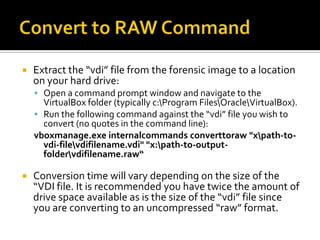
   Extract the “vdi” file from the forensic image to a location
    on your hard drive:
     Open a command prompt window and navigate to the
      VirtualBox folder (typically c:Program FilesOracleVirtualBox).
     Run the following command against the “vdi” file you wish to
      convert (no quotes in the command line):
    vboxmanage.exe internalcommands converttoraw "xpath-to-
      vdi-filevdifilename.vdi" "x:path-to-output-
      foldervdifilename.raw“

   Conversion time will vary depending on the size of the
    “VDI file. It is recommended you have twice the amount of
    drive space available as is the size of the “vdi” file since
    you are converting to an uncompressed “raw” format.
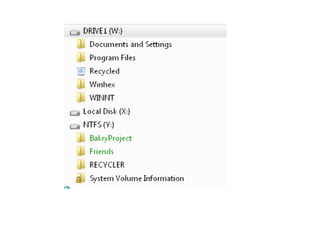
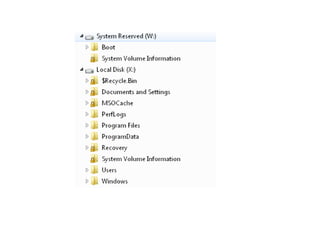
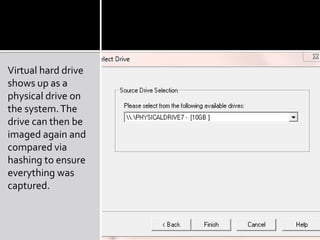
Virtual hard drive
shows up as a
physical drive on
the system. The
drive can then be
imaged again and
compared via
hashing to ensure
everything was
captured.

Mounting virtual hard drives

  • 1.
  • 2.
    Common in today’s computing environment  Allow the user to run multiple, self contained operating systems on one hardware host machine  The virtual machine utilizes the host machine’s resources (RAM, network interface, etc)  Data can be transferred between the host and the virtual machine
  • 4.
    Microsoft Virtual PC – typically has a “*.vhd” hard drive extension  Microsoft XP Mode - typically has a “*.vhd” hard drive extension  Oracle Virtualbox - typically has a “*.vdi” hard drive extension  VMWare - typically has a “*.vhd” or “vmdk” hard drive extension
  • 5.
    Virtual hard drive files are typically large in size.  Usually two files are associated with the virtual machine  Virtual hard drive file – contains the O/S and data  Virtual machine settings file – provides the virtual machine’s configuration settings when used on the host machine
  • 7.
    FTK Imager 3.0 and newer versions have the ability to mount forensic images and virtual hard drives.  Images can be mounted as mapped drives on the computer  Physical virtual hard drives and their logical partitions can be mounted.  Mounted by using the “FileImage Mounting” within FTK Imager
  • 8.
    Images can be mounted as “read only”
  • 11.
    If you mount the virtual hard drive and you see the “unrecognized file system”, use Virtualbox’s internal commands to convert the hard drive to a raw format.
  • 13.
    Extract the “vdi” file from the forensic image to a location on your hard drive:  Open a command prompt window and navigate to the VirtualBox folder (typically c:Program FilesOracleVirtualBox).  Run the following command against the “vdi” file you wish to convert (no quotes in the command line): vboxmanage.exe internalcommands converttoraw "xpath-to- vdi-filevdifilename.vdi" "x:path-to-output- foldervdifilename.raw“  Conversion time will vary depending on the size of the “VDI file. It is recommended you have twice the amount of drive space available as is the size of the “vdi” file since you are converting to an uncompressed “raw” format.
  • 17.
    Virtual hard drive showsup as a physical drive on the system. The drive can then be imaged again and compared via hashing to ensure everything was captured.