Accessioning Born-Digital Materials
Northern California Fall Workshop
Society of California Archivists
Peter Chan, Digital Archivist
Nov. 8, 2012
Agenda
• Literature review
• Put accessioning in context
• Stanford work flow
• Hands-on
• Demonstration
• Questions
• Forensic Lab Tour
Oxford and Manchester
Workbook on Digital Private Papers (2007)
http://www.paradigm.ac.uk/workbook/index.ht
ml
• One section on “Accessioning digital and
hybrid personal archives”
• Very comprehensive (except delivery)
Hull, Stanford, Yale, and UVa
AIMS Born-Digital Collections:
An Inter-Institutional Model for Stewardship
(2011)
http://www2.lib.virginia.edu/aims/whitepaper/
• High level
• Covering pre-accessioning, accessioning,
processing and delivery
OCLC
You’ve Got to Walk Before You Can Run: First
Steps for Managing Born-Digital Content
Received on Physical Media (2012)
http://www.oclc.org/research/news/2012/08-
23.html
• Very basic
• More to follow
Stanford
Born-Digital Archives Program: Forensics
Workflow Documentation: (2012)
https://sites.google.com/site/workflowdocumen
tation/home
• Used in processing the born digital component
of the STOP Aids Project Records
• Detail
• Still work-in-progress
Best Practices
• Harder to agree (compare to processing of
paper archives) because the vast difference
among institutions in software and hardware
platforms
• Not enough people with necessary knowledge
to contribute
• Still early stage of development (especially in
processing and delivery)
Don’t Act Now
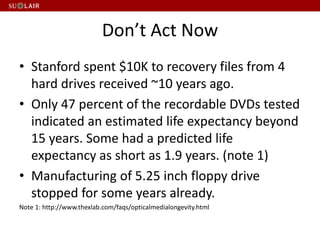
• Stanford spent $10K to recovery files from 4
hard drives received ~10 years ago.
• Only 47 percent of the recordable DVDs tested
indicated an estimated life expectancy beyond
15 years. Some had a predicted life
expectancy as short as 1.9 years. (note 1)
• Manufacturing of 5.25 inch floppy drive
stopped for some years already.
Note 1: http://www.thexlab.com/faqs/opticalmedialongevity.html
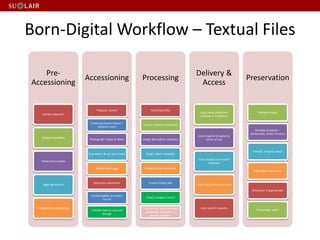
Pre-
Accessioning
Survey collection
Analyze feasibility
Enhanced curation
Legal agreement
Prepare for accessioning
Accessioning
Physical control
Create accession record –
physical count
Photograph media & labels
Quarantine & run virus check
Create disk image
Generate summaries
Create/update accession
record
Transfer data to secured
storage
Processing
Restricted files
Extract technical metadata
Assign descriptive metadata
Assign rights metadata
Create display derivative
Create finding aids
Create category record
Transfer files with metadata
and display derivative to
delivery platform
Delivery &
Access
Users view collections
(remote or in-person)
Users register & agree to
terms of use
Users browse and search
materials
Users tag & annotate items
User submit requests
Preservation
Multiple copies
Multiple locations –
earthquake, flood, Tsumani
Periodic integrity check
Migration if necessary
Emulation if appropriate
Technology watch
Born-Digital Workflow – Textual Files
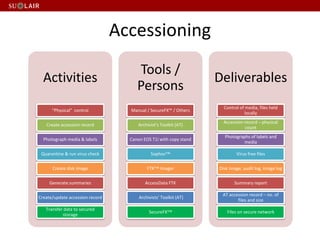
Activities
“Physical” control
Create accession record
Photograph media & labels
Quarantine & run virus check
Create disk image
Generate summaries
Create/update accession record
Transfer data to secured
storage
Tools /
Persons
Manual / SecureFX™ / Others
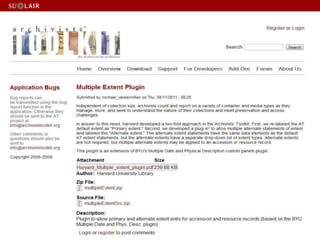
Archivist’s Toolkit (AT)
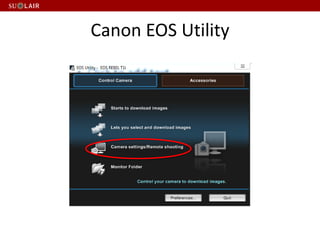
Canon EOS T1i with copy stand
Sophos™
FTK™ Imager
AccessData FTK
Archivists’ Toolkit (AT)
SecureFX™
Deliverables
Control of media, files held
locally
Accession record – physical
count
Photographs of labels and
media
Virus free files
Disk image, audit log, image log
Summary report
AT accession record – no. of
files and size
Files on secure network
Accessioning
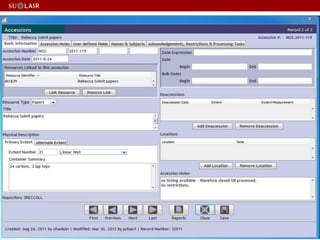
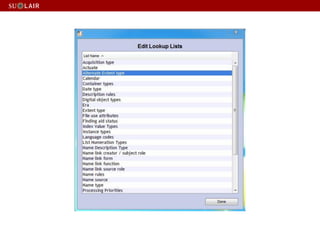
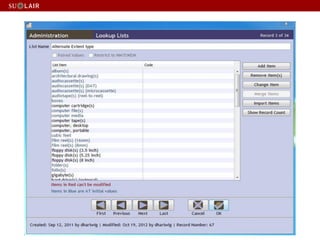
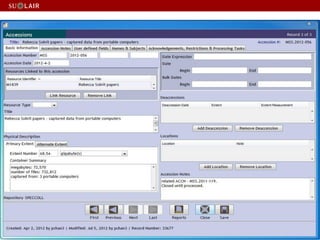
AT Accession Records
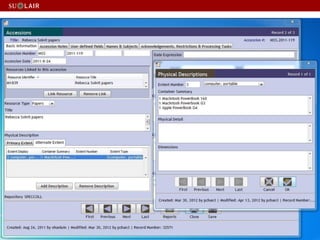
• Physical
– Media count
– Computer count
Media Count
• Media count by
– 3, 3.5, 5.25, 8 inch. floppy diskettes
– Zip disk
– Open reel, cartridge tape
– CD, DVD, Optical disk
– External hard drive
• Computer
– Desktop / Portable
– Mac / PC / Others
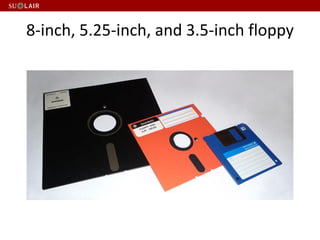
8-inch, 5.25-inch, and 3.5-inch floppy
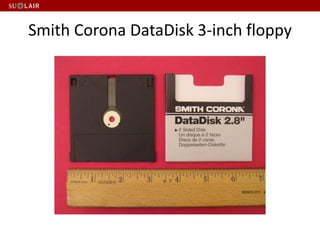
Smith Corona DataDisk 3-inch floppy
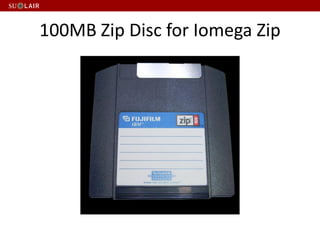
100MB Zip Disc for Iomega Zip
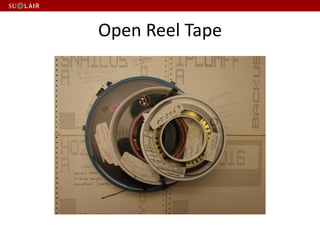
Open Reel Tape
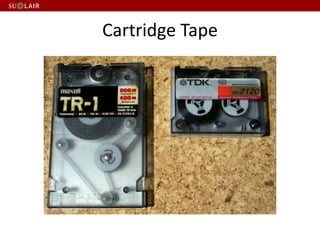
Cartridge Tape
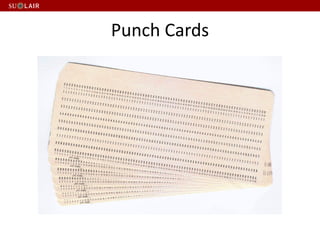
Punch Cards
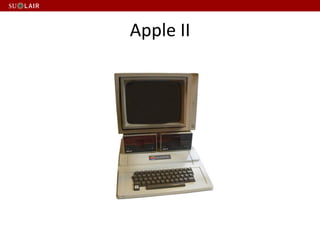
Apple II
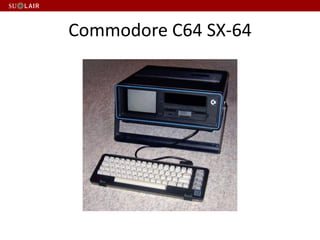
Commodore C64 SX-64
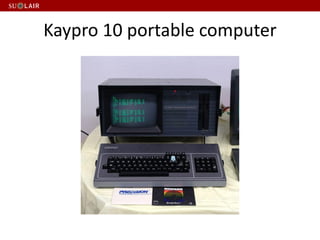
Kaypro 10 portable computer
Media Label /Rehouse
• Label
– Use “Call No._CMxxx” as label name, 0.5 x 1.875 inch.
label
– Template http://www.avery.com/avery/en_us/Templates-
%26-Software/Templates/Labels/Return-Address-
Labels/Return-Address-Label-80-per-sheet_Microsoft-
Word.htm?N=0&refchannel=c042fd03ab30a110VgnVCM1
000002118140aRCRD
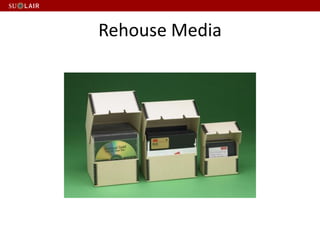
• Re-House
– Follow the same box no. naming convention as other
materials (paper, av, etc.).
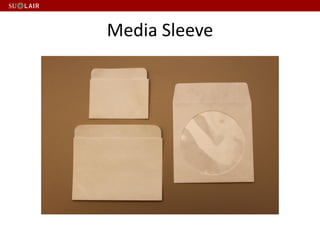
Media Sleeve
Rehouse Media
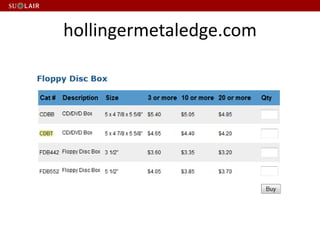
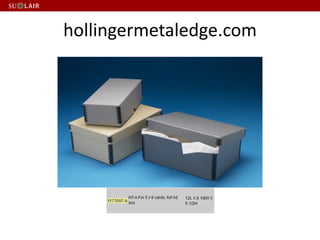
hollingermetaledge.com
Canon EOS Utility
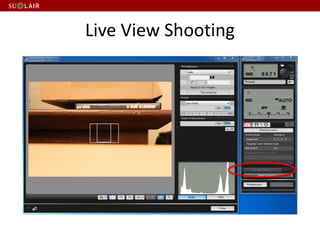
Live View Shooting
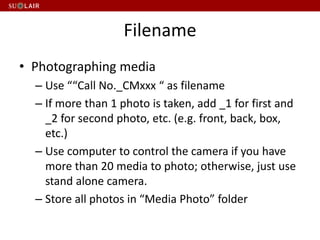
Filename
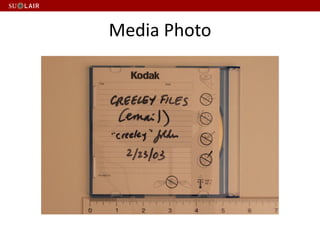
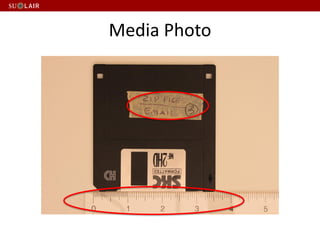
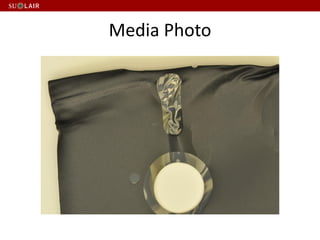
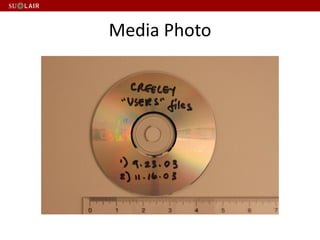
• Photographing media
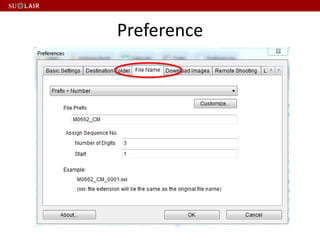
– Use ““Call No._CMxxx “ as filename
– If more than 1 photo is taken, add _1 for first and
_2 for second photo, etc. (e.g. front, back, box,
etc.)
– Use computer to control the camera if you have
more than 20 media to photo; otherwise, just use
stand alone camera.
– Store all photos in “Media Photo” folder
Preference
Media Photo
Media Photo
Media Photo
Media Photo
AT Accession Records
• Provide finer information than physical
storage media count
– Size in MB/TB, etc.
– No. of files
– Link to
• Image log spreadsheet
• Collection summary from FTK
Virus Check
• Quarantine for 30 days (count from the day
the media arrive at Stanford)
• Run Sophos
• Remove virus, if any, before creating
disk/logical image (unless you are capturing
the disk for a researcher in computer virus!)
Forensic vs. Logical Image vs. File Copy
• Do you want to copy deleted files?
• Are you sure you didn’t change file dates (creation,
modified, last accessed) when copying the files?
• Are you sure you copied all files (files in different
partitions)?
• Are you sure you copied all required files (fonts for
design files, etc.)
• Are you sure the source and copied files are same?
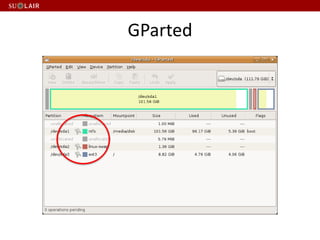
Disk Partition
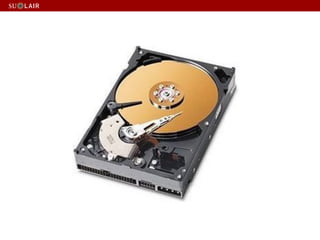
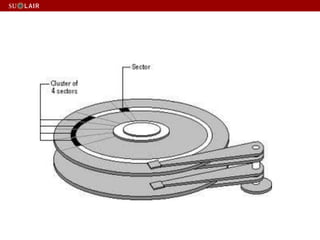
• Disk partitioning is the act of dividing a
physical hard disk drive into multiple logical
storage units.
• The logical units can have different file
systems so that we can set the same physical
machine as a Window based PC and/or a Linux
based PC and/or a Mac PC.
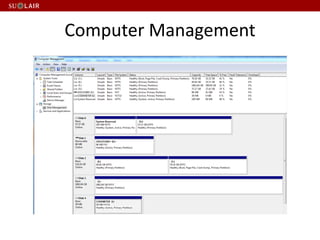
Computer Management
GParted
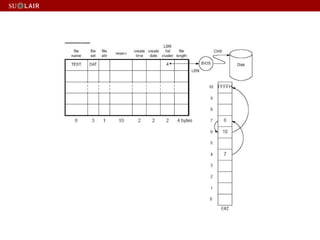
File System
• Microsoft: FAT12 (File Allocation Table), FAT16, FAT32,
exFAT (FAT64), NTFS (New Technology File System)
• Apple: Apple ProDOS, HFS (Hierarchical File System),
HFS+
• CPM file system
• Linux: ext (extended filesystem), ext2, ext3, ext4
• Optical Discs: ISO 9660, UDF (Universal Disk Format)
Disk / Forensic image
• A complete bit-by-bit copy of a storage
medium or device, such as a hard drive, SSD
(solid state drive), tape drive, floppy disk,
CD/DVD/BD, or flash memory device.
• The image can be stored in one or more files.
• Deleted files, if any, will be copied in this
process.
• All partitions will be copied.
Logical image
• A copy of the files in the directory(folder) / directories(folders)
specified in the copy process.
• The full path of each file is recorded and the files are embedded in
one or more files in AD1 format.
• Since deleted files and unpartitioned space are not represented in a
directory, they are not copied in the process.
• The host operating system has to recognize the target directory
(folder) for the operation. (You cannot perform a logical copy of an
Apple disk using FTK Imager under Windows perform).
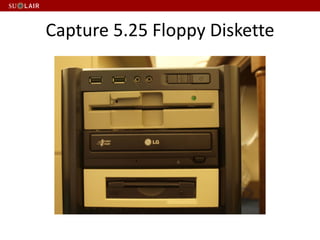
Capture 5.25 Floppy Diskette
Compare 4 5.25 Floppy Drive Solutions
• https://docs.google.com/document/d/1TLY3
mn3duadGBLqqb2_XnYoF3jakjmo1hXfzvmWC
TzE/edit?hl=en_US
Hard Disk Interface
• SCSI
• IDE
• Firewire 1394
• SATA
• USB
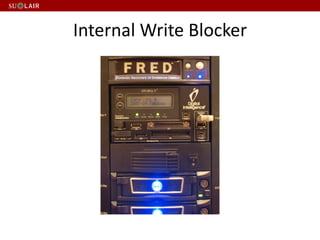
Internal Write Blocker
Image Log Spreadsheet
• Use the following columns
– Box#
– CM#
– Media Details (3.5, 5.25, single/double sided,
single/double/high density, etc.)
– Image Result (successful / unreadable)
– Note (bad sector, etc.)
– Manufacturer
– Earliest modification/creation year of files
– Folder title (if removed from collection folder)
• Use “Call No. Imaging Log” as file name
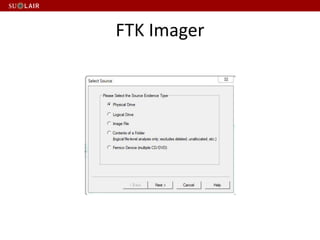
FTK Imager
Create Disk Image
• Physical Drive – hard / flash memory drive
• Logical Drive – floppy / CD / DVD drive
• Contents of a Folder – logical image
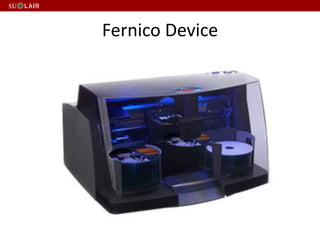
• Fernico Device – a device which backs up
forensic data from network locations or from
locally attached hard drives, automatically
spanning the content over a series of discs.
Fernico Device
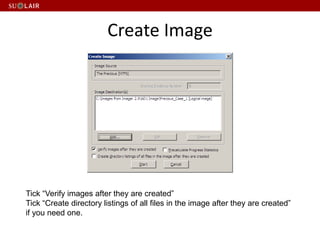
Create Image
Tick “Verify images after they are created”
Tick “Create directory listings of all files in the image after they are created”
if you need one.
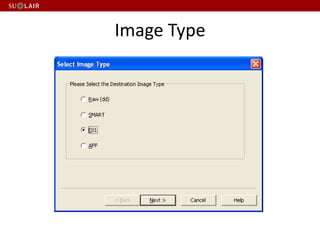
Image Type
Image Type
• Raw (dd) – commonly used disk image format
created by the UNIX command dd
• SMART – proprietary disk image format created by
ASR Data.
• E01 – proprietary disk image format created by
EnCase.
• AFF – an open source disk image format, allow
encryption of disk image
• AD1 - proprietary logical disk image format created
by AccessData.
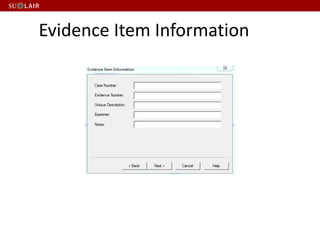
Evidence Item Information
• Use “Raw (dd)” as image type
• Use call no. as “Case Number”
• Use CMxxx as “Evidence Number”
• Put your name as “Examiner”
• Use the following in the “Notes” field:
– 3.5 inch floppy disk; 5.25 inch floppy disk; Zip
disk;
– External hard disk; Internal hard disk;
– Optical Disk
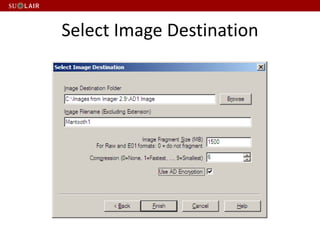
Select Image Destination
• Store all files under “Disk Image” folder in Desktop
• Use “Case No._CMxxx” as Image Filename for disk
image
• Default Image Fragment Size = 1500 MB
• To save images segments that can be burned to a CD,
specify 650 MB.
• To save image segments that can be burned to a DVD,
specify 4000 MB.
• Selecting 0 (zero) produces the largest file, with no
compression.
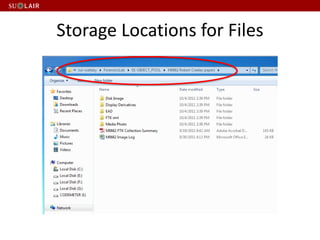
Storage Locations for Files
AT Accession Record
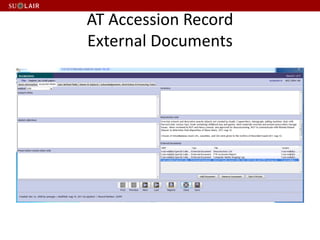
External Documents
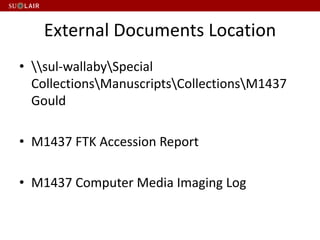
External Documents Location
• sul-wallabySpecial
CollectionsManuscriptsCollectionsM1437
Gould
• M1437 FTK Accession Report
• M1437 Computer Media Imaging Log
Problems in Capturing Floppy Disk
• Sophos under Win 7 will claim the completion
of scanning a floppy disk even though it don’t
recognize the file format.
• FTK Imager under Win 7 will claim the imaging
of a floppy disk successful even though it
don’t recognize the file format.
Floppy Disk Capture
• Virus Check
– Make sure the system you use can understand the
filesystem of the floppy disk by double click the
floppy disk
Ensure Accruate Virus Check
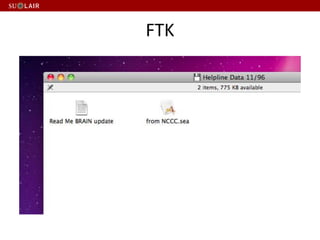
• List the directory of the floppy disk
– Double click on the floppy disk drive
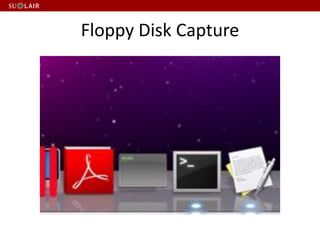
Floppy Disk Capture
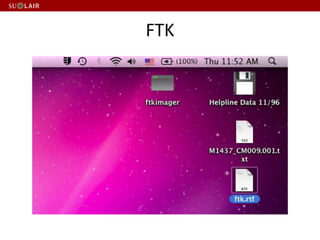
FTK
FTK
Virus Scan
• Open Sophos Antivirs
• “+” Custom Scan
• Start Scan
FTK Imager
• click on "Terminal" icon
• cd ~/Desktop diskutil list (find disk
identifier that corresponds to NAME of
disk)
• diskutil unmountDisk /dev/disk1(match
device found from diskutil list)
• ./ftkimager /dev/disk1 floppy1.dd --verify
Outsourcing
• I have never worked with the following
vendors. Don’t know the quality of the
service.
• Punch Cards (http://punchcardreader.com/)
– 6.5¢ per card + $3 setup fee + return postage
• 9-track Tape (http://www.emaglink.com)
– $150 per tape plus the output media and
shipping. $25 for a DVD.
Get Hard drives out from Mac
• PowerBook G4
– http://www.ifixit.com/Guide/PowerBook-G4-
Aluminum-12-Inch-867-MHz-Hard-Drive-
Replacement/208/1
• Macintosh PowerBook 165c
– http://www.ifixit.com/Guide/Installing-
Macintosh-PowerBook-165c-Hard-Drive/7022/1
Take Home
• How to identify a variety of storage media, both obsolete and
current: floppy diskettes (3.5 and 5.25 inch), computer tapes,
optical disks, and hard drives.
• An introduction to computer storage system interfaces: IDE,
SATA, SCSI (HDI, 40 pin, 68 pin, and xx pin connectors).
• An introduction to file systems, including: File Allocation Table
(FAT), New Technology File System (NTFS), and Hierarchical
File System (HFS)
• An introduction to the difference between logical and forensic
images.
• How to create an image log using spreadsheet software.
• How to create basic accession records in Archivists' Toolkit.
Take Home
• How to install FTK Imager for Windows (free/low cost
software), and how to create logical and disk images using
Access Data FTK Imager software.
• How to image disks using write blocker (acquisition of
information on a drive without creating the possibility of
accidentally damaging the drive contents). -How to view files
using FTK Imager.
• How to use the command line FTK Imager for Mac files.
• Demonstrations will include: how to remove a hard drive from
a desktop computer, as well as how to remove a hard drive
from and external hard drive enclosure. Peter will lead a
discussion about outsourcing (tapes, punch cards, data
recovery).

SCA Accessioning Born-Digital Materials Workshop, Nov. 8, 2012

  • 1.
    Accessioning Born-Digital Materials NorthernCalifornia Fall Workshop Society of California Archivists Peter Chan, Digital Archivist Nov. 8, 2012
  • 2.
    Agenda • Literature review •Put accessioning in context • Stanford work flow • Hands-on • Demonstration • Questions • Forensic Lab Tour
  • 3.
    Oxford and Manchester Workbookon Digital Private Papers (2007) http://www.paradigm.ac.uk/workbook/index.ht ml • One section on “Accessioning digital and hybrid personal archives” • Very comprehensive (except delivery)
  • 4.
    Hull, Stanford, Yale,and UVa AIMS Born-Digital Collections: An Inter-Institutional Model for Stewardship (2011) http://www2.lib.virginia.edu/aims/whitepaper/ • High level • Covering pre-accessioning, accessioning, processing and delivery
  • 5.
    OCLC You’ve Got toWalk Before You Can Run: First Steps for Managing Born-Digital Content Received on Physical Media (2012) http://www.oclc.org/research/news/2012/08- 23.html • Very basic • More to follow
  • 6.
    Stanford Born-Digital Archives Program:Forensics Workflow Documentation: (2012) https://sites.google.com/site/workflowdocumen tation/home • Used in processing the born digital component of the STOP Aids Project Records • Detail • Still work-in-progress
  • 7.
    Best Practices • Harderto agree (compare to processing of paper archives) because the vast difference among institutions in software and hardware platforms • Not enough people with necessary knowledge to contribute • Still early stage of development (especially in processing and delivery)
  • 8.
    Don’t Act Now •Stanford spent $10K to recovery files from 4 hard drives received ~10 years ago. • Only 47 percent of the recordable DVDs tested indicated an estimated life expectancy beyond 15 years. Some had a predicted life expectancy as short as 1.9 years. (note 1) • Manufacturing of 5.25 inch floppy drive stopped for some years already. Note 1: http://www.thexlab.com/faqs/opticalmedialongevity.html
  • 9.
    Pre- Accessioning Survey collection Analyze feasibility Enhancedcuration Legal agreement Prepare for accessioning Accessioning Physical control Create accession record – physical count Photograph media & labels Quarantine & run virus check Create disk image Generate summaries Create/update accession record Transfer data to secured storage Processing Restricted files Extract technical metadata Assign descriptive metadata Assign rights metadata Create display derivative Create finding aids Create category record Transfer files with metadata and display derivative to delivery platform Delivery & Access Users view collections (remote or in-person) Users register & agree to terms of use Users browse and search materials Users tag & annotate items User submit requests Preservation Multiple copies Multiple locations – earthquake, flood, Tsumani Periodic integrity check Migration if necessary Emulation if appropriate Technology watch Born-Digital Workflow – Textual Files
  • 10.
    Activities “Physical” control Create accessionrecord Photograph media & labels Quarantine & run virus check Create disk image Generate summaries Create/update accession record Transfer data to secured storage Tools / Persons Manual / SecureFX™ / Others Archivist’s Toolkit (AT) Canon EOS T1i with copy stand Sophos™ FTK™ Imager AccessData FTK Archivists’ Toolkit (AT) SecureFX™ Deliverables Control of media, files held locally Accession record – physical count Photographs of labels and media Virus free files Disk image, audit log, image log Summary report AT accession record – no. of files and size Files on secure network Accessioning
  • 12.
    AT Accession Records •Physical – Media count – Computer count
  • 17.
    Media Count • Mediacount by – 3, 3.5, 5.25, 8 inch. floppy diskettes – Zip disk – Open reel, cartridge tape – CD, DVD, Optical disk – External hard drive • Computer – Desktop / Portable – Mac / PC / Others
  • 18.
    8-inch, 5.25-inch, and3.5-inch floppy
  • 19.
    Smith Corona DataDisk3-inch floppy
  • 20.
    100MB Zip Discfor Iomega Zip
  • 21.
  • 22.
  • 23.
  • 24.
  • 25.
  • 26.
  • 27.
    Media Label /Rehouse •Label – Use “Call No._CMxxx” as label name, 0.5 x 1.875 inch. label – Template http://www.avery.com/avery/en_us/Templates- %26-Software/Templates/Labels/Return-Address- Labels/Return-Address-Label-80-per-sheet_Microsoft- Word.htm?N=0&refchannel=c042fd03ab30a110VgnVCM1 000002118140aRCRD • Re-House – Follow the same box no. naming convention as other materials (paper, av, etc.).
  • 28.
  • 29.
  • 30.
  • 31.
  • 32.
  • 33.
  • 34.
    Filename • Photographing media –Use ““Call No._CMxxx “ as filename – If more than 1 photo is taken, add _1 for first and _2 for second photo, etc. (e.g. front, back, box, etc.) – Use computer to control the camera if you have more than 20 media to photo; otherwise, just use stand alone camera. – Store all photos in “Media Photo” folder
  • 35.
  • 36.
  • 37.
  • 38.
  • 39.
  • 40.
    AT Accession Records •Provide finer information than physical storage media count – Size in MB/TB, etc. – No. of files – Link to • Image log spreadsheet • Collection summary from FTK
  • 41.
    Virus Check • Quarantinefor 30 days (count from the day the media arrive at Stanford) • Run Sophos • Remove virus, if any, before creating disk/logical image (unless you are capturing the disk for a researcher in computer virus!)
  • 42.
    Forensic vs. LogicalImage vs. File Copy • Do you want to copy deleted files? • Are you sure you didn’t change file dates (creation, modified, last accessed) when copying the files? • Are you sure you copied all files (files in different partitions)? • Are you sure you copied all required files (fonts for design files, etc.) • Are you sure the source and copied files are same?
  • 45.
    Disk Partition • Diskpartitioning is the act of dividing a physical hard disk drive into multiple logical storage units. • The logical units can have different file systems so that we can set the same physical machine as a Window based PC and/or a Linux based PC and/or a Mac PC.
  • 46.
  • 47.
  • 48.
    File System • Microsoft:FAT12 (File Allocation Table), FAT16, FAT32, exFAT (FAT64), NTFS (New Technology File System) • Apple: Apple ProDOS, HFS (Hierarchical File System), HFS+ • CPM file system • Linux: ext (extended filesystem), ext2, ext3, ext4 • Optical Discs: ISO 9660, UDF (Universal Disk Format)
  • 50.
    Disk / Forensicimage • A complete bit-by-bit copy of a storage medium or device, such as a hard drive, SSD (solid state drive), tape drive, floppy disk, CD/DVD/BD, or flash memory device. • The image can be stored in one or more files. • Deleted files, if any, will be copied in this process. • All partitions will be copied.
  • 51.
    Logical image • Acopy of the files in the directory(folder) / directories(folders) specified in the copy process. • The full path of each file is recorded and the files are embedded in one or more files in AD1 format. • Since deleted files and unpartitioned space are not represented in a directory, they are not copied in the process. • The host operating system has to recognize the target directory (folder) for the operation. (You cannot perform a logical copy of an Apple disk using FTK Imager under Windows perform).
  • 52.
  • 53.
    Compare 4 5.25Floppy Drive Solutions • https://docs.google.com/document/d/1TLY3 mn3duadGBLqqb2_XnYoF3jakjmo1hXfzvmWC TzE/edit?hl=en_US
  • 54.
    Hard Disk Interface •SCSI • IDE • Firewire 1394 • SATA • USB
  • 55.
  • 56.
    Image Log Spreadsheet •Use the following columns – Box# – CM# – Media Details (3.5, 5.25, single/double sided, single/double/high density, etc.) – Image Result (successful / unreadable) – Note (bad sector, etc.) – Manufacturer – Earliest modification/creation year of files – Folder title (if removed from collection folder) • Use “Call No. Imaging Log” as file name
  • 57.
  • 58.
    Create Disk Image •Physical Drive – hard / flash memory drive • Logical Drive – floppy / CD / DVD drive • Contents of a Folder – logical image • Fernico Device – a device which backs up forensic data from network locations or from locally attached hard drives, automatically spanning the content over a series of discs.
  • 59.
  • 60.
    Create Image Tick “Verifyimages after they are created” Tick “Create directory listings of all files in the image after they are created” if you need one.
  • 61.
  • 62.
    Image Type • Raw(dd) – commonly used disk image format created by the UNIX command dd • SMART – proprietary disk image format created by ASR Data. • E01 – proprietary disk image format created by EnCase. • AFF – an open source disk image format, allow encryption of disk image • AD1 - proprietary logical disk image format created by AccessData.
  • 63.
  • 64.
    Evidence Item Information •Use “Raw (dd)” as image type • Use call no. as “Case Number” • Use CMxxx as “Evidence Number” • Put your name as “Examiner” • Use the following in the “Notes” field: – 3.5 inch floppy disk; 5.25 inch floppy disk; Zip disk; – External hard disk; Internal hard disk; – Optical Disk
  • 65.
  • 66.
    Select Image Destination •Store all files under “Disk Image” folder in Desktop • Use “Case No._CMxxx” as Image Filename for disk image • Default Image Fragment Size = 1500 MB • To save images segments that can be burned to a CD, specify 650 MB. • To save image segments that can be burned to a DVD, specify 4000 MB. • Selecting 0 (zero) produces the largest file, with no compression.
  • 67.
  • 69.
  • 70.
    External Documents Location •sul-wallabySpecial CollectionsManuscriptsCollectionsM1437 Gould • M1437 FTK Accession Report • M1437 Computer Media Imaging Log
  • 71.
    Problems in CapturingFloppy Disk • Sophos under Win 7 will claim the completion of scanning a floppy disk even though it don’t recognize the file format. • FTK Imager under Win 7 will claim the imaging of a floppy disk successful even though it don’t recognize the file format.
  • 72.
    Floppy Disk Capture •Virus Check – Make sure the system you use can understand the filesystem of the floppy disk by double click the floppy disk
  • 73.
    Ensure Accruate VirusCheck • List the directory of the floppy disk – Double click on the floppy disk drive
  • 74.
  • 75.
  • 76.
  • 77.
    Virus Scan • OpenSophos Antivirs • “+” Custom Scan • Start Scan
  • 78.
    FTK Imager • clickon "Terminal" icon • cd ~/Desktop diskutil list (find disk identifier that corresponds to NAME of disk) • diskutil unmountDisk /dev/disk1(match device found from diskutil list) • ./ftkimager /dev/disk1 floppy1.dd --verify
  • 79.
    Outsourcing • I havenever worked with the following vendors. Don’t know the quality of the service. • Punch Cards (http://punchcardreader.com/) – 6.5¢ per card + $3 setup fee + return postage • 9-track Tape (http://www.emaglink.com) – $150 per tape plus the output media and shipping. $25 for a DVD.
  • 80.
    Get Hard drivesout from Mac • PowerBook G4 – http://www.ifixit.com/Guide/PowerBook-G4- Aluminum-12-Inch-867-MHz-Hard-Drive- Replacement/208/1 • Macintosh PowerBook 165c – http://www.ifixit.com/Guide/Installing- Macintosh-PowerBook-165c-Hard-Drive/7022/1
  • 81.
    Take Home • Howto identify a variety of storage media, both obsolete and current: floppy diskettes (3.5 and 5.25 inch), computer tapes, optical disks, and hard drives. • An introduction to computer storage system interfaces: IDE, SATA, SCSI (HDI, 40 pin, 68 pin, and xx pin connectors). • An introduction to file systems, including: File Allocation Table (FAT), New Technology File System (NTFS), and Hierarchical File System (HFS) • An introduction to the difference between logical and forensic images. • How to create an image log using spreadsheet software. • How to create basic accession records in Archivists' Toolkit.
  • 82.
    Take Home • Howto install FTK Imager for Windows (free/low cost software), and how to create logical and disk images using Access Data FTK Imager software. • How to image disks using write blocker (acquisition of information on a drive without creating the possibility of accidentally damaging the drive contents). -How to view files using FTK Imager. • How to use the command line FTK Imager for Mac files. • Demonstrations will include: how to remove a hard drive from a desktop computer, as well as how to remove a hard drive from and external hard drive enclosure. Peter will lead a discussion about outsourcing (tapes, punch cards, data recovery).