Module objectives
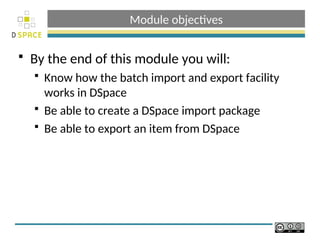
Bythe end of this module you will:
Know how the batch import and export facility
works in DSpace
Be able to create a DSpace import package
Be able to export an item from DSpace
3.
Batch import andexport scripts
Scripts:
[dspace]/bin/import
[dspace]/bin/export
-h flag for help
4.
File structure
archive_directory/
1/
dublin_core.xml --qualified Dublin Core metadata
contents -- text file containing one line per filename
file_1.doc -- files to be added as bitstreams to the item
file_2.pdf
2/
dublin_core.xml
contents
file_1.png
...
<dublin_core>
<dcvalue element="title" qualifier="none">A Tale of Two Cities</dcvalue>
<dcvalue element="date" qualifier="issued">1990</dcvalue></dublin_core>
<dcvalue element="title" qualifier="alternate" language="fr">J'aime les
Printemps</dcvalue>
</dublin_core>
5.
Export script
Exportscript:
-d,--dest destination where you want items to go
-h,--help help
-i,--id ID or handle of thing to export
-n,--number sequence number to begin exporting items with
-t,--type type: COLLECTION or ITEM
Export a collection:
export -t COLLECTION -i 2160/175 -d . -n 1
Export an item:
export -t ITEM-i 2160/565 -d . -n 1
6.
Practical exercise: Performan export
Try exporting an item from your test
repository
Try exporting a collection from your test
repository
Export a collection:
[dspace]/bin/export -t COLLECTION -i 123456789/175 -d . -n 1
Export an item:
[dspace]/bin/export -t ITEM-i 123456789/565 -d . -n 1
7.
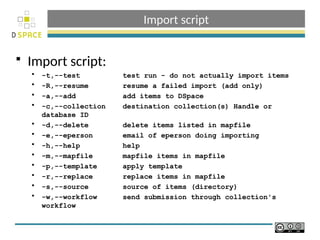
Import script
Importscript:
-t,--test test run - do not actually import items
-R,--resume resume a failed import (add only)
-a,--add add items to DSpace
-c,--collection destination collection(s) Handle or
database ID
-d,--delete delete items listed in mapfile
-e,--eperson email of eperson doing importing
-h,--help help
-m,--mapfile mapfile items in mapfile
-p,--template apply template
-r,--replace replace items in mapfile
-s,--source source of items (directory)
-w,--workflow send submission through collection's
workflow
8.
Import script
Importscript:
adding items:
[dspace]/bin/import -a -e eperson -c collection -s
sourcedir -m mapfile
replacing items:
[dspace]/bin/import -r -e eperson -c collection -s
sourcedir -m mapfile
deleting items:
[dspace]/bin/import -d -e eperson -m mapfile
If multiple collections are specified, the first collection
will be the one that owns the item.
9.
Map file
Oneline per import
folder name identifier, e.g.
1 123456789/102
2 123456789/103
3 123456789/104
4 123456789/105
10.
Practical exercise: Performan import
Download test import files
Ask for location
Run an import
Test first
Delete map file and import again
11.
Credits
These slideshave been produced by:
Stuart Lewis & Chris Yates
Repository Support Project
http://www.rsp.ac.uk/
Part of the RepositoryNet
Funded by JISC
http://www.jisc.ac.uk/

![Batch import and export scripts
Scripts:
[dspace]/bin/import
[dspace]/bin/export
-h flag for help](https://image.slidesharecdn.com/module12-importandexportslides-250812175440-9c57853c/85/Module-12-Import-and-Export-slides-ppt-3-320.jpg)


![Practical exercise: Perform an export
Try exporting an item from your test
repository
Try exporting a collection from your test
repository
Export a collection:
[dspace]/bin/export -t COLLECTION -i 123456789/175 -d . -n 1
Export an item:
[dspace]/bin/export -t ITEM-i 123456789/565 -d . -n 1](https://image.slidesharecdn.com/module12-importandexportslides-250812175440-9c57853c/85/Module-12-Import-and-Export-slides-ppt-6-320.jpg)
![Import script
Import script:
adding items:
[dspace]/bin/import -a -e eperson -c collection -s
sourcedir -m mapfile
replacing items:
[dspace]/bin/import -r -e eperson -c collection -s
sourcedir -m mapfile
deleting items:
[dspace]/bin/import -d -e eperson -m mapfile
If multiple collections are specified, the first collection
will be the one that owns the item.](https://image.slidesharecdn.com/module12-importandexportslides-250812175440-9c57853c/85/Module-12-Import-and-Export-slides-ppt-8-320.jpg)


