MicroLogix 1500
Programmable
Controllers
Bulletin 1764
User Manual
Important User Information Because of the variety of uses for the products described in this publication,
those responsible for the application and use of this control equipment must
satisfy themselves that all necessary steps have been taken to assure that each
application and use meets all performance and safety requirements, including
any applicable laws, regulations, codes and standards.
The illustrations, charts, sample programs and layout examples shown in this
guide are intended solely for purposes of example. Since there are many
variables and requirements associated with any particular installation,
Allen-Bradley does not assume responsibility or liability (to include intellectual
property liability) for actual use based upon the examples shown in this
publication.
Allen-Bradley publication SGI-1.1, Safety Guidelines for the Application, Installation
and Maintenance of Solid-State Control (available from your local Allen-Bradley
office), describes some important differences between solid-state equipment
and electromechanical devices that should be taken into consideration when
applying products such as those described in this publication.
Reproduction of the contents of this copyrighted publication, in whole or part,
without written permission of Rockwell Automation, is prohibited.
Throughout this publication, notes may be used to make you aware of safety
considerations. The following annotations and their accompanying statements
help you to identify a potential hazard, avoid a potential hazard, and recognize
the consequences of a potential hazard:
MicroLogix, Compact I/O, and RSLogix are trademarks of Rockwell Automation.
WARNING
!
Identifies information about practices or
circumstances that can cause an explosion in a
hazardous environment, which may lead to personal
injury or death, property damage, or economic loss.
ATTENTION
!
Identifies information about practices or
circumstances that can lead to personal injury or
death, property damage, or economic loss.
IMPORTANT Identifies information that is critical for successful
application and understanding of the product.
3 Publication 1764-UM001C-EN-P - June 2015
Summary of Changes
The information below summarizes the changes to this manual since the last
printing.
To help you find new and updated information in this release of the manual,
we have included change bars as shown to the right of this paragraph.
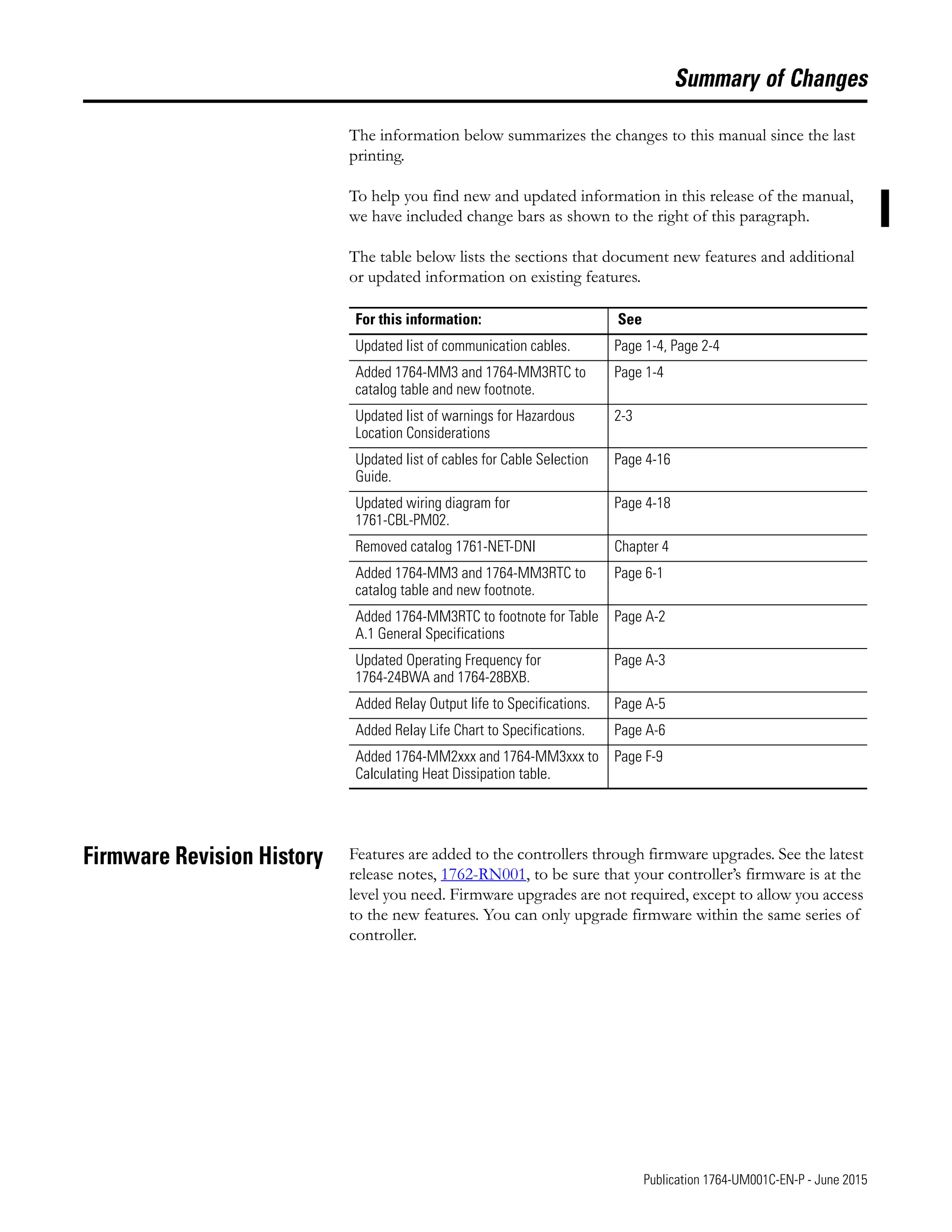
The table below lists the sections that document new features and additional
or updated information on existing features.
Firmware Revision History Features are added to the controllers through firmware upgrades. See the latest
release notes, 1762-RN001, to be sure that your controller’s firmware is at the
level you need. Firmware upgrades are not required, except to allow you access
to the new features. You can only upgrade firmware within the same series of
controller.
For this information: See
Updated list of communication cables. Page 1-4, Page 2-4
Added 1764-MM3 and 1764-MM3RTC to
catalog table and new footnote.
Page 1-4
Updated list of warnings for Hazardous
Location Considerations
2-3
Updated list of cables for Cable Selection
Guide.
Page 4-16
Updated wiring diagram for
1761-CBL-PM02.
Page 4-18
Removed catalog 1761-NET-DNI Chapter 4
Added 1764-MM3 and 1764-MM3RTC to
catalog table and new footnote.
Page 6-1
Added 1764-MM3RTC to footnote for Table
A.1 General Specifications
Page A-2
Updated Operating Frequency for
1764-24BWA and 1764-28BXB.
Page A-3
Added Relay Output life to Specifications. Page A-5
Added Relay Life Chart to Specifications. Page A-6
Added 1764-MM2xxx and 1764-MM3xxx to
Calculating Heat Dissipation table.
Page F-9
Publication 1764-UM001C-EN-P - June 2015
Summary of Changes 4
Notes:
5 Publication 1764-UM001C-EN-P - June 2015
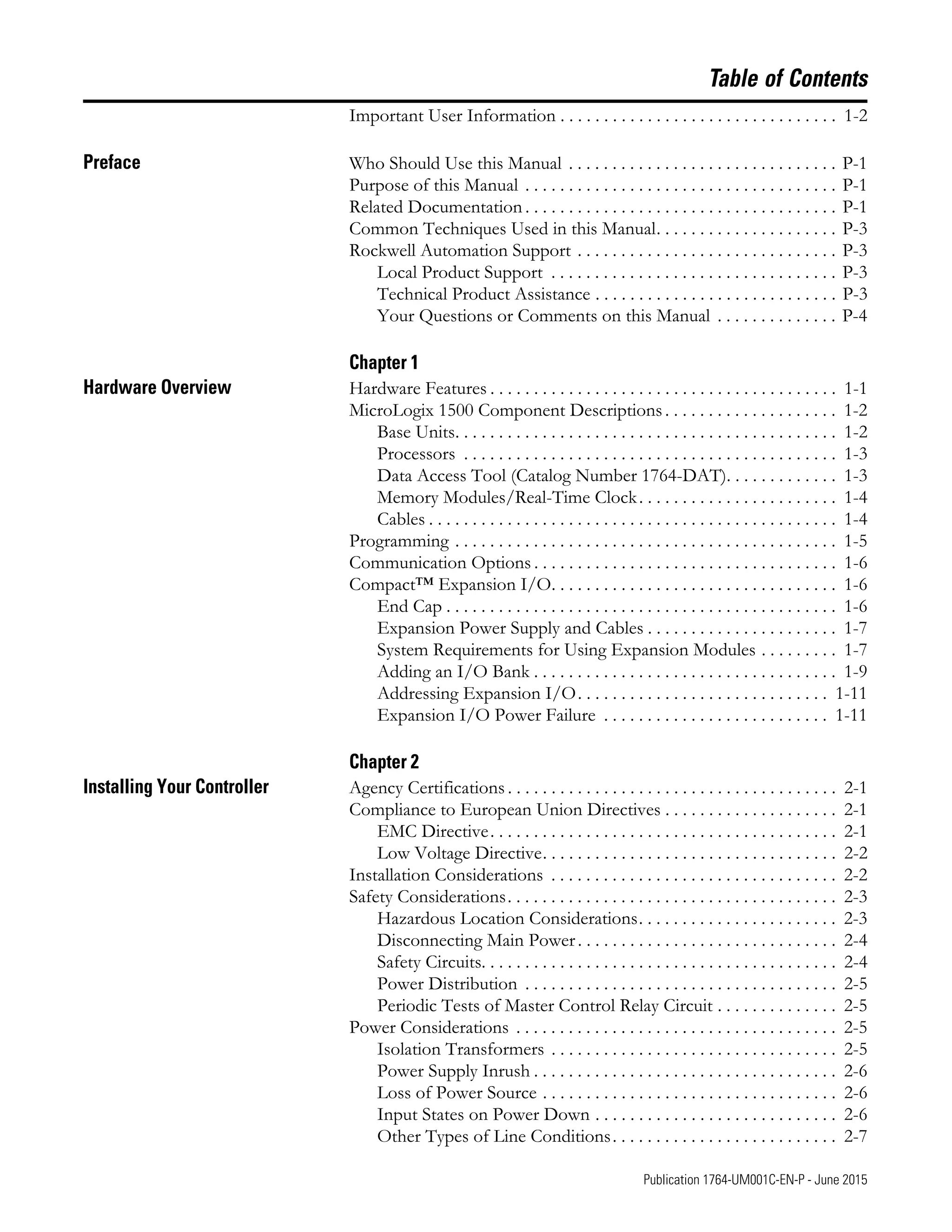
Table of Contents
Important User Information . . . . . . . . . . . . . . . . . . . . . . . . . . . . . . . . 1-2
Preface Who Should Use this Manual . . . . . . . . . . . . . . . . . . . . . . . . . . . . . . . P-1
Purpose of this Manual . . . . . . . . . . . . . . . . . . . . . . . . . . . . . . . . . . . . P-1
Related Documentation . . . . . . . . . . . . . . . . . . . . . . . . . . . . . . . . . . . . P-1
Common Techniques Used in this Manual. . . . . . . . . . . . . . . . . . . . . P-3
Rockwell Automation Support . . . . . . . . . . . . . . . . . . . . . . . . . . . . . . P-3
Local Product Support . . . . . . . . . . . . . . . . . . . . . . . . . . . . . . . . . P-3
Technical Product Assistance . . . . . . . . . . . . . . . . . . . . . . . . . . . . P-3
Your Questions or Comments on this Manual . . . . . . . . . . . . . . P-4
Chapter 1
Hardware Overview Hardware Features . . . . . . . . . . . . . . . . . . . . . . . . . . . . . . . . . . . . . . . . 1-1
MicroLogix 1500 Component Descriptions . . . . . . . . . . . . . . . . . . . . 1-2
Base Units. . . . . . . . . . . . . . . . . . . . . . . . . . . . . . . . . . . . . . . . . . . . 1-2
Processors . . . . . . . . . . . . . . . . . . . . . . . . . . . . . . . . . . . . . . . . . . . 1-3
Data Access Tool (Catalog Number 1764-DAT). . . . . . . . . . . . . 1-3
Memory Modules/Real-Time Clock. . . . . . . . . . . . . . . . . . . . . . . 1-4
Cables . . . . . . . . . . . . . . . . . . . . . . . . . . . . . . . . . . . . . . . . . . . . . . . 1-4
Programming . . . . . . . . . . . . . . . . . . . . . . . . . . . . . . . . . . . . . . . . . . . . 1-5
Communication Options . . . . . . . . . . . . . . . . . . . . . . . . . . . . . . . . . . . 1-6
Compact™ Expansion I/O. . . . . . . . . . . . . . . . . . . . . . . . . . . . . . . . . 1-6
End Cap . . . . . . . . . . . . . . . . . . . . . . . . . . . . . . . . . . . . . . . . . . . . . 1-6
Expansion Power Supply and Cables . . . . . . . . . . . . . . . . . . . . . . 1-7
System Requirements for Using Expansion Modules . . . . . . . . . 1-7
Adding an I/O Bank . . . . . . . . . . . . . . . . . . . . . . . . . . . . . . . . . . . 1-9
Addressing Expansion I/O. . . . . . . . . . . . . . . . . . . . . . . . . . . . . 1-11
Expansion I/O Power Failure . . . . . . . . . . . . . . . . . . . . . . . . . . 1-11
Chapter 2
Installing Your Controller Agency Certifications . . . . . . . . . . . . . . . . . . . . . . . . . . . . . . . . . . . . . . 2-1
Compliance to European Union Directives . . . . . . . . . . . . . . . . . . . . 2-1
EMC Directive. . . . . . . . . . . . . . . . . . . . . . . . . . . . . . . . . . . . . . . . 2-1
Low Voltage Directive. . . . . . . . . . . . . . . . . . . . . . . . . . . . . . . . . . 2-2
Installation Considerations . . . . . . . . . . . . . . . . . . . . . . . . . . . . . . . . . 2-2
Safety Considerations. . . . . . . . . . . . . . . . . . . . . . . . . . . . . . . . . . . . . . 2-3
Hazardous Location Considerations. . . . . . . . . . . . . . . . . . . . . . . 2-3
Disconnecting Main Power. . . . . . . . . . . . . . . . . . . . . . . . . . . . . . 2-4
Safety Circuits. . . . . . . . . . . . . . . . . . . . . . . . . . . . . . . . . . . . . . . . . 2-4
Power Distribution . . . . . . . . . . . . . . . . . . . . . . . . . . . . . . . . . . . . 2-5
Periodic Tests of Master Control Relay Circuit . . . . . . . . . . . . . . 2-5
Power Considerations . . . . . . . . . . . . . . . . . . . . . . . . . . . . . . . . . . . . . 2-5
Isolation Transformers . . . . . . . . . . . . . . . . . . . . . . . . . . . . . . . . . 2-5
Power Supply Inrush . . . . . . . . . . . . . . . . . . . . . . . . . . . . . . . . . . . 2-6
Loss of Power Source . . . . . . . . . . . . . . . . . . . . . . . . . . . . . . . . . . 2-6
Input States on Power Down . . . . . . . . . . . . . . . . . . . . . . . . . . . . 2-6
Other Types of Line Conditions. . . . . . . . . . . . . . . . . . . . . . . . . . 2-7
Publication 1764-UM001C-EN-P - June 2015
Table of Contents 6
Preventing Excessive Heat. . . . . . . . . . . . . . . . . . . . . . . . . . . . . . . . . . 2-7
Master Control Relay . . . . . . . . . . . . . . . . . . . . . . . . . . . . . . . . . . . . . . 2-8
Using Emergency-Stop Switches . . . . . . . . . . . . . . . . . . . . . . . . . 2-9
Schematic (Using IEC Symbols) . . . . . . . . . . . . . . . . . . . . . . . . . 2-10
Schematic (Using ANSI/CSA Symbols). . . . . . . . . . . . . . . . . . . 2-11
Base Unit Mounting Dimensions . . . . . . . . . . . . . . . . . . . . . . . . . . . 2-12
Controller Spacing . . . . . . . . . . . . . . . . . . . . . . . . . . . . . . . . . . . . . . . 2-12
Mounting the Controller . . . . . . . . . . . . . . . . . . . . . . . . . . . . . . . . . . 2-13
Using a DIN Rail . . . . . . . . . . . . . . . . . . . . . . . . . . . . . . . . . . . . . 2-14
Base Unit Panel Mounting. . . . . . . . . . . . . . . . . . . . . . . . . . . . . . 2-16
Installing Controller Components. . . . . . . . . . . . . . . . . . . . . . . . . . . 2-17
Prevent Electrostatic Discharge . . . . . . . . . . . . . . . . . . . . . . . . . 2-17
Processor . . . . . . . . . . . . . . . . . . . . . . . . . . . . . . . . . . . . . . . . . . . 2-17
Data Access Tool (DAT). . . . . . . . . . . . . . . . . . . . . . . . . . . . . . . 2-19
Memory Module/Real-Time Clock. . . . . . . . . . . . . . . . . . . . . . . 2-20
Compact I/O. . . . . . . . . . . . . . . . . . . . . . . . . . . . . . . . . . . . . . . . 2-22
Chapter 3
Wiring Your Controller Wiring Requirements . . . . . . . . . . . . . . . . . . . . . . . . . . . . . . . . . . . . . . 3-1
Wiring Recommendation. . . . . . . . . . . . . . . . . . . . . . . . . . . . . . . . 3-2
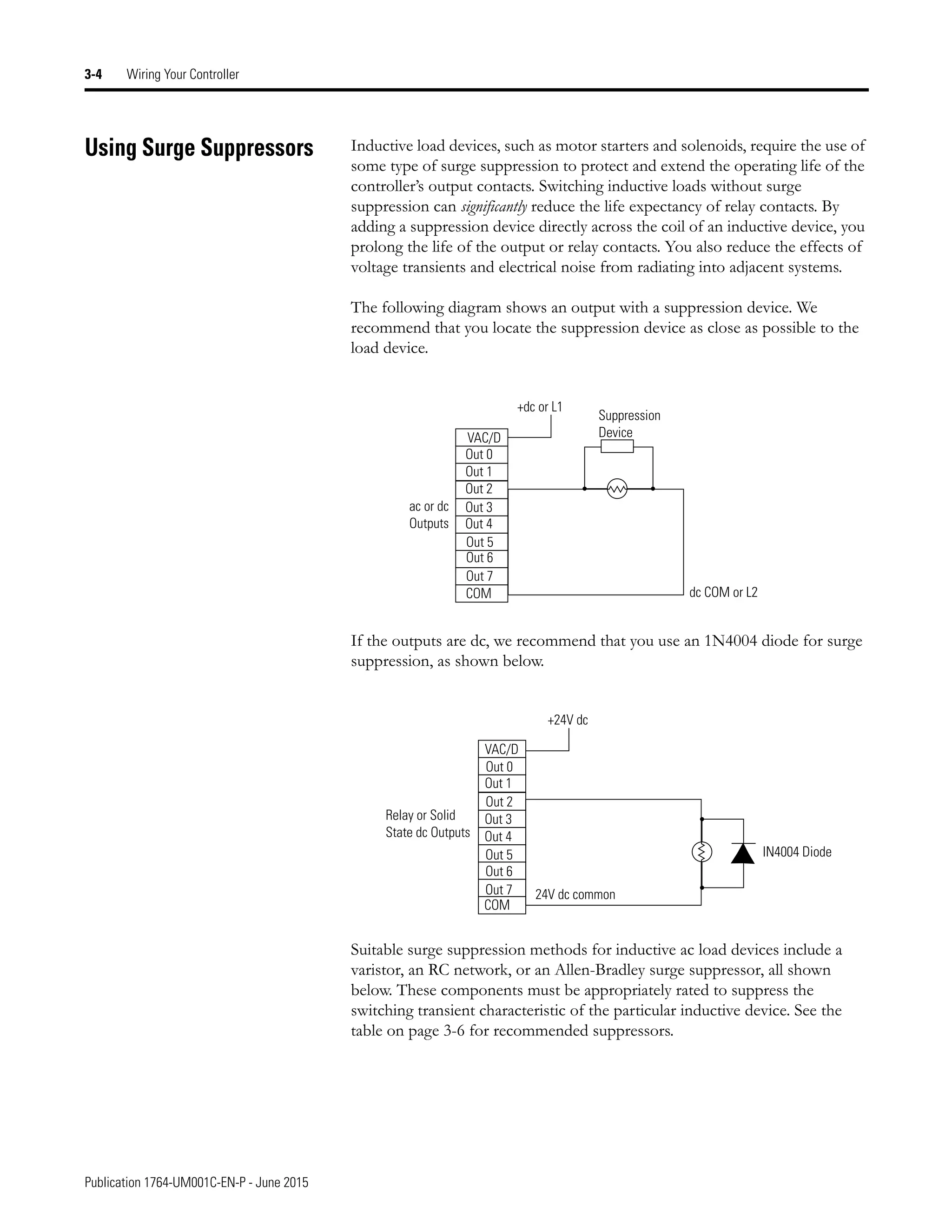
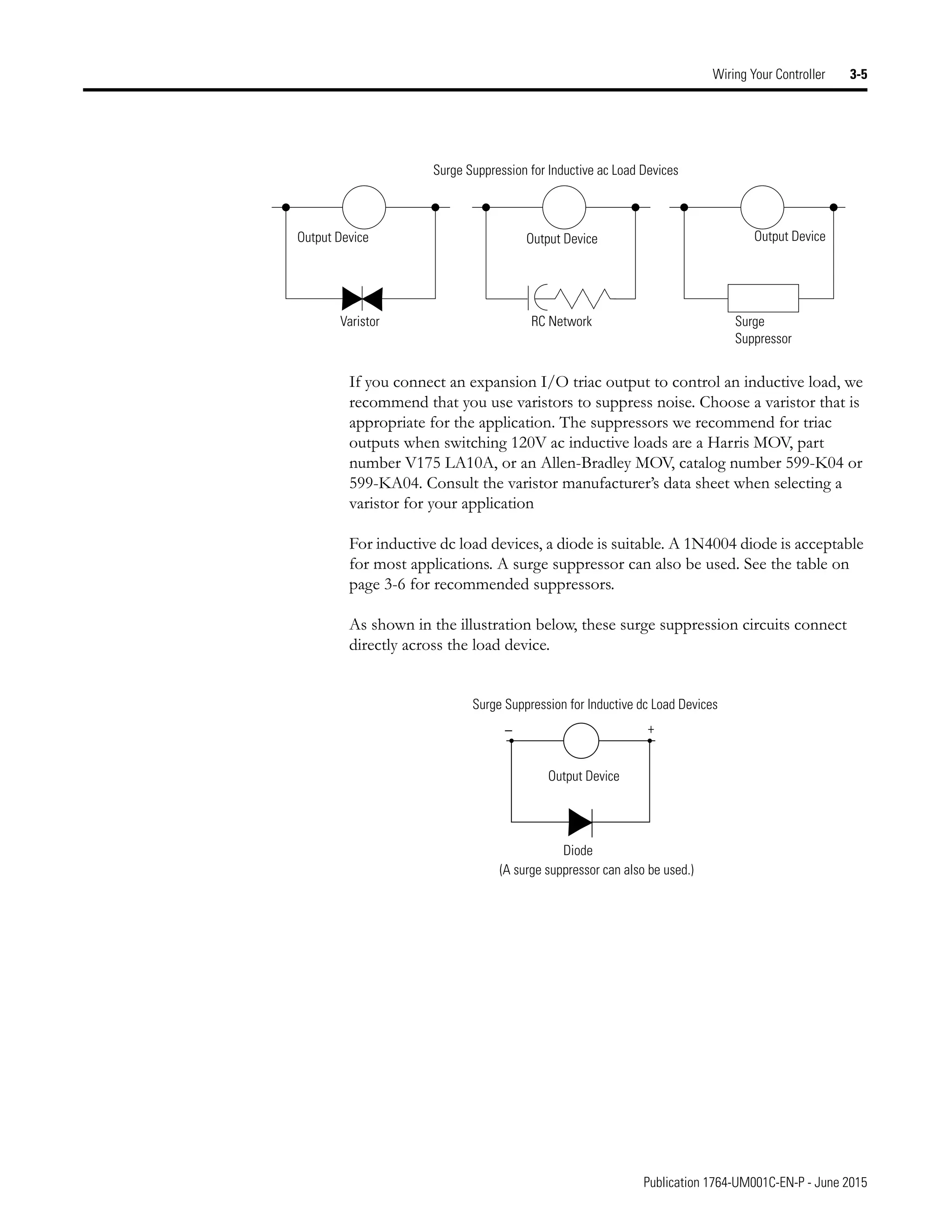
Using Surge Suppressors . . . . . . . . . . . . . . . . . . . . . . . . . . . . . . . . . . . 3-4
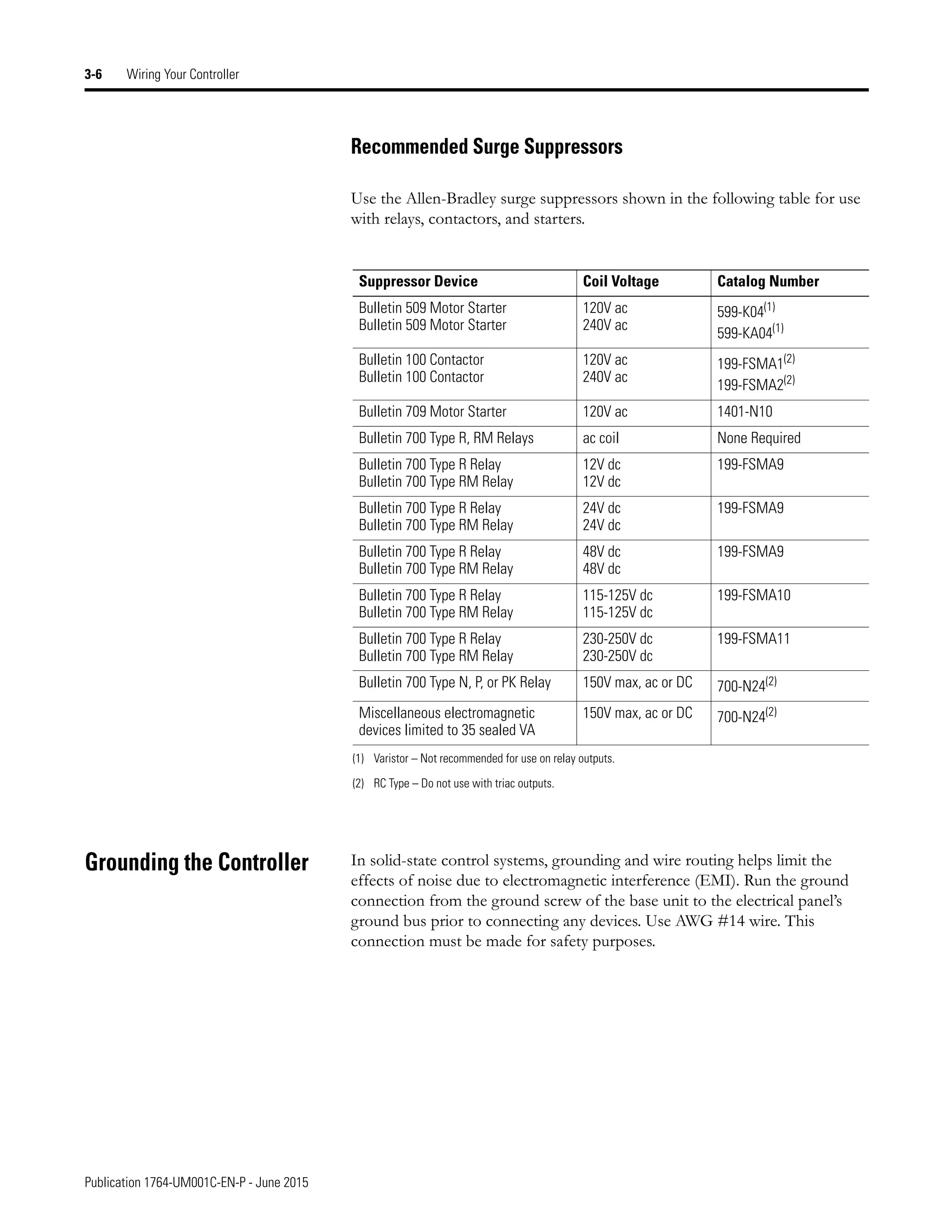
Recommended Surge Suppressors . . . . . . . . . . . . . . . . . . . . . . . . 3-6
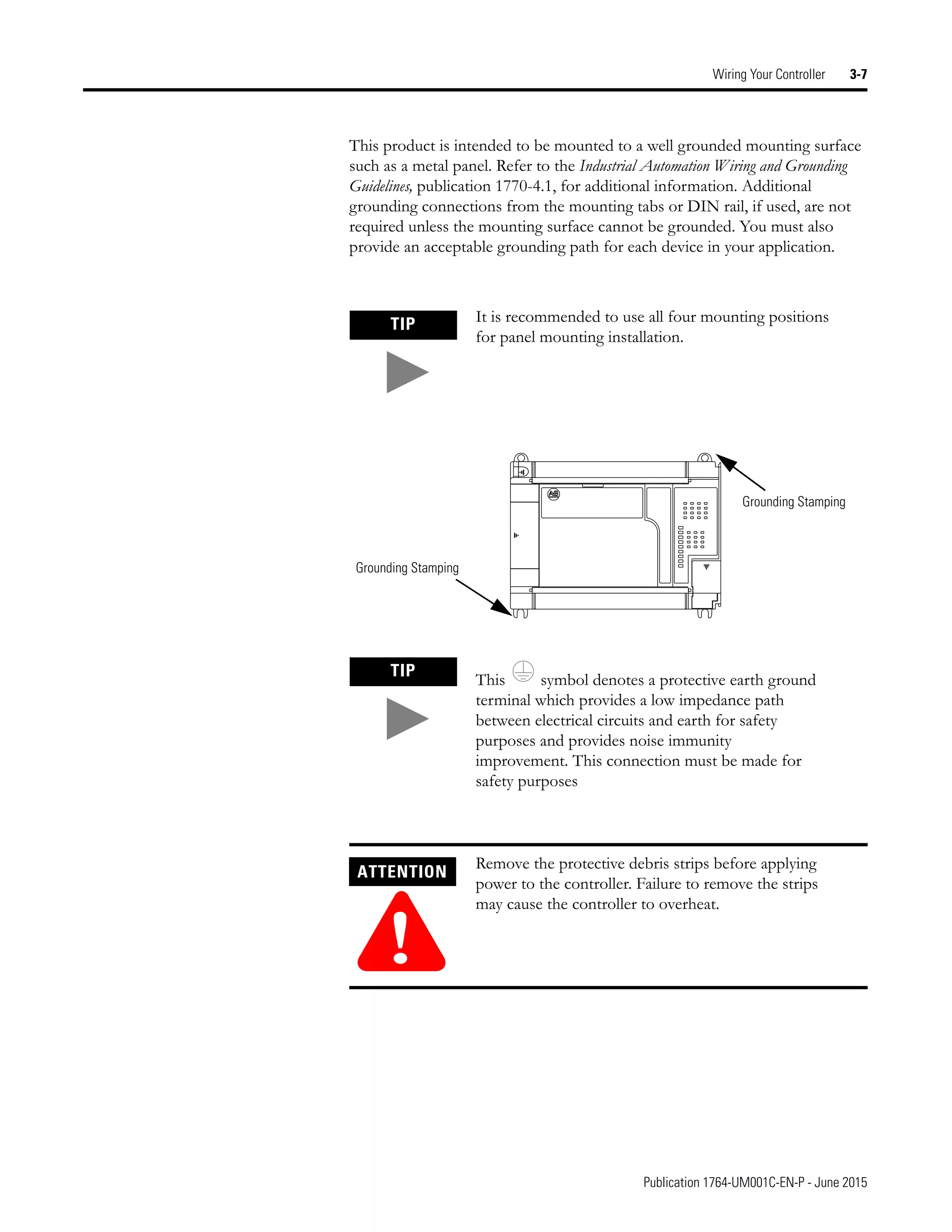
Grounding the Controller . . . . . . . . . . . . . . . . . . . . . . . . . . . . . . . . . . 3-6
Wiring Diagrams . . . . . . . . . . . . . . . . . . . . . . . . . . . . . . . . . . . . . . . . . 3-8
Miswiring - 1764-28BXB Only . . . . . . . . . . . . . . . . . . . . . . . . . . . 3-8
Terminal Block Layouts. . . . . . . . . . . . . . . . . . . . . . . . . . . . . . . . . 3-9
Terminal Groupings . . . . . . . . . . . . . . . . . . . . . . . . . . . . . . . . . . 3-10
Sinking and Sourcing Input Circuits . . . . . . . . . . . . . . . . . . . . . . . . . 3-10
1764-24AWA Wiring Diagram . . . . . . . . . . . . . . . . . . . . . . . . . . 3-11
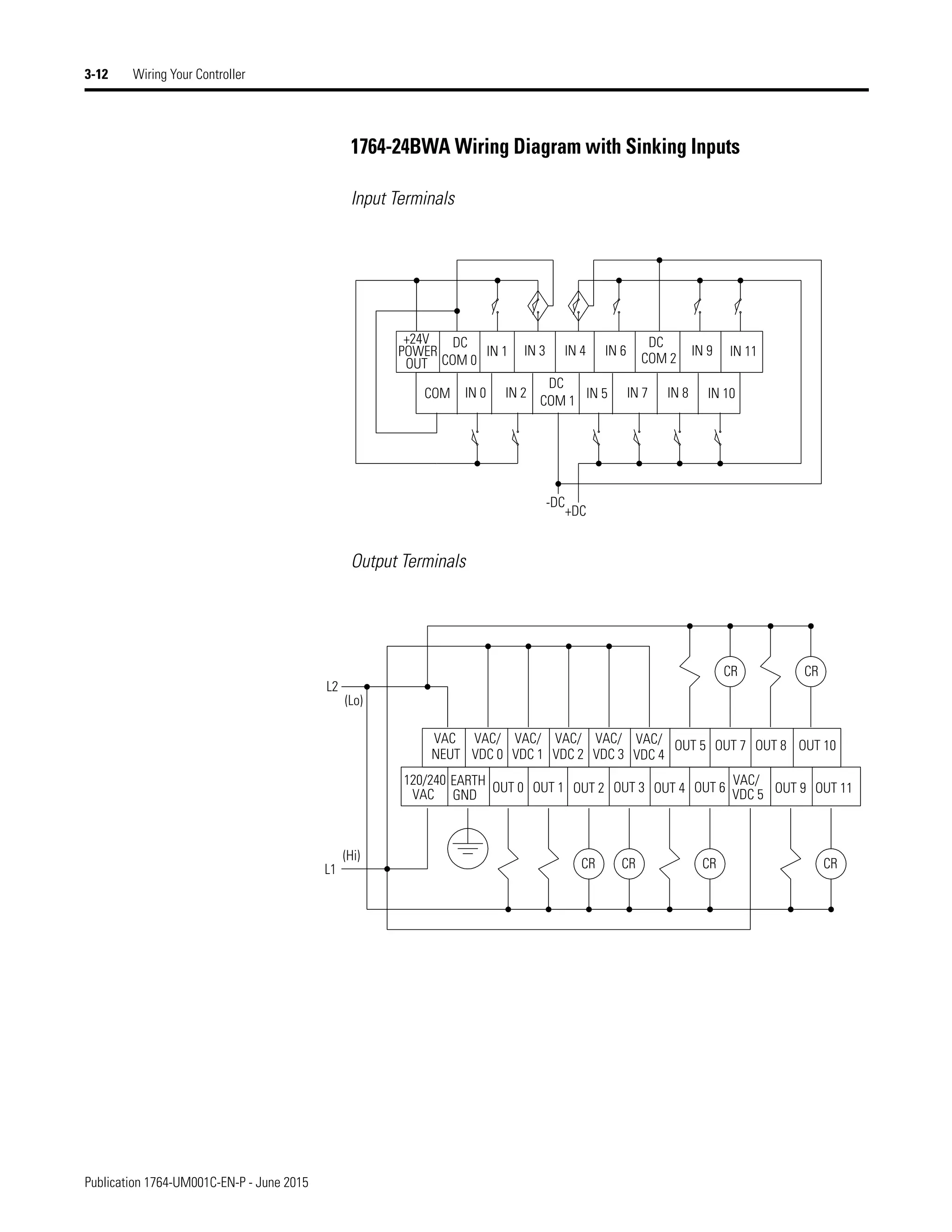
1764-24BWA Wiring Diagram with Sinking Inputs. . . . . . . . . . 3-12
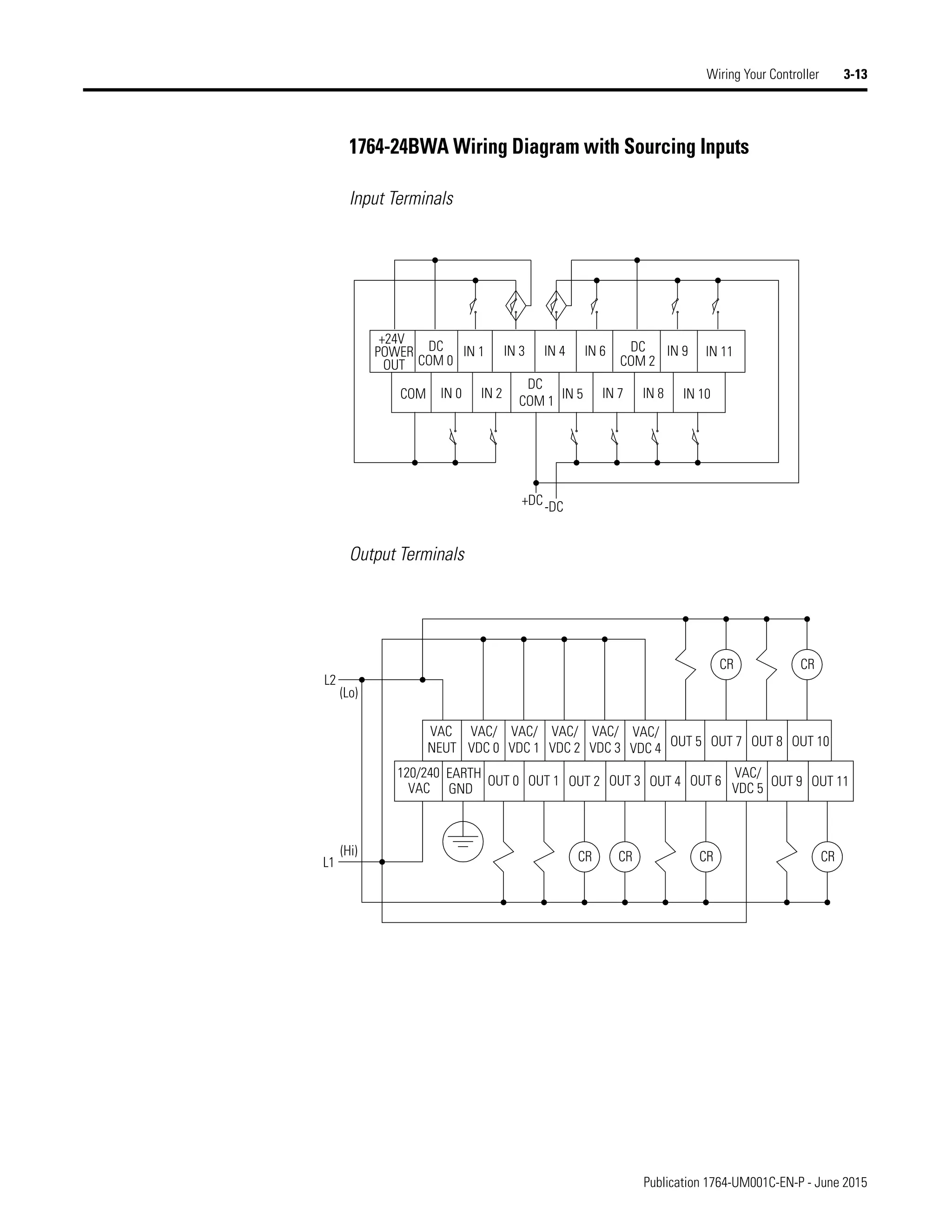
1764-24BWA Wiring Diagram with Sourcing Inputs . . . . . . . . 3-13
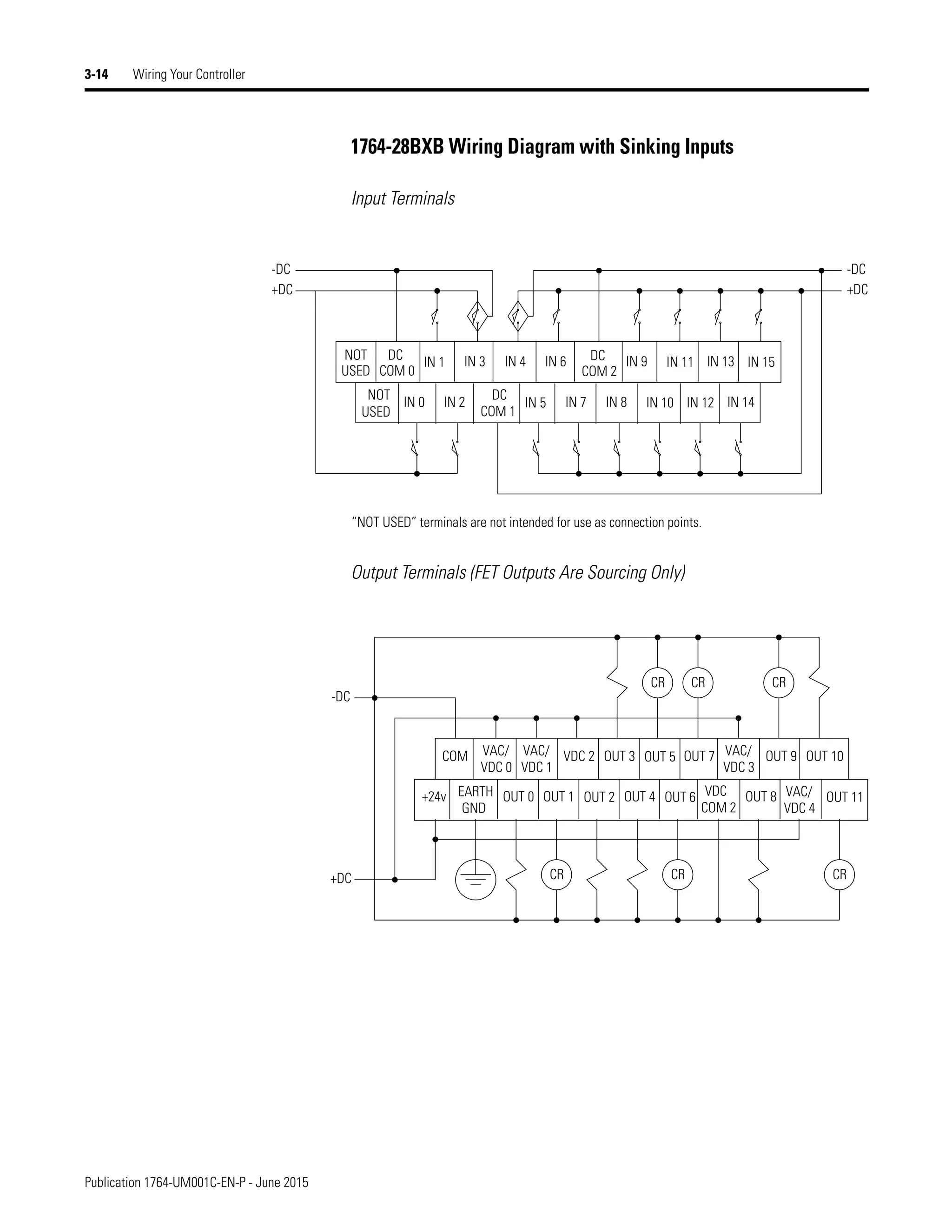
1764-28BXB Wiring Diagram with Sinking Inputs . . . . . . . . . . 3-14
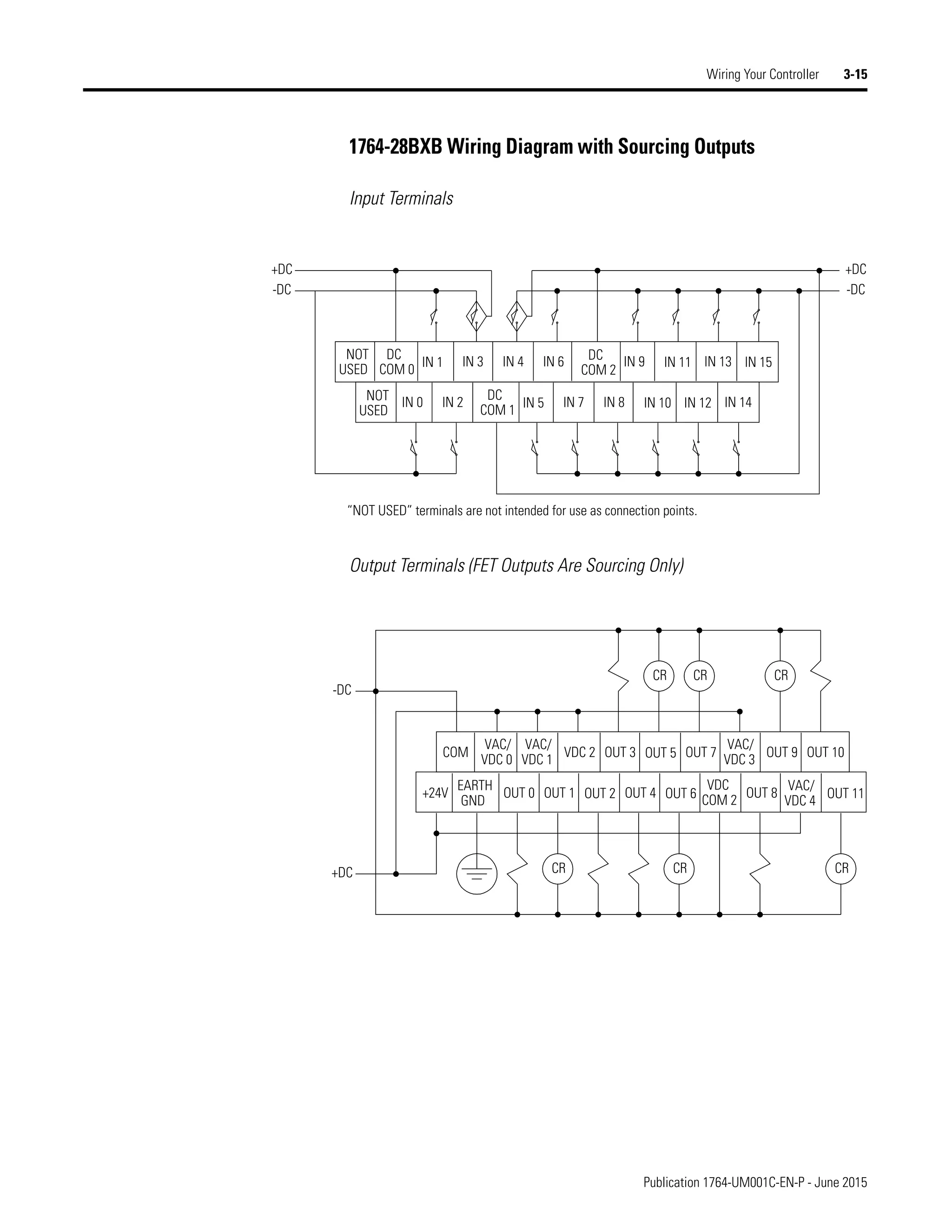
1764-28BXB Wiring Diagram with Sourcing Outputs . . . . . . . 3-15
Controller I/O Wiring . . . . . . . . . . . . . . . . . . . . . . . . . . . . . . . . . . . . 3-16
Minimizing Electrical Noise . . . . . . . . . . . . . . . . . . . . . . . . . . . . 3-16
Transistor Output Transient Pulses . . . . . . . . . . . . . . . . . . . . . . 3-16
Chapter 4
Communication Connections Default Communication Configuration . . . . . . . . . . . . . . . . . . . . . . . 4-1
Communications Toggle Push Button . . . . . . . . . . . . . . . . . . . . . . . . 4-2
Connecting to the RS-232 Port . . . . . . . . . . . . . . . . . . . . . . . . . . . . . . 4-3
DF1 Full-Duplex Communication Parameters . . . . . . . . . . . . . . 4-3
Making a DF1 Full-Duplex Point-to-Point Connection . . . . . . . 4-3
Using a Modem . . . . . . . . . . . . . . . . . . . . . . . . . . . . . . . . . . . . . . . 4-5
Isolated Modem Connection. . . . . . . . . . . . . . . . . . . . . . . . . . . . . 4-5
Publication 1764-UM001C-EN-P - June 2015
Table of Contents 7
Connecting to a DF1 Half-Duplex Network . . . . . . . . . . . . . . . . 4-7
Connecting to a DH-485 Network . . . . . . . . . . . . . . . . . . . . . . . . . . 4-10
DH-485 Configuration Parameters. . . . . . . . . . . . . . . . . . . . . . . 4-12
Recommended Tools. . . . . . . . . . . . . . . . . . . . . . . . . . . . . . . . . . 4-12
DH-485 Communication Cable . . . . . . . . . . . . . . . . . . . . . . . . . 4-12
Communication Cable Connection to the DH-485 Connector 4-13
Connecting the AIC+ . . . . . . . . . . . . . . . . . . . . . . . . . . . . . . . . . 4-15
Connecting to Ethernet . . . . . . . . . . . . . . . . . . . . . . . . . . . . . . . . . . 4-22
Ethernet Connections . . . . . . . . . . . . . . . . . . . . . . . . . . . . . . . . . 4-22
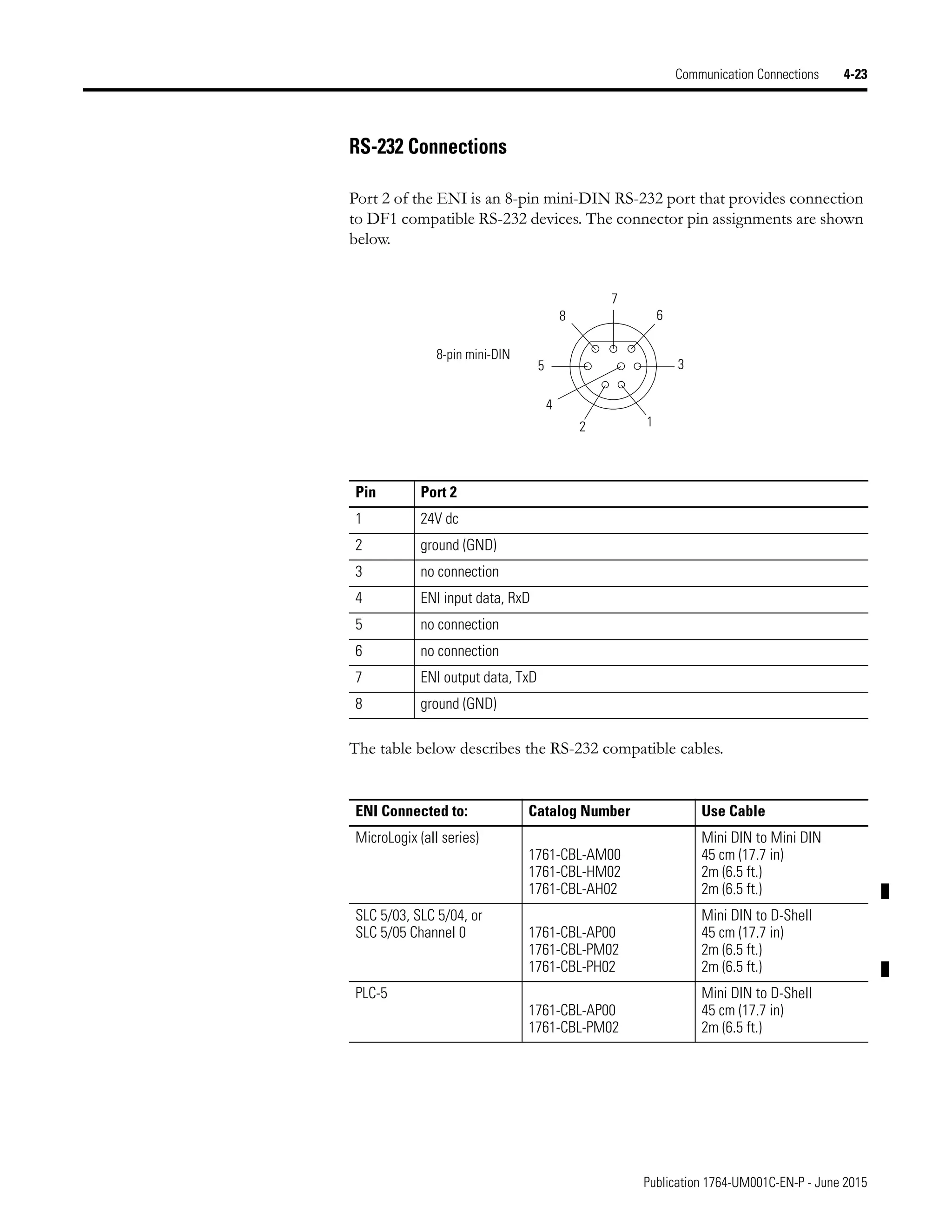
RS-232 Connections . . . . . . . . . . . . . . . . . . . . . . . . . . . . . . . . . . 4-23
Chapter 5
Using Trim Pots and the Data
Access Tool (DAT)
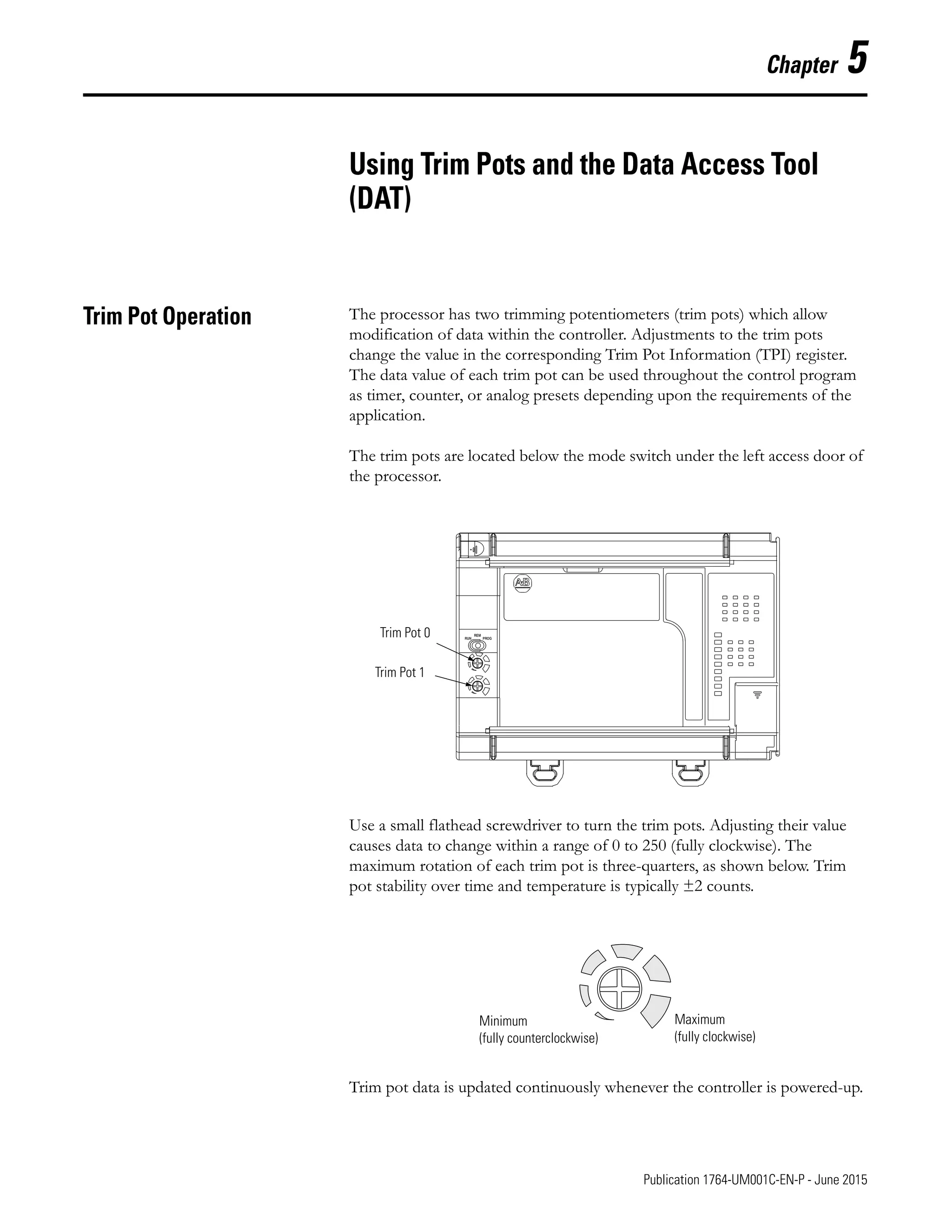
Trim Pot Operation . . . . . . . . . . . . . . . . . . . . . . . . . . . . . . . . . . . . . . . 5-1
Trim Pot Information Function File . . . . . . . . . . . . . . . . . . . . . . 5-2
Error Conditions . . . . . . . . . . . . . . . . . . . . . . . . . . . . . . . . . . . . . . 5-2
Data Access Tool (DAT). . . . . . . . . . . . . . . . . . . . . . . . . . . . . . . . . . . 5-2
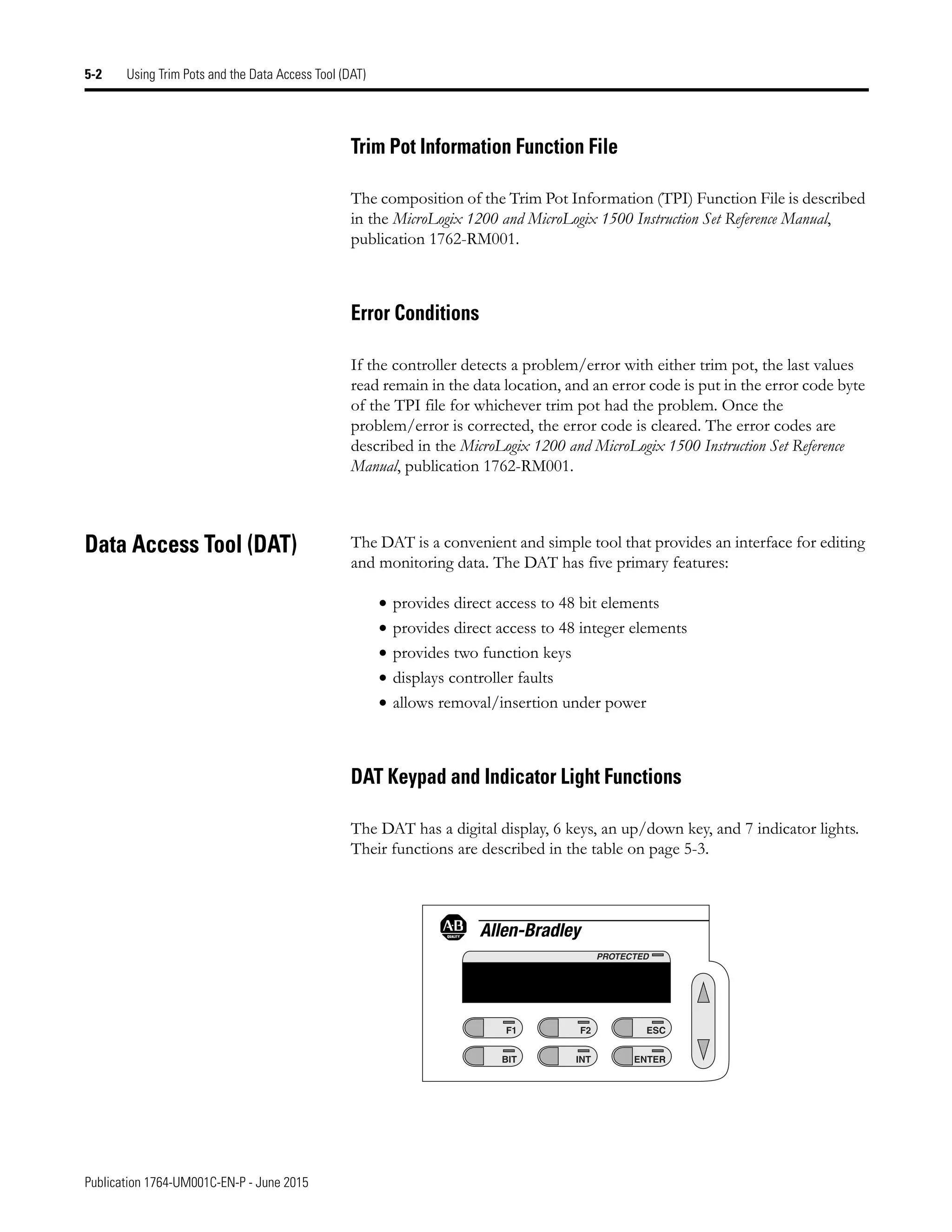
DAT Keypad and Indicator Light Functions. . . . . . . . . . . . . . . . 5-2
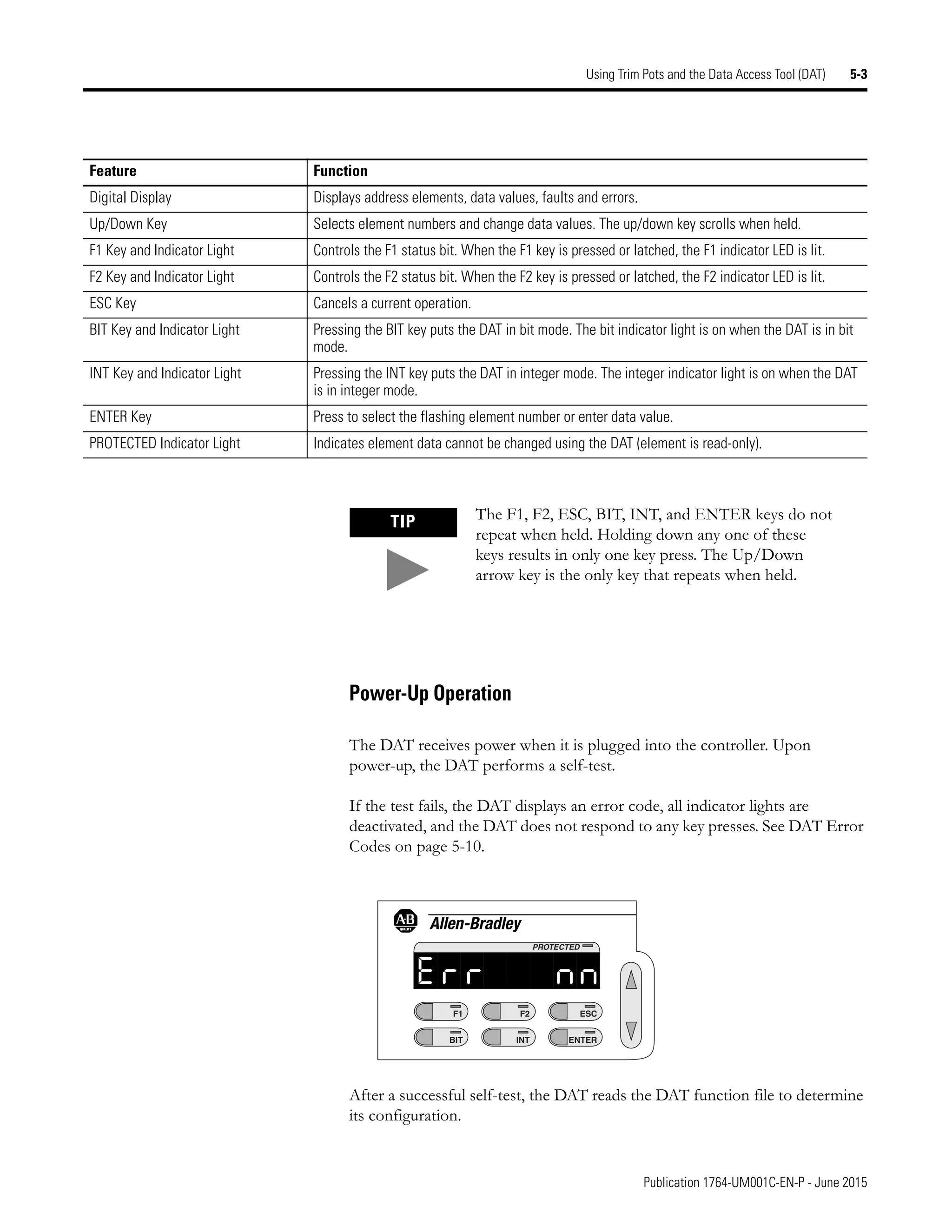
Power-Up Operation. . . . . . . . . . . . . . . . . . . . . . . . . . . . . . . . . . . 5-3
DAT Function File . . . . . . . . . . . . . . . . . . . . . . . . . . . . . . . . . . . . 5-4
Power Save Timeout (PST) Parameter . . . . . . . . . . . . . . . . . . . . . 5-4
Understanding the DAT Display . . . . . . . . . . . . . . . . . . . . . . . . . 5-5
Entering Bit Mode . . . . . . . . . . . . . . . . . . . . . . . . . . . . . . . . . . . . . 5-6
Entering Integer Mode . . . . . . . . . . . . . . . . . . . . . . . . . . . . . . . . . 5-6
Monitoring and Editing. . . . . . . . . . . . . . . . . . . . . . . . . . . . . . . . . 5-6
F1 and F2 Functions . . . . . . . . . . . . . . . . . . . . . . . . . . . . . . . . . . . 5-7
Working Screen Operation . . . . . . . . . . . . . . . . . . . . . . . . . . . . . . 5-7
Non-Existent Elements. . . . . . . . . . . . . . . . . . . . . . . . . . . . . . . . . 5-8
Controller Faults . . . . . . . . . . . . . . . . . . . . . . . . . . . . . . . . . . . . . . 5-8
Error Conditions . . . . . . . . . . . . . . . . . . . . . . . . . . . . . . . . . . . . . . 5-9
Chapter 6
Using Real-Time Clock and
Memory Modules
Real-Time Clock Operation. . . . . . . . . . . . . . . . . . . . . . . . . . . . . . . . . 6-1
Removal/Insertion Under Power . . . . . . . . . . . . . . . . . . . . . . . . . 6-1
Real-Time Clock Function File . . . . . . . . . . . . . . . . . . . . . . . . . . . 6-1
Accuracy. . . . . . . . . . . . . . . . . . . . . . . . . . . . . . . . . . . . . . . . . . . . . 6-2
Writing Data to the Real-Time Clock. . . . . . . . . . . . . . . . . . . . . . 6-2
RTC Battery Operation . . . . . . . . . . . . . . . . . . . . . . . . . . . . . . . . . 6-2
Memory Module Operation. . . . . . . . . . . . . . . . . . . . . . . . . . . . . . . . . 6-3
User Program and Data Back-Up . . . . . . . . . . . . . . . . . . . . . . . . . 6-3
Program Compare . . . . . . . . . . . . . . . . . . . . . . . . . . . . . . . . . . . . . 6-4
Data File Download Protection . . . . . . . . . . . . . . . . . . . . . . . . . . 6-4
Memory Module Write Protection . . . . . . . . . . . . . . . . . . . . . . . . 6-5
Removal/Insertion Under Power . . . . . . . . . . . . . . . . . . . . . . . . . 6-5
Memory Module Information File . . . . . . . . . . . . . . . . . . . . . . . . 6-5
Publication 1764-UM001C-EN-P - June 2015
Table of Contents 8
Appendix A
Specifications Controller Specifications . . . . . . . . . . . . . . . . . . . . . . . . . . . . . . . . . . A-1
Choosing a Power Supply . . . . . . . . . . . . . . . . . . . . . . . . . . . . . . A-2
Transistor Output Transient Pulses . . . . . . . . . . . . . . . . . . . . . . A-8
Controller Dimensions. . . . . . . . . . . . . . . . . . . . . . . . . . . . . . . . . . . . A-9
Compact I/O Dimensions. . . . . . . . . . . . . . . . . . . . . . . . . . . . . . . . . A-9
Panel Mounting . . . . . . . . . . . . . . . . . . . . . . . . . . . . . . . . . . . . . . A-9
End Cap . . . . . . . . . . . . . . . . . . . . . . . . . . . . . . . . . . . . . . . . . . . A-10
Appendix B
Replacement Parts MicroLogix 1500 Replacement Kits . . . . . . . . . . . . . . . . . . . . . . . . . . B-1
Lithium Battery (1747-BA) . . . . . . . . . . . . . . . . . . . . . . . . . . . . . . . . . B-2
Installing. . . . . . . . . . . . . . . . . . . . . . . . . . . . . . . . . . . . . . . . . . . . . B-2
Battery Handling . . . . . . . . . . . . . . . . . . . . . . . . . . . . . . . . . . . . . . B-3
Storing . . . . . . . . . . . . . . . . . . . . . . . . . . . . . . . . . . . . . . . . . . . . . . B-3
Transporting. . . . . . . . . . . . . . . . . . . . . . . . . . . . . . . . . . . . . . . . . . B-3
Disposing . . . . . . . . . . . . . . . . . . . . . . . . . . . . . . . . . . . . . . . . . . . . B-4
Replacement Terminal Blocks. . . . . . . . . . . . . . . . . . . . . . . . . . . . . . . B-5
Replacement Doors . . . . . . . . . . . . . . . . . . . . . . . . . . . . . . . . . . . . . . . B-6
Base Terminal Door (1764-RPL-TDR1) . . . . . . . . . . . . . . . . . . . B-6
Processor Access Door (1764-RPL-CDR1). . . . . . . . . . . . . . . . . B-6
Base Comms Door
(included in 1764-RPL-DR) . . . . . . . . . . . . . . . . . . . . . . . . . . . . . B-6
Trim Pots/Mode Switch Cover Door
(included in 1764-RPL-DR) . . . . . . . . . . . . . . . . . . . . . . . . . . . . . B-6
Appendix C
Troubleshooting Your System Understanding Controller LEDs. . . . . . . . . . . . . . . . . . . . . . . . . . . . . C-1
When Operating Normally . . . . . . . . . . . . . . . . . . . . . . . . . . . . . . C-2
When an Error Exists . . . . . . . . . . . . . . . . . . . . . . . . . . . . . . . . . . C-2
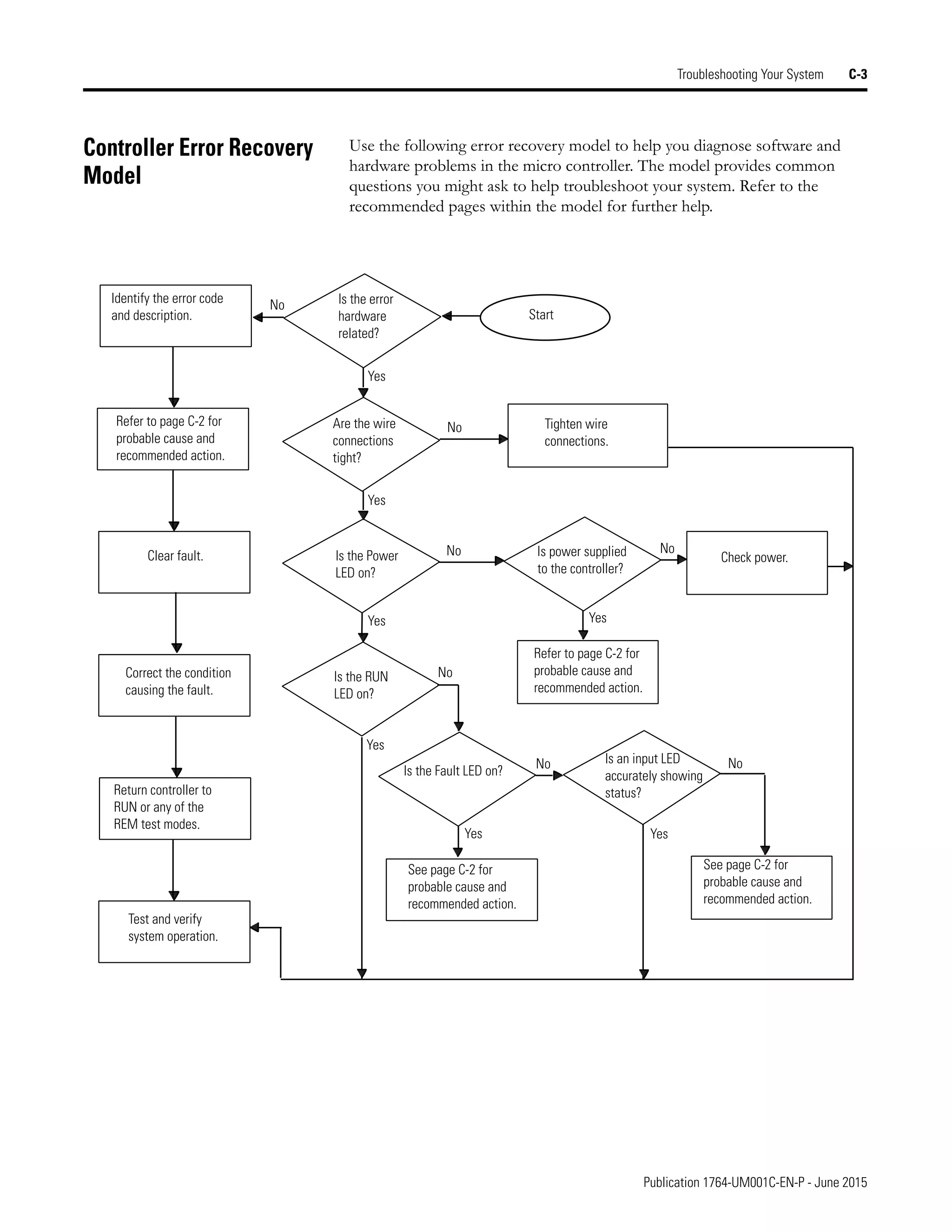
Controller Error Recovery Model . . . . . . . . . . . . . . . . . . . . . . . . . . . . C-3
Identifying Controller Faults . . . . . . . . . . . . . . . . . . . . . . . . . . . . . . . . C-4
Automatically Clearing Faults . . . . . . . . . . . . . . . . . . . . . . . . . . . . C-4
Manually Clearing Faults Using the Fault Routine. . . . . . . . . . . . C-4
Fault Messages . . . . . . . . . . . . . . . . . . . . . . . . . . . . . . . . . . . . . . . . C-5
Calling Rockwell Automation for Assistance . . . . . . . . . . . . . . . . . . . C-5
Publication 1764-UM001C-EN-P - June 2015
Table of Contents 9
Appendix D
Upgrading Your Operating System Preparing for Upgrade . . . . . . . . . . . . . . . . . . . . . . . . . . . . . . . . . . . . D-1
Performing the Upgrade . . . . . . . . . . . . . . . . . . . . . . . . . . . . . . . . . . D-2
Missing/Corrupt OS LED Pattern . . . . . . . . . . . . . . . . . . . . . . . . . . D-2
Appendix E
Understanding Communication
Protocols
RS-232 Communication Interface. . . . . . . . . . . . . . . . . . . . . . . . . . . . E-1
DF1 Full-Duplex Protocol . . . . . . . . . . . . . . . . . . . . . . . . . . . . . . . . . E-1
DF1 Half-Duplex Protocol . . . . . . . . . . . . . . . . . . . . . . . . . . . . . . . . . E-2
DF1 Half-Duplex Operation. . . . . . . . . . . . . . . . . . . . . . . . . . . . . E-2
Considerations When Communicating as a DF1 Slave
on a Multi-drop Link . . . . . . . . . . . . . . . . . . . . . . . . . . . . . . . . . . . E-2
Using Modems with MicroLogix 1500 Programmable Controllers. . E-3
Dial-Up Phone Modems . . . . . . . . . . . . . . . . . . . . . . . . . . . . . . . . E-4
Leased-Line Modems. . . . . . . . . . . . . . . . . . . . . . . . . . . . . . . . . . . E-4
Radio Modems. . . . . . . . . . . . . . . . . . . . . . . . . . . . . . . . . . . . . . . . E-5
Line Drivers . . . . . . . . . . . . . . . . . . . . . . . . . . . . . . . . . . . . . . . . . . E-5
DH-485 Communication Protocol . . . . . . . . . . . . . . . . . . . . . . . . . . . E-5
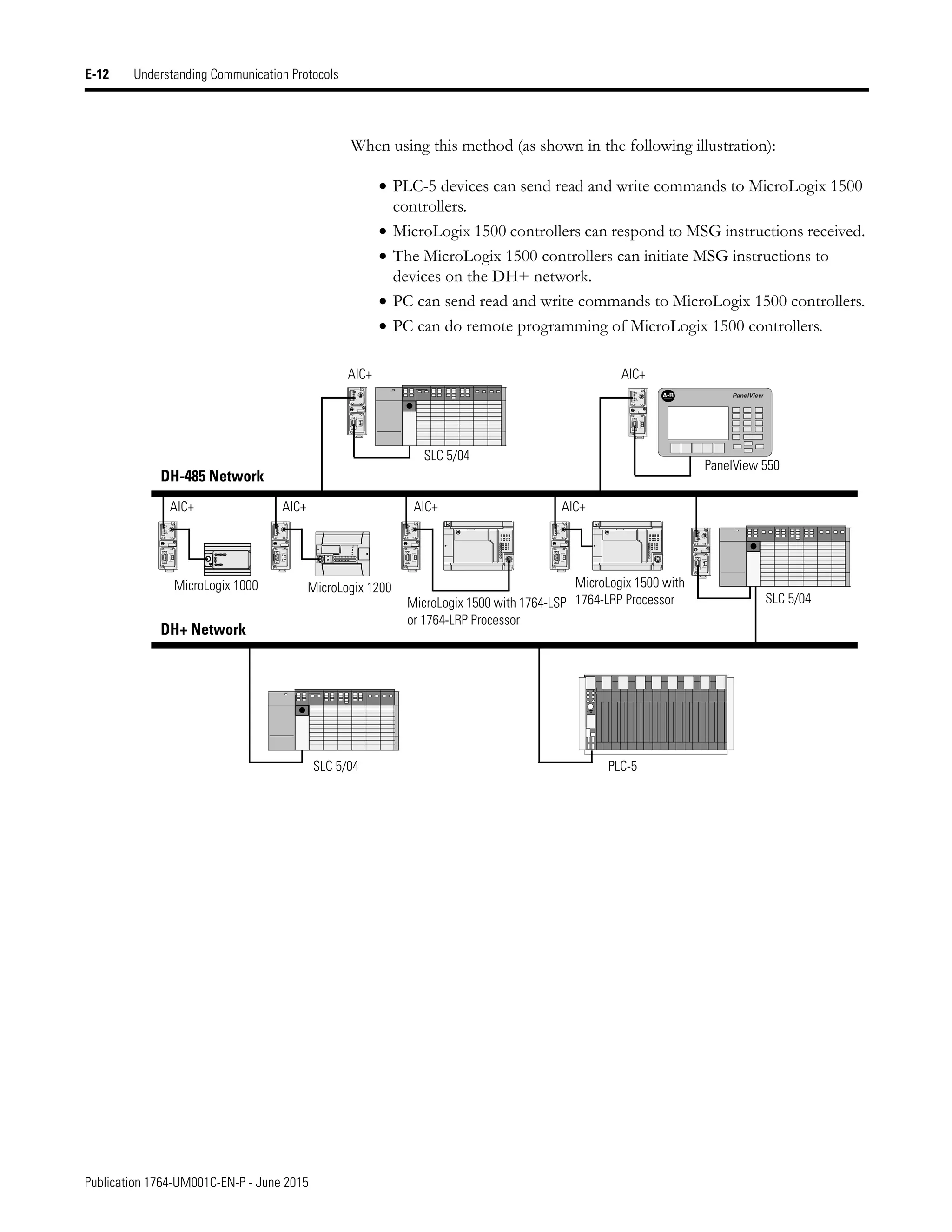
DH-485 Network Description . . . . . . . . . . . . . . . . . . . . . . . . . . . E-5
DH-485 Token Rotation. . . . . . . . . . . . . . . . . . . . . . . . . . . . . . . . E-6
DH-485 Configuration Parameters. . . . . . . . . . . . . . . . . . . . . . . . E-6
Devices that Use the DH-485 Network . . . . . . . . . . . . . . . . . . . . E-7
Important DH-485 Network Planning Considerations . . . . . . . . E-8
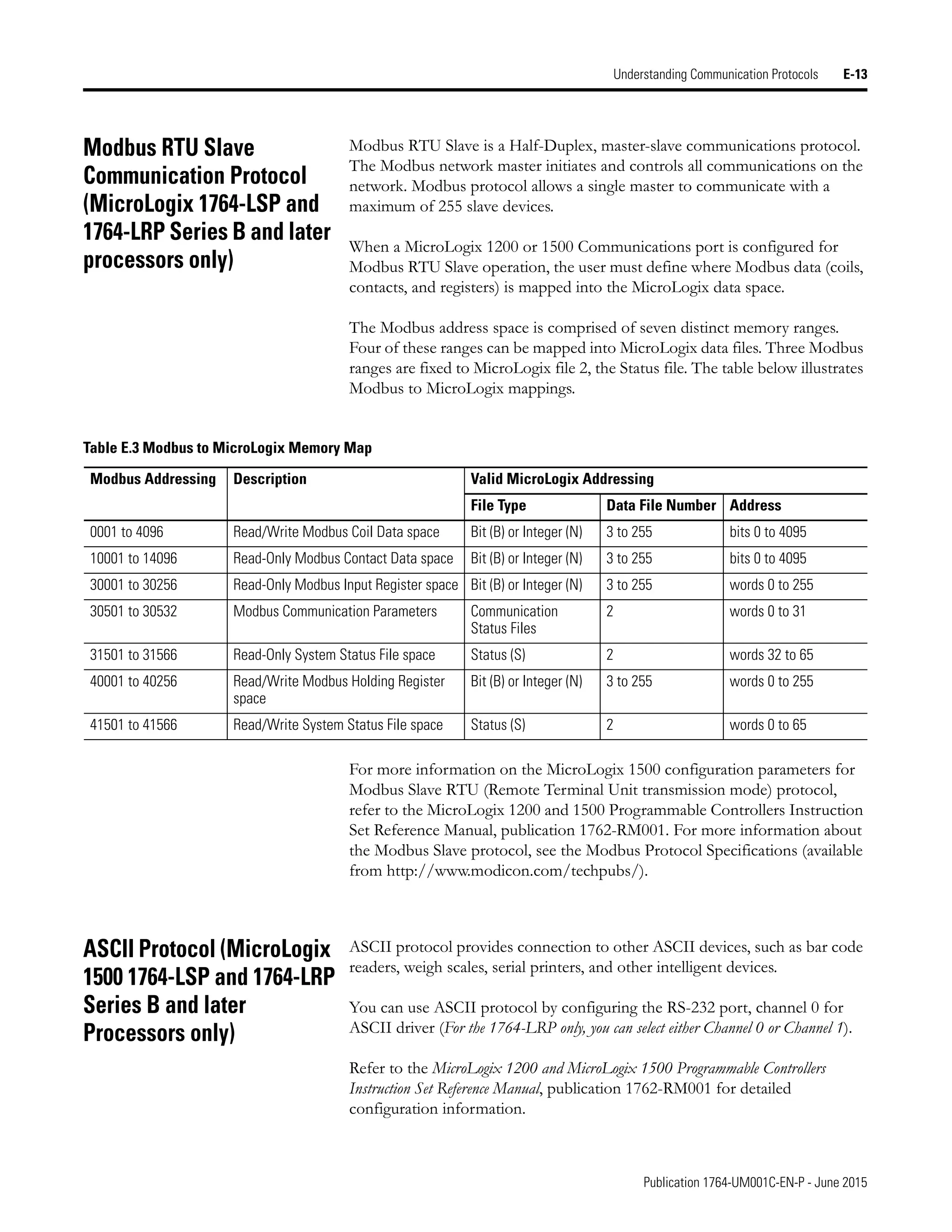
Modbus RTU Slave Communication Protocol
(MicroLogix 1764-LSP and 1764-LRP Series B and later processors only)
E-13
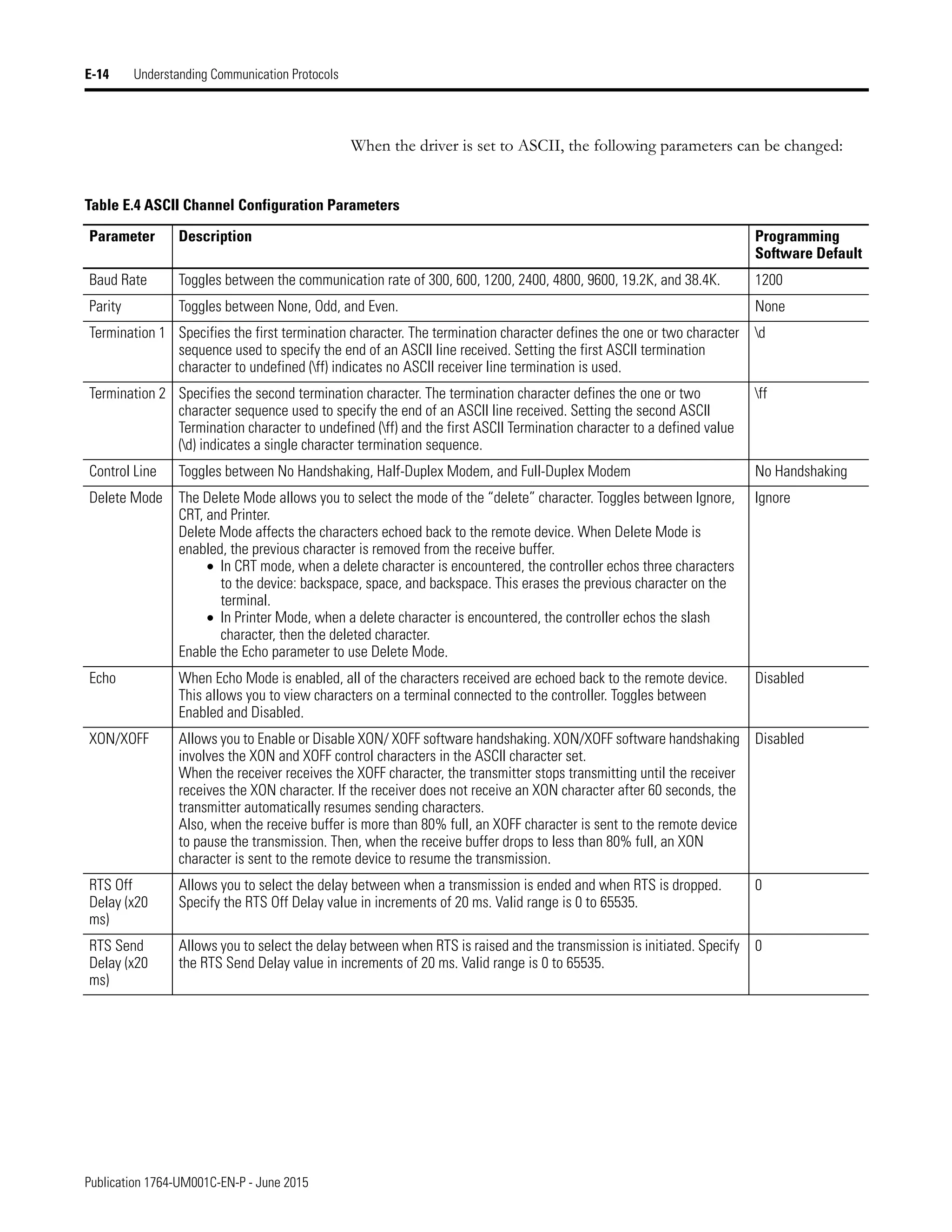
ASCII Protocol (MicroLogix 1500 1764-LSP and 1764-LRP
Series B and later Processors only) . . . . . . . . . . . . . . . . . . . . . . . . . . E-13
Appendix F
System Loading and Heat
Dissipation
System Loading Limitations. . . . . . . . . . . . . . . . . . . . . . . . . . . . . . . . . F-1
System Expansion Calculations. . . . . . . . . . . . . . . . . . . . . . . . . . . . . . F-1
Selecting System Devices. . . . . . . . . . . . . . . . . . . . . . . . . . . . . . . . F-2
Verifying the System Loading . . . . . . . . . . . . . . . . . . . . . . . . . . . . F-4
Calculating Heat Dissipation . . . . . . . . . . . . . . . . . . . . . . . . . . . . . . . . F-9
Glossary
Index
Publication 1764-UM001C-EN-P - June 2015
Table of Contents 10
Notes:
P-1 Publication 1764-UM001C-EN-P - June 2015
Preface
Read this preface to familiarize yourself with the rest of the manual. It provides
information concerning:
• who should use this manual
• the purpose of this manual
• related documentation
• conventions used in this manual
• Rockwell Automation support
Who Should Use this
Manual
Use this manual if you are responsible for designing, installing, programming,
or troubleshooting control systems that use MicroLogix™ 1500 controllers.
You should have a basic understanding of electrical circuitry and familiarity
with relay logic. If you do not, obtain the proper training before using this
product.
Purpose of this Manual This manual is a reference guide for MicroLogix 1500 controllers. It describes
the procedures you use to install, wire, and troubleshoot your controller. This
manual:
• explains how to install and wire your controllers
• gives you an overview of the MicroLogix 1500 controller system
Refer to publication 1762-RM001, MicroLogix 1200 and MicroLogix 1500
Programmable Controllers Instruction Set Reference Manual for the MicroLogix 1200
and 1500 instruction set and for application examples to show the instruction
set in use. Refer to your programming software user documentation for more
information on programming your MicroLogix 1500 controller.
Related Documentation The documents listed on page P-2 contain additional information concerning
Rockwell Automation products. If you would like a copy, you can:
• download a free electronic version from the internet:
www.ab.com/micrologix or www.theautomationbookstore.com
• purchase a printed manual by:
– contacting your local distributor or Rockwell Automation
representative
– visiting www.theautomationbookstore.com and placing your order
– calling 1.800.963.9548 (USA/Canada)
or 001.330.725.1574 (Outside USA/Canada)
Publication 1764-UM001C-EN-P - June 2015
Preface P-2
For Read this Document Document Number
A technical overview of the MicroLogix 1500 and related
products
MicroLogix 1500 Programmable Controllers
Technical Data
1764-TD001
Information on the MicroLogix 1500 Controllers instruction set MicroLogix 1200 and 1500 Programmable
Controllers Instruction Set Reference Manual
1762-RM001
Information on mounting and wiring the MicroLogix 1500 Base
Units, including a mounting template for easy installation
MicroLogix 1500 Programmable Controllers
Base Unit Installation Instructions
1764-IN001
An overview of Compact I/O Compact I/O System Overview 1769-SO001
More information on Compact I/O Power Supplies and Cables 1769 Compact I/O Power Supplies and
Communication Bus Expansion Cables
Technical Data
1769-TD001
More information on Compact Analog I/O and Temperature Input
Modules
Compact Analog I/O and Temperature Input
Modules Technical Data
1769-TD004
Detailed information on using Compact I/O Analog Modules Compact I/O Analog Modules User Manual 1769-UM002
Detailed information on installing, configuring, and using
1769-IT6 Thermocouple/mV Input Modules
Compact I/O 1769-IT6 Thermocouple/mV
Input Module User Manual
1769-UM004
Detailed information on installing, configuring, and using
1769-IR6 RTD/Resistance Input Modules
Compact I/O 1769-IR6 RTD/Resistance Input
Module User Manual
1769-UM005
Detailed information on installing, configuring, and using
1769-HSC High Speed Counter Modules
Compact 1769-HSC High Speed Counter
Module User Manual
1769-UM006
A description on how to install and connect an AIC+. This
manual also contains information on network wiring.
Advanced Interface Converter (AIC+) User
Manual
1761-6.4
Information on how to install, configure, and commission a DNI DeviceNet™ Interface User Manual 1761-6.5
Information on installing, connecting, and configuring an ENI Ethernet Interface User Manual 1761-UM001
Information on installing, configuring, and using a DeviceNet
Scanner
Compact™ I/O 1769-SDN DeviceNet Scanner
User Manual
1761-UM009
Information on DF1 open protocol. DF1 Protocol and Command Set Reference
Manual
1770-6.5.16
In-depth information on grounding and wiring Allen-Bradley
programmable controllers
Allen-Bradley Programmable Controller
Grounding and Wiring Guidelines
1770-4.1
A description of important differences between solid-state
programmable controller products and hard-wired
electromechanical devices
Application Considerations for Solid-State
Controls
SGI-1.1
An article on wire sizes and types for grounding electrical
equipment
National Electrical Code - Published by the National Fire Protection
Association of Boston, MA.
A complete listing of current documentation, including ordering
instructions. Also indicates whether the documents are available
on CD-ROM or in multi-languages.
Allen-Bradley Publication Index SD499
A glossary of industrial automation terms and abbreviations Allen-Bradley Industrial Automation Glossary AG-7.1
Publication 1764-UM001C-EN-P - June 2015
Preface P-3
Common Techniques Used
in this Manual
The following conventions are used throughout this manual:
• Bulleted lists such as this one provide information, not procedural steps.
• Numbered lists provide sequential steps or hierarchical information.
• Italic type is used for emphasis.
Rockwell Automation
Support
Rockwell Automation offers support services worldwide, with over 75
Sales/Support Offices, 512 authorized Distributors and 260 authorized
Systems Integrators located throughout the United States alone, plus Rockwell
Automation representatives in every major country in the world.
Local Product Support
Contact your local Rockwell Automation representative for:
• sales and order support
• product technical training
• warranty support
• support service agreements
Technical Product Assistance
Before you contact Rockwell Automation for technical assistance, we suggest
you please review the troubleshooting information contained in this
publication first.
If the problem persists, call your local Rockwell Automation representative or
contact Rockwell Automation in one of the following ways:
Phone United
States/Canada
1.440.646.5800
Outside United
States/Canada
You can access the phone number for your
country via the Internet:
1. Go to http://www.ab.com
2. Click on Product Support
(http://support.automation.rockwell.com)
3. Under Support Centers, click on Contact
Information
Internet  1. Go to http://www.ab.com
2. Click on Product Support
(http://support.automation.rockwell.com)
Publication 1764-UM001C-EN-P - June 2015
Preface P-4
Your Questions or Comments on this Manual
If you find a problem with this manual, or you have any suggestions for how
this manual could be made more useful to you, please contact us at the address
below:
Rockwell Automation
Automation Control and Information Group
Technical Communication, Dept. A602V
P.O. Box 2086
Milwaukee, WI 53201-2086
or visit our internet page at:
http://www.rockwellautomation.com
For the latest information on MicroLogix controllers, visit
www.ab.com/micrologix
1 Publication 1764-UM001C-EN-P - June 2015
Chapter 1
Hardware Overview
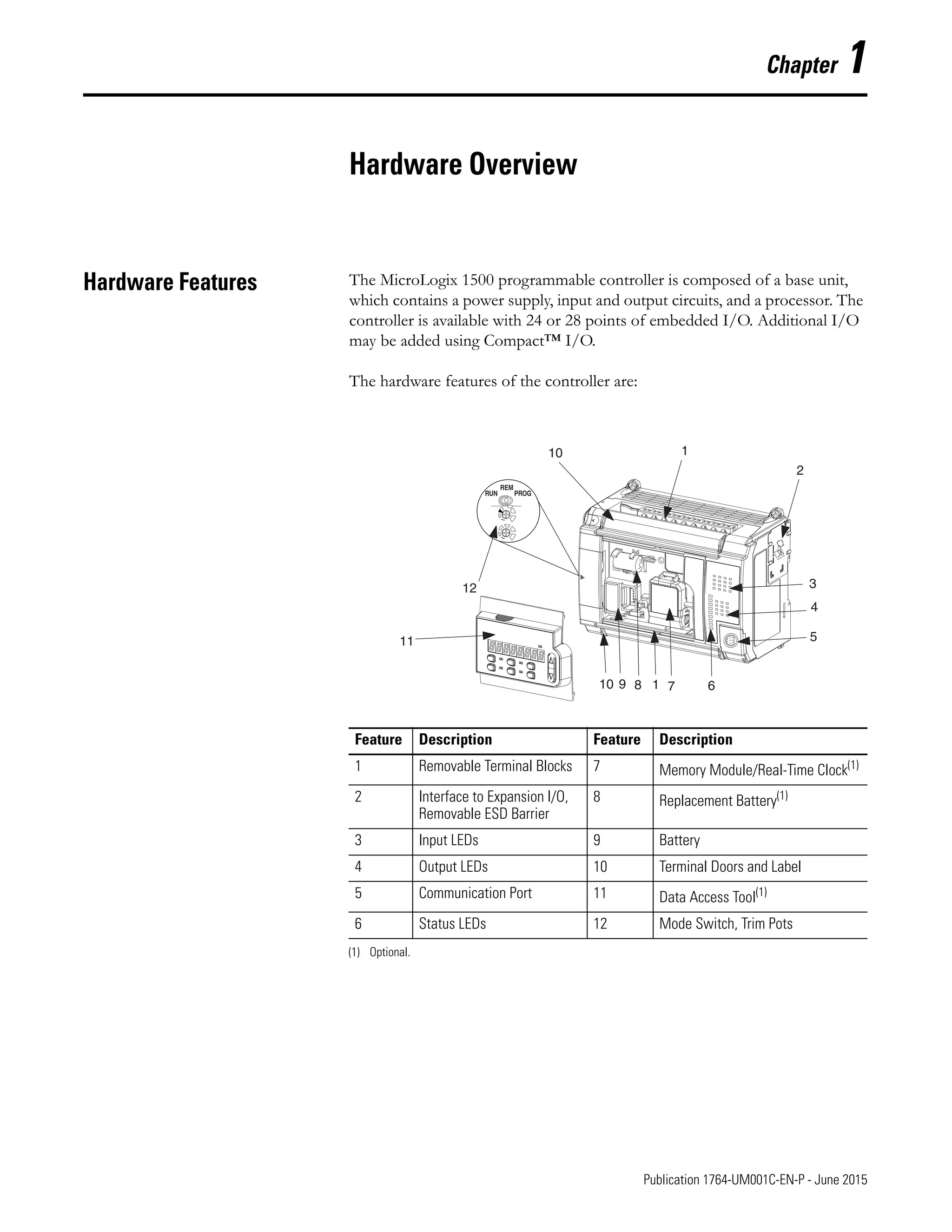
Hardware Features The MicroLogix 1500 programmable controller is composed of a base unit,
which contains a power supply, input and output circuits, and a processor. The
controller is available with 24 or 28 points of embedded I/O. Additional I/O
may be added using Compact™ I/O.
The hardware features of the controller are:
RUN PROG
REM
1
2
3
4
5
6
7
1
8
9
10
11
12
10
Feature Description Feature Description
1 Removable Terminal Blocks 7 Memory Module/Real-Time Clock(1)
(1) Optional.
2 Interface to Expansion I/O,
Removable ESD Barrier
8 Replacement Battery(1)
3 Input LEDs 9 Battery
4 Output LEDs 10 Terminal Doors and Label
5 Communication Port 11 Data Access Tool(1)
6 Status LEDs 12 Mode Switch, Trim Pots
Publication 1764-UM001C-EN-P - June 2015
1-2 Hardware Overview
MicroLogix 1500
Component Descriptions
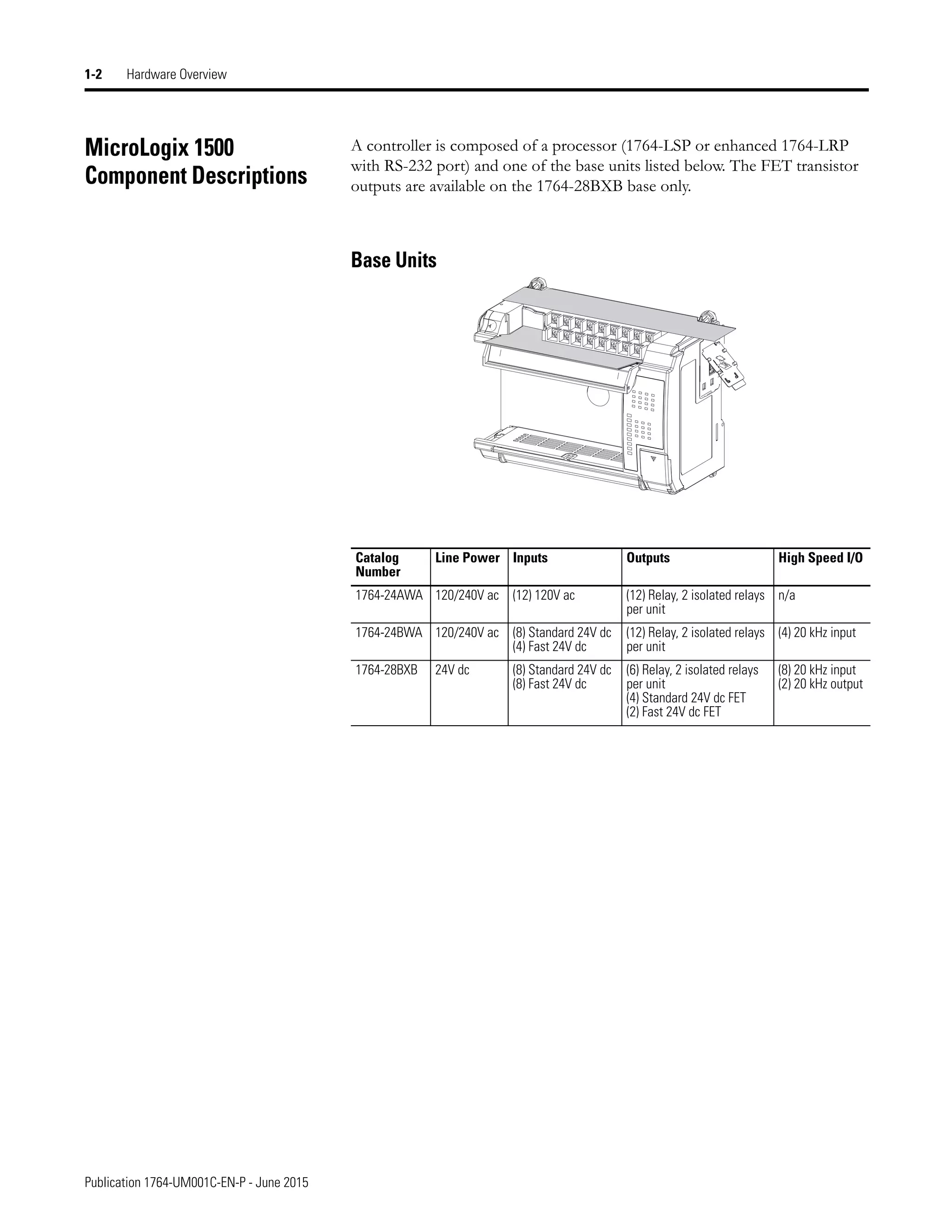
A controller is composed of a processor (1764-LSP or enhanced 1764-LRP
with RS-232 port) and one of the base units listed below. The FET transistor
outputs are available on the 1764-28BXB base only.
Base Units
Catalog
Number
Line Power Inputs Outputs High Speed I/O
1764-24AWA 120/240V ac (12) 120V ac (12) Relay, 2 isolated relays
per unit
n/a
1764-24BWA 120/240V ac (8) Standard 24V dc
(4) Fast 24V dc
(12) Relay, 2 isolated relays
per unit
(4) 20 kHz input
1764-28BXB 24V dc (8) Standard 24V dc
(8) Fast 24V dc
(6) Relay, 2 isolated relays
per unit
(4) Standard 24V dc FET
(2) Fast 24V dc FET
(8) 20 kHz input
(2) 20 kHz output
Publication 1764-UM001C-EN-P - June 2015
Hardware Overview 1-3
Processors
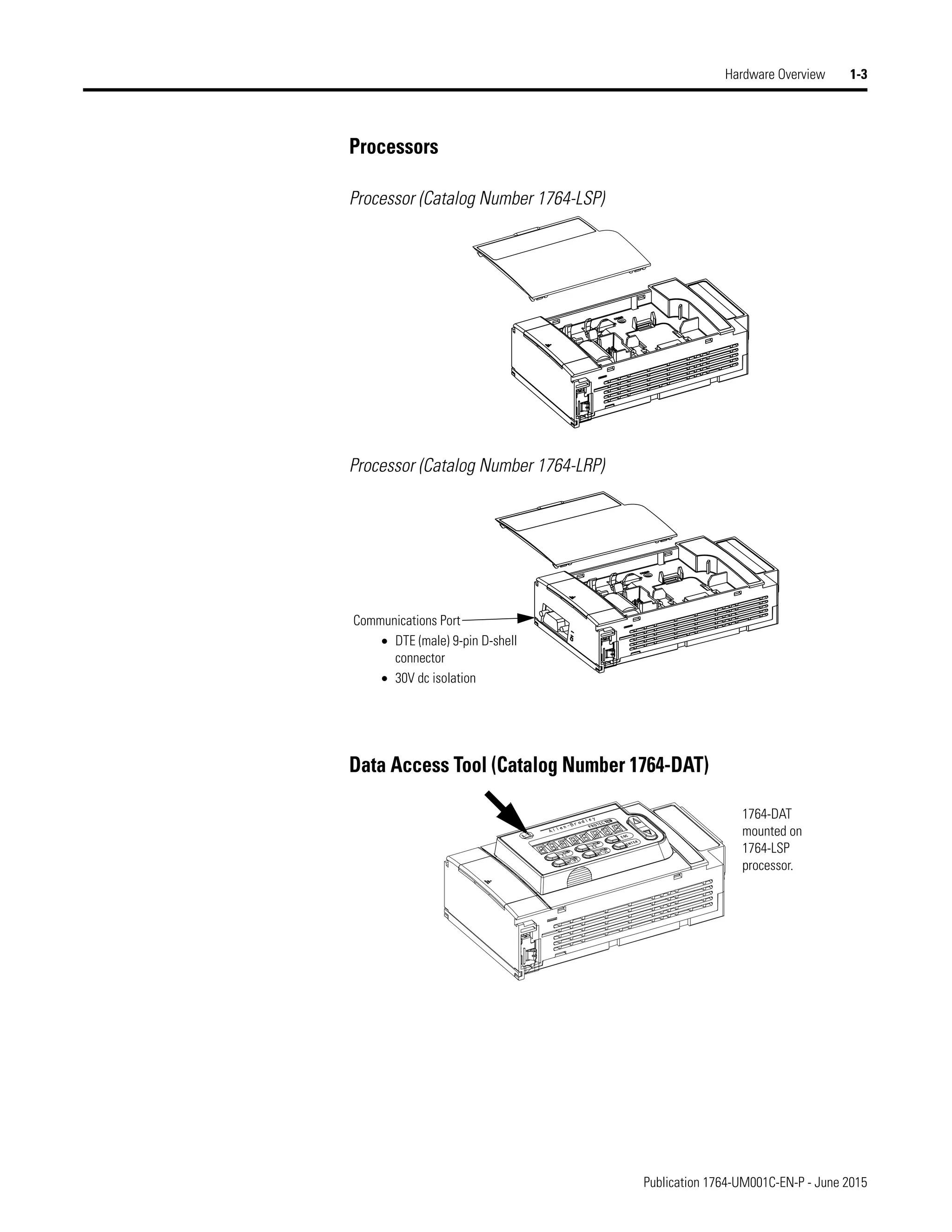
Processor (Catalog Number 1764-LSP)
Processor (Catalog Number 1764-LRP)
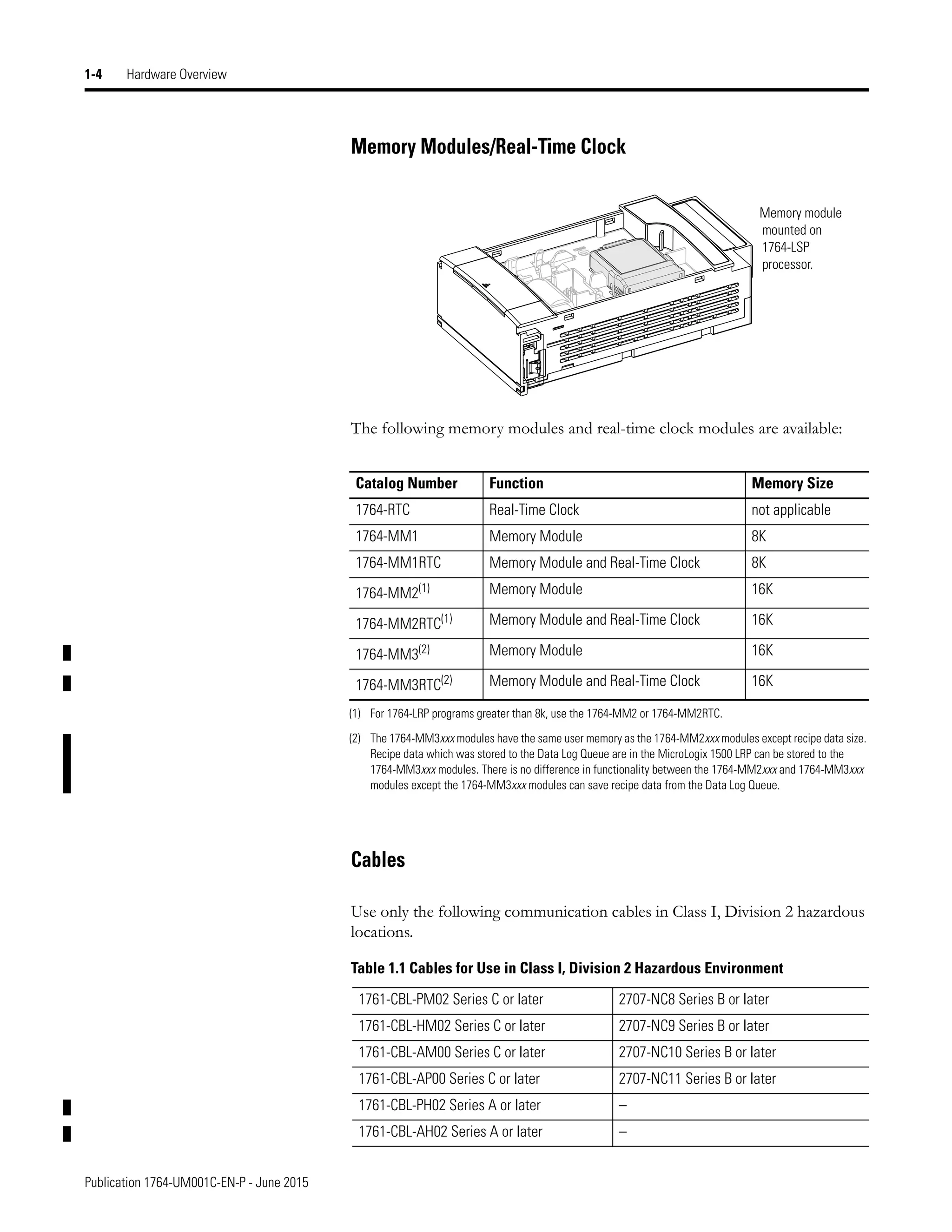
Data Access Tool (Catalog Number 1764-DAT)
Communications Port
• DTE (male) 9-pin D-shell
connector
• 30V dc isolation
1764-DAT
mounted on
1764-LSP
processor.
Publication 1764-UM001C-EN-P - June 2015
1-4 Hardware Overview
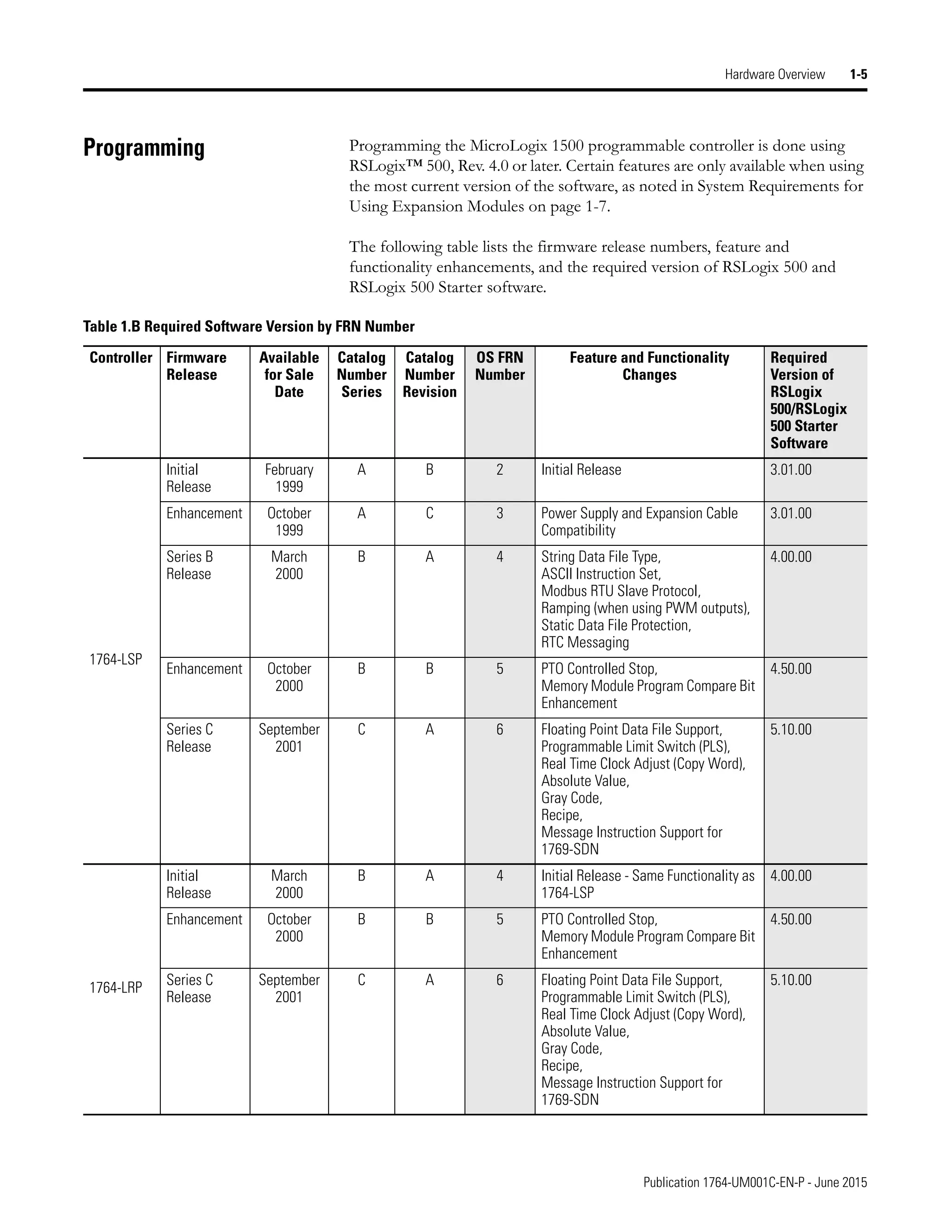
Memory Modules/Real-Time Clock
The following memory modules and real-time clock modules are available:
Cables
Use only the following communication cables in Class I, Division 2 hazardous
locations.
Memory module
mounted on
1764-LSP
processor.
Catalog Number Function Memory Size
1764-RTC Real-Time Clock not applicable
1764-MM1 Memory Module 8K
1764-MM1RTC Memory Module and Real-Time Clock 8K
1764-MM2(1)
(1) For 1764-LRP programs greater than 8k, use the 1764-MM2 or 1764-MM2RTC.
Memory Module 16K
1764-MM2RTC(1) Memory Module and Real-Time Clock 16K
1764-MM3(2)
(2) The 1764-MM3xxx modules have the same user memory as the 1764-MM2xxx modules except recipe data size.
Recipe data which was stored to the Data Log Queue are in the MicroLogix 1500 LRP can be stored to the
1764-MM3xxx modules. There is no difference in functionality between the 1764-MM2xxx and 1764-MM3xxx
modules except the 1764-MM3xxx modules can save recipe data from the Data Log Queue.
Memory Module 16K
1764-MM3RTC(2) Memory Module and Real-Time Clock 16K
Table 1.1 Cables for Use in Class I, Division 2 Hazardous Environment
1761-CBL-PM02 Series C or later 2707-NC8 Series B or later
1761-CBL-HM02 Series C or later 2707-NC9 Series B or later
1761-CBL-AM00 Series C or later 2707-NC10 Series B or later
1761-CBL-AP00 Series C or later 2707-NC11 Series B or later
1761-CBL-PH02 Series A or later –
1761-CBL-AH02 Series A or later –
Publication 1764-UM001C-EN-P - June 2015
Hardware Overview 1-5
Programming Programming the MicroLogix 1500 programmable controller is done using
RSLogix™ 500, Rev. 4.0 or later. Certain features are only available when using
the most current version of the software, as noted in System Requirements for
Using Expansion Modules on page 1-7.
The following table lists the firmware release numbers, feature and
functionality enhancements, and the required version of RSLogix 500 and
RSLogix 500 Starter software.
Table 1.B Required Software Version by FRN Number
Controller Firmware
Release
Available
for Sale
Date
Catalog
Number
Series
Catalog
Number
Revision
OS FRN
Number
Feature and Functionality
Changes
Required
Version of
RSLogix
500/RSLogix
500 Starter
Software
1764-LSP
Initial
Release
February
1999
A B 2 Initial Release 3.01.00
Enhancement October
1999
A C 3 Power Supply and Expansion Cable
Compatibility
3.01.00
Series B
Release
March
2000
B A 4 String Data File Type,
ASCII Instruction Set,
Modbus RTU Slave Protocol,
Ramping (when using PWM outputs),
Static Data File Protection,
RTC Messaging
4.00.00
Enhancement October
2000
B B 5 PTO Controlled Stop,
Memory Module Program Compare Bit
Enhancement
4.50.00
Series C
Release
September
2001
C A 6 Floating Point Data File Support,
Programmable Limit Switch (PLS),
Real Time Clock Adjust (Copy Word),
Absolute Value,
Gray Code,
Recipe,
Message Instruction Support for
1769-SDN
5.10.00
1764-LRP
Initial
Release
March
2000
B A 4 Initial Release - Same Functionality as
1764-LSP
4.00.00
Enhancement October
2000
B B 5 PTO Controlled Stop,
Memory Module Program Compare Bit
Enhancement
4.50.00
Series C
Release
September
2001
C A 6 Floating Point Data File Support,
Programmable Limit Switch (PLS),
Real Time Clock Adjust (Copy Word),
Absolute Value,
Gray Code,
Recipe,
Message Instruction Support for
1769-SDN
5.10.00
Publication 1764-UM001C-EN-P - June 2015
1-6 Hardware Overview
Communication Options The MicroLogix 1500 can be connected to a personal computer. It can also be
connected to the DH-485 network using an Advanced Interface Converter
(1761-NET-AIC), to an Ethernet network using an Ethernet Interface
(1761-NET-ENI), or to a DeviceNet™ network through the DeviceNet
Scanner module (1769-SDN). The controller can also be connected to
Modbus™ SCADA networks as an RTU slave. See Communication
Connections on page 4-1 for more information on connecting to the available
communication options.
The 1764-LRP processor provides an additional communication port. Each of
the communications ports can be independently configured for any supported
communication protocol. (Channel 0 is on the base unit and Channel 1 is on
the 1764-LRP processor.)
Compact™ Expansion I/O Compact expansion I/O (Bulletin 1769) can be connected to the MicroLogix
1500 Controller. A maximum of either 8 or 16 expansion I/O modules can be
used, depending upon your system. See System Requirements for Using
Expansion Modules on page 1-7.
See System Loading and Heat Dissipation on page F-1 for more information
on system configurations.
End Cap
An end cap terminator (catalog number 1769-ECR or 1769-ECL) must be
used at the end of the group of I/O modules attached to the MicroLogix 1500
Controller. The end cap terminator is not provided with the base or processor
units. It is required when using expansion I/O.
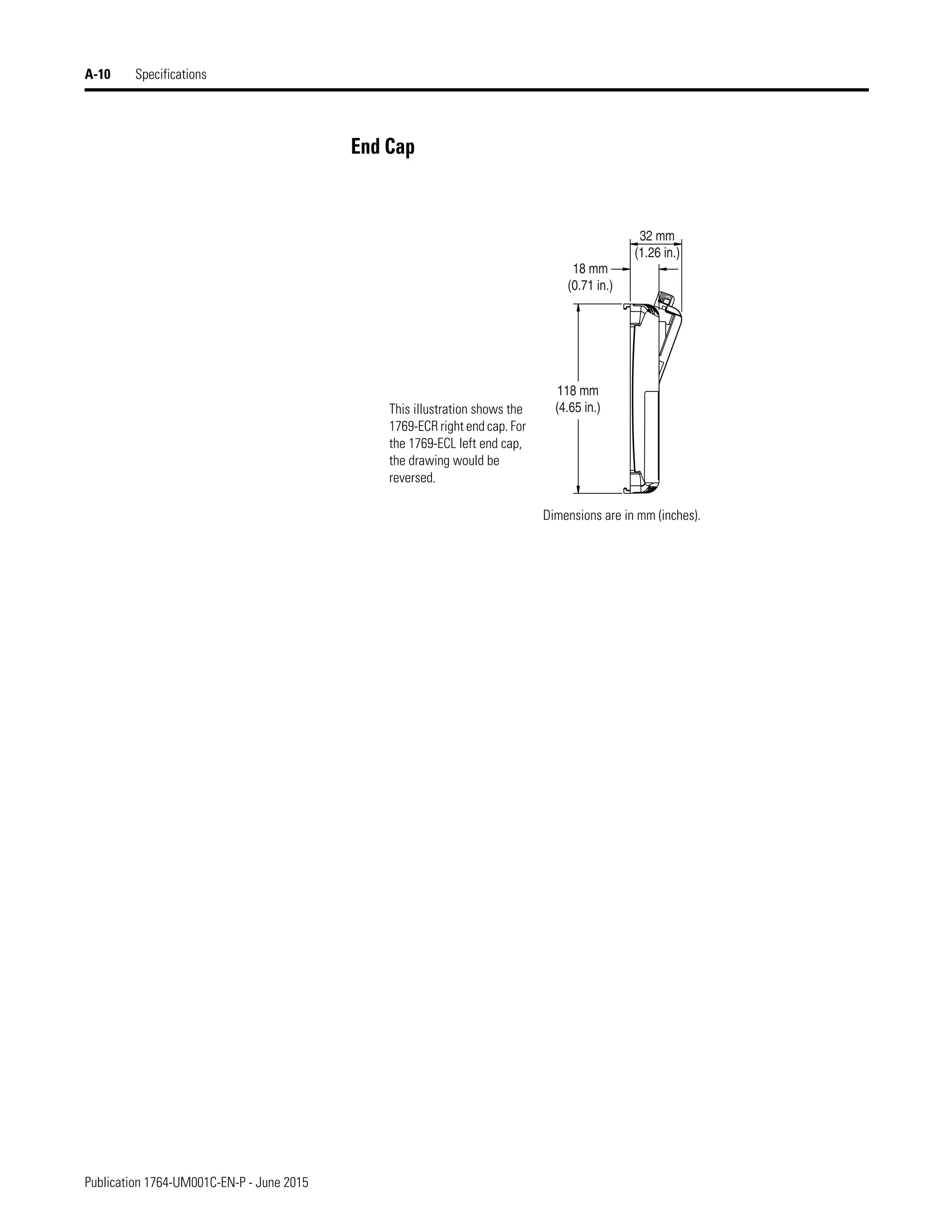
This illustration shows the right end cap (1769-ECR ). The left end cap
(1769-ECL) is shown on page 1-10.
Publication 1764-UM001C-EN-P - June 2015
Hardware Overview 1-7
Expansion Power Supply and Cables
With Operating System Revision Number (FRN) 3 or higher, you can connect
an additional bank of I/O to your controller. Using an expansion power
supply increases the system’s capacity for adding expansion I/O modules. The
additional I/O bank is connected to the controller via a specially designed
cable. The additional I/O bank must include a power supply and an end cap.
System Requirements for Using Expansion Modules
To support a maximum of 8 I/O modules in an additional I/O bank, you must
have the following:
To support a maximum of 16 I/O modules in an additional I/O bank, you
must have the following:
TIP Depending on the system configuration, each
controller can support up to 16 expansion I/O
modules. See the System Requirements for Using
Expansion Modules below. Also see System Guidelines on
page 1-9 for system limitations and illustrations of
expansion I/O banks.
Table 1.3 Requirements to Support a Maximum of 8 I/O Modules
Product Catalog Number
MicroLogix 1500
Processor
1764-LSP, Series A, Revision C or higher
1764-LSP, Series B or higher
1764-LRP, Series B or higher
MicroLogix 1500
Base Unit
1764-24AWA, Series A or higher
1764-24BWA, Series A or higher
1764-28BXB, Series A or higher
Operating System
Version
Firmware Revision Number (FRN) 3 or higher(1)
(1) You can check the FRN by looking at word S:59 (Operating System FRN) in the Status File.
Programming
Software
1764-LSP, Series A RSLogix 500, Version 3.01.09 or higher,
1764-LSP, Series B
1764-LRP, Series B
RSLogix 500, Version 4.00.00 or higher.
1764-LSP, Series C
1764-LRP, Series C
RSLogix 500, Version 5.00.00 or higher.
1 Power Supply
(optional)
1769-PA2, 1769-PA4
1769-PB2, 1769-PB4
1 Cable (optional) 1769-CRL1, 1769-CRL3, 1769-CRR1, 1769-CRR3
1 End Cap (required) 1769-ECL, 1769-ECR
Publication 1764-UM001C-EN-P - June 2015
1-8 Hardware Overview
Table 1.4 Requirements to Support a Maximum of 16 I/O Modules
Product Catalog Number
MicroLogix 1500 Processor 1764-LSP, Series C or higher
1764-LRP, Series C or higher
MicroLogix 1500 Base Unit 1764-24AWA, Series B or higher
1764-24BWA, Series B or higher
1764-28BXB, Series B or higher
Operating System Version Firmware Revision Number (FRN) 6 or higher(1)
(1) You can check the FRN by looking at word S:59 (Operating System FRN) in the Status File.
Programming Software RSLogix 500, Version 5.10.00 or higher.
1 Power Supply (optional) 1769-PA2, 1769-PA4, 1769-PB2, 1769-PB4
1 Cable (optional) 1769-CRL1, 1769-CRL3, 1769-CRR1, 1769-CRR3
1 End Cap (required) 1769-ECL, 1769-ECR
IMPORTANT If your processor is at an older revision, you must
upgrade the operating system to FRN 3 or higher
to use an expansion cable and power supply (or to
FRN 6 or higher to allow up to 16 expansion
modules). On the Internet, go to
http://www.ab.com/micrologix to download the
operating system upgrade. Navigate to MicroLogix
1500 for further instructions and downloads.
MicroLogix 1500 base units are not field upgradeable
from Series A to Series B.
Publication 1764-UM001C-EN-P - June 2015
Hardware Overview 1-9
Adding an I/O Bank
System Guidelines
A maximum of one 1769 Expansion Cable can be used in a MicroLogix 1500
system, allowing for two banks of I/O modules (one connected directly to the
controller, and the other connected via the cable). Each I/O bank requires its
own power supply (Bank 1 uses the controller’s embedded power supply).
ATTENTION
!
LIMIT OF ONE EXPANSION POWER SUPPLY
The expansion power supply cannot be connected
directly to the controller. It must be connected using
an expansion cable. Only one power supply
(embedded in the base unit or an expansion power
supply) may be used on an I/O bank. Exceeding
these limitations may damage the power supply and
result in unexpected operation.
ATTENTION
!
REMOVE POWER
Remove system power before making or breaking
cable connections. When you remove or insert a
cable connector with power applied, an electrical arc
may occur. An electrical arc can cause personal
injury or property damage by:
• sending an erroneous signal to your system’s field
devices, causing unintended machine operation
• causing an explosion in a hazardous environment
Electrical arcing causes excessive wear to contacts on
both the module and its mating connector.
Refer to your power supply and I/O module’s
documentation for instructions on how to set up
your system.
IMPORTANT See the System Requirements for Using Expansion Modules
on page 1-7 to determine the maximum number of
expansion I/O modules you can use in your MicroLogix
system.
Also see System Loading and Heat Dissipation on page F-1
for more information on system configurations.
Publication 1764-UM001C-EN-P - June 2015
1-10 Hardware Overview
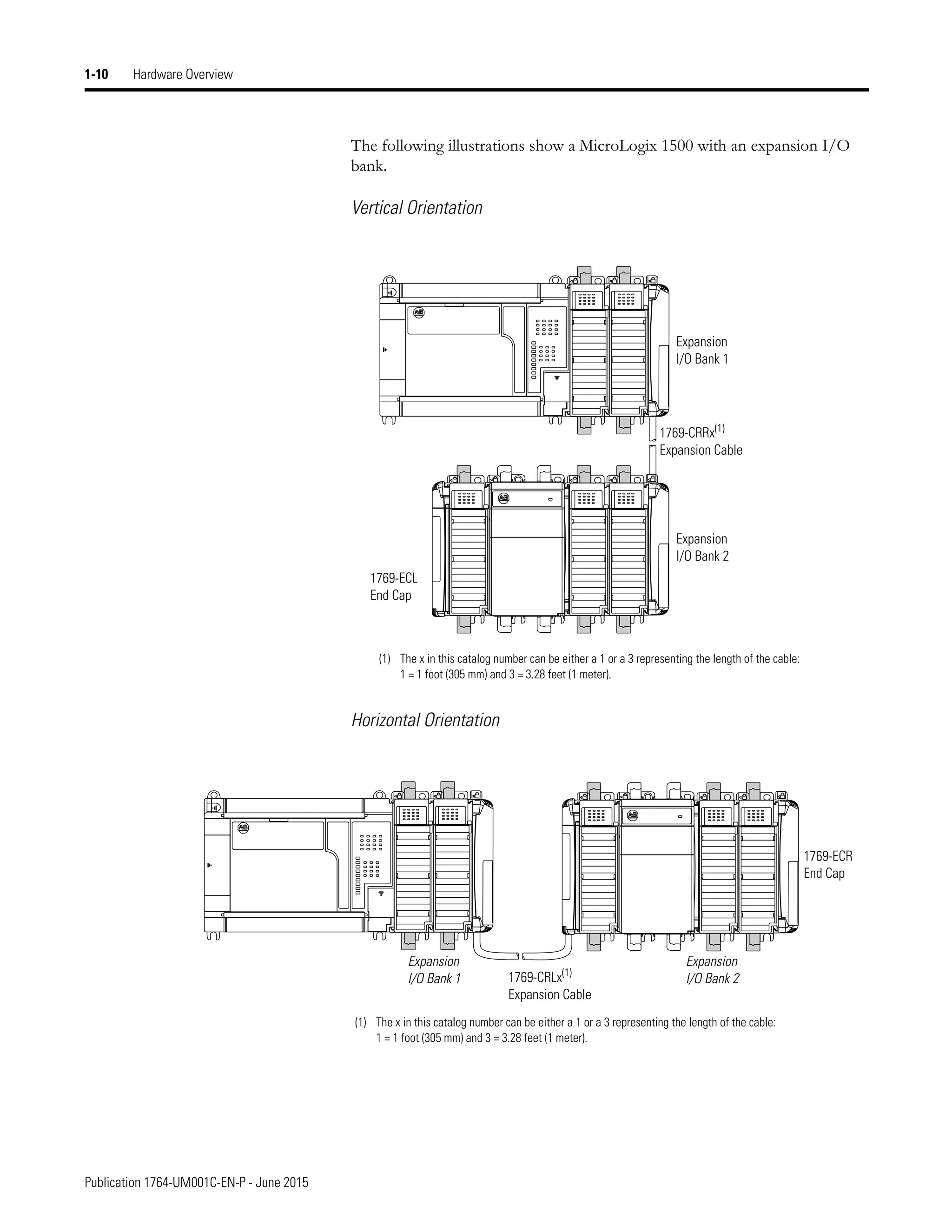
The following illustrations show a MicroLogix 1500 with an expansion I/O
bank.
Vertical Orientation
Horizontal Orientation
Expansion
I/O Bank 1
Expansion
I/O Bank 2
1769-CRRx(1)
Expansion Cable
1769-ECL
End Cap
(1) The x in this catalog number can be either a 1 or a 3 representing the length of the cable:
1 = 1 foot (305 mm) and 3 = 3.28 feet (1 meter).
Expansion
I/O Bank 1
Expansion
I/O Bank 2
1769-CRLx(1)
Expansion Cable
1769-ECR
End Cap
(1) The x in this catalog number can be either a 1 or a 3 representing the length of the cable:
1 = 1 foot (305 mm) and 3 = 3.28 feet (1 meter).
Publication 1764-UM001C-EN-P - June 2015
Hardware Overview 1-11
Addressing Expansion I/O
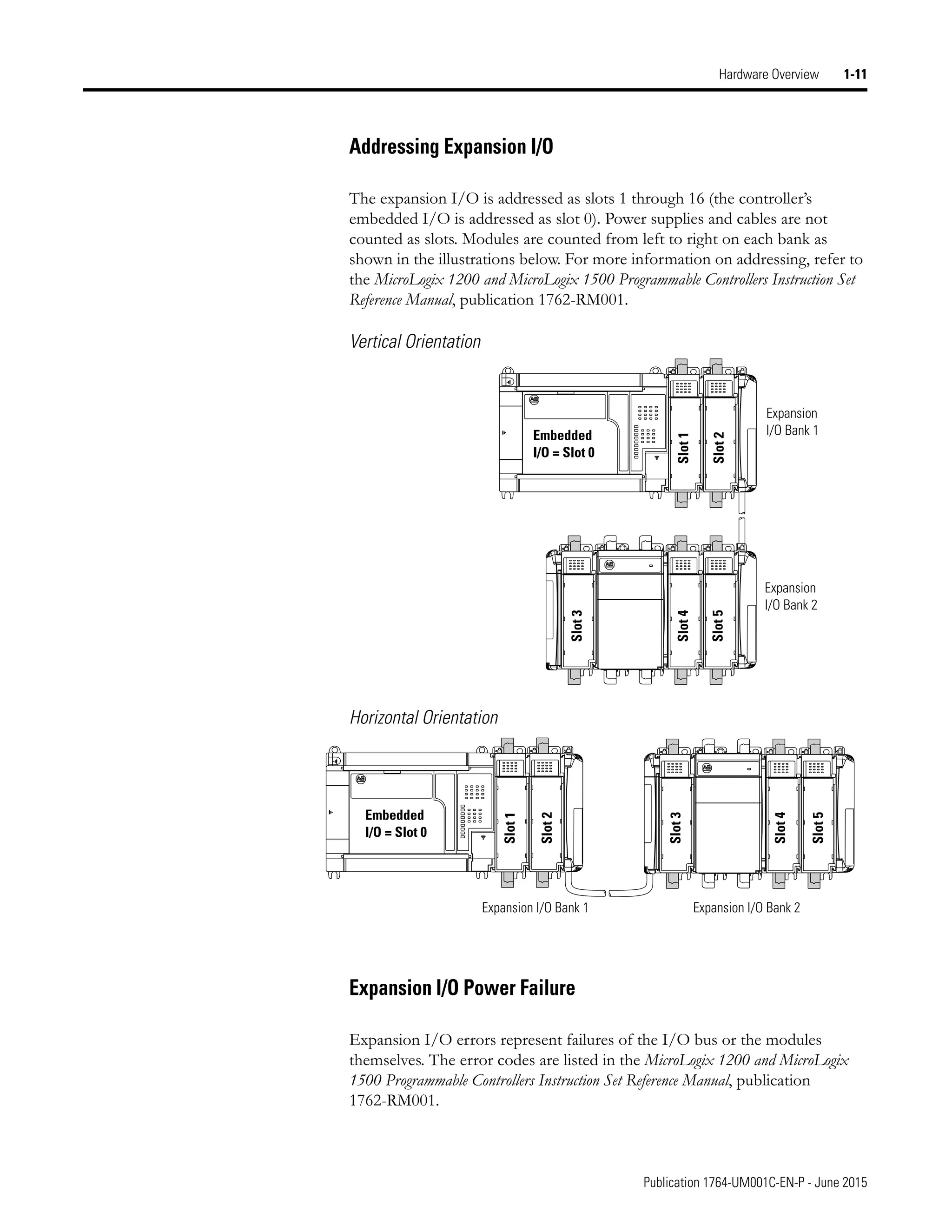
The expansion I/O is addressed as slots 1 through 16 (the controller’s
embedded I/O is addressed as slot 0). Power supplies and cables are not
counted as slots. Modules are counted from left to right on each bank as
shown in the illustrations below. For more information on addressing, refer to
the MicroLogix 1200 and MicroLogix 1500 Programmable Controllers Instruction Set
Reference Manual, publication 1762-RM001.
Vertical Orientation
Horizontal Orientation
Expansion I/O Power Failure
Expansion I/O errors represent failures of the I/O bus or the modules
themselves. The error codes are listed in the MicroLogix 1200 and MicroLogix
1500 Programmable Controllers Instruction Set Reference Manual, publication
1762-RM001.
Embedded
I/O = Slot 0
Slot
1
Expansion
I/O Bank 1
Expansion
I/O Bank 2
Slot
2
Slot
3
Slot
4
Slot
5
Slot
1
Expansion I/O Bank 1 Expansion I/O Bank 2
Slot
2
Slot
3
Slot
4
Slot
5
Embedded
I/O = Slot 0
Publication 1764-UM001C-EN-P - June 2015
1-12 Hardware Overview
Notes:
1 Publication 1764-UM001C-EN-P - June 2015
Chapter 2
Installing Your Controller
This chapter shows you how to install your controller system. The only tools
you require are a Flat or Phillips head screwdriver and drill. Topics include:
• agency certifications
• compliance to European Union Directives
• using in hazardous locations
• master control relay
• power considerations
• preventing excessive heat
• controller spacing
• mounting the controller
Agency Certifications • UL 508
• C-UL under CSA C22.2 no. 142
• Class I, Division 2, Groups A, B, C, D
(UL 1604, C-UL under CSA C22.2 no. 213)
• CE compliant for all applicable directives
Compliance to European
Union Directives
This product has the CE mark and is approved for installation within the
European Union and EEA regions. It has been designed and tested to meet
the following directives.
EMC Directive
This product is tested to meet Council Directive 89/336/EEC
Electromagnetic Compatibility (EMC) and the following standards, in whole
or in part, documented in a technical construction file:
• EN 50081-2
EMC - Generic Emission Standard, Part 2 - Industrial Environment
• EN 50082-2
EMC - Generic Immunity Standard, Part 2 - Industrial Environment
This product is intended for use in an industrial environment.
Publication 1764-UM001C-EN-P - June 2015
2-2 Installing Your Controller
Low Voltage Directive
This product is tested to meet Council Directive 73/23/EEC Low Voltage, by
applying the safety requirements of EN 61131-2 Programmable Controllers,
Part 2 - Equipment Requirements and Tests.
For specific information required by EN 61131-2, see the appropriate sections
in this publication, as well as the following Allen-Bradley publications:
• Industrial Automation Wiring and Grounding Guidelines for Noise Immunity,
publication 1770-4.1
• Guidelines for Handling Lithium Batteries, publication AG-5.4
• Automation Systems Catalog, publication B111
Installation Considerations Most applications require installation in an industrial enclosure (Pollution
Degree 2(1)
) to reduce the effects of electrical interference (Over Voltage
Category II(2)) and environmental exposure. Locate your controller as far as
possible from power lines, load lines, and other sources of electrical noise such
as hard-contact switches, relays, and AC motor drives. For more information
on proper grounding guidelines, see the Industrial Automation Wiring and
Grounding Guidelines publication 1770-4.1.
(1) Pollution Degree 2 is an environment where normally only non-conductive pollution occurs except that
occasionally temporary conductivity caused by condensation shall be expected.
(2) Overvoltage Category II is the load level section of the electrical distribution system. At this level transient
voltages are controlled and do not exceed the impulse voltage capability of the products insulation.
ATTENTION
!
Vertical mounting of the controller is not
recommended due to heat build-up considerations.
ATTENTION
!
Be careful of metal chips when drilling mounting
holes for your controller or other equipment within
the enclosure or panel. Drilled fragments that fall into
the base or processor unit could cause damage. Do
not drill holes above a mounted controller if the
protective debris strips are removed or the processor
is installed.
Publication 1764-UM001C-EN-P - June 2015
Installing Your Controller 2-3
Safety Considerations Safety considerations are an important element of proper system installation.
Actively thinking about the safety of yourself and others, as well as the
condition of your equipment, is of primary importance. We recommend
reviewing the following safety considerations.
Hazardous Location Considerations
This equipment is suitable for use in Class I, Division 2, Groups A, B, C, D or
non-hazardous locations only. The following WARNING statement applies to
use in hazardous locations.
WARNING
!
EXPLOSION HAZARD
• Substitution of components may impair suitability
for Class I, Division 2.
• Do not replace components or disconnect
equipment unless power has been switched off.
• Do not connect or disconnect components unless
power has been switched off, or the area is
known to be non-hazardous.
• This product must be installed in an enclosure. All
cables connected to the product must remain in
the enclosure or be protected by conduit or other
means.
• All wiring must comply with N.E.C. article 501-4(b).
• The interior of the enclosure must be accessible only by
the use of a tool.
• For applicable equipment (for example, relay modules),
exposure to some chemicals may degrade the sealing
properties of the materials used in these devices:
– Relays, epoxy
It is recommended that you periodically inspect these
devices for any degradation of properties and replace
the module if degradation is found.
WARNING
!
When installing any peripheral device (for example,
push buttons, lamps) into a hazardous environment,
ensure that they are Class I, Division 2 certified, or
determined to be safe for the environment.
Publication 1764-UM001C-EN-P - June 2015
2-4 Installing Your Controller
Use only the following communication cables in Class I, Division 2 hazardous
locations.
Disconnecting Main Power
The main power disconnect switch should be located where operators and
maintenance personnel have quick and easy access to it. In addition to
disconnecting electrical power, all other sources of power (pneumatic and
hydraulic) should be de-energized before working on a machine or process
controlled by a controller.
Safety Circuits
Circuits installed on the machine for safety reasons, like overtravel limit
switches, stop push buttons, and interlocks, should always be hard-wired
directly to the master control relay. These devices must be wired in series so
that when any one device opens, the master control relay is de-energized,
Table 2.1 Cables for Use in Class I, Division 2 Hazardous Environment
1761-CBL-PM02 Series C or later 2707-NC8 Series B or later
1761-CBL-HM02 Series C or later 2707-NC9 Series B or later
1761-CBL-AM00 Series C or later 2707-NC10 Series B or later
1761-CBL-AP00 Series C or later 2707-NC11 Series B or later
1761-CBL-PH02 Series A or later –
1761-CBL-AH02 Series A or later –
WARNING
!
EXPLOSION HAZARD
Do not replace components or disconnect
equipment unless power has been switched off.
WARNING
!
EXPLOSION HAZARD
Do not connect or disconnect connectors while
circuit is live.
Publication 1764-UM001C-EN-P - June 2015
Installing Your Controller 2-5
thereby removing power to the machine. Never alter these circuits to defeat
their function. Serious injury or machine damage could result.
Power Distribution
There are some points about power distribution that you should know:
• The master control relay must be able to inhibit all machine motion by
removing power to the machine I/O devices when the relay is
de-energized. It is recommended that the controller remain powered
even when the master control relay is de-energized.
• If you are using a dc power supply, interrupt the load side rather than
the ac line power. This avoids the additional delay of power supply
turn-off. The dc power supply should be powered directly from the
fused secondary of the transformer. Power to the dc input and output
circuits should be connected through a set of master control relay
contacts.
Periodic Tests of Master Control Relay Circuit
Any part can fail, including the switches in a master control relay circuit. The
failure of one of these switches would most likely cause an open circuit, which
would be a safe power-off failure. However, if one of these switches shorts
out, it no longer provides any safety protection. These switches should be
tested periodically to assure they will stop machine motion when needed.
Power Considerations The following explains power considerations for the micro controllers.
Isolation Transformers
You may want to use an isolation transformer in the ac line to the controller.
This type of transformer provides isolation from your power distribution
system to reduce the electrical noise that enters the controller and is often used
as a step-down transformer to reduce line voltage. Any transformer used with
the controller must have a sufficient power rating for its load. The power
rating is expressed in volt-amperes (VA).
Publication 1764-UM001C-EN-P - June 2015
2-6 Installing Your Controller
Power Supply Inrush
During power-up, the MicroLogix 1500 power supply allows a brief inrush
current to charge internal capacitors. Many power lines and control
transformers can supply inrush current for a brief time. If the power source
cannot supply this inrush current, the source voltage may sag momentarily.
The only effect of limited inrush current and voltage sag on the MicroLogix
1500 is that the power supply capacitors charge more slowly. However, the
effect of a voltage sag on other equipment should be considered. For example,
a deep voltage sag may reset a computer connected to the same power source.
The following considerations determine whether the power source must be
required to supply high inrush current:
• The power-up sequence of devices in a system.
• The amount of the power source voltage sag if the inrush current
cannot be supplied.
• The effect of voltage sag on other equipment in the system.
If the entire system is powered-up at the same time, a brief sag in the power
source voltage typically will not affect any equipment.
Loss of Power Source
The power supply is designed to withstand brief power losses without
affecting the operation of the system. The time the system is operational
during power loss is called “program scan hold-up time after loss of power.”
The duration of the power supply hold-up time depends on the type and state
of the I/O, but is typically between 10 milliseconds and 3 seconds. When the
duration of power loss reaches this limit, the power supply signals the
processor that it can no longer provide adequate dc power to the system. This
is referred to as a power supply shutdown. The processor then performs an
orderly shutdown of the controller.
Input States on Power Down
The power supply hold-up time as described above is generally longer than the
turn-on and turn-off times of the inputs. Because of this, the input state
change from “On” to “Off ” that occurs when power is removed may be
recorded by the processor before the power supply shuts down the system.
Understanding this concept is important. Write the user program, taking this
effect into account.
Publication 1764-UM001C-EN-P - June 2015
Installing Your Controller 2-7
Other Types of Line Conditions
Occasionally the power source to the system can be temporarily interrupted. It
is also possible that the voltage level may drop substantially below the normal
line voltage range for a period of time. Both of these conditions are considered
to be a loss of power for the system.
Preventing Excessive Heat For most applications, normal convective cooling keeps the controller within
the specified operating range. Ensure that the specified temperature range is
maintained. Proper spacing of components within an enclosure is usually
sufficient for heat dissipation.
In some applications, a substantial amount of heat is produced by other
equipment inside or outside the enclosure. In this case, place blower fans
inside the enclosure to assist in air circulation and to reduce “hot spots” near
the controller.
Additional cooling provisions might be necessary when high ambient
temperatures are encountered.
TIP Do not bring in unfiltered outside air. Place the
controller in an enclosure to protect it from a
corrosive atmosphere. Harmful contaminants or dirt
could cause improper operation or damage to
components. In extreme cases, you may need to use
air conditioning to protect against heat build-up
within the enclosure.
Publication 1764-UM001C-EN-P - June 2015
2-8 Installing Your Controller
Master Control Relay A hard-wired master control relay (MCR) provides a reliable means for
emergency machine shutdown. Since the master control relay allows the
placement of several emergency-stop switches in different locations, its
installation is important from a safety standpoint. Overtravel limit switches or
mushroom-head push buttons are wired in series so that when any of them
opens, the master control relay is de-energized. This removes power to input
and output device circuits. Refer to the figures on pages 2-10 and 2-11.
Place the main power disconnect switch where operators and maintenance
personnel have quick and easy access to it. If you mount a disconnect switch
inside the controller enclosure, place the switch operating handle on the
outside of the enclosure, so that you can disconnect power without opening
the enclosure.
Whenever any of the emergency-stop switches are opened, power to input and
output devices should be removed.
When you use the master control relay to remove power from the external I/O
circuits, power continues to be provided to the controller’s power supply so
that diagnostic indicators on the processor can still be observed.
The master control relay is not a substitute for a disconnect to the controller. It
is intended for any situation where the operator must quickly de-energize I/O
devices only. When inspecting or installing terminal connections, replacing
output fuses, or working on equipment within the enclosure, use the
disconnect to shut off power to the rest of the system.
ATTENTION
!
Never alter these circuits to defeat their function
since serious injury and/or machine damage could
result.
TIP If you are using an external dc power supply,
interrupt the dc output side rather than the ac line
side of the supply to avoid the additional delay of
power supply turn-off.
The ac line of the dc output power supply should be
fused.
Connect a set of master control relays in series with
the dc power supplying the input and output
circuits.
Publication 1764-UM001C-EN-P - June 2015
Installing Your Controller 2-9
Using Emergency-Stop Switches
When using emergency-stop switches, adhere to the following points:
• Do not program emergency-stop switches in the controller program.
Any emergency-stop switch should turn off all machine power by
turning off the master control relay.
• Observe all applicable local codes concerning the placement and
labeling of emergency-stop switches.
• Install emergency-stop switches and the master control relay in your
system. Make certain that relay contacts have a sufficient rating for your
application. Emergency-stop switches must be easy to reach.
• In the following illustration, input and output circuits are shown with
MCR protection. However, in most applications, only output circuits
require MCR protection.
The following illustrations show the Master Control Relay wired in a grounded
system.
TIP Do not control the master control relay with the
controller. Provide the operator with the safety of a
direct connection between an emergency-stop switch
and the master control relay.
TIP In most applications input circuits do not require
MCR protection; however, if you need to remove
power from all field devices, you must include MCR
contacts in series with input power wiring.
Publication 1764-UM001C-EN-P - June 2015
2-10 Installing Your Controller
Schematic (Using IEC Symbols)
Disconnect
Isolation
Transformer
Emergency-Stop
Push Button
Fuse MCR
230V ac
I/O
Circuits
Operation of either ofthese contacts will
remove power from the external I/O
circuits, stopping machine motion.
Fuse Overtravel
Limit Switch
MCR
MCR
MCR
Stop
Start
Line Terminals:
Connect to terminals of Power Supply
(1764-24AWA and 1764-24BWA).
115V ac or
230V ac
I/O Circuits
L1 L2
230V ac
Master Control Relay (MCR)
Cat. No. 700-PK400A1
Suppressor
Cat. No.
700-N24
MCR
Suppr.
24V dc
I/O
Circuits
(Lo) (Hi)
dc Power Supply.
Use IEC 950/EN 60950
X1 X2
115V ac
or 230V ac
Line Terminals: Connect to 24V dc
terminals of Power Supply.
_ +
Publication 1764-UM001C-EN-P - June 2015
Installing Your Controller 2-11
Schematic (Using ANSI/CSA Symbols)
Emergency-Stop
Push Button
230V ac
Operation of either ofthese contacts will
remove power from the external I/O
Fuse MCR
Fuse
MCR
MCR
MCR
Stop Start
Line Terminals:
Connect to 1764-24AWA or
1764-24BWA terminals.
Line Terminals: Connect to 24V
dc terminals of Power Supply.
230V ac
Output
Circuits
Disconnect
Isolation
Transformer
115V ac or
230V ac
I/O Circuits
L1 L2
Master Control Relay (MCR)
Cat. No. 700-PK400A1
Suppressor
Cat. No.
700-N24
(Lo) (Hi)
dc Power Supply.
Use NEC Class 2
X1 X2
115V ac or
230V ac
_ +
MCR
24 V dc
I/O
Circuits
Suppr.
Overtravel
Limit Switch
Publication 1764-UM001C-EN-P - June 2015
2-12 Installing Your Controller
Base Unit Mounting
Dimensions
Controller Spacing The base unit is designed to be mounted horizontally, with the Compact™
expansion I/O extending to the right of the base unit. Allow 50 mm (2 in.)
minimum of space on all sides for adequate ventilation, as shown below.
Dimension(1)
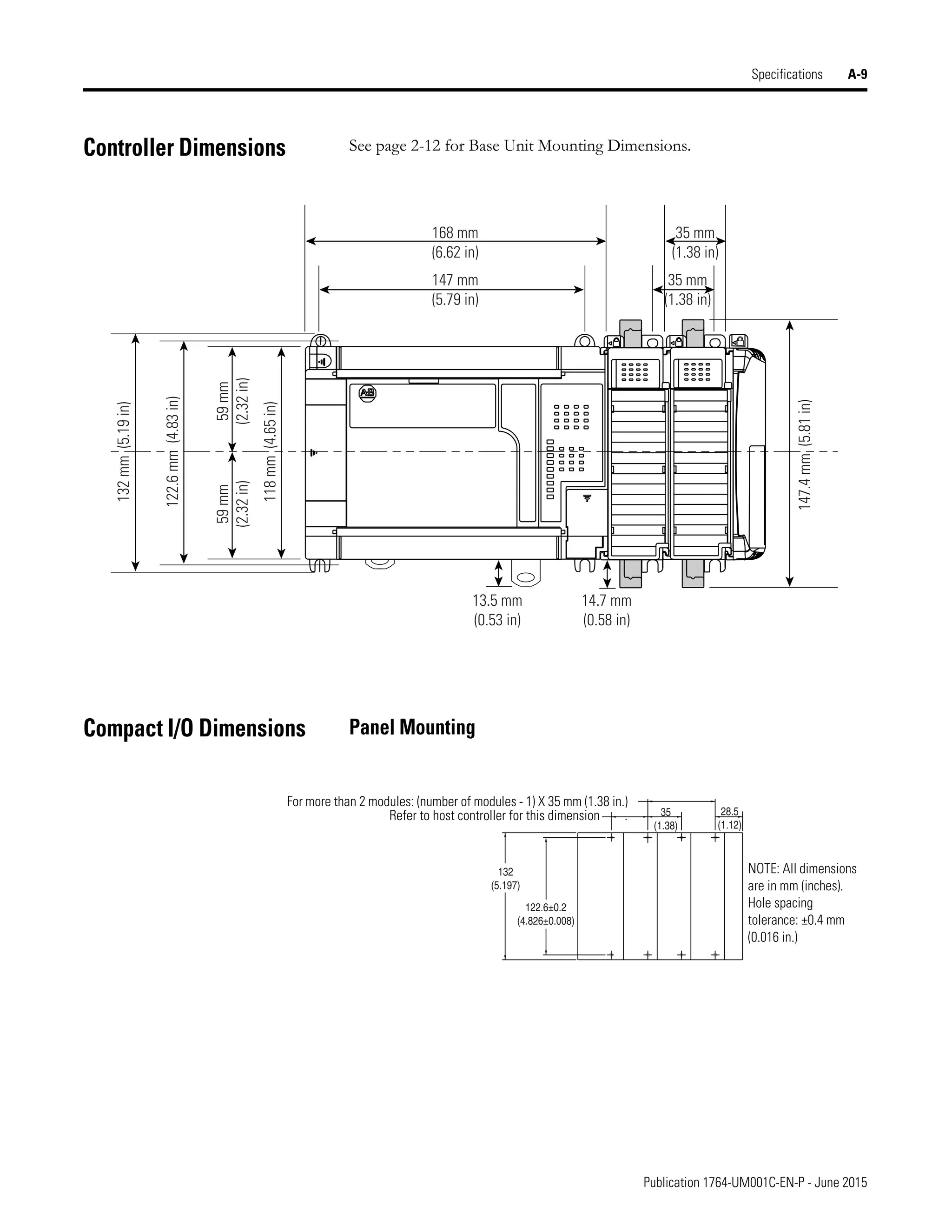
(1) See Controller Dimensions on page A-9 for more dimensional information.
1764-24AWA 1764-24BWA 1764-28BXB
Height (A) DIN latch open: 138 mm (5.43 in.), DIN latch closed: 118 mm (4.65 in.)
Width (B) 168 mm (6.62 in.)
Depth (C) 87 mm (3.43 in.)
A
C
B
Controller
Top
Side
Bottom
Side
Compact
I/O
Compact
I/O
Compact
I/O
Compact
I/O
Compact
I/O
End
Cap
Publication 1764-UM001C-EN-P - June 2015
Installing Your Controller 2-13
Mounting the Controller
ATTENTION
!
Do not remove protective debris strips until after the
base and all other equipment in the panel near the
base is mounted and wiring is complete. The debris
strips are there to prevent drill fragments, wire
strands and other dirt from getting into the controller.
Once wiring is complete, remove protective debris
strips and install processor unit. Failure to remove
strips before operating can cause overheating.
ATTENTION
!
Be careful of metal chips when drilling mounting
holes for your controller or other equipment within
the enclosure or panel. Drilled fragments that fall
into the controller could cause damage. Do not drill
holes above a mounted controller if the protective
debris strips have been removed.
ATTENTION
!
Electrostatic discharge can damage semiconductor
devices inside the base unit. Do not touch the
connector pins or other sensitive areas.
Protective
Debris Strips
ESD Barrier
Publication 1764-UM001C-EN-P - June 2015
2-14 Installing Your Controller
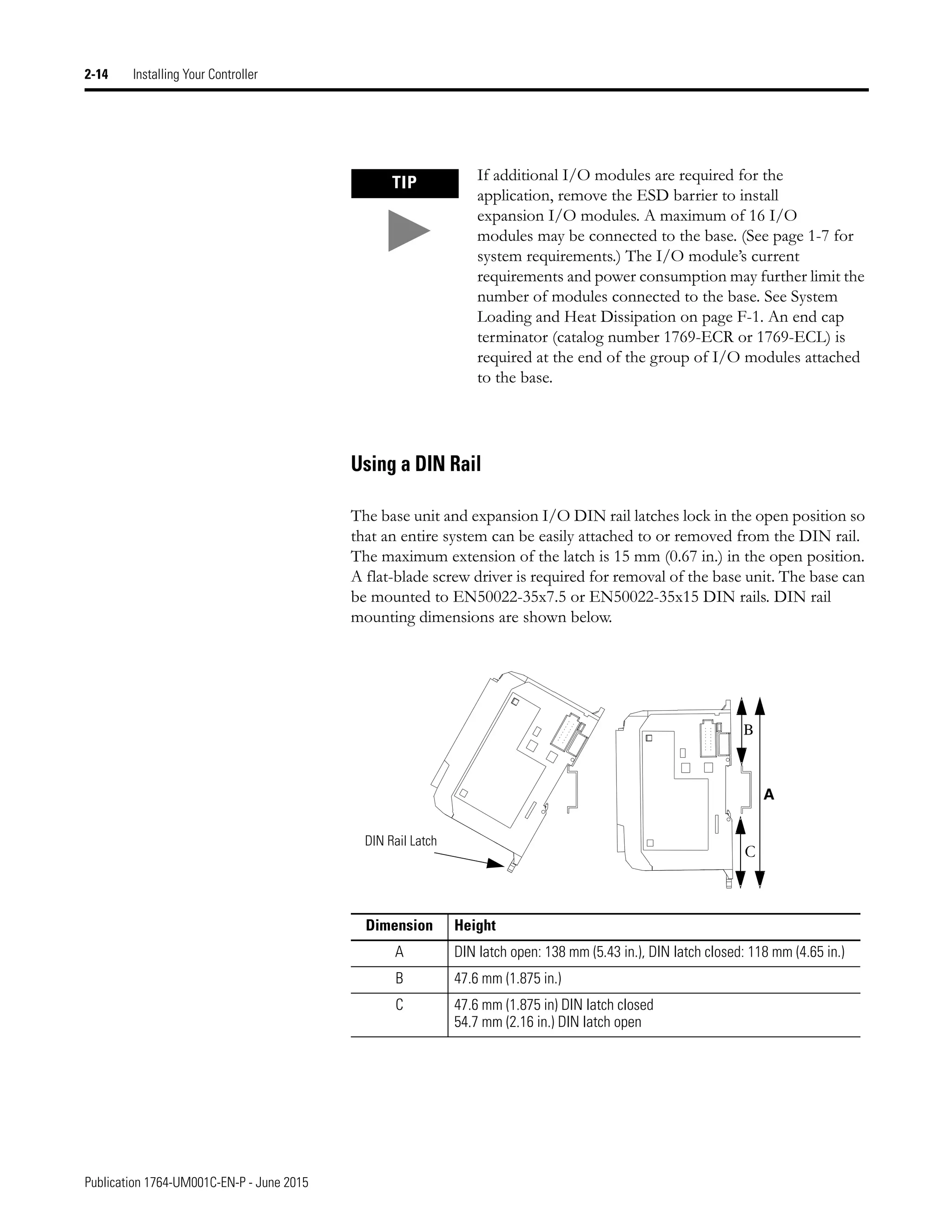
Using a DIN Rail
The base unit and expansion I/O DIN rail latches lock in the open position so
that an entire system can be easily attached to or removed from the DIN rail.
The maximum extension of the latch is 15 mm (0.67 in.) in the open position.
A flat-blade screw driver is required for removal of the base unit. The base can
be mounted to EN50022-35x7.5 or EN50022-35x15 DIN rails. DIN rail
mounting dimensions are shown below.
TIP If additional I/O modules are required for the
application, remove the ESD barrier to install
expansion I/O modules. A maximum of 16 I/O
modules may be connected to the base. (See page 1-7 for
system requirements.) The I/O module’s current
requirements and power consumption may further limit the
number of modules connected to the base. See System
Loading and Heat Dissipation on page F-1. An end cap
terminator (catalog number 1769-ECR or 1769-ECL) is
required at the end of the group of I/O modules attached
to the base.
Dimension Height
A DIN latch open: 138 mm (5.43 in.), DIN latch closed: 118 mm (4.65 in.)
B 47.6 mm (1.875 in.)
C 47.6 mm (1.875 in) DIN latch closed
54.7 mm (2.16 in.) DIN latch open
B
C
A
DIN Rail Latch
Publication 1764-UM001C-EN-P - June 2015
Installing Your Controller 2-15
To install your base unit on the DIN rail:
1. Mount your DIN rail. (Make sure that the placement of the base unit on
the DIN rail meets the recommended spacing requirements, see
Controller Spacing on page 2-12. Refer to the mounting template from
the inside back cover of the MicroLogix 1500 Programmable Controller Base
Units Installation Instructions, publication 1764-IN001.
2. Hook the top slot over the DIN rail.
3. While pressing the base unit down against the top of the rail, snap the
bottom of the base unit into position. Ensure DIN latches are in the up
(secured) position.
4. Leave the protective debris strip attached until you are finished wiring
the base unit and any other devices.
To remove your base unit from the DIN rail:
1. Place a flat-blade screwdriver in the DIN rail latch at the bottom of the
base unit.
2. Holding the base unit, pry downward on the latch until the latch locks in
the open position. Repeat this procedure with the second latch. This
releases the base unit from the DIN rail.
DIN Rail Latch
Publication 1764-UM001C-EN-P - June 2015
2-16 Installing Your Controller
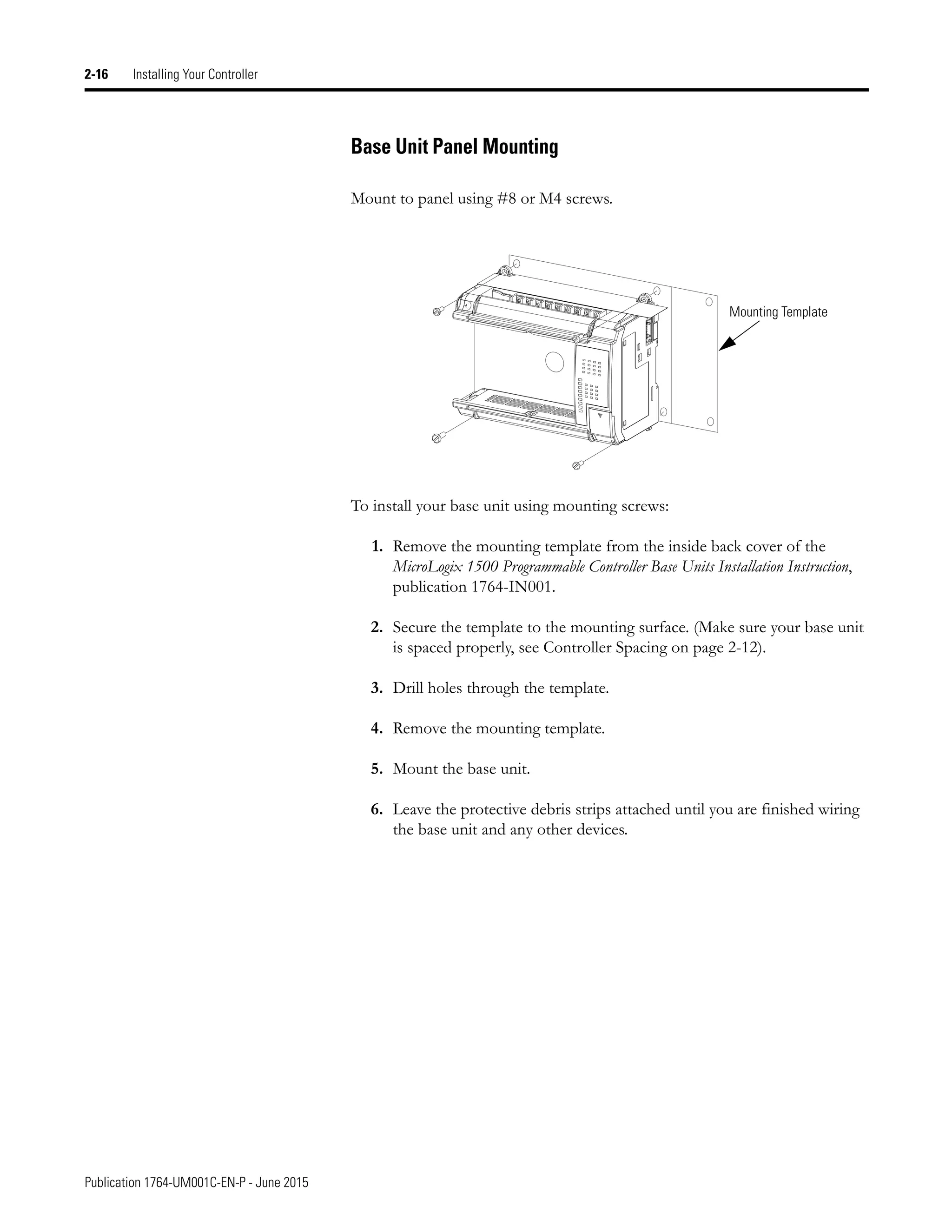
Base Unit Panel Mounting
Mount to panel using #8 or M4 screws.
To install your base unit using mounting screws:
1. Remove the mounting template from the inside back cover of the
MicroLogix 1500 Programmable Controller Base Units Installation Instruction,
publication 1764-IN001.
2. Secure the template to the mounting surface. (Make sure your base unit
is spaced properly, see Controller Spacing on page 2-12).
3. Drill holes through the template.
4. Remove the mounting template.
5. Mount the base unit.
6. Leave the protective debris strips attached until you are finished wiring
the base unit and any other devices.
Mounting Template
Publication 1764-UM001C-EN-P - June 2015
Installing Your Controller 2-17
Installing Controller
Components
Prevent Electrostatic Discharge
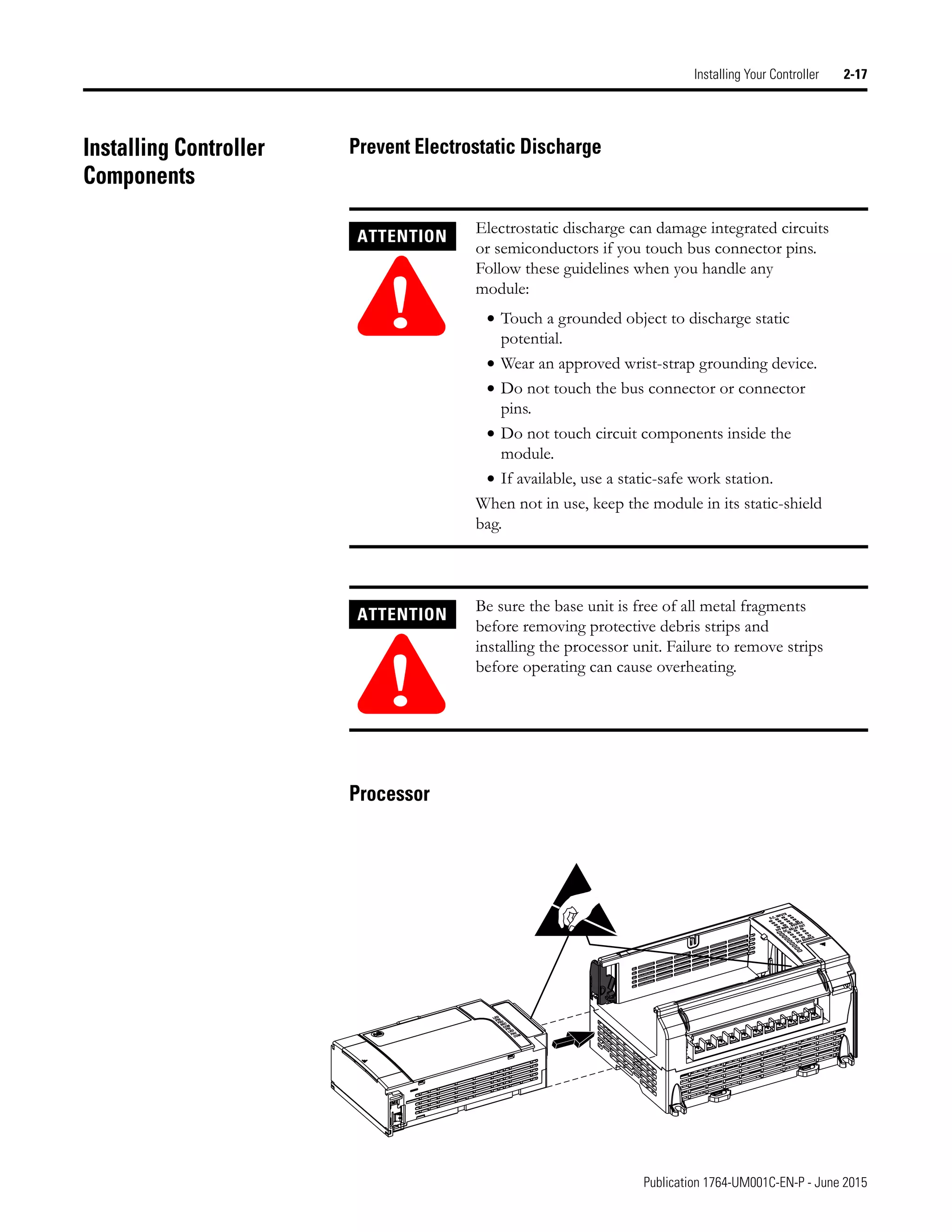
Processor
ATTENTION
!
Electrostatic discharge can damage integrated circuits
or semiconductors if you touch bus connector pins.
Follow these guidelines when you handle any
module:
• Touch a grounded object to discharge static
potential.
• Wear an approved wrist-strap grounding device.
• Do not touch the bus connector or connector
pins.
• Do not touch circuit components inside the
module.
• If available, use a static-safe work station.
When not in use, keep the module in its static-shield
bag.
ATTENTION
!
Be sure the base unit is free of all metal fragments
before removing protective debris strips and
installing the processor unit. Failure to remove strips
before operating can cause overheating.
Publication 1764-UM001C-EN-P - June 2015
2-18 Installing Your Controller
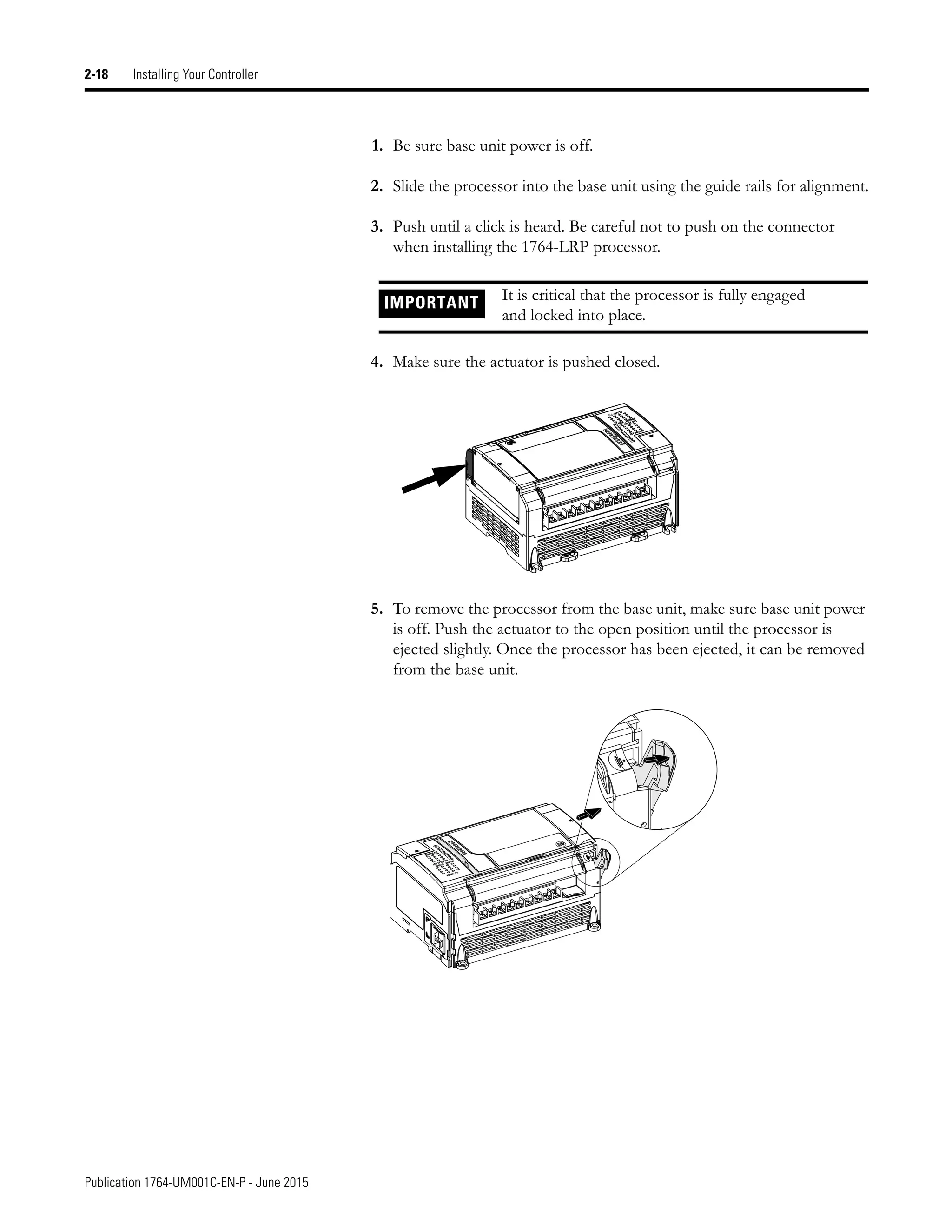
1. Be sure base unit power is off.
2. Slide the processor into the base unit using the guide rails for alignment.
3. Push until a click is heard. Be careful not to push on the connector
when installing the 1764-LRP processor.
4. Make sure the actuator is pushed closed.
5. To remove the processor from the base unit, make sure base unit power
is off. Push the actuator to the open position until the processor is
ejected slightly. Once the processor has been ejected, it can be removed
from the base unit.
IMPORTANT It is critical that the processor is fully engaged
and locked into place.
Publication 1764-UM001C-EN-P - June 2015
Installing Your Controller 2-19
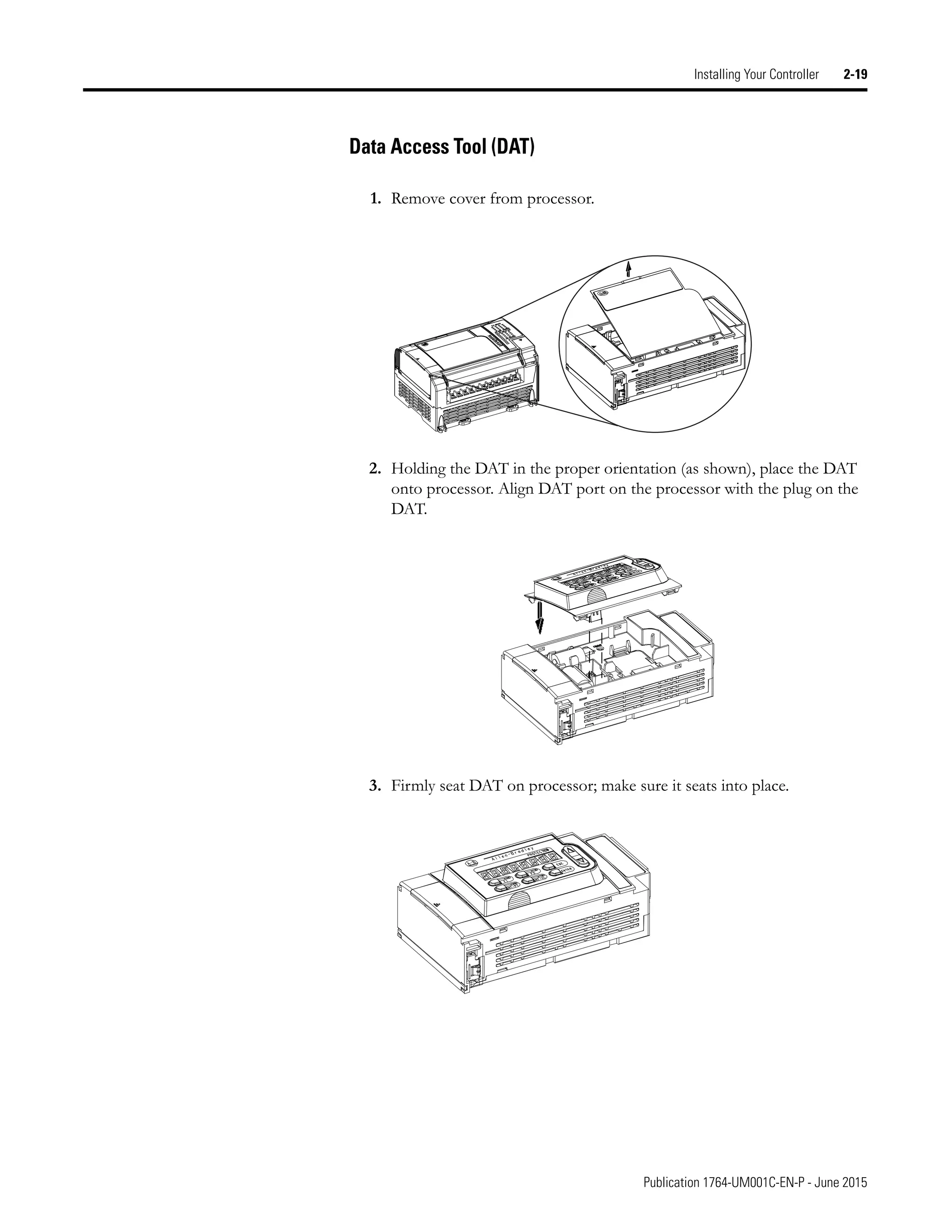
Data Access Tool (DAT)
1. Remove cover from processor.
2. Holding the DAT in the proper orientation (as shown), place the DAT
onto processor. Align DAT port on the processor with the plug on the
DAT.
3. Firmly seat DAT on processor; make sure it seats into place.
Publication 1764-UM001C-EN-P - June 2015
2-20 Installing Your Controller
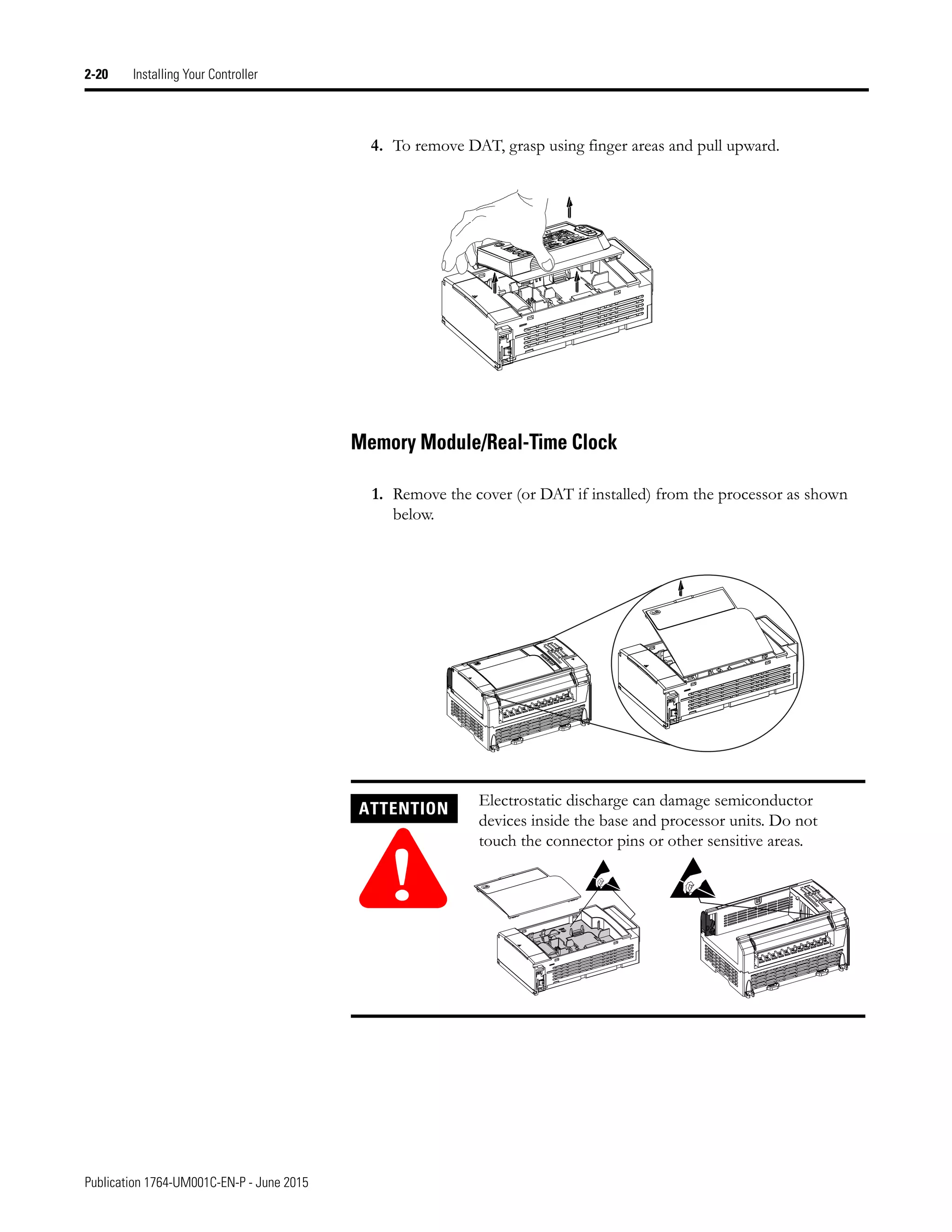
4. To remove DAT, grasp using finger areas and pull upward.
Memory Module/Real-Time Clock
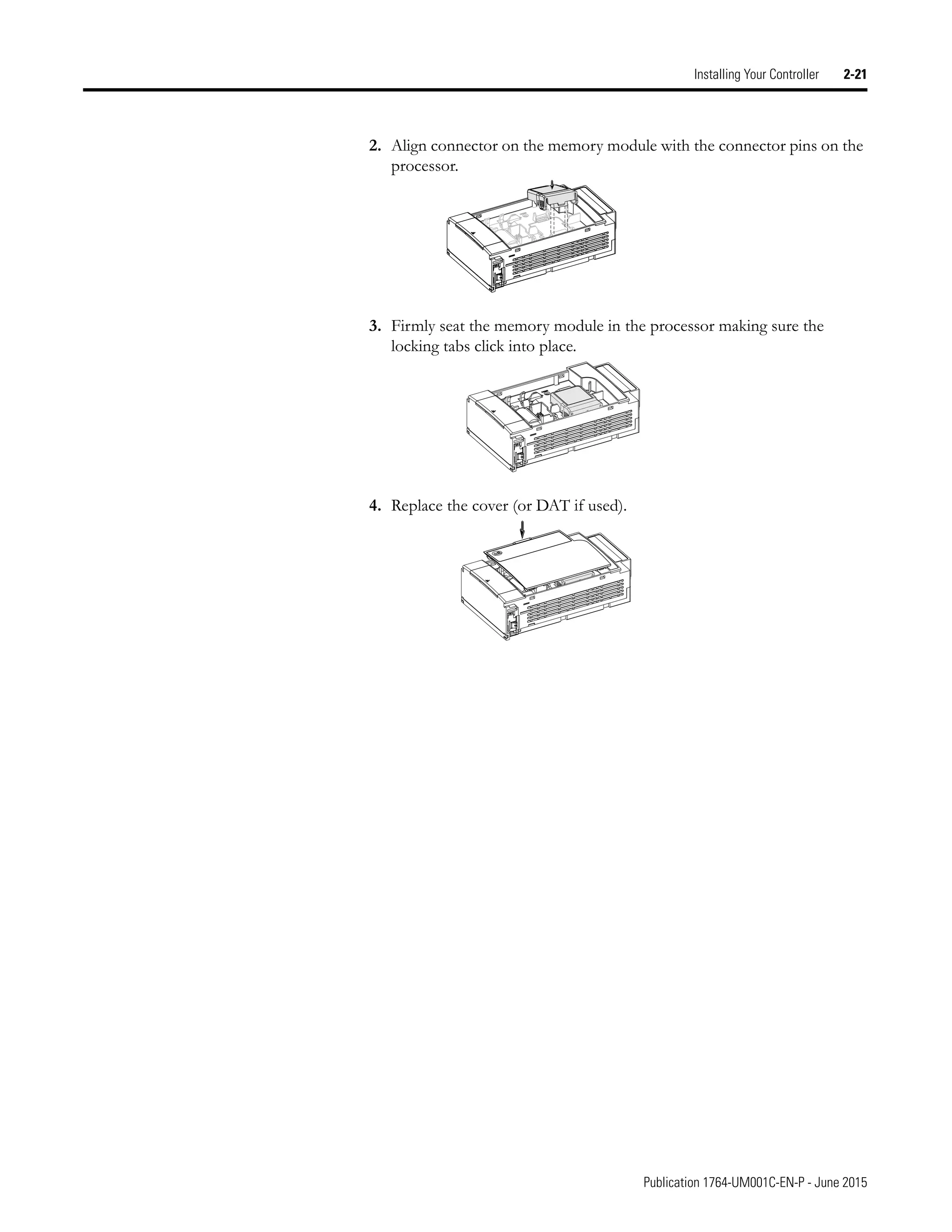
1. Remove the cover (or DAT if installed) from the processor as shown
below.
ATTENTION
!
Electrostatic discharge can damage semiconductor
devices inside the base and processor units. Do not
touch the connector pins or other sensitive areas.
Publication 1764-UM001C-EN-P - June 2015
Installing Your Controller 2-21
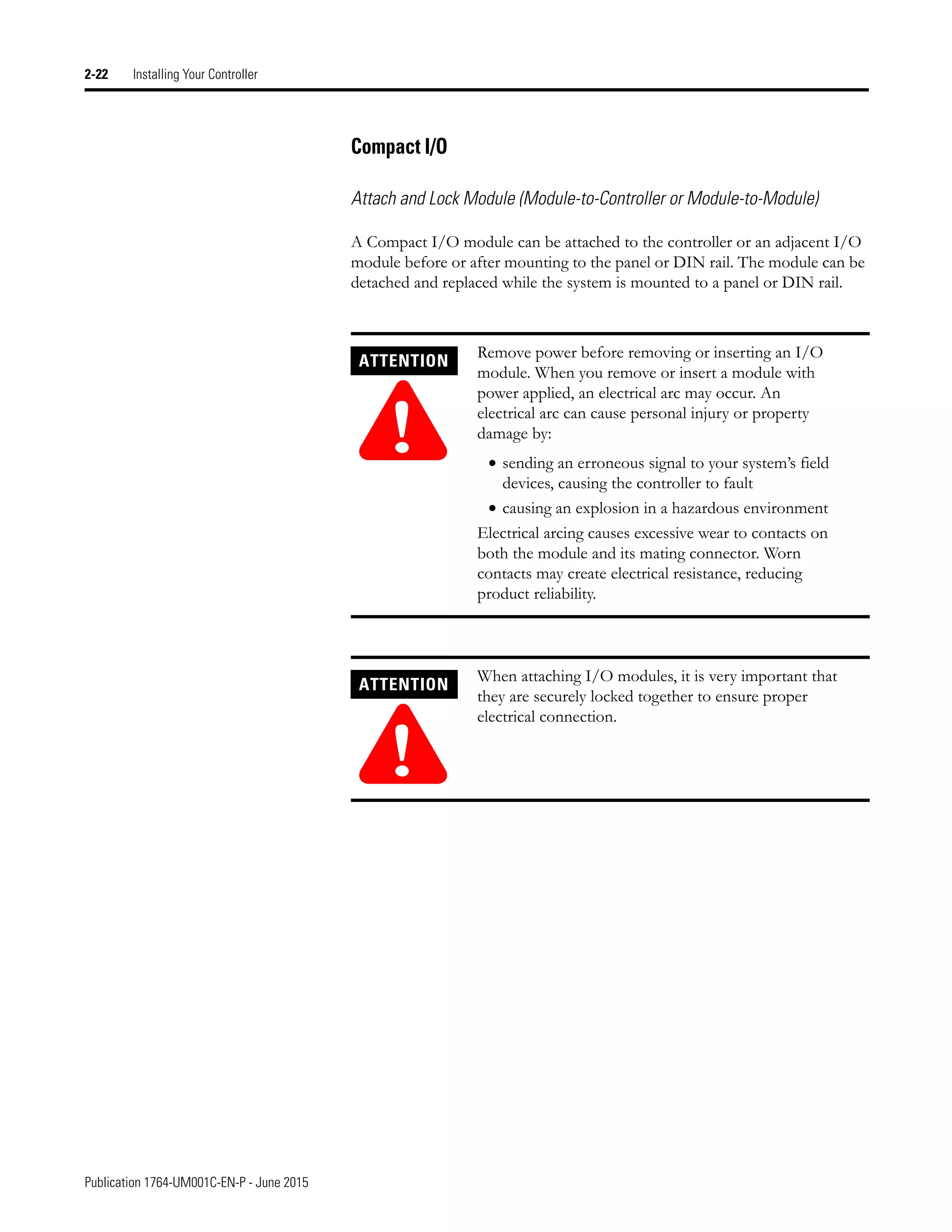
2. Align connector on the memory module with the connector pins on the
processor.
3. Firmly seat the memory module in the processor making sure the
locking tabs click into place.
4. Replace the cover (or DAT if used).
Publication 1764-UM001C-EN-P - June 2015
2-22 Installing Your Controller
Compact I/O
Attach and Lock Module (Module-to-Controller or Module-to-Module)
A Compact I/O module can be attached to the controller or an adjacent I/O
module before or after mounting to the panel or DIN rail. The module can be
detached and replaced while the system is mounted to a panel or DIN rail.
ATTENTION
!
Remove power before removing or inserting an I/O
module. When you remove or insert a module with
power applied, an electrical arc may occur. An
electrical arc can cause personal injury or property
damage by:
• sending an erroneous signal to your system’s field
devices, causing the controller to fault
• causing an explosion in a hazardous environment
Electrical arcing causes excessive wear to contacts on
both the module and its mating connector. Worn
contacts may create electrical resistance, reducing
product reliability.
ATTENTION
!
When attaching I/O modules, it is very important that
they are securely locked together to ensure proper
electrical connection.
Publication 1764-UM001C-EN-P - June 2015
Installing Your Controller 2-23
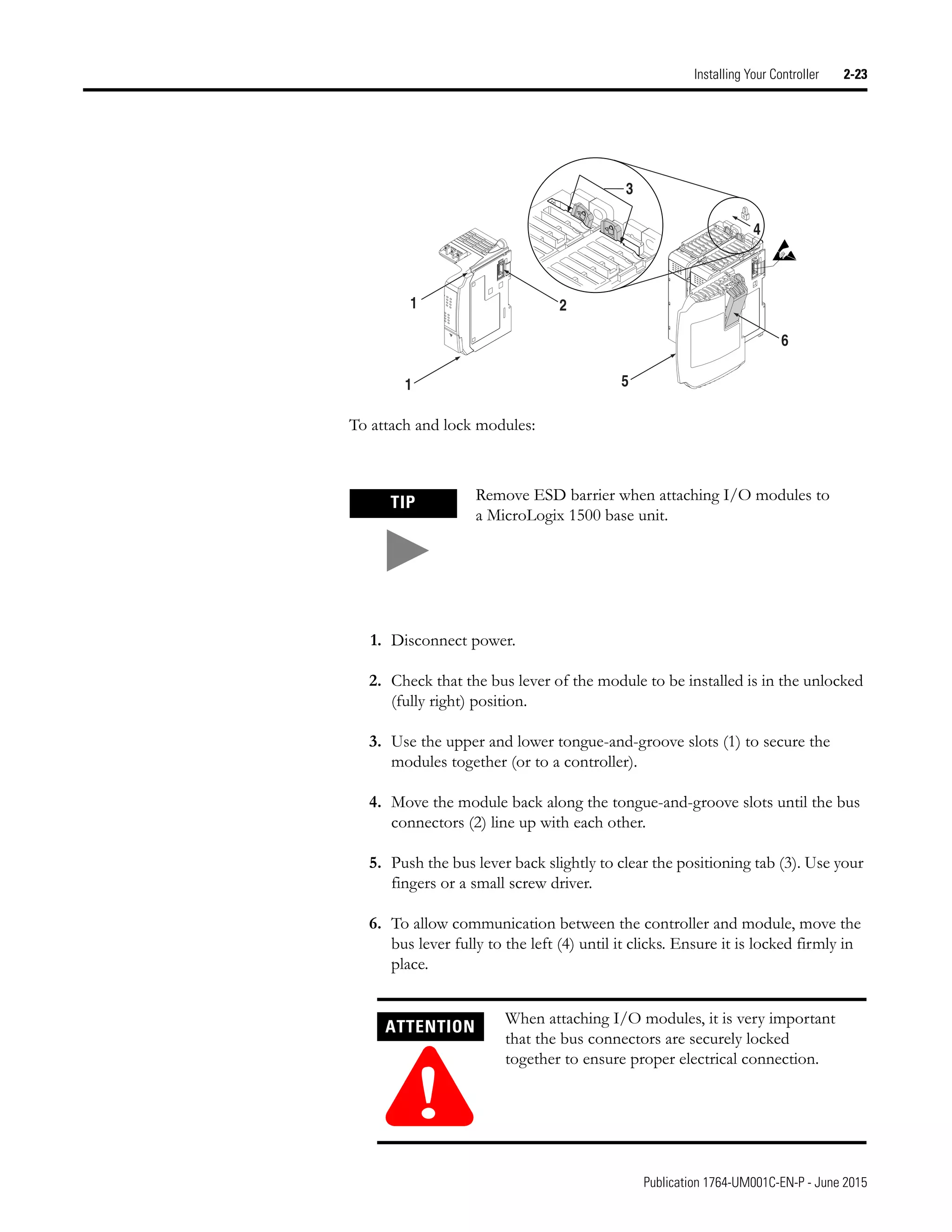
To attach and lock modules:
1. Disconnect power.
2. Check that the bus lever of the module to be installed is in the unlocked
(fully right) position.
3. Use the upper and lower tongue-and-groove slots (1) to secure the
modules together (or to a controller).
4. Move the module back along the tongue-and-groove slots until the bus
connectors (2) line up with each other.
5. Push the bus lever back slightly to clear the positioning tab (3). Use your
fingers or a small screw driver.
6. To allow communication between the controller and module, move the
bus lever fully to the left (4) until it clicks. Ensure it is locked firmly in
place.
TIP Remove ESD barrier when attaching I/O modules to
a MicroLogix 1500 base unit.
ATTENTION
!
When attaching I/O modules, it is very important
that the bus connectors are securely locked
together to ensure proper electrical connection.
6
5
4
3
1
2
1
Publication 1764-UM001C-EN-P - June 2015
2-24 Installing Your Controller
7. Attach an end cap terminator (5) to the last module in the system by
using the tongue-and-groove slots as before.
8. Lock the end cap bus terminator (6).
See Controller Dimensions on page A-9 for mounting dimensions.
IMPORTANT A 1769-ECR right end cap (or a 1769-ECL left end cap
if I/O bank is located below the controller) must be
used to terminate the end of the serial
communication bus.
1 Publication 1764-UM001C-EN-P - June 2015
Chapter 3
Wiring Your Controller
This chapter describes how to wire your controller. Topics include:
• wiring requirements
• using surge suppressors
• grounding guidelines
• sinking and sourcing circuits
• wiring diagrams, input voltage ranges, and output voltage ranges
• minimizing noise
Wiring Requirements
Wire Type Wire Size(1)
(1) Two wires maximum per terminal screw.
Wiring Torque
Solid Cu-90°C (194°F) #14 to #22 AWG 1.13 Nm (10 in-lb) rated
1.3 Nm (12 in-lb) maximum
Stranded Cu-90°C (194°F) #14 to #22 AWG
ATTENTION
!
Be careful when stripping wires. Wire fragments that
fall into the controller could cause damage. Once
wiring is complete, be sure the base unit is free of all
metal fragments before removing protective debris
strips and installing the processor unit. Failure to
remove strips before operating can cause
overheating.
Publication 1764-UM001C-EN-P - June 2015
3-2 Wiring Your Controller
Wiring Recommendation
• Allow for at least 50 mm. (2 in.) between I/O wiring ducts or terminal
strips and the controller.
• Route incoming power to the controller by a path separate from the
device wiring. Where paths must cross, their intersection should be
perpendicular.
• Separate wiring by signal type. Bundle wiring with similar electrical
characteristics together.
• Separate input wiring from output wiring.
• Label wiring to all devices in the system. Use tape, shrink-tubing, or
other dependable means for labeling purposes. In addition to labeling,
use colored insulation to identify wiring based on signal characteristics.
For example, you may use blue for dc wiring and red for ac wiring.
ATTENTION
!
Before you install and wire any device, disconnect
power to the controller system.
ATTENTION
!
Calculate the maximum possible current in each
power and common wire. Observe all electrical
codes dictating the maximum current allowable for
each wire size. Current above the maximum ratings
may cause wiring to overheat, which can cause
damage.
United States Only: If the controller is installed within
a potentially hazardous environment, all wiring must
comply with the requirements stated in the National
Electrical Code 501-4 (b).
TIP Do not run signal or communications wiring and
power wiring in the same conduit. Wires with
different signal characteristics should be routed by
separate paths.
Publication 1764-UM001C-EN-P - June 2015
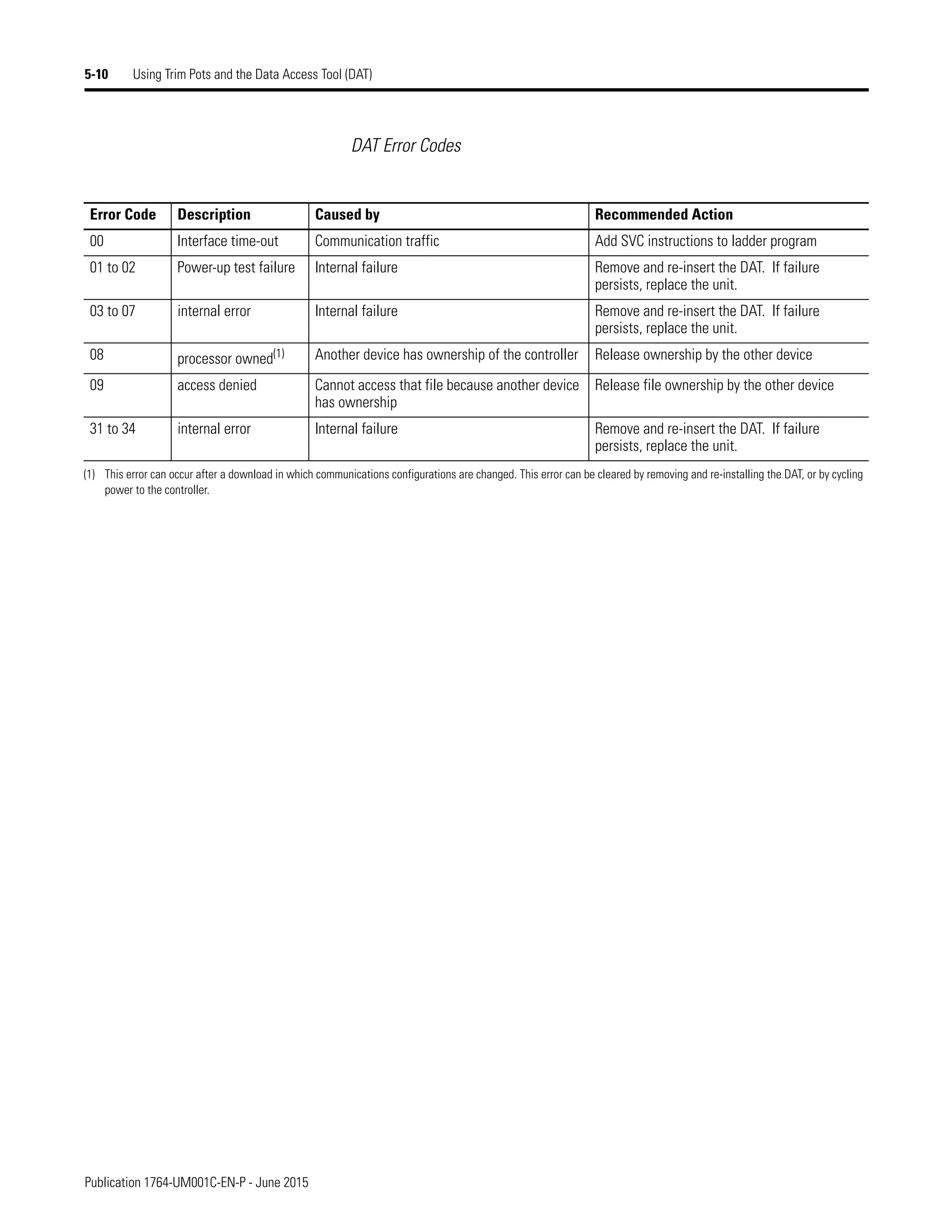
Wiring Your Controller 3-3
Wiring without Spade Lugs
When wiring without spade lugs, it is recommended to keep the finger-safe
covers in place. Loosen the terminal screw and route the wires through the
opening in the finger-safe cover. Tighten the terminal screw making sure the
pressure plate secures the wire.
Wiring with Spade Lugs
The diameter of the terminal screw head is 5.5 mm (0.220 in.). The input and
output terminals of the MicroLogix 1500 base unit are designed for a 6.35mm
(0.25 in.) wide spade (standard for #6 screw for up to 14 AWG) or a 4 mm
(metric #4) fork terminal.
When using spade lugs, use a small, flat-blade screwdriver to pry the
finger-safe cover from the terminal blocks as shown below. Then loosen the
terminal screw.
Finger-Safe Cover
terminal screw torque:
1.13 Nm (10 in-lbs) rated
1.3 Nm (12 in-lbs) max.
Finger-Safe
Cover
terminal screw torque:
1.13 Nm (10 in-lbs) rated
1.3 Nm (12 in-lbs) max.
Publication 1764-UM001C-EN-P - June 2015
3-4 Wiring Your Controller
Using Surge Suppressors Inductive load devices, such as motor starters and solenoids, require the use of
some type of surge suppression to protect and extend the operating life of the
controller’s output contacts. Switching inductive loads without surge
suppression can significantly reduce the life expectancy of relay contacts. By
adding a suppression device directly across the coil of an inductive device, you
prolong the life of the output or relay contacts. You also reduce the effects of
voltage transients and electrical noise from radiating into adjacent systems.
The following diagram shows an output with a suppression device. We
recommend that you locate the suppression device as close as possible to the
load device.
If the outputs are dc, we recommend that you use an 1N4004 diode for surge
suppression, as shown below.
Suitable surge suppression methods for inductive ac load devices include a
varistor, an RC network, or an Allen-Bradley surge suppressor, all shown
below. These components must be appropriately rated to suppress the
switching transient characteristic of the particular inductive device. See the
table on page 3-6 for recommended suppressors.
VAC/D
Out 0
Out 1
Out 2
Out 3
Out 4
Out 5
Out 6
Out 7
COM
+dc or L1
Suppression
Device
dc COM or L2
ac or dc
Outputs
VAC/D
Out 0
Out 1
Out 2
Out 3
Out 4
Out 5
Out 6
Out 7
COM
+24V dc
IN4004 Diode
Relay or Solid
State dc Outputs
24V dc common
Publication 1764-UM001C-EN-P - June 2015
Wiring Your Controller 3-5
If you connect an expansion I/O triac output to control an inductive load, we
recommend that you use varistors to suppress noise. Choose a varistor that is
appropriate for the application. The suppressors we recommend for triac
outputs when switching 120V ac inductive loads are a Harris MOV, part
number V175 LA10A, or an Allen-Bradley MOV, catalog number 599-K04 or
599-KA04. Consult the varistor manufacturer’s data sheet when selecting a
varistor for your application
For inductive dc load devices, a diode is suitable. A 1N4004 diode is acceptable
for most applications. A surge suppressor can also be used. See the table on
page 3-6 for recommended suppressors.
As shown in the illustration below, these surge suppression circuits connect
directly across the load device.
Surge Suppression for Inductive ac Load Devices
Output Device Output Device
Output Device
Varistor RC Network Surge
Suppressor
Surge Suppression for Inductive dc Load Devices
Output Device
Diode
_ +
(A surge suppressor can also be used.)
Publication 1764-UM001C-EN-P - June 2015
3-6 Wiring Your Controller
Recommended Surge Suppressors
Use the Allen-Bradley surge suppressors shown in the following table for use
with relays, contactors, and starters.
Grounding the Controller In solid-state control systems, grounding and wire routing helps limit the
effects of noise due to electromagnetic interference (EMI). Run the ground
connection from the ground screw of the base unit to the electrical panel’s
ground bus prior to connecting any devices. Use AWG #14 wire. This
connection must be made for safety purposes.
Suppressor Device Coil Voltage Catalog Number
Bulletin 509 Motor Starter
120V ac
240V ac
599-K04(1)
599-KA04(1)
(1) Varistor – Not recommended for use on relay outputs.
Bulletin 100 Contactor
120V ac
240V ac
199-FSMA1(2)
199-FSMA2(2)
(2) RC Type – Do not use with triac outputs.
Bulletin 709 Motor Starter 120V ac 1401-N10
Bulletin 700 Type R, RM Relays ac coil None Required
Bulletin 700 Type R Relay
Bulletin 700 Type RM Relay
12V dc
12V dc
199-FSMA9
Bulletin 700 Type R Relay
Bulletin 700 Type RM Relay
24V dc
24V dc
199-FSMA9
Bulletin 700 Type R Relay
Bulletin 700 Type RM Relay
48V dc
48V dc
199-FSMA9
Bulletin 700 Type R Relay
Bulletin 700 Type RM Relay
115-125V dc
115-125V dc
199-FSMA10
Bulletin 700 Type R Relay
Bulletin 700 Type RM Relay
230-250V dc
230-250V dc
199-FSMA11
Bulletin 700 Type N, P, or PK Relay 150V max, ac or DC 700-N24(2)
Miscellaneous electromagnetic
devices limited to 35 sealed VA
150V max, ac or DC 700-N24(2)
Publication 1764-UM001C-EN-P - June 2015
Wiring Your Controller 3-7
This product is intended to be mounted to a well grounded mounting surface
such as a metal panel. Refer to the Industrial Automation Wiring and Grounding
Guidelines, publication 1770-4.1, for additional information. Additional
grounding connections from the mounting tabs or DIN rail, if used, are not
required unless the mounting surface cannot be grounded. You must also
provide an acceptable grounding path for each device in your application.
TIP It is recommended to use all four mounting positions
for panel mounting installation.
TIP
This symbol denotes a protective earth ground
terminal which provides a low impedance path
between electrical circuits and earth for safety
purposes and provides noise immunity
improvement. This connection must be made for
safety purposes
ATTENTION
!
Remove the protective debris strips before applying
power to the controller. Failure to remove the strips
may cause the controller to overheat.
Grounding Stamping
Grounding Stamping
Publication 1764-UM001C-EN-P - June 2015
3-8 Wiring Your Controller
Wiring Diagrams This section shows the wiring diagrams for the MicroLogix 1500 controllers.
Controllers with dc inputs can be wired as either sinking or sourcing
configuration. (Sinking and sourcing does not apply to ac inputs.) See pages
3-12 through 3-15 for sinking and sourcing wiring diagrams.
Miswiring - 1764-28BXB Only
The following table shows miswiring conditions and the consequences of
improper wiring:
TIP
This symbol denotes a protective earth ground
terminal which provides a low impedance path
between electrical circuits and earth for safety
purposes and provides noise immunity improvement.
This connection must be made for safety purposes.
Condition Result
Operating with Voltage
Less than 20.4V dc
This will not damage the base unit. The base unit may not
power up.
IMPORTANT
This is not recommended. You must
verify that the line voltage remains
within specified limits.
Reverse Wiring of the Line
Terminals (0 to 30V dc)
Reverse wiring will not damage the base unit. The base unit
will not power up.
Applied Voltage Level
Exceeds the Published
Recommended Value
(i.e. applying 120V ac to
240V ac)
Exceeding the published recommended voltage may result
in permanent damage to the base unit.
Publication 1764-UM001C-EN-P - June 2015
Wiring Your Controller 3-9
Terminal Block Layouts
The base unit terminal block layouts are shown below. The shading on the
labels indicates how the terminals are grouped. A detail of the groupings is
shown in the table following the terminal block layouts.
1764-24AWA
1764-28BXB
1764-24BWA
+24V DC
COM 0
I / 1
I / 0
I / 3
I / 2
I / 4
DC
COM 1
I / 6
I / 5
DC
COM 2
I / 7
I / 9
I / 8
I / 11
I / 10
DC
POWER
OUT
24BWA
COM
VAC
VDC 0
85-265
VAC
O / 5
VAC
VDC 1
VAC
VDC 2
VAC
VDC 4
O / 7 O / 8 O / 10
O / 4
O / 1
O / 0 O / 2 O / 6 O / 9 O / 11
VAC
VDC 5
24BWA
VAC
VDC 3
O / 3
L2
AC
COM 0
I / 1
I / 0
I / 3
I / 2
I / 4
AC
COM 1
I / 6
I / 5
AC
COM 2
I / 7
I / 9
I / 8
I / 11
I / 10
24AWA
NOT
USED
NOT
USED
85-265
VAC
O / 5
VAC
VDC 0
L2 VAC
VDC 1
VAC
VDC 2
VAC
VDC 4
O / 7 O / 8 O / 10
O / 4
O / 1
O / 0
L1 O / 2 O / 6 O / 9 O / 11
VAC
VDC 5
24AWA
VAC
VDC 3
O / 3
I / 4 I / 6
I / 5
I / 9
I / 8 I / 10
I / 15
28BXB
NOT
USED
NOT
USED
DC
COM 0
I / 0
I / 1 I / 3
I / 2
DC
COM 1 I / 7
DC
COM 2
I / 12 I / 14
I / 13
I / 11
24 VDC
O / 7
VAC
VDC 0
COM VAC
VDC 1
VAC
VDC 3
O / 9 O / 10
O / 6
O / 1
O / 0 O / 2 O / 11
28BXB
O / 4
VDC 2 O / 5
O / 3
VDC
COM 2 O / 8
VAC
VDC 4
+24V
L1
Inputs
Outputs
Group 0 Group 1 Group 2
G
r
o
u
p
0
G
r
o
u
p
1
G
r
o
u
p
2
G
r
o
u
p
3
Inputs
Outputs
Group 0 Group 1 Group 2
G
r
o
u
p
0
G
r
o
u
p
1
G
r
o
u
p
2
G
r
o
u
p
3
Inputs
Outputs
Group 0 Group 1 Group 2
G
r
o
u
p
0
G
r
o
u
p
1
G
r
o
u
p
3
G
r
o
u
p
4
G
r
o
u
p
5
G
r
o
u
p
2
G
r
o
u
p
4
G
r
o
u
p
4
G
r
o
u
p
5
Publication 1764-UM001C-EN-P - June 2015
3-10 Wiring Your Controller
Terminal Groupings
Sinking and Sourcing Input
Circuits
Any of the MicroLogix 1500 DC embedded input groups can be configured as
sinking or sourcing depending on how the DC COM is wired on the group.
See pages 3-12 through 3-15 for sinking and sourcing wiring diagrams.
Controller Inputs
Input Group Common Terminal Input Terminal
1764-24BWA Group 0 DC COM 0 I/0 through I/3
Group 1 DC COM 1 I/4 through I/7
Group 2 DC COM 2 I/8 through I/11
1764-24AWA Group 0 AC COM 0 I/0 through I/3
Group 1 AC COM 1 I/4 through I/7
Group 2 AC COM 2 I/8 through I/11
1764-28BXB Group 0 DC COM 0 I/0 through I/3
Group 1 DC COM 1 I/4 through I/7
Group 2 DC COM 2 I/8 through I/15
Controller Outputs
Output Group Voltage Terminal Output Terminal
1764-24BWA Group 0 VAC/VDC 0 O/0
Group 1 VAC/VDC 1 O/1
Group 2 VAC/VDC 2 O/2
Group 3 VAC/VDC 3 O/3
Group 4 VAC/VDC 4 O/4 through O/7
Group 5 VAC/VDC 5 O/8 through O/11
1764-24AWA Group 0 VAC/VDC 0 O/0
Group 1 VAC/VDC 1 O/1
Group 2 VAC/VDC 2 O/2
Group 3 VAC/VDC 3 O/3
Group 4 VAC/VDC 4 O/4 through O/7
Group 5 VAC/VDC 5 O/8 through O/11
1764-28BXB Group 0 VAC/VDC 0 O/0
Group 1 VAC/VDC 1 O/1
Group 2 VDC 2, VDC COM 2 O/2 through O/7
Group 3 VAC/VDC 3 O/8 and O/9
Group 4 VAC/VDC 4 O/10 and O/11
Type Definition
Sinking Input
connection of a PNP sourcing device
The input energizes when high-level voltage is
applied to the input terminal (active high). Connect
the power supply VDC (-) to the DC COM terminal.
Sourcing Input
connection of an NPN sinking device
The input energizes when low-level voltage is
applied to the input terminal (active low). Connect
the power supply VDC (+) to the DC COM terminal.
Publication 1764-UM001C-EN-P - June 2015
Wiring Your Controller 3-11
1764-24AWA Wiring Diagram
Input Terminals
Output Terminals
IN 9
NOT
USED IN 0 IN 2
AC
COM 1 IN 5 IN 7 IN 8 IN 10
NOT
USED
AC
COM 0
IN 1 IN 3 IN 4 IN 6
AC
COM 2 IN 11
L2 L1
L1
L2
“NOT USED” terminals are not intended for use as connection points.
120/240
VAC
OUT 10
OUT 8
OUT 7
OUT 5
VAC/
VDC 4
VAC/
VDC 3
VAC/
VDC 2
VAC/
VDC 1
VAC/
VDC 0
VAC
NEUT
OUT 11
OUT 9
VAC/
VDC 5
OUT 6
OUT 4
OUT 3
OUT 2
OUT 1
OUT 0
EARTH
GND
CR CR
CR CR
CR CR
(Lo)
L2
(Hi)
L1
Publication 1764-UM001C-EN-P - June 2015
3-12 Wiring Your Controller
1764-24BWA Wiring Diagram with Sinking Inputs
Input Terminals
Output Terminals
IN 9
COM IN 0 IN 2
DC
COM 1
IN 5 IN 7 IN 8 IN 10
+24V
POWER
OUT
DC
COM 0
IN 1 IN 3 IN 4 IN 6
DC
COM 2
IN 11
-DC
+DC
120/240
VAC
OUT 10
OUT 8
OUT 7
OUT 5
VAC/
VDC 4
VAC/
VDC 3
VAC/
VDC 2
VAC/
VDC 1
VAC/
VDC 0
VAC
NEUT
OUT 11
OUT 9
VAC/
VDC 5
OUT 6
OUT 4
OUT 3
OUT 2
OUT 1
OUT 0
EARTH
GND
CR CR
CR CR
CR CR
(Lo)
L2
(Hi)
L1
Publication 1764-UM001C-EN-P - June 2015
Wiring Your Controller 3-13
1764-24BWA Wiring Diagram with Sourcing Inputs
Input Terminals
Output Terminals
IN 9
COM IN 0 IN 2
DC
COM 1
IN 5 IN 7 IN 8 IN 10
+24V
POWER
OUT
DC
COM 0
IN 1 IN 3 IN 4 IN 6 DC
COM 2
IN 11
+DC-DC
120/240
VAC
OUT 10
OUT 8
OUT 7
OUT 5
VAC/
VDC 4
VAC/
VDC 3
VAC/
VDC 2
VAC/
VDC 1
VAC/
VDC 0
VAC
NEUT
OUT 11
OUT 9
VAC/
VDC 5
OUT 6
OUT 4
OUT 3
OUT 2
OUT 1
OUT 0
EARTH
GND
CR CR
CR CR
CR CR
(Lo)
L2
(Hi)
L1
Publication 1764-UM001C-EN-P - June 2015
3-14 Wiring Your Controller
1764-28BXB Wiring Diagram with Sinking Inputs
Input Terminals
Output Terminals (FET Outputs Are Sourcing Only)
IN 9
NOT
USED
IN 0 IN 2
DC
COM 1
IN 5 IN 7 IN 8 IN 10
NOT
USED
DC
COM 0
IN 1 IN 3 IN 4 IN 6 DC
COM 2
IN 11 IN 15
IN 14
IN 13
IN 12
-DC
+DC
-DC
+DC
“NOT USED” terminals are not intended for use as connection points.
+24v
OUT 10
OUT 9
VAC/
VDC 3
OUT 7
OUT 5
OUT 3
VDC 2
VAC/
VDC 1
VAC/
VDC 0
COM
OUT 11
VAC/
VDC 4
OUT 8
VDC
COM 2
OUT 6
OUT 4
OUT 2
OUT 1
OUT 0
EARTH
GND
CR CR CR
CR CR
-DC
+DC
CR
Publication 1764-UM001C-EN-P - June 2015
Wiring Your Controller 3-15
1764-28BXB Wiring Diagram with Sourcing Outputs
Input Terminals
Output Terminals (FET Outputs Are Sourcing Only)
IN 9
NOT
USED
IN 0 IN 2
DC
COM 1
IN 5 IN 7 IN 8 IN 10
NOT
USED
DC
COM 0
IN 1 IN 3 IN 4 IN 6 DC
COM 2
IN 11 IN 15
IN 14
IN 13
IN 12
+DC
-DC
+DC
-DC
“NOT USED” terminals are not intended for use as connection points.
+24V
OUT 10
OUT 9
VAC/
VDC 3
OUT 7
OUT 5
OUT 3
VDC 2
VAC/
VDC 1
VAC/
VDC 0
COM
OUT 11
VAC/
VDC 4
OUT 8
VDC
COM 2
OUT 6
OUT 4
OUT 2
OUT 1
OUT 0
EARTH
GND
CR CR CR
CR CR
-DC
+DC
CR
Publication 1764-UM001C-EN-P - June 2015
3-16 Wiring Your Controller
Controller I/O Wiring Minimizing Electrical Noise
Because of the variety of applications and environments where controllers are
installed and operating, it is impossible to ensure that all environmental noise
will be removed by input filters. To help reduce the effects of environmental
noise, install the MicroLogix 1500 system in a properly rated (i.e. NEMA)
enclosure. Make sure that the MicroLogix 1500 system is properly grounded.
A system may malfunction may occur due to a change in the operating
environment after a period of time. We recommend periodically checking
system operation, particularly when new machinery or other noise sources are
installed near the Micrologix 1500 system.
Transistor Output Transient Pulses
The transient energy is dissipated in the load, and the pulse duration is longer
for loads with high impedance. The graph below illustrates the relation
between pulse duration and load current. Power-up transients will not exceed
the times shown in the graph. For most applications the pulse energy is not
sufficient to energize the load.
To reduce the possibility of inadvertent operation of devices connected to
transistor outputs, consider adding an external resistor in parallel to the load to
increase the on-state load current. The duration of the transient pulse is
reduced when the on-state load current is increased or the load impedance is
decreased.
ATTENTION
!
A brief transient current pulse may flow through
transistor outputs if the external supply voltage is
suddenly applied at the V dc and V dc com terminals
(e.g. via the master control relay). It is a fast
rate-of-change of voltage at the terminals that causes
the pulse. This condition is inherent in transistor
outputs and is common to solid state devices. The
transient pulses may occur regardless of whether the
controller is powered or running.
Publication 1764-UM001C-EN-P - June 2015
Wiring Your Controller 3-17
0.4
1.0
0.9
0.8
0.7
0.6
0.5
0.3
0.2
0.1
0.0
1000
900
800
700
600
500
400
300
200
100
1
On-State Load Current (mA)
Time
-
Duration
of
Transient
(ms)
Transient Pulse Duration as a
Function of Load Current
Publication 1764-UM001C-EN-P - June 2015
3-18 Wiring Your Controller
Notes:
1 Publication 1764-UM001C-EN-P - June 2015
Chapter 4
Communication Connections
This chapter describes how to set up communications for your control system.
The method you use and cabling required depend on your application. This
chapter also describes how the controller establishes communication with the
appropriate network. Topics include:
• Default Communication Configuration
• Communications Toggle Push Button
• Connecting to the RS-232 Port
• Connecting to a DH-485 Network
• Connecting to Ethernet
Default Communication
Configuration
The MicroLogix 1500 has the following default communication configuration.
ATTENTION
!
All devices communicating within a network, must
use the same protocol.
Table 4.1 DF1 Full-Duplex Configuration Parameters
Parameter Default
Baud Rate 19.2K
Parity none
Source ID (Node Address) 1
Control Line no handshaking
Error Detection CRC
Embedded Responses auto detect
Duplicate Packet (Message) Detect enabled
ACK Timeout 50 counts
NAK retries 3 retries
ENQ retries 3 retries
Stop Bits 1
Publication 1764-UM001C-EN-P - June 2015
4-2 Communication Connections
For more information about communications, see Understanding
Communication Protocols on page E-1.
Communications Toggle
Push Button
The Communications Toggle Push Button is located on the processor. You
must remove processor door or DAT to access the Communications Toggle
Push Button.
Use the Communications Toggle Push Button to change from the
user-defined communication configuration to the default communications
configuration and back. The Default Communications (DCOMM) LED
operates to show when the controller is in the default communications mode
(settings shown on page 4-1).
TIP The default configuration is present when:
• The controller is powered-up for the first time.
• The communications toggle push button specifies
default communications (the DCOMM LED is on).
• An OS upgrade is completed.
TIP The Communication Toggle Push Button must be
pressed and held for two seconds to activate.
The Communication Toggle Push Button only affects
the communication configuration of Channel 0.
DC INPUTS
COMMS
24V SINK/SOURCE
DC/RELAY OUT
24V SOURCE
Publication 1764-UM001C-EN-P - June 2015
Communication Connections 4-3
Connecting to the RS-232
Port
DF1 Full-Duplex Communication Parameters
When a communication channel is configured for DF1 Full-Duplex, the
following parameters can be changed.
Making a DF1 Full-Duplex Point-to-Point Connection
You can connect the MicroLogix 1500 programmable controller to your
personal computer using a serial cable from your personal computer’s serial
port to the controller, as shown in the illustrations below.
Table 4.2 DF1 Full-Duplex Configuration Parameters
Parameter Options Default
Baud Rate 300, 600, 1200, 2400, 4800, 9600, 19.2K, 38.4K 19.2K
Parity none, even none
Source ID (Node
Address)
0 to 254 decimal 1
Control Line no handshaking, Full-Duplex modem
handshaking
no
handshaking
Error Detection CRC, BCC CRC
Embedded Responses auto-detect, enabled auto detect
Duplicate Packet
(Message) Detect
enabled, disabled enabled
ACK Timeout 1 to 65535 counts (20 ms increments) 50 counts
NAK retries 0 to 255 3 retries
ENQ retries 0 to 255 3 retries
Stop Bits not a setting, always 1 1
ATTENTION
!
Chassis ground, internal 24V ground, user 24V dc
ground, and RS-232 ground are internally connected.
You must connect the chassis ground terminal screw
to ground prior to connecting any devices. It is
important that you understand your personal
computer’s grounding system before connecting to
the controller. An optical isolator, such as the
1761-NET-AIC, is recommended between the
controller and your personal computer when using
Channel 0. An isolator is not required when using
Channel 1 (1764-LRP).
Publication 1764-UM001C-EN-P - June 2015
4-4 Communication Connections
Channel 0
We recommend using an Advanced Interface Converter (AIC+), catalog
number 1761-NET-AIC, or similar optical isolator, as shown below. See page
4-16 for specific AIC+ cabling information.
Channel 1
TERM
A
B
COM
SHLD
CHS GND
TX
TX PWR
TX
DC SOURCE
CABLE
EXTERNAL
1761-CBL-AM00
or 1761-CBL-HM02
1747-CP3 or 1761-CBL-AC00
MicroLogix 1500 with 1764-LSP
or 1764-LRP processor
24V dc
MicroLogix 1500 provides power
to the AIC+ or an external power
supply may be used.
Personal Computer
Personal Computer 1747-CP3
MicroLogix
1500 Controller
with 1764-LRP
processor
Publication 1764-UM001C-EN-P - June 2015
Communication Connections 4-5
Using a Modem
You can use modems to connect a personal computer to one MicroLogix 1500
controller (using DF1 Full-Duplex protocol), or to multiple controllers (using
DF1 Half-Duplex protocol), or Modbus Slave RTU protocol, as shown in the
following illustration. Do not use DH-485 protocol through modems under
any circumstance. (See Using Modems with MicroLogix 1500 Programmable
Controllers on page E-3 for information on types of modems you can use with
the MicroLogix controllers.)
Isolated Modem Connection
We recommend using an AIC+, catalog number 1761-NET-AIC, as your
optical isolator for Channel 0. See page 4-16 for specific AIC+ cabling
information. Using an AIC+ to isolate the modem is illustrated below:
Modem Cable
(straight-through)
Personal
Computer
Modem
Modem
MicroLogix1500
Controller with
1764-LRP
Processor
Protocol
DF1 Full-Duplex protocol (to 1 controller)
DF1 Half-Duplex Slave protocol (to multiple controllers when a
DF1 Half-Duplex Master is present)
1761-CBL-AM00
or 1761-CBL-HM02
User supplied modem cable Modem
24V dc
MicroLogix 1500 provides power to the AIC+ or
an external power supply may be used.
MicroLogix 1500 with 1764-LSP
or 1764-LRP processor
Publication 1764-UM001C-EN-P - June 2015
4-6 Communication Connections
Constructing Your Own Modem Cable
If you construct your own modem cable, the maximum cable length is 15.24 m
(50 ft) with a 25-pin or 9-pin connector. Refer to the following typical pinout
for constructing a straight-through cable:
Constructing Your Own Null Modem Cable
If you construct your own null modem cable, the maximum cable length is
15.24m (50 ft) with a 25-pin or 9-pin connector. Refer to the following typical
pinout:
AIC+ Optical Isolator
or 1764-LRP Channel 1
Modem
9-Pin 25-Pin 9-Pin
3 TXD TXD 2 3
2 RXD RXD 3 2
5 GND GND 7 5
1 CD CD 8 1
4 DTR DTR 20 4
6 DSR DSR 6 6
8 CTS CTS 5 8
7 RTS RTS 4 7
pins 4 and 6
are internally
connected for
1764-LRP only
Optical Isolator Modem
9-Pin 25-Pin 9-Pin
3 TXD TXD 2 3
2 RXD RXD 3 2
5 GND GND 7 5
1 CD CD 8 1
4 DTR DTR 20 4
6 DSR DSR 6 6
8 CTS CTS 5 8
7 RTS RTS 4 7
Publication 1764-UM001C-EN-P - June 2015
Communication Connections 4-7
Connecting to a DF1 Half-Duplex Network
When a communication port is configured for DF1 Half-Duplex Slave,
available parameters include:
Table 4.3 DF1 Half-Duplex Configuration Parameters
Parameter Options
Baud Rate 300, 600, 1200, 2400, 4800, 9600, 19.2K, 38.4K
Parity none, even
Source ID (Node Address) 0 to 254 decimal
Control Line no handshaking, handshaking
Error Detection CRC, BCC
EOT Suppression enabled, disabled
When EOT Suppression is enabled, the slave does not respond when polled if no message is queued. This
saves modem transmission power and time when there is no message to transmit.
Duplicate Packet (Message)
Detect
enabled, disabled
Detects and eliminates duplicate responses to a message. Duplicate packets may be sent under noisy
communication conditions if the sender’s Message Retries are not set to 0.
Poll Timeout (x20 ms) 0 to 65535 (can be set in 20 ms increments)
Poll Timeout only applies when a slave device initiates a MSG instruction. It is the amount of time that the
slave device waits for a poll from the master device. If the slave device does not receive a poll within the
Poll Timeout, a MSG instruction error is generated, and the ladder program needs to requeue the MSG
instruction. If you are using a MSG instruction, it is recommended that a Poll Timeout value of zero not be
used. Poll Timeout is disabled when set to zero.
RTS Off Delay (x20 ms) 0 to 65535 (can be set in 20 ms increments)
Specifies the delay time between when the last serial character is sent to the modem and when RTS is
deactivated. Gives the modem extra time to transmit the last character of a packet.
RTS Send Delay (x20 ms) 0 to 65535 (can be set in 20 ms increments)
Specifies the time delay between setting RTS until checking for the CTS response. For use with modems
that are not ready to respond with CTS immediately upon receipt of RTS.
Message Retries 0 to 255
Specifies the number of times a slave device attempts to resend a message packet when it does not
receive an ACK from the master device. For use in noisy environments where message packets may
become corrupted in transmission.
Pre Transmit Delay
(x1 ms)
0 to 65535 (can be set in 1 ms increments)
• When the Control Line is set to no handshaking, this is the delay time before transmission.
Required for 1761-NET-AIC physical Half-Duplex networks. The 1761-NET-AIC needs delay time to
change from transmit to receive mode.
• When the Control Line is set to DF1 Half-Duplex Modem, this is the minimum time delay between
receiving the last character of a packet and the RTS assertion.
Publication 1764-UM001C-EN-P - June 2015
4-8 Communication Connections
DF1 Half-Duplex Master-Slave Network
Use this diagram for DF1 Half-Duplex Master-Slave protocol without
hardware handshaking.
SLC 5/03 (DF1 Master) MicroLogix 1500 (DF1 Slave)
MicroLogix 1500 (DF1 Slave)
CH0
CH0
CH0 to port 1 or port 2
1761-CBL-AP00 or
1761-CBL-PM02
1761-CBL-AM00 or
1761-CBL-HM02
1761-CBL-AM00 or
1761-CBL-HM02
1761-CBL-AP00 or
1761-CBL-PM02
1761-CBL-AP00 or
1761-CBL-PM02
1761-CBL-AM00 or
1761-CBL-HM02
straight 9-25 pin cable
straight 9-25
pin cable
radio modem
or lease line
radio modem
or lease line
AIC+ AIC+
AIC+
AIC+
REFERENCE: AIC+ Port Identification
Port 2: mini-DIN 8 RS-232
Port 3: RS-485
Port 1: DB-9 RS-232
Publication 1764-UM001C-EN-P - June 2015
Communication Connections 4-9
DF1 Half-Duplex Network (Using PC and Modems)
TERM
A
B
COM
SHLD
CHS GND
TX
TX PWR
TX
DC SOURCE
CABLE
EXTERNAL
TERM
A
B
COM
SHLD
CHS GND
TX
TX PWR
TX
DC SOURCE
CABLE
EXTERNAL
TERM
A
B
COM
SHLD
CHS GND
TX
TX PWR
TX
DC SOURCE
CABLE
EXTERNAL
Rockwell Software RSLinx 2.0 (or
higher), SLC 5/03, SLC 5/04, and
SLC 5/05, or PLC-5 processors
configured for DF1 Half-Duplex
Master.
DF1 Half-Duplex Protocol
MicroLogix 1500 with
1764-LSP or 1764-LRP
Processor (Slave)
SLC 5/03 (Slave)
MicroLogix
1000 (Slave) MicroLogix 1500 with
1764-LRP Processor (Slave)
MicroLogix
1200 (Slave)
Modem
Publication 1764-UM001C-EN-P - June 2015
4-10 Communication Connections
Connecting to a DH-485
Network
The following network diagrams provide examples of how to connect
MicroLogix 1500 controllers to the DH-485 network using the Advanced
Interface Converter (AIC+, catalog number 1761-NET-AIC). For more
information on the AIC+, see the Advanced Interface Converter and DeviceNet
Interface Installation Instructions, Publication 1761-5.11.
DH-485 Network with a MicroLogix 1500 Controller
TERM
A
B
COM
SHLD
CHS GND
TX
TX PWR
TX
DC SOURCE
CABLE
EXTERNAL
TERM
A
B
COM
SHLD
CHS GND
TX
TX PWR
EXTERNAL
TERM
A
B
COM
SHLD
CHS GND
TX
TX PWR
EXTERNAL
TERM
A
B
COM
SHLD
CHS GND
TX
TX PWR
EXTERNAL
MicroLogix 1500
connection from port 1 or port 2
to MicroLogix Channel 0
1761-CBL-AM00
or 1761-CBL-HM02
1761-CBL-AP00
or 1761-CBL-PM02
1761-CBL-AP00
or 1761-CBL-PM02
1747-CP3
or 1761-CBL-AC00
24V dc
(user supply needed if not
connected to a controller)
AIC+
24V dc
(user supplied)
Personal Computer
PC to port 1
or port 2
AIC+
AIC+
connection from port 1 or port 2
to MicroLogix Channel 1
1747-CP3
or 1761-CBL-AC00
1761-CBL-AP00
or 1761-CBL-PM02
24V dc
(user supply
needed if not
connected to
a controller)
REFERENCE: AIC+ Port Identification
Port 2: mini-DIN 8 RS-232
Port 3: RS-485
Port 1: DB-9 RS-232
Publication 1764-UM001C-EN-P - June 2015
Communication Connections 4-11
Typical 3-Node Network (Channel 0 Connection)
Typical 3-Node Network (Channel 1 Connection)
Networked Operator Interface Device and MicroLogix Controllers
TERM
A
B
COM
SHLD
CHS GND
TX
TX PWR
TX
DC SOURCE
CABLE
EXTERNAL
A-B PanelView
PanelView 550
MicroLogix 1500 with
1764-LSP or 1764-LRP
Processor
1761-CBL-AM00
or 1761-CBL-HM02
1747-CP3 or
1761-CBL-AC00
RJ45 port 1761-CBL-AS09
or 1761-CBL-AS03
TERM
A
B
COM
SHLD
CHS GND
TX
TX PWR
TX
DC SOURCE
CABLE
EXTERNAL
A-B PanelView
TERM
A
B
COM
SHLD
CHS GND
TX
TX PWR
TX
DC SOURCE
CABLE
EXTERNAL
A-B PanelView
PanelView 550
MicroLogix 1500with
1764-LRP Processor
1747-CP3 or
1761-CBL-AC00
RJ45 port
1761-CBL-AS09
or 1761-CBL-AS03
1747-CP3 or
1761-CBL-AC00
A-B PanelView
TERM
A
B
COM
SHLD
CHS GND
TX
TX PWR
TX
DC SOURCE
CABLE
EXTERNAL
TERM
A
B
COM
SHLD
CHS GND
TX
TX PWR
TX
DC SOURCE
CABLE
EXTERNAL
TERM
A
B
COM
SHLD
CHS GND
TX
TX PWR
TX
DC SOURCE
CABLE
EXTERNAL
TERM
A
B
COM
SHLD
CHS GND
TX
TX PWR
TX
DC SOURCE
CABLE
EXTERNAL
TERM
A
B
COM
SHLD
CHS GND
TX
TX PWR
TX
DC SOURCE
CABLE
EXTERNAL
TERM
A
B
COM
SHLD
CHS GND
TX
TX PWR
TX
DC SOURCE
CABLE
EXTERNAL
AIC+ AIC+ AIC+
AIC+
DH-485 Network
SLC 5/04
PanelView 550
MicroLogix 1500
MicroLogix 1000
MicroLogix 1200
Personal
Computer
AIC+
AIC+
Publication 1764-UM001C-EN-P - June 2015
4-12 Communication Connections
DH-485 Configuration Parameters
When MicroLogix communications are configured for DH-485, the following
parameters can be changed:
See Software Considerations on page E-10 for tips on setting the parameters
listed above.
Recommended Tools
To connect a DH-485 network, you need tools to strip and attach the shielded
cable. We recommend the following equipment (or equivalent):
DH-485 Communication Cable
The communication cable consists of a number of cable segments
daisy-chained together. The total length of the cable segments cannot exceed
1219 m (4000 ft). However, two segments can be used to extend the DH-485
network to 2438m (8000 ft). For additional information on connections using
the AIC+, refer to the Advanced Interface Converter (AIC+) User Manual,
publication 1761-6.4.
Table 4.4 DF1 Full-Duplex Configuration Parameters
Parameter Options
Baud Rate 9600, 19.2K
Node Address 1 to 31 decimal
Token Hold Factor 1 to 4
Table 4.5 Working with Cable for DH-485 Network
Description Part Number Manufacturer
Shielded Twisted Pair Cable #3106A or #9842 Belden
Stripping Tool 45-164 Ideal Industries
1/8” Slotted Screwdriver Not Applicable Not Applicable
Publication 1764-UM001C-EN-P - June 2015
Communication Connections 4-13
Communication Cable Connection to the DH-485 Connector
Single Cable Connection
When connecting a single cable to the DH-485 connector, use the following
diagram.
TIP A daisy-chained network is recommended.
We do not recommend the following:
Belden #3106A or #9842
Connector
Connector
Connector
Incorrect
Orange with White Stripes
White with Orange Stripes
Shrink Tubing Recommended Blue (#3106A) or
Blue with White
Stripes (#9842)
Drain/Shield
6 Termination
5 A
4 B
3 Common
2 Shield
1 Chassis Ground
Publication 1764-UM001C-EN-P - June 2015
4-14 Communication Connections
Multiple Cable Connection
When connecting multiple cables to the DH-485 connector, use the following
diagram.
Grounding and Terminating the DH-485 Network
Only one connector at the end of the link must have Terminals 1 and 2
jumpered together. This provides an earth ground connection for the shield of
the communication cable. Both ends of the network must have Terminals 5
and 6 jumpered together, as shown below. This connects the termination
impedance (of 120Ω) that is built into each AIC+ as required by the DH-485
specification.
Table 4.6 Connections using Belden #3106A Cable
For this Wire/Pair Connect this Wire To this Terminal
Shield/Drain Non-jacketed Terminal 2 - Shield
Blue Blue Terminal 3 - (Common)
White/Orange White with Orange
Stripe
Terminal 4 - (Data B)
Orange with White
Stripe
Terminal 5 - (Data A)
Table 4.7 Connections using Belden #9842 Cable
For this Wire/Pair Connect this Wire To this Terminal
Shield/Drain Non-jacketed Terminal 2 - Shield
Blue/White White with Blue Stripe Cut back - no
connection(1)
(1) To prevent confusion when installing the communication cable, cut back the white with blue stripe wire
immediately after the insulation jacket is removed. This wire is not used by DH-485.
Blue with White Stripe Terminal 3 -
(Common)
White/Orange White with Orange
Stripe
Terminal 4 - (Data B)
Orange with White
Stripe
Terminal 5 - (Data A)
to Next Device
to Previous Device
Publication 1764-UM001C-EN-P - June 2015
Communication Connections 4-15
End-of-Line Termination
Connecting the AIC+
The AIC+, catalog number 1761-NET-AIC, enables MicroLogix controllers
to connect to a DH-485 network when they are configured for DH-485
protocol. The AIC+ has two isolated RS-232 ports and one RS-485 port.
When two MicroLogix controllers are closely positioned, you can connect a
controller to each of the RS-232 ports on the AIC+.
The AIC+ can also be used as an RS-232 isolator, providing an isolation
barrier between the controllers communications port and any equipment
connected to it (i.e. personal computer, modem, etc.)
The following figure shows the connections and specifications of the AIC+.
For additional information on connecting the AIC+, refer to the Advanced
Interface Converter (AIC+) User Manual, publication 1761-6.4.
Item Description
1 Port 1 - DB-9 RS-232, DTE
2 Port 2 - mini-DIN 8 RS-232 DTE
3 Port 3 - RS-485 Phoenix plug
4 DC Power Source selector switch
(cable = port 2 power source, external =
external power source connected to item 5)
5 Terminals for external 24V dc power supply
and chassis ground
Jumper
Jumper
Belden #3106A or #9842 Cable
1219 m (4000 ft) Maximum
Jumper
3
1
2
4
5
Publication 1764-UM001C-EN-P - June 2015
4-16 Communication Connections
Cable Selection Guide
1761-CBL-AP00
1761-CBL-PM02
1761-CBL-PH02
Cable Length Connections from to AIC+ External Power
Supply
Required(1)
Power
Selection
Switch
Setting(1)
1761-CBL-AP00
1761-CBL-PM02
1761-CBL-PH02
45cm (17.7 in)
2m (6.5 ft)
2m (6.5 ft)
1764-LRP processor, channel 1 port 2 yes external
SLC 5/03 or SLC 5/04 processors, channel 0 port 2 yes external
MicroLogix 1000 or 1500 port 1 yes external
PanelView 550 through NULL modem adapter port 2 yes external
DTAM Plus / DTAM Micro port 2 yes external
PC COM port port 2 yes external
(1) External power supply required unless the AIC+ is powered by the device connected to port 2, then the selection switch should be set to cable.
1761-CBL-AM00
1761-CBL-HM02
1761-CBL-AH02
Cable Length Connections from to
AIC+
External Power
Supply Required(1)
Power Selection
Switch Setting(1)
1761-CBL-AM00
1761-CBL-HM02
1761-CBL-AH02
45cm (17.7 in)
2m (6.5 ft)
2m (6.5 ft)
MicroLogix 1000 or 1500 port 2 no cable
to port 2 on another AIC+ port 2 yes external
(1) External power supply required unless the AIC+ is powered by the device connected to port 2, then the selection switch should be set to cable.
Publication 1764-UM001C-EN-P - June 2015
Communication Connections 4-17
1761-CBL-AC00
1747-CP3
Cable Length Connections from to AIC+ External Power
Supply Required(1)
Power Selection
Switch Setting(1)
1747-CP3
1761-CBL-AC00
3m (9.8 ft)
45cm (17.7 in)
1764-LRP processor, channel 1 port 1 yes external
SLC 5/03 or SLC 5/04 processor, channel 0 port 1 yes external
PC COM port port 1 yes external
PanelView 550 through NULL modem adapter port 1 yes external
DTAM Plus / DTAM Micro™ port 1 yes external
Port 1 on another AIC+ port 1 yes external
(1) External power supply required unless the AIC+ is powered by the device connected to port 2, then the selection switch should be set to cable.
user supplied cable
Cable Length Connections from to
AIC+
External Power
Supply Required(1)
Power Selection
Switch Setting(1)
straight
9-25 pin
— modem or other communication device port 1 yes external
(1) External power supply required unless the AIC+ is powered by the device connected to port 2, then the selection switch should be set to cable.
1761-CBL-AS03
1761-CBL-AS09
Cable Length Connections from to AIC+ External Power
Supply
Required(1)
Power
Selection
Switch
Setting(1)
1761-CBL-AS03
1761-CBL-AS09
3m (9.8 ft)
9.5m (31.17 ft)
SLC 500 Fixed,
SLC 5/01, SLC 5/02, and SLC 5/03 processors
port 3 yes external
PanelView 550 RJ45 port port 3 yes external
(1) External power supply required unless the AIC+ is powered by the device connected to port 2, then the selection switch should be set to cable.
Publication 1764-UM001C-EN-P - June 2015
4-18 Communication Connections
1761-CBL-PM02 (or equivalent) Cable Wiring Diagram
1
2
3
4
6
5
7
8
9
1 2
3 5
6 8
7
4
Programming
Device
Controller
9-Pin D-Shell 8-Pin Mini Din
9 RI 24V 1
8 CTS GND 2
7 RTS RTS 3
6 DSR RXD 4
5 GND DCD 5
4 DTR CTS 6
3 TXD TXD 7
2 RXD GND 8
1 DCD
Publication 1764-UM001C-EN-P - June 2015
Communication Connections 4-19
Recommended User-Supplied Components
The components in Table 4.8 can be purchased from your local electronics
supplier.
Table 4.8 User Supplied Components
Component Recommended Model
external power supply and chassis
ground
power supply rated for 20.4-28.8V dc
NULL modem adapter standard AT
straight 9-25 pin RS-232 cable see table below for port information if making own
cables
DB-9 RS-232 RS-485 connector
8-pin mini-DIN(2)
Port 1 Port 2 Port 3
6
7
8
9
1
2
3
4
5
4
1 2
5
8
7
6
3
6
5
4
3
2
1
(2) The 8-pin mini-DIN connector is not commercially available.
Table 4.9 AIC+ Terminals
Pin Port 1: DB-9 RS-232 Port 2(2)
(2) An 8-pin mini DIN connector is used for making connections to port 2. This connector is not commercially
available.
Port 3: RS-485
Connector
1 received line signal
detector (DCD)
24V dc chassis ground
2 received data (RxD) ground (GND) cable shield
3 transmitted data (TxD) request to send (RTS) signal ground
4 DTE ready (DTR)(1)
(1) On port 1, pin 4 is electronically jumpered to pin 6. Whenever the AIC+ is powered on, pin 4 will match the state
of pin 6.
received data (RxD) DH-485 data B
5 signal common (GND) received line signal detector (DCD) DH-485 data A
6 DCE ready (DSR)(2) clear to send (CTS) termination
7 request to send (RTS) transmitted data (TxD) not applicable
8 clear to send (CTS) ground (GND) not applicable
9 not applicable not applicable not applicable
Publication 1764-UM001C-EN-P - June 2015
4-20 Communication Connections
Safety Considerations
This equipment is suitable for use in Class I, Division 2, Groups A, B, C, D or
non-hazardous locations only.
.
See Safety Considerations on page 2-3 for additional information.
Installing and Attaching the AIC+
1. Take care when installing the AIC+ in an enclosure so that the cable
connecting the MicroLogix 1500 controller to the AIC+ does not
interfere with the enclosure door.
2. Carefully plug the terminal block into the RS-485 port on the AIC+ you
are putting on the network. Allow enough cable slack to prevent stress
on the plug.
3. Provide strain relief for the Belden cable after it is wired to the terminal
block. This guards against breakage of the Belden cable wires.
Powering the AIC+
In normal operation with a MicroLogix programmable controller connected to
port 2 of the AIC+, the controller powers the AIC+. Any AIC+ not
connected to a MicroLogix controller requires a 24V dc power source. The
AIC+ requires 120 mA at 24V dc.
If both the controller and external power are connected to the AIC+, the
power selection switch determines what device powers the AIC+.
WARNING
!
EXPLOSION HAZARD
This product must be installed in an enclosure. All
cables connected to the product must remain in the
enclosure or be protected by conduit or other means.
ATTENTION
!
If you use an external power supply, it must be 24V
dc. Permanent damage results if higher voltage is
used.
Publication 1764-UM001C-EN-P - June 2015
Communication Connections 4-21
Set the DC Power Source selector switch to EXTERNAL before connecting
the power supply to the AIC+. The following illustration shows where to
connect external power for the AIC+.
Power Options
Below are two options for powering the AIC+:
• Use the 24V dc user power supply built into the MicroLogix 1500
controller. The AIC+ is powered through a hard-wired connection
using a communication cable (1761-CBL-HM02, or equivalent)
connected to port 2.
• Use an external DC power supply with the following specifications:
– operating voltage: 24V dc +20% or -15%
– output current: 150 mA minimum
– rated NEC Class 2
Make a hard-wired connection from the external supply to the screw
terminals on the bottom of the AIC+.
ATTENTION
!
Always connect the CHS GND (chassis ground)
terminal to the nearest earth ground. This connection
must be made whether or not an external 24V dc
supply is used.
ATTENTION
!
If you use an external power supply, it must be 24V
dc. Permanent damage results if miswired with the
wrong power source.
24VDC
DC
NEUT
CHS
GND
Bottom View
Publication 1764-UM001C-EN-P - June 2015
4-22 Communication Connections
Connecting to Ethernet You can connect a MicroLogix 1500 to an Ethernet network using the
Ethernet Interface (ENI), catalog number 1761-NET-ENI. For additional
information on using the ENI, refer to the Ethernet Interface User Manual,
publication 1761-UM006. The following figure shows the external wiring
connections of the ENI.
Ethernet Connections
The Ethernet connector, port 1, is an RJ45, 10Base-T connector. The pin-out
for the connector is shown below:
When to use straight-through and cross-over cable:
• ENI Ethernet port to 10Base-T Ethernet switch cables utilize a
straight-through pin-out (1-1, 2-2, 3-3, 6-6).
• Direct point-to-point 10Base-T cables connecting the ENI Ethernet
port directly to another ENI Ethernet port (or a computer 10Base-T
port) require a cross-over pin-out (1-3, 2-6, 3-1, 6-2).
Pin Pin Name
1 Tx+
2 Tx-
3 Rx+
4 not used by 10Base-T
5 not used by 10Base-T
6 Rx-
7 not used by 10Base-T
8 not used by 10Base-T
ETHERNET
FAULT
RS232
NET
TX/RX
TX/RX
PWR
CABLE
EXTERNAL
IP
RS-232 Mini-DIN (ENI Port 2)
Ethernet Port (ENI Port 1)
Publication 1764-UM001C-EN-P - June 2015
Communication Connections 4-23
RS-232 Connections
Port 2 of the ENI is an 8-pin mini-DIN RS-232 port that provides connection
to DF1 compatible RS-232 devices. The connector pin assignments are shown
below.
The table below describes the RS-232 compatible cables.
Pin Port 2
1 24V dc
2 ground (GND)
3 no connection
4 ENI input data, RxD
5 no connection
6 no connection
7 ENI output data, TxD
8 ground (GND)
ENI Connected to: Catalog Number Use Cable
MicroLogix (all series)
1761-CBL-AM00
1761-CBL-HM02
1761-CBL-AH02
Mini DIN to Mini DIN
45 cm (17.7 in)
2m (6.5 ft.)
2m (6.5 ft.)
SLC 5/03, SLC 5/04, or
SLC 5/05 Channel 0 1761-CBL-AP00
1761-CBL-PM02
1761-CBL-PH02
Mini DIN to D-Shell
45 cm (17.7 in)
2m (6.5 ft.)
2m (6.5 ft.)
PLC-5
1761-CBL-AP00
1761-CBL-PM02
Mini DIN to D-Shell
45 cm (17.7 in)
2m (6.5 ft.)
8-pin mini-DIN
4
2 1
5
6
7
8
3
Publication 1764-UM001C-EN-P - June 2015
4-24 Communication Connections
Notes:
1 Publication 1764-UM001C-EN-P - June 2015
Chapter 5
Using Trim Pots and the Data Access Tool
(DAT)
Trim Pot Operation The processor has two trimming potentiometers (trim pots) which allow
modification of data within the controller. Adjustments to the trim pots
change the value in the corresponding Trim Pot Information (TPI) register.
The data value of each trim pot can be used throughout the control program
as timer, counter, or analog presets depending upon the requirements of the
application.
The trim pots are located below the mode switch under the left access door of
the processor.
Use a small flathead screwdriver to turn the trim pots. Adjusting their value
causes data to change within a range of 0 to 250 (fully clockwise). The
maximum rotation of each trim pot is three-quarters, as shown below. Trim
pot stability over time and temperature is typically ±2 counts.
Trim pot data is updated continuously whenever the controller is powered-up.
RUN PROG
REM
Trim Pot 0
Trim Pot 1
Maximum
(fully clockwise)
Minimum
(fully counterclockwise)
Publication 1764-UM001C-EN-P - June 2015
5-2 Using Trim Pots and the Data Access Tool (DAT)
Trim Pot Information Function File
The composition of the Trim Pot Information (TPI) Function File is described
in the MicroLogix 1200 and MicroLogix 1500 Instruction Set Reference Manual,
publication 1762-RM001.
Error Conditions
If the controller detects a problem/error with either trim pot, the last values
read remain in the data location, and an error code is put in the error code byte
of the TPI file for whichever trim pot had the problem. Once the
problem/error is corrected, the error code is cleared. The error codes are
described in the MicroLogix 1200 and MicroLogix 1500 Instruction Set Reference
Manual, publication 1762-RM001.
Data Access Tool (DAT) The DAT is a convenient and simple tool that provides an interface for editing
and monitoring data. The DAT has five primary features:
• provides direct access to 48 bit elements
• provides direct access to 48 integer elements
• provides two function keys
• displays controller faults
• allows removal/insertion under power
DAT Keypad and Indicator Light Functions
The DAT has a digital display, 6 keys, an up/down key, and 7 indicator lights.
Their functions are described in the table on page 5-3.
F1
BIT
F2
INT
ESC
ENTER
PROTECTED
Publication 1764-UM001C-EN-P - June 2015
Using Trim Pots and the Data Access Tool (DAT) 5-3
Power-Up Operation
The DAT receives power when it is plugged into the controller. Upon
power-up, the DAT performs a self-test.
If the test fails, the DAT displays an error code, all indicator lights are
deactivated, and the DAT does not respond to any key presses. See DAT Error
Codes on page 5-10.
After a successful self-test, the DAT reads the DAT function file to determine
its configuration.
Feature Function
Digital Display Displays address elements, data values, faults and errors.
Up/Down Key Selects element numbers and change data values. The up/down key scrolls when held.
F1 Key and Indicator Light Controls the F1 status bit. When the F1 key is pressed or latched, the F1 indicator LED is lit.
F2 Key and Indicator Light Controls the F2 status bit. When the F2 key is pressed or latched, the F2 indicator LED is lit.
ESC Key Cancels a current operation.
BIT Key and Indicator Light Pressing the BIT key puts the DAT in bit mode. The bit indicator light is on when the DAT is in bit
mode.
INT Key and Indicator Light Pressing the INT key puts the DAT in integer mode. The integer indicator light is on when the DAT
is in integer mode.
ENTER Key Press to select the flashing element number or enter data value.
PROTECTED Indicator Light Indicates element data cannot be changed using the DAT (element is read-only).
TIP The F1, F2, ESC, BIT, INT, and ENTER keys do not
repeat when held. Holding down any one of these
keys results in only one key press. The Up/Down
arrow key is the only key that repeats when held.
F1
BIT
F2
INT
ESC
ENTER
PROTECTED
Publication 1764-UM001C-EN-P - June 2015
5-4 Using Trim Pots and the Data Access Tool (DAT)
DAT Function File
DAT configuration is stored in the processor in a specialized configuration file
called the DAT Function File. The DAT Function File, which is part of the
user’s control program, is described in the MicroLogix 1200 and MicroLogix 1500
Instruction Set Reference Manual, publication 1762-RM001.
Following a successful power-up sequence, the DAT enters the bit monitoring
mode.
Power Save Timeout (PST) Parameter
The power save timeout turns off the DAT display after keypad activity has
stopped for a user-defined period of time. The power-save (DAT:0.PST) value
is set in the DAT Function File. The valid range is 0 to 255 minutes. The
power-save feature can be disabled by setting the PST value to 0, which keeps
the display on continuously. The default value is 0.
In power-save mode, a dash flashes in the left-most segment of the display.
Press any key (except F1 or F2) to return the DAT to its previous mode. If F1
or F2 is pressed, the DAT will change the value of the F1 or F2 status bits, but
the display remains in power-save mode.
F1
BIT
F2
INT
ESC
ENTER
PROTECTED
0
0 o f f - 0
Publication 1764-UM001C-EN-P - June 2015
Using Trim Pots and the Data Access Tool (DAT) 5-5
Understanding the DAT Display
When the DAT enters either the bit or integer mode, the element number and
its data are displayed, as shown below. The element number is either the
integer or bit location.
If the displayed element is defined in the controller’s data file, and is not
protected, the element number flashes, indicating that it can be modified. If
the displayed element is protected, the PROTECTED indicator light
illuminates, and the element number does not flash, indicating that the element
cannot be modified.
If the element is undefined, the data field displays three dashes. The element
number does not flash because the element does not exist.
F1
BIT
F2
INT
ESC
ENTER
PROTECTED
2
1 3 2 7 6
- 8
F1
BIT
F2
INT
ESC
ENTER
PROTECTED
0
0 o f f - 0
bitelement
number
• 0 to 47
bit data
• OFF - 0
• ON - 1
• – – – (undefined)
integer
element
number
• 0 to 47
integer data
• -32,768 to 32,767
• – – – (undefined)
Bit Mode Display Integer Mode Display
F1
BIT
F2
INT
ESC
ENTER
PROTECTED
5
0 - -
-
Publication 1764-UM001C-EN-P - June 2015
5-6 Using Trim Pots and the Data Access Tool (DAT)
Entering Bit Mode
Bit mode allows you to view and modify up to 48 contiguous bit locations in
the controller. The DAT enters the bit mode automatically following a
successful power-up. The bit mode can also be selected by pressing the BIT
key. If the bit mode was previously active, the DAT displays the last bit element
monitored. If the integer mode was active, the DAT displays the first bit
element in the data file. However, there may be a brief delay while the DAT
requests information from the controller. During the delay, the working screen
will display. See Working Screen Operation on page 5-7.
Entering Integer Mode
Integer mode allows you to view and modify up to 48 contiguous 16-bit
integer data locations in the controller. To initiate integer mode, press the INT
key. If the integer mode was previously active, the DAT displays the last integer
element monitored. If the bit mode was active, the DAT displays the first
integer element in the data file. However, there may be a brief delay while the
DAT requests information from the controller. If there is a delay, the working
screen is displayed. See Working Screen Operation on page 5-7.
Monitoring and Editing
1. Press the INT or BIT key to enter the desired mode. The element
number flashes (if not protected).
2. Use the up/down key to scroll and select an element (to scroll rapidly,
hold the up/down key).
3. Press ENTER to edit the element. The element number becomes steady
and the data flashes if it is not protected.
4. Use the up/down key to change the data. Bit values toggle between
“ON” and “OFF”. Integer values increment or decrement. Holding
down the up/down key causes the integer value to increment or
decrement quickly.
TIP If the data is protected or undefined, pressing
the up/down key scrolls to the next element in
the list.
Publication 1764-UM001C-EN-P - June 2015
Using Trim Pots and the Data Access Tool (DAT) 5-7
5. Press ENTER to load the new data. Press ESC or INT/BIT to discard
the new data.
F1 and F2 Functions
The function keys, F1 and F2, correspond to bits and can be used throughout
the control program as desired. They have no effect on bit or integer
monitoring.
Each key has two corresponding bits in the DAT function file. The bits within
the DAT function file are shown in the table below.
F1 or F2 Key Pressed
The pressed bits (DAT:0/F1P and DAT:0/F2P) function as push-buttons and
provide the current state of either the F1 or F2 key on the keypad. When the
F1 or F2 key is pressed, the DAT sets (1) the corresponding pressed key bit.
When the F1 or F2 key is not pressed, the DAT clears (0) the corresponding
pressed key bit.
F1 or F2 Key Latched
The latched bits (DAT:0/F1L and DAT:0/F2L) function as latched
push-buttons and provide latched/toggle key functionality. When the F1 or F2
key is pressed, the DAT sets (1) the corresponding latched key bit within the
DAT Function File. When the F1 or F2 key is pressed a second time, the DAT
clears (0) the corresponding latched key bit.
Working Screen Operation
Because the DAT is a communications device, its performance is affected by
the scan time of the controller. Depending on the user program, if a long scan
time is encountered and the DAT waits for information from the controller, a
working screen is displayed. The working screen consists of three dashes that
move across the display from left to right. While the working screen is
Key Bits Address Data Format Type User Program
Access
F1 Key Pressed DAT:0/F1P Binary Status Read/Write
Latched DAT:0/F1L Binary Status Read/Write
F2 Key Pressed DAT:0/F2P Binary Status Read/Write
Latched DAT:0/F2L Binary Status Read/Write
Publication 1764-UM001C-EN-P - June 2015
5-8 Using Trim Pots and the Data Access Tool (DAT)
displayed, key presses are not recognized. Once the DAT receives data from
the controller, it returns to its normal mode of operation.
If you encounter excessive working screen conditions, you can minimize the
effect by adding an SVC instruction to the control program. Refer to the
MicroLogix 1200 and MicroLogix 1500 Programmable Controllers Instruction Set
Reference Manual, publication 1762-RM001, for information on the SVC
instruction.
Non-Existent Elements
When the DAT determines that an element number does not exist in the
controller, the element value displays as three dashes.
If the protection bit for an element is undefined, the DAT will assume that the
element is unprotected.
Controller Faults
The DAT checks for controller faults every 10 seconds. When the DAT
detects a controller fault, the display shows “FL” in the element number field
and the value of the controller’s major fault word (S2:6) is displayed in the
value field, as shown below.
Pressing ESC while the fault is being displayed returns the DAT to its previous
mode. The fault is not removed from the controller, just from the DAT display
screen. The fault that was on screen will not display again and cannot be
TIP If an element value is being modified when the
fault is detected, the fault is stored until the
modification is accepted or discarded. Then, the
fault will be displayed.
F1
BIT
F2
INT
ESC
ENTER
PROTECTED
l
f 0
0 0
2 H
Publication 1764-UM001C-EN-P - June 2015
Using Trim Pots and the Data Access Tool (DAT) 5-9
“recalled”. If a new fault is detected, it will be displayed. If the initial fault is
cleared and returns at a later time, the DAT will display the fault at that time.
Error Conditions
When the DAT detects an error in its own operation, it displays the error
screen. The error screen consists of “Err” and a two-digit error code, as shown
below.
The DAT can experience two different types of errors, internal errors and
communication errors.
Internal DAT Errors
Internal DAT errors are non-recoverable. When the DAT experiences an
internal error, it displays the error screen, and does not respond to any key
presses. Remove and re-install the DAT. If this does not clear the error, the
DAT must be replaced.
Communication Errors
The DAT continually monitors the interface between the DAT and the
controller to ensure a good communication path. If the DAT loses
communication with the controller for more than three seconds, it generates
an interface time-out error. The DAT automatically attempts to re-establish
communications. The error screen displays until the DAT regains
communications with the processor. All key presses are ignored until the
display clears.
F1
BIT
F2
INT
ESC
ENTER
PROTECTED
Publication 1764-UM001C-EN-P - June 2015
5-10 Using Trim Pots and the Data Access Tool (DAT)
DAT Error Codes
Error Code Description Caused by Recommended Action
00 Interface time-out Communication traffic Add SVC instructions to ladder program
01 to 02 Power-up test failure Internal failure Remove and re-insert the DAT. If failure
persists, replace the unit.
03 to 07 internal error Internal failure Remove and re-insert the DAT. If failure
persists, replace the unit.
08 processor owned(1) Another device has ownership of the controller Release ownership by the other device
09 access denied Cannot access that file because another device
has ownership
Release file ownership by the other device
31 to 34 internal error Internal failure Remove and re-insert the DAT. If failure
persists, replace the unit.
(1) This error can occur after a download in which communications configurations are changed. This error can be cleared by removing and re-installing the DAT, or by cycling
power to the controller.
1 Publication 1764-UM001C-EN-P - June 2015
Chapter 6
Using Real-Time Clock and Memory Modules
Five modules with different levels of functionality are available for use with the
MicroLogix 1500 controller.
Real-Time Clock Operation Removal/Insertion Under Power
The real-time clock module can be installed or removed at any time without
risk of damage to either the module or the controller. If a module is installed
while the MicroLogix 1500 is in an executing mode (Run or Remote Run), the
module is not recognized until either a power cycle occurs, or until the
controller is placed in a non-executing mode (program mode or fault
condition).
Removal of the memory module is detected within one program scan.
Removal of the real-time clock under power causes the controller to write
zeros to the (RTC) Function File.
Catalog Number Function Memory Size
1764-RTC Real-Time Clock not applicable
1764-MM1 Memory Module 8K
1764-MM1RTC Memory Module and Real-Time Clock 8K
1764-MM2(1)
(1) For 1764-LRP programs greater than 8k, use the 1764-MM2 or 1764-MM2RTC.
Memory Module 16K
1764-MM2RTC(1) Memory Module and Real-Time Clock 16K
1764-MM3(2)
(2) The 1764-MM3xxx modules have the same user memory as the 1764-MM2xxx modules except recipe data
size. Recipe data which was stored to the Data Log Queue are in the MicroLogix 1500 LRP can be stored to the
1764-MM3xxx modules. There is no difference in functionality between the 1764-MM2xxx and 1764-MM3xxx
modules except the 1764-MM3xxx modules can save recipe data from the Data Log Queue.
Memory Module 16K
1764-MM3RTC(2) Memory Module and Real-Time Clock 16K
Publication 1764-UM001C-EN-P - June 2015
6-2 Using Real-Time Clock and Memory Modules
Real-Time Clock Function File
The real-time clock provides year, month, day of month, day of week, hour,
minute, and second information to the Real-Time Clock (RTC) Function File
in the controller. Refer to the MicroLogix 1200 and MicroLogix 1500 Instruction
Set Reference Manual, publication 1762-RM001 for information about the RTC
function file.
Accuracy
The following table indicates the expected accuracy of the real-time clock at
various temperatures.
Writing Data to the Real-Time Clock
When valid data is sent to the real-time clock from the programming device,
the new values take effect immediately.
The real-time clock does not allow you to write invalid date or time data.
RTC Battery Operation
The real-time clock has an internal battery that is not replaceable. The RTC
Function File features a battery low indicator bit (RTC:0/BL), which shows
the status of the RTC battery. When the battery is low, the indicator bit is set
(1). This means that the battery may fail within 14 days and the real-time clock
module needs to be replaced. When the battery low indicator bit is clear (0),
the battery level is acceptable or a real-time clock is not attached.
If the RTC battery is low and the controller is powered, the RTC operates
normally. If the controller power is removed and the RTC battery is low, RTC
data may be lost.
Ambient Temperature Accuracy(1)
(1) These numbers are expected worst case values over a 31 day month.
0°C (+32°F) +34 to -70 seconds/month
+25°C (+77°F) +36 to -68 seconds/month
+40°C (+104°F) +29 to -75 seconds/month
+55°C (+131°F) -133 to -237 seconds/month
Publication 1764-UM001C-EN-P - June 2015
Using Real-Time Clock and Memory Modules 6-3
Use the Disable Clock button in your programming device to disable the
real-time clock before storing a module. This decreases the drain on the
battery during storage.
Memory Module Operation The memory module supports program back-up as well as the following
features:
• User Program and Data Back-Up
• Program Compare
• Data File Download Protection
• Memory Module Write Protection
• Removal/Insertion Under Power
User Program and Data Back-Up
The memory module provides a simple and flexible program/data transport
mechanism, allowing the user to transfer the program and data to the
controller without the use of a personal computer and programming software.
The memory module can store one user program at a time.
During transfers from a memory module, the controller’s RUN LED flashes.
Table 6.1 RTC Battery Life Expectancy
Battery State Temperature Time Duration
Operating 0°C to +40°C (+32°F to +104°F) 5 years(1)
(1) The operating life of the battery is based on 6 months of storage time before the real-time clock is used.
Storage -40°C to +25°C (-40°F to +77°F) 5 years minimum
+26°C to +60°C (+79°F to +140°F) 3 years minimum
ATTENTION
!
Operating with a low battery indication for more
than 14 days may result in invalid RTC data if
controller power is lost.
Publication 1764-UM001C-EN-P - June 2015
6-4 Using Real-Time Clock and Memory Modules
Program Compare
The memory module can also provide application security, allowing you to
specify that if the program stored in the memory module does not match the
program in the controller, the controller will not enter an executing (run or
remote run) mode. To enable this feature, set the S:2/9 bit in the system status
file. Refer to the MicroLogix 1200 and MicroLogix 1500 Instruction Set Reference
Manual, publication 1762-RM001, for more information.
Data File Download Protection
The memory module allows the user to specify individual data files in the
controller that are protected from the download procedure. This allows user
data to be saved (not overwritten) during a download.
TIP Data file download protection is only functional if
the processor does not have a fault and if all
protected data files in the memory module exactly
match the protected data file structure within the
controller. Refer to the MicroLogix 1200 and
MicroLogix 1500 Instruction Set Reference Manual,
publication 1762-RM001, for information on
protecting data files during download.
Publication 1764-UM001C-EN-P - June 2015
Using Real-Time Clock and Memory Modules 6-5
Memory Module Write Protection
The memory module supports write-once, read-many behavior. Write
protection is enabled using your programming software.
Removal/Insertion Under Power
The memory module can be installed or removed at any time without risk of
damage to either the memory module or the controller. If a memory module is
installed while the MicroLogix 1500 is executing, the memory module will not
be recognized until either a power cycle occurs, or until the controller is placed
in a non-executing mode (program mode or fault condition).
Memory Module Information File
The controller has a Memory Module Information (MMI) File which provides
status from the attached memory module. At power-up or on detection of a
memory module being inserted, the catalog number, series, revision, and type
(memory module and/or real-time clock) are identified and written to the
MMI file. If a memory module and/or real-time clock is not attached, zeros
are written to the MMI file. Refer to the MicroLogix 1200 and MicroLogix 1500
Instruction Set Reference Manual, publication 1762-RM001, for more information.
IMPORTANT Once set, write protection cannot be removed. A
change cannot be made to the control program or
data stored in a write-protected memory module. If a
change is required, you must use a different memory
module.
Publication 1764-UM001C-EN-P - June 2015
6-6 Using Real-Time Clock and Memory Modules
Notes:
1 Publication 1764-UM001C-EN-P - June 2015
Appendix A
Specifications
Controller Specifications Table A.1 General Specifications
Description 1764-24BWA 1764-24AWA 1764-28BXB
Number of I/O 12 inputs
12 outputs
12 inputs
12 outputs
16 inputs
12 outputs
Line Power 85 to 265V ac
at 47 to 63 Hz
85 to 265V ac
at 47 to 63 Hz
20.4 to 30V dc
Power Supply
Usage
88 VA 70 VA 30W(2)
Power Supply Inrush 120V ac = 25A for 8
ms
240V ac = 40A for 4
ms
120V ac = 25A for 8
ms
240V ac = 40A for 4
ms
24V dc = 4A for 150
ms
User Power Output 24V dc at 400 mA,
400 µF max.
none none
Input Circuit Type 24V dc, sink/source 120V ac 24V dc, sink/source
Output Circuit Type relay relay 6 relay, 6 FET
transistor
(24V dc source)
Typical CPU Hold-up
Time
10 to 3000 ms
Operating Temp. +0°C to +55°C (+32°F to +131°F) ambient
Storage Temp. -40°C to +85°C (-40°F to +185°F) ambient (1)
Operating Humidity 5% to 95% relative humidity (non-condensing)
Vibration Operating: 10 to 500 Hz, 5G, 0.030 in. max. peak-to-peak
Relay Operation: 2G
Shock (without Data
Access Tool
installed)
Operating: 30G panel mounted (15G DIN Rail mounted)
Relay operation: 7.5G panel mounted (5G DIN Rail mounted)
Non-Operating: 40G panel mounted (30G DIN Rail mounted)
Shock (with Data
Access Tool
installed)
Operating: 20G panel mounted (15G DIN Rail mounted)
Relay operation: 7.5G panel mounted (5G DIN Rail mounted)
Non-Operating: 30G panel mounted (20G DIN Rail mounted)
Agency Certification • UL 508
• C-UL under CSA C22.2 no. 142
• Class I, Div. 2, Groups A, B, C, D
(UL 1604, C-UL under CSA C22.2 no. 213)
• CE/RCM/EAC compliant for all applicable directives
Publication 1764-UM001C-EN-P - June 2015
A-2 Specifications
Choosing a Power Supply
This section contains information for selecting a power supply for applications
using a 1764-28BXB base unit. Use the tables in Appendix F to calculate the
total power (Watts) consumed by the system. With that information, use the
graphs below to chose a power supply. You can use either current or power,
depending on how the power supply is rated.
Figure 1.1 Input Current Required
Electrical/EMC The module has passed testing at the following levels:
• EN61000-4-2: 4 kV contact, 8 kV air, 4 kV indirect
• EN61000-4-3: 10 V/m
• EN61000-4-4: 2 kV, 5 kHz; communications cable: 1 kV, 5 kHz
• EN61000-4-5: communications cable1 kv galvanic gun
-I/O: 2 kV CM, 1 kV DM,
-Power Supply (1764-24AWA/1764-24BWA): 4 kV CM, 2 kV DM
-Power Supply (1764-28BXB): 0.5 kV CM, 0.5 kV DM
• EN61000-4-6: 10V, communications cable 3V
Terminal Screw
Torque
1.13 Nm (10 in-lb) rated; 1.3 Nm (12 in-lb) maximum
Programming
Software
For 1764-LSP Series A Processors: RSLogix 500,
Version 3.01.09 or higher
For 1764-LSP and 1764-LRP Series B Processors: RSLogix 500,
Version 4.00.00 or higher.
(1) Recommended storage temperature for maximum battery life (5 years typical with normal operating/storage
conditions) of the 1764-RTC, 1764-MM1RTC, 1764-MM2RTC, and 1764-MM3RTC is -40°C to +40°C (-40°F to
+104°F). Battery life is significantly shorter at elevated temperatures.
(2) See Choosing a Power Supply on page A-2.
Table A.1 General Specifications
Description 1764-24BWA 1764-24AWA 1764-28BXB
0
0.2
0.4
0.6
0.8
1
1.2
1.4
0 2 4 6 8 10 12 14 16 18
Input
Current
Required
at
24V
dc
(Amperes)
Power Consumption (Watts)
Publication 1764-UM001C-EN-P - June 2015
Specifications A-3
Figure 1.2 Input Power Required
Table A.2 Input Specifications
Description 1764-24AWA 1764-24BWA and 1764-28BXB
Inputs 0 thru 7 Inputs 8 and
Higher
On-State Voltage
Range
79 to 132V ac 14 to 30.0V dc at
30°C (86°F)
14 to 26.4V dc at
55°C (131°F)
10 to 30.0V dc at
30°C (86°F)
10 to 26.4V dc at
55°C (131°F)
Off-State Voltage
Range
0 to 20V ac 0 to 5V dc
Operating
Frequency
Not Applicable 0 to 20 kHz 0 to 500 Hz(1)
(1) Scan-time dependant.
On-State Current:
• minimum
• nominal
• maximum
• 5.0 mA at 79V ac
• 12.0 mA at 120V ac
• 16.0 mA at 132V ac
• 2.5 mA at 14V dc
• 7.3 mA at 24V dc
• 12.0 mA at 30V dc
• 2.0 mA at 10V dc
• 8.9 mA at 24V dc
• 12.0 mA at 30V dc
Off-State Leakage
Current
2.5 mA minimum 1.5 mA minimum
Nominal
Impedance
12k ohms at 50 Hz
10k ohms at 60 Hz
3.3k ohms 2.7k ohms
Inrush Current
(max.)
250 mA at 120V ac Not Applicable Not Applicable
TIP The 1764-24AWA input circuits (inputs 0-11) do not
support adjustable filter settings. They have
maximum turn-on and maximum turn-off times of
20 milliseconds.
0
5
10
15
20
25
30
0 2 4 6 8 10 12 14 16 18
Input
Power
Required
(Watts)
Power Consumption (Watts)
Publication 1764-UM001C-EN-P - June 2015
A-4 Specifications
Table A.3 Response Times for High-Speed dc Inputs 0 Through 7
(applies to 1764-24BWA and 1764-28BXB)
Maximum
High-SpeedCounter
Frequency at 50%
Duty Cycle (KHz)
Filter
Setting
(ms)
Minimum
ON Delay
(ms)
Maximum
ON Delay
(ms)
Minimum
OFF Delay
(ms)
Maximum
OFF Delay
(ms)
20.000 0.025 0.005 0.025 0.005 0.025
6.700 0.075 0.040 0.075 0.045 0.075
5.000 0.100 0.050 0.100 0.060 0.100
2.000 0.250 0.170 0.250 0.210 0.250
1.000 0.500 0.370 0.500 0.330 0.500
0.500 1.000 0.700 1.000 0.800 1.000
0.250 2.000 1.700 2.000 1.600 2.000
0.125 4.000 3.400 4.000 3.600 4.000
0.063 8.000(1)
(1) This is the default setting.
6.700 8.000 7.300 8.000
0.031 16.000 14.000 16.000 14.000 16.000
Table A.4 Response Times for Normal dc Inputs 8 Through 11 (1764-24BWA)
and 8 Through 15 (1764-28BXB)
Maximum
Frequency at 50%
Duty Cycle (kHz)
Filter
Setting
(ms)
Minimum
ON Delay
(ms)
Maximum
ON Delay
(ms)
Minimum
OFF Delay
(ms)
Maximum
OFF Delay
(ms)
1.000 0.500 0.090 0.500 0.020 0.500
0.500 1.000 0.500 1.000 0.400 1.000
0.250 2.000 1.100 2.000 1.300 2.000
0.125 4.000 2.800 4.000 2.700 4.000
0.063 8.000(1)
(1) This is the default setting.
5.800 8.000 5.300 8.000
0.031 16.000 11.000 16.000 10.000 16.000
Publication 1764-UM001C-EN-P - June 2015
Specifications A-5
IMPORTANT The relay current must stay within the limits defined
in Tables A.5 and A.6.
Table A.5 Relay Contact Rating Table 1764-24AWA, -24BWA, -28BXB
Maximum
Volts
Amperes Amperes
Continuous
Voltamperes
Make Break Make Break
240V ac 7.5A 0.75A 2.5A 1800VA 180VA(2)
(2) The total load controlled by the 1764-24AWA and 1764-24BWA is limited to 1440VA (break).
120V ac 15A 1.5A
125V dc 0.22A(1)
(1) For dc voltage applications, the make/break ampere rating for relay contacts can be determined by dividing 28
VA by the applied dc voltage. For example, 28 VA/48V dc = 0.58A. For dc voltage applications less than 14V, the
make/break ratings for relay contacts cannot exceed 2A.
1.0A 28VA
24V dc 1.2A(1) 2.0A 28VA
Table A.6 Output Specifications - Maximum Continuous Relay Current
Specification 1764-24AWA,
-24BWA
1764-28BXB
Current per Common 8A 8A
Current per
Controller
at 150V Maximum 24A 18A
at 240V Maximum 20A 18A
Relay Output
Relay life - Electrical Refer to Relay Life Chart below.
Relay life - Mechanical 20,000,000 cycles.
ATTENTION
!
Do not exceed the “Current per common” specification.
Publication 1764-UM001C-EN-P - June 2015
A-6 Specifications
Table A.7 1764-28BXB FET Output Specifications
Specification General
Operation
(Outputs 2 thru 7)
High Speed
Operation(1)
(Outputs 2 and 3 Only)
User Supply
Voltage
minimum 20.4V dc 20.4V dc
maximum 26.4V dc 26.4V dc
On-State
Voltage Drop
at maximum load
current
1V dc Not Applicable
at maximum surge
current
2.5V dc Not Applicable
Current Rating
per Point
maximum load 1A at 55°C (131°F)
1.5A at 30°C (86°F)
100 mA
minimum load 1.0 mA 10 mA
maximum leakage 1.0 mA 1.0 mA
Surge Current
per Point
peak current 4.0A Not Applicable
maximum surge
duration
10 msec Not Applicable
maximum rate of
repetition at 30°C
(86°F)
once every second Not Applicable
maximum rate of
repetition at 55°C
(131°F)
once every 2
seconds
Not Applicable
Current per
Common
maximum total 6A Not Applicable
On-State
Current
minimum 2.5 mA at 14V dc 2.0 mA at 10V dc
1 2 3 4 5 6 7 8 9 10
500
300
100
50
30
10
5
3
0
250-VAC/30-VDC resistive load
250-VAC/30 VDC inductive load
(cosφ=0.4/ L/R=7 ms)
Number
of
operations
(x
10
4
)
Switching capacity(A)
Relay Life Chart
Publication 1764-UM001C-EN-P - June 2015
Specifications A-7
Off-State
Leakage
Current
maximum 1 mA 1 mA
Turn-On Time maximum 0.1 msec 6 µsec
Turn-Off Time maximum 1.0 msec 18 µsec
Repeatability maximum n/a 2 µsec
Drift maximum n/a 1 µsec per 5°C
(1 µsec per 9°F)
(1) Outputs 2 and 3 are designed to provide increased functionality over the other FET outputs (4 through 7). They
may be used like the other FET transistor outputs, but in addition, within a limited current range, they may be
operated at a higher speed. Outputs 2 and 3 also provide a pulse train output (PTO) or pulse width modulation
output (PWM) function.
Table A.8 Working Voltage (1764-24AWA)
Specification 1764-24AWA
Power Supply Input to Backplane
Isolation
Verified by one of the following dielectric tests: 1836V
ac for 1 second or 2596V dc for 1 second
265V Working Voltage (IEC Class 2 reinforced
insulation)
Input Group to Backplane
Isolation and Input Group to
Input Group Isolation
Verified by one of the following dielectric tests: 151V
ac for 1 second or 2145V dc for 1 second
132V Working Voltage (IEC Class 2 reinforced
insulation)
Output Group to Backplane
Isolation
Verified by one of the following dielectric tests: 1836V
ac for 1 second or 2596V dc for 1 second
265V Working Voltage (IEC Class 2 reinforced
insulation)
Output Group to Output Group
Isolation
Verified by one of the following dielectric tests: 1836V
ac for 1 second or 2596V dc for 1 second
265V Working Voltage (basic insulation) 150V Working
Voltage (IEC Class 2 reinforced insulation).
Table A.7 1764-28BXB FET Output Specifications
Specification General
Operation
(Outputs 2 thru 7)
High Speed
Operation(1)
(Outputs 2 and 3 Only)
Publication 1764-UM001C-EN-P - June 2015
A-8 Specifications
Transistor Output Transient Pulses
Refer to page 3-16 for “Transistor Output Transient Pulses”.
Table A.9 Working Voltage (1764-24BWA)
Specification 1764-24BWA
Power Supply Input to Backplane
Isolation
Verified by one of the following dielectric tests: 1836V
ac for 1 second or 2596V dc for 1 second
265V Working Voltage (IEC Class 2 reinforced
insulation)
Power Supply User 24V Output
to Backplane Isolation
Verified by one of the following dielectric tests: 600V
ac for 1 second or 848V dc for 1 second
50V Working Voltage (IEC Class 2 reinforced insulation)
Input Group to Backplane
Isolation and Input Group to
Input Group Isolation
Verified by one of the following dielectric tests: 1200V
ac for 1 second or 1697V dc for 1 second
75V dc Working Voltage (IEC Class 2 reinforced
insulation)
Output Group to Backplane
Isolation
Verified by one of the following dielectric tests: 1836V
ac for 1 second or 2596V dc for 1 second
265V Working Voltage (IEC Class 2 reinforced
insulation).
Output Group to Output Group
Isolation.
Verified by one of the following dielectric tests: 1836V
ac for 1 second or 2596V dc for 1 second
265V Working Voltage (basic insulation) 150V Working
Voltage (IEC Class 2 reinforced insulation)
Table A.10 Working Voltage (1764-28BXB)
Specification 1764-28BXB
Input Group to Backplane
Isolation and Input Group to
Input Group Isolation
Verified by one of the following dielectric tests: 1200V
ac for 1 second or 1697V dc for 1 second
75V dc Working Voltage (IEC Class 2 reinforced
insulation)
FET Output Group to Backplane
Isolation and FET Outputs Group
to Group
Verified by one of the following dielectric tests: 1200V
ac for 1 second or 1697V dc for 1 second
75V dc Working Voltage (IEC Class 2 reinforced
insulation)
Relay Output Group to
Backplane Isolation
Verified by one of the following dielectric tests: 1836V
ac for 1 second or 2596V dc for 1 second
265V Working Voltage (IEC Class 2 reinforced
insulation)
Relay Output Group to Relay and
FET Output Group Isolation
Verified by one of the following dielectric tests: 1836V
ac for 1 second or 2596V dc for 1 second
265V Working Voltage (basic insulation) 150V Working
Voltage (IEC Class 2 reinforced insulation)
Publication 1764-UM001C-EN-P - June 2015
Specifications A-9
Controller Dimensions See page 2-12 for Base Unit Mounting Dimensions.
Compact I/O Dimensions Panel Mounting
132
mm
(5.19
in)
122.6
mm
(4.83
in)
118
mm
(4.65
in)
147.4
mm
(5.81
in)
14.7 mm
(0.58 in)
35 mm
(1.38 in)
168 mm
(6.62 in)
147 mm
(5.79 in)
35 mm
(1.38 in)
13.5 mm
(0.53 in)
59
mm
(2.32
in)
59
mm
(2.32
in)
132
(5.197)
122.6±0.2
(4.826±0.008)
35
(1.38)
28.5
(1.12)
For more than 2 modules: (number of modules - 1) X 35 mm (1.38 in.)
Refer to host controller for this dimension .
NOTE: All dimensions
are in mm (inches).
Hole spacing
tolerance: ±0.4 mm
(0.016 in.)
Publication 1764-UM001C-EN-P - June 2015
A-10 Specifications
End Cap
32 mm
(1.26 in.)
18 mm
(0.71 in.)
118 mm
(4.65 in.)
Dimensions are in mm (inches).
This illustration shows the
1769-ECR right end cap. For
the 1769-ECL left end cap,
the drawing would be
reversed.
1 Publication 1764-UM001C-EN-P - June 2015
Appendix B
Replacement Parts
This chapter contains the following information:
• a table of MicroLogix 1500 replacement parts
• procedure for replacing the lithium battery
• illustrations of the MicroLogix 1500 replacement doors and terminal
blocks
MicroLogix 1500
Replacement Kits
The table below provides a list of replacement parts and their catalog number.
Description Catalog
Number
Lithium Battery (See page B-2.) 1747-BA
ESD Barrier 1764-RPL-TRM1
Base Terminal Doors (See page B-6.) 1764-RPL-TDR1
Processor Access Door (See page B-6.) 1764-RPL-CDR1
Door Combination Kit, includes ESD Barrier, Terminal Door, Access
Door, Base Comms Door (See page B-6.), and Trim Pots/Mode Switch
Cover Door (See page B-6.)
1764-RPL-DR
17-Point Terminal Block (for inputs on 1764-24AWA and -24BWA
bases) (See page B-5.)
1764-RPL-TB1
21-Point Terminal Block (for inputs of 1764-28BXB and outputs for all
base units)(See page B-5.)
1764-RPL-TB2
Publication 1764-UM001C-EN-P - June 2015
B-2 Replacement Parts
Lithium Battery (1747-BA)
Installing
Follow the procedure below to ensure proper replacement battery installation.
1. Insert battery into replacement battery pocket with wires facing up.
2. Insert replacement battery wire connector into connector port.
3. Secure battery wires under wire latch (as shown below).
IMPORTANT When the processor’s Battery Low indicator is lit,
install a backup battery immediately. After the
indicator turns on, the battery lasts for at least:
• 14 days for the 1764-LSP
• 7 days for the 1764-LRP
IMPORTANT Do not remove the permanent battery when
installing replacement battery.
DC INPUTS
24V SINK/SOURCE
DC/RELAY OUT
24V SOURCE
Wire Latch
Connector Port
Permanent Battery
(DO NOT ATTEMPT
TO REMOVE)
Replacement Battery Pocket
Replacement Battery
Wire Connector
Battery Connector Wires
Publication 1764-UM001C-EN-P - June 2015
Replacement Parts B-3
Battery Handling
Follow the procedure below to ensure proper battery operation and reduce
personnel hazards.
• Use only for the intended operation.
• Do not ship or dispose of cells except according to recommended
procedures.
• Do not ship on passenger aircraft.
Storing
Store lithium batteries in a cool, dry environment, typically +20°C to +25°C
(+68°F to 77°F) and 40% to 60% humidity. Store the batteries and a copy of
the battery instruction sheet in the original container, away from flammable
materials.
Transporting
One or Two Batteries
Each battery contains 0.23 grams of lithium. Therefore, up to two batteries
can be shipped together within the United States without restriction.
Regulations governing shipment to or within other countries may differ.
Three or More Batteries
Procedures for the transportation of three or more batteries shipped together
within the United States are specified by the Department of Transportation
ATTENTION
!
• Do not charge the batteries. An explosion could
result or the cells could overheat causing burns.
• Do not open, puncture, crush, or otherwise
mutilate the batteries. A possibility of an
explosion exists and/or toxic, corrosive, and
flammable liquids would be exposed.
• Do not incinerate or expose the batteries to high
temperatures. Do not attempt to solder batteries.
An explosion could result.
• Do not short positive and negative terminals
together. Excessive heat can build up and cause
severe burns.
Publication 1764-UM001C-EN-P - June 2015
B-4 Replacement Parts
(DOT) in the Code of Federal Regulations, CFR49, “Transportation.” An
exemption to these regulations, DOT - E7052, covers the transport of certain
hazardous materials classified as flammable solids. This exemption authorizes
transport of lithium batteries by motor vehicle, rail freight, cargo vessel, and
cargo-only aircraft, providing certain conditions are met. Transport by
passenger aircraft is not permitted.
A special provision of DOT-E7052 (11th Rev., October 21, 1982, par. 8-a)
provides that:
“Persons that receive cell and batteries covered by this exemption may
reship them pursuant to the provisions of 49 CFR 173.22a in any of
these packages authorized in this exemption including those in which
they were received.”
The Code of Federal Regulations, 49 CFR 173.22a, relates to the use of
packaging authorized under exemptions. In part, it requires that you must
maintain a copy of the exemption at each facility where the packaging is being
used in connection with shipment under the exemption.
Shipment of depleted batteries for disposal may be subject to specific
regulation of the countries involved or to regulations endorsed by those
countries, such as the IATA Articles Regulations of the International Air
Transport Association, Geneva, Switzerland.
Disposing
For disposal, batteries must be packaged and shipped in accordance with
transportation regulations, to a proper disposal site. The U.S. Department of
Transportation authorizes shipment of “Lithium batteries for disposal” by
motor vehicle only in regulation 173.1015 of CFR 49 (effective January 5,
1983). For additional information contact:
IMPORTANT Regulations for transportation of lithium batteries are
periodically revised.
ATTENTION
!
Do not incinerate or dispose of lithium batteries in
general trash collection. Explosion or violent rupture
is possible. Batteries should be collected for disposal
in a manner to prevent against short-circuiting,
compacting, or destruction of case integrity and
hermetic seal.
Publication 1764-UM001C-EN-P - June 2015
Replacement Parts B-5
U.S. Department of Transportation
Research and Special Programs Administration
400 Seventh Street, S.W.
Washington, D.C. 20590
Although the Environmental Protection Agency at this time has no regulations
specific to lithium batteries, the material contained may be considered toxic,
reactive, or corrosive. The person disposing of the material is responsible for
any hazard created in doing so. State and local regulations may exist regarding
the disposal of these materials.
For a lithium battery product safety data sheet, contact the manufacturer:
Sanyo Energy Corporation Tadarand Electronic Industries
2001 Sanyo Avenue 2 Seaview Blvd.
San Diego, CA 92173 Port Washington, NY 11050
(619) 661-4801 (516) 621-4980
Replacement Terminal
Blocks
This figure illustrates how to replace the
MicroLogix 1500 terminal blocks.
Catalog Numbers:
• 1764-RPL-TB1: 17-point terminal
block
• 1764-RPL-TB2: 21-point terminal
block
Publication 1764-UM001C-EN-P - June 2015
B-6 Replacement Parts
Replacement Doors The following figures illustrate the procedure for installing the MicroLogix
1500 replacement doors.
Base Terminal Door
(1764-RPL-TDR1)
Processor Access Door
(1764-RPL-CDR1)
Base Comms Door
(included in 1764-RPL-DR)
Trim Pots/Mode Switch
Cover Door
(included in 1764-RPL-DR)
1
3
2
VAC
VDC
0
85-2
65
VAC
O / 5
VAC
VDC
1
VAC
VDC
2
VAC
VDC
4
O / 7
O / 8 O / 10
O / 4
O / 1
O / 0
O / 2
O / 6
O / 9 O / 11
VAC
VDC
5
24BW
A
VAC
VDC
3
O / 3
L2
L1
1
2
2
1
1 Publication 1764-UM001C-EN-P - June 2015
Appendix C
Troubleshooting Your System
This chab
pter describes how to troubleshoot your controller. Topics include:
• understanding the controller LED status
• controller error recovery model
• identifying controller faults
• calling Rockwell Automation for assistance
Understanding Controller
LEDs
The controller status LEDs provide a mechanism to determine the current
status of the controller if a programming device is not present or available.
D.C. INPUTS
24V SINK / SOURCE
DC/RELAY OUT
24V SOURCE
POWER
RUN
FAULT
FORCE
BAT. LO
COMM 0
DCOMM
LED Color Indicates
POWER off no input power
green power on
RUN off controller is not in Run mode or REM Run
green controller is in Run mode or REM Run
green flashing system is not in Run mode; memory module transfer is
in progress
FAULT off no fault detected
red flashing faulted user program
red processor hardware fault or critical fault
FORCE off no forces installed
amber forces installed
BATTERY LOW off battery OK
red battery needs replacement (See page B-2.)
COMM 0 off flashes when communications are active
green
COMM 1
(1764-LRP only)
off flashes when communications are active
green
DCOMM(1) off user configured communications mode is active
green default communications mode active
Publication 1764-UM001C-EN-P - June 2015
C-2 Troubleshooting Your System
When Operating Normally
The POWER and RUN LEDs are on. If a force condition is active, the
FORCE LED turns on and remains on until all forces are removed.
When an Error Exists
If an error exists within the controller, the controller LEDs operate as
described in the following tables.
INPUTS off input is not energized
amber input is energized (logic status)
OUTPUTS off output is not energized
amber output is energized (logic status)
(1) When using a 1764-LRP processor, the DCOMM LED applies only to Channel 0.
If the
LEDS
indicate:
The Following
Error Exists
Probable Cause Recommended Action
All LEDS
off
Noinput power
or power
supply error
No Line Power Verify proper line voltage and
connections to the controller.
Power Supply
Overloaded
This problem can occur
intermittently if power supply is
overloaded when output loading
and temperature varies.
Power and
FAULTLEDs
on solid
Hardware
faulted
ProcessorHardware
Error
Cycle power. Contact your local
Rockwell Automation
representative if the error persists.
Loose Wiring Verify connections to the controller.
Power LED
on and
FAULT LED
flashing
Application
fault
Hardware/Software
Major Fault
Detected
1. Monitor Status File Word
S:6 for major error code.
See page C-5 for more
information.
2. Removehardware/software
condition causing fault.
3. Clear Major Error Halted
flag, bit S2:1/13.
4. Attempt a controller Run
mode entry. If unsuccessful,
repeat recommended action
steps above or contact your
local Rockwell Automation
distributor.
LED Color Indicates
Publication 1764-UM001C-EN-P - June 2015
Troubleshooting Your System C-3
Controller Error Recovery
Model
Use the following error recovery model to help you diagnose software and
hardware problems in the micro controller. The model provides common
questions you might ask to help troubleshoot your system. Refer to the
recommended pages within the model for further help.
Identify the error code
and description.
Refer to page C-2 for
probable cause and
recommended action.
Clear fault.
Test and verify
system operation.
Is the error
hardware
related?
Is the Power
LED on?
Are the wire
connections
tight?
Is the RUN
LED on?
Is the Fault LED on?
See page C-2 for
probable cause and
recommended action.
Start
Tighten wire
connections.
Is power supplied
to the controller?
Refer to page C-2 for
probable cause and
recommended action.
Check power.
Is an input LED
accurately showing
status?
See page C-2 for
probable cause and
recommended action.
No
Yes
Yes
Yes
Yes
Yes
Yes
No
No
No
No
No
No
Yes
Correct the condition
causing the fault.
Return controller to
RUN or any of the
REM test modes.
Publication 1764-UM001C-EN-P - June 2015
C-4 Troubleshooting Your System
Identifying Controller Faults While a program is executing, a fault may occur within the operating system or
your program. When a fault occurs, you have various options to determine
what the fault is and how to correct it. This section describes how to clear
faults and provides a list of possible advisory messages with recommended
corrective actions.
Automatically Clearing Faults
You can automatically clear a fault by cycling power to the controller when the
Fault Override at Power-up bit (S:1/8) is set in the status file.
You can also configure the controller to clear faults and go to RUN every time
the controller is power cycled. This is a feature that OEMs can build into their
equipment to allow end users to reset the controller. If the controller faults, it
can be reset by simply cycling power to the machine. To accomplish this, set
the following bits in the status file:
• S2:1/8 - Fault Override at Power-up
• S2:1/12 - Mode Behavior
If the fault condition still exists after cycling power, the controller re-enters the
fault mode. For more information on status bits, refer to the MicroLogix 1200
and MicroLogix 1500 Instruction Set Reference Manual, publication 1762-RM001.
Manually Clearing Faults Using the Fault Routine
The occurrence of recoverable or non-recoverable user faults can cause the
user fault subroutine to be executed. If the fault is recoverable, the subroutine
can be used to correct the problem and clear the fault bit S:1/13. The
controller then continues in the Run or test mode.
The subroutine does not execute for non-user faults. Refer to the MicroLogix
1200 and MicroLogix 1500 Instruction Set Reference Manual, publication
1762-RM001, for information on creating a user fault subroutine.
TIP You can declare your own application-specific major
fault by writing your own unique value to S:6 and
then setting bit S:1/13 to prevent reusing system
defined codes. The recommended values for user
defined faults are FF00 to FF0F.
Publication 1764-UM001C-EN-P - June 2015
Troubleshooting Your System C-5
Fault Messages
Refer to the MicroLogix 1200 and 1500 Instruction Set Reference Manual,
publication 1762-RM001, for the controller fault messages that can occur
during operation of the MicroLogix 1500 programmable controllers. Each
fault message includes the error code description, the probable cause, and the
recommended corrective action.
Calling Rockwell
Automation for Assistance
If you need to contact Rockwell Automation or local distributor for assistance,
it is helpful to obtain the following (prior to calling):
• controller type, series letter, and revision letter of the base unit
• series letter, revision letter, and firmware (FRN) number of the
processor (on bottom side of processor unit)
• controller LED status
• controller error codes (found in S2:6 of status file).
Publication 1764-UM001C-EN-P - June 2015
C-6 Troubleshooting Your System
Notes:
1 Publication 1764-UM001C-EN-P - June 2015
Appendix D
Upgrading Your Operating System
The operating system (OS) can be upgraded through the communication port
on the controller. In order to download a new operating system, you must have
the following:
• ControlFLASH™ Upgrade Kit containing the new OS
• a Windows®
95, Windows®
98, Windows NT™, or
Windows® 2000 based computer to run the download software.
The ControlFLASH™ Upgrade Kit includes:
• the operating system upgrade to be downloaded
• the ControlFLASH programming tool, along with its support drivers
and on-line help
• a readme first file explaining how to upgrade the operating system
Preparing for Upgrade Before upgrading the controller’s operating system, you must:
• Obtain the operating system upgrade from http://www.ab.com/micrologix
or from your local Allen-Bradley distributor
• Install the ControlFlash Software. Double click the processor catalog
number/firmware revision number to install the operating system
upgrade.
• The controller must be configured for default communications (use
communications toggle push button; DCOMM LED on) and be in the
Program mode to allow the download of a new operating system.
IMPORTANT Installing a new operating system deletes the
controller’s user program.
Publication 1764-UM001C-EN-P - June 2015
D-2 Upgrading Your Operating System
Performing the Upgrade The following steps occur during the upgrade process.
1. Controller mode and communications parameters are checked.
2. Download begins.
3. During the download, the Force, Battery, and Comms LEDs perform a
walking bit pattern.
4. When the download is complete, the integrity of the new OS is checked.
If the new OS is corrupt, the controller sends an error message to the
computer and flashes the Missing or Corrupt OS LED pattern. See
Missing/Corrupt OS LED Pattern below.
5. Following a successful transfer, the Power, Force, and Battery LEDs
flash on and remain on for five seconds. Then the controller resets.
Missing/Corrupt OS LED
Pattern
When an operating system download is not successful or if the controller does
not contain a valid operating system, the controller flashes the Run, Force, and
Fault LEDS on and off.
1 Publication 1764-UM001C-EN-P - June 2015
Appendix E
Understanding Communication Protocols
Use the information in this appendix to understand the differences in
communication protocols. The following protocols are supported from the
RS-232 communication channel:
• DF1 Full-Duplex
• DF1 Half-Duplex Slave
• DH-485
• Modbus RTU Slave (1764-LSP and 1764-LRP Series B Processors only)
• ASCII (1764-LSP and 1764-LRP Series B Processors only)
See Chapter 4 for information about required network devices and accessories.
RS-232 Communication
Interface
The communications port on the MicroLogix 1500 utilizes an RS-232
interface. RS-232 is an Electronics Industries Association (EIA) standard that
specifies the electrical characteristics for serial binary communication. It
provides you with a variety of system configuration possibilities. (RS-232
defines electrical characteristics; it is not a protocol.)
One of the biggest benefits of an RS-232 interface is that it lets you easily
integrate telephone and radio modems into your control system.
DF1 Full-Duplex Protocol DF1 Full-Duplex protocol is an open protocol developed by Allen-Bradley. It
provides a point-to-point connection between two devices. DF1 Full-Duplex
protocol combines data transparency (American National Standards Institute
ANSI - X3.28-1976 specification subcategory D1) and 2-way simultaneous
transmission with embedded responses (subcategory F1). Refer to DF1 Protocol
and Command Set Reference Manual, publication 1770-6.5.16, for more
information.
DF1 Full-Duplex protocol (also referred to as DF1 point-to-point protocol) is
useful where RS-232 point-to-point communication is required. DF1 protocol
controls message flow, detects and signals errors, and retries if errors are
detected.
MicroLogix 1500 controllers support the DF1 Full-Duplex protocol via
RS-232 connection to external devices such as computers, controllers, and
other interface devices that support DF1 Full-Duplex.
Publication 1764-UM001C-EN-P - June 2015
E-2 Understanding Communication Protocols
For information about required network connecting equipment and examples
of DF1 Full-Duplex connections, see Chapter 4.
DF1 Half-Duplex Protocol DF1 Half-Duplex protocol is a multi-drop single master/multiple slave
network. DF1 Half-Duplex protocol supports data transparency (American
National Standards Institute ANSI - X3.28-1976 specification subcategory
D1). In contrast to DF1 Full-Duplex, communication takes place in one
direction at a time. With an active Half-Duplex Master, you can use the RS-232
port on the MicroLogix 1500 as a Half-Duplex programming port and a
Half-Duplex peer-to-peer messaging port.
DF1 Half-Duplex Operation
A DF1 Half-Duplex master device initiates all communication by “polling”
each slave device. The slave device may only transmit when it is polled by the
master. It is the master’s responsibility to poll each slave on a regular and
sequential basis to allow slave devices an opportunity to communicate.
An additional feature of the DF1 Half-Duplex protocol is that it is possible for
a slave device to enable a MSG write or read to/from another slave. When the
initiating slave is polled, the MSG is sent to the master. The master recognizes
that the message is not intended for it, but for another slave, so the master
immediately forwards the message to the intended slave. The master does this
automatically; you do not need to program the master to move data between
slave nodes. This slave-to-slave transfer can also be used by programming
software to allow slave-to-slave upload and download of programs to
processors (including the master) on the DF1 Half-Duplex link.
The MicroLogix 1500 can only act as a slave device. A device that can act as a
master is required to “run” the network. Several Allen-Bradley products
support DF1 Half-Duplex master protocol. They include the SLC 5/03™ and
higher processors, enhanced PLC-5® processors, and Rockwell Software
RSLinx (version 2.x and higher).
DF1 Half-Duplex supports up to 255 devices (address 0 to 254) with address
255 reserved for master broadcasts. The MicroLogix 1500 supports broadcast
reception.
Considerations When Communicating as a DF1 Slave
on a Multi-drop Link
When communication is between either your programming software and a
MicroLogix Programmable Controller or between two MicroLogix 1500
Publication 1764-UM001C-EN-P - June 2015
Understanding Communication Protocols E-3
Programmable Controllers via slave-to-slave communication on a larger
multi-drop link, the devices depend on a DF1 Half-Duplex Master to give each
of them access in a timely manner. As the number of slave devices increase, the
time between when slave devices are polled also increases. This increase in
time may also be large if you are using low baud rates. As these time periods
grow, you may need to increase the poll timeout and reply timeout values for
slave devices.
Using Modems with
MicroLogix 1500
Programmable Controllers
The types of modems that you can use with MicroLogix 1500 controllers
include dial-up phone modems, leased-line modems, radio modems and line
drivers.
For point-to-point Full-Duplex modem connections that do not require any
modem handshaking signals to operate, use DF1 Full-Duplex protocol with
no handshaking. For point-to-point Full-Duplex modem connections that
require RTS/CTS handshaking, use DF1 Full-Duplex protocol with
handshaking.
IMPORTANT If a program download is started when using DF1
Half-Duplex, but then is interrupted due to
electromagnetic interference or other events,
discontinue communications to the controller for the
ownership timeout period and then restart the
program download. The ownership timeout period is
60 seconds. After the timeout, you can re-establish
communications with the processor and try the
program download again. The only other way to
remove program ownership is to cycle power on the
processor.
Publication 1764-UM001C-EN-P - June 2015
E-4 Understanding Communication Protocols
For multi-drop modem connections, or for point-to-point modem
connections that require RTS/CTS handshaking, use DF1 Half-Duplex slave
protocol.
Dial-Up Phone Modems
Some dial-up phone line modems support point-to-point Full-Duplex
communications. A MicroLogix 1500 controller, on the receiving end of the
dial-up connection, can be configured for DF1 Full-Duplex protocol with or
without handshaking. The modem connected to the MicroLogix controller
should support auto-answer. The MicroLogix 1500 Series B processors
(1764-LSP and 1764-LRP) support ASCII out communications. There fore,
they can cause the modem to initiate or disconnect a phone call.
Leased-Line Modems
Leased-line modems are used with dedicated phone lines that are typically
leased from the local phone company. The dedicated lines may be in a
point-to-point topology supporting Full-Duplex communications between
two modems or in a multi-drop topology supporting Half-Duplex
communications between three or more modems.
IMPORTANT Never attempt to use DH-485 protocol through
modems under any circumstance.
TIP All MicroLogix controllers support RTS/CTS modem
handshaking when configured for DF1 Full-Duplex
protocol with the control line parameter set to
Full-Duplex Modem Handshaking or DF1
Half-Duplex slave protocol with the control line
parameter set to “Half-Duplex Modem”. No other
modem handshaking lines (i.e. Data Set Ready,
Carrier Detect and Data Terminal Ready) are
supported by any MicroLogix 1500 controllers.
MicroLogix 1500 1764-LRP processors also support
DCD (Data Carrier Detect)
Publication 1764-UM001C-EN-P - June 2015
Understanding Communication Protocols E-5
Radio Modems
Radio modems may be implemented in a point-to-point topology supporting
either Half-Duplex or Full-Duplex communications, or in a multi-drop
topology supporting Half-Duplex communications between three or more
modems.
Line Drivers
Line drivers, also called short-haul “modems”, do not actually modulate the
serial data, but rather condition the electrical signals to operate reliably over
long transmission distances (up to several miles). Line drivers are available in
Full- and Half-Duplex models. Allen-Bradley’s AIC+ Advanced Interface
Converter is a Half-Duplex line driver that converts an RS-232 electrical signal
into an RS-485 electrical signal, increasing the signal transmission distance
from 50 to 4000 feet (8000 feet when bridged).
DH-485 Communication
Protocol
The information in this section describes DH-485 network functions, network
architecture, and performance characteristics. It will also help you plan and
operate the MicroLogix controllers on a DH-485 network.
DH-485 Network Description
The DH-485 protocol defines the communication between multiple devices
that coexist on a single pair of wires. DH-485 protocol uses RS-485
Half-Duplex as its physical interface. (RS-485 is a definition of electrical
characteristics; it is not a protocol.) RS-485 uses devices that are capable of
co-existing on a common data circuit, thus allowing data to be easily shared
between devices.
The DH-485 network offers:
• interconnection of 32 devices
• multi-master (peer-to-peer) capability
• token passing access control
• the ability to add or remove nodes without disrupting the network
• maximum network segment of 1219 m (4000 ft)
The DH-485 protocol supports two classes of devices: initiators and
responders. All initiators on the network get a chance to initiate message
transfers. To determine which initiator has the right to transmit, a token
passing algorithm is used.
Publication 1764-UM001C-EN-P - June 2015
E-6 Understanding Communication Protocols
The following section describes the protocol used to control message transfers
on the DH-485 network.
DH-485 Token Rotation
A node holding the token can send a message onto the network. Each node is
allowed a fixed number of transmissions (based on the Token Hold Factor)
each time it receives the token. After a node sends a message, it passes the
token to the next device.
The allowable range of node addresses is 1 to 31. There must be at least one
initiator on the network (such as a MicroLogix controller, or an SLC 5/02™ or
higher processor).
DH-485 Configuration Parameters
When MicroLogix communications are configured for DH-485, the following
parameters can be changed:
See Software Considerations on page E-10 for tips on setting the parameters
listed above.
Table E.1 DF1 Full-Duplex Configuration Parameters
Parameter Options
Baud Rate 9600, 19.2K
Node Address 1 to 31 decimal
Token Hold Factor 1 to 4
Publication 1764-UM001C-EN-P - June 2015
Understanding Communication Protocols E-7
Devices that Use the DH-485 Network
In addition to the MicroLogix 1500 controllers, the devices shown in the
following table also support the DH-485 network.
Table E.2 Allen-Bradley Devices that Support DH-485 Communication
Catalog
Number
Description Installation Function Publication
Bulletin
1761
Controllers
MicroLogix
1000
Series C or
higher
These controllers support DH-485 communications. 1761-6.3
Bulletin
1762
MicroLogix
1200
Series A or
higher
These controllers support DH-485 communications. 1762-UM001
Bulletin
1747
Processors
SLC 500
Processors
SLC Chassis These processors support a variety of I/O requirements and
functionality.
1747-6.2
1746-BAS BASIC
Module
SLC Chassis Provides an interface for SLC 500 devices to foreign devices.
Program in BASIC to interface the 3 channels (2 RS232 and 1
DH-485) to printers, modems, or the DH-485 network for data
collection.
1746-6.1
1746-6.2
1746-6.3
1785-KA5 DH+TM/
DH-485
Gateway
(1771) PLC
Chassis
Provides communication between stations on the PLC-5® (DH+)
and SLC 500 (DH-485) networks. Enables communication and
data transfer from PLC® to SLC 500 on DH-485 network. Also
enables programming software programming or data acquisition
across DH+ to DH-485.
1785-6.5.5
1785-1.21
2760-RB Flexible
Interface
Module
(1771) PLC
Chassis
Provides an interface for SLC 500 (using protocol cartridge
2760-SFC3) to other A-B PLCs and devices. Three configurable
channels are available to interface with Bar Code, Vision, RF,
Dataliner™, and PLC systems.
1747-KE
2760-ND001
1784-KTX,
-KTXD
PC DH-485
IM
IBM XT/AT
Computer
Bus
Provides DH-485 using RSLinx. 1784-6.5.22
1784-PCMK PCMCIA IM PCMCIA slot
in computer
and
Interchange
Provides DH-485 using RSLinx. 1784-6.5.19
Publication 1764-UM001C-EN-P - June 2015
E-8 Understanding Communication Protocols
NA = Not Applicable
Important DH-485 Network Planning Considerations
Carefully plan your network configuration before installing any hardware.
Listed below are some of the factors that can affect system performance:
• amount of electrical noise, temperature, and humidity in the network
environment
• number of devices on the network
• connection and grounding quality in installation
• amount of communication traffic on the network
• type of process being controlled
• network configuration
The major hardware and software issues you need to resolve before installing a
network are discussed in the following sections.
1747-PT1 Hand-Held
Terminal
NA Provides hand-held programming, monitoring, configuring, and
troubleshooting capabilities for SLC 500 processors.
1747-NP002
1747-DTAM,
2707-L8P1,
-L8P2,
-L40P1,
-L40P2,
-V40P1,
-V40P2,
-V40P2N,
-M232P3,
and
-M485P3
DTAM,
DTAM Plus,
and DTAM
Micro
Operator
Interfaces
Panel Mount Provides electronic operator interface for SLC 500 processors. 1747-ND013
2707-800,
2707-803
2711-K5A2,
-B5A2,
-K5A5,
-B5A5,
-K5A1,
-B5A1,
-K9A2,
-T9A2,
-K9A5,
-T9A5,
-K9A1, and
-T9A1
PanelView
550 and
PanelView
900 Operator
Terminals
Panel Mount Provides electronic operator interface for SLC 500 processors. 2711-802, 2711-816
Table E.2 Allen-Bradley Devices that Support DH-485 Communication
Catalog
Number
Description Installation Function Publication
Publication 1764-UM001C-EN-P - June 2015
Understanding Communication Protocols E-9
Hardware Considerations
You need to decide the length of the communication cable, where you route it,
and how to protect it from the environment where it will be installed.
When the communication cable is installed, you need to know how many
devices are to be connected during installation and how many devices will be
added in the future. The following sections will help you understand and plan
the network.
Number of Devices and Length of Communication Cable
The maximum length of the communication cable is 1219m (4000 ft). This is
the total cable distance from the first node to the last node in a segment.
However, two segments can be used to extend the DH-485 network to 2438m
(8000 ft). for additional information on connections using the AIC+, refer to
the Advanced Interface Converter (AIC+) User Manual, publication 1761-6.4.
Planning Cable Routes
Follow these guidelines to help protect the communication cable from
electrical interference:
• Keep the communication cable at least 1.52m (5 ft) from any electric
motors, transformers, rectifiers, generators, arc welders, induction
furnaces, or sources of microwave radiation.
• If you must run the cable across power feed lines, run the cable at right
angles to the lines.
• If you do not run the cable through a contiguous metallic wireway or
conduit, keep the communication cable at least 0.15m (6 in.) from ac
power lines of less than 20A, 0.30m (1 ft) from lines greater than 20A,
but only up to 100 kVA, and 0.60m (2 ft) from lines of 100 kVA or
more.
• If you run the cable through a contiguous metallic wireway or conduit,
keep the communication cable at least 0.08m (3 in.) from ac power lines
of less than 20A, 0.15m (6 in.) from lines greater than 20A, but only up
to 100 kVA, and 0.30m (1 ft) from lines of 100 kVA or more.
Running the communication cable through conduit provides extra
protection from physical damage and electrical interference. If you route
the cable through conduit, follow these additional recommendations:
– Use ferromagnetic conduit near critical sources of electrical
interference. You can use aluminum conduit in non-critical areas.
– Use plastic connectors to couple between aluminum and
ferromagnetic conduit. Make an electrical connection around the
plastic connector (use pipe clamps and the heavy gauge wire or wire
braid) to hold both sections at the same potential.
Publication 1764-UM001C-EN-P - June 2015
E-10 Understanding Communication Protocols
– Ground the entire length of conduit by attaching it to the building
earth ground.
– Do not let the conduit touch the plug on the cable.
– Arrange the cables loosely within the conduit. The conduit should
contain only serial communication cables.
– Install the conduit so that it meets all applicable codes and
environmental specifications.
For more information on planning cable routes, see Industrial Automation Wiring
and Grounding Guidelines, publication 1770-4.1.
Software Considerations
Software considerations include the configuration of the network and the
parameters that can be set to the specific requirements of the network. The
following are major configuration factors that have a significant effect on
network performance:
• number of nodes on the network
• addresses of those nodes
• baud rate
The following sections explain network considerations and describe ways to
select parameters for optimum network performance (speed). See your
programming software’s user manual for more information.
Number of Nodes
The number of nodes on the network directly affects the data transfer time
between nodes. Unnecessary nodes (such as a second programming terminal
that is not being used) slow the data transfer rate. The maximum number of
nodes on the network is 32.
Setting Node Addresses
The best network performance occurs when node addresses are assigned in
sequential order. Initiators, such as personal computers, should be assigned
the lowest numbered addresses to minimize the time required to initialize the
network. The valid range for the MicroLogix 1500 controllers is 1-31
(controllers cannot be node 0). The default setting is 1. The node address is
stored in the controller Communications Status file (CS0:5/0 to CS0:5/7).
Setting Controller Baud Rate
The best network performance occurs at the highest baud rate, which is 19200.
This is the default baud rate for a MicroLogix 1500 device on the DH-485
Publication 1764-UM001C-EN-P - June 2015
Understanding Communication Protocols E-11
network. All devices must be at the same baud rate. This rate is stored in the
controller Communications Status file (CS0:5/8 to CS0:5/15).
Setting Maximum Node Address
Once you have an established network set up and are confident that you will
not be adding more devices, you may enhance performance by adjusting the
maximum node address of your controllers. It should be set to the highest
node address being used.
MicroLogix Remote Packet Support
MicroLogix 1500 controllers can respond and initiate with device’s
communications (or commands) that do not originate on the local DH-485
network. This is useful in installations where communication is needed
between the DH-485 and DH+ networks.
The example below shows how to send messages from a PLC device or a PC
on the DH+ network to a MicroLogix controller on the DH-485 network.
This method uses an SLC 5/04 processor bridge connection.
IMPORTANT All devices should be set to the same maximum node
address.
Publication 1764-UM001C-EN-P - June 2015
E-12 Understanding Communication Protocols
When using this method (as shown in the following illustration):
• PLC-5 devices can send read and write commands to MicroLogix 1500
controllers.
• MicroLogix 1500 controllers can respond to MSG instructions received.
• The MicroLogix 1500 controllers can initiate MSG instructions to
devices on the DH+ network.
• PC can send read and write commands to MicroLogix 1500 controllers.
• PC can do remote programming of MicroLogix 1500 controllers.
A-B PanelView
TERM
A
B
COM
SHLD
CHS GND
TX
TX PWR
TX
DC SOURCE
CABLE
EXTERNAL
TERM
A
B
COM
SHLD
CHS GND
TX
TX PWR
TX
DC SOURCE
CABLE
EXTERNAL
TERM
A
B
COM
SHLD
CHS GND
TX
TX PWR
TX
DC SOURCE
CABLE
EXTERNAL
TERM
A
B
COM
SHLD
CHS GND
TX
TX PWR
TX
DC SOURCE
CABLE
EXTERNAL
TERM
A
B
COM
SHLD
CHS GND
TX
TX PWR
TX
DC SOURCE
CABLE
EXTERNAL
TERM
A
B
COM
SHLD
CHS GND
TX
TX PWR
TX
DC SOURCE
CABLE
EXTERNAL
TERM
A
B
COM
SHLD
CHS GND
TX
TX PWR
TX
DC SOURCE
CABLE
EXTERNAL
AIC+ AIC+ AIC+
AIC+
DH-485 Network
SLC 5/04
PanelView 550
MicroLogix 1500 with 1764-LSP
or 1764-LRP Processor
MicroLogix 1000 MicroLogix 1200
SLC 5/04
AIC+
AIC+
SLC 5/04 PLC-5
DH+ Network
MicroLogix 1500 with
1764-LRP Processor
Publication 1764-UM001C-EN-P - June 2015
Understanding Communication Protocols E-13
Modbus RTU Slave
Communication Protocol
(MicroLogix 1764-LSP and
1764-LRP Series B and later
processors only)
Modbus RTU Slave is a Half-Duplex, master-slave communications protocol.
The Modbus network master initiates and controls all communications on the
network. Modbus protocol allows a single master to communicate with a
maximum of 255 slave devices.
When a MicroLogix 1200 or 1500 Communications port is configured for
Modbus RTU Slave operation, the user must define where Modbus data (coils,
contacts, and registers) is mapped into the MicroLogix data space.
The Modbus address space is comprised of seven distinct memory ranges.
Four of these ranges can be mapped into MicroLogix data files. Three Modbus
ranges are fixed to MicroLogix file 2, the Status file. The table below illustrates
Modbus to MicroLogix mappings.
For more information on the MicroLogix 1500 configuration parameters for
Modbus Slave RTU (Remote Terminal Unit transmission mode) protocol,
refer to the MicroLogix 1200 and 1500 Programmable Controllers Instruction
Set Reference Manual, publication 1762-RM001. For more information about
the Modbus Slave protocol, see the Modbus Protocol Specifications (available
from http://www.modicon.com/techpubs/).
ASCII Protocol (MicroLogix
1500 1764-LSP and 1764-LRP
Series B and later
Processors only)
ASCII protocol provides connection to other ASCII devices, such as bar code
readers, weigh scales, serial printers, and other intelligent devices.
You can use ASCII protocol by configuring the RS-232 port, channel 0 for
ASCII driver (For the 1764-LRP only, you can select either Channel 0 or Channel 1).
Refer to the MicroLogix 1200 and MicroLogix 1500 Programmable Controllers
Instruction Set Reference Manual, publication 1762-RM001 for detailed
configuration information.
Table E.3 Modbus to MicroLogix Memory Map
Modbus Addressing Description Valid MicroLogix Addressing
File Type Data File Number Address
0001 to 4096 Read/Write Modbus Coil Data space Bit (B) or Integer (N) 3 to 255 bits 0 to 4095
10001 to 14096 Read-Only Modbus Contact Data space Bit (B) or Integer (N) 3 to 255 bits 0 to 4095
30001 to 30256 Read-Only Modbus Input Register space Bit (B) or Integer (N) 3 to 255 words 0 to 255
30501 to 30532 Modbus Communication Parameters Communication
Status Files
2 words 0 to 31
31501 to 31566 Read-Only System Status File space Status (S) 2 words 32 to 65
40001 to 40256 Read/Write Modbus Holding Register
space
Bit (B) or Integer (N) 3 to 255 words 0 to 255
41501 to 41566 Read/Write System Status File space Status (S) 2 words 0 to 65
Publication 1764-UM001C-EN-P - June 2015
E-14 Understanding Communication Protocols
When the driver is set to ASCII, the following parameters can be changed:
Table E.4 ASCII Channel Configuration Parameters
Parameter Description Programming
Software Default
Baud Rate Toggles between the communication rate of 300, 600, 1200, 2400, 4800, 9600, 19.2K, and 38.4K. 1200
Parity Toggles between None, Odd, and Even. None
Termination 1 Specifies the first termination character. The termination character defines the one or two character
sequence used to specify the end of an ASCII line received. Setting the first ASCII termination
character to undefined (ff) indicates no ASCII receiver line termination is used.
d
Termination 2 Specifies the second termination character. The termination character defines the one or two
character sequence used to specify the end of an ASCII line received. Setting the second ASCII
Termination character to undefined (ff) and the first ASCII Termination character to a defined value
(d) indicates a single character termination sequence.
ff
Control Line Toggles between No Handshaking, Half-Duplex Modem, and Full-Duplex Modem No Handshaking
Delete Mode The Delete Mode allows you to select the mode of the “delete” character. Toggles between Ignore,
CRT, and Printer.
Delete Mode affects the characters echoed back to the remote device. When Delete Mode is
enabled, the previous character is removed from the receive buffer.
• In CRT mode, when a delete character is encountered, the controller echos three characters
to the device: backspace, space, and backspace. This erases the previous character on the
terminal.
• In Printer Mode, when a delete character is encountered, the controller echos the slash
character, then the deleted character.
Enable the Echo parameter to use Delete Mode.
Ignore
Echo When Echo Mode is enabled, all of the characters received are echoed back to the remote device.
This allows you to view characters on a terminal connected to the controller. Toggles between
Enabled and Disabled.
Disabled
XON/XOFF Allows you to Enable or Disable XON/ XOFF software handshaking. XON/XOFF software handshaking
involves the XON and XOFF control characters in the ASCII character set.
When the receiver receives the XOFF character, the transmitter stops transmitting until the receiver
receives the XON character. If the receiver does not receive an XON character after 60 seconds, the
transmitter automatically resumes sending characters.
Also, when the receive buffer is more than 80% full, an XOFF character is sent to the remote device
to pause the transmission. Then, when the receive buffer drops to less than 80% full, an XON
character is sent to the remote device to resume the transmission.
Disabled
RTS Off
Delay (x20
ms)
Allows you to select the delay between when a transmission is ended and when RTS is dropped.
Specify the RTS Off Delay value in increments of 20 ms. Valid range is 0 to 65535.
0
RTS Send
Delay (x20
ms)
Allows you to select the delay between when RTS is raised and the transmission is initiated. Specify
the RTS Send Delay value in increments of 20 ms. Valid range is 0 to 65535.
0
1 Publication 1764-UM001C-EN-P - June 2015
Appendix F
System Loading and Heat Dissipation
System Loading Limitations When you connect MicroLogix accessories and expansion I/O, an electrical
load is placed on the base unit power supply. This section shows how to
calculate the load and validate that the system will not exceed the capacity of
the base unit power supply or expansion power supply.
The following example is provided to illustrate system loading validation. The
system validation procedure accounts for the amount of 5V dc and 24V dc
current consumed by controller, expansion I/O, and user supplied equipment.
Current consumed by the Base Units, Memory Modules, Real Time Clock
Modules, and the End Cap Terminators (for systems utilizing Compact I/O
expansion) has already been factored into the calculations. A system is valid if
the current and power requirements are satisfied.
System Expansion
Calculations
A download is also available for system validation. On the Internet, go to
http://www.ab.com/micrologix and navigate to MicroLogix 1500.
The procedure in this publication consists of:
• Selecting System Devices
• Verifying the System Loading
TIP An End Cap Terminator (catalog number 1769-ECR
or -ECL) is needed for any system using Compact
expansion I/O.
IMPORTANT In a MicroLogix 1500 system, a maximum of one 1769
expansion cable can be used, allowing for two banks
of I/O modules. One bank is connected directly to
the controller and the other is connected via the
expansion cable. The bank connected to the
controller uses the controller’s embedded power
supply. The bank connected via the cable requires its
own power supply.
Publication 1764-UM001C-EN-P - June 2015
F-2 System Loading and Heat Dissipation
Selecting System Devices
1. Use Table F.1 to select the processor and optional communications or
display devices. Enter a 1 in the “Select Devices” column.
2. Enter the current draw values in the “Calculated Current for System”
columns. If an external power supply will be used to power
communication devices, do not include their current draw values in this
calculation. Add up the current draw values to determine the
“SUBTOTAL1” values.
3. Use Table F.2 to select the I/O modules. Enter the number of modules
in either the “Base Unit Expansion” or the “Bank 1” column.
Depending on its configuration, the 1769-SDN may transfer large
amounts of data into and out of the controller I/O image tables. Care
should be taken when using more than three of these modules to verify
that they are optimally configured. This will ensure that the maximum
available 4K data table size will not be exceeded. Refer to the 1769-SDN
User Manual for more details.
Table F.1 Selecting Hardware: Base Unit and Communications/Display Devices
Catalog Number Select
Device(s)
Bus Current Draw Specification Calculated Current for System
at 5V dc (mA) at 24V dc (mA) at 5V dc (mA) at 24V dc (mA)
Choose a Processor, LSP or LRP:
1764-LSP 300 0
1764-LRP 380 0
1764-DAT(1)
optional 350 0
Communications/Display Devices, optional, one only maximum:
1761-NET-AIC(1) 0 120(2)
1761-NET-ENI(1) 0 100(2)
2707-MVH232 or
2707-MVP232(1)
0 80(2)
SUBTOTAL1 (A1) (B1)
(1) These are optional accessories. Current is consumed only if the accessory is installed.
(2) Current for the AIC+ and ENI may be supplied by controller communications port or from an external 24V dc source. No current is consumed from the controller when a
user-supplied, external source is used. If an external source is to be used, do not select the device here. The current for a 2707-MVH232 or 2707-MVP232 MicroView
Operator Interface is supplied from the controller communication port, when directly connected.
IMPORTANT When planning the system layout, keep in
mind that each module has a “Power Supply
Distance Rating”. This is the maximum distance
an I/O module may be located from the power
supply. For most modules, the rating is 8. For
the 1769-HSC and 1769-SDN, the rating is 4.
Publication 1764-UM001C-EN-P - June 2015
System Loading and Heat Dissipation F-3
4. Enter the current draw values in the “Calculated Current” columns. Add
up the current draw values to determine the “SUBTOTAL2” values.
5. Verify that the total number of modules does not exceed the system
limits using the maximum values for the base unit and Table F.5 for the
expansion power supply, if used.
Table F.2 Selecting Hardware: Expansion I/O
Select I/O Modules for Each Bank: Bus Current Draw
Specification (mA)
Calculate Current Draw:
Expansion I/O
Modules
Catalog Number
Base Unit
Expansion
(1)
Bank 1(2) Calculated Current for
Base Unit Expansion (mA)
Calculated Current for
Bank 1 Power Supply
(mA)(3)
2250 mA max 400 mA max
n1 n2 X Y n1 x X n1 x Y n2 x X n2 x Y
Number of Modules(4) at 5V dc at 24V dc at 5V dc at 24V dc at 5V dc at 24V dc
1769-HSC(5) 425 0
1769-IA16 115 0
1769-IA8I 90 0
1769-IF4 (Series A) 120 150
1769-IF4 (Series B) 120 60
1769-IF4XOF2 120 160
1769-IM12 100 0
1769-IQ16 115 0
1769-IQ6XOW4 105 50
1769-IR6 100 45
1769-IT6 100 40
1769-OA8 145 0
1769-OA16 225 0
1769-OB16 200 0
1769-OB16P 160 0
1769-OF2 (Series A) 120 200
1769-OF2 (Series B) 120 120
1769-OV16 200 0
1769-OW8 125 100
1769-OW8I 125 100
1769-OW16 205 180
1769-SDN 440 0
TOTAL MODULES: SUBTOTAL2: (A2) (B2) (C) (D)
(1) May not exceed 8 I/O modules.
(2) No more than 8 I/O modules on either sid e of the power supply.
(3) Maximum value depends on the power supply chosen.
(4) Up to 16 modules may be used in a MicroLogix 1500 system when using a Series B Base Unit and Series C processor (up to 8 for Series A Base Units).
A maximum of 8 modules can be connected directly to the Base Unit.
A maximum of 8 modules can be connected to each side of the Expansion Power Supply.
(5) No more than 4 I/O modules may be connected to the base unit or to either side of the expansion power supply when the 1769-HSC or 1769-SDN are used in the system.
Publication 1764-UM001C-EN-P - June 2015
F-4 System Loading and Heat Dissipation
Verifying the System Loading
To have a valid system, both current and power requirements must be satisfied.
Verifying the Base Unit Loading
1. Enter the SUBTOTAL values from Tables F.1 and F.2. Add the total
current draw for the Base Unit. Verify the values are within the
maximum limits.
2. Using the table below, verify that the MAXIMUM POWER LIMIT is
not exceeded.
Verifying the Expansion Power Supply Loading
Using the values from SUBTOTAL2, verify that the system loading and I/O
distribution are within the limits shown in Table F.5. Consider future
expansion when selecting a power supply.
Table F.3 Base Unit Power Supply Loading - Verify the Current Limits
Current from: Calculated Current for System
at 5V dc (mA) at 24V dc (mA)
For 1764-24BWA only, enter sum of any User 24V dc Sensor Current (E)
MAXIMUM LIMIT n/a 400 mA User 24V dc
Values from SUBTOTAL1 (Table F.1) (A1) (B1)
Values from SUBTOTAL2 (Table F.2) (A2) (B2)
TOTAL BASE UNIT CURRENT LOADING (F) (G)
MAXIMUM LIMIT 2250 mA at 5V dc 400 mA at 24V dc
Table F.4 Base Unit Power Supply Loading - Verify the Required Power
Catalog Number: 1764-24AWA, 1764-28BXB Base Units 1764-24BWA Base Unit
5V Power Calculation (F) x 5V = W (F) x 5V = W
24V Power Calculation (G) x 24V = W (G) x 24V = W
(E) x 24V = W
Add up Total Watts W W
MAXIMUM POWER
LIMIT
16W 22W
Publication 1764-UM001C-EN-P - June 2015
System Loading and Heat Dissipation F-5
System Using a 1769-PA2
To validate your system, the total 5V dc current and 24V dc current consumed
must be considered. The I/O modules must be distributed, such that the
current consumed from the left or right side of the power supply never exceeds
2A at 5V dc and 1.0A at 24V dc. Use the current graphs below to determine if
the power supply loading in your system is within the allowable range.
Figure F.1 1769-PA2 Current with +24V dc User Load = 0A
Table F.5 Bank 1 Power Supply Loading - Verify the Current Limits
Specification Catalog Number Calculated Current for System 24V dc User Output
Capacity
at 5V dc (mA) at 24V dc (mA)
Values from SUBTOTAL2 (Table F.2): (C) (D)
MAXIMUM CURRENT LIMIT 1769-PA2 2000 800 250 mA
1769-PA4 4000 2000 n/a
1769-PB2 2000 800
1769-PB4 4000 2000
I/O Distribution - Distribute I/O modules
such that the current consumed from either
the left side or the right side of the power
supply never exceeds the following values:
1769-PA2 2000 800 250 mA
1769-PA4 2000 1000 n/a
1769-PB2 2000 800
1769-PB4 2000 1000
0.0 0.1 0.2 0.3 0.4 0.5 0.6 0.7 0.8 0.9 1.0
0.0
0.5
1.0
1.5
2.0
+5V
dc
Load
(Amps)
+24V dc Load (Amps)
Valid Operating Range
Publication 1764-UM001C-EN-P - June 2015
F-6 System Loading and Heat Dissipation
Figure F.2 1769-PA2 Current with +24V dc User Load = 0.2A
Figure F.3 1769-PA2 Current with +24V dc User Load = 0.25A
System Using a 1769-PB2
To validate your system, the total 5V dc current and 24V dc current consumed
must be considered. The I/O modules must be distributed, such that the
current consumed from the left or right side of the power supply never exceeds
2A at 5V dc and 1.0A at 24V dc. Use the current graph below to determine if
the power supply loading in your system is within the allowable range.
Figure F.4 1769-PB2 Current
0.0 0.1 0.2 0.3 0.4 0.5 0.6 0.7 0.8 0.9 1.0
0.0
0.5
1.0
1.5
2.0
+5V
dc
Load
(Amps)
+24V dc Load (Amps)
Valid Operating Range
0.0 0.1 0.2 0.3 0.4 0.5 0.6 0.7 0.8 0.9 1.0
0.0
0.5
1.0
1.5
2.0
+5V
dc
Load
(Amps)
+24V dc Load (Amps)
Valid Operating Range
0.0 0.1 0.2 0.3 0.4 0.5 0.6 0.7 0.8 0.9 1.0
0.0
0.5
1.0
1.5
2.0
+5V
dc
Load
(Amps)
+24V dc Load (Amps)
Valid Operating Range
Publication 1764-UM001C-EN-P - June 2015
System Loading and Heat Dissipation F-7
System Using a 1769-PA4
To validate your system, the total 5V dc current and 24V dc current consumed
must be considered. The I/O modules connected to the PB2 should be
distributed, such that the current consumed from the left and right side of the
power supply never exceeds 2A at 5V and 0.8A at 24V dc with an ambient
temperature of 0 to 55°C. Use the current graph below to determine if the
power supply loading in your system is:
• within the allowable range for special load conditions
• above 55° to 60°C.
Figure 7 1769-PA4 5V and 24V dc Current
System Using a 1769-PB4
To validate your system, the total 5V dc current and 24V dc current consumed
must be considered. The I/O modules connected to the PB2 should be
distributed, such that the current consumed from the left and right side of the
power supply never exceeds 2A at 5V and 0.8A at 24V dc with an ambient
temperature of 0 to 55°C. Use the current graph below to determine if the
power supply loading in your system is:
• within the allowable range for special load conditions
• above 55° to 60°C.
4.0
3.0
2.0
1.0
0.0
0.0 0.2 0.4 0.6 0.8 1.0 1.2
60˚C
1.4 1.6 1.8 2.0
2.6
1.7
55˚C
4.0
3.0
2.0
1.0
0.0
0.0 0.2 0.4 0.6 0.8 1.0 1.2
60˚C
1.4 1.6 1.8 2.0
2.6
1.7
55˚C
+24V Bus Load (Amps)
+5V
Bus
Load
(Amps)
Total Output: 68W at 55°C or below 61W at 60°C or below
Publication 1764-UM001C-EN-P - June 2015
F-8 System Loading and Heat Dissipation
Figure 8 1769-PB4 5V and 24V dc Current
4.0
3.0
2.0
1.0
0.0
0.0 0.2 0.4 0.6 0.8 1.0 1.2
60˚C
1.4 1.6 1.8 2.0
2.6
1.7
55˚C
4.0
3.0
2.0
1.0
0.0
0.0 0.2 0.4 0.6 0.8 1.0 1.2
60˚C
1.4 1.6 1.8 2.0
2.6
1.7
55˚C
+24V Bus Load (Amps)
+5V
Bus
Load
(Amps)
Total Output: 68W at 55°C or below
61W at 60°C or below
Publication 1764-UM001C-EN-P - June 2015
System Loading and Heat Dissipation F-9
Calculating Heat
Dissipation
Use this procedure when you need to determine the heat dissipation for
installation in an enclosure. Use the following table.
Catalog Number Heat Dissipation
Equation or Constant Calculation Subtotal
1764-24AWA 18W + (0.3 x System Loading) 18W + (0.3 x ______ W)
1764-24BWA 20W + (0.3 x System Loading) 20W + (0.3 x ______ W)
1764-28BXB 20W + (0.3 x System Loading) 20W + (0.3 x ______ W)
1764-DAT 1.75W
1769-HSC 6.21W x number of modules 6.21W x __________
1769-IA16 3.30W x number of modules 3.30W x __________
1769-IA8I 1.81W x number of modules 1.81W x __________
1769-IF4 (Series A) 3.99W x number of modules 3.99W x __________
1769-IF4 (Series B) 2.63W x number of modules 2.63W x __________
1769-IF4XOF2 3.03W x number of modules 3.03W x __________
1769-IM12 3.65W x number of modules 3.65W x __________
1769-IQ16 3.55W x number of modules 3.55W x __________
1769-IQ6XOW4 2.75W x number of modules 2.75W x __________
1769-IR6 1.50W x number of modules 1.50W x __________
1769-IT6 1.50W x number of modules 1.50W x __________
1764-LSP 1.5W
1764-LRP 1.9W
1764-MM1, -RTC, -MM1RTC,
1764-MM2, 1764-MM2RTC,
1764-MM3, 1764-MM3RTC
0
1769-OA8 2.12W x number of modules 2.12W x __________
1769-OA16 4.9W x number of modules 4.9W x __________
1769-OB16 2.11W x number of modules 2.11W x __________
1769-OB16P 2.69W x number of modules 2.69W x __________
1769-OF2 (Series A) 4.77W x number of modules 4.77W x __________
1769-OF2 (Series B) 2.52W x number of modules 2.52W x __________
1769-OV16 2.06W x number of modules 2.06W x __________
1769-OW8 2.83W x number of modules 2.83W x __________
1769-OW8I 2.83W x number of modules 2.83W x __________
1769-OW16 4.75W x number of modules 4.75W x __________
1769-SDN 3.8W x number of modules 3.8W x __________
Add Subtotals to determine Heat Dissipation
Publication 1764-UM001C-EN-P - June 2015
F-10 System Loading and Heat Dissipation
Notes:
1 Publication 1764-UM001C-EN-P - June 2015
Glossary
The following terms are used throughout this manual. Refer to the
Allen-Bradley Industrial Automation Glossary, Publication Number AG-7.1, for a
complete guide to Allen-Bradley technical terms.
address
A character string that uniquely identifies a memory location. For example,
I:1/0 is the memory address for data located in Input file word 1, bit 0.
AIC+ Advanced Interface Converter
A device that provides RS-232 isolation to an RS-485 Half-Duplex
communication link. (Catalog Number 1761-NET-AIC.)
application
1) A machine or process monitored and controlled by a controller.
2) The use of computer- or processor-based routines for specific purposes.
baud rate
The speed of communication between devices. Baud rate is typically displayed
in K baud. For example, 19.2K baud = 19,200 bits per second.
bit
The smallest unit of memory used in discrete or binary logic, where the value 1
represents ON and 0 represents OFF.
block diagrams
A method used to illustrate logic components or a sequence of events.
Boolean operators
Logical operators such as AND, OR, NAND, NOR, NOT, and Exclusive-OR
that can be used singularly or in combination to form logic statements or
circuits. Can have an output response of T or F.
branch
A parallel logic path within a rung of a ladder program. Its primary use is to
build OR logic.
communication scan
A part of the controller’s operating cycle. Communication with devices (such
as other controllers and operator interface devices) takes place during this
period.
Publication 1764-UM001C-EN-P - June 2015
Glossary 2
control program
User logic (the application) that defines the controller’s operation.
controller
A device, such as a programmable controller, used to control output devices.
controller overhead
A portion of the operating cycle used for housekeeping purposes (memory
checks, tests, communications, etc.).
counter
A device that counts the occurrence of an event.
CPU (Central Processing Unit)
The decision-making and data storage section of a programmable controller.
data table
The part of processor memory that contains I/O status and files where user
data (such as bit, integer, timers, and counters) is monitored, manipulated, and
changed for control purposes.
DIN rail
Manufactured according to Deutsche Industrie Normenausshus (DIN)
standards, a metal railing designed to ease installation and mounting of your
devices.
download
The transfer of program or data files to a device.
DCD
Data Carrier Detect. A signal generated by a modem that represents traffic
(activity) on a communications network.
DTE
Data Terminal Equipment
EMI
Electromagnetic interference.
Publication 1764-UM001C-EN-P - June 2015
Glossary 3
embedded I/O
Embedded I/O is the controller’s on-board I/O. For MicroLogix controllers,
embedded I/O is all I/O residing at slot 0.
expansion I/O
Expansion I/O is I/O that is connected to the controller via a bus or cable.
MicroLogix 1200 controllers use Bulletin 1762 expansion I/O. MicroLogix
1500 controllers use Bulletin 1769 expansion I/O. For MicroLogix controllers,
expansion I/O is all I/O residing at slot 1 and higher.
encoder
A device that detects position, and transmits a signal representing that
position.
executing mode
Any run, remote run, or test mode.
false
The status of an instruction that does not provide a continuous logical path on
a ladder rung.
FIFO (First-In-First-Out)
The order that data is stored and retrieved from a file.
file
A collection of data or logic organized into groups.
full-duplex
A mode of communication where data may be transmitted and received
simultaneously (contrast with half-duplex).
half-duplex
A mode of communication where data transmission is limited to one direction
at a time.
hard disk
A storage device in a personal computer.
Publication 1764-UM001C-EN-P - June 2015
Glossary 4
high byte
Bits 8 to 15 of a word.
housekeeping
The portion of the scan when the controller performs internal checks and
services communications.
input device
A device, such as a push button or a switch, that supplies an electrical signal to
the controller.
input scan
The controller reads all input devices connected to the input terminals.
inrush current
The temporary surge of current produced when a device or circuit is initially
energized.
instruction
A mnemonic defining an operation to be performed by the processor. A rung
in a program consists of a set of input and output instructions. The input
instructions are evaluated by the controller as being true or false. In turn, the
controller sets the output instructions to true or false.
instruction set
The set of instructions available within a controller.
I/O
Input and Output
jump
Changes the normal sequence of program execution. In ladder programs a
JUMP (JMP) instruction causes execution to jump to a specific rung in the
user program.
ladder logic
A graphical programming format resembling a ladder-like diagram. The ladder
logic programing language is the most common programmable controller
language.
Publication 1764-UM001C-EN-P - June 2015
Glossary 5
least significant bit (LSB)
The element (or bit) in a binary word that carries the smallest value of weight.
LED (Light Emitting Diode)
Used as status indicator for processor functions and inputs and outputs.
LIFO (Last-In-First-Out)
The order that data is stored and retrieved from a file.
low byte
Bits 0 to 7 of a word.
logic
A general term for digital circuits or programmed instructions to perform
required decision making and computational functions.
Master Control Relay (MCR)
A hard-wired relay that can be de-energized by any series-connected
emergency stop switch.
mnemonic
A simple and easy to remember term that is used to represent a complex or
lengthy set of information.
Modbus™ RTU Slave
A serial communication protocol.
modem
Modulator/demodulator. Equipment that connects data terminal equipment
to a communication line.
modes
Selected methods of operation. Example: run, test, or program.
negative logic
The use of binary logic in such a way that “0” represents the desired voltage
level.
Publication 1764-UM001C-EN-P - June 2015
Glossary 6
network
A series of stations (nodes) connected by some type of communication
medium. A network may be made up of a single link or multiple links.
nominal input current
The typical amount of current seen at nominal input voltage.
normally closed
Contacts on a relay or switch that are closed when the relay is de-energized or
deactivated. They are open when the relay is energized or the switch is
activated.
normally open
Contacts on a relay or switch that are open when the relay is de-energized or
the switch is deactivated. They are closed when the relay is energized or the
switch is activated.
off-delay time
The OFF delay time is a measure of the time required for the controller logic
to recognize that a signal has been removed from the input terminal of the
controller. The time is determined by circuit component delays and by any
applied filter.
offline
When a device is not scanning/controlling or when a programming device is
not communicating with the controller.
offset
A continuous deviation of a controlled variable from a fixed point.
off-state leakage current
When a mechanical switch is opened (off-state), no current flows through the
switch. Semiconductor switches and transient suppression components which
are sometimes used to protect switches, have a small current flow when they
are in the off state. This current is referred to as the off-state leakage current.
To ensure reliable operation, the off-state leakage current rating must be less
than the minimum operating current rating of the device that is connected.
Publication 1764-UM001C-EN-P - June 2015
Glossary 7
on-delay time
The ON delay time is a measure of the time required for the controller logic to
recognize that a signal has been presented at the input terminal of the
controller.
one shot
A programming technique that sets a bit ON or OFF for one program scan.
online
When a device is scanning/controlling or when a programming device is
communicating with the controller.
operating voltage
For inputs, the voltage range needed for the input to be in the On state. For
outputs, the allowable range of user-supplied voltage.
output device
A device, such as a pilot light or a motor starter coil, that receives a signal or
command from the controller.
output scan
The controller turns on, off, or modifies the devices connected to the output
terminals.
PCCC
Programmable Controller Communications Commands
processor
A Central Processing Unit. (See CPU.)
processor files
The set of program and data files resident in the controller.
program file
Areas within a processor that contain the logic programs. MicroLogix
controllers support multiple program files.
program mode
When the controller is not scanning the control program.
Publication 1764-UM001C-EN-P - June 2015
Glossary 8
program scan
A part of the controller’s operating cycle. During the program scan, the logic
program is processed and the Output Image is updated.
programming device
Programming package used to develop ladder logic diagrams.
protocol
The rules of data exchange via communications.
read
To acquire data. For example, the processor reads information from other
devices via a read message.
relay
An electrically operated device that mechanically switches electrical circuits.
relay logic
A representation of binary or discrete logic.
restore
To transfer a program from a device to a controller.
reserved bit
A location reserved for internal use.
retentive data
Information (data) that is preserved through power cycles.
RS-232
An EIA standard that specifies electrical, mechanical, and functional
characteristics for serial binary communication circuits.
run mode
An executing mode during which the controller scans or executes the logic
program.
Publication 1764-UM001C-EN-P - June 2015
Glossary 9
rung
A rung contains input and output instructions. During Run mode, the inputs
on a rung are evaluated to be true or false. If a path of true logic exists, the
outputs are made true (energized). If all paths are false, the outputs are made
false (de-energized).
RTU
Remote Terminal Unit
save
To save a program to a computer hard disk.
scan
The scan is made up of four elements: input scan, program scan, output scan,
and housekeeping.
scan time
The time required for the controller to complete one scan.
sinking
A term used to describe current flow between two devices. A sinking device
provides a direct path to ground.
sourcing
A term used to describe current flow between two devices. A sourcing device
or circuit provides a power.
status
The condition of a circuit or system.
terminal
A point on an I/O module that external devices, such as a push button or pilot
light, are wired to.
throughput
The time between when an input turns on and a corresponding output turns
on or off. Throughput consists of input delays, program scan, output delays,
and overhead.
Publication 1764-UM001C-EN-P - June 2015
Glossary 10
true
The status of an instruction that provides a continuous logical path on a ladder
rung.
upload
Data is transferred from the controller to a programming or storage device.
watchdog timer
A timer that monitors a cyclical process and is cleared at the conclusion of
each cycle. If the watchdog runs past its programmed time period, it causes a
fault.
write
To send data to another device. For example, the processor writes data to
another device with a message write instruction.
Publication 1764-UM001C-EN-P - June 2015
Index
Numerics
1764-24AWA
features 1-1
1764-24AWA wiring diagram 3-11
1764-24BWA
features 1-1
1764-24BWA sinking wiring diagram
3-12
1764-24BWA sourcing wiring diagram
3-13
1764-28BXB
features 1-1
1764-28BXB sinking wiring diagram 3-14
1764-28BXB sourcing wiring diagram
3-15
1764-LRP processor 1-3
1764-LSP processor 1-3
A
address G-1
AIC+
applying power to 4-20
attaching to the network 4-20
connecting 4-15
isolated modem 4-5
installing 4-20
recommended user supplied components
4-19
selecting cable 4-17
AIC+ Advanced Interface Converter G-1
Allen-Bradley
contacting for assistance C-5
support P-3
application G-1
ASCII protocol E-13
attach and lock module 2-22
B
base comms door B-6
base terminal door B-6
base unit panel mounting 2-16
base units
hardware overview 1-2
battery
processor battery life expectancy B-2
processor replacement battery B-2
RTC battery life expectancy 6-3
baud rate G-1
bit G-1
bit key 5-3
Bit Mode 5-6
block diagrams G-1
Boolean operators G-1
branch G-1
C
Cables 4-22
cables
hardware overview 1-4
planning routes for DH485 connections
E-9
selection guide for the AIC+ 4-17
calling Allen-Bradley for assistance C-5
CE mark 2-1
certification 2-1
channel configuration
DF1 full-duplex E-1
clearing faults C-4
common techniques used in this manual
P-3
communication
DeviceNet 4-22
communication protocols
DF1 fullduplex E-1
DF1 halfduplex E-2
DH485 E-5
Modbus E-13
communication scan G-1
compact I/O
attach and lock module 2-22
installing 2-22
component descriptions 1-2
accessories
cables 1-4
programming 1-5
base units 1-2
data access tool 1-3
end cap 1-6
expansion I/O 1-6
memory modules/real-time clock 1-3
processor 1-3
components
installing 2-17
connecting the system
AIC+ 4-15
DeviceNet network 4-22
DF1 fullduplex protocol 4-3
Publication 1764-UM001C-EN-P - June 2015
2 Index
DH485 network 4-10
contactors (bulletin 100), surge
suppressors for 3-6
control program G-2
ControlFlash
missing/corrupt OS LED pattern D-2
sequence of operation D-2
using D-1
controller
definition G-2
determining faults C-1
fault messages C-5
features 1-1
grounding 3-6
installation 2-1
mounting 2-13
overhead G-2
preventing excessive heat 2-7
troubleshooting C-1
controller error recovery model C-3
controller faults C-1
controller LED status C-1
controller operation
normal C-2
counters
definition G-2
CPU (central processing unit), definition
G-2
CSA certification
see C-UL 2-1
C-UL certification 2-1
D
DAT
Communication Errors 5-9
configuration 5-4
Controller Faults Displayed 5-8
display 5-5
Error Conditions 5-9
Internal Errors 5-9
keypad 5-3
power-up operation 5-3
DAT Function File 5-4
data access tool
hardware overview 1-3
installing 2-19
data table G-2
DCD, definition G-2
DeviceNet Communications 4-22
DeviceNet network
connecting 4-22
DF1 fullduplex protocol
configuration parameters E-1
connecting 4-3
description E-1
using a modem 4-5, E-3
DF1 halfduplex protocol
description E-2
DH485 communication protocol
configuration parameters 4-12, E-6
DH485 network
configuration parameters E-10
connecting 4-10
description E-5
devices that use the network E-7
installation 4-12
planning considerations E-8
protocol E-6
token rotation E-6
DIN rail G-2
mounting 2-14
removing your base unit 2-15
disconnecting main power 2-4
download G-2
DTE, definition G-2
E
Electronics Industries Association (EIA)
E-1
electrostatic discharge
preventing 2-17
EMC 2-1
EMC Directive 2-1
emergency-stop switches 2-9
EMI G-2
encoder
definition G-3
end cap
hardware overview 1-6
ENTER key 5-3
error recovery model C-3
errors
controller C-2
hardware C-2
identifying C-4
ESC key 5-3
European Union Directive compliance
2-1
Publication 1764-UM001C-EN-P - June 2015
Index 3
executing mode G-3
expansion I/O
hardware overview 1-6
F
F1 Functions 5-7
F1 key 5-3
F2 Functions 5-7
F2 key 5-3
false G-3
fault recovery procedure C-4
fault routine C-4
faults
automatically clearing C-4
identifying C-4
manually clearing using the fault routine
C-4
FET output specifications
1764-28BXB A-6
FIFO (First-In-First-Out) G-3
file G-3
full-duplex G-3
G
grounding the controller 3-6
H
half-duplex G-3
hard disk G-3
hardware
features 1-1
hardware overview 1-1
hazardous location 2-3
heat protection 2-7
high byte G-4
housekeeping G-4
I
I/O G-4
identifying controller faults C-4
input device G-4
input scan G-4
input specifications A-3
input states on power down 2-6
inrush current G-4
installing
ControlFlash software D-1
your controller 2-1
installing controller components
compact I/O 2-22
data access tool 2-19
memory module/real-time clock 2-20
processor 2-17
installing your base unit
on DIN rail 2-15
using mounting screws 2-16
installion 2-17
instruction G-4
instruction set
definition G-4
integer key 5-3
Integer Mode 5-6
isolated link coupler
installing 4-12
isolation transformers
power considerations 2-5
J
jump G-4
K
keypad 5-3
L
ladder logic G-4
least significant bit (LSB) G-5
LED (light emitting diode) G-5
LEDs
error with controller C-2
normal controller operation C-1
status C-1
LIFO (Last-In-First-Out) G-5
lithium battery (1747-BA)
disposing B-4
handling B-3
installing B-2
manufacturer B-4
storing B-3
transporting B-3
logic G-5
low byte G-5
Publication 1764-UM001C-EN-P - June 2015
4 Index
M
manuals, related P-1
master control relay 2-8
master control relay (MCR) G-5
master control relay circuit
periodic tests 2-5
memory module
data file protection 6-4
program compare 6-4
program/data backup 6-3
removal/installation under power 6-1,
6-5
Memory Module Information File 6-5
memory module/real-time clock
installing 2-20
mnemonic G-5
Modbus communication protocol E-13
Modbus definition G-5
modem G-5
modem cable
constructing your own 4-6
modems
dialup phone E-4
leasedline E-4
line drivers E-5
radio E-5
using with MicroLogix controllers E-3
modes G-5
monitoring
controller operation
fault recovery procedure C-4
motor starters (bulletin 509)
surge suppressors 3-6
motor starters (bulletin 709)
surge suppressors 3-6
mounting
dimensions 2-12
the controller 2-13
using DIN rail 2-14
N
negative logic G-5
network G-6
nominal input current G-6
normally closed G-6
normally open G-6
null modem cable 4-6
O
offline G-6
offset G-6
off-state leakage current G-6
one shot G-7
online G-7
operating voltage G-7
output device G-7
output scan G-7
output specifications A-5
1764-28BXB FET A-6
P
panel mounting
base unit 2-16
PCCC G-7
planning considerations for a network
E-8
power considerations
input states on power down 2-6
isolation transformers 2-5
loss of power source 2-6
other line conditions 2-7
overview 2-5
power supply inrush 2-6
power distribution 2-5
Power Save Timeout 5-4
power source
loss of 2-6
power supply inrush
power considerations 2-6
preparing for upgrade D-1
preventing excessive heat 2-7
proceessor
hardware overview 1-3
processor G-7
installing 2-17
processor access door B-6
processor files G-7
program faults
determining C-1
program file
definition G-7
program mode G-7
program scan
definition G-8
programming device G-8
programming the controller
required software 1-5
Publication 1764-UM001C-EN-P - June 2015
Index 5
PROTECTED indicator light 5-3, 5-5
protocol G-8
publications, related P-1
Purpose of this Manual P-1
R
read G-8
real time clock
battery low indicator bit 6-2
disabling 6-3
Real Time Clock Function File 6-1
related publications P-1
relay G-8
relay contact rating table A-5
relay logic G-8
relays
surge suppressors for 3-6
remote packet support E-11
replacement battery B-2
disposing B-4
handling B-3
installing B-2
storing B-3
transporting B-3
replacement doors B-6
base comms door B-6
base terminal door B-6
processor access door B-6
trim pots/mode switch cover door B-6
replacement kits B-1
replacement parts B-1
base comms door B-6
base terminal door B-6
processor access door B-6
terminal blocks B-5
trim pots/mode switch cover door B-6
replacement terminal blocks B-5
reserved bit G-8
response times for high-speed dc inputs
A-4
response times for normal dc inputs A-4
restore G-8
retentive data G-8
RS-232 communication interface E-1
RS-232, definition G-8
RTU, definition G-9
run mode G-8
rung G-9
S
safety circuits 2-4
safety considerations
disconnecting main power 2-4
periodic tests of master control relay
circuit 2-5
power distribution 2-5
safety circuits 2-4
save G-9
scan G-9
scan time G-9
sinking G-9
sinking and sourcing circuits 3-10
sinking wiring diagram
1764-28BXB 3-14
sourcing G-9
sourcing wiring diagram
1764-28BXB 3-15
spade lug wiring 3-3
specifications
input A-3
output A-5
relay contact rating table A-5
response times for high-speed dc inputs
A-4
response times for normal dc inputs A-4
working voltage (1764-24AWA) A-7
working voltage (1764-24BWA) A-8
working voltage (1764-28BXB) A-8
status G-9
surge suppressors
for contactor 3-6
for motor starters 3-6
for relays 3-6
recommended 3-6
using 3-4
T
terminal G-9
throughput G-9
Trim Pot Information Function File 5-2
trim pots
adjustment 5-1
error conditions 5-2
location 5-1
trim pots/mode switch cover door B-6
troubleshooting
automatically clearing faults C-4
Publication 1764-UM001C-EN-P - June 2015
6 Index
contacting Allen-Bradley for assistance
C-5
controller error recovery model C-3
determining controller faults C-1
identifying controller faults C-4
manually clearing faults C-4
understanding the controller LED status
C-1
using the fault routine C-4
true G-10
U
UL certification 2-1
upload G-10
W
wire requirements 3-1
wiring
spade lug 3-3
wiring diagrams 3-8
wiring recommendation 3-2
wiring your controller 3-1
Working Screen Operation 5-7
working voltage (1764-24AWA)
specifications A-7
working voltage (1764-24BWA)
specifications A-8
working voltage (1764-28BXB)
specifications A-8
write G-10
Publication 1764-UM001C-EN-P - June 2015
Index 7
Notes:
Publication 1764-UM001C-EN-P - June 2015 9
Supersedes Publication 1764-UM001B-EN-P - April 2002 Copyright © 2015 Rockwell Automation. All rights reserved.

Manual de PLC Micrologix 1500.pdf

  • 1.
  • 2.
    Important User InformationBecause of the variety of uses for the products described in this publication, those responsible for the application and use of this control equipment must satisfy themselves that all necessary steps have been taken to assure that each application and use meets all performance and safety requirements, including any applicable laws, regulations, codes and standards. The illustrations, charts, sample programs and layout examples shown in this guide are intended solely for purposes of example. Since there are many variables and requirements associated with any particular installation, Allen-Bradley does not assume responsibility or liability (to include intellectual property liability) for actual use based upon the examples shown in this publication. Allen-Bradley publication SGI-1.1, Safety Guidelines for the Application, Installation and Maintenance of Solid-State Control (available from your local Allen-Bradley office), describes some important differences between solid-state equipment and electromechanical devices that should be taken into consideration when applying products such as those described in this publication. Reproduction of the contents of this copyrighted publication, in whole or part, without written permission of Rockwell Automation, is prohibited. Throughout this publication, notes may be used to make you aware of safety considerations. The following annotations and their accompanying statements help you to identify a potential hazard, avoid a potential hazard, and recognize the consequences of a potential hazard: MicroLogix, Compact I/O, and RSLogix are trademarks of Rockwell Automation. WARNING ! Identifies information about practices or circumstances that can cause an explosion in a hazardous environment, which may lead to personal injury or death, property damage, or economic loss. ATTENTION ! Identifies information about practices or circumstances that can lead to personal injury or death, property damage, or economic loss. IMPORTANT Identifies information that is critical for successful application and understanding of the product.
  • 3.
    3 Publication 1764-UM001C-EN-P- June 2015 Summary of Changes The information below summarizes the changes to this manual since the last printing. To help you find new and updated information in this release of the manual, we have included change bars as shown to the right of this paragraph. The table below lists the sections that document new features and additional or updated information on existing features. Firmware Revision History Features are added to the controllers through firmware upgrades. See the latest release notes, 1762-RN001, to be sure that your controller’s firmware is at the level you need. Firmware upgrades are not required, except to allow you access to the new features. You can only upgrade firmware within the same series of controller. For this information: See Updated list of communication cables. Page 1-4, Page 2-4 Added 1764-MM3 and 1764-MM3RTC to catalog table and new footnote. Page 1-4 Updated list of warnings for Hazardous Location Considerations 2-3 Updated list of cables for Cable Selection Guide. Page 4-16 Updated wiring diagram for 1761-CBL-PM02. Page 4-18 Removed catalog 1761-NET-DNI Chapter 4 Added 1764-MM3 and 1764-MM3RTC to catalog table and new footnote. Page 6-1 Added 1764-MM3RTC to footnote for Table A.1 General Specifications Page A-2 Updated Operating Frequency for 1764-24BWA and 1764-28BXB. Page A-3 Added Relay Output life to Specifications. Page A-5 Added Relay Life Chart to Specifications. Page A-6 Added 1764-MM2xxx and 1764-MM3xxx to Calculating Heat Dissipation table. Page F-9
  • 4.
    Publication 1764-UM001C-EN-P -June 2015 Summary of Changes 4 Notes:
  • 5.
    5 Publication 1764-UM001C-EN-P- June 2015 Table of Contents Important User Information . . . . . . . . . . . . . . . . . . . . . . . . . . . . . . . . 1-2 Preface Who Should Use this Manual . . . . . . . . . . . . . . . . . . . . . . . . . . . . . . . P-1 Purpose of this Manual . . . . . . . . . . . . . . . . . . . . . . . . . . . . . . . . . . . . P-1 Related Documentation . . . . . . . . . . . . . . . . . . . . . . . . . . . . . . . . . . . . P-1 Common Techniques Used in this Manual. . . . . . . . . . . . . . . . . . . . . P-3 Rockwell Automation Support . . . . . . . . . . . . . . . . . . . . . . . . . . . . . . P-3 Local Product Support . . . . . . . . . . . . . . . . . . . . . . . . . . . . . . . . . P-3 Technical Product Assistance . . . . . . . . . . . . . . . . . . . . . . . . . . . . P-3 Your Questions or Comments on this Manual . . . . . . . . . . . . . . P-4 Chapter 1 Hardware Overview Hardware Features . . . . . . . . . . . . . . . . . . . . . . . . . . . . . . . . . . . . . . . . 1-1 MicroLogix 1500 Component Descriptions . . . . . . . . . . . . . . . . . . . . 1-2 Base Units. . . . . . . . . . . . . . . . . . . . . . . . . . . . . . . . . . . . . . . . . . . . 1-2 Processors . . . . . . . . . . . . . . . . . . . . . . . . . . . . . . . . . . . . . . . . . . . 1-3 Data Access Tool (Catalog Number 1764-DAT). . . . . . . . . . . . . 1-3 Memory Modules/Real-Time Clock. . . . . . . . . . . . . . . . . . . . . . . 1-4 Cables . . . . . . . . . . . . . . . . . . . . . . . . . . . . . . . . . . . . . . . . . . . . . . . 1-4 Programming . . . . . . . . . . . . . . . . . . . . . . . . . . . . . . . . . . . . . . . . . . . . 1-5 Communication Options . . . . . . . . . . . . . . . . . . . . . . . . . . . . . . . . . . . 1-6 Compact™ Expansion I/O. . . . . . . . . . . . . . . . . . . . . . . . . . . . . . . . . 1-6 End Cap . . . . . . . . . . . . . . . . . . . . . . . . . . . . . . . . . . . . . . . . . . . . . 1-6 Expansion Power Supply and Cables . . . . . . . . . . . . . . . . . . . . . . 1-7 System Requirements for Using Expansion Modules . . . . . . . . . 1-7 Adding an I/O Bank . . . . . . . . . . . . . . . . . . . . . . . . . . . . . . . . . . . 1-9 Addressing Expansion I/O. . . . . . . . . . . . . . . . . . . . . . . . . . . . . 1-11 Expansion I/O Power Failure . . . . . . . . . . . . . . . . . . . . . . . . . . 1-11 Chapter 2 Installing Your Controller Agency Certifications . . . . . . . . . . . . . . . . . . . . . . . . . . . . . . . . . . . . . . 2-1 Compliance to European Union Directives . . . . . . . . . . . . . . . . . . . . 2-1 EMC Directive. . . . . . . . . . . . . . . . . . . . . . . . . . . . . . . . . . . . . . . . 2-1 Low Voltage Directive. . . . . . . . . . . . . . . . . . . . . . . . . . . . . . . . . . 2-2 Installation Considerations . . . . . . . . . . . . . . . . . . . . . . . . . . . . . . . . . 2-2 Safety Considerations. . . . . . . . . . . . . . . . . . . . . . . . . . . . . . . . . . . . . . 2-3 Hazardous Location Considerations. . . . . . . . . . . . . . . . . . . . . . . 2-3 Disconnecting Main Power. . . . . . . . . . . . . . . . . . . . . . . . . . . . . . 2-4 Safety Circuits. . . . . . . . . . . . . . . . . . . . . . . . . . . . . . . . . . . . . . . . . 2-4 Power Distribution . . . . . . . . . . . . . . . . . . . . . . . . . . . . . . . . . . . . 2-5 Periodic Tests of Master Control Relay Circuit . . . . . . . . . . . . . . 2-5 Power Considerations . . . . . . . . . . . . . . . . . . . . . . . . . . . . . . . . . . . . . 2-5 Isolation Transformers . . . . . . . . . . . . . . . . . . . . . . . . . . . . . . . . . 2-5 Power Supply Inrush . . . . . . . . . . . . . . . . . . . . . . . . . . . . . . . . . . . 2-6 Loss of Power Source . . . . . . . . . . . . . . . . . . . . . . . . . . . . . . . . . . 2-6 Input States on Power Down . . . . . . . . . . . . . . . . . . . . . . . . . . . . 2-6 Other Types of Line Conditions. . . . . . . . . . . . . . . . . . . . . . . . . . 2-7
  • 6.
    Publication 1764-UM001C-EN-P -June 2015 Table of Contents 6 Preventing Excessive Heat. . . . . . . . . . . . . . . . . . . . . . . . . . . . . . . . . . 2-7 Master Control Relay . . . . . . . . . . . . . . . . . . . . . . . . . . . . . . . . . . . . . . 2-8 Using Emergency-Stop Switches . . . . . . . . . . . . . . . . . . . . . . . . . 2-9 Schematic (Using IEC Symbols) . . . . . . . . . . . . . . . . . . . . . . . . . 2-10 Schematic (Using ANSI/CSA Symbols). . . . . . . . . . . . . . . . . . . 2-11 Base Unit Mounting Dimensions . . . . . . . . . . . . . . . . . . . . . . . . . . . 2-12 Controller Spacing . . . . . . . . . . . . . . . . . . . . . . . . . . . . . . . . . . . . . . . 2-12 Mounting the Controller . . . . . . . . . . . . . . . . . . . . . . . . . . . . . . . . . . 2-13 Using a DIN Rail . . . . . . . . . . . . . . . . . . . . . . . . . . . . . . . . . . . . . 2-14 Base Unit Panel Mounting. . . . . . . . . . . . . . . . . . . . . . . . . . . . . . 2-16 Installing Controller Components. . . . . . . . . . . . . . . . . . . . . . . . . . . 2-17 Prevent Electrostatic Discharge . . . . . . . . . . . . . . . . . . . . . . . . . 2-17 Processor . . . . . . . . . . . . . . . . . . . . . . . . . . . . . . . . . . . . . . . . . . . 2-17 Data Access Tool (DAT). . . . . . . . . . . . . . . . . . . . . . . . . . . . . . . 2-19 Memory Module/Real-Time Clock. . . . . . . . . . . . . . . . . . . . . . . 2-20 Compact I/O. . . . . . . . . . . . . . . . . . . . . . . . . . . . . . . . . . . . . . . . 2-22 Chapter 3 Wiring Your Controller Wiring Requirements . . . . . . . . . . . . . . . . . . . . . . . . . . . . . . . . . . . . . . 3-1 Wiring Recommendation. . . . . . . . . . . . . . . . . . . . . . . . . . . . . . . . 3-2 Using Surge Suppressors . . . . . . . . . . . . . . . . . . . . . . . . . . . . . . . . . . . 3-4 Recommended Surge Suppressors . . . . . . . . . . . . . . . . . . . . . . . . 3-6 Grounding the Controller . . . . . . . . . . . . . . . . . . . . . . . . . . . . . . . . . . 3-6 Wiring Diagrams . . . . . . . . . . . . . . . . . . . . . . . . . . . . . . . . . . . . . . . . . 3-8 Miswiring - 1764-28BXB Only . . . . . . . . . . . . . . . . . . . . . . . . . . . 3-8 Terminal Block Layouts. . . . . . . . . . . . . . . . . . . . . . . . . . . . . . . . . 3-9 Terminal Groupings . . . . . . . . . . . . . . . . . . . . . . . . . . . . . . . . . . 3-10 Sinking and Sourcing Input Circuits . . . . . . . . . . . . . . . . . . . . . . . . . 3-10 1764-24AWA Wiring Diagram . . . . . . . . . . . . . . . . . . . . . . . . . . 3-11 1764-24BWA Wiring Diagram with Sinking Inputs. . . . . . . . . . 3-12 1764-24BWA Wiring Diagram with Sourcing Inputs . . . . . . . . 3-13 1764-28BXB Wiring Diagram with Sinking Inputs . . . . . . . . . . 3-14 1764-28BXB Wiring Diagram with Sourcing Outputs . . . . . . . 3-15 Controller I/O Wiring . . . . . . . . . . . . . . . . . . . . . . . . . . . . . . . . . . . . 3-16 Minimizing Electrical Noise . . . . . . . . . . . . . . . . . . . . . . . . . . . . 3-16 Transistor Output Transient Pulses . . . . . . . . . . . . . . . . . . . . . . 3-16 Chapter 4 Communication Connections Default Communication Configuration . . . . . . . . . . . . . . . . . . . . . . . 4-1 Communications Toggle Push Button . . . . . . . . . . . . . . . . . . . . . . . . 4-2 Connecting to the RS-232 Port . . . . . . . . . . . . . . . . . . . . . . . . . . . . . . 4-3 DF1 Full-Duplex Communication Parameters . . . . . . . . . . . . . . 4-3 Making a DF1 Full-Duplex Point-to-Point Connection . . . . . . . 4-3 Using a Modem . . . . . . . . . . . . . . . . . . . . . . . . . . . . . . . . . . . . . . . 4-5 Isolated Modem Connection. . . . . . . . . . . . . . . . . . . . . . . . . . . . . 4-5
  • 7.
    Publication 1764-UM001C-EN-P -June 2015 Table of Contents 7 Connecting to a DF1 Half-Duplex Network . . . . . . . . . . . . . . . . 4-7 Connecting to a DH-485 Network . . . . . . . . . . . . . . . . . . . . . . . . . . 4-10 DH-485 Configuration Parameters. . . . . . . . . . . . . . . . . . . . . . . 4-12 Recommended Tools. . . . . . . . . . . . . . . . . . . . . . . . . . . . . . . . . . 4-12 DH-485 Communication Cable . . . . . . . . . . . . . . . . . . . . . . . . . 4-12 Communication Cable Connection to the DH-485 Connector 4-13 Connecting the AIC+ . . . . . . . . . . . . . . . . . . . . . . . . . . . . . . . . . 4-15 Connecting to Ethernet . . . . . . . . . . . . . . . . . . . . . . . . . . . . . . . . . . 4-22 Ethernet Connections . . . . . . . . . . . . . . . . . . . . . . . . . . . . . . . . . 4-22 RS-232 Connections . . . . . . . . . . . . . . . . . . . . . . . . . . . . . . . . . . 4-23 Chapter 5 Using Trim Pots and the Data Access Tool (DAT) Trim Pot Operation . . . . . . . . . . . . . . . . . . . . . . . . . . . . . . . . . . . . . . . 5-1 Trim Pot Information Function File . . . . . . . . . . . . . . . . . . . . . . 5-2 Error Conditions . . . . . . . . . . . . . . . . . . . . . . . . . . . . . . . . . . . . . . 5-2 Data Access Tool (DAT). . . . . . . . . . . . . . . . . . . . . . . . . . . . . . . . . . . 5-2 DAT Keypad and Indicator Light Functions. . . . . . . . . . . . . . . . 5-2 Power-Up Operation. . . . . . . . . . . . . . . . . . . . . . . . . . . . . . . . . . . 5-3 DAT Function File . . . . . . . . . . . . . . . . . . . . . . . . . . . . . . . . . . . . 5-4 Power Save Timeout (PST) Parameter . . . . . . . . . . . . . . . . . . . . . 5-4 Understanding the DAT Display . . . . . . . . . . . . . . . . . . . . . . . . . 5-5 Entering Bit Mode . . . . . . . . . . . . . . . . . . . . . . . . . . . . . . . . . . . . . 5-6 Entering Integer Mode . . . . . . . . . . . . . . . . . . . . . . . . . . . . . . . . . 5-6 Monitoring and Editing. . . . . . . . . . . . . . . . . . . . . . . . . . . . . . . . . 5-6 F1 and F2 Functions . . . . . . . . . . . . . . . . . . . . . . . . . . . . . . . . . . . 5-7 Working Screen Operation . . . . . . . . . . . . . . . . . . . . . . . . . . . . . . 5-7 Non-Existent Elements. . . . . . . . . . . . . . . . . . . . . . . . . . . . . . . . . 5-8 Controller Faults . . . . . . . . . . . . . . . . . . . . . . . . . . . . . . . . . . . . . . 5-8 Error Conditions . . . . . . . . . . . . . . . . . . . . . . . . . . . . . . . . . . . . . . 5-9 Chapter 6 Using Real-Time Clock and Memory Modules Real-Time Clock Operation. . . . . . . . . . . . . . . . . . . . . . . . . . . . . . . . . 6-1 Removal/Insertion Under Power . . . . . . . . . . . . . . . . . . . . . . . . . 6-1 Real-Time Clock Function File . . . . . . . . . . . . . . . . . . . . . . . . . . . 6-1 Accuracy. . . . . . . . . . . . . . . . . . . . . . . . . . . . . . . . . . . . . . . . . . . . . 6-2 Writing Data to the Real-Time Clock. . . . . . . . . . . . . . . . . . . . . . 6-2 RTC Battery Operation . . . . . . . . . . . . . . . . . . . . . . . . . . . . . . . . . 6-2 Memory Module Operation. . . . . . . . . . . . . . . . . . . . . . . . . . . . . . . . . 6-3 User Program and Data Back-Up . . . . . . . . . . . . . . . . . . . . . . . . . 6-3 Program Compare . . . . . . . . . . . . . . . . . . . . . . . . . . . . . . . . . . . . . 6-4 Data File Download Protection . . . . . . . . . . . . . . . . . . . . . . . . . . 6-4 Memory Module Write Protection . . . . . . . . . . . . . . . . . . . . . . . . 6-5 Removal/Insertion Under Power . . . . . . . . . . . . . . . . . . . . . . . . . 6-5 Memory Module Information File . . . . . . . . . . . . . . . . . . . . . . . . 6-5
  • 8.
    Publication 1764-UM001C-EN-P -June 2015 Table of Contents 8 Appendix A Specifications Controller Specifications . . . . . . . . . . . . . . . . . . . . . . . . . . . . . . . . . . A-1 Choosing a Power Supply . . . . . . . . . . . . . . . . . . . . . . . . . . . . . . A-2 Transistor Output Transient Pulses . . . . . . . . . . . . . . . . . . . . . . A-8 Controller Dimensions. . . . . . . . . . . . . . . . . . . . . . . . . . . . . . . . . . . . A-9 Compact I/O Dimensions. . . . . . . . . . . . . . . . . . . . . . . . . . . . . . . . . A-9 Panel Mounting . . . . . . . . . . . . . . . . . . . . . . . . . . . . . . . . . . . . . . A-9 End Cap . . . . . . . . . . . . . . . . . . . . . . . . . . . . . . . . . . . . . . . . . . . A-10 Appendix B Replacement Parts MicroLogix 1500 Replacement Kits . . . . . . . . . . . . . . . . . . . . . . . . . . B-1 Lithium Battery (1747-BA) . . . . . . . . . . . . . . . . . . . . . . . . . . . . . . . . . B-2 Installing. . . . . . . . . . . . . . . . . . . . . . . . . . . . . . . . . . . . . . . . . . . . . B-2 Battery Handling . . . . . . . . . . . . . . . . . . . . . . . . . . . . . . . . . . . . . . B-3 Storing . . . . . . . . . . . . . . . . . . . . . . . . . . . . . . . . . . . . . . . . . . . . . . B-3 Transporting. . . . . . . . . . . . . . . . . . . . . . . . . . . . . . . . . . . . . . . . . . B-3 Disposing . . . . . . . . . . . . . . . . . . . . . . . . . . . . . . . . . . . . . . . . . . . . B-4 Replacement Terminal Blocks. . . . . . . . . . . . . . . . . . . . . . . . . . . . . . . B-5 Replacement Doors . . . . . . . . . . . . . . . . . . . . . . . . . . . . . . . . . . . . . . . B-6 Base Terminal Door (1764-RPL-TDR1) . . . . . . . . . . . . . . . . . . . B-6 Processor Access Door (1764-RPL-CDR1). . . . . . . . . . . . . . . . . B-6 Base Comms Door (included in 1764-RPL-DR) . . . . . . . . . . . . . . . . . . . . . . . . . . . . . B-6 Trim Pots/Mode Switch Cover Door (included in 1764-RPL-DR) . . . . . . . . . . . . . . . . . . . . . . . . . . . . . B-6 Appendix C Troubleshooting Your System Understanding Controller LEDs. . . . . . . . . . . . . . . . . . . . . . . . . . . . . C-1 When Operating Normally . . . . . . . . . . . . . . . . . . . . . . . . . . . . . . C-2 When an Error Exists . . . . . . . . . . . . . . . . . . . . . . . . . . . . . . . . . . C-2 Controller Error Recovery Model . . . . . . . . . . . . . . . . . . . . . . . . . . . . C-3 Identifying Controller Faults . . . . . . . . . . . . . . . . . . . . . . . . . . . . . . . . C-4 Automatically Clearing Faults . . . . . . . . . . . . . . . . . . . . . . . . . . . . C-4 Manually Clearing Faults Using the Fault Routine. . . . . . . . . . . . C-4 Fault Messages . . . . . . . . . . . . . . . . . . . . . . . . . . . . . . . . . . . . . . . . C-5 Calling Rockwell Automation for Assistance . . . . . . . . . . . . . . . . . . . C-5
  • 9.
    Publication 1764-UM001C-EN-P -June 2015 Table of Contents 9 Appendix D Upgrading Your Operating System Preparing for Upgrade . . . . . . . . . . . . . . . . . . . . . . . . . . . . . . . . . . . . D-1 Performing the Upgrade . . . . . . . . . . . . . . . . . . . . . . . . . . . . . . . . . . D-2 Missing/Corrupt OS LED Pattern . . . . . . . . . . . . . . . . . . . . . . . . . . D-2 Appendix E Understanding Communication Protocols RS-232 Communication Interface. . . . . . . . . . . . . . . . . . . . . . . . . . . . E-1 DF1 Full-Duplex Protocol . . . . . . . . . . . . . . . . . . . . . . . . . . . . . . . . . E-1 DF1 Half-Duplex Protocol . . . . . . . . . . . . . . . . . . . . . . . . . . . . . . . . . E-2 DF1 Half-Duplex Operation. . . . . . . . . . . . . . . . . . . . . . . . . . . . . E-2 Considerations When Communicating as a DF1 Slave on a Multi-drop Link . . . . . . . . . . . . . . . . . . . . . . . . . . . . . . . . . . . E-2 Using Modems with MicroLogix 1500 Programmable Controllers. . E-3 Dial-Up Phone Modems . . . . . . . . . . . . . . . . . . . . . . . . . . . . . . . . E-4 Leased-Line Modems. . . . . . . . . . . . . . . . . . . . . . . . . . . . . . . . . . . E-4 Radio Modems. . . . . . . . . . . . . . . . . . . . . . . . . . . . . . . . . . . . . . . . E-5 Line Drivers . . . . . . . . . . . . . . . . . . . . . . . . . . . . . . . . . . . . . . . . . . E-5 DH-485 Communication Protocol . . . . . . . . . . . . . . . . . . . . . . . . . . . E-5 DH-485 Network Description . . . . . . . . . . . . . . . . . . . . . . . . . . . E-5 DH-485 Token Rotation. . . . . . . . . . . . . . . . . . . . . . . . . . . . . . . . E-6 DH-485 Configuration Parameters. . . . . . . . . . . . . . . . . . . . . . . . E-6 Devices that Use the DH-485 Network . . . . . . . . . . . . . . . . . . . . E-7 Important DH-485 Network Planning Considerations . . . . . . . . E-8 Modbus RTU Slave Communication Protocol (MicroLogix 1764-LSP and 1764-LRP Series B and later processors only) E-13 ASCII Protocol (MicroLogix 1500 1764-LSP and 1764-LRP Series B and later Processors only) . . . . . . . . . . . . . . . . . . . . . . . . . . E-13 Appendix F System Loading and Heat Dissipation System Loading Limitations. . . . . . . . . . . . . . . . . . . . . . . . . . . . . . . . . F-1 System Expansion Calculations. . . . . . . . . . . . . . . . . . . . . . . . . . . . . . F-1 Selecting System Devices. . . . . . . . . . . . . . . . . . . . . . . . . . . . . . . . F-2 Verifying the System Loading . . . . . . . . . . . . . . . . . . . . . . . . . . . . F-4 Calculating Heat Dissipation . . . . . . . . . . . . . . . . . . . . . . . . . . . . . . . . F-9 Glossary Index
  • 10.
    Publication 1764-UM001C-EN-P -June 2015 Table of Contents 10 Notes:
  • 11.
    P-1 Publication 1764-UM001C-EN-P- June 2015 Preface Read this preface to familiarize yourself with the rest of the manual. It provides information concerning: • who should use this manual • the purpose of this manual • related documentation • conventions used in this manual • Rockwell Automation support Who Should Use this Manual Use this manual if you are responsible for designing, installing, programming, or troubleshooting control systems that use MicroLogix™ 1500 controllers. You should have a basic understanding of electrical circuitry and familiarity with relay logic. If you do not, obtain the proper training before using this product. Purpose of this Manual This manual is a reference guide for MicroLogix 1500 controllers. It describes the procedures you use to install, wire, and troubleshoot your controller. This manual: • explains how to install and wire your controllers • gives you an overview of the MicroLogix 1500 controller system Refer to publication 1762-RM001, MicroLogix 1200 and MicroLogix 1500 Programmable Controllers Instruction Set Reference Manual for the MicroLogix 1200 and 1500 instruction set and for application examples to show the instruction set in use. Refer to your programming software user documentation for more information on programming your MicroLogix 1500 controller. Related Documentation The documents listed on page P-2 contain additional information concerning Rockwell Automation products. If you would like a copy, you can: • download a free electronic version from the internet: www.ab.com/micrologix or www.theautomationbookstore.com • purchase a printed manual by: – contacting your local distributor or Rockwell Automation representative – visiting www.theautomationbookstore.com and placing your order – calling 1.800.963.9548 (USA/Canada) or 001.330.725.1574 (Outside USA/Canada)
  • 12.
    Publication 1764-UM001C-EN-P -June 2015 Preface P-2 For Read this Document Document Number A technical overview of the MicroLogix 1500 and related products MicroLogix 1500 Programmable Controllers Technical Data 1764-TD001 Information on the MicroLogix 1500 Controllers instruction set MicroLogix 1200 and 1500 Programmable Controllers Instruction Set Reference Manual 1762-RM001 Information on mounting and wiring the MicroLogix 1500 Base Units, including a mounting template for easy installation MicroLogix 1500 Programmable Controllers Base Unit Installation Instructions 1764-IN001 An overview of Compact I/O Compact I/O System Overview 1769-SO001 More information on Compact I/O Power Supplies and Cables 1769 Compact I/O Power Supplies and Communication Bus Expansion Cables Technical Data 1769-TD001 More information on Compact Analog I/O and Temperature Input Modules Compact Analog I/O and Temperature Input Modules Technical Data 1769-TD004 Detailed information on using Compact I/O Analog Modules Compact I/O Analog Modules User Manual 1769-UM002 Detailed information on installing, configuring, and using 1769-IT6 Thermocouple/mV Input Modules Compact I/O 1769-IT6 Thermocouple/mV Input Module User Manual 1769-UM004 Detailed information on installing, configuring, and using 1769-IR6 RTD/Resistance Input Modules Compact I/O 1769-IR6 RTD/Resistance Input Module User Manual 1769-UM005 Detailed information on installing, configuring, and using 1769-HSC High Speed Counter Modules Compact 1769-HSC High Speed Counter Module User Manual 1769-UM006 A description on how to install and connect an AIC+. This manual also contains information on network wiring. Advanced Interface Converter (AIC+) User Manual 1761-6.4 Information on how to install, configure, and commission a DNI DeviceNet™ Interface User Manual 1761-6.5 Information on installing, connecting, and configuring an ENI Ethernet Interface User Manual 1761-UM001 Information on installing, configuring, and using a DeviceNet Scanner Compact™ I/O 1769-SDN DeviceNet Scanner User Manual 1761-UM009 Information on DF1 open protocol. DF1 Protocol and Command Set Reference Manual 1770-6.5.16 In-depth information on grounding and wiring Allen-Bradley programmable controllers Allen-Bradley Programmable Controller Grounding and Wiring Guidelines 1770-4.1 A description of important differences between solid-state programmable controller products and hard-wired electromechanical devices Application Considerations for Solid-State Controls SGI-1.1 An article on wire sizes and types for grounding electrical equipment National Electrical Code - Published by the National Fire Protection Association of Boston, MA. A complete listing of current documentation, including ordering instructions. Also indicates whether the documents are available on CD-ROM or in multi-languages. Allen-Bradley Publication Index SD499 A glossary of industrial automation terms and abbreviations Allen-Bradley Industrial Automation Glossary AG-7.1
  • 13.
    Publication 1764-UM001C-EN-P -June 2015 Preface P-3 Common Techniques Used in this Manual The following conventions are used throughout this manual: • Bulleted lists such as this one provide information, not procedural steps. • Numbered lists provide sequential steps or hierarchical information. • Italic type is used for emphasis. Rockwell Automation Support Rockwell Automation offers support services worldwide, with over 75 Sales/Support Offices, 512 authorized Distributors and 260 authorized Systems Integrators located throughout the United States alone, plus Rockwell Automation representatives in every major country in the world. Local Product Support Contact your local Rockwell Automation representative for: • sales and order support • product technical training • warranty support • support service agreements Technical Product Assistance Before you contact Rockwell Automation for technical assistance, we suggest you please review the troubleshooting information contained in this publication first. If the problem persists, call your local Rockwell Automation representative or contact Rockwell Automation in one of the following ways: Phone United States/Canada 1.440.646.5800 Outside United States/Canada You can access the phone number for your country via the Internet: 1. Go to http://www.ab.com 2. Click on Product Support (http://support.automation.rockwell.com) 3. Under Support Centers, click on Contact Information Internet  1. Go to http://www.ab.com 2. Click on Product Support (http://support.automation.rockwell.com)
  • 14.
    Publication 1764-UM001C-EN-P -June 2015 Preface P-4 Your Questions or Comments on this Manual If you find a problem with this manual, or you have any suggestions for how this manual could be made more useful to you, please contact us at the address below: Rockwell Automation Automation Control and Information Group Technical Communication, Dept. A602V P.O. Box 2086 Milwaukee, WI 53201-2086 or visit our internet page at: http://www.rockwellautomation.com For the latest information on MicroLogix controllers, visit www.ab.com/micrologix
  • 15.
    1 Publication 1764-UM001C-EN-P- June 2015 Chapter 1 Hardware Overview Hardware Features The MicroLogix 1500 programmable controller is composed of a base unit, which contains a power supply, input and output circuits, and a processor. The controller is available with 24 or 28 points of embedded I/O. Additional I/O may be added using Compact™ I/O. The hardware features of the controller are: RUN PROG REM 1 2 3 4 5 6 7 1 8 9 10 11 12 10 Feature Description Feature Description 1 Removable Terminal Blocks 7 Memory Module/Real-Time Clock(1) (1) Optional. 2 Interface to Expansion I/O, Removable ESD Barrier 8 Replacement Battery(1) 3 Input LEDs 9 Battery 4 Output LEDs 10 Terminal Doors and Label 5 Communication Port 11 Data Access Tool(1) 6 Status LEDs 12 Mode Switch, Trim Pots
  • 16.
    Publication 1764-UM001C-EN-P -June 2015 1-2 Hardware Overview MicroLogix 1500 Component Descriptions A controller is composed of a processor (1764-LSP or enhanced 1764-LRP with RS-232 port) and one of the base units listed below. The FET transistor outputs are available on the 1764-28BXB base only. Base Units Catalog Number Line Power Inputs Outputs High Speed I/O 1764-24AWA 120/240V ac (12) 120V ac (12) Relay, 2 isolated relays per unit n/a 1764-24BWA 120/240V ac (8) Standard 24V dc (4) Fast 24V dc (12) Relay, 2 isolated relays per unit (4) 20 kHz input 1764-28BXB 24V dc (8) Standard 24V dc (8) Fast 24V dc (6) Relay, 2 isolated relays per unit (4) Standard 24V dc FET (2) Fast 24V dc FET (8) 20 kHz input (2) 20 kHz output
  • 17.
    Publication 1764-UM001C-EN-P -June 2015 Hardware Overview 1-3 Processors Processor (Catalog Number 1764-LSP) Processor (Catalog Number 1764-LRP) Data Access Tool (Catalog Number 1764-DAT) Communications Port • DTE (male) 9-pin D-shell connector • 30V dc isolation 1764-DAT mounted on 1764-LSP processor.
  • 18.
    Publication 1764-UM001C-EN-P -June 2015 1-4 Hardware Overview Memory Modules/Real-Time Clock The following memory modules and real-time clock modules are available: Cables Use only the following communication cables in Class I, Division 2 hazardous locations. Memory module mounted on 1764-LSP processor. Catalog Number Function Memory Size 1764-RTC Real-Time Clock not applicable 1764-MM1 Memory Module 8K 1764-MM1RTC Memory Module and Real-Time Clock 8K 1764-MM2(1) (1) For 1764-LRP programs greater than 8k, use the 1764-MM2 or 1764-MM2RTC. Memory Module 16K 1764-MM2RTC(1) Memory Module and Real-Time Clock 16K 1764-MM3(2) (2) The 1764-MM3xxx modules have the same user memory as the 1764-MM2xxx modules except recipe data size. Recipe data which was stored to the Data Log Queue are in the MicroLogix 1500 LRP can be stored to the 1764-MM3xxx modules. There is no difference in functionality between the 1764-MM2xxx and 1764-MM3xxx modules except the 1764-MM3xxx modules can save recipe data from the Data Log Queue. Memory Module 16K 1764-MM3RTC(2) Memory Module and Real-Time Clock 16K Table 1.1 Cables for Use in Class I, Division 2 Hazardous Environment 1761-CBL-PM02 Series C or later 2707-NC8 Series B or later 1761-CBL-HM02 Series C or later 2707-NC9 Series B or later 1761-CBL-AM00 Series C or later 2707-NC10 Series B or later 1761-CBL-AP00 Series C or later 2707-NC11 Series B or later 1761-CBL-PH02 Series A or later – 1761-CBL-AH02 Series A or later –
  • 19.
    Publication 1764-UM001C-EN-P -June 2015 Hardware Overview 1-5 Programming Programming the MicroLogix 1500 programmable controller is done using RSLogix™ 500, Rev. 4.0 or later. Certain features are only available when using the most current version of the software, as noted in System Requirements for Using Expansion Modules on page 1-7. The following table lists the firmware release numbers, feature and functionality enhancements, and the required version of RSLogix 500 and RSLogix 500 Starter software. Table 1.B Required Software Version by FRN Number Controller Firmware Release Available for Sale Date Catalog Number Series Catalog Number Revision OS FRN Number Feature and Functionality Changes Required Version of RSLogix 500/RSLogix 500 Starter Software 1764-LSP Initial Release February 1999 A B 2 Initial Release 3.01.00 Enhancement October 1999 A C 3 Power Supply and Expansion Cable Compatibility 3.01.00 Series B Release March 2000 B A 4 String Data File Type, ASCII Instruction Set, Modbus RTU Slave Protocol, Ramping (when using PWM outputs), Static Data File Protection, RTC Messaging 4.00.00 Enhancement October 2000 B B 5 PTO Controlled Stop, Memory Module Program Compare Bit Enhancement 4.50.00 Series C Release September 2001 C A 6 Floating Point Data File Support, Programmable Limit Switch (PLS), Real Time Clock Adjust (Copy Word), Absolute Value, Gray Code, Recipe, Message Instruction Support for 1769-SDN 5.10.00 1764-LRP Initial Release March 2000 B A 4 Initial Release - Same Functionality as 1764-LSP 4.00.00 Enhancement October 2000 B B 5 PTO Controlled Stop, Memory Module Program Compare Bit Enhancement 4.50.00 Series C Release September 2001 C A 6 Floating Point Data File Support, Programmable Limit Switch (PLS), Real Time Clock Adjust (Copy Word), Absolute Value, Gray Code, Recipe, Message Instruction Support for 1769-SDN 5.10.00
  • 20.
    Publication 1764-UM001C-EN-P -June 2015 1-6 Hardware Overview Communication Options The MicroLogix 1500 can be connected to a personal computer. It can also be connected to the DH-485 network using an Advanced Interface Converter (1761-NET-AIC), to an Ethernet network using an Ethernet Interface (1761-NET-ENI), or to a DeviceNet™ network through the DeviceNet Scanner module (1769-SDN). The controller can also be connected to Modbus™ SCADA networks as an RTU slave. See Communication Connections on page 4-1 for more information on connecting to the available communication options. The 1764-LRP processor provides an additional communication port. Each of the communications ports can be independently configured for any supported communication protocol. (Channel 0 is on the base unit and Channel 1 is on the 1764-LRP processor.) Compact™ Expansion I/O Compact expansion I/O (Bulletin 1769) can be connected to the MicroLogix 1500 Controller. A maximum of either 8 or 16 expansion I/O modules can be used, depending upon your system. See System Requirements for Using Expansion Modules on page 1-7. See System Loading and Heat Dissipation on page F-1 for more information on system configurations. End Cap An end cap terminator (catalog number 1769-ECR or 1769-ECL) must be used at the end of the group of I/O modules attached to the MicroLogix 1500 Controller. The end cap terminator is not provided with the base or processor units. It is required when using expansion I/O. This illustration shows the right end cap (1769-ECR ). The left end cap (1769-ECL) is shown on page 1-10.
  • 21.
    Publication 1764-UM001C-EN-P -June 2015 Hardware Overview 1-7 Expansion Power Supply and Cables With Operating System Revision Number (FRN) 3 or higher, you can connect an additional bank of I/O to your controller. Using an expansion power supply increases the system’s capacity for adding expansion I/O modules. The additional I/O bank is connected to the controller via a specially designed cable. The additional I/O bank must include a power supply and an end cap. System Requirements for Using Expansion Modules To support a maximum of 8 I/O modules in an additional I/O bank, you must have the following: To support a maximum of 16 I/O modules in an additional I/O bank, you must have the following: TIP Depending on the system configuration, each controller can support up to 16 expansion I/O modules. See the System Requirements for Using Expansion Modules below. Also see System Guidelines on page 1-9 for system limitations and illustrations of expansion I/O banks. Table 1.3 Requirements to Support a Maximum of 8 I/O Modules Product Catalog Number MicroLogix 1500 Processor 1764-LSP, Series A, Revision C or higher 1764-LSP, Series B or higher 1764-LRP, Series B or higher MicroLogix 1500 Base Unit 1764-24AWA, Series A or higher 1764-24BWA, Series A or higher 1764-28BXB, Series A or higher Operating System Version Firmware Revision Number (FRN) 3 or higher(1) (1) You can check the FRN by looking at word S:59 (Operating System FRN) in the Status File. Programming Software 1764-LSP, Series A RSLogix 500, Version 3.01.09 or higher, 1764-LSP, Series B 1764-LRP, Series B RSLogix 500, Version 4.00.00 or higher. 1764-LSP, Series C 1764-LRP, Series C RSLogix 500, Version 5.00.00 or higher. 1 Power Supply (optional) 1769-PA2, 1769-PA4 1769-PB2, 1769-PB4 1 Cable (optional) 1769-CRL1, 1769-CRL3, 1769-CRR1, 1769-CRR3 1 End Cap (required) 1769-ECL, 1769-ECR
  • 22.
    Publication 1764-UM001C-EN-P -June 2015 1-8 Hardware Overview Table 1.4 Requirements to Support a Maximum of 16 I/O Modules Product Catalog Number MicroLogix 1500 Processor 1764-LSP, Series C or higher 1764-LRP, Series C or higher MicroLogix 1500 Base Unit 1764-24AWA, Series B or higher 1764-24BWA, Series B or higher 1764-28BXB, Series B or higher Operating System Version Firmware Revision Number (FRN) 6 or higher(1) (1) You can check the FRN by looking at word S:59 (Operating System FRN) in the Status File. Programming Software RSLogix 500, Version 5.10.00 or higher. 1 Power Supply (optional) 1769-PA2, 1769-PA4, 1769-PB2, 1769-PB4 1 Cable (optional) 1769-CRL1, 1769-CRL3, 1769-CRR1, 1769-CRR3 1 End Cap (required) 1769-ECL, 1769-ECR IMPORTANT If your processor is at an older revision, you must upgrade the operating system to FRN 3 or higher to use an expansion cable and power supply (or to FRN 6 or higher to allow up to 16 expansion modules). On the Internet, go to http://www.ab.com/micrologix to download the operating system upgrade. Navigate to MicroLogix 1500 for further instructions and downloads. MicroLogix 1500 base units are not field upgradeable from Series A to Series B.
  • 23.
    Publication 1764-UM001C-EN-P -June 2015 Hardware Overview 1-9 Adding an I/O Bank System Guidelines A maximum of one 1769 Expansion Cable can be used in a MicroLogix 1500 system, allowing for two banks of I/O modules (one connected directly to the controller, and the other connected via the cable). Each I/O bank requires its own power supply (Bank 1 uses the controller’s embedded power supply). ATTENTION ! LIMIT OF ONE EXPANSION POWER SUPPLY The expansion power supply cannot be connected directly to the controller. It must be connected using an expansion cable. Only one power supply (embedded in the base unit or an expansion power supply) may be used on an I/O bank. Exceeding these limitations may damage the power supply and result in unexpected operation. ATTENTION ! REMOVE POWER Remove system power before making or breaking cable connections. When you remove or insert a cable connector with power applied, an electrical arc may occur. An electrical arc can cause personal injury or property damage by: • sending an erroneous signal to your system’s field devices, causing unintended machine operation • causing an explosion in a hazardous environment Electrical arcing causes excessive wear to contacts on both the module and its mating connector. Refer to your power supply and I/O module’s documentation for instructions on how to set up your system. IMPORTANT See the System Requirements for Using Expansion Modules on page 1-7 to determine the maximum number of expansion I/O modules you can use in your MicroLogix system. Also see System Loading and Heat Dissipation on page F-1 for more information on system configurations.
  • 24.
    Publication 1764-UM001C-EN-P -June 2015 1-10 Hardware Overview The following illustrations show a MicroLogix 1500 with an expansion I/O bank. Vertical Orientation Horizontal Orientation Expansion I/O Bank 1 Expansion I/O Bank 2 1769-CRRx(1) Expansion Cable 1769-ECL End Cap (1) The x in this catalog number can be either a 1 or a 3 representing the length of the cable: 1 = 1 foot (305 mm) and 3 = 3.28 feet (1 meter). Expansion I/O Bank 1 Expansion I/O Bank 2 1769-CRLx(1) Expansion Cable 1769-ECR End Cap (1) The x in this catalog number can be either a 1 or a 3 representing the length of the cable: 1 = 1 foot (305 mm) and 3 = 3.28 feet (1 meter).
  • 25.
    Publication 1764-UM001C-EN-P -June 2015 Hardware Overview 1-11 Addressing Expansion I/O The expansion I/O is addressed as slots 1 through 16 (the controller’s embedded I/O is addressed as slot 0). Power supplies and cables are not counted as slots. Modules are counted from left to right on each bank as shown in the illustrations below. For more information on addressing, refer to the MicroLogix 1200 and MicroLogix 1500 Programmable Controllers Instruction Set Reference Manual, publication 1762-RM001. Vertical Orientation Horizontal Orientation Expansion I/O Power Failure Expansion I/O errors represent failures of the I/O bus or the modules themselves. The error codes are listed in the MicroLogix 1200 and MicroLogix 1500 Programmable Controllers Instruction Set Reference Manual, publication 1762-RM001. Embedded I/O = Slot 0 Slot 1 Expansion I/O Bank 1 Expansion I/O Bank 2 Slot 2 Slot 3 Slot 4 Slot 5 Slot 1 Expansion I/O Bank 1 Expansion I/O Bank 2 Slot 2 Slot 3 Slot 4 Slot 5 Embedded I/O = Slot 0
  • 26.
    Publication 1764-UM001C-EN-P -June 2015 1-12 Hardware Overview Notes:
  • 27.
    1 Publication 1764-UM001C-EN-P- June 2015 Chapter 2 Installing Your Controller This chapter shows you how to install your controller system. The only tools you require are a Flat or Phillips head screwdriver and drill. Topics include: • agency certifications • compliance to European Union Directives • using in hazardous locations • master control relay • power considerations • preventing excessive heat • controller spacing • mounting the controller Agency Certifications • UL 508 • C-UL under CSA C22.2 no. 142 • Class I, Division 2, Groups A, B, C, D (UL 1604, C-UL under CSA C22.2 no. 213) • CE compliant for all applicable directives Compliance to European Union Directives This product has the CE mark and is approved for installation within the European Union and EEA regions. It has been designed and tested to meet the following directives. EMC Directive This product is tested to meet Council Directive 89/336/EEC Electromagnetic Compatibility (EMC) and the following standards, in whole or in part, documented in a technical construction file: • EN 50081-2 EMC - Generic Emission Standard, Part 2 - Industrial Environment • EN 50082-2 EMC - Generic Immunity Standard, Part 2 - Industrial Environment This product is intended for use in an industrial environment.
  • 28.
    Publication 1764-UM001C-EN-P -June 2015 2-2 Installing Your Controller Low Voltage Directive This product is tested to meet Council Directive 73/23/EEC Low Voltage, by applying the safety requirements of EN 61131-2 Programmable Controllers, Part 2 - Equipment Requirements and Tests. For specific information required by EN 61131-2, see the appropriate sections in this publication, as well as the following Allen-Bradley publications: • Industrial Automation Wiring and Grounding Guidelines for Noise Immunity, publication 1770-4.1 • Guidelines for Handling Lithium Batteries, publication AG-5.4 • Automation Systems Catalog, publication B111 Installation Considerations Most applications require installation in an industrial enclosure (Pollution Degree 2(1) ) to reduce the effects of electrical interference (Over Voltage Category II(2)) and environmental exposure. Locate your controller as far as possible from power lines, load lines, and other sources of electrical noise such as hard-contact switches, relays, and AC motor drives. For more information on proper grounding guidelines, see the Industrial Automation Wiring and Grounding Guidelines publication 1770-4.1. (1) Pollution Degree 2 is an environment where normally only non-conductive pollution occurs except that occasionally temporary conductivity caused by condensation shall be expected. (2) Overvoltage Category II is the load level section of the electrical distribution system. At this level transient voltages are controlled and do not exceed the impulse voltage capability of the products insulation. ATTENTION ! Vertical mounting of the controller is not recommended due to heat build-up considerations. ATTENTION ! Be careful of metal chips when drilling mounting holes for your controller or other equipment within the enclosure or panel. Drilled fragments that fall into the base or processor unit could cause damage. Do not drill holes above a mounted controller if the protective debris strips are removed or the processor is installed.
  • 29.
    Publication 1764-UM001C-EN-P -June 2015 Installing Your Controller 2-3 Safety Considerations Safety considerations are an important element of proper system installation. Actively thinking about the safety of yourself and others, as well as the condition of your equipment, is of primary importance. We recommend reviewing the following safety considerations. Hazardous Location Considerations This equipment is suitable for use in Class I, Division 2, Groups A, B, C, D or non-hazardous locations only. The following WARNING statement applies to use in hazardous locations. WARNING ! EXPLOSION HAZARD • Substitution of components may impair suitability for Class I, Division 2. • Do not replace components or disconnect equipment unless power has been switched off. • Do not connect or disconnect components unless power has been switched off, or the area is known to be non-hazardous. • This product must be installed in an enclosure. All cables connected to the product must remain in the enclosure or be protected by conduit or other means. • All wiring must comply with N.E.C. article 501-4(b). • The interior of the enclosure must be accessible only by the use of a tool. • For applicable equipment (for example, relay modules), exposure to some chemicals may degrade the sealing properties of the materials used in these devices: – Relays, epoxy It is recommended that you periodically inspect these devices for any degradation of properties and replace the module if degradation is found. WARNING ! When installing any peripheral device (for example, push buttons, lamps) into a hazardous environment, ensure that they are Class I, Division 2 certified, or determined to be safe for the environment.
  • 30.
    Publication 1764-UM001C-EN-P -June 2015 2-4 Installing Your Controller Use only the following communication cables in Class I, Division 2 hazardous locations. Disconnecting Main Power The main power disconnect switch should be located where operators and maintenance personnel have quick and easy access to it. In addition to disconnecting electrical power, all other sources of power (pneumatic and hydraulic) should be de-energized before working on a machine or process controlled by a controller. Safety Circuits Circuits installed on the machine for safety reasons, like overtravel limit switches, stop push buttons, and interlocks, should always be hard-wired directly to the master control relay. These devices must be wired in series so that when any one device opens, the master control relay is de-energized, Table 2.1 Cables for Use in Class I, Division 2 Hazardous Environment 1761-CBL-PM02 Series C or later 2707-NC8 Series B or later 1761-CBL-HM02 Series C or later 2707-NC9 Series B or later 1761-CBL-AM00 Series C or later 2707-NC10 Series B or later 1761-CBL-AP00 Series C or later 2707-NC11 Series B or later 1761-CBL-PH02 Series A or later – 1761-CBL-AH02 Series A or later – WARNING ! EXPLOSION HAZARD Do not replace components or disconnect equipment unless power has been switched off. WARNING ! EXPLOSION HAZARD Do not connect or disconnect connectors while circuit is live.
  • 31.
    Publication 1764-UM001C-EN-P -June 2015 Installing Your Controller 2-5 thereby removing power to the machine. Never alter these circuits to defeat their function. Serious injury or machine damage could result. Power Distribution There are some points about power distribution that you should know: • The master control relay must be able to inhibit all machine motion by removing power to the machine I/O devices when the relay is de-energized. It is recommended that the controller remain powered even when the master control relay is de-energized. • If you are using a dc power supply, interrupt the load side rather than the ac line power. This avoids the additional delay of power supply turn-off. The dc power supply should be powered directly from the fused secondary of the transformer. Power to the dc input and output circuits should be connected through a set of master control relay contacts. Periodic Tests of Master Control Relay Circuit Any part can fail, including the switches in a master control relay circuit. The failure of one of these switches would most likely cause an open circuit, which would be a safe power-off failure. However, if one of these switches shorts out, it no longer provides any safety protection. These switches should be tested periodically to assure they will stop machine motion when needed. Power Considerations The following explains power considerations for the micro controllers. Isolation Transformers You may want to use an isolation transformer in the ac line to the controller. This type of transformer provides isolation from your power distribution system to reduce the electrical noise that enters the controller and is often used as a step-down transformer to reduce line voltage. Any transformer used with the controller must have a sufficient power rating for its load. The power rating is expressed in volt-amperes (VA).
  • 32.
    Publication 1764-UM001C-EN-P -June 2015 2-6 Installing Your Controller Power Supply Inrush During power-up, the MicroLogix 1500 power supply allows a brief inrush current to charge internal capacitors. Many power lines and control transformers can supply inrush current for a brief time. If the power source cannot supply this inrush current, the source voltage may sag momentarily. The only effect of limited inrush current and voltage sag on the MicroLogix 1500 is that the power supply capacitors charge more slowly. However, the effect of a voltage sag on other equipment should be considered. For example, a deep voltage sag may reset a computer connected to the same power source. The following considerations determine whether the power source must be required to supply high inrush current: • The power-up sequence of devices in a system. • The amount of the power source voltage sag if the inrush current cannot be supplied. • The effect of voltage sag on other equipment in the system. If the entire system is powered-up at the same time, a brief sag in the power source voltage typically will not affect any equipment. Loss of Power Source The power supply is designed to withstand brief power losses without affecting the operation of the system. The time the system is operational during power loss is called “program scan hold-up time after loss of power.” The duration of the power supply hold-up time depends on the type and state of the I/O, but is typically between 10 milliseconds and 3 seconds. When the duration of power loss reaches this limit, the power supply signals the processor that it can no longer provide adequate dc power to the system. This is referred to as a power supply shutdown. The processor then performs an orderly shutdown of the controller. Input States on Power Down The power supply hold-up time as described above is generally longer than the turn-on and turn-off times of the inputs. Because of this, the input state change from “On” to “Off ” that occurs when power is removed may be recorded by the processor before the power supply shuts down the system. Understanding this concept is important. Write the user program, taking this effect into account.
  • 33.
    Publication 1764-UM001C-EN-P -June 2015 Installing Your Controller 2-7 Other Types of Line Conditions Occasionally the power source to the system can be temporarily interrupted. It is also possible that the voltage level may drop substantially below the normal line voltage range for a period of time. Both of these conditions are considered to be a loss of power for the system. Preventing Excessive Heat For most applications, normal convective cooling keeps the controller within the specified operating range. Ensure that the specified temperature range is maintained. Proper spacing of components within an enclosure is usually sufficient for heat dissipation. In some applications, a substantial amount of heat is produced by other equipment inside or outside the enclosure. In this case, place blower fans inside the enclosure to assist in air circulation and to reduce “hot spots” near the controller. Additional cooling provisions might be necessary when high ambient temperatures are encountered. TIP Do not bring in unfiltered outside air. Place the controller in an enclosure to protect it from a corrosive atmosphere. Harmful contaminants or dirt could cause improper operation or damage to components. In extreme cases, you may need to use air conditioning to protect against heat build-up within the enclosure.
  • 34.
    Publication 1764-UM001C-EN-P -June 2015 2-8 Installing Your Controller Master Control Relay A hard-wired master control relay (MCR) provides a reliable means for emergency machine shutdown. Since the master control relay allows the placement of several emergency-stop switches in different locations, its installation is important from a safety standpoint. Overtravel limit switches or mushroom-head push buttons are wired in series so that when any of them opens, the master control relay is de-energized. This removes power to input and output device circuits. Refer to the figures on pages 2-10 and 2-11. Place the main power disconnect switch where operators and maintenance personnel have quick and easy access to it. If you mount a disconnect switch inside the controller enclosure, place the switch operating handle on the outside of the enclosure, so that you can disconnect power without opening the enclosure. Whenever any of the emergency-stop switches are opened, power to input and output devices should be removed. When you use the master control relay to remove power from the external I/O circuits, power continues to be provided to the controller’s power supply so that diagnostic indicators on the processor can still be observed. The master control relay is not a substitute for a disconnect to the controller. It is intended for any situation where the operator must quickly de-energize I/O devices only. When inspecting or installing terminal connections, replacing output fuses, or working on equipment within the enclosure, use the disconnect to shut off power to the rest of the system. ATTENTION ! Never alter these circuits to defeat their function since serious injury and/or machine damage could result. TIP If you are using an external dc power supply, interrupt the dc output side rather than the ac line side of the supply to avoid the additional delay of power supply turn-off. The ac line of the dc output power supply should be fused. Connect a set of master control relays in series with the dc power supplying the input and output circuits.
  • 35.
    Publication 1764-UM001C-EN-P -June 2015 Installing Your Controller 2-9 Using Emergency-Stop Switches When using emergency-stop switches, adhere to the following points: • Do not program emergency-stop switches in the controller program. Any emergency-stop switch should turn off all machine power by turning off the master control relay. • Observe all applicable local codes concerning the placement and labeling of emergency-stop switches. • Install emergency-stop switches and the master control relay in your system. Make certain that relay contacts have a sufficient rating for your application. Emergency-stop switches must be easy to reach. • In the following illustration, input and output circuits are shown with MCR protection. However, in most applications, only output circuits require MCR protection. The following illustrations show the Master Control Relay wired in a grounded system. TIP Do not control the master control relay with the controller. Provide the operator with the safety of a direct connection between an emergency-stop switch and the master control relay. TIP In most applications input circuits do not require MCR protection; however, if you need to remove power from all field devices, you must include MCR contacts in series with input power wiring.
  • 36.
    Publication 1764-UM001C-EN-P -June 2015 2-10 Installing Your Controller Schematic (Using IEC Symbols) Disconnect Isolation Transformer Emergency-Stop Push Button Fuse MCR 230V ac I/O Circuits Operation of either ofthese contacts will remove power from the external I/O circuits, stopping machine motion. Fuse Overtravel Limit Switch MCR MCR MCR Stop Start Line Terminals: Connect to terminals of Power Supply (1764-24AWA and 1764-24BWA). 115V ac or 230V ac I/O Circuits L1 L2 230V ac Master Control Relay (MCR) Cat. No. 700-PK400A1 Suppressor Cat. No. 700-N24 MCR Suppr. 24V dc I/O Circuits (Lo) (Hi) dc Power Supply. Use IEC 950/EN 60950 X1 X2 115V ac or 230V ac Line Terminals: Connect to 24V dc terminals of Power Supply. _ +
  • 37.
    Publication 1764-UM001C-EN-P -June 2015 Installing Your Controller 2-11 Schematic (Using ANSI/CSA Symbols) Emergency-Stop Push Button 230V ac Operation of either ofthese contacts will remove power from the external I/O Fuse MCR Fuse MCR MCR MCR Stop Start Line Terminals: Connect to 1764-24AWA or 1764-24BWA terminals. Line Terminals: Connect to 24V dc terminals of Power Supply. 230V ac Output Circuits Disconnect Isolation Transformer 115V ac or 230V ac I/O Circuits L1 L2 Master Control Relay (MCR) Cat. No. 700-PK400A1 Suppressor Cat. No. 700-N24 (Lo) (Hi) dc Power Supply. Use NEC Class 2 X1 X2 115V ac or 230V ac _ + MCR 24 V dc I/O Circuits Suppr. Overtravel Limit Switch
  • 38.
    Publication 1764-UM001C-EN-P -June 2015 2-12 Installing Your Controller Base Unit Mounting Dimensions Controller Spacing The base unit is designed to be mounted horizontally, with the Compact™ expansion I/O extending to the right of the base unit. Allow 50 mm (2 in.) minimum of space on all sides for adequate ventilation, as shown below. Dimension(1) (1) See Controller Dimensions on page A-9 for more dimensional information. 1764-24AWA 1764-24BWA 1764-28BXB Height (A) DIN latch open: 138 mm (5.43 in.), DIN latch closed: 118 mm (4.65 in.) Width (B) 168 mm (6.62 in.) Depth (C) 87 mm (3.43 in.) A C B Controller Top Side Bottom Side Compact I/O Compact I/O Compact I/O Compact I/O Compact I/O End Cap
  • 39.
    Publication 1764-UM001C-EN-P -June 2015 Installing Your Controller 2-13 Mounting the Controller ATTENTION ! Do not remove protective debris strips until after the base and all other equipment in the panel near the base is mounted and wiring is complete. The debris strips are there to prevent drill fragments, wire strands and other dirt from getting into the controller. Once wiring is complete, remove protective debris strips and install processor unit. Failure to remove strips before operating can cause overheating. ATTENTION ! Be careful of metal chips when drilling mounting holes for your controller or other equipment within the enclosure or panel. Drilled fragments that fall into the controller could cause damage. Do not drill holes above a mounted controller if the protective debris strips have been removed. ATTENTION ! Electrostatic discharge can damage semiconductor devices inside the base unit. Do not touch the connector pins or other sensitive areas. Protective Debris Strips ESD Barrier
  • 40.
    Publication 1764-UM001C-EN-P -June 2015 2-14 Installing Your Controller Using a DIN Rail The base unit and expansion I/O DIN rail latches lock in the open position so that an entire system can be easily attached to or removed from the DIN rail. The maximum extension of the latch is 15 mm (0.67 in.) in the open position. A flat-blade screw driver is required for removal of the base unit. The base can be mounted to EN50022-35x7.5 or EN50022-35x15 DIN rails. DIN rail mounting dimensions are shown below. TIP If additional I/O modules are required for the application, remove the ESD barrier to install expansion I/O modules. A maximum of 16 I/O modules may be connected to the base. (See page 1-7 for system requirements.) The I/O module’s current requirements and power consumption may further limit the number of modules connected to the base. See System Loading and Heat Dissipation on page F-1. An end cap terminator (catalog number 1769-ECR or 1769-ECL) is required at the end of the group of I/O modules attached to the base. Dimension Height A DIN latch open: 138 mm (5.43 in.), DIN latch closed: 118 mm (4.65 in.) B 47.6 mm (1.875 in.) C 47.6 mm (1.875 in) DIN latch closed 54.7 mm (2.16 in.) DIN latch open B C A DIN Rail Latch
  • 41.
    Publication 1764-UM001C-EN-P -June 2015 Installing Your Controller 2-15 To install your base unit on the DIN rail: 1. Mount your DIN rail. (Make sure that the placement of the base unit on the DIN rail meets the recommended spacing requirements, see Controller Spacing on page 2-12. Refer to the mounting template from the inside back cover of the MicroLogix 1500 Programmable Controller Base Units Installation Instructions, publication 1764-IN001. 2. Hook the top slot over the DIN rail. 3. While pressing the base unit down against the top of the rail, snap the bottom of the base unit into position. Ensure DIN latches are in the up (secured) position. 4. Leave the protective debris strip attached until you are finished wiring the base unit and any other devices. To remove your base unit from the DIN rail: 1. Place a flat-blade screwdriver in the DIN rail latch at the bottom of the base unit. 2. Holding the base unit, pry downward on the latch until the latch locks in the open position. Repeat this procedure with the second latch. This releases the base unit from the DIN rail. DIN Rail Latch
  • 42.
    Publication 1764-UM001C-EN-P -June 2015 2-16 Installing Your Controller Base Unit Panel Mounting Mount to panel using #8 or M4 screws. To install your base unit using mounting screws: 1. Remove the mounting template from the inside back cover of the MicroLogix 1500 Programmable Controller Base Units Installation Instruction, publication 1764-IN001. 2. Secure the template to the mounting surface. (Make sure your base unit is spaced properly, see Controller Spacing on page 2-12). 3. Drill holes through the template. 4. Remove the mounting template. 5. Mount the base unit. 6. Leave the protective debris strips attached until you are finished wiring the base unit and any other devices. Mounting Template
  • 43.
    Publication 1764-UM001C-EN-P -June 2015 Installing Your Controller 2-17 Installing Controller Components Prevent Electrostatic Discharge Processor ATTENTION ! Electrostatic discharge can damage integrated circuits or semiconductors if you touch bus connector pins. Follow these guidelines when you handle any module: • Touch a grounded object to discharge static potential. • Wear an approved wrist-strap grounding device. • Do not touch the bus connector or connector pins. • Do not touch circuit components inside the module. • If available, use a static-safe work station. When not in use, keep the module in its static-shield bag. ATTENTION ! Be sure the base unit is free of all metal fragments before removing protective debris strips and installing the processor unit. Failure to remove strips before operating can cause overheating.
  • 44.
    Publication 1764-UM001C-EN-P -June 2015 2-18 Installing Your Controller 1. Be sure base unit power is off. 2. Slide the processor into the base unit using the guide rails for alignment. 3. Push until a click is heard. Be careful not to push on the connector when installing the 1764-LRP processor. 4. Make sure the actuator is pushed closed. 5. To remove the processor from the base unit, make sure base unit power is off. Push the actuator to the open position until the processor is ejected slightly. Once the processor has been ejected, it can be removed from the base unit. IMPORTANT It is critical that the processor is fully engaged and locked into place.
  • 45.
    Publication 1764-UM001C-EN-P -June 2015 Installing Your Controller 2-19 Data Access Tool (DAT) 1. Remove cover from processor. 2. Holding the DAT in the proper orientation (as shown), place the DAT onto processor. Align DAT port on the processor with the plug on the DAT. 3. Firmly seat DAT on processor; make sure it seats into place.
  • 46.
    Publication 1764-UM001C-EN-P -June 2015 2-20 Installing Your Controller 4. To remove DAT, grasp using finger areas and pull upward. Memory Module/Real-Time Clock 1. Remove the cover (or DAT if installed) from the processor as shown below. ATTENTION ! Electrostatic discharge can damage semiconductor devices inside the base and processor units. Do not touch the connector pins or other sensitive areas.
  • 47.
    Publication 1764-UM001C-EN-P -June 2015 Installing Your Controller 2-21 2. Align connector on the memory module with the connector pins on the processor. 3. Firmly seat the memory module in the processor making sure the locking tabs click into place. 4. Replace the cover (or DAT if used).
  • 48.
    Publication 1764-UM001C-EN-P -June 2015 2-22 Installing Your Controller Compact I/O Attach and Lock Module (Module-to-Controller or Module-to-Module) A Compact I/O module can be attached to the controller or an adjacent I/O module before or after mounting to the panel or DIN rail. The module can be detached and replaced while the system is mounted to a panel or DIN rail. ATTENTION ! Remove power before removing or inserting an I/O module. When you remove or insert a module with power applied, an electrical arc may occur. An electrical arc can cause personal injury or property damage by: • sending an erroneous signal to your system’s field devices, causing the controller to fault • causing an explosion in a hazardous environment Electrical arcing causes excessive wear to contacts on both the module and its mating connector. Worn contacts may create electrical resistance, reducing product reliability. ATTENTION ! When attaching I/O modules, it is very important that they are securely locked together to ensure proper electrical connection.
  • 49.
    Publication 1764-UM001C-EN-P -June 2015 Installing Your Controller 2-23 To attach and lock modules: 1. Disconnect power. 2. Check that the bus lever of the module to be installed is in the unlocked (fully right) position. 3. Use the upper and lower tongue-and-groove slots (1) to secure the modules together (or to a controller). 4. Move the module back along the tongue-and-groove slots until the bus connectors (2) line up with each other. 5. Push the bus lever back slightly to clear the positioning tab (3). Use your fingers or a small screw driver. 6. To allow communication between the controller and module, move the bus lever fully to the left (4) until it clicks. Ensure it is locked firmly in place. TIP Remove ESD barrier when attaching I/O modules to a MicroLogix 1500 base unit. ATTENTION ! When attaching I/O modules, it is very important that the bus connectors are securely locked together to ensure proper electrical connection. 6 5 4 3 1 2 1
  • 50.
    Publication 1764-UM001C-EN-P -June 2015 2-24 Installing Your Controller 7. Attach an end cap terminator (5) to the last module in the system by using the tongue-and-groove slots as before. 8. Lock the end cap bus terminator (6). See Controller Dimensions on page A-9 for mounting dimensions. IMPORTANT A 1769-ECR right end cap (or a 1769-ECL left end cap if I/O bank is located below the controller) must be used to terminate the end of the serial communication bus.
  • 51.
    1 Publication 1764-UM001C-EN-P- June 2015 Chapter 3 Wiring Your Controller This chapter describes how to wire your controller. Topics include: • wiring requirements • using surge suppressors • grounding guidelines • sinking and sourcing circuits • wiring diagrams, input voltage ranges, and output voltage ranges • minimizing noise Wiring Requirements Wire Type Wire Size(1) (1) Two wires maximum per terminal screw. Wiring Torque Solid Cu-90°C (194°F) #14 to #22 AWG 1.13 Nm (10 in-lb) rated 1.3 Nm (12 in-lb) maximum Stranded Cu-90°C (194°F) #14 to #22 AWG ATTENTION ! Be careful when stripping wires. Wire fragments that fall into the controller could cause damage. Once wiring is complete, be sure the base unit is free of all metal fragments before removing protective debris strips and installing the processor unit. Failure to remove strips before operating can cause overheating.
  • 52.
    Publication 1764-UM001C-EN-P -June 2015 3-2 Wiring Your Controller Wiring Recommendation • Allow for at least 50 mm. (2 in.) between I/O wiring ducts or terminal strips and the controller. • Route incoming power to the controller by a path separate from the device wiring. Where paths must cross, their intersection should be perpendicular. • Separate wiring by signal type. Bundle wiring with similar electrical characteristics together. • Separate input wiring from output wiring. • Label wiring to all devices in the system. Use tape, shrink-tubing, or other dependable means for labeling purposes. In addition to labeling, use colored insulation to identify wiring based on signal characteristics. For example, you may use blue for dc wiring and red for ac wiring. ATTENTION ! Before you install and wire any device, disconnect power to the controller system. ATTENTION ! Calculate the maximum possible current in each power and common wire. Observe all electrical codes dictating the maximum current allowable for each wire size. Current above the maximum ratings may cause wiring to overheat, which can cause damage. United States Only: If the controller is installed within a potentially hazardous environment, all wiring must comply with the requirements stated in the National Electrical Code 501-4 (b). TIP Do not run signal or communications wiring and power wiring in the same conduit. Wires with different signal characteristics should be routed by separate paths.
  • 53.
    Publication 1764-UM001C-EN-P -June 2015 Wiring Your Controller 3-3 Wiring without Spade Lugs When wiring without spade lugs, it is recommended to keep the finger-safe covers in place. Loosen the terminal screw and route the wires through the opening in the finger-safe cover. Tighten the terminal screw making sure the pressure plate secures the wire. Wiring with Spade Lugs The diameter of the terminal screw head is 5.5 mm (0.220 in.). The input and output terminals of the MicroLogix 1500 base unit are designed for a 6.35mm (0.25 in.) wide spade (standard for #6 screw for up to 14 AWG) or a 4 mm (metric #4) fork terminal. When using spade lugs, use a small, flat-blade screwdriver to pry the finger-safe cover from the terminal blocks as shown below. Then loosen the terminal screw. Finger-Safe Cover terminal screw torque: 1.13 Nm (10 in-lbs) rated 1.3 Nm (12 in-lbs) max. Finger-Safe Cover terminal screw torque: 1.13 Nm (10 in-lbs) rated 1.3 Nm (12 in-lbs) max.
  • 54.
    Publication 1764-UM001C-EN-P -June 2015 3-4 Wiring Your Controller Using Surge Suppressors Inductive load devices, such as motor starters and solenoids, require the use of some type of surge suppression to protect and extend the operating life of the controller’s output contacts. Switching inductive loads without surge suppression can significantly reduce the life expectancy of relay contacts. By adding a suppression device directly across the coil of an inductive device, you prolong the life of the output or relay contacts. You also reduce the effects of voltage transients and electrical noise from radiating into adjacent systems. The following diagram shows an output with a suppression device. We recommend that you locate the suppression device as close as possible to the load device. If the outputs are dc, we recommend that you use an 1N4004 diode for surge suppression, as shown below. Suitable surge suppression methods for inductive ac load devices include a varistor, an RC network, or an Allen-Bradley surge suppressor, all shown below. These components must be appropriately rated to suppress the switching transient characteristic of the particular inductive device. See the table on page 3-6 for recommended suppressors. VAC/D Out 0 Out 1 Out 2 Out 3 Out 4 Out 5 Out 6 Out 7 COM +dc or L1 Suppression Device dc COM or L2 ac or dc Outputs VAC/D Out 0 Out 1 Out 2 Out 3 Out 4 Out 5 Out 6 Out 7 COM +24V dc IN4004 Diode Relay or Solid State dc Outputs 24V dc common
  • 55.
    Publication 1764-UM001C-EN-P -June 2015 Wiring Your Controller 3-5 If you connect an expansion I/O triac output to control an inductive load, we recommend that you use varistors to suppress noise. Choose a varistor that is appropriate for the application. The suppressors we recommend for triac outputs when switching 120V ac inductive loads are a Harris MOV, part number V175 LA10A, or an Allen-Bradley MOV, catalog number 599-K04 or 599-KA04. Consult the varistor manufacturer’s data sheet when selecting a varistor for your application For inductive dc load devices, a diode is suitable. A 1N4004 diode is acceptable for most applications. A surge suppressor can also be used. See the table on page 3-6 for recommended suppressors. As shown in the illustration below, these surge suppression circuits connect directly across the load device. Surge Suppression for Inductive ac Load Devices Output Device Output Device Output Device Varistor RC Network Surge Suppressor Surge Suppression for Inductive dc Load Devices Output Device Diode _ + (A surge suppressor can also be used.)
  • 56.
    Publication 1764-UM001C-EN-P -June 2015 3-6 Wiring Your Controller Recommended Surge Suppressors Use the Allen-Bradley surge suppressors shown in the following table for use with relays, contactors, and starters. Grounding the Controller In solid-state control systems, grounding and wire routing helps limit the effects of noise due to electromagnetic interference (EMI). Run the ground connection from the ground screw of the base unit to the electrical panel’s ground bus prior to connecting any devices. Use AWG #14 wire. This connection must be made for safety purposes. Suppressor Device Coil Voltage Catalog Number Bulletin 509 Motor Starter Bulletin 509 Motor Starter 120V ac 240V ac 599-K04(1) 599-KA04(1) (1) Varistor – Not recommended for use on relay outputs. Bulletin 100 Contactor Bulletin 100 Contactor 120V ac 240V ac 199-FSMA1(2) 199-FSMA2(2) (2) RC Type – Do not use with triac outputs. Bulletin 709 Motor Starter 120V ac 1401-N10 Bulletin 700 Type R, RM Relays ac coil None Required Bulletin 700 Type R Relay Bulletin 700 Type RM Relay 12V dc 12V dc 199-FSMA9 Bulletin 700 Type R Relay Bulletin 700 Type RM Relay 24V dc 24V dc 199-FSMA9 Bulletin 700 Type R Relay Bulletin 700 Type RM Relay 48V dc 48V dc 199-FSMA9 Bulletin 700 Type R Relay Bulletin 700 Type RM Relay 115-125V dc 115-125V dc 199-FSMA10 Bulletin 700 Type R Relay Bulletin 700 Type RM Relay 230-250V dc 230-250V dc 199-FSMA11 Bulletin 700 Type N, P, or PK Relay 150V max, ac or DC 700-N24(2) Miscellaneous electromagnetic devices limited to 35 sealed VA 150V max, ac or DC 700-N24(2)
  • 57.
    Publication 1764-UM001C-EN-P -June 2015 Wiring Your Controller 3-7 This product is intended to be mounted to a well grounded mounting surface such as a metal panel. Refer to the Industrial Automation Wiring and Grounding Guidelines, publication 1770-4.1, for additional information. Additional grounding connections from the mounting tabs or DIN rail, if used, are not required unless the mounting surface cannot be grounded. You must also provide an acceptable grounding path for each device in your application. TIP It is recommended to use all four mounting positions for panel mounting installation. TIP This symbol denotes a protective earth ground terminal which provides a low impedance path between electrical circuits and earth for safety purposes and provides noise immunity improvement. This connection must be made for safety purposes ATTENTION ! Remove the protective debris strips before applying power to the controller. Failure to remove the strips may cause the controller to overheat. Grounding Stamping Grounding Stamping
  • 58.
    Publication 1764-UM001C-EN-P -June 2015 3-8 Wiring Your Controller Wiring Diagrams This section shows the wiring diagrams for the MicroLogix 1500 controllers. Controllers with dc inputs can be wired as either sinking or sourcing configuration. (Sinking and sourcing does not apply to ac inputs.) See pages 3-12 through 3-15 for sinking and sourcing wiring diagrams. Miswiring - 1764-28BXB Only The following table shows miswiring conditions and the consequences of improper wiring: TIP This symbol denotes a protective earth ground terminal which provides a low impedance path between electrical circuits and earth for safety purposes and provides noise immunity improvement. This connection must be made for safety purposes. Condition Result Operating with Voltage Less than 20.4V dc This will not damage the base unit. The base unit may not power up. IMPORTANT This is not recommended. You must verify that the line voltage remains within specified limits. Reverse Wiring of the Line Terminals (0 to 30V dc) Reverse wiring will not damage the base unit. The base unit will not power up. Applied Voltage Level Exceeds the Published Recommended Value (i.e. applying 120V ac to 240V ac) Exceeding the published recommended voltage may result in permanent damage to the base unit.
  • 59.
    Publication 1764-UM001C-EN-P -June 2015 Wiring Your Controller 3-9 Terminal Block Layouts The base unit terminal block layouts are shown below. The shading on the labels indicates how the terminals are grouped. A detail of the groupings is shown in the table following the terminal block layouts. 1764-24AWA 1764-28BXB 1764-24BWA +24V DC COM 0 I / 1 I / 0 I / 3 I / 2 I / 4 DC COM 1 I / 6 I / 5 DC COM 2 I / 7 I / 9 I / 8 I / 11 I / 10 DC POWER OUT 24BWA COM VAC VDC 0 85-265 VAC O / 5 VAC VDC 1 VAC VDC 2 VAC VDC 4 O / 7 O / 8 O / 10 O / 4 O / 1 O / 0 O / 2 O / 6 O / 9 O / 11 VAC VDC 5 24BWA VAC VDC 3 O / 3 L2 AC COM 0 I / 1 I / 0 I / 3 I / 2 I / 4 AC COM 1 I / 6 I / 5 AC COM 2 I / 7 I / 9 I / 8 I / 11 I / 10 24AWA NOT USED NOT USED 85-265 VAC O / 5 VAC VDC 0 L2 VAC VDC 1 VAC VDC 2 VAC VDC 4 O / 7 O / 8 O / 10 O / 4 O / 1 O / 0 L1 O / 2 O / 6 O / 9 O / 11 VAC VDC 5 24AWA VAC VDC 3 O / 3 I / 4 I / 6 I / 5 I / 9 I / 8 I / 10 I / 15 28BXB NOT USED NOT USED DC COM 0 I / 0 I / 1 I / 3 I / 2 DC COM 1 I / 7 DC COM 2 I / 12 I / 14 I / 13 I / 11 24 VDC O / 7 VAC VDC 0 COM VAC VDC 1 VAC VDC 3 O / 9 O / 10 O / 6 O / 1 O / 0 O / 2 O / 11 28BXB O / 4 VDC 2 O / 5 O / 3 VDC COM 2 O / 8 VAC VDC 4 +24V L1 Inputs Outputs Group 0 Group 1 Group 2 G r o u p 0 G r o u p 1 G r o u p 2 G r o u p 3 Inputs Outputs Group 0 Group 1 Group 2 G r o u p 0 G r o u p 1 G r o u p 2 G r o u p 3 Inputs Outputs Group 0 Group 1 Group 2 G r o u p 0 G r o u p 1 G r o u p 3 G r o u p 4 G r o u p 5 G r o u p 2 G r o u p 4 G r o u p 4 G r o u p 5
  • 60.
    Publication 1764-UM001C-EN-P -June 2015 3-10 Wiring Your Controller Terminal Groupings Sinking and Sourcing Input Circuits Any of the MicroLogix 1500 DC embedded input groups can be configured as sinking or sourcing depending on how the DC COM is wired on the group. See pages 3-12 through 3-15 for sinking and sourcing wiring diagrams. Controller Inputs Input Group Common Terminal Input Terminal 1764-24BWA Group 0 DC COM 0 I/0 through I/3 Group 1 DC COM 1 I/4 through I/7 Group 2 DC COM 2 I/8 through I/11 1764-24AWA Group 0 AC COM 0 I/0 through I/3 Group 1 AC COM 1 I/4 through I/7 Group 2 AC COM 2 I/8 through I/11 1764-28BXB Group 0 DC COM 0 I/0 through I/3 Group 1 DC COM 1 I/4 through I/7 Group 2 DC COM 2 I/8 through I/15 Controller Outputs Output Group Voltage Terminal Output Terminal 1764-24BWA Group 0 VAC/VDC 0 O/0 Group 1 VAC/VDC 1 O/1 Group 2 VAC/VDC 2 O/2 Group 3 VAC/VDC 3 O/3 Group 4 VAC/VDC 4 O/4 through O/7 Group 5 VAC/VDC 5 O/8 through O/11 1764-24AWA Group 0 VAC/VDC 0 O/0 Group 1 VAC/VDC 1 O/1 Group 2 VAC/VDC 2 O/2 Group 3 VAC/VDC 3 O/3 Group 4 VAC/VDC 4 O/4 through O/7 Group 5 VAC/VDC 5 O/8 through O/11 1764-28BXB Group 0 VAC/VDC 0 O/0 Group 1 VAC/VDC 1 O/1 Group 2 VDC 2, VDC COM 2 O/2 through O/7 Group 3 VAC/VDC 3 O/8 and O/9 Group 4 VAC/VDC 4 O/10 and O/11 Type Definition Sinking Input connection of a PNP sourcing device The input energizes when high-level voltage is applied to the input terminal (active high). Connect the power supply VDC (-) to the DC COM terminal. Sourcing Input connection of an NPN sinking device The input energizes when low-level voltage is applied to the input terminal (active low). Connect the power supply VDC (+) to the DC COM terminal.
  • 61.
    Publication 1764-UM001C-EN-P -June 2015 Wiring Your Controller 3-11 1764-24AWA Wiring Diagram Input Terminals Output Terminals IN 9 NOT USED IN 0 IN 2 AC COM 1 IN 5 IN 7 IN 8 IN 10 NOT USED AC COM 0 IN 1 IN 3 IN 4 IN 6 AC COM 2 IN 11 L2 L1 L1 L2 “NOT USED” terminals are not intended for use as connection points. 120/240 VAC OUT 10 OUT 8 OUT 7 OUT 5 VAC/ VDC 4 VAC/ VDC 3 VAC/ VDC 2 VAC/ VDC 1 VAC/ VDC 0 VAC NEUT OUT 11 OUT 9 VAC/ VDC 5 OUT 6 OUT 4 OUT 3 OUT 2 OUT 1 OUT 0 EARTH GND CR CR CR CR CR CR (Lo) L2 (Hi) L1
  • 62.
    Publication 1764-UM001C-EN-P -June 2015 3-12 Wiring Your Controller 1764-24BWA Wiring Diagram with Sinking Inputs Input Terminals Output Terminals IN 9 COM IN 0 IN 2 DC COM 1 IN 5 IN 7 IN 8 IN 10 +24V POWER OUT DC COM 0 IN 1 IN 3 IN 4 IN 6 DC COM 2 IN 11 -DC +DC 120/240 VAC OUT 10 OUT 8 OUT 7 OUT 5 VAC/ VDC 4 VAC/ VDC 3 VAC/ VDC 2 VAC/ VDC 1 VAC/ VDC 0 VAC NEUT OUT 11 OUT 9 VAC/ VDC 5 OUT 6 OUT 4 OUT 3 OUT 2 OUT 1 OUT 0 EARTH GND CR CR CR CR CR CR (Lo) L2 (Hi) L1
  • 63.
    Publication 1764-UM001C-EN-P -June 2015 Wiring Your Controller 3-13 1764-24BWA Wiring Diagram with Sourcing Inputs Input Terminals Output Terminals IN 9 COM IN 0 IN 2 DC COM 1 IN 5 IN 7 IN 8 IN 10 +24V POWER OUT DC COM 0 IN 1 IN 3 IN 4 IN 6 DC COM 2 IN 11 +DC-DC 120/240 VAC OUT 10 OUT 8 OUT 7 OUT 5 VAC/ VDC 4 VAC/ VDC 3 VAC/ VDC 2 VAC/ VDC 1 VAC/ VDC 0 VAC NEUT OUT 11 OUT 9 VAC/ VDC 5 OUT 6 OUT 4 OUT 3 OUT 2 OUT 1 OUT 0 EARTH GND CR CR CR CR CR CR (Lo) L2 (Hi) L1
  • 64.
    Publication 1764-UM001C-EN-P -June 2015 3-14 Wiring Your Controller 1764-28BXB Wiring Diagram with Sinking Inputs Input Terminals Output Terminals (FET Outputs Are Sourcing Only) IN 9 NOT USED IN 0 IN 2 DC COM 1 IN 5 IN 7 IN 8 IN 10 NOT USED DC COM 0 IN 1 IN 3 IN 4 IN 6 DC COM 2 IN 11 IN 15 IN 14 IN 13 IN 12 -DC +DC -DC +DC “NOT USED” terminals are not intended for use as connection points. +24v OUT 10 OUT 9 VAC/ VDC 3 OUT 7 OUT 5 OUT 3 VDC 2 VAC/ VDC 1 VAC/ VDC 0 COM OUT 11 VAC/ VDC 4 OUT 8 VDC COM 2 OUT 6 OUT 4 OUT 2 OUT 1 OUT 0 EARTH GND CR CR CR CR CR -DC +DC CR
  • 65.
    Publication 1764-UM001C-EN-P -June 2015 Wiring Your Controller 3-15 1764-28BXB Wiring Diagram with Sourcing Outputs Input Terminals Output Terminals (FET Outputs Are Sourcing Only) IN 9 NOT USED IN 0 IN 2 DC COM 1 IN 5 IN 7 IN 8 IN 10 NOT USED DC COM 0 IN 1 IN 3 IN 4 IN 6 DC COM 2 IN 11 IN 15 IN 14 IN 13 IN 12 +DC -DC +DC -DC “NOT USED” terminals are not intended for use as connection points. +24V OUT 10 OUT 9 VAC/ VDC 3 OUT 7 OUT 5 OUT 3 VDC 2 VAC/ VDC 1 VAC/ VDC 0 COM OUT 11 VAC/ VDC 4 OUT 8 VDC COM 2 OUT 6 OUT 4 OUT 2 OUT 1 OUT 0 EARTH GND CR CR CR CR CR -DC +DC CR
  • 66.
    Publication 1764-UM001C-EN-P -June 2015 3-16 Wiring Your Controller Controller I/O Wiring Minimizing Electrical Noise Because of the variety of applications and environments where controllers are installed and operating, it is impossible to ensure that all environmental noise will be removed by input filters. To help reduce the effects of environmental noise, install the MicroLogix 1500 system in a properly rated (i.e. NEMA) enclosure. Make sure that the MicroLogix 1500 system is properly grounded. A system may malfunction may occur due to a change in the operating environment after a period of time. We recommend periodically checking system operation, particularly when new machinery or other noise sources are installed near the Micrologix 1500 system. Transistor Output Transient Pulses The transient energy is dissipated in the load, and the pulse duration is longer for loads with high impedance. The graph below illustrates the relation between pulse duration and load current. Power-up transients will not exceed the times shown in the graph. For most applications the pulse energy is not sufficient to energize the load. To reduce the possibility of inadvertent operation of devices connected to transistor outputs, consider adding an external resistor in parallel to the load to increase the on-state load current. The duration of the transient pulse is reduced when the on-state load current is increased or the load impedance is decreased. ATTENTION ! A brief transient current pulse may flow through transistor outputs if the external supply voltage is suddenly applied at the V dc and V dc com terminals (e.g. via the master control relay). It is a fast rate-of-change of voltage at the terminals that causes the pulse. This condition is inherent in transistor outputs and is common to solid state devices. The transient pulses may occur regardless of whether the controller is powered or running.
  • 67.
    Publication 1764-UM001C-EN-P -June 2015 Wiring Your Controller 3-17 0.4 1.0 0.9 0.8 0.7 0.6 0.5 0.3 0.2 0.1 0.0 1000 900 800 700 600 500 400 300 200 100 1 On-State Load Current (mA) Time - Duration of Transient (ms) Transient Pulse Duration as a Function of Load Current
  • 68.
    Publication 1764-UM001C-EN-P -June 2015 3-18 Wiring Your Controller Notes:
  • 69.
    1 Publication 1764-UM001C-EN-P- June 2015 Chapter 4 Communication Connections This chapter describes how to set up communications for your control system. The method you use and cabling required depend on your application. This chapter also describes how the controller establishes communication with the appropriate network. Topics include: • Default Communication Configuration • Communications Toggle Push Button • Connecting to the RS-232 Port • Connecting to a DH-485 Network • Connecting to Ethernet Default Communication Configuration The MicroLogix 1500 has the following default communication configuration. ATTENTION ! All devices communicating within a network, must use the same protocol. Table 4.1 DF1 Full-Duplex Configuration Parameters Parameter Default Baud Rate 19.2K Parity none Source ID (Node Address) 1 Control Line no handshaking Error Detection CRC Embedded Responses auto detect Duplicate Packet (Message) Detect enabled ACK Timeout 50 counts NAK retries 3 retries ENQ retries 3 retries Stop Bits 1
  • 70.
    Publication 1764-UM001C-EN-P -June 2015 4-2 Communication Connections For more information about communications, see Understanding Communication Protocols on page E-1. Communications Toggle Push Button The Communications Toggle Push Button is located on the processor. You must remove processor door or DAT to access the Communications Toggle Push Button. Use the Communications Toggle Push Button to change from the user-defined communication configuration to the default communications configuration and back. The Default Communications (DCOMM) LED operates to show when the controller is in the default communications mode (settings shown on page 4-1). TIP The default configuration is present when: • The controller is powered-up for the first time. • The communications toggle push button specifies default communications (the DCOMM LED is on). • An OS upgrade is completed. TIP The Communication Toggle Push Button must be pressed and held for two seconds to activate. The Communication Toggle Push Button only affects the communication configuration of Channel 0. DC INPUTS COMMS 24V SINK/SOURCE DC/RELAY OUT 24V SOURCE
  • 71.
    Publication 1764-UM001C-EN-P -June 2015 Communication Connections 4-3 Connecting to the RS-232 Port DF1 Full-Duplex Communication Parameters When a communication channel is configured for DF1 Full-Duplex, the following parameters can be changed. Making a DF1 Full-Duplex Point-to-Point Connection You can connect the MicroLogix 1500 programmable controller to your personal computer using a serial cable from your personal computer’s serial port to the controller, as shown in the illustrations below. Table 4.2 DF1 Full-Duplex Configuration Parameters Parameter Options Default Baud Rate 300, 600, 1200, 2400, 4800, 9600, 19.2K, 38.4K 19.2K Parity none, even none Source ID (Node Address) 0 to 254 decimal 1 Control Line no handshaking, Full-Duplex modem handshaking no handshaking Error Detection CRC, BCC CRC Embedded Responses auto-detect, enabled auto detect Duplicate Packet (Message) Detect enabled, disabled enabled ACK Timeout 1 to 65535 counts (20 ms increments) 50 counts NAK retries 0 to 255 3 retries ENQ retries 0 to 255 3 retries Stop Bits not a setting, always 1 1 ATTENTION ! Chassis ground, internal 24V ground, user 24V dc ground, and RS-232 ground are internally connected. You must connect the chassis ground terminal screw to ground prior to connecting any devices. It is important that you understand your personal computer’s grounding system before connecting to the controller. An optical isolator, such as the 1761-NET-AIC, is recommended between the controller and your personal computer when using Channel 0. An isolator is not required when using Channel 1 (1764-LRP).
  • 72.
    Publication 1764-UM001C-EN-P -June 2015 4-4 Communication Connections Channel 0 We recommend using an Advanced Interface Converter (AIC+), catalog number 1761-NET-AIC, or similar optical isolator, as shown below. See page 4-16 for specific AIC+ cabling information. Channel 1 TERM A B COM SHLD CHS GND TX TX PWR TX DC SOURCE CABLE EXTERNAL 1761-CBL-AM00 or 1761-CBL-HM02 1747-CP3 or 1761-CBL-AC00 MicroLogix 1500 with 1764-LSP or 1764-LRP processor 24V dc MicroLogix 1500 provides power to the AIC+ or an external power supply may be used. Personal Computer Personal Computer 1747-CP3 MicroLogix 1500 Controller with 1764-LRP processor
  • 73.
    Publication 1764-UM001C-EN-P -June 2015 Communication Connections 4-5 Using a Modem You can use modems to connect a personal computer to one MicroLogix 1500 controller (using DF1 Full-Duplex protocol), or to multiple controllers (using DF1 Half-Duplex protocol), or Modbus Slave RTU protocol, as shown in the following illustration. Do not use DH-485 protocol through modems under any circumstance. (See Using Modems with MicroLogix 1500 Programmable Controllers on page E-3 for information on types of modems you can use with the MicroLogix controllers.) Isolated Modem Connection We recommend using an AIC+, catalog number 1761-NET-AIC, as your optical isolator for Channel 0. See page 4-16 for specific AIC+ cabling information. Using an AIC+ to isolate the modem is illustrated below: Modem Cable (straight-through) Personal Computer Modem Modem MicroLogix1500 Controller with 1764-LRP Processor Protocol DF1 Full-Duplex protocol (to 1 controller) DF1 Half-Duplex Slave protocol (to multiple controllers when a DF1 Half-Duplex Master is present) 1761-CBL-AM00 or 1761-CBL-HM02 User supplied modem cable Modem 24V dc MicroLogix 1500 provides power to the AIC+ or an external power supply may be used. MicroLogix 1500 with 1764-LSP or 1764-LRP processor
  • 74.
    Publication 1764-UM001C-EN-P -June 2015 4-6 Communication Connections Constructing Your Own Modem Cable If you construct your own modem cable, the maximum cable length is 15.24 m (50 ft) with a 25-pin or 9-pin connector. Refer to the following typical pinout for constructing a straight-through cable: Constructing Your Own Null Modem Cable If you construct your own null modem cable, the maximum cable length is 15.24m (50 ft) with a 25-pin or 9-pin connector. Refer to the following typical pinout: AIC+ Optical Isolator or 1764-LRP Channel 1 Modem 9-Pin 25-Pin 9-Pin 3 TXD TXD 2 3 2 RXD RXD 3 2 5 GND GND 7 5 1 CD CD 8 1 4 DTR DTR 20 4 6 DSR DSR 6 6 8 CTS CTS 5 8 7 RTS RTS 4 7 pins 4 and 6 are internally connected for 1764-LRP only Optical Isolator Modem 9-Pin 25-Pin 9-Pin 3 TXD TXD 2 3 2 RXD RXD 3 2 5 GND GND 7 5 1 CD CD 8 1 4 DTR DTR 20 4 6 DSR DSR 6 6 8 CTS CTS 5 8 7 RTS RTS 4 7
  • 75.
    Publication 1764-UM001C-EN-P -June 2015 Communication Connections 4-7 Connecting to a DF1 Half-Duplex Network When a communication port is configured for DF1 Half-Duplex Slave, available parameters include: Table 4.3 DF1 Half-Duplex Configuration Parameters Parameter Options Baud Rate 300, 600, 1200, 2400, 4800, 9600, 19.2K, 38.4K Parity none, even Source ID (Node Address) 0 to 254 decimal Control Line no handshaking, handshaking Error Detection CRC, BCC EOT Suppression enabled, disabled When EOT Suppression is enabled, the slave does not respond when polled if no message is queued. This saves modem transmission power and time when there is no message to transmit. Duplicate Packet (Message) Detect enabled, disabled Detects and eliminates duplicate responses to a message. Duplicate packets may be sent under noisy communication conditions if the sender’s Message Retries are not set to 0. Poll Timeout (x20 ms) 0 to 65535 (can be set in 20 ms increments) Poll Timeout only applies when a slave device initiates a MSG instruction. It is the amount of time that the slave device waits for a poll from the master device. If the slave device does not receive a poll within the Poll Timeout, a MSG instruction error is generated, and the ladder program needs to requeue the MSG instruction. If you are using a MSG instruction, it is recommended that a Poll Timeout value of zero not be used. Poll Timeout is disabled when set to zero. RTS Off Delay (x20 ms) 0 to 65535 (can be set in 20 ms increments) Specifies the delay time between when the last serial character is sent to the modem and when RTS is deactivated. Gives the modem extra time to transmit the last character of a packet. RTS Send Delay (x20 ms) 0 to 65535 (can be set in 20 ms increments) Specifies the time delay between setting RTS until checking for the CTS response. For use with modems that are not ready to respond with CTS immediately upon receipt of RTS. Message Retries 0 to 255 Specifies the number of times a slave device attempts to resend a message packet when it does not receive an ACK from the master device. For use in noisy environments where message packets may become corrupted in transmission. Pre Transmit Delay (x1 ms) 0 to 65535 (can be set in 1 ms increments) • When the Control Line is set to no handshaking, this is the delay time before transmission. Required for 1761-NET-AIC physical Half-Duplex networks. The 1761-NET-AIC needs delay time to change from transmit to receive mode. • When the Control Line is set to DF1 Half-Duplex Modem, this is the minimum time delay between receiving the last character of a packet and the RTS assertion.
  • 76.
    Publication 1764-UM001C-EN-P -June 2015 4-8 Communication Connections DF1 Half-Duplex Master-Slave Network Use this diagram for DF1 Half-Duplex Master-Slave protocol without hardware handshaking. SLC 5/03 (DF1 Master) MicroLogix 1500 (DF1 Slave) MicroLogix 1500 (DF1 Slave) MicroLogix 1500 (DF1 Slave) CH0 CH0 CH0 to port 1 or port 2 CH0 to port 1 or port 2 1761-CBL-AP00 or 1761-CBL-PM02 1761-CBL-AM00 or 1761-CBL-HM02 1761-CBL-AM00 or 1761-CBL-HM02 1761-CBL-AP00 or 1761-CBL-PM02 1761-CBL-AP00 or 1761-CBL-PM02 1761-CBL-AM00 or 1761-CBL-HM02 straight 9-25 pin cable straight 9-25 pin cable radio modem or lease line radio modem or lease line AIC+ AIC+ AIC+ AIC+ REFERENCE: AIC+ Port Identification Port 2: mini-DIN 8 RS-232 Port 3: RS-485 Port 1: DB-9 RS-232
  • 77.
    Publication 1764-UM001C-EN-P -June 2015 Communication Connections 4-9 DF1 Half-Duplex Network (Using PC and Modems) TERM A B COM SHLD CHS GND TX TX PWR TX DC SOURCE CABLE EXTERNAL TERM A B COM SHLD CHS GND TX TX PWR TX DC SOURCE CABLE EXTERNAL TERM A B COM SHLD CHS GND TX TX PWR TX DC SOURCE CABLE EXTERNAL Rockwell Software RSLinx 2.0 (or higher), SLC 5/03, SLC 5/04, and SLC 5/05, or PLC-5 processors configured for DF1 Half-Duplex Master. DF1 Half-Duplex Protocol MicroLogix 1500 with 1764-LSP or 1764-LRP Processor (Slave) SLC 5/03 (Slave) MicroLogix 1000 (Slave) MicroLogix 1500 with 1764-LRP Processor (Slave) MicroLogix 1200 (Slave) Modem
  • 78.
    Publication 1764-UM001C-EN-P -June 2015 4-10 Communication Connections Connecting to a DH-485 Network The following network diagrams provide examples of how to connect MicroLogix 1500 controllers to the DH-485 network using the Advanced Interface Converter (AIC+, catalog number 1761-NET-AIC). For more information on the AIC+, see the Advanced Interface Converter and DeviceNet Interface Installation Instructions, Publication 1761-5.11. DH-485 Network with a MicroLogix 1500 Controller TERM A B COM SHLD CHS GND TX TX PWR TX DC SOURCE CABLE EXTERNAL TERM A B COM SHLD CHS GND TX TX PWR EXTERNAL TERM A B COM SHLD CHS GND TX TX PWR EXTERNAL TERM A B COM SHLD CHS GND TX TX PWR EXTERNAL MicroLogix 1500 connection from port 1 or port 2 to MicroLogix Channel 0 1761-CBL-AM00 or 1761-CBL-HM02 1761-CBL-AP00 or 1761-CBL-PM02 1761-CBL-AP00 or 1761-CBL-PM02 1747-CP3 or 1761-CBL-AC00 24V dc (user supply needed if not connected to a controller) AIC+ 24V dc (user supplied) Personal Computer PC to port 1 or port 2 AIC+ AIC+ connection from port 1 or port 2 to MicroLogix Channel 1 1747-CP3 or 1761-CBL-AC00 1761-CBL-AP00 or 1761-CBL-PM02 24V dc (user supply needed if not connected to a controller) REFERENCE: AIC+ Port Identification Port 2: mini-DIN 8 RS-232 Port 3: RS-485 Port 1: DB-9 RS-232
  • 79.
    Publication 1764-UM001C-EN-P -June 2015 Communication Connections 4-11 Typical 3-Node Network (Channel 0 Connection) Typical 3-Node Network (Channel 1 Connection) Networked Operator Interface Device and MicroLogix Controllers TERM A B COM SHLD CHS GND TX TX PWR TX DC SOURCE CABLE EXTERNAL A-B PanelView PanelView 550 MicroLogix 1500 with 1764-LSP or 1764-LRP Processor 1761-CBL-AM00 or 1761-CBL-HM02 1747-CP3 or 1761-CBL-AC00 RJ45 port 1761-CBL-AS09 or 1761-CBL-AS03 TERM A B COM SHLD CHS GND TX TX PWR TX DC SOURCE CABLE EXTERNAL A-B PanelView TERM A B COM SHLD CHS GND TX TX PWR TX DC SOURCE CABLE EXTERNAL A-B PanelView PanelView 550 MicroLogix 1500with 1764-LRP Processor 1747-CP3 or 1761-CBL-AC00 RJ45 port 1761-CBL-AS09 or 1761-CBL-AS03 1747-CP3 or 1761-CBL-AC00 A-B PanelView TERM A B COM SHLD CHS GND TX TX PWR TX DC SOURCE CABLE EXTERNAL TERM A B COM SHLD CHS GND TX TX PWR TX DC SOURCE CABLE EXTERNAL TERM A B COM SHLD CHS GND TX TX PWR TX DC SOURCE CABLE EXTERNAL TERM A B COM SHLD CHS GND TX TX PWR TX DC SOURCE CABLE EXTERNAL TERM A B COM SHLD CHS GND TX TX PWR TX DC SOURCE CABLE EXTERNAL TERM A B COM SHLD CHS GND TX TX PWR TX DC SOURCE CABLE EXTERNAL AIC+ AIC+ AIC+ AIC+ DH-485 Network SLC 5/04 PanelView 550 MicroLogix 1500 MicroLogix 1000 MicroLogix 1200 Personal Computer AIC+ AIC+
  • 80.
    Publication 1764-UM001C-EN-P -June 2015 4-12 Communication Connections DH-485 Configuration Parameters When MicroLogix communications are configured for DH-485, the following parameters can be changed: See Software Considerations on page E-10 for tips on setting the parameters listed above. Recommended Tools To connect a DH-485 network, you need tools to strip and attach the shielded cable. We recommend the following equipment (or equivalent): DH-485 Communication Cable The communication cable consists of a number of cable segments daisy-chained together. The total length of the cable segments cannot exceed 1219 m (4000 ft). However, two segments can be used to extend the DH-485 network to 2438m (8000 ft). For additional information on connections using the AIC+, refer to the Advanced Interface Converter (AIC+) User Manual, publication 1761-6.4. Table 4.4 DF1 Full-Duplex Configuration Parameters Parameter Options Baud Rate 9600, 19.2K Node Address 1 to 31 decimal Token Hold Factor 1 to 4 Table 4.5 Working with Cable for DH-485 Network Description Part Number Manufacturer Shielded Twisted Pair Cable #3106A or #9842 Belden Stripping Tool 45-164 Ideal Industries 1/8” Slotted Screwdriver Not Applicable Not Applicable
  • 81.
    Publication 1764-UM001C-EN-P -June 2015 Communication Connections 4-13 Communication Cable Connection to the DH-485 Connector Single Cable Connection When connecting a single cable to the DH-485 connector, use the following diagram. TIP A daisy-chained network is recommended. We do not recommend the following: Belden #3106A or #9842 Connector Connector Connector Incorrect Orange with White Stripes White with Orange Stripes Shrink Tubing Recommended Blue (#3106A) or Blue with White Stripes (#9842) Drain/Shield 6 Termination 5 A 4 B 3 Common 2 Shield 1 Chassis Ground
  • 82.
    Publication 1764-UM001C-EN-P -June 2015 4-14 Communication Connections Multiple Cable Connection When connecting multiple cables to the DH-485 connector, use the following diagram. Grounding and Terminating the DH-485 Network Only one connector at the end of the link must have Terminals 1 and 2 jumpered together. This provides an earth ground connection for the shield of the communication cable. Both ends of the network must have Terminals 5 and 6 jumpered together, as shown below. This connects the termination impedance (of 120Ω) that is built into each AIC+ as required by the DH-485 specification. Table 4.6 Connections using Belden #3106A Cable For this Wire/Pair Connect this Wire To this Terminal Shield/Drain Non-jacketed Terminal 2 - Shield Blue Blue Terminal 3 - (Common) White/Orange White with Orange Stripe Terminal 4 - (Data B) Orange with White Stripe Terminal 5 - (Data A) Table 4.7 Connections using Belden #9842 Cable For this Wire/Pair Connect this Wire To this Terminal Shield/Drain Non-jacketed Terminal 2 - Shield Blue/White White with Blue Stripe Cut back - no connection(1) (1) To prevent confusion when installing the communication cable, cut back the white with blue stripe wire immediately after the insulation jacket is removed. This wire is not used by DH-485. Blue with White Stripe Terminal 3 - (Common) White/Orange White with Orange Stripe Terminal 4 - (Data B) Orange with White Stripe Terminal 5 - (Data A) to Next Device to Previous Device
  • 83.
    Publication 1764-UM001C-EN-P -June 2015 Communication Connections 4-15 End-of-Line Termination Connecting the AIC+ The AIC+, catalog number 1761-NET-AIC, enables MicroLogix controllers to connect to a DH-485 network when they are configured for DH-485 protocol. The AIC+ has two isolated RS-232 ports and one RS-485 port. When two MicroLogix controllers are closely positioned, you can connect a controller to each of the RS-232 ports on the AIC+. The AIC+ can also be used as an RS-232 isolator, providing an isolation barrier between the controllers communications port and any equipment connected to it (i.e. personal computer, modem, etc.) The following figure shows the connections and specifications of the AIC+. For additional information on connecting the AIC+, refer to the Advanced Interface Converter (AIC+) User Manual, publication 1761-6.4. Item Description 1 Port 1 - DB-9 RS-232, DTE 2 Port 2 - mini-DIN 8 RS-232 DTE 3 Port 3 - RS-485 Phoenix plug 4 DC Power Source selector switch (cable = port 2 power source, external = external power source connected to item 5) 5 Terminals for external 24V dc power supply and chassis ground Jumper Jumper Belden #3106A or #9842 Cable 1219 m (4000 ft) Maximum Jumper 3 1 2 4 5
  • 84.
    Publication 1764-UM001C-EN-P -June 2015 4-16 Communication Connections Cable Selection Guide 1761-CBL-AP00 1761-CBL-PM02 1761-CBL-PH02 Cable Length Connections from to AIC+ External Power Supply Required(1) Power Selection Switch Setting(1) 1761-CBL-AP00 1761-CBL-PM02 1761-CBL-PH02 45cm (17.7 in) 2m (6.5 ft) 2m (6.5 ft) 1764-LRP processor, channel 1 port 2 yes external SLC 5/03 or SLC 5/04 processors, channel 0 port 2 yes external MicroLogix 1000 or 1500 port 1 yes external PanelView 550 through NULL modem adapter port 2 yes external DTAM Plus / DTAM Micro port 2 yes external PC COM port port 2 yes external (1) External power supply required unless the AIC+ is powered by the device connected to port 2, then the selection switch should be set to cable. 1761-CBL-AM00 1761-CBL-HM02 1761-CBL-AH02 Cable Length Connections from to AIC+ External Power Supply Required(1) Power Selection Switch Setting(1) 1761-CBL-AM00 1761-CBL-HM02 1761-CBL-AH02 45cm (17.7 in) 2m (6.5 ft) 2m (6.5 ft) MicroLogix 1000 or 1500 port 2 no cable to port 2 on another AIC+ port 2 yes external (1) External power supply required unless the AIC+ is powered by the device connected to port 2, then the selection switch should be set to cable.
  • 85.
    Publication 1764-UM001C-EN-P -June 2015 Communication Connections 4-17 1761-CBL-AC00 1747-CP3 Cable Length Connections from to AIC+ External Power Supply Required(1) Power Selection Switch Setting(1) 1747-CP3 1761-CBL-AC00 3m (9.8 ft) 45cm (17.7 in) 1764-LRP processor, channel 1 port 1 yes external SLC 5/03 or SLC 5/04 processor, channel 0 port 1 yes external PC COM port port 1 yes external PanelView 550 through NULL modem adapter port 1 yes external DTAM Plus / DTAM Micro™ port 1 yes external Port 1 on another AIC+ port 1 yes external (1) External power supply required unless the AIC+ is powered by the device connected to port 2, then the selection switch should be set to cable. user supplied cable Cable Length Connections from to AIC+ External Power Supply Required(1) Power Selection Switch Setting(1) straight 9-25 pin — modem or other communication device port 1 yes external (1) External power supply required unless the AIC+ is powered by the device connected to port 2, then the selection switch should be set to cable. 1761-CBL-AS03 1761-CBL-AS09 Cable Length Connections from to AIC+ External Power Supply Required(1) Power Selection Switch Setting(1) 1761-CBL-AS03 1761-CBL-AS09 3m (9.8 ft) 9.5m (31.17 ft) SLC 500 Fixed, SLC 5/01, SLC 5/02, and SLC 5/03 processors port 3 yes external PanelView 550 RJ45 port port 3 yes external (1) External power supply required unless the AIC+ is powered by the device connected to port 2, then the selection switch should be set to cable.
  • 86.
    Publication 1764-UM001C-EN-P -June 2015 4-18 Communication Connections 1761-CBL-PM02 (or equivalent) Cable Wiring Diagram 1 2 3 4 6 5 7 8 9 1 2 3 5 6 8 7 4 Programming Device Controller 9-Pin D-Shell 8-Pin Mini Din 9 RI 24V 1 8 CTS GND 2 7 RTS RTS 3 6 DSR RXD 4 5 GND DCD 5 4 DTR CTS 6 3 TXD TXD 7 2 RXD GND 8 1 DCD
  • 87.
    Publication 1764-UM001C-EN-P -June 2015 Communication Connections 4-19 Recommended User-Supplied Components The components in Table 4.8 can be purchased from your local electronics supplier. Table 4.8 User Supplied Components Component Recommended Model external power supply and chassis ground power supply rated for 20.4-28.8V dc NULL modem adapter standard AT straight 9-25 pin RS-232 cable see table below for port information if making own cables DB-9 RS-232 RS-485 connector 8-pin mini-DIN(2) Port 1 Port 2 Port 3 6 7 8 9 1 2 3 4 5 4 1 2 5 8 7 6 3 6 5 4 3 2 1 (2) The 8-pin mini-DIN connector is not commercially available. Table 4.9 AIC+ Terminals Pin Port 1: DB-9 RS-232 Port 2(2) (2) An 8-pin mini DIN connector is used for making connections to port 2. This connector is not commercially available. Port 3: RS-485 Connector 1 received line signal detector (DCD) 24V dc chassis ground 2 received data (RxD) ground (GND) cable shield 3 transmitted data (TxD) request to send (RTS) signal ground 4 DTE ready (DTR)(1) (1) On port 1, pin 4 is electronically jumpered to pin 6. Whenever the AIC+ is powered on, pin 4 will match the state of pin 6. received data (RxD) DH-485 data B 5 signal common (GND) received line signal detector (DCD) DH-485 data A 6 DCE ready (DSR)(2) clear to send (CTS) termination 7 request to send (RTS) transmitted data (TxD) not applicable 8 clear to send (CTS) ground (GND) not applicable 9 not applicable not applicable not applicable
  • 88.
    Publication 1764-UM001C-EN-P -June 2015 4-20 Communication Connections Safety Considerations This equipment is suitable for use in Class I, Division 2, Groups A, B, C, D or non-hazardous locations only. . See Safety Considerations on page 2-3 for additional information. Installing and Attaching the AIC+ 1. Take care when installing the AIC+ in an enclosure so that the cable connecting the MicroLogix 1500 controller to the AIC+ does not interfere with the enclosure door. 2. Carefully plug the terminal block into the RS-485 port on the AIC+ you are putting on the network. Allow enough cable slack to prevent stress on the plug. 3. Provide strain relief for the Belden cable after it is wired to the terminal block. This guards against breakage of the Belden cable wires. Powering the AIC+ In normal operation with a MicroLogix programmable controller connected to port 2 of the AIC+, the controller powers the AIC+. Any AIC+ not connected to a MicroLogix controller requires a 24V dc power source. The AIC+ requires 120 mA at 24V dc. If both the controller and external power are connected to the AIC+, the power selection switch determines what device powers the AIC+. WARNING ! EXPLOSION HAZARD This product must be installed in an enclosure. All cables connected to the product must remain in the enclosure or be protected by conduit or other means. ATTENTION ! If you use an external power supply, it must be 24V dc. Permanent damage results if higher voltage is used.
  • 89.
    Publication 1764-UM001C-EN-P -June 2015 Communication Connections 4-21 Set the DC Power Source selector switch to EXTERNAL before connecting the power supply to the AIC+. The following illustration shows where to connect external power for the AIC+. Power Options Below are two options for powering the AIC+: • Use the 24V dc user power supply built into the MicroLogix 1500 controller. The AIC+ is powered through a hard-wired connection using a communication cable (1761-CBL-HM02, or equivalent) connected to port 2. • Use an external DC power supply with the following specifications: – operating voltage: 24V dc +20% or -15% – output current: 150 mA minimum – rated NEC Class 2 Make a hard-wired connection from the external supply to the screw terminals on the bottom of the AIC+. ATTENTION ! Always connect the CHS GND (chassis ground) terminal to the nearest earth ground. This connection must be made whether or not an external 24V dc supply is used. ATTENTION ! If you use an external power supply, it must be 24V dc. Permanent damage results if miswired with the wrong power source. 24VDC DC NEUT CHS GND Bottom View
  • 90.
    Publication 1764-UM001C-EN-P -June 2015 4-22 Communication Connections Connecting to Ethernet You can connect a MicroLogix 1500 to an Ethernet network using the Ethernet Interface (ENI), catalog number 1761-NET-ENI. For additional information on using the ENI, refer to the Ethernet Interface User Manual, publication 1761-UM006. The following figure shows the external wiring connections of the ENI. Ethernet Connections The Ethernet connector, port 1, is an RJ45, 10Base-T connector. The pin-out for the connector is shown below: When to use straight-through and cross-over cable: • ENI Ethernet port to 10Base-T Ethernet switch cables utilize a straight-through pin-out (1-1, 2-2, 3-3, 6-6). • Direct point-to-point 10Base-T cables connecting the ENI Ethernet port directly to another ENI Ethernet port (or a computer 10Base-T port) require a cross-over pin-out (1-3, 2-6, 3-1, 6-2). Pin Pin Name 1 Tx+ 2 Tx- 3 Rx+ 4 not used by 10Base-T 5 not used by 10Base-T 6 Rx- 7 not used by 10Base-T 8 not used by 10Base-T ETHERNET FAULT RS232 NET TX/RX TX/RX PWR CABLE EXTERNAL IP RS-232 Mini-DIN (ENI Port 2) Ethernet Port (ENI Port 1)
  • 91.
    Publication 1764-UM001C-EN-P -June 2015 Communication Connections 4-23 RS-232 Connections Port 2 of the ENI is an 8-pin mini-DIN RS-232 port that provides connection to DF1 compatible RS-232 devices. The connector pin assignments are shown below. The table below describes the RS-232 compatible cables. Pin Port 2 1 24V dc 2 ground (GND) 3 no connection 4 ENI input data, RxD 5 no connection 6 no connection 7 ENI output data, TxD 8 ground (GND) ENI Connected to: Catalog Number Use Cable MicroLogix (all series) 1761-CBL-AM00 1761-CBL-HM02 1761-CBL-AH02 Mini DIN to Mini DIN 45 cm (17.7 in) 2m (6.5 ft.) 2m (6.5 ft.) SLC 5/03, SLC 5/04, or SLC 5/05 Channel 0 1761-CBL-AP00 1761-CBL-PM02 1761-CBL-PH02 Mini DIN to D-Shell 45 cm (17.7 in) 2m (6.5 ft.) 2m (6.5 ft.) PLC-5 1761-CBL-AP00 1761-CBL-PM02 Mini DIN to D-Shell 45 cm (17.7 in) 2m (6.5 ft.) 8-pin mini-DIN 4 2 1 5 6 7 8 3
  • 92.
    Publication 1764-UM001C-EN-P -June 2015 4-24 Communication Connections Notes:
  • 93.
    1 Publication 1764-UM001C-EN-P- June 2015 Chapter 5 Using Trim Pots and the Data Access Tool (DAT) Trim Pot Operation The processor has two trimming potentiometers (trim pots) which allow modification of data within the controller. Adjustments to the trim pots change the value in the corresponding Trim Pot Information (TPI) register. The data value of each trim pot can be used throughout the control program as timer, counter, or analog presets depending upon the requirements of the application. The trim pots are located below the mode switch under the left access door of the processor. Use a small flathead screwdriver to turn the trim pots. Adjusting their value causes data to change within a range of 0 to 250 (fully clockwise). The maximum rotation of each trim pot is three-quarters, as shown below. Trim pot stability over time and temperature is typically ±2 counts. Trim pot data is updated continuously whenever the controller is powered-up. RUN PROG REM Trim Pot 0 Trim Pot 1 Maximum (fully clockwise) Minimum (fully counterclockwise)
  • 94.
    Publication 1764-UM001C-EN-P -June 2015 5-2 Using Trim Pots and the Data Access Tool (DAT) Trim Pot Information Function File The composition of the Trim Pot Information (TPI) Function File is described in the MicroLogix 1200 and MicroLogix 1500 Instruction Set Reference Manual, publication 1762-RM001. Error Conditions If the controller detects a problem/error with either trim pot, the last values read remain in the data location, and an error code is put in the error code byte of the TPI file for whichever trim pot had the problem. Once the problem/error is corrected, the error code is cleared. The error codes are described in the MicroLogix 1200 and MicroLogix 1500 Instruction Set Reference Manual, publication 1762-RM001. Data Access Tool (DAT) The DAT is a convenient and simple tool that provides an interface for editing and monitoring data. The DAT has five primary features: • provides direct access to 48 bit elements • provides direct access to 48 integer elements • provides two function keys • displays controller faults • allows removal/insertion under power DAT Keypad and Indicator Light Functions The DAT has a digital display, 6 keys, an up/down key, and 7 indicator lights. Their functions are described in the table on page 5-3. F1 BIT F2 INT ESC ENTER PROTECTED
  • 95.
    Publication 1764-UM001C-EN-P -June 2015 Using Trim Pots and the Data Access Tool (DAT) 5-3 Power-Up Operation The DAT receives power when it is plugged into the controller. Upon power-up, the DAT performs a self-test. If the test fails, the DAT displays an error code, all indicator lights are deactivated, and the DAT does not respond to any key presses. See DAT Error Codes on page 5-10. After a successful self-test, the DAT reads the DAT function file to determine its configuration. Feature Function Digital Display Displays address elements, data values, faults and errors. Up/Down Key Selects element numbers and change data values. The up/down key scrolls when held. F1 Key and Indicator Light Controls the F1 status bit. When the F1 key is pressed or latched, the F1 indicator LED is lit. F2 Key and Indicator Light Controls the F2 status bit. When the F2 key is pressed or latched, the F2 indicator LED is lit. ESC Key Cancels a current operation. BIT Key and Indicator Light Pressing the BIT key puts the DAT in bit mode. The bit indicator light is on when the DAT is in bit mode. INT Key and Indicator Light Pressing the INT key puts the DAT in integer mode. The integer indicator light is on when the DAT is in integer mode. ENTER Key Press to select the flashing element number or enter data value. PROTECTED Indicator Light Indicates element data cannot be changed using the DAT (element is read-only). TIP The F1, F2, ESC, BIT, INT, and ENTER keys do not repeat when held. Holding down any one of these keys results in only one key press. The Up/Down arrow key is the only key that repeats when held. F1 BIT F2 INT ESC ENTER PROTECTED
  • 96.
    Publication 1764-UM001C-EN-P -June 2015 5-4 Using Trim Pots and the Data Access Tool (DAT) DAT Function File DAT configuration is stored in the processor in a specialized configuration file called the DAT Function File. The DAT Function File, which is part of the user’s control program, is described in the MicroLogix 1200 and MicroLogix 1500 Instruction Set Reference Manual, publication 1762-RM001. Following a successful power-up sequence, the DAT enters the bit monitoring mode. Power Save Timeout (PST) Parameter The power save timeout turns off the DAT display after keypad activity has stopped for a user-defined period of time. The power-save (DAT:0.PST) value is set in the DAT Function File. The valid range is 0 to 255 minutes. The power-save feature can be disabled by setting the PST value to 0, which keeps the display on continuously. The default value is 0. In power-save mode, a dash flashes in the left-most segment of the display. Press any key (except F1 or F2) to return the DAT to its previous mode. If F1 or F2 is pressed, the DAT will change the value of the F1 or F2 status bits, but the display remains in power-save mode. F1 BIT F2 INT ESC ENTER PROTECTED 0 0 o f f - 0
  • 97.
    Publication 1764-UM001C-EN-P -June 2015 Using Trim Pots and the Data Access Tool (DAT) 5-5 Understanding the DAT Display When the DAT enters either the bit or integer mode, the element number and its data are displayed, as shown below. The element number is either the integer or bit location. If the displayed element is defined in the controller’s data file, and is not protected, the element number flashes, indicating that it can be modified. If the displayed element is protected, the PROTECTED indicator light illuminates, and the element number does not flash, indicating that the element cannot be modified. If the element is undefined, the data field displays three dashes. The element number does not flash because the element does not exist. F1 BIT F2 INT ESC ENTER PROTECTED 2 1 3 2 7 6 - 8 F1 BIT F2 INT ESC ENTER PROTECTED 0 0 o f f - 0 bitelement number • 0 to 47 bit data • OFF - 0 • ON - 1 • – – – (undefined) integer element number • 0 to 47 integer data • -32,768 to 32,767 • – – – (undefined) Bit Mode Display Integer Mode Display F1 BIT F2 INT ESC ENTER PROTECTED 5 0 - - -
  • 98.
    Publication 1764-UM001C-EN-P -June 2015 5-6 Using Trim Pots and the Data Access Tool (DAT) Entering Bit Mode Bit mode allows you to view and modify up to 48 contiguous bit locations in the controller. The DAT enters the bit mode automatically following a successful power-up. The bit mode can also be selected by pressing the BIT key. If the bit mode was previously active, the DAT displays the last bit element monitored. If the integer mode was active, the DAT displays the first bit element in the data file. However, there may be a brief delay while the DAT requests information from the controller. During the delay, the working screen will display. See Working Screen Operation on page 5-7. Entering Integer Mode Integer mode allows you to view and modify up to 48 contiguous 16-bit integer data locations in the controller. To initiate integer mode, press the INT key. If the integer mode was previously active, the DAT displays the last integer element monitored. If the bit mode was active, the DAT displays the first integer element in the data file. However, there may be a brief delay while the DAT requests information from the controller. If there is a delay, the working screen is displayed. See Working Screen Operation on page 5-7. Monitoring and Editing 1. Press the INT or BIT key to enter the desired mode. The element number flashes (if not protected). 2. Use the up/down key to scroll and select an element (to scroll rapidly, hold the up/down key). 3. Press ENTER to edit the element. The element number becomes steady and the data flashes if it is not protected. 4. Use the up/down key to change the data. Bit values toggle between “ON” and “OFF”. Integer values increment or decrement. Holding down the up/down key causes the integer value to increment or decrement quickly. TIP If the data is protected or undefined, pressing the up/down key scrolls to the next element in the list.
  • 99.
    Publication 1764-UM001C-EN-P -June 2015 Using Trim Pots and the Data Access Tool (DAT) 5-7 5. Press ENTER to load the new data. Press ESC or INT/BIT to discard the new data. F1 and F2 Functions The function keys, F1 and F2, correspond to bits and can be used throughout the control program as desired. They have no effect on bit or integer monitoring. Each key has two corresponding bits in the DAT function file. The bits within the DAT function file are shown in the table below. F1 or F2 Key Pressed The pressed bits (DAT:0/F1P and DAT:0/F2P) function as push-buttons and provide the current state of either the F1 or F2 key on the keypad. When the F1 or F2 key is pressed, the DAT sets (1) the corresponding pressed key bit. When the F1 or F2 key is not pressed, the DAT clears (0) the corresponding pressed key bit. F1 or F2 Key Latched The latched bits (DAT:0/F1L and DAT:0/F2L) function as latched push-buttons and provide latched/toggle key functionality. When the F1 or F2 key is pressed, the DAT sets (1) the corresponding latched key bit within the DAT Function File. When the F1 or F2 key is pressed a second time, the DAT clears (0) the corresponding latched key bit. Working Screen Operation Because the DAT is a communications device, its performance is affected by the scan time of the controller. Depending on the user program, if a long scan time is encountered and the DAT waits for information from the controller, a working screen is displayed. The working screen consists of three dashes that move across the display from left to right. While the working screen is Key Bits Address Data Format Type User Program Access F1 Key Pressed DAT:0/F1P Binary Status Read/Write Latched DAT:0/F1L Binary Status Read/Write F2 Key Pressed DAT:0/F2P Binary Status Read/Write Latched DAT:0/F2L Binary Status Read/Write
  • 100.
    Publication 1764-UM001C-EN-P -June 2015 5-8 Using Trim Pots and the Data Access Tool (DAT) displayed, key presses are not recognized. Once the DAT receives data from the controller, it returns to its normal mode of operation. If you encounter excessive working screen conditions, you can minimize the effect by adding an SVC instruction to the control program. Refer to the MicroLogix 1200 and MicroLogix 1500 Programmable Controllers Instruction Set Reference Manual, publication 1762-RM001, for information on the SVC instruction. Non-Existent Elements When the DAT determines that an element number does not exist in the controller, the element value displays as three dashes. If the protection bit for an element is undefined, the DAT will assume that the element is unprotected. Controller Faults The DAT checks for controller faults every 10 seconds. When the DAT detects a controller fault, the display shows “FL” in the element number field and the value of the controller’s major fault word (S2:6) is displayed in the value field, as shown below. Pressing ESC while the fault is being displayed returns the DAT to its previous mode. The fault is not removed from the controller, just from the DAT display screen. The fault that was on screen will not display again and cannot be TIP If an element value is being modified when the fault is detected, the fault is stored until the modification is accepted or discarded. Then, the fault will be displayed. F1 BIT F2 INT ESC ENTER PROTECTED l f 0 0 0 2 H
  • 101.
    Publication 1764-UM001C-EN-P -June 2015 Using Trim Pots and the Data Access Tool (DAT) 5-9 “recalled”. If a new fault is detected, it will be displayed. If the initial fault is cleared and returns at a later time, the DAT will display the fault at that time. Error Conditions When the DAT detects an error in its own operation, it displays the error screen. The error screen consists of “Err” and a two-digit error code, as shown below. The DAT can experience two different types of errors, internal errors and communication errors. Internal DAT Errors Internal DAT errors are non-recoverable. When the DAT experiences an internal error, it displays the error screen, and does not respond to any key presses. Remove and re-install the DAT. If this does not clear the error, the DAT must be replaced. Communication Errors The DAT continually monitors the interface between the DAT and the controller to ensure a good communication path. If the DAT loses communication with the controller for more than three seconds, it generates an interface time-out error. The DAT automatically attempts to re-establish communications. The error screen displays until the DAT regains communications with the processor. All key presses are ignored until the display clears. F1 BIT F2 INT ESC ENTER PROTECTED
  • 102.
    Publication 1764-UM001C-EN-P -June 2015 5-10 Using Trim Pots and the Data Access Tool (DAT) DAT Error Codes Error Code Description Caused by Recommended Action 00 Interface time-out Communication traffic Add SVC instructions to ladder program 01 to 02 Power-up test failure Internal failure Remove and re-insert the DAT. If failure persists, replace the unit. 03 to 07 internal error Internal failure Remove and re-insert the DAT. If failure persists, replace the unit. 08 processor owned(1) Another device has ownership of the controller Release ownership by the other device 09 access denied Cannot access that file because another device has ownership Release file ownership by the other device 31 to 34 internal error Internal failure Remove and re-insert the DAT. If failure persists, replace the unit. (1) This error can occur after a download in which communications configurations are changed. This error can be cleared by removing and re-installing the DAT, or by cycling power to the controller.
  • 103.
    1 Publication 1764-UM001C-EN-P- June 2015 Chapter 6 Using Real-Time Clock and Memory Modules Five modules with different levels of functionality are available for use with the MicroLogix 1500 controller. Real-Time Clock Operation Removal/Insertion Under Power The real-time clock module can be installed or removed at any time without risk of damage to either the module or the controller. If a module is installed while the MicroLogix 1500 is in an executing mode (Run or Remote Run), the module is not recognized until either a power cycle occurs, or until the controller is placed in a non-executing mode (program mode or fault condition). Removal of the memory module is detected within one program scan. Removal of the real-time clock under power causes the controller to write zeros to the (RTC) Function File. Catalog Number Function Memory Size 1764-RTC Real-Time Clock not applicable 1764-MM1 Memory Module 8K 1764-MM1RTC Memory Module and Real-Time Clock 8K 1764-MM2(1) (1) For 1764-LRP programs greater than 8k, use the 1764-MM2 or 1764-MM2RTC. Memory Module 16K 1764-MM2RTC(1) Memory Module and Real-Time Clock 16K 1764-MM3(2) (2) The 1764-MM3xxx modules have the same user memory as the 1764-MM2xxx modules except recipe data size. Recipe data which was stored to the Data Log Queue are in the MicroLogix 1500 LRP can be stored to the 1764-MM3xxx modules. There is no difference in functionality between the 1764-MM2xxx and 1764-MM3xxx modules except the 1764-MM3xxx modules can save recipe data from the Data Log Queue. Memory Module 16K 1764-MM3RTC(2) Memory Module and Real-Time Clock 16K
  • 104.
    Publication 1764-UM001C-EN-P -June 2015 6-2 Using Real-Time Clock and Memory Modules Real-Time Clock Function File The real-time clock provides year, month, day of month, day of week, hour, minute, and second information to the Real-Time Clock (RTC) Function File in the controller. Refer to the MicroLogix 1200 and MicroLogix 1500 Instruction Set Reference Manual, publication 1762-RM001 for information about the RTC function file. Accuracy The following table indicates the expected accuracy of the real-time clock at various temperatures. Writing Data to the Real-Time Clock When valid data is sent to the real-time clock from the programming device, the new values take effect immediately. The real-time clock does not allow you to write invalid date or time data. RTC Battery Operation The real-time clock has an internal battery that is not replaceable. The RTC Function File features a battery low indicator bit (RTC:0/BL), which shows the status of the RTC battery. When the battery is low, the indicator bit is set (1). This means that the battery may fail within 14 days and the real-time clock module needs to be replaced. When the battery low indicator bit is clear (0), the battery level is acceptable or a real-time clock is not attached. If the RTC battery is low and the controller is powered, the RTC operates normally. If the controller power is removed and the RTC battery is low, RTC data may be lost. Ambient Temperature Accuracy(1) (1) These numbers are expected worst case values over a 31 day month. 0°C (+32°F) +34 to -70 seconds/month +25°C (+77°F) +36 to -68 seconds/month +40°C (+104°F) +29 to -75 seconds/month +55°C (+131°F) -133 to -237 seconds/month
  • 105.
    Publication 1764-UM001C-EN-P -June 2015 Using Real-Time Clock and Memory Modules 6-3 Use the Disable Clock button in your programming device to disable the real-time clock before storing a module. This decreases the drain on the battery during storage. Memory Module Operation The memory module supports program back-up as well as the following features: • User Program and Data Back-Up • Program Compare • Data File Download Protection • Memory Module Write Protection • Removal/Insertion Under Power User Program and Data Back-Up The memory module provides a simple and flexible program/data transport mechanism, allowing the user to transfer the program and data to the controller without the use of a personal computer and programming software. The memory module can store one user program at a time. During transfers from a memory module, the controller’s RUN LED flashes. Table 6.1 RTC Battery Life Expectancy Battery State Temperature Time Duration Operating 0°C to +40°C (+32°F to +104°F) 5 years(1) (1) The operating life of the battery is based on 6 months of storage time before the real-time clock is used. Storage -40°C to +25°C (-40°F to +77°F) 5 years minimum +26°C to +60°C (+79°F to +140°F) 3 years minimum ATTENTION ! Operating with a low battery indication for more than 14 days may result in invalid RTC data if controller power is lost.
  • 106.
    Publication 1764-UM001C-EN-P -June 2015 6-4 Using Real-Time Clock and Memory Modules Program Compare The memory module can also provide application security, allowing you to specify that if the program stored in the memory module does not match the program in the controller, the controller will not enter an executing (run or remote run) mode. To enable this feature, set the S:2/9 bit in the system status file. Refer to the MicroLogix 1200 and MicroLogix 1500 Instruction Set Reference Manual, publication 1762-RM001, for more information. Data File Download Protection The memory module allows the user to specify individual data files in the controller that are protected from the download procedure. This allows user data to be saved (not overwritten) during a download. TIP Data file download protection is only functional if the processor does not have a fault and if all protected data files in the memory module exactly match the protected data file structure within the controller. Refer to the MicroLogix 1200 and MicroLogix 1500 Instruction Set Reference Manual, publication 1762-RM001, for information on protecting data files during download.
  • 107.
    Publication 1764-UM001C-EN-P -June 2015 Using Real-Time Clock and Memory Modules 6-5 Memory Module Write Protection The memory module supports write-once, read-many behavior. Write protection is enabled using your programming software. Removal/Insertion Under Power The memory module can be installed or removed at any time without risk of damage to either the memory module or the controller. If a memory module is installed while the MicroLogix 1500 is executing, the memory module will not be recognized until either a power cycle occurs, or until the controller is placed in a non-executing mode (program mode or fault condition). Memory Module Information File The controller has a Memory Module Information (MMI) File which provides status from the attached memory module. At power-up or on detection of a memory module being inserted, the catalog number, series, revision, and type (memory module and/or real-time clock) are identified and written to the MMI file. If a memory module and/or real-time clock is not attached, zeros are written to the MMI file. Refer to the MicroLogix 1200 and MicroLogix 1500 Instruction Set Reference Manual, publication 1762-RM001, for more information. IMPORTANT Once set, write protection cannot be removed. A change cannot be made to the control program or data stored in a write-protected memory module. If a change is required, you must use a different memory module.
  • 108.
    Publication 1764-UM001C-EN-P -June 2015 6-6 Using Real-Time Clock and Memory Modules Notes:
  • 109.
    1 Publication 1764-UM001C-EN-P- June 2015 Appendix A Specifications Controller Specifications Table A.1 General Specifications Description 1764-24BWA 1764-24AWA 1764-28BXB Number of I/O 12 inputs 12 outputs 12 inputs 12 outputs 16 inputs 12 outputs Line Power 85 to 265V ac at 47 to 63 Hz 85 to 265V ac at 47 to 63 Hz 20.4 to 30V dc Power Supply Usage 88 VA 70 VA 30W(2) Power Supply Inrush 120V ac = 25A for 8 ms 240V ac = 40A for 4 ms 120V ac = 25A for 8 ms 240V ac = 40A for 4 ms 24V dc = 4A for 150 ms User Power Output 24V dc at 400 mA, 400 µF max. none none Input Circuit Type 24V dc, sink/source 120V ac 24V dc, sink/source Output Circuit Type relay relay 6 relay, 6 FET transistor (24V dc source) Typical CPU Hold-up Time 10 to 3000 ms Operating Temp. +0°C to +55°C (+32°F to +131°F) ambient Storage Temp. -40°C to +85°C (-40°F to +185°F) ambient (1) Operating Humidity 5% to 95% relative humidity (non-condensing) Vibration Operating: 10 to 500 Hz, 5G, 0.030 in. max. peak-to-peak Relay Operation: 2G Shock (without Data Access Tool installed) Operating: 30G panel mounted (15G DIN Rail mounted) Relay operation: 7.5G panel mounted (5G DIN Rail mounted) Non-Operating: 40G panel mounted (30G DIN Rail mounted) Shock (with Data Access Tool installed) Operating: 20G panel mounted (15G DIN Rail mounted) Relay operation: 7.5G panel mounted (5G DIN Rail mounted) Non-Operating: 30G panel mounted (20G DIN Rail mounted) Agency Certification • UL 508 • C-UL under CSA C22.2 no. 142 • Class I, Div. 2, Groups A, B, C, D (UL 1604, C-UL under CSA C22.2 no. 213) • CE/RCM/EAC compliant for all applicable directives
  • 110.
    Publication 1764-UM001C-EN-P -June 2015 A-2 Specifications Choosing a Power Supply This section contains information for selecting a power supply for applications using a 1764-28BXB base unit. Use the tables in Appendix F to calculate the total power (Watts) consumed by the system. With that information, use the graphs below to chose a power supply. You can use either current or power, depending on how the power supply is rated. Figure 1.1 Input Current Required Electrical/EMC The module has passed testing at the following levels: • EN61000-4-2: 4 kV contact, 8 kV air, 4 kV indirect • EN61000-4-3: 10 V/m • EN61000-4-4: 2 kV, 5 kHz; communications cable: 1 kV, 5 kHz • EN61000-4-5: communications cable1 kv galvanic gun -I/O: 2 kV CM, 1 kV DM, -Power Supply (1764-24AWA/1764-24BWA): 4 kV CM, 2 kV DM -Power Supply (1764-28BXB): 0.5 kV CM, 0.5 kV DM • EN61000-4-6: 10V, communications cable 3V Terminal Screw Torque 1.13 Nm (10 in-lb) rated; 1.3 Nm (12 in-lb) maximum Programming Software For 1764-LSP Series A Processors: RSLogix 500, Version 3.01.09 or higher For 1764-LSP and 1764-LRP Series B Processors: RSLogix 500, Version 4.00.00 or higher. (1) Recommended storage temperature for maximum battery life (5 years typical with normal operating/storage conditions) of the 1764-RTC, 1764-MM1RTC, 1764-MM2RTC, and 1764-MM3RTC is -40°C to +40°C (-40°F to +104°F). Battery life is significantly shorter at elevated temperatures. (2) See Choosing a Power Supply on page A-2. Table A.1 General Specifications Description 1764-24BWA 1764-24AWA 1764-28BXB 0 0.2 0.4 0.6 0.8 1 1.2 1.4 0 2 4 6 8 10 12 14 16 18 Input Current Required at 24V dc (Amperes) Power Consumption (Watts)
  • 111.
    Publication 1764-UM001C-EN-P -June 2015 Specifications A-3 Figure 1.2 Input Power Required Table A.2 Input Specifications Description 1764-24AWA 1764-24BWA and 1764-28BXB Inputs 0 thru 7 Inputs 8 and Higher On-State Voltage Range 79 to 132V ac 14 to 30.0V dc at 30°C (86°F) 14 to 26.4V dc at 55°C (131°F) 10 to 30.0V dc at 30°C (86°F) 10 to 26.4V dc at 55°C (131°F) Off-State Voltage Range 0 to 20V ac 0 to 5V dc Operating Frequency Not Applicable 0 to 20 kHz 0 to 500 Hz(1) (1) Scan-time dependant. On-State Current: • minimum • nominal • maximum • 5.0 mA at 79V ac • 12.0 mA at 120V ac • 16.0 mA at 132V ac • 2.5 mA at 14V dc • 7.3 mA at 24V dc • 12.0 mA at 30V dc • 2.0 mA at 10V dc • 8.9 mA at 24V dc • 12.0 mA at 30V dc Off-State Leakage Current 2.5 mA minimum 1.5 mA minimum Nominal Impedance 12k ohms at 50 Hz 10k ohms at 60 Hz 3.3k ohms 2.7k ohms Inrush Current (max.) 250 mA at 120V ac Not Applicable Not Applicable TIP The 1764-24AWA input circuits (inputs 0-11) do not support adjustable filter settings. They have maximum turn-on and maximum turn-off times of 20 milliseconds. 0 5 10 15 20 25 30 0 2 4 6 8 10 12 14 16 18 Input Power Required (Watts) Power Consumption (Watts)
  • 112.
    Publication 1764-UM001C-EN-P -June 2015 A-4 Specifications Table A.3 Response Times for High-Speed dc Inputs 0 Through 7 (applies to 1764-24BWA and 1764-28BXB) Maximum High-SpeedCounter Frequency at 50% Duty Cycle (KHz) Filter Setting (ms) Minimum ON Delay (ms) Maximum ON Delay (ms) Minimum OFF Delay (ms) Maximum OFF Delay (ms) 20.000 0.025 0.005 0.025 0.005 0.025 6.700 0.075 0.040 0.075 0.045 0.075 5.000 0.100 0.050 0.100 0.060 0.100 2.000 0.250 0.170 0.250 0.210 0.250 1.000 0.500 0.370 0.500 0.330 0.500 0.500 1.000 0.700 1.000 0.800 1.000 0.250 2.000 1.700 2.000 1.600 2.000 0.125 4.000 3.400 4.000 3.600 4.000 0.063 8.000(1) (1) This is the default setting. 6.700 8.000 7.300 8.000 0.031 16.000 14.000 16.000 14.000 16.000 Table A.4 Response Times for Normal dc Inputs 8 Through 11 (1764-24BWA) and 8 Through 15 (1764-28BXB) Maximum Frequency at 50% Duty Cycle (kHz) Filter Setting (ms) Minimum ON Delay (ms) Maximum ON Delay (ms) Minimum OFF Delay (ms) Maximum OFF Delay (ms) 1.000 0.500 0.090 0.500 0.020 0.500 0.500 1.000 0.500 1.000 0.400 1.000 0.250 2.000 1.100 2.000 1.300 2.000 0.125 4.000 2.800 4.000 2.700 4.000 0.063 8.000(1) (1) This is the default setting. 5.800 8.000 5.300 8.000 0.031 16.000 11.000 16.000 10.000 16.000
  • 113.
    Publication 1764-UM001C-EN-P -June 2015 Specifications A-5 IMPORTANT The relay current must stay within the limits defined in Tables A.5 and A.6. Table A.5 Relay Contact Rating Table 1764-24AWA, -24BWA, -28BXB Maximum Volts Amperes Amperes Continuous Voltamperes Make Break Make Break 240V ac 7.5A 0.75A 2.5A 1800VA 180VA(2) (2) The total load controlled by the 1764-24AWA and 1764-24BWA is limited to 1440VA (break). 120V ac 15A 1.5A 125V dc 0.22A(1) (1) For dc voltage applications, the make/break ampere rating for relay contacts can be determined by dividing 28 VA by the applied dc voltage. For example, 28 VA/48V dc = 0.58A. For dc voltage applications less than 14V, the make/break ratings for relay contacts cannot exceed 2A. 1.0A 28VA 24V dc 1.2A(1) 2.0A 28VA Table A.6 Output Specifications - Maximum Continuous Relay Current Specification 1764-24AWA, -24BWA 1764-28BXB Current per Common 8A 8A Current per Controller at 150V Maximum 24A 18A at 240V Maximum 20A 18A Relay Output Relay life - Electrical Refer to Relay Life Chart below. Relay life - Mechanical 20,000,000 cycles. ATTENTION ! Do not exceed the “Current per common” specification.
  • 114.
    Publication 1764-UM001C-EN-P -June 2015 A-6 Specifications Table A.7 1764-28BXB FET Output Specifications Specification General Operation (Outputs 2 thru 7) High Speed Operation(1) (Outputs 2 and 3 Only) User Supply Voltage minimum 20.4V dc 20.4V dc maximum 26.4V dc 26.4V dc On-State Voltage Drop at maximum load current 1V dc Not Applicable at maximum surge current 2.5V dc Not Applicable Current Rating per Point maximum load 1A at 55°C (131°F) 1.5A at 30°C (86°F) 100 mA minimum load 1.0 mA 10 mA maximum leakage 1.0 mA 1.0 mA Surge Current per Point peak current 4.0A Not Applicable maximum surge duration 10 msec Not Applicable maximum rate of repetition at 30°C (86°F) once every second Not Applicable maximum rate of repetition at 55°C (131°F) once every 2 seconds Not Applicable Current per Common maximum total 6A Not Applicable On-State Current minimum 2.5 mA at 14V dc 2.0 mA at 10V dc 1 2 3 4 5 6 7 8 9 10 500 300 100 50 30 10 5 3 0 250-VAC/30-VDC resistive load 250-VAC/30 VDC inductive load (cosφ=0.4/ L/R=7 ms) Number of operations (x 10 4 ) Switching capacity(A) Relay Life Chart
  • 115.
    Publication 1764-UM001C-EN-P -June 2015 Specifications A-7 Off-State Leakage Current maximum 1 mA 1 mA Turn-On Time maximum 0.1 msec 6 µsec Turn-Off Time maximum 1.0 msec 18 µsec Repeatability maximum n/a 2 µsec Drift maximum n/a 1 µsec per 5°C (1 µsec per 9°F) (1) Outputs 2 and 3 are designed to provide increased functionality over the other FET outputs (4 through 7). They may be used like the other FET transistor outputs, but in addition, within a limited current range, they may be operated at a higher speed. Outputs 2 and 3 also provide a pulse train output (PTO) or pulse width modulation output (PWM) function. Table A.8 Working Voltage (1764-24AWA) Specification 1764-24AWA Power Supply Input to Backplane Isolation Verified by one of the following dielectric tests: 1836V ac for 1 second or 2596V dc for 1 second 265V Working Voltage (IEC Class 2 reinforced insulation) Input Group to Backplane Isolation and Input Group to Input Group Isolation Verified by one of the following dielectric tests: 151V ac for 1 second or 2145V dc for 1 second 132V Working Voltage (IEC Class 2 reinforced insulation) Output Group to Backplane Isolation Verified by one of the following dielectric tests: 1836V ac for 1 second or 2596V dc for 1 second 265V Working Voltage (IEC Class 2 reinforced insulation) Output Group to Output Group Isolation Verified by one of the following dielectric tests: 1836V ac for 1 second or 2596V dc for 1 second 265V Working Voltage (basic insulation) 150V Working Voltage (IEC Class 2 reinforced insulation). Table A.7 1764-28BXB FET Output Specifications Specification General Operation (Outputs 2 thru 7) High Speed Operation(1) (Outputs 2 and 3 Only)
  • 116.
    Publication 1764-UM001C-EN-P -June 2015 A-8 Specifications Transistor Output Transient Pulses Refer to page 3-16 for “Transistor Output Transient Pulses”. Table A.9 Working Voltage (1764-24BWA) Specification 1764-24BWA Power Supply Input to Backplane Isolation Verified by one of the following dielectric tests: 1836V ac for 1 second or 2596V dc for 1 second 265V Working Voltage (IEC Class 2 reinforced insulation) Power Supply User 24V Output to Backplane Isolation Verified by one of the following dielectric tests: 600V ac for 1 second or 848V dc for 1 second 50V Working Voltage (IEC Class 2 reinforced insulation) Input Group to Backplane Isolation and Input Group to Input Group Isolation Verified by one of the following dielectric tests: 1200V ac for 1 second or 1697V dc for 1 second 75V dc Working Voltage (IEC Class 2 reinforced insulation) Output Group to Backplane Isolation Verified by one of the following dielectric tests: 1836V ac for 1 second or 2596V dc for 1 second 265V Working Voltage (IEC Class 2 reinforced insulation). Output Group to Output Group Isolation. Verified by one of the following dielectric tests: 1836V ac for 1 second or 2596V dc for 1 second 265V Working Voltage (basic insulation) 150V Working Voltage (IEC Class 2 reinforced insulation) Table A.10 Working Voltage (1764-28BXB) Specification 1764-28BXB Input Group to Backplane Isolation and Input Group to Input Group Isolation Verified by one of the following dielectric tests: 1200V ac for 1 second or 1697V dc for 1 second 75V dc Working Voltage (IEC Class 2 reinforced insulation) FET Output Group to Backplane Isolation and FET Outputs Group to Group Verified by one of the following dielectric tests: 1200V ac for 1 second or 1697V dc for 1 second 75V dc Working Voltage (IEC Class 2 reinforced insulation) Relay Output Group to Backplane Isolation Verified by one of the following dielectric tests: 1836V ac for 1 second or 2596V dc for 1 second 265V Working Voltage (IEC Class 2 reinforced insulation) Relay Output Group to Relay and FET Output Group Isolation Verified by one of the following dielectric tests: 1836V ac for 1 second or 2596V dc for 1 second 265V Working Voltage (basic insulation) 150V Working Voltage (IEC Class 2 reinforced insulation)
  • 117.
    Publication 1764-UM001C-EN-P -June 2015 Specifications A-9 Controller Dimensions See page 2-12 for Base Unit Mounting Dimensions. Compact I/O Dimensions Panel Mounting 132 mm (5.19 in) 122.6 mm (4.83 in) 118 mm (4.65 in) 147.4 mm (5.81 in) 14.7 mm (0.58 in) 35 mm (1.38 in) 168 mm (6.62 in) 147 mm (5.79 in) 35 mm (1.38 in) 13.5 mm (0.53 in) 59 mm (2.32 in) 59 mm (2.32 in) 132 (5.197) 122.6±0.2 (4.826±0.008) 35 (1.38) 28.5 (1.12) For more than 2 modules: (number of modules - 1) X 35 mm (1.38 in.) Refer to host controller for this dimension . NOTE: All dimensions are in mm (inches). Hole spacing tolerance: ±0.4 mm (0.016 in.)
  • 118.
    Publication 1764-UM001C-EN-P -June 2015 A-10 Specifications End Cap 32 mm (1.26 in.) 18 mm (0.71 in.) 118 mm (4.65 in.) Dimensions are in mm (inches). This illustration shows the 1769-ECR right end cap. For the 1769-ECL left end cap, the drawing would be reversed.
  • 119.
    1 Publication 1764-UM001C-EN-P- June 2015 Appendix B Replacement Parts This chapter contains the following information: • a table of MicroLogix 1500 replacement parts • procedure for replacing the lithium battery • illustrations of the MicroLogix 1500 replacement doors and terminal blocks MicroLogix 1500 Replacement Kits The table below provides a list of replacement parts and their catalog number. Description Catalog Number Lithium Battery (See page B-2.) 1747-BA ESD Barrier 1764-RPL-TRM1 Base Terminal Doors (See page B-6.) 1764-RPL-TDR1 Processor Access Door (See page B-6.) 1764-RPL-CDR1 Door Combination Kit, includes ESD Barrier, Terminal Door, Access Door, Base Comms Door (See page B-6.), and Trim Pots/Mode Switch Cover Door (See page B-6.) 1764-RPL-DR 17-Point Terminal Block (for inputs on 1764-24AWA and -24BWA bases) (See page B-5.) 1764-RPL-TB1 21-Point Terminal Block (for inputs of 1764-28BXB and outputs for all base units)(See page B-5.) 1764-RPL-TB2
  • 120.
    Publication 1764-UM001C-EN-P -June 2015 B-2 Replacement Parts Lithium Battery (1747-BA) Installing Follow the procedure below to ensure proper replacement battery installation. 1. Insert battery into replacement battery pocket with wires facing up. 2. Insert replacement battery wire connector into connector port. 3. Secure battery wires under wire latch (as shown below). IMPORTANT When the processor’s Battery Low indicator is lit, install a backup battery immediately. After the indicator turns on, the battery lasts for at least: • 14 days for the 1764-LSP • 7 days for the 1764-LRP IMPORTANT Do not remove the permanent battery when installing replacement battery. DC INPUTS 24V SINK/SOURCE DC/RELAY OUT 24V SOURCE Wire Latch Connector Port Permanent Battery (DO NOT ATTEMPT TO REMOVE) Replacement Battery Pocket Replacement Battery Wire Connector Battery Connector Wires
  • 121.
    Publication 1764-UM001C-EN-P -June 2015 Replacement Parts B-3 Battery Handling Follow the procedure below to ensure proper battery operation and reduce personnel hazards. • Use only for the intended operation. • Do not ship or dispose of cells except according to recommended procedures. • Do not ship on passenger aircraft. Storing Store lithium batteries in a cool, dry environment, typically +20°C to +25°C (+68°F to 77°F) and 40% to 60% humidity. Store the batteries and a copy of the battery instruction sheet in the original container, away from flammable materials. Transporting One or Two Batteries Each battery contains 0.23 grams of lithium. Therefore, up to two batteries can be shipped together within the United States without restriction. Regulations governing shipment to or within other countries may differ. Three or More Batteries Procedures for the transportation of three or more batteries shipped together within the United States are specified by the Department of Transportation ATTENTION ! • Do not charge the batteries. An explosion could result or the cells could overheat causing burns. • Do not open, puncture, crush, or otherwise mutilate the batteries. A possibility of an explosion exists and/or toxic, corrosive, and flammable liquids would be exposed. • Do not incinerate or expose the batteries to high temperatures. Do not attempt to solder batteries. An explosion could result. • Do not short positive and negative terminals together. Excessive heat can build up and cause severe burns.
  • 122.
    Publication 1764-UM001C-EN-P -June 2015 B-4 Replacement Parts (DOT) in the Code of Federal Regulations, CFR49, “Transportation.” An exemption to these regulations, DOT - E7052, covers the transport of certain hazardous materials classified as flammable solids. This exemption authorizes transport of lithium batteries by motor vehicle, rail freight, cargo vessel, and cargo-only aircraft, providing certain conditions are met. Transport by passenger aircraft is not permitted. A special provision of DOT-E7052 (11th Rev., October 21, 1982, par. 8-a) provides that: “Persons that receive cell and batteries covered by this exemption may reship them pursuant to the provisions of 49 CFR 173.22a in any of these packages authorized in this exemption including those in which they were received.” The Code of Federal Regulations, 49 CFR 173.22a, relates to the use of packaging authorized under exemptions. In part, it requires that you must maintain a copy of the exemption at each facility where the packaging is being used in connection with shipment under the exemption. Shipment of depleted batteries for disposal may be subject to specific regulation of the countries involved or to regulations endorsed by those countries, such as the IATA Articles Regulations of the International Air Transport Association, Geneva, Switzerland. Disposing For disposal, batteries must be packaged and shipped in accordance with transportation regulations, to a proper disposal site. The U.S. Department of Transportation authorizes shipment of “Lithium batteries for disposal” by motor vehicle only in regulation 173.1015 of CFR 49 (effective January 5, 1983). For additional information contact: IMPORTANT Regulations for transportation of lithium batteries are periodically revised. ATTENTION ! Do not incinerate or dispose of lithium batteries in general trash collection. Explosion or violent rupture is possible. Batteries should be collected for disposal in a manner to prevent against short-circuiting, compacting, or destruction of case integrity and hermetic seal.
  • 123.
    Publication 1764-UM001C-EN-P -June 2015 Replacement Parts B-5 U.S. Department of Transportation Research and Special Programs Administration 400 Seventh Street, S.W. Washington, D.C. 20590 Although the Environmental Protection Agency at this time has no regulations specific to lithium batteries, the material contained may be considered toxic, reactive, or corrosive. The person disposing of the material is responsible for any hazard created in doing so. State and local regulations may exist regarding the disposal of these materials. For a lithium battery product safety data sheet, contact the manufacturer: Sanyo Energy Corporation Tadarand Electronic Industries 2001 Sanyo Avenue 2 Seaview Blvd. San Diego, CA 92173 Port Washington, NY 11050 (619) 661-4801 (516) 621-4980 Replacement Terminal Blocks This figure illustrates how to replace the MicroLogix 1500 terminal blocks. Catalog Numbers: • 1764-RPL-TB1: 17-point terminal block • 1764-RPL-TB2: 21-point terminal block
  • 124.
    Publication 1764-UM001C-EN-P -June 2015 B-6 Replacement Parts Replacement Doors The following figures illustrate the procedure for installing the MicroLogix 1500 replacement doors. Base Terminal Door (1764-RPL-TDR1) Processor Access Door (1764-RPL-CDR1) Base Comms Door (included in 1764-RPL-DR) Trim Pots/Mode Switch Cover Door (included in 1764-RPL-DR) 1 3 2 VAC VDC 0 85-2 65 VAC O / 5 VAC VDC 1 VAC VDC 2 VAC VDC 4 O / 7 O / 8 O / 10 O / 4 O / 1 O / 0 O / 2 O / 6 O / 9 O / 11 VAC VDC 5 24BW A VAC VDC 3 O / 3 L2 L1 1 2 2 1
  • 125.
    1 Publication 1764-UM001C-EN-P- June 2015 Appendix C Troubleshooting Your System This chab pter describes how to troubleshoot your controller. Topics include: • understanding the controller LED status • controller error recovery model • identifying controller faults • calling Rockwell Automation for assistance Understanding Controller LEDs The controller status LEDs provide a mechanism to determine the current status of the controller if a programming device is not present or available. D.C. INPUTS 24V SINK / SOURCE DC/RELAY OUT 24V SOURCE POWER RUN FAULT FORCE BAT. LO COMM 0 DCOMM LED Color Indicates POWER off no input power green power on RUN off controller is not in Run mode or REM Run green controller is in Run mode or REM Run green flashing system is not in Run mode; memory module transfer is in progress FAULT off no fault detected red flashing faulted user program red processor hardware fault or critical fault FORCE off no forces installed amber forces installed BATTERY LOW off battery OK red battery needs replacement (See page B-2.) COMM 0 off flashes when communications are active green COMM 1 (1764-LRP only) off flashes when communications are active green DCOMM(1) off user configured communications mode is active green default communications mode active
  • 126.
    Publication 1764-UM001C-EN-P -June 2015 C-2 Troubleshooting Your System When Operating Normally The POWER and RUN LEDs are on. If a force condition is active, the FORCE LED turns on and remains on until all forces are removed. When an Error Exists If an error exists within the controller, the controller LEDs operate as described in the following tables. INPUTS off input is not energized amber input is energized (logic status) OUTPUTS off output is not energized amber output is energized (logic status) (1) When using a 1764-LRP processor, the DCOMM LED applies only to Channel 0. If the LEDS indicate: The Following Error Exists Probable Cause Recommended Action All LEDS off Noinput power or power supply error No Line Power Verify proper line voltage and connections to the controller. Power Supply Overloaded This problem can occur intermittently if power supply is overloaded when output loading and temperature varies. Power and FAULTLEDs on solid Hardware faulted ProcessorHardware Error Cycle power. Contact your local Rockwell Automation representative if the error persists. Loose Wiring Verify connections to the controller. Power LED on and FAULT LED flashing Application fault Hardware/Software Major Fault Detected 1. Monitor Status File Word S:6 for major error code. See page C-5 for more information. 2. Removehardware/software condition causing fault. 3. Clear Major Error Halted flag, bit S2:1/13. 4. Attempt a controller Run mode entry. If unsuccessful, repeat recommended action steps above or contact your local Rockwell Automation distributor. LED Color Indicates
  • 127.
    Publication 1764-UM001C-EN-P -June 2015 Troubleshooting Your System C-3 Controller Error Recovery Model Use the following error recovery model to help you diagnose software and hardware problems in the micro controller. The model provides common questions you might ask to help troubleshoot your system. Refer to the recommended pages within the model for further help. Identify the error code and description. Refer to page C-2 for probable cause and recommended action. Clear fault. Test and verify system operation. Is the error hardware related? Is the Power LED on? Are the wire connections tight? Is the RUN LED on? Is the Fault LED on? See page C-2 for probable cause and recommended action. Start Tighten wire connections. Is power supplied to the controller? Refer to page C-2 for probable cause and recommended action. Check power. Is an input LED accurately showing status? See page C-2 for probable cause and recommended action. No Yes Yes Yes Yes Yes Yes No No No No No No Yes Correct the condition causing the fault. Return controller to RUN or any of the REM test modes.
  • 128.
    Publication 1764-UM001C-EN-P -June 2015 C-4 Troubleshooting Your System Identifying Controller Faults While a program is executing, a fault may occur within the operating system or your program. When a fault occurs, you have various options to determine what the fault is and how to correct it. This section describes how to clear faults and provides a list of possible advisory messages with recommended corrective actions. Automatically Clearing Faults You can automatically clear a fault by cycling power to the controller when the Fault Override at Power-up bit (S:1/8) is set in the status file. You can also configure the controller to clear faults and go to RUN every time the controller is power cycled. This is a feature that OEMs can build into their equipment to allow end users to reset the controller. If the controller faults, it can be reset by simply cycling power to the machine. To accomplish this, set the following bits in the status file: • S2:1/8 - Fault Override at Power-up • S2:1/12 - Mode Behavior If the fault condition still exists after cycling power, the controller re-enters the fault mode. For more information on status bits, refer to the MicroLogix 1200 and MicroLogix 1500 Instruction Set Reference Manual, publication 1762-RM001. Manually Clearing Faults Using the Fault Routine The occurrence of recoverable or non-recoverable user faults can cause the user fault subroutine to be executed. If the fault is recoverable, the subroutine can be used to correct the problem and clear the fault bit S:1/13. The controller then continues in the Run or test mode. The subroutine does not execute for non-user faults. Refer to the MicroLogix 1200 and MicroLogix 1500 Instruction Set Reference Manual, publication 1762-RM001, for information on creating a user fault subroutine. TIP You can declare your own application-specific major fault by writing your own unique value to S:6 and then setting bit S:1/13 to prevent reusing system defined codes. The recommended values for user defined faults are FF00 to FF0F.
  • 129.
    Publication 1764-UM001C-EN-P -June 2015 Troubleshooting Your System C-5 Fault Messages Refer to the MicroLogix 1200 and 1500 Instruction Set Reference Manual, publication 1762-RM001, for the controller fault messages that can occur during operation of the MicroLogix 1500 programmable controllers. Each fault message includes the error code description, the probable cause, and the recommended corrective action. Calling Rockwell Automation for Assistance If you need to contact Rockwell Automation or local distributor for assistance, it is helpful to obtain the following (prior to calling): • controller type, series letter, and revision letter of the base unit • series letter, revision letter, and firmware (FRN) number of the processor (on bottom side of processor unit) • controller LED status • controller error codes (found in S2:6 of status file).
  • 130.
    Publication 1764-UM001C-EN-P -June 2015 C-6 Troubleshooting Your System Notes:
  • 131.
    1 Publication 1764-UM001C-EN-P- June 2015 Appendix D Upgrading Your Operating System The operating system (OS) can be upgraded through the communication port on the controller. In order to download a new operating system, you must have the following: • ControlFLASH™ Upgrade Kit containing the new OS • a Windows® 95, Windows® 98, Windows NT™, or Windows® 2000 based computer to run the download software. The ControlFLASH™ Upgrade Kit includes: • the operating system upgrade to be downloaded • the ControlFLASH programming tool, along with its support drivers and on-line help • a readme first file explaining how to upgrade the operating system Preparing for Upgrade Before upgrading the controller’s operating system, you must: • Obtain the operating system upgrade from http://www.ab.com/micrologix or from your local Allen-Bradley distributor • Install the ControlFlash Software. Double click the processor catalog number/firmware revision number to install the operating system upgrade. • The controller must be configured for default communications (use communications toggle push button; DCOMM LED on) and be in the Program mode to allow the download of a new operating system. IMPORTANT Installing a new operating system deletes the controller’s user program.
  • 132.
    Publication 1764-UM001C-EN-P -June 2015 D-2 Upgrading Your Operating System Performing the Upgrade The following steps occur during the upgrade process. 1. Controller mode and communications parameters are checked. 2. Download begins. 3. During the download, the Force, Battery, and Comms LEDs perform a walking bit pattern. 4. When the download is complete, the integrity of the new OS is checked. If the new OS is corrupt, the controller sends an error message to the computer and flashes the Missing or Corrupt OS LED pattern. See Missing/Corrupt OS LED Pattern below. 5. Following a successful transfer, the Power, Force, and Battery LEDs flash on and remain on for five seconds. Then the controller resets. Missing/Corrupt OS LED Pattern When an operating system download is not successful or if the controller does not contain a valid operating system, the controller flashes the Run, Force, and Fault LEDS on and off.
  • 133.
    1 Publication 1764-UM001C-EN-P- June 2015 Appendix E Understanding Communication Protocols Use the information in this appendix to understand the differences in communication protocols. The following protocols are supported from the RS-232 communication channel: • DF1 Full-Duplex • DF1 Half-Duplex Slave • DH-485 • Modbus RTU Slave (1764-LSP and 1764-LRP Series B Processors only) • ASCII (1764-LSP and 1764-LRP Series B Processors only) See Chapter 4 for information about required network devices and accessories. RS-232 Communication Interface The communications port on the MicroLogix 1500 utilizes an RS-232 interface. RS-232 is an Electronics Industries Association (EIA) standard that specifies the electrical characteristics for serial binary communication. It provides you with a variety of system configuration possibilities. (RS-232 defines electrical characteristics; it is not a protocol.) One of the biggest benefits of an RS-232 interface is that it lets you easily integrate telephone and radio modems into your control system. DF1 Full-Duplex Protocol DF1 Full-Duplex protocol is an open protocol developed by Allen-Bradley. It provides a point-to-point connection between two devices. DF1 Full-Duplex protocol combines data transparency (American National Standards Institute ANSI - X3.28-1976 specification subcategory D1) and 2-way simultaneous transmission with embedded responses (subcategory F1). Refer to DF1 Protocol and Command Set Reference Manual, publication 1770-6.5.16, for more information. DF1 Full-Duplex protocol (also referred to as DF1 point-to-point protocol) is useful where RS-232 point-to-point communication is required. DF1 protocol controls message flow, detects and signals errors, and retries if errors are detected. MicroLogix 1500 controllers support the DF1 Full-Duplex protocol via RS-232 connection to external devices such as computers, controllers, and other interface devices that support DF1 Full-Duplex.
  • 134.
    Publication 1764-UM001C-EN-P -June 2015 E-2 Understanding Communication Protocols For information about required network connecting equipment and examples of DF1 Full-Duplex connections, see Chapter 4. DF1 Half-Duplex Protocol DF1 Half-Duplex protocol is a multi-drop single master/multiple slave network. DF1 Half-Duplex protocol supports data transparency (American National Standards Institute ANSI - X3.28-1976 specification subcategory D1). In contrast to DF1 Full-Duplex, communication takes place in one direction at a time. With an active Half-Duplex Master, you can use the RS-232 port on the MicroLogix 1500 as a Half-Duplex programming port and a Half-Duplex peer-to-peer messaging port. DF1 Half-Duplex Operation A DF1 Half-Duplex master device initiates all communication by “polling” each slave device. The slave device may only transmit when it is polled by the master. It is the master’s responsibility to poll each slave on a regular and sequential basis to allow slave devices an opportunity to communicate. An additional feature of the DF1 Half-Duplex protocol is that it is possible for a slave device to enable a MSG write or read to/from another slave. When the initiating slave is polled, the MSG is sent to the master. The master recognizes that the message is not intended for it, but for another slave, so the master immediately forwards the message to the intended slave. The master does this automatically; you do not need to program the master to move data between slave nodes. This slave-to-slave transfer can also be used by programming software to allow slave-to-slave upload and download of programs to processors (including the master) on the DF1 Half-Duplex link. The MicroLogix 1500 can only act as a slave device. A device that can act as a master is required to “run” the network. Several Allen-Bradley products support DF1 Half-Duplex master protocol. They include the SLC 5/03™ and higher processors, enhanced PLC-5® processors, and Rockwell Software RSLinx (version 2.x and higher). DF1 Half-Duplex supports up to 255 devices (address 0 to 254) with address 255 reserved for master broadcasts. The MicroLogix 1500 supports broadcast reception. Considerations When Communicating as a DF1 Slave on a Multi-drop Link When communication is between either your programming software and a MicroLogix Programmable Controller or between two MicroLogix 1500
  • 135.
    Publication 1764-UM001C-EN-P -June 2015 Understanding Communication Protocols E-3 Programmable Controllers via slave-to-slave communication on a larger multi-drop link, the devices depend on a DF1 Half-Duplex Master to give each of them access in a timely manner. As the number of slave devices increase, the time between when slave devices are polled also increases. This increase in time may also be large if you are using low baud rates. As these time periods grow, you may need to increase the poll timeout and reply timeout values for slave devices. Using Modems with MicroLogix 1500 Programmable Controllers The types of modems that you can use with MicroLogix 1500 controllers include dial-up phone modems, leased-line modems, radio modems and line drivers. For point-to-point Full-Duplex modem connections that do not require any modem handshaking signals to operate, use DF1 Full-Duplex protocol with no handshaking. For point-to-point Full-Duplex modem connections that require RTS/CTS handshaking, use DF1 Full-Duplex protocol with handshaking. IMPORTANT If a program download is started when using DF1 Half-Duplex, but then is interrupted due to electromagnetic interference or other events, discontinue communications to the controller for the ownership timeout period and then restart the program download. The ownership timeout period is 60 seconds. After the timeout, you can re-establish communications with the processor and try the program download again. The only other way to remove program ownership is to cycle power on the processor.
  • 136.
    Publication 1764-UM001C-EN-P -June 2015 E-4 Understanding Communication Protocols For multi-drop modem connections, or for point-to-point modem connections that require RTS/CTS handshaking, use DF1 Half-Duplex slave protocol. Dial-Up Phone Modems Some dial-up phone line modems support point-to-point Full-Duplex communications. A MicroLogix 1500 controller, on the receiving end of the dial-up connection, can be configured for DF1 Full-Duplex protocol with or without handshaking. The modem connected to the MicroLogix controller should support auto-answer. The MicroLogix 1500 Series B processors (1764-LSP and 1764-LRP) support ASCII out communications. There fore, they can cause the modem to initiate or disconnect a phone call. Leased-Line Modems Leased-line modems are used with dedicated phone lines that are typically leased from the local phone company. The dedicated lines may be in a point-to-point topology supporting Full-Duplex communications between two modems or in a multi-drop topology supporting Half-Duplex communications between three or more modems. IMPORTANT Never attempt to use DH-485 protocol through modems under any circumstance. TIP All MicroLogix controllers support RTS/CTS modem handshaking when configured for DF1 Full-Duplex protocol with the control line parameter set to Full-Duplex Modem Handshaking or DF1 Half-Duplex slave protocol with the control line parameter set to “Half-Duplex Modem”. No other modem handshaking lines (i.e. Data Set Ready, Carrier Detect and Data Terminal Ready) are supported by any MicroLogix 1500 controllers. MicroLogix 1500 1764-LRP processors also support DCD (Data Carrier Detect)
  • 137.
    Publication 1764-UM001C-EN-P -June 2015 Understanding Communication Protocols E-5 Radio Modems Radio modems may be implemented in a point-to-point topology supporting either Half-Duplex or Full-Duplex communications, or in a multi-drop topology supporting Half-Duplex communications between three or more modems. Line Drivers Line drivers, also called short-haul “modems”, do not actually modulate the serial data, but rather condition the electrical signals to operate reliably over long transmission distances (up to several miles). Line drivers are available in Full- and Half-Duplex models. Allen-Bradley’s AIC+ Advanced Interface Converter is a Half-Duplex line driver that converts an RS-232 electrical signal into an RS-485 electrical signal, increasing the signal transmission distance from 50 to 4000 feet (8000 feet when bridged). DH-485 Communication Protocol The information in this section describes DH-485 network functions, network architecture, and performance characteristics. It will also help you plan and operate the MicroLogix controllers on a DH-485 network. DH-485 Network Description The DH-485 protocol defines the communication between multiple devices that coexist on a single pair of wires. DH-485 protocol uses RS-485 Half-Duplex as its physical interface. (RS-485 is a definition of electrical characteristics; it is not a protocol.) RS-485 uses devices that are capable of co-existing on a common data circuit, thus allowing data to be easily shared between devices. The DH-485 network offers: • interconnection of 32 devices • multi-master (peer-to-peer) capability • token passing access control • the ability to add or remove nodes without disrupting the network • maximum network segment of 1219 m (4000 ft) The DH-485 protocol supports two classes of devices: initiators and responders. All initiators on the network get a chance to initiate message transfers. To determine which initiator has the right to transmit, a token passing algorithm is used.
  • 138.
    Publication 1764-UM001C-EN-P -June 2015 E-6 Understanding Communication Protocols The following section describes the protocol used to control message transfers on the DH-485 network. DH-485 Token Rotation A node holding the token can send a message onto the network. Each node is allowed a fixed number of transmissions (based on the Token Hold Factor) each time it receives the token. After a node sends a message, it passes the token to the next device. The allowable range of node addresses is 1 to 31. There must be at least one initiator on the network (such as a MicroLogix controller, or an SLC 5/02™ or higher processor). DH-485 Configuration Parameters When MicroLogix communications are configured for DH-485, the following parameters can be changed: See Software Considerations on page E-10 for tips on setting the parameters listed above. Table E.1 DF1 Full-Duplex Configuration Parameters Parameter Options Baud Rate 9600, 19.2K Node Address 1 to 31 decimal Token Hold Factor 1 to 4
  • 139.
    Publication 1764-UM001C-EN-P -June 2015 Understanding Communication Protocols E-7 Devices that Use the DH-485 Network In addition to the MicroLogix 1500 controllers, the devices shown in the following table also support the DH-485 network. Table E.2 Allen-Bradley Devices that Support DH-485 Communication Catalog Number Description Installation Function Publication Bulletin 1761 Controllers MicroLogix 1000 Series C or higher These controllers support DH-485 communications. 1761-6.3 Bulletin 1762 MicroLogix 1200 Series A or higher These controllers support DH-485 communications. 1762-UM001 Bulletin 1747 Processors SLC 500 Processors SLC Chassis These processors support a variety of I/O requirements and functionality. 1747-6.2 1746-BAS BASIC Module SLC Chassis Provides an interface for SLC 500 devices to foreign devices. Program in BASIC to interface the 3 channels (2 RS232 and 1 DH-485) to printers, modems, or the DH-485 network for data collection. 1746-6.1 1746-6.2 1746-6.3 1785-KA5 DH+TM/ DH-485 Gateway (1771) PLC Chassis Provides communication between stations on the PLC-5® (DH+) and SLC 500 (DH-485) networks. Enables communication and data transfer from PLC® to SLC 500 on DH-485 network. Also enables programming software programming or data acquisition across DH+ to DH-485. 1785-6.5.5 1785-1.21 2760-RB Flexible Interface Module (1771) PLC Chassis Provides an interface for SLC 500 (using protocol cartridge 2760-SFC3) to other A-B PLCs and devices. Three configurable channels are available to interface with Bar Code, Vision, RF, Dataliner™, and PLC systems. 1747-KE 2760-ND001 1784-KTX, -KTXD PC DH-485 IM IBM XT/AT Computer Bus Provides DH-485 using RSLinx. 1784-6.5.22 1784-PCMK PCMCIA IM PCMCIA slot in computer and Interchange Provides DH-485 using RSLinx. 1784-6.5.19
  • 140.
    Publication 1764-UM001C-EN-P -June 2015 E-8 Understanding Communication Protocols NA = Not Applicable Important DH-485 Network Planning Considerations Carefully plan your network configuration before installing any hardware. Listed below are some of the factors that can affect system performance: • amount of electrical noise, temperature, and humidity in the network environment • number of devices on the network • connection and grounding quality in installation • amount of communication traffic on the network • type of process being controlled • network configuration The major hardware and software issues you need to resolve before installing a network are discussed in the following sections. 1747-PT1 Hand-Held Terminal NA Provides hand-held programming, monitoring, configuring, and troubleshooting capabilities for SLC 500 processors. 1747-NP002 1747-DTAM, 2707-L8P1, -L8P2, -L40P1, -L40P2, -V40P1, -V40P2, -V40P2N, -M232P3, and -M485P3 DTAM, DTAM Plus, and DTAM Micro Operator Interfaces Panel Mount Provides electronic operator interface for SLC 500 processors. 1747-ND013 2707-800, 2707-803 2711-K5A2, -B5A2, -K5A5, -B5A5, -K5A1, -B5A1, -K9A2, -T9A2, -K9A5, -T9A5, -K9A1, and -T9A1 PanelView 550 and PanelView 900 Operator Terminals Panel Mount Provides electronic operator interface for SLC 500 processors. 2711-802, 2711-816 Table E.2 Allen-Bradley Devices that Support DH-485 Communication Catalog Number Description Installation Function Publication
  • 141.
    Publication 1764-UM001C-EN-P -June 2015 Understanding Communication Protocols E-9 Hardware Considerations You need to decide the length of the communication cable, where you route it, and how to protect it from the environment where it will be installed. When the communication cable is installed, you need to know how many devices are to be connected during installation and how many devices will be added in the future. The following sections will help you understand and plan the network. Number of Devices and Length of Communication Cable The maximum length of the communication cable is 1219m (4000 ft). This is the total cable distance from the first node to the last node in a segment. However, two segments can be used to extend the DH-485 network to 2438m (8000 ft). for additional information on connections using the AIC+, refer to the Advanced Interface Converter (AIC+) User Manual, publication 1761-6.4. Planning Cable Routes Follow these guidelines to help protect the communication cable from electrical interference: • Keep the communication cable at least 1.52m (5 ft) from any electric motors, transformers, rectifiers, generators, arc welders, induction furnaces, or sources of microwave radiation. • If you must run the cable across power feed lines, run the cable at right angles to the lines. • If you do not run the cable through a contiguous metallic wireway or conduit, keep the communication cable at least 0.15m (6 in.) from ac power lines of less than 20A, 0.30m (1 ft) from lines greater than 20A, but only up to 100 kVA, and 0.60m (2 ft) from lines of 100 kVA or more. • If you run the cable through a contiguous metallic wireway or conduit, keep the communication cable at least 0.08m (3 in.) from ac power lines of less than 20A, 0.15m (6 in.) from lines greater than 20A, but only up to 100 kVA, and 0.30m (1 ft) from lines of 100 kVA or more. Running the communication cable through conduit provides extra protection from physical damage and electrical interference. If you route the cable through conduit, follow these additional recommendations: – Use ferromagnetic conduit near critical sources of electrical interference. You can use aluminum conduit in non-critical areas. – Use plastic connectors to couple between aluminum and ferromagnetic conduit. Make an electrical connection around the plastic connector (use pipe clamps and the heavy gauge wire or wire braid) to hold both sections at the same potential.
  • 142.
    Publication 1764-UM001C-EN-P -June 2015 E-10 Understanding Communication Protocols – Ground the entire length of conduit by attaching it to the building earth ground. – Do not let the conduit touch the plug on the cable. – Arrange the cables loosely within the conduit. The conduit should contain only serial communication cables. – Install the conduit so that it meets all applicable codes and environmental specifications. For more information on planning cable routes, see Industrial Automation Wiring and Grounding Guidelines, publication 1770-4.1. Software Considerations Software considerations include the configuration of the network and the parameters that can be set to the specific requirements of the network. The following are major configuration factors that have a significant effect on network performance: • number of nodes on the network • addresses of those nodes • baud rate The following sections explain network considerations and describe ways to select parameters for optimum network performance (speed). See your programming software’s user manual for more information. Number of Nodes The number of nodes on the network directly affects the data transfer time between nodes. Unnecessary nodes (such as a second programming terminal that is not being used) slow the data transfer rate. The maximum number of nodes on the network is 32. Setting Node Addresses The best network performance occurs when node addresses are assigned in sequential order. Initiators, such as personal computers, should be assigned the lowest numbered addresses to minimize the time required to initialize the network. The valid range for the MicroLogix 1500 controllers is 1-31 (controllers cannot be node 0). The default setting is 1. The node address is stored in the controller Communications Status file (CS0:5/0 to CS0:5/7). Setting Controller Baud Rate The best network performance occurs at the highest baud rate, which is 19200. This is the default baud rate for a MicroLogix 1500 device on the DH-485
  • 143.
    Publication 1764-UM001C-EN-P -June 2015 Understanding Communication Protocols E-11 network. All devices must be at the same baud rate. This rate is stored in the controller Communications Status file (CS0:5/8 to CS0:5/15). Setting Maximum Node Address Once you have an established network set up and are confident that you will not be adding more devices, you may enhance performance by adjusting the maximum node address of your controllers. It should be set to the highest node address being used. MicroLogix Remote Packet Support MicroLogix 1500 controllers can respond and initiate with device’s communications (or commands) that do not originate on the local DH-485 network. This is useful in installations where communication is needed between the DH-485 and DH+ networks. The example below shows how to send messages from a PLC device or a PC on the DH+ network to a MicroLogix controller on the DH-485 network. This method uses an SLC 5/04 processor bridge connection. IMPORTANT All devices should be set to the same maximum node address.
  • 144.
    Publication 1764-UM001C-EN-P -June 2015 E-12 Understanding Communication Protocols When using this method (as shown in the following illustration): • PLC-5 devices can send read and write commands to MicroLogix 1500 controllers. • MicroLogix 1500 controllers can respond to MSG instructions received. • The MicroLogix 1500 controllers can initiate MSG instructions to devices on the DH+ network. • PC can send read and write commands to MicroLogix 1500 controllers. • PC can do remote programming of MicroLogix 1500 controllers. A-B PanelView TERM A B COM SHLD CHS GND TX TX PWR TX DC SOURCE CABLE EXTERNAL TERM A B COM SHLD CHS GND TX TX PWR TX DC SOURCE CABLE EXTERNAL TERM A B COM SHLD CHS GND TX TX PWR TX DC SOURCE CABLE EXTERNAL TERM A B COM SHLD CHS GND TX TX PWR TX DC SOURCE CABLE EXTERNAL TERM A B COM SHLD CHS GND TX TX PWR TX DC SOURCE CABLE EXTERNAL TERM A B COM SHLD CHS GND TX TX PWR TX DC SOURCE CABLE EXTERNAL TERM A B COM SHLD CHS GND TX TX PWR TX DC SOURCE CABLE EXTERNAL AIC+ AIC+ AIC+ AIC+ DH-485 Network SLC 5/04 PanelView 550 MicroLogix 1500 with 1764-LSP or 1764-LRP Processor MicroLogix 1000 MicroLogix 1200 SLC 5/04 AIC+ AIC+ SLC 5/04 PLC-5 DH+ Network MicroLogix 1500 with 1764-LRP Processor
  • 145.
    Publication 1764-UM001C-EN-P -June 2015 Understanding Communication Protocols E-13 Modbus RTU Slave Communication Protocol (MicroLogix 1764-LSP and 1764-LRP Series B and later processors only) Modbus RTU Slave is a Half-Duplex, master-slave communications protocol. The Modbus network master initiates and controls all communications on the network. Modbus protocol allows a single master to communicate with a maximum of 255 slave devices. When a MicroLogix 1200 or 1500 Communications port is configured for Modbus RTU Slave operation, the user must define where Modbus data (coils, contacts, and registers) is mapped into the MicroLogix data space. The Modbus address space is comprised of seven distinct memory ranges. Four of these ranges can be mapped into MicroLogix data files. Three Modbus ranges are fixed to MicroLogix file 2, the Status file. The table below illustrates Modbus to MicroLogix mappings. For more information on the MicroLogix 1500 configuration parameters for Modbus Slave RTU (Remote Terminal Unit transmission mode) protocol, refer to the MicroLogix 1200 and 1500 Programmable Controllers Instruction Set Reference Manual, publication 1762-RM001. For more information about the Modbus Slave protocol, see the Modbus Protocol Specifications (available from http://www.modicon.com/techpubs/). ASCII Protocol (MicroLogix 1500 1764-LSP and 1764-LRP Series B and later Processors only) ASCII protocol provides connection to other ASCII devices, such as bar code readers, weigh scales, serial printers, and other intelligent devices. You can use ASCII protocol by configuring the RS-232 port, channel 0 for ASCII driver (For the 1764-LRP only, you can select either Channel 0 or Channel 1). Refer to the MicroLogix 1200 and MicroLogix 1500 Programmable Controllers Instruction Set Reference Manual, publication 1762-RM001 for detailed configuration information. Table E.3 Modbus to MicroLogix Memory Map Modbus Addressing Description Valid MicroLogix Addressing File Type Data File Number Address 0001 to 4096 Read/Write Modbus Coil Data space Bit (B) or Integer (N) 3 to 255 bits 0 to 4095 10001 to 14096 Read-Only Modbus Contact Data space Bit (B) or Integer (N) 3 to 255 bits 0 to 4095 30001 to 30256 Read-Only Modbus Input Register space Bit (B) or Integer (N) 3 to 255 words 0 to 255 30501 to 30532 Modbus Communication Parameters Communication Status Files 2 words 0 to 31 31501 to 31566 Read-Only System Status File space Status (S) 2 words 32 to 65 40001 to 40256 Read/Write Modbus Holding Register space Bit (B) or Integer (N) 3 to 255 words 0 to 255 41501 to 41566 Read/Write System Status File space Status (S) 2 words 0 to 65
  • 146.
    Publication 1764-UM001C-EN-P -June 2015 E-14 Understanding Communication Protocols When the driver is set to ASCII, the following parameters can be changed: Table E.4 ASCII Channel Configuration Parameters Parameter Description Programming Software Default Baud Rate Toggles between the communication rate of 300, 600, 1200, 2400, 4800, 9600, 19.2K, and 38.4K. 1200 Parity Toggles between None, Odd, and Even. None Termination 1 Specifies the first termination character. The termination character defines the one or two character sequence used to specify the end of an ASCII line received. Setting the first ASCII termination character to undefined (ff) indicates no ASCII receiver line termination is used. d Termination 2 Specifies the second termination character. The termination character defines the one or two character sequence used to specify the end of an ASCII line received. Setting the second ASCII Termination character to undefined (ff) and the first ASCII Termination character to a defined value (d) indicates a single character termination sequence. ff Control Line Toggles between No Handshaking, Half-Duplex Modem, and Full-Duplex Modem No Handshaking Delete Mode The Delete Mode allows you to select the mode of the “delete” character. Toggles between Ignore, CRT, and Printer. Delete Mode affects the characters echoed back to the remote device. When Delete Mode is enabled, the previous character is removed from the receive buffer. • In CRT mode, when a delete character is encountered, the controller echos three characters to the device: backspace, space, and backspace. This erases the previous character on the terminal. • In Printer Mode, when a delete character is encountered, the controller echos the slash character, then the deleted character. Enable the Echo parameter to use Delete Mode. Ignore Echo When Echo Mode is enabled, all of the characters received are echoed back to the remote device. This allows you to view characters on a terminal connected to the controller. Toggles between Enabled and Disabled. Disabled XON/XOFF Allows you to Enable or Disable XON/ XOFF software handshaking. XON/XOFF software handshaking involves the XON and XOFF control characters in the ASCII character set. When the receiver receives the XOFF character, the transmitter stops transmitting until the receiver receives the XON character. If the receiver does not receive an XON character after 60 seconds, the transmitter automatically resumes sending characters. Also, when the receive buffer is more than 80% full, an XOFF character is sent to the remote device to pause the transmission. Then, when the receive buffer drops to less than 80% full, an XON character is sent to the remote device to resume the transmission. Disabled RTS Off Delay (x20 ms) Allows you to select the delay between when a transmission is ended and when RTS is dropped. Specify the RTS Off Delay value in increments of 20 ms. Valid range is 0 to 65535. 0 RTS Send Delay (x20 ms) Allows you to select the delay between when RTS is raised and the transmission is initiated. Specify the RTS Send Delay value in increments of 20 ms. Valid range is 0 to 65535. 0
  • 147.
    1 Publication 1764-UM001C-EN-P- June 2015 Appendix F System Loading and Heat Dissipation System Loading Limitations When you connect MicroLogix accessories and expansion I/O, an electrical load is placed on the base unit power supply. This section shows how to calculate the load and validate that the system will not exceed the capacity of the base unit power supply or expansion power supply. The following example is provided to illustrate system loading validation. The system validation procedure accounts for the amount of 5V dc and 24V dc current consumed by controller, expansion I/O, and user supplied equipment. Current consumed by the Base Units, Memory Modules, Real Time Clock Modules, and the End Cap Terminators (for systems utilizing Compact I/O expansion) has already been factored into the calculations. A system is valid if the current and power requirements are satisfied. System Expansion Calculations A download is also available for system validation. On the Internet, go to http://www.ab.com/micrologix and navigate to MicroLogix 1500. The procedure in this publication consists of: • Selecting System Devices • Verifying the System Loading TIP An End Cap Terminator (catalog number 1769-ECR or -ECL) is needed for any system using Compact expansion I/O. IMPORTANT In a MicroLogix 1500 system, a maximum of one 1769 expansion cable can be used, allowing for two banks of I/O modules. One bank is connected directly to the controller and the other is connected via the expansion cable. The bank connected to the controller uses the controller’s embedded power supply. The bank connected via the cable requires its own power supply.
  • 148.
    Publication 1764-UM001C-EN-P -June 2015 F-2 System Loading and Heat Dissipation Selecting System Devices 1. Use Table F.1 to select the processor and optional communications or display devices. Enter a 1 in the “Select Devices” column. 2. Enter the current draw values in the “Calculated Current for System” columns. If an external power supply will be used to power communication devices, do not include their current draw values in this calculation. Add up the current draw values to determine the “SUBTOTAL1” values. 3. Use Table F.2 to select the I/O modules. Enter the number of modules in either the “Base Unit Expansion” or the “Bank 1” column. Depending on its configuration, the 1769-SDN may transfer large amounts of data into and out of the controller I/O image tables. Care should be taken when using more than three of these modules to verify that they are optimally configured. This will ensure that the maximum available 4K data table size will not be exceeded. Refer to the 1769-SDN User Manual for more details. Table F.1 Selecting Hardware: Base Unit and Communications/Display Devices Catalog Number Select Device(s) Bus Current Draw Specification Calculated Current for System at 5V dc (mA) at 24V dc (mA) at 5V dc (mA) at 24V dc (mA) Choose a Processor, LSP or LRP: 1764-LSP 300 0 1764-LRP 380 0 1764-DAT(1) optional 350 0 Communications/Display Devices, optional, one only maximum: 1761-NET-AIC(1) 0 120(2) 1761-NET-ENI(1) 0 100(2) 2707-MVH232 or 2707-MVP232(1) 0 80(2) SUBTOTAL1 (A1) (B1) (1) These are optional accessories. Current is consumed only if the accessory is installed. (2) Current for the AIC+ and ENI may be supplied by controller communications port or from an external 24V dc source. No current is consumed from the controller when a user-supplied, external source is used. If an external source is to be used, do not select the device here. The current for a 2707-MVH232 or 2707-MVP232 MicroView Operator Interface is supplied from the controller communication port, when directly connected. IMPORTANT When planning the system layout, keep in mind that each module has a “Power Supply Distance Rating”. This is the maximum distance an I/O module may be located from the power supply. For most modules, the rating is 8. For the 1769-HSC and 1769-SDN, the rating is 4.
  • 149.
    Publication 1764-UM001C-EN-P -June 2015 System Loading and Heat Dissipation F-3 4. Enter the current draw values in the “Calculated Current” columns. Add up the current draw values to determine the “SUBTOTAL2” values. 5. Verify that the total number of modules does not exceed the system limits using the maximum values for the base unit and Table F.5 for the expansion power supply, if used. Table F.2 Selecting Hardware: Expansion I/O Select I/O Modules for Each Bank: Bus Current Draw Specification (mA) Calculate Current Draw: Expansion I/O Modules Catalog Number Base Unit Expansion (1) Bank 1(2) Calculated Current for Base Unit Expansion (mA) Calculated Current for Bank 1 Power Supply (mA)(3) 2250 mA max 400 mA max n1 n2 X Y n1 x X n1 x Y n2 x X n2 x Y Number of Modules(4) at 5V dc at 24V dc at 5V dc at 24V dc at 5V dc at 24V dc 1769-HSC(5) 425 0 1769-IA16 115 0 1769-IA8I 90 0 1769-IF4 (Series A) 120 150 1769-IF4 (Series B) 120 60 1769-IF4XOF2 120 160 1769-IM12 100 0 1769-IQ16 115 0 1769-IQ6XOW4 105 50 1769-IR6 100 45 1769-IT6 100 40 1769-OA8 145 0 1769-OA16 225 0 1769-OB16 200 0 1769-OB16P 160 0 1769-OF2 (Series A) 120 200 1769-OF2 (Series B) 120 120 1769-OV16 200 0 1769-OW8 125 100 1769-OW8I 125 100 1769-OW16 205 180 1769-SDN 440 0 TOTAL MODULES: SUBTOTAL2: (A2) (B2) (C) (D) (1) May not exceed 8 I/O modules. (2) No more than 8 I/O modules on either sid e of the power supply. (3) Maximum value depends on the power supply chosen. (4) Up to 16 modules may be used in a MicroLogix 1500 system when using a Series B Base Unit and Series C processor (up to 8 for Series A Base Units). A maximum of 8 modules can be connected directly to the Base Unit. A maximum of 8 modules can be connected to each side of the Expansion Power Supply. (5) No more than 4 I/O modules may be connected to the base unit or to either side of the expansion power supply when the 1769-HSC or 1769-SDN are used in the system.
  • 150.
    Publication 1764-UM001C-EN-P -June 2015 F-4 System Loading and Heat Dissipation Verifying the System Loading To have a valid system, both current and power requirements must be satisfied. Verifying the Base Unit Loading 1. Enter the SUBTOTAL values from Tables F.1 and F.2. Add the total current draw for the Base Unit. Verify the values are within the maximum limits. 2. Using the table below, verify that the MAXIMUM POWER LIMIT is not exceeded. Verifying the Expansion Power Supply Loading Using the values from SUBTOTAL2, verify that the system loading and I/O distribution are within the limits shown in Table F.5. Consider future expansion when selecting a power supply. Table F.3 Base Unit Power Supply Loading - Verify the Current Limits Current from: Calculated Current for System at 5V dc (mA) at 24V dc (mA) For 1764-24BWA only, enter sum of any User 24V dc Sensor Current (E) MAXIMUM LIMIT n/a 400 mA User 24V dc Values from SUBTOTAL1 (Table F.1) (A1) (B1) Values from SUBTOTAL2 (Table F.2) (A2) (B2) TOTAL BASE UNIT CURRENT LOADING (F) (G) MAXIMUM LIMIT 2250 mA at 5V dc 400 mA at 24V dc Table F.4 Base Unit Power Supply Loading - Verify the Required Power Catalog Number: 1764-24AWA, 1764-28BXB Base Units 1764-24BWA Base Unit 5V Power Calculation (F) x 5V = W (F) x 5V = W 24V Power Calculation (G) x 24V = W (G) x 24V = W (E) x 24V = W Add up Total Watts W W MAXIMUM POWER LIMIT 16W 22W
  • 151.
    Publication 1764-UM001C-EN-P -June 2015 System Loading and Heat Dissipation F-5 System Using a 1769-PA2 To validate your system, the total 5V dc current and 24V dc current consumed must be considered. The I/O modules must be distributed, such that the current consumed from the left or right side of the power supply never exceeds 2A at 5V dc and 1.0A at 24V dc. Use the current graphs below to determine if the power supply loading in your system is within the allowable range. Figure F.1 1769-PA2 Current with +24V dc User Load = 0A Table F.5 Bank 1 Power Supply Loading - Verify the Current Limits Specification Catalog Number Calculated Current for System 24V dc User Output Capacity at 5V dc (mA) at 24V dc (mA) Values from SUBTOTAL2 (Table F.2): (C) (D) MAXIMUM CURRENT LIMIT 1769-PA2 2000 800 250 mA 1769-PA4 4000 2000 n/a 1769-PB2 2000 800 1769-PB4 4000 2000 I/O Distribution - Distribute I/O modules such that the current consumed from either the left side or the right side of the power supply never exceeds the following values: 1769-PA2 2000 800 250 mA 1769-PA4 2000 1000 n/a 1769-PB2 2000 800 1769-PB4 2000 1000 0.0 0.1 0.2 0.3 0.4 0.5 0.6 0.7 0.8 0.9 1.0 0.0 0.5 1.0 1.5 2.0 +5V dc Load (Amps) +24V dc Load (Amps) Valid Operating Range
  • 152.
    Publication 1764-UM001C-EN-P -June 2015 F-6 System Loading and Heat Dissipation Figure F.2 1769-PA2 Current with +24V dc User Load = 0.2A Figure F.3 1769-PA2 Current with +24V dc User Load = 0.25A System Using a 1769-PB2 To validate your system, the total 5V dc current and 24V dc current consumed must be considered. The I/O modules must be distributed, such that the current consumed from the left or right side of the power supply never exceeds 2A at 5V dc and 1.0A at 24V dc. Use the current graph below to determine if the power supply loading in your system is within the allowable range. Figure F.4 1769-PB2 Current 0.0 0.1 0.2 0.3 0.4 0.5 0.6 0.7 0.8 0.9 1.0 0.0 0.5 1.0 1.5 2.0 +5V dc Load (Amps) +24V dc Load (Amps) Valid Operating Range 0.0 0.1 0.2 0.3 0.4 0.5 0.6 0.7 0.8 0.9 1.0 0.0 0.5 1.0 1.5 2.0 +5V dc Load (Amps) +24V dc Load (Amps) Valid Operating Range 0.0 0.1 0.2 0.3 0.4 0.5 0.6 0.7 0.8 0.9 1.0 0.0 0.5 1.0 1.5 2.0 +5V dc Load (Amps) +24V dc Load (Amps) Valid Operating Range
  • 153.
    Publication 1764-UM001C-EN-P -June 2015 System Loading and Heat Dissipation F-7 System Using a 1769-PA4 To validate your system, the total 5V dc current and 24V dc current consumed must be considered. The I/O modules connected to the PB2 should be distributed, such that the current consumed from the left and right side of the power supply never exceeds 2A at 5V and 0.8A at 24V dc with an ambient temperature of 0 to 55°C. Use the current graph below to determine if the power supply loading in your system is: • within the allowable range for special load conditions • above 55° to 60°C. Figure 7 1769-PA4 5V and 24V dc Current System Using a 1769-PB4 To validate your system, the total 5V dc current and 24V dc current consumed must be considered. The I/O modules connected to the PB2 should be distributed, such that the current consumed from the left and right side of the power supply never exceeds 2A at 5V and 0.8A at 24V dc with an ambient temperature of 0 to 55°C. Use the current graph below to determine if the power supply loading in your system is: • within the allowable range for special load conditions • above 55° to 60°C. 4.0 3.0 2.0 1.0 0.0 0.0 0.2 0.4 0.6 0.8 1.0 1.2 60˚C 1.4 1.6 1.8 2.0 2.6 1.7 55˚C 4.0 3.0 2.0 1.0 0.0 0.0 0.2 0.4 0.6 0.8 1.0 1.2 60˚C 1.4 1.6 1.8 2.0 2.6 1.7 55˚C +24V Bus Load (Amps) +5V Bus Load (Amps) Total Output: 68W at 55°C or below 61W at 60°C or below
  • 154.
    Publication 1764-UM001C-EN-P -June 2015 F-8 System Loading and Heat Dissipation Figure 8 1769-PB4 5V and 24V dc Current 4.0 3.0 2.0 1.0 0.0 0.0 0.2 0.4 0.6 0.8 1.0 1.2 60˚C 1.4 1.6 1.8 2.0 2.6 1.7 55˚C 4.0 3.0 2.0 1.0 0.0 0.0 0.2 0.4 0.6 0.8 1.0 1.2 60˚C 1.4 1.6 1.8 2.0 2.6 1.7 55˚C +24V Bus Load (Amps) +5V Bus Load (Amps) Total Output: 68W at 55°C or below 61W at 60°C or below
  • 155.
    Publication 1764-UM001C-EN-P -June 2015 System Loading and Heat Dissipation F-9 Calculating Heat Dissipation Use this procedure when you need to determine the heat dissipation for installation in an enclosure. Use the following table. Catalog Number Heat Dissipation Equation or Constant Calculation Subtotal 1764-24AWA 18W + (0.3 x System Loading) 18W + (0.3 x ______ W) 1764-24BWA 20W + (0.3 x System Loading) 20W + (0.3 x ______ W) 1764-28BXB 20W + (0.3 x System Loading) 20W + (0.3 x ______ W) 1764-DAT 1.75W 1769-HSC 6.21W x number of modules 6.21W x __________ 1769-IA16 3.30W x number of modules 3.30W x __________ 1769-IA8I 1.81W x number of modules 1.81W x __________ 1769-IF4 (Series A) 3.99W x number of modules 3.99W x __________ 1769-IF4 (Series B) 2.63W x number of modules 2.63W x __________ 1769-IF4XOF2 3.03W x number of modules 3.03W x __________ 1769-IM12 3.65W x number of modules 3.65W x __________ 1769-IQ16 3.55W x number of modules 3.55W x __________ 1769-IQ6XOW4 2.75W x number of modules 2.75W x __________ 1769-IR6 1.50W x number of modules 1.50W x __________ 1769-IT6 1.50W x number of modules 1.50W x __________ 1764-LSP 1.5W 1764-LRP 1.9W 1764-MM1, -RTC, -MM1RTC, 1764-MM2, 1764-MM2RTC, 1764-MM3, 1764-MM3RTC 0 1769-OA8 2.12W x number of modules 2.12W x __________ 1769-OA16 4.9W x number of modules 4.9W x __________ 1769-OB16 2.11W x number of modules 2.11W x __________ 1769-OB16P 2.69W x number of modules 2.69W x __________ 1769-OF2 (Series A) 4.77W x number of modules 4.77W x __________ 1769-OF2 (Series B) 2.52W x number of modules 2.52W x __________ 1769-OV16 2.06W x number of modules 2.06W x __________ 1769-OW8 2.83W x number of modules 2.83W x __________ 1769-OW8I 2.83W x number of modules 2.83W x __________ 1769-OW16 4.75W x number of modules 4.75W x __________ 1769-SDN 3.8W x number of modules 3.8W x __________ Add Subtotals to determine Heat Dissipation
  • 156.
    Publication 1764-UM001C-EN-P -June 2015 F-10 System Loading and Heat Dissipation Notes:
  • 157.
    1 Publication 1764-UM001C-EN-P- June 2015 Glossary The following terms are used throughout this manual. Refer to the Allen-Bradley Industrial Automation Glossary, Publication Number AG-7.1, for a complete guide to Allen-Bradley technical terms. address A character string that uniquely identifies a memory location. For example, I:1/0 is the memory address for data located in Input file word 1, bit 0. AIC+ Advanced Interface Converter A device that provides RS-232 isolation to an RS-485 Half-Duplex communication link. (Catalog Number 1761-NET-AIC.) application 1) A machine or process monitored and controlled by a controller. 2) The use of computer- or processor-based routines for specific purposes. baud rate The speed of communication between devices. Baud rate is typically displayed in K baud. For example, 19.2K baud = 19,200 bits per second. bit The smallest unit of memory used in discrete or binary logic, where the value 1 represents ON and 0 represents OFF. block diagrams A method used to illustrate logic components or a sequence of events. Boolean operators Logical operators such as AND, OR, NAND, NOR, NOT, and Exclusive-OR that can be used singularly or in combination to form logic statements or circuits. Can have an output response of T or F. branch A parallel logic path within a rung of a ladder program. Its primary use is to build OR logic. communication scan A part of the controller’s operating cycle. Communication with devices (such as other controllers and operator interface devices) takes place during this period.
  • 158.
    Publication 1764-UM001C-EN-P -June 2015 Glossary 2 control program User logic (the application) that defines the controller’s operation. controller A device, such as a programmable controller, used to control output devices. controller overhead A portion of the operating cycle used for housekeeping purposes (memory checks, tests, communications, etc.). counter A device that counts the occurrence of an event. CPU (Central Processing Unit) The decision-making and data storage section of a programmable controller. data table The part of processor memory that contains I/O status and files where user data (such as bit, integer, timers, and counters) is monitored, manipulated, and changed for control purposes. DIN rail Manufactured according to Deutsche Industrie Normenausshus (DIN) standards, a metal railing designed to ease installation and mounting of your devices. download The transfer of program or data files to a device. DCD Data Carrier Detect. A signal generated by a modem that represents traffic (activity) on a communications network. DTE Data Terminal Equipment EMI Electromagnetic interference.
  • 159.
    Publication 1764-UM001C-EN-P -June 2015 Glossary 3 embedded I/O Embedded I/O is the controller’s on-board I/O. For MicroLogix controllers, embedded I/O is all I/O residing at slot 0. expansion I/O Expansion I/O is I/O that is connected to the controller via a bus or cable. MicroLogix 1200 controllers use Bulletin 1762 expansion I/O. MicroLogix 1500 controllers use Bulletin 1769 expansion I/O. For MicroLogix controllers, expansion I/O is all I/O residing at slot 1 and higher. encoder A device that detects position, and transmits a signal representing that position. executing mode Any run, remote run, or test mode. false The status of an instruction that does not provide a continuous logical path on a ladder rung. FIFO (First-In-First-Out) The order that data is stored and retrieved from a file. file A collection of data or logic organized into groups. full-duplex A mode of communication where data may be transmitted and received simultaneously (contrast with half-duplex). half-duplex A mode of communication where data transmission is limited to one direction at a time. hard disk A storage device in a personal computer.
  • 160.
    Publication 1764-UM001C-EN-P -June 2015 Glossary 4 high byte Bits 8 to 15 of a word. housekeeping The portion of the scan when the controller performs internal checks and services communications. input device A device, such as a push button or a switch, that supplies an electrical signal to the controller. input scan The controller reads all input devices connected to the input terminals. inrush current The temporary surge of current produced when a device or circuit is initially energized. instruction A mnemonic defining an operation to be performed by the processor. A rung in a program consists of a set of input and output instructions. The input instructions are evaluated by the controller as being true or false. In turn, the controller sets the output instructions to true or false. instruction set The set of instructions available within a controller. I/O Input and Output jump Changes the normal sequence of program execution. In ladder programs a JUMP (JMP) instruction causes execution to jump to a specific rung in the user program. ladder logic A graphical programming format resembling a ladder-like diagram. The ladder logic programing language is the most common programmable controller language.
  • 161.
    Publication 1764-UM001C-EN-P -June 2015 Glossary 5 least significant bit (LSB) The element (or bit) in a binary word that carries the smallest value of weight. LED (Light Emitting Diode) Used as status indicator for processor functions and inputs and outputs. LIFO (Last-In-First-Out) The order that data is stored and retrieved from a file. low byte Bits 0 to 7 of a word. logic A general term for digital circuits or programmed instructions to perform required decision making and computational functions. Master Control Relay (MCR) A hard-wired relay that can be de-energized by any series-connected emergency stop switch. mnemonic A simple and easy to remember term that is used to represent a complex or lengthy set of information. Modbus™ RTU Slave A serial communication protocol. modem Modulator/demodulator. Equipment that connects data terminal equipment to a communication line. modes Selected methods of operation. Example: run, test, or program. negative logic The use of binary logic in such a way that “0” represents the desired voltage level.
  • 162.
    Publication 1764-UM001C-EN-P -June 2015 Glossary 6 network A series of stations (nodes) connected by some type of communication medium. A network may be made up of a single link or multiple links. nominal input current The typical amount of current seen at nominal input voltage. normally closed Contacts on a relay or switch that are closed when the relay is de-energized or deactivated. They are open when the relay is energized or the switch is activated. normally open Contacts on a relay or switch that are open when the relay is de-energized or the switch is deactivated. They are closed when the relay is energized or the switch is activated. off-delay time The OFF delay time is a measure of the time required for the controller logic to recognize that a signal has been removed from the input terminal of the controller. The time is determined by circuit component delays and by any applied filter. offline When a device is not scanning/controlling or when a programming device is not communicating with the controller. offset A continuous deviation of a controlled variable from a fixed point. off-state leakage current When a mechanical switch is opened (off-state), no current flows through the switch. Semiconductor switches and transient suppression components which are sometimes used to protect switches, have a small current flow when they are in the off state. This current is referred to as the off-state leakage current. To ensure reliable operation, the off-state leakage current rating must be less than the minimum operating current rating of the device that is connected.
  • 163.
    Publication 1764-UM001C-EN-P -June 2015 Glossary 7 on-delay time The ON delay time is a measure of the time required for the controller logic to recognize that a signal has been presented at the input terminal of the controller. one shot A programming technique that sets a bit ON or OFF for one program scan. online When a device is scanning/controlling or when a programming device is communicating with the controller. operating voltage For inputs, the voltage range needed for the input to be in the On state. For outputs, the allowable range of user-supplied voltage. output device A device, such as a pilot light or a motor starter coil, that receives a signal or command from the controller. output scan The controller turns on, off, or modifies the devices connected to the output terminals. PCCC Programmable Controller Communications Commands processor A Central Processing Unit. (See CPU.) processor files The set of program and data files resident in the controller. program file Areas within a processor that contain the logic programs. MicroLogix controllers support multiple program files. program mode When the controller is not scanning the control program.
  • 164.
    Publication 1764-UM001C-EN-P -June 2015 Glossary 8 program scan A part of the controller’s operating cycle. During the program scan, the logic program is processed and the Output Image is updated. programming device Programming package used to develop ladder logic diagrams. protocol The rules of data exchange via communications. read To acquire data. For example, the processor reads information from other devices via a read message. relay An electrically operated device that mechanically switches electrical circuits. relay logic A representation of binary or discrete logic. restore To transfer a program from a device to a controller. reserved bit A location reserved for internal use. retentive data Information (data) that is preserved through power cycles. RS-232 An EIA standard that specifies electrical, mechanical, and functional characteristics for serial binary communication circuits. run mode An executing mode during which the controller scans or executes the logic program.
  • 165.
    Publication 1764-UM001C-EN-P -June 2015 Glossary 9 rung A rung contains input and output instructions. During Run mode, the inputs on a rung are evaluated to be true or false. If a path of true logic exists, the outputs are made true (energized). If all paths are false, the outputs are made false (de-energized). RTU Remote Terminal Unit save To save a program to a computer hard disk. scan The scan is made up of four elements: input scan, program scan, output scan, and housekeeping. scan time The time required for the controller to complete one scan. sinking A term used to describe current flow between two devices. A sinking device provides a direct path to ground. sourcing A term used to describe current flow between two devices. A sourcing device or circuit provides a power. status The condition of a circuit or system. terminal A point on an I/O module that external devices, such as a push button or pilot light, are wired to. throughput The time between when an input turns on and a corresponding output turns on or off. Throughput consists of input delays, program scan, output delays, and overhead.
  • 166.
    Publication 1764-UM001C-EN-P -June 2015 Glossary 10 true The status of an instruction that provides a continuous logical path on a ladder rung. upload Data is transferred from the controller to a programming or storage device. watchdog timer A timer that monitors a cyclical process and is cleared at the conclusion of each cycle. If the watchdog runs past its programmed time period, it causes a fault. write To send data to another device. For example, the processor writes data to another device with a message write instruction.
  • 167.
    Publication 1764-UM001C-EN-P -June 2015 Index Numerics 1764-24AWA features 1-1 1764-24AWA wiring diagram 3-11 1764-24BWA features 1-1 1764-24BWA sinking wiring diagram 3-12 1764-24BWA sourcing wiring diagram 3-13 1764-28BXB features 1-1 1764-28BXB sinking wiring diagram 3-14 1764-28BXB sourcing wiring diagram 3-15 1764-LRP processor 1-3 1764-LSP processor 1-3 A address G-1 AIC+ applying power to 4-20 attaching to the network 4-20 connecting 4-15 isolated modem 4-5 installing 4-20 recommended user supplied components 4-19 selecting cable 4-17 AIC+ Advanced Interface Converter G-1 Allen-Bradley contacting for assistance C-5 support P-3 application G-1 ASCII protocol E-13 attach and lock module 2-22 B base comms door B-6 base terminal door B-6 base unit panel mounting 2-16 base units hardware overview 1-2 battery processor battery life expectancy B-2 processor replacement battery B-2 RTC battery life expectancy 6-3 baud rate G-1 bit G-1 bit key 5-3 Bit Mode 5-6 block diagrams G-1 Boolean operators G-1 branch G-1 C Cables 4-22 cables hardware overview 1-4 planning routes for DH485 connections E-9 selection guide for the AIC+ 4-17 calling Allen-Bradley for assistance C-5 CE mark 2-1 certification 2-1 channel configuration DF1 full-duplex E-1 clearing faults C-4 common techniques used in this manual P-3 communication DeviceNet 4-22 communication protocols DF1 fullduplex E-1 DF1 halfduplex E-2 DH485 E-5 Modbus E-13 communication scan G-1 compact I/O attach and lock module 2-22 installing 2-22 component descriptions 1-2 accessories cables 1-4 programming 1-5 base units 1-2 data access tool 1-3 end cap 1-6 expansion I/O 1-6 memory modules/real-time clock 1-3 processor 1-3 components installing 2-17 connecting the system AIC+ 4-15 DeviceNet network 4-22 DF1 fullduplex protocol 4-3
  • 168.
    Publication 1764-UM001C-EN-P -June 2015 2 Index DH485 network 4-10 contactors (bulletin 100), surge suppressors for 3-6 control program G-2 ControlFlash missing/corrupt OS LED pattern D-2 sequence of operation D-2 using D-1 controller definition G-2 determining faults C-1 fault messages C-5 features 1-1 grounding 3-6 installation 2-1 mounting 2-13 overhead G-2 preventing excessive heat 2-7 troubleshooting C-1 controller error recovery model C-3 controller faults C-1 controller LED status C-1 controller operation normal C-2 counters definition G-2 CPU (central processing unit), definition G-2 CSA certification see C-UL 2-1 C-UL certification 2-1 D DAT Communication Errors 5-9 configuration 5-4 Controller Faults Displayed 5-8 display 5-5 Error Conditions 5-9 Internal Errors 5-9 keypad 5-3 power-up operation 5-3 DAT Function File 5-4 data access tool hardware overview 1-3 installing 2-19 data table G-2 DCD, definition G-2 DeviceNet Communications 4-22 DeviceNet network connecting 4-22 DF1 fullduplex protocol configuration parameters E-1 connecting 4-3 description E-1 using a modem 4-5, E-3 DF1 halfduplex protocol description E-2 DH485 communication protocol configuration parameters 4-12, E-6 DH485 network configuration parameters E-10 connecting 4-10 description E-5 devices that use the network E-7 installation 4-12 planning considerations E-8 protocol E-6 token rotation E-6 DIN rail G-2 mounting 2-14 removing your base unit 2-15 disconnecting main power 2-4 download G-2 DTE, definition G-2 E Electronics Industries Association (EIA) E-1 electrostatic discharge preventing 2-17 EMC 2-1 EMC Directive 2-1 emergency-stop switches 2-9 EMI G-2 encoder definition G-3 end cap hardware overview 1-6 ENTER key 5-3 error recovery model C-3 errors controller C-2 hardware C-2 identifying C-4 ESC key 5-3 European Union Directive compliance 2-1
  • 169.
    Publication 1764-UM001C-EN-P -June 2015 Index 3 executing mode G-3 expansion I/O hardware overview 1-6 F F1 Functions 5-7 F1 key 5-3 F2 Functions 5-7 F2 key 5-3 false G-3 fault recovery procedure C-4 fault routine C-4 faults automatically clearing C-4 identifying C-4 manually clearing using the fault routine C-4 FET output specifications 1764-28BXB A-6 FIFO (First-In-First-Out) G-3 file G-3 full-duplex G-3 G grounding the controller 3-6 H half-duplex G-3 hard disk G-3 hardware features 1-1 hardware overview 1-1 hazardous location 2-3 heat protection 2-7 high byte G-4 housekeeping G-4 I I/O G-4 identifying controller faults C-4 input device G-4 input scan G-4 input specifications A-3 input states on power down 2-6 inrush current G-4 installing ControlFlash software D-1 your controller 2-1 installing controller components compact I/O 2-22 data access tool 2-19 memory module/real-time clock 2-20 processor 2-17 installing your base unit on DIN rail 2-15 using mounting screws 2-16 installion 2-17 instruction G-4 instruction set definition G-4 integer key 5-3 Integer Mode 5-6 isolated link coupler installing 4-12 isolation transformers power considerations 2-5 J jump G-4 K keypad 5-3 L ladder logic G-4 least significant bit (LSB) G-5 LED (light emitting diode) G-5 LEDs error with controller C-2 normal controller operation C-1 status C-1 LIFO (Last-In-First-Out) G-5 lithium battery (1747-BA) disposing B-4 handling B-3 installing B-2 manufacturer B-4 storing B-3 transporting B-3 logic G-5 low byte G-5
  • 170.
    Publication 1764-UM001C-EN-P -June 2015 4 Index M manuals, related P-1 master control relay 2-8 master control relay (MCR) G-5 master control relay circuit periodic tests 2-5 memory module data file protection 6-4 program compare 6-4 program/data backup 6-3 removal/installation under power 6-1, 6-5 Memory Module Information File 6-5 memory module/real-time clock installing 2-20 mnemonic G-5 Modbus communication protocol E-13 Modbus definition G-5 modem G-5 modem cable constructing your own 4-6 modems dialup phone E-4 leasedline E-4 line drivers E-5 radio E-5 using with MicroLogix controllers E-3 modes G-5 monitoring controller operation fault recovery procedure C-4 motor starters (bulletin 509) surge suppressors 3-6 motor starters (bulletin 709) surge suppressors 3-6 mounting dimensions 2-12 the controller 2-13 using DIN rail 2-14 N negative logic G-5 network G-6 nominal input current G-6 normally closed G-6 normally open G-6 null modem cable 4-6 O offline G-6 offset G-6 off-state leakage current G-6 one shot G-7 online G-7 operating voltage G-7 output device G-7 output scan G-7 output specifications A-5 1764-28BXB FET A-6 P panel mounting base unit 2-16 PCCC G-7 planning considerations for a network E-8 power considerations input states on power down 2-6 isolation transformers 2-5 loss of power source 2-6 other line conditions 2-7 overview 2-5 power supply inrush 2-6 power distribution 2-5 Power Save Timeout 5-4 power source loss of 2-6 power supply inrush power considerations 2-6 preparing for upgrade D-1 preventing excessive heat 2-7 proceessor hardware overview 1-3 processor G-7 installing 2-17 processor access door B-6 processor files G-7 program faults determining C-1 program file definition G-7 program mode G-7 program scan definition G-8 programming device G-8 programming the controller required software 1-5
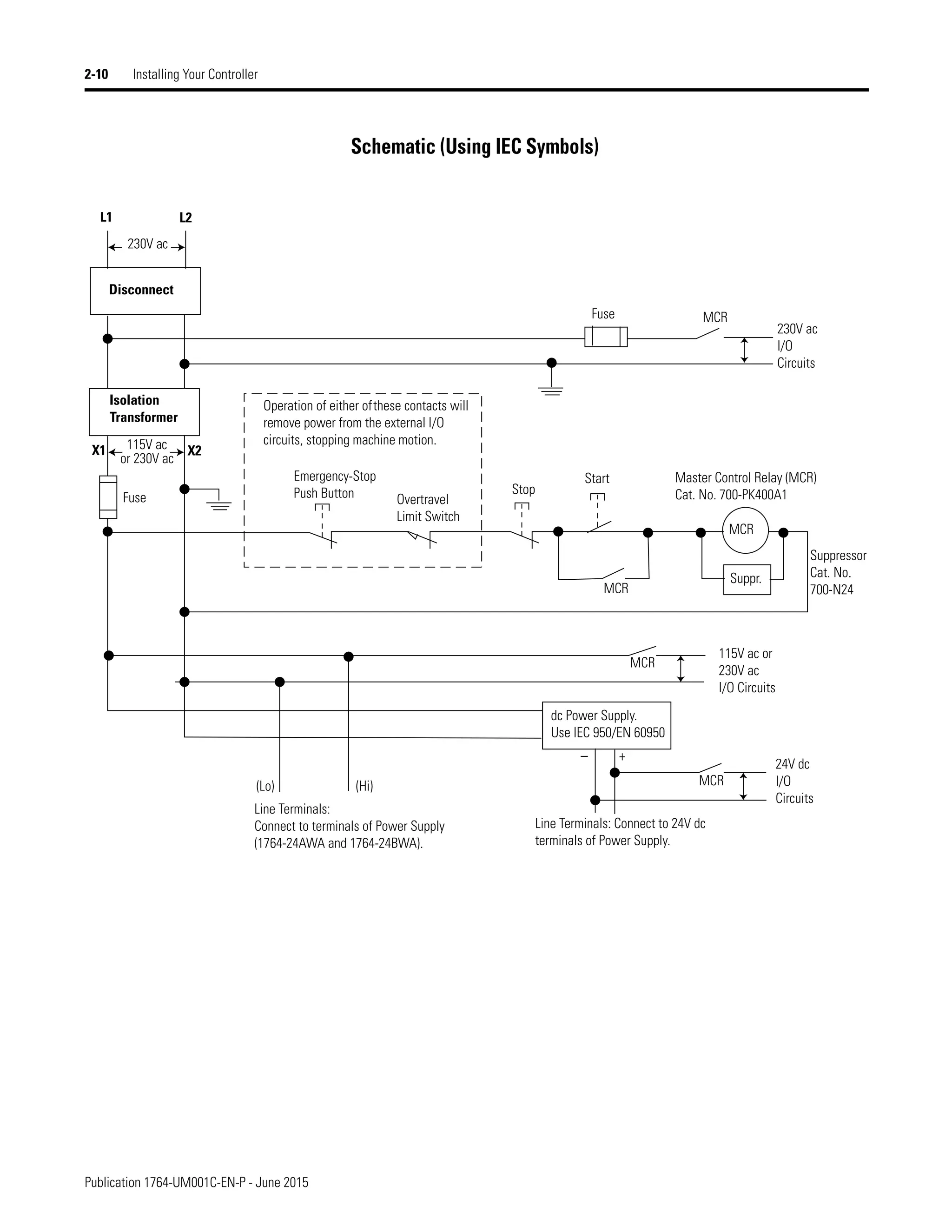
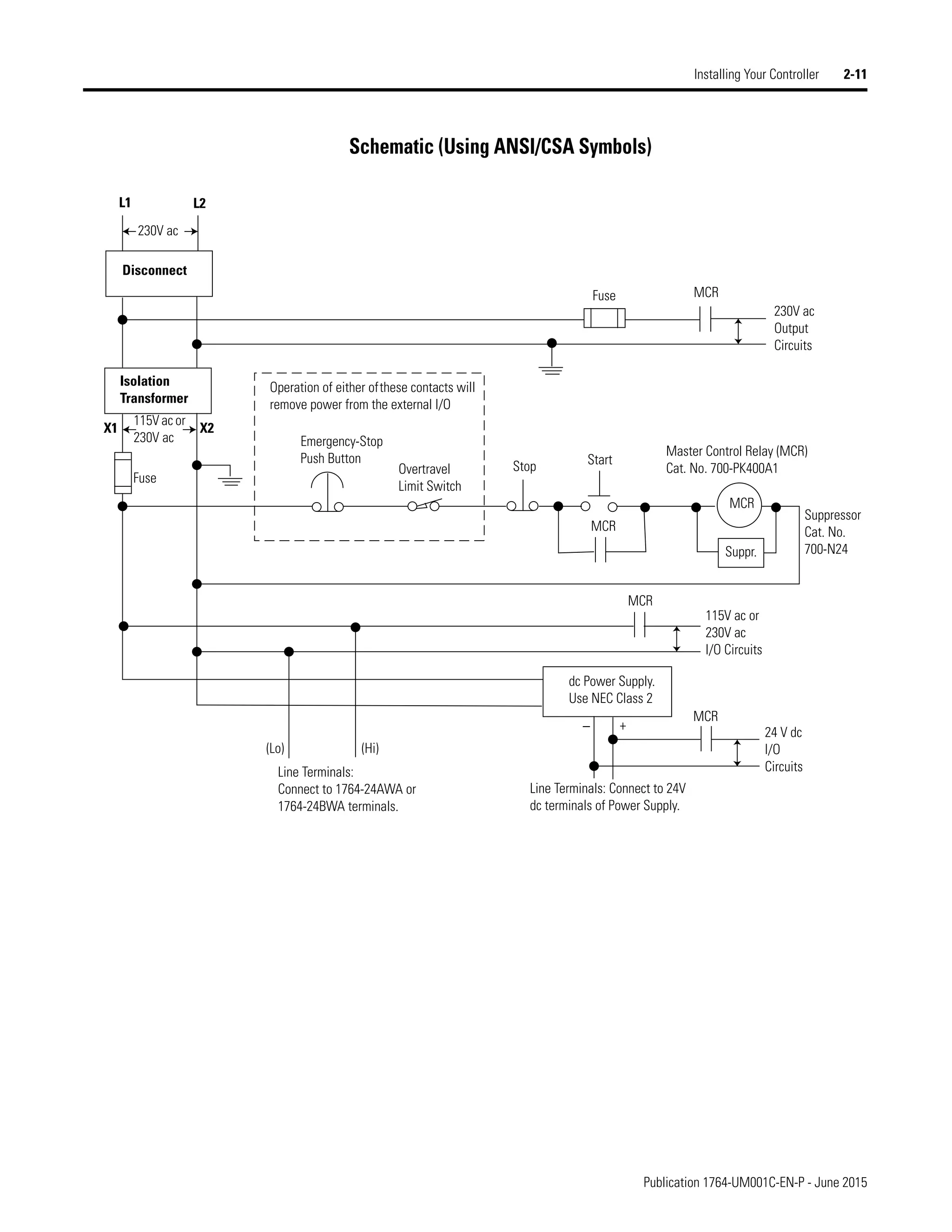
  • 171.
    Publication 1764-UM001C-EN-P -June 2015 Index 5 PROTECTED indicator light 5-3, 5-5 protocol G-8 publications, related P-1 Purpose of this Manual P-1 R read G-8 real time clock battery low indicator bit 6-2 disabling 6-3 Real Time Clock Function File 6-1 related publications P-1 relay G-8 relay contact rating table A-5 relay logic G-8 relays surge suppressors for 3-6 remote packet support E-11 replacement battery B-2 disposing B-4 handling B-3 installing B-2 storing B-3 transporting B-3 replacement doors B-6 base comms door B-6 base terminal door B-6 processor access door B-6 trim pots/mode switch cover door B-6 replacement kits B-1 replacement parts B-1 base comms door B-6 base terminal door B-6 processor access door B-6 terminal blocks B-5 trim pots/mode switch cover door B-6 replacement terminal blocks B-5 reserved bit G-8 response times for high-speed dc inputs A-4 response times for normal dc inputs A-4 restore G-8 retentive data G-8 RS-232 communication interface E-1 RS-232, definition G-8 RTU, definition G-9 run mode G-8 rung G-9 S safety circuits 2-4 safety considerations disconnecting main power 2-4 periodic tests of master control relay circuit 2-5 power distribution 2-5 safety circuits 2-4 save G-9 scan G-9 scan time G-9 sinking G-9 sinking and sourcing circuits 3-10 sinking wiring diagram 1764-28BXB 3-14 sourcing G-9 sourcing wiring diagram 1764-28BXB 3-15 spade lug wiring 3-3 specifications input A-3 output A-5 relay contact rating table A-5 response times for high-speed dc inputs A-4 response times for normal dc inputs A-4 working voltage (1764-24AWA) A-7 working voltage (1764-24BWA) A-8 working voltage (1764-28BXB) A-8 status G-9 surge suppressors for contactor 3-6 for motor starters 3-6 for relays 3-6 recommended 3-6 using 3-4 T terminal G-9 throughput G-9 Trim Pot Information Function File 5-2 trim pots adjustment 5-1 error conditions 5-2 location 5-1 trim pots/mode switch cover door B-6 troubleshooting automatically clearing faults C-4
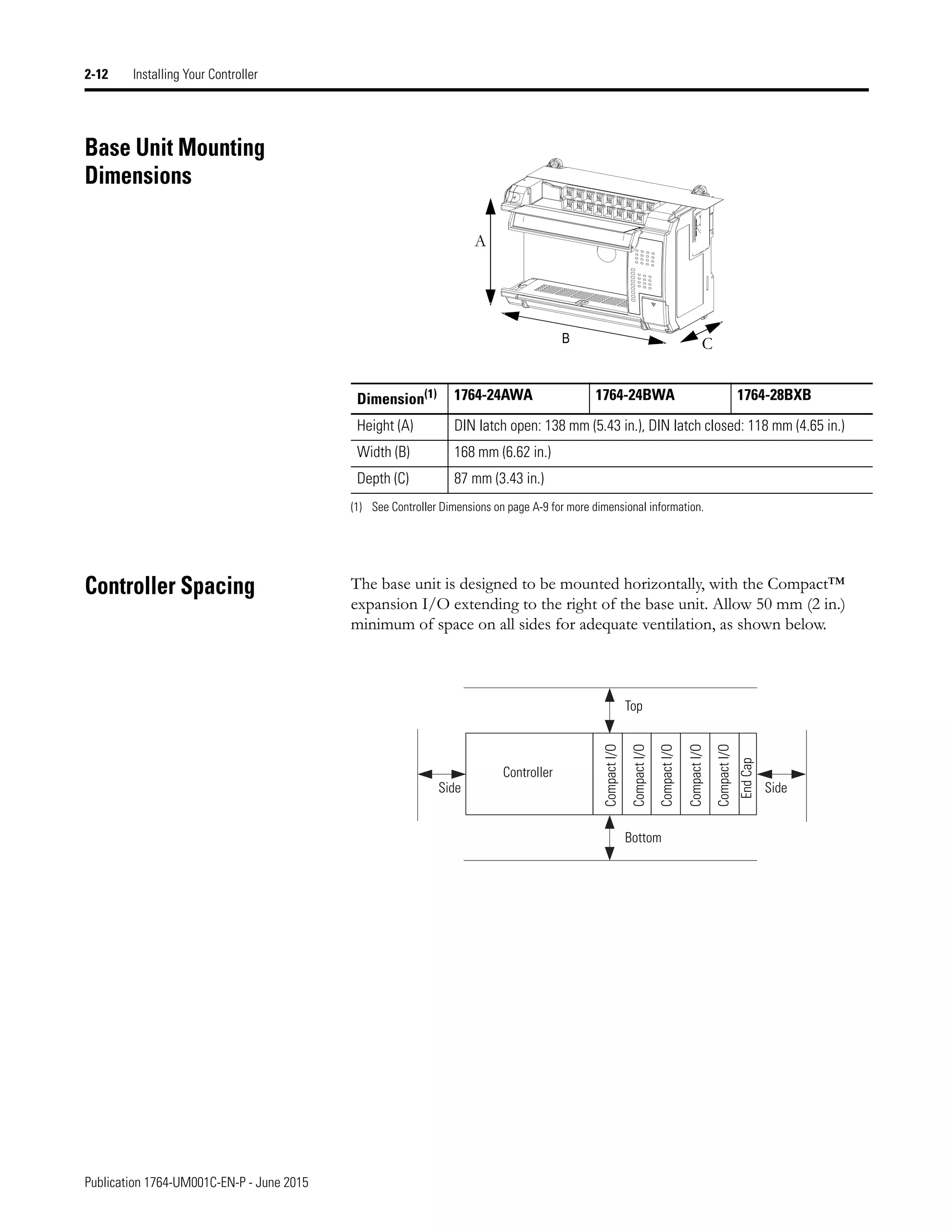
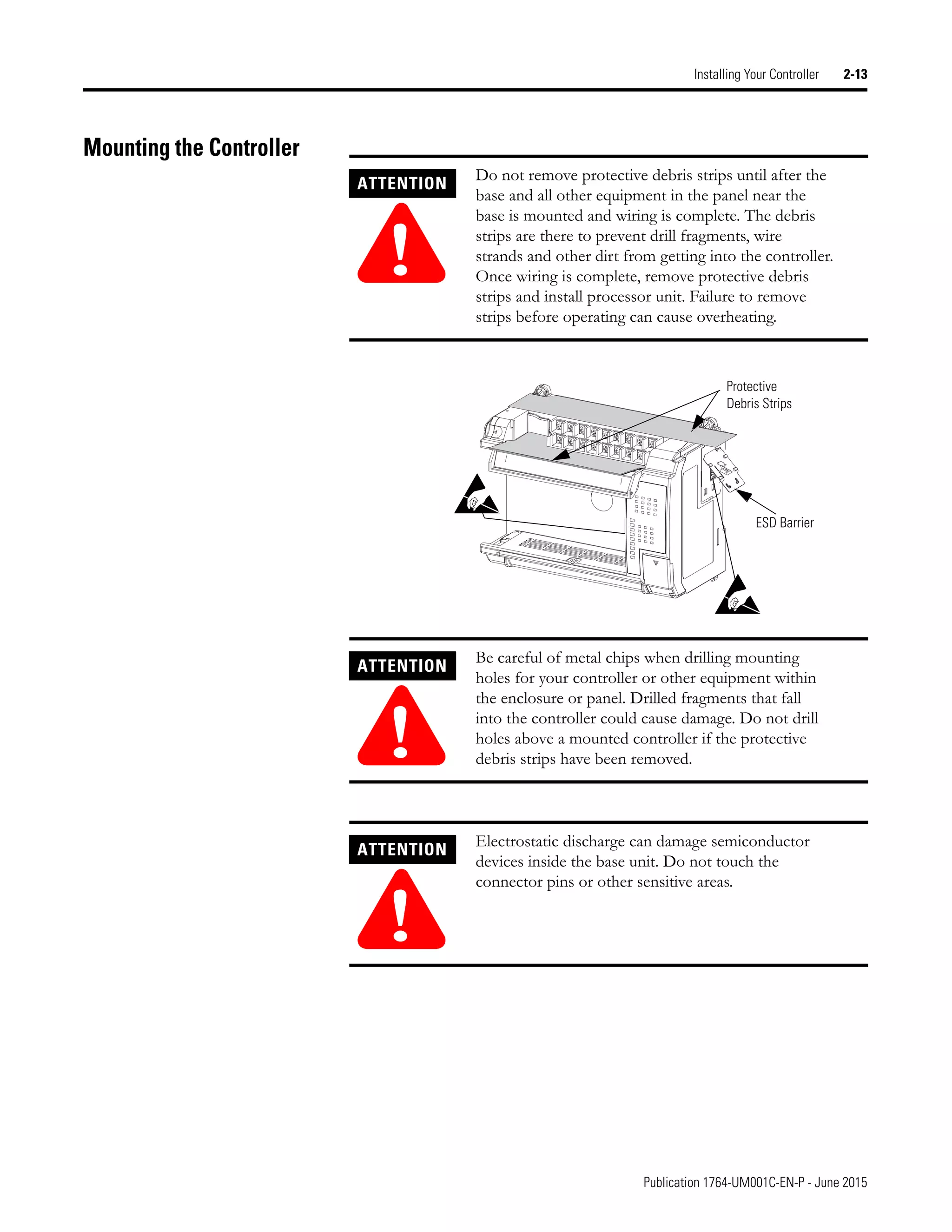
  • 172.
    Publication 1764-UM001C-EN-P -June 2015 6 Index contacting Allen-Bradley for assistance C-5 controller error recovery model C-3 determining controller faults C-1 identifying controller faults C-4 manually clearing faults C-4 understanding the controller LED status C-1 using the fault routine C-4 true G-10 U UL certification 2-1 upload G-10 W wire requirements 3-1 wiring spade lug 3-3 wiring diagrams 3-8 wiring recommendation 3-2 wiring your controller 3-1 Working Screen Operation 5-7 working voltage (1764-24AWA) specifications A-7 working voltage (1764-24BWA) specifications A-8 working voltage (1764-28BXB) specifications A-8 write G-10
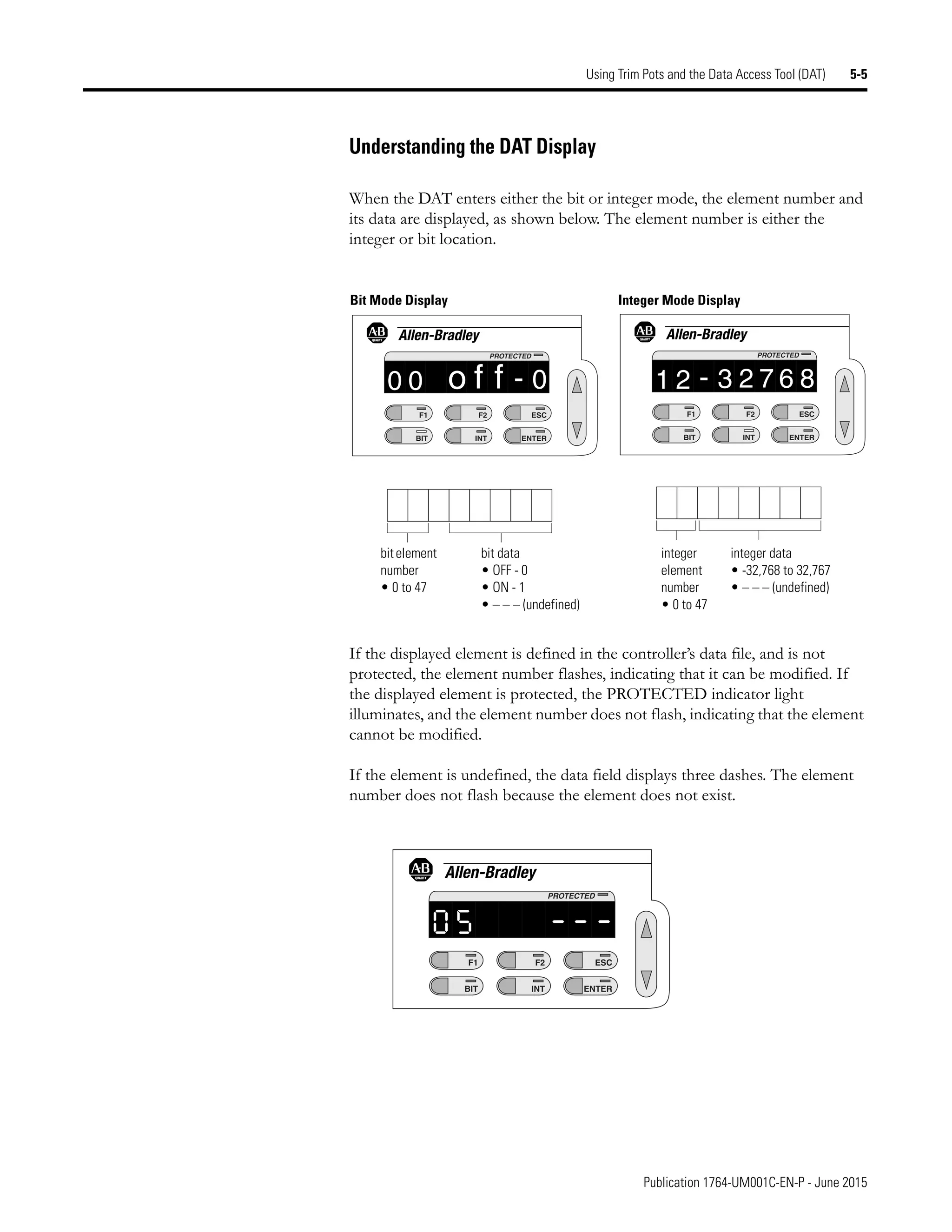
  • 173.
    Publication 1764-UM001C-EN-P -June 2015 Index 7 Notes:
  • 175.
    Publication 1764-UM001C-EN-P -June 2015 9 Supersedes Publication 1764-UM001B-EN-P - April 2002 Copyright © 2015 Rockwell Automation. All rights reserved.