LEARNING BASICS OF WPS
PRESENTATION
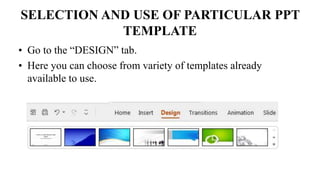
SELECTION AND USE OF PARTICULAR PPT
TEMPLATE
• Go to the “DESIGN” tab.
• Here you can choose from variety of templates already
available to use.
INSERTING
ATTACHMENTS IN WPS
When editing slides, to explain the content
more specifically, we sometimes need to add
related attachments to the slides. We can use
the Insert Attachments feature to directly
open the attached files in the slides to avoid
switching pages frequently during a
presentation. So how can we do that?
STEPS :
• Go to the "Insert" tab or a similar option
(exact wording might vary based on your
version of WPS Office).
• Look for an option like "Attachment" or
"Object" to insert the desired file.
• Select the file you want to attach from
your computer's file system.
• Position and adjust the attachment as
needed on the slide.
WPSPIC.png
ADDING SPEAKER
NOTES IN WPS
PRESENTATION
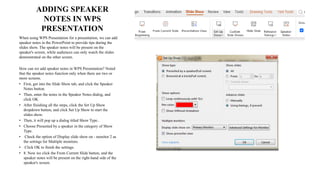
When using WPS Presentation for a presentation, we can add
speaker notes in the PowerPoint to provide tips during the
slides show. The speaker notes will be present on the
speaker's screen, while audiences can only watch the slides
demonstrated on the other screen.
How can we add speaker notes in WPS Presentation? Noted
that the speaker notes function only when there are two or
more screens.
• First, get into the Slide Show tab, and click the Speaker
Notes button.
• Then, enter the notes in the Speaker Notes dialog, and
click OK
• After finishing all the steps, click the Set Up Show
dropdown button, and click Set Up Show to start the
slides show.
• Then, it will pop up a dialog titled Show Type..
• Choose Presented by a speaker in the category of Show
Type.
• Check the option of Display slide show on - monitor 2 as
the settings for Multiple monitors.
• Click OK to finish the settings.
• 8. Now we click the From Current Slide button, and the
speaker notes will be present on the right-hand side of the
speaker's screen.
SETTING THE FONT
STYLE IN WPS
PRESENTATION
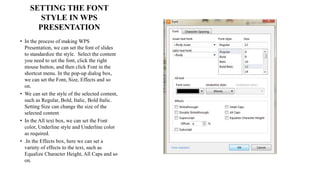
• In the process of making WPS
Presentation, we can set the font of slides
to standardize the style. Select the content
you need to set the font, click the right
mouse button, and then click Font in the
shortcut menu. In the pop-up dialog box,
we can set the Font, Size, Effects and so
on.
• We can set the style of the selected content,
such as Regular, Bold, Italic, Bold Italic.
Setting Size can change the size of the
selected content
• In the All text box, we can set the Font
color, Underline style and Underline color
as required.
• .In the Effects box, here we can set a
variety of effects to the text, such as
Equalize Character Height, All Caps and so
on.
CUSTOMIZATION IN
SLIDESHOW IN PPT
DESIGN
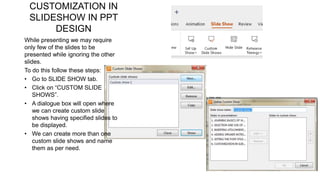
While presenting we may require
only few of the slides to be
presented while ignoring the other
slides.
To do this follow these steps:
• Go to SLIDE SHOW tab.
• Click on “CUSTOM SLIDE
SHOWS”.
• A dialogue box will open where
we can create custom slide
shows having specified slides to
be displayed.
• We can create more than one
custom slide shows and name
them as per need.
CROPPING A PICTURE IN
IRREGULAR SHAPES IN
WPS
We know by now that we can add photos
in our ppts using the fucntion available in
WPS.
But what to do if we need to select or
display only a particular area/region of
the image ? We have use the CROP
function to crop the iimage.
How to crop the image ?
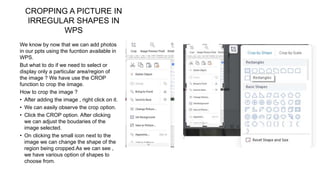
• After adding the image , right click on it.
• We can easily observe the crop option.
• Click the CROP option. After clicking
we can adjust the boudaries of the
image selected.
• On clicking the small icon next to the
image we can change the shape of the
region being cropped.As we can see ,
we have various option of shapes to
choose from.
ADDING CLOUD FONTS
IN WPS
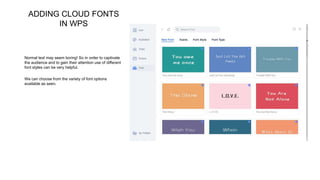
Normal text may seem boring! So in order to captivate
the audience and to gain their attention use of different
font styles can be very helpful.
We can choose from the variety of font options
available as seen.
INTRODUCTION TO PRESENTATION
TOOLS

LEARNING BASICS OF WPS PRESENTATION.pptx

  • 1.
    LEARNING BASICS OFWPS PRESENTATION
  • 2.
    SELECTION AND USEOF PARTICULAR PPT TEMPLATE • Go to the “DESIGN” tab. • Here you can choose from variety of templates already available to use.
  • 3.
    INSERTING ATTACHMENTS IN WPS Whenediting slides, to explain the content more specifically, we sometimes need to add related attachments to the slides. We can use the Insert Attachments feature to directly open the attached files in the slides to avoid switching pages frequently during a presentation. So how can we do that? STEPS : • Go to the "Insert" tab or a similar option (exact wording might vary based on your version of WPS Office). • Look for an option like "Attachment" or "Object" to insert the desired file. • Select the file you want to attach from your computer's file system. • Position and adjust the attachment as needed on the slide. WPSPIC.png
  • 4.
    ADDING SPEAKER NOTES INWPS PRESENTATION When using WPS Presentation for a presentation, we can add speaker notes in the PowerPoint to provide tips during the slides show. The speaker notes will be present on the speaker's screen, while audiences can only watch the slides demonstrated on the other screen. How can we add speaker notes in WPS Presentation? Noted that the speaker notes function only when there are two or more screens. • First, get into the Slide Show tab, and click the Speaker Notes button. • Then, enter the notes in the Speaker Notes dialog, and click OK • After finishing all the steps, click the Set Up Show dropdown button, and click Set Up Show to start the slides show. • Then, it will pop up a dialog titled Show Type.. • Choose Presented by a speaker in the category of Show Type. • Check the option of Display slide show on - monitor 2 as the settings for Multiple monitors. • Click OK to finish the settings. • 8. Now we click the From Current Slide button, and the speaker notes will be present on the right-hand side of the speaker's screen.
  • 5.
    SETTING THE FONT STYLEIN WPS PRESENTATION • In the process of making WPS Presentation, we can set the font of slides to standardize the style. Select the content you need to set the font, click the right mouse button, and then click Font in the shortcut menu. In the pop-up dialog box, we can set the Font, Size, Effects and so on. • We can set the style of the selected content, such as Regular, Bold, Italic, Bold Italic. Setting Size can change the size of the selected content • In the All text box, we can set the Font color, Underline style and Underline color as required. • .In the Effects box, here we can set a variety of effects to the text, such as Equalize Character Height, All Caps and so on.
  • 6.
    CUSTOMIZATION IN SLIDESHOW INPPT DESIGN While presenting we may require only few of the slides to be presented while ignoring the other slides. To do this follow these steps: • Go to SLIDE SHOW tab. • Click on “CUSTOM SLIDE SHOWS”. • A dialogue box will open where we can create custom slide shows having specified slides to be displayed. • We can create more than one custom slide shows and name them as per need.
  • 7.
    CROPPING A PICTUREIN IRREGULAR SHAPES IN WPS We know by now that we can add photos in our ppts using the fucntion available in WPS. But what to do if we need to select or display only a particular area/region of the image ? We have use the CROP function to crop the iimage. How to crop the image ? • After adding the image , right click on it. • We can easily observe the crop option. • Click the CROP option. After clicking we can adjust the boudaries of the image selected. • On clicking the small icon next to the image we can change the shape of the region being cropped.As we can see , we have various option of shapes to choose from.
  • 8.
    ADDING CLOUD FONTS INWPS Normal text may seem boring! So in order to captivate the audience and to gain their attention use of different font styles can be very helpful. We can choose from the variety of font options available as seen.
  • 9.

Editor's Notes

  • #5 Remember to explain on how one might forget important details while giving a presentation