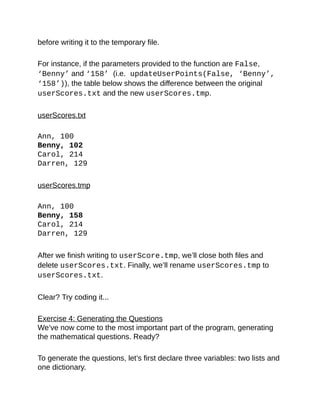
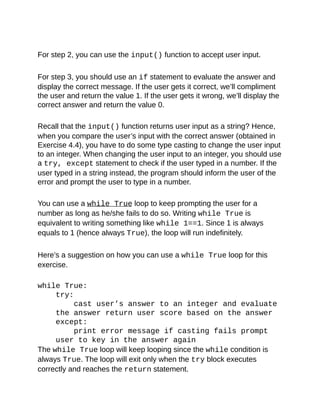
Learn	Python	in	One	Day	and	Learn	It	Well
Python	for	Beginners	with	Hands-on	Project
The	only	book	you	need	to	start	coding	in
Python	immediately
	
By	Jamie	Chan
	
http://www.learncodingfast.com/python
	
Copyright	©	2014
	
All	rights	reserved.	No	part	of	this	publication	may	be	reproduced,
distributed,	or	transmitted	in	any	form	or	by	any	means,	including
photocopying,	recording,	or	other	electronic	or	mechanical	methods,
without	the	prior	written	permission	of	the	publisher,	except	in	the	case	of
brief	quotations	embodied	in	critical	reviews	and	certain	other
noncommercial	uses	permitted	by	copyright	law.
	
Preface
	
This	book	is	written	to	help	you	learn	Python	programming	FAST	and
learn	it	WELL.	If	you	are	an	absolute	beginner	in	Programming,	you'll	find
that	this	book	explains	complex	concepts	in	an	easy	to	understand
manner.	Examples	are	carefully	chosen	to	demonstrate	each	concept	so
that	you	can	gain	a	deeper	understand	of	the	language.	If	you	are	an
experienced	coder,	this	book	gives	you	a	good	base	from	which	to
explore	Python.	The	appendices	at	the	end	of	the	book	will	also	provide
you	with	a	convenient	reference	for	some	of	the	commonly	used
functions	in	Python.
In	addition,	as	Richard	Branson	puts	it:	"The	best	way	of	learning	about
anything	is	by	doing".	At	the	end	of	the	course,	you'll	be	guided	through	a
project	that	gives	you	a	chance	to	put	what	you've	learned	to	use.
	
You	can	download	the	source	code	for	the	project	and	the	appendices	at
http://www.learncodingfast.com/python.
Table	of	Contents
	
Chapter	1:	Python,	what	Python?
What	is	Python?
Why	Learn	Python?
Chapter	2:	Getting	ready	for	Python
Installing	the	Interpreter
Using	the	Python	Shell,	IDLE	and	Writing	our	FIRST	program
Chapter	3:	The	World	of	Variables	and	Operators
What	are	variables?
Naming	a	Variable
The	Assignment	Sign
Basic	Operators
More	Assignment	Operators
Chapter	4:	Data	Types	in	Python
Integers
Float
String
Type	Casting	In	Python
List
Tuple
Dictionary
Chapter	5:	Making	Your	Program	Interactive
Input()
Print()
Triple	Quotes
Escape	Characters
Chapter	6:	Making	Choices	and	Decisions
Condition	Statements
If	Statement
Inline	If
For	Loop
While	Loop
Break
Continue
Try,	Except
Chapter	7:	Functions	and	Modules
What	are	Functions?
Defining	Your	Own	Functions
Variable	Scope
Importing	Modules
Creating	our	Own	Module
Chapter	8:	Working	with	Files
Opening	and	Reading	Text	Files
Using	a	For	Loop	to	Read	Text	Files
Writing	to	a	Text	File
Opening	and	Reading	Text	Files	by	Buffer	Size
Opening,	Reading	and	Writing	Binary	Files
Deleting	and	Renaming	Files
Project:	Math	and	BODMAS
Part	1:	myPythonFunctions.py
Part	2:	mathGame.py
Challenge	Yourself
Thank	You
Appendix	A:	Working	With	Strings
Appendix	B:	Working	With	Lists
Appendix	C:	Working	With	Tuples
Appendix	D:	Working	With	Dictionaries
Appendix	E:	Project	Answers
One	Last	Thing…
Chapter	1:	Python,	what	Python?
	
Welcome	to	the	exciting	world	of	programming.	I'm	so	glad	you	picked	up
this	book	and	I	sincerely	hope	this	book	can	help	you	master	the	Python
language	and	experience	the	exhilaration	of	programming.	Before	we
dive	into	the	nuts	and	bolts	of	Python	programming,	let	us	first	answer	a
few	questions.
What	is	Python?
	
Python	is	a	widely	used	high-level	programming	language	created	by
Guido	van	Rossum	in	the	late	1980s.	The	language	places	strong
emphasis	on	code	readability	and	simplicity,	making	it	possible	for
programmers	to	develop	applications	rapidly.
	
Like	all	high	level	programming	languages,	Python	code	resembles	the
English	language	which	computers	are	unable	to	understand.	Codes	that
we	write	in	Python	have	to	be	interpreted	by	a	special	program	known	as
the	Python	interpreter,	which	we’ll	have	to	install	before	we	can	code,	test
and	execute	our	Python	programs.	We'll	look	at	how	to	install	the	Python
interpreter	in	Chapter	2.
	
There	are	also	a	number	of	third-party	tools,	such	as	Py2exe	or
Pyinstaller	that	allow	us	to	package	our	Python	code	into	stand-alone
executable	programs	for	some	of	the	most	popular	operating	systems	like
Windows	and	Mac	OS.	This	allows	us	to	distribute	our	Python	programs
without	requiring	the	users	to	install	the	Python	interpreter.
Why	Learn	Python?
	
There	are	a	large	number	of	high	level	programming	languages	available,
such	as	C,	C++,	and	Java.	The	good	news	is	all	high	level	programming
languages	are	very	similar	to	one	another.	What	differs	is	mainly	the
syntax,	the	libraries	available	and	the	way	we	access	those	libraries.	A
library	is	simply	a	collection	of	resources	and	pre-written	codes	that	we
can	use	when	we	write	our	programs.	If	you	learn	one	language	well,	you
can	easily	learn	a	new	language	in	a	fraction	of	the	time	it	took	you	to
learn	the	first	language.
	
If	you	are	new	to	programming,	Python	is	a	great	place	to	start.	One	of
the	key	features	of	Python	is	its	simplicity,	making	it	the	ideal	language
for	beginners	to	learn.	Most	programs	in	Python	require	considerably
fewer	lines	of	code	to	perform	the	same	task	compared	to	other
languages	such	as	C.	This	leads	to	fewer	programming	errors	and
reduces	the	development	time	needed.	In	addition,	Python	comes	with	an
extensive	collection	of	third	party	resources	that	extend	the	capabilities	of
the	language.	As	such,	Python	can	be	used	for	a	large	variety	of	tasks,
such	as	for	desktop	applications,	database	applications,	network
programming,	game	programming	and	even	mobile	development.	Last
but	not	least,	Python	is	a	cross	platform	language,	which	means	that
code	written	for	one	operating	system,	such	as	Windows,	will	work	well
on	Mac	OS	or	Linux	without	making	any	changes	to	the	Python	code.
	
Convinced	that	Python	is	THE	language	to	learn?	Let’s	get	started...
Chapter	2:	Getting	ready	for	Python
Installing	the	Interpreter
	
Before	we	can	write	our	first	Python	program,	we	have	to	download	the
appropriate	interpreter	for	our	computers.
	
We’ll	be	using	Python	3	in	this	book	because	as	stated	on	the	official
Python	site	“Python	2.x	is	legacy,	Python	3.x	is	the	present	and	future	of
the	language”.	In	addition,	“Python	3	eliminates	many	quirks	that	can
unnecessarily	trip	up	beginning	programmers”.
	
However,	note	that	Python	2	is	currently	still	rather	widely	used.	Python	2
and	3	are	about	90%	similar.	Hence	if	you	learn	Python	3,	you	will	likely
have	no	problems	understanding	codes	written	in	Python	2.
	
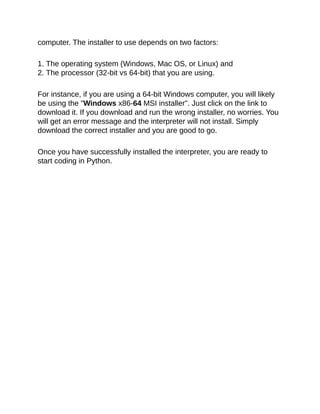
To	install	the	interpreter	for	Python	3,	head	over	to
https://www.python.org/downloads/.	The	correct	version	should	be
indicated	at	the	top	of	the	webpage.	Click	on	the	version	for	Python	3	and
the	software	will	start	downloading.
	
	
Alternatively	if	you	want	to	install	a	different	version,	scroll	down	the	page
and	you’ll	see	a	listing	of	other	versions.	Click	on	the	release	version	that
you	want.	We’ll	be	using	version	3.4.2	in	this	book.	You’ll	be	redirected	to
the	download	page	for	that	version.
	
Scroll	down	towards	the	end	of	the	page	and	you’ll	see	a	table	listing
various	installers	for	that	version.	Choose	the	correct	installer	for	your
computer.	The	installer	to	use	depends	on	two	factors:
	
1.	The	operating	system	(Windows,	Mac	OS,	or	Linux)	and
2.	The	processor	(32-bit	vs	64-bit)	that	you	are	using.
	
For	instance,	if	you	are	using	a	64-bit	Windows	computer,	you	will	likely
be	using	the	"Windows	x86-64	MSI	installer".	Just	click	on	the	link	to
download	it.	If	you	download	and	run	the	wrong	installer,	no	worries.	You
will	get	an	error	message	and	the	interpreter	will	not	install.	Simply
download	the	correct	installer	and	you	are	good	to	go.
	
Once	you	have	successfully	installed	the	interpreter,	you	are	ready	to
start	coding	in	Python.
Using	the	Python	Shell,	IDLE	and	Writing	our
FIRST	program
	
We’ll	be	writing	our	code	using	the	IDLE	program	that	comes	bundled
with	our	Python	interpreter.
	
To	do	that,	let’s	first	launch	the	IDLE	program.	You	launch	the	IDLE
program	like	how	you	launch	any	other	programs.	For	instance	on
Windows	8,	you	can	search	for	it	by	typing	“IDLE”	in	the	search	box.
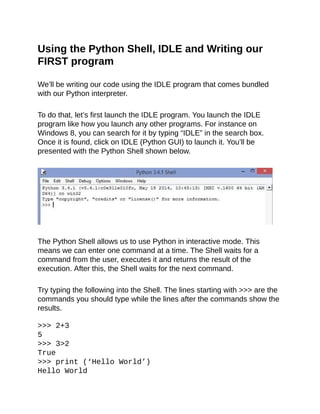
Once	it	is	found,	click	on	IDLE	(Python	GUI)	to	launch	it.	You’ll	be
presented	with	the	Python	Shell	shown	below.
	
	
The	Python	Shell	allows	us	to	use	Python	in	interactive	mode.	This
means	we	can	enter	one	command	at	a	time.	The	Shell	waits	for	a
command	from	the	user,	executes	it	and	returns	the	result	of	the
execution.	After	this,	the	Shell	waits	for	the	next	command.
	
Try	typing	the	following	into	the	Shell.	The	lines	starting	with	>>>	are	the
commands	you	should	type	while	the	lines	after	the	commands	show	the
results.	
	
>>>	2+3
5
>>>	3>2
True
>>>	print	(‘Hello	World’)
Hello	World
When	you	type	2+3,	you	are	issuing	a	command	to	the	Shell,	asking	it	to
evaluate	the	value	of	2+3.	Hence,	the	Shell	returns	the	answer	5.	When
you	type	3>2,	you	are	asking	the	Shell	if	3	is	greater	than	2.	The	Shell
replies	True.	Finally,	print	is	a	command	asking	the	Shell	to	display
the	line	Hello	World.
	
The	Python	Shell	is	a	very	convenient	tool	for	testing	Python	commands,
especially	when	we	are	first	getting	started	with	the	language.	However,	if
you	exit	from	the	Python	Shell	and	enter	it	again,	all	the	commands	you
type	will	be	gone.	In	addition,	you	cannot	use	the	Python	Shell	to	create
an	actual	program.	To	code	an	actual	program,	you	need	to	write	your
code	in	a	text	file	and	save	it	with	a	.py	extension.	This	file	is	known	as	a
Python	script.
	
To	create	a	Python	script,	click	on	File	>	New	File	in	the	top	menu	of	our
Python	Shell.	This	will	bring	up	the	text	editor	that	we	are	going	to	use	to
write	our	very	first	program,	the	“Hello	World”	program.	Writing	the	“Hello
World”	program	is	kind	of	like	the	rite	of	passage	for	all	new
programmers.	We’ll	be	using	this	program	to	familiarize	ourselves	with	
the	IDLE	software.		
	
Type	the	following	code	into	the	text	editor	(not	the	Shell).
	
#Prints	the	Words	“Hello	World”
print	(“Hello	World”)
	
You	should	notice	that	the	line	#Prints	the	Words	“Hello	World”
is	in	red	while	the	word	“print”	is	in	purple	and	“Hello	World”	is	in
green.	This	is	the	software’s	way	of	making	our	code	easier	to	read.	The
words	“print”	and	“Hello	World”	serve	different	purposes	in	our
program,	hence	they	are	displayed	using	different	colors.	We’ll	go	into
more	details	in	later	chapters.
The	line	#Prints	the	Words	“Hello	World”	(in	red)	is	actually	not
part	of	the	program.	It	is	a	comment	written	to	make	our	code	more
readable	for	other	programmers.	This	line	is	ignored	by	the	Python
interpreter.	To	add	comments	to	our	program,	we	type	a	#	sign	in	front	of
each	line	of	comment,	like	this:
	
#This	is	a	comment
#This	is	also	a	comment
#This	is	yet	another	comment
	
Alternatively,	we	can	also	use	three	single	quotes	(or	three	double
quotes)	for	multiline	comments,	like	this:
	
’’’
This	is	a	comment
This	is	also	a	comment
This	is	yet	another	comment
’’’
	
Now	click	File	>	Save	As…	to	save	your	code.	Make	sure	you	save	it	with
the	.py	extension.
	
Done?	Voilà!	You	have	just	successfully	written	your	first	Python
program.
	
Finally	click	on	Run	>	Run	Module	to	execute	the	program	(or	press	F5).
You	should	see	the	words	Hello	World	printed	on	your	Python	Shell.
	
To	see	these	steps	in	action,	you	can	check	out	this	excellent	tutorial	by
mybringback:
https://www.youtube.com/watch?v=pEFr1eYIePw.
	
However,	note	that	he	used	Python	2	in	the	video,	so	some	commands
will	give	you	an	error.	If	you	want	to	try	his	codes,	you	need	to	add	(	)	for
the	print	statements.	Instead	of	writing	print	‘Hello	World’,	you
have	to	write	print	(‘Hello	World’).	In	addition,	you	have	to
change	raw_input()	to	input().	We’ll	cover	print()	and	input()
in	Chapter	5.
Chapter	3:	The	World	of	Variables	and	Operators
	
Now	that	we’re	done	with	the	introductory	stuff,	let’s	get	down	to	the	real
stuff.	In	this	chapter,	you’ll	learn	all	about	variables	and	operators.
Specifically,	you’ll	learn	what	variables	are	and	how	to	name	and	declare
them.	We’ll	also	learn	about	the	common	operations	that	we	can	perform
on	them.	Ready?	Let’s	go.
What	are	variables?
	
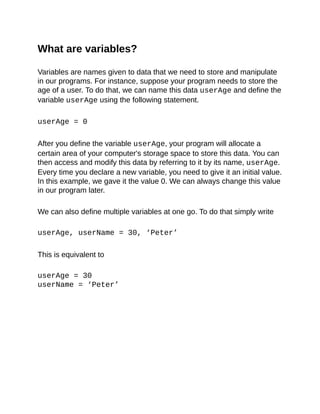
Variables	are	names	given	to	data	that	we	need	to	store	and	manipulate
in	our	programs.	For	instance,	suppose	your	program	needs	to	store	the
age	of	a	user.	To	do	that,	we	can	name	this	data	userAge	and	define	the
variable	userAge	using	the	following	statement.
	
userAge	=	0
	
After	you	define	the	variable	userAge,	your	program	will	allocate	a
certain	area	of	your	computer's	storage	space	to	store	this	data.	You	can
then	access	and	modify	this	data	by	referring	to	it	by	its	name,	userAge.
Every	time	you	declare	a	new	variable,	you	need	to	give	it	an	initial	value.
In	this	example,	we	gave	it	the	value	0.	We	can	always	change	this	value
in	our	program	later.
	
We	can	also	define	multiple	variables	at	one	go.	To	do	that	simply	write
	
userAge,	userName	=	30,	‘Peter’
	
This	is	equivalent	to
	
userAge	=	30
userName	=	‘Peter’
Naming	a	Variable
	
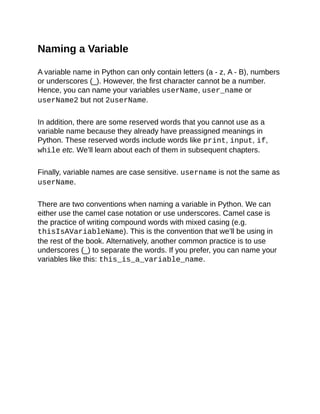
A	variable	name	in	Python	can	only	contain	letters	(a	-	z,	A	-	B),	numbers
or	underscores	(_).	However,	the	first	character	cannot	be	a	number.
Hence,	you	can	name	your	variables	userName,	user_name	or
userName2	but	not	2userName.
	
In	addition,	there	are	some	reserved	words	that	you	cannot	use	as	a
variable	name	because	they	already	have	preassigned	meanings	in
Python.	These	reserved	words	include	words	like	print,	input,	if,
while	etc.	We’ll	learn	about	each	of	them	in	subsequent	chapters.
	
Finally,	variable	names	are	case	sensitive.	username	is	not	the	same	as
userName.
	
There	are	two	conventions	when	naming	a	variable	in	Python.	We	can
either	use	the	camel	case	notation	or	use	underscores.	Camel	case	is
the	practice	of	writing	compound	words	with	mixed	casing	(e.g.
thisIsAVariableName).	This	is	the	convention	that	we’ll	be	using	in
the	rest	of	the	book.	Alternatively,	another	common	practice	is	to	use
underscores	(_)	to	separate	the	words.	If	you	prefer,	you	can	name	your
variables	like	this:	this_is_a_variable_name.
The	Assignment	Sign
	
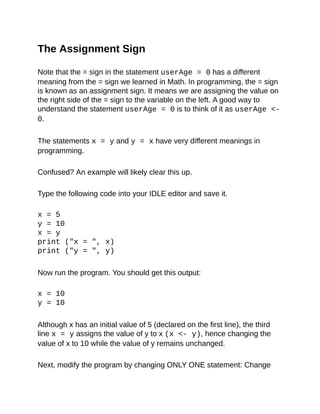
Note	that	the	=	sign	in	the	statement	userAge	=	0	has	a	different
meaning	from	the	=	sign	we	learned	in	Math.	In	programming,	the	=	sign
is	known	as	an	assignment	sign.	It	means	we	are	assigning	the	value	on
the	right	side	of	the	=	sign	to	the	variable	on	the	left.	A	good	way	to
understand	the	statement	userAge	=	0	is	to	think	of	it	as	userAge	<-
0.
	
The	statements	x	=	y	and	y	=	x	have	very	different	meanings	in
programming.
	
Confused?	An	example	will	likely	clear	this	up.
	
Type	the	following	code	into	your	IDLE	editor	and	save	it.
	
x	=	5
y	=	10
x	=	y
print	("x	=	",	x)
print	("y	=	",	y)
	
Now	run	the	program.	You	should	get	this	output:
	
x	=	10
y	=	10
	
Although	x	has	an	initial	value	of	5	(declared	on	the	first	line),	the	third
line	x	=	y	assigns	the	value	of	y	to	x	(x	<-	y),	hence	changing	the
value	of	x	to	10	while	the	value	of	y	remains	unchanged.
	
Next,	modify	the	program	by	changing	ONLY	ONE	statement:	Change
the	third	line	from	x	=	y	to	y	=	x.	Mathematically,	x	=	y	and	y	=	x	mean
the	same	thing.	However,	this	is	not	so	in	programming.
	
Run	the	second	program.	You	will	now	get
	
x	=	5
y	=	5
	
You	can	see	that	in	this	example,	the	x	value	remains	as	5,	but	the	value
of	y	is	changed	to	5.	This	is	because	the	statement	y	=	x	assigns	the
value	of	x	to	y	(y	<-	x).	y	becomes	5	while	x	remains	unchanged	as	5.
Basic	Operators
	
Besides	assigning	a	variable	an	initial	value,	we	can	also	perform	the
usual	mathematical	operations	on	variables.	Basic	operators	in	Python
include	+,	-,	,	,	/,	%	and	*	which	represent	addition,	subtraction,
multiplication,	division,	floor	division,	modulus	and	exponent	respectively.
	
Example:	
Suppose	x	=	5,	y	=	2
	
Addition:	x	+	y	=	7
	
Subtraction:	x	-	y	=	3
	
Multiplication:	x*y	=	10
	
Division:	x/y	=	2.5
	
Floor	Division:	x//y	=	2	(rounds	down	the	answer	to	the	nearest	whole
number)
Modulus:	x%y	=	1	(gives	the	remainder	when	5	is	divided	by	2)
Exponent:	x**y	=	25	(5	to	the	power	of	2)
More	Assignment	Operators
	
Besides	the	=	sign,	there	are	a	few	more	assignment	operators	in	Python
(and	most	programming	languages).	These	include	operators	like	+=,	-=
and	*=.
	
Suppose	we	have	the	variable	x,	with	an	initial	value	of	10.	If	we	want	to
increment	x	by	2,	we	can	write
x	=	x	+	2
	
The	program	will	first	evaluate	the	expression	on	the	right	(x	+	2)	and
assign	the	answer	to	the	left.	So	eventually	the	statement	above
becomes	x	<-	12.
	
Instead	of	writing	x	=	x	+	2,	we	can	also	write	x	+=	2	to	express	the
same	meaning.	The	+=	sign	is	actually	a	shorthand	that	combines	the
assignment	sign	with	the	addition	operator.	Hence,	x	+=	2	simply
means	x	=	x	+	2.
	
Similarly,	if	we	want	to	do	a	subtraction,	we	can	write	x	=	x	-	2	or	x	-
=	2.	The	same	works	for	all	the	7	operators	mentioned	in	the	section
above.
Chapter	4:	Data	Types	in	Python
	
In	this	chapter,	we’ll	first	look	at	some	basic	data	types	in	Python,
specifically	the	integer,	float	and	string.	Next,	we’ll	explore	the	concept	of
type	casting.	Finally,	we’ll	discuss	three	more	advanced	data	types	in
Python:	the	list,	tuple	and	dictionary.
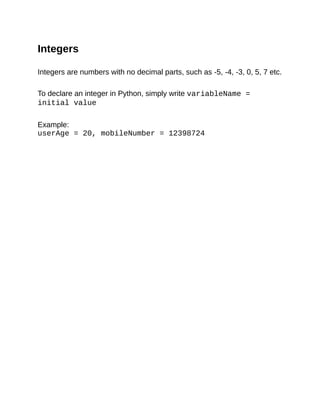
Integers
	
Integers	are	numbers	with	no	decimal	parts,	such	as	-5,	-4,	-3,	0,	5,	7	etc.
	
To	declare	an	integer	in	Python,	simply	write	variableName	=
initial	value
	
Example:
userAge	=	20,	mobileNumber	=	12398724
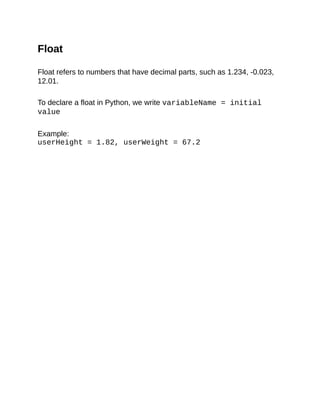
Float
	
Float	refers	to	numbers	that	have	decimal	parts,	such	as	1.234,	-0.023,
12.01.
	
To	declare	a	float	in	Python,	we	write	variableName	=	initial
value
	
Example:
userHeight	=	1.82,	userWeight	=	67.2
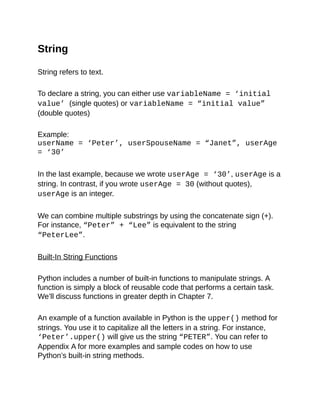
String
	
String	refers	to	text.
	
To	declare	a	string,	you	can	either	use	variableName	=	‘initial
value’	(single	quotes)	or	variableName	=	“initial	value”
(double	quotes)
	
Example:
userName	=	‘Peter’,	userSpouseName	=	“Janet”,	userAge
=	‘30’
	
In	the	last	example,	because	we	wrote	userAge	=	‘30’,	userAge	is	a
string.	In	contrast,	if	you	wrote	userAge	=	30	(without	quotes),
userAge	is	an	integer.
	
We	can	combine	multiple	substrings	by	using	the	concatenate	sign	(+).
For	instance,	“Peter”	+	“Lee”	is	equivalent	to	the	string
“PeterLee”.
	
Built-In	String	Functions
	
Python	includes	a	number	of	built-in	functions	to	manipulate	strings.	A
function	is	simply	a	block	of	reusable	code	that	performs	a	certain	task.
We’ll	discuss	functions	in	greater	depth	in	Chapter	7.
	
An	example	of	a	function	available	in	Python	is	the	upper()	method	for
strings.	You	use	it	to	capitalize	all	the	letters	in	a	string.	For	instance,
‘Peter’.upper()	will	give	us	the	string	“PETER”.	You	can	refer	to
Appendix	A	for	more	examples	and	sample	codes	on	how	to	use
Python’s	built-in	string	methods.
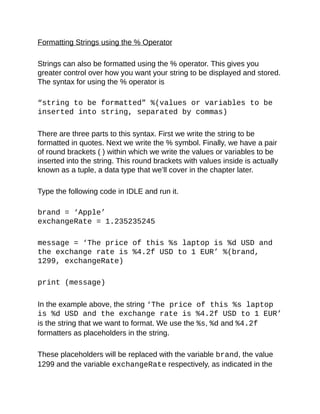
Formatting	Strings	using	the	%	Operator
	
Strings	can	also	be	formatted	using	the	%	operator.	This	gives	you
greater	control	over	how	you	want	your	string	to	be	displayed	and	stored.
The	syntax	for	using	the	%	operator	is
	
“string	to	be	formatted”	%(values	or	variables	to	be
inserted	into	string,	separated	by	commas)
	
There	are	three	parts	to	this	syntax.	First	we	write	the	string	to	be
formatted	in	quotes.	Next	we	write	the	%	symbol.	Finally,	we	have	a	pair
of	round	brackets	(	)	within	which	we	write	the	values	or	variables	to	be
inserted	into	the	string.	This	round	brackets	with	values	inside	is	actually
known	as	a	tuple,	a	data	type	that	we’ll	cover	in	the	chapter	later.
	
Type	the	following	code	in	IDLE	and	run	it.
	
brand	=	‘Apple’
exchangeRate	=	1.235235245
	
message	=	‘The	price	of	this	%s	laptop	is	%d	USD	and
the	exchange	rate	is	%4.2f	USD	to	1	EUR’	%(brand,
1299,	exchangeRate)
	
print	(message)
	
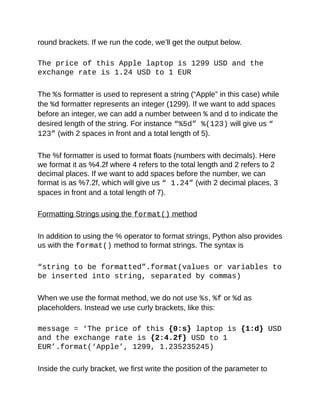
In	the	example	above,	the	string	‘The	price	of	this	%s	laptop
is	%d	USD	and	the	exchange	rate	is	%4.2f	USD	to	1	EUR’
is	the	string	that	we	want	to	format.	We	use	the	%s,	%d	and	%4.2f
formatters	as	placeholders	in	the	string.
	
These	placeholders	will	be	replaced	with	the	variable	brand,	the	value
1299	and	the	variable	exchangeRate	respectively,	as	indicated	in	the
round	brackets.	If	we	run	the	code,	we’ll	get	the	output	below.
	
The	price	of	this	Apple	laptop	is	1299	USD	and	the
exchange	rate	is	1.24	USD	to	1	EUR
	
The	%s	formatter	is	used	to	represent	a	string	(“Apple”	in	this	case)	while
the	%d	formatter	represents	an	integer	(1299).	If	we	want	to	add	spaces
before	an	integer,	we	can	add	a	number	between	%	and	d	to	indicate	the
desired	length	of	the	string.	For	instance	“%5d”	%(123)	will	give	us	“
123”	(with	2	spaces	in	front	and	a	total	length	of	5).
	
The	%f	formatter	is	used	to	format	floats	(numbers	with	decimals).	Here
we	format	it	as	%4.2f	where	4	refers	to	the	total	length	and	2	refers	to	2
decimal	places.	If	we	want	to	add	spaces	before	the	number,	we	can
format	is	as	%7.2f,	which	will	give	us	“	1.24”	(with	2	decimal	places,	3
spaces	in	front	and	a	total	length	of	7).
	
Formatting	Strings	using	the	format()	method
	
In	addition	to	using	the	%	operator	to	format	strings,	Python	also	provides
us	with	the	format()	method	to	format	strings.	The	syntax	is
	
“string	to	be	formatted”.format(values	or	variables	to
be	inserted	into	string,	separated	by	commas)
	
When	we	use	the	format	method,	we	do	not	use	%s,	%f	or	%d	as
placeholders.	Instead	we	use	curly	brackets,	like	this:
	
message	=	‘The	price	of	this	{0:s}	laptop	is	{1:d}	USD
and	the	exchange	rate	is	{2:4.2f}	USD	to	1
EUR’.format(‘Apple’,	1299,	1.235235245)
	
Inside	the	curly	bracket,	we	first	write	the	position	of	the	parameter	to
use,	followed	by	a	colon.	After	the	colon,	we	write	the	formatter.	There
should	not	be	any	spaces	within	the	curly	brackets.
	
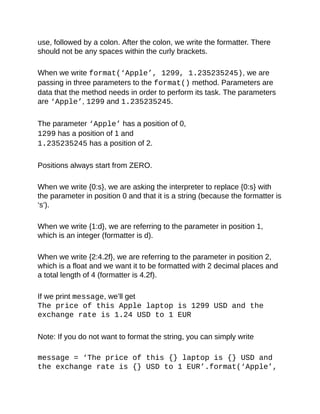
When	we	write	format(‘Apple’,	1299,	1.235235245),	we	are
passing	in	three	parameters	to	the	format()	method.	Parameters	are
data	that	the	method	needs	in	order	to	perform	its	task.	The	parameters
are	‘Apple’,	1299	and	1.235235245.
	
The	parameter	‘Apple’	has	a	position	of	0,
1299	has	a	position	of	1	and
1.235235245	has	a	position	of	2.
	
Positions	always	start	from	ZERO.
	
When	we	write	{0:s},	we	are	asking	the	interpreter	to	replace	{0:s}	with
the	parameter	in	position	0	and	that	it	is	a	string	(because	the	formatter	is
‘s’).
	
When	we	write	{1:d},	we	are	referring	to	the	parameter	in	position	1,
which	is	an	integer	(formatter	is	d).
	
When	we	write	{2:4.2f},	we	are	referring	to	the	parameter	in	position	2,
which	is	a	float	and	we	want	it	to	be	formatted	with	2	decimal	places	and
a	total	length	of	4	(formatter	is	4.2f).
	
If	we	print	message,	we’ll	get
The	price	of	this	Apple	laptop	is	1299	USD	and	the
exchange	rate	is	1.24	USD	to	1	EUR
	
Note:	If	you	do	not	want	to	format	the	string,	you	can	simply	write
	
message	=	‘The	price	of	this	{}	laptop	is	{}	USD	and
the	exchange	rate	is	{}	USD	to	1	EUR’.format(‘Apple’,
1299,	1.235235245)
	
Here	we	do	not	have	to	specify	the	position	of	the	parameters.	The
interpreter	will	replace	the	curly	brackets	based	on	the	order	of	the
parameters	provided.	We’ll	get
	
The	price	of	this	Apple	laptop	is	1299	USD	and	the
exchange	rate	is	1.235235245	USD	to	1	EUR
	
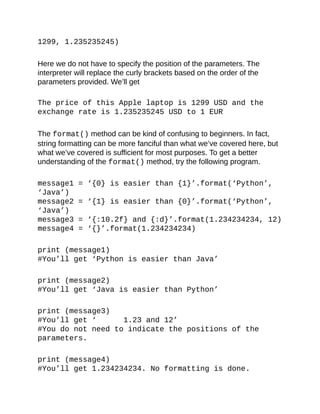
The	format()	method	can	be	kind	of	confusing	to	beginners.	In	fact,
string	formatting	can	be	more	fanciful	than	what	we’ve	covered	here,	but
what	we’ve	covered	is	sufficient	for	most	purposes.	To	get	a	better
understanding	of	the	format()	method,	try	the	following	program.
	
message1	=	‘{0}	is	easier	than	{1}’.format(‘Python’,
‘Java’)
message2	=	‘{1}	is	easier	than	{0}’.format(‘Python’,
‘Java’)
message3	=	‘{:10.2f}	and	{:d}’.format(1.234234234,	12)
message4	=	‘{}’.format(1.234234234)
	
print	(message1)
#You’ll	get	‘Python	is	easier	than	Java’
	
print	(message2)
#You’ll	get	‘Java	is	easier	than	Python’
	
print	(message3)
#You’ll	get	‘						1.23	and	12’
#You	do	not	need	to	indicate	the	positions	of	the
parameters.
	
print	(message4)
#You’ll	get	1.234234234.	No	formatting	is	done.
You	can	use	the	Python	Shell	to	experiment	with	the	format()	method.
Try	typing	in	various	strings	and	see	what	you	get.
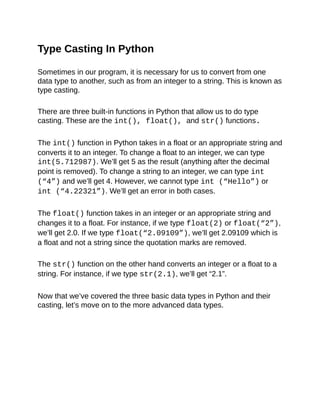
Type	Casting	In	Python
	
Sometimes	in	our	program,	it	is	necessary	for	us	to	convert	from	one
data	type	to	another,	such	as	from	an	integer	to	a	string.	This	is	known	as
type	casting.
	
There	are	three	built-in	functions	in	Python	that	allow	us	to	do	type
casting.	These	are	the	int(),	float(),	and	str()	functions.
	
The	int()	function	in	Python	takes	in	a	float	or	an	appropriate	string	and
converts	it	to	an	integer.	To	change	a	float	to	an	integer,	we	can	type
int(5.712987).	We’ll	get	5	as	the	result	(anything	after	the	decimal
point	is	removed).	To	change	a	string	to	an	integer,	we	can	type	int
(“4”)	and	we’ll	get	4.	However,	we	cannot	type	int	(“Hello”)	or
int	(“4.22321”).	We’ll	get	an	error	in	both	cases.
	
The	float()	function	takes	in	an	integer	or	an	appropriate	string	and
changes	it	to	a	float.	For	instance,	if	we	type	float(2)	or	float(“2”),
we’ll	get	2.0.	If	we	type	float(“2.09109”),	we’ll	get	2.09109	which	is
a	float	and	not	a	string	since	the	quotation	marks	are	removed.
	
The	str()	function	on	the	other	hand	converts	an	integer	or	a	float	to	a
string.	For	instance,	if	we	type	str(2.1),	we’ll	get	“2.1”.
	
Now	that	we’ve	covered	the	three	basic	data	types	in	Python	and	their
casting,	let’s	move	on	to	the	more	advanced	data	types.
List
	
List	refers	to	a	collection	of	data	which	are	normally	related.	Instead	of
storing	these	data	as	separate	variables,	we	can	store	them	as	a	list.	For
instance,	suppose	our	program	needs	to	store	the	age	of	5	users.	Instead
of	storing	them	as	user1Age,	user2Age,	user3Age,	user4Age	and
user5Age,	it	makes	more	sense	to	store	them	as	a	list.
	
To	declare	a	list,	you	write	listName	=	[initial	values].	Note
that	we	use	square	brackets	[	]	when	declaring	a	list.	Multiple	values	are
separated	by	a	comma.
	
Example:
userAge	=	[21,	22,	23,	24,	25]
	
We	can	also	declare	a	list	without	assigning	any	initial	values	to	it.	We
simply	write	listName	=	[].	What	we	have	now	is	an	empty	list	with
no	items	in	it.	We	have	to	use	the	append()	method	mentioned	below	to
add	items	to	the	list.
	
Individual	values	in	the	list	are	accessible	by	their	indexes,	and	indexes
always	start	from	ZERO,	not	1.	This	is	a	common	practice	in	almost	all
programming	languages,	such	as	C	and	Java.	Hence	the	first	value	has
an	index	of	0,	the	next	has	an	index	of	1	and	so	forth.	For	instance,
userAge[0]	=	21,	userAge[1]	=	22
	
Alternatively,	you	can	access	the	values	of	a	list	from	the	back.	The	last
item	in	the	list	has	an	index	of	-1,	the	second	last	has	an	index	of	-2	and
so	forth.	Hence,	userAge[-1]	=	25,	userAge[-2]	=	24.
	
You	can	assign	a	list,	or	part	of	it,	to	a	variable.	If	you	write	userAge2	=
userAge,	the	variable	userAge2	becomes	[21,	22,	23,	24,	25].
If	you	write	userAge3	=	userAge[2:4],	you	are	assigning	items	with
index	2	to	index	4-1	from	the	list	userAge	to	the	list	userAge3.	In	other
words,	userAge3	=	[23,	24].
	
The	notation	2:4	is	known	as	a	slice.	Whenever	we	use	the	slice	notation
in	Python,	the	item	at	the	start	index	is	always	included,	but	the	item	at
the	end	is	always	excluded.	Hence	the	notation	2:4	refers	to	items	from
index	2	to	index	4-1	(i.e.	index	3),	which	is	why	userAge3	=	[23,	24]
and	not	[23,	24,	25].
	
The	slice	notation	includes	a	third	number	known	as	the	stepper.	If	we
write	userAge4	=	userAge[1:5:2],	we	will	get	a	sub	list	consisting
of	every	second	number	from	index	1	to	index	5-1	because	the	stepper	is
2.	Hence,	userAge4	=	[22,	24].
	
In	addition,	slice	notations	have	useful	defaults.	The	default	for	the	first
number	is	zero,	and	the	default	for	the	second	number	is	size	of	the	list
being	sliced.	For	instance,	userAge[	:4]	gives	you	values	from	index
0	to	index	4-1	while	userAge[1:	]	gives	you	values	from	index	1	to
index	5-1	(since	the	size	of	userAge	is	5,	i.e.	userAge	has	5	items).
To	modify	items	in	a	list,	we	write	listName[index	of	item	to	be
modified]	=	new	value.	For	instance,	if	you	want	to	modify	the
second	item,	you	write	userAge[1]	=	5.	Your	list	becomes	userAge
=	[21,	5,	23,	24,	25]
To	add	items,	you	use	the	append()	function.	For	instance,	if	you	write
userAge.append(99),	you	add	the	value	99	to	the	end	of	the	list.	Your
list	is	now	userAge	=	[21,	5,	23,	24,	25,	99]
	
To	remove	items,	you	write	del	listName[index	of	item	to	be
deleted].	For	instance,	if	you	write	del	userAge[2],	your	list	now
becomes	userAge	=	[21,	5,	24,	25,	99]	(the	third	item	is
deleted)
To	fully	appreciate	the	workings	of	a	list,	try	running	the	following
program.
	
#declaring	the	list,	list	elements	can	be	of	different
data	types	myList	=	[1,	2,	3,	4,	5,	“Hello”]						
	
#print	the	entire	list.
print(myList)																														
#You’ll	get	[1,	2,	3,	4,	5,	“Hello”]
	
#print	the	third	item	(recall:	Index	starts	from
zero).
print(myList[2])																								
#You’ll	get	3
	
#print	the	last	item.
print(myList[-1])						
#You’ll	get	“Hello”
	
#assign	myList	(from	index	1	to	4)	to	myList2	and
print	myList2
myList2	=	myList[1:5]
print	(myList2)
#You’ll	get	[2,	3,	4,	5]
	
#modify	the	second	item	in	myList	and	print	the
updated	list	myList[1]	=	20
print(myList)																														
#You’ll	get	[1,	20,	3,	4,	5,	'Hello']
												
#append	a	new	item	to	myList	and	print	the	updated
list	myList.append(“How	are	you”)												
print(myList)																														
#You’ll	get	[1,	20,	3,	4,	5,	'Hello',	'How	are	you']
#remove	the	sixth	item	from	myList	and	print	the
updated	list	del
myList[5]																														
print(myList)												
#You’ll	get	[1,	20,	3,	4,	5,	'How	are	you']
												
There	are	a	couple	more	things	that	you	can	do	with	a	list.	For	sample
codes	and	more	examples	on	working	with	a	list,	refer	to	Appendix	B.
Tuple
	
Tuples	are	just	like	lists,	but	you	cannot	modify	their	values.	The	initial
values	are	the	values	that	will	stay	for	the	rest	of	the	program.	An
example	where	tuples	are	useful	is	when	your	program	needs	to	store
the	names	of	the	months	of	the	year.
	
To	declare	a	tuple,	you	write	tupleName	=	(initial	values).
Notice	that	we	use	round	brackets	(	)	when	declaring	a	tuple.	Multiple
values	are	separated	by	a	comma.
	
Example:
monthsOfYear	=	(“Jan”,	“Feb”,	“Mar”,	“Apr”,	“May”,
“Jun”,	“Jul”,	“Aug”,	“Sep”,	“Oct”,	“Nov”,	“Dec”)
	
You	access	the	individual	values	of	a	tuple	using	their	indexes,	just	like
with	a	list.
Hence,	monthsOfYear[0]	=	“Jan”,	monthsOfYear[-1]	=
“Dec”.
	
For	more	examples	of	what	you	can	do	with	a	tuple,	check	out	Appendix
C.
Dictionary
	
Dictionary	is	a	collection	of	related	data	PAIRS.	For	instance,	if	we	want
to	store	the	username	and	age	of	5	users,	we	can	store	them	in	a
dictionary.
	
To	declare	a	dictionary,	you	write	dictionaryName	=	{dictionary
key	:	data},	with	the	requirement	that	dictionary	keys	must	be	unique
(within	one	dictionary).	That	is,	you	cannot	declare	a	dictionary	like	this	
myDictionary	=	{“Peter”:38,	“John”:51,	“Peter”:13}.
	
This	is	because	“Peter”	is	used	as	the	dictionary	key	twice.	Note	that	we
use	curly	brackets	{	}	when	declaring	a	dictionary.	Multiple	pairs	are
separated	by	a	comma.
	
Example:
userNameAndAge	=	{“Peter”:38,	“John”:51,	“Alex”:13,
“Alvin”:“Not	Available”}
	
You	can	also	declare	a	dictionary	using	the	dict(	)	method.	To	declare
the	userNameAndAge	dictionary	above,	you	write
	
userNameAndAge	=	dict(Peter	=	38,	John	=	51,	Alex	=
13,	Alvin	=	“Not	Available”)
	
When	you	use	this	method	to	declare	a	dictionary,	you	use	round
brackets	(	)	instead	of	curly	brackets	{	}	and	you	do	not	put	quotation
marks	for	the	dictionary	keys.
	
To	access	individual	items	in	the	dictionary,	we	use	the	dictionary	key,
which	is	the	first	value	in	the	{dictionary	key	:	data}	pair.	For
instance,	to	get	John’s	age,	you	write	userNameAndAge[“John”].
You’ll	get	the	value	51.
	
To	modify	items	in	a	dictionary,	we	write
dictionaryName[dictionary	key	of	item	to	be	modified]
=	new	data.	For	instance,	to	modify	the	“John”:51	pair,	we	write
userNameAndAge[“John”]	=	21.	Our	dictionary	now	becomes
userNameAndAge	=	{“Peter”:38,	“John”:21,	“Alex”:13,
“Alvin”:“Not	Available”}.
	
We	can	also	declare	a	dictionary	without	assigning	any	initial	values	to	it.
We	simply	write	dictionaryName	=	{	}.	What	we	have	now	is	an
empty	dictionary	with	no	items	in	it.
	
To	add	items	to	a	dictionary,	we	write	dictionaryName[dictionary
key]	=	data.	For	instance,	if	we	want	to	add	“Joe”:40	to	our
dictionary,	we	write	userNameAndAge[“Joe”]	=	40.	Our	dictionary
now	becomes	userNameAndAge	=	{“Peter”:38,	“John”:21,
“Alex”:13,	“Alvin”:“Not	Available”,	“Joe”:40}
	
To	remove	items	from	a	dictionary,	we	write	del
dictionaryName[dictionary	key].	For	instance,	to	remove	the
“Alex”:13	pair,	we	write	del	userNameAndAge[“Alex”].	Our
dictionary	now	becomes	userNameAndAge	=	{“Peter”:38,
“John”:21,	“Alvin”:“Not	Available”,	“Joe”:40}
	
Run	the	following	program	to	see	all	these	in	action.
	
#declaring	the	dictionary,	dictionary	keys	and	data
can	be	of	different	data	types
myDict	=	{“One”:1.35,	2.5:”Two	Point	Five”,	3:”+”,
7.9:2}
	
#print	the	entire	dictionary
print(myDict)																														
#You’ll	get	{2.5:	'Two	Point	Five',	3:	'+',	'One':
1.35,	7.9:	2}
#Note	that	items	in	a	dictionary	are	not	stored	in	the
same	order	as	the	way	you	declare	them.
	
#print	the	item	with	key	=	“One”.
print(myDict[“One”])																								
#You’ll	get	1.35
	
#print	the	item	with	key	=	7.9.
print(myDict[7.9])						
#You’ll	get	2
	
#modify	the	item	with	key	=	2.5	and	print	the	updated
dictionary
myDict[2.5]	=	“Two	and	a	Half”
print(myDict)																														
#You’ll	get	{2.5:	'Two	and	a	Half',	3:	'+',	'One':
1.35,	7.9:	2}
												
#add	a	new	item	and	print	the	updated	dictionary
myDict[“New	item”]	=	“I’m	new”												
print(myDict)																														
#You’ll	get	{'New	item':	'I’m	new',	2.5:	'Two	and	a
Half',	3:	'+',	'One':	1.35,	7.9:	2}
	
#remove	the	item	with	key	=	“One”	and	print	the
updated	dictionary
del	myDict[“One”]																														
print(myDict)						
#You’ll	get	{'New	item':	'I’m	new',	2.5:	'Two	and	a
Half',	3:	'+',	7.9:	2}
	
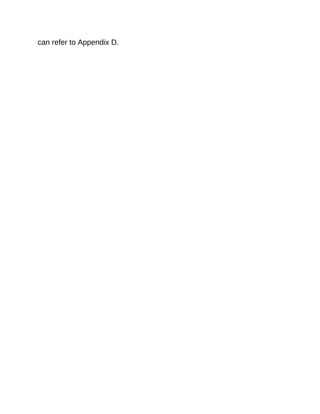
For	more	examples	and	sample	codes	of	working	with	a	dictionary,	you
can	refer	to	Appendix	D.
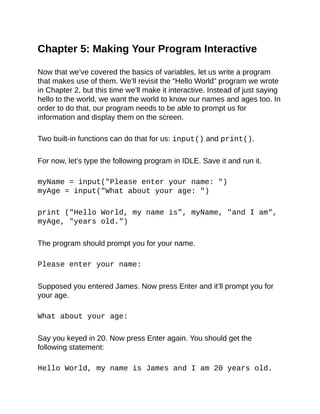
Chapter	5:	Making	Your	Program	Interactive
	
Now	that	we’ve	covered	the	basics	of	variables,	let	us	write	a	program
that	makes	use	of	them.	We’ll	revisit	the	“Hello	World”	program	we	wrote
in	Chapter	2,	but	this	time	we’ll	make	it	interactive.	Instead	of	just	saying
hello	to	the	world,	we	want	the	world	to	know	our	names	and	ages	too.	In
order	to	do	that,	our	program	needs	to	be	able	to	prompt	us	for
information	and	display	them	on	the	screen.
	
Two	built-in	functions	can	do	that	for	us:	input()	and	print().
	
For	now,	let’s	type	the	following	program	in	IDLE.	Save	it	and	run	it.
	
myName	=	input("Please	enter	your	name:	")
myAge	=	input("What	about	your	age:	")
	
print	("Hello	World,	my	name	is",	myName,	"and	I	am",
myAge,	"years	old.")
	
The	program	should	prompt	you	for	your	name.
	
Please	enter	your	name:
	
Supposed	you	entered	James.	Now	press	Enter	and	it’ll	prompt	you	for
your	age.
	
What	about	your	age:
	
Say	you	keyed	in	20.	Now	press	Enter	again.	You	should	get	the
following	statement:
	
Hello	World,	my	name	is	James	and	I	am	20	years	old.
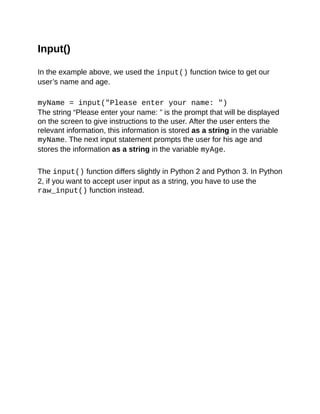
Input()
	
In	the	example	above,	we	used	the	input()	function	twice	to	get	our
user’s	name	and	age.
	
myName	=	input("Please	enter	your	name:	")
The	string	“Please	enter	your	name:	”	is	the	prompt	that	will	be	displayed
on	the	screen	to	give	instructions	to	the	user.	After	the	user	enters	the
relevant	information,	this	information	is	stored	as	a	string	in	the	variable
myName.	The	next	input	statement	prompts	the	user	for	his	age	and
stores	the	information	as	a	string	in	the	variable	myAge.
	
The	input()	function	differs	slightly	in	Python	2	and	Python	3.	In	Python
2,	if	you	want	to	accept	user	input	as	a	string,	you	have	to	use	the
raw_input()	function	instead.
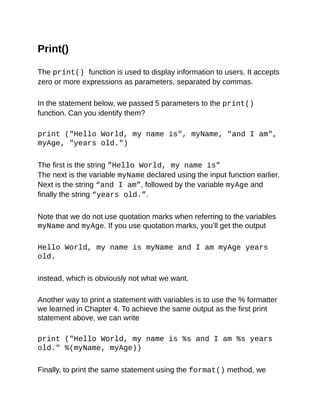
Print()
	
The	print()	function	is	used	to	display	information	to	users.	It	accepts
zero	or	more	expressions	as	parameters,	separated	by	commas.
	
In	the	statement	below,	we	passed	5	parameters	to	the	print()
function.	Can	you	identify	them?
	
print	("Hello	World,	my	name	is",	myName,	"and	I	am",
myAge,	"years	old.")
	
The	first	is	the	string	”Hello	World,	my	name	is”
The	next	is	the	variable	myName	declared	using	the	input	function	earlier.
Next	is	the	string	“and	I	am”,	followed	by	the	variable	myAge	and
finally	the	string	“years	old.”.
	
Note	that	we	do	not	use	quotation	marks	when	referring	to	the	variables
myName	and	myAge.	If	you	use	quotation	marks,	you’ll	get	the	output
	
Hello	World,	my	name	is	myName	and	I	am	myAge	years
old.
	
instead,	which	is	obviously	not	what	we	want.
	
Another	way	to	print	a	statement	with	variables	is	to	use	the	%	formatter
we	learned	in	Chapter	4.	To	achieve	the	same	output	as	the	first	print
statement	above,	we	can	write
	
print	("Hello	World,	my	name	is	%s	and	I	am	%s	years
old."	%(myName,	myAge))
	
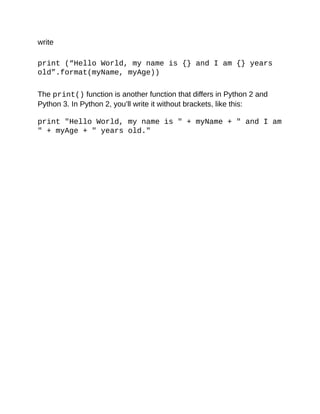
Finally,	to	print	the	same	statement	using	the	format()	method,	we
write
	
print	(“Hello	World,	my	name	is	{}	and	I	am	{}	years
old”.format(myName,	myAge))
	
The	print()	function	is	another	function	that	differs	in	Python	2	and
Python	3.	In	Python	2,	you’ll	write	it	without	brackets,	like	this:
	
print	"Hello	World,	my	name	is	"	+	myName	+	"	and	I	am
"	+	myAge	+	"	years	old."
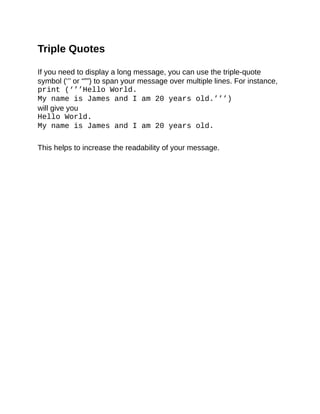
Triple	Quotes
	
If	you	need	to	display	a	long	message,	you	can	use	the	triple-quote
symbol	(‘’’	or	“””)	to	span	your	message	over	multiple	lines.	For	instance,
print	(‘’’Hello	World.
My	name	is	James	and	I	am	20	years	old.’’’)
will	give	you
Hello	World.
My	name	is	James	and	I	am	20	years	old.
	
This	helps	to	increase	the	readability	of	your	message.
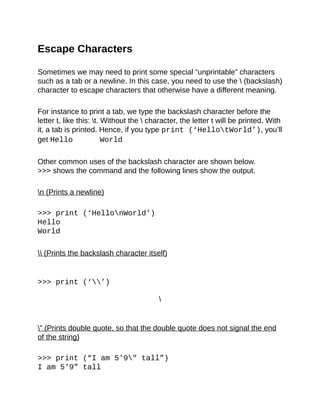
Escape	Characters
	
Sometimes	we	may	need	to	print	some	special	“unprintable”	characters
such	as	a	tab	or	a	newline.	In	this	case,	you	need	to	use	the		(backslash)
character	to	escape	characters	that	otherwise	have	a	different	meaning.
	
For	instance	to	print	a	tab,	we	type	the	backslash	character	before	the
letter	t,	like	this:	t.	Without	the		character,	the	letter	t	will	be	printed.	With
it,	a	tab	is	printed.	Hence,	if	you	type	print	(‘HellotWorld’),	you’ll
get	Hello						World
	
Other	common	uses	of	the	backslash	character	are	shown	below.
>>>	shows	the	command	and	the	following	lines	show	the	output.
	
n	(Prints	a	newline)
	
>>>	print	(‘HellonWorld’)
Hello
World
	
	(Prints	the	backslash	character	itself)
	
>>>	print	(‘’)

	
”	(Prints	double	quote,	so	that	the	double	quote	does	not	signal	the	end
of	the	string)
	
>>>	print	(“I	am	5'9"	tall”)
I	am	5’9”	tall
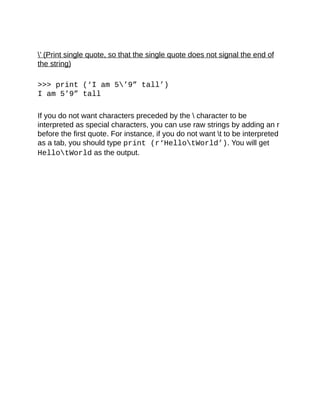
’	(Print	single	quote,	so	that	the	single	quote	does	not	signal	the	end	of
the	string)
	
>>>	print	(‘I	am	5’9”	tall’)
I	am	5’9”	tall
	
If	you	do	not	want	characters	preceded	by	the		character	to	be
interpreted	as	special	characters,	you	can	use	raw	strings	by	adding	an	r
before	the	first	quote.	For	instance,	if	you	do	not	want	t	to	be	interpreted
as	a	tab,	you	should	type	print	(r‘HellotWorld’).	You	will	get
HellotWorld	as	the	output.
Chapter	6:	Making	Choices	and	Decisions
	
Congratulations,	you’ve	made	it	to	the	most	interesting	chapter.	I	hope
you’ve	enjoyed	the	course	so	far.	In	this	chapter,	we’ll	look	at	how	to
make	your	program	smarter,	capable	of	making	choices	and	decisions.
Specifically,	we’ll	be	looking	at	the	if	statement,	for	loop	and	while
loop.	These	are	known	as	control	flow	tools;	they	control	the	flow	of	the
program.	In	addition,	we’ll	also	look	at	the	try,	except	statement	that
determines	what	the	program	should	do	when	an	error	occurs.
	
However,	before	we	go	into	these	control	flow	tools,	we	have	to	first	look
at	condition	statements.
Condition	Statements
	
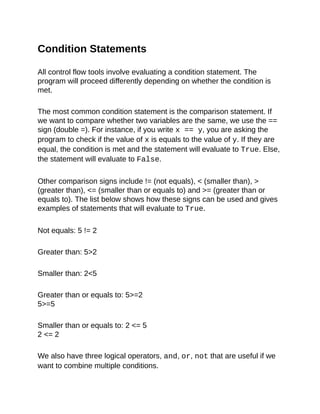
All	control	flow	tools	involve	evaluating	a	condition	statement.	The
program	will	proceed	differently	depending	on	whether	the	condition	is
met.
	
The	most	common	condition	statement	is	the	comparison	statement.	If
we	want	to	compare	whether	two	variables	are	the	same,	we	use	the	==
sign	(double	=).	For	instance,	if	you	write	x	==	y,	you	are	asking	the
program	to	check	if	the	value	of	x	is	equals	to	the	value	of	y.	If	they	are
equal,	the	condition	is	met	and	the	statement	will	evaluate	to	True.	Else,
the	statement	will	evaluate	to	False.
	
Other	comparison	signs	include	!=	(not	equals),	<	(smaller	than),	>
(greater	than),	<=	(smaller	than	or	equals	to)	and	>=	(greater	than	or
equals	to).	The	list	below	shows	how	these	signs	can	be	used	and	gives
examples	of	statements	that	will	evaluate	to	True.
	
Not	equals:	5	!=	2
	
Greater	than:	5>2
	
Smaller	than:	2<5
	
Greater	than	or	equals	to:	5>=2
5>=5
	
Smaller	than	or	equals	to:	2	<=	5
2	<=	2
	
We	also	have	three	logical	operators,	and,	or,	not	that	are	useful	if	we
want	to	combine	multiple	conditions.
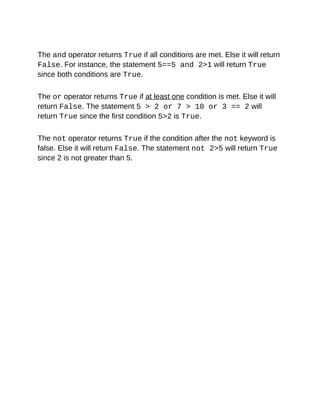
The	and	operator	returns	True	if	all	conditions	are	met.	Else	it	will	return
False.	For	instance,	the	statement	5==5	and	2>1	will	return	True
since	both	conditions	are	True.
	
The	or	operator	returns	True	if	at	least	one	condition	is	met.	Else	it	will
return	False.	The	statement	5	>	2	or	7	>	10	or	3	==	2	will
return	True	since	the	first	condition	5>2	is	True.
	
The	not	operator	returns	True	if	the	condition	after	the	not	keyword	is
false.	Else	it	will	return	False.	The	statement	not	2>5	will	return	True
since	2	is	not	greater	than	5.
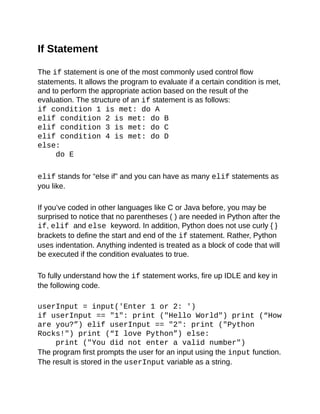
If	Statement
	
The	if	statement	is	one	of	the	most	commonly	used	control	flow
statements.	It	allows	the	program	to	evaluate	if	a	certain	condition	is	met,
and	to	perform	the	appropriate	action	based	on	the	result	of	the
evaluation.	The	structure	of	an	if	statement	is	as	follows:
if	condition	1	is	met:	do	A
elif	condition	2	is	met:	do	B
elif	condition	3	is	met:	do	C
elif	condition	4	is	met:	do	D
else:
do	E
	
elif	stands	for	“else	if”	and	you	can	have	as	many	elif	statements	as
you	like.
	
If	you’ve	coded	in	other	languages	like	C	or	Java	before,	you	may	be
surprised	to	notice	that	no	parentheses	(	)	are	needed	in	Python	after	the
if,	elif	and	else	keyword.	In	addition,	Python	does	not	use	curly	{	}
brackets	to	define	the	start	and	end	of	the	if	statement.	Rather,	Python
uses	indentation.	Anything	indented	is	treated	as	a	block	of	code	that	will
be	executed	if	the	condition	evaluates	to	true.
	
To	fully	understand	how	the	if	statement	works,	fire	up	IDLE	and	key	in
the	following	code.
	
userInput	=	input('Enter	1	or	2:	')
if	userInput	==	"1":	print	("Hello	World")	print	(“How
are	you?”)	elif	userInput	==	"2":	print	("Python
Rocks!")	print	(“I	love	Python”)	else:
print	("You	did	not	enter	a	valid	number")
The	program	first	prompts	the	user	for	an	input	using	the	input	function.
The	result	is	stored	in	the	userInput	variable	as	a	string.
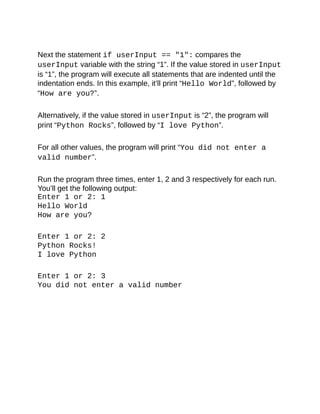
Next	the	statement	if	userInput	==	"1":	compares	the
userInput	variable	with	the	string	“1”.	If	the	value	stored	in	userInput
is	“1”,	the	program	will	execute	all	statements	that	are	indented	until	the
indentation	ends.	In	this	example,	it’ll	print	“Hello	World”,	followed	by
“How	are	you?”.
	
Alternatively,	if	the	value	stored	in	userInput	is	“2”,	the	program	will
print	“Python	Rocks”,	followed	by	“I	love	Python”.
	
For	all	other	values,	the	program	will	print	“You	did	not	enter	a
valid	number”.
	
Run	the	program	three	times,	enter	1,	2	and	3	respectively	for	each	run.
You’ll	get	the	following	output:
Enter	1	or	2:	1
Hello	World
How	are	you?
	
Enter	1	or	2:	2
Python	Rocks!
I	love	Python
	
Enter	1	or	2:	3
You	did	not	enter	a	valid	number
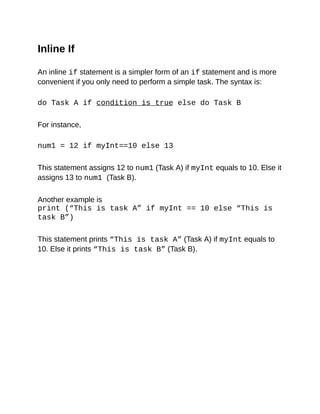
Inline	If
	
An	inline	if	statement	is	a	simpler	form	of	an	if	statement	and	is	more
convenient	if	you	only	need	to	perform	a	simple	task.	The	syntax	is:
	
do	Task	A	if	condition	is	true	else	do	Task	B
	
For	instance,
	
num1	=	12	if	myInt==10	else	13
	
This	statement	assigns	12	to	num1	(Task	A)	if	myInt	equals	to	10.	Else	it
assigns	13	to	num1	(Task	B).
	
Another	example	is
print	(“This	is	task	A”	if	myInt	==	10	else	“This	is
task	B”)
	
This	statement	prints	“This	is	task	A”	(Task	A)	if	myInt	equals	to
10.	Else	it	prints	“This	is	task	B”	(Task	B).
For	Loop
	
Next,	let	us	look	at	the	for	loop.	The	for	loop	executes	a	block	of	code
repeatedly	until	the	condition	in	the	for	statement	is	no	longer	valid.
	
Looping	through	an	iterable
	
In	Python,	an	iterable	refers	to	anything	that	can	be	looped	over,	such	as
a	string,	list	or	tuple.	The	syntax	for	looping	through	an	iterable	is	as
follows:
	
for	a	in	iterable:
print	(a)
	
Example:
	
pets	=	['cats',	'dogs',	'rabbits',	'hamsters']
	
for	myPets	in	pets:
print	(myPets)
	
In	the	program	above,	we	first	declare	the	list	pets	and	give	it	the
members	'cats',	'dogs',	'rabbits'	and	'hamsters'.		Next	the	
statement	for	myPets	in	pets:	loops	through	the	pets	list	and
assigns	each	member	in	the	list	to	the	variable	myPets.
	
The	first	time	the	program	runs	through	the	for	loop,	it	assigns	‘cats’
to	the	variable	myPets.	The	statement	print	(myPets)	then	prints	the
value	‘cats’.	The	second	time	the	programs	loops	through	the	for
statement,	it	assigns	the	value	‘dogs’	to	myPets	and	prints	the	value
‘dogs’.	The	program	continues	looping	through	the	list	until	the	end	of
the	list	is	reached.
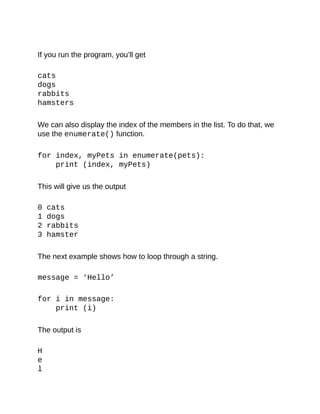
If	you	run	the	program,	you’ll	get
	
cats
dogs
rabbits
hamsters
	
We	can	also	display	the	index	of	the	members	in	the	list.	To	do	that,	we
use	the	enumerate()	function.
	
for	index,	myPets	in	enumerate(pets):
print	(index,	myPets)
	
This	will	give	us	the	output
	
0	cats
1	dogs
2	rabbits
3	hamster
	
The	next	example	shows	how	to	loop	through	a	string.
	
message	=	‘Hello’
	
for	i	in	message:
print	(i)
	
The	output	is
	
H
e
l
l
o
	
Looping	through	a	sequence	of	numbers
	
To	loop	through	a	sequence	of	numbers,	the	built-in	range()	function
comes	in	handy.	The	range()	function	generates	a	list	of	numbers	and
has	the	syntax	range	(start,	end,	step).
	
If	start	is	not	given,	the	numbers	generated	will	start	from	zero.
	
	
Note:	A	useful	tip	to	remember	here	is	that	in	Python	(and	most
programming	languages),	unless	otherwise	stated,	we	always	start	from
zero.
	
For	instance,	the	index	of	a	list	and	a	tuple	starts	from	zero.
When	using	the	format()	method	for	strings,	the	positions	of
parameters	start	from	zero.
When	using	the	range()	function,	if	start	is	not	given,	the	numbers
generated	start	from	zero.


If	step	is	not	given,	a	list	of	consecutive	numbers	will	be	generated	(i.e.
step	=	1).	The	end	value	must	be	provided.	However,	one	weird	thing
about	the	range()	function	is	that	the	given	end	value	is	never	part	of
the	generated	list.
	
For	instance,
range(5)	will	generate	the	list	[0,	1,	2,	3,	4]
range(3,	10)	will	generate	[3,	4,	5,	6,	7,	8,	9]
range(4,	10,	2)	will	generate	[4,	6,	8]
	
To	see	how	the	range()	function	works	in	a	for	statement,	try	running
the	following	code:
	
for	i	in	range(5):
print	(i)
	
You	should	get
0
1
2
3
4
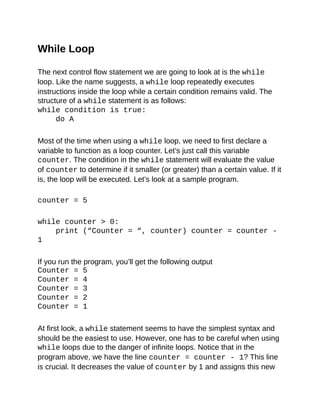
While	Loop
	
The	next	control	flow	statement	we	are	going	to	look	at	is	the	while
loop.	Like	the	name	suggests,	a	while	loop	repeatedly	executes
instructions	inside	the	loop	while	a	certain	condition	remains	valid.	The
structure	of	a	while	statement	is	as	follows:
while	condition	is	true:
do	A
	
Most	of	the	time	when	using	a	while	loop,	we	need	to	first	declare	a
variable	to	function	as	a	loop	counter.	Let’s	just	call	this	variable
counter.	The	condition	in	the	while	statement	will	evaluate	the	value
of	counter	to	determine	if	it	smaller	(or	greater)	than	a	certain	value.	If	it
is,	the	loop	will	be	executed.	Let’s	look	at	a	sample	program.
	
counter	=	5
	
while	counter	>	0:
print	(“Counter	=	“,	counter)	counter	=	counter	-
1
	
If	you	run	the	program,	you’ll	get	the	following	output
Counter	=	5
Counter	=	4
Counter	=	3
Counter	=	2
Counter	=	1
	
At	first	look,	a	while	statement	seems	to	have	the	simplest	syntax	and
should	be	the	easiest	to	use.	However,	one	has	to	be	careful	when	using
while	loops	due	to	the	danger	of	infinite	loops.	Notice	that	in	the
program	above,	we	have	the	line	counter	=	counter	-	1?	This	line
is	crucial.	It	decreases	the	value	of	counter	by	1	and	assigns	this	new
value	back	to	counter,	overwriting	the	original	value.
	
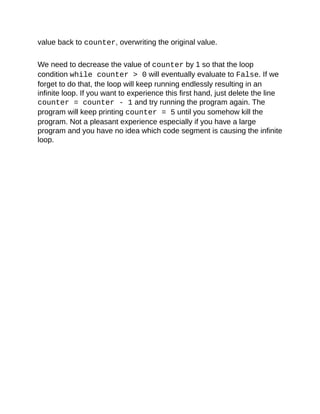
We	need	to	decrease	the	value	of	counter	by	1	so	that	the	loop
condition	while	counter	>	0	will	eventually	evaluate	to	False.	If	we
forget	to	do	that,	the	loop	will	keep	running	endlessly	resulting	in	an
infinite	loop.	If	you	want	to	experience	this	first	hand,	just	delete	the	line
counter	=	counter	-	1	and	try	running	the	program	again.	The
program	will	keep	printing	counter	=	5	until	you	somehow	kill	the
program.	Not	a	pleasant	experience	especially	if	you	have	a	large
program	and	you	have	no	idea	which	code	segment	is	causing	the	infinite
loop.
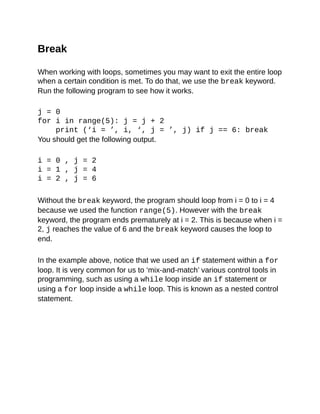
Break
	
When	working	with	loops,	sometimes	you	may	want	to	exit	the	entire	loop
when	a	certain	condition	is	met.	To	do	that,	we	use	the	break	keyword.
Run	the	following	program	to	see	how	it	works.
	
j	=	0
for	i	in	range(5):	j	=	j	+	2
print	(‘i	=	’,	i,	‘,	j	=	’,	j)	if	j	==	6:	break
You	should	get	the	following	output.
	
i	=	0	,	j	=	2
i	=	1	,	j	=	4
i	=	2	,	j	=	6
	
Without	the	break	keyword,	the	program	should	loop	from	i	=	0	to	i	=	4
because	we	used	the	function	range(5).	However	with	the	break
keyword,	the	program	ends	prematurely	at	i	=	2.	This	is	because	when	i	=
2,	j	reaches	the	value	of	6	and	the	break	keyword	causes	the	loop	to
end.
	
In	the	example	above,	notice	that	we	used	an	if	statement	within	a	for
loop.	It	is	very	common	for	us	to	‘mix-and-match’	various	control	tools	in
programming,	such	as	using	a	while	loop	inside	an	if	statement	or
using	a	for	loop	inside	a	while	loop.	This	is	known	as	a	nested	control
statement.
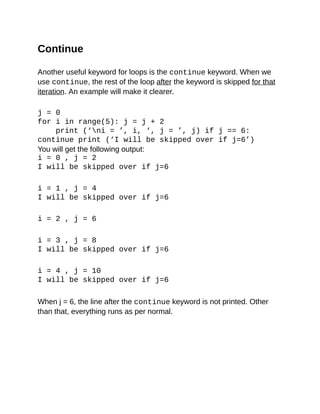
Continue
	
Another	useful	keyword	for	loops	is	the	continue	keyword.	When	we
use	continue,	the	rest	of	the	loop	after	the	keyword	is	skipped	for	that
iteration.	An	example	will	make	it	clearer.
	
j	=	0
for	i	in	range(5):	j	=	j	+	2
print	(‘ni	=	’,	i,	‘,	j	=	’,	j)	if	j	==	6:
continue	print	(‘I	will	be	skipped	over	if	j=6’)
You	will	get	the	following	output:
i	=	0	,	j	=	2
I	will	be	skipped	over	if	j=6
	
i	=	1	,	j	=	4
I	will	be	skipped	over	if	j=6
	
i	=	2	,	j	=	6
	
i	=	3	,	j	=	8
I	will	be	skipped	over	if	j=6
	
i	=	4	,	j	=	10
I	will	be	skipped	over	if	j=6
	
When	j	=	6,	the	line	after	the	continue	keyword	is	not	printed.	Other
than	that,	everything	runs	as	per	normal.
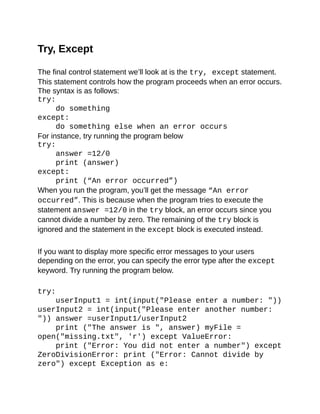
Try,	Except
	
The	final	control	statement	we’ll	look	at	is	the	try,	except	statement.
This	statement	controls	how	the	program	proceeds	when	an	error	occurs.
The	syntax	is	as	follows:
try:
do	something
except:
do	something	else	when	an	error	occurs
For	instance,	try	running	the	program	below
try:
answer	=12/0
print	(answer)
except:
print	(“An	error	occurred”)
When	you	run	the	program,	you’ll	get	the	message	“An	error
occurred”.	This	is	because	when	the	program	tries	to	execute	the
statement	answer	=12/0	in	the	try	block,	an	error	occurs	since	you
cannot	divide	a	number	by	zero.	The	remaining	of	the	try	block	is
ignored	and	the	statement	in	the	except	block	is	executed	instead.
	
If	you	want	to	display	more	specific	error	messages	to	your	users
depending	on	the	error,	you	can	specify	the	error	type	after	the	except
keyword.	Try	running	the	program	below.
	
try:
userInput1	=	int(input("Please	enter	a	number:	"))
userInput2	=	int(input("Please	enter	another	number:
"))	answer	=userInput1/userInput2
print	("The	answer	is	",	answer)	myFile	=
open("missing.txt",	'r')	except	ValueError:
print	("Error:	You	did	not	enter	a	number")	except
ZeroDivisionError:	print	("Error:	Cannot	divide	by
zero")	except	Exception	as	e:
print	("Unknown	error:	",	e)
The	list	below	shows	the	various	outputs	for	different	user	inputs.	>>>
denotes	the	user	input	and	=>	denotes	the	output.
	
>>>	Please	enter	a	number:	m	=>	Error:	You	did	not
enter	a	number
Reason:	User	entered	a	string	which	cannot	be	cast	into	an	integer.	This
is	a	ValueError.	Hence,	the	statement	in	the	except	ValueError
block	is	displayed.
	
>>>	Please	enter	a	number:	12
>>>	Please	enter	another	number:	0
=>	Error:	Cannot	divide	by	zero
Reason:	userInput2	=	0.	Since	we	cannot	divide	a	number	by	zero,
this	is	a	ZeroDivisionError.	The	statement	in	the	except
ZeroDivisionError	block	is	displayed.
	
>>>	Please	enter	a	number:	12
>>>	Please	enter	another	number:	3
=>	The	answer	is	4.0
=>	Unknown	error:	[Errno	2]	No	such	file	or	directory:
'missing.txt'
	
Reason:	User	enters	acceptable	values	and	the	line	print	("The
answer	is	",	answer)	executes	correctly.	However,	the	next	line
raises	an	error	as	missing.txt	is	not	found.	Since	this	is	not	a
ValueError	or	a	ZeroDivisionError,	the	last	except	block	is
executed.
	
ValueError	and	ZeroDivisionError	are	two	of	the	many	pre-
defined	error	types	in	Python.	ValueError	is	raised	when	a	built-in
operation	or	function	receives	a	parameter	that	has	the	right	type	but	an
inappropriate	value.	ZeroDivisionError	is	raised	when	the	program
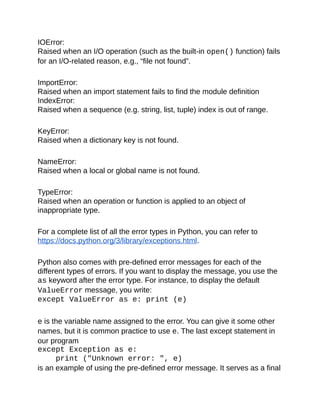
tries	to	divide	by	zero.	Other	common	errors	in	Python	include
IOError:
Raised	when	an	I/O	operation	(such	as	the	built-in	open()	function)	fails
for	an	I/O-related	reason,	e.g.,	“file	not	found”.
	
ImportError:
Raised	when	an	import	statement	fails	to	find	the	module	definition
IndexError:
Raised	when	a	sequence	(e.g.	string,	list,	tuple)	index	is	out	of	range.
	
KeyError:
Raised	when	a	dictionary	key	is	not	found.
	
NameError:
Raised	when	a	local	or	global	name	is	not	found.
	
TypeError:
Raised	when	an	operation	or	function	is	applied	to	an	object	of
inappropriate	type.
	
For	a	complete	list	of	all	the	error	types	in	Python,	you	can	refer	to
https://docs.python.org/3/library/exceptions.html.
	
Python	also	comes	with	pre-defined	error	messages	for	each	of	the
different	types	of	errors.	If	you	want	to	display	the	message,	you	use	the
as	keyword	after	the	error	type.	For	instance,	to	display	the	default
ValueError	message,	you	write:
except	ValueError	as	e:	print	(e)
	
e	is	the	variable	name	assigned	to	the	error.	You	can	give	it	some	other
names,	but	it	is	common	practice	to	use	e.	The	last	except	statement	in
our	program
except	Exception	as	e:
print	("Unknown	error:	",	e)
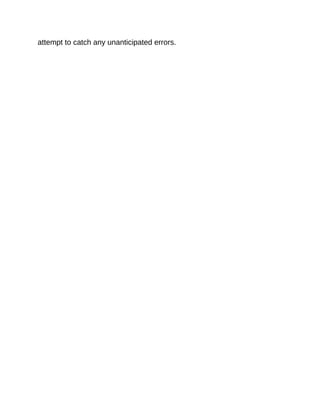
is	an	example	of	using	the	pre-defined	error	message.	It	serves	as	a	final
attempt	to	catch	any	unanticipated	errors.
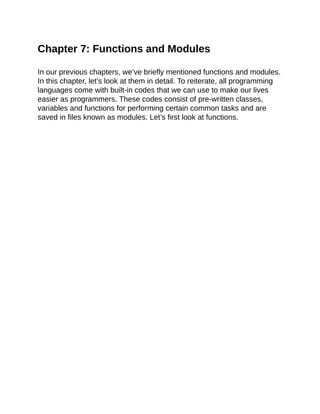
Chapter	7:	Functions	and	Modules
	
In	our	previous	chapters,	we’ve	briefly	mentioned	functions	and	modules.
In	this	chapter,	let’s	look	at	them	in	detail.	To	reiterate,	all	programming
languages	come	with	built-in	codes	that	we	can	use	to	make	our	lives
easier	as	programmers.	These	codes	consist	of	pre-written	classes,
variables	and	functions	for	performing	certain	common	tasks	and	are
saved	in	files	known	as	modules.	Let’s	first	look	at	functions.
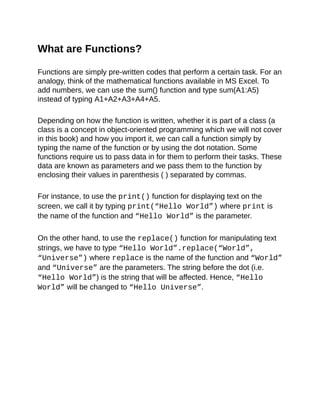
What	are	Functions?
	
Functions	are	simply	pre-written	codes	that	perform	a	certain	task.	For	an
analogy,	think	of	the	mathematical	functions	available	in	MS	Excel.	To
add	numbers,	we	can	use	the	sum()	function	and	type	sum(A1:A5)
instead	of	typing	A1+A2+A3+A4+A5.
	
Depending	on	how	the	function	is	written,	whether	it	is	part	of	a	class	(a
class	is	a	concept	in	object-oriented	programming	which	we	will	not	cover
in	this	book)	and	how	you	import	it,	we	can	call	a	function	simply	by
typing	the	name	of	the	function	or	by	using	the	dot	notation.	Some
functions	require	us	to	pass	data	in	for	them	to	perform	their	tasks.	These
data	are	known	as	parameters	and	we	pass	them	to	the	function	by
enclosing	their	values	in	parenthesis	(	)	separated	by	commas.
	
For	instance,	to	use	the	print()	function	for	displaying	text	on	the
screen,	we	call	it	by	typing	print(“Hello	World”)	where	print	is
the	name	of	the	function	and	“Hello	World”	is	the	parameter.
	
On	the	other	hand,	to	use	the	replace()	function	for	manipulating	text
strings,	we	have	to	type	“Hello	World”.replace(“World”,
“Universe”)	where	replace	is	the	name	of	the	function	and	“World”
and	“Universe”	are	the	parameters.	The	string	before	the	dot	(i.e.
“Hello	World”)	is	the	string	that	will	be	affected.	Hence,	“Hello
World”	will	be	changed	to	“Hello	Universe”.
Defining	Your	Own	Functions
	
We	can	define	our	own	functions	in	Python	and	reuse	them	throughout
the	program.	The	syntax	for	defining	a	function	is	as	follows:
def	functionName(parameters):	code	detailing	what	the
function	should	do	return	[expression]
	
There	are	two	keywords	here,	def	and	return.
	
def	tells	the	program	that	the	indented	code	from	the	next	line	onwards
is	part	of	the	function.	return	is	the	keyword	that	we	use	to	return	an
answer	from	the	function.	There	can	be	more	than	one	return
statements	in	a	function.	However,	once	the	function	executes	a	return
statement,	the	function	will	exit.	If	your	function	does	not	need	to	return
any	value,	you	can	omit	the	return	statement.	Alternatively,	you	can
write	return	or	return	None.
	
Let	us	now	define	our	first	function.	Suppose	we	want	to	determine	if	a
given	number	is	a	prime	number.	Here’s	how	we	can	define	the	function
using	the	modulus	(%)	operator	we	learned	in	Chapter	3	and	the	for
loop	and	if	statement	we	learned	in	Chapter	6.
	
def	checkIfPrime	(numberToCheck):	for	x	in	range(2,
numberToCheck):	if	(numberToCheck%x	==	0):	
						return	False	return	True
In	the	function	above,	lines	2	and	3	uses	a	for	loop	to	divide	the	given
parameter	numberToCheck	by	all	numbers	from	2	to	numberToCheck
-	1	to	determine	if	the	remainder	is	zero.	If	the	remainder	is	zero,
numberToCheck	is	not	a	prime	number.	Line	4	will	return	False	and	the
function	will	exit.
	
If	by	last	iteration	of	the	for	loop,	none	of	the	division	gives	a	remainder
of	zero,	the	function	will	reach	Line	5,	and	return	True.	The	function	will
then	exit.
	
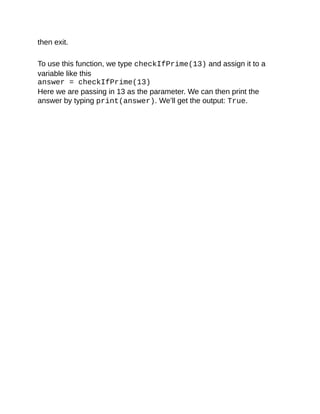
To	use	this	function,	we	type	checkIfPrime(13)	and	assign	it	to	a
variable	like	this
answer	=	checkIfPrime(13)
Here	we	are	passing	in	13	as	the	parameter.	We	can	then	print	the
answer	by	typing	print(answer).	We’ll	get	the	output:	True.
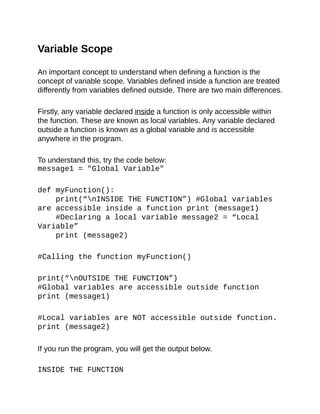
Variable	Scope
	
An	important	concept	to	understand	when	defining	a	function	is	the
concept	of	variable	scope.	Variables	defined	inside	a	function	are	treated
differently	from	variables	defined	outside.	There	are	two	main	differences.
	
Firstly,	any	variable	declared	inside	a	function	is	only	accessible	within
the	function.	These	are	known	as	local	variables.	Any	variable	declared
outside	a	function	is	known	as	a	global	variable	and	is	accessible
anywhere	in	the	program.
	
To	understand	this,	try	the	code	below:
message1	=	"Global	Variable"
	
def	myFunction():
print(“nINSIDE	THE	FUNCTION”)	#Global	variables
are	accessible	inside	a	function	print	(message1)
#Declaring	a	local	variable	message2	=	“Local
Variable”
print	(message2)
	
#Calling	the	function	myFunction()
	
print(“nOUTSIDE	THE	FUNCTION”)
#Global	variables	are	accessible	outside	function
print	(message1)
	
#Local	variables	are	NOT	accessible	outside	function.
print	(message2)
	
If	you	run	the	program,	you	will	get	the	output	below.
	
INSIDE	THE	FUNCTION
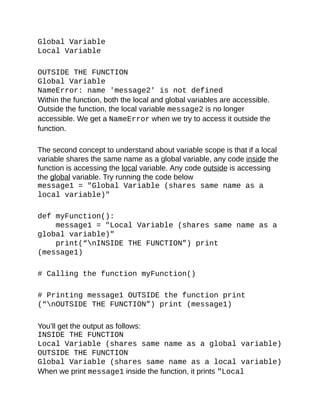
Global	Variable
Local	Variable
	
OUTSIDE	THE	FUNCTION
Global	Variable
NameError:	name	'message2'	is	not	defined
Within	the	function,	both	the	local	and	global	variables	are	accessible.
Outside	the	function,	the	local	variable	message2	is	no	longer
accessible.	We	get	a	NameError	when	we	try	to	access	it	outside	the
function.
	
The	second	concept	to	understand	about	variable	scope	is	that	if	a	local
variable	shares	the	same	name	as	a	global	variable,	any	code	inside	the
function	is	accessing	the	local	variable.	Any	code	outside	is	accessing
the	global	variable.	Try	running	the	code	below
message1	=	"Global	Variable	(shares	same	name	as	a
local	variable)"
	
def	myFunction():
message1	=	"Local	Variable	(shares	same	name	as	a
global	variable)"
print(“nINSIDE	THE	FUNCTION”)	print
(message1)						
	
#	Calling	the	function	myFunction()
	
#	Printing	message1	OUTSIDE	the	function	print
(“nOUTSIDE	THE	FUNCTION”)	print	(message1)
	
You’ll	get	the	output	as	follows:
INSIDE	THE	FUNCTION
Local	Variable	(shares	same	name	as	a	global	variable)
OUTSIDE	THE	FUNCTION
Global	Variable	(shares	same	name	as	a	local	variable)
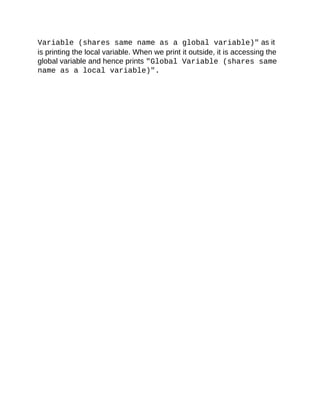
When	we	print	message1	inside	the	function,	it	prints	"Local
Variable	(shares	same	name	as	a	global	variable)"	as	it
is	printing	the	local	variable.	When	we	print	it	outside,	it	is	accessing	the
global	variable	and	hence	prints	"Global	Variable	(shares	same
name	as	a	local	variable)".
Importing	Modules
	
Python	comes	with	a	large	number	of	built-in	functions.	These	functions
are	saved	in	files	known	as	modules.	To	use	the	built-in	codes	in	Python
modules,	we	have	to	import	them	into	our	programs	first.	We	do	that	by
using	the	import	keyword.	There	are	three	ways	to	do	it.
	
The	first	way	is	to	import	the	entire	module	by	writing	import
moduleName.
	
For	instance,	to	import	the	random	module,	we	write	import	random.
To	use	the	randrange()	function	in	the	random	module,	we	write
random.randrange(1,	10).
	
If	you	find	it	too	troublesome	to	write	random	each	time	you	use	the
function,	you	can	import	the	module	by	writing	import	random	as	r
(where	r	is	any	name	of	your	choice).	Now	to	use	the	randrange()
function,	you	simply	write	r.randrange(1,	10).
	
The	third	way	to	import	modules	is	to	import	specific	functions	from	the
module	by	writing	from	moduleName	import	name1[,	name2[,	...
nameN]].
	
For	instance,	to	import	the	randrange()	function	from	the	random
module,	we	write	from	random	import	randrange.	If	we	want	to
import	more	than	one	functions,	we	separate	them	with	a	comma.	To
import	the	randrange()	and	randint()	functions,	we	write	from
random	import	randrange,	randint.	To	use	the	function	now,	we
do	not	have	to	use	the	dot	notation	anymore.	Just	write	randrange(1,
10).
Creating	our	Own	Module
	
Besides	importing	built-in	modules,	we	can	also	create	our	own	modules.
This	is	very	useful	if	you	have	some	functions	that	you	want	to	reuse	in
other	programming	projects	in	future.
	
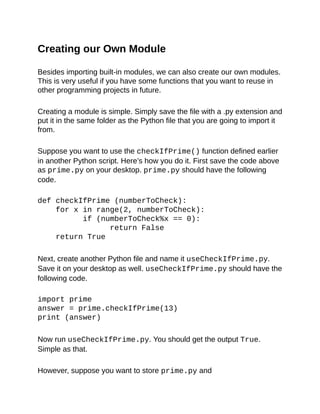
Creating	a	module	is	simple.	Simply	save	the	file	with	a	.py	extension	and
put	it	in	the	same	folder	as	the	Python	file	that	you	are	going	to	import	it
from.
	
Suppose	you	want	to	use	the	checkIfPrime()	function	defined	earlier
in	another	Python	script.	Here’s	how	you	do	it.	First	save	the	code	above
as	prime.py	on	your	desktop.	prime.py	should	have	the	following
code.
	
def	checkIfPrime	(numberToCheck):
for	x	in	range(2,	numberToCheck):
						if	(numberToCheck%x	==	0):
												return	False
return	True
	
Next,	create	another	Python	file	and	name	it	useCheckIfPrime.py.
Save	it	on	your	desktop	as	well.	useCheckIfPrime.py	should	have	the
following	code.
	
import	prime
answer	=	prime.checkIfPrime(13)
print	(answer)
	
Now	run	useCheckIfPrime.py.	You	should	get	the	output	True.
Simple	as	that.
	
However,	suppose	you	want	to	store	prime.py	and
useCheckIfPrime.py	in	different	folders.	You	are	going	to	have	to	add
some	codes	to	useCheckIfPrime.py	to	tell	the	Python	interpreter
where	to	find	the	module.
	
Say	you	created	a	folder	named	‘MyPythonModules’	in	your	C	drive	to
store	prime.py.	You	need	to	add	the	following	code	to	the	top	of	your
useCheckIfPrime.py	file	(before	the	line	import	prime).
	
import	sys
	
if	'C:MyPythonModules'	not	in	sys.path:
				sys.path.append('C:MyPythonModules')
	
sys.path	refers	to	your	Python’s	system	path.	This	is	the	list	of
directories	that	Python	goes	through	to	search	for	modules	and	files.	The
code	above	appends	the	folder	‘C:MyPythonModules’	to	your	system
path.
	
Now	you	can	put	prime.py	in	C:MyPythonModules	and
checkIfPrime.py	in	any	other	folder	of	your	choice.
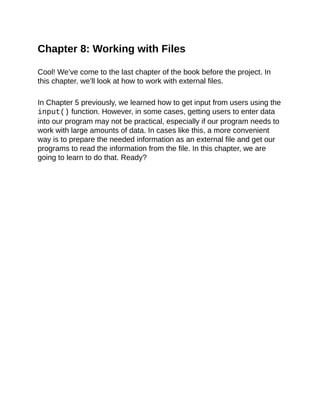
Chapter	8:	Working	with	Files
	
Cool!	We’ve	come	to	the	last	chapter	of	the	book	before	the	project.	In
this	chapter,	we’ll	look	at	how	to	work	with	external	files.
	
In	Chapter	5	previously,	we	learned	how	to	get	input	from	users	using	the
input()	function.	However,	in	some	cases,	getting	users	to	enter	data
into	our	program	may	not	be	practical,	especially	if	our	program	needs	to
work	with	large	amounts	of	data.	In	cases	like	this,	a	more	convenient
way	is	to	prepare	the	needed	information	as	an	external	file	and	get	our
programs	to	read	the	information	from	the	file.	In	this	chapter,	we	are
going	to	learn	to	do	that.	Ready?
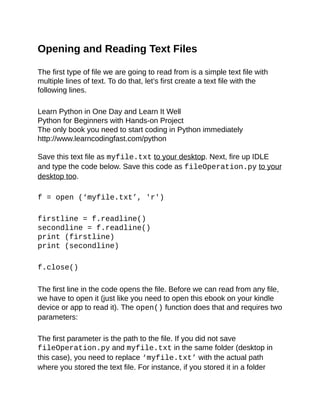
Opening	and	Reading	Text	Files
	
The	first	type	of	file	we	are	going	to	read	from	is	a	simple	text	file	with
multiple	lines	of	text.	To	do	that,	let’s	first	create	a	text	file	with	the
following	lines.
	
Learn	Python	in	One	Day	and	Learn	It	Well
Python	for	Beginners	with	Hands-on	Project
The	only	book	you	need	to	start	coding	in	Python	immediately
http://www.learncodingfast.com/python
	
Save	this	text	file	as	myfile.txt	to	your	desktop.	Next,	fire	up	IDLE
and	type	the	code	below.	Save	this	code	as	fileOperation.py	to	your
desktop	too.
	
f	=	open	(‘myfile.txt’,	'r')
	
firstline	=	f.readline()
secondline	=	f.readline()
print	(firstline)
print	(secondline)
	
f.close()
	
The	first	line	in	the	code	opens	the	file.	Before	we	can	read	from	any	file,
we	have	to	open	it	(just	like	you	need	to	open	this	ebook	on	your	kindle
device	or	app	to	read	it).	The	open()	function	does	that	and	requires	two
parameters:
	
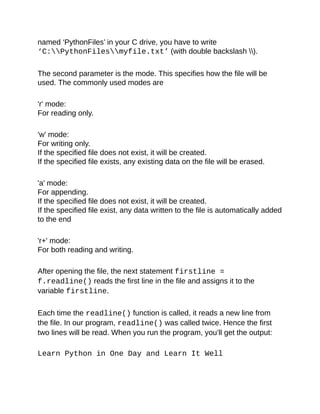
The	first	parameter	is	the	path	to	the	file.	If	you	did	not	save
fileOperation.py	and	myfile.txt	in	the	same	folder	(desktop	in
this	case),	you	need	to	replace	‘myfile.txt’	with	the	actual	path
where	you	stored	the	text	file.	For	instance,	if	you	stored	it	in	a	folder
named	‘PythonFiles’	in	your	C	drive,	you	have	to	write
‘C:PythonFilesmyfile.txt’	(with	double	backslash	).
	
The	second	parameter	is	the	mode.	This	specifies	how	the	file	will	be
used.	The	commonly	used	modes	are
	
'r'	mode:
For	reading	only.
	
'w'	mode:
For	writing	only.
If	the	specified	file	does	not	exist,	it	will	be	created.
If	the	specified	file	exists,	any	existing	data	on	the	file	will	be	erased.
	
'a'	mode:
For	appending.
If	the	specified	file	does	not	exist,	it	will	be	created.
If	the	specified	file	exist,	any	data	written	to	the	file	is	automatically	added
to	the	end
	
'r+'	mode:
For	both	reading	and	writing.
	
After	opening	the	file,	the	next	statement	firstline	=
f.readline()	reads	the	first	line	in	the	file	and	assigns	it	to	the
variable	firstline.
	
Each	time	the	readline()	function	is	called,	it	reads	a	new	line	from
the	file.	In	our	program,	readline()	was	called	twice.	Hence	the	first
two	lines	will	be	read.	When	you	run	the	program,	you’ll	get	the	output:
	
Learn	Python	in	One	Day	and	Learn	It	Well
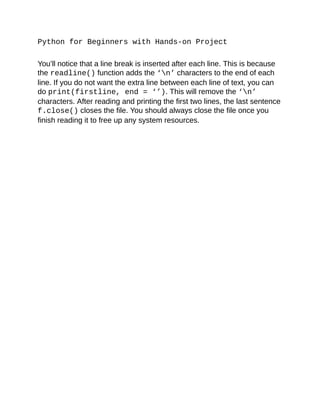
Python	for	Beginners	with	Hands-on	Project
	
You’ll	notice	that	a	line	break	is	inserted	after	each	line.	This	is	because
the	readline()	function	adds	the	‘n’	characters	to	the	end	of	each
line.	If	you	do	not	want	the	extra	line	between	each	line	of	text,	you	can
do	print(firstline,	end	=	‘’).	This	will	remove	the	‘n’
characters.	After	reading	and	printing	the	first	two	lines,	the	last	sentence
f.close()	closes	the	file.	You	should	always	close	the	file	once	you
finish	reading	it	to	free	up	any	system	resources.
Using	a	For	Loop	to	Read	Text	Files
	
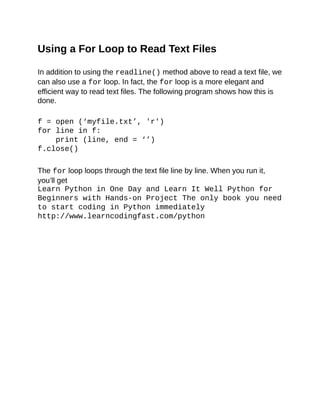
In	addition	to	using	the	readline()	method	above	to	read	a	text	file,	we
can	also	use	a	for	loop.	In	fact,	the	for	loop	is	a	more	elegant	and
efficient	way	to	read	text	files.	The	following	program	shows	how	this	is
done.
	
f	=	open	(‘myfile.txt’,	'r')
for	line	in	f:
print	(line,	end	=	‘’)
f.close()
	
The	for	loop	loops	through	the	text	file	line	by	line.	When	you	run	it,
you’ll	get
Learn	Python	in	One	Day	and	Learn	It	Well	Python	for
Beginners	with	Hands-on	Project	The	only	book	you	need
to	start	coding	in	Python	immediately
http://www.learncodingfast.com/python
Writing	to	a	Text	File
	
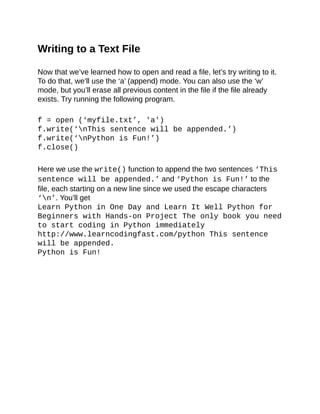
Now	that	we’ve	learned	how	to	open	and	read	a	file,	let’s	try	writing	to	it.
To	do	that,	we’ll	use	the	‘a’	(append)	mode.	You	can	also	use	the	‘w’
mode,	but	you’ll	erase	all	previous	content	in	the	file	if	the	file	already
exists.	Try	running	the	following	program.
	
f	=	open	(‘myfile.txt’,	'a')
f.write(‘nThis	sentence	will	be	appended.’)
f.write(‘nPython	is	Fun!’)
f.close()
	
Here	we	use	the	write()	function	to	append	the	two	sentences	‘This
sentence	will	be	appended.’	and	‘Python	is	Fun!’	to	the
file,	each	starting	on	a	new	line	since	we	used	the	escape	characters
‘n’.	You’ll	get
Learn	Python	in	One	Day	and	Learn	It	Well	Python	for
Beginners	with	Hands-on	Project	The	only	book	you	need
to	start	coding	in	Python	immediately
http://www.learncodingfast.com/python	This	sentence
will	be	appended.
Python	is	Fun!
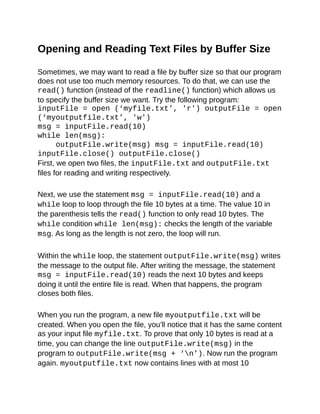
Opening	and	Reading	Text	Files	by	Buffer	Size
	
Sometimes,	we	may	want	to	read	a	file	by	buffer	size	so	that	our	program
does	not	use	too	much	memory	resources.	To	do	that,	we	can	use	the
read()	function	(instead	of	the	readline()	function)	which	allows	us
to	specify	the	buffer	size	we	want.	Try	the	following	program:
inputFile	=	open	(‘myfile.txt’,	'r')	outputFile	=	open
(‘myoutputfile.txt’,	'w')
msg	=	inputFile.read(10)
while	len(msg):
				outputFile.write(msg)	msg	=	inputFile.read(10)
inputFile.close()	outputFile.close()
First,	we	open	two	files,	the	inputFile.txt	and	outputFile.txt
files	for	reading	and	writing	respectively.
	
Next,	we	use	the	statement	msg	=	inputFile.read(10)	and	a
while	loop	to	loop	through	the	file	10	bytes	at	a	time.	The	value	10	in
the	parenthesis	tells	the	read()	function	to	only	read	10	bytes.	The
while	condition	while	len(msg):	checks	the	length	of	the	variable
msg.	As	long	as	the	length	is	not	zero,	the	loop	will	run.
	
Within	the	while	loop,	the	statement	outputFile.write(msg)	writes
the	message	to	the	output	file.	After	writing	the	message,	the	statement
msg	=	inputFile.read(10)	reads	the	next	10	bytes	and	keeps
doing	it	until	the	entire	file	is	read.	When	that	happens,	the	program
closes	both	files.
	
When	you	run	the	program,	a	new	file	myoutputfile.txt	will	be
created.	When	you	open	the	file,	you’ll	notice	that	it	has	the	same	content
as	your	input	file	myfile.txt.	To	prove	that	only	10	bytes	is	read	at	a
time,	you	can	change	the	line	outputFile.write(msg)	in	the
program	to	outputFile.write(msg	+	‘n’).	Now	run	the	program
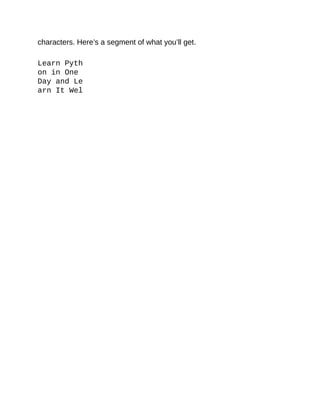
again.	myoutputfile.txt	now	contains	lines	with	at	most	10
characters.	Here’s	a	segment	of	what	you’ll	get.
	
Learn	Pyth
on	in	One
Day	and	Le
arn	It	Wel
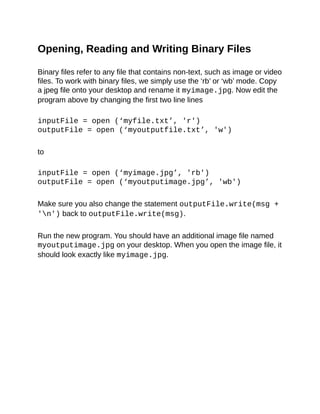
Opening,	Reading	and	Writing	Binary	Files
	
Binary	files	refer	to	any	file	that	contains	non-text,	such	as	image	or	video
files.	To	work	with	binary	files,	we	simply	use	the	‘rb’	or	‘wb’	mode.	Copy
a	jpeg	file	onto	your	desktop	and	rename	it	myimage.jpg.	Now	edit	the
program	above	by	changing	the	first	two	line	lines
	
inputFile	=	open	(‘myfile.txt’,	'r')
outputFile	=	open	(‘myoutputfile.txt’,	'w')
	
to
	
inputFile	=	open	(‘myimage.jpg’,	'rb')
outputFile	=	open	(‘myoutputimage.jpg’,	'wb')
	
Make	sure	you	also	change	the	statement	outputFile.write(msg	+
'n')	back	to	outputFile.write(msg).
	
Run	the	new	program.	You	should	have	an	additional	image	file	named
myoutputimage.jpg	on	your	desktop.	When	you	open	the	image	file,	it
should	look	exactly	like	myimage.jpg.
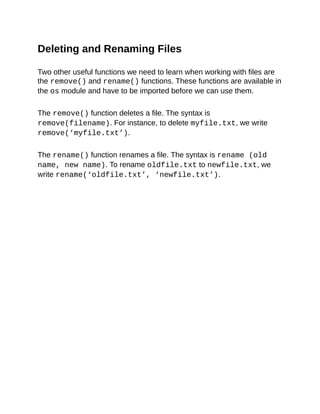
Deleting	and	Renaming	Files
	
Two	other	useful	functions	we	need	to	learn	when	working	with	files	are
the	remove()	and	rename()	functions.	These	functions	are	available	in
the	os	module	and	have	to	be	imported	before	we	can	use	them.
	
The	remove()	function	deletes	a	file.	The	syntax	is
remove(filename).	For	instance,	to	delete	myfile.txt,	we	write
remove(‘myfile.txt’).
	
The	rename()	function	renames	a	file.	The	syntax	is	rename	(old
name,	new	name).	To	rename	oldfile.txt	to	newfile.txt,	we
write	rename(‘oldfile.txt’,	‘newfile.txt’).
Project:	Math	and	BODMAS
	
Congratulations!	We’ve	now	covered	enough	fundamentals	of	Python
(and	programming	in	general)	to	start	coding	our	first	full	program.	In	this
chapter,	we’re	going	to	code	a	program	that	tests	our	understanding	of
the	BODMAS	rule	of	arithmetic	calculation.	If	you	are	unsure	what
BODMAS	is,	you	can	check	out	this	site
http://www.mathsisfun.com/operation-order-bodmas.html.
	
Our	program	will	randomly	set	an	arithmetic	question	for	us	to	answer.	If
we	get	the	answer	wrong,	the	program	will	display	the	correct	answer
and	ask	if	we	want	to	try	a	new	question.	If	we	get	it	correct,	the	program
will	compliment	us	and	ask	if	we	want	a	new	question.	In	addition,	the
program	will	keep	track	of	our	scores	and	save	the	scores	in	an	external
text	file.	After	each	question,	we	can	key	“-1”	to	terminate	the	program.
	
I’ve	broken	down	the	program	into	small	exercises	so	that	you	can	try
coding	the	program	yourself.	Try	the	exercises	before	referring	to	the
answers.	Answers	are	provided	in	Appendix	E	or	you	can	go	to
http://www.learncodingfast.com/python	to	download	the	Python	files.	I
would	strongly	encourage	you	to	download	the	source	code	as	the
formatting	in	Appendix	E	may	result	in	the	distortion	of	some	indentation
which	makes	the	code	difficult	to	read.
	
Remember,	learning	the	Python	syntax	is	easy	but	boring.	Problem
solving	is	where	the	fun	lies.	If	you	encounter	difficulties	when	doing
these	exercises,	try	harder.	This	is	where	the	reward	is	the	greatest.
	
Ready?	Let’s	go!
Part	1:	myPythonFunctions.py
	
We	will	be	writing	two	files	for	our	programs.	The	first	file	is
myPythonFunctions.py	and	the	second	is	mathGame.py.	Part	1	will
focus	on	writing	the	code	for	myPythonFunctions.py.
	
To	start,	let’s	first	create	the	file	myPythonFunctions.py.	We’ll	be
defining	three	functions	in	this	file.
	
Exercise	1:	Importing	Modules
We	need	to	import	two	modules	for	myPythonFunctions.py:	the
random	module	and	the	os	module.
	
We’ll	be	using	the	randint()	function	from	the	random	module.	The
randint()	function	generates	a	random	integer	within	the	range
provided	by	us.	We’ll	use	that	to	generate	numbers	for	our	questions
later.
	
From	the	os	module,	we’ll	be	using	the	remove()	and	rename()
functions.
	
Try	importing	these	two	modules.
	
Exercise	2:	Getting	the	User’s	Score
Here	we’ll	define	our	first	function.	Let’s	call	it	getUserPoint().	This
function	accepts	one	parameter,	userName.	It	then	opens	the	file
‘userScores.txt’	in	‘r’	mode.
	
userScores.txt	looks	something	like	this:
Ann,	100
Benny,	102
Carol,	214
Darren,	129
	
Each	line	records	the	information	of	one	user.	The	first	value	is	the	user’s
username	and	the	second	is	the	user’s	score.
	
Next,	the	function	reads	the	file	line	by	line	using	a	for	loop.	Each	line	is
then	split	using	the	split()	function	(refer	to	Appendix	A	for	an
example	on	using	the	split()	function).
	
Let’s	store	the	results	of	the	split()	function	in	the	list	content.
	
Next,	the	function	checks	if	any	of	the	lines	has	the	same	username	as
the	value	that	is	passed	in	as	the	parameter.	If	there	is,	the	function
closes	the	file	and	returns	the	score	beside	that	username.	If	there	isn’t,
the	function	closes	the	file	and	returns	the	string	‘-1’.
	
Clear	so	far?	Try	coding	the	function.
	
Done?
	
Now	we	need	to	make	some	modifications	to	our	code.	When	opening
our	file	previously,	we	used	the	‘r’	mode.	This	helps	to	prevent	any
accidental	changes	to	the	file.	However,	when	opening	a	file	in	‘r’	mode,
an	IOError	occurs	if	the	file	does	not	already	exist.	Hence	when	we	run
the	program	for	the	first	time,	we’ll	end	up	with	an	error	since	the	file
userScores.txt	does	not	exist	previously.	To	prevent	this	error,	we
can	do	either	of	the	following:
Instead	of	opening	the	file	in	‘r’	mode,	we	can	open	it	in	‘w’	mode.	When
opening	in	‘w’	mode,	a	new	file	will	be	created	if	the	file	does	not	exist
previously.	The	risk	with	this	method	is	we	may	accidentally	write	to	the
file,	which	results	in	all	previous	content	being	erased.	However,	since
our	program	is	a	small	program,	we	can	check	through	our	code	carefully
to	prevent	any	accidental	writing.
The	second	method	is	to	use	a	try,	except	statement	to	handle	the
IOError.	To	do	that,	we	need	to	put	all	our	previous	codes	in	the	try
block,	then	use	except	IOError:	to	handle	the	‘File	not	found’	error.
In	the	except	block,	we’ll	inform	users	that	the	file	is	not	found	and	then
proceed	to	create	the	file.	We’ll	use	the	open()	function	with	‘w’	mode	to
create	it.	The	difference	here	is	we	use	the	‘w’	mode	only	when	the	file	is
not	found.	Since	the	file	does	not	exist	initially,	there	is	no	risk	of	erasing
any	previous	content.	After	creating	the	file,	close	the	file	and	return	the
string	“-1”.
	
You	can	choose	either	of	the	above	methods	to	complete	this	exercise.
The	answer	provided	uses	the	second	method.	Once	you	are	done,	let’s
move	on	to	Exercise	3.
	
Exercise	3:	Updating	the	User’s	Score
In	this	exercise,	we’ll	define	another	function	called
updateUserPoints(),	which	takes	in	three	parameters:	newUser,
userName	and	score.
	
newUser	can	either	be	True	or	False.	If	newUser	is	True,	the	function
will	open	the	file	userScores.txt	in	append	mode	and	append	the
user’s	userName	and	score	to	the	file	when	he	or	she	exits	the	game.
	
if	newUser	is	False,	the	function	will	update	the	user’s	score	in	the	file.
However,	there	is	no	function	in	Python	(or	most	programming	languages
for	that	matter)	that	allows	us	to	update	a	text	file.	We	can	only	write	or
append	to	it,	but	not	update	it.
	
Hence,	we	need	to	create	a	temporary	file.	This	is	a	fairly	common
practice	in	programming.	Let’s	call	this	file	userScores.tmp	and	open	it
in	‘w’	mode.	Now,	we’ll	need	to	loop	through	userScore.txt	and	copy
the	data	line	by	line	to	userScores.tmp.	However,	before	copying,	we’ll
check	if	the	userName	on	that	line	is	the	same	as	the	one	provided	as
the	parameter.	If	it	is	the	same,	we’ll	change	the	score	to	the	new	score
before	writing	it	to	the	temporary	file.
	
For	instance,	if	the	parameters	provided	to	the	function	are	False,
‘Benny’	and	‘158’	(i.e.	updateUserPoints(False,	‘Benny’,
‘158’)),	the	table	below	shows	the	difference	between	the	original
userScores.txt	and	the	new	userScores.tmp.
	
userScores.txt
	
Ann,	100
Benny,	102
Carol,	214
Darren,	129
	
userScores.tmp
	
Ann,	100
Benny,	158
Carol,	214
Darren,	129
	
After	we	finish	writing	to	userScore.tmp,	we’ll	close	both	files	and
delete	userScores.txt.	Finally,	we’ll	rename	userScores.tmp	to
userScores.txt.
	
Clear?	Try	coding	it...
	
Exercise	4:	Generating	the	Questions
We’ve	now	come	to	the	most	important	part	of	the	program,	generating
the	mathematical	questions.	Ready?
	
To	generate	the	questions,	let’s	first	declare	three	variables:	two	lists	and
one	dictionary.
We	shall	name	the	two	lists	operandList	and	operatorList.
	
operandList	should	store	five	numbers,	with	0	as	their	initial	values.
operatorList	should	store	four	strings,	with	‘	’	as	their	initial	values.
	
The	dictionary	consists	of	4	pairs,	with	integers	1	to	4	as	the	dictionary
keys,	and	“+”,	“-”,	“”,	“*”	as	the	data.	Let’s	call	this	operatorDict.
	
[Exercise	4.1:	Updating	operandList	with	Random	Numbers]
	
First	we	need	to	the	replace	the	initial	values	of	our	operandList	with
random	numbers	generated	by	the	randint()	function.
	
The	randint()	takes	in	two	parameters,	start	and	end,	and	returns	a
random	integer	N	such	that	start	<=	N	<=	end.
	
For	instance,	if	randint(1,	9)	is	called,	it’ll	randomly	return	an	integer
from	the	numbers	1,	2,	3,	4,	5,	6,	7,	8,	9.
	
To	update	our	operandList	variable	with	random	numbers,	we	can	do
this	one	by	one	since	operandList	only	has	five	members.	We	can
write
operandList[0]	=	randint(1,	9)	operandList[1]	=
randint(1,	9)	operandList[2]	=	randint(1,	9)
operandList[3]	=	randint(1,	9)	operandList[4]	=
randint(1,	9)
Each	time	randint(1,	9)	is	called,	it’ll	randomly	return	an	integer	from
the	numbers	1,	2,	3,	4,	5,	6,	7,	8,	9.
	
However,	this	is	not	the	most	elegant	way	of	updating	our	operandList.
Imagine	how	cumbersome	it’ll	be	if	operandList	has	1000	members.
The	better	alternative	is	to	use	a	for	loop.
	
Try	using	a	for	loop	to	accomplish	the	same	task.
	
Done?	Great!
	
[Exercise	4.2:	Updating	operatorList	with	Mathematical	Symbols]
	
Now	that	we	have	the	numbers	to	operate	on,	we	need	to	randomly
generate	the	mathematical	symbols	(+,	-,	,	*)	for	our	questions.	To	do
that,	we’ll	use	the	randint()	function	and	the	operatorDict
dictionary.
	
randint()	will	generate	the	dictionary	key,	which	will	then	be	mapped
to	the	correct	operator	using	the	operatorDict	dictionary.	For	instance,
to	assign	the	symbol	to	operatorList[0],	we	write
operatorList[0]	=	operatorDict[randint(1,
4)]
	
Similar	to	Exercise	4.1,	you	should	use	a	for	loop	to	complete	this	task.
However,	there	is	one	problem	that	makes	this	exercise	harder	than
Exercise	4.1.
	
Recall	that	in	Python,	**	stands	for	exponent	(i.e.	2**3	=	2^3)?
	
The	problem	is,	when	we	have	two	consecutive	exponent	operators	in
Python,	such	as	2**3**2,	Python	interprets	it	as	2**(3**2)	instead	of
(2**3)**2.	In	the	first	case,	the	answer	is	2	to	the	power	of	9	(i.e.	29)
which	is	512.	In	the	second	case,	the	answer	is	8	to	the	power	of	2	(i.e.
82)	which	is	64.	Hence	when	we	present	a	question	like	2**3**2,	the	user
will	get	the	answer	wrong	if	he	interprets	it	as	(2**3)**2.
To	prevent	this	problem,	we’re	going	to	modify	our	code	so	that	we	do	not
get	two	consecutive	**	signs.	In	other	words,	operatorList	=	[‘+’,
‘+’,	‘-’,	‘**’]	is	fine	but	operatorList	=	[‘+’,	‘-’,	‘**’,
‘**’]	is	not.
	
This	exercise	is	the	hardest	among	all	the	exercises.	Try	coming	up	with
a	solution	to	prevent	two	consecutive	**	signs.	Once	you	are	done,	we
can	proceed	to	Exercise	4.3.
	
Hint:	If	you	are	stuck,	you	can	consider	using	an	if	statement	within	the
for	loop.
	
[Exercise	4.3:	Generating	a	Mathematical	Expression]
	
Now	that	we	have	our	operators	and	operands,	we	are	going	to	try	to
generate	the	mathematical	expression	as	a	string.	This	expression	users
the	five	numbers	from	our	operandList	and	the	four	mathematical
symbols	from	our	operatorList	to	form	a	question.
	
We	have	to	declare	another	variable	called	questionString	and
assign	the	mathematical	expression	to	questionString.	Examples	of
questionString	include
6	–	2*3	–	2**1
4	+	5	–	2*6	+	1
8	–	0*2	+	5	–	8
	
Try	to	generate	this	expression	yourself.
	
Hint:	You	can	use	a	for	loop	to	concatenate	the	individual	substrings
from	operandList	and	operatorList	to	get	the	mathematical
expression.
	
[Exercise	4.4:	Evaluating	the	Result]
We	should	now	have	a	mathematical	expression	as	a	string,	assigned	to
the	variable	questionString.	To	evaluate	the	result	of	this	expression,
we’re	going	to	use	a	brilliant	built-in	function	that	comes	with	Python,
eval().
	
eval()	interprets	a	string	as	a	code	and	executes	the	code.	For
instance,	if	we	write	eval(“1+2+4”),	we’ll	get	the	number	7.
	
Hence	to	evaluate	the	result	of	our	mathematical	expression,	we	pass	in
questionString	to	the	eval()	function	and	assign	the	result	to	a	new
variable	named	result.
	
This	exercise	is	pretty	straight	forward	and	can	be	completed	in	one	step.
	
[Exercise	4.5:	Interacting	with	the	User]
	
Finally,	we’re	going	to	interact	with	our	user.	In	this	exercise,	we’ll	be
doing	a	few	things:
Step	1:	Displaying	the	question	to	the	user	Step	2:	Prompting	the	user	for
an	answer	Step	3:	Evaluating	the	answer,	displaying	the	appropriate
message	and	returning	the	user’s	score.
	
For	step	1,	we	need	to	use	a	built-in	function	for	manipulating	strings.	As
mentioned	earlier,	in	Python,	the	**	symbol	stands	for	exponent.	That	is,
2**3	=	8.	However,	to	most	users,	**	has	no	meaning.	Hence	if	we	display
a	question	as	2**3	+	8	-5,	the	user	will	likely	be	confused.	To	prevent	that,
we’ll	replace	any	**	symbol	in	questionString	with	the	^	symbol.
	
To	do	that,	we’ll	use	the	built-in	function	replace().	Using	it	is	pretty
straightforward,	just	write	questionString	=
questionString.replace("**",	"^").	Now	you	can	print	the
resulting	expression	to	the	user.
For	step	2,	you	can	use	the	input()	function	to	accept	user	input.
	
For	step	3,	you	should	use	an	if	statement	to	evaluate	the	answer	and
display	the	correct	message.	If	the	user	gets	it	correct,	we’ll	compliment
the	user	and	return	the	value	1.	If	the	user	gets	it	wrong,	we’ll	display	the
correct	answer	and	return	the	value	0.
	
Recall	that	the	input()	function	returns	user	input	as	a	string?	Hence,
when	you	compare	the	user’s	input	with	the	correct	answer	(obtained	in
Exercise	4.4),	you	have	to	do	some	type	casting	to	change	the	user	input
to	an	integer.	When	changing	the	user	input	to	an	integer,	you	should	use
a	try,	except	statement	to	check	if	the	user	typed	in	a	number.	If	the
user	typed	in	a	string	instead,	the	program	should	inform	the	user	of	the
error	and	prompt	the	user	to	type	in	a	number.
	
You	can	use	a	while	True	loop	to	keep	prompting	the	user	for	a
number	as	long	as	he/she	fails	to	do	so.	Writing	while	True	is
equivalent	to	writing	something	like	while	1==1.	Since	1	is	always
equals	to	1	(hence	always	True),	the	loop	will	run	indefinitely.
	
Here’s	a	suggestion	on	how	you	can	use	a	while	True	loop	for	this
exercise.
	
while	True:
try:
cast	user’s	answer	to	an	integer	and	evaluate
the	answer	return	user	score	based	on	the	answer
except:
print	error	message	if	casting	fails	prompt
user	to	key	in	the	answer	again
The	while	True	loop	will	keep	looping	since	the	while	condition	is
always	True.	The	loop	will	exit	only	when	the	try	block	executes
correctly	and	reaches	the	return	statement.
Try	this	exercise.	Once	you	are	done,	we	can	proceed	to	Part	2	where
we	write	the	actual	program.
Part	2:	mathGame.py
	
Congratulations	for	completing	Part	1	and	welcome	to	Part	2.	Part	2	is
going	to	be	a	breeze	as	we’ll	mainly	just	be	calling	the	functions	we
defined	earlier.
	
Exercise	5:	Writing	the	Main	Program
First,	let’s	enclose	our	main	program	in	a	try,	except	statement.	We	
want	to	handle	any	unforeseen	errors	when	running	the	main	program.		
	
We’ll	start	by	writing	the	code	for	the	try	block.
	
Firstly,	we	need	to	import	the	myPythonFunctions	module.	Next,	let’s
prompt	the	user	for	his/her	username	and	assign	the	value	to	the	variable
userName.	Pass	this	variable	as	a	parameter	to	the	function
getUserScore().
	
getUserScore()	will	either	return	the	score	of	the	user	or	return	‘-1’	(if
the	user	is	not	found).	Let’s	cast	this	result	into	an	integer	and	assign	it	to
the	variable	userScore.
	
Now,	we	need	to	set	the	value	of	another	variable	newUser.	If	the	user	is
not	found,	newUser	=	True,	else	newUser	=	False.	If	newUser	=
True,	we	need	to	change	userScore	from	-1	to	0.
	
The	next	part	of	our	program	involves	a	while	loop.	Specifically,	our
program	will	prompt	for	input	from	our	user	to	determine	if	it	should
terminate	the	program	or	do	something	else.
	
Step	1:
You	need	to	declare	another	variable	userChoice	and	give	it	an	initial
value	of	0.
Step	2:
Next,	using	a	while	loop,	compare	userChoice	with	a	string	of	your
choice,	say	“-1”.	If	userChoice	is	not	the	same	as	“-1”,	call	the	function
generateQuestion()	to	generate	a	new	question.
	
Step	3:
generateQuestion()	will	return	the	score	that	the	user	got	for	that
question.	Use	this	result	to	update	the	variable	userScore.
	
Step	4:
Finally,	in	order	to	prevent	an	infinite	loop,	we	need	to	use	the	input()
function	again	within	the	while	loop	to	accept	user	input	and	use	it	to
update	the	value	of	userChoice.
	
Got	that?	Try	coding	it.	Doing	the	actual	coding	will	make	everything
clearer.
	
Finally,	after	the	while	loop	terminates,	the	next	step	is	to	update	the
userScores.txt	file.	To	do	that,	we	simply	call	the
updateUserPoints()	function.
	
That’s	all	for	the	try	block.	Now	for	the	except	block,	we	simply	inform
the	user	that	an	error	has	occurred	and	the	program	will	exit.
	
That’s	it!	Once	you	finish	this	step,	you’ll	have	a	complete	program,	your
first	program	in	Python.	Try	running	the	program	mathGame.py.	Does	it
work	as	expected?	Excited?	I	sure	hope	you	are	as	excited	about	it	as	I
am.	:)
Challenge	Yourself
	
We’ve	come	to	the	end	of	this	chapter	and	hopefully	you	have
successfully	coded	your	first	program.	If	you	have	problems	completing
any	exercise,	you	can	study	the	answers	in	Appendix	E.	You	will	learn	a
lot	by	studying	other	people’s	codes.
	
In	this	section,	I	have	three	additional	exercises	for	you	to	challenge
yourself.
	
Challenge	Exercise	1
	
In	the	program	that	we’ve	coded	so	far,	I’ve	avoided	using	the	division
operator.	Can	you	modify	the	program	so	that	it’ll	generate	questions	with
the	division	sign	too?	How	would	you	check	the	user’s	answer	against
the	correct	answer?
	
Hint:	Check	out	the	round()	function.
	
Challenge	Exercise	2
	
Sometimes,	the	question	generated	may	result	in	an	answer	that	is	very
large	or	very	small.	For	instance,	the	question	6*(8^9/1)^3	will	give	the
answer	1450710985375550096474112.
	
It	is	very	inconvenient	for	users	to	calculate	and	key	in	such	a	large
number.	Hence,	we	want	to	avoid	answers	that	are	too	big	or	small.	Can
you	modify	the	program	to	prevent	questions	that	result	in	answers
greater	than	50	000	or	smaller	than	-50000?
	
Challenge	Exercise	3
The	last	challenge	exercise	is	the	most	difficult.
	
So	far,	brackets	are	missing	in	the	questions	generated.	Can	you	modify
the	program	so	that	the	questions	use	brackets	too?	An	example	of	a
question	will	be	2	+	(3*7	-1)	+	5.
	
Have	fun	with	these	exercises.	The	suggested	solution	is	provided	in
Appendix	E.
Thank	You
	
We’ve	come	to	the	end	of	the	book.	Thank	you	for	reading	this	book	and	I
hope	you	have	enjoyed	the	book.	More	importantly,	I	sincerely	hope	the
book	has	helped	you	master	the	fundamentals	of	Python	programming.
	
I	know	you	could	have	picked	from	a	dozen	of	books	on	Python
Programming,	but	you	took	a	chance	with	this	book.	Thank	you	once
again	for	downloading	this	book	and	reading	all	the	way	to	the	end.
Please	do	try	the	exercises	and	challenges.	You’ll	learn	a	lot	by	doing.
	
Now	I’d	like	to	ask	for	a	“small”	favor.	Could	you	please	take	a	few
minutes	or	two	to	leave	a	review	for	this	book	on	Amazon?
	
This	feedback	will	help	me	tremendously	and	will	help	me	continue	to
write	more	guides	on	programming.	If	you	like	the	book	or	have	any
suggestions	for	improvement,	please	let	me	know.	I	will	be	deeply
grateful.	:)
	
Last	but	not	least,	remember	you	can	download	the	source	code	for	the
project	and	the	appendices	at	http://www.learncodingfast.com/python.
	
You	can	also	contact	me	at	jamie@learncodingfast.com.
Appendix	A:	Working	With	Strings
	
Note:	The	notation	[start,	[end]]	means	start	and	end	are	optional
parameters.	If	only	one	number	is	provided	as	the	parameter,	it	is	taken
to	be	start.
	
#	marks	the	start	of	a	comment
‘’’	marks	the	start	and	end	of	a	multiline	comment	The	actual	code	is	in
monotype	font.
=>	marks	the	start	of	the	output
count	(sub,	[start,	[end]])
	
Return	the	number	of	times	the	substring	sub	appears	in	the	string.
This	function	is	case-sensitive.
	
[Example]
	
#	In	the	examples	below,	‘s’	occurs	at	index	3,	6	and	10
	
#	count	the	entire	string
‘This	is	a	string’.count(‘s’)
=>	3
	
#	count	from	index	4	to	end	of	string	‘This	is	a	string’.count(‘s’,	4)	=>	2
	
#	count	from	index	4	to	10-1
‘This	is	a	string’.count(‘s’,	4,	10	)	=>	1
	
#	count	‘T’.	There’s	only	1	‘T’	as	the	function	is	case	sensitive.
‘This	is	a	string’.count(‘T’)
=>	1
endswith	(suffix,	[start,	[end]])
Return	True	if	the	string	ends	with	the	specified	suffix,	otherwise	return
False.
suffix	can	also	be	a	tuple	of	suffixes	to	look	for.
This	function	is	case-sensitive.
	
[Example]
	
#	’man’	occurs	at	index	4	to	6
	
#	check	the	entire	string
‘Postman’.endswith(‘man’)
=>	True
	
#	check	from	index	3	to	end	of	string	‘Postman’.endswith(‘man’,	3)
=>	True
	
#	check	from	index	2	to	6-1
‘Postman’.endswith(‘man’,	2,	6)	=>	False
	
#	check	from	index	2	to	7-1
‘Postman’.endswith(‘man’,	2,	7)	=>	True
	
#	Using	a	tuple	of	suffixes	(check	from	index	2	to	6-1)
‘Postman’.endswith((‘man’,	‘ma’),	2,	6)	=>	True
	
find/index	(sub,	[start,	[end]])
Return	the	index	in	the	string	where	the	first	occurrence	of	the	substring
sub	is	found.
find()	returns	-1	if	sub	is	not	found.
index()	returns	ValueError	is	sub	is	not	found.
This	function	is	case-sensitive.
	
[Example]
#	check	the	entire	string
‘This	is	a	string’.find(‘s’)
=>	3
	
#	check	from	index	4	to	end	of	string	‘This	is	a	string’.find(‘s’,	4)	=>	6
	
#	check	from	index	7	to	11-1
‘This	is	a	string’.find(‘s’,	7,11	)	=>	10
	
#	Sub	is	not	found
'This	is	a	string'.find(‘p’)
=>	-1
	
'This	is	a	string'.index(‘p’)
=>	ValueError
	
isalnum()
	
Return	true	if	all	characters	in	the	string	are	alphanumeric	and	there	is	at
least	one	character,	false	otherwise.
Alphanumeric	does	not	include	whitespaces.
	
[Example]
	
‘abcd1234’.isalnum()
=>	True
	
‘a	b	c	d	1	2	3	4’.isalnum()
=>	False
	
‘abcd’.isalnum()
=>	True
‘1234’.isalnum()
=>	True
	
isalpha()
	
Return	true	if	all	characters	in	the	string	are	alphabetic	and	there	is	at
least	one	character,	false	otherwise.
	
[Example]
	
‘abcd’.isalpha()
=>	True
	
‘abcd1234’.isalpha()
=>	False
	
‘1234’.isalpha()
=>	False
	
‘a	b	c’.isalpha()
=>	False
	
isdigit()
	
Return	true	if	all	characters	in	the	string	are	digits	and	there	is	at	least
one	character,	false	otherwise.
	
[Example]
	
‘1234’.isdigit()
=>	True
‘abcd1234’.isdigit()
=>	False
	
‘abcd’.isdigit()
=>	False
	
‘1	2	3	4’.isdigit()
=>	False
	
islower()
	
Return	true	if	all	cased	characters	in	the	string	are	lowercase	and	there	is
at	least	one	cased	character,	false	otherwise.
	
[Example]
	
‘abcd’.islower()
=>	True
	
‘Abcd’.islower()
=>	False
	
‘ABCD’.islower()
=>	False
	
isspace()
	
Return	true	if	there	are	only	whitespace	characters	in	the	string	and	there
is	at	least	one	character,	false	otherwise.
	
[Example]
‘	’.isspace()
=>	True
	
‘a	b’.isspace()
=>	False
	
istitle()
	
Return	true	if	the	string	is	a	titlecased	string	and	there	is	at	least	one
character
[Example]
	
‘This	Is	A	String’.istitle()
=>	True
	
‘This	is	a	string’.istitle()
=>	False
	
isupper()
	
Return	true	if	all	cased	characters	in	the	string	are	uppercase	and	there
is	at	least	one	cased	character,	false	otherwise.
	
[Example]
	
‘ABCD’.isupper()
=>	True
	
‘Abcd’.isupper()
=>	False
	
‘abcd’.isupper()
=>	False
	
join()
	
Return	a	string	in	which	the	parameter	provided	is	joined	by	a	separator.
	
[Example]
	
sep	=	‘-’
myTuple	=	(‘a’,	‘b’,	‘c’)
myList	=	[‘d’,	‘e’,	‘f’]
myString	=	“Hello	World”
	
sep.join(myTuple)
=>	‘a-b-c’
	
sep.join(myTuple)
=>	‘d-e-f’
	
sep.join(myString)
=>	‘H-e-l-l-o-	-W-o-r-l-d’’
	
lower()
	
Return	a	copy	of	the	string	converted	to	lowercase.
	
[Example]
	
‘Hello	Python’.lower()
=>	‘hello	python’
	
replace(old,	new[,	count])
Return	a	copy	of	the	string	with	all	occurrences	of	substring	old	replaced
by	new.
count	is	optional.	If	given,	only	the	first	count	occurrences	are	replaced.
This	function	is	case-sensitive.
	
[Example]
	
#	Replace	all	occurences
‘This	is	a	string’.replace(‘s’,	‘p’)	=>	'Thip	ip	a
ptring'
	
#	Replace	first	2	occurences
‘This	is	a	string’.replace(‘s’,	‘p’,	2)	=>	'Thip	ip	a
string'
	
split([sep	[,maxsplit]])
	
Return	a	list	of	the	words	in	the	string,	using	sep	as	the	delimiter	string.
sep	and	maxsplit	are	optional.
If	sep	is	not	given,	whitespace	is	used	as	the	delimiter.
If	maxsplit	is	given,	at	most	maxsplit	splits	are	done.
This	function	is	case-sensitive.
	
[Example]
	
‘’’
Split	using	comma	as	the	delimiter	Notice	that	there’s	a	space	before	the
words	‘is’,	‘a’	and	‘string’	in	the	output.
‘’’
‘This,	is,	a,	string’.split(‘,’)	=>	['This',	'	is',	'
a',	'	string']
	
#	Split	using	whitespace	as	delimiter	‘This	is	a	string’.split()
=>	['This',	'is',	'a',	'string']
	
#	Only	do	2	splits
‘This,	is,	a,	string’.split(‘,’	2)	=>	['This',	'	is',
'	a,	string']
	
splitlines	([keepends])
	
Return	a	list	of	the	lines	in	the	string,	breaking	at	line	boundaries.
Line	breaks	are	not	included	in	the	resulting	list	unless	keepends	is	given
and	true.
	
[Example]
	
#	Split	lines	separated	by	n
‘This	is	the	first	line.nThis	is	the	second
line’.splitlines()	=>	['This	is	the	first	line.',
'This	is	the	second	line.']
	
#	Split	multi	line	string	(e.g.	string	that	uses	the	‘’’	mark)	‘’’This	is	the	first
line.
This	is	the	second	line.’’’.splitlines()	=>	['This	is
the	first	line.',	'This	is	the	second	line.']
	
#	Split	and	keep	line	breaks
'This	is	the	first	line.nThis	is	the	second
line.'.splitlines(True)	=>	['This	is	the	first
line.n',	'This	is	the	second	line.']
	
‘’’This	is	the	first	line.
This	is	the	second	line.’’’.splitlines(True)	=>	['This
is	the	first	line.n',	'This	is	the	second	line.']
	
startswith	(prefix[,	start[,	end]])
Return	True	if	string	starts	with	the	prefix,	otherwise	return	False.
prefix	can	also	be	a	tuple	of	prefixes	to	look	for.
This	function	is	case-sensitive.
	
[Example]
	
#	’Post’	occurs	at	index	0	to	3
	
#	check	the	entire	string
‘Postman’.startswith(‘Post’)
=>	True
	
#	check	from	index	3	to	end	of	string	‘Postman’.startswith(‘Post’,	3)	=>
False
	
#	check	from	index	2	to	6-1
‘Postman’.startswith(‘Post’,	2,	6)	=>	False
	
#	check	from	index	2	to	6-1
‘Postman’.startswith(‘stm’,	2,	6)	=>	True
	
#	Using	a	tuple	of	prefixes	(check	from	index	3	to	end	of	string)
‘Postman’.startswith((‘Post’,	‘tma’),	3)	=>	True
	
strip	([chars])
	
Return	a	copy	of	the	string	with	the	leading	and	trailing	characters	char
removed.
If	char	is	not	provided,	whitespaces	will	be	removed.
This	function	is	case-sensitive.
	
[Example]
#	Strip	whitespaces
‘	This	is	a	string	’.strip()	=>	'This	is	a	string'
	
#	Strip	‘s’.	Nothing	is	removed	since	‘s’	is	not	at	the	start	or	end	of	the
string	'This	is	a	string'.strip('s')
=>	'This	is	a	string'
	
#	Strip	‘g’.
‘This	is	a	string’.strip(‘g’)
=>	‘This	is	a	strin’
	
upper()
	
Return	a	copy	of	the	string	converted	to	uppercase.
	
[Example]
	
‘Hello	Python’.upper()
=>	‘HELLO	PYTHON’
Appendix	B:	Working	With	Lists
	
=>	marks	the	start	of	the	output
append(	)
	
Add	item	to	the	end	of	a	list
[Example]
	
myList	=	[‘a’,	‘b’,	‘c’,	‘d’]
myList.append(‘e’)	print	(myList)
=>	[‘a’,	‘b’,	‘c’,	‘d’,	‘e’]
	
del
	
Remove	items	from	a	list
[Example]
	
myList	=	[‘a’,	‘b’,	‘c’,	‘d’,	‘e’,	‘f’,	‘g’,	‘h’,	‘i’,
‘j’,	‘k’,	‘l’]
	
#delete	the	third	item	(index	=	2)	del	myList[2]
print	(myList)
=>	[‘a’,	‘b’,	‘d’,	‘e’,	‘f’,	‘g’,	‘h’,	‘i’,	‘j’,	‘k’,	‘l’]
	
#delete	items	from	index	1	to	5-1
del	myList[1:5]
print	(myList)
=>	[‘a’,	‘g’,	‘h’,	‘i’,	‘j’,	‘k’,	‘l’]
	
#delete	items	from	index	0	to	3-1
del	myList	[	:3]
print	(myList)
=>	[‘i’,	‘j’,	‘k’,	‘l’]
#delete	items	from	index	2	to	end	del	myList	[2:]
print	(myList)
=>	[‘i’,	‘j’]
	
extend(	)
	
Combine	two	lists
	
[Example]
	
myList	=	[‘a’,	‘b’,	‘c’,	‘d’,	‘e’]
myList2	=	[1,	2,	3,	4]
myList.extend(myList2)	print	(myList)
=>	[‘a’,	‘b’,	‘c’,	‘d’,	‘e’,	1,	2,	3,	4]
	
In
	
Check	if	an	item	is	in	a	list
[Example]
	
myList	=	[‘a’,	‘b’,	‘c’,	‘d’]
‘c’	in	myList
=>	True
	
‘e’	in	myList
=>	False
	
insert(	)
	
Add	item	to	a	list	at	a	particular	position
[Example]
myList	=	[‘a’,	‘b’,	‘c’,	‘d’,	‘e’]
myList.insert(1,	‘Hi’)	print	(myList)
=>	[‘a’,	‘Hi’,	‘b’,	‘c’,	‘d’,	‘e’]
	
len(	)
	
Find	the	number	of	items	in	a	list
[Example]
	
myList	=	[‘a’,	‘b’,	‘c’,	‘d’]
print	(len(myList))	=>	4
	
pop(	)
	
Get	the	value	of	an	item	and	remove	it	from	the	list	Requires	index	of
item	as	the	parameter
[Example]
	
myList	=	[‘a’,	‘b’,	‘c’,	‘d’,	‘e’]
	
#remove	the	third	item	member	=	myList.pop(2)	print	(member)
=>	c
	
print	(myList)
=>	[‘a’,	‘b’,	‘d’,	‘e’]
	
#remove	the	last	item	member	=	myList.pop(	)	print	(member)
=>	e
	
print	(myList)
=>	[‘a’,	‘b’,	‘d’]
	
remove(	)
Remove	an	item	from	a	list.	Requires	the	value	of	the	item	as	the
parameter.
	
[Example]
	
myList	=	[‘a’,	‘b’,	‘c’,	‘d’,	‘e’]
	
#remove	the	item	‘c’
myList.remove(‘c’)	print	(myList)
=>	[‘a’,	‘b’,	‘d’,	‘e’]
	
reverse()
	
Reverse	the	items	in	a	list
[Example]
	
myList	=	[1,	2,	3,	4]
myList.reverse()
print	(myList)
=>	[4,	3,	2,	1]
	
sort()
	
Sort	a	list	alphabetically	or	numerically
[Example]
	
myList	=	[3,	0,	-1,	4,	6]
myList.sort()
print(myList)
=>	[-1,	0,	3,	4,	6]
	
sorted()
Return	a	new	sorted	list	without	sorting	the	original	list.
Requires	a	list	as	the	parameter
[Example]
	
myList	=	[3,	0,	-1,	4,	6]
myList2	=	sorted(myList)
#Original	list	is	not	sorted	print	(myList)
=>	[3,	0,	-1,	4,	6]
	
#New	list	is	sorted	print	(myList2)
=>	[-1,	0,	3,	4,	6]
	
Addition	Operator:	+
	
Concatenate	List
	
[Example]
	
myList	=	[‘a’,	‘b’,	‘c’,	‘d’]
print	(myList	+	[‘e’,	‘f’])	=>	[‘a’,	‘b’,	‘c’,	‘d’,
‘e’,	‘f’]
	
print	(myList)
=>	[‘a’,	‘b’,	‘c’,	‘d’]
	
Multiplication	Operator:	*
	
Duplicate	a	list	and	concatenate	it	to	the	end	of	the	list
[Example]
	
myList	=	[‘a’,	‘b’,	‘c’,	‘d’]
print	(myList*3)
=>	['a',	'b',	'c',	'd',	'a',	'b',	'c',	'd',	'a',	'b',	'c',	'd']
	
print	(myList)
=>	[‘a’,	‘b’,	‘c’,	‘d’]
	
	
Note:
The	+	and	*	symbols	do	not	modify	the	list.	The	list	stays	as	[‘a’,	‘b’,
‘c’,	‘d’]	in	both	cases.
Appendix	C:	Working	With	Tuples
	
=>	marks	the	start	of	the	output
del
	
Delete	the	entire	tuple
[Example]
	
myTuple	=	(‘a’,	‘b’,	‘c’,	‘d’)	del	myTuple
print	(myTuple)	=>	NameError:	name	'myTuple'	is	not
defined
in
	
Check	if	an	item	is	in	a	tuple
[Example]
	
myTuple	=	(‘a’,	‘b’,	‘c’,	‘d’)	‘c’	in	myTuple	=>	True
	
‘e’	in	myTuple	=>	False
	
len(	)
	
Find	the	number	of	items	in	a	tuple
[Example]
	
myTuple	=	(‘a’,	‘b’,	‘c’,	‘d’)	print	(len(myTuple))	=>
4
	
Addition	Operator:	+
Concatenate	Tuples
[Example]
	
myTuple	=	(‘a’,	‘b’,	‘c’,	‘d’)	print	(myTuple	+	(‘e’,
‘f’))	=>	(‘a’,	‘b’,	‘c’,	‘d’,	‘e’,	‘f’)
print	(myTuple)	=>	(‘a’,	‘b’,	‘c’,	‘d’)
Multiplication	Operator:	*
	
Duplicate	a	tuple	and	concatenate	it	to	the	end	of	the	tuple
[Example]
	
myTuple	=	(‘a’,	‘b’,	‘c’,	‘d’)	print(myTuple*3)	=>
('a',	'b',	'c',	'd',	'a',	'b',	'c',	'd',	'a',	'b',
'c',	'd')
print	(myTuple)	=>	(‘a’,	‘b’,	‘c’,	‘d’)
Note:	The	+	and	*	symbols	do	not	modify	the	tuple.	The	tuple	stays
as	[‘a’,	‘b’,	‘c’,	‘d’]	in	both	cases.
Appendix	D:	Working	With	Dictionaries
	
=>	marks	the	start	of	the	output
clear(	)
	
Removes	all	elements	of	the	dictionary,	returning	an	empty	dictionary
[Example]
	
dic1	=	{1:	‘one’,	2:	‘two’}
print	(dic1)
=>	{1:	'one',	2:	'two'}
	
dic1.clear()
print	(dic1)
=>	{	}
	
del
	
Delete	the	entire	dictionary
[Example]
	
dic1	=	{1:	‘one’,	2:	‘two’}
del	dic1
print	(dic1)
=>	NameError:	name	'dic1'	is	not	defined
get(	)
	
Returns	a	value	for	the	given	key.
If	the	key	is	not	found,	it’ll	return	the	keyword	None.
Alternatively,	you	can	state	the	value	to	return	if	the	key	is	not	found.
	
[Example]
dic1	=	{1:	‘one’,	2:	‘two’}
dic1.get(1)
=>	‘one’
	
dic1.get(5)
=>	None
	
dic1.get(5,	“Not	Found”)	=>	‘Not	Found’
	
In
	
Check	if	an	item	is	in	a	dictionary
[Example]
	
dic1	=	{1:	‘one’,	2:	‘two’}
	
#	based	on	the	key	1	in	dic1
=>	True
	
3	in	dic1
=>	False
	
#	based	on	the	value	‘one’	in	dic1.values()	=>	True
	
‘three’	in	dic1.values()	=>	False
	
items(	)
	
Returns	a	list	of	dictionary’s	pairs	as	tuples
[Example]
dic1	=	{1:	‘one’,	2:	‘two’}
dic1.items()
=>	dict_items([(1,	'one'),	(2,	'two')])
keys(	)
	
Returns	list	of	the	dictionary's	keys
[Example]
	
dic1	=	{1:	‘one’,	2:	‘two’}
dic1.keys()
=>	dict_keys([1,	2])
len(	)
	
Find	the	number	of	items	in	a	dictionary
[Example]
	
dic1	=	{1:	‘one’,	2:	‘two’}
print	(len(dic1))	=>	2
	
update(	)
	
Adds	one	dictionary’s	key-values	pairs	to	another.	Duplicates	are
removed.
	
[Example]
	
dic1	=	{1:	‘one’,	2:	‘two’}
dic2	=	{1:	‘one’,	3:	‘three’}
	
dic1.update(dic2)	print	(dic1)
=>	{1:	'one',	2:	'two',	3:	'three'}
	
print	(dic2)	#no	change	=>	{1:	‘one’,	3:	‘three’}
values(	)
	
Returns	list	of	the	dictionary's	values
[Example]
	
dic1	=	{1:	‘one’,	2:	‘two’}
dic1.values()
=>	dict_values(['one',	'two'])
Appendix	E:	Project	Answers
	
Exercise	1
	
from	random	import	randint
from	os	import	remove,	rename
	
Exercise	2
	
def	getUserScore(userName):
	
try:
input	=	open('userScores.txt',	'r')
for	line	in	input:
content	=	line.split(',')
if	content[0]	==	userName:
input.close()
return	content[1]
input.close()
return	"-1"
except	IOError:
print	("nFile	userScores.txt	not	found.	A	new
file	will	be	created.")	input	=
open('userScores.txt',	'w')
input.close()
return	"-1"
	
Exercise	3
	
def	updateUserPoints(newUser,	userName,	score):
if	newUser:
input	=	open('userScores.txt',	'a')
input.write(‘n’	+	userName	+	',	'	+	score)
input.close()
else:
input	=	open('userScores.txt',	'r')
output	=	open('userScores.tmp',	'w')
for	line	in	input:
content	=	line.split(',')
if	content[0]	==	userName:
content[1]	=	score
line	=	content[0]	+	',	'	+	content[1]	+	
'n'												
	
output.write(line)
input.close()
output.close()
	
remove('userScores.txt')
rename('userScores.tmp',	'userScores.txt')
Exercise	4
	
def	generateQuestion():
	
operandList	=	[0,	0,	0,	0,	0]
operatorList	=	['',	'',	'',	'']
operatorDict	=	{1:'	+	',	2:'	-	',	3:'',	4:'*'}
	
for	index	in	range(0,	5):
operandList[index]	=	randint(1,	9)
	
for	index	in	range(0,	4):
if	index	>	0	and	operatorList[index-1]	!=
'**':							operator	=	operatorDict[randint(1,	4)]
						else:							operator	=
operatorDict[randint(1,	3)]
operatorList[index]	=	operator
questionString	=	str(operandList[0])
	
for	index	in	range(1,	5):
						questionString	=	questionString	+
operatorList[index-1]	+	str(operandList[index])
result	=	eval(questionString)
	
questionString	=	questionString.replace("**",	"^")
print	('n'	+	questionString)
	
userResult	=	input('Answer:	')
	
while	True:
						try:
												if	int(userResult)	==	result:	
												print	("So	Smart")													return	1
												else:													print	("Sorry,	wrong
answer.	The	correct	answer	is",	result)	
												return	0
						except	Exception	as	e:							print	("You	did
not	enter	a	number.	Please	try	again.")	
						userResult	=	input('Answer:	')
[Explanation	for	Exercise	4.2]
	
Starting	from	the	second	item	(i.e.	index	=	1)	in	operatorList,	the	line
if	index	>	0	and	operatorList[index-1]	!=	'**':	checks	if
the	previous	item	in	operatorList	is	the	‘**’	symbol..
	
If	it	is	not,	the	statement	operator	=	operatorDict[randint(1,
4)]	will	execute.	Since	the	range	given	to	the	randint	function	is	1	to
4,	the	numbers	1,	2,	3	or	4	will	be	generated.	Hence,	the	symbols	‘+’,	‘-’,	‘’
or	‘*’	will	be	assigned	to	the	variable	operator.
However,	if	the	previous	symbol	is	‘**’,	the	else	statement	(operator	=
operatorDict[randint(1,	3)])	will	execute.	In	this	case,	the	range
given	to	the	randint	function	is	from	1	to	3.	Hence,	the	‘**’	symbol,
which	has	a	key	of	4	in	operatorDict		will	NOT	be		assigned	to	the
	operator	variable.
	
Exercise	5
	
try:
	
import	myPythonFunctions	as	m
	
userName	=	input('''Please	enter	your	user	name	or
create	a	new	one	if	this	is	the	first	time	you	are
running	the	program:	''')
	
userScore	=	int(m.getUserScore(userName))
if	userScore	==	-1:
						newUser	=	True	userScore	=	0
else:
						newUser	=	False
userChoice	=	0
	
while	userChoice	!=	'-1':
	
						userScore	+=	m.generateQuestion()	print
("Current	Score	=	",	userScore)	userChoice	=
input("Press	Enter	To	Continue	or	-1	to	Exit:	")
m.updateUserPoints(newUser,	userName,
str(userScore))
except	Exception	as	e:
print	("An	unexpected	error	occurred.	Program	will	
be	exited.")
Challenge	Yourself
	
You	only	need	to	change	the	function	generateQuestion()	for	all	the
challenges.	Here’s	the	suggested	solution.
	
def	generateQuestion():						
operandList	=	[0,	0,	0,	0,	0]
operatorList	=	['',	'',	'',	'']
operatorDict	=	{1:'	+	',	2:'	-	',	3:'',	4:'/',
5:'*'}
	
result	=	500001
	
while	result	>	50000	or	result	<	-50000:	for	index
in	range(0,	5):							operandList[index]	=	randint(1,
9)
						for	index	in	range(0,	4):							if	index	>	0
and	operatorList[index-1]	!=	'**':	
												operator	=	operatorDict[randint(1,	4)]
												else:													operator	=	
operatorDict[randint(1,	5)]										
												operatorList[index]	=	operator
'''
Randomly	generate	the	positions	of	(	and	)
E.g.	If	openBracket	=	2,	the	(	symbol	will	be
placed	in	front	of	the	third	number	If
closeBracket	=	3,	the	)	symbol	will	be	placed
behind	the	fourth	number	Since	the	closing
bracket	cannot	be	before	the	opening	bracket,
we	have	to	generate	the	position	for	the
closing	bracket	from	openBracket	+	1	onwards
'''
						
						openBracket	=	randint(0,	3)	closeBracket	=
randint(openBracket+1,	4)
if	openBracket	==	0:							questionString	=
'('	+	str(operandList[0])	else:							questionString	=
str(operandList[0])
						for	index	in	range(1,	5):							if	index	==
openBracket:													questionString	=
questionString	+	operatorList[index-1]	+	'('	+
str(operandList[index])							elif	index	==
closeBracket:													questionString	=
questionString	+	operatorList[index-1]	+
str(operandList[index])	+	')'
												else:													questionString	=
questionString	+	operatorList[index-1]	+
str(operandList[index])
						result	=	round(eval(questionString),	2)
						#End	of	While	Loop
questionString	=	questionString.replace("**",	"^")
print	('n'	+	questionString)
	
userResult	=	input('Answer	(correct	to	2	d.p.	if
not	an	integer):	')
while	True:
						try:
												if	float(userResult)	==	result:	
												print	("So	Smart")													return	1
												else:													print	("Sorry,	wrong
answer.	The	correct	answer	is",	result)	
												return	0
						except	Exception	as	e:							print	("You	did
not	enter	a	number.	Please	try	again.")	
						userResult	=	input('Answer	(correct	to	2	d.p.	if	
not	an	integer):	')
One	Last	Thing…
	
When	you	turn	the	page,	Amazon	will	prompt	you	to	rate	this	book	and
share	your	thoughts	on	Facebook	and	Twitter.
	
If	this	guide	has	helped	you,	I	would	be	deeply	appreciative	if	you	would
take	a	few	seconds	to	let	your	friends	know	about	it.
	
To	me,	programming	is	an	art	and	a	science.	It	is	highly	addictive	and
enjoyable.	It	is	my	hope	to	share	this	passion	with	as	many	people	as
possible.
	
In	addition,	I	hope	you	do	not	stop	learning	here.	If	you	are	interested	in
more	programming	challenges,	you	can	check	out	the	site
https://projecteuler.net/.	Have	fun!

Learn python in one day and learn it well python for beginners with hands on project. the only book you need to start coding in python immediately ( pdf-drive )