2015/11/25 1
iServCloud DBaaS Solution
2015/11/25 2
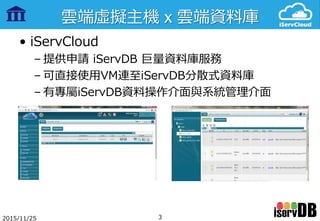
雲端虛擬主機 x 雲端資料庫
• iServCloud
– 提供申請 iServDB 巨量資料庫服務
– 可直接使用VM連至iServDB分散式資料庫
– 有專屬iServDB資料操作介面與系統管理介面
2015/11/25 3
iServDB 雲端資料庫
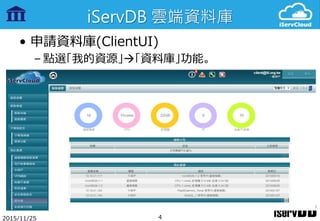
• 申請資料庫(ClientUI)
– 點選「我的資源」「資料庫」功能。
2015/11/25 4
iServDB 雲端資料庫
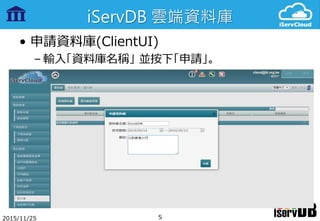
• 申請資料庫(ClientUI)
– 輸入「資料庫名稱」 並按下「申請」。
2015/11/25 5
iServDB 雲端資料庫
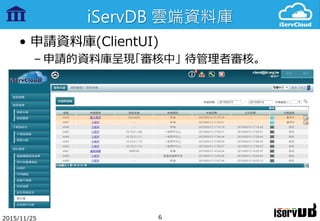
• 申請資料庫(ClientUI)
– 申請的資料庫呈現「審核中」 待管理者審核。
2015/11/25 6
iServDB 雲端資料庫
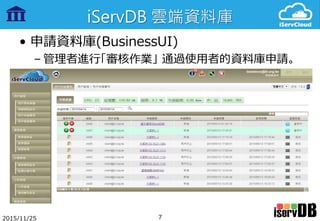
• 申請資料庫(BusinessUI)
– 管理者進行「審核作業」 通過使用者的資料庫申請。
2015/11/25 7
iServDB 雲端資料庫
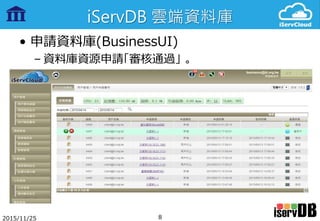
• 申請資料庫(BusinessUI)
– 資料庫資源申請「審核通過」 。
2015/11/25 8
iServDB 雲端資料庫
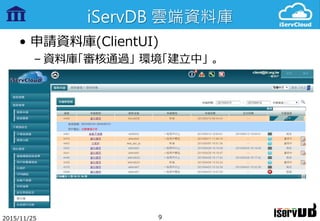
• 申請資料庫(ClientUI)
– 資料庫「審核通過」 環境「建立中」 。
2015/11/25 9
iServDB 雲端資料庫
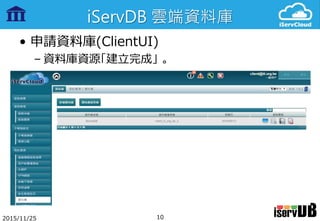
• 申請資料庫(ClientUI)
– 資料庫資源「建立完成」 。
2015/11/25 10
iServDB 雲端資料庫
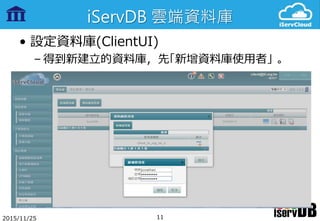
• 設定資料庫(ClientUI)
– 得到新建立的資料庫,先「新增資料庫使用者」 。
2015/11/25 11
iServDB 雲端資料庫
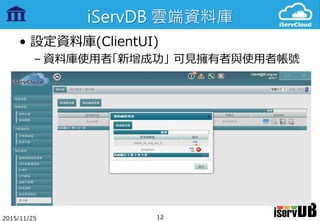
• 設定資料庫(ClientUI)
– 資料庫使用者「新增成功」 可見擁有者與使用者帳號
2015/11/25 12
iServDB 雲端資料庫
• 設定資料庫(ClientUI)
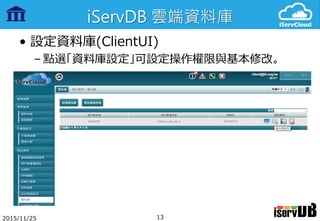
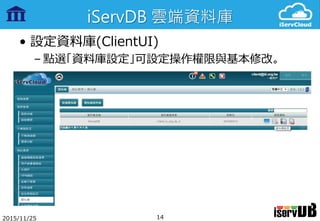
– 點選「資料庫設定」可設定操作權限與基本修改。
2015/11/25 13
iServDB 雲端資料庫
• 設定資料庫(ClientUI)
– 點選「資料庫設定」可設定操作權限與基本修改。
2015/11/25 14
iServDB 雲端資料庫
• 設定資料庫(ClientUI)
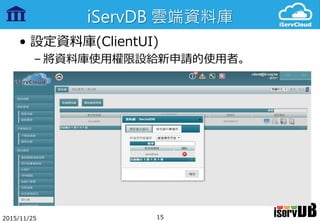
– 將資料庫使用權限設給新申請的使用者。
2015/11/25 15
iServDB 雲端資料庫
• 操作資料庫(ClientUI)
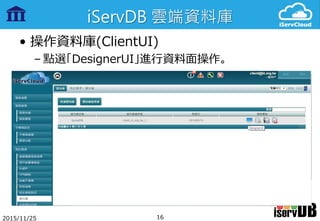
– 點選「DesignerUI」進行資料面操作。
2015/11/25 16
iServDB 雲端資料庫
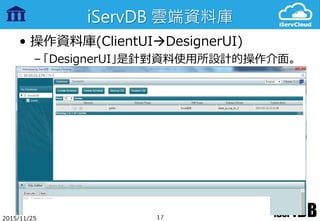
• 操作資料庫(ClientUIDesignerUI)
– 「DesignerUI」是針對資料使用所設計的操作介面。
2015/11/25 17
iServDB 雲端資料庫
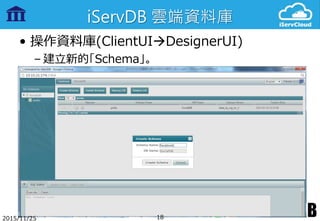
• 操作資料庫(ClientUIDesignerUI)
– 建立新的「Schema」。
2015/11/25 18
iServDB 雲端資料庫
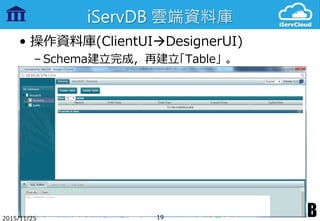
• 操作資料庫(ClientUIDesignerUI)
– Schema建立完成,再建立「Table」 。
2015/11/25 19
iServDB 雲端資料庫
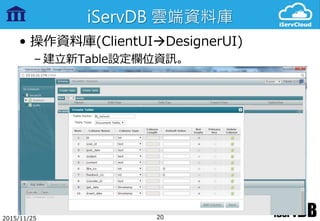
• 操作資料庫(ClientUIDesignerUI)
– 建立新Table設定欄位資訊。
2015/11/25 20
iServDB 雲端資料庫
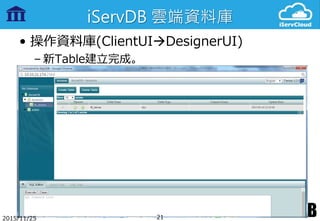
• 操作資料庫(ClientUIDesignerUI)
– 新Table建立完成。
2015/11/25 21
iServDB 雲端資料庫
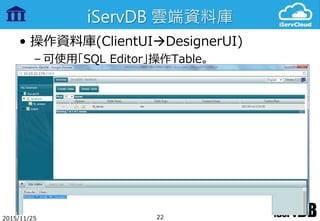
• 操作資料庫(ClientUIDesignerUI)
– 可使用「SQL Editor」操作Table。
2015/11/25 22
iServDB 雲端資料庫
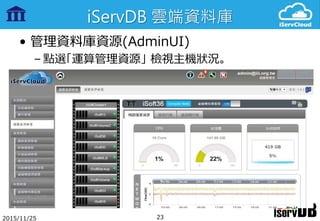
• 管理資料庫資源(AdminUI)
– 點選「運算管理資源」 檢視主機狀況。
2015/11/25 23
242015/11/25
Thank You

iServDB - iServCloud DBaaS Solution