Invaluable Tips on
How to Use
Calendar Sharing
App
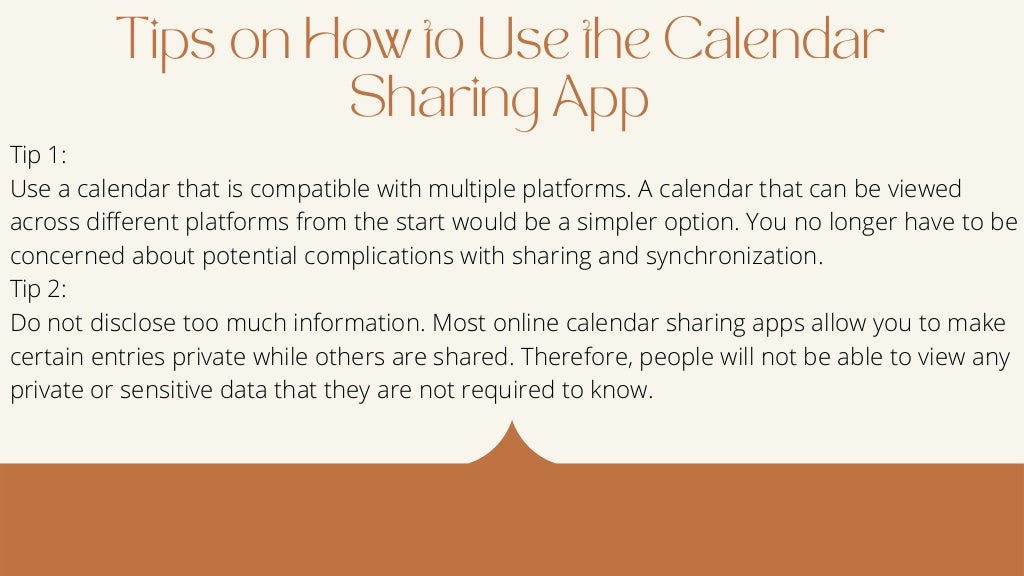
Tips on How to Use the Calendar
Sharing App


Tip 1:
Use a calendar that is compatible with multiple platforms. A calendar that can be viewed
across different platforms from the start would be a simpler option. You no longer have to be
concerned about potential complications with sharing and synchronization.
Tip 2:
Do not disclose too much information. Most online calendar sharing apps allow you to make
certain entries private while others are shared. Therefore, people will not be able to view any
private or sensitive data that they are not required to know.
Tips on How to Use the Calendar
Sharing App


Tip 3:
Make use of customization. Whatever calendar sharing apps you choose, it does allow for
some amount of personalization. As a result, you may customize it to meet your requirements.
For instance, you may change the display to week, month, or agenda. You may also modify the
colors, the title, and which things that are displayed. The subject lines are one of the most
important aspects of Calendar invitations. Make a greater effort to establish a clear topic line.
Tip 4:
Keep your calendar up to date. No matter how prepared you are, your schedule will have to
shift at some point. Event schedulers have some amazing tools available that allow you to
update your calendar automatically, reschedule canceled meetings for you, etc.
Tips on How to Use the Calendar
Sharing App


Tip 5:
Make time zones available. Most calendar-sharing apps allow custom settings for timezone. You
need not be concerned about organizing events because the calendar will identify time zone
variations.
Tip 6:
Add events from other applications. Furthermore, synchronize any events that are booked on
Facebook, Eventbrite, Evernote, Slack, or any project management software with your shared
calendar. The majority of these calendar-sharing apps interface with popular online calendars.
As a consequence, you have all pertinent dates in one place rather than dispersed across many
platforms.
Tips on How to Use the Calendar
Sharing App


Tip 7:
Create calendar reminders for significant events. Unless you can only place an order on a
certain day of the month, need to file papers by a certain time and/or date, and so on, set a
calendar reminder for it long before the incident arises and at varying intervals up until the
event occurs. You won't forget or be unprepared this way.
Tip 8:
Divide large tasks into manageable pieces. If you have a job that will take some time, don't put it
off until the last minute or expect to do it all in one session. Set aside time every day to work on
different aspects of your project. This way, you'll feel successful every day, notice progress, and
be able to meet your goals.
Tips on How to Use the Calendar
Sharing App


Tip 7:
Create calendar reminders for significant events. Unless you can only place an order on a
certain day of the month, need to file papers by a certain time and/or date, and so on, set a
calendar reminder for it long before the incident arises and at varying intervals up until the
event occurs. You won't forget or be unprepared this way.
Tip 8:
Divide large tasks into manageable pieces. If you have a job that will take some time, don't put it
off until the last minute or expect to do it all in one session. Set aside time every day to work on
different aspects of your project. This way, you'll feel successful every day, notice progress, and
be able to meet your goals.
Tips on How to Use the Calendar
Sharing App


Tip 9:
Enable virtual personal assistant. Certain calendar-sharing apps now interface with your
phone's, laptop's, or mobile device's virtual personal assistant (VPA). This streamlines the online
appointment scheduling process by letting your VPA perform all of the work, such as scanning
your calendar for open hours and proposing and confirming meeting times for folks on your
invitation list. In this manner, your inbox will be free of replies, allowing you to focus on other
tasks.
Importance of Calendar Sharing App


Increases Efficiency And Communication
Minimizes Time And Increases Production
Saves Time
Streamlined Actions
Importance of Calendar Sharing App


Schedule.cc by 500apps is an appointment scheduling software that organizes your meetings, appointments, and events
throughout your schedule by linking your calendar with your chosen third-party apps and staying on top of all activities
throughout the day. It is simple to schedule your appointments and integrate your schedule with your favorite calendar
and stay organized. It allows bookings with Google Calendar and vice versa. It automatically allows you to include the GoTo
details in the confirmation emails and calendar events issued to your invitees. It organizes your meetings, appointments,
and events throughout your schedule by linking your calendar with your chosen third-party apps.
Schedule.cc also allows you to sync bookings with Google Calendar and vice versa. After planning the event, you can
automatically include the GoTo details in the confirmation emails and calendar events issued to your invitees. iCal
integration feature avoids double appointments as it blocks the time from being booked by a new client. It also syncs your
calendar with an Office 365 account to schedule more meetings, appointments, and events professionally. You also get
real-time alerts whenever any update to the schedule is made.
Price:
39 Apps for a single price of $14.99


Schedule.cc

Invaluable Tips on How to Use Calendar Sharing App (1).pdf

  • 1.
    Invaluable Tips on Howto Use Calendar Sharing App
  • 2.
    Tips on Howto Use the Calendar Sharing App Tip 1: Use a calendar that is compatible with multiple platforms. A calendar that can be viewed across different platforms from the start would be a simpler option. You no longer have to be concerned about potential complications with sharing and synchronization. Tip 2: Do not disclose too much information. Most online calendar sharing apps allow you to make certain entries private while others are shared. Therefore, people will not be able to view any private or sensitive data that they are not required to know.
  • 3.
    Tips on Howto Use the Calendar Sharing App Tip 3: Make use of customization. Whatever calendar sharing apps you choose, it does allow for some amount of personalization. As a result, you may customize it to meet your requirements. For instance, you may change the display to week, month, or agenda. You may also modify the colors, the title, and which things that are displayed. The subject lines are one of the most important aspects of Calendar invitations. Make a greater effort to establish a clear topic line. Tip 4: Keep your calendar up to date. No matter how prepared you are, your schedule will have to shift at some point. Event schedulers have some amazing tools available that allow you to update your calendar automatically, reschedule canceled meetings for you, etc.
  • 4.
    Tips on Howto Use the Calendar Sharing App Tip 5: Make time zones available. Most calendar-sharing apps allow custom settings for timezone. You need not be concerned about organizing events because the calendar will identify time zone variations. Tip 6: Add events from other applications. Furthermore, synchronize any events that are booked on Facebook, Eventbrite, Evernote, Slack, or any project management software with your shared calendar. The majority of these calendar-sharing apps interface with popular online calendars. As a consequence, you have all pertinent dates in one place rather than dispersed across many platforms.
  • 5.
    Tips on Howto Use the Calendar Sharing App Tip 7: Create calendar reminders for significant events. Unless you can only place an order on a certain day of the month, need to file papers by a certain time and/or date, and so on, set a calendar reminder for it long before the incident arises and at varying intervals up until the event occurs. You won't forget or be unprepared this way. Tip 8: Divide large tasks into manageable pieces. If you have a job that will take some time, don't put it off until the last minute or expect to do it all in one session. Set aside time every day to work on different aspects of your project. This way, you'll feel successful every day, notice progress, and be able to meet your goals.
  • 6.
    Tips on Howto Use the Calendar Sharing App Tip 7: Create calendar reminders for significant events. Unless you can only place an order on a certain day of the month, need to file papers by a certain time and/or date, and so on, set a calendar reminder for it long before the incident arises and at varying intervals up until the event occurs. You won't forget or be unprepared this way. Tip 8: Divide large tasks into manageable pieces. If you have a job that will take some time, don't put it off until the last minute or expect to do it all in one session. Set aside time every day to work on different aspects of your project. This way, you'll feel successful every day, notice progress, and be able to meet your goals.
  • 7.
    Tips on Howto Use the Calendar Sharing App Tip 9: Enable virtual personal assistant. Certain calendar-sharing apps now interface with your phone's, laptop's, or mobile device's virtual personal assistant (VPA). This streamlines the online appointment scheduling process by letting your VPA perform all of the work, such as scanning your calendar for open hours and proposing and confirming meeting times for folks on your invitation list. In this manner, your inbox will be free of replies, allowing you to focus on other tasks.
  • 8.
    Importance of CalendarSharing App Increases Efficiency And Communication Minimizes Time And Increases Production Saves Time Streamlined Actions
  • 9.
    Importance of CalendarSharing App Schedule.cc by 500apps is an appointment scheduling software that organizes your meetings, appointments, and events throughout your schedule by linking your calendar with your chosen third-party apps and staying on top of all activities throughout the day. It is simple to schedule your appointments and integrate your schedule with your favorite calendar and stay organized. It allows bookings with Google Calendar and vice versa. It automatically allows you to include the GoTo details in the confirmation emails and calendar events issued to your invitees. It organizes your meetings, appointments, and events throughout your schedule by linking your calendar with your chosen third-party apps. Schedule.cc also allows you to sync bookings with Google Calendar and vice versa. After planning the event, you can automatically include the GoTo details in the confirmation emails and calendar events issued to your invitees. iCal integration feature avoids double appointments as it blocks the time from being booked by a new client. It also syncs your calendar with an Office 365 account to schedule more meetings, appointments, and events professionally. You also get real-time alerts whenever any update to the schedule is made. Price: 39 Apps for a single price of $14.99 Schedule.cc