Applied Computer Science: CSI 1100
INTRODUCTION TO
COMPUTER SCIENCE
Dessalegn Mequanint Yehuala
Foreword
The African Virtual University (AVU) is proud to participate in increasing access to education in
African countries through the production of quality learning materials. We are also proud to
contribute to global knowledge as our Open Educational Resources are mostly accessed from
outside the African continent.
This module was developed as part of a diploma and degree program in Applied Computer
Science, in collaboration with 18 African partner institutions from 16 countries. A total of 156
modules were developed or translated to ensure availability in English, French and Portuguese.
These modules have also been made available as open education resources (OER) on oer.avu.
org.
On behalf of the African Virtual University and our patron, our partner institutions, the African
Development Bank, I invite you to use this module in your institution, for your own education,
to share it as widely as possible and to participate actively in the AVU communities of practice
of your interest. We are committed to be on the frontline of developing and sharing Open
Educational Resources.
The African Virtual University (AVU) is a Pan African Intergovernmental Organization established
by charter with the mandate of significantly increasing access to quality higher education and
training through the innovative use of information communication technologies. A Charter,
establishing the AVU as an Intergovernmental Organization, has been signed so far by
nineteen (19) African Governments - Kenya, Senegal, Mauritania, Mali, Cote d’Ivoire, Tanzania,
Mozambique, Democratic Republic of Congo, Benin, Ghana, Republic of Guinea, Burkina Faso,
Niger, South Sudan, Sudan, The Gambia, Guinea-Bissau, Ethiopia and Cape Verde.
The following institutions participated in the Applied Computer Science Program: (1) Université
d’Abomey Calavi in Benin; (2) Université de Ougagadougou in Burkina Faso; (3) Université
Lumière de Bujumbura in Burundi; (4) Université de Douala in Cameroon; (5) Université de
Nouakchott in Mauritania; (6) Université Gaston Berger in Senegal; (7) Université des Sciences,
des Techniques et Technologies de Bamako in Mali (8) Ghana Institute of Management and
Public Administration; (9) Kwame Nkrumah University of Science and Technology in Ghana; (10)
Kenyatta University in Kenya; (11) Egerton University in Kenya; (12) Addis Ababa University in
Ethiopia (13) University of Rwanda; (14) University of Dar es Salaam in Tanzania; (15) Universite
Abdou Moumouni de Niamey in Niger; (16) Université Cheikh Anta Diop in Senegal; (17)
Universidade Pedagógica in Mozambique; and (18) The University of the Gambia in The
Gambia.
Bakary Diallo
The Rector
African Virtual University
Introduction To Computer Science
2
Production Credits
Production Credits
Author
Dessalegn Mequanint
Peer Reviewer
Florence Tushabe
AVU - Academic Coordination
Dr. Marilena Cabral
Overall Coordinator Applied Computer Science Program
Prof Tim Mwololo Waema
Module Coordinator
Victor Odumuyiwa
Instructional Designers
Elizabeth Mbasu 			
Benta Ochola
Diana Tuel
Media Team
Sidney McGregor			 Michal Abigael Koyier
Barry Savala 				 Mercy Tabi Ojwang
Edwin Kiprono				Josiah Mutsogu
Kelvin Muriithi				Kefa Murimi
Victor Oluoch Otieno			 Gerisson Mulongo
3
Copyright Notice
This document is published under the conditions of the Creative Commons
http://en.wikipedia.org/wiki/Creative_Commons
Attribution http://creativecommons.org/licenses/by/2.5/
Module Template is copyright African Virtual University licensed under a Creative Commons
Attribution-ShareAlike 4.0 International License. CC-BY, SA
Supported By
AVU Multinational Project II funded by the African Development Bank.
Introduction To Computer Science
4
Table of Contents
Table of Contents
Foreword 2
Production Credits 3
Copyright Notice 4
Course Overview 13
Prerequisites . .  .  .  .  .  .  .  .  .  .  .  .  .  .  .  .  .  .  .  .  .  .  .  .  .13
Materials. .  .  .  .  .  .  .  .  .  .  .  .  .  .  .  .  .  .  .  .  .  .  .  .  .  .  .  .  .  .  .  .  .  .  .  .  . 13
Course Goals.
 .  .  .  .  .  .  .  .  .  .  .  .  .  .  .  .  .  .  .  .  .  .  .  .  .  .  .  .  .  .  .  .  .  .  . 13
Units. .  .  .  .  .  .  .  .  .  .  .  .  .  .  .  .  .  .  .  .  .  .  .  .  .  .  .  .  .  .  .  .  .  .  .  .  .  .  . 14
Assessment . .  .  .  .  .  .  .  .  .  .  .  .  .  .  .  .  .  .  .  .  .  .  .  .  .  .  .  .  .  .  .  .  .  .  . 14
Schedule. .  .  .  .  .  .  .  .  .  .  .  .  .  .  .  .  .  .  .  .  .  .  .  .  .  .  .  .  .  .  .  .  .  .  .  .  . 15
Readings and Other Resources .  .  .  .  .  .  .  .  .  .  .  .  .  .  .  .  .  .  .  .  .  .  .  .  .  .  . 17
Unit 0: Pre-Assessment 19
Unit Goals . .  .  .  .  .  .  .  .  .  .  .  .  .  .  .  .  .  .  .  .  .  .  .  .  .  .  .  .  .  .  .  .  .  .  .  . 19
Key Terms.
 .  .  .  .  .  .  .  .  .  .  .  .  .  .  .  .  .  .  .  .  .  .  .  .  .  .  .  .  .  .  .  .  .  .  .  . 19
1. What is a Computer?.  .  .  .  .  .  .  .  .  .  .  .  .  .  .  .  .  .  .  .  .  .  .  .  .  .  .  .  .  .  . 20
2. What is Computer Science?. .  .  .  .  .  .  .  .  .  .  .  .  .  .  .  .  .  .  .  .  .  .  .  .  .  . 20
3. What is Information Technology?. .  .  .  .  .  .  .  .  .  .  .  .  .  .  .  .  .  .  .  .  .  .  . 20
4. What is Information and Communication Technology? . .  .  .  .  .  .  .  .  .  .  .  .  .21
Binary Number System .  .  .  .  .  .  .  .  .  .  .  .  .  .  .  .  .  .  .  .  .  .  .  .  .  .  .  .  .  .  . 21
Assessment: Basic Terms and Binary Number System. .  .  .  .  .  .  .  .  .  .  .  .  .  . 22
Grading scheme 22
Answers 23
References. .  .  .  .  .  .  .  .  .  .  .  .  .  .  .  .  .  .  .  .  .  .  .  .  .  .  .  .  .  .  .  .  .  .  .  . 23
Unit 1: Introduction to Computer Systems 24
Unit Goals . .  .  .  .  .  .  .  .  .  .  .  .  .  .  .  .  .  .  .  .  .  .  .  .  .  .  .  .  .  .  .  .  .  .  .  . 24
Key Terms.
 .  .  .  .  .  .  .  .  .  .  .  .  .  .  .  .  .  .  .  .  .  .  .  .  .  .  .  .  .  .  .  .  .  .  .  . 24
Learning Activity: What is a Computer? Characteristics of Computers,
5
Types of Computers . .  .  .  .  .  .  .  .  .  .  .  .  .  .  .  .  .  .  .  .  .  .  .  .  .  .  .  .  .  .  . 25
1. What is a Computer? 25
Characteristics of Computers 25
Types of Computers 26
Classification by the Method of Operation (processing) 26
Classification by purpose of application 27
Classification by Physical Size, Capacity and Performance 28
What is Computer Science? 28
Activity Conclusion 29
Answers 29
Assessment: Reflective Activities 29
Learning Activity: History of Early Days Computers . .  .  .  .  .  .  .  .  .  .  .  .  .  . 30
History and Evolution of Computer Systems .  .  .  .  .  .  .  .  .  .  .  .  .  .  .  .  .  .  .  . 30
History of Computer Systems 30
Activity Conclusion. 31
Assessment: Reflective Activities 31
Answers 32
Learning Activity 3: The Advent of Modern Days Computers .
 .  .  .  .  .  .  .  .  .  . 32
Activity Conclusion 34
Answers 34
Assessment: Reflective Activities 34
Learning Activity: Creating a Summary for the Unit. .  .  .  .  .  .  .  .  .  .  .  .  .  .  . 35
Introduction 35
Instructions 35
Activity Assessment Criteria: Summary completeness and
readability. 35
Assessment 35
Grading scheme 37
Answers 37
References. .  .  .  .  .  .  .  .  .  .  .  .  .  .  .  .  .  .  .  .  .  .  .  .  .  .  .  .  .  .  .  .  .  .  .  . 38
Introduction To Computer Science
6
Table of Contents
Unit 2: Components of a 39
Computer System 39
Unit Goals . .  .  .  .  .  .  .  .  .  .  .  .  .  .  .  .  .  .  .  .  .  .  .  .  .  .  .  .  .  .  .  .  .  .  .  . 39
Key Terms.
 .  .  .  .  .  .  .  .  .  .  .  .  .  .  .  .  .  .  .  .  .  .  .  .  .  .  .  .  .  .  .  .  .  .  .  . 39
Learning Activity: The Von Neumann Architecture .  .  .  .  .  .  .  .  .  .  .  .  .  .  .  .  . 40
Introduction 40
Components of the Von Neumann Architecture 40
Memory.  .  .  .  .  .  .  .  .  .  .  .  .  .  .  .  .  .  .  .  .  .  .  .  .  .  .  .  .  .  .  .  .  .  .  .  .  .  . 41
Input / Output. .  .  .  .  .  .  .  .  .  .  .  .  .  .  .  .  .  .  .  .  .  .  .  .  .  .  .  .  .  .  .  .  .  . 42
Characteristics of Input /Output (I/O) devices: 42
The ALU . .  .  .  .  .  .  .  .  .  .  .  .  .  .  .  .  .  .  .  .  .  .  .  .  .  .  .  .  .  .  .  .  .  .  .  .  . 42
The Control Unit. .  .  .  .  .  .  .  .  .  .  .  .  .  .  .  .  .  .  .  .  .  .  .  .  .  .  .  .  .  .  .  .  . 43
Peripheral Devices. .  .  .  .  .  .  .  .  .  .  .  .  .  .  .  .  .  .  .  .  .  .  .  .  .  .  .  .  .  .  .  . 43
Types of Peripheral Devices 43
Activity Conclusion 43
Assessment: Reflective Activities 44
Answers 44
Learning Activity: Software Systems..  .  .  .  .  .  .  .  .  .  .  .  .  .  .  .  .  .  .  .  .  .  .  . 44
Introduction 44
Software Types.
 .  .  .  .  .  .  .  .  .  .  .  .  .  .  .  .  .  .  .  .  .  .  .  .  .  .  .  .  .  .  .  .  .  . 44
System Software 45
Operating System 45
Types of operating Systems 46
Language Software 47
Application Software 47
Activity Conclusion 47
Assessment: Reflective Activities: 48
Answers: 48
Learning Activity: Creating a Summary for the Unit. .  .  .  .  .  .  .  .  .  .  .  .  .  .  . 48
Introduction 48
5
Activity Details 48
Assessment. . .  .  .  .  .  .  .  .  .  .  .  .  .  .  .  .  .  .  .  .  .  .  .  .  .  .  .  .  .  .  .  .  .  .  . 49
Grading scheme: 49
Answers: 50
References: .  .  .  .  .  .  .  .  .  .  .  .  .  .  .  .  .  .  .  .  .  .  .  .  .  .  .  .  .  .  .  .  .  .  .  .  . 50
Unit 3: The Internet 51
Unit Goals . .  .  .  .  .  .  .  .  .  .  .  .  .  .  .  .  .  .  .  .  .  .  .  .  .  .  .  .  .  .  .  .  .  .  .  .  .51
Key Terms.
 .  .  .  .  .  .  .  .  .  .  .  .  .  .  .  .  .  .  .  .  .  .  .  .  .  .  .  .  .  .  .  .  .  .  .  .  .51
Learning Activity: History of the Internet. .  .  .  .  .  .  .  .  .  .  .  .  .  .  .  .  .  .  .  . 52
Introduction 52
Origin of the Internet.  .  .  .  .  .  .  .  .  .  .  .  .  .  .  .  .  .  .  .  .  .  .  .  .  .  .  .  .  .  .  . 52
Application or Purposes of the Internet 53
Assessment: Reflective Activities 54
Activity Conclusion 54
Answers: 54
Learning Activity : Search Engines .  .  .  .  .  .  .  .  .  .  .  .  .  .  .  .  .  .  .  .  .  .  .  .  . 55
Search Engines.
 .  .  .  .  .  .  .  .  .  .  .  .  .  .  .  .  .  .  .  .  .  .  .  .  .  .  .  .  .  .  .  .  .  . 55
Trends in Internet Use . .  .  .  .  .  .  .  .  .  .  .  .  .  .  .  .  .  .  .  .  .  .  .  .  .  .  .  .  .  . 55
The Internet of Things 55
Assessment: Reflective Activities 56
Activity Conclusion 56
Answers: 56
Learning Activity: Creating a summary for the unit . .  .  .  .  .  .  .  .  .  .  .57
Introduction 57
Activity Details 57
Summative Assessment for the Unit. .  .  .  .  .  .  .  .  .  .  .  .  .  .  .  .  .  .  .  .  .  .  .  .57
Grading scheme: 57
Answers: 58
References: .  .  .  .  .  .  .  .  .  .  .  .  .  .  .  .  .  .  .  .  .  .  .  .  .  .  .  .  .  .  .  .  .  .  .  .  . 59
Introduction To Computer Science
6
Table of Contents
Unit 4: Software Applications 60
Unit Goals . .  .  .  .  .  .  .  .  .  .  .  .  .  .  .  .  .  .  .  .  .  .  .  .  .  .  .  .  .  .  .  .  .  .  .  . 60
Learning Activity: Word Processors . .  .  .  .  .  .  .  .  .  .  .  .  .  .  .  .  .  .  .  .  .  .  . 60
Introduction 60
Key Terms.
 .  .  .  .  .  .  .  .  .  .  .  .  .  .  .  .  .  .  .  .  .  .  .  .  .  .  .  .  .  .  .  .  .  .  .  . 60
What You see is What you Get(WYSIWYG) 61
Features of Standard Word Processors 62
Activity Conclusion 63
Answers: 63
Assessment: Reflective Activities 63
Learning Activity: Spreadsheet .  .  .  .  .  .  .  .  .  .  .  .  .  .  .  .  .  .  .  .  .  .  .  .  .  .  . 64
Introduction 64
Entering data 64
Basic Commands 66
Activity Conclusion 67
Answers: 67
Assessment: Reflective Activities 67
Learning Activity: Presentation Software.  .  .  .  .  .  .  .  .  .  .  .  .  .  .  .  .  .  .  .  .  . 68
Introduction 68
Activity Conclusion 69
Activity Details: 70
Learning Activity: Creating a summary for the unit . .  .  .  .  .  .  .  .  .  .  .  .  .  .  . 70
Introduction 70
Activity Details 70
Unit Assessment .  .  .  .  .  .  .  .  .  .  .  .  .  .  .  .  .  .  .  .  .  .  .  .  .  .  .  .  .  .  .  .  .  . 71
Grading scheme: 71
Answers: 72
References: .  .  .  .  .  .  .  .  .  .  .  .  .  .  .  .  .  .  .  .  .  .  .  .  .  .  .  .  .  .  .  .  .  .  .  .  . 72
Manual for Laboratory Practices 73
Microsoft Windows Basics. .  .  .  .  .  .  .  .  .  .  .  .  .  .  .  .  .  .  .  .  .  .  .  .  .  .  .  . 73
7
Introduction To Computer Science
8
Objectives: .  .  .  .  .  .  .  .  .  .  .  .  .  .  .  .  .  .  .  .  .  .  .  .  .  .  .  .  .  .  .  .  .  .  .  .  . 73
Laboratory Learning Activities: Practicing Windows Basics . .  .  .  .  .  .  .  .  .  .  . 74
Managing Files and Folders . .  .  .  .  .  .  .  .  .  .  .  .  .  .  .  .  .  .  .  .  .  .  .  .  .  .  . 75
Folders. .  .  .  .  .  .  .  .  .  .  .  .  .  .  .  .  .  .  .  .  .  .  .  .  .  .  .  .  .  .  .  .  .  .  .  .  .  . 75
Moving and Copying Files and Folders 76
Creating Files and Folders 76
Creating and Deleting Files 77
Opening an Existing File 78
File and folder management exercises 78
Microsoft Word Basics. .  .  .  .  .  .  .  .  .  .  .  .  .  .  .  .  .  .  .  .  .  .  .  .  .  .  .  .  .  . 79
Objectives: .  .  .  .  .  .  .  .  .  .  .  .  .  .  .  .  .  .  .  .  .  .  .  .  .  .  .  .  .  .  .  .  .  .  .  .  . 79
Getting Familiar with Microsoft Word Environment. .  .  .  .  .  .  .  .  .  .  .  .  .  .  . 79
Understanding Document Views 82
Understanding Nonprinting Characters 83
Create Sample Data and Select Text 84
EXERCISE 1 84
EXERCISE 2 85
Execute Commands with Keyboard Shortcuts 85
The Vertical and Horizontal and Vertical Scroll Bars 88
The Status Bar 88
Microsoft Word Basic Features .  .  .  .  .  .  .  .  .  .  .  .  .  .  .  .  .  .  .  .  .  .  .  .  .  .  . 88
EXERCISE 1 89
Formatting Paragraphs and Applying Styles.
 .  .  .  .  .  .  .  .  .  .  .  .  .  .  .  .  .  .  . 90
EXERCISE 92
Spreadsheet- Microsoft Excel Basics. .  .  .  .  .  .  .  .  .  .  .  .  .  .  .  .  .  .  .  .  .  .  . 93
Creating a New Worksheet 94
Entering Data or Formula in a Worksheet 96
Formatting in Microsoft Excel 97
Formatting a Worksheet 97
Working with Formula. .  .  .  .  .  .  .  .  .  .  .  .  .  .  .  .  .  .  .  .  .  .  .  .  .  .  .  .  .  . 99
Table of Contents
9
Elements of Formulas: 99
Creating Formula: 99
Advanced Features 100
Charts 100
Types of Charts 101
Creating Charts 102
Editing Chart 102
Microsoft PowerPoint Presentation Basics.
 .  .  .  .  .  .  .  .  .  .  .  .  .  .  .  .  .  .  .  . 103
Creating Presentation 104
Working with Multimedia 105
Sharing Presentation 108
Course Overview
Welcome to Introduction to Computer Science
This course introduces learners to basics notions in Computer Science and computing. It covers
topics such as the development of history of computers and computing; the characteristics of
computer systems; the organization of a computer system; the Von Neumann architecture, the
history of the Internet; basic software applications. It is designed for learners with little or no
experience in computer use
Prerequisites
The module has no prerequisite. Learners can register for the course in their first year.
Materials
The materials required to complete this course are:
• Besides the Module content authored for the course, students are advised to
refer to or use Introduction to Computer Science e-books available in the various
digital libraries such as NYU Library (http://guides.nyu.edu/introcompsci) or from
any other sources.
• Computers with Microsoft Windows operating systems and Office Applications
Installed.
Course Goals
1. Upon completion of this course the learner should be able to:
2. Describe Computers and their types;
3. Distinguish elements of the Von Neumann Architecture;
4. Identify characteristics of Computers that made them useful and
indispensable tools of our time;
5. Explain the functioning and application of the Internet; and
6. Use word processing, spreadsheet and presentation software features
effectively.
Introduction To Computer Science
10
Course Overview
11
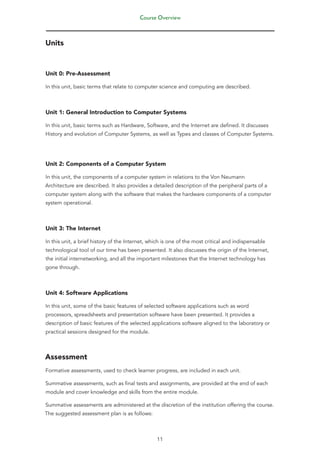
Units
Unit 0: Pre-Assessment
In this unit, basic terms that relate to computer science and computing are described.
Unit 1: General Introduction to Computer Systems
In this unit, basic terms such as Hardware, Software, and the Internet are defined. It discusses
History and evolution of Computer Systems, as well as Types and classes of Computer Systems.
Unit 2: Components of a Computer System
In this unit, the components of a computer system in relations to the Von Neumann
Architecture are described. It also provides a detailed description of the peripheral parts of a
computer system along with the software that makes the hardware components of a computer
system operational.
Unit 3: The Internet
In this unit, a brief history of the Internet, which is one of the most critical and indispensable
technological tool of our time has been presented. It also discusses the origin of the Internet,
the initial internetworking, and all the important milestones that the Internet technology has
gone through.
Unit 4: Software Applications
In this unit, some of the basic features of selected software applications such as word
processors, spreadsheets and presentation software have been presented. It provides a
description of basic features of the selected applications software aligned to the laboratory or
practical sessions designed for the module.
Assessment
Formative assessments, used to check learner progress, are included in each unit.
Summative assessments, such as final tests and assignments, are provided at the end of each
module and cover knowledge and skills from the entire module.
Summative assessments are administered at the discretion of the institution offering the course.
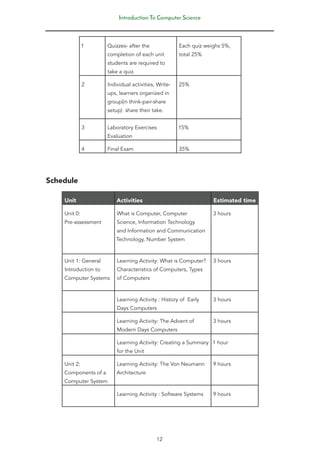
The suggested assessment plan is as follows:
Introduction To Computer Science
12
1 Quizzes- after the
completion of each unit
students are required to
take a quiz.
Each quiz weighs 5%,
total 25%
2 Individual activities, Write-
ups, learners organized in
group(in think-pair-share
setup) share their take.
25%
3 Laboratory Exercises
Evaluation
15%
4 Final Exam 35%
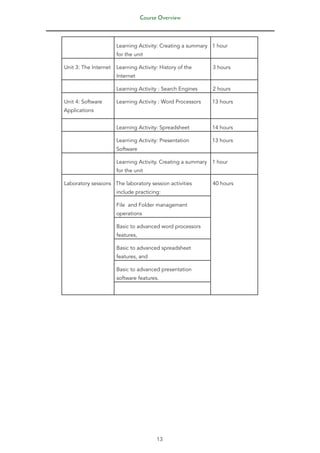
Schedule
Unit Activities Estimated time
Unit 0:
Pre-assessment
What is Computer, Computer
Science, Information Technology
and Information and Communication
Technology, Number System
3 hours
Unit 1: General
Introduction to
Computer Systems
Learning Activity: What is Computer?
Characteristics of Computers, Types
of Computers
3 hours
Learning Activity : History of Early
Days Computers
3 hours
Learning Activity: The Advent of
Modern Days Computers
3 hours
Learning Activity: Creating a Summary
for the Unit
1 hour
Unit 2:
Components of a
Computer System
Learning Activity: The Von Neumann
Architecture
9 hours
Learning Activity : Software Systems 9 hours
Course Overview
13
Learning Activity: Creating a summary
for the unit
1 hour
Unit 3: The Internet Learning Activity: History of the
Internet
3 hours
Learning Activity : Search Engines 2 hours
Unit 4: Software
Applications
Learning Activity : Word Processors 13 hours
Learning Activity: Spreadsheet 14 hours
Learning Activity: Presentation
Software
13 hours
Learning Activity. Creating a summary
for the unit
1 hour
Laboratory sessions The laboratory session activities
include practicing:
40 hours
File and Folder management
operations
Basic to advanced word processors
features,
Basic to advanced spreadsheet
features, and
Basic to advanced presentation
software features.
Introduction To Computer Science
14
Readings and Other Resources
The readings and other resources in this course are:
Unit 1
Required readings and other resources:
• Stanford University, Coursera, https://class.coursera.org/cs101-selfservice/lecture
• Wiki Page, https://en.wikipedia.org/wiki/Computer_science.
• Wiki Page, http://c2.com/cgi/wiki?VonNeumannArchitecture
Optional readings and other resources:
• Topic by topic search can also provide you access to relevant online resources
available in other sources.
Unit 2
Required readings and other resources:
• Wiki Page, https://en.wikipedia.org/wiki/Von_Neumann_architecture
Optional readings and other resources:
• Topic by topic search can also provide you access to relevant online resources
available in other sources
Unit 3
Required readings and other resources:
• The Internet Society (ISOC), Brief History of the Internet, http://www.
internetsociety.org/internet/what-internet/history-internet/brief-history-internet
• Wiki Page, https://en.wikipedia.org/wiki/History_of_the_Internet
Optional readings and other resources:
• Topic by topic search can also provide you access to relevant online resources
available in other sources.
Course Overview
15
Unit 4
Required readings and other resources:
1. Carleton University, School of Computer Science, http://people.scs.carleton.
ca/~achan/teaching/comp1001/notes/COMP1001-03.pdf
2. Wiki Page, https://en.wikipedia.org/wiki/Word_processor.
3. Introduction to the Excel Spreadsheet , http://www.pitt.edu/~edindex/
OfficeXPTutorials/Lesson4XP.pdf, Bernard Poole, Lorrie Jackson, Rebecca
Randall, 2002
4. Wiki Page, https://en.wikipedia.org/wiki/Spreadsheet.
5. Wiki Page, https://en.wikipedia.org/wiki/Spreadsheet.
6. Free PowerPoint Tutorial, http://www.homeandlearn.co.uk/powerpoint/
powerpoint_p1s2.html.
7. Free Computer Tutorials, http://www.homeandlearn.co.uk/powerpoint/
powerpoint.html.
Optional readings and other resources:
• Topic by topic search can also provide you access to relevant online resources
available in other sources.
Introduction To Computer Science
16
Unit 0: Pre-Assessment
Before discussing the various topics that relate to the development of history of computers,
the Von Neumann architecture and other related topics in subsequent units, in this unit,
basic terms that relate to computer science have been described. Understanding the terms
associated to computer science, information technology and information and communication
technology in general develop your understanding of key concepts which have been discussed
in the module.
Unit Goals
This unit is to remind learners some of the important components of a computer system and
computing, which learners are assumed to have known. Upon completion of this unit the
learner should be able to:
• distinguish terminologies that relate to computer science, information technology
and Information and Communication Technologies; and
• Compute or convert the binary equivalent of decimal numbers.
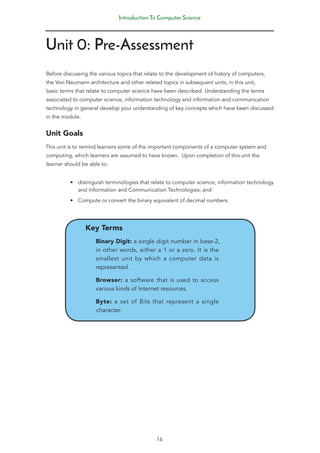
Key Terms
Binary Digit: a single digit number in base-2,
in other words, either a 1 or a zero. It is the
smallest unit by which a computer data is
represented.
Browser: a software that is used to access
various kinds of Internet resources.
Byte: a set of Bits that represent a single
character.
Unit 0: Pre-Assessment
17
What is a Computer, Computer Science, Information Technology and Information and
Communication Technology?
1. What is a Computer?
A computer is defined as an electronic device designed for storing and processing data,
typically in binary form [2].
The following are components of a computer system is composed of:
a. Memory or Primary Memory: enables a computer to store data or information
and programs temporarily.
b. Secondary or Mass storage device: enables a computer to permanently store
large amounts of data. Commonly used mass storage devices include disk drives
and tape drives.
Input device: users interact with a computer using input devices. Input devices usually a
keyboard and mouse are used by a user in order to provide instructions to a computer.
Output device: computer uses a screen or monitor, printer, or other device to display
outputs.
Central processing unit (CPU): the brain of the computer, this is the component
responsible for executing instructions.
2. What is Computer Science?
There are several definitions for the term Computer Science most of them converge to the one
given here. Computer Science can be defined as the study of computers and computational
systems. Computer scientists deal mostly with software and software systems; this includes
their theory, design, development, and application .
3. What is Information Technology?
The term Information Technology is defined as the study or use of systems (especially
computers and telecommunications) for storing, retrieving, and sending information[3]. It
refers to the uses of computers, networking, software and other equipment to manage
information. In the modern world information technology is integral to the success of business
and most companies are equipped with computers, DBMS (Database Management Systems),
servers(computers with high computing capacity) for storing, processing, retrieving and
protecting information of the company.
Introduction To Computer Science
18
4. What is Information and Communication Technology?
Information and Communication Technology (ICT) is an umbrella term that includes
communication device or application, encompassing: radio, television, cellular phones,
computer and network hardware and software, satellite systems, etc. and all the technical
means for processing and communicating information . The terms encompasses both digital as
well as pre-digital technologies, including paper-based writing. However, it is most often used
to describe digital technologies including:
1. Components of data communication such as communication protocols,
transmission techniques, communications equipment, transmission medium.
, as well as
2. available techniques for data storage and information processing.
The term has been coined out due to the convergence of information technology (IT) and
telecommunication technology. In a nutshell ICT encompasses elements such as storage media
to record information (whether paper, pen, magnetic disk/ tape, optical disks - CD/DVD, flash
memory etc.); and also technology for broadcasting information - radio, television,; and any
technology for communicating through voice and sound or images- microphone, camera,
loudspeaker, telephone to cellular phones and the Internet .
Binary Number System
Descriptions of binary number system:
• Uses two digits, 0 and 1; and
• It is also called Base 2.
Example: the binary equivalent of 2 is (10)2. Just divide 2 by 2 and take the remainders from
right to left.
Unit 0: Pre-Assessment
19
Assessment: Basic Terms and Binary Number System
This preliminary assessment tests the learner’s familiarity of basic topics which are essential for
mastering the module contents. Attempt the questions and later compare your answer with the
answer given, and for the questions where you answered incorrectly refer to relevant materials
to make further readings so as to be able understand the notions discussed in the unit properly
Assessment
1. What does digital technology mean?
2. Give an example of the most critical ICT tool of our time that has become
a transformational agent in the day-to-day life of people?
3. Which one of the following statement is correct about ICT?
• It is a term used to describe methods of information communications
exclusively
• It is a term used to describe methods of information communications along
with techniques for storing and processing information.
• It is a term used to describe techniques of storing and processing information.
• It is a vague term difficult to describe.
4. Mention two examples of the application areas of ICT.
5. Find out the binary equivalent of 866?
6. Describe the differences and commonalities between ICT and Information
Technology.
7. Explain the term Internet?
Grading scheme
• The questions are meant to assess learners background with respect to
binary number system and some key terms related to the subject matter. The
assessment questions weight needs not to exceed 7% and learners who carried
out the learning activities successfully and answered the assessment questions
correctly can earn 7 points or marks.
Introduction To Computer Science
20
Answers
1. It is about electronic device that generates, stores and processes data in
terms of two states( a binary code of combination of the digits 0 and 1).
2. The Internet
3. B
4. eLearning, eHealth, and the like
5. Binary 1101100010
6. Information Technology(IT) is one of the components of ICT or in other
words ICT subsumes IT. Make further readings from online sources.
7. Internet is the interconnection of several independent networks.
References
1. http://www.igi-global.com/dictionary/information-and-communication-
technology-ict/14316, Date accessed, February 2016.
2. http://www.webopedia.com/TERM/C/computer.html, Date accessed,
February 2016.
3. Wiki Page, https://en.wikipedia.org/wiki/Information_technology, Date
accessed, February 2016.
4. https://undergrad.cs.umd.edu/what-computer-science
5. http://searchcio.techtarget.com/definition/
ICT-information-and-communications-technology-or-technologies
Unit 1: Introduction to Computer Systems
21
Unit 1: Introduction to Computer
Systems
This unit, defines basic terms such as Hardware, Software, and the Internet. It explains History
and evolution of Computer Systems, and Types and classes of Computer Systems.
Unit Goals
Upon completion of this unit learner should be able to:
• Describe Computers and their types.
• Describe the software and hardware components of a Computer..
• Identify characteristics of Computers that made them useful and indispensable
tools of our time, and
• Explain the history and evolution of Computers.
Key Terms
Computer: is an electronic device which accepts
input, processes the input and produces output
of a certain kind.
Computer Science: the study of computers
and computational systems.
Hardware: is the physical components of a
computer system.
Software: is a general term for the various
programs used to operate a computer system.
Register: small memory units used to store
intermediary results.
Networking: the interconnection of two or
more computers.
Internet: the network of networks.
Introduction To Computer Science
22
Learning Activity: What is a Computer? Characteristics of
Computers, Types of Computers
1. What is a Computer?
A Computer is an electronic device that accepts data, performs computations, and makes
logical decisions according to instructions that have been given to it; then produces
meaningful information in a form that is useful to humans. The name computer is derived from
a Latin word Computer, which has a meaning of, “to compute”.
Characteristics of Computers
The characteristics of a computer show the capability and the potential of the computer for
processing data. This saves time, space, money, labors etc. And they answer the questions like
why computers are used and why have they become so popular? The following are items that
characterize a computer[1]:
• SPEED: In general, no human being or any other device can compete to solve
complex computation, faster than computer.
• ACCURACY: Since the Computer is programmed, so whatever input we give it,
it gives result with high degree of accuracy. In other words, it does computation
with high precision.
• STORAGE : Computer has the capacity to store mass volume of data with
appropriate format.
• DILIGENCE: Computer never feels bored and it can work for hours and hours
without any break and creating error.
• VERSATILITY: Computers are multipurpose. A Computer can perform
completely different types of work at the same time.
• POWER OF REMEMBERING: It stores data for future use.
• NO IQ: Computer needs to be instructed to do its job.
• NO FEELING: Computer does not have emotions, knowledge, experience and
feeling.
Unit 1: Introduction to Computer Systems
23
Types of Computers
There are different types of Computers. Besides size and purpose of application, their
differences also stem from variations in terms of how they function or method of operation[2].
Classification by the Method of Operation (processing)
On the basis of their method of operations Computers are further classified into three:
Analog Computers: Analog computers operate by measuring. They deal with continuous
variables; as opposed to discrete values or numbers, rather, they operate by measuring
physical magnitude such as pressure, temperature, voltage, current etc.
Examples:
a. Thermometer, Voltmeter, Speedometer
b. Gasoline pump – Contains an analog Computer that converts the flow of pumped
fuel into two measurements the price of the delivered gas and the quantity of
pumped fuel.
Note: They are special purpose computers, and they are known for limited accuracy.
Digital Computers
Digital computers deal with discrete variables; they operate by counting rather than measuring.
They operate directly upon numbers (or digits) that represent numbers, letters, or other special
symbols.
Examples:
• Abacus
• Desk & pocket computers
• The general purpose computers
Note: Digital computers have higher accuracy and speed than the analog ones.
Hybrid Computers: The best features of analog and digital computers can be combined
into a single device to form a hybrid computer. A hybrid computer processes the information
by collecting input data with analog methods and converting it into digital quantities;
processes the digital values and then converts the output from digital to analog form.
Example: The following paragraph describes an example of the application of a hybrid
computer in healthcare
Introduction To Computer Science
24
In hospital or healthcare centers analog devices can be used to measure a patient’s heart
function, temperature and other vital signs. These measurements can then be converted
into numbers and supplied to a digital component in the system. This component is used to
monitor the patient’s vital signs and sends an immediate signal to the healthcare station if any
abnormal readings are detected.
Classification by purpose of application
Computers can be applied or used for different purposes. Based upon their application, they
are classified as special purpose or general-purpose computers.
Special purpose computers: They are designed to solve a single type of problem, that is
their components and functions are uniquely adapted to a specific situation involving specific
application.
Example:
a. The public telephone box,
b. Traffic control system,
c. Ticket machines (used in grocery, super markets etc.),
d. Pocket calculators,
e. Counters etc.
Most analog computers are special purpose computers.
General-purpose computers: They are designed to solve variety of problems through the
use of “store program concept”. A program or set of instructions designed to solve a problem
is read and stored into the memory and then executed by the computer one by one. The same
computer can be applied to solve another set of problem using different program. General
purpose computers are more flexible and versatile.
Examples:
A. Micro computers
B. Mini computers
C. Super computers etc.
Unit 1: Introduction to Computer Systems
25
Classification by Physical Size, Capacity and Performance
At this stage, by a computer, we mean a general-purpose digital computer. There is a wide
variety of general purpose digital computers on the market place today, in terms of physical
size, price, capacity, and performance. They are classified as follows by their capacity and size:
Super Computers: Super computers are the fastest, largest and most potential types
of computer. They have speed of hundreds of millions of operation per second, a primary
memory capacity of about 80 million characters, a secondary memory of capacity of about 20
times its primary memory.
• They are multi-user systems in intercontinental range.
• They can carry out enormously complex scientific calculations.
They are used to process huge amount of data and are commonly used in areas where there
is a pressing need for big storage as well as performance capacity. Sectors where Super
computers are in high demand include space technology centers, meteorology stations,
astronomical observatories, intercontinental communications, airline organizations.
Mainframe computers:Smaller than supercomputers in size and capacity, lower in speed &
memory capacity than the supercomputers. However they are multi-user systems and handle
hundreds of users, usually used in large organizations.
Mini computers: Have relatively lower speed, can handle multi-users, are smaller in size than
the mainframe computers. They use terminals for inputs and output. Mini computers are used
in small organizations.
Micro computers: Micro computer (personal or desktop computer) is a computer whose
CPU is a microprocessor. Microprocessor is a processor all of whose components are on a
single integrated-circuit chip. Since its CPU is integrated in a single circuit, it can serve only a
single user at a time. Most of home and personal office computers are microcomputers. The
relative performance and usage of personal computer is relatively increased with a very high
rate.
What is Computer Science?
Computer Science is the study of Computers and Computational systems. It is a science
concerned with the representation, storage, manipulation or processing and presentation of
information. Like any other science, which uses some devices for the practical aspect, computer
Science uses an electronic or digital device called Computer.
Like other sciences Computer Science has different fields of specialization or sub-disciplines.
Major fields of study in Computer Science include artificial intelligence, computer systems
and networks, security, database systems, human computer interaction, vision and graphics,
numerical analysis, programming languages, software engineering, bioinformatics and theory
of computing. A description for some of the disciplines is given below.
Introduction To Computer Science
26
Software engineering: It is concerned about the development of a better quality software
by applying scientific and basic engineering principles.
Computer Networks: It is concerned with connecting computers for the purpose of sharing
resources.
Database Systems: involves the study and design of efficient methods for information
storage, process & retrieval.
Artificial Intelligence: It Iis concerned with the means by which Computers can perform
tasks that would be characterized as intelligent if performed by human beings.
Activity Conclusion
In this activity you have been introduced to basic notions such as what is computer?
Characteristics and types of computers. Computers have undergone significant changes over
the years since their advent, and their use spans to almost all sectors and activities.
Assessment: Reflective Activities
• Define the term computer in your own terms?
• What are the characteristics of computers?
• How are computers classified?
Answers
• A computer is an electronic device that accepts inputs, processes the input based
on an algorithm and finally produces an output.
• Diligent, multitasking, highly accurate, store their own instruction, etc
• Computers can be classified based on size, electronic components used for
their development, method of operations, their purpose of use and computing
capacity.
Unit 1: Introduction to Computer Systems
27
Learning Activity: History of Early Days Computers
History and Evolution of Computer Systems
History of Computer Systems
The History of computer systems is about the developments from early simple devices to aid
calculation to modern day computers. The following are some of the calculating devices that
precede modern day computers[3].
Abacus: It is one of the earliest mechanical computational devices. The abacus was early used
for arithmetic tasks. It was in use in the Middle East as early as 2500 BC The familiar Chinese
abacus ( dating approximately 1200 AD ) is composed of a frame and a number of wires..
Pascal’s calculator: Pascal’s calculator was the first true mechanical calculator. In 1642, at
the age of 19, the French philosopher and mathematician Blaise Pascal developed a rotating
wheel calculator, the predecessor of the latter popular desktop calculator.
The Difference Engine: The difference engine is believed to be the forerunner of the
modern computer. Charles Babbage (1792-1871), a British mathematician and engineer, is
considered by many to be the real father of today’s computer was the developer of the
difference engine and designer of the analytical engine. He also designed a significantly
improved version of the difference engine (but not built) called Analytic engine. It has different
key components
• The store: A memory wheel consisting of set of counter wheels
• The mill: An arithmetic unit capable of performing the four basic arithmetic
operations. It operated on pairs of mechanical registers and produced a result
stored in another register, all of which were located in the store.
• Operation cards: These card selected one of the four arithmetic operations by
activating the mill to perform the selected function.
• Variable cards: These cards selected the memory locations to be used by the
mill for a particular operation ( a source of operand and the destination of the
result ).
• Output: was to print or a card punch device.
• Herman Hollerith’s Tabulating Machine
Herman Hollerith was a statistician, in 1880, he developed the tabulating machine
commissioned by the U.S. Census Bureau.
Introduction To Computer Science
28
Mark I: Developed by Howard Aiken at Harvard university in 1944, Mark I, was the first
electromechanical computer. Instructions were provided by means of punched paper
tape, which combined the functions of Babbage’s operation cards and variable cards. Each
instruction had the format: A1 A2 OP , where A1 and A2 are registers storing the operands
and OP is the operation to be performed( e.g. +,-,x,%). Mark I, was able to do a single
addition in 6 seconds and division in 12 seconds.
• ENIAC( Electronic Numerical Integrator And Computer)
Developed by Eckert and Mauchly at the university of Pennsylvania. This was the first
electronic calculator and first general purpose digital computer. This machine was enormous,
weighing 30 tons., occupying 15,000 square feet of floor space and containing over 18,000
vacuum tubes. While running it used to consume over 140 KWh of power. It had the capacity
to perform 5,000 additions per second. Its memory consisted of 20 “accumulators” each
capable of holding a 10 digit decimal number. The following are some of the characteristics of
ENIAC.
• ENIAC did not use internally stored programs. Programs were wired on boards
similar to a telephone switch board.
• One of the major drawbacks of ENIAC was that it had to be programmed
manually by setting switches and plugging and unplugging cable
Activity Conclusion.
Devices that predates modern day computers are Abacus, Pascal’s calculator, the Difference
engine, Herman Hollerith’s Tabulating Machine, Mark I and ENIAC. Among them ENIAC was
regarded as the first electronic calculator and digital computer.
Assessment: Reflective Activities
• What was the function of the component named mil in the difference engine?
• What were the distinguishing features of ENIAC from modern day computers?
• What makes different a computer from any other electronic device?
Unit 1: Introduction to Computer Systems
29
Answers
• It performs basic arithmetic operations
• ENIAC did not use internally stored programs. Programs were wired on boards
similar to a telephone switch board. And it had to be programmed manually
by setting switches and plugging and unplugging cables. Humanbeings or the
machine operator play the role of modern day operating systems
• It can store information permanently, it has big computing power, highly
accurate,etc
Learning Activity 3: The Advent of Modern Days Computers
The Von Neumann Machine: The task of entering and altering programs for the ENIAC was
extremely tedious. At the time when ENIAC was first in use, the person named Von Neumann
was the consultant on the ENIAC project, having a closer look at of ENIAC’s shortcomings he
forward advanced the stored program concept, the then new concept enabled the computer
to get its instruction by reading them from memory alongside the data and a program could
be set or altered by setting the values of a portion of a memory. Based on this concept, the
first true electronic computers were developed by the name EDVAC( Electronic Discrete
Variable Computer) and EDSAC( Electronic Delay Storage Automatic Computer).
Commercial Computers: The 1950s saw the birth of computers industry with two
companies, Sperry and IBM, dominating the market place. In 1947, Eckert and Mauchly
developed their successful commercial computer called UNIVAC I (Universal Automatic
Computer).
Generations of Computers: Although computer professionals do not agree on exact dates
or specifics, computer developments are often categorized by generations. Actually there are
four generations and major characteristics that distinguish these generations are the following;
• Dominant type of electronic circuit elements used.
• Major secondary storage media used.
• Computer language used.
• Types or characteristic of operating system used.
• Memory access time (time to store or retrieve a word or data from memory).
Computer generations are usually categorized by dramatic improvement in the hardware,
typically refold or better increases in speed and reliability.
Introduction To Computer Science
30
Unit 1: Introduction to Information and Society
A.	 First generation (1950s)
• Used vacuum tubes as components for the electronic circuit.
• Punched cards were the main source of inputs, and magnetic grams were used for
internal storage.
• Operate in a speed of milliseconds (thousandths of a second) and could handle
more than 10,000 additions each second.
• Most applications were scientific calculations.
B.	 Second generations (early 1960s)
• Transistors were the main circuit components. (Transistors are a solid state device
made from silicon which is smaller, cheaper, faster, dissipate less energy and more
reliable than vacuum tube but work in the same way with the vacuum tube.)
• Invented by Bell Labs.
• Magnetic tapes (similar with music tape caste), used for main storage,
• Operate in microseconds (millionths of a second) with more than 200,000
additions possible each second.
• Business applications become more commonplace, with large data files stored on
magnetic tape and disk. (Magnetic disk: is a circular platter constructed of metal
or plastic materials coated with magnetizable substance.)
• High-level languages COBOL and FORTRAN were introduced during this period.
Batch operating systems are used that permitted rapid processing of magnetic
tape files.
C.	 Third generation (late 1960s, early 1970s
Characterized by solid-state logic and integrated circuit (IC). (A single, self-contained transistor
is called discrete component. In early 1960 electronic equipment composed of discrete
components transistors, capacitors, resistors, were available:
• Computer storage switched from magnetic cores to integrated circuit boards
that provide modularity (expandable storage) and compatibility (interchangeable
equipment)
• New input/output methods such as optical scanning and plotters.
• Software become more important with sophisticated operating systems, and
improved programming languages.
D.	 Fourth generation (late 1970s,early 1989s,)
• Greatly expanded storage capabilities and improved circuitry.
• Has a large-scale integrated circuits (LSI) which has several hundred
thousands transistors placed on one tiny silicon chip.
Unit 1: Introduction to Computer Systems
31
• Computer memory operates at speeds of nano seconds (billionths of a
second) with large computers capable of adding 15 million numbers per
second.
E.	 Fifth generation
The fifth generation computer development is still in progress. An architecture, which makes
use of the changes in technology and allows a simple and natural methodology for solving
problems, is being sought. These computers will have intelligent processors i.e., processors
which can draw inferences. Users will also be able to interact with them in natural languages
such as in plain English or a particular language of choice.
Activity Conclusion
The task of entering and altering programs for the ENIAC was extremely tedious. The
limitations of early days computers were successfully addressed through the Von Neumann
architecture which you will learn in the next unit. Computers evolution is grouped into four
generations with each generation characterised by the dominant electronic component used,
the type of programming language as well as the type of operating systems used.
Assessment: Reflective Activities
a. What was the type of electronic component used in the second generation of
computers?
b. What type of operating system was used in the first generation of computers?
c. The type of operating system used in the third generation was a time sharing
one, what does time sharing mean?
Answers
a. Vacuum tube
b. There was no notion of operating system then, it was programmer who also
assumes the role of operating system by connecting or disconnecting wires
c. Time sharing operating systems are systems that enables program share the
computer resources including the CPU based on a scheduled time.
Introduction To Computer Science
32
Learning Activity: Creating a Summary for the Unit
Introduction
In this activity you are required to summarize the unit’s content with words not exceeding
200. Just focus on the main elements discussed in the unit such as Computer, Computer
Science, Characteristics of Computers, Types or Classes of Computers, History and Evolution of
Computers.
Instructions
Summarizing the whole idea of a content of several pages in a few words among other
things requires writing skills. In this activity you need to be more specific as well as brief in
incorporating the most important elements of the unit’s content in the summary. You need to
write them in your own words, copying the topics idea in a verbatim way is not allowed.
Activity Assessment Criteria: Summary completeness and readability.
Assessment
Instruction to Unit Assessment
A solid understanding of the following items is mandatory, in case of doubts, learners are
advised to go back to the specific sections where they feel is not confident enough on
their grasp of the notion(s).
a. Types of computers
b. What a computer can do and what it can’t do
c. The electronic circuit element each generation of computers made up of
d. The characteristics of the operating system used in each generation of
computers
e. The nature of storage devices used in each generation of computers
f. The nature of programming languages used in each generation of computers
Unit 1: Introduction to Computer Systems
33
The following are sample questions:
1. Which of the following is not a characteristic of a computer?
a. Diligent
b. High Speed
c. Never get bored or tired
d. None
2. Which of the following correctly describes Information Technology(IT)?
a. it is the combination of computer and communication technologies
b. it deals with data processing only
c. it deals with data communications only
d. none
3. Which of the following is true about types of computers classification?:
a. Computers can be classified by the method of operations or processing they
use
b. Computers can be classified by purpose of applications
c. Computers can be classified by physical size
d. All
4. Computers can perform multiple tasks simultaneously with equal ease means
a. They are diligent
b. They are fast
c. They are versatile
d. They are reliable
Introduction To Computer Science
34
5. Which of the following statement characterizes first generation of computers?
a. Large integration of electronic circuits
b. Vacuum tubes as components of electronic circuits
c. Magnetic tapes
d. Punched cards
e. A & D
f. B & D
Grading scheme
Preparing both subjective and objective questions related to the items mentioned above is
required, the above questions are included as sample to aid in course module facilitators on
how to prepare unit assessment questions, and the unit assessment weight should not exceed
10%.
Answers
1. D, 2. A, 3. D, 4. C, 5. F
Unit 1: Introduction to Computer Systems
35
References
1. National Institute of Open Schooling, http://oer.nios.ac.in/wiki/index.php/
CHARACTERISTICS_OF_COMPUTERS, Date accessed, February 2016.
2. Wiki Page, https://en.wikipedia.org/wiki/Classes_of_computers, Date
accessed, February 2016.
3. Wiki Page, https://en.wikipedia.org/wiki/History_of_computing_hardware,
Date accessed, February, 2016.
Introduction To Computer Science
36
Unit 2: Components of a
Computer System
This unit describes the components of a computer system in relations to the Von Neumann
Architecture. It describes the peripheral parts of a computer system and the software that
makes the hardware components of a computer system operational.
Unit Goals
Upon completion of this unit the learner should be able to:
• Describe Components of a computer system;
• Distinguish elements of the Von Neumann Architecture;
• Differentiate the types and functions of software systems; and
• Explain the stored-program concept of the Von Neumann Architecture.
Key Terms
Bus: a distinct set of conductors carrying data
and control signals within a computer system, to
which pieces of equipment may be connected
in parallel.
Control Signal: A pulse or frequency of
electricity or light that represents a control
command as it travels over a network.
Computer System
37
Learning Activity: The Von Neumann Architecture
Introduction
Over the years computer architecture has undergone incredible changes. One thing that
has been preserved in the influx of changes over the year is the Von Neumann concept of
computer design. The von Neumann architecture, also known as the von Neumann
model and Princeton architecture, is the first model to represent the stored-program
concept that has fundamentally changed computing[1,2,3]. In the 1940s, a mathematician
called John Von Neumann described the basic arrangement (or architecture) of a computer
system. Most computers in use are designed based on the concept described by him although
there are other types of architecture.
The following are characteristics of a Von Neumann-based computer:
√
√ It uses a single processor.
√
√ It uses one memory for both instructions and data.
√
√ It cannot distinguish between data and instructions in a memory location
√
√ It distinguishes between data and instructions only because of the location of a
particular bit pattern in RAM.
√
√ Executes programs by doing one instruction after the next in a serial manner
using a fetch-decode-execute cycle.
Components of the Von Neumann Architecture
Figure 1- The Von Neumann Architecture (Source: Computer
Architecture and Organization by M. Murdocca & V. Heuring
Fig 1-14 page 10)
The above figure, Figure 1, depicts the essential features of the
Von Neumann or stored-program architecture
Introduction To Computer Science
38
Memory
The computer has a memory that can hold both data and also the program processing that
data. In modern computers this memory is known as RAM(Random Access Memory). The
following are items that characterize the Memory (RAM) in the Von Neumann architecture:
–
– Consists of many memory cells (storage units) of a fixed size.
–
– Each cell has an address associated with it: 0, 1, …
–
– All accesses to memory are to a specified address.
–
– A cell is the minimum unit of access (fetch/store a complete cell).
–
– The time it takes to fetch/store a cell is the same for all cells.
–
– When the computer is running , both program and data also known as
variables are stored in the memory.
–
– Typical memory size in a personal computer (PC) is 4GB- 8GB.
–
– Typical memory access time or speed in a personal computer is in the
range of nanoseconds.
–
– It is volatile in that it can only store when power is on
–
– Typical operations in memory are:
√
√ Fetch(address)- fetching a copy of the content of memory cell with the specified
address.
√
√ Store(address, value)- storing the specified value into the memory cell specified
by address.
–
– The memory is interfaced via:
• Memory Address Register,
• Memory Data Register,
• Fetch/Store signal.
• Thus, the two memory operation fetch and store amounts to:
–
– Fetch(address)
–
– Load address into MAR.
–
– Decode the address into MAR.
–
– Copy the content of Memory cell with specified address into MDR.
• Store(address, value)
• Load the address into MAR.
• Load the value into MDR.
• Decode the address in MAR.
• Copy the content of MDR into memory cell with the specified address.
Computer System
39
Input / Output
The input/output component of the Von Neumann architecture handles devices that allow a
computer system to communicate with other devices such as a screen(or monitor), keyboard,
printer, etc. It also allows a computer system to store information via storage devices such as
internal and external hard-drives, CD-ROMs, Memory stick(flash disks), etc.
There are two types of access methods where storage devices (mass-storage devices) can be
accessed by a computer system:
a. Direct Access Methods are applicable for hard-drives, CD-ROMs, memory stick
or flash disks and the like. Direct access means random access is possible.
b. Sequential Access Methods are applicable for tape drives where data can only
be accessed serially or sequentially. Sequential access means random access is not
possible
Characteristics of Input /Output (I/O) devices:
a. Compared to Memory or RAM, speed of I/O devices is slow, it is in the range of
milliseconds
b. In order to mitigate the slowness problem, I/O devices make use of controllers.
• A controller, which has a special purpose processor has a small memory
buffer, and a control logic to control I/O device (e.g. to move a disk
arm).
• This solution enables data transfer between RAM and the memory buffer,
and accessing data from the memory buffer is faster.
The ALU
The Arithmetic/ Logic Unit(ALU) performs mathematical operations((+, -, x, /, …) and logic
operations (=, <, >, and, or, not, ...). The ALU is a sub-component of the CPU(Central
Processing Unit). The ALU is composed of:
• Circuits responsible for performing arithmetic/logic operations,
• Registers responsible for storing intermediate computational results,
and
• Bus that connects the two.
Introduction To Computer Science
40
The Control Unit
The control unit is responsible for managing the process of moving data and program into and
out of memory. It is also responsible for carrying out (executing) program instructions - one at a
time. This includes the idea of a ‘register’ to hold intermediate computational values.
Peripheral Devices
A peripheral device is generally defined as any device such as mouse or keyboard connected
to a computer system to add functionality[4].
Types of Peripheral Devices
Types of peripheral devices fall into three general categories, they are:
• Input devices: such as a mouse and a keyboard
• Output devices: such as a monitor and a printer
• Secondary Storage devices: such as a hard drive or flash drive.
Devices like CD-ROM fall into more than one category in that users can use a CD-ROM to read
data or music (input) as well as to write data to a CD (output).
Peripheral devices can be further divided into external or internal. For example, a printer is an
external device that you connect with the computer using a cable, while an optical disc drive is
typically located inside the computer case.
For a desktop computer, a keyboard and a monitor are considered peripherals in that you can
easily connect and disconnect them as needed. For a laptop computer, these components are
built into the computer system and can’t be easily removed.
Activity Conclusion
The von Neumann architecture, also known as the von Neumann model and Princeton
architecture, is the first model to represent the stored-program concept that has fundamentally
changed computing. The following are characteristics of the Von Neumann Architecture:
√
√ It uses a single processor.
√
√ It uses one memory for both instructions and data.
√
√ It cannot distinguish between data and instructions in a memory location
√
√ It distinguishes between data and instructions only because of the location of a
particular bit pattern in RAM.
√
√ Executes programs by doing one instruction after the next in a serial manner
using a fetch-decode-execute cycle.
Computer System
41
Assessment: Reflective Activities
• What does the stored program concept mean?
• What is the operation the control unit is responsible for?
• What is the operation the ALU is responsible for?
Answers
• Unlike some electronic devices such as calculators computers are capable of
storing their own instructions attributed to Von Neumann’s architecture - the
stored-program concept.
• The control unit is responsible for managing the process of moving data and
program into and out of memory.
• The ALU is responsible for arithmetic and logic operations
Learning Activity: Software Systems.
Introduction
The computer hardware refers to the physical components of a computer system. For the
individual components of a computer system to perform a task they need to be instructed. The
finite set of instructions (steps) that a computer system follows to perform a given task is called
a program. For any program to be executed first it should be loaded in the memory.
A Software is therefore defined as a collection of programs that directs a computer to
accomplish a given task[5].
Software Types
Software is divided into two types:
• System Software, and
• Application Software.
Introduction To Computer Science
42
System Software
System software is designed to facilitate the work of the computer’s hardware. The following
are activities a system software is responsible for:
• It is responsible for organizing and managing the computer’s hardware;
• It acts as intermediary or interface between the user and the computer hardware
• It makes what it looks to be a complex hardware more users friendly.
System software is further divided into:
• Operating system
• Language software
Operating System
Operating system coordinates the activity between the user and the computer. An operating
system has three major functions.
• Controlling operations (control program)
• Coordinates, or supervises the activity of the computer system.
• Decides where programs and data should be stored in the computer memory.
• Handles communications among the computer components, applications
software and the user.
• Controls the saving and retrieving of files to and from disks in the disk drive.
• It performs all its controlling tasks without the involvement or awareness of the
user.
• Input/output Management
• The I/O manager coordinates the computers communication with outside world,
flow of data to the display screen and other output devices (printers/ plotters) and
from the keyboard or other input devices.
• Handles the flow of data to and from the disk drives (file management).
• Handles the process of preparing a disk for use, the copying, renaming, erasing
task of a file.
• Command Processing ( command Interpreter)
–
– It interprets the commands or what you enter using the keyboard or
other input devices
Computer System
43
Types of operating Systems
Operating systems can be classified by:
a. The number of programs or tasks they can handle at a time and
b. The number of users they serve at once at one or different stations.
Single tasking operating systems
–
– With single tasking operating systems: only one program can be run on
a computer at a time.
–
– In order to run another program, one must remove the first program
loaded in the computer’s main memory and load the other one(i.e. it
can’t handle two or more programs at a time)
–
– These types of operating systems are single user or can serve only one
user at a time.
Multi user operating system
It supports a number of workstations connected to a central system.
A number of users can use the resources of one high capacity computer by the help of
terminals.
Real Time Operating System
I. A real time operating system is a system that manages the resources of a
computer system based on deadlines.
II. Its primary characteristics is that it responds to an event within a well defined
time. in other words meeting deadline for a particular event is a must.
Introduction To Computer Science
44
Language Software
Language software is a generic name consisting of various programs that serve as editors and
translators to develop programs using programming languages.
Programming languages are broadly classified into:
a. High-level
b. Low-level
Examples of high-level programming languages include C, C++ Java, FORTRAN, etc
Tools such as compilers and interpreters are used to convert programs written in high level
languages into machine or low-level language or object code.
Low-level languages are expressed in binary digits, which is the only language the computer
can understand.
Application Software
A software designed for a specific purpose is known as application software. Examples of
application software include:
I. Word-processing software such as Microsoft Word,
II. Spreadsheet software such as Microsoft Excel,
III. Presentation software such as Microsoft PowerPoint,
IV. etc.
Activity Conclusion
A software or program is defined as a set of instructions that directs the computer hardware to
accomplish a given task. In this activity you have been introduced to the broader classification
software, that is software divided into two types, system software and application software.
System software usually performs generic tasks such as managing the hardware resources of a
computer system. Whereas applications software are designed for a specific purpose.
Computer System
45
Assessment: Reflective Activities:
1. In a computer system which component is more important, the hardware
or the software?
2. Define what an operating system means? And give two examples of
operating systems commonly used for personal or office use.
3. Explain the difference between single user operating system versus
multiuser operating system.
4. Define the term application software and give an example of applications
software commonly used for creating and editing documents, as well as
creating presentation slides.
Answers:
• Both the hardware and software are equally important, one without the other is
unthinkable.
• An operating system is a software which enables a user to interact with a
computer. Examples: Microsoft Windows Operating system, Linux, Unix, etc.
• A single user operating system only serves one user at a time whereas a multiuser
operating system serves two or more users parallaly.
• Application software is a software designed or developed for a specific purpose.
Examples: Microsoft Word, Microsoft PowerPoint.
Learning Activity: Creating a Summary for the Unit
Introduction
In this activity you are required to summarize the unit’s content with words not exceeding 80.
Just focus on the main elements discussed in the unit such as the Von Neumann Architecture,
the peripheral devices of a computer system and software their types and purposes.
Activity Details
Summarizing the whole idea of a content of several pages( in this case 11 pages) in a few
words among other things requires writing skills. In this activity you need to be more specific as
well as brief in incorporating the most important elements of the unit’s content in the summary.
You need to write them in your own words, copying the topics idea in a verbatim way is not
allowed.
Introduction To Computer Science
46
Activity Assessment Criteria: Summary completeness and readability.
Assessment.
Summative Assessment for the Unit.
Instruction to Unit Assessment
A solid understanding of the following items is a necessity, in case of doubts learners are
advised to go back to the specific sections where they feel is not confident enough on their
grasp of the notion(s).
a. The Von Neumann Architecture or model,
b. The functional or role of each component of the Von Neumann Architecture-
based computer,
c. What devices in a computer system are termed as peripheral and what
devices are not,
d. The role of software in a computer system,
e. The difference and commonalities of a system software and an application
software,
The following are sample questions:
1. Which of the following is a destructive memory operation?
• Fetching
• Storing
• A & B
• None
2. What is a secondary storage device, and why are such devices important?
3. Discuss the components of the Von Neumann Architecture or Model
4. Discuss the pros and cons of using magnetic tape as a storage medium
5. What is the stored-program concept and why is it important?
Grading scheme:
Preparing both subjective and objective questions related to the items mentioned above is
required, the above questions are included as sample to aid in course module facilitators on
how to prepare unit assessment questions, and the unit assessment weight should not exceed
10%.
Computer System
47
Answers:
1. B
2. Because RAM is volatile and ROM cannot be changed, there must be places
to store data and programs outside of the computer’s main memory. Such
places are called secondary storage devices.
3. ALU- performs arithmetic/logic operations
4. Control Unit- controls the various parts of a computer hardware
5. Memory- stores both data and program
6. Magnetic tape is a cheap medium for storing great quantities of data.
However, data items cannot be directly addressed on tape. To reach a data
object, all information recorded before the one you want must be read and
discarded.
7. The stored program concept means that data and instructions are both
logically the same and can both be stored in memory. The von Neumann
architecture is built around this principle. It is important because the human
does not have to execute instruction from without the machine. Instructions
can be stored in memory and executed in sequence referencing the data
values it needs on which to operate.
References:
1. Von Neumann Architecture, http://www2.cs.siu.edu/~cs401/Textbook/ch2.
pdf.
2. TheTeacher.info, http://theteacher.info/index.php/f453-advanced-theory/3-
3-3-architectures/notes/192-von-neumann-architecture-notes, Date
accessed, February 2016.
3. Wiki Page, https://en.wikipedia.org/wiki/Von_Neumann_architecture, Date
accessed, February, 2016.
4. Wiki Page, https://en.wikipedia.org/wiki/Peripheral, February, 2016.
5. Wiki page, https://en.wikipedia.org/wiki/Software, February, 2016.
Introduction To Computer Science
48
Unit 3: The Internet
This unit presents a brief history of the Internet, which is one of the most critical and
indispensable technological tool of our time. It describes the origin of the Internet, the initial
internetworking, and all the important milestones that the Internet technology has gone
through since its emergence.
Unit Goals
Upon completion of this unit the learner should be able to:
• Describe the important milestones that led to the establishment of the Internet as
we know it today;
• Describe the application of the Internet;
• Explain the Internet as the most crucial vehicle of resource repository in the
teaching and learning process; and
• Describe the components of the Internet technology.
Key Terms
Protocol: rules that computer use to exchange
data and communicate
World Wide Web: the World Wide Web (www,
W3) is an information space where documents
and other web resources are identified by
unique identifiers which are known as uniform
resource locators ( or URIs), and can be
accessed via the Internet.
Website: a location connected to the Internet
that maintains one or more pages on the World
Wide Web
Classified website: a website where businesses
post their advertisement for free.
Unit 3: The Internet
49
Learning Activity: History of the Internet
Introduction
The early Internet was proposed, designed and implemented by American research institutes,
universities, and telecommunication companies. Many believe the Internet today is the initial
prototype of what is often called the National Information Infrastructure. It is a widespread
information infrastructure with rich history that entails many aspects - technological,
organizational, and community. It has a tremendous impact upon society with its influence
transcending beyond the technical fields of computer communications[1].
Origin of the Internet
The history of the Internet started in the United States in the early 1960s. It begun with the
development of electronic computers in the 1950s. It started as a project of the United States
government’s Department of Defense, to create a non-centralized network. This project was
called ARPANET (Advanced Research Projects Agency Network), created by the Pentagon’s
Advanced Research Projects Agency established in 1969 to provide a secure and survivable
communications network for organizations engaged in defense-related research[2].
In order to make the network more global a new sophisticated and standard protocol was
needed. They developed IP (Internet Protocol) technology which defined how electronic
messages were packaged, addressed, and sent over the network. The standard protocol was
invented in 1977 and was called TCP/IP (Transmission Control Protocol/Internet Protocol). TCP/
IP allowed users to link various branches of other complex networks directly to the ARPANET,
which soon came to be called the Internet.
Researchers and academics in other fields began to make use of the network, and eventually
the National Science Foundation (NSF), which had created a similar and parallel network,
called NSFNet, took over much of the TCP/IP technology from ARPANET and established a
distributed network of networks capable of handling far greater traffic. In 1985, NSF began
a program to establish Internet access across the United States. They created a backbone
called the NSFNET and opened their doors to all educational facilities, academic researchers,
government agencies, and international research organizations. By the 1990’s the Internet
experienced explosive growth. It is estimated that the number of computers connected to the
Internet was doubling every year.
Businesses rapidly realized that, by making effective use of the Internet they could tune their
operations and offer new and better services to their customers, so they started spending vast
amounts of money to develop and enhance the Internet. This generated violent competition
among the communications carriers and hardware and software suppliers to meet this demand.
The result is that bandwidth (i.e., the information carrying capacity of communications lines) on
the Internet has increased tremendously and costs have dropped. It is widely believed that the
Internet has played a significant role in the economic success.
Introduction To Computer Science
50
Application or Purposes of the Internet
Since its emergence the Internet has become popular and it has been used for several
purposes. It has revolutionized the computer and communications world like nothing before.
Through the help of the World Wide Web and websites, the internet has become very useful in
many ways for everyone. Today the Internet has brought a globe in a single room. Right from
news across the corner of the world, wealth of knowledge to shopping, purchasing the tickets
of your favorite movie-everything is at your fingertips.
The following are some of the common uses of the Internet[4]:
• Communication such as Email, Skype, Viber, etc: By using the Internet people
can communicate in a fraction of seconds with a person who is sitting in the other
part of the world.
• Information or resource sharing: The Internet is known for being one of the
most important gateways for resource repositories which store or house different
types of data or information in different formats. The Internet and the World Wide
Web has made it easy for anyone to access these data or information. People
can browse the Internet in search of information related to healthcare advises,
weather, etc. easily.
• Business medium: Over the years, the internet has proved itself that it is not
just another technological tool, it has become increasingly a business platform
too. World trade has seen a big boom with the help of the internet, as it has
become easier for buyers and sellers to communicate and also to advertise their
business. It has become a common practice for businesses to use online classified
websites to buy or sell or advertise their products or services. Classified websites
save a lot of money and time so this is chosen as medium by most of people to
advertise their products.
• Social Networking: Today social networking websites have become an
important part of the online community. More and more people as well as
companies are joining social networking sites such as Facebook and Twitter for
personal as well as business purposes. It has now become a common reality for
companies as well as individuals to use social medias or networking websites to
build their business brand or profile
• Online Shopping: In today’s busy life most of us are interested to shop online.
In some parts of the world, nowadays almost anything can be purchased via the
internet. In countries like the United States most of consumers prefer to shop
from home.
• Entertainment: via the Internet we can find all forms of entertainment from
watching films to playing games online. Almost anyone can find the right kind
of entertainment for themselves. When people browse the Internet, there are
numerous things that can be found. Music, hobbies, news and more can be found
and shared over the Internet.
• E-Commerce: Ecommerce is the concept used for any type of commercial
maneuvering, or business deals that involves the transfer of information across
the globe via the Internet. It has become a phenomenon associated with any kind
of online shopping.
Unit 3: The Internet
51
• Services: Many services are now provided on the internet such as online
banking, job seeking, purchasing itinerary tickets, and guidance services on
array of topics in the every aspect of life, and hotel reservations and bills paying.
Many governments in the developed world have transformed their services into
electronic and as a result citizens interact with governments online.
• Job Search: Internet makes life easy for both employers and job seekers as
there are plenty of job sites which connects employers and job seekers.
• Networking: People are connecting with others via the Internet and build their
network.
Activity Conclusion
The history of the Internet started in the United States in the early 1960s. It begun with the
development of electronic computers in the 1950s. Since its emergence the Internet has
become popular and it has been used for several purposes. It has revolutionized the computer
and communications world like nothing before. Through the help of the World Wide Web and
websites, the internet has become very useful in many ways for everyone. Today the Internet
has brought a globe in a single room.
Assessment: Reflective Activities
–
– What does connecting to the Internet require?
–
– Describe the application purposes of the Internet
–
– People say the Internet has revolutionized the way we live, what does
this mean?
Answers:
–
– Hardware- a computer or any Internet enabled device, Software-
Internet browsers and subscription to a service provider(which is
commonly known as ISP).
–
– The Internet can be used for almost for everything- for searching
educational or other online resources, for communication, for
entertainment, for healthcare delivery, for online learning, etc.
–
– The Internet has made life easier for those who have access to, it has
fundamentally changed the way we do our work, learn, shop, etc.
Introduction To Computer Science
52
Learning Activity : Search Engines
Search Engines
Search engines are software tools that search documents for specified keywords and returns
a list of the documents where the keywords were found. A search engine is a general class of
programs, however, the term is often used to specifically describe systems like Google, Bing
and Yahoo search that enable users to search for documents on the World Wide Web.
Search engines are special sites on the Web that are designed to help people find
information stored on other sites. There are differences in the ways various search engines
work, but they all perform three basic tasks:
1. They search based on words
2. They keep an index of the words they find, along with where they find them.
3. They allow users to look for words or combinations of words found in that
index.
Millions of people around the world use search engines almost on regular basis. The benefits
of search engines to both individuals and society is huge. They have made the web a very
critical resource repository of our time. They are the most popular and widely used tool to find
information online.
Trends in Internet Use
The Internet of Things
The term Internet of Things(IoT) has no single universal definition. The definition in [4,5] have
been picked just for their relative simplicity and clarity. The term Internet of Things generally
refers to scenarios where network connectivity and computing capability extends to objects,
sensors and everyday items not normally considered computers, allowing these devices to
generate, exchange and consume data with minimal human intervention.
It can also be defined as the network of physical objects—devices, vehicles, buildings and
other items embedded with electronics ,software, sensors, and network connectivity—that
enables these objects to collect and exchange data. The Internet of Things allows objects
to be sensed and controlled remotely across existing network infrastructure, creating
opportunities for more direct integration of the physical world into computer-based systems,
and resulting in improved efficiency, accuracy and economic benefit.
When IoT is augmented with sensors and actuators, the technology becomes an instance of
the more general class of cyber-physical systems, which also encompasses technologies such
as smart grids, smart homes, intelligent transportation and smart cities. Each thing is uniquely
identifiable through its embedded computing system but is able to interoperate within the
existing Internet infrastructure. Experts estimate that the IoT will consist of almost 50 billion
objects by 2020.
Unit 3: The Internet
53
Activity Conclusion
Over the years, search engines have become one of the most critical features of the Internet.
Millions of people around the world use search engines almost on regular basis. The benefits
of search engines to both individuals and society is huge. They have made the web a very
critical resource repository of our time. They are the most popular and widely used tool to find
information online.
There are ongoing efforts to make the Internet beyond the regular use, this comes in the
form of the Internet of Things(IoT for short). IoT generally refers to scenarios where network
connectivity and computing capability extends to objects, sensors and everyday items not
normally considered computers, allowing these devices to generate, exchange and consume
data with minimal human intervention.
Assessment: Reflective Activities
• What do search engines do? Give examples of commonly used search engines.
• Why search engines keep an index of words?
• In order IoT becomes an instance of the more general class of cyber-physical
systems, what devices need to be integrated?
Answers:
• They all perform three basic tasks:
–
– They search based on words
–
– They keep an index of the words they find, along with where they find
them.
–
– They allow users to look for words or combinations of words found in
that index.
• The index helps search engines to retrieve a document quickly much like indexes
in a book do.
• sensors and actuators
Introduction To Computer Science
54
Learning Activity: Creating a summary for the unit
Introduction
In this activity you are required to summarize the unit’s content with words not exceeding 50.
Just focus on the main elements discussed in the unit such as the Origin of the Internet, the
application of the Internet and trends in Internet use.
Activity Details
Summarizing the whole idea of a content of several pages( in this case 11 pages) in a few
words among other things requires writing skills. In this activity you need to be more specific as
well as brief in incorporating the most important elements of the unit’s content in the summary.
You need to write them in your own words, coping the topics idea in a verbatim way is not
allowed.
Activity Assessment Criteria: Summary completeness and readability.
Summative Assessment for the Unit
Instruction to Unit Assessment
A solid understanding of the following items is a necessity, in case of doubts learners are
advised to go back to the specific sections where they feel is not confident enough on
their grasp of the notion(s).
• The origin of the Internet,
• The broader application or purposes of the Internet,
• What IoT and its components mean,
• The notion of smart world, smart cities, etc.
1. What is Internet, and for what purposes it is used?
2. Describe the components of IoT.
3. Discuss the pros and cons of using the Internet.
4. What factors inhibit Internet access penetration in Africa?
Grading scheme:
Preparing both subjective and objective questions related to the items mentioned above is
required, the above questions are included as sample to aid in course module facilitators on
how to prepare unit assessment questions, and the unit assessment weight should not exceed
10%.
Unit 3: The Internet
55
Answers:
• The Internet is defined as the network of networks, communication, online
shopping, resource or information sharing, etc.
• The following is a summary of components of IoT.
Physical Objects: Things
Sensors Sense the physical environment
Actuators Affect the physical environment
Virtual Objects Electronic tickets, Agendas, Books, Wallets
People Ex.: Humans can control the environment via mobile
apps
Services Ex.: Cloud services – can be used to:
• Process big data and turn it into
valuable information
• Build and run innovative applications
• Optimize business processes by
integrating device data.
Platforms Type of middleware used to connect IoT
components (objects, people, services, etc.) to IoT.
Provide numerous functions:
• Access to devices
• Ensuring proper installation/behavior
of device
• Data analytics
• Interoperable connection to local
network, cloud or other devices.
Networks IoT components are tied together by networks,
using various wireless and wireline technologies,
standards, and protocols to provide pervasive
connectivity.
Introduction To Computer Science
56
• Pros: access to vast amount of resources, low cost or affordable communication,
etc
		 Cons: privacy issues
• Cost of connectivity, low level of digital literacy, underdeveloped
telecommunication infrastructure, etc
References:
1. Internet Society. http://www.internetsociety.org/internet/what-internet/
history-internet/brief-history-internet, Date accessed February, 2016.
2. History of the Internet, http://ocw.metu.edu.tr/pluginfile.php/348/mod_
resource/content/0/Lecture_1.pdf.
3. 10 Most Common Uses of Internet, http://www.sooperarticles.com/internet-
articles/10-most-common-uses-internet-19405.html, Date accessed,
February, 2016.
4. Internet Society, https://www.internetsociety.org/sites/default/files/ISOC-
IoT-Overview-20151014_0.pdf
Unit 4: Software Applications
57
Unit 4: Software Applications
This unit discusses the features of selected basic software applications such as word processors,
spreadsheets and presentation software. It provides a description of basic features of the
selected applications software aligned to the laboratory or practical sessions designed for the
module.
Unit Goals
Upon completion of this unit the learner should be able to:
1. Use the features of word processor applications;
2. Use the features of spreadsheet applications; and
3. Use the features of presentation software..
Key Terms
Cell: a box formed by the intersection of a row
and column in which you enter data to an Excel
sheet.
Cell reference: the set of coordinates that a
cell occupies on an Excel worksheet.
Learning Activity: Word Processors
Introduction
Word processing is an application program that enables users to create letters, reports,
newsletters, tables, form letters, brochures, and Web pages. Using this application program
you can insert pictures, tables, and charts to your documents. You can also check spelling and
grammar. It allows the user to organize and present text on a page or several pages. Text
organized in this way is referred to as a document[2].
A word processor allows one to:
1. Enter text
2. Edit text
3. Insert
Introduction To Computer Science
58
4. Delete
5. Copy
6. move
7. Save and Open text documents – Format text and the document
8. Validate text
9. spelling
10. grammar
11. thesaurus
12. Add graphics
13. pictures
14. graphs
15. equations
16. objects from other applications
17. Reuse documents
What You see is What you Get(WYSIWYG)
Word processors show you on the screen what you will see when the document is printed,
which is also known as “What you see is what you get” (WYSIWYG).
Word processors vary considerably, but all word processors support the following basic
features[1]:
• Insert text: allows you to insert text anywhere in the document.
• Delete text: allows you to erase characters, words, lines, or pages.
• Cut and Paste: allows you to remove (cut) a section of text from one place in a
document and insert (paste) it somewhere else.
• Copy: allows you to duplicate a section of text.
• Page size and Margins: Allows you to define various page sizes and margins,
and the word processor will automatically readjust the text so that it fits.
• Search and Replace: allows you to search for a particular word or phrase
occurrence in a document. You can replace a word or a phrase with another
everywhere that the word or phrase occurs in the document.
• Word Wrap: the word wrap features automatically moves to the next line
when you have filled one line with text, and it will readjust text if you change the
margins.
• Print: allows you to send a document to a printer to get hardcopy.
Unit 4: Software Applications
59
Features of Standard Word Processors
Word processors that support only these features (and maybe a few others) are called text
editors. Most word processors, however, support additional features that enable you to
manipulate and format documents in more sophisticated ways. These more advanced word
processors are sometimes called full-featured word processors. Full-featured word processors
usually support the following features:
• File management: many word processors contain file management capabilities
that allow you to create, delete, move, and search for files.
• Font specifications: allows you to change fonts within a document. For
example, you can specify bold, italics, and underlining. Most word processors
also let you change the font size and even the typeface.
• Footnotes and cross-references: automates the numbering and placement
of footnotes and enables you to easily cross-reference other sections of the
document.
• Graphics graphics: allows you to embed illustrations and graphs into a
document. Some word processors let you create the illustrations within the word
processor; others let you insert an illustration produced by a different program.
• Headers , Footers , and Page numbering: allows you to specify customized
headers and footers that the word processor will put at the top and bottom of
every page. The word processor automatically keeps track of page numbers so
that the correct number appears on each page.
• Layout: allows you to specify different margins within a single document and to
specify various methods for indenting paragraphs.
• Macros: A macro is a character or word that represents a series of keystrokes.
The keystrokes can represent text or commands. The ability to define macros
allows you to save yourself a lot of time by replacing common combinations of
keystrokes.
• Merges: allows you to merge text from one file into another file. This is
particularly useful for generating many files that have the same format but
different data. Generating mailing labels is the classic example of using merges.
• Spell checker: a utility that allows you to check the spelling of words. It will
highlight any words that it does not recognize.
• Tables of contents and indexes: allows you to automatically create a table of
contents and index based on special codes that you insert in the document.
• Thesaurus: a built-in thesaurus that allows you to search for synonyms without
leaving the word processor.
• Windows: allows you to edit two or more documents at the same time. Each
document appears in a separate window. This is particularly valuable when
working on a large project that consists of several different files.
• WYSIWYG (what you see is what you get): with WYSIWYG, a document
appears on the display screen exactly as it will look when printed.
Introduction To Computer Science
60
Activity Conclusion
Word processing is an application program that enables users to create letters, reports,
newsletters, tables, form letters, brochures, and Web pages. Using this application program
you can insert pictures, tables, and charts to your documents. Word processors offer several
features that enable users to create a well-structured,formatted and good looking document.
Assessment: Reflective Activities
• Describe the basic features of word processors
• Word processors offer file management activity, how?
• What do you to merge several documents into one?
Answers:
• Inserting text, editing text, deleting text, etc
• They enable users to create, modify, delete,merge and copy files
• Open one document, and position the cursor where the next document you want
to appear, choose the appropriate command from the relevant menu and insert
the second document, repeat the steps as many as the number of documents you
want to merge.
Unit 4: Software Applications
61
Learning Activity: Spreadsheet
Introduction
A spreadsheet consists of cells made of rows and columns. Each cell can hold a text, a number,
or a mathematical formula[2]. A cell is referred to by column and row, e.g., the upper left cell is
cell A1. The cell right below A1 is A2, etc.
Column width and row height can be adjusted by dragging the separation line between
columns (or rows) to the desired size. See between column B and C below.
Figure 1- Spreadsheet Screenshot( taken from http://www.mech.
utah.edu/~rusmeeha/references/SpreadSheetBasic.pdf )
A spreadsheet allows one to:
• Enter text/number/formula in a cell
• Edit text/number/formula in a cell
–
– Insert
–
– Delete
–
– Copy
–
– Move
• Save and Open spreadsheet – Format text/number/formula
Entering data
Before carrying out most commands, you must first select the part of the worksheet you want
to work with. You may select a single cell or a range of cells, but a formula will only be applied
to one cell at a time. When you click the cell you want to select, it will be surrounded by a
rectangular border. To select a range of cells, click at the first cell and drag the mouse pointer
to the rest of the cells. Alternatively, click at the first cell, hold down the shift key, and click at
the last cell. All the cells between the two clicks will be selected.
Introduction To Computer Science
62
One of the strips below the menu bar is the formula bar. It tells you which cell you are working
on and gives you space to enter your formula. The picture below shows the cell A2 being
selected. The formula bar indicates that A2 is the cell the data will go into. The formula being
entered into that cell is “1+1”. The result of that formula, 2, will be shown in that cell. Hit enter
or click at the check mark if the formula is correct. Click the X to clear the formula you have just
entered if you want to re-enter the formula.
Figure 2- Spreadsheet Screenshot ( taken from http://www.mech.
utah.edu/~rusmeeha/references/SpreadSheetBasic.pdf )
You can enter text, a number, or a formula in any cell. Think of them as placeholders for your
data. Text and numbers can be typed in directly but formulae must start with an “=” sign. You
enter a formula in the same way you enter a formula in a “normal” calculator (not HP). To enter
a more advanced mathematical function, go to the Insert menu and select Function… Select
the desired function, e.g., SIN(), SQRT(), PI(), etc. The function you selected will be pasted
into the formula bar.
You can use any combination of numbers and cell references in a formula. As in the picture
below, to take a square root of the result of the formula in cell A2, enter the formula and
indicate the cell where the spreadsheet should get the number from by clicking that cell or by
typing in the cell name directly in the “( )” part of the formula.
A formula can be copied and pasted using the usual Copy and Paste commands so that you
can perform a similar operation on some other number without having to retype the formula.
The spreadsheet is smart enough to index the cell reference for you. For example, if you
select and copy cell B2 and then select and paste into cell B3 the formula in that cell will be
“=SQRT(A3)”. It will operate on the cell A3 instead of A2. If you want to refer to the same
cell after pasting the formula somewhere else, put “$” in front of the column and row number,
e.g., $A$2, to prevent the program from indexing your cell reference.
Unit 4: Software Applications
63
Figure 3- Spreadsheet Screenshot ( taken from http://www.mech.
utah.edu/~rusmeeha/references/SpreadSheetBasic.pdf )
Basic Commands
The following are basic commands that you need to know in order to work on spreadsheet
environments.
Menu Command Description
Edit Undo Undo last command.
Paste Special... enables you paste just the formula, format, or
value of a copied cell
Delete... Delete a cell, range of cells,
column, or row
in the middle of a
spreadsheet. Be careful
when using Delete...
Fill Copy and paste the same
formula across
rows or down columns.
Insert Chart... Insert a graph based on
selected range of
data.
Function... Scrolling list of functions
that can be used.
Introduction To Computer Science
64
Format Cell... Change the format of
numbers, fonts, etc,
displayed on the screen.
Data Sort... Sorting a range of cells
in ascending or
descending order.
There is also an online help available under Help menu.
Activity Conclusion
A spreadsheet consists of cells made of rows and columns. Each cell can hold a text, a number,
or a mathematical formula. Before carrying out most commands, you must first select the part
of the worksheet you want to work with. Spreadsheet software enables you to create a tabular
data that can be analyzed and represented in charts or as a table.
Assessment: Reflective Activities
• List out the basic statistical operations that spreadsheet program support
• What is the difference between paste and paste special?
• What key combinations do you use to select cells placed adjacently?
• What key combinations do you use to select cells placed non-contiguosly?
Answers:
• Average, variance, regression, etc
• Using paste only enables you to paste a formula as formula, whereas paste
special enables you to paste a formula as value
• Shift + Click on the last cell
• Ctrl + Click on the cell you want to select
Unit 4: Software Applications
65
Learning Activity: Presentation Software
Introduction
Before computers were commonplace, presenters usually had an easel with posters or
drawings to show any necessary graphics to the audience. In some cases the speaker would
have a slide projector with a carousel of individual slides to show photographs on a screen.
Today, many software package suites contain a program designed to accompany the speaker
when he makes a presentation. The specific presentation program in this suite of programs is
usually (but not always) in the form of a slide show, much like the ones used in years past.
These presentation software programs make it simple and often fun to create a presentation for
your audience. They contain a text editor to add your written content, and abilities within the
program to add charts and graphic images such as photographs, clip art or other objects to
liven up your slide show and get your point across simply.
PowerPoint is an exciting tool that assists in effectively presenting a summation of important
ideas to an audience. PowerPoint can often be intimidating to one who has never used the
program. In reality, PowerPoint can be as simple or involved as the creator’s imagination,
but at its foundation PowerPoint is nothing more than giving life to an outline. In academic
and professional levels a simple and clear PowerPoint presentation is most effective[3]. The
following is a screenshot of a PowerPoint presentation.
Figure 4 PowerPoint Screenshot (http://www.homeandlearn.
co.uk/powerpoint/powerpoint_p1s2.html)
Introduction To Computer Science
66
Steps to create a PowerPoint presentation:
1. When you first open PowerPoint, a new presentation will open up. The
default slide design is a white background with black lettering.
2. To choose a new design background click on format from the toolbar, and
then select slide design. Then simply click on the desired design.
3. Once you have selected the slide design, click in the placeholders to
add the title and subtitle of the presentation. If the PowerPoint is used to
supplement a paper, then use the title of the paper. If your paper does not
have a subtitle, then you can include the names of those who participated
in the presentation.
4. To create a new slide, click on the insert tab from the toolbar and then select
new slide. You can also click on the new slide tab located on the right side
of the formatting toolbar.
5. Continue this process until you have completed your presentation.
6. If you need to delete a slide select edit from the toolbar and then select
delete slide. You can also move the mouse cursor over the slide you want
to delete in the slide/outline tab. Then right click on the slide, and select
delete slide.
7. During the creation of the presentation, you can go back and forth between
slides by clicking on the slide you want to view in the slide/outline tab.
8. To view a slideshow of your presentation, select slide show from the toolbar,
and then select view show. To move between sides, click the mouse
anywhere on the screen.
The above are the basic steps to create a PowerPoint presentation. There are other tools that
can be used such as, inserting pictures, transitions between slides, and music. However, music
and sound effects are not generally acceptable for academic PowerPoint presentations.
Activity Conclusion
PowerPoint is an exciting tool that assists in effectively presenting a summation of important
ideas to an audience. It helps presentations simple and easy to follow while attracting the
attention of the audience. In this learning activity you have been introduced to both basic and
advanced features of PowerPoint presentation tools.
Unit 4: Software Applications
67
Activity Details:
Create a PowerPoint slide based on the following requirements.
1. Select a suitable design template and appropriate slide layouts,
2. Graphics that can enhance your presentation may also be inserted. You can
replace standard bullet symbols with other graphics,
3. Add animation effects to the bullet items,
4. Add transition and appropriate sound effects, and
5. Add a timing to automate your slide show.
Activity Assessment Criteria: Checking the PowerPoint presentation created for
compliance to the requirements specified.
Learning Activity: Creating a summary for the unit
Introduction
In this activity you are required to summarize the unit’s content with words not exceeding
120. Just focus on the main elements discussed in the unit such as the features of the a word
processors, spreadsheets and PowerPoint presentation.
Activity Details
Summarizing the whole idea of a content of several pages in a few words among other
things requires writing skills. In this activity you need to be more specific as well as brief in
incorporating the most important elements of the unit’s content in the summary. You need to
write them in your own words, copying the topics idea in a verbatim way is not allowed.
Activity Assessment Criteria: Summary completeness and readability.
Introduction To Computer Science
68
Unit Assessment
Summative Assessment for the Unit
Instruction to Unit Assessment
A solid understanding of the following items is a necessity, in case of doubts learners are
advised to go back to the specific sections where they feel is not confident enough on their
grasp of the notion(s).
• The set of basic features that word processor applications offer,
• The set of basic features that spreadsheet applications offer, and
• The set of basic features that presentation software offer.
Assessment
6. What does a word processor program do?
7. What does a spreadsheet program do?
8. What does a presentation software do?
Grading scheme:
Preparing both subjective and objective questions related to the items mentioned above is
required, the above questions are included as sample to aid in course module facilitators on
how to prepare unit assessment questions, and the unit assessment weight should not exceed
10%.
Course Module Summary
The course module has provided you preliminary knowledge and basic skills in computer
technology that are considered mandatory in today’s workplace.
You have been introduced to the hardware/software components of the computer system, with
emphasis on the physical and operational aspects of the computer. You have been introduced
to the basic components of the Computer System (Software and Hardware), the general
construction and relationship between the basic components, history of the Internet and
selected software applications.
The module is the foundation for those who wish to pursue their studies in computer science
and information technology and is a pre-requisite for the subsequent modules in the
programme.
Unit 4: Software Applications
69
Answers:
1. Word processors are used for storing, manipulating, and formatting text
entered from a keyboard and providing a printout.
2. Spreadsheets are used for tabulating a data, performing arithmetic and
statistical computation, graphically representing data.
3. They are used to assist in effectively presenting a summation of important
ideas to an audience.
Final Exam Rubric
NO Unit Description Number of
questions
Weight(35 %)
1 Unit 1 General
Introduction to
Computer Systems
4 essay questions
each weighing 2.5
mark.
10%
2 Unit 2: Components
of Computer System
5 essay questions
each weighing 3 mark.
15%
3 Unit 3: The Internet 2 essay questions
each weighing 2.5
mark.
5%
4 Unit 4: Software
Applications
2 essay questions
each weighing 2.5
mark.
5%
References:
1. http://www.webopedia.com/TERM/W/word_processing.html, Date
accessed February, 2016.
2. http://www.mech.utah.edu/~rusmeeha/references/SpreadSheetBasic.pdf.
3. http://www.apollolibrary.com/cwe/pdfs/powerpointtutorial.pdf
Introduction To Computer Science
70
Manual for Laboratory Practices
Microsoft Windows Basics
Operating system is one of the critical software that needs to be installed in a computer to
make it usable. It gives the framework upon which all other applications or programs run. It is
primarily is a computer resource manager in that it is responsible for managing the memory,
CPU, I/O devices and files .
Objectives:
Upon completion of this laboratory session the learner will be able to:
1. Describe some of the basic functions of an operating system, and Windows
in particular;
2. Explain the parts of the Windows desktop environment;
3. Use the Start menu to launch programs;
4. Effectively use the Windows file and folder management features;and
Manual for Laboratory Practices
71
Laboratory Learning Activities: Practicing Windows Basics
In order to be able to perform various tasks such as saving files, printing documents, and
starting programs, a computer requires software called an operating system. Microsoft
Windows is one of the most widely used operating system. Over the years there have been
several versions of Microsoft Operating System in use such as Windows 3.1, Windows 95,
Windows 98, Windows 2000, Windows XP, and Windows Vista, etc. Regardless of the version,
they all have the same basic functionality. The purpose of this hands-on lab is to provide
an introduction to the Windows Operating System. Hands-on tasks will be identified by the
symbol. When a computer is powered on, you’ll hear some beeping as it does some hardware
checks, and then the operating system loads. A computer running the Windows Operating
System may display a login screen, or it may show the desktop immediately, depending on the
setup.
Parts of the Windows Desktop:
Turn on your computer and sign in if necessary in order to display the Windows desktop. An
example of the Windows desktop is shown in the figure below, Figure 1.1.
Figure 5. Parts of Windows Desktop
The desktop shown in Figure 1.1 has icons on the left, the Taskbar on the bottom, and an open
window, which contains a document. Icons are pictures that represent programs or files. There
are icons on the desktop and on the Taskbar. The picture showing a blue sky is a wallpaper.
Any digital picture can be used as wallpaper.
• Look at your desktop. Identify the Taskbar and icons.
Introduction To Computer Science
72
Managing Files and Folders
A file is a collection of numbers(binary digits) which have been written to your computer’s hard
drive. These numbers can be converted into a picture, a sound, text, or a set of instructions for
a program to perform certain actions. However these numbers( or the internal details on how
files are stored inside a computer) are hidden to users and a file is perceived by users as just
a label which is not the case in reality. A clue to a file’s type is given by its Icon or by its file
extension. There are innumerable file types, some of the common ones are represented here:
• .bmp – a bitmap image
• .doc – a Word document
• .wav – a sound file
• .ppt – animated slides
• .txt – plain text
• .xls – a spreadsheet
• .dbf – a database file
• A shortcut (note the arrow)
• .exe – an application (a program)
Windows allows you to view information about files in different ways.
By default if a file type is a known one, such as a Microsoft Word Document, Windows won’t
display its file extension. To view all file extensions click on Tools on the menu bar:
• Various options can be configured.
–
– e.g. Display compressed files and folders with alternate colours.
To display all file extensions:
untick the Hide file extensions for known file types box.
File extensions are best left alone. Opening a file with the wrong application can sometimes
damage the file. However you may at some stage need to change a file’s extension.
Folders
Folders are containers for anything on a computer including files and other folders. A path lists
the folders that have to be opened to get to the required file. Folders were called directories
on older Microsoft systems. As shown in the following figure, Figure 1.2, each of the yellow
icon is a folder. They may contain files or other folders (known as subfolders) or both. There
may be many “nestings” of folders within folders.
Manual for Laboratory Practices
73
Figure 6. Folder hierarchy
Moving and Copying Files and Folders
To move a file or folder:
• either right click on its icon OR left click on the Edit menu on the toolbar.
• Choose cut to move and copy to copy.
At this point the item has been placed onto a clipboard – an area of memory accessible from
nearly any application in Windows.
Right click (or open Edit in the toolbar) in an open destination folder and choose “Paste” (or
use drag and drop) .
Note:
When an attempt is made to move an item between volumes(separate partitions of a disk), it is
effectively copied, and the original remains.
Creating Files and Folders
This is fairly a very easy task, do the following:
• Simply right-click on some empty space in any suitable folder or the desktop and
• Click on new and when prompted type the name.
Introduction To Computer Science
74
Which characters are used to name a file/folder and which characters are not allowed to use for
naming a file/folder?
It is possible to copy and move files using a method called drag and drop. Start by opening
the folder that contains the file or folder you want to move. Then, open the folder where you
want to move it to in a different window. Position the windows side by side on the desktop so
that you can see the contents of both.
Next, drag the file or folder from the first folder to the second folder. That’s all there is to it.
Figure 7. Copying or Moving via Drag and Drop
As illustrated in the figure, Figure 1.3 above, to copy or move a file, drag it from one window
to another.
When using the drag-and-drop method, you might notice that sometimes the file or folder is
copied, and at other times it’s moved. If you’re dragging an item between two folders that are
stored on the same hard disk, then the item is moved so that two copies of the same file or
folder aren’t created in the same location. If you drag the item to a folder that’s in a different
location (such as a network location) or to removable media like a CD, then the item is copied.
Creating and Deleting Files
The most common way to create new files is by using a program. For example, you can create
a text document in a word-processing program or a movie file in a video-editing program.
Some programs create a file as soon as you open them. When you open Microsoft Word, for
example, it starts with a blank page. This represents an empty (and unsaved) file. Start typing,
and when you are ready to save your work, click the Save button . In the dialog box that
appears, type a file name that will help you find the file again in the future, and then click Save.
By default, most programs save files in common folders like My Documents and My Pictures,
which makes it easy to find the files again next time.
Manual for Laboratory Practices
75
When you no longer need a file, you can remove it from your computer to save space and
to keep your computer from getting cluttered with unwanted files. To delete a file, open the
folder that contains the file, and then select the file. Press Delete on your keyboard and then,
in the Delete File dialog box, click Yes.
When you delete a file, it’s temporarily stored in the Recycle Bin. Think of the Recycle Bin as a
safety net that allows you to recover files or folders that you might have accidentally deleted.
Occasionally, you should empty the Recycle Bin to reclaim all of the hard disk space being
used by your unwanted files.
• How do you delete files permanently?
Opening an Existing File
To open a file, double-click it. The file will usually open in the program that you used to create
or change it. For example, a text file will open in your word-processing program.
That’s not always the case, though. Double-clicking a word file, for example, will usually open
the Microsoft Word program.
To open a file:
• Double click the file, the file will open in the program
• Right-click the file, click Open with, and then click the name of the program that
you want to use.
File and folder management exercises
1. Open the windows explorer
2. Observe the left and right pane of the windows explorer
3. View the size and other attributes of files in the “My documents” folder
4. How much is the used space of your computer hard disk?
5. Create the following folders tree under the root directory
6. Select three un adjacent files from desktop and copy them to the “Computer”
folder
7. Move two adjacent pictures from “My pictures” to “Featuredphone” folder
8. Move the “Featuredphone” folder to the “Hardware “ folder
9. Delete the “Hardware” folder
10. Send the “Exercises” folder to your flash disk or Memory stick(which is also
known as removable media).
Introduction To Computer Science
76
11. Create a shortcut for “My computer” and put it in the Quick Launch” bar.
12. Rename the “Hardware” folder to “Gadgets”
13. Change the attribute of “Exercises” folder to read only.
14. Select a folder in your hard disk and show the file attributes such as name,
size , type and date modified
15. Find the total number of files (including sub folders) found in c:My
Documents
Microsoft Word Basics
Microsoft Word is a word processing software package. You can use it to type letters, reports,
and other documents. It gives you the ability to use your computer for desktop publishing.
This tutorial teaches Microsoft Word 2007 basics. Although this tutorial was created for the
computer novice, because Microsoft Word 2007 is so different from previous versions of
Microsoft Word, even experienced users may find it useful.This lesson will introduce you to the
Word window. You use this window to interact with Word.
Objectives:
1. Upon completion of this laboratory session the learner will be able to:
2. Describe some of the basic functions of a word processor, and Microsoft
Word in particular;
3. Explain the features of Microsoft Word; and
4. Effectively use both basic and advanced features of the program.
Getting Familiar with Microsoft Word Environment
Microsoft Word is a word processing software package. You can use it to type letters, reports,
and other documents. It gives you the ability to use your computer for desktop publishing.
When you launch the Microsoft Word program, a window like the one below in figure, Figure
2.1 will appear.
Manual for Laboratory Practices
77
Figure 8. Parts of the Microsoft Word Window
The Microsoft Office Button
In the upper-left corner of the Word window is the Microsoft Office button. When you click the
button, a menu appears. You can use the menu to create a new file, open an existing file, save
a file, and perform many other tasks.
The Quick Access Toolbar
Next to the Microsoft Office button is the Quick Access toolbar. The Quick Access toolbar
provides you with access to commands you frequently use. By default Save, Undo, and Redo
appear on the Quick Access toolbar. You can use Save to save your file, Undo to rollback an
action you have taken, and Redo to reapply an action you have rolled back.
The Title Bar
Next to the Quick Access toolbar is the Title bar. The Title bar displays the title of the
document on which you are currently working. Word names the first new document you open
Document1. As you open additional new documents, Word names them sequentially. When
you save your document, you assign the document a new name.
Introduction To Computer Science
78
The Ribbon
You use commands to tell Microsoft Word what to do. In Microsoft Word, you use the Ribbon
to issue commands. The Ribbon is located near the top of the screen, below the Quick Access
toolbar. At the top of the Ribbon are several tabs; clicking a tab displays several related
command groups. Within each group are related command buttons. You click buttons to issue
commands or to access menus and dialog boxes. You may also find a dialog box launcher
in the bottom-right corner of a group. Clicking the dialog box launcher gives you access to
additional commands via a dialog box.
The Ruler
The ruler is found below the Ribbon.
You can use the ruler to change the format of your document quickly. If your ruler is not visible,
follow the steps listed here:
a. Click the View tab to choose it.
b. Click the checkbox next to Ruler in the Show/Hide group. The ruler appears
below the Ribbon.
Manual for Laboratory Practices
79
The Text Area
Just below the ruler is a large area called the text area. You type your document in the text
area. The blinking vertical line in the upper-left corner of the text area is the cursor. It marks the
insertion point. As you type, your text displays at the cursor location. The horizontal line next
to the cursor marks the end of the document.
Understanding Document Views
In Word 2007, you can display your document in one of five views: Draft, Web Layout, Print
Layout, Full Screen Reading, or Online Layout.
Draft View
Draft view is the most frequently used view. You use Draft view to quickly edit your document.
Web Layout
Web Layout view enables you to see your document as it would appear in a browser such as
Internet Explorer.
Print Layout
The Print Layout view shows the document as it will look when it is printed.
Reading Layout
Reading Layout view formats your screen to make reading your document more comfortable.
Outline View
Outline view displays the document in outline form. You can display headings without the text.
If you move a heading, the accompanying text moves with it.
You should use Draft view for these lessons. Before moving ahead, make sure you are in Draft
view:
• Click the View tab.
• Click Draft in the Document Views group. When the Draft option is selected it
appears in a contrasting color.
Click
During the lessons that follow, you will be asked to “click” items and to choose tabs. When
asked to click:
• Point to the item.
• Press your left mouse button once.
Introduction To Computer Science
80
If you are asked to double-click an item:
• Point to the item.
• Quickly press your left mouse button twice.
If you are asked to right-click:
• Point to the item.
• Press your right mouse button.
If you are asked to choose a tab, click the tab.
Understanding Nonprinting Characters
Certain characters, called nonprinting characters, do not print and will not appear in your
printed document but do affect your document layout. You can elect to see these characters
on the screen as you type or you can elect to have them remain invisible. For these lessons,
opt to see them onscreen. This table describes most of them:
Character Denotes
r A tab
A space
¶ The end of a
paragraph
HIDDEN Hidden text
To view nonprinting characters:
• Choose the Home tab.
• Click the Show/Hide button in the Paragraph group . The Show/Hide button
appears in a contrasting color, when it is selected.
Manual for Laboratory Practices
81
Create Sample Data and Select Text
If you type =rand() in your Word document and then press Enter, Word creates three
paragraphs. You can use these paragraphs to practice what you learn. Throughout these
lessons, you will be asked to select text. The following exercise teaches you how to create data
and how to select data. You can select by using the arrow keys or by clicking and dragging.
When using the arrow keys, use the up arrow to move up, the down arrow to move down, the
left arrow to move left, and the right arrow to move right. When using the mouse, press the left
mouse button and then drag in the direction you want to move.
EXERCISE 1
Create Sample Data
a. Type =rand().
b. Press Enter. Three paragraphs appear in your document.
Select with the Shift and Arrow Keys
a. Place your cursor before the word “On” in the first paragraph.
b. Press and hold down the Shift key, which serves as an “anchor” showing where
text you wish to select begins or ends.
c. Press the right arrow key until the first line of text is highlighted.
d. Press the down arrow key until the first paragraph is highlighted.
e. Click anywhere outside the highlighted area to remove the highlighting.
Select with the Mouse
1. Place your cursor before the word “You” in the second paragraph.
2. Press and hold down the left mouse button.
3. Drag the mouse until you have highlighted the second paragraph.
4. Click anywhere outside the highlighted area to remove the highlighting.
Introduction To Computer Science
82
Place the Cursor
During the lessons, you will often be asked to place the cursor at a specific location (the
insertion point) on the screen. You place the cursor by moving the cursor to the specified
location and pressing the left mouse button or by using the arrow keys to move to the
specified location.
EXERCISE 2
The Arrow Keys
• Use the down arrow key to move down your document.
• Use the right arrow key to move to the right.
• Use the up arrow key to move up.
• Use the left arrow key to move to the left.
Cursor
1. Move around your document by using you mouse and clicking in a variety
of location.
2. Click in a location and type. Note what happens.
Execute Commands with Keyboard Shortcuts
There are many methods you can use to accomplish tasks when using Word. Generally, you
choose an option by clicking the option on the Ribbon. However, you can also use shortcut
keys. A key name followed by a plus and a letter means to hold down the key while pressing
the letter. For example, Ctrl+b means you should hold down the Ctrl key while pressing “b.” A
shorthand notation of the above would read as follows:
Press Ctrl+b
Start a New Paragraph
When you type in Microsoft Word, you do not need to press a key to move to a new line. To
start a new paragraph, press the Enter key.
Exit Word
You have completed Lesson One. Typically, you save your work before exiting.
Manual for Laboratory Practices
83
EXERCISE 3
Close and Save—Windows Vista
–
– Click the Microsoft Office button. A menu appears.
–
– Click Exit Word, which you can find in the bottom-right corner.
• You are prompted: “Do you want to save changes to Document1?” To save your
changes, click Yes. Otherwise, click No. If you click Yes, the Save As dialog box
appears.
Introduction To Computer Science
84
1. Move to the correct folder.
2. Name your file by typing Lesson One.doc in the File Name field.
3. Click Save. Word saves your file.
Close and Save
I. Click the Microsoft Office button. A menu appears.
II. Click Exit Word, which is in the bottom-right corner.
III. You will be prompted: “Do you want to save changes to Document1?” To
save your changes, click Yes. Otherwise, click No. If you click Yes, the Save
As dialog box appears.
IV. Specify the correct folder in the Save In box.
V. Name your file by typing Lesson One.doc in the File Name field.
VI. Click Save. Word saves your file.
Manual for Laboratory Practices
85
The Vertical and Horizontal and Vertical Scroll Bars
The vertical and horizontal scroll bars enable you to move up, down, and across your window
simply by dragging the icon located on the scroll bar. The vertical scroll bar is located along
the right side of the screen. The horizontal scroll bar is located just above the status bar. To
move up and down your document, click and drag the vertical scroll bar up and down. To
move back and forth across your document, click and drag the horizontal scroll bar back and
forth. You won’t see a horizontal scroll bar if the width of your document fits on your screen.
The Status Bar
The Status bar appears at the very bottom of your window and provides such information as
the current page and the number of words in your document. You can change what displays on
the Status bar by right-clicking on the Status bar and selecting the options you want from the
Customize Status Bar menu. You click a menu item to select it. You clic
k it again to deselect it. A check mark next to an item means it is selected.
Microsoft Word Basic Features
Open a File
When you do not have time to complete your work or when you finish your work, you can save
and close your file. After saving a file, you can later open it to revise or finish it. You learned
how to save a file in Lesson 2. In the exercise that follows, you learn how to open the file you
saved.
Introduction To Computer Science
86
EXERCISE 1
Opening a Word document or File
–
– Launch the Microsoft Word program.
–
– Click the Microsoft Office button. A menu appears.
–
– Click Open. The Open dialog box appears.
–
– Locate the folder in which you saved the file and select the file you want
to open.
–
– Click Open.
Cut and Paste
You can use Word’s Cut feature to remove information from a document. The you can use the
Paste feature to place the information you cut anywhere in the same or another document. In
other words, you can move information from one place in a document to another place in the
same or different document by using the Cut and Paste features. The Office Clipboard is a
storage area. When you cut, Word stores the data you cut on the Clipboard. You can paste the
information that is stored on the Clipboard as often as you like.
Copy and Paste
In Microsoft Word, you can copy information from one area of a document and place the
information you copied anywhere in the same or another document. In other words, after you
type information into a document, if you want to place the same information somewhere else,
you do not have to retype the information. You simple copy it and then paste it in the new
location. As with cut data, Word stores copied data on the Clipboard.
Use the Clipboard
As you cut or copy, Word can store the information you have cut or copied on the Clipboard in
a hierarchy. Then each time you cut or copy, the data you just cut or copied moves to the top
of the Clipboard hierarchy and the data previously at the top moves down one level. When you
choose Paste, the item at the top of the hierarchy is the item Word pastes into your document.
The Clipboard can store up to 24 items. You can paste any item on the Clipboard into your
document by placing your cursor at the insertion point, displaying the Clipboard pane, and
then clicking the item.
The Clipboard pane includes an Options button. You can click the Options button to set the
Clipboard options described in the following table.
Manual for Laboratory Practices
87
Option Description
Show Office Clipboard
Automatically
Shows the Clipboard automatically
when you copy items.
Show Office Clipboard When
Ctrl+c Pressed Twice
Shows the Clipboard when you
press Ctrl+c twice.
Collect Without Showing
Office Clipboard
Copies to the Clipboard without
displaying the Clipboard pane.
Show Office Clipboard Icon on
Taskbar
Displays the Clipboard icon on your
system taskbar.
Show Status Near Taskbar
When Copying
Displays the number of items
copied on the taskbar when
copying.
Use Spell Check
Word checks your spelling and grammar as you type. Spelling errors display with a red wavy
line under the word. Grammar errors display with a green wavy line under the error. In Word,
you can use the Review tab’s Spelling & Grammar button to initiate a spell and grammar check
of your document.
Find and Replace
If you need to find a particular word or phrase in your document, you can use the Find
command. This command is especially useful when you are working with large files. If you want
to search the entire document, simply execute the Find command. If you want to limit your
search to a selected area, select that area and then execute the Find command. After you find
the word or phrase you are searching for, you can replace it with new text by executing the
Replace command.
Formatting Paragraphs and Applying Styles
When you type information into Microsoft Word, each time you press the Enter key it creates
a new paragraph. You can format paragraphs. For example, you can indent the first line of a
paragraph, you can set the amount of space that separates paragraphs, and you can align a
paragraph left, right, center, or flush with both margins. Styles are a set of formats you can
quickly apply to a paragraph. For example, by applying a style, you can set the font, set the
font size, and align a paragraph all at once.
Introduction To Computer Science
88
Add Space Before or After Paragraphs
When creating a document, space is often used to clearly identify where each paragraph
begins and ends. By default, Word may place slightly more space between paragraphs than
it does between lines in a paragraph. You can increase or decrease the amount of space that
appears before and after paragraphs by entering amounts in the Before and After fields in
the Paragraph section of the Page Layout tab. Use the up arrows next to the Before and After
fields to increase the amount of space before or after each paragraph; use the down arrows to
decrease the amount of space before or after each paragraph.
Change Line Spacing
Line spacing sets the amount of space between lines within a paragraph. The spacing for each
line is set to accommodate the largest font on that line. If the lines include smaller fonts, there
will appear to be extra space between lines where the smaller fonts are located. At 1.5, the line
spacing is set to one-and-a-half times the single-space amount. At 2.0, the line spacing is set
to two times the single-space amount (double space).
Create a First-Line Indent
Some people and organizations delineate the start of a new paragraph by indenting the first
line. If you want to indent the first line of your paragraphs, you can use the Paragraph dialog
box to set the amount by which you want to indent. In the Special Field of the Paragraph
dialog box, you tell Word you want to indent the first line by choosing First Line from the menu
options. In the By field, you tell Word the amount, in inches by which you want to indent.
Indent Paragraphs
Indentation allows you to indent your paragraph from the left and/or right margin. You may
find this necessary when you are quoting a large block of text.
Align Paragraphs
Microsoft Word gives you a choice of several types of alignments. Left-aligned text is flush with
the left margin of your document and is the default setting. Right-aligned text is flush with the
right margin of your document, centered text is centered between the left and right margins,
and Justified text is flush with both the left and right margins.
Apply a Style
You can see of all the styles available to you in the style set by clicking the launcher in the
Styles group and opening the Styles pane. You can leave the Styles pane open and available
for use by docking it. To dock the Styles pane, click the top of the pane and drag it to the left
or right edge of the Word window.
You do not need to select an entire paragraph to apply a style. If the cursor is anywhere in the
paragraph, when you click on the style, Word formats the entire paragraph.
Manual for Laboratory Practices
89
EXERCISE
Apply the Title Style
1. Choose the Home tab.
2. Click the launcher in the Styles Group. The Styles pane appears. You can
drag it to the side of the Word window to dock it. To close the Styles pane,
click the Close button in the upper right corner of the pane .
3. Click anywhere in the paragraph “Single-Parent Family—Career Help.”
4. Click Title in the Styles pane. Word 2007 applies the Title style to the
paragraph.
Headings and subheadings mark major topics within your document. With Microsoft Word, you
can easily format the headings and subheadings in your document.
Apply Headings
• Click anywhere in the paragraph
• In the Style box, click Heading 1. Word reformats the paragraph.
• Repeat steps 1 and 2 as required
Apply Subheadings
• Click anywhere in the paragraph
• In the Style box, click Heading 2. Word reformats the paragraph.
• Repeat steps 1 and 2 as required
Introduction To Computer Science
90
Spreadsheet- Microsoft Excel Basics
Getting Started
When you open Excel, a screen or window of the following screen will be displayed.
Figure 9. A Screenshot of Microsoft Excel Window
As can been seen in the above figure, Figure 3.1, the Excel Window has five important areas.
• Quick Access Toolbar: This is a place where all the important tools can be
placed. When you start Excel for the very first time, it has only 3 icons (Save,
Undo, Redo). But you can add any feature of Excel to to Quick Access Toolbar so
that you can easily access it from anywhere (hence the name).
• Ribbon: Ribbon is like an expanded menu. It depicts all the features of Excel in
easy to understand form. Since Excel has 1000s of features, they are grouped into
several ribbons. The most important ribbons are – Home, Insert, Formulas, Page
Layout & Data.
• Formula Bar: This is where any calculations or formulas you write will appear.
You will understand the relevance of it once you start building formulas.
• Spreadsheet Grid: This is where all your numbers, data, charts & drawings will
go. Each Excel file can contain several sheets. But the spreadsheet grid shows
few rows & columns of active spreadsheet. To see more rows or columns you can
use the scroll bars to the left or at bottom. If you want to access other sheets,
just click on the sheet name (or use the shortcut CTRL+Page Up or CTRL+Page
Down).
• Status bar: This tells us what is going on with Excel at any time. You can tell if
Excel is doing a calculation or calculating using a formula, creating a pivot report
or recording a macro by just looking at the status bar. The status bar also shows
quick summaries of selected cells (count, sum, average, minimum or maximum
values). You can change this by right clicking on it and choosing which summaries
to show.
Manual for Laboratory Practices
91
Creating a New Worksheet
Three new, blank sheets always open when you start Microsoft Excel. But suppose that you
want start another new worksheet while you are working on another worksheet, or you closed
already opened worksheet and want to start a new worksheet. Here are the steps to create a
new worksheet:
Step (1) : Right Click the Sheet Name and select Insert option.
Figure 10. New Excel Window with Three New Sheets
Step (2) : Now you’ll see the Insert dialog with select Worksheet option as 		
selected from the general tab. Click Ok button
Introduction To Computer Science
92
Figure 11. Insert Sheet Dialog
Now you should have your blank sheet as shown below ready to start typing your text.
Figure 12. Newly Inserted Sheet
You can use a shortcut to create a blank sheet anytime. Try using Shift+F11 keys and you will
see a new blank sheet similar to above sheet is opened.
Manual for Laboratory Practices
93
Entering Data or Formula in a Worksheet
In Microsoft Excel there are 1048576*16384 cells.MS Excel cell can have Text, Numeric value or
formulas. MS Excel cell can have maximum of 32000 characters.
To enter data, just activate the cell and type text or number and press enter or Navigation key.
Figure 13 Entering Data in a Cell
To enter formula, go to formula bar, enter the formula and then press enter or navigation key.
See the screenshot below for a better understanding.
Figure 14 Entering Formula in a Cell
Similarly, for modifying the content of a cell just activate the cell, enter a new value and then
press enter or navigation key to see changes.
Introduction To Computer Science
94
Formatting in Microsoft Excel
Formatting a Cell
A Cell can hold different types of data like Numbers, Currency, Dates, etc..
Right click on the cell you want to edit:
Figure 15 Formatting a Cell
Cell Formats that can be applied on a cell:
• General: This is the default cell format of Cell.
• Number: This displays cell as number with separator
• Currency: This displays cell as currency i.e with currency sign.
• Accounting: Similar to Currency used for accounting purpose.
• Date: Various date formats are available under this like 17-09-2013,
17th-Sep-2013, etc
• Time: Various Time formats are available under this like 1.30PM, 13.30, etc
• Percentage: This displays cell as percentage with decimal places like 50.00%
• Fraction: This displays cell as fraction like 1/4 ,1/2 etc
• Scientific: This displays cell as exponential like 5.6E+01
• Text: This displays cell as normal text.
• Special: This is special formats of cell like Zip code, Phone Number
• Custom: You can use custom format by using this.
Formatting a Worksheet
Margins are the unprinted areas along the sides, top, and bottom of a printed page. All printed
pages in MS Excel have the same margins. You can’t specify different margins for different
pages.
You can set margins by various ways as below
Manual for Laboratory Practices
95
• Choose Page Layout » Page Setup » Margins drop-down list, you can
select Normal, Wide, Narrow, or the custom Setting.
Figure 16 Formatting a Worksheet Margin
These options are also available when you choose File » Print.
Figure 17. Formatting a Worksheet Margin
If none of these settings does the job, choose Custom Margins to display the Margins tab of
the Page Setup dialog box, as shown below.
Center on Page
By default, Excel aligns the printed page at the top and left margins. If you want the output to
be centered vertically or horizontally, select the appropriate check box in the Center on Page
section of the Margins tab as shown in above screenshot.
Introduction To Computer Science
96
Figure 18. Formatting a Worksheet Margin
Working with Formula
Formulas are the lifeblood of worksheets.Without formula worksheet will be just simple tabular
representation of data. A formula consists of special code which is entered into a cell. It
performs some calculations and returns a result, which is displayed in the cell.
Formulas use a variety of operators and worksheet functions to work with values and text. The
values and text used in formulas can be located in other cells, which makes changing data easy
and gives worksheets their dynamic nature. For example, you can quickly change the data in a
worksheet and formulas works.
Elements of Formulas:
A formula can consist of any of these elements:
• Mathematical operators, such as +(for addition) and *(for multiplication)
Creating Formula:
For creating formula you need to type in Formula Bar.Formula begins with ‘=’ sign. When
building formulas manually, you can either type in the cell addresses or you can point to
them in the worksheet. Using the Pointing method to supply the cell addresses for formulas
is often easier and more powerful method of formula building. When you are using built-in
functions, you click the cell or drag through the cell range that you want used when defining
the function’s arguments in the Function Arguments dialog box.See below screenshot.
Manual for Laboratory Practices
97
Figure 19. Creating a Formula
As soon as you complete a formula entry, Excel calculates the result, which is then displayed
inside the cell within the worksheet (the contents of the formula, however, continue to be
visible on the Formula bar anytime the cell is active). If you make an error in the formula that
prevents Excel from being able to calculate the formula at all, Excel displays an Alert dialog
box suggesting how to fix the problem.
Advanced Features
Charts
A chart is a visual representation of numeric values. Charts (also known as graphs) have been
an integral part of spreadsheets. Charts generated by early spreadsheet products were quite
crude, but they have improved significantly over the years.
Excel provides you with the tools to create a wide variety of highly customizable charts.
Displaying data in a well-conceived chart can make your numbers more understandable.
Because a chart presents a picture, charts are particularly useful for summarizing a series of
numbers and their interrelationships.
Introduction To Computer Science
98
Types of Charts
There are various chart types available in MS Excel as shown in below screenshot.
Figure 20. Creating a Chart
• Column: Column chart shows data changes over a period of time or illustrates
comparisons among items.
• Bar: A bar chart illustrates comparisons among individual items.
• Pie: A pie chart shows the size of items that make up a data series, proportional
to the sum of the items. It always shows only one data series and is useful when
you want to emphasize a significant element in the data.
• Line: A line chart shows trends in data at equal intervals.
• Area: An area chart emphasizes the magnitude of change over time.
• X Y Scatter: An xy (scatter) chart shows the relationships among the numeric
values in several data series, or plots two groups of numbers as one series of xy
coordinates.
• Stock: This chart type is most often used for stock price data, but can also be
used for scientific data (for example, to indicate temperature changes).
• Surface: A surface chart is useful when you want to find optimum combinations
between two sets of data. As in a topographic map, colors and patterns indicate
areas that are in the same range of values.
• Doughnut: Like a pie chart, a doughnut chart shows the relationship of parts to
a whole; however, it can contain more than one data series.
• Bubble: Data that is arranged in columns on a worksheet so that x values are
listed in the first column and corresponding y values and bubble size values are
listed in adjacent columns, can be plotted in a bubble chart.
• Radar: A radar chart compares the aggregate values of a number of data series.
Manual for Laboratory Practices
99
Creating Charts
To create charts for the data by below steps.
• Select the data for which you want to create chart.
• Choose Insert Tab » Select the chart or click on the Chart group to see
various chart types.
• Select the chart of your choice and click OK to generate the chart.
Figure 21 Creating a Chart
Editing Chart
You can edit the chart at any time after you have created it.
• You can select the different data for chart input with Right click on chart »
Select data. Selecting new data will generate the chart as per new data as
shown in the below screenshot.
Introduction To Computer Science
100
Unit 6. The Network Society
Figure 22 Editing a Chart
• You can change the X axis of the chart by giving different input to X-axis of chart.
• You can change the Y axis of chart by giving different input to Y-axis of chart.
Microsoft PowerPoint Presentation Basics
Microsoft PowerPoint is a presentation tool that supports text, shapes, graphics, pictures
and multimedia along with integration with other Microsoft Office products like Excel. In this
lesson learners are expected to develop their skill in the use of Microsoft Word and Excels,
and Microsoft PowerPoint environment in many ways is similar to the two other Microsoft
Office products. Thus those essential skills such as creating text and embedding objects are
not discussed here with the view it will be a repetition, and in light of that in this section only
selected topics are covered.
Getting Started
To launch Microsoft PowerPoint, just select and click on the commands in order:
Start Button>> All Programs>>Microsoft Office>>Microsoft
PowerPoint(with the version appended)
This will launch the Microsoft PowerPoint application and a window with the following look will
be displayed.
Manual for Laboratory Practices
101
Figure 23 Microsoft PowerPoint Window
Creating Presentation
PowerPoint offers a host to tools that will aid you in creating a presentation. These tools are
organised logically into various ribbons in PowerPoint. The table below describes the various
commands you can access from different menus.
Figure 24 Parts of Microsoft PowerPoint Window
Introduction To Computer Science
102
Menu Category Ribbon Commands
Home Clipboard functions, manipulating slides, fonts
paragraph settings, drawing objects and editing
functions.
Insert Insert tables, pictures, images, shapes, charts,
special texts, multimedia and symbols.
Design Slide setup, slide orientation, presentation
themes and background.
Transitions Commands related to slide transitions.
Animations Commands related to animation within the
individual slides.
Slide Show Commands related to slide show set up and
previews.
Review Proofing content, language selection, comments
and comparing presentations.
View Commands related to presentation views, Master
slides, color settings and window arrangements.
Working with Multimedia
PowerPoint supports multiple content types including images or pictures. With regards to
pictures PowerPoint classifies them into two categories:
• Picture: Images and photos that are available on your computer or hard drive
Clip Art: Online picture collection that you can search from the clip art
Sidebar
Although their sources are different, both these types can be added and edited in similar
fashion. Given below are the steps to add picture to a slide.
Step (1): Go to Images group in the Insert ribbon
Manual for Laboratory Practices
103
Figure 25 Adding Multimedia Contents to a PowerPoint
Step (2): Click on Picture to open the Insert Picture dialog and
add a picture to the slide.
Step (3): In this dialog, you have three sections: in the left
most you can browse the folders, the center section shows the
subfolders and files in the selected folder and the right most
section shows a preview of the selected image
Figure 26 Add Picture Dialog
Step (4): Select the image you want and click Open to add the
picture to the slide.
Introduction To Computer Science
104
Step (5): To add online pictures, click on Clip Art and search for
keywords in the Clip Art sidebar
Figure 27 Adding Online Picture
Step (6): Once you have the clipart you want to use, double
click on the image to add it to the slide.
Figure 28 Picture added from Online Sources
Manual for Laboratory Practices
105
Sharing Presentation
Although PowerPoint is used to create presentations, it supports various file types when it
comes to saving the content. With a host of operating systems and Office versions available in
the market, using a pdf file type can be a great way of ensuring everyone sees the same slides.
Given below are the steps to save a presentation as a pdf file.
Step (1): Go to the Backstage view under the File tab.
Figure 29 Sharing Presentation
Step (2): Click on Save As to open the Save As dialog.
Step (3): Select the file type as .pdf from the list of supported
file types.
Figure 30 Selecting File Type
Introduction To Computer Science
106
Step (4): Assign a proper name to the file and click Save.
Figure 31 Saving the File in PDF format
Step (5): The .pdf file is created in the specified location.
Figure 4.7 Creating the File in PDF Format
The African Virtual University
Headquarters
Cape Office Park
Ring Road Kilimani
PO Box 25405-00603
Nairobi, Kenya
Tel: +254 20 25283333
contact@avu.org
oer@avu.org
The African Virtual University Regional
Office in Dakar
Université Virtuelle Africaine
Bureau Régional de l’Afrique de l’Ouest
Sicap Liberté VI Extension
Villa No.8 VDN
B.P. 50609 Dakar, Sénégal
Tel: +221 338670324
bureauregional@avu.org

Introduction to Computer Under Process.pdf

  • 1.
    Applied Computer Science:CSI 1100 INTRODUCTION TO COMPUTER SCIENCE Dessalegn Mequanint Yehuala
  • 2.
    Foreword The African VirtualUniversity (AVU) is proud to participate in increasing access to education in African countries through the production of quality learning materials. We are also proud to contribute to global knowledge as our Open Educational Resources are mostly accessed from outside the African continent. This module was developed as part of a diploma and degree program in Applied Computer Science, in collaboration with 18 African partner institutions from 16 countries. A total of 156 modules were developed or translated to ensure availability in English, French and Portuguese. These modules have also been made available as open education resources (OER) on oer.avu. org. On behalf of the African Virtual University and our patron, our partner institutions, the African Development Bank, I invite you to use this module in your institution, for your own education, to share it as widely as possible and to participate actively in the AVU communities of practice of your interest. We are committed to be on the frontline of developing and sharing Open Educational Resources. The African Virtual University (AVU) is a Pan African Intergovernmental Organization established by charter with the mandate of significantly increasing access to quality higher education and training through the innovative use of information communication technologies. A Charter, establishing the AVU as an Intergovernmental Organization, has been signed so far by nineteen (19) African Governments - Kenya, Senegal, Mauritania, Mali, Cote d’Ivoire, Tanzania, Mozambique, Democratic Republic of Congo, Benin, Ghana, Republic of Guinea, Burkina Faso, Niger, South Sudan, Sudan, The Gambia, Guinea-Bissau, Ethiopia and Cape Verde. The following institutions participated in the Applied Computer Science Program: (1) Université d’Abomey Calavi in Benin; (2) Université de Ougagadougou in Burkina Faso; (3) Université Lumière de Bujumbura in Burundi; (4) Université de Douala in Cameroon; (5) Université de Nouakchott in Mauritania; (6) Université Gaston Berger in Senegal; (7) Université des Sciences, des Techniques et Technologies de Bamako in Mali (8) Ghana Institute of Management and Public Administration; (9) Kwame Nkrumah University of Science and Technology in Ghana; (10) Kenyatta University in Kenya; (11) Egerton University in Kenya; (12) Addis Ababa University in Ethiopia (13) University of Rwanda; (14) University of Dar es Salaam in Tanzania; (15) Universite Abdou Moumouni de Niamey in Niger; (16) Université Cheikh Anta Diop in Senegal; (17) Universidade Pedagógica in Mozambique; and (18) The University of the Gambia in The Gambia. Bakary Diallo The Rector African Virtual University Introduction To Computer Science 2
  • 3.
    Production Credits Production Credits Author DessalegnMequanint Peer Reviewer Florence Tushabe AVU - Academic Coordination Dr. Marilena Cabral Overall Coordinator Applied Computer Science Program Prof Tim Mwololo Waema Module Coordinator Victor Odumuyiwa Instructional Designers Elizabeth Mbasu Benta Ochola Diana Tuel Media Team Sidney McGregor Michal Abigael Koyier Barry Savala Mercy Tabi Ojwang Edwin Kiprono Josiah Mutsogu Kelvin Muriithi Kefa Murimi Victor Oluoch Otieno Gerisson Mulongo 3
  • 4.
    Copyright Notice This documentis published under the conditions of the Creative Commons http://en.wikipedia.org/wiki/Creative_Commons Attribution http://creativecommons.org/licenses/by/2.5/ Module Template is copyright African Virtual University licensed under a Creative Commons Attribution-ShareAlike 4.0 International License. CC-BY, SA Supported By AVU Multinational Project II funded by the African Development Bank. Introduction To Computer Science 4
  • 5.
    Table of Contents Tableof Contents Foreword 2 Production Credits 3 Copyright Notice 4 Course Overview 13 Prerequisites . . . . . . . . . . . . . . . . . . . . . . . . . .13 Materials. . . . . . . . . . . . . . . . . . . . . . . . . . . . . . . . . . . . . . 13 Course Goals. . . . . . . . . . . . . . . . . . . . . . . . . . . . . . . . . . . . 13 Units. . . . . . . . . . . . . . . . . . . . . . . . . . . . . . . . . . . . . . . . 14 Assessment . . . . . . . . . . . . . . . . . . . . . . . . . . . . . . . . . . . . 14 Schedule. . . . . . . . . . . . . . . . . . . . . . . . . . . . . . . . . . . . . . 15 Readings and Other Resources . . . . . . . . . . . . . . . . . . . . . . . . . . . 17 Unit 0: Pre-Assessment 19 Unit Goals . . . . . . . . . . . . . . . . . . . . . . . . . . . . . . . . . . . . . 19 Key Terms. . . . . . . . . . . . . . . . . . . . . . . . . . . . . . . . . . . . . 19 1. What is a Computer?. . . . . . . . . . . . . . . . . . . . . . . . . . . . . . . 20 2. What is Computer Science?. . . . . . . . . . . . . . . . . . . . . . . . . . . 20 3. What is Information Technology?. . . . . . . . . . . . . . . . . . . . . . . . 20 4. What is Information and Communication Technology? . . . . . . . . . . . . . .21 Binary Number System . . . . . . . . . . . . . . . . . . . . . . . . . . . . . . . 21 Assessment: Basic Terms and Binary Number System. . . . . . . . . . . . . . . 22 Grading scheme 22 Answers 23 References. . . . . . . . . . . . . . . . . . . . . . . . . . . . . . . . . . . . . 23 Unit 1: Introduction to Computer Systems 24 Unit Goals . . . . . . . . . . . . . . . . . . . . . . . . . . . . . . . . . . . . . 24 Key Terms. . . . . . . . . . . . . . . . . . . . . . . . . . . . . . . . . . . . . 24 Learning Activity: What is a Computer? Characteristics of Computers, 5
  • 6.
    Types of Computers. . . . . . . . . . . . . . . . . . . . . . . . . . . . . . . . 25 1. What is a Computer? 25 Characteristics of Computers 25 Types of Computers 26 Classification by the Method of Operation (processing) 26 Classification by purpose of application 27 Classification by Physical Size, Capacity and Performance 28 What is Computer Science? 28 Activity Conclusion 29 Answers 29 Assessment: Reflective Activities 29 Learning Activity: History of Early Days Computers . . . . . . . . . . . . . . . 30 History and Evolution of Computer Systems . . . . . . . . . . . . . . . . . . . . 30 History of Computer Systems 30 Activity Conclusion. 31 Assessment: Reflective Activities 31 Answers 32 Learning Activity 3: The Advent of Modern Days Computers . . . . . . . . . . . 32 Activity Conclusion 34 Answers 34 Assessment: Reflective Activities 34 Learning Activity: Creating a Summary for the Unit. . . . . . . . . . . . . . . . 35 Introduction 35 Instructions 35 Activity Assessment Criteria: Summary completeness and readability. 35 Assessment 35 Grading scheme 37 Answers 37 References. . . . . . . . . . . . . . . . . . . . . . . . . . . . . . . . . . . . . 38 Introduction To Computer Science 6
  • 7.
    Table of Contents Unit2: Components of a 39 Computer System 39 Unit Goals . . . . . . . . . . . . . . . . . . . . . . . . . . . . . . . . . . . . . 39 Key Terms. . . . . . . . . . . . . . . . . . . . . . . . . . . . . . . . . . . . . 39 Learning Activity: The Von Neumann Architecture . . . . . . . . . . . . . . . . . 40 Introduction 40 Components of the Von Neumann Architecture 40 Memory. . . . . . . . . . . . . . . . . . . . . . . . . . . . . . . . . . . . . . . 41 Input / Output. . . . . . . . . . . . . . . . . . . . . . . . . . . . . . . . . . . 42 Characteristics of Input /Output (I/O) devices: 42 The ALU . . . . . . . . . . . . . . . . . . . . . . . . . . . . . . . . . . . . . . 42 The Control Unit. . . . . . . . . . . . . . . . . . . . . . . . . . . . . . . . . . 43 Peripheral Devices. . . . . . . . . . . . . . . . . . . . . . . . . . . . . . . . . 43 Types of Peripheral Devices 43 Activity Conclusion 43 Assessment: Reflective Activities 44 Answers 44 Learning Activity: Software Systems.. . . . . . . . . . . . . . . . . . . . . . . . 44 Introduction 44 Software Types. . . . . . . . . . . . . . . . . . . . . . . . . . . . . . . . . . . 44 System Software 45 Operating System 45 Types of operating Systems 46 Language Software 47 Application Software 47 Activity Conclusion 47 Assessment: Reflective Activities: 48 Answers: 48 Learning Activity: Creating a Summary for the Unit. . . . . . . . . . . . . . . . 48 Introduction 48 5
  • 8.
    Activity Details 48 Assessment.. . . . . . . . . . . . . . . . . . . . . . . . . . . . . . . . . . . . 49 Grading scheme: 49 Answers: 50 References: . . . . . . . . . . . . . . . . . . . . . . . . . . . . . . . . . . . . . 50 Unit 3: The Internet 51 Unit Goals . . . . . . . . . . . . . . . . . . . . . . . . . . . . . . . . . . . . . .51 Key Terms. . . . . . . . . . . . . . . . . . . . . . . . . . . . . . . . . . . . . .51 Learning Activity: History of the Internet. . . . . . . . . . . . . . . . . . . . . 52 Introduction 52 Origin of the Internet. . . . . . . . . . . . . . . . . . . . . . . . . . . . . . . . 52 Application or Purposes of the Internet 53 Assessment: Reflective Activities 54 Activity Conclusion 54 Answers: 54 Learning Activity : Search Engines . . . . . . . . . . . . . . . . . . . . . . . . . 55 Search Engines. . . . . . . . . . . . . . . . . . . . . . . . . . . . . . . . . . . 55 Trends in Internet Use . . . . . . . . . . . . . . . . . . . . . . . . . . . . . . . 55 The Internet of Things 55 Assessment: Reflective Activities 56 Activity Conclusion 56 Answers: 56 Learning Activity: Creating a summary for the unit . . . . . . . . . . . .57 Introduction 57 Activity Details 57 Summative Assessment for the Unit. . . . . . . . . . . . . . . . . . . . . . . . .57 Grading scheme: 57 Answers: 58 References: . . . . . . . . . . . . . . . . . . . . . . . . . . . . . . . . . . . . . 59 Introduction To Computer Science 6
  • 9.
    Table of Contents Unit4: Software Applications 60 Unit Goals . . . . . . . . . . . . . . . . . . . . . . . . . . . . . . . . . . . . . 60 Learning Activity: Word Processors . . . . . . . . . . . . . . . . . . . . . . . . 60 Introduction 60 Key Terms. . . . . . . . . . . . . . . . . . . . . . . . . . . . . . . . . . . . . 60 What You see is What you Get(WYSIWYG) 61 Features of Standard Word Processors 62 Activity Conclusion 63 Answers: 63 Assessment: Reflective Activities 63 Learning Activity: Spreadsheet . . . . . . . . . . . . . . . . . . . . . . . . . . . 64 Introduction 64 Entering data 64 Basic Commands 66 Activity Conclusion 67 Answers: 67 Assessment: Reflective Activities 67 Learning Activity: Presentation Software. . . . . . . . . . . . . . . . . . . . . . 68 Introduction 68 Activity Conclusion 69 Activity Details: 70 Learning Activity: Creating a summary for the unit . . . . . . . . . . . . . . . . 70 Introduction 70 Activity Details 70 Unit Assessment . . . . . . . . . . . . . . . . . . . . . . . . . . . . . . . . . . 71 Grading scheme: 71 Answers: 72 References: . . . . . . . . . . . . . . . . . . . . . . . . . . . . . . . . . . . . . 72 Manual for Laboratory Practices 73 Microsoft Windows Basics. . . . . . . . . . . . . . . . . . . . . . . . . . . . . 73 7
  • 10.
    Introduction To ComputerScience 8 Objectives: . . . . . . . . . . . . . . . . . . . . . . . . . . . . . . . . . . . . . 73 Laboratory Learning Activities: Practicing Windows Basics . . . . . . . . . . . . 74 Managing Files and Folders . . . . . . . . . . . . . . . . . . . . . . . . . . . . 75 Folders. . . . . . . . . . . . . . . . . . . . . . . . . . . . . . . . . . . . . . . 75 Moving and Copying Files and Folders 76 Creating Files and Folders 76 Creating and Deleting Files 77 Opening an Existing File 78 File and folder management exercises 78 Microsoft Word Basics. . . . . . . . . . . . . . . . . . . . . . . . . . . . . . . 79 Objectives: . . . . . . . . . . . . . . . . . . . . . . . . . . . . . . . . . . . . . 79 Getting Familiar with Microsoft Word Environment. . . . . . . . . . . . . . . . 79 Understanding Document Views 82 Understanding Nonprinting Characters 83 Create Sample Data and Select Text 84 EXERCISE 1 84 EXERCISE 2 85 Execute Commands with Keyboard Shortcuts 85 The Vertical and Horizontal and Vertical Scroll Bars 88 The Status Bar 88 Microsoft Word Basic Features . . . . . . . . . . . . . . . . . . . . . . . . . . . 88 EXERCISE 1 89 Formatting Paragraphs and Applying Styles. . . . . . . . . . . . . . . . . . . . 90 EXERCISE 92 Spreadsheet- Microsoft Excel Basics. . . . . . . . . . . . . . . . . . . . . . . . 93 Creating a New Worksheet 94 Entering Data or Formula in a Worksheet 96 Formatting in Microsoft Excel 97 Formatting a Worksheet 97 Working with Formula. . . . . . . . . . . . . . . . . . . . . . . . . . . . . . . 99
  • 11.
    Table of Contents 9 Elementsof Formulas: 99 Creating Formula: 99 Advanced Features 100 Charts 100 Types of Charts 101 Creating Charts 102 Editing Chart 102 Microsoft PowerPoint Presentation Basics. . . . . . . . . . . . . . . . . . . . . 103 Creating Presentation 104 Working with Multimedia 105 Sharing Presentation 108
  • 12.
    Course Overview Welcome toIntroduction to Computer Science This course introduces learners to basics notions in Computer Science and computing. It covers topics such as the development of history of computers and computing; the characteristics of computer systems; the organization of a computer system; the Von Neumann architecture, the history of the Internet; basic software applications. It is designed for learners with little or no experience in computer use Prerequisites The module has no prerequisite. Learners can register for the course in their first year. Materials The materials required to complete this course are: • Besides the Module content authored for the course, students are advised to refer to or use Introduction to Computer Science e-books available in the various digital libraries such as NYU Library (http://guides.nyu.edu/introcompsci) or from any other sources. • Computers with Microsoft Windows operating systems and Office Applications Installed. Course Goals 1. Upon completion of this course the learner should be able to: 2. Describe Computers and their types; 3. Distinguish elements of the Von Neumann Architecture; 4. Identify characteristics of Computers that made them useful and indispensable tools of our time; 5. Explain the functioning and application of the Internet; and 6. Use word processing, spreadsheet and presentation software features effectively. Introduction To Computer Science 10
  • 13.
    Course Overview 11 Units Unit 0:Pre-Assessment In this unit, basic terms that relate to computer science and computing are described. Unit 1: General Introduction to Computer Systems In this unit, basic terms such as Hardware, Software, and the Internet are defined. It discusses History and evolution of Computer Systems, as well as Types and classes of Computer Systems. Unit 2: Components of a Computer System In this unit, the components of a computer system in relations to the Von Neumann Architecture are described. It also provides a detailed description of the peripheral parts of a computer system along with the software that makes the hardware components of a computer system operational. Unit 3: The Internet In this unit, a brief history of the Internet, which is one of the most critical and indispensable technological tool of our time has been presented. It also discusses the origin of the Internet, the initial internetworking, and all the important milestones that the Internet technology has gone through. Unit 4: Software Applications In this unit, some of the basic features of selected software applications such as word processors, spreadsheets and presentation software have been presented. It provides a description of basic features of the selected applications software aligned to the laboratory or practical sessions designed for the module. Assessment Formative assessments, used to check learner progress, are included in each unit. Summative assessments, such as final tests and assignments, are provided at the end of each module and cover knowledge and skills from the entire module. Summative assessments are administered at the discretion of the institution offering the course. The suggested assessment plan is as follows:
  • 14.
    Introduction To ComputerScience 12 1 Quizzes- after the completion of each unit students are required to take a quiz. Each quiz weighs 5%, total 25% 2 Individual activities, Write- ups, learners organized in group(in think-pair-share setup) share their take. 25% 3 Laboratory Exercises Evaluation 15% 4 Final Exam 35% Schedule Unit Activities Estimated time Unit 0: Pre-assessment What is Computer, Computer Science, Information Technology and Information and Communication Technology, Number System 3 hours Unit 1: General Introduction to Computer Systems Learning Activity: What is Computer? Characteristics of Computers, Types of Computers 3 hours Learning Activity : History of Early Days Computers 3 hours Learning Activity: The Advent of Modern Days Computers 3 hours Learning Activity: Creating a Summary for the Unit 1 hour Unit 2: Components of a Computer System Learning Activity: The Von Neumann Architecture 9 hours Learning Activity : Software Systems 9 hours
  • 15.
    Course Overview 13 Learning Activity:Creating a summary for the unit 1 hour Unit 3: The Internet Learning Activity: History of the Internet 3 hours Learning Activity : Search Engines 2 hours Unit 4: Software Applications Learning Activity : Word Processors 13 hours Learning Activity: Spreadsheet 14 hours Learning Activity: Presentation Software 13 hours Learning Activity. Creating a summary for the unit 1 hour Laboratory sessions The laboratory session activities include practicing: 40 hours File and Folder management operations Basic to advanced word processors features, Basic to advanced spreadsheet features, and Basic to advanced presentation software features.
  • 16.
    Introduction To ComputerScience 14 Readings and Other Resources The readings and other resources in this course are: Unit 1 Required readings and other resources: • Stanford University, Coursera, https://class.coursera.org/cs101-selfservice/lecture • Wiki Page, https://en.wikipedia.org/wiki/Computer_science. • Wiki Page, http://c2.com/cgi/wiki?VonNeumannArchitecture Optional readings and other resources: • Topic by topic search can also provide you access to relevant online resources available in other sources. Unit 2 Required readings and other resources: • Wiki Page, https://en.wikipedia.org/wiki/Von_Neumann_architecture Optional readings and other resources: • Topic by topic search can also provide you access to relevant online resources available in other sources Unit 3 Required readings and other resources: • The Internet Society (ISOC), Brief History of the Internet, http://www. internetsociety.org/internet/what-internet/history-internet/brief-history-internet • Wiki Page, https://en.wikipedia.org/wiki/History_of_the_Internet Optional readings and other resources: • Topic by topic search can also provide you access to relevant online resources available in other sources.
  • 17.
    Course Overview 15 Unit 4 Requiredreadings and other resources: 1. Carleton University, School of Computer Science, http://people.scs.carleton. ca/~achan/teaching/comp1001/notes/COMP1001-03.pdf 2. Wiki Page, https://en.wikipedia.org/wiki/Word_processor. 3. Introduction to the Excel Spreadsheet , http://www.pitt.edu/~edindex/ OfficeXPTutorials/Lesson4XP.pdf, Bernard Poole, Lorrie Jackson, Rebecca Randall, 2002 4. Wiki Page, https://en.wikipedia.org/wiki/Spreadsheet. 5. Wiki Page, https://en.wikipedia.org/wiki/Spreadsheet. 6. Free PowerPoint Tutorial, http://www.homeandlearn.co.uk/powerpoint/ powerpoint_p1s2.html. 7. Free Computer Tutorials, http://www.homeandlearn.co.uk/powerpoint/ powerpoint.html. Optional readings and other resources: • Topic by topic search can also provide you access to relevant online resources available in other sources.
  • 18.
    Introduction To ComputerScience 16 Unit 0: Pre-Assessment Before discussing the various topics that relate to the development of history of computers, the Von Neumann architecture and other related topics in subsequent units, in this unit, basic terms that relate to computer science have been described. Understanding the terms associated to computer science, information technology and information and communication technology in general develop your understanding of key concepts which have been discussed in the module. Unit Goals This unit is to remind learners some of the important components of a computer system and computing, which learners are assumed to have known. Upon completion of this unit the learner should be able to: • distinguish terminologies that relate to computer science, information technology and Information and Communication Technologies; and • Compute or convert the binary equivalent of decimal numbers. Key Terms Binary Digit: a single digit number in base-2, in other words, either a 1 or a zero. It is the smallest unit by which a computer data is represented. Browser: a software that is used to access various kinds of Internet resources. Byte: a set of Bits that represent a single character.
  • 19.
    Unit 0: Pre-Assessment 17 Whatis a Computer, Computer Science, Information Technology and Information and Communication Technology? 1. What is a Computer? A computer is defined as an electronic device designed for storing and processing data, typically in binary form [2]. The following are components of a computer system is composed of: a. Memory or Primary Memory: enables a computer to store data or information and programs temporarily. b. Secondary or Mass storage device: enables a computer to permanently store large amounts of data. Commonly used mass storage devices include disk drives and tape drives. Input device: users interact with a computer using input devices. Input devices usually a keyboard and mouse are used by a user in order to provide instructions to a computer. Output device: computer uses a screen or monitor, printer, or other device to display outputs. Central processing unit (CPU): the brain of the computer, this is the component responsible for executing instructions. 2. What is Computer Science? There are several definitions for the term Computer Science most of them converge to the one given here. Computer Science can be defined as the study of computers and computational systems. Computer scientists deal mostly with software and software systems; this includes their theory, design, development, and application . 3. What is Information Technology? The term Information Technology is defined as the study or use of systems (especially computers and telecommunications) for storing, retrieving, and sending information[3]. It refers to the uses of computers, networking, software and other equipment to manage information. In the modern world information technology is integral to the success of business and most companies are equipped with computers, DBMS (Database Management Systems), servers(computers with high computing capacity) for storing, processing, retrieving and protecting information of the company.
  • 20.
    Introduction To ComputerScience 18 4. What is Information and Communication Technology? Information and Communication Technology (ICT) is an umbrella term that includes communication device or application, encompassing: radio, television, cellular phones, computer and network hardware and software, satellite systems, etc. and all the technical means for processing and communicating information . The terms encompasses both digital as well as pre-digital technologies, including paper-based writing. However, it is most often used to describe digital technologies including: 1. Components of data communication such as communication protocols, transmission techniques, communications equipment, transmission medium. , as well as 2. available techniques for data storage and information processing. The term has been coined out due to the convergence of information technology (IT) and telecommunication technology. In a nutshell ICT encompasses elements such as storage media to record information (whether paper, pen, magnetic disk/ tape, optical disks - CD/DVD, flash memory etc.); and also technology for broadcasting information - radio, television,; and any technology for communicating through voice and sound or images- microphone, camera, loudspeaker, telephone to cellular phones and the Internet . Binary Number System Descriptions of binary number system: • Uses two digits, 0 and 1; and • It is also called Base 2. Example: the binary equivalent of 2 is (10)2. Just divide 2 by 2 and take the remainders from right to left.
  • 21.
    Unit 0: Pre-Assessment 19 Assessment:Basic Terms and Binary Number System This preliminary assessment tests the learner’s familiarity of basic topics which are essential for mastering the module contents. Attempt the questions and later compare your answer with the answer given, and for the questions where you answered incorrectly refer to relevant materials to make further readings so as to be able understand the notions discussed in the unit properly Assessment 1. What does digital technology mean? 2. Give an example of the most critical ICT tool of our time that has become a transformational agent in the day-to-day life of people? 3. Which one of the following statement is correct about ICT? • It is a term used to describe methods of information communications exclusively • It is a term used to describe methods of information communications along with techniques for storing and processing information. • It is a term used to describe techniques of storing and processing information. • It is a vague term difficult to describe. 4. Mention two examples of the application areas of ICT. 5. Find out the binary equivalent of 866? 6. Describe the differences and commonalities between ICT and Information Technology. 7. Explain the term Internet? Grading scheme • The questions are meant to assess learners background with respect to binary number system and some key terms related to the subject matter. The assessment questions weight needs not to exceed 7% and learners who carried out the learning activities successfully and answered the assessment questions correctly can earn 7 points or marks.
  • 22.
    Introduction To ComputerScience 20 Answers 1. It is about electronic device that generates, stores and processes data in terms of two states( a binary code of combination of the digits 0 and 1). 2. The Internet 3. B 4. eLearning, eHealth, and the like 5. Binary 1101100010 6. Information Technology(IT) is one of the components of ICT or in other words ICT subsumes IT. Make further readings from online sources. 7. Internet is the interconnection of several independent networks. References 1. http://www.igi-global.com/dictionary/information-and-communication- technology-ict/14316, Date accessed, February 2016. 2. http://www.webopedia.com/TERM/C/computer.html, Date accessed, February 2016. 3. Wiki Page, https://en.wikipedia.org/wiki/Information_technology, Date accessed, February 2016. 4. https://undergrad.cs.umd.edu/what-computer-science 5. http://searchcio.techtarget.com/definition/ ICT-information-and-communications-technology-or-technologies
  • 23.
    Unit 1: Introductionto Computer Systems 21 Unit 1: Introduction to Computer Systems This unit, defines basic terms such as Hardware, Software, and the Internet. It explains History and evolution of Computer Systems, and Types and classes of Computer Systems. Unit Goals Upon completion of this unit learner should be able to: • Describe Computers and their types. • Describe the software and hardware components of a Computer.. • Identify characteristics of Computers that made them useful and indispensable tools of our time, and • Explain the history and evolution of Computers. Key Terms Computer: is an electronic device which accepts input, processes the input and produces output of a certain kind. Computer Science: the study of computers and computational systems. Hardware: is the physical components of a computer system. Software: is a general term for the various programs used to operate a computer system. Register: small memory units used to store intermediary results. Networking: the interconnection of two or more computers. Internet: the network of networks.
  • 24.
    Introduction To ComputerScience 22 Learning Activity: What is a Computer? Characteristics of Computers, Types of Computers 1. What is a Computer? A Computer is an electronic device that accepts data, performs computations, and makes logical decisions according to instructions that have been given to it; then produces meaningful information in a form that is useful to humans. The name computer is derived from a Latin word Computer, which has a meaning of, “to compute”. Characteristics of Computers The characteristics of a computer show the capability and the potential of the computer for processing data. This saves time, space, money, labors etc. And they answer the questions like why computers are used and why have they become so popular? The following are items that characterize a computer[1]: • SPEED: In general, no human being or any other device can compete to solve complex computation, faster than computer. • ACCURACY: Since the Computer is programmed, so whatever input we give it, it gives result with high degree of accuracy. In other words, it does computation with high precision. • STORAGE : Computer has the capacity to store mass volume of data with appropriate format. • DILIGENCE: Computer never feels bored and it can work for hours and hours without any break and creating error. • VERSATILITY: Computers are multipurpose. A Computer can perform completely different types of work at the same time. • POWER OF REMEMBERING: It stores data for future use. • NO IQ: Computer needs to be instructed to do its job. • NO FEELING: Computer does not have emotions, knowledge, experience and feeling.
  • 25.
    Unit 1: Introductionto Computer Systems 23 Types of Computers There are different types of Computers. Besides size and purpose of application, their differences also stem from variations in terms of how they function or method of operation[2]. Classification by the Method of Operation (processing) On the basis of their method of operations Computers are further classified into three: Analog Computers: Analog computers operate by measuring. They deal with continuous variables; as opposed to discrete values or numbers, rather, they operate by measuring physical magnitude such as pressure, temperature, voltage, current etc. Examples: a. Thermometer, Voltmeter, Speedometer b. Gasoline pump – Contains an analog Computer that converts the flow of pumped fuel into two measurements the price of the delivered gas and the quantity of pumped fuel. Note: They are special purpose computers, and they are known for limited accuracy. Digital Computers Digital computers deal with discrete variables; they operate by counting rather than measuring. They operate directly upon numbers (or digits) that represent numbers, letters, or other special symbols. Examples: • Abacus • Desk & pocket computers • The general purpose computers Note: Digital computers have higher accuracy and speed than the analog ones. Hybrid Computers: The best features of analog and digital computers can be combined into a single device to form a hybrid computer. A hybrid computer processes the information by collecting input data with analog methods and converting it into digital quantities; processes the digital values and then converts the output from digital to analog form. Example: The following paragraph describes an example of the application of a hybrid computer in healthcare
  • 26.
    Introduction To ComputerScience 24 In hospital or healthcare centers analog devices can be used to measure a patient’s heart function, temperature and other vital signs. These measurements can then be converted into numbers and supplied to a digital component in the system. This component is used to monitor the patient’s vital signs and sends an immediate signal to the healthcare station if any abnormal readings are detected. Classification by purpose of application Computers can be applied or used for different purposes. Based upon their application, they are classified as special purpose or general-purpose computers. Special purpose computers: They are designed to solve a single type of problem, that is their components and functions are uniquely adapted to a specific situation involving specific application. Example: a. The public telephone box, b. Traffic control system, c. Ticket machines (used in grocery, super markets etc.), d. Pocket calculators, e. Counters etc. Most analog computers are special purpose computers. General-purpose computers: They are designed to solve variety of problems through the use of “store program concept”. A program or set of instructions designed to solve a problem is read and stored into the memory and then executed by the computer one by one. The same computer can be applied to solve another set of problem using different program. General purpose computers are more flexible and versatile. Examples: A. Micro computers B. Mini computers C. Super computers etc.
  • 27.
    Unit 1: Introductionto Computer Systems 25 Classification by Physical Size, Capacity and Performance At this stage, by a computer, we mean a general-purpose digital computer. There is a wide variety of general purpose digital computers on the market place today, in terms of physical size, price, capacity, and performance. They are classified as follows by their capacity and size: Super Computers: Super computers are the fastest, largest and most potential types of computer. They have speed of hundreds of millions of operation per second, a primary memory capacity of about 80 million characters, a secondary memory of capacity of about 20 times its primary memory. • They are multi-user systems in intercontinental range. • They can carry out enormously complex scientific calculations. They are used to process huge amount of data and are commonly used in areas where there is a pressing need for big storage as well as performance capacity. Sectors where Super computers are in high demand include space technology centers, meteorology stations, astronomical observatories, intercontinental communications, airline organizations. Mainframe computers:Smaller than supercomputers in size and capacity, lower in speed & memory capacity than the supercomputers. However they are multi-user systems and handle hundreds of users, usually used in large organizations. Mini computers: Have relatively lower speed, can handle multi-users, are smaller in size than the mainframe computers. They use terminals for inputs and output. Mini computers are used in small organizations. Micro computers: Micro computer (personal or desktop computer) is a computer whose CPU is a microprocessor. Microprocessor is a processor all of whose components are on a single integrated-circuit chip. Since its CPU is integrated in a single circuit, it can serve only a single user at a time. Most of home and personal office computers are microcomputers. The relative performance and usage of personal computer is relatively increased with a very high rate. What is Computer Science? Computer Science is the study of Computers and Computational systems. It is a science concerned with the representation, storage, manipulation or processing and presentation of information. Like any other science, which uses some devices for the practical aspect, computer Science uses an electronic or digital device called Computer. Like other sciences Computer Science has different fields of specialization or sub-disciplines. Major fields of study in Computer Science include artificial intelligence, computer systems and networks, security, database systems, human computer interaction, vision and graphics, numerical analysis, programming languages, software engineering, bioinformatics and theory of computing. A description for some of the disciplines is given below.
  • 28.
    Introduction To ComputerScience 26 Software engineering: It is concerned about the development of a better quality software by applying scientific and basic engineering principles. Computer Networks: It is concerned with connecting computers for the purpose of sharing resources. Database Systems: involves the study and design of efficient methods for information storage, process & retrieval. Artificial Intelligence: It Iis concerned with the means by which Computers can perform tasks that would be characterized as intelligent if performed by human beings. Activity Conclusion In this activity you have been introduced to basic notions such as what is computer? Characteristics and types of computers. Computers have undergone significant changes over the years since their advent, and their use spans to almost all sectors and activities. Assessment: Reflective Activities • Define the term computer in your own terms? • What are the characteristics of computers? • How are computers classified? Answers • A computer is an electronic device that accepts inputs, processes the input based on an algorithm and finally produces an output. • Diligent, multitasking, highly accurate, store their own instruction, etc • Computers can be classified based on size, electronic components used for their development, method of operations, their purpose of use and computing capacity.
  • 29.
    Unit 1: Introductionto Computer Systems 27 Learning Activity: History of Early Days Computers History and Evolution of Computer Systems History of Computer Systems The History of computer systems is about the developments from early simple devices to aid calculation to modern day computers. The following are some of the calculating devices that precede modern day computers[3]. Abacus: It is one of the earliest mechanical computational devices. The abacus was early used for arithmetic tasks. It was in use in the Middle East as early as 2500 BC The familiar Chinese abacus ( dating approximately 1200 AD ) is composed of a frame and a number of wires.. Pascal’s calculator: Pascal’s calculator was the first true mechanical calculator. In 1642, at the age of 19, the French philosopher and mathematician Blaise Pascal developed a rotating wheel calculator, the predecessor of the latter popular desktop calculator. The Difference Engine: The difference engine is believed to be the forerunner of the modern computer. Charles Babbage (1792-1871), a British mathematician and engineer, is considered by many to be the real father of today’s computer was the developer of the difference engine and designer of the analytical engine. He also designed a significantly improved version of the difference engine (but not built) called Analytic engine. It has different key components • The store: A memory wheel consisting of set of counter wheels • The mill: An arithmetic unit capable of performing the four basic arithmetic operations. It operated on pairs of mechanical registers and produced a result stored in another register, all of which were located in the store. • Operation cards: These card selected one of the four arithmetic operations by activating the mill to perform the selected function. • Variable cards: These cards selected the memory locations to be used by the mill for a particular operation ( a source of operand and the destination of the result ). • Output: was to print or a card punch device. • Herman Hollerith’s Tabulating Machine Herman Hollerith was a statistician, in 1880, he developed the tabulating machine commissioned by the U.S. Census Bureau.
  • 30.
    Introduction To ComputerScience 28 Mark I: Developed by Howard Aiken at Harvard university in 1944, Mark I, was the first electromechanical computer. Instructions were provided by means of punched paper tape, which combined the functions of Babbage’s operation cards and variable cards. Each instruction had the format: A1 A2 OP , where A1 and A2 are registers storing the operands and OP is the operation to be performed( e.g. +,-,x,%). Mark I, was able to do a single addition in 6 seconds and division in 12 seconds. • ENIAC( Electronic Numerical Integrator And Computer) Developed by Eckert and Mauchly at the university of Pennsylvania. This was the first electronic calculator and first general purpose digital computer. This machine was enormous, weighing 30 tons., occupying 15,000 square feet of floor space and containing over 18,000 vacuum tubes. While running it used to consume over 140 KWh of power. It had the capacity to perform 5,000 additions per second. Its memory consisted of 20 “accumulators” each capable of holding a 10 digit decimal number. The following are some of the characteristics of ENIAC. • ENIAC did not use internally stored programs. Programs were wired on boards similar to a telephone switch board. • One of the major drawbacks of ENIAC was that it had to be programmed manually by setting switches and plugging and unplugging cable Activity Conclusion. Devices that predates modern day computers are Abacus, Pascal’s calculator, the Difference engine, Herman Hollerith’s Tabulating Machine, Mark I and ENIAC. Among them ENIAC was regarded as the first electronic calculator and digital computer. Assessment: Reflective Activities • What was the function of the component named mil in the difference engine? • What were the distinguishing features of ENIAC from modern day computers? • What makes different a computer from any other electronic device?
  • 31.
    Unit 1: Introductionto Computer Systems 29 Answers • It performs basic arithmetic operations • ENIAC did not use internally stored programs. Programs were wired on boards similar to a telephone switch board. And it had to be programmed manually by setting switches and plugging and unplugging cables. Humanbeings or the machine operator play the role of modern day operating systems • It can store information permanently, it has big computing power, highly accurate,etc Learning Activity 3: The Advent of Modern Days Computers The Von Neumann Machine: The task of entering and altering programs for the ENIAC was extremely tedious. At the time when ENIAC was first in use, the person named Von Neumann was the consultant on the ENIAC project, having a closer look at of ENIAC’s shortcomings he forward advanced the stored program concept, the then new concept enabled the computer to get its instruction by reading them from memory alongside the data and a program could be set or altered by setting the values of a portion of a memory. Based on this concept, the first true electronic computers were developed by the name EDVAC( Electronic Discrete Variable Computer) and EDSAC( Electronic Delay Storage Automatic Computer). Commercial Computers: The 1950s saw the birth of computers industry with two companies, Sperry and IBM, dominating the market place. In 1947, Eckert and Mauchly developed their successful commercial computer called UNIVAC I (Universal Automatic Computer). Generations of Computers: Although computer professionals do not agree on exact dates or specifics, computer developments are often categorized by generations. Actually there are four generations and major characteristics that distinguish these generations are the following; • Dominant type of electronic circuit elements used. • Major secondary storage media used. • Computer language used. • Types or characteristic of operating system used. • Memory access time (time to store or retrieve a word or data from memory). Computer generations are usually categorized by dramatic improvement in the hardware, typically refold or better increases in speed and reliability.
  • 32.
    Introduction To ComputerScience 30 Unit 1: Introduction to Information and Society A. First generation (1950s) • Used vacuum tubes as components for the electronic circuit. • Punched cards were the main source of inputs, and magnetic grams were used for internal storage. • Operate in a speed of milliseconds (thousandths of a second) and could handle more than 10,000 additions each second. • Most applications were scientific calculations. B. Second generations (early 1960s) • Transistors were the main circuit components. (Transistors are a solid state device made from silicon which is smaller, cheaper, faster, dissipate less energy and more reliable than vacuum tube but work in the same way with the vacuum tube.) • Invented by Bell Labs. • Magnetic tapes (similar with music tape caste), used for main storage, • Operate in microseconds (millionths of a second) with more than 200,000 additions possible each second. • Business applications become more commonplace, with large data files stored on magnetic tape and disk. (Magnetic disk: is a circular platter constructed of metal or plastic materials coated with magnetizable substance.) • High-level languages COBOL and FORTRAN were introduced during this period. Batch operating systems are used that permitted rapid processing of magnetic tape files. C. Third generation (late 1960s, early 1970s Characterized by solid-state logic and integrated circuit (IC). (A single, self-contained transistor is called discrete component. In early 1960 electronic equipment composed of discrete components transistors, capacitors, resistors, were available: • Computer storage switched from magnetic cores to integrated circuit boards that provide modularity (expandable storage) and compatibility (interchangeable equipment) • New input/output methods such as optical scanning and plotters. • Software become more important with sophisticated operating systems, and improved programming languages. D. Fourth generation (late 1970s,early 1989s,) • Greatly expanded storage capabilities and improved circuitry. • Has a large-scale integrated circuits (LSI) which has several hundred thousands transistors placed on one tiny silicon chip.
  • 33.
    Unit 1: Introductionto Computer Systems 31 • Computer memory operates at speeds of nano seconds (billionths of a second) with large computers capable of adding 15 million numbers per second. E. Fifth generation The fifth generation computer development is still in progress. An architecture, which makes use of the changes in technology and allows a simple and natural methodology for solving problems, is being sought. These computers will have intelligent processors i.e., processors which can draw inferences. Users will also be able to interact with them in natural languages such as in plain English or a particular language of choice. Activity Conclusion The task of entering and altering programs for the ENIAC was extremely tedious. The limitations of early days computers were successfully addressed through the Von Neumann architecture which you will learn in the next unit. Computers evolution is grouped into four generations with each generation characterised by the dominant electronic component used, the type of programming language as well as the type of operating systems used. Assessment: Reflective Activities a. What was the type of electronic component used in the second generation of computers? b. What type of operating system was used in the first generation of computers? c. The type of operating system used in the third generation was a time sharing one, what does time sharing mean? Answers a. Vacuum tube b. There was no notion of operating system then, it was programmer who also assumes the role of operating system by connecting or disconnecting wires c. Time sharing operating systems are systems that enables program share the computer resources including the CPU based on a scheduled time.
  • 34.
    Introduction To ComputerScience 32 Learning Activity: Creating a Summary for the Unit Introduction In this activity you are required to summarize the unit’s content with words not exceeding 200. Just focus on the main elements discussed in the unit such as Computer, Computer Science, Characteristics of Computers, Types or Classes of Computers, History and Evolution of Computers. Instructions Summarizing the whole idea of a content of several pages in a few words among other things requires writing skills. In this activity you need to be more specific as well as brief in incorporating the most important elements of the unit’s content in the summary. You need to write them in your own words, copying the topics idea in a verbatim way is not allowed. Activity Assessment Criteria: Summary completeness and readability. Assessment Instruction to Unit Assessment A solid understanding of the following items is mandatory, in case of doubts, learners are advised to go back to the specific sections where they feel is not confident enough on their grasp of the notion(s). a. Types of computers b. What a computer can do and what it can’t do c. The electronic circuit element each generation of computers made up of d. The characteristics of the operating system used in each generation of computers e. The nature of storage devices used in each generation of computers f. The nature of programming languages used in each generation of computers
  • 35.
    Unit 1: Introductionto Computer Systems 33 The following are sample questions: 1. Which of the following is not a characteristic of a computer? a. Diligent b. High Speed c. Never get bored or tired d. None 2. Which of the following correctly describes Information Technology(IT)? a. it is the combination of computer and communication technologies b. it deals with data processing only c. it deals with data communications only d. none 3. Which of the following is true about types of computers classification?: a. Computers can be classified by the method of operations or processing they use b. Computers can be classified by purpose of applications c. Computers can be classified by physical size d. All 4. Computers can perform multiple tasks simultaneously with equal ease means a. They are diligent b. They are fast c. They are versatile d. They are reliable
  • 36.
    Introduction To ComputerScience 34 5. Which of the following statement characterizes first generation of computers? a. Large integration of electronic circuits b. Vacuum tubes as components of electronic circuits c. Magnetic tapes d. Punched cards e. A & D f. B & D Grading scheme Preparing both subjective and objective questions related to the items mentioned above is required, the above questions are included as sample to aid in course module facilitators on how to prepare unit assessment questions, and the unit assessment weight should not exceed 10%. Answers 1. D, 2. A, 3. D, 4. C, 5. F
  • 37.
    Unit 1: Introductionto Computer Systems 35 References 1. National Institute of Open Schooling, http://oer.nios.ac.in/wiki/index.php/ CHARACTERISTICS_OF_COMPUTERS, Date accessed, February 2016. 2. Wiki Page, https://en.wikipedia.org/wiki/Classes_of_computers, Date accessed, February 2016. 3. Wiki Page, https://en.wikipedia.org/wiki/History_of_computing_hardware, Date accessed, February, 2016.
  • 38.
    Introduction To ComputerScience 36 Unit 2: Components of a Computer System This unit describes the components of a computer system in relations to the Von Neumann Architecture. It describes the peripheral parts of a computer system and the software that makes the hardware components of a computer system operational. Unit Goals Upon completion of this unit the learner should be able to: • Describe Components of a computer system; • Distinguish elements of the Von Neumann Architecture; • Differentiate the types and functions of software systems; and • Explain the stored-program concept of the Von Neumann Architecture. Key Terms Bus: a distinct set of conductors carrying data and control signals within a computer system, to which pieces of equipment may be connected in parallel. Control Signal: A pulse or frequency of electricity or light that represents a control command as it travels over a network.
  • 39.
    Computer System 37 Learning Activity:The Von Neumann Architecture Introduction Over the years computer architecture has undergone incredible changes. One thing that has been preserved in the influx of changes over the year is the Von Neumann concept of computer design. The von Neumann architecture, also known as the von Neumann model and Princeton architecture, is the first model to represent the stored-program concept that has fundamentally changed computing[1,2,3]. In the 1940s, a mathematician called John Von Neumann described the basic arrangement (or architecture) of a computer system. Most computers in use are designed based on the concept described by him although there are other types of architecture. The following are characteristics of a Von Neumann-based computer: √ √ It uses a single processor. √ √ It uses one memory for both instructions and data. √ √ It cannot distinguish between data and instructions in a memory location √ √ It distinguishes between data and instructions only because of the location of a particular bit pattern in RAM. √ √ Executes programs by doing one instruction after the next in a serial manner using a fetch-decode-execute cycle. Components of the Von Neumann Architecture Figure 1- The Von Neumann Architecture (Source: Computer Architecture and Organization by M. Murdocca & V. Heuring Fig 1-14 page 10) The above figure, Figure 1, depicts the essential features of the Von Neumann or stored-program architecture
  • 40.
    Introduction To ComputerScience 38 Memory The computer has a memory that can hold both data and also the program processing that data. In modern computers this memory is known as RAM(Random Access Memory). The following are items that characterize the Memory (RAM) in the Von Neumann architecture: – – Consists of many memory cells (storage units) of a fixed size. – – Each cell has an address associated with it: 0, 1, … – – All accesses to memory are to a specified address. – – A cell is the minimum unit of access (fetch/store a complete cell). – – The time it takes to fetch/store a cell is the same for all cells. – – When the computer is running , both program and data also known as variables are stored in the memory. – – Typical memory size in a personal computer (PC) is 4GB- 8GB. – – Typical memory access time or speed in a personal computer is in the range of nanoseconds. – – It is volatile in that it can only store when power is on – – Typical operations in memory are: √ √ Fetch(address)- fetching a copy of the content of memory cell with the specified address. √ √ Store(address, value)- storing the specified value into the memory cell specified by address. – – The memory is interfaced via: • Memory Address Register, • Memory Data Register, • Fetch/Store signal. • Thus, the two memory operation fetch and store amounts to: – – Fetch(address) – – Load address into MAR. – – Decode the address into MAR. – – Copy the content of Memory cell with specified address into MDR. • Store(address, value) • Load the address into MAR. • Load the value into MDR. • Decode the address in MAR. • Copy the content of MDR into memory cell with the specified address.
  • 41.
    Computer System 39 Input /Output The input/output component of the Von Neumann architecture handles devices that allow a computer system to communicate with other devices such as a screen(or monitor), keyboard, printer, etc. It also allows a computer system to store information via storage devices such as internal and external hard-drives, CD-ROMs, Memory stick(flash disks), etc. There are two types of access methods where storage devices (mass-storage devices) can be accessed by a computer system: a. Direct Access Methods are applicable for hard-drives, CD-ROMs, memory stick or flash disks and the like. Direct access means random access is possible. b. Sequential Access Methods are applicable for tape drives where data can only be accessed serially or sequentially. Sequential access means random access is not possible Characteristics of Input /Output (I/O) devices: a. Compared to Memory or RAM, speed of I/O devices is slow, it is in the range of milliseconds b. In order to mitigate the slowness problem, I/O devices make use of controllers. • A controller, which has a special purpose processor has a small memory buffer, and a control logic to control I/O device (e.g. to move a disk arm). • This solution enables data transfer between RAM and the memory buffer, and accessing data from the memory buffer is faster. The ALU The Arithmetic/ Logic Unit(ALU) performs mathematical operations((+, -, x, /, …) and logic operations (=, <, >, and, or, not, ...). The ALU is a sub-component of the CPU(Central Processing Unit). The ALU is composed of: • Circuits responsible for performing arithmetic/logic operations, • Registers responsible for storing intermediate computational results, and • Bus that connects the two.
  • 42.
    Introduction To ComputerScience 40 The Control Unit The control unit is responsible for managing the process of moving data and program into and out of memory. It is also responsible for carrying out (executing) program instructions - one at a time. This includes the idea of a ‘register’ to hold intermediate computational values. Peripheral Devices A peripheral device is generally defined as any device such as mouse or keyboard connected to a computer system to add functionality[4]. Types of Peripheral Devices Types of peripheral devices fall into three general categories, they are: • Input devices: such as a mouse and a keyboard • Output devices: such as a monitor and a printer • Secondary Storage devices: such as a hard drive or flash drive. Devices like CD-ROM fall into more than one category in that users can use a CD-ROM to read data or music (input) as well as to write data to a CD (output). Peripheral devices can be further divided into external or internal. For example, a printer is an external device that you connect with the computer using a cable, while an optical disc drive is typically located inside the computer case. For a desktop computer, a keyboard and a monitor are considered peripherals in that you can easily connect and disconnect them as needed. For a laptop computer, these components are built into the computer system and can’t be easily removed. Activity Conclusion The von Neumann architecture, also known as the von Neumann model and Princeton architecture, is the first model to represent the stored-program concept that has fundamentally changed computing. The following are characteristics of the Von Neumann Architecture: √ √ It uses a single processor. √ √ It uses one memory for both instructions and data. √ √ It cannot distinguish between data and instructions in a memory location √ √ It distinguishes between data and instructions only because of the location of a particular bit pattern in RAM. √ √ Executes programs by doing one instruction after the next in a serial manner using a fetch-decode-execute cycle.
  • 43.
    Computer System 41 Assessment: ReflectiveActivities • What does the stored program concept mean? • What is the operation the control unit is responsible for? • What is the operation the ALU is responsible for? Answers • Unlike some electronic devices such as calculators computers are capable of storing their own instructions attributed to Von Neumann’s architecture - the stored-program concept. • The control unit is responsible for managing the process of moving data and program into and out of memory. • The ALU is responsible for arithmetic and logic operations Learning Activity: Software Systems. Introduction The computer hardware refers to the physical components of a computer system. For the individual components of a computer system to perform a task they need to be instructed. The finite set of instructions (steps) that a computer system follows to perform a given task is called a program. For any program to be executed first it should be loaded in the memory. A Software is therefore defined as a collection of programs that directs a computer to accomplish a given task[5]. Software Types Software is divided into two types: • System Software, and • Application Software.
  • 44.
    Introduction To ComputerScience 42 System Software System software is designed to facilitate the work of the computer’s hardware. The following are activities a system software is responsible for: • It is responsible for organizing and managing the computer’s hardware; • It acts as intermediary or interface between the user and the computer hardware • It makes what it looks to be a complex hardware more users friendly. System software is further divided into: • Operating system • Language software Operating System Operating system coordinates the activity between the user and the computer. An operating system has three major functions. • Controlling operations (control program) • Coordinates, or supervises the activity of the computer system. • Decides where programs and data should be stored in the computer memory. • Handles communications among the computer components, applications software and the user. • Controls the saving and retrieving of files to and from disks in the disk drive. • It performs all its controlling tasks without the involvement or awareness of the user. • Input/output Management • The I/O manager coordinates the computers communication with outside world, flow of data to the display screen and other output devices (printers/ plotters) and from the keyboard or other input devices. • Handles the flow of data to and from the disk drives (file management). • Handles the process of preparing a disk for use, the copying, renaming, erasing task of a file. • Command Processing ( command Interpreter) – – It interprets the commands or what you enter using the keyboard or other input devices
  • 45.
    Computer System 43 Types ofoperating Systems Operating systems can be classified by: a. The number of programs or tasks they can handle at a time and b. The number of users they serve at once at one or different stations. Single tasking operating systems – – With single tasking operating systems: only one program can be run on a computer at a time. – – In order to run another program, one must remove the first program loaded in the computer’s main memory and load the other one(i.e. it can’t handle two or more programs at a time) – – These types of operating systems are single user or can serve only one user at a time. Multi user operating system It supports a number of workstations connected to a central system. A number of users can use the resources of one high capacity computer by the help of terminals. Real Time Operating System I. A real time operating system is a system that manages the resources of a computer system based on deadlines. II. Its primary characteristics is that it responds to an event within a well defined time. in other words meeting deadline for a particular event is a must.
  • 46.
    Introduction To ComputerScience 44 Language Software Language software is a generic name consisting of various programs that serve as editors and translators to develop programs using programming languages. Programming languages are broadly classified into: a. High-level b. Low-level Examples of high-level programming languages include C, C++ Java, FORTRAN, etc Tools such as compilers and interpreters are used to convert programs written in high level languages into machine or low-level language or object code. Low-level languages are expressed in binary digits, which is the only language the computer can understand. Application Software A software designed for a specific purpose is known as application software. Examples of application software include: I. Word-processing software such as Microsoft Word, II. Spreadsheet software such as Microsoft Excel, III. Presentation software such as Microsoft PowerPoint, IV. etc. Activity Conclusion A software or program is defined as a set of instructions that directs the computer hardware to accomplish a given task. In this activity you have been introduced to the broader classification software, that is software divided into two types, system software and application software. System software usually performs generic tasks such as managing the hardware resources of a computer system. Whereas applications software are designed for a specific purpose.
  • 47.
    Computer System 45 Assessment: ReflectiveActivities: 1. In a computer system which component is more important, the hardware or the software? 2. Define what an operating system means? And give two examples of operating systems commonly used for personal or office use. 3. Explain the difference between single user operating system versus multiuser operating system. 4. Define the term application software and give an example of applications software commonly used for creating and editing documents, as well as creating presentation slides. Answers: • Both the hardware and software are equally important, one without the other is unthinkable. • An operating system is a software which enables a user to interact with a computer. Examples: Microsoft Windows Operating system, Linux, Unix, etc. • A single user operating system only serves one user at a time whereas a multiuser operating system serves two or more users parallaly. • Application software is a software designed or developed for a specific purpose. Examples: Microsoft Word, Microsoft PowerPoint. Learning Activity: Creating a Summary for the Unit Introduction In this activity you are required to summarize the unit’s content with words not exceeding 80. Just focus on the main elements discussed in the unit such as the Von Neumann Architecture, the peripheral devices of a computer system and software their types and purposes. Activity Details Summarizing the whole idea of a content of several pages( in this case 11 pages) in a few words among other things requires writing skills. In this activity you need to be more specific as well as brief in incorporating the most important elements of the unit’s content in the summary. You need to write them in your own words, copying the topics idea in a verbatim way is not allowed.
  • 48.
    Introduction To ComputerScience 46 Activity Assessment Criteria: Summary completeness and readability. Assessment. Summative Assessment for the Unit. Instruction to Unit Assessment A solid understanding of the following items is a necessity, in case of doubts learners are advised to go back to the specific sections where they feel is not confident enough on their grasp of the notion(s). a. The Von Neumann Architecture or model, b. The functional or role of each component of the Von Neumann Architecture- based computer, c. What devices in a computer system are termed as peripheral and what devices are not, d. The role of software in a computer system, e. The difference and commonalities of a system software and an application software, The following are sample questions: 1. Which of the following is a destructive memory operation? • Fetching • Storing • A & B • None 2. What is a secondary storage device, and why are such devices important? 3. Discuss the components of the Von Neumann Architecture or Model 4. Discuss the pros and cons of using magnetic tape as a storage medium 5. What is the stored-program concept and why is it important? Grading scheme: Preparing both subjective and objective questions related to the items mentioned above is required, the above questions are included as sample to aid in course module facilitators on how to prepare unit assessment questions, and the unit assessment weight should not exceed 10%.
  • 49.
    Computer System 47 Answers: 1. B 2.Because RAM is volatile and ROM cannot be changed, there must be places to store data and programs outside of the computer’s main memory. Such places are called secondary storage devices. 3. ALU- performs arithmetic/logic operations 4. Control Unit- controls the various parts of a computer hardware 5. Memory- stores both data and program 6. Magnetic tape is a cheap medium for storing great quantities of data. However, data items cannot be directly addressed on tape. To reach a data object, all information recorded before the one you want must be read and discarded. 7. The stored program concept means that data and instructions are both logically the same and can both be stored in memory. The von Neumann architecture is built around this principle. It is important because the human does not have to execute instruction from without the machine. Instructions can be stored in memory and executed in sequence referencing the data values it needs on which to operate. References: 1. Von Neumann Architecture, http://www2.cs.siu.edu/~cs401/Textbook/ch2. pdf. 2. TheTeacher.info, http://theteacher.info/index.php/f453-advanced-theory/3- 3-3-architectures/notes/192-von-neumann-architecture-notes, Date accessed, February 2016. 3. Wiki Page, https://en.wikipedia.org/wiki/Von_Neumann_architecture, Date accessed, February, 2016. 4. Wiki Page, https://en.wikipedia.org/wiki/Peripheral, February, 2016. 5. Wiki page, https://en.wikipedia.org/wiki/Software, February, 2016.
  • 50.
    Introduction To ComputerScience 48 Unit 3: The Internet This unit presents a brief history of the Internet, which is one of the most critical and indispensable technological tool of our time. It describes the origin of the Internet, the initial internetworking, and all the important milestones that the Internet technology has gone through since its emergence. Unit Goals Upon completion of this unit the learner should be able to: • Describe the important milestones that led to the establishment of the Internet as we know it today; • Describe the application of the Internet; • Explain the Internet as the most crucial vehicle of resource repository in the teaching and learning process; and • Describe the components of the Internet technology. Key Terms Protocol: rules that computer use to exchange data and communicate World Wide Web: the World Wide Web (www, W3) is an information space where documents and other web resources are identified by unique identifiers which are known as uniform resource locators ( or URIs), and can be accessed via the Internet. Website: a location connected to the Internet that maintains one or more pages on the World Wide Web Classified website: a website where businesses post their advertisement for free.
  • 51.
    Unit 3: TheInternet 49 Learning Activity: History of the Internet Introduction The early Internet was proposed, designed and implemented by American research institutes, universities, and telecommunication companies. Many believe the Internet today is the initial prototype of what is often called the National Information Infrastructure. It is a widespread information infrastructure with rich history that entails many aspects - technological, organizational, and community. It has a tremendous impact upon society with its influence transcending beyond the technical fields of computer communications[1]. Origin of the Internet The history of the Internet started in the United States in the early 1960s. It begun with the development of electronic computers in the 1950s. It started as a project of the United States government’s Department of Defense, to create a non-centralized network. This project was called ARPANET (Advanced Research Projects Agency Network), created by the Pentagon’s Advanced Research Projects Agency established in 1969 to provide a secure and survivable communications network for organizations engaged in defense-related research[2]. In order to make the network more global a new sophisticated and standard protocol was needed. They developed IP (Internet Protocol) technology which defined how electronic messages were packaged, addressed, and sent over the network. The standard protocol was invented in 1977 and was called TCP/IP (Transmission Control Protocol/Internet Protocol). TCP/ IP allowed users to link various branches of other complex networks directly to the ARPANET, which soon came to be called the Internet. Researchers and academics in other fields began to make use of the network, and eventually the National Science Foundation (NSF), which had created a similar and parallel network, called NSFNet, took over much of the TCP/IP technology from ARPANET and established a distributed network of networks capable of handling far greater traffic. In 1985, NSF began a program to establish Internet access across the United States. They created a backbone called the NSFNET and opened their doors to all educational facilities, academic researchers, government agencies, and international research organizations. By the 1990’s the Internet experienced explosive growth. It is estimated that the number of computers connected to the Internet was doubling every year. Businesses rapidly realized that, by making effective use of the Internet they could tune their operations and offer new and better services to their customers, so they started spending vast amounts of money to develop and enhance the Internet. This generated violent competition among the communications carriers and hardware and software suppliers to meet this demand. The result is that bandwidth (i.e., the information carrying capacity of communications lines) on the Internet has increased tremendously and costs have dropped. It is widely believed that the Internet has played a significant role in the economic success.
  • 52.
    Introduction To ComputerScience 50 Application or Purposes of the Internet Since its emergence the Internet has become popular and it has been used for several purposes. It has revolutionized the computer and communications world like nothing before. Through the help of the World Wide Web and websites, the internet has become very useful in many ways for everyone. Today the Internet has brought a globe in a single room. Right from news across the corner of the world, wealth of knowledge to shopping, purchasing the tickets of your favorite movie-everything is at your fingertips. The following are some of the common uses of the Internet[4]: • Communication such as Email, Skype, Viber, etc: By using the Internet people can communicate in a fraction of seconds with a person who is sitting in the other part of the world. • Information or resource sharing: The Internet is known for being one of the most important gateways for resource repositories which store or house different types of data or information in different formats. The Internet and the World Wide Web has made it easy for anyone to access these data or information. People can browse the Internet in search of information related to healthcare advises, weather, etc. easily. • Business medium: Over the years, the internet has proved itself that it is not just another technological tool, it has become increasingly a business platform too. World trade has seen a big boom with the help of the internet, as it has become easier for buyers and sellers to communicate and also to advertise their business. It has become a common practice for businesses to use online classified websites to buy or sell or advertise their products or services. Classified websites save a lot of money and time so this is chosen as medium by most of people to advertise their products. • Social Networking: Today social networking websites have become an important part of the online community. More and more people as well as companies are joining social networking sites such as Facebook and Twitter for personal as well as business purposes. It has now become a common reality for companies as well as individuals to use social medias or networking websites to build their business brand or profile • Online Shopping: In today’s busy life most of us are interested to shop online. In some parts of the world, nowadays almost anything can be purchased via the internet. In countries like the United States most of consumers prefer to shop from home. • Entertainment: via the Internet we can find all forms of entertainment from watching films to playing games online. Almost anyone can find the right kind of entertainment for themselves. When people browse the Internet, there are numerous things that can be found. Music, hobbies, news and more can be found and shared over the Internet. • E-Commerce: Ecommerce is the concept used for any type of commercial maneuvering, or business deals that involves the transfer of information across the globe via the Internet. It has become a phenomenon associated with any kind of online shopping.
  • 53.
    Unit 3: TheInternet 51 • Services: Many services are now provided on the internet such as online banking, job seeking, purchasing itinerary tickets, and guidance services on array of topics in the every aspect of life, and hotel reservations and bills paying. Many governments in the developed world have transformed their services into electronic and as a result citizens interact with governments online. • Job Search: Internet makes life easy for both employers and job seekers as there are plenty of job sites which connects employers and job seekers. • Networking: People are connecting with others via the Internet and build their network. Activity Conclusion The history of the Internet started in the United States in the early 1960s. It begun with the development of electronic computers in the 1950s. Since its emergence the Internet has become popular and it has been used for several purposes. It has revolutionized the computer and communications world like nothing before. Through the help of the World Wide Web and websites, the internet has become very useful in many ways for everyone. Today the Internet has brought a globe in a single room. Assessment: Reflective Activities – – What does connecting to the Internet require? – – Describe the application purposes of the Internet – – People say the Internet has revolutionized the way we live, what does this mean? Answers: – – Hardware- a computer or any Internet enabled device, Software- Internet browsers and subscription to a service provider(which is commonly known as ISP). – – The Internet can be used for almost for everything- for searching educational or other online resources, for communication, for entertainment, for healthcare delivery, for online learning, etc. – – The Internet has made life easier for those who have access to, it has fundamentally changed the way we do our work, learn, shop, etc.
  • 54.
    Introduction To ComputerScience 52 Learning Activity : Search Engines Search Engines Search engines are software tools that search documents for specified keywords and returns a list of the documents where the keywords were found. A search engine is a general class of programs, however, the term is often used to specifically describe systems like Google, Bing and Yahoo search that enable users to search for documents on the World Wide Web. Search engines are special sites on the Web that are designed to help people find information stored on other sites. There are differences in the ways various search engines work, but they all perform three basic tasks: 1. They search based on words 2. They keep an index of the words they find, along with where they find them. 3. They allow users to look for words or combinations of words found in that index. Millions of people around the world use search engines almost on regular basis. The benefits of search engines to both individuals and society is huge. They have made the web a very critical resource repository of our time. They are the most popular and widely used tool to find information online. Trends in Internet Use The Internet of Things The term Internet of Things(IoT) has no single universal definition. The definition in [4,5] have been picked just for their relative simplicity and clarity. The term Internet of Things generally refers to scenarios where network connectivity and computing capability extends to objects, sensors and everyday items not normally considered computers, allowing these devices to generate, exchange and consume data with minimal human intervention. It can also be defined as the network of physical objects—devices, vehicles, buildings and other items embedded with electronics ,software, sensors, and network connectivity—that enables these objects to collect and exchange data. The Internet of Things allows objects to be sensed and controlled remotely across existing network infrastructure, creating opportunities for more direct integration of the physical world into computer-based systems, and resulting in improved efficiency, accuracy and economic benefit. When IoT is augmented with sensors and actuators, the technology becomes an instance of the more general class of cyber-physical systems, which also encompasses technologies such as smart grids, smart homes, intelligent transportation and smart cities. Each thing is uniquely identifiable through its embedded computing system but is able to interoperate within the existing Internet infrastructure. Experts estimate that the IoT will consist of almost 50 billion objects by 2020.
  • 55.
    Unit 3: TheInternet 53 Activity Conclusion Over the years, search engines have become one of the most critical features of the Internet. Millions of people around the world use search engines almost on regular basis. The benefits of search engines to both individuals and society is huge. They have made the web a very critical resource repository of our time. They are the most popular and widely used tool to find information online. There are ongoing efforts to make the Internet beyond the regular use, this comes in the form of the Internet of Things(IoT for short). IoT generally refers to scenarios where network connectivity and computing capability extends to objects, sensors and everyday items not normally considered computers, allowing these devices to generate, exchange and consume data with minimal human intervention. Assessment: Reflective Activities • What do search engines do? Give examples of commonly used search engines. • Why search engines keep an index of words? • In order IoT becomes an instance of the more general class of cyber-physical systems, what devices need to be integrated? Answers: • They all perform three basic tasks: – – They search based on words – – They keep an index of the words they find, along with where they find them. – – They allow users to look for words or combinations of words found in that index. • The index helps search engines to retrieve a document quickly much like indexes in a book do. • sensors and actuators
  • 56.
    Introduction To ComputerScience 54 Learning Activity: Creating a summary for the unit Introduction In this activity you are required to summarize the unit’s content with words not exceeding 50. Just focus on the main elements discussed in the unit such as the Origin of the Internet, the application of the Internet and trends in Internet use. Activity Details Summarizing the whole idea of a content of several pages( in this case 11 pages) in a few words among other things requires writing skills. In this activity you need to be more specific as well as brief in incorporating the most important elements of the unit’s content in the summary. You need to write them in your own words, coping the topics idea in a verbatim way is not allowed. Activity Assessment Criteria: Summary completeness and readability. Summative Assessment for the Unit Instruction to Unit Assessment A solid understanding of the following items is a necessity, in case of doubts learners are advised to go back to the specific sections where they feel is not confident enough on their grasp of the notion(s). • The origin of the Internet, • The broader application or purposes of the Internet, • What IoT and its components mean, • The notion of smart world, smart cities, etc. 1. What is Internet, and for what purposes it is used? 2. Describe the components of IoT. 3. Discuss the pros and cons of using the Internet. 4. What factors inhibit Internet access penetration in Africa? Grading scheme: Preparing both subjective and objective questions related to the items mentioned above is required, the above questions are included as sample to aid in course module facilitators on how to prepare unit assessment questions, and the unit assessment weight should not exceed 10%.
  • 57.
    Unit 3: TheInternet 55 Answers: • The Internet is defined as the network of networks, communication, online shopping, resource or information sharing, etc. • The following is a summary of components of IoT. Physical Objects: Things Sensors Sense the physical environment Actuators Affect the physical environment Virtual Objects Electronic tickets, Agendas, Books, Wallets People Ex.: Humans can control the environment via mobile apps Services Ex.: Cloud services – can be used to: • Process big data and turn it into valuable information • Build and run innovative applications • Optimize business processes by integrating device data. Platforms Type of middleware used to connect IoT components (objects, people, services, etc.) to IoT. Provide numerous functions: • Access to devices • Ensuring proper installation/behavior of device • Data analytics • Interoperable connection to local network, cloud or other devices. Networks IoT components are tied together by networks, using various wireless and wireline technologies, standards, and protocols to provide pervasive connectivity.
  • 58.
    Introduction To ComputerScience 56 • Pros: access to vast amount of resources, low cost or affordable communication, etc Cons: privacy issues • Cost of connectivity, low level of digital literacy, underdeveloped telecommunication infrastructure, etc References: 1. Internet Society. http://www.internetsociety.org/internet/what-internet/ history-internet/brief-history-internet, Date accessed February, 2016. 2. History of the Internet, http://ocw.metu.edu.tr/pluginfile.php/348/mod_ resource/content/0/Lecture_1.pdf. 3. 10 Most Common Uses of Internet, http://www.sooperarticles.com/internet- articles/10-most-common-uses-internet-19405.html, Date accessed, February, 2016. 4. Internet Society, https://www.internetsociety.org/sites/default/files/ISOC- IoT-Overview-20151014_0.pdf
  • 59.
    Unit 4: SoftwareApplications 57 Unit 4: Software Applications This unit discusses the features of selected basic software applications such as word processors, spreadsheets and presentation software. It provides a description of basic features of the selected applications software aligned to the laboratory or practical sessions designed for the module. Unit Goals Upon completion of this unit the learner should be able to: 1. Use the features of word processor applications; 2. Use the features of spreadsheet applications; and 3. Use the features of presentation software.. Key Terms Cell: a box formed by the intersection of a row and column in which you enter data to an Excel sheet. Cell reference: the set of coordinates that a cell occupies on an Excel worksheet. Learning Activity: Word Processors Introduction Word processing is an application program that enables users to create letters, reports, newsletters, tables, form letters, brochures, and Web pages. Using this application program you can insert pictures, tables, and charts to your documents. You can also check spelling and grammar. It allows the user to organize and present text on a page or several pages. Text organized in this way is referred to as a document[2]. A word processor allows one to: 1. Enter text 2. Edit text 3. Insert
  • 60.
    Introduction To ComputerScience 58 4. Delete 5. Copy 6. move 7. Save and Open text documents – Format text and the document 8. Validate text 9. spelling 10. grammar 11. thesaurus 12. Add graphics 13. pictures 14. graphs 15. equations 16. objects from other applications 17. Reuse documents What You see is What you Get(WYSIWYG) Word processors show you on the screen what you will see when the document is printed, which is also known as “What you see is what you get” (WYSIWYG). Word processors vary considerably, but all word processors support the following basic features[1]: • Insert text: allows you to insert text anywhere in the document. • Delete text: allows you to erase characters, words, lines, or pages. • Cut and Paste: allows you to remove (cut) a section of text from one place in a document and insert (paste) it somewhere else. • Copy: allows you to duplicate a section of text. • Page size and Margins: Allows you to define various page sizes and margins, and the word processor will automatically readjust the text so that it fits. • Search and Replace: allows you to search for a particular word or phrase occurrence in a document. You can replace a word or a phrase with another everywhere that the word or phrase occurs in the document. • Word Wrap: the word wrap features automatically moves to the next line when you have filled one line with text, and it will readjust text if you change the margins. • Print: allows you to send a document to a printer to get hardcopy.
  • 61.
    Unit 4: SoftwareApplications 59 Features of Standard Word Processors Word processors that support only these features (and maybe a few others) are called text editors. Most word processors, however, support additional features that enable you to manipulate and format documents in more sophisticated ways. These more advanced word processors are sometimes called full-featured word processors. Full-featured word processors usually support the following features: • File management: many word processors contain file management capabilities that allow you to create, delete, move, and search for files. • Font specifications: allows you to change fonts within a document. For example, you can specify bold, italics, and underlining. Most word processors also let you change the font size and even the typeface. • Footnotes and cross-references: automates the numbering and placement of footnotes and enables you to easily cross-reference other sections of the document. • Graphics graphics: allows you to embed illustrations and graphs into a document. Some word processors let you create the illustrations within the word processor; others let you insert an illustration produced by a different program. • Headers , Footers , and Page numbering: allows you to specify customized headers and footers that the word processor will put at the top and bottom of every page. The word processor automatically keeps track of page numbers so that the correct number appears on each page. • Layout: allows you to specify different margins within a single document and to specify various methods for indenting paragraphs. • Macros: A macro is a character or word that represents a series of keystrokes. The keystrokes can represent text or commands. The ability to define macros allows you to save yourself a lot of time by replacing common combinations of keystrokes. • Merges: allows you to merge text from one file into another file. This is particularly useful for generating many files that have the same format but different data. Generating mailing labels is the classic example of using merges. • Spell checker: a utility that allows you to check the spelling of words. It will highlight any words that it does not recognize. • Tables of contents and indexes: allows you to automatically create a table of contents and index based on special codes that you insert in the document. • Thesaurus: a built-in thesaurus that allows you to search for synonyms without leaving the word processor. • Windows: allows you to edit two or more documents at the same time. Each document appears in a separate window. This is particularly valuable when working on a large project that consists of several different files. • WYSIWYG (what you see is what you get): with WYSIWYG, a document appears on the display screen exactly as it will look when printed.
  • 62.
    Introduction To ComputerScience 60 Activity Conclusion Word processing is an application program that enables users to create letters, reports, newsletters, tables, form letters, brochures, and Web pages. Using this application program you can insert pictures, tables, and charts to your documents. Word processors offer several features that enable users to create a well-structured,formatted and good looking document. Assessment: Reflective Activities • Describe the basic features of word processors • Word processors offer file management activity, how? • What do you to merge several documents into one? Answers: • Inserting text, editing text, deleting text, etc • They enable users to create, modify, delete,merge and copy files • Open one document, and position the cursor where the next document you want to appear, choose the appropriate command from the relevant menu and insert the second document, repeat the steps as many as the number of documents you want to merge.
  • 63.
    Unit 4: SoftwareApplications 61 Learning Activity: Spreadsheet Introduction A spreadsheet consists of cells made of rows and columns. Each cell can hold a text, a number, or a mathematical formula[2]. A cell is referred to by column and row, e.g., the upper left cell is cell A1. The cell right below A1 is A2, etc. Column width and row height can be adjusted by dragging the separation line between columns (or rows) to the desired size. See between column B and C below. Figure 1- Spreadsheet Screenshot( taken from http://www.mech. utah.edu/~rusmeeha/references/SpreadSheetBasic.pdf ) A spreadsheet allows one to: • Enter text/number/formula in a cell • Edit text/number/formula in a cell – – Insert – – Delete – – Copy – – Move • Save and Open spreadsheet – Format text/number/formula Entering data Before carrying out most commands, you must first select the part of the worksheet you want to work with. You may select a single cell or a range of cells, but a formula will only be applied to one cell at a time. When you click the cell you want to select, it will be surrounded by a rectangular border. To select a range of cells, click at the first cell and drag the mouse pointer to the rest of the cells. Alternatively, click at the first cell, hold down the shift key, and click at the last cell. All the cells between the two clicks will be selected.
  • 64.
    Introduction To ComputerScience 62 One of the strips below the menu bar is the formula bar. It tells you which cell you are working on and gives you space to enter your formula. The picture below shows the cell A2 being selected. The formula bar indicates that A2 is the cell the data will go into. The formula being entered into that cell is “1+1”. The result of that formula, 2, will be shown in that cell. Hit enter or click at the check mark if the formula is correct. Click the X to clear the formula you have just entered if you want to re-enter the formula. Figure 2- Spreadsheet Screenshot ( taken from http://www.mech. utah.edu/~rusmeeha/references/SpreadSheetBasic.pdf ) You can enter text, a number, or a formula in any cell. Think of them as placeholders for your data. Text and numbers can be typed in directly but formulae must start with an “=” sign. You enter a formula in the same way you enter a formula in a “normal” calculator (not HP). To enter a more advanced mathematical function, go to the Insert menu and select Function… Select the desired function, e.g., SIN(), SQRT(), PI(), etc. The function you selected will be pasted into the formula bar. You can use any combination of numbers and cell references in a formula. As in the picture below, to take a square root of the result of the formula in cell A2, enter the formula and indicate the cell where the spreadsheet should get the number from by clicking that cell or by typing in the cell name directly in the “( )” part of the formula. A formula can be copied and pasted using the usual Copy and Paste commands so that you can perform a similar operation on some other number without having to retype the formula. The spreadsheet is smart enough to index the cell reference for you. For example, if you select and copy cell B2 and then select and paste into cell B3 the formula in that cell will be “=SQRT(A3)”. It will operate on the cell A3 instead of A2. If you want to refer to the same cell after pasting the formula somewhere else, put “$” in front of the column and row number, e.g., $A$2, to prevent the program from indexing your cell reference.
  • 65.
    Unit 4: SoftwareApplications 63 Figure 3- Spreadsheet Screenshot ( taken from http://www.mech. utah.edu/~rusmeeha/references/SpreadSheetBasic.pdf ) Basic Commands The following are basic commands that you need to know in order to work on spreadsheet environments. Menu Command Description Edit Undo Undo last command. Paste Special... enables you paste just the formula, format, or value of a copied cell Delete... Delete a cell, range of cells, column, or row in the middle of a spreadsheet. Be careful when using Delete... Fill Copy and paste the same formula across rows or down columns. Insert Chart... Insert a graph based on selected range of data. Function... Scrolling list of functions that can be used.
  • 66.
    Introduction To ComputerScience 64 Format Cell... Change the format of numbers, fonts, etc, displayed on the screen. Data Sort... Sorting a range of cells in ascending or descending order. There is also an online help available under Help menu. Activity Conclusion A spreadsheet consists of cells made of rows and columns. Each cell can hold a text, a number, or a mathematical formula. Before carrying out most commands, you must first select the part of the worksheet you want to work with. Spreadsheet software enables you to create a tabular data that can be analyzed and represented in charts or as a table. Assessment: Reflective Activities • List out the basic statistical operations that spreadsheet program support • What is the difference between paste and paste special? • What key combinations do you use to select cells placed adjacently? • What key combinations do you use to select cells placed non-contiguosly? Answers: • Average, variance, regression, etc • Using paste only enables you to paste a formula as formula, whereas paste special enables you to paste a formula as value • Shift + Click on the last cell • Ctrl + Click on the cell you want to select
  • 67.
    Unit 4: SoftwareApplications 65 Learning Activity: Presentation Software Introduction Before computers were commonplace, presenters usually had an easel with posters or drawings to show any necessary graphics to the audience. In some cases the speaker would have a slide projector with a carousel of individual slides to show photographs on a screen. Today, many software package suites contain a program designed to accompany the speaker when he makes a presentation. The specific presentation program in this suite of programs is usually (but not always) in the form of a slide show, much like the ones used in years past. These presentation software programs make it simple and often fun to create a presentation for your audience. They contain a text editor to add your written content, and abilities within the program to add charts and graphic images such as photographs, clip art or other objects to liven up your slide show and get your point across simply. PowerPoint is an exciting tool that assists in effectively presenting a summation of important ideas to an audience. PowerPoint can often be intimidating to one who has never used the program. In reality, PowerPoint can be as simple or involved as the creator’s imagination, but at its foundation PowerPoint is nothing more than giving life to an outline. In academic and professional levels a simple and clear PowerPoint presentation is most effective[3]. The following is a screenshot of a PowerPoint presentation. Figure 4 PowerPoint Screenshot (http://www.homeandlearn. co.uk/powerpoint/powerpoint_p1s2.html)
  • 68.
    Introduction To ComputerScience 66 Steps to create a PowerPoint presentation: 1. When you first open PowerPoint, a new presentation will open up. The default slide design is a white background with black lettering. 2. To choose a new design background click on format from the toolbar, and then select slide design. Then simply click on the desired design. 3. Once you have selected the slide design, click in the placeholders to add the title and subtitle of the presentation. If the PowerPoint is used to supplement a paper, then use the title of the paper. If your paper does not have a subtitle, then you can include the names of those who participated in the presentation. 4. To create a new slide, click on the insert tab from the toolbar and then select new slide. You can also click on the new slide tab located on the right side of the formatting toolbar. 5. Continue this process until you have completed your presentation. 6. If you need to delete a slide select edit from the toolbar and then select delete slide. You can also move the mouse cursor over the slide you want to delete in the slide/outline tab. Then right click on the slide, and select delete slide. 7. During the creation of the presentation, you can go back and forth between slides by clicking on the slide you want to view in the slide/outline tab. 8. To view a slideshow of your presentation, select slide show from the toolbar, and then select view show. To move between sides, click the mouse anywhere on the screen. The above are the basic steps to create a PowerPoint presentation. There are other tools that can be used such as, inserting pictures, transitions between slides, and music. However, music and sound effects are not generally acceptable for academic PowerPoint presentations. Activity Conclusion PowerPoint is an exciting tool that assists in effectively presenting a summation of important ideas to an audience. It helps presentations simple and easy to follow while attracting the attention of the audience. In this learning activity you have been introduced to both basic and advanced features of PowerPoint presentation tools.
  • 69.
    Unit 4: SoftwareApplications 67 Activity Details: Create a PowerPoint slide based on the following requirements. 1. Select a suitable design template and appropriate slide layouts, 2. Graphics that can enhance your presentation may also be inserted. You can replace standard bullet symbols with other graphics, 3. Add animation effects to the bullet items, 4. Add transition and appropriate sound effects, and 5. Add a timing to automate your slide show. Activity Assessment Criteria: Checking the PowerPoint presentation created for compliance to the requirements specified. Learning Activity: Creating a summary for the unit Introduction In this activity you are required to summarize the unit’s content with words not exceeding 120. Just focus on the main elements discussed in the unit such as the features of the a word processors, spreadsheets and PowerPoint presentation. Activity Details Summarizing the whole idea of a content of several pages in a few words among other things requires writing skills. In this activity you need to be more specific as well as brief in incorporating the most important elements of the unit’s content in the summary. You need to write them in your own words, copying the topics idea in a verbatim way is not allowed. Activity Assessment Criteria: Summary completeness and readability.
  • 70.
    Introduction To ComputerScience 68 Unit Assessment Summative Assessment for the Unit Instruction to Unit Assessment A solid understanding of the following items is a necessity, in case of doubts learners are advised to go back to the specific sections where they feel is not confident enough on their grasp of the notion(s). • The set of basic features that word processor applications offer, • The set of basic features that spreadsheet applications offer, and • The set of basic features that presentation software offer. Assessment 6. What does a word processor program do? 7. What does a spreadsheet program do? 8. What does a presentation software do? Grading scheme: Preparing both subjective and objective questions related to the items mentioned above is required, the above questions are included as sample to aid in course module facilitators on how to prepare unit assessment questions, and the unit assessment weight should not exceed 10%. Course Module Summary The course module has provided you preliminary knowledge and basic skills in computer technology that are considered mandatory in today’s workplace. You have been introduced to the hardware/software components of the computer system, with emphasis on the physical and operational aspects of the computer. You have been introduced to the basic components of the Computer System (Software and Hardware), the general construction and relationship between the basic components, history of the Internet and selected software applications. The module is the foundation for those who wish to pursue their studies in computer science and information technology and is a pre-requisite for the subsequent modules in the programme.
  • 71.
    Unit 4: SoftwareApplications 69 Answers: 1. Word processors are used for storing, manipulating, and formatting text entered from a keyboard and providing a printout. 2. Spreadsheets are used for tabulating a data, performing arithmetic and statistical computation, graphically representing data. 3. They are used to assist in effectively presenting a summation of important ideas to an audience. Final Exam Rubric NO Unit Description Number of questions Weight(35 %) 1 Unit 1 General Introduction to Computer Systems 4 essay questions each weighing 2.5 mark. 10% 2 Unit 2: Components of Computer System 5 essay questions each weighing 3 mark. 15% 3 Unit 3: The Internet 2 essay questions each weighing 2.5 mark. 5% 4 Unit 4: Software Applications 2 essay questions each weighing 2.5 mark. 5% References: 1. http://www.webopedia.com/TERM/W/word_processing.html, Date accessed February, 2016. 2. http://www.mech.utah.edu/~rusmeeha/references/SpreadSheetBasic.pdf. 3. http://www.apollolibrary.com/cwe/pdfs/powerpointtutorial.pdf
  • 72.
    Introduction To ComputerScience 70 Manual for Laboratory Practices Microsoft Windows Basics Operating system is one of the critical software that needs to be installed in a computer to make it usable. It gives the framework upon which all other applications or programs run. It is primarily is a computer resource manager in that it is responsible for managing the memory, CPU, I/O devices and files . Objectives: Upon completion of this laboratory session the learner will be able to: 1. Describe some of the basic functions of an operating system, and Windows in particular; 2. Explain the parts of the Windows desktop environment; 3. Use the Start menu to launch programs; 4. Effectively use the Windows file and folder management features;and
  • 73.
    Manual for LaboratoryPractices 71 Laboratory Learning Activities: Practicing Windows Basics In order to be able to perform various tasks such as saving files, printing documents, and starting programs, a computer requires software called an operating system. Microsoft Windows is one of the most widely used operating system. Over the years there have been several versions of Microsoft Operating System in use such as Windows 3.1, Windows 95, Windows 98, Windows 2000, Windows XP, and Windows Vista, etc. Regardless of the version, they all have the same basic functionality. The purpose of this hands-on lab is to provide an introduction to the Windows Operating System. Hands-on tasks will be identified by the symbol. When a computer is powered on, you’ll hear some beeping as it does some hardware checks, and then the operating system loads. A computer running the Windows Operating System may display a login screen, or it may show the desktop immediately, depending on the setup. Parts of the Windows Desktop: Turn on your computer and sign in if necessary in order to display the Windows desktop. An example of the Windows desktop is shown in the figure below, Figure 1.1. Figure 5. Parts of Windows Desktop The desktop shown in Figure 1.1 has icons on the left, the Taskbar on the bottom, and an open window, which contains a document. Icons are pictures that represent programs or files. There are icons on the desktop and on the Taskbar. The picture showing a blue sky is a wallpaper. Any digital picture can be used as wallpaper. • Look at your desktop. Identify the Taskbar and icons.
  • 74.
    Introduction To ComputerScience 72 Managing Files and Folders A file is a collection of numbers(binary digits) which have been written to your computer’s hard drive. These numbers can be converted into a picture, a sound, text, or a set of instructions for a program to perform certain actions. However these numbers( or the internal details on how files are stored inside a computer) are hidden to users and a file is perceived by users as just a label which is not the case in reality. A clue to a file’s type is given by its Icon or by its file extension. There are innumerable file types, some of the common ones are represented here: • .bmp – a bitmap image • .doc – a Word document • .wav – a sound file • .ppt – animated slides • .txt – plain text • .xls – a spreadsheet • .dbf – a database file • A shortcut (note the arrow) • .exe – an application (a program) Windows allows you to view information about files in different ways. By default if a file type is a known one, such as a Microsoft Word Document, Windows won’t display its file extension. To view all file extensions click on Tools on the menu bar: • Various options can be configured. – – e.g. Display compressed files and folders with alternate colours. To display all file extensions: untick the Hide file extensions for known file types box. File extensions are best left alone. Opening a file with the wrong application can sometimes damage the file. However you may at some stage need to change a file’s extension. Folders Folders are containers for anything on a computer including files and other folders. A path lists the folders that have to be opened to get to the required file. Folders were called directories on older Microsoft systems. As shown in the following figure, Figure 1.2, each of the yellow icon is a folder. They may contain files or other folders (known as subfolders) or both. There may be many “nestings” of folders within folders.
  • 75.
    Manual for LaboratoryPractices 73 Figure 6. Folder hierarchy Moving and Copying Files and Folders To move a file or folder: • either right click on its icon OR left click on the Edit menu on the toolbar. • Choose cut to move and copy to copy. At this point the item has been placed onto a clipboard – an area of memory accessible from nearly any application in Windows. Right click (or open Edit in the toolbar) in an open destination folder and choose “Paste” (or use drag and drop) . Note: When an attempt is made to move an item between volumes(separate partitions of a disk), it is effectively copied, and the original remains. Creating Files and Folders This is fairly a very easy task, do the following: • Simply right-click on some empty space in any suitable folder or the desktop and • Click on new and when prompted type the name.
  • 76.
    Introduction To ComputerScience 74 Which characters are used to name a file/folder and which characters are not allowed to use for naming a file/folder? It is possible to copy and move files using a method called drag and drop. Start by opening the folder that contains the file or folder you want to move. Then, open the folder where you want to move it to in a different window. Position the windows side by side on the desktop so that you can see the contents of both. Next, drag the file or folder from the first folder to the second folder. That’s all there is to it. Figure 7. Copying or Moving via Drag and Drop As illustrated in the figure, Figure 1.3 above, to copy or move a file, drag it from one window to another. When using the drag-and-drop method, you might notice that sometimes the file or folder is copied, and at other times it’s moved. If you’re dragging an item between two folders that are stored on the same hard disk, then the item is moved so that two copies of the same file or folder aren’t created in the same location. If you drag the item to a folder that’s in a different location (such as a network location) or to removable media like a CD, then the item is copied. Creating and Deleting Files The most common way to create new files is by using a program. For example, you can create a text document in a word-processing program or a movie file in a video-editing program. Some programs create a file as soon as you open them. When you open Microsoft Word, for example, it starts with a blank page. This represents an empty (and unsaved) file. Start typing, and when you are ready to save your work, click the Save button . In the dialog box that appears, type a file name that will help you find the file again in the future, and then click Save. By default, most programs save files in common folders like My Documents and My Pictures, which makes it easy to find the files again next time.
  • 77.
    Manual for LaboratoryPractices 75 When you no longer need a file, you can remove it from your computer to save space and to keep your computer from getting cluttered with unwanted files. To delete a file, open the folder that contains the file, and then select the file. Press Delete on your keyboard and then, in the Delete File dialog box, click Yes. When you delete a file, it’s temporarily stored in the Recycle Bin. Think of the Recycle Bin as a safety net that allows you to recover files or folders that you might have accidentally deleted. Occasionally, you should empty the Recycle Bin to reclaim all of the hard disk space being used by your unwanted files. • How do you delete files permanently? Opening an Existing File To open a file, double-click it. The file will usually open in the program that you used to create or change it. For example, a text file will open in your word-processing program. That’s not always the case, though. Double-clicking a word file, for example, will usually open the Microsoft Word program. To open a file: • Double click the file, the file will open in the program • Right-click the file, click Open with, and then click the name of the program that you want to use. File and folder management exercises 1. Open the windows explorer 2. Observe the left and right pane of the windows explorer 3. View the size and other attributes of files in the “My documents” folder 4. How much is the used space of your computer hard disk? 5. Create the following folders tree under the root directory 6. Select three un adjacent files from desktop and copy them to the “Computer” folder 7. Move two adjacent pictures from “My pictures” to “Featuredphone” folder 8. Move the “Featuredphone” folder to the “Hardware “ folder 9. Delete the “Hardware” folder 10. Send the “Exercises” folder to your flash disk or Memory stick(which is also known as removable media).
  • 78.
    Introduction To ComputerScience 76 11. Create a shortcut for “My computer” and put it in the Quick Launch” bar. 12. Rename the “Hardware” folder to “Gadgets” 13. Change the attribute of “Exercises” folder to read only. 14. Select a folder in your hard disk and show the file attributes such as name, size , type and date modified 15. Find the total number of files (including sub folders) found in c:My Documents Microsoft Word Basics Microsoft Word is a word processing software package. You can use it to type letters, reports, and other documents. It gives you the ability to use your computer for desktop publishing. This tutorial teaches Microsoft Word 2007 basics. Although this tutorial was created for the computer novice, because Microsoft Word 2007 is so different from previous versions of Microsoft Word, even experienced users may find it useful.This lesson will introduce you to the Word window. You use this window to interact with Word. Objectives: 1. Upon completion of this laboratory session the learner will be able to: 2. Describe some of the basic functions of a word processor, and Microsoft Word in particular; 3. Explain the features of Microsoft Word; and 4. Effectively use both basic and advanced features of the program. Getting Familiar with Microsoft Word Environment Microsoft Word is a word processing software package. You can use it to type letters, reports, and other documents. It gives you the ability to use your computer for desktop publishing. When you launch the Microsoft Word program, a window like the one below in figure, Figure 2.1 will appear.
  • 79.
    Manual for LaboratoryPractices 77 Figure 8. Parts of the Microsoft Word Window The Microsoft Office Button In the upper-left corner of the Word window is the Microsoft Office button. When you click the button, a menu appears. You can use the menu to create a new file, open an existing file, save a file, and perform many other tasks. The Quick Access Toolbar Next to the Microsoft Office button is the Quick Access toolbar. The Quick Access toolbar provides you with access to commands you frequently use. By default Save, Undo, and Redo appear on the Quick Access toolbar. You can use Save to save your file, Undo to rollback an action you have taken, and Redo to reapply an action you have rolled back. The Title Bar Next to the Quick Access toolbar is the Title bar. The Title bar displays the title of the document on which you are currently working. Word names the first new document you open Document1. As you open additional new documents, Word names them sequentially. When you save your document, you assign the document a new name.
  • 80.
    Introduction To ComputerScience 78 The Ribbon You use commands to tell Microsoft Word what to do. In Microsoft Word, you use the Ribbon to issue commands. The Ribbon is located near the top of the screen, below the Quick Access toolbar. At the top of the Ribbon are several tabs; clicking a tab displays several related command groups. Within each group are related command buttons. You click buttons to issue commands or to access menus and dialog boxes. You may also find a dialog box launcher in the bottom-right corner of a group. Clicking the dialog box launcher gives you access to additional commands via a dialog box. The Ruler The ruler is found below the Ribbon. You can use the ruler to change the format of your document quickly. If your ruler is not visible, follow the steps listed here: a. Click the View tab to choose it. b. Click the checkbox next to Ruler in the Show/Hide group. The ruler appears below the Ribbon.
  • 81.
    Manual for LaboratoryPractices 79 The Text Area Just below the ruler is a large area called the text area. You type your document in the text area. The blinking vertical line in the upper-left corner of the text area is the cursor. It marks the insertion point. As you type, your text displays at the cursor location. The horizontal line next to the cursor marks the end of the document. Understanding Document Views In Word 2007, you can display your document in one of five views: Draft, Web Layout, Print Layout, Full Screen Reading, or Online Layout. Draft View Draft view is the most frequently used view. You use Draft view to quickly edit your document. Web Layout Web Layout view enables you to see your document as it would appear in a browser such as Internet Explorer. Print Layout The Print Layout view shows the document as it will look when it is printed. Reading Layout Reading Layout view formats your screen to make reading your document more comfortable. Outline View Outline view displays the document in outline form. You can display headings without the text. If you move a heading, the accompanying text moves with it. You should use Draft view for these lessons. Before moving ahead, make sure you are in Draft view: • Click the View tab. • Click Draft in the Document Views group. When the Draft option is selected it appears in a contrasting color. Click During the lessons that follow, you will be asked to “click” items and to choose tabs. When asked to click: • Point to the item. • Press your left mouse button once.
  • 82.
    Introduction To ComputerScience 80 If you are asked to double-click an item: • Point to the item. • Quickly press your left mouse button twice. If you are asked to right-click: • Point to the item. • Press your right mouse button. If you are asked to choose a tab, click the tab. Understanding Nonprinting Characters Certain characters, called nonprinting characters, do not print and will not appear in your printed document but do affect your document layout. You can elect to see these characters on the screen as you type or you can elect to have them remain invisible. For these lessons, opt to see them onscreen. This table describes most of them: Character Denotes r A tab A space ¶ The end of a paragraph HIDDEN Hidden text To view nonprinting characters: • Choose the Home tab. • Click the Show/Hide button in the Paragraph group . The Show/Hide button appears in a contrasting color, when it is selected.
  • 83.
    Manual for LaboratoryPractices 81 Create Sample Data and Select Text If you type =rand() in your Word document and then press Enter, Word creates three paragraphs. You can use these paragraphs to practice what you learn. Throughout these lessons, you will be asked to select text. The following exercise teaches you how to create data and how to select data. You can select by using the arrow keys or by clicking and dragging. When using the arrow keys, use the up arrow to move up, the down arrow to move down, the left arrow to move left, and the right arrow to move right. When using the mouse, press the left mouse button and then drag in the direction you want to move. EXERCISE 1 Create Sample Data a. Type =rand(). b. Press Enter. Three paragraphs appear in your document. Select with the Shift and Arrow Keys a. Place your cursor before the word “On” in the first paragraph. b. Press and hold down the Shift key, which serves as an “anchor” showing where text you wish to select begins or ends. c. Press the right arrow key until the first line of text is highlighted. d. Press the down arrow key until the first paragraph is highlighted. e. Click anywhere outside the highlighted area to remove the highlighting. Select with the Mouse 1. Place your cursor before the word “You” in the second paragraph. 2. Press and hold down the left mouse button. 3. Drag the mouse until you have highlighted the second paragraph. 4. Click anywhere outside the highlighted area to remove the highlighting.
  • 84.
    Introduction To ComputerScience 82 Place the Cursor During the lessons, you will often be asked to place the cursor at a specific location (the insertion point) on the screen. You place the cursor by moving the cursor to the specified location and pressing the left mouse button or by using the arrow keys to move to the specified location. EXERCISE 2 The Arrow Keys • Use the down arrow key to move down your document. • Use the right arrow key to move to the right. • Use the up arrow key to move up. • Use the left arrow key to move to the left. Cursor 1. Move around your document by using you mouse and clicking in a variety of location. 2. Click in a location and type. Note what happens. Execute Commands with Keyboard Shortcuts There are many methods you can use to accomplish tasks when using Word. Generally, you choose an option by clicking the option on the Ribbon. However, you can also use shortcut keys. A key name followed by a plus and a letter means to hold down the key while pressing the letter. For example, Ctrl+b means you should hold down the Ctrl key while pressing “b.” A shorthand notation of the above would read as follows: Press Ctrl+b Start a New Paragraph When you type in Microsoft Word, you do not need to press a key to move to a new line. To start a new paragraph, press the Enter key. Exit Word You have completed Lesson One. Typically, you save your work before exiting.
  • 85.
    Manual for LaboratoryPractices 83 EXERCISE 3 Close and Save—Windows Vista – – Click the Microsoft Office button. A menu appears. – – Click Exit Word, which you can find in the bottom-right corner. • You are prompted: “Do you want to save changes to Document1?” To save your changes, click Yes. Otherwise, click No. If you click Yes, the Save As dialog box appears.
  • 86.
    Introduction To ComputerScience 84 1. Move to the correct folder. 2. Name your file by typing Lesson One.doc in the File Name field. 3. Click Save. Word saves your file. Close and Save I. Click the Microsoft Office button. A menu appears. II. Click Exit Word, which is in the bottom-right corner. III. You will be prompted: “Do you want to save changes to Document1?” To save your changes, click Yes. Otherwise, click No. If you click Yes, the Save As dialog box appears. IV. Specify the correct folder in the Save In box. V. Name your file by typing Lesson One.doc in the File Name field. VI. Click Save. Word saves your file.
  • 87.
    Manual for LaboratoryPractices 85 The Vertical and Horizontal and Vertical Scroll Bars The vertical and horizontal scroll bars enable you to move up, down, and across your window simply by dragging the icon located on the scroll bar. The vertical scroll bar is located along the right side of the screen. The horizontal scroll bar is located just above the status bar. To move up and down your document, click and drag the vertical scroll bar up and down. To move back and forth across your document, click and drag the horizontal scroll bar back and forth. You won’t see a horizontal scroll bar if the width of your document fits on your screen. The Status Bar The Status bar appears at the very bottom of your window and provides such information as the current page and the number of words in your document. You can change what displays on the Status bar by right-clicking on the Status bar and selecting the options you want from the Customize Status Bar menu. You click a menu item to select it. You clic k it again to deselect it. A check mark next to an item means it is selected. Microsoft Word Basic Features Open a File When you do not have time to complete your work or when you finish your work, you can save and close your file. After saving a file, you can later open it to revise or finish it. You learned how to save a file in Lesson 2. In the exercise that follows, you learn how to open the file you saved.
  • 88.
    Introduction To ComputerScience 86 EXERCISE 1 Opening a Word document or File – – Launch the Microsoft Word program. – – Click the Microsoft Office button. A menu appears. – – Click Open. The Open dialog box appears. – – Locate the folder in which you saved the file and select the file you want to open. – – Click Open. Cut and Paste You can use Word’s Cut feature to remove information from a document. The you can use the Paste feature to place the information you cut anywhere in the same or another document. In other words, you can move information from one place in a document to another place in the same or different document by using the Cut and Paste features. The Office Clipboard is a storage area. When you cut, Word stores the data you cut on the Clipboard. You can paste the information that is stored on the Clipboard as often as you like. Copy and Paste In Microsoft Word, you can copy information from one area of a document and place the information you copied anywhere in the same or another document. In other words, after you type information into a document, if you want to place the same information somewhere else, you do not have to retype the information. You simple copy it and then paste it in the new location. As with cut data, Word stores copied data on the Clipboard. Use the Clipboard As you cut or copy, Word can store the information you have cut or copied on the Clipboard in a hierarchy. Then each time you cut or copy, the data you just cut or copied moves to the top of the Clipboard hierarchy and the data previously at the top moves down one level. When you choose Paste, the item at the top of the hierarchy is the item Word pastes into your document. The Clipboard can store up to 24 items. You can paste any item on the Clipboard into your document by placing your cursor at the insertion point, displaying the Clipboard pane, and then clicking the item. The Clipboard pane includes an Options button. You can click the Options button to set the Clipboard options described in the following table.
  • 89.
    Manual for LaboratoryPractices 87 Option Description Show Office Clipboard Automatically Shows the Clipboard automatically when you copy items. Show Office Clipboard When Ctrl+c Pressed Twice Shows the Clipboard when you press Ctrl+c twice. Collect Without Showing Office Clipboard Copies to the Clipboard without displaying the Clipboard pane. Show Office Clipboard Icon on Taskbar Displays the Clipboard icon on your system taskbar. Show Status Near Taskbar When Copying Displays the number of items copied on the taskbar when copying. Use Spell Check Word checks your spelling and grammar as you type. Spelling errors display with a red wavy line under the word. Grammar errors display with a green wavy line under the error. In Word, you can use the Review tab’s Spelling & Grammar button to initiate a spell and grammar check of your document. Find and Replace If you need to find a particular word or phrase in your document, you can use the Find command. This command is especially useful when you are working with large files. If you want to search the entire document, simply execute the Find command. If you want to limit your search to a selected area, select that area and then execute the Find command. After you find the word or phrase you are searching for, you can replace it with new text by executing the Replace command. Formatting Paragraphs and Applying Styles When you type information into Microsoft Word, each time you press the Enter key it creates a new paragraph. You can format paragraphs. For example, you can indent the first line of a paragraph, you can set the amount of space that separates paragraphs, and you can align a paragraph left, right, center, or flush with both margins. Styles are a set of formats you can quickly apply to a paragraph. For example, by applying a style, you can set the font, set the font size, and align a paragraph all at once.
  • 90.
    Introduction To ComputerScience 88 Add Space Before or After Paragraphs When creating a document, space is often used to clearly identify where each paragraph begins and ends. By default, Word may place slightly more space between paragraphs than it does between lines in a paragraph. You can increase or decrease the amount of space that appears before and after paragraphs by entering amounts in the Before and After fields in the Paragraph section of the Page Layout tab. Use the up arrows next to the Before and After fields to increase the amount of space before or after each paragraph; use the down arrows to decrease the amount of space before or after each paragraph. Change Line Spacing Line spacing sets the amount of space between lines within a paragraph. The spacing for each line is set to accommodate the largest font on that line. If the lines include smaller fonts, there will appear to be extra space between lines where the smaller fonts are located. At 1.5, the line spacing is set to one-and-a-half times the single-space amount. At 2.0, the line spacing is set to two times the single-space amount (double space). Create a First-Line Indent Some people and organizations delineate the start of a new paragraph by indenting the first line. If you want to indent the first line of your paragraphs, you can use the Paragraph dialog box to set the amount by which you want to indent. In the Special Field of the Paragraph dialog box, you tell Word you want to indent the first line by choosing First Line from the menu options. In the By field, you tell Word the amount, in inches by which you want to indent. Indent Paragraphs Indentation allows you to indent your paragraph from the left and/or right margin. You may find this necessary when you are quoting a large block of text. Align Paragraphs Microsoft Word gives you a choice of several types of alignments. Left-aligned text is flush with the left margin of your document and is the default setting. Right-aligned text is flush with the right margin of your document, centered text is centered between the left and right margins, and Justified text is flush with both the left and right margins. Apply a Style You can see of all the styles available to you in the style set by clicking the launcher in the Styles group and opening the Styles pane. You can leave the Styles pane open and available for use by docking it. To dock the Styles pane, click the top of the pane and drag it to the left or right edge of the Word window. You do not need to select an entire paragraph to apply a style. If the cursor is anywhere in the paragraph, when you click on the style, Word formats the entire paragraph.
  • 91.
    Manual for LaboratoryPractices 89 EXERCISE Apply the Title Style 1. Choose the Home tab. 2. Click the launcher in the Styles Group. The Styles pane appears. You can drag it to the side of the Word window to dock it. To close the Styles pane, click the Close button in the upper right corner of the pane . 3. Click anywhere in the paragraph “Single-Parent Family—Career Help.” 4. Click Title in the Styles pane. Word 2007 applies the Title style to the paragraph. Headings and subheadings mark major topics within your document. With Microsoft Word, you can easily format the headings and subheadings in your document. Apply Headings • Click anywhere in the paragraph • In the Style box, click Heading 1. Word reformats the paragraph. • Repeat steps 1 and 2 as required Apply Subheadings • Click anywhere in the paragraph • In the Style box, click Heading 2. Word reformats the paragraph. • Repeat steps 1 and 2 as required
  • 92.
    Introduction To ComputerScience 90 Spreadsheet- Microsoft Excel Basics Getting Started When you open Excel, a screen or window of the following screen will be displayed. Figure 9. A Screenshot of Microsoft Excel Window As can been seen in the above figure, Figure 3.1, the Excel Window has five important areas. • Quick Access Toolbar: This is a place where all the important tools can be placed. When you start Excel for the very first time, it has only 3 icons (Save, Undo, Redo). But you can add any feature of Excel to to Quick Access Toolbar so that you can easily access it from anywhere (hence the name). • Ribbon: Ribbon is like an expanded menu. It depicts all the features of Excel in easy to understand form. Since Excel has 1000s of features, they are grouped into several ribbons. The most important ribbons are – Home, Insert, Formulas, Page Layout & Data. • Formula Bar: This is where any calculations or formulas you write will appear. You will understand the relevance of it once you start building formulas. • Spreadsheet Grid: This is where all your numbers, data, charts & drawings will go. Each Excel file can contain several sheets. But the spreadsheet grid shows few rows & columns of active spreadsheet. To see more rows or columns you can use the scroll bars to the left or at bottom. If you want to access other sheets, just click on the sheet name (or use the shortcut CTRL+Page Up or CTRL+Page Down). • Status bar: This tells us what is going on with Excel at any time. You can tell if Excel is doing a calculation or calculating using a formula, creating a pivot report or recording a macro by just looking at the status bar. The status bar also shows quick summaries of selected cells (count, sum, average, minimum or maximum values). You can change this by right clicking on it and choosing which summaries to show.
  • 93.
    Manual for LaboratoryPractices 91 Creating a New Worksheet Three new, blank sheets always open when you start Microsoft Excel. But suppose that you want start another new worksheet while you are working on another worksheet, or you closed already opened worksheet and want to start a new worksheet. Here are the steps to create a new worksheet: Step (1) : Right Click the Sheet Name and select Insert option. Figure 10. New Excel Window with Three New Sheets Step (2) : Now you’ll see the Insert dialog with select Worksheet option as selected from the general tab. Click Ok button
  • 94.
    Introduction To ComputerScience 92 Figure 11. Insert Sheet Dialog Now you should have your blank sheet as shown below ready to start typing your text. Figure 12. Newly Inserted Sheet You can use a shortcut to create a blank sheet anytime. Try using Shift+F11 keys and you will see a new blank sheet similar to above sheet is opened.
  • 95.
    Manual for LaboratoryPractices 93 Entering Data or Formula in a Worksheet In Microsoft Excel there are 1048576*16384 cells.MS Excel cell can have Text, Numeric value or formulas. MS Excel cell can have maximum of 32000 characters. To enter data, just activate the cell and type text or number and press enter or Navigation key. Figure 13 Entering Data in a Cell To enter formula, go to formula bar, enter the formula and then press enter or navigation key. See the screenshot below for a better understanding. Figure 14 Entering Formula in a Cell Similarly, for modifying the content of a cell just activate the cell, enter a new value and then press enter or navigation key to see changes.
  • 96.
    Introduction To ComputerScience 94 Formatting in Microsoft Excel Formatting a Cell A Cell can hold different types of data like Numbers, Currency, Dates, etc.. Right click on the cell you want to edit: Figure 15 Formatting a Cell Cell Formats that can be applied on a cell: • General: This is the default cell format of Cell. • Number: This displays cell as number with separator • Currency: This displays cell as currency i.e with currency sign. • Accounting: Similar to Currency used for accounting purpose. • Date: Various date formats are available under this like 17-09-2013, 17th-Sep-2013, etc • Time: Various Time formats are available under this like 1.30PM, 13.30, etc • Percentage: This displays cell as percentage with decimal places like 50.00% • Fraction: This displays cell as fraction like 1/4 ,1/2 etc • Scientific: This displays cell as exponential like 5.6E+01 • Text: This displays cell as normal text. • Special: This is special formats of cell like Zip code, Phone Number • Custom: You can use custom format by using this. Formatting a Worksheet Margins are the unprinted areas along the sides, top, and bottom of a printed page. All printed pages in MS Excel have the same margins. You can’t specify different margins for different pages. You can set margins by various ways as below
  • 97.
    Manual for LaboratoryPractices 95 • Choose Page Layout » Page Setup » Margins drop-down list, you can select Normal, Wide, Narrow, or the custom Setting. Figure 16 Formatting a Worksheet Margin These options are also available when you choose File » Print. Figure 17. Formatting a Worksheet Margin If none of these settings does the job, choose Custom Margins to display the Margins tab of the Page Setup dialog box, as shown below. Center on Page By default, Excel aligns the printed page at the top and left margins. If you want the output to be centered vertically or horizontally, select the appropriate check box in the Center on Page section of the Margins tab as shown in above screenshot.
  • 98.
    Introduction To ComputerScience 96 Figure 18. Formatting a Worksheet Margin Working with Formula Formulas are the lifeblood of worksheets.Without formula worksheet will be just simple tabular representation of data. A formula consists of special code which is entered into a cell. It performs some calculations and returns a result, which is displayed in the cell. Formulas use a variety of operators and worksheet functions to work with values and text. The values and text used in formulas can be located in other cells, which makes changing data easy and gives worksheets their dynamic nature. For example, you can quickly change the data in a worksheet and formulas works. Elements of Formulas: A formula can consist of any of these elements: • Mathematical operators, such as +(for addition) and *(for multiplication) Creating Formula: For creating formula you need to type in Formula Bar.Formula begins with ‘=’ sign. When building formulas manually, you can either type in the cell addresses or you can point to them in the worksheet. Using the Pointing method to supply the cell addresses for formulas is often easier and more powerful method of formula building. When you are using built-in functions, you click the cell or drag through the cell range that you want used when defining the function’s arguments in the Function Arguments dialog box.See below screenshot.
  • 99.
    Manual for LaboratoryPractices 97 Figure 19. Creating a Formula As soon as you complete a formula entry, Excel calculates the result, which is then displayed inside the cell within the worksheet (the contents of the formula, however, continue to be visible on the Formula bar anytime the cell is active). If you make an error in the formula that prevents Excel from being able to calculate the formula at all, Excel displays an Alert dialog box suggesting how to fix the problem. Advanced Features Charts A chart is a visual representation of numeric values. Charts (also known as graphs) have been an integral part of spreadsheets. Charts generated by early spreadsheet products were quite crude, but they have improved significantly over the years. Excel provides you with the tools to create a wide variety of highly customizable charts. Displaying data in a well-conceived chart can make your numbers more understandable. Because a chart presents a picture, charts are particularly useful for summarizing a series of numbers and their interrelationships.
  • 100.
    Introduction To ComputerScience 98 Types of Charts There are various chart types available in MS Excel as shown in below screenshot. Figure 20. Creating a Chart • Column: Column chart shows data changes over a period of time or illustrates comparisons among items. • Bar: A bar chart illustrates comparisons among individual items. • Pie: A pie chart shows the size of items that make up a data series, proportional to the sum of the items. It always shows only one data series and is useful when you want to emphasize a significant element in the data. • Line: A line chart shows trends in data at equal intervals. • Area: An area chart emphasizes the magnitude of change over time. • X Y Scatter: An xy (scatter) chart shows the relationships among the numeric values in several data series, or plots two groups of numbers as one series of xy coordinates. • Stock: This chart type is most often used for stock price data, but can also be used for scientific data (for example, to indicate temperature changes). • Surface: A surface chart is useful when you want to find optimum combinations between two sets of data. As in a topographic map, colors and patterns indicate areas that are in the same range of values. • Doughnut: Like a pie chart, a doughnut chart shows the relationship of parts to a whole; however, it can contain more than one data series. • Bubble: Data that is arranged in columns on a worksheet so that x values are listed in the first column and corresponding y values and bubble size values are listed in adjacent columns, can be plotted in a bubble chart. • Radar: A radar chart compares the aggregate values of a number of data series.
  • 101.
    Manual for LaboratoryPractices 99 Creating Charts To create charts for the data by below steps. • Select the data for which you want to create chart. • Choose Insert Tab » Select the chart or click on the Chart group to see various chart types. • Select the chart of your choice and click OK to generate the chart. Figure 21 Creating a Chart Editing Chart You can edit the chart at any time after you have created it. • You can select the different data for chart input with Right click on chart » Select data. Selecting new data will generate the chart as per new data as shown in the below screenshot.
  • 102.
    Introduction To ComputerScience 100 Unit 6. The Network Society Figure 22 Editing a Chart • You can change the X axis of the chart by giving different input to X-axis of chart. • You can change the Y axis of chart by giving different input to Y-axis of chart. Microsoft PowerPoint Presentation Basics Microsoft PowerPoint is a presentation tool that supports text, shapes, graphics, pictures and multimedia along with integration with other Microsoft Office products like Excel. In this lesson learners are expected to develop their skill in the use of Microsoft Word and Excels, and Microsoft PowerPoint environment in many ways is similar to the two other Microsoft Office products. Thus those essential skills such as creating text and embedding objects are not discussed here with the view it will be a repetition, and in light of that in this section only selected topics are covered. Getting Started To launch Microsoft PowerPoint, just select and click on the commands in order: Start Button>> All Programs>>Microsoft Office>>Microsoft PowerPoint(with the version appended) This will launch the Microsoft PowerPoint application and a window with the following look will be displayed.
  • 103.
    Manual for LaboratoryPractices 101 Figure 23 Microsoft PowerPoint Window Creating Presentation PowerPoint offers a host to tools that will aid you in creating a presentation. These tools are organised logically into various ribbons in PowerPoint. The table below describes the various commands you can access from different menus. Figure 24 Parts of Microsoft PowerPoint Window
  • 104.
    Introduction To ComputerScience 102 Menu Category Ribbon Commands Home Clipboard functions, manipulating slides, fonts paragraph settings, drawing objects and editing functions. Insert Insert tables, pictures, images, shapes, charts, special texts, multimedia and symbols. Design Slide setup, slide orientation, presentation themes and background. Transitions Commands related to slide transitions. Animations Commands related to animation within the individual slides. Slide Show Commands related to slide show set up and previews. Review Proofing content, language selection, comments and comparing presentations. View Commands related to presentation views, Master slides, color settings and window arrangements. Working with Multimedia PowerPoint supports multiple content types including images or pictures. With regards to pictures PowerPoint classifies them into two categories: • Picture: Images and photos that are available on your computer or hard drive Clip Art: Online picture collection that you can search from the clip art Sidebar Although their sources are different, both these types can be added and edited in similar fashion. Given below are the steps to add picture to a slide. Step (1): Go to Images group in the Insert ribbon
  • 105.
    Manual for LaboratoryPractices 103 Figure 25 Adding Multimedia Contents to a PowerPoint Step (2): Click on Picture to open the Insert Picture dialog and add a picture to the slide. Step (3): In this dialog, you have three sections: in the left most you can browse the folders, the center section shows the subfolders and files in the selected folder and the right most section shows a preview of the selected image Figure 26 Add Picture Dialog Step (4): Select the image you want and click Open to add the picture to the slide.
  • 106.
    Introduction To ComputerScience 104 Step (5): To add online pictures, click on Clip Art and search for keywords in the Clip Art sidebar Figure 27 Adding Online Picture Step (6): Once you have the clipart you want to use, double click on the image to add it to the slide. Figure 28 Picture added from Online Sources
  • 107.
    Manual for LaboratoryPractices 105 Sharing Presentation Although PowerPoint is used to create presentations, it supports various file types when it comes to saving the content. With a host of operating systems and Office versions available in the market, using a pdf file type can be a great way of ensuring everyone sees the same slides. Given below are the steps to save a presentation as a pdf file. Step (1): Go to the Backstage view under the File tab. Figure 29 Sharing Presentation Step (2): Click on Save As to open the Save As dialog. Step (3): Select the file type as .pdf from the list of supported file types. Figure 30 Selecting File Type
  • 108.
    Introduction To ComputerScience 106 Step (4): Assign a proper name to the file and click Save. Figure 31 Saving the File in PDF format Step (5): The .pdf file is created in the specified location. Figure 4.7 Creating the File in PDF Format
  • 112.
    The African VirtualUniversity Headquarters Cape Office Park Ring Road Kilimani PO Box 25405-00603 Nairobi, Kenya Tel: +254 20 25283333 contact@avu.org oer@avu.org The African Virtual University Regional Office in Dakar Université Virtuelle Africaine Bureau Régional de l’Afrique de l’Ouest Sicap Liberté VI Extension Villa No.8 VDN B.P. 50609 Dakar, Sénégal Tel: +221 338670324 bureauregional@avu.org