Install Active Directory on Windows Server 2016 Step
by Step
Complete Lab (V1.1)
Ahmed Abdelwahed
Microsoft Certified Trainer
Ahmed_abdulwahed@outlook.com
Install Active Directory on Windows Server 2016
http://www.mycertprofile.com/Profile/3992184764
Table of Contents
Lab Objective.............................................................................................................................................................................3
Initial Configuration...................................................................................................................................................................4
Install Active directory role .......................................................................................................................................................5
Promoting to Domain Controllers.............................................................................................................................................8
Install Active Directory on Windows Server 2016
http://www.mycertprofile.com/Profile/3992184764
Lab Objective
Active Directory Domain Services (AD DS) is the database that store information about all the objects
that are stored in your Active Directory forest, also acting as central location for authentication
requests.
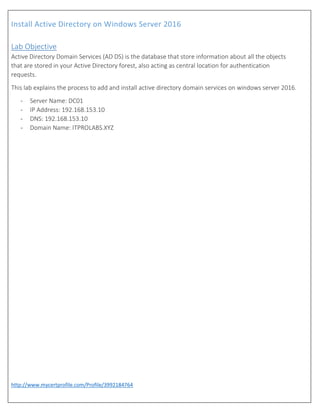
This lab explains the process to add and install active directory domain services on windows server 2016.
- Server Name: DC01
- IP Address: 192.168.153.10
- DNS: 192.168.153.10
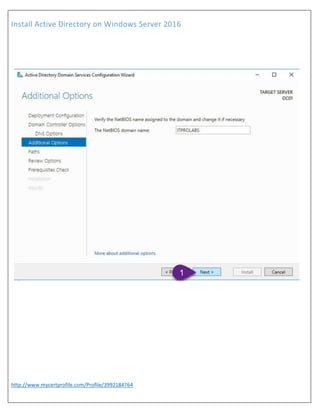
- Domain Name: ITPROLABS.XYZ
Install Active Directory on Windows Server 2016
http://www.mycertprofile.com/Profile/3992184764
Initial Configuration
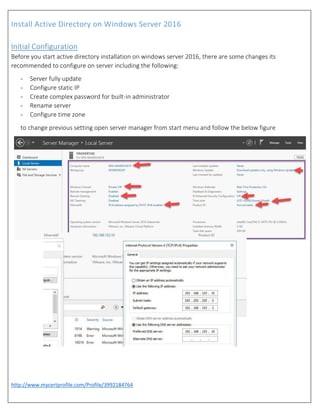
Before you start active directory installation on windows server 2016, there are some changes its
recommended to configure on server including the following:
- Server fully update
- Configure static IP
- Create complex password for built-in administrator
- Rename server
- Configure time zone
to change previous setting open server manager from start menu and follow the below figure
Install Active Directory on Windows Server 2016
http://www.mycertprofile.com/Profile/3992184764
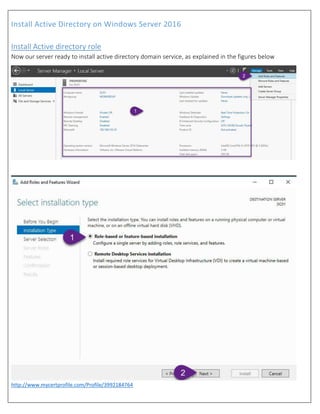
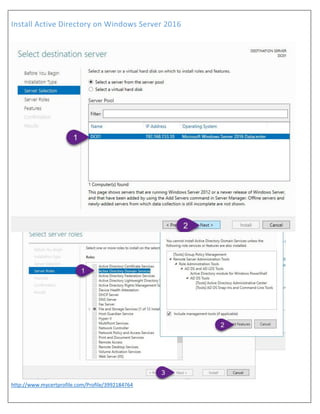
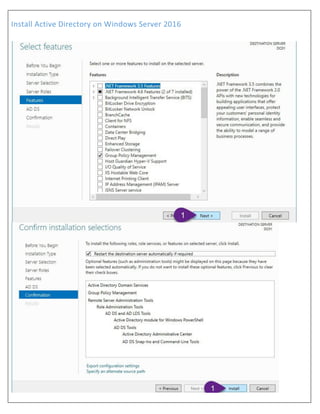
Install Active directory role
Now our server ready to install active directory domain service, as explained in the figures below
Install Active Directory on Windows Server 2016
http://www.mycertprofile.com/Profile/3992184764
Install Active Directory on Windows Server 2016
http://www.mycertprofile.com/Profile/3992184764
Install Active Directory on Windows Server 2016
http://www.mycertprofile.com/Profile/3992184764
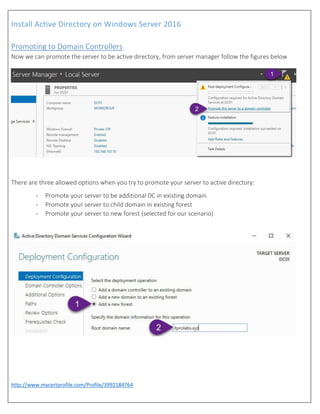
Promoting to Domain Controllers
Now we can promote the server to be active directory, from server manager follow the figures below
There are three allowed options when you try to promote your server to active directory:
- Promote your server to be additional DC in existing domain
- Promote your server to child domain in existing forest
- Promote your server to new forest (selected for our scenario)
Install Active Directory on Windows Server 2016
http://www.mycertprofile.com/Profile/3992184764
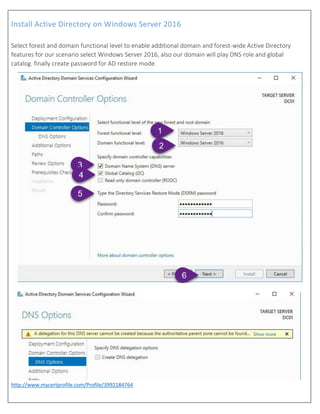
Select forest and domain functional level to enable additional domain and forest-wide Active Directory
features for our scenario select Windows Server 2016, also our domain will play DNS role and global
catalog. finally create password for AD restore mode.
Install Active Directory on Windows Server 2016
http://www.mycertprofile.com/Profile/3992184764
Install Active Directory on Windows Server 2016
http://www.mycertprofile.com/Profile/3992184764
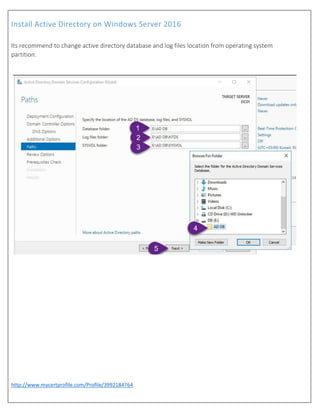
Its recommend to change active directory database and log files location from operating system
partition.
Install Active Directory on Windows Server 2016
http://www.mycertprofile.com/Profile/3992184764
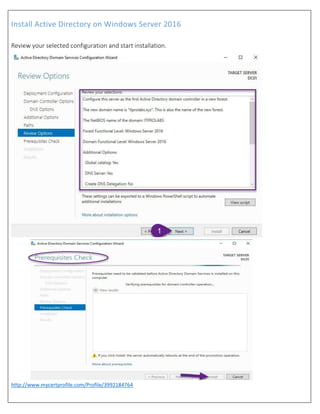
Review your selected configuration and start installation.
Install Active Directory on Windows Server 2016
http://www.mycertprofile.com/Profile/3992184764
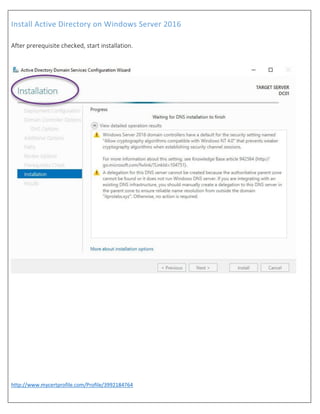
After prerequisite checked, start installation.
Install Active Directory on Windows Server 2016
http://www.mycertprofile.com/Profile/3992184764
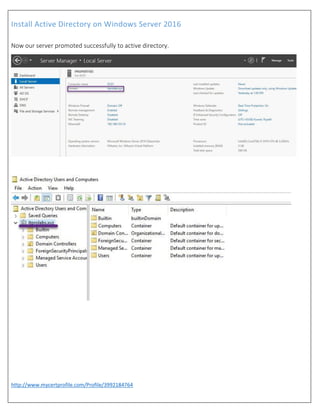
Now our server promoted successfully to active directory.

Install active directory on windows server 2016 step by step

  • 1.
    Install Active Directoryon Windows Server 2016 Step by Step Complete Lab (V1.1) Ahmed Abdelwahed Microsoft Certified Trainer Ahmed_abdulwahed@outlook.com
  • 2.
    Install Active Directoryon Windows Server 2016 http://www.mycertprofile.com/Profile/3992184764 Table of Contents Lab Objective.............................................................................................................................................................................3 Initial Configuration...................................................................................................................................................................4 Install Active directory role .......................................................................................................................................................5 Promoting to Domain Controllers.............................................................................................................................................8
  • 3.
    Install Active Directoryon Windows Server 2016 http://www.mycertprofile.com/Profile/3992184764 Lab Objective Active Directory Domain Services (AD DS) is the database that store information about all the objects that are stored in your Active Directory forest, also acting as central location for authentication requests. This lab explains the process to add and install active directory domain services on windows server 2016. - Server Name: DC01 - IP Address: 192.168.153.10 - DNS: 192.168.153.10 - Domain Name: ITPROLABS.XYZ
  • 4.
    Install Active Directoryon Windows Server 2016 http://www.mycertprofile.com/Profile/3992184764 Initial Configuration Before you start active directory installation on windows server 2016, there are some changes its recommended to configure on server including the following: - Server fully update - Configure static IP - Create complex password for built-in administrator - Rename server - Configure time zone to change previous setting open server manager from start menu and follow the below figure
  • 5.
    Install Active Directoryon Windows Server 2016 http://www.mycertprofile.com/Profile/3992184764 Install Active directory role Now our server ready to install active directory domain service, as explained in the figures below
  • 6.
    Install Active Directoryon Windows Server 2016 http://www.mycertprofile.com/Profile/3992184764
  • 7.
    Install Active Directoryon Windows Server 2016 http://www.mycertprofile.com/Profile/3992184764
  • 8.
    Install Active Directoryon Windows Server 2016 http://www.mycertprofile.com/Profile/3992184764 Promoting to Domain Controllers Now we can promote the server to be active directory, from server manager follow the figures below There are three allowed options when you try to promote your server to active directory: - Promote your server to be additional DC in existing domain - Promote your server to child domain in existing forest - Promote your server to new forest (selected for our scenario)
  • 9.
    Install Active Directoryon Windows Server 2016 http://www.mycertprofile.com/Profile/3992184764 Select forest and domain functional level to enable additional domain and forest-wide Active Directory features for our scenario select Windows Server 2016, also our domain will play DNS role and global catalog. finally create password for AD restore mode.
  • 10.
    Install Active Directoryon Windows Server 2016 http://www.mycertprofile.com/Profile/3992184764
  • 11.
    Install Active Directoryon Windows Server 2016 http://www.mycertprofile.com/Profile/3992184764 Its recommend to change active directory database and log files location from operating system partition.
  • 12.
    Install Active Directoryon Windows Server 2016 http://www.mycertprofile.com/Profile/3992184764 Review your selected configuration and start installation.
  • 13.
    Install Active Directoryon Windows Server 2016 http://www.mycertprofile.com/Profile/3992184764 After prerequisite checked, start installation.
  • 14.
    Install Active Directoryon Windows Server 2016 http://www.mycertprofile.com/Profile/3992184764 Now our server promoted successfully to active directory.