Testing Techniques for
                  Mobile Applications


Indira Pai, Basant Chandran
MangoSpring Technologies Pvt Ltd.
Introduction
• With the fantastic growth of mobile computing
  platforms there has been a dramatic increase in the
  value of mobile applications for most companies.

• One of the biggest challenges that one faces when
  developing a mobile application is how to test it.

• There are a number of factors to consider for mobile
  testing which aren't present for desktop or web.
Agenda
• Types of mobile applications
• Mobile testing generics
• Platforms
• Comparing testing on simulator with testing
  with device
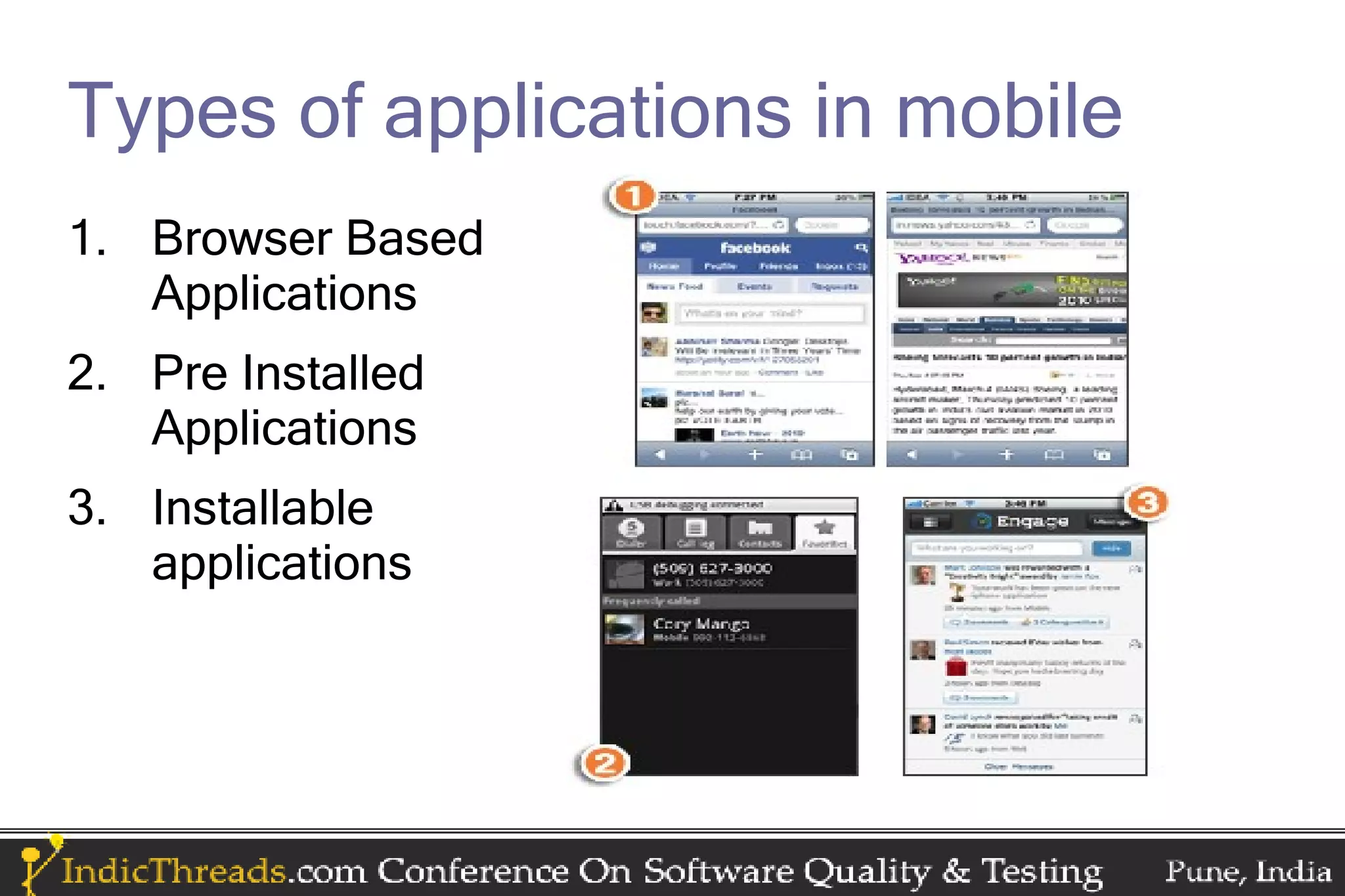
Types of applications in mobile
1. Browser Based
   Applications
2. Pre Installed
   Applications
3. Installable
   applications
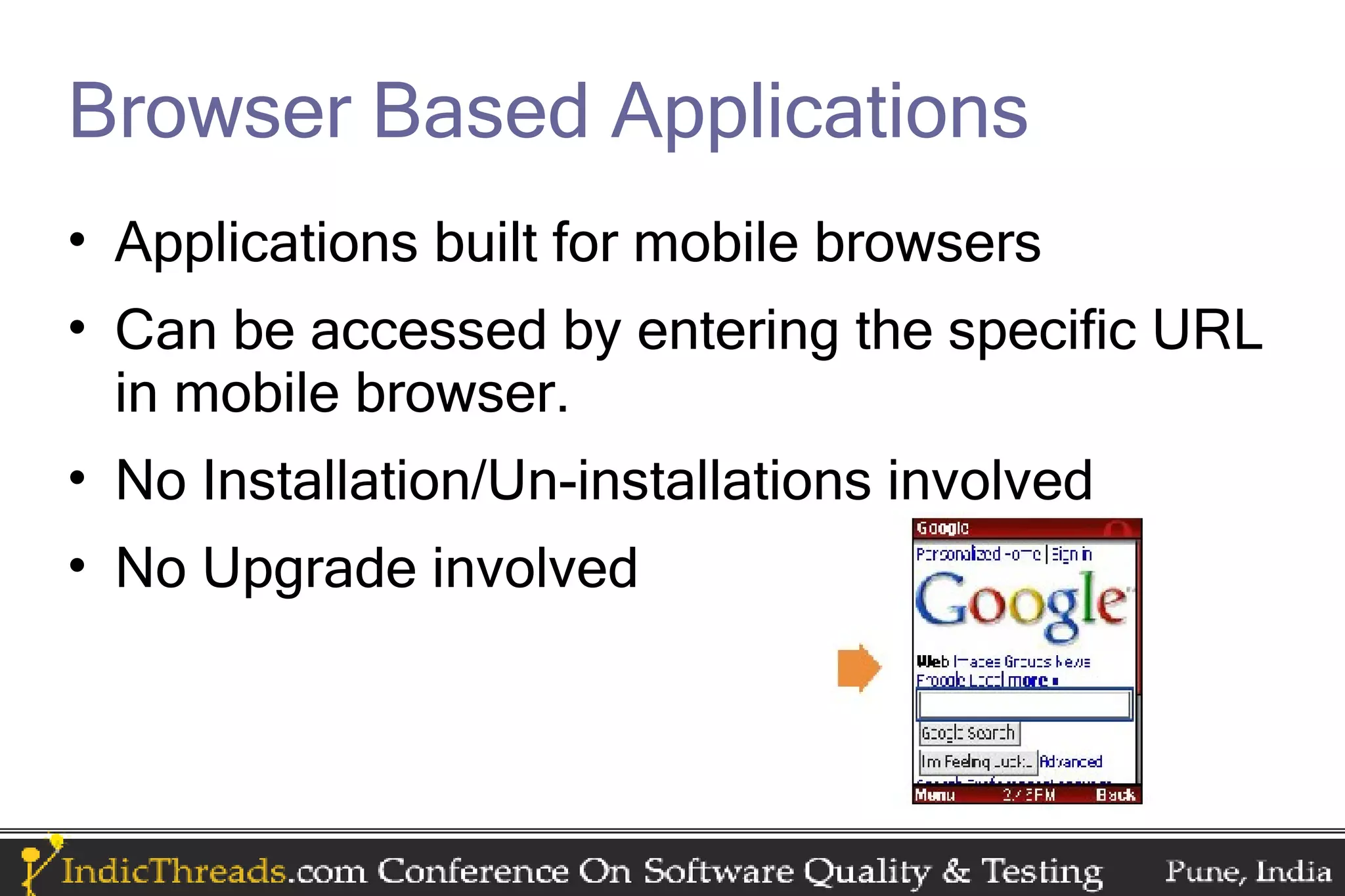
Browser Based Applications
• Applications built for mobile browsers
• Can be accessed by entering the specific URL
  in mobile browser.
• No Installation/Un-installations involved
• No Upgrade involved
Browser Based Applications (contd.)
• Browser Based Application users always
  expect connectivity
  • Network speed and coverage become an
    important test case
• Speed is a critical aspect:
  • User entered values can’t be stored locally in
    device database, until user allows storing
    information in Cache, he has to enter all his
    information manually every time.
Pre Installed Applications
• Applications which are shipped as in built
  software with the mobile device
  • If devices are not launched yet, a prototype of that
    device model is given by the device manufacturer.
• No Downloads involved
• No Installation/Un-installations involved
• Automatic Upgrades can be done.
  • This is specific to application.
Pre Installed Applications (contd.)
• Testing of these applications in prototypes is
  very critical
• They deal with the very core data and
  functions of the device.
  • If anything goes wrong, the core database might
    get corrupt.
• They cannot be uninstalled/deleted ever.
Pre Installed Applications (contd.)
• Crashes can cause severe damage to ROM
• Only way to remove these applications would
  be to flush ROM and then upgrade it.
Installable Applications
• Can be upgraded:
  – This is specific to the application design
  – This also depends on the source from where
    application was downloaded
• Applications whose executable files/packages
  can be downloaded / received by wireless
  media or wired media.
  – Platform Specific
Installable Applications (contd.)
• Can be installed/uninstalled in the device
• They can be downloaded from:
  – App Store
  – OTA (Over The Air)
     • A URL which leads to download of the application.
  – Transfer via USB cable
• Can be transferred from wireless media like
  Blue Tooth, Infra Red etc.
Mobile Testing Generics
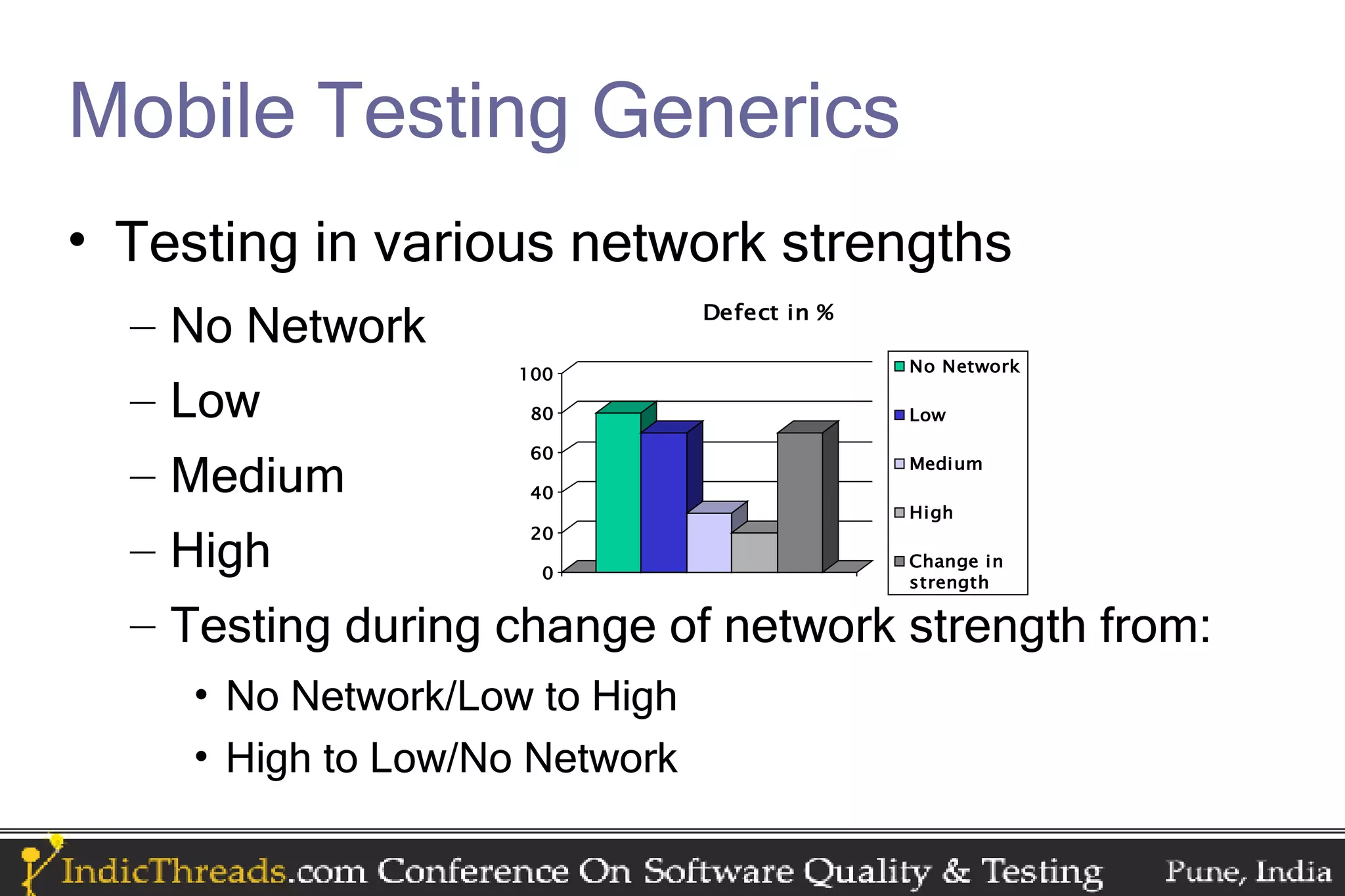
• Testing in various network strengths
  – No Network                  Defect in %

                     100                      No Network

  – Low               80                      Low

                      60
  – Medium            40
                                              Medium

                                              High

  – High
                      20
                                              Change in
                       0
                                              strength

  – Testing during change of network strength from:
     • No Network/Low to High
     • High to Low/No Network
Mobile Testing Generics (contd.)
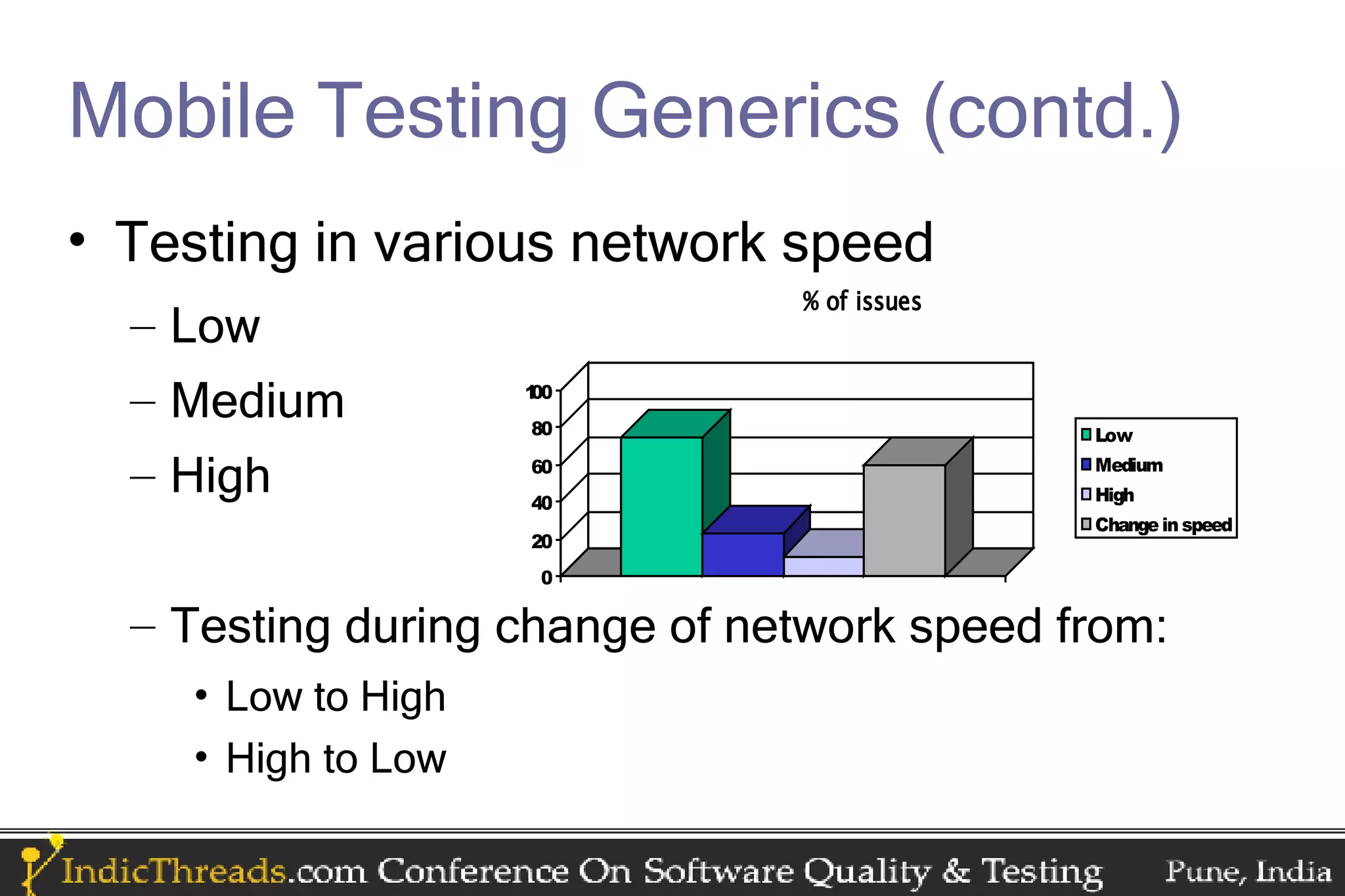
• Testing in various network speed
                               % of issues
  – Low
  – Medium          100
                    80                       Low

  – High            60
                    40
                                             Medium
                                             High
                                             Change in speed
                    20
                     0

  – Testing during change of network speed from:
    • Low to High
    • High to Low
Mobile Testing Generics (contd.)
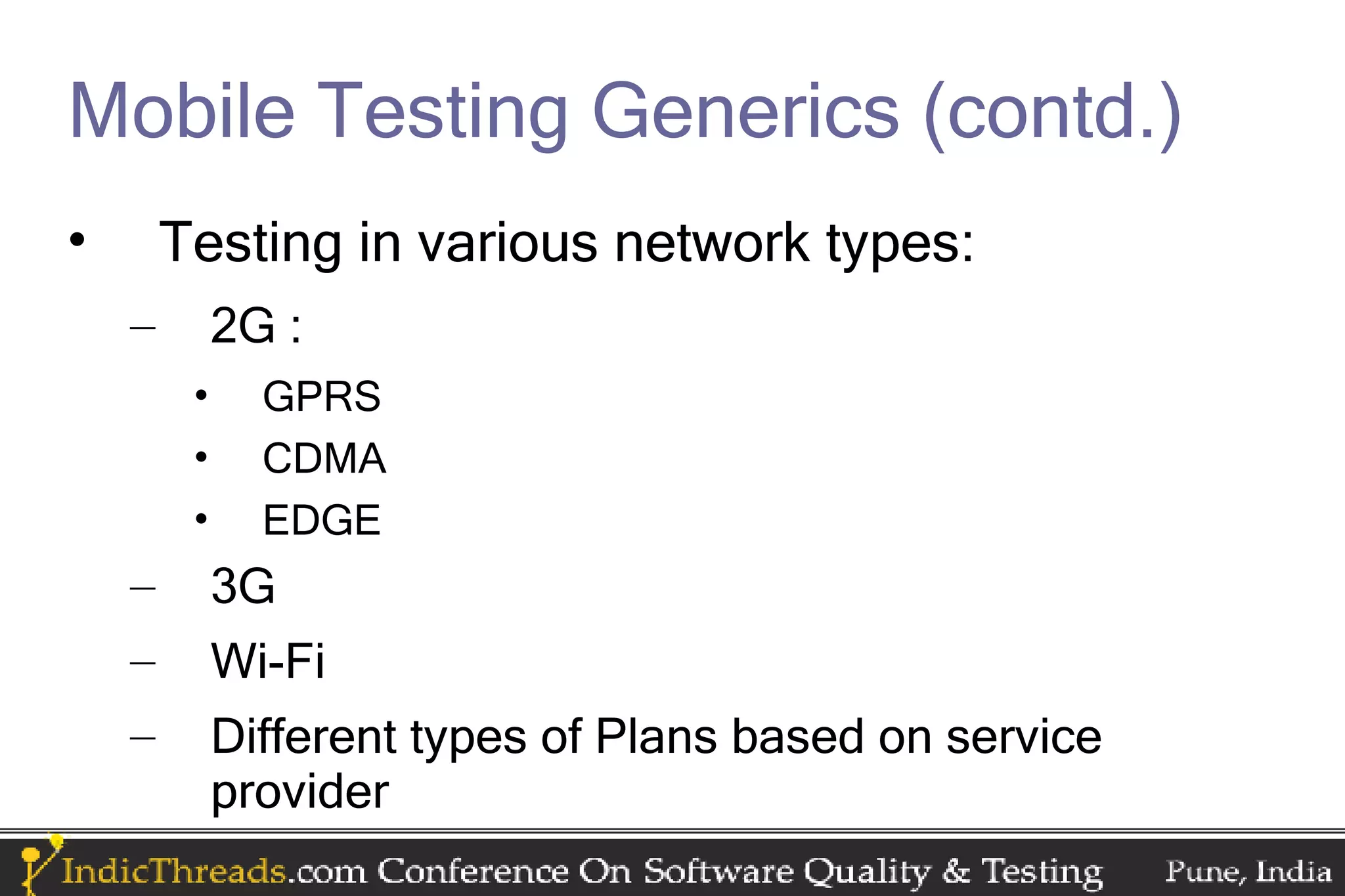
•       Testing in various network types:
    –        2G :
         •     GPRS
         •     CDMA
         •     EDGE
    –        3G
    –        Wi-Fi
    –        Different types of Plans based on service
             provider
Mobile Testing Generics (contd.)
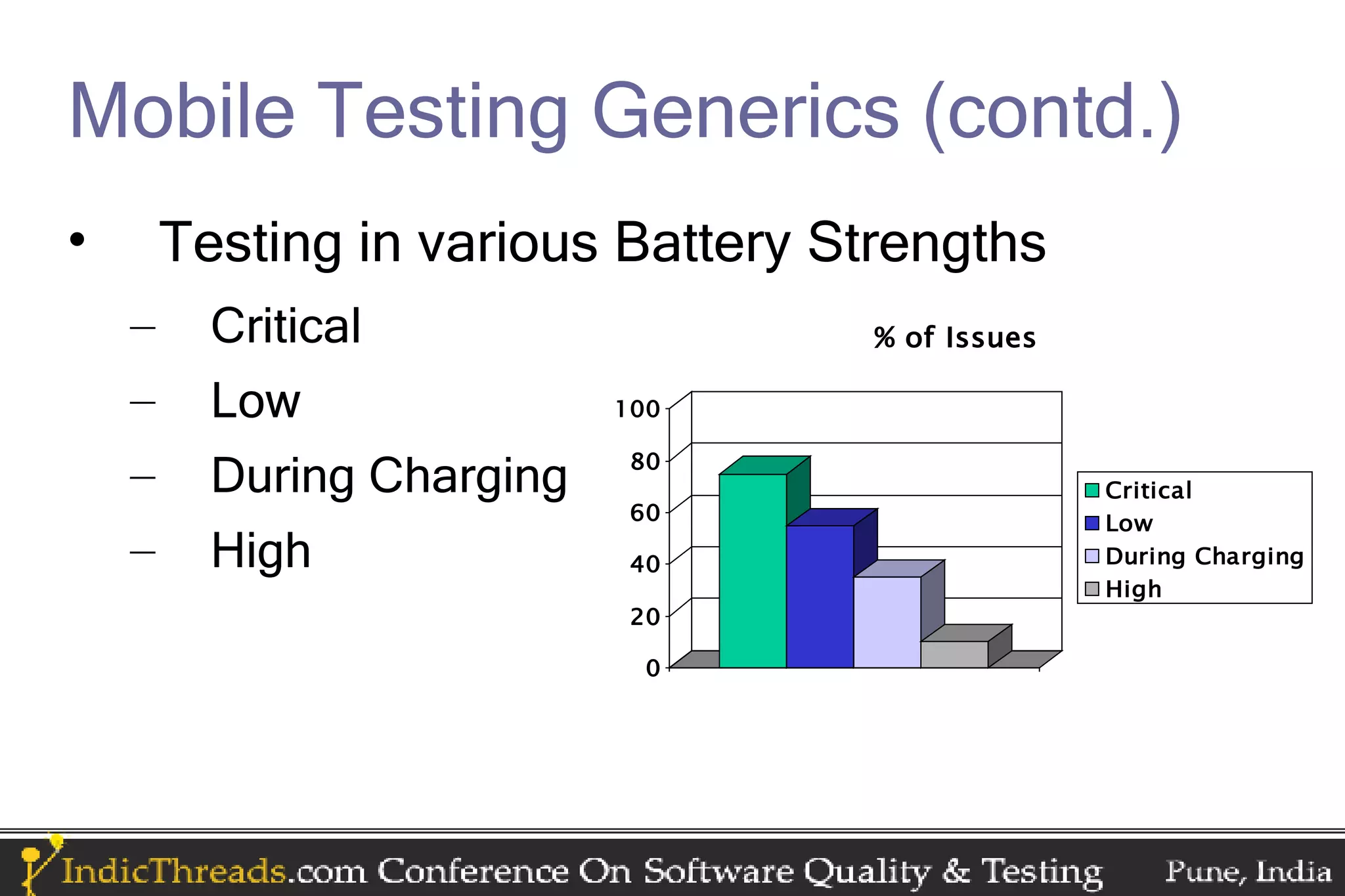
•       Testing in various Battery Strengths
    –     Critical                   % of Issues

    –     Low               100

                             80
    –     During Charging                          Critical
                             60                    Low
    –     High               40                    During Charging
                                                   High
                             20

                              0
Mobile Testing Generics (contd.)
•   Monitoring Battery consumption patterns
    –   Observe battery consumption rate as the
        application is being
        •   Run in Background
        •   Run in Foreground
    –   Run the application for long time.
Mobile Testing Generics (contd.)
• Monitoring Memory usage patterns
  – Observe memory usage pattern as the application
    is being
     • Launched
     • Run:
        • In Background
        • In Foreground
     • Exit
  – Run the application for long time.
Mobile Testing Generics (contd.)
• Check memory usage patterns when in device
  apart from the pre installed applications
  – No other applications are installed
     • Lot of free memory available in device.
  – Some third party applications are installed
     • Lesser free memory available in device
  – Lot of third party applications are installed
     • Very less free memory available in device
Mobile Testing Generics (contd.)
• Memory Consumption Pattern (RAM usage)
  – Check memory consumption pattern when multiple
    applications are running while the application is
    being:
    • Launched
    • Run
       • In Background
       • In Foreground
    • Exit
Mobile Testing Generics (contd.)
• Interruptions:
  – Activities which can occur parallel within the
    device while application is being:
     •   Installed
     •   Launched
     •   Run
     •   Exit
     •   Upgraded
     •   Uninstalled/ Deleted
Mobile Testing Generics (contd.)
• Examples of Interruptions:
  • Incoming call
  • Receiving incoming call
  • Receiving message
  • Device shutdown
  • Remove battery
  • Camera activated
  • Lose network connectivity and then regain it
Mobile Testing Generics (contd.)
• Debug Build:
  – A very important asset in helping reproduce
    “difficult to reproduce” bugs
  – A build released in debug mode which has logs
    enabled.
  – Enabling logs based on sequence of keys
  – Logs can be read continuously, and can help
    retrace steps to any issue, provided application is
    running.
Mobile Testing Generics (contd.)
• Build Signing :
  • Required for a build which has to be pushed to an
    app store.
  • Confirms that norms as per the authority of OS or
    device manufacturer are followed.
• Testing round after build signing needs to be
  done
  • Ensures the final build being submitted is of
    appropriate quality standard.
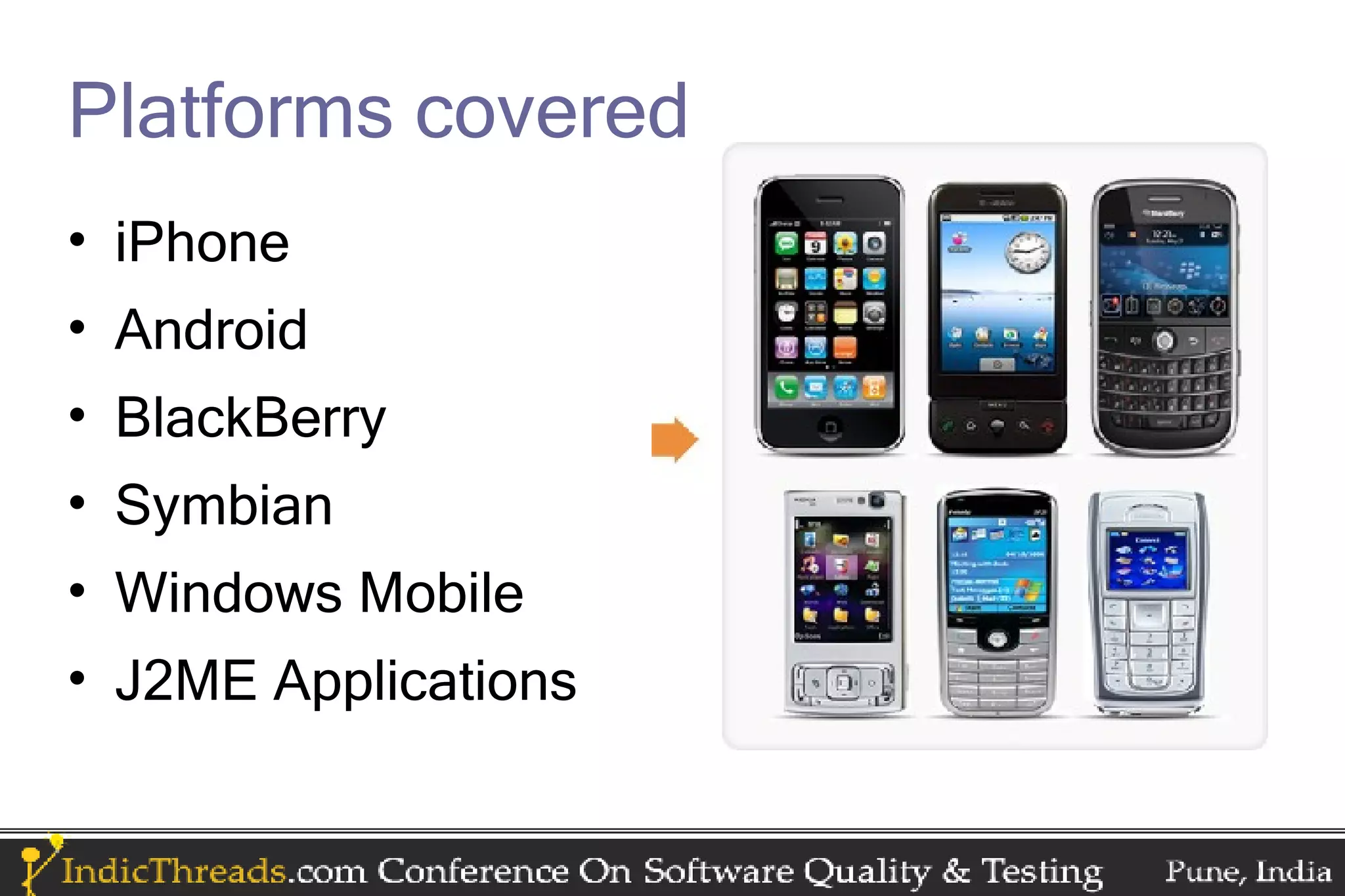
Platforms covered
• iPhone
• Android
• BlackBerry
• Symbian
• Windows Mobile
• J2ME Applications
Input modes in different platforms
• Touch Screen
  – Testing with single touch inputs
  – Testing with multiple touch inputs
  – Testing for Virtual Keypad
• Track Ball/ TrackWheel
• Keypad
• Test cases around multiple inputs at the same
  time
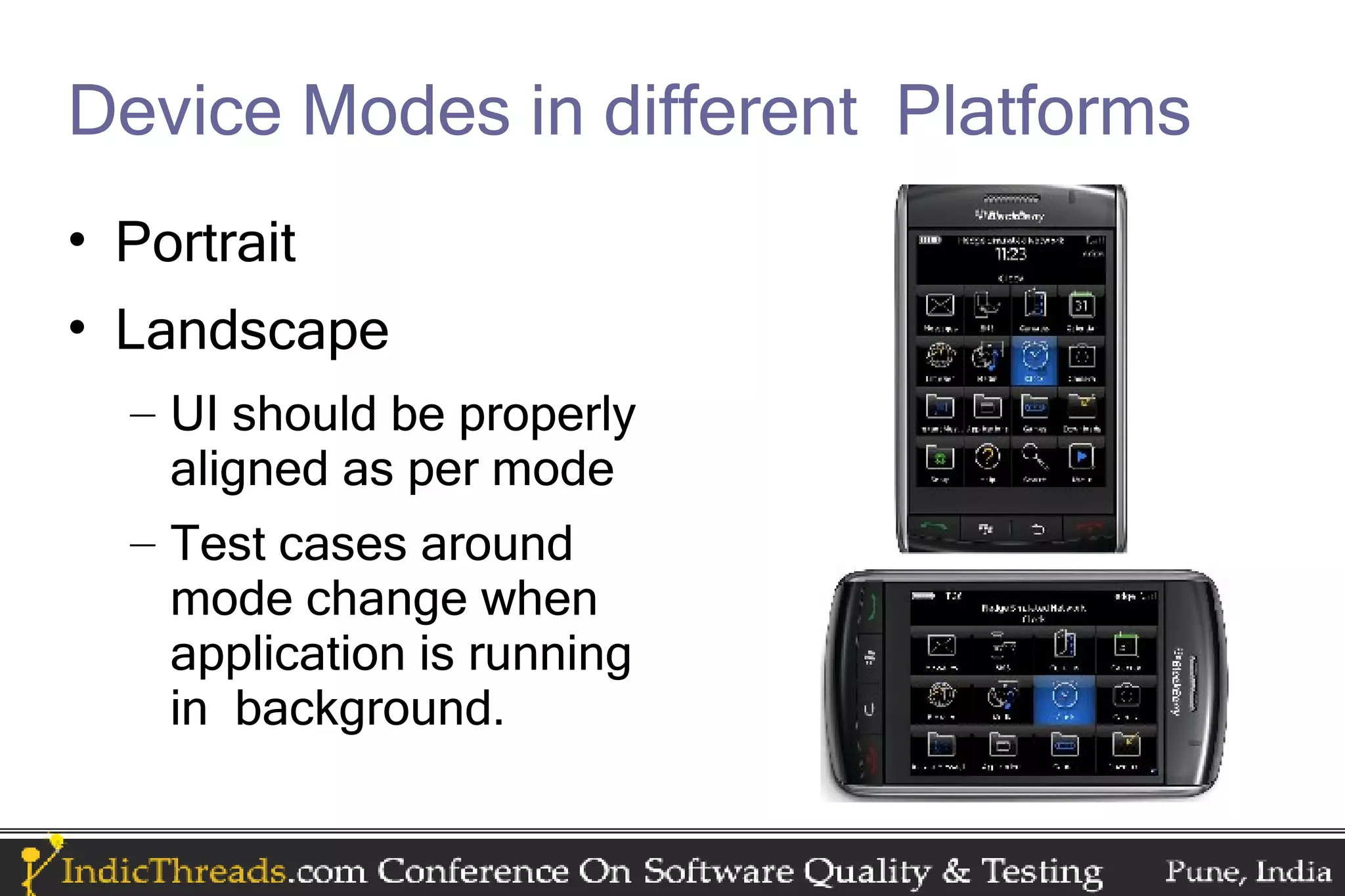
Device Modes in different Platforms
• Portrait
• Landscape
  – UI should be properly
    aligned as per mode
  – Test cases around
    mode change when
    application is running
    in background.
iPhone
• Additional Testing aspects:
  –   UI Guidelines from Apple need to be adhered to.
  –   Backward OS compatibility
  –   Allows running only one application at a time.
  –   Can debug via USB cable connection
  –   Device Reboot not much needed until for clearing
      cached data
iPhone – Testing Tools
• Screenshots:
  – Can be taken by clicking the Home key and the
    Lock key together.
  – No other explicit tool needed
• Memory Sweep
  – A tool with which a memory snapshot of iPhone
    device can be obtained at any given time.
Android
• Additional Testing Aspects:
  – Allows running multiple applications in background
  – Application gets normally minimized on exiting.
     • So a reboot needed to launch application again.
     • Reboot needed often
Android - Debugging
• Select “Enable USB Debugging” in device
  settings.
• Then connect device to system via USB cable.
Android -Testing Tools
• Dalvik Debug Monitor Server (DDMS)
  –   Port-forwarding services
  –   Screen capture on the device
  –   Thread and heap information on the device
  –   Logcat
  –   Process, and radio state information
  –   Incoming call and SMS spoofing
  –   Location data spoofing, and more.
Android -Testing Tools (contd.)
• Monkey Tool
  – Runs on simulator or device
  – Generates pseudo-random streams of user events
    such as clicks, touches, or gestures, as well as a
    number of system-level events.
• TaskKiller
  – A utility application used to kill process.
  – Useful to skip device reboot.
BlackBerry
• Additional Testing Aspects:
  – Allows running multiple applications in background
  – Device Reboot
     • Not much needed until for clearing cached data
     • Needed mainly for while uninstalling/installing any
       application.
• Build Signing/Verification
  – Signed/certified by RIM
BlackBerry – Debugging
• USB cable connected debugging
• Can be done via JDE console after attaching
  debugger
BlackBerry – Testing Tools
• Native Logs:
  – A combination on Alt+LGLG keys opens the
    device logs in device.
  – Has 3 types of filters:
    • Debug
    • Information
    • Error
  – This helps analyze type of exceptions.
BlackBerry – Testing Tools (contd.)
• JL_Cmder:
  – A little batch script to manipulate JavaLoader.
  – JavaLoader, a tool shipped with JDE, can be used
    to easily:
    •   Display Device Info
    •   Display an event log
    •   Take a screenshot
    •   Wipe the handheld
    •   Reset it to factory conditions
BlackBerry – Testing Tools (contd.)
• BBScreenshooter
  – Desktop Based tool
  – Needs device to be connected to desktop system
    for capturing screenshots
• CaptureIt
  – Device Based tool
  – Device need not be connected to desktop for
    capturing screeshots.
Symbian
• Additional Testing Aspects:
  – Allows running multiple applications in background
  – Device Reboot not much needed until for clearing
    cached data
• Build Signing/Verification
  – Signed/certified by Symbian
  – By device manufacturing authority like Nokia
Symbian - Debug
• Can be connected to the IDE via:
  – USB cable connected debugging
    • More preferred
  – Via BlueTooth
    • Less Preferred due to device driver issues
Symbian – Testing Tools
• Screenshot tools:
  – All tools are device based
  – After installing the tool,
    • Set a shortcut key for screen capture.
    • Start the tool and then let it run in the background while
      application is run.
    • Clicking on the shortcut key captures screenshot and
      stores it in device.
  – Examples:
    • ScreenSnap S60 (5th Edition)
    • ScreenTaker for Nokia 7650/3650/N-Gage/SX1
Symbian – Testing Tools (contd.)
• Yucca Tools:
  – File browsing in Symbian device
  – Crash Monitor
  – Shows all supported fonts in device with preview.
  – Memory status
Windows Mobile
• Additional Testing Aspects-
  – Allows running multiple applications in background
  – Can exit the application from task manager
     • Needed in case application gets hanged in background
       and its process needs to be killed
Windows Mobile - Debugging
• Debugging
  – USB Cable connection needed between device
    and desktop
  – Can use visual studio
Windows Mobile - Testing Tools
• Hopper
  – For stress testing.
  – Throws random events such as click events,
    entering text if text field in application run in
    background etc.
  – Logs are stored in device ,screenshot is also
    stored if device hangs or if application crashes.
J2ME Applications
• J2ME is a Development Platform
• Input Modes:
  • Follows input modes of the platform, some
    restrictions might exist.
• Device Modes:
  – Based on platform
J2ME Applications (contd.)
• Additional Testing Aspects:
  – For mass markets handsets
  – Porting Friendly
     • Should work well on the supported device/ platform on
       which its installed.
     • Should be able to work well after the device firmware
       upgrades.
• Build Signing/Verification
  – Verified by Verifying Authority.
  – Verified by device manufacturing authority like
    Nokia
J2ME Applications - Testing Tools
• Tools provided by device platforms can be
  used.
• Wireless Toolkit
• Debug mode build.
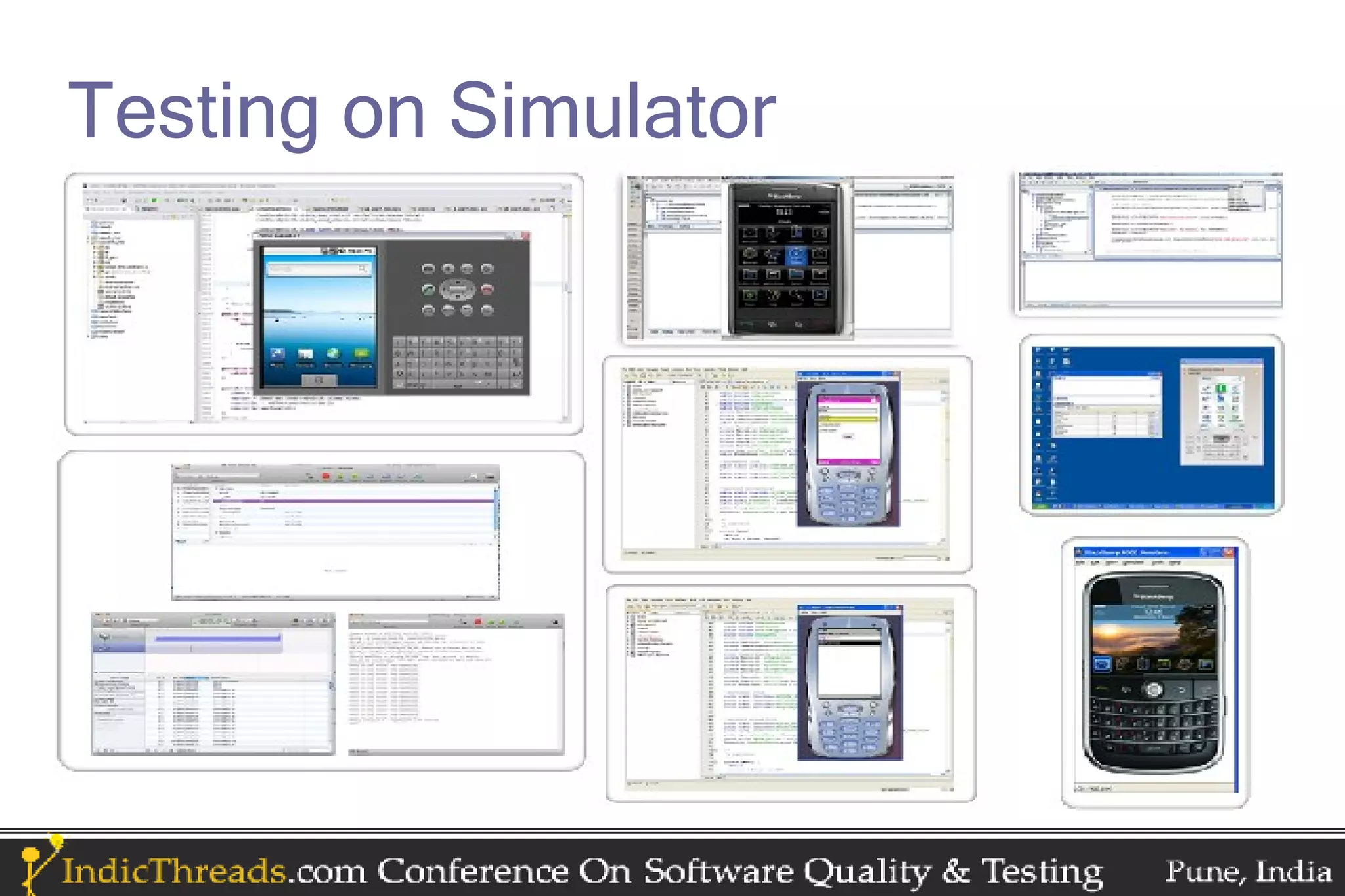
Testing on Simulator
Testing on Simulator (contd.)
• Simulators :
  – A software application that can accurately imitate
    mobile phone.
• The need to test on simulators:
  – Non availability of device
  – Testing same build in multiple device screens
  – Non availability of certain network for device
    testing in testing area.
Testing on Simulator (contd.)
• Advantages:
  – Can help in isolating issues which are not volatile
    network connection dependent.
  – Can provide a wide variety of testing over different
    types of device simulators for the same build.
Testing on Simulator (contd.)
• Disadvantages:
  – Simulators of older generation handsets don’t
    resemble the device as closely
  – Some issues which are hit by the speed at which
    input was given cannot be reproduced easily
  – Hardware/Firmware environment variations
    detectable in device testing only
  – Device testing is always preferred as it represents
    more likely end user scenarios
Questions
Thank You

Testing Techniques for Mobile Applications

  • 1.
    Testing Techniques for Mobile Applications Indira Pai, Basant Chandran MangoSpring Technologies Pvt Ltd.
  • 2.
    Introduction • With thefantastic growth of mobile computing platforms there has been a dramatic increase in the value of mobile applications for most companies. • One of the biggest challenges that one faces when developing a mobile application is how to test it. • There are a number of factors to consider for mobile testing which aren't present for desktop or web.
  • 3.
    Agenda • Types ofmobile applications • Mobile testing generics • Platforms • Comparing testing on simulator with testing with device
  • 4.
    Types of applicationsin mobile 1. Browser Based Applications 2. Pre Installed Applications 3. Installable applications
  • 5.
    Browser Based Applications •Applications built for mobile browsers • Can be accessed by entering the specific URL in mobile browser. • No Installation/Un-installations involved • No Upgrade involved
  • 6.
    Browser Based Applications(contd.) • Browser Based Application users always expect connectivity • Network speed and coverage become an important test case • Speed is a critical aspect: • User entered values can’t be stored locally in device database, until user allows storing information in Cache, he has to enter all his information manually every time.
  • 7.
    Pre Installed Applications •Applications which are shipped as in built software with the mobile device • If devices are not launched yet, a prototype of that device model is given by the device manufacturer. • No Downloads involved • No Installation/Un-installations involved • Automatic Upgrades can be done. • This is specific to application.
  • 8.
    Pre Installed Applications(contd.) • Testing of these applications in prototypes is very critical • They deal with the very core data and functions of the device. • If anything goes wrong, the core database might get corrupt. • They cannot be uninstalled/deleted ever.
  • 9.
    Pre Installed Applications(contd.) • Crashes can cause severe damage to ROM • Only way to remove these applications would be to flush ROM and then upgrade it.
  • 10.
    Installable Applications • Canbe upgraded: – This is specific to the application design – This also depends on the source from where application was downloaded • Applications whose executable files/packages can be downloaded / received by wireless media or wired media. – Platform Specific
  • 11.
    Installable Applications (contd.) •Can be installed/uninstalled in the device • They can be downloaded from: – App Store – OTA (Over The Air) • A URL which leads to download of the application. – Transfer via USB cable • Can be transferred from wireless media like Blue Tooth, Infra Red etc.
  • 12.
    Mobile Testing Generics •Testing in various network strengths – No Network Defect in % 100 No Network – Low 80 Low 60 – Medium 40 Medium High – High 20 Change in 0 strength – Testing during change of network strength from: • No Network/Low to High • High to Low/No Network
  • 13.
    Mobile Testing Generics(contd.) • Testing in various network speed % of issues – Low – Medium 100 80 Low – High 60 40 Medium High Change in speed 20 0 – Testing during change of network speed from: • Low to High • High to Low
  • 14.
    Mobile Testing Generics(contd.) • Testing in various network types: – 2G : • GPRS • CDMA • EDGE – 3G – Wi-Fi – Different types of Plans based on service provider
  • 15.
    Mobile Testing Generics(contd.) • Testing in various Battery Strengths – Critical % of Issues – Low 100 80 – During Charging Critical 60 Low – High 40 During Charging High 20 0
  • 16.
    Mobile Testing Generics(contd.) • Monitoring Battery consumption patterns – Observe battery consumption rate as the application is being • Run in Background • Run in Foreground – Run the application for long time.
  • 17.
    Mobile Testing Generics(contd.) • Monitoring Memory usage patterns – Observe memory usage pattern as the application is being • Launched • Run: • In Background • In Foreground • Exit – Run the application for long time.
  • 18.
    Mobile Testing Generics(contd.) • Check memory usage patterns when in device apart from the pre installed applications – No other applications are installed • Lot of free memory available in device. – Some third party applications are installed • Lesser free memory available in device – Lot of third party applications are installed • Very less free memory available in device
  • 19.
    Mobile Testing Generics(contd.) • Memory Consumption Pattern (RAM usage) – Check memory consumption pattern when multiple applications are running while the application is being: • Launched • Run • In Background • In Foreground • Exit
  • 20.
    Mobile Testing Generics(contd.) • Interruptions: – Activities which can occur parallel within the device while application is being: • Installed • Launched • Run • Exit • Upgraded • Uninstalled/ Deleted
  • 21.
    Mobile Testing Generics(contd.) • Examples of Interruptions: • Incoming call • Receiving incoming call • Receiving message • Device shutdown • Remove battery • Camera activated • Lose network connectivity and then regain it
  • 22.
    Mobile Testing Generics(contd.) • Debug Build: – A very important asset in helping reproduce “difficult to reproduce” bugs – A build released in debug mode which has logs enabled. – Enabling logs based on sequence of keys – Logs can be read continuously, and can help retrace steps to any issue, provided application is running.
  • 23.
    Mobile Testing Generics(contd.) • Build Signing : • Required for a build which has to be pushed to an app store. • Confirms that norms as per the authority of OS or device manufacturer are followed. • Testing round after build signing needs to be done • Ensures the final build being submitted is of appropriate quality standard.
  • 24.
    Platforms covered • iPhone •Android • BlackBerry • Symbian • Windows Mobile • J2ME Applications
  • 25.
    Input modes indifferent platforms • Touch Screen – Testing with single touch inputs – Testing with multiple touch inputs – Testing for Virtual Keypad • Track Ball/ TrackWheel • Keypad • Test cases around multiple inputs at the same time
  • 26.
    Device Modes indifferent Platforms • Portrait • Landscape – UI should be properly aligned as per mode – Test cases around mode change when application is running in background.
  • 27.
    iPhone • Additional Testingaspects: – UI Guidelines from Apple need to be adhered to. – Backward OS compatibility – Allows running only one application at a time. – Can debug via USB cable connection – Device Reboot not much needed until for clearing cached data
  • 28.
    iPhone – TestingTools • Screenshots: – Can be taken by clicking the Home key and the Lock key together. – No other explicit tool needed • Memory Sweep – A tool with which a memory snapshot of iPhone device can be obtained at any given time.
  • 29.
    Android • Additional TestingAspects: – Allows running multiple applications in background – Application gets normally minimized on exiting. • So a reboot needed to launch application again. • Reboot needed often
  • 30.
    Android - Debugging •Select “Enable USB Debugging” in device settings. • Then connect device to system via USB cable.
  • 31.
    Android -Testing Tools •Dalvik Debug Monitor Server (DDMS) – Port-forwarding services – Screen capture on the device – Thread and heap information on the device – Logcat – Process, and radio state information – Incoming call and SMS spoofing – Location data spoofing, and more.
  • 32.
    Android -Testing Tools(contd.) • Monkey Tool – Runs on simulator or device – Generates pseudo-random streams of user events such as clicks, touches, or gestures, as well as a number of system-level events. • TaskKiller – A utility application used to kill process. – Useful to skip device reboot.
  • 33.
    BlackBerry • Additional TestingAspects: – Allows running multiple applications in background – Device Reboot • Not much needed until for clearing cached data • Needed mainly for while uninstalling/installing any application. • Build Signing/Verification – Signed/certified by RIM
  • 34.
    BlackBerry – Debugging •USB cable connected debugging • Can be done via JDE console after attaching debugger
  • 35.
    BlackBerry – TestingTools • Native Logs: – A combination on Alt+LGLG keys opens the device logs in device. – Has 3 types of filters: • Debug • Information • Error – This helps analyze type of exceptions.
  • 36.
    BlackBerry – TestingTools (contd.) • JL_Cmder: – A little batch script to manipulate JavaLoader. – JavaLoader, a tool shipped with JDE, can be used to easily: • Display Device Info • Display an event log • Take a screenshot • Wipe the handheld • Reset it to factory conditions
  • 37.
    BlackBerry – TestingTools (contd.) • BBScreenshooter – Desktop Based tool – Needs device to be connected to desktop system for capturing screenshots • CaptureIt – Device Based tool – Device need not be connected to desktop for capturing screeshots.
  • 38.
    Symbian • Additional TestingAspects: – Allows running multiple applications in background – Device Reboot not much needed until for clearing cached data • Build Signing/Verification – Signed/certified by Symbian – By device manufacturing authority like Nokia
  • 39.
    Symbian - Debug •Can be connected to the IDE via: – USB cable connected debugging • More preferred – Via BlueTooth • Less Preferred due to device driver issues
  • 40.
    Symbian – TestingTools • Screenshot tools: – All tools are device based – After installing the tool, • Set a shortcut key for screen capture. • Start the tool and then let it run in the background while application is run. • Clicking on the shortcut key captures screenshot and stores it in device. – Examples: • ScreenSnap S60 (5th Edition) • ScreenTaker for Nokia 7650/3650/N-Gage/SX1
  • 41.
    Symbian – TestingTools (contd.) • Yucca Tools: – File browsing in Symbian device – Crash Monitor – Shows all supported fonts in device with preview. – Memory status
  • 42.
    Windows Mobile • AdditionalTesting Aspects- – Allows running multiple applications in background – Can exit the application from task manager • Needed in case application gets hanged in background and its process needs to be killed
  • 43.
    Windows Mobile -Debugging • Debugging – USB Cable connection needed between device and desktop – Can use visual studio
  • 44.
    Windows Mobile -Testing Tools • Hopper – For stress testing. – Throws random events such as click events, entering text if text field in application run in background etc. – Logs are stored in device ,screenshot is also stored if device hangs or if application crashes.
  • 45.
    J2ME Applications • J2MEis a Development Platform • Input Modes: • Follows input modes of the platform, some restrictions might exist. • Device Modes: – Based on platform
  • 46.
    J2ME Applications (contd.) •Additional Testing Aspects: – For mass markets handsets – Porting Friendly • Should work well on the supported device/ platform on which its installed. • Should be able to work well after the device firmware upgrades. • Build Signing/Verification – Verified by Verifying Authority. – Verified by device manufacturing authority like Nokia
  • 47.
    J2ME Applications -Testing Tools • Tools provided by device platforms can be used. • Wireless Toolkit • Debug mode build.
  • 48.
  • 49.
    Testing on Simulator(contd.) • Simulators : – A software application that can accurately imitate mobile phone. • The need to test on simulators: – Non availability of device – Testing same build in multiple device screens – Non availability of certain network for device testing in testing area.
  • 50.
    Testing on Simulator(contd.) • Advantages: – Can help in isolating issues which are not volatile network connection dependent. – Can provide a wide variety of testing over different types of device simulators for the same build.
  • 51.
    Testing on Simulator(contd.) • Disadvantages: – Simulators of older generation handsets don’t resemble the device as closely – Some issues which are hit by the speed at which input was given cannot be reproduced easily – Hardware/Firmware environment variations detectable in device testing only – Device testing is always preferred as it represents more likely end user scenarios
  • 52.
  • 53.