A+ Guide to Managing and Maintaining your PC, 6e Chapter 3 PC Repair Fundamentals
Objectives Learn about tools you’ll need as a PC support technician Learn how to develop a preventive maintenance plan and what to include in it Learn how to work inside a computer case Learn what happens when you first turn on a PC before the OS is loaded
Objectives (continued) Learn how to approach and solve a PC problem Learn how to troubleshoot a failed boot before the OS is loaded
Introduction Basic repair skills  Developing a maintenance plan Implementing a maintenance plan Working inside a computer case Following sequence of events that occur at startup Advanced repair skills Using common-sense guidelines to solve problems Interviewing a user Determining if a problem occurs before or after boot Troubleshooting and solving a problem of a failed boot
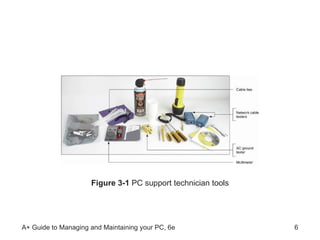
PC Support Technician Tools Help you maintain a computer  Help you diagnose and repair computer problems Criteria for choosing tools: Level of PC support you expect to provide Amount of money you can spend Some essential tools: Ground bracelet, ground mat, or ground gloves Torx screwdriver set Recovery CD, DVD, or floppy disk for target OS Store tools in toolbox for PC troubleshooting
Figure 3-1  PC support technician tools
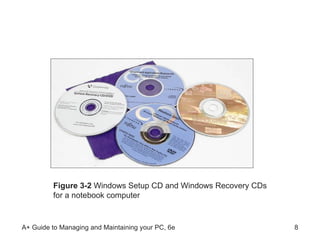
Recovery CDs Used to boot a system Also used to repair and reinstall Windows Primary recovery CD sources PC manufacturer (preferred) Operating system distributor, such as Microsoft Some hard drives have a hidden recovery partitions A hidden partition can be used to reinstall Windows A utility for creating recovery CDs may be provided Access hidden utilities by pressing a Fn key at startup
Figure 3-2  Windows Setup CD and Windows Recovery CDs for a notebook computer
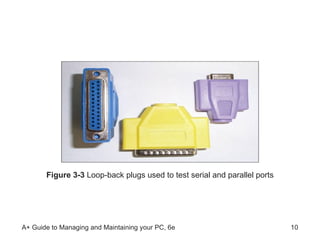
Loop-Back Plugs Used to test various ports Some port types: serial, parallel, USB, network How to use a loop-back plug Plug in the loop-back plug  Run the software that comes with the plug
Figure 3-3  Loop-back plugs used to test serial and parallel ports
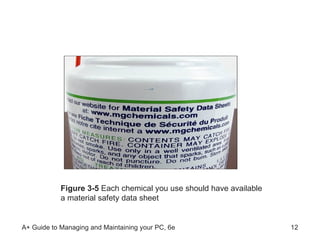
Cleaning Pads and Solutions Various types are designed for specific uses Example: contact cleaner Cleans contacts on expansion cards Warning: solutions may be flammable and/or toxic Sources of safety and emergency instructions: Side of the can of solution Material safety data sheet (MSDS)  Adhere to safety procedures of your employer Example: fill out an accident report (if required)
Figure 3-5  Each chemical you use should have available a material safety data sheet
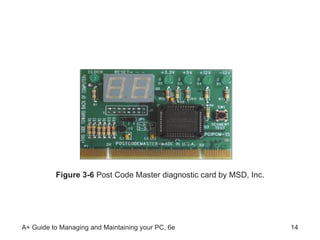
Post Diagnostic Cards Report computer errors and conflicts at POST How to use a POST diagnostic card: Install card in an expansion slot on the motherboard Attempt to boot your system Record any error codes appearing in LED panel Look up the entry associated with the error code Examples of Post diagnostic cards: PCI Error Testing/Debug Card by Winic Corporation  POST card V3 by Unicore Software, Inc.  Post Code Master by MSD, Inc.
Figure 3-6  Post Code Master diagnostic card by MSD, Inc.
Personal Computer Preventive Maintenance Preventive maintenance reduces number of problems Goals of preventive maintenance plans: Prevent failures Reduce repair costs  Reduce downtimes  Goal of disaster recovery plan: manage failures  Some causes of PC failure: heat, dust, spills, viruses
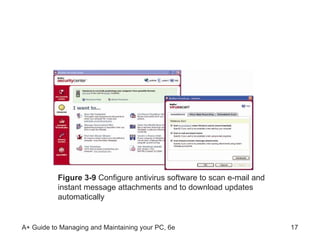
When a PC is your Permanent Responsibility  Tasks and procedures to prepare for troubleshooting Keep good backups of data and system files Document all setup changes, problems, and solutions Protect the system against viruses and other attacks Always use a firewall (software or hardware barrier) Install and run antivirus software Keep Windows Updates current Physically protect your equipment
Figure 3-9  Configure antivirus software to scan e-mail and instant message attachments and to download updates automatically
Creating a Preventive Maintenance Plan Plan based on history or pattern of malfunctions Example: PCs in dusty areas need more maintenance Goals common to maintenance plans Extend the working life of a PC  Anticipate problems that could disrupt service Ensure data is secure and backed up Provide support to PC users  Basic steps involved in designing a plan Define your overall goals Incorporate procedures for achieving goals
Dealing with Dust Dust accumulates in layers over components Two major problems due to dust blankets PC components directly overheat Cooling fans jam, also resulting in overheating Maintenance task: remove the layer of dust Two tools used to remove dust: Antistatic vacuum  Compressed air
Preparing a Computer for Shipping Adverse factors to consider:  Rough handling Exposure to water, heat, and cold Misplacement or theft of computer Some shipping guidelines to follow: Backup the hard drive onto a backup medium Remove inserted disks, tape cartridges, or CDs  Coil and secure all external cords  Separately wrap hardware components  Purchase insurance on the shipment
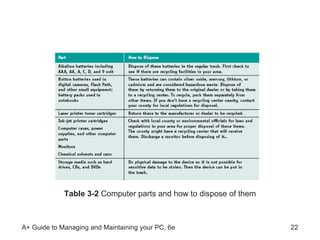
Disposing of Used Equipment Various guidelines for disposing of equipment: Table 3-2 Manufacturer documentation Local environmental regulators Danger posed by monitors and power supplies Residual charge in capacitors can cause shock Modern devices discharge if unplugged for 60 minutes Older devices may require discharge with a probe  Destroy secondary storage devices with sensitive data
Table 3-2  Computer parts and how to dispose of them
How to Work Inside a Computer Case Objective: dismantle a computer, put it back together Some safety precautions to follow: Make notes that will help you backtrack Keep screws and spacers orderly Do not stack boards on top of each other Do not touch the chips on circuit boards Do not use a graphite pencil to change DIP settings Turn off the power, unplug and ground the computer Do not remove covers of monitors or power supplies Keep components away from hair and clothing
Static Electricity Build-up of charge due to absence of conductors Electrostatic discharge (ESD) Due to dissimilar electrical surfaces making contact  Only 10 volts of ESD can damage PC components Walking across carpet generates up to 12,000 volts Two types of damage: catastrophic and upset failure Tool and methods for grounding yourself and the PC Ground bracelet, ground mats, static shielding bags, antistatic gloves If working inside a monitor, do not ground yourself
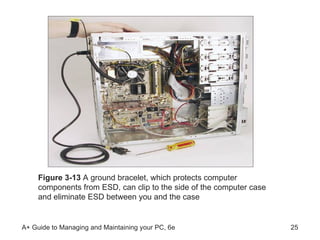
Figure 3-13  A ground bracelet, which protects computer components from ESD, can clip to the side of the computer case and eliminate ESD between you and the case
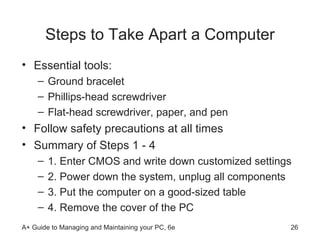
Steps to Take Apart a Computer Essential tools:  Ground bracelet Phillips-head screwdriver Flat-head screwdriver, paper, and pen Follow safety precautions at all times Summary of Steps 1 - 4 1. Enter CMOS and write down customized settings 2. Power down the system, unplug all components 3. Put the computer on a good-sized table 4. Remove the cover of the PC
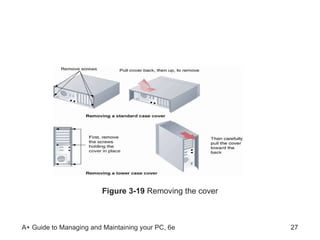
Figure 3-19  Removing the cover
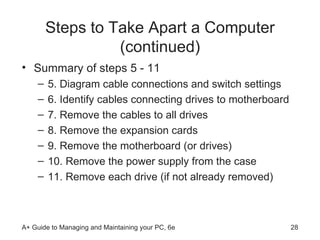
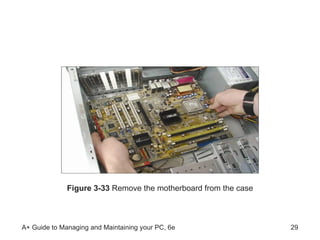
Steps to Take Apart a Computer (continued) Summary of steps 5 - 11 5. Diagram cable connections and switch settings 6. Identify cables connecting drives to motherboard 7. Remove the cables to all drives 8. Remove the expansion cards 9. Remove the motherboard (or drives)  10. Remove the power supply from the case 11. Remove each drive (if not already removed)
Figure 3-33  Remove the motherboard from the case
Steps to Put a Computer Back Together 1. Install power supply, drives, motherboard, cards 2. Connect all data and power cables 3. Plug in the keyboard, monitor, and mouse 4. Ask instructor to check work (if in a classroom) 5. Turn on the power and check PC functions
Understanding the Boot Process Key learning objectives Know how to boot a PC Understand what happens first when a PC is turned on Understand how an operating system is loaded
Booting a Computer Process that drives a computer to a working state Hard (cold) boot: turn the power switch on  Soft (warm) boot: allow the OS to reboot How to soft boot Windows XP  Click Start Click Turn Off Computer Click Restart
Choosing Between a Hard Boot and a Soft Boot Hard boots are more stressful on machines Power surges through system when PC is turned on Reasons to choose a soft boot over hard boot Less stressful on the machine  Faster due to skipping initial steps Some computers have a soft and hard power switch Soft power switch shuts down and restarts Windows Hard power switch cuts power and restarts machine
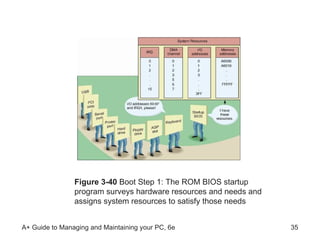
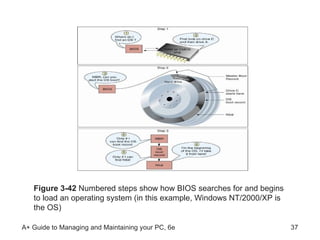
The Startup BIOS Controls the Beginning of the Boot The startup BIOS gets a system up and running Four phases of the boot process: BIOS runs the POST and assigns system resources POST: power-on self test BIOS searches for and loads an OS OS configures system and completes its own loading Application software is loaded and executed
Figure 3-40  Boot Step 1: The ROM BIOS startup program surveys hardware resources and needs and assigns system resources to satisfy those needs
Changing the Boot Sequence BIOS looks to CMOS RAM to locate the OS  Boot sequence: order of drives checked for an OS Change boot sequence using CMOS setup utilities Access CMOS setup utilities when PC is turned on Example: press F8 before Windows screen appears
Figure 3-42  Numbered steps show how BIOS searches for and begins to load an operating system (in this example, Windows NT/2000/XP is the OS)
How to Troubleshoot a PC Problem Assume the attitude of an investigator Do not compound the problem by your own actions Look at the problem as a learning opportunity Ask questions until you understand the problem Believe that you can solve the problem
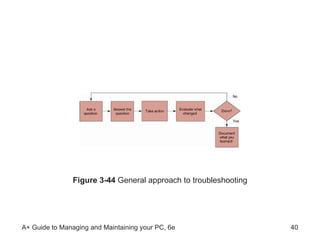
Steps to Solving a PC Problem Key advice: Ask good questions  Document the process Four-step problem solving process: Step 1: Interview the user Step 2: Back up data Step 3: Solve the problem Step 4: Verify the fix and document the solution
Figure 3-44  General approach to troubleshooting
Troubleshooting a Failed Boot It takes time to acquire troubleshooting skills Hands-on training: troubleshooting a failed boot
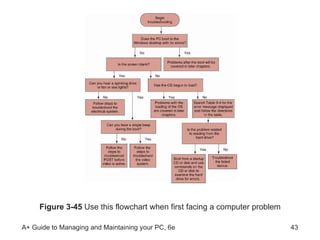
My Computer Won’t Boot First step: maintain your calm Second step: develop a game plan Figure 3-45 provides a procedure  Plan is driven by a set of yes-no questions Example: Does the PC boot properly? If no, troubleshooter is directed to another question If yes, troubleshooter is directed to stop (for now)
Figure 3-45  Use this flowchart when first facing a computer problem
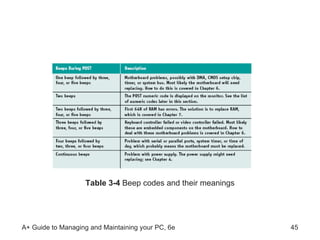
Troubleshooting Major Subsystems Used For Booting Categories of troubleshooting steps in Figure 3-45 The electrical subsystem Essential hardware devices The motherboard, memory, and the CPU Video  Reading from the hard drive Key aides: tables identifying error codes
Table 3-4  Beep codes and their meanings
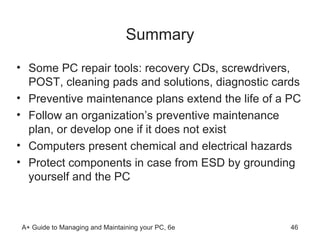
Summary Some PC repair tools: recovery CDs, screwdrivers, POST, cleaning pads and solutions, diagnostic cards Preventive maintenance plans extend the life of a PC Follow an organization’s preventive maintenance plan, or develop one if it does not exist Computers present chemical and electrical hazards Protect components in case from ESD by grounding yourself and the PC
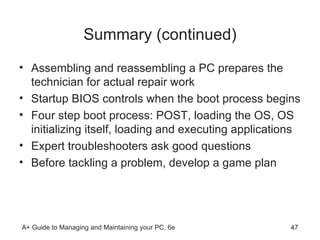
Summary (continued) Assembling and reassembling a PC prepares the technician for actual repair work Startup BIOS controls when the boot process begins  Four step boot process: POST, loading the OS, OS initializing itself, loading and executing applications Expert troubleshooters ask good questions Before tackling a problem, develop a game plan

IMD 203 - Ch03

  • 1.
    A+ Guide toManaging and Maintaining your PC, 6e Chapter 3 PC Repair Fundamentals
  • 2.
    Objectives Learn abouttools you’ll need as a PC support technician Learn how to develop a preventive maintenance plan and what to include in it Learn how to work inside a computer case Learn what happens when you first turn on a PC before the OS is loaded
  • 3.
    Objectives (continued) Learnhow to approach and solve a PC problem Learn how to troubleshoot a failed boot before the OS is loaded
  • 4.
    Introduction Basic repairskills Developing a maintenance plan Implementing a maintenance plan Working inside a computer case Following sequence of events that occur at startup Advanced repair skills Using common-sense guidelines to solve problems Interviewing a user Determining if a problem occurs before or after boot Troubleshooting and solving a problem of a failed boot
  • 5.
    PC Support TechnicianTools Help you maintain a computer Help you diagnose and repair computer problems Criteria for choosing tools: Level of PC support you expect to provide Amount of money you can spend Some essential tools: Ground bracelet, ground mat, or ground gloves Torx screwdriver set Recovery CD, DVD, or floppy disk for target OS Store tools in toolbox for PC troubleshooting
  • 6.
    Figure 3-1 PC support technician tools
  • 7.
    Recovery CDs Usedto boot a system Also used to repair and reinstall Windows Primary recovery CD sources PC manufacturer (preferred) Operating system distributor, such as Microsoft Some hard drives have a hidden recovery partitions A hidden partition can be used to reinstall Windows A utility for creating recovery CDs may be provided Access hidden utilities by pressing a Fn key at startup
  • 8.
    Figure 3-2 Windows Setup CD and Windows Recovery CDs for a notebook computer
  • 9.
    Loop-Back Plugs Usedto test various ports Some port types: serial, parallel, USB, network How to use a loop-back plug Plug in the loop-back plug Run the software that comes with the plug
  • 10.
    Figure 3-3 Loop-back plugs used to test serial and parallel ports
  • 11.
    Cleaning Pads andSolutions Various types are designed for specific uses Example: contact cleaner Cleans contacts on expansion cards Warning: solutions may be flammable and/or toxic Sources of safety and emergency instructions: Side of the can of solution Material safety data sheet (MSDS) Adhere to safety procedures of your employer Example: fill out an accident report (if required)
  • 12.
    Figure 3-5 Each chemical you use should have available a material safety data sheet
  • 13.
    Post Diagnostic CardsReport computer errors and conflicts at POST How to use a POST diagnostic card: Install card in an expansion slot on the motherboard Attempt to boot your system Record any error codes appearing in LED panel Look up the entry associated with the error code Examples of Post diagnostic cards: PCI Error Testing/Debug Card by Winic Corporation POST card V3 by Unicore Software, Inc. Post Code Master by MSD, Inc.
  • 14.
    Figure 3-6 Post Code Master diagnostic card by MSD, Inc.
  • 15.
    Personal Computer PreventiveMaintenance Preventive maintenance reduces number of problems Goals of preventive maintenance plans: Prevent failures Reduce repair costs Reduce downtimes Goal of disaster recovery plan: manage failures Some causes of PC failure: heat, dust, spills, viruses
  • 16.
    When a PCis your Permanent Responsibility Tasks and procedures to prepare for troubleshooting Keep good backups of data and system files Document all setup changes, problems, and solutions Protect the system against viruses and other attacks Always use a firewall (software or hardware barrier) Install and run antivirus software Keep Windows Updates current Physically protect your equipment
  • 17.
    Figure 3-9 Configure antivirus software to scan e-mail and instant message attachments and to download updates automatically
  • 18.
    Creating a PreventiveMaintenance Plan Plan based on history or pattern of malfunctions Example: PCs in dusty areas need more maintenance Goals common to maintenance plans Extend the working life of a PC Anticipate problems that could disrupt service Ensure data is secure and backed up Provide support to PC users Basic steps involved in designing a plan Define your overall goals Incorporate procedures for achieving goals
  • 19.
    Dealing with DustDust accumulates in layers over components Two major problems due to dust blankets PC components directly overheat Cooling fans jam, also resulting in overheating Maintenance task: remove the layer of dust Two tools used to remove dust: Antistatic vacuum Compressed air
  • 20.
    Preparing a Computerfor Shipping Adverse factors to consider: Rough handling Exposure to water, heat, and cold Misplacement or theft of computer Some shipping guidelines to follow: Backup the hard drive onto a backup medium Remove inserted disks, tape cartridges, or CDs Coil and secure all external cords Separately wrap hardware components Purchase insurance on the shipment
  • 21.
    Disposing of UsedEquipment Various guidelines for disposing of equipment: Table 3-2 Manufacturer documentation Local environmental regulators Danger posed by monitors and power supplies Residual charge in capacitors can cause shock Modern devices discharge if unplugged for 60 minutes Older devices may require discharge with a probe Destroy secondary storage devices with sensitive data
  • 22.
    Table 3-2 Computer parts and how to dispose of them
  • 23.
    How to WorkInside a Computer Case Objective: dismantle a computer, put it back together Some safety precautions to follow: Make notes that will help you backtrack Keep screws and spacers orderly Do not stack boards on top of each other Do not touch the chips on circuit boards Do not use a graphite pencil to change DIP settings Turn off the power, unplug and ground the computer Do not remove covers of monitors or power supplies Keep components away from hair and clothing
  • 24.
    Static Electricity Build-upof charge due to absence of conductors Electrostatic discharge (ESD) Due to dissimilar electrical surfaces making contact Only 10 volts of ESD can damage PC components Walking across carpet generates up to 12,000 volts Two types of damage: catastrophic and upset failure Tool and methods for grounding yourself and the PC Ground bracelet, ground mats, static shielding bags, antistatic gloves If working inside a monitor, do not ground yourself
  • 25.
    Figure 3-13 A ground bracelet, which protects computer components from ESD, can clip to the side of the computer case and eliminate ESD between you and the case
  • 26.
    Steps to TakeApart a Computer Essential tools: Ground bracelet Phillips-head screwdriver Flat-head screwdriver, paper, and pen Follow safety precautions at all times Summary of Steps 1 - 4 1. Enter CMOS and write down customized settings 2. Power down the system, unplug all components 3. Put the computer on a good-sized table 4. Remove the cover of the PC
  • 27.
    Figure 3-19 Removing the cover
  • 28.
    Steps to TakeApart a Computer (continued) Summary of steps 5 - 11 5. Diagram cable connections and switch settings 6. Identify cables connecting drives to motherboard 7. Remove the cables to all drives 8. Remove the expansion cards 9. Remove the motherboard (or drives) 10. Remove the power supply from the case 11. Remove each drive (if not already removed)
  • 29.
    Figure 3-33 Remove the motherboard from the case
  • 30.
    Steps to Puta Computer Back Together 1. Install power supply, drives, motherboard, cards 2. Connect all data and power cables 3. Plug in the keyboard, monitor, and mouse 4. Ask instructor to check work (if in a classroom) 5. Turn on the power and check PC functions
  • 31.
    Understanding the BootProcess Key learning objectives Know how to boot a PC Understand what happens first when a PC is turned on Understand how an operating system is loaded
  • 32.
    Booting a ComputerProcess that drives a computer to a working state Hard (cold) boot: turn the power switch on Soft (warm) boot: allow the OS to reboot How to soft boot Windows XP Click Start Click Turn Off Computer Click Restart
  • 33.
    Choosing Between aHard Boot and a Soft Boot Hard boots are more stressful on machines Power surges through system when PC is turned on Reasons to choose a soft boot over hard boot Less stressful on the machine Faster due to skipping initial steps Some computers have a soft and hard power switch Soft power switch shuts down and restarts Windows Hard power switch cuts power and restarts machine
  • 34.
    The Startup BIOSControls the Beginning of the Boot The startup BIOS gets a system up and running Four phases of the boot process: BIOS runs the POST and assigns system resources POST: power-on self test BIOS searches for and loads an OS OS configures system and completes its own loading Application software is loaded and executed
  • 35.
    Figure 3-40 Boot Step 1: The ROM BIOS startup program surveys hardware resources and needs and assigns system resources to satisfy those needs
  • 36.
    Changing the BootSequence BIOS looks to CMOS RAM to locate the OS Boot sequence: order of drives checked for an OS Change boot sequence using CMOS setup utilities Access CMOS setup utilities when PC is turned on Example: press F8 before Windows screen appears
  • 37.
    Figure 3-42 Numbered steps show how BIOS searches for and begins to load an operating system (in this example, Windows NT/2000/XP is the OS)
  • 38.
    How to Troubleshoota PC Problem Assume the attitude of an investigator Do not compound the problem by your own actions Look at the problem as a learning opportunity Ask questions until you understand the problem Believe that you can solve the problem
  • 39.
    Steps to Solvinga PC Problem Key advice: Ask good questions Document the process Four-step problem solving process: Step 1: Interview the user Step 2: Back up data Step 3: Solve the problem Step 4: Verify the fix and document the solution
  • 40.
    Figure 3-44 General approach to troubleshooting
  • 41.
    Troubleshooting a FailedBoot It takes time to acquire troubleshooting skills Hands-on training: troubleshooting a failed boot
  • 42.
    My Computer Won’tBoot First step: maintain your calm Second step: develop a game plan Figure 3-45 provides a procedure Plan is driven by a set of yes-no questions Example: Does the PC boot properly? If no, troubleshooter is directed to another question If yes, troubleshooter is directed to stop (for now)
  • 43.
    Figure 3-45 Use this flowchart when first facing a computer problem
  • 44.
    Troubleshooting Major SubsystemsUsed For Booting Categories of troubleshooting steps in Figure 3-45 The electrical subsystem Essential hardware devices The motherboard, memory, and the CPU Video Reading from the hard drive Key aides: tables identifying error codes
  • 45.
    Table 3-4 Beep codes and their meanings
  • 46.
    Summary Some PCrepair tools: recovery CDs, screwdrivers, POST, cleaning pads and solutions, diagnostic cards Preventive maintenance plans extend the life of a PC Follow an organization’s preventive maintenance plan, or develop one if it does not exist Computers present chemical and electrical hazards Protect components in case from ESD by grounding yourself and the PC
  • 47.
    Summary (continued) Assemblingand reassembling a PC prepares the technician for actual repair work Startup BIOS controls when the boot process begins Four step boot process: POST, loading the OS, OS initializing itself, loading and executing applications Expert troubleshooters ask good questions Before tackling a problem, develop a game plan