



IES-1000
Integrated Ethernet Switch

          Version 2.04
           July 2002


     User’s Guide
IES-1000 User’s Guide


                                                                                             Copyright
Copyright © 2002 by ZyXEL Communications Corporation.
The contents of this publication may not be reproduced in any part or as a whole, transcribed, stored in a retrieval
system, translated into any language, or transmitted in any form or by any means, electronic, mechanical,
magnetic, optical, chemical, photocopying, manual, or otherwise, without the prior written permission of ZyXEL
Communications Corporation.
Published by ZyXEL Communications Corporation. All rights reserved.
Disclaimer
ZyXEL does not assume any liability arising out of the application or use of any products, or software described
herein. Neither does it convey any license under its patent rights nor the patent rights of others. ZyXEL further
reserves the right to make changes in any products described herein without notice. This publication is subject to
change without notice.
Trademarks
Trademarks mentioned in this publication are used for identification purposes only and may be properties of their
respective owners.


ii                                                                                                          Copyright
IES-1000 User’s Guide


                       Interference Statements and Warnings
FCC
Interference Statement:
This device complies with Part 15 of the FCC rules. Operation is subject to the following two conditions:
(1) This device may not cause harmful interference.
(2) This device must accept any interference received, including interference that may cause undesired operations.
FCC Warning!
This equipment has been tested and found to comply with the limits for a Class A digital device, pursuant to Part
15 of the FCC Rules. These limits are designed to provide reasonable protection against harmful interference in a
commercial environment. This equipment generates, uses, and can radiate radio frequency energy and, if not
installed and used in accordance with the instruction manual, may cause harmful interference to radio
communications. Operation of this equipment in a residential area is likely to cause harmful interference in which
case the user will be required to correct the interference at his own expense.
CE Mark Warning:
This is a class A product. In a domestic environment this product may cause radio interference in which case the
user may be required to take adequate measures.
Taiwanese BCIQ A Warning:


Certifications
Refer to the product page at www.zyxel.com.


Inference Statements and Warnings                                                                                    iii
IES-1000 User’s Guide


                                                          ZyXEL Limited Warranty
ZyXEL warrants to the original end user (purchaser) that this product is free from any defects in materials or
workmanship for a period of up to two years from the date of purchase. During the warranty period, and upon
proof of purchase, should the product have indications of failure due to faulty workmanship and/or materials,
ZyXEL will, at its discretion, repair or replace the defective products or components without charge for either
parts or labor, and to whatever extent it shall deem necessary to restore the product or components to proper
operating condition. Any replacement will consist of a new or re-manufactured functionally equivalent product of
equal value, and will be solely at the discretion of ZyXEL. This warranty shall not apply if the product is
modified, misused, tampered with, damaged by an act of God, or subjected to abnormal working conditions.
Note
Repair or replacement, as provided under this warranty, is the exclusive remedy of the purchaser. This warranty is
in lieu of all other warranties, express or implied, including any implied warranty of merchantability or fitness for
a particular use or purpose. ZyXEL shall in no event be held liable for indirect or consequential damages of any
kind of character to the purchaser.
To obtain the services of this warranty, contact ZyXEL's Service Center for your Return Material Authorization
number (RMA). Products must be returned Postage Prepaid. It is recommended that the unit be insured when
shipped. Any returned products without proof of purchase or those with an out-dated warranty will be repaired or
replaced (at the discretion of ZyXEL) and the customer will be billed for parts and labor. ZyXEL will ship all
repaired or replaced products to the corresponding return address, Postage Paid. This warranty gives you specific
legal rights, and you may also have other rights that vary from country to country.


iv                                                                                                  ZyXEL Warranty
IES-1000 User’s Guide


                                                                           Customer Support
Please have the following information ready when you contact customer support.
Product model and serial number.
Warranty information.
Date that you received your device.
Brief description of the problem and the steps you took to solve it.
   METHOD              E-MAIL             TELEPHONE/FAX         WEB SITE/ FTP SITE           REGULAR MAIL
                   SUPPORT/ SALES

   LOCATION
   Worldwide     support@zyxel.com.tw     +886-3-578-3942          www.zyxel.com        ZyXEL Communications
                                                                                       Corp., 6 Innovation Road II,
                                                               www.europe.zyxel.com     Science-Based Industrial
                  sales@zyxel.com.tw      +886-3-578-2439       ftp.europe.zyxel.com   Park, Hsinchu, 300, Taiwan

     North         support@zyxel.com      +1-714-632-0882          www.zyxel.com       ZyXEL Communications Inc.,
    America                                                                              1650 Miraloma Avenue,
                                            800-255-4101                               Placentia, CA 92870, U.S.A.
                    sales@zyxel.com       +1-714-632-0858              ftp.zyxel.com
  Scandinavia      support@zyxel.dk        +45-3955-0700               www.zyxel.dk    ZyXEL Communications A/S,
                                                                                          Columbusvej 5, 2860
                     sales@zyxel.dk        +45-3955-0707                ftp.zyxel.dk       Soeborg, Denmark
    Germany         support@zyxel.de      +49-2405-6909-0              www.zyxel.de    ZyXEL Deutschland GmbH.
                                                                                       Adenauerstr. 20/A4 D-52146
                     sales@zyxel.de       +49-2405-6909-99                                Wuerselen, Germany
    Malaysia     support@zyxel.com.my     +603-795-44-688        www.zyxel.com.my      Lot B2-06, PJ Industrial Park,
                                                                                       Section 13, Jalan Kemajuan,
                  sales@zyxel.com.my      +603-795-34-407                                  46200 Petaling Jaya
                                                                                          Selangor Darul Ehasn,
                                                                                                 Malaysia


Customer Support                                                                                                        v
IES-1000 User’s Guide


                                                                                                                                Table of Contents

Copyright....................................................................................................................................................................................... ii

Interference Statements and Warnings ..................................................................................................................................... iii

ZyXEL Limited Warranty ............................................................................................................................................................. iv

Customer Support ........................................................................................................................................................................ v

List of Figures............................................................................................................................................................................... x

List of Tables ............................................................................................................................................................................... xi

Preface ....................................................................................................................................................................................... xiii

Chapter 1            Getting to Know the IES-1000............................................................................................................................. 1-1

     1.1        Features..................................................................................................................................................... 1-1

     1.2        Physical Specifications .............................................................................................................................. 1-3

     1.3        Applications ............................................................................................................................................... 1-4

Chapter 2            Hardware Overview ............................................................................................................................................. 2-1

     2.1        Additional Installation Requirements ......................................................................................................... 2-1

     2.2        Front Panel ................................................................................................................................................ 2-1

     2.3        Front Panel Connections ........................................................................................................................... 2-3

Chapter 3            Factory Default Settings ..................................................................................................................................... 3-1

     3.1        IP Parameters............................................................................................................................................ 3-1

     3.2        Console Port .............................................................................................................................................. 3-1

     3.3        SNMP Community Strings ......................................................................................................................... 3-1

     3.4        Console, Telnet Web Configurator and FTP Password ............................................................................. 3-1

     3.5        G.SHDSL Ports (SAM1008)....................................................................................................................... 3-1

     3.6        ADSL Ports (AAM1008)............................................................................................................................. 3-2

     3.7        Ethernet Port.............................................................................................................................................. 3-2

     3.8        Other Factory Defaults............................................................................................................................... 3-2

Chapter 4            Using the Web Configurator ............................................................................................................................... 4-1

     4.1        Introduction ................................................................................................................................................ 4-1

     4.2        The Web Configurator ............................................................................................................................... 4-1

Chapter 5            System Commands ............................................................................................................................................. 5-1

     5.1        Command Line Interface (CI) .................................................................................................................... 5-1


vi                                                                                                                                                                  Table of Contents
IES-1000 User’s Guide
  5.2       Console Connection .................................................................................................................................. 5-1

  5.3       Command Structure .................................................................................................................................. 5-2

  5.4       Commonly Used Commands .................................................................................................................... 5-2

  5.5       Sys Commands ......................................................................................................................................... 5-4

  5.6       Secured Host Commands ......................................................................................................................... 5-5

  5.7       UNIX Syslog Commands........................................................................................................................... 5-6

  5.8       System Error Log Commands ................................................................................................................... 5-7

Chapter 6      G.SHDSL Commands........................................................................................................................................... 6-1

  6.1       G.SHDSL Standards .................................................................................................................................. 6-1

  6.2       Profiles....................................................................................................................................................... 6-1

  6.3       Configured Versus Actual Speed............................................................................................................... 6-1

  6.4       Port Bonding.............................................................................................................................................. 6-2

  6.5       Default Settings ......................................................................................................................................... 6-2

  6.6       G.SHDSL Commands................................................................................................................................ 6-2

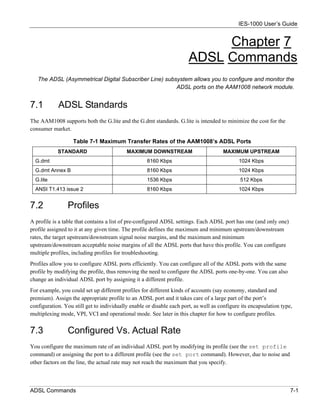
Chapter 7      ADSL Commands................................................................................................................................................. 7-1

  7.1       ADSL Standards ........................................................................................................................................ 7-1

  7.2       Profiles....................................................................................................................................................... 7-1

  7.3       Configured Vs. Actual Rate ....................................................................................................................... 7-1

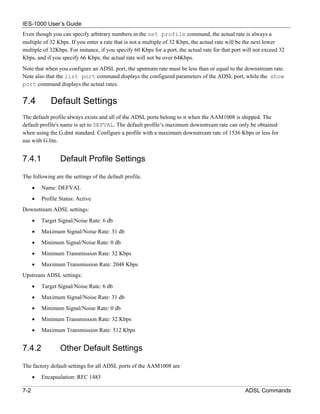
  7.4       Default Settings ......................................................................................................................................... 7-2

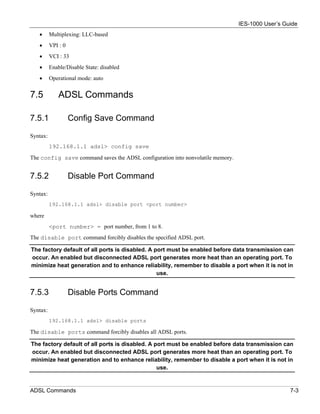
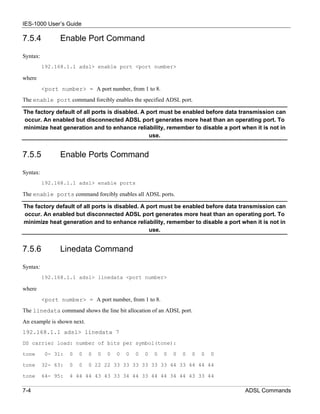
  7.5       ADSL Commands...................................................................................................................................... 7-3

Chapter 8      10/100M Fast Ethernet Port Commands............................................................................................................. 8-1

  8.1       10/100M Auto-Sensing Ethernet ............................................................................................................... 8-1

  8.2       Ethernet Commands ................................................................................................................................. 8-1

Chapter 9      Bridge Commands ............................................................................................................................................... 9-1

  9.1       IGMP Snooping ......................................................................................................................................... 9-1

  9.2       Bridge Port Numbers................................................................................................................................. 9-1

  9.3       Basic Commands ...................................................................................................................................... 9-2

  9.4       MAC filter Commands ............................................................................................................................... 9-2

  9.5       Filter Commands ....................................................................................................................................... 9-4

  9.6       Port-Based VLAN Commands................................................................................................................... 9-6

  9.7       Tagged Ethernet Frames Commands (Fast Mode)................................................................................... 9-9

Chapter 10         IEEE 802.1Q Tagged VLAN Commands....................................................................................................... 10-1


Table of Contents                                                                                                                                                              vii
IES-1000 User’s Guide
   10.1   Introduction .............................................................................................................................................. 10-1

   10.2   IEEE 802.1Q Tagged VLAN -Tags........................................................................................................... 10-1

   10.3   VLAN-Aware/VLAN-Unaware Devices .................................................................................................... 10-1

   10.4   Filtering Databases.................................................................................................................................. 10-1

   10.5   Configuring the Tagged VLAN ................................................................................................................. 10-2

   10.6   IEEE 802.1Q Tagged VLAN Commands ................................................................................................. 10-3

Chapter 11       IEEE 802.1p Priority Commands .................................................................................................................. 11-1

   11.1   Introduction .............................................................................................................................................. 11-1

   11.2   IEEE 802.1p Priority Commands............................................................................................................. 11-1

Chapter 12       IP Commands ................................................................................................................................................ 12-1

   12.1   Setting the IP Address ............................................................................................................................. 12-1

   12.2   General IP Commands ............................................................................................................................ 12-2

Chapter 13       Remote Management .................................................................................................................................... 13-1

   13.1   Management by Telnet ............................................................................................................................ 13-1

   13.2   SNMP Management ................................................................................................................................ 13-1

   13.3   SNMP Access Configuration.................................................................................................................... 13-3

   13.4   SNMP Trap Configuration........................................................................................................................ 13-4

Chapter 14       Configuration Backup/Restore..................................................................................................................... 14-1

   14.1   Configuration Files of the Network Module ............................................................................................. 14-1

   14.2   Configuration Backup .............................................................................................................................. 14-1

   14.3   Configuration Restore.............................................................................................................................. 14-1

Chapter 15       Firmware Upload and Recovery................................................................................................................... 15-1

   15.1   FTP Firmware Upload on the Network Module ....................................................................................... 15-1

   15.2   BOOTP/TFTP Firmware Recovery of the Network Module..................................................................... 15-2

Chapter 16       Troubleshooting ............................................................................................................................................ 16-1

   16.1   SHDSL or ADSL LED(s) .......................................................................................................................... 16-1

   16.2   Data Transmission ................................................................................................................................... 16-1

   16.3   SHDSL or ADSL LED(s) Turn On and Off ............................................................................................... 16-2

   16.4   Data Rate................................................................................................................................................. 16-2

   16.5   Configured Settings ................................................................................................................................. 16-2

   16.6   Password ................................................................................................................................................. 16-2

   16.7   Local Server............................................................................................................................................. 16-3


viii                                                                                                                                                Table of Contents
IES-1000 User’s Guide
    16.8        SNMP ...................................................................................................................................................... 16-3

    16.9        Telnet ....................................................................................................................................................... 16-3

Index ..............................................................................................................................................................................................A


Table of Contents                                                                                                                                                                                 ix
IES-1000 User’s Guide

                                                                                                                                 List of Figures
Figure 1-1 MTU Application ...................................................................................................................................................... 1-5

Figure 1-2 Leased Line Application ........................................................................................................................................... 1-6

Figure 2-1 Front Panel ................................................................................................................................................................ 2-1

Figure 4-1 Web Configurator - Login ......................................................................................................................................... 4-1

Figure 4-2 Web Configurator Home Page................................................................................................................................... 4-2

Figure 4-3 Web Configurator - Navigation Panel ....................................................................................................................... 4-3

Figure 5-1 Example: Procedure to Save and View a Previous Error Log ................................................................................... 5-8

Figure 9-1 Default VLAN Settings ............................................................................................................................................. 9-7

Figure 9-2 Example of Modified VLAN Port 2 .......................................................................................................................... 9-8

Figure 9-3 Example of Modified VLAN Port 3 .......................................................................................................................... 9-9

Figure 9-4 Example of Modified VLAN Settings....................................................................................................................... 9-9

Figure 10-1 Example: PVID Command Display ...................................................................................................................... 10-5

Figure 10-2 Example: SVLAN List Command Display ........................................................................................................... 10-6

Figure 10-3 Example: SVLAN List Command Display ........................................................................................................... 10-7

Figure 10-4 SVLAN Example .................................................................................................................................................. 10-8

Figure 10-5 Example: Svlan Getentry 2 Command Display..................................................................................................... 10-9

Figure 10-6 Example: DVLAN List Command Display......................................................................................................... 10-10

Figure 10-7 Example: DVLAN Getentry 2 Command Display .............................................................................................. 10-10

Figure 10-8 Example: VLAN List Command Display............................................................................................................ 10-11

Figure 12-1 Setting IP Address and Default Gateway............................................................................................................... 12-2

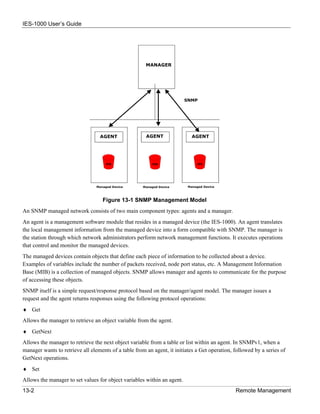
Figure 13-1 SNMP Management Model ................................................................................................................................... 13-2

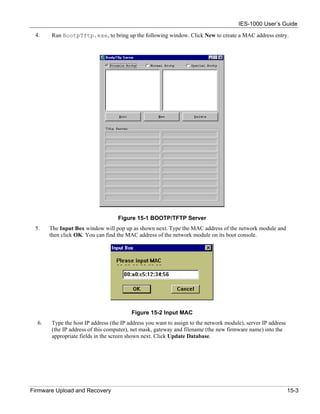
Figure 15-1 BOOTP/TFTP Server ............................................................................................................................................ 15-3

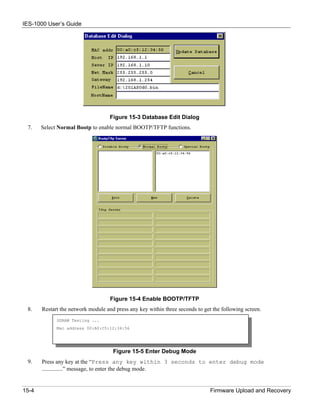
Figure 15-2 Input MAC ............................................................................................................................................................ 15-3

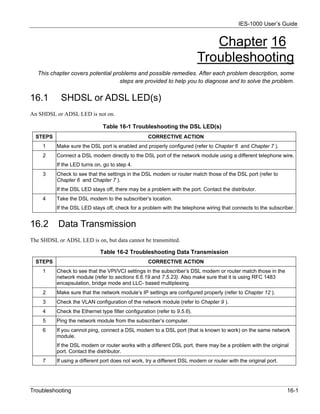
Figure 15-3 Database Edit Dialog............................................................................................................................................. 15-4

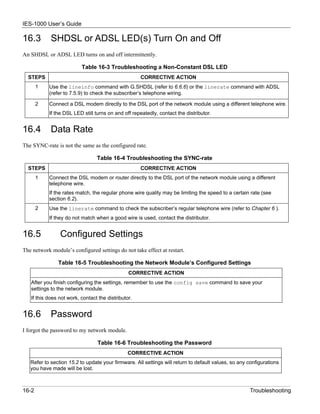
Figure 15-4 Enable BOOTP/TFTP ........................................................................................................................................... 15-4

Figure 15-5 Enter Debug Mode ................................................................................................................................................ 15-4


x                                                                                                                                                                 List of Figures
IES-1000 User’s Guide

                                                                                                                               List of Tables
Table 2-1 Network Module LED Descriptions............................................................................................................................2-1

Table 2-2 Front Panel Ports of the SAM1008 Network Module .................................................................................................2-2

Table 2-3 Front Panel Ports of the AAM1008 Network Module.................................................................................................2-2

Table 2-4 Front Panel Ports of the IES-1000...............................................................................................................................2-2

Table 4-1 Navigation Panel Links ...............................................................................................................................................4-3

Table 5-1 Logs Sent to Your UNIX Server..................................................................................................................................5-6

Table 6-1 Data Rates of the SAM1008’s SHDSL Ports ..............................................................................................................6-1

Table 6-2 List Port Command - <State> Parameter.....................................................................................................................6-5

Table 7-1 Maximum Transfer Rates of the AAM1008’s ADSL Ports .........................................................................................7-1

Table 9-1 Physical Ports, Port Numbers and IES-1000 Default PVID Tags in Fast Mode........................................................9-10

Table 16-1 Troubleshooting the DSL LED(s)............................................................................................................................16-1

Table 16-2 Troubleshooting Data Transmission ........................................................................................................................16-1

Table 16-3 Troubleshooting a Non-Constant DSL LED............................................................................................................16-2

Table 16-4 Troubleshooting the SYNC-rate ..............................................................................................................................16-2

Table 16-5 Troubleshooting the Network Module’s Configured Settings .................................................................................16-2

Table 16-6 Troubleshooting the Password.................................................................................................................................16-2

Table 16-7 Troubleshooting a Local Server...............................................................................................................................16-3

Table 16-8 Troubleshooting SNMP...........................................................................................................................................16-3

Table 16-9 Troubleshooting Telnet............................................................................................................................................16-3


List of Tables                                                                                                                                                                   xi
IES-1000 User’s Guide


                                                                                                     Preface
Congratulations on your purchase of the IES-1000 Integrated Ethernet Switch.


          Online Registration
Register your ZyXEL product online at www.zyxel.com for free future product updates and information.
General Syntax Conventions
“Enter” means for you to type one or more characters and press the carriage return. “Select” or “Choose” means
for you to use one of the predefined choices.
Command and arrow keys are enclosed in square brackets. [ENTER] means the Enter, or carriage return key;
[ESC] means the Escape key and [SPACE BAR] means the Space Bar.
For brevity’s sake, we will use “e.g.,” as shorthand for “for instance”, and “i.e.,” for “that is” or “in other words”
throughout this User’s Guide.
There is one version of the AAM1008 for ADSL over POTS (Annex A) and one for ADSL over ISDN (Annex B).
Differentiation is made where needed.
Related Documentation
        Quick Start Guide
        The Quick Start Guide contains general initial configuration instructions.
        Hardware Installation Guide
        This guide provides detailed information about the physical specifications and procedures for installing
        your device.
        Web Configurator Online Help
        Embedded web help for descriptions of individual screens and supplementary information.
        Glossary and ZyXEL Web Site
        Please refer to www.zyxel.com for an online glossary of networking terms or the ZyXEL download
        library for additional support documentation.


Preface                                                                                                                  xiii
IES-1000 User’s Guide


                                                        Chapter 1
                                      Getting to Know the IES-1000
                      This chapter describes the key features, benefits and applications of your IES-1000.

The IES-1000 is an integrated Ethernet switch that allows you to multiplex traffic from up to 16 G.SHDSL or
ADSL subscribers (or eight of each) to an Ethernet network using existing phone line wiring before it is
forwarded to the Internet. When deployed together with ZyXEL’s DSL modems and WAN routers, the
combination forms an integrated solution for providing broadband services to multiple tenant units such as
apartments, hotels, offices and campus buildings.
G.SHDSL is an acronym for Single-pair High-speed Digital Subscriber Line. ITU-T G.991.2 defines the “G.” in
“G.SHDSL”.
ADSL is an acronym for Asymmetric Digital Subscriber Line.


1.1             Features
Two-Slot Chassis
The IES-1000 has two slots that accept multiplexer network modules. The chassis design gives you the flexibility
to initially install a single module and then add another as demand increases.
Multiplexer Network Modules
Up to two hot-swappable multiplexing network modules may be installed in each IES-1000 chassis.
The SAM1008 (G.SHDSL Access Module) is an 8-port G.SHDSL multiplexer network module that aggregates
traffic from eight lines to an Ethernet port.
The AAM1008 (ADSL Access Module) is an 8-port ADSL multiplexer network module that aggregates traffic
from eight lines to an Ethernet port and has integrated splitters to allow voice and ADSL to be carried over the
same phone line wiring.
10/100 Mbps Auto-negotiating Ethernet Port
This 10/100 Mbps auto-negotiating Ethernet port connects the IES-1000 to an Ethernet network. With Ethernet as
the backbone, you can create a network that provides G.SHDSL and or ADSL service to hundreds of subscribers.
G.SHDSL Compliance (SAM1008)
        •   ITU-T G.991.2

        •   G.hs (ITU-T G.994.1)

        •   Rate adaptation support

ADSL Compliance (AAM1008)
        •   Multi-Mode ADSL standard


Getting To Know The IES-1000                                                                                       1-1
IES-1000 User’s Guide
                G.dmt (ITU-T G.992.1)

                G.lite (ITU-T G.992.2)

                G.hs (ITU-T G.994.1)

                ANSI T1.413 issue 2

        •   Rate adaptation support

Port Bonding (SAM1008)
The port bonding feature allows you to combine two to four G.SHDSL connections between two IES-1000s into a
single logical connection. This can give increased bandwidth for LAN-to-LAN applications.
Bridging
        •   IEEE 802.1D transparent bridging

        •   Up to 4096 MAC entries address table

        •   Port-based VLAN (Virtual Local Area Network)

IEEE 802.1Q Tagged VLAN
Your IES-1000 uses the IEEE 802.1Q Tagged VLAN (Virtual Local Area Network), which allows your device to
deliver tagged/untagged frames to and from its ports. The IES-1000 supports up to 255 VLANs and up to 4094
VLAN IDs.
IEEE 802.1p Priority
Your IES-1000 uses IEEE 802.1p Priority to assign priority levels to individual ports.
Fast Mode
The fast mode makes use of the “tag” subset of the IEEE 802.1Q standard to identify the source port of a frame
and speed traffic through a service gateway.
MAC (Media Access Control) Filtering
Use MAC filter commands to filter incoming frames based on MAC (Media Access Control) address(es) that you
specify. You may enable/disable specific ports. You may specify up to five MAC addresses per port.

Secured Host
Allow up to ten remote hosts to access your IES-1000 via IP addresses you specify.
System Error Logging
The system error log will record error logs locally to the IES-1000 memory. These logs may be viewed again after
a warm restart.
UNIX Syslog Logging
Use UNIX syslog commands to send logs to your UNIX server.
Protocol
        •   Multiple Protocols over AAL5 (RFC 1483)
1-2                                                                                  Getting to Know the IES-1000
IES-1000 User’s Guide
Management
        •   Remote configuration backup/restore and firmware upgrade

        •   SNMP manageable

        •   Text-based management locally via console port and remotely via telnet

        •   Web configurator with online help

Security
        •   Password protection for system management

        •   VLAN

IGMP Snooping
IGMP (Internet Group Management Protocol) snooping reduces multicast traffic for maximum performance.
Overheating Detection, Warning and Safegaurd
An ALM LED turns on when the IES-1000’s internal temperature is too high and turns off when the temperature
has returned to a normal level. Internal fans cool the unit.

Compact Design for Limited Space
The IES-1000 occupies only 1 U of standard Telco rack space. Its compactness is perfect for collocation
(installation in a central office) and basement installation.
Scalable Platform for Future Expansion
The flexible design of the IES-1000 series allows service providers to start with minimum cost. As the number of
subscribers and applications increases additional IES-1000s can be added to provide greater bandwidth.


1.2             Physical Specifications

1.2.1           Physical Interfaces

        •   Two hot-swappable network module slots

        •   Each network module has eight RJ-11 ports to the USER side

        •   Each network module has one auto-sensing 10/100M Ethernet port

        •   Each network module has one mini RJ-11 console port for local configuration and management


1.2.2           Dimensions

440mm (W) x 320mm (D) x 44.45mm (H)


Getting To Know The IES-1000                                                                                   1-3
IES-1000 User’s Guide

1.2.3           Weight

        •   One IES-1000 (no modules) = 3.6 kg.

        •   One SAM1008 = .8 kg.

        •   One AAM1008 = 1.1 kg.


1.2.4           Power Consumption

        •   60 watts maximum

        •   100 - 240 VAC, 50/60 Hz


1.2.5           Fuse Rating

250V-3A


1.2.6           Operating Environment

Temperature: 0 - 50°C; Humidity: 5% - 95% (non-condensing)


1.2.7           Storage Environment

Temperature: -25 - 70°C; Humidity: 5% - 95% (non-condensing)


1.3             Applications

1.3.1           MTU Application

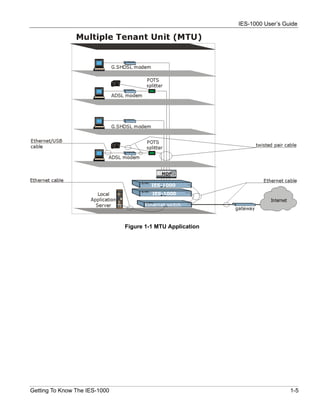
The following figure depicts a typical application of the IES-1000 is in a large residential building, or multiple
tenant unit (MTU), that leverages the existing phone line wiring to provide Internet access to all tenants.
A tenant connects a computer to the phone line in a unit using a G.SHDSL or ADSL modem. The other end of the
phone line is connected to a port on the IES-1000. The IES-1000 aggregates the traffic from tenants to the
Ethernet port and then forwards it to a router. The router then routes the traffic further to the Internet.


1-4                                                                                   Getting to Know the IES-1000
IES-1000 User’s Guide


                               Figure 1-1 MTU Application


Getting To Know The IES-1000                                                  1-5
IES-1000 User’s Guide


1.3.2        Leased Line Application


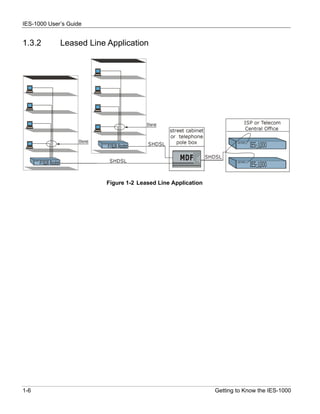
                         Figure 1-2 Leased Line Application


1-6                                                           Getting to Know the IES-1000
IES-1000 User’s Guide


                                                                           Chapter 2
                                                                    Hardware Overview
                                              This chapter gives a brief introduction to the IES-1000 hardware.


2.1          Additional Installation Requirements
A computer with Ethernet 10Base-T or 100Base-TX NIC (Network Interface Card)
   •    WAN service provided by a local phone company
A computer with terminal emulation software configured to the following parameters:
VT100 terminal emulation
             9600 bps
             No parity, 8 data bits, 1 stop bit
             No flow control

2.2          Front Panel
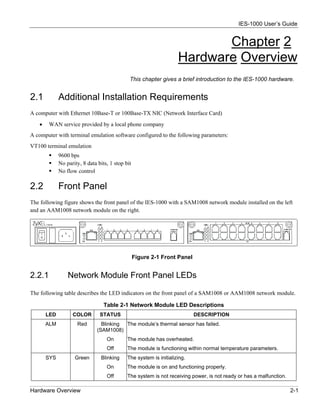
The following figure shows the front panel of the IES-1000 with a SAM1008 network module installed on the left
and an AAM1008 network module on the right.


                                                  Figure 2-1 Front Panel


2.2.1            Network Module Front Panel LEDs

The following table describes the LED indicators on the front panel of a SAM1008 or AAM1008 network module.

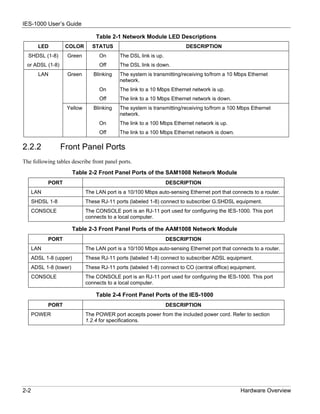
                                  Table 2-1 Network Module LED Descriptions
       LED         COLOR        STATUS                                     DESCRIPTION
       ALM           Red         Blinking The module’s thermal sensor has failed.
                               (SAM1008)
                                   On        The module has overheated.
                                   Off       The module is functioning within normal temperature parameters.
       SYS          Green       Blinking     The system is initializing.
                                   On        The module is on and functioning properly.
                                   Off       The system is not receiving power, is not ready or has a malfunction.

Hardware Overview                                                                                                    2-1
IES-1000 User’s Guide

                                 Table 2-1 Network Module LED Descriptions
        LED        COLOR       STATUS                                   DESCRIPTION
  SHDSL (1-8)       Green         On       The DSL link is up.
 or ADSL (1-8)                    Off      The DSL link is down.
        LAN         Green       Blinking   The system is transmitting/receiving to/from a 10 Mbps Ethernet
                                           network.
                                  On       The link to a 10 Mbps Ethernet network is up.
                                  Off      The link to a 10 Mbps Ethernet network is down.
                    Yellow      Blinking   The system is transmitting/receiving to/from a 100 Mbps Ethernet
                                           network.
                                  On       The link to a 100 Mbps Ethernet network is up.
                                  Off      The link to a 100 Mbps Ethernet network is down.

2.2.2             Front Panel Ports
The following tables describe front panel ports.
                         Table 2-2 Front Panel Ports of the SAM1008 Network Module
            PORT                                                 DESCRIPTION
      LAN                    The LAN port is a 10/100 Mbps auto-sensing Ethernet port that connects to a router.
      SHDSL 1-8              These RJ-11 ports (labeled 1-8) connect to subscriber G.SHDSL equipment.
      CONSOLE                The CONSOLE port is an RJ-11 port used for configuring the IES-1000. This port
                             connects to a local computer.

                         Table 2-3 Front Panel Ports of the AAM1008 Network Module
            PORT                                                 DESCRIPTION
      LAN                    The LAN port is a 10/100 Mbps auto-sensing Ethernet port that connects to a router.
      ADSL 1-8 (upper)       These RJ-11 ports (labeled 1-8) connect to subscriber ADSL equipment.
      ADSL 1-8 (lower)       These RJ-11 ports (labeled 1-8) connect to CO (central office) equipment.
      CONSOLE                The CONSOLE port is an RJ-11 port used for configuring the IES-1000. This port
                             connects to a local computer.

                                 Table 2-4 Front Panel Ports of the IES-1000
            PORT                                                 DESCRIPTION
      POWER                  The POWER port accepts power from the included power cord. Refer to section
                             1.2.4 for specifications.


2-2                                                                                            Hardware Overview
IES-1000 User’s Guide

2.3         Front Panel Connections

2.3.1           LAN Port (Ethernet)

Connect the LAN port of the network module to an Ethernet switch using a straight-through category 5 UTP
(Unshielded Twisted Pair) cable with RJ-45 connectors if you are connecting to a hub or switch. Use a crossover
cable if you are connecting to a single computer.


2.3.2           CONSOLE Port

For initial configuration, you need to use terminal emulator software on a computer and connect it to the network
module through the console port. Connect the RJ-11 connector on one end of the RS-232 console cable to the
console port of the network module. Connect the DB-9 connector on the other end of the console cable to a serial
port (COM1, COM2 or other COM port) of your computer. You can use an extension cable if the enclosed one is
too short. After the initial setup, you can modify the configuration remotely through Telnet.


2.3.3           Ports 1-8 (SAM1008 Ports)

To complete a G.SHDSL connection, connect a telephone line from the subscriber equipment to one of the
SHDSL ports on the SAM1008.


2.3.4           Ports 1-8 (AAM1008 Ports)

The line from the subscriber carries both the ADSL and the voice signals. For each line, the AAM1008 has a
built-in splitter that separates the high frequency ADSL signal from the voice band signal and feeds the ADSL
signal to the AAM1008, while the voice band signal is diverted to the CO port.
To complete an ADSL connection, connect a telephone line from the subscriber equipment to one of the upper
ADSL ports on the AAM1008. Connect a telephone line from one of the lower ADSL ports on the AAM1008 to
the CO switch or PBX (Private Branch Exchange).


2.3.5           POWER Port

Connect the female end of the power cord to the power receptacle on the front panel of your IES-1000. Connect
the other end of the cord to a power outlet. Make sure that no objects obstruct the airflow of the fans. If you are
facing the IES-1000 front panel, the fan vents are located on the left side of the unit.

                   Make sure you are using a 100 - 240 VAC, 50/60 Hz power source.


Hardware Overview                                                                                                     2-3
IES-1000 User’s Guide


                                                           Chapter 3
                                               Factory Default Settings
                                     This section describes the factory default settings of the IES-1000.


3.1              IP Parameters
   •   IP address = 192.168.1.1
   •   Subnet mask = 255.255.255.0
   •   Default gateway = 192.168.1.254


3.2              Console Port
   •   Baud rate = 9600 bps
   •   Data bits = 8
   •   Parity = none
   •   Stop bit = 1
   •   Flow control = none


3.3              SNMP Community Strings
   •   Read = public
   •   Write = 1234


3.4              Console, Telnet Web Configurator and FTP Password
   •   User name: admin (web configurator)
   •   Password: 1234 (default)


3.5              G.SHDSL Ports (SAM1008)
   •   Encapsulation: RFC 1483
   •   Multiplexing: LLC-based
   •   VPI: 0
   •   VCI: 33

Factory Default Settings                                                                               3-1
IES-1000 User’s Guide
      •   Enable/Disable State: Disabled
      •   Profile: DEFVAL
             Maximum upstream/downstream speed: 2304 Kbps
             Minimum upstream/downstream speed: 192 Kbps


3.6                 ADSL Ports (AAM1008)
      •   Encapsulation: RFC 1483
      •   Multiplexing: LLC-based
      •   VPI: 0
      •   VCI: 33
      •   Enable/Disable State: Disabled
      •   Operational Mode: auto
      •   Profile: DEFVAL
             Maximum Upstream Rate: 512 Kbps
             Maximum Downstream Rate: 2048 Kbps


3.7          Ethernet Port
The factory default settings for the Ethernet port of the IES-1000 are:
      •   Auto-negotiation: ON
      •   Speed used with auto-negotiation OFF: 100Mbps
      •   Duplex mode used with auto-negotiation OFF: half duplex


3.8                 Other Factory Defaults
      •   MAC filter: Disabled
      •   Secured Host: Disabled
      •   Sys Error Log: Always Enabled
      •   UNIX Syslog: Disabled
      •   IEEE 802.1Q Tagged VLAN: Disabled


3-2                                                                       Factory Default Settings
IES-1000 User’s Guide


                                                          Chapter 4
                                           Using the Web Configurator
                          This section introduces the configuration and functions of the Web Configurator.


4.1             Introduction
The embedded web configurator allows you to manage the switch from anywhere on the network through a
standard browser such as Microsoft Internet Explorer or Netscape Navigator.
Use Internet Explorer 5.5 and later or Netscape Navigator 6 and later versions.


4.2             The Web Configurator
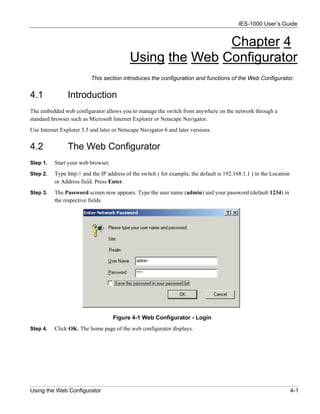
Step 1.   Start your web browser.
Step 2.   Type http:// and the IP address of the switch ( for example, the default is 192.168.1.1 ) in the Location
          or Address field. Press Enter.
Step 3.   The Password screen now appears. Type the user name (admin) and your password (default 1234) in
          the respective fields.


                                    Figure 4-1 Web Configurator - Login
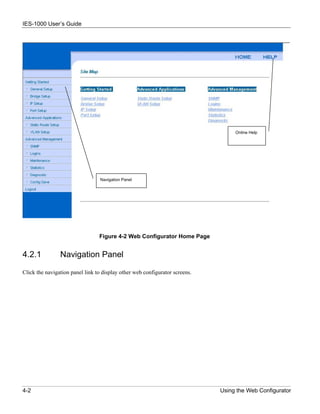
Step 4.   Click OK. The home page of the web configurator displays.


Using the Web Configurator                                                                                            4-1
IES-1000 User’s Guide


                                                                                  Online Help


                                  Navigation Panel


                                 Figure 4-2 Web Configurator Home Page


4.2.1           Navigation Panel

Click the navigation panel link to display other web configurator screens.


4-2                                                                          Using the Web Configurator
IES-1000 User’s Guide


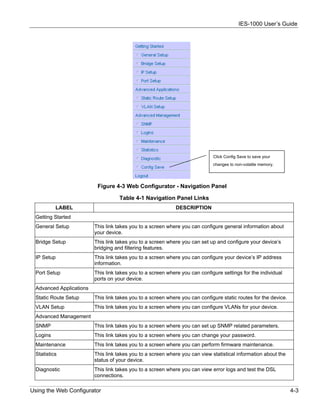
                                                                             Click Config Save to save your
                                                                             changes to non-volatile memory.


                          Figure 4-3 Web Configurator - Navigation Panel

                                    Table 4-1 Navigation Panel Links
          LABEL                                             DESCRIPTION
 Getting Started
 General Setup           This link takes you to a screen where you can configure general information about
                         your device.
 Bridge Setup            This link takes you to a screen where you can set up and configure your device’s
                         bridging and filtering features.
 IP Setup                This link takes you to a screen where you can configure your device’s IP address
                         information.
 Port Setup              This link takes you to a screen where you can configure settings for the individual
                         ports on your device.
 Advanced Applications
 Static Route Setup      This link takes you to a screen where you can configure static routes for the device.
 VLAN Setup              This link takes you to a screen where you can configure VLANs for your device.
 Advanced Management
 SNMP                    This link takes you to a screen where you can set up SNMP related parameters.
 Logins                  This link takes you to a screen where you can change your password.
 Maintenance             This link takes you to a screen where you can perform firmware maintenance.
 Statistics              This link takes you to a screen where you can view statistical information about the
                         status of your device.
 Diagnostic              This link takes you to a screen where you can view error logs and test the DSL
                         connections.

Using the Web Configurator                                                                                       4-3
IES-1000 User’s Guide

                                      Table 4-1 Navigation Panel Links
           LABEL                                               DESCRIPTION
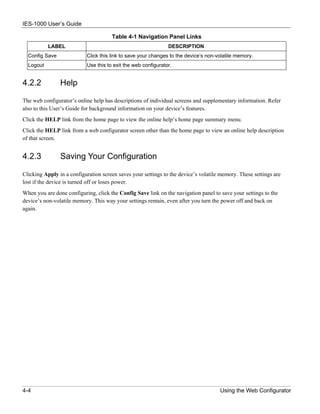
  Config Save              Click this link to save your changes to the device’s non-volatile memory.
  Logout                   Use this to exit the web configurator.


4.2.2           Help

The web configurator’s online help has descriptions of individual screens and supplementary information. Refer
also to this User’s Guide for background information on your device’s features.
Click the HELP link from the home page to view the online help’s home page summary menu.
Click the HELP link from a web configurator screen other than the home page to view an online help description
of that screen.


4.2.3           Saving Your Configuration

Clicking Apply in a configuration screen saves your settings to the device’s volatile memory. These settings are
lost if the device is turned off or loses power.
When you are done configuring, click the Config Save link on the navigation panel to save your settings to the
device’s non-volatile memory. This way your settings remain, even after you turn the power off and back on
again.


4-4                                                                                  Using the Web Configurator
IES-1000 User’s Guide


                                                                          Chapter 5
                                                                   System Commands
                                  This section describes basic configuration and system-related commands.


5.1         Command Line Interface (CI)
The IES-1000 uses text command lines as the user interface for software configuration. Before discussing the
details of configuration, the rules of the commands are listed next.
The command keywords are in courier new font.
    1. The command keywords must be entered exactly as shown, that is, no abbreviations are allowed.
    2. The required fields in a command are enclosed in angle brackets (<>), for instance,
        list port <port #>

        means that you must specify the port number for this command.
    3. The optional fields in a command are enclosed in square brackets ([]), for instance,
        config [save]

        means that the save field is optional.
    4. A “|” means “or”
        [on|off]
        means that you can use either on or off.
    5. “Command” refers to a command used in the command line interface (CI command).

Using commands not documented in this User’s Guide can damage the unit and possibly render
                                      it unusable.


5.2         Console Connection
For the initial configuration, you must use the console port. After the initial setup, you can telnet to the system and
perform additional management tasks. Connect the RJ-11 connector on one end of the RS-232 console cable to the
console port of the network module. Connect the DB-9 connector on the other end of the console cable to a serial
port (COM1, COM2 or other COM port) of your computer. You can use an extension cable if the enclosed one is
too short. After the initial setup, you can modify the configuration remotely through Telnet
You can use any terminal emulation program (Windows’ built-in HyperTerminal for example) with the following
parameters:
    •   VT100 terminal emulation
    •   9600 bps

System Commands                                                                                                      5-1
IES-1000 User’s Guide
      •   No parity, 8 data bits, 1 stop bit
      •   No flow control


5.3           Command Structure
The system uses a two-level command structure. The commands related to one subsystem are grouped under a
primary command of that subsystem, for instance, to configure the Ethernet parameters, you must first enter the
Ethernet subsystem by entering the ethernet command. When you are in a subsystem, the system reminds you
by including the subsystem name in the command prompt, for example,
      192.168.1.1 ethernet>

To get back to the top level prompt from a subsystem, use the home command.

   The remainder of this User’s Guide describes CI Commands that are helpful for configuring
                                       network modules.


5.3.1             Help Facility

The system includes a help facility to provide you with online assistance.
You can issue the help or ? command at any time. The system will display a list of available commands in
response.
You can issue help with a command name to get more details about it, for instance, the command
192.168.1.1> help version

yields
version                                        - show system software version

The system responds with a description of the version command.


5.3.2             Saving Your Configuration

Always remember to save your configuration using the following syntax:
          192.168.1.1> config save

This command saves all system configurations into nonvolatile memory. You must use this command to save any
configurations that you make, otherwise the IES-1000 will return to its default settings when it is restarted.

                       Do not turn off your IES-1000 while saving your configuration.


5.4               Commonly Used Commands
This section shows you commonly used commands.


5-2                                                                                         System Commands
IES-1000 User’s Guide

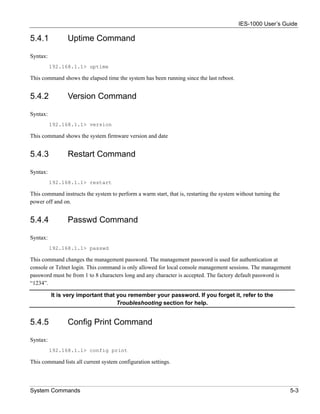
5.4.1           Uptime Command

Syntax:
          192.168.1.1> uptime

This command shows the elapsed time the system has been running since the last reboot.


5.4.2           Version Command

Syntax:
          192.168.1.1> version

This command shows the system firmware version and date


5.4.3           Restart Command

Syntax:
          192.168.1.1> restart

This command instructs the system to perform a warm start, that is, restarting the system without turning the
power off and on.


5.4.4           Passwd Command

Syntax:
          192.168.1.1> passwd

This command changes the management password. The management password is used for authentication at
console or Telnet login. This command is only allowed for local console management sessions. The management
password must be from 1 to 8 characters long and any character is accepted. The factory default password is
“1234”.

          It is very important that you remember your password. If you forget it, refer to the
                                    Troubleshooting section for help.


5.4.5           Config Print Command

Syntax:
          192.168.1.1> config print

This command lists all current system configuration settings.


System Commands                                                                                                 5-3
IES-1000 User’s Guide

5.4.6           Exit Command

Syntax:
          192.168.1.1> exit

This command terminates the console or telnet management session.


5.5             Sys Commands

5.5.1           Info Command

Syntax:
          192.168.1.1 sys> info

This command displays system related information.


5.5.2           Set Name Command

Syntax:
          192.168.1.1 sys> set name <name>

This command allows you to set the name of your IES-1000. The previous setting will be cleared if the command
is entered with the <name> parameter omitted.


5.5.3           Set Contact Command

Syntax:
          192.168.1.1 sys> set contact [<name>]

This command allows you to set the name of the contact person for your IES-1000. The previous setting will be
cleared if the command is entered with the name omitted.


5.5.4           Set Location Command

Syntax:
          192.168.1.1 sys> set location [<name>]

This command allows you to set the location of your IES-1000. The previous setting will be cleared if the
command is entered with the location omitted.


5-4                                                                                           System Commands
IES-1000 User’s Guide

5.5.5           Set Mode Command
   Syntax:
               192.168.1.1 sys> set mode [fast|normal]

   where
               fast      =       Fast makes use of the “tag” subset of the IEEE 802.1Q standard to identify the
                                 source port of a frame and speed traffic through a service gateway.
               normal =          Normal switches frames using a layer 2 switch (IEEE 801.1D) transparent
                                 bridge standard. Use normal mode when you are using a regular gateway.
   This command lets you set the network module into fast or normal mode. Determine which mode you are
   using by entering the info command. Fast mode allows only one port per PVID. Use normal mode and the
   802.1Q VLAN commands (see Chapter 10 ) to configure VLANs or PVIDs with multiple ports.

                    Enable fast mode only when you are using a service gateway.


5.6             Secured Host Commands
Allow up to ten remote administrators to access your IES-1000 via IP addresses you specify.


5.6.1           Secured Host Command
   Syntax:
             192.168.1.1 sys> secured host [<mode>]

   where
             <mode>    =         "enable" or "disable".
                                 If <mode>= disable (default), then anyone may access your IES-1000.
                                 If <mode>= enable, then only those computers with IP addresses specified by
                                 you may access your IES-1000 (refer to the Secured Host Add command).
   This command enables/disables the secured host function. To display current secured host settings, simply
   enter the command secured host.


5.6.2           Secured Host Add Command
  Syntax:
             192.168.1.1 sys> secured host add <host IP>

  where
             <host IP>       =      The IP address of a secured host.
  This command adds the IP address of a secured host. You may add up to ten IP addresses.


System Commands                                                                                                   5-5
IES-1000 User’s Guide

5.6.3          Secured Host Delete Command
   Syntax:
             192.168.1.1 sys> secured host delete <host IP>

   where
             <host IP>     =       The IP address of a secured host.
   This command deletes the IP address of a previously added secured host.

5.7            UNIX Syslog Commands
Use UNIX syslog commands to send logs to your UNIX server. If the DSL link is on or goes down, the IES-1000
will send a log to your UNIX server. The table, shown next, indicates what is logged in each case.

                                  Table 5-1 Logs Sent to Your UNIX Server
                                   DSL LINK ON                  DSL LINK DOWN
                           port number                     port number
                           sequence number                 sequence number
                           rate                            -


                           If your UNIX server is down these logs will be lost.


5.7.1          Syslog Command
   Syntax:
             192.168.1.1 sys> syslog [<mode>]

   where
             <mode>    =     enable or disable.
   This command enables or disables the sending of logs to your UNIX server. Syslog is disabled by default
   (<mode>= disable). A log is sent if <mode>= enable. To display current settings, do not specify a
   <mode>.


5.7.2          Syslog Facility Command
   Syntax:
             192.168.1.1 sys> syslog facility <facility>

   where
             <facility>      =      Local 1 to local 7.
   This command sets the syslog facility for the UNIX system.


5-6                                                                                        System Commands
IES-1000 User’s Guide

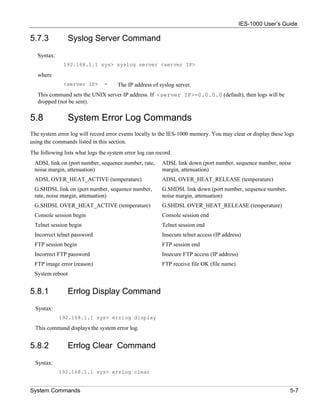
5.7.3            Syslog Server Command
   Syntax:
              192.168.1.1 sys> syslog server <server IP>

   where
              <server IP>       =     The IP address of syslog server.
   This command sets the UNIX server IP address. If <server IP>=0.0.0.0 (default), then logs will be
   dropped (not be sent).


5.8              System Error Log Commands
The system error log will record error events locally to the IES-1000 memory. You may clear or display these logs
using the commands listed in this section.
The following lists what logs the system error log can record.
 ADSL link on (port number, sequence number, rate,       ADSL link down (port number, sequence number, noise
 noise margin, attenuation)                              margin, attenuation)
 ADSL OVER_HEAT_ACTIVE (temperature)                     ADSL OVER_HEAT_RELEASE (temperature)
 G.SHDSL link on (port number, sequence number,          G.SHDSL link down (port number, sequence number,
 rate, noise margin, attenuation)                        noise margin, attenuation)
 G.SHDSL OVER_HEAT_ACTIVE (temperature)                  G.SHDSL OVER_HEAT_RELEASE (temperature)
 Console session begin                                   Console session end
 Telnet session begin                                    Telnet session end
 Incorrect telnet password                               Insecure telnet access (IP address)
 FTP session begin                                       FTP session end
 Incorrect FTP password                                  Insecure FTP access (IP address)
 FTP image error (reason)                                FTP receive file OK (file name)
 System reboot


5.8.1            Errlog Display Command
  Syntax:
             192.168.1.1 sys> errlog display

  This command displays the system error log.


5.8.2            Errlog Clear Command
  Syntax:
             192.168.1.1 sys> errlog clear


System Commands                                                                                                5-7
IES-1000 User’s Guide
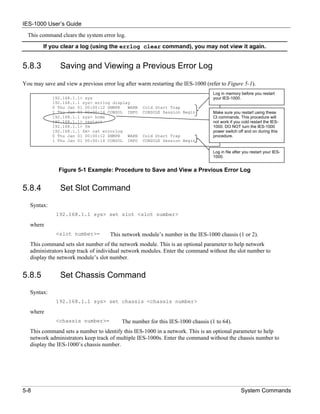
  This command clears the system error log.
        If you clear a log (using the errlog clear command), you may not view it again.


5.8.3           Saving and Viewing a Previous Error Log

You may save and view a previous error log after warm restarting the IES-1000 (refer to Figure 5-1).
                                                                                 Log in memory before you restart
             192.168.1.1> sys                                                    your IES-1000.
             192.168.1.1 sys> errlog display
             0 Thu Jan 01 00:00:12 SNMPR   WARN    Cold Start Trap
             1 Thu Jan 01 00:00:14 CONSOL INFO     CONSOLE Session Begin         Make sure you restart using these
             192.168.1.1 sys> home                                               CI commands. This procedure will
             192.168.1.1> restart                                                not work if you cold restart the IES-
             192.168.1.1> fm                                                     1000. DO NOT turn the IES-1000
             192.168.1.1 fm> cat errorlog                                        power switch off and on during this
             0 Thu Jan 01 00:00:12 SNMPR   WARN    Cold Start Trap               procedure.
             1 Thu Jan 01 00:00:14 CONSOL INFO     CONSOLE Session Begin

                                                                                 Log in file after you restart your IES-
                                                                                 1000.


               Figure 5-1 Example: Procedure to Save and View a Previous Error Log


5.8.4           Set Slot Command
   Syntax:
              192.168.1.1 sys> set slot <slot number>

   where
              <slot number>=         This network module’s number in the IES-1000 chassis (1 or 2).
   This command sets slot number of the network module. This is an optional parameter to help network
   administrators keep track of individual network modules. Enter the command without the slot number to
   display the network module’s slot number.


5.8.5           Set Chassis Command
   Syntax:
              192.168.1.1 sys> set chassis <chassis number>

   where
              <chassis number>=           The number for this IES-1000 chassis (1 to 64).
   This command sets a number to identify this IES-1000 in a network. This is an optional parameter to help
   network administrators keep track of multiple IES-1000s. Enter the command without the chassis number to
   display the IES-1000’s chassis number.


5-8                                                                                              System Commands
IES-1000 User’s Guide


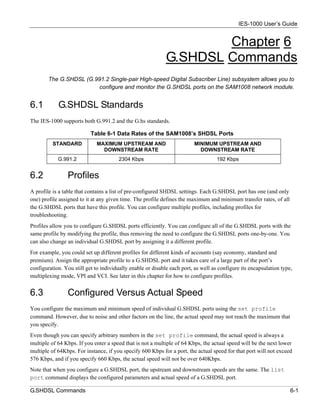
                                                                     Chapter 6
                                                             G.SHDSL Commands
        The G.SHDSL (G.991.2 Single-pair High-speed Digital Subscriber Line) subsystem allows you to
                        configure and monitor the G.SHDSL ports on the SAM1008 network module.


6.1         G.SHDSL Standards
The IES-1000 supports both G.991.2 and the G.hs standards.

                           Table 6-1 Data Rates of the SAM1008’s SHDSL Ports
          STANDARD           MAXIMUM UPSTREAM AND                        MINIMUM UPSTREAM AND
                               DOWNSTREAM RATE                             DOWNSTREAM RATE
            G.991.2                    2304 Kbps                                    192 Kbps


6.2             Profiles
A profile is a table that contains a list of pre-configured SHDSL settings. Each G.SHDSL port has one (and only
one) profile assigned to it at any given time. The profile defines the maximum and minimum transfer rates, of all
the G.SHDSL ports that have this profile. You can configure multiple profiles, including profiles for
troubleshooting.
Profiles allow you to configure G.SHDSL ports efficiently. You can configure all of the G.SHDSL ports with the
same profile by modifying the profile, thus removing the need to configure the G.SHDSL ports one-by-one. You
can also change an individual G.SHDSL port by assigning it a different profile.
For example, you could set up different profiles for different kinds of accounts (say economy, standard and
premium). Assign the appropriate profile to a G.SHDSL port and it takes care of a large part of the port’s
configuration. You still get to individually enable or disable each port, as well as configure its encapsulation type,
multiplexing mode, VPI and VCI. See later in this chapter for how to configure profiles.


6.3             Configured Versus Actual Speed
You configure the maximum and minimum speed of individual G.SHDSL ports using the set profile
command. However, due to noise and other factors on the line, the actual speed may not reach the maximum that
you specify.
Even though you can specify arbitrary numbers in the set profile command, the actual speed is always a
multiple of 64 Kbps. If you enter a speed that is not a multiple of 64 Kbps, the actual speed will be the next lower
multiple of 64Kbps. For instance, if you specify 600 Kbps for a port, the actual speed for that port will not exceed
576 Kbps, and if you specify 660 Kbps, the actual speed will not be over 640Kbps.
Note that when you configure a G.SHDSL port, the upstream and downstream speeds are the same. The list
port command displays the configured parameters and actual speed of a G.SHDSL port.

G.SHDSL Commands                                                                                                     6-1
IES-1000 User’s Guide

6.4          Port Bonding
The port bonding feature allows you to send IP packets over two to four G.SHDSL connections as a single
connection. This can give increased bandwidth in LAN-to-LAN applications between IES-1000s.
You can easily select two to four G.SHDSL ports to bond together. IES-1000 checks the transfer rates of the
individual G.SHDSL ports when they connect. The IES-1000 retrains any of the bonded ports that have a lower
speed up to three times in an attempt to get them to reach the higher speed. If a port does not reach the higher
speed (or at least within a 640 Kbps tolerance of the higher speed) by the third attempt, that port is dropped.
You can bond multiple groups of ports on a single IES-1000 (or even within a single SAM1008 module) as long
as they do not overlap.


6.5          Default Settings
The default profile always exists and all of the G.SHDSL ports belong to it when the SAM1008 is shipped. The
default profile's name is set to DEFVAL.


6.5.1            Default Profile Settings

The following are the settings of the default profile.
      •   Name: DEFVAL
      •   Minimum Transmission Rate: 192 Kbps
      •   Maximum Transmission Rate: 2304 Kbps


6.6          G.SHDSL Commands
The commands related to one subsystem are grouped under a primary command of that subsystem, for instance, to
configure the G.SHDSL parameters, you must first enter the G.SHDSL subsystem by entering the gshdsl
command as shown next.
Syntax:
           192.168.1.1> gshdsl
           192.168.1.1 gshdsl>
When you see the 192.168.1.1 gshdsl> command line prompt, you are ready to enter G.SHDSL
commands. Enter the home command to return to the “192.168.1.1>” prompt.


6.6.1            Config Save Command

Syntax:
          192.168.1.1 gshdsl> config save


6-2                                                                                         G.SHDSL Commands
IES-1000 User’s Guide
This command saves the G.SHDSL configuration into nonvolatile memory. You must use this command to save
any configurations that you make, otherwise the IES-1000 will return to its default settings when it is restarted.

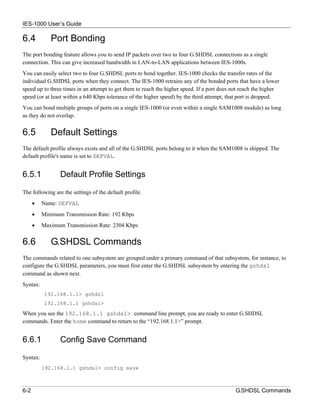
                    Do not turn off your IES-1000 while saving your configuration.


6.6.2           Disable Port Command
  Syntax:
             192.168.1.1 gshdsl> disable port <port #>

  where
             <port #>     =     A port number, from 1 to 8
  This command forcibly disables the specified G.SHDSL port.

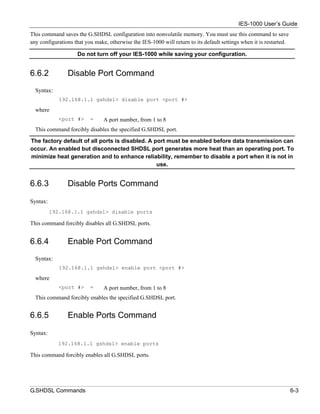
The factory default of all ports is disabled. A port must be enabled before data transmission can
occur. An enabled but disconnected SHDSL port generates more heat than an operating port. To
minimize heat generation and to enhance reliability, remember to disable a port when it is not in
                                                 use.


6.6.3           Disable Ports Command

Syntax:
          192.168.1.1 gshdsl> disable ports

This command forcibly disables all G.SHDSL ports.


6.6.4           Enable Port Command
  Syntax:
             192.168.1.1 gshdsl> enable port <port #>

  where
             <port #>     =     A port number, from 1 to 8
  This command forcibly enables the specified G.SHDSL port.


6.6.5           Enable Ports Command

Syntax:
            192.168.1.1 gshdsl> enable ports

This command forcibly enables all G.SHDSL ports.


G.SHDSL Commands                                                                                                     6-3
IES-1000 User’s Guide

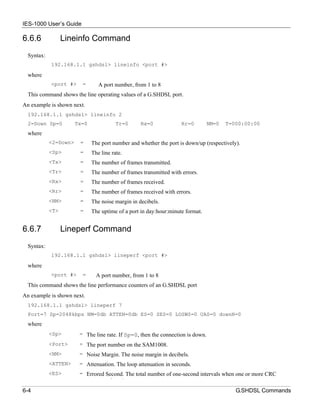
6.6.6             Lineinfo Command
  Syntax:
            192.168.1.1 gshdsl> lineinfo <port #>

  where
            <port #>     =       A port number, from 1 to 8
  This command shows the line operating values of a G.SHDSL port.
An example is shown next.
  192.168.1.1 gshdsl> lineinfo 2
  2=Down Sp=0          Tx=0               Tr=0     Rx=0             Rr=0         NM=0   T=000:00:00
  where
            <2=Down>    =     The port number and whether the port is down/up (respectively).
            <Sp>        =     The line rate.
            <Tx>        =     The number of frames transmitted.
            <Tr>        =     The number of frames transmitted with errors.
            <Rx>        =     The number of frames received.
            <Rr>        =     The number of frames received with errors.
            <NM>        =     The noise margin in decibels.
            <T>         =     The uptime of a port in day:hour:minute format.


6.6.7             Lineperf Command
  Syntax:
            192.168.1.1 gshdsl> lineperf <port #>

  where
            <port #>     =      A port number, from 1 to 8
  This command shows the line performance counters of an G.SHDSL port
An example is shown next.
  192.168.1.1 gshdsl> lineperf 7
  Port=7 Sp=2048kbps NM=0db ATTEN=0db ES=0 SES=0 LOSWS=0 UAS=0 downN=0
  where
            <Sp>        = The line rate. If Sp=0, then the connection is down.
            <Port>      = The port number on the SAM1008.
            <NM>        = Noise Margin. The noise margin in decibels.
            <ATTEN>     = Attenuation. The loop attenuation in seconds.
            <ES>        = Errored Second. The total number of one-second intervals when one or more CRC
                                      f    d
6-4                                                                                        G.SHDSL Commands
IES-1000 User’s Guide
                             errors are found.
            <SES>       = Severely Errored Second. The total number of one-second intervals when at least fifty
                             CRC errors are found.
            <LOSWS>     = Loss of Sync Word Failure Second. Displays the total number of one-second intervals
                             when one or more SHDSL LOSW errors are found.
            <UAS>       = Unavailable Second. The total number of one-second intervals when the G.SHDSL
                             line is unavailable.
            <downN>     = The number of times the G.SHDSL line has been dropped.


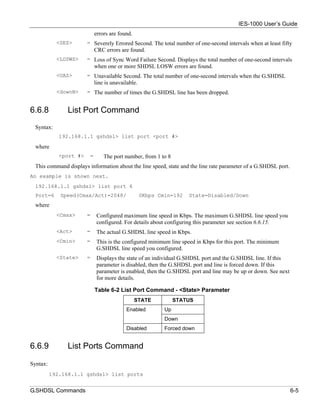
6.6.8          List Port Command
  Syntax:
             192.168.1.1 gshdsl> list port <port #>

  where
             <port #>    =       The port number, from 1 to 8
  This command displays information about the line speed, state and the line rate parameter of a G.SHDSL port.
An example is shown next.
  192.168.1.1 gshdsl> list port 6
  Port=6     Speed(Cmax/Act)=2048/                  0Kbps Cmin=192   State=Disabled/Down
  where
            <Cmax>      =     Configured maximum line speed in Kbps. The maximum G.SHDSL line speed you
                              configured. For details about configuring this parameter see section 6.6.15.
            <Act>       =     The actual G.SHDSL line speed in Kbps.
            <Cmin>      =     This is the configured minimum line speed in Kbps for this port. The minimum
                              G.SHDSL line speed you configured.
            <State>     =     Displays the state of an individual G.SHDSL port and the G.SHDSL line. If this
                              parameter is disabled, then the G.SHDSL port and line is forced down. If this
                              parameter is enabled, then the G.SHDSL port and line may be up or down. See next
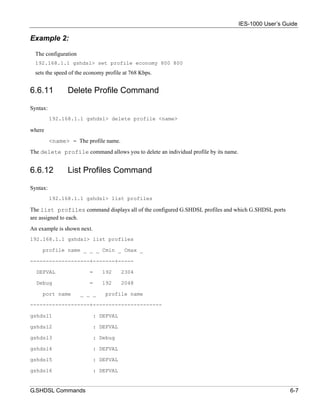
                              for more details.

                             Table 6-2 List Port Command - <State> Parameter
                                                 STATE           STATUS
                                           Enabled          Up
                                                            Down
                                           Disabled         Forced down


6.6.9          List Ports Command

Syntax:
          192.168.1.1 gshdsl> list ports


G.SHDSL Commands                                                                                                 6-5
IES-1000 User’s Guide
This command shows the configured minimum speeds (if applicable), maximum speeds, states and statuses of all
G.SHDSL ports. Here is a description of the various status field messages:
      Failed      =       The system was unable to download firmware to the DSL chipset.
      Dropped    =        The port is a member of a bonded group but was dropped because it could not connect
                          within at least 640 Kbps of the rate of the other bonded ports. Both the central and remote
                          sides of the connection must disable and re-enable the dropped port to attempt to bring up
                          the connection again.
      BondC      =        The port is connected and functioning as part of a central side group of bonded ports. See
                          the Set Central Side Port Bonding Command section.
      BondR      =        The port is connected and functioning as part of remote side group of bonded ports. See
                          the Set Remote Side Port Bonding Command section.
      Normal     =        The port is connected and functioning as a regular (non-bonded) G.SHDSL port.


6.6.10           Set Profile Command

Syntax:
          192.168.1.1 gshdsl> set profile <name> <Cmax> [<Cmin>]

where
        <name>        =      The name of the profile (up to 18 characters except DEFVAL).
        <Cmax>        =      The maximum transmission rate in Kbps.
        <Cmin>        =      The minimum transmission rate in Kbps. This setting is optional. 192 Kbps is the
                             default if you do not configure a value for this parameter. Setting Cmax and Cmin to
                             the same rate fixes the rate for that port.

                Configure <Cmax> and <Cmin> parameters between 192 and 2304 Kbps.


Speed Configuration

Even though you can specify arbitrary numbers for port speeds using the set profile command, the
SAM1008 port speed is always adjusted to be a multiple of 64 Kbps. If you enter a speed that is not a multiple of
64 Kbps, the SAM1008 will use the next lower multiple of 64 Kbps. For instance, if you specify 600 Kbps for a
port, the SAM1008 port will not exceed 576 Kbps; if you specify 660 Kbps, the SAM1008 port will not exceed
640 Kbps. See the examples shown next.

Example 1:

  The configuration
  192.168.1.1 gshdsl> set profile economy 2000 200
  sets the speed for the economy profile between 1984 and 192 Kbps.


6-6                                                                                             G.SHDSL Commands
IES-1000 User’s Guide

Example 2:

  The configuration
  192.168.1.1 gshdsl> set profile economy 800 800
  sets the speed of the economy profile at 768 Kbps.


6.6.11          Delete Profile Command

Syntax:
          192.168.1.1 gshdsl> delete profile <name>

where
          <name> = The profile name.
The delete profile command allows you to delete an individual profile by its name.


6.6.12          List Profiles Command

Syntax:
          192.168.1.1 gshdsl> list profiles

The list profiles command displays all of the configured G.SHDSL profiles and which G.SHDSL ports
are assigned to each.
An example is shown next.
192.168.1.1 gshdsl> list profiles

     profile name _ _ _ Cmin _ Cmax _

-------------------+-------+-----

  DEFVAL                 =    192      2304

  Debug                  =    192      2048

     port name        _ _ _     profile name

-------------------+----------------------

gshdsl1                     : DEFVAL

gshdsl2                     : DEFVAL

gshdsl3                     : Debug

gshdsl4                     : DEFVAL

gshdsl5                     : DEFVAL

gshdsl6                     : DEFVAL


G.SHDSL Commands                                                                                       6-7
IES-1000 User’s Guide
gshdsl7                     : DEFVAL

gshdsl8                     : DEFVAL

This display shows that there are two profiles (DEFVAL and debug) and that port 3 belongs to the debug profile
while ports 1, 2, 4, 5, 6, 7 and 8 belong to the DEFVAL profile.


6.6.13          Show Profile Command

Syntax:
          192.168.1.1 gshdsl> show profile <name>

where
          <name> = A profile name.
The show profile command displays the settings of a G.SHDSL profile.
An example is shown next.
192.168.1.1 gshdsl> show profile debug

      profile name _ _ _ Cmin _ Cmax _

  Debug                  =    192      2048

This display shows that the debug profile’s maximum transmission rate is set to 2048 Kbps and the minimum
transmission rate is set to 192 Kbps.


6.6.14          Show Profiles Command

Syntax:
          192.168.1.1 gshdsl> show profiles

 The show profiles command displays the settings of all the G.SHDSL profiles.


6.6.15          Set Port Command
  Syntax:
             192.168.1.1 gshdsl> set port <port #> <profile name>

  where
             <port #>           =      The number of the port to which you want to assign a profile.
             <profile name> =          The profile that defines the minimum and maximum transfer rates for this
                                       port.
  Enter the list ports command to view the status of all ports.


6-8                                                                                         G.SHDSL Commands
IES-1000 User’s Guide

6.6.16        Set Ports Command
 Syntax:
           192.168.1.1 gshdsl> set ports <profile name>

 where
           <profile name> =        The profile that defines the minimum and maximum transfer rates for this
                                   port.
 This CI command is like the Set Port Command described in section 6.6.15 except that this command
 configures all G.SHDSL ports to have a specified profile. Enter the list ports command to view the status
 of all ports.


6.6.17        Set PVC Command
 Syntax:
           192.168.1.1 gshdsl> set pvc <port #> <multiplexing mode> <tx vpi> <tx vci>
           [<rx vpi> <rx vci>]
 where
           <port #>                    =   A port number, from 1 to 8.
           <multiplexing mode>         =   Either “llc” or “vc"
           <tx vpi>                    =   The VPI setting of the G.SHDSL port for use with a TX based
                                           network.
           <tx vci>                    =   The VCI setting for the G.SHDSL port for use with a TX based
                                           network.
           <rx vpi>                    =   The VPI setting for the G.SHDSL port for use with Rx based
                                           networks.
           <rx vci>                    =   The VCI setting for the G.SHDSL port for use with Rx based
                                           networks.
 The <rx vpi> and <rx vci> settings will be equal to those of <tx vpi> and <tx vci> if the rx
 settings are not configured.
 The set pvc command allows the configuration of a PVC (permanent virtual circuit) for an individual
 G.SHDSL port.


6.6.18        Set PVCs Command
 Syntax:
           192.168.1.1 gshdsl> set pvcs <multiplexing mode> <tx vpi> <tx vci> [<rx
           vpi> <rx vci>]
 where
           <multiplexing mode>=            Either “llc” or “vc”.
           <tx vpi>                =       The VPI setting of the G.SHDSL ports for use with a TX based
                                           network.

G.SHDSL Commands                                                                                              6-9
IES-1000 User’s Guide
             <tx vci>                =      The VCI setting for the G.SHDSL ports for use with a TX based
                                            network.
             <rx vpi>                =      The VPI setting for the G.SHDSL ports for use with Rx based
                                            networks.
             <rx vpi>                =      The VCI setting for the G.SHDSL ports for use with Rx based
                                            networks.
  The <rx vpi> and <rx vci> settings will be equal to those of <tx vpi> and <tx vci> if the rx
  settings are not configured.
  The set pvcs command allows you to configure a single PVC for all of the G.SHDSL ports at once.


6.6.19         Show PVC Command
  Syntax:
             192.168.1.1 gshdsl> show pvc <port #>

  where
             <port #>   =     A port number, from 1 to 8.
  This command allows you to display the PVC parameters of an individual G.SHDSL port


6.6.20          Show PVCs Command

Syntax:
          192.168.1.1 gshdsl> show pvcs

This command allows you to display the PVC parameters of all G.SHDSL ports.


6.6.21          Display All G.SHDSL Line Information
  Syntax:
             192.168.1.1 gshdsl> monitor [<start port> [<stop port>]]
  where
             <start port>        =       The first port number in a range of ports for which you want to display
                                         line information. 1 is used if you leave this blank.
             <stop port>         =       The last port number in a range of ports for which you want to display
                                         line information. 8 is used if you leave this blank.
  This command displays all G.SHDSL line information. Information is updated every five seconds. Press any
  key and then press [ENTER] to stop updating information. Use monitor without any port numbers to display
  line information for every port.


6.6.22         Set Central Side Port Bonding Command
  Syntax:

6-10                                                                                      G.SHDSL Commands
IES-1000 User’s Guide
           192.168.1.1 gshdsl> set bondc <ports list>

 where
           <ports list>              =       Two to four G.SHDSL ports.
 This command bonds the listed ports into a single port for the STU-C (SHDSL Termination Unit – Central).
 One IES-1000 must be set to be the central side and the other must be set to be the remote side. Configure both
 with the same number of ports set to connect to the other IES-1000 and bonded.
 You can bond multiple groups of ports as long as they do not overlap. One SAM1008 module can have both
 STU-C and STU-R groups.
 An example is shown next.
 192.168.1.1 gshdsl> set bondc 2 3 7 8
 This bonds ports 2, 3, 7 and 8 together into a logical link and sets this IES-1000 to be the STU-C.
 Make sure you set all of the bonded ports to have the same PVID see 10.6.3 PVID Command.


6.6.23         Set Remote Side Port Bonding Command
 Syntax:
           192.168.1.1 gshdsl> set bondr <ports list>

 where
           <ports list>              =       Two to four G.SHDSL ports.
 This command bonds the listed ports into a single port for the STU-R (SHDSL Termination Unit – Remote).
 One IES-1000 must be set to be the central side and the other must be set to be the remote side. Configure both
 with the same number of ports set to connect to the other IES-1000 and bonded.
 You can bond multiple groups of ports as long as they do not overlap. One SAM1008 module can have both
 STU-C and STU-R groups.
 An example is shown next.
 192.168.1.1 gshdsl> set bondr 2 3 7 8
 This bonds ports 2, 3, 7 and 8 together into a logical link and sets this IES-1000 to be the STU-R.
 Make sure you set all of the bonded ports to have the same PVID see 10.6.3 PVID Command.


6.6.24         Delete Port Bonding Command
 Syntax:
           192.168.1.1 gshdsl> delete bond <ports list>

 where
           <ports list>              =       Two to four G.SHDSL ports.


G.SHDSL Commands                                                                                              6-11
IES-1000 User’s Guide
 This command removes the bond for the listed ports. You must list all the ports that are bonded together. For
 example, if ports 2, 3, 7 and 8 are bonded together, you must list 2, 3, 7 and 8; a command with only ports 2, 3
 and 7 would have no effect.
 An example is shown next.
 192.168.1.1 gshdsl> delete bond 2 3 7 8
 This removes the bond for ports 2, 3, 7 and 8 so they function as individual ports as opposed to being part of
 one logical link.


6.6.25         List Bonded Ports Command
 Syntax:
           192.168.1.1 gshdsl> list bond

 The list bond command displays all of the bonded ports.
 An example is shown next.
 192.168.1.1 gshdsl> list bond
 Bond STU-R Group1 - 2 3 7 8
 This displays the ports that have been bound together in order to form a logical link.


6-12                                                                                        G.SHDSL Commands
IES-1000 User’s Guide


                                                                            Chapter 7
                                                                       ADSL Commands
   The ADSL (Asymmetrical Digital Subscriber Line) subsystem allows you to configure and monitor the
                                                       ADSL ports on the AAM1008 network module.


7.1         ADSL Standards
The AAM1008 supports both the G.lite and the G.dmt standards. G.lite is intended to minimize the cost for the
consumer market.

                   Table 7-1 Maximum Transfer Rates of the AAM1008’s ADSL Ports
            STANDARD                       MAXIMUM DOWNSTREAM                         MAXIMUM UPSTREAM
  G.dmt                                             8160 Kbps                                1024 Kbps
  G.dmt Annex B                                     8160 Kbps                                1024 Kbps
  G.lite                                            1536 Kbps                                 512 Kbps
  ANSI T1.413 issue 2                               8160 Kbps                                1024 Kbps


7.2             Profiles
A profile is a table that contains a list of pre-configured ADSL settings. Each ADSL port has one (and only one)
profile assigned to it at any given time. The profile defines the maximum and minimum upstream/downstream
rates, the target upstream/downstream signal noise margins, and the maximum and minimum
upstream/downstream acceptable noise margins of all the ADSL ports that have this profile. You can configure
multiple profiles, including profiles for troubleshooting.
Profiles allow you to configure ADSL ports efficiently. You can configure all of the ADSL ports with the same
profile by modifying the profile, thus removing the need to configure the ADSL ports one-by-one. You can also
change an individual ADSL port by assigning it a different profile.
For example, you could set up different profiles for different kinds of accounts (say economy, standard and
premium). Assign the appropriate profile to an ADSL port and it takes care of a large part of the port’s
configuration. You still get to individually enable or disable each port, as well as configure its encapsulation type,
multiplexing mode, VPI, VCI and operational mode. See later in this chapter for how to configure profiles.


7.3             Configured Vs. Actual Rate
You configure the maximum rate of an individual ADSL port by modifying its profile (see the set profile
command) or assigning the port to a different profile (see the set port command). However, due to noise and
other factors on the line, the actual rate may not reach the maximum that you specify.


ADSL Commands                                                                                                        7-1
IES-1000 User’s Guide
Even though you can specify arbitrary numbers in the set profile command, the actual rate is always a
multiple of 32 Kbps. If you enter a rate that is not a multiple of 32 Kbps, the actual rate will be the next lower
multiple of 32Kbps. For instance, if you specify 60 Kbps for a port, the actual rate for that port will not exceed 32
Kbps, and if you specify 66 Kbps, the actual rate will not be over 64Kbps.
Note that when you configure an ADSL port, the upstream rate must be less than or equal to the downstream rate.
Note also that the list port command displays the configured parameters of the ADSL port, while the show
port command displays the actual rates.


7.4           Default Settings
The default profile always exists and all of the ADSL ports belong to it when the AAM1008 is shipped. The
default profile's name is set to DEFVAL. The default profile’s maximum downstream rate can only be obtained
when using the G.dmt standard. Configure a profile with a maximum downstream rate of 1536 Kbps or less for
use with G.lite.


7.4.1             Default Profile Settings

The following are the settings of the default profile.
      •   Name: DEFVAL
      •   Profile Status: Active
Downstream ADSL settings:
      •   Target Signal/Noise Rate: 6 db
      •   Maximum Signal/Noise Rate: 31 db
      •   Minimum Signal/Noise Rate: 0 db
      •   Minimum Transmission Rate: 32 Kbps
      •   Maximum Transmission Rate: 2048 Kbps
Upstream ADSL settings:
      •   Target Signal/Noise Rate: 6 db
      •   Maximum Signal/Noise Rate: 31 db
      •   Minimum Signal/Noise Rate: 0 db
      •   Minimum Transmission Rate: 32 Kbps
      •   Maximum Transmission Rate: 512 Kbps


7.4.2             Other Default Settings

The factory default settings for all ADSL ports of the AAM1008 are
      •   Encapsulation: RFC 1483

7-2                                                                                                ADSL Commands
IES-1000 User’s Guide
   •      Multiplexing: LLC-based
   •      VPI : 0
   •      VCI : 33
   •      Enable/Disable State: disabled
   •      Operational mode: auto


7.5           ADSL Commands

7.5.1               Config Save Command

Syntax:
          192.168.1.1 adsl> config save
The config save command saves the ADSL configuration into nonvolatile memory.


7.5.2               Disable Port Command

Syntax:
          192.168.1.1 adsl> disable port <port number>

where
          <port number> = port number, from 1 to 8.
The disable port command forcibly disables the specified ADSL port.

The factory default of all ports is disabled. A port must be enabled before data transmission can
occur. An enabled but disconnected ADSL port generates more heat than an operating port. To
minimize heat generation and to enhance reliability, remember to disable a port when it is not in
                                                 use.


7.5.3               Disable Ports Command

Syntax:
          192.168.1.1 adsl> disable ports

The disable ports command forcibly disables all ADSL ports.

The factory default of all ports is disabled. A port must be enabled before data transmission can
occur. An enabled but disconnected ADSL port generates more heat than an operating port. To
minimize heat generation and to enhance reliability, remember to disable a port when it is not in
                                                 use.


ADSL Commands                                                                                     7-3
IES-1000 User’s Guide

7.5.4           Enable Port Command

Syntax:
          192.168.1.1 adsl> enable port <port number>

where
          <port number> = A port number, from 1 to 8.
The enable port command forcibly enables the specified ADSL port.

The factory default of all ports is disabled. A port must be enabled before data transmission can
occur. An enabled but disconnected ADSL port generates more heat than an operating port. To
minimize heat generation and to enhance reliability, remember to disable a port when it is not in
                                                 use.


7.5.5           Enable Ports Command

Syntax:
          192.168.1.1 adsl> enable ports

The enable ports command forcibly enables all ADSL ports.

The factory default of all ports is disabled. A port must be enabled before data transmission can
occur. An enabled but disconnected ADSL port generates more heat than an operating port. To
minimize heat generation and to enhance reliability, remember to disable a port when it is not in
                                                 use.


7.5.6           Linedata Command

Syntax:
          192.168.1.1 adsl> linedata <port number>

where
          <port number> = A port number, from 1 to 8.
The linedata command shows the line bit allocation of an ADSL port.
An example is shown next.
192.168.1.1 adsl> linedata 7
DS carrier load: number of bits per symbol(tone):

tone       0- 31:   0   0   0   0   0   0   0   0   0   0   0   0   0   0   0   0

tone      32- 63:   0   0   0 22 22 33 33 33 33 33 33 44 33 44 44 44

tone      64- 95:   4 44 44 43 43 33 34 44 33 44 44 34 44 43 33 44

7-4                                                                                 ADSL Commands
IES-1000 User’s Guide
tone      96-127: 44 43 34 44 44 33 43 44 44 34 44 44 33 44 44 44

tone 128-159: 44 44 44 34 44 34 43 44 33 43 34 33 33 33 33 34

tone 160-191: 43 33 33 34 34 33 23 33 33 33 22 33 33 33 33 33

tone 192-223: 33 33 33 23 22 33 33 33 23 33 33 33 22 23 22 32

tone 224-255: 22 22 22 22 20 22 22 22 20                  0       0   0   0   0   0   0

US carrier load: number of bits per symbol(tone)

tone       0- 31:    0   0   0   0   2 34 55 77 88 89 99 99 99 98 88 87

tone      32- 63:    0   0   0   0   0    0   0   0   0   0       0   0   0   0   0   0

The results can determine whether a given sub-carrier loop has sufficient margins to support ADSL transmission
rates, and possibly to determine whether certain specific types of interference or line attenuation exist.
The bit allocation contents are only valid when the link is up.


7.5.7           Lineinfo Command

Syntax:
          192.168.1.1 adsl> lineinfo <port number>

where
          <port number> = A port number, from 1 to 8.
The lineinfo command shows the line operating values of an ADSL port.
An example is shown next.
192.168.1.1 adsl> lineinfo 7

Current Operating Modes:

     Data Mode: ATM           Service Type in operation: G.DMT

     Number of Channels (Down/up stream): 1/1

     Downstream Framing Structure                     : 3

     Active down/up stream rate option                : 1/1

     TRELLIS operation mode is                        : ON

Current Connection detail:

     Down/up stream interleaved Delay :                 4/ 4 ms

     Downstream Parity byte assigned to fast/interleaved : 0/ 2

     Upstream        Parity byte assigned to fast/interleaved : 0/ 2

     Downstream Symbols assigned to fast/interleaved                              : 0/ 1

     Upstream        Symbols assigned to fast/interleaved                         : 0/ 1


ADSL Commands                                                                                                    7-5
IES-1000 User’s Guide
      Down/up stream Depth value                   :    2/ 2

      Total Transceiver Output Power               :    8dB

Current ATUR Information:

      Country code 0

      Provider Code 01020304

      Capabilities:

            g.dmt    POTS overlap (Annex A)

The results contain the operating modes, interleave delay, parity byte assignment and parity bytes per codeword,
symbols per codeword and interleave depth. Current ATUR Information contains data acquired from the
ATUR (stands for ADSL Termination Unit – Remote, in this case the subscriber’s ADSL modem or router)
during negotiation/provisioning message interchanges. It includes the Vendor ID and Version Number obtained
from Vendor ID fields (g.994.1) or R-MSGS1(T1.413) and country code from Vendor ID (g.994.1).
Information obtained prior to training to steady state transition will not be valid or will be old information. Annex
A refers to POTS.


7.5.8           Lineperf Command

Syntax:
          192.168.1.1 adsl> lineperf <port number>

where
          <port number> = A port number, from 1 to 8.
The lineperf command shows the line performance counters of an ADSL port.
An example is shown next.
192.168.1.1 adsl> lineperf 7

 nfebe-I/nfebe-ni                             : 0/0

 ncrc-I/ncrc-ni                               : 0/0

 nfecc-I/nfecc-ni                             : 0/0

 nfec-I/nfec-ni                               : 0/0

 nblks-ds/nblks-us                            : 120878/120878

 nsec-ds/nsec-us                              : 2060/2060

 n-eb-ds/n-eb-us                              : 0/0

 n-bbe-ds/n-bbe-us                            : 0/0

 n-es-ds/n-es-us                              : 0/0

 n-ses-ds/n-ses-us                            : 0/0


7-6                                                                                                ADSL Commands
IES-1000 User’s Guide
 non-ses-blks-ds/non-ses-blks-us : 120878/120878

 n-uas-ds/n-uas-us                            : 0/0

 fe_loss_seconds/ne_loss_seconds : 0/0

 fe_fec_seconds/ne_fec_seconds                : 0/0

 fast_trains                                  : 0

 fast_trains_fail                             : 0

These counts contain line performance data that has been accumulated since the system started. In the list above
the definitions of near end/far end will always be relative to the ATU-C (ADSL Termination Unit-Central Office).
Downstream (ds) refers to data from the ATU-C and upstream (us) refers to data from the ATU-R.


7.5.9            Linerate Command

Syntax:
          192.168.1.1 adsl> linerate <port number>

where
          <port number> = A port number, from 1 to 8.
The linerate command shows the line rate parameters of an ADSL port.
An example is shown next.
192.168.1.1 adsl> linerate 7

Current Active Rates:

     AS0 downstream rate                            : 2048 Kbps

     AS1 downstream rate                            : 0 Kbps

     LS0 upstream         rate                      : 512 Kbps

     LS1 upstream         rate                      : 0 Kbps

     Down/up stream Margin                          : 31/22 dB

     Down/up stream Attenuation                     : 0/ 0 dB

     Attainable Down/up stream Rate                 : 11456/ 1344 Kbps

These results contain the current downstream and upstream operating values (SHOWTIME) for the requested line,
the latest available downstream and upstream margins, channel attenuation and the maximum attainable rate.
Downstream and upstream margins must both be at least 6 dB. The initial downstream and upstream margins are
first set during training. The upstream margin is recalculated every 15 seconds during “show time” at the ATU-C
and the downstream margin updates every 15 seconds during “show time” by using EOC messaging.
Information obtained prior to training to steady state transition will not be valid or will be old information.


ADSL Commands                                                                                                     7-7
IES-1000 User’s Guide

7.5.10          List Port Command

Syntax:
          192.168.1.1 adsl> list port <port number>

where
          <port number> = A port number, from 1 to 8.
The list port command shows the configured maximum upstream/downstream rates, the mode (or standard),
and enable/disable state of an individual ADSL port.


7.5.11          List Ports Command

Syntax:
          192.168.1.1 adsl> list ports
The list ports command shows the configured maximum rates, modes and states of all ADSL ports.


7.5.12          Set Profile Command

Syntax:
          192.168.1.1 adsl> set profile <name> <atur max rate > <atuc max rate> [<atur
          ...> <atuc ...>]

            <atux ...> = <target margin> <min margin> <max margin> <min rate>

where
          <name>                 =     The name of the profile (up to 32 characters).
          <atur max rate>        =     The maximum ADSL upstream transmission rate.
          <atuc max rate>        =     The maximum ADSL downstream transmission rate.
          <atur target margin> =       The target ADSL upstream signal/noise margin (0-31db).
          <atuc target margin> =       The target ADSL downstream signal/noise margin (0-31db).
          <atur min margin>      =     The minimum acceptable ADSL upstream signal/noise margin (0-
                                       31db).
          <atuc min margin>      =     The minimum acceptable ADSL downstream signal/noise margin (0-
                                       31db).
          <atur max margin>      =     The maximum acceptable ADSL upstream signal/noise margin (0-
                                       31db).
          <atuc max margin>      =     The maximum acceptable ADSL downstream signal/noise margin (0-
                                       31db).
          <atur min rate>        =     The minimum ADSL upstream transmission rate in Kbps.
          <atuc min rate>        =     The minimum ADSL downstream transmission rate in Kbps.

7-8                                                                                     ADSL Commands
IES-1000 User’s Guide
ATU-C (atuc) stands for ADSL Termination Unit-Central and refers to downstream transmission and ATU-R
(atur) stands for ADSL Termination Unit-Remote and refers to upstream transmission.
The profile is a table that contains information on ADSL line configuration. Each entry in this table reflects a
parameter defined by a manager, which can be used to configure the ADSL line.
Note that the default value will be used for any of the above fields that are omitted.
The upstream rate must be less than or equal to the downstream rate.
Even though you can specify arbitrary numbers in the set profile command, the actual rate is always a
multiple of 32 Kbps. If you enter a rate that is not a multiple of 32 Kbps, the actual rate will be the next lower
multiple of 32Kbps. For instance, if you specify 60 Kbps for a port, the actual rate for that port will not exceed 32
Kbps, and if you specify 66 Kbps, the actual rate will not be over 64Kbps.
An example is shown next.
192.168.1.1 adsl> set profile debug 800 8000

This command sets the maximum upstream transmission rate to 800 kbps and the maximum downstream
transmission rate to 8000 kbps. None of the other settings are changed


7.5.13          Delete Profile Command

Syntax:
          192.168.1.1 adsl> delete profile <name>

where
          <name> = A profile name.
The delete profile command allows you to delete an individual profile by its name.


7.5.14          List Profiles Command

Syntax:
          192.168.1.1 adsl> list profiles

The list profiles command displays all of the ADSL ports and that profile is assigned to each one.
An example is shown next.
192.168.1.1 adsl> list profiles

Profile 1 : DEFVAL

Profile 2 : debug


Port 1, Profile : DEFVAL

Port 2, Profile : DEFVAL


ADSL Commands                                                                                                       7-9
IES-1000 User’s Guide
Port 3, Profile : DEFVAL

Port 4, Profile : debug

Port 5, Profile : DEFVAL

Port 6, Profile : DEFVAL

Port 7, Profile : DEFVAL

Port 8, Profile : DEFVAL

This display shows that there are two profiles (DEFVAL and debug) and that port 4 belongs to the debug profile
while ports 1, 2, 3, 5, 6, 7 and 8 belong to the DEFVAL profile.


7.5.15           Show Profile Command

Syntax:
          192.168.1.1 adsl> show profile <name>

where
          <name> = A profile name.
The show profile command displays the settings of an ADSL profile.
An example is shown next.
192.168.1.1 adsl> show profile debug

#Entry type : adslLineConfProfileEntry

ConfProfileName : debug

AtucConfTargetSnrMgn : 6 db

AtucConfMaxSnrMgn : 31 db

AtucConfMinSnrMgn : 0 db

AtucChanConfInterleaveMinTxRate : 32 Kbps

AtucChanConfInterleaveMaxTxRate : 8000 Kbps

AturConfTargetSnrMgn : 6 db

AturConfMaxSnrMgn : 31 db

AturConfMinSnrMgn : 0 db

AturChanConfInterleaveMinTxRate : 32 Kbps

AturChanConfInterleaveMaxTxRate : 800 Kbps

ConfProfileRowStatus : active(1)

This display shows that the maximum upstream transmission rate is set to 800 kbps and the maximum
downstream transmission rate is set to 8000 kbps. The ConfProfileRowStatus displays active; this
means that the profile is available for use. It does not mean that the profile has been applied to any of the ports.

7-10                                                                                                 ADSL Commands
IES-1000 User’s Guide
Please refer to the set port command for information on assigning profiles to ports or the list profiles
command for information on how to list the profiles


7.5.16          Show Profiles Command

Syntax:
          192.168.1.1 adsl> show profiles

 The show profiles command displays the settings of all the ADSL profiles.


7.5.17         Set Port Command

Syntax:
          192.168.1.1 adsl> set port <port number> <profile name> <oper mode>

where
          <port number>      =   Port number ranging from 1 to 8.
          <profile name> =       The profile that will define the settings of this port.
          <oper mode>        =   The operational mode. Choose from glite, gdmt, t1413 or auto for
                                 Annex A. Choose from anxb or auto for Annex B.
The set port command assigns a specific profile to an individual port and sets the port’s mode (or standard).
The profile defines the maximum and minimum upstream/downstream rates, the target upstream/downstream
signal noise margins, and the maximum and minimum upstream/downstream acceptable noise margins of all the
ADSL ports to which you assign the profile.
The mode parameter specifies the standard that this port is allowed. When set to auto, the AAM1008 follows
whatever mode is set on the other end of the line. Annex A refers to ADSL over POTS and Annex B refers to
ADSL over ISDN.

 When the mode is set to auto and the negotiated mode is G.lite, if the configured rates exceed
  those allowed by G.lite, the actual rates are governed by G.lite, regardless of the configured
                                             numbers.

An example is shown next.
192.168.1.1 adsl> set port 4 debug auto

This command sets ADSL port 4 to have the debug profile. The results of this command are reflected when you
use the list profiles command.


7.5.18         Set Ports Command

Syntax:
          192.168.1.1 adsl> set ports <profile name> <oper mode>


ADSL Commands                                                                                                 7-11
IES-1000 User’s Guide
where
          <profile name> =        The profile that will define the settings of this port.
          <oper mode>         =   Operational mode. Choose from glite, gdmt, t1413 or auto for Annex
                                  A. Choose from anxb or auto for Annex B.
The set ports command assigns a specific profile to all of the ADSL ports and sets all of the ports to one
mode, or standard. The profile defines the maximum and minimum upstream/downstream rates, the target
upstream/downstream signal noise margins, and the maximum and minimum upstream/downstream acceptable
noise margins of all the ADSL ports.
The mode parameter specifies the standard that this port is allowed. When set to auto, the AAM1008 follows
whatever mode is set on the other end of the line.

 When the mode is set to auto and the negotiated mode is G.lite, if the configured rates exceed
  those allowed by G.lite, the actual rates are governed by G.lite, regardless of the configured
                                             numbers.


7.5.19          Show Port Command

Syntax:
          show port <port number>

where
          <port number> = A port number, from 1 to 8.
The show port command shows the line status (up or down), the actual upstream/downstream rates and mode of
an individual ADSL port.


7.5.20          Show Ports Command

Syntax:
          192.168.1.1 adsl> show ports
The show ports command shows the line status (up or down), the actual upstream/downstream rates and the
mode of all ADSL ports.


7.5.21          Set PVC Command

Syntax:
          192.168.1.1 adsl> set pvc <port number> <multiplexing mode> <tx vpi>
          <tx vci> [<rx vpi> <rx vci>]

where
   <port number>                  =   A port number, from 1 to 8.


7-12                                                                                          ADSL Commands
IES-1000 User’s Guide
   <multiplexing mode> =           Either “llc” or “vc"
   <tx vpi>                    =   The VPI setting of the ADSL port for use with a Tx based network
   <tx vci>                    =   The VCI setting for the ADSL port for use with a Tx based network
   <rx vpi>                    =   The VPI setting for the ADSL port for use with Rx based networks
   <rx vci>                    =   The VCI setting for the ADSL port for use with Rx based networks
The <rx vpi> and <rx vci> settings will be equal to those of <tx vpi> and <tx vci> if the rx
settings are not configured.
The set pvc command allows the configuration of a PVC (permanent virtual circuit) for an individual ADSL
port.


7.5.22          Set PVCs Command

Syntax:
          192.168.1.1 adsl> set pvcs <multiplexing mode> <tx vpi> <tx vci> [<rx
          vpi> <rx vci>]

where
          multiplexing mode = either “llc” or “vc”
          <tx vpi>        = The VPI setting of the ADSL ports for use with a Tx based network
          <tx vci>        = The VCI setting for the ADSL ports for use with a Tx based network
          <rx vpi>        = The VPI setting for the ADSL ports for use with Rx based networks
          <rx vpi>        = The VCI setting for the ADSL ports for use with Rx based networks
The <rx vpi> and <rx vci> settings will be equal to those of <tx vpi> and <tx vci> if the rx
settings are not configured.
The set pvcs command allows you to configure a single PVC for all of the ADSL ports at once.


7.5.23          Show PVC Command

Syntax:
          192.168.1.1 adsl> show pvc <port number>

where
          <port number>     = A port number, from 1 to 8.
The show pvc command allows you to display the PVC parameters of an individual ADSL port.


ADSL Commands                                                                                          7-13
IES-1000 User’s Guide

7.5.24          Show PVCs command

Syntax:
          192.168.1.1 adsl> show pvcs

The show pvcs command allows you to display the PVC parameters of all ADSL ports.


7-14                                                                                ADSL Commands
IES-1000 User’s Guide


                                       Chapter 8
            10/100M Fast Ethernet Port Commands
             The Ethernet subsystem allows you to configure and monitor the 10/100M fast Ethernet port.


8.1          10/100M Auto-Sensing Ethernet
The IES-1000 supports 10/100Mbps auto-negotiating Ethernet. There are two factors related to the connection of
two Ethernet ports: speed and duplex mode. In a 10/100Mbps fast Ethernet, the speed can be 10Mbps or 100Mbps
and the duplex mode can be half duplex or full duplex. The auto-negotiation capability makes one Ethernet port
able to negotiate with a peer automatically to obtain the optimal connection speed and duplex mode.
When auto-negotiation is turned on, the Ethernet port of the IES-1000 negotiates with the peer Ethernet port on
the Ethernet cable automatically to determine the optimal connection speed and duplex mode. If the peer Ethernet
port does not support auto-negotiation or turns off this feature, the IES-1000 determines the connection speed by
detecting the signal on the cable and using half duplex mode. When the IES-1000’s auto-negotiation is turned off,
the Ethernet port uses the pre-configured speed and duplex mode settings when making a connection, thus
requiring you to check the settings of the peer Ethernet port in order to connect.


8.2          Ethernet Commands

8.2.1           Set Auto Command

Syntax:
          192.168.1.1 ethernet> set auto <on|off>

where
          <on|off>    = on or off

This command sets the auto-negotiation of the Ethernet port to either on or off.


8.2.2           Set Duplex Command

Syntax:
          192.168.1.1 ethernet> set duplex <mode>

where
          <mode>   = full or half

This command sets the duplex mode used when auto-negotiation is turned off.


10/100M Fast Ethernet Port Commands                                                                             8-1
IES-1000 User’s Guide

8.2.3           Set Speed Command

Syntax:
          192.168.1.1 ethernet> set speed <speed>

where
          <speed>   = 10 or 100

This command sets the connection speed used when auto-negotiation is turned off. 10 stands for 10Mbps and
100 stands for 100Mbps.


8.2.4           Status Command

Syntax:
          192.168.1.1 ethernet> status

This command shows the current status of the Ethernet port.


8-2                                                                  10/100M Fast Ethernet Port Commands
IES-1000 User’s Guide


                                                                           Chapter 9
                                                                    Bridge Commands
       This chapter discusses the bridge subsystem. It allows you to configure and monitor the bridging,
                  configure MAC filters, port-based VLANs and tagged frame functions of the IES-1000.

The IES-1000 supports IEEE 802.1D transparent bridging; but not the static filtering feature or spanning tree
protocol. The bridge learns the source MAC addresses of sender hosts by inspecting incoming Ethernet frames
and recording the learned MAC addresses with their incoming port numbers into its filtering database. Based on
the database, the bridge forwards each incoming frame to its destination port.


9.1             IGMP Snooping
Traditionally, IP packets are transmitted in one of either two ways - Unicast (1 sender to 1 recipient) or Broadcast
(1 sender to everybody on the network). Multicast delivers IP packets to just a group of hosts on the network.
IGMP (Internet Group Multicast Protocol) is a session-layer protocol used to establish membership in a multicast
group - it is not used to carry user data. Refer to RFC 1112 and RFC 2236 for information on IGMP versions 1
and 2 respectively.
A layer-2 switch can passively snoop on IGMP Query, Report and Leave (IGMP version 2) packets transferred
between IP multicast routers/switches and IP multicast hosts to learn the IP multicast group membership. It checks
IGMP packets passing through it, picks out the group registration information, and configures multicasting
accordingly.
Without IGMP snooping, multicast traffic is treated in the same manner as broadcast traffic, that is, it is forwarded
to all ports. With IGMP snooping, group multicast traffic is only forwarded to ports that are members of that
group. IGMP Snooping generates no additional network traffic, allowing you to significantly reduce multicast
traffic passing through your switch.


9.2         Bridge Port Numbers
The bridge subsystem of the IES-1000 defines its own numbering convention for ports.

   The bridge has a total of nine ports: bridge port 1 stands for the Ethernet port, bridge port 2
              stands for DSL port 1, bridge port 3 stands for DSL port 2, and so on.

Be sure you have clarified the relation between bridge ports and DSL ports.


Bridge Commands                                                                                                    9-1
IES-1000 User’s Guide

9.3             Basic Commands

9.3.1           Config Save Command
  Syntax:
            192.168.1.1 bridge> config save

  This command saves the bridge configuration into nonvolatile memory. You must use this command to save
  any configurations that you make, otherwise the IES-1000 will return to its default settings when it is restarted.

                    Do not turn off your IES-1000 while saving your configuration.


9.3.2           Device Command
  Syntax:
             192.168.1.1 bridge> device

  This command shows information on all bridge ports.


9.3.3           Status Command
  Syntax:
            192.168.1.1 bridge> status

  This command displays the bridge status.


9.4             MAC filter Commands
Use MAC filter commands to filter incoming frames based on MAC (Media Access Control) address(es) that you
specify. If you do not use this command, your IES-1000 will not filter frames. MAC filter commands are listed
next. You may specify up to five MAC addresses per port.


9.4.1           MAC filter Command
  Syntax:
            192.168.1.1 bridge> macfilter [<port>]

  where
            port    =      A bridge port number.
  This command displays the MAC filtering status and the fixed source MAC addresses on a port or on all ports
  if no port is specified.


9-2                                                                                               Bridge Commands
IES-1000 User’s Guide

9.4.2          MAC filter Enable Command
 Syntax:
           192.168.1.1 bridge> macfilter enable [<port>]

 where
           <port>     =      A bridge port number.
 This command enables the MAC filtering feature on a specific port or on all ports if no port is specified.


9.4.3          MAC filter Disable Command
 Syntax:
           192.168.1.1 bridge> macfilter disable [<port>]

 where
           <port>     =      A bridge port number.
 This command disables the MAC filtering feature on a specific port or on all ports if no port is specified.


9.4.4          MAC filter Add Command
 Syntax:
           192.168.1.1 bridge> macfilter add <port> <mac>

 where
           <port>     =     A bridge port number.
           <mac>      =     The source MAC address in "00:a0:c5:12:34:56" format.
 This command adds a source MAC address fixed on a specified port. You may add up to five MAC addresses.


9.4.5          MAC filter Delete Command
 Syntax:
           192.168.1.1 bridge> macfilter delete <port> <mac>

 where
           <port>     =     A bridge port number.
           <mac>      =     The source MAC address in "00:a0:c5:12:34:56" format.
 This command removes a configured source MAC address from a port specified by you.


Bridge Commands                                                                                                9-3
IES-1000 User’s Guide

9.5          Filter Commands

9.5.1           Filter Command
  Syntax:
             192.168.1.1 bridge> filter

  This command displays the filtering database.


9.5.2           Mfilter Command
  Syntax:
             192.168.1.1 bridge> mfilter

  This command displays the multicast filtering database. The mfilter command is what allows you to
  monitor the IES-1000’s IGMP snooping activities.
The following is an example of a multicast filtering database.
192.168.1.1 bridge> mfilter


  ID           GDA                   MAC            Member Ports
      0   239.255.255.250           7f-ff-fa            1, 2
      1   224.000.001.022           00-01-16            1, 3, 4
      2   235.001.001.006           01-01-06            1, 2, 5, 7,8
      3   229.055.150.208           37-96-d0            1, 9
      4   224.000.001.060           00-01-3c            1, 3, 5, 6
      5   235.209.237.084           51-ed-54            1, 4, 6, 9


Total 6 entries.

IGMP version 2
Query Received 343
Max Response Time 100 * 1/10 seconds
Query Interval 125 seconds


where
  ID                       =      The location of the entry in the multicast filtering database.
  GDA                      =      Group Destination Address. The IP address of a multicast group destination.
  MAC                      =      The last 3 bytes of the multicast MAC that the GDA is mapped to.
  Member Ports             =      The ports that belong to this multicast group. 1= Ethernet, 2= DSL port 1,
                                  3=DSL port 2 and so on.


9-4                                                                                                Bridge Commands
IES-1000 User’s Guide
 IGMP version                   =        The version of IGMP being used in the network.
 Query Received                 =        The number of query packets received by the IES-1000.
 Max Response Time =                     The longest period of time used to respond to a query packets, measured in
                                         tenths of a second.
 Query Interval                 =        The time period between query packets.


9.5.3          Filterage Command
 Syntax:
           192.168.1.1 bridge> filterage [age]

 where
           age    =           The aging out timer period in seconds.
 This command sets or shows the aging out timer period of the filtering database. It is recommended that you
 use the default setting. If the time interval is set too short, it could increase broadcast traffic and reduce the
 available bandwidth.


9.5.4          Flush Command
 Syntax:
           192.168.1.1 bridge> flush [port]

 where
           port       =         A bridge port number.
 This command flushes out the filtering database of the specified bridge port. If the <port> field is omitted,
 this command will flush out the filtering databases of all ports.


9.5.5          Info Command
 Syntax:
           192.168.1.1 bridge> info

 This command shows the software number of the bridge implementation and the maximum size of the filtering
 database.


9.5.6          Ethertype Command
 Syntax:
           192.168.1.1 bridge> ethertype [<port> <any|ip|pppoe>]

 where
           <port>         =         A bridge port number.
           any            =         The filter allows all packet types to be forwarded to and from the specified port.

Bridge Commands                                                                                                          9-5
IES-1000 User’s Guide
              ip         =     The filter allows IP packets only to be forwarded to and from the specified port.
              pppoe      =     The filter allows PPPoE packets only to be forwarded to and from the specified port.
  The Ethernet type filter controls which types of packets to forward to individual ports. Use ether type
  without the port number and packet type to display the Ethernet type filter settings.


9.6           Port-Based VLAN Commands
The IES-1000 VLAN (Virtual Local Area Network) mechanism can be used to limit the broadcast domain to the
members of a VLAN group only. In this way, VLAN increases network performance by limiting broadcasts to a
smaller and more manageable logical broadcast domain. In traditional switched environments, all broadcast
frames go to each and every individual port.
The stations on a logical network belong to one group; however, a station can belong to more than one group.
Subscribers of one group are not allowed to access the resources of other groups and a higher level of security is
achieved. This isolates the subscribers from one another and prevents a subscriber from discovering the resources,
for example, shared drives or printers, of another subscriber.
In the IES-1000 port-based VLAN, the allowable outgoing port(s) of each incoming port must be defined.
Ethernet frames are forwarded according to these rules. Therefore, if you wish to allow two subscriber ports to
talk to each other, for example, between conference rooms in a hotel, you must define the egress port (outgoing
port) for both ports. An egress port is an outgoing port, that is, a port through which a data frame leaves. Port-
based VLANs are specific only to the switch on which they were created.
The factory default settings for the port-based VLAN of the IES-1000 are:
      -   Bridge port 1 (Ethernet port) allowed to all bridge ports
      -   Bridge port 2 (DSL port 1) allowed to bridge port 1 (Ethernet port) only
      -   Bridge port 3 (DSL port 2) allowed to bridge port 1 (Ethernet port) only
      -   Bridge port 4 (DSL port 3) allowed to bridge port 1 (Ethernet port) only
      -   Bridge port 5 (DSL port 4) allowed to bridge port 1 (Ethernet port) only
      -   Bridge port 6 (DSL port 5) allowed to bridge port 1 (Ethernet port) only
      -   Bridge port 7 (DSL port 6) allowed to bridge port 1 (Ethernet port) only
      -   Bridge port 8 (DSL port 7) allowed to bridge port 1 (Ethernet port) only
      -   Bridge port 9 (DSL port 8) allowed to bridge port 1 (Ethernet port) only
 The default VLAN settings allow each DSL port to communicate back and forth with only the Ethernet port, and
 not with other DSL ports. The following figure illustrates this.


9-6                                                                                                Bridge Commands
IES-1000 User’s Guide


                                     Figure 9-1 Default VLAN Settings


9.6.1           Portfilter Command
  Syntax:
                192.168.1.1 bridge> portfilter [<source port> all|<dest ports>]

  where
            <source port>       =      An incoming bridge port number.
            all                 =      All bridge ports are allowed outgoing ports.
            <dest ports>        =      The outgoing bridge ports. Separate by a space if there is more than one
                                       port.
  This command sets or displays the port-based VLAN configuration.
An example is shown next.
  192.168.1.1 > bridge
  192.168.1.1 bridge> portfilter
  Port 1 (ethernet):                all
  Port 2 (dsl1):               1
  Port 3 (dsl2):               1
  Port 4 (dsl3):               1
  Port 5 (dsl4):               1
  Port 6 (dsl5):               1
  Port 7 (dsl6):               1
  Port 8 (dsl7):               1
  Port 9 (dsl8):               1
  The above shows the current configuration of the port-based VLAN. It is the same as the default settings.
An example with an altered configuration is shown next.
  192.168.1.1 > bridge
  192.168.1.1 bridge> portfilter 2 1 3
  192.168.1.1 bridge> portfilter 3 1 2


Bridge Commands                                                                                                   9-7
IES-1000 User’s Guide
  This example sets the allowed outgoing bridge ports of port 2 (DSL port 1) to port 1 (Ethernet port) and port 3
  (DSL port 2). The allowed outgoing bridge ports of port 3 (DSL port 2) are set to port 1 (Ethernet port) and port
  2 (DSL port1). This way, DSL ports 2 and 3 can communicate with each other and the Ethernet port. You can
  see the effects of this example by using the following command:
  192.168.1.1 bridge> portfilter
  Port 1 (ethernet):                   all
  Port 2 (dsl1):                 1 3
  Port 3 (dsl2):                 1 2
  Port 4 (dsl3):                 1
  Port 5 (dsl4):                 1
  Port 6 (dsl5):                 1
  Port 7 (dsl6):                 1
  Port 8 (dsl7):                 1
  Port 9 (dsl8):                 1
  The following figures illustrate the above example. Notice that ports 2 (DSL port 1) and 3 (DSL port 2) are able
  to communicate with each other, as well as with the Ethernet. All of the other ports will only be able to
  communicate with the Ethernet port.
The following figure illustrates the
192.168.1.1 bridge> portfilter 2 1 3

command line. Port 2 (DSL port 1) is able to send to both the Ethernet port and port 3 (DSL port 2).


                                Figure 9-2 Example of Modified VLAN Port 2
The following figure illustrates the
192.168.1.1 bridge> portfilter 3 1 2

command line.
Port 3 (DSL port 2) is able to send to both the Ethernet port and port 2 (DSL port 1).


9-8                                                                                             Bridge Commands
IES-1000 User’s Guide


                                Figure 9-3 Example of Modified VLAN Port 3
The following figure illustrates that port 1 (the Ethernet port) is linked to ports 2 (DSL port 1) and 3 (DSL port 2).
Ports 2 (DSL port1) and 3 (DSL port 2) are also linked to each other. Or, in other words, the following figure is a
result of the following commands:
192.168.1.1 bridge> portfilter 2 1 3

192.168.1.1 bridge> portfilter 3 1 2


                              Figure 9-4 Example of Modified VLAN Settings


9.7             Tagged Ethernet Frames Commands (Fast Mode)
The network module’s fast mode makes use of the “tag” subset of the IEEE 802.1Q standard to identify the source
port of an Ethernet frame and speed traffic through a service gateway. In this way, the source port of a frame can
be recognized across switches. Fast mode reduces overhead by basing the forwarding decisions on the 802.1Q tag
instead of checking and filtering MAC addresses. Fast mode allows only one port per PVID. Use normal mode
(see 5.5.5) and the 802.1Q VLAN commands (see Chapter 10 ) to configure VLANs or PVIDs with multiple ports.


9.7.1           FPVID Command
   Syntax:
               192.168.1.1 bridge> fpvid [<port> <vid>]

   where
               <port> =       The port number on the network module. Port 0 is the CPU’s port, port 1 is the
                              Ethernet port and ports 2-9 are the bridge ports on network module modules.
                              These are logical ports.

Bridge Commands                                                                                                     9-9
IES-1000 User’s Guide
              <vid>    =      The tag number (or IEEE 802.1Q identification) that identifies the source port of
                              an Ethernet frame. Allocate tag numbers for all logical ports on your network
                              module.
   This command lets you allocate IEEE 802.1Q identification numbers (tags) on a port-by-port basis.
   The command 192.168.1.1 bridge> fpvid displays the default port identification of all network
   module ports.
The IEEE 802.1Q standard uses an explicit tag in the header to specify the VLAN ID (VID) of an Ethernet frame.
In this way, the VLAN membership of a frame can be carried across switches. The following table displays the
physical port and corresponding default PVID tag on the IES-1000.

       Table 9-1 Physical Ports, Port Numbers and IES-1000 Default PVID Tags in Fast Mode
                           PHYSICAL                         PORT               DEFAULT PVID
                             PORT                          NUMBER                  TAG
                 CPU (Central Processing Unit)                 0                       1
                 Network Module LAN Port                       1                      N/A
                 (Ethernet)
                 DSL Port 1                                    2                       2
                 DSL Port 2                                    3                       3
                 DSL Port 3                                    4                       4
                 DSL Port 4                                    5                       5
                 DSL Port 5                                    6                       6
                 DSL Port 6                                    7                       7
                 DSL Port 7                                    8                       8
                 DSL Port 8                                    9                       9


9-10                                                                                            Bridge Commands
IES-1000 User’s Guide


                                      Chapter 10
               IEEE 802.1Q Tagged VLAN Commands
            This chapter generally describes the IEEE 802.1Q Tagged VLAN and associated CI Commands.


10.1                Introduction
The IEEE 802.1Q Tagged VLAN allows your network module to deliver tagged/untagged frames to and from its
ports. The standard gives the network module the ability to recognize VLAN-aware and VLAN-unaware devices
and automatically strips tags from frames destined for ports that would normally drop tagged frames.


10.2                IEEE 802.1Q Tagged VLAN -Tags
When a LAN bridge receives a frame from a workstation, the VLAN from whence it came must be known so the
bridge may respond, if necessary, to the source of the frame. This is accomplished by tagging. There are two kinds
of tagging:
1. Explicit Tagging
     •     A VLAN identifier is added to the frame header that identifies the source VLAN.
2.       Implicit Tagging
     •     The MAC (Media Access Control) number, the port or other information is used to identify the source of a
           VLAN frame.
The IEEE 802.1Q Tagged VLAN uses both explicit and implicit tagging.


10.3                VLAN-Aware/VLAN-Unaware Devices
It is important for the LAN bridge to determine what devices are VLAN-aware and VLAN-unaware, so that it can
decide whether to forward a tagged frame (to a VLAN-aware device) or first strip the tag from a frame and then
forward it (to a VLAN-unaware device).


10.4                Filtering Databases
A filtering database stores and organizes VLAN registration information useful for switching frames to and from a
LAN bridge. A filtering database consists of a static entries (Static VLAN or SVLAN table) and dynamic entries
(Dynamic VLAN or DVLAN table).


10.4.1              Static Entries (SVLAN Table)

Static entry registration information is added, modified and removed by management only.


IEEE 802.1Q Tagged VLAN Commands                                                                                10-1
IES-1000 User’s Guide

10.4.2            Dynamic Entries (DVLAN Table)

Dynamic entries are learned by the bridge and cannot be created or updated by management. The bridge learns
this information by observing what port, source address and VLAN ID (or VID) is associated with a frame.
Entries are added and deleted using GARP VLAN Registration Protocol (GVRP), where GARP is the Generic
Attribute Registration Protocol.


10.5              Configuring the Tagged VLAN
In a typical setup, each DSL port is assigned a different VLAN ID (VID) to isolate the subscribers, while the
uplink port should be a member of every subscriber VID and the management VID. The port-based VLAN is
always active; it is NOT mutually exclusive of the tag-based VLAN. The system performs tagged-VLAN
processing first and then port-based VLAN in tandem.
The deletion of the default management VLAN and the enabling of the VLAN MUST be the last steps in the
configuration procedure, because once you change the settings, you will not be able to connect to the network
module with your computer, which is without tagged VLAN capability. You can configure the VLAN associated
with the DSL ports before the uplink ports, or you can do this over the network after the network module is put
into service.
See the examples with the following procedure.

Procedure:

Step 1.     Use the IEEE 802.1Q tagged VLAN commands to configure tag-based VLAN for the subscribers.
    •     Use the svlan setentry command to configure a VLAN ID for each subscriber.
                  For a typical setup, use “fixed” for the administration control for the DSL port (numbered 2-9)
                  and the uplink port (number 1).
                  Select “untag” for the tag control for the DSL port and “tag” for the uplink port.
                  Ignore any messages telling you to use the enable vlan command in order to enable GVRP.
                  Use the enable vlan command when you are finished configuring the VLAN (see the last
                  step).
    •     Use the pvid command to set the VLAN ID you created for a port to that specific port in the PVID
          table.
    •     Repeat these steps for the rest of the DSL ports.
Example:
  1.         192.168.1.1> vlan1q
  2.         192.168.1.1 vlan1q> svlan setentry 11 2 fixed untag
  3.         192.168.1.1 vlan1q> svlan setentry 11 1 fixed tag
  4.         192.168.1.1 vlan1q> pvid 2 11
  5.         192.168.1.1 vlan1q> svlan setentry 12 3 fixed untag


10-2                                                                        IEEE 802.1QTagged VLAN Commands
IES-1000 User’s Guide
  6.        192.168.1.1 vlan1q> svlan setentry 12 1 fixed tag
  7.        192.168.1.1 vlan1q> pvid 3 12
  8.        192.168.1.1 vlan1q> svlan setentry 13 4 fixed untag
  9.        192.168.1.1 vlan1q> svlan setentry 13 1 fixed tag
  10.       192.168.1.1 vlan1q> pvid 4 13
  11.       192.168.1.1 vlan1q> svlan setentry 14 5 fixed untag
  12.       192.168.1.1 vlan1q> svlan setentry 14 1 fixed tag
  13.       192.168.1.1 vlan1q> pvid 5 14
  14.       192.168.1.1 vlan1q> svlan setentry 15 6 fixed untag
  15.       192.168.1.1 vlan1q> svlan setentry 15 1 fixed tag
  16.       192.168.1.1 vlan1q> pvid 6 15
  ………………..
  17.       192.168.1.1 vlan1q> svlan setentry 18 9 fixed untag
  18.       192.168.1.1 vlan1q> svlan setentry 18 1 fixed untag
  19.       192.168.1.1 vlan1q> pvid 9 18

Step 2.     Configure your management VLAN.
   •      Use the svlan setentry command to configure a VLAN ID for your device (the “management” or
          “CPU” VLAN.
   •      Use the svlan cpu command to register your device as a member of the management VLAN.
Example:
  1.        192.168.1.1 vlan1q> svlan setentry 2 1 fixed tag
  2.        192.168.1.1 vlan1q> svlan cpu 2

Step 2.     Perform the procedure below to complete the VLAN setup after you have configured all the network
            modules in the chassis. Note that this must be the last step before you lose the connection to the
            network module.
             a. Telnet to the operational IP address of a network module.
             b. Use the svlan delentry command to remove the default VLAN ID (1).
             c. Use the vlan enable command to activate the VLAN after you have finished all of your
                configuration.
Example:
  1.        192.168.1.1 vlan1q> svlan delentry 1
  2.        192.168.1.1 vlan1q> vlan enable


10.6             IEEE 802.1Q Tagged VLAN Commands
  Bridge port 1 stands for the Ethernet port, bridge port 2 stands for DSL port 1, bridge port 3
                                stands for DSL port 2, and so on.


IEEE 802.1Q Tagged VLAN Commands                                                                                 10-3
IES-1000 User’s Guide

10.6.1        VLAN Enable Command

The default for the IEEE 802.1Q Tagged VLAN is disable. Enable the IEEE 802.1Q Tagged VLAN by following
the example shown next.
  Syntax:
            192.168.1.1 vlan1q> vlan enable


10.6.2        VLAN Disable Command

You can disable the IEEE 802.1Q Tagged VLAN by using the VLAN Disable command.
  Syntax:
            192.168.1.1 vlan1q> vlan disable

  This command disables the IEEE 802.1Q Tagged VLAN.


10.6.3        PVID Command
  Syntax:
            192.168.1.1 vlan1q> pvid [<port #> <vlan id>]

  where
            <port #>    =     A bridge port number. Valid parameter range = [1 - 9].
            <vlan id>   =     The VLAN ID. Valid parameter range = [1 - 4094].


10-4                                                                IEEE 802.1QTagged VLAN Commands
IES-1000 User’s Guide


 This command sets the VLAN ID to a specific port in the PVID table. To display the PVID table simply enter
 this command without parameters, as shown next.
           192.168.1.1 vlan1q> pvid

                                       pvid         port#
                                       -----        -----
                                       1            1
                                       1            2
                                       1            3
                                       1            4
                                       1            5
                                       1            6
                                       1            7
                                       1            8
                                       1            9
                                       192.168.1.1 vlan1q>


                            Figure 10-1 Example: PVID Command Display

                    Make sure you set all bonded ports to have the same PVID.


10.6.4         SVLAN CPU Command
 Syntax:
            192.168.1.1 vlan1q> svlan cpu [<vid>]

 where
            <vid>   =    A VLAN ID. Valid parameter range = [1 – 4094].
 This command registers your CPU as a port member of the static VLAN with <vid>. To display the CPU
 static VLAN identification, simply enter this command without parameters, as shown next.
            192.168.1.1 vlan1q> svlan cpu


10.6.5         SVLAN List Command
 Syntax:
            192.168.1.1 vlan1q> svlan list


IEEE 802.1Q Tagged VLAN Commands                                                                          10-5
IES-1000 User’s Guide
  This command displays the static VLAN registration table. The following figure is an example of what is
  displayed when you use this command.

                                   vid        port#       ad_control      tag_control
                                   --------   -------     ------------    ------------
                                       1        1          fixed           Tag
                                                2          normal          UnTag
                                                3          normal          UnTag

                                      2         1          normal          UnTag
                                                2          fixed           UnTag
                                                3          normal          UnTag

                                      3         1          normal          UnTag
                                                2          normal          UnTag
                                                3          fixed           UnTag


                         Figure 10-2 Example: SVLAN List Command Display
For more information about the Svlan List command display, refer to the Svlan Setentry command (shown next).


10.6.6         SVLAN Setentry Command
  Syntax:
            192.168.1.1 vlan1q> svlan setentry <vid> <port#> <ad_control>
            <tag_control>
  where
            <vid>              =      A VLAN ID. Valid parameter range = [1 – 4094].
            <port#>            =      A bridge port number.
                                      Valid parameter range = [1 – 9].
            <ad_control>       =      Registrar administration control flag.
                                      Valid parameters = [fixed, forbidden, normal].
                                      Select fixed to register a <port #> to the static VLAN table with
                                      <vid>.
                                      Select normal to confirm registration of the <port #> to the static
                                      VLAN table with <vid>.
                                      Select forbidden to block a <port #> from joining the static VLAN table
                                      with <vid>.
            <tag_control> =           The tag control flag. Valid parameters = [tag, untag].
                                      Select tag to add tags to outgoing frames.
                                      Select untag if you do not want to tag outgoing frames.
  This command adds or modifies an entry into the static VLAN table. Display your configuration by using the
  Svlan List command. An example of a configuration is shown next.

Modify a Static VLAN Table Example

  The following is an example of how to modify a static VLAN table.

10-6                                                                     IEEE 802.1QTagged VLAN Commands
IES-1000 User’s Guide
  1.      192.168.1.1 vlan1q> svlan setentry                 3   3     fixed    untag
  2.      192.168.1.1 vlan1q> svlan setentry                 2   2     fixed    untag
  3.      192.168.1.1 vlan1q> svlan setentry                 1   1     fixed    tag
  4.      192.168.1.1 vlan1q> svlan list
  The arrows in the figure shown next point to the lines that have been modified in this table as a result of the
  previous commands.


                                    vid          port#       ad_control        tag_control
                                    --------     -------     ------------      ------------
                        3.              1          1          fixed             tag
                                                   2          normal            untag
                                                   3          normal            untag

                                        2          1          normal            untag
                        2.                         2          fixed             untag
                                                   3          normal            untag

                                        3          1          normal            untag
                                                   2          normal            untag
                        1.                         3          fixed             untag


                             Figure 10-3 Example: SVLAN List Command Display

Forwarding Process Example

The switch uses the SVLAN in making frame-forwarding decisions.
First the switch checks the MAC address in a frames header against the MAC filtering database.
Next the switch checks the VLAN ID (VID) of tagged frames or assigns temporary VIDs to untagged frames (see
the PVID Command).
The switch then checks the VID in a frame’s tag against the SVLAN table.
The switch notes what the SVLAN table says (that is, the SVLAN tells the switch whether or not to forward a
frame and if the forwarded frames should have tags).
Then the switch applies the port filter to finish the forwarding decision. This means that frames may be dropped
even if the SVLAN says to forward them. Frames might also be dropped if they are sent to a CPE (customer
premises equipment) DSL device that does not accept tagged frames.
The following figure shows the flow of the decision process used with a broadcast frame (one that is meant to go
to all of the ports).


IEEE 802.1Q Tagged VLAN Commands                                                                                    10-7
IES-1000 User’s Guide


                                          Figure 10-4 SVLAN Example
An untagged frame comes in from the LAN.
The switch checks the PVID table and assigns a temporary VID of 1.
The switch ignores port# 1 (the LAN port where the frame came in), because the switch does not send a frame to
the port that it came in through.
The switch sees that port #s 2, 3, 4, 6, 8 and 9 (DSL ports 1, 2, 3, 5, 7 and 9) are all set to “fixed” and “untag”
which means the SVLAN allows the frame to be sent to those ports without a tag.
Port # 5 is “forbidden” so the frame is not forwarded to DSL port # 4.
Port # 7 (DSL port 6) is “normal” which means that it was entered dynamically, so the frame is permitted to be
forwarded to port # 7 if port # 7 is registered in the DVLAN table.
After looking at the SVLAN, the switch sees that the port filter is set for port 1 (the LAN port) to forward frames
to all of the ADSL ports, so the switch forwards everything that the SVLAN permits.
Please note that the switch also sends the frame to “CPU” (the switch itself), because the switch is a member of
this VLAN. The switch can be a member of only one VLAN at a time.


10-8                                                                        IEEE 802.1QTagged VLAN Commands
IES-1000 User’s Guide

10.6.7         SVLAN Getentry Command
 Syntax:
            192.168.1.1 vlan1q> svlan getentry <vid>

 where
            <vid>   =     A VLAN ID. Valid parameter range = [1 – 4094].
 This command displays an entry with a specified VLAN ID in the static VLAN table.

Display a Static VLAN Table Entry Example

 The following figure is an example display of the following command.
           192.168.1.1 vlan1q> svlan getentry 2

                               vid         port#       ad_control       tag_control
                               --------    -------     ------------     ------------
                                   2         1          normal           UnTag
                                             2          fixed            UnTag
                                             3          normal           UnTag


                     Figure 10-5 Example: Svlan Getentry 2 Command Display


10.6.8         SVLAN Delentry Command
 Syntax:
            192.168.1.1 vlan mgr> svlan delentry <vid>

 where
            <vid>   =     A VLAN ID. Valid parameter range = [1 – 4094].
 This command deletes an entry with a specified VLAN ID in the static VLAN table

Delete a Static VLAN Entry Example

 The following example will delete entry 2 in the static VLAN table.
 192.168.1.1 vlan mgr> svlan delentry 2


10.6.9         DVLAN List Command
 Syntax:
            192.168.1.1 vlan1q> dvlan list

 This command displays the dynamic VLAN registration table. The following figure is an example of what is
 displayed when you use this command.


IEEE 802.1Q Tagged VLAN Commands                                                                            10-9
IES-1000 User’s Guide


         vid      01          02       03         04        05           06      07        08       09
        ----     ----        ----     ----       ----      ----         ----    ----      ----     ----
          2       ||          >>       ||         ||        >>           >>      ||        ||       >>
          3       >>          >>       ||         ||        ||           >>      >>        >>       ||
          4       >>          ||       ||         >>        >>           ||      ||        >>       >>
          5       ||          >>       ||         ||        >>           >>      ||        ||       >>
          6       >>          >>       ||         ||        ||           >>      >>        >>       ||
          7       ||          >>       ||         >>        >>           ||      ||        >>       >>
          8       >>          ||       ||         >>        ||           >>      >>        >>       >>
          9       ||          >>       ||         ||        ||           >>      ||        >>       >>

                            Figure 10-6 Example: DVLAN List Command Display

                  In the figure above, “||” denotes “filter” and “>>” denotes “forward”.


10.6.10          DVLAN Getentry Command
 Syntax:
               192.168.1.1 vlan1q> dvlan getentry <vid>

 where
               <vid>    =    A VLAN ID. Valid parameter range = [1 – 4094].
 This command displays an entry with a specified VLAN ID in dynamic GVRP table.

Display a Dynamic VLAN Table Entry Example

 The following figure is an example display of the following command.
           192.168.1.1 vlan1q> dvlan getentry 2


     vid          01         02       03         04        05         06        07        08       09
    ----         ----       ----     ----       ----      ----       ----      ----      ----     ----
      2           ||         >>       ||         ||        >>         >>        ||        ||       >>

                        Figure 10-7 Example: DVLAN Getentry 2 Command Display

                  In the figure above, “||” denotes “filter” and “>>” denotes “forward”.


10.6.11          VLAN List Command
 Syntax:
               192.168.1.1 vlan1q> vlan list

 This command displays the entire VLAN table. The display refreshes periodically. Press [ENTER] and then
 enter the stop command to stop the display from refreshing. The following figure is an example what is
 displayed when you use this command.


10-10                                                                   IEEE 802.1QTagged VLAN Commands
IES-1000 User’s Guide


                vid     01     02     03     04     05     06     07     08      09
               ----    ----   ----   ----   ----   ----   ----   ----   ----    ----
                 1       O             O             O             O
                         V     X       X     X       X     X       X     X       X
                2              O             O
                        X      X      X      X      X      X      X      X       X
                3                     O             O      O
                        X      X      V      X      X      X      X      X       V


                      Figure 10-8 Example: VLAN List Command Display

   In the figure above “O" denotes “egress port”, “V” denotes “tagged” and “X” denotes “
                                        untagged”.


IEEE 802.1Q Tagged VLAN Commands                                                               10-11
IES-1000 User’s Guide


                                                   Chapter 11
                               IEEE 802.1p Priority Commands
                                                  This chapter explains IEEE 802.1p Priority CI Commands.


11.1            Introduction
IEEE 802.1p Priority CI Commands assign priority levels to individual ports. IEEE 802.1p defines up to eight
priorities (0-7) by inserting a tag into a MAC-layer frame that contains bits to define priority of service.


11.2            IEEE 802.1p Priority Commands
   Bridge port 1 stands for the Ethernet port, bridge port 2 stands for DSL port 1, bridge port 3
                                 stands for DSL port 2, and so on.


11.2.1          Priority Port Command
   Syntax:
             192.168.1.1 vlan1q> priority port <port #> <priority>

   where
             <port #>        =     A bridge port number. Valid parameter range = [1 - 9].
             <priority>      =     The default priority for the specified port. Valid parameter range = [0 - 7],
                                   where 0 is the lowest priority and 7 is the highest priority.
   This command sets the default priority that is assigned to untagged frames from a specified ingress port.
   To display the default port priority table, simply use the Priority Port command without parameters, as
   shown next.
             192.168.1.1 vlan1q> priority port


IEEE 802.1p Priority Commands                                                                                      11-1
IES-1000 User’s Guide


11.2.2        Regen Port Command
 Syntax:
             192.168.1.1 vlan1q> regen port [<port #> <user priority> <regened
             priority>]
 where
             <port #>                 =       A bridge port number. Valid parameter range = [1 – 9].
             <user priority>          =       The user priority for a frame received on this port. Valid
                                              parameter range = [0 – 7 or *], where 0 is the lowest priority, 7 is
                                              the highest priority and * means all user priorities.
             <regened priority> =             The regenerated user priority the incoming user priority is
                                              mapped to for <port #>. Valid parameter range = [0 - 7],
                                              where 0 is the lowest priority and 7 is the highest priority.
 This command changes the priority of a tagged frame from a specified ingress port from the original user
 priority to the regened priority.
 To display the regeneration table, simply use the Regen Port command without parameters, as shown next.
             192.168.1.1 vlan1q> regen port


11-2                                                                           IEEE 802.1p Priority Commands
IES-1000 User’s Guide


                                                                                Chapter 12
                                                                              IP Commands
              This chapter shows you how to configure the IP (Internet Protocol) parameters. The IP host
                              implementation in the IES-1000 allows you to manage it over the network.

More often than not, you have more than one IES-1000 for a particular installation. Before you start configuring
the IES-1000s, make sure that you
        1. Plan ahead.
        2. Have a complete diagram showing the whole network.
        3. Record the IP parameters assigned to the equipment in your network.


12.1        Setting the IP Address
  To set the IP address, default gateway and the subnet mask of the Ethernet port of a network module, use the
  following command sequence.
  1.       192.168.1.1> ip
  2.       192.168.1.1 ip> enable ether <new ip address>
  3.       <new ip address> ip> route delete default
  4.       <new ip address> ip> route add default 0.0.0.0 <default gateway>
           00:00:00:00
  5.       <new ip address> ip> config save
  where
           <new ip address>            =     The IP address you want to configure for the network module.
           <default gateway>           =     The default gateway IP address of the network module.
Line 1 brings you to the IP subsystem.
Line 2 allows you to add a new IP address for the IES-1000. The IP address of the IES-1000 is displayed in the
command prompt. The system automatically computes the subnet mask when the system is restarted. If you want
to specify a subnet manually, add the following two commands before line 4:
192.168.1.1 ip> subnet delete ether.home

192.168.1.1 ip> subnet add ether.home ether <subnet address> <subnet mask>

where <subnet mask> is the subnet mask in hexadecimal, for example “ff:ff:ff:00”.
Line 3 deletes the existing default route.
Line 4 adds the new default route. The default route tells the system where the gateway (next hop) is when the
IES-1000 sends packets to a destination that is not on the same subnet as the IES-1000.
Line 5 saves the new configuration to the nonvolatile memory.


IP Commands                                                                                                      12-1
IES-1000 User’s Guide
For example, if you want the IES-1000 to have 172.21.100.1 as the IP address, 255.255.255.0 for the subnet mask
and 172.21.100.254 for the default gateway, you may use the following command sequence:
  192.168.1.1> ip
  192.168.1.1 ip> enable ether 172.21.100.1
  192.168.1.1 ip> subnet delete ether.home
  192.168.1.1 ip> subnet add ether.home ether 172.21.100.0 ff:ff:ff:00
  192.168.1.1 ip> route delete default
  192.168.1.1 ip> route add default 0.0.0.0 172.21.100.254 00:00:00:00
  192.168.1.1 ip> config save


                          Figure 12-1 Setting IP Address and Default Gateway
The IES-1000 leaves the factory with a default IP address of 192.168.1.1 and a subnet mask of 255.255.255.0, or
FF.FF.FF.0 in hexadecimal notation, and the default gateway set at 192.168.1.254. Make sure that you configure
the IP parameters correctly before you connect an IES-1000 to the network, otherwise, you may interrupt services
already running.


12.2        General IP Commands
The following is a list of general IP commands that help with the management of the IP parameters.


12.2.1          Config Command

Syntax:
          192.168.1.1 ip> config [save]

This command shows the IP configuration. The save option saves the configuration to the nonvolatile memory.


12.2.2          Version Command

Syntax:
          192.168.1.1 ip> version

This command shows the IP version and MAC address of the network module.


12-2                                                                                                 IP Commands
IES-1000 User’s Guide

12.2.3          Ping Command
 Syntax:
            192.168.1.1 ip> ping <host> [<ttl> [<size>]]

 where
            <host>    =     The IP address of the target.
            <ttl>     =     Time to Live (optional). This parameter limits the number of hops (routers) that the
                            echo request can travel before it reaches the target.
            <size>    =     The parameter specifies the size of the payload, that is, not counting the headers, of
                            the echo request. The default size is 32 octets.
 This is an IP facility to check for network functionality by sending an echo request to another IP host and
 waiting for the reply.


12.2.4          Statistics Command

Syntax:
          192.168.1.1 ip> stats <sub cmd>

This command shows the statistics for the traffic of the type specified by the sub-command. Statistics are
available for the following traffic types: ARP, ICMP, IP, raw, TCP and UDP.


12.2.5          Subnet Add Command
 Syntax:
            192.168.1.1 ip> subnet add <net name> <i/f name> a.b.c.d am:bm:cm:dm

 where
            <net name>      =     Define the name of the subnet for identification purposes.
            <i/f name>      =     The name of an interface (“ether” for this device).
            a.b.c.d         =     The subnet’s IP address.
            am:bm:cm:dm =         The subnet’s subnet mask.
 This command defines a subnet. Type “subnet” without any parameters to view a list of the configured subnets.


12.2.6          Subnet Delete Command
 Syntax:
            192.168.1.1 ip> subnet delete <net name>

 where
            <net name>      =     The name of the subnet.
 This command removes a subnet.

IP Commands                                                                                                          12-3
IES-1000 User’s Guide

12.2.7          Subnet Flush Command

Syntax:
          192.168.1.1 ip> subnet flush

This command removes all of the subnets.


12.2.8          Route Add Command
 Syntax:
            192.168.1.1 ip> route add <dom name> a.b.c.d <relay> [am:bm:cm:dm [<cost>
            ]]
 where
            <dom name>        =      The name of the static route.
            a.b.c.d           =      The destination IP address of packets that this static route is to route.
            <relay>           =      The IP address of the gateway that you want to send the packets through.
            am:bm:cm:dm       =      The destination subnet mask of packets that this static route is to route.
            <cost>            =      The metric (hop count) of this static route.
 This command defines a new, static IP forwarding route or edits an existing one. Type “route” without any
 parameters to view a list of the configured static routes.
 Use 0’s for the destination IP address and subnet mask to configure a default static route for the device. The
 device uses the default static route to forward packets for which it cannot find another route. The following is
 the syntax for configuring a static route.
 192.168.1.1 ip> route add <dom name> 0.0.0.0 <relay> 0:0:0:0


12.2.9          Route Delete Command
 Syntax:
            192.168.1.1 ip> route delete <dom name>

 where
            <dom name>        =      The name of the static route.
 This command removes a static, IP forwarding route.


12.2.10         Route Flush Command

Syntax:
          192.168.1.1 ip> route flush

This command removes all of the static IP forwarding routes.


12-4                                                                                                    IP Commands
IES-1000 User’s Guide

12.2.11        Enable Command

  Your telnet session disconnects when you change the Ethernet port’s IP address. Initiate a
                  telnet session to the new IP address in order to reconnect.
Syntax:
          192.168.1.1 ip> enable [<i/f> [mtu <size>] [<IPaddr>]]

where
          <i/f>             =     The name of an interface (“ether” for this device).
          [mtu <size>] =          Maximum Transmit Unit. The maximum packet size that this interface is to
                                  send.
          <IPaddr>          =     The IP address of the device’s interface.
This command sets the Ethernet port’s IP address and the largest packet size that this interface sends.


IP Commands                                                                                                  12-5
IES-1000 User’s Guide


                                                                  Chapter 13
                                                           Remote Management
                                            This chapter shows you how to manage the IES-1000 remotely.

More often than not, you will have the IES-1000 located remotely making its remote management features very
useful.


13.1        Management by Telnet
After you have set up the IP parameters and connected the IES-1000 to the network, you can manage it remotely
with telnet. You can use any telnet client that you find convenient. The configuration procedures with telnet are
exactly the same as those using the direct connection via the console port. The default password for a telnet
session is “1234”. Although telnet will work while the console port is being used, only one telnet session is
allowed at a time.


13.2        SNMP Management
SNMP (Simple Network Management Protocol) is a protocol used for exchanging management information
between network devices. The IES-1000 supports SNMP versions one and two (SNMPv1 and SNMPv2) agent
functionality, which allows a manager station to manage and monitor it through the network.
The next figure illustrates an SNMP management operation.


Remote Management                                                                                               13-1
IES-1000 User’s Guide


                                   Figure 13-1 SNMP Management Model
An SNMP managed network consists of two main component types: agents and a manager.
An agent is a management software module that resides in a managed device (the IES-1000). An agent translates
the local management information from the managed device into a form compatible with SNMP. The manager is
the station through which network administrators perform network management functions. It executes operations
that control and monitor the managed devices.
The managed devices contain objects that define each piece of information to be collected about a device.
Examples of variables include the number of packets received, node port status, etc. A Management Information
Base (MIB) is a collection of managed objects. SNMP allows manager and agents to communicate for the purpose
of accessing these objects.
SNMP itself is a simple request/response protocol based on the manager/agent model. The manager issues a
request and the agent returns responses using the following protocol operations:
♦ Get
Allows the manager to retrieve an object variable from the agent.
♦ GetNext
Allows the manager to retrieve the next object variable from a table or list within an agent. In SNMPv1, when a
manager wants to retrieve all elements of a table from an agent, it initiates a Get operation, followed by a series of
GetNext operations.
♦ Set
Allows the manager to set values for object variables within an agent.
13-2                                                                                           Remote Management
IES-1000 User’s Guide
♦ Trap
Used by the agent to inform the manager of some events.


13.2.1          Supported MIBs

The network module supports MIB II that is defined in RFC 1213 and RFC 1215 as well as transparent bridge
MIBs defined in RFC 1493. The network module can also respond with specific data from the ZyXEL private
MIB (ZYXEL-MIB).


13.3        SNMP Access Configuration
To control access to the agent in the network module, use the access commands in the SNMP subsystem. Note
that “community” is SNMP’s terminology for password. After configuring the SNMP access parameters, save the
configuration to the nonvolatile memory with the config save command. The default write community string
is “1234”, and the default read community string is “public”.


13.3.1          SNMP Access Read/Write Command

Syntax:
          access <read | write> <community> [<IP addr>]

where
        <read | write> =           Specifies read-only/read-write permission.
        <community>         =      The password needed to access the SNMP agent on the network module.
        [<IP addr>]         =      The optional IP address of the allowed SNMP manager.
This command allows read-only or read-write access. If the IP address is specified, access is allowed for the
manager station with that address only.


13.3.2          SNMP Access Delete Command

Syntax:
          access delete <community> [<IP addr>]

This command revokes SNMP access by the specified community (password). If the IP address is specified,
access is denied for that manager station only.


13.3.3          SNMP Access Flush Command

Syntax:
          access flush


Remote Management                                                                                               13-3
IES-1000 User’s Guide
This command revokes access by any and all manager stations.


13.3.4           SNMP Access List Command

Syntax:
          access list

This command shows the allowed access.


13.4         SNMP Trap Configuration
The network module uses the SNMP trapping facility to proactively report unusual events to one or more trap
servers. To configure the trap parameters, use the trap commands in the SNMP subsystem. After configuring the
SNMP trap parameters, save the configuration to the nonvolatile memory with the config save command.


13.4.1           Supported Traps

The network module supports the following traps
♦ coldStart Trap (defined in RFC 1215) :
    This trap is sent at system start-up.
♦ authenticationFailure Trap (defined in RFC 1215) :
This trap is sent if a request arrives with an invalid community string.
♦ linkUp Trap (defined in RFC 1215) :
    This trap is sent when a DSL port is up.
♦ linkDown Trap (defined in RFC 1215) :
    This trap is sent when a DSL port is down.
♦ overheat Trap (defined in ZYXEL-MIB) :
    This trap is sent periodically when a network module is overheated.
♦ overheatOver Trap (defined in ZYXEL-MIB) :
    This trap is sent when the network module is no longer overheated.


13.4.2           Trap Add Command

Syntax:
          trap add <community> <IP addr>

where
          <community>      =     The password used by the network module to authenticate itself to the trap

13-4                                                                                         Remote Management
IES-1000 User’s Guide
                                server.
          <IP addr>       =     The IP address of the trap server.
This command adds a trap server.


13.4.3          Trap Delete Command

Syntax:
          trap delete <community> <IP addr>

This command deletes a trap destination. The parameters are the same as the trap add command.


13.4.4          Trap Flush Command

Syntax:
          trap flush

This command deletes all trap destinations.


13.4.5          Trap List Command

Syntax:
          trap list

This command lists all the trap destinations.


Remote Management                                                                                   13-5
IES-1000 User’s Guide


                                                      Chapter 14
                                     Configuration Backup/Restore
   This chapter describes the process for backing up your user settings (configuration) from the network
                            module onto your computer and how to restore them to the network module.

The network modules use FTP for configuration backup/restore through their built-in FTP servers. You can use
any FTP client (for example, ftp.exe in Windows) to backup/restore the network module’s configuration.


14.1        Configuration Files of the Network Module
The network module uses configuration files to store the user’s settings, so they can be applied the next time the
network module is booted. The network module has the following two configuration files:
    init       =   The system configuration file for the network module.
    password =     The configuration file for the console, Telnet and FTP password.


14.2        Configuration Backup
You can backup all or some configuration files from the network module to your computer. Backup the system
configuration by following the example shown next.
Connect to the network module with your favorite FTP client. The command for the network module is generally
C:> ftp <network module IP address>

at the computer command prompt.
Enter the User name (just press [ENTER]).
User: <ENTER>

Enter the management password (1234 by default).
Password: 1234

230 Logged in

Get the configuration files from the network module
ftp> get init

Quit FTP.
ftp> quit


14.3        Configuration Restore
You can restore configuration files from your computer to the network module. Restore the system configuration
by following the example shown next.
Configuration Backup/Restore                                                                                     14-1
IES-1000 User’s Guide
  Do not turn off the network module during the restore process, as it may corrupt the firmware
                            and make your network module unusable.

Connect to the network module with your favorite FTP client. The command for the network module is generally
C:> ftp < network module IP address>

at the computer command prompt.
Enter the User name (just press [ENTER]).
User: <ENTER>

Enter the management password (1234 by default).
Password: 1234

230 Logged in

Transfer the configuration files to the network module
ftp> put init

Quit FTP.
ftp> quit

Wait for the update to finish. The network module will restart automatically.


14-2                                                                            Configuration Backup/Restore
IES-1000 User’s Guide


                                                Chapter 15
                               Firmware Upload and Recovery
    This chapter describes how to load new firmware onto your device, or recover firmware that is in the
                                                                                  non-volatile memory.

The network modules use FTP to upload firmware and no longer support TFTP uploads. If the firmware in the
non-volatile memory is damaged, the network module uses BOOTP/TFTP to recover the firmware. The
differences between these two methods are as follows:
♦ Upload timing:
   An FTP upload is done during operation (run-time), while a BOOTP/TFTP recovery is done when the
   network module is restarted.
♦ Protocols used:
   An FTP upload uses FTP protocol, while a BOOTP/TFTP recovery uses BOOTP and TFTP protocols.
♦ Remote upload:
   An FTP upload does not require the network module and your computer to be on the same LAN, while a
   BOOTP/TFTP recovery does.
♦ Firmware files used:
   An FTP upload uses a file with an “.img” extension name, while a BOOTP/TFTP recovery uses a file with a
   “.bin” extension name.
♦ The role of the network module:
   An FTP upload uses the network module’s built-in FTP server and a BOOTP/TFTP recovery uses the network
   module’s built-in BOOTP/TFTP client.
♦ The impact to the network module:
   An FTP upload overwrites the network module’s firmware only while a BOOTP/TFTP recovery overwrites
   the network module’s firmware and all configuration files.


15.1       FTP Firmware Upload on the Network Module
    ZyXEL periodically releases new firmware for the network modules for bug fixes and
enhancements. Please check the web site at www.zyxel.com periodically for the latest firmware
                                         release.

The network modules use FTP for firmware uploads through their built-in FTP server when the network module is
operational. To update the firmware, first download it (the file will have an “img” extension name) from the
ZyXEL web site and store it on your computer. You can use any FTP client (for example, ftp.exe in Windows) to
upgrade the network module’s firmware. The procedure for FTP upgrade is as follows.


Firmware Upload and Recovery                                                                                15-1
IES-1000 User’s Guide
Do not turn off the network module during the updating process, as it may corrupt the firmware
                           and make your network module unusable.
  1.        Connect to the network module with your favorite FTP client.
            The command for the network module is generally: ftp < network module IP address> at the
            computer command prompt.
  2.        Enter the user name (just press [ENTER]). For example,
            User: <ENTER>
  3.        Enter the management password (1234 by default). For example,
            Password: 1234
            230 Logged in
  4.        Transfer the firmware file to the network module. For example,
            ftp> put 201AS0b1.img image
               where
            201AS0b1.img        = The firmware file that you want to upload.
            image               = The internal firmware name in the network module.
  5.        Quit FTP. For example,
            ftp> quit

Wait for the update to finish. The network module will restart automatically.

  Do not turn off the IES-1000 during the updating process, as it may corrupt the firmware and
                                    make your unit unusable.


15.2        BOOTP/TFTP Firmware Recovery of the Network
    Module
The network modules use BOOTP/TFTP for firmware recovery through their built-in BOOTP/TFTP client when
the network modules are restarted. To recover the firmware, first download it from the ZyXEL web site and store
it on your computer. You can use any BOOTP/TFTP server (for example, BootpTftp.exe) to update the network
module’s firmware. The update procedure for BootpTftp.exe is as follows:

  Do not turn off the IES-1000 during the updating process, as it may corrupt the firmware and
                                    make your unit unusable.
  1.     Connect your network module’s LAN port to a computer’s LAN port directly using a crossover
         Ethernet cable, or connect both to an Ethernet hub/switch using straight-through cables.
  2.     Connect your network module’s console port to a computer’s serial port with a console cable.
  3.     Run any terminal emulation program, for example, Windows’ built-in HyperTerminal, with the
         following parameters:
         VT100 terminal emulation
         9600 bps
         No parity, 8 data bits, 1 stop bit
         No flow control

15-2                                                                                  Firmware Upload and Recovery
IES-1000 User’s Guide
 4.    Run BootpTftp.exe, to bring up the following window. Click New to create a MAC address entry.


                                   Figure 15-1 BOOTP/TFTP Server
 5.    The Input Box window will pop up as shown next. Type the MAC address of the network module and
       then click OK. You can find the MAC address of the network module on its boot console.


                                         Figure 15-2 Input MAC
  6.   Type the host IP address (the IP address you want to assign to the network module), server IP address
       (the IP address of this computer), net mask, gateway and filename (the new firmware name) into the
       appropriate fields in the screen shown next. Click Update Database.


Firmware Upload and Recovery                                                                                   15-3
IES-1000 User’s Guide


                                    Figure 15-3 Database Edit Dialog
 7.    Select Normal Bootp to enable normal BOOTP/TFTP functions.


                                    Figure 15-4 Enable BOOTP/TFTP
 8.    Restart the network module and press any key within three seconds to get the following screen.
             SDRAM Testing ...
             Mac address 00:A0:C5:12:34:56


                                     Figure 15-5 Enter Debug Mode
 9.    Press any key at the “Press any key within 3 seconds to enter debug mode
       ………………” message, to enter the debug mode.


15-4                                                                           Firmware Upload and Recovery
IES-1000 User’s Guide
 10.   Enter atnb at the network module boot console.
 11.   Wait for the firmware upload to finish.
 12.   Use the following command sequence on the network module to write new firmware to flash memory.
 192.168.1.1> flashfs
 192.168.1.1 flashfs> wipe
 192.168.1.1 flashfs> update
 13.   Wait for the update to complete and then restart the network module.


Firmware Upload and Recovery                                                                             15-5
IES-1000 User’s Guide


                                                                              Chapter 16
                                                                           Troubleshooting
   This chapter covers potential problems and possible remedies. After each problem description, some
                                   steps are provided to help you to diagnose and to solve the problem.


16.1        SHDSL or ADSL LED(s)
An SHDSL or ADSL LED is not on.

                               Table 16-1 Troubleshooting the DSL LED(s)
  STEPS                                            CORRECTIVE ACTION
     1    Make sure the DSL port is enabled and properly configured (refer to Chapter 6 and Chapter 7 ).
     2    Connect a DSL modem directly to the DSL port of the network module using a different telephone wire.
          If the LED turns on, go to step 4.
     3    Check to see that the settings in the DSL modem or router match those of the DSL port (refer to
          Chapter 6 and Chapter 7 ).
          If the DSL LED stays off, there may be a problem with the port. Contact the distributor.
     4    Take the DSL modem to the subscriber’s location.
          If the DSL LED stays off, check for a problem with the telephone wiring that connects to the subscriber.


16.2       Data Transmission
The SHDSL or ADSL LED is on, but data cannot be transmitted.

                             Table 16-2 Troubleshooting Data Transmission
  STEPS                                            CORRECTIVE ACTION
     1    Check to see that the VPI/VCI settings in the subscriber’s DSL modem or router match those in the
          network module (refer to sections 6.6.19 and 7.5.23). Also make sure that it is using RFC 1483
          encapsulation, bridge mode and LLC- based multiplexing.
     2    Make sure that the network module’s IP settings are configured properly (refer to Chapter 12 ).
     3    Check the VLAN configuration of the network module (refer to Chapter 9 ).
     4    Check the Ethernet type filter configuration (refer to 9.5.6).
     5    Ping the network module from the subscriber’s computer.
     6    If you cannot ping, connect a DSL modem to a DSL port (that is known to work) on the same network
          module.
          If the DSL modem or router works with a different DSL port, there may be a problem with the original
          port. Contact the distributor.
     7    If using a different port does not work, try a different DSL modem or router with the original port.


Troubleshooting                                                                                                  16-1
IES-1000 User’s Guide

16.3        SHDSL or ADSL LED(s) Turn On and Off
An SHDSL or ADSL LED turns on and off intermittently.

                          Table 16-3 Troubleshooting a Non-Constant DSL LED
  STEPS                                              CORRECTIVE ACTION
       1   Use the lineinfo command with G.SHDSL (refer to 6.6.6) or the linerate command with ADSL
           (refer to 7.5.9) to check the subscriber’s telephone wiring.

       2   Connect a DSL modem directly to the DSL port of the network module using a different telephone wire.
           If the DSL LED still turns on and off repeatedly, contact the distributor.


16.4        Data Rate
The SYNC-rate is not the same as the configured rate.

                                 Table 16-4 Troubleshooting the SYNC-rate
  STEPS                                              CORRECTIVE ACTION
       1   Connect the DSL modem or router directly to the DSL port of the network module using a different
           telephone wire.
           If the rates match, the regular phone wire quality may be limiting the speed to a certain rate (see
           section 6.2).
       2   Use the linerate command to check the subscriber’s regular telephone wire (refer to Chapter 6 ).
           If they do not match when a good wire is used, contact the distributor.


16.5            Configured Settings
The network module’s configured settings do not take effect at restart.

               Table 16-5 Troubleshooting the Network Module’s Configured Settings
                                                CORRECTIVE ACTION
   After you finish configuring the settings, remember to use the config save command to save your
   settings to the network module.
   If this does not work, contact the distributor.


16.6        Password
I forgot the password to my network module.

                                 Table 16-6 Troubleshooting the Password
                                                CORRECTIVE ACTION
   Refer to section 15.2 to update your firmware. All settings will return to default values, so any configurations
   you have made will be lost.


16-2                                                                                                 Troubleshooting
IES-1000 User’s Guide

16.7        Local Server
The computer behind a DSL modem or router cannot access a local server connected to the IES-1000.

                                 Table 16-7 Troubleshooting a Local Server
  STEPS                                              CORRECTIVE ACTION
     1     Refer to section 16.2 to make sure that the subscriber is able to transmit to the IES-1000.
     2     Make sure the computer behind the DSL device has the correct gateway IP address configured.
     3     Check the VLAN configuration of the Ethernet port on the network module (refer to Chapter 9 ).
     4     Check the cable and connections between the IES-1000 and the local server.
     5     Try to access another local server.
           If data can be transmitted to a different local server, the local server that could not be accessed may
           have a problem.


16.8        SNMP
The SNMP manager server cannot get information from the network module.

                                      Table 16-8 Troubleshooting SNMP
  STEPS                                              CORRECTIVE ACTION
     1     Ping the network module from the SNMP server.
           If you cannot, change the cable or IP configuration (see Chapter 12 ).
     2     Check to see that the community (or trusted host) in the IES-1000 matches the SNMP server’s
           community.
           If these steps fail to correct the problem, contact the distributor.


16.9            Telnet
I cannot telnet into the network module.


                                       Table 16-9 Troubleshooting Telnet
  STEPS                                               CORRECTIVE ACTION
     1      Make sure that a telnet session is not already operating. The network module will only accept one
            Telnet session at a time.
     2      Ping the network module from your computer.
            If you are able to ping the network module but are still unable to telnet, contact the distributor.
            If you cannot ping the network module, check the IP addresses in the network module and your
            computer. Make sure that both IP addresses are located in the same subnet (refer to Chapter 12 ).
     3      If you are attempting to telnet from the DSL side of the network module, refer to section 16.2 to make
            sure that you can transmit data to the network module.
     4      If you are attempting to telnet from the Ethernet side of the network module, check the Ethernet cable.

Troubleshooting                                                                                                   16-3
IES-1000 User’s Guide

                                      Table 16-9 Troubleshooting Telnet
  STEPS                                              CORRECTIVE ACTION
       5   Make sure that the network module’s IP settings are configured properly (refer to Chapter 12 ).
           If these steps fail to correct the problem, contact the distributor.


16-4                                                                                             Troubleshooting
IES-1000 User’s Guide

                                                                                      Index
1                                               C
10 Mbps Ethernet                         2-2    CE Mark Warning                                   iii
10/100M Auto-Sensing Ethernet            8-1    Central Side Port Bonding Command               6-10
100 Mbps Ethernet                        2-2    Certifications                                    iii

A                                               channel attenuation                              7-7

AC INPUT                                 2-3    Chassis                                          1-1

Access Delete Command                   13-3    CI Commands                                      5-1

Access Flush Command                    13-3    Command Line Interface                           5-1

Access List Command                     13-4    Command Structure                                5-2

Actual Rate                              7-1    Community                                       13-3

Actual Speed                             6-1    Config Command                                  12-2

ADSL                               xiii, 7-11   Config Print Command                             5-3

    Over ISDN                      xiii, 7-11   Config Save Command                5-2, 6-2, 7-3, 9-2

    Over POTS                      xiii, 7-11   Configuration

ADSL Compliance                          1-1        Backing up                                  14-1

ADSL Configuration                       7-1        Restoring                                   14-1

ADSL Ports (AAM1008)                     3-2    Configuration Backup/Restore                    14-1

ADSL Standards                  6-2, 7-1, 7-2   Configured Speed                                 6-1

Aggregates Traffic                       1-4    Configured Vs. Actual Rate                       7-1

Airflow                                  2-3    Configuring the Tagged VLAN                     10-2

ALM                                      2-1    Connections

Annex A                            7-6, 7-11        ADSL Port                                    2-3

Annex B                            xiii, 7-11       G.SHDSL Port                                 2-3

Applications                             1-4    Console Connection                               5-1

auto                              7-11, 7-12    Console Port                                2-3, 3-1

B                                               Copyright                                          ii

BOOTP/TFTP                              15-2    Customer Support                                   v

Bridge Commands                          9-1    D

Bridge Port Numbers                      9-1    Default IP Address                              12-2

Bridging                                 1-2    Default Profile Settings                    6-2, 7-2


Index                                                                                              A
IES-1000 User’s Guide
Default Route                                12-1    Filter Command                                    9-4
Default Settings                              7-2    Filterage Command                                 9-5
Defaults                                      3-2    Filtering Databases                              10-1
Delete Port Bonding Command                  6-11    Firmware
Delete Profile Command                    6-7, 7-9       Recovery                               15-1, 15-2
Device Command                                9-2        Remote Upload                                15-1
Dimensions                                    1-3    Firmware Upload
Disable Port Command                      6-3, 7-3       File Types                                   15-1
Disable Ports Command                     6-3, 7-3       FTP                                          15-1
Disclaimer                                      ii       Impact to the IES-1000                       15-1
Display All G.SHDSL Line Information         6-10        Protocols                                    15-1
Downstream (ds)                               7-7        Timing                                       15-1
DVLAN Getentry Command                      10-10    Flush Command                                     9-5
DVLAN List Command                           10-9    FPVID Command                                     9-9
DVLAN Table                            10-1, 10-2    Front Panel                                       2-1

E                                                    Front Panel Ports                                 2-2

Enable Command                               12-5    FTP                                              15-1

Enable Port Command                       6-3, 7-4   FTP Firmware Upload                              15-1

Enable Ports Command                      6-3, 7-4   Fuse Rating                                       1-4

Errlog Clear Command                          5-7    G
Errlog Display Command                        5-7    G.991.2                                           6-1
Ethernet Port Commands                        8-1    G.dmt                                    7-1, 8-1, 9-1
Ethernet Port Default Settings                3-2    G.hs                                              6-1
Ethertype Command                             9-5    G.lite                       7-1, 7-11, 7-12, 8-1, 9-1
Exit Command                                  5-4    G.SHDSL Commands                                  6-1

F                                                    G.SHDSL Compliance                                1-1

Factory Default Settings                      3-1    G.SHDSL Ports (SAM1008)                           3-1

Fast Mode                                     1-2    G.SHDSL Standards                            6-1, 8-2

FCC Rules                                      iii   GARP                                             10-2

FCC Warning!                                   iii   gdmt                                       7-11, 7-12

Federal Communications Commission (FCC)              General IP Commands                        12-2, 14-1
  Interference Statement                       iii   GetNext                                    13-2, 13-4

B                                                                                                    Index
IES-1000 User’s Guide
glite                                  7-11, 7-12    line operating values                         7-5
Glossary                                      xiii   Line Operating Values                         6-4
GVRP                                         10-2    line performance counters                     7-6

H                                                    Line Performance Counters                     6-4

Help                                          4-4    line rate parameters                          7-7

Help Facility                                 5-2    Linedata Command                              7-4

I                                                    Lineinfo Command                          6-4, 7-5

IEEE 802.1p Priority                    1-2, 11-1    Lineperf Command                          6-4, 7-6

    Commands                                 11-1    Linerate Command                              7-7

IEEE 802.1Q Tagged VLAN 1-2, 5-5, 9-9, 9-10, 10-1    List Bonded Ports Command                    6-12

    Commands                                 10-1    List Port Command                         6-5, 7-8

    Default                                   3-2    List Ports Command                        6-5, 7-8

    Introduction                             10-1    List Profiles Command                     6-7, 7-9

    Register Your CPU                        10-5    M

    Tags                                     10-1    MAC (Media Access Control) Filtering          1-2

IEEE 802.1Q VLAN                                     MAC filter                                    9-2

    Standard                                  1-2        Default                                   3-2

IGMP Snooping                                 1-3        Disable                                   9-3

    Monitoring                                9-4        Enable                                    9-3

    Notes About                               9-1        Filter                                    9-2

Info Command                             5-4, 9-5        Status                                    9-2

Ingress                                      11-1    MAC filter Add Command                        9-3

Installation Requirements                     2-1    MAC filter Delete Command                     9-3

Interleave Delay                              7-6    MAC filter Disable Command                    9-3

IP Commands                                  12-1    MAC filter Enable Command                     9-3

IP Parameters                                 3-1    Management                                    1-3

ISDN                                    xiii, 7-11   Management Information Base (MIB)            13-2

L                                                    margins                                       7-7

LAN Port                                      2-3    maximum attainable rate                       7-7

Leased Line Application                       1-6    Mfilter Command                               9-4

LEDs                                          2-1    MTU                                           1-4

line bit allocation                           7-4    MTU Application                               1-4

Index                                                                                                C
IES-1000 User’s Guide
Multiplexer                                      1-1    PVID Command                                 10-4

N                                                       R
Navigation Panel                                 4-2    Regen Port Command                           11-2
Navigation Panel Links                           4-3    Related Documentation                         xiii
Network Interface Card                           2-1    Remote Firmware Upload                       15-1
Network Modules                                  1-1    Remote Management                            13-1
NIC                       See Network Interface Card    Remote Side Port Bonding Command             6-11

O                                                       Restart Command                               5-3

Online Registration                              xiii   RFC 1213                                     13-3

Operating Environment                            1-4    RFC 1215                                13-3, 13-4

Operational mode                          7-11, 7-12    RFC 1483                       1-2, 3-1, 3-2, 16-1

Overheating Detection, Warning and Safegaurd     1-3    RFC 1493                                     13-3

P                                                       RJ-45                                         2-3

Parity Byte Assignment                           7-6    Route Add Command                            12-4

Parity Bytes Per Codeword                        7-6    Route Delete Command                         12-4

Passwd Command                                   5-3    Route Flush Command                          12-4

Password                                   3-1, 13-3    S

Physical Interfaces                              1-3    Saving Your Configuration                     4-4

Physical Specifications                          1-3    Scalable                                      1-3

Ping Command                                    12-3    Secured Host                              1-2, 5-5

Port Bonding                                1-2, 6-2        Default                                   3-2

Port-Based VLAN                                  9-6        Enable/Disable                            5-5

Portfilter Command                               9-7    Secured Host Add Command                      5-5

Ports                                            2-2    Secured Host Command                          5-5

POTS                                       xiii, 7-11   Secured Host Commands                         5-5

Power Consumption                                1-4    Secured Host Delete Command                   5-6

POWER Port                                       2-3    Security                                      1-3

Previous Error Log                               5-8    Service                                         iv

Priority Port Command                           11-1    Set                                     13-3, 13-4

Profile                                     6-1, 7-1    Set Auto Command                              8-1

Profiles                                    6-1, 7-1    Set Central Side Port Bonding Command        6-10

PVID                                           10-5     Set Chassis Command                           5-8

D                                                                                                   Index
IES-1000 User’s Guide
Set Contact Command                          5-4    Straight-through Category 5 UTP (Unshielded
                                                      Twisted Pair) Cable                          2-3
Set Duplex Command                           8-1
                                                    STU-                                          6-11
Set Location Command                         5-4
                                                    STU-R                                         6-11
Set Mode Command                             5-5
                                                    Subnet Add Command                            12-3
Set Name Command                             5-4
                                                    Subnet Delete Command                         12-3
Set Port Command                        6-8, 7-11
                                                    Subnet Flush Command                          12-4
  Mode=Auto                                  6-6
                                                    Supported Traps                               13-4
Set Ports Command                       6-9, 7-11
                                                    SVLAN CPU Command                             10-5
Set Profile Command                      6-6, 7-8
                                                    SVLAN Delentry Command                        10-9
Set PVC Command                         6-9, 7-12
                                                    SVLAN Getentry Command                        10-9
Set PVCs Command                        6-9, 7-13
                                                    SVLAN List Command                            10-5
Set Remote Side Port Bonding Command        6-11
                                                    SVLAN Setentry Command                        10-6
Set Slot Command                             5-8
                                                    SVLAN Table                                   10-1
Set Speed Command                            8-2
                                                    Syntax Conventions                             xiii
Setting IP Address                          12-1
                                                    SYS                                            2-1
Show Port Command                           7-12
                                                    Sys Commands                                   5-4
Show Ports Command                          7-12
                                                    Sys Errlog                                     5-7
Show Profile Command                    6-8, 7-10
                                                        Clear Log                                  5-7
Show Profiles Command                   6-8, 7-11
                                                        Logs                                       5-7
Show PVC Command                  6-10, 7-13, 9-2
                                                        Saving and Viewing a Previous Error Log    5-8
Show PVCs command                           7-14
                                                    Sys Error Log
Show PVCs Command                           6-10
                                                        Default                                    3-2
SHOWTIME                                     7-7
                                                    Syslog Command                                 5-6
SNMP                       13-1, 13-2, 13-3, 13-4
                                                    Syslog Facility Command                        5-6
  Get                                  13-2, 13-4
                                                    Syslog Server Command                          5-7
  Manager                                   13-2
                                                    System Commands                                5-1
  Trap                                      13-3
                                                    System Error Log Commands                      5-7
SNMP Community Strings                       3-1
                                                    System Error Logging                           1-2
Speed Configuration                          6-6
Statistics Command                          12-3    T

Status Command                           8-2, 9-2   Tagged Ethernet Frames                         9-9

Storage Environment                          1-4    Taiwanese BCIQ A Warning                        iii


Index                                                                                                E
IES-1000 User’s Guide
Telco Rack Space                1-3    Version Command                           5-3
Telnet                         13-1    Version Number                            7-6
Terminal Emulation          2-1, 5-1   VLAN                           9-6, 10-1, 16-1
TFTP                      14-1, 15-2       Aware Devices                        10-1
Trademarks                        ii       Explicit Tagging                     10-1
Trap Add Command               13-4        ID (VID)                       9-10, 10-2
Trap Configuration             13-4        Implicit Tagging                     10-1
Trap Delete Command            13-5        Port-Based                            9-6
Trap Flush Command             13-5        Registration Information             10-1
Trap List Command              13-5        Tags                                 10-1
Troubleshooting                16-1        Unware Devices                       10-1

U                                      VLAN Disable Command                     10-4

UNIX Syslog                            VLAN Enable Command                      10-4

    Default                     3-2    VLAN List Command                       10-10

    Enable/Disable Logs         5-6    VT100                                 2-1, 5-1

    Logs Lost                   5-6    W
    Logs Sent                   5-6    Warm Restarting                           5-8
UNIX Syslog Commands            5-6    Web Configurator                          4-1
UNIX Syslog Logging             1-2        Login                                 4-1
Upload Firmware                        Weight                                    1-4
    File Types                 15-1    www.zyxel.com                             xiii
    Protocols                  15-1    Z
    Timing                     15-1    ZyXEL Limited Warranty
upstream (us)                   7-7        Note                                    iv
Uptime Command                  5-3    ZyXEL Web Site                            xiii
User name                       3-1    ZyXEL Website                             xiii
V
Vendor ID                       7-6


F                                                                              Index

Ies 1000 v2-04_users_guide

  • 1.
    IES-1000 Integrated Ethernet Switch Version 2.04 July 2002 User’s Guide
  • 2.
    IES-1000 User’s Guide Copyright Copyright © 2002 by ZyXEL Communications Corporation. The contents of this publication may not be reproduced in any part or as a whole, transcribed, stored in a retrieval system, translated into any language, or transmitted in any form or by any means, electronic, mechanical, magnetic, optical, chemical, photocopying, manual, or otherwise, without the prior written permission of ZyXEL Communications Corporation. Published by ZyXEL Communications Corporation. All rights reserved. Disclaimer ZyXEL does not assume any liability arising out of the application or use of any products, or software described herein. Neither does it convey any license under its patent rights nor the patent rights of others. ZyXEL further reserves the right to make changes in any products described herein without notice. This publication is subject to change without notice. Trademarks Trademarks mentioned in this publication are used for identification purposes only and may be properties of their respective owners. ii Copyright
  • 3.
    IES-1000 User’s Guide Interference Statements and Warnings FCC Interference Statement: This device complies with Part 15 of the FCC rules. Operation is subject to the following two conditions: (1) This device may not cause harmful interference. (2) This device must accept any interference received, including interference that may cause undesired operations. FCC Warning! This equipment has been tested and found to comply with the limits for a Class A digital device, pursuant to Part 15 of the FCC Rules. These limits are designed to provide reasonable protection against harmful interference in a commercial environment. This equipment generates, uses, and can radiate radio frequency energy and, if not installed and used in accordance with the instruction manual, may cause harmful interference to radio communications. Operation of this equipment in a residential area is likely to cause harmful interference in which case the user will be required to correct the interference at his own expense. CE Mark Warning: This is a class A product. In a domestic environment this product may cause radio interference in which case the user may be required to take adequate measures. Taiwanese BCIQ A Warning: Certifications Refer to the product page at www.zyxel.com. Inference Statements and Warnings iii
  • 4.
    IES-1000 User’s Guide ZyXEL Limited Warranty ZyXEL warrants to the original end user (purchaser) that this product is free from any defects in materials or workmanship for a period of up to two years from the date of purchase. During the warranty period, and upon proof of purchase, should the product have indications of failure due to faulty workmanship and/or materials, ZyXEL will, at its discretion, repair or replace the defective products or components without charge for either parts or labor, and to whatever extent it shall deem necessary to restore the product or components to proper operating condition. Any replacement will consist of a new or re-manufactured functionally equivalent product of equal value, and will be solely at the discretion of ZyXEL. This warranty shall not apply if the product is modified, misused, tampered with, damaged by an act of God, or subjected to abnormal working conditions. Note Repair or replacement, as provided under this warranty, is the exclusive remedy of the purchaser. This warranty is in lieu of all other warranties, express or implied, including any implied warranty of merchantability or fitness for a particular use or purpose. ZyXEL shall in no event be held liable for indirect or consequential damages of any kind of character to the purchaser. To obtain the services of this warranty, contact ZyXEL's Service Center for your Return Material Authorization number (RMA). Products must be returned Postage Prepaid. It is recommended that the unit be insured when shipped. Any returned products without proof of purchase or those with an out-dated warranty will be repaired or replaced (at the discretion of ZyXEL) and the customer will be billed for parts and labor. ZyXEL will ship all repaired or replaced products to the corresponding return address, Postage Paid. This warranty gives you specific legal rights, and you may also have other rights that vary from country to country. iv ZyXEL Warranty
  • 5.
    IES-1000 User’s Guide Customer Support Please have the following information ready when you contact customer support. Product model and serial number. Warranty information. Date that you received your device. Brief description of the problem and the steps you took to solve it. METHOD E-MAIL TELEPHONE/FAX WEB SITE/ FTP SITE REGULAR MAIL SUPPORT/ SALES LOCATION Worldwide support@zyxel.com.tw +886-3-578-3942 www.zyxel.com ZyXEL Communications Corp., 6 Innovation Road II, www.europe.zyxel.com Science-Based Industrial sales@zyxel.com.tw +886-3-578-2439 ftp.europe.zyxel.com Park, Hsinchu, 300, Taiwan North support@zyxel.com +1-714-632-0882 www.zyxel.com ZyXEL Communications Inc., America 1650 Miraloma Avenue, 800-255-4101 Placentia, CA 92870, U.S.A. sales@zyxel.com +1-714-632-0858 ftp.zyxel.com Scandinavia support@zyxel.dk +45-3955-0700 www.zyxel.dk ZyXEL Communications A/S, Columbusvej 5, 2860 sales@zyxel.dk +45-3955-0707 ftp.zyxel.dk Soeborg, Denmark Germany support@zyxel.de +49-2405-6909-0 www.zyxel.de ZyXEL Deutschland GmbH. Adenauerstr. 20/A4 D-52146 sales@zyxel.de +49-2405-6909-99 Wuerselen, Germany Malaysia support@zyxel.com.my +603-795-44-688 www.zyxel.com.my Lot B2-06, PJ Industrial Park, Section 13, Jalan Kemajuan, sales@zyxel.com.my +603-795-34-407 46200 Petaling Jaya Selangor Darul Ehasn, Malaysia Customer Support v
  • 6.
    IES-1000 User’s Guide Table of Contents Copyright....................................................................................................................................................................................... ii Interference Statements and Warnings ..................................................................................................................................... iii ZyXEL Limited Warranty ............................................................................................................................................................. iv Customer Support ........................................................................................................................................................................ v List of Figures............................................................................................................................................................................... x List of Tables ............................................................................................................................................................................... xi Preface ....................................................................................................................................................................................... xiii Chapter 1 Getting to Know the IES-1000............................................................................................................................. 1-1 1.1 Features..................................................................................................................................................... 1-1 1.2 Physical Specifications .............................................................................................................................. 1-3 1.3 Applications ............................................................................................................................................... 1-4 Chapter 2 Hardware Overview ............................................................................................................................................. 2-1 2.1 Additional Installation Requirements ......................................................................................................... 2-1 2.2 Front Panel ................................................................................................................................................ 2-1 2.3 Front Panel Connections ........................................................................................................................... 2-3 Chapter 3 Factory Default Settings ..................................................................................................................................... 3-1 3.1 IP Parameters............................................................................................................................................ 3-1 3.2 Console Port .............................................................................................................................................. 3-1 3.3 SNMP Community Strings ......................................................................................................................... 3-1 3.4 Console, Telnet Web Configurator and FTP Password ............................................................................. 3-1 3.5 G.SHDSL Ports (SAM1008)....................................................................................................................... 3-1 3.6 ADSL Ports (AAM1008)............................................................................................................................. 3-2 3.7 Ethernet Port.............................................................................................................................................. 3-2 3.8 Other Factory Defaults............................................................................................................................... 3-2 Chapter 4 Using the Web Configurator ............................................................................................................................... 4-1 4.1 Introduction ................................................................................................................................................ 4-1 4.2 The Web Configurator ............................................................................................................................... 4-1 Chapter 5 System Commands ............................................................................................................................................. 5-1 5.1 Command Line Interface (CI) .................................................................................................................... 5-1 vi Table of Contents
  • 7.
    IES-1000 User’s Guide 5.2 Console Connection .................................................................................................................................. 5-1 5.3 Command Structure .................................................................................................................................. 5-2 5.4 Commonly Used Commands .................................................................................................................... 5-2 5.5 Sys Commands ......................................................................................................................................... 5-4 5.6 Secured Host Commands ......................................................................................................................... 5-5 5.7 UNIX Syslog Commands........................................................................................................................... 5-6 5.8 System Error Log Commands ................................................................................................................... 5-7 Chapter 6 G.SHDSL Commands........................................................................................................................................... 6-1 6.1 G.SHDSL Standards .................................................................................................................................. 6-1 6.2 Profiles....................................................................................................................................................... 6-1 6.3 Configured Versus Actual Speed............................................................................................................... 6-1 6.4 Port Bonding.............................................................................................................................................. 6-2 6.5 Default Settings ......................................................................................................................................... 6-2 6.6 G.SHDSL Commands................................................................................................................................ 6-2 Chapter 7 ADSL Commands................................................................................................................................................. 7-1 7.1 ADSL Standards ........................................................................................................................................ 7-1 7.2 Profiles....................................................................................................................................................... 7-1 7.3 Configured Vs. Actual Rate ....................................................................................................................... 7-1 7.4 Default Settings ......................................................................................................................................... 7-2 7.5 ADSL Commands...................................................................................................................................... 7-3 Chapter 8 10/100M Fast Ethernet Port Commands............................................................................................................. 8-1 8.1 10/100M Auto-Sensing Ethernet ............................................................................................................... 8-1 8.2 Ethernet Commands ................................................................................................................................. 8-1 Chapter 9 Bridge Commands ............................................................................................................................................... 9-1 9.1 IGMP Snooping ......................................................................................................................................... 9-1 9.2 Bridge Port Numbers................................................................................................................................. 9-1 9.3 Basic Commands ...................................................................................................................................... 9-2 9.4 MAC filter Commands ............................................................................................................................... 9-2 9.5 Filter Commands ....................................................................................................................................... 9-4 9.6 Port-Based VLAN Commands................................................................................................................... 9-6 9.7 Tagged Ethernet Frames Commands (Fast Mode)................................................................................... 9-9 Chapter 10 IEEE 802.1Q Tagged VLAN Commands....................................................................................................... 10-1 Table of Contents vii
  • 8.
    IES-1000 User’s Guide 10.1 Introduction .............................................................................................................................................. 10-1 10.2 IEEE 802.1Q Tagged VLAN -Tags........................................................................................................... 10-1 10.3 VLAN-Aware/VLAN-Unaware Devices .................................................................................................... 10-1 10.4 Filtering Databases.................................................................................................................................. 10-1 10.5 Configuring the Tagged VLAN ................................................................................................................. 10-2 10.6 IEEE 802.1Q Tagged VLAN Commands ................................................................................................. 10-3 Chapter 11 IEEE 802.1p Priority Commands .................................................................................................................. 11-1 11.1 Introduction .............................................................................................................................................. 11-1 11.2 IEEE 802.1p Priority Commands............................................................................................................. 11-1 Chapter 12 IP Commands ................................................................................................................................................ 12-1 12.1 Setting the IP Address ............................................................................................................................. 12-1 12.2 General IP Commands ............................................................................................................................ 12-2 Chapter 13 Remote Management .................................................................................................................................... 13-1 13.1 Management by Telnet ............................................................................................................................ 13-1 13.2 SNMP Management ................................................................................................................................ 13-1 13.3 SNMP Access Configuration.................................................................................................................... 13-3 13.4 SNMP Trap Configuration........................................................................................................................ 13-4 Chapter 14 Configuration Backup/Restore..................................................................................................................... 14-1 14.1 Configuration Files of the Network Module ............................................................................................. 14-1 14.2 Configuration Backup .............................................................................................................................. 14-1 14.3 Configuration Restore.............................................................................................................................. 14-1 Chapter 15 Firmware Upload and Recovery................................................................................................................... 15-1 15.1 FTP Firmware Upload on the Network Module ....................................................................................... 15-1 15.2 BOOTP/TFTP Firmware Recovery of the Network Module..................................................................... 15-2 Chapter 16 Troubleshooting ............................................................................................................................................ 16-1 16.1 SHDSL or ADSL LED(s) .......................................................................................................................... 16-1 16.2 Data Transmission ................................................................................................................................... 16-1 16.3 SHDSL or ADSL LED(s) Turn On and Off ............................................................................................... 16-2 16.4 Data Rate................................................................................................................................................. 16-2 16.5 Configured Settings ................................................................................................................................. 16-2 16.6 Password ................................................................................................................................................. 16-2 16.7 Local Server............................................................................................................................................. 16-3 viii Table of Contents
  • 9.
    IES-1000 User’s Guide 16.8 SNMP ...................................................................................................................................................... 16-3 16.9 Telnet ....................................................................................................................................................... 16-3 Index ..............................................................................................................................................................................................A Table of Contents ix
  • 10.
    IES-1000 User’s Guide List of Figures Figure 1-1 MTU Application ...................................................................................................................................................... 1-5 Figure 1-2 Leased Line Application ........................................................................................................................................... 1-6 Figure 2-1 Front Panel ................................................................................................................................................................ 2-1 Figure 4-1 Web Configurator - Login ......................................................................................................................................... 4-1 Figure 4-2 Web Configurator Home Page................................................................................................................................... 4-2 Figure 4-3 Web Configurator - Navigation Panel ....................................................................................................................... 4-3 Figure 5-1 Example: Procedure to Save and View a Previous Error Log ................................................................................... 5-8 Figure 9-1 Default VLAN Settings ............................................................................................................................................. 9-7 Figure 9-2 Example of Modified VLAN Port 2 .......................................................................................................................... 9-8 Figure 9-3 Example of Modified VLAN Port 3 .......................................................................................................................... 9-9 Figure 9-4 Example of Modified VLAN Settings....................................................................................................................... 9-9 Figure 10-1 Example: PVID Command Display ...................................................................................................................... 10-5 Figure 10-2 Example: SVLAN List Command Display ........................................................................................................... 10-6 Figure 10-3 Example: SVLAN List Command Display ........................................................................................................... 10-7 Figure 10-4 SVLAN Example .................................................................................................................................................. 10-8 Figure 10-5 Example: Svlan Getentry 2 Command Display..................................................................................................... 10-9 Figure 10-6 Example: DVLAN List Command Display......................................................................................................... 10-10 Figure 10-7 Example: DVLAN Getentry 2 Command Display .............................................................................................. 10-10 Figure 10-8 Example: VLAN List Command Display............................................................................................................ 10-11 Figure 12-1 Setting IP Address and Default Gateway............................................................................................................... 12-2 Figure 13-1 SNMP Management Model ................................................................................................................................... 13-2 Figure 15-1 BOOTP/TFTP Server ............................................................................................................................................ 15-3 Figure 15-2 Input MAC ............................................................................................................................................................ 15-3 Figure 15-3 Database Edit Dialog............................................................................................................................................. 15-4 Figure 15-4 Enable BOOTP/TFTP ........................................................................................................................................... 15-4 Figure 15-5 Enter Debug Mode ................................................................................................................................................ 15-4 x List of Figures
  • 11.
    IES-1000 User’s Guide List of Tables Table 2-1 Network Module LED Descriptions............................................................................................................................2-1 Table 2-2 Front Panel Ports of the SAM1008 Network Module .................................................................................................2-2 Table 2-3 Front Panel Ports of the AAM1008 Network Module.................................................................................................2-2 Table 2-4 Front Panel Ports of the IES-1000...............................................................................................................................2-2 Table 4-1 Navigation Panel Links ...............................................................................................................................................4-3 Table 5-1 Logs Sent to Your UNIX Server..................................................................................................................................5-6 Table 6-1 Data Rates of the SAM1008’s SHDSL Ports ..............................................................................................................6-1 Table 6-2 List Port Command - <State> Parameter.....................................................................................................................6-5 Table 7-1 Maximum Transfer Rates of the AAM1008’s ADSL Ports .........................................................................................7-1 Table 9-1 Physical Ports, Port Numbers and IES-1000 Default PVID Tags in Fast Mode........................................................9-10 Table 16-1 Troubleshooting the DSL LED(s)............................................................................................................................16-1 Table 16-2 Troubleshooting Data Transmission ........................................................................................................................16-1 Table 16-3 Troubleshooting a Non-Constant DSL LED............................................................................................................16-2 Table 16-4 Troubleshooting the SYNC-rate ..............................................................................................................................16-2 Table 16-5 Troubleshooting the Network Module’s Configured Settings .................................................................................16-2 Table 16-6 Troubleshooting the Password.................................................................................................................................16-2 Table 16-7 Troubleshooting a Local Server...............................................................................................................................16-3 Table 16-8 Troubleshooting SNMP...........................................................................................................................................16-3 Table 16-9 Troubleshooting Telnet............................................................................................................................................16-3 List of Tables xi
  • 13.
    IES-1000 User’s Guide Preface Congratulations on your purchase of the IES-1000 Integrated Ethernet Switch. Online Registration Register your ZyXEL product online at www.zyxel.com for free future product updates and information. General Syntax Conventions “Enter” means for you to type one or more characters and press the carriage return. “Select” or “Choose” means for you to use one of the predefined choices. Command and arrow keys are enclosed in square brackets. [ENTER] means the Enter, or carriage return key; [ESC] means the Escape key and [SPACE BAR] means the Space Bar. For brevity’s sake, we will use “e.g.,” as shorthand for “for instance”, and “i.e.,” for “that is” or “in other words” throughout this User’s Guide. There is one version of the AAM1008 for ADSL over POTS (Annex A) and one for ADSL over ISDN (Annex B). Differentiation is made where needed. Related Documentation Quick Start Guide The Quick Start Guide contains general initial configuration instructions. Hardware Installation Guide This guide provides detailed information about the physical specifications and procedures for installing your device. Web Configurator Online Help Embedded web help for descriptions of individual screens and supplementary information. Glossary and ZyXEL Web Site Please refer to www.zyxel.com for an online glossary of networking terms or the ZyXEL download library for additional support documentation. Preface xiii
  • 15.
    IES-1000 User’s Guide Chapter 1 Getting to Know the IES-1000 This chapter describes the key features, benefits and applications of your IES-1000. The IES-1000 is an integrated Ethernet switch that allows you to multiplex traffic from up to 16 G.SHDSL or ADSL subscribers (or eight of each) to an Ethernet network using existing phone line wiring before it is forwarded to the Internet. When deployed together with ZyXEL’s DSL modems and WAN routers, the combination forms an integrated solution for providing broadband services to multiple tenant units such as apartments, hotels, offices and campus buildings. G.SHDSL is an acronym for Single-pair High-speed Digital Subscriber Line. ITU-T G.991.2 defines the “G.” in “G.SHDSL”. ADSL is an acronym for Asymmetric Digital Subscriber Line. 1.1 Features Two-Slot Chassis The IES-1000 has two slots that accept multiplexer network modules. The chassis design gives you the flexibility to initially install a single module and then add another as demand increases. Multiplexer Network Modules Up to two hot-swappable multiplexing network modules may be installed in each IES-1000 chassis. The SAM1008 (G.SHDSL Access Module) is an 8-port G.SHDSL multiplexer network module that aggregates traffic from eight lines to an Ethernet port. The AAM1008 (ADSL Access Module) is an 8-port ADSL multiplexer network module that aggregates traffic from eight lines to an Ethernet port and has integrated splitters to allow voice and ADSL to be carried over the same phone line wiring. 10/100 Mbps Auto-negotiating Ethernet Port This 10/100 Mbps auto-negotiating Ethernet port connects the IES-1000 to an Ethernet network. With Ethernet as the backbone, you can create a network that provides G.SHDSL and or ADSL service to hundreds of subscribers. G.SHDSL Compliance (SAM1008) • ITU-T G.991.2 • G.hs (ITU-T G.994.1) • Rate adaptation support ADSL Compliance (AAM1008) • Multi-Mode ADSL standard Getting To Know The IES-1000 1-1
  • 16.
    IES-1000 User’s Guide G.dmt (ITU-T G.992.1) G.lite (ITU-T G.992.2) G.hs (ITU-T G.994.1) ANSI T1.413 issue 2 • Rate adaptation support Port Bonding (SAM1008) The port bonding feature allows you to combine two to four G.SHDSL connections between two IES-1000s into a single logical connection. This can give increased bandwidth for LAN-to-LAN applications. Bridging • IEEE 802.1D transparent bridging • Up to 4096 MAC entries address table • Port-based VLAN (Virtual Local Area Network) IEEE 802.1Q Tagged VLAN Your IES-1000 uses the IEEE 802.1Q Tagged VLAN (Virtual Local Area Network), which allows your device to deliver tagged/untagged frames to and from its ports. The IES-1000 supports up to 255 VLANs and up to 4094 VLAN IDs. IEEE 802.1p Priority Your IES-1000 uses IEEE 802.1p Priority to assign priority levels to individual ports. Fast Mode The fast mode makes use of the “tag” subset of the IEEE 802.1Q standard to identify the source port of a frame and speed traffic through a service gateway. MAC (Media Access Control) Filtering Use MAC filter commands to filter incoming frames based on MAC (Media Access Control) address(es) that you specify. You may enable/disable specific ports. You may specify up to five MAC addresses per port. Secured Host Allow up to ten remote hosts to access your IES-1000 via IP addresses you specify. System Error Logging The system error log will record error logs locally to the IES-1000 memory. These logs may be viewed again after a warm restart. UNIX Syslog Logging Use UNIX syslog commands to send logs to your UNIX server. Protocol • Multiple Protocols over AAL5 (RFC 1483) 1-2 Getting to Know the IES-1000
  • 17.
    IES-1000 User’s Guide Management • Remote configuration backup/restore and firmware upgrade • SNMP manageable • Text-based management locally via console port and remotely via telnet • Web configurator with online help Security • Password protection for system management • VLAN IGMP Snooping IGMP (Internet Group Management Protocol) snooping reduces multicast traffic for maximum performance. Overheating Detection, Warning and Safegaurd An ALM LED turns on when the IES-1000’s internal temperature is too high and turns off when the temperature has returned to a normal level. Internal fans cool the unit. Compact Design for Limited Space The IES-1000 occupies only 1 U of standard Telco rack space. Its compactness is perfect for collocation (installation in a central office) and basement installation. Scalable Platform for Future Expansion The flexible design of the IES-1000 series allows service providers to start with minimum cost. As the number of subscribers and applications increases additional IES-1000s can be added to provide greater bandwidth. 1.2 Physical Specifications 1.2.1 Physical Interfaces • Two hot-swappable network module slots • Each network module has eight RJ-11 ports to the USER side • Each network module has one auto-sensing 10/100M Ethernet port • Each network module has one mini RJ-11 console port for local configuration and management 1.2.2 Dimensions 440mm (W) x 320mm (D) x 44.45mm (H) Getting To Know The IES-1000 1-3
  • 18.
    IES-1000 User’s Guide 1.2.3 Weight • One IES-1000 (no modules) = 3.6 kg. • One SAM1008 = .8 kg. • One AAM1008 = 1.1 kg. 1.2.4 Power Consumption • 60 watts maximum • 100 - 240 VAC, 50/60 Hz 1.2.5 Fuse Rating 250V-3A 1.2.6 Operating Environment Temperature: 0 - 50°C; Humidity: 5% - 95% (non-condensing) 1.2.7 Storage Environment Temperature: -25 - 70°C; Humidity: 5% - 95% (non-condensing) 1.3 Applications 1.3.1 MTU Application The following figure depicts a typical application of the IES-1000 is in a large residential building, or multiple tenant unit (MTU), that leverages the existing phone line wiring to provide Internet access to all tenants. A tenant connects a computer to the phone line in a unit using a G.SHDSL or ADSL modem. The other end of the phone line is connected to a port on the IES-1000. The IES-1000 aggregates the traffic from tenants to the Ethernet port and then forwards it to a router. The router then routes the traffic further to the Internet. 1-4 Getting to Know the IES-1000
  • 19.
    IES-1000 User’s Guide Figure 1-1 MTU Application Getting To Know The IES-1000 1-5
  • 20.
    IES-1000 User’s Guide 1.3.2 Leased Line Application Figure 1-2 Leased Line Application 1-6 Getting to Know the IES-1000
  • 21.
    IES-1000 User’s Guide Chapter 2 Hardware Overview This chapter gives a brief introduction to the IES-1000 hardware. 2.1 Additional Installation Requirements A computer with Ethernet 10Base-T or 100Base-TX NIC (Network Interface Card) • WAN service provided by a local phone company A computer with terminal emulation software configured to the following parameters: VT100 terminal emulation 9600 bps No parity, 8 data bits, 1 stop bit No flow control 2.2 Front Panel The following figure shows the front panel of the IES-1000 with a SAM1008 network module installed on the left and an AAM1008 network module on the right. Figure 2-1 Front Panel 2.2.1 Network Module Front Panel LEDs The following table describes the LED indicators on the front panel of a SAM1008 or AAM1008 network module. Table 2-1 Network Module LED Descriptions LED COLOR STATUS DESCRIPTION ALM Red Blinking The module’s thermal sensor has failed. (SAM1008) On The module has overheated. Off The module is functioning within normal temperature parameters. SYS Green Blinking The system is initializing. On The module is on and functioning properly. Off The system is not receiving power, is not ready or has a malfunction. Hardware Overview 2-1
  • 22.
    IES-1000 User’s Guide Table 2-1 Network Module LED Descriptions LED COLOR STATUS DESCRIPTION SHDSL (1-8) Green On The DSL link is up. or ADSL (1-8) Off The DSL link is down. LAN Green Blinking The system is transmitting/receiving to/from a 10 Mbps Ethernet network. On The link to a 10 Mbps Ethernet network is up. Off The link to a 10 Mbps Ethernet network is down. Yellow Blinking The system is transmitting/receiving to/from a 100 Mbps Ethernet network. On The link to a 100 Mbps Ethernet network is up. Off The link to a 100 Mbps Ethernet network is down. 2.2.2 Front Panel Ports The following tables describe front panel ports. Table 2-2 Front Panel Ports of the SAM1008 Network Module PORT DESCRIPTION LAN The LAN port is a 10/100 Mbps auto-sensing Ethernet port that connects to a router. SHDSL 1-8 These RJ-11 ports (labeled 1-8) connect to subscriber G.SHDSL equipment. CONSOLE The CONSOLE port is an RJ-11 port used for configuring the IES-1000. This port connects to a local computer. Table 2-3 Front Panel Ports of the AAM1008 Network Module PORT DESCRIPTION LAN The LAN port is a 10/100 Mbps auto-sensing Ethernet port that connects to a router. ADSL 1-8 (upper) These RJ-11 ports (labeled 1-8) connect to subscriber ADSL equipment. ADSL 1-8 (lower) These RJ-11 ports (labeled 1-8) connect to CO (central office) equipment. CONSOLE The CONSOLE port is an RJ-11 port used for configuring the IES-1000. This port connects to a local computer. Table 2-4 Front Panel Ports of the IES-1000 PORT DESCRIPTION POWER The POWER port accepts power from the included power cord. Refer to section 1.2.4 for specifications. 2-2 Hardware Overview
  • 23.
    IES-1000 User’s Guide 2.3 Front Panel Connections 2.3.1 LAN Port (Ethernet) Connect the LAN port of the network module to an Ethernet switch using a straight-through category 5 UTP (Unshielded Twisted Pair) cable with RJ-45 connectors if you are connecting to a hub or switch. Use a crossover cable if you are connecting to a single computer. 2.3.2 CONSOLE Port For initial configuration, you need to use terminal emulator software on a computer and connect it to the network module through the console port. Connect the RJ-11 connector on one end of the RS-232 console cable to the console port of the network module. Connect the DB-9 connector on the other end of the console cable to a serial port (COM1, COM2 or other COM port) of your computer. You can use an extension cable if the enclosed one is too short. After the initial setup, you can modify the configuration remotely through Telnet. 2.3.3 Ports 1-8 (SAM1008 Ports) To complete a G.SHDSL connection, connect a telephone line from the subscriber equipment to one of the SHDSL ports on the SAM1008. 2.3.4 Ports 1-8 (AAM1008 Ports) The line from the subscriber carries both the ADSL and the voice signals. For each line, the AAM1008 has a built-in splitter that separates the high frequency ADSL signal from the voice band signal and feeds the ADSL signal to the AAM1008, while the voice band signal is diverted to the CO port. To complete an ADSL connection, connect a telephone line from the subscriber equipment to one of the upper ADSL ports on the AAM1008. Connect a telephone line from one of the lower ADSL ports on the AAM1008 to the CO switch or PBX (Private Branch Exchange). 2.3.5 POWER Port Connect the female end of the power cord to the power receptacle on the front panel of your IES-1000. Connect the other end of the cord to a power outlet. Make sure that no objects obstruct the airflow of the fans. If you are facing the IES-1000 front panel, the fan vents are located on the left side of the unit. Make sure you are using a 100 - 240 VAC, 50/60 Hz power source. Hardware Overview 2-3
  • 25.
    IES-1000 User’s Guide Chapter 3 Factory Default Settings This section describes the factory default settings of the IES-1000. 3.1 IP Parameters • IP address = 192.168.1.1 • Subnet mask = 255.255.255.0 • Default gateway = 192.168.1.254 3.2 Console Port • Baud rate = 9600 bps • Data bits = 8 • Parity = none • Stop bit = 1 • Flow control = none 3.3 SNMP Community Strings • Read = public • Write = 1234 3.4 Console, Telnet Web Configurator and FTP Password • User name: admin (web configurator) • Password: 1234 (default) 3.5 G.SHDSL Ports (SAM1008) • Encapsulation: RFC 1483 • Multiplexing: LLC-based • VPI: 0 • VCI: 33 Factory Default Settings 3-1
  • 26.
    IES-1000 User’s Guide • Enable/Disable State: Disabled • Profile: DEFVAL Maximum upstream/downstream speed: 2304 Kbps Minimum upstream/downstream speed: 192 Kbps 3.6 ADSL Ports (AAM1008) • Encapsulation: RFC 1483 • Multiplexing: LLC-based • VPI: 0 • VCI: 33 • Enable/Disable State: Disabled • Operational Mode: auto • Profile: DEFVAL Maximum Upstream Rate: 512 Kbps Maximum Downstream Rate: 2048 Kbps 3.7 Ethernet Port The factory default settings for the Ethernet port of the IES-1000 are: • Auto-negotiation: ON • Speed used with auto-negotiation OFF: 100Mbps • Duplex mode used with auto-negotiation OFF: half duplex 3.8 Other Factory Defaults • MAC filter: Disabled • Secured Host: Disabled • Sys Error Log: Always Enabled • UNIX Syslog: Disabled • IEEE 802.1Q Tagged VLAN: Disabled 3-2 Factory Default Settings
  • 27.
    IES-1000 User’s Guide Chapter 4 Using the Web Configurator This section introduces the configuration and functions of the Web Configurator. 4.1 Introduction The embedded web configurator allows you to manage the switch from anywhere on the network through a standard browser such as Microsoft Internet Explorer or Netscape Navigator. Use Internet Explorer 5.5 and later or Netscape Navigator 6 and later versions. 4.2 The Web Configurator Step 1. Start your web browser. Step 2. Type http:// and the IP address of the switch ( for example, the default is 192.168.1.1 ) in the Location or Address field. Press Enter. Step 3. The Password screen now appears. Type the user name (admin) and your password (default 1234) in the respective fields. Figure 4-1 Web Configurator - Login Step 4. Click OK. The home page of the web configurator displays. Using the Web Configurator 4-1
  • 28.
    IES-1000 User’s Guide Online Help Navigation Panel Figure 4-2 Web Configurator Home Page 4.2.1 Navigation Panel Click the navigation panel link to display other web configurator screens. 4-2 Using the Web Configurator
  • 29.
    IES-1000 User’s Guide Click Config Save to save your changes to non-volatile memory. Figure 4-3 Web Configurator - Navigation Panel Table 4-1 Navigation Panel Links LABEL DESCRIPTION Getting Started General Setup This link takes you to a screen where you can configure general information about your device. Bridge Setup This link takes you to a screen where you can set up and configure your device’s bridging and filtering features. IP Setup This link takes you to a screen where you can configure your device’s IP address information. Port Setup This link takes you to a screen where you can configure settings for the individual ports on your device. Advanced Applications Static Route Setup This link takes you to a screen where you can configure static routes for the device. VLAN Setup This link takes you to a screen where you can configure VLANs for your device. Advanced Management SNMP This link takes you to a screen where you can set up SNMP related parameters. Logins This link takes you to a screen where you can change your password. Maintenance This link takes you to a screen where you can perform firmware maintenance. Statistics This link takes you to a screen where you can view statistical information about the status of your device. Diagnostic This link takes you to a screen where you can view error logs and test the DSL connections. Using the Web Configurator 4-3
  • 30.
    IES-1000 User’s Guide Table 4-1 Navigation Panel Links LABEL DESCRIPTION Config Save Click this link to save your changes to the device’s non-volatile memory. Logout Use this to exit the web configurator. 4.2.2 Help The web configurator’s online help has descriptions of individual screens and supplementary information. Refer also to this User’s Guide for background information on your device’s features. Click the HELP link from the home page to view the online help’s home page summary menu. Click the HELP link from a web configurator screen other than the home page to view an online help description of that screen. 4.2.3 Saving Your Configuration Clicking Apply in a configuration screen saves your settings to the device’s volatile memory. These settings are lost if the device is turned off or loses power. When you are done configuring, click the Config Save link on the navigation panel to save your settings to the device’s non-volatile memory. This way your settings remain, even after you turn the power off and back on again. 4-4 Using the Web Configurator
  • 31.
    IES-1000 User’s Guide Chapter 5 System Commands This section describes basic configuration and system-related commands. 5.1 Command Line Interface (CI) The IES-1000 uses text command lines as the user interface for software configuration. Before discussing the details of configuration, the rules of the commands are listed next. The command keywords are in courier new font. 1. The command keywords must be entered exactly as shown, that is, no abbreviations are allowed. 2. The required fields in a command are enclosed in angle brackets (<>), for instance, list port <port #> means that you must specify the port number for this command. 3. The optional fields in a command are enclosed in square brackets ([]), for instance, config [save] means that the save field is optional. 4. A “|” means “or” [on|off] means that you can use either on or off. 5. “Command” refers to a command used in the command line interface (CI command). Using commands not documented in this User’s Guide can damage the unit and possibly render it unusable. 5.2 Console Connection For the initial configuration, you must use the console port. After the initial setup, you can telnet to the system and perform additional management tasks. Connect the RJ-11 connector on one end of the RS-232 console cable to the console port of the network module. Connect the DB-9 connector on the other end of the console cable to a serial port (COM1, COM2 or other COM port) of your computer. You can use an extension cable if the enclosed one is too short. After the initial setup, you can modify the configuration remotely through Telnet You can use any terminal emulation program (Windows’ built-in HyperTerminal for example) with the following parameters: • VT100 terminal emulation • 9600 bps System Commands 5-1
  • 32.
    IES-1000 User’s Guide • No parity, 8 data bits, 1 stop bit • No flow control 5.3 Command Structure The system uses a two-level command structure. The commands related to one subsystem are grouped under a primary command of that subsystem, for instance, to configure the Ethernet parameters, you must first enter the Ethernet subsystem by entering the ethernet command. When you are in a subsystem, the system reminds you by including the subsystem name in the command prompt, for example, 192.168.1.1 ethernet> To get back to the top level prompt from a subsystem, use the home command. The remainder of this User’s Guide describes CI Commands that are helpful for configuring network modules. 5.3.1 Help Facility The system includes a help facility to provide you with online assistance. You can issue the help or ? command at any time. The system will display a list of available commands in response. You can issue help with a command name to get more details about it, for instance, the command 192.168.1.1> help version yields version - show system software version The system responds with a description of the version command. 5.3.2 Saving Your Configuration Always remember to save your configuration using the following syntax: 192.168.1.1> config save This command saves all system configurations into nonvolatile memory. You must use this command to save any configurations that you make, otherwise the IES-1000 will return to its default settings when it is restarted. Do not turn off your IES-1000 while saving your configuration. 5.4 Commonly Used Commands This section shows you commonly used commands. 5-2 System Commands
  • 33.
    IES-1000 User’s Guide 5.4.1 Uptime Command Syntax: 192.168.1.1> uptime This command shows the elapsed time the system has been running since the last reboot. 5.4.2 Version Command Syntax: 192.168.1.1> version This command shows the system firmware version and date 5.4.3 Restart Command Syntax: 192.168.1.1> restart This command instructs the system to perform a warm start, that is, restarting the system without turning the power off and on. 5.4.4 Passwd Command Syntax: 192.168.1.1> passwd This command changes the management password. The management password is used for authentication at console or Telnet login. This command is only allowed for local console management sessions. The management password must be from 1 to 8 characters long and any character is accepted. The factory default password is “1234”. It is very important that you remember your password. If you forget it, refer to the Troubleshooting section for help. 5.4.5 Config Print Command Syntax: 192.168.1.1> config print This command lists all current system configuration settings. System Commands 5-3
  • 34.
    IES-1000 User’s Guide 5.4.6 Exit Command Syntax: 192.168.1.1> exit This command terminates the console or telnet management session. 5.5 Sys Commands 5.5.1 Info Command Syntax: 192.168.1.1 sys> info This command displays system related information. 5.5.2 Set Name Command Syntax: 192.168.1.1 sys> set name <name> This command allows you to set the name of your IES-1000. The previous setting will be cleared if the command is entered with the <name> parameter omitted. 5.5.3 Set Contact Command Syntax: 192.168.1.1 sys> set contact [<name>] This command allows you to set the name of the contact person for your IES-1000. The previous setting will be cleared if the command is entered with the name omitted. 5.5.4 Set Location Command Syntax: 192.168.1.1 sys> set location [<name>] This command allows you to set the location of your IES-1000. The previous setting will be cleared if the command is entered with the location omitted. 5-4 System Commands
  • 35.
    IES-1000 User’s Guide 5.5.5 Set Mode Command Syntax: 192.168.1.1 sys> set mode [fast|normal] where fast = Fast makes use of the “tag” subset of the IEEE 802.1Q standard to identify the source port of a frame and speed traffic through a service gateway. normal = Normal switches frames using a layer 2 switch (IEEE 801.1D) transparent bridge standard. Use normal mode when you are using a regular gateway. This command lets you set the network module into fast or normal mode. Determine which mode you are using by entering the info command. Fast mode allows only one port per PVID. Use normal mode and the 802.1Q VLAN commands (see Chapter 10 ) to configure VLANs or PVIDs with multiple ports. Enable fast mode only when you are using a service gateway. 5.6 Secured Host Commands Allow up to ten remote administrators to access your IES-1000 via IP addresses you specify. 5.6.1 Secured Host Command Syntax: 192.168.1.1 sys> secured host [<mode>] where <mode> = "enable" or "disable". If <mode>= disable (default), then anyone may access your IES-1000. If <mode>= enable, then only those computers with IP addresses specified by you may access your IES-1000 (refer to the Secured Host Add command). This command enables/disables the secured host function. To display current secured host settings, simply enter the command secured host. 5.6.2 Secured Host Add Command Syntax: 192.168.1.1 sys> secured host add <host IP> where <host IP> = The IP address of a secured host. This command adds the IP address of a secured host. You may add up to ten IP addresses. System Commands 5-5
  • 36.
    IES-1000 User’s Guide 5.6.3 Secured Host Delete Command Syntax: 192.168.1.1 sys> secured host delete <host IP> where <host IP> = The IP address of a secured host. This command deletes the IP address of a previously added secured host. 5.7 UNIX Syslog Commands Use UNIX syslog commands to send logs to your UNIX server. If the DSL link is on or goes down, the IES-1000 will send a log to your UNIX server. The table, shown next, indicates what is logged in each case. Table 5-1 Logs Sent to Your UNIX Server DSL LINK ON DSL LINK DOWN port number port number sequence number sequence number rate - If your UNIX server is down these logs will be lost. 5.7.1 Syslog Command Syntax: 192.168.1.1 sys> syslog [<mode>] where <mode> = enable or disable. This command enables or disables the sending of logs to your UNIX server. Syslog is disabled by default (<mode>= disable). A log is sent if <mode>= enable. To display current settings, do not specify a <mode>. 5.7.2 Syslog Facility Command Syntax: 192.168.1.1 sys> syslog facility <facility> where <facility> = Local 1 to local 7. This command sets the syslog facility for the UNIX system. 5-6 System Commands
  • 37.
    IES-1000 User’s Guide 5.7.3 Syslog Server Command Syntax: 192.168.1.1 sys> syslog server <server IP> where <server IP> = The IP address of syslog server. This command sets the UNIX server IP address. If <server IP>=0.0.0.0 (default), then logs will be dropped (not be sent). 5.8 System Error Log Commands The system error log will record error events locally to the IES-1000 memory. You may clear or display these logs using the commands listed in this section. The following lists what logs the system error log can record. ADSL link on (port number, sequence number, rate, ADSL link down (port number, sequence number, noise noise margin, attenuation) margin, attenuation) ADSL OVER_HEAT_ACTIVE (temperature) ADSL OVER_HEAT_RELEASE (temperature) G.SHDSL link on (port number, sequence number, G.SHDSL link down (port number, sequence number, rate, noise margin, attenuation) noise margin, attenuation) G.SHDSL OVER_HEAT_ACTIVE (temperature) G.SHDSL OVER_HEAT_RELEASE (temperature) Console session begin Console session end Telnet session begin Telnet session end Incorrect telnet password Insecure telnet access (IP address) FTP session begin FTP session end Incorrect FTP password Insecure FTP access (IP address) FTP image error (reason) FTP receive file OK (file name) System reboot 5.8.1 Errlog Display Command Syntax: 192.168.1.1 sys> errlog display This command displays the system error log. 5.8.2 Errlog Clear Command Syntax: 192.168.1.1 sys> errlog clear System Commands 5-7
  • 38.
    IES-1000 User’s Guide This command clears the system error log. If you clear a log (using the errlog clear command), you may not view it again. 5.8.3 Saving and Viewing a Previous Error Log You may save and view a previous error log after warm restarting the IES-1000 (refer to Figure 5-1). Log in memory before you restart 192.168.1.1> sys your IES-1000. 192.168.1.1 sys> errlog display 0 Thu Jan 01 00:00:12 SNMPR WARN Cold Start Trap 1 Thu Jan 01 00:00:14 CONSOL INFO CONSOLE Session Begin Make sure you restart using these 192.168.1.1 sys> home CI commands. This procedure will 192.168.1.1> restart not work if you cold restart the IES- 192.168.1.1> fm 1000. DO NOT turn the IES-1000 192.168.1.1 fm> cat errorlog power switch off and on during this 0 Thu Jan 01 00:00:12 SNMPR WARN Cold Start Trap procedure. 1 Thu Jan 01 00:00:14 CONSOL INFO CONSOLE Session Begin Log in file after you restart your IES- 1000. Figure 5-1 Example: Procedure to Save and View a Previous Error Log 5.8.4 Set Slot Command Syntax: 192.168.1.1 sys> set slot <slot number> where <slot number>= This network module’s number in the IES-1000 chassis (1 or 2). This command sets slot number of the network module. This is an optional parameter to help network administrators keep track of individual network modules. Enter the command without the slot number to display the network module’s slot number. 5.8.5 Set Chassis Command Syntax: 192.168.1.1 sys> set chassis <chassis number> where <chassis number>= The number for this IES-1000 chassis (1 to 64). This command sets a number to identify this IES-1000 in a network. This is an optional parameter to help network administrators keep track of multiple IES-1000s. Enter the command without the chassis number to display the IES-1000’s chassis number. 5-8 System Commands
  • 39.
    IES-1000 User’s Guide Chapter 6 G.SHDSL Commands The G.SHDSL (G.991.2 Single-pair High-speed Digital Subscriber Line) subsystem allows you to configure and monitor the G.SHDSL ports on the SAM1008 network module. 6.1 G.SHDSL Standards The IES-1000 supports both G.991.2 and the G.hs standards. Table 6-1 Data Rates of the SAM1008’s SHDSL Ports STANDARD MAXIMUM UPSTREAM AND MINIMUM UPSTREAM AND DOWNSTREAM RATE DOWNSTREAM RATE G.991.2 2304 Kbps 192 Kbps 6.2 Profiles A profile is a table that contains a list of pre-configured SHDSL settings. Each G.SHDSL port has one (and only one) profile assigned to it at any given time. The profile defines the maximum and minimum transfer rates, of all the G.SHDSL ports that have this profile. You can configure multiple profiles, including profiles for troubleshooting. Profiles allow you to configure G.SHDSL ports efficiently. You can configure all of the G.SHDSL ports with the same profile by modifying the profile, thus removing the need to configure the G.SHDSL ports one-by-one. You can also change an individual G.SHDSL port by assigning it a different profile. For example, you could set up different profiles for different kinds of accounts (say economy, standard and premium). Assign the appropriate profile to a G.SHDSL port and it takes care of a large part of the port’s configuration. You still get to individually enable or disable each port, as well as configure its encapsulation type, multiplexing mode, VPI and VCI. See later in this chapter for how to configure profiles. 6.3 Configured Versus Actual Speed You configure the maximum and minimum speed of individual G.SHDSL ports using the set profile command. However, due to noise and other factors on the line, the actual speed may not reach the maximum that you specify. Even though you can specify arbitrary numbers in the set profile command, the actual speed is always a multiple of 64 Kbps. If you enter a speed that is not a multiple of 64 Kbps, the actual speed will be the next lower multiple of 64Kbps. For instance, if you specify 600 Kbps for a port, the actual speed for that port will not exceed 576 Kbps, and if you specify 660 Kbps, the actual speed will not be over 640Kbps. Note that when you configure a G.SHDSL port, the upstream and downstream speeds are the same. The list port command displays the configured parameters and actual speed of a G.SHDSL port. G.SHDSL Commands 6-1
  • 40.
    IES-1000 User’s Guide 6.4 Port Bonding The port bonding feature allows you to send IP packets over two to four G.SHDSL connections as a single connection. This can give increased bandwidth in LAN-to-LAN applications between IES-1000s. You can easily select two to four G.SHDSL ports to bond together. IES-1000 checks the transfer rates of the individual G.SHDSL ports when they connect. The IES-1000 retrains any of the bonded ports that have a lower speed up to three times in an attempt to get them to reach the higher speed. If a port does not reach the higher speed (or at least within a 640 Kbps tolerance of the higher speed) by the third attempt, that port is dropped. You can bond multiple groups of ports on a single IES-1000 (or even within a single SAM1008 module) as long as they do not overlap. 6.5 Default Settings The default profile always exists and all of the G.SHDSL ports belong to it when the SAM1008 is shipped. The default profile's name is set to DEFVAL. 6.5.1 Default Profile Settings The following are the settings of the default profile. • Name: DEFVAL • Minimum Transmission Rate: 192 Kbps • Maximum Transmission Rate: 2304 Kbps 6.6 G.SHDSL Commands The commands related to one subsystem are grouped under a primary command of that subsystem, for instance, to configure the G.SHDSL parameters, you must first enter the G.SHDSL subsystem by entering the gshdsl command as shown next. Syntax: 192.168.1.1> gshdsl 192.168.1.1 gshdsl> When you see the 192.168.1.1 gshdsl> command line prompt, you are ready to enter G.SHDSL commands. Enter the home command to return to the “192.168.1.1>” prompt. 6.6.1 Config Save Command Syntax: 192.168.1.1 gshdsl> config save 6-2 G.SHDSL Commands
  • 41.
    IES-1000 User’s Guide Thiscommand saves the G.SHDSL configuration into nonvolatile memory. You must use this command to save any configurations that you make, otherwise the IES-1000 will return to its default settings when it is restarted. Do not turn off your IES-1000 while saving your configuration. 6.6.2 Disable Port Command Syntax: 192.168.1.1 gshdsl> disable port <port #> where <port #> = A port number, from 1 to 8 This command forcibly disables the specified G.SHDSL port. The factory default of all ports is disabled. A port must be enabled before data transmission can occur. An enabled but disconnected SHDSL port generates more heat than an operating port. To minimize heat generation and to enhance reliability, remember to disable a port when it is not in use. 6.6.3 Disable Ports Command Syntax: 192.168.1.1 gshdsl> disable ports This command forcibly disables all G.SHDSL ports. 6.6.4 Enable Port Command Syntax: 192.168.1.1 gshdsl> enable port <port #> where <port #> = A port number, from 1 to 8 This command forcibly enables the specified G.SHDSL port. 6.6.5 Enable Ports Command Syntax: 192.168.1.1 gshdsl> enable ports This command forcibly enables all G.SHDSL ports. G.SHDSL Commands 6-3
  • 42.
    IES-1000 User’s Guide 6.6.6 Lineinfo Command Syntax: 192.168.1.1 gshdsl> lineinfo <port #> where <port #> = A port number, from 1 to 8 This command shows the line operating values of a G.SHDSL port. An example is shown next. 192.168.1.1 gshdsl> lineinfo 2 2=Down Sp=0 Tx=0 Tr=0 Rx=0 Rr=0 NM=0 T=000:00:00 where <2=Down> = The port number and whether the port is down/up (respectively). <Sp> = The line rate. <Tx> = The number of frames transmitted. <Tr> = The number of frames transmitted with errors. <Rx> = The number of frames received. <Rr> = The number of frames received with errors. <NM> = The noise margin in decibels. <T> = The uptime of a port in day:hour:minute format. 6.6.7 Lineperf Command Syntax: 192.168.1.1 gshdsl> lineperf <port #> where <port #> = A port number, from 1 to 8 This command shows the line performance counters of an G.SHDSL port An example is shown next. 192.168.1.1 gshdsl> lineperf 7 Port=7 Sp=2048kbps NM=0db ATTEN=0db ES=0 SES=0 LOSWS=0 UAS=0 downN=0 where <Sp> = The line rate. If Sp=0, then the connection is down. <Port> = The port number on the SAM1008. <NM> = Noise Margin. The noise margin in decibels. <ATTEN> = Attenuation. The loop attenuation in seconds. <ES> = Errored Second. The total number of one-second intervals when one or more CRC f d 6-4 G.SHDSL Commands
  • 43.
    IES-1000 User’s Guide errors are found. <SES> = Severely Errored Second. The total number of one-second intervals when at least fifty CRC errors are found. <LOSWS> = Loss of Sync Word Failure Second. Displays the total number of one-second intervals when one or more SHDSL LOSW errors are found. <UAS> = Unavailable Second. The total number of one-second intervals when the G.SHDSL line is unavailable. <downN> = The number of times the G.SHDSL line has been dropped. 6.6.8 List Port Command Syntax: 192.168.1.1 gshdsl> list port <port #> where <port #> = The port number, from 1 to 8 This command displays information about the line speed, state and the line rate parameter of a G.SHDSL port. An example is shown next. 192.168.1.1 gshdsl> list port 6 Port=6 Speed(Cmax/Act)=2048/ 0Kbps Cmin=192 State=Disabled/Down where <Cmax> = Configured maximum line speed in Kbps. The maximum G.SHDSL line speed you configured. For details about configuring this parameter see section 6.6.15. <Act> = The actual G.SHDSL line speed in Kbps. <Cmin> = This is the configured minimum line speed in Kbps for this port. The minimum G.SHDSL line speed you configured. <State> = Displays the state of an individual G.SHDSL port and the G.SHDSL line. If this parameter is disabled, then the G.SHDSL port and line is forced down. If this parameter is enabled, then the G.SHDSL port and line may be up or down. See next for more details. Table 6-2 List Port Command - <State> Parameter STATE STATUS Enabled Up Down Disabled Forced down 6.6.9 List Ports Command Syntax: 192.168.1.1 gshdsl> list ports G.SHDSL Commands 6-5
  • 44.
    IES-1000 User’s Guide Thiscommand shows the configured minimum speeds (if applicable), maximum speeds, states and statuses of all G.SHDSL ports. Here is a description of the various status field messages: Failed = The system was unable to download firmware to the DSL chipset. Dropped = The port is a member of a bonded group but was dropped because it could not connect within at least 640 Kbps of the rate of the other bonded ports. Both the central and remote sides of the connection must disable and re-enable the dropped port to attempt to bring up the connection again. BondC = The port is connected and functioning as part of a central side group of bonded ports. See the Set Central Side Port Bonding Command section. BondR = The port is connected and functioning as part of remote side group of bonded ports. See the Set Remote Side Port Bonding Command section. Normal = The port is connected and functioning as a regular (non-bonded) G.SHDSL port. 6.6.10 Set Profile Command Syntax: 192.168.1.1 gshdsl> set profile <name> <Cmax> [<Cmin>] where <name> = The name of the profile (up to 18 characters except DEFVAL). <Cmax> = The maximum transmission rate in Kbps. <Cmin> = The minimum transmission rate in Kbps. This setting is optional. 192 Kbps is the default if you do not configure a value for this parameter. Setting Cmax and Cmin to the same rate fixes the rate for that port. Configure <Cmax> and <Cmin> parameters between 192 and 2304 Kbps. Speed Configuration Even though you can specify arbitrary numbers for port speeds using the set profile command, the SAM1008 port speed is always adjusted to be a multiple of 64 Kbps. If you enter a speed that is not a multiple of 64 Kbps, the SAM1008 will use the next lower multiple of 64 Kbps. For instance, if you specify 600 Kbps for a port, the SAM1008 port will not exceed 576 Kbps; if you specify 660 Kbps, the SAM1008 port will not exceed 640 Kbps. See the examples shown next. Example 1: The configuration 192.168.1.1 gshdsl> set profile economy 2000 200 sets the speed for the economy profile between 1984 and 192 Kbps. 6-6 G.SHDSL Commands
  • 45.
    IES-1000 User’s Guide Example2: The configuration 192.168.1.1 gshdsl> set profile economy 800 800 sets the speed of the economy profile at 768 Kbps. 6.6.11 Delete Profile Command Syntax: 192.168.1.1 gshdsl> delete profile <name> where <name> = The profile name. The delete profile command allows you to delete an individual profile by its name. 6.6.12 List Profiles Command Syntax: 192.168.1.1 gshdsl> list profiles The list profiles command displays all of the configured G.SHDSL profiles and which G.SHDSL ports are assigned to each. An example is shown next. 192.168.1.1 gshdsl> list profiles profile name _ _ _ Cmin _ Cmax _ -------------------+-------+----- DEFVAL = 192 2304 Debug = 192 2048 port name _ _ _ profile name -------------------+---------------------- gshdsl1 : DEFVAL gshdsl2 : DEFVAL gshdsl3 : Debug gshdsl4 : DEFVAL gshdsl5 : DEFVAL gshdsl6 : DEFVAL G.SHDSL Commands 6-7
  • 46.
    IES-1000 User’s Guide gshdsl7 : DEFVAL gshdsl8 : DEFVAL This display shows that there are two profiles (DEFVAL and debug) and that port 3 belongs to the debug profile while ports 1, 2, 4, 5, 6, 7 and 8 belong to the DEFVAL profile. 6.6.13 Show Profile Command Syntax: 192.168.1.1 gshdsl> show profile <name> where <name> = A profile name. The show profile command displays the settings of a G.SHDSL profile. An example is shown next. 192.168.1.1 gshdsl> show profile debug profile name _ _ _ Cmin _ Cmax _ Debug = 192 2048 This display shows that the debug profile’s maximum transmission rate is set to 2048 Kbps and the minimum transmission rate is set to 192 Kbps. 6.6.14 Show Profiles Command Syntax: 192.168.1.1 gshdsl> show profiles The show profiles command displays the settings of all the G.SHDSL profiles. 6.6.15 Set Port Command Syntax: 192.168.1.1 gshdsl> set port <port #> <profile name> where <port #> = The number of the port to which you want to assign a profile. <profile name> = The profile that defines the minimum and maximum transfer rates for this port. Enter the list ports command to view the status of all ports. 6-8 G.SHDSL Commands
  • 47.
    IES-1000 User’s Guide 6.6.16 Set Ports Command Syntax: 192.168.1.1 gshdsl> set ports <profile name> where <profile name> = The profile that defines the minimum and maximum transfer rates for this port. This CI command is like the Set Port Command described in section 6.6.15 except that this command configures all G.SHDSL ports to have a specified profile. Enter the list ports command to view the status of all ports. 6.6.17 Set PVC Command Syntax: 192.168.1.1 gshdsl> set pvc <port #> <multiplexing mode> <tx vpi> <tx vci> [<rx vpi> <rx vci>] where <port #> = A port number, from 1 to 8. <multiplexing mode> = Either “llc” or “vc" <tx vpi> = The VPI setting of the G.SHDSL port for use with a TX based network. <tx vci> = The VCI setting for the G.SHDSL port for use with a TX based network. <rx vpi> = The VPI setting for the G.SHDSL port for use with Rx based networks. <rx vci> = The VCI setting for the G.SHDSL port for use with Rx based networks. The <rx vpi> and <rx vci> settings will be equal to those of <tx vpi> and <tx vci> if the rx settings are not configured. The set pvc command allows the configuration of a PVC (permanent virtual circuit) for an individual G.SHDSL port. 6.6.18 Set PVCs Command Syntax: 192.168.1.1 gshdsl> set pvcs <multiplexing mode> <tx vpi> <tx vci> [<rx vpi> <rx vci>] where <multiplexing mode>= Either “llc” or “vc”. <tx vpi> = The VPI setting of the G.SHDSL ports for use with a TX based network. G.SHDSL Commands 6-9
  • 48.
    IES-1000 User’s Guide <tx vci> = The VCI setting for the G.SHDSL ports for use with a TX based network. <rx vpi> = The VPI setting for the G.SHDSL ports for use with Rx based networks. <rx vpi> = The VCI setting for the G.SHDSL ports for use with Rx based networks. The <rx vpi> and <rx vci> settings will be equal to those of <tx vpi> and <tx vci> if the rx settings are not configured. The set pvcs command allows you to configure a single PVC for all of the G.SHDSL ports at once. 6.6.19 Show PVC Command Syntax: 192.168.1.1 gshdsl> show pvc <port #> where <port #> = A port number, from 1 to 8. This command allows you to display the PVC parameters of an individual G.SHDSL port 6.6.20 Show PVCs Command Syntax: 192.168.1.1 gshdsl> show pvcs This command allows you to display the PVC parameters of all G.SHDSL ports. 6.6.21 Display All G.SHDSL Line Information Syntax: 192.168.1.1 gshdsl> monitor [<start port> [<stop port>]] where <start port> = The first port number in a range of ports for which you want to display line information. 1 is used if you leave this blank. <stop port> = The last port number in a range of ports for which you want to display line information. 8 is used if you leave this blank. This command displays all G.SHDSL line information. Information is updated every five seconds. Press any key and then press [ENTER] to stop updating information. Use monitor without any port numbers to display line information for every port. 6.6.22 Set Central Side Port Bonding Command Syntax: 6-10 G.SHDSL Commands
  • 49.
    IES-1000 User’s Guide 192.168.1.1 gshdsl> set bondc <ports list> where <ports list> = Two to four G.SHDSL ports. This command bonds the listed ports into a single port for the STU-C (SHDSL Termination Unit – Central). One IES-1000 must be set to be the central side and the other must be set to be the remote side. Configure both with the same number of ports set to connect to the other IES-1000 and bonded. You can bond multiple groups of ports as long as they do not overlap. One SAM1008 module can have both STU-C and STU-R groups. An example is shown next. 192.168.1.1 gshdsl> set bondc 2 3 7 8 This bonds ports 2, 3, 7 and 8 together into a logical link and sets this IES-1000 to be the STU-C. Make sure you set all of the bonded ports to have the same PVID see 10.6.3 PVID Command. 6.6.23 Set Remote Side Port Bonding Command Syntax: 192.168.1.1 gshdsl> set bondr <ports list> where <ports list> = Two to four G.SHDSL ports. This command bonds the listed ports into a single port for the STU-R (SHDSL Termination Unit – Remote). One IES-1000 must be set to be the central side and the other must be set to be the remote side. Configure both with the same number of ports set to connect to the other IES-1000 and bonded. You can bond multiple groups of ports as long as they do not overlap. One SAM1008 module can have both STU-C and STU-R groups. An example is shown next. 192.168.1.1 gshdsl> set bondr 2 3 7 8 This bonds ports 2, 3, 7 and 8 together into a logical link and sets this IES-1000 to be the STU-R. Make sure you set all of the bonded ports to have the same PVID see 10.6.3 PVID Command. 6.6.24 Delete Port Bonding Command Syntax: 192.168.1.1 gshdsl> delete bond <ports list> where <ports list> = Two to four G.SHDSL ports. G.SHDSL Commands 6-11
  • 50.
    IES-1000 User’s Guide This command removes the bond for the listed ports. You must list all the ports that are bonded together. For example, if ports 2, 3, 7 and 8 are bonded together, you must list 2, 3, 7 and 8; a command with only ports 2, 3 and 7 would have no effect. An example is shown next. 192.168.1.1 gshdsl> delete bond 2 3 7 8 This removes the bond for ports 2, 3, 7 and 8 so they function as individual ports as opposed to being part of one logical link. 6.6.25 List Bonded Ports Command Syntax: 192.168.1.1 gshdsl> list bond The list bond command displays all of the bonded ports. An example is shown next. 192.168.1.1 gshdsl> list bond Bond STU-R Group1 - 2 3 7 8 This displays the ports that have been bound together in order to form a logical link. 6-12 G.SHDSL Commands
  • 51.
    IES-1000 User’s Guide Chapter 7 ADSL Commands The ADSL (Asymmetrical Digital Subscriber Line) subsystem allows you to configure and monitor the ADSL ports on the AAM1008 network module. 7.1 ADSL Standards The AAM1008 supports both the G.lite and the G.dmt standards. G.lite is intended to minimize the cost for the consumer market. Table 7-1 Maximum Transfer Rates of the AAM1008’s ADSL Ports STANDARD MAXIMUM DOWNSTREAM MAXIMUM UPSTREAM G.dmt 8160 Kbps 1024 Kbps G.dmt Annex B 8160 Kbps 1024 Kbps G.lite 1536 Kbps 512 Kbps ANSI T1.413 issue 2 8160 Kbps 1024 Kbps 7.2 Profiles A profile is a table that contains a list of pre-configured ADSL settings. Each ADSL port has one (and only one) profile assigned to it at any given time. The profile defines the maximum and minimum upstream/downstream rates, the target upstream/downstream signal noise margins, and the maximum and minimum upstream/downstream acceptable noise margins of all the ADSL ports that have this profile. You can configure multiple profiles, including profiles for troubleshooting. Profiles allow you to configure ADSL ports efficiently. You can configure all of the ADSL ports with the same profile by modifying the profile, thus removing the need to configure the ADSL ports one-by-one. You can also change an individual ADSL port by assigning it a different profile. For example, you could set up different profiles for different kinds of accounts (say economy, standard and premium). Assign the appropriate profile to an ADSL port and it takes care of a large part of the port’s configuration. You still get to individually enable or disable each port, as well as configure its encapsulation type, multiplexing mode, VPI, VCI and operational mode. See later in this chapter for how to configure profiles. 7.3 Configured Vs. Actual Rate You configure the maximum rate of an individual ADSL port by modifying its profile (see the set profile command) or assigning the port to a different profile (see the set port command). However, due to noise and other factors on the line, the actual rate may not reach the maximum that you specify. ADSL Commands 7-1
  • 52.
    IES-1000 User’s Guide Eventhough you can specify arbitrary numbers in the set profile command, the actual rate is always a multiple of 32 Kbps. If you enter a rate that is not a multiple of 32 Kbps, the actual rate will be the next lower multiple of 32Kbps. For instance, if you specify 60 Kbps for a port, the actual rate for that port will not exceed 32 Kbps, and if you specify 66 Kbps, the actual rate will not be over 64Kbps. Note that when you configure an ADSL port, the upstream rate must be less than or equal to the downstream rate. Note also that the list port command displays the configured parameters of the ADSL port, while the show port command displays the actual rates. 7.4 Default Settings The default profile always exists and all of the ADSL ports belong to it when the AAM1008 is shipped. The default profile's name is set to DEFVAL. The default profile’s maximum downstream rate can only be obtained when using the G.dmt standard. Configure a profile with a maximum downstream rate of 1536 Kbps or less for use with G.lite. 7.4.1 Default Profile Settings The following are the settings of the default profile. • Name: DEFVAL • Profile Status: Active Downstream ADSL settings: • Target Signal/Noise Rate: 6 db • Maximum Signal/Noise Rate: 31 db • Minimum Signal/Noise Rate: 0 db • Minimum Transmission Rate: 32 Kbps • Maximum Transmission Rate: 2048 Kbps Upstream ADSL settings: • Target Signal/Noise Rate: 6 db • Maximum Signal/Noise Rate: 31 db • Minimum Signal/Noise Rate: 0 db • Minimum Transmission Rate: 32 Kbps • Maximum Transmission Rate: 512 Kbps 7.4.2 Other Default Settings The factory default settings for all ADSL ports of the AAM1008 are • Encapsulation: RFC 1483 7-2 ADSL Commands
  • 53.
    IES-1000 User’s Guide • Multiplexing: LLC-based • VPI : 0 • VCI : 33 • Enable/Disable State: disabled • Operational mode: auto 7.5 ADSL Commands 7.5.1 Config Save Command Syntax: 192.168.1.1 adsl> config save The config save command saves the ADSL configuration into nonvolatile memory. 7.5.2 Disable Port Command Syntax: 192.168.1.1 adsl> disable port <port number> where <port number> = port number, from 1 to 8. The disable port command forcibly disables the specified ADSL port. The factory default of all ports is disabled. A port must be enabled before data transmission can occur. An enabled but disconnected ADSL port generates more heat than an operating port. To minimize heat generation and to enhance reliability, remember to disable a port when it is not in use. 7.5.3 Disable Ports Command Syntax: 192.168.1.1 adsl> disable ports The disable ports command forcibly disables all ADSL ports. The factory default of all ports is disabled. A port must be enabled before data transmission can occur. An enabled but disconnected ADSL port generates more heat than an operating port. To minimize heat generation and to enhance reliability, remember to disable a port when it is not in use. ADSL Commands 7-3
  • 54.
    IES-1000 User’s Guide 7.5.4 Enable Port Command Syntax: 192.168.1.1 adsl> enable port <port number> where <port number> = A port number, from 1 to 8. The enable port command forcibly enables the specified ADSL port. The factory default of all ports is disabled. A port must be enabled before data transmission can occur. An enabled but disconnected ADSL port generates more heat than an operating port. To minimize heat generation and to enhance reliability, remember to disable a port when it is not in use. 7.5.5 Enable Ports Command Syntax: 192.168.1.1 adsl> enable ports The enable ports command forcibly enables all ADSL ports. The factory default of all ports is disabled. A port must be enabled before data transmission can occur. An enabled but disconnected ADSL port generates more heat than an operating port. To minimize heat generation and to enhance reliability, remember to disable a port when it is not in use. 7.5.6 Linedata Command Syntax: 192.168.1.1 adsl> linedata <port number> where <port number> = A port number, from 1 to 8. The linedata command shows the line bit allocation of an ADSL port. An example is shown next. 192.168.1.1 adsl> linedata 7 DS carrier load: number of bits per symbol(tone): tone 0- 31: 0 0 0 0 0 0 0 0 0 0 0 0 0 0 0 0 tone 32- 63: 0 0 0 22 22 33 33 33 33 33 33 44 33 44 44 44 tone 64- 95: 4 44 44 43 43 33 34 44 33 44 44 34 44 43 33 44 7-4 ADSL Commands
  • 55.
    IES-1000 User’s Guide tone 96-127: 44 43 34 44 44 33 43 44 44 34 44 44 33 44 44 44 tone 128-159: 44 44 44 34 44 34 43 44 33 43 34 33 33 33 33 34 tone 160-191: 43 33 33 34 34 33 23 33 33 33 22 33 33 33 33 33 tone 192-223: 33 33 33 23 22 33 33 33 23 33 33 33 22 23 22 32 tone 224-255: 22 22 22 22 20 22 22 22 20 0 0 0 0 0 0 0 US carrier load: number of bits per symbol(tone) tone 0- 31: 0 0 0 0 2 34 55 77 88 89 99 99 99 98 88 87 tone 32- 63: 0 0 0 0 0 0 0 0 0 0 0 0 0 0 0 0 The results can determine whether a given sub-carrier loop has sufficient margins to support ADSL transmission rates, and possibly to determine whether certain specific types of interference or line attenuation exist. The bit allocation contents are only valid when the link is up. 7.5.7 Lineinfo Command Syntax: 192.168.1.1 adsl> lineinfo <port number> where <port number> = A port number, from 1 to 8. The lineinfo command shows the line operating values of an ADSL port. An example is shown next. 192.168.1.1 adsl> lineinfo 7 Current Operating Modes: Data Mode: ATM Service Type in operation: G.DMT Number of Channels (Down/up stream): 1/1 Downstream Framing Structure : 3 Active down/up stream rate option : 1/1 TRELLIS operation mode is : ON Current Connection detail: Down/up stream interleaved Delay : 4/ 4 ms Downstream Parity byte assigned to fast/interleaved : 0/ 2 Upstream Parity byte assigned to fast/interleaved : 0/ 2 Downstream Symbols assigned to fast/interleaved : 0/ 1 Upstream Symbols assigned to fast/interleaved : 0/ 1 ADSL Commands 7-5
  • 56.
    IES-1000 User’s Guide Down/up stream Depth value : 2/ 2 Total Transceiver Output Power : 8dB Current ATUR Information: Country code 0 Provider Code 01020304 Capabilities: g.dmt POTS overlap (Annex A) The results contain the operating modes, interleave delay, parity byte assignment and parity bytes per codeword, symbols per codeword and interleave depth. Current ATUR Information contains data acquired from the ATUR (stands for ADSL Termination Unit – Remote, in this case the subscriber’s ADSL modem or router) during negotiation/provisioning message interchanges. It includes the Vendor ID and Version Number obtained from Vendor ID fields (g.994.1) or R-MSGS1(T1.413) and country code from Vendor ID (g.994.1). Information obtained prior to training to steady state transition will not be valid or will be old information. Annex A refers to POTS. 7.5.8 Lineperf Command Syntax: 192.168.1.1 adsl> lineperf <port number> where <port number> = A port number, from 1 to 8. The lineperf command shows the line performance counters of an ADSL port. An example is shown next. 192.168.1.1 adsl> lineperf 7 nfebe-I/nfebe-ni : 0/0 ncrc-I/ncrc-ni : 0/0 nfecc-I/nfecc-ni : 0/0 nfec-I/nfec-ni : 0/0 nblks-ds/nblks-us : 120878/120878 nsec-ds/nsec-us : 2060/2060 n-eb-ds/n-eb-us : 0/0 n-bbe-ds/n-bbe-us : 0/0 n-es-ds/n-es-us : 0/0 n-ses-ds/n-ses-us : 0/0 7-6 ADSL Commands
  • 57.
    IES-1000 User’s Guide non-ses-blks-ds/non-ses-blks-us : 120878/120878 n-uas-ds/n-uas-us : 0/0 fe_loss_seconds/ne_loss_seconds : 0/0 fe_fec_seconds/ne_fec_seconds : 0/0 fast_trains : 0 fast_trains_fail : 0 These counts contain line performance data that has been accumulated since the system started. In the list above the definitions of near end/far end will always be relative to the ATU-C (ADSL Termination Unit-Central Office). Downstream (ds) refers to data from the ATU-C and upstream (us) refers to data from the ATU-R. 7.5.9 Linerate Command Syntax: 192.168.1.1 adsl> linerate <port number> where <port number> = A port number, from 1 to 8. The linerate command shows the line rate parameters of an ADSL port. An example is shown next. 192.168.1.1 adsl> linerate 7 Current Active Rates: AS0 downstream rate : 2048 Kbps AS1 downstream rate : 0 Kbps LS0 upstream rate : 512 Kbps LS1 upstream rate : 0 Kbps Down/up stream Margin : 31/22 dB Down/up stream Attenuation : 0/ 0 dB Attainable Down/up stream Rate : 11456/ 1344 Kbps These results contain the current downstream and upstream operating values (SHOWTIME) for the requested line, the latest available downstream and upstream margins, channel attenuation and the maximum attainable rate. Downstream and upstream margins must both be at least 6 dB. The initial downstream and upstream margins are first set during training. The upstream margin is recalculated every 15 seconds during “show time” at the ATU-C and the downstream margin updates every 15 seconds during “show time” by using EOC messaging. Information obtained prior to training to steady state transition will not be valid or will be old information. ADSL Commands 7-7
  • 58.
    IES-1000 User’s Guide 7.5.10 List Port Command Syntax: 192.168.1.1 adsl> list port <port number> where <port number> = A port number, from 1 to 8. The list port command shows the configured maximum upstream/downstream rates, the mode (or standard), and enable/disable state of an individual ADSL port. 7.5.11 List Ports Command Syntax: 192.168.1.1 adsl> list ports The list ports command shows the configured maximum rates, modes and states of all ADSL ports. 7.5.12 Set Profile Command Syntax: 192.168.1.1 adsl> set profile <name> <atur max rate > <atuc max rate> [<atur ...> <atuc ...>] <atux ...> = <target margin> <min margin> <max margin> <min rate> where <name> = The name of the profile (up to 32 characters). <atur max rate> = The maximum ADSL upstream transmission rate. <atuc max rate> = The maximum ADSL downstream transmission rate. <atur target margin> = The target ADSL upstream signal/noise margin (0-31db). <atuc target margin> = The target ADSL downstream signal/noise margin (0-31db). <atur min margin> = The minimum acceptable ADSL upstream signal/noise margin (0- 31db). <atuc min margin> = The minimum acceptable ADSL downstream signal/noise margin (0- 31db). <atur max margin> = The maximum acceptable ADSL upstream signal/noise margin (0- 31db). <atuc max margin> = The maximum acceptable ADSL downstream signal/noise margin (0- 31db). <atur min rate> = The minimum ADSL upstream transmission rate in Kbps. <atuc min rate> = The minimum ADSL downstream transmission rate in Kbps. 7-8 ADSL Commands
  • 59.
    IES-1000 User’s Guide ATU-C(atuc) stands for ADSL Termination Unit-Central and refers to downstream transmission and ATU-R (atur) stands for ADSL Termination Unit-Remote and refers to upstream transmission. The profile is a table that contains information on ADSL line configuration. Each entry in this table reflects a parameter defined by a manager, which can be used to configure the ADSL line. Note that the default value will be used for any of the above fields that are omitted. The upstream rate must be less than or equal to the downstream rate. Even though you can specify arbitrary numbers in the set profile command, the actual rate is always a multiple of 32 Kbps. If you enter a rate that is not a multiple of 32 Kbps, the actual rate will be the next lower multiple of 32Kbps. For instance, if you specify 60 Kbps for a port, the actual rate for that port will not exceed 32 Kbps, and if you specify 66 Kbps, the actual rate will not be over 64Kbps. An example is shown next. 192.168.1.1 adsl> set profile debug 800 8000 This command sets the maximum upstream transmission rate to 800 kbps and the maximum downstream transmission rate to 8000 kbps. None of the other settings are changed 7.5.13 Delete Profile Command Syntax: 192.168.1.1 adsl> delete profile <name> where <name> = A profile name. The delete profile command allows you to delete an individual profile by its name. 7.5.14 List Profiles Command Syntax: 192.168.1.1 adsl> list profiles The list profiles command displays all of the ADSL ports and that profile is assigned to each one. An example is shown next. 192.168.1.1 adsl> list profiles Profile 1 : DEFVAL Profile 2 : debug Port 1, Profile : DEFVAL Port 2, Profile : DEFVAL ADSL Commands 7-9
  • 60.
    IES-1000 User’s Guide Port3, Profile : DEFVAL Port 4, Profile : debug Port 5, Profile : DEFVAL Port 6, Profile : DEFVAL Port 7, Profile : DEFVAL Port 8, Profile : DEFVAL This display shows that there are two profiles (DEFVAL and debug) and that port 4 belongs to the debug profile while ports 1, 2, 3, 5, 6, 7 and 8 belong to the DEFVAL profile. 7.5.15 Show Profile Command Syntax: 192.168.1.1 adsl> show profile <name> where <name> = A profile name. The show profile command displays the settings of an ADSL profile. An example is shown next. 192.168.1.1 adsl> show profile debug #Entry type : adslLineConfProfileEntry ConfProfileName : debug AtucConfTargetSnrMgn : 6 db AtucConfMaxSnrMgn : 31 db AtucConfMinSnrMgn : 0 db AtucChanConfInterleaveMinTxRate : 32 Kbps AtucChanConfInterleaveMaxTxRate : 8000 Kbps AturConfTargetSnrMgn : 6 db AturConfMaxSnrMgn : 31 db AturConfMinSnrMgn : 0 db AturChanConfInterleaveMinTxRate : 32 Kbps AturChanConfInterleaveMaxTxRate : 800 Kbps ConfProfileRowStatus : active(1) This display shows that the maximum upstream transmission rate is set to 800 kbps and the maximum downstream transmission rate is set to 8000 kbps. The ConfProfileRowStatus displays active; this means that the profile is available for use. It does not mean that the profile has been applied to any of the ports. 7-10 ADSL Commands
  • 61.
    IES-1000 User’s Guide Pleaserefer to the set port command for information on assigning profiles to ports or the list profiles command for information on how to list the profiles 7.5.16 Show Profiles Command Syntax: 192.168.1.1 adsl> show profiles The show profiles command displays the settings of all the ADSL profiles. 7.5.17 Set Port Command Syntax: 192.168.1.1 adsl> set port <port number> <profile name> <oper mode> where <port number> = Port number ranging from 1 to 8. <profile name> = The profile that will define the settings of this port. <oper mode> = The operational mode. Choose from glite, gdmt, t1413 or auto for Annex A. Choose from anxb or auto for Annex B. The set port command assigns a specific profile to an individual port and sets the port’s mode (or standard). The profile defines the maximum and minimum upstream/downstream rates, the target upstream/downstream signal noise margins, and the maximum and minimum upstream/downstream acceptable noise margins of all the ADSL ports to which you assign the profile. The mode parameter specifies the standard that this port is allowed. When set to auto, the AAM1008 follows whatever mode is set on the other end of the line. Annex A refers to ADSL over POTS and Annex B refers to ADSL over ISDN. When the mode is set to auto and the negotiated mode is G.lite, if the configured rates exceed those allowed by G.lite, the actual rates are governed by G.lite, regardless of the configured numbers. An example is shown next. 192.168.1.1 adsl> set port 4 debug auto This command sets ADSL port 4 to have the debug profile. The results of this command are reflected when you use the list profiles command. 7.5.18 Set Ports Command Syntax: 192.168.1.1 adsl> set ports <profile name> <oper mode> ADSL Commands 7-11
  • 62.
    IES-1000 User’s Guide where <profile name> = The profile that will define the settings of this port. <oper mode> = Operational mode. Choose from glite, gdmt, t1413 or auto for Annex A. Choose from anxb or auto for Annex B. The set ports command assigns a specific profile to all of the ADSL ports and sets all of the ports to one mode, or standard. The profile defines the maximum and minimum upstream/downstream rates, the target upstream/downstream signal noise margins, and the maximum and minimum upstream/downstream acceptable noise margins of all the ADSL ports. The mode parameter specifies the standard that this port is allowed. When set to auto, the AAM1008 follows whatever mode is set on the other end of the line. When the mode is set to auto and the negotiated mode is G.lite, if the configured rates exceed those allowed by G.lite, the actual rates are governed by G.lite, regardless of the configured numbers. 7.5.19 Show Port Command Syntax: show port <port number> where <port number> = A port number, from 1 to 8. The show port command shows the line status (up or down), the actual upstream/downstream rates and mode of an individual ADSL port. 7.5.20 Show Ports Command Syntax: 192.168.1.1 adsl> show ports The show ports command shows the line status (up or down), the actual upstream/downstream rates and the mode of all ADSL ports. 7.5.21 Set PVC Command Syntax: 192.168.1.1 adsl> set pvc <port number> <multiplexing mode> <tx vpi> <tx vci> [<rx vpi> <rx vci>] where <port number> = A port number, from 1 to 8. 7-12 ADSL Commands
  • 63.
    IES-1000 User’s Guide <multiplexing mode> = Either “llc” or “vc" <tx vpi> = The VPI setting of the ADSL port for use with a Tx based network <tx vci> = The VCI setting for the ADSL port for use with a Tx based network <rx vpi> = The VPI setting for the ADSL port for use with Rx based networks <rx vci> = The VCI setting for the ADSL port for use with Rx based networks The <rx vpi> and <rx vci> settings will be equal to those of <tx vpi> and <tx vci> if the rx settings are not configured. The set pvc command allows the configuration of a PVC (permanent virtual circuit) for an individual ADSL port. 7.5.22 Set PVCs Command Syntax: 192.168.1.1 adsl> set pvcs <multiplexing mode> <tx vpi> <tx vci> [<rx vpi> <rx vci>] where multiplexing mode = either “llc” or “vc” <tx vpi> = The VPI setting of the ADSL ports for use with a Tx based network <tx vci> = The VCI setting for the ADSL ports for use with a Tx based network <rx vpi> = The VPI setting for the ADSL ports for use with Rx based networks <rx vpi> = The VCI setting for the ADSL ports for use with Rx based networks The <rx vpi> and <rx vci> settings will be equal to those of <tx vpi> and <tx vci> if the rx settings are not configured. The set pvcs command allows you to configure a single PVC for all of the ADSL ports at once. 7.5.23 Show PVC Command Syntax: 192.168.1.1 adsl> show pvc <port number> where <port number> = A port number, from 1 to 8. The show pvc command allows you to display the PVC parameters of an individual ADSL port. ADSL Commands 7-13
  • 64.
    IES-1000 User’s Guide 7.5.24 Show PVCs command Syntax: 192.168.1.1 adsl> show pvcs The show pvcs command allows you to display the PVC parameters of all ADSL ports. 7-14 ADSL Commands
  • 65.
    IES-1000 User’s Guide Chapter 8 10/100M Fast Ethernet Port Commands The Ethernet subsystem allows you to configure and monitor the 10/100M fast Ethernet port. 8.1 10/100M Auto-Sensing Ethernet The IES-1000 supports 10/100Mbps auto-negotiating Ethernet. There are two factors related to the connection of two Ethernet ports: speed and duplex mode. In a 10/100Mbps fast Ethernet, the speed can be 10Mbps or 100Mbps and the duplex mode can be half duplex or full duplex. The auto-negotiation capability makes one Ethernet port able to negotiate with a peer automatically to obtain the optimal connection speed and duplex mode. When auto-negotiation is turned on, the Ethernet port of the IES-1000 negotiates with the peer Ethernet port on the Ethernet cable automatically to determine the optimal connection speed and duplex mode. If the peer Ethernet port does not support auto-negotiation or turns off this feature, the IES-1000 determines the connection speed by detecting the signal on the cable and using half duplex mode. When the IES-1000’s auto-negotiation is turned off, the Ethernet port uses the pre-configured speed and duplex mode settings when making a connection, thus requiring you to check the settings of the peer Ethernet port in order to connect. 8.2 Ethernet Commands 8.2.1 Set Auto Command Syntax: 192.168.1.1 ethernet> set auto <on|off> where <on|off> = on or off This command sets the auto-negotiation of the Ethernet port to either on or off. 8.2.2 Set Duplex Command Syntax: 192.168.1.1 ethernet> set duplex <mode> where <mode> = full or half This command sets the duplex mode used when auto-negotiation is turned off. 10/100M Fast Ethernet Port Commands 8-1
  • 66.
    IES-1000 User’s Guide 8.2.3 Set Speed Command Syntax: 192.168.1.1 ethernet> set speed <speed> where <speed> = 10 or 100 This command sets the connection speed used when auto-negotiation is turned off. 10 stands for 10Mbps and 100 stands for 100Mbps. 8.2.4 Status Command Syntax: 192.168.1.1 ethernet> status This command shows the current status of the Ethernet port. 8-2 10/100M Fast Ethernet Port Commands
  • 67.
    IES-1000 User’s Guide Chapter 9 Bridge Commands This chapter discusses the bridge subsystem. It allows you to configure and monitor the bridging, configure MAC filters, port-based VLANs and tagged frame functions of the IES-1000. The IES-1000 supports IEEE 802.1D transparent bridging; but not the static filtering feature or spanning tree protocol. The bridge learns the source MAC addresses of sender hosts by inspecting incoming Ethernet frames and recording the learned MAC addresses with their incoming port numbers into its filtering database. Based on the database, the bridge forwards each incoming frame to its destination port. 9.1 IGMP Snooping Traditionally, IP packets are transmitted in one of either two ways - Unicast (1 sender to 1 recipient) or Broadcast (1 sender to everybody on the network). Multicast delivers IP packets to just a group of hosts on the network. IGMP (Internet Group Multicast Protocol) is a session-layer protocol used to establish membership in a multicast group - it is not used to carry user data. Refer to RFC 1112 and RFC 2236 for information on IGMP versions 1 and 2 respectively. A layer-2 switch can passively snoop on IGMP Query, Report and Leave (IGMP version 2) packets transferred between IP multicast routers/switches and IP multicast hosts to learn the IP multicast group membership. It checks IGMP packets passing through it, picks out the group registration information, and configures multicasting accordingly. Without IGMP snooping, multicast traffic is treated in the same manner as broadcast traffic, that is, it is forwarded to all ports. With IGMP snooping, group multicast traffic is only forwarded to ports that are members of that group. IGMP Snooping generates no additional network traffic, allowing you to significantly reduce multicast traffic passing through your switch. 9.2 Bridge Port Numbers The bridge subsystem of the IES-1000 defines its own numbering convention for ports. The bridge has a total of nine ports: bridge port 1 stands for the Ethernet port, bridge port 2 stands for DSL port 1, bridge port 3 stands for DSL port 2, and so on. Be sure you have clarified the relation between bridge ports and DSL ports. Bridge Commands 9-1
  • 68.
    IES-1000 User’s Guide 9.3 Basic Commands 9.3.1 Config Save Command Syntax: 192.168.1.1 bridge> config save This command saves the bridge configuration into nonvolatile memory. You must use this command to save any configurations that you make, otherwise the IES-1000 will return to its default settings when it is restarted. Do not turn off your IES-1000 while saving your configuration. 9.3.2 Device Command Syntax: 192.168.1.1 bridge> device This command shows information on all bridge ports. 9.3.3 Status Command Syntax: 192.168.1.1 bridge> status This command displays the bridge status. 9.4 MAC filter Commands Use MAC filter commands to filter incoming frames based on MAC (Media Access Control) address(es) that you specify. If you do not use this command, your IES-1000 will not filter frames. MAC filter commands are listed next. You may specify up to five MAC addresses per port. 9.4.1 MAC filter Command Syntax: 192.168.1.1 bridge> macfilter [<port>] where port = A bridge port number. This command displays the MAC filtering status and the fixed source MAC addresses on a port or on all ports if no port is specified. 9-2 Bridge Commands
  • 69.
    IES-1000 User’s Guide 9.4.2 MAC filter Enable Command Syntax: 192.168.1.1 bridge> macfilter enable [<port>] where <port> = A bridge port number. This command enables the MAC filtering feature on a specific port or on all ports if no port is specified. 9.4.3 MAC filter Disable Command Syntax: 192.168.1.1 bridge> macfilter disable [<port>] where <port> = A bridge port number. This command disables the MAC filtering feature on a specific port or on all ports if no port is specified. 9.4.4 MAC filter Add Command Syntax: 192.168.1.1 bridge> macfilter add <port> <mac> where <port> = A bridge port number. <mac> = The source MAC address in "00:a0:c5:12:34:56" format. This command adds a source MAC address fixed on a specified port. You may add up to five MAC addresses. 9.4.5 MAC filter Delete Command Syntax: 192.168.1.1 bridge> macfilter delete <port> <mac> where <port> = A bridge port number. <mac> = The source MAC address in "00:a0:c5:12:34:56" format. This command removes a configured source MAC address from a port specified by you. Bridge Commands 9-3
  • 70.
    IES-1000 User’s Guide 9.5 Filter Commands 9.5.1 Filter Command Syntax: 192.168.1.1 bridge> filter This command displays the filtering database. 9.5.2 Mfilter Command Syntax: 192.168.1.1 bridge> mfilter This command displays the multicast filtering database. The mfilter command is what allows you to monitor the IES-1000’s IGMP snooping activities. The following is an example of a multicast filtering database. 192.168.1.1 bridge> mfilter ID GDA MAC Member Ports 0 239.255.255.250 7f-ff-fa 1, 2 1 224.000.001.022 00-01-16 1, 3, 4 2 235.001.001.006 01-01-06 1, 2, 5, 7,8 3 229.055.150.208 37-96-d0 1, 9 4 224.000.001.060 00-01-3c 1, 3, 5, 6 5 235.209.237.084 51-ed-54 1, 4, 6, 9 Total 6 entries. IGMP version 2 Query Received 343 Max Response Time 100 * 1/10 seconds Query Interval 125 seconds where ID = The location of the entry in the multicast filtering database. GDA = Group Destination Address. The IP address of a multicast group destination. MAC = The last 3 bytes of the multicast MAC that the GDA is mapped to. Member Ports = The ports that belong to this multicast group. 1= Ethernet, 2= DSL port 1, 3=DSL port 2 and so on. 9-4 Bridge Commands
  • 71.
    IES-1000 User’s Guide IGMP version = The version of IGMP being used in the network. Query Received = The number of query packets received by the IES-1000. Max Response Time = The longest period of time used to respond to a query packets, measured in tenths of a second. Query Interval = The time period between query packets. 9.5.3 Filterage Command Syntax: 192.168.1.1 bridge> filterage [age] where age = The aging out timer period in seconds. This command sets or shows the aging out timer period of the filtering database. It is recommended that you use the default setting. If the time interval is set too short, it could increase broadcast traffic and reduce the available bandwidth. 9.5.4 Flush Command Syntax: 192.168.1.1 bridge> flush [port] where port = A bridge port number. This command flushes out the filtering database of the specified bridge port. If the <port> field is omitted, this command will flush out the filtering databases of all ports. 9.5.5 Info Command Syntax: 192.168.1.1 bridge> info This command shows the software number of the bridge implementation and the maximum size of the filtering database. 9.5.6 Ethertype Command Syntax: 192.168.1.1 bridge> ethertype [<port> <any|ip|pppoe>] where <port> = A bridge port number. any = The filter allows all packet types to be forwarded to and from the specified port. Bridge Commands 9-5
  • 72.
    IES-1000 User’s Guide ip = The filter allows IP packets only to be forwarded to and from the specified port. pppoe = The filter allows PPPoE packets only to be forwarded to and from the specified port. The Ethernet type filter controls which types of packets to forward to individual ports. Use ether type without the port number and packet type to display the Ethernet type filter settings. 9.6 Port-Based VLAN Commands The IES-1000 VLAN (Virtual Local Area Network) mechanism can be used to limit the broadcast domain to the members of a VLAN group only. In this way, VLAN increases network performance by limiting broadcasts to a smaller and more manageable logical broadcast domain. In traditional switched environments, all broadcast frames go to each and every individual port. The stations on a logical network belong to one group; however, a station can belong to more than one group. Subscribers of one group are not allowed to access the resources of other groups and a higher level of security is achieved. This isolates the subscribers from one another and prevents a subscriber from discovering the resources, for example, shared drives or printers, of another subscriber. In the IES-1000 port-based VLAN, the allowable outgoing port(s) of each incoming port must be defined. Ethernet frames are forwarded according to these rules. Therefore, if you wish to allow two subscriber ports to talk to each other, for example, between conference rooms in a hotel, you must define the egress port (outgoing port) for both ports. An egress port is an outgoing port, that is, a port through which a data frame leaves. Port- based VLANs are specific only to the switch on which they were created. The factory default settings for the port-based VLAN of the IES-1000 are: - Bridge port 1 (Ethernet port) allowed to all bridge ports - Bridge port 2 (DSL port 1) allowed to bridge port 1 (Ethernet port) only - Bridge port 3 (DSL port 2) allowed to bridge port 1 (Ethernet port) only - Bridge port 4 (DSL port 3) allowed to bridge port 1 (Ethernet port) only - Bridge port 5 (DSL port 4) allowed to bridge port 1 (Ethernet port) only - Bridge port 6 (DSL port 5) allowed to bridge port 1 (Ethernet port) only - Bridge port 7 (DSL port 6) allowed to bridge port 1 (Ethernet port) only - Bridge port 8 (DSL port 7) allowed to bridge port 1 (Ethernet port) only - Bridge port 9 (DSL port 8) allowed to bridge port 1 (Ethernet port) only The default VLAN settings allow each DSL port to communicate back and forth with only the Ethernet port, and not with other DSL ports. The following figure illustrates this. 9-6 Bridge Commands
  • 73.
    IES-1000 User’s Guide Figure 9-1 Default VLAN Settings 9.6.1 Portfilter Command Syntax: 192.168.1.1 bridge> portfilter [<source port> all|<dest ports>] where <source port> = An incoming bridge port number. all = All bridge ports are allowed outgoing ports. <dest ports> = The outgoing bridge ports. Separate by a space if there is more than one port. This command sets or displays the port-based VLAN configuration. An example is shown next. 192.168.1.1 > bridge 192.168.1.1 bridge> portfilter Port 1 (ethernet): all Port 2 (dsl1): 1 Port 3 (dsl2): 1 Port 4 (dsl3): 1 Port 5 (dsl4): 1 Port 6 (dsl5): 1 Port 7 (dsl6): 1 Port 8 (dsl7): 1 Port 9 (dsl8): 1 The above shows the current configuration of the port-based VLAN. It is the same as the default settings. An example with an altered configuration is shown next. 192.168.1.1 > bridge 192.168.1.1 bridge> portfilter 2 1 3 192.168.1.1 bridge> portfilter 3 1 2 Bridge Commands 9-7
  • 74.
    IES-1000 User’s Guide This example sets the allowed outgoing bridge ports of port 2 (DSL port 1) to port 1 (Ethernet port) and port 3 (DSL port 2). The allowed outgoing bridge ports of port 3 (DSL port 2) are set to port 1 (Ethernet port) and port 2 (DSL port1). This way, DSL ports 2 and 3 can communicate with each other and the Ethernet port. You can see the effects of this example by using the following command: 192.168.1.1 bridge> portfilter Port 1 (ethernet): all Port 2 (dsl1): 1 3 Port 3 (dsl2): 1 2 Port 4 (dsl3): 1 Port 5 (dsl4): 1 Port 6 (dsl5): 1 Port 7 (dsl6): 1 Port 8 (dsl7): 1 Port 9 (dsl8): 1 The following figures illustrate the above example. Notice that ports 2 (DSL port 1) and 3 (DSL port 2) are able to communicate with each other, as well as with the Ethernet. All of the other ports will only be able to communicate with the Ethernet port. The following figure illustrates the 192.168.1.1 bridge> portfilter 2 1 3 command line. Port 2 (DSL port 1) is able to send to both the Ethernet port and port 3 (DSL port 2). Figure 9-2 Example of Modified VLAN Port 2 The following figure illustrates the 192.168.1.1 bridge> portfilter 3 1 2 command line. Port 3 (DSL port 2) is able to send to both the Ethernet port and port 2 (DSL port 1). 9-8 Bridge Commands
  • 75.
    IES-1000 User’s Guide Figure 9-3 Example of Modified VLAN Port 3 The following figure illustrates that port 1 (the Ethernet port) is linked to ports 2 (DSL port 1) and 3 (DSL port 2). Ports 2 (DSL port1) and 3 (DSL port 2) are also linked to each other. Or, in other words, the following figure is a result of the following commands: 192.168.1.1 bridge> portfilter 2 1 3 192.168.1.1 bridge> portfilter 3 1 2 Figure 9-4 Example of Modified VLAN Settings 9.7 Tagged Ethernet Frames Commands (Fast Mode) The network module’s fast mode makes use of the “tag” subset of the IEEE 802.1Q standard to identify the source port of an Ethernet frame and speed traffic through a service gateway. In this way, the source port of a frame can be recognized across switches. Fast mode reduces overhead by basing the forwarding decisions on the 802.1Q tag instead of checking and filtering MAC addresses. Fast mode allows only one port per PVID. Use normal mode (see 5.5.5) and the 802.1Q VLAN commands (see Chapter 10 ) to configure VLANs or PVIDs with multiple ports. 9.7.1 FPVID Command Syntax: 192.168.1.1 bridge> fpvid [<port> <vid>] where <port> = The port number on the network module. Port 0 is the CPU’s port, port 1 is the Ethernet port and ports 2-9 are the bridge ports on network module modules. These are logical ports. Bridge Commands 9-9
  • 76.
    IES-1000 User’s Guide <vid> = The tag number (or IEEE 802.1Q identification) that identifies the source port of an Ethernet frame. Allocate tag numbers for all logical ports on your network module. This command lets you allocate IEEE 802.1Q identification numbers (tags) on a port-by-port basis. The command 192.168.1.1 bridge> fpvid displays the default port identification of all network module ports. The IEEE 802.1Q standard uses an explicit tag in the header to specify the VLAN ID (VID) of an Ethernet frame. In this way, the VLAN membership of a frame can be carried across switches. The following table displays the physical port and corresponding default PVID tag on the IES-1000. Table 9-1 Physical Ports, Port Numbers and IES-1000 Default PVID Tags in Fast Mode PHYSICAL PORT DEFAULT PVID PORT NUMBER TAG CPU (Central Processing Unit) 0 1 Network Module LAN Port 1 N/A (Ethernet) DSL Port 1 2 2 DSL Port 2 3 3 DSL Port 3 4 4 DSL Port 4 5 5 DSL Port 5 6 6 DSL Port 6 7 7 DSL Port 7 8 8 DSL Port 8 9 9 9-10 Bridge Commands
  • 77.
    IES-1000 User’s Guide Chapter 10 IEEE 802.1Q Tagged VLAN Commands This chapter generally describes the IEEE 802.1Q Tagged VLAN and associated CI Commands. 10.1 Introduction The IEEE 802.1Q Tagged VLAN allows your network module to deliver tagged/untagged frames to and from its ports. The standard gives the network module the ability to recognize VLAN-aware and VLAN-unaware devices and automatically strips tags from frames destined for ports that would normally drop tagged frames. 10.2 IEEE 802.1Q Tagged VLAN -Tags When a LAN bridge receives a frame from a workstation, the VLAN from whence it came must be known so the bridge may respond, if necessary, to the source of the frame. This is accomplished by tagging. There are two kinds of tagging: 1. Explicit Tagging • A VLAN identifier is added to the frame header that identifies the source VLAN. 2. Implicit Tagging • The MAC (Media Access Control) number, the port or other information is used to identify the source of a VLAN frame. The IEEE 802.1Q Tagged VLAN uses both explicit and implicit tagging. 10.3 VLAN-Aware/VLAN-Unaware Devices It is important for the LAN bridge to determine what devices are VLAN-aware and VLAN-unaware, so that it can decide whether to forward a tagged frame (to a VLAN-aware device) or first strip the tag from a frame and then forward it (to a VLAN-unaware device). 10.4 Filtering Databases A filtering database stores and organizes VLAN registration information useful for switching frames to and from a LAN bridge. A filtering database consists of a static entries (Static VLAN or SVLAN table) and dynamic entries (Dynamic VLAN or DVLAN table). 10.4.1 Static Entries (SVLAN Table) Static entry registration information is added, modified and removed by management only. IEEE 802.1Q Tagged VLAN Commands 10-1
  • 78.
    IES-1000 User’s Guide 10.4.2 Dynamic Entries (DVLAN Table) Dynamic entries are learned by the bridge and cannot be created or updated by management. The bridge learns this information by observing what port, source address and VLAN ID (or VID) is associated with a frame. Entries are added and deleted using GARP VLAN Registration Protocol (GVRP), where GARP is the Generic Attribute Registration Protocol. 10.5 Configuring the Tagged VLAN In a typical setup, each DSL port is assigned a different VLAN ID (VID) to isolate the subscribers, while the uplink port should be a member of every subscriber VID and the management VID. The port-based VLAN is always active; it is NOT mutually exclusive of the tag-based VLAN. The system performs tagged-VLAN processing first and then port-based VLAN in tandem. The deletion of the default management VLAN and the enabling of the VLAN MUST be the last steps in the configuration procedure, because once you change the settings, you will not be able to connect to the network module with your computer, which is without tagged VLAN capability. You can configure the VLAN associated with the DSL ports before the uplink ports, or you can do this over the network after the network module is put into service. See the examples with the following procedure. Procedure: Step 1. Use the IEEE 802.1Q tagged VLAN commands to configure tag-based VLAN for the subscribers. • Use the svlan setentry command to configure a VLAN ID for each subscriber. For a typical setup, use “fixed” for the administration control for the DSL port (numbered 2-9) and the uplink port (number 1). Select “untag” for the tag control for the DSL port and “tag” for the uplink port. Ignore any messages telling you to use the enable vlan command in order to enable GVRP. Use the enable vlan command when you are finished configuring the VLAN (see the last step). • Use the pvid command to set the VLAN ID you created for a port to that specific port in the PVID table. • Repeat these steps for the rest of the DSL ports. Example: 1. 192.168.1.1> vlan1q 2. 192.168.1.1 vlan1q> svlan setentry 11 2 fixed untag 3. 192.168.1.1 vlan1q> svlan setentry 11 1 fixed tag 4. 192.168.1.1 vlan1q> pvid 2 11 5. 192.168.1.1 vlan1q> svlan setentry 12 3 fixed untag 10-2 IEEE 802.1QTagged VLAN Commands
  • 79.
    IES-1000 User’s Guide 6. 192.168.1.1 vlan1q> svlan setentry 12 1 fixed tag 7. 192.168.1.1 vlan1q> pvid 3 12 8. 192.168.1.1 vlan1q> svlan setentry 13 4 fixed untag 9. 192.168.1.1 vlan1q> svlan setentry 13 1 fixed tag 10. 192.168.1.1 vlan1q> pvid 4 13 11. 192.168.1.1 vlan1q> svlan setentry 14 5 fixed untag 12. 192.168.1.1 vlan1q> svlan setentry 14 1 fixed tag 13. 192.168.1.1 vlan1q> pvid 5 14 14. 192.168.1.1 vlan1q> svlan setentry 15 6 fixed untag 15. 192.168.1.1 vlan1q> svlan setentry 15 1 fixed tag 16. 192.168.1.1 vlan1q> pvid 6 15 ……………….. 17. 192.168.1.1 vlan1q> svlan setentry 18 9 fixed untag 18. 192.168.1.1 vlan1q> svlan setentry 18 1 fixed untag 19. 192.168.1.1 vlan1q> pvid 9 18 Step 2. Configure your management VLAN. • Use the svlan setentry command to configure a VLAN ID for your device (the “management” or “CPU” VLAN. • Use the svlan cpu command to register your device as a member of the management VLAN. Example: 1. 192.168.1.1 vlan1q> svlan setentry 2 1 fixed tag 2. 192.168.1.1 vlan1q> svlan cpu 2 Step 2. Perform the procedure below to complete the VLAN setup after you have configured all the network modules in the chassis. Note that this must be the last step before you lose the connection to the network module. a. Telnet to the operational IP address of a network module. b. Use the svlan delentry command to remove the default VLAN ID (1). c. Use the vlan enable command to activate the VLAN after you have finished all of your configuration. Example: 1. 192.168.1.1 vlan1q> svlan delentry 1 2. 192.168.1.1 vlan1q> vlan enable 10.6 IEEE 802.1Q Tagged VLAN Commands Bridge port 1 stands for the Ethernet port, bridge port 2 stands for DSL port 1, bridge port 3 stands for DSL port 2, and so on. IEEE 802.1Q Tagged VLAN Commands 10-3
  • 80.
    IES-1000 User’s Guide 10.6.1 VLAN Enable Command The default for the IEEE 802.1Q Tagged VLAN is disable. Enable the IEEE 802.1Q Tagged VLAN by following the example shown next. Syntax: 192.168.1.1 vlan1q> vlan enable 10.6.2 VLAN Disable Command You can disable the IEEE 802.1Q Tagged VLAN by using the VLAN Disable command. Syntax: 192.168.1.1 vlan1q> vlan disable This command disables the IEEE 802.1Q Tagged VLAN. 10.6.3 PVID Command Syntax: 192.168.1.1 vlan1q> pvid [<port #> <vlan id>] where <port #> = A bridge port number. Valid parameter range = [1 - 9]. <vlan id> = The VLAN ID. Valid parameter range = [1 - 4094]. 10-4 IEEE 802.1QTagged VLAN Commands
  • 81.
    IES-1000 User’s Guide This command sets the VLAN ID to a specific port in the PVID table. To display the PVID table simply enter this command without parameters, as shown next. 192.168.1.1 vlan1q> pvid pvid port# ----- ----- 1 1 1 2 1 3 1 4 1 5 1 6 1 7 1 8 1 9 192.168.1.1 vlan1q> Figure 10-1 Example: PVID Command Display Make sure you set all bonded ports to have the same PVID. 10.6.4 SVLAN CPU Command Syntax: 192.168.1.1 vlan1q> svlan cpu [<vid>] where <vid> = A VLAN ID. Valid parameter range = [1 – 4094]. This command registers your CPU as a port member of the static VLAN with <vid>. To display the CPU static VLAN identification, simply enter this command without parameters, as shown next. 192.168.1.1 vlan1q> svlan cpu 10.6.5 SVLAN List Command Syntax: 192.168.1.1 vlan1q> svlan list IEEE 802.1Q Tagged VLAN Commands 10-5
  • 82.
    IES-1000 User’s Guide This command displays the static VLAN registration table. The following figure is an example of what is displayed when you use this command. vid port# ad_control tag_control -------- ------- ------------ ------------ 1 1 fixed Tag 2 normal UnTag 3 normal UnTag 2 1 normal UnTag 2 fixed UnTag 3 normal UnTag 3 1 normal UnTag 2 normal UnTag 3 fixed UnTag Figure 10-2 Example: SVLAN List Command Display For more information about the Svlan List command display, refer to the Svlan Setentry command (shown next). 10.6.6 SVLAN Setentry Command Syntax: 192.168.1.1 vlan1q> svlan setentry <vid> <port#> <ad_control> <tag_control> where <vid> = A VLAN ID. Valid parameter range = [1 – 4094]. <port#> = A bridge port number. Valid parameter range = [1 – 9]. <ad_control> = Registrar administration control flag. Valid parameters = [fixed, forbidden, normal]. Select fixed to register a <port #> to the static VLAN table with <vid>. Select normal to confirm registration of the <port #> to the static VLAN table with <vid>. Select forbidden to block a <port #> from joining the static VLAN table with <vid>. <tag_control> = The tag control flag. Valid parameters = [tag, untag]. Select tag to add tags to outgoing frames. Select untag if you do not want to tag outgoing frames. This command adds or modifies an entry into the static VLAN table. Display your configuration by using the Svlan List command. An example of a configuration is shown next. Modify a Static VLAN Table Example The following is an example of how to modify a static VLAN table. 10-6 IEEE 802.1QTagged VLAN Commands
  • 83.
    IES-1000 User’s Guide 1. 192.168.1.1 vlan1q> svlan setentry 3 3 fixed untag 2. 192.168.1.1 vlan1q> svlan setentry 2 2 fixed untag 3. 192.168.1.1 vlan1q> svlan setentry 1 1 fixed tag 4. 192.168.1.1 vlan1q> svlan list The arrows in the figure shown next point to the lines that have been modified in this table as a result of the previous commands. vid port# ad_control tag_control -------- ------- ------------ ------------ 3. 1 1 fixed tag 2 normal untag 3 normal untag 2 1 normal untag 2. 2 fixed untag 3 normal untag 3 1 normal untag 2 normal untag 1. 3 fixed untag Figure 10-3 Example: SVLAN List Command Display Forwarding Process Example The switch uses the SVLAN in making frame-forwarding decisions. First the switch checks the MAC address in a frames header against the MAC filtering database. Next the switch checks the VLAN ID (VID) of tagged frames or assigns temporary VIDs to untagged frames (see the PVID Command). The switch then checks the VID in a frame’s tag against the SVLAN table. The switch notes what the SVLAN table says (that is, the SVLAN tells the switch whether or not to forward a frame and if the forwarded frames should have tags). Then the switch applies the port filter to finish the forwarding decision. This means that frames may be dropped even if the SVLAN says to forward them. Frames might also be dropped if they are sent to a CPE (customer premises equipment) DSL device that does not accept tagged frames. The following figure shows the flow of the decision process used with a broadcast frame (one that is meant to go to all of the ports). IEEE 802.1Q Tagged VLAN Commands 10-7
  • 84.
    IES-1000 User’s Guide Figure 10-4 SVLAN Example An untagged frame comes in from the LAN. The switch checks the PVID table and assigns a temporary VID of 1. The switch ignores port# 1 (the LAN port where the frame came in), because the switch does not send a frame to the port that it came in through. The switch sees that port #s 2, 3, 4, 6, 8 and 9 (DSL ports 1, 2, 3, 5, 7 and 9) are all set to “fixed” and “untag” which means the SVLAN allows the frame to be sent to those ports without a tag. Port # 5 is “forbidden” so the frame is not forwarded to DSL port # 4. Port # 7 (DSL port 6) is “normal” which means that it was entered dynamically, so the frame is permitted to be forwarded to port # 7 if port # 7 is registered in the DVLAN table. After looking at the SVLAN, the switch sees that the port filter is set for port 1 (the LAN port) to forward frames to all of the ADSL ports, so the switch forwards everything that the SVLAN permits. Please note that the switch also sends the frame to “CPU” (the switch itself), because the switch is a member of this VLAN. The switch can be a member of only one VLAN at a time. 10-8 IEEE 802.1QTagged VLAN Commands
  • 85.
    IES-1000 User’s Guide 10.6.7 SVLAN Getentry Command Syntax: 192.168.1.1 vlan1q> svlan getentry <vid> where <vid> = A VLAN ID. Valid parameter range = [1 – 4094]. This command displays an entry with a specified VLAN ID in the static VLAN table. Display a Static VLAN Table Entry Example The following figure is an example display of the following command. 192.168.1.1 vlan1q> svlan getentry 2 vid port# ad_control tag_control -------- ------- ------------ ------------ 2 1 normal UnTag 2 fixed UnTag 3 normal UnTag Figure 10-5 Example: Svlan Getentry 2 Command Display 10.6.8 SVLAN Delentry Command Syntax: 192.168.1.1 vlan mgr> svlan delentry <vid> where <vid> = A VLAN ID. Valid parameter range = [1 – 4094]. This command deletes an entry with a specified VLAN ID in the static VLAN table Delete a Static VLAN Entry Example The following example will delete entry 2 in the static VLAN table. 192.168.1.1 vlan mgr> svlan delentry 2 10.6.9 DVLAN List Command Syntax: 192.168.1.1 vlan1q> dvlan list This command displays the dynamic VLAN registration table. The following figure is an example of what is displayed when you use this command. IEEE 802.1Q Tagged VLAN Commands 10-9
  • 86.
    IES-1000 User’s Guide vid 01 02 03 04 05 06 07 08 09 ---- ---- ---- ---- ---- ---- ---- ---- ---- ---- 2 || >> || || >> >> || || >> 3 >> >> || || || >> >> >> || 4 >> || || >> >> || || >> >> 5 || >> || || >> >> || || >> 6 >> >> || || || >> >> >> || 7 || >> || >> >> || || >> >> 8 >> || || >> || >> >> >> >> 9 || >> || || || >> || >> >> Figure 10-6 Example: DVLAN List Command Display In the figure above, “||” denotes “filter” and “>>” denotes “forward”. 10.6.10 DVLAN Getentry Command Syntax: 192.168.1.1 vlan1q> dvlan getentry <vid> where <vid> = A VLAN ID. Valid parameter range = [1 – 4094]. This command displays an entry with a specified VLAN ID in dynamic GVRP table. Display a Dynamic VLAN Table Entry Example The following figure is an example display of the following command. 192.168.1.1 vlan1q> dvlan getentry 2 vid 01 02 03 04 05 06 07 08 09 ---- ---- ---- ---- ---- ---- ---- ---- ---- ---- 2 || >> || || >> >> || || >> Figure 10-7 Example: DVLAN Getentry 2 Command Display In the figure above, “||” denotes “filter” and “>>” denotes “forward”. 10.6.11 VLAN List Command Syntax: 192.168.1.1 vlan1q> vlan list This command displays the entire VLAN table. The display refreshes periodically. Press [ENTER] and then enter the stop command to stop the display from refreshing. The following figure is an example what is displayed when you use this command. 10-10 IEEE 802.1QTagged VLAN Commands
  • 87.
    IES-1000 User’s Guide vid 01 02 03 04 05 06 07 08 09 ---- ---- ---- ---- ---- ---- ---- ---- ---- ---- 1 O O O O V X X X X X X X X 2 O O X X X X X X X X X 3 O O O X X V X X X X X V Figure 10-8 Example: VLAN List Command Display In the figure above “O" denotes “egress port”, “V” denotes “tagged” and “X” denotes “ untagged”. IEEE 802.1Q Tagged VLAN Commands 10-11
  • 89.
    IES-1000 User’s Guide Chapter 11 IEEE 802.1p Priority Commands This chapter explains IEEE 802.1p Priority CI Commands. 11.1 Introduction IEEE 802.1p Priority CI Commands assign priority levels to individual ports. IEEE 802.1p defines up to eight priorities (0-7) by inserting a tag into a MAC-layer frame that contains bits to define priority of service. 11.2 IEEE 802.1p Priority Commands Bridge port 1 stands for the Ethernet port, bridge port 2 stands for DSL port 1, bridge port 3 stands for DSL port 2, and so on. 11.2.1 Priority Port Command Syntax: 192.168.1.1 vlan1q> priority port <port #> <priority> where <port #> = A bridge port number. Valid parameter range = [1 - 9]. <priority> = The default priority for the specified port. Valid parameter range = [0 - 7], where 0 is the lowest priority and 7 is the highest priority. This command sets the default priority that is assigned to untagged frames from a specified ingress port. To display the default port priority table, simply use the Priority Port command without parameters, as shown next. 192.168.1.1 vlan1q> priority port IEEE 802.1p Priority Commands 11-1
  • 90.
    IES-1000 User’s Guide 11.2.2 Regen Port Command Syntax: 192.168.1.1 vlan1q> regen port [<port #> <user priority> <regened priority>] where <port #> = A bridge port number. Valid parameter range = [1 – 9]. <user priority> = The user priority for a frame received on this port. Valid parameter range = [0 – 7 or *], where 0 is the lowest priority, 7 is the highest priority and * means all user priorities. <regened priority> = The regenerated user priority the incoming user priority is mapped to for <port #>. Valid parameter range = [0 - 7], where 0 is the lowest priority and 7 is the highest priority. This command changes the priority of a tagged frame from a specified ingress port from the original user priority to the regened priority. To display the regeneration table, simply use the Regen Port command without parameters, as shown next. 192.168.1.1 vlan1q> regen port 11-2 IEEE 802.1p Priority Commands
  • 91.
    IES-1000 User’s Guide Chapter 12 IP Commands This chapter shows you how to configure the IP (Internet Protocol) parameters. The IP host implementation in the IES-1000 allows you to manage it over the network. More often than not, you have more than one IES-1000 for a particular installation. Before you start configuring the IES-1000s, make sure that you 1. Plan ahead. 2. Have a complete diagram showing the whole network. 3. Record the IP parameters assigned to the equipment in your network. 12.1 Setting the IP Address To set the IP address, default gateway and the subnet mask of the Ethernet port of a network module, use the following command sequence. 1. 192.168.1.1> ip 2. 192.168.1.1 ip> enable ether <new ip address> 3. <new ip address> ip> route delete default 4. <new ip address> ip> route add default 0.0.0.0 <default gateway> 00:00:00:00 5. <new ip address> ip> config save where <new ip address> = The IP address you want to configure for the network module. <default gateway> = The default gateway IP address of the network module. Line 1 brings you to the IP subsystem. Line 2 allows you to add a new IP address for the IES-1000. The IP address of the IES-1000 is displayed in the command prompt. The system automatically computes the subnet mask when the system is restarted. If you want to specify a subnet manually, add the following two commands before line 4: 192.168.1.1 ip> subnet delete ether.home 192.168.1.1 ip> subnet add ether.home ether <subnet address> <subnet mask> where <subnet mask> is the subnet mask in hexadecimal, for example “ff:ff:ff:00”. Line 3 deletes the existing default route. Line 4 adds the new default route. The default route tells the system where the gateway (next hop) is when the IES-1000 sends packets to a destination that is not on the same subnet as the IES-1000. Line 5 saves the new configuration to the nonvolatile memory. IP Commands 12-1
  • 92.
    IES-1000 User’s Guide Forexample, if you want the IES-1000 to have 172.21.100.1 as the IP address, 255.255.255.0 for the subnet mask and 172.21.100.254 for the default gateway, you may use the following command sequence: 192.168.1.1> ip 192.168.1.1 ip> enable ether 172.21.100.1 192.168.1.1 ip> subnet delete ether.home 192.168.1.1 ip> subnet add ether.home ether 172.21.100.0 ff:ff:ff:00 192.168.1.1 ip> route delete default 192.168.1.1 ip> route add default 0.0.0.0 172.21.100.254 00:00:00:00 192.168.1.1 ip> config save Figure 12-1 Setting IP Address and Default Gateway The IES-1000 leaves the factory with a default IP address of 192.168.1.1 and a subnet mask of 255.255.255.0, or FF.FF.FF.0 in hexadecimal notation, and the default gateway set at 192.168.1.254. Make sure that you configure the IP parameters correctly before you connect an IES-1000 to the network, otherwise, you may interrupt services already running. 12.2 General IP Commands The following is a list of general IP commands that help with the management of the IP parameters. 12.2.1 Config Command Syntax: 192.168.1.1 ip> config [save] This command shows the IP configuration. The save option saves the configuration to the nonvolatile memory. 12.2.2 Version Command Syntax: 192.168.1.1 ip> version This command shows the IP version and MAC address of the network module. 12-2 IP Commands
  • 93.
    IES-1000 User’s Guide 12.2.3 Ping Command Syntax: 192.168.1.1 ip> ping <host> [<ttl> [<size>]] where <host> = The IP address of the target. <ttl> = Time to Live (optional). This parameter limits the number of hops (routers) that the echo request can travel before it reaches the target. <size> = The parameter specifies the size of the payload, that is, not counting the headers, of the echo request. The default size is 32 octets. This is an IP facility to check for network functionality by sending an echo request to another IP host and waiting for the reply. 12.2.4 Statistics Command Syntax: 192.168.1.1 ip> stats <sub cmd> This command shows the statistics for the traffic of the type specified by the sub-command. Statistics are available for the following traffic types: ARP, ICMP, IP, raw, TCP and UDP. 12.2.5 Subnet Add Command Syntax: 192.168.1.1 ip> subnet add <net name> <i/f name> a.b.c.d am:bm:cm:dm where <net name> = Define the name of the subnet for identification purposes. <i/f name> = The name of an interface (“ether” for this device). a.b.c.d = The subnet’s IP address. am:bm:cm:dm = The subnet’s subnet mask. This command defines a subnet. Type “subnet” without any parameters to view a list of the configured subnets. 12.2.6 Subnet Delete Command Syntax: 192.168.1.1 ip> subnet delete <net name> where <net name> = The name of the subnet. This command removes a subnet. IP Commands 12-3
  • 94.
    IES-1000 User’s Guide 12.2.7 Subnet Flush Command Syntax: 192.168.1.1 ip> subnet flush This command removes all of the subnets. 12.2.8 Route Add Command Syntax: 192.168.1.1 ip> route add <dom name> a.b.c.d <relay> [am:bm:cm:dm [<cost> ]] where <dom name> = The name of the static route. a.b.c.d = The destination IP address of packets that this static route is to route. <relay> = The IP address of the gateway that you want to send the packets through. am:bm:cm:dm = The destination subnet mask of packets that this static route is to route. <cost> = The metric (hop count) of this static route. This command defines a new, static IP forwarding route or edits an existing one. Type “route” without any parameters to view a list of the configured static routes. Use 0’s for the destination IP address and subnet mask to configure a default static route for the device. The device uses the default static route to forward packets for which it cannot find another route. The following is the syntax for configuring a static route. 192.168.1.1 ip> route add <dom name> 0.0.0.0 <relay> 0:0:0:0 12.2.9 Route Delete Command Syntax: 192.168.1.1 ip> route delete <dom name> where <dom name> = The name of the static route. This command removes a static, IP forwarding route. 12.2.10 Route Flush Command Syntax: 192.168.1.1 ip> route flush This command removes all of the static IP forwarding routes. 12-4 IP Commands
  • 95.
    IES-1000 User’s Guide 12.2.11 Enable Command Your telnet session disconnects when you change the Ethernet port’s IP address. Initiate a telnet session to the new IP address in order to reconnect. Syntax: 192.168.1.1 ip> enable [<i/f> [mtu <size>] [<IPaddr>]] where <i/f> = The name of an interface (“ether” for this device). [mtu <size>] = Maximum Transmit Unit. The maximum packet size that this interface is to send. <IPaddr> = The IP address of the device’s interface. This command sets the Ethernet port’s IP address and the largest packet size that this interface sends. IP Commands 12-5
  • 97.
    IES-1000 User’s Guide Chapter 13 Remote Management This chapter shows you how to manage the IES-1000 remotely. More often than not, you will have the IES-1000 located remotely making its remote management features very useful. 13.1 Management by Telnet After you have set up the IP parameters and connected the IES-1000 to the network, you can manage it remotely with telnet. You can use any telnet client that you find convenient. The configuration procedures with telnet are exactly the same as those using the direct connection via the console port. The default password for a telnet session is “1234”. Although telnet will work while the console port is being used, only one telnet session is allowed at a time. 13.2 SNMP Management SNMP (Simple Network Management Protocol) is a protocol used for exchanging management information between network devices. The IES-1000 supports SNMP versions one and two (SNMPv1 and SNMPv2) agent functionality, which allows a manager station to manage and monitor it through the network. The next figure illustrates an SNMP management operation. Remote Management 13-1
  • 98.
    IES-1000 User’s Guide Figure 13-1 SNMP Management Model An SNMP managed network consists of two main component types: agents and a manager. An agent is a management software module that resides in a managed device (the IES-1000). An agent translates the local management information from the managed device into a form compatible with SNMP. The manager is the station through which network administrators perform network management functions. It executes operations that control and monitor the managed devices. The managed devices contain objects that define each piece of information to be collected about a device. Examples of variables include the number of packets received, node port status, etc. A Management Information Base (MIB) is a collection of managed objects. SNMP allows manager and agents to communicate for the purpose of accessing these objects. SNMP itself is a simple request/response protocol based on the manager/agent model. The manager issues a request and the agent returns responses using the following protocol operations: ♦ Get Allows the manager to retrieve an object variable from the agent. ♦ GetNext Allows the manager to retrieve the next object variable from a table or list within an agent. In SNMPv1, when a manager wants to retrieve all elements of a table from an agent, it initiates a Get operation, followed by a series of GetNext operations. ♦ Set Allows the manager to set values for object variables within an agent. 13-2 Remote Management
  • 99.
    IES-1000 User’s Guide ♦Trap Used by the agent to inform the manager of some events. 13.2.1 Supported MIBs The network module supports MIB II that is defined in RFC 1213 and RFC 1215 as well as transparent bridge MIBs defined in RFC 1493. The network module can also respond with specific data from the ZyXEL private MIB (ZYXEL-MIB). 13.3 SNMP Access Configuration To control access to the agent in the network module, use the access commands in the SNMP subsystem. Note that “community” is SNMP’s terminology for password. After configuring the SNMP access parameters, save the configuration to the nonvolatile memory with the config save command. The default write community string is “1234”, and the default read community string is “public”. 13.3.1 SNMP Access Read/Write Command Syntax: access <read | write> <community> [<IP addr>] where <read | write> = Specifies read-only/read-write permission. <community> = The password needed to access the SNMP agent on the network module. [<IP addr>] = The optional IP address of the allowed SNMP manager. This command allows read-only or read-write access. If the IP address is specified, access is allowed for the manager station with that address only. 13.3.2 SNMP Access Delete Command Syntax: access delete <community> [<IP addr>] This command revokes SNMP access by the specified community (password). If the IP address is specified, access is denied for that manager station only. 13.3.3 SNMP Access Flush Command Syntax: access flush Remote Management 13-3
  • 100.
    IES-1000 User’s Guide Thiscommand revokes access by any and all manager stations. 13.3.4 SNMP Access List Command Syntax: access list This command shows the allowed access. 13.4 SNMP Trap Configuration The network module uses the SNMP trapping facility to proactively report unusual events to one or more trap servers. To configure the trap parameters, use the trap commands in the SNMP subsystem. After configuring the SNMP trap parameters, save the configuration to the nonvolatile memory with the config save command. 13.4.1 Supported Traps The network module supports the following traps ♦ coldStart Trap (defined in RFC 1215) : This trap is sent at system start-up. ♦ authenticationFailure Trap (defined in RFC 1215) : This trap is sent if a request arrives with an invalid community string. ♦ linkUp Trap (defined in RFC 1215) : This trap is sent when a DSL port is up. ♦ linkDown Trap (defined in RFC 1215) : This trap is sent when a DSL port is down. ♦ overheat Trap (defined in ZYXEL-MIB) : This trap is sent periodically when a network module is overheated. ♦ overheatOver Trap (defined in ZYXEL-MIB) : This trap is sent when the network module is no longer overheated. 13.4.2 Trap Add Command Syntax: trap add <community> <IP addr> where <community> = The password used by the network module to authenticate itself to the trap 13-4 Remote Management
  • 101.
    IES-1000 User’s Guide server. <IP addr> = The IP address of the trap server. This command adds a trap server. 13.4.3 Trap Delete Command Syntax: trap delete <community> <IP addr> This command deletes a trap destination. The parameters are the same as the trap add command. 13.4.4 Trap Flush Command Syntax: trap flush This command deletes all trap destinations. 13.4.5 Trap List Command Syntax: trap list This command lists all the trap destinations. Remote Management 13-5
  • 103.
    IES-1000 User’s Guide Chapter 14 Configuration Backup/Restore This chapter describes the process for backing up your user settings (configuration) from the network module onto your computer and how to restore them to the network module. The network modules use FTP for configuration backup/restore through their built-in FTP servers. You can use any FTP client (for example, ftp.exe in Windows) to backup/restore the network module’s configuration. 14.1 Configuration Files of the Network Module The network module uses configuration files to store the user’s settings, so they can be applied the next time the network module is booted. The network module has the following two configuration files: init = The system configuration file for the network module. password = The configuration file for the console, Telnet and FTP password. 14.2 Configuration Backup You can backup all or some configuration files from the network module to your computer. Backup the system configuration by following the example shown next. Connect to the network module with your favorite FTP client. The command for the network module is generally C:> ftp <network module IP address> at the computer command prompt. Enter the User name (just press [ENTER]). User: <ENTER> Enter the management password (1234 by default). Password: 1234 230 Logged in Get the configuration files from the network module ftp> get init Quit FTP. ftp> quit 14.3 Configuration Restore You can restore configuration files from your computer to the network module. Restore the system configuration by following the example shown next. Configuration Backup/Restore 14-1
  • 104.
    IES-1000 User’s Guide Do not turn off the network module during the restore process, as it may corrupt the firmware and make your network module unusable. Connect to the network module with your favorite FTP client. The command for the network module is generally C:> ftp < network module IP address> at the computer command prompt. Enter the User name (just press [ENTER]). User: <ENTER> Enter the management password (1234 by default). Password: 1234 230 Logged in Transfer the configuration files to the network module ftp> put init Quit FTP. ftp> quit Wait for the update to finish. The network module will restart automatically. 14-2 Configuration Backup/Restore
  • 105.
    IES-1000 User’s Guide Chapter 15 Firmware Upload and Recovery This chapter describes how to load new firmware onto your device, or recover firmware that is in the non-volatile memory. The network modules use FTP to upload firmware and no longer support TFTP uploads. If the firmware in the non-volatile memory is damaged, the network module uses BOOTP/TFTP to recover the firmware. The differences between these two methods are as follows: ♦ Upload timing: An FTP upload is done during operation (run-time), while a BOOTP/TFTP recovery is done when the network module is restarted. ♦ Protocols used: An FTP upload uses FTP protocol, while a BOOTP/TFTP recovery uses BOOTP and TFTP protocols. ♦ Remote upload: An FTP upload does not require the network module and your computer to be on the same LAN, while a BOOTP/TFTP recovery does. ♦ Firmware files used: An FTP upload uses a file with an “.img” extension name, while a BOOTP/TFTP recovery uses a file with a “.bin” extension name. ♦ The role of the network module: An FTP upload uses the network module’s built-in FTP server and a BOOTP/TFTP recovery uses the network module’s built-in BOOTP/TFTP client. ♦ The impact to the network module: An FTP upload overwrites the network module’s firmware only while a BOOTP/TFTP recovery overwrites the network module’s firmware and all configuration files. 15.1 FTP Firmware Upload on the Network Module ZyXEL periodically releases new firmware for the network modules for bug fixes and enhancements. Please check the web site at www.zyxel.com periodically for the latest firmware release. The network modules use FTP for firmware uploads through their built-in FTP server when the network module is operational. To update the firmware, first download it (the file will have an “img” extension name) from the ZyXEL web site and store it on your computer. You can use any FTP client (for example, ftp.exe in Windows) to upgrade the network module’s firmware. The procedure for FTP upgrade is as follows. Firmware Upload and Recovery 15-1
  • 106.
    IES-1000 User’s Guide Donot turn off the network module during the updating process, as it may corrupt the firmware and make your network module unusable. 1. Connect to the network module with your favorite FTP client. The command for the network module is generally: ftp < network module IP address> at the computer command prompt. 2. Enter the user name (just press [ENTER]). For example, User: <ENTER> 3. Enter the management password (1234 by default). For example, Password: 1234 230 Logged in 4. Transfer the firmware file to the network module. For example, ftp> put 201AS0b1.img image where 201AS0b1.img = The firmware file that you want to upload. image = The internal firmware name in the network module. 5. Quit FTP. For example, ftp> quit Wait for the update to finish. The network module will restart automatically. Do not turn off the IES-1000 during the updating process, as it may corrupt the firmware and make your unit unusable. 15.2 BOOTP/TFTP Firmware Recovery of the Network Module The network modules use BOOTP/TFTP for firmware recovery through their built-in BOOTP/TFTP client when the network modules are restarted. To recover the firmware, first download it from the ZyXEL web site and store it on your computer. You can use any BOOTP/TFTP server (for example, BootpTftp.exe) to update the network module’s firmware. The update procedure for BootpTftp.exe is as follows: Do not turn off the IES-1000 during the updating process, as it may corrupt the firmware and make your unit unusable. 1. Connect your network module’s LAN port to a computer’s LAN port directly using a crossover Ethernet cable, or connect both to an Ethernet hub/switch using straight-through cables. 2. Connect your network module’s console port to a computer’s serial port with a console cable. 3. Run any terminal emulation program, for example, Windows’ built-in HyperTerminal, with the following parameters: VT100 terminal emulation 9600 bps No parity, 8 data bits, 1 stop bit No flow control 15-2 Firmware Upload and Recovery
  • 107.
    IES-1000 User’s Guide 4. Run BootpTftp.exe, to bring up the following window. Click New to create a MAC address entry. Figure 15-1 BOOTP/TFTP Server 5. The Input Box window will pop up as shown next. Type the MAC address of the network module and then click OK. You can find the MAC address of the network module on its boot console. Figure 15-2 Input MAC 6. Type the host IP address (the IP address you want to assign to the network module), server IP address (the IP address of this computer), net mask, gateway and filename (the new firmware name) into the appropriate fields in the screen shown next. Click Update Database. Firmware Upload and Recovery 15-3
  • 108.
    IES-1000 User’s Guide Figure 15-3 Database Edit Dialog 7. Select Normal Bootp to enable normal BOOTP/TFTP functions. Figure 15-4 Enable BOOTP/TFTP 8. Restart the network module and press any key within three seconds to get the following screen. SDRAM Testing ... Mac address 00:A0:C5:12:34:56 Figure 15-5 Enter Debug Mode 9. Press any key at the “Press any key within 3 seconds to enter debug mode ………………” message, to enter the debug mode. 15-4 Firmware Upload and Recovery
  • 109.
    IES-1000 User’s Guide 10. Enter atnb at the network module boot console. 11. Wait for the firmware upload to finish. 12. Use the following command sequence on the network module to write new firmware to flash memory. 192.168.1.1> flashfs 192.168.1.1 flashfs> wipe 192.168.1.1 flashfs> update 13. Wait for the update to complete and then restart the network module. Firmware Upload and Recovery 15-5
  • 111.
    IES-1000 User’s Guide Chapter 16 Troubleshooting This chapter covers potential problems and possible remedies. After each problem description, some steps are provided to help you to diagnose and to solve the problem. 16.1 SHDSL or ADSL LED(s) An SHDSL or ADSL LED is not on. Table 16-1 Troubleshooting the DSL LED(s) STEPS CORRECTIVE ACTION 1 Make sure the DSL port is enabled and properly configured (refer to Chapter 6 and Chapter 7 ). 2 Connect a DSL modem directly to the DSL port of the network module using a different telephone wire. If the LED turns on, go to step 4. 3 Check to see that the settings in the DSL modem or router match those of the DSL port (refer to Chapter 6 and Chapter 7 ). If the DSL LED stays off, there may be a problem with the port. Contact the distributor. 4 Take the DSL modem to the subscriber’s location. If the DSL LED stays off, check for a problem with the telephone wiring that connects to the subscriber. 16.2 Data Transmission The SHDSL or ADSL LED is on, but data cannot be transmitted. Table 16-2 Troubleshooting Data Transmission STEPS CORRECTIVE ACTION 1 Check to see that the VPI/VCI settings in the subscriber’s DSL modem or router match those in the network module (refer to sections 6.6.19 and 7.5.23). Also make sure that it is using RFC 1483 encapsulation, bridge mode and LLC- based multiplexing. 2 Make sure that the network module’s IP settings are configured properly (refer to Chapter 12 ). 3 Check the VLAN configuration of the network module (refer to Chapter 9 ). 4 Check the Ethernet type filter configuration (refer to 9.5.6). 5 Ping the network module from the subscriber’s computer. 6 If you cannot ping, connect a DSL modem to a DSL port (that is known to work) on the same network module. If the DSL modem or router works with a different DSL port, there may be a problem with the original port. Contact the distributor. 7 If using a different port does not work, try a different DSL modem or router with the original port. Troubleshooting 16-1
  • 112.
    IES-1000 User’s Guide 16.3 SHDSL or ADSL LED(s) Turn On and Off An SHDSL or ADSL LED turns on and off intermittently. Table 16-3 Troubleshooting a Non-Constant DSL LED STEPS CORRECTIVE ACTION 1 Use the lineinfo command with G.SHDSL (refer to 6.6.6) or the linerate command with ADSL (refer to 7.5.9) to check the subscriber’s telephone wiring. 2 Connect a DSL modem directly to the DSL port of the network module using a different telephone wire. If the DSL LED still turns on and off repeatedly, contact the distributor. 16.4 Data Rate The SYNC-rate is not the same as the configured rate. Table 16-4 Troubleshooting the SYNC-rate STEPS CORRECTIVE ACTION 1 Connect the DSL modem or router directly to the DSL port of the network module using a different telephone wire. If the rates match, the regular phone wire quality may be limiting the speed to a certain rate (see section 6.2). 2 Use the linerate command to check the subscriber’s regular telephone wire (refer to Chapter 6 ). If they do not match when a good wire is used, contact the distributor. 16.5 Configured Settings The network module’s configured settings do not take effect at restart. Table 16-5 Troubleshooting the Network Module’s Configured Settings CORRECTIVE ACTION After you finish configuring the settings, remember to use the config save command to save your settings to the network module. If this does not work, contact the distributor. 16.6 Password I forgot the password to my network module. Table 16-6 Troubleshooting the Password CORRECTIVE ACTION Refer to section 15.2 to update your firmware. All settings will return to default values, so any configurations you have made will be lost. 16-2 Troubleshooting
  • 113.
    IES-1000 User’s Guide 16.7 Local Server The computer behind a DSL modem or router cannot access a local server connected to the IES-1000. Table 16-7 Troubleshooting a Local Server STEPS CORRECTIVE ACTION 1 Refer to section 16.2 to make sure that the subscriber is able to transmit to the IES-1000. 2 Make sure the computer behind the DSL device has the correct gateway IP address configured. 3 Check the VLAN configuration of the Ethernet port on the network module (refer to Chapter 9 ). 4 Check the cable and connections between the IES-1000 and the local server. 5 Try to access another local server. If data can be transmitted to a different local server, the local server that could not be accessed may have a problem. 16.8 SNMP The SNMP manager server cannot get information from the network module. Table 16-8 Troubleshooting SNMP STEPS CORRECTIVE ACTION 1 Ping the network module from the SNMP server. If you cannot, change the cable or IP configuration (see Chapter 12 ). 2 Check to see that the community (or trusted host) in the IES-1000 matches the SNMP server’s community. If these steps fail to correct the problem, contact the distributor. 16.9 Telnet I cannot telnet into the network module. Table 16-9 Troubleshooting Telnet STEPS CORRECTIVE ACTION 1 Make sure that a telnet session is not already operating. The network module will only accept one Telnet session at a time. 2 Ping the network module from your computer. If you are able to ping the network module but are still unable to telnet, contact the distributor. If you cannot ping the network module, check the IP addresses in the network module and your computer. Make sure that both IP addresses are located in the same subnet (refer to Chapter 12 ). 3 If you are attempting to telnet from the DSL side of the network module, refer to section 16.2 to make sure that you can transmit data to the network module. 4 If you are attempting to telnet from the Ethernet side of the network module, check the Ethernet cable. Troubleshooting 16-3
  • 114.
    IES-1000 User’s Guide Table 16-9 Troubleshooting Telnet STEPS CORRECTIVE ACTION 5 Make sure that the network module’s IP settings are configured properly (refer to Chapter 12 ). If these steps fail to correct the problem, contact the distributor. 16-4 Troubleshooting
  • 115.
    IES-1000 User’s Guide Index 1 C 10 Mbps Ethernet 2-2 CE Mark Warning iii 10/100M Auto-Sensing Ethernet 8-1 Central Side Port Bonding Command 6-10 100 Mbps Ethernet 2-2 Certifications iii A channel attenuation 7-7 AC INPUT 2-3 Chassis 1-1 Access Delete Command 13-3 CI Commands 5-1 Access Flush Command 13-3 Command Line Interface 5-1 Access List Command 13-4 Command Structure 5-2 Actual Rate 7-1 Community 13-3 Actual Speed 6-1 Config Command 12-2 ADSL xiii, 7-11 Config Print Command 5-3 Over ISDN xiii, 7-11 Config Save Command 5-2, 6-2, 7-3, 9-2 Over POTS xiii, 7-11 Configuration ADSL Compliance 1-1 Backing up 14-1 ADSL Configuration 7-1 Restoring 14-1 ADSL Ports (AAM1008) 3-2 Configuration Backup/Restore 14-1 ADSL Standards 6-2, 7-1, 7-2 Configured Speed 6-1 Aggregates Traffic 1-4 Configured Vs. Actual Rate 7-1 Airflow 2-3 Configuring the Tagged VLAN 10-2 ALM 2-1 Connections Annex A 7-6, 7-11 ADSL Port 2-3 Annex B xiii, 7-11 G.SHDSL Port 2-3 Applications 1-4 Console Connection 5-1 auto 7-11, 7-12 Console Port 2-3, 3-1 B Copyright ii BOOTP/TFTP 15-2 Customer Support v Bridge Commands 9-1 D Bridge Port Numbers 9-1 Default IP Address 12-2 Bridging 1-2 Default Profile Settings 6-2, 7-2 Index A
  • 116.
    IES-1000 User’s Guide DefaultRoute 12-1 Filter Command 9-4 Default Settings 7-2 Filterage Command 9-5 Defaults 3-2 Filtering Databases 10-1 Delete Port Bonding Command 6-11 Firmware Delete Profile Command 6-7, 7-9 Recovery 15-1, 15-2 Device Command 9-2 Remote Upload 15-1 Dimensions 1-3 Firmware Upload Disable Port Command 6-3, 7-3 File Types 15-1 Disable Ports Command 6-3, 7-3 FTP 15-1 Disclaimer ii Impact to the IES-1000 15-1 Display All G.SHDSL Line Information 6-10 Protocols 15-1 Downstream (ds) 7-7 Timing 15-1 DVLAN Getentry Command 10-10 Flush Command 9-5 DVLAN List Command 10-9 FPVID Command 9-9 DVLAN Table 10-1, 10-2 Front Panel 2-1 E Front Panel Ports 2-2 Enable Command 12-5 FTP 15-1 Enable Port Command 6-3, 7-4 FTP Firmware Upload 15-1 Enable Ports Command 6-3, 7-4 Fuse Rating 1-4 Errlog Clear Command 5-7 G Errlog Display Command 5-7 G.991.2 6-1 Ethernet Port Commands 8-1 G.dmt 7-1, 8-1, 9-1 Ethernet Port Default Settings 3-2 G.hs 6-1 Ethertype Command 9-5 G.lite 7-1, 7-11, 7-12, 8-1, 9-1 Exit Command 5-4 G.SHDSL Commands 6-1 F G.SHDSL Compliance 1-1 Factory Default Settings 3-1 G.SHDSL Ports (SAM1008) 3-1 Fast Mode 1-2 G.SHDSL Standards 6-1, 8-2 FCC Rules iii GARP 10-2 FCC Warning! iii gdmt 7-11, 7-12 Federal Communications Commission (FCC) General IP Commands 12-2, 14-1 Interference Statement iii GetNext 13-2, 13-4 B Index
  • 117.
    IES-1000 User’s Guide glite 7-11, 7-12 line operating values 7-5 Glossary xiii Line Operating Values 6-4 GVRP 10-2 line performance counters 7-6 H Line Performance Counters 6-4 Help 4-4 line rate parameters 7-7 Help Facility 5-2 Linedata Command 7-4 I Lineinfo Command 6-4, 7-5 IEEE 802.1p Priority 1-2, 11-1 Lineperf Command 6-4, 7-6 Commands 11-1 Linerate Command 7-7 IEEE 802.1Q Tagged VLAN 1-2, 5-5, 9-9, 9-10, 10-1 List Bonded Ports Command 6-12 Commands 10-1 List Port Command 6-5, 7-8 Default 3-2 List Ports Command 6-5, 7-8 Introduction 10-1 List Profiles Command 6-7, 7-9 Register Your CPU 10-5 M Tags 10-1 MAC (Media Access Control) Filtering 1-2 IEEE 802.1Q VLAN MAC filter 9-2 Standard 1-2 Default 3-2 IGMP Snooping 1-3 Disable 9-3 Monitoring 9-4 Enable 9-3 Notes About 9-1 Filter 9-2 Info Command 5-4, 9-5 Status 9-2 Ingress 11-1 MAC filter Add Command 9-3 Installation Requirements 2-1 MAC filter Delete Command 9-3 Interleave Delay 7-6 MAC filter Disable Command 9-3 IP Commands 12-1 MAC filter Enable Command 9-3 IP Parameters 3-1 Management 1-3 ISDN xiii, 7-11 Management Information Base (MIB) 13-2 L margins 7-7 LAN Port 2-3 maximum attainable rate 7-7 Leased Line Application 1-6 Mfilter Command 9-4 LEDs 2-1 MTU 1-4 line bit allocation 7-4 MTU Application 1-4 Index C
  • 118.
    IES-1000 User’s Guide Multiplexer 1-1 PVID Command 10-4 N R Navigation Panel 4-2 Regen Port Command 11-2 Navigation Panel Links 4-3 Related Documentation xiii Network Interface Card 2-1 Remote Firmware Upload 15-1 Network Modules 1-1 Remote Management 13-1 NIC See Network Interface Card Remote Side Port Bonding Command 6-11 O Restart Command 5-3 Online Registration xiii RFC 1213 13-3 Operating Environment 1-4 RFC 1215 13-3, 13-4 Operational mode 7-11, 7-12 RFC 1483 1-2, 3-1, 3-2, 16-1 Overheating Detection, Warning and Safegaurd 1-3 RFC 1493 13-3 P RJ-45 2-3 Parity Byte Assignment 7-6 Route Add Command 12-4 Parity Bytes Per Codeword 7-6 Route Delete Command 12-4 Passwd Command 5-3 Route Flush Command 12-4 Password 3-1, 13-3 S Physical Interfaces 1-3 Saving Your Configuration 4-4 Physical Specifications 1-3 Scalable 1-3 Ping Command 12-3 Secured Host 1-2, 5-5 Port Bonding 1-2, 6-2 Default 3-2 Port-Based VLAN 9-6 Enable/Disable 5-5 Portfilter Command 9-7 Secured Host Add Command 5-5 Ports 2-2 Secured Host Command 5-5 POTS xiii, 7-11 Secured Host Commands 5-5 Power Consumption 1-4 Secured Host Delete Command 5-6 POWER Port 2-3 Security 1-3 Previous Error Log 5-8 Service iv Priority Port Command 11-1 Set 13-3, 13-4 Profile 6-1, 7-1 Set Auto Command 8-1 Profiles 6-1, 7-1 Set Central Side Port Bonding Command 6-10 PVID 10-5 Set Chassis Command 5-8 D Index
  • 119.
    IES-1000 User’s Guide SetContact Command 5-4 Straight-through Category 5 UTP (Unshielded Twisted Pair) Cable 2-3 Set Duplex Command 8-1 STU- 6-11 Set Location Command 5-4 STU-R 6-11 Set Mode Command 5-5 Subnet Add Command 12-3 Set Name Command 5-4 Subnet Delete Command 12-3 Set Port Command 6-8, 7-11 Subnet Flush Command 12-4 Mode=Auto 6-6 Supported Traps 13-4 Set Ports Command 6-9, 7-11 SVLAN CPU Command 10-5 Set Profile Command 6-6, 7-8 SVLAN Delentry Command 10-9 Set PVC Command 6-9, 7-12 SVLAN Getentry Command 10-9 Set PVCs Command 6-9, 7-13 SVLAN List Command 10-5 Set Remote Side Port Bonding Command 6-11 SVLAN Setentry Command 10-6 Set Slot Command 5-8 SVLAN Table 10-1 Set Speed Command 8-2 Syntax Conventions xiii Setting IP Address 12-1 SYS 2-1 Show Port Command 7-12 Sys Commands 5-4 Show Ports Command 7-12 Sys Errlog 5-7 Show Profile Command 6-8, 7-10 Clear Log 5-7 Show Profiles Command 6-8, 7-11 Logs 5-7 Show PVC Command 6-10, 7-13, 9-2 Saving and Viewing a Previous Error Log 5-8 Show PVCs command 7-14 Sys Error Log Show PVCs Command 6-10 Default 3-2 SHOWTIME 7-7 Syslog Command 5-6 SNMP 13-1, 13-2, 13-3, 13-4 Syslog Facility Command 5-6 Get 13-2, 13-4 Syslog Server Command 5-7 Manager 13-2 System Commands 5-1 Trap 13-3 System Error Log Commands 5-7 SNMP Community Strings 3-1 System Error Logging 1-2 Speed Configuration 6-6 Statistics Command 12-3 T Status Command 8-2, 9-2 Tagged Ethernet Frames 9-9 Storage Environment 1-4 Taiwanese BCIQ A Warning iii Index E
  • 120.
    IES-1000 User’s Guide TelcoRack Space 1-3 Version Command 5-3 Telnet 13-1 Version Number 7-6 Terminal Emulation 2-1, 5-1 VLAN 9-6, 10-1, 16-1 TFTP 14-1, 15-2 Aware Devices 10-1 Trademarks ii Explicit Tagging 10-1 Trap Add Command 13-4 ID (VID) 9-10, 10-2 Trap Configuration 13-4 Implicit Tagging 10-1 Trap Delete Command 13-5 Port-Based 9-6 Trap Flush Command 13-5 Registration Information 10-1 Trap List Command 13-5 Tags 10-1 Troubleshooting 16-1 Unware Devices 10-1 U VLAN Disable Command 10-4 UNIX Syslog VLAN Enable Command 10-4 Default 3-2 VLAN List Command 10-10 Enable/Disable Logs 5-6 VT100 2-1, 5-1 Logs Lost 5-6 W Logs Sent 5-6 Warm Restarting 5-8 UNIX Syslog Commands 5-6 Web Configurator 4-1 UNIX Syslog Logging 1-2 Login 4-1 Upload Firmware Weight 1-4 File Types 15-1 www.zyxel.com xiii Protocols 15-1 Z Timing 15-1 ZyXEL Limited Warranty upstream (us) 7-7 Note iv Uptime Command 5-3 ZyXEL Web Site xiii User name 3-1 ZyXEL Website xiii V Vendor ID 7-6 F Index