How to Harden your
Privacy Settings on Twitter
To Protect Your Tweets
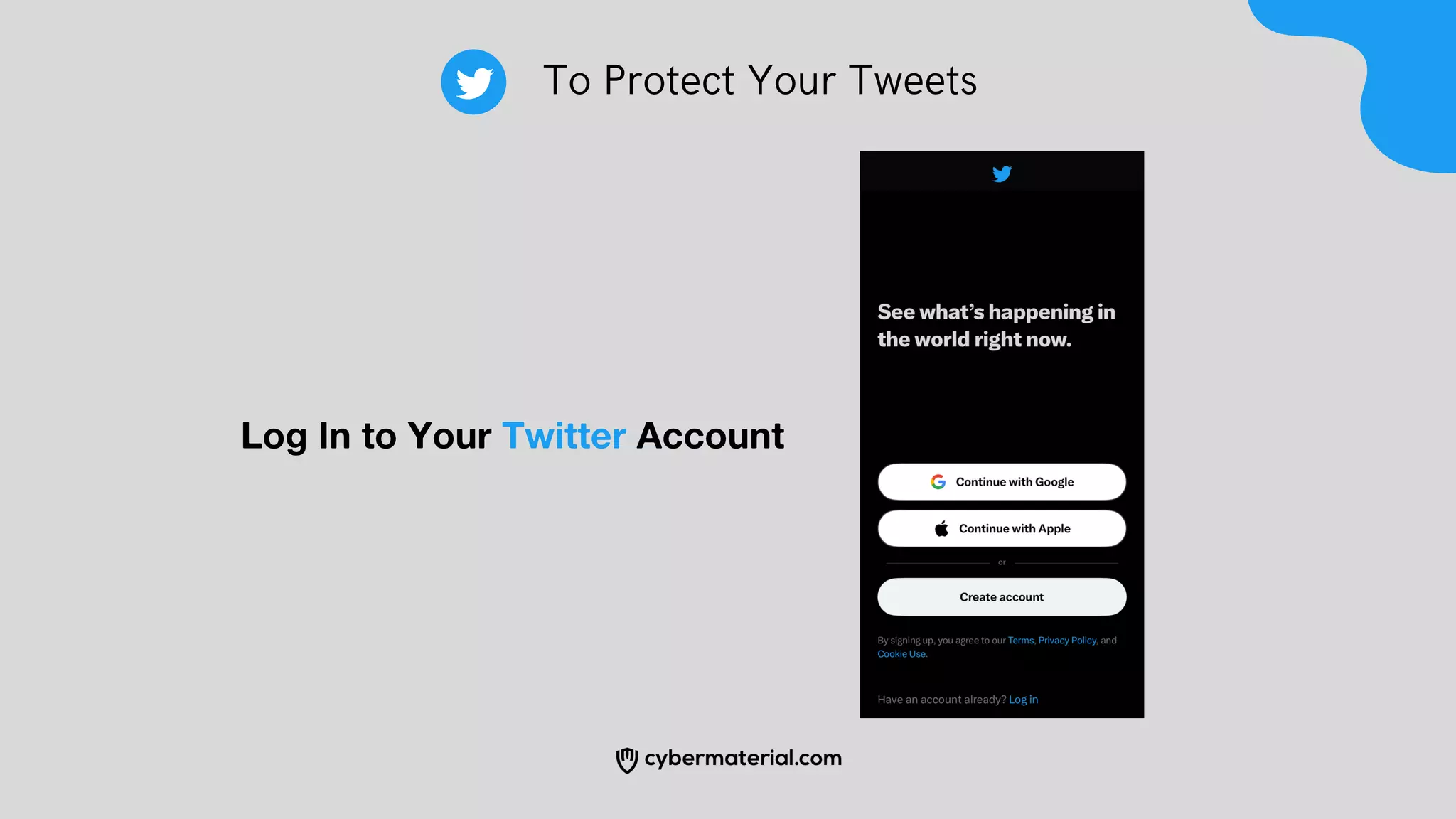
Log In to Your Twitter Account
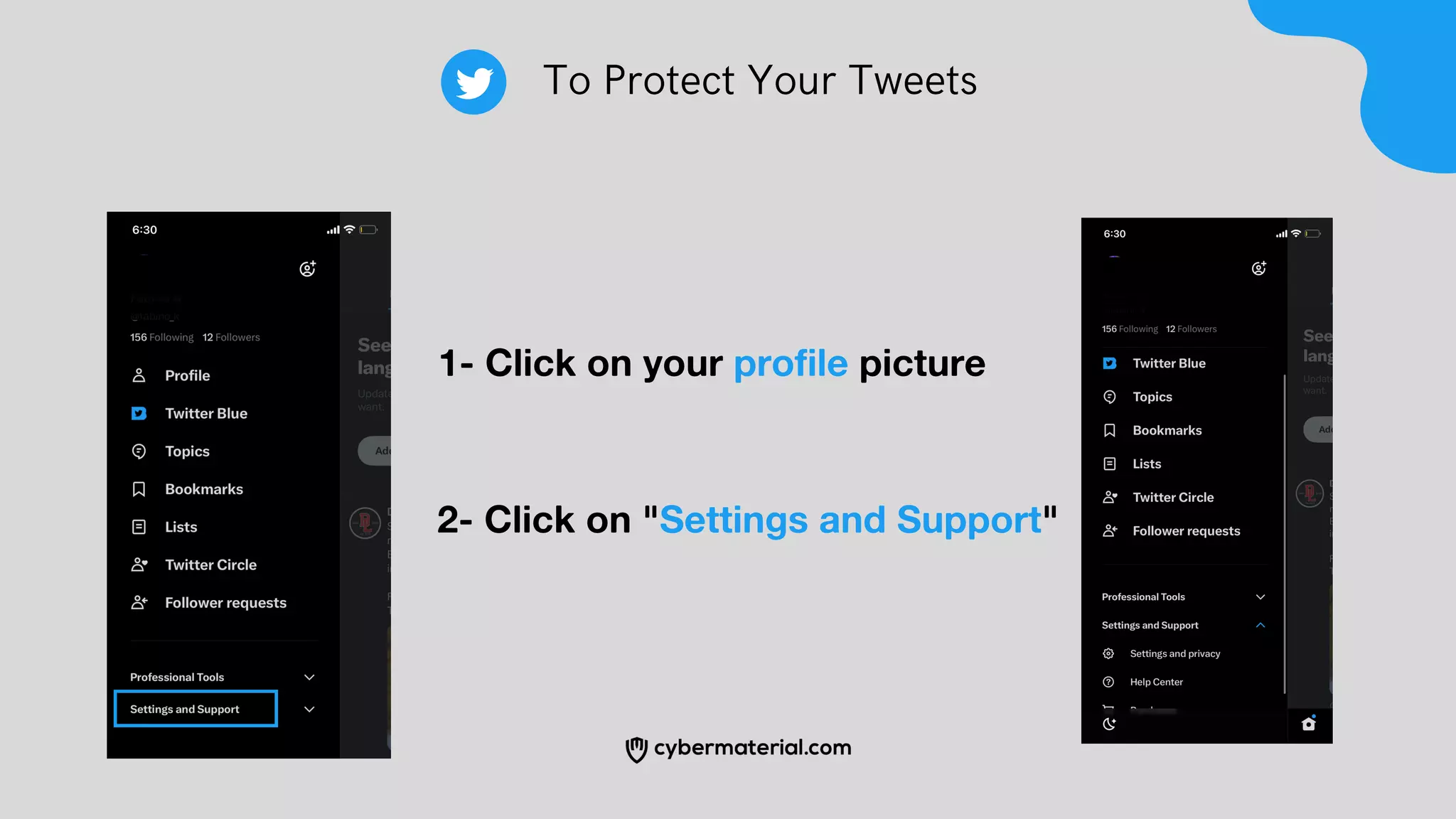
1- Click on your profile picture
2- Click on "Settings and Support"
To Protect Your Tweets
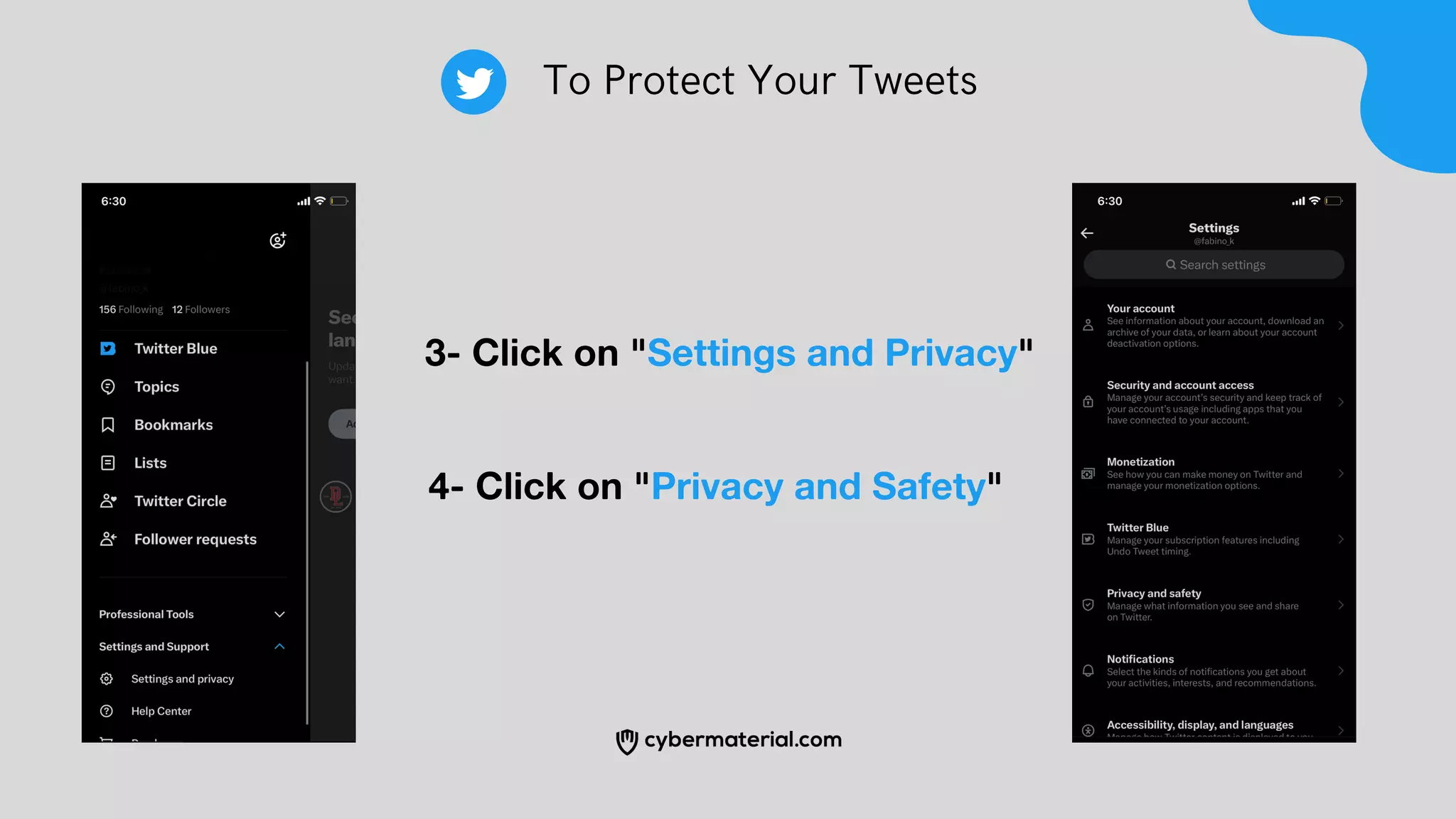
3- Click on "Settings and Privacy"
4- Click on "Privacy and Safety"
To Protect Your Tweets
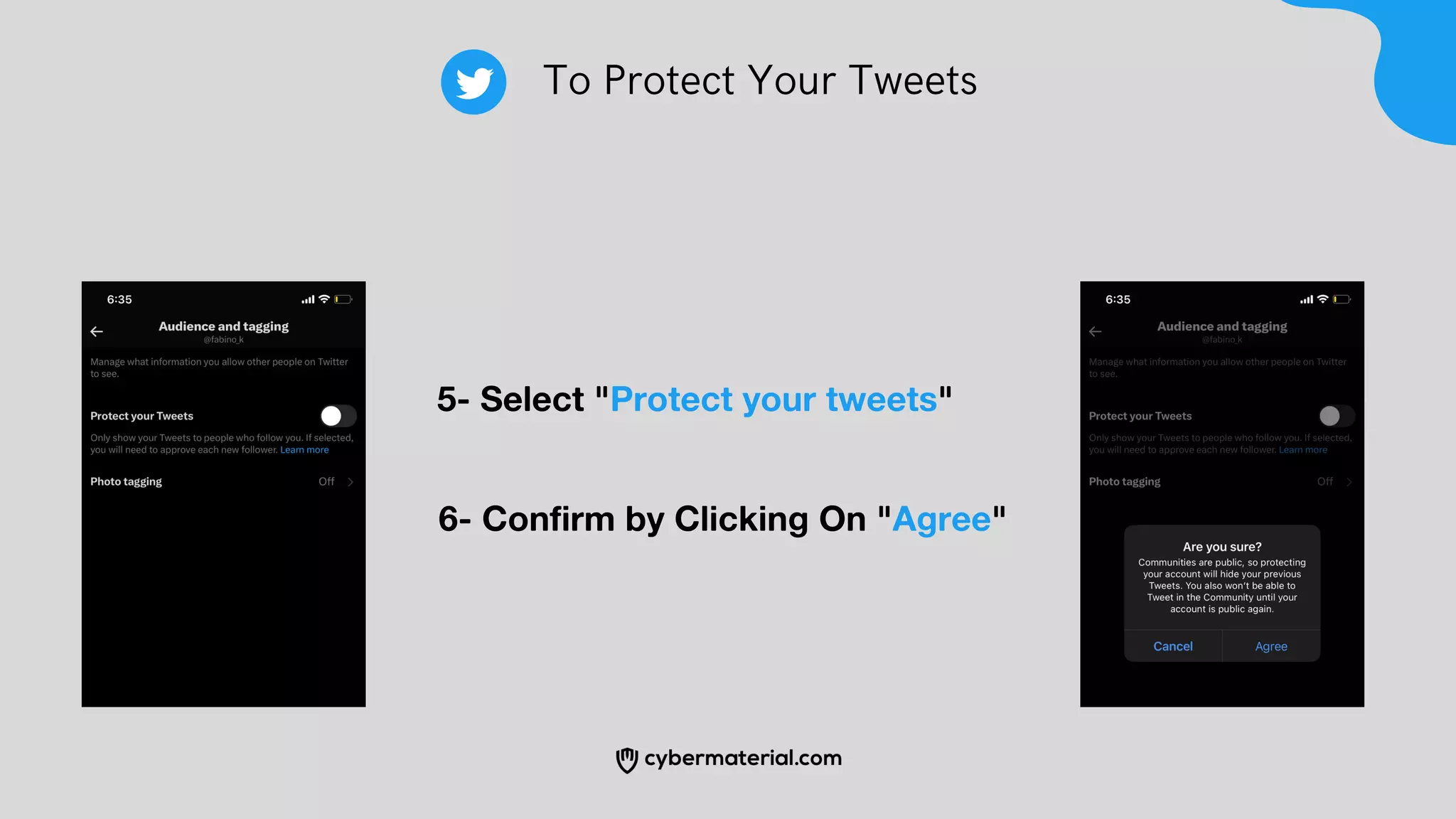
5- Select "Protect your tweets"
6- Confirm by Clicking On "Agree"
To Protect Your Tweets
To Disable Location Sharing
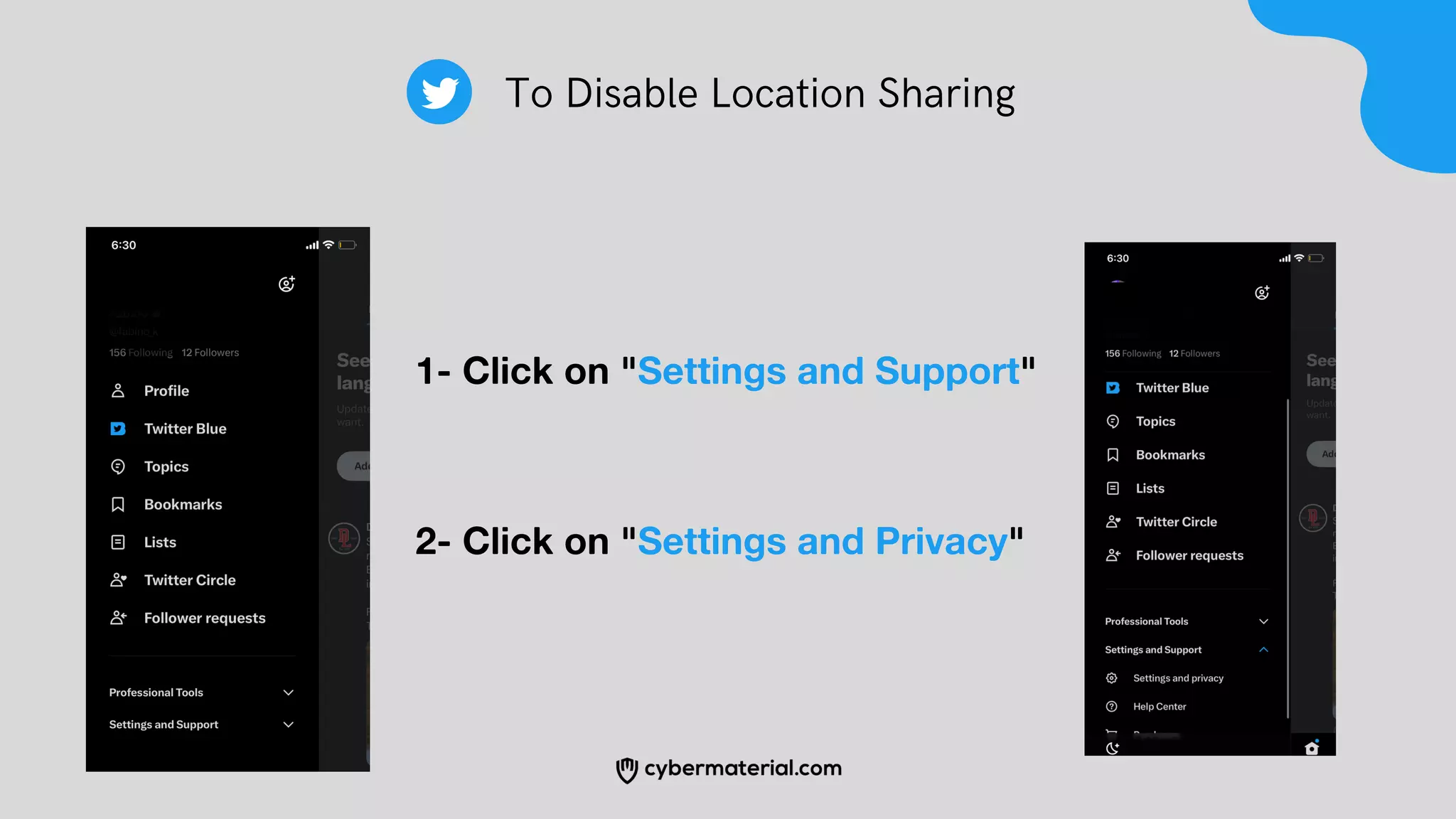
1- Click on "Settings and Support"
2- Click on "Settings and Privacy"
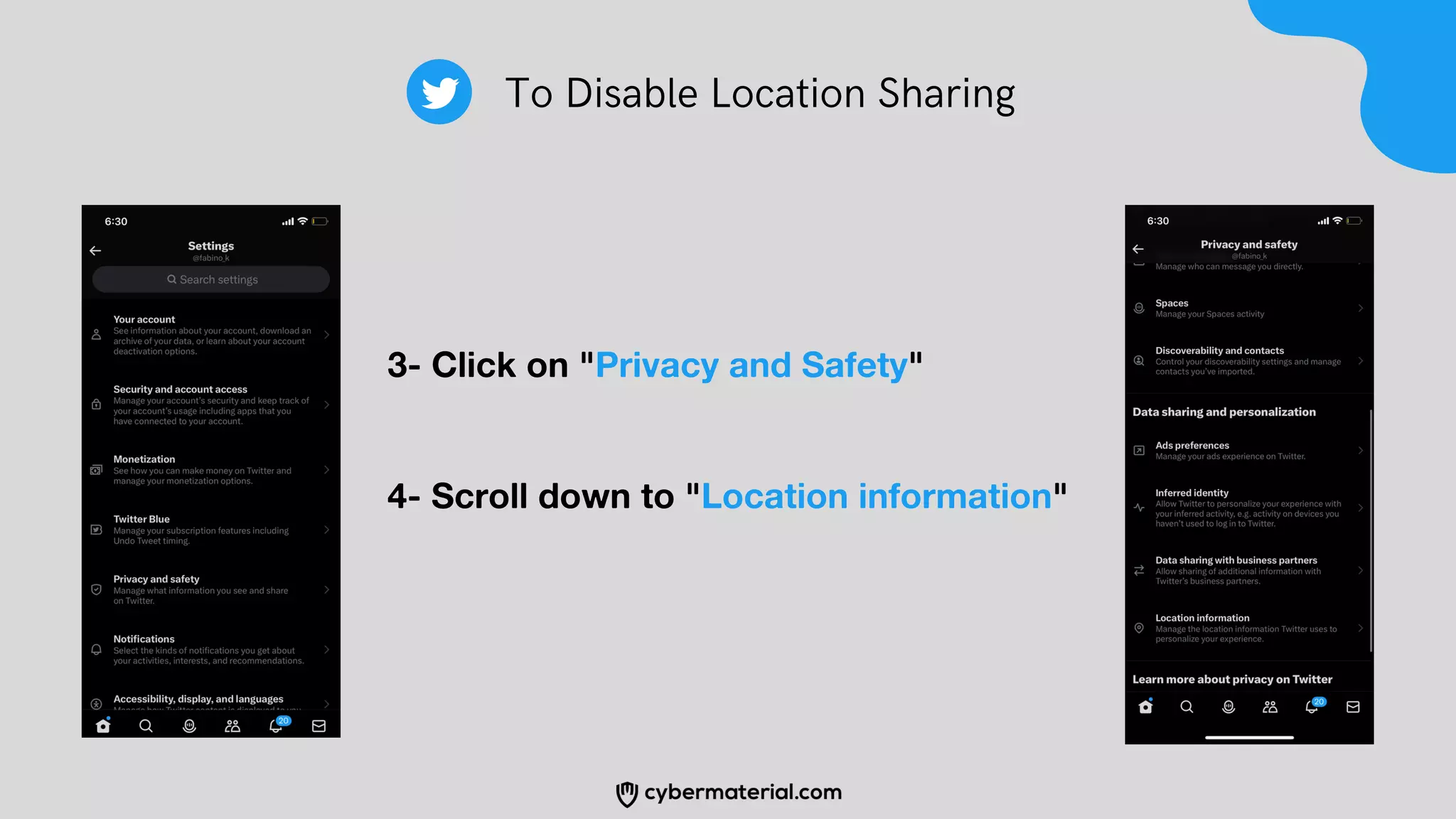
3- Click on "Privacy and Safety"
4- Scroll down to "Location information"
To Disable Location Sharing
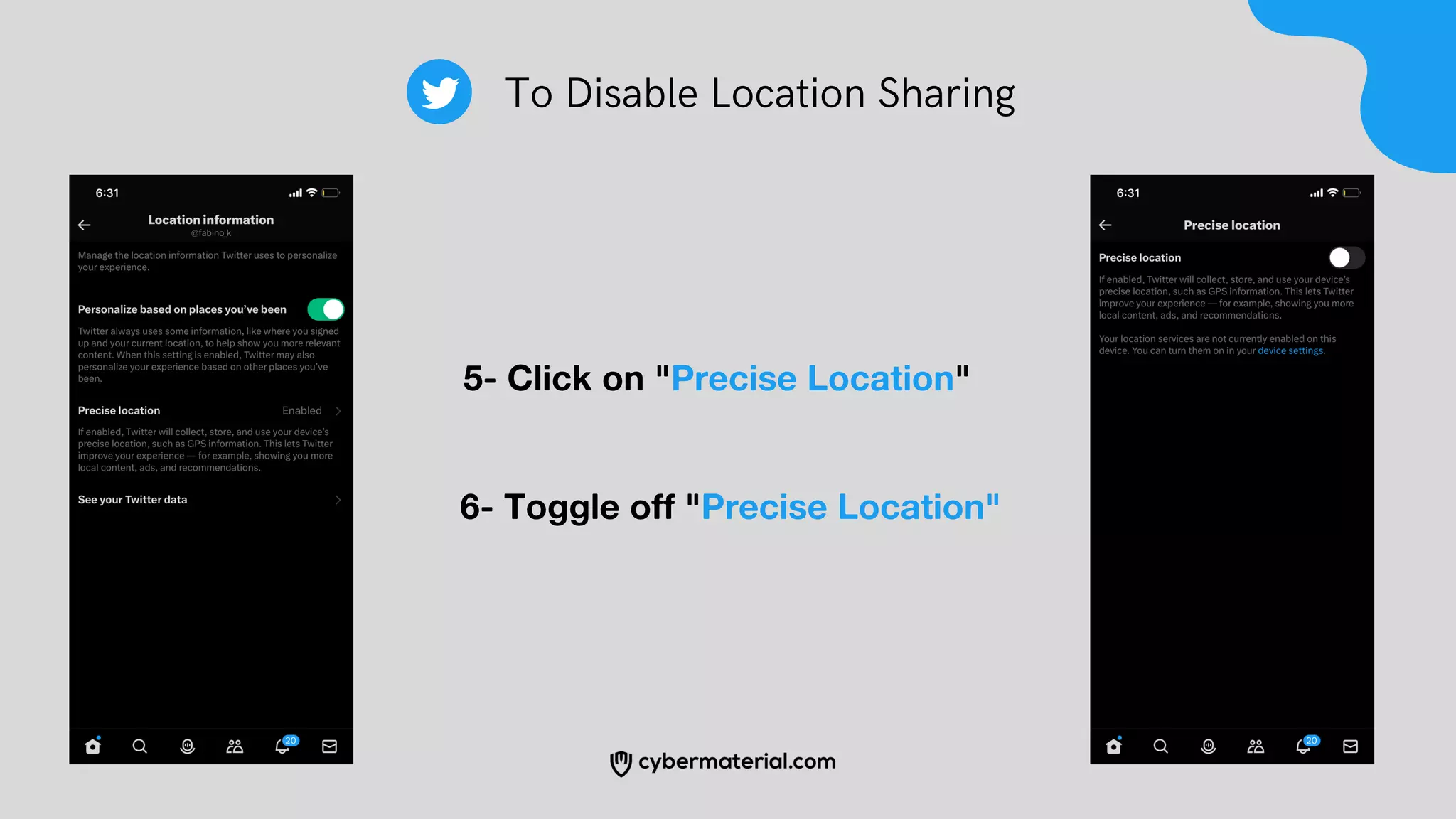
5- Click on "Precise Location"
6- Toggle off "Precise Location"
To Disable Location Sharing
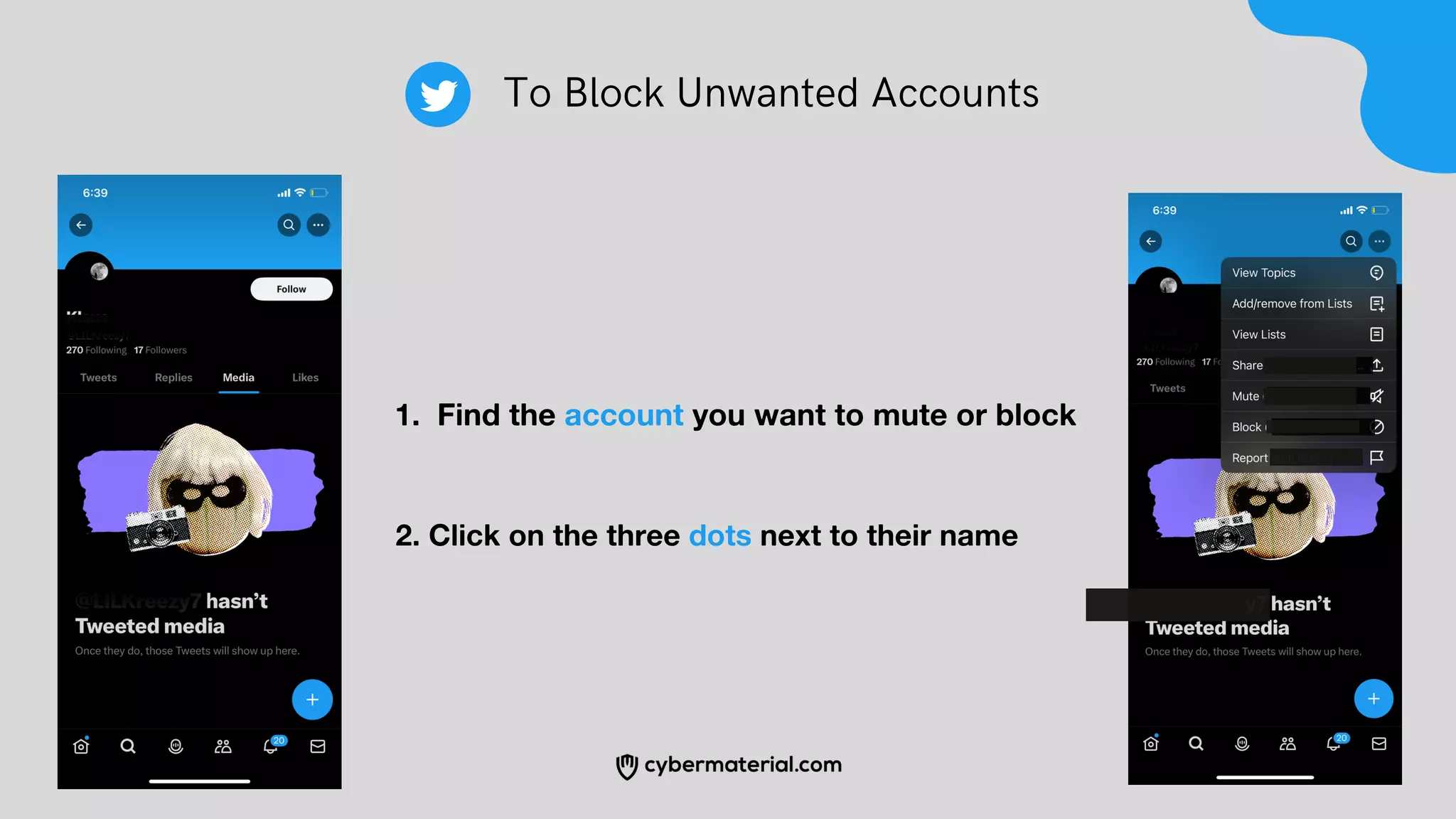
To Block Unwanted Accounts
Find the account you want to mute or block
1.
2. Click on the three dots next to their name
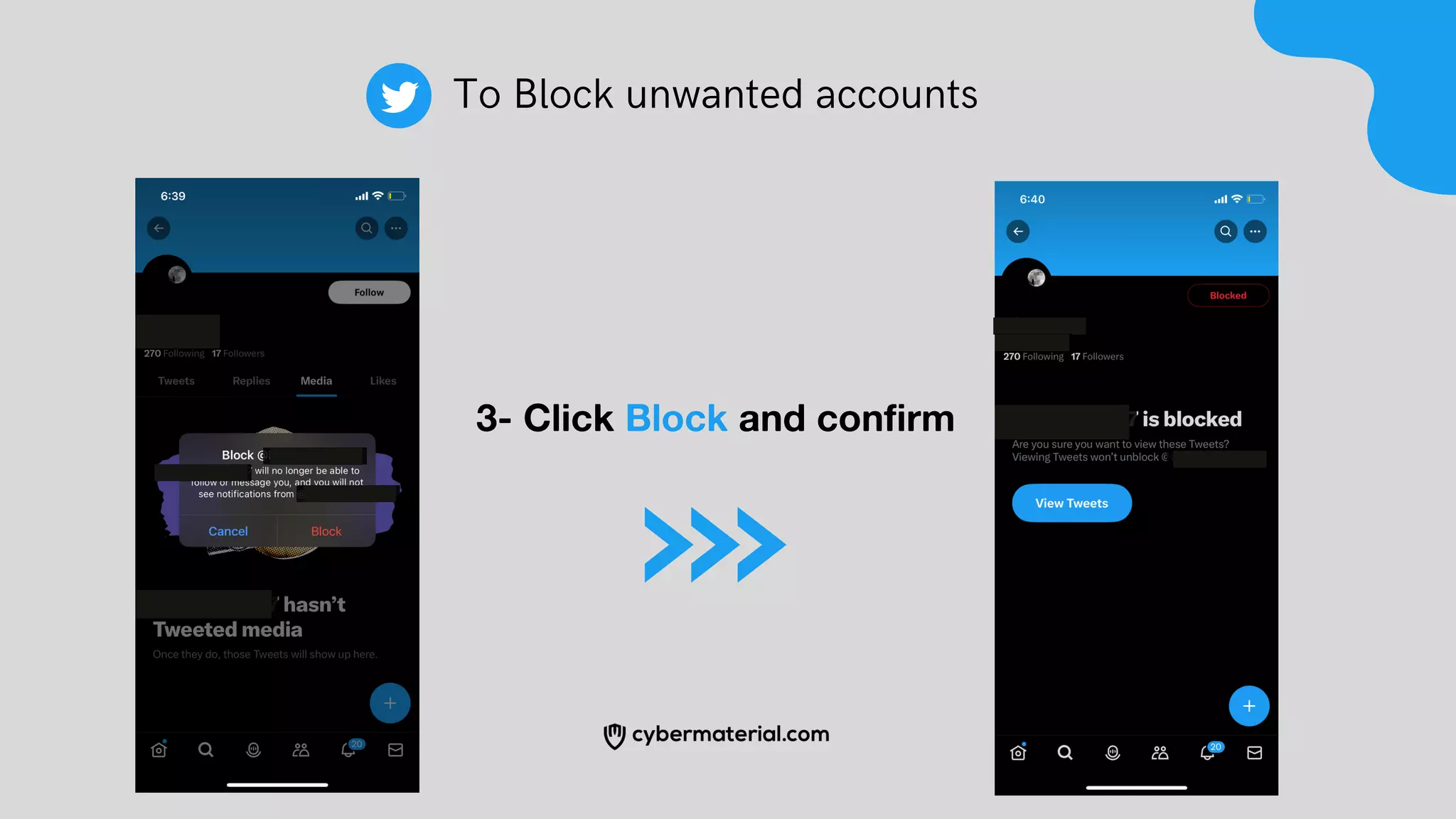
To Block unwanted accounts
3- Click Block and confirm

How to Harden your Privacy Settings on Twitter

  • 1.
    How to Hardenyour Privacy Settings on Twitter
  • 2.
    To Protect YourTweets Log In to Your Twitter Account
  • 3.
    1- Click onyour profile picture 2- Click on "Settings and Support" To Protect Your Tweets
  • 4.
    3- Click on"Settings and Privacy" 4- Click on "Privacy and Safety" To Protect Your Tweets
  • 5.
    5- Select "Protectyour tweets" 6- Confirm by Clicking On "Agree" To Protect Your Tweets
  • 6.
    To Disable LocationSharing 1- Click on "Settings and Support" 2- Click on "Settings and Privacy"
  • 7.
    3- Click on"Privacy and Safety" 4- Scroll down to "Location information" To Disable Location Sharing
  • 8.
    5- Click on"Precise Location" 6- Toggle off "Precise Location" To Disable Location Sharing
  • 9.
    To Block UnwantedAccounts Find the account you want to mute or block 1. 2. Click on the three dots next to their name
  • 10.
    To Block unwantedaccounts 3- Click Block and confirm