How to Fix the <Excel Not Responding= or
Freezing Error
Excel freezing or not responding can disrupt your workflow. This guide helps you quickly identify and fix common causes to get
Excel running smoothly again.
Close Unresponsive Excel
If Excel stops responding, first try to close it using Task Manager. Press Ctrl+Shift+Esc, find Excel under Processes, and click End
Task. This stops the freeze and lets you restart Excel fresh.
Disable Add-ins
Add-ins can cause Excel to freeze. Open Excel in Safe Mode by holding Ctrl while launching it. Then disable add-ins via File >
Options > Add-ins. Uncheck suspicious add-ins and restart Excel normally.
Update Excel
Outdated Excel versions may have bugs causing freezes. Check for updates via File > Account > Update Options. Installing the
latest updates can fix known issues and improve stability.
Repair Office Installation
If problems persist, repair your Office installation. Go to Control Panel > Programs > Microsoft Office > Change > Quick Repair. This
fixes corrupted files without affecting your data.
Check Large or Complex Files
Very large or complex Excel files can cause freezing. Try opening files on another computer or breaking them into smaller parts.
Also, remove unnecessary formulas or links that slow performance.
Disable Hardware Graphics Acceleration
Hardware graphics acceleration can cause display issues. Disable it by going to File > Options > Advanced, then check <Disable
hardware graphics acceleration.= Restart Excel to apply changes.
Contact Support if Needed
If none of these fixes work, contact Microsoft Support for expert help. They can guide you through advanced troubleshooting to
resolve persistent Excel freezing or not responding errors.
Microsoft Excel Support
THANKYOU
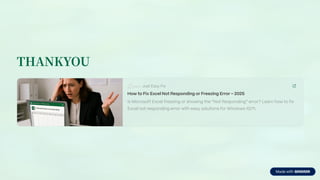
Just Easy Fix
How to Fix Excel Not Responding or Freezing Error 3 2025
Is Microsoft Excel freezing or showing the <Not Responding= error? Learn how to fix
Excel not responding error with easy solutions for Windows 10/11.

How to Fix the “Excel Not Responding” or Freezing Error

  • 1.
    How to Fixthe <Excel Not Responding= or Freezing Error Excel freezing or not responding can disrupt your workflow. This guide helps you quickly identify and fix common causes to get Excel running smoothly again.
  • 2.
    Close Unresponsive Excel IfExcel stops responding, first try to close it using Task Manager. Press Ctrl+Shift+Esc, find Excel under Processes, and click End Task. This stops the freeze and lets you restart Excel fresh.
  • 3.
    Disable Add-ins Add-ins cancause Excel to freeze. Open Excel in Safe Mode by holding Ctrl while launching it. Then disable add-ins via File > Options > Add-ins. Uncheck suspicious add-ins and restart Excel normally.
  • 4.
    Update Excel Outdated Excelversions may have bugs causing freezes. Check for updates via File > Account > Update Options. Installing the latest updates can fix known issues and improve stability.
  • 5.
    Repair Office Installation Ifproblems persist, repair your Office installation. Go to Control Panel > Programs > Microsoft Office > Change > Quick Repair. This fixes corrupted files without affecting your data.
  • 6.
    Check Large orComplex Files Very large or complex Excel files can cause freezing. Try opening files on another computer or breaking them into smaller parts. Also, remove unnecessary formulas or links that slow performance.
  • 7.
    Disable Hardware GraphicsAcceleration Hardware graphics acceleration can cause display issues. Disable it by going to File > Options > Advanced, then check <Disable hardware graphics acceleration.= Restart Excel to apply changes.
  • 8.
    Contact Support ifNeeded If none of these fixes work, contact Microsoft Support for expert help. They can guide you through advanced troubleshooting to resolve persistent Excel freezing or not responding errors. Microsoft Excel Support
  • 9.
    THANKYOU Just Easy Fix Howto Fix Excel Not Responding or Freezing Error 3 2025 Is Microsoft Excel freezing or showing the <Not Responding= error? Learn how to fix Excel not responding error with easy solutions for Windows 10/11.