A Step-by-Step Tutorial
Two Parts of Customizing
Your Paypal Header
1. Create the Header
2. Put the Header to Paypal
Payment Page
First:
Create your
Paypal Header
I use Canva to create
most of my digital
visual content
You can use
Canva for free.
(it’s what I use too)
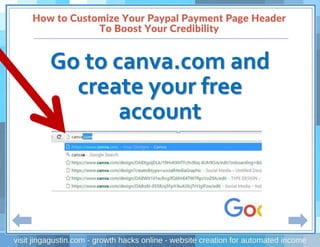
Go to canva.com and
create your free
account
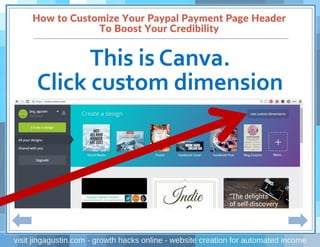
This is Canva.
Click custom dimension
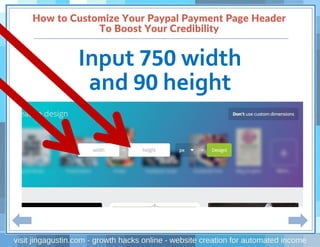
Input 750 width
and 90 height
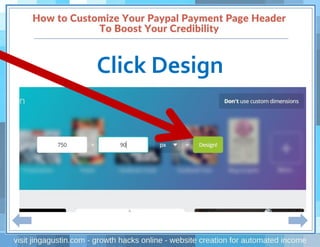
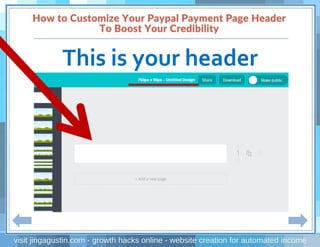
Click Design
This is your header
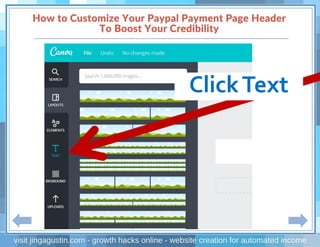
ClickText
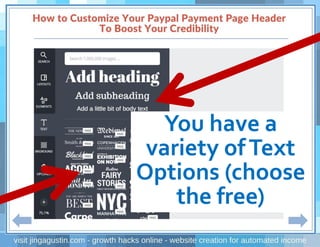
You have a
variety ofText
Options (choose
the free)
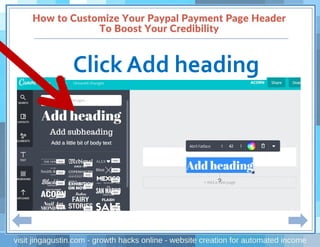
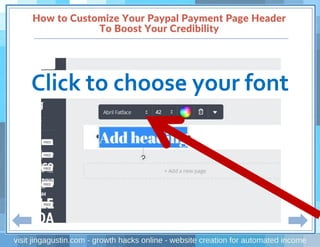
Click Add heading
Click to choose your font
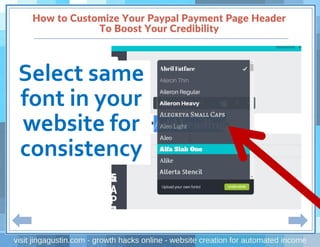
Select same
font in your
website for
consistency
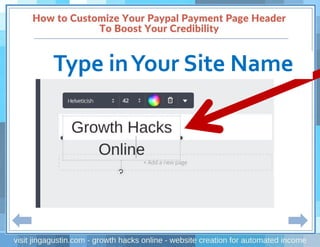
Type inYour Site Name
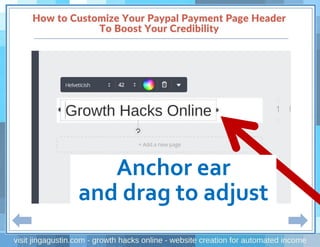
Anchor ear
and drag to adjust
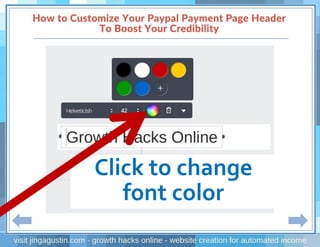
Click to change
font color
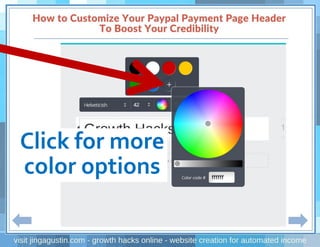
Click for more
color options
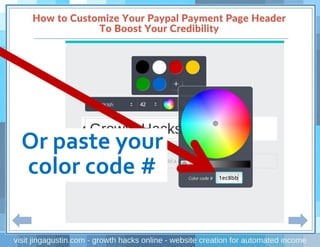
Or paste your
color code #
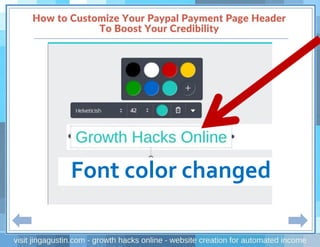
Font color changed
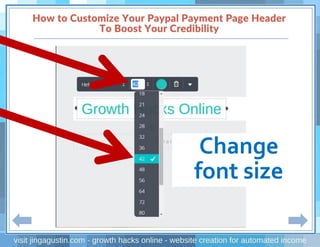
Change
font size
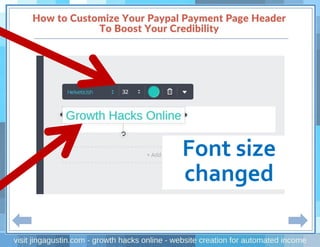
Font size
changed
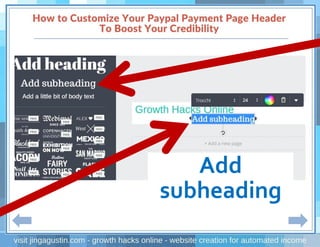
Add
subheading
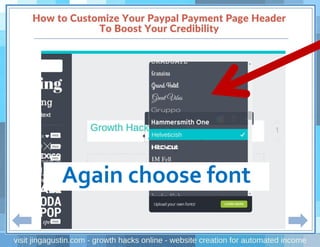
Again choose font
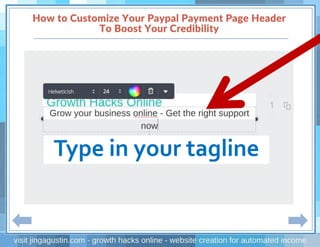
Type in your tagline
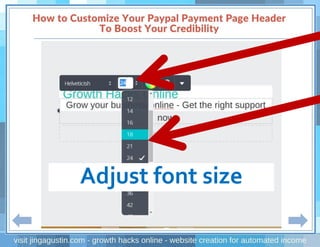
Adjust font size
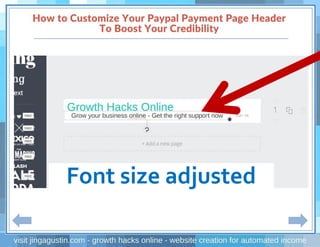
Font size adjusted
Click Upload to add
your Logo
Click your Logo
If your Logo
is not yet in the
media library...
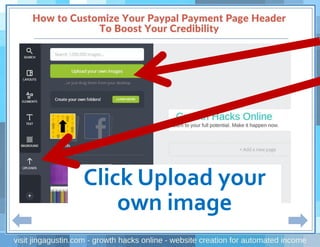
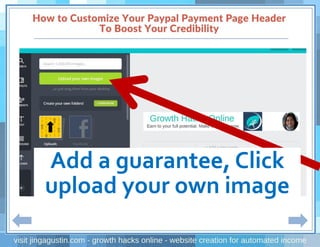
Click Upload your
own image
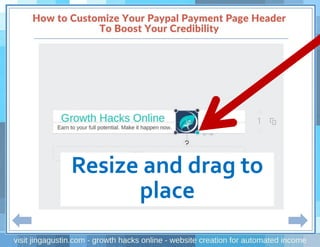
Then Click it
once loaded
Resize and drag to
place
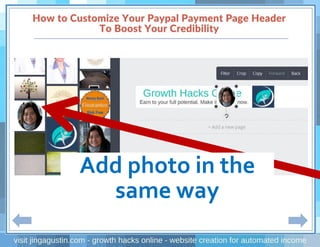
Add photo in the
same way
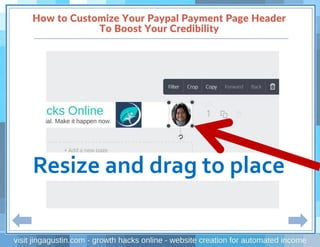
Resize and drag to place
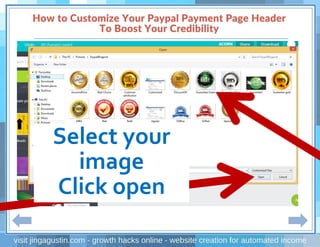
Add a guarantee, Click
upload your own image
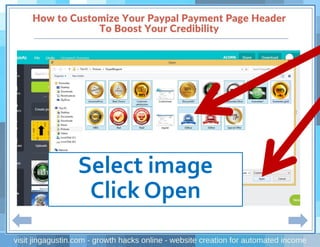
Select your
image
Click open
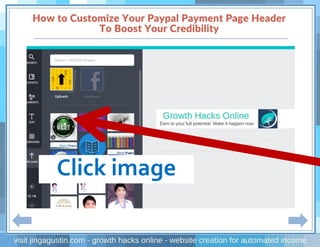
Click image
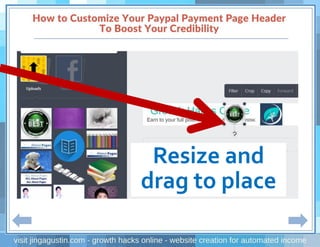
Resize and
drag to place
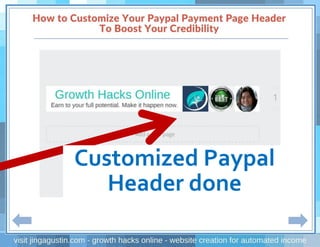
Customized Paypal
Header done
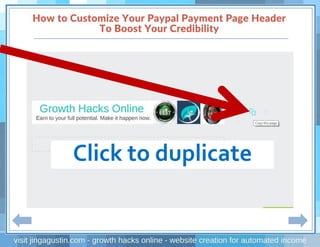
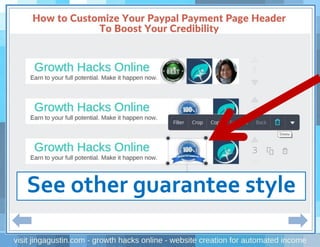
Click to duplicate
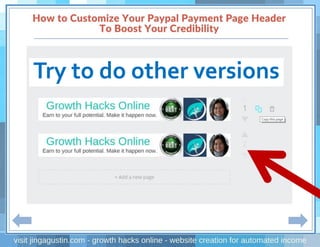
Try to do other versions
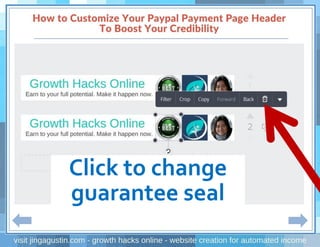
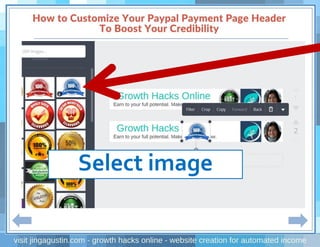
Click to change
guarantee seal
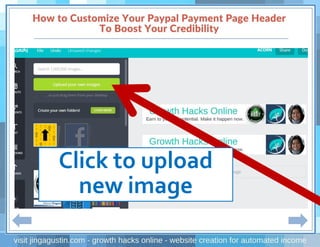
Click to upload
new image
Select image
Click Open
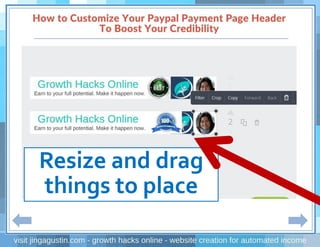
Select image
Resize and drag
things to place
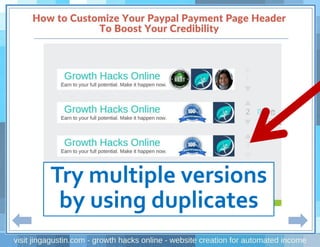
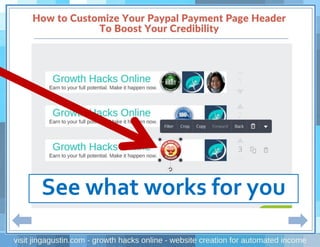
Try multiple versions
by using duplicates
See other guarantee style
See what works for you
See what works
for you
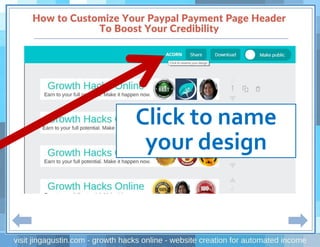
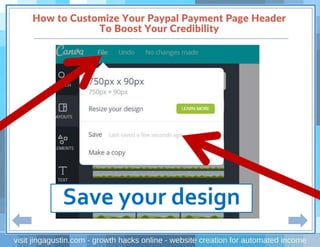
Click to name
your design
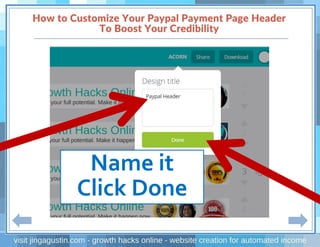
Name it
Click Done
Save your design
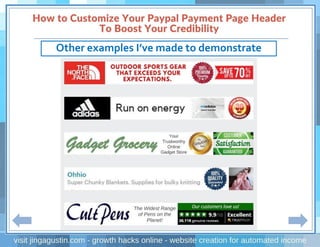
Other examples I’ve made to demonstrate
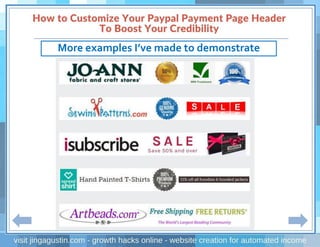
More examples I’ve made to demonstrate
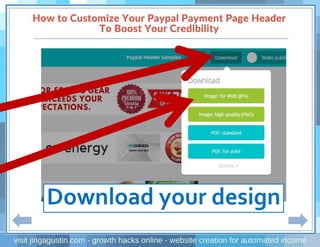
Download your design
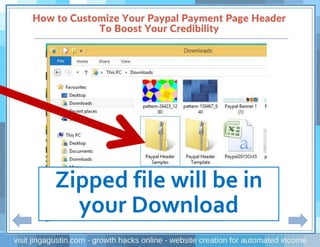
Zipped file will be in
your Download
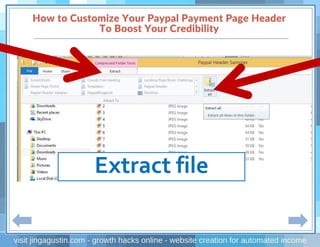
Extract file
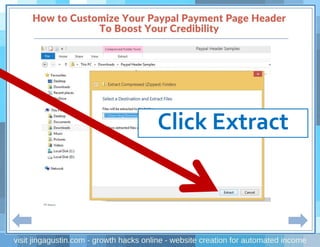
Click Extract
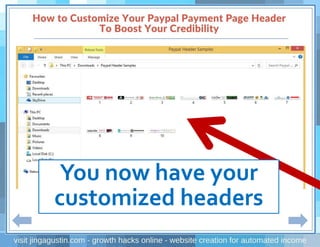
You now have your
customized headers
Second:
Put the Header toYour
Paypal Payment Page
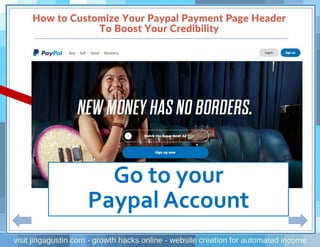
Go to your
Paypal Account
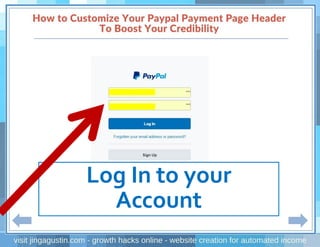
Log In to your
Account
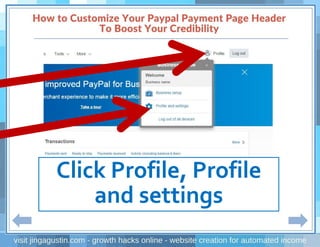
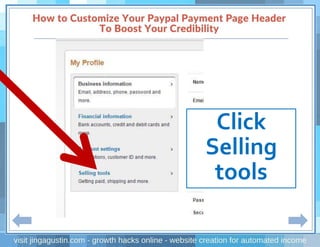
Click Profile, Profile
and settings
Click
Selling
tools
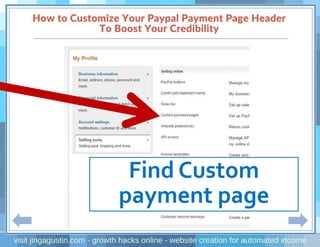
Find Custom
payment page
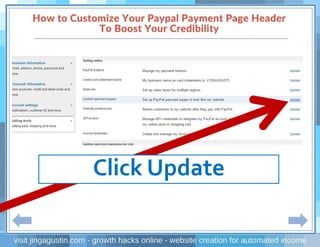
Click Update
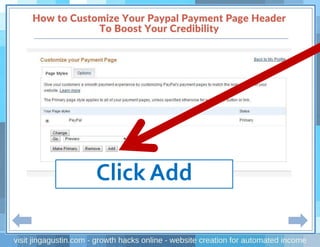
Click Add
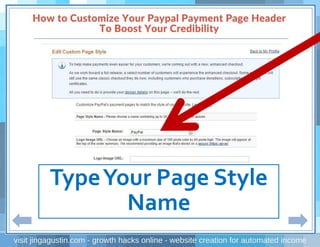
TypeYour Page Style
Name
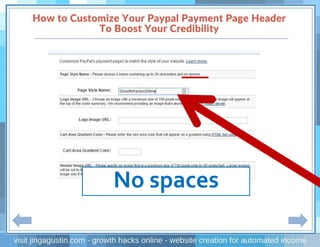
No spaces
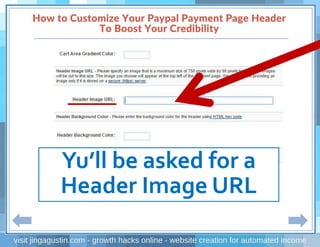
Yu’ll be asked for a
Header Image URL
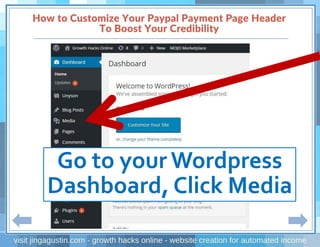
Go to your Wordpress
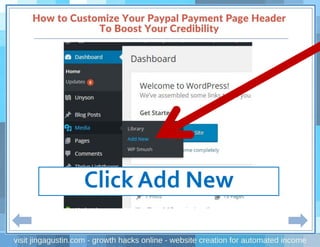
Dashboard, Click Media
Click Add New
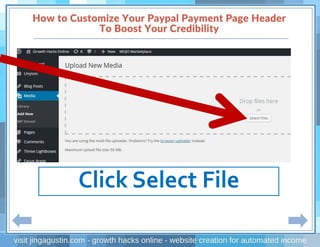
Click Select File
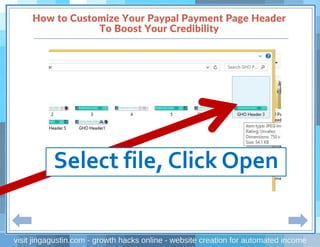
Select file, Click Open
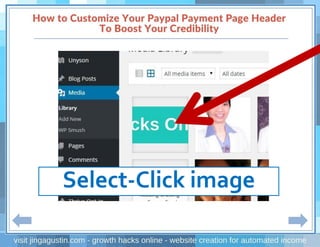
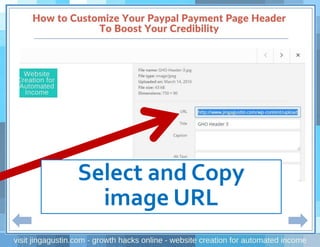
Select-Click image
Select and Copy
image URL
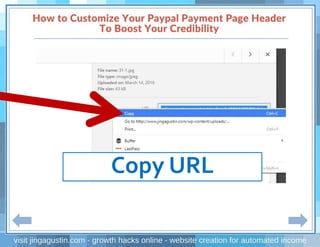
Copy URL
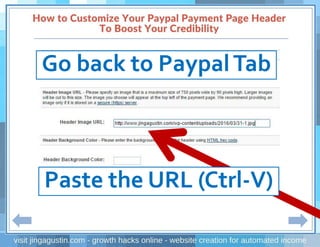
Go back to PaypalTab
Paste the URL (Ctrl-V)
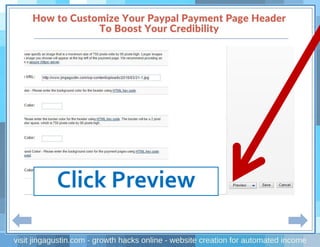
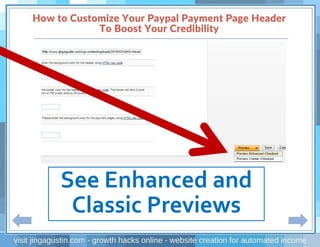
Click Preview
See Enhanced and
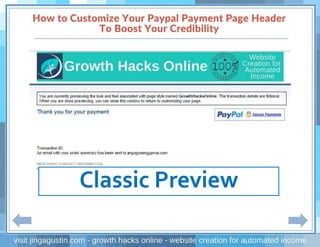
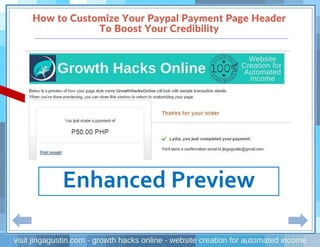
Classic Previews
Classic Preview
Enhanced Preview
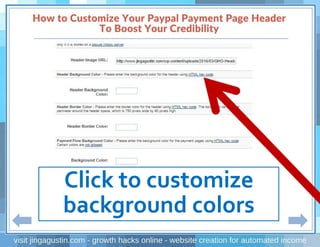
Click to customize
background colors
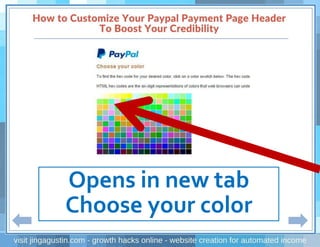
Opens in new tab
Choose your color
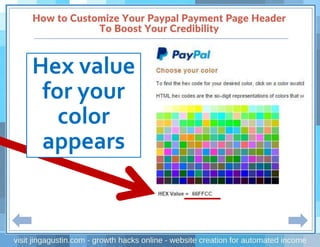
Hex value
for your
color
appears
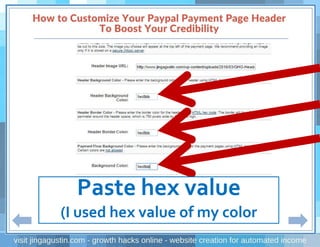
Paste hex value
(I used hex value of my color
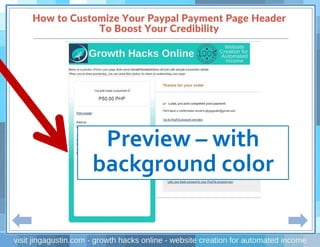
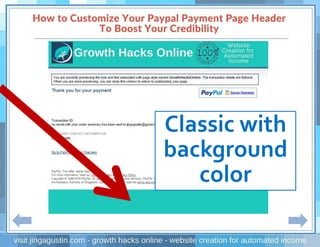
Preview – with
background color
Classic with
background
color
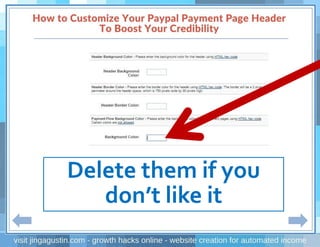
Delete them if you
don’t like it
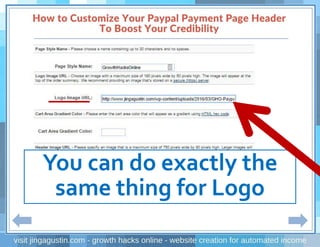
You can do exactly the
same thing for Logo
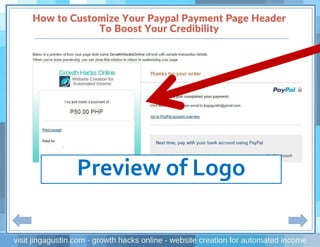
Preview of Logo
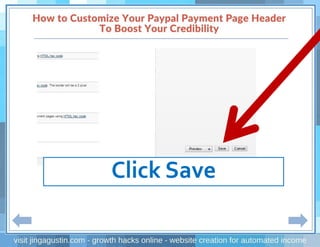
Click Save
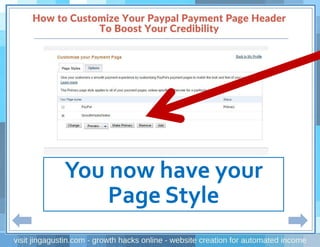
You now have your
Page Style
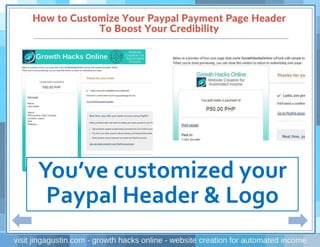
You’ve customized your
Paypal Header & Logo
Is this helpful?
Grow your online business with Growth Hacks
Online. Website creation for automated income.
Learn more. Visit www.jingagustin.com

How to Customize Your Paypal Header to Boost Your Credibility - A Step by Step Tutorial