Save it and embed it
How to create a Weemee
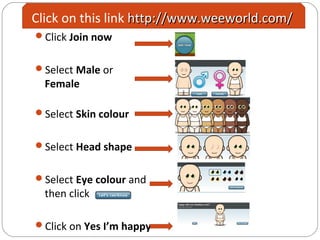
Click Join now
Select Male or
Female
Select Skin colour
Select Head shape
Select Eye colour and
then click
Click on Yes I’m happy
Click on this link http://www.weeworld.com/http://www.weeworld.com/
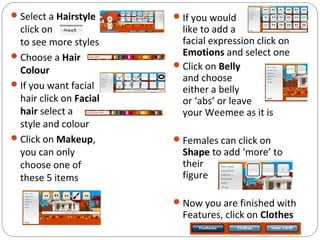
Select a Hairstyle
click on
to see more styles
Choose a Hair
Colour
If you want facial
hair click on Facial
hair select a
style and colour
Click on Makeup,
you can only
choose one of
these 5 items
If you would
like to add a
facial expression click on
Emotions and select one
Click on Belly
and choose
either a belly
or ‘abs’ or leave
your Weemee as it is
Females can click on
Shape to add ‘more’ to
their
figure
Now you are finished with
Features, click on Clothes
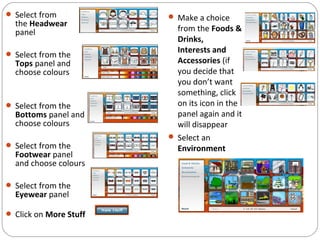
 Select from
the Headwear
panel
 Select from the
Tops panel and
choose colours
 Select from the
Bottoms panel and
choose colours
 Select from the
Footwear panel
and choose colours
 Select from the
Eyewear panel
 Click on More Stuff
 Make a choice
from the Foods &
Drinks,
Interests and
Accessories (if
you decide that
you don’t want
something, click
on its icon in the
panel again and it
will disappear
 Select an
Environment
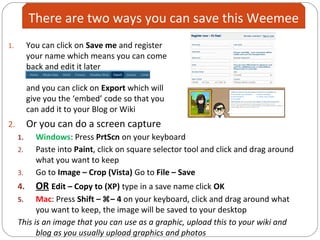
1. You can click on Save me and register
your name which means you can come
back and edit it later
and you can click on Export which will
give you the ‘embed’ code so that you
can add it to your Blog or Wiki
2. Or you can do a screen capture
1. Windows: Press PrtScn on your keyboard
2. Paste into Paint, click on square selector tool and click and drag around
what you want to keep
3. Go to Image – Crop (Vista) Go to File – Save
4. OR Edit – Copy to (XP) type in a save name click OK
5. Mac: Press Shift – – 4 on your keyboard, click and drag around what
you want to keep, the image will be saved to your desktop
This is an image that you can use as a graphic, upload this to your wiki and
blog as you usually upload graphics and photos
There are two ways you can save this Weemee
Create a Weemee
graphic signature
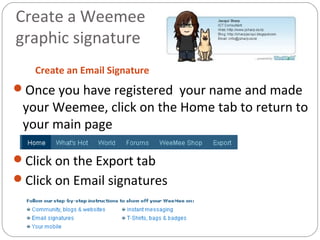
Create an Email Signature
Once you have registered your name and made
your Weemee, click on the Home tab to return to
your main page
Click on the Export tab
Click on Email signatures
Create a Weemee
signature
Follow the steps
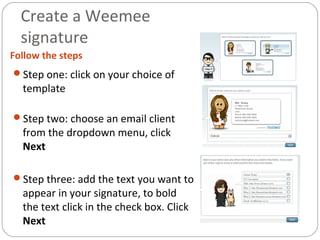
Step one: click on your choice of
template
Step two: choose an email client
from the dropdown menu, click
Next
Step three: add the text you want to
appear in your signature, to bold
the text click in the check box. Click
Next
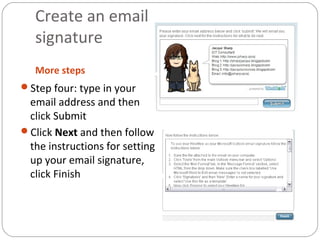
Create an email
signature
More steps
Step four: type in your
email address and then
click Submit
Click Next and then follow
the instructions for setting
up your email signature,
click Finish

How to create a Weemee

  • 1.
    Save it andembed it How to create a Weemee
  • 2.
    Click Join now SelectMale or Female Select Skin colour Select Head shape Select Eye colour and then click Click on Yes I’m happy Click on this link http://www.weeworld.com/http://www.weeworld.com/
  • 3.
    Select a Hairstyle clickon to see more styles Choose a Hair Colour If you want facial hair click on Facial hair select a style and colour Click on Makeup, you can only choose one of these 5 items If you would like to add a facial expression click on Emotions and select one Click on Belly and choose either a belly or ‘abs’ or leave your Weemee as it is Females can click on Shape to add ‘more’ to their figure Now you are finished with Features, click on Clothes
  • 4.
     Select from theHeadwear panel  Select from the Tops panel and choose colours  Select from the Bottoms panel and choose colours  Select from the Footwear panel and choose colours  Select from the Eyewear panel  Click on More Stuff  Make a choice from the Foods & Drinks, Interests and Accessories (if you decide that you don’t want something, click on its icon in the panel again and it will disappear  Select an Environment
  • 5.
    1. You canclick on Save me and register your name which means you can come back and edit it later and you can click on Export which will give you the ‘embed’ code so that you can add it to your Blog or Wiki 2. Or you can do a screen capture 1. Windows: Press PrtScn on your keyboard 2. Paste into Paint, click on square selector tool and click and drag around what you want to keep 3. Go to Image – Crop (Vista) Go to File – Save 4. OR Edit – Copy to (XP) type in a save name click OK 5. Mac: Press Shift – – 4 on your keyboard, click and drag around what you want to keep, the image will be saved to your desktop This is an image that you can use as a graphic, upload this to your wiki and blog as you usually upload graphics and photos There are two ways you can save this Weemee
  • 6.
    Create a Weemee graphicsignature Create an Email Signature Once you have registered your name and made your Weemee, click on the Home tab to return to your main page Click on the Export tab Click on Email signatures
  • 7.
    Create a Weemee signature Followthe steps Step one: click on your choice of template Step two: choose an email client from the dropdown menu, click Next Step three: add the text you want to appear in your signature, to bold the text click in the check box. Click Next
  • 8.
    Create an email signature Moresteps Step four: type in your email address and then click Submit Click Next and then follow the instructions for setting up your email signature, click Finish