Windows Hotmail Email
Signature Tutorial

Presented By:
PrinterBees
The Small Business Print Marketing Company
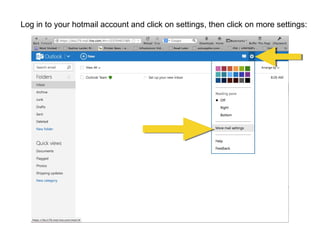
Log in to your hotmail account and click on settings, then click on more settings:
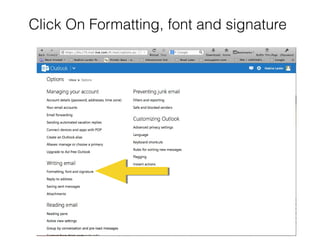
Click On Formatting, font and signature
•

Your signature needs to be on the Internet to work
with Hotmail. Hotmail doesn’t allow images to be
imbedded directly from your computer. The file
must be on-line.

•

PrinterBees can host your photo and provide you
with a link if you need one OR….

•

You can upload it to your Facebook or any other online photo sharing site and it will work the same.

•

Once your email signature is on-line, proceed
forward.
Go to the image on-line

•

Sample Link for this tutorial

http://www.printerbees.com/Images/JPEG/nadine%20email%20banner%20short.jpg
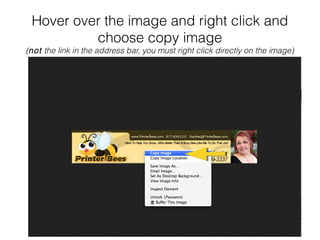
Hover over the image and right click and
choose copy image

(not the link in the address bar, you must right click directly on the image)
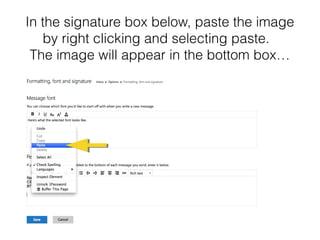
In the signature box below, paste the image
by right clicking and selecting paste.
The image will appear in the bottom box…
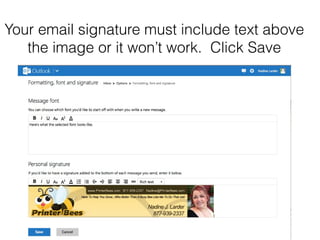
Your email signature must include text above
the image or it won’t work. Click Save
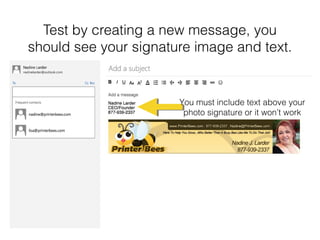
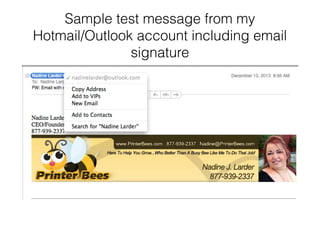
Test by creating a new message, you
should see your signature image and text.

You must include text above your
photo signature or it won’t work
Sample test message from my
Hotmail/Outlook account including email
signature
Let us know if you need
help!

www.PrinterBees.com
Helping small business is what we do best!
Buzz By PrinterBees, You’ll Be Glad You Did!

Hotmail Email Signature Tutorial | How To Add An Email Signature To Your Hotmail Account

  • 1.
    Windows Hotmail Email SignatureTutorial Presented By: PrinterBees The Small Business Print Marketing Company
  • 2.
    Log in toyour hotmail account and click on settings, then click on more settings:
  • 3.
    Click On Formatting,font and signature
  • 4.
    • Your signature needsto be on the Internet to work with Hotmail. Hotmail doesn’t allow images to be imbedded directly from your computer. The file must be on-line. • PrinterBees can host your photo and provide you with a link if you need one OR…. • You can upload it to your Facebook or any other online photo sharing site and it will work the same. • Once your email signature is on-line, proceed forward.
  • 5.
    Go to theimage on-line • Sample Link for this tutorial http://www.printerbees.com/Images/JPEG/nadine%20email%20banner%20short.jpg
  • 6.
    Hover over theimage and right click and choose copy image (not the link in the address bar, you must right click directly on the image)
  • 7.
    In the signaturebox below, paste the image by right clicking and selecting paste. The image will appear in the bottom box…
  • 8.
    Your email signaturemust include text above the image or it won’t work. Click Save
  • 9.
    Test by creatinga new message, you should see your signature image and text. You must include text above your photo signature or it won’t work
  • 10.
    Sample test messagefrom my Hotmail/Outlook account including email signature
  • 11.
    Let us knowif you need help! www.PrinterBees.com Helping small business is what we do best! Buzz By PrinterBees, You’ll Be Glad You Did!