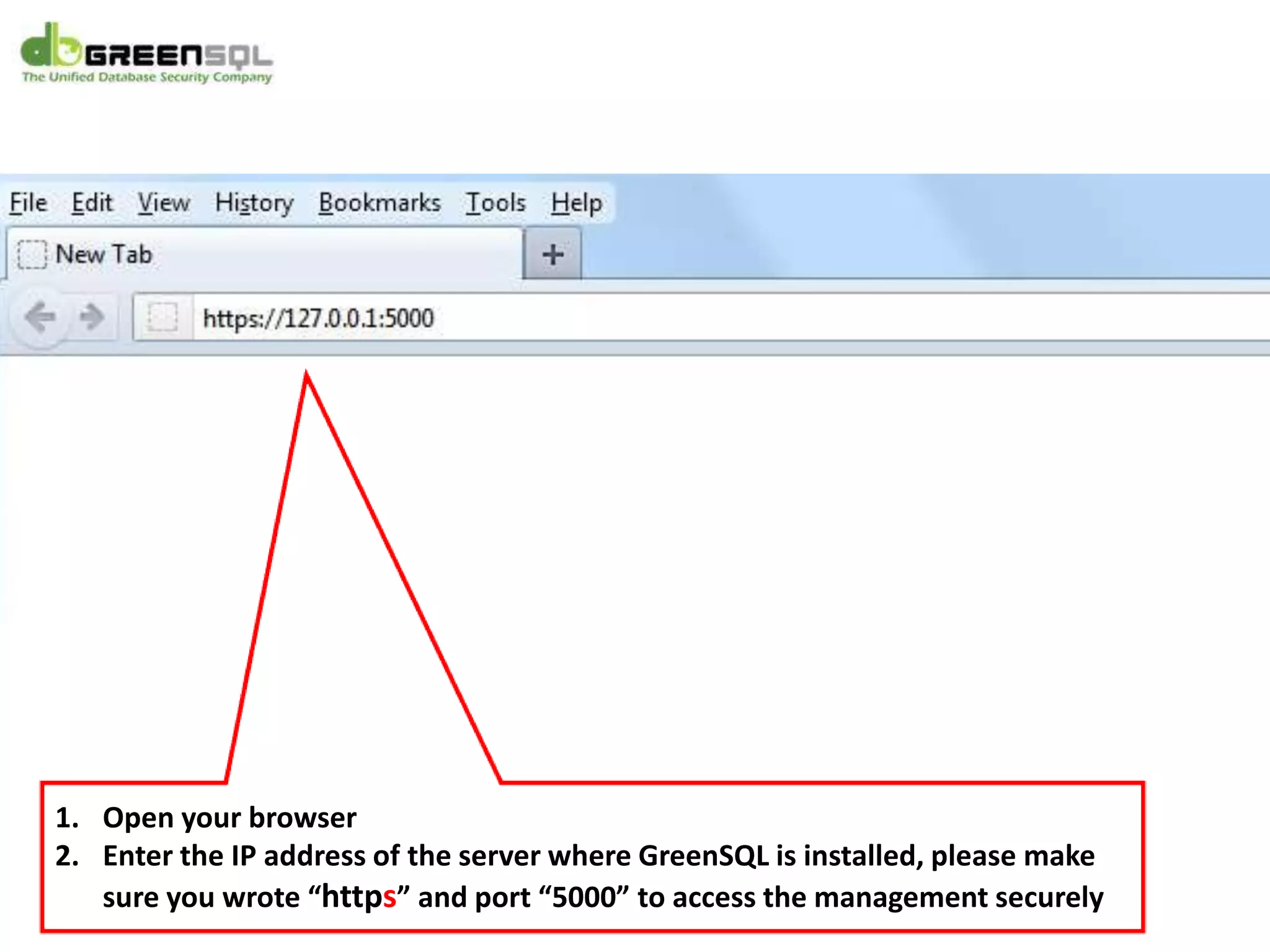
1. Open your browser
2. Enter the IP address of the server where GreenSQL is installed, please make
sure you wrote “https” and port “5000” to access the management securely
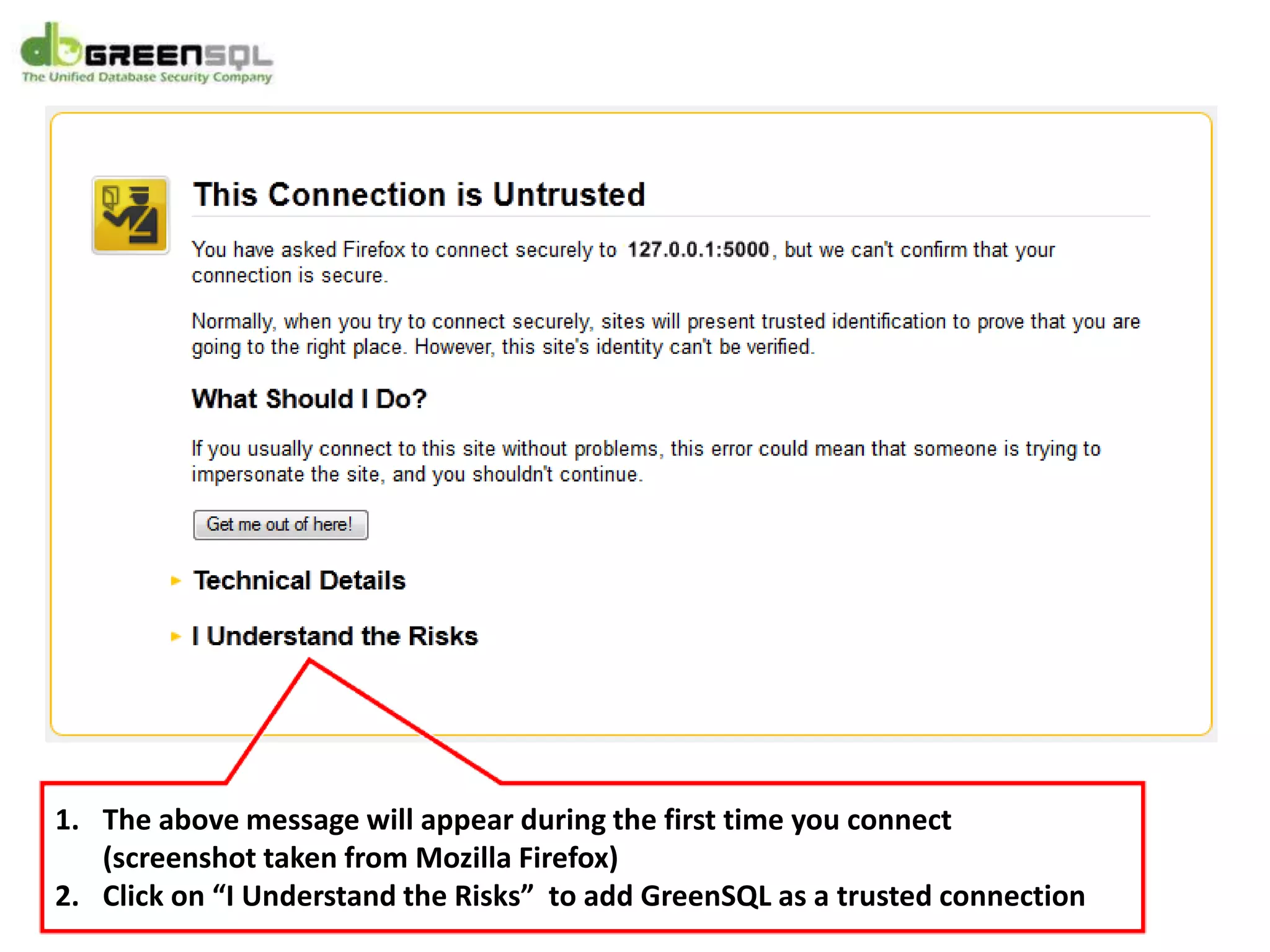
1. The above message will appear during the first time you connect
(screenshot taken from Mozilla Firefox)
2. Click on “I Understand the Risks” to add GreenSQL as a trusted connection
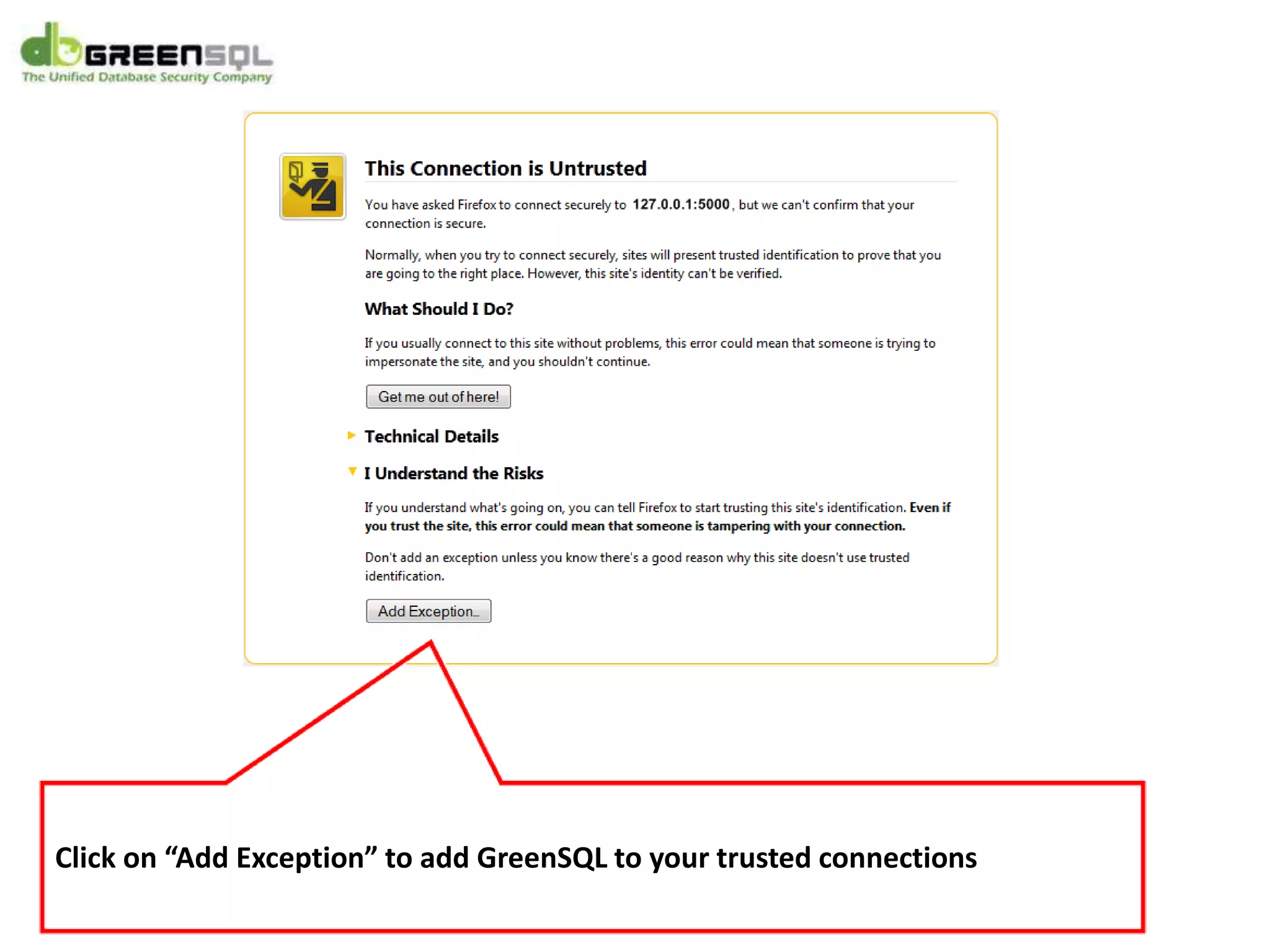
Click on “Add Exception” to add GreenSQL to your trusted connections
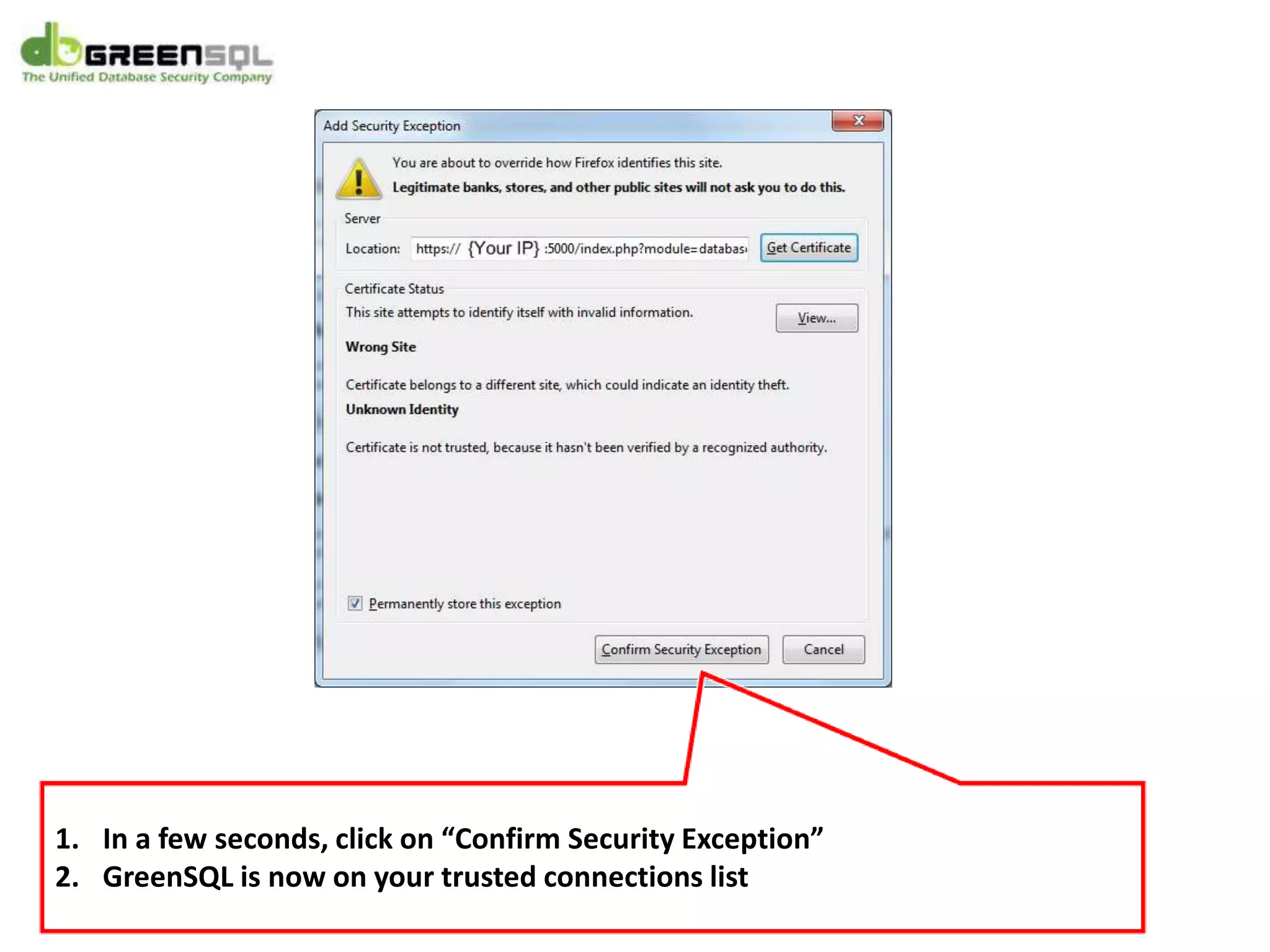
1. In a few seconds, click on “Confirm Security Exception”
2. GreenSQL is now on your trusted connections list
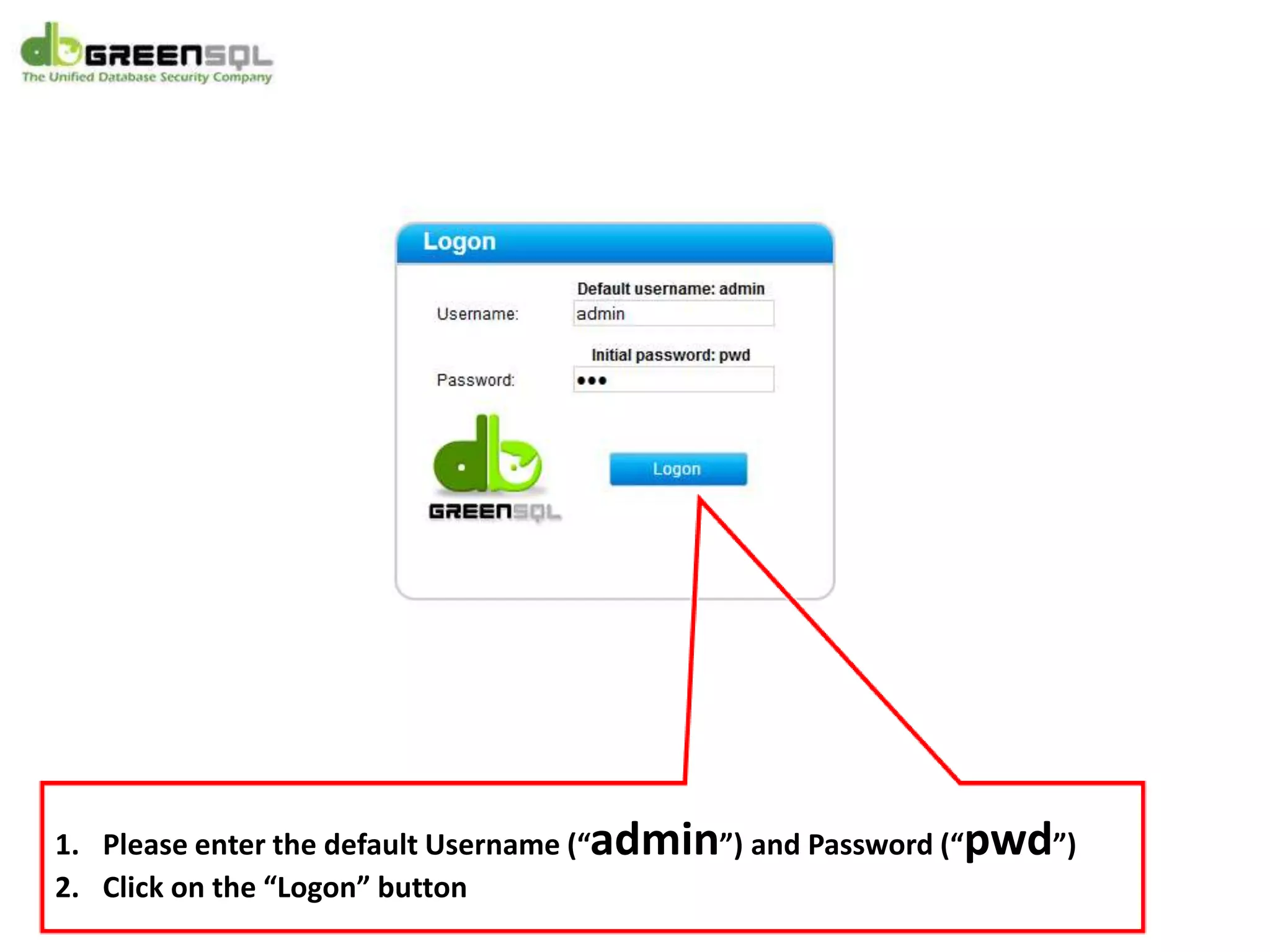
1. Please enter the default Username (“admin”) and Password (“pwd”)
2. Click on the “Logon” button
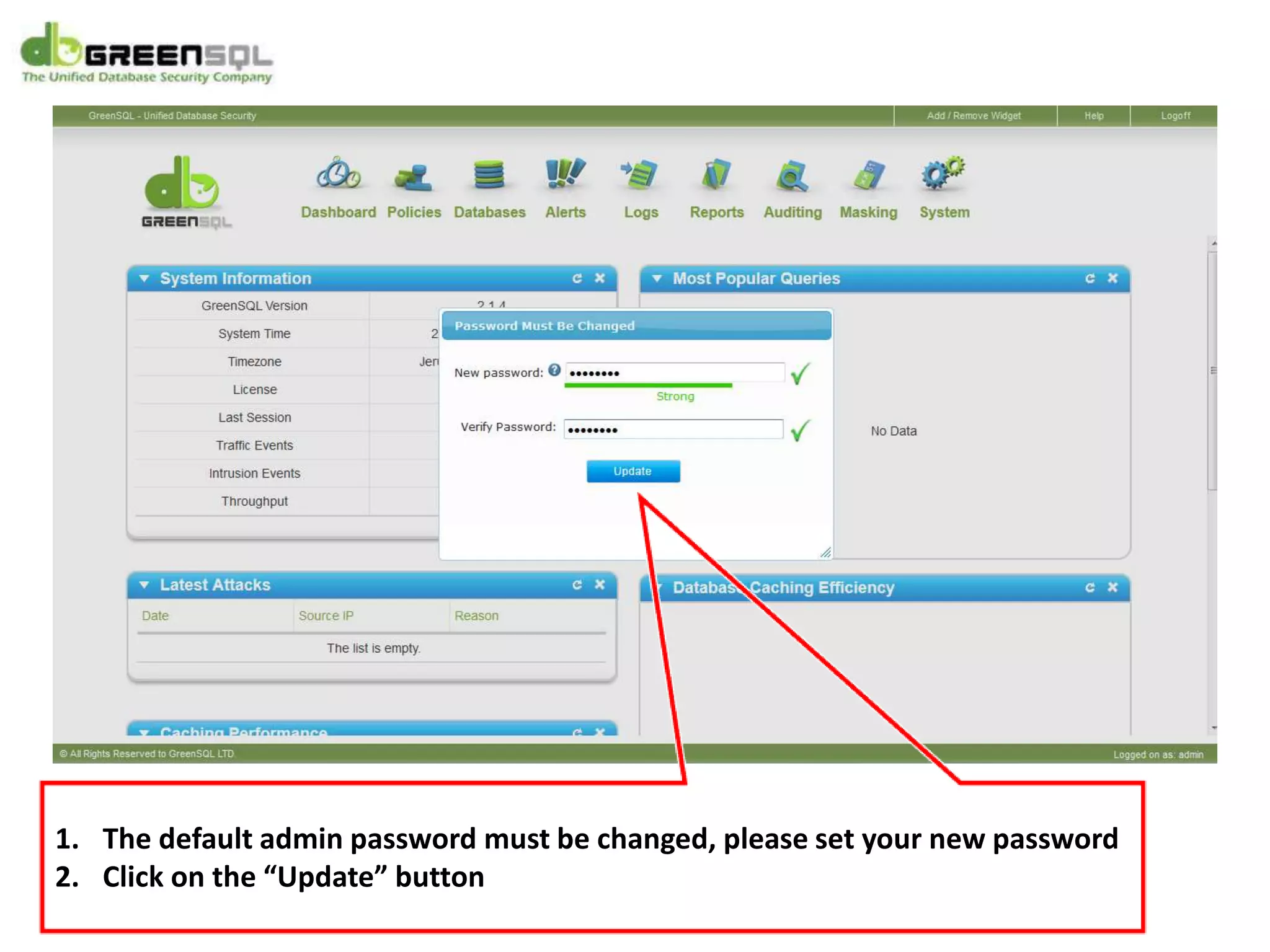
1. The default admin password must be changed, please set your new password
2. Click on the “Update” button
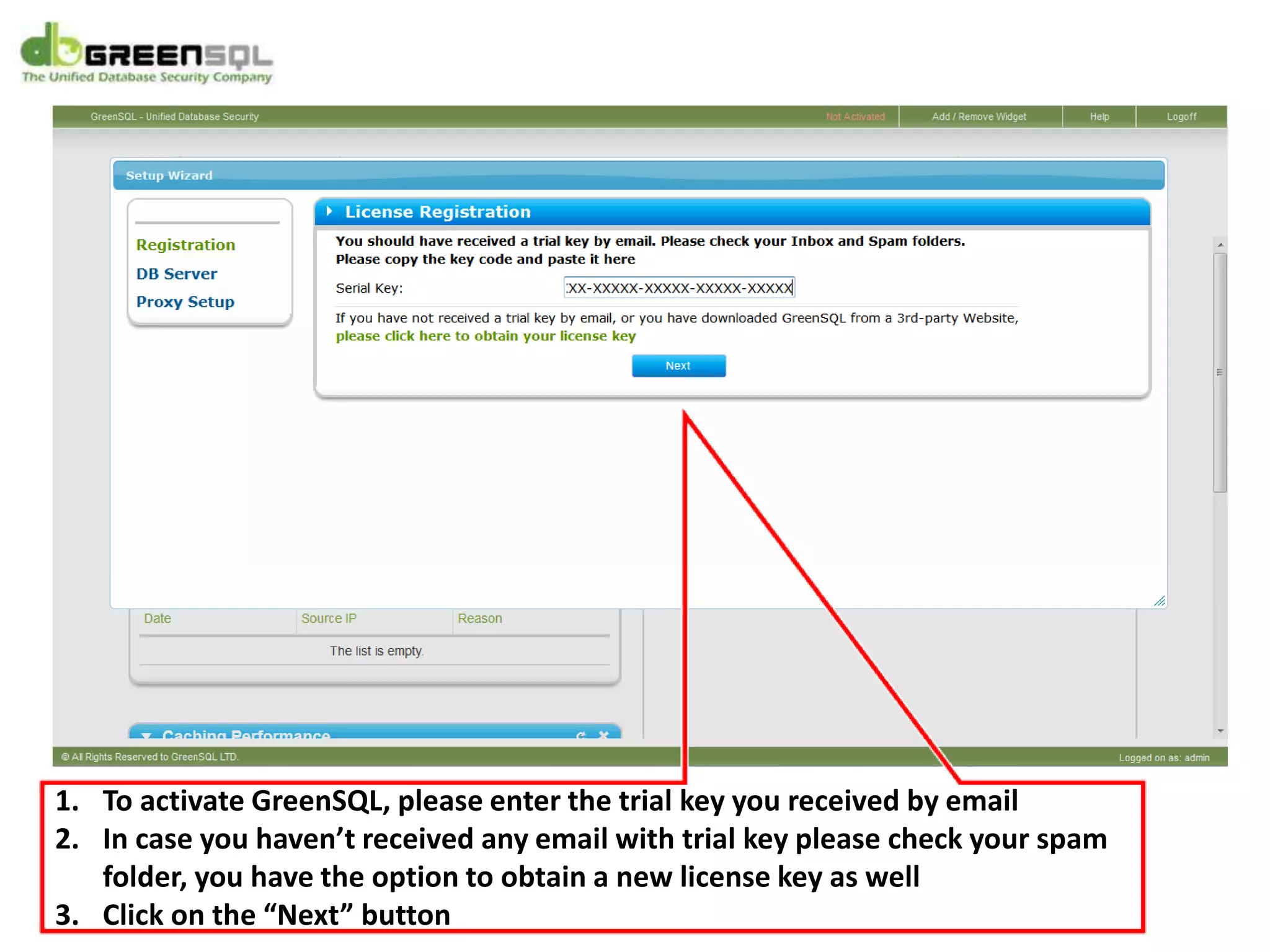
1. To activate GreenSQL, please enter the trial key you received by email
2. In case you haven’t received any email with trial key please check your spam
folder, you have the option to obtain a new license key as well
3. Click on the “Next” button
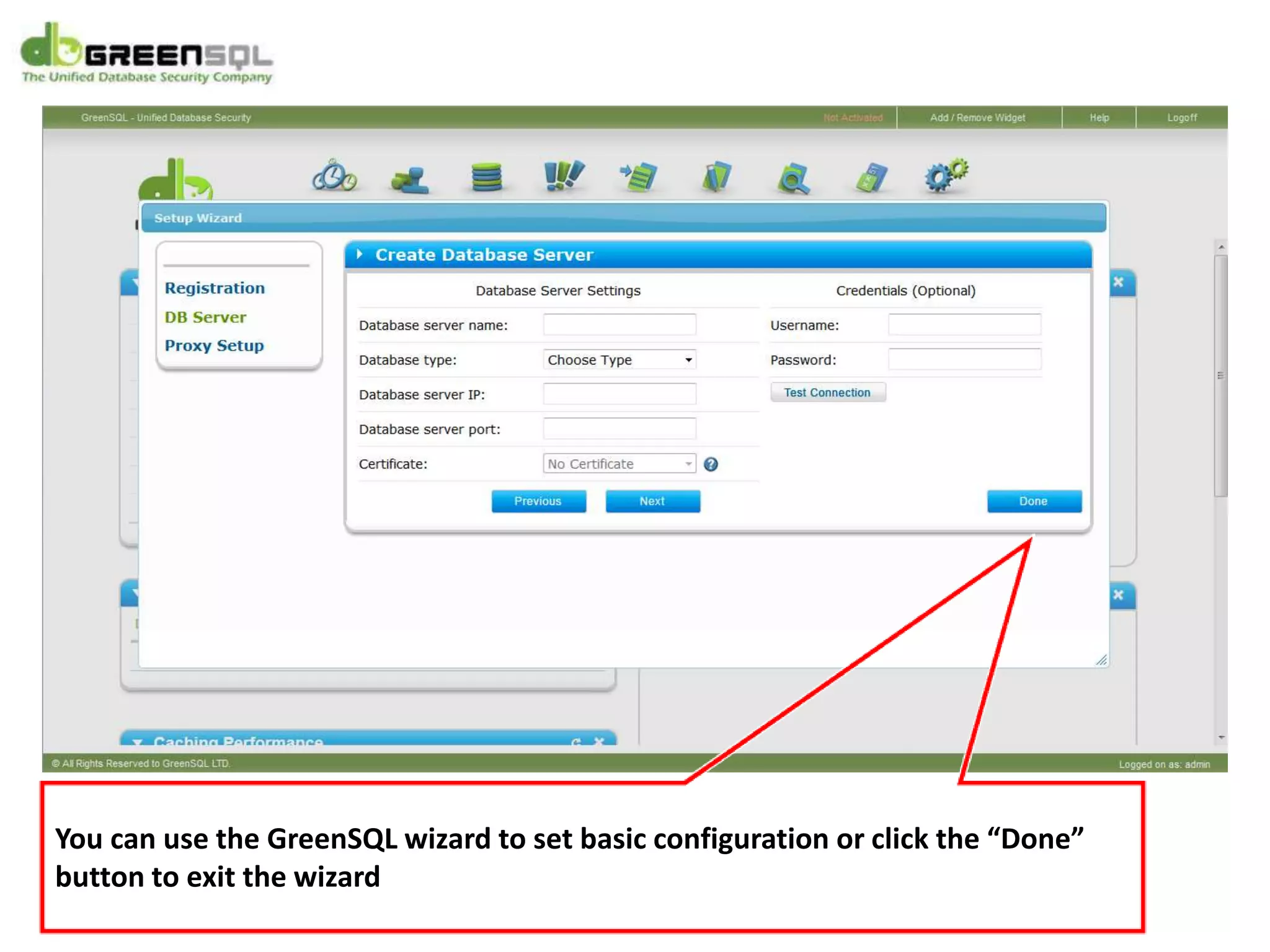
You can use the GreenSQL wizard to set basic configuration or click the “Done”
button to exit the wizard
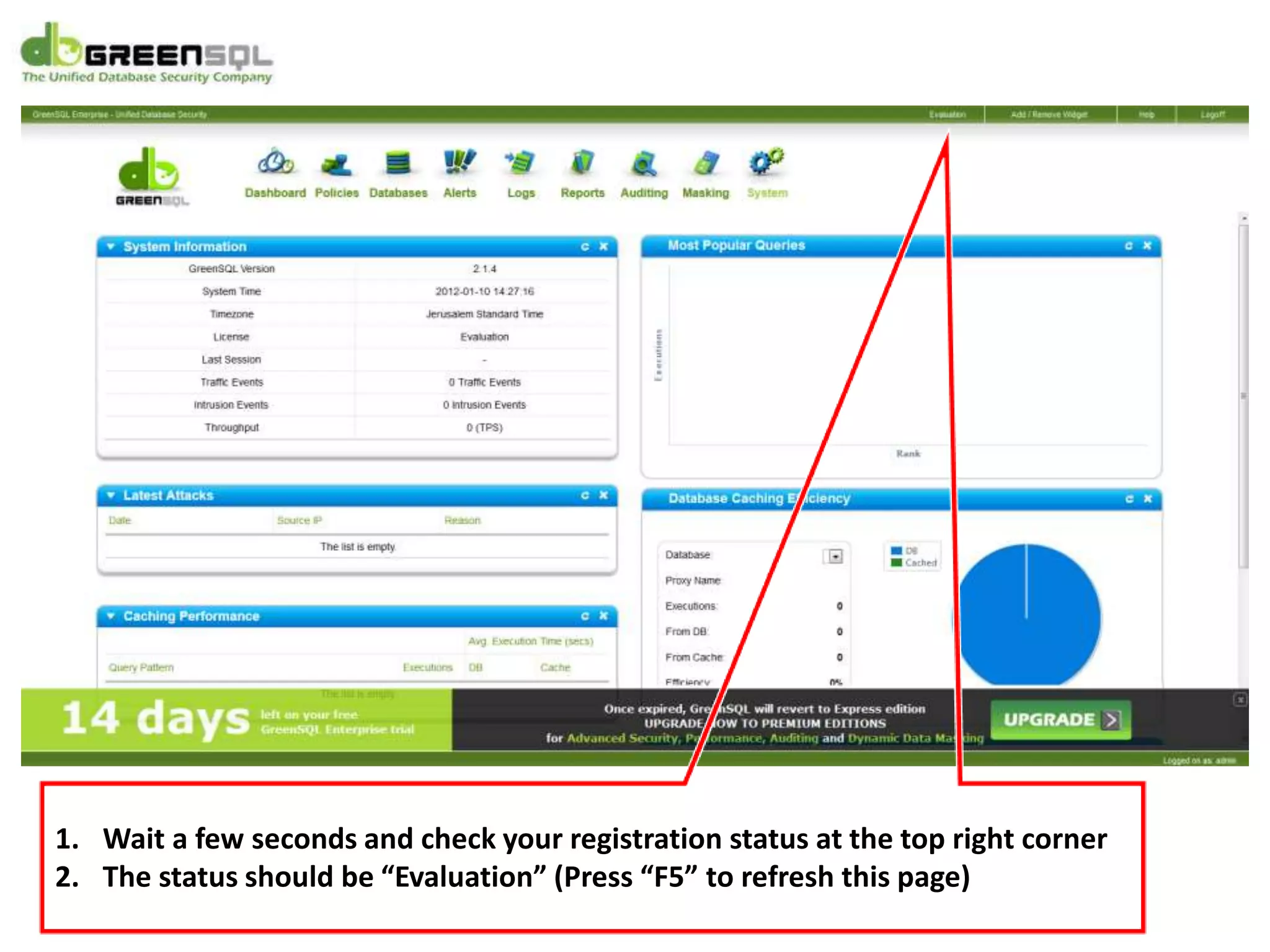
1. Wait a few seconds and check your registration status at the top right corner
2. The status should be “Evaluation” (Press “F5” to refresh this page)
GreenSQL Activation Tutorial

GreenSQL Activation Tutorial

  • 2.
    1. Open yourbrowser 2. Enter the IP address of the server where GreenSQL is installed, please make sure you wrote “https” and port “5000” to access the management securely
  • 3.
    1. The abovemessage will appear during the first time you connect (screenshot taken from Mozilla Firefox) 2. Click on “I Understand the Risks” to add GreenSQL as a trusted connection
  • 4.
    Click on “AddException” to add GreenSQL to your trusted connections
  • 5.
    1. In afew seconds, click on “Confirm Security Exception” 2. GreenSQL is now on your trusted connections list
  • 6.
    1. Please enterthe default Username (“admin”) and Password (“pwd”) 2. Click on the “Logon” button
  • 7.
    1. The defaultadmin password must be changed, please set your new password 2. Click on the “Update” button
  • 8.
    1. To activateGreenSQL, please enter the trial key you received by email 2. In case you haven’t received any email with trial key please check your spam folder, you have the option to obtain a new license key as well 3. Click on the “Next” button
  • 9.
    You can usethe GreenSQL wizard to set basic configuration or click the “Done” button to exit the wizard
  • 10.
    1. Wait afew seconds and check your registration status at the top right corner 2. The status should be “Evaluation” (Press “F5” to refresh this page)