30 Days of Google Cloud
For the GDSC India Campuses
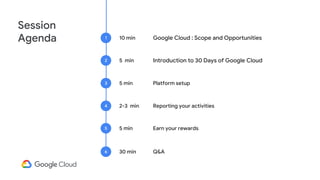
Session
Agenda 10 min
1
Introduction to 30 Days of Google Cloud
2
Platform setup
3
Reporting your activities
4
Earn your rewards
5
Google Cloud : Scope and Opportunities
5 min
5 min
2-3 min
5 min
Q&A
6 30 min
Introduction to
30 Days Of Google Cloud
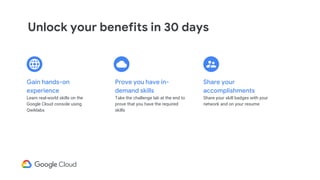
Unlock your benefits in 30 days
Share your
accomplishments
Share your skill badges with your
network and on your resume
Prove you have in-
demand skills
Take the challenge lab at the end to
prove that you have the required
skills
Gain hands-on
experience
Learn real-world skills on the
Google Cloud console using
Qwiklabs
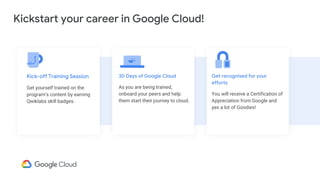
Kickstart your career in Google Cloud!
Get recognised for your
efforts
You will receive a Certification of
Appreciation from Google and
yes a lot of Goodies!
30 Days of Google Cloud
As you are being trained,
onboard your peers and help
them start their journey to cloud.
Kick-off Training Session
Get yourself trained on the
program’s content by earning
Qwiklabs skill badges.
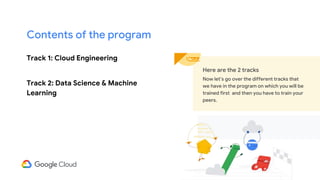
Track 1: Cloud Engineering
Track 2: Data Science & Machine
Learning
Here are the 2 tracks
Now let’s go over the different tracks that
we have in the program on which you will be
trained first and then you have to train your
peers.
Contents of the program
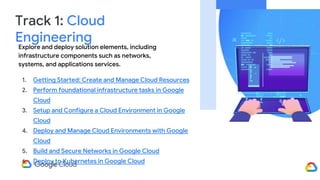
Track 1: Cloud
Engineering
Explore and deploy solution elements, including
infrastructure components such as networks,
systems, and applications services.
1. Getting Started: Create and Manage Cloud Resources
2. Perform foundational infrastructure tasks in Google
Cloud
3. Setup and Configure a Cloud Environment in Google
Cloud
4. Deploy and Manage Cloud Environments with Google
Cloud
5. Build and Secure Networks in Google Cloud
6. Deploy to Kubernetes in Google Cloud
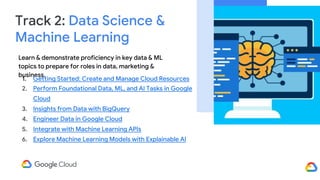
Track 2: Data Science &
Machine Learning
Learn & demonstrate proficiency in key data & ML
topics to prepare for roles in data, marketing &
business.
1. Getting Started: Create and Manage Cloud Resources
2. Perform Foundational Data, ML, and AI Tasks in Google
Cloud
3. Insights from Data with BigQuery
4. Engineer Data in Google Cloud
5. Integrate with Machine Learning APIs
6. Explore Machine Learning Models with Explainable AI
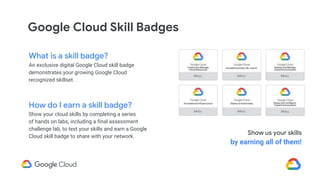
Google Cloud Skill Badges
What is a skill badge?
An exclusive digital Google Cloud skill badge
demonstrates your growing Google Cloud
recognized skillset.
How do I earn a skill badge?
Show your cloud skills by completing a series
of hands on labs, including a final assessment
challenge lab, to test your skills and earn a Google
Cloud skill badge to share with your network.
Show us your skills
by earning all of them!
Campaign
Schedule
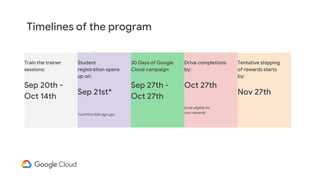
Train the trainer
sessions:
Sep 20th -
Oct 14th
Student
registration opens
up on:
Sep 21st*
*until first 50K sign ups
30 Days of Google
Cloud campaign:
Sep 27th -
Oct 27th
Drive completions
by:
Oct 27th
to be eligible for
your rewards
Tentative shipping
of rewards starts
by:
Nov 27th
Timelines of the program
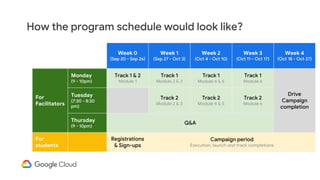
Week 0
(Sep 20 - Sep 26)
Week 1
(Sep 27 - Oct 3)
Week 2
(Oct 4 - Oct 10)
Week 3
(Oct 11 - Oct 17)
Week 4
(Oct 18 - Oct 27)
For
Facilitators
Monday
(9 - 10pm)
Track 1 & 2
Module 1
Track 1
Module 2 & 3
Track 1
Module 4 & 5
Track 1
Module 6
Drive
Campaign
completion
Tuesday
(7:30 - 8:30
pm)
Track 2
Module 2 & 3
Track 2
Module 4 & 5
Track 2
Module 6
Thursday
(9 - 10pm)
Q&A
For
students
Registrations
& Sign-ups
Campaign period
Execution, launch and track completions
How the program schedule would look like?
30 Days Of
Learning
Building
Sharing
Growing
Qwiklabs credits for
the Facilitator
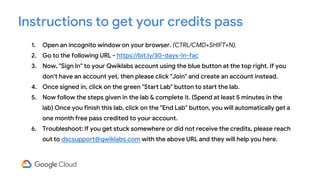
1. Open an incognito window on your browser. (CTRL/CMD+SHIFT+N).
2. Go to the following URL - https://bit.ly/30-days-In-fac
3. Now, "Sign In" to your Qwiklabs account using the blue button at the top right. If you
don't have an account yet, then please click "Join" and create an account instead.
4. Once signed in, click on the green "Start Lab" button to start the lab.
5. Now follow the steps given in the lab & complete it. (Spend at least 5 minutes in the
lab) Once you finish this lab, click on the "End Lab" button, you will automatically get a
one month free pass credited to your account.
6. Troubleshoot: If you get stuck somewhere or did not receive the credits, please reach
out to dscsupport@qwiklabs.com with the above URL and they will help you here.
Instructions to get your credits pass
Qwiklabs credits for
students
Students would need to register successfully to be able to get the
Qwiklabs code. The code will be sent as auto response along with the
registration confirmation email.
How students will get their credits pass?
Support alias
dscsupport@qwiklabs.com
Daily Reports
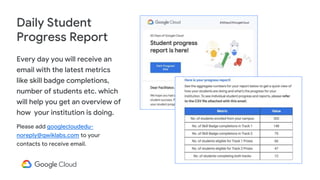
Every day you will receive an
email with the latest metrics
like skill badge completions,
number of students etc. which
will help you get an overview of
how your institution is doing.
Please add googlecloudedu-
noreply@qwiklabs.com to your
contacts to receive email.
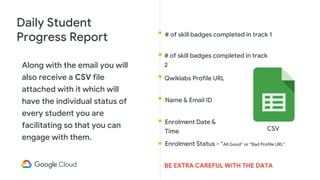
Daily Student
Progress Report
# of skill badges completed in track 1
Daily Student
Progress Report
Along with the email you will
also receive a CSV file
attached with it which will
have the individual status of
every student you are
facilitating so that you can
engage with them.
# of skill badges completed in track
2
Enrolment Date &
Time
Enrolment Status - “All Good” or “Bad Profile URL”
Qwiklabs Profile URL
Name & Email ID
CSV
BE EXTRA CAREFUL WITH THE DATA
Reporting for
Facilitators
Rewards for
Facilitators
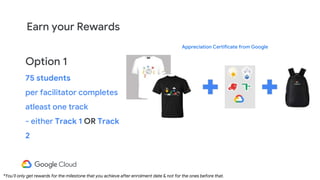
Earn your Rewards
Option 1
75 students
per facilitator completes
atleast one track
- either Track 1 OR Track
2
*You’ll only get rewards for the milestone that you achieve after enrolment date & not for the ones before that.
Appreciation Certificate from Google
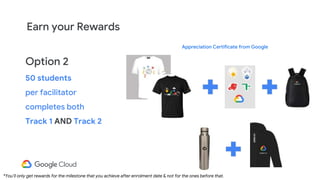
Earn your Rewards
Option 2
50 students
per facilitator
completes both
Track 1 AND Track 2
*You’ll only get rewards for the milestone that you achieve after enrolment date & not for the ones before that.
Appreciation Certificate from Google
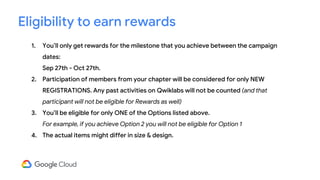
1. You’ll only get rewards for the milestone that you achieve between the campaign
dates:
Sep 27th - Oct 27th.
2. Participation of members from your chapter will be considered for only NEW
REGISTRATIONS. Any past activities on Qwiklabs will not be counted (and that
participant will not be eligible for Rewards as well)
3. You’ll be eligible for only ONE of the Options listed above.
For example, if you achieve Option 2 you will not be eligible for Option 1
4. The actual items might differ in size & design.
Eligibility to earn rewards
Rewards for
students
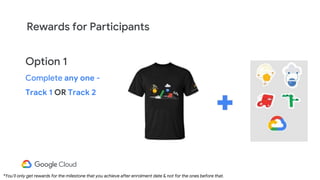
Rewards for Participants
Option 1
Complete any one -
Track 1 OR Track 2
*You’ll only get rewards for the milestone that you achieve after enrolment date & not for the ones before that.
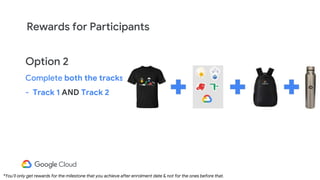
Option 2
Complete both the tracks
- Track 1 AND Track 2
Rewards for Participants
*You’ll only get rewards for the milestone that you achieve after enrolment date & not for the ones before that.
Thank You!

Google Cloud Onbording

  • 1.
    30 Days ofGoogle Cloud For the GDSC India Campuses
  • 2.
    Session Agenda 10 min 1 Introductionto 30 Days of Google Cloud 2 Platform setup 3 Reporting your activities 4 Earn your rewards 5 Google Cloud : Scope and Opportunities 5 min 5 min 2-3 min 5 min Q&A 6 30 min
  • 3.
    Introduction to 30 DaysOf Google Cloud
  • 4.
    Unlock your benefitsin 30 days Share your accomplishments Share your skill badges with your network and on your resume Prove you have in- demand skills Take the challenge lab at the end to prove that you have the required skills Gain hands-on experience Learn real-world skills on the Google Cloud console using Qwiklabs
  • 5.
    Kickstart your careerin Google Cloud! Get recognised for your efforts You will receive a Certification of Appreciation from Google and yes a lot of Goodies! 30 Days of Google Cloud As you are being trained, onboard your peers and help them start their journey to cloud. Kick-off Training Session Get yourself trained on the program’s content by earning Qwiklabs skill badges.
  • 6.
    Track 1: CloudEngineering Track 2: Data Science & Machine Learning Here are the 2 tracks Now let’s go over the different tracks that we have in the program on which you will be trained first and then you have to train your peers. Contents of the program
  • 7.
    Track 1: Cloud Engineering Exploreand deploy solution elements, including infrastructure components such as networks, systems, and applications services. 1. Getting Started: Create and Manage Cloud Resources 2. Perform foundational infrastructure tasks in Google Cloud 3. Setup and Configure a Cloud Environment in Google Cloud 4. Deploy and Manage Cloud Environments with Google Cloud 5. Build and Secure Networks in Google Cloud 6. Deploy to Kubernetes in Google Cloud
  • 8.
    Track 2: DataScience & Machine Learning Learn & demonstrate proficiency in key data & ML topics to prepare for roles in data, marketing & business. 1. Getting Started: Create and Manage Cloud Resources 2. Perform Foundational Data, ML, and AI Tasks in Google Cloud 3. Insights from Data with BigQuery 4. Engineer Data in Google Cloud 5. Integrate with Machine Learning APIs 6. Explore Machine Learning Models with Explainable AI
  • 9.
    Google Cloud SkillBadges What is a skill badge? An exclusive digital Google Cloud skill badge demonstrates your growing Google Cloud recognized skillset. How do I earn a skill badge? Show your cloud skills by completing a series of hands on labs, including a final assessment challenge lab, to test your skills and earn a Google Cloud skill badge to share with your network. Show us your skills by earning all of them!
  • 10.
  • 11.
    Train the trainer sessions: Sep20th - Oct 14th Student registration opens up on: Sep 21st* *until first 50K sign ups 30 Days of Google Cloud campaign: Sep 27th - Oct 27th Drive completions by: Oct 27th to be eligible for your rewards Tentative shipping of rewards starts by: Nov 27th Timelines of the program
  • 12.
    Week 0 (Sep 20- Sep 26) Week 1 (Sep 27 - Oct 3) Week 2 (Oct 4 - Oct 10) Week 3 (Oct 11 - Oct 17) Week 4 (Oct 18 - Oct 27) For Facilitators Monday (9 - 10pm) Track 1 & 2 Module 1 Track 1 Module 2 & 3 Track 1 Module 4 & 5 Track 1 Module 6 Drive Campaign completion Tuesday (7:30 - 8:30 pm) Track 2 Module 2 & 3 Track 2 Module 4 & 5 Track 2 Module 6 Thursday (9 - 10pm) Q&A For students Registrations & Sign-ups Campaign period Execution, launch and track completions How the program schedule would look like?
  • 13.
  • 14.
  • 15.
    1. Open anincognito window on your browser. (CTRL/CMD+SHIFT+N). 2. Go to the following URL - https://bit.ly/30-days-In-fac 3. Now, "Sign In" to your Qwiklabs account using the blue button at the top right. If you don't have an account yet, then please click "Join" and create an account instead. 4. Once signed in, click on the green "Start Lab" button to start the lab. 5. Now follow the steps given in the lab & complete it. (Spend at least 5 minutes in the lab) Once you finish this lab, click on the "End Lab" button, you will automatically get a one month free pass credited to your account. 6. Troubleshoot: If you get stuck somewhere or did not receive the credits, please reach out to dscsupport@qwiklabs.com with the above URL and they will help you here. Instructions to get your credits pass
  • 16.
  • 17.
    Students would needto register successfully to be able to get the Qwiklabs code. The code will be sent as auto response along with the registration confirmation email. How students will get their credits pass?
  • 18.
  • 19.
  • 20.
    Every day youwill receive an email with the latest metrics like skill badge completions, number of students etc. which will help you get an overview of how your institution is doing. Please add googlecloudedu- noreply@qwiklabs.com to your contacts to receive email. Daily Student Progress Report
  • 21.
    # of skillbadges completed in track 1 Daily Student Progress Report Along with the email you will also receive a CSV file attached with it which will have the individual status of every student you are facilitating so that you can engage with them. # of skill badges completed in track 2 Enrolment Date & Time Enrolment Status - “All Good” or “Bad Profile URL” Qwiklabs Profile URL Name & Email ID CSV BE EXTRA CAREFUL WITH THE DATA
  • 22.
  • 23.
  • 24.
    Earn your Rewards Option1 75 students per facilitator completes atleast one track - either Track 1 OR Track 2 *You’ll only get rewards for the milestone that you achieve after enrolment date & not for the ones before that. Appreciation Certificate from Google
  • 25.
    Earn your Rewards Option2 50 students per facilitator completes both Track 1 AND Track 2 *You’ll only get rewards for the milestone that you achieve after enrolment date & not for the ones before that. Appreciation Certificate from Google
  • 26.
    1. You’ll onlyget rewards for the milestone that you achieve between the campaign dates: Sep 27th - Oct 27th. 2. Participation of members from your chapter will be considered for only NEW REGISTRATIONS. Any past activities on Qwiklabs will not be counted (and that participant will not be eligible for Rewards as well) 3. You’ll be eligible for only ONE of the Options listed above. For example, if you achieve Option 2 you will not be eligible for Option 1 4. The actual items might differ in size & design. Eligibility to earn rewards
  • 27.
  • 28.
    Rewards for Participants Option1 Complete any one - Track 1 OR Track 2 *You’ll only get rewards for the milestone that you achieve after enrolment date & not for the ones before that.
  • 29.
    Option 2 Complete boththe tracks - Track 1 AND Track 2 Rewards for Participants *You’ll only get rewards for the milestone that you achieve after enrolment date & not for the ones before that.
  • 30.

Editor's Notes

  • #4 To get those industry skills, let’s begin your journey with the 30 Days of Google Cloud program. Let us tell you how your program journey would look like. Begin your journey to cloud with 30 Days of Google Cloud.
  • #5 After you acquire them, do remember to add them on your resume and professional profiles and share it with your network to prove that you have the in-demand skills. We have a total of 6 skills badges to be earned for each track!
  • #6 This starts with the training session where we will conduct your training. In this kick-off call and the follow up session, we will give you an introduction to some basics of Google Cloud and will also provide you with an headstart to either of the 2 tracks that you are supposed to do in the program. In each session, we will cover some hand-on practice labs and during the end we will set you on the path where you can earn your Qwiklabs skill badges for the tracks in the 30 Days of Google Cloud program. As you start your journey, you in parallel onboard your peers in your institution and start their learning a week later. You will help them deep dive into what you have already learned and get them to complete their quests on Qwiklabs, just like you did. Upon successful completion of the program, you would have learned the necessary technical & soft skills that any company/organisation is looking for like leadership, program management, problem solving, team building & much more. As the campaign progresses, we recognise your efforts and award you with certificates and cool goodies. You will know more about the rewards in slides ahead. Now let’s take a look at what areas will we be covering in this journey!
  • #7 [Read the content on the screen] Let’s go over each track one by one.
  • #8 First track that we have in the program is the “Cloud Engineering” track. By completing the quests under the Cloud Engineering track, you will learn to explore and deploy solution elements, including infrastructure components such as networks, systems, and applications services. We have a total of 6 quests under this track that will be covered through training sessions starting next week. Let’s take a look at the second track!
  • #9 For Track 2, we have the “Data Science & Machine Learning” track. By completing the quests in this track, you will learn and demonstrate proficiency in key topics related to big data and machine learning to prepare for roles such as data analyst, marketing analyst, business intelligence professional, and data engineer. This track also consists of 6 quests. I am sure you are curious to know about the campaign timelines and training schedules. You hear more about it in the slides ahead.
  • #10 After completing each quest from either of the tracks, you have a chance of earning Google Cloud Skill Badges. Skill badges are used to show that you have actually applied your new learned skills using a challenge lab at the end where you have to take your new learned skills for a test drive.
  • #12 Okay moving on to how the program schedule would look like once you are done with your training? After this training session, you will have to complete either of the tracks yourself and start onboarding your peers - we will tell you how you can do this at the end of this call, so don’t worry about this right now. After onboarding them, we would leave it upto you on how you want to drive the program - conduct study jams, drop emails to your peers, message them etc. As soon as everything is done, we will send you your certificates and also goodies to you and your peers!!
  • #16 So now it’s time to give you access to your Qwiklabs credits pass so that you can take as many labs/quests/skill badges on Qwiklabs as you want while helping your peers in the program. To get started: Open an incognito window in your browser. If you are attending through your phone, then please follow these instructions using your PC later on as these won’t work on your mobile device. Copy and paste the following URL into your browser. I am sharing this link on the chat for everyone to reference. Now when you navigate to the URL, you will see that you are on the Qwiklabs website and there is a lab that has opened with the following headline - “A Tour of Qwiklabs and Google Cloud”. If this is the first time you are hearing about Qwiklabs, then please note that Qwiklabs is a training platform that helps it’s users get hands-on experience on Google Cloud by performing certain tasks that are given to you in these labs. Our whole syllabus includes on a group of labs called Skill Badges, so do remember to try and learn more about Qwiklabs on your own after this session. Coming back to your credits pass - the next step for you is to sign-in to your Qwiklabs account. At the top right corner, you will see 2 buttons - Join and Sign-in. If you already have an account on Qwiklabs, then click on Sign-in and follow the on-screen instructions to log-in to your account. If you do not have an account on Qwiklabs yet, then please click on Join and create an account. (It’s totally free to create an account on Qwiklabs.) Once you have created your account and logged into-it, you will again be brought back to the “A Tour of Qwiklabs and Google Cloud” lab page. Now click on the green “Start lab” button at the top left end of the page to start the lab. Now follow the on-screen instructions to complete the lab. Since we are low on time, we are just going to spend the minimum 5 minutes that are required for you to get the credits. If you end the labs before these 5 minutes are elapsed, then you will not get the credits. [Start the 5 minutes clock - https://www.youtube.com/watch?v=xTczn5RUgnk and ask the students to try the lab meanwhile instead of directly ending it] If you have completed the lab, then that’s great. If not, you can do it later on after the session ends. As the next step, please click on the red “End lab” button to end the lab. Now check if you have received the “Monthly Subscription” or not by clicking on your profile picture at the top right corner. If you have, then great. If not, then please wait for a few minutes, hard refresh your browser page and log-in/log-out of your account and that should do the trick. If nothing works, then you can probably wait for another half an hour and come back and check your account for the same. If you still don’t receive it, then please reach out to our support team at dscsupport@qwiklabs.com and they will help you here.
  • #21 To help you better support your peers through the program and to stay updated with their progress, we will be sending you daily updates which will include the aggregate metrics of how your institution is doing in the program along with important program related updates and resource. See the screenshots provided to get an idea of how they would look like. You will start receiving these reports from a few days after we open the enrolment form for students. To make sure that these emails from us don’t end up in your spam/promotions folder, then please make sure to add the email alias given here to your contacts on Gmail or the email service that you use. If you don’t know how to do that, then just drop a test email to this email alias a couple of times. The emails will just bounce back, but the alias will now be in your contacts.
  • #22 Along with this email, you will also find an attached CSV file which will have the individual status of each students enrolled from your institution and their progress in the program. See the different data points that you will receive in the CSV file. You will see the progress of the students in each of the tracks in the program syllabus around how many skill badges they have completed. You will also receive the Qwiklabs public profile URL of the student so that you can check it’s correctness and follow up with the student to submit their correct profile URL. You will receive the name and email ID of the students and also their enrolment date and time after which their completions are being counted. Finally, the most important thing that you will see in those reports is the enrolment status of the student i.e. whether they have submitted the correct profile URL or not. This will easily help you identify the students with wrong profile URl and share with us the correct ones. Since this is student data from your institution, you need to be very careful while handling this and make sure that you are not leaking any student information to anyone other than you.(Not even with your DSC team) Any such leak will result in you getting DISQUALIFIED from the program with any warnings.
  • #27 So now it’s time to give you access to your Qwiklabs credits pass so that you can take as many labs/quests/skill badges on Qwiklabs as you want while helping your peers in the program. To get started: Open an incognito window in your browser. If you are attending through your phone, then please follow these instructions using your PC later on as these won’t work on your mobile device. Copy and paste the following URL into your browser. I am sharing this link on the chat for everyone to reference. Now when you navigate to the URL, you will see that you are on the Qwiklabs website and there is a lab that has opened with the following headline - “A Tour of Qwiklabs and Google Cloud”. If this is the first time you are hearing about Qwiklabs, then please note that Qwiklabs is a training platform that helps it’s users get hands-on experience on Google Cloud by performing certain tasks that are given to you in these labs. Our whole syllabus includes on a group of labs called Skill Badges, so do remember to try and learn more about Qwiklabs on your own after this session. Coming back to your credits pass - the next step for you is to sign-in to your Qwiklabs account. At the top right corner, you will see 2 buttons - Join and Sign-in. If you already have an account on Qwiklabs, then click on Sign-in and follow the on-screen instructions to log-in to your account. If you do not have an account on Qwiklabs yet, then please click on Join and create an account. (It’s totally free to create an account on Qwiklabs.) Once you have created your account and logged into-it, you will again be brought back to the “A Tour of Qwiklabs and Google Cloud” lab page. Now click on the green “Start lab” button at the top left end of the page to start the lab. Now follow the on-screen instructions to complete the lab. Since we are low on time, we are just going to spend the minimum 5 minutes that are required for you to get the credits. If you end the labs before these 5 minutes are elapsed, then you will not get the credits. [Start the 5 minutes clock - https://www.youtube.com/watch?v=xTczn5RUgnk and ask the students to try the lab meanwhile instead of directly ending it] If you have completed the lab, then that’s great. If not, you can do it later on after the session ends. As the next step, please click on the red “End lab” button to end the lab. Now check if you have received the “Monthly Subscription” or not by clicking on your profile picture at the top right corner. If you have, then great. If not, then please wait for a few minutes, hard refresh your browser page and log-in/log-out of your account and that should do the trick. If nothing works, then you can probably wait for another half an hour and come back and check your account for the same. If you still don’t receive it, then please reach out to our support team at dscsupport@qwiklabs.com and they will help you here.