Let’s Go Lang
Let’s Go Lang
- Startup go lang in windows -
2014/02/25
1/15
Let’s Go Lang
1 Go lang install
1.1 Download Installer your environment
URL : http://code.google.com/p/go/downloads/list
1.2 Execute Installer
1.2.1 Start up dialog [Next]
1.2.2 Agreement lisence
2/15
Let’s Go Lang
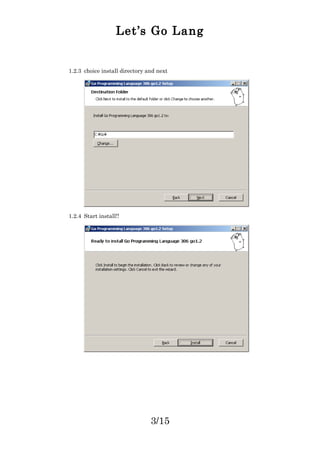
1.2.3 choice install directory and next
1.2.4 Start install!!
3/15
Let’s Go Lang
1.2.5 Wait for finish
1.2.6 Congratulation!! You Finished Install!!Wellcome golang world!!
4/15
Let’s Go Lang
1.3 Check environment variables
1.3.1 Variables : GOROOT & GOPATH
1.3.2 Variables : path
5/15
Let’s Go Lang
2 Let’s hello world!!
2.1 Create “helloworld.go”
2.2 Write program
2.3 Execute program
2.4 And Format
6/15
Let’s Go Lang
3 Setting IDE(GoClipse)
3.1 Install JDK
3.1.1 Open browser and searching “how to install jdk help me”.
3.2 Install Eclipse
3.2.1 Open browser and searching “how to install eclipse help me”.
3.3 Goclipse Setting
3.3.1 Open Eclipse Help->Install New Software and Site adding
Name : goclipse
URL : http://goclipse.googlecode.com/svn/trunk/goclipse-update-site/
7/15
Let’s Go Lang
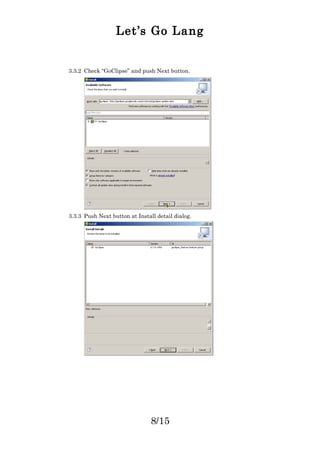
3.3.2 Check “GoClipse” and push Next button.
3.3.3 Push Next button at Install detail dialog.
8/15
Let’s Go Lang
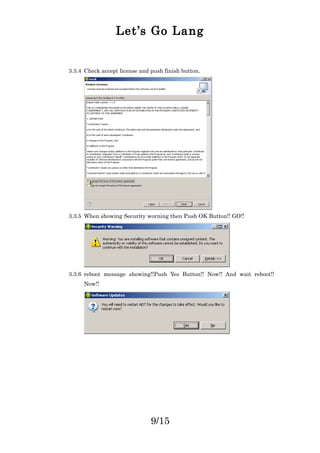
3.3.4 Check accept license and push finish button.
3.3.5 When showing Security worning then Push OK Button!! GO!!
3.3.6 reboot message showing!!Push Yes Button!! Now!! And wait reboot!!
Now!!
9/15
Let’s Go Lang
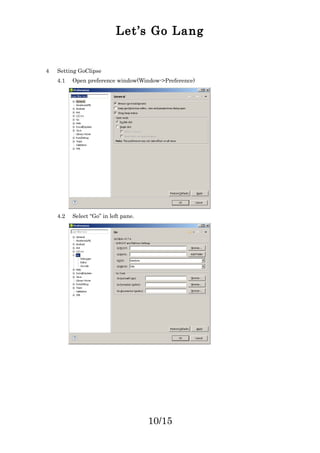
4 Setting GoClipse
4.1 Open preference window(Window->Preference)
4.2 Select “Go” in left pane.
10/15
Let’s Go Lang
4.3 Input goroot and gopath and Push OK Button!! Now!! Quickly!!
11/15
Let’s Go Lang
5 Let’s create Go Project!!
5.1 Open create proejct dialog(Eclipse File->New->Project).and select Go Project.
5.2 Input project name.and push finish button.
12/15
Let’s Go Lang
5.3 Create new src file.right click src folder and new -> go gile in package
manager.
5.4 Input filename and push finish button.
5.5 Edit created file and save
13/15
Let’s Go Lang
5.6 Debug setting(left click project folder and runas->run configurations… in
package explorer)
5.7 Seting main source file name.
5.8 choice common tab and checking debug and run in Display favaritosmenu.
14/15
Let’s Go Lang
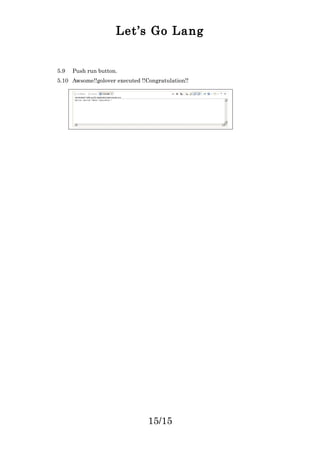
5.9 Push run button.
5.10 Awsome!!golover executed !!Congratulation!!
15/15

Golang

  • 1.
    Let’s Go Lang Let’sGo Lang - Startup go lang in windows - 2014/02/25 1/15
  • 2.
    Let’s Go Lang 1Go lang install 1.1 Download Installer your environment URL : http://code.google.com/p/go/downloads/list 1.2 Execute Installer 1.2.1 Start up dialog [Next] 1.2.2 Agreement lisence 2/15
  • 3.
    Let’s Go Lang 1.2.3choice install directory and next 1.2.4 Start install!! 3/15
  • 4.
    Let’s Go Lang 1.2.5Wait for finish 1.2.6 Congratulation!! You Finished Install!!Wellcome golang world!! 4/15
  • 5.
    Let’s Go Lang 1.3Check environment variables 1.3.1 Variables : GOROOT & GOPATH 1.3.2 Variables : path 5/15
  • 6.
    Let’s Go Lang 2Let’s hello world!! 2.1 Create “helloworld.go” 2.2 Write program 2.3 Execute program 2.4 And Format 6/15
  • 7.
    Let’s Go Lang 3Setting IDE(GoClipse) 3.1 Install JDK 3.1.1 Open browser and searching “how to install jdk help me”. 3.2 Install Eclipse 3.2.1 Open browser and searching “how to install eclipse help me”. 3.3 Goclipse Setting 3.3.1 Open Eclipse Help->Install New Software and Site adding Name : goclipse URL : http://goclipse.googlecode.com/svn/trunk/goclipse-update-site/ 7/15
  • 8.
    Let’s Go Lang 3.3.2Check “GoClipse” and push Next button. 3.3.3 Push Next button at Install detail dialog. 8/15
  • 9.
    Let’s Go Lang 3.3.4Check accept license and push finish button. 3.3.5 When showing Security worning then Push OK Button!! GO!! 3.3.6 reboot message showing!!Push Yes Button!! Now!! And wait reboot!! Now!! 9/15
  • 10.
    Let’s Go Lang 4Setting GoClipse 4.1 Open preference window(Window->Preference) 4.2 Select “Go” in left pane. 10/15
  • 11.
    Let’s Go Lang 4.3Input goroot and gopath and Push OK Button!! Now!! Quickly!! 11/15
  • 12.
    Let’s Go Lang 5Let’s create Go Project!! 5.1 Open create proejct dialog(Eclipse File->New->Project).and select Go Project. 5.2 Input project name.and push finish button. 12/15
  • 13.
    Let’s Go Lang 5.3Create new src file.right click src folder and new -> go gile in package manager. 5.4 Input filename and push finish button. 5.5 Edit created file and save 13/15
  • 14.
    Let’s Go Lang 5.6Debug setting(left click project folder and runas->run configurations… in package explorer) 5.7 Seting main source file name. 5.8 choice common tab and checking debug and run in Display favaritosmenu. 14/15
  • 15.
    Let’s Go Lang 5.9Push run button. 5.10 Awsome!!golover executed !!Congratulation!! 15/15