Getting Started with 
WordPress
WordPress 
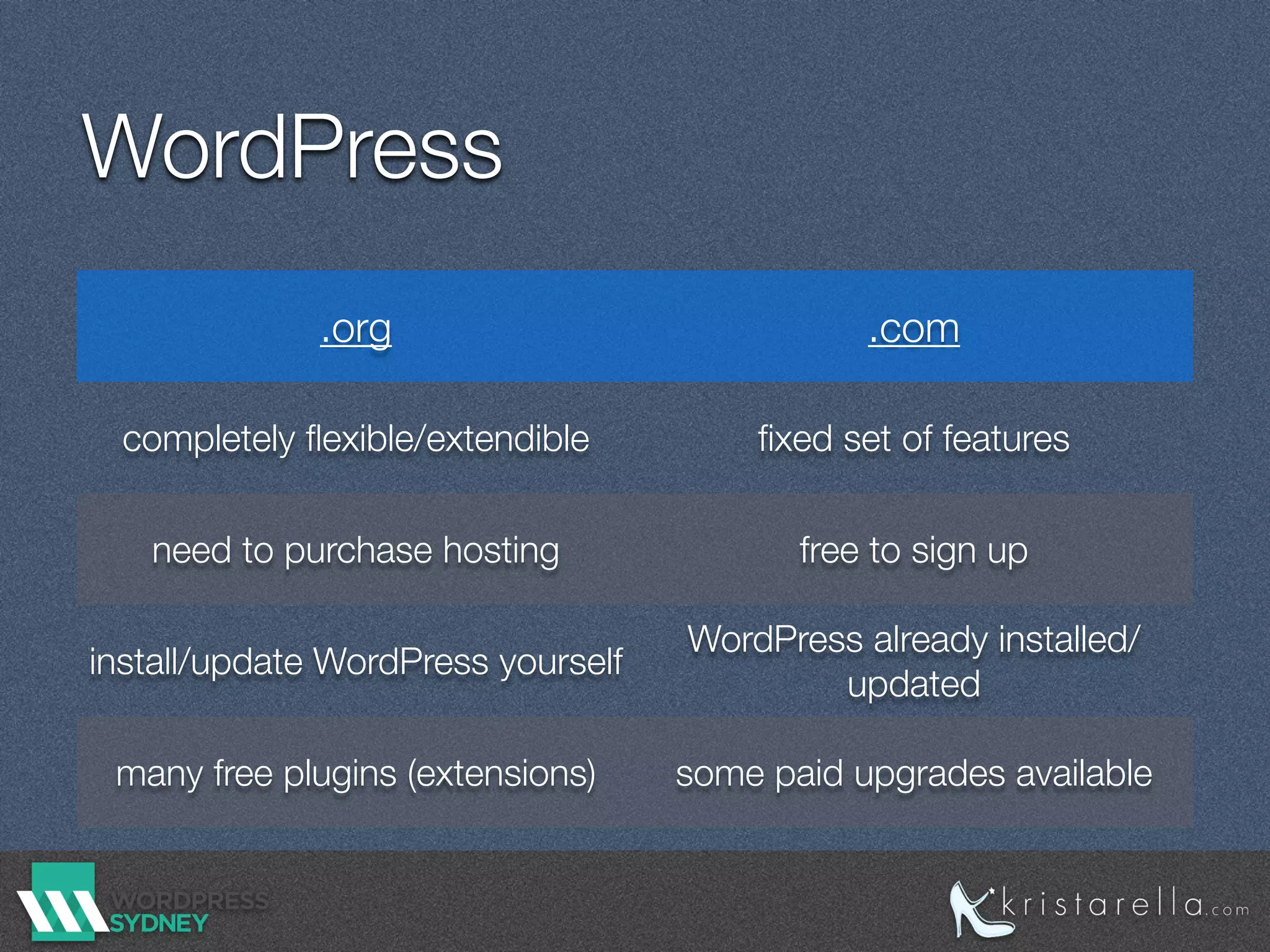
.org .com 
completely flexible/extendible fixed set of features 
need to purchase hosting free to sign up 
install/update WordPress yourself WordPress already installed/ 
updated 
many free plugins (extensions) some paid upgrades available
Installing WordPress 
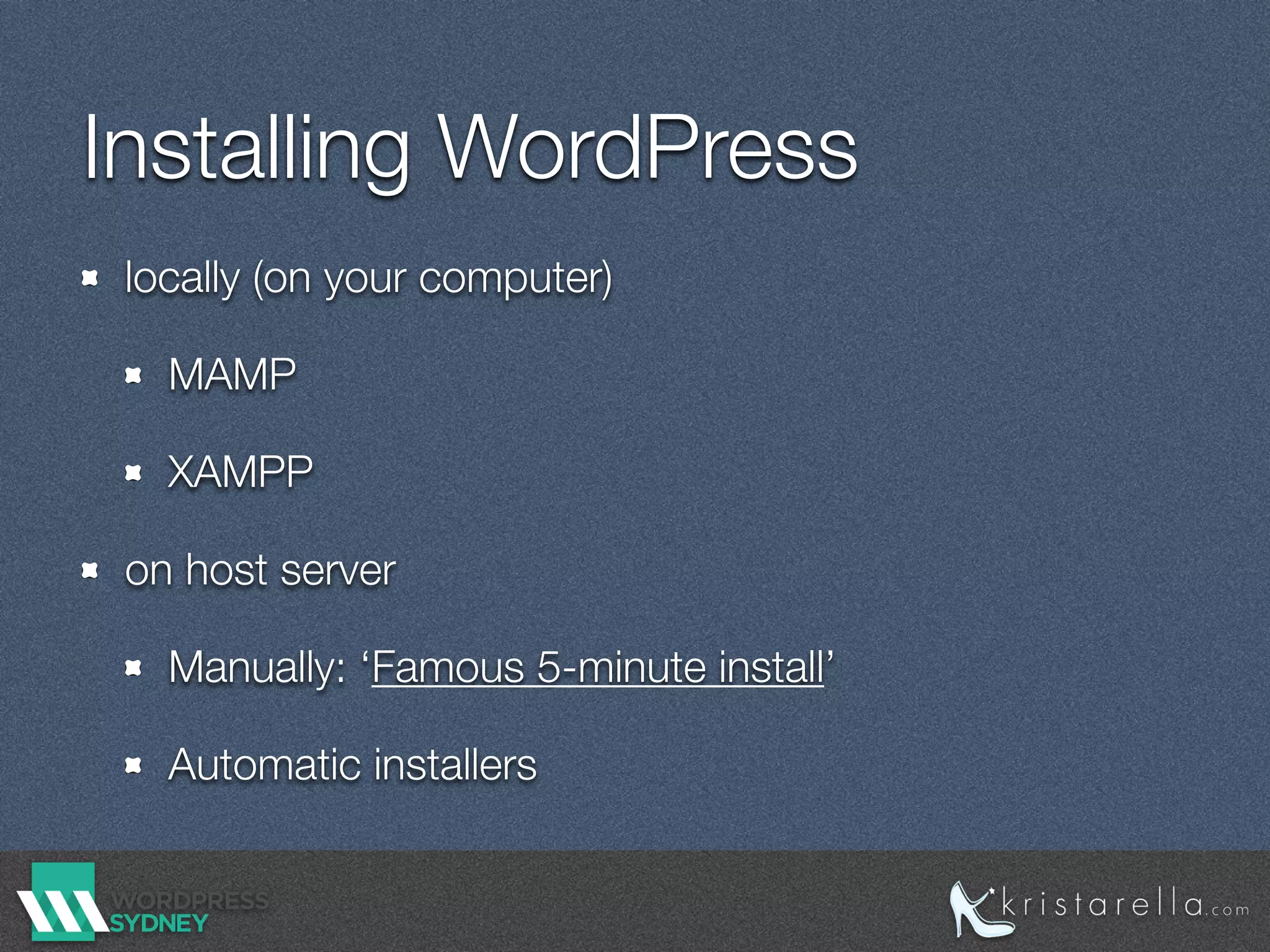
locally (on your computer) 
MAMP 
XAMPP 
on host server 
Manually: ‘Famous 5-minute install’ 
Automatic installers
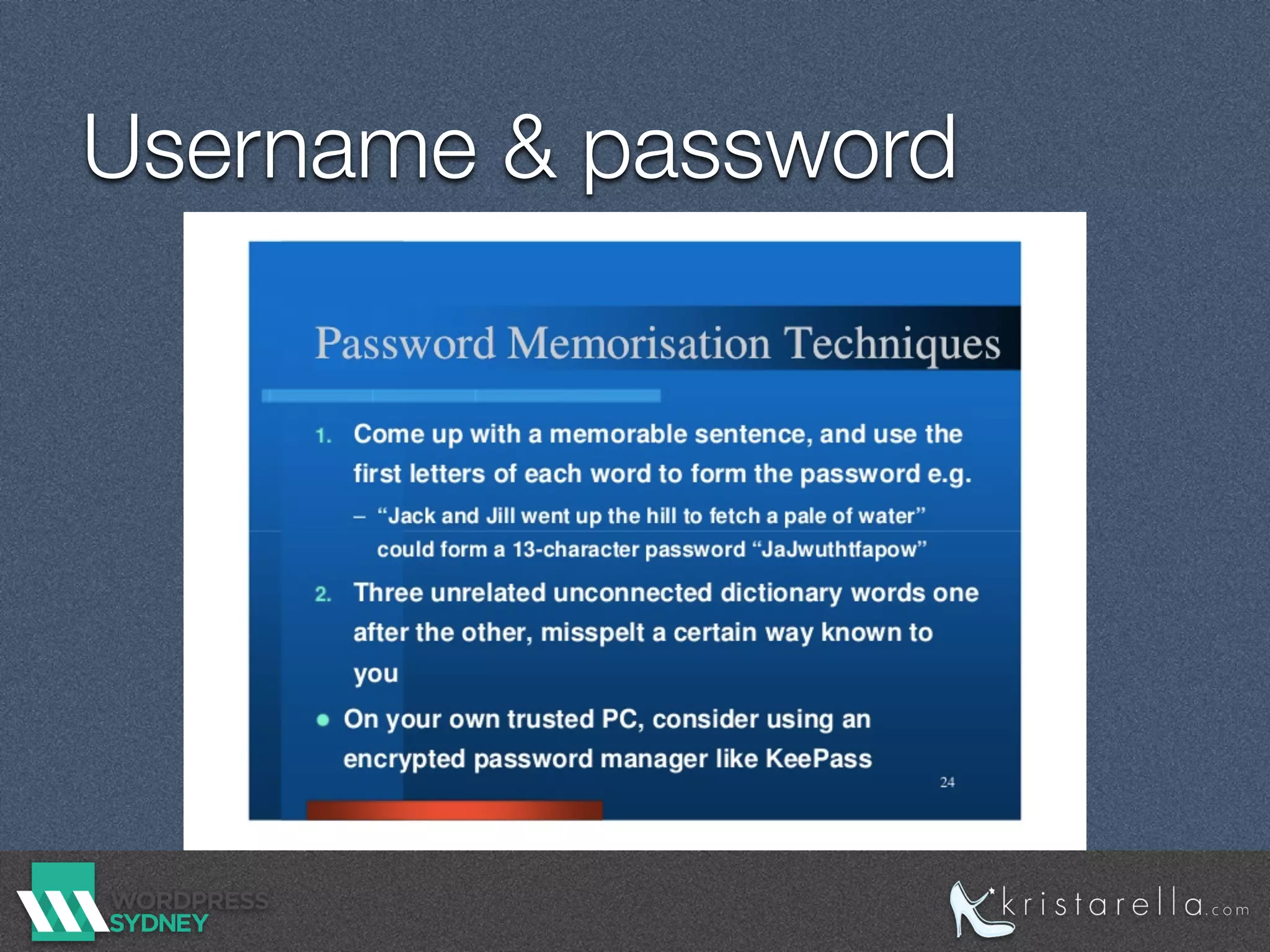
Username & password 
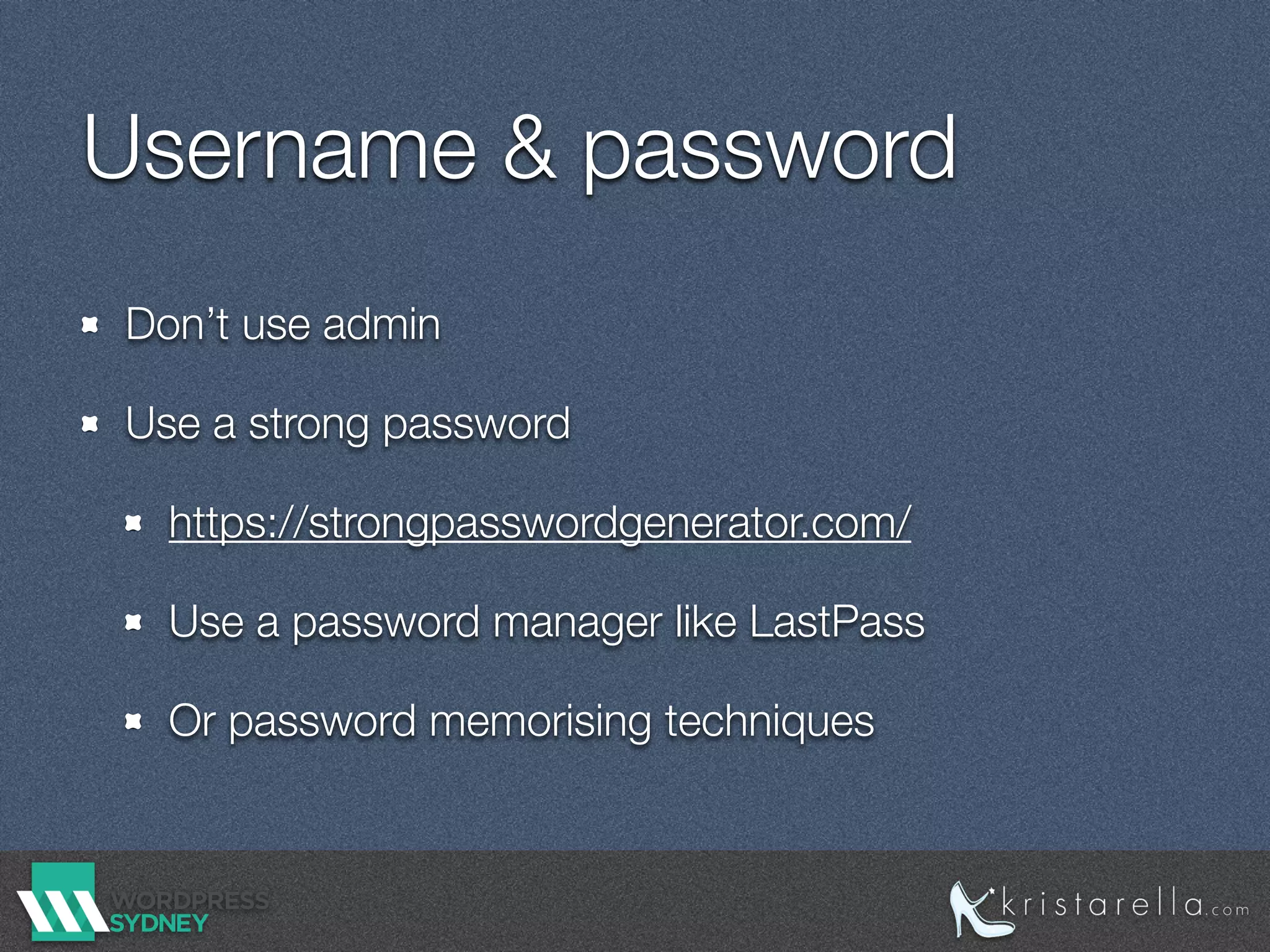
Don’t use admin 
Use a strong password 
https://strongpasswordgenerator.com/ 
Use a password manager like LastPass 
Or password memorising techniques
Username & password
Security 
previous slide from Vlad Lasky’s 2012 security 
presentation 
See also Wil Brown’s 2014 security presso 
You should update WordPress & plugins
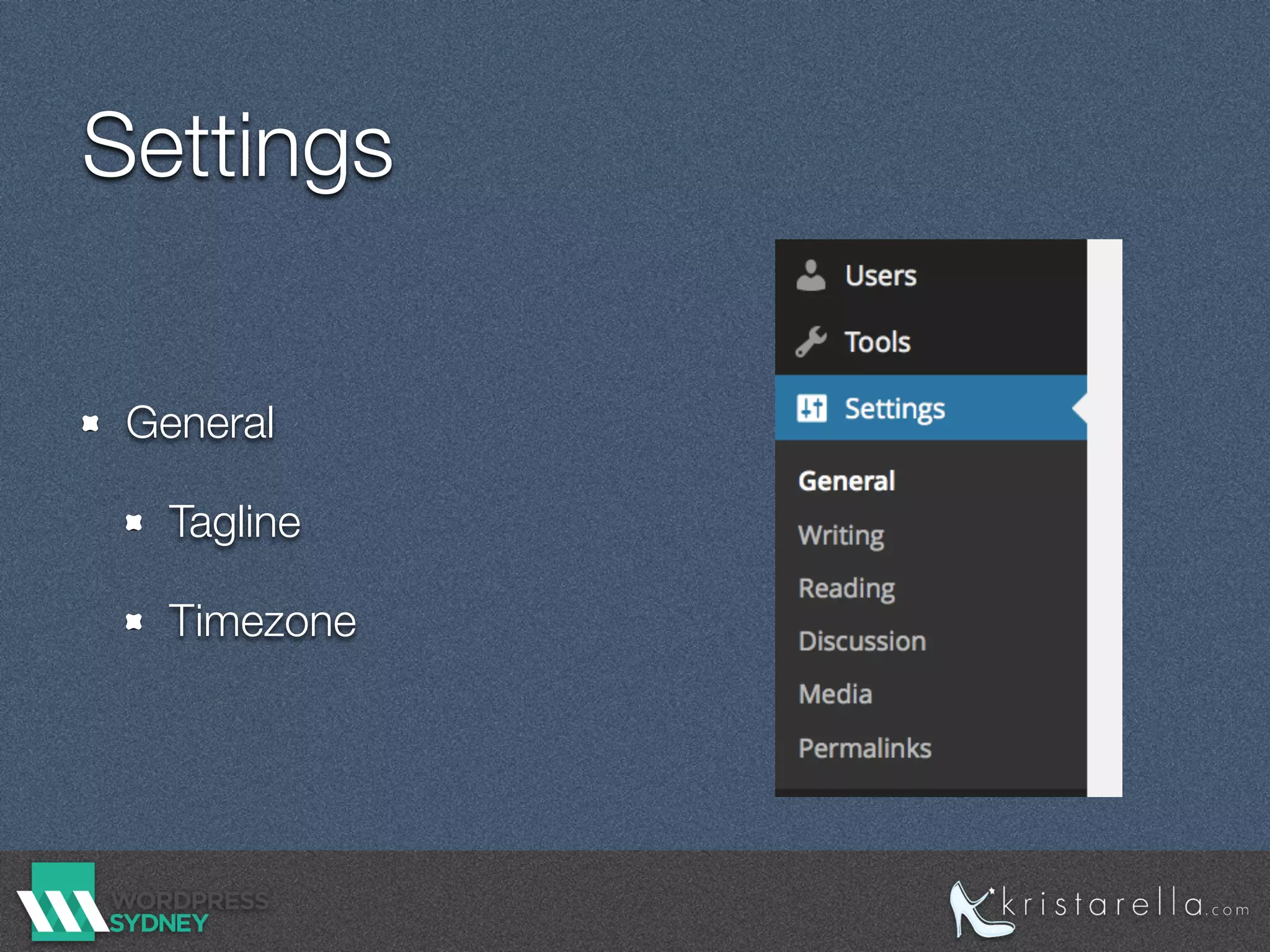
Settings 
General 
Tagline 
Timezone
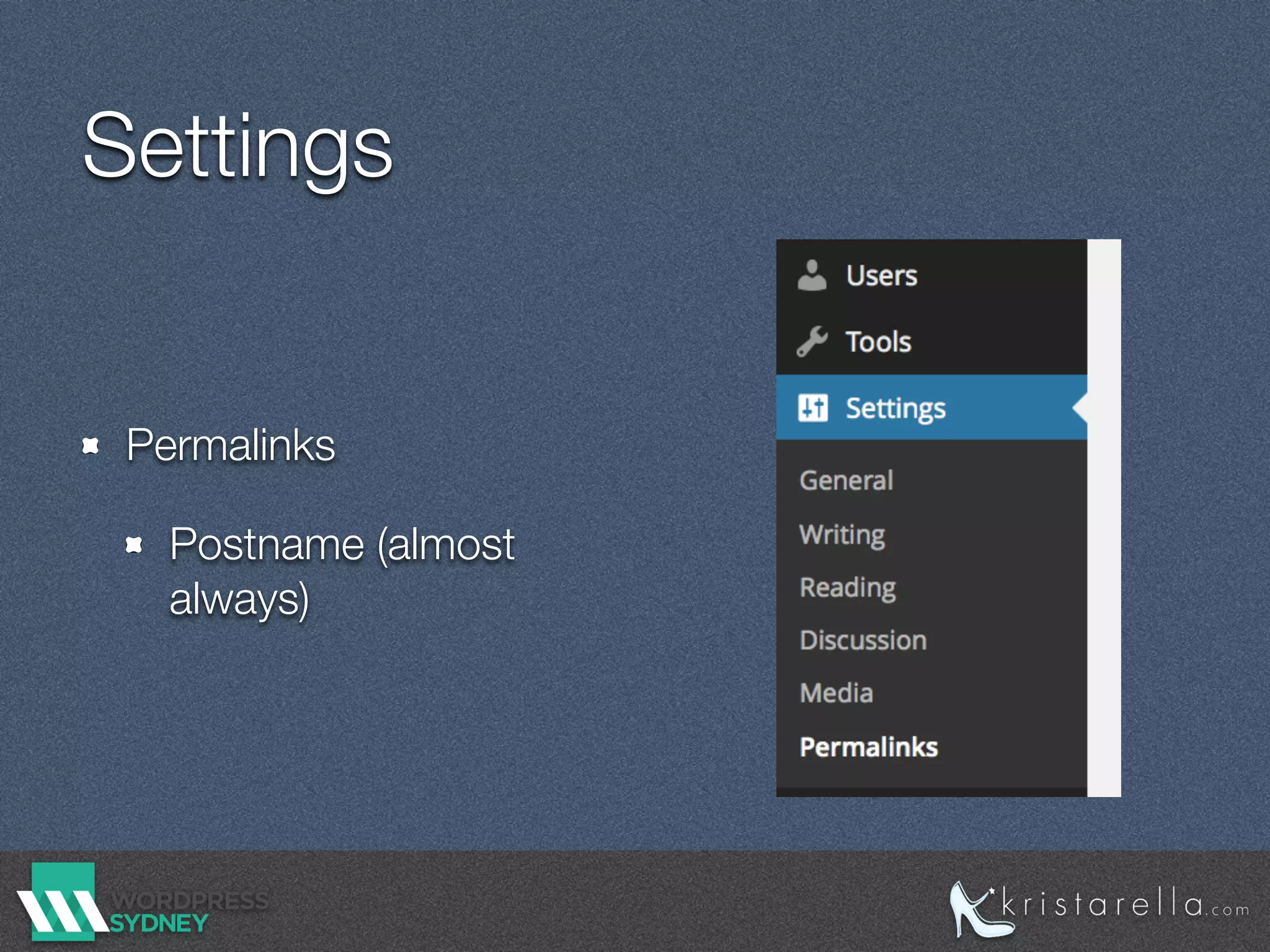
Settings 
Permalinks 
Postname (almost 
always)
Avoid spam 
Discussion settings 
Turn off comments altogether if not needed 
Turn off comments after n days 
Stop Media Comment Spamming 
Akismet, Anti-spam
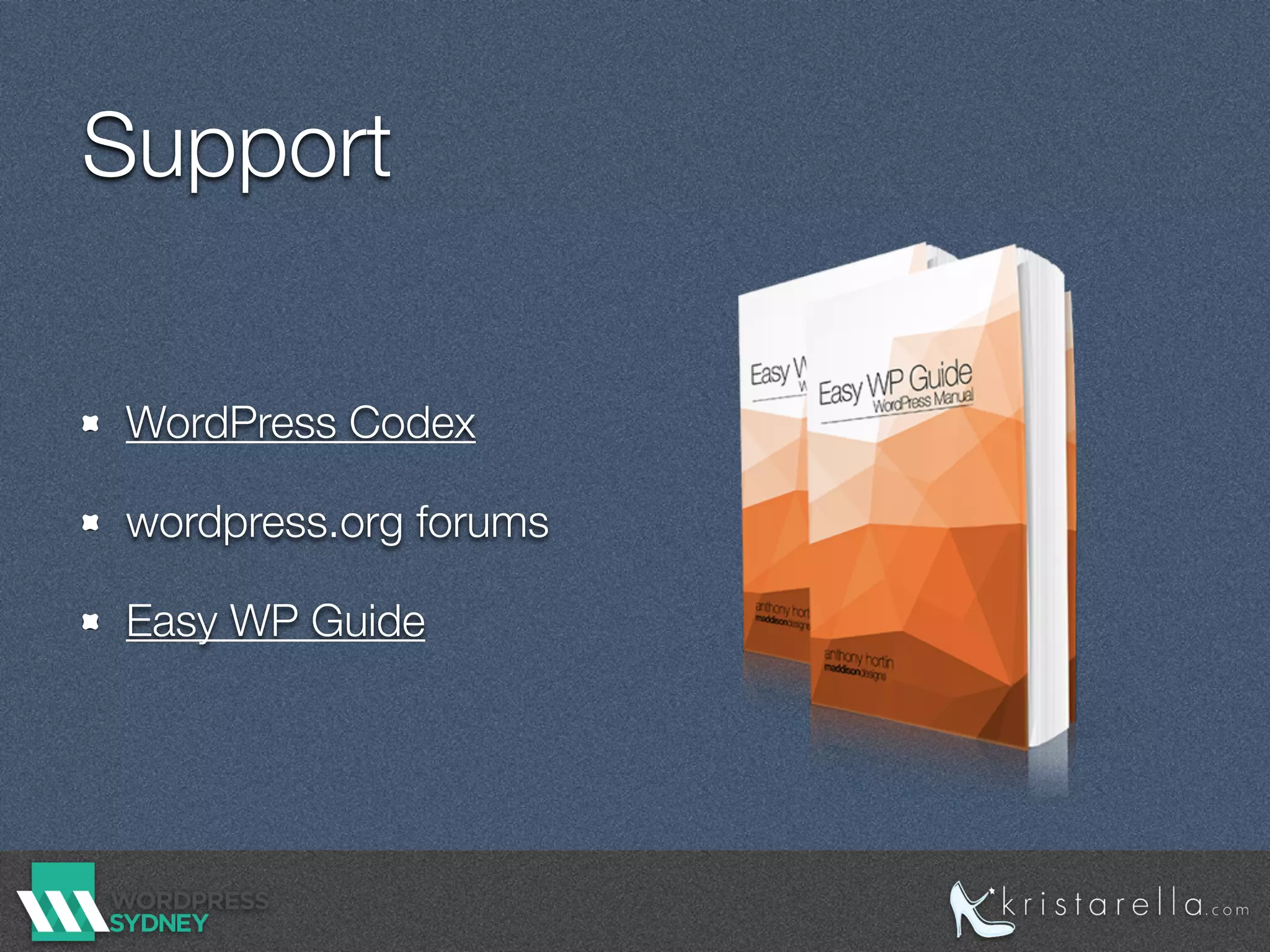
Support 
WordPress Codex 
wordpress.org forums 
Easy WP Guide
Backup 
Do it! 
via host or plugin 
Premium 
VaultPress 
BackupBuddy 
Free 
Akeeba Backup 
BackWPUp (+ pro) 
BackUpWordPress (+) 
X Cloner
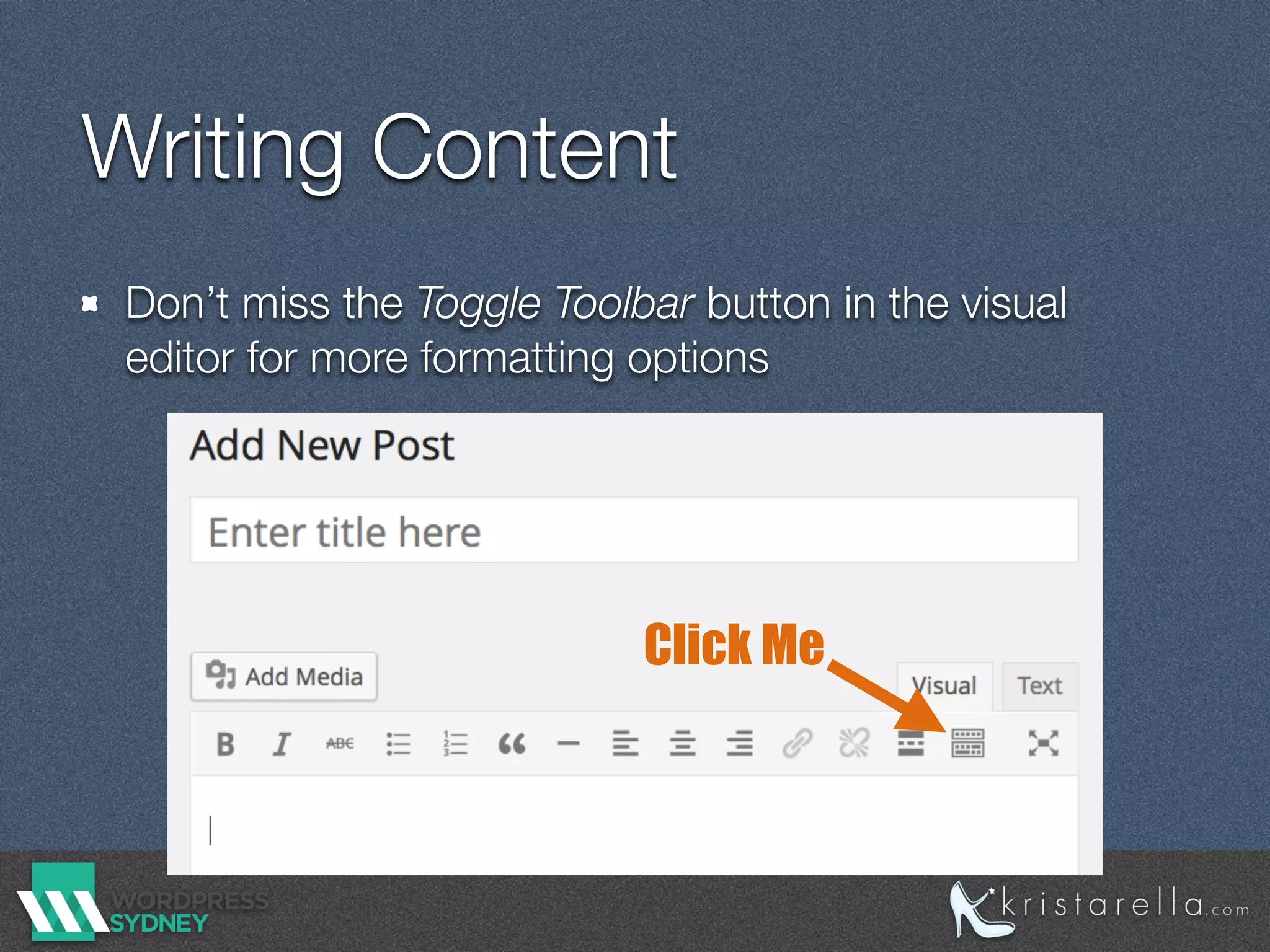
Writing Content 
Don’t miss the Toggle Toolbar button in the visual 
editor for more formatting options 
Click Me
Image sizes 
At least as wide as your content (depends on theme) 
1000px wide is usually a safe ballpark 
Optimise images without changing quality using 
programs like ImageOptim, Smush.it, ImageMagick 
WordPress also creates multiple image sizes 
(thumbnail, medium & large) for your use.

Getting started with WordPress

  • 1.
  • 2.
    WordPress .org .com completely flexible/extendible fixed set of features need to purchase hosting free to sign up install/update WordPress yourself WordPress already installed/ updated many free plugins (extensions) some paid upgrades available
  • 3.
    Installing WordPress locally(on your computer) MAMP XAMPP on host server Manually: ‘Famous 5-minute install’ Automatic installers
  • 4.
    Username & password Don’t use admin Use a strong password https://strongpasswordgenerator.com/ Use a password manager like LastPass Or password memorising techniques
  • 5.
  • 6.
    Security previous slidefrom Vlad Lasky’s 2012 security presentation See also Wil Brown’s 2014 security presso You should update WordPress & plugins
  • 7.
  • 8.
  • 9.
    Avoid spam Discussionsettings Turn off comments altogether if not needed Turn off comments after n days Stop Media Comment Spamming Akismet, Anti-spam
  • 10.
    Support WordPress Codex wordpress.org forums Easy WP Guide
  • 11.
    Backup Do it! via host or plugin Premium VaultPress BackupBuddy Free Akeeba Backup BackWPUp (+ pro) BackUpWordPress (+) X Cloner
  • 12.
    Writing Content Don’tmiss the Toggle Toolbar button in the visual editor for more formatting options Click Me
  • 13.
    Image sizes Atleast as wide as your content (depends on theme) 1000px wide is usually a safe ballpark Optimise images without changing quality using programs like ImageOptim, Smush.it, ImageMagick WordPress also creates multiple image sizes (thumbnail, medium & large) for your use.