Getting Started with Citefast
Citation and bibliography tool
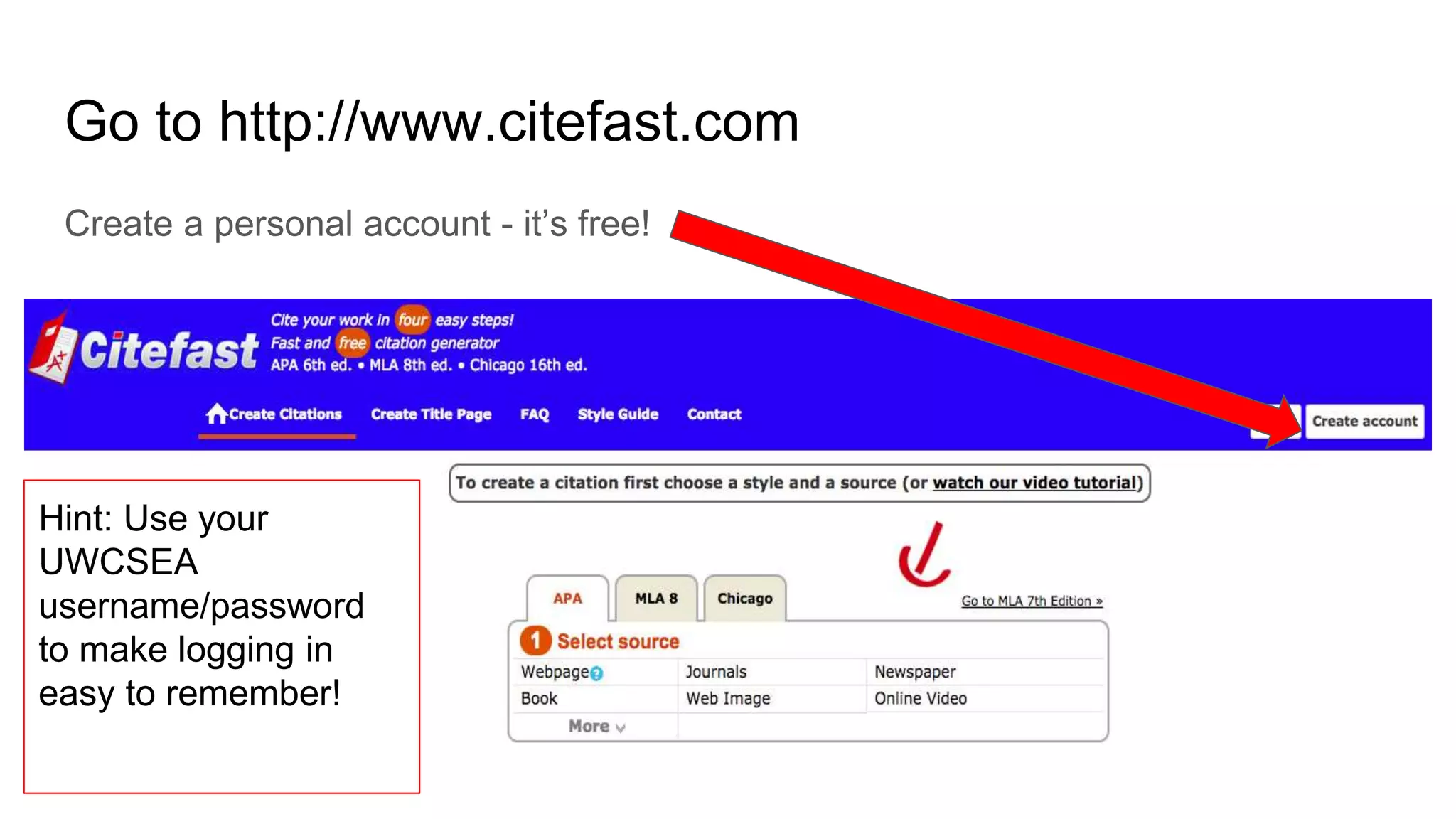
Go to http://www.citefast.com
Create a personal account - it’s free!
Hint: Use your
UWCSEA
username/password
to make logging in
easy to remember!
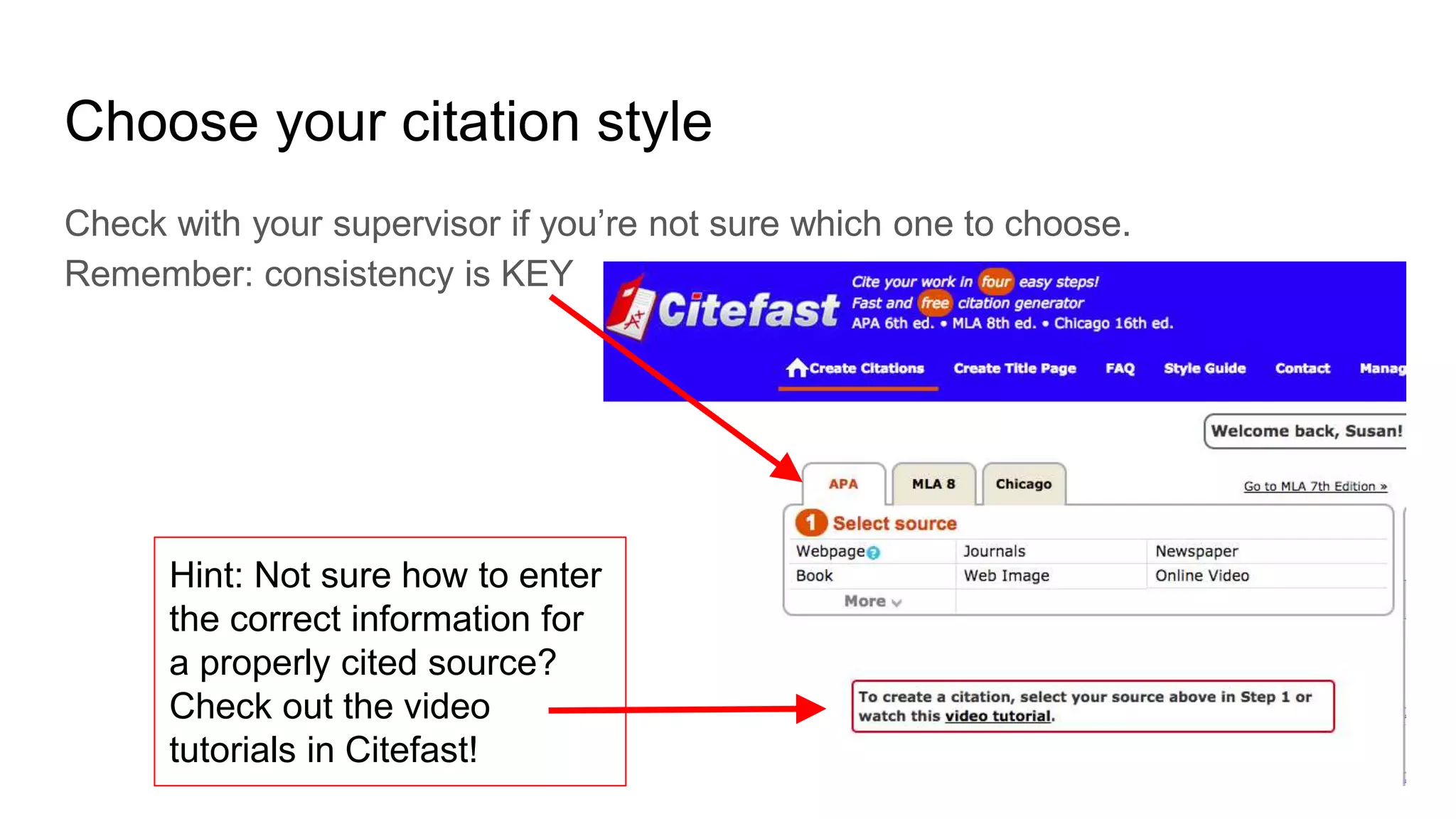
Choose your citation style
Check with your supervisor if you’re not sure which one to choose.
Remember: consistency is KEY
Hint: Not sure how to enter
the correct information for
a properly cited source?
Check out the video
tutorials in Citefast!
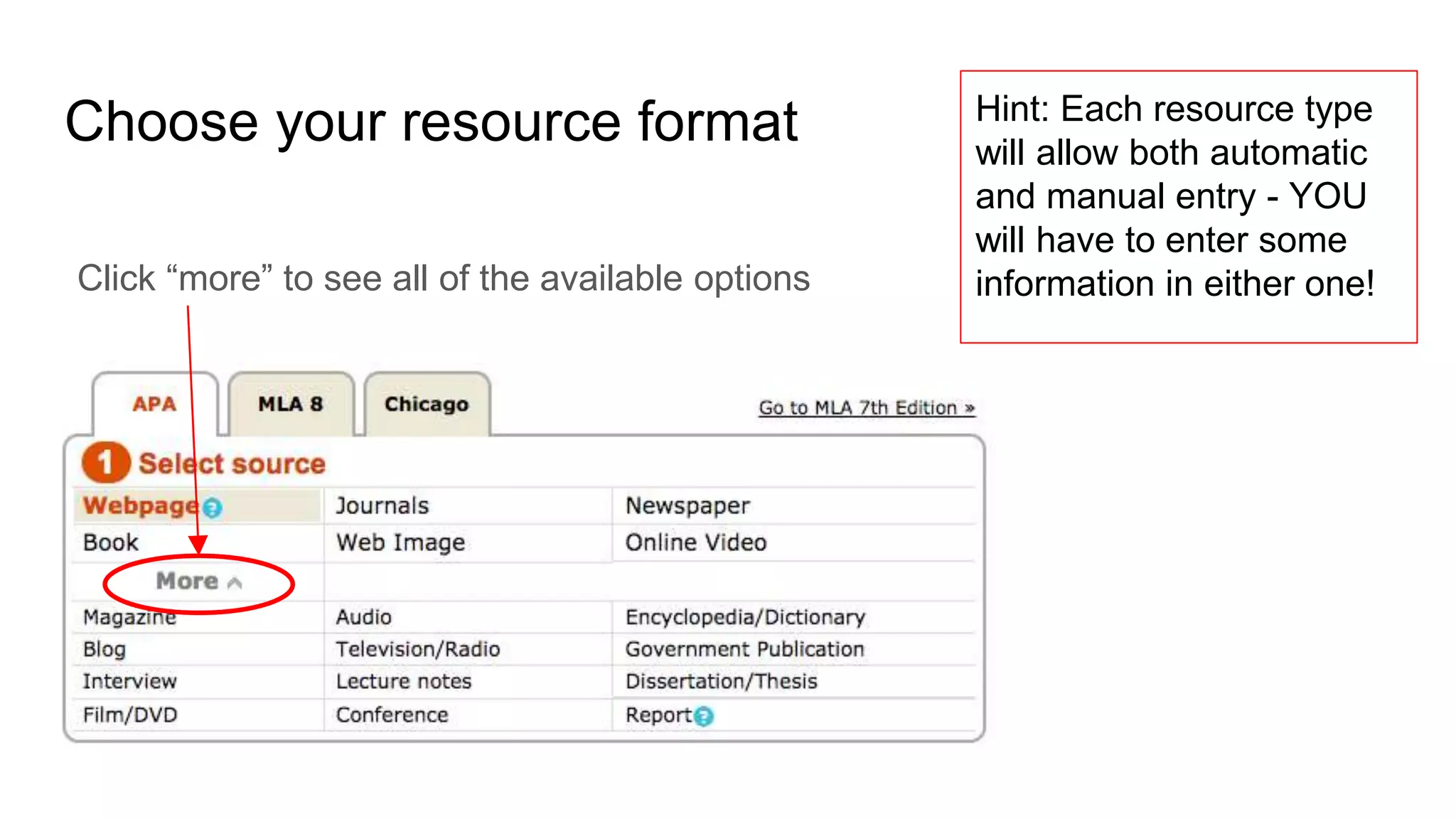
Choose your resource format
Click “more” to see all of the available options
Hint: Each resource type
will allow both automatic
and manual entry - YOU
will have to enter some
information in either one!
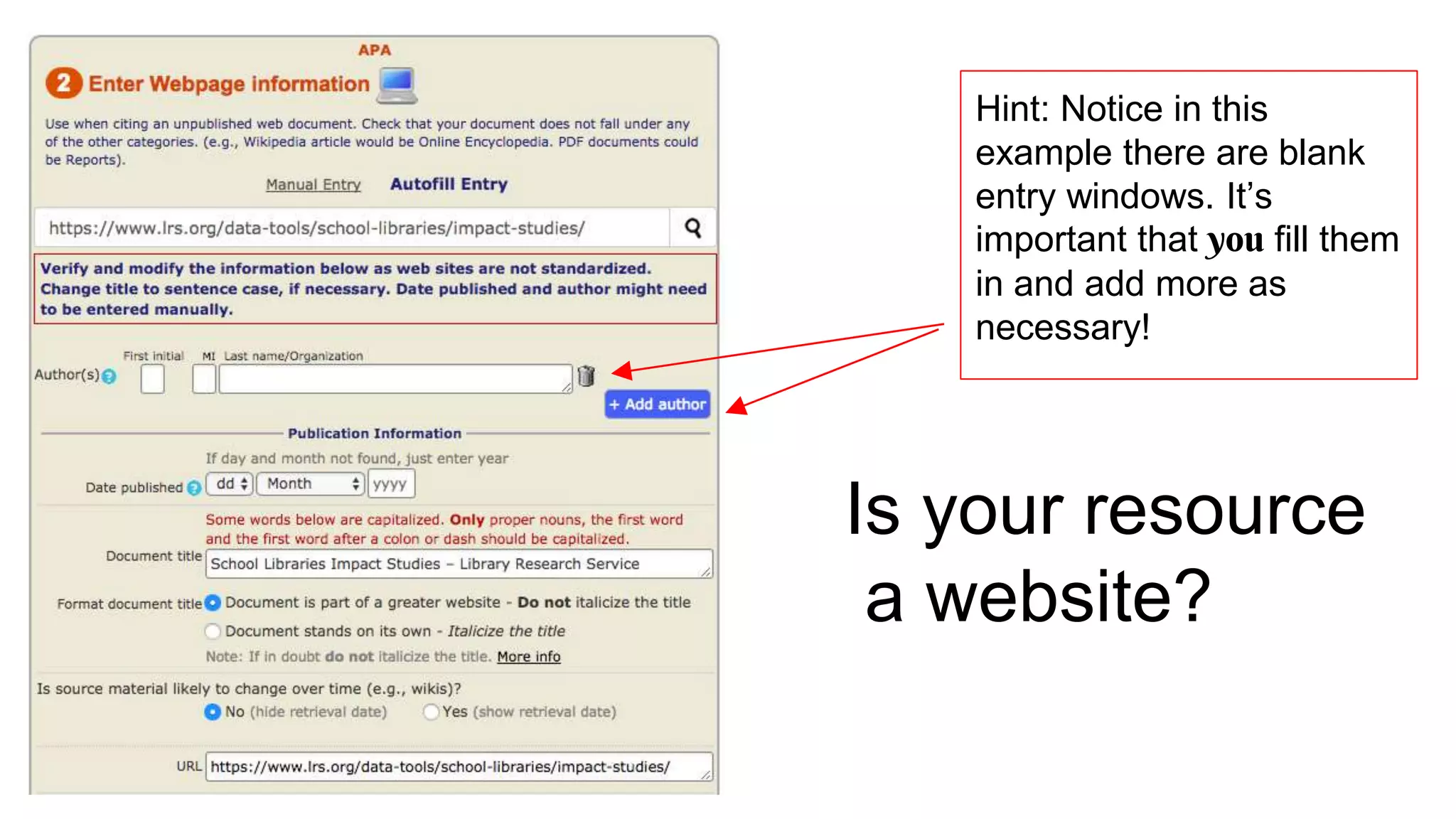
Is your resource
a website?
Hint: Notice in this
example there are blank
entry windows. It’s
important that you fill them
in and add more as
necessary!
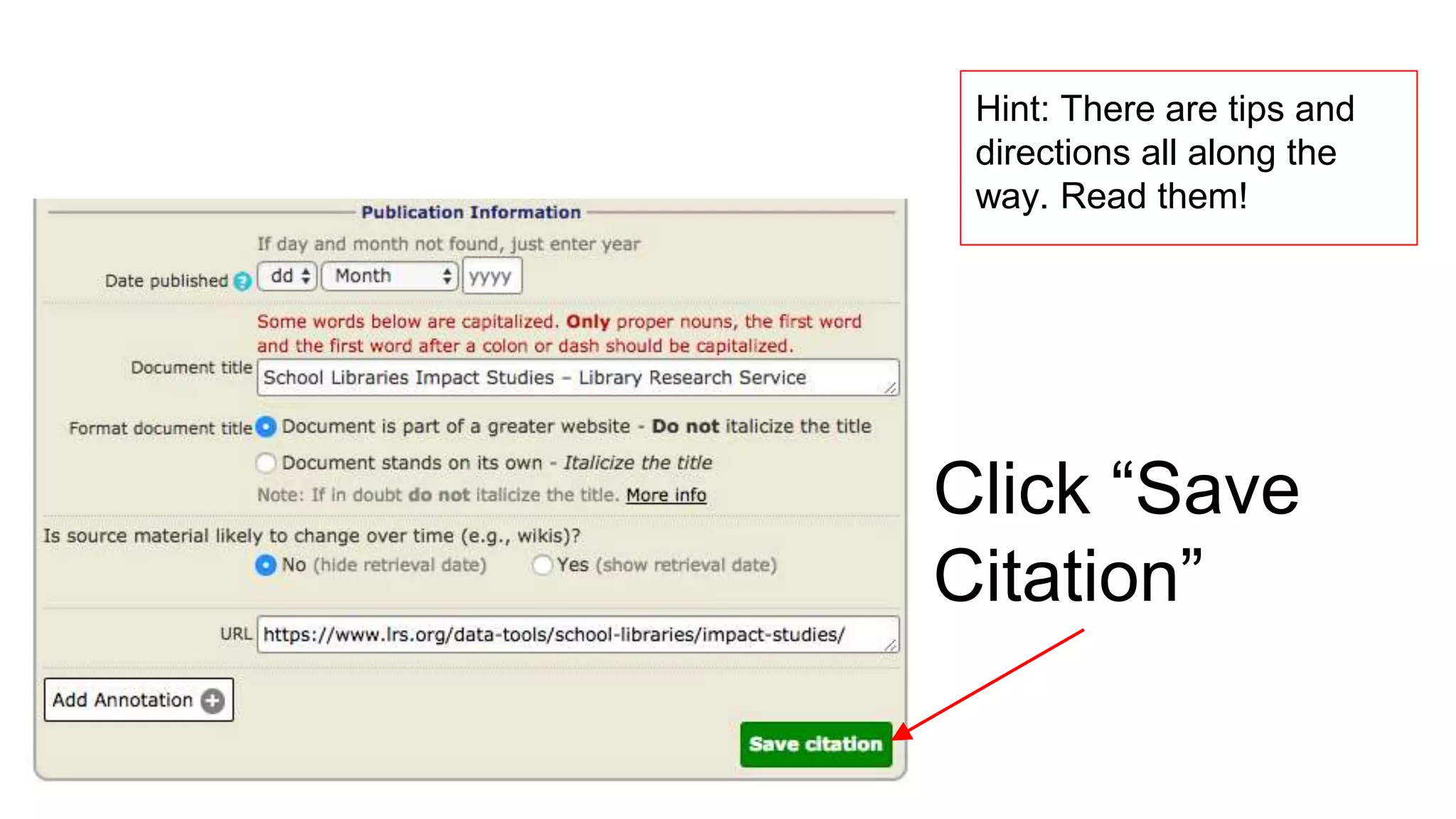
Click “Save
Citation”
Hint: There are tips and
directions all along the
way. Read them!
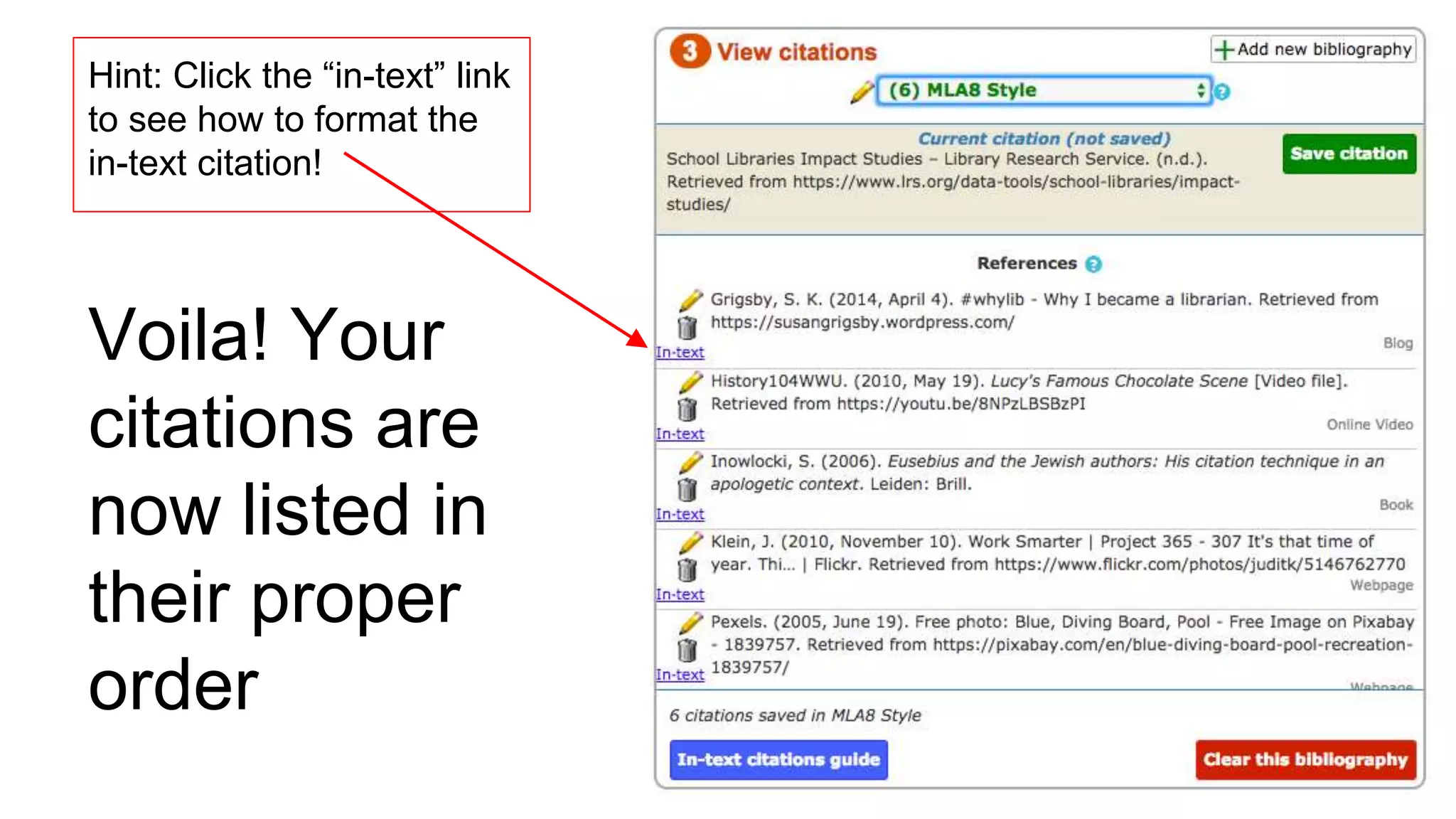
Voila! Your
citations are
now listed in
their proper
order
Hint: Click the “in-text” link
to see how to format the
in-text citation!
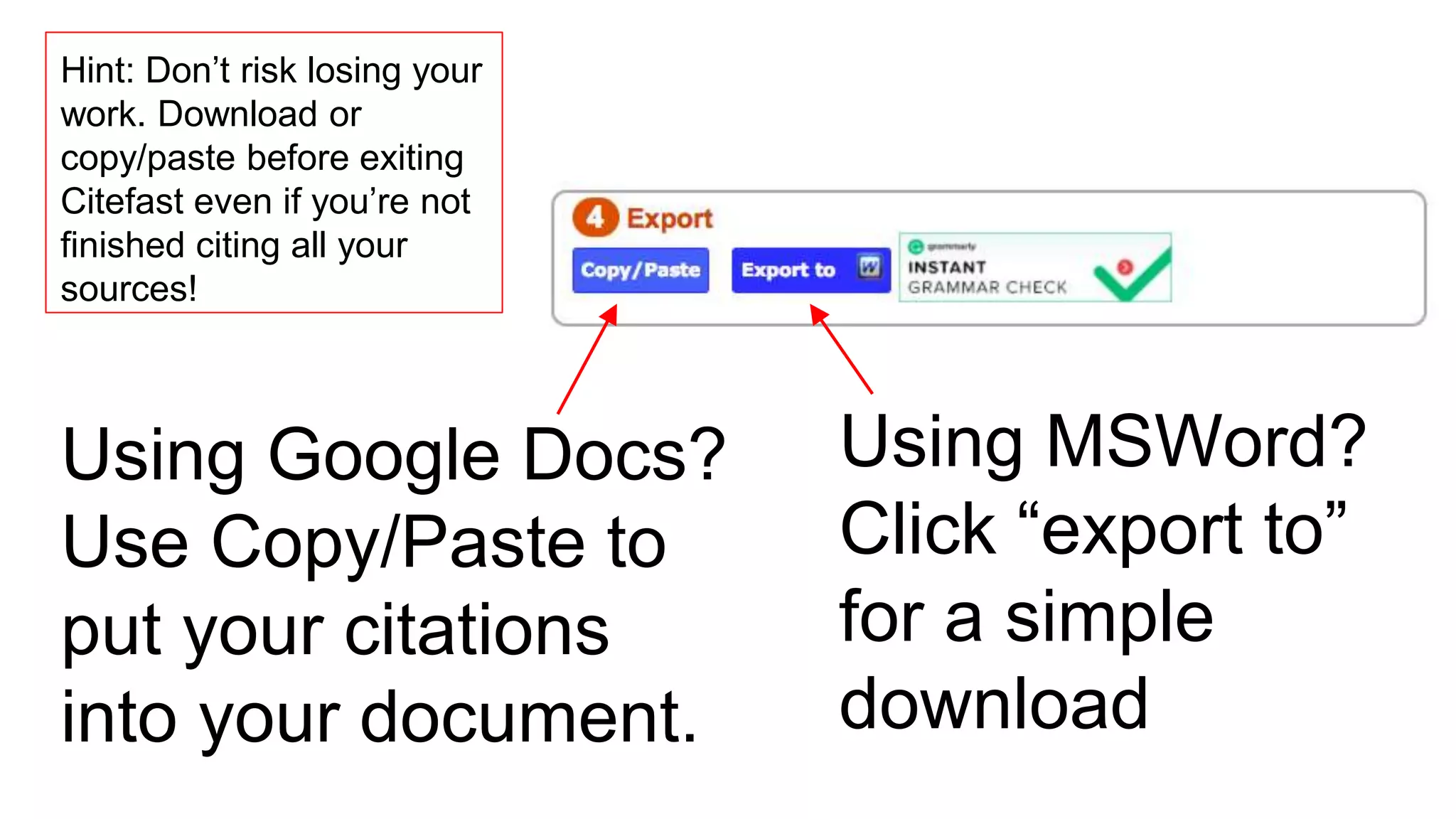
Using MSWord?
Click “export to”
for a simple
download
Hint: Don’t risk losing your
work. Download or
copy/paste before exiting
Citefast even if you’re not
finished citing all your
sources!
Using Google Docs?
Use Copy/Paste to
put your citations
into your document.
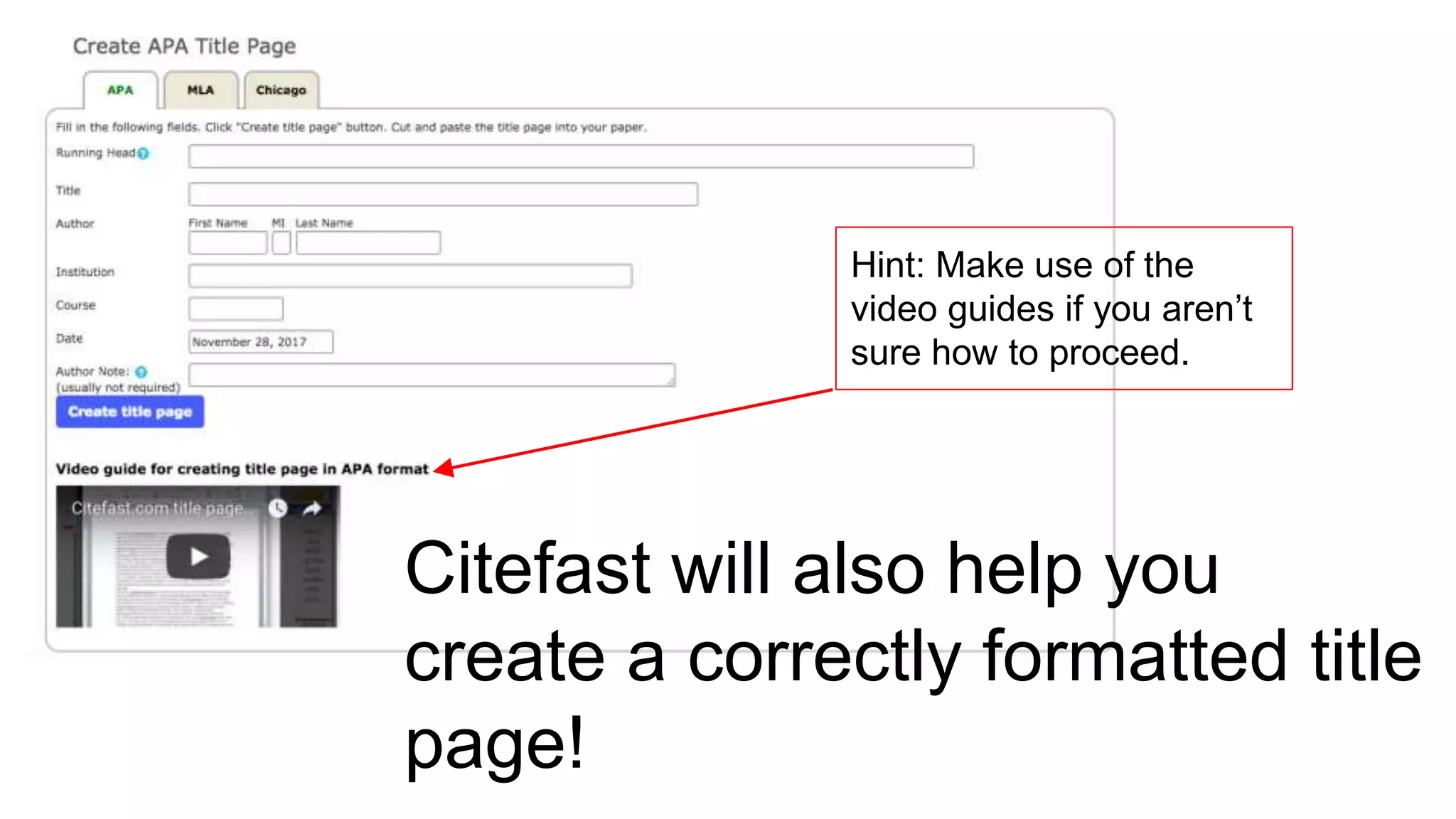
Citefast will also help you
create a correctly formatted title
page!
Hint: Make use of the
video guides if you aren’t
sure how to proceed.
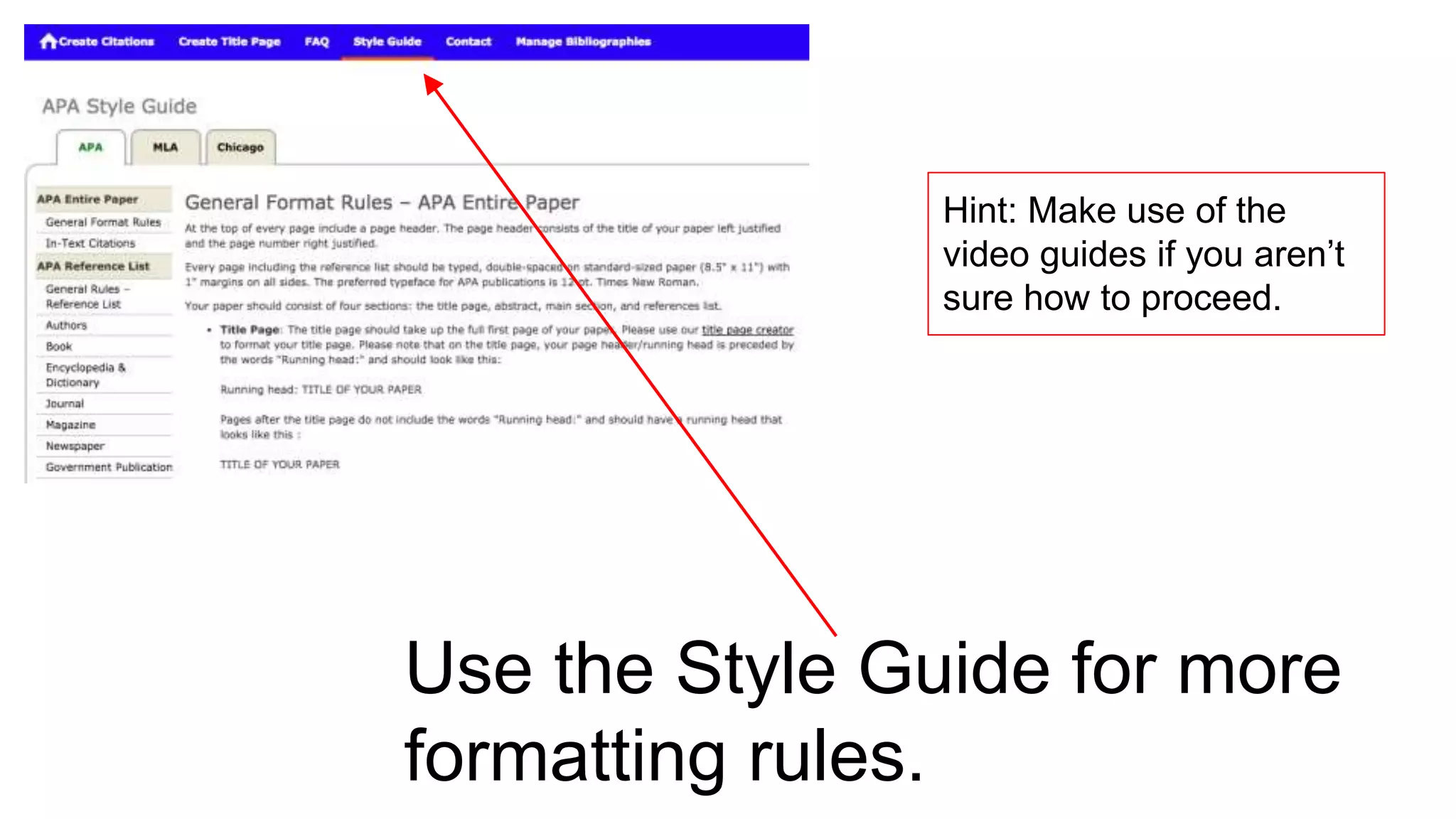
Use the Style Guide for more
formatting rules.
Hint: Make use of the
video guides if you aren’t
sure how to proceed.
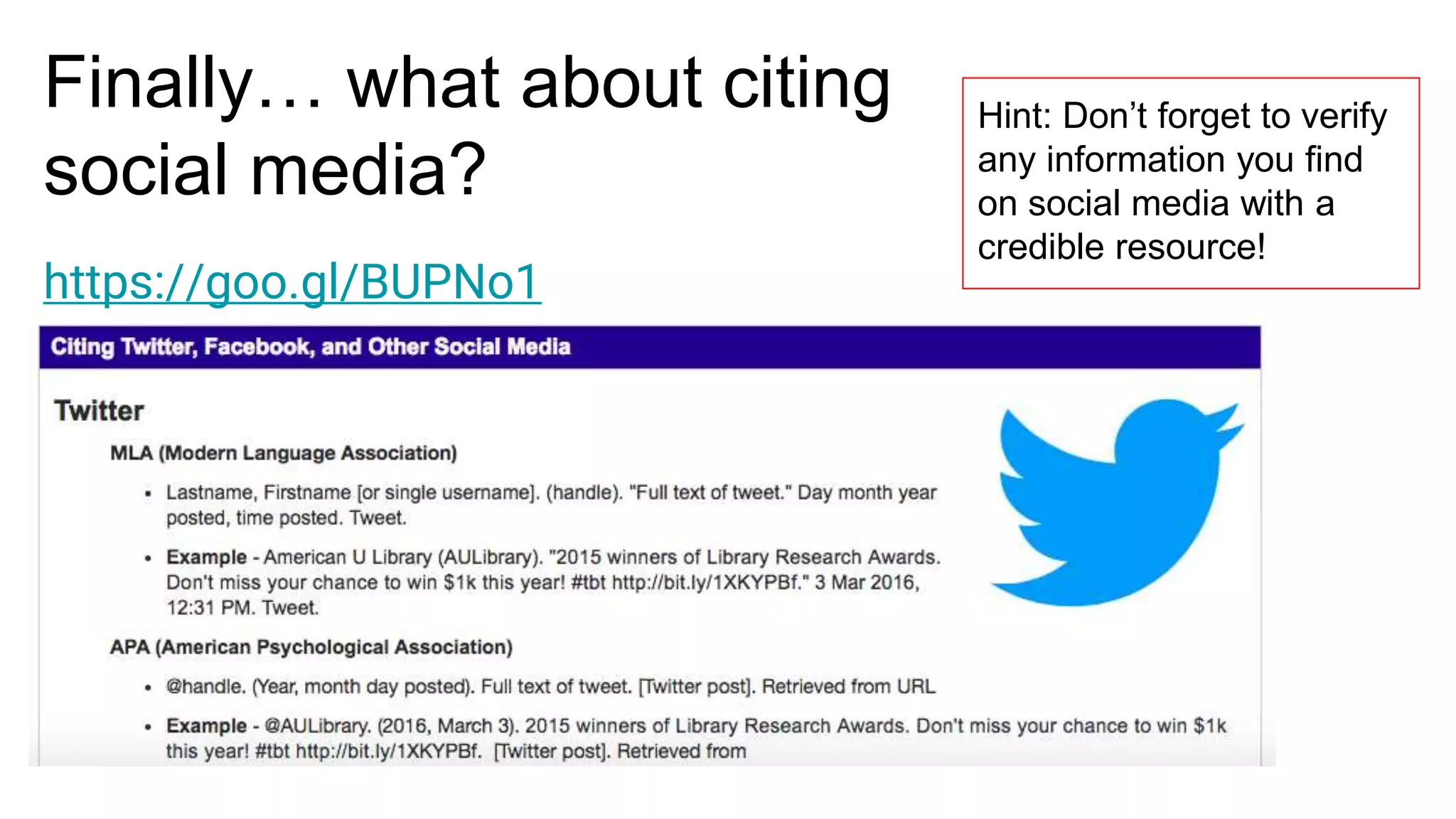
Finally… what about citing
social media?
Hint: Don’t forget to verify
any information you find
on social media with a
credible resource!
https://goo.gl/BUPNo1

Getting started with citefast

  • 1.
    Getting Started withCitefast Citation and bibliography tool
  • 2.
    Go to http://www.citefast.com Createa personal account - it’s free! Hint: Use your UWCSEA username/password to make logging in easy to remember!
  • 3.
    Choose your citationstyle Check with your supervisor if you’re not sure which one to choose. Remember: consistency is KEY Hint: Not sure how to enter the correct information for a properly cited source? Check out the video tutorials in Citefast!
  • 4.
    Choose your resourceformat Click “more” to see all of the available options Hint: Each resource type will allow both automatic and manual entry - YOU will have to enter some information in either one!
  • 5.
    Is your resource awebsite? Hint: Notice in this example there are blank entry windows. It’s important that you fill them in and add more as necessary!
  • 6.
    Click “Save Citation” Hint: Thereare tips and directions all along the way. Read them!
  • 7.
    Voila! Your citations are nowlisted in their proper order Hint: Click the “in-text” link to see how to format the in-text citation!
  • 8.
    Using MSWord? Click “exportto” for a simple download Hint: Don’t risk losing your work. Download or copy/paste before exiting Citefast even if you’re not finished citing all your sources! Using Google Docs? Use Copy/Paste to put your citations into your document.
  • 9.
    Citefast will alsohelp you create a correctly formatted title page! Hint: Make use of the video guides if you aren’t sure how to proceed.
  • 10.
    Use the StyleGuide for more formatting rules. Hint: Make use of the video guides if you aren’t sure how to proceed.
  • 11.
    Finally… what aboutciting social media? Hint: Don’t forget to verify any information you find on social media with a credible resource! https://goo.gl/BUPNo1