Scrapbook
Things you can do to better enjoy our
photo scrapbook – and how to do
them
Contents
Lots of pictures are taken of our
church – and the things we do there.
Many of those are available on-line
in our photo scrapbook – at
www.fumcquitman.org/gallery3 .
These pages were written to help
you get the most out of the
scrapbook. The list to the right
highlights the areas this guide
covers.
• Layout – how it’s organized
• Find pictures you’re looking for
• View a blow-up of a photo
• Download a picture to your
computer
• View a slideshow
• Send a picture as an “e-card”
• Leave comments about a
picture
• Suggest a good caption for a
picture
Layout – How Scrapbook is Organized
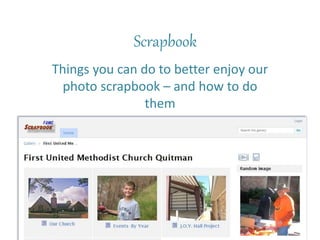
Our scrapbook is arranged into multiple photo
albums. For example, when you first come to the
Scrapbook you see the albums shown at the top
right.
That’s because we havepictures from both
churches – Liberty and “First Church, and each
church has it’s own albums. Like everywhere else
in the Scrapbook, you just click on an album cover
to see what’s in that album. Open the FUMC
album and you’ll see it’s albums. Eventually, you’ll
open an album that just has pictures – like “Dinner
Theater” below.
Get the idea?
How to Find What You’re Looking For…
Obviously you can just browse the scrapbook, navigating through endless
albums until you happen upon in an interesting picture. But what if you are
looking for a particular photo? Here are two tools that may help:
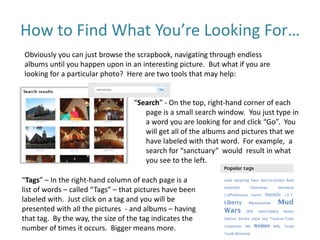
“Search” - On the top, right-hand corner of each
page is a small search window. You just type in
a word you are looking for and click “Go”. You
will get all of the albums and pictures that we
have labeled with that word. For example, a
search for “sanctuary” would result in what
you see to the left.
“Tags” – In the right-hand column of each page is a
list of words – called “Tags” – that pictures have been
labeled with. Just click on a tag and you will be
presented with all the pictures - and albums – having
that tag. By the way, the size of the tag indicates the
number of times it occurs. Bigger means more.
Viewing a Photo
Those small pictures you see as you browse the album are just
thumbnail images of the actual pictures. To see a bigger version of the
picture, just single-click the thumbnail with the left mouse button.
Click the bigger picture and an even bigger one will be shown – if it is
available.
How to Download a Photo
Wish you had that picture? For now, anyway, you can download any picture
(or album) from our Scrapbook onto your own computer. Here’s how:
Once you’ve opened a picture you want to download, just click that little
diskette icon – circled in red above - and you will be prompted to complete
the download process.
Slideshows
Any time you see this symbol on an album page – usually in the upper
right – you can view a slideshow of that album. Just click the slideshow icon and
see what happens. Results vary by computer, but, you should see a pretty
impressive slideshow. Controls are at the bottom – including an icon on the
bottom-right that lets you see the show in full-screen mode.
E-Cards – Sharing Photos by E-Mail
Now here’s a good idea: Send someone you care about an “e-card” – a photo
from our scrapbook – with a note attached – by e-mail. It is really easy!
1. Find the picture you want to
send.
2. Click the “Send as eCard” icon –
circled in red on this page.
3. Fill in the email information –
and click Send.
4. Watch your e-mail for an excited
“Thank You!”
“Comments”
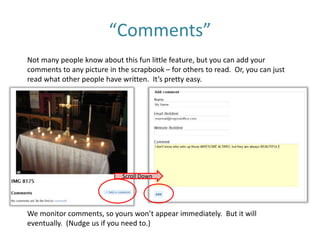
Not many people know about this fun little feature, but you can add your
comments to any picture in the scrapbook – for others to read. Or, you can just
read what other people have written. It’s pretty easy.
We monitor comments, so yours won’t appear immediately. But it will
eventually. (Nudge us if you need to.)
Scroll Down
How You Can Help
Keeping a good scrapbook is a lot of work, and we are just getting started on
ours. But there are several things you can do to help. Here are a few:
 Share your pictures with us. If you have taken photos that you are
willing to share with our church family through the Scrapbook, send them to
us. We’d love to find some old ones, too! You can use e-mail, send in a CD-
full, or bring printed photos and we’ll scan them.
 If you’ve been looking around at the Scrapbook, you’ll notice that we
don’t have many captions, and we’re just beginning to “tag” photos with
useful search words. We’d love your suggestions!
 Leave your comments! When you add comments to pictures, you
make the scrapbook more interesting for others. Please do.

Fumc Scrapbook

  • 1.
    Scrapbook Things you cando to better enjoy our photo scrapbook – and how to do them
  • 2.
    Contents Lots of picturesare taken of our church – and the things we do there. Many of those are available on-line in our photo scrapbook – at www.fumcquitman.org/gallery3 . These pages were written to help you get the most out of the scrapbook. The list to the right highlights the areas this guide covers. • Layout – how it’s organized • Find pictures you’re looking for • View a blow-up of a photo • Download a picture to your computer • View a slideshow • Send a picture as an “e-card” • Leave comments about a picture • Suggest a good caption for a picture
  • 3.
    Layout – HowScrapbook is Organized Our scrapbook is arranged into multiple photo albums. For example, when you first come to the Scrapbook you see the albums shown at the top right. That’s because we havepictures from both churches – Liberty and “First Church, and each church has it’s own albums. Like everywhere else in the Scrapbook, you just click on an album cover to see what’s in that album. Open the FUMC album and you’ll see it’s albums. Eventually, you’ll open an album that just has pictures – like “Dinner Theater” below. Get the idea?
  • 4.
    How to FindWhat You’re Looking For… Obviously you can just browse the scrapbook, navigating through endless albums until you happen upon in an interesting picture. But what if you are looking for a particular photo? Here are two tools that may help: “Search” - On the top, right-hand corner of each page is a small search window. You just type in a word you are looking for and click “Go”. You will get all of the albums and pictures that we have labeled with that word. For example, a search for “sanctuary” would result in what you see to the left. “Tags” – In the right-hand column of each page is a list of words – called “Tags” – that pictures have been labeled with. Just click on a tag and you will be presented with all the pictures - and albums – having that tag. By the way, the size of the tag indicates the number of times it occurs. Bigger means more.
  • 5.
    Viewing a Photo Thosesmall pictures you see as you browse the album are just thumbnail images of the actual pictures. To see a bigger version of the picture, just single-click the thumbnail with the left mouse button. Click the bigger picture and an even bigger one will be shown – if it is available.
  • 6.
    How to Downloada Photo Wish you had that picture? For now, anyway, you can download any picture (or album) from our Scrapbook onto your own computer. Here’s how: Once you’ve opened a picture you want to download, just click that little diskette icon – circled in red above - and you will be prompted to complete the download process.
  • 7.
    Slideshows Any time yousee this symbol on an album page – usually in the upper right – you can view a slideshow of that album. Just click the slideshow icon and see what happens. Results vary by computer, but, you should see a pretty impressive slideshow. Controls are at the bottom – including an icon on the bottom-right that lets you see the show in full-screen mode.
  • 8.
    E-Cards – SharingPhotos by E-Mail Now here’s a good idea: Send someone you care about an “e-card” – a photo from our scrapbook – with a note attached – by e-mail. It is really easy! 1. Find the picture you want to send. 2. Click the “Send as eCard” icon – circled in red on this page. 3. Fill in the email information – and click Send. 4. Watch your e-mail for an excited “Thank You!”
  • 9.
    “Comments” Not many peopleknow about this fun little feature, but you can add your comments to any picture in the scrapbook – for others to read. Or, you can just read what other people have written. It’s pretty easy. We monitor comments, so yours won’t appear immediately. But it will eventually. (Nudge us if you need to.) Scroll Down
  • 10.
    How You CanHelp Keeping a good scrapbook is a lot of work, and we are just getting started on ours. But there are several things you can do to help. Here are a few:  Share your pictures with us. If you have taken photos that you are willing to share with our church family through the Scrapbook, send them to us. We’d love to find some old ones, too! You can use e-mail, send in a CD- full, or bring printed photos and we’ll scan them.  If you’ve been looking around at the Scrapbook, you’ll notice that we don’t have many captions, and we’re just beginning to “tag” photos with useful search words. We’d love your suggestions!  Leave your comments! When you add comments to pictures, you make the scrapbook more interesting for others. Please do.