Contains GIF animations
Download to get the full effect!
 What is a Codec?
 What is a Container Format?
 Temporal vs Frame Based Codecs
 Screen Resolution
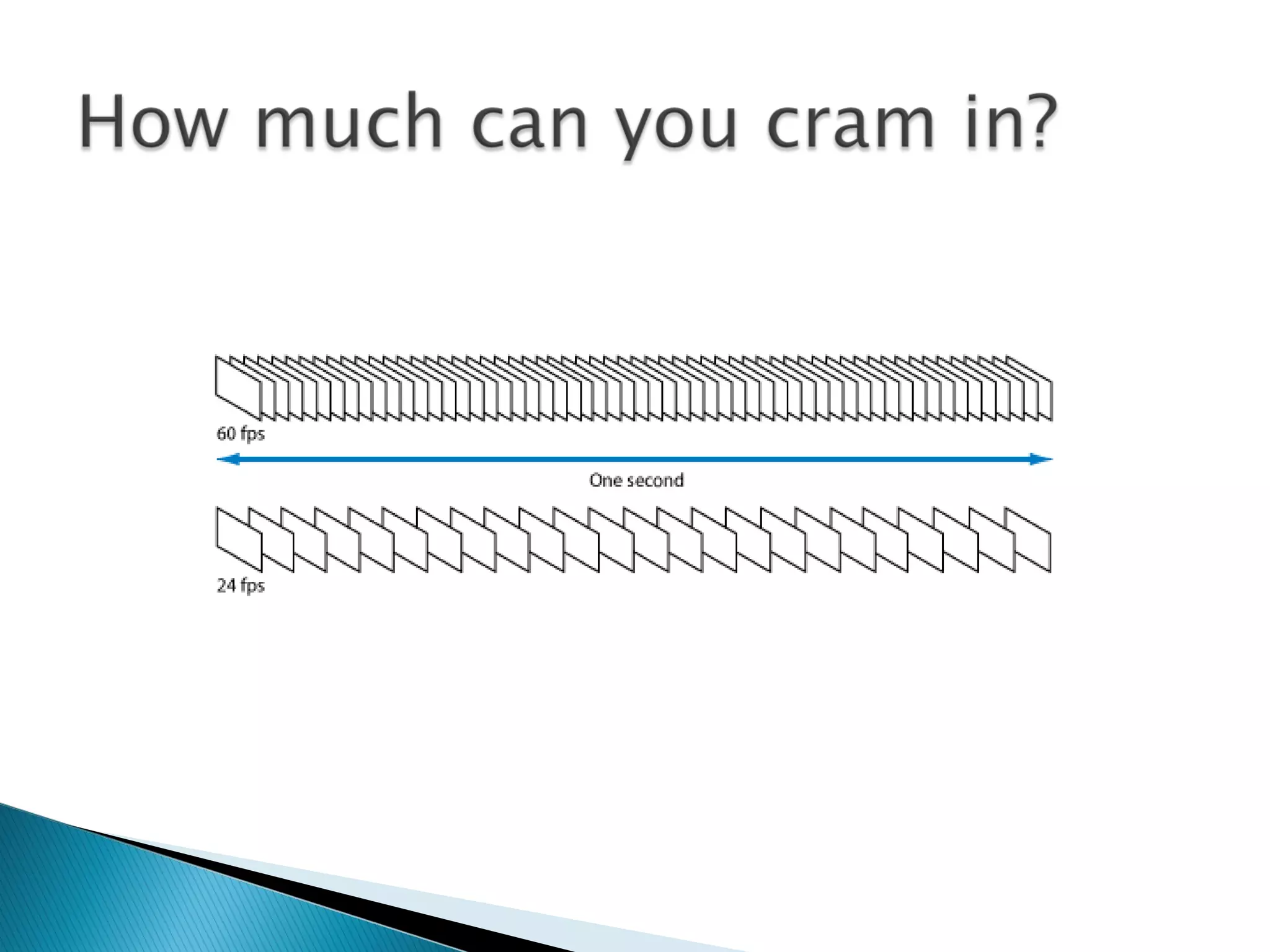
 Frame Rates
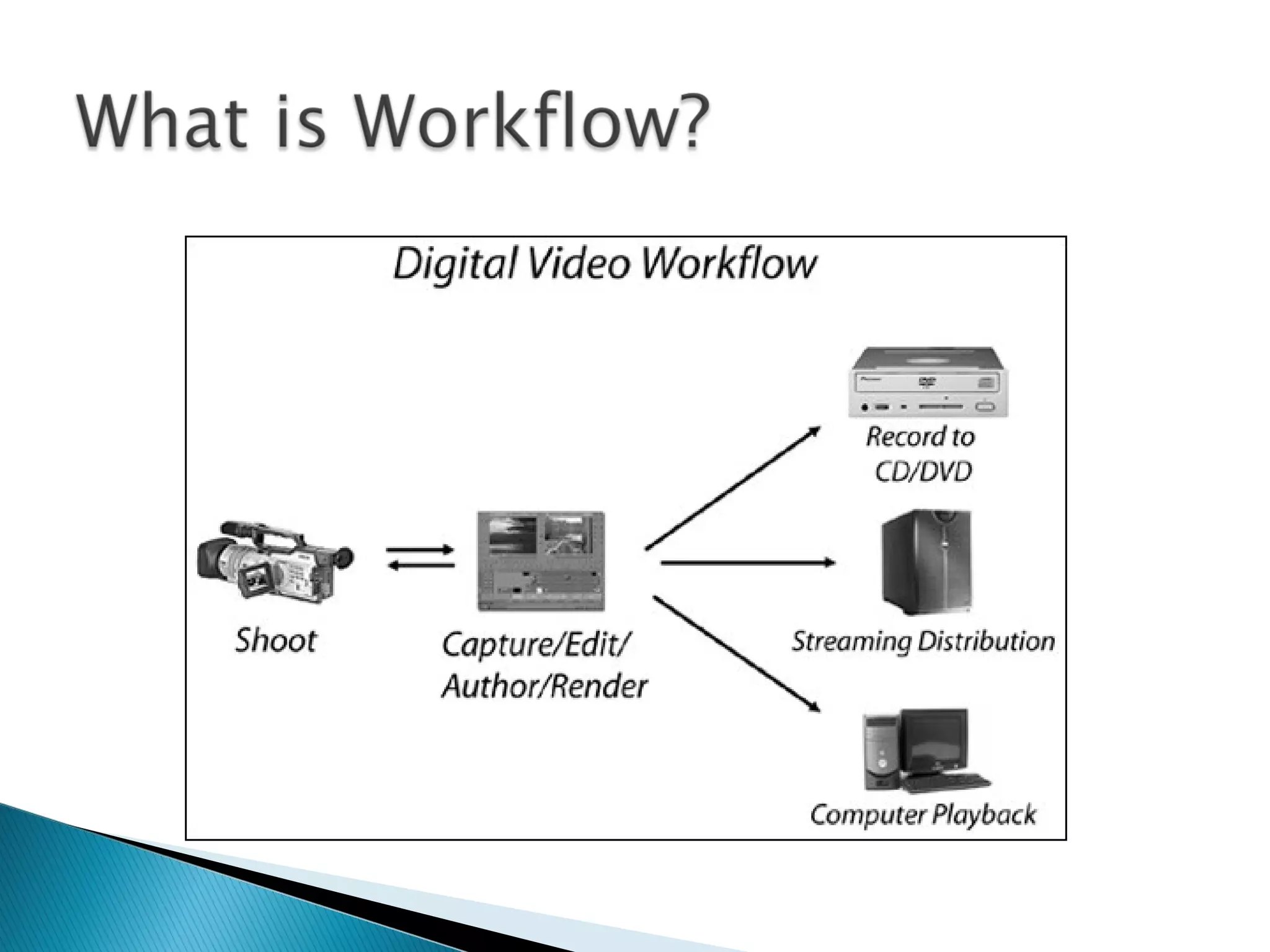
 Workflow
 …and then, at the end, making sense of it all!
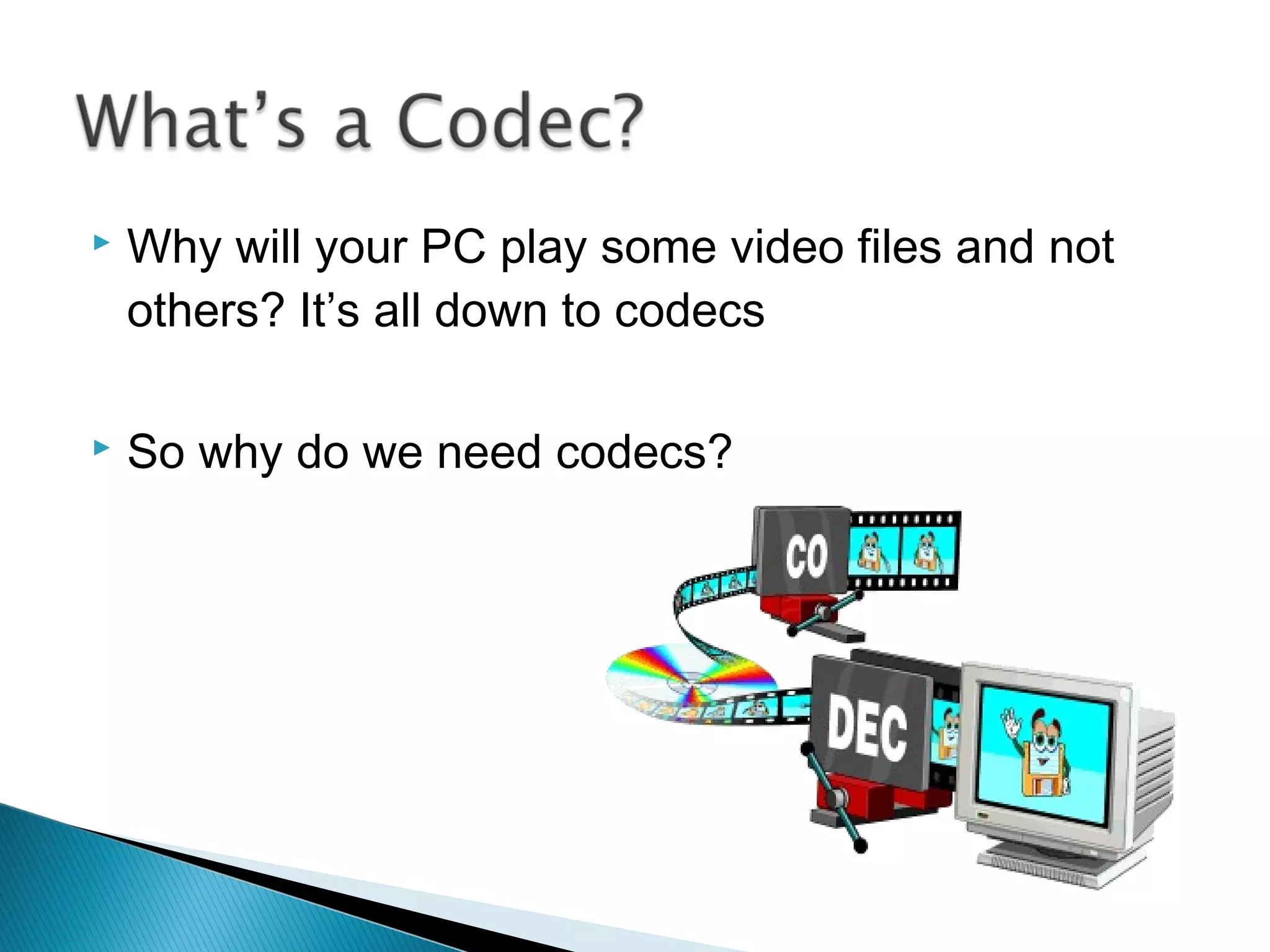
 Why will your PC play some video files and not
others? It’s all down to codecs
 So why do we need codecs?
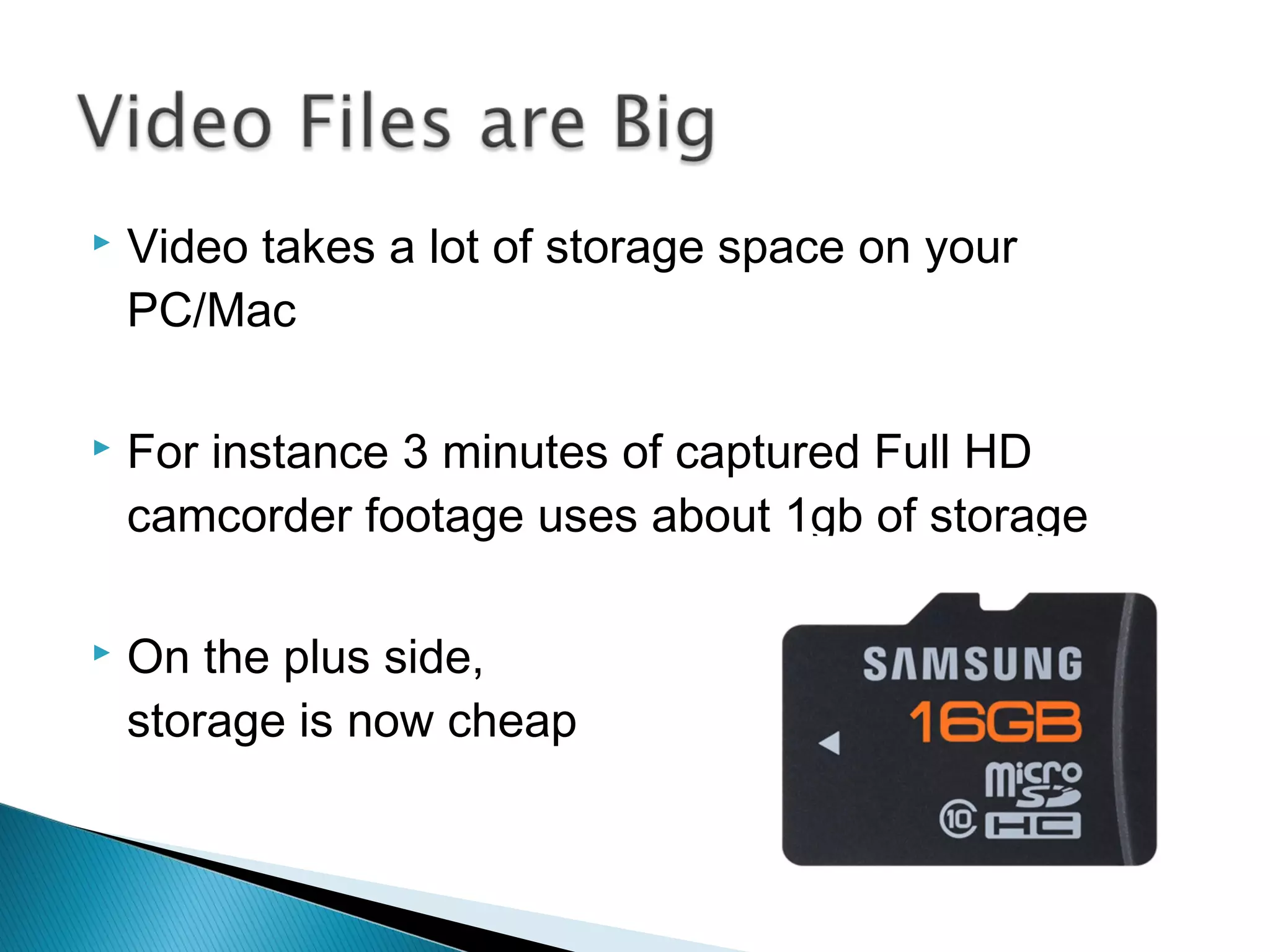
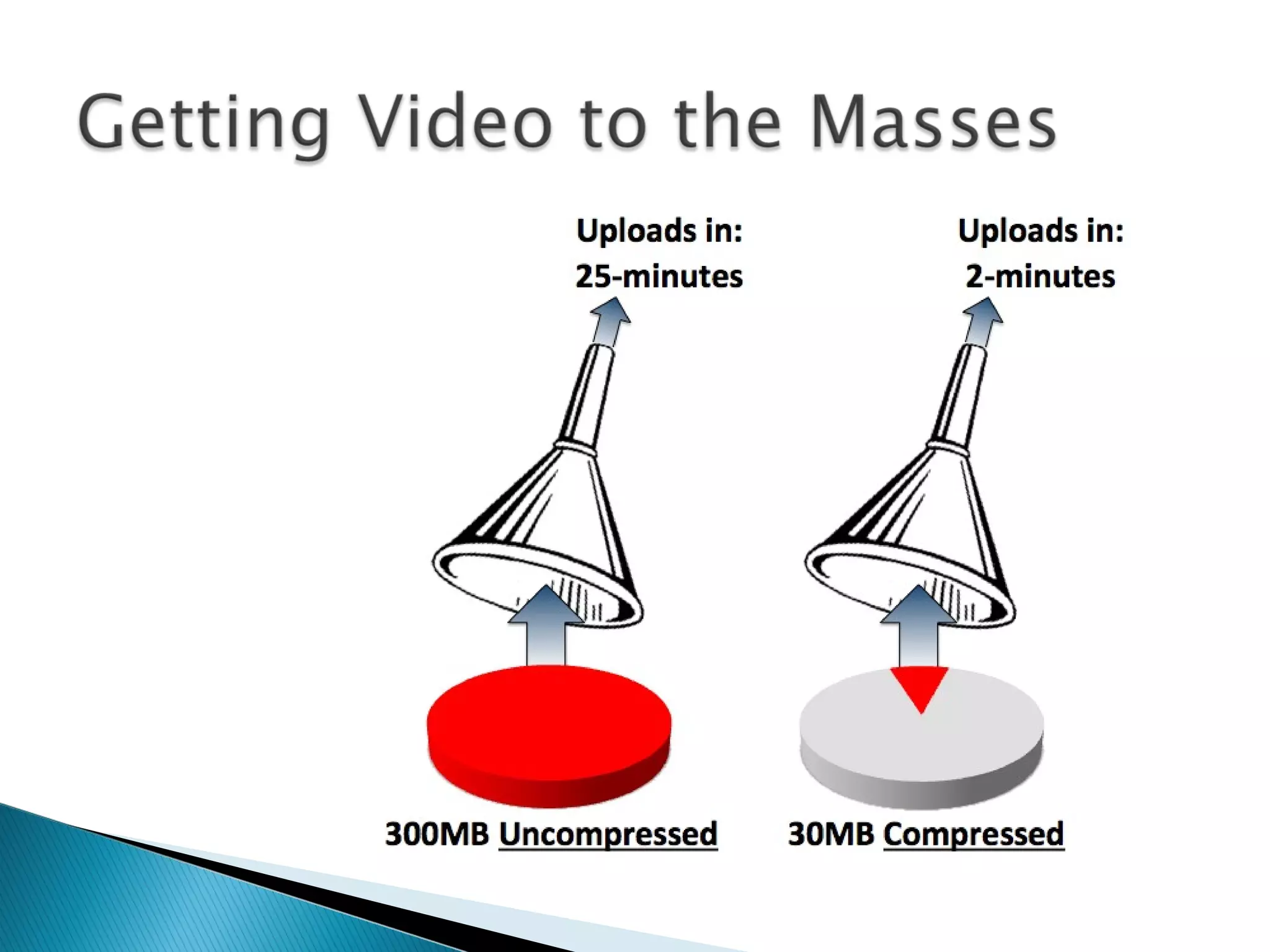
 Video takes a lot of storage space on your
PC/Mac
 For instance 3 minutes of captured Full HD
camcorder footage uses about 1gb of storage
 On the plus side,
storage is now cheap
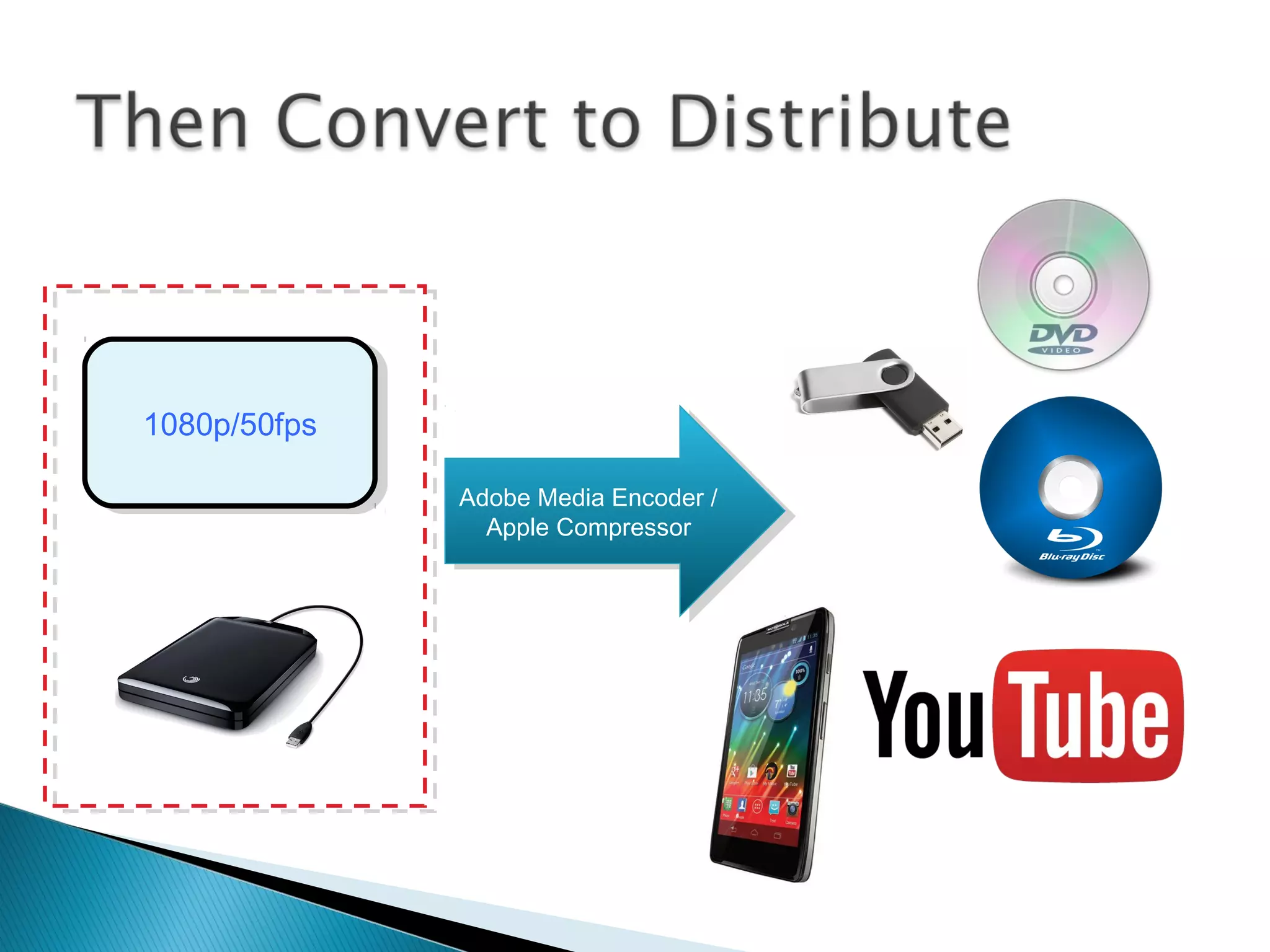
 The trouble really comes when trying to distribute
the footage
 People don’t want to be given hard drives to plug
in to their TVs. They want DVDs, iPod videos,
Sky+, Freeview & YouView
 So the files need converting to suit these media
...the trouble is that there are hundreds
(thousands?) of compression options!
 But let’s start at in the 1950s...
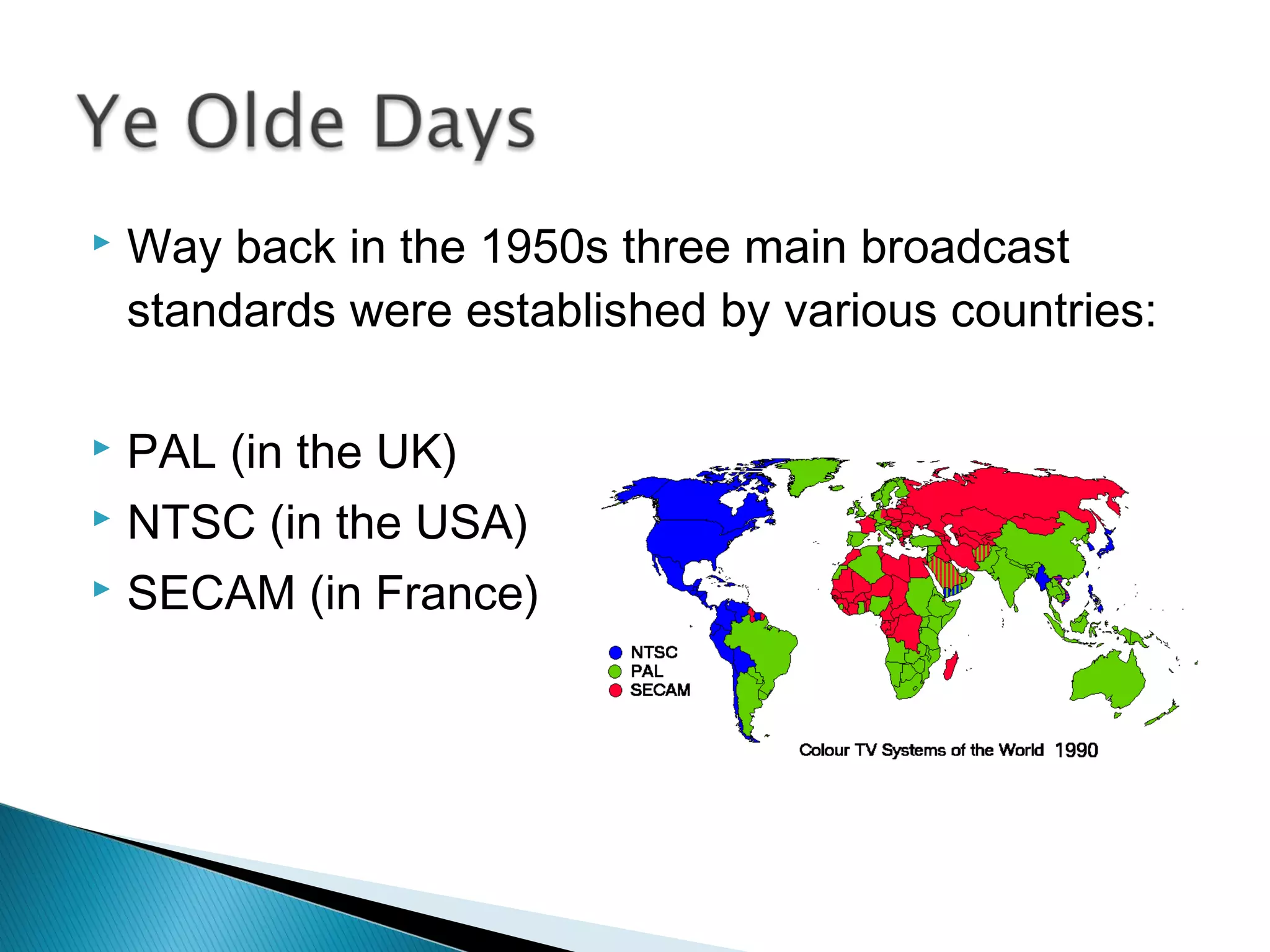
 Way back in the 1950s three main broadcast
standards were established by various countries:
 PAL (in the UK)
 NTSC (in the USA)
 SECAM (in France)
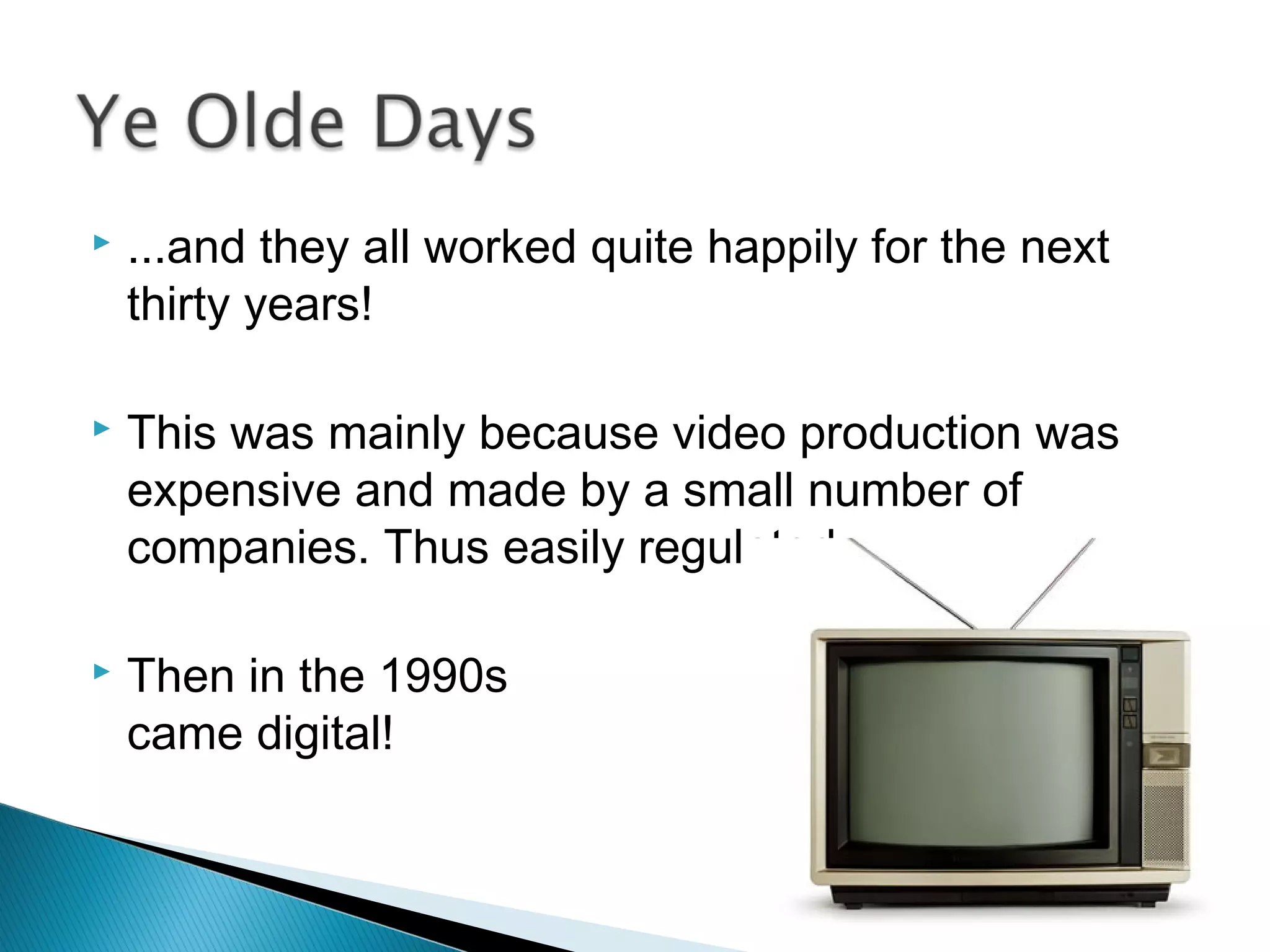
 ...and they all worked quite happily for the next
thirty years!
 This was mainly because video production was
expensive and made by a small number of
companies. Thus easily regulated.
 Then in the 1990s
came digital!
 The Digital Revolution of the 1990s made video
production cheap and available to the masses.
 This made it difficult (impossible?) to regulate.
 New digital ‘standards’ were required, and lots of
options competed...
 Instead of being imposed like the 1950 standards,
the new standards were in competition with each
other
 The theory was that the best standard(s) would
become dominant
 The actual result was a minefield of formats,
containers and codecs...
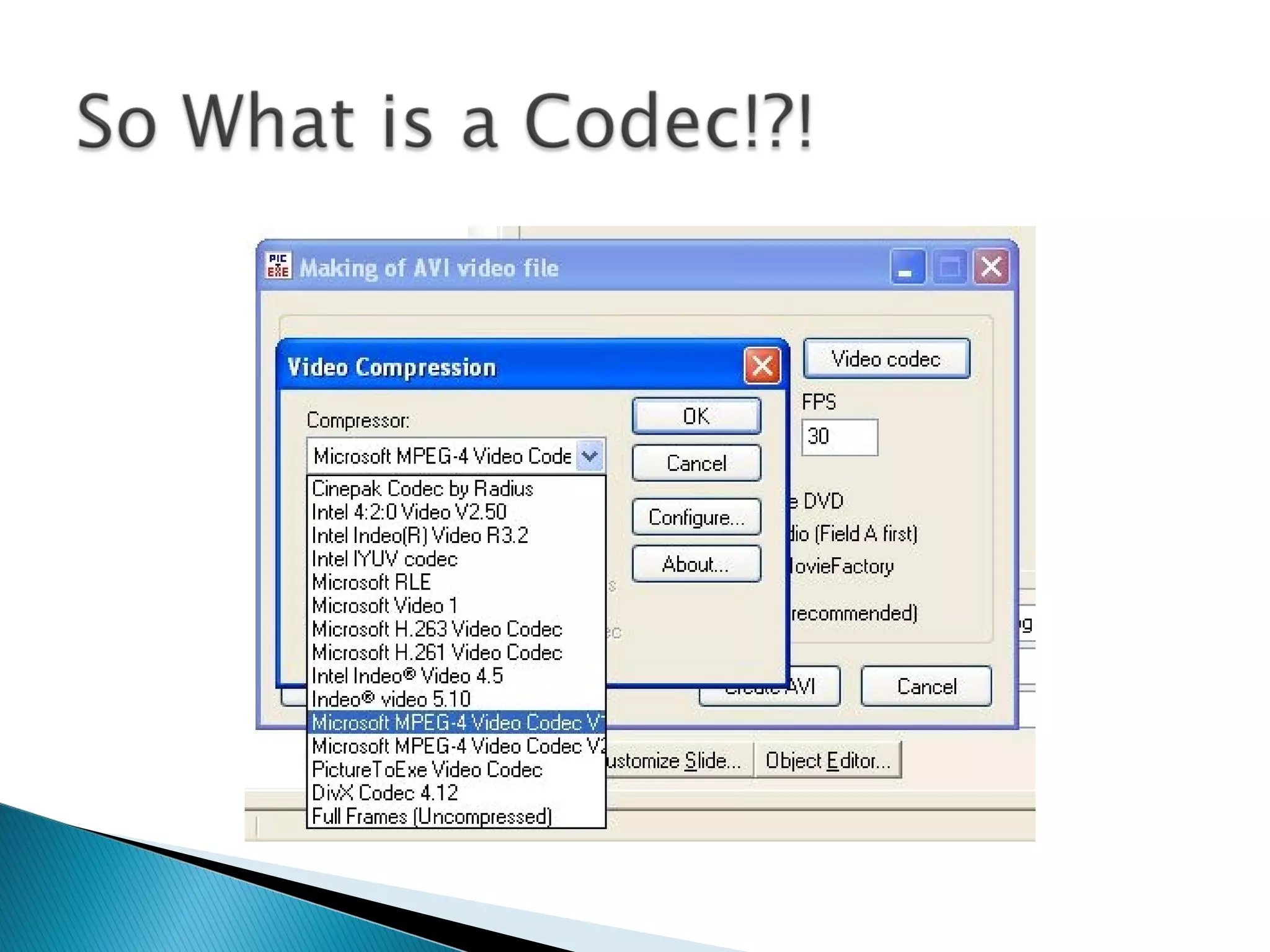
 Codec stands for Code / Decode
 It is basically a computer program that en-codes
video to a specified format
 From this point on the same codec is needed to
play (decode) the video
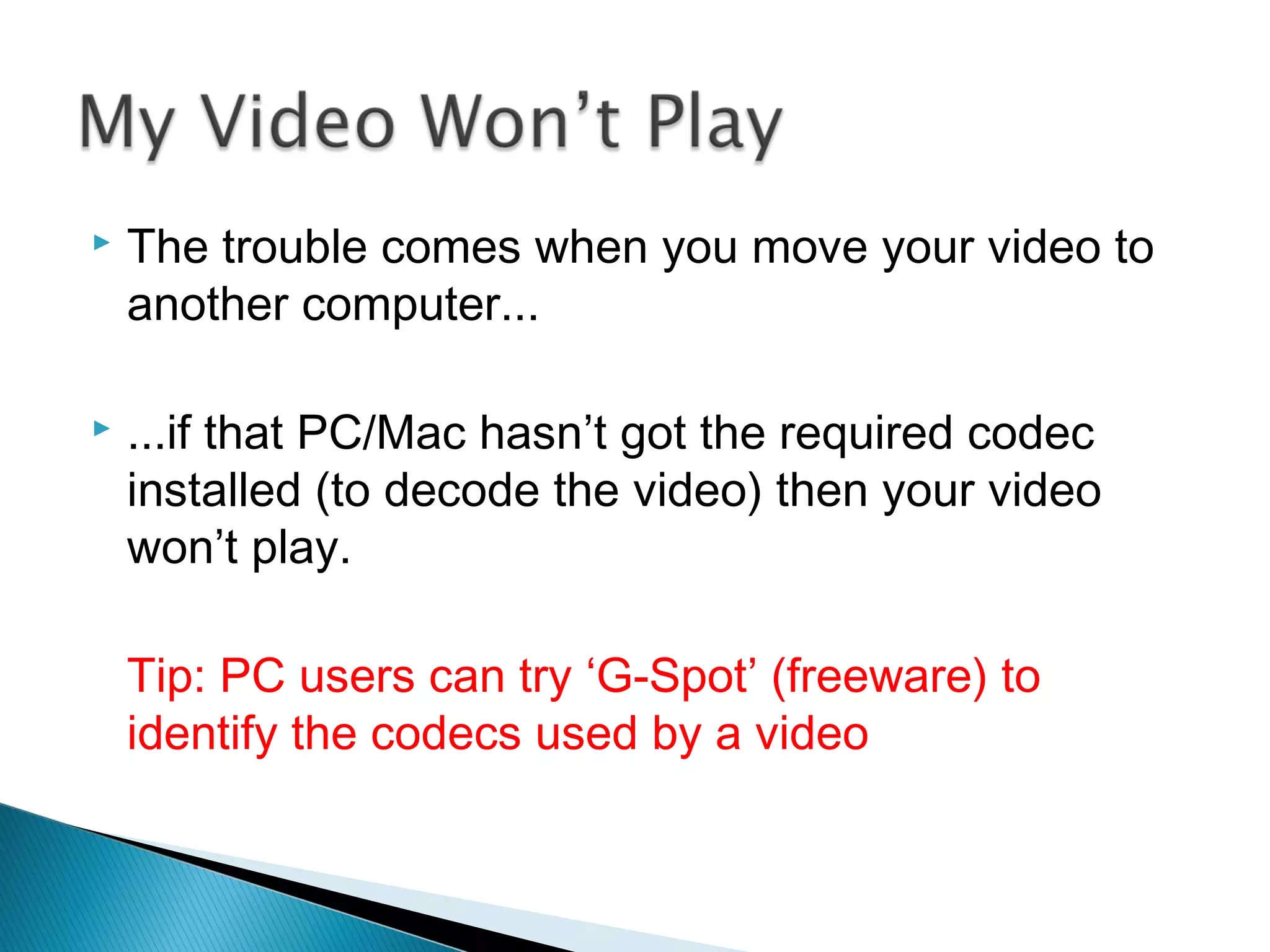
 The trouble comes when you move your video to
another computer...
 ...if that PC/Mac hasn’t got the required codec
installed (to decode the video) then your video
won’t play.
Tip: PC users can try ‘G-Spot’ (freeware) to
identify the codecs used by a video
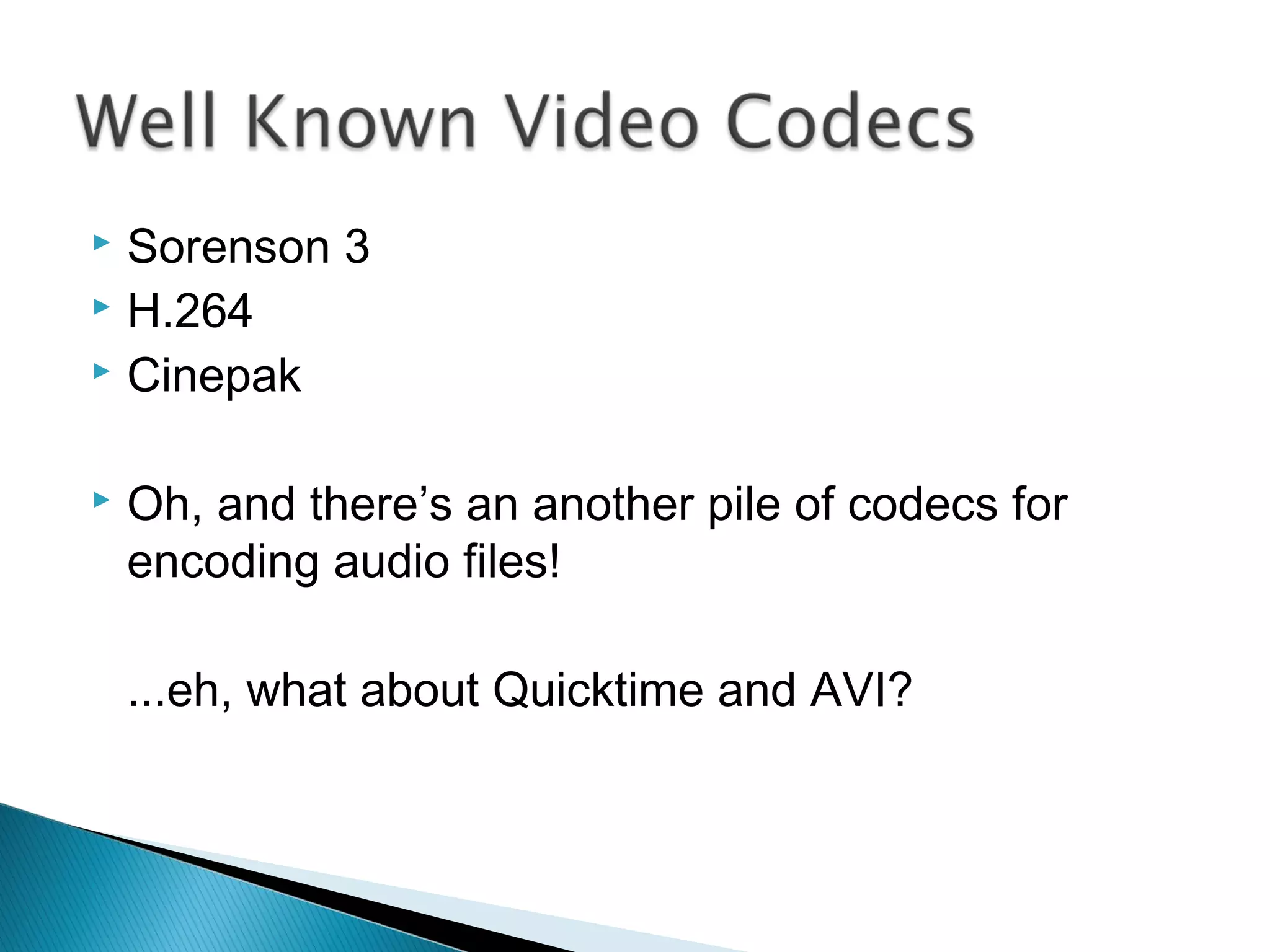
 Sorenson 3
 H.264
 Cinepak
 Oh, and there’s an another pile of codecs for
encoding audio files!
...eh, what about Quicktime and AVI?
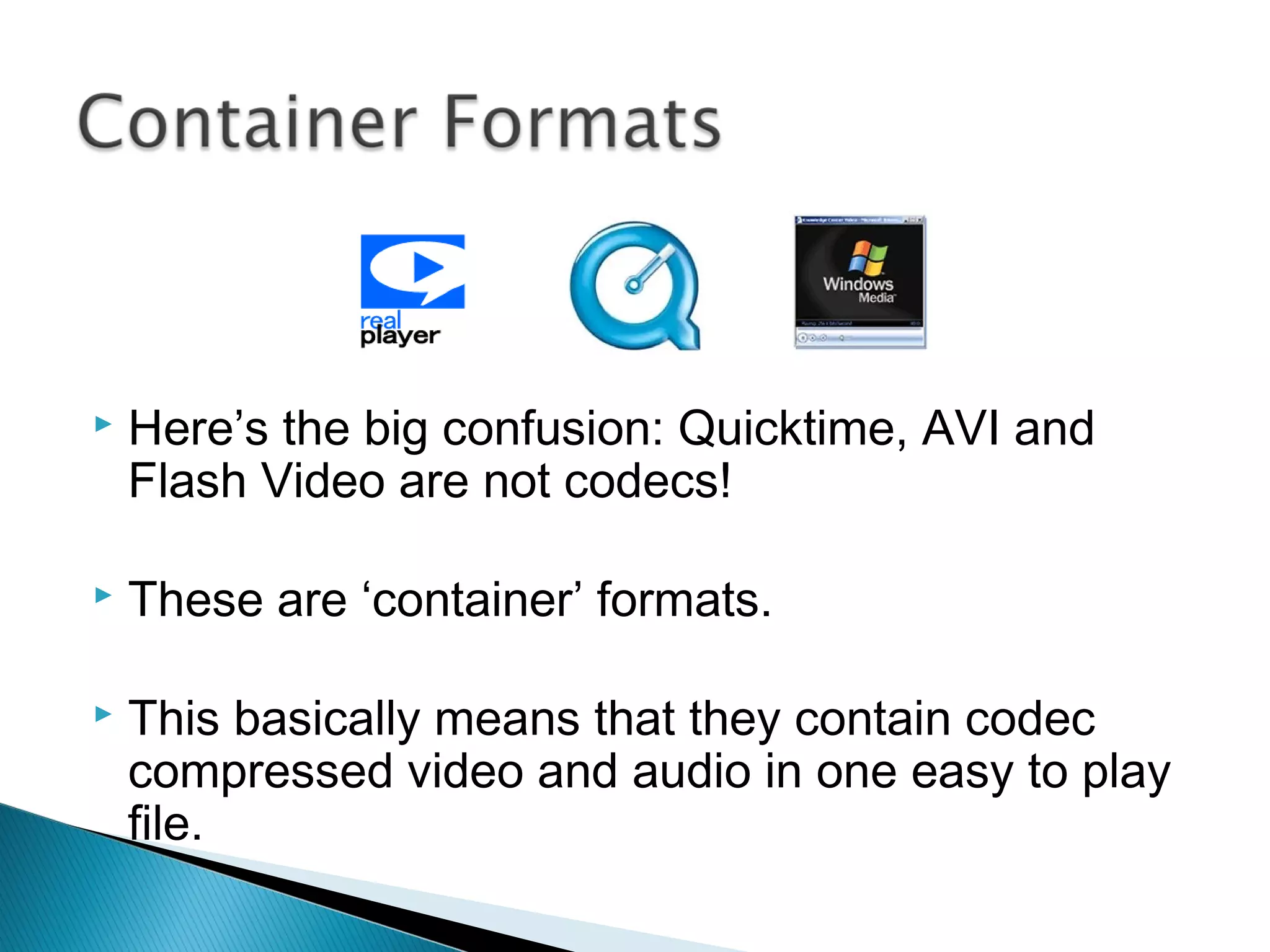
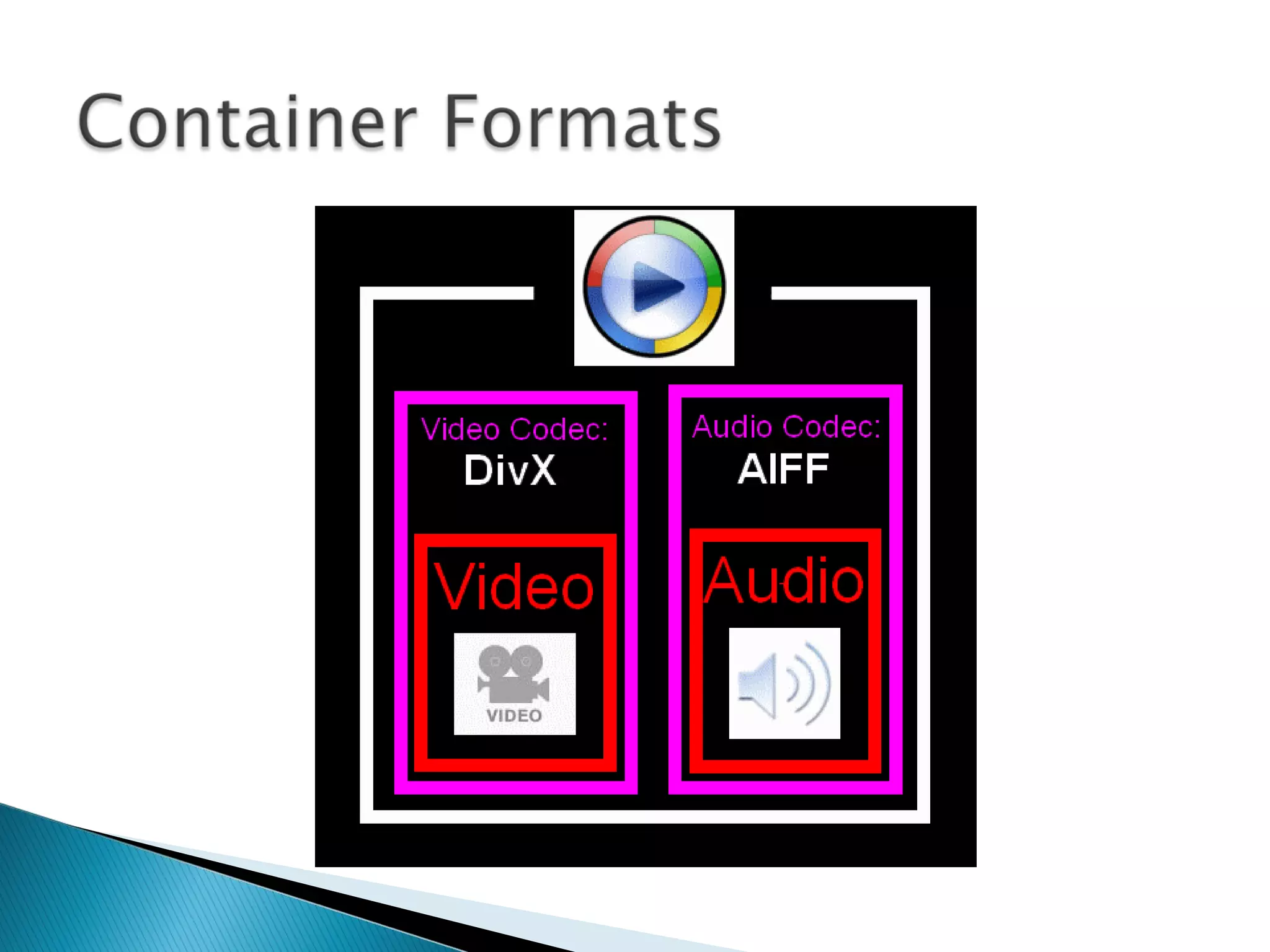
 Here’s the big confusion: Quicktime, AVI and
Flash Video are not codecs!
 These are ‘container’ formats.
 This basically means that they contain codec
compressed video and audio in one easy to play
file.
Video codecs can be broadly split into two types:
 Frame-based codecs
 Temporal (or field-based) codecs.
Video codecs can be broadly split into two types:
 Frame-based codecs
 Temporal (or field-based) codecs.
 Say What!?!
 Well known examples are Cinepak
and Motion-JPEG
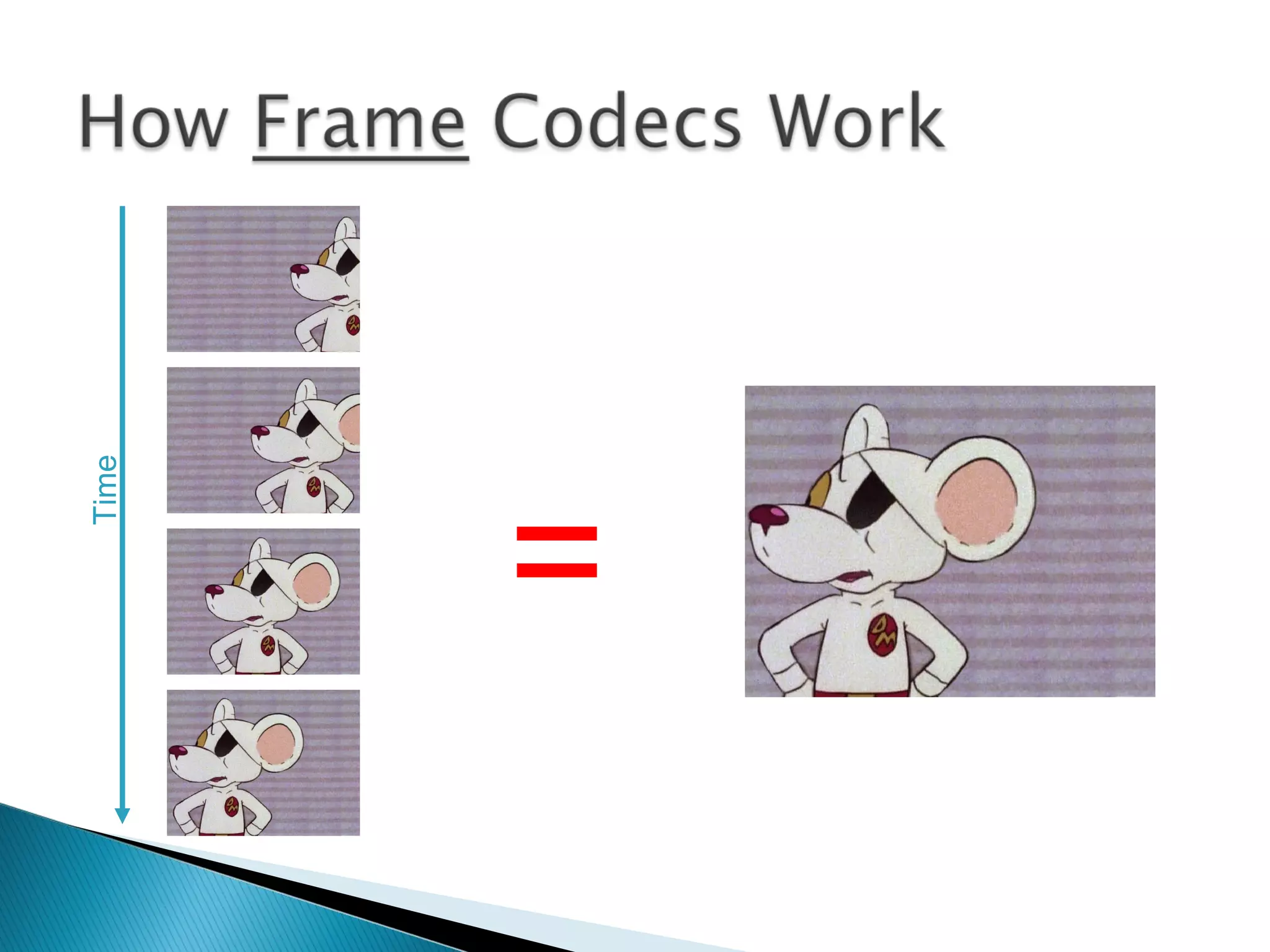
 They work by examining and compressing each
frame of video individually
They have two main disadvantages:
 They can be slow to encode
 File sizes can be quite large
=
Time
 The best known is MPEG-2 (used for Digital TV &
DVDs)
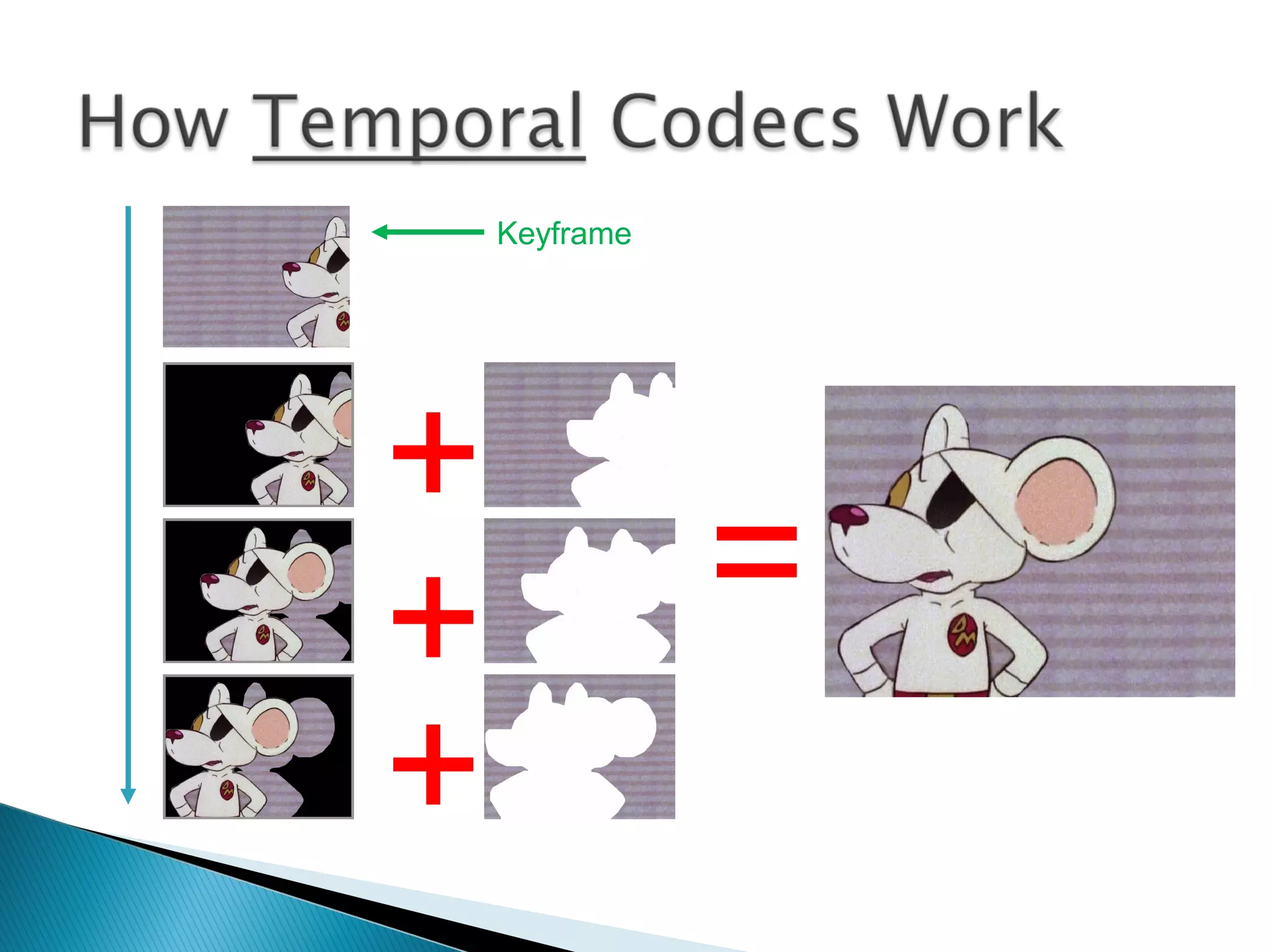
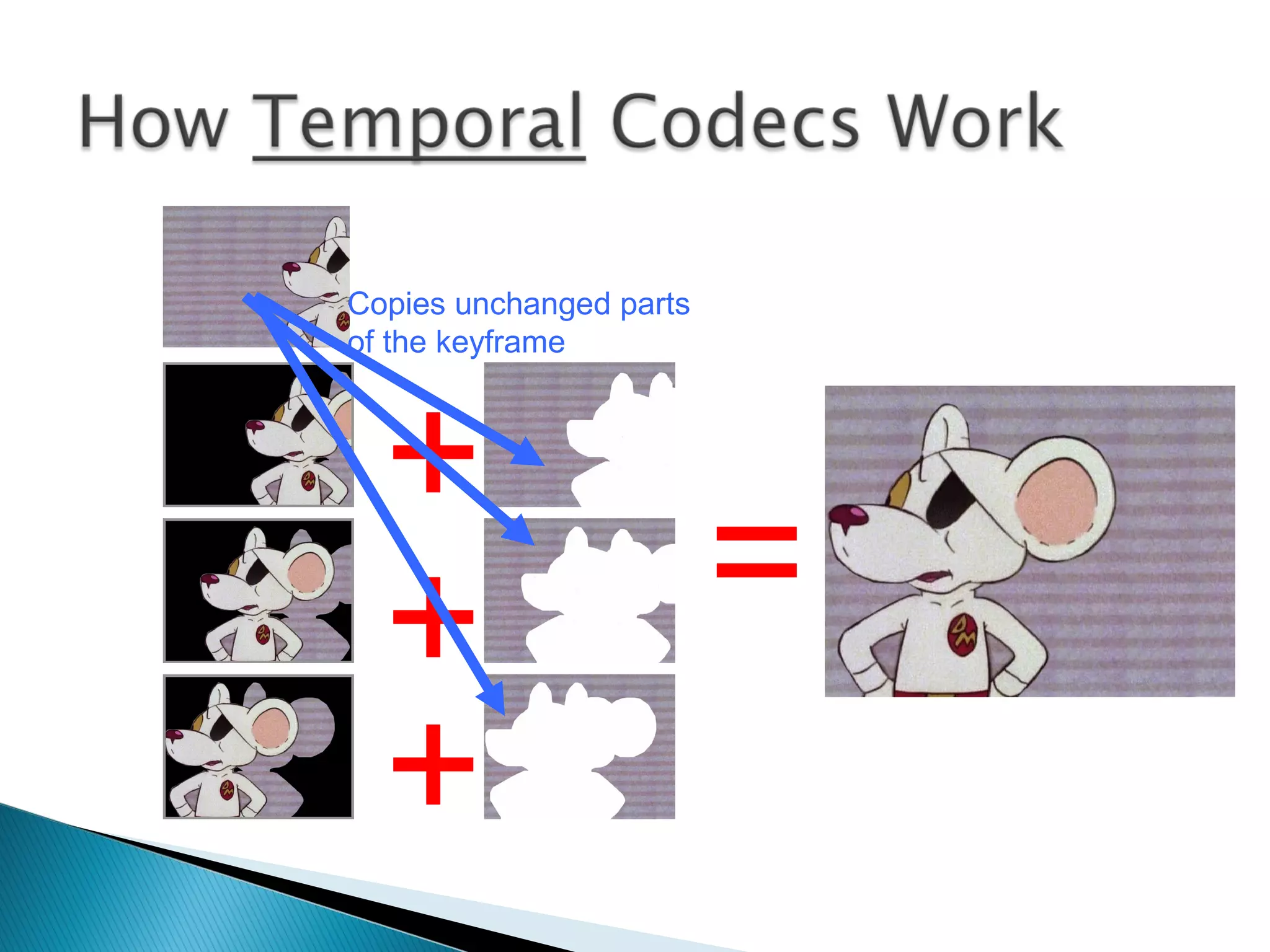
 They watch how much a video clip changes from
frame to frame then compress only the changes
between the first full frame (a keyframe) and the
following frames.
 Thus keeping file sizes down!
=
+
+
+
Keyframe
+
+
+
=
Copies unchanged parts
of the keyframe
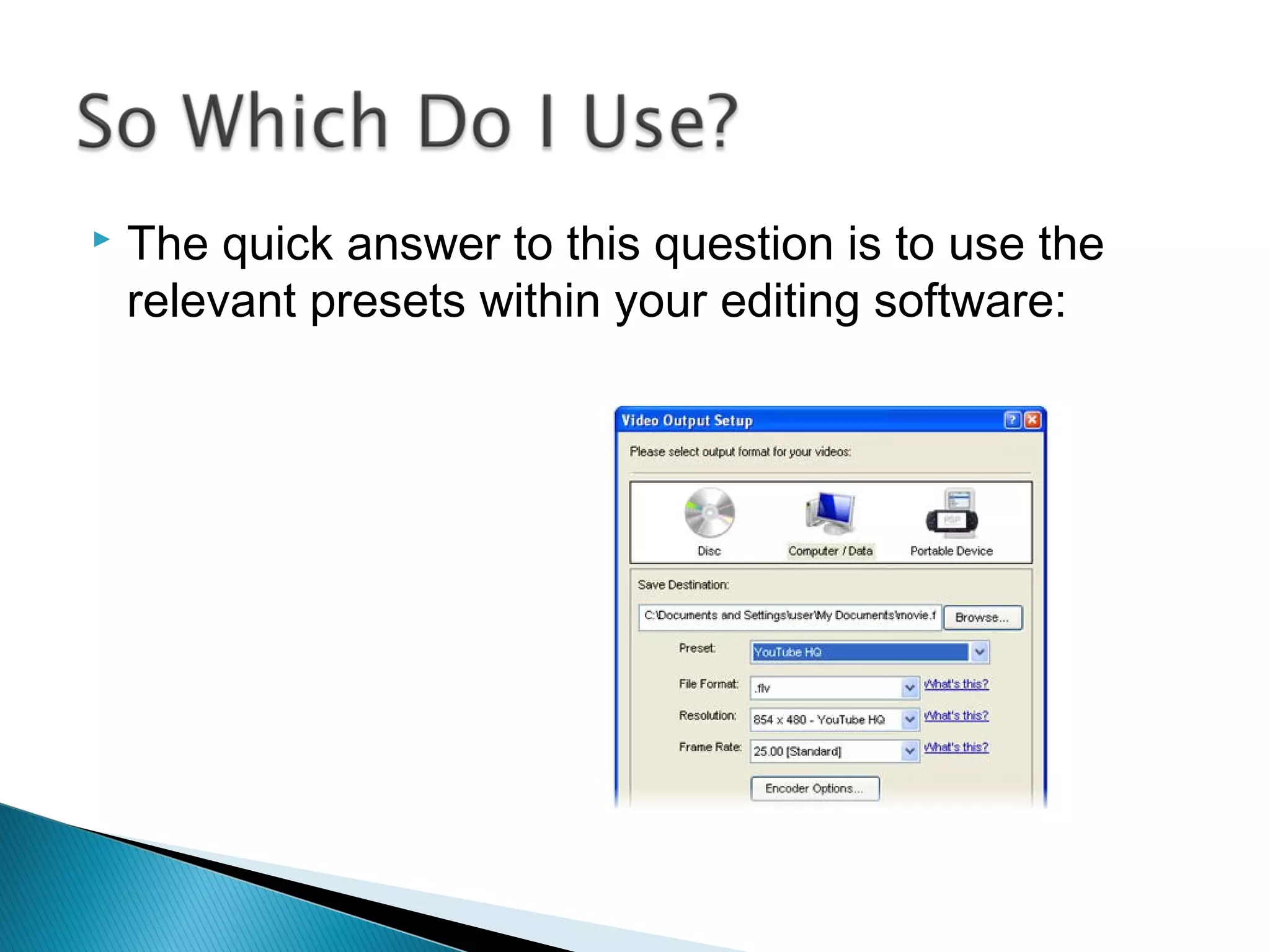
 The quick answer to this question is to use the
relevant presets within your editing software:
 But it’s always worth checking with your client
about their requirements.
Especially if they’re planning on showing the video
overseas.
 This is where programs like Apple’s Compressor
come into play (but that’s another presentation for
another day!)
...no, it’s not over yet!
 So we know about codecs, container formats, and
how they encode video & audio files...
 ...but we still need to mention Screen Resolution
(or how big the screen is)
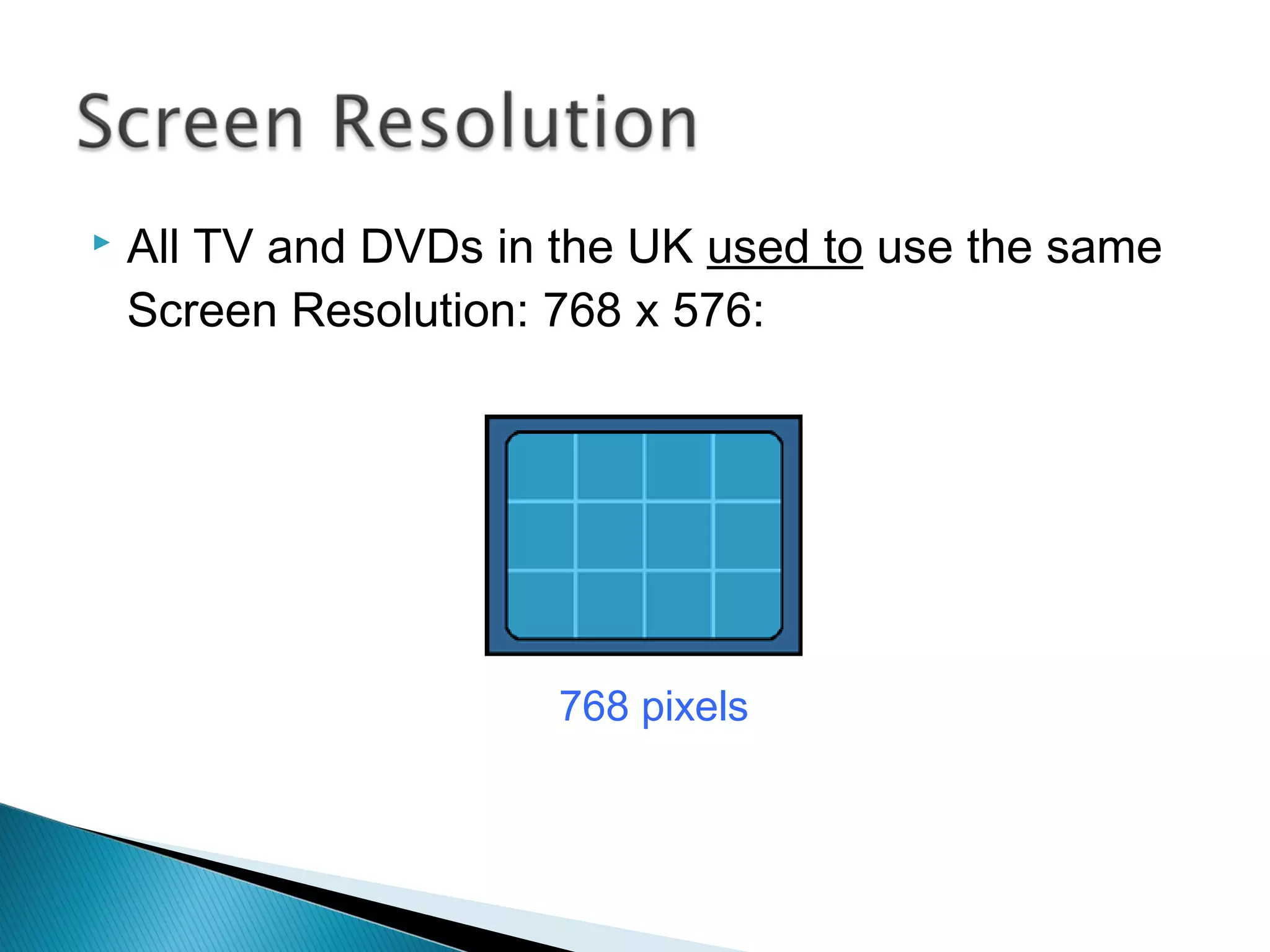
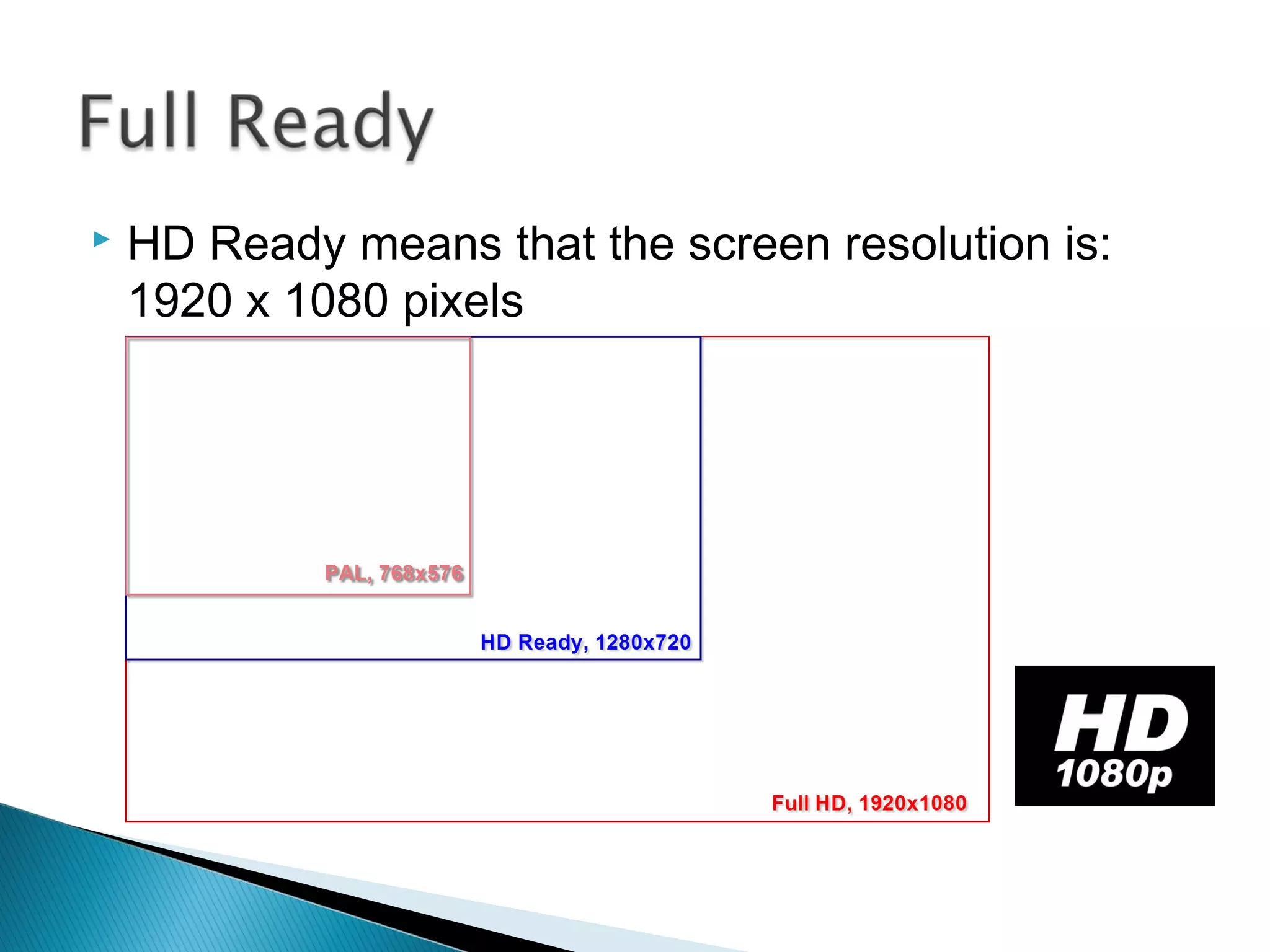
 All TV and DVDs in the UK used to use the same
Screen Resolution: 768 x 576:
768 pixels
576 pixels
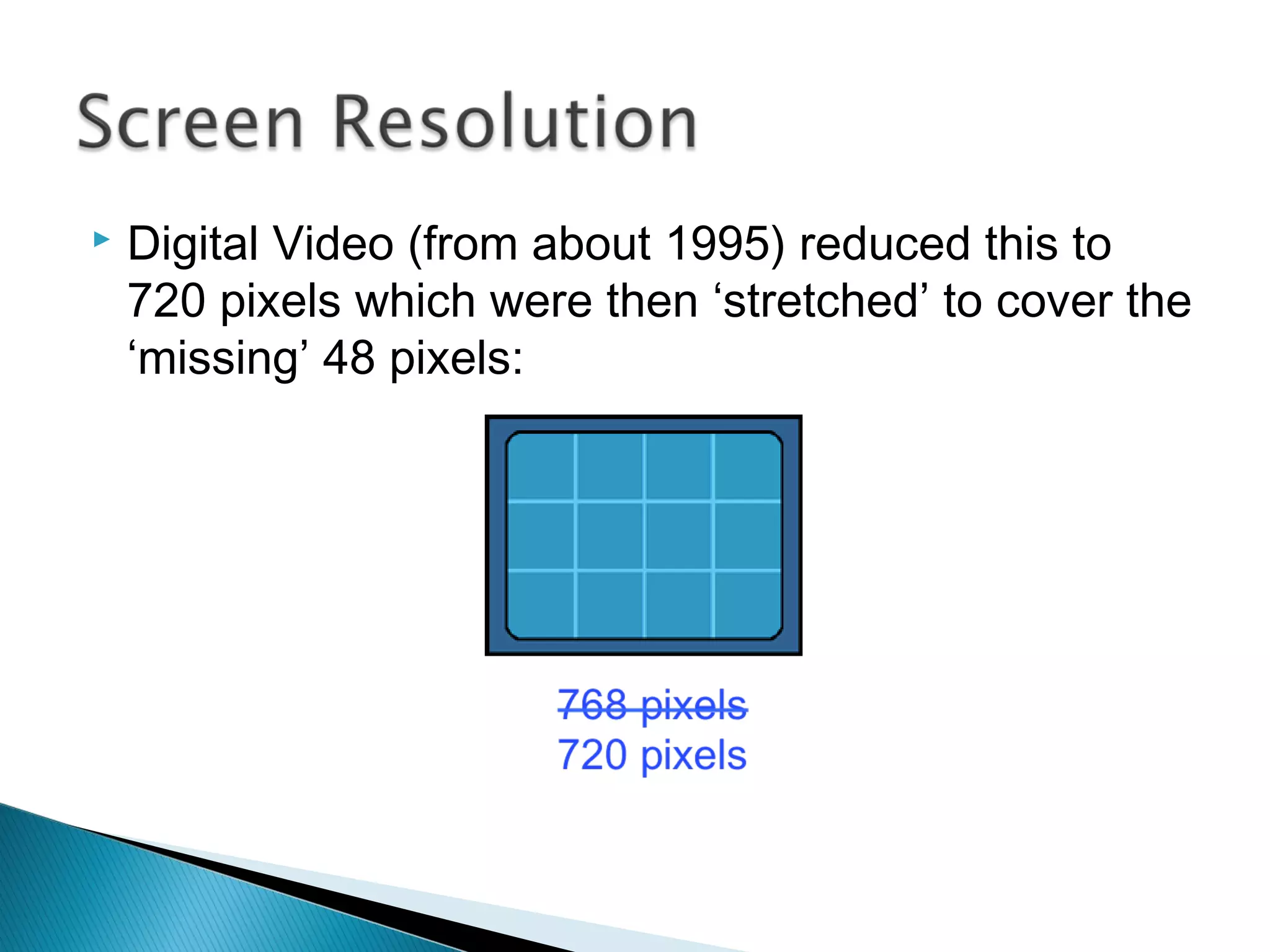
 Digital Video (from about 1995) reduced this to
720 pixels which were then ‘stretched’ to cover the
‘missing’ 48 pixels:
576 pixels
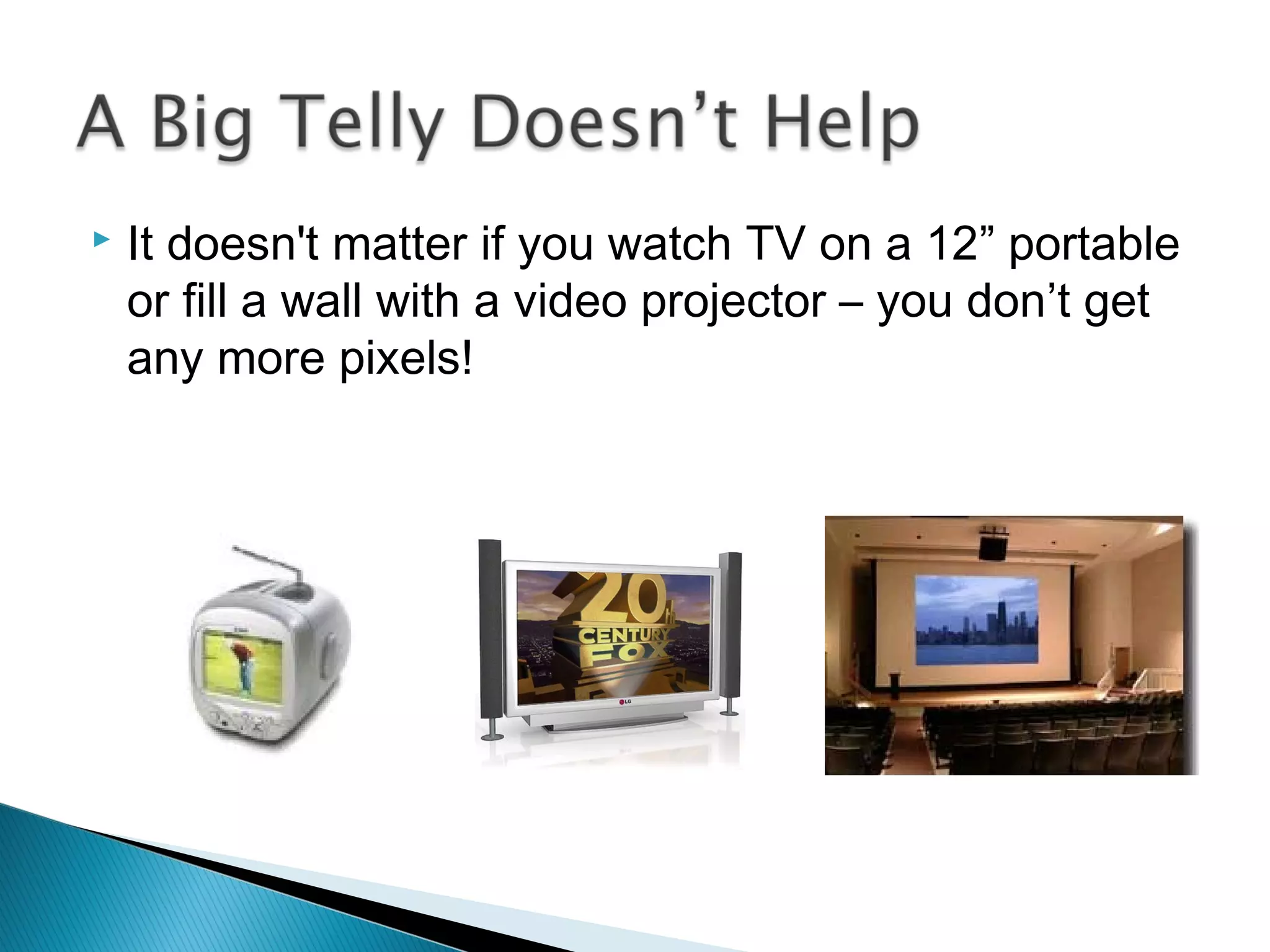
 It doesn't matter if you watch TV on a 12” portable
or fill a wall with a video projector – you don’t get
any more pixels!
 All this was true until the
arrival of High Definition
...but guess what...
...there’s competing formats (again)!
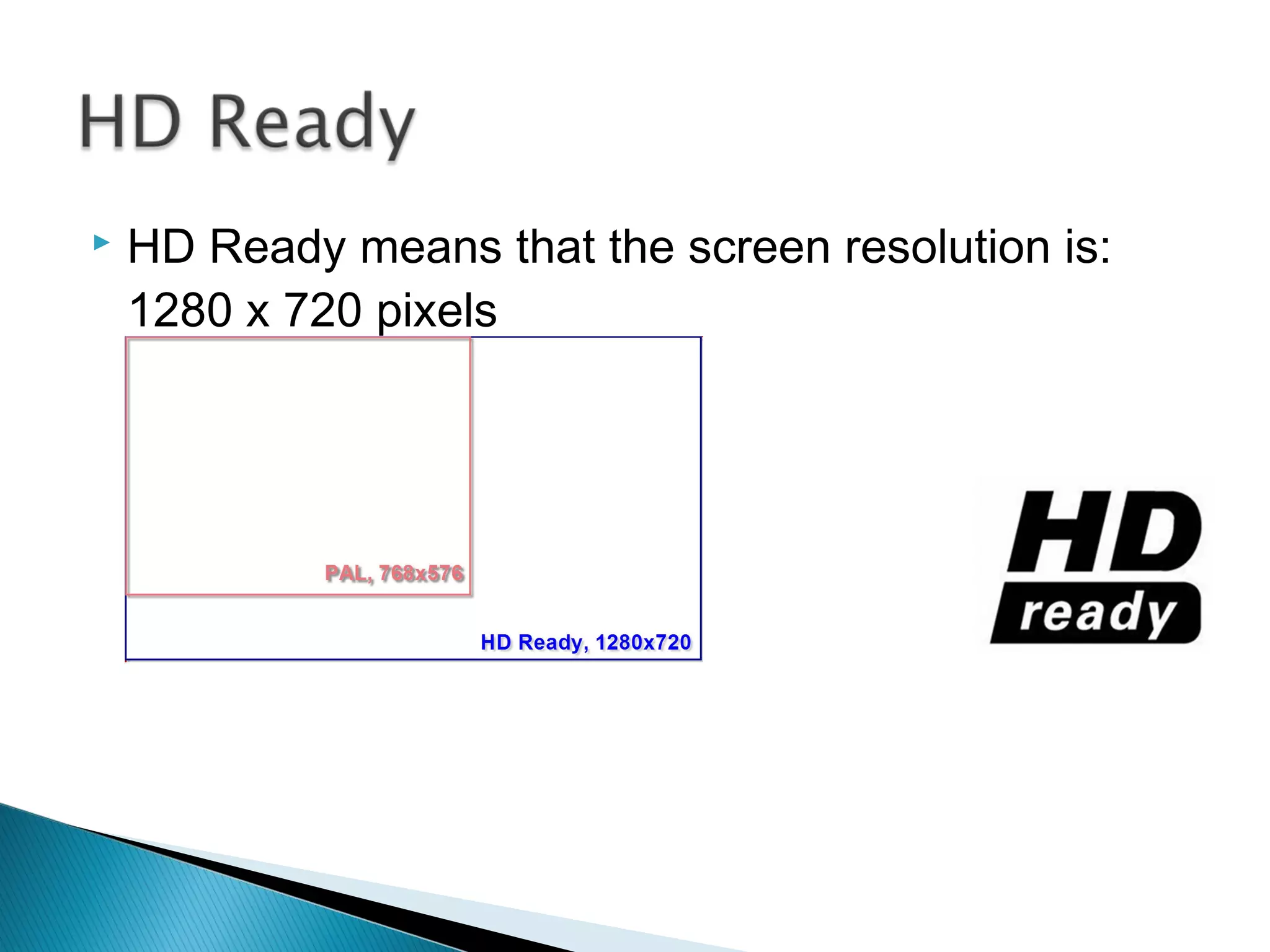
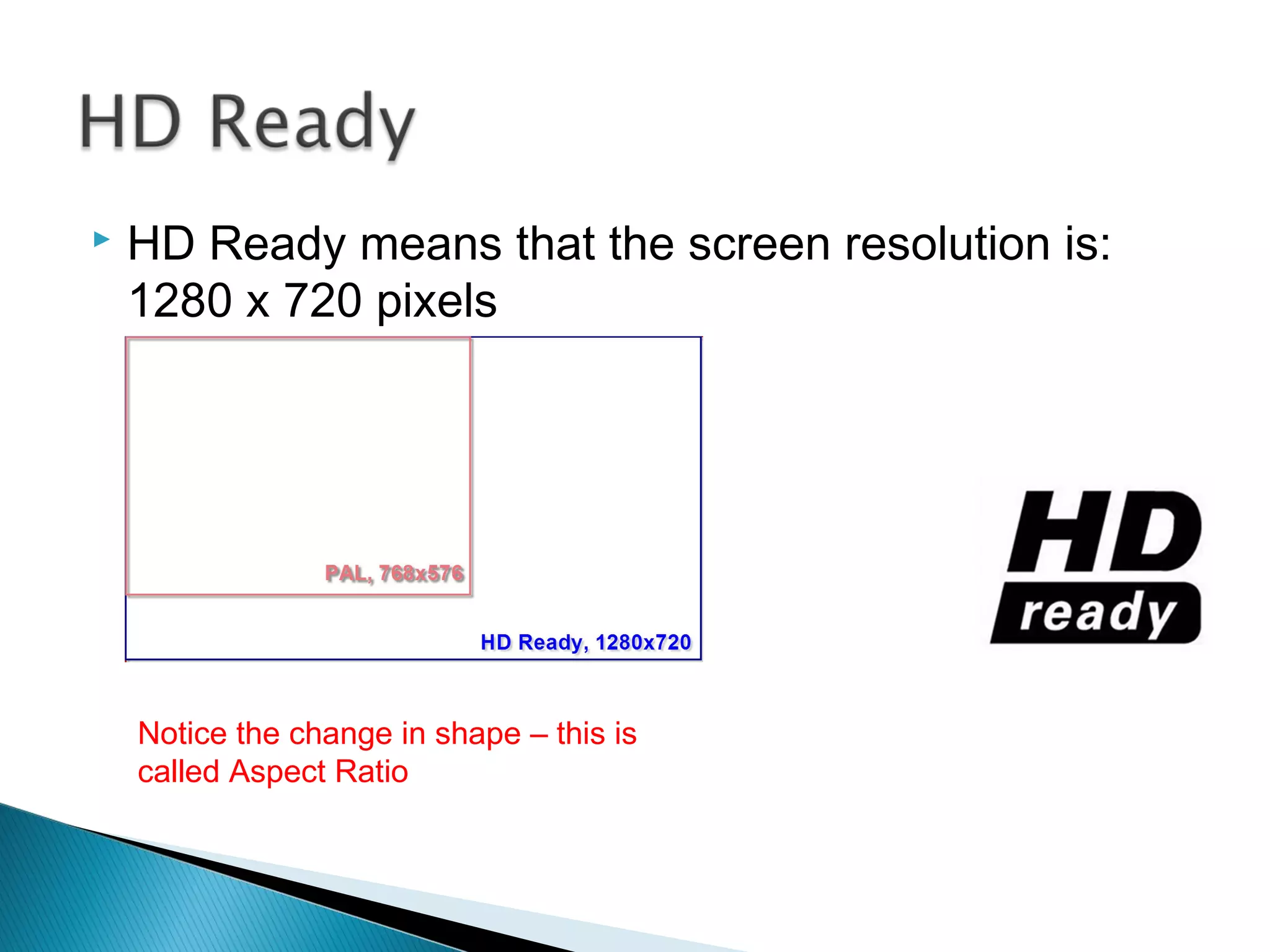
 HD Ready means that the screen resolution is:
1280 x 720 pixels
 HD Ready means that the screen resolution is:
1280 x 720 pixels
Notice the change in shape – this is
called Aspect Ratio
 HD Ready means that the screen resolution is:
1920 x 1080 pixels
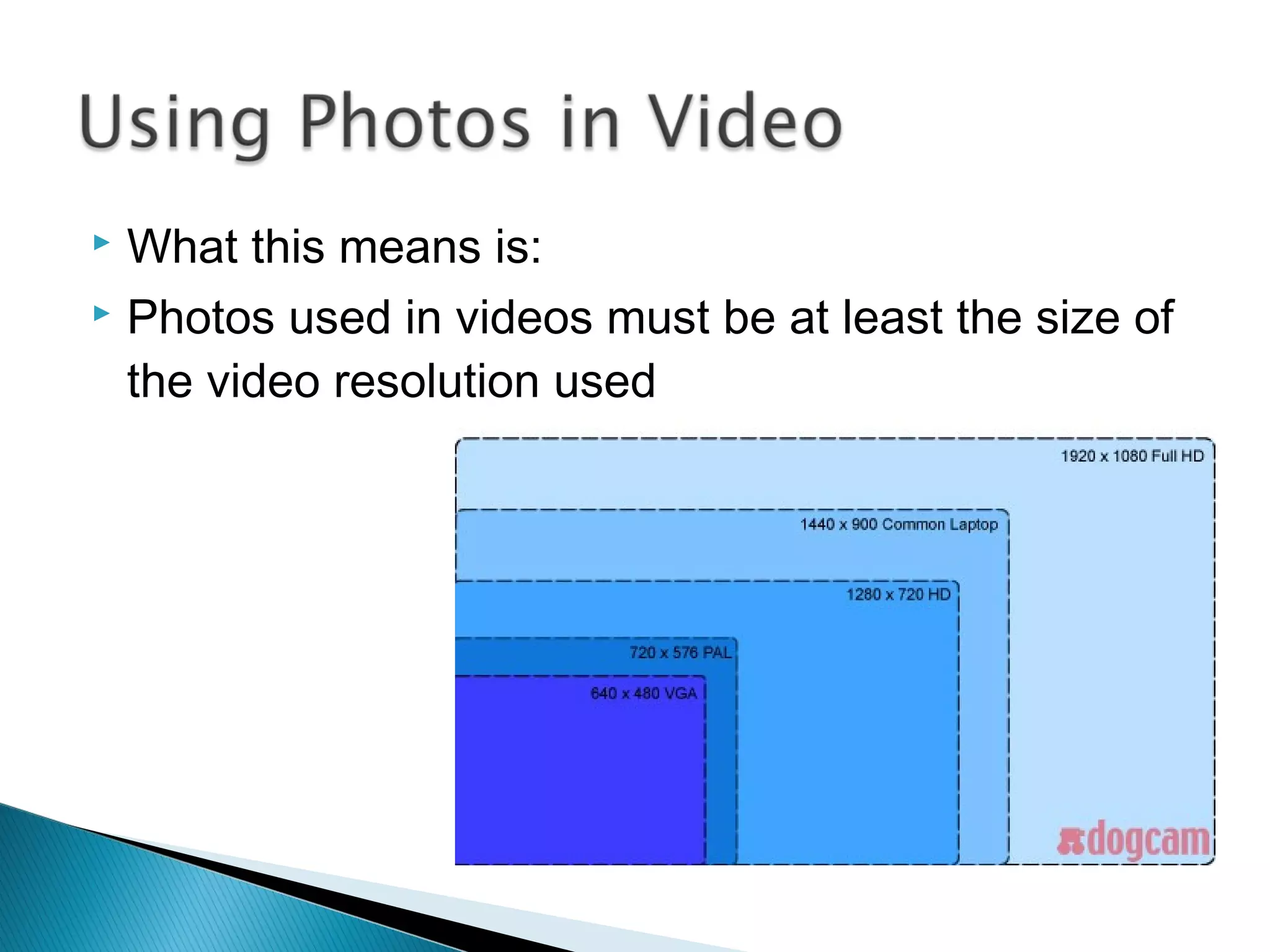
 What this means is:
 Photos used in videos must be at least the size of
the video resolution used
 Or this happens:
 Minimum of 3 megapixels
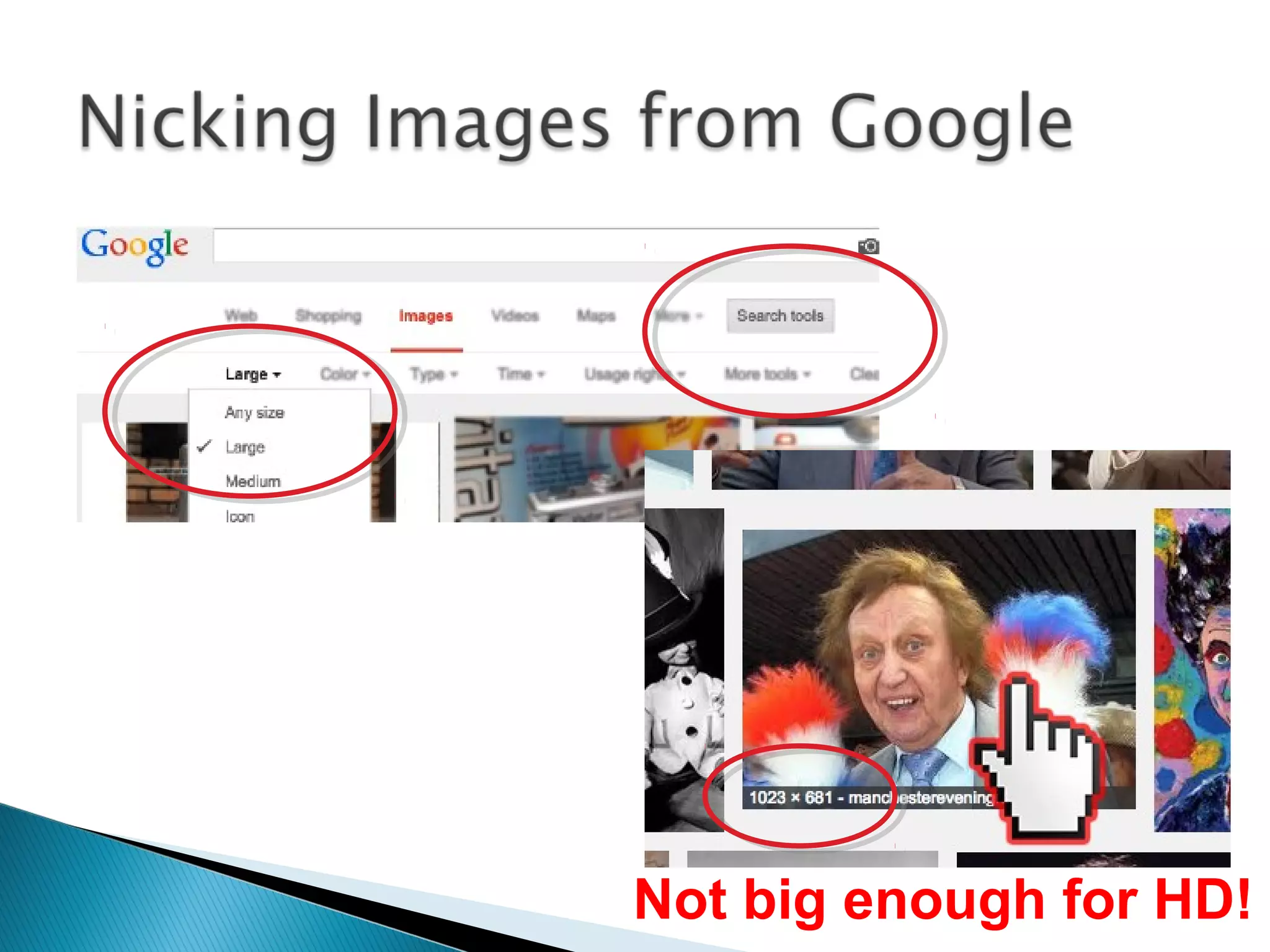
Not big enough for HD!
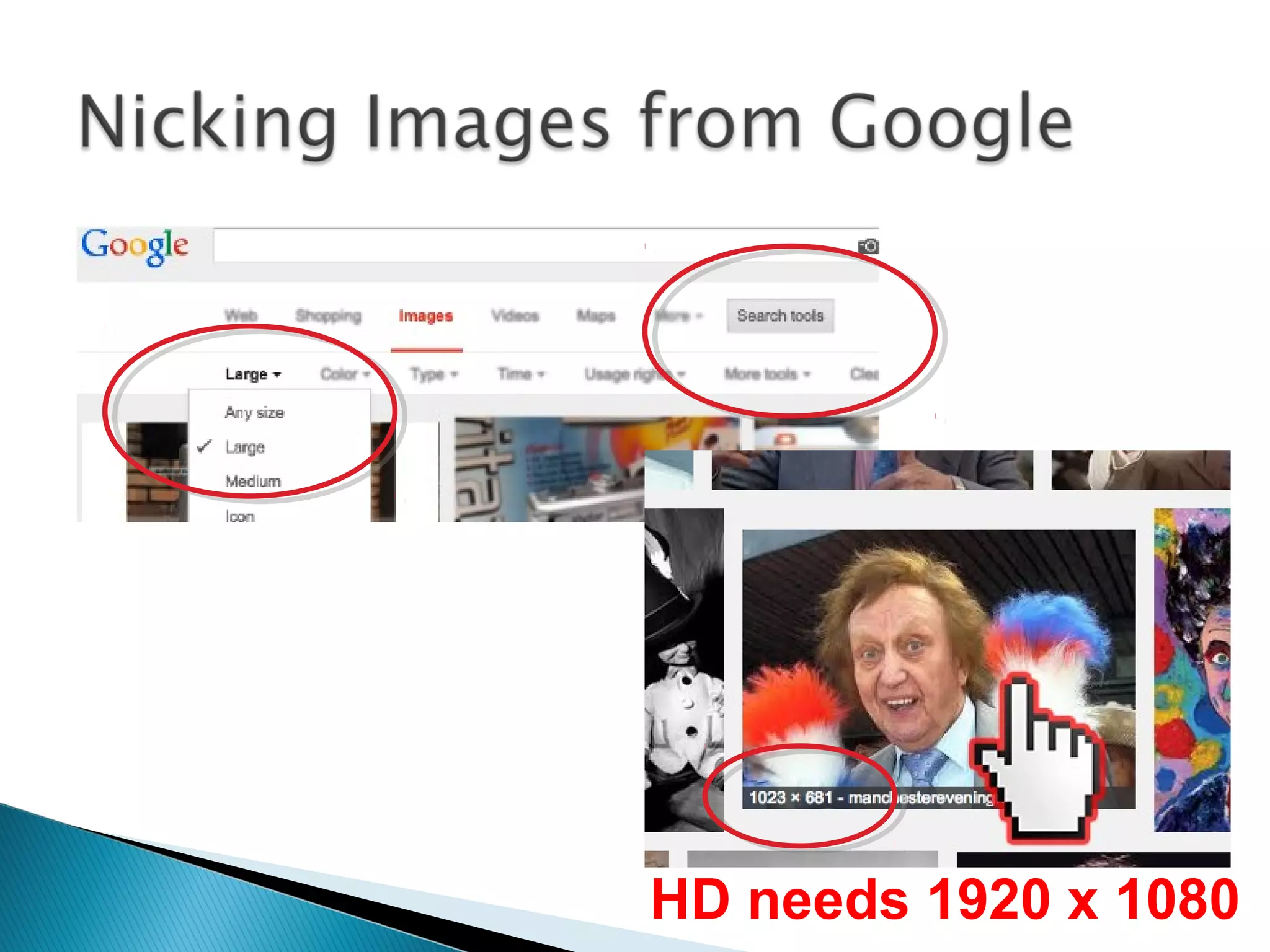
HD needs 1920 x 1080
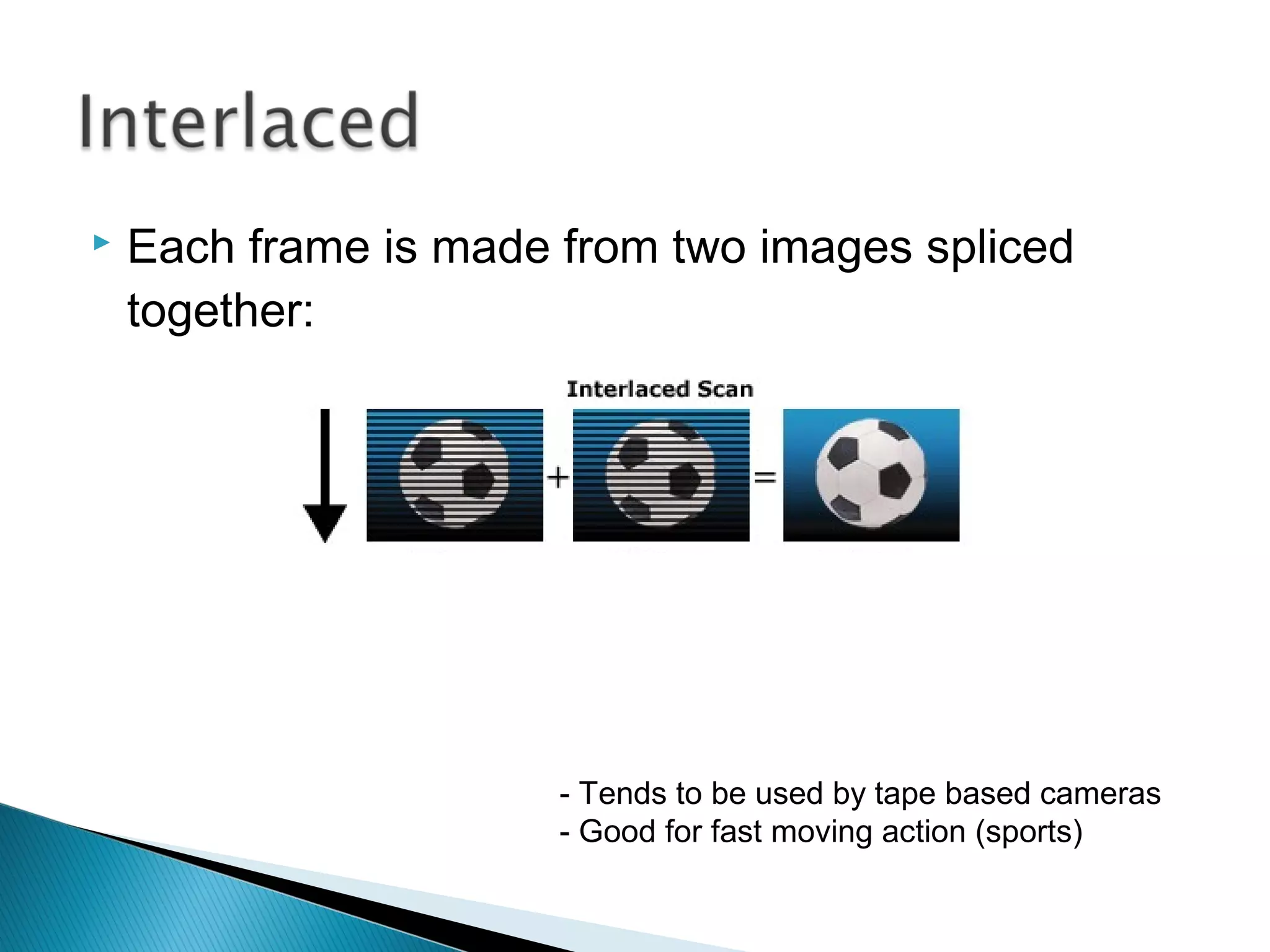
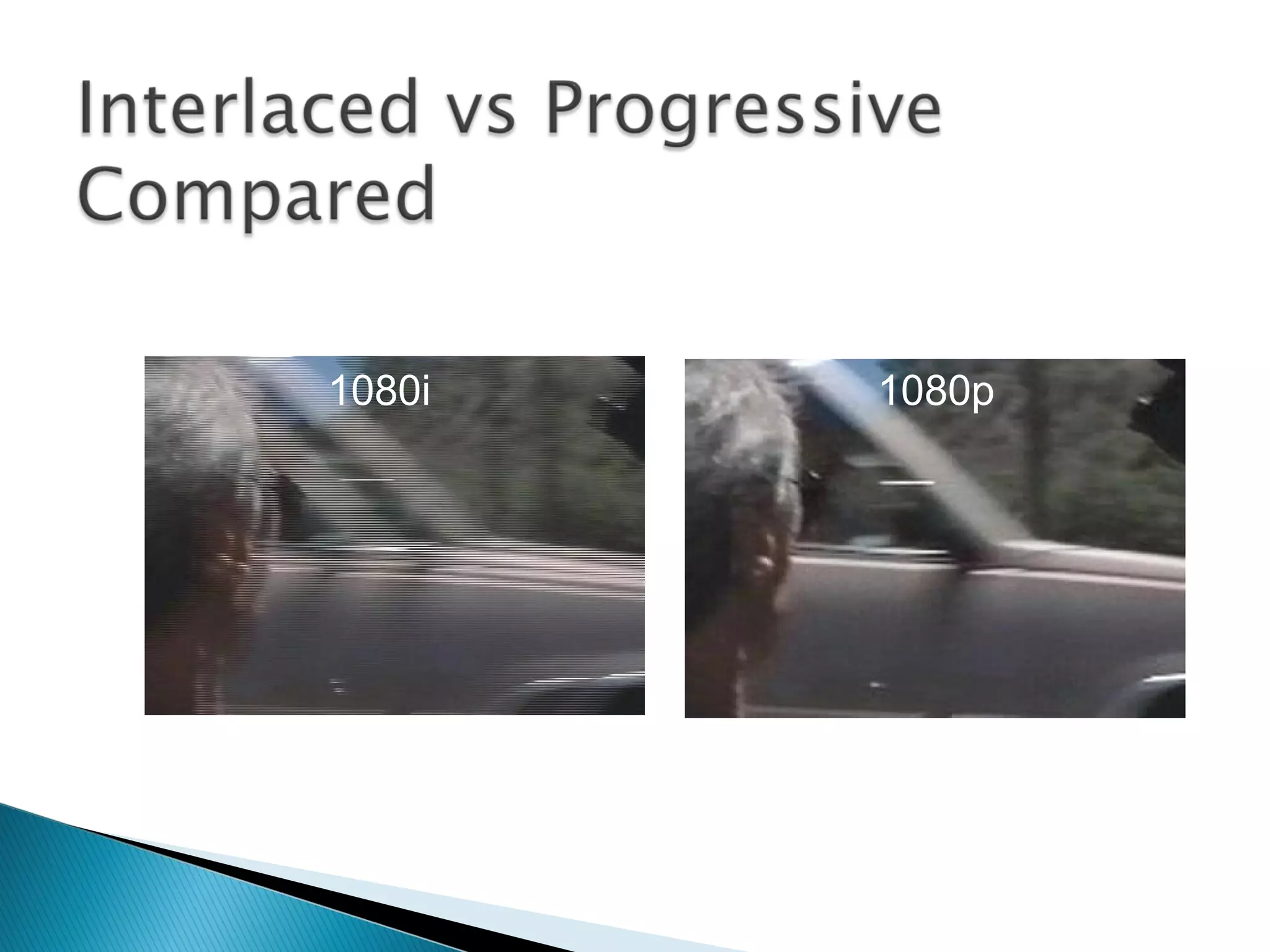
 Each frame is made from two images spliced
together:
- Tends to be used by tape based cameras
- Good for fast moving action (sports)
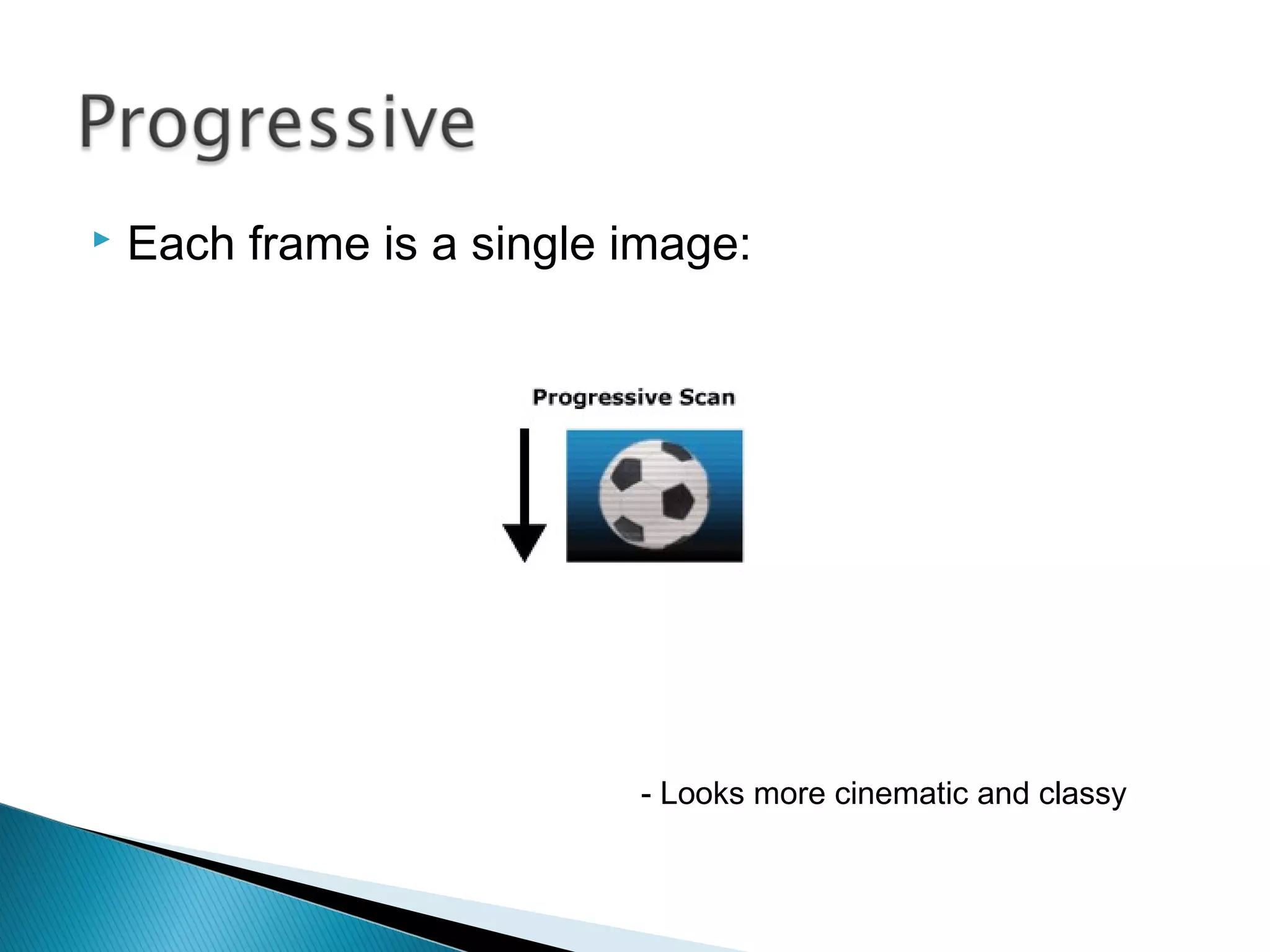
 Each frame is a single image:
- Looks more cinematic and classy
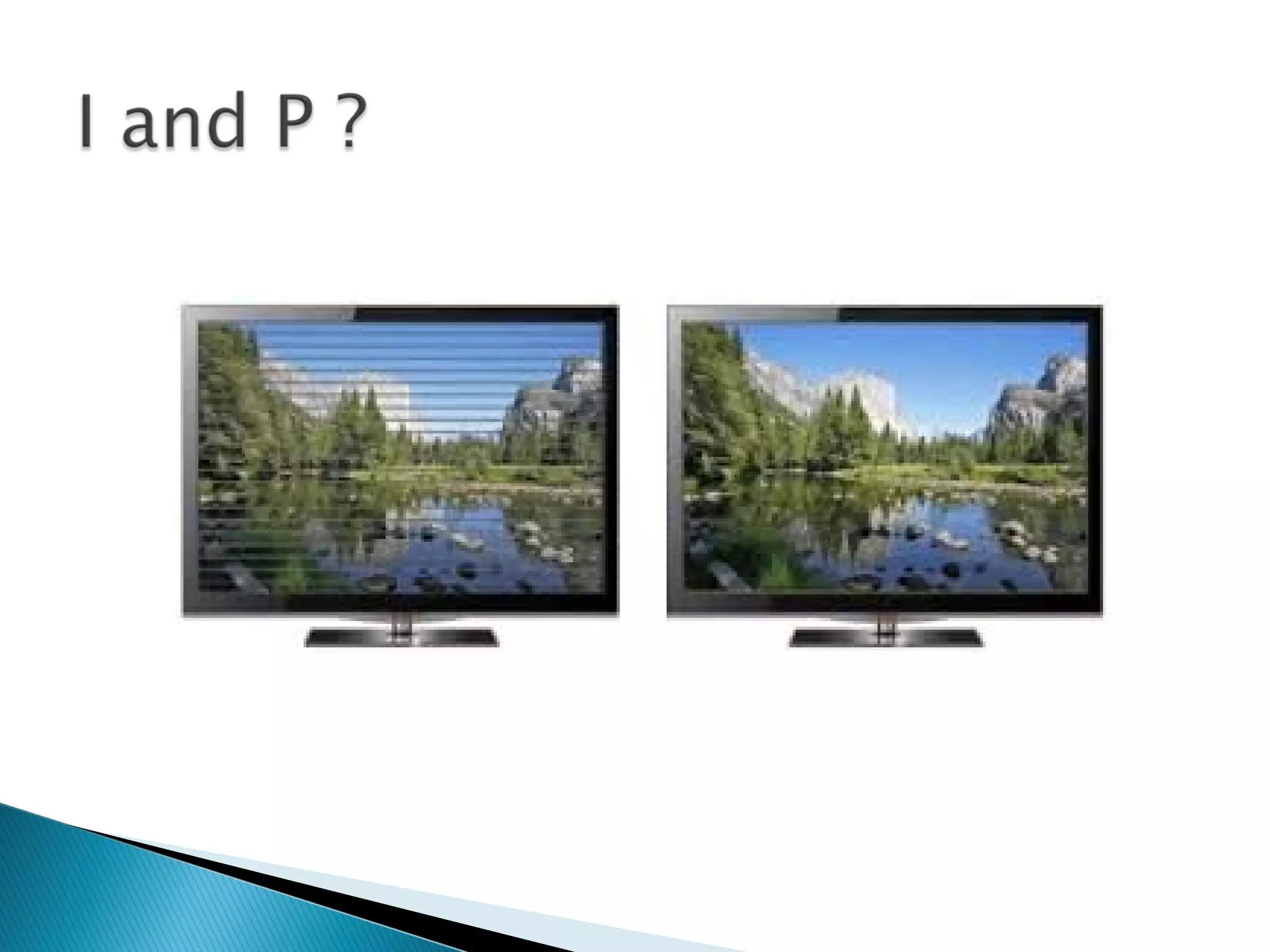
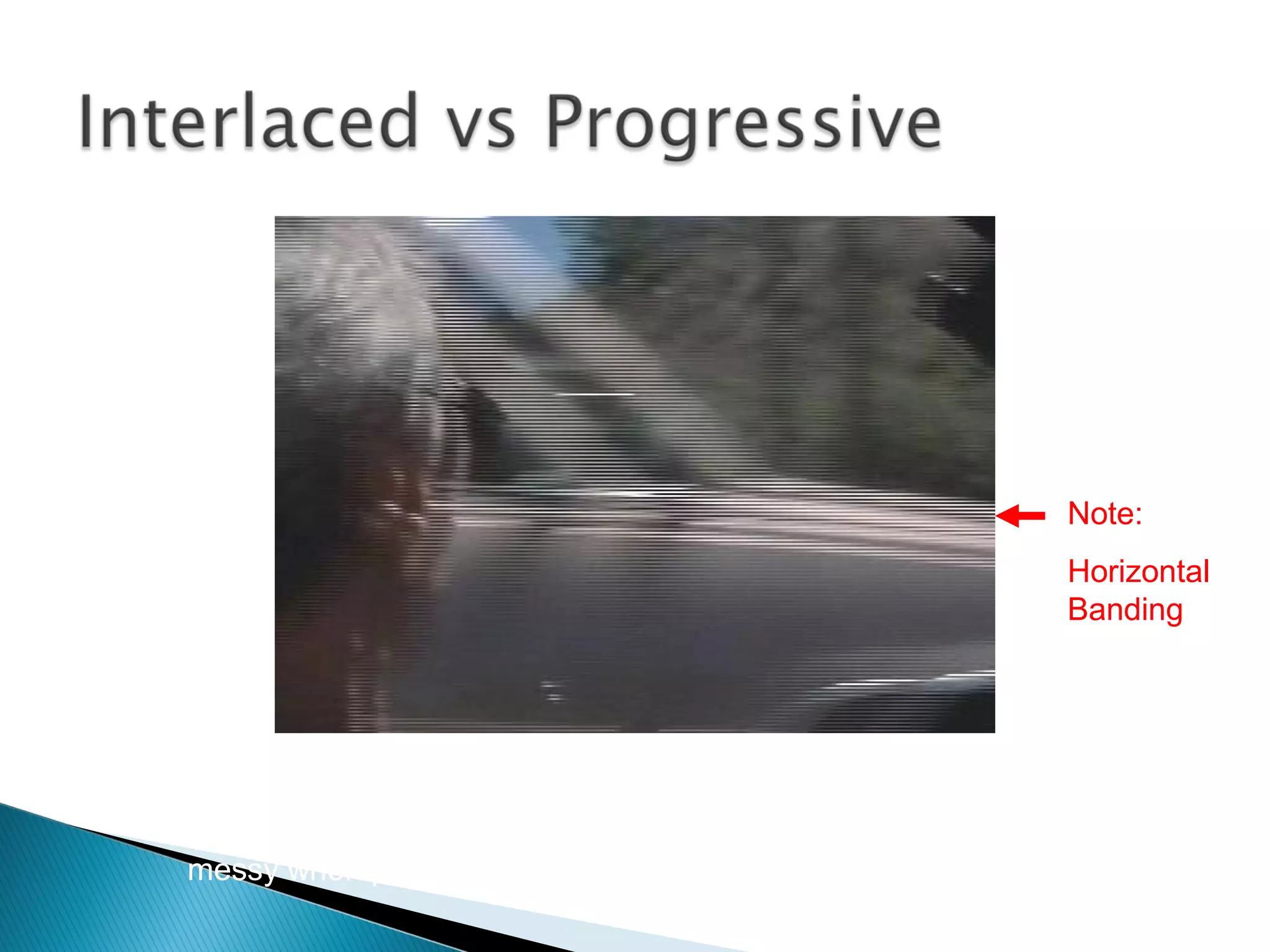
Interlaced Video displays 50 half-frames (or fields) every second.
It shuffles these in alternate rows, this tricks the eye but can look
messy when paused or printed out
Note:
Horizontal
Banding
1080i 1080p
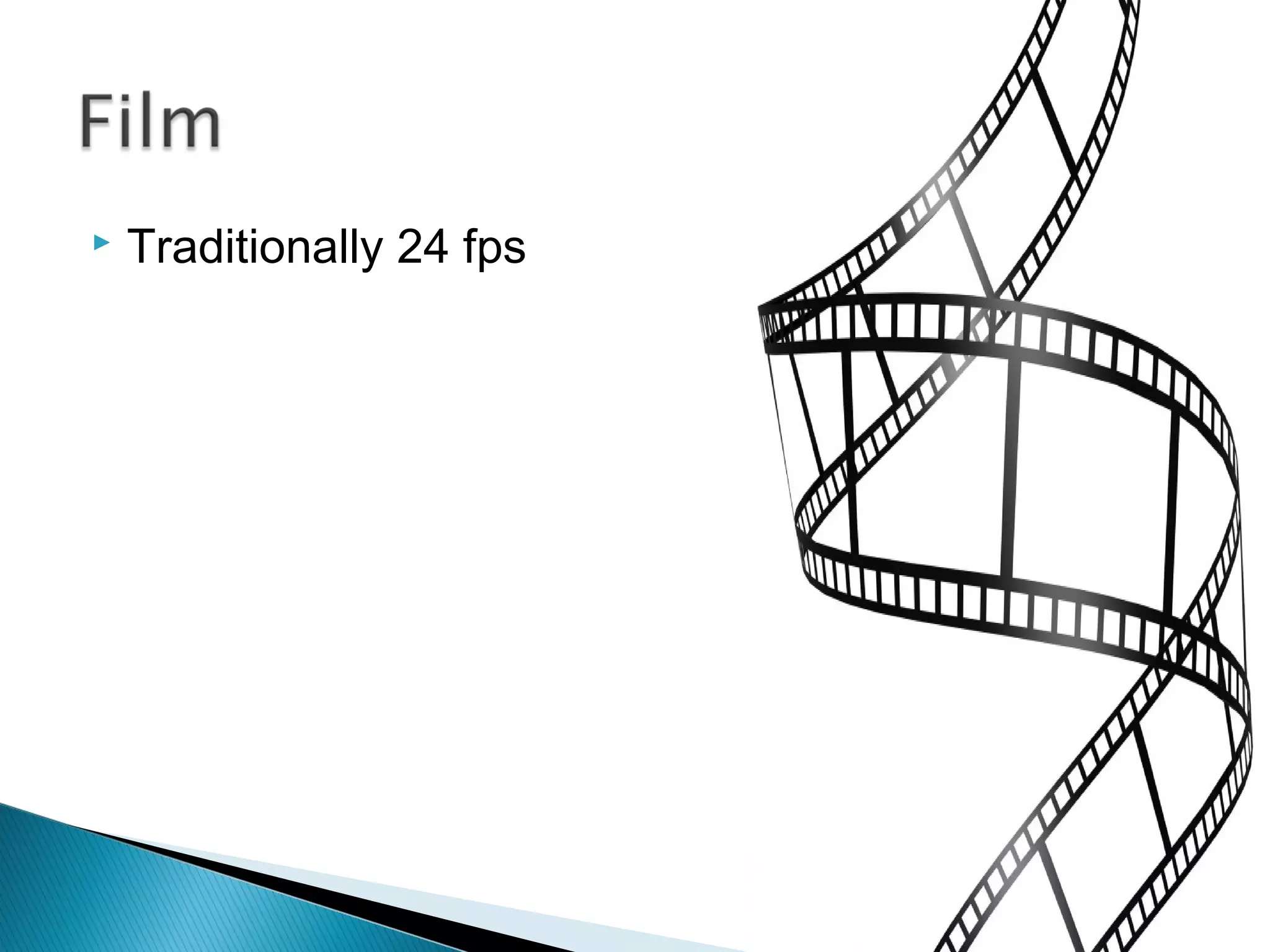
 Traditionally 24 fps
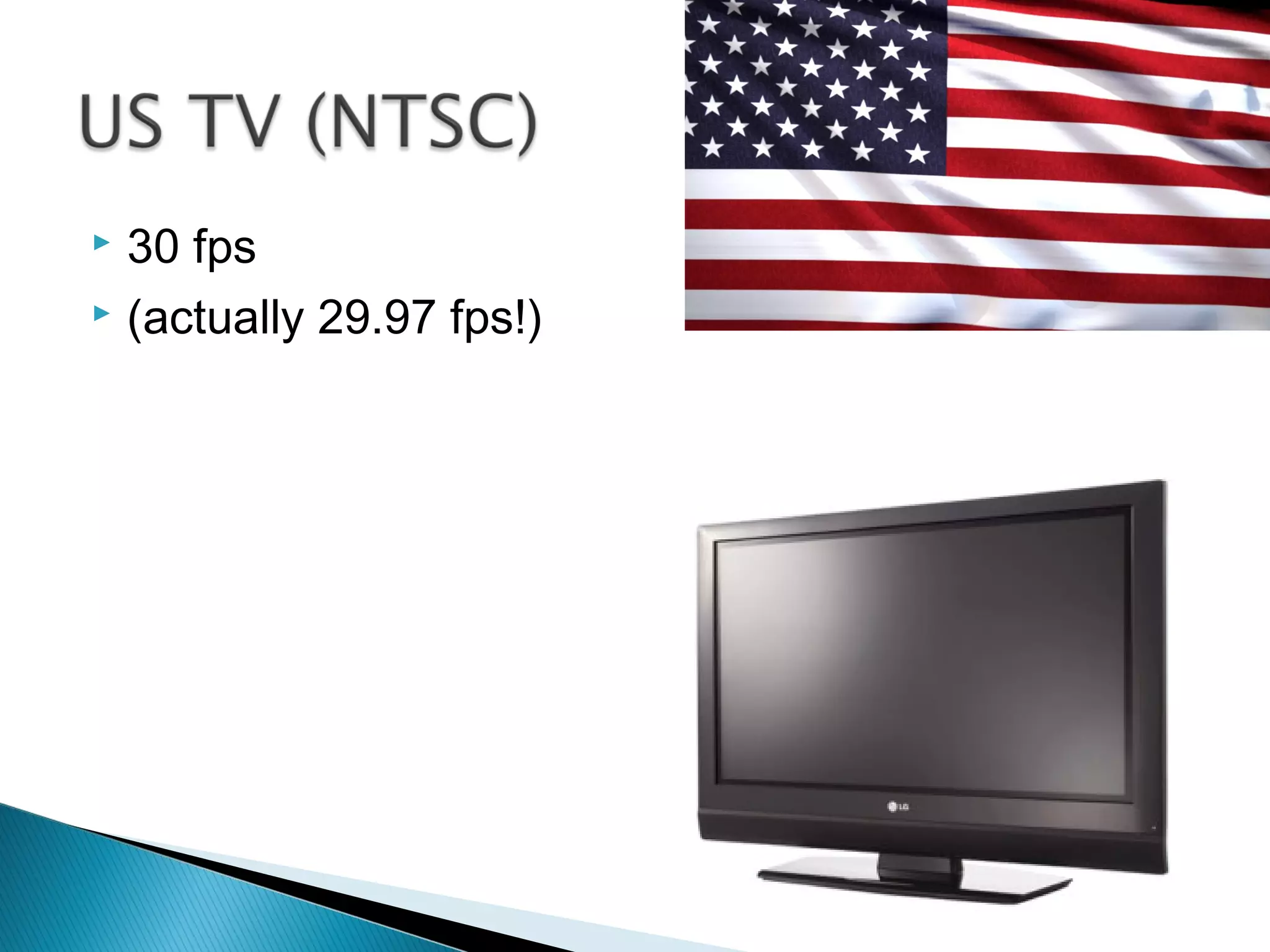
 30 fps
 (actually 29.97 fps!)
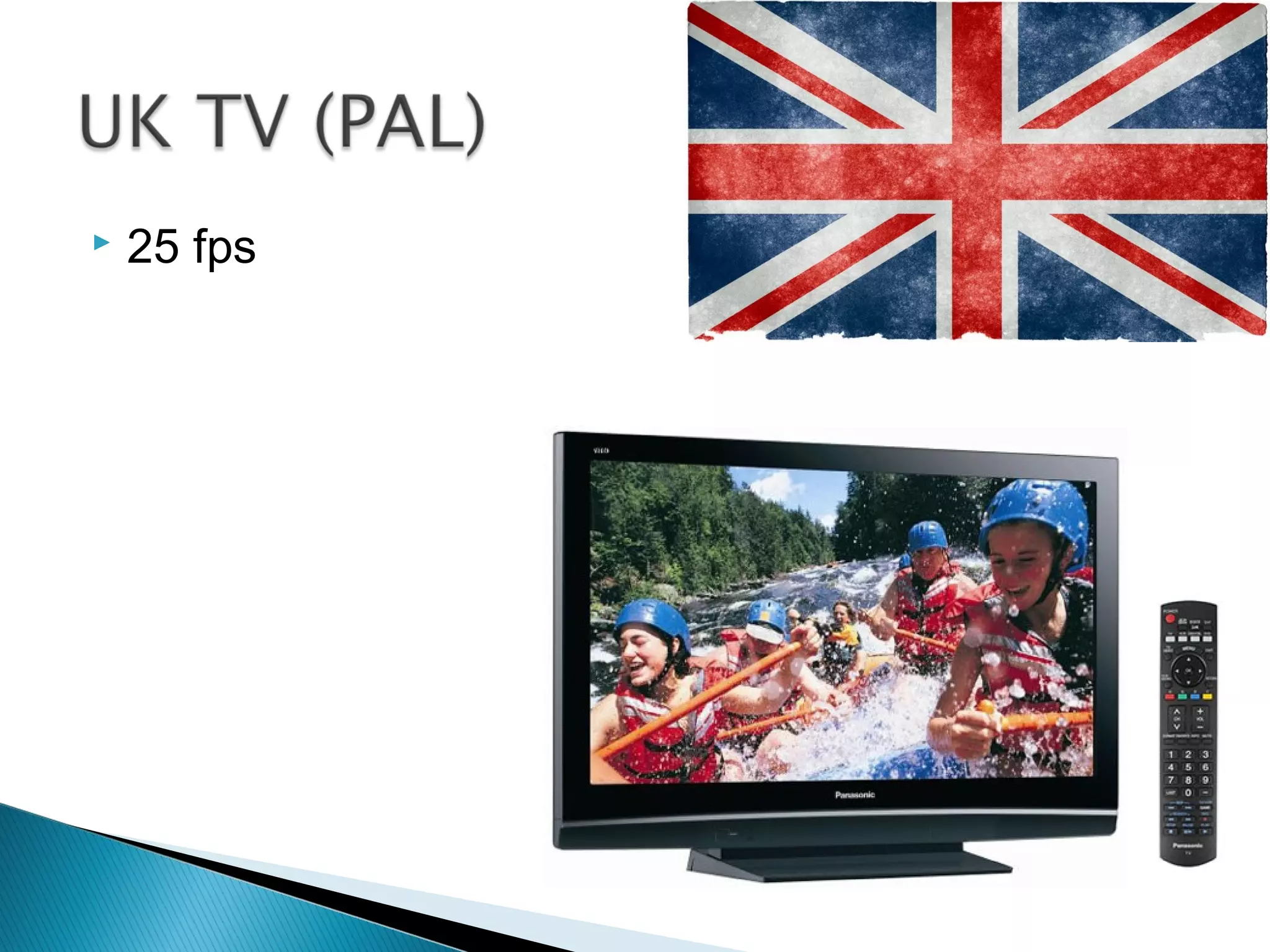
 25 fps
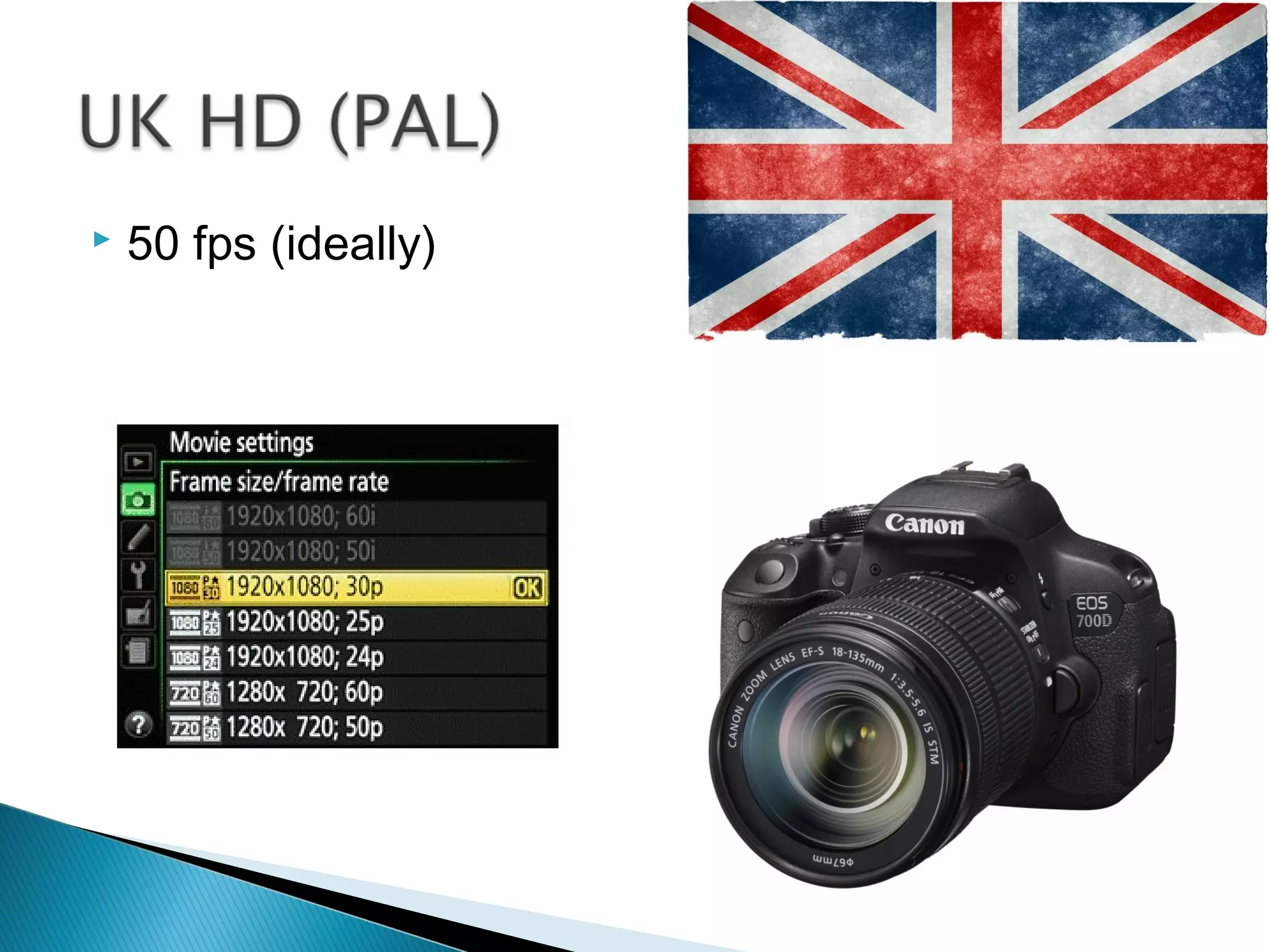
 50 fps (ideally)
- That’s the complex stuff done!
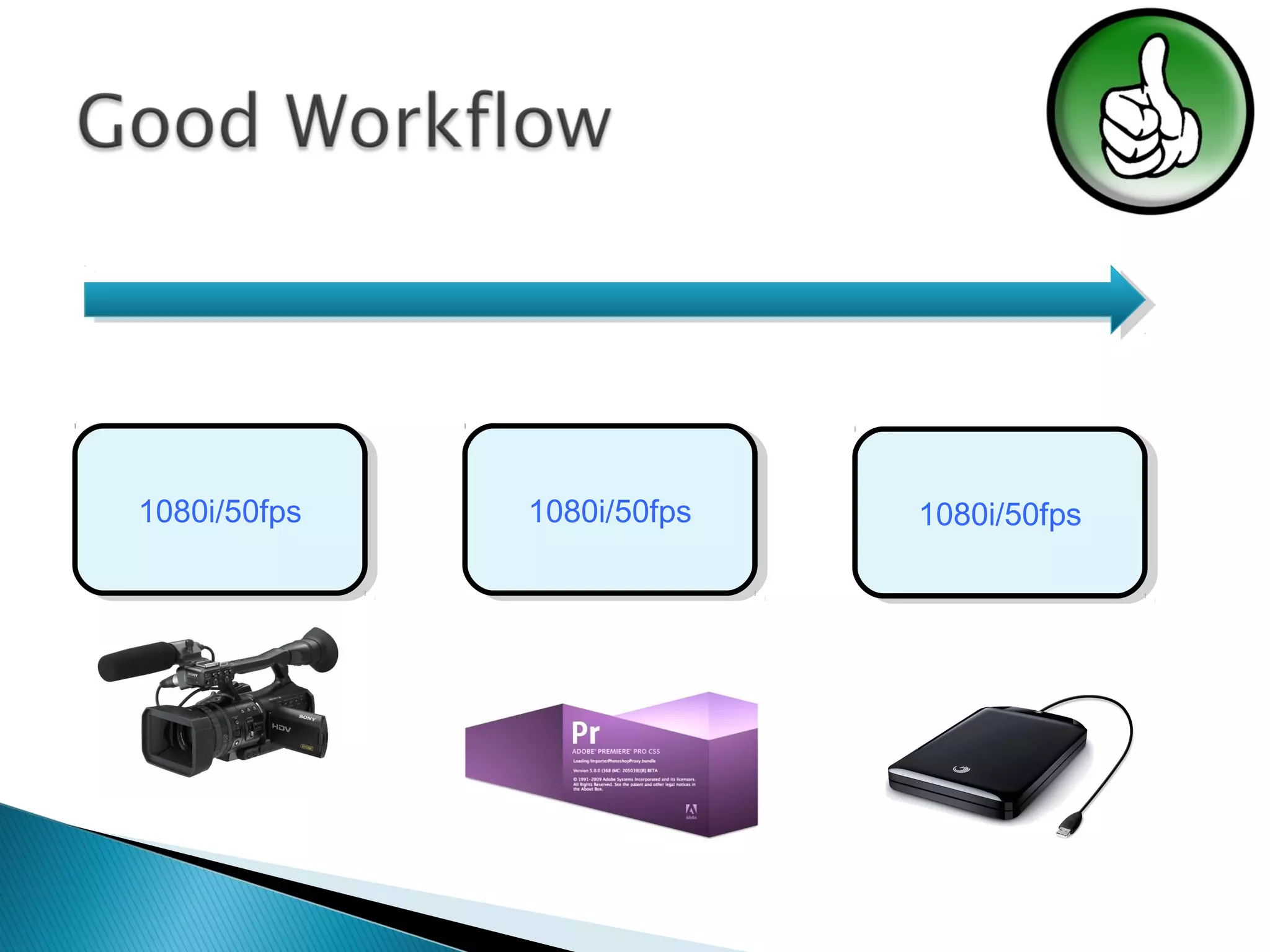
1080i/50fps1080i/50fps 1080i/50fps1080i/50fps 1080i/50fps1080i/50fps
1080i/50fps1080i/50fps
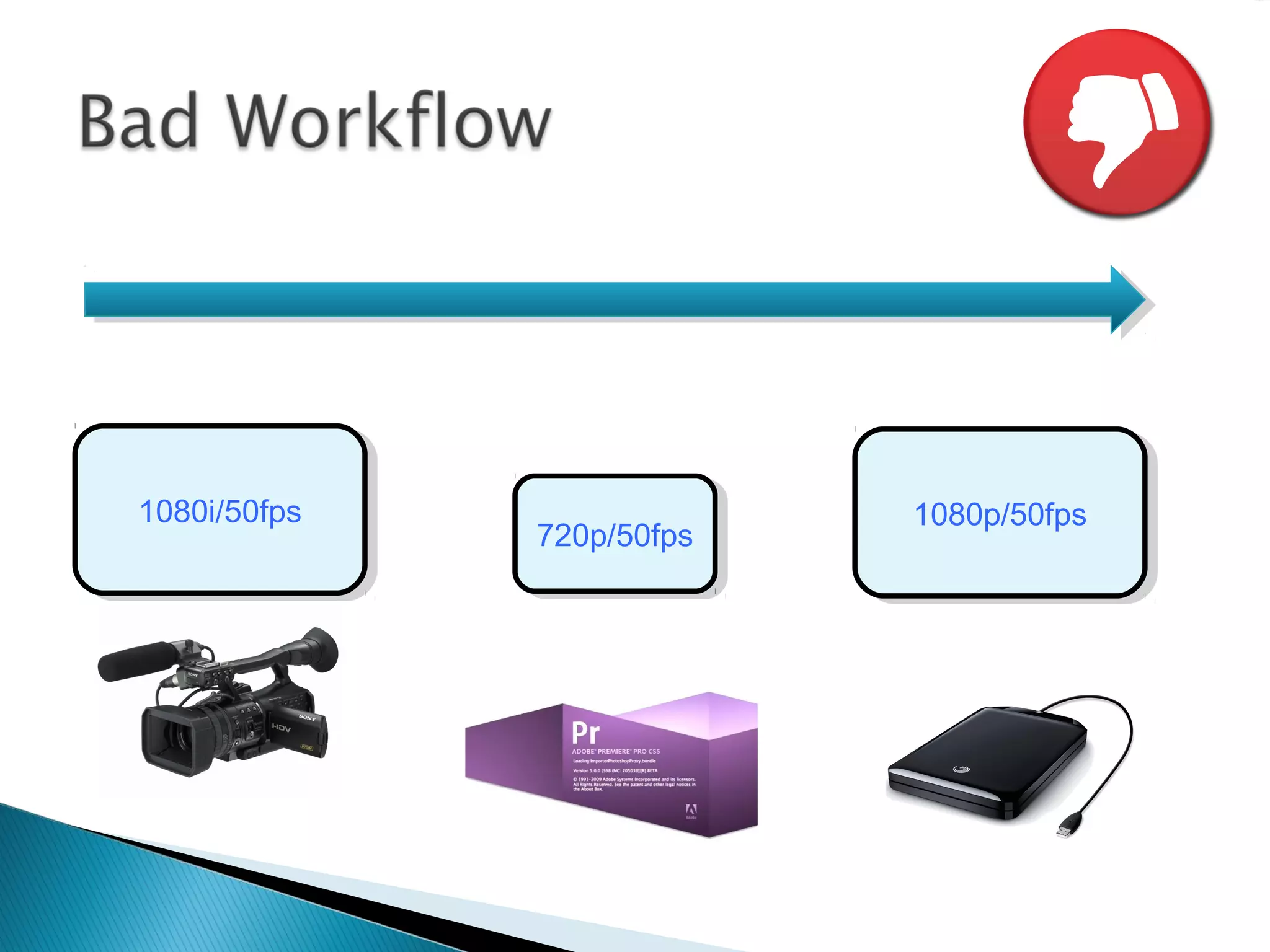
720p/50fps720p/50fps 1080p/50fps1080p/50fps
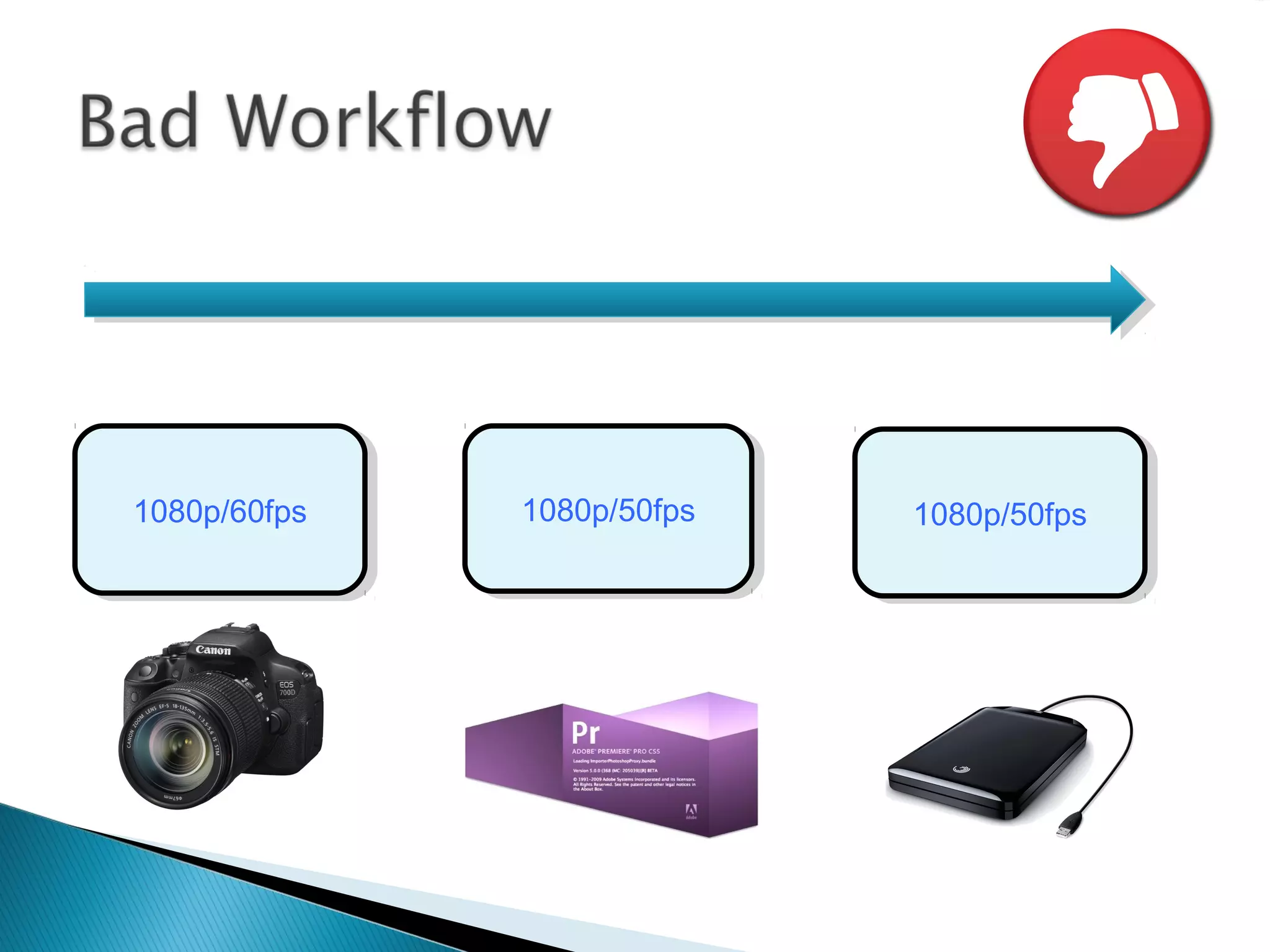
1080p/60fps1080p/60fps 1080p/50fps1080p/50fps 1080p/50fps1080p/50fps
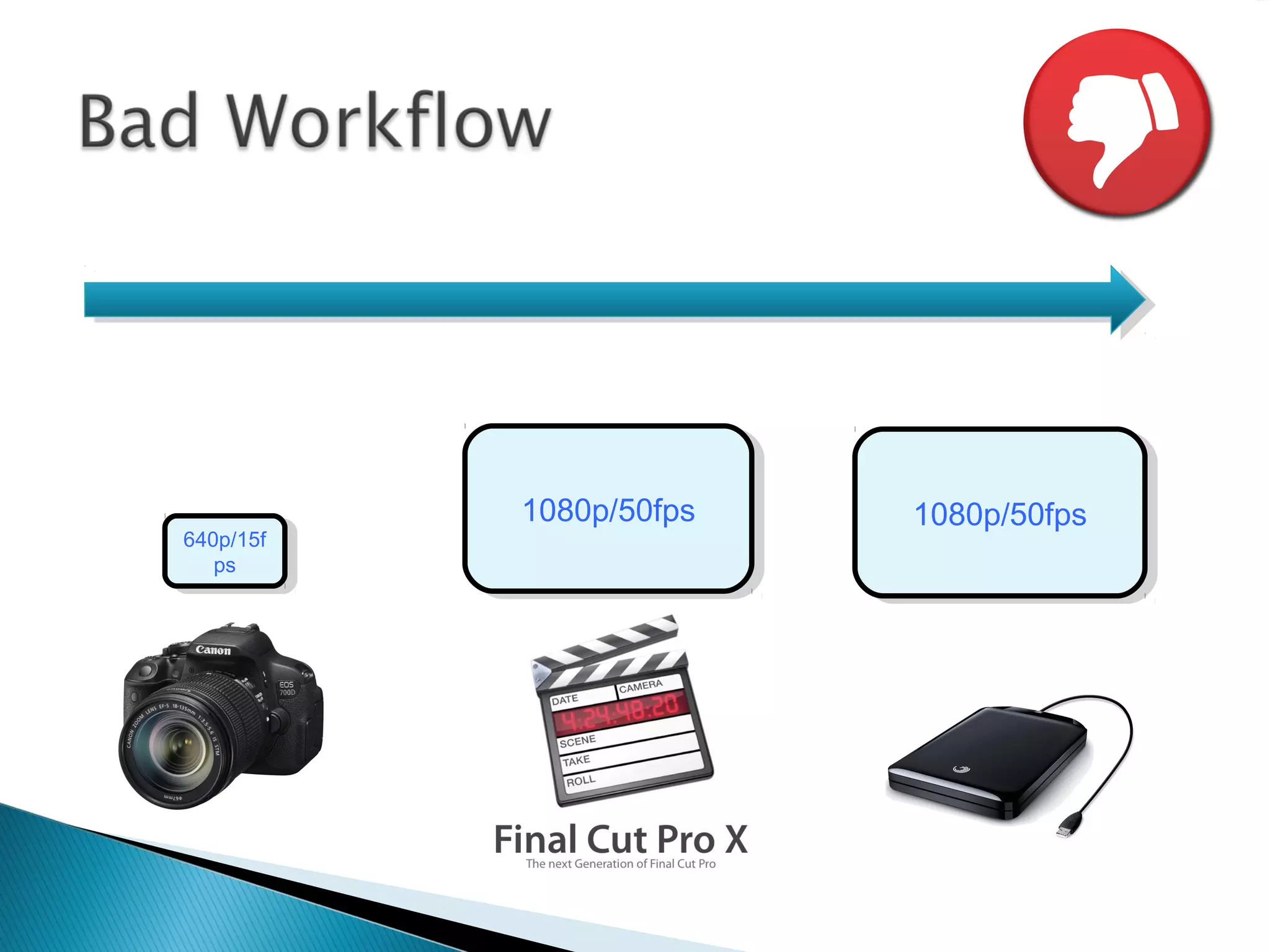
640p/15f
ps
640p/15f
ps
1080p/50fps1080p/50fps 1080p/50fps1080p/50fps
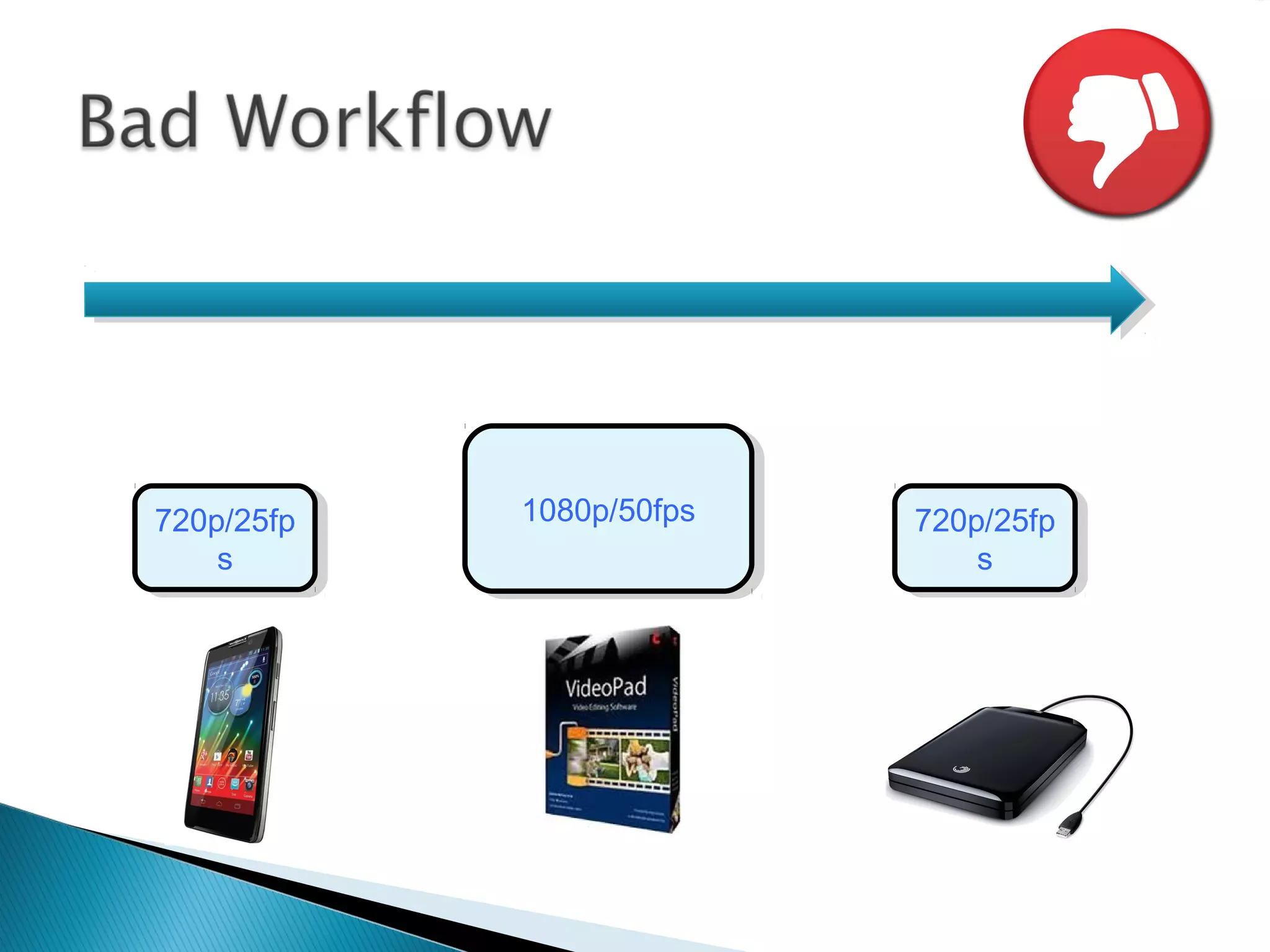
720p/25fp
s
720p/25fp
s
1080p/50fps1080p/50fps 720p/25fp
s
720p/25fp
s
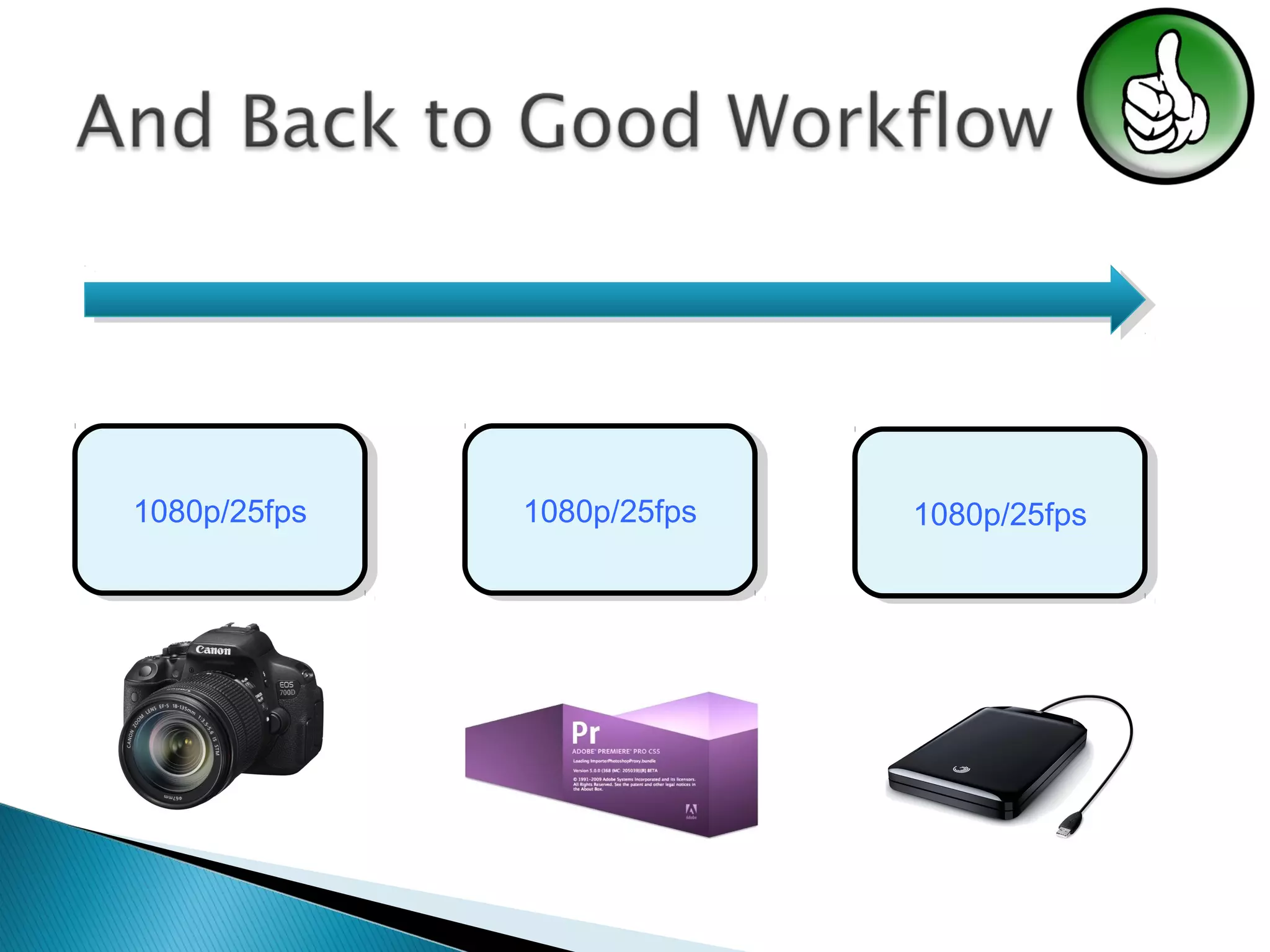
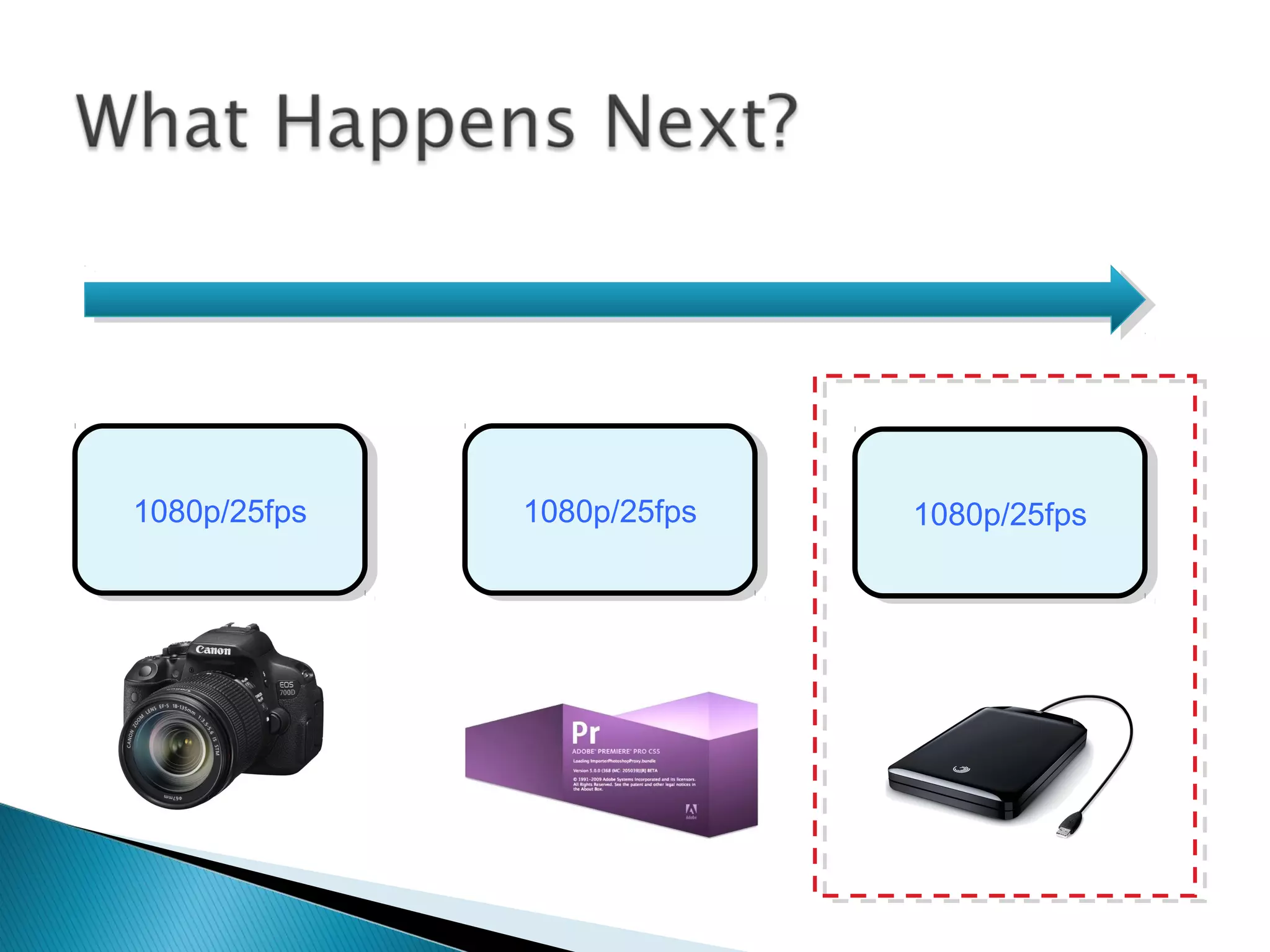
1080p/25fps1080p/25fps 1080p/25fps1080p/25fps 1080p/25fps1080p/25fps
1080p/50fps1080p/50fps
Adobe Media Encoder /
Apple Compressor
Adobe Media Encoder /
Apple Compressor
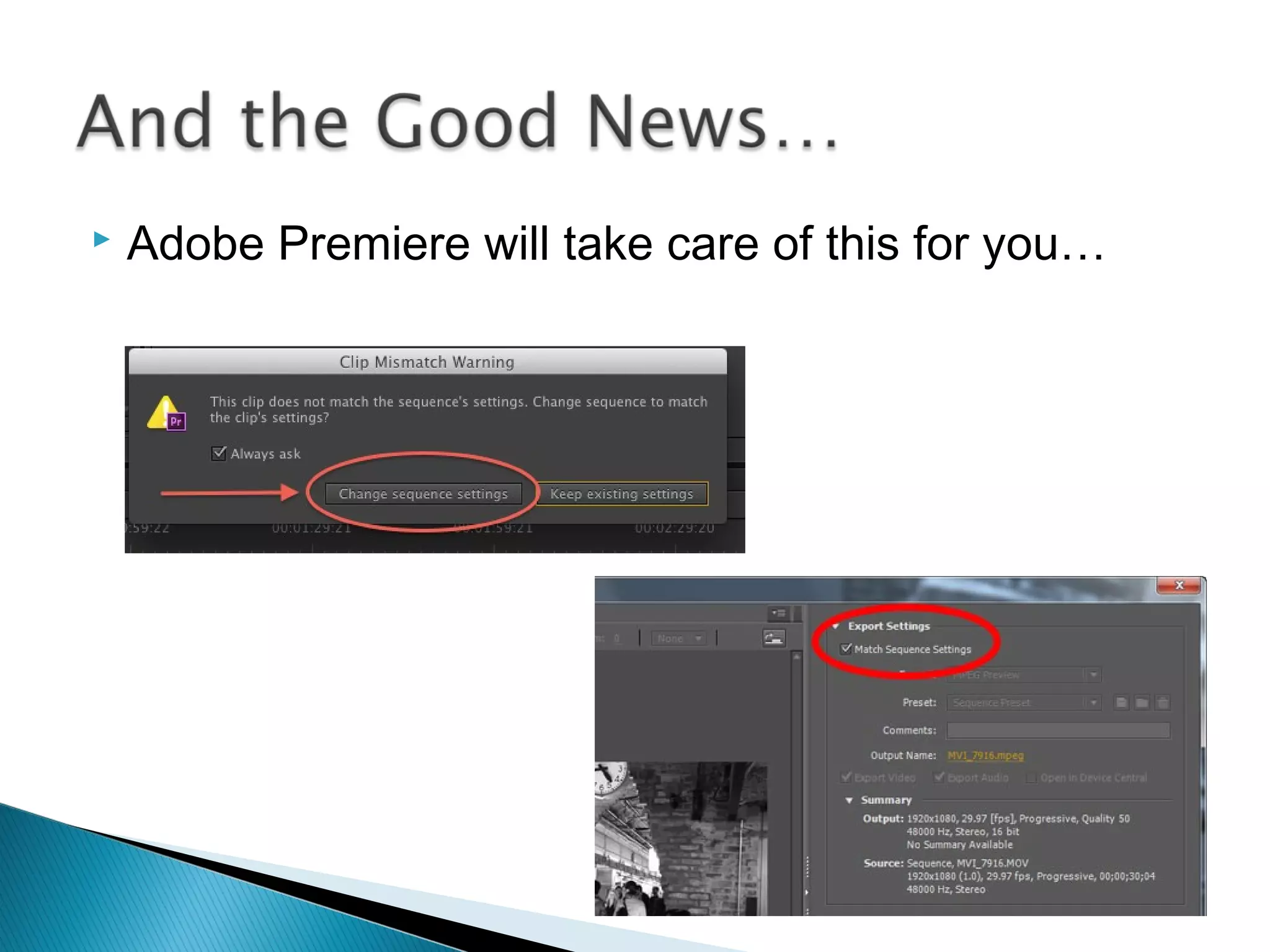
 Adobe Premiere will take care of this for you…
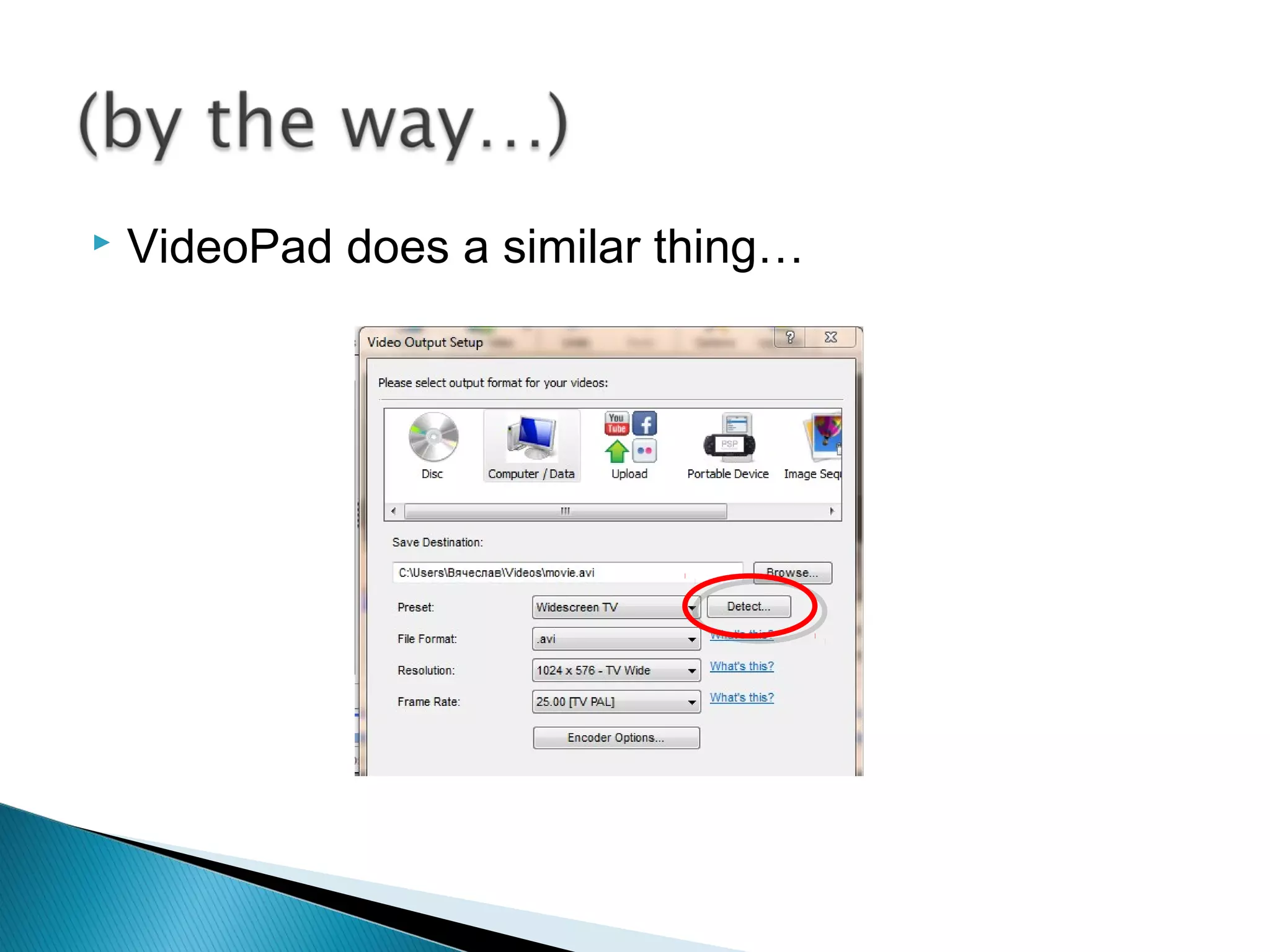
 VideoPad does a similar thing…
 Follow the Adobe Premiere handout
 If Premiere is slow or exporting is taking an age,
it’s probably due to bad workflow
---End---

Video Formats and Codecs 2015

  • 1.
    Contains GIF animations Downloadto get the full effect!
  • 3.
     What isa Codec?  What is a Container Format?  Temporal vs Frame Based Codecs  Screen Resolution  Frame Rates  Workflow  …and then, at the end, making sense of it all!
  • 4.
     Why willyour PC play some video files and not others? It’s all down to codecs  So why do we need codecs?
  • 5.
     Video takesa lot of storage space on your PC/Mac  For instance 3 minutes of captured Full HD camcorder footage uses about 1gb of storage  On the plus side, storage is now cheap
  • 6.
     The troublereally comes when trying to distribute the footage  People don’t want to be given hard drives to plug in to their TVs. They want DVDs, iPod videos, Sky+, Freeview & YouView  So the files need converting to suit these media
  • 8.
    ...the trouble isthat there are hundreds (thousands?) of compression options!  But let’s start at in the 1950s...
  • 9.
     Way backin the 1950s three main broadcast standards were established by various countries:  PAL (in the UK)  NTSC (in the USA)  SECAM (in France)
  • 10.
     ...and theyall worked quite happily for the next thirty years!  This was mainly because video production was expensive and made by a small number of companies. Thus easily regulated.  Then in the 1990s came digital!
  • 11.
     The DigitalRevolution of the 1990s made video production cheap and available to the masses.  This made it difficult (impossible?) to regulate.  New digital ‘standards’ were required, and lots of options competed...
  • 12.
     Instead ofbeing imposed like the 1950 standards, the new standards were in competition with each other  The theory was that the best standard(s) would become dominant  The actual result was a minefield of formats, containers and codecs...
  • 13.
     Codec standsfor Code / Decode  It is basically a computer program that en-codes video to a specified format  From this point on the same codec is needed to play (decode) the video
  • 15.
     The troublecomes when you move your video to another computer...  ...if that PC/Mac hasn’t got the required codec installed (to decode the video) then your video won’t play. Tip: PC users can try ‘G-Spot’ (freeware) to identify the codecs used by a video
  • 16.
     Sorenson 3 H.264  Cinepak  Oh, and there’s an another pile of codecs for encoding audio files! ...eh, what about Quicktime and AVI?
  • 17.
     Here’s thebig confusion: Quicktime, AVI and Flash Video are not codecs!  These are ‘container’ formats.  This basically means that they contain codec compressed video and audio in one easy to play file.
  • 19.
    Video codecs canbe broadly split into two types:  Frame-based codecs  Temporal (or field-based) codecs.
  • 20.
    Video codecs canbe broadly split into two types:  Frame-based codecs  Temporal (or field-based) codecs.  Say What!?!
  • 21.
     Well knownexamples are Cinepak and Motion-JPEG  They work by examining and compressing each frame of video individually They have two main disadvantages:  They can be slow to encode  File sizes can be quite large
  • 22.
  • 23.
     The bestknown is MPEG-2 (used for Digital TV & DVDs)  They watch how much a video clip changes from frame to frame then compress only the changes between the first full frame (a keyframe) and the following frames.  Thus keeping file sizes down!
  • 24.
  • 25.
  • 26.
     The quickanswer to this question is to use the relevant presets within your editing software:
  • 27.
     But it’salways worth checking with your client about their requirements. Especially if they’re planning on showing the video overseas.  This is where programs like Apple’s Compressor come into play (but that’s another presentation for another day!)
  • 28.
  • 29.
     So weknow about codecs, container formats, and how they encode video & audio files...  ...but we still need to mention Screen Resolution (or how big the screen is)
  • 30.
     All TVand DVDs in the UK used to use the same Screen Resolution: 768 x 576: 768 pixels 576 pixels
  • 31.
     Digital Video(from about 1995) reduced this to 720 pixels which were then ‘stretched’ to cover the ‘missing’ 48 pixels: 576 pixels
  • 32.
     It doesn'tmatter if you watch TV on a 12” portable or fill a wall with a video projector – you don’t get any more pixels!
  • 33.
     All thiswas true until the arrival of High Definition ...but guess what... ...there’s competing formats (again)!
  • 34.
     HD Readymeans that the screen resolution is: 1280 x 720 pixels
  • 35.
     HD Readymeans that the screen resolution is: 1280 x 720 pixels Notice the change in shape – this is called Aspect Ratio
  • 36.
     HD Readymeans that the screen resolution is: 1920 x 1080 pixels
  • 38.
     What thismeans is:  Photos used in videos must be at least the size of the video resolution used
  • 39.
     Or thishappens:
  • 40.
     Minimum of3 megapixels
  • 41.
  • 42.
  • 44.
     Each frameis made from two images spliced together: - Tends to be used by tape based cameras - Good for fast moving action (sports)
  • 45.
     Each frameis a single image: - Looks more cinematic and classy
  • 46.
    Interlaced Video displays50 half-frames (or fields) every second. It shuffles these in alternate rows, this tricks the eye but can look messy when paused or printed out Note: Horizontal Banding
  • 47.
  • 50.
  • 51.
     30 fps (actually 29.97 fps!)
  • 52.
  • 53.
     50 fps(ideally)
  • 54.
    - That’s thecomplex stuff done!
  • 56.
  • 57.
  • 58.
  • 59.
  • 60.
  • 61.
  • 62.
  • 63.
    1080p/50fps1080p/50fps Adobe Media Encoder/ Apple Compressor Adobe Media Encoder / Apple Compressor
  • 64.
     Adobe Premierewill take care of this for you…
  • 65.
     VideoPad doesa similar thing…
  • 66.
     Follow theAdobe Premiere handout  If Premiere is slow or exporting is taking an age, it’s probably due to bad workflow
  • 67.