Getting started with
responsive web
design
Unit I
What Is Responsive Web Design?
• To define responsive web design means that your website (and its
pages) can adapt and deliver the best experience to users, whether
they’re on their desktop, laptop, tablet, or smartphone. For that to
happen, though, your website needs a responsive design.
What is a responsive website?
Responsive web design, also called RWD design, describes a modern
web design approach that allows websites and pages to render (or
display) on all devices and screen sizes by automatically adapting to the
screen, whether it’s a desktop, laptop, tablet, smartphone, or even a
smart TV!
How does responsive web design work?
Responsive web design works through Cascading Style Sheets (CSS),
using various settings to serve different style properties depending on the
screen size, orientation, resolution, color capability, and other
characteristics of the user’s device. A few examples of CSS properties
related to responsive web design include the viewport and media queries.
Is my website responsive?
You can quickly see if a website is responsive or not in your
web browser.
1. Open Google Chrome
2. Go to your website
3. Press Ctrl + Shift + I to open Chrome DevTools
4. Press Ctrl + Shift + M to toggle the device toolbar
5. View your page from a mobile, tablet, or desktop
perspective
Understanding the Elements of Responsive Web Design
• the site must be built with a flexible grid foundation.
• Images that are incorporated into the design must be flexible
themselves.
• Different views must be enabled in different contexts via media
queries.
Flexible Grid
flexible grid does not mean that you are restricted to choosing from one
of the dozen or so great grid systems out there. Defining your own
parameters for columns, spacing and containers is often the best
solution for a web design and can be just as flexible as any existing
system out there.In fact, most existing grid systems restrictively use
CSS classes to define size, space and alignment.
• Flexible grid that changes the layout depending on the size
of the browser’s viewport. A change in the layout is indicated
by slick, smooth animation.
Flexible Images
Images that move and scale with our flexible grid is another
key feature of a responsive web design.
overflow: hidden) gives us the ability to crop images dynamically as the containers around them
shift to fit new display environments. We can also have multiple versions of the image on the
server, and then dynamically serve the appropriately sized version depending on the user agent
using server-side or client-side feature detection in tandem with DOM manipulation. Finally we
have the option to hide images altogether if we really want to put focus on the non-image content,
using media queries that serve a stylesheet which sets the display: none property for images (or a
subset of images by assigning optional images a class like optional-img to allow for greater CSS
selector specificity in your stylesheet).
Media Queries
Media queries are arguably the most exciting (and most intimidating to web
designers unfamiliar with them) feature of a responsive web design. Oftentimes,
people get carried away with media queries, thinking of them as the core component
of a responsive design and leaving flexible page components optional. The reality of
the situation is that media queries are hardly useful without the existing
implementation of a rock-solid HTML and CSS foundation that includes not only a
flexible grid, but flexible images as well.
Advantages and Disadvantages of Responsive Web Design
Advantages
• User experience friendly: Responsive web design is specially designed to respond according to customer’s or user’s
behaviors and their needs, according to screen size, etc. It is used to create a website that adjusts smoothly to
different screen sizes especially for mobile viewing. Therefore, it increases reach to customers and users on small
devices like mobiles, tablets, etc.
• SEO friendly: Responsive websites are generally responsible for ranking top at SEO (Search Engine Optimization).
On mobile devices or small devices, a responsive website loads much faster as compared to a desktop or laptop. This
automatically increases positive user experience that in turn gives a higher ranking to the website on SEO.
• Increase profit and sale: Responsive web design is easy to create and faster to implement. This is because there is
no requirement for another website for small devices. A responsive website is specially designed to fit all screen
sizes. Therefore, one can save time, effort, maintenance costs and development cost associate with creating another
website for small devices. It generally increases user experience and reaches more audiences through small devices.
More will be an audience, more will be profit and sale.
• Low maintenance: Responsive websites are designed to fit all screen sizes. There is no change in content and other
elements to fit on a different device. This website uses the same content across all devices. There is only one website
that fits all screen sizes so the cost of maintaining two websites is also saved because maintaining a separate site for a
small device requires a lot of testing and support. Managing a single website requires less maintenance, less cost,
saves time, etc.
• Easy to track users: Responsive websites take less time to load, saves time, money, save development effort of
creating another website for small devices. One can use this time and effort to track their site visitors.
Disadvantages
• Slow page loading: Though, responsive websites are easy to maintain, but it
sometimes takes a long time to load the page. It includes some high-
resolution images and videos that sometimes require a lot of time to load.
• Navigation is tough: Responsive websites are specially designed to fit on
small devices. But maintaining the simplicity of large websites for small
devices sometimes becomes difficult. This is because small devices have less
screen size and this turn make it more difficult to navigate website through
small devices.
• Time-consuming development: Responsive websites are essential but take a
lot of time in the development process as compared to the development time
of normal websites.
Percentage based layout for fluid Width CSS
Fluid Width
Because users might be viewing a web page on virtually any size of
device or browser window, it is important to ensure content fits within
their viewport. Fluid design is one technique for dealing with this by
allowing content to scale and reflow automatically based on the size of
the container.
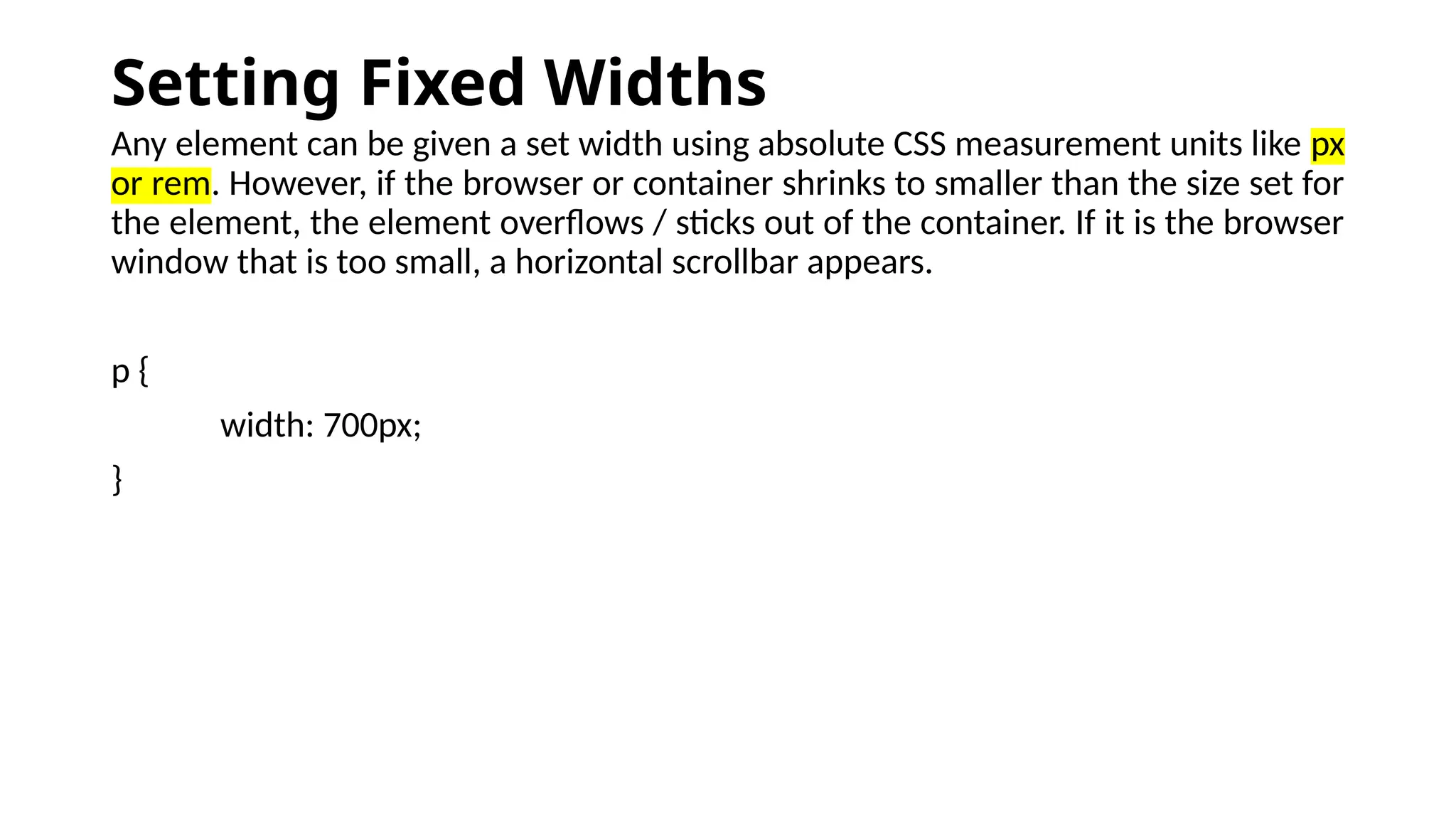
Setting Fixed Widths
Any element can be given a set width using absolute CSS measurement units like px
or rem. However, if the browser or container shrinks to smaller than the size set for
the element, the element overflows / sticks out of the container. If it is the browser
window that is too small, a horizontal scrollbar appears.
p {
width: 700px;
}
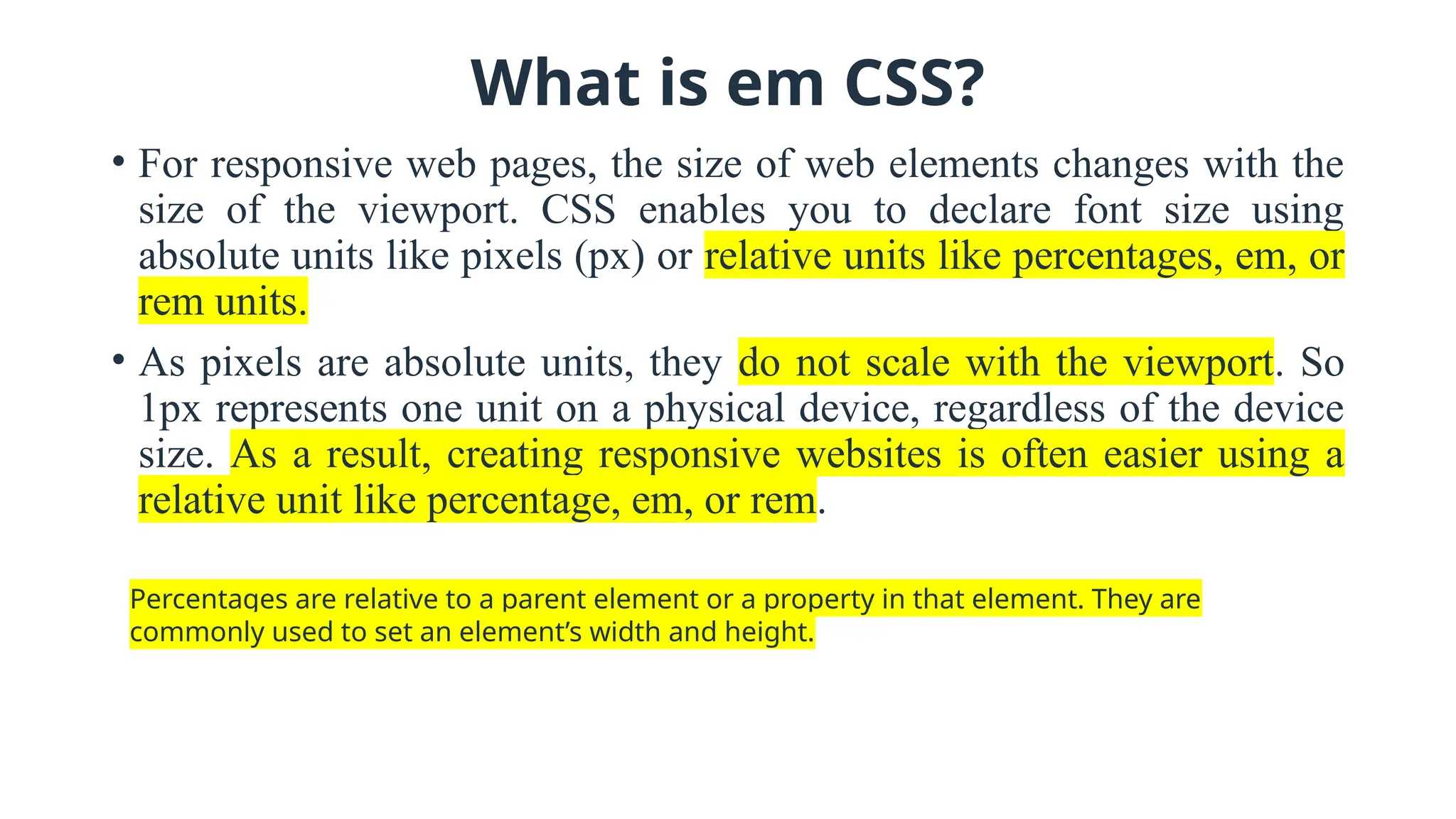
What is em CSS?
• For responsive web pages, the size of web elements changes with the
size of the viewport. CSS enables you to declare font size using
absolute units like pixels (px) or relative units like percentages, em, or
rem units.
• As pixels are absolute units, they do not scale with the viewport. So
1px represents one unit on a physical device, regardless of the device
size. As a result, creating responsive websites is often easier using a
relative unit like percentage, em, or rem.
Percentages are relative to a parent element or a property in that element. They are
commonly used to set an element’s width and height.
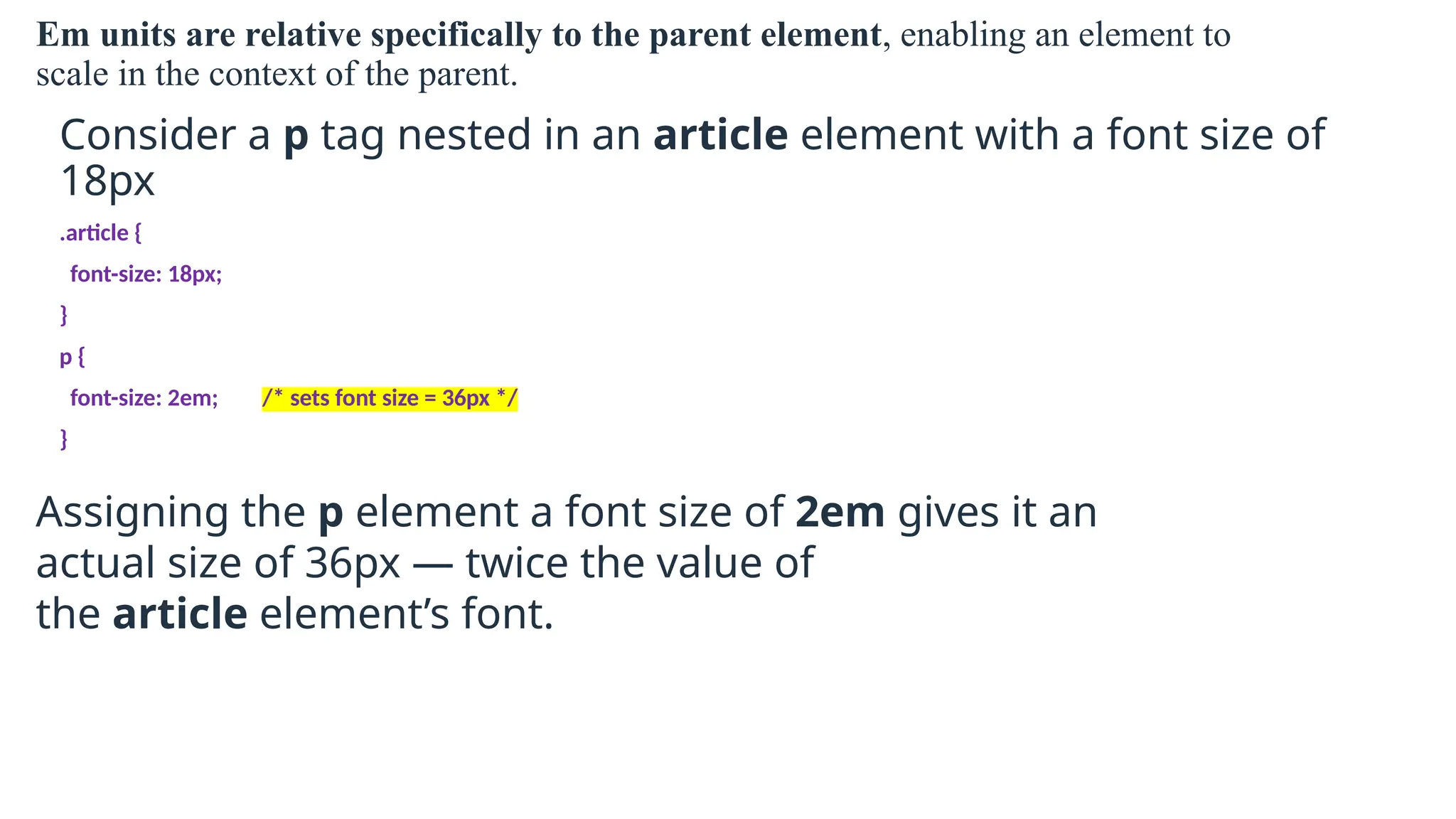
Em units are relative specifically to the parent element, enabling an element to
scale in the context of the parent.
Consider a p tag nested in an article element with a font size of
18px
.article {
font-size: 18px;
}
p {
font-size: 2em; /* sets font size = 36px */
}
Assigning the p element a font size of 2em gives it an
actual size of 36px — twice the value of
the article element’s font.
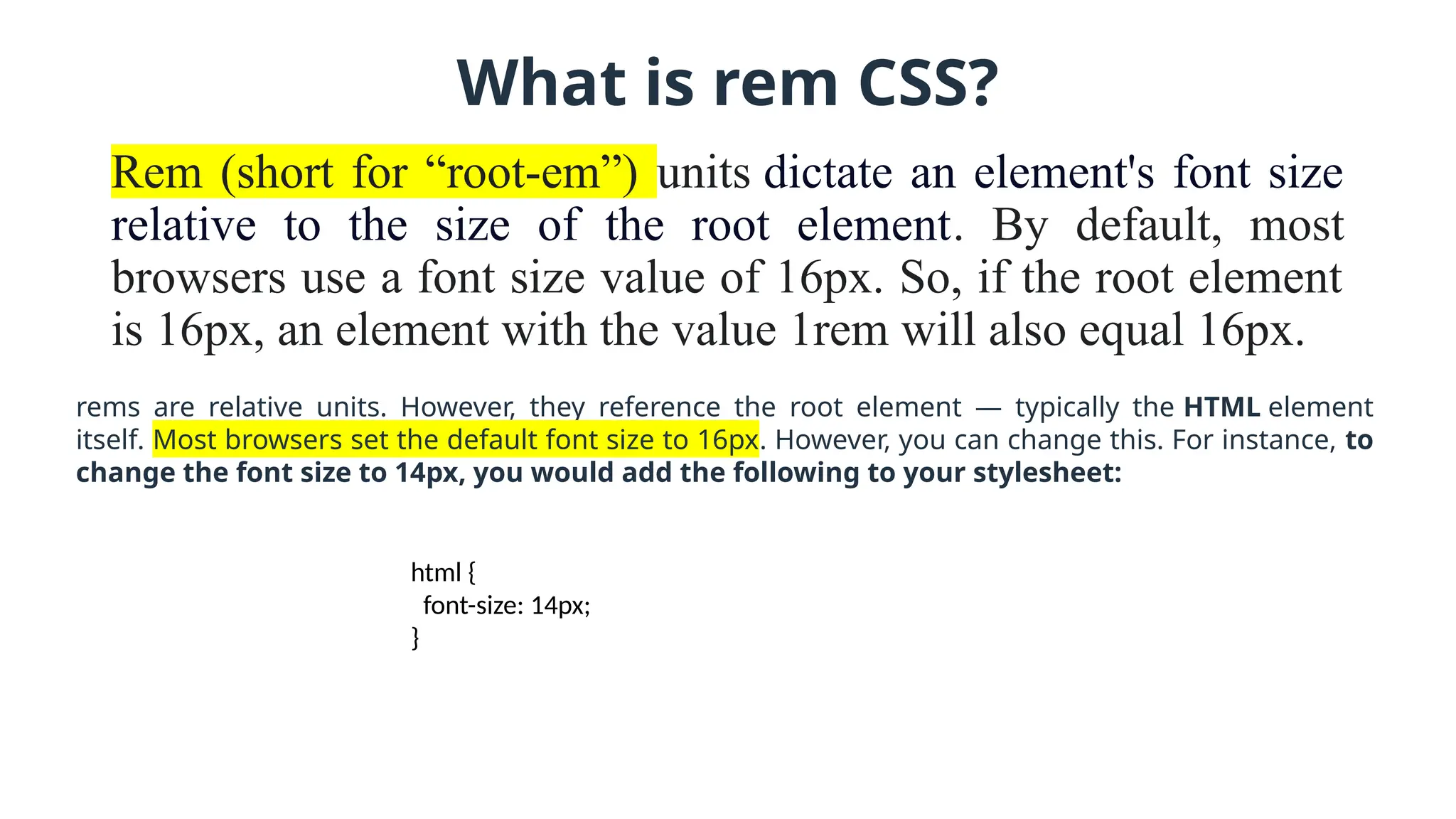
What is rem CSS?
Rem (short for “root-em”) units dictate an element's font size
relative to the size of the root element. By default, most
browsers use a font size value of 16px. So, if the root element
is 16px, an element with the value 1rem will also equal 16px.
rems are relative units. However, they reference the root element — typically the HTML element
itself. Most browsers set the default font size to 16px. However, you can change this. For instance, to
change the font size to 14px, you would add the following to your stylesheet:
html {
font-size: 14px;
}
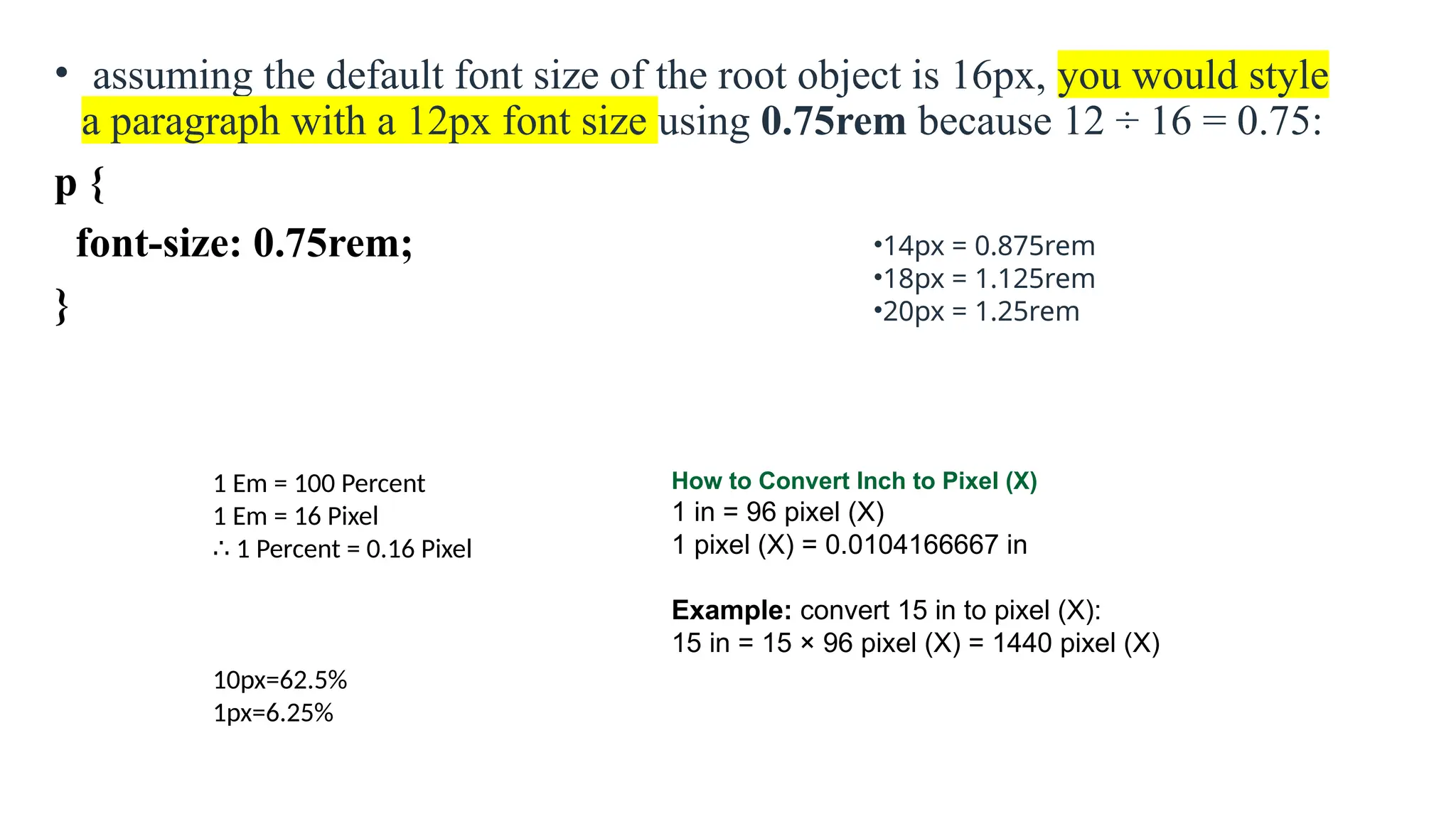
• assuming the default font size of the root object is 16px, you would style
a paragraph with a 12px font size using 0.75rem because 12 ÷ 16 = 0.75:
p {
font-size: 0.75rem;
}
•14px = 0.875rem
•18px = 1.125rem
•20px = 1.25rem
1 Em = 100 Percent
1 Em = 16 Pixel
∴ 1 Percent = 0.16 Pixel
10px=62.5%
1px=6.25%
How to Convert Inch to Pixel (X)
1 in = 96 pixel (X)
1 pixel (X) = 0.0104166667 in
Example: convert 15 in to pixel (X):
15 in = 15 × 96 pixel (X) = 1440 pixel (X)
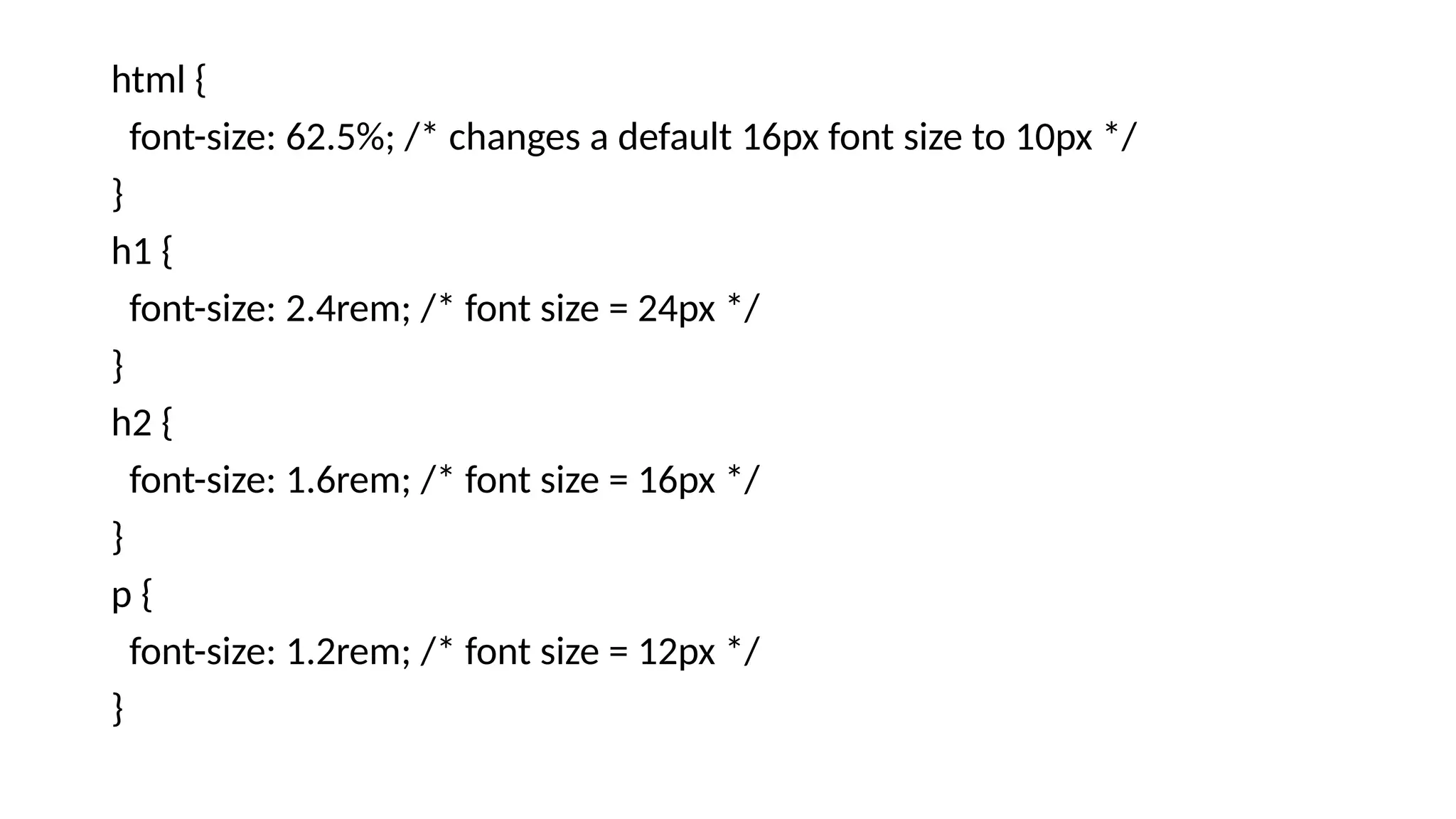
html {
font-size: 62.5%; /* changes a default 16px font size to 10px */
}
h1 {
font-size: 2.4rem; /* font size = 24px */
}
h2 {
font-size: 1.6rem; /* font size = 16px */
}
p {
font-size: 1.2rem; /* font size = 12px */
}
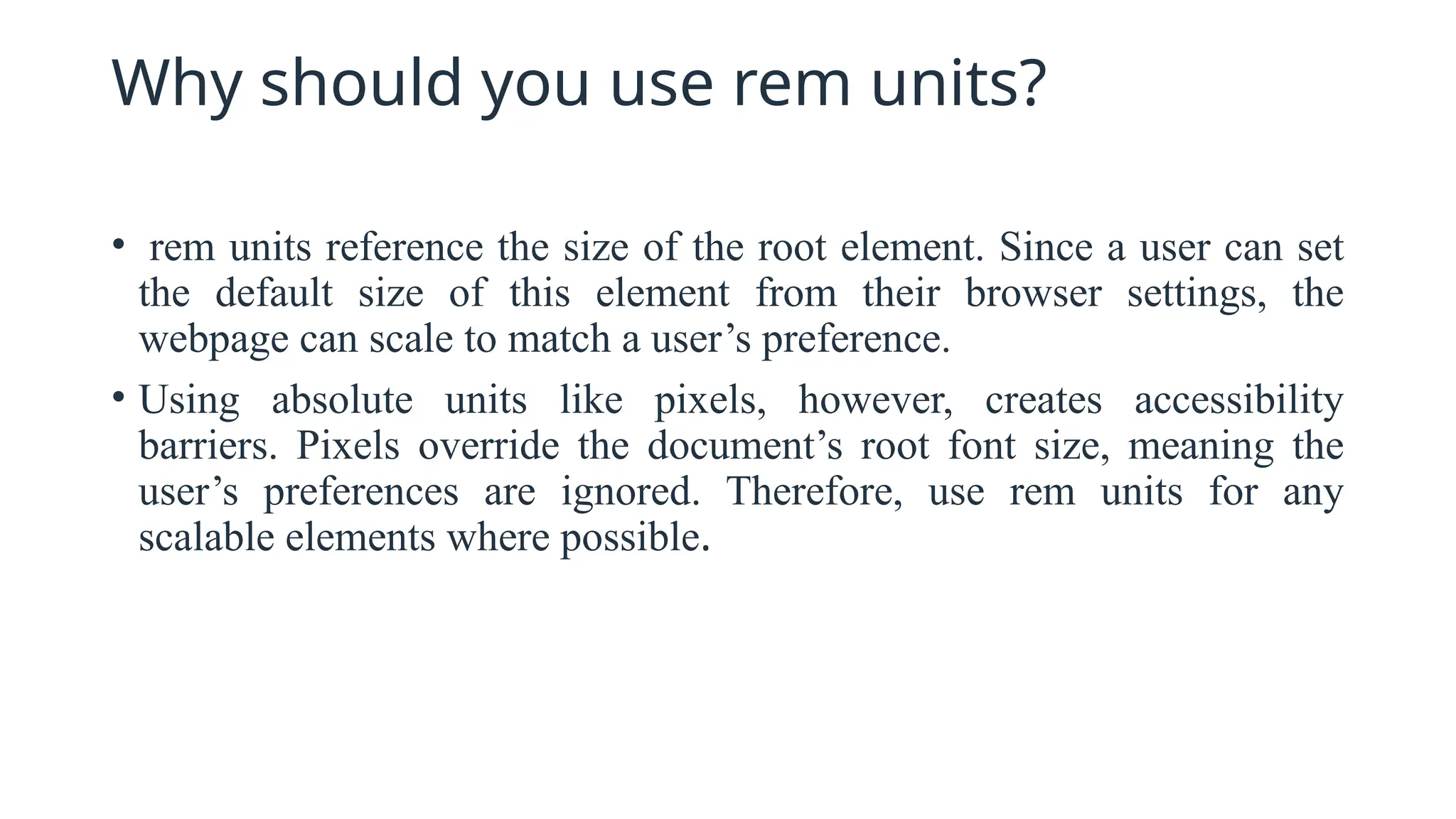
Why should you use rem units?
• rem units reference the size of the root element. Since a user can set
the default size of this element from their browser settings, the
webpage can scale to match a user’s preference.
• Using absolute units like pixels, however, creates accessibility
barriers. Pixels override the document’s root font size, meaning the
user’s preferences are ignored. Therefore, use rem units for any
scalable elements where possible.
Rem Units vs. Percentages
• Percentages are typically best used for defining the widths of
elements, as they provide a more flexible solution than rem units. This
is especially true in a multi-column layout. Setting the widths of the
columns in percentages ensures they always scale with the viewport’s
size.
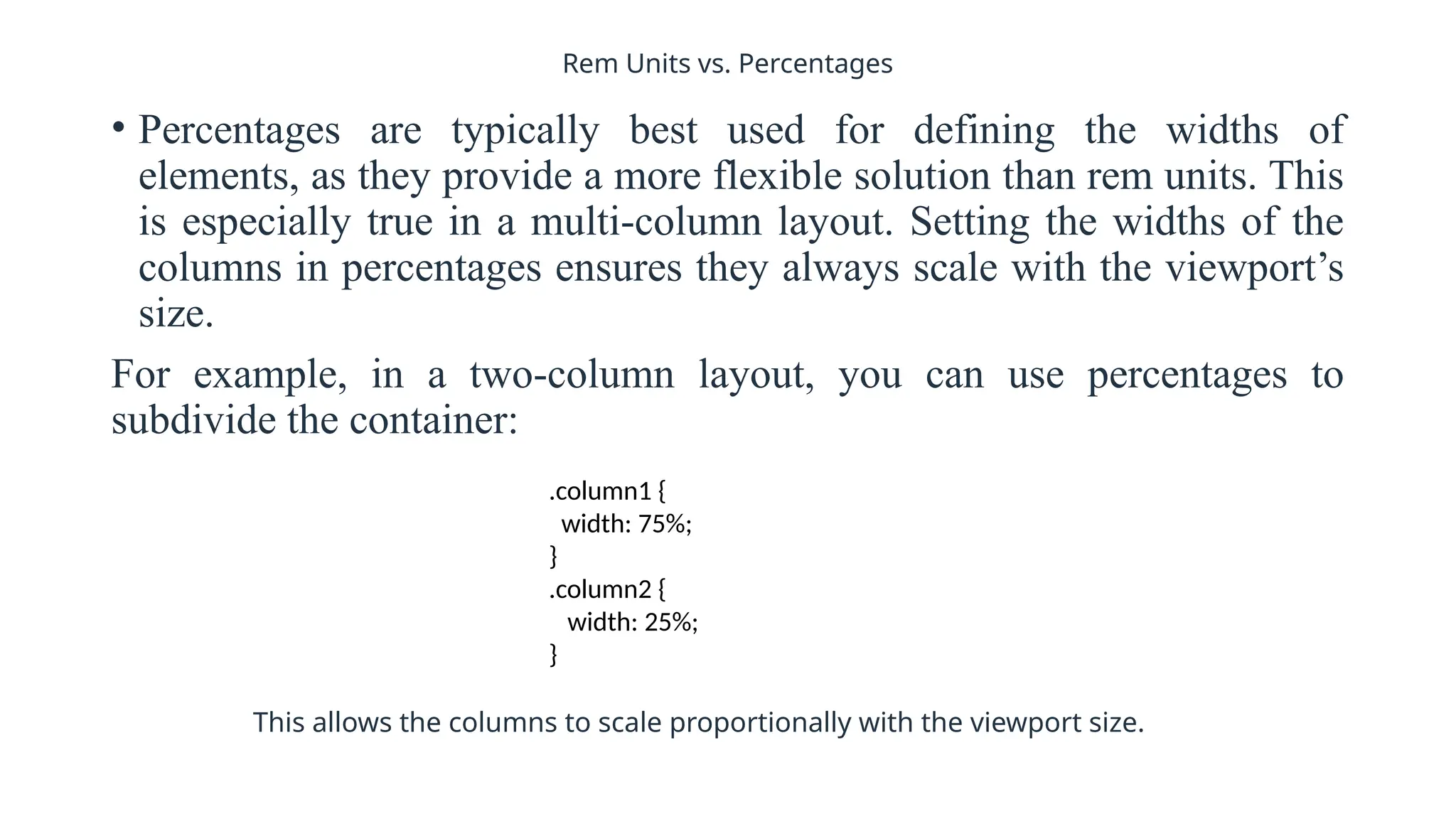
For example, in a two-column layout, you can use percentages to
subdivide the container:
.column1 {
width: 75%;
}
.column2 {
width: 25%;
}
This allows the columns to scale proportionally with the viewport size.
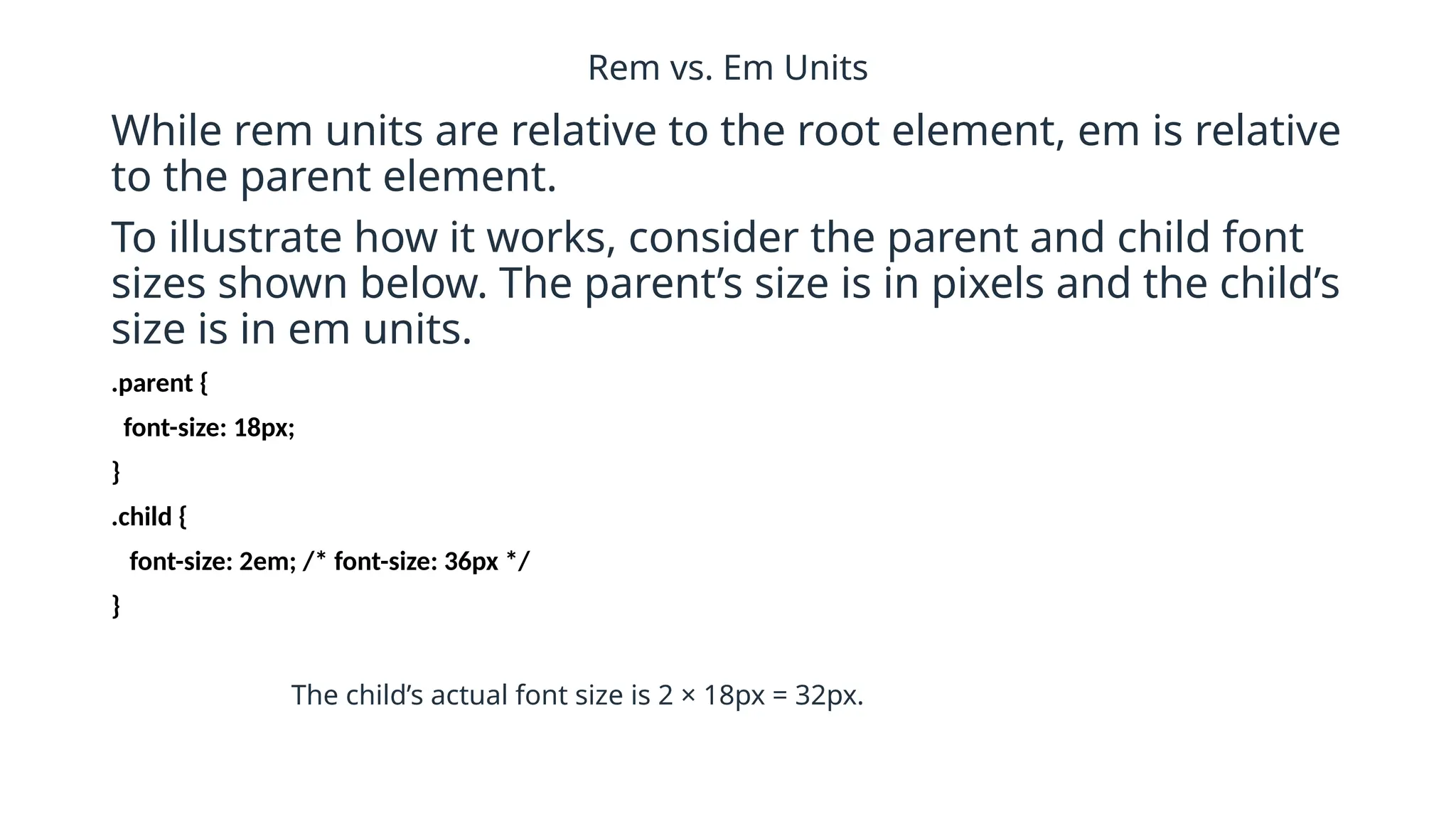
Rem vs. Em Units
While rem units are relative to the root element, em is relative
to the parent element.
To illustrate how it works, consider the parent and child font
sizes shown below. The parent’s size is in pixels and the child’s
size is in em units.
.parent {
font-size: 18px;
}
.child {
font-size: 2em; /* font-size: 36px */
}
The child’s actual font size is 2 × 18px = 32px.
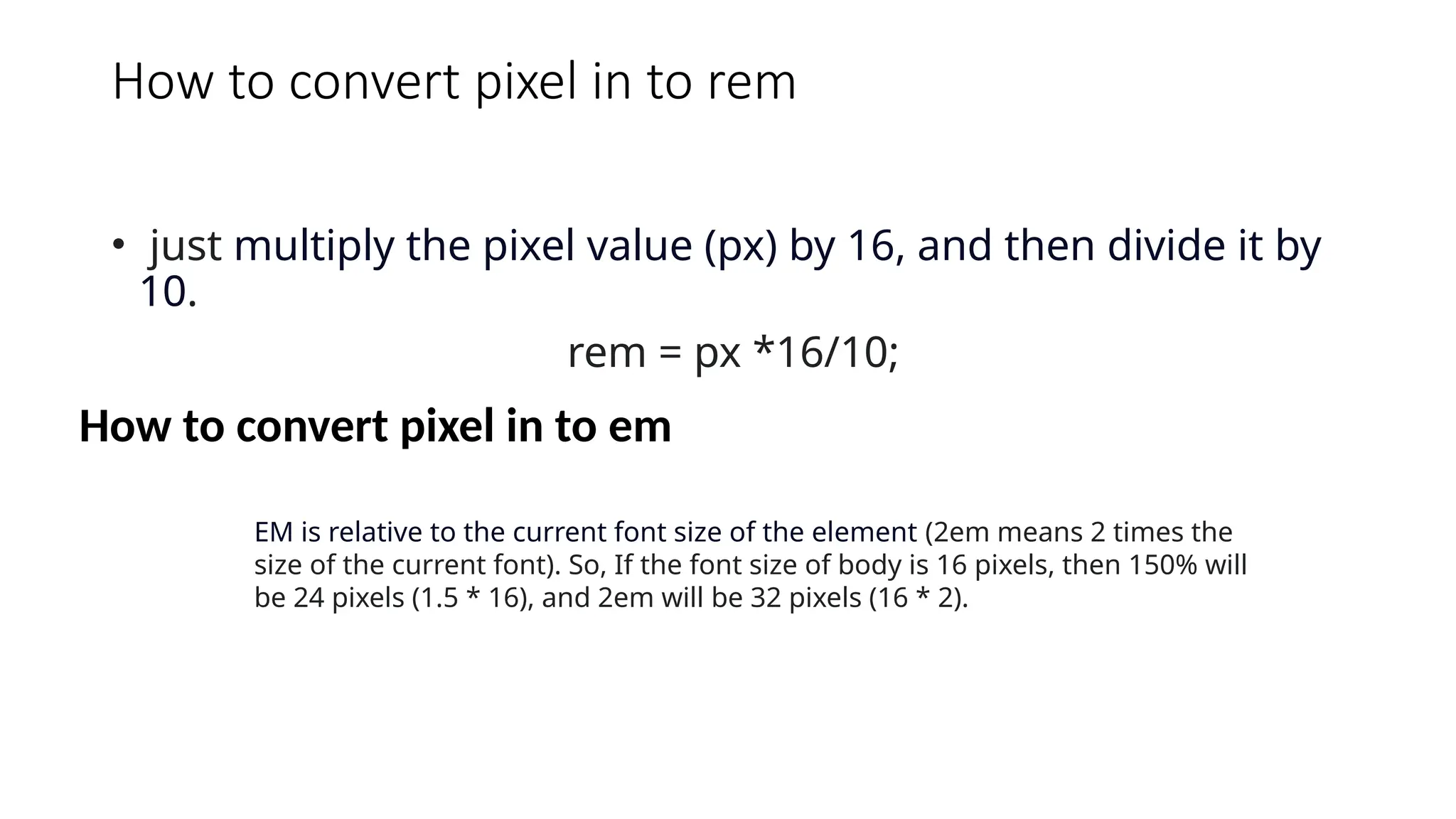
How to convert pixel in to rem
• just multiply the pixel value (px) by 16, and then divide it by
10.
rem = px *16/10;
How to convert pixel in to em
EM is relative to the current font size of the element (2em means 2 times the
size of the current font). So, If the font size of body is 16 pixels, then 150% will
be 24 pixels (1.5 * 16), and 2em will be 32 pixels (16 * 2).
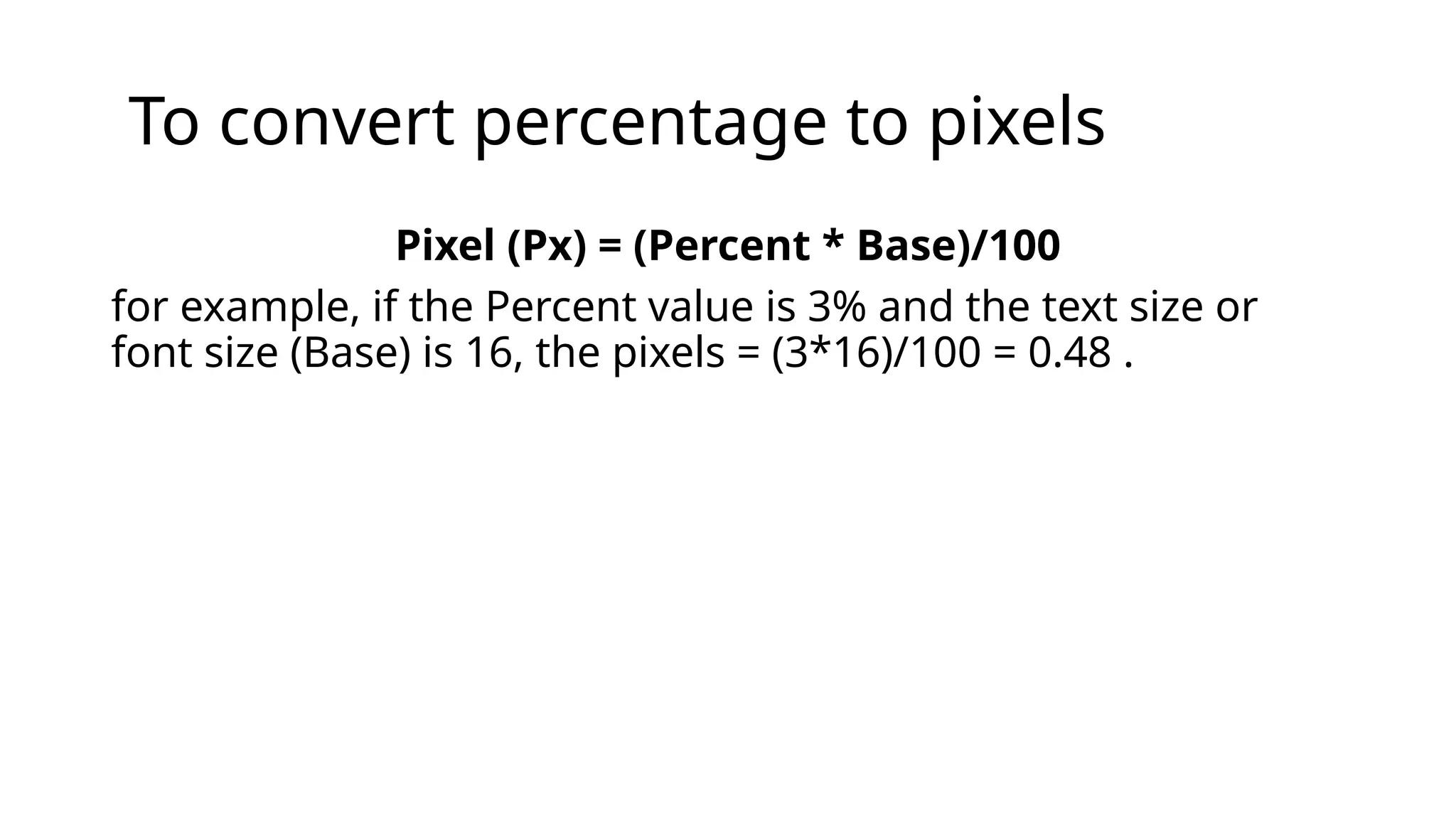
To convert percentage to pixels
Pixel (Px) = (Percent * Base)/100
for example, if the Percent value is 3% and the text size or
font size (Base) is 16, the pixels = (3*16)/100 = 0.48 .
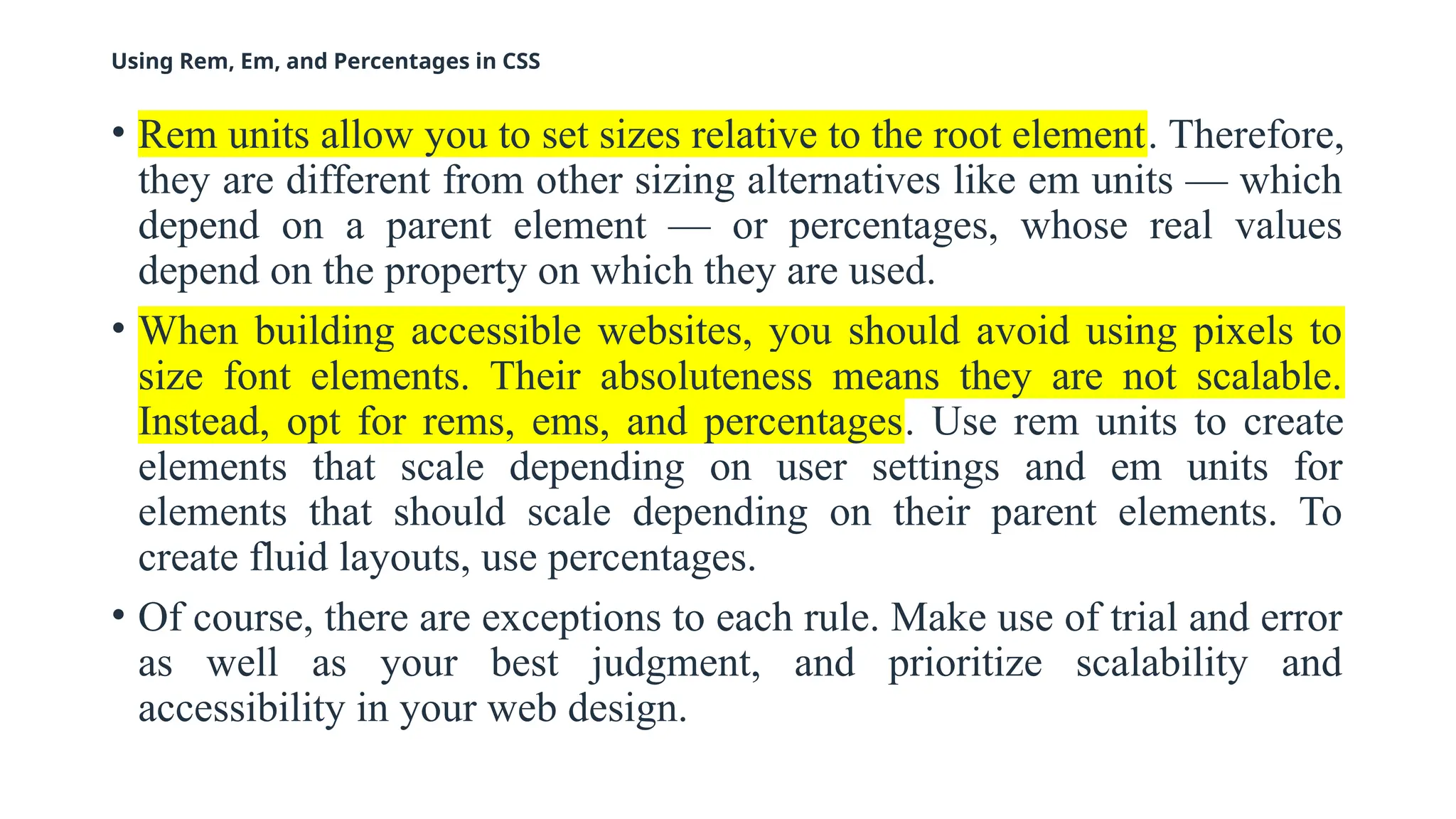
Using Rem, Em, and Percentages in CSS
• Rem units allow you to set sizes relative to the root element. Therefore,
they are different from other sizing alternatives like em units — which
depend on a parent element — or percentages, whose real values
depend on the property on which they are used.
• When building accessible websites, you should avoid using pixels to
size font elements. Their absoluteness means they are not scalable.
Instead, opt for rems, ems, and percentages. Use rem units to create
elements that scale depending on user settings and em units for
elements that should scale depending on their parent elements. To
create fluid layouts, use percentages.
• Of course, there are exceptions to each rule. Make use of trial and error
as well as your best judgment, and prioritize scalability and
accessibility in your web design.
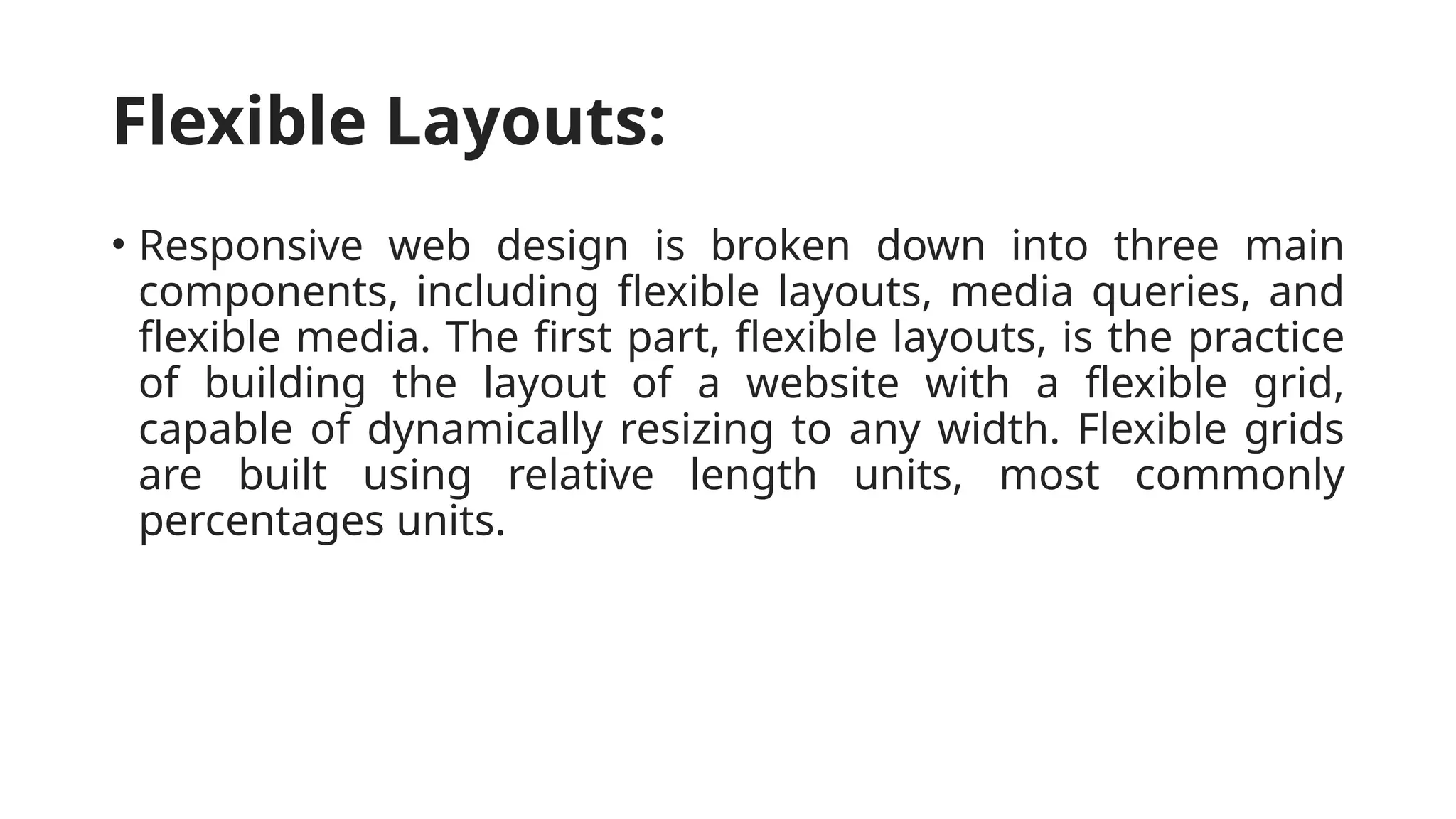
Flexible Layouts:
• Responsive web design is broken down into three main
components, including flexible layouts, media queries, and
flexible media. The first part, flexible layouts, is the practice
of building the layout of a website with a flexible grid,
capable of dynamically resizing to any width. Flexible grids
are built using relative length units, most commonly
percentages units.
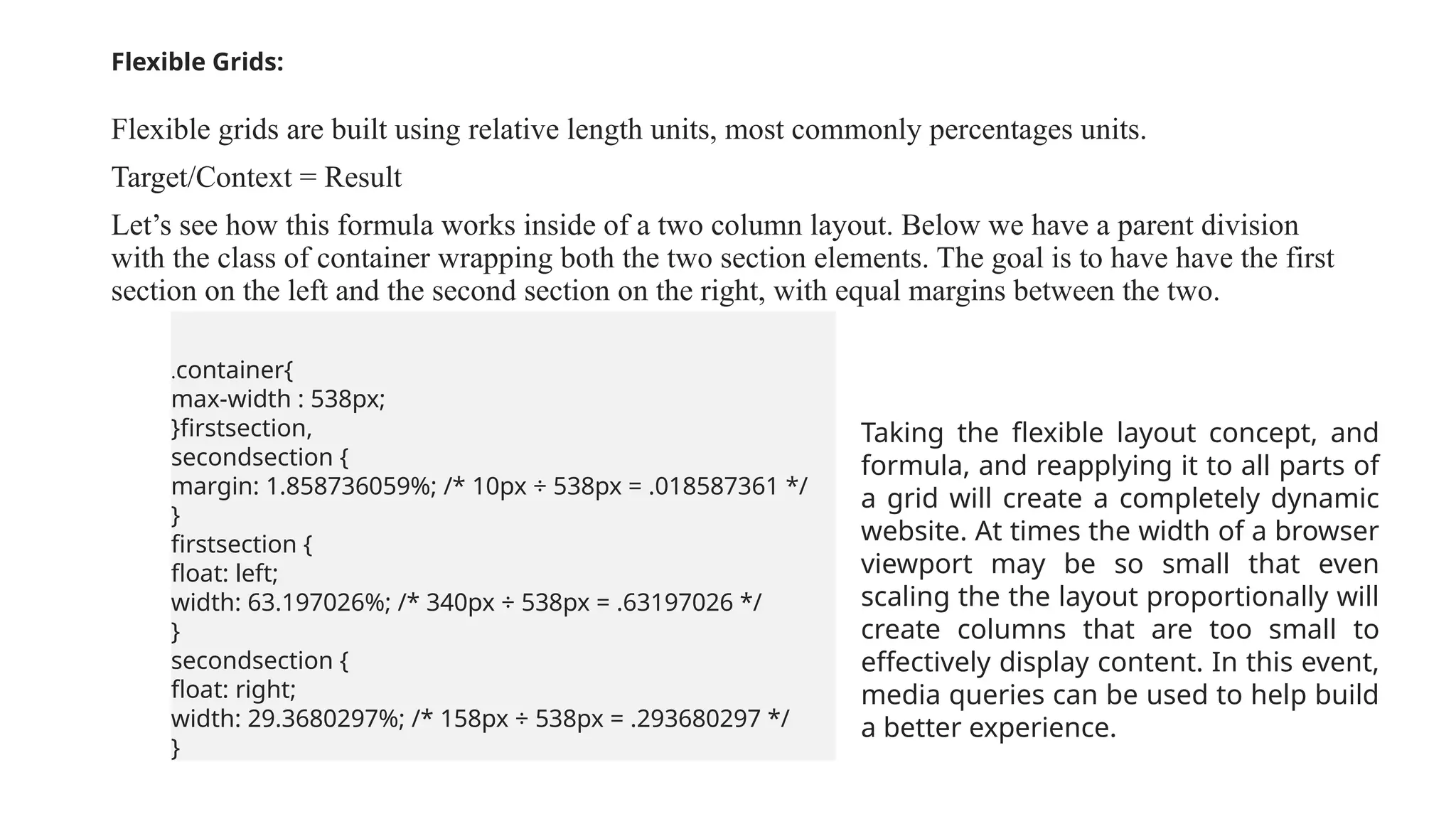
Flexible Grids:
Flexible grids are built using relative length units, most commonly percentages units.
Target/Context = Result
Let’s see how this formula works inside of a two column layout. Below we have a parent division
with the class of container wrapping both the two section elements. The goal is to have have the first
section on the left and the second section on the right, with equal margins between the two.
.container{
max-width : 538px;
}firstsection,
secondsection {
margin: 1.858736059%; /* 10px ÷ 538px = .018587361 */
}
firstsection {
float: left;
width: 63.197026%; /* 340px ÷ 538px = .63197026 */
}
secondsection {
float: right;
width: 29.3680297%; /* 158px ÷ 538px = .293680297 */
}
Taking the flexible layout concept, and
formula, and reapplying it to all parts of
a grid will create a completely dynamic
website. At times the width of a browser
viewport may be so small that even
scaling the the layout proportionally will
create columns that are too small to
effectively display content. In this event,
media queries can be used to help build
a better experience.
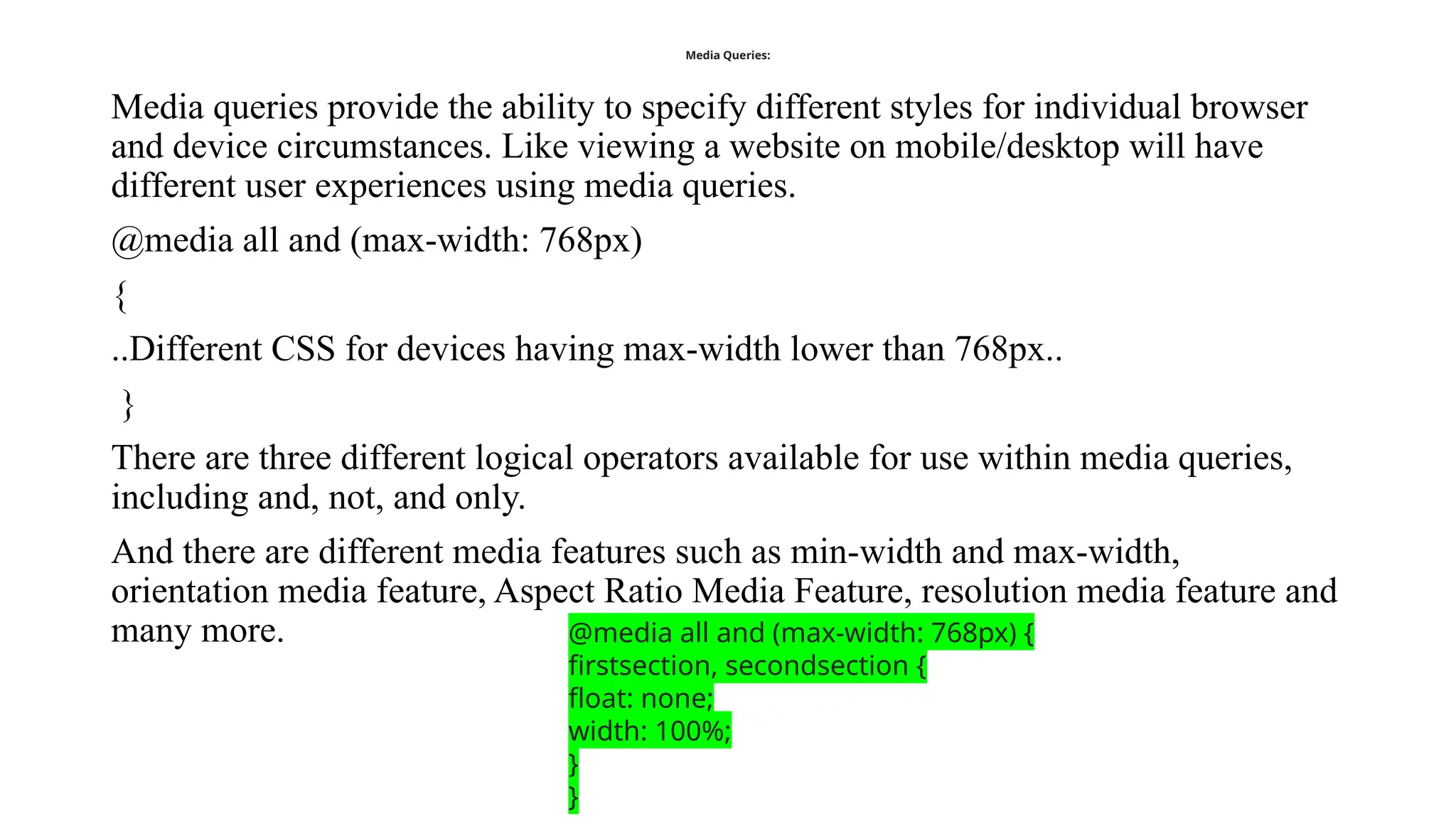
Media Queries:
Media queries provide the ability to specify different styles for individual browser
and device circumstances. Like viewing a website on mobile/desktop will have
different user experiences using media queries.
@media all and (max-width: 768px)
{
..Different CSS for devices having max-width lower than 768px..
}
There are three different logical operators available for use within media queries,
including and, not, and only.
And there are different media features such as min-width and max-width,
orientation media feature, Aspect Ratio Media Feature, resolution media feature and
many more. @media all and (max-width: 768px) {
firstsection, secondsection {
float: none;
width: 100%;
}
}
How to Make Your Site Responsive
Integrating responsive web design approaches into a project includes
every part of the code – within the HTML <head> element, the HTML
structure, the CSS, and even the JavaScript.
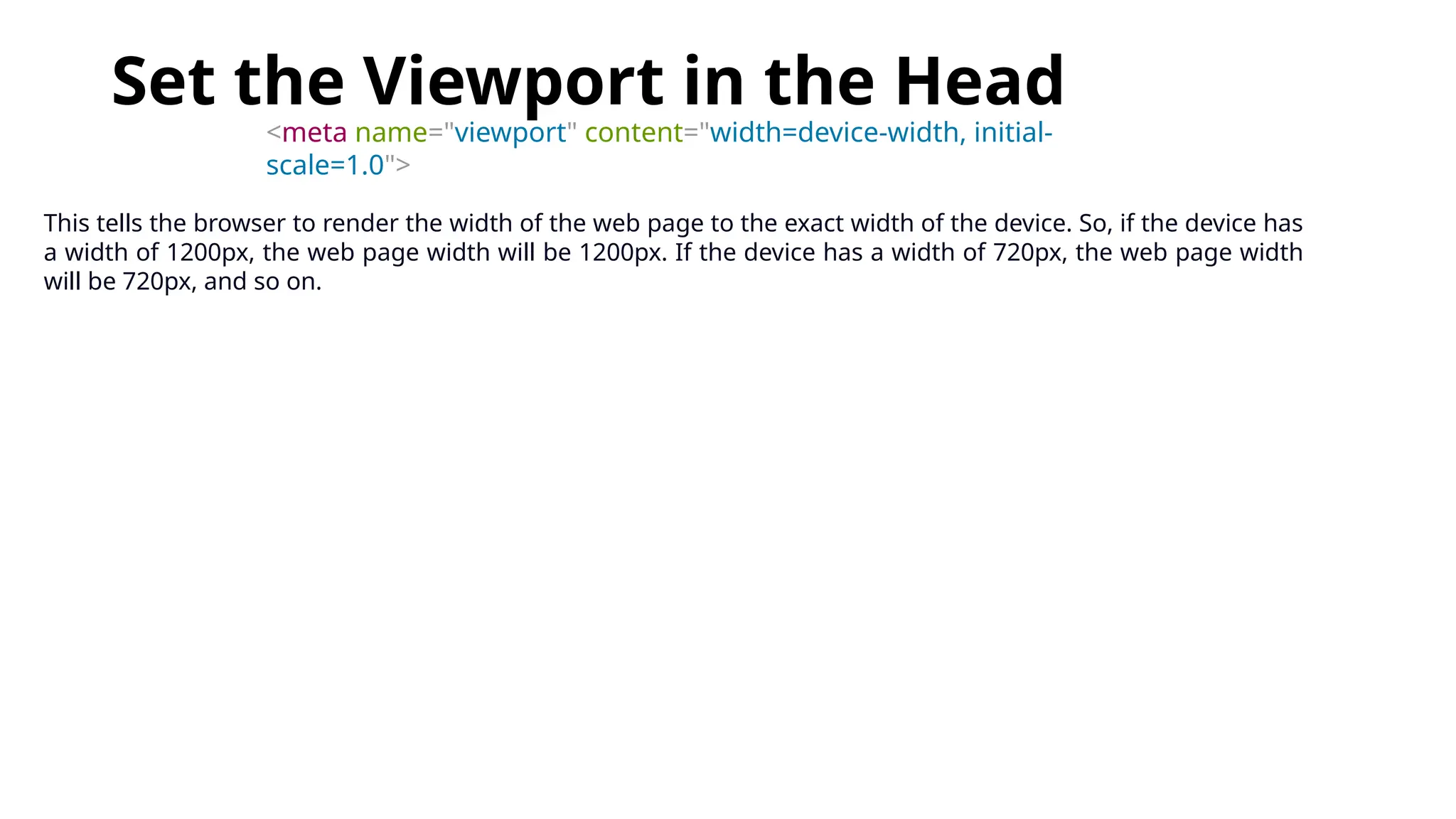
Set the Viewport in the Head
<meta name="viewport" content="width=device-width, initial-
scale=1.0">
This tells the browser to render the width of the web page to the exact width of the device. So, if the device has
a width of 1200px, the web page width will be 1200px. If the device has a width of 720px, the web page width
will be 720px, and so on.
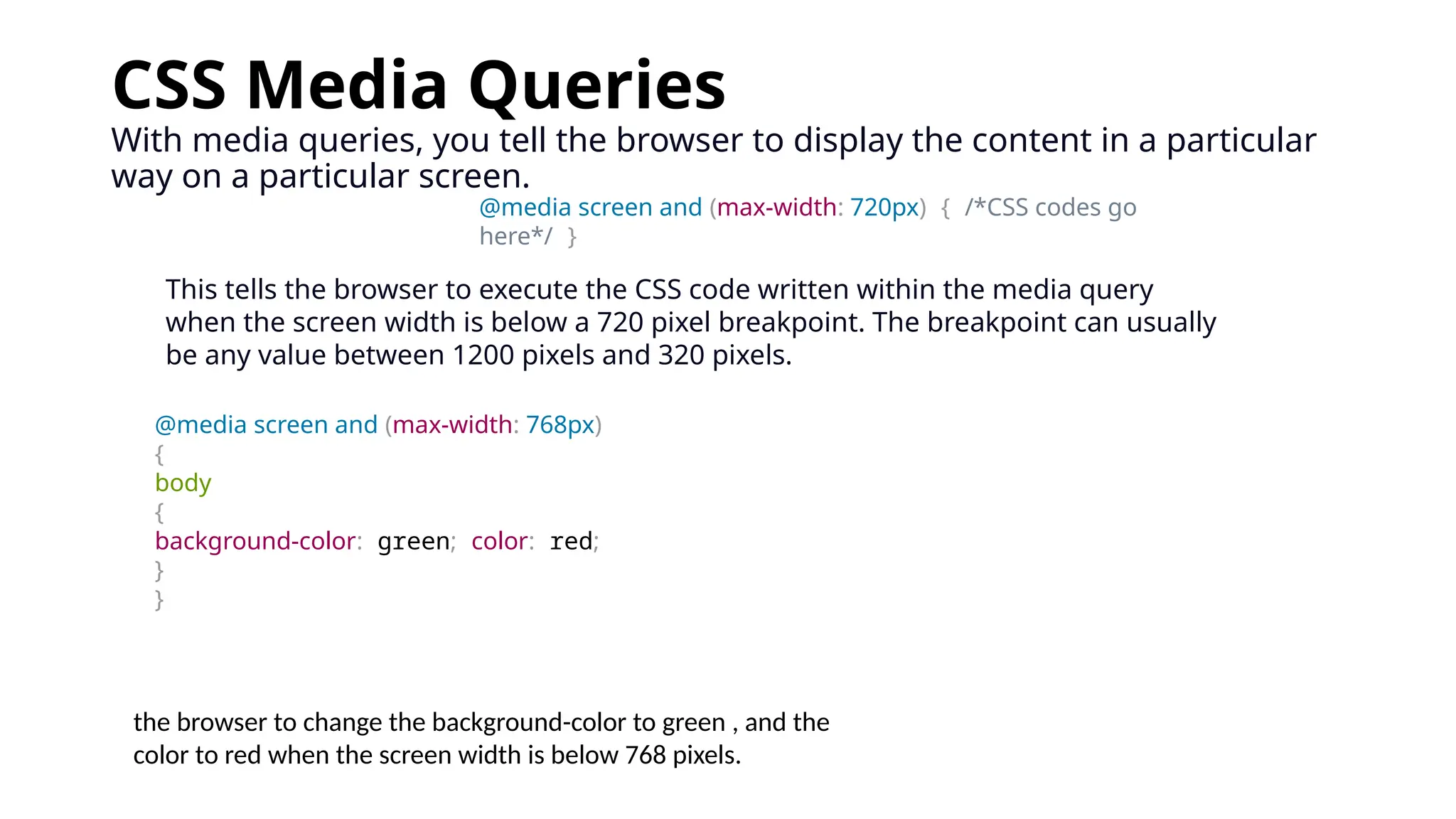
CSS Media Queries
With media queries, you tell the browser to display the content in a particular
way on a particular screen.
@media screen and (max-width: 720px) { /*CSS codes go
here*/ }
This tells the browser to execute the CSS code written within the media query
when the screen width is below a 720 pixel breakpoint. The breakpoint can usually
be any value between 1200 pixels and 320 pixels.
@media screen and (max-width: 768px)
{
body
{
background-color: green; color: red;
}
}
the browser to change the background-color to green , and the
color to red when the screen width is below 768 pixels.
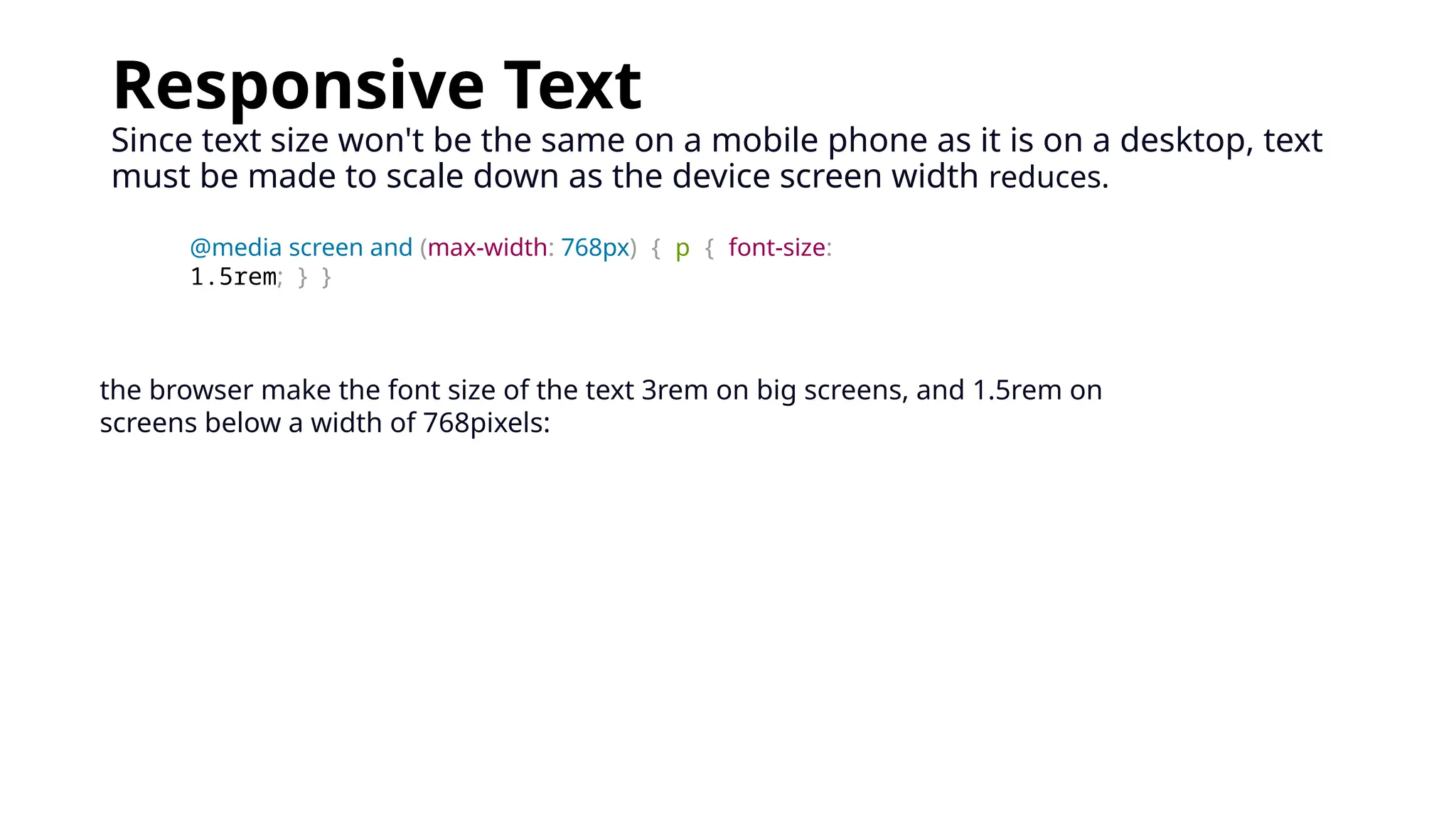
Responsive Text
Since text size won't be the same on a mobile phone as it is on a desktop, text
must be made to scale down as the device screen width reduces.
@media screen and (max-width: 768px) { p { font-size:
1.5rem; } }
the browser make the font size of the text 3rem on big screens, and 1.5rem on
screens below a width of 768pixels:
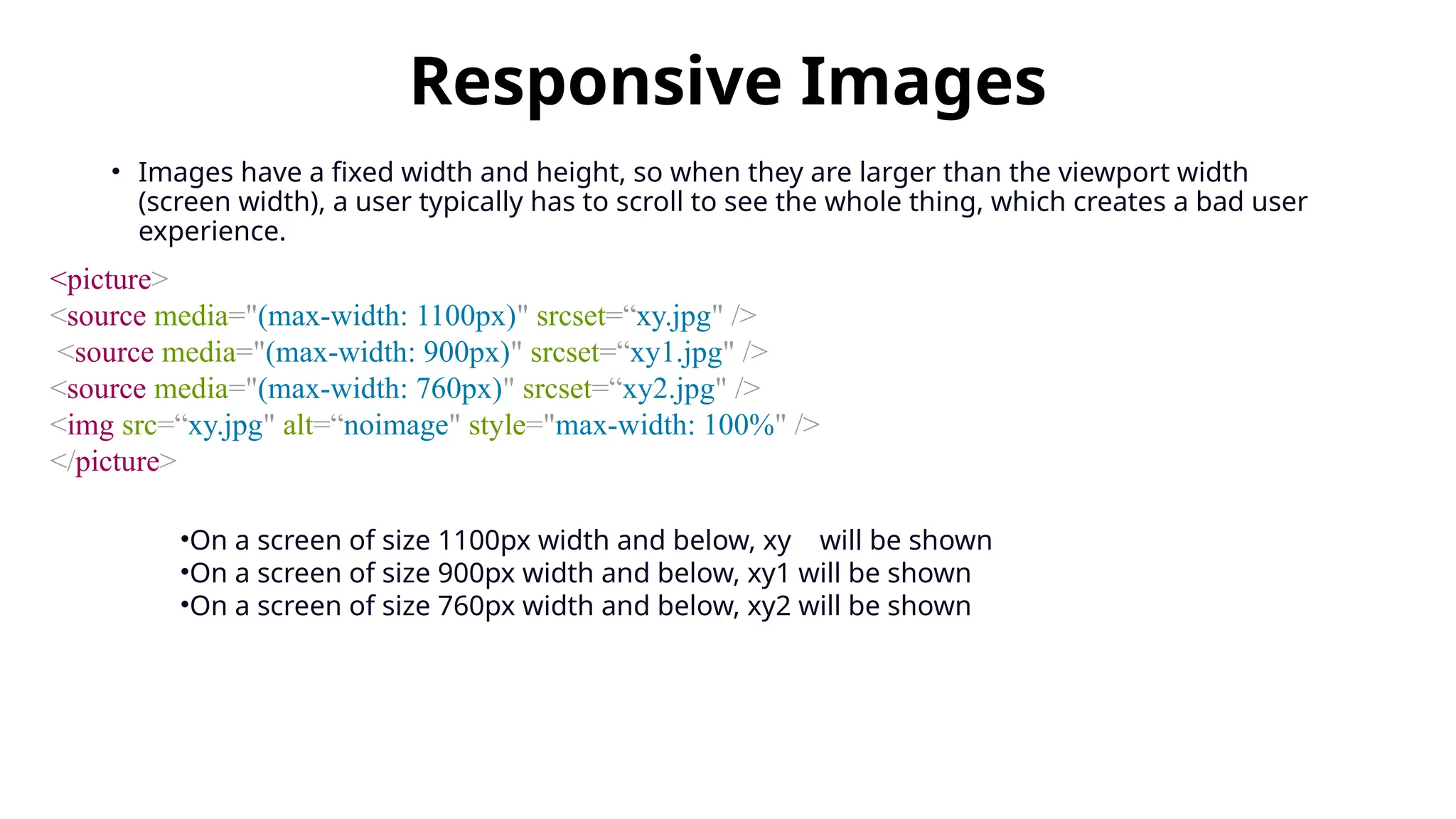
Responsive Images
• Images have a fixed width and height, so when they are larger than the viewport width
(screen width), a user typically has to scroll to see the whole thing, which creates a bad user
experience.
<picture>
<source media="(max-width: 1100px)" srcset=“xy.jpg" />
<source media="(max-width: 900px)" srcset=“xy1.jpg" />
<source media="(max-width: 760px)" srcset=“xy2.jpg" />
<img src=“xy.jpg" alt=“noimage" style="max-width: 100%" />
</picture>
•On a screen of size 1100px width and below, xy will be shown
•On a screen of size 900px width and below, xy1 will be shown
•On a screen of size 760px width and below, xy2 will be shown
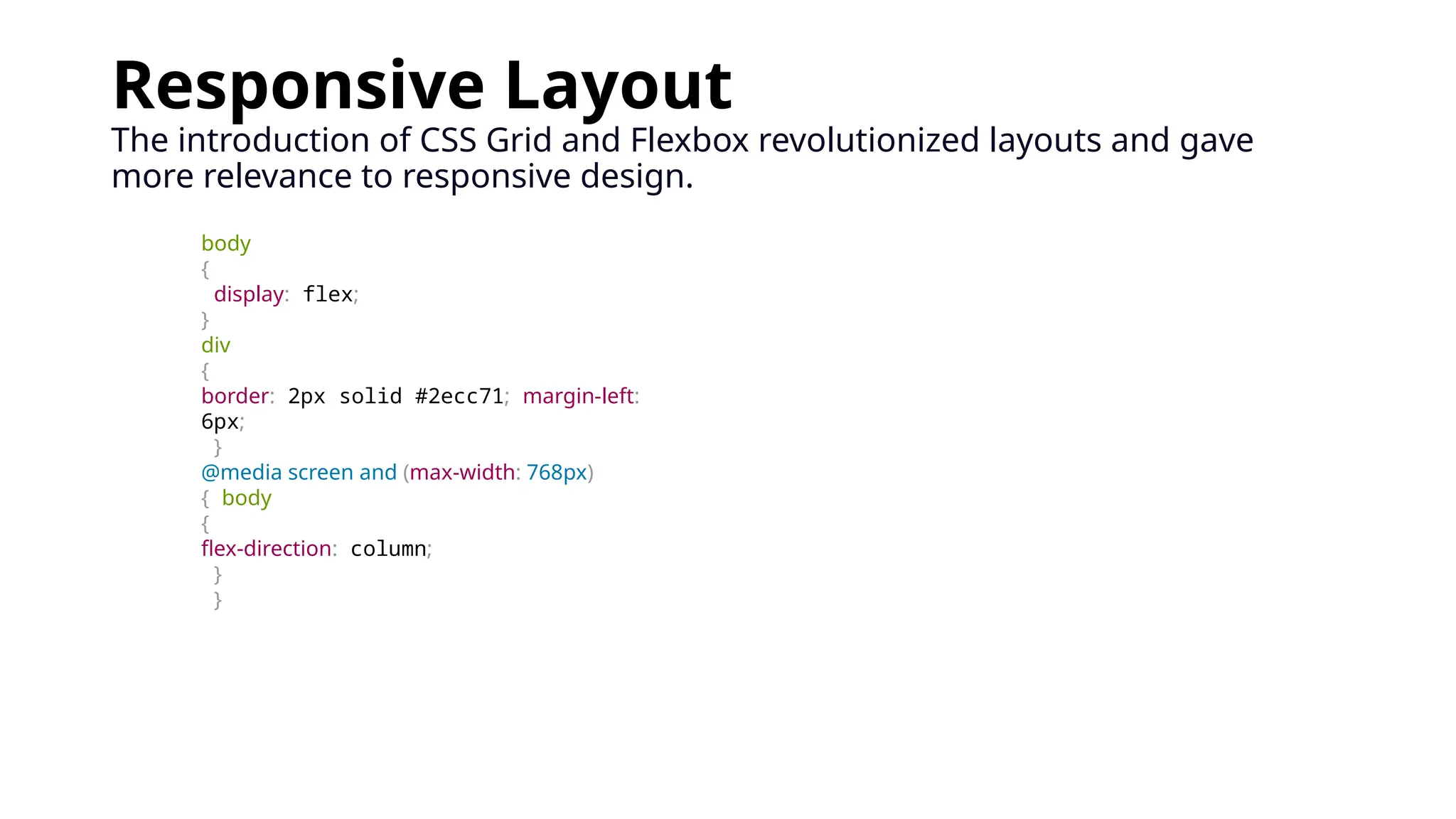
Responsive Layout
The introduction of CSS Grid and Flexbox revolutionized layouts and gave
more relevance to responsive design.
body
{
display: flex;
}
div
{
border: 2px solid #2ecc71; margin-left:
6px;
}
@media screen and (max-width: 768px)
{ body
{
flex-direction: column;
}
}
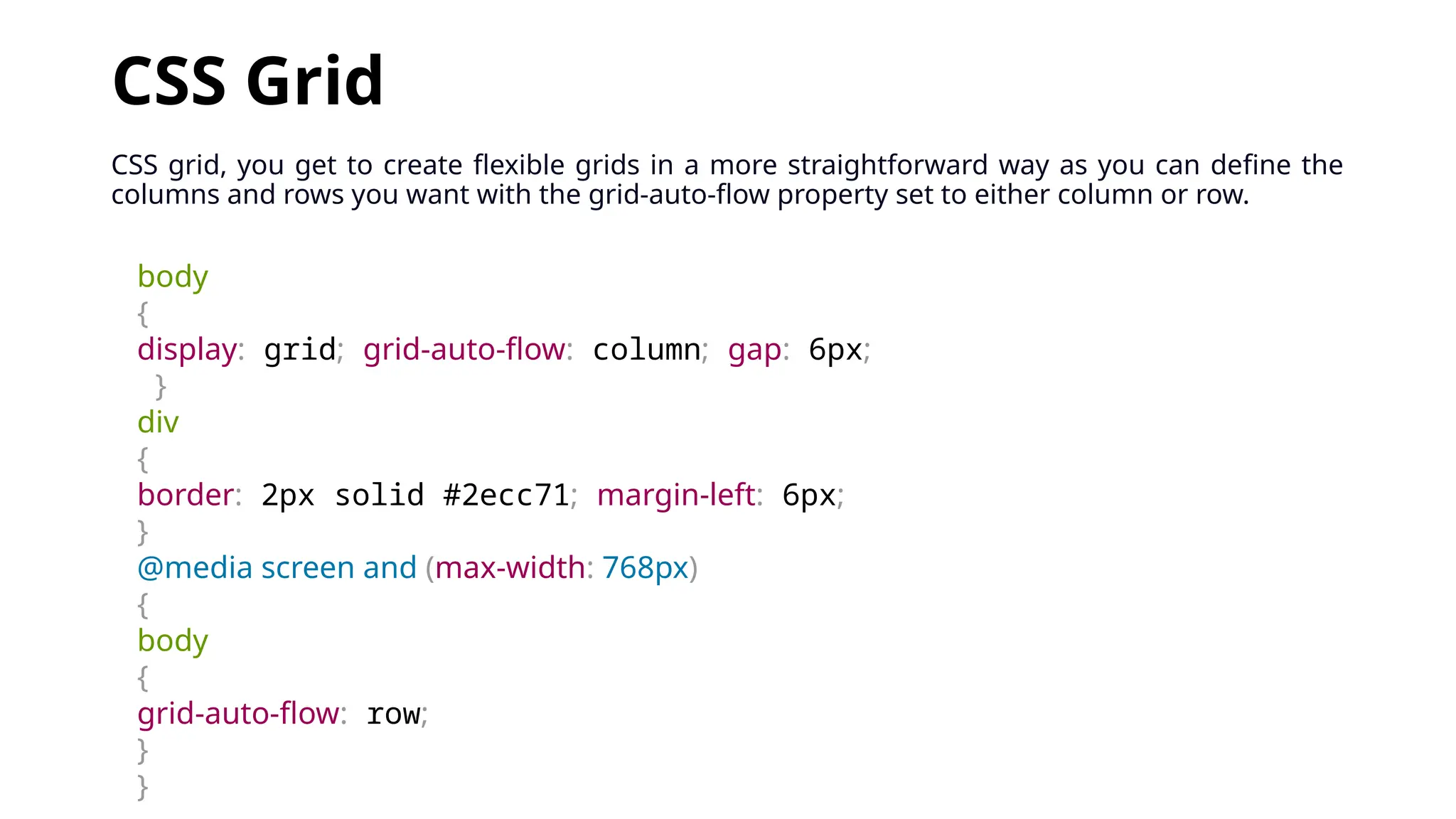
CSS Grid
CSS grid, you get to create flexible grids in a more straightforward way as you can define the
columns and rows you want with the grid-auto-flow property set to either column or row.
body
{
display: grid; grid-auto-flow: column; gap: 6px;
}
div
{
border: 2px solid #2ecc71; margin-left: 6px;
}
@media screen and (max-width: 768px)
{
body
{
grid-auto-flow: row;
}
}

esponsive web design means that your website (

  • 1.
  • 2.
    What Is ResponsiveWeb Design? • To define responsive web design means that your website (and its pages) can adapt and deliver the best experience to users, whether they’re on their desktop, laptop, tablet, or smartphone. For that to happen, though, your website needs a responsive design.
  • 3.
    What is aresponsive website? Responsive web design, also called RWD design, describes a modern web design approach that allows websites and pages to render (or display) on all devices and screen sizes by automatically adapting to the screen, whether it’s a desktop, laptop, tablet, smartphone, or even a smart TV!
  • 4.
    How does responsiveweb design work? Responsive web design works through Cascading Style Sheets (CSS), using various settings to serve different style properties depending on the screen size, orientation, resolution, color capability, and other characteristics of the user’s device. A few examples of CSS properties related to responsive web design include the viewport and media queries.
  • 5.
    Is my websiteresponsive? You can quickly see if a website is responsive or not in your web browser. 1. Open Google Chrome 2. Go to your website 3. Press Ctrl + Shift + I to open Chrome DevTools 4. Press Ctrl + Shift + M to toggle the device toolbar 5. View your page from a mobile, tablet, or desktop perspective
  • 6.
    Understanding the Elementsof Responsive Web Design • the site must be built with a flexible grid foundation. • Images that are incorporated into the design must be flexible themselves. • Different views must be enabled in different contexts via media queries.
  • 7.
    Flexible Grid flexible griddoes not mean that you are restricted to choosing from one of the dozen or so great grid systems out there. Defining your own parameters for columns, spacing and containers is often the best solution for a web design and can be just as flexible as any existing system out there.In fact, most existing grid systems restrictively use CSS classes to define size, space and alignment. • Flexible grid that changes the layout depending on the size of the browser’s viewport. A change in the layout is indicated by slick, smooth animation.
  • 8.
    Flexible Images Images thatmove and scale with our flexible grid is another key feature of a responsive web design. overflow: hidden) gives us the ability to crop images dynamically as the containers around them shift to fit new display environments. We can also have multiple versions of the image on the server, and then dynamically serve the appropriately sized version depending on the user agent using server-side or client-side feature detection in tandem with DOM manipulation. Finally we have the option to hide images altogether if we really want to put focus on the non-image content, using media queries that serve a stylesheet which sets the display: none property for images (or a subset of images by assigning optional images a class like optional-img to allow for greater CSS selector specificity in your stylesheet).
  • 9.
    Media Queries Media queriesare arguably the most exciting (and most intimidating to web designers unfamiliar with them) feature of a responsive web design. Oftentimes, people get carried away with media queries, thinking of them as the core component of a responsive design and leaving flexible page components optional. The reality of the situation is that media queries are hardly useful without the existing implementation of a rock-solid HTML and CSS foundation that includes not only a flexible grid, but flexible images as well.
  • 10.
    Advantages and Disadvantagesof Responsive Web Design Advantages • User experience friendly: Responsive web design is specially designed to respond according to customer’s or user’s behaviors and their needs, according to screen size, etc. It is used to create a website that adjusts smoothly to different screen sizes especially for mobile viewing. Therefore, it increases reach to customers and users on small devices like mobiles, tablets, etc. • SEO friendly: Responsive websites are generally responsible for ranking top at SEO (Search Engine Optimization). On mobile devices or small devices, a responsive website loads much faster as compared to a desktop or laptop. This automatically increases positive user experience that in turn gives a higher ranking to the website on SEO. • Increase profit and sale: Responsive web design is easy to create and faster to implement. This is because there is no requirement for another website for small devices. A responsive website is specially designed to fit all screen sizes. Therefore, one can save time, effort, maintenance costs and development cost associate with creating another website for small devices. It generally increases user experience and reaches more audiences through small devices. More will be an audience, more will be profit and sale. • Low maintenance: Responsive websites are designed to fit all screen sizes. There is no change in content and other elements to fit on a different device. This website uses the same content across all devices. There is only one website that fits all screen sizes so the cost of maintaining two websites is also saved because maintaining a separate site for a small device requires a lot of testing and support. Managing a single website requires less maintenance, less cost, saves time, etc. • Easy to track users: Responsive websites take less time to load, saves time, money, save development effort of creating another website for small devices. One can use this time and effort to track their site visitors.
  • 11.
    Disadvantages • Slow pageloading: Though, responsive websites are easy to maintain, but it sometimes takes a long time to load the page. It includes some high- resolution images and videos that sometimes require a lot of time to load. • Navigation is tough: Responsive websites are specially designed to fit on small devices. But maintaining the simplicity of large websites for small devices sometimes becomes difficult. This is because small devices have less screen size and this turn make it more difficult to navigate website through small devices. • Time-consuming development: Responsive websites are essential but take a lot of time in the development process as compared to the development time of normal websites.
  • 12.
    Percentage based layoutfor fluid Width CSS Fluid Width Because users might be viewing a web page on virtually any size of device or browser window, it is important to ensure content fits within their viewport. Fluid design is one technique for dealing with this by allowing content to scale and reflow automatically based on the size of the container.
  • 13.
    Setting Fixed Widths Anyelement can be given a set width using absolute CSS measurement units like px or rem. However, if the browser or container shrinks to smaller than the size set for the element, the element overflows / sticks out of the container. If it is the browser window that is too small, a horizontal scrollbar appears. p { width: 700px; }
  • 14.
    What is emCSS? • For responsive web pages, the size of web elements changes with the size of the viewport. CSS enables you to declare font size using absolute units like pixels (px) or relative units like percentages, em, or rem units. • As pixels are absolute units, they do not scale with the viewport. So 1px represents one unit on a physical device, regardless of the device size. As a result, creating responsive websites is often easier using a relative unit like percentage, em, or rem. Percentages are relative to a parent element or a property in that element. They are commonly used to set an element’s width and height.
  • 15.
    Em units arerelative specifically to the parent element, enabling an element to scale in the context of the parent. Consider a p tag nested in an article element with a font size of 18px .article { font-size: 18px; } p { font-size: 2em; /* sets font size = 36px */ } Assigning the p element a font size of 2em gives it an actual size of 36px — twice the value of the article element’s font.
  • 16.
    What is remCSS? Rem (short for “root-em”) units dictate an element's font size relative to the size of the root element. By default, most browsers use a font size value of 16px. So, if the root element is 16px, an element with the value 1rem will also equal 16px. rems are relative units. However, they reference the root element — typically the HTML element itself. Most browsers set the default font size to 16px. However, you can change this. For instance, to change the font size to 14px, you would add the following to your stylesheet: html { font-size: 14px; }
  • 17.
    • assuming thedefault font size of the root object is 16px, you would style a paragraph with a 12px font size using 0.75rem because 12 ÷ 16 = 0.75: p { font-size: 0.75rem; } •14px = 0.875rem •18px = 1.125rem •20px = 1.25rem 1 Em = 100 Percent 1 Em = 16 Pixel ∴ 1 Percent = 0.16 Pixel 10px=62.5% 1px=6.25% How to Convert Inch to Pixel (X) 1 in = 96 pixel (X) 1 pixel (X) = 0.0104166667 in Example: convert 15 in to pixel (X): 15 in = 15 × 96 pixel (X) = 1440 pixel (X)
  • 18.
    html { font-size: 62.5%;/* changes a default 16px font size to 10px */ } h1 { font-size: 2.4rem; /* font size = 24px */ } h2 { font-size: 1.6rem; /* font size = 16px */ } p { font-size: 1.2rem; /* font size = 12px */ }
  • 19.
    Why should youuse rem units? • rem units reference the size of the root element. Since a user can set the default size of this element from their browser settings, the webpage can scale to match a user’s preference. • Using absolute units like pixels, however, creates accessibility barriers. Pixels override the document’s root font size, meaning the user’s preferences are ignored. Therefore, use rem units for any scalable elements where possible.
  • 20.
    Rem Units vs.Percentages • Percentages are typically best used for defining the widths of elements, as they provide a more flexible solution than rem units. This is especially true in a multi-column layout. Setting the widths of the columns in percentages ensures they always scale with the viewport’s size. For example, in a two-column layout, you can use percentages to subdivide the container: .column1 { width: 75%; } .column2 { width: 25%; } This allows the columns to scale proportionally with the viewport size.
  • 21.
    Rem vs. EmUnits While rem units are relative to the root element, em is relative to the parent element. To illustrate how it works, consider the parent and child font sizes shown below. The parent’s size is in pixels and the child’s size is in em units. .parent { font-size: 18px; } .child { font-size: 2em; /* font-size: 36px */ } The child’s actual font size is 2 × 18px = 32px.
  • 22.
    How to convertpixel in to rem • just multiply the pixel value (px) by 16, and then divide it by 10. rem = px *16/10; How to convert pixel in to em EM is relative to the current font size of the element (2em means 2 times the size of the current font). So, If the font size of body is 16 pixels, then 150% will be 24 pixels (1.5 * 16), and 2em will be 32 pixels (16 * 2).
  • 23.
    To convert percentageto pixels Pixel (Px) = (Percent * Base)/100 for example, if the Percent value is 3% and the text size or font size (Base) is 16, the pixels = (3*16)/100 = 0.48 .
  • 24.
    Using Rem, Em,and Percentages in CSS • Rem units allow you to set sizes relative to the root element. Therefore, they are different from other sizing alternatives like em units — which depend on a parent element — or percentages, whose real values depend on the property on which they are used. • When building accessible websites, you should avoid using pixels to size font elements. Their absoluteness means they are not scalable. Instead, opt for rems, ems, and percentages. Use rem units to create elements that scale depending on user settings and em units for elements that should scale depending on their parent elements. To create fluid layouts, use percentages. • Of course, there are exceptions to each rule. Make use of trial and error as well as your best judgment, and prioritize scalability and accessibility in your web design.
  • 25.
    Flexible Layouts: • Responsiveweb design is broken down into three main components, including flexible layouts, media queries, and flexible media. The first part, flexible layouts, is the practice of building the layout of a website with a flexible grid, capable of dynamically resizing to any width. Flexible grids are built using relative length units, most commonly percentages units.
  • 26.
    Flexible Grids: Flexible gridsare built using relative length units, most commonly percentages units. Target/Context = Result Let’s see how this formula works inside of a two column layout. Below we have a parent division with the class of container wrapping both the two section elements. The goal is to have have the first section on the left and the second section on the right, with equal margins between the two. .container{ max-width : 538px; }firstsection, secondsection { margin: 1.858736059%; /* 10px ÷ 538px = .018587361 */ } firstsection { float: left; width: 63.197026%; /* 340px ÷ 538px = .63197026 */ } secondsection { float: right; width: 29.3680297%; /* 158px ÷ 538px = .293680297 */ } Taking the flexible layout concept, and formula, and reapplying it to all parts of a grid will create a completely dynamic website. At times the width of a browser viewport may be so small that even scaling the the layout proportionally will create columns that are too small to effectively display content. In this event, media queries can be used to help build a better experience.
  • 27.
    Media Queries: Media queriesprovide the ability to specify different styles for individual browser and device circumstances. Like viewing a website on mobile/desktop will have different user experiences using media queries. @media all and (max-width: 768px) { ..Different CSS for devices having max-width lower than 768px.. } There are three different logical operators available for use within media queries, including and, not, and only. And there are different media features such as min-width and max-width, orientation media feature, Aspect Ratio Media Feature, resolution media feature and many more. @media all and (max-width: 768px) { firstsection, secondsection { float: none; width: 100%; } }
  • 28.
    How to MakeYour Site Responsive Integrating responsive web design approaches into a project includes every part of the code – within the HTML <head> element, the HTML structure, the CSS, and even the JavaScript.
  • 29.
    Set the Viewportin the Head <meta name="viewport" content="width=device-width, initial- scale=1.0"> This tells the browser to render the width of the web page to the exact width of the device. So, if the device has a width of 1200px, the web page width will be 1200px. If the device has a width of 720px, the web page width will be 720px, and so on.
  • 30.
    CSS Media Queries Withmedia queries, you tell the browser to display the content in a particular way on a particular screen. @media screen and (max-width: 720px) { /*CSS codes go here*/ } This tells the browser to execute the CSS code written within the media query when the screen width is below a 720 pixel breakpoint. The breakpoint can usually be any value between 1200 pixels and 320 pixels. @media screen and (max-width: 768px) { body { background-color: green; color: red; } } the browser to change the background-color to green , and the color to red when the screen width is below 768 pixels.
  • 31.
    Responsive Text Since textsize won't be the same on a mobile phone as it is on a desktop, text must be made to scale down as the device screen width reduces. @media screen and (max-width: 768px) { p { font-size: 1.5rem; } } the browser make the font size of the text 3rem on big screens, and 1.5rem on screens below a width of 768pixels:
  • 32.
    Responsive Images • Imageshave a fixed width and height, so when they are larger than the viewport width (screen width), a user typically has to scroll to see the whole thing, which creates a bad user experience. <picture> <source media="(max-width: 1100px)" srcset=“xy.jpg" /> <source media="(max-width: 900px)" srcset=“xy1.jpg" /> <source media="(max-width: 760px)" srcset=“xy2.jpg" /> <img src=“xy.jpg" alt=“noimage" style="max-width: 100%" /> </picture> •On a screen of size 1100px width and below, xy will be shown •On a screen of size 900px width and below, xy1 will be shown •On a screen of size 760px width and below, xy2 will be shown
  • 33.
    Responsive Layout The introductionof CSS Grid and Flexbox revolutionized layouts and gave more relevance to responsive design. body { display: flex; } div { border: 2px solid #2ecc71; margin-left: 6px; } @media screen and (max-width: 768px) { body { flex-direction: column; } }
  • 34.
    CSS Grid CSS grid,you get to create flexible grids in a more straightforward way as you can define the columns and rows you want with the grid-auto-flow property set to either column or row. body { display: grid; grid-auto-flow: column; gap: 6px; } div { border: 2px solid #2ecc71; margin-left: 6px; } @media screen and (max-width: 768px) { body { grid-auto-flow: row; } }