EPSON PRINTER
TROUBLESHOOTING
QUICK FIXES AND EXPERT
SOLUTIONS
Presented By : Printer IT Help
Epson printers are known for their performance, but users often
face errors and malfunctions.
Prompt troubleshooting ensures smooth operations and extends
printer life.
From connectivity issues to hardware faults, learning basic
troubleshooting saves time and reduces service costs.
INTRODUCTION
Why Troubleshooting Epson Printers
Matters
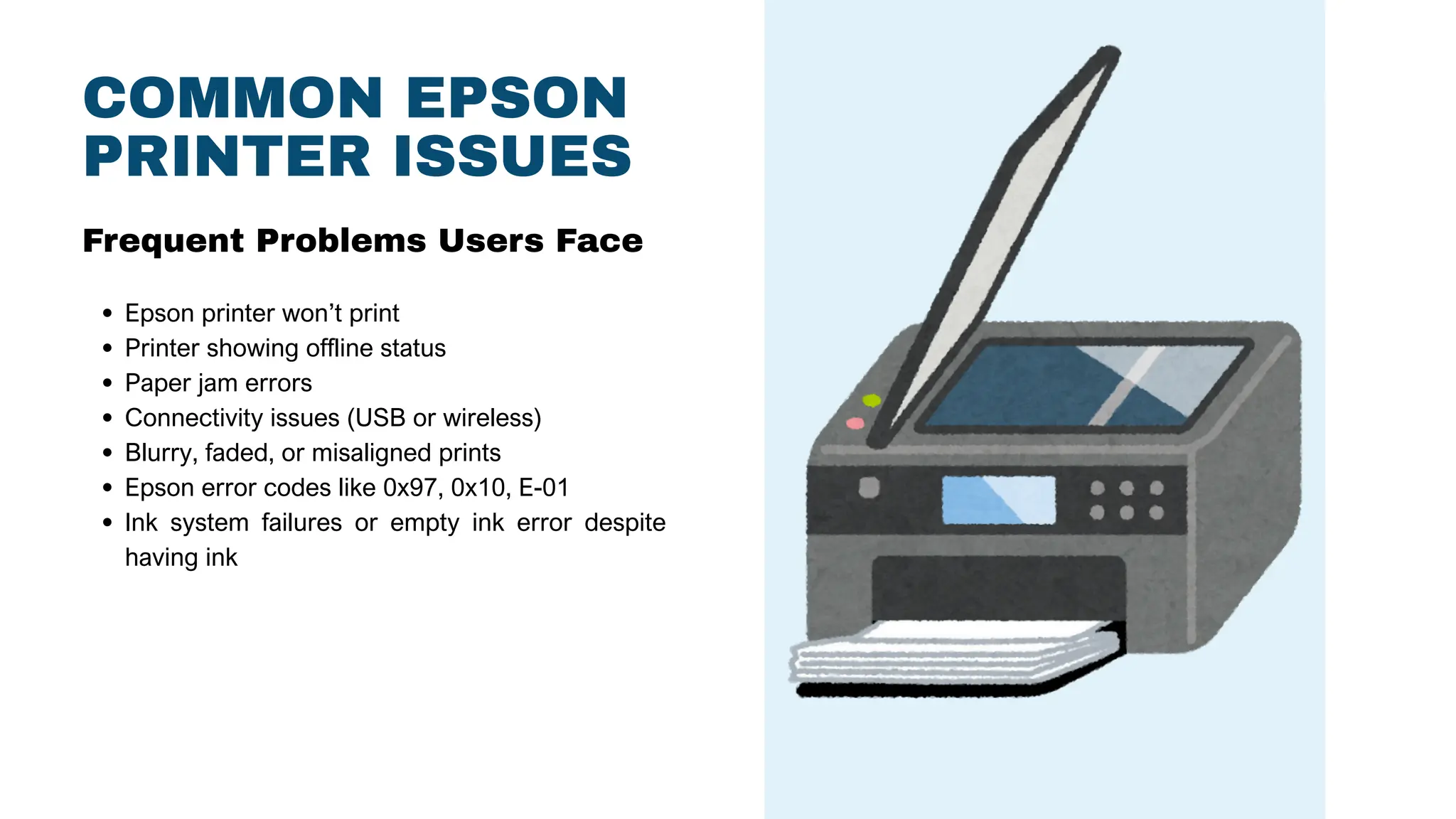
COMMON EPSON
PRINTER ISSUES
Epson printer won’t print
Printer showing offline status
Paper jam errors
Connectivity issues (USB or wireless)
Blurry, faded, or misaligned prints
Epson error codes like 0x97, 0x10, E-01
Ink system failures or empty ink error despite
having ink
Frequent Problems Users Face
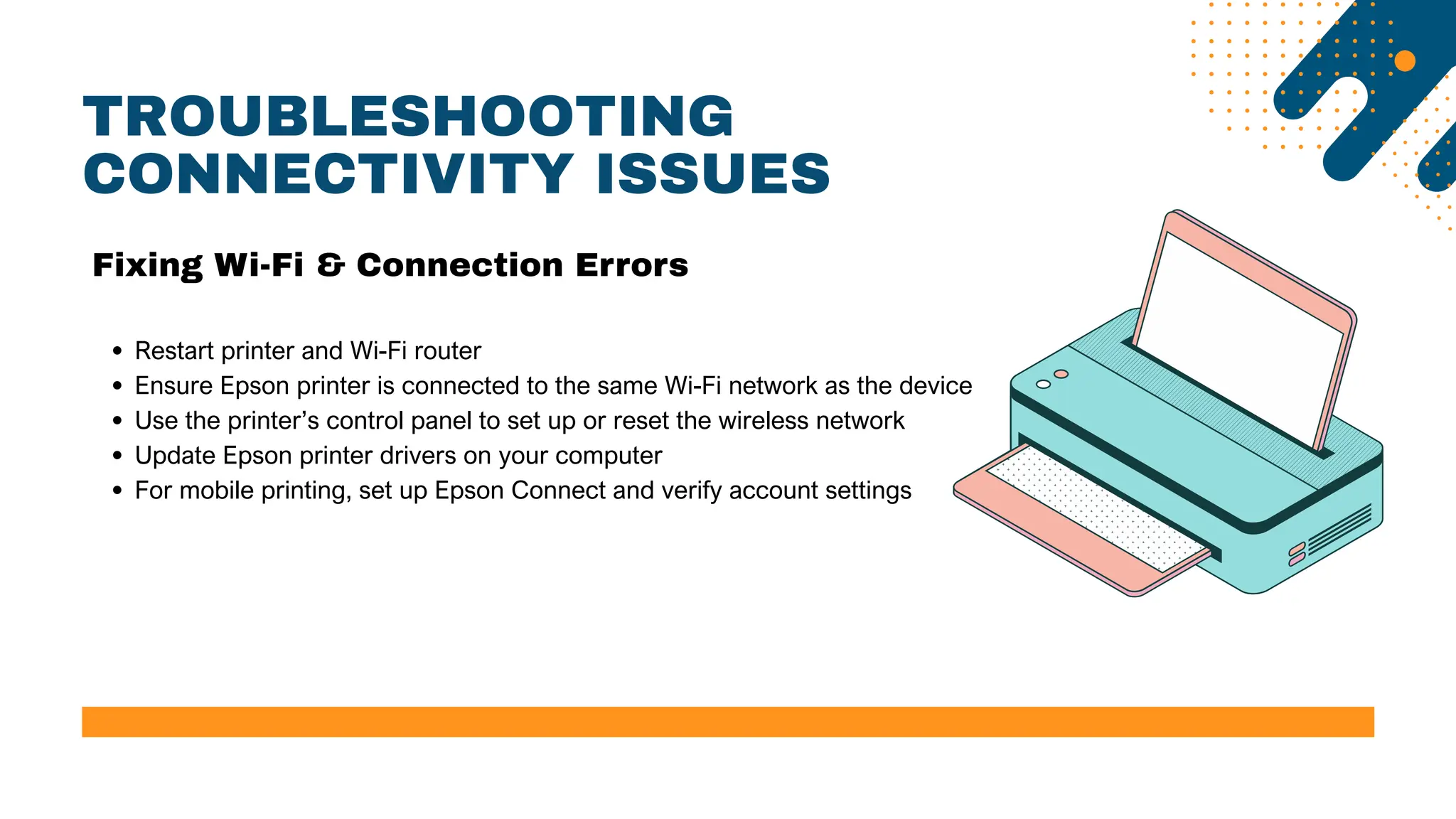
TROUBLESHOOTING
CONNECTIVITY ISSUES
Restart printer and Wi-Fi router
Ensure Epson printer is connected to the same Wi-Fi network as the device
Use the printer’s control panel to set up or reset the wireless network
Update Epson printer drivers on your computer
For mobile printing, set up Epson Connect and verify account settings
Fixing Wi-Fi & Connection Errors
SOLVING PAPER JAM ERRORS
Power off the printer and disconnect cables
Open the paper tray and rear access panel
Gently remove any jammed paper without tearing
Check rollers for small paper pieces or debris
Reload paper correctly and turn the printer back on
How to Clear Paper Jams
DEALING WITH PRINT QUALITY ISSUES
Fixing Faded or Blurry Prints
Access the Epson Printer Utility and run a nozzle check
Perform printhead cleaning through printer maintenance settings
Align the printhead using built-in tools
Use only genuine Epson ink and compatible paper
Ensure cartridges are not expired or dried out
HANDLING EPSON ERROR CODES
0x97: Internal hardware issue; turn off printer, disconnect cables, wait, and restart.
0x10: Scanner issue; usually resolved by restarting the printer and checking internal
connections.
E-01: Mechanical failure; try resetting the printer and check for obstructions.
Persistent errors may require professional servicing or part replacement.
Understanding Common Error Codes
PRINTER NOT RESPONDING
Printer Isn’t Printing or Offline
Confirm printer is turned on and cables are securely connected
Set Epson printer as the default device on your computer
Cancel all print jobs and restart both printer and computer
Check Epson printer status via Control Panel or System Preferences
Reinstall or update Epson printer driver if necessary
EPSON SUPPORT TOOLS
Epson Printer Utility: Allows nozzle check, head cleaning, and print
alignment
Epson Connect: Enables printing from smartphones, tablets, and
cloud storage
Epson Software Updater: Keeps printer firmware up to date
ScanSmart Software: For organizing and editing scanned documents
Download all tools from the Epson official Printer IT Help Page
Useful Tools & Utilities
WHEN TO SEEK PROFESSIONAL HELP
Advanced Support & Repair Needs
Multiple failed printhead cleanings
Unusual noises or mechanical failures
Persistent error codes despite resets
Ink cartridge not recognized issues
For advanced help, visit: Epson Printer Troubleshooting Page.
THANK YOU
Contact & Resources
Need More Help?
📧 Email: contact@printerithelp.com
📍 Address: 1521 Concord Pike, Wilmington, DE 19803
🌐 Website: https://printerithelp.com/

Epson Printer Troubleshooting | Printer IT Help

  • 1.
    EPSON PRINTER TROUBLESHOOTING QUICK FIXESAND EXPERT SOLUTIONS Presented By : Printer IT Help
  • 2.
    Epson printers areknown for their performance, but users often face errors and malfunctions. Prompt troubleshooting ensures smooth operations and extends printer life. From connectivity issues to hardware faults, learning basic troubleshooting saves time and reduces service costs. INTRODUCTION Why Troubleshooting Epson Printers Matters
  • 3.
    COMMON EPSON PRINTER ISSUES Epsonprinter won’t print Printer showing offline status Paper jam errors Connectivity issues (USB or wireless) Blurry, faded, or misaligned prints Epson error codes like 0x97, 0x10, E-01 Ink system failures or empty ink error despite having ink Frequent Problems Users Face
  • 4.
    TROUBLESHOOTING CONNECTIVITY ISSUES Restart printerand Wi-Fi router Ensure Epson printer is connected to the same Wi-Fi network as the device Use the printer’s control panel to set up or reset the wireless network Update Epson printer drivers on your computer For mobile printing, set up Epson Connect and verify account settings Fixing Wi-Fi & Connection Errors
  • 5.
    SOLVING PAPER JAMERRORS Power off the printer and disconnect cables Open the paper tray and rear access panel Gently remove any jammed paper without tearing Check rollers for small paper pieces or debris Reload paper correctly and turn the printer back on How to Clear Paper Jams DEALING WITH PRINT QUALITY ISSUES Fixing Faded or Blurry Prints Access the Epson Printer Utility and run a nozzle check Perform printhead cleaning through printer maintenance settings Align the printhead using built-in tools Use only genuine Epson ink and compatible paper Ensure cartridges are not expired or dried out
  • 6.
    HANDLING EPSON ERRORCODES 0x97: Internal hardware issue; turn off printer, disconnect cables, wait, and restart. 0x10: Scanner issue; usually resolved by restarting the printer and checking internal connections. E-01: Mechanical failure; try resetting the printer and check for obstructions. Persistent errors may require professional servicing or part replacement. Understanding Common Error Codes PRINTER NOT RESPONDING Printer Isn’t Printing or Offline Confirm printer is turned on and cables are securely connected Set Epson printer as the default device on your computer Cancel all print jobs and restart both printer and computer Check Epson printer status via Control Panel or System Preferences Reinstall or update Epson printer driver if necessary
  • 7.
    EPSON SUPPORT TOOLS EpsonPrinter Utility: Allows nozzle check, head cleaning, and print alignment Epson Connect: Enables printing from smartphones, tablets, and cloud storage Epson Software Updater: Keeps printer firmware up to date ScanSmart Software: For organizing and editing scanned documents Download all tools from the Epson official Printer IT Help Page Useful Tools & Utilities WHEN TO SEEK PROFESSIONAL HELP Advanced Support & Repair Needs Multiple failed printhead cleanings Unusual noises or mechanical failures Persistent error codes despite resets Ink cartridge not recognized issues For advanced help, visit: Epson Printer Troubleshooting Page.
  • 8.
    THANK YOU Contact &Resources Need More Help? 📧 Email: contact@printerithelp.com 📍 Address: 1521 Concord Pike, Wilmington, DE 19803 🌐 Website: https://printerithelp.com/