Library Service, University of Greenwich 10/11/2014
1
Citation Management using EndNote
Programme
 Exporting citations to the citation-
management tool, EndNote (contained within
the Web of Science database)
 Example 1: Business Source Premier
 Exporting to and organising results within EndNote
 Example 2: Web of Science
 Bibliographic indexes of published articles
 Example 3: LibrarySearch
 The Library Service’s resource discovery tool
 Examples 4 and 5: Emerald Insight; JSTOR
 When things aren’t as easy as they should be
Library Service, University of Greenwich 10/11/2014
2
Business Source Premier (BSP): Context
 We start this process at the conclusion of a
successful search of the Business Source
Premier database
 The example search is for product management
in emerging markets
 The results we wish to save will be placed in our
Business Source Premier folder
 Folders are a feature common to most databases
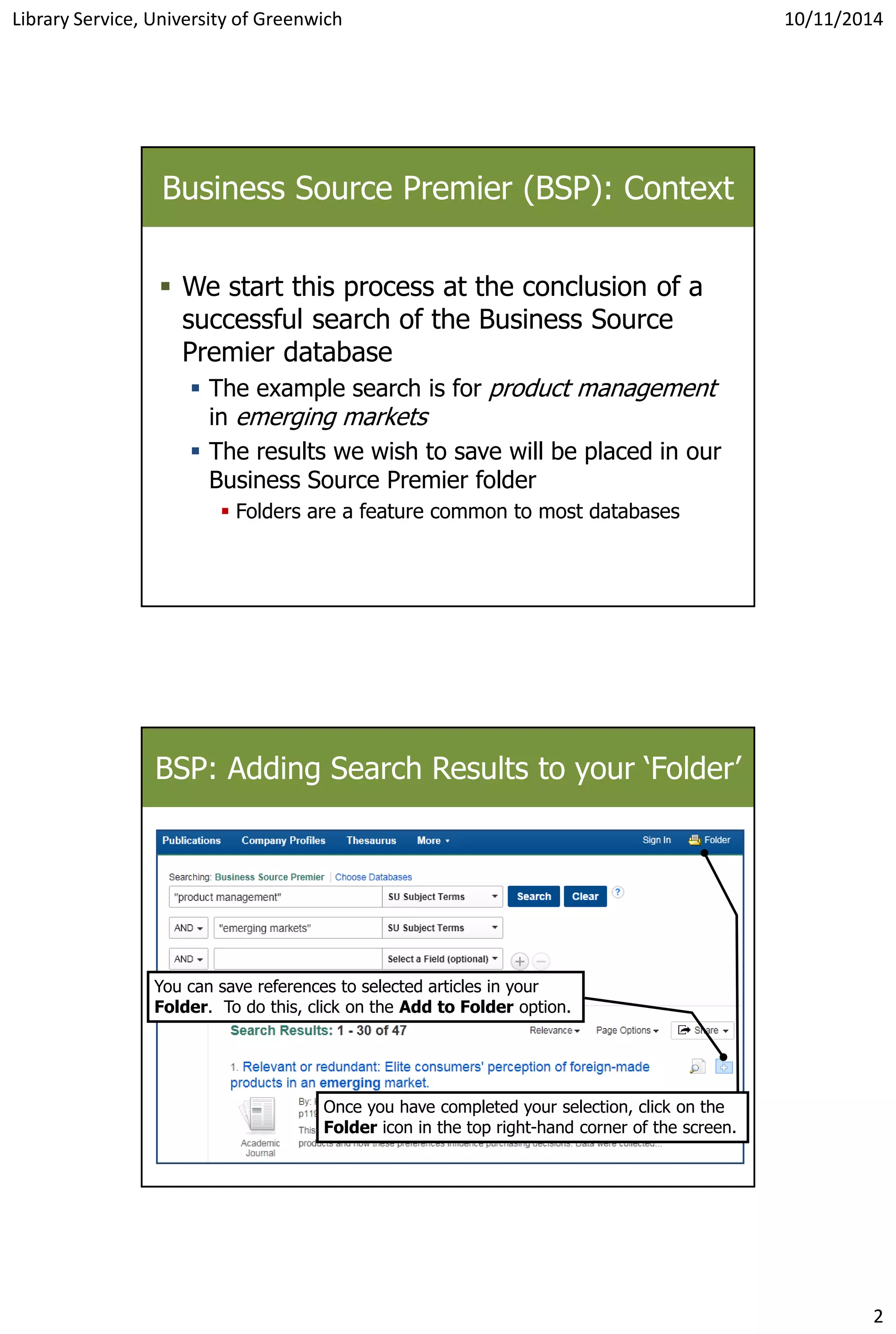
BSP: Adding Search Results to your ‘Folder’
You can save references to selected articles in your
Folder. To do this, click on the Add to Folder option.
Once you have completed your selection, click on the
Folder icon in the top right-hand corner of the screen.
Library Service, University of Greenwich 10/11/2014
3
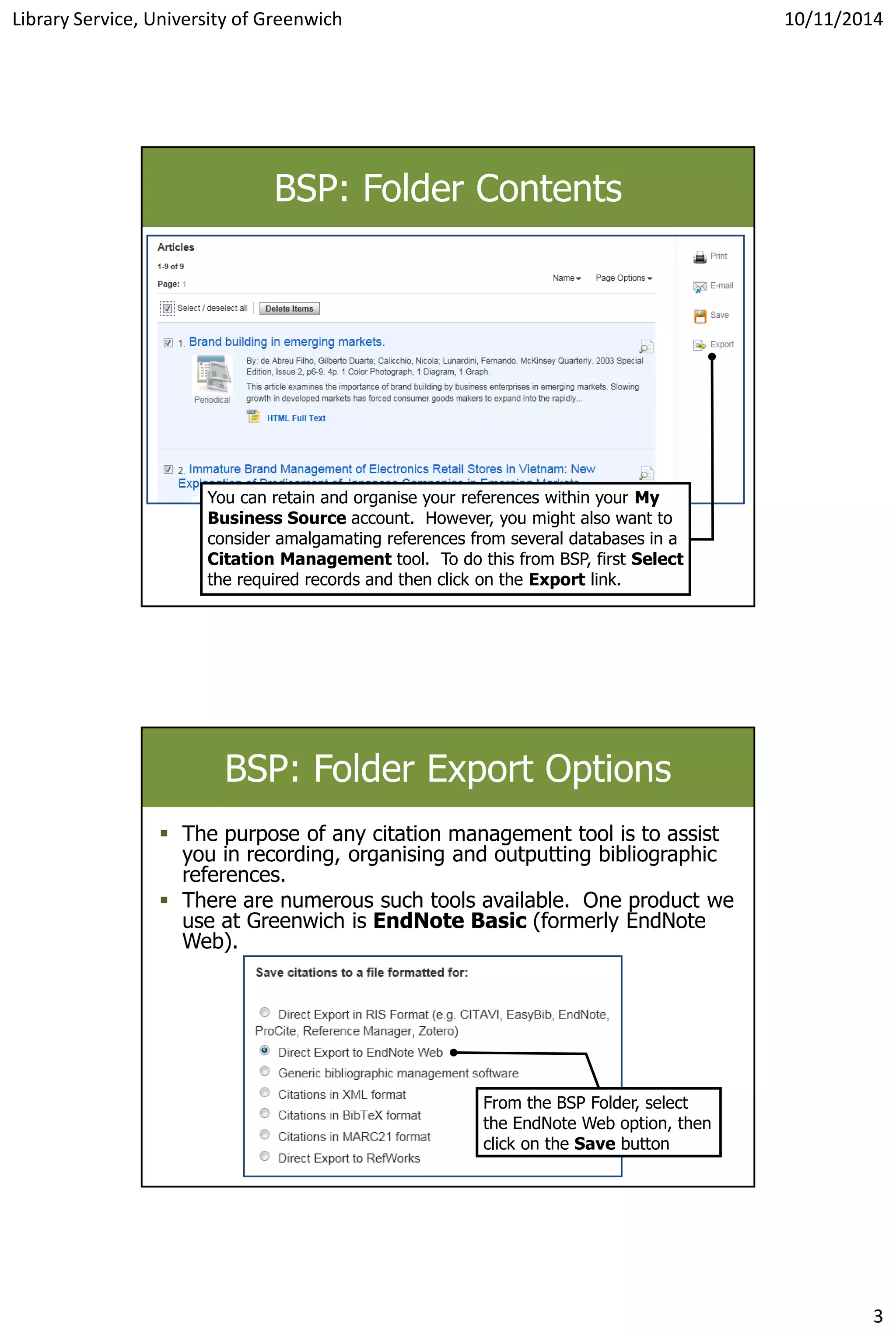
BSP: Folder Contents
You can retain and organise your references within your My
Business Source account. However, you might also want to
consider amalgamating references from several databases in a
Citation Management tool. To do this from BSP, first Select
the required records and then click on the Export link.
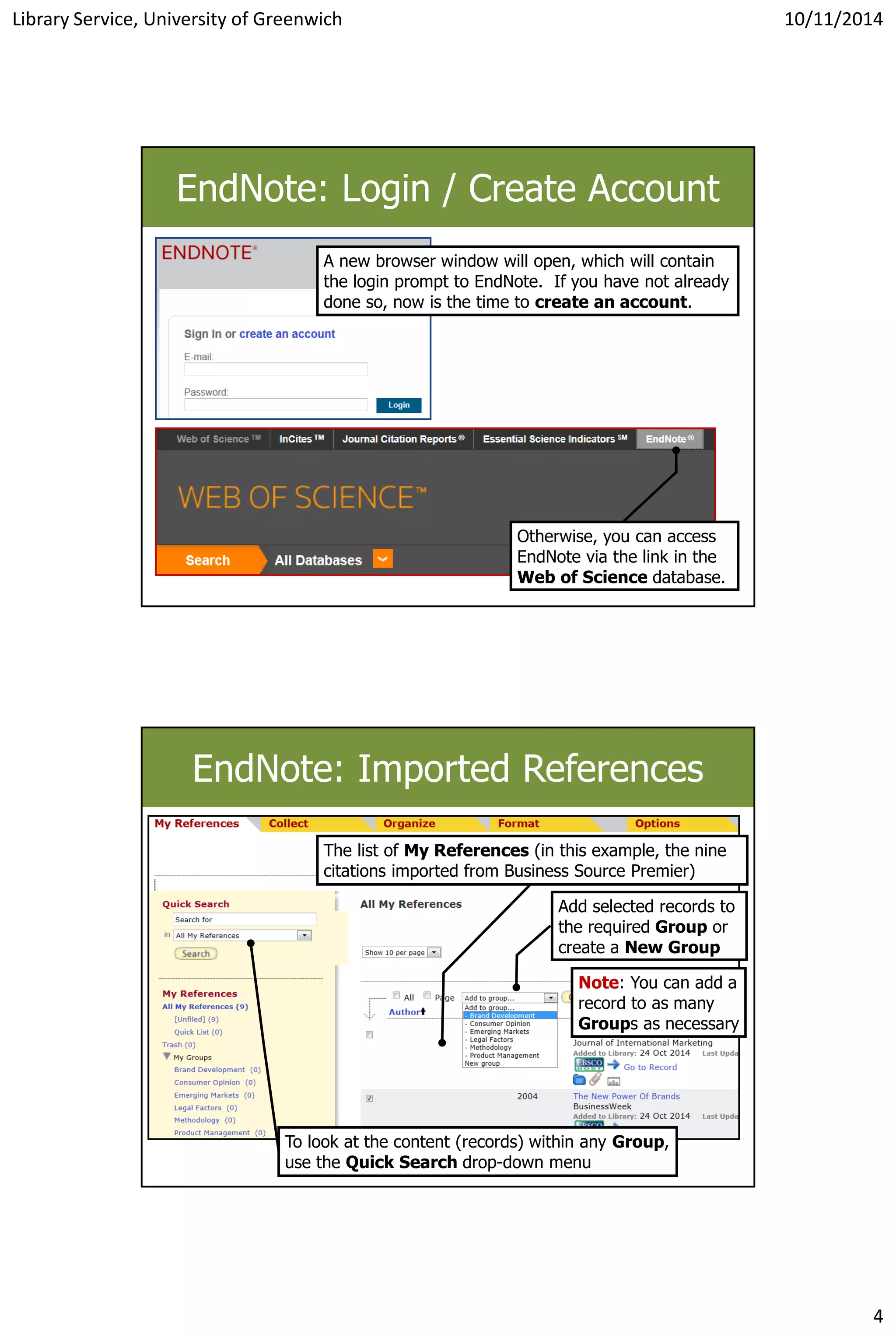
BSP: Folder Export Options
 The purpose of any citation management tool is to assist
you in recording, organising and outputting bibliographic
references.
 There are numerous such tools available. One product we
use at Greenwich is EndNote Basic (formerly EndNote
Web).
From the BSP Folder, select
the EndNote Web option, then
click on the Save button
Library Service, University of Greenwich 10/11/2014
4
EndNote: Login / Create Account
A new browser window will open, which will contain
the login prompt to EndNote. If you have not already
done so, now is the time to create an account.
Otherwise, you can access
EndNote via the link in the
Web of Science database.
EndNote: Imported References
Add selected records to
the required Group or
create a New Group
The list of My References (in this example, the nine
citations imported from Business Source Premier)
Note: You can add a
record to as many
Groups as necessary
To look at the content (records) within any Group,
use the Quick Search drop-down menu
Library Service, University of Greenwich 10/11/2014
5
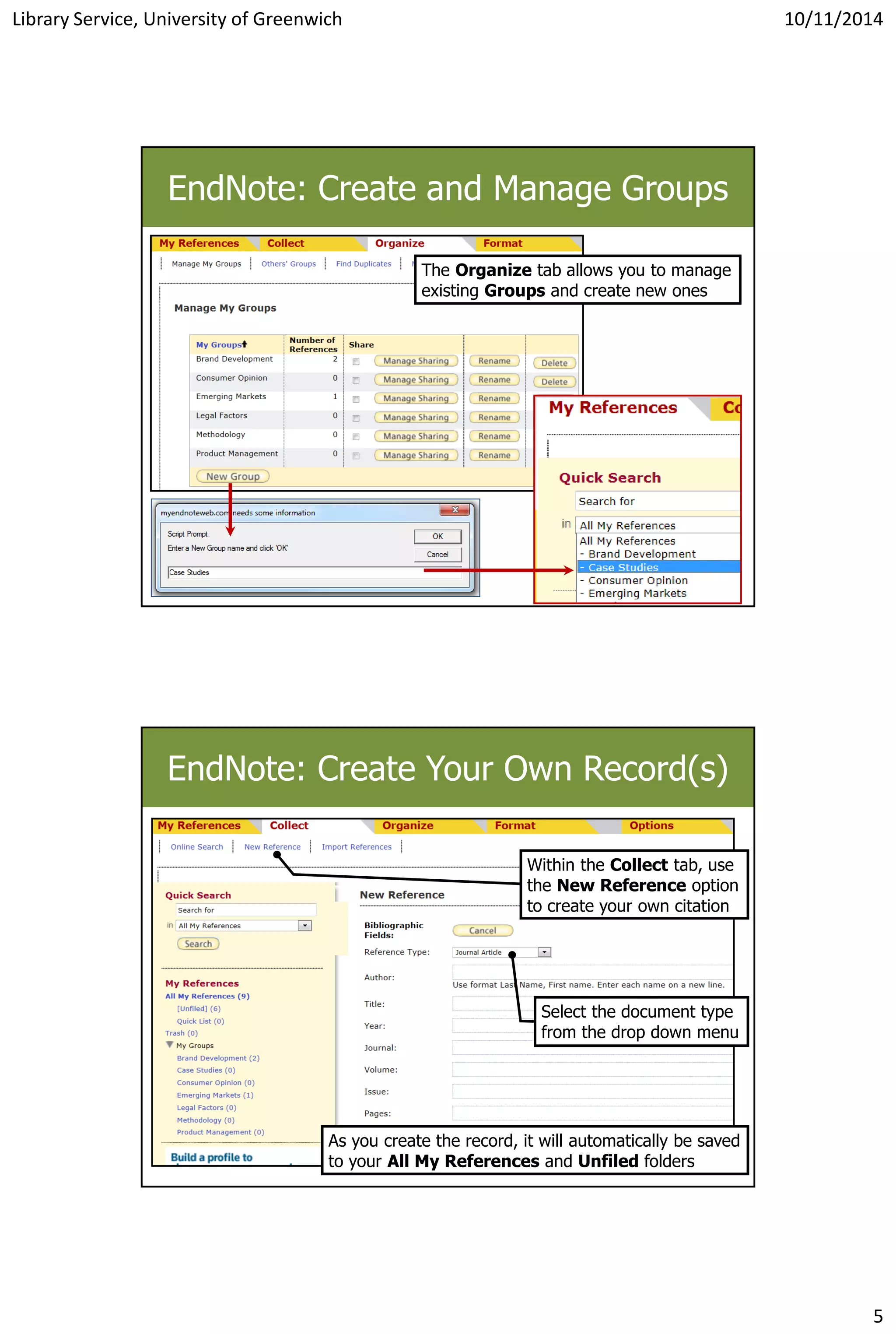
EndNote: Create and Manage Groups
The Organize tab allows you to manage
existing Groups and create new ones
EndNote: Create Your Own Record(s)
Within the Collect tab, use
the New Reference option
to create your own citation
Select the document type
from the drop down menu
As you create the record, it will automatically be saved
to your All My References and Unfiled folders
Library Service, University of Greenwich 10/11/2014
6
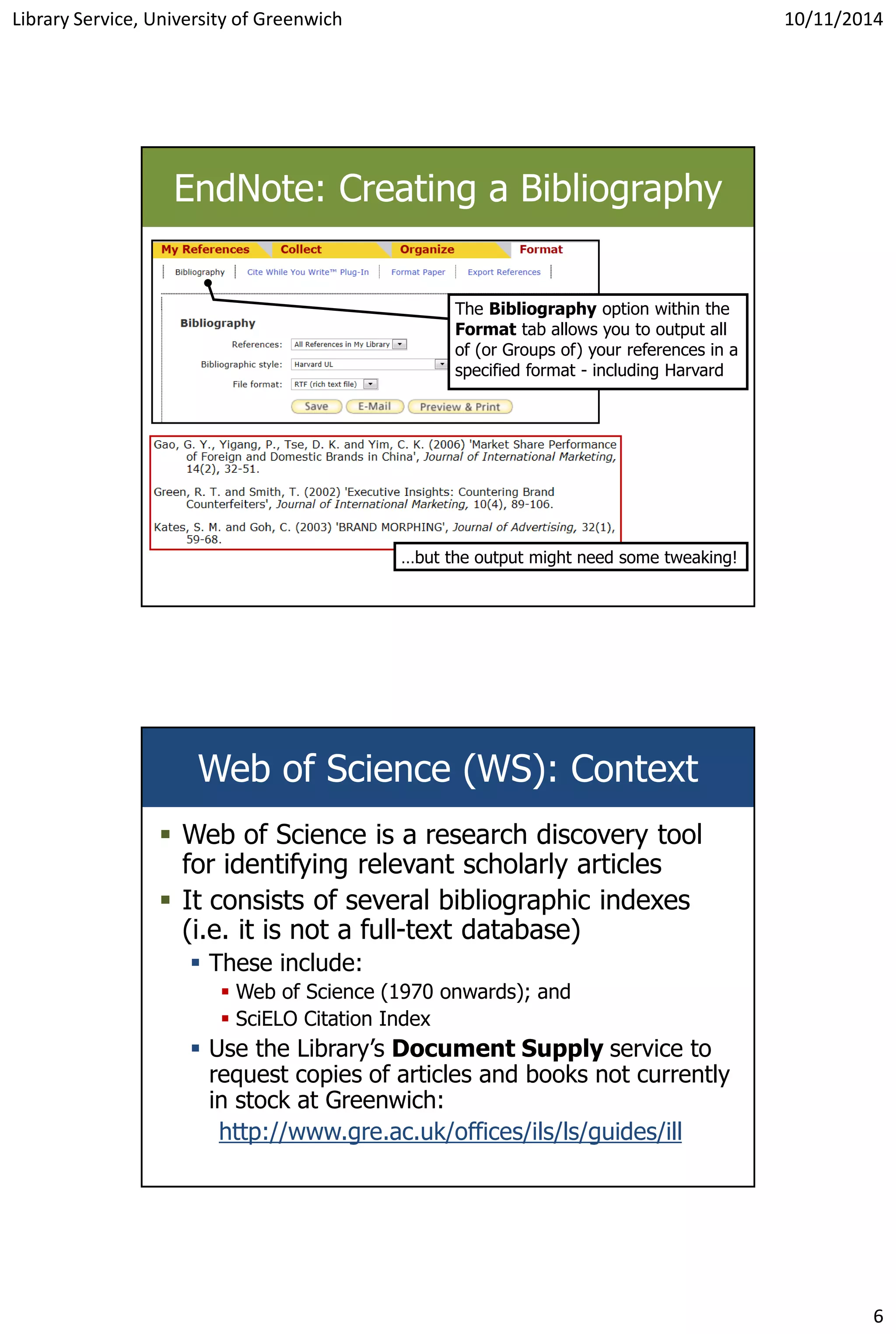
EndNote: Creating a Bibliography
…but the output might need some tweaking!
The Bibliography option within the
Format tab allows you to output all
of (or Groups of) your references in a
specified format - including Harvard
Web of Science (WS): Context
 Web of Science is a research discovery tool
for identifying relevant scholarly articles
 It consists of several bibliographic indexes
(i.e. it is not a full-text database)
 These include:
 Web of Science (1970 onwards); and
 SciELO Citation Index
 Use the Library’s Document Supply service to
request copies of articles and books not currently
in stock at Greenwich:
http://www.gre.ac.uk/offices/ils/ls/guides/ill
Library Service, University of Greenwich 10/11/2014
7
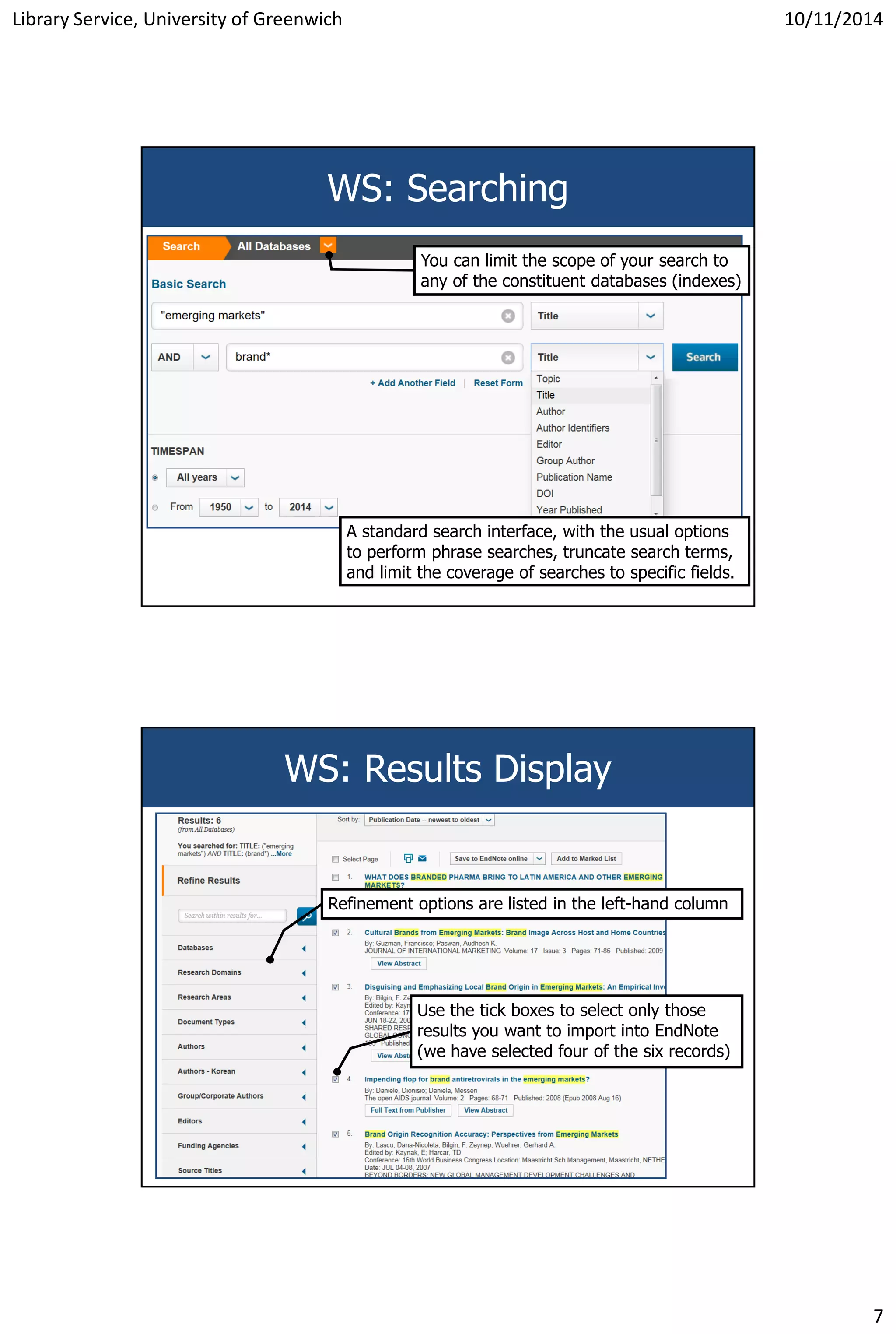
WS: Searching
You can limit the scope of your search to
any of the constituent databases (indexes)
A standard search interface, with the usual options
to perform phrase searches, truncate search terms,
and limit the coverage of searches to specific fields.
WS: Results Display
Refinement options are listed in the left-hand column
Use the tick boxes to select only those
results you want to import into EndNote
(we have selected four of the six records)
Library Service, University of Greenwich 10/11/2014
8
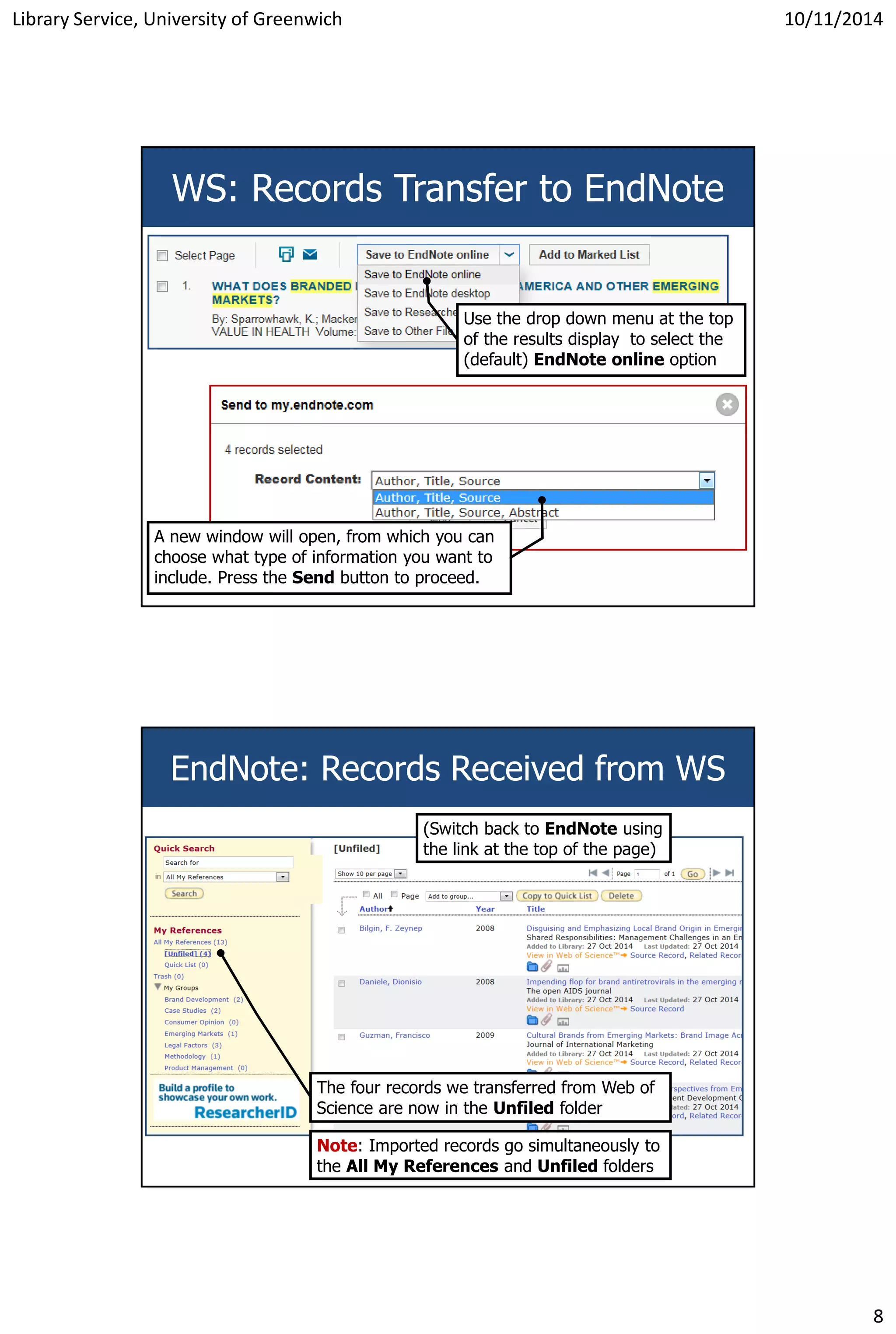
WS: Records Transfer to EndNote
Use the drop down menu at the top
of the results display to select the
(default) EndNote online option
A new window will open, from which you can
choose what type of information you want to
include. Press the Send button to proceed.
EndNote: Records Received from WS
The four records we transferred from Web of
Science are now in the Unfiled folder
Note: Imported records go simultaneously to
the All My References and Unfiled folders
(Switch back to EndNote using
the link at the top of the page)
Library Service, University of Greenwich 10/11/2014
9
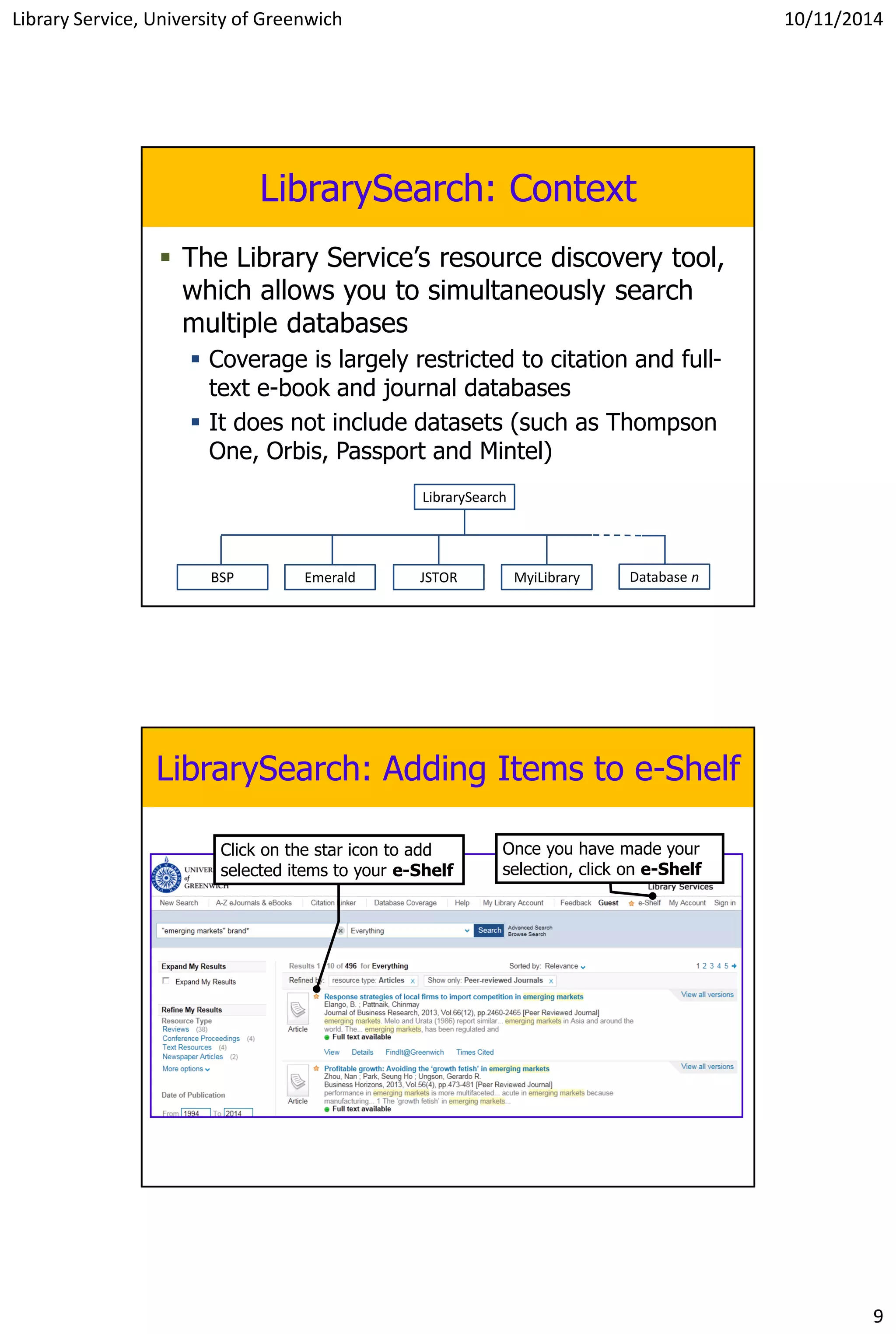
LibrarySearch: Context
 The Library Service’s resource discovery tool,
which allows you to simultaneously search
multiple databases
 Coverage is largely restricted to citation and full-
text e-book and journal databases
 It does not include datasets (such as Thompson
One, Orbis, Passport and Mintel)
BSP Emerald JSTOR Database n
LibrarySearch
MyiLibrary
LibrarySearch: Adding Items to e-Shelf
Click on the star icon to add
selected items to your e-Shelf
Once you have made your
selection, click on e-Shelf
Library Service, University of Greenwich 10/11/2014
10
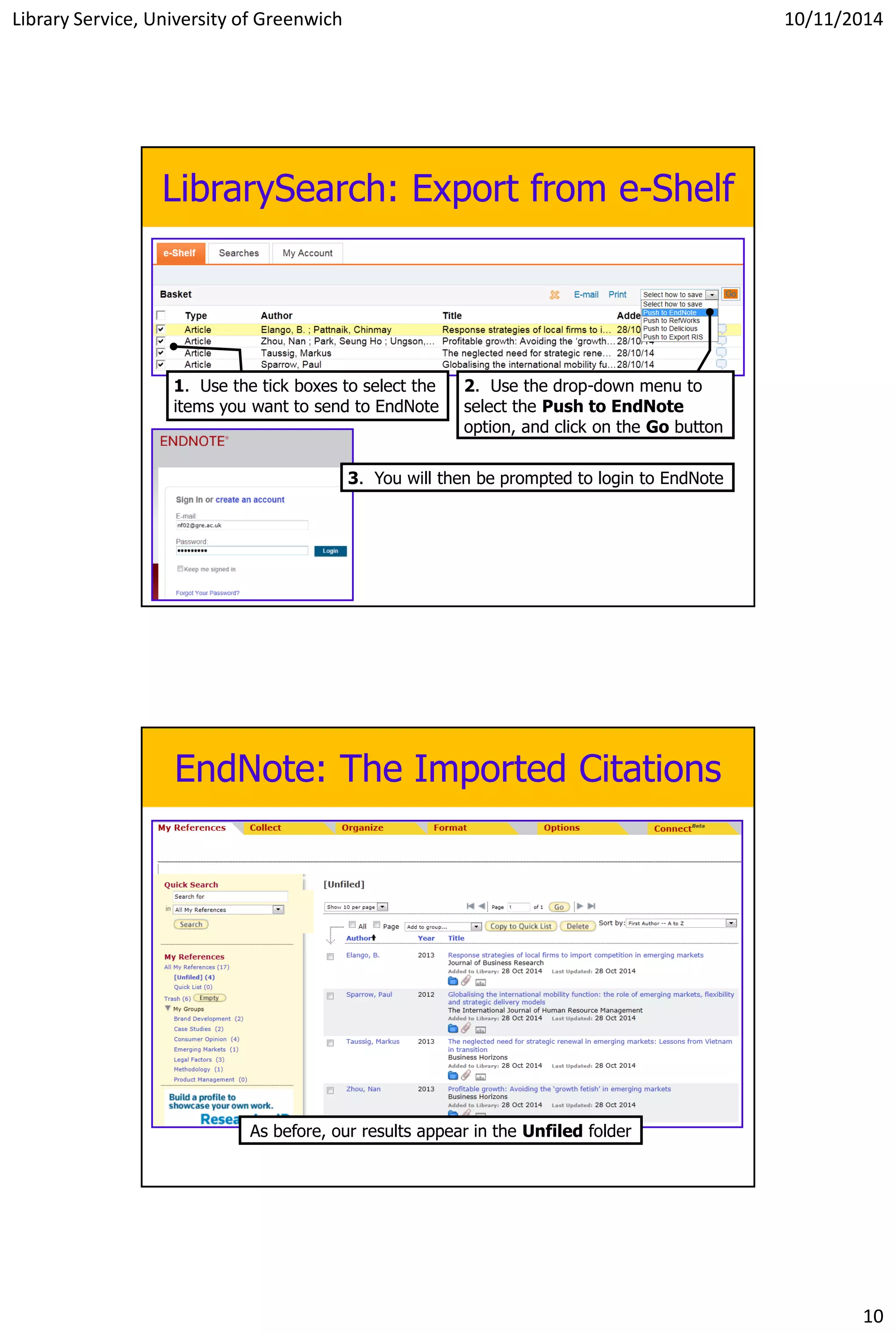
LibrarySearch: Export from e-Shelf
1. Use the tick boxes to select the
items you want to send to EndNote
2. Use the drop-down menu to
select the Push to EndNote
option, and click on the Go button
3. You will then be prompted to login to EndNote
EndNote: The Imported Citations
As before, our results appear in the Unfiled folder
Library Service, University of Greenwich 10/11/2014
11
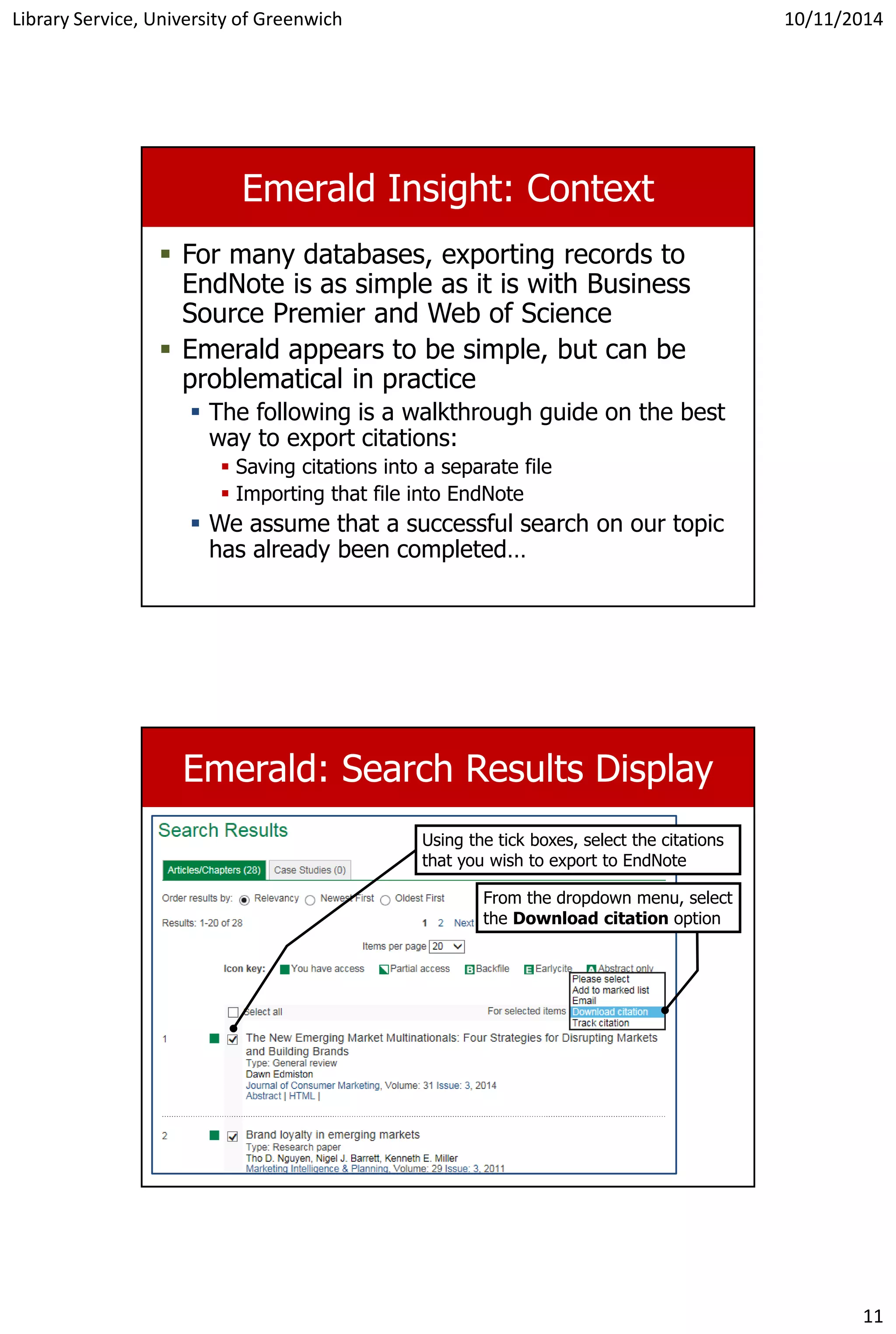
Emerald Insight: Context
 For many databases, exporting records to
EndNote is as simple as it is with Business
Source Premier and Web of Science
 Emerald appears to be simple, but can be
problematical in practice
 The following is a walkthrough guide on the best
way to export citations:
 Saving citations into a separate file
 Importing that file into EndNote
 We assume that a successful search on our topic
has already been completed…
Emerald: Search Results Display
Using the tick boxes, select the citations
that you wish to export to EndNote
From the dropdown menu, select
the Download citation option
Library Service, University of Greenwich 10/11/2014
12
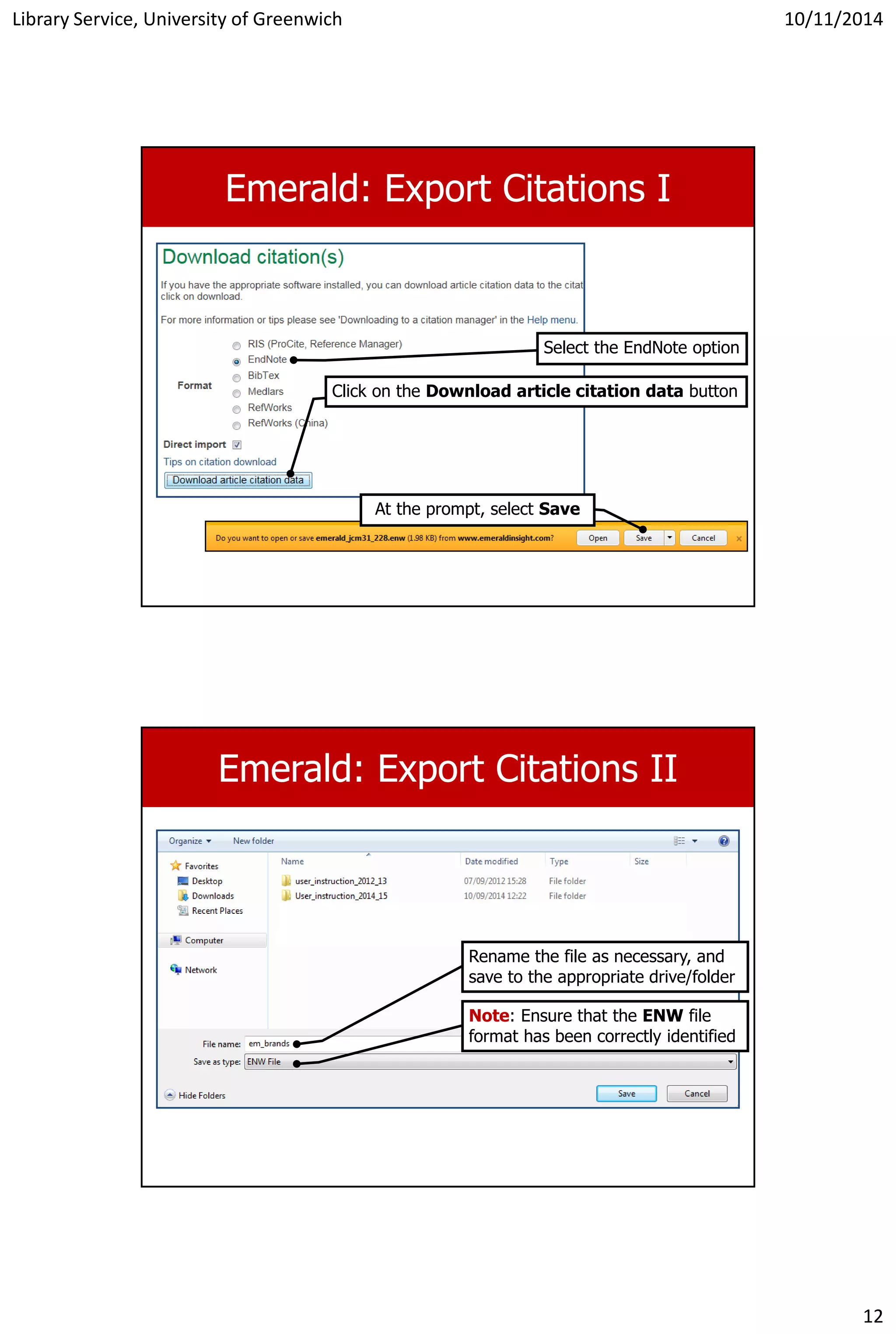
Emerald: Export Citations I
Select the EndNote option
Click on the Download article citation data button
At the prompt, select Save
Emerald: Export Citations II
Rename the file as necessary, and
save to the appropriate drive/folder
Note: Ensure that the ENW file
format has been correctly identified
Library Service, University of Greenwich 10/11/2014
13
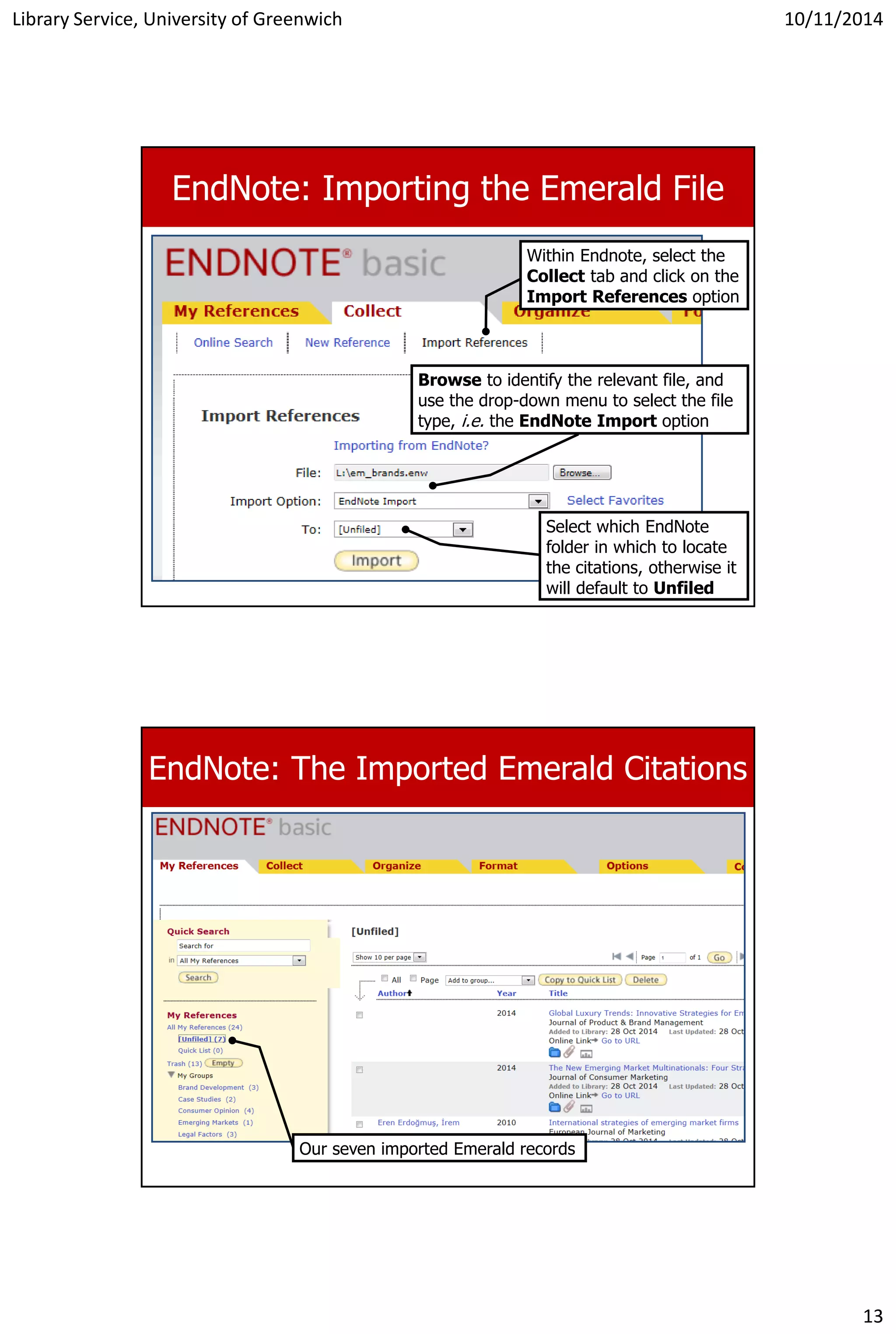
EndNote: Importing the Emerald File
Within Endnote, select the
Collect tab and click on the
Import References option
Browse to identify the relevant file, and
use the drop-down menu to select the file
type, i.e. the EndNote Import option
Select which EndNote
folder in which to locate
the citations, otherwise it
will default to Unfiled
EndNote: The Imported Emerald Citations
Our seven imported Emerald records
Library Service, University of Greenwich 10/11/2014
14
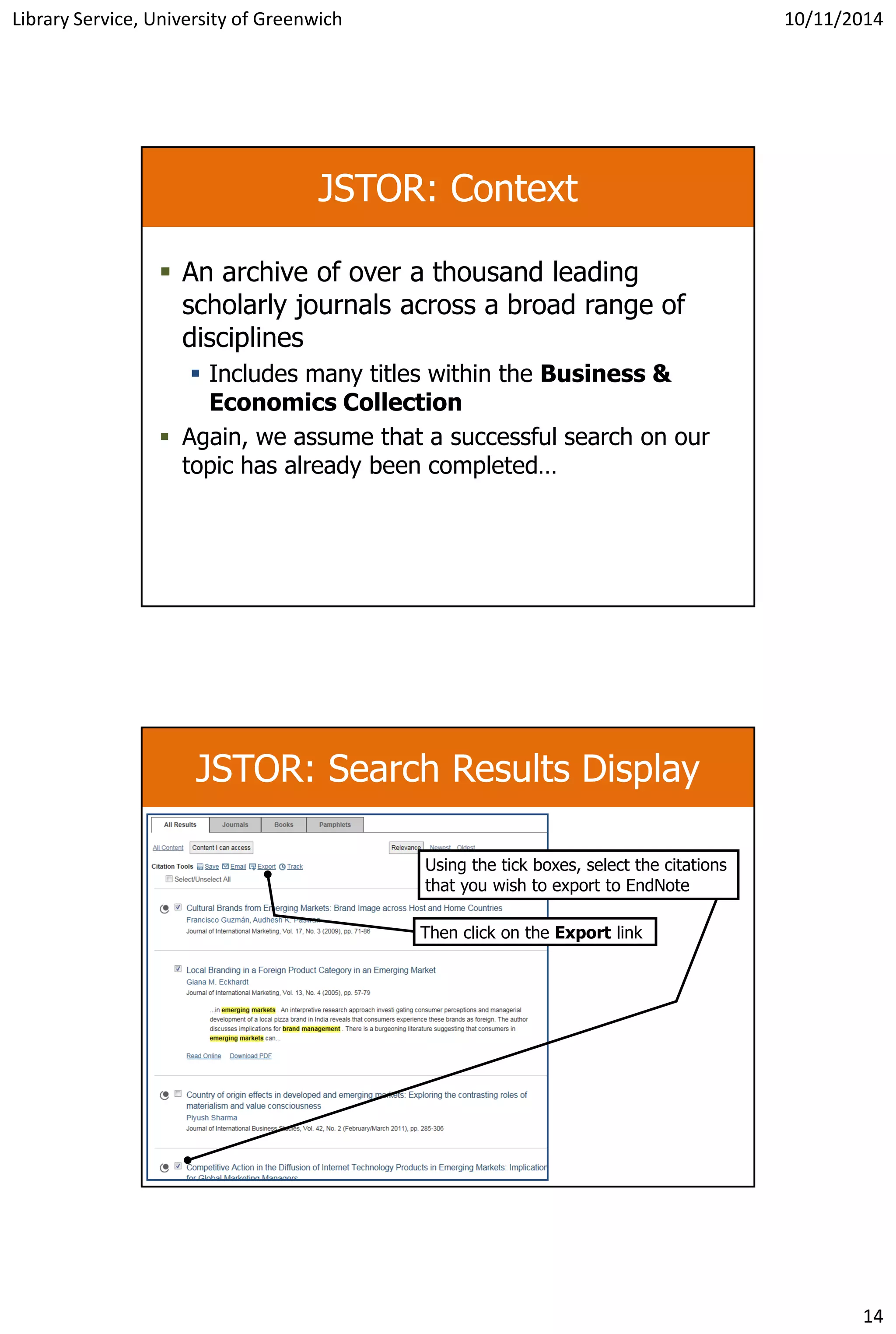
JSTOR: Context
 An archive of over a thousand leading
scholarly journals across a broad range of
disciplines
 Includes many titles within the Business &
Economics Collection
 Again, we assume that a successful search on our
topic has already been completed…
JSTOR: Search Results Display
Then click on the Export link
Using the tick boxes, select the citations
that you wish to export to EndNote
Library Service, University of Greenwich 10/11/2014
15
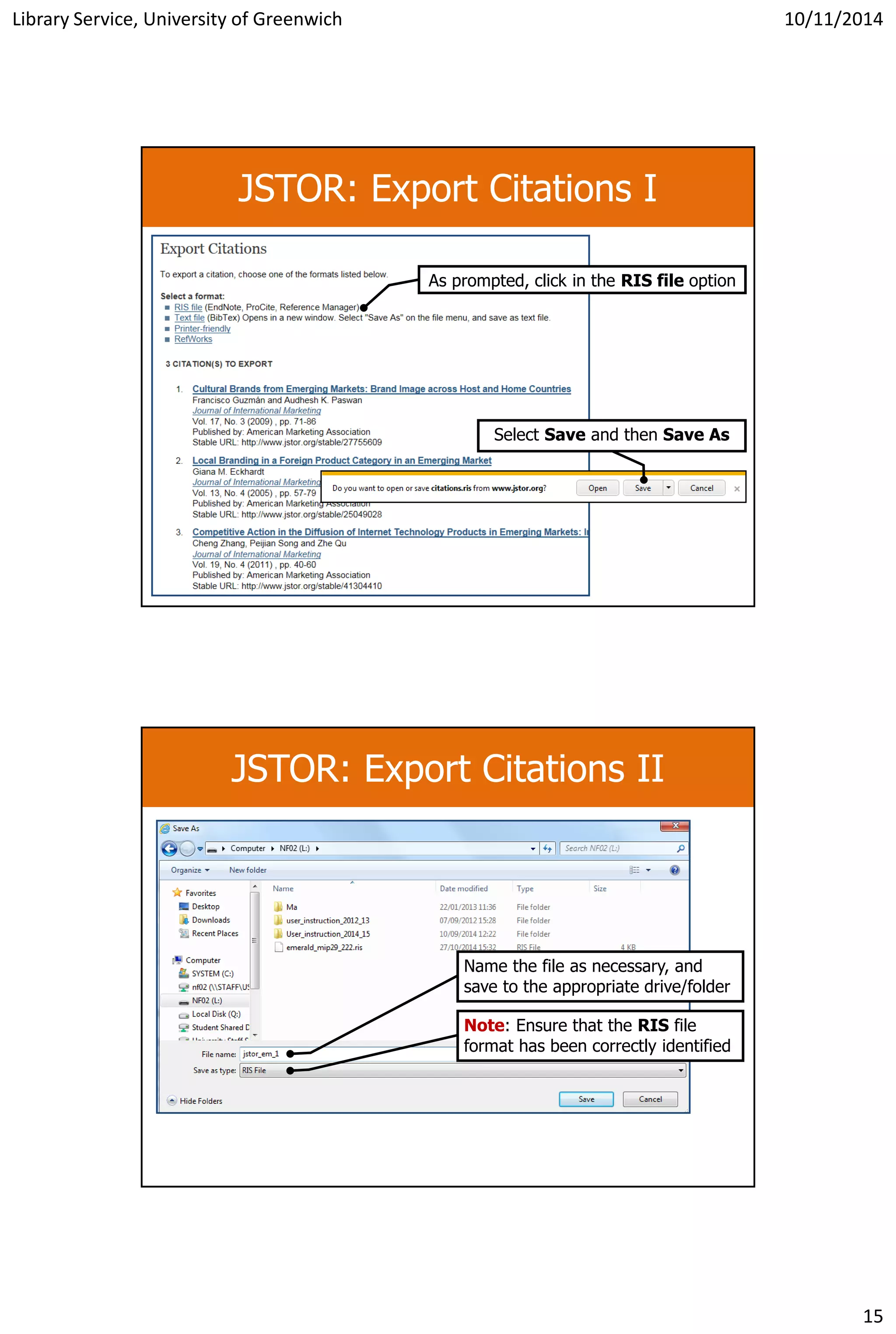
JSTOR: Export Citations I
As prompted, click in the RIS file option
Select Save and then Save As
JSTOR: Export Citations II
Name the file as necessary, and
save to the appropriate drive/folder
Note: Ensure that the RIS file
format has been correctly identified
Library Service, University of Greenwich 10/11/2014
16
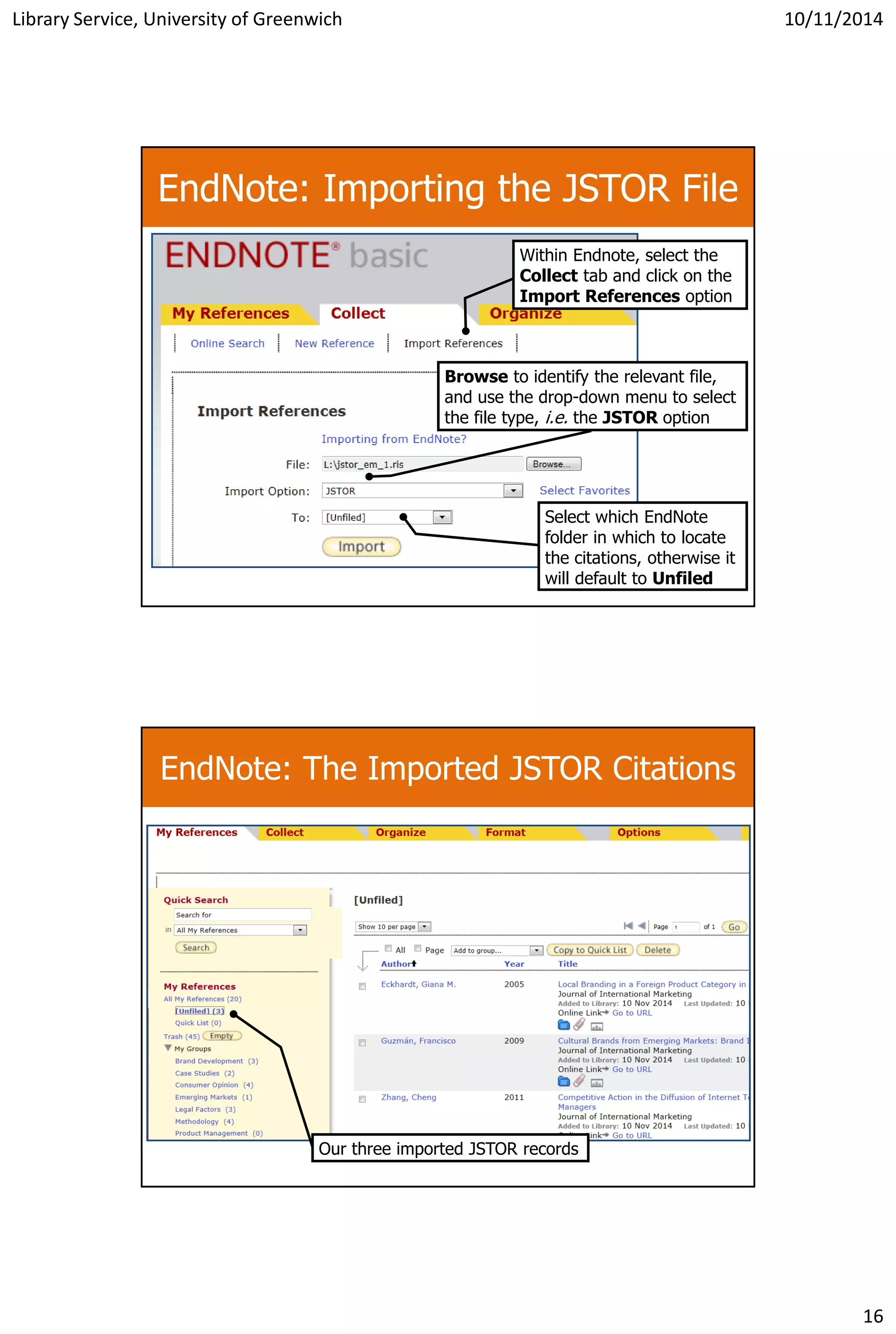
EndNote: Importing the JSTOR File
Within Endnote, select the
Collect tab and click on the
Import References option
Browse to identify the relevant file,
and use the drop-down menu to select
the file type, i.e. the JSTOR option
Select which EndNote
folder in which to locate
the citations, otherwise it
will default to Unfiled
EndNote: The Imported JSTOR Citations
Our three imported JSTOR records
Library Service, University of Greenwich 10/11/2014
17
Help!
 This presentation is available in PDF format
from the Moodle course: Library
Information for Business Students
 See the Induction Presentations & Resource
Guides 2014-15 folder
 You can also contact your Faculty librarians
for assistance:
Rachael Hartiss & Fraser Nicolaides
mgbulib@gre.ac.uk

EndNote 2014

  • 1.
    Library Service, Universityof Greenwich 10/11/2014 1 Citation Management using EndNote Programme  Exporting citations to the citation- management tool, EndNote (contained within the Web of Science database)  Example 1: Business Source Premier  Exporting to and organising results within EndNote  Example 2: Web of Science  Bibliographic indexes of published articles  Example 3: LibrarySearch  The Library Service’s resource discovery tool  Examples 4 and 5: Emerald Insight; JSTOR  When things aren’t as easy as they should be
  • 2.
    Library Service, Universityof Greenwich 10/11/2014 2 Business Source Premier (BSP): Context  We start this process at the conclusion of a successful search of the Business Source Premier database  The example search is for product management in emerging markets  The results we wish to save will be placed in our Business Source Premier folder  Folders are a feature common to most databases BSP: Adding Search Results to your ‘Folder’ You can save references to selected articles in your Folder. To do this, click on the Add to Folder option. Once you have completed your selection, click on the Folder icon in the top right-hand corner of the screen.
  • 3.
    Library Service, Universityof Greenwich 10/11/2014 3 BSP: Folder Contents You can retain and organise your references within your My Business Source account. However, you might also want to consider amalgamating references from several databases in a Citation Management tool. To do this from BSP, first Select the required records and then click on the Export link. BSP: Folder Export Options  The purpose of any citation management tool is to assist you in recording, organising and outputting bibliographic references.  There are numerous such tools available. One product we use at Greenwich is EndNote Basic (formerly EndNote Web). From the BSP Folder, select the EndNote Web option, then click on the Save button
  • 4.
    Library Service, Universityof Greenwich 10/11/2014 4 EndNote: Login / Create Account A new browser window will open, which will contain the login prompt to EndNote. If you have not already done so, now is the time to create an account. Otherwise, you can access EndNote via the link in the Web of Science database. EndNote: Imported References Add selected records to the required Group or create a New Group The list of My References (in this example, the nine citations imported from Business Source Premier) Note: You can add a record to as many Groups as necessary To look at the content (records) within any Group, use the Quick Search drop-down menu
  • 5.
    Library Service, Universityof Greenwich 10/11/2014 5 EndNote: Create and Manage Groups The Organize tab allows you to manage existing Groups and create new ones EndNote: Create Your Own Record(s) Within the Collect tab, use the New Reference option to create your own citation Select the document type from the drop down menu As you create the record, it will automatically be saved to your All My References and Unfiled folders
  • 6.
    Library Service, Universityof Greenwich 10/11/2014 6 EndNote: Creating a Bibliography …but the output might need some tweaking! The Bibliography option within the Format tab allows you to output all of (or Groups of) your references in a specified format - including Harvard Web of Science (WS): Context  Web of Science is a research discovery tool for identifying relevant scholarly articles  It consists of several bibliographic indexes (i.e. it is not a full-text database)  These include:  Web of Science (1970 onwards); and  SciELO Citation Index  Use the Library’s Document Supply service to request copies of articles and books not currently in stock at Greenwich: http://www.gre.ac.uk/offices/ils/ls/guides/ill
  • 7.
    Library Service, Universityof Greenwich 10/11/2014 7 WS: Searching You can limit the scope of your search to any of the constituent databases (indexes) A standard search interface, with the usual options to perform phrase searches, truncate search terms, and limit the coverage of searches to specific fields. WS: Results Display Refinement options are listed in the left-hand column Use the tick boxes to select only those results you want to import into EndNote (we have selected four of the six records)
  • 8.
    Library Service, Universityof Greenwich 10/11/2014 8 WS: Records Transfer to EndNote Use the drop down menu at the top of the results display to select the (default) EndNote online option A new window will open, from which you can choose what type of information you want to include. Press the Send button to proceed. EndNote: Records Received from WS The four records we transferred from Web of Science are now in the Unfiled folder Note: Imported records go simultaneously to the All My References and Unfiled folders (Switch back to EndNote using the link at the top of the page)
  • 9.
    Library Service, Universityof Greenwich 10/11/2014 9 LibrarySearch: Context  The Library Service’s resource discovery tool, which allows you to simultaneously search multiple databases  Coverage is largely restricted to citation and full- text e-book and journal databases  It does not include datasets (such as Thompson One, Orbis, Passport and Mintel) BSP Emerald JSTOR Database n LibrarySearch MyiLibrary LibrarySearch: Adding Items to e-Shelf Click on the star icon to add selected items to your e-Shelf Once you have made your selection, click on e-Shelf
  • 10.
    Library Service, Universityof Greenwich 10/11/2014 10 LibrarySearch: Export from e-Shelf 1. Use the tick boxes to select the items you want to send to EndNote 2. Use the drop-down menu to select the Push to EndNote option, and click on the Go button 3. You will then be prompted to login to EndNote EndNote: The Imported Citations As before, our results appear in the Unfiled folder
  • 11.
    Library Service, Universityof Greenwich 10/11/2014 11 Emerald Insight: Context  For many databases, exporting records to EndNote is as simple as it is with Business Source Premier and Web of Science  Emerald appears to be simple, but can be problematical in practice  The following is a walkthrough guide on the best way to export citations:  Saving citations into a separate file  Importing that file into EndNote  We assume that a successful search on our topic has already been completed… Emerald: Search Results Display Using the tick boxes, select the citations that you wish to export to EndNote From the dropdown menu, select the Download citation option
  • 12.
    Library Service, Universityof Greenwich 10/11/2014 12 Emerald: Export Citations I Select the EndNote option Click on the Download article citation data button At the prompt, select Save Emerald: Export Citations II Rename the file as necessary, and save to the appropriate drive/folder Note: Ensure that the ENW file format has been correctly identified
  • 13.
    Library Service, Universityof Greenwich 10/11/2014 13 EndNote: Importing the Emerald File Within Endnote, select the Collect tab and click on the Import References option Browse to identify the relevant file, and use the drop-down menu to select the file type, i.e. the EndNote Import option Select which EndNote folder in which to locate the citations, otherwise it will default to Unfiled EndNote: The Imported Emerald Citations Our seven imported Emerald records
  • 14.
    Library Service, Universityof Greenwich 10/11/2014 14 JSTOR: Context  An archive of over a thousand leading scholarly journals across a broad range of disciplines  Includes many titles within the Business & Economics Collection  Again, we assume that a successful search on our topic has already been completed… JSTOR: Search Results Display Then click on the Export link Using the tick boxes, select the citations that you wish to export to EndNote
  • 15.
    Library Service, Universityof Greenwich 10/11/2014 15 JSTOR: Export Citations I As prompted, click in the RIS file option Select Save and then Save As JSTOR: Export Citations II Name the file as necessary, and save to the appropriate drive/folder Note: Ensure that the RIS file format has been correctly identified
  • 16.
    Library Service, Universityof Greenwich 10/11/2014 16 EndNote: Importing the JSTOR File Within Endnote, select the Collect tab and click on the Import References option Browse to identify the relevant file, and use the drop-down menu to select the file type, i.e. the JSTOR option Select which EndNote folder in which to locate the citations, otherwise it will default to Unfiled EndNote: The Imported JSTOR Citations Our three imported JSTOR records
  • 17.
    Library Service, Universityof Greenwich 10/11/2014 17 Help!  This presentation is available in PDF format from the Moodle course: Library Information for Business Students  See the Induction Presentations & Resource Guides 2014-15 folder  You can also contact your Faculty librarians for assistance: Rachael Hartiss & Fraser Nicolaides mgbulib@gre.ac.uk