HUNGARY MAP


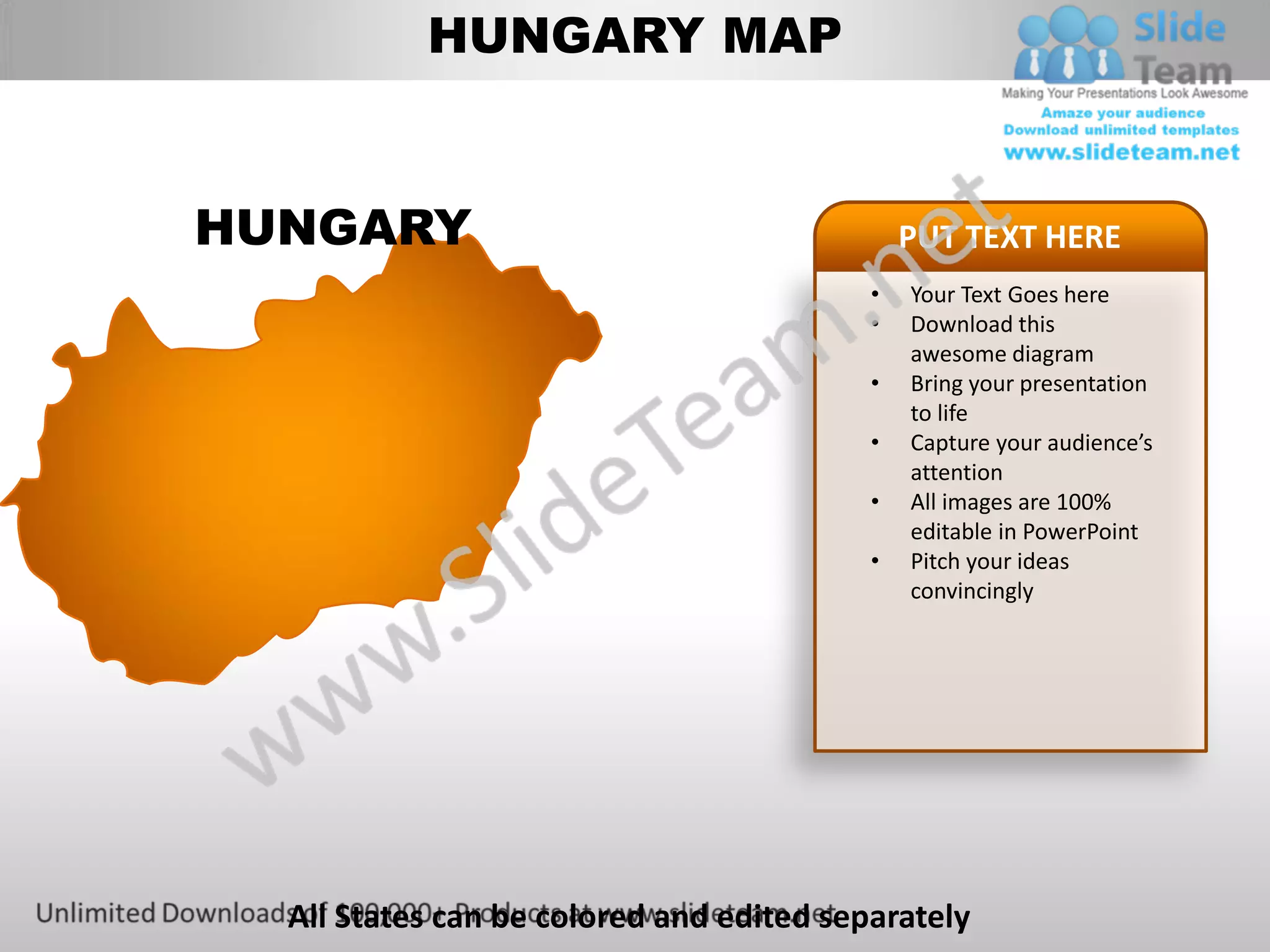
HUNGARY                                       PUT TEXT HERE
                                          •   Your Text Goes here
                                          •   Download this
                                              awesome diagram
                                          •   Bring your presentation
                                              to life
                                          •   Capture your audience’s
                                              attention
                                          •   All images are 100%
                                              editable in PowerPoint
                                          •   Pitch your ideas
                                              convincingly


  All States can be colored and edited separately
HUNGARY MAP


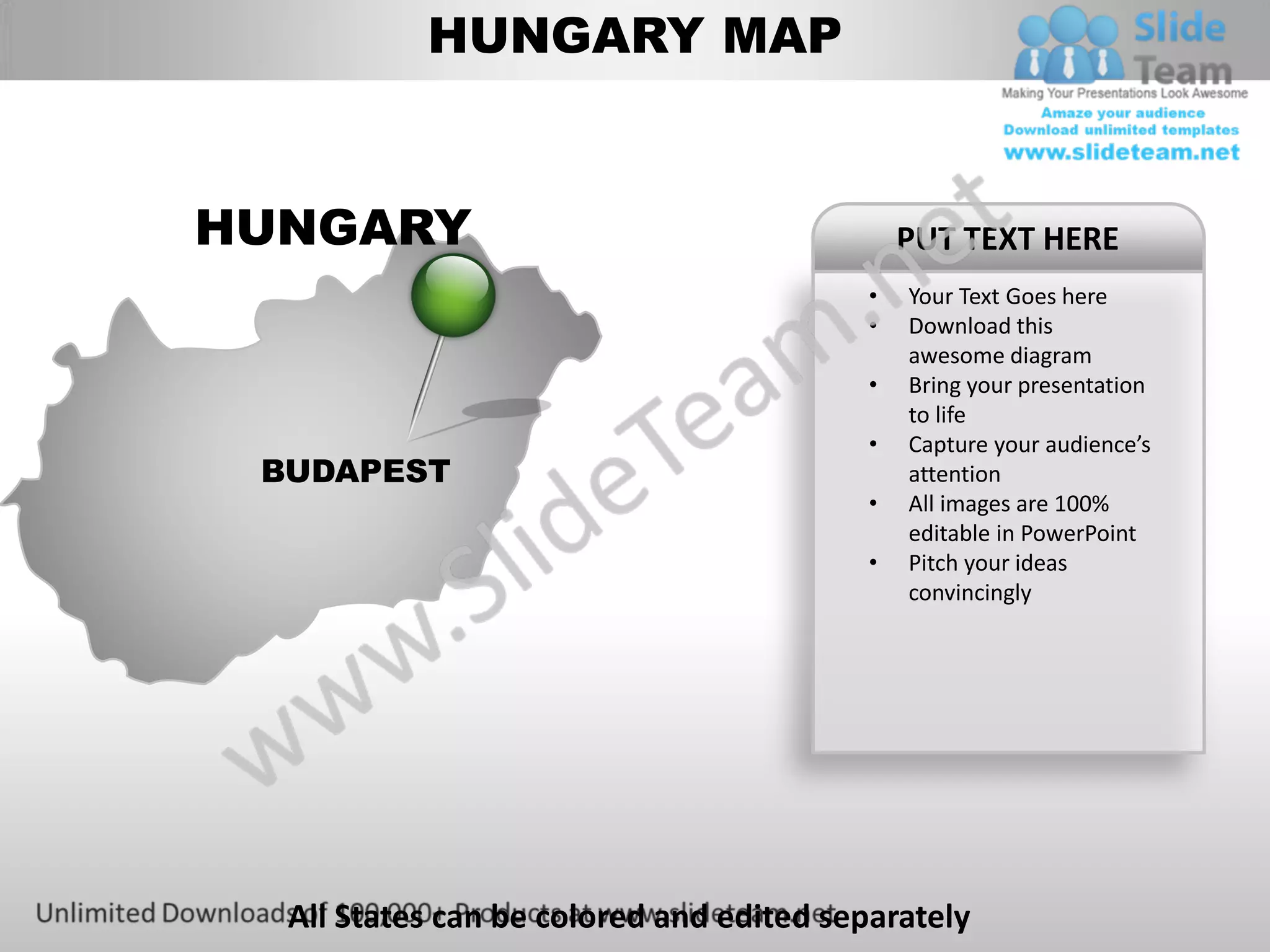
HUNGARY                                       PUT TEXT HERE
                                          •   Your Text Goes here
                                          •   Download this
                                              awesome diagram
                                          •   Bring your presentation
                                              to life
                                          •   Capture your audience’s
 BUDAPEST                                     attention
                                          •   All images are 100%
                                              editable in PowerPoint
                                          •   Pitch your ideas
                                              convincingly


  All States can be colored and edited separately
HUNGARY MAP

                                              PUT TEXT HERE
                                          •   Your Text Goes here
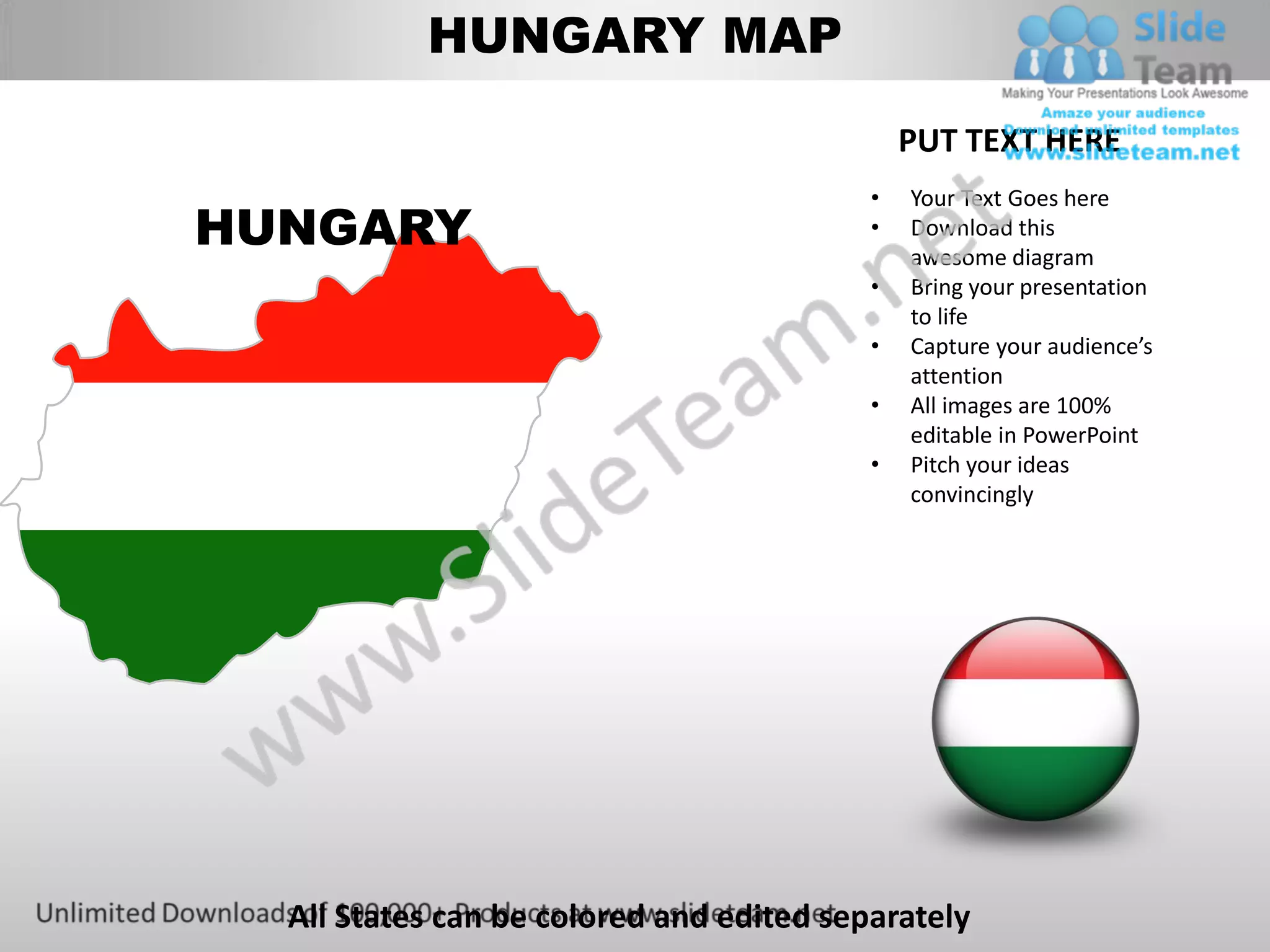
HUNGARY                                   •   Download this
                                              awesome diagram
                                          •   Bring your presentation
                                              to life
                                          •   Capture your audience’s
                                              attention
                                          •   All images are 100%
                                              editable in PowerPoint
                                          •   Pitch your ideas
                                              convincingly


  All States can be colored and edited separately
HUNGARY MAP
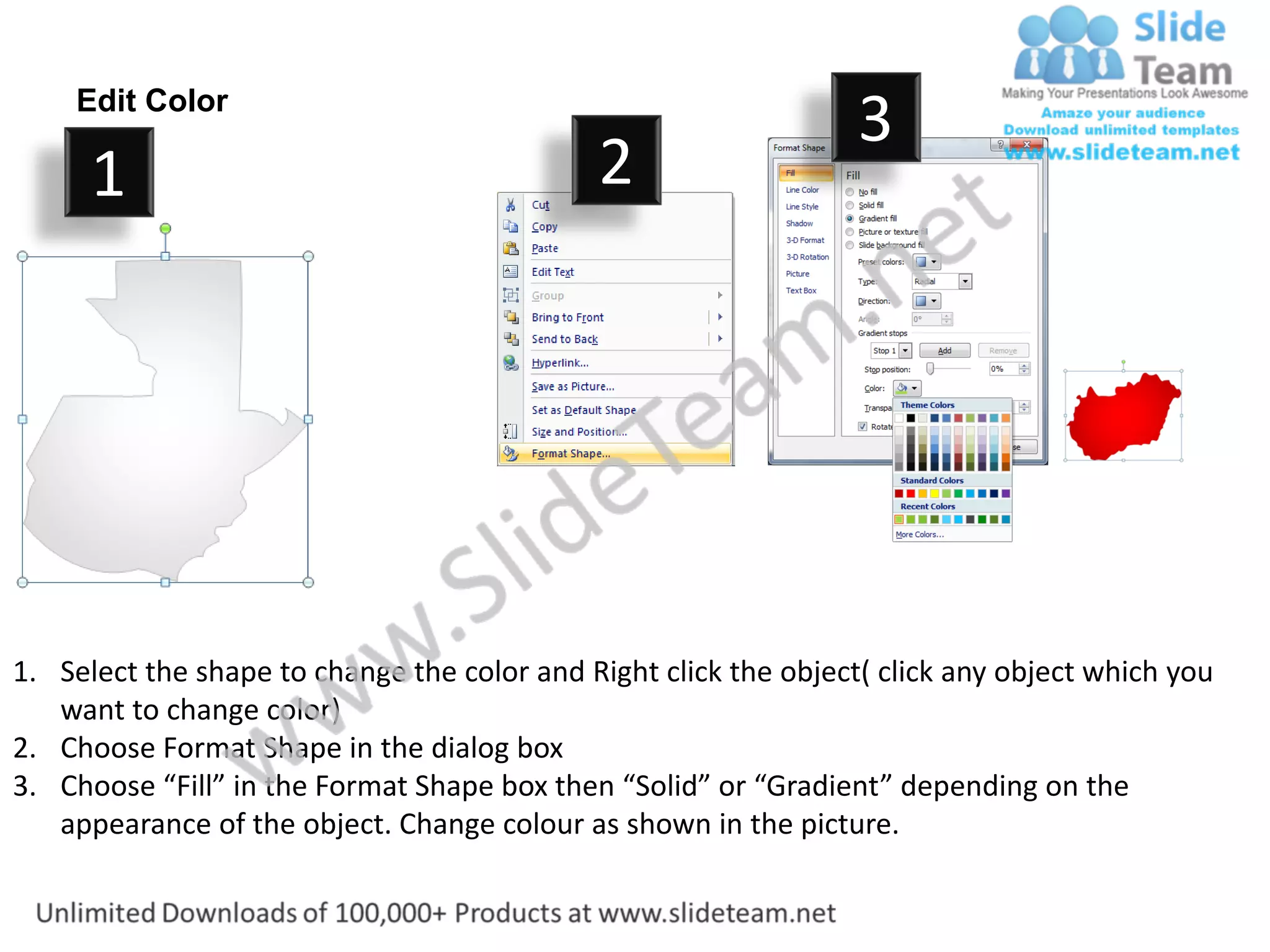
Edit Color
                                                                  3
      1                                      2


1. Select the shape to change the color and Right click the object( click any object which you
   want to change color)
2. Choose Format Shape in the dialog box
3. Choose “Fill” in the Format Shape box then “Solid” or “Gradient” depending on the
   appearance of the object. Change colour as shown in the picture.
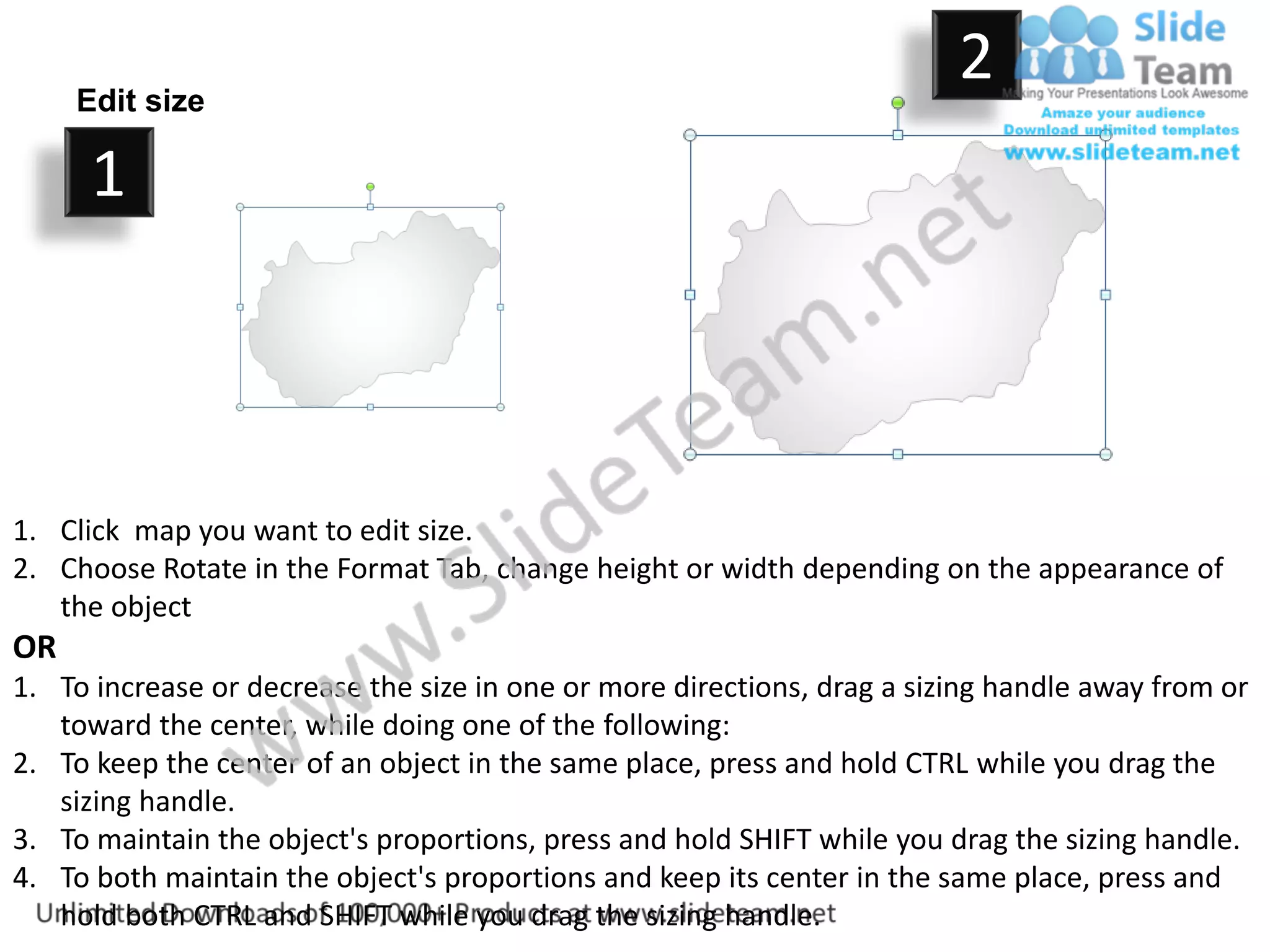
Edit size
                                                                         2
      1


1. Click map you want to edit size.
2. Choose Rotate in the Format Tab, change height or width depending on the appearance of
   the object
OR
1. To increase or decrease the size in one or more directions, drag a sizing handle away from or
   toward the center, while doing one of the following:
2. To keep the center of an object in the same place, press and hold CTRL while you drag the
   sizing handle.
3. To maintain the object's proportions, press and hold SHIFT while you drag the sizing handle.
4. To both maintain the object's proportions and keep its center in the same place, press and
   hold both CTRL and SHIFT while you drag the sizing handle.
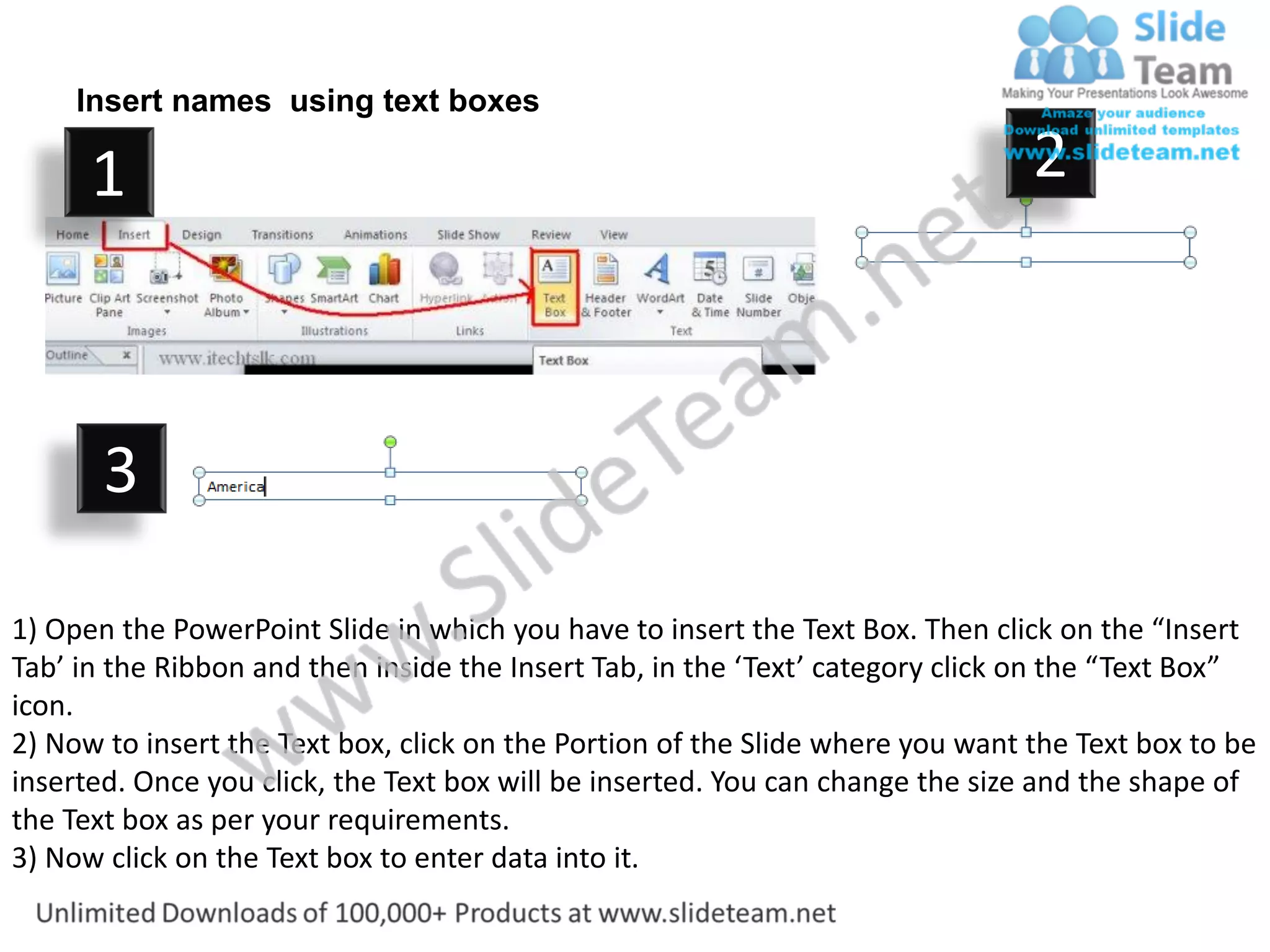
Insert names using text boxes

      1                                                                         2


       3

1) Open the PowerPoint Slide in which you have to insert the Text Box. Then click on the “Insert
Tab’ in the Ribbon and then inside the Insert Tab, in the ‘Text’ category click on the “Text Box”
icon.
2) Now to insert the Text box, click on the Portion of the Slide where you want the Text box to be
inserted. Once you click, the Text box will be inserted. You can change the size and the shape of
the Text box as per your requirements.
3) Now click on the Text box to enter data into it.

Editable hungary power point map with capital and flag templates slides outlines region

  • 1.
    HUNGARY MAP HUNGARY PUT TEXT HERE • Your Text Goes here • Download this awesome diagram • Bring your presentation to life • Capture your audience’s attention • All images are 100% editable in PowerPoint • Pitch your ideas convincingly All States can be colored and edited separately
  • 2.
    HUNGARY MAP HUNGARY PUT TEXT HERE • Your Text Goes here • Download this awesome diagram • Bring your presentation to life • Capture your audience’s BUDAPEST attention • All images are 100% editable in PowerPoint • Pitch your ideas convincingly All States can be colored and edited separately
  • 3.
    HUNGARY MAP PUT TEXT HERE • Your Text Goes here HUNGARY • Download this awesome diagram • Bring your presentation to life • Capture your audience’s attention • All images are 100% editable in PowerPoint • Pitch your ideas convincingly All States can be colored and edited separately
  • 4.
  • 5.
    Edit Color 3 1 2 1. Select the shape to change the color and Right click the object( click any object which you want to change color) 2. Choose Format Shape in the dialog box 3. Choose “Fill” in the Format Shape box then “Solid” or “Gradient” depending on the appearance of the object. Change colour as shown in the picture.
  • 6.
    Edit size 2 1 1. Click map you want to edit size. 2. Choose Rotate in the Format Tab, change height or width depending on the appearance of the object OR 1. To increase or decrease the size in one or more directions, drag a sizing handle away from or toward the center, while doing one of the following: 2. To keep the center of an object in the same place, press and hold CTRL while you drag the sizing handle. 3. To maintain the object's proportions, press and hold SHIFT while you drag the sizing handle. 4. To both maintain the object's proportions and keep its center in the same place, press and hold both CTRL and SHIFT while you drag the sizing handle.
  • 7.
    Insert names usingtext boxes 1 2 3 1) Open the PowerPoint Slide in which you have to insert the Text Box. Then click on the “Insert Tab’ in the Ribbon and then inside the Insert Tab, in the ‘Text’ category click on the “Text Box” icon. 2) Now to insert the Text box, click on the Portion of the Slide where you want the Text box to be inserted. Once you click, the Text box will be inserted. You can change the size and the shape of the Text box as per your requirements. 3) Now click on the Text box to enter data into it.